Dell Inspiron 3800 Owners Manual Solutions Guide
1508041248inspiron-3800_user's guide_en-us DELL INSPIRON 3800 pdf | FreeUserManuals.com
2014-11-13
: Dell Dell-Inspiron-3800-Owners-Manual-111967 dell-inspiron-3800-owners-manual-111967 dell pdf
Open the PDF directly: View PDF  .
.
Page Count: 98
- Contents
- Setting Up
- Solving Problems
- Finding Solutions
- Accessing Help Files
- Power Problems
- Start-Up Error Messages
- Video and Display Problems
- Sound and Speaker Problems
- Printer Problems
- Modem Problems
- Scanner Problems
- Touch Pad Problems
- External Keyboard Problems
- Unexpected Characters
- Drive Problems
- Network Problems
- Windows Error Messages
- General Program Problems
- Internet Connection Problems
- E-Mail Problems
- If Your Computer Gets Wet
- If You Drop or Damage Your Computer
- Resolving Other Technical Problems
- Reinstalling Drivers and Utilities
- Reinstalling Windows
- Recreating the Hibernate File (Windows 98 Only)
- Adding Parts
- Appendix
- Index

www.dell.com
support.dell.com
Dell™ Inspiron™ 3800 Systems
SOLUTIONS GUIDE

Hints, Notices, and Cautions
HINT: A HINT indicates important information that helps you make better
use of your computer.
NOTICE: A NOTICE indicates either potential damage to hardware or loss of
data and tells you how to avoid the problem.
CAUTION: A CAUTION indicates a potentially hazardous situation
which, if not avoided, may result in minor or moderate injury.
Abbreviations and Acronyms
For a complete listing of abbreviations and acronyms, see the Glossary in
the Tell Me How help file. Click the Start button, point to Programs, point
to Users’ Guides, and then click Tell Me How.
____________________
Information in this document is subject to change without notice.
© 2001 Dell Computer Corporation. All rights reserved.
Reproduction in any manner whatsoever without the written permission of Dell is strictly
forbidden.
Trademarks used in this text:
Dell
, the
DELL
logo,
Dell TravelLite
,
Inspiron
,
Dimension, Dell
Precision, OptiPlex, Latitude
, and
DellWare
are trademarks of Dell Computer Corporation;
Intel
and
Pentium
are registered trademarks and
Celeron
is a trademark of Intel Corporation;
Microsoft
and
Windows
are registered trademarks of Microsoft Corporation.
Other trademarks and trade names may be used in this document to refer to either the entities
claiming the marks and names or their products. Dell Computer Corporation disclaims any
proprietary interest in trademarks and trade names other than its own.
March 2001 P/N 595RW Rev. A00

Contents 3
Contents
Safety Instructions . . . . . . . . . . . . . . . . . . . . . . . . . 7
When Using Your Computer . . . . . . . . . . . . . . . . . . . 7
When Removing or Installing Memory Modules . . . . . . . . . 10
Protecting Against Electrostatic Discharge . . . . . . . . . . . 11
1Setting Up
Connecting a Printer . . . . . . . . . . . . . . . . . . . . . . . . 14
Installing the Printer Driver . . . . . . . . . . . . . . . . . . . 14
Parallel Printer . . . . . . . . . . . . . . . . . . . . . . . . . 14
USB Printer . . . . . . . . . . . . . . . . . . . . . . . . . . 15
Turning Off the Computer . . . . . . . . . . . . . . . . . . . . . 16
Windows Millennium Edition (Me) and Windows 2000 . . . . . 16
Windows 98 . . . . . . . . . . . . . . . . . . . . . . . . . . 16
Using the Media Bay . . . . . . . . . . . . . . . . . . . . . . . . 17
Swapping Devices While the Computer Is Turned Off . . . . . . 18
Swapping Devices While Windows Is Running . . . . . . . . . . 19
Setting Up the APR to Connect to a Network . . . . . . . . . . . 20
Setting Up the APR for Windows Me and Windows 98 . . . . . 20
Setting Up the APR for Windows 2000 . . . . . . . . . . . . . 21
2Solving Problems
Finding Solutions . . . . . . . . . . . . . . . . . . . . . . . . . . 24
Accessing Help Files . . . . . . . . . . . . . . . . . . . . . . . . 26
Power Problems . . . . . . . . . . . . . . . . . . . . . . . . . . . 26

4Contents
Start-Up Error Messages . . . . . . . . . . . . . . . . . . . . . 27
Video and Display Problems . . . . . . . . . . . . . . . . . . . . 28
If the display is blank . . . . . . . . . . . . . . . . . . . . . 28
If the display is difficult to read . . . . . . . . . . . . . . . . 28
Sound and Speaker Problems . . . . . . . . . . . . . . . . . . . 29
Integrated Speakers . . . . . . . . . . . . . . . . . . . . . . 29
External Speakers . . . . . . . . . . . . . . . . . . . . . . . 30
Printer Problems . . . . . . . . . . . . . . . . . . . . . . . . . 31
If you cannot print to a parallel port printer . . . . . . . . . . 31
If you cannot print to a USB printer . . . . . . . . . . . . . . 31
Modem Problems . . . . . . . . . . . . . . . . . . . . . . . . . 32
Scanner Problems . . . . . . . . . . . . . . . . . . . . . . . . . 33
Touch Pad Problems . . . . . . . . . . . . . . . . . . . . . . . . 33
External Keyboard Problems . . . . . . . . . . . . . . . . . . . 33
Unexpected Characters . . . . . . . . . . . . . . . . . . . . . . 33
Drive Problems . . . . . . . . . . . . . . . . . . . . . . . . . . 34
If you cannot save a file to a floppy disk . . . . . . . . . . . . 34
If you cannot play a music CD or install a program from a CD . 35
If you cannot play a DVD movie . . . . . . . . . . . . . . . . 35
If the CD-RW drive stops writing . . . . . . . . . . . . . . . . 36
If you have a hard drive problem . . . . . . . . . . . . . . . . 36
Network Problems . . . . . . . . . . . . . . . . . . . . . . . . . 37
Windows Error Messages . . . . . . . . . . . . . . . . . . . . . 37
General Program Problems . . . . . . . . . . . . . . . . . . . . 38
A program crashes . . . . . . . . . . . . . . . . . . . . . . . 38
A program stops responding . . . . . . . . . . . . . . . . . . 38
A solid blue screen appears . . . . . . . . . . . . . . . . . . 39
Internet Connection Problems . . . . . . . . . . . . . . . . . . 39

Contents 5
E-Mail Problems . . . . . . . . . . . . . . . . . . . . . . . . . . 40
If Your Computer Gets Wet. . . . . . . . . . . . . . . . . . . . . 40
If You Drop or Damage Your Computer . . . . . . . . . . . . . . 41
Resolving Other Technical Problems . . . . . . . . . . . . . . . . 42
Reinstalling Drivers and Utilities . . . . . . . . . . . . . . . . . . 42
Reinstalling Windows . . . . . . . . . . . . . . . . . . . . . . . . 42
Reinstalling Windows Me and Windows 98 . . . . . . . . . . . 43
Reinstalling Windows 2000 . . . . . . . . . . . . . . . . . . . 44
Recreating the Hibernate File (Windows 98 Only) . . . . . . . . . 46
Boot (Restart) Your Computer
With the System Software CD . . . . . . . . . . . . . . . . . . 46
Delete the Old Hibernate File . . . . . . . . . . . . . . . . . . 47
Create the Hibernate File . . . . . . . . . . . . . . . . . . . . 47
Enable Hibernate Support. . . . . . . . . . . . . . . . . . . . 48
3Adding Parts
Using the Advanced Port Replicator . . . . . . . . . . . . . . . . 50
Connecting External Devices to the APR . . . . . . . . . . . . 50
APR Controls and Indicators . . . . . . . . . . . . . . . . . . 52
Docking the Computer. . . . . . . . . . . . . . . . . . . . . . 52
Undocking the Computer . . . . . . . . . . . . . . . . . . . . 54
Monitor Stand . . . . . . . . . . . . . . . . . . . . . . . . . 54
Adding Memory . . . . . . . . . . . . . . . . . . . . . . . . . . . 55
Replacing a Hard Drive . . . . . . . . . . . . . . . . . . . . . . . 58
Returning a Hard Drive to Dell . . . . . . . . . . . . . . . . . 60
Using the Floppy Drive as an External Device . . . . . . . . . . . 61
Attaching the Composite TV-Out Adapter Cable. . . . . . . . . . 62

6Contents
4Appendix
Specifications . . . . . . . . . . . . . . . . . . . . . . . . . . . 64
Standard Settings . . . . . . . . . . . . . . . . . . . . . . . . . 71
System Setup Pages . . . . . . . . . . . . . . . . . . . . . . 71
Viewing the System Setup Pages . . . . . . . . . . . . . . . . 71
Contacting Dell . . . . . . . . . . . . . . . . . . . . . . . . . . 71
Contact Numbers and Addresses . . . . . . . . . . . . . . . . 72
Returning Items for Warranty Repair or Credit . . . . . . . . . 84
Regulatory Information . . . . . . . . . . . . . . . . . . . . . . 84
FCC Notices (U.S. Only) . . . . . . . . . . . . . . . . . . . . 85
Battery Disposal . . . . . . . . . . . . . . . . . . . . . . . . 88
NOM Information (Mexico Only) . . . . . . . . . . . . . . . . 89
Información para NOM (únicamente para México) . . . . . . . 90
Warranty and Return Policy Information . . . . . . . . . . . . . 90
Macrovision Product Notice . . . . . . . . . . . . . . . . . . . . 91
Index . . . . . . . . . . . . . . . . . . . . . . . . . . . . . . . . . . . 93

Safety Instructions 7
Safety Instructions
Use the following safety guidelines to help protect yourself and your
computer. For comfort and efficiency, observe the ergonomic guidelines in
“Sitting Comfortably at Your Computer” in the Tell Me How help file.
When Using Your Computer
CAUTION: Do not operate your portable computer for an extended
period of time with the base resting directly on your body. With
extended operation, heat can potentially build up in the base.
Allowing sustained contact with the skin could cause discomfort
or, eventually, a burn.
•Do not attempt to service the computer yourself. Always follow
installation instructions closely.
•Do not carry a battery in your pocket, purse, or other container where
metal objects (such as car keys) could short-circuit the battery
terminals. The resulting excessive current flow can cause extremely
high temperatures and may result in damage from burns.
•Be sure that nothing rests on your AC adapter’s power cable and that
the cable is not located where it can be tripped over or stepped on.
•Place the AC adapter in a ventilated area, such as a desk top or on the
floor, when you use it to run the computer or to charge the battery. Do
not cover the AC adapter with papers or other items that will reduce
cooling; also, do not use the AC adapter while it is inside a carrying
case.
•Do not use your computer in a wet environment, for example, near a
bath tub, sink, or swimming pool or in a wet basement.
•Do not push objects into air vents or openings of your computer.
Doing so can cause fire or electric shock by shorting out interior
components.
•Use only the AC adapter and batteries that are approved for use with
this computer as indicated in this document. Use of another type of
battery or AC adapter may risk fire or explosion.

8Safety Instructions
www.dell.com | support.dell.com
•Before you connect the computer to a power source, ensure that the
voltage rating of the AC adapter matches that of the available power
source:
– 115 V/60 Hz in most of North and South America and some Far
Eastern countries such as South Korea and Taiwan
– 100 V/50 Hz in eastern Japan and 100 V/60 Hz in western Japan
– 230 V/50 Hz in most of Europe, the Middle East, and the Far East
•To help prevent electric shock, plug the AC adapter and external
device power cables into properly grounded power sources. These
cables are equipped with 3-prong plugs to help ensure proper
grounding. Do not use adapter plugs or remove the grounding prong
from a cable. If you must use an extension cable, use a 3-wire cable
with properly grounded plugs.
•If you use an extension cable with your AC adapter, ensure that the
total ampere rating of the products plugged in to the extension cable
does not exceed the ampere rating of the extension cable.
•To remove power from the computer, turn it off, remove the battery,
and disconnect the AC adapter from the electrical outlet.
•If your computer includes an integrated or optional (PC Card)
modem, disconnect the modem cable during an electrical storm to
avoid the remote risk of electric shock from lightning via the telephone
line.
•To help avoid the potential hazard of electric shock, do not connect or
disconnect any cables or perform maintenance or reconfiguration of
this product during an electrical storm.
•PC Cards may become very warm during normal operation. Use care
when removing PC Cards after their continuous operation.
•Do not dispose of batteries in a fire. They may explode. Check with
local authorities for disposal instructions.
•When setting up the computer for work, place it on a level surface.
•When traveling, do not check the computer as baggage. You can put
your computer through an X-ray security machine, but never put your
computer through a metal detector. If you have the computer checked
by hand, be sure to have a charged battery available in case you are
asked to turn on the computer.

Safety Instructions 9
•When traveling with the hard drive removed from the computer, wrap
the drive in a nonconducting material, such as cloth or paper. If you
have the drive checked by hand, be ready to install the drive in the
computer. You can put the hard drive through an X-ray security
machine, but never put the drive through a metal detector.
•When traveling, do not place the computer in overhead storage
compartments where it could slide around. Do not drop your
computer or subject it to other mechanical shocks.
•Protect your computer, battery, and hard drive from environmental
hazards such as dirt, dust, food, liquids, temperature extremes, and
overexposure to sunlight.
•When you move your computer between environments with very
different temperature and/or humidity ranges, condensation may form
on or within the computer. To avoid damaging the computer, allow
sufficient time for the moisture to evaporate before using the
computer.
NOTICE: When taking the computer from low-temperature conditions into a
warmer environment or from high-temperature conditions into a cooler
environment, allow the computer to acclimate to room temperature before
turning on power.
•When you disconnect a cable, pull on its connector or on its strain-
relief loop, not on the cable itself. As you pull out the connector, keep
it evenly aligned to avoid bending any connector pins. Also, before you
connect a cable make sure both connectors are correctly oriented and
aligned.
•Handle components with care. Hold a component such as a memory
module by its edges, not its pins.
•When removing a memory module from the system board or
disconnecting an external device from the computer, wait 5 seconds
after turning off the computer before removing the memory module or
disconnecting the device to help avoid possible damage to the system
board.
•Before you clean your computer, turn it off, unplug it from its power
source, and remove the battery.
•Clean your computer with a soft cloth dampened with water rather
than with liquid or aerosol cleaners.

10 Safety Instructions
www.dell.com | support.dell.com
•Clean the display with a soft, clean cloth and commercial window
cleaner that does not contain wax or abrasives. Apply the cleaner to the
cloth; then stroke the cloth across the display in one direction, moving
from the top of the display to the bottom. If the display contains
grease or some other contaminant, use isopropyl alcohol instead of
commercial window cleaner.
•If your computer gets wet, see page 40 for instructions. If you drop or
damage the computer, see page 41. If, after following these procedures,
you confirm that your computer is not operating properly, contact Dell
(see page 71).
When Removing or Installing Memory Modules
Before you remove or install memory modules, perform the following steps
in the sequence indicated.
NOTICE: The only time you should ever access the inside of your computer is
when you are installing memory modules.
NOTICE: Wait 5 seconds after turning off the computer before
disconnecting an external device or removing a memory module to help prevent
possible damage to the system board.
1Turn off your computer and all attached devices.
2Disconnect your computer and external devices from their electrical
outlets to reduce the potential for personal injury or shock. Also,
disconnect any telephone or telecommunication lines from the
computer.
3Remove the battery from the battery bay and, if present, the secondary
battery from the media bay.
4Ground yourself by touching an unpainted metal surface at the back of
the computer before touching anything inside your computer.
While you work, periodically touch an unpainted metal surface on the
computer to dissipate any static electricity that might harm internal
components.
In addition, take note of these safety guidelines when appropriate:
•When you disconnect a cable, pull on its connector, not on the cable
itself. As you pull connectors apart, keep them evenly aligned to avoid
bending any pins. Also, before you connect a cable, make sure that
both connectors are correctly oriented and aligned.

Safety Instructions 11
•Handle memory modules with care. Don’t touch the components on a
module. Hold a module by its edges.
CAUTION: There is a danger of a new battery exploding if it is
incorrectly installed. Replace the battery only with the same or
equivalent type recommended by the manufacturer. Discard used
batteries according to the manufacturer’s instructions.
Protecting Against Electrostatic Discharge
To prevent static damage, discharge static electricity from your body before
you touch anything inside your computer and periodically while you work
inside the computer. You can do so by touching an unpainted metal surface
on the back of the computer.
You can also take the following steps to prevent static damage:
•Do not remove items from their antistatic packing material until you
are ready to install them in your computer. Just before unwrapping the
antistatic packaging, be sure to discharge static electricity from your
body.
•When transporting a sensitive component, first place it in an antistatic
container or packaging.

12 Safety Instructions
www.dell.com | support.dell.com


14 Setting Up
www.dell.com | support.dell.com
Connecting a Printer
See the documentation that came with the printer for any recommended
preparation procedures, such as:
•Removing the packaging
•Installing the toner or ink cartridge
•Loading paper
Then follow the instructions that came with the printer to connect it to the
computer. If no information is provided, see the following sections.
Installing the Printer Driver
Dell installs drivers for some new printers. Click the Start button, point to
Settings, and then click Printers. If your printer is listed in the Printers
window, the printer is ready to use.
HINT: For complete
printer driver installation
instructions, refer to your
printer documentation.
If you need to install a printer driver, insert the installation CD into the CD
or DVD drive. Then follow the prompts on the screen using the instructions
that came with the printer.
If your printer installation CD does not automatically run, click the Start
button on the Microsoft® Windows® desktop, click Run, and type
x:\setup.exe (where x is the letter of your CD or DVD drive [usually
drive D]). Then click OK and follow the prompts on your screen.
Parallel Printer
1Turn off the computer (see page 16).
NOTICE: Use only a standard IEEE parallel cable measuring 3 m (10 ft) or
less to connect the printer to the computer. Use of a nonstandard cable may
prevent the printer from working.
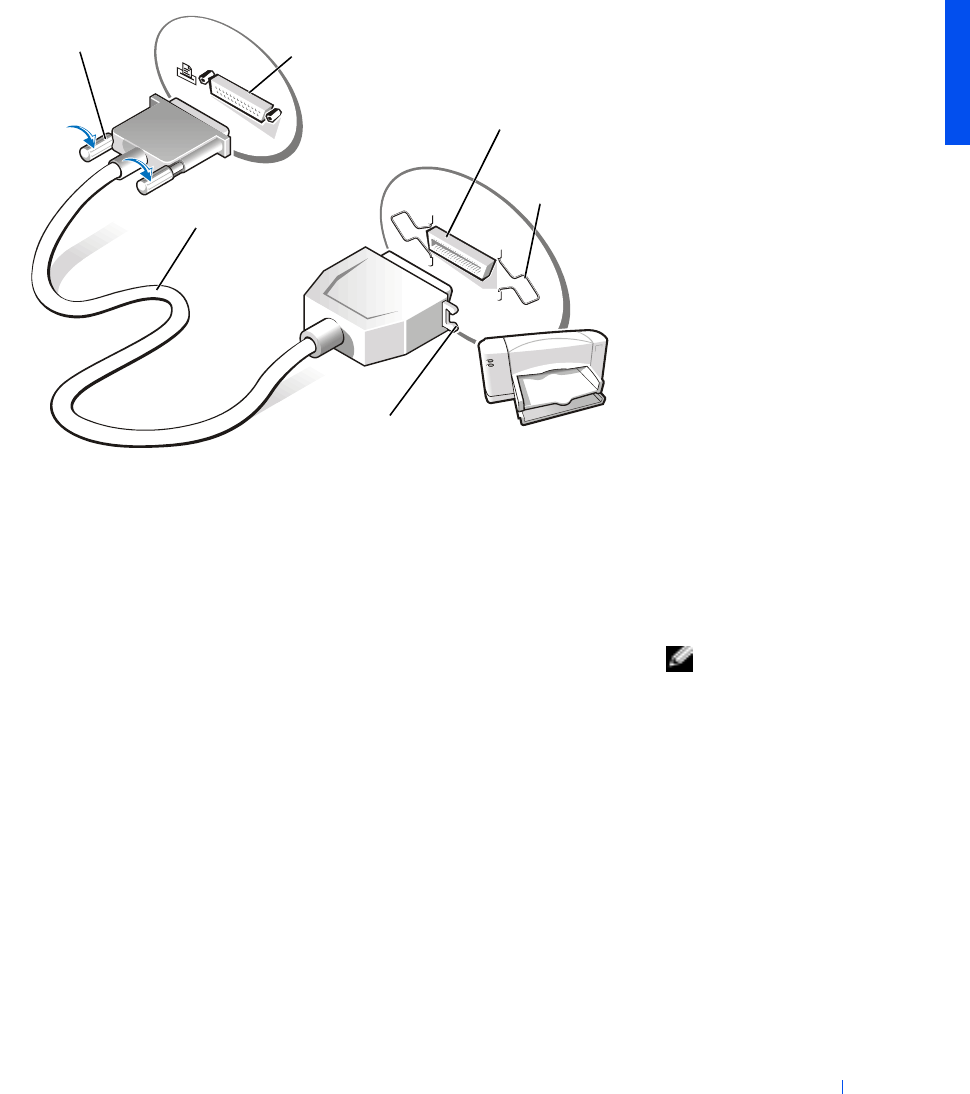
2Attach the parallel printer cable to the parallel port connector on the
computer and tighten the two screws. Attach the cable to the parallel
connector on the printer and snap the two clips into the two notches.
Setting Up 15
3Turn on the printer and then turn on the computer. If the Add New
Hardware Wizard window appears, click Cancel.
4Install the printer driver if necessary (see page 14).
USB Printer
HINT: You can connect
USB devices while the
computer is turned on.
1Install the printer driver if necessary (see page 14).
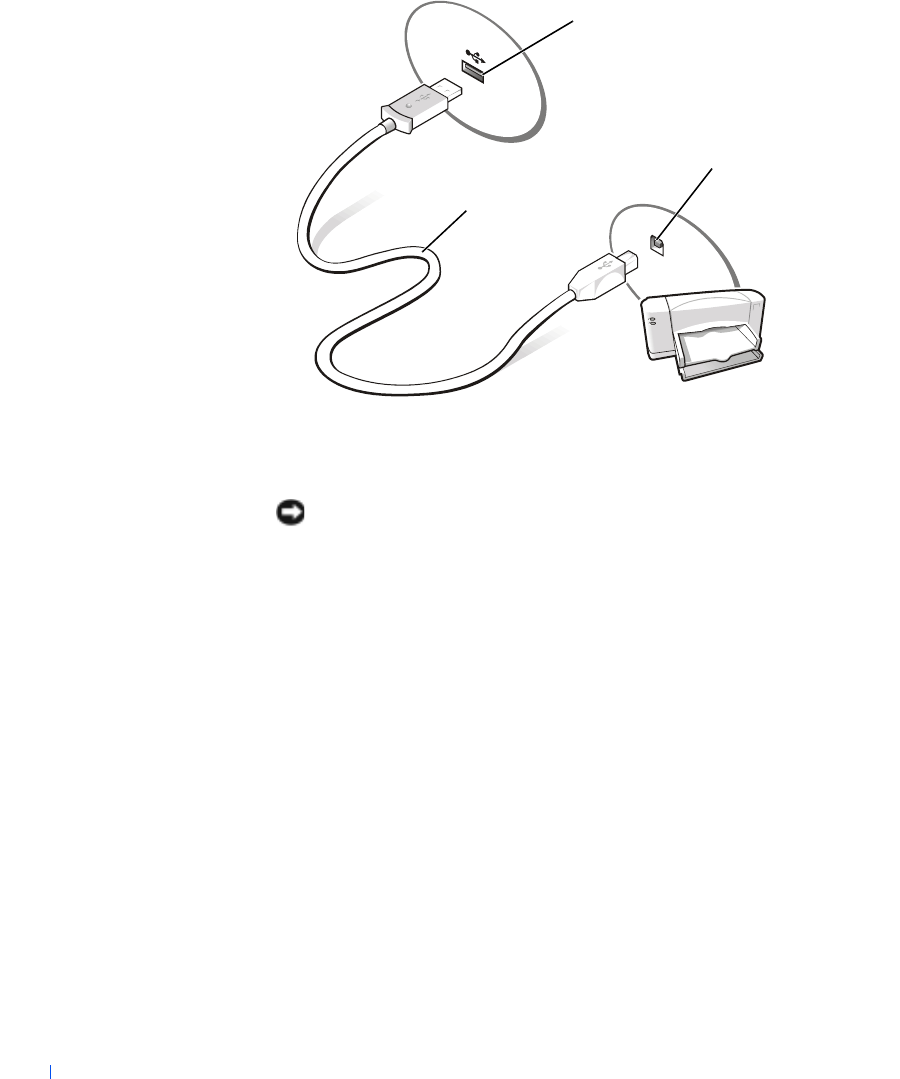
2Attach the USB printer cable to the USB port connector on the
computer and the printer. The USB connectors fit only one way.
parallel printer
cable
parallel port connector
on computer
printer cable
connector
screws (2)
clips (2)
notches (2)
16 Setting Up
www.dell.com | support.dell.com
Turning Off the Computer
NOTICE: To prevent data loss, you must perform the Windows shutdown
procedure to turn off your computer.
Windows Millennium Edition (Me) and Windows 2000
1Save and close any open files and exit any open programs.
2Click the Start button and then click Shut Down.
3Click the pull-down menu under What do you want the computer to
do?.
4Click Shut down and then click OK.
The computer automatically turns off after the shutdown process
finishes.
Windows 98
1Save and close any open files and exit any open programs.
2Click the Start button and then click Shut Down.
USB printer
cable
USB port connector
on computer
USB port connector
on printer

Setting Up 17
3In the Shut Down Windows window, click Shut down and then click
OK.
The computer automatically turns off after the shutdown process
finishes.
Using the Media Bay
Dell ships your computer with a floppy drive installed in the media bay. The
media bay also supports the following devices:
•CD drive
•CD-RW drive
•DVD drive
•Zip drive
•Second hard drive
•Second battery
•Dell TravelLite™ module
NOTICE: To prevent irreparable damage to the docking connector, do not
remove or replace devices while the computer is connected to an advanced port
replicator (APR).
18 Setting Up
www.dell.com | support.dell.com
Swapping Devices While the Computer Is Turned Off
1Save and close any open files, exit any open programs, and shut down
the computer (see page 16).
2If the computer is connected (docked) to an APR, undock it (see
page 54).
3Close the display and turn the computer over.
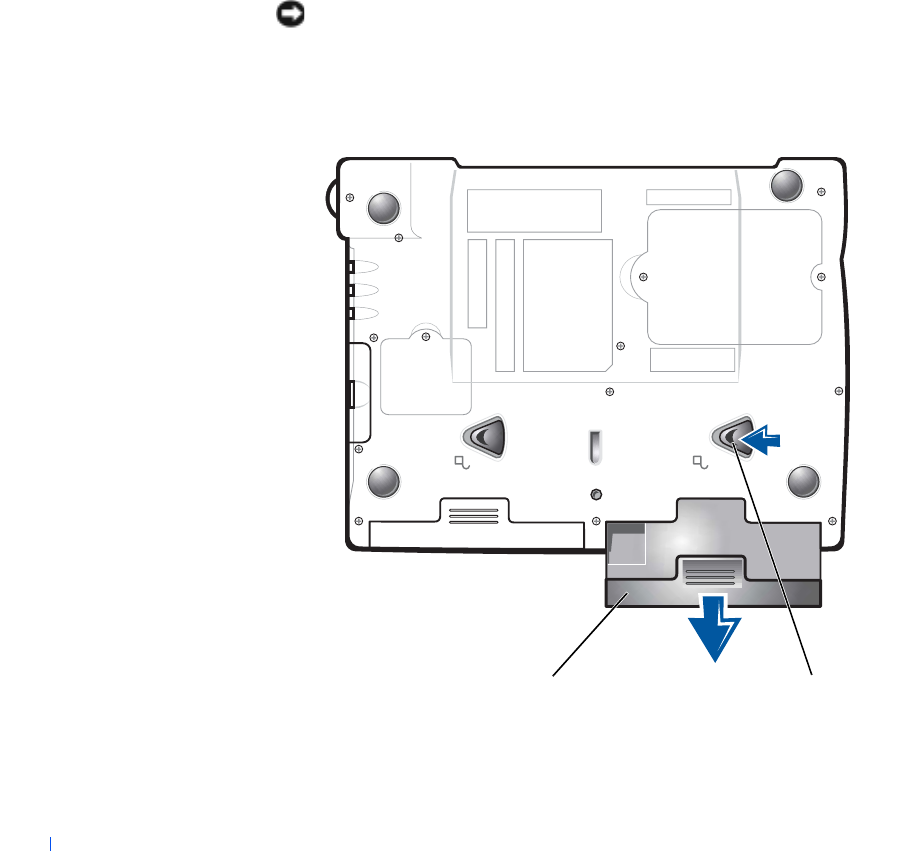
4Slide and hold the latch release, and pull the device out of the media
bay.
NOTICE: To prevent damage, place devices in a travel case when they are not
inserted in the computer. Store devices in a dry, safe place, and avoid placing
heavy objects on top of them.
b
o
tt
om o
f
compu
t
er
device latch release

Setting Up 19
NOTICE: Insert devices before you dock and turn on the computer.
5Insert the new device into the bay, and push it until you hear a click.
6Turn on the computer.
Swapping Devices While Windows Is Running
NOTICE: To prevent irreparable damage to the docking connector, do not
replace devices while the computer is connected to an APR.
In Microsoft Windows Me or Windows 98
1Right-click the Softex BayManager icon on the Microsoft Windows
taskbar.
2Click Remove/Swap.
3Keep the display open, and tilt the computer back so that you can
access the bottom of the computer.
4Slide and hold the latch release, and pull the device out of the media
bay.
5Insert the new device into the bay, and push it until you hear a click.
6Click OK. Then click OK again to close the Softex BayManager
window.
In Microsoft Windows 2000
1Double-click the Unplug or Eject Hardware icon on the Microsoft
Windows taskbar.
2Click the device you want to eject and then click Stop.
3Click OK, and wait until the device you want to eject is cleared from
the list of devices in the Unplug or Eject Hardware window.
4Keep the display open, and tilt the computer back so that you can
access the bottom of the computer.
5Slide and hold the latch release, and pull the device out of the media
bay.
6Insert the new device into the bay, and push it until you hear a click.
7When Windows recognizes the new device, click Close.

20 Setting Up
www.dell.com | support.dell.com
Setting Up the APR to Connect to a
Network
HINT: A network adapter
is also referred to as a
network interface
controller (NIC).
NOTICE: Do not install a network adapter or a network adapter/modem
combination PC Card until you complete the advanced port replicator (APR)
setup.
If you purchased the APR with an integrated network adapter, you must
first configure the computer to use the APR with a network.
Setting Up the APR for Windows Me and Windows 98
1If the computer is on, shut down the operating system and turn off the
computer (see page 16).
2Disconnect all external devices from the APR.
3Connect the AC adapter to the APR and an electrical outlet.
4Insert the computer into the APR.
5Turn on the computer.
The computer automatically detects the network adapter and begins
the software installation.
6At the Add New Hardware Wizard window, click Automatic search for
a better driver (Recommended) and then click Next.
7Click Finish when Windows displays a message that the driver is
installed.
8Click Yes to restart the computer.
After the computer restarts, Windows modifies settings, creates a
Dock 1 configuration, and then displays a Setup is complete
message.
9Click OK.
10 If the Updated display settings message appears, click OK.
11 If necessary, consult your network administrator for instructions on
configuring the network adapter settings.

Setting Up 21
Setting Up the APR for Windows 2000
NOTICE: Do not install the drivers from the CD that is shipped with the APR.
The network adapter will not work if they are installed.
1If the computer is on, shut down the operating system and turn off the
computer (see page 16).
2Disconnect all external devices from the APR.
3Insert the computer into the APR.
4Attach the network cable and the AC adapter to the APR.
5Turn on the computer.
6Log on as a user with administrative privileges.
7Make sure that 3Com PCI Ethernet Adapter (10/100) appears in the
Found New Hardware window.
Windows 2000 automatically installs the network adapter drivers.

22 Setting Up
www.dell.com | support.dell.com

www.dell.com | support.dell.com
2
SECTION 2
Solving Problems
Finding Solutions
Accessing Help Files
Power Problems
Start-Up Error Messages
Video and Display Problems
Sound and Speaker Problems
Printer Problems
Modem Problems
Scanner Problems
Touch Pad Problems
External Keyboard Problems
Unexpected Characters
Drive Problems
Network Problems
Windows Error Messages
General Program Problems
Internet Connection Problems
E-Mail Problems
If Your Computer Gets Wet
If You Drop or Damage Your Computer
Resolving Other Technical Problems
Reinstalling Drivers and Utilities
Reinstalling Windows
24 Solving Problems
www.dell.com | support.dell.com
Finding Solutions
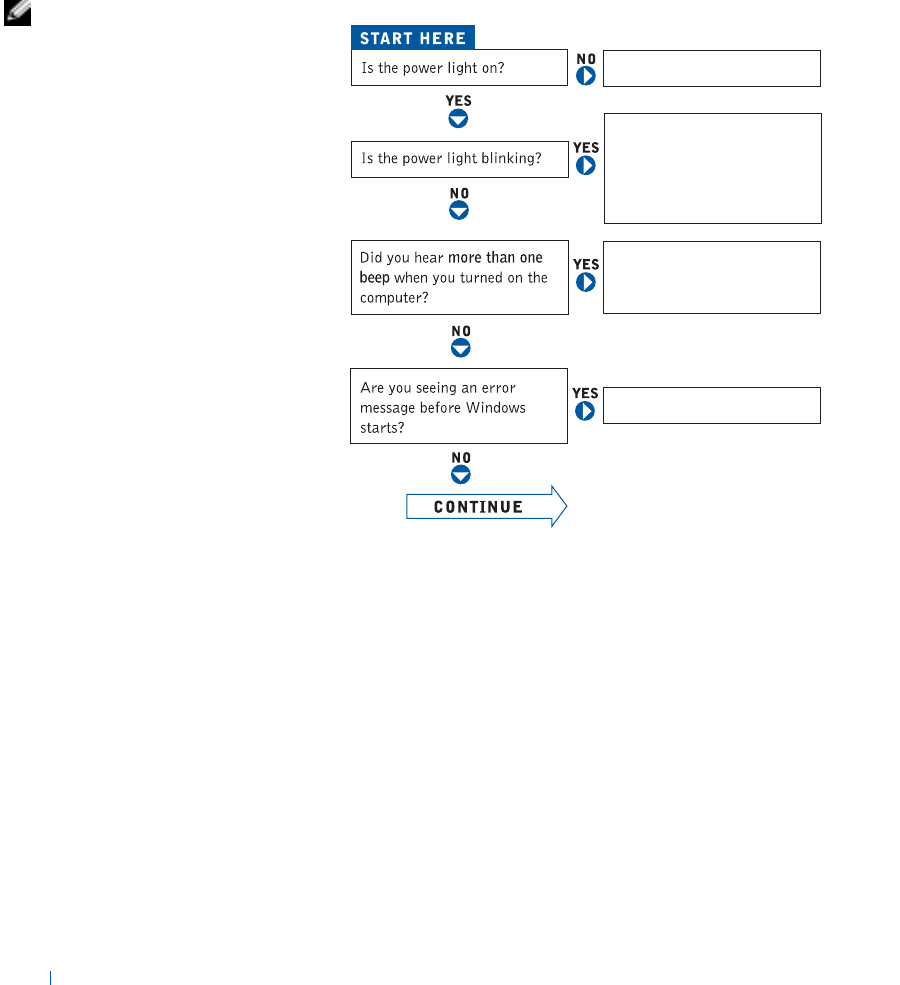
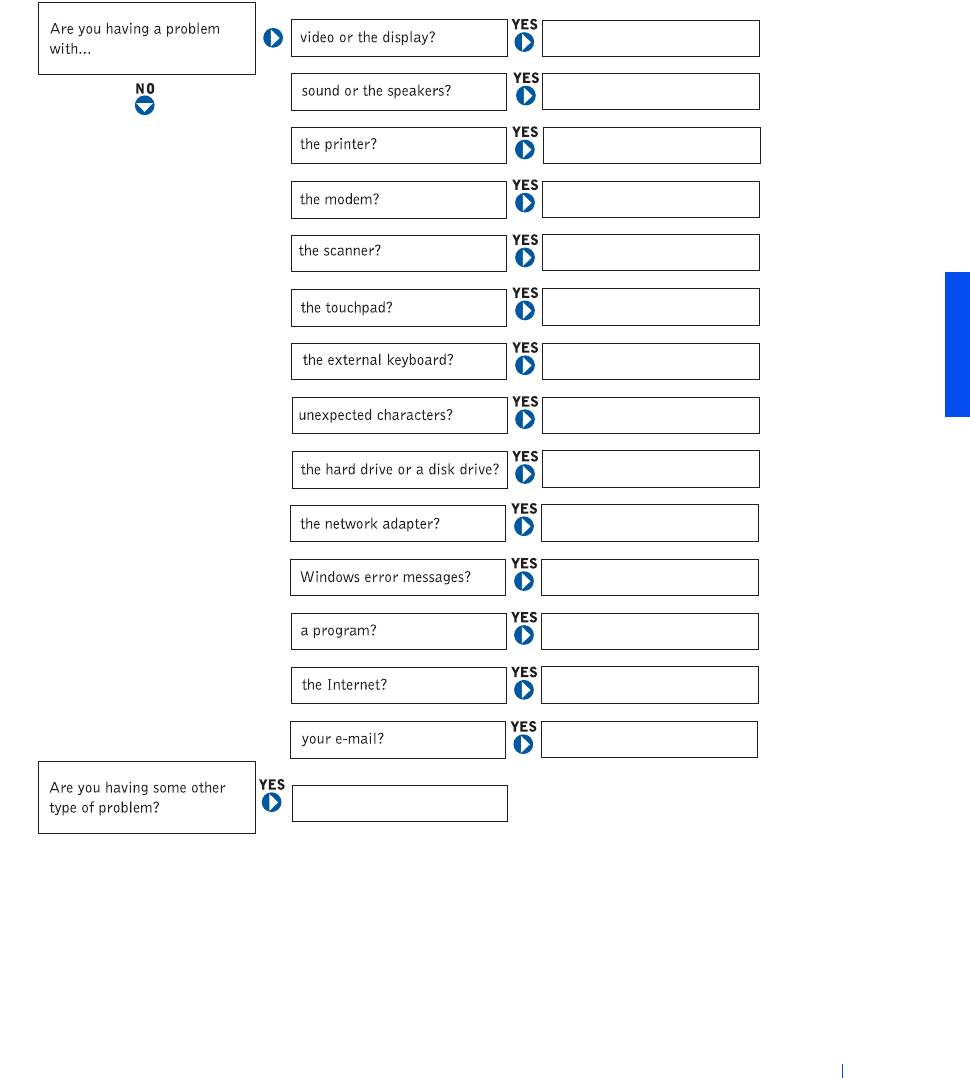
Sometimes it’s difficult to figure out where to go for answers. Use this chart
to quickly find the answers to your questions.
HINT: If you have a
problem with an external
device, see the device
documentation or contact
the manufacturer.
See page 26.
See page 37.
Get technical assistance from
Dell. See page 71.
Press the power button to
resume from standby mode.
See the
Tell Me How
help file
for more information on
standby mode.

26 Solving Problems
www.dell.com | support.dell.com
Accessing Help Files
Power Problems
HINT: See the
Tell Me
How
help file for
information on standby
mode.
TO ACCESS THE
T
ELL
M
E
H
OW
HELP FILE
1Click the Start button, point to Programs, point to User’s Guides, and then
click Tell Me How.
TO ACCESS
W
INDOWS
2000 H
ELP
1Click the Start button and then click Help.
2Click the Search tab.
3Type a word or phrase that describes your problem and then click List Topics.
4Click the topic that describes your problem and then click Display.
5Follow the instructions shown on the screen.
TO ACCESS
W
INDOWS
M
E
H
ELP
1Click the Start button and then click Help.
2Type a word or phrase that describes your problem in the Search box and then
click Go.
3Click the topic that describes your problem and then click Display.
4Follow the instructions shown on the screen.
TO ACCESS
W
INDOWS
98 SE H
ELP
1Click the Start button and then click Help.
2Type a word or phrase that describes your problem and then click Display.
3In the Topics Found window, click the topic that describes your problem and
then click Display.
4Follow the instructions shown on the screen.
CHECK THE POWER LIGHT—When the power light is lit or blinking, the
computer has power. If the power light is blinking, the computer is in standby
mode—press the power button to resume from standby mode. If the power light
is off, press the power button.
Solving Problems 27
Start-Up Error Messages
CHECK THE BATTERY—If you are using a battery to power your computer, the
battery charge may be depleted. Connect the computer to an electrical outlet
using the AC adapter, and turn on the computer.
TEST THE ELECTRICAL OUTLET—Ensure that the electrical outlet is working
by testing it with another device, such as a lamp.
CHECK THE AC ADAPTER—Be sure that the power cable is firmly inserted
into the electrical outlet and the green light on the AC adapter is on.
CONNECT THE COMPUTER DIRECTLY TO AN ELECTRICAL OUTLET—
Bypass power protection devices, power strips, and the extension cable to verify
that the computer turns on.
CHECK FOR INTERFERENCE—Electrical appliances on the same circuit or
operating near the computer can cause interference. Other causes of
interference: power extension cables, too many devices on a power strip, or
multiple power strips connected to the same electrical outlet.
ADJUST THE POWER PROPERTIES—See the Tell Me How help file or search
for the keyword standby in Windows Help. To access help files, see page 26.
RESEAT THE MEMORY MODULES—If your computer power light turns on
but the display remains blank, you may need to reseat the memory modules (see
page 55).
OPERATING SYSTEM NOT FOUND—Call Dell for technical assistance (see
page 71).
INSERT BOOTABLE MEDIA—The operating system is trying to boot to a
nonbootable floppy disk or CD. Insert a bootable floppy disk or CD.

28 Solving Problems
www.dell.com | support.dell.com
Video and Display Problems
If the display is blank
If the display is difficult to read
NON-SYSTEM DISK ERROR—A floppy disk is in the floppy drive. Remove the
floppy disk and restart the computer.
CHECK THE POWER LIGHT—When the power light is blinking, the computer
has power. If the power light is blinking, the computer is in standby mode—press
the power button to resume from standby mode. If the power light is off, press
the power button.
CHECK THE BATTERY—If you are using a battery to power your computer, the
battery charge may be depleted. Connect the computer to an electrical outlet
using the AC adapter, and turn on the computer.
TEST THE ELECTRICAL OUTLET—Ensure that the electrical outlet is working
by testing it with another device, such as a lamp.
CHECK THE AC ADAPTER—Be sure that the power cable is firmly inserted
into the electrical outlet and the green light on the AC adapter is on.
ADJUST THE POWER PROPERTIES—Search for the keyword standby in
Windows Help. To access help files, see page 26.
ADJUST THE BRIGHTNESS—See the Tell Me How help file (see page 26) for
instructions on adjusting the brightness.
MOVE THE SUBWOOFER AWAY FROM THE COMPUTER OR MONITOR—If
your external speaker system includes a subwoofer, ensure that the subwoofer is
at least 60 cm (2 ft) away from the computer or external monitor.
Solving Problems 29
Sound and Speaker Problems
Integrated Speakers
ELIMINATE POSSIBLE INTERFERENCE—Turn off nearby fans, fluorescent
lights, or halogen lamps to check for interference.
ROTATE THE COMPUTER TO FACE A DIFFERENT DIRECTION—Eliminate
sunlight glare, which can cause poor picture quality.
RESTORE THE RECOMMENDED SETTINGS—Restore the original resolution
and refresh rate settings. See the Tell Me How help file for instructions. To access
help files, see page 26.
ADJUST THE WINDOWS DISPLAY SETTINGS—
1Click the Start button, point to Settings, and then click Control Panel.
2Double-click the Display icon and then click the Settings tab.
3Try different settings for Colors and Screen area.
ADJUST THE WINDOWS VOLUME CONTROL—Double-click the yellow
speaker icon in the lower-right corner of your screen. Be sure that the volume is
turned up and that the sound is not muted.
CHECK THE VOLUME CONTROL BUTTONS—Press both volume control
buttons simultaneously or press <Fn><End> to disable (mute) or reenable the
integrated speakers.
REINSTALL THE SOUND (AUDIO) DRIVER—See page 42.

30 Solving Problems
www.dell.com | support.dell.com
External Speakers
HINT: The volume
control in some MP3
players overrides the
Windows volume setting.
If you have been listening
to MP3 songs, make sure
that you did not turn the
player volume down or off.
VERIFY THE SPEAKER CABLE CONNECTIONS—Ensure that the speakers
are connected as shown on the setup diagram supplied with the speakers.
TEST THE ELECTRICAL OUTLET—Ensure that the electrical outlet is working
by testing it with another device, such as a lamp.
ENSURE THAT THE SPEAKERS ARE TURNED ON—See the setup diagram
supplied with the speakers.
ADJUST THE SPEAKER CONTROLS—Adjust the volume, bass, or treble
controls to eliminate distortion.
ADJUST THE WINDOWS VOLUME CONTROL—Double-click the yellow
speaker icon in the lower-right corner of your screen. Be sure that the volume is
turned up and that the sound is not muted.
TEST THE SPEAKERS—Plug the speaker audio cable into the headphone
connector on the side of the computer. Ensure that the headphone volume
control is turned up. Play a music CD.
RUN THE SPEAKER SELF-TEST—Some speaker systems have a self-test
button on the subwoofer. See the speaker documentation for self-test
instructions.
MOVE THE SUBWOOFER AWAY FROM THE COMPUTER OR MONITOR—If
your external speaker system includes a subwoofer, ensure that the subwoofer is
at least 60 m (2 ft) away from the computer or external monitor.
ELIMINATE POSSIBLE INTERFERENCE—Turn off nearby fans, fluorescent
lights, or halogen lamps to check for interference.
REINSTALL THE SOUND (AUDIO) DRIVER—See page 42.
Solving Problems 31
Printer Problems
If you cannot print to a parallel port printer
If you cannot print to a USB printer
VERIFY THE PRINTER CABLE CONNECTIONS—Ensure that the printer
cable is connected as described on page 14.
TEST THE ELECTRICAL OUTLET—Ensure that the electrical outlet is working
by testing it with another device, such as a lamp.
ENSURE THAT THE PRINTER IS TURNED ON—See the documentation
supplied with the printer.
VERIFY THAT THE PRINTER IS RECOGNIZED BY WINDOWS
1Click the Start button, point to Settings, and then click Printers.
If the printer is listed, right-click the printer icon, click Properties, and then
select the Details tab.
2Ensure that the Print to the following port: setting is LPT1 (Printer Port).
REINSTALL THE PRINTER DRIVER— See page 14.
VERIFY THE PRINTER CABLE CONNECTIONS—Ensure that the printer
cable is connected as described on page 15.
TEST THE ELECTRICAL OUTLET—Ensure that the electrical outlet is working
by testing it with another device, such as a lamp.
ENSURE THAT THE PRINTER IS TURNED ON—See the documentation
supplied with the printer.

32 Solving Problems
www.dell.com | support.dell.com
Modem Problems
NOTICE: Connect the modem to an analog telephone wall jack only.
Connecting the modem to a digital telephone network damages the modem.
VERIFY THAT THE PRINTER IS RECOGNIZED BY WINDOWS—
1Click the Start button, point to Settings, and then click Printers.
If the printer is listed, right-click the printer icon, click Properties, and then
select the Details tab.
2Ensure that the Print to the following port: setting is USB.
REINSTALL THE PRINTER DRIVER— See page 14.
CHECK THE TELEPHONE JACK—Disconnect the telephone line from the
modem and connect it to a telephone. Listen for a dial tone.
CONNECT THE MODEM DIRECTLY TO THE TELEPHONE WALL JACK—If
you have other telephone devices sharing the line, such as an answering machine,
fax machine, surge protector, or line splitter, then bypass them and connect the
modem directly to the telephone wall jack with the telephone line.
CHECK THE CONNECTION—Verify that the telephone line is connected to the
modem.
CHECK THE TELEPHONE LINE—Try using a different telephone line. If you
are using a line that is 3 m (10 ft) or more in length, try a shorter one.
VERIFY THAT THE MODEM IS COMMUNICATING WITH WINDOWS
1Click the Start button, point to Settings, and click Control Panel.
2In the Control Panel window, double-click Modems.
If there are multiple entries for the same modem or modems listed that are
not installed, delete the entries and restart the computer.
3Click the Diagnostics tab.
4Click the COM port for your modem.
5Click More Info to verify that the modem is communicating with Windows.
If all commands receive responses, the modem is operating properly.

Solving Problems 33
Scanner Problems
Touch Pad Problems
External Keyboard Problems
Unexpected Characters
CHECK THE POWER CABLE CONNECTION—Ensure that the scanner power
cable is firmly connected to a working electrical power source and that the
scanner is turned on.
CHECK THE SCANNER CABLE CONNECTION—Ensure that the scanner
cable is firmly connected to the computer and to the scanner.
UNLOCK THE SCANNER—Ensure that your scanner is unlocked if it has a
locking tab or button.
REINSTALL THE SCANNER DRIVER—See the scanner documentation for
instructions.
CHECK THE TOUCH PAD SETTINGS—Click the Start button, point to
Settings, click Control Panel, and then double-click the Mouse icon. Try
adjusting the settings.
DISCONNECT THE KEYBOARD CABLE—Shut down the computer (see
page 16). Disconnect the keyboard cable and check the cable connector for bent
or broken pins.
DISABLE THE NUMERIC KEYPAD—Press the <Num Lk> key to disable the
numeric keypad. Verify that the numbers lock light is not lit.
34 Solving Problems
www.dell.com | support.dell.com
Drive Problems
HINT: For information
on saving files to a floppy
disk, see the
Tell Me How
help file (see page 26).
If you cannot save a file to a floppy disk
ENSURE THAT WINDOWS RECOGNIZES THE DRIVE—Double-click the
My Computer icon. If the floppy drive is not listed, perform a full scan with your
antivirus software to check for and remove viruses. Viruses can sometimes
prevent Windows from recognizing the drive.
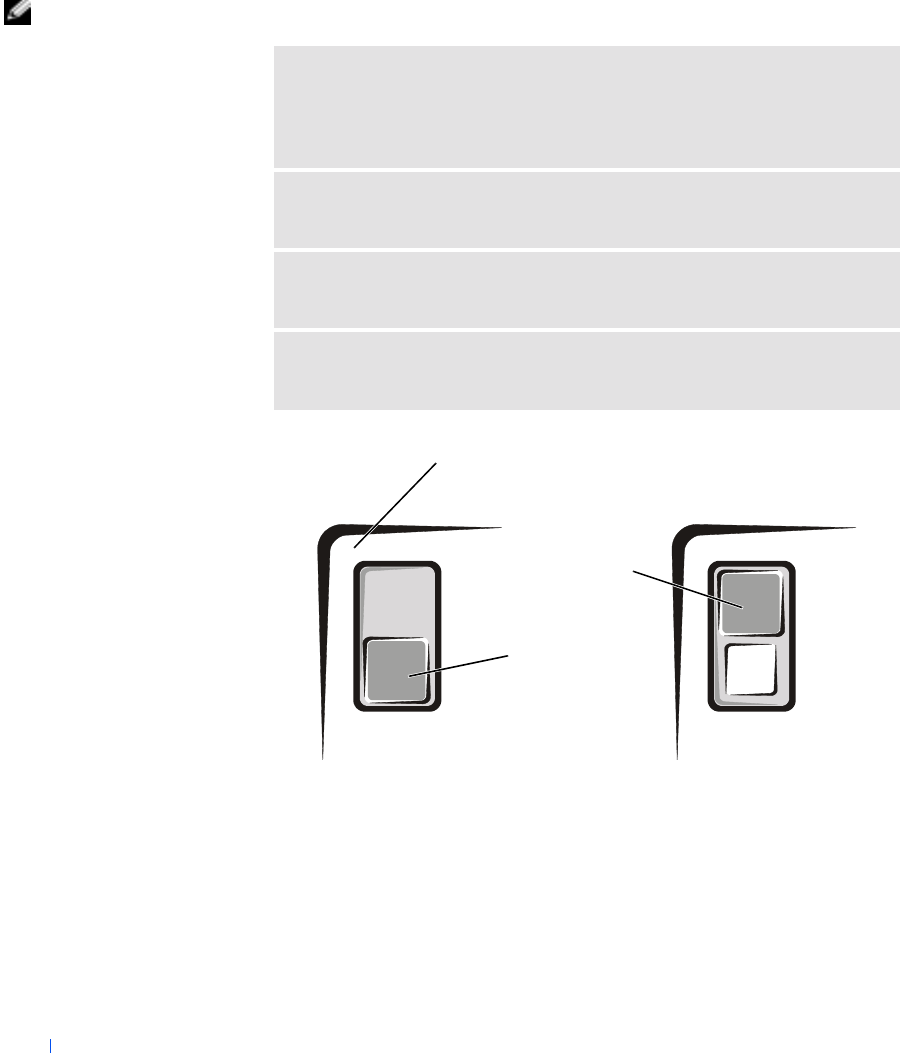
CANNOT SAVE FILES TO A FLOPPY DISK—Ensure that the floppy disk is
not full or write-protected (locked). See the following illustration.
TEST THE DRIVE WITH ANOTHER FLOPPY DISK—Insert another floppy
disk to eliminate the possibility that the original floppy disk is defective.
CHECK THE CONNECTION ON THE CABLES—If the floppy drive is
connected externally, ensure that the cables are securely connected (see page 61).
write-protected
not write-
protected
b
ac
k
o
f
fl
oppy
di
s
k

Solving Problems 35
If you cannot play a music CD or install a program from a CD
HINT: High-speed CD
drive vibration is normal
and may cause noise. This
noise does not indicate a
defect in the drive or the
CD.
If you cannot play a DVD movie
HINT: Because of
different worldwide file
types, not all DVD titles
work in all DVD drives.
ENSURE THAT A CD DRIVE IS INSTALLED IN THE MEDIA BAY—To use
the CD drive, it must be installed in the media bay. It cannot be used as an
external device with the floppy drive cable. The floppy drive cable is for
connecting external floppy drives only.
ENSURE THAT WINDOWS RECOGNIZES THE DRIVE—Double-click the
My Computer icon. If the CD drive is not listed, perform a full scan with your
antivirus software to check for and remove viruses. Viruses can sometimes
prevent Windows from recognizing the drive.
TEST THE DRIVE WITH ANOTHER CD—Insert another CD to eliminate the
possibility that the original CD is defective.
CLEAN THE DISC—See the Tell Me How help file for instructions. To access
help files, see page 26.
ADJUST THE WINDOWS VOLUME CONTROL—Double-click the yellow
speaker icon in the lower-right corner of your screen. Be sure that the volume is
turned up and that the sound is not muted.
ENSURE THAT A DVD DRIVE IS INSTALLED IN THE MEDIA BAY—To
use the DVD drive, it must be installed in the media bay. It cannot be used as an
external device with the floppy drive cable. The floppy drive cable is for
connecting external floppy drives only.
ENSURE THAT WINDOWS RECOGNIZES THE DRIVE—Double-click the
My Computer icon. If the DVD drive is not listed, perform a full scan with your
antivirus software to check for and remove viruses. Viruses can sometimes
prevent Windows from recognizing the drive.
TEST THE DRIVE WITH ANOTHER DVD—Insert another DVD to eliminate
the possibility that the original DVD is defective.

36 Solving Problems
www.dell.com | support.dell.com
If the CD-RW drive stops writing
HINT: If you must
disable standby mode to
write to a CD-RW drive,
remember to enable
standby mode again when
you finish writing the CD.
If you have a hard drive problem
CLEAN THE DISC—See the Tell Me How help file for instructions. To access,
help files, see page 26.
DISABLE STANDBY MODE IN WINDOWS BEFORE WRITING TO A
CD-RW DISK—Search for the keyword standby in Windows Help. To access
help files, see page 26.
CHANGE THE WRITE SPEED TO A SLOWER RATE—The CD-RW drive
must receive a steady stream of data when writing. If the stream is interrupted, an
error occurs. Closing all programs before writing to the CD-RW may also
alleviate the problem.
CHECK THE HARD DRIVE FOR ERRORS
Windows 98 SE and Windows Me:
Click the Start button, point to Programs—> Accessories—> System Tools, and
then click ScanDisk.
Windows 2000:
1Double-click the My Computer icon.
2Right-click the Local Disk icon and then click Properties.
3Click the Tools tab.
4Click Check Now.

Solving Problems 37
Network Problems
Windows Error Messages
CHECK THE NETWORK CABLE CONNECTOR—Ensure that the network
cable connector is firmly connected to the PC Card network adapter or port
replicator and to the network wall jack.
CHECK THE NETWORK LIGHTS ON THE NETWORK CONNECTOR—Green
indicates that the network connection is active. If the status light is not green, try
replacing the network cable. Amber indicates that the network card driver is
loaded and the card is detecting activity.
RESTART THE COMPUTER—Try to log on to the network again.
CONTACT YOUR NETWORK ADMINISTRATOR—Verify that your network
settings are correct and that the network is functioning.
X:\ IS NOT ACCESSIBLE. THE DEVICE IS NOT READY—Insert a disk into
the drive and try again.
A FILENAME CANNOT CONTAIN ANY OF THE FOLLOWING
CHARACTERS: \ / : * ? “ < > |— Do not use these characters in
filenames.
NOT ENOUGH MEMORY OR RESOURCES. CLOSE SOME PROGRAMS AND
TRY AGAIN—You have too many programs open. Close all windows and open
the program that you want to use.
THE FILE BEING COPIED IS TOO LARGE FOR THE DESTINATION
DRIVE—The file that you are trying to copy is too large to fit on the disk, or the
disk is too full. Try copying the file to a different disk or use a larger capacity disk.

38 Solving Problems
www.dell.com | support.dell.com
General Program Problems
A program crashes
A program stops responding
A REQUIRED .DLL FILE WAS NOT FOUND—The program that you are
trying to open is missing an essential file. To remove and then reinstall the
program:
Window 98 SE and Windows Me:
1Click the Start button, point to Settings, and then click Control Panel.
2Double-click the Add/Remove Programs icon.
3Select the program that you want to remove.
4Click Add/Remove and follow the prompts on the screen.
5See the program documentation for installation instructions.
Windows 2000:
1Click the Start button, point to Settings, and then click Control Panel.
2Double-click the Add/Remove Programs icon.
3Select the program that you want to remove.
4Click Change/Remove and follow the prompts on the screen.
5See the program documentation for installation instructions.
SEE THE SOFTWARE DOCUMENTATION—Many software manufacturers
maintain websites with information that may help you to solve the problem.
PRESS <CTRL><ALT><DEL>—In the Close Program window, select the
program that is no longer responding. Then click End Task.

Solving Problems 39
A solid blue screen appears
Internet Connection Problems
TURN THE COMPUTER OFF—If the computer does not respond to a keystroke
or a proper shutdown (see page 16), press the power button until the computer
turns off. Press the power button again to restart the computer. The solid blue
screen appears because you were not able to perform a proper Windows
shutdown. ScanDisk will automatically run during the start-up process. Follow
the instructions on the screen.
REVIEW “MODEM PROBLEMS”—See page 32.
TURN OFF CALL WAITING (CATCH-PHONE)—See your telephone directory
for instructions on deactivating this feature. Then adjust the dial-up networking
connection properties:
1Click the Start button, point to Settings, and then click Control Panel.
2Double-click the Modems icon.
3In the Modems Properties window, click Dialing Properties.
4Ensure that To disable call waiting, dial: is checked, and then select the
proper code according to the information in your telephone directory.
5Click Apply and then click OK.
6Close the Modems Properties window.
7Close the Control Panel window.

40 Solving Problems
www.dell.com | support.dell.com
E-Mail Problems
If Your Computer Gets Wet
CAUTION: Perform this procedure only after you are certain that
it is safe to do so. If the computer is connected to an electrical
outlet, Dell recommends that you turn off AC power at the circuit
breaker before attempting to remove the power cables from the
electrical outlet. Use the utmost caution when removing wet
cables from a live power source.
1Turn off the computer (see page 16), disconnect the AC adapter from
the computer, and disconnect the AC adapter from the electrical
outlet.
2Turn off any attached external devices, and disconnect them from
their power sources and then from the computer.
3Ground yourself by touching one of the metal connectors on the back
of the computer.
4Remove the media bay device (see page 17) and any installed PC
Cards, and put them in a safe place to dry.
5Remove the battery.
6Wipe off the battery and put it in a safe place to dry.
7Remove the hard drive (see page 58).
8Remove the memory modules (see page 55).
9Open the display and place the computer right-side up across two
books or similar props to let air circulate all around it. Let the
computer dry for at least 24 hours in a dry area at room temperature.
NOTICE: Do not use artificial means, such as a hair dryer or a fan, to speed
up the drying process.
CAUTION: To help prevent electrical shock, verify that the
computer is thoroughly dry before continuing with the remainder
of this procedure.
ENSURE THAT YOU ARE CONNECTED TO THE INTERNET—With the
Outlook Express e-mail program open, click File. If Work Offline has a check
next to it, click the check to remove it and connect to the Internet.

Solving Problems 41
10 Ground yourself by touching one of the metal connectors on the back
of the computer.
11 Replace the memory modules, the memory module cover, and the
screw (see page 55).
12 Replace the hard drive (see page 58).
13 Replace the media bay device (see page 17) and any PC Cards you
removed.
14 Replace the battery.
15 Turn on the computer and verify that it is working properly.
If the computer does not start, or if you cannot identify the damaged
components, call Dell for technical assistance (see page 71).
If You Drop or Damage Your Computer
1Save and close any open files, exit any open programs, and shut down
the computer (see page 16).
2Disconnect the AC adapter from the computer, and disconnect the
AC adapter from the electrical outlet.
3Turn off any attached external devices, and disconnect them from
their power sources and then from the computer.
4Remove and reinstall the battery.
5Turn on the computer.
If the computer does not turn on, or if you cannot identify the damaged
components, call Dell for technical assistance (see page 71).

42 Solving Problems
www.dell.com | support.dell.com
Resolving Other Technical Problems
Reinstalling Drivers and Utilities
NOTICE: The Dell support website, http://support.dell.com, and the
System
Software
CD
provide approved drivers for Dell™ computers. If you install
drivers obtained from other sources, your computer might not work correctly.
1Insert the System Software CD into the CD or DVD drive.
2Double-click the My Computer icon on your desktop.
3Double-click the icon for your CD or DVD drive.
4Double-click the folder for your operating system.
HINT: You may need to
open more folders to find
the setup file. For
example, to install the
Windows Me touch pad
driver, double-click
winme, double-click
touchpad, double-click
english, and then double-
click Setup.
5Double-click the appropriate language folder for the driver you want to
install.
6Double-click Setup and follow the prompts.
For detailed information on installing specific drivers and utilities for your
computer, see the Dell support website at http://support.dell.com.
Reinstalling Windows
NOTICE: The
Operating System
CD provides options for reinstalling your
Windows Me, Windows 98 Second Edition (SE), or Windows 2000 operating
system. The options can potentially overwrite files installed by Dell and
possibly affect programs installed on your hard drive. Therefore, Dell does not
recommend that you reinstall your operating system unless instructed to do so
by a Dell technical support representative.
GO TO THE DELL SUPPORT WEBSITE—Go to http://support.dell.com for
help with general usage, installation, and troubleshooting questions.
E-MAIL DELL—Go to http://support.dell.com and then click E-Mail Dell in
the Communicate list. Send an e-mail message to Dell about your problem; you
can expect to receive an e-mail message from Dell within hours.
CALL DELL—If you cannot solve your problem using the Dell support website
or e-mail service, call Dell for technical assistance (see page 71).

Solving Problems 43
Reinstalling Windows Me and Windows 98
NOTICE: To prevent conflicts with Windows Me or Windows 98, you must
disable any virus protection software installed on your system before you
reinstall Windows.
1Turn on the computer, and enter the system setup program as directed
by a Dell technical support representative.
2In the system setup program Boot menu, change the boot sequence so
that the CD or DVD drive boots first as directed by a Dell technical
support representative. Then place the Operating System CD in the
CD or DVD drive and close the drive tray.
3Exit the system setup program.
4At the Welcome window, click OK.
5Double-click Refresh Windows OS.
6Click OK.
7Click OK again.
8Remove the Operating System CD from the CD or DVD drive, and
click OK to restart your computer.
The Getting ready to run Windows for the first time window appears.
9If the mouse tutorial starts, press <Esc> to exit and then press <y>.
10 Click the regional setting closest to where you live, and then click
Next.
11 Click the graphic that matches your keyboard layout, and then click
Next.

44 Solving Problems
www.dell.com | support.dell.com
12 In the User Information window, type your name and, if applicable,
company name, and then click Next.
The Name field must be completed; the Company Name field is
optional.
The License Agreement window appears.
13 Click I accept the Agreement, and then click Next.
14 Type the Windows product key in the fields provided, and then click
Next.
The product key is the bar code number found on the Microsoft
Windows label, which is located on the computer.
15 When the Start Wizard window appears, click Finish.
The Enter Windows Password window appears. To continue without
creating a Windows user name and password, click OK. Otherwise,
type your user name and password in the appropriate fields, and then
click OK.
16 If the Date/Time Properties window appears, adjust the date and time
properties, click Apply, and then click OK.
Windows updates the system settings and restarts your computer.
17 If you created a Windows user name and password, type your password
and click OK.
18 Reinstall the appropriate drivers (see page 42).
19 Reenable your virus protection software.
HINT: Windows Me
recreates the hibernate
file automatically, but you
must reenable it.
20 If you are reinstalling Windows Me, reenable the hibernate file (see
page 48).
If you are reinstalling Windows 98, recreate and reenable the hibernate
file (see page 46).
Reinstalling Windows 2000
1Insert the Operating System CD into the CD or DVD drive.
2Shut down the computer (see page 16).
3Turn on the computer.
4Press any key when the Press any key to boot from CD message
appears on the screen.

Solving Problems 45
5When the Windows 2000 Setup window appears, ensure that the To
setup Win2000 now, press ENTER option is highlighted. Then press
<Enter>.
6Read the information in the License Agreement window, and then
press <F8> to continue.
7When the Windows 2000 Professional Setup window appears, press
the arrow keys to select the Windows 2000 partition option that you
want. To continue, press the key specified in the partition option that
you chose.
8When the Windows 2000 Professional Setup window reappears, press
the arrow keys to select the type of filing system that you want
Windows 2000 to use, and then press <Enter>.
9Press <Enter> again to restart your computer.
10 Click Next when the Welcome to the Windows 2000 Setup Wizard
window appears.
11 When the Regional Settings window appears, select the settings for
your locale, and then click Next.
12 Enter your name and organization in the Personalize Your Software
window, and then click Next.
13 When prompted, enter the Windows product key, which is printed on
the Microsoft label on your computer. Then click Next.
14 When the Computer Name and Administrator Password window
appears, enter a name for your computer and a password, if desired.
Then click Next.
15 Enter the date and time in the Date and Time Settings window, and
then click Next.
Windows 2000 begins to install its components and configure the
computer.

46 Solving Problems
www.dell.com | support.dell.com
16 When the Completing the Windows 2000 Setup Wizard window
appears, remove the CD from the drive, and then click Finish. The
computer automatically restarts.
NOTICE: Make sure that you reinstall the Intel® Chip Set Update Utility
driver
before
you reinstall any other drivers.
HINT: Windows 2000
recreates the hibernate
file automatically, but you
must reenable it.
17 Reenable the hibernate file (see page 48).
Recreating the Hibernate File
(Windows 98 Only)
HINT: Windows Me and
Windows 2000 recreate
the hibernate file
automatically.
When hibernate mode is activated, all system data is stored in the hibernate
file on your hard drive. The hibernate file cannot be accessed by the
Windows operating system or application programs.
HINT: If you install
additional memory, you
must delete the original
hibernate file before
recreating a new one.
You must recreate the hibernate file if you perform any of the following
actions:
•Delete the hibernate file.
•Install a new hard drive.
•Reformat your hard drive.
•Install additional memory.
Boot (Restart) Your Computer With the System Software CD
1Save and close any open files, exit any open programs, and shut down
the computer.
2If the computer is connected (docked) to an advanced port replicator
(APR), undock it (see page 54).
3Turn on the computer.
4Press <F2> as soon as you see the Dell logo.
System setup screen Page 1 appears after a few seconds.
5Press <Alt><p> to view Page 2.

Solving Problems 47
6Press the arrow keys to select the following boot sequence:
•Boot First Device: CD/DVD/CD-RW Drive
•Boot Second Device: Diskette Drive
•Boot Third Device: Internal HDD
7Press <Esc> to save your changes and exit the system setup program.
8Restart the computer.
9After the computer restarts and loads the diagnostic utility, press the
down-arrow key to select Exit to MS-DOS and then press <Enter>.
Delete the Old Hibernate File
1Boot your computer from the System Software CD as described on
page 46.
2At the R:\DIAGS prompt, type cd\ and press <Enter>.
3At the R:\ prompt, type cd\win98\suspend and press <Enter>.
4Ty p e rms2d and press <Enter>.
5Create the hibernate file.
Create the Hibernate File
1Boot your computer from the System Software CD as described on
page 46.
2At the R:\DIAGS prompt, type cd\ and then press <Enter>.
3At the R:\ prompt, type cd\win98\suspend and press <Enter>.
4Ty p e mks2d and press <Enter>.
5Press the power button until the computer turns off.
6Remove the System Software CD from the CD or DVD drive.
7Turn on the computer.

48 Solving Problems
www.dell.com | support.dell.com
Enable Hibernate Support
1Click the Start button, point to Settings, and click Control Panel.
2Double-click the Power Management icon.
3Click the Hibernate tab.
4Ensure that Enable hibernate support is selected, and click Apply.
5Click OK to close the Control Panel.

50 Adding Parts
www.dell.com | support.dell.com
Using the Advanced Port Replicator
HINT: If you receive a
BIOS upgrade floppy disk
with your APR, use the
disk to upgrade your
computer before you use
the APR.
The advanced port replicator (APR) integrates your computer into a
desktop environment. The APR includes a NIC to connect your computer
to a network.
NOTICE: Do not attempt to lift the computer while it is connected to the
APR. Doing so will damage the docking connector.
Connecting External Devices to the APR
HINT: If the cable
connector from the
external device has
thumbscrews, be sure to
tighten them to ensure a
proper connection.
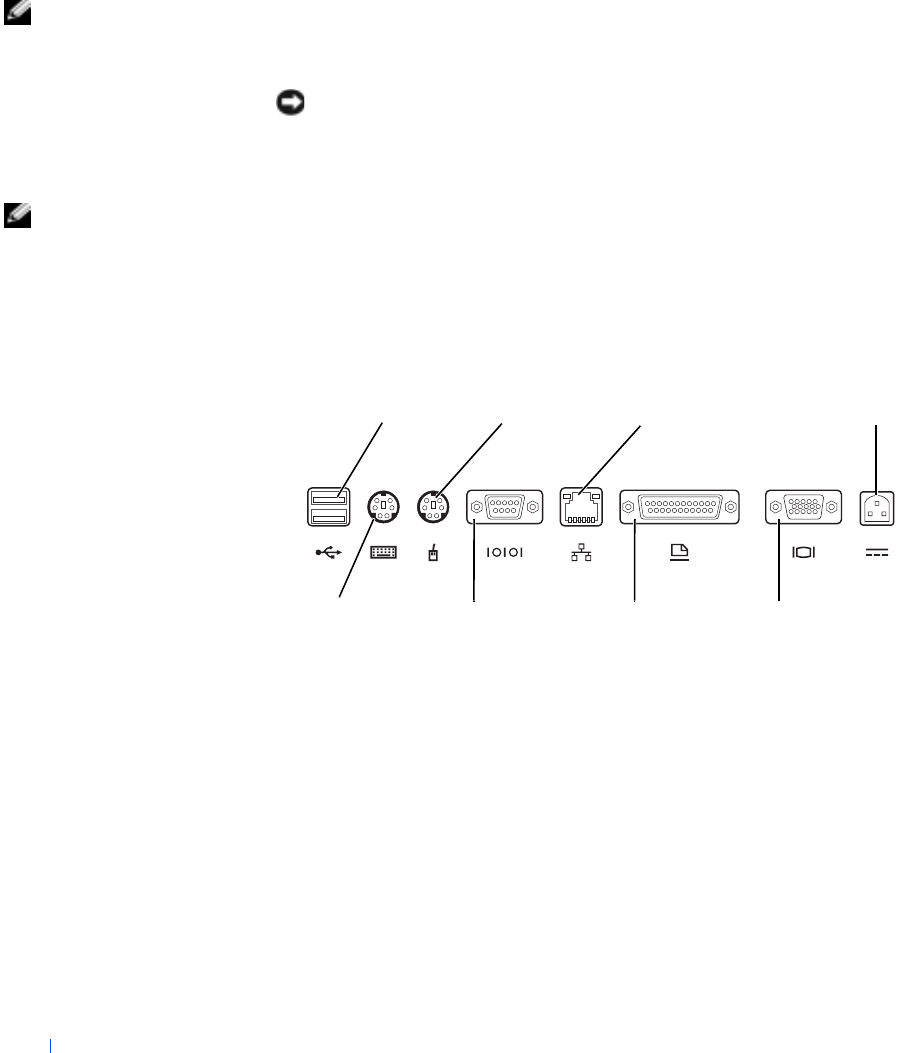
1See the following illustrations for connector locations.
2Connect the external devices to an electrical outlet, if applicable.
The I/O connectors on the back and side of the APR duplicate the primary
connectors on the back and side of your computer.
keyboard
connector serial
connector
USB
connectors (2)
parallel
connector
network adapter
connector
video
connector
mouse
connector AC adapter
connector
Adding Parts 51
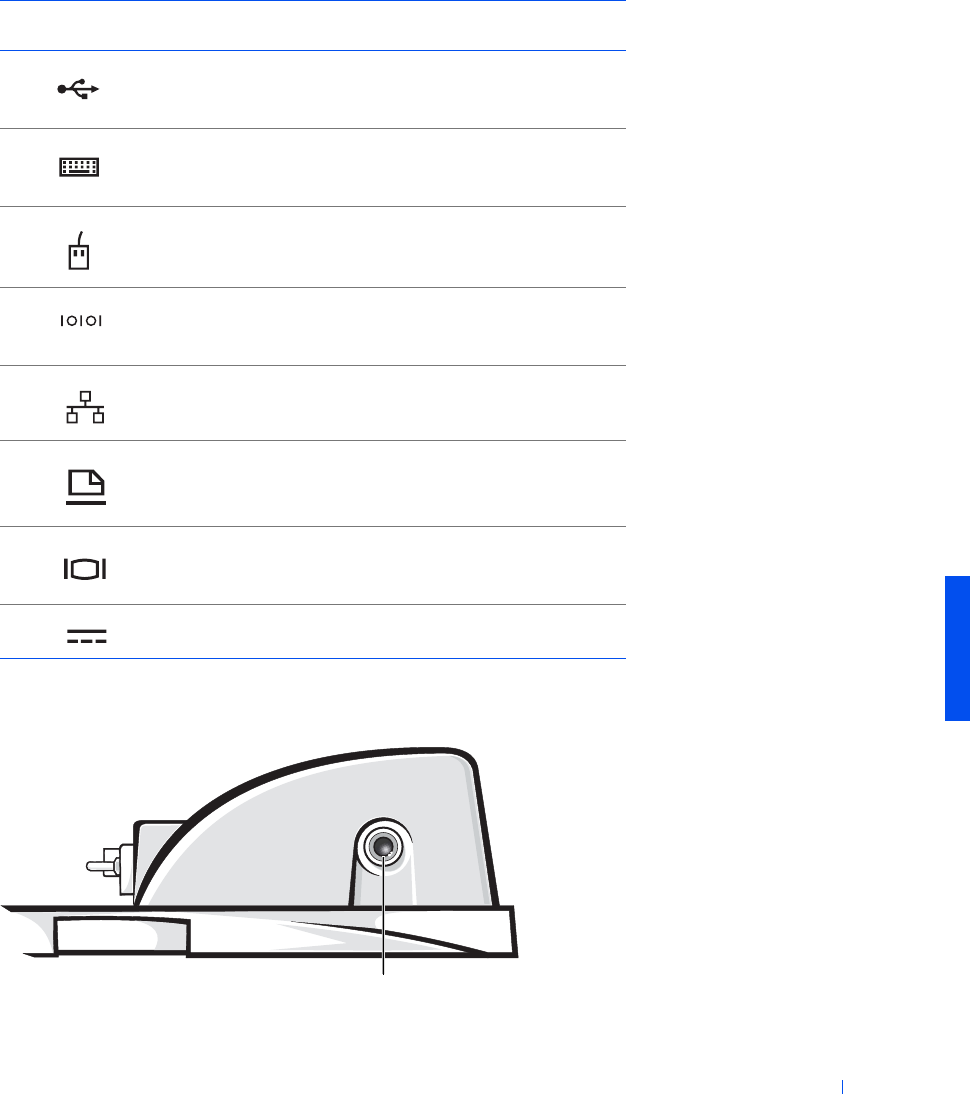
The audio line-out connector is on the side of the APR.
Connector Icon Connector Description
Connect one or two USB devices, such as a USB
mouse.
Connect a PS/2-style keyboard or numeric
keypad.
Connect a PS/2-compatible mouse.
Connect a serial device, such as a serial mouse or
digital camera.
Connect a network interface cable.
Connect a parallel device, such as a printer.
Connect an external monitor.
Connect the AC adapter.
audio line-out connector
52 Adding Parts
www.dell.com | support.dell.com
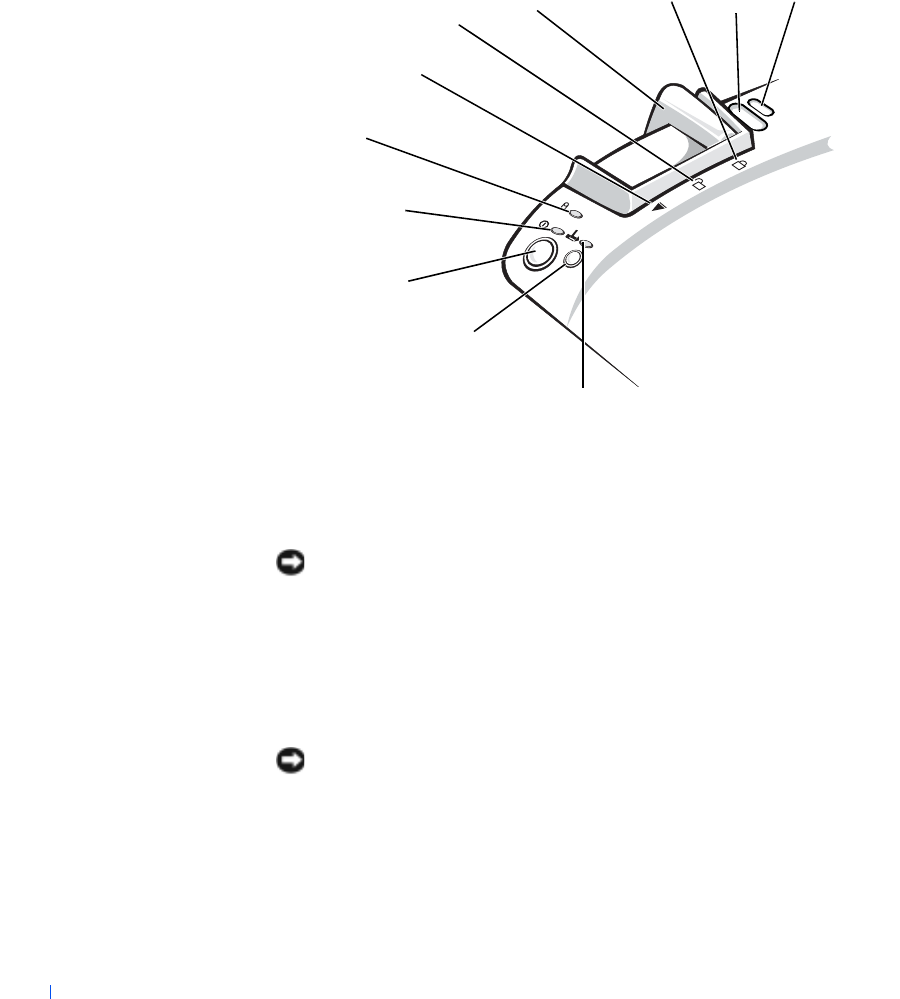
APR Controls and Indicators
Docking the Computer
NOTICE: Before you initially connect your computer to the APR, you must
complete the operating system setup. When you see the Windows desktop on
your screen, the operating system setup is complete.
You dock your computer when you connect it to an APR. You must connect
the AC adapter to the APR before you dock and turn on the computer. The
AC adapter powers the APR and the computer at the same time. Any
battery installed in the computer charges while you use the APR.
NOTICE: Always use the Dell AC adapter that came with the APR. If you use
any other commercially available AC adapter—or the AC adapter from other
Dell computers—you may damage the APR or the computer.
1Save and close all open files, exit all open programs, and shut down the
computer (see page 16).
docking
light
undock request button
power button
power light
drive access
light
eject
position
unlocked
position
l
oc
k
e
d
position
eject/locking
lever padlock
slot security
lock slot
Adding Parts 53
2Disconnect any external devices, and remove any PC Cards from the
computer.
3Connect the AC adapter to the connector on the APR, and connect
the AC power cable to an electrical outlet.
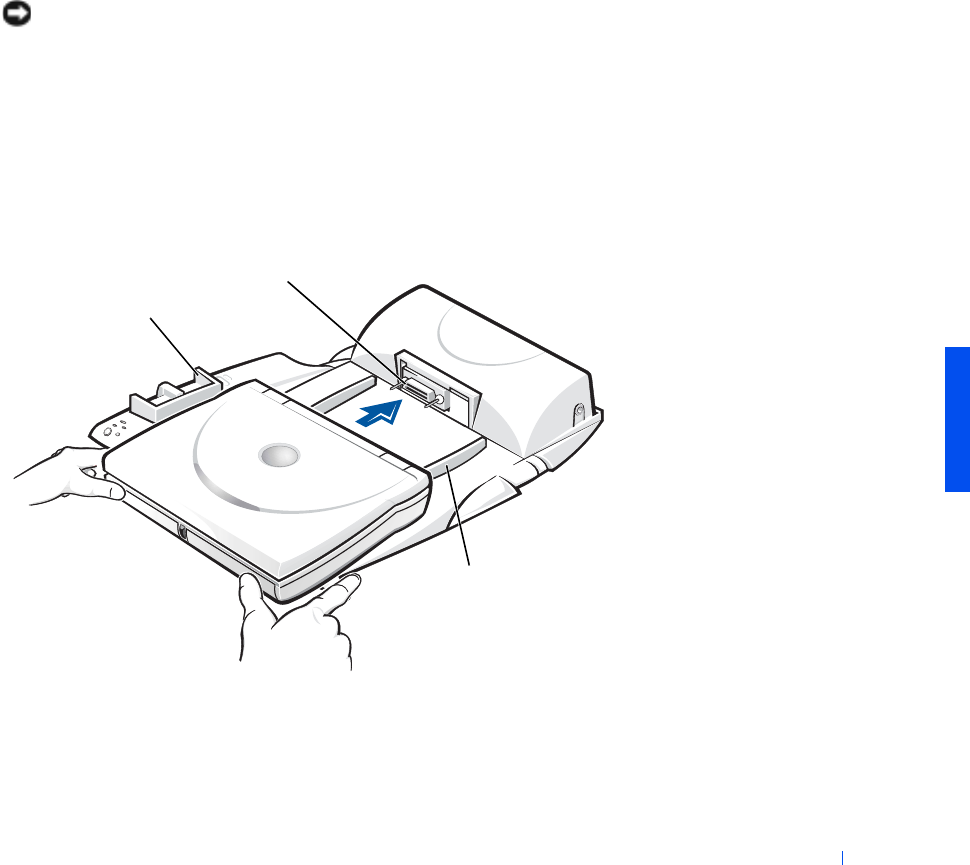
4Horizontally center the computer on the APR base, with the back of
the computer facing the APR docking connector.
5Slide the computer toward the connector until you feel the grooves on
the bottom of the computer engage with the alignment rails.
NOTICE: If you attempt to push the computer all the way into the APR
without engaging the alignment rails, you may irreparably damage the docking
connector on the computer. If you have a monitor stand installed, you will not
be able to see the alignment rails or the docking connector.
6Gently push the computer forward until the docking connector is fully
engaged.
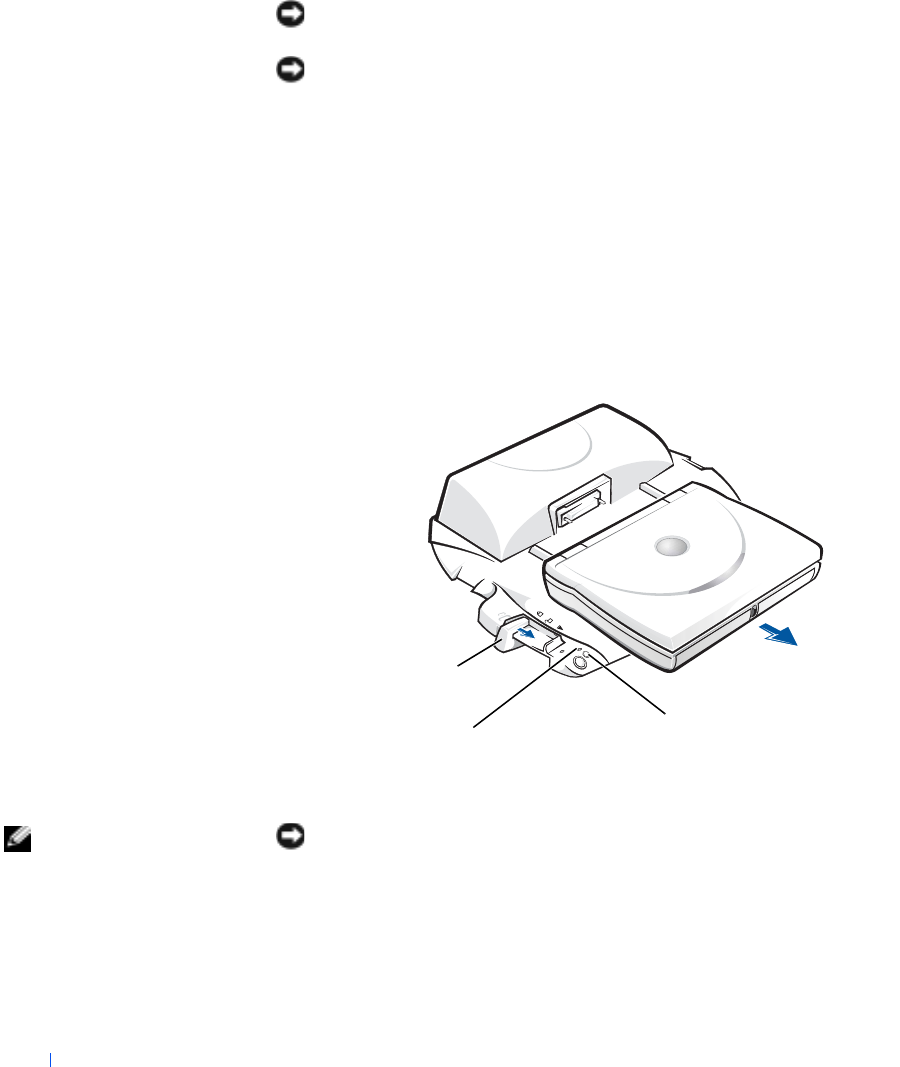
7Slide the eject/locking lever towards the back of the APR to the locked
position.
docking connector
alignment rails (2)
eject/locking lever
54 Adding Parts
www.dell.com | support.dell.com
Undocking the Computer
NOTICE: If you do not have a charged battery installed in the computer when
you undock the computer, you may lose unsaved data.
NOTICE: If you do not use correct undocking procedures, you may lose data
and the computer may not restart.
1Save and close all open files and exit all open programs.
2Perform one of the following procedures:
•Click the Start button, and then click Eject PC.
After a few seconds, the computer power light turns off.
• Press the undock request button on the APR.
After a few seconds, the green docking light turns off.
3Slide the eject/locking lever on the left side of the APR to the eject
position to undock the computer.
Monitor Stand
HINT: Be sure that the
back legs on the monitor
stand engage the slots on
either side of the APR
base.
NOTICE: The stand supports monitors that weigh up to 45.3 kg (100 lb).
Heavier monitors may damage the stand, computer, and APR.
eject/locking lever
docking light undock request button

Adding Parts 55
Adding Memory
You can increase your computer memory by installing memory modules on
the system board. See page 65 for information on the type of memory
supported by your computer.
HINT: Memory modules
purchased from Dell are
covered under your
computer warranty.
Your computer has two memory module sockets labeled “DIMM A” and
“DIMM B.” You can install all sizes of memory modules you purchase from
Dell (but which Dell does not install), except the 192-MB memory module,
in either socket. If you purchase a non-Dell-installed 192-MB memory
module, you must install it in the “DIMM B” socket.
CAUTION: Before working inside your computer, read the “Safety
Instructions” at the front of this guide (see page 7).
NOTICE: Do not install or remove a memory module when the computer is
turned on, in standby mode, or in hibernate mode.
1Save and close any open files, exit any open programs, and shut down
the computer (see page 16).
2Remove all installed batteries and disconnect external devices.
monitor
stand
APR
APR base
computer
56 Adding Parts
www.dell.com | support.dell.com
3Disconnect the AC adapter cable from the computer.
4Ground yourself by touching a metal connector on the back of the
computer.
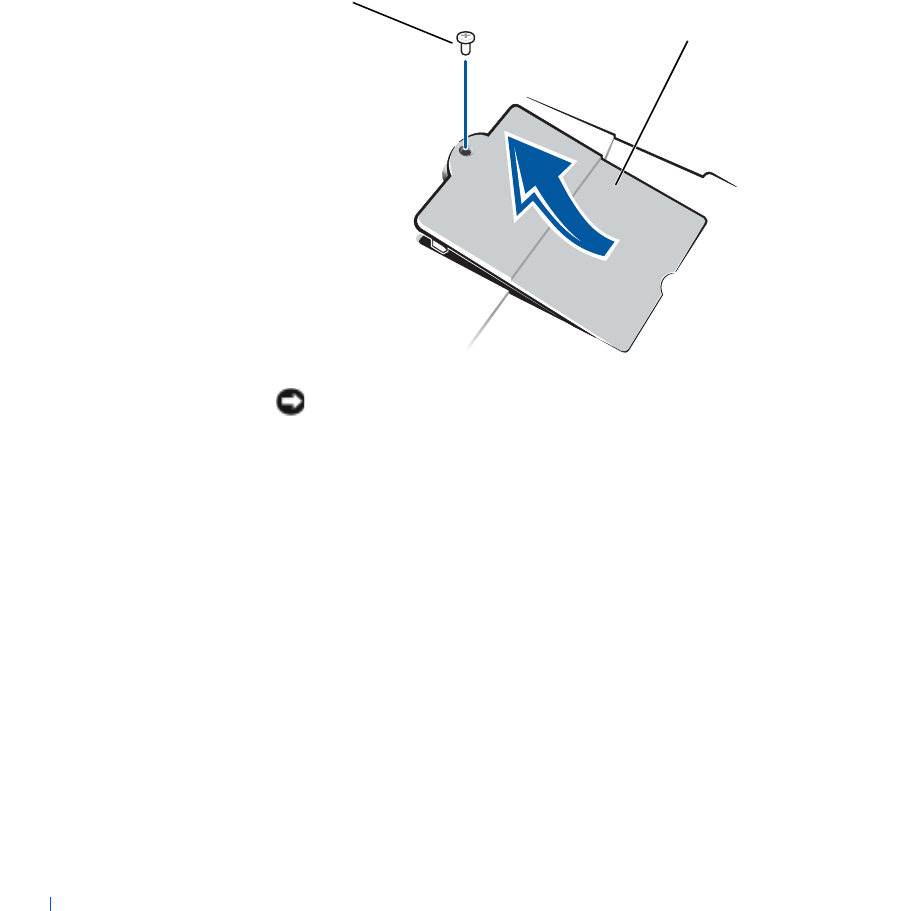
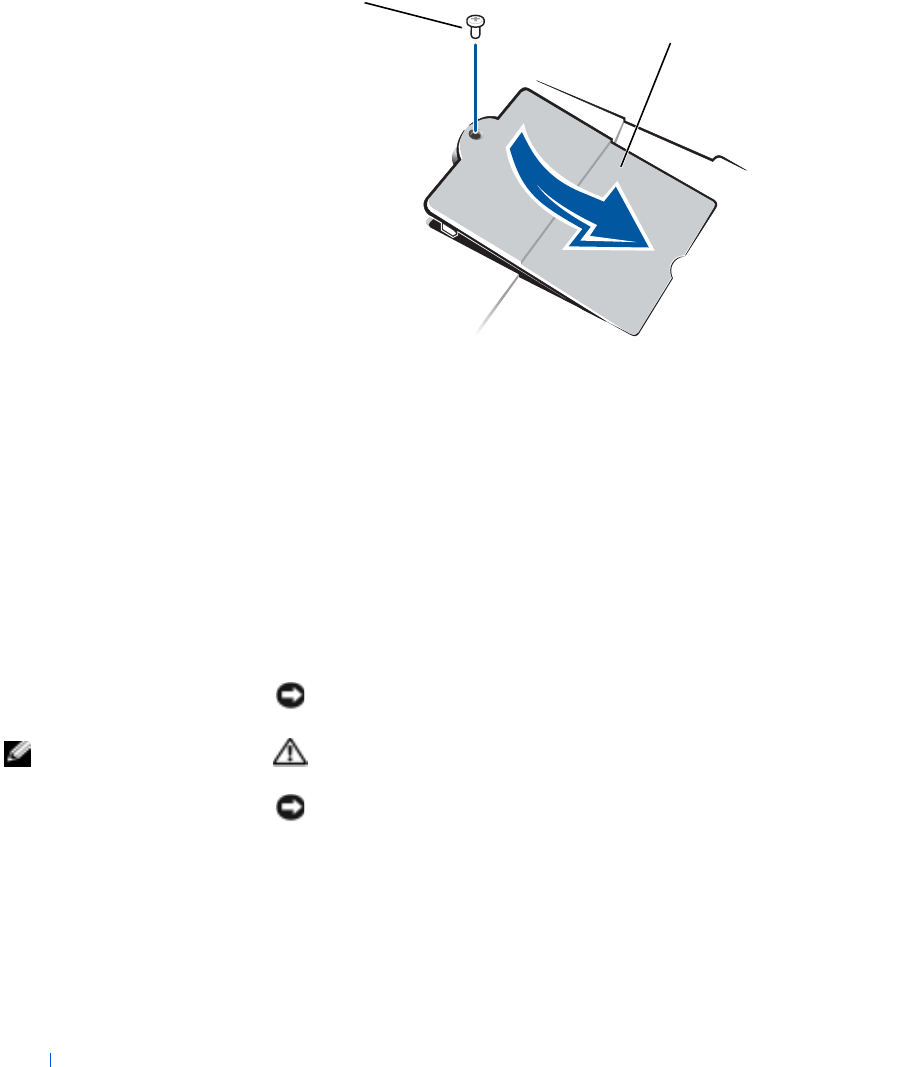
5Turn the computer over, remove the screw located next to the K/M
icon, and lift up the memory module cover.
NOTICE: To prevent damage to the computer, do not use tools to spread the
inner metal tabs of the socket when you are installing or removing a memory
module.
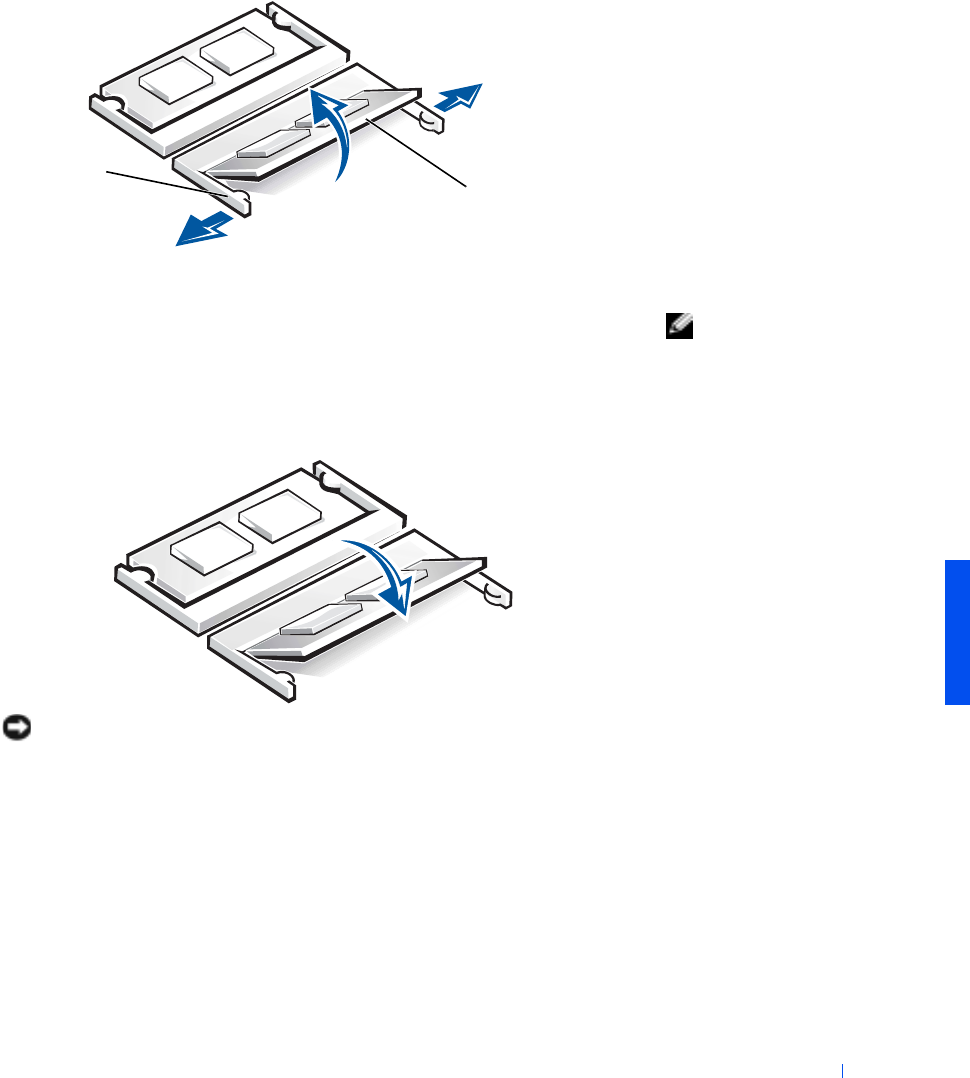
6If you are replacing a memory module, you must remove the existing
module:
aUse your fingernails to carefully spread apart the inner metal tabs
of the memory module socket.
The module should pop up.
bLift the memory module away from the socket.
memory module cover
screw
Adding Parts 57
7Install the memory module:
HINT: If the memory
module is not installed
properly, the computer
will not boot. No error
message indicates this
failure.
aAlign the notch in the module with the slot in the center of the
socket.
bSlide the edge of the module firmly into the socket, and rotate the
module down until you hear a click.
NOTICE: If you need to install memory modules in two sockets, install a
memory module in the socket labeled “JDIM (DIMMA)” before you install a
module in the socket labeled “JDIM2 (DIMMB).”
8Replace the cover and screw.
memory
module
securing
clip
58 Adding Parts
www.dell.com | support.dell.com
9Insert the battery into the battery bay, or connect the AC adapter to
your computer and an electrical outlet.
10 Turn on the computer.
As the computer boots, it will detect the additional memory and
automatically update the system configuration information.
11 If your computer runs Windows 98, delete and recreate the hibernate
file to accommodate the new memory (see page 46).
Replacing a Hard Drive
NOTICE: Hard drives are extremely fragile and must be handled carefully.
Even a slight bump can damage the drive.
HINT: Dell does not
guarantee compatibility
or provide support for
hard drives from sources
other than Dell.
CAUTION: If you remove the hard drive from the computer when
the drive is hot,
do not touch
the metal housing of the hard drive.
NOTICE: To prevent data loss, turn off your computer (see page 16) before
removing or installing a hard drive. Do not remove the hard drive while the
computer is in standby mode or hibernate mode, or if the power light is lit.
memory module cover
screw
Adding Parts 59
HINT: You need the
Operating System
CD to
install the Windows
operating system. You
also need the
System
Software
CD to install the
drivers and utilities on the
new hard drive.
1Save and close any open files, exit any open programs, and shut down
the computer (see page 16).
2If the computer is docked, undock it (see page 54).
3Remove all installed batteries, and disconnect the AC adapter cable
and any external devices from the computer.
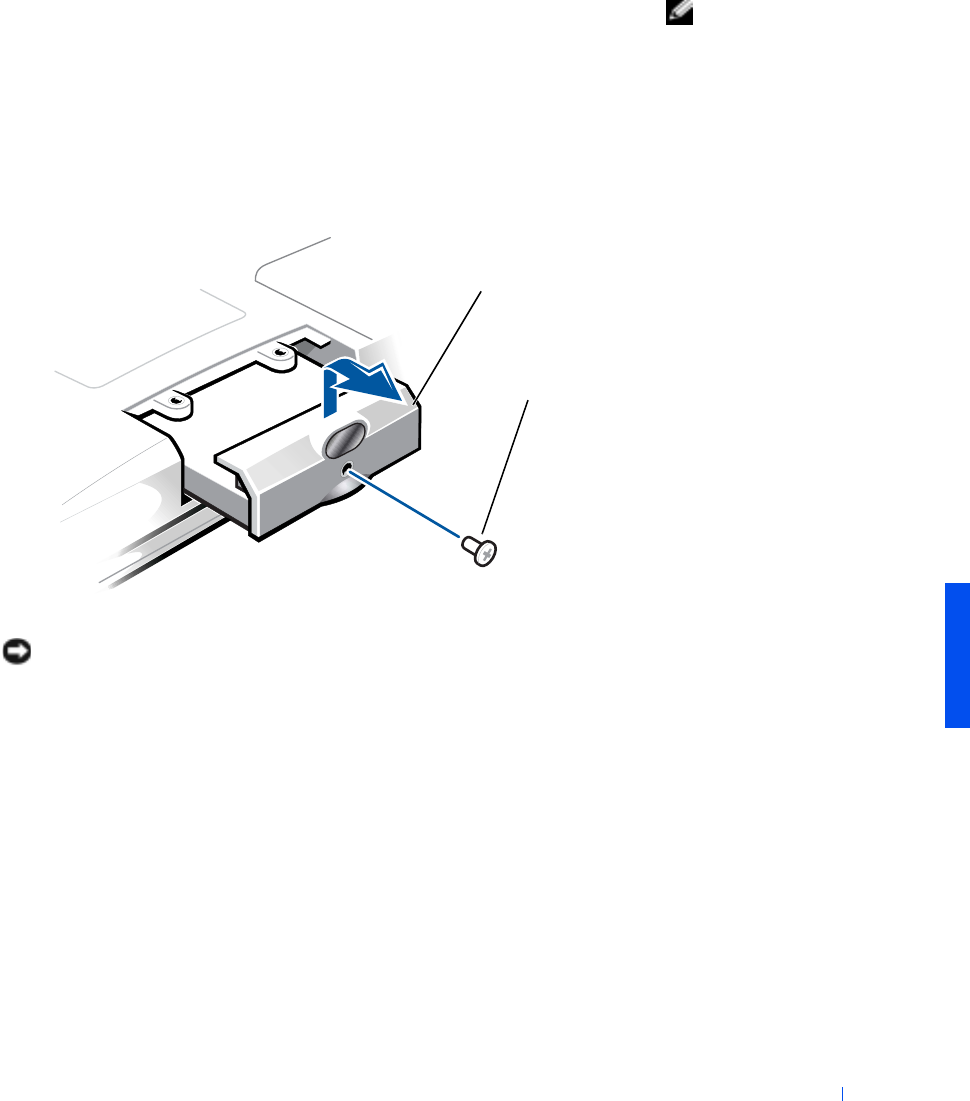
4Turn the computer over, and remove the hard drive screw.
NOTICE: When the hard drive is not in the computer, protect the drive from
exposure to static electricity by storing it in protective antistatic packaging.
5Lift up the hard drive cover until you hear a click.
6Slide the hard drive out of the computer.
7Remove the new drive from its packaging.
Save the original packaging to use when storing or shipping the hard
drive.
b
o
tt
om o
f
compu
t
er
hard drive
screw
60 Adding Parts
www.dell.com | support.dell.com
NOTICE: Do not force the drive into the computer. If you experience some
resistance, use firm and even pressure to slide the drive into place.
8Slide the new drive into the computer:
aLift up the hard drive cover until you hear a click.
bPush the hard drive until it is fully seated in the bay.
cPress the hard drive cover down.
9Replace and tighten the screw you removed in step 4.
10 Install the Dell-provided operating system (see page 42).
11 Install the Dell-provided drivers and utilities (see page 42).
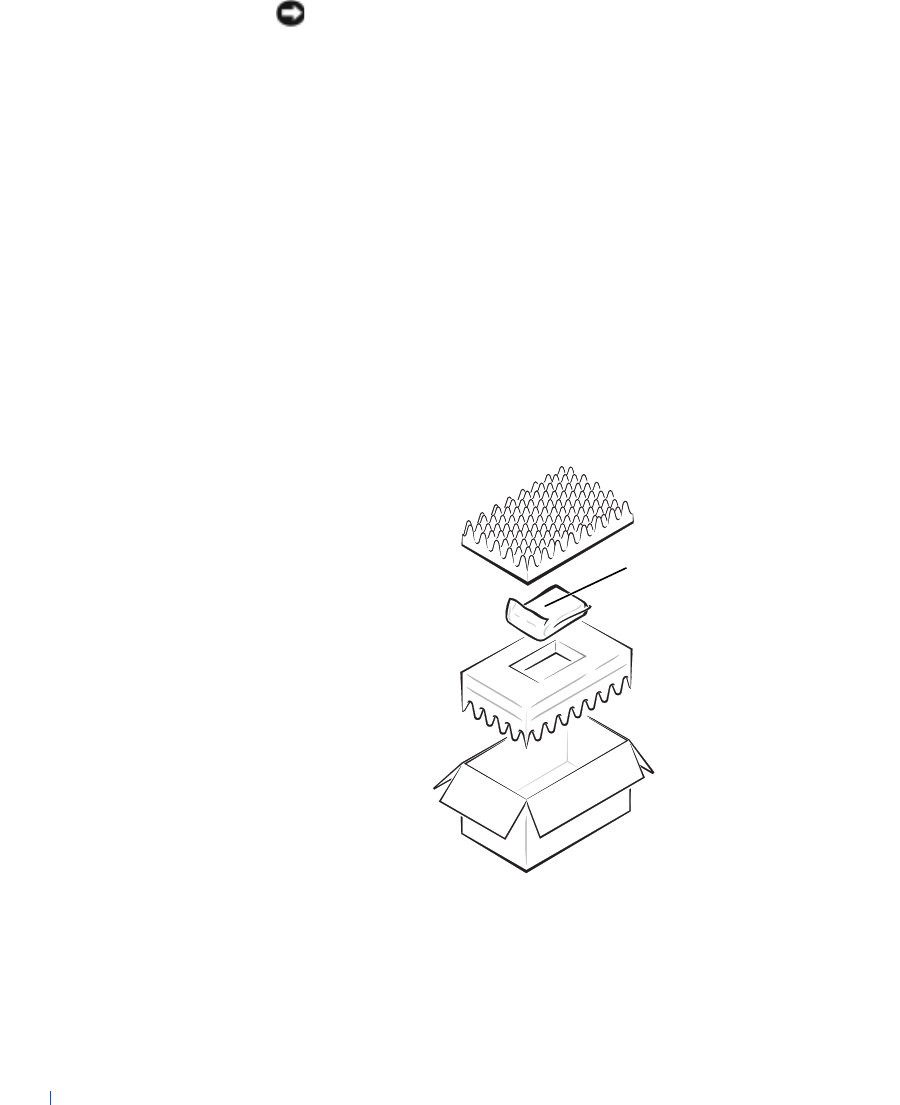
Returning a Hard Drive to Dell
Return your old hard drive to Dell in its original foam packaging. Otherwise,
the hard drive may be damaged in transit.
hard drive
Adding Parts 61
Using the Floppy Drive as an External
Device
If the media bay in your computer is already occupied by another device and
you want to also use a floppy drive, you can use the floppy drive as an
external device.
NOTICE: Use the floppy drive cable with the floppy drive only.
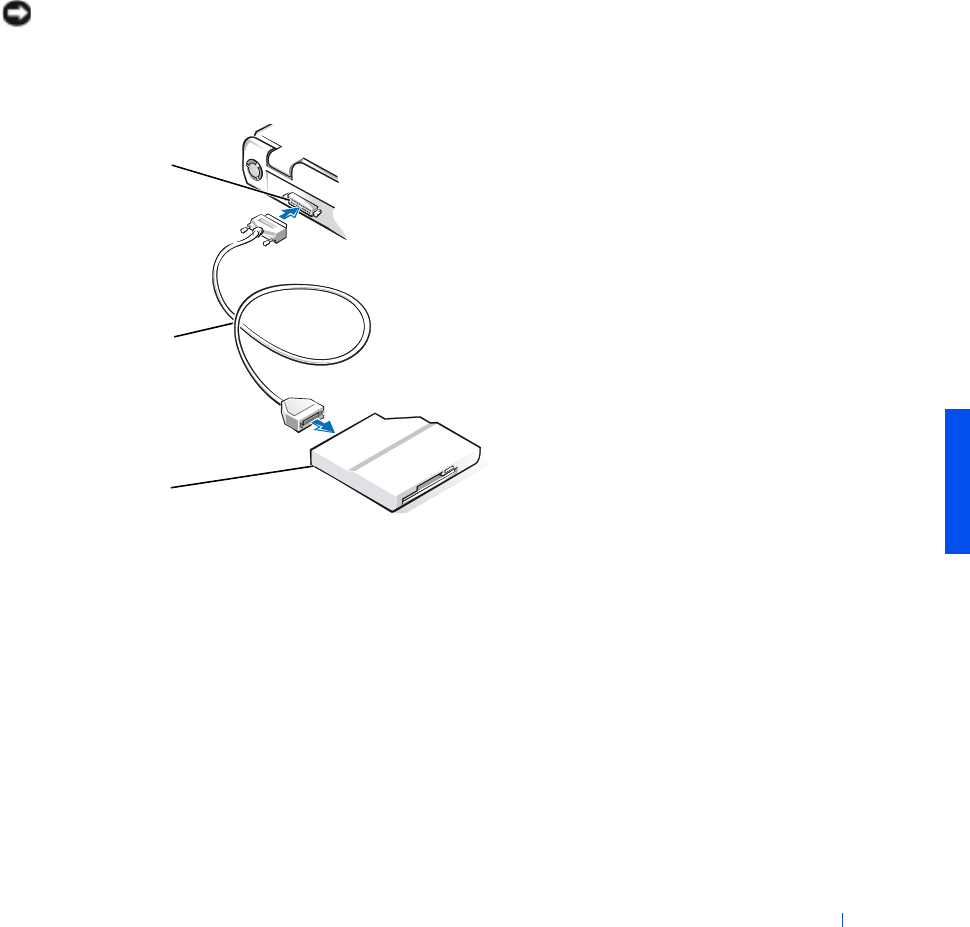
Use the floppy drive cable to connect the floppy drive to the parallel
connector on the back of the computer.
parallel
connector
floppy
drive cable
floppy
drive
62 Adding Parts
www.dell.com | support.dell.com
Attaching the Composite TV-Out
Adapter Cable
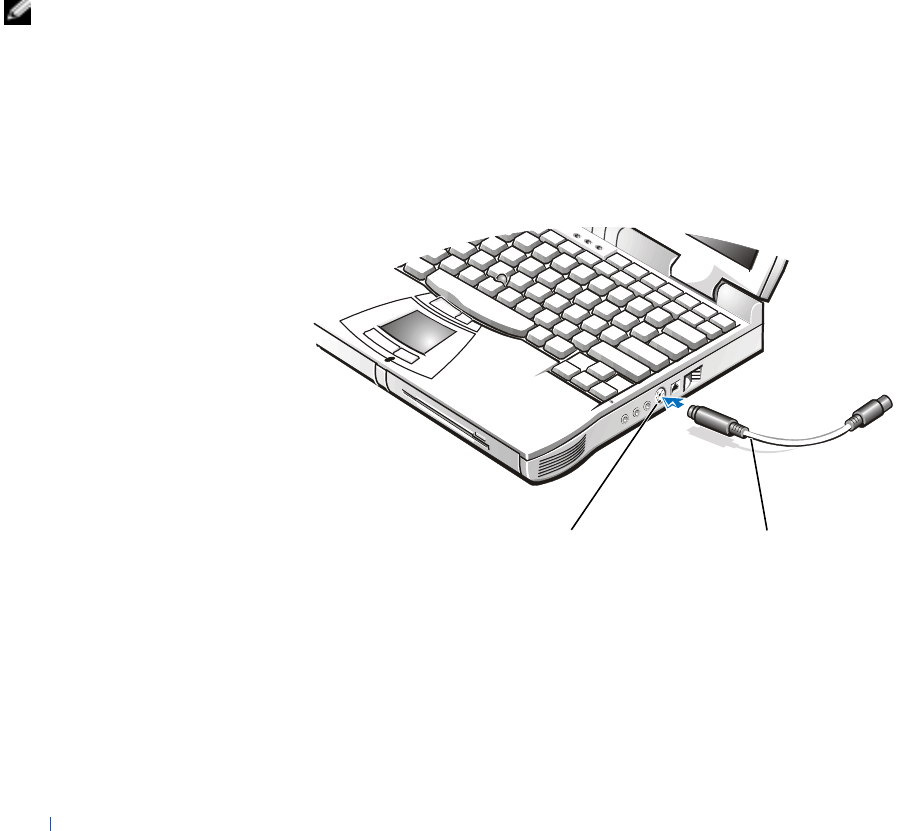
Your computer has an S-video TV-out connector for connecting a television
to the computer. To connect a television:
1Save and close any open files, exit any open programs, and shut down
the computer.
2If the television has an S-video cable, connect the S-video cable from
the TV to the computer’s S-video TV-out connector.
If the television has only a composite video cable connector, plug the
composite TV-out adapter cable that came with your computer into
the S-video TV-out connector on the computer. Connect the other end
of the composite TV-out adapter cable to the television's composite
video cable, and then plug the composite video cable into the TV.
3Turn on the computer.
composite TV-out
adapter cable
S-video TV-out
connector
HINT: If your television
did not come with a
composite video cable,
you can purchase one
from a local electronics
store.


64 Appendix
www.dell.com | support.dell.com
Specifications
Microprocessor
Microprocessor type Intel® Mobile Pentium® III or Mobile
Celeron™
L1 cache 32 KB (internal)
L2 cache 128 KB or 256 KB (integrated) or 512-KB
pipelined-burst SRAM (external)
Math coprocessor internal to microprocessor
System Information
System chip set Intel Mobile 440BX AGP
Data bus width 64 bits
DRAM bus width 64 bits
Microprocessor address bus width 32 bits
Flash EPROM 4 Mb
AGP bus 133 MHz
PCI bus 33 MHz
PC Card
CardBus controller Texas Instruments PCI 1225 CardBus
controller
PC Card connectors two (supports two Type I or Type II cards in
any combination; supports Type III cards
and zoomed video cards in the lower
connector only)
Cards supported 3.3 V and 5 V
PC Card connector size 68 pins
Data width (maximum) PCMCIA 16 bits
CardBus 32 bits

Appendix 65
Memory
Architecture SDRAM
Memory module socket two user-accessible SODIMM sockets
Memory module capacities 32, 64, 128, 192, and 256 MB
3.3-V SDRAM SODIMMS
Minimum memory 32-MB memory module
Standard memory 64 MB (non-ECC)
Maximum memory 512 MB (non-ECC)
Memory clock speed 100 MHz
Memory access time CL2 or CL3 (NOTE: CL3 indicates a CAS
latency of three clocks.)
BIOS address F000:0000-F000:FFFF
Ports and Connectors
Serial (DTE) 9-pin connector; 16550-compatible,
16-byte buffer connector
Parallel 25-hole connector; unidirectional (standard
AT), bidirectional, or ECP connector
Video 15-hole connector
Audio stereo line-in mini connector; microphone-
in mini connector; headphone/speakers
(line-out) mini connector
PS/2 keyboard/mouse 6-pin mini-DIN connector
USB 4-pin connector
Infrared sensor compatible with both IrDA
Standard 1.1 (Fast IR) and IrDA
Standard 1.0 (Slow IR)
Docking 240-pin connector for Dell advanced port
replicator
S-video TV-out 7-pin mini-DIN connector for S-video,
composite video, and S-video or composite
video only

66 Appendix
www.dell.com | support.dell.com
Video
Video type 256-bit hardware-accelerated video support
Data bus 2X AGP
Video controller ATI Mobility M3
Video memory 8 MB
LCD interface LVDS
TV support NTSC or PAL in S-video and composite
modes
Audio
Audio type DirectX/PCI, Sound Blaster emulation
Audio controller ESS Technology Maestro-3i
Stereo conversion 16-bit (analog-to-digital and digital-to-
analog)
Interfaces:
Internal PCI bus/AC 97
External stereo (line-in), microphone-in,
headphones/speaker (line-out)
Internal speaker amplifier 1 W into 8 ohms stereo
Controls Volume can be controlled through key
combinations or application program menus
Display
Type SVGA, active-matrix color (TFT)
Maximum resolution/colors 1024 x 768 pixels; 262,144-color display
Response time (typical) 30-ms rise; 20-ms fall
Operating angle 0° (closed) to 180°
Dot pitch 0.30 mm

Appendix 67
Power consumption:
Panel (typical)
Backlight 0.7 W
1.6 W
Controls brightness can be controlled through key
combinations
Keyboard
Number of keys 87 (U.S., Canada, Thailand, and locations
that use traditional Chinese); 88 (Europe);
90 (Japan)
Key travel 3.0 ± 0.5 to –0.2 mm (0.12 ±0.02 to
–0.0008 inch)
Key spacing 19.05 ± 0.3 mm (0.75 inch ± 0.012 inch)
Layout QWERTY/AZERTY/Kanji
Touch Pad
Interface PS/2 compatible
X/Y position resolution
(graphics table mode) 240 cpi
Size:
Thickness 2.8 mm (0.11 inch) at highest component
Width 55 mm (2.17 inch)
Height 39-mm (1.54-inch) rectangle
Weight 9.02 g (0.29 ounce)
Power:
Supply voltage 5 V ± 10%
Supply current 25 mA (maximum operating current) for
track stick and touch pad combined
ESD in accordance with IEC-801-2
Display
(continued)

68 Appendix
www.dell.com | support.dell.com
Track Stick
Interface PS/2 compatible
X/Y position resolution
(graphics table mode) 250 count/sec @ 100 gf
Size protrudes 0.5 mm higher than surrounding
key caps
Power:
Supply voltage 5 V ± 0.5 VDC
Supply current 25 mA (maximum operating current) for
track stick and touch pad combined
ESD in accordance with IEC-801-2
Modem
Modem type/speed internal 56K software modem
Modem cable minimum wire size of 26 American wire
gauge (AWG) and FCC-compliant RJ-11
connector
Battery
Type lithium-ion or nickel-metal hydride
Dimensions:
Depth 88.5 mm (3.48 inches)
Height 21.5 mm (0.83 inch)
Width 139.0 mm (5.47 inches)
Weight lithium-ion: 0.39 kg (0.87 lb)
nickel-metal hydride: 0.46 kg (1.01 lb)
Voltage lithium-ion: 14.8 VDC
nickel-metal hydride: 9.6 VDC
Capacity lithium-ion: 53 WH
nickel-metal hydride: 32 WH

Appendix 69
Charge time (approximate):
Computer on 2.5 hours
Computer off lithium-ion: 1 hour
nickel-metal hydride: 2.5 hours
Life span (approximate) 400 discharge/charge cycles0
Temperature range:
Operating 0° to 40°C (32° to 104°F)
Storage –20° to 60°C (–4° to 140°F)
AC Adapter
Input voltage 90 to 135 VAC and 164 to 264 VAC
Input current (maximum) 1.5 A
Input frequency 47 to 63 Hz
Output current 4.5 A (maximum 4-second pulse); 3.51 A
(continuous)
Output power 70 W
Rated output voltage 20 VDC
Dimensions:
Height 27.94 mm (1.1 inches)
Width 58.42 mm (2.3 inches)
Depth 133.35 mm (5.25 inches)
Weight (with cables) 0.4 kg (0.9 lb)
Temperature range:
Operating 0° to 40°C (32° to 104°F)
Storage –20° to 60°C (–4° to 140°F)
Battery
(continued)

70 Appendix
www.dell.com | support.dell.com
Environmental
Temperature range:
Operating 0° to 40°C (32° to 104°F)
Storage –20° to 60°C (–4° to 140°F)
Relative humidity (maximum):
Operating 10% to 90% (noncondensing)
Storage 5% to 95% (noncondensing)
Maximum vibration:
Operating 0.9 GRMS using a random-vibration
spectrum that simulates user environment
Storage 1.3 GRMS using a random-vibration
spectrum that simulates air/truck shipment
Maximum shock:
Operating 152.4 cm/sec (60 inches/sec) (equal to a half-
sine pulse width of 2 ms)
Storage 203.2 cm/sec (80 inches/sec) (less than or
equal to a pulse width of 2 ms)
Altitude (maximum):
Operating –18 to 3048 m (–59 to 10,000 ft)
Storage –18 to 10,660 m (–59 to 35,000 ft)

Appendix 71
Standard Settings
The system setup program contains the standard settings for your
computer.
NOTICE: Unless you are an expert computer user, don’t change the settings
for this program. Certain changes might make your computer work incorrectly.
HINT: To see information
about a specific item on
the system setup page,
highlight the item and
refer to the Help area on
the screen.
System Setup Pages
The system setup pages display the current setup information and settings
for your computer. You can change settings that appear as white type on the
screen.
•Page 1 displays system information, boot configuration, and docking
configuration settings.
•Page 2 displays system security, hard drive password settings, and basic
device configuration settings.
•Page 3 displays battery charge status.
•Page 4 displays power management settings.
Viewing the System Setup Pages
1Turn on (or restart) your computer.
2When the Dell logo appears, press <F2> immediately.
If you wait too long and the Windows logo appears, continue to wait
until you see the Windows desktop. Then shut down your computer
(see page 16) and try again.
Contacting Dell HINT: Toll-free numbers
are for use within the
country for which they are
listed.
When you need to contact Dell, use the telephone numbers, codes, and
electronic addresses provided in the following table. If you need assistance
in determining which codes to use, contact a local or an international
operator.

72 Appendix
www.dell.com | support.dell.com
Contact Numbers and Addresses
Country (City)
International Access Code
Country Code
City Code
Department Name or Service Area,
Website and E-mail Address Area Codes,
Local Numbers, and
Toll Free Numbers
Australia (Sydney)
International Access Code: 0011
Country Code: 61
City Code: 2
Home and Small Business 1-300-65-55-33
Government and Business toll free: 1-800-633-559
Preferred Accounts Division (PAD) toll free: 1-800-060-889
Customer Care toll free: 1-800-819-339
Corporate Sales toll free: 1-800-808-385
Transaction Sales toll free: 1-800-808-312
Fax toll free: 1-800-818-341
Austria (Vienna)
International Access Code: 900
Country Code: 43
City Code: 1
Home/Small Business Sales 01 795 67602
Home/Small Business Fax 01 795 67605
Home/Small Business Customer Care 01 795 67603
Preferred Accounts/Corporate Customer Care 0660 8056
Home/Small Business Technical Support 01 795 67604
Preferred Accounts/Corporate Technical Support 0660 8779
Switchboard 01 491 04 0
Website: http://support.euro.dell.com
E-mail: tech_support_central_europe@dell.com
Belgium (Brussels)
International Access Code: 00
Country Code: 32
City Code: 2
Technical Support 02 481 92 88
Customer Care 02 481 91 19
Home/Small Business Sales toll free: 0800 16884
Corporate Sales 02 481 91 00
Fax 02 481 92 99
Switchboard 02 481 91 00
Website: http://support.euro.dell.com
E-mail: tech_be@dell.com
Brazil
International Access Code: 0021
Country Code: 55
City Code: 51
Customer Support, Technical Support 0800 90 3355
Sales 0800 90 3366
Website: http://www.dell.com/br

Appendix 73
Brunei
Country Code: 673
Customer Technical Support (Penang, Malaysia) 604 633 4966
Customer Service (Penang, Malaysia) 604 633 4949
Transaction Sales (Penang, Malaysia) 604 633 4955
Canada (North York, Ontario)
International Access Code: 011
Automated Order-Status System toll free: 1-800-433-9014
AutoTech (Automated technical support) toll free: 1-800-247-9362
Customer Care (From outside Toronto) toll free: 1-800-387-5759
Customer Care (From within Toronto) 416 758-2400
Customer Technical Support toll free: 1-800-847-4096
Sales (Direct Sales—from outside Toronto) toll free: 1-800-387-5752
Sales (Direct Sales—from within Toronto) 416 758-2200
Sales (Federal government, education, and
medical) toll free: 1-800-567-7542
Sales (Major Accounts) toll free: 1-800-387-5755
TechFax toll free: 1-800-950-1329
Chile (Santiago)
Country Code: 56
City Code: 2
Sales, Customer Support, and Technical Support toll free: 1230-020-4823
China (Xiamen)
Country Code: 86
City Code: 592
Technical Support toll free: 800 858 2437
Customer Experience toll free: 800 858 2060
Home and Small Business toll free: 800 858 2222
Preferred Accounts Division toll free: 800 858 2062
Large Corporate Accounts toll free: 800 858 2999
Czech Republic (Prague)
International Access Code: 00
Country Code: 420
City Code: 2
Technical Support 02 22 83 27 27
Customer Care 02 22 83 27 11
Fax 02 22 83 27 14
TechFax 02 22 83 27 28
Switchboard 02 22 83 27 11
Website: http://support.euro.dell.com
E-mail: czech_dell@dell.com
Country (City)
International Access Code
Country Code
City Code
Department Name or Service Area,
Website and E-mail Address Area Codes,
Local Numbers, and
Toll Free Numbers

74 Appendix
www.dell.com | support.dell.com
Denmark (Horsholm)
International Access Code: 009
Country Code: 45
Technical Support 45170182
Relational Customer Care 45170184
Home/Small Business Customer Care 32875505
Switchboard 45170100
Fax Technical Support (Upplands Vasby, Sweden) 859005594
Fax Switchboard 45170117
Website: http://support.euro.dell.com
E-mail: den_support@dell.com
Finland (Helsinki)
International Access Code: 990
Country Code: 358
City Code: 9
Technical Support 09 253 313 60
Technical Support Fax 09 253 313 81
Relational Customer Care 09 253 313 38
Home/Small Business Customer Care 09 693 791 94
Fax 09 253 313 99
Switchboard 09 253 313 00
Website: http://support.euro.dell.com
E-mail: fin_support@dell.com
Country (City)
International Access Code
Country Code
City Code
Department Name or Service Area,
Website and E-mail Address Area Codes,
Local Numbers, and
Toll Free Numbers

Appendix 75
France (Paris/Montpellier)
International Access Code: 00
Country Code: 33
City Code: (1) (4)
Home and Small Business
Technical Support 0825 387 270
Customer Care 0825 823 833
Switchboard 0825 004 700
Switchboard (Alternative) 0499754000
Sales 0825 004 700
Fax 0825 004 701
Website: http://support.euro.dell.com
E-mail: web_fr_tech@dell.com
Corporate
Technical Support 0825 004 719
Customer Care 0825 338 339
Switchboard 0155947100
Sales 0155947100
Fax 0155947199
Website: http://support.euro.dell.com
E-mail: web_fr_tech@dell.com
Germany (Langen)
International Access Code: 00
Country Code: 49
City Code: 6103
Technical Support 06103 766-7200
Home/Small Business Customer Care 0180-5-224400
Global Segment Customer Care 06103 766-9570
Preferred Accounts Customer Care 06103 766-9420
Large Accounts Customer Care 06103 766-9560
Public Accounts Customer Care 06103 766-9555
Switchboard 06103 766-7000
Website: http://support.euro.dell.com
E-mail: tech_support_central_europe@dell.com
Hong Kong
International Access Code: 001
Country Code: 852
Technical Support toll free: 800 96 4107
Customer Service (Penang, Malaysia) 604 633 4949
Transaction Sales toll free: 800 96 4109
Corporate Sales toll free: 800 96 4108
Country (City)
International Access Code
Country Code
City Code
Department Name or Service Area,
Website and E-mail Address Area Codes,
Local Numbers, and
Toll Free Numbers

76 Appendix
www.dell.com | support.dell.com
Ireland (Cherrywood)
International Access Code: 16
Country Code: 353
City Code: 1
Technical Support 0870 908 0800
Customer Care 01 204 4026
Sales 01 286 0500
SalesFax 01 204 0144
Fax 0870 907 5590
Switchboard 01 286 0500
Website: http://support.euro.dell.com
E-mail: dell_direct_support@dell.com
Italy (Milan)
International Access Code: 00
Country Code: 39
City Code: 02
Home and Small Business
Technical Support 02 577 826 90
Customer Care 02 696 821 14
Fax 02 696 824 13
Switchboard 02 696 821 12
Website: http://support.euro.dell.com
E-mail: web_it_tech@dell.com
Corporate
Technical Support 02 577 826 90
Customer Care 02 577 825 55
Fax 02 575 035 30
Switchboard 02 577 821
Website: http://support.euro.dell.com
E-mail: web_it_tech@dell.com
Country (City)
International Access Code
Country Code
City Code
Department Name or Service Area,
Website and E-mail Address Area Codes,
Local Numbers, and
Toll Free Numbers

Appendix 77
Japan (Kawasaki)
International Access Code: 001
Country Code: 81
City Code: 44
Technical Support (Server) toll free: 0120-1984-35
Technical Support (Dimension™ and Inspiron™)
Technical Support Outside of Japan (Dimension
and Inspiron)
toll free: 0120-1982-26
81-44-520-1435
Technical Support (Dell Precision™, OptiPlex™
and Latitude™)
Technical Support Outside of Japan (Dell
Precision, OptiPlex, and Latitude)
toll free: 0120-1984-33
81-44-556-3894
24-Hour Automated Order Service 044 556-3801
Customer Care 044 556-4240
Home and Small Business Group Sales 044 556-3344
Preferred Accounts Division Sales 044 556-3433
Large Corporate Accounts 044 556-3430
Faxbox Service 044 556-3490
Switchboard 044 556-4300
Website: http://support.jp.dell.com
Korea (Seoul)
International Access Code: 001
Country Code: 82
City Code: 2
Technical Support toll free: 080-200-3800
Sales toll free: 080-200-3777
Customer Service (Seoul, Korea) 2194-6220
Customer Service (Penang, Malaysia) 604 633 4949
Fax 2194-6202
Switchboard 2194-6000
Latin America Customer Technical Support (Austin, Texas,
U.S.A.) 512 728-4093
Customer Service (Austin, Texas, U.S.A.) 512 728-3619
Fax (Technical Support and Customer
Service)(Austin, Texas, U.S.A.) 512 728-3883
Sales (Austin, Texas, U.S.A.) 512 728-4397
SalesFax (Austin, Texas, U.S.A.) 512 728-4600
or 512 728-3772
Country (City)
International Access Code
Country Code
City Code
Department Name or Service Area,
Website and E-mail Address Area Codes,
Local Numbers, and
Toll Free Numbers

78 Appendix
www.dell.com | support.dell.com
Luxembourg
International Access Code: 00
Country Code: 352
Technical Support (Brussels, Belgium) 02 481 92 88
Home/Small Business Sales (Brussels, Belgium) toll free: 080016884
Corporate Sales (Brussels, Belgium) 02 481 91 00
Customer Care (Brussels, Belgium) 02 481 91 19
Fax (Brussels, Belgium) 02 481 92 99
Switchboard (Brussels, Belgium) 02 481 91 00
Website: http://support.euro.dell.com
E-mail: tech_be@dell.com
Macau
Country Code: 853
Technical Support toll free: 0800 582
Customer Service (Penang, Malaysia) 604 633 4949
Transaction Sales toll free: 0800 581
Malaysia (Penang)
International Access Code: 00
Country Code: 60
City Code: 4
Technical Support toll free: 1 800 888 298
Customer Service 04 633 4949
Transaction Sales toll free: 1 800 888 202
Corporate Sales toll free: 1 800 888 213
Mexico
International Access Code: 95
Country Code: 52
City Code: 5
Automated Order-Status System (Austin, Texas,
U.S.A.) 512 728-0685
AutoTech (Automated technical support) (Austin,
Texas, U.S.A.) 512 728-0686
Customer Technical Support 525 228-7870
Sales 525 228-7811
or toll free: 91-800-900-37
or toll free: 91-800-904-49
Customer Service 525 228-7878
Main 525 228-7800
Country (City)
International Access Code
Country Code
City Code
Department Name or Service Area,
Website and E-mail Address Area Codes,
Local Numbers, and
Toll Free Numbers

Appendix 79
Netherlands (Amsterdam)
International Access Code: 00
Country Code: 31
City Code: 20
Technical Support 020 581 8838
Customer Care 020 581 8740
Home/Small Business Sales toll free: 0800-0663
Home/Small Business Sales Fax 020 682 7171
Corporate Sales 020 581 8818
Corporate Sales Fax 020 686 8003
Fax 020 686 8003
Switchboard 020 581 8818
Website: http://support.euro.dell.com
E-mail: tech_nl@dell.com
New Zealand
International Access Code: 00
Country Code: 64
Home and Small Business 0800 446 255
Government and Business 0800 444 617
Sales 0800 441 567
Fax 0800 441 566
Norway (Lysaker)
International Access Code: 095
Country Code: 47
Technical Support 671 16882
Relational Customer Care 671 17514
Home/Small Business Customer Care 23162298
Switchboard 671 16800
Fax Technical Support (Upplands Vasby, Sweden) 590 05 594
Fax Switchboard 671 16865
Website: http://support.euro.dell.com
E-mail: nor_support@dell.com
Poland (Warsaw)
International Access Code: 011
Country Code: 48
City Code: 22
Technical Support 22 57 95 700
Customer Care 22 57 95 999
Sales 22 57 95 999
Fax 22 57 95 998
Switchboard 22 57 95 999
Website: http://support.euro.dell.com
E-mail: pl_support@dell.com
Country (City)
International Access Code
Country Code
City Code
Department Name or Service Area,
Website and E-mail Address Area Codes,
Local Numbers, and
Toll Free Numbers

80 Appendix
www.dell.com | support.dell.com
Portugal
International Access Code: 00
Country Code: 35
Technical Support 35 800 834 077
Customer Care 34 902 118 540 or
35 800 834 075
Sales 35 800 834 075
Fax 35 121 424 01 12
E-mail: es_support@dell.com
Singapore (Singapore)
International Access Code: 005
Country Code: 65
Technical Support toll free: 800 6011 051
Customer Service (Penang, Malaysia) 604 633 4949
Transaction Sales toll free: 800 6011 054
Corporate Sales toll free: 800 6011 053
South Africa (Johannesburg)
International Access Code:
09/091
Country Code: 27
City Code: 11
Technical Support 011 709 7710
Customer Care 011 709 7707
Sales 011 709 7700
Fax 011 706 0495
Switchboard 011 709 7700
Website: http://support.euro.dell.com
E-mail: dell_za_support@dell.com
Southeast Asian and Pacific
Countries Customer Technical Support, Customer Service,
and Sales (Penang, Malaysia) 604 633 4810
Country (City)
International Access Code
Country Code
City Code
Department Name or Service Area,
Website and E-mail Address Area Codes,
Local Numbers, and
Toll Free Numbers

Appendix 81
Spain (Madrid)
International Access Code: 00
Country Code: 34
City Code: 91
Home and Small Business
Technical Support 902 100 130
Customer Care 902 118 540
Sales 902 118 541
Switchboard 902 118 541
Fax 902 118 539
Website: http://support.euro.dell.com
E-mail: web_esp_tech@dell.com
Corporate
Technical Support 902 100 130
Customer Care 902 118 546
Switchboard 91 722 92 00
Fax 91 722 95 83
Website: http://support.euro.dell.com
E-mail: web_esp_tech@dell.com
Sweden (Upplands Vasby)
International Access Code: 009
Country Code: 46
City Code: 8
Technical Support 08 590 05 199
Relational Customer Care 08 590 05 642
Home/Small Business Customer Care 08 587 70 527
Fax Technical Support 08 590 05 594
Sales 08 590 05 185
Website: http://support.euro.dell.com
E-mail: swe_support@dell.com
Switzerland (Geneva)
International Access Code: 00
Country Code: 41
City Code: 22
Technical Support (Home and Small Business) 0844 811 411
Technical Support (Corporate) 0844 822 844
Customer Care (Home and Small Business) 0848 802 202
Customer Care (Corporate) 0848 821 721
Fax 022 799 01 90
Switchboard 022 799 01 01
Website: http://support.euro.dell.com
E-mail: swisstech@dell.com
Country (City)
International Access Code
Country Code
City Code
Department Name or Service Area,
Website and E-mail Address Area Codes,
Local Numbers, and
Toll Free Numbers

82 Appendix
www.dell.com | support.dell.com
Taiwan
International Access Code: 002
Country Code: 886
Technical Support toll free: 0080 60 1255
Technical Support (Servers) toll free: 0080 60 1256
Transaction Sales toll free: 0080 651 228
or 0800 33 556
Corporate Sales toll free: 0080 651 227
or 0800 33 555
Thailand
International Access Code: 001
Country Code: 66
Technical Support toll free: 0880 060 07
Customer Support (Penang, Malaysia) 604 633 4949
Sales toll free: 0880 060 09
U.K. (Bracknell)
International Access Code: 010
Country Code: 44
City Code: 1344
Technical Support (Corporate/Preferred
Accounts/PAD [1000+ employees]) 0870 908 0500
Technical Support (Direct/PAD and General) 0870 908 0800
Global Accounts Customer Care 01344 723186
Corporate Customer Care 01344 723185
Preferred Accounts (500-5000 employees)
Customer Care 01344 723196
Central Government Customer Care 01344 723193
Local Government Customer Care 01344 723194
Home/Small Business Sales 0870 907 4000
Corporate/Public Sector Sales 01344 860456
Website: http://support.euro.dell.com
E-mail: dell_direct_support@dell.com
Country (City)
International Access Code
Country Code
City Code
Department Name or Service Area,
Website and E-mail Address Area Codes,
Local Numbers, and
Toll Free Numbers

Appendix 83
U.S.A. (Austin, Texas)
International Access Code: 011
Country Code: 1
Automated Order-Status System toll free: 1-800-433-9014
AutoTech (for portable and desktop computers) toll free: 1-800-247-9362
Dell Home and Small Business Group (for portable and desktop computers):
Customer Technical Support (Return Material
Authorization Numbers) toll free: 1-800-624-9896
Customer Technical Support (Home sales
purchased via http://www.dell.com)toll free: 1-877-576-3355
Customer Service (Credit Return Authorization
Numbers) toll free: 1-800-624-9897
National Accounts (systems purchased by established Dell national accounts
[have your account number handy], medical institutions, or value-added resellers
[VARs]):
Customer Service and Technical Support (Return
Material Authorization Numbers) toll free: 1-800-822-8965
Public Americas International (systems purchased by governmental agencies
[local, state, or federal] or educational institutions):
Customer Service and Technical Support (Return
Material Authorization Numbers) toll free: 1-800-234-1490
Dell Sales toll free: 1-800-289-3355
or toll free: 1-800-879-3355
Spare Parts Sales toll free: 1-800-357-3355
DellWare™ toll free: 1-800-753-7201
Desktop and Portable Fee-Based Technical Support toll free: 1-800-433-9005
Server Fee-Based Technical Support toll free: 1-800-967-0765
Sales (Catalogs) toll free: 1-800-426-5150
Fax toll free: 1-800-727-8320
TechFax toll free: 1-800-950-1329
Dell Services for the Deaf, Hard-of-Hearing, or
Speech-Impaired toll free: 1-877-DELLTTY
(1-877-335-5889)
Switchboard 512 338-4400
Dellnet Technical Support toll free: 1-877-Dellnet
(1-877-335-5638)
Country (City)
International Access Code
Country Code
City Code
Department Name or Service Area,
Website and E-mail Address Area Codes,
Local Numbers, and
Toll Free Numbers

84 Appendix
www.dell.com | support.dell.com
Returning Items for Warranty Repair or Credit
1Call Dell to obtain an authorization number, and write it clearly and
prominently on the outside of the box.
2Include a copy of the invoice and a letter describing the reason for the
return.
3Include any accessories that belong with the item(s) being returned
(power cables, CDs, guides, and so on) if the return is for credit.
4Pack the equipment to be returned in the original (or equivalent)
packing materials.
You are responsible for paying shipping expenses. You are also responsible
for insuring any product returned, and you assume the risk of loss during
shipment to Dell. Collect-on-delivery packages are not accepted.
Returns that are missing any of the preceding requirements will be refused
at our receiving dock and returned to you.
Regulatory Information
Electromagnetic Interference (EMI) is any signal or emission, radiated in
free space or conducted along power or signal leads, that endangers the
functioning of a radio navigation or other safety service or seriously
degrades, obstructs, or repeatedly interrupts a licensed radio
communications service. Your Dell computer is designed to comply with
applicable regulations regarding EMI. Changes or modifications not
expressly approved by Dell could void the user’s authority to operate the
equipment.

Appendix 85
FCC Notices (U.S. Only)
Most Dell computers are classified by the Federal Communications
Commission (FCC) as Class B digital devices. However, the inclusion of
certain options can change the rating of some configurations to Class A. To
determine which classification applies to your computer, examine all FCC
registration labels located on the bottom or back panel of your computer, on
card-mounting brackets, and on the cards themselves. If any one of the
labels carries a Class A rating, your entire computer is considered to be a
Class A digital device. If all labels carry an FCC Class B rating as
distinguished by either an FCC ID number or the FCC logo, ( ), your
computer is considered to be a Class B digital device.
Once you have determined your computer’s FCC classification, read the
appropriate FCC notice. Note that FCC regulations provide that changes
or modifications not expressly approved by Dell could void your authority to
operate this equipment.
This device complies with Part 15 of the FCC Rules. Operation is subject to
the following two conditions:
•This device may not cause harmful interference.
•This device must accept any interference received, including
interference that may cause undesired operation.
Class A
This equipment has been tested and found to comply with the limits for a
Class A digital device pursuant to Part 15 of the FCC Rules. These limits
are designed to provide reasonable protection against harmful interference
when the equipment is operated in a commercial environment. This
equipment generates, uses, and can radiate radio frequency energy and, if
not installed and used in accordance with the manufacturer’s instruction
manual, may cause harmful interference with radio communications.
Operation of this equipment in a residential area is likely to cause harmful
interference, in which case you will be required to correct the interference at
your own expense.

86 Appendix
www.dell.com | support.dell.com
Class B
This equipment has been tested and found to comply with the limits for a
Class B digital device pursuant to Part 15 of the FCC Rules. These limits are
designed to provide reasonable protection against harmful interference in a
residential installation. This equipment generates, uses, and can radiate
radio frequency energy and, if not installed and used in accordance with the
manufacturer’s instruction manual, may cause interference with radio
communications. However, there is no guarantee that interference will not
occur in a particular installation. If this equipment does cause harmful
interference to radio or television reception, which can be determined by
turning the equipment off and on, you are encouraged to try to correct the
interference by one or more of the following measures:
•Reorient or relocate the receiving antenna.
•Increase the separation between the equipment and the receiver.
•Connect the equipment into an outlet on a circuit different from that
to which the receiver is connected.
•Consult the dealer or an experienced radio/television technician for
help.
The following information is provided on the device or devices covered in
this document in compliance with FCC regulations:
•Model number: PPX
•Company name: Dell Computer Corporation
EMC Engineering Department
One Dell Way
Round Rock, Texas 78682 USA
512-338-4400
Modem Regulatory Information
This equipment complies with Part 68 of the FCC rules. On the bottom of
your computer is a label that contains, among other information, the FCC
registration number and ringer equivalence number (REN) for your
equipment. If requested, you must provide this information to the
telephone company.

Appendix 87
The REN is used to determine the quantity of devices that may be
connected to the telephone line. Excessive RENs on the telephone line may
result in the devices not ringing in response to an incoming call. In most
areas, the sum of all the RENs on your telephone line should be less than
five to ensure proper service from the telephone company. To be certain of
the number of devices that you may connect to a line, as determined by the
total RENs, contact your local telephone company.
The registration jack Universal Service Order Code (USOC) used by this
equipment is RJ-11C. An FCC compliant telephone cord and modular plug
is provided with this equipment. This equipment is designed to be
connected to the telephone network or premises wiring using a compatible
modular jack that is Part 68 compliant.
This equipment cannot be used on public coin-phone service provided by
the telephone company. Connection to party line service is subject to state
tariffs.
There are no user serviceable parts on the modem contained in your
computer.
If your telephone equipment causes harm to the telephone network, the
telephone company will notify you in advance that service may be
temporarily discontinued. If advance notice is not practical, the telephone
company will notify you as soon as possible. Also, you will be advised of your
right to file a complaint with the FCC if you believe it is necessary.
The telephone company may make changes in its facilities, equipment,
operations, or procedures that could affect the operation of this equipment.
If this happens, the telephone company will provide advance notice in order
for you to make necessary modifications to maintain uninterrupted service.
If you experience trouble with this telephone equipment, refer to the
section titled “Contacting Dell” to find the appropriate telephone number
for obtaining customer assistance. If the equipment is causing harm to the
telephone network, the telephone company may request that you
disconnect the equipment until the problem is resolved.

88 Appendix
www.dell.com | support.dell.com
Fax Branding
The Telephone Consumer Protection Act of 1991 makes it unlawful for any
person to use a computer or other electronic device, including fax
machines, to send any message unless such message clearly contains in a
margin at the top or bottom of each transmitted page or on the first page of
the transmission, the date and time it is sent, identification of the business,
other entity, or individual sending the message, and the telephone number
of the sending machine or such business, other entity, or individual. The
telephone number provided may not be a 900 number or any other number
for which charges exceed local or long-distance transmission charges.
Additional regulatory information regarding your computer can be found in
the Tell Me How help file. To open the file, click the Start button, point to
Programs, point to User’s Guides, and then click Tell Me How.
Battery Disposal
Your computer uses a lithium-ion battery and a nickel-metal hydride
(NiMH) coin-cell battery. For instructions about replacing the lithium-ion
battery in your computer, see the Tell Me How help file. To open the file,
click the Start button, point to Programs, point to User’s Guides, and then
click Tell Me How.
The coin-cell battery is a long-life battery, and it is very possible that you
will never need to replace it. However, should you need to replace it, the
procedure must be performed by an authorized service technician.
Do not dispose of the battery along with household waste. Contact your
local waste disposal agency for the address of the nearest battery deposit
site.
Appendix 89
NOM Information (Mexico Only)
The following information is provided on the device(s) described in this
document in compliance with the requirements of the official Mexican
standards (NOM):
Exporter: Dell Computer Corporation
One Dell Way
Round Rock, TX 78682
Importer: Dell Computer de México,
S.A. de C.V.
Paseo de la Reforma 2620 - 11° Piso
Col. Lomas Altas
11950 México, D.F.
Ship to: Dell Computer de México,
S.A. de C.V. al Cuidado de Kuehne & Nagel de
México S. de R.I.
Avenida Soles No. 55
Col. Peñon de los Baños
15520 México, D.F.
Supply input voltage: 100–240 VAC
Frequency: 50–60 Hz
Current consumption: 1.5 A
Output voltage: 20 VDC
Output current: 3.5 A
90 Appendix
www.dell.com | support.dell.com
Información para NOM (únicamente para México)
La información siguiente se proporciona en el dispositivo o en los
dispositivos descritos en este documento, en cumplimiento con los
requisitos de la Norma Oficial Mexicana (NOM):
Warranty and Return Policy
Information
Dell Computer Corporation (“Dell”) manufactures its hardware products
from parts and components that are new or equivalent to new in accordance
with industry-standard practices. For information about the Dell warranty
for your computer, see the Tell Me How help file. To open the file, click the
Start button, point to Programs, point to User’s Guides, and then click Tell
Me How.
Exportador: Dell Computer Corporation
One Dell Way
Round Rock, TX 78682
Importador: Dell Computer de México,
S.A. de C.V.
Paseo de la Reforma 2620 - 11° Piso
Col. Lomas Altas
11950 México, D.F
Embarcar a: Dell Computer de México, S.A. de C.V. al
Cuidado de Kuehne & Nagel de México S. de
R.I.
Avenida Soles No. 55
Col. Peñon de los Baños
15520 México, D.F.
Voltaje de entrada de
alimentación: 100–240 VAC
Frecuencia: 50–60 Hz
Consumo eléctrico: 1.5 A
Voltaje de salida: 20 VDC
Corriente de salida: 3.5 A

Appendix 91
Macrovision Product Notice
The following product notice applies to the Macrovision Corporation
product that is included with the DVD-ROM drive:
This product incorporates copyright protection technology that is protected
by method claims of certain U.S. patents and other intellectual property
rights owned by Macrovision Corporation and other rights owners. Use of
this copyright protection technology must be authorized by Macrovision
Corporation, and is intended for home and other limited viewing uses only
unless otherwise authorized by Macrovision Corporation. Reverse
engineering or disassembly is prohibited.

92 Appendix
www.dell.com | support.dell.com

Index 93
Index
A
advanced port replicator, 50
APR
connecting to a network, 20
audio. See sound
B
BIOS, 71
C
CD drive
fixing problems, 35
CD-RW drive
fixing problems, 36
characters
unexpected, 33
computer
crashes, 38
error messages, 27
specifications, 64
turning off, 16
contact numbers, 71
crashes, 38
D
damaged computer
testing, 41
diskette drive
connecting as external
device, 61
display
fixing problems, 28
drivers
reinstalling, 42
drives
fixing problems, 34
DVD drive
fixing problems, 35
E
e-mail
fixing problems, 40
error messages
start-up, 27
Windows, 37
external keyboard
fixing problems, 33
F
finding solutions, 24
floppy drive
fixing problems, 34
H
hard drive
fixing problems, 36
preventing damage, 59
preventing data loss, 58
replacing, 58
returning to Dell, 60
troubleshooting, 36
help file
accessing, 26
hibernate file
create, 47
delete, 47
enable support, 48
I
Internet
fixing problems, 39

94 Index
94 Index
K
keyboard
fixing problems, 33
unexpected characters, 33
M
media bay
devices, 17
swapping devices (active
mode), 19
memory
adding, 55
removing, 56
messages
start-up, 27
Windows, 37
modem
fixing problems, 32
modular bay
swapping devices (computer
off), 18
N
network
fixing problems, 37
setting up the APR, 20
P
port replicator
connecting to a network, 20
power
fixing problems, 26
turning off, 16
printer
connecting, 14
fixing problems, 31
reinstalling driver, 14
setting up, 14
troubleshooting, 31
programs
crashes, 38
fixing problems, 38
not responding, 38
R
RAM. See memory
regulatory notices, 85
reinstalling drivers and
utilities, 42
returns, 90
S
safety instructions, 7
ScanDisk, 36
settings
system setup program, 71
shutdown, 16
software
fixing problems, 38
sound
adjusting volume, 29
fixing problems, 29
speaker
adjusting volume, 29
fixing problems, 29
specifications, 64
system setup program, 71
T
technical assistance
telephone numbers and
addresses, 71
warranty repair or credit, 84
Tell Me How help file
accessing, 26
touch pad
fixing problems, 33
troubleshooting
about, 24
blank display, 28
blue screen, 39
cannot play a DVD movie, 35
cannot save to floppy disk, 34
CD problems, 35
CD-RW drive stops
writing, 36
display difficult to read, 28
dropped or damaged
computer, 41
e-mail problems, 40
external keyboard
problems, 33
external speaker problems, 30
integrated speaker
problems, 29
Internet connection
problems, 39
modem problems, 32
network problems, 37
parallel printer problems, 31
power problems, 26
program crash, 38

Index 95
troubleshooting (continued)
program stopped
responding, 38
scanner problems, 33
start-up error messages, 27
touch pad problems, 33
unexpected characters, 33
USB printer problems, 31
wet computer, 40
Windows error messages, 37
turning off the computer, 16
V
video
fixing problems, 28
W
warranty, 90
wet computer, 40
Windows 2000
error messages, 37
reinstalling, 44
Windows 98
error messages, 37
Help, 26
reinstalling, 43
shutdown, 16
Windows Me
error messages, 37
reinstalling, 43
shutdown, 16

96 Index
96 Index

For questions or problems with files contact:
Cathy Brown - Graphic Development
Dell Computer Corporation (512) 723-9330
Dell Information Development
Postscript Imaging Specs
JOB TITLE: Dell Inspiron 3800 System Solutions Guide
s:\systems\Starship\solution\English\595RWa00
LANGUAGES: English
PART NUMBER: 595RW Rev. A00 Agile: currently at X00
PREPARED BY: Gloria Salinas
CONTACT: Cathy Brown 512-723-9330
EMAIL ADDRESS: Cathy_Brown@dell.com
VENDOR: IPC/EMF/APCC/CC/BP
DATE: 02/13/01
COMPUTER SOURCE: Dell PC
APPLICATION SOFTWARE: FrameMaker Version 5.5.2
POSTSCRIPT FILES: Yes
POSTCRIPT DRIVER USED: Linotronic 330
COLOR SEPARATED FILES: English:
Cover: Yes
Body: Yes
Languages: No
COMPRESSED & TESTED: Yes
PAGE SIZE: 7.5 x 9 inches
PAGE ORIENTATION: Portrait
LINE SCREEN: 133 lpi
TRANSPORT MEDIA: FTP
HALFTONES/SCREENS/ No
DUOTONES: No
COLOR(S): Cover: Black, PMS 130CV, PMS 286CV
Text - Black & PMS 286CV
COLOR MARKUP PROVIDED: No
Continued on Back

For questions or problems with files contact:
Cathy Brown - Graphic Development
Dell Computer Corporation (512) 723-9330
FILE NAME(S) & PAGE
COUNT: Section Filename Page Count
AMF Fullcover:
Or
EMF Fullcover:
Or
APCC Fullcover:
Or
CCC Fullcover
Or
BP Fullcover:
Title page:
TOC
Safety:
Ch1:
Ch2:
Ch3:
Ch4:
Index:
595RWam0.ps
Or
595RWem0.ps
Or
595RWap0.ps
Or
595RWcc0.ps
or
595RWbp0.ps
595RWtp0.ps
595RWtc0.ps
595RWsi0.ps
595RWc10.ps
595RWc20.ps
595RWc30.ps
595RWc40.ps
595RWix0.ps
2 ( Incl. Blank BACK)
2 Title page and Copyright
4 3–6
6 7–12
10 13–22
26 23–48
14 49–62
30 63–92
4 93–96
TOTAL PAGE COUNT: 98
SPECIAL INSTRUCTIONS: Add blank pages needed to complete signatures.
Dell Information Development
Postscript Imaging Specs
