Dell Server Management Pack Version 4 1 For Microsoft System Center Operations Manager Users Manual 4.1 User's Guide
2014-11-13
: Dell Dell-Server-Management-Pack-Version-4-1-For-Microsoft-System-Center-Operations-Manager-Users-Manual-117881 dell-server-management-pack-version-4-1-for-microsoft-system-center-operations-manager-users-manual-117881 dell pdf
Open the PDF directly: View PDF  .
.
Page Count: 72
- Introduction
- Getting Started
- Understanding Dell Server Management Pack Suite Operations
- Related Documentation and Resources
- Appendix A- Issues and Resolutions

Dell Server Management Pack
Suite Version 4.1 For Microsoft
System Center Operations
Manager 2007 SP1/R2, System
Center Essentials 2007 SP1/
2010
User’s Guide
book.book Page 1 Wednesday, December 8, 2010 7:33 PM

Notes and Cautions
NOTE: A NOTE indicates important information that helps you make better use of
your computer.
CAUTION: A CAUTION indicates either potential damage to hardware or loss of
data and tells you how to avoid the problem.
____________________
Information in this document is subject to change without notice.
© 2010 Dell Inc. All rights reserved.
Reproduction of these materials in any manner whatsoever without the written permission of Dell Inc.
is strictly forbidden.
Trademarks used in this text: Dell™, the DELL logo, PowerEdge™, PowerVault™, and
OpenManage™ are trademarks of Dell Inc. Broadcom® is a registered trademark of Broadcom
Corporation. Intel® is a registered trademark of Intel Corporation in the United States and/or other
countries. Microsoft®, Windows®, Windows Server®, and Windows Vista® are either trademarks or
registered trademarks of Microsoft Corporation in the United States. Other trademarks and trade
names may be used in this publication to refer to either the entities claiming the marks and names or
their products. Dell Inc. disclaims any proprietary interest in trademarks and trade names other than
its own. Dell is not responsible for the availability of external websites or their contents.
December 2010
book.book Page 2 Wednesday, December 8, 2010 7:33 PM

Contents 3
Contents
1 Introduction . . . . . . . . . . . . . . . . . . . . . . . . 7
Contents of the Management Pack Suite . . . . . . . . . 7
What is New in Dell Server Management Pack
Suite Version 4.1 . . . . . . . . . . . . . . . . . . . . . . 8
Key Features of Dell Server Management
Pack Suite . . . . . . . . . . . . . . . . . . . . . . . . . 9
About Dell Server Management Pack Suite v4.1 . . . . 11
Supported Dell Devices . . . . . . . . . . . . . . . . . 13
Supported Operating Systems . . . . . . . . . . . . . . 14
Supported Firmware Versions . . . . . . . . . . . . . 15
2 Getting Started . . . . . . . . . . . . . . . . . . . . 17
Management Server (MS) Requirements . . . . . . . . 17
Software Requirements . . . . . . . . . . . . . . 17
Discovery Requirements . . . . . . . . . . . . . . 18
Security Configuration . . . . . . . . . . . . . . . 18
Chassis Modular Server Correlation
Requirement . . . . . . . . . . . . . . . . . . . . 19
Managed System Requirements . . . . . . . . . . . . 19
Dell System Requirements . . . . . . . . . . . . . 19
Configuring Management Server Action
Account With Normal User Privilege . . . . . . . 21
book.book Page 3 Wednesday, December 8, 2010 7:33 PM

4Contents
Dell CMC/DRAC MC Requirements . . . . . . . . 21
Installing the Dell Server Management Pack
Suite v4.1 . . . . . . . . . . . . . . . . . . . . . . . . . 21
Pre-import Tasks . . . . . . . . . . . . . . . . . . 21
Importing the Management Packs . . . . . . . . . 22
Post-Import Tasks for the Dell Server Management
Pack Suite v4.1 . . . . . . . . . . . . . . . . . . . . . 23
Configuring the Dell Chassis Management Controller
Management Pack for Discovering Server Modules
and Chassis Slot Summary . . . . . . . . . . . . . 23
Creating Advanced Power Control and LED
Identification Tasks . . . . . . . . . . . . . . . . . 24
Upgrading From the Previous Management
Packs . . . . . . . . . . . . . . . . . . . . . . . . . . 26
From Dell Server Management Pack
Suite v4.0 . . . . . . . . . . . . . . . . . . . . . . 26
Post Upgrade Tasks . . . . . . . . . . . . . . . . 26
From Dell Server Management Pack 3.x . . . . . . 27
Uninstalling the Dell Server Management Pack
Suite v4.1 . . . . . . . . . . . . . . . . . . . . . . . . . 27
Deleting the Management Packs . . . . . . . . . 27
Before deleting the Dell CMC Management
Pack 4.1 . . . . . . . . . . . . . . . . . . . . . . . 28
Access Privileges . . . . . . . . . . . . . . . . . . . . 29
3 Understanding Dell Server Management
Pack Suite Operations . . . . . . . . . . . . . . 31
Overview . . . . . . . . . . . . . . . . . . . . . . . . . 31
Web Console . . . . . . . . . . . . . . . . . . . . . . . 31
Discovery and Grouping . . . . . . . . . . . . . . . . . 32
book.book Page 4 Wednesday, December 8, 2010 7:33 PM

Contents 5
Discovering a Dell System . . . . . . . . . . . . . 32
Discovering DRAC and CMC Devices . . . . . . . 33
Dell Hardware Discovery and Grouping . . . . . . 34
Objects Discovered by Dell Server Management
Pack . . . . . . . . . . . . . . . . . . . . . . . . 35
Monitoring . . . . . . . . . . . . . . . . . . . . . . . . 37
Alerts View . . . . . . . . . . . . . . . . . . . . . 38
Diagram View . . . . . . . . . . . . . . . . . . . 39
State View . . . . . . . . . . . . . . . . . . . . . 49
Performance and Power Monitoring Views . . . . 49
Tasks . . . . . . . . . . . . . . . . . . . . . . . . . . . 51
Dell Modular and Monolithic Systems Tasks . . . 52
Dell Remote Access Controller (DRAC) Tasks . . . 56
Dell Chassis Management Controller (CMC)
Tasks . . . . . . . . . . . . . . . . . . . . . . . . 56
Reports . . . . . . . . . . . . . . . . . . . . . . . . . . 57
OpenManage Windows Event Log . . . . . . . . . 57
BIOS Configuration . . . . . . . . . . . . . . . . . 58
Firmware and Driver Versions . . . . . . . . . . . 58
RAID Configuration . . . . . . . . . . . . . . . . . 58
Customizing the Dell Server Management Pack
Suite . . . . . . . . . . . . . . . . . . . . . . . . . . . 59
Unit Monitors . . . . . . . . . . . . . . . . . . . . 59
Object Discoveries . . . . . . . . . . . . . . . . . 64
Rules . . . . . . . . . . . . . . . . . . . . . . . . 64
book.book Page 5 Wednesday, December 8, 2010 7:33 PM

6Contents
4 Related Documentation and
Resources . . . . . . . . . . . . . . . . . . . . . . . . 67
Microsoft Guidelines for Performance and
Scalability for Operations Manager 2007 SP1/R2 . . . . 67
Other Documents You May Need . . . . . . . . . . . . 67
Obtaining Technical Assistance . . . . . . . . . . . . 68
A Appendix A- Issues and
Resolutions 69
Known Limitations . . . . . . . . . . . . . . . . . . . 72
book.book Page 6 Wednesday, December 8, 2010 7:33 PM

Introduction 7
1
Introduction
The integration of the Dell Server Management Pack Suite v4.1 with
Microsoft Systems Center Operations Manager (SCOM) 2007 SP1/R2,
System Center Essentials (SCE) 2007 SP1/ 2010 environment allows you to
manage, monitor, and ensure the availability of your Dell devices.
CAUTION: Perform the procedures in this document only if you have proper
knowledge and experience in using Microsoft Windows operating system and the
Systems Center Operations Manager 2007 SP1/R2, System Center Essentials 2007
SP1/2010, to avoid data corruption and/or data loss.
NOTE: Read the Management Pack’s readme files, which contain the latest
information about software and management server requirements, in addition to
information about known issues. The readme files are posted to the Systems
Management documentation page on the Dell Support website at
support.dell.com/manuals. The readme files are also packaged in the self-
extracting executable Dell_Server_Management_Pack_Suite_v4.1_A00.exe file.
NOTE: All references to Systems Center Operations Manager (SCOM) 2007 SP1/R2
in this document are also applicable to System Center Essentials (SCE) 2007
SP1/2010.
Contents of the Management Pack Suite
The Dell Server Management Pack Suite v4.1 consists of the following:
Management Packs:
• Dell.WindowsServer.Scalable.mp
• Dell.WindowsServer.Detailed.mp
• Dell.OutOfBand.CMC.mp
• Dell.OutOfBand.DRAC.mp
Utilities:
• Dell.Connections.HardwareLibrary.mp (Base Folder utility)
• Dell.WindowsServer.InformationalAlertsOn.mp
•
Dell.ChassisModularServer.Correlation.mp
book.book Page 7 Wednesday, December 8, 2010 7:33 PM
8Introduction
Documentation:
• DellMPv41_Readme
• DellMPv41_CMC_Readme
• DellMPv41_DRAC_Readme
• DellMPv41_Server_Readme
The four Management Pack files, three utilities, and readme files are packaged
in a self-extracting executable
Dell_Server_Management_Pack_Suite_v4.1_A00.exe file. You can download the
executable from the Dell Support website at support.dell.com.
What is New in Dell Server Management Pack
Suite Version 4.1
Table 1-1. New Features and Functionalities
New Feature Functionality
Discovery and
monitoring of server
network interface cards
Supports:
• In-band discovery and monitoring of Physical and
Teamed network interfaces for Broadcom and Intel
network interface cards (NICs).
• Display of enriched properties and attributes of network
interface cards on systems running Server Administrator
versions 6.2.0.1 - 6.4.
• Performance graphs for physical and teamed network
interfaces for Server Administrator version 6.2.0.1 and
above.
• Linkup and linkdown alerts in
Network Interfaces
Alerts
view.
• Correlation of physical and teamed network interfaces
for Server Administrator version 6.2.0.1 and above in the
Dell Modular Systems
and
Dell Monolithic Systems
Diagram Views.
Discovery and
monitoring of
iDRAC vFlash Cards
Supports in-band discovery and monitoring of
iDRAC vFlash card and iDRAC network interface
under Dell systems.
book.book Page 8 Wednesday, December 8, 2010 7:33 PM
Introduction 9
Key Features of Dell Server Management
Pack Suite
Dell Server Management Pack Suite v4.1provides these features for
management of
Dell Windows systems and out-of-band Dell devices
:
Discovery and
monitoring – Chassis
Management
Supports:
•Discovery of server modules and chassis slot summary
for CMC and DRAC/MC Chassis.
• Correlation of Dell Servers with Server Modules of CMC
and DRAC/MC Chassis in the
Chassis Management
Controller
Diagram View.
Additional Traps Supports:
• All new traps introduced in Server Administrator
versions 6.2.0.1 - 6.4.
•Platform Event Traps (PET) for DRAC and iDRAC.
Remote Desktop Launch Supports launching of remote desktop for discovered Dell
systems from the Operations Manager Console
Table 1-2. Features and Functionalities
Feature Functionality
In-band Discovery and
Monitoring - Dell Systems
Supports in-band discovery and monitoring of:
• Dell PowerEdge and PowerVault Monolithic and
Modular systems running the supported Windows
operating system.
• Dell Remote Access Controllers (DRAC),
iDRAC and IPMI devices through in-band.
Table 1-1. New Features and Functionalities
(continued)
New Feature Functionality
book.book Page 9 Wednesday, December 8, 2010 7:33 PM

10 Introduction
Discovery and Monitoring -
Chassis Management
Supports:
• Out-of-band discovery and monitoring of Dell
Chassis Management Controllers (CMC) and
DRAC/ Modular Chassis (DRAC/MC) devices.
• Supports discovery of server modules and chassis
slot summary for CMC and DRAC/MC Chassis.
• Correlation of Dell Servers with Server Modules of
CMC and DRAC/MC Chassis.
Out-of-Band Discovery and
Monitoring - Dell Remote
Access Controllers (DRAC)
Supports:
• Out-of-band discovery and monitoring of Dell
Remote Access Controllers (DRAC) 4, DRAC 5,
and integrated DRAC.
• Additional Platform Event Traps (PET) for DRAC
and iDRAC.
Performance Monitoring For Dell systems, supports:
• Power, temperature and network interface
statistics using
Performance
and
Power
Monitoring
Views.
• Performance graphs for physical and teamed
network interfaces for Server Administrator
version 6.2.0.1 and above.
Advanced Monitoring
• Provides flexibility in choosing the level of
instrumentation for Dell systems based on
scalability requirements.
• Detailed monitoring using Server Administrator
by enabling Informational Alerts.
Table 1-2. Features and Functionalities
(continued)
Feature Functionality
book.book Page 10 Wednesday, December 8, 2010 7:33 PM
Introduction 11
About Dell Server Management Pack Suite v4.1
Table below describes the management packs and utilities, and their
dependencies with each other:
Launching Dell Tools from
Operations Console
Supports:
• Launching Server Administrator Console
• Launching Dell Remote Access Console
• Launching Dell CMC Console
• Launching Dell Modular Chassis Remote Access
Console
• Launching Remote Desktop Console.
Table 1-3. Management Pack Functionality and Dependencies
Management
Pack/Utility
Description Dependency
Base Folder Utility Management Pack for defining the
Dell Hardware Group and Dell
folder in the Monitoring pane of
the Operations Console.
None
Scalable Server MP Management Pack for
instrumenting supported Dell
PowerEdge and PowerVault upto
component groups level.
Base Folder Utility 4.0
Detailed Server MP Management Pack for
instrumenting supported Dell
PowerEdge and PowerVault upto
component level.
NOTE: Use this MP when you are
managing less than 300 nodes
Base Folder Utility 4.0
Scalable Server MP 4.1
Table 1-2. Features and Functionalities
(continued)
Feature Functionality
book.book Page 11 Wednesday, December 8, 2010 7:33 PM
12 Introduction
Comparison of Scalable Management Pack and Detailed Management Pack
Table 1-4 helps you understand the environment in which you can use
Scalable Management Pack (Scalable MP) and Detailed Management Pack
(Detailed MP) optimally.
Informational-alerts-
On Override Utility
Utility for detailed monitoring
capability, by enabling Dell OMSA
Informational Alerts defined in
Scalable Server MP.
Base Folder Utility 4.0
Scalable Server MP 4.1
CMC MP Management Pack for discovering
and monitoring CMC and
DRAC/MC Chassis.
Base Folder Utility 4.0
DRAC MP Management Pack for discovering
and monitoring Dell Remote
Access Cards - DRAC4, DRAC5,
iDRAC Modular and iDRAC
Monolithic.
Base Folder Utility 4.0
Chassis Modular Server
Correlation Utility
Management Pack for correlating
Dell Modular systems with CMC
and DRAC/MC Server Modules.
This utility is supported only on
SCOM 2007 R2
NOTE: For correlation feature to
work, you must configure Run As
Accounts and enable CMC Slot
Discovery and/or DRACMC Slot
Discovery. For more information,
see
Chassis Modular Server
Correlation Requirement
.
Base Folder Utility 4.0
Scalable Server MP 4.1
CMC MP 4.1
NOTE: Import all dependencies first before importing the Management Pack. Delete the
Management Pack first before deleting the dependencies.
Table 1-3. Management Pack Functionality and Dependencies
(continued)
Management
Pack/Utility
Description Dependency
book.book Page 12 Wednesday, December 8, 2010 7:33 PM
Introduction 13
Supported Dell Devices
The following Dell devices are supported for Dell Server Management Pack
Suite v4.1:
• Dell PowerEdge systems - complete support for systems ranging from x8xx
to xx1x (both inclusive).
• Dell PowerVault systems - complete support for systems ranging from x8xx
to xx1x (both inclusive).
NOTE: Both PowerEdge and PowerVault systems are supported with Detailed
Server Management Pack and Scalable Server Management Pack. The
updated list of supported platforms is available on the Dell Support website at
support.dell.com.
• DRAC 4, DRAC 5, iDRAC 6 with DRAC Management Pack
• CMC and DRAC/MC with CMC Management Pack.
For more information, see
Feature Support Matrix
.
Table 1-4. Scalable Management Pack vs Detailed Management Pack
Property Scalable Management
Pack
Detailed Management Pack
Component
Hierarchy
Scalable MP shows details
upto the component
groups and the presence
of iDRAC.
Detailed MP shows details upto
component level. Detailed MP
provides an additional level of
information about Memory,
Processors, Network Interfaces,
Storage Controllers, Disks and
Volumes, and so on. Additionally,
BIOS information is also shown
Scalability You can use the Scalable
MP to monitor optimal
hardware inventory and
can scale above 300 servers
per management server
You can use the Detailed MP to
monitor detailed inventory and can
scale upto 300 servers per
management station
Reports Only OpenManage
Windows Event log report
is available with this
Management Pack.
BIOS configuration, Firmware and
Driver version, and RAID
configuration reports are available
with this Management Pack.
book.book Page 13 Wednesday, December 8, 2010 7:33 PM

14 Introduction
Supported Operating Systems
Table below lists the Operating Systems supported on the management
server:
The operating systems supported on the managed nodes are:
• Windows Server 2003 SP2, x86 , x64 (Standard, Enterprise and
Datacenter Edition)
• Windows Server 2003 SP2, x86, x64 (Standard, Enterprise and
Datacenter Edition)
• Windows Server 2003 R2 SP2, x86, x64(Standard, Enterprise and
Datacenter Edition)
• Windows Storage Server 2003 R2 SP2 x64
• Windows Server 2003 Unified Data Storage x64
• Windows Server 2008, x86, x64 (Standard, Enterprise and
Datacenter Edition)
• Windows Server 2008 SP2, x86,x64 (Standard, Enterprise,
Datacenter Edition)
• Windows Server 2008 R2, x64 (Standard, Enterprise and
Datacenter Edition)
• Windows Server 2008 Small Business Server (Standard and
Premium Edition)
• Windows Server 2008 Essential Business Server (Standard and
Premium Edition
Table 1-5. Operating Systems Supported on the Management Server
Windows Version Standard
Edition
Enterprise
Edition
Datacenter
Edition
Windows Server 2003 SP2 x86 and x64 x86 and x64 x86 and x64
Windows Server 2003 R2 SP2 x86 and x64 x86 and x64 x86 and x64
Windows Server 2008 x86 and x64 x86 and x64 x86 and x64
Windows Server 2008 SP2 x86 and x64 x86 and x64 x86 and x64
Windows Server 2008 R2 x64 x64 x64
book.book Page 14 Wednesday, December 8, 2010 7:33 PM
Introduction 15
• Windows Unified Data Storage Server 2008 (Workgroup, Standard and
Premium Edition)
• Windows Storage Server 2008 (Standard and Enterprise Edition)
• Windows Server 2008 Unified Data Storage Server,
• Windows Server 2008 HPC Edition
• Microsoft Hyper-V Server 2008 x64
• Windows Server 2008 Unified Data Storage Server x64
NOTE: For Windows Server 2008 operating systems, both SP1 and SP2 versions are
supported.
For the list of supported operating systems for the management server for
SCOM/SCE, see the Microsoft website at
http://technet.microsoft.com/hi-in/library/bb309428(en-us).aspx
Supported Firmware Versions
Table below lists the supported firmware versions for DRAC and CMC
devices.
Table 1-6. Supported Firmware Versions for DRAC and CMC Devices
DRAC CMC and DRAC/MC
iDRAC6 Modular: versions 2.3 and 3.0 CMC: versions 2.1 and above
iDRAC6 Monolithic: versions 1.5
and 1.54
DRAC/MC : versions 1.5 and above
xx0x iDRAC: versions 1.4 and 1.52
DRAC 5: versions 1.5 and 1.51
DRAC 4: versions 1.71 and 1.75
book.book Page 15 Wednesday, December 8, 2010 7:33 PM

16 Introduction
book.book Page 16 Wednesday, December 8, 2010 7:33 PM
Getting Started 17
2
Getting Started
Management Server (MS) Requirements
Software Requirements
Table below lists the software requirements in the MS.
NOTE: The BMC Management Utility, OpenManage Server Administrator (Server
Administrator) and DRAC tools are available on the Dell Systems Management Tools
and Documentation media, or can be downloaded from support.dell.com
.
NOTE: To discover managed systems with IPv6 attributes, you must enable and
configure IPv6 in the management server.
Table 2-1. Pre-requisites for Software
Software Purpose
OpenManage Server Administrator
(Server Administrator)
To discover and manage Dell systems, which host the
management server, discover Chassis Slot Summary
and Server Modules for CMC and DRAC/MC Chassis.
OR
DRAC Tools To discover Chassis Slot Summary and Server Modules
for CMC and DRAC/MC Chassis.
BMC Management Utility version 2.0 To run the Remote Power Control tasks or the LED
Identification Control tasks on Dell-managed systems.
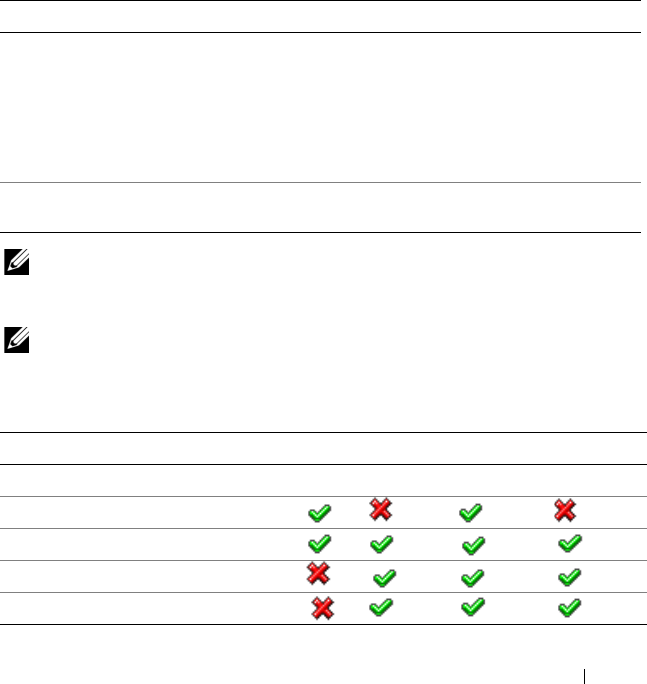
Table 2-2. Feature Support Matrix
MS Configuration 8G 8G 9G, 10G, 11G 9G, 10G, 11G
Software OMSA Drac Tools OMSA Drac Tools
MS Discovered as Dell Server
CMC/DRAC MC Discovery
CMC and DRAC/MC Slot Discovery
Chassis Blade Correlation
book.book Page 17 Wednesday, December 8, 2010 7:33 PM

18 Getting Started
The Management Server Action Account needs the following additional
privileges on Dell systems for the features listed below.
Discovery Requirements
• For discovery of Windows systems on your network, perform Windows
Computers discovery.
• For discovery of DRAC 4, DRAC 5, iDRAC 6, DRAC/MC, and CMC
out-of-band, perform network device discovery.
Security Configuration
Applicable to — Dell CMC MP
To discover Chassis Slot Summary and Server Modules for CMC and
DRAC/MC Chassis, you need to configure the applicable
Run As Accounts
and
link them to the
Dell CMC Login Account
or
DRAC/MC Login Account
Run
As Profiles
. For more information, see Configuring the Dell Chassis
Management Controller Management Pack for Discovering Server Modules and
Chassis Slot Summary
Table 2-3. Management Server Action Account Privileges
Feature User Privilege
Dell Monolithic server in-Band DRAC
discovery and the corresponding DRAC
Console launch
Admin or Power user
Clear ESM Log Admin or Power user
Alternatively, if the Management Server
Action Account has normal user privileges,
operators can, instead of selecting Use the
predefined Run as Account, enter task
credentials with Power User (or higher)
privileges to run the Clear ESM Logs task.
book.book Page 18 Wednesday, December 8, 2010 7:33 PM

Getting Started 19
Chassis Modular Server Correlation Requirement
In a distributed SCOM environment where you have a
Multiple Management Server — Single Management Group scenario,
you must enable server proxy on the management server where you
discover and monitor the CMC and/or DRAC/MC chassis.
To enable the proxy agent:
1
In the SCOM console, click
Administration
.
2
In the
Administration
pane, click
Management Servers.
3
Select the management server where you have discovered CMC and/or
DRAC/MC devices.
4
Right-click and then select
Properties
.
5
In the
Management Server Properties
dialog box, click the
Security
tab.
6
Select the check box to allow the server to act as a proxy and discover
managed objects on other computers.
7
Click
OK
.
NOTE: The Chassis Modular Server Correlation feature is available only on SCOM
2007 R2. You must enable CMC Slot Discovery and DRAC/MC Slot Discovery for the
correlation feature to work.
Managed System Requirements
Dell System Requirements
The requirements for managed systems are:
• Install Server Administrator (including the Server Administrator Storage
Management Service.)
book.book Page 19 Wednesday, December 8, 2010 7:33 PM
20 Getting Started
Table 2-4 lists the Server MP features and the corresponding supported
OMSA versions.
NOTE: If a system has Server Administrator version lesser than 5.5, it is grouped
under Unmanaged and monitoring is disabled.
NOTE: If you want to upgrade or uninstall Server Administrator on the managed
system, the Alerts View of the managed system may display the following error:
Script or Executable failed to run. If managed system is not
a management server, then switch the system to the Maintenance Mode till the
upgrade/uninstall completes. If the managed system is the management server, you
may manually close the alerts after the upgrade/uninstall is complete.
NOTE: In-Band discovery of iDRAC takes place when the iDRAC firmware version
is greater than or equal to 1.54 and OMSA version is greater than or equal to 6.3.
NOTE: Enable and run the WMI service.
• Install the DRAC agent using the
Dell Systems Management Tools and
Documentation
media, if Dell Remote Access Controller (DRAC) is
installed on your Dell system.
• Configure a valid IP address for your BMC and ensure network
connectivity for Advanced power control and LED identification tasks
to work.
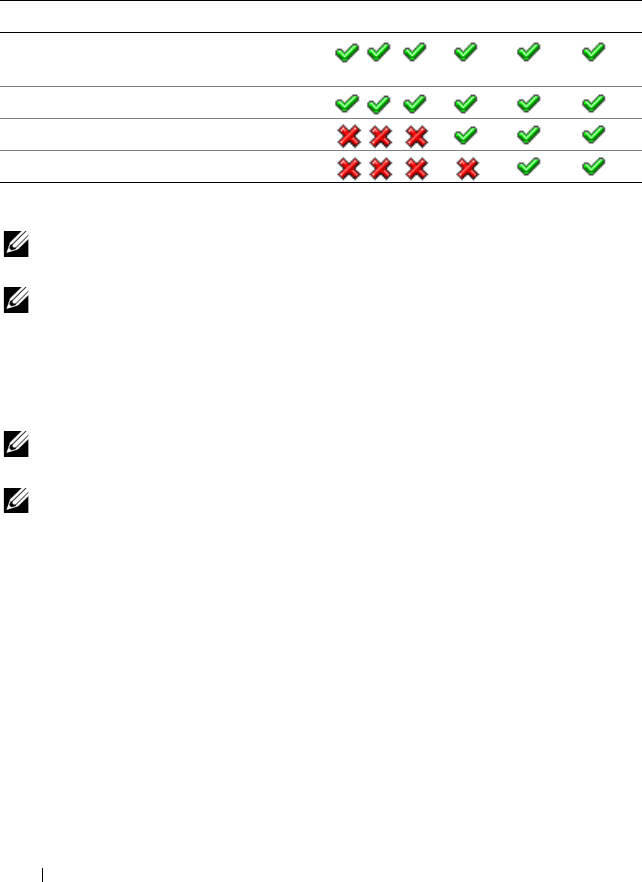
Table 2-4. Server Administrator Version and Supported Feature
Server Administrator Version 5.5 6.1 6.2 6.2.0.1 6.3 6.4
Discovery, inventory and monitoring of
Dell Windows servers
Basic network interface attributes
Enriched network interface attributes
Monitoring iDRAC
(*) (*)
(*): iDRAC firmware version >=1.54
book.book Page 20 Wednesday, December 8, 2010 7:33 PM

Getting Started 21
Configuring Management Server Action Account With
Normal User Privilege
To configure the management server action account:
1
Install SCOM 2007 SP1/R2 and System Center Essentials 2007 SP1/2010
on the management server, with Management Server Action Account as a
Domain user (non Domain Administrator.)
2
Install Operations Manager Agent on the managed system (Auto Agent
Push/ Manual Install).
3
Add the Management Server Action Account (as described in step1 -
Domain User) as part of the local admin group for Agent install to work.
4
Initiate discovery and monitoring of managed system and demote the
Management Server Action Account from the Local Admin group. Reboot
to make sure that the user is not an administrator/power user.
5
Import the Dell Management Pack on the management server.
The management pack rediscovers the managed systems depending on the
discovery cycle time.
Dell CMC/DRAC MC Requirements
Enable RACADM on CMC/DRAC MC chassis for slot discovery and
correlation to work. For more information, see
the
Command Line Reference
Guide for iDRAC6 and CMC
available at
support.dell.com/manuals
.
Installing the Dell Server Management Pack
Suite v4.1
Before importing any
management pack
, import the dependent
management
pack
s first. For MP dependencies, see Table 1-3.
Pre-import Tasks
NOTE: If Dell Server Management Packs 3.x are already present in SCOM,
delete them before you perform the steps below.
NOTE: If Dell Server Management Packs 4.0 are already present in SCOM, you do
not need to delete the Management Packs. You can directly upgrade the
management packs to version 4.1 if you follow the steps given below.
book.book Page 21 Wednesday, December 8, 2010 7:33 PM

22 Getting Started
To import the management packs or utilities, use the SCOM Import
Management Pack wizard:
1
Download the management packs
or utilities
from the Dell Support
website at
support.dell.com
.
2
Copy the downloaded file,
Dell_Server_Management_Pack_Suite_v4.1_A00.exe
to a temporary
folder on your local system. For example,
C:\Temp
.
3
Run the
Dell_Server_Management_Pack_Suite_v4.1_A00.exe
and extract
the management packs
or utilities
.
By default, the files are extracted to
C:\Dell Management Packs\Server Mgmt Suite\4.1
.
Importing the Management Packs
To import the management packs:
1
Launch System Center Operations Manager Operations Console or
System Center Essentials Console.
2
From the navigation pane, click
Administration.
3
Expand
Administration
, right-click
Management Packs
, and select
Import
Management Packs.
4
Click
Add.
Select the
Add from disk
option.
5
Type or browse to the location of the Management Pack/utility files where
you extracted the Dell Server Management Pack Suite 4.1. If you had
chosen to extract the files in the default directory, then the management
packs are available under
C:\Dell Management Packs\Server Mgmt
Suite\4.1
.
6
Select the Management Pack/utility you want to import, and click
Open
.
The
Import Management Packs
screen
appears with the selected
Management Packs/utilities displayed in the
Import List
.
NOTE: If any of the management packs of Dell Server Management Pack
Suite v4.0, then you must upgrade them in the same import session.
7
Click
Install.
book.book Page 22 Wednesday, December 8, 2010 7:33 PM

Getting Started 23
Post-Import Tasks for the Dell Server
Management Pack Suite v4.1
You must perform the following post-import tasks after you import the
management packs:
1
Configure CMC MP 4.1 for discovering Chassis Slots Summary and Server
Modules. For more information, see Configuring the Dell Chassis
Management Controller Management Pack for Discovering Server
Modules and Chassis Slot Summary.
2Create Advanced Power Control and LED Identification tasks. For more
information, see
Creating Advanced Power Control and LED
Identification Tasks
.
Configuring the Dell Chassis Management Controller Management Pack
for Discovering Server Modules and Chassis Slot Summary
Create Run As Profiles and Run As Accounts to select users with privileges
that are needed to discover CMC and DRAC/MC server modules and chassis
slot summary.
1
Create a
Simple
Run As Account that has privileges to connect to the
CMC and/or DRAC/MC chassis. You can also create a
Simple
Run As
Account with Active Directory (AD) user credentials when the CMC
and/or DRAC/MC Chassis is configured to work with AD. You can also use
Basic
or
Digest
Run As Account types for configuring the user credentials.
2
Associate the
CMC Chassis
and
DRAC/MC Chassis
Run As accounts
with the
Dell CMC Login Account
and
Dell DRAC/MC Login Account
Run As Profile included in the Dell CMC MP4.1. Target the configuration
with respect to the Dell CMC or Dell DRAC/MC class respectively. For
SCOM 2007 R2/SCE 2010, you can select the
More Secure
option in Run
As Account configuration, so that you can selectively distribute the
configuration to specific management servers.
book.book Page 23 Wednesday, December 8, 2010 7:33 PM

24 Getting Started
3
To enable server module and chassis slot summary discovery for CMC,
enable the
Dell CMC Slot Discovery
rule. It is disabled by default.
4
To enable server module and free slot discovery for DRAC/MC, enable the
Dell DRAC/MC Slot Discovery
rule.
NOTE: After the slot discovery, if you remove the link between RunAsAccount
with RunAsProfile, or disable the slot-discovery workflow, the discovered
slots remain with old data.
Creating Advanced Power Control and LED Identification Tasks
Advanced power Control and LED Identification Tasks use the default
BMC credentials, operating system and BMU install path (C:\Program
Files\Dell\SysMgt\bmc), that cannot be modified.
If your systems deviate from these, install BMU 2.0 or later on the
management server and create new console tasks in the Authoring pane
targeted on BMC for Dell Server.
CAUTION: The below steps require you to create a task and give the password
in plaintext. If BMC is not installed on the box, the SCOM Console may display
an error that displays the entire command in a dialog box, and reveals the
password. If you export the created override management pack containing this
task to a disk, you can open the exported management pack in a common text
editor or SCOM Authoring Console and the view the password in plain text.
Create a new task only if absolutely required and consider the above security
aspects before you proceed.
To create a new task:
1
In the
Authoring
pane, right-click
Tasks
under
Management Pack Objects
,
and select
Create new task
.
2
In the
Task Type
screen, select
Command line
under
Console Tasks
.
3
Select the destination management pack and click
Next
.
4
Ty p e
Task name
,
Description
, and select
Dell Windows Server
as the
Ta sk Ta rge t
and
click
Next.
The
Command Line
screen appears
.
5
Type the path of the application
ipmitool.exe
(the path where BMU was
installed on the management server) in the
Application
field. For
example,
C:\Program
Files\Dell\SysMgt\bmc\ipmitool.exe
(default BMU Path
book.book Page 24 Wednesday, December 8, 2010 7:33 PM

Getting Started 25
may differ based on your operating system language.) For the two LED
identification tasks, the application path is
C:\Program
Files\Dell\SysMgt\bmc\ipmish.exe
(default BMU Path may
differ based on your operating system language.)
6
For power control tasks, in the
Parameters
field, enter the command line
parameters in the following format:
•Type
-I lan -H
and then choose the
Remote Access IP with IPMI
capability
from the drop-down menu.
•Type
-U <username> -P <password> -k <kgkey>
<IPMI Task String>
•Replace
<IPMI Task String>
with one of the following options:
•
power status
(for
Check Power Status
task)
•
power on
(for
Power On
task)
•
power soft
(for
Power Off
Gracefully
task)
•
power off
(for
Forced Power Off
task)
•
power cycle
(for
Power Cycle
task)
•
power reset
(for
Power Reset
task)
•
identify on
(for
LED Identification On
task)
•
identify off
(for
LED Identification Off
task)
A sample command line parameter entry:
-
I lan -H $Target/Property[Type=
"Dell.WindowsServer.Server"]/RemoteAccessIP$ -U
root -P <password> -k <kgkey> power status
7
For LED on or off tasks, enter the command line parameters in
following format:
•Type
-ip
and choose
the
Remote Access IP with IPMI
capability
from drop-down menu.
•Type
-u <username> -p <password> -k <kgkey>
<IPMI task string>.
8
Click
Create
to create the task and repeat this procedure for each new
BMC task.
book.book Page 25 Wednesday, December 8, 2010 7:33 PM

26 Getting Started
Upgrading From the Previous Management Packs
Upgrade happens only when you import the upgraded management packs to
the Operations Console. Follow the steps provided in
Installing the Dell
Server Management Pack Suite v4.1
to upgrade the new management packs.
This section also includes certain
Post Upgrade Tasks
, that you need to
perform.
From Dell Server Management Pack Suite v4.0
You can upgrade from Dell Server Management Pack Suite v4.0 to Dell Server
Management Pack Suite v4.1.
NOTE: If any of the management packs of Dell Server Management Pack Suite v4.0
are present on the Management Server, then you must upgrade them to v4.1 in the
same import session.
Post Upgrade Tasks
If you upgrade from Dell Server Management Pack Suite v4.0 to Dell Server
Management Pack Suite v4.1, the Servers state view does not display the
Network Interfaces Group, and iDRAC columns. To see these columns you
must personalize the view and add the columns.
To personalize the view:
1
On the Operations Console, select Servers State view and right-click on
the Servers pane.
2
Select Personalize View from the menu. The Personalize View screen is
displayed.
3
Select Network Interfaces Group, and iDRAC.
4
Click the Up arrow to move the order of the columns so that they are
displayed after the Name column.
5
Close the
Personalize View
screen.
book.book Page 26 Wednesday, December 8, 2010 7:33 PM

Getting Started 27
From Dell Server Management Pack 3.x
You cannot upgrade from Dell Server Management Pack 3.x to Dell Server
Management Pack Suite 4.1. You must delete the corresponding previous
version of Dell Server MP and then install Dell Server Management Pack
Suite v4.1 on Systems Center Operations Manager. For information on the
steps to import Dell Server Management Pack Suite v4.1 see
Installing the
Dell Server Management Pack Suite v4.1
.
NOTE: Ensure you delete Dell Server Management Pack 3.x
(Dell.Connections.001.mp) prior to importing any of the Management Packs that are
a part of the Dell Server Management Pack Suite v4.1.
CAUTION: If you delete the Dell Management Packs 3.x, you may loose all the
monitoring data you have collected so far from the Operations Database.
Uninstalling the Dell Server Management Pack
Suite v4.1
Before you uninstall the management packs, you must first delete the
dependent management packs and overrides if any and then delete the
specific management packs. For more information on dependencies, see
Table 1- 3 .
Deleting the Management Packs
To delete any of the Management Packs or utilities:
1
Select
Administration
Management Packs
in the Systems Center
Operations Manager 2007 Operations Console.
2
Select the Dell Management Pack/utility you want to delete from the
Management Packs
pane.
3
Right-click the selected Dell Management Pack/utility
and click
Delete.
After deleting a Management Pack/utility, Dell recommends closing and
reopening the SCOM Console.
NOTE: Deleting any of the Management Packs may affect the scope of
some user roles.
book.book Page 27 Wednesday, December 8, 2010 7:33 PM

28 Getting Started
Before deleting the Dell CMC Management Pack 4.1
Dell CMC management pack includes two Run As Profiles for CMC and
DRAC/MC respectively. All Run As Accounts associations that you create get
added to the Microsoft.SystemCenter.SecureReferenceOverride
management pack. Deleting the CMC management pack with similar Run As
Account association having dependencies with
Microsoft.SystemCenter.SecureReferenceOverride, would result in conflicts.
To delete CMC management pack:
1
Launch System Center Operations Manager Operations Console or
System Center Essentials Console.
2
From the navigation pane, click Administration.
3
Expand Administration, right click Management Packs
4
Select Microsoft.SystemCenter.SecureReferenceOverride MP, click Export
and save it as a local file.
5
Delete the Microsoft.SystemCenter.SecureReferenceOverride MP.
6
Edit the saved MP in the SCOM Authoring Console by deleting the
following overrides and references:
–Navigate to
Health Model
and select
Overrides
.
– Delete all overrides with
Dell.ModularChassis.CMC
or
Dell.ModularChassis.DRACMC
references.
–Open the
File
menu, select
Management Pack Properties,
to launch
the
Microsoft.SystemCenter.SecureReferenceOverride Properties
screen.
–Click the
References Tab
, and delete the
Dell.OutOfBand.CMC
reference.
–Open
File
menu and select
Save.
7
Re-import the edited Microsoft.SC.SecureReferenceOverride MP.
book.book Page 28 Wednesday, December 8, 2010 7:33 PM

Getting Started 29
Access Privileges
Operations Console access privileges are handled internally by SCOM.
This can be setup using the User Roles option under Administration Security
feature on the SCOM console. The profile assigned to you determines what
actions you can perform. For more information on security considerations, see
the Microsoft Operations Manager 2007 SP1/ Microsoft Systems Centre
Essentials SP1 R2/Microsoft Systems Center Essentials 2010 online help
available with System Center Essentials 2010.
book.book Page 29 Wednesday, December 8, 2010 7:33 PM

30 Getting Started
book.book Page 30 Wednesday, December 8, 2010 7:33 PM

Understanding Dell Server Management Pack Suite Operations 31
3
Understanding Dell Server
Management Pack Suite Operations
Overview
This chapter describes the various operations that you can perform on
Microsoft Systems Center Operations Manager (SCOM) or Systems Center
Essentials (SCE) using the Dell Server Management Pack Suite version 4.1.
The Dell Server Management Pack Suite version 4.1 enables you to:
1
Discover and group the Windows servers, Dell Modular Chassis, Dell
Remote Access Controllers (DRAC), Chassis Management Controllers
(CMC), and integrated DRAC (iDRAC). For more information, see
Discovery and Grouping.
2
Monitor the discovered Dell systems and network devices. For more
information, see Monitoring.
3
Perform various tasks on the discovered Dell systems and network devices.
For more information, see Tasks.
4
Create pre-canned reports for OpenManage Windows Event Log, Dell Server
BIOS, Firmware, and RAID configuration. For more information, see Reports.
5
Customize discovery, monitoring, and event processing of the discovered
Dell systems and devices. For more information, see Customizing the Dell
Server Management Pack Suite.
Web Console
The Web console server enables you to monitor and manage your Dell
devices with Dell Server Management Pack Suite using a browser instead of
the Operations Console. You can use the Web console server without
installing the Operations console.
Using the Web console has the following limitations:
• Provides only the Monitoring feature for all Management Packs
• Administration, Authoring, and Reporting are not available
book.book Page 31 Wednesday, December 8, 2010 7:33 PM

32 Understanding Dell Server Management Pack Suite Operations
• Personalize view is not available
• Only first 200 alerts are displayed in the
Alert
view
• For the Server Management Pack:
• Displays only Clear ESM Log task
• Information alerts are suppressed even after importing
Information-On override utility
• For the DRAC and CMC Management Packs:
• Console launch tasks are not available
Discovery and Grouping
Dell Windows systems are discovered through the SCOM Agent
Management infrastructure. Dell systems that do not have
Dell OpenManage Server Administrator installed, or have Server
Administrator earlier than 5.5 are grouped as Dell Unmanaged.
To discover Dell devices, the devices must appear in the Agent Managed
view under the Administration section of the Operations Console.
Discovering a Dell System
To discover a Dell system:
1
Log on to the system with an account that has the SCOM Administrators
role, for the SCOM Management Group.
2
In the Operations Console, click
Administration
.
3
At the bottom of the navigation pane, click
Discovery Wizard
.
The
Computer and Device Management Wizard
is launched.
book.book Page 32 Wednesday, December 8, 2010 7:33 PM

Understanding Dell Server Management Pack Suite Operations 33
4
Select
Windows Computers
and click
Next
.
5
To discover Dell Modular and Monolithic systems, select
Automatic
Computer Discovery
and click
Next
.
a
Provide user account details on the
Administrator Account
screen and
click
Discover.
The
Discovery Progress
page appears.
b
On the
Select Objects to Manage
page, select the devices you want to
manage and click
Next
.
c
On the
Summary
screen, specify the path for
Agent Installation
Directory
,
specify the credentials for
Agent Action Account
,
and click
Finish
.
NOTE: Dell windows systems that do not have the instrumentation component
running and Server Administrator lesser than 5.5 installed are grouped under Dell
Unmanaged systems.
Discovering DRAC and CMC Devices
To discover Dell DRAC and CMC devices:
1
Follow steps 1 to 3 as described under Discovering a Dell System.
2
Select
Network Devices
in the
Computer and Device Management
Wizard
screen, and click
Next
.
3
Typ e t he
Start
and
End
of the IP address range that you want to scan,
type the SNMP Community, and select the SNMP version.
4
Click
Discover
. The
Discovery Progress
page appears.
5
On the
Select Objects to Manage
page, select the devices you want to
manage and click
Next
.
6
Click
Finish
.
NOTE: You can override the discovery intervals from the Authoring pane of the
Operations console. To override the discovery intervals for iDRAC 6 modular, modify
the discovery interval period for both the discoveries - DRAC5/iDRAC Discovery
and Dell Integrated Remote Access (Modular) Discovery.
book.book Page 33 Wednesday, December 8, 2010 7:33 PM
34 Understanding Dell Server Management Pack Suite Operations
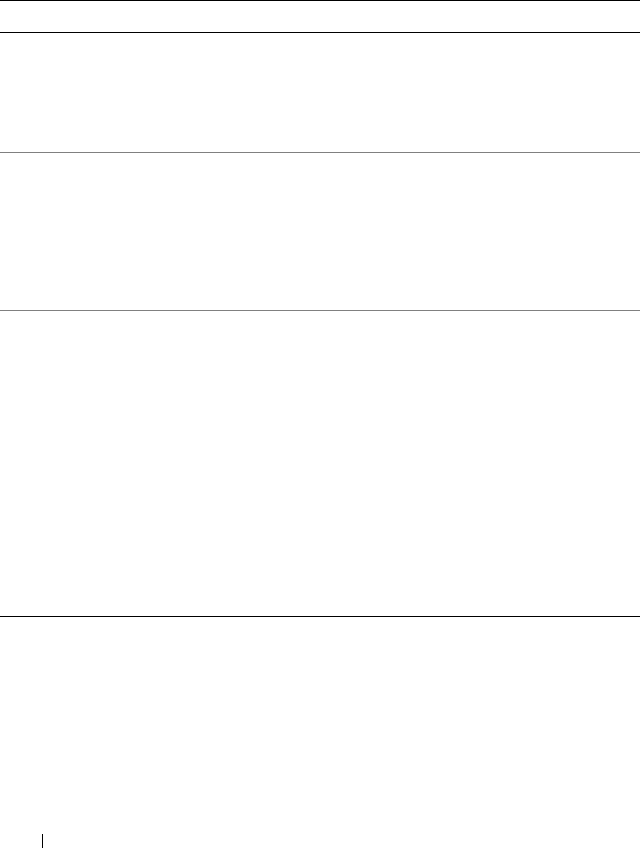
Dell Hardware Discovery and Grouping
Table 3-1 lists the details of the hardware discovery and grouping by the
Dell Server Management Pack suite.
Table 3-1. Dell Hardware Discovery and Grouping
Classification Group Name on SCOM Console Hardware Type
Windows Servers
• Dell Monolithic Servers.
• Dell Modular Servers.
Dell PowerEdge and
PowerVault systems running
OpenManage Server
Administrator (version 5.5 and
above).
Dell Modular
Chassis Remote
Access
Dell Chassis Management
Controllers (parent group):
• Dell Modular Chassis
Remote Access (child
group).
• Dell CMCs (child group).
CMC, DRAC/MC instances
on the network, chassis slot
summary and server modules
for CMC and DRAC/MC.
Dell Remote Access
Controllers
Dell Remote Access
Controllers (parent group):
• Dell Remote Access 4
(child group).
• Dell Remote Access 5
(child group).
• Dell Integrated Remote
Access Modular (child
group).
• Dell Integrated Remote
Access Monolithic (child
group).
DRAC 4, DRAC 5, iDRAC
modular, and iDRAC 6
monolithic instances.
NOTE: Dell Remote Access Controller Management Pack does not support the
discovery of xx0x iDRAC modular controller out-of-band systems due to iDRAC hardware
limitation. To manage iDRAC xx0x modular controller, use Scalable Server Management
Pack where xx0x iDRAC would be discovered in-band as a part of the Server Inventory.
book.book Page 34 Wednesday, December 8, 2010 7:33 PM
Understanding Dell Server Management Pack Suite Operations 35
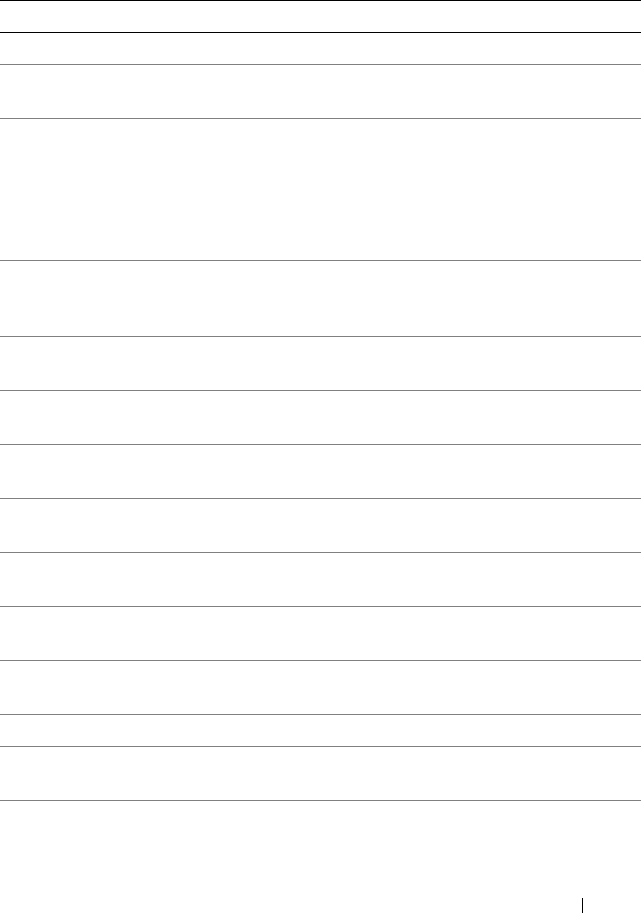
Objects Discovered by Dell Server Management Pack
Table 3-2. Dell Object Discoveries
Discovery Object Description
Dell Server Detailed BIOS Discovery Discovers BIOS object for each Dell System.
Dell Server Discovery Classifies your Dell System and populates the
basic attributes.
Dell Server Hardware Components
Discovery
Discovers hardware components at a group
level (Sensors, Processor, Memory, and Power
Supplies) and attributes (such as launch
points for OpenManage Server Administrator,
DRAC, Remote Access IP with IPMI
capability, and so on) for your Dell system.
Dell OpenManage Software Services
Discovery
Discovers the objects for Dell OpenManage
Server Administrator Windows services and
the WMI.
Dell Server Detailed Memory
Discovery
Discovers memory instances for your Dell
system.
Dell Server Detailed Power Supply
Discovery
Discovers power supply instances for your
Dell system.
Dell Server Detailed Processor
Discovery
Discovers processor instances for your Dell
system.
Dell Server Detailed Storage
Discovery
Discovers the complete storage hierarchy for
your Dell system.
Dell Server Network Interface
Discovery
Discovers the network interface instances of
your Dell system.
Dell Windows Server Detailed
Network Interfaces Discovery Module
Discovers the physical and teamed network
interface instances of your Dell system.
Dell Windows Server Network
Interfaces Group Discovery Module
Discovers the Network Interfaces Group.
Dell CMC Discovery Discovers all supported Dell CMCs.
Dell CMC Slot Discovery Discovers all supported Dell CMC server
modules and chassis slot summary.
Dell CMC Chassis to Modular Server
Correlation Discovery
Discovers the correlation between the CMC
Chassis and the Dell modular systems.
book.book Page 35 Wednesday, December 8, 2010 7:33 PM
36 Understanding Dell Server Management Pack Suite Operations
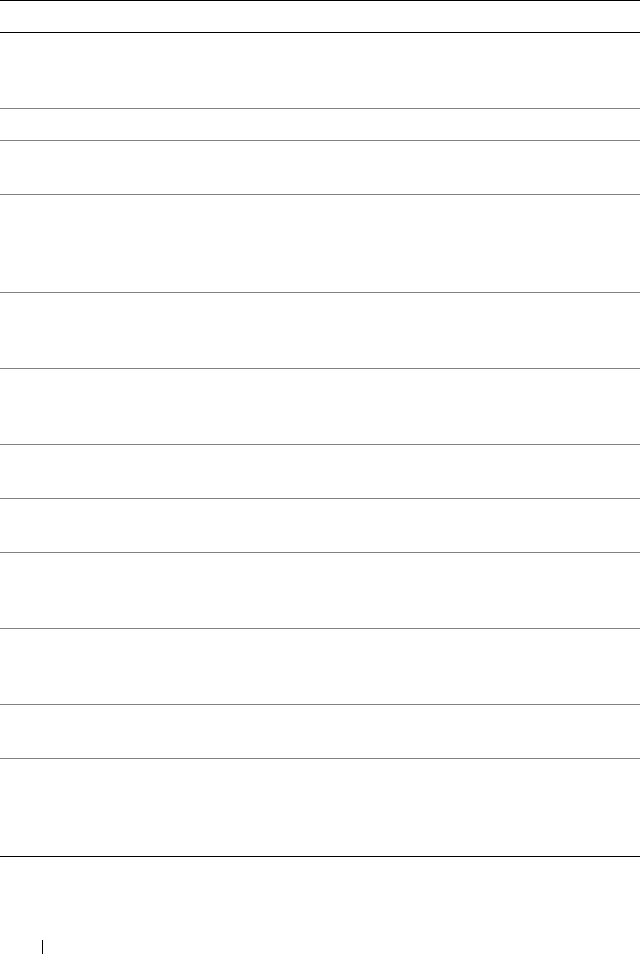
Dell DRAC/MC Chassis to Modular
Server Correlation Discovery
Discovers the correlation between
DRAC/MC chassis and Dell modular
systems.
Dell DRAC/MC Discovery Discovers all supported Dell DRAC/MCs.
Dell DRAC/MC Slot Discovery Discovers all supported Dell DRAC/MC
server modules and chassis slot summary.
Dell Integrated Remote Access
Modular Group Discovery
Discovers the Dell Integrated Remote Access
Modular Group and populates with Dell
Integrated Remote Access Controllers
(Modular).
Dell Remote Access Group Discovery Discovers the Dell Remote Access Group and
populates with Dell Remote Access
Controllers.
Dell Integrated Remote Access
Monolithic Group Discovery
Discovers the Dell Integrated Remote Access
Monolithic Group and Dell Integrated
Remote Access Controllers (Monolithic).
Dell Remote Access 4 Group
Discovery
Discovers the Dell Remote Access 4 Group
and Dell Remote Access 4 Controllers.
Dell Remote Access 5 Group
Discovery
Discovers the Dell Remote Access 5 Group
with Dell Remote Access 5 Controllers.
Dell Integrated Remote Access
Modular Discovery
Discovers the Chassis Name and Chassis
Service Tag of Dell Integrated Remote Access
Controllers for Modular systems.
DRAC5/iDRAC Discovery Discovers all supported Dell Remote Access 5
Controllers and Integrated Remote Access
Controllers.
DRAC4 Discovery Discovers all supported Dell Remote Access 4
Controllers.
Dell Unmanaged Server Group
Discovery
Discovers Dell systems that are not being
monitored either due to the absence of Dell
instrumentation, or has a lower version of
instrumentation than the required version.
Table 3-2. Dell Object Discoveries
(continued)
Discovery Object Description
book.book Page 36 Wednesday, December 8, 2010 7:33 PM
Understanding Dell Server Management Pack Suite Operations 37
Monitoring
The Dell Server Management Pack Suite v4.1 enables you to monitor the
discovered Dell systems and network devices. The
Severity Level Indicators
help you to monitor the health of your Dell devices on the network.
Monitoring of Dell devices includes the following tasks:
• Process events raised by Dell OpenManage Server Administrator (Server
Administrator) agents running on Dell Modular and Monolithic systems
and display the alerts on the Operations Console
• Monitor Health of Dell Modular and Monolithic systems and their
components both at regular intervals and on occurrence of events
• Process SNMP trap and knowledge base for CMC, DRAC/MC, and Dell
Remote Access Controllers
• Monitor Health of CMC, DRAC/MC, and Dell Remote Access Controllers
- both at regular intervals of six hours and on occurrence of SNMP traps
You can monitor the Dell systems and devices through the various views that
the Dell Server Management Pack Suite provides on the SCOM console. The
different views are:
•Alerts View
•Diagram View
•State View
•Performance and Power Monitoring Views
Severity Level Indicators
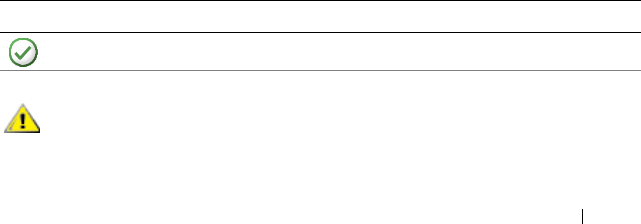
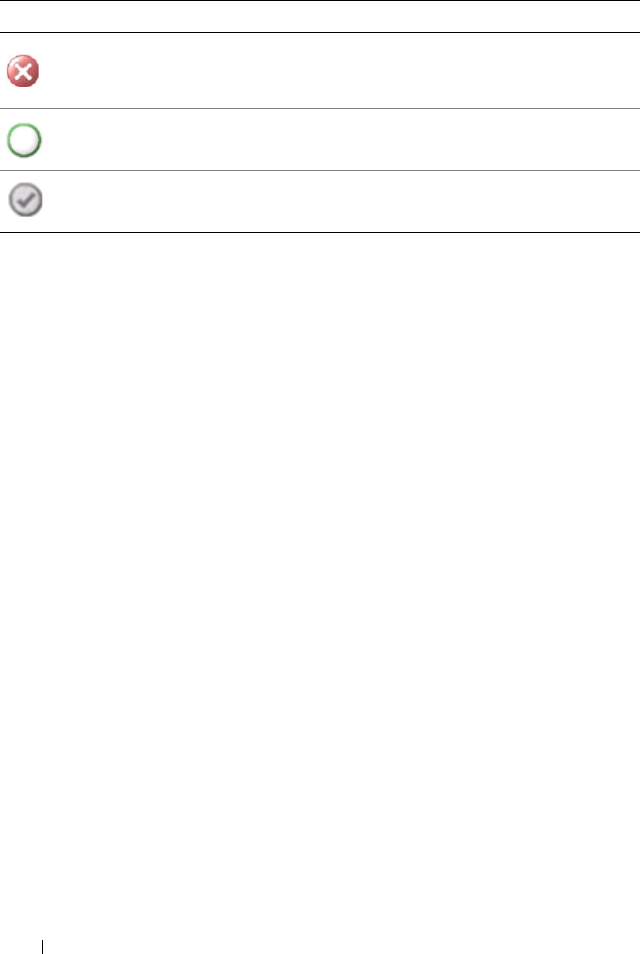
Table 3-3 lists the icons that indicate the severity levels of the status of the
discovered Dell devices on the Operations Console.
Table 3-3. Severity Level Indicators
Icon Severity Level
Normal/OK. The component is working as expected.
Warning/Noncritical. A probe or other monitoring device has detected
a reading for the component that is above or below the acceptable level.
The component may still be functioning, but it could fail.
The component may also be functioning in an impaired state.
book.book Page 37 Wednesday, December 8, 2010 7:33 PM
38 Understanding Dell Server Management Pack Suite Operations
Alerts View
This view is available for managing hardware and storage events from
Dell Windows systems, Dell CMC and DRAC/MC, Network Interfaces,
and Dell Remote Access devices.
The Dell Server Management Pack Suite displays the following alerts and
traps:
• Alerts for events received from Dell OpenManage Server Administrator for
Dell PowerEdge and PowerVault systems.
• Link Up/Link Down alerts for events received from Broadcom and Intel
network interface cards for Dell PowerEdge systems.
• Informational alerts if you import the
Dell.WindowsServer.InformationalAlertsOn.mp.
Informational alerts are turned off by default. You need to turn them on
after importing
Dell.WindowsServer.InformationalAlertsOn.mp
.
• SNMP Traps sent by DRAC 4, DRAC 5, iDRAC 6, DRAC/MC, and CMC
devices.
• Platform Event Traps (PET) for Dell systems.
Critical/Failure/Error.The component has either failed or failure is
imminent. The component requires immediate attention and may need
to be replaced. Data loss may have occurred.
The health status is not applicable for the specific component.
The service is unavailable.
Table 3-3. Severity Level Indicators
(continued)
Icon Severity Level
book.book Page 38 Wednesday, December 8, 2010 7:33 PM

Understanding Dell Server Management Pack Suite Operations 39
Viewing Alerts on the Operations Console
To view Alerts on the Operations Console:
1
Launch the Operations Console and click
Monitoring.
2
Click
Dell
A
lerts Views
.
The following individual Alerts Views are displayed:
•
CMC
— displays SNMP traps from the discovered CMC devices
•
Network Interface Alerts
— displays the Link up and Link down alerts
from the discovered NICs.
•
DRAC/MC
— displays events and SNMP traps from the discovered
DRAC/MC devices
•PET Traps —
displays platform event traps from discovered
Dell systems
•
Remote Access
— displays SNMP traps from DRAC 4, DRAC 5,
iDRAC 6 devices.
•Server —
displays Server Administrator alerts from Dell systems,
Link up and Link down alerts from the NICs on Dell systems.
3
Select any of the Alerts Views.
The right pane of each of the individual Alerts Views displays alerts that
meet the criteria you specify, such as
alert severity, resolution state,
or alerts that are assigned to you.
4
Select an alert to view the details in the
Alert Details
pane.
When you select an alert listed in any of the Alerts Views, the associated tasks
appear in the Actions pane. For more information on the tasks, see
Tasks
.
NOTE: The Remote Access view displays DRAC 4, DRAC 5, and iDRAC 6 alerts.
Diagram View
The Diagram view offers a hierarchical and graphical representation of all
Dell Windows systems, Dell CMC and DRAC/MC, and Dell Remote Access
devices that the Dell Server Management Pack Suite manages. The Diagram
view displays realistic icons for the various components modeled by the Dell
Server Management Pack Suite.
book.book Page 39 Wednesday, December 8, 2010 7:33 PM
40 Understanding Dell Server Management Pack Suite Operations
To view the diagrams on the Operations Console:
1
Launch the Operations Console and click
Monitoring
.
2
In the
Monitoring
pane on the left side, navigate to the Dell folder to
display the following views:
•Chassis Management Controllers Group Diagram View
•Complete Diagram View
•Dell Modular Systems Diagram View
•Dell Monolithic Systems Diagram View
•Remote Access Controllers Group Diagram View
3
Select any of the Diagram Views.
The right pane displays the hierarchical and graphical representation of
the selected Dell device.
4
Select a component in the diagram to view its details in the
Detail View
pane.
Complete Diagram View
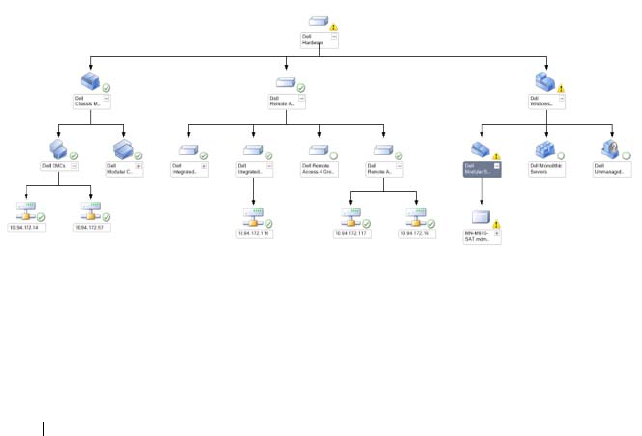
Figure 3-1 represents the complete diagram view under Dell Hardware group.
Figure 3-1. Dell Complete Diagram View- Detailed Management Pack
book.book Page 40 Wednesday, December 8, 2010 7:33 PM

Understanding Dell Server Management Pack Suite Operations 41
The Complete Diagram View offers a graphical representation of all
Dell devices that SCOM/SCE manages and allows you to expand and verify
the status of individual devices and their components in the diagram. You can
view details for:
• Modular and Monolithic Systems
• Chassis Management Controllers and DRAC/MC Devices
• Remote Access Controllers
NOTE: The Dell Hardware Group is defined in the Base Management Pack.
Modular and Monolithic Systems
The Diagram view under the Monolithic and Modular systems offers the
following details:
• Physical and teamed network interfaces
•Memory
• Power Supply (only monolithic systems)
•Sensors
• Processors
• Dell OpenManage Software services
• Storage controller
• BIOS object (only inventory)
•iDRAC
NOTE: You can launch device/component specific tasks from the Actions pane of
the Operations Console. For more information, see
Tasks
.
book.book Page 41 Wednesday, December 8, 2010 7:33 PM
42 Understanding Dell Server Management Pack Suite Operations
Dell Modular Systems Diagram View
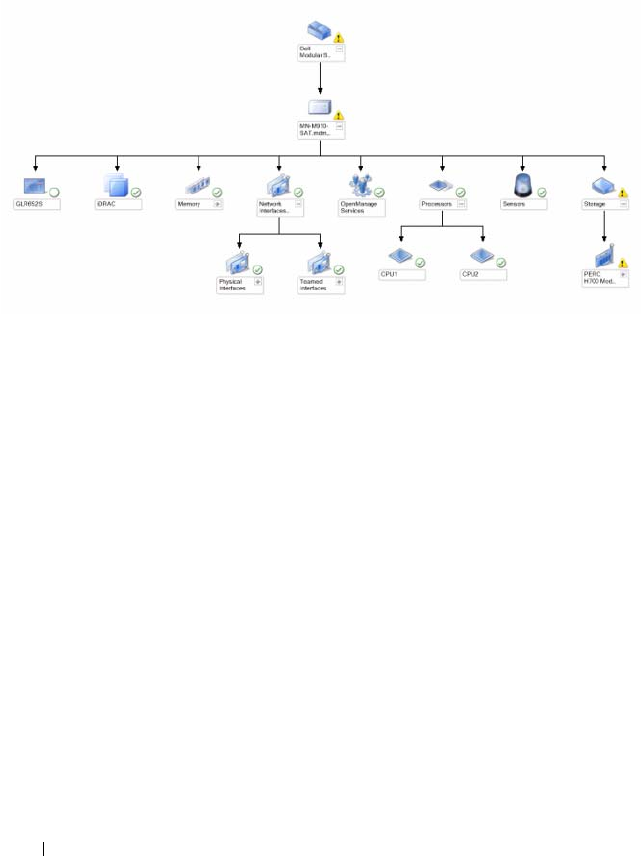
Figure 3-2 represents diagram view of the Dell Modular systems.
Figure 3-2. Dell Modular Systems Diagram - Detailed Management Pack
The Dell Modular Systems Diagram View offers a graphical representation of
all Dell Modular Systems and allows you to expand and verify the status of
individual devices and their components in the diagram.
book.book Page 42 Wednesday, December 8, 2010 7:33 PM
Understanding Dell Server Management Pack Suite Operations 43
Dell Monolithic Systems Diagram View
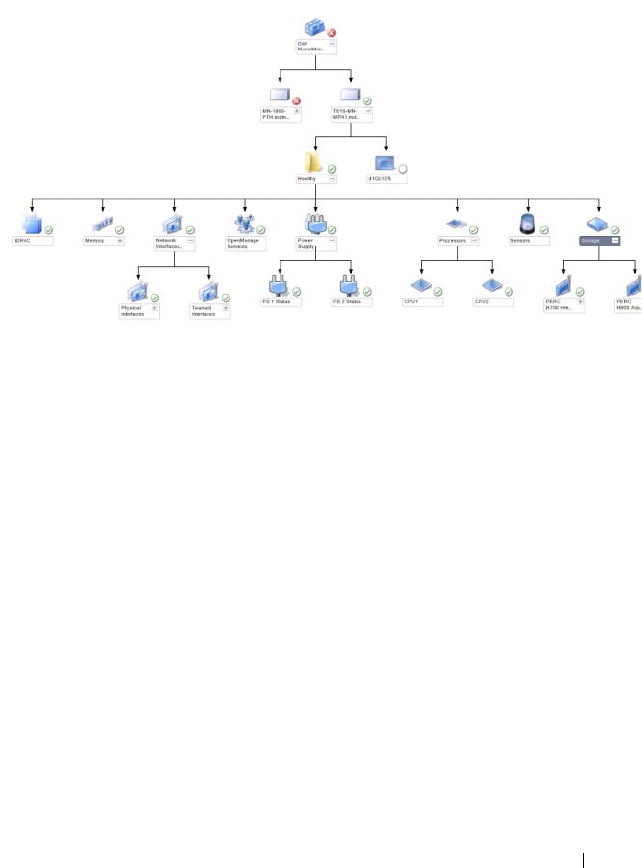
Figure 3-3 represents the diagram view of the Dell Monolithic systems.
Figure 3-3. Dell Monolithic Systems Diagram - Detailed Management Pack
The Dell Monolithic Systems Diagram View offers a graphical
representation of all Dell Monolithic Systems and allows you to expand and
verify the status of individual devices and their components in the diagram.
book.book Page 43 Wednesday, December 8, 2010 7:33 PM
44 Understanding Dell Server Management Pack Suite Operations
Dell Server Instance Diagram
Select a Dell system, from the Dell Modular System or Dell Monolithic
System Diagram views, to view the diagram specific to that particular system.
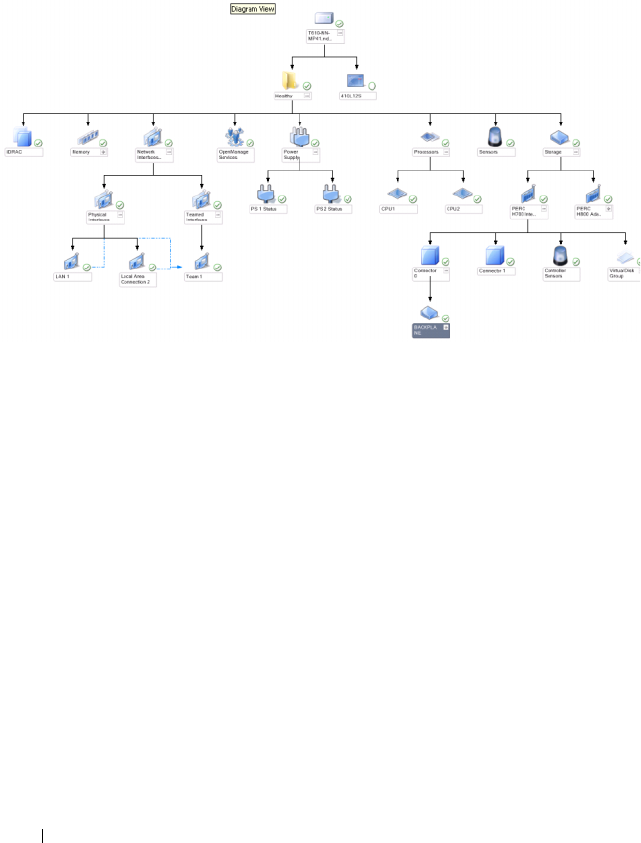
Figure 3-4. Dell Server Instance Diagram - Detailed Management Pack
System-specific diagrams illustrate and indicate the status of the following
components:
•Memory
• Power supply (only for Monolithic servers)
•Processors
•Sensors
• OpenManage services
• Network Interfaces
• Storage Controllers
•BIOS Objects
•iDRAC
The Detailed Management Pack displays memory, processors, and power
supply components in detail.
book.book Page 44 Wednesday, December 8, 2010 7:33 PM

Understanding Dell Server Management Pack Suite Operations 45
Storage Controller Component Hierarchy
Expand the Storage component in any Dell System instance diagram view,
to view the status and health of components like Physical Disks, Connectors,
and Virtual Disks. Each Connector instance contains the Sensors and
Physical Disk components. However, there are no sensors for the backplane.
Network Interfaces Component Hierarchy
The Network Interfaces group is created only when an Intel or Broadcom
network interface card is present on the Dell Windows Server and is enabled.
Network interfaces are grouped under Physical Interfaces and Teamed
Interfaces. If you disable a network interface, it is removed from management
in the next discovery cycle.
A reference relationship is created between a Teamed network interface and
its associated Physical network interfaces. You can view the reference
relationship only when you enable the Enable Correlation attribute of Dell
Windows Server Physical and Teamed Relationship Discovery.
To enable the Enable Correlation attribute:
1
In the
Authoring
tab,
Authoring
anagement Pack Objects
Object
Discoveries
2
Click
Change Scope
at the top of the screen.
3
Click
View all targets
radio button and type
Dell
at the
Look for
field.
4
Check
Teamed Network Interface instance (Basic)
and
Teamed Network
Interface instance (Enriched)
and click
OK
.
5
Right-click
Dell Windows Server Physical and Teamed Relationship
Discovery Rule
Overrides
Override the Object Discovery
for all
objects of class: Teamed Network Interface instance (Enriched).
In the
Override Properties
pop-up page, check
Enable Correlation
and set the
Override Value to
True
and click
OK
.
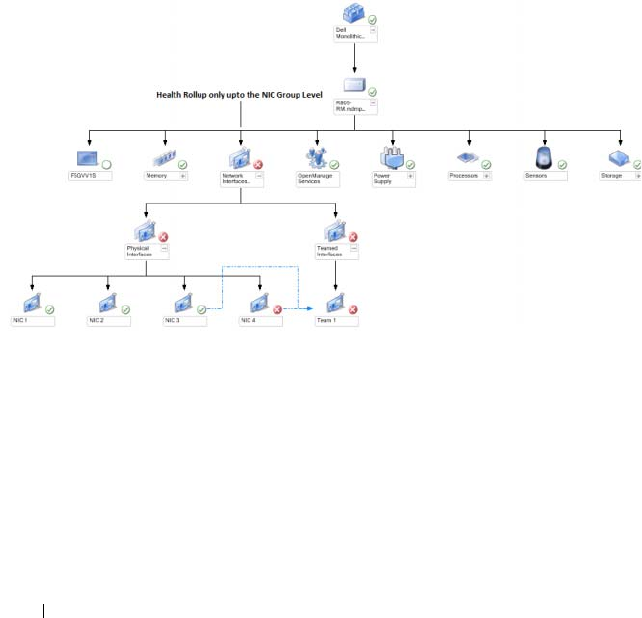
The status roll-up of network interfaces on the Diagram view is displayed only
up to the Network Interfaces group level. For example, if the remaining
components of the Dell system are normal and only one or more of the
network interfaces are critical or noncritical, then the Dell system displays the
Normal icon, and the Network Interfaces group displays the Critical or
Warning icon.
book.book Page 45 Wednesday, December 8, 2010 7:33 PM
46 Understanding Dell Server Management Pack Suite Operations
For the status roll-up to be displayed at the server level, you must enable the
Network Interfaces Group to Dell Server Health Roll up dependency
monitor.
To enable the monitor:
1
Click the
Authoring
tab on the Operations Console.
2
Click
Monitors
and on the left pane and select the
Network Interfaces
Group
monitor on the right pane.
3
Click
Entity Health
Availability.
4
Right-click on
Network Interfaces Group to Dell Server Health Roll up
and select Overrides Enable the Monitor from the menu options.
Figure 3-5. Network Interfaces Diagram View
book.book Page 46 Wednesday, December 8, 2010 7:33 PM
Understanding Dell Server Management Pack Suite Operations 47
Chassis Management Controllers Group Diagram View
Figure 3-6 represents the Chassis Management Controller Group Diagram
view.
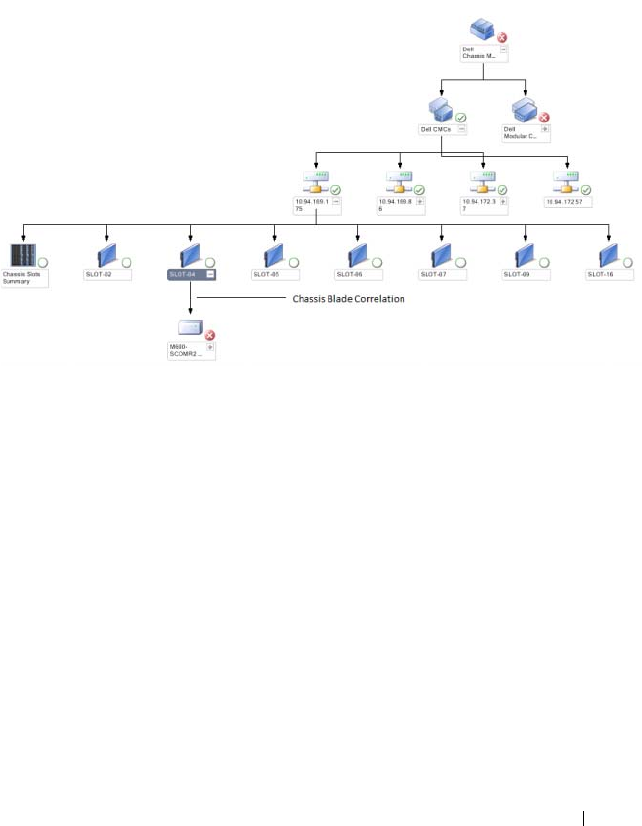
Figure 3-6. Chassis Management Controllers Group Diagram
The Chassis Management Controllers Group diagram view offers a graphical
representation of all Dell CMC, DRAC/MC devices, and their inventory.
For CMC discovery, see,
Discovering DRAC and CMC Devices
. CMCs are
discovered under Modular Chassis.
For discovered CMC and DRAC/MC chassis, you can view the occupied and
free slot summary in the Chassis Slots Summary.
If slot names are modified on CMC and DRAC/MC chassis, they are reflected
in the diagram view.
The Chassis Management Controllers Group diagram also displays the
correlation of Dell servers with the server modules of CMC and DRAC/MC
chassis. The Dell system is visible under the slot in the diagram.
book.book Page 47 Wednesday, December 8, 2010 7:33 PM
48 Understanding Dell Server Management Pack Suite Operations
NOTE: Create RunAsAccount for CMC slots discovery with simple, basic, or digest
authentication only. For more information, see
Configuring the Dell Chassis
Management Controller Management Pack for Discovering Server Modules and
Chassis Slot Summary
.
NOTE: Only one set of credentials is considered for discovering CMCs in SCOM
SP1 and SCE SP1. SCOM 2007 R2 and SCE 2010 allow greater flexibility where the
credentials can be specified for group or instance level.
NOTE: The iDRAC firmware of the Modular systems should be compatible with the
CMC firmware, failing which, the Service Tag is displayed as "Not Available" and the
Chassis-Blade correlation may not be possible.
CAUTION: The Chassis Modular Server Correlation Utility discovers the
correlation between the Dell CMCs or DRAC/MCs discovered by the CMC
management pack and the Dell modular systems discovered by the Server
management pack. To discover the correlation, the utility queries the Root
Management Server (RMS). When you are monitoring a large number of chassis
and modular systems, the number of queries to the RMS increases and this results
in high CPU utilization on the management server that manages the CMCs or
DRAC/MCs. The CPU utilization comes down after the correlation is complete. This
behaviour occurs in every discovery cycle set in Dell CMC Chassis to Modular
Server Correlation Discovery or the Dell DRAC/MC Chassis to Modular Server
Correlation Discovery.
Remote Access Controllers Group Diagram View
Figure 3-7 represents the Remote Access Controllers Group Diagram
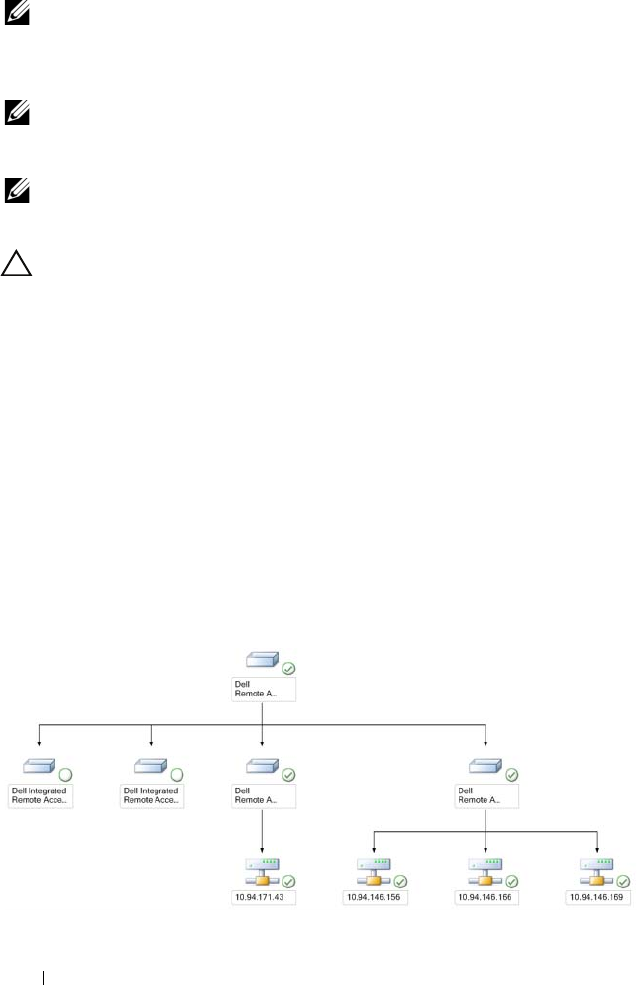
Figure 3-7. Remote Access Controllers Group Diagram
book.book Page 48 Wednesday, December 8, 2010 7:33 PM

Understanding Dell Server Management Pack Suite Operations 49
The Remote Access Controllers Group diagram view offers a graphical
representation of all DRAC 4, DRAC 5, and iDRAC 6 (modular and
monolithic) devices. Select a component in the diagram to view its details in
the Detail View pane.
State View
This view is available for managing Dell Windows systems, Dell CMC and
DRAC/MC, and Dell Remote Access devices. In the Operations Console
Dell State Views displays the status of each Dell device managed by
SCOM 2007 SP1/R2 on your network.
Select the device group for which you want to see the State view. For example,
click Servers to view the status of your Dell Monolithic and Modular systems.
You can view the status of the following groups:
•CMC
•Servers
•DRAC 4
•DRAC 5
•DRAC/MC
•iDRAC
The health of a component is derived by reviewing the unresolved alerts
associated with the component. Table 3-3 explains the various state
components that the Dell Server Management Pack Suite v4.1 uses with their
corresponding severity levels.
Performance and Power Monitoring Views
To view the performance and power monitoring on the Operations Console:
1
Launch the Operations Console and click
Monitoring
.
2
In the
Monitoring
pane on the left side, click
DellPerformance and
Power Monitoring to display the following views:
• Ambient Temperature
• Amperage Per Power supply
• Energy Consumption
•Peak Amperage
book.book Page 49 Wednesday, December 8, 2010 7:33 PM

50 Understanding Dell Server Management Pack Suite Operations
•Peak Power
• Physical Network Interface
• Power Consumption (in Watts)
• Power Consumption (in BTU/hr)
• Teamed Network Interface
NOTE: Power Monitoring is applicable for specific Dell Systems with Power
Monitoring capability for that particular attribute.
NOTE: Teamed and Physical network interface instances appear only when
detailed MP is present.
3
Select the counters from the individual performance views and select the
time range for which the values are required. The data collected is
represented in a graphical format for each system.
A unit monitor monitors the performance counter over two successive cycles
to check if it exceeds a threshold value. When the condition is breached,
the server changes state and generates an alert. This unit monitor is disabled
by default. You can override (enable and modify) the threshold values from
the Authoring pane of the Operations console, under Monitors for Dell
Windows Server objects.
For more information on performance information collection,
see
Performance Collection Rules
.
book.book Page 50 Wednesday, December 8, 2010 7:33 PM
Understanding Dell Server Management Pack Suite Operations 51
Tasks
Tasks are available in the Actions pane of the Operations Console. When you
select a device or a component in any of the Dell diagram views, the relevant
tasks appear in the Actions pane.
You can run all the tasks from the Diagram view, State view, or Alert view.
A summary of the Dell Tasks that you can perform using the
Dell Management Packs are explained in Table 3-4:
Table 3-4. Dell Tasks Using the Management Pack for SCOM 2007 SP1/R2
Dell Task Description
Dell Modular and Monolithic System Tasks
Clear ESM Logs Backs up the content of the Embedded System
Management (ESM) log and clear the ESM log file
for a selected system.
Launch Server Administrator Launches the Dell OpenManage Server
Administrator.
Launch Remote Desktop Launches remote desktop of the selected system.
Check Power Status Checks the overall power status of the system.
Forced Power Off Turns off the system's power without shutting down
the operating system.
Launch InBand Dell Remote
Access Console
Launches the DRAC console for the in-band
discovered DRAC.
Power Cycle Turns off the power, and after a delay, turns it on
again.
Power Off Gracefully Shuts down the operating system first, then turns
off the system's power.
Power On Turns on the system power. This option is available
even if the system is on.
Power Reset Turns off the system's power and turns it on again.
Turn LED Identification On Turns on the Identify LED of the selected system
for 255 seconds.
Turn LED Identification Off Turns off the Identify LED of the selected system.
DRAC4/DRAC5/iDRAC Tasks
book.book Page 51 Wednesday, December 8, 2010 7:33 PM

52 Understanding Dell Server Management Pack Suite Operations
Dell Modular and Monolithic Systems Tasks
Clear ESM Logs
The Server Administrator Embedded Server Management (ESM) log,
also referred to as the hardware log, maintains a list of all system events
generated by the hardware, such as error-correcting code (ECC), system reset
and boot, and probe threshold changes. You can refer to this log when
hardware errors appear or when the system is not functioning properly.
To run the Clear ESM Logs task:
1
In the Operations Console, navigate to a Diagram view,
State view, or
Alert view
.
2
Select the desired Dell system in any of the Diagram or State views or an
alert in the Alerts view.
3
Click
Clear ESM Logs
under
Dell Windows Server Tasks
in the
Actions
pane. The
Run Tasks
window appears.
4
Click
Run
to clear the ESM logs of the device that you selected.
When you run the Clear ESM Logs task, the task execution screen
displays only the result of the task initiation and not the result of the
task execution. For example, the task execution screen may show a
success result even if the ESM logs are not cleared. This means that the
Clear ESM Logs task initiation was successful.
Launch Dell RemoteAccess
Console
Launches the DRAC console for the discovered
DRAC.
Dell CMC, DRAC/MC Tasks
Launch Dell CMC Console Launches the CMC console.
Launch Dell Modular Chassis
Remote Access Console
Launches the DRAC/MC Console.
Table 3-4. Dell Tasks Using the Management Pack for SCOM 2007 SP1/R2
(continued)
Dell Task Description
book.book Page 52 Wednesday, December 8, 2010 7:33 PM

Understanding Dell Server Management Pack Suite Operations 53
Launch Server Administrator
To launch Server Administrator from the Operations Console:
1
In the Operations Console, navigate to a Dell Diagram view,
State view, or
Alert view
.
2
Select the desired Dell system in any of the Diagram or State views or an
alert in the Alerts view.
3
Click
Launch Server Administrator
under
Dell Windows Server Tasks
in
the
Actions
pane.
NOTE: Dell Management Pack Tasks launch the Remote Console in Internet Explorer.
Launch Remote Desktop
To launch Remote Desktop from the Operations Console:
1
In the Operations Console, navigate to a Dell Diagram view,
State view, or
Alert view
.
2
Select the desired Dell system in any of the Diagram or State views or an
alert in the Alerts view.
3
Click
Launch Remote Desktop
under
Dell Windows Server Tasks
in the
Actions
pane.
NOTE: Launching remote desktop is possible only if remote desktop is enabled
manually in the managed node.
Check Power Status
You can check the power status and allow power control tasks through the
IPMI shell.
To check the power status of a system:
1
In the Operations Console, navigate to a Dell Diagram view,
State view, or
Alert view
.
2
Select the desired Dell system in any of the Diagram or State views or an
alert in the Alerts view.
3
In the
Actions
pane, select
Dell Windows Server Tasks
Check Power
Status
.
book.book Page 53 Wednesday, December 8, 2010 7:33 PM

54 Understanding Dell Server Management Pack Suite Operations
Power Cycle
You can use this task to turn off the power to the Dell system, and after a
delay, turn it on again.
To run the power cycle:
1
In the Operations Console, navigate to a Dell Diagram view,
State view, or
Alert view
.
2
Select the desired Dell system in any of the Diagram or State views or an
alert in the Alerts view.
3
In the
Actions
pane, select
Dell Windows Server Tasks
Power Cycle
.
Force Power Off
You can use this task to power off the system without shutting down the
operating system.
To power off the system:
1
In the Operations Console, navigate to a Dell Diagram view,
State view, or
Alert view
.
2
Select the desired Dell system in any of the Diagram or State views or an
alert in the Alerts view.
3
In the
Actions
pane, select
Dell Windows Server Tasks
Force Power Off.
Power Off Gracefully
You can use this task to shut down the operating system and power off the
system.
To power off the system gracefully
1
In the Operations Console, navigate to a Dell Diagram view,
State view, or
Alert view
.
2
Select the desired Dell system in any of the Diagram or State views or an
alert in the Alerts view.
3
In the
Actions
pane, select
Dell Windows Server Tasks
Power Off
Gracefully.
book.book Page 54 Wednesday, December 8, 2010 7:33 PM

Understanding Dell Server Management Pack Suite Operations 55
Power On
You can use this task to power on the server. This option is available even if
the system power is on.
To power on a system:
1
In the Operations Console, navigate to a Dell Diagram view,
State view, or
Alert view
.
2
Select the desired Dell system in any of the Diagram or State views or an
alert in the Alerts view.
3
In the
Actions
pane, select
Dell Windows Server Tasks
Power On
.
Power Reset
You can use this task to turns power off and power on the system.
To reset the power of the system:
1
In the Operations Console, navigate to a Dell Diagram view,
State view, or
Alert view
.
2
Select the desired Dell system in any of the Diagram or State views or an
alert in the Alerts view.
3
In the
Actions
pane, select
Dell Windows Server Tasks
Power Reset
.
Turn LED Identification Off
You can use this task to turn off the LED identification of the selected
system.
To turn off LED identification:
1
In the Operations Console, navigate to a Dell Diagram view,
State view, or
Alert view
.
2
Select the desired Dell system in any of the Diagram or State views or an
alert in the Alerts view.
3
In the
Actions
pane, select
Dell Windows Server Tasks
Turn
LED
Identification Off
.
Turn LED Identification On
You can use this task to turn on the LED identification on the system.
To turn on LED identification:
book.book Page 55 Wednesday, December 8, 2010 7:33 PM

56 Understanding Dell Server Management Pack Suite Operations
1
In the Operations Console, navigate to a Dell Diagram view,
State view, or
Alert view
.
2
Select the desired Dell system in any of the Diagram or State views or an
alert in the Alerts view.
3
In the
Actions
pane, select
Dell Windows Server Tasks
Turn
LED
Identification On.
Dell Remote Access Controller (DRAC) Tasks
Launch Dell Remote Access Console
You can use this task to launch the Dell Remote Access Console, if the DRAC
is installed on your Dell system.
To launch Dell Modular Chassis Remote Access Console:
1
In the Operations Console, navigate to a Dell Diagram view, State view,
or Alerts view.
2
Select the desired DRAC/iDRAC device in any of the Diagram or State
views or an alert in the Alerts view.
3
In the
Actions
pane, select
SNMP Network Device Tasks
Launch Dell
RemoteAccess Console.
Dell Chassis Management Controller (CMC) Tasks
Launch Dell CMC Console
You can use this task to launch the CMC Console.
1
In the Operations Console, navigate to the Dell Diagram view, State view
or Alerts view.
2
Select the CMC device in any of the Diagram or State views or an alert in
the Alerts view.
3
In the
Actions
pane, select
SNMP Network Device Tasks
Launch Dell
CMC Console
.
book.book Page 56 Wednesday, December 8, 2010 7:33 PM

Understanding Dell Server Management Pack Suite Operations 57
Launch Dell Modular Chassis Remote Access Console
You can use this task to launch the DRAC/MC Console.
1
In the Operations Console, navigate to the Dell Diagram view, State view
or Alerts view.
2
Select the DRAC/MC device in any of the Diagram or State views or an
alert in the Alerts view.
In the Actions pane, select SNMP Network Device Tasks Launch Dell
Modular Chassis Remote Access Console.
Reports
The Reporting feature is available with the Dell Server Management Pack
Suite v4.1. It allows you to create pre-canned reports for OpenManage
Windows Event Log, Dell Server BIOS, Firmware, and RAID configuration.
Dell Server BIOS, Firmware, and RAID Configuration Reports are only
available in Detailed Server Management Pack. You cannot see these reports
if you choose to have only the Scalable Server Management Pack.
To access the Reporting feature perform the following steps:
1
Click
Reporting
in your Operations Console.
2
Expand
Reporting
in the navigation pane.
3
Click on
Dell Windows Server Scalable Edition
for the Windows Event
Log and click on
Dell Windows Server Detail Edition
for BIOS, firmware,
and RAID reports.
You can also access Reporting from the diagram view by clicking on the server
instance. The option for Dell Reports is located in the Actions pane under
the Dell System instance reports along with the default Microsoft reports.
OpenManage Windows Event Log
To create an OpenManage Windows Event Log:
1
Click on
OpenManage Windows Event Log
. Click
Open
in the
Actions
pane.
2
Select a time period for which you want the report generated.
3
Click on
Add Object
or
Add Group
.
book.book Page 57 Wednesday, December 8, 2010 7:33 PM

58 Understanding Dell Server Management Pack Suite Operations
4
Click
Search
, to search for an object or group. Choose add (you can
add multiple objects). You can find the object in the selected object pane.
5
Choose the severity of the events whose report you want to generate.
6
Click
Run.
The OpenManage Windows Event Log report is generated.
BIOS Configuration
NOTE: You can create BMC reports only if BMU is installed on the Management
Server.
To create a report for the BIOS configuration:
1
Click on
BIOS Configuration
. Click
Open
in the
Actions
pane.
2
Select a time period for which you want the report generated.
3
Click on
Add Object
or
Add Group
.
4
Click
Search
, to search for an object or group. Choose add (you can add
multiple objects). You can find the selected object in the selected object pane.
5
Choose the required
Properties
.
6
Click
Run.
The BIOS configuration report is generated.
Firmware and Driver Versions
To create a report for Firmware and Driver Versions:
1
Click on
Firmware and Driver Versions
. Click
Open
on the
Actions
pane.
2
Select a time period for which you want the report generated.
3
Click on
Add Object
or
Add Group
.
4
Click
Search
, to search for an object or group. Choose add (you can add
multiple objects). You can find the selected object in the selected object pane.
5
Choose the required
Properties
.
6
Click
Run.
The Firmware and Driver versions report is generated.
RAID Configuration
To create a report for RAID Configuration:
1
Click on
RAID Configuration
. Click
Open
on the
Actions
pane.
2
Select a time period for which you want the report generated.
book.book Page 58 Wednesday, December 8, 2010 7:33 PM

Understanding Dell Server Management Pack Suite Operations 59
3
Click on
Add Object
or
Add Group
.
4
Click
Search
, to search for an object or group. Choose add (you can add
multiple objects). You can find the selected object in the selected object pane.
5
Choose the required
Properties
.
6
Click
Run.
The RAID configuration report is generated.
Customizing the Dell Server Management
Pack Suite
The Dell Server Management Pack Suite v4.1 allows you to customize
discovery, monitoring, and event processing of your Dell devices. You can
customize the following components of the Dell Management Packs:
•
Monitors
— Monitors to assess various conditions that can occur in
monitored objects. The result of this assessment determines the health
state of a target and the alerts that are generated.
•
Object Discoveries
— Object discoveries are used to find objects on a network
that need to be monitored.
•
Rules
— Rules are used to collect data, such as events generated
by managed objects.
NOTE: See the Microsoft System Center Operations Manager 2007 SP1/ R2
documentation for more information.
Unit Monitors
You can customize the following parameters of the Dell Server Management
Pack Suite v4.1 unit monitors by using overrides:
•
Enabled
: Allows you to enable or disable Monitors. You can choose the
Override Setting
to be
True
or
False.
•
Interval in Seconds
: The frequency (in seconds) with which the
Dell Management Pack polls the Dell device to check the health
of a component.
book.book Page 59 Wednesday, December 8, 2010 7:33 PM

60 Understanding Dell Server Management Pack Suite Operations
The unit monitors can be:
•
Event Monitor
: This Monitor is triggered by the event that the Dell
instrumentation logs in the Windows event log, indicating the health of
the corresponding object.
•
Unit Monitor
: This Monitor is triggered by a periodic poll configured as
IntervalSeconds.
Table 3-5 illustrates the various Dell monitors and the applicable parameters
for your Dell devices.
Table 3-5. Dell Unit Monitors in Management Pack
Groups Unit Monitor
Memory
Dell Server Memory Status Event and Periodic
Memory Unit Instance
Detailed Memory Event Monitor Event
Detailed Memory Unit Monitor Periodic
OpenManage Software Services
DSM Connection Service Availability Status Windows Service
DSM Data Manager Availability Status Windows Service
DSM Event Manager Availability Status Windows Service
DSM Shared Service Availability Status Windows Service
DSM Storage Service Availability Status Windows Service
WMI Service Availability Status Windows Service
Power Supplies
Dell Server Power Supplies Status Event and Periodic
Power Supplies Unit Instance
Detailed Power Supply Event and Periodic
Processor
Dell Server Processors Status
Processor Unit Instance
book.book Page 60 Wednesday, December 8, 2010 7:33 PM

Understanding Dell Server Management Pack Suite Operations 61
Detailed Processor Event and Periodic
Sensors
Dell Server Battery Status Event and Periodic
Dell Server Current Status Event and Periodic
Dell Server Fans Status Event and Periodic
Dell Server Intrusion Sensor Status Event and Periodic
Dell Server Temperature Sensor Status Event and Periodic
Dell Server Voltage Sensor Status Event and Periodic
Storage Event and Periodic
Storage Connector Physical Disk Group Event and Periodic
Storage Controller
Storage Controller Status Event and Periodic
Storage Controller Connector Instance
Controller Connector Event Monitor Event
Controller Connector Unit Monitor Periodic
Storage Controller EMM Instance
Enclosure EMM Event Monitor Event
Enclosure EMM Unit Monitor Periodic
Storage Controller Enclosure Instance
Controller Enclosure Event Monitor Event
Controller Enclosure Unit Monitor Periodic
Storage Controller Physical Disk Instance
Controller Physical Disk Event Monitor Event
Controller Physical Disk Unit Monitor Periodic
Enclosure Physical Disk Event Monitor Event
Enclosure Physical Disk Unit Monitor Periodic
Storage Controller Power Supply Instance
Table 3-5. Dell Unit Monitors in Management Pack
(continued)
Groups Unit Monitor
book.book Page 61 Wednesday, December 8, 2010 7:33 PM

62 Understanding Dell Server Management Pack Suite Operations
Enclosure Power Supply Event Monitor Event
Enclosure Power Supply Unit Monitor Periodic
Storage Controller Sensors
Controller Sensor Event Monitor Event
Controller Sensor Unit Monitor Periodic
Storage Controller Virtual Disk Group Event and Periodic
Storage Controller Virtual Disk Instance Event and Periodic
Storage Enclosure Physical Disk Group Event and Periodic
Storage Enclosure Sensors Event and Periodic
Network Interfaces Group(Basic)
Global Network Interfaces (Basic) Connection
Status
Event and Periodic
Network Interfaces Group(Enriched)
Global Enriched Network Interfaces Status Event and Periodic
Global Network Interfaces(Basic) Connection
Status
Event and Periodic
Physical Network Interface Instance (Basic)
Connection Status Event and Periodic
Physical Network Interface Instance (Enriched)
Administrative Status Event and Periodic
Connection Status Event and Periodic
Link Status Event and Periodic
Operational Status Event and Periodic
Teamed Network Interface Instance(Basic)
Teamed Network Interface (Basic) Availability
Status
Event and Periodic
Teamed Network Interface Instance(Enriched)
Table 3-5. Dell Unit Monitors in Management Pack
(continued)
Groups Unit Monitor
book.book Page 62 Wednesday, December 8, 2010 7:33 PM

Understanding Dell Server Management Pack Suite Operations 63
Teamed Network Interface Instance(Enriched)
Administrative Status
Event and Periodic
Teamed Network Interface Instance(Enriched)
Connection Status
Event and Periodic
Teamed Network Interface Instance (Enriched) Link
Status
Event and Periodic
Teamed Network Interface Instance(Enriched)
Operational Status
Event and Periodic
Teamed Network Interface Instance(Enriched)
Redundancy Status
Event and Periodic
CMC
Dell CMC Status Event and Periodic
DRAC/MC
Dell DRAC/MC Status Event and Periodic
Dell Remote Access Controller 4
Dell RemoteAccess Status Event and Periodic
Dell Remote Access Controller 5
Dell RemoteAccess Status Event and Periodic
iDRAC
Dell Server iDRAC Network Interface Monitor Periodic
Dell RemoteAccess Status Event and Periodic
iDRAC Modular
Dell RemoteAccess Status Event and Periodic
iDRAC Monolithic
Dell RemoteAccess Status Event and Periodic
Table 3-5. Dell Unit Monitors in Management Pack
(continued)
Groups Unit Monitor
book.book Page 63 Wednesday, December 8, 2010 7:33 PM

64 Understanding Dell Server Management Pack Suite Operations
Object Discoveries
You can customize the following Dell Management Pack discovery
parameters, using overrides:
Enabled: Allows you to enable or disable discoveries. You can choose the
Override Setting to be True or False.
Interval in Seconds: The frequency (in seconds) with which the Dell
Management Pack discovers the component instance and attributes of your
Dell device. The default value for this attribute is 24 hours (one day).
Rules
Dell Systems Event Processing Rules
The Dell Management Pack processes rules from Server Administrator,
Server Administrator Storage Management events, DRAC, and CMC traps.
Server Administrator
All informational, warning, and critical events for Server Administrator have
a corresponding event processing rule.
Each of these rules are processed based on the following criteria:
• Source Name = "Server Administrator"
• Event ID = Actual event ID of the Server Administrator
instrumentation event
• Severity = Severity of the actual event
• Data Provider = Windows system event log
book.book Page 64 Wednesday, December 8, 2010 7:33 PM

Understanding Dell Server Management Pack Suite Operations 65
Storage Management
All informational, warning, and critical events for the Server Administrator
Storage Management Service have a corresponding event processing rule.
Each of these rules are processed based on the following criteria:
• Source Name = "Server Administrator"
• Event ID = Actual event ID of the Server Administrator Storage
Management Service event
• Severity = Severity of the actual event
• Data Provider = Windows system event log
DRAC / CMC / DRAC/MC
All informational, warning, and critical SNMP traps for the DRAC, CMC,
and DRAC/MC devices have a corresponding SNMP trap rule.
Each of these rules are processed based on the following criteria:
• Source Name = "DRAC/CMC/DRAC/MC name/ip"
• OID = Actual trap ID of the DRAC /CMC/DRAC/MC SNMP trap event
• Severity = Severity of the actual event
• Data Provider = SNMP trap
Performance Collection Rules
There are nine performance collection rules that collect information on the
following parameters:
• Ambient Temperature
• Amperage Per Power supply
• Energy Consumption
•Peak Amperage
•Peak Power
• Physical Network Interface
• Power Consumption (Watts)
• Power Consumption (in BTU/hr)
• Teamed Network Interface
book.book Page 65 Wednesday, December 8, 2010 7:33 PM

66 Understanding Dell Server Management Pack Suite Operations
In the Operations Console, click DellPerformance and Power Monitoring
Views to view the performance information that is collected from Dell
Systems. This feature is available on installation of Scalable Server
Management Pack. By default this feature is disabled.
To enable this feature:
1
Open the
Authoring
pane in the Operations Console.
2
Select
Rules
.
3
Right-click the rule you want to enable.
For example, to enable information to be collected on Network Interface,
of all Dell Systems, perform step 4 to step 6 for the rules listed below:
• Total Transmitted Packets
• Received Bytes
• Total Received Packets
• Transmitted Bytes
4
Select
Overrides
Override the rule
For all objects of class
5
Select
Override
and provide
Override value
as True.
6
Click
Apply
.
Alternatively, when the Detailed Server Management Pack is imported,
these disable Performance collection rules are enabled by default.
NOTE: Network Statistics are defined in Detailed MP only and are disabled by
default. Enable them manually.
book.book Page 66 Wednesday, December 8, 2010 7:33 PM

Related Documentation and Resources 67
4
Related Documentation and
Resources
This chapter gives the details of documents and references to help you work
with Dell Server Management Pack Suite v4.1
Microsoft Guidelines for Performance and
Scalability for Operations Manager 2007 SP1/R2
For optimal performance, deploy device-specific Dell Management Packs on
different management servers.
For information on Microsoft’s recommendations for scalability, see the
Microsoft website at
http://technet.microsoft.com/hi-in/library/bb735402(en-us).aspx
NOTE: Make sure that the Autogrow Option is enabled in Operations Manager
Data Warehouse and/ or Database for improved performance.
Other Documents You May Need
Besides this User's Guide, you may need to refer to the following guides
available on the Dell Support website at support.dell.com/manuals. On the
Manuals page, click Software
Systems Management. Click the appropriate
product link on the right-side to access the documents.
• Dell Integrated Remote Access Controller User’s Guide
• Dell Chassis Management Controller User’s Guide
• Dell OpenManage Installation and Security User's Guide
• Dell OpenManage Software Quick Installation Guide
• Dell OpenManage Server Administrator Compatibility Guide
• Dell OpenManage Server Administrator CIM Reference Guide
• Dell OpenManage Server Administrator Messages Reference Guide
book.book Page 67 Wednesday, December 8, 2010 7:33 PM

68 Related Documentation and Resources
• Dell OpenManage Server Administrator Command Line Interface User's
Guide
• Dell OpenManage Baseboard Management Controller Utilities User’s
Guide
• Dell Remote Access Controller 4 User's Guide
• Dell Remote Access Controller 5 User’s Guide
• Dell Remote Access Controller Racadm User's Guide
• Dell Life Cycle Controller User’s Guide
• Dell Remote Access Controller/ Modular Chassis User's Guide
The Glossary provides information about the terms used in this document.
The Dell Systems Management Tools and Documentation DVD contains
a readme file for Server Administrator and additional readme files for
other systems management software applications found on the DVD.
Obtaining Technical Assistance
If at any time you do not understand a procedure described in this guide,
or if your product does not perform as expected, different types of help are
available. For more information see "Getting Help" in your system’s Hardware
Owner’s Manual.
Additionally, Dell Enterprise Training and Certification is available;
see www.dell.com/training for more information. This service might not be
offered in all locations.
book.book Page 68 Wednesday, December 8, 2010 7:33 PM

Appendix A- Issues and Resolutions 69
A
Appendix A- Issues and Resolutions
Issues and Resolutions
The following table lists the known issues, resolutions, and where the issues
are applicable to.
Table A-1. Issues and Resolutions
Issue Resolution Applicable To
Dell alerts not getting sorted
according to age
Check the registry on the
machine that has this problem.
In some instances, when you
import an MP with changes to
the sort flags, it may not get
updated in the registry. If you
delete the settings for the view
in the registry, they are
recreated from the new MP
when you navigate to that view
again. You can also edit the sort
flags in the registry for the view.
Registry edit:
HKEY_CURRENT_USER\Sof
tware\Microsoft\Micro
soft Operations
Manager\3.0\Console\%
GUID.ViewTitle%AlertV
iew\Age
For sorting to be enable ensure
the keys IsSortable and
IsSorted are set to 1.
SCOM 2007 SP1,
SCE 2007 SP1
book.book Page 69 Wednesday, December 8, 2010 7:33 PM

70 Appendix A- Issues and Resolutions
Under certain conditions,
alerts related to Handle Count
Threshold and Private Bytes
Threshold are displayed on the
Operations console of the
management server.
Microsoft KB968760 available
on the Microsoft support site
at support.microsoft.com
resolves this.
SCOM 2007 SP1,
SCE 2007 SP1
Under certain conditions, an
error message is displayed on
the Operations Console of the
management server with the
Event ID – 623 and Event
Source – Health Service ESE
Store.
Microsoft KB975057 available
on the Microsoft support site
at support.microsoft.com
resolves this.
SCOM 2007 SP1,
SCE 2007 SP1
The System Center Operations
Manager 2007 console may
crash
Microsoft KB951327,
KB951526 available on the
Microsoft support site at
support.microsoft.com
resolves this.
SCOM 2007 SP1,
SCE 2007 SP1
You may experience one or
more of the following
situations:
The Web Console does
not open.
The My Workspace page
does not display.
Performance and Power
Monitoring Views do not
display.
Microsoft KB954049 available
on the Microsoft support site
at support.microsoft.com
resolves this
SCOM 2007 SP1,
SCE 2007 SP1
The reports do not appear as
expected in the Reporting
space of the Administration
console.
Microsoft KB954643 available
on the Microsoft support site
at support.microsoft.com
resolves this.
SCOM 2007 SP1,
SCE 2007 SP1
Table A-1. Issues and Resolutions
(continued)
Issue Resolution Applicable To
book.book Page 70 Wednesday, December 8, 2010 7:33 PM

Appendix A- Issues and Resolutions 71
In the Diagram view for Dell
network devices, the basic
attributes are displayed for the
Dell DRAC and CMC objects.
To resolve this issue, you can
view the detailed set of
attributes by clicking on the
objects in the State View.
Dell Remote Access
MP, Dell Chassis
Management
Controller MP.
The health of your Dell
system’s hardware log is not
monitored by the
Dell Management Pack.
You can view your Dell
system’s hardware log on the
Server Administrator.
Dell Scalable MP
Server Modules and Chassis
Slot Summary Information are
not visible under CMC or
DRAC/MC
• Make sure that OMSA or
DRAC Tools are installed on
the management server
managing the CMC or
DRAC/MC.
• Make sure that you have
configured the
RunAsAccounts
for CMC or
DRAC/MC devices and
associated them with "Dell
CMC Login Account" or
"Dell DRAC/MC Login
Account".
• Make sure that "Dell CMC
Slot Discovery" and "Dell
DRAC/MC Slot Discovery"
rules are enabled from the
Authoring pane
of
Operations console.
Dell CMC MP
Table A-1. Issues and Resolutions
(continued)
Issue Resolution Applicable To
book.book Page 71 Wednesday, December 8, 2010 7:33 PM
72 Appendix A- Issues and Resolutions
Known Limitations
Table A-2. Limitations in SCOM/SCE and Dell Server Management Pack Suite 4.1
Limitation Applicable to
Security: Dell MP, Power Control and LED tasks
use only the default credentials. When you create
a new task in the Authoring pane and view it, you
can see the username and the password you
specified. The credentials are not hidden when
you view the task
SCOM/SCE and Dell Server
Management Pack Suite.
When using health explorer, some unit monitors
in Dell Management Pack (under Sensors and
OpenManage Services instances) may show green
status though the sub-instance does not exist.
This is because unit monitors cannot have an
Unavailable state when the target class is present
and the unit monitor has been executed.
SCOM/SCE and Dell Server
Management Pack Suite.
Intrusion unit monitor status under sensors is only
for chassis and does not include health of bezel
intrusion.
Dell Server Management Pack
Suite.
book.book Page 72 Wednesday, December 8, 2010 7:33 PM
