Denon Rcd N7 Users Manual 1.RCDN7E3_ENG_008
RCD-N7 to the manual 18b00707-0572-4272-8d34-24882516a474
2015-01-23
: Denon Denon-Rcd-N7-Users-Manual-221251 denon-rcd-n7-users-manual-221251 denon pdf
Open the PDF directly: View PDF  .
.
Page Count: 58

NETWORK CD RECEIVER
RCD-N7
Owner’s Manual
Manuel de l’Utilisateur
Manual del usuario
1.RCDN7E3_ENG_008.indd F11.RCDN7E3_ENG_008.indd F1 2010/09/03 11:11:342010/09/03 11:11:34
1.RCDN7E3_ENG_008.indd F21.RCDN7E3_ENG_008.indd F2 2010/09/03 11:11:352010/09/03 11:11:35
n SAFETY PRECAUTIONS
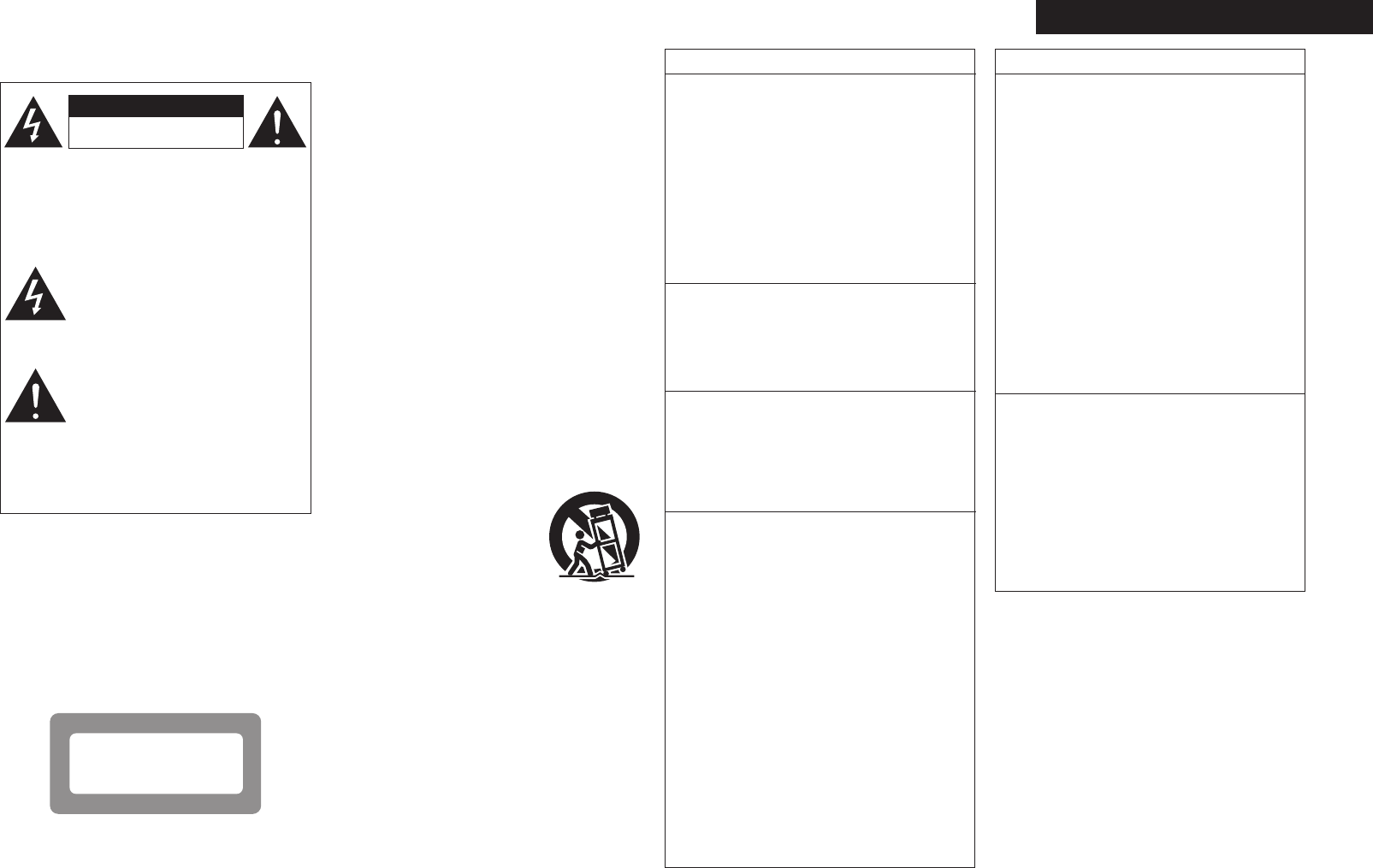
CAUTION
RISK OF ELECTRIC SHOCK
DO NOT OPEN
CAUTION:
TO REDUCE THE RISK OF ELECTRIC SHOCK,
DO NOT REMOVE COVER (OR BACK).
NO USER-SERVICEABLE PARTS INSIDE.
REFER SERVICING TO QUALIFIED SERVICE
PERSONNEL.
The lightning fl ash with arrowhead symbol,
within an equilateral triangle, is intended
to alert the user to the presence of
uninsulated “dangerous voltage” within
the product’s enclosure that may be of
suffi cient magnitude to constitute a risk of
electric shock to persons.
The exclamation point within an equilateral
triangle is intended to alert the user to
the presence of important operating and
maintenance (servicing) instructions in the
literature accompanying the appliance.
WARNING:
TO REDUCE THE RISK OF FIRE OR ELECTRIC
SHOCK, DO NOT EXPOSE THIS APPLIANCE
TO RAIN OR MOISTURE.
CAUTION:
USE OF CONTROLS OR ADJUSTMENTS
OR PERFORMANCE OF PROCEDURES
OTHER THAN THOSE SPECIFIED HEREIN
MAY RESULT IN HAZARDOUS RADIATION
EXPOSURE.
THIS PRODUCT SHOULD NOT BE ADJUSTED
OR REPAIRED BY ANYONE EXCEPT
PROPERLY QUALIFIED SERVICE PERSONNEL.
n Laser Class (IEC 60825-1:2001)
$-"44
-"4&3 130%6$5
IMPORTANT SAFETY
INSTRUCTIONS
1. Read these instructions.
2. Keep these instructions.
3. Heed all warnings.
4. Follow all instructions.
5. Do not use this apparatus near water.
6. Clean only with dry cloth.
7. Do not block any ventilation openings.
Install in accordance with the manufacturer's
instructions.
8. Do not install near any heat sources such as radiators,
heat registers, stoves, or other apparatus (including
amplifi ers) that produce heat.
9. Do not defeat the safety purpose of the polarized or
grounding-type plug. A polarized plug has two blades
with one wider than the other. A grounding type plug
has two blades and a third grounding prong. The wide
blade or the third prong are provided for your safety. If
the provided plug does not fi t into your outlet, consult
an electrician for replacement of the obsolete outlet.
10. Protect the power cord from being walked on or
pinched particularly at plugs, convenience receptacles,
and the point where they exit from the apparatus.
11. Only use attachments/accessories specifi ed by the
manufacturer.
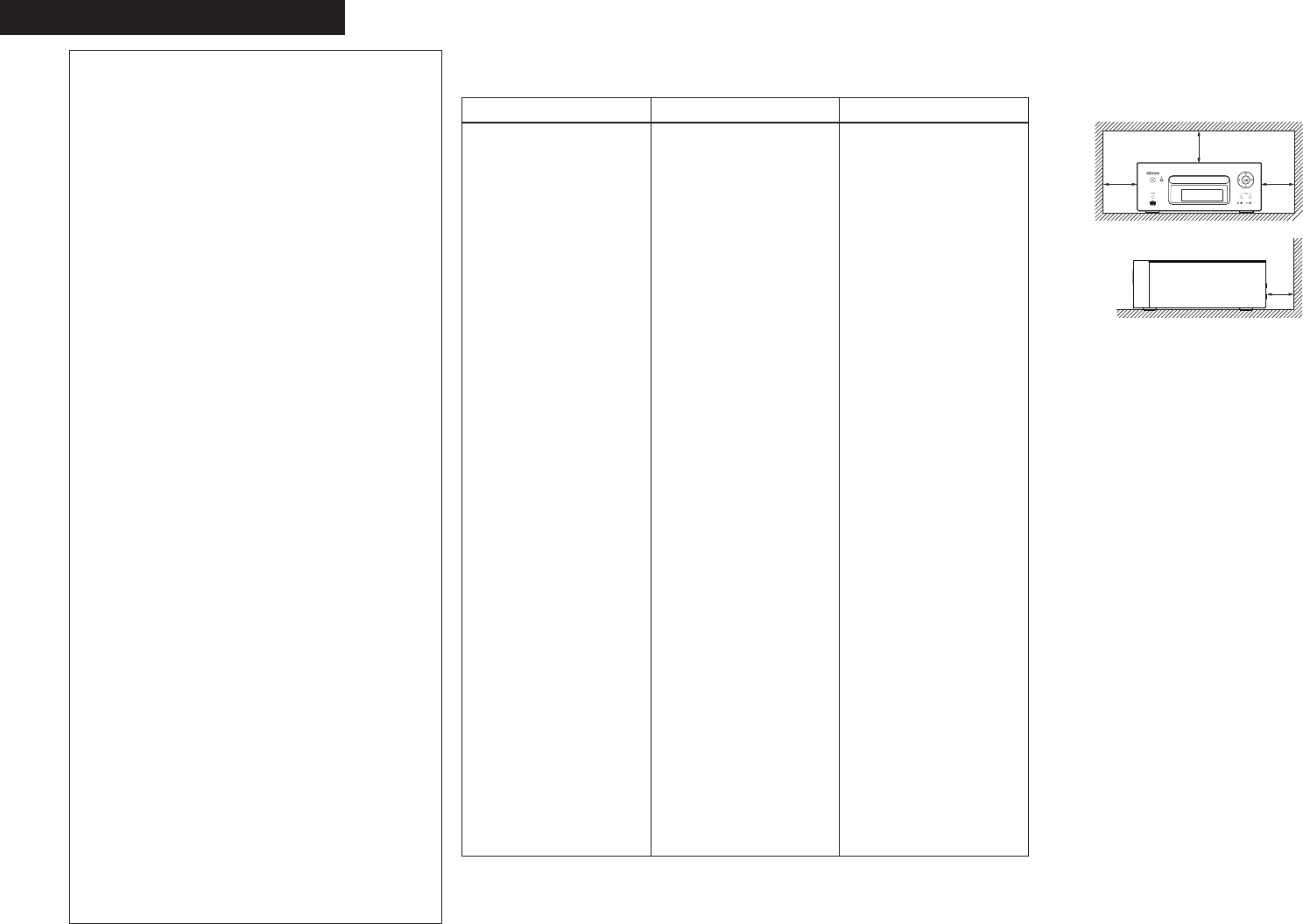
12. Use only with the cart, stand,
tripod, bracket, or table specifi ed by
the manufacturer, or sold with the
apparatus.
When a cart is used, use caution
when moving the cart/apparatus
combination to avoid injury from tip-
over.
13. Unplug this apparatus during lightning storms or when
unused for long periods of time.
14. Refer all servicing to qualifi ed service personnel.
Servicing is required when the apparatus has been
damaged in any way, such as power-supply cord or
plug is damaged, liquid has been spilled or objects
have fallen into the apparatus, the apparatus has
been exposed to rain or moisture, does not operate
normally, or has been dropped.
15. Batteries shall not be exposed to excessive heat such
as sunshine, fi re or the like.
I
ENGLISHFRANCAISESPAÑOL
FCC Information (For US customers)
1. COMPLIANCE INFORMATION
Product Name: Network CD Receiver
Model Number: RCD-N7
This product contains FCC ID: PPQ-CR8702G.
This product complies with Part 15 of the FCC Rules.
Operation is subject to the following two conditions:
(1) this product may not cause harmful interference,
and (2) this product must accept any interference
received, including interference that may cause
undesired operation.
Denon Electronics (USA), LLC
(a D & M Holdings Company)
100 Corporate Drive
Mahwah, NJ 07430-2041
Tel. (800) 497-8921
2. IMPORTANT NOTICE: DO NOT MODIFY THIS
PRODUCT
This product, when installed as indicated in the
instructions contained in this manual, meets FCC
requirements. Modifi cation not expressly approved
by DENON may void your authority, granted by the
FCC, to use the product.
3. CAUTION
• To comply with FCC RF exposure compliance
requirement, separation distance of at least 20 cm
must be maintained between the antenna of this
product and all persons.
• This product and its antenna must not be
co-located or operating in conjunction with any
other antenna or transmitter.
4. NOTE
This product has been tested and found to comply
with the limits for a Class B digital device, pursuant
to Part 15 of the FCC Rules. These limits are
designed to provide reasonable protection against
harmful interference in a residential installation.
This product generates, uses and can radiate radio
frequency energy and, if not installed and used in
accordance with the instructions, may cause harmful
interference to radio communications. However,
there is no guarantee that interference will not occur
in a particular installation. If this product does cause
harmful interference to radio or television reception,
which can be determined by turning the product
OFF and ON, the user is encouraged to try to correct
the interference by one or more of the following
measures:
• Reorient or relocate the receiving antenna.
• Increase the separation between the equipment
and receiver.
• Connect the product into an outlet on a circuit
different from that to which the receiver is
connected.
• Consult the local retailer authorized to distribute
this type of product or an experienced radio/TV
technician for help.
IC Information (For Canadian customers)
1. PRODUCT
This product contains IC 4491A-CR8702G.
This product complies with RSS-210 of Industry
Canada. Operation is subject to the following two
conditions: (1) this product may not cause harmful
interference, and (2) this product must accept any
interference received, including interference that
may cause undesired operation.
This Class B digital apparatus complies with
Canadian ICES-003.
APPAREIL
Cet appareil contiens IC 4491A-CR8702G.
Cet appareil est conforme à la norme CNR-210 du
Canada. L’utilisation de ce dispositif est autorisée
seulement aux deux conditions suivantes : (1) il ne
doit pas produire de brouillage, et (2) l’utilisateur du
dispositif doit être prêt à accepter tout brouillage
radioélectrique reçu, même si ce brouillage est
susceptible de compromettre le fonctionnement du
dispositif.
Cet appareil numérique de la classe B est conforme
à la norme NMB-003 du Canada.
2. CAUTION
To reduce potential radio interference to other
users, the antenna type and its gain should be so
chosen that the equivalent isotropically radiated
power (e.i.r.p.) is not more than that permitted for
successful communication.
ATTENTION
Afi n de réduire le risque d’interférence aux autres
utilisateurs, il faut choisir le type d’antenne et
son gain de façon à ce que la puissance isotrope
rayonnée équivalente (p.i.r.e.) ne soit pas
supérieure au niveau requis pour l’obtention d’une
communication satisfaisante.
For Canadian customers:
This Class B digital apparatus complies with Canadian
ICES-003.
Cet appareil numérique de la classe B est conforme à la
norme NMB-003 du Canada.
1.RCDN7E3_ENG_008.indd F31.RCDN7E3_ENG_008.indd F3 2010/09/03 11:11:352010/09/03 11:11:35
II
n NOTE ON USE / OBSERVATIONS RELATIVES A L’UTILISATION /
NOTAS SOBRE EL USO
WARNINGS AVERTISSEMENTS ADVERTENCIAS
• Avoid high temperatures.
Allow for suffi cient heat
dispersion when installed in a
rack.
• Handle the power cord carefully.
Hold the plug when unplugging
the cord.
• Keep the unit free from
moisture, water, and dust.
• Unplug the power cord when
not using the unit for long
periods of time.
• Do not obstruct the ventilation
holes.
• Do not let foreign objects into
the unit.
• Do not let insecticides,
benzene, and thinner come in
contact with the unit.
• Never disassemble or modify
the unit in any way.
• Ventilation should not be
impeded by covering the
ventilation openings with
items, such as newspapers,
tablecloths or curtains.
• Naked fl ame sources such as
lighted candles should not be
placed on the unit.
• Observe and follow local
regulations regarding battery
disposal.
• Do not expose the unit to
dripping or splashing fl uids.
• Do not place objects fi lled with
liquids, such as vases, on the
unit.
• Do not handle the mains cord
with wet hands.
• When the switch is in the OFF
position, the equipment is not
completely switched off from
MAINS.
• The equipment shall be
installed near the power supply
so that the power supply is
easily accessible.
• Eviter des températures
élevées.
Tenir compte d’une dispersion
de chaleur suffi sante lors de
l’installation sur une étagère.
• Manipuler le cordon
d’alimentation avec précaution.
Tenir la prise lors du
débranchement du cordon.
• Protéger l’appareil contre
l’humidité, l’eau et la poussière.
• Débrancher le cordon
d’alimentation lorsque l’appareil
n’est pas utilisé pendant de
longues périodes.
• Ne pas obstruer les trous
d’aération.
• Ne pas laisser des objets
étrangers dans l’appareil.
• Ne pas mettre en contact des
insecticides, du benzène et un
diluant avec l’appareil.
• Ne jamais démonter ou
modifi er l’appareil d’une
manière ou d’une autre.
• Ne pas recouvrir les orifi ces
de ventilation avec des objets
tels que des journaux, nappes
ou rideaux. Cela entraverait la
ventilation.
• Ne jamais placer de fl amme
nue sur l'appareil, notamment
des bougies allumées.
• Veillez à respecter les lois en
vigueur lorsque vous jetez les
piles usagées.
• L’appareil ne doit pas être
exposé à l’eau ou à l’humidité.
• Ne pas poser d’objet contenant
du liquide, par exemple un
vase, sur l’appareil.
• Ne pas manipuler le cordon
d’alimentation avec les mains
mouillées.
• Lorsque l’interrupteur est sur
la position OFF, l’appareil n’est
pas complètement déconnecté
du SECTEUR (MAINS).
• L’appareil sera installé près de
la source d’alimentation, de
sorte que cette dernière soit
facilement accessible.
• Evite altas temperaturas.
Permite la sufi ciente dispersión
del calor cuando está instalado
en la consola.
• Maneje el cordón de energía
con cuidado.
Sostenga el enchufe cuando
desconecte el cordón de
energía.
• Mantenga el equipo libre de
humedad, agua y polvo.
• Desconecte el cordón de
energía cuando no utilice el
equipo por mucho tiempo.
• No obstruya los orifi cios de
ventilación.
• No deje objetos extraños
dentro del equipo.
• No permita el contacto
de insecticidas, gasolina y
diluyentes con el equipo.
• Nunca desarme o modifi que el
equipo de ninguna manera.
• La ventilación no debe quedar
obstruida por haberse cubierto
las aperturas con objetos
como periódicos, manteles o
cortinas.
• No deberán colocarse sobre
el aparato fuentes infl amables
sin protección, como velas
encendidas.
• A la hora de deshacerse de las
pilas, respete la normativa para
el cuidado del medio ambiente.
• No exponer el aparato al goteo
o salpicaduras cuando se
utilice.
• No colocar sobre el aparato
objetos llenos de líquido, como
jarros.
• No maneje el cable de
alimentación con las manos
mojadas.
• Cuando el interruptor está en la
posición OFF, el equipo no está
completamente desconectado
de la alimentación MAINS.
• El equipo se instalará cerca
de la fuente de alimentación
de manera que resulte fácil
acceder a ella.
ESPAÑOLENGLISH FRANCAIS
CAUTION:
To completely disconnect this product from the mains,
disconnect the plug from the wall socket outlet.
The mains plug is used to completely interrupt the power
supply to the unit and must be within easy access by
the user.
VORSICHT:
Um dieses Gerät vollständig von der Stromversorgung
abzutrennen, ziehen Sie bitte den Stecker aus der
Wandsteckdose.
Der Netzstecker wird verwendet, um die Stromversorgung
zum Gerät völlig zu unterbrechen; er muss für den
Benutzer gut und einfach zu erreichen sein.
PRECAUTION:
Pour déconnecter complètement ce produit du courant
secteur, débranchez la prise de la prise murale.
La prise secteur est utilisée pour couper complètement
l’alimentation de l’appareil et l’utilisateur doit pouvoir y
accéder facilement.
ATTENZIONE:
Per scollegare completamente questo prodotto dalla rete
di alimentazione elettrica, scollegare la spina dalla relativa
presa a muro.
La spina di rete viene utilizzata per interrompere
completamente l’alimentazione all’unità e deve essere
facilmente accessibile all’utente.
WAARSCHUWING:
Om de voeding van dit product volledig te onderbreken
moet de stekker uit het stopcontact worden getrokken.
De netstekker wordt gebruikt om de stroomtoevoer naar
het toestel volledig te onderbreken en moet voor de
gebruiker gemakkelijk bereikbaar zijn.
FÖRSIKTIHETSMÅTT:
Koppla loss stickproppen från eluttaget för att helt skilja
produkten från nätet.
Stickproppen används för att helt bryta strömförsörjningen
till apparaten, och den måste vara lättillgänglig för
användaren.
PRECAUCIÓN:
Para desconectar completamente este producto de
la alimentación eléctrica, desconecte el enchufe del
enchufe de la pared.
El enchufe de la alimentación eléctrica se utiliza para
interrumpir por completo el suministro de alimentación
eléctrica a la unidad y debe de encontrarse en un lugar al
que el usuario tenga fácil acceso.
n CAUTIONS ON INSTALLATION
PRÉCAUTIONS D’INSTALLATION
EMPLAZAMIENTO DE LA INSTALACIÓN
/&5803,$%3&$&*7&33$%/
z
zz
z
Wall
Paroi
Pared
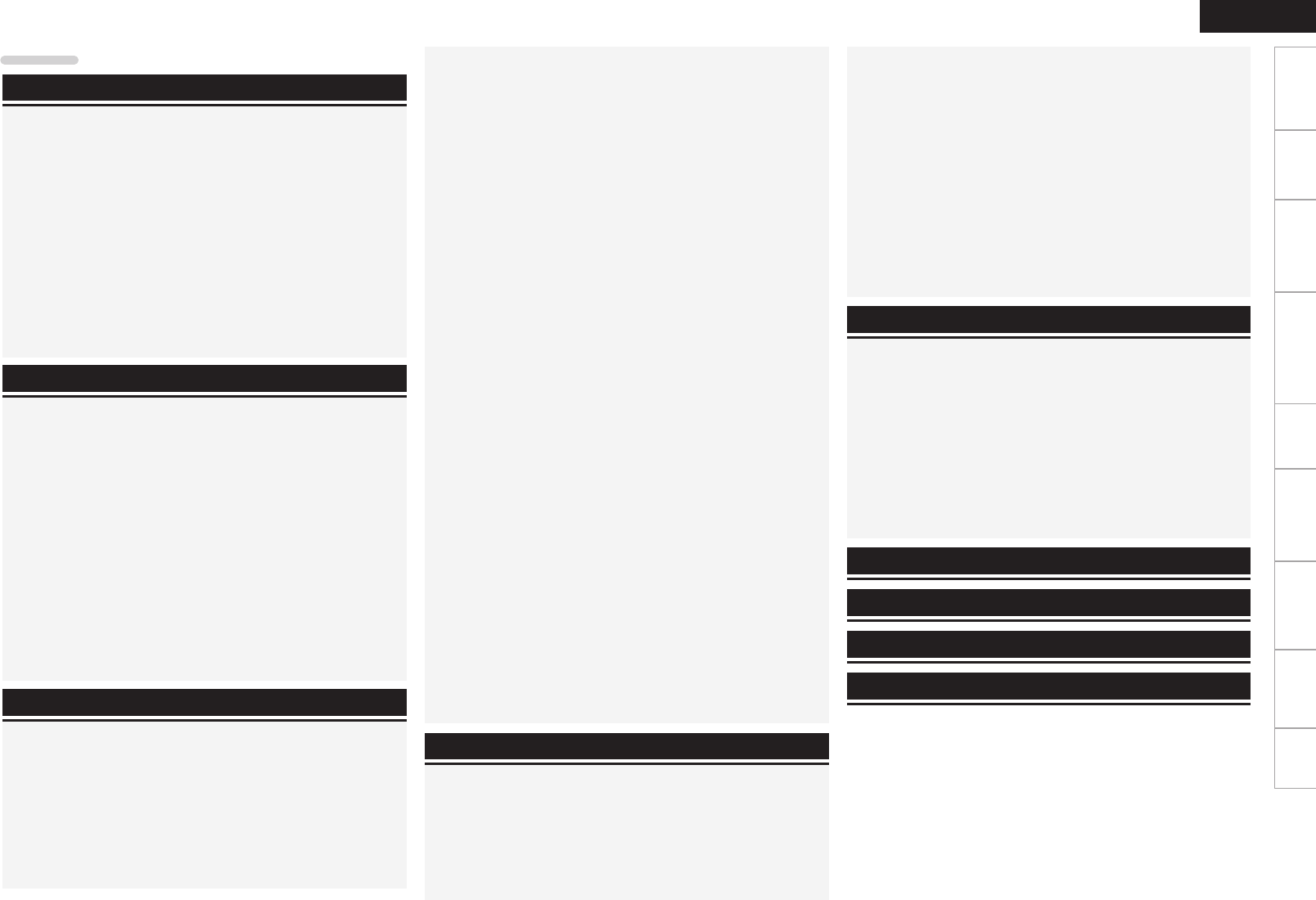
zFor proper heat dispersal, do not install this unit in a
confi ned space, such as a bookcase or similar enclosure.
• More than 0.3 m (12 in.) is recommended.
• Do not place any other equipment on this unit.
zPour permettre la dissipation de chaleur requise,
n’installez pas cette unité dans un espace confi né tel
qu’une bibliothèque ou un endroit similaire.
• Une distance de plus de 0,3 m (12 po.) est recommandée.
• Ne placez aucun matériel sur cet appareil.
zPara la dispersión del calor adecuadamente, no instale
este equipo en un lugar confi nado tal como una librería
o unidad similar.
• Se recomienda dejar más de 0,3 m (12 pulg.) alrededor.
• No coloque ningún otro equipo sobre la unidad.
1.RCDN7E3_ENG_008.indd F41.RCDN7E3_ENG_008.indd F4 2010/09/03 11:11:362010/09/03 11:11:36
1
Getting Started Connections
Basic Operations Advanced Operations TroubleshootingExplanation termsInformation Specifi cations Index
ENGLISH
Getting Started
Accessories ····················································································2
Main features ·················································································2
Cautions on handling ····································································2
About this manual ········································································2
Discs ·······························································································3
Discs playable on this unit ····························································3
Holding discs ················································································ 3
Loading discs ················································································3
Cautions on loading discs ·····························································3
Cautions on handling ···································································· 3
Cautions on storing discs······························································3
Cleaning discs ···············································································3
About the remote control·····························································4
Inserting the batteries···································································4
Operating range of the remote control ········································4
Contents
Getting started ·······································································2
Speaker connections ····································································5
Connecting the speaker cables·····················································5
Connecting recording components ············································· 6
CD recorder / MD recorder ···························································6
Connecting a TV ············································································ 6
Connecting an antenna ································································7
FM/AM··························································································7
Connecting to a home network (LAN) ········································8
Wired LAN ····················································································8
Wireless LAN ················································································8
Required system···········································································8
Connecting an iPod ······································································ 9
iPod Dock······················································································9
USB port ·······················································································9
Connecting a USB memory device ··············································9
Connecting a portable player ·····················································10
Connecting the power cord························································10
Connections ·············································································5
Preparations ················································································11
Turning the power on ································································· 11
Turning the power off ·································································11
Setting the current time (Auto Adjust) (12-Hour Display) ···········11
Operations possible during playback ········································12
Input source switching ······························································· 12
Adjusting the master volume ······················································12
Muting the sound ······································································· 12
Adjusting the tone ······································································ 12
Setting the sleep timer ·······························································13
Basic operations···································································11
Menu map ···················································································· 27
Setting the timer [Timer] ···························································28
Setting the everyday timer and once timer ································28
Adjusting the clock automatically [Clock] ································29
Setting the Time Zone ································································29
Setting the Summer Time ·························································· 29
Auto Adjust ·················································································29
Setting the current time (Manual Adjust) (12-Hour Display) ······· 29
Advanced operations·························································27
Information ·············································································38
Explanation terms ·······························································46
Troubleshooting···································································47
Setting the network [Network] ·················································30
Connecting Wired LAN ·······························································30
Connecting Wireless LAN···························································31
Party Mode Function ·································································· 33
Other Network ············································································34
Setting the others [Other] ·························································· 35
Auto Standby ··············································································35
Screen Saver···············································································35
Using an optimizing fi lter ····························································35
Firmware Update ········································································35
Other functions ···········································································36
Inputting characters ····································································36
Auto power on ············································································37
Last function memory·································································37
Resetting the microprocessor ···················································· 37
Specifi cations ········································································51
Switching the display’s brightness ············································· 13
Listening with headphones·························································13
CD playback ·················································································13
Before playing a disc···································································13
Playing CDs·················································································13
Switching the display ··································································13
Playing repeatedly (Repeat playback) ········································14
Playing random order (Random playback) ··································14
Playing tracks in the desired order (Program playback) ·············· 14
MP3 and WMA fi les playback·····················································15
Playing fi les ·················································································15
Tuner playback ············································································16
Tuning in Broadcast Stations ······················································16
Automatically presetting FM stations (Auto preset) ··················· 16
Presetting FM/AM stations manually ·········································17
Listening to preset stations ························································17
Calling stations registered in Preset List ····································17
Deleting stations registered in Preset List ··································17
iPod® playback ············································································17
Before playing an iPod ································································17
Playing an iPod············································································17
Disconnecting the iPod ·······························································18
USB memory device playback ···················································18
Before playing a USB memory device or an iPod ·······················18
Playing fi les stored on USB memory devices ·····························18
Network audio playback ····························································19
Listening to internet radio ···························································19
Playing fi les stored on a music server ········································20
Listening to Napster ··································································· 21
Listening to Pandora ···································································22
Listening to Rhapsody ································································24
Portable audio player playback ·················································25
Playing portable audio player ······················································25
Listening to AUX ········································································· 25
Favorite function ········································································26
Registering Internet radio stations, music servers and
tuners in Favorite List ·································································26
Calling Internet radio stations, fi les registered or t
uners in Favorite List ·································································· 26
Deleting Internet radio stations, fi les registered or
tuners in Favorite List ·································································26
Part names and functions···························································38
Front panel ··················································································38
Top panel ····················································································39
Rear panel ···················································································39
Remote control ···········································································40
MP3 and WMA ·············································································43
MP3 and WMA formats ······························································43
iPod® ···························································································· 43
USB memory device ···································································44
Important information ·································································44
Network audio ·············································································45
Important information ·································································45
Index ··························································································52
1.RCDN7E3_ENG_008.indd 11.RCDN7E3_ENG_008.indd 1 2010/09/03 11:11:362010/09/03 11:11:36
2
ENGLISH
Main features
High quality & high power digital amplifi er
DLNA ver. 1.5 supported for Audio Network
Internet radio by vTuner
Equipped with a dock connector that directly
connects an iPod or iPhone to this unit
Equipped with Wi-Fi capabilities including Wi-Fi
Protected Setup (WPS)
Equipped with a fi lter for optimizing the response
of the speakers (sold separately)
3Lines OELD
(Organic Electroluminescence Display)
Stylish & compact cabinet
Cautions on handling
• Before turning the power switch on
Check once again that all connections are correct and that there are
no problems with the connection cables.
• Power is supplied to some of the circuitry even when the unit is
set to the standby mode. When going on vacation or leaving home
for long periods of time, be sure to unplug the power cord from the
power outlet.
• Proper ventilation
If the unit is left in a room full of smoke from cigarettes, etc., for
long periods of time, the surface of the optical pickup may get dirty,
preventing it from receiving signals properly.
• About condensation
If there is a major difference in temperature between the inside of
the unit and its surroundings, condensation may form on parts inside
the unit, causing it to fail to operate properly.
If this happens, let the unit sit for an hour or two with the power
turned off and wait until there is little difference in temperature
before using the unit.
• Cautions on using mobile phones
Using a mobile phone near this unit may result in noise. If that
occurs, move the mobile phone away from the unit when it is in use.
• Moving the unit
Turn off the power and unplug the power cord from the power outlet.
Next, disconnect the cables connected to other system units before
moving the unit.
About this manual
nOperation buttons
The operations described in this manual are based mainly on
remote control operation.
nSymbols
vThis symbol indicates a reference page on which
related information is described.
This symbol indicates a supplementary information
and tips for operations.
NOTE This symbol indicates points to remember operations
or function limitations.
nIllustrations
Note that the illustrations in these instructions may differ from the
actual unit for explanation purposes.
Thank you for purchasing this DENON product. To ensure proper
operation, please read these owner’s manual carefully before using
the product.
After reading them, be sure to keep them for future reference.
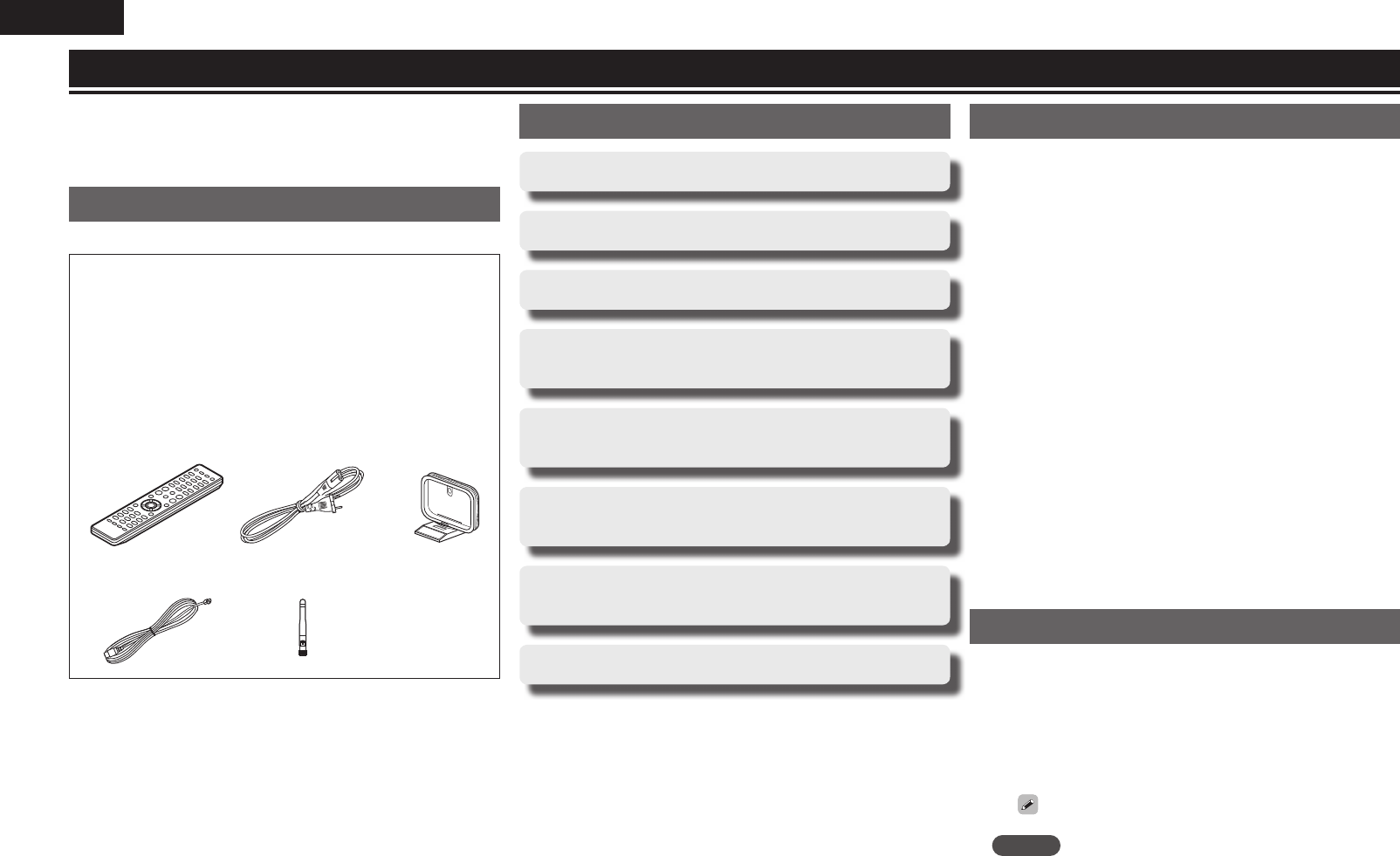
Accessories
Check that the following parts are supplied with the product.
q Remote control ........................................................................ 1
w R03/AAA batteries ................................................................... 2
e AC Power cord (Cord length: Approx. 6 ft/2 m) ....................... 1
r AM loop antenna ..................................................................... 1
t FM indoor antenna .................................................................. 1
y Rod antenna for wireless LAN ................................................ 1
u Owner’s manual (with Quick setup sheet) .............................. 1
i Service station list ................................................................... 1
o Warranty (for North America model only) ................................ 1
q e r
t y
Getting started
1.RCDN7E3_ENG_008.indd 21.RCDN7E3_ENG_008.indd 2 2010/09/03 11:11:362010/09/03 11:11:36
3
Getting StartedGetting Started Connections
Basic Operations Advanced Operations TroubleshootingExplanation termsInformation Specifi cations Index
ENGLISH
Discs
Discs playable on this unit
q Music CDs
Discs marked with the logo below can be played in this unit.
w CD-R/CD-RW
NOTE
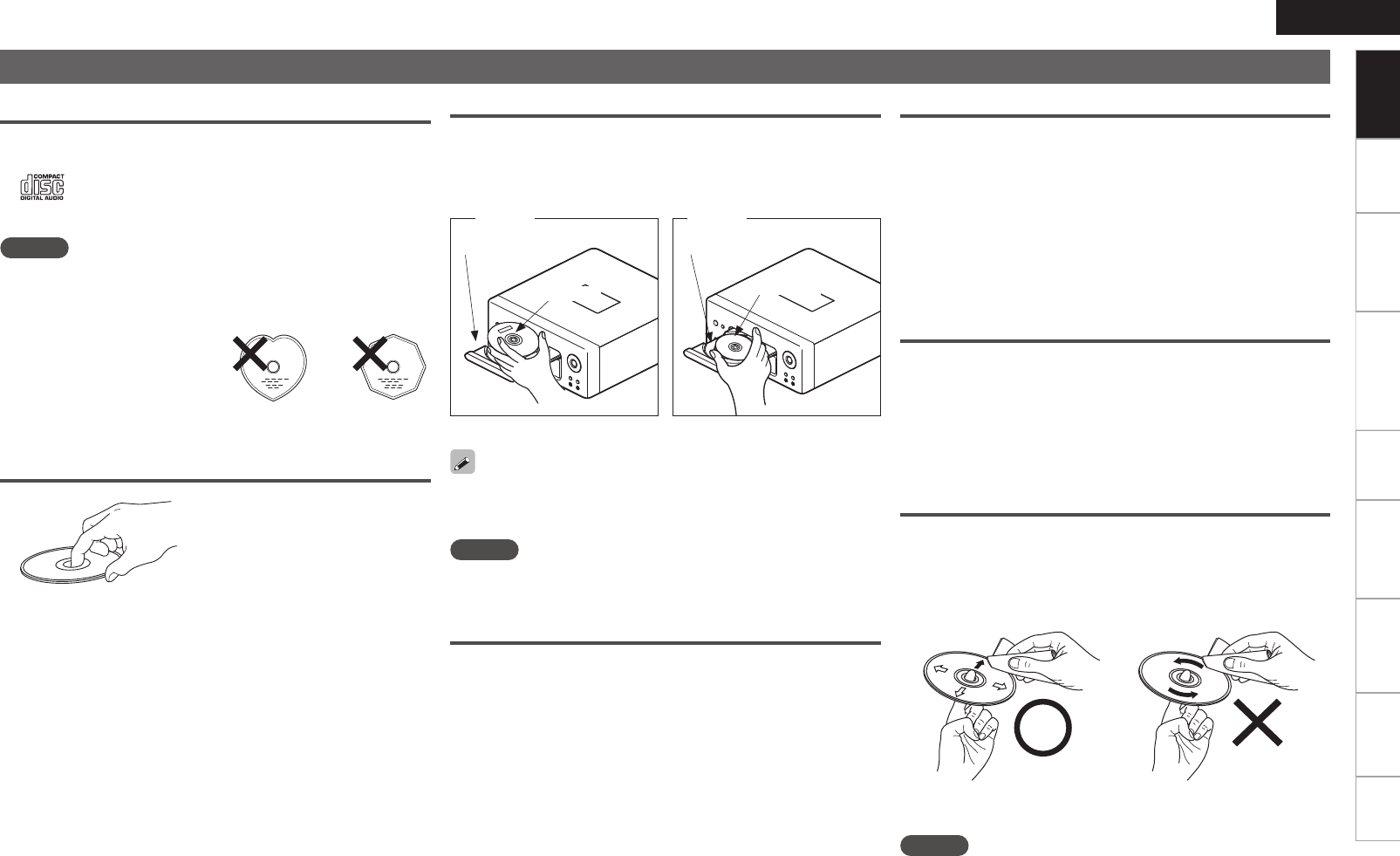
• Discs in special shapes (heart-shaped discs, octagonal discs, etc.)
cannot be played. Do not attempt to play them, as doing so can
damage the unit.
• Some discs and some recording
formats cannot be played.
• Non-fi nalized discs cannot be
played.
• What is fi nalization?
Finalization is the process that
makes recorded CD-R/CD-RW discs playable on compatible players.
Holding discs
Do not touch the signal surface.
Loading discs
• Place the disc in the tray, label side up.
• Make sure the disc tray is fully open when inserting the disc.
• Place the discs fl at, 12 cm discs in the outer tray guide (Figure 1), 8
cm discs in the inner tray guide (Figure 2).
Figure 1
12 cm disc 8 cm disc
Outer tray guide Inner tray guide
Figure 2
• Place 8 cm discs in the inner tray guide without using an adapter.
• “Unsupported” is displayed if a disc that cannot be played is loaded.
• “No Disc” is displayed if the disc is loaded upside-down or if no disc
is loaded.
NOTE
Do not push the disc tray in by hand when the power is turned off.
Doing so could damage the set.
Cautions on loading discs
• Only load one disc at a time. Loading two or more discs can damage
the unit or scratch the discs.
• Do not use cracked or warped discs or discs that have been repaired
with adhesive, etc.
• Do not use discs on which the sticky part of cellophane tape or labels
is exposed or on which there are traces of where labels have been
removed. Such discs can get caught inside the player and damage it.
Cautions on handling
• Do not get fi ngerprints, oil or dirt on discs.
• Take special care not to scratch discs when removing them from
their cases.
• Do not bend or heat discs.
• Do not enlarge the hole in the center.
• Do not write on the labeled (printed) surface with ball-point pens,
pencils, etc., or stick new labels on discs.
• Water droplets may form on discs if they are moved suddenly from
a cold place (outdoors for example) to a warm place, but do not try to
dry them off using a hairdryer, etc.
Cautions on storing discs
• Be sure to remove discs after using them.
• Be sure to store discs in their cases to protect them from dust,
scratches, warping, etc.
• Do not store discs in the following places:
1. Places exposed to direct sunlight for long periods of time
2. Dusty or humid places
3. Places exposed to heat from heaters, etc.
Cleaning discs
• If there are fi ngerprints or dirt on a disc, wipe them off before using
the disc. Fingerprints and dirt can impair sound quality and cause
interruptions in playback.
• Use a commercially available disc cleaning set or a soft cloth to clean
discs.
Gently wipe the disc from the
inside towards the outside.
Do not wipe in a circular motion.
NOTE
Do not use record spray, antistatic agents, benzene, thinner or other
solvents.
1.RCDN7E3_ENG_008.indd 31.RCDN7E3_ENG_008.indd 3 2010/09/03 11:11:372010/09/03 11:11:37
4
ENGLISH
About the remote control
Inserting the batteries
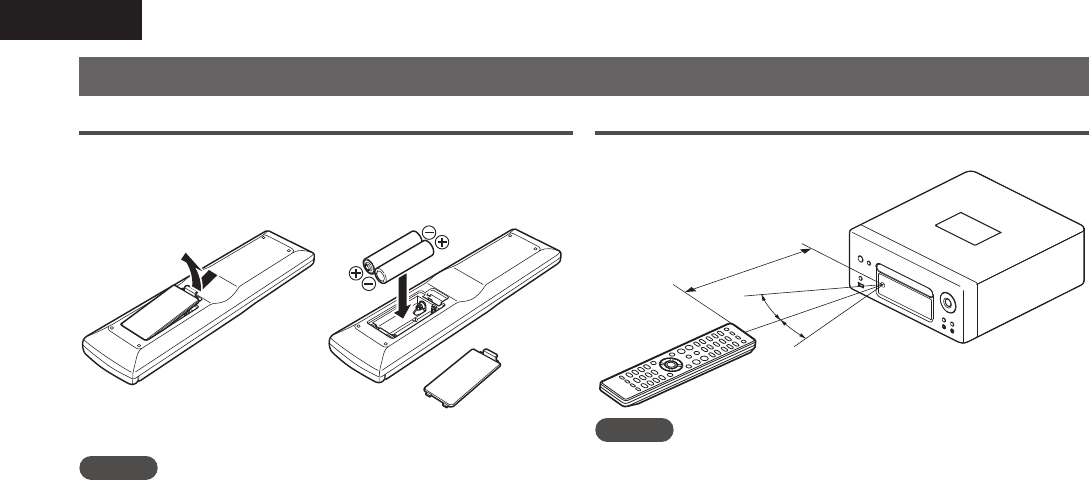
q Remove the rear cover of the
remote control.
w Set two R03/AAA batteries in
the battery compartment in the
indicated direction.
e Put the rear cover back on.
NOTE
• Insert the specifi ed batteries in the remote control unit.
• Replace the batteries with new ones if the set does not operate
even when the remote control unit is operated close to the unit. (The
supplied batteries are only for verifying operation.)
• When inserting the batteries, be sure to do so in the proper direction,
following the q and w marks in the battery compartment.
• To prevent damage or leakage of battery fl uid:
• Do not use a new battery together with an old one.
• Do not use two different types of batteries.
• Do not attempt to charge dry batteries.
• Do not short-circuit, disassemble, heat or dispose of batteries in
fl ames.
• Do not keep the battery in a place exposed to direct sunlight or in
places with extremely high temperatures, such as near a heater.
• If the battery fl uid should leak, carefully wipe the fl uid off the inside
of the battery compartment and insert new batteries.
• Remove the batteries from the remote control unit if it will not be in
use for long periods.
• Used batteries should be disposed of in accordance with the local
regulations regarding battery disposal.
Operating range of the remote control
Operate the remote control while pointing it at the remote sensor.
30°
30°
Approx. 23 feet/ 7 m
NOTE
The set may function improperly or the remote control may not
operate if the remote control sensor is exposed in direct sunlight or
strong artifi cial light such as a fl uorescent or infrared light.
1.RCDN7E3_ENG_008.indd 41.RCDN7E3_ENG_008.indd 4 2010/09/03 11:11:372010/09/03 11:11:37
5
ConnectionsConnections
Basic Operations Advanced Operations TroubleshootingExplanation termsInformation Specifi cations Index
ENGLISH
Getting Started
This section explains how to connect speakers, recording
equipment, antennas and network.
For other connections, see the sections below.
NOTE
• Do not plug in the power cord until all connections have been
completed.
• When making connections, also refer to the owner’s manual of the
other components.
• Be sure to connect the left and right channels properly (left with left,
right with right).
• Do not bundle power supply cords together with connection cables.
Doing so can result in humming or noise.
Connections
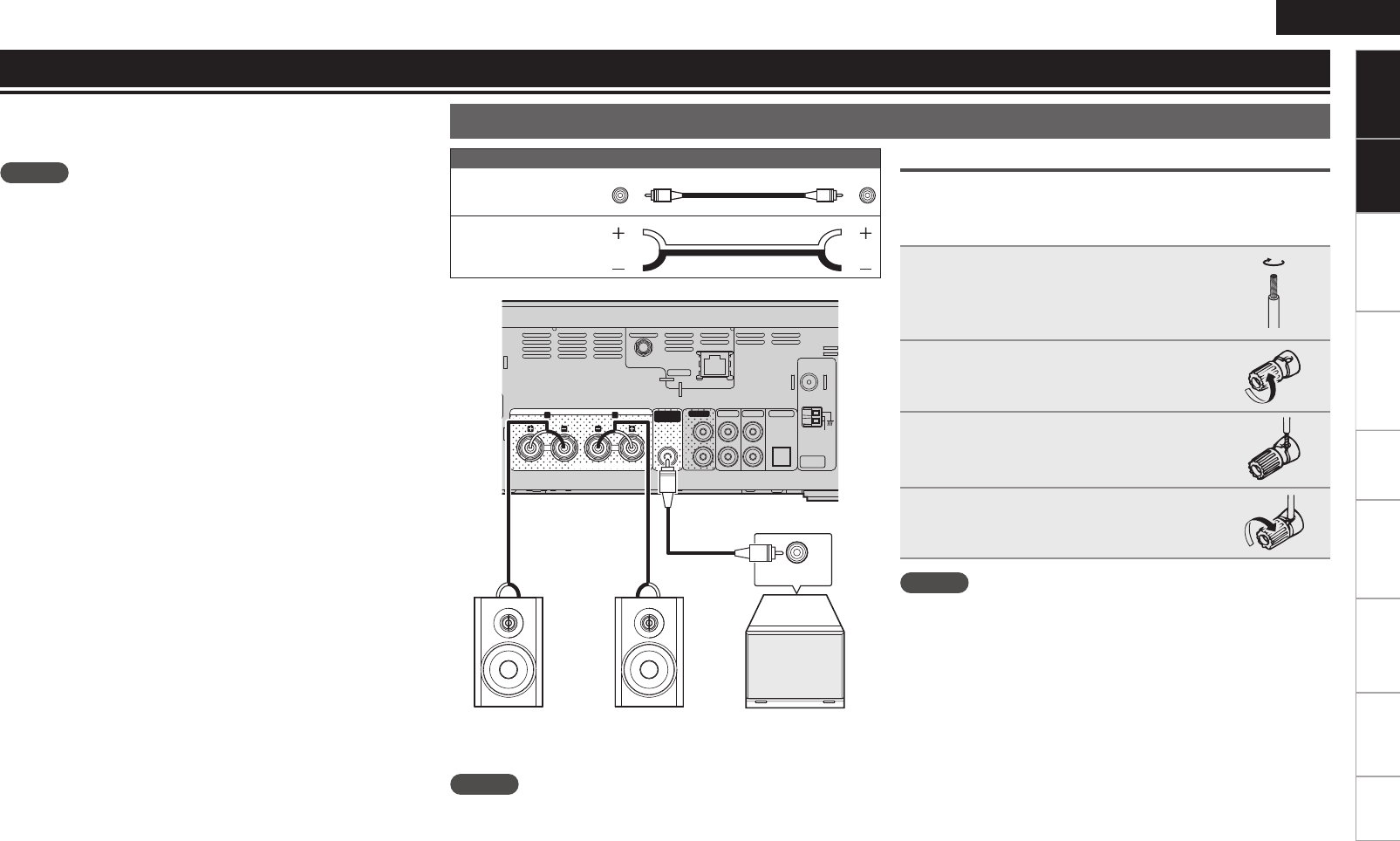
Speaker connections
Audio cable (sold separately)
Pin-plug cable (Black)
Speaker cable
COAX.
75ǡ
LOOP
ANT.
LR SPEAKERS
ETHERNET
NETWORK
FM
AM
ANTENNA
TUNER
L
R
AUX OUT AUX IN 1 AUX IN 2
AUX IN 3
(OPTICAL)
WLAN ANTENNA
SPEAKERS INPEDANCE 4-16 ǡ
RCD-N7W
PREOUT
SUBWOOFER
wqwq
Subwoofer with
built-in amp
Input terminals
RL
Speaker SC-N7
NOTE
Be sure to lower the audio volume before making speaker settings.
Connecting the speaker cables
Carefully check the left (L) and right (R) channels and + (red) and –
(black) polarities on the speakers being connected to the unit, and be
sure to connect the channels and polarities correctly.
1Peel off about 10 mm of sheathing
from the tip of the speaker cable, then
either twist the core wire tightly or
apply solder to it.
2Turn the speaker terminal
counterclockwise to loosen it.
3Insert the speaker cable’s core wire to
all the way into the speaker terminal.
4Turn the speaker terminal clockwise
to tighten it.
NOTE
• Use speakers with an impedance of 4 to 16 Ω. The protection circuit
may be activated if speakers with an impedance other than specifi ed
are used.
• Connect the speaker cables so they do not stick out of the speaker
terminals. The protection circuit may be activated if the wires
touch the rear panel or if the + and – sides touch each other
(vpage6 “Protection circuit”).
• Never touch the speaker terminals while the power supply is
connected. Doing so could result in electric shock.
• When you connect optional speakers (SC-N7) to this unit, you can
perform the fi lter setting for optimal sound quality output (vpage35
“Using an optimizing fi lter”).
1.RCDN7E3_ENG_008.indd 51.RCDN7E3_ENG_008.indd 5 2010/09/03 11:11:372010/09/03 11:11:37
6
ENGLISH
Protection circuit
The protection circuit is be activated in the following situations:
• If the speaker cable wire touches the rear panel or screws or if the
speaker cable wire touches the speaker cable’s + and – sides are
touching
• If the surrounding temperature is extremely high
• If the inside of the amplifi er gets hot to extended use at a high
output
If this happens, unplug the power cord, then check the connections
of the speaker cables and input cables. If the unit becomes very hot,
wait for it to cool off and improve the ventilation around it. After doing
this, plug the power cord back in.
If the protection circuit is activated even though there are no problems
with the ventilation around the unit or in connections, the unit may
be damaged. Turn off the power and then contact a DENON service
center.
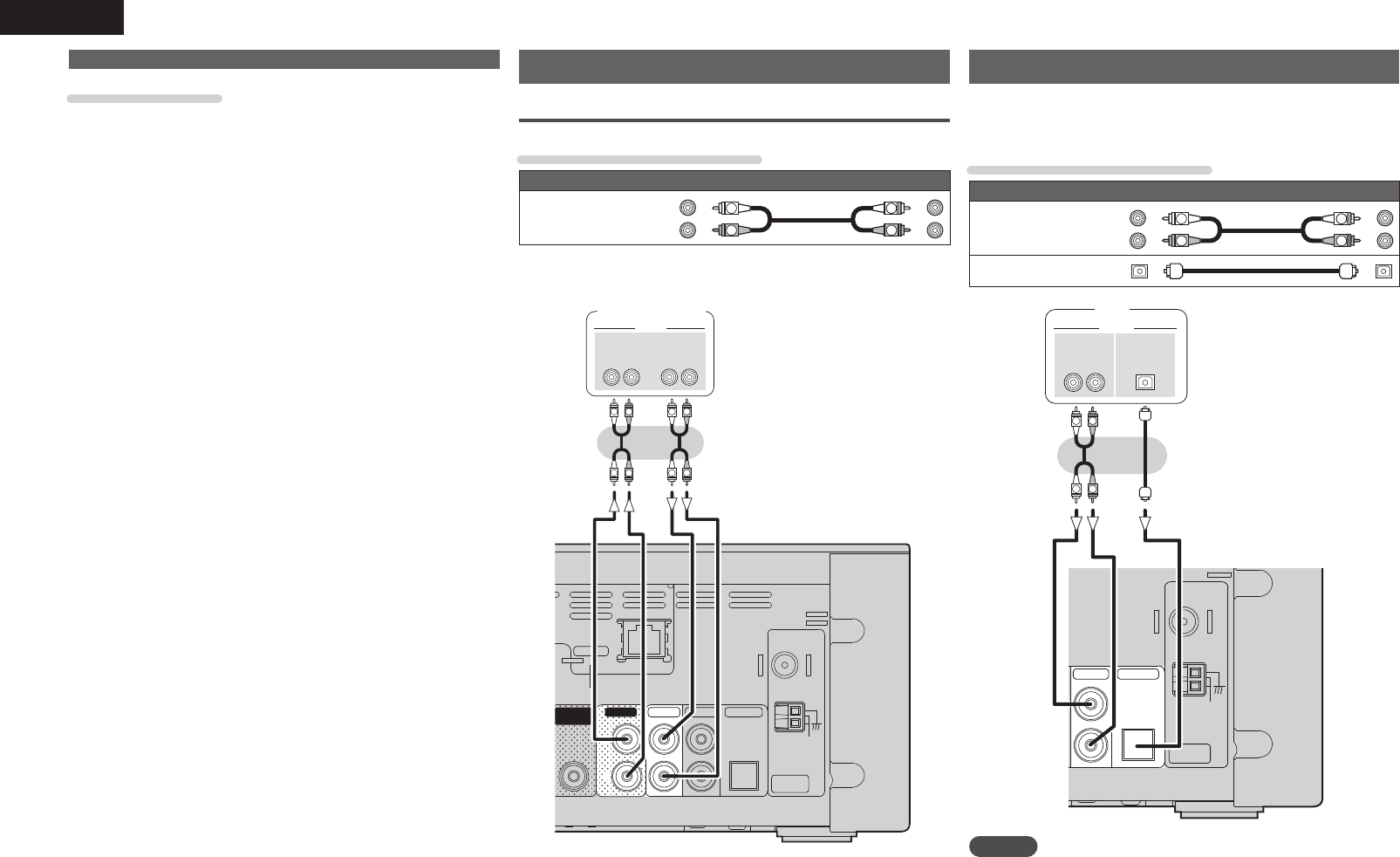
Connecting recording components
CD recorder / MD recorder
Cables used for connections
Audio cable (sold separately)
Stereo
pin-plug cable R
L
R
L
(White)
(Red)
COAX.
75ǡ
LOOP
ANT.
ETHERNET
NETWORK
FM
AM
ANTENNA
TUNER
L
R
AUX OUT AUX IN 1 AUX IN 2
PREOUT
SUBWOOFER
AUX IN 3
(OPTICAL)
A
RCD-N7W
3- 3-
*/ 065
"6%*0
"6%*0
R
L
R
L
R
L
R
L
CD recorder /
MD recorder /
Tape deck
Connecting a TV
• Select the connector to use and connect the device.
• To listen to TV audio through this device, use the optical digital
connection.
Cables used for connections
Audio cable (sold separately)
Stereo
pin-plug cable R
L
R
L
(White)
(Red)
Optical cable
COAX.
75ǡ
LOOP
ANT.
FM
AM
ANTENNA
TUNER
AUX IN 2
AUX IN 3
(OPTICAL)
3-
065
"6%*0
"6%*0
R
L
R
L
015*$"-
065
TV
NOTE
Other digital audio signals than 2 channel linear PCM cannot be input
through AUX IN 3 (OPTICAL) terminal of this unit.
When you try to input digital audio signals other than 2 channel linear
PCM to this unit, set the digital audio output setting of the TV to 2
channel PCM.
For details, see the operating instructions of the TV.
Speaker connections
1.RCDN7E3_ENG_008.indd 61.RCDN7E3_ENG_008.indd 6 2010/09/03 11:11:382010/09/03 11:11:38
7
Getting Started ConnectionsConnections
Basic Operations Advanced Operations TroubleshootingExplanation termsInformation Specifi cations Index
ENGLISH
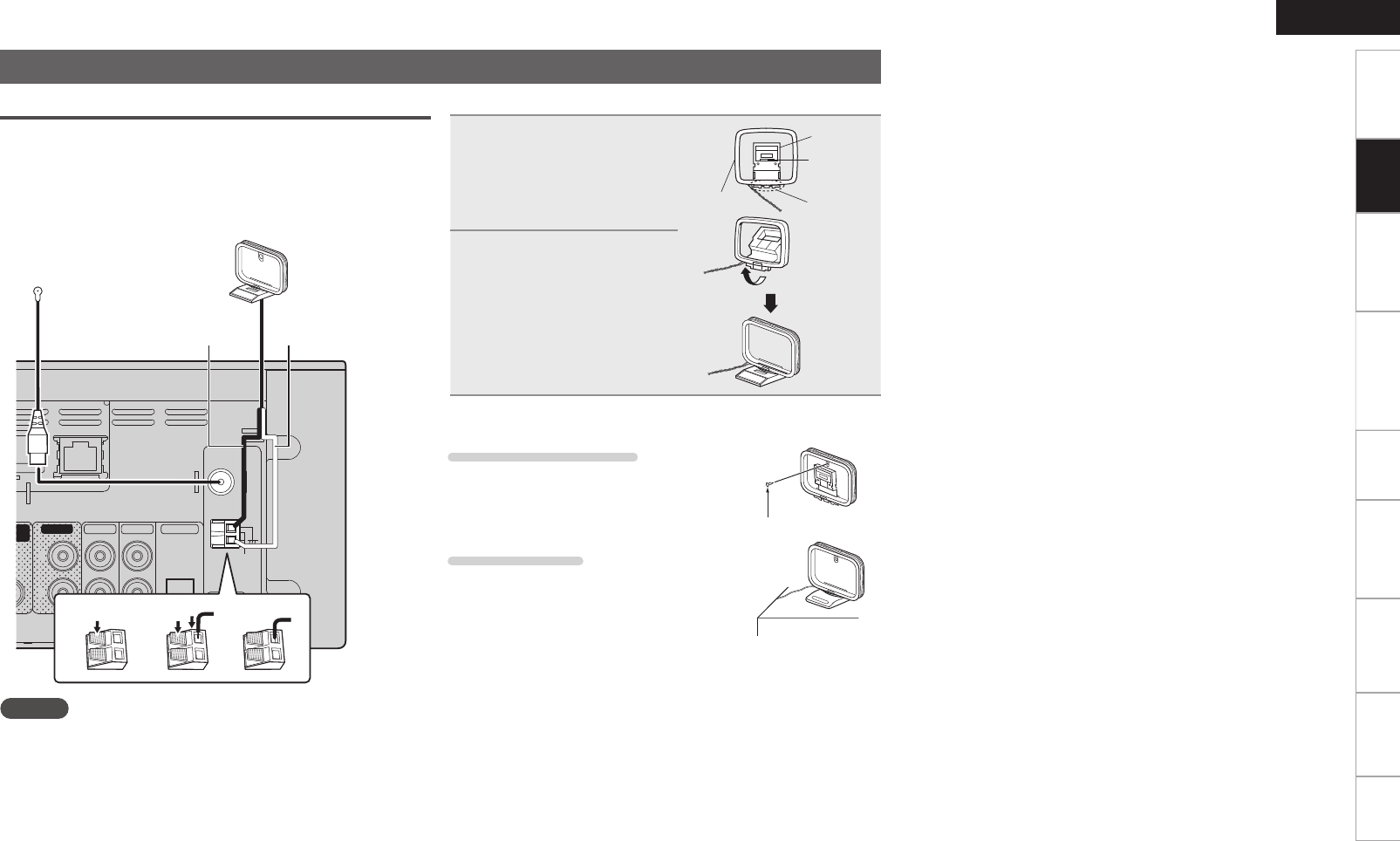
Connecting an antenna
FM/AM
• Connect the FM antenna or AM loop antenna supplied with the unit
to enjoy listening to radio broadcasts.
• After connecting the antenna and receiving a broadcast signal
(vpage16 “Tuning in Broadcast Stations”), fi x the antenna with
tape in a position where the noise level becomes minimal.
COAX.
75ǡ
LOOP
ANT.
ETHERNET
N
ETWORK
FM
AM
ANTENNA
TUNER
L
R
AUX OUT AUX IN 1 AUX IN 2
T
FER
AUX IN 3
(OPTICAL)
RCD-N7W
weq
AM loop antenna
(Supplied)
FM indoor antenna
(Supplied)
White
Black
NOTE
• Do not connect two FM antennas simultaneously.
• Even if an external AM antenna is used, do not disconnect the AM
loop antenna.
• Make sure the AM loop antenna lead terminals do not touch metal
parts of the panel.
• If the signal has noise interference, connect the ground terminal
(GND) to reduce noise.
• If you are unable to receive a good broadcast signal, we recommend
installing an outdoor antenna. For details, inquire at the retail store
where you purchased the unit.
n AM loop antenna assembly
1Put the stand section
through the bottom of
the loop antenna from
the rear and bend it
forward.
Loop
antenna
Stand
Square
hole
Projecting
part
2Insert the projecting part
into the square hole in
the stand.
nUsing the AM loop antenna
Suspending on a wall
Suspend directly on a wall without assembling.
Nail, tack, etc.
Standing alone
Use the procedure shown upper to assemble.
1.RCDN7E3_ENG_008.indd 71.RCDN7E3_ENG_008.indd 7 2010/09/03 11:11:382010/09/03 11:11:38
8
ENGLISH
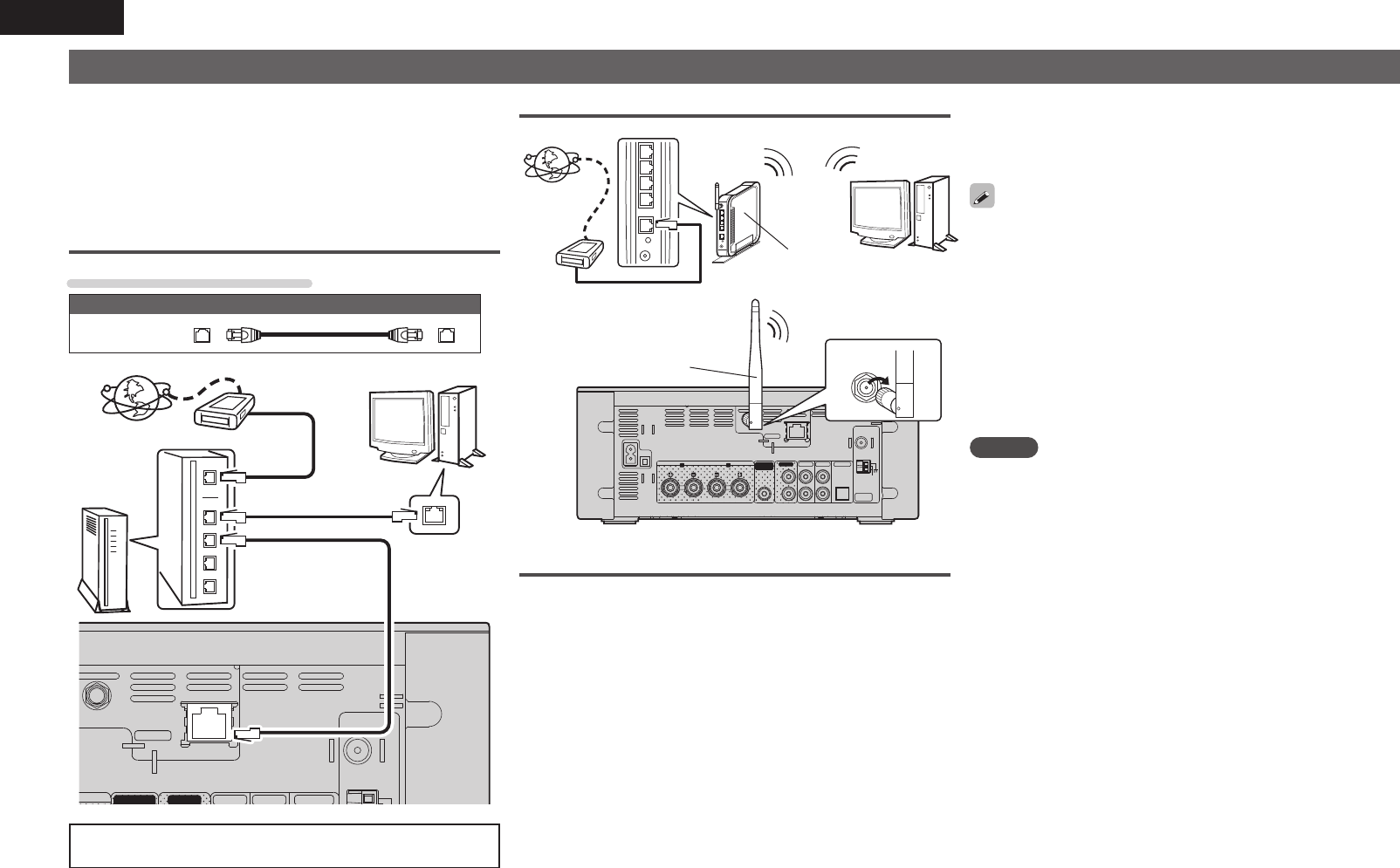
Connecting to a home network (LAN)
• This unit lets you play via your home network (LAN) music fi les
stored on a computer and music content such as that from Internet
radio.
• You can update by downloading the latest fi rmware from the
DENON website.
• See “Setting the network [Network]” (vpage30) on the menu for
more information on network setting.
Wired LAN
Cables used for connections
Cable (sold separately)
Ethernet
cable
COAX.
75ǡ
ETHERNET
NETWORK
FM
AM
AUX OUT AUX IN 1 AUX IN 2SUBWOOFER
AUX IN 3
W
LAN ANTENNA
RCD-N7W
Internet
To WAN side
Router
To LAN port
To LAN port LAN port/
Ethernet
connector
Computer
Modem
For connections to the Internet, contact an ISP (Internet
Service Provider) or a computer shop.
Wireless LAN
COAX.
75ǡ
LOOP
ANT.
LR SPEAKERS
ETHERNET
NETWORK
FM
AM
ANTENNA
TUNER
L
R
AUX OUT AUX IN 1 AUX IN 2
PREOUT
SUBWOOFER
AUX IN 3
(OPTICAL)
WLAN ANTENNA
AC IN
SPEAKERS INPEDANCE 4-16 ǡ
RCD-N7W
To WAN side
Computer
Internet
Modem
Router with
access point
Turn
clockwise.
Rod antenna
(supplied)
Required system
nBroadband internet connection
nModem
Device that connects to the broadband circuit and conducts
communications on the Internet.
A type that is integrated with a router is also available.
nRouter
When using this unit, we recommend you use a router equipped
with the following functions:
• Built-in DHCP server
This function automatically assigns IP addresses on the LAN.
• Built-in 100BASE-TX switch
When connecting multiple devices, we recommend a switching
hub with a speed of 100 Mbps or greater.
• When using with a wireless LAN, prepare a broadband router
with built-in access point.
n
Ethernet cable (CAT-5 or greater recommended)
• Use only shielded STP or ScTP LAN cable which is available at
retailer.
• Some fl at type Ethernet cables are easily affected by noise.
We recommend using a normal type cable.
• If you have an Internet provider contract for a line on which network
settings are made manually, make the settings at “Network
connecting (DHCP=Off)” (vpage30).
• With this unit, it is possible to use the DHCP and Auto IP functions
to make the network settings automatically.
• When using this unit with the broadband router’s DHCP function
enabled, this unit automatically performs the IP address setting and
other settings.
When using this unit connected to a network with no DHCP function,
make the settings for the IP address, etc., at “Network connecting
(DHCP=Off)” (vpage30).
• When setting manually, check the setting contents with the network
administrator.
NOTE
• A contract with an ISP is required to connect to the Internet.
No additional contract is needed if you already have a broadband
connection to the Internet.
• The types of routers that can be used depend on the ISP. Contact an
ISP or a computer shop for details.
• DENON assumes no responsibility whatsoever for any
communication errors or troubles resulting from customer’s network
environment or connected devices.
• This unit is not compatible with PPPoE. A PPPoE-compatible router
is required if you have a contract for a type of line set by PPPoE.
• Do not connect an ETHERNET connector directly to the LAN port/
Ethernet connector on your computer.
1.RCDN7E3_ENG_008.indd 81.RCDN7E3_ENG_008.indd 8 2010/09/03 11:11:382010/09/03 11:11:38
9
Getting Started ConnectionsConnections
Basic Operations Advanced Operations TroubleshootingExplanation termsInformation Specifi cations Index
ENGLISH
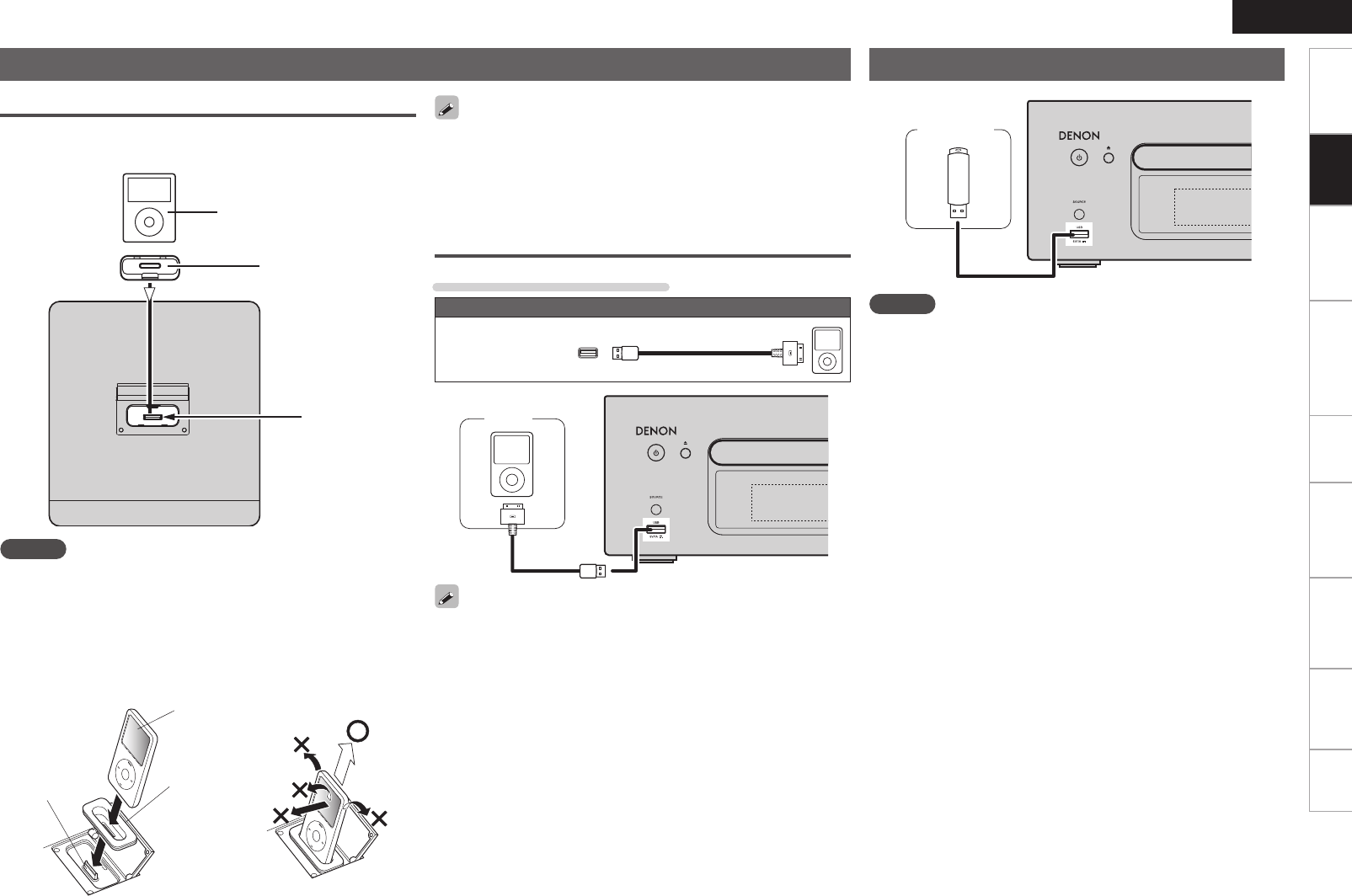
Connecting an iPod
iPod Dock
Open the lid and mount the adapter suited for your iPod onto the dock
adapter included with your iPod.
iPod
Adapter
Dock connector
NOTE
• Please make sure to fi t adaptor to connector part for use with your
iPod.
• When plugging in or unplugging the iPod, please proceed carefully,
adjusting the inclination of the connector so as not to place a burden
upon the connector.
Adapter
iPod
Connector
Loading Dismantling
• Keep the dock for iPod’s lid closed when your iPod is not connected
to prevent any foreign objects from getting inside.
• You can use this unit to perform playback via an iPod (5th generation
or later), iPhone (3GS or earlier), iPod touch, iPod classic, or iPod
nano. For details, check the Web (www.denon.com).
USB port
Cables used for connections
Audio cable (sold separately)
iPod cable
iPod
To connect an iPod to this unit, use the iPod cable supplied with the
iPod.
Connecting a USB memory device
USB
memory
device
NOTE
• A computer can not be connected to and operate the unit via its
USB port.
• Do not use an extension cable when connecting a USB memory
device.
• For details about USB memory devices, see “USB memory device”
(vpage44).
1.RCDN7E3_ENG_008.indd 91.RCDN7E3_ENG_008.indd 9 2010/09/03 11:11:392010/09/03 11:11:39
10
ENGLISH
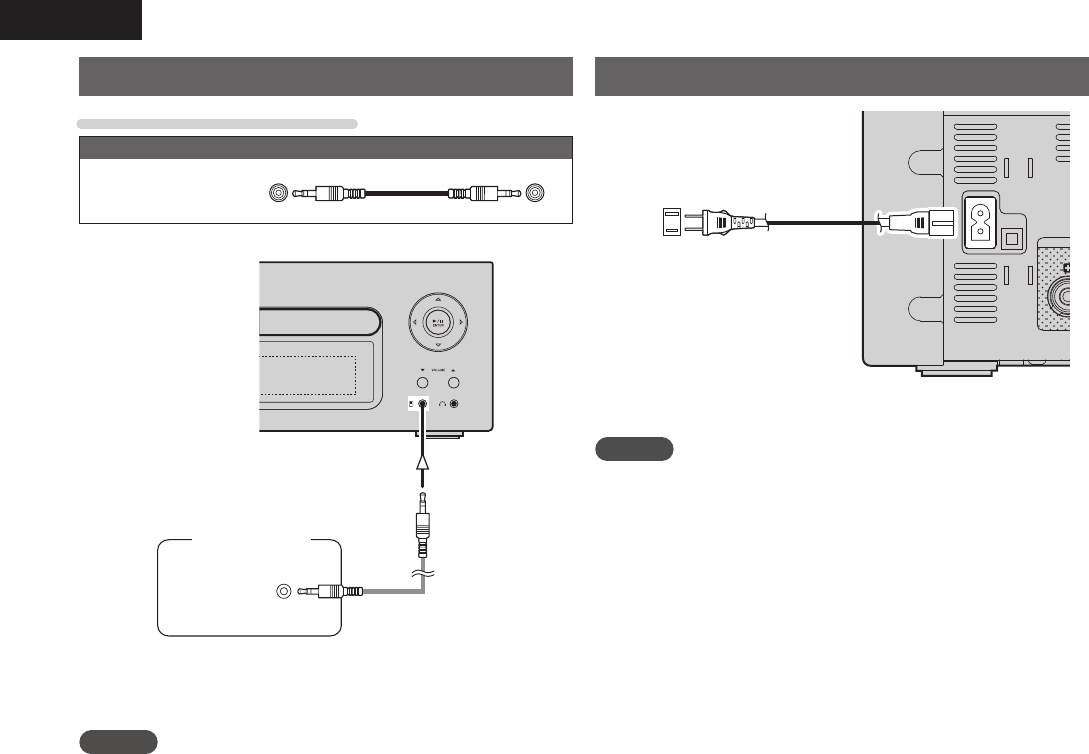
Connecting the power cord
AC IN
Power cord
(Supplied)
To household power outlet
(AC 120 V, 60 Hz)
NOTE
• Only use the supplied power cord.
• Be sure the power cord is unplugged from the power outlet before
connecting or disconnecting it to the AC IN.
Connecting a portable player
Cables used for connections
Audio cable (sold separately)
Stereo
mini-plug
cable
/&5803,$%3&$&*7&33$%/
)&"%1)0/&
Portable
Audio
Connect this unit and portable audio player using a separately sold
mini-stereo audio cable.
NOTE
After you connect a portable audio player, the input source
automatically switches to “Portable In”.
1.RCDN7E3_ENG_008.indd 101.RCDN7E3_ENG_008.indd 10 2010/09/03 11:11:392010/09/03 11:11:39
11
Getting Started ConnectionsConnections
Basic OperationsBasic Operations Advanced Operations TroubleshootingExplanation termsInformation Specifi cations Index
ENGLISH
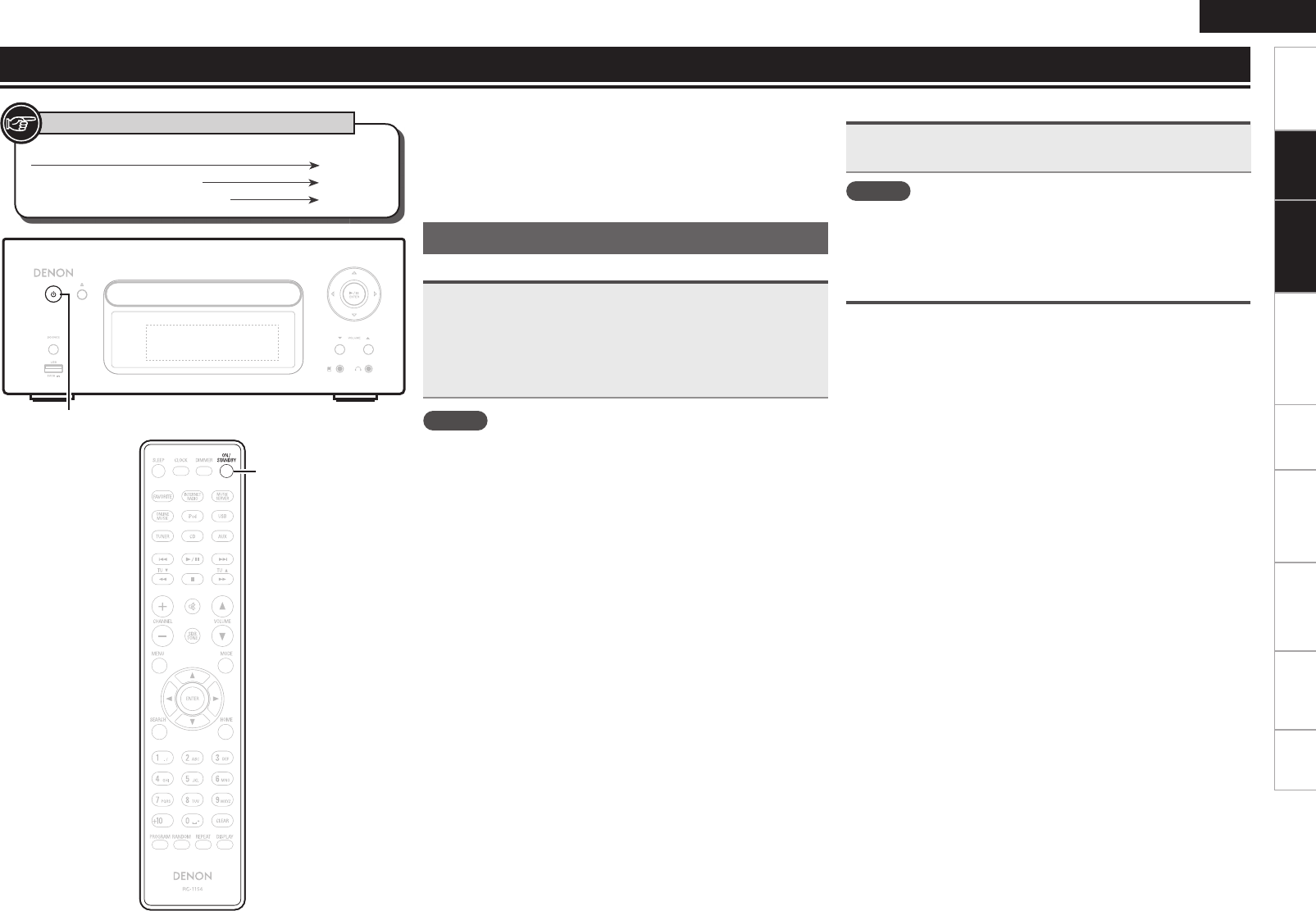
Turning the power off
Press ON/STANDBY.
The power indicator turns off, and so does the power.
NOTE
Be sure to stop playback before turning the power off.
Setting the current time (Auto Adjust)
(12-Hour Display)
• When the unit is connected to the Internet, the current time is set
automatically.
• The default Time Zone setting of this unit is the Eastern Standard
Time zone.
To change the Time Zone and Summer Time, see “Adjusting the
clock automatically [Clock]” (vpage29).
• When the unit is not connected to the Internet, set the current time
manually. See “Setting the current time (Manual Adjust) (12-Hour
Display)” (vpage29).
Button located on both the main unit and the remote control
BUTTON
Button only on the main unit <BUTTON>
Button only on the remote control
[BUTTON]
Symbols used to indicate buttons in this manual
Basic operations
This section provides information on basic operations such as
settings and playback procedures.
For other operations, see the sections below.
nSetting the timer [Timer] (vpage28)
nSetting the others [Other] (vpage35)
Preparations
Turning the power on
Press ON/STANDBY.
• The power turns on. Press again to set the power to standby.
• Power indicator
Standby ...................................Off
Power on .................................Green
When the timer is set .............Orange
NOTE
• When you turn on the power of this unit for the fi rst time after
purchasing it, the Network First Setup menu starts up.
• If you cancelled “Network First Setup” or changed the network
environment, perform “Menu” − “Network” − “Network First
Setup”.
• Power continues to be supplied to some of the circuitry even when
the power is in the standby mode. When leaving home for long
periods of time, either press ON/STANDBY to turn off the power, or
unplug the power cord from the power outlet.
• Be sure to stop playback before turning the power off.
nCompletely turning off the power
Unplug the power cord from the wall outlet.
• Note that the time setting is cleared when the power cord is
unplugged from the outlet.
• The settings made for the various functions may be cleared if the
power cord is left unplugged from a power outlet for an extended
period of time.
/&5803,$%3&$&*7&33$%/
ON/STANDBY
ON/STANDBY
1.RCDN7E3_ENG_008.indd 111.RCDN7E3_ENG_008.indd 11 2010/09/03 11:11:392010/09/03 11:11:39
12
ENGLISH
Button located on both the main unit and the remote control
BUTTON
Button only on the main unit <BUTTON>
Button only on the remote control
[BUTTON]
Symbols used to indicate buttons in this manual Operations possible during playback
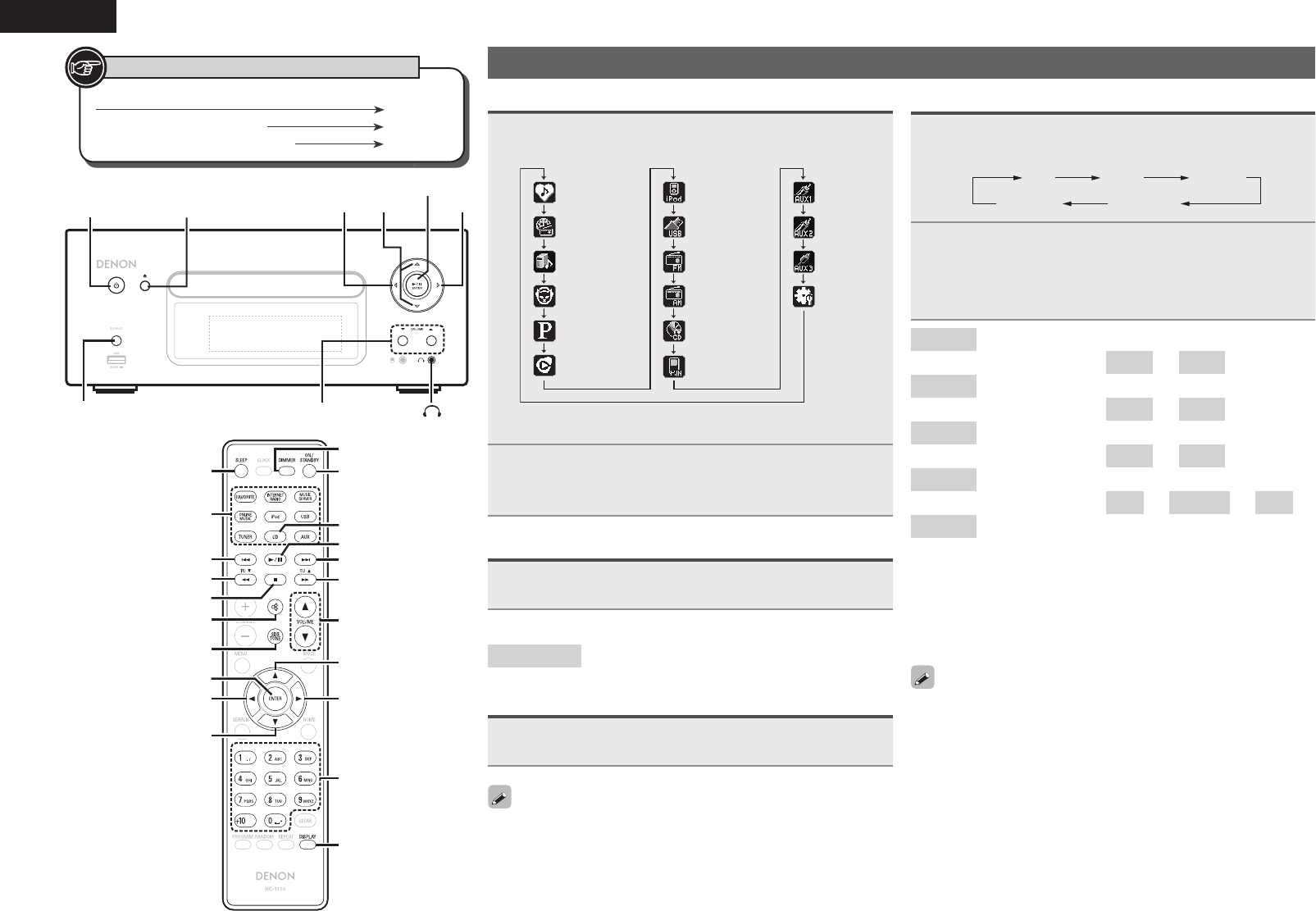
Input source switching
Press <SOURCE> and ui to select the input source,
then press
[ENTER]
, <1/3
ENTER
> or p.
Internet Radio
Music Server
Napster
Pandora
iPod
USB
FM
AM
CD
AUX1
Menu
AUX3(OPT)
AUX2
Favorite
Portable Inz
Rhapsody
z“Portable In” appears only when the portable audio player is
connected to portable in jack.
Press [Input source select] ([FAVORITE], [INTERNET
RADIO], [MUSIC SERVER], [ONLINE MUSIC], [iPod],
[USB], [TUNER], [CD] or [AUX]).
Adjusting the master volume
Press VOLUME df.
The volume level is displayed.
[Adjustable range]
VOLUME 0 - 60 Default is “3”.
Muting the sound
Press [MUTE].
“MUTING” is displayed.
To cancel, press [MUTE] again.
(The mute mode is also canceled when VOLUME df is pressed.)
Adjusting the tone
1
Use [SDB TONE] to select the tone parameter to be
adjusted.
BassSDB
Balance
Treble
S.Direct
2Adjust the volume with o p.
• To make other tone adjustments at this time, press [SDB
TONE].
• If no operation is performed for 5 seconds, the adjustment is
retained and the normal display reappears.
SDB Emphasize the bass sound. (Super Dynamic Bass)
[Selectable modes] ON – OFF
BASS Adjusts the bass sound.
[Variable range] –10dB – +10dB
TREBLE Adjusts the treble sound.
[Variable range] –10dB – +10dB
BALANCE Adjusts the left/right volume balance.
[Variable range] L6 – CENTER – R6
S.DIRECT The tone is not adjusted.
This can also be set using (SOURCE DIRECT).
Settings made upon purchase:
• SDB .......................................OFF
• BASS ..................................... 0dB
• TREBLE ................................. 0dB
• BALANCE .......................CENTER
SDB, BASS and TREBLE can be set simultaneously.
i
o
[6]
[8]
[SDB TONE]
[ENTER]
[MUTE]
[SLEEP]
[Input source select]
u
p
[DISPLAY]
[NUMBER]
VOLUME df
ON/STANDBY
[DIMMER]
[9]
[7]
[1/3]
[CD]
[2]
/&5803,$%3&$&*7&33$%/
VOLUME df
<SOURCE>
o
ui
p
<1/3 ENTER>
<5>ON/STANDBY
< >
1.RCDN7E3_ENG_008.indd 121.RCDN7E3_ENG_008.indd 12 2010/09/03 11:11:402010/09/03 11:11:40
13
Getting Started Connections
Advanced ConnectionsBasic OperationsBasic Operations Advanced Operations TroubleshootingExplanation termsInformation Specifi cations Index
ENGLISH
CD playback
This section explains how to playback CDs.
Before playing a disc
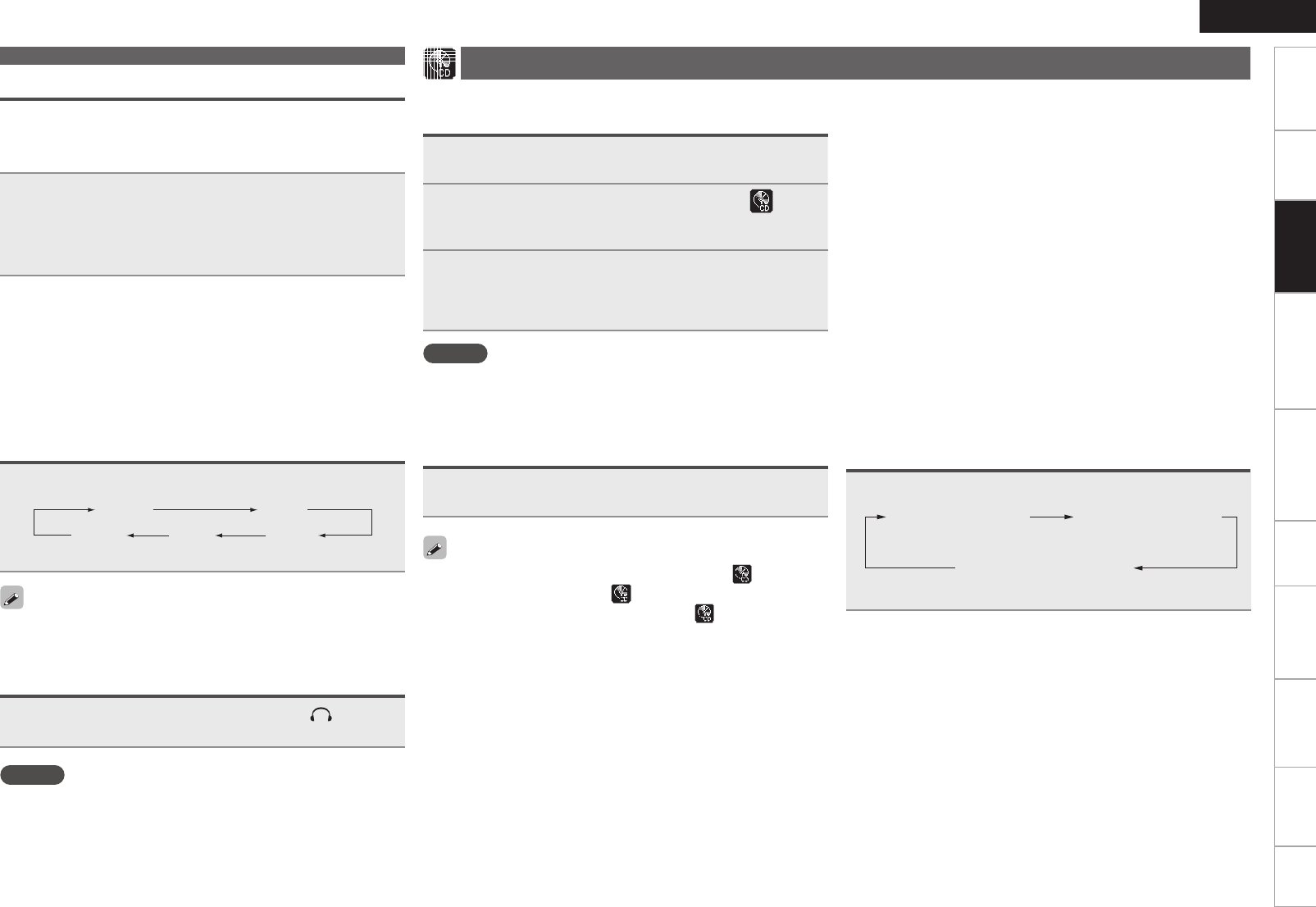
1Press ON/STANDBY.
2Press <SOURCE> and ui to select to “ ”, then
press
[ENTER]
, <1/3
ENTER
> or p, or press [CD].
If no disc is loaded “No Disc” is displayed.
3Insert a disc (vpage 3).
• Press <5> to open/close the disc tray.
• The disc tray also closes when <1/3 ENTER> or [1/3] is
pressed.
NOTE
• Do not place any foreign objects in the disc tray. Doing so could
damage it.
• Do not push the disc tray in by hand when the power is turned off.
Doing so could damage the set.
Playing CDs
Press <1/3
ENTER
> or [1/3].
The “1” indicator lights and playback begins.
• If the input source is set to something other than “ ”, press [CD]
to switch the input source to “ ”.
• The input source can also be switched to “ ” using <SOURCE>
(vpage12).
n Stopping playback
Press [2].
n Stopping playback temporarily
Press <1/3 ENTER> or [1/3].
3 is displayed.
• To resume playback, press <1/3 ENTER> or [1/3].
n Fast-forwarding and fast-reversing (searching)
During playback, press and hold in [6, 7].
n Moving to the beginning of tracks (skipping)
During playback, press [8, 9] or <o p>.
• The disc skips as many tracks as times the button is pressed.
• When you press reverse once, playback returns to the beginning
of the current track.
n To play the desired track (remote control only)
Press [NUMBER] (0 – 9, +10) to select the track.
GExampleH Track 4 : [4]
GExampleH Track 12 : [+10], [2]
GExampleH Track 20 : [+10], [+10], [0]
Switching the display
Press [DISPLAY].
Elapsed time of
current track
Remaining time
of current track
Remaining time for
all remaining tracks
• The display switches each time the button is pressed.
Setting the sleep timer
Use this function to automatically switch the power to the standby
mode after a specifi c amount of time (minutes).
The sleep timer can be set to up to 90 minutes, in steps of 10 minutes.
Press [SLEEP] during playback and select the setting
time.
• Press the button to select the setting time.
• After about 5 seconds, the setting is entered and the display
returns to as it was before.
nCanceling the sleep timer
Either press [SLEEP] to select “Sleep1OFF” or press ON/
STANDBY.
nTo check the time remaining until the sleep
timer is activated
Press [SLEEP].
Switching the display’s brightness
Press [DIMMER].
100% 75%
50%25%Off
• The display’s brightness switches each time the button is pressed.
If you operate the buttons when the display’s brightness is set to
“Off”, the display temporarily lights at 25% brightness level.
Listening with headphones
Plug the headphones (sold separately) into < >.
• The sound from the speakers is automatically cut off.
NOTE
To prevent hearing loss, do not raise the volume level excessively
when using headphones.
Operations possible during playback
1.RCDN7E3_ENG_008.indd 131.RCDN7E3_ENG_008.indd 13 2010/09/03 11:11:412010/09/03 11:11:41
14
ENGLISH
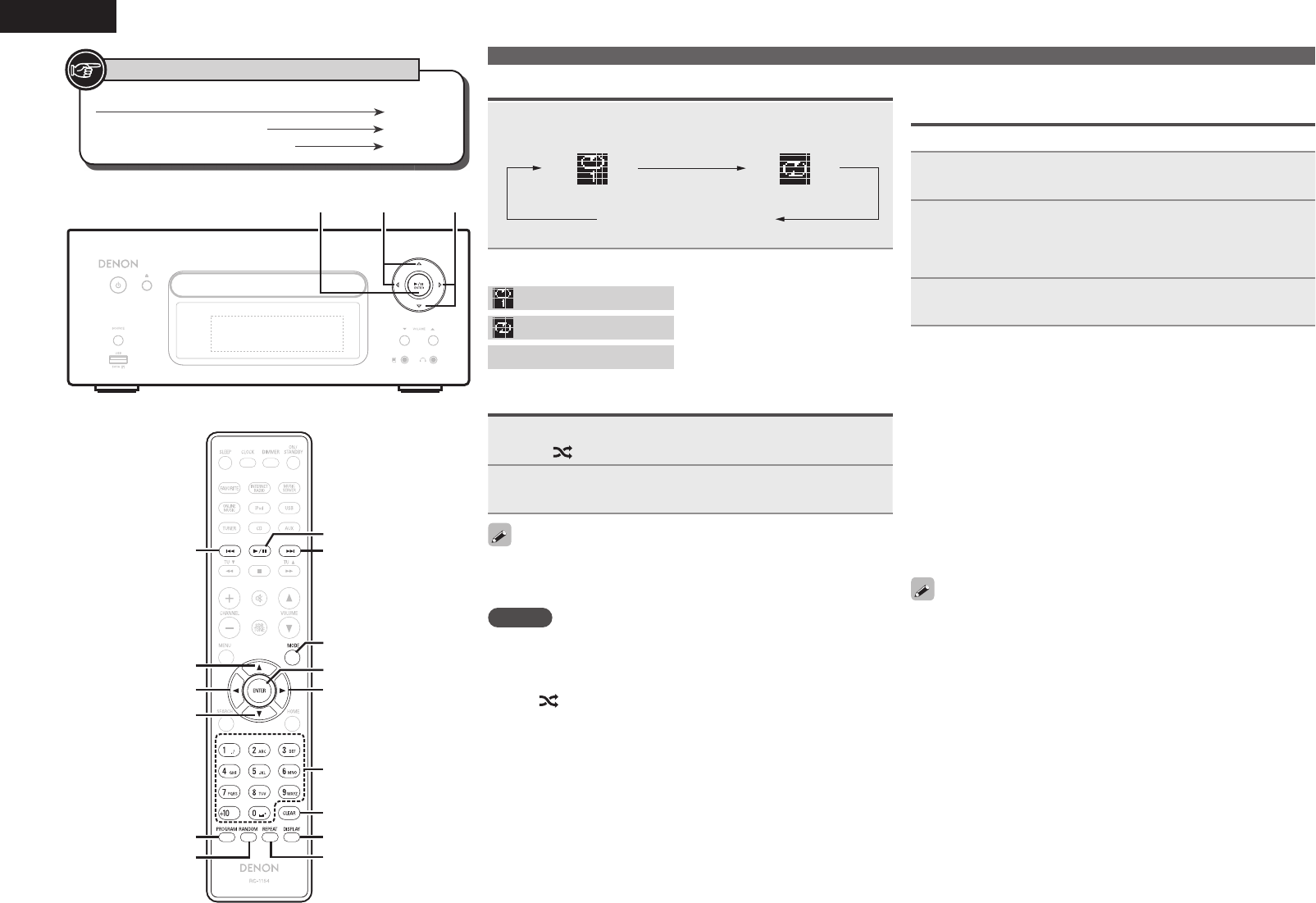
Playing repeatedly (Repeat playback)
Press [REPEAT].
Playback in the respective repeat mode starts.
Single-track repeat All-track repeat
Repeat off
(indicator turns off)
[Selectable items]
1 (Single-track repeat) Only 1 track plays repeatedly.
ALL (All-track repeat) All tracks play repeatedly.
Repeat off (indicator turns off) Normal playback resumes.
Playing random order (Random playback)
1In the stop mode, press [RANDOM].
The “ ” is displayed.
2Press <1/3
ENTER
> or [1/3].
The tracks start playing in random order.
If [REPEAT] is pressed during random playback, after the current
session of random playback is fi nished, another session in a different
order of tracks starts.
NOTE
Random play cannot be set or canceled during playback.
nCanceling random playback
While stopped, press [RANDOM].
The “ ” turns off.
CD playback
Button located on both the main unit and the remote control
BUTTON
Button only on the main unit <BUTTON>
Button only on the remote control
[BUTTON]
Symbols used to indicate buttons in this manual
[1/3]
o
i
u
[8]
p
[PROGRAM] [DISPLAY]
[CLEAR]
[RANDOM] [REPEAT]
[ENTER]
[NUMBER]
[MODE]
[9]
/&5803,$%3&$&*7&33$%/
o
u
p
i
<1/3 ENTER>
Playing tracks in the desired order
(Program playback)
Up to 25 tracks can be programmed.
1In the stop mode, press [PROGRAM].
“Program” is displayed.
2Use [NUMBER] (0 – 9, +10) to select the tracks.
GExampleH To program tracks 3, 12, 7 to play in that order:
Press [PROGRAM], [3], [+10], [2], [7].
3Press <1/3
ENTER
> or [1/3].
Playback starts in the programmed order.
nChecking the order of the programmed tracks
In the stop mode, press [9].
The track numbers are displayed in the programmed order each
time the button is pressed.
nTo clear the last track programmed
In the stop mode, press [CLEAR].
The last track programmed is cleared each time the button is pressed.
n To clear one programmed track at a time
In the stop mode, press [9] to select the track to be cleared,
then press [CLEAR].
nClearing the all programmed track
In the stop mode, press [PROGRAM].
• If [REPEAT] is pressed during program playback, the tracks are
played repeatedly in the programmed order.
• If [RANDOM] is pressed during program playback, the programmed
tracks are played in random order.
• The program is cleared when the disc tray is opened or the power
is turned off.
1.RCDN7E3_ENG_008.indd 141.RCDN7E3_ENG_008.indd 14 2010/09/03 11:11:422010/09/03 11:11:42
15
Getting Started Connections
Advanced ConnectionsBasic OperationsBasic Operations Advanced Operations TroubleshootingExplanation termsInformation Specifi cations Index
ENGLISH
MP3 and WMA fi les playback
This section explains how to playback MP3 and WMA fi les
that are recorded onto a CD-R or CD-RW. For details on how to
playback fi les recorded onto media other than CD-R or CD-RW,
see the following sections.
nPortable audio player playback (vpage25)
nUSB memory device playback (vpage18)
niPod® playback (vpage17)
nMP3 and WMA formats (vpage43)
There are many music distribution sites on the Internet allowing you
to download music fi les in MP3 or WMA (Windows Media® Audio)
format. The music (fi les) downloaded from such sites can be stored
on CD-R or CD-RW discs and played on this unit.
“Windows Media” and “Windows” are registered trademarks or
trademarks in the United States and other countries of Microsoft
Corporation of the United States.
Playing fi les
1Load a CD-R or CD-RW disc containing music
fi les in the MP3 or WMA format into the disc tray
(vpage 3).
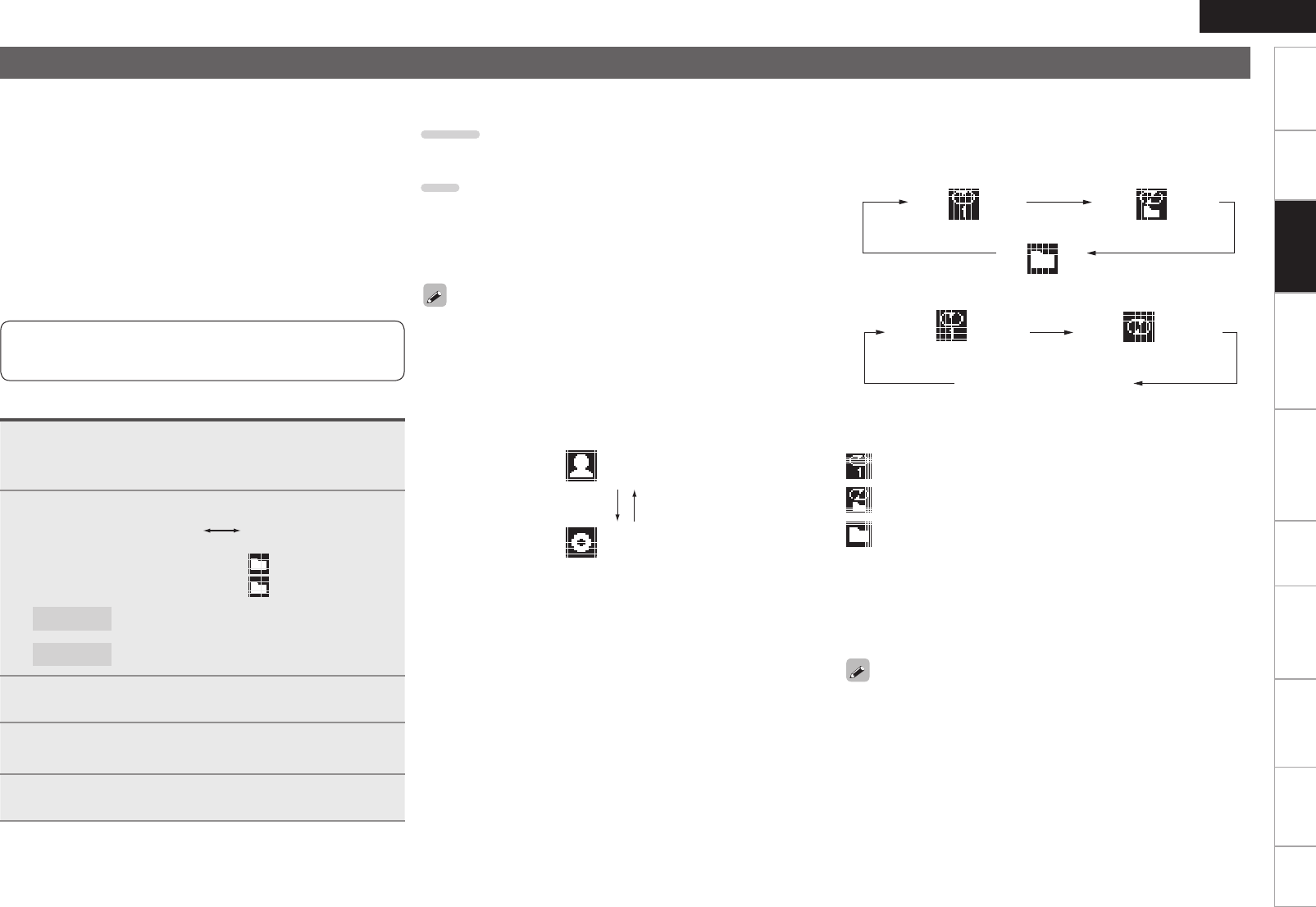
2Press [MODE] and select “Folder” or “Disc”.
Folder Disc
GAbout the displayH
When “Folder” is selected ..............“ ” is displayed.
When “Disc” is selected ................. “ ” turns off.
Folder All the fi les in the selected folder are played.
Disc After the selected folder and fi les are played, all
the fi les in all the folders are played.
3Use ui to select the folder to be played.
4Use [8, 9] or o p to select the fi le to be
played.
5Press [1/3], [ENTER] or <1/3
ENTER
>.
n To switch the folder or fi le during playback
Folder
Use ui to select the folder, then press [ENTER] or <1/3 ENTER>.
File
Use o p to select the fi le, then press [ENTER] or <1/3 ENTER>.
Also use [8, 9] to select the fi le, or use [NUMBER] (0 – 9, +10)
to select the fi le number.
• The folder and fi le numbers are set automatically when the disc is
loaded.
• Copyright-protected fi les cannot be played.
• Depending on the application software used for writing, it may not
be possible to write the data properly.
• Depending on the disc’s recording conditions, it may not be possible
to play some discs properly.
n Switching the display
During playback, press [DISPLAY].
Artist name
Album name
n To play repeatedly
Press [REPEAT].
Playback starts in the respective repeat mode.
• The selectable repeat modes differ in the “Folder” and the
“Disc”.
When “Folder” is selected:
Single-track repeat Repeat of all the tracks
in the folder
Repeat off
When “Disc” is selected:
Single-track repeat All-track repeat
Repeat off
(turns off)
[Selectable items]
When “Folder” is selected:
Only the selected track is played repeatedly.
All the fi les in the selected folder are played repeatedly.
Folder playback resumes.
When “Disc” is selected:
“Playing repeatedly (Repeat playback)” (vpage14)
nSetting random playback
“Playing random order (Random playback)” (vpage14)
Programmed playback is not possible with MP3/WMA discs.
1.RCDN7E3_ENG_008.indd 151.RCDN7E3_ENG_008.indd 15 2010/09/03 11:11:422010/09/03 11:11:42
16
ENGLISH
Automatically presetting FM stations
(Auto preset)
This unit can be preset with a total of 99, FM and AM broadcast
stations.
NOTE
Auto preset is not possible with AM broadcast stations.
n Auto presetting with the remote control
Perform this operation when tuned to an FM broadcast station.
1Press [SEARCH].
“Search” menu appears.
2Use ui to select “Auto Preset” – “Start”, then
press [ENTER], <1/3
ENTER
> or p.
After “Searching“ is displayed, “Complete“ is displayed.
Canceling auto presetting
Press [2].
Broadcast stations whose antenna signal are weak cannot be preset
automatically. If you wish to preset such stations, tune them in
manually.
NOTE
When the auto presetting operation is performed, the new presettings
overwrite the previous presettings.
n Giving station names to preset channels
Names of up to 8 characters can be input.
1Tune in the preset channel you want to name.
2Press and hold [ENTER] or <1/3
ENTER
>.
The display switches to the station name input display.
3Input the station name.
“Inputting characters” (vpage36)
4Press [ENTER] or <1/3
ENTER
>.
The characters you have input are entered.
• To give names to other stations, repeat steps 1 to 4.
Tuner playback
Tuning in Broadcast Stations
Connect the antenna beforehand (vpage7).
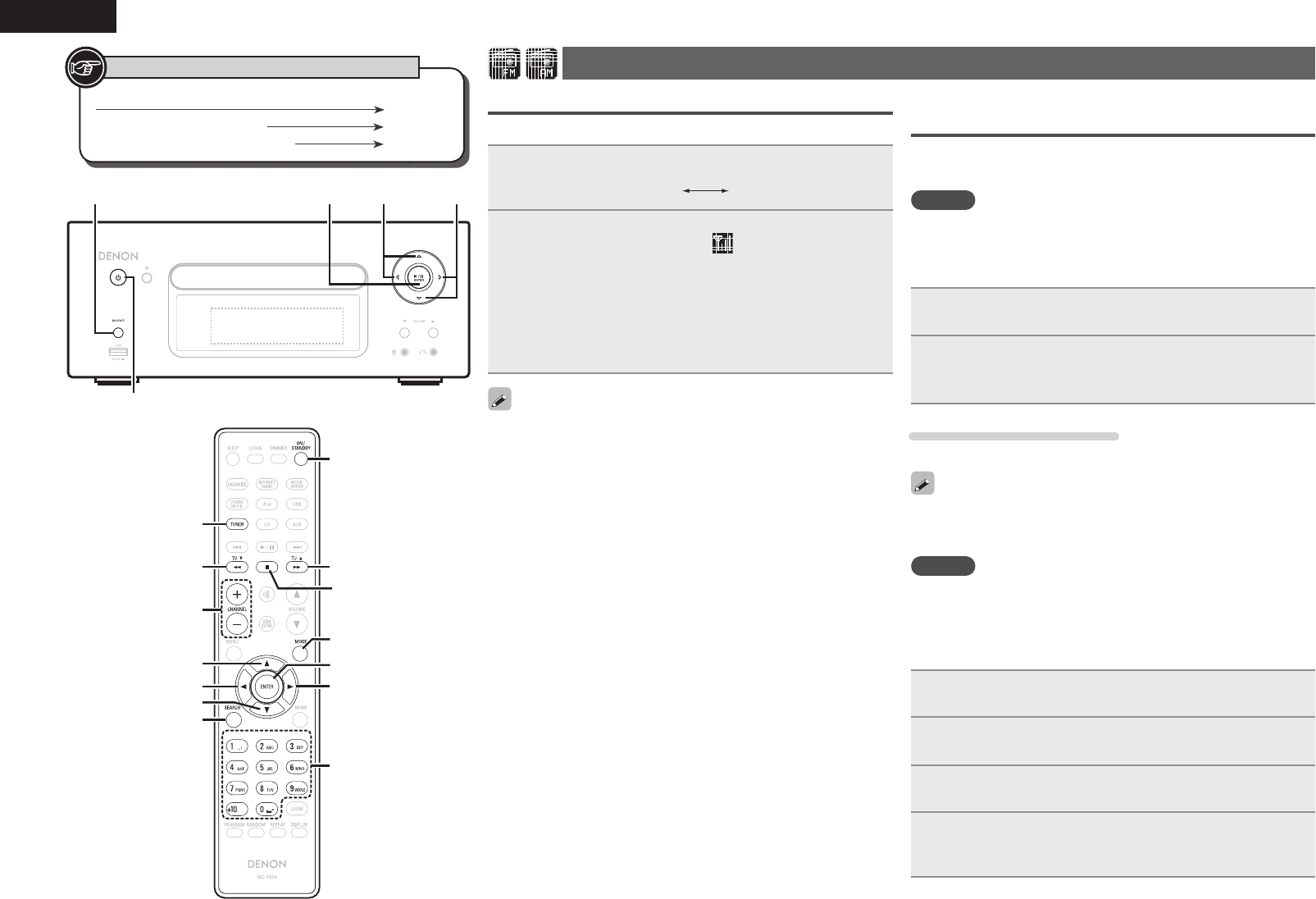
1Press [TUNER] to select the reception band.
AM FM
2Tune in the desired broadcast station. (FM/AM only)
When a station is received, the “ ” will light.
q To tune in automatically (Auto tuning)
Press [MODE] to light the “AUTO” indicator on the display, then
use [TU d, TU f] to select the station you want to hear.
w To tune in manually (Manual tuning)
Press [MODE] to turn off the display’s “AUTO” indicator, then use
[TU d, TU f] to select the station you want to hear.
• If the input source is set to something other than “TUNER”, press
[TUNER] to switch the input source to “TUNER”.
• The input source can also be switched to “FM” or “AM” using
<SOURCE> (vpage12).
• If the desired station cannot be tuned in with auto tuning, tune it in
manually.
• When tuning in stations manually, press and hold [TU d, TU f] to
change frequencies continuously.
• A humming sound may be heard when using a TV nearby while
receiving AM programs. If this happens, move the system as far
from the TV as possible.
nTo stop auto tuning
Press [TU d, TU f].
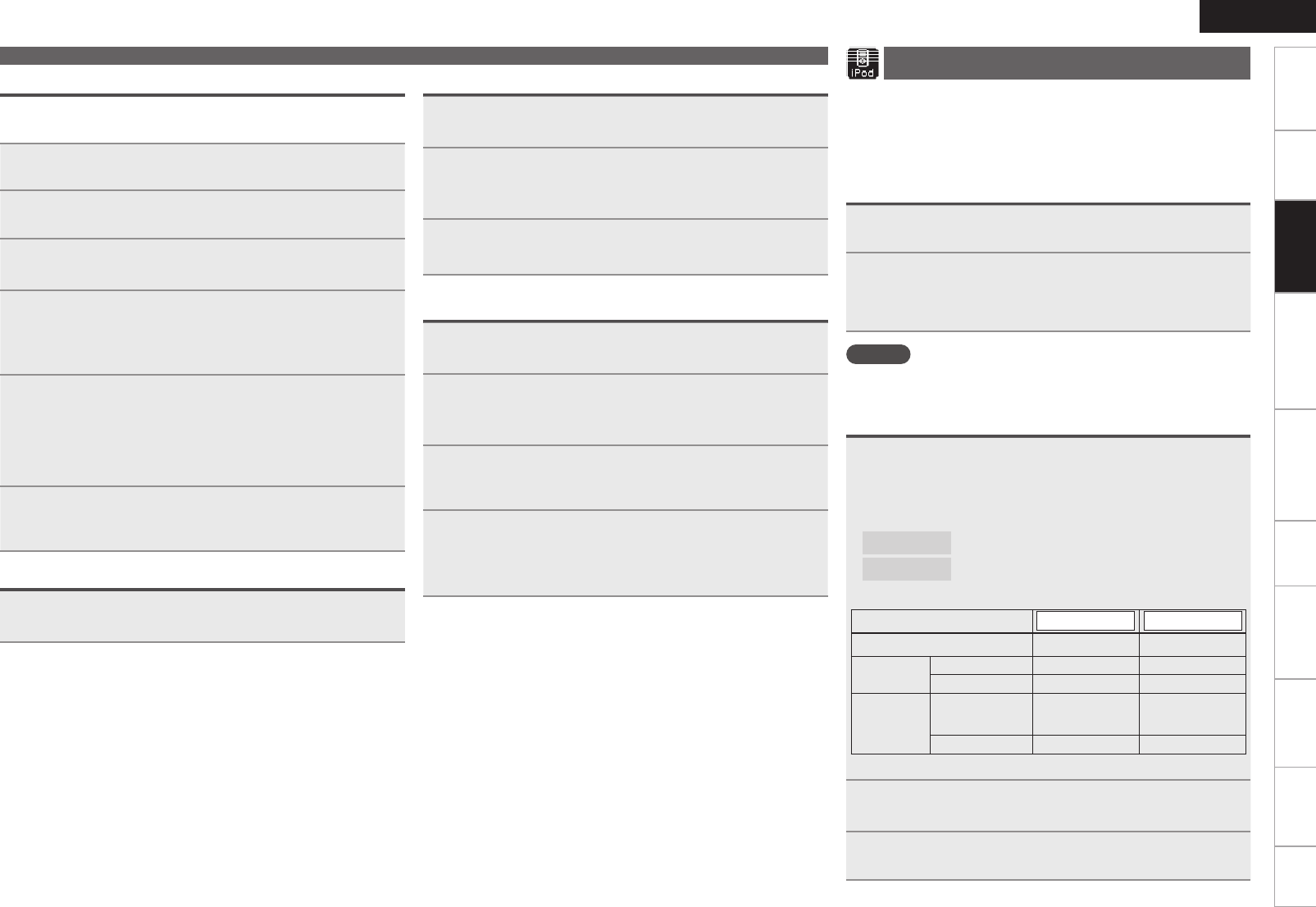
Button located on both the main unit and the remote control
BUTTON
Button only on the main unit <BUTTON>
Button only on the remote control
[BUTTON]
Symbols used to indicate buttons in this manual
o
i
u
p
[SEARCH]
[TUNER]
[CHANNEL +
-
]
[2]
[NUMBER]
[MODE]
[ENTER]
[TUf][TUd]
ON/STANDBY
/&5803,$%3&$&*7&33$%/
p
i
<1/3 ENTER><SOURCE> o
u
ON/STANDBY
1.RCDN7E3_ENG_008.indd 161.RCDN7E3_ENG_008.indd 16 2010/09/03 11:11:432010/09/03 11:11:43
17
Getting Started Connections
Advanced ConnectionsBasic OperationsBasic Operations Advanced Operations TroubleshootingExplanation termsInformation Specifi cations Index
ENGLISH
Presetting FM/AM stations manually
This unit can be preset with a total of 99 FM and AM broadcast
stations.
1Tune in the station you want to preset.
2Press [ENTER] or <1/3
ENTER
>.
“Preset” menu appears.
3Use ui to select “Add to Preset”, then press
[ENTER], <1/3
ENTER
> or p.
4Use ui to select the number to be preset, then press
[ENTER] or <1/3
ENTER
>.
The reception frequency and reception mode are preset and the
display switches to the station name input display.
5Input the station name.
“Inputting characters” (vpage36)
• If you do not want to input a station name, press [ENTER] or
<1/3 ENTER> without inputting anything else.
• If you make a mistake when inputting, perform the procedure
again. Whatever was previously input is overwritten.
6Press [ENTER] or <1/3
ENTER
>.
The characters you have input are entered.
• To give names to other stations, repeat steps 1 to 5.
Listening to preset stations
Use [NUMBER] (0 – 9, +10) or [CHANNEL + –] to select
the preset number.
Tuner playback
Calling stations registered in Preset List
1Press [ENTER/] or <1/3
ENTER
>.
“Preset” menu appears.
2Use ui to select “Call Preset”, then press [ENTER],
<1/3
ENTER
> or p.
The Preset list appears.
3Use ui to select Preset List, then press [ENTER],
<1/3
ENTER
> or p.
Deleting stations registered in Preset List
1Press [ENTER] or <1/3
ENTER
>.
“Preset” menu appears.
2Use ui to select “Delete Preset”, then press
[ENTER], <1/3
ENTER
> or p.
The Preset list appears.
3Use ui to select Preset List, then press [ENTER],
<1/3
ENTER
> or p.
4When the prompt “Delete?” appears, press [ENTER]
or <1/3
ENTER
>.
• To cancel the operation, press o.
iPod® playback
With this unit, you can listen to music on an iPod. It is also possible to
operate the iPod from the main unit or remote control.
For the supported iPod models, see “Connecting an iPod” (vpage9).
niPod® (vpage43)
Before playing an iPod
1Press ON/STANDBY.
2Load the iPod onto the iPod dock of this unit.
When the iPod is loaded to the iPod dock on this unit, the
input source automatically switches to “iPod” and fi le playback
begins.
NOTE
This function is activated around 1 or 2 minutes after the power is
turned on.
Playing an iPod
1Press [MODE] to select the display mode.
The mode switches each time the button is pressed.
• There are two modes for displaying the contents recorded on the
iPod.
Browse mode Display iPod information on the display of this unit.
Remote mode Display iPod information on the iPod screen.
• “Remote iPod” is displayed on the display of this unit.
Display mode Browse mode Remote mode
Display location Main unit display iPod display
Playable
fi les
Audio fi le 3 3
Video fi le 3
Active
buttons
Remote control
and main unit 3 3
iPod®3
• The default display mode setting is “Browse mode”.
2Use ui to select the item, then press [ENTER] or
<1/3
ENTER
> to select the music fi le to be played.
3Press [1/3] or <1/3
ENTER
>.
Playback starts.
1.RCDN7E3_ENG_008.indd 171.RCDN7E3_ENG_008.indd 17 2010/09/03 11:11:432010/09/03 11:11:43
18
ENGLISH
NOTE
• iPod nano 1G and iPod video do not have remote mode support.
• DENON will accept no responsibility whatsoever for any loss of iPod
data.
• Depending on the type of iPod and the software version, some
functions may not operate.
n Remote control and iPod button relations
Remote control
buttons iPod buttons Operation on this unit
1/313
Play the track / Pause the track.
8, 98, 9Play the track from the beginning/Play the
next track.
6, 7
Press and hold
8, 9
Press and hold
Fast-reverse the track/Fast-forward the
track.
u, iClick Wheel Select an item.
ENTER or pSelect Enter the selection or plays the track.
MODE –Switch between the browse mode and
the remote mode.
REPEAT – Switch the repeat function
RANDOM – Switch the shuffl e function
oMENU Display the menu or return to the previous
menu.
2– Stop the track.
HOME – Return to top menu (in Browse mode)
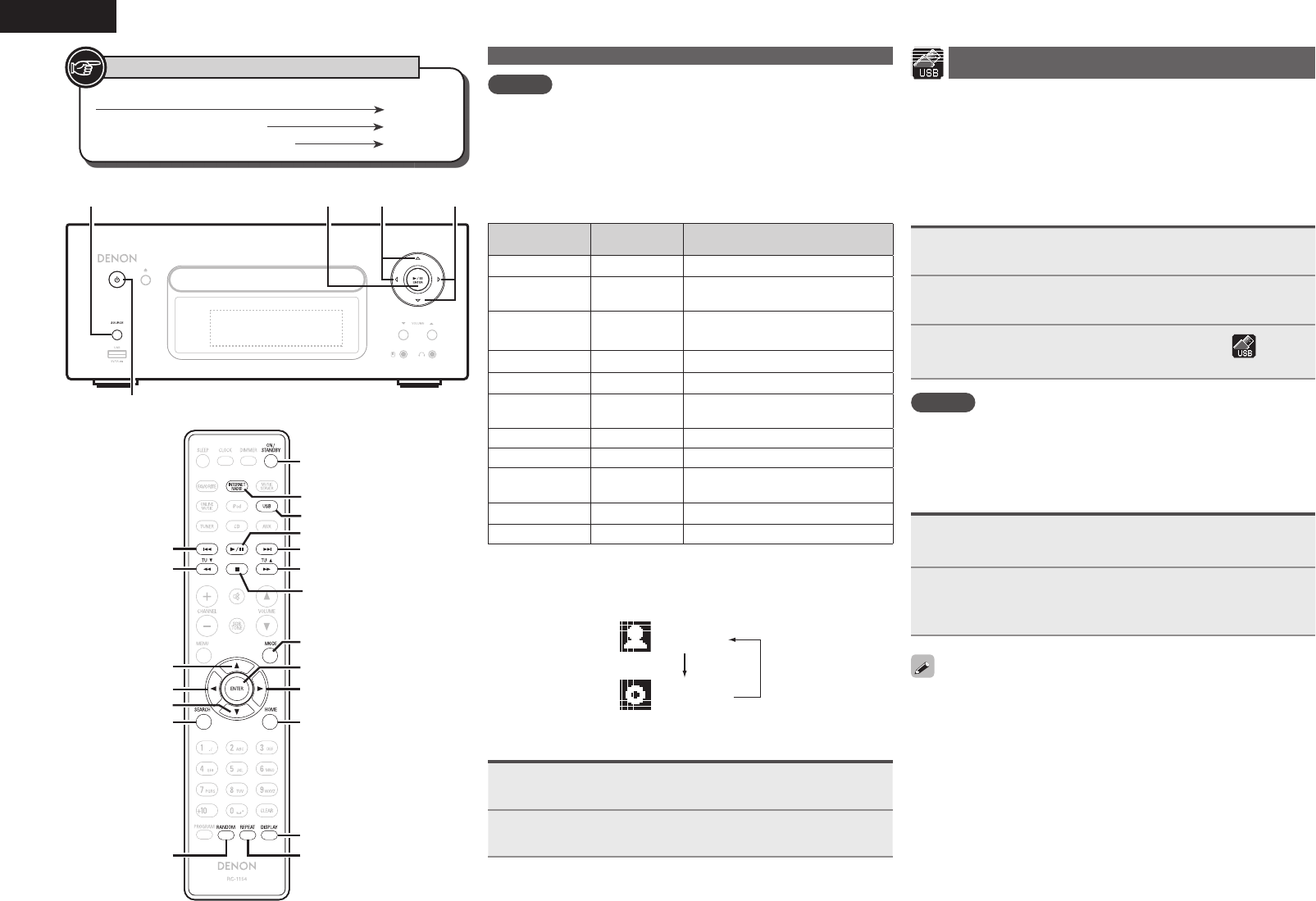
n To switch the display
During playback, press [DISPLAY].
The display switches each time the button is pressed.
Artist name
Album name
Disconnecting the iPod
1Press ON/STANDBY to set the standby mode.
2Remove the iPod from the iPod dock of this unit.
Button located on both the main unit and the remote control
BUTTON
Button only on the main unit <BUTTON>
Button only on the remote control
[BUTTON]
Symbols used to indicate buttons in this manual
u
p
[ENTER]
i
[SEARCH]
[6][7]
[MODE]
[8][9]
[2]
ON/STANDBY
[INTERNET RADIO]
[USB]
[1/3]
[RANDOM] [REPEAT]
o
[DISPLAY]
[HOME]
/&5803,$%3&$&*7&33$%/
p
i
<1/3 ENTER><SOURCE> o
u
ON/STANDBY
USB memory device playback
Playing back music or fi les recorded on a USB memory device or an
iPod.
nUSB memory device (vpage44)
nPlaying an iPod (vpage17)
Before playing a USB memory device or an
iPod
1Press ON/STANDBY.
2Connect USB memory device or iPod connection
cable.
3Press <SOURCE> and ui to select to “ ” , then
press
[ENTER]
, <1/3
ENTER
> or p, or press [USB].
NOTE
This function is activated around 1 or 2 minutes after the power is
turned on.
Playing fi les stored on USB memory
devices
1Press ui to select the search item or folder, then
press [ENTER], <1/3
ENTER
> or p.
2Press ui to select the fi le, then press [ENTER],
<1/3
ENTER
>, p or [1/3].
Playback starts.
• If the USB memory device is divided into multiple partitions, only the
top partition can be selected.
• This unit is compatible with MP3 fi les conforming to “MPEG-1 Audio
Layer-3” standards.
iPod® playback
1.RCDN7E3_ENG_008.indd 181.RCDN7E3_ENG_008.indd 18 2010/09/03 11:11:442010/09/03 11:11:44
19
Getting Started Connections
Advanced ConnectionsBasic OperationsBasic Operations Advanced Operations TroubleshootingExplanation termsInformation Specifi cations Index
ENGLISH
NOTE
• Note that DENON will accept no responsibility whatsoever for any
problems arising with the data on a USB memory device when using
this unit in conjunction with the USB memory device.
• USB memory devices will not work via a USB hub.
• DENON does not guarantee that all USB memory devices will
operate or be supplied power. When using a USB portable hard disk
that can draw power from an AC adapter, we recommend using the
AC adapter.
• It is not possible to connect and use a computer via the USB port of
this unit using a USB cable.
n USB operation
Operation buttons Operation on this unit
1/3Play the track / Pause the track.
8, 9Play the track from the beginning/Play the next track.
u, iSelect an item.
ENTER or pEnter the selection or plays the track.
REPEAT Switch the repeat function
oDisplay the menu or return to the previous menu.
2Stop the track.
SEARCH Character searchz
HOME Return to top menu
• Playing repeatedly (Repeat playback) (vpage14)
z Press [SEARCH], then press o p to select the fi rst letter you want
to search mode.
If the list is not in alphabetical order, you may not be able to
perform a character search.
nTo switch the display
During playback, press [DISPLAY].
Artist name
Album name
File type/Bitrate
USB memory device playback Network audio playback
Follow this procedure to play Internet radio stations or music fi les
stored on a computer.
nAbout the internet radio function (vpage45)
nMusic server (vpage45)
nAbout Napster (vpage45)
nAbout Pandora (vpage45)
nAbout Rhapsody (vpage45)
Listening to internet radio
1Prepare for playback.
q Check the network environment, then turn on this unit’s
power (vpage11 “Turning the power on”).
w If settings are required, make the “Setting the network
[Network]” (vpage30).
2Press [INTERNET RADIO].
3Press ui to select the item you want to play, then
press [ENTER], <1/3
ENTER
> or p.
4Repeat step 3 until the station list is displayed.
The station list is displayed.
5Press ui to select the station, then press [ENTER],
<1/3
ENTER
> or p.
Playback starts once buffering reaches “100%”.
• There are many Internet radio stations on the Internet, and the
quality of the programs they broadcast as well as the bit rate of the
tracks varies widely.
Generally, the higher the bit rate, the higher the sound quality, but
depending on the communication lines and server traffi c, the music
or audio signals being streamed may be interrupted. Inversely, lower
bit rates mean a lower sound quality but less tendency for the sound
to be interrupted.
• “Server Full” or “Connection Down” is displayed if the station is
busy or not broadcasting.
• On this unit, folder and fi le names can be displayed as titles. Any
characters that cannot be displayed are replaced with “.” (period).
• When [DISPLAY] is pressed, the display can be switched between
the fi le type/bitrate and radio station name.
n Switching the display
1Press [DISPLAY] during Internet radio reception.
2The broadcast station information and signal format
bit rate are displayed.
nRecently played internet radio stations
Recently played internet radio stations can be selected from
“Recently Played”.
Up to 20 stations stored in “Recently Played”.
1Press ui to select “Recently Played”, then press
[ENTER], <1/3
ENTER
> or p.
2Press ui to select the item you want to play, then
press [ENTER], <1/3
ENTER
> or p.
nSearching stations by keyword
(Alphabetic strings)
1Press ui to select “Search by Keyword”, then press
<1/3
ENTER
> or p.
• For character input, see page 36.
2Input the characters, then press [ENTER] or <1/3
ENTER
>.
n Registering internet radio stations as your
favorites
You can register your favorite broadcast stations in Favorite List.
(vpage26)
1.RCDN7E3_ENG_008.indd 191.RCDN7E3_ENG_008.indd 19 2010/09/03 11:11:452010/09/03 11:11:45
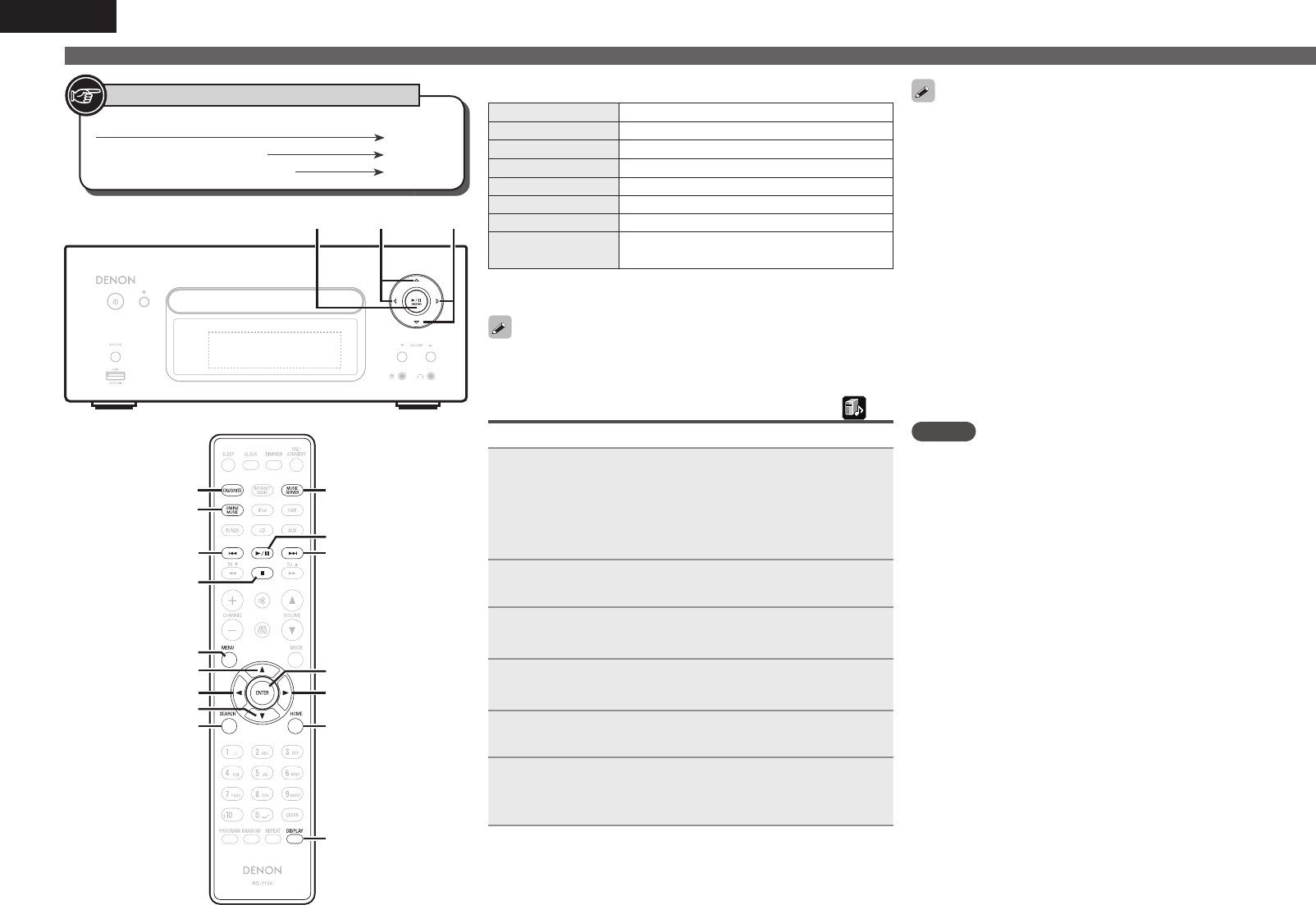
20
ENGLISH
Button located on both the main unit and the remote control
BUTTON
Button only on the main unit <BUTTON>
Button only on the remote control
[BUTTON]
Symbols used to indicate buttons in this manual
u
p
[ENTER]
i
[SEARCH]
[MENU]
[DISPLAY]
o
[MUSIC SERVER]
[HOME]
[2]
[1/3]
[8][9]
[FAVORITE]
[ONLINE MUSIC]
/&5803,$%3&$&*7&33$%/
p
i
<1/3 ENTER> o
u
n Internet radio operation
Operation buttons Function
MENU Menu
uio pCursor operation
ENTER Enter
SEARCH Character searchz
HOME Return to top page
2Stop
FAVORITE Register or call your favorite broadcast station in
Favorite List, and delete the station from the list.
z Press [SEARCH], then press o p to select the fi rst letter you want
to search mode.
If the list is not in alphabetical order, you may not be able to perform
a character search.
Playing fi les stored on a music server
Use this procedure to play music fi les or playlists.
1Prepare for playback.
q Check the network environment, then turn on this unit’s
power (vpage11 “Turning the power on”).
w If settings are required, make the “Setting the network
[Network]” (vpage30).
e Prepare the computer (vpage45 “Music server”).
2Press [MUSIC SERVER].
3Press ui to select the server including the fi le to
be played, then press [ENTER], <1/3
ENTER
> or p.
4Press ui to select the search item or folder, then
press [ENTER], <1/3
ENTER
> or p.
5Repeat step 4 until the fi le is displayed.
6Press ui to select the fi le, then press [ENTER],
<1/3
ENTER
> or p.
Playback starts once buffering reaches “100%”.
• Connections to the required system and specifi c settings must be
made in order to play music fi les (vpage8).
• Before starting, you must launch the computer’s server software
and set the fi les as server contents. For details, see the operating
instructions of your server software.
• The order in which the tracks/fi les are displayed depends on
the server specifi cations. If the tracks/ fi les are not displayed in
alphabetical order due to the server specifi cations, searching by the
fi rst letter may not work properly.
• WMA Lossless fi les can be played when using a server supporting
transcoding, such as Windows Media Player Ver. 11.
• Use [DISPLAY] to switch between displaying the artist name, fi le
type/bitrate or album name.
nPlaying fi les that have been registered in your
favorites
Files can be preset, registered in your favorites and played using
the same operations as for Internet radio stations (vpage26).
NOTE
• When the operations described below is performed, the music
server’s database is updated and it may no longer be possible to
play preset or favorite music fi les.
• When you quit the music server and then restart it.
• When music fi les are deleted or added on the music server.
• When using an ESCIENT server, place “ESCIENT” before the server
name.
• You cannot perform the preset registration.
Playing a network audio
1.RCDN7E3_ENG_008.indd 201.RCDN7E3_ENG_008.indd 20 2010/09/03 11:11:452010/09/03 11:11:45
21
Getting Started Connections
Advanced ConnectionsBasic OperationsBasic Operations Advanced Operations TroubleshootingExplanation termsInformation Specifi cations Index
ENGLISH
Playing a network audio
n Music server operation
Operation buttons Function
MENU Menu
uio pCursor operation / Auto search (cue, ui)
ENTER Enter
SEARCH Character searchz
HOME Return to top page
1/3Playback / Pause
8 9 Auto search (cue)
2Stop
FAVORITE Register or call your favorite fi le in Favorite List, and
delete fi le from the list.
• Playing repeatedly (Repeat playback) (vpage14)
• Playing random order (Random playback) (vpage14)
z Press [SEARCH], then press o p to select the fi rst letter you want
to search mode.
If the list is not in alphabetical order, you may not be able to
perform a character search.
Listening to Napster
Napster is not available in all countries.
1Prepare for playback.
q Check the network environment, then turn on this unit’s
power (vpage11 “Turning the power on”).
w If settings are required, make the “Setting the network
[Network]” (vpage30).
2Press [ONLINE MUSIC] and select “Napster”.
3Use ui p to input “Username” and “Password”.
• For character input, see page 36.
4After inputting the “Username” and “Password”,
select “login”, then press [ENTER] or <1/3
ENTER
>.
If the “Username” and “Password” match, the top menu for
Napster is displayed.
NOTE
• The password should be no longer than 99 characters.
• Press [HOME] to cancel the input.
nSearching from Napster menu
1Use ui to select search item or folder, then press
[ENTER], <1/3
ENTER
> or p.
2Repeat step 1 until the track is displayed.
3Use ui to select the track item, then press [ENTER],
<1/3
ENTER
> or p.
nEntering a character search for the track you
want to listen to
1Press [SEARCH].
• You can search by artist name, album name or track name in menu
list.
• You cannot perform search on the playback screen.
2Use ui to select the search item, then press
[ENTER], <1/3
ENTER
>.
The search display appears.
• For character input, see page 36.
3Input the characters, then press [ENTER] or <1/3
ENTER
>.
nRegistering tracks in my Napster library
1Press p while the track you wish to register is playing.
“Add to my library?” appears.
2Press [ENTER], <1/3
ENTER
> or p.
The track is entered in the Library.
When you press o, the registration is cancelled and the display
returns to the previous page.
Listening to tracks registered in my Napster library
1Use ui to select “My Napster Library”, then press
[ENTER], <1/3
ENTER
> or p.
2Use ui to select the information or track, then
press [ENTER], <1/3
ENTER
>.
Use [DISPLAY] to switch between displaying the artist name, fi le
type/bitrate or album name.
nNapster operation
Operation buttons Function
MENU Menu
uio pCursor operation / Auto search (cue, ui)
ENTER Enter
SEARCH Search menu
HOME Return to top page
1/3Playback
8 9 Auto search (cue)
2Stop
• Playing repeatedly (Repeat playback) (vpage14)
• Playing random order (Random playback) (vpage14)
1.RCDN7E3_ENG_008.indd 211.RCDN7E3_ENG_008.indd 21 2010/09/03 11:11:462010/09/03 11:11:46
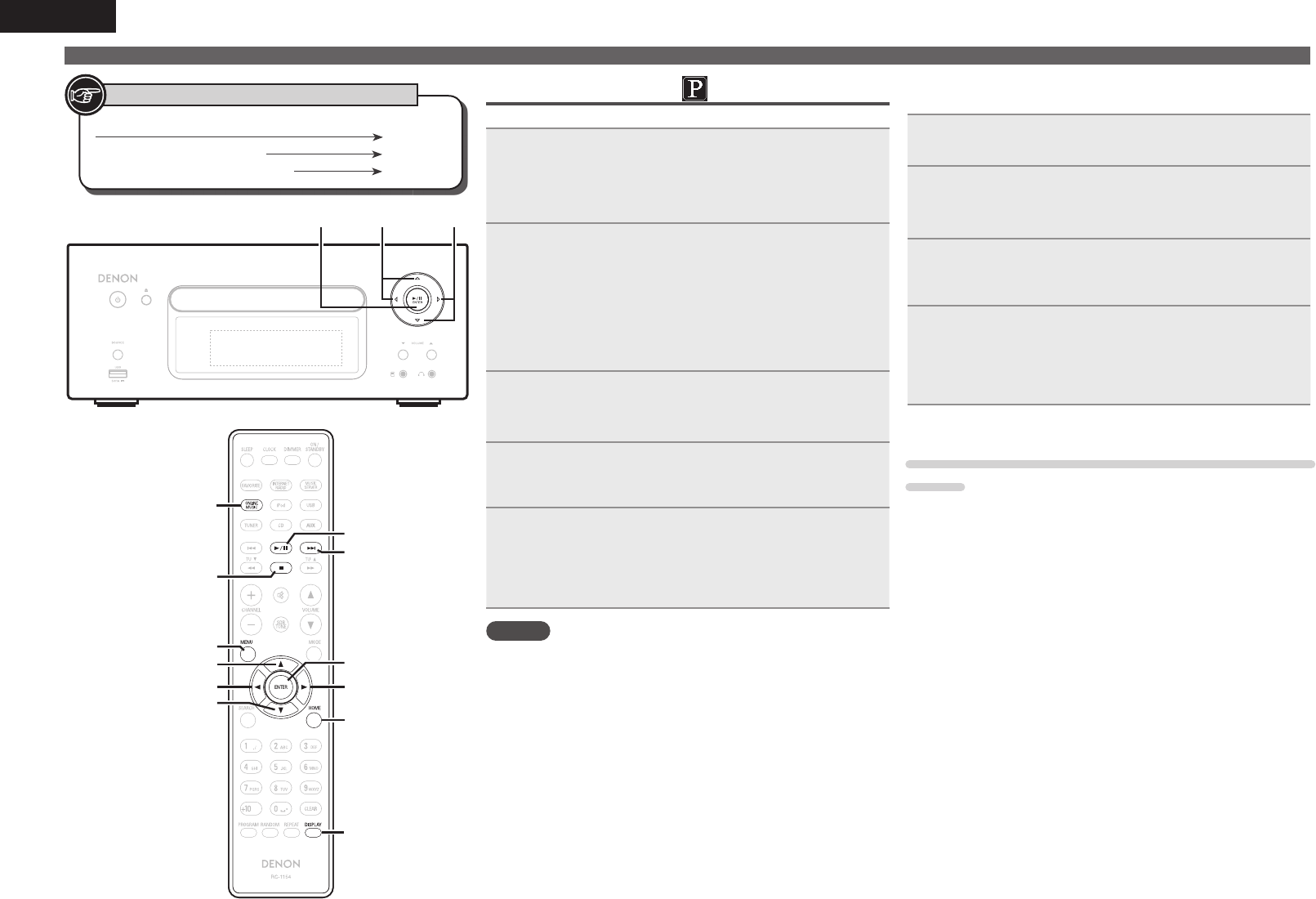
22
ENGLISH
Playing a network audio
Button located on both the main unit and the remote control
BUTTON
Button only on the main unit <BUTTON>
Button only on the remote control
[BUTTON]
Symbols used to indicate buttons in this manual
[2]
o
i
u
p
[ENTER]
[1/3]
[9]
[HOME]
[DISPLAY]
[ONLINE MUSIC]
[MENU]
/&5803,$%3&$&*7&33$%/
p
i
<1/3 ENTER> o
u
Listening to Pandora
Pandora is not available in all countries.
1Prepare for playback.
q Check the network environment, then turn on this unit’s
power (vpage11 “Turning the power on”).
w If settings are required, make the “Setting the network
[Network]” (vpage30).
2Press [ONLINE MUSIC], then select “Pandora”.
• If you do not have a Pandora account, press i to select “I am new
to Pandora”, then press [ENTER], <1/3 ENTER> or p.
The URL needed to activate Pandora and the activation code will
be displayed.
Browse to the Pandora activation URL from your PC and follow the
on-screen instructions for creating a new account.
3If you have a Pandora account, press ui to select
“I have a Pandora account”, then press [ENTER],
<1/3
ENTER
> or p.
4Input “Email address” and “Password”.
• For character input, see page 36.
5After inputting the “Email address” and “Password”,
select “login”, then press [ENTER], <1/3
ENTER
> or
p.
If the “Email address” and “Password” match, the top menu for
Pandora is displayed.
NOTE
• Press [HOME] to cancel the input.
nCreating a Personalized radio station
You can create up to 100 personalized radio stations.
1Use ui to select “New Station”, then press [ENTER],
<1/3
ENTER
> or p.
2Input a “Track Name” or “Artist Name”, then press
[ENTER], <1/3
ENTER
> or p.
• For character input, see page 36.
3Use ui to select “Search by artist” or “Search by
track”, then press [ENTER], <1/3
ENTER
> or p.
You can search and display a list by track or artist.
4Press ui, select a fi le (e.g. D&M2) from the list,
and press [ENTER], <1/3
ENTER
> or p.
Selected fi le is played back.
“Radio” is added to the end of a fi lename, and your original
radio station is created (e.g. D&M2 Radio)
nListening to a personalized radio station
Listening to a personalized radio station (e.g. D&M2
Radio)
By specifying your favorite track or artist name, Pandora will create a
radio station that plays similar music to your favorite.
• Use [DISPLAY] to switch between displaying the artist name, album
name, station name or fi le type/bitrate.
1.RCDN7E3_ENG_008.indd 221.RCDN7E3_ENG_008.indd 22 2010/09/03 11:11:462010/09/03 11:11:46
23
Getting Started Connections
Advanced ConnectionsBasic OperationsBasic Operations Advanced Operations TroubleshootingExplanation termsInformation Specifi cations Index
ENGLISH
Listening to created radio stations at random
1Press ui and select the radio station (“D&M2
Radio”) that you want to listen to, and press
[ENTER], <1/3
ENTER
> or p.
In Pandora, you can search for the track name or artist name
using “D&M2” as a keyword.
When the search is complete, tracks that have a similar rhythm
or sound are streamed.
2Use to select “Quick Mix”, then press [ENTER],
<1/3
ENTER
> or p.
Created radio stations are selected at random, and tracks are
streamed.
nProviding feedback on tracks within radio
stations
You can provide feedback on track tracks by opening the Pandora
menu screen while a track is playing.
Press p while a track is playing.
The Pandora menu is displayed.
I like this track • Press when you like the track that is being played.
• It will return to the Play Screen. And (Thumbs
up) icon is displayed.
I don’t like this
track
• Press when you don’t like the track that is being
played.
• It will return to the Play Screen, (Thumbs
down icon) is displayed and Pandora will skip to
the next track.
Create station • Creates a Station for the Track or Artist being
played.
Bookmark this
track
• Bookmarks the track currently being played.
• You can check view your bookmarks at Pandora.
com.
• For details, see the Pandora FAQ at http://blog.
pandora.com/faq/.
Delete this
station
• Press when you want to delete the station that is
being played.
NOTE
• You can Skip up to 6 Tracks that are being played back within 1 hour.
• You can create up to 100 New Stations (radio stations).
Playing a network audio
nSign out
Disassociate this unit from your Pandora account.
1While the Pandora top menu is displayed, press o.
2When the popup menu appears, press ui to select
“Yes”.
nPandora operation
Operation buttons Function
MENU System menu
uio pAuto search (cue,i)
ENTER Enter
HOME Return to Pandora’s root
13 Play / Pause
9Auto search (cue)
2Stop
1.RCDN7E3_ENG_008.indd 231.RCDN7E3_ENG_008.indd 23 2010/09/03 11:11:472010/09/03 11:11:47
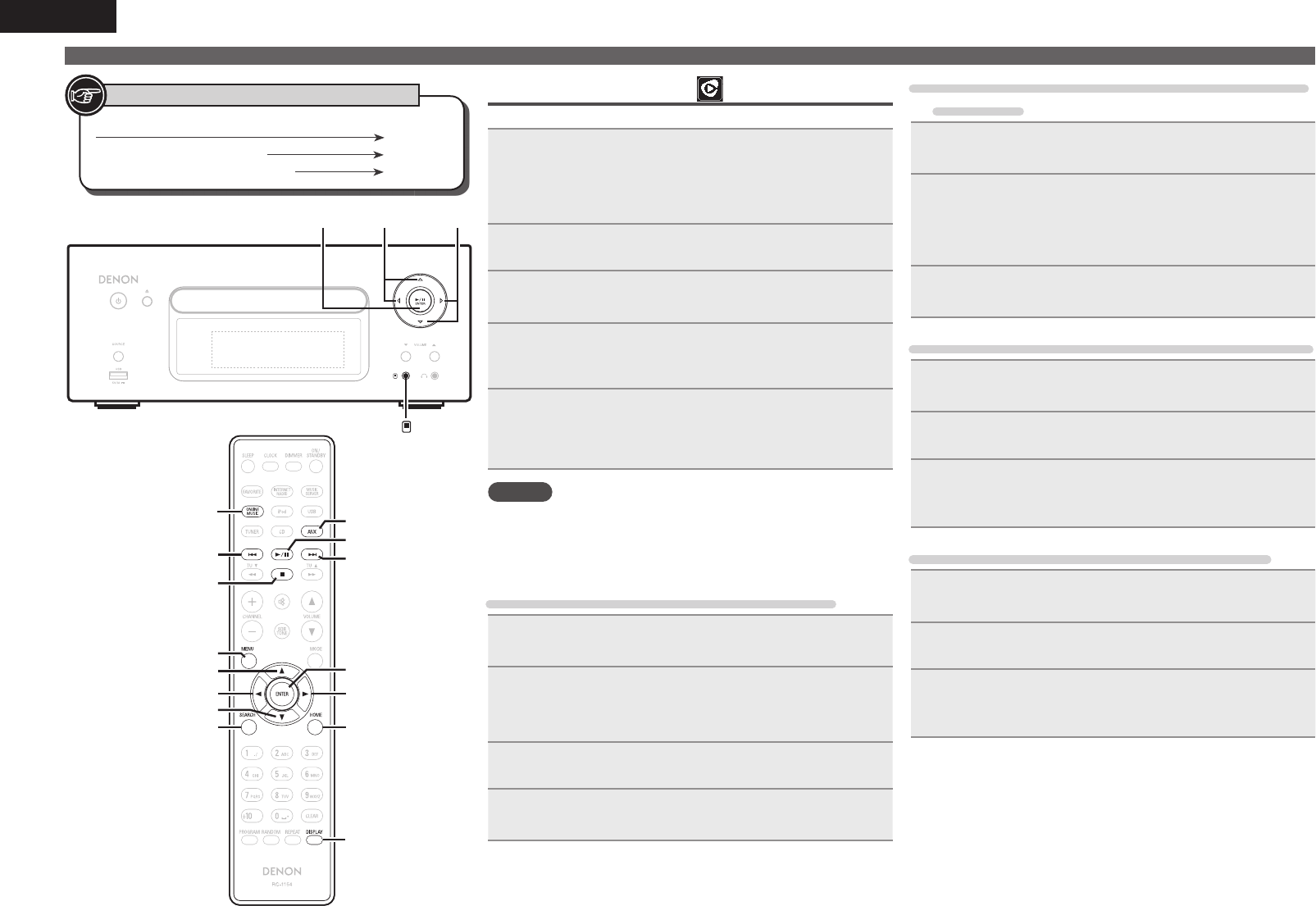
24
ENGLISH
Playing a network audio
Button located on both the main unit and the remote control
BUTTON
Button only on the main unit <BUTTON>
Button only on the remote control
[BUTTON]
Symbols used to indicate buttons in this manual
[2]
o
i
u
p
[ENTER]
[SEARCH]
[1/3]
[8][9]
[HOME]
[DISPLAY]
[ONLINE MUSIC]
[MENU]
[AUX]
NETWORK CD RECEIVER RCD-N7
p
i
<1/3 ENTER> o
u
< >
Listening to Rhapsody
Rhapsody is not available in all countries.
1Prepare for playback.
q Check the network environment, then turn on this unit’s
power (vpage11 “Turning the power on”).
w If settings are required, make the “Setting the network
[Network]” (vpage30).
2Press [ONLINE MUSIC], then select “Rhapsody”.
3Use ui to select “Sign in to your account”, then
press [ENTER], <1/3
ENTER
> or p.
4Input Username and Password.
• For character input, see page 36.
5After inputting the “Username” and “Password”,
select “OK”, then press [ENTER] or <1/3
ENTER
>.
If the “Username” and “Password” match, the top menu for
Rhapsody is displayed.
NOTE
• The password should be no longer than 99 characters.
• Press [HOME] to cancel the input.
nSelect the search mode
q Search from Rhapsody latest information
1Use ui to select “Rhapsody Music Guide”, then
press [ENTER], <1/3
ENTER
> or p.
2Press ui to select the information for track
selection, then press [ENTER], <1/3
ENTER
> or p.
• For character input, see page 36.
3Repeat step 2 until the track is displayed.
4Use ui to select the track, then press [ENTER],
<1/3
ENTER
> or p.
w Enter a character search for the track you want
to listen to
1Use ui to select “Search”, then press [ENTER],
<1/3
ENTER
> or p.
2Use ui to select the search item, then press [ENTER],
<1/3
ENTER
> or p.
The search display appears.
• You can search by artist name, album name, track name or keyword.
3Enter the characters, then press [ENTER] or <1/3
ENTER
>.
e Search from the Rhapsody internet radio station
1Use ui to select “Rhapsody Channels”, then press
[ENTER], <1/3
ENTER
> or p.
2Repeat step 1 until the radio station is displayed.
3Use ui to select radio station, then press [ENTER],
<1/3
ENTER
> or p.
The search display appears.
r Listening to tracks registered in my library
1Use ui to select “My Library”, then press [ENTER],
<1/3
ENTER
> or p.
2Repeat step 1 until the track is displayed.
3Use ui to select the information or track, then
press [ENTER], <1/3
ENTER
> or p.
After selecting, the information is displayed
1.RCDN7E3_ENG_008.indd 241.RCDN7E3_ENG_008.indd 24 2010/09/03 11:11:472010/09/03 11:11:47
25
Getting Started Connections
Advanced ConnectionsBasic OperationsBasic Operations Advanced Operations TroubleshootingExplanation termsInformation Specifi cations Index
ENGLISH
Playing a network audio Portable audio player playback
Your portable audio player can be connected to this unit’s portable jack
to play tracks on the portable audio player.
Playing portable audio player
1Connect the portable audio player to < > ( vpage 10
“Connecting a portable player”).
The input source automatically switches to “Portable In”.
2Play the portable audio player.
The player’s audio is output.
• Also read the portable audio player’s operating instructions.
NOTE
When using the portable player’s headphone jack, set the volume on
the portable player to an appropriate level.
Listening to AUX
1Prepare for playback.
Check the connection, then turn on this units.
2Press [AUX] to select “Portable In”, “AUX1”,
“AUX2” or “AUX3”.
AUX1 AUX2
AUX3 (OPT)Portable IN
• When there is no portable audio player connected to the
portable in jack, “Portable In” is not displayed when you press
[AUX].
3Play the component connected to this unit.
nTrack menu
Press p during playback to display the track menu.
q Search from the similar music
Use ui to select the search item, then press [ENTER],
<1/3
ENTER
> or p.
w Registering tracks in my library
Use ui to select “Add Track to my library”, then press
[ENTER], <1/3
ENTER
> or p.
The track is entered in the library.
e Rating function
1Use ui to select “Rating”, then press [ENTER],
<1/3
ENTER
> or p.
2Use o p to select the rating, then press [ENTER] or
<1/3
ENTER
>.
• Use [DISPLAY] to switch between displaying the artist name, fi le
type/bitrate or album name.
nRhapsody operation
Operation buttons Function
MENU Menu
uio pCursor operation / Auto search (cue, ui)
ENTER Enter
SEARCH Character searchz
HOME Return to top page
1/3Playback / Pause
8 9 Auto search (cue)
2Stop
• Playing repeatedly (Repeat playback) (vpage14)
• Playing random order (Random playback) (vpage14)
z Press
[SEARCH], then press o p to select the fi rst letter you
want to search mode.
• If it is not possible to search the list, “unsorted list.” is displayed.
To cancel, press ui or [SEARCH].
If the list is not in alphabetical order, you may not be able to
perform a character search.
1.RCDN7E3_ENG_008.indd 251.RCDN7E3_ENG_008.indd 25 2010/09/03 11:11:472010/09/03 11:11:47
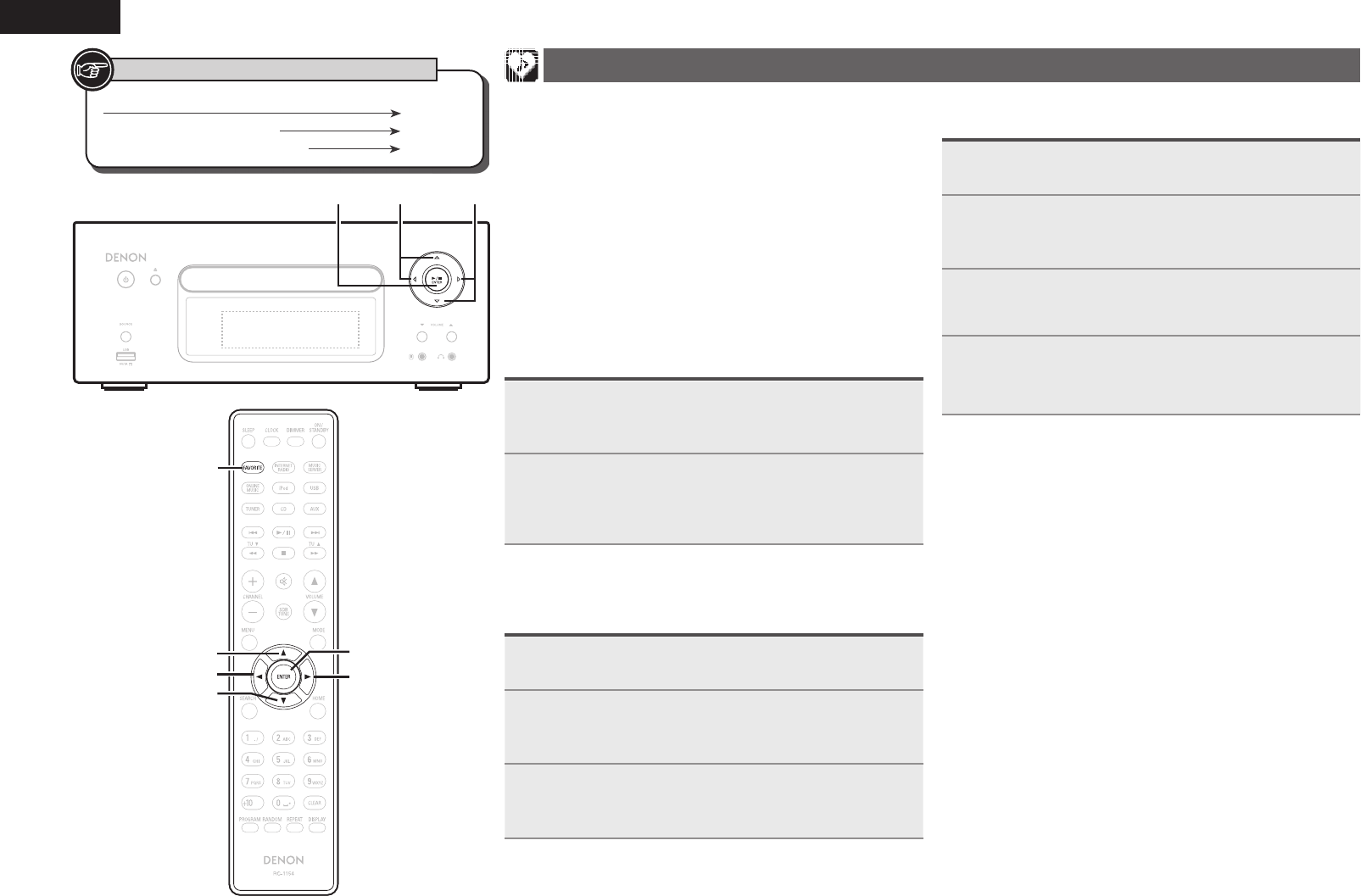
26
ENGLISH
Button located on both the main unit and the remote control
BUTTON
Button only on the main unit <BUTTON>
Button only on the remote control
[BUTTON]
Symbols used to indicate buttons in this manual
i
u
p
[ENTER]
[FAVORITE]
o
NETWORK CD RECEIVER RCD-N7
p
i
<1/3 ENTER> o
u
Favorite function
This section provides information on the Favorite function.
• The Favorite function allows you to register your favorite broadcast
stations and fi les in Favorite List in advance so that you can call and
listen to the stations or fi les right away, whenever you want.
• The contents that you can register and call are Internet radio station,
music server, and tuner.
• You can register up to 50 items in Favorite List.
• When you attempt to register the 51st station in Favorite List, the
last station (station that is accessed least frequently) is automatically
deleted.
• When you select a station from Favorite List, the top of the list is
displayed.
Registering Internet radio stations, music
servers and tuners in Favorite List
1Press [FAVORITE] while the Internet radio station,
tuners or fi le to register is played back.
“Favorite” menu appears.
2Use ui to select “Add to Favorite”, then press
[ENTER], <1/3
ENTER
> or p.
When the station, server, or tuner is registered, “Add to
Favorite” appears.
Calling Internet radio stations, fi les
registered or tuners in Favorite List
1Press [FAVORITE].
“Favorite” menu appears.
2Use ui to select “Call Favorite”, then press
[ENTER], <1/3
ENTER
> or p.
The Favorite list appears.
3Use ui to select Favorite List, then press [ENTER],
<1/3
ENTER
> or p.
The respective function starts up and playback starts.
Deleting Internet radio stations, fi les
registered or tuners in Favorite List
1Press [FAVORITE].
“Favorite” menu appears.
2Use ui to select “Delete Favorite”, then press
[ENTER], <1/3
ENTER
> or p.
The Favorite list appears.
3Use ui to select Favorite List, then press [ENTER],
<1/3
ENTER
> or p.
4When the prompt “Delete?” appears, press [ENTER]
or <1/3
ENTER
>.
• To cancel the operation, press o.
1.RCDN7E3_ENG_008.indd 261.RCDN7E3_ENG_008.indd 26 2010/09/03 11:11:482010/09/03 11:11:48
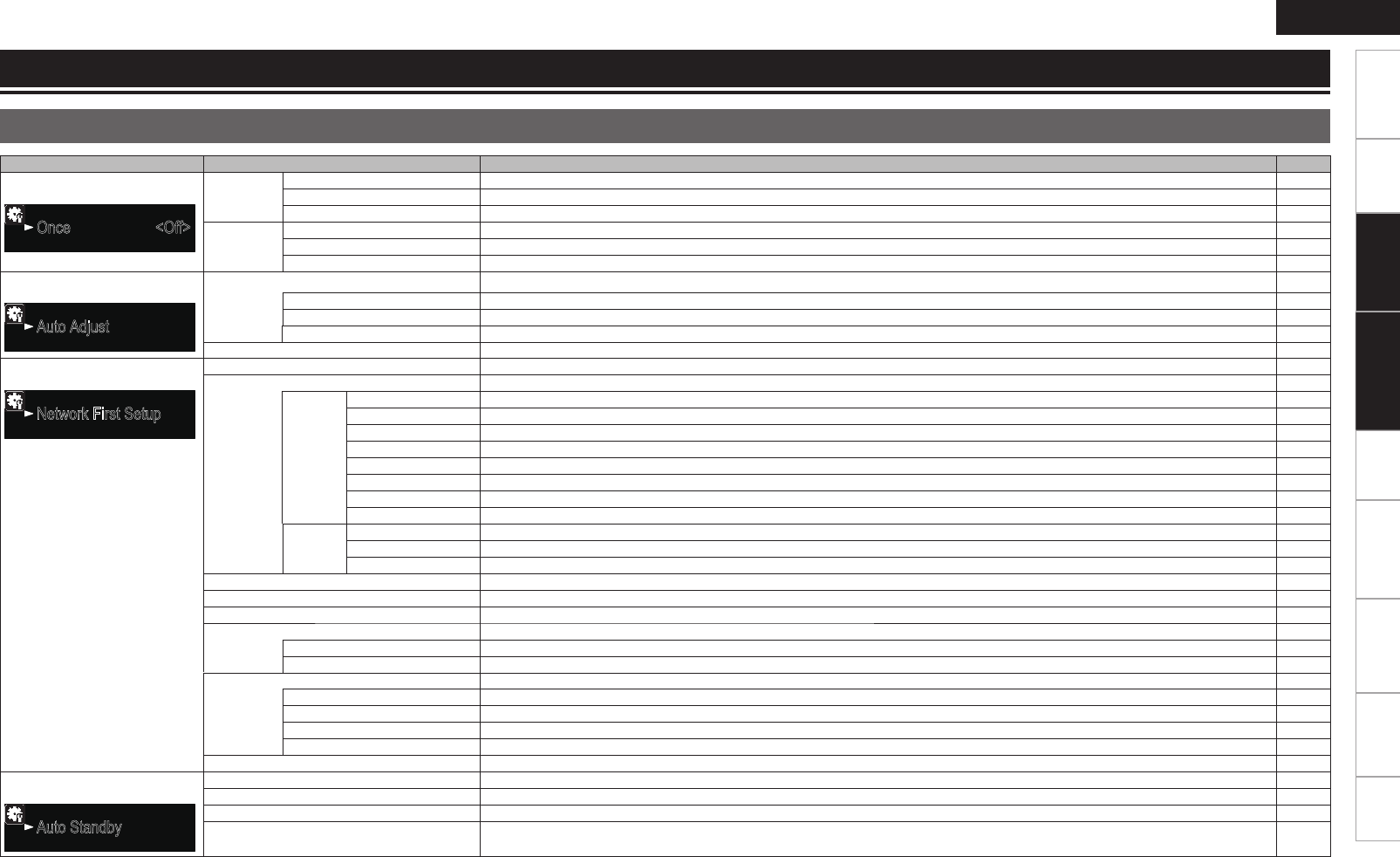
27
Getting Started Connections
Advanced OperationsAdvanced Operations TroubleshootingExplanation termsInformation Specifi cations Index
ENGLISH
Basic Operations
Menu map
Setting items Detailed items Description Page
Timer
1/3
Once <Off>
Everyday <Off>
[Timer]
Once
Set Time (hh:mm) Performs the time setting of Once Timer that is activated at a specifi ed time. 28
Source (xxx) Performs the playback Source (input source) setting of Once Timer to be activated at a specifi ed time. 28
Volume (xx) Performs the playback Volume setting of Once Timer to be activated at a specifi ed time. 28
Everyday
Set Time (hh:mm) Performs the time setting of Everyday Timer that is activated everyday. 28
Source (xxx) Performs the playback Source (input source) setting of Everyday Timer to be activated everyday. 28
Volume (xx) Performs the playback Volume setting of Everyday Timer to be activated everyday. 28
Clock
1/3
Auto Adjust
Manual Adjust
[Clock] Auto Adjust
Automatically performs the clock setting from the time information on the Internet. 11
Time Zone Sets your local time zone (for Auto Adjust). 29
Summer Time Sets the Summer Time information (for Auto Adjust). 29
Adjust Now Obtains the current time. 29
Manual Adjust Adjusts the clock manually. 29
Network
1/9
Network First Setup
Connection
[Network]
Network First Setup Performs the network settings using a Wizard style window. –
Connection
Performs the wired connection settings. 30
Wired
DHCP Performs the DHCP setting. 30
IP Address Performs the IP address setting. 30
Subnet Mask Performs the subnet mask setting. 30
Gateway Performs the gateway setting. 30
Primary DNS Performs the primary DNS setting. 30
Secondary DNS Performs the secondary DNS setting. 30
Proxy Performs the proxy setting. 31
Connection Performs the connection test. 30
Wireless
Search Access Point Selects and sets the wireless connections from the access point list. 31
WPS Sets the wireless connection using WPS. 31
Manual Setting Sets the wireless connection manually. 32
Napster Account Performs the Napster account setting again. 21
Pandora Account Performs the Pandora account setting again. 22
Rhapsody Account Performs the Rhapsody account setting again. 24
Party Mode
Starts or stops the party mode. 33
Party Mode Function Enable/disable the party mode. 33
Party Start Level Sets the volume used for the party mode. 33
Other
Network
Performs other network settings. –
Network Standby Sets the network function on during standby. 34
PC Language Selects the language to be used for displaying the Internet sites. 34
Friendly Name Edit Edits a name displayed on the Internet. 34
Network Status Displays the statuses of up to 10 DENON products connected to the same network. 34
Network Info. Displays various setting values of the network. –
Other
1/5
Auto Standby
Screen Saver
[Other]
Auto Standby Sets the Auto Standby mode to automatically enter standby when no operation is performed. 35
Screen Saver Activates the screen saver. 35
Speaker Optimize Performs the fi lter setting for optimizing the response of optional speakers if they are connected. 35
Firmware Update Starts the fi rmware update. 35
Advanced operations
1.RCDN7E3_ENG_008.indd 271.RCDN7E3_ENG_008.indd 27 2010/09/03 11:11:492010/09/03 11:11:49
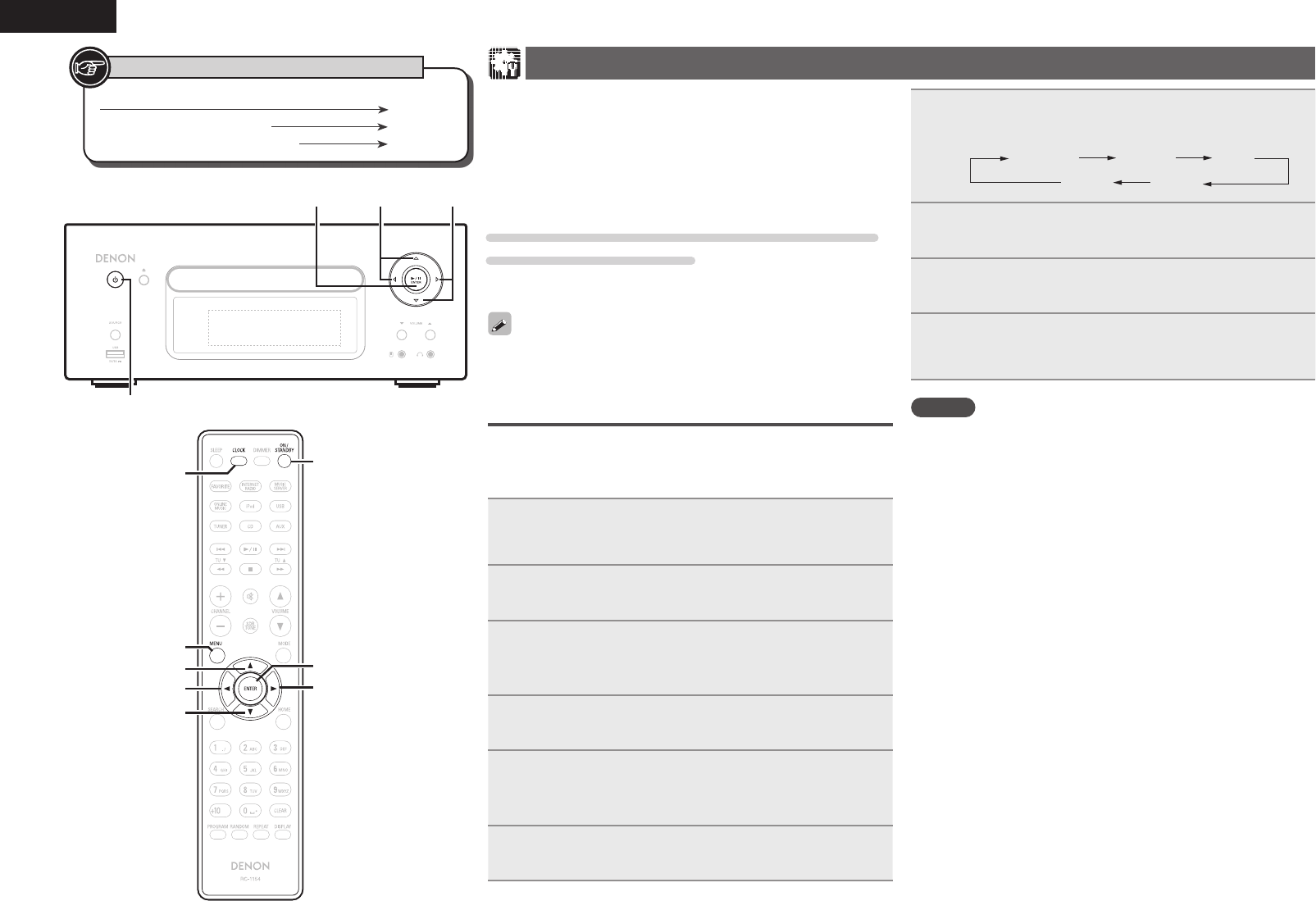
28
ENGLISH
Setting the timer [Timer]
This device can playback using the timer playback (everyday timer,
once timer).
• This unit's timer does not support exit time settings for timer
playback.
nTimer operation when the time settings for
timers overlap
When the once timer and everyday timer are both
set (sleep timer is not set)
• Automatically starts playback at the earlier timer start time set for
either of the timers.
If the current time is not set, enter timer setting mode to get time
setting mode.
Setting the everyday timer and once timer
• Everyday timer (“Everyday”)
Playback starts at the set times each day.
• Once timer (“Once”)
Playback starts once only at the set times.
1Press [MENU].
Turns on the Menu settings mode and the Menu appears on
the display. (vpage27 “Menu map”)
2Use ui to select “Timer”, then press [ENTER],
<1/3
ENTER
> or p.
3Use ui to select the timer mode, and use o p to
select “On” or “Off” then press [ENTER], or <1/3
ENTER
>.
4Use ui to select “Set Time”, then press [ENTER],
<1/3
ENTER
> or p.
5Use ui to select “hours” – “minutes” for the timer
start time, then press [ENTER], <1/3
ENTER
> or
p.
6Use ui to select “Source”, then press [ENTER],
<1/3
ENTER
> or p.
7Use ui to select the input source, then press
[ENTER], <1/3
ENTER
> or p.
Favorite Preset CD
iPodUSB
8Use ui to select the “Volume”, then press
[ENTER], <1/3
ENTER
> or p.
9Use ui to select the volume “0 – 60”, then press
[ENTER], <1/3
ENTER
> or p.
10
Press ON/STANDBY to set the power to standby.
Timer standby mode is set, and the power indicator lights
orange.
NOTE
• If the unit or remote control is not operated for 90 minutes or more
when the timer is set to on, the standby mode is activated.
• When using timer playback on an iPod Touch or iPhone, set the iPod
Touch or iPhone to “Sleep” mode. If the power is switched off using
the power off operation, timer playback cannot be used.
For details on the “Sleep” mode of the iPod Touch or iPhone, see
the instruction manuals of the products or related web pages.
nSetting the timer to on or off
Perform the operations at “Setting the timer [Timer]” (vpage28).
• When set to “OFF”, time operation is disabled, but the timer
settings remain unchanged.
nTo check the timer settings
Perform the operations at “Setting the timer [Timer]” (vpage28).
nTo change the timer settings
Perform the operations at “Setting the timer [Timer]” (vpage28).
nTo change the setting while setting the timer
Press o.
The setting returns to the previous step. Display the setting you
want to change, then make the desired setting.
Button located on both the main unit and the remote control
BUTTON
Button only on the main unit <BUTTON>
Button only on the remote control
[BUTTON]
Symbols used to indicate buttons in this manual
u
op
[ENTER]
ON/STANDBY
i
[MENU]
[CLOCK]
/&5803,$%3&$&*7&33$%/
p
i
<1/3 ENTER> o
u
ON/STANDBY
1.RCDN7E3_ENG_008.indd 281.RCDN7E3_ENG_008.indd 28 2010/09/03 11:11:492010/09/03 11:11:49
29
Getting Started Connections
Basic Operations Advanced OperationsAdvanced Operations TroubleshootingExplanation termsInformation Specifi cations Index
ENGLISH
Adjusting the clock automatically [Clock]
You can automatically adjust the clock of this unit using the Internet.
To use this function, the unit must be connected to the Internet.
Setting the Time Zone
Use the following procedure to select your local standard time (time
zone).
1Press [MENU].
Turns on the Menu settings mode and the Menu appears on
the display. (vpage27 “Menu map”)
2Use ui to select “Clock” – “Auto Adjust” – “Time
Zone”, then press [ENTER], <1/3
ENTER
> or p.
“Time Zone” menu appears.
3Use ui to select your time zone, then press
[ENTER], <1/3
ENTER
> or p.
The setting is entered.
Setting the Summer Time
Use the following procedure to set Summer time if the Summer time
system is used in your country.
1Press [MENU].
Turns on the Menu settings mode and the Menu appears on
the display. (vpage27 “Menu map”)
2Use ui to select “Clock” – “Auto Adjust” –
“Summer Time”, then press [ENTER], <1/3
ENTER
> or p.
“Summer Time” menu appears.
3Use ui to select “Off (0H)” or “On (+1H)”, then
press [ENTER], <1/3
ENTER
> or p.
The setting is entered.
Auto Adjust
Use the following procedure to automatically adjust the clock.
1Press [MENU].
Turns on the Menu settings mode and the Menu appears on
the display. (vpage27 “Menu map”)
2Use ui to select “Clock” – “Auto Adjust” –
“Adjust Now”, then press [ENTER], <1/3
ENTER
>
or p.
The operation to receive the current time starts.
• The current time is displayed for several seconds when it is received
successfully.
• If the current time is not received successfully, “Connection Failed”
appears.
Setting the current time (Manual Adjust)
(12-Hour Display)
1Press [MENU].
Turns on the Menu settings mode and the Menu appears on the
display. (vpage27 “Menu map”)
2Use ui to select “Clock” – “Manual Adjust”, then
press [ENTER], <1/3
ENTER
> or p.
3Use ui to set the “hours”.
4Press [ENTER], <1/3
ENTER
> or p.
5Use ui to set the “minutes”.
6Press [ENTER], <1/3
ENTER
> or p.
The current time is set.
n Checking the current time when the power is on
Press [CLOCK].
Press once more and the display returns to its original condition.
nChecking the current time when the power is
set to standby
Press [CLOCK].
The current time is displayed for 30 seconds.
NOTE
The time cannot be set when in the standby mode. Turn on the power
fi rst.
1.RCDN7E3_ENG_008.indd 291.RCDN7E3_ENG_008.indd 29 2010/09/03 11:11:502010/09/03 11:11:50
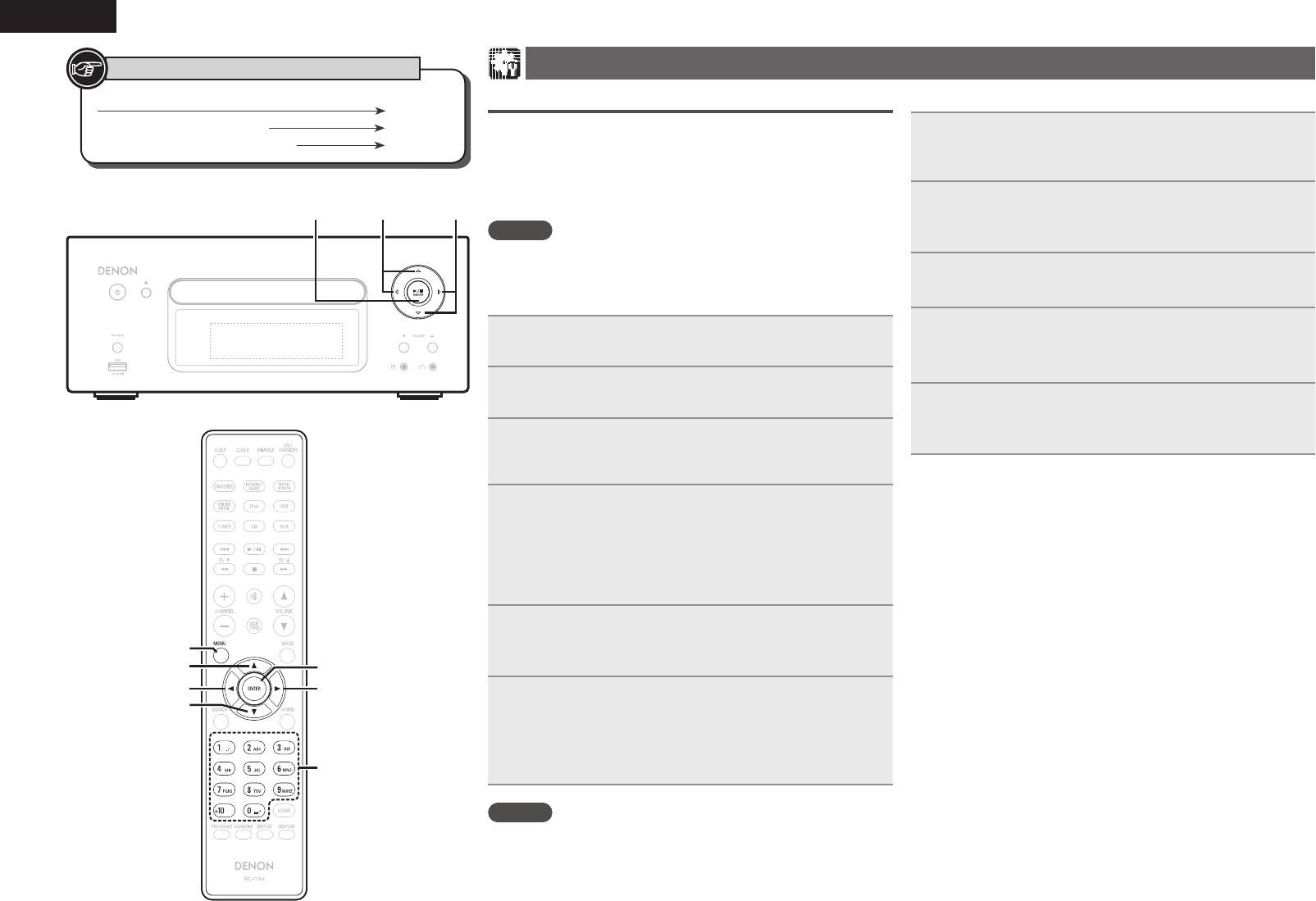
30
ENGLISH
Setting the network [Network]
Connecting Wired LAN
When using this unit with the broadband router’s DHCP function
enabled, this unit automatically performs the IP address setting and
other settings.
When using this unit connected to a network with no DHCP function,
make the settings for the IP address, etc., at “Network connecting
(DHCP=Off)” (vpage30).
NOTE
When setting manually, check the setting contents with the network
administrator.
n Network connecting
1Connect the LAN cable.
(vpage8 “Connecting to a home network (LAN)”)
2Turn on this unit.
(vpage11 “Turning the power on”)
3Press [MENU].
Turns on the Menu settings mode and the Menu appears on
the display. (vpage27 “Menu map”)
4Use ui to select “Network” – “Connection” –
“DHCP (Off)”, then press [ENTER], <1/3
ENTER
>
or p.
“DHCP” menu appears.
• When the network connection is set to “DHCP (On)”, go to step 6.
5Use ui to select “On”, then press [ENTER], <1/3
ENTER
> or p.
“Connection” menu appears.
6Use ui to select “Connection”, then press [ENTER],
<1/3
ENTER
> or p.
The connection starts.
• When the connection is made successfully, “Succeeded” appears.
If the connection fails, “Failed” appears.
NOTE
You may need to set the network connection manually, depending on
the provider you use. To set the connection manually, use the setting
procedure of “Network connecting (DHCP=Off)”.
n Network connecting (DHCP=Off)
1Perform steps 1 to 4 of the “Network connecting”
procedure and select “Off” in step 5.
“Connection” menu appears.
2Use ui to select “IP Address”, then press [ENTER],
<1/3
ENTER
> or p.
“IP Address” input menu appears.
3Use uip or [NUMBER] (0 – 9) to input the address
and press [ENTER] or <1/3
ENTER
>.
4Use uip or [NUMBER] (0 – 9) to input the
address for Subnet Mask, Gateway, Primary DNS,
and Secondary DNS.
5After you input all required addresses, perform
step 6 of “Network connecting” to connect to the
Internet.
Button located on both the main unit and the remote control
BUTTON
Button only on the main unit <BUTTON>
Button only on the remote control
[BUTTON]
Symbols used to indicate buttons in this manual
i
u
op
[ENTER]
[MENU]
[NUMBER]
/&5803,$%3&$&*7&33$%/
p
i
<1/3 ENTER> o
u
1.RCDN7E3_ENG_008.indd 301.RCDN7E3_ENG_008.indd 30 2010/09/03 11:11:502010/09/03 11:11:50
31
Getting Started Connections
Basic Operations Advanced OperationsAdvanced Operations TroubleshootingExplanation termsInformation Specifi cations Index
ENGLISH
Connecting Wireless LAN
If you cancelled “Network First Setup” or changed the network
environment, perform “Menu” − “Network” − “Network First Setup”.
n Search Access Point (Wireless LAN)
1Fitting a rod antenna.
If a LAN cable is connected, remove it.
2Turn on this unit.
(vpage11 “Turning the power on”)
3Press [MENU].
Turns on the menu settings mode and the menu appears on
the display. (vpage27 “Menu map”)
4Use ui to select “Network” – “Connection” –
“Search Access Point”, then press [ENTER], <1/3
ENTER
> or p.
The access point you have set is displayed.
5Use ui to select the access point, and then press
[ENTER], <1/3
ENTER
> or p.
If the access point is not detected automatically, use the
“Manual Settings” (vpage32) procedure.
6If there is an encryption setting for the access point
you selected in step 5, enter same encryption key as
used for the access point. (If there is no encryption
setting, proceed to step 7.)
Use uio p to input the “Key” (encryption key) and press
[ENTER], <1/3 ENTER> or p. Enter the same encryption key
as used for the access point.
• The types of characters that can be input are as shown below.
G Upper case charactersH
ABCDEFGHIJKLMNOPQRSTUVWXYZ
GLower case charactersH
abcdefghijklmnopqrstuvwxyz
GSymbolsH
! “ # $ % & ‘ ( ) z + , - . / : ; < = > ? @ [ \ ] ^ _ ` { | }
˜
GNumbersH0123456789 (Space)
• When no security settings have been used in the Internet connection
settings, this step is not necessary.
7Use i to select “Connection”, then press [ENTER],
<1/3
ENTER
> or p.
Network connection starts.
• This unit performs automatic network setup due to the DHCP
function.
• When connecting to a network that has no DHCP function, perform
the setting in Network conntecting (DHCP=Off) (vpage30).
n WPS Settings (Push-button method)
1Press [MENU].
Turns on the Menu settings mode and the Menu appears on
the display. (vpage27 “Menu map”)
2Use ui to select “Network” – “Connection” –
“WPS” – “Push Button”, then press [ENTER], <1/3
ENTER
> or p.
3Use ui to select “Enter”, then press [ENTER],
<1/3
ENTER
> or p.
Please push the WPS button of the router, and push the Enter
button of the machine.
4When connection is established with access point,
“Succeeded” is displayed.
n WPS Settings (PIN code method)
1Press [MENU].
Turns on the Menu settings mode and the Menu appears on
the display. (vpage27 “Menu map”)
2Use ui to select “Network” – “Connection” –
“WPS” – “PIN code”, then press [ENTER], <1/3
ENTER
> or p.
The access point you have set is displayed.
3Use ui to select the access point, then press
[ENTER], <1/3
ENTER
>, or p.
PIN code number is displayed.
4Set this PIN code to the register.
When connection is established with access point,
“Succeeded” is displayed.
n Proxy Settings
Make this setting when connecting to the Internet wia to proxy
server.
1Press [MENU].
Turns on the Menu settings mode and the Menu appears on
the display. (vpage27 “Menu map”)
2Use ui to select “Network” – “Connection” –
“Proxy”, then press [ENTER], <1/3
ENTER
> or p.
“Proxy” setting menu appears.
3If “Proxy(On)” appears, go to step 5.
If “Proxy(Off)” appears, press [ENTER], <1/3
ENTER
>, or p.
“Proxy” (On/Off) setting menu appears.
4Use ui to select “On”, then press [ENTER], <1/3
ENTER
> or p.
“Proxy” setting menu appears.
5Use ui to select “Proxy (Address)” or “Proxy
(Name)”, then press [ENTER], <1/3
ENTER
> or p.
“Select Type” setting menu appears.
• Seleccione si Proxy es una dirección de servidor o un nombre de
dominio.
6Use ui to select “Address” or “Name”, then
press [ENTER], <1/3
ENTER
> or p.
“Proxy” setting menu appears.
7Use ui to select “Address” or “Name”, then press
[ENTER], <1/3
ENTER
> or p.
“Address” or “Name” input menu appears.
• Input a server address or domain name.
8Use uip or [NUMBER] (0 – 9) to input the address
or name, then press [ENTER] or <1/3
ENTER
>.
“Proxy” setting menu appears.
9Use ui to select “Port”, then press [ENTER], <1/3
ENTER
> or p.
“Port” input menu appears.
10
Use ui p or [NUMBER] (0 – 9) to input the port,
then press [ENTER] or <1/3
ENTER
>.
The Proxy settings are completed.
Setting the network [Network]
1.RCDN7E3_ENG_008.indd 311.RCDN7E3_ENG_008.indd 31 2010/09/03 11:11:512010/09/03 11:11:51
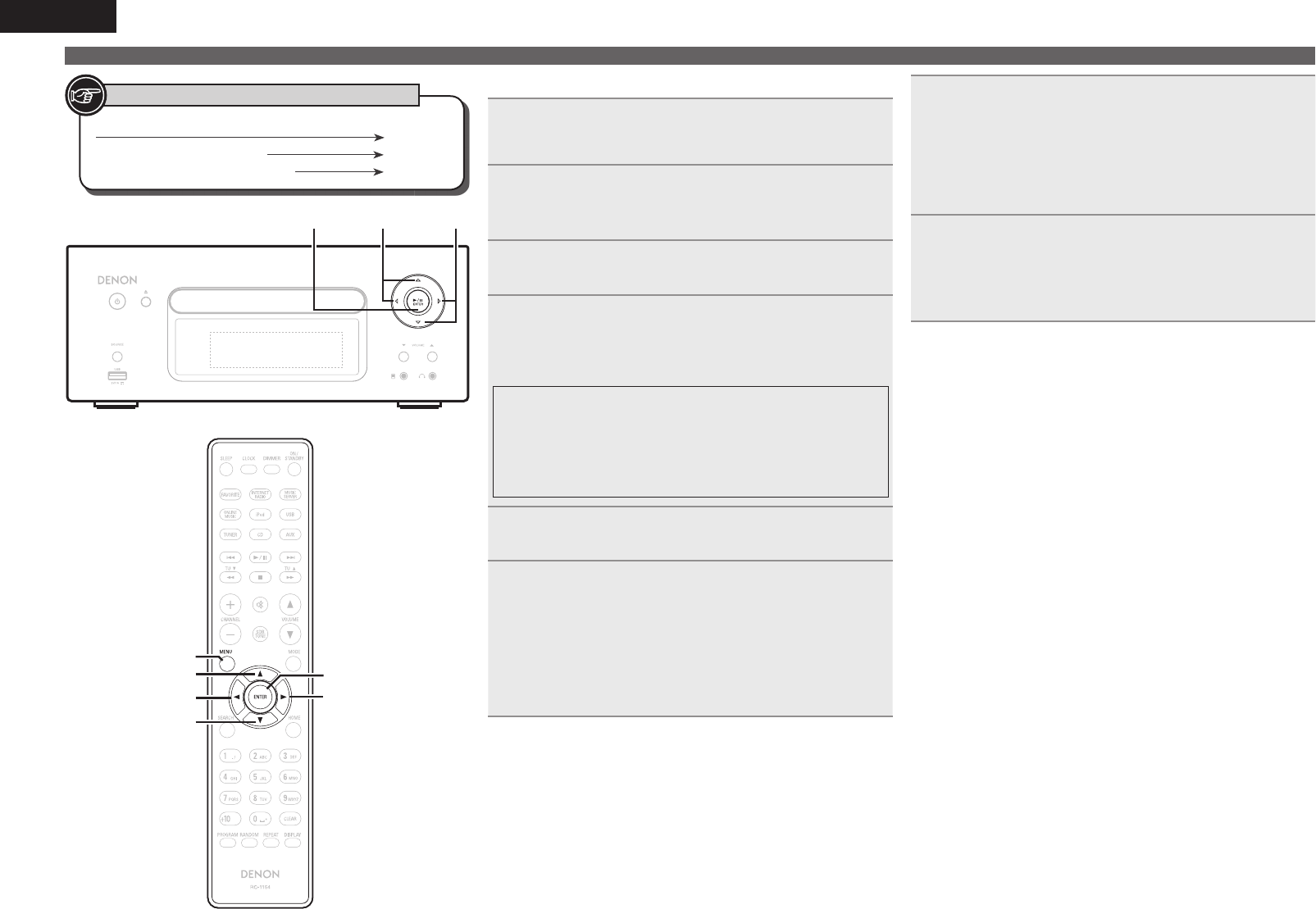
32
ENGLISH
Setting the network [Network]
n Manual Settings
1Press [MENU].
Turns on the Menu settings mode and the Menu appears on
the display. (vpage27 “Menu map”)
2Use ui to select “Network” – “Connection”
– “Manual setting”, then press [ENTER], <1/3
ENTER
> or p.
3Use ui to select “SSID”, then press [ENTER],
<1/3
ENTER
> or p.
4Use uio p to input the name of the wireless
network (SSID), then press [ENTER] or <1/3
ENTER
>.
• The types of characters that can be input are as shown below.
G Upper case charactersH
ABCDEFGHIJKLMNOPQRSTUVWXYZ
GLower case charactersH
abcdefghijklmnopqrstuvwxyz
GSymbolsH
! “ # $ % & ‘ ( ) z + , - . / : ; < = > ? @ [ \ ] ^ _ ` { | }
˜
GNumbersH0123456789 (Space)
5Use ui to select “Security”, then press [ENTER],
<1/3
ENTER
> or p.
6Use ui to select following items, then press
[ENTER], <1/3
ENTER
> or p.
• None : Select if not encrypted. Can also be used even without
encryption, through we recommend encryption for improved
security.
• WEP / WPA(TKIP) / WPA(AES) / WPA2(TKIP) / WPA2(AES) :
Select the encryption method according to the encryption setting
of the access point you are using.
7Use ui to input the “Key” (encryption key), then
press [ENTER] or <1/3
ENTER
>.
Enter the same encryption key as used for the access point.
• When no security settings have been used in the Internet
connection settings, this step is not necessary.
• When connecting to a “WEP” encrypted network, set the access
point “Default Key” to “1”.
8Use i to select “Connection” and press [ENTER],
<1/3
ENTER
> or p.
Network connection starts.
• This unit performs automatic network setup due to the DHCP
function.
Button located on both the main unit and the remote control
BUTTON
Button only on the main unit <BUTTON>
Button only on the remote control
[BUTTON]
Symbols used to indicate buttons in this manual
u
p
[ENTER]
[MENU]
i
o
/&5803,$%3&$&*7&33$%/
p
i
<1/3 ENTER> o
u
1.RCDN7E3_ENG_008.indd 321.RCDN7E3_ENG_008.indd 32 2010/09/03 11:11:512010/09/03 11:11:51
33
Getting Started Connections
Basic Operations Advanced OperationsAdvanced Operations TroubleshootingExplanation termsInformation Specifi cations Index
ENGLISH
Canceling the party mode
1Press [MENU].
Turns on the Menu settings mode and the Menu appears on
the display. (vpage27 “Menu map”)
2Use ui to select “Network” – “Party Mode” –
“Stop Party”, then press [ENTER], <1/3
ENTER
>
or p.
“Exit Party Mode?” is displayed on the menu screen.
3Use ui to select “Yes”, then press [ENTER], <1/3
ENTER
> or p
“Attendee P.Off?” is displayed.
4Use ui to select “Yes” or “No”, then press
[ENTER], <1/3
ENTER
> or p.
Yes : The power of the attendees is turned off and the party
mode is canceled.
No : The party mode is canceled without turning off the power
of the attendees.
nParticipating in the party mode as an attendee
• When the organizer starts the party mode, up to four attendees
are selected automatically. No operation is required.
• When a device becomes an attendee, Party Mode Attendee appears
on the display. The input source automatically switches to
“Internet Radio” and the same network audio as on the organizer
is played.
• If there are fewer than four attendees, a device can join the
party mode after it has started. To participate in the party mode,
perform the operation described below.
1Press [MENU].
Turns on the Menu settings mode and the Menu appears on
the display. (vpage27 “Menu map”)
2Use ui to select “Network” – “Party Mode” –
“Start Party”, then press [ENTER], <1/3
ENTER
>
or p.
• An error message is displayed when you are not connected to a
network.
Canceling the party mode
1Press [MENU].
Turns on the Menu settings mode and the Menu appears on
the display. (vpage27 “Menu map”)
2Use ui to select “Network” – “Party Mode” –
“Stop Party”, then press [ENTER], <1/3
ENTER
>
or p.
“Exit Party Mode?” is displayed on the menu screen.
3Use ui to select “Yes”, then press [ENTER], <1/3
ENTER
> or p
In this case, the other devices remain in the party mode.
“Napster”, “Pandora”, “Rhapsody” and “USB” are not available in
the Party Mode.
There can only be one organizer in the network. To form a new party
mode, fi rst cancel the current party mode.
n Setting the Party Start Level
Make settings for volume level when the party mode is started.
1Press [MENU].
Turns on the Menu settings mode and the Menu appears on
the display. (vpage27 “Menu map”)
2Use ui to select “Network” – “Party Mode” –
“Party Start Level”, then press [ENTER], <1/3
ENTER
> or p.
• Last : The same volume as set before the party mode was started.
• 00 : Always use the muting on condition when the party mode is
started.
• 01 – 60dB : Start party mode with your preferred volume.
This can be set when “Party Mode Function“ is set to “ON“.
Setting the network [Network]
Party Mode Function
The same network audio (Internet radio, music server or iPod DIRECT)
can be played on multiple DENON products equipped with the Party
Mode function and connected in a network.
The party mode consists of one organizer and up to four attendees.
When one unit starts the party mode as the organizer, up to four
devices on which the party mode function is activated automatically
participate in the party as attendees. “Party Mode Function” must be
set to “ON” ahead of time in order to use the party mode function.
n Setting the Party Mode Function
1Press [MENU].
Turns on the Menu settings mode and the Menu appears on
the display. (vpage27 “Menu map”)
2Use ui to select “Network” – “Party Mode” –
“Party Mode Function”, then press [ENTER], <1/3
ENTER
> or p.
“P-Mode Function” menu appears.
3Use ui to select “On” or “Off” , then press
[ENTER], <1/3
ENTER
> or p.
On : Enable party mode function.
Off : Disable party mode function.
nStarting the party mode as the organizer
1Press [MENU].
Turns on the Menu settings mode and the Menu appears on
the display. (vpage27 “Menu map”)
2Use ui to select “Network” – “Party Mode” –
“Start Party”, then press [ENTER], <1/3
ENTER
>
or p.
• An error message is displayed when you are not connected to a
network.
• The input source automatically switches to “Internet Radio” and
the attendees are automatically selected.
3Play the desired station.
1.RCDN7E3_ENG_008.indd 331.RCDN7E3_ENG_008.indd 33 2010/09/03 11:11:522010/09/03 11:11:52
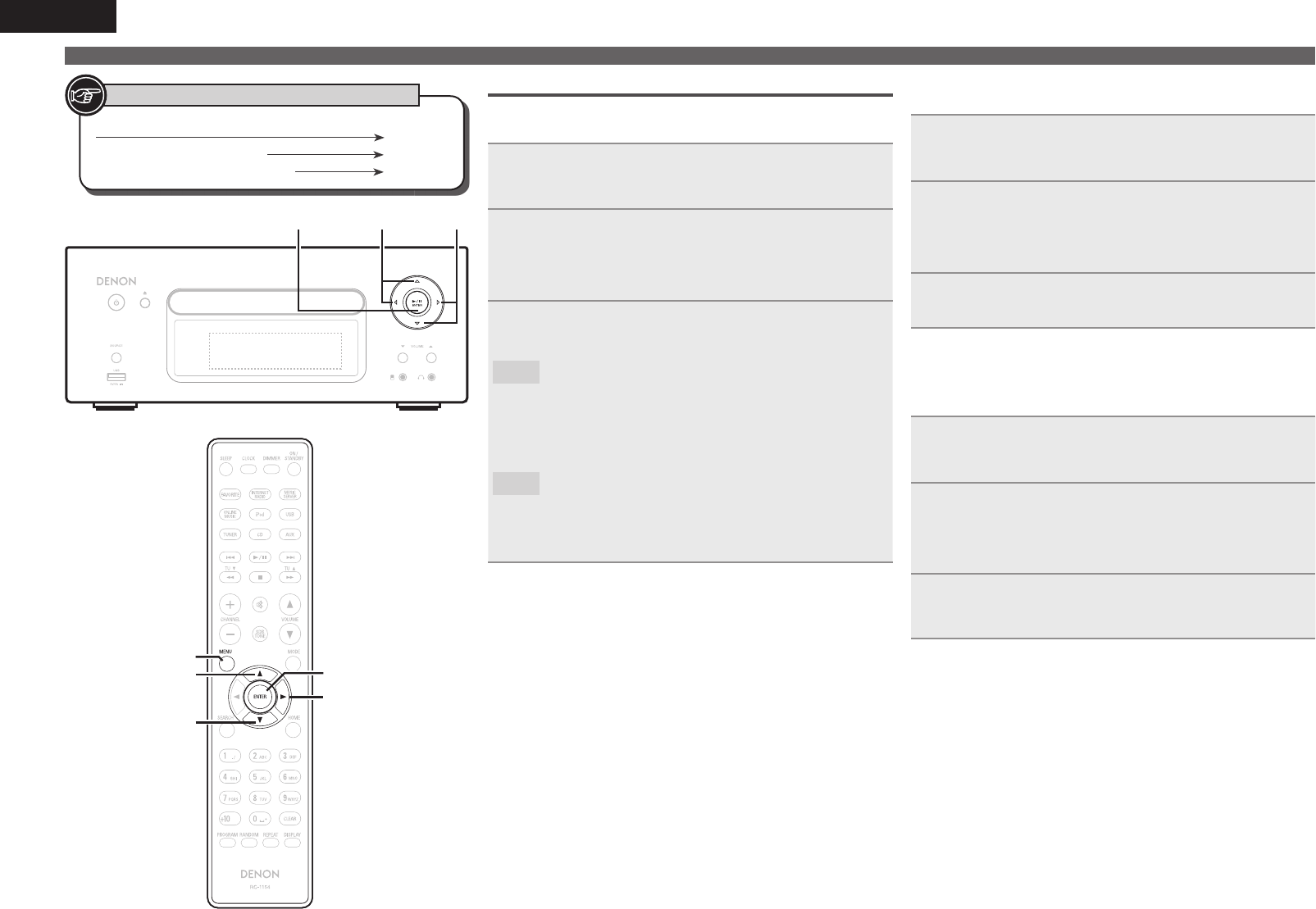
34
ENGLISH
Other Network
n Network Standby
Set the network function On/Off during standby.
1Press [MENU].
Turns on the Menu settings mode and the Menu appears on
the display. (vpage27 “Menu map”)
2Use ui to select “Network” – “Other Network”
– “Network Standby”, then press [ENTER], <1/3
ENTER
> or p.
“Network Standby” menu appears.
3Use ui to “On”, then press [ENTER], <1/3
ENTER
> or p.
On : Shortens the time before the network connection is
completed.
• Power consumption during the standby mode will be
higher. (Power consumption: 3 W)
• Network standby mode is set and the power indicator
lights red.
Off : Power consumption during the standby mode will be
minimized. (Power consumption: 0.3 W)
• It will take slightly longer till the network connection is
completed.
• This is the default setting.
n PC Language
Select computer environment language.
1Press [MENU].
Turns on the Menu settings mode and the Menu appears on
the display. (vpage27 “Menu map”)
2Use ui to select “Network” – “Other Network” –
“PC Language”, then press [ENTER], <1/3
ENTER
>
or p.
“PC Language” setting menu appears.
3Use ui to select your computer environment
language, then press [ENTER], <1/3
ENTER
> or p.
n Friendly Name Edit
The Friendly Name is the name of this unit displayed on the
network.
1Press [MENU].
Turns on the Menu settings mode and the Menu appears on
the display. (vpage27 “Menu map”)
2Use ui to select “Network” – “Other Network” –
“Friendly Name Edit”, then press [ENTER], <1/3
ENTER
> or p.
“Friendly Name Edit” menu appears.
3Edit a friendly name.
For the character input method, see “Inputting characters”
(vpage36)
n Network Status
Displays up to a maximum of 10 DENON products connected on
the same network.
• Friendly Name / Party Mode Status / Model Name /
Power ON / Standby / Select Source / Volume Level
Button located on both the main unit and the remote control
BUTTON
Button only on the main unit <BUTTON>
Button only on the remote control
[BUTTON]
Symbols used to indicate buttons in this manual
u
p
[ENTER]
[MENU]
i
/&5803,$%3&$&*7&33$%/
p
i
<1/3 ENTER>
u
Setting the network [Network]
1.RCDN7E3_ENG_008.indd 341.RCDN7E3_ENG_008.indd 34 2010/09/03 11:11:522010/09/03 11:11:52

35
Getting Started Connections
Basic Operations Advanced OperationsAdvanced Operations TroubleshootingExplanation termsInformation Specifi cations Index
ENGLISH
Setting the others [Other]
Auto Standby
With the Auto standby ON, this unit will automatically enter the
standby mode after about 30 continuous minutes of stop mode with
no operation.
• The default setting is “OFF”.
1Press [MENU].
Turns on the Menu settings mode and the Menu appears on the
display. (vpage27 “Menu map”)
2Use ui to select “Other” – “Auto Standby”, then
press [ENTER], <1/3
ENTER
> or p.
3Use ui to select “On”, then press [ENTER], <1/3
ENTER
> or p.
The setting is entered.
NOTE
In the following situations, the Auto standby function does not operate.
• During CD playback or pause.
• When an iPod or USB memory device is connected to the USB port
on the unit. When an iPod is connected to the iPod dock on the unit.
• When the input source is “TUNER”, “AUX1”, “AUX2” or “AUX3”.
• When the input source is “Portable In” and a devices connected to
the Portable In jack.
• When the input source is “AUX3” and a signal is input.
• When the input source is “INTERNET RADIO”, “MUSIC SERVER” or
“ONLINE MUSIC”, and a ethernet cable is connected to NETWORK
connector.
Screen Saver
Use the following procedure to set the screen saver.
1Press [MENU].
Turns on the Menu settings mode and the Menu appears on
the display. (vpage27 “Menu map”)
2Use ui to select “Other” – “Screen Saver”, then
press [ENTER], <1/3
ENTER
> or p.
“Screen Saver” menu appears.
3Use ui to select “ON”, then press [ENTER], <1/3
ENTER
> or p.
Using an optimizing fi lter
An optimizing fi lter suited for the properties of the speakers (SC-N7,
sold separately) can be used.
1Press [MENU].
Turns on the Menu settings mode and the Menu appears on
the display. (vpage27 “Menu map”)
2Use ui to select “Other” – “Speaker Optimize”,
then press [ENTER], <1/3
ENTER
> or p.
“Speaker Optimize” menu appears.
3Use ui to select “ON”, then press [ENTER], <1/3
ENTER
> or p.
ON : The response is optimized for the speakers (SC-N7, sold
separately).
OFF : The response is fl at.
Firmware Update
• In order to use these functions, you must have the correct system
requirements and settings for a broadband Internet connection
(vpage8).
• Perform the fi rmware update operation after at least 2 minutes has
elapsed since turning this unit’s power ON.
1Press [MENU].
Turns on the Menu settings mode and the Menu appears on
the display. (vpage27 “Menu map”)
2Use ui to select “Other” – “Firmware Update”,
then press [ENTER], <1/3
ENTER
> or p.
[Selectable items]
Check for Update : Check for fi rmware updates. You can also check
approximately how long it will take to complete
an update.
Start : Execute the update process.
• If updating fails, the set automatically retries, but if updating is still
not possible, one of the messages shown below is displayed. If
the display reads as shown below, check the settings and network
environment, then update again.
Display Description
Updating fail Updating failed.
Login failed Failure to log into server.
Server is busy Server is busy. Wait a while then try again.
Connection fail Failure in connecting to server.
Download fail Downloading of the fi rmware has failed.
[Notes concerning use of “Firmware Update”]
• Do not turn off the power until updating is completed.
• Even with a broadband connection to the Internet, approximately
20 minutes is required for the updating procedure to be completed.
• Once updating starts, normal operations on this unit cannot be
performed until updating is completed.
• Furthermore, updating the fi rmware may reset the backup data for
the parameters, etc. set for this unit.
• If the update fails, remove and re-insert the power cord. “Update
retry” appears on the display and update restarts from the point at
which update failed. If the error continues despite this, check the
network environment.
1.RCDN7E3_ENG_008.indd 351.RCDN7E3_ENG_008.indd 35 2010/09/03 11:11:522010/09/03 11:11:52
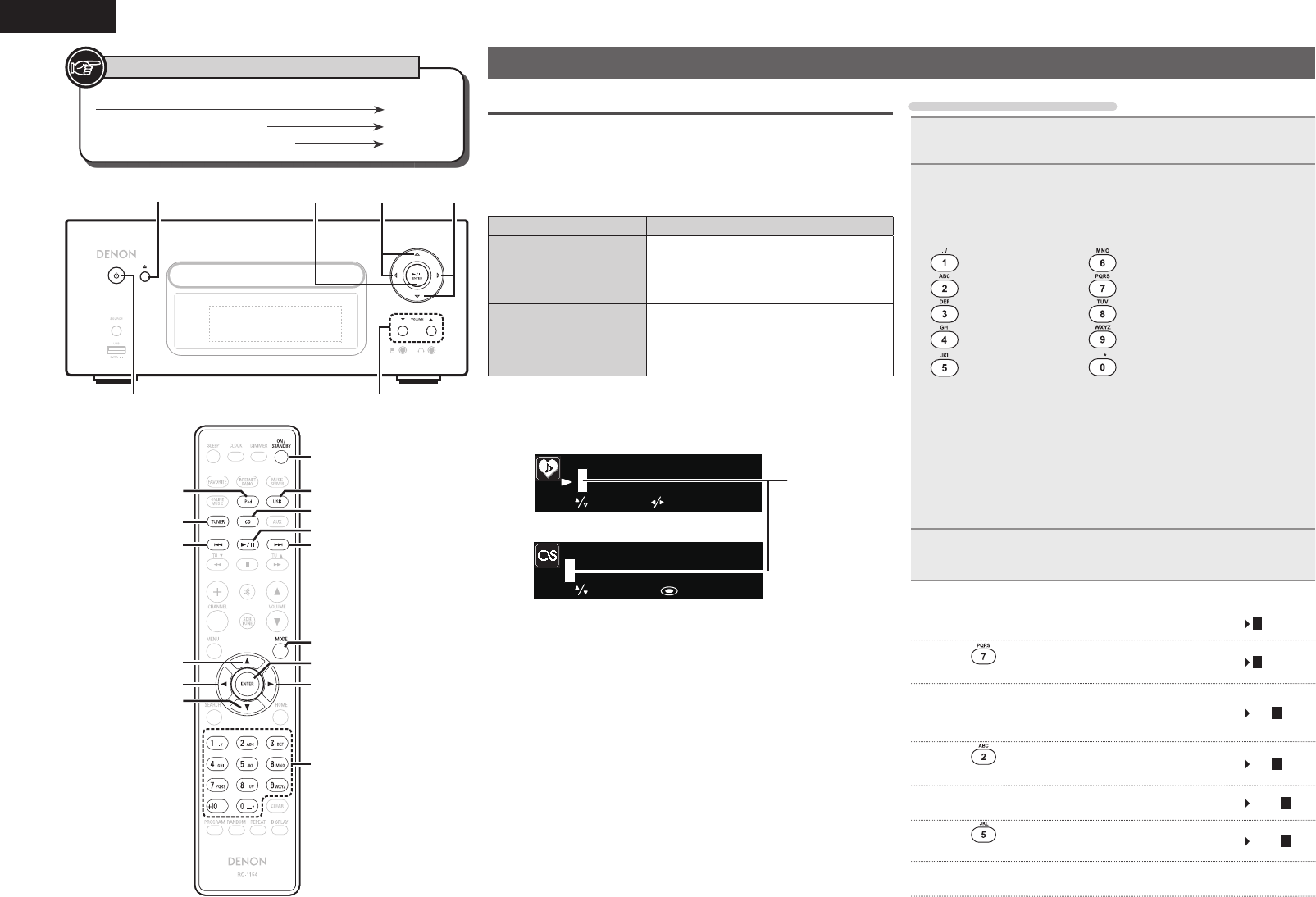
36
ENGLISH
Other functions
Inputting characters
You can change the names as desired using the “Preset Name”
(vpage16), “Napster Account” (vpage21), “Pandora account”
(vpage22), “Rhapsody account” (vpage24), and character input for
the network functions.
For inputting characters, there are two methods, as shown below.
Method Operations
Using the number
buttons
• Operating with the remote control unit.
• Multiple characters are assigned to
a button, and each time the button is
pressed, a character is switched.
Using the cursor
buttons
• Operating with the remote control unit
or the main unit.
• Use uio p and [ENTER] or <1/3
ENTER> to input characters.
nDisplay of an input screen
select move
P03
[Username]
select : enter
GPreset nameH
GAccount inputH
Cursor
Using the number buttons
1
Display the screen for inputting characters
.
2Place the cursor at the character to be changed with
o p and press [NUMBER] (0 – 9) until the desired
character is displayed.
• The types of characters that can be input are as shown below.
1 . @ - _ / : ˜m n o M N O 6
a b c A B C 2 p q r s P Q R S 7
d e f D E F 3 t u v T U V 8
g h i G H I 4 w x y z W X Y Z 9
j k l J K L 5 0 (Space) ! “ # $ % & ‘ ( ) z + ,
; < = > ? [ \ ] ^ ` { | }
• The input character type can be switched by pressing [MODE]
while the display name is being changed.
• For entering the characters assigned to one number button
continuously, press p to move the cursor to the right after entering
a character then enter the next character.
• For entering characters assigned to separate buttons, press the
number button continuously. The cursor automatically moves to
the next position, and the entered character is registered.
3Repeat step 2 to change the name then press [ENTER]
or <1/3
ENTER
> to register it.
Example: For changing characters from “POPS” to “ROCK”
q Place the cursor at “P”. POPS
w Press seven times.ROPS
“P” changes to “R”.
e Press p twice.
ROPS
“R” is automatically registered, and the cursor
placed “P”.
r Press six times.ROCS
“P” changes to “C”.
t Press p.ROCS
“C” is registered and the cursor placed “S”.
y Press fi ve times. ROCK
“S” changes to “K”.
u Press [ENTER] or <1/3 ENTER> to register the input name.
Button located on both the main unit and the remote control
BUTTON
Button only on the main unit <BUTTON>
Button only on the remote control
[BUTTON]
Symbols used to indicate buttons in this manual
[NUMBER]
u
p
[ENTER]
i
o
[TUNER] [CD]
[MODE]
[USB]
[iPod]
ON/STANDBY
[8][9]
[1/3]
/&5803,$%3&$&*7&33$%/
<VOLUME df>ON/STANDBY
p
i
<1/3 ENTER> o
u
<5>
1.RCDN7E3_ENG_008.indd 361.RCDN7E3_ENG_008.indd 36 2010/09/03 11:11:522010/09/03 11:11:52
37
Getting Started Connections
Basic Operations Advanced OperationsAdvanced Operations TroubleshootingExplanation termsInformation Specifi cations Index
ENGLISH
Using the cursor buttons
1
Display the screen for inputting characters
.
2Use o p to set the cursor to the character you want
to change.
3Use ui to change the character.
• The types of characters that can be input are as shown below.
G Upper case charactersH
ABCDEFGHIJKLMNOPQRSTUVWXYZ
GLower case charactersH
abcdefghijklmnopqrstuvwxyz
GSymbolsH! “ # $ % & ‘ ( ) z + , - . / : ; <
= > ? @ [ \ ] ^ _ ` { | } ˜
GNumbersH0123456789 (Space)
• The input character type can be switched by pressing [MODE]
while the display name is being changed.
nOther buttons
• Press [8] to delete the character.
• Press [9] to insert a space.
4Repeat steps 2 and 3 to change the name then press
[ENTER] or <1/3
ENTER
> to register it.
Auto power on
When the power is in standby, the power turns on when any of
the buttons below other than ON/STANDBY is operated, and the
respective operation is performed.
• <5> ............... The disc tray opens.
• [1/3] ............ Playback of the “CD”, “iPod” or “USB” starts.
• [TUNER] ........ Playback of the tuner starts.
• [CD] ............... The input source switches to “CD” and the disc starts
playing.
• [iPod] ............ The input source switches to “iPod” and the iPod
starts playing.
• [USB] ............. The input source switches to “USB” and the USB
starts playing.
Other functions
Last function memory
This stores the settings as they were immediately before going into
the standby mode.
When the power is turned back on, the settings are restored to as
they were immediately before going into the standby mode.
Resetting the microprocessor
Perform this procedure if the display is abnormal or if operations
cannot be performed.
When the microprocessor is reset, all the settings are reset to their
default values.
1Unplug the power cord.
2Plug the power cord into a power outlet while pressing
<VOLUME d> and <VOLUME f> simultaneously.
“Initialized” is displayed.
If “Initialized” does not display in step 2, start over from step 1.
1.RCDN7E3_ENG_008.indd 371.RCDN7E3_ENG_008.indd 37 2010/09/03 11:11:552010/09/03 11:11:55
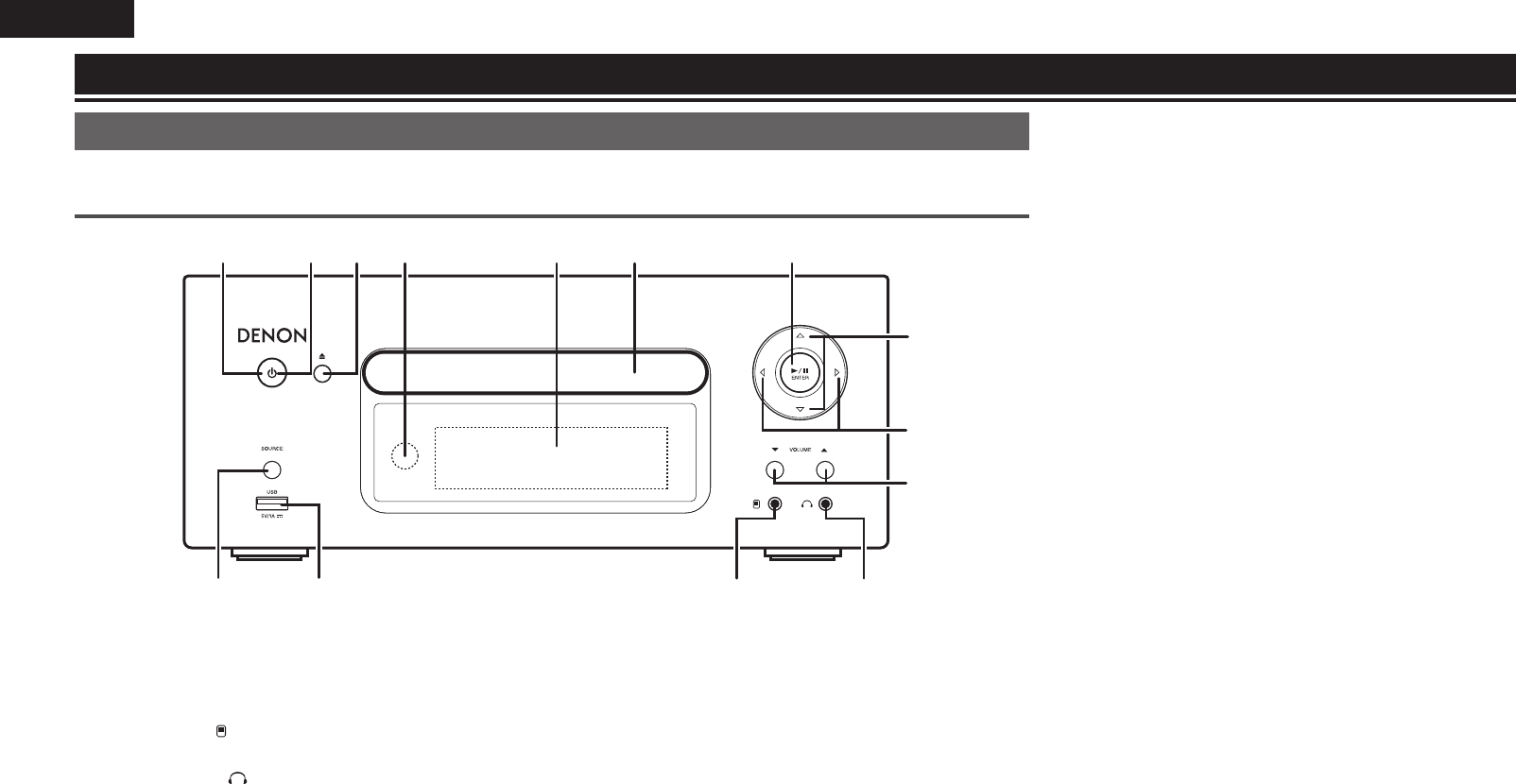
38
ENGLISH
Part names and functions
For buttons not explained here, see the page indicated in parentheses ( ).
Front panel
/&5803,$%3&$&*7&33$%/
Q0 oi u
y
t
y
re
Q3 Q2 Q1
qw
q SOURCE button ······································································· (12)
Selects the input source.
w USB port ····················································································· (9)
Used to connect iPod or USB memory devices.
e Portable in jack ( ) ·································································· (25)
Used to connect portable audio devices.
r Headphones jack ( ) ····························································· (13)
Used to connect headphones.
t Volume up/down button (VOLUME df) ······························ (12)
Adjusts the audio volume.
y Cursor button (uiop) ·························································· (12)
u Play/Pause/ENTER button (1/3/ENTER) ····························· (13)
i Disc tray ····················································································· (3)
Tray used to insert a compact disc.
o Display
Displays play status, settings, etc.
Q0 Remote control sensor ····························································· (4)
Q1 Disc tray open/close button (5) ············································· (13)
Used to open/close the disc tray.
Q2 Power indicator ······································································· (11)
Q3 Power operation button (ON/STANDBY) ····························· (11)
Information
1.RCDN7E3_ENG_008.indd 381.RCDN7E3_ENG_008.indd 38 2010/09/03 11:11:552010/09/03 11:11:55
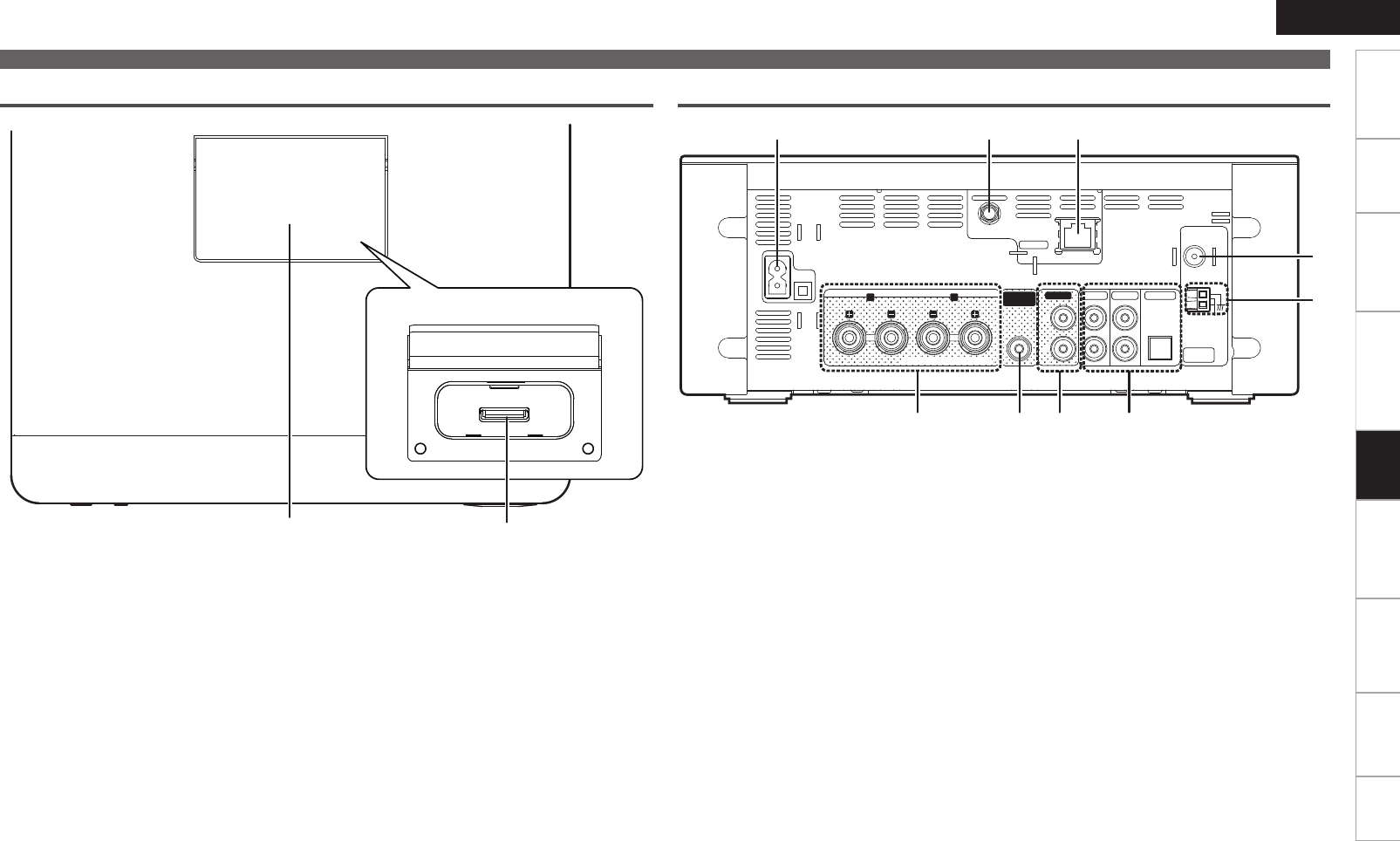
39
Getting Started Connections
Basic Operations Advanced Operations TroubleshootingExplanation termsInformationInformation Specifi cations Index
ENGLISH
q Speaker output terminals ···························· (5)
Connect to the speakers.
w SUBWOOFER PRE OUT terminal ················ (5)
Connect to the input terminal of a powered
subwoofer.
e AUX OUT terminals ····································· (6)
Connect to an external pre-main amplifi er.
r AUX IN terminals ········································· (6)
Connect to analog/digital audio.
Part names and functions
Rear panel
COAX.
75ǡ
LOOP
ANT.
LR SPEAKERS
ETHERNET
NETWORK
FM
AM
ANTENNA
TUNER
L
R
AUX OUT AUX IN 1 AUX IN 2
PREOUT
SUBWOOFER
AUX IN 3
(OPTICAL)
WLAN ANTENNA
AC IN
SPEAKERS INPEDANCE 4-16 ǡ
RCD-N7W
o ui
wq re
t
y
Top panel
qw
PUSH OPEN
GWhen the door is openedH
q Dock for iPod ················································ (9)
w Dock connector ············································· (9)
t AM antenna terminal ··································· (7)
Connect to the supplied AM antenna.
y FM antenna terminal ···································· (7)
Connect the supplied FM antenna. Connect to
an external antenna if reception is poor.
u ETHERNET connector ·································· (8)
i WLAN ANTENNA terminal ·························· (8)
o AC inlet (AC IN) ··········································· (10)
Connect the supplied AC power cord.
1.RCDN7E3_ENG_008.indd 391.RCDN7E3_ENG_008.indd 39 2010/09/03 11:11:552010/09/03 11:11:55
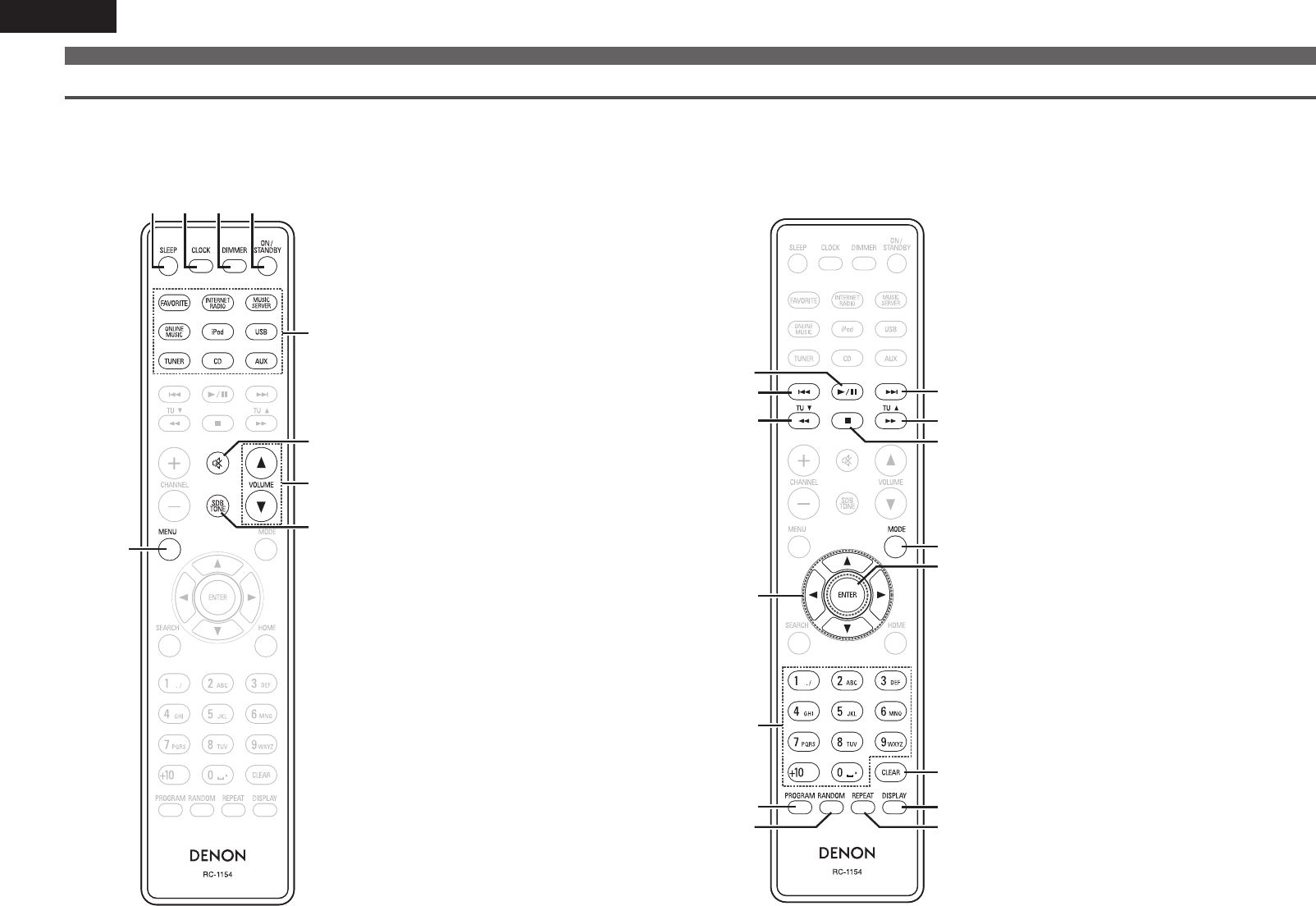
40
ENGLISH
o
Q3
t
e
w
Q2
i
u
e
w
Q0
Q1
r
y
q
nButtons that work with CDs
The buttons listed at “Buttons that work with all input sources” can also be used.
q Play/Pause button (1/3) ··························· (13)
w Reverse-skip/Forward-skip buttons
(8, 9) ·················································· (13)
e Fast-reverse/Fast-forward buttons
(6, 7) ··················································· (13)
r Stop button (2) ·········································· (13)
t MODE button ·············································· (15)
y ENTER button ············································· (13)
u Cursor buttons (uio p) ·························· (13)
i Number buttons ········································· (13)
o CLEAR button ············································· (14)
Q0 PROGRAM button ······································ (14)
Q1 RANDOM button ········································ (14)
Q2 DISPLAY button ·········································· (13)
Q3 REPEAT button ··········································· (14)
Part names and functions
u
i
y
t
o
q w e r
nButtons that work with all input sources
(CD, TUNER, iPod, USB and NETWORK)
q SLEEP button ·············································· (13)
w CLOCK button ············································· (29)
e DIMMER button ·········································· (13)
r ON/STANDBY button ································ (11)
t Input source select button ························ (12)
y MUTE button ·············································· (12)
u Master volume control buttons
(VOLUME) ··················································· (12)
i SDB/TONE button ······································ (12)
o MENU button ······································ (28 – 35)
Remote control
This section explains the buttons used to playback each input source.
1.RCDN7E3_ENG_008.indd 401.RCDN7E3_ENG_008.indd 40 2010/09/03 11:11:562010/09/03 11:11:56
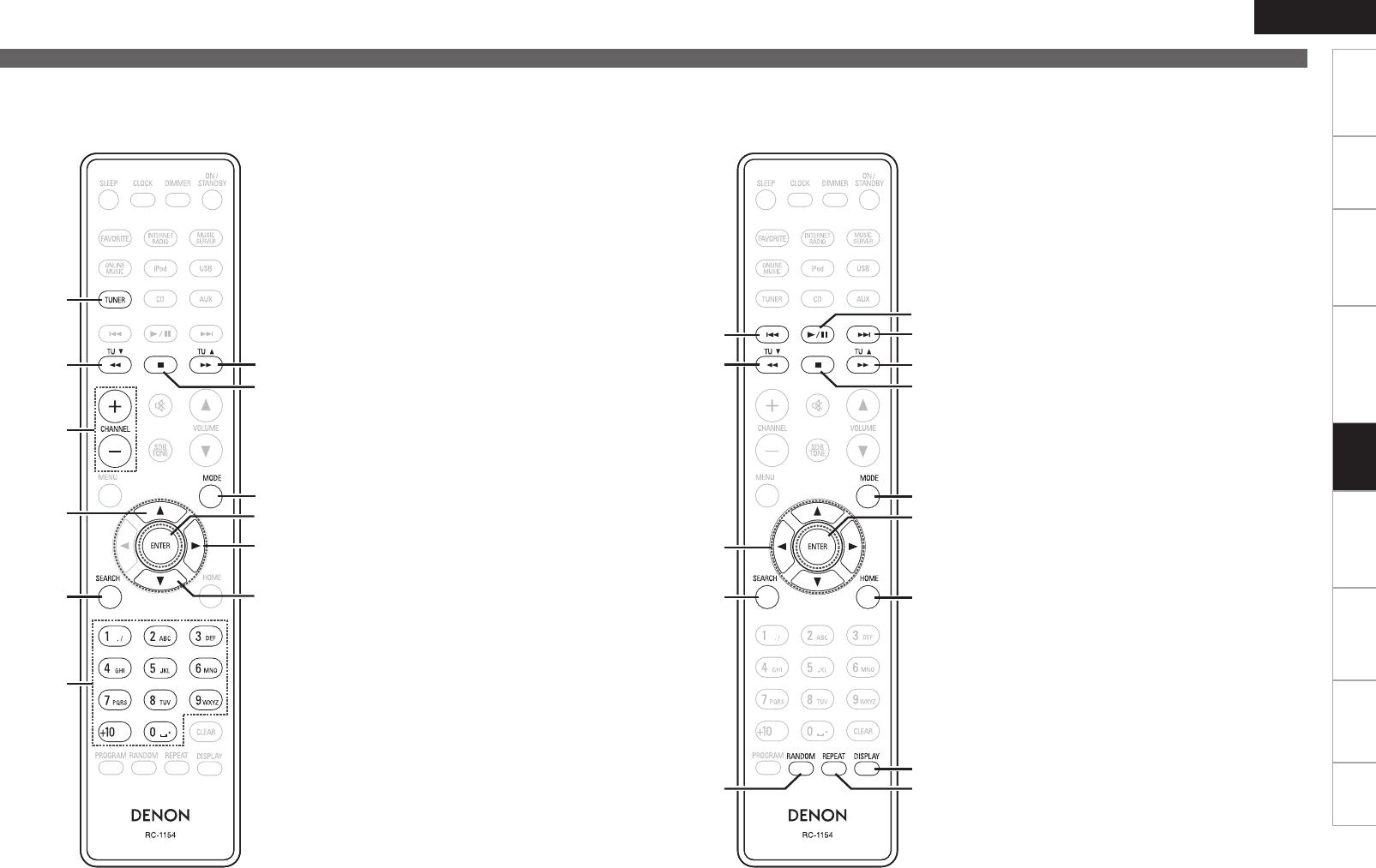
41
Getting Started Connections
Basic Operations Advanced Operations TroubleshootingExplanation termsInformationInformation Specifi cations Index
ENGLISH
w
t
y
r
y
w
q
i
o
e
u
y
q TUNER button ············································ (16)
w TUNING buttons (TU d, TU f) ·················· (16)
e Stop button (2) ·········································· (16)
r Channel buttons (+, –) ································ (17)
t MODE button ·············································· (16)
y Cursor buttons (ui p) ····························· (16)
u ENTER button ············································· (16)
i SEARCH button ·········································· (16)
o Number buttons ········································· (17)
n Buttons that work with the tuner
The buttons listed at “Buttons that work with all input sources” can also be used.
Q2
t
o
e
q
Q1
i
u
e
q
r
y
w
Q0
q Reverse-skip/Forward-skip buttons
(8, 9) ·················································· (18)
w Play/Pause button (1/3) ··························· (17)
e Fast-reverse/Fast-forward buttons
(6, 7) ···················································· (18)
r Stop button (2) ·········································· (18)
t MODE button ·············································· (17)
y ENTER button ············································· (17)
u Cursor buttons (uio p) ·························· (17)
i SEARCH button ·········································· (19)
o HOME button ·············································· (18)
Q0 RANDOM button ········································ (18)
Q1 DISPLAY button ·········································· (18)
Q2 REPEAT button ··········································· (18)
n Buttons that work with iPods or USBs
The buttons listed at “Buttons that work with all input sources” can also be used.
Part names and functions
1.RCDN7E3_ENG_008.indd 411.RCDN7E3_ENG_008.indd 41 2010/09/03 11:11:562010/09/03 11:11:56
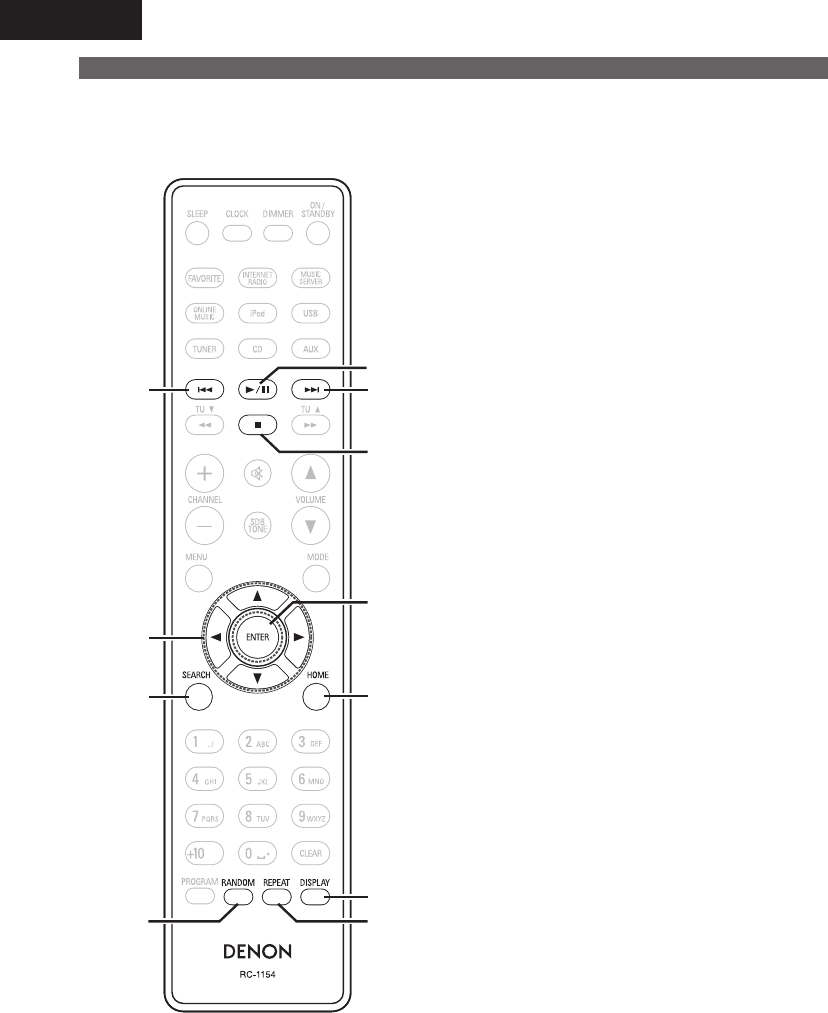
42
ENGLISH
o
u
q
Q0
y
t
q
e
r
w
i
q Reverse-skip/Forward-skip buttons
(8, 9) ·················································· (21)
w Play/Pause button (1/3) ··························· (21)
e Stop button (2) ·········································· (20)
r ENTER button ············································· (19)
t Cursor buttons (uio p) ·························· (19)
y SEARCH button ·········································· (20)
u HOME button ·············································· (20)
i RANDOM button ········································ (21)
o REPEAT button ··········································· (21)
Q0 DISPLAY button ·········································· (19)
n Buttons that work with Network
The buttons listed at “Buttons that work with all input sources” can also be used.
Part names and functions
1.RCDN7E3_ENG_008.indd 421.RCDN7E3_ENG_008.indd 42 2010/09/03 11:11:562010/09/03 11:11:56
43
Getting Started Connections
Basic Operations Advanced Operations TroubleshootingExplanation termsInformationInformation Specifi cations Index
ENGLISH
MP3 and WMA
MP3 and WMA formats
CD-R and CD-RW discs created in the format described below can
be played.
nWriting software format
ISO9660 level 1
When written in other formats, it may not be possible to play the
disc properly.
nMaximum number of playable fi les and folders
Total number of folders and fi les : 512
Number of folders : 256
nFile format
MPEG-1 Audio Layer-3
WMA (Windows Media Audio)
nTag data
ID3-Tag (Ver. 1.x and 2.x )
META-Tag
(Compatible with title, artist and album names)
Playable MP3/WMA fi le
File format Sampling
frequency Bit rate Extension
MP3 32, 44.1, 48 kHz 32 ~ 320 kbps .mp3
WMA 32, 44.1, 48 kHz 64 ~ 192 kbps .wma
• Be sure to give fi les the extension “.MP3” or “.WMA”. Files with
any other extensions or with no extensions cannot be played.
• Mac OS X fi les assigned with fi lenames that begin with “._” are not
music data and cannot be played back.
• In accordance with copyright laws, recordings you have made should
only be used for your personal enjoyment and may not be used in
other ways without permission of the copyright holder.
iPod®
“Made for iPod” and “Made for iPhone” mean that an electronic
accessory has been designed to connect specifi cally to iPod, or
iPhone, respectively, and has been certifi ed by the developer to meet
Apple performance standards.
Apple is not responsible for the operation of this device or its
compliance with safety and regulatory standards.
Please note that the use of this accessory with iPod or iPhone may
affect wireless performance.
iPhone, iPod, iPod classic, iPod nano, iPod shuffl e, and iPod touch are
trademarks of Apple Inc., registered in the U.S. and other countries.
• Individual users are permitted to use iPhone, iPod, iPod classic, iPod
nano, iPod shuffl e, and iPod touch for private copy and playback of
non-copyrighted contents and contents whose copy and playback is
permitted by law. Copyright infringement is prohibited by law.
NOTE
• DENON will accept no responsibility whatsoever for any loss of iPod
data.
• Depending on the type of iPod and the software version, some
functions may not operate.
• When connecting an iPhone to the USB port of this unit, keep the
iPhone at least 20cm away from this unit. If the iPhone is kept closer
to this unit and a telephone call is received by the iPhone, noise may
be output from this device.
1.RCDN7E3_ENG_008.indd 431.RCDN7E3_ENG_008.indd 43 2010/09/03 11:11:562010/09/03 11:11:56
44
ENGLISH
USB memory device
Important information
A USB memory device can be connected to the USB port of this unit
to play music fi les stored on the USB memory device.
Also, fi les stored on an iPod can be played when the iPod is connected
directly to the USB port of this unit. See “Connecting an iPod”
(vpage9).
• Only USB memory devices conforming to mass storage class and
MTP (Media Transfer Protocol) standards can be played on this unit.
• This unit is compatible with USB memory devices in “FAT16” or
“FAT32” format.
If the number of fi les stored in a USB memory device exceeds 1,000,
the access speed may become slower.
GCompatible formatsH
USB memory devices z1
WMA (Windows Media Audio) 3z2
MP3 (MPEG-1 Audio Layer-3) 3
WAV 3
MPEG-4 AAC 3z3
FLAC (Free Lossless Audio Codec) 3
z1 USB
• This unit is compatible with MP3 ID3-Tag (Ver. 2) standard.
• This unit is compatible with WMA META tags.
• WAV format Quantization bit rate: 16 bits.
z2 Copyright-protected fi les can be played on certain portable
players compatible with MTP.
z3 Only fi les that are not protected by copyright can be played on
this unit.
Content downloaded from pay sites on the Internet are copyright
protected. Also, fi les encoded in WMA format when ripped from a
CD, etc. on a computer may be copyright protected, depending on the
computer’s settings.
GCompatible formatsH
Sampling
frequency Bit rate Extension
WMA (Windows
Media Audio) 32/44.1/48 kHz 48 – 192 kbps .wma
MP3 (MPEG-1
Audio Layer-3) 32/44.1/48 kHz 32 – 320 kbps .mp3
WAV 32/44.1/48 kHz – .wav
MPEG-4 AAC 32/44.1/48 kHz 16 – 320 kbps
.aac/
.m4a/
.mp4
FLAC (Free
Lossless Audio
Codec)
32/44.1/48/96
kHz –.fl ac
1.RCDN7E3_ENG_008.indd 441.RCDN7E3_ENG_008.indd 44 2010/09/03 11:11:562010/09/03 11:11:56
45
Getting Started Connections
Basic Operations Advanced Operations TroubleshootingExplanation termsInformationInformation Specifi cations Index
ENGLISH
Network audio
Important information
n About the internet radio function
• Internet radio refers to radio broadcasts distributed over the
Internet.
Internet radio stations from around the world can be received.
• This unit is equipped with the following Internet radio functions:
• Stations can be selected by genre and region.
• Up to 56 Internet radio stations can be preset.
• Internet radio stations in MP3 and WMA (Windows Media
Audio) format can be listened to.
• Your favorite radio stations can be registered by accessing an
exclusive DENON Internet radio URL from a Web browser on
a computer.
• The function is managed for individual users, so you must provide
your MAC or e-mail address.
Exclusive URL: http://www.radiodenon.com
• The radio station database service may be suspended without
notice.
• This unit’s Internet radio station list is created using a radio
station database service (vTuner). This database service provides
a list edited and created for this unit.
n Music server
This function lets you play music fi les and playlists (m3u, wpl)
stored on a computer (music server) connected to this unit via a
network.
With this unit’s network audio playback function, connection to the
server is possible using one of the technologies below.
• Windows Media Player Network Sharing Service
• Windows Media DRM10
GCompatible formatsH
Internet radio Music server z1
WMA (Windows
Media Audio) 33
MP3 (MPEG-1 Audio
Layer-3) 33
WAV 3
MPEG-4 AAC 3z2
FLAC (Free Lossless
Audio Codec) 3
A server or server software compatible with distribution in the
corresponding formats is required to play music fi les via a network.
z1 Music server
• This unit is compatible with MP3 ID3-Tag (Ver. 2) standard.
• This unit is compatible with WMA META tags.
• WAV format Quantization bit rate: 16 bits.
z2 Only fi les that are not protected by copyright can be played on
this unit.
Content downloaded from pay sites on the Internet are copyright
protected. Also, fi les encoded in WMA format when ripped from a
CD, etc. on a computer may be copyright protected, depending on the
computer’s settings.
GCompatible formatsH
Sampling
frequency Bit rate Extension
WMA (Windows
Media Audio) 32/44.1/48 kHz 48 – 192 kbps .wma
MP3 (MPEG-1
Audio Layer-3) 32/44.1/48 kHz 32 – 320 kbps .mp3
WAV 32/44.1/48 kHz – .wav
MPEG-4 AAC 32/44.1/48 kHz 16 – 320 kbps
.aac/
.m4a/
.mp4
FLAC (Free
Lossless Audio
Codec)
32/44.1/48/96
kHz –.fl ac
n About Napster
Napster is a monthly subscription music distribution service
provided by Napster LLC. This service allows users to download
and play pieces of music they want to hear on this unit. Before
you can use Napster, you will need to visit the Napster website on
your PC to create an account and register as a member. For details,
access the following site:
http://www.napster.com/choose/index_default.html
n About Pandora
Pandora is a free, personalized radio service. Simply enter in
the name of your favorite song, artist or classical composer and
Pandora will create a radio station that plays music you love.
Before you fi rst listen to Pandora on your DENON device, you
will either need to associate your device with an existing Pandora
account or create a new Pandora account for use on the device.
Please launch the Pandora service on your DENON device for more
information about how to complete the device association process.
For more general information about Pandora please visit the
Pandora FAQ at http://blog.pandora.com/faq/
n About Rhapsody
Rhapsody is a paid music broadcast service of RealNetworks.
When you fi rst listen to Rhapsody, it is necessary to subscribe to
a Rhapsody account at the Rhapsody homepage by your PC and
register this machine. See the Rhapsody homepage for details.
http://www.rhapsody.com/denon
1.RCDN7E3_ENG_008.indd 451.RCDN7E3_ENG_008.indd 45 2010/09/03 11:11:562010/09/03 11:11:56

46
ENGLISH
Explanation terms
A
AES (Advanced Encryption Standard)
This is a next generation standard encryption
method replacing the current DES and 3DES, and
because of its high security it is expected to be
applied widely to wireless LANs in the future. It
uses the “Rijndael” algorithm developed by two
Belgian cryptographers to divide the data into
blocks of fi xed lengths and encrypt each block.
It supports data lengths of 128, 192 and 256 bits
and key lengths of 128, 192 and 256 bits as well,
offering extremely high encryption security.
B
Bit rate
This expresses the read amount per 1 second of
video/audio data recorded in a disc.
D
DLNA
DLNA and DLNA CERTIFIED are trademarks and/
or service marks of Digital Living Network Alliance.
Some contents may not be compatible with other
DLNA CERTIFIED™ products.
F
Finalize
This is processing that enables playing back of disc
of CD, which was recorded using a recorder, by
other players.
I
IEEE 802.11b
This is one wireless LAN standard set by the 802
working group that establishes LAN technology
standards at the IEEE (Institute of Electrical and
Electronics Engineers) of the United States. It
uses the 2.4 GHz band usable freely without
a radio frequency license (ISM band), enabling
communications at a maximum speed of 11 Mbps.
• The value indicated above is the maximum
theoretical value for the wireless LAN standard,
and does not indicate the actual data transfer rate.
IEEE 802.11g
This is another wireless LAN standard set by the
802 working group that establishes LAN technology
standards at the IEEE (Institute of Electrical and
Electronics Engineers) of the United States, and
is compatible with IEEE 802.11b. It also uses the
2.4 GHz band, but enables communications at a
maximum speed of 54 Mbps.
• The value indicated above is the maximum
theoretical value for the wireless LAN standard,
and does not indicate the actual data transfer rate.
M
MP3 (MPEG Audio Layer-3)
This is an internationally standardized audio data
compression scheme, using the “MPEG-1” video
compression standard. It compresses the data
volume to about one eleventh its original size while
maintaining sound quality equivalent to a music CD.
MPEG (Moving Picture Experts Group), MPEG-2,
MPEG-4
These are the names for digital compression format
standards used for the encoding of video and audio.
Video standards include “MPEG-1 Video”, “MPEG-
2 Video”, “MPEG-4 Visual”, “MPEG-4 AVC”. Audio
standards include “MPEG-1 Audio”, “MPEG-2
Audio”, “MPEG-4 AAC”.
N
Network Names
(SSID: Security Set Identifi er)
When forming wireless LAN networks, groups are
formed to prevent interference, data theft, etc.
This grouping is done by “SSID” or “Security Set
Identifi ers”. For further security, a WEP key is set
and signal transfer is not possible unless the SSID
and WEP key match.
P
Protection circuit
This is a function to prevent damage to components
within the power supply when an abnormality
such as an overload, excess voltage occurs or
temperature for any reason.
In this unit, the power turns off suddenly.
S
Sampling frequency
Sampling involves taking a reading of a sound wave
(analog signal) at regular intervals and expressing
the height of the wave at each reading in digitized
format (producing a digital signal).
The number of readings taken in one second is
called the “sampling frequency”. The larger the
value, the closer the reproduced sound is to the
original.
Speaker impedance
This is an AC resistance value, indicated in Ω
(ohms). Greater power can be obtained with this
value smaller.
T
TKIP (Temporal Key Integrity Protocol)
This is a network key used for WPA. The encryption
algorithm is RC4, the same as for WEP, but the
security level is increased by changing the network
key used for encryption for each packet.
V
vTuner
This is a free online content server for Internet
radio. Note that usage fees are included in upgrade
costs.
For inquiries about this service, visit the vTuner site
below.
vTuner website: http://www.radiodenon.com
This product is protected by certain intellectual
property rights of Nothing Else Matters Software
and BridgeCo. Use or distribution of such technology
outside of this product is prohibited without a
license from Nothing Else Matters Software and
BridgeCo or an authorized subsidiary.
W
WEP Key (Network Key)
This is key information used for encrypting data
when conducting data transfer. On this unit, the
same WEP key is used for data encryption and
decryption, so the same WEP key must be set on
both devices in order for communications to be
established between them.
Wi-Fi®
Wi-Fi Certifi cation assures tested and proven
interoperability by the Wi-Fi Alliance, a group
certifying interoperability among wireless LAN
devices.
Windows Media DRM
This is a copyright protection technology developed
by Microsoft.
Content providers are using the digital rights
management technology for Windows Media
contained in this device (WM-DRM) to protect
the integrity of their content (Secure Content) so
that their intellectual property, including copyright,
in such content is not misappropriated. This
device uses WM-DRM software to play Secure
Content (WM-DRM Software). If the security of
the WM-DRM Software in this device has been
compromised, owners of Secure Content (Secure
Content Owners) may request that Microsoft
revoke the WM-DRM Software’s right to acquire
new licenses to copy, display and/or play Secure
Content. Revocation does not alter the WM-DRM
Software’s ability to play unprotected content.
A list of revoked WM-DRM Software is sent to
your device whenever you download a license for
Secure Content from the Internet or from a PC.
Microsoft may, in conjunction with such license,
also download revocation list onto your device on
behalf of Secure Content Owners.
Windows Media Player Ver. 11
This is a media player distributed free of charge by
Microsoft Corporation.
It can be used to play playlists created with
Windows Media Player Ver. 11 as well as fi les in
such formats as WMA, DRM WMA, MP3 and WAV.
WMA (Windows Media Audio)
This is audio compression technology developed by
Microsoft Corporation.
WMA data can be encoded using Windows Media®
Player Ver.7, 7.1, Windows Media®Player
for Windows® XP and Windows Media® Player 9
Series.
To encode WMA fi les, only use applications
authorized by Microsoft Corporation. If you use
an unauthorized application, the fi le may not work
properly.
1.RCDN7E3_ENG_008.indd 461.RCDN7E3_ENG_008.indd 46 2010/09/03 11:11:562010/09/03 11:11:56
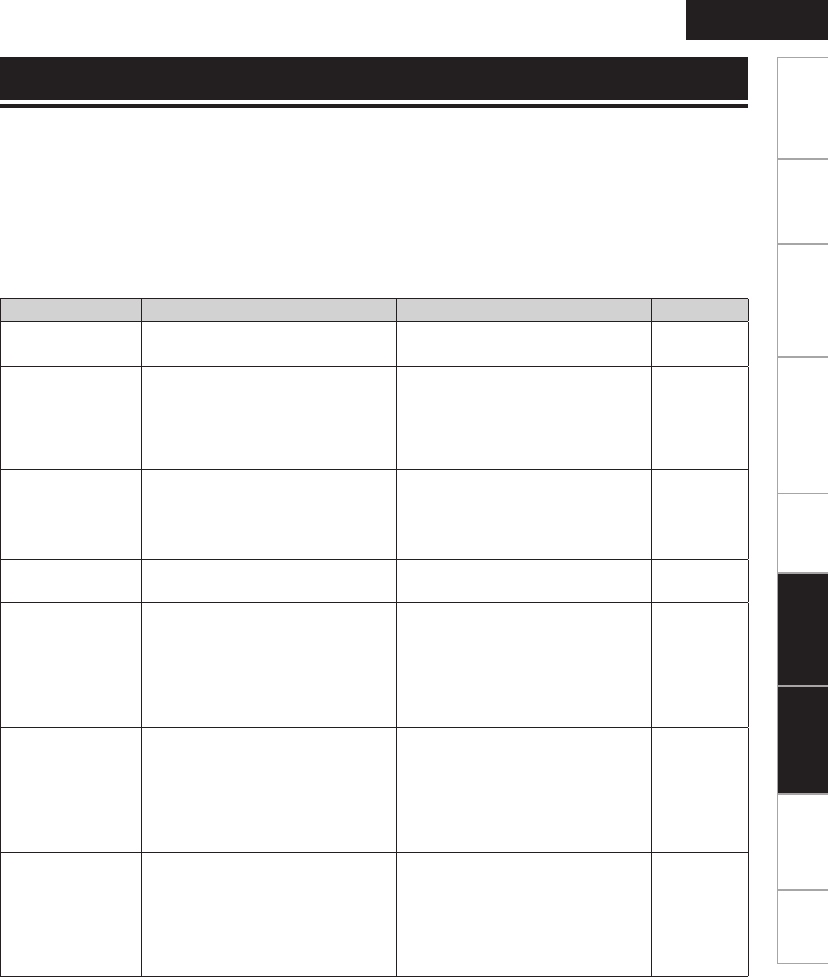
47
Getting Started Connections
Basic Operations Advanced Operations TroubleshootingTroubleshootingInformation Specifi cations Index
ENGLISH
Explanation terms
If a problem occurs fi rst check the following:
1. Are the connections correct?
2. Is the set being operated as described in the owner’s manual?
3. Are the other components operating properly?
If this unit does not operate properly, check the items listed in the table below. If the problem persists,
there may be a malfunction.
In this case, disconnect the power immediately and contact your retail outlet.
GGeneralH
Symptom Cause Countermeasure Page
Set does not
operate properly.
• External noise or interference is
causing the set to malfunction.
• Reset the microprocessor. 37
Display not lit
and sound not
produced when
power switched
to on.
• Power cord not plugged in
securely.
• Check the connections on
the set's rear panel and the
connection of the power plug to
the power outlet.
10
Display lit but
sound not
produced.
• Wrong input source selected.
• Volume control set to minimum.
• MUTING is on.
• Select the appropriate input
source.
• Turn volume up to suitable level.
• Switch off MUTING.
12
12
12
Display is off. • The Dimmer setting is set to
“OFF”.
• Set to something other than
“OFF”.
13
Power turns off
suddenly and
POWER indicator
fl ashes red.
(Flashes at 0.5
second intervals)
• Core wires of two speakers
are touching each other or a
core wire is sticking out of
the terminal and touching the
set’s rear panel, activating the
protection circuit.
• First unplug the power cord,
then twist the core wires tightly
or terminate the speaker cables,
then reconnect.
5
Power turns off
suddenly and
POWER indicator
fl ashes red.
(Flashes at 0.25
second intervals)
• Set is damaged. • Turn off the power and contact
a DENON service center.
–
Power turns off
suddenly and
POWER indicator
fl ashes red.
(Flashes at 2
second intervals)
• Protection circuit activated due
to a rise in internal temperature.
• Turn off the power, wait for the
set to fully cool down, then turn
the power back on.
• Place the set in a well-ventilated
location.
6
II
Troubleshooting
WPA (Wi-Fi Protected Access)
This is a security standard established by the Wi-Fi
Alliance. In addition to the conventional SSID
(network name) and WEP key (network key), it also
uses a user identifi cation function and encrypting
protocol for stronger security.
WPA2 (Wi-Fi Protected Access 2)
This is a new version of the WPA established by the
Wi-Fi Alliance, compatible with more secure AES
encryption.
WPA-PSK/WPA2-PSK (Pre-shared Key)
This is a simple authentication system for mutual
authentication when a preset character string
matches on the wireless LAN access point and
client.
WPS (Wi-Fi Protected Setup)
This is a standard drawn up by the Wi-Fi Alliance
to ease the task of setting up wireless LAN
connections and confi guring security.
There are two methods: push-button and PIN (Personal
Identifi cation Number) code.
1.RCDN7E3_ENG_008.indd 471.RCDN7E3_ENG_008.indd 47 2010/09/03 11:11:562010/09/03 11:11:56
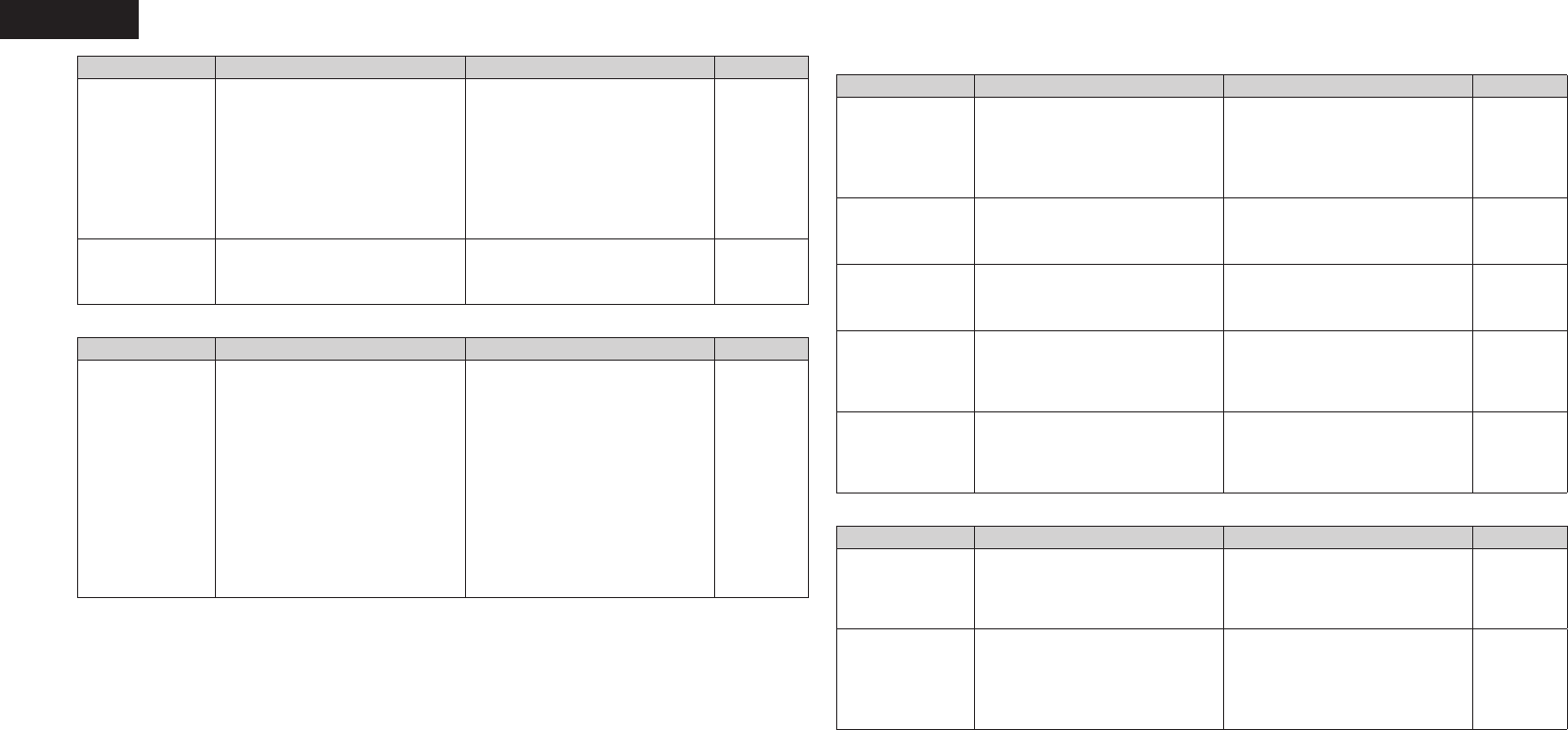
48
ENGLISH
GCDH
Symptom Cause Countermeasure Page
“Unsupported”
is shown on the
display even
though a CD is
loaded.
• The disc is not properly loaded. • Reload the disc. 3
Disc does not
play when 1/3
button is pressed.
• The disc is dirty or scratched. • Wipe the disc clean or replace
the disc.
3
A specifi c part
of a disc is not
played.
• The disc is dirty or scratched. • Wipe the disc clean or replace
the disc.
3
A CD-R or CD-RW
disc cannot be
played.
• The disc has not been fi nalized.
• The recording conditions are bad
or the quality of the disc itself
it poor.
• Finalize the disc then play it.
• Use a properly recorded disc.
3
–
MP3 and WMA
fi les cannot be
played.
• The fi le formats, extensions or
settings made when the disc
was created are not compatible
with this unit.
• Create discs with fi le formats,
extensions or settings
compatible with this unit.
43
GTunerH
Symptom Cause Countermeasure Page
Continuous noise
is heard when
receiving FM
programs.
• Antenna cable is not properly
connected.
• Connect the antenna cable
properly.
• Connect an outdoor antenna.
7
–
Hissing or
continuous noise
is heard when
receiving AM
programs.
• This may be noise from a TV or
interference from a broadcast
station.
• Turn off the TV.
• Change the position and
direction of the AM loop
antenna.
–
7
Symptom Cause Countermeasure Page
The TV sound is
not output.
• Other digital audio signals than
2 channel linear PCM cannot
be input through AUX IN 3
(OPTICAL) terminal of this unit.
• When you try to input digital
audio signals other than 2
channel linear PCM to this unit,
set the digital audio output
setting of the TV to 2 channel
PCM.
For details, see the operating
instructions of the TV.
–
“No Network
Connection” is
displayed.
• The network is not properly set
up.
• Perform “Network First Setup.”
• Select a source other than the
network function.
27
12
GRemote controlH
Symptom Cause Countermeasure Page
Set does not
work properly
when remote
control operated.
• Batteries are worn.
• You are operating outside of the
specifi ed range.
• Obstacle between main unit and
remote control.
• The batteries are not inserted
in the proper direction, as
indicated by the polarity marks
in the battery compartment.
• The set’s remote control sensor
is exposed to strong light (direct
sunlight, fl uorescent light, etc.).
• Replace with new batteries.
• Operate within the specifi ed
range.
• Remove the obstacle.
• Insert the batteries in the
proper direction, following the
polarity marks in the battery
compartment.
• Move the set to a place in which
the remote control sensor will
not be exposed to strong light.
4
4
–
4
4
1.RCDN7E3_ENG_008.indd 481.RCDN7E3_ENG_008.indd 48 2010/09/03 11:11:562010/09/03 11:11:56
49
Getting Started Connections
Basic Operations Advanced Operations TroubleshootingTroubleshootingExplanation termsInformation Specifi cations Index
ENGLISH
GInternet radio/Music server/iPod/USB/memory deviceH
Symptom Cause Countermeasure Page
When a USB
memory device
is connected,
“USB” is not
displayed.
• The set cannot recognize a USB
memory device.
• A USB memory device not
conforming to mass storage class
or MTP standards is connected.
• A USB memory device that
the set cannot recognize is
connected.
• USB memory device is
connected via USB hub.
• Check the connection.
• Connect a USB memory device
conforming to mass storage
class or MTP standards.
• This is not a malfunction.
DENON does not guarantee that
all USB memory devices will
operate or receive power.
• Connect the USB memory
device directly to the USB port.
9
–
–
–
iPod cannot be
played.
• Input source other than “iPod”
or “USB” is selected.
• Cable is not properly connected.
• Switch the INPUT to “iPod” or
“USB”.
• Reconnect.
17
9
Files on a USB
memory device
cannot be played.
• USB memory device is in a
format other than FAT16 or
FAT32.
• USB memory device is divided
into multiple partitions.
• Files are stored in a non-
compatible format.
• You are attempting to play a fi le
that is copyright protected.
• Set the format to FAT16 or
FAT32. For details, refer to the
USB memory device’s operating
instructions.
• When divided into multiple
partitions, only fi les stored in the
top partition can be played.
• Record the fi les in a compatible
format.
• Files that are copyright
protected cannot be played on
this set.
–
–
44
44
Internet radio
cannot be played.
• Ethernet cable is not properly
connected or network is
disconnected.
• Program is being broadcast in
non-compatible format.
• The computer’s or router’s
fi rewall is activated.
• Radio station is not currently
broadcasting.
• IP address is wrong.
• Check the connection status.
• Only Internet radio programs in
MP3 and WMA can be played
on this set.
• Check the computer’s or
router’s fi rewall settings.
• Choose a radio station that is
currently broadcasting.
• Check the set’s IP address.
8
45
–
19
27
Files stored on a
computer cannot
be played.
• Files are stored in a non-
compatible format.
• You are attempting to play a fi le
that is copyright protected.
• Set and computer are connected
by USB cable.
• Record in a compatible format.
• Files that are copyright protected
cannot be played on this set.
• The set’s USB port cannot
be used for connection to a
computer.
45
45
–
Symptom Cause Countermeasure Page
Server is not
found, or it is
not possible to
connect to the
server.
• The computer’s or router’s
fi rewall is activated.
• Computer’s power is not turned
on.
• Server is not running.
• Set’s IP address is wrong.
• Check the computer’s or router’s
fi rewall settings.
• Turn on the power.
• Launch the server.
• Check the set’s IP address.
–
–
–
27
Cannot connect
to preset or
favorite radio
stations.
• Radio station is not currently
broadcasting.
• Radio station is not currently in
service.
• Wait a while before trying again.
• It is not possible to connect to
radio stations that are no longer
in service.
–
For some
radio stations,
“Server Full”
or “Connection
Down” is
displayed and
station cannot be
connected to.
• Station is congested or not
currently broadcasting.
• Wait a while before trying again. –
Sound is broken
during playback.
• Network’s signal transfer speed
is slow or communications lines
or radio station is congested.
• This is not a malfunction. When
playing broadcast data with a
high bit rate, the sound may
be broken, depending on the
communications conditions.
–
Sound quality is
poor or played
sound is noisy.
• File being played has a low bit
rate.
• This is not a malfunction. –
1.RCDN7E3_ENG_008.indd 491.RCDN7E3_ENG_008.indd 49 2010/09/03 11:11:562010/09/03 11:11:56
50
ENGLISH
GPandoraH
Symptom Cause Countermeasure Page
Cannot login to
Pandora. (“Email
address” or
“Password” is
displayed.)
• Login information is incorrect. • Check if the “Email address”
for Pandora has been properly
entered. Re-enter the
“Password”. (Password is not
displayed.)
22
"Account is no
longer active" is
displayed.
• Your account is expired. • Obtain a new account.
• Contact Pandora Listener
Support at pandora-support@
pandora.com.
–
"Pandora is only
available for use
in United States"
is displayed.
• You are trying to access from a
country where Pandora is not
available.
• Pandora is not available in all
countries. Please check http://
blog.pandora.com/faq/
–
"Incorrect Email
or Password" is
displayed.
• You entered an incorrect
account or password for the
login authentication.
• Enter them again. 22
"No skips
remaining" is
displayed.
• You repeatedly performed the
forward skip operation for tracks
within the same station. No
more forward skip operation is
available.
• Unfortunately, our music
licenses force us to limit the
amount of tracks you can skip in
an hour.
–
"100 Station Limit"
is displayed.
• You have already registered 100
stations. You can not register a
new station.
• Reduce the number of stations
to less than 100.
–
"Please Try
Again Later" is
displayed.
• Pandora is performing system
maintenance.
• Please try again later. –
GRhapsodyH
Symptom Cause Countermeasure Page
Cannot login to
Rhapsody.
(“Incorrect
Username or
Password” is
displayed.)
• Login information is incorrect. • Check if the Username for
Rhapsody has been properly
entered. Re-enter the Password.
(Password is not displayed.)
www.rhapsody.com/denon
24
GNapsterH
Symptom Cause Countermeasure Page
Cannot login
to Napster.
(“Subscription
required” is
displayed.)
• Login authentication error.
• If a nonsubscriber user accesses
it. Or when the listening
limitation exceeds it.
• Enter the correct username and
password and retry login.
–
Cannot login
to Napster.
(“Incorrect
Username or
Password” is
displayed.)
• Incorrect username or password
entered for login authentication.
• Enter the correct username and
password and retry login.
• Check if the Username for
Napster has been properly
entered. Re-enter the Password.
(Password is not displayed.)
http://www.napster.com/
choose/index_default.html
–
–
GWireless LANH
Symptom Cause Countermeasure Page
Cannot connect
to network.
• The settings of the SSID
and network key (WEP) are
incorrect.
• The reception is poor and the
signals cannot be received.
• There are multiple networks and
the usable channels overlap.
• The router power is off.
• Match the network settings
with this unit settings.
• Shorten the distance from the
wireless LAN’s access point,
remove any obstacles and
otherwise improve visibility,
then try reconnecting. Also
install away from microwave
ovens and the access points of
other networks.
• Set the access point’s channel
settings away from the channels
used for other networks.
Alternatively, connect using a
network cable.
• Turn on the router power.
31, 32
–
–
–
Played sound is
interrupted or
sound cannot be
played.
• There are multiple networks and
the usable channels overlap.
• Set the access point’s channel
settings away from the channels
used for other networks.
Alternatively, connect using a
network cable.
–
1.RCDN7E3_ENG_008.indd 501.RCDN7E3_ENG_008.indd 50 2010/09/03 11:11:562010/09/03 11:11:56

51
Getting Started Connections
Basic Operations Advanced Operations Explanation termsInformation Specifi cationsSpecifi cations Index
ENGLISH
IndexTroubleshooting
nCD player
• Audio performance
S/N ratio (1 kHz) 100 dB
Dynamic range (1 kHz) 100 dB
Total harmonic distortion (1 kHz) 0.01 %
nAudio AMP
Rated output 2-channel driving
65 W + 65 W (4 Ω/ohms, 1 kHz, T.H.D. 0.7 %)
Dynamic power 80 W + 80 W (4 Ω/ohms)
High frequency distortion 0.1 % (Rated output: –3 dB), 4 Ω/ohms, 1 kHz
Input sensitivity/impedance
AUX1, AUX2 200 mV/32 kΩ
Portable in 110 mV/24 kΩ
Frequency response (5 W, 8 Ω)
AUX input 5 Hz to 20 kHz (±3 dB)
Total harmonic distortion (1 kHz, 5 W, 8 Ω)
AUX input 0.05 %
S/N ratio (10 W, 8 Ω, IHF-A)
AUX input 86 dB
nTuner
• FM tuner
Range of receivable frequencies 87.5 to 107.9 MHz
S/N ratio (mono) 65 dB
Sensitivity (S/N 30 dB) 9 dBμV (IHF)
• AM tuner
Range of receivable frequencies 530 to 1710 kHz
S/N ratio 40 dB
Sensitivity (S/N 20 dB) 55 dBμV/m
nClock
Clock method Within 1 – 2 minutes per month
Specifi cations
nWireless LAN
Network type (wireless LAN standards) Conforming to IEEE 802.11b
Conforming to IEEE 802.11g
(Conforming to Wi-Fi®)z
Transfer rate DS-SS: 11 / 5.5 / 2 / 1 Mbps (Automatic switching)
OFDM: 54 / 48 / 36 / 24 / 18 / 12 / 9 / 6 Mbps (Automatic
switching)
Security SSID (Network name)
WEP key (network key) (64/128 bits)
WPA-PSK (TKIP/AES)
WPA2-PSK (TKIP/AES)
Used frequency range 2,412 MHz – 2,462 MHz
No. of channels Conforming to IEEE 802.11b : 11ch (DS-SS) (Of which 1
channel used)
Conforming to IEEE 802.11g : 11ch (OFDM) (Of which 1
channel used)
nPower supply
Power supply voltage/frequency AC 120 V, 60 Hz
Power consumption 65 W
Power consumption in standby mode 0.3 W
nMiscellaneous
External dimensions 280 (W) x 112 (H)x 299 (D) mm
(11-1/32” x 4-13/32” x 11-49/64”)
Weight 4.3 kg (9 lbs 7.7 oz)
z Wi-Fi® conformity indicates tested and proven interoperability by the “Wi-Fi Alliance”, a group
certifying interoperability among wireless LAN devices.
• For purposes of improvement, specifi cations and design are subject to change without notice.
1.RCDN7E3_ENG_008.indd 511.RCDN7E3_ENG_008.indd 51 2010/09/03 11:11:562010/09/03 11:11:56
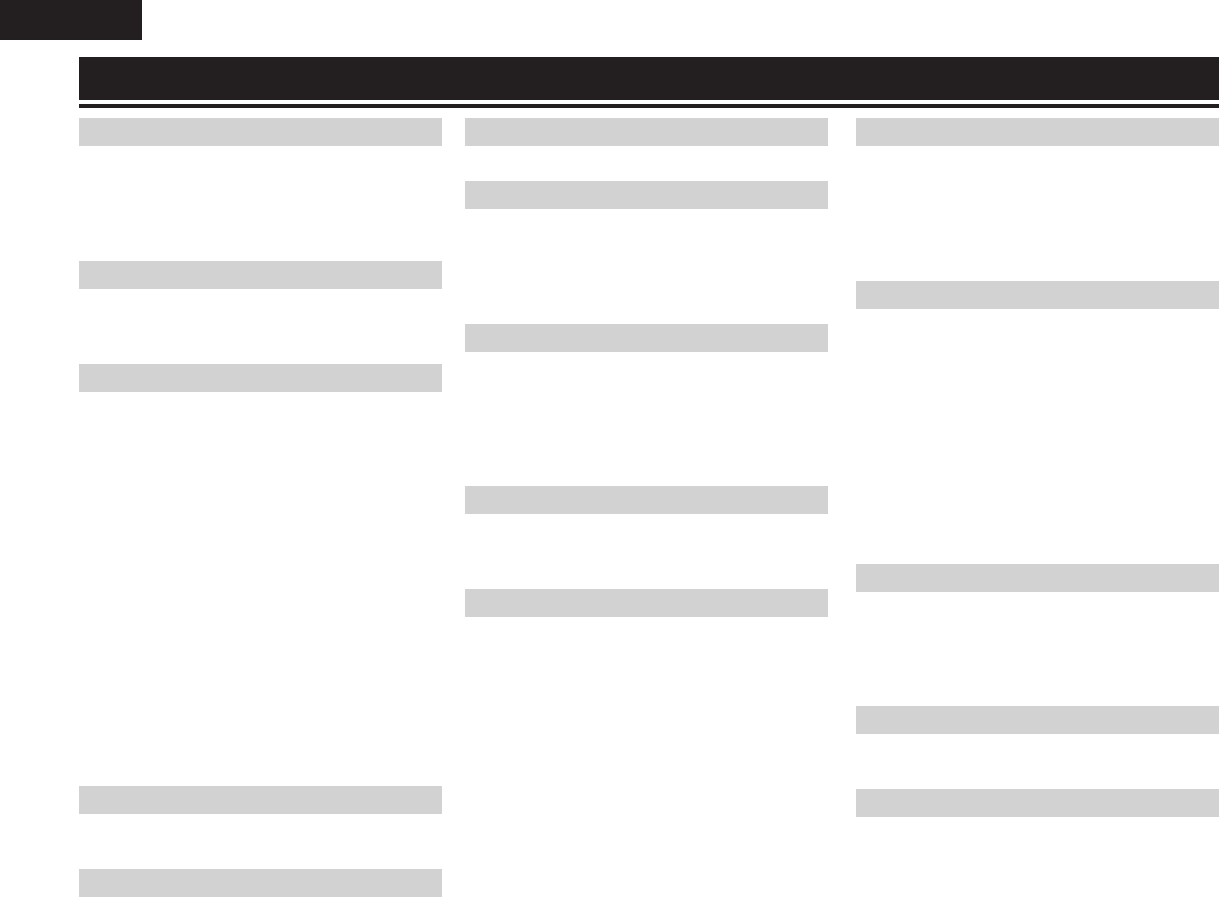
52
ENGLISH
Index
vA
Accessories ·························································· 2
AES ······························································ 32, 46
AM loop antenna ·················································· 7
Auto preset ························································ 16
Auto Standby ······················································ 35
vB
BASS ·································································· 12
Bit rate ·············································· 43, 44, 45, 46
Browse mode ····················································· 17
vC
Cable
Audio cable ·········································· 5, 6, 9, 10
Ethernet cable···················································· 8
Optical cable ······················································ 6
Pin-plug cable····················································· 5
Speaker cable ···················································· 5
Stereo pin-plug cable ········································· 6
Characters ········································ 31, 32, 36, 37
Connection
Antenna ····························································· 7
iPod ···································································· 9
Network ····························································· 8
Portable audio player ········································ 10
Power cord ······················································· 10
Recording components ······································ 6
Speaker ······························································ 5
TV······································································· 6
USB memory device ·········································· 9
Current time ················································· 11, 29
vD
Display’s brightness ··········································· 13
DLNA ·································································· 46
vF
Favorite list ························································· 26
Finalize ··························································· 3, 46
Firmware update ················································ 35
FM indoor antenna ··············································· 7
Friendly Name Edit ············································· 34
Front panel ························································· 38
vH
Headphones ······················································· 13
vI
IEEE 802.11b ······················································ 46
IEEE 802.11g ······················································ 46
Input source ······················································· 12
Inputting characters ··········································· 36
Internet radio ······················································ 19
vM
Menu map ·························································· 27
MP3 ·················································· 15, 44, 45, 46
MPEG ································································· 46
MPEG-4 AAC ······················································ 44
Music server ······················································ 20
Mute ··································································· 12
vN
Napster ······························································· 21
Network Names (SSID) ······································ 46
Network Standby ··············································· 34
vP
Pandora ······························································ 22
Party mode ························································· 33
PC Language ······················································ 34
Playback
AUX ·································································· 25
CD ···································································· 13
Files ································································· 15
FM/AM broadcasts ·········································· 16
Internet radio ··················································· 19
iPod ·································································· 17
Napster ···························································· 21
Network audio ··········································· 19, 45
Portable audio player ········································ 25
Program ··························································· 14
Random ··························································· 14
Repeat ····························································· 14
USB memory device ·································· 18, 44
Protection circuit ············································ 6, 46
vR
Rear panel ·························································· 39
Remote control ·································· 4, 40, 41, 42
Batteries ····························································· 4
Remote mode ···················································· 17
Resetting the microprocessor ···························· 37
Rhapsody ····················································· 24, 45
vS
Sampling frequency ························· 43, 44, 45, 46
Screen saver ······················································ 35
SDB ···································································· 12
Setting
Clock ································································ 29
Network ··············································· 30, 31, 32
Other································································ 35
Timer································································ 28
Sleep timer ························································· 13
Speaker impedance ········································ 5, 46
Speaker optimize ················································ 35
Subwoofer ···························································· 5
vT
Timer ·································································· 28
TKIP ···································································· 46
Tone ··································································· 12
Top panel ···························································· 39
TREBLE ······························································ 12
vV
Volume ······························································· 12
vTuner ·························································· 45, 46
vW
WEP Key ······················································ 32, 46
Wi-Fi ··································································· 46
Windows Media DRM ·································· 45, 46
Windows Media Player Ver. 11 ···················· 20, 46
WMA ················································ 15, 44, 45, 46
WPA ····························································· 32, 47
WPA2 ··························································· 32, 47
WPA-PSK/WPA2-PSK ··································· 32, 47
WPS ····························································· 31, 47
1.RCDN7E3_ENG_008.indd 521.RCDN7E3_ENG_008.indd 52 2010/09/03 11:11:572010/09/03 11:11:57

4.RCDN7E3_Backpage_008.indd 334.RCDN7E3_Backpage_008.indd 33 2010/09/03 8:46:222010/09/03 8:46:22

D&M Holdings Inc.
Printed in China 5411 10541 008D
www.denon.com
4.RCDN7E3_Backpage_008.indd 344.RCDN7E3_Backpage_008.indd 34 2010/09/03 8:46:222010/09/03 8:46:22
