1.Laptop Provisioning Instructions
User Manual:
Open the PDF directly: View PDF  .
.
Page Count: 38






Computer Setup Options: New Hire Windows Setup
6
•The following are required for a successful Windows installation:
•Network connectivity - keep your computer connected to the Cisco network via a direct, physical
and hard-wired connection with an Ethernet cable (provided with your new computer) throughout the
entire process. WiFi is not sufficient.
•Power connectivity - keep your computer connected to the power by plugging it directly into the
power source throughout the entire process. Do not use a docking station or port replicator.
•New Hire Temporary Password - if you are a new hire with a temporary password you will need
to reset your password before continuing. As a temporary measure, please borrow a colleague's
computer connected to the Cisco network, go to pwreset.cisco.com and follow the instructions to
reset your password.
DISREGARD-This has been completed for you. The password emailed to
you should work to log in to your laptop.
Computer Setup Options: New Hire Windows Setup
7
•PDF instructions - view and print Step 1: Windows Installation as a PDF to follow offline.
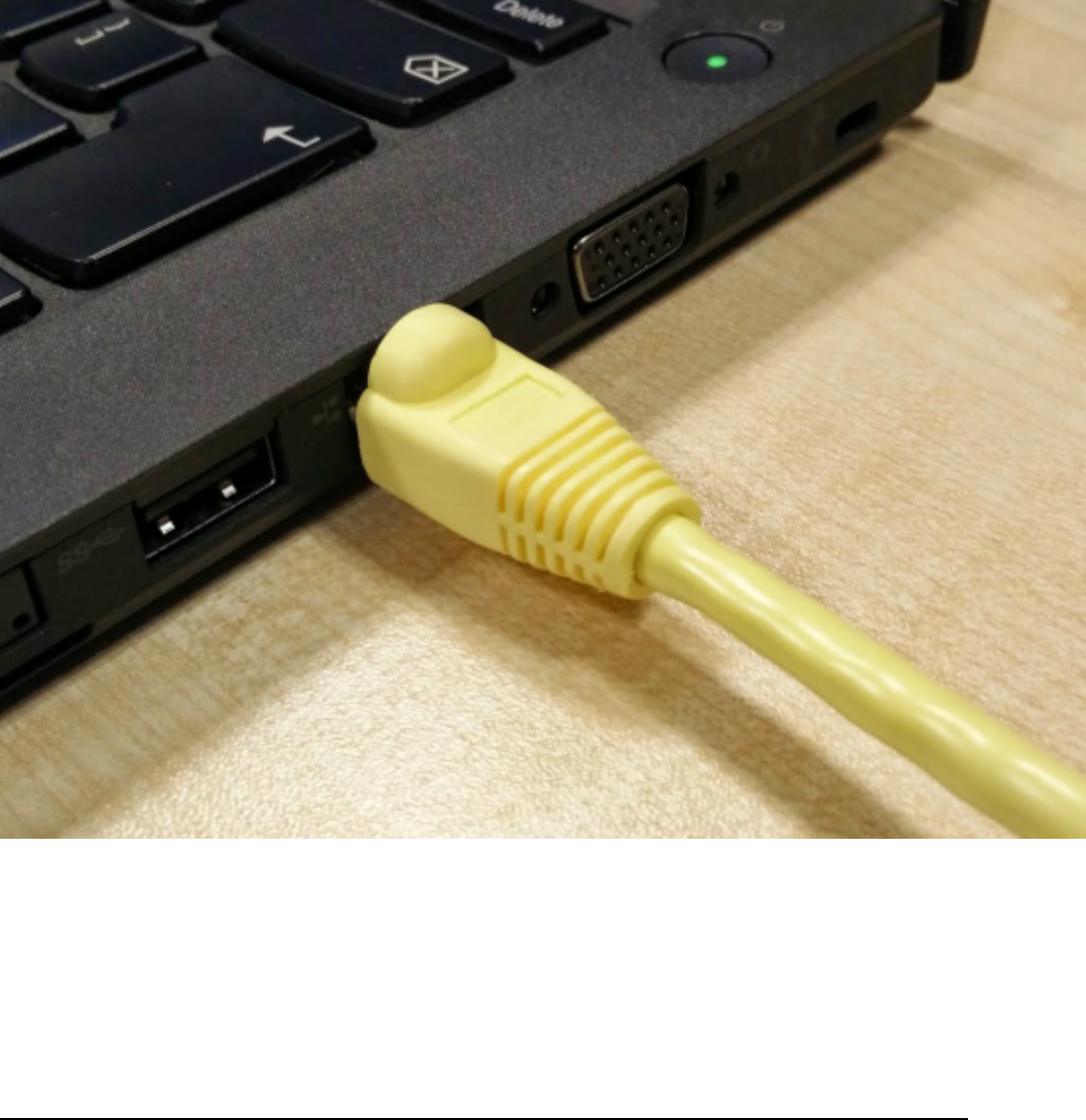
1. Connect your computer to the Cisco network using an Ethernet cable (provided with your new computer), via
an active network port. If you have an X1 Carbon, use the supplied Ethernet dongle. An active connection is
indicated by flash LED lights on the computer's Ethernet port.
2. Connect your computer to the power via the supplied power adapter. Do not use a docking station or port
replicator.
3. Turn on your computer. This first boot may take up to 5 minutes before the Windows Installation Loader
dialog is displayed.

Computer Setup Options: New Hire Windows Setup
8
•If the Windows Boot Assistant dialog (see image) is displayed instead of the Windows Installation
Loader dialog (see below), refer to the legacy installation instructions.
•Return to Step 2 PC Setup Assistant on page 18 after following the legacy installation instructions.
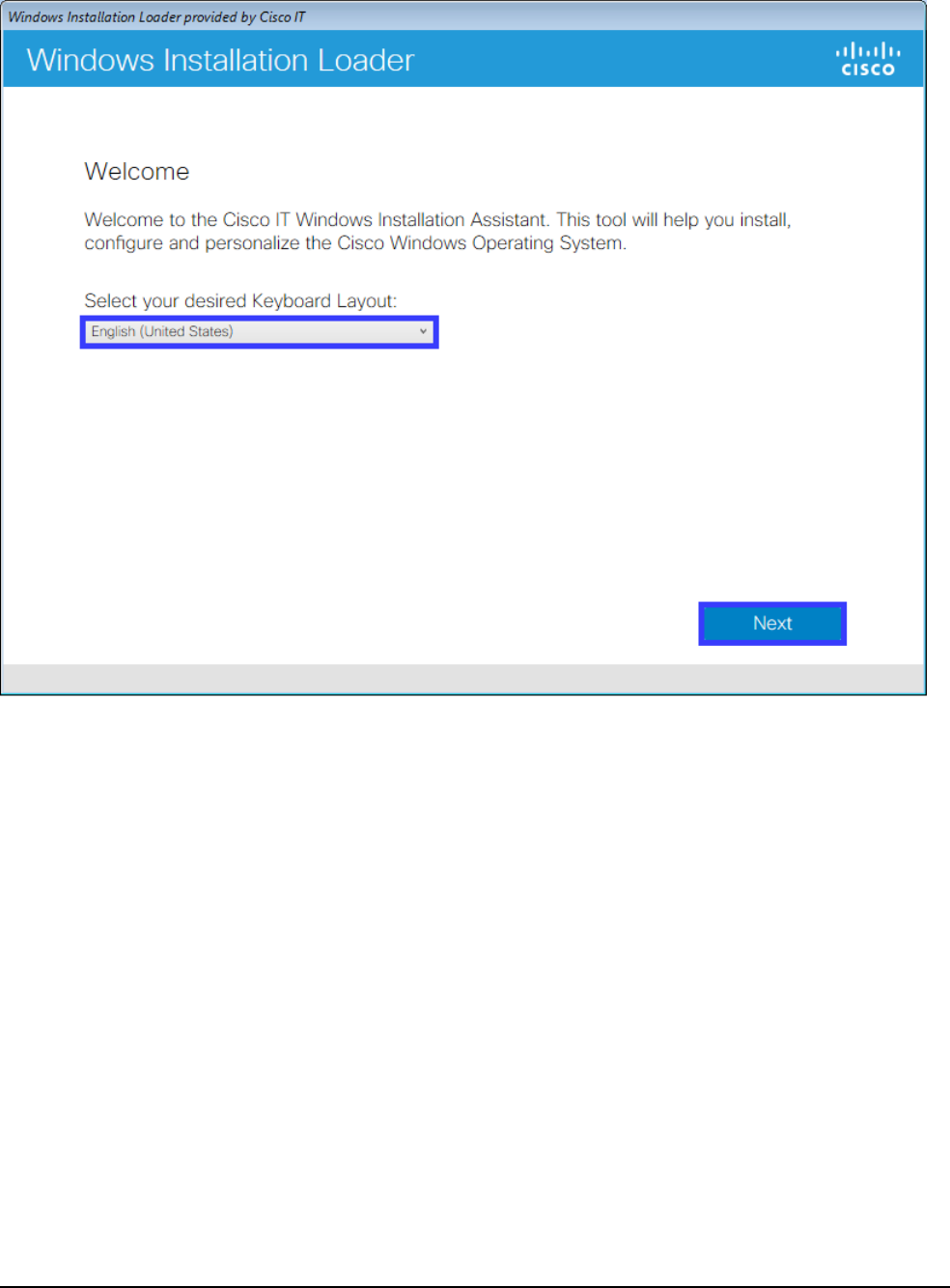
4. Within the Windows Installation Loader, select your Keyboard Layout and press Next.

Computer Setup Options: New Hire Windows Setup
10
•If you are a new hire with a temporary password you will need to reset your password before
continuing. As a temporary measure, please borrow a colleague's computer connected to the Cisco
network, go to pwreset.cisco.com and follow the instructions to reset your password.
DISREGARD THE ABOVE. THIS HAS ALREADY BEEN
COMPLETED FOR YOU

Computer Setup Options: New Hire Windows Setup
12
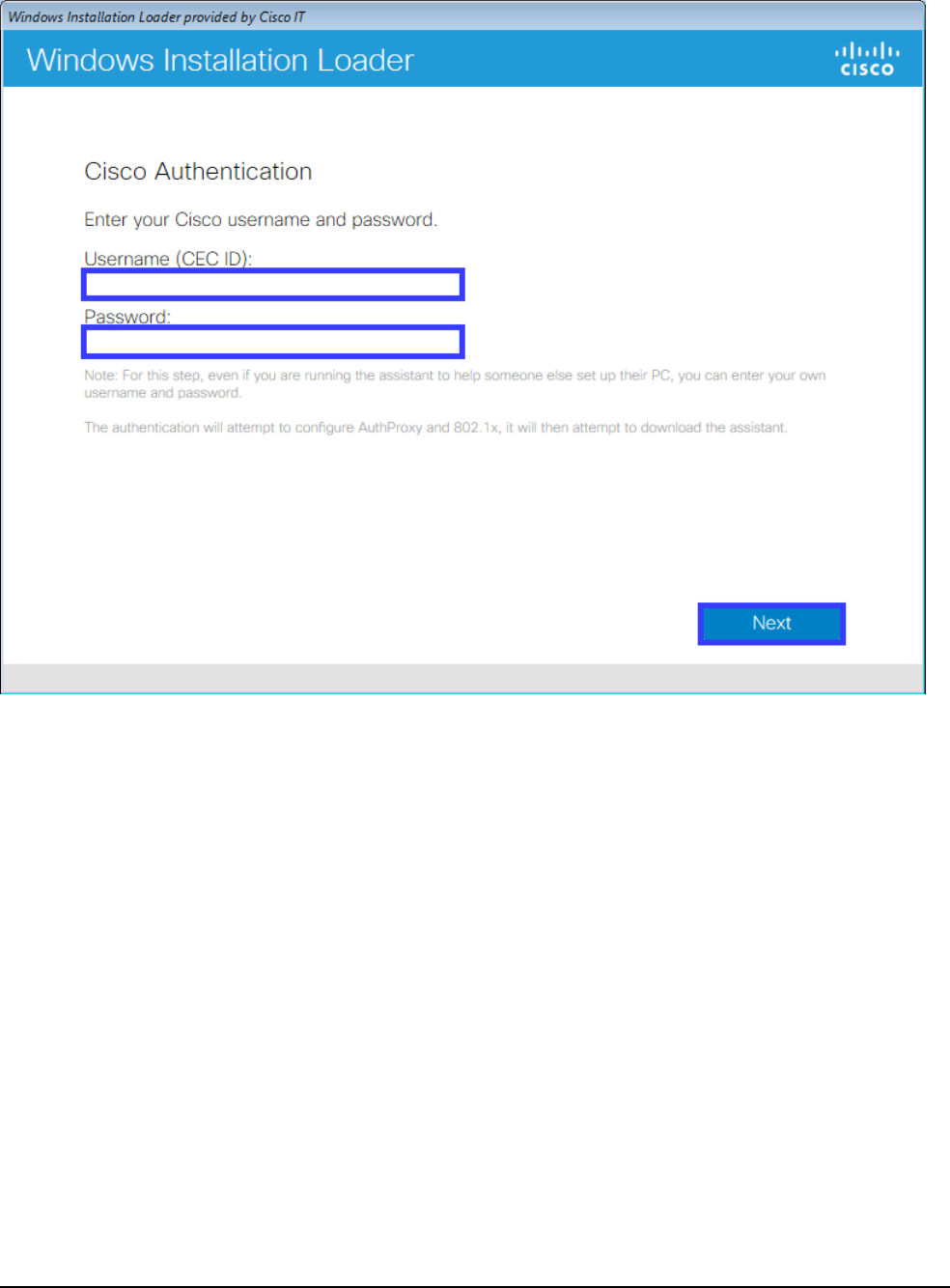
•Password Failure Error: if you are seeing password failure errors when using a non-standard
keyboard layout, follow these instructions to bypass this error.
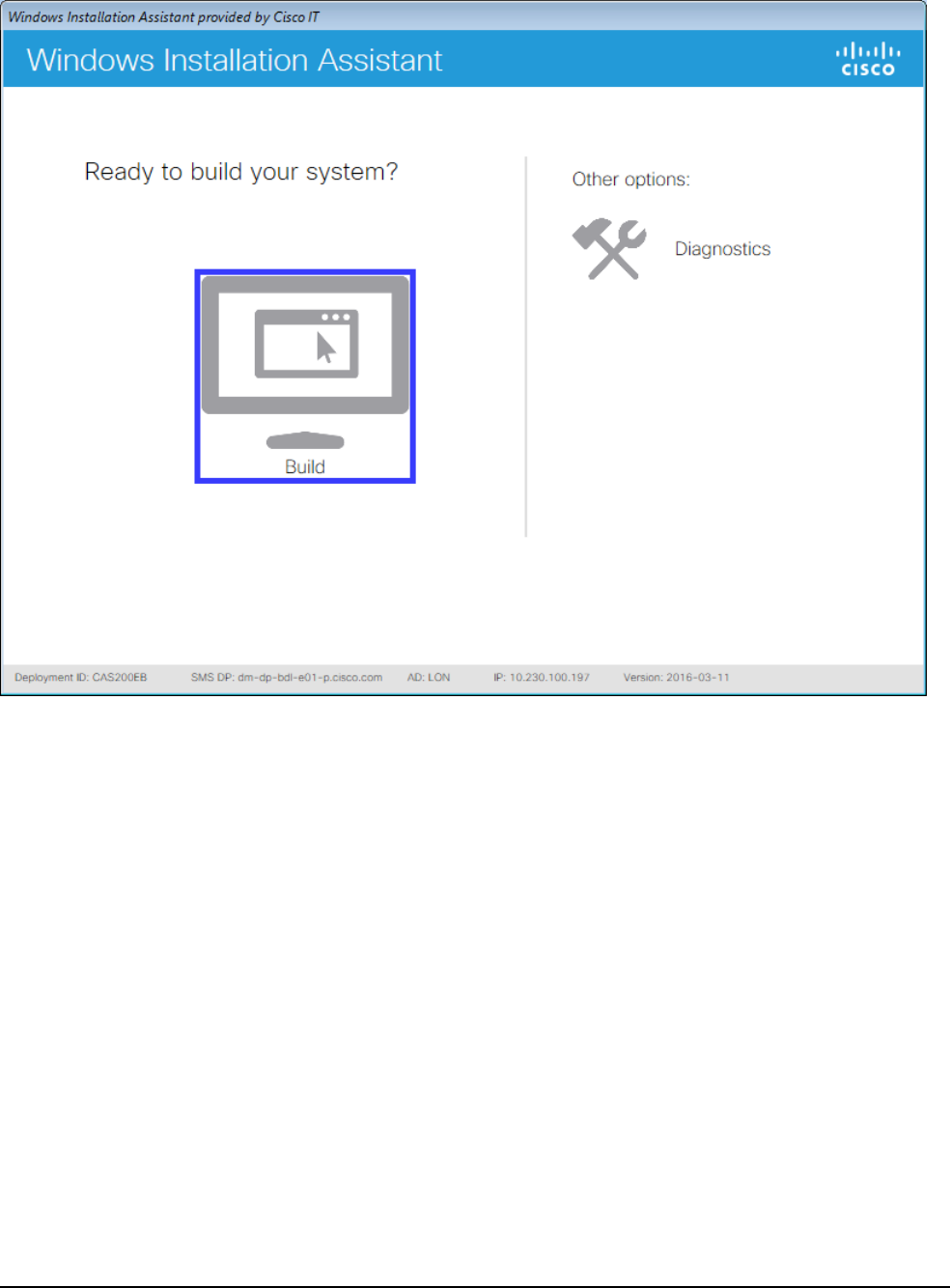
6. After a short wait, the Windows Installation Assistant dialog will appear. Press the large Build icon.
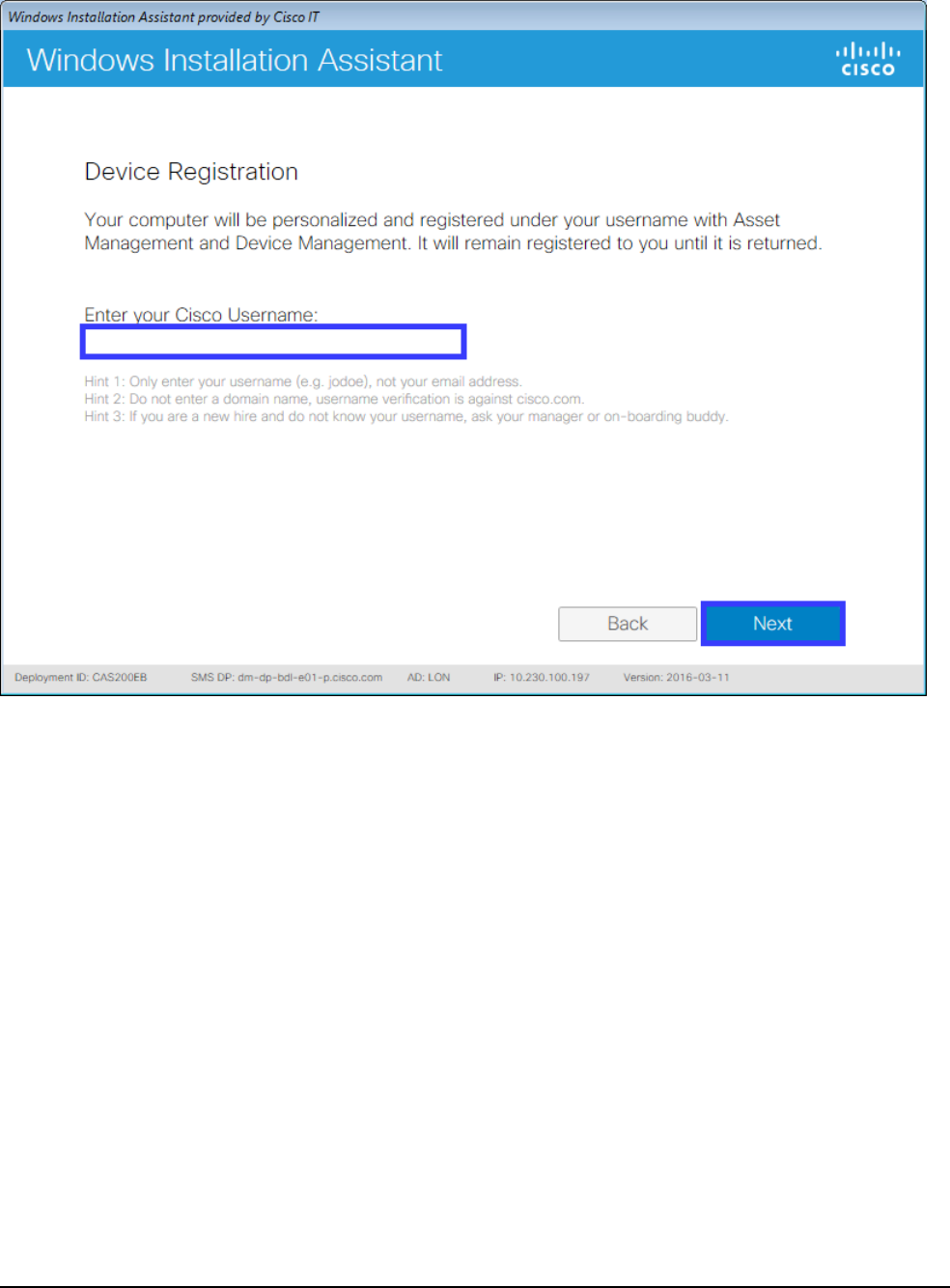
Computer Setup Options: New Hire Windows Setup
14
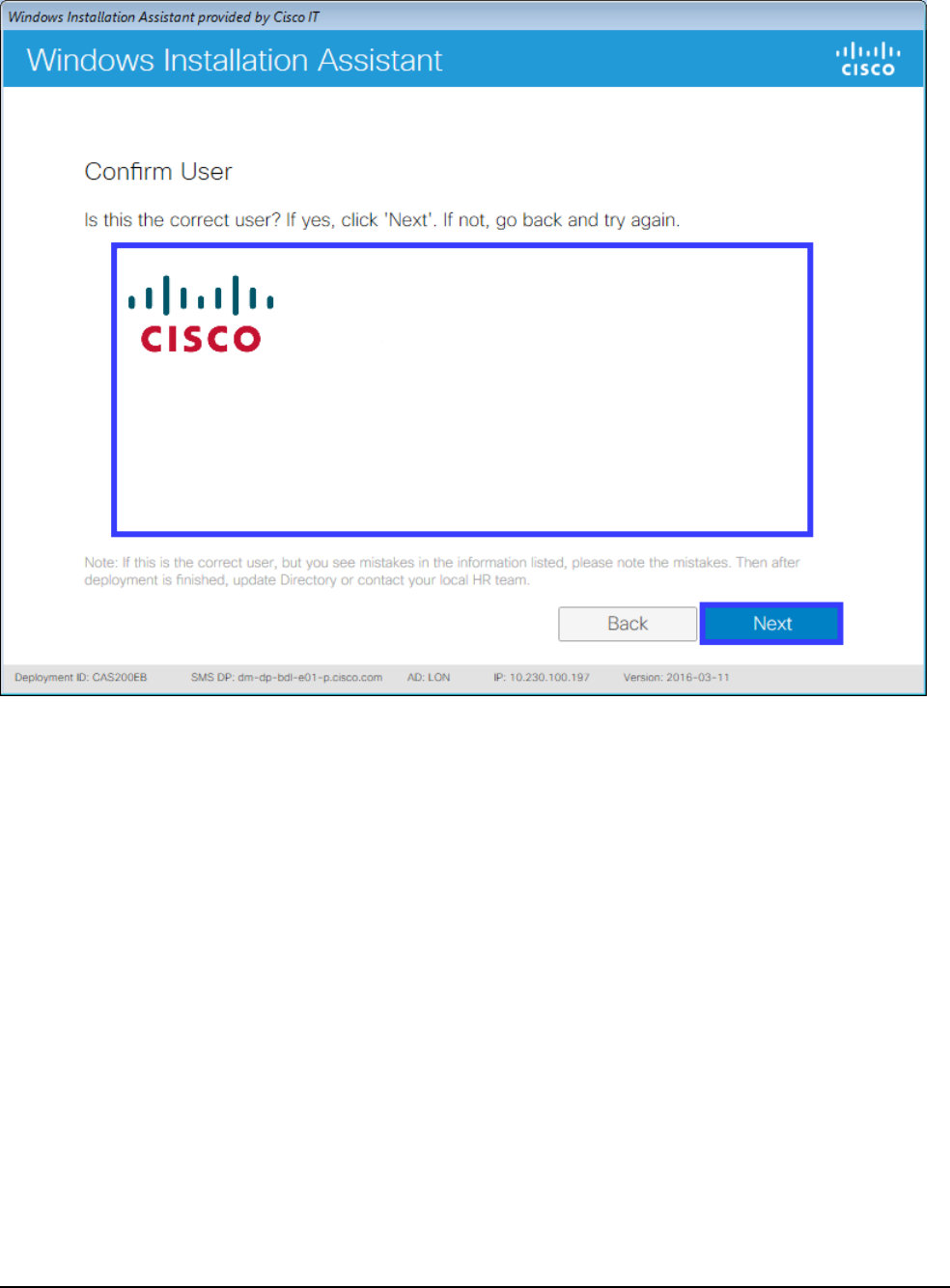
8. Review and confirm your directory details.
•If they are your details press Next.
•If they are your details but there are mistakes, note them and press Next. After the installation is
finish update your directory entry or contact your local HR team.
•If they are not your details press Back and re-enter your username.
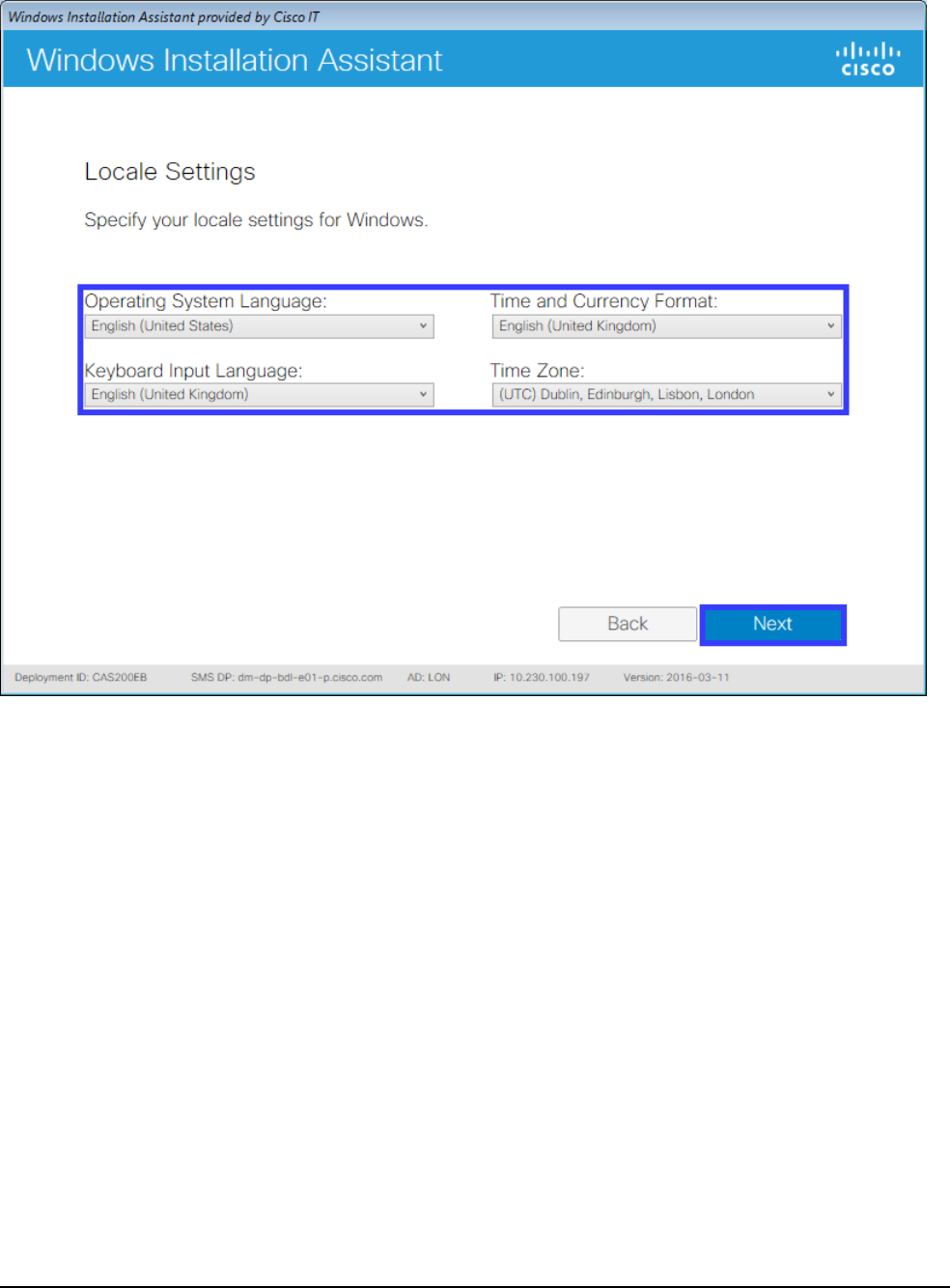
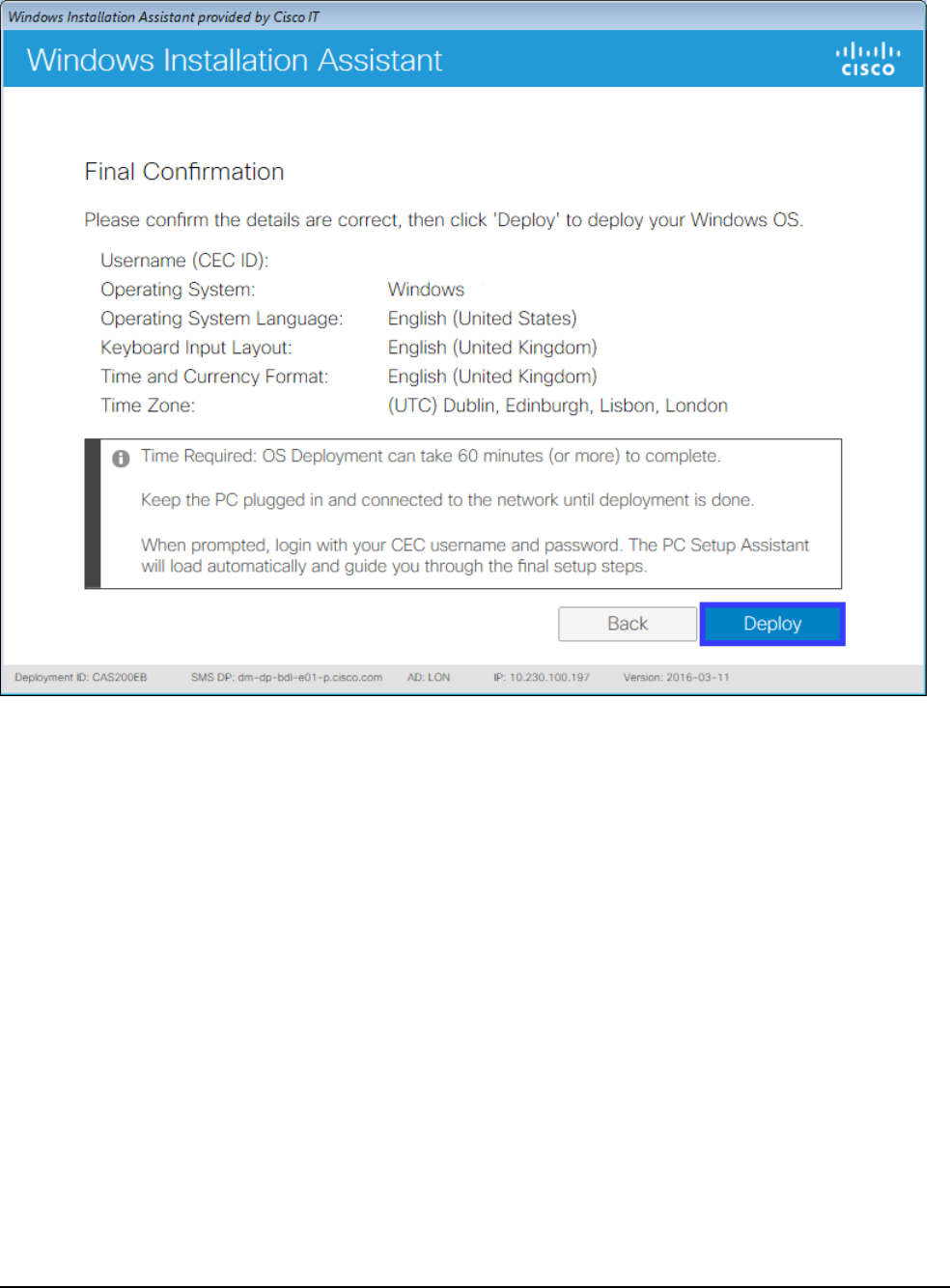

Computer Setup Options: New Hire Windows Setup
18
•The Cisco IT Windows operating system will now be installed, rebooting the computer several times
during the installation.
•This will take approximately 45 - 60 minutes in a Cisco office.
•Once the installation is complete, you will receive an email notification and the computer will prompt
you for login. This will require your CEC username and password. Ensure you remain connected
to the Cisco network via a direct, physical and hard-wired connection with an Ethernet cable for the
initial login. WiFi is not sufficient.
Back to top on page
Step 1



Computer Setup Options: New Hire Windows Setup
21
•The following are a required to use the PC Setup Assistant:
•Network connectivity - keep your computer connected to the Cisco network; CVO, VPN and WiFi
are sufficient.
•Power connectivity - keep your computer connected to the power by plugging it directly into the
power source. A docking station or port replicator may be used.
Computer Setup Options: New Hire Windows Setup
22
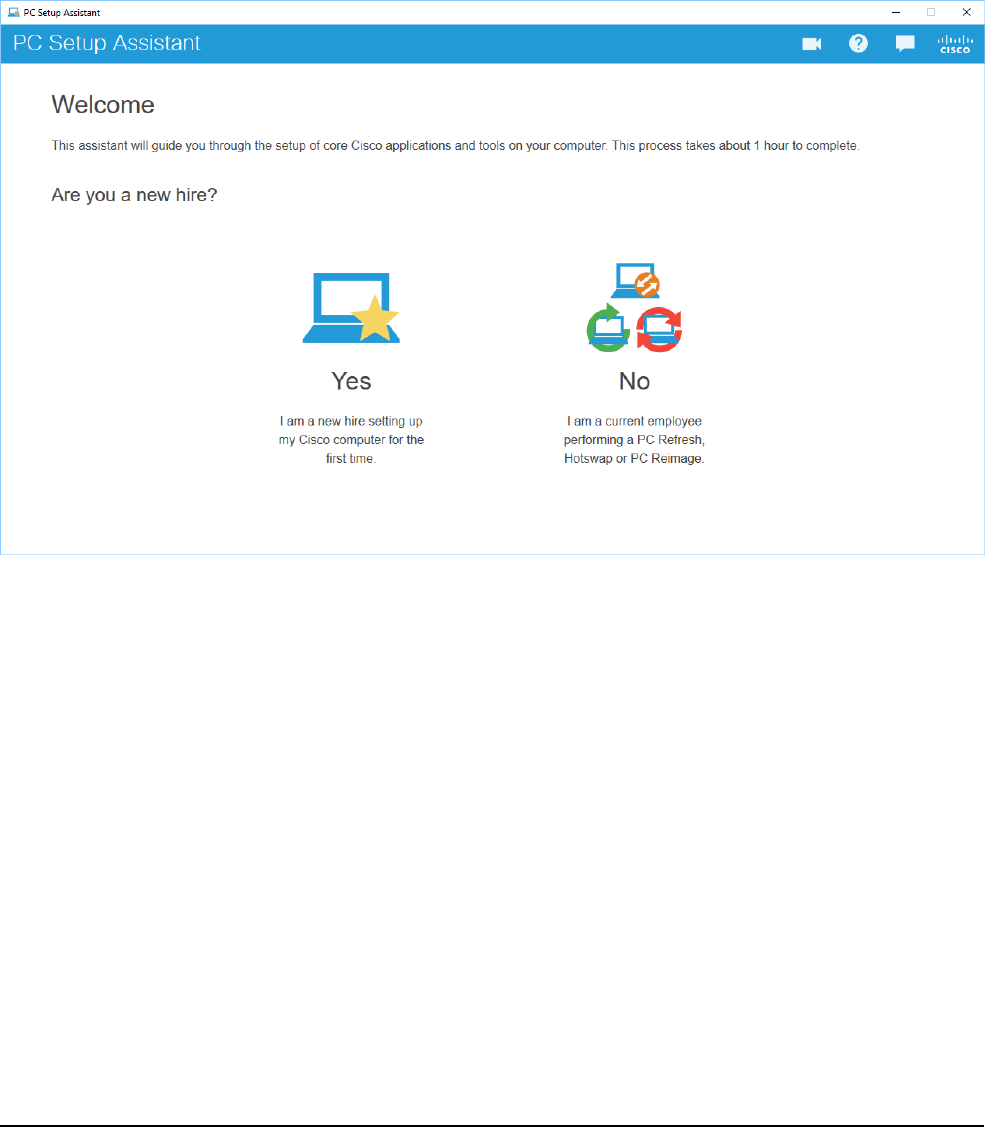
1. The PC Setup Assistant will open automatically on the first login. It can also be started via the icon on the
desktop or by going to Start > All Programs > Cisco > PC Setup Assistant. If the assistant is not available on
your computer, download the latest version from Box.
2. Select your PC setup type in the assistant and follow the instructions to complete the configuration and
installation of core Cisco applications and tools such as backup, Jabber and VPN.
Back to top on page
Step 1
Windows Installation on page 2
Step 2
PC Setup Assistant on page 18
Step 3
Useful Bookmarks
Step 4
Missing Anything on page 32

Computer Setup Options: New Hire Windows Setup
24
Box
Box is a secure cloud file storage service that allows easy file access and sharing from any of your devices.
•Request an account
•Box Edit
•Box Sync
•Box Jive group
Cisco Internal Sites
•Cisco Employee Connection (CEC)
•Cisco TV
•Directory
•iProcurement
•Mailer
•OnRamp
•Smart Spaces











Computer Setup Options: New Hire Windows Setup
35
•WebEx Productivity Tools on page 35
•Cisco Jabber on page 36
•Voice Essentials on page 36
•MobilePass on page 36
•AnyConnect VPN on page 36
•Data Migration Assistant on page 36
Password Synchronization
The password synchronization tool synchronizes your CEC password across all of Cisco's core systems.
•Visit the Password Synchronization Tool and enter your CEC username and password to
synchronize.
•For further password management options, visit the Password Managment Tool.
Back to top on page
CrashPlan
CrashPlan is the new desktop backup solution for Windows and Mac at Cisco which is replacing the existing
HP Connected Backup disaster recovery solution.
•CrashPlan Overview
•Restore from CrashPlan
•Join the CrashPlan group for further support and documentation.
Back to top on page
Printer Setup
The Manage Printers application displays the nearest printers, based on your current location and installs those
you select.
•Visit the CEPS Print Device Mananger web app to install printers.
Back to top on page
WebEx Productivity Tools
WebEx Productivity Tools allow you to start, schedule and join WebEx meetings from Microsoft Office
applications, Cisco Jabber and WebEx One-Click.
•Follow the instructions to download, install and configure WebEx Productivity Tools.
•Join the IT WebEx Conferencing Services group for further support and documentation.

Computer Setup Options: New Hire Windows Setup
36
Back to top on page
Cisco Jabber
Cisco Jabber combines instant messaging, voice, video, desktop sharing and conferencing with full
Telepresence and other video conferencing devices.
•Follow the instructions to download, install and configure Cisco Jabber.
Back to top on page
Voice Essentials
•What are voice essentials?
•Manage your voice essential accounts
•Unified Communications user console
•Voicemail
•Configure extension mobility
Back to top on page
MobilePass
MobilePass authenticates your logon credentials for remote VPN access to the Cisco network.
•Download MobilePass for your chosen device type i.e. Windows computer, Mac comptuer, iOS
mobile device or Android mobile device.
•Manage your MobilePass account.
•Join the Home and Remote Access group for further support and documentation.
Back to top on page
AnyConnect VPN
AnyConnect VPN provides a remote connection to the Cisco network when used in conjunction with an
authentication application such as SofToken, MobilePass or DES card.
•Follow the instructions to download, install and establish the initial connection with AnyConnect VPN.
•Join the Home and Remote Access group for further support and documentation.
Back to top on page