HP OmniBook 300, 425, 430, And 530 PC Service Manual, 5965 0244 300
User Manual: 300
Open the PDF directly: View PDF  .
.
Page Count: 86
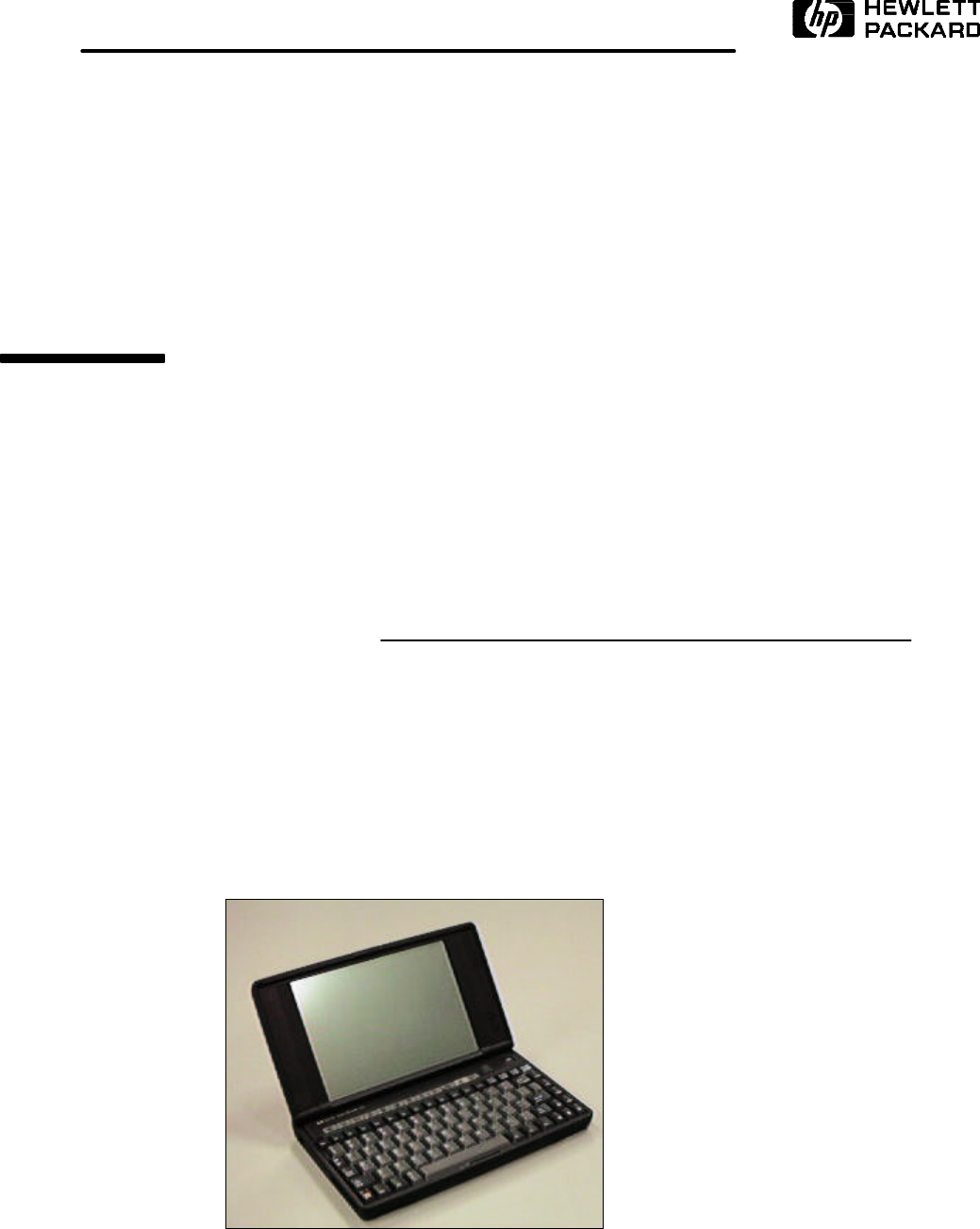
Service Manual
HP OmniBook 300, 425, 430, 530
For other Service and User Manuals, go to www.ManualDepot.com

Notice
In a continuing effort to improve the quality of our products,
technical and environmental information in this document is
subject to change without notice.
Hewlett-Packard makes no warranty of any kind with regard to
this material, including, but not limited to, the implied warranties
of merchantability and fitness for a particular purpose. Hewlett-
Packard shall not be liable for errors contained herein or for
incidental or consequential damages in connection with the
furnishing, performance, or use of this material.
Hewlett-Packard assumes no responsibility for the use or
reliability of its software on equipment that is not furnished by
Hewlett-Packard.
As an ENERGY STAR partner, HP has determined that these
products meet the ENERGY STAR guidelines for energy
efficiency.
All Certifications may not be completed at product introduction.
Please check with your HP reseller for certification status.
This equipment is subject to FCC rules. It will comply with the
appropriate FCC rules before final delivery to the buyer.
ENERGY STAR is a service mark of the U.S. Environmental
Protection Agency. IBM and OS/2 are registered trademarks of
International Business Machines Corporation. Pentium and the
Intel Inside logo are registered trademarks of Intel Corporation.
LapLink Remote Access is a trademark of Traveling Software,
Inc. Microsoft, MS-DOS, and Windows are registered
trademarks, and the Genuine Microsoft Products logo is a
trademark of Microsoft Corporation in the United States of
America and in other countries.
Hewlett-Packard Company 1996.
All Rights Reserved. Reproduction, adaptation, or translation
without prior written permission is prohibited except as allowed
under copyright laws.
Printed in U.S.A.
5965-0244

ii
Table of Contents
Table of Figures .........................................................................................................................iv
Introduction .................................................................................................................................v
Product Overview........................................................................................................................1
Product Features .....................................................................................................................2
OmniBook 300, 425, and 430 ...............................................................................................2
OmniBook 530 .....................................................................................................................3
Product Comparisons...............................................................................................................4
Product at a Glance .................................................................................................................6
Troubleshooting...........................................................................................................................9
OmniBook Self-Test...............................................................................................................10
Loop Back Connectors........................................................................................................10
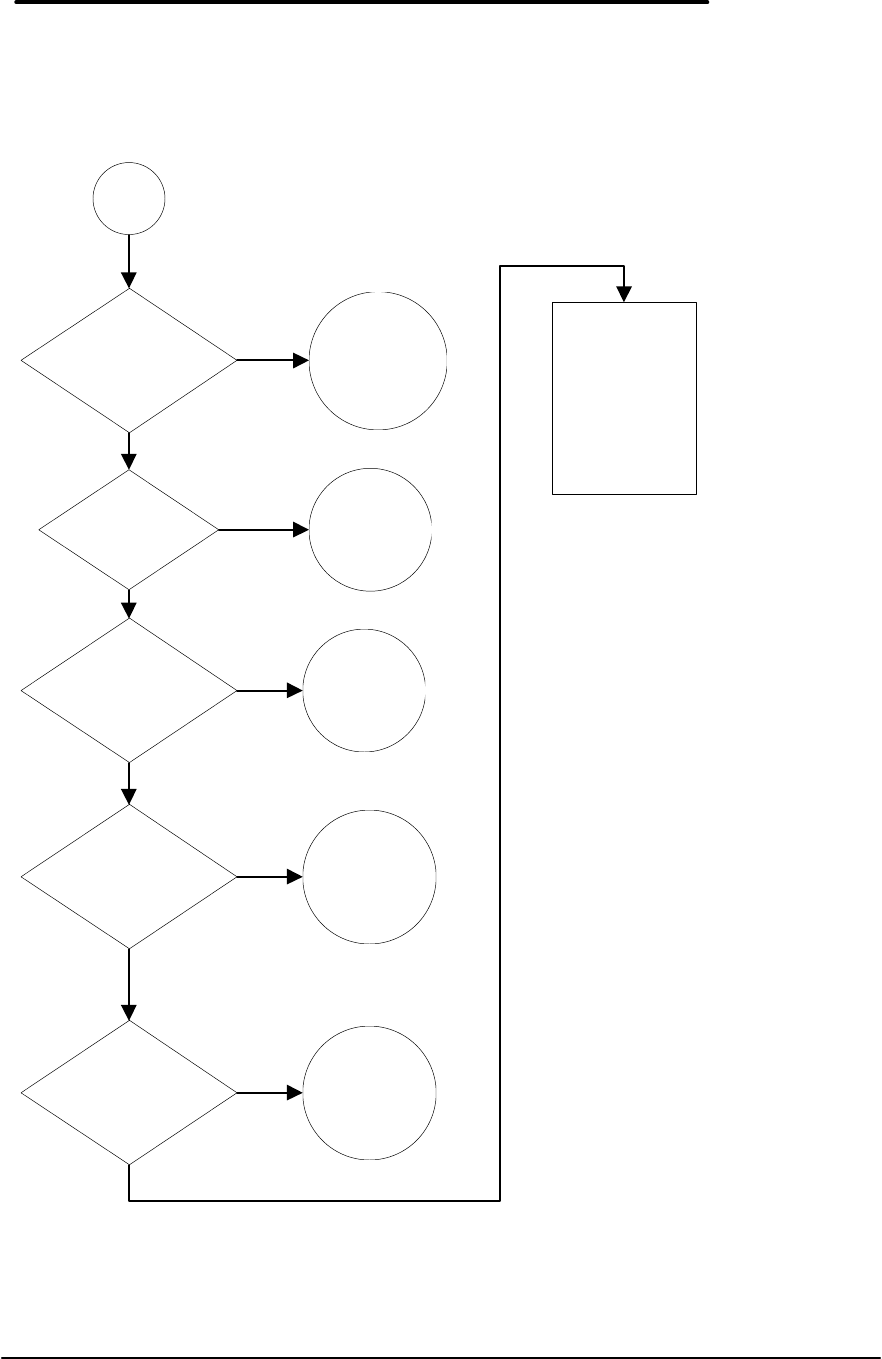
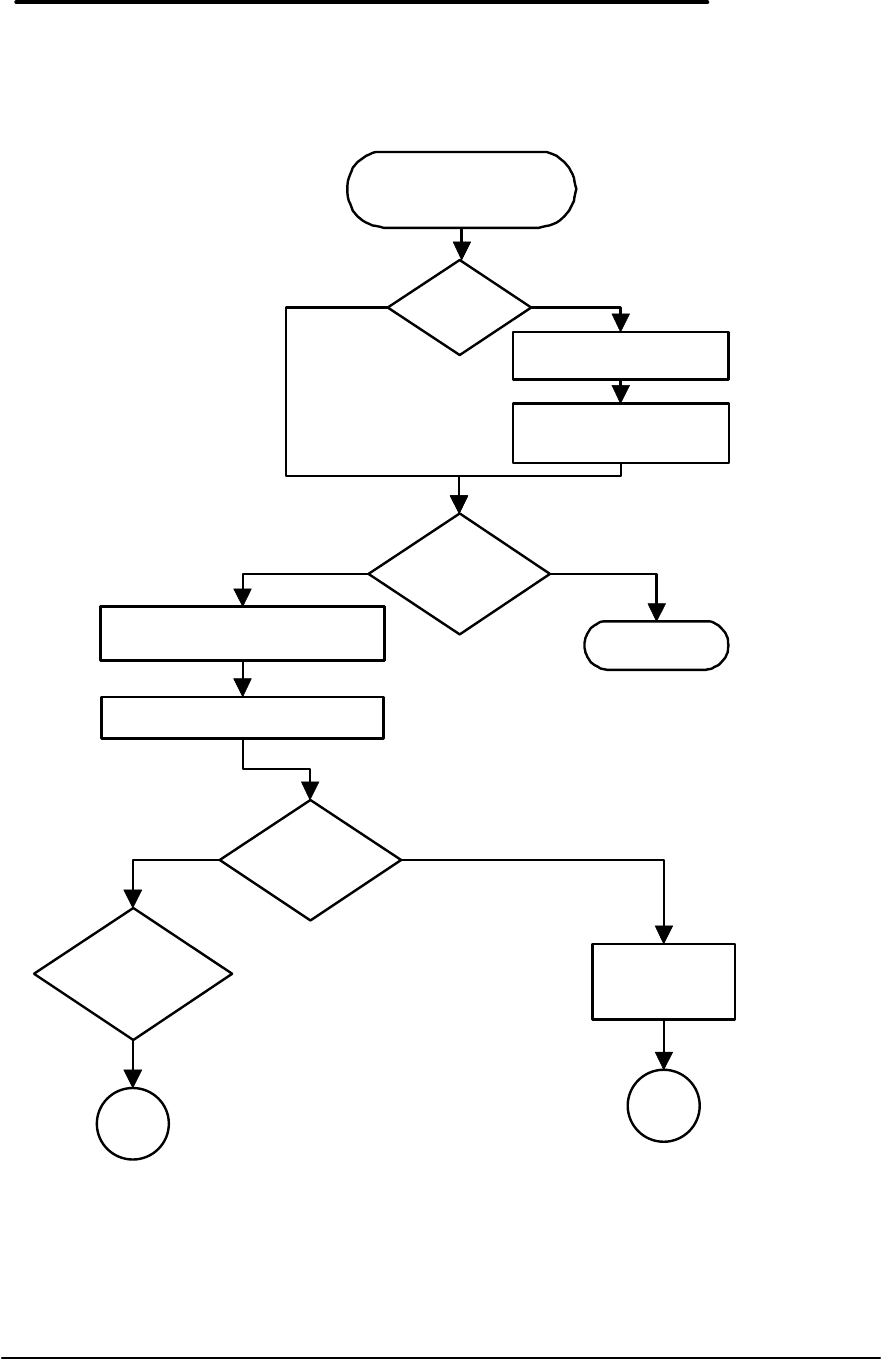
Troubleshooting Flowchart.....................................................................................................12
Main Troubleshooting Flowchart.........................................................................................13
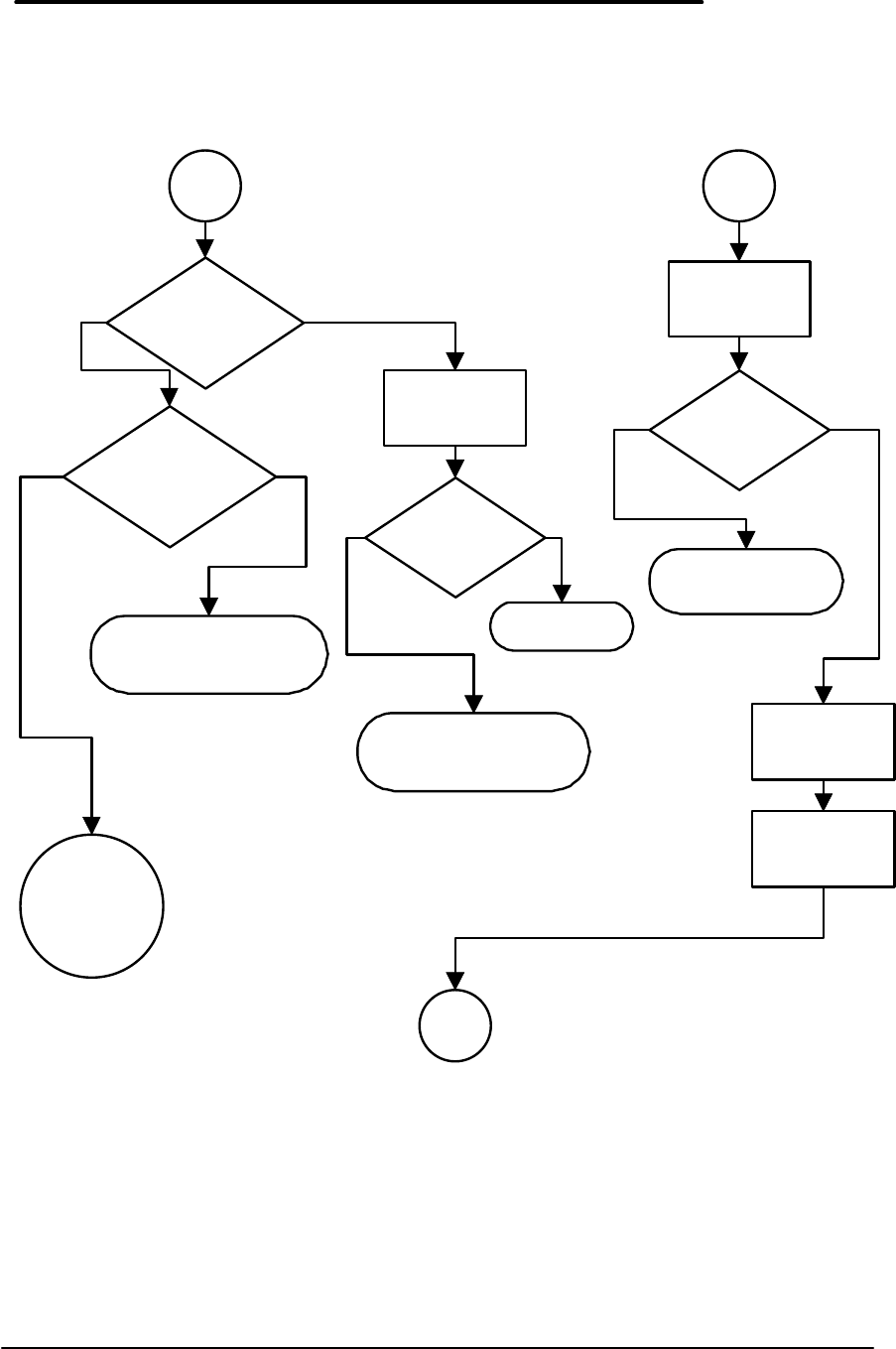
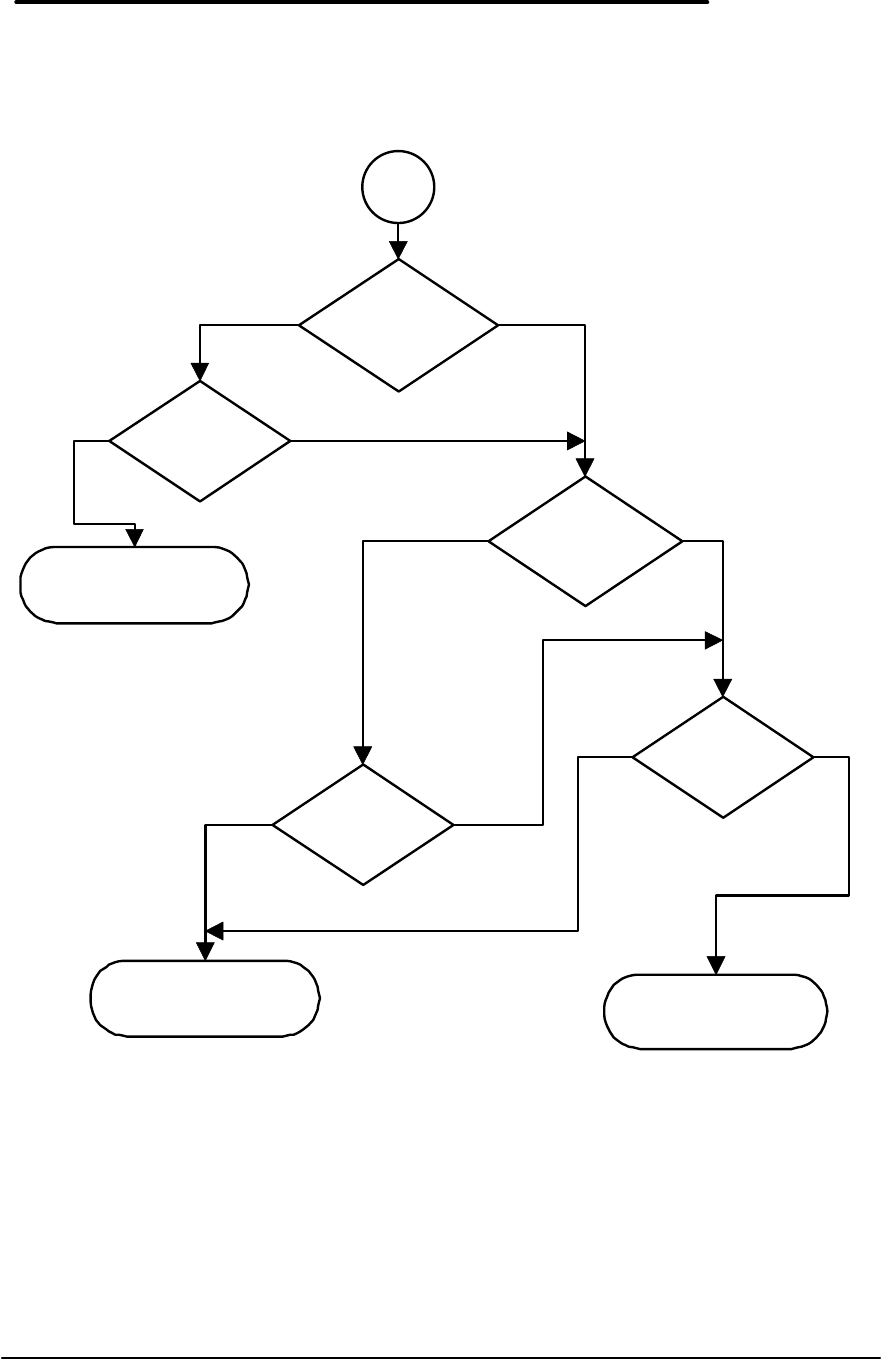
Power Source Problems .....................................................................................................15
Boot-Up Problems ..............................................................................................................18
Display Problems ...............................................................................................................19
Hard Disk Problems............................................................................................................20
Memory Problems ..............................................................................................................23
Power Management Problems............................................................................................25
Pop-Out Mouse Problems...................................................................................................28
Floppy Drive Problems.......................................................................................................32
Parallel Port Problems........................................................................................................35
Serial Port Problems ..........................................................................................................37
PCMCIA Problems .............................................................................................................39
IR Port Problems................................................................................................................43
Hardware Repair .......................................................................................................................45
Battery (End User Replaceable).............................................................................................46
Memory (End User Replaceable) ...........................................................................................48
Hard Disk Drive/Flash Card and System ROM (End User Replaceable).................................50
Mouse (End User Replaceable)..............................................................................................52
Small Parts (End User Replaceable)......................................................................................53
Battery Door.......................................................................................................................53
Battery Door Latch..............................................................................................................53
Blank Modem Door.............................................................................................................53
Memory Door .....................................................................................................................53
I/O Door .............................................................................................................................53
Rubber Feet .......................................................................................................................53
PCMCIA Card Tray.............................................................................................................53
Display (HP Authorized Service Providers Only)....................................................................54
Keyboard (HP Authorized Service Providers Only) ................................................................62
Logic PCA Board (HP Authorized Service Providers Only).....................................................63
Paw Carrier (Paw Active) (HP Authorized Service Providers Only) ........................................65
Other Components (HP Authorized Service Providers Only)..................................................66
Appendix A - Technical and Resource Specifications ................................................................67
Mass Storage Specifications..................................................................................................67
Card Services and Socket Services Version Matrix................................................................67
Memory Map..........................................................................................................................68
Upper Memory Block Space...................................................................................................68
DOS Conventional Memory ...................................................................................................68
Appendix B - Power On Self Test Codes ...................................................................................69
Beep Codes...........................................................................................................................69
Display Codes........................................................................................................................70
Appendix C - Password Policy...................................................................................................75

iii
Appendix D - Part Numbers.......................................................................................................77

iv
Table of Figures
Figure 1 - OmniBook 300, 425, and 430 Features .......................................................................2
Figure 2 - OmniBook 530 Features..............................................................................................3
Figure 3 - Serial Loop Back Connector ......................................................................................11
Figure 4 - Parallel Loop Back Connector ...................................................................................11
Figure 5 - OmniBook Memory Modules .....................................................................................48
Figure 6 - Removing the Memory Module..................................................................................49
Figure 7 - Removing Card Slot Tray..........................................................................................51
Figure 8 - Removing the Mouse ................................................................................................52
Figure 9 - Outer Bottom Case Components...............................................................................54
Figure 10 - Backplane Standoffs................................................................................................55
Figure 11 - Bottom Case Tabs...................................................................................................55
Figure 12 - Bottom Case Prying Locations.................................................................................56
Figure 13 - I/O Port Prying Location ..........................................................................................56
Figure 14 - Disconnecting Display Cable ...................................................................................57
Figure 15 - Keyboard Flex Cables .............................................................................................58
Figure 16 - Display Grounding Eyelets.......................................................................................58
Figure 17 - Display Cable Probe Position ..................................................................................60
Figure 18 - Reconnecting Display Cable....................................................................................60
Figure 19 - I/O Port Eyelets (all present)....................................................................................61
Figure 20 - I/O Port Eyelets (two matched sets).........................................................................61
Figure 21 - I/O Port Eyelets (only one matched set)...................................................................61
Figure 22 - I/O Port Eyelets (no eyelet in position one)..............................................................61
Figure 23 - Logic Board PCA Removal......................................................................................63
Figure 24 - Paw Carrier Removal ..............................................................................................65
v
Introduction
This document provides reference information for the HP OmniBook 300, HP OmniBook 425,
HP OmniBook 430, and HP OmniBook 530. It is intended to be used by HP-qualified service
personnel to help with the installation, servicing, and repair of these HP OmniBook PCs.
It is a self-paced guide designed to train you to install, configure, and repair the OmniBook
Notebook PC. You can follow it without having any equipment available.
The following table lists additional sources where supplementary information can be obtained:
Resource Number/Address Comments
HP External Web http://hpcc998.external.hp.com/mcd/ No usage restriction
HP-MCD Internal Web http://webmcd.cv.hp.com Restricted to HP internet
access only
HP MCD Service
Engineer svc-eng_mcd@om.cv.hp.com Email address for service
related questions and
issues

Part 1
Product Overview
• Product Features
• Product Comparisons
• Product at a Glance
2
Product Features
OmniBook 300, 425, and 430
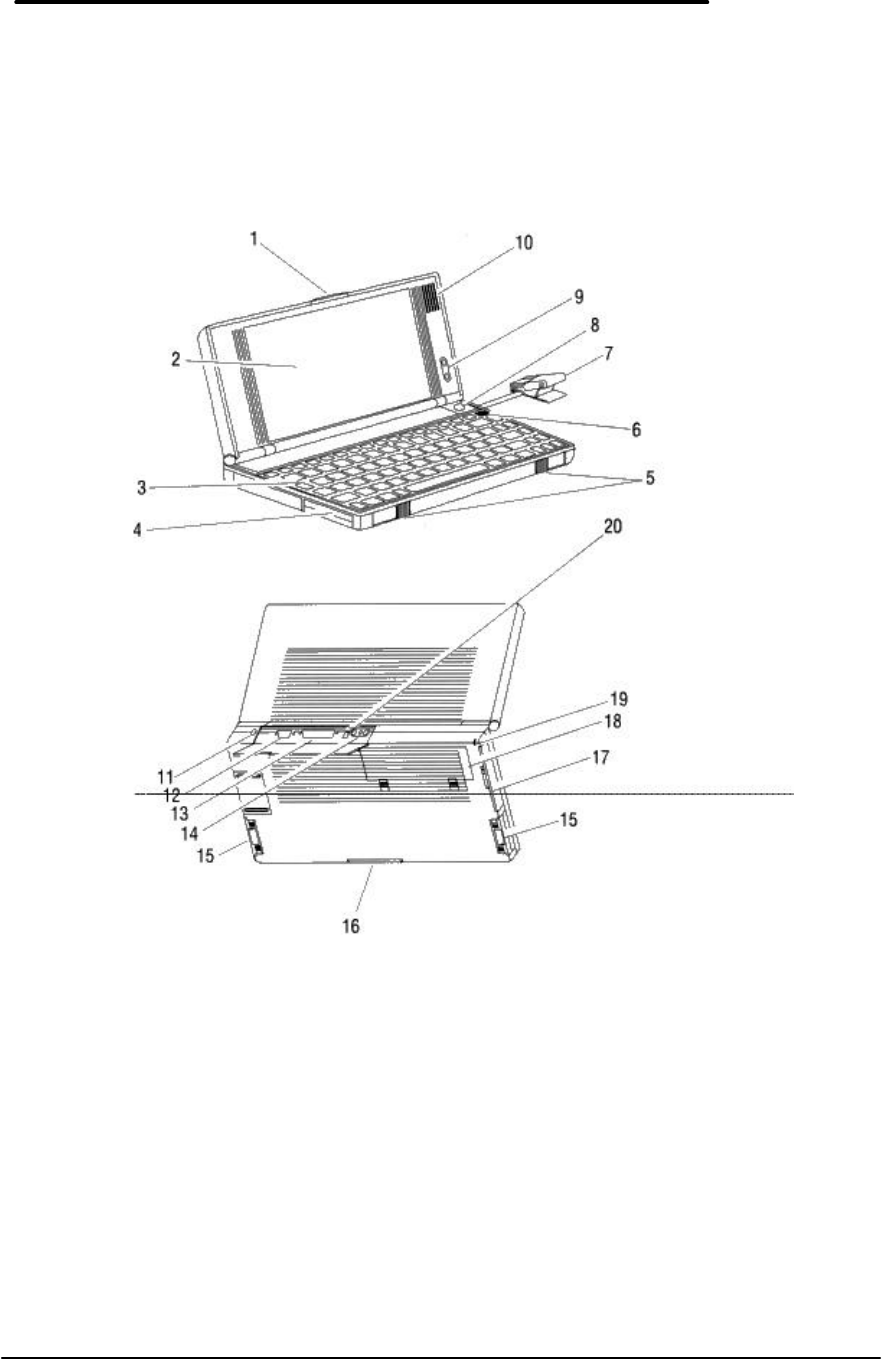
Figure 1 - OmniBook 300, 425, and 430 Features
1. Latch 11. AC adapter socket
2. Display 12. Serial port connector
3. Keyboard 13. Parallel port connector
4. Card slot A 14. Infrared port
5. Card-eject levers 15. System slots (C and D)
6. On/Off key 16. Memory-expansion slot
7. Mouse 17. Modem port
8. Mouse-eject button 18. Battery compartment
9. Display contrast buttons 19. Security ring
10. Speaker 20. Reset button
3
OmniBook 530
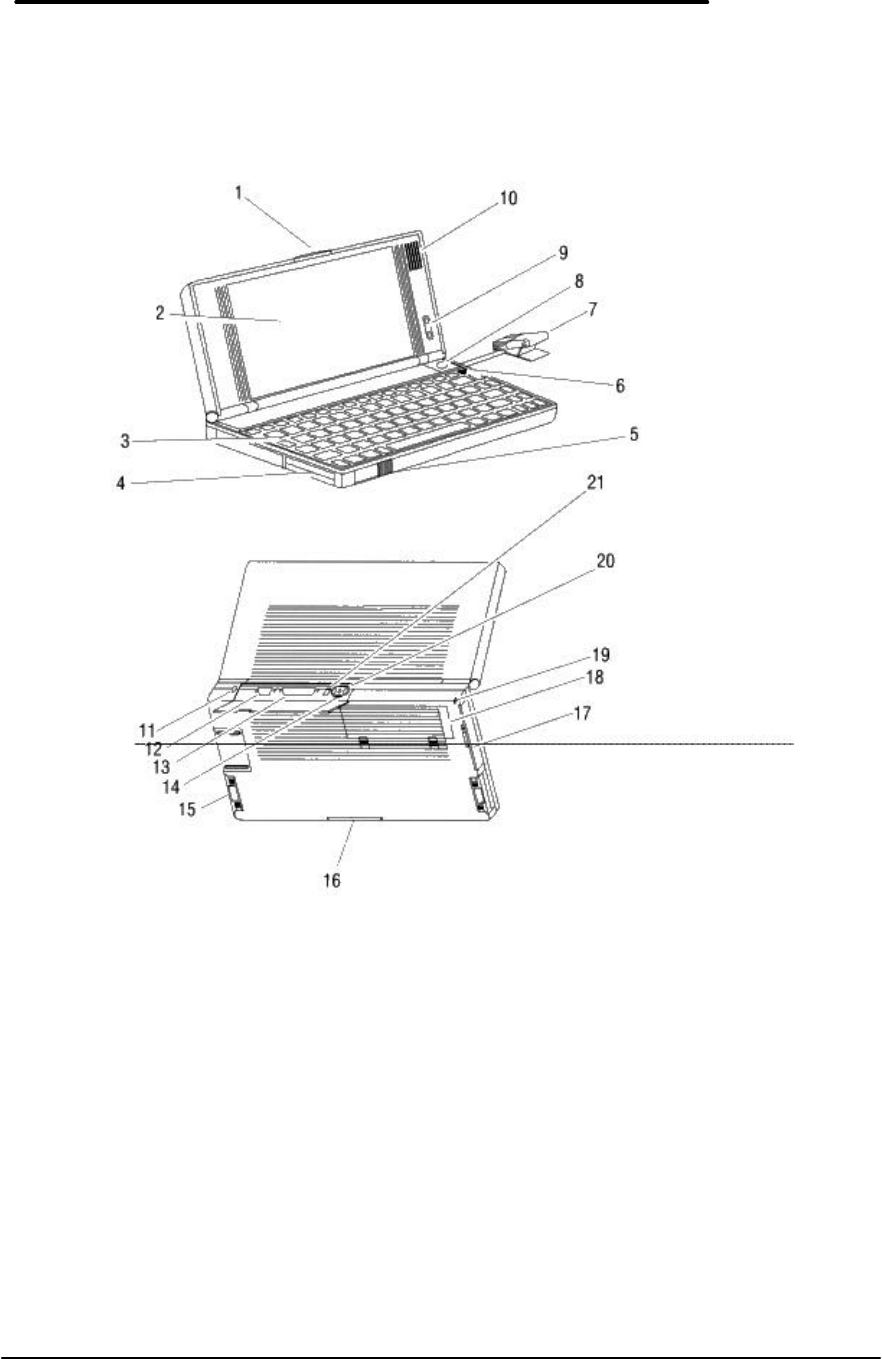
Figure 2 - OmniBook 530 Features
1. Latch 12. Serial port connector
2. Display 13. Parallel port connector
3. Keyboard 14. VGA output connector
4. Card slots 15. System slots
5. Card-eject levers 16. Memory-expansion slot
6. On/Off key 17. Modem port
7. Mouse 18. Battery compartment
8. Mouse-eject button 19. Security ring
9. Display contrast buttons 20. Infrared port
10. Speaker 21. Reset button
11. AC adapter socket

4
Product Comparisons
OmniBook 300 OmniBook 425 OmniBook 430 OmniBook 530
Size Closed 16.3 x 28.2 x 3.6 cm
(6.4 x 11.1 x 1.4 in) 16.3 x 28.2 x 3.6 cm
(6.4 x 11.1 x 1.4 in) 16.3 x 28.2 x 3.6 cm
(6.4 x 11.1 x 1.4 in) 16.3 x 28.2 x 3.6 cm
(6.4 x 11.1 x 1.4 in)
Weight 1.31 kg (2.888 lb)
w/flash
1.36 kg (2.998) w/hdd
1.31 kg (2.888 lb)
w/flash
1.36 kg (2.998) w/hdd
1.36 kg (2.998 lb) 1.36 kg (2.998 lb)
Processor 386SXLV 486SLC/e 486SLC/e Intel© 486SX
Clock Speed 20 MHz 25 MHz 25 MHz 33 MHz
Display 640 x 480 VGA
9-inch diagonal LCD
16 shades of gray
640 x 480 VGA
9-inch diagonal LCD
16 shades of gray
640 x 480 VGA
9-inch diagonal LCD 640 x 480 VGA
9-inch diagonal LCD
VGA-out Support none none none 640 x 480, 16 or 256
colors
800 x 600, 16 colors
Battery 4.8 Vdc nickel-metal-
hydride rechargeable
1.5 V alkaline AA (flash
version only)
4.8 Vdc nickel-metal-
hydride rechargeable
1.5 V alkaline AA (flash
version only)
4.8 Vdc nickel-metal-
hydride rechargeable
1.5 V lithium AA
4.8 Vdc nickel-metal-
hydride rechargeable
Battery Life 5 hours w/hdd
9 hours w/flash 4.5 hours w/hdd
8 hours w/flash 4.5 hours 4 hours
AC Adapter 100 to 240 Vac (50 to
60 Hz) input
12 Vdc output
100 to 240 Vac (50 to
60 Hz) input
12 Vdc output
100 to 240 Vac (50 to
60 Hz) input
12 Vdc output
100 to 240 Vac (50 to
60 Hz) input
12 Vdc output
Recharge Time less than 1.5 hours
w/ac adapter less than 1.5 hours
w/ac adapter less than 1.5 hours
w/ac adapter less than 1.5 hours
w/ac adapter
Operating
Temperature
0 to 40 C (32 to 104 F) 0 to 40 C (32 to 104 F) 0 to 40 C (32 to 104 F) 0 to 40 C (32 to 104 F)
Storage
Temperature (with
data retention)
0 to 55 C (32 to 131 F) 0 to 55 C (32 to 131 F) 0 to 55 C (32 to 131 F) 0 to 55 C (32 to 131 F)
Operating and
Storage Humidity
90% relative humidity at
40 C (104 F) maximum 90% relative humidity at
40 C (104 F) maximum 90% relative humidity at
40 C (104 F) maximum 90% relative humidity at
40 C (104 F) maximum
Mass Storage
Available
40-MB hard disk
10-MB flash disk 40-MB hard disk
10-MB flash disk 105-MB hard disk
40-MB hard disk 130-MB hard disk
Memory 2 MB RAM 2 MB RAM 2 MB RAM on 40-
MB version
4 MB RAM on 105-
MB version
4 MB RAM
Memory
Expansion
Available
2-MB, 4-MB 2-MB, 4-MB 2-MB, 4-MB 4-MB, 8-MB
Input/Output 9-pin, 115K baud,
RS-232 port
25-pin parallel port
115K baud,
bidirectional infrared
port
Communication port
for optional
fax/modem
9-pin, 115K baud,
RS-232 port
25-pin parallel port
115K baud,
bidirectional infrared
port
Communication port
for optional
fax/modem
9-pin, 115K baud,
RS-232 port
25-pin parallel port
115K baud,
bidirectional infrared
port
Communication port
for optional
fax/modem
9-pin, 115K baud,
RS-232 port
25-pin parallel port
115K baud,
bidirectional infrared
port
Communication port
for optional
fax/modem
Keyboard and
Mouse
85 keys
Industry-standard, full-
sized key spacing
Embedded numeric
keypad
9 Fn keys
Built-in pop-up mouse
85 keys
Industry-standard, full-
sized key spacing
Embedded numeric
keypad
12 Fn keys
Built-in pop-up mouse
85 keys
Industry-standard, full-
sized key spacing
Embedded numeric
keypad
12 Fn keys
Built-in pop-up mouse
85 keys
Industry-standard, full-
sized key spacing
Embedded numeric
keypad
12 Fn keys
Built-in pop-up mouse
Expandability PCMCIA, Type II,
Version 2.0 card slots
Two slots available with
PCMCIA, Type II,
Version 2.0 card slots
Two slots available with
PCMCIA, Type II,
Version 2.0 card slots
One slot available with
Two PCMCIA Type II
slots (one Type III slot)
Optional floppy disk

5
OmniBook 300 OmniBook 425 OmniBook 430 OmniBook 530
the flash disk version
One slot available with
the hard disk version
the flash disk version
One slot available with
the hard disk version
the hard disk version drive
Pre-installed
Software
MS© Windows 3.1*
MS DOS© 5.0*
MS Word 2.0*
MS Excel 4.0*
LapLink Remote
Access™
Phone Book
Appointment Book
HP Financial Calculator
MS© Windows 3.1*
MS DOS© 5.0*
MS Word 2.0*
MS Excel 4.0*
LapLink Remote
Access™
Phone Book
Appointment Book
HP Financial Calculator
MS© Windows 3.1
MS DOS© 6.2
LapLink Remote
Access™
Phone Book
Appointment Book
HP Financial Calculator
MS© Windows 3.11
MS DOS© 6.2
LapLink Remote
Access™
Phone Book
Appointment Book
HP Financial Calculator
*(Note: All components not included can be installed from a retail copy. License for full Microsoft Word, Microsoft Excel, MS-
DOS, and Microsoft Windows is included with purchase.)
6
Product at a Glance
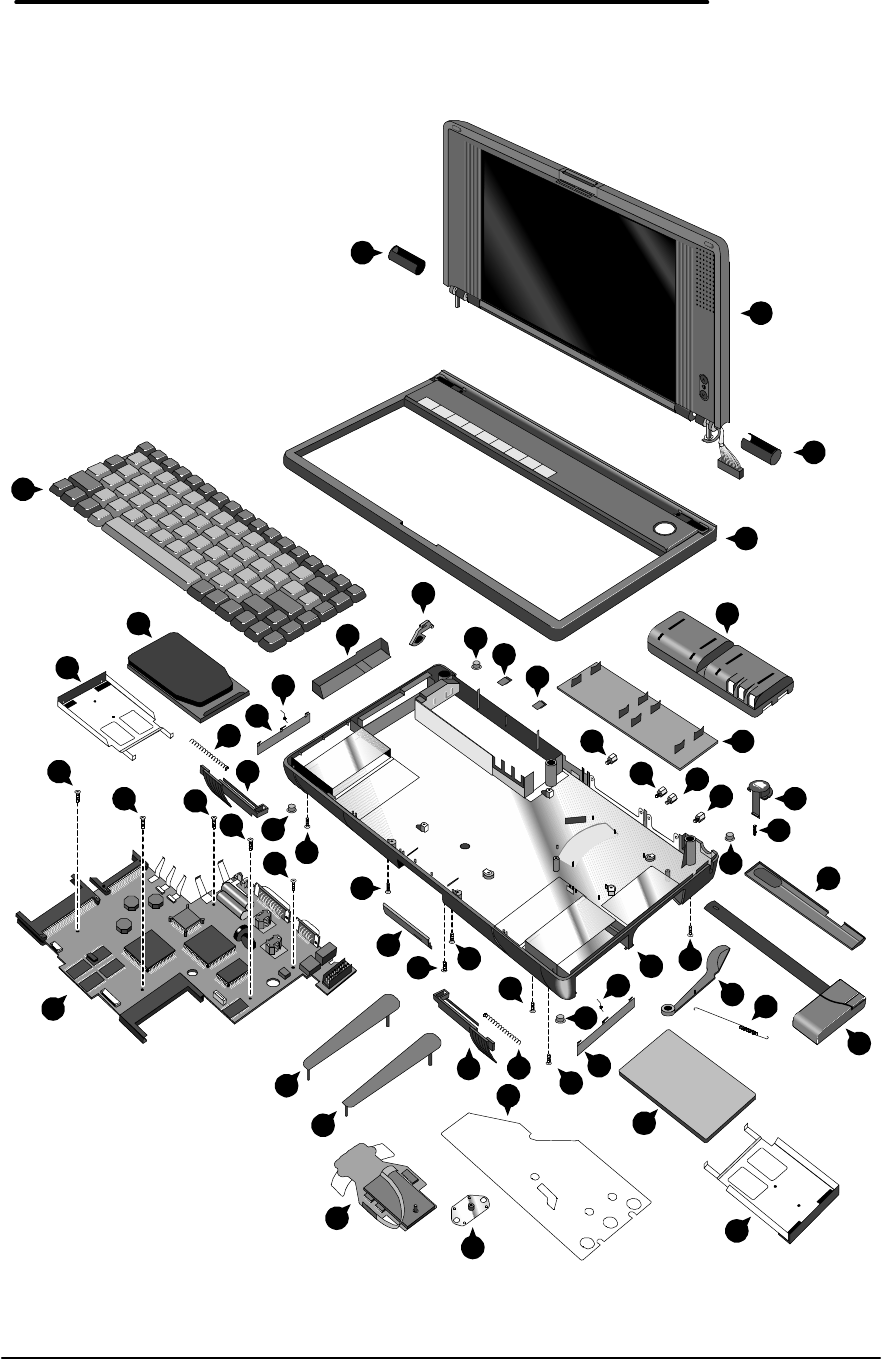
28
14
27
29
17 32
35
33
2
6
18
19
6
2
2
2
2
2
2
2
13
10
8
34
31
23
26
24
7
13
13 16 16
1
1
1
1
9
15
4
12
3
30
20
21
22
25
5
2
13
2
2
2
10
5
11
14
7
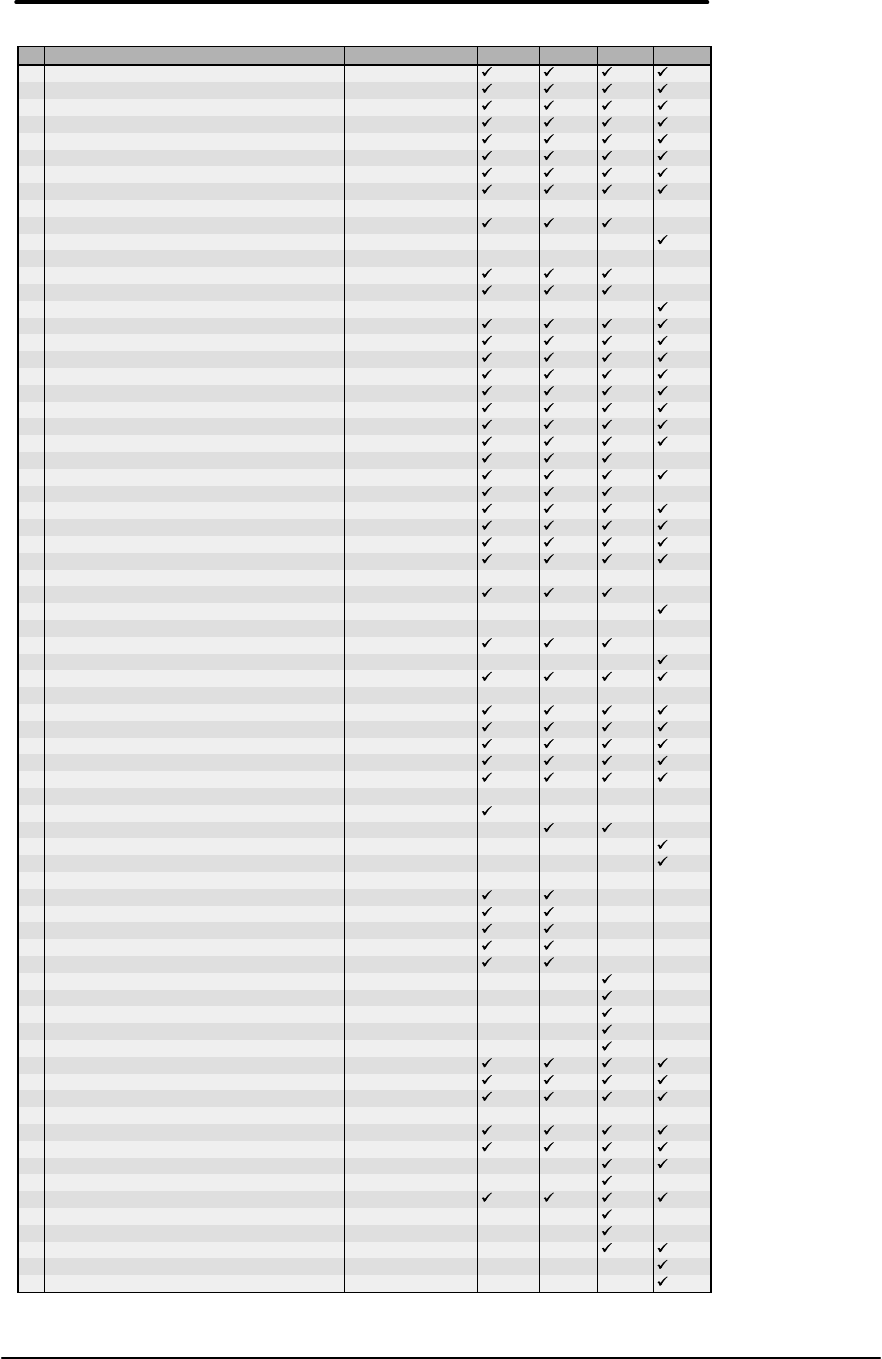
Description Part Number OB300 OB425 OB430 OB530
1Standoff 0380-4060
2Screw M2x4.6mm (T6) 0515-2396
3Mouse 5061-4390
4Arm Eject Mouse Spring F1030-00016
5Pivot Door Spring F1030-00026
6Spring Card Eject F1030-00029
7Mouse Latch Spring F1030-00030
8Mylar Mouse Shield F1030-20001
9Door Battery
Door Battery (10 pack) F1030-60912
Door Battery (silver) F1052-40012
10 Pivot Door
Pivot Door (PCMCIA) A F1030-40013
Pivot Door (PCMCIA) B F1030-40014
Pivot Door (PCMCIA) Left F1052-40007
11 Door Modem Blank F1030-40016
12 Door RAM F1030-40017
13 Rubber Foot F1030-40018
14 Hinge Cap F1030-40019
15 Mouse Button Latch F1030-40021
16 Battery Door Latch F1030-40025
17 Security Latch F1030-40033
18 Eject Button A F1030-40044
19 Eject Button B F1030-40045
20 Eject Arm Left F1030-40046
21 Eject Arm Right F1030-40047
22 Paw Carrier Srvc Assy F1030-60901
23 Arm Eject Mouse F1030-40050
24 Door I/O F1030-60908
25 Pivot Bracket F1030-60909
26 Bottom Case
Bottom Case F1030-60910
Bottom Case (silver) F1052-60908
27 Top Case
Top Case F1030-60911
Top Case (silver) F1052-60907
28 LCD Display Assy (new) F1030-60904
29 Keyboard
Keyboard USA F1030-80013
Keyboard German F1030-80031
Keyboard Spanish F1030-80032
Keyboard French F1030-80033
Keyboard International English F1030-80057
30 Logic PCA
Logic PCA (new) F1030-60907
Logic PCA (new) F1033-60907
Logic PCA (new) F1052-60906
Logic PCA (exchange) F1052-69008
31 System ROM
System ROM (ABA) - US English F1033-60908
System ROM (ABB) Int. English F1033-60909
System ROM (ABD) German F1033-60910
System ROM (ABF) French F1033-60911
System ROM (ABE Spanish) F1033-60912
System ROM (ABA) US English F1037-60903
System ROM (ABB) Int. English F1037-60904
System ROM (ABD) German F1037-60905
System ROM (ABE) Spanish F1037-60906
System ROM (ABF) French F1037-60907
32 Battery Pack F1045-60901
33 Hard Drive Tray F1065-60029
34 Flash Tray F1030-60923
35 Mass Storage
5 MB Flash Disk Card F1012-60902
10 MB Flash Disk Card F1013-60901
20 MB Flash Disk Card F1014-60901
40 MB Hard Drive (DOS/Win/PIM) F1035-60901
40 MB Hard Drive (unprogrammed) F1050-60901
105 MB Hard Drive (DOS/Win/PIM) F1037-60908
105 MB Hard Drive (Word/Excel) F1037-60909
105 MB Hard Drive (unprogrammed) F1039-60901
130 MB Hard Drive (unprogrammed) F1057-60901
130 MB Hard Drive (programmed) F1052-60909
Note, this is a partial parts list. For a complete parts list, please refer to Appendix D or the current Product
Support Plan.

Part 2
Troubleshooting
• OmniBook Self Test
• Troubleshooting Flowchart

10
OmniBook Self-Test
The OmniBook Self-Test provides on-board hardware and firmware diagnostics. To operate the
self-test, perform the following steps:
1. Save all files and close all applications: The OmniBook is reset at the end of the self-test.
2. Turn the OmniBook OFF.
3. Press and hold the [Esc] key and press [ON]. You will hear a short three-tone beep.
4. Self Test will initialize and start.
5. To run a test:
Highlight the test name and press [ENTER].
Highlight the test name and press [Ctrl][ENTER] to run a longer
and more extensive version of a test--not available for all tests.
The test runs and its results are reported.
6. To run several tests in a continuous loop:
Highlight one or more using [ space bar ] and press [ENTER].
Each test runs and its results are reported.
Press [Backspace] to stop the loop.
7. To exit the self-test, press [Esc].
Interpretation of test results
A result of “OK” on any test indicates that the test did not find problems while the unit was
operating in its current state. A “BAD” result indicates that the test found a problem while the
unit was operating in its current state. A “BAD” result should always be confirmed by running the
test in a loop for several iterations or running the long version of the test. Further inspection of
the unit to rule out configuration or installation conflicts is necessary prior to diagnosing the unit
as needing repair.
Any test that is halted by [Backspace] is shown as “aborted” and no results are displayed.
The OmniBook will not enter sleep mode while the self-test is executing.
Loop Back Connectors
In order to run the RS232 serial port or parallel port self-test, a loop back connector is needed.
The loop back may be placed on either the OmniBook port or at the end of the corresponding
cable. This feature is also helpful in diagnosing a defective serial or parallel cable.
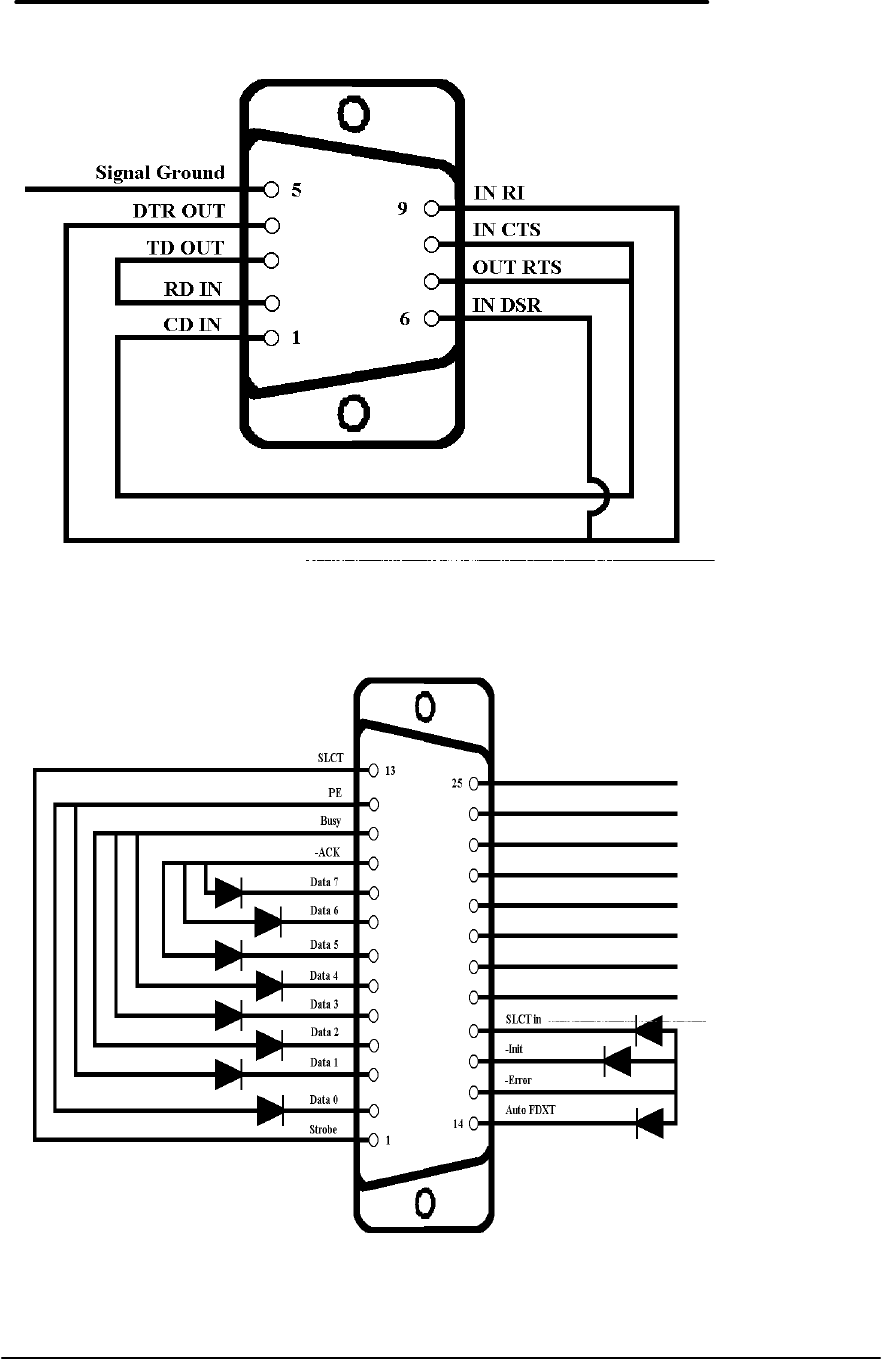
Loop back connectors may be purchased or can easily be constructed. The following illustrations
identify the correct pin-out configurations for the serial and parallel loop back connectors.
11
Figure 3 - Serial Loop Back Connector
Figure 4 - Parallel Loop Back Connector

12
Troubleshooting Flowchart
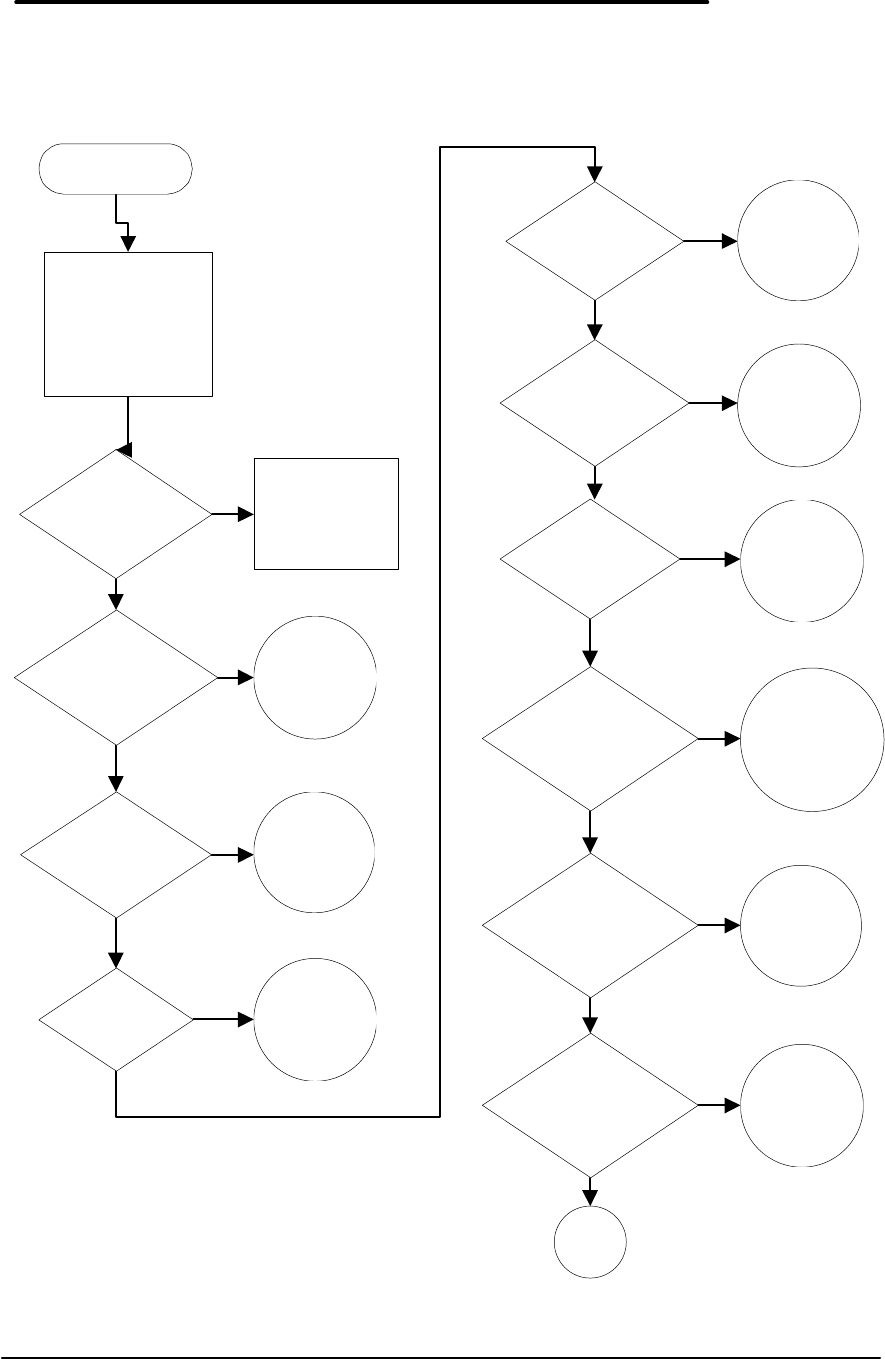
The following series of flowcharts is intended as a guide for troubleshooting the OmniBook 300,
425, 430, and 530. Each technician should still rely on personal experience and supplemental
knowledge when diagnosing a problem.
These tips should be kept in mind when referencing the troubleshooting flowcharts:
• Use the Main Troubleshooting Flowchart to isolate the problem to a particular area.
• Use the additional individual troubleshooting flowcharts to narrow down the problem to a
specific component or item.
• Always use supplemental information resources, including the Product Support Plan, Service
Notes, and the World Wide Web, to aid in diagnosing problem areas.
13
Main Troubleshooting Flowchart
START
Eliminate all
obvious physical
problems?
Isolate damage.
Refer to repair
process
No
Get user
information:
Name
Telephone number
Unit serial number
Repair history
OB unit's power
light comes on?
See Power
Source
flowchart
Single beep
during boot-up?
See Boot-
up
flowchart
See DOS or
Windows?
Memory OK? (No
memory errors)
Hard disk
operates OK?
See Hard
Disk
flowchart
See
something in
display?
See Display
flowchart
See
Memory
flowchart
See Hard
Disk
flowchart
Unit has at least 1-
1/2 hours battery
life?
See Power
Management
flowchart
Pop-out mouse
works correctly? See Mouse
flowchart
External floppy
drive operates
correctly?
See Floppy
Drive
flowchart
A
Yes
Yes
Yes
Yes
Yes
Yes
Yes
Yes
Yes
Yes
No
No
No
No
No
No
No
No
No
14
Main Troubleshooting Flowchart (continued)
Parallel port
operates correctly? See Parallel
Port flowchart
Serial port
operates
correctly?
See Serial
Port
flowchart
External VGA
operates correctly?
See Serial
Port
flowchart
PCMCIA cards
operate correctly? See PCMCIA
flowchart
If you still have
a problem, it's
in software or in
a part of the
unit not covered
by these
flowcharts.
A
Yes
Yes
Yes
No
No
No
No
Infrared port
operates correctly? See IR
flowchart
Yes
No
15
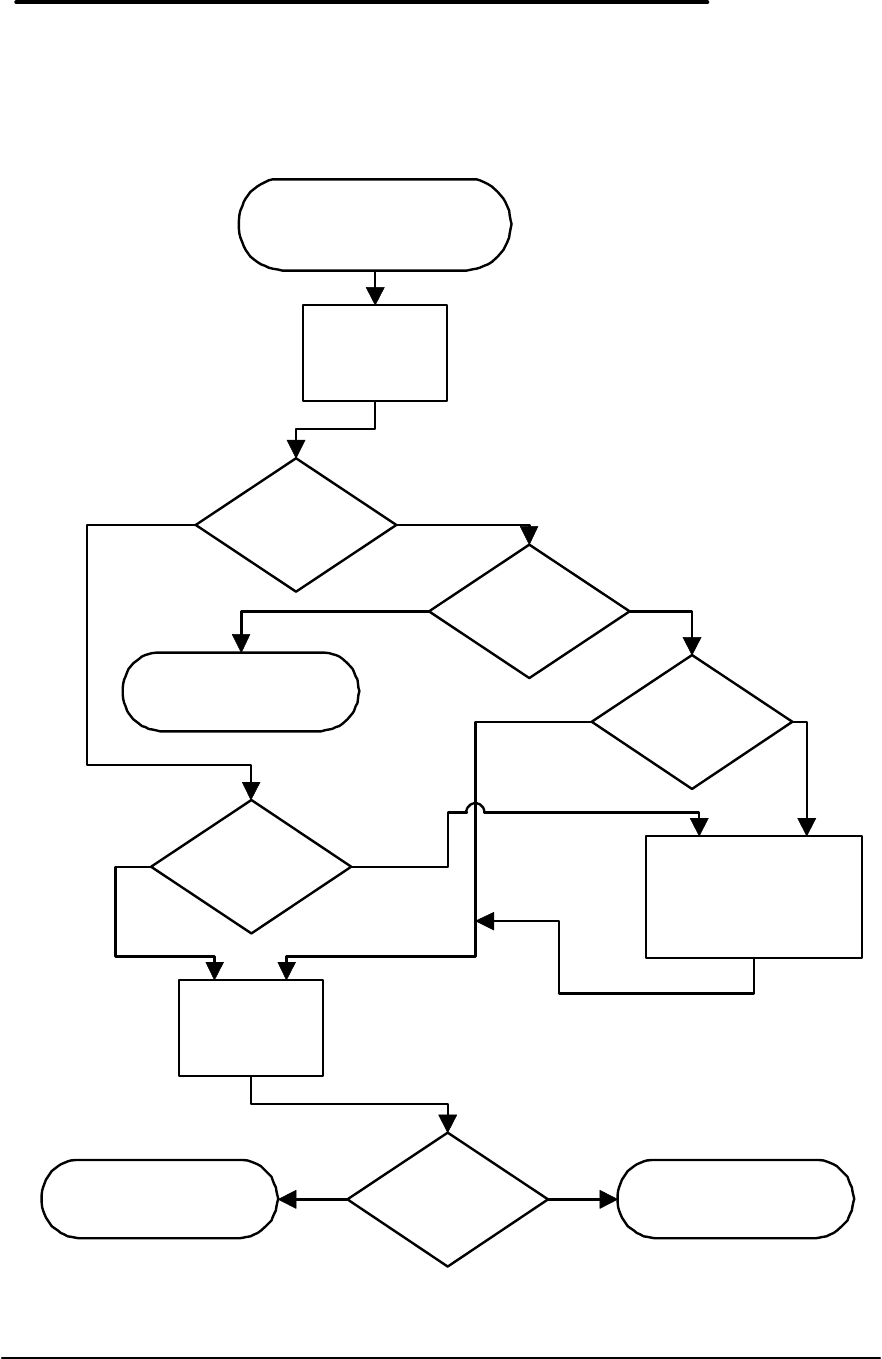
Power Source Problems
Start: No power
lamp, or low battery
life
Battery in
Omnibook?
Turn Omnibook off
Remove and reinsert
battery
HP ac adapter
and cable?
Done
Connect OB to ac adapter, plug
adapter into wall socket
Turn on Omnibook
See power
light?
Light on
continuously (not
intermittent)?
Try different
power socket
Yes
Yes
NoYes
No
No
AB
16
Power Source Problems (continued)
Light on
continuously (not
intermittent)?
Try different
power socket
See power
light?
Done: Power
source problem
Recheck cables,
connections:
ac adapter to
Light still
intermittent?
Done: Suspect bad
ac adapter, cable, or
connector
Done
Ambient
temperature within
specification?
Go to Power
Management
Problems
flowchart
Done: Bring
temperature within
specifications
Ensure power
coming from
wall socket
Ensure battery
installed
correctly
Yes
Yes
Yes
Yes
No
No
No
No
A B
C
17
Power Source Problems (continued)
Can you
substitute known
good ac adapter?
See steady
power light?
Can you
substitute known
good OB?
Done: Original ac
adapter or cable
bad
Ac adapter
warm?
Done: Suspect bad
ac adapter or cable
See steady
power light?
Done: Suspect
original OB base
unit bad
Yes
Yes
Yes
Yes
Yes
No
No
No
No
No
C
18
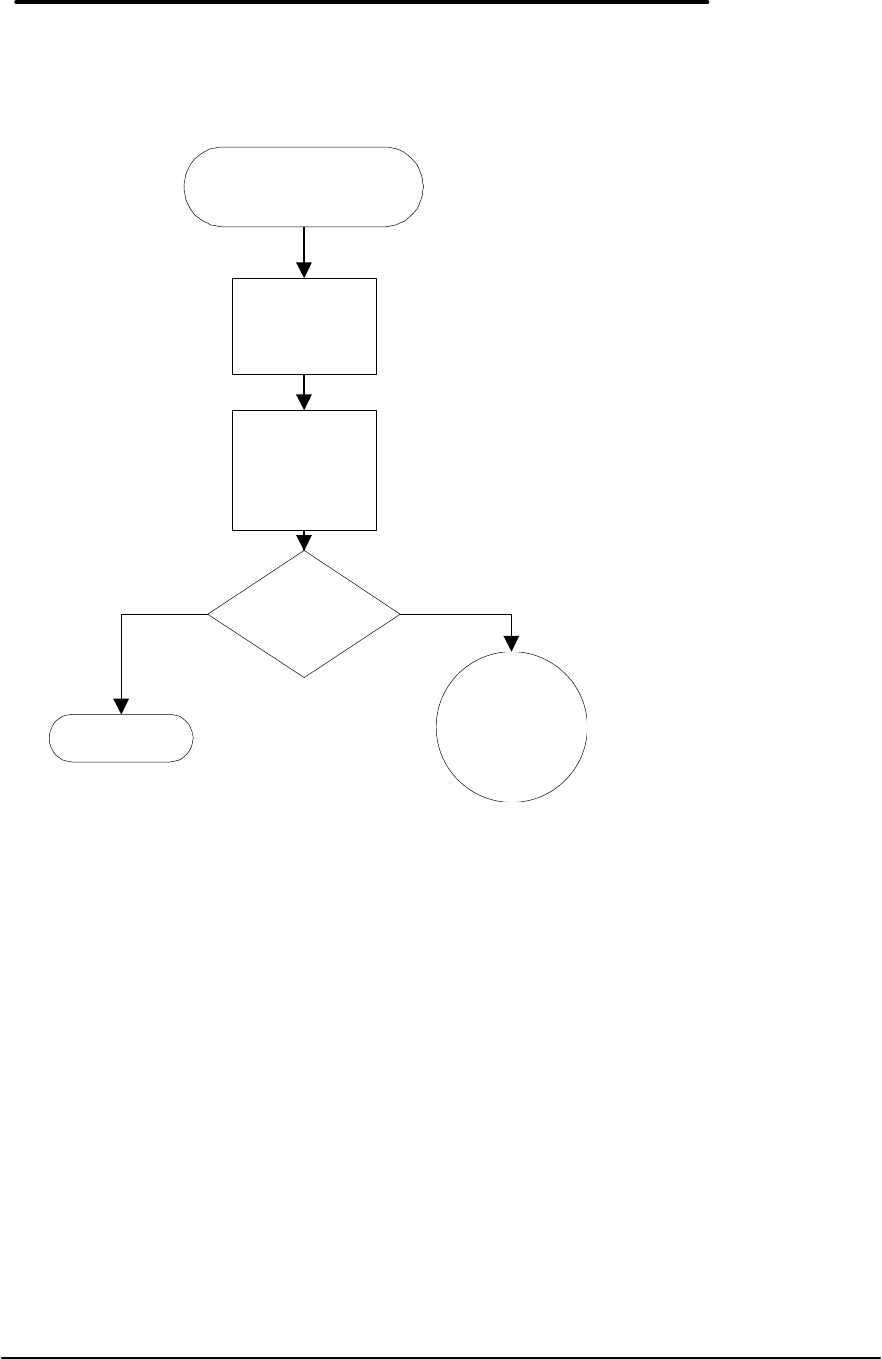
Boot-Up Problems
Start: Problems during
bootup
Press Ctrl Alt
Del to get a
clean boot
Hear
single or multiple
beeps during
boot? See
Windows or DOS
prompt in
display?
OB
support utility
disk available?
Done
OB
support utility
disk available?
Multiple beeps Single beeps
Suspect software
problem: locate OB
support utility disk and
call back
Insert OB
support utility
disk and reboot
See prompt to
enter time and
date?
Done Done: Suspect bad
Omnibook base unit
Yes No
Yes No
Yes No
No
Yes
19
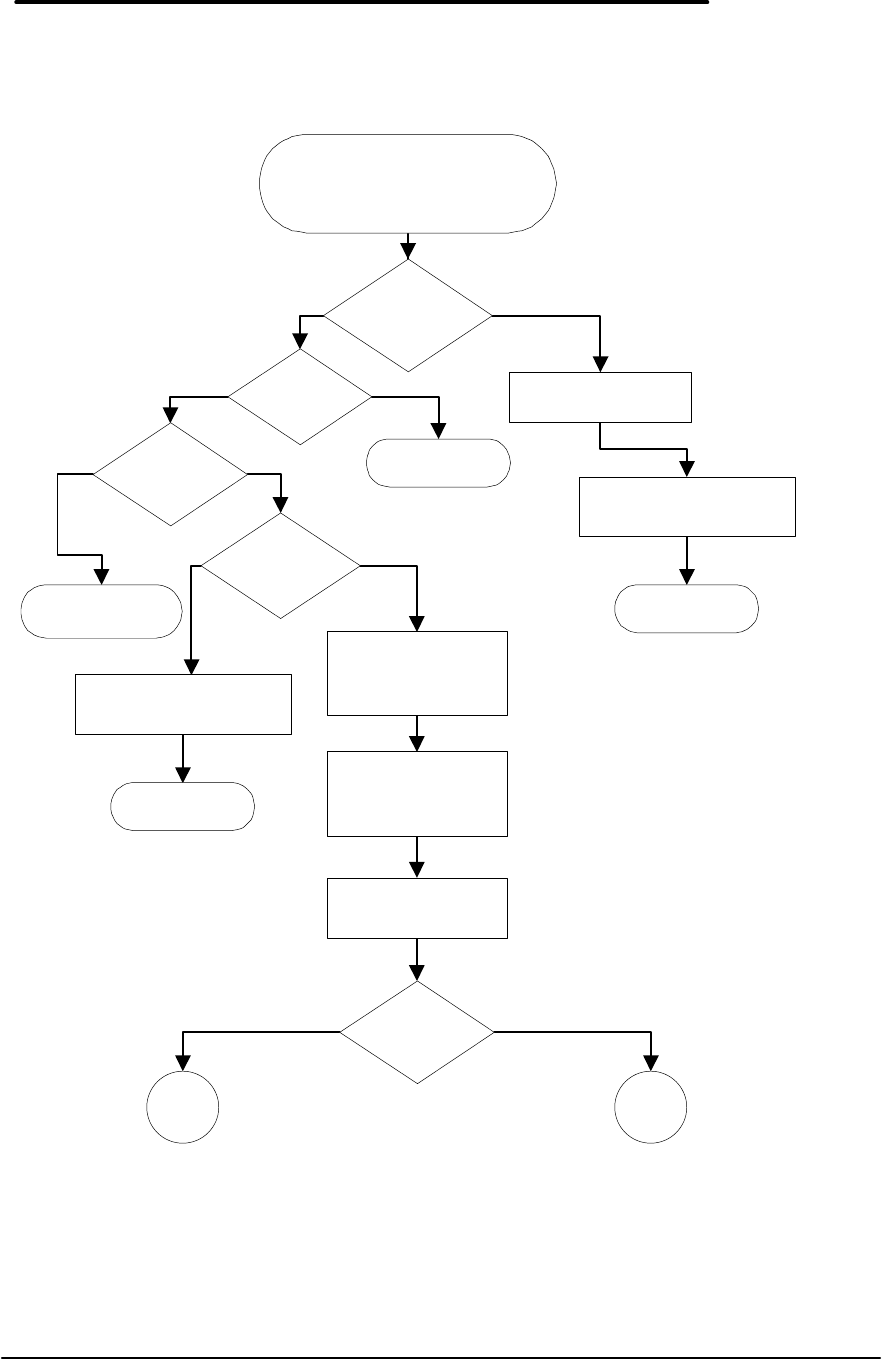
Display Problems
Start:
Power light on, but no
display
Physical
inspection of
display
Adjust brightness
and contrast
controls
See anything in
display?
Done
Go to Boot-Up
Problems
flowchart
Yes No
20
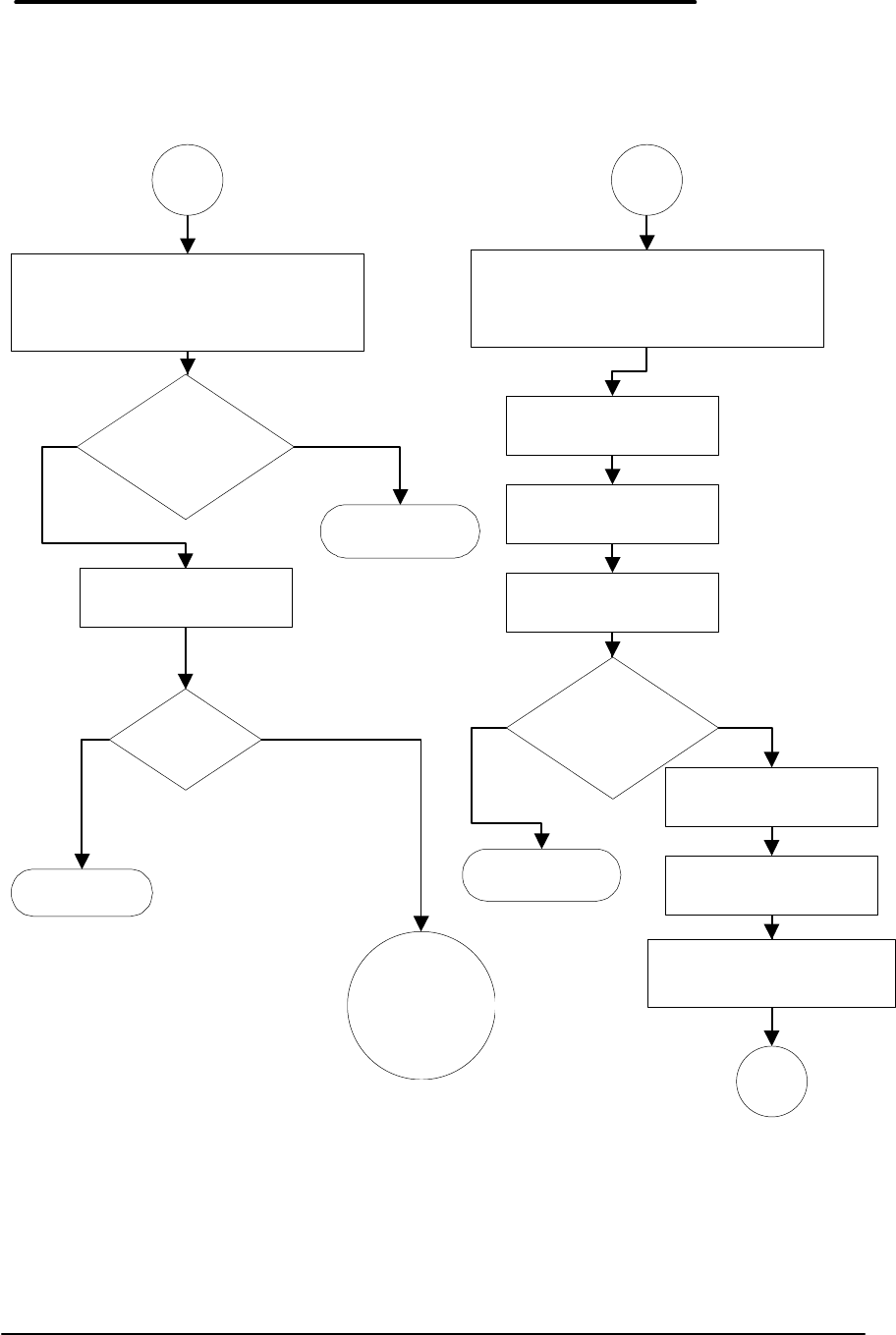
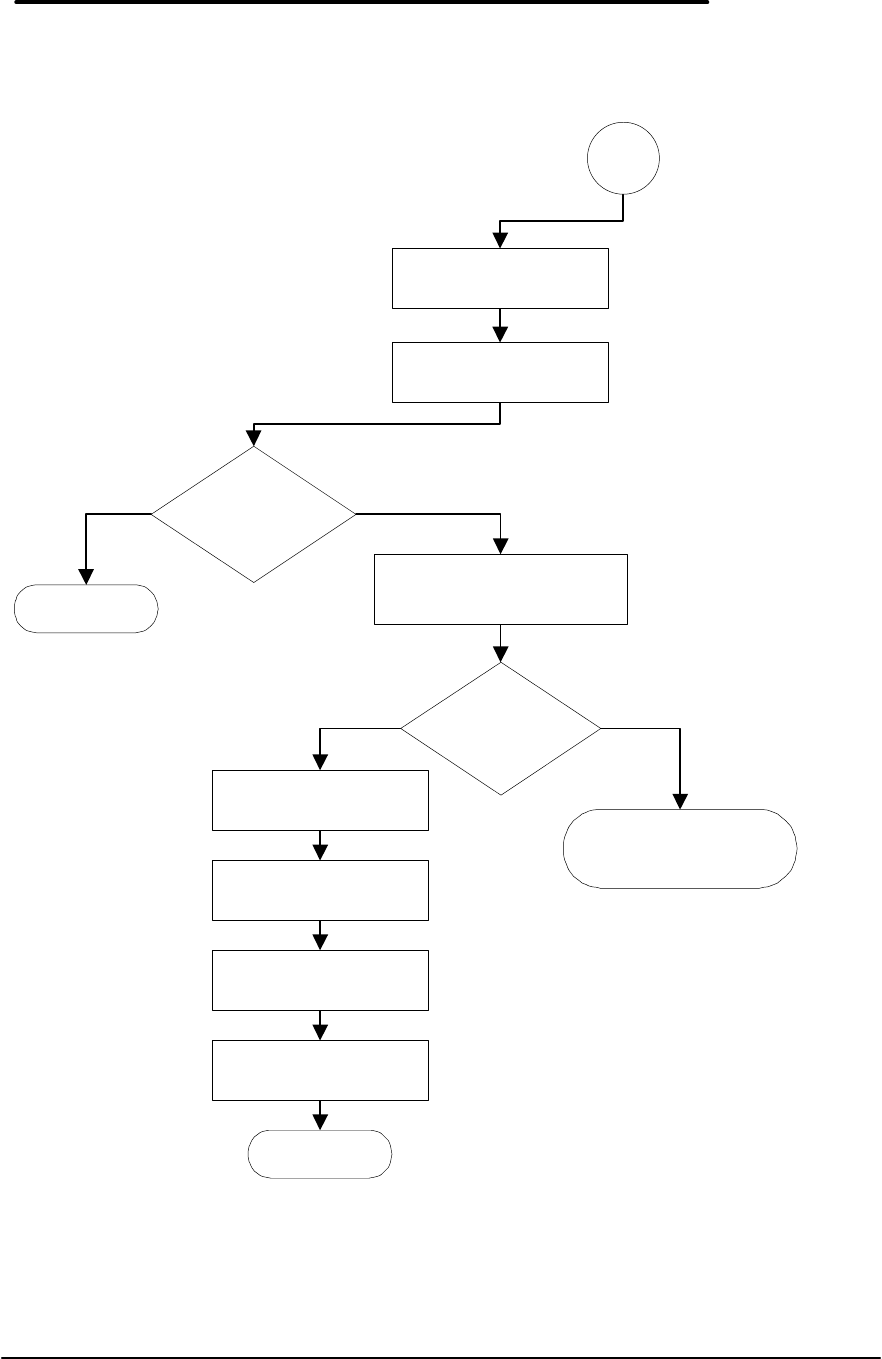
Hard Disk Problems
Start: Hard disk fails to boot
up to DOS or Windows; or
other hard disk problems
See
anything in
drive C:?
HP hard
disk?
Noisy?
See "Non-
system disk"?
Suspect corrupt files
on hard disk
Boot from OB
companion disk in
drive A:
Do
SCANDISK C:
Soft checking
OK?
A B
Insert hard disk in C:
Speech: Need hard disk to
boot correctly
Done
Done
Done: Hard
disk bad
Insert hard disk containing
system files
Done
Yes
Yes
Yes
Yes
Yes
No
No
No
No
No
21
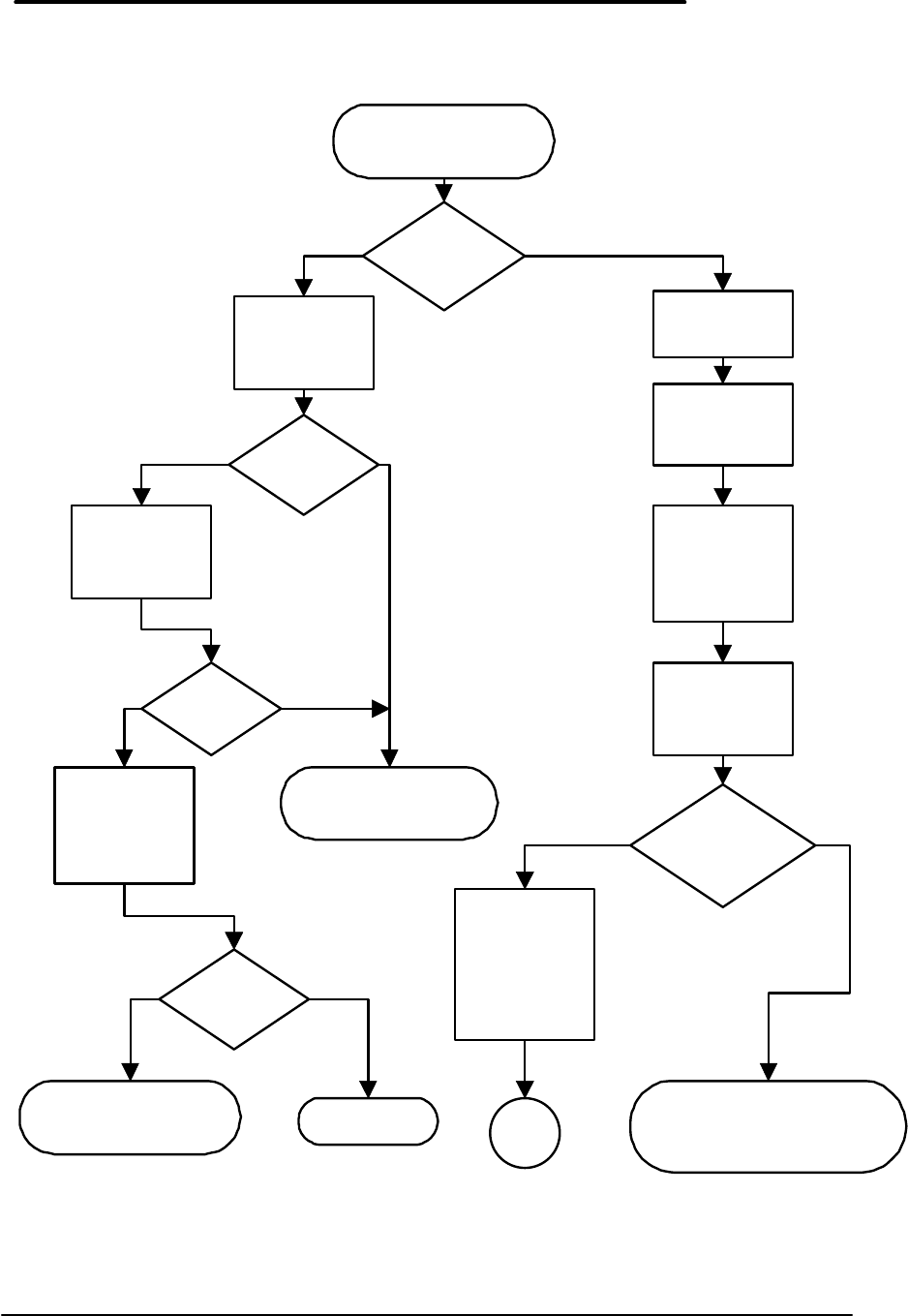
Hard Disk Problems (continued)
Do hard checking.
Save logs.
Let SCANDISK repair errors.
Do hard checking.
Save logs.
Let SCANDISK repair errors.
A B
Space available on
hard disk within
spec?
Boot from drive C:
Done: Hard
disk bad
Boot from OB companion
disk in drive A:
Do SCANDISK C:
Do CHKDSK C:
Number of bad
sectors out of
spec?
Suspect software problem
Boot from OB companion
disk in drive A:
Do
SCANDISK C: /AUTOFIX
C
Boots without
errors?
Done
Go to Boot-Up
Problems
flowchart
Done: Hard
disk bad
Yes
Yes Yes
No
No No
22
Hard Disk Problems (continued)
Remove disk from
drive A:
Boot from drive C:
Give customer general data
recovery hints
DOS and Windows
boot OK?
C
Is
customer willing
to reformat hard
disk?
Boot from drive A:
Back up hard disk to A:
Reformat hard disk
Reload image
Done
Done: Customer must
purchase another
hard disk
Done
Yes
Yes No
No
23
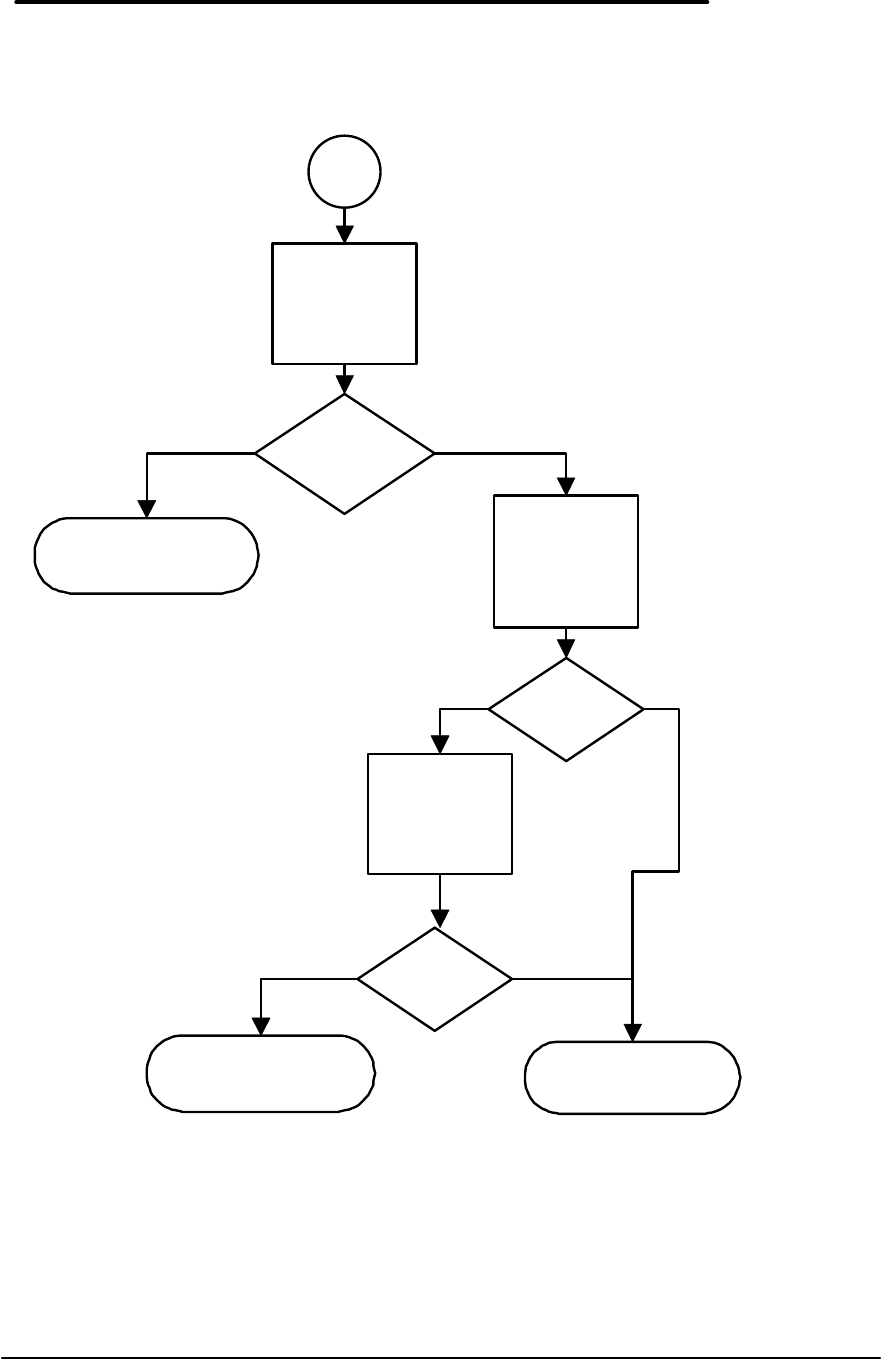
Memory Problems
Start: Problem with
plug-in memory
Intermittent
problem?
Yes
End current
session.
No
Run short OB
memory self-test
Exit software
and turn off OB
Remove OB
battery,
disconnect ac
adapter
Remove and
examine
memory module
Module
appropriate and
compatible?
With memory
module
removed,
replace battery,
attach ac
adapter
A
Done: Memory
inappropriate for
this model OB
Yes
Memory
self-test OK?
Done: Suspect bad
memory module
Run long OB
memory self-test
Memory
self-test
OK?
Run different
software to
eliminate
potential
software
Memory
appears OK
now?
Done: Suspect
memory module
problem Done
Yes
Yes
Yes
No
No
No
No
24
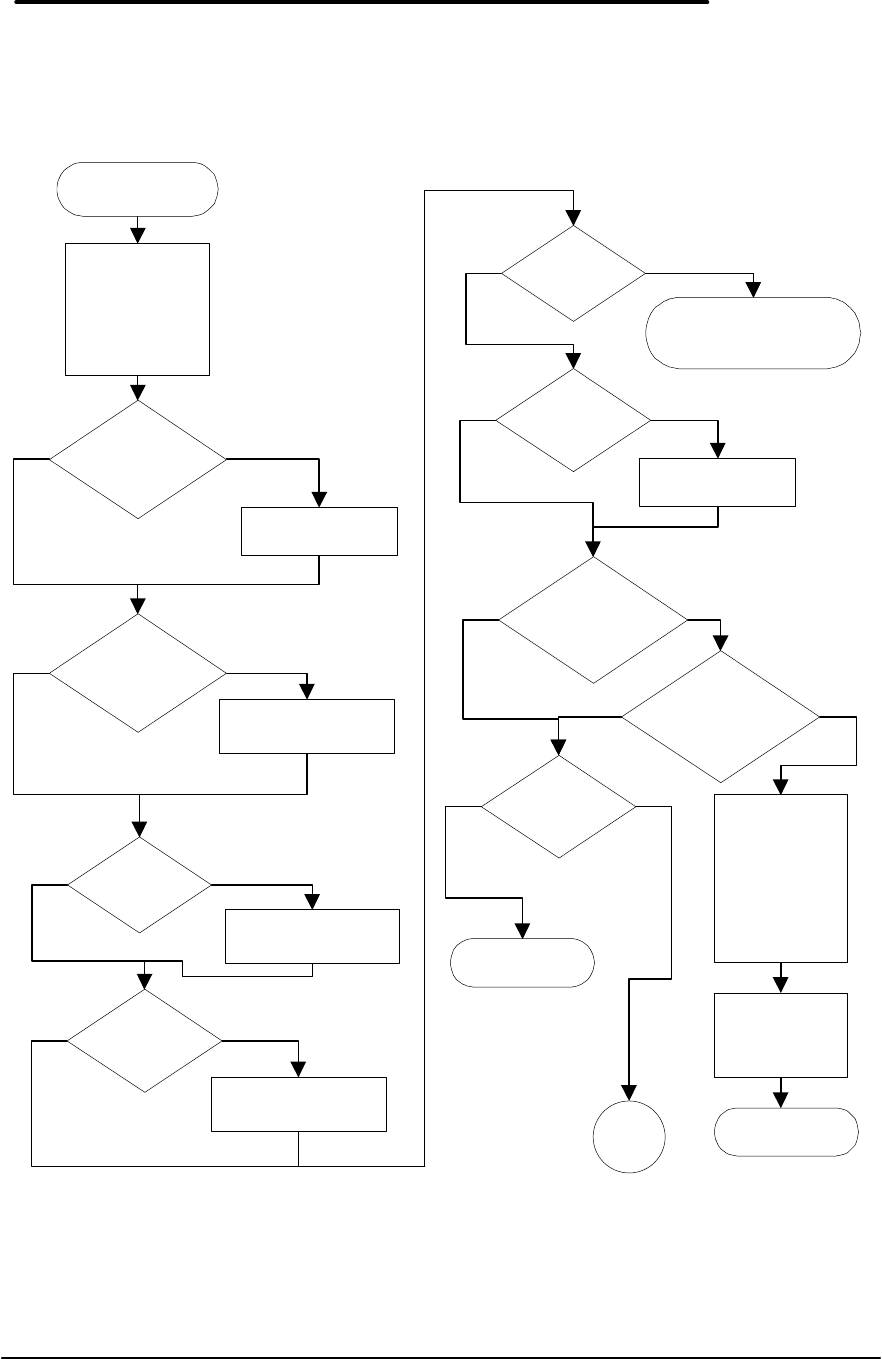
Memory Problems (continued)
Power up OB
(memory module
removed)
Memory
problem
disappears?
Done: Suspect bad
memory module
Run short OB
memory self-test
(without memory
module)
Memory
self-test OK?
Run long OB
memory self-test
(without memory
module)
Memory
self-test OK?
Done: Suspect
memory module bad
Done: Suspect OB
base unit bad
A
Yes
Yes
Yes
No
No
No
25
Power Management Problems
Start: Low
battery life
Physical
inspection:
HP battery?
Contacts dirty?
Physically OK?
Ac adapter
attached to OB
and wall?
Attach ac adapter
Has unit
recharged
sufficiently?
Recharge sufficiently
Power on
during
recharge?
Ensure power on
DOS
or Windows
running?
Start DOS or
Windows
See OB
power icon?
Done: Suspect
software problem
Is
Windows
running?
Start Windows
OB
Power icon in
Control Panel?
Power Mgmnt
icon in OB Tools?
Speech:
Standard or Off
means
processor
always on; uses
more power
Enable OB
power
management
Done
1-1/2
hours per
charge?
Done
A
Yes
Yes
Yes
Yes
Yes
Yes
Yes
No
No
No
No
No
No
No
No
No
Yes
Yes
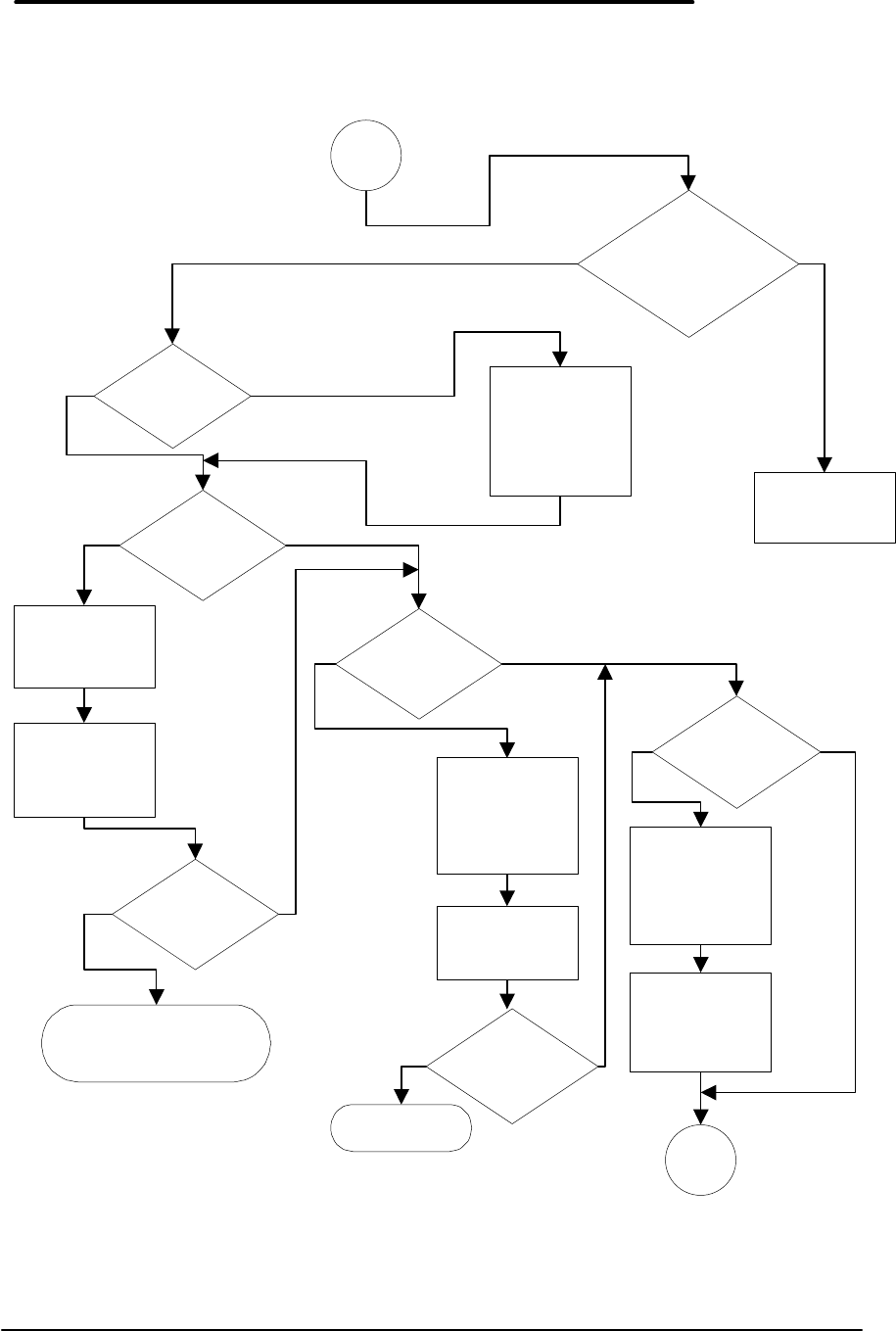
26
Power Management Problems (continued)
A
Does
battery indicator
reach full charge?
Ambient
temperature in
spec?
"Bad/no
battery"
message?
PCMCIA cards
installed?
Speech: PCMCIA
cards can use
power even when
not on
Remove PCMCIA
cards, recharge
battery
Get
1-1/2 hours
battery life?
Done
Ensure ac
adapter plugged
into OB and wall
Clean boot:
Ctrl Alt Del, press
F4 during boot
"Bad/no
battery"
message?
Done: Replace
battery or use OB on
ac power only
3rd-party
software
installed?
Speech: DOS
games, TSR's,
other software
can reduce
battery life
Disable 3rd-party
software and
recharge battery
B
Bring ambient
temperature
within
specification,
recharge battery
Yes
Yes
Yes
Yes
Yes
Yes
Yes
No
No
No
No
No
No
No
Charging circuitry
may be defective
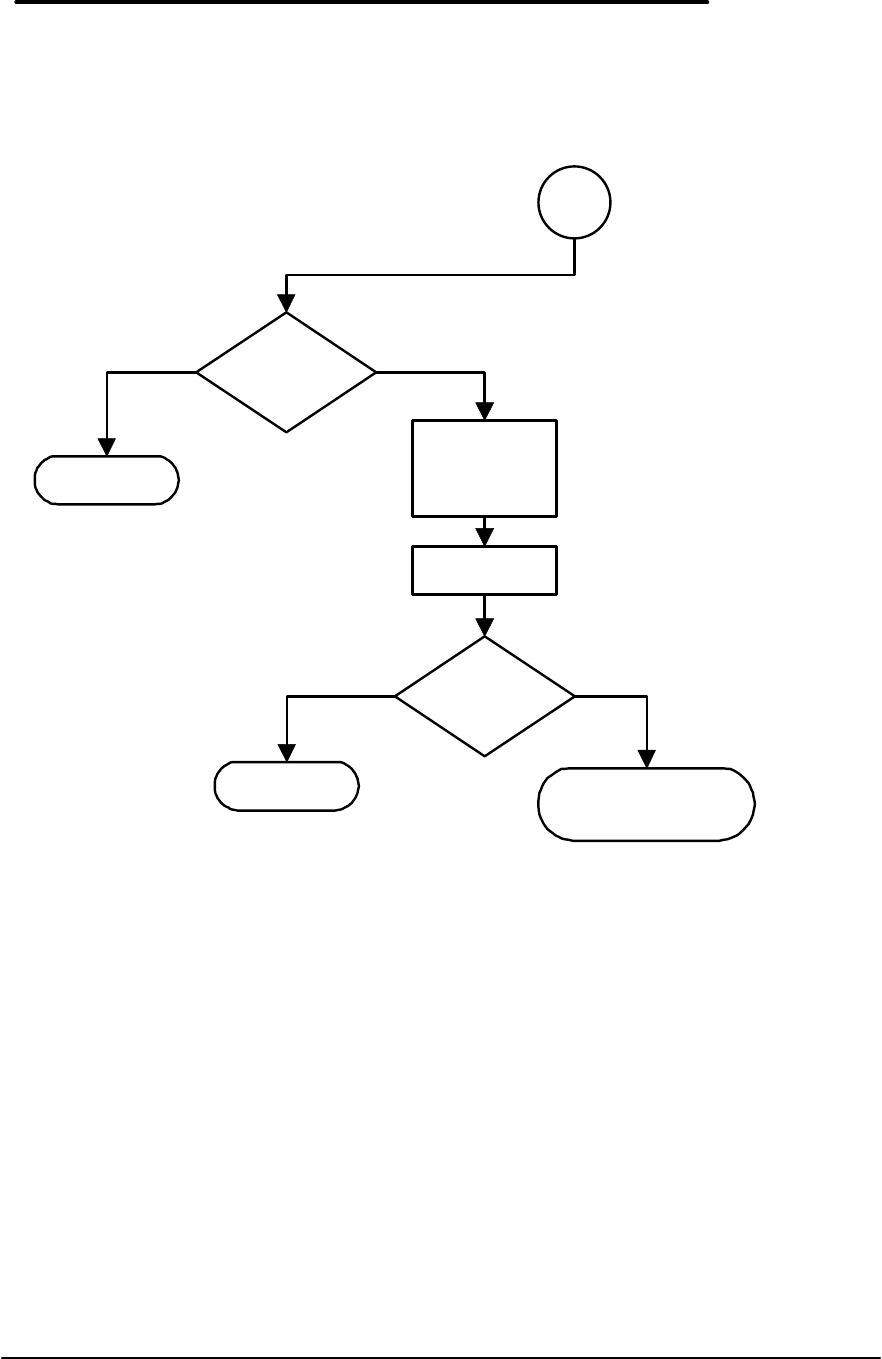
27
Power Management Problems (continued)
B
Use MSD to
determine what
TSR's are
running
Disable TSR's
Get 1-1/2 hours
battery life?
Get 1-1/2 hours
battery life?
Done
Done
Done: Suspect bad
or old battery
Yes
Yes
No
No
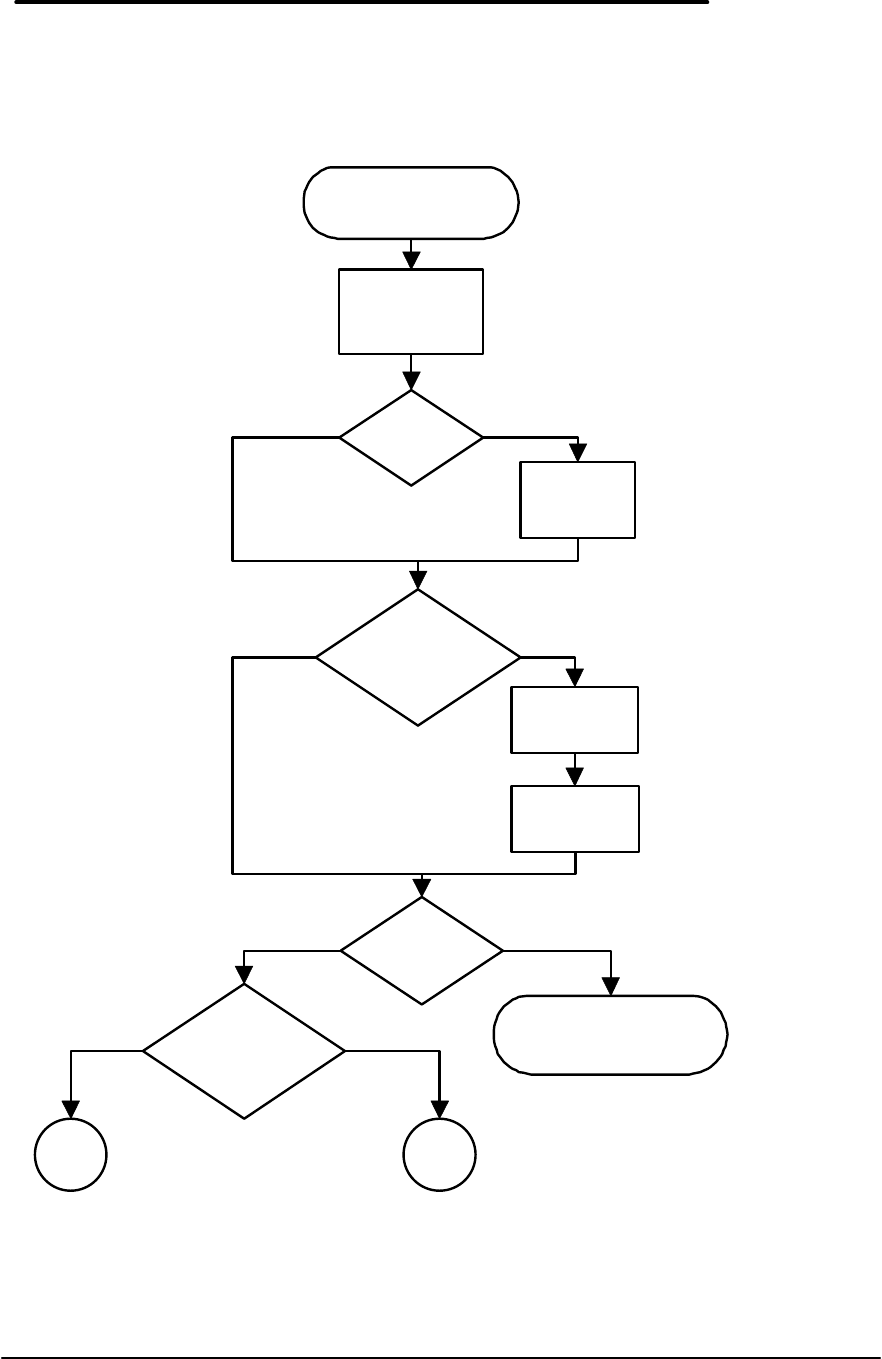
28
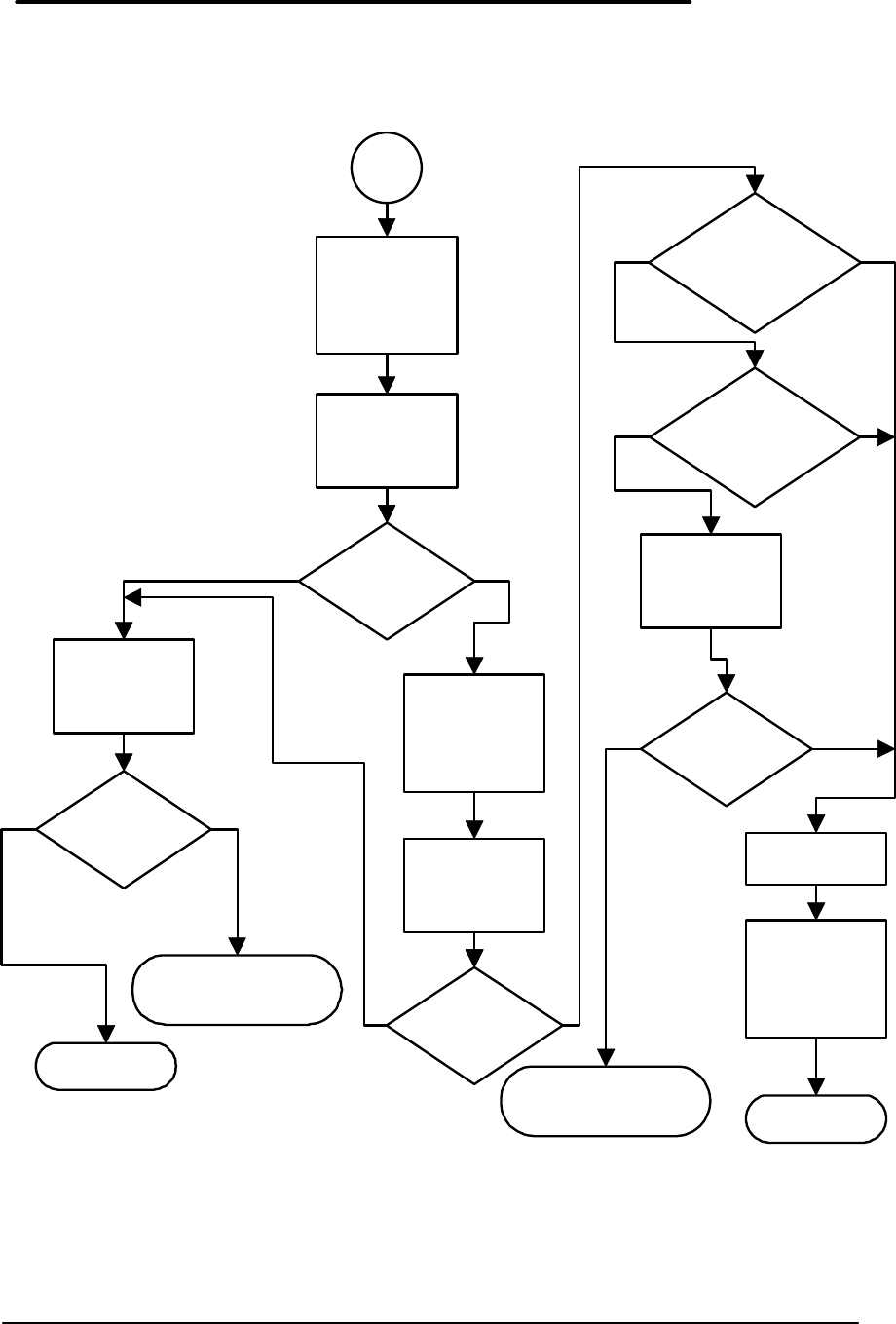
Pop-Out Mouse Problems
Start: OB popout
mouse problem
Eliminate
obvious physical
problems
See
Windows?
Start
Windows
running
Is
mouse OB
popout mouse?
Disable other
mouse
Enable OB
popout mouse
See mouse
pointer?
Does mouse
pointer move?
A B
Done: Suspect
software problem
(Windows problem)
Yes
Yes
Yes
Yes
No
No
No

29
Pop-Out Mouse Problems (continued)
A
Reaches all 4
corners of
screen?
Can you
calibrate
mouse?
Is mouse jittery,
intermittent?
Suspect bad
mouse
C
Done: Mouse
should be OK
Yes
Yes
Yes
No
No
No
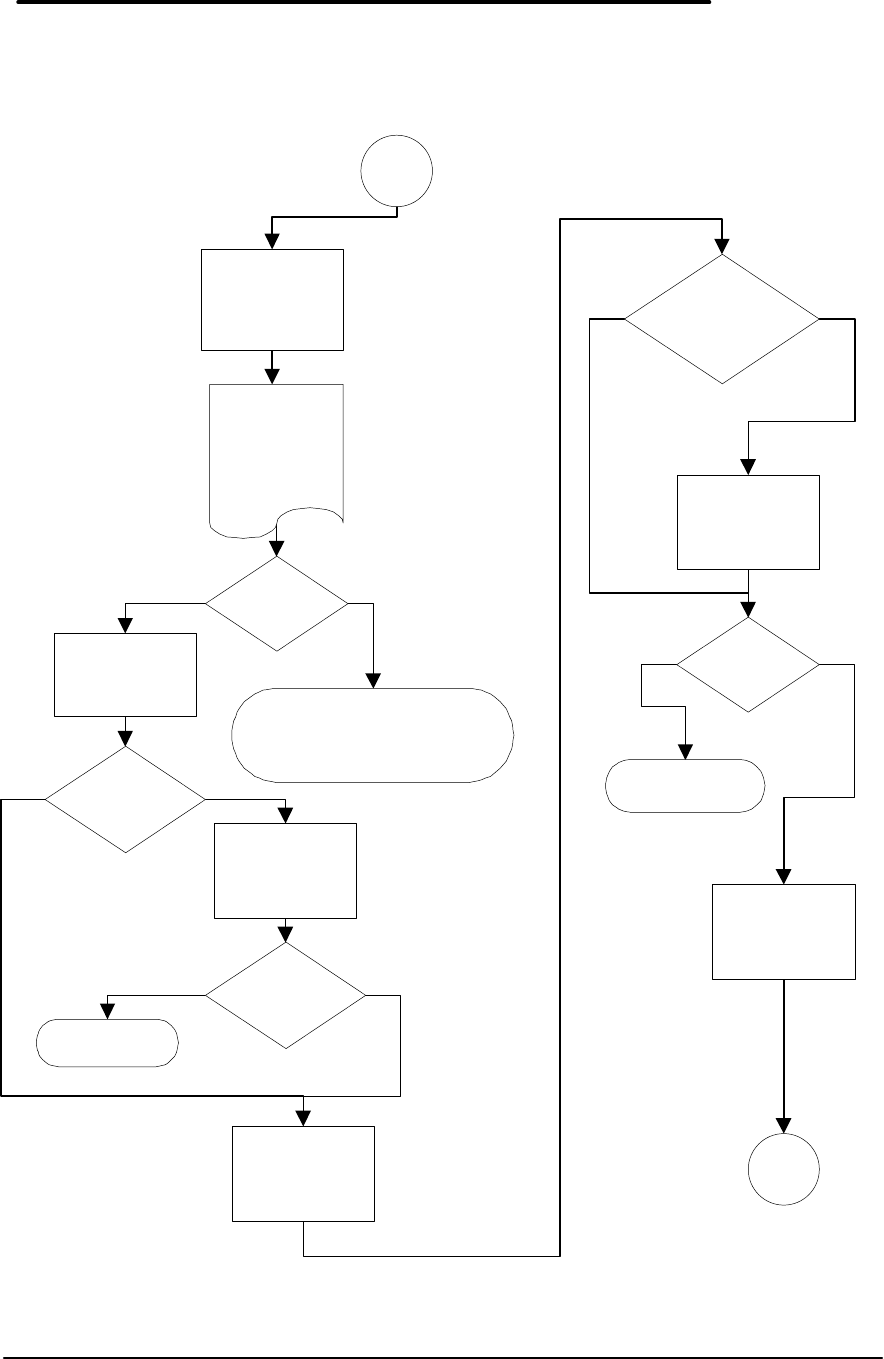
30
Pop-Out Mouse Problems (continued)
B
Suspect software
configuration
problem
Check for
correct OB
mouse driver
Mouse driver
OK?
Look at mouse in
Windows Control
Panel
See OB punch
button?
Set Control Panel
for OB punch
button mouse
OB mouse
works OK?
Exit Windows,
run Setup from
DOS command
line
Done
Done: Replace with known
good version of correct
OB mouse driver
Setup shows
correct mouse
driver?
Configure Setup
for correct OB
mouse driver
Mouse
moves?
Suspect bad
mouse
C
Done: Mouse
OK
Yes
Yes
Yes
Yes
Yes
No
No
No
No
No
31
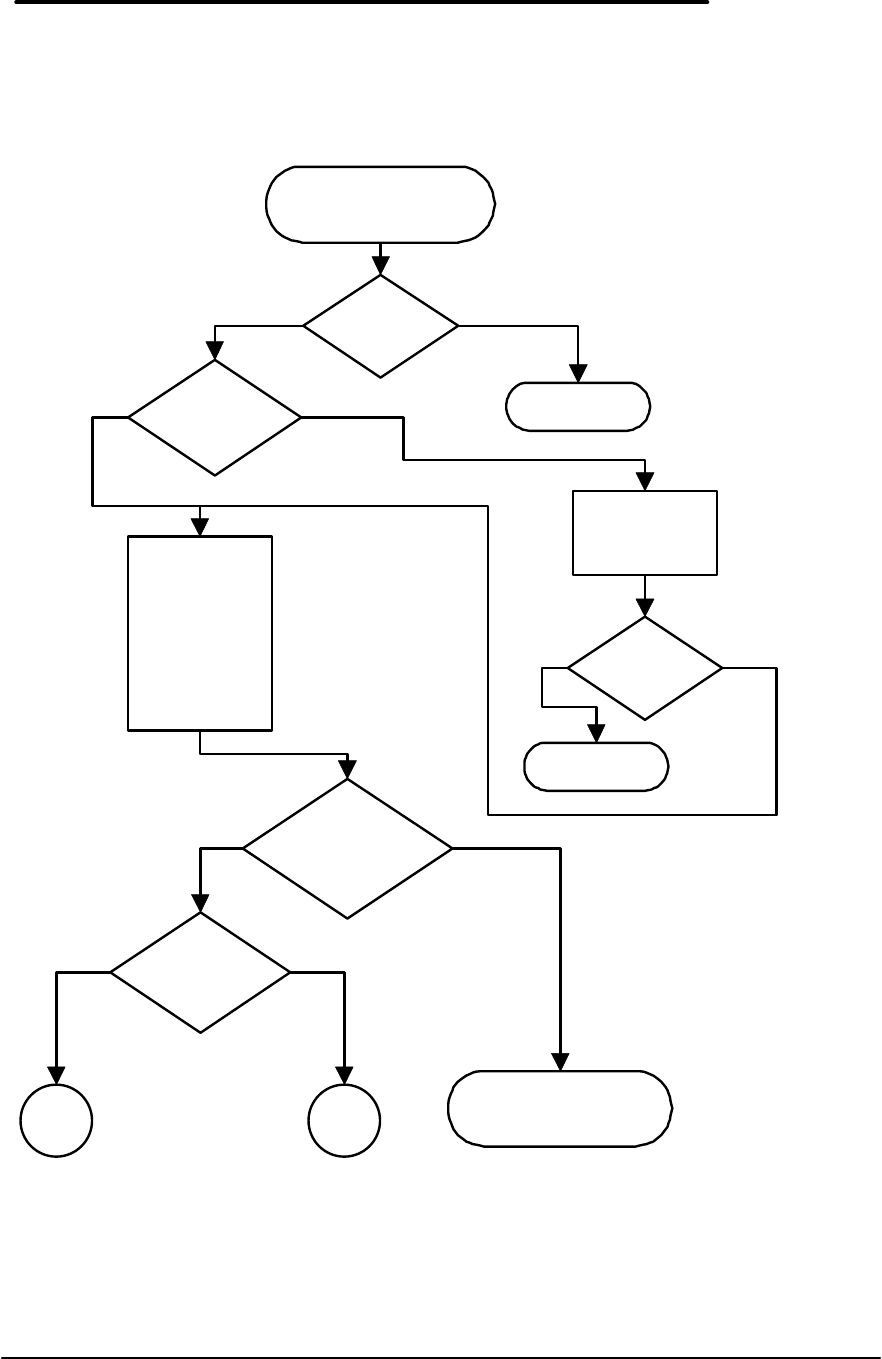
Pop-Out Mouse Problems (continued)
C
Clean boot:
Ctrl Alt Del,
press F5 when
starting
Run OB
diagnostic
program
Does mouse
pass all tests?
Remove mouse
from OB base
unit, examine
mouse, and
reinsert
Run OB
diagnostic
program
Does mouse
pass all tests?
Boot normally to
Windows
OB mouse
operates
correctly?
Done
Done: Suspect
software problem
Can you put
suspect mouse in
known good OB?
Suspect mouse
works in known
good OB?
Put known good
OB mouse in
suspect base
unit
Known good
mouse works?
Suspect bad
mouse.
Replace mouse.
Have customer
call back if
problem not
solved.
Done
Done: Suspect bad
OB base unit
Yes
Yes
Yes
Yes
Yes
Yes
No
No
No
No
No
No
32
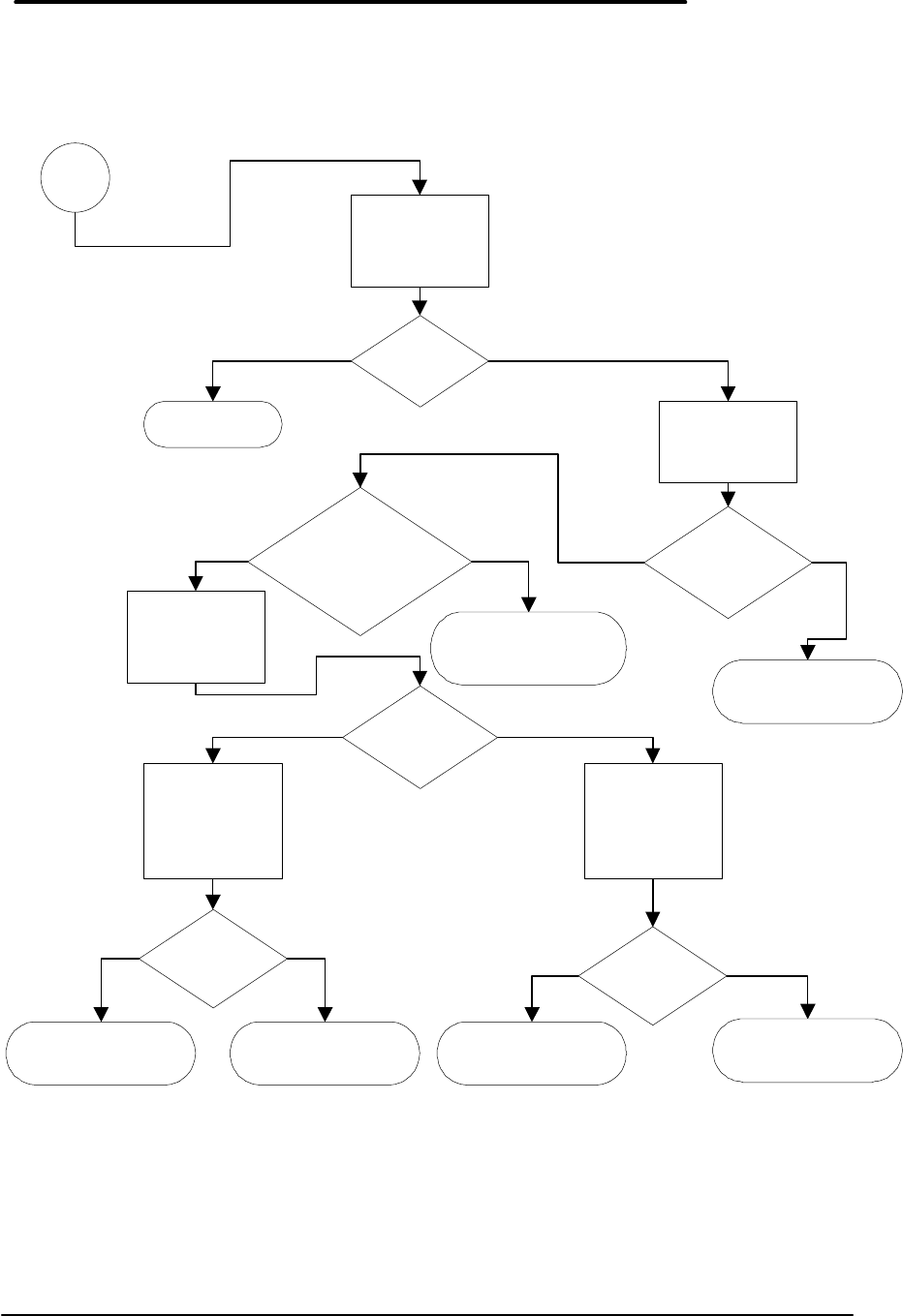
Floppy Drive Problems
Start: External
floppy disk drive
problem
Eliminate
obvious physical
problems:
Cable OK?
Pins not bent?
Cable connected
and solidly in
connectors?
External
FDD is HP
device?
Cable is
correct one?
Inserts, ejects
known good disk
cleanly?
Has drive ever
worked?
A B
Done
Locate and
attach correct
cable
Drive works
OK?
Done
Done: Suspect bad
or damaged drive
Yes
Yes
Yes
Yes
Yes
No
No
No
No
No
33
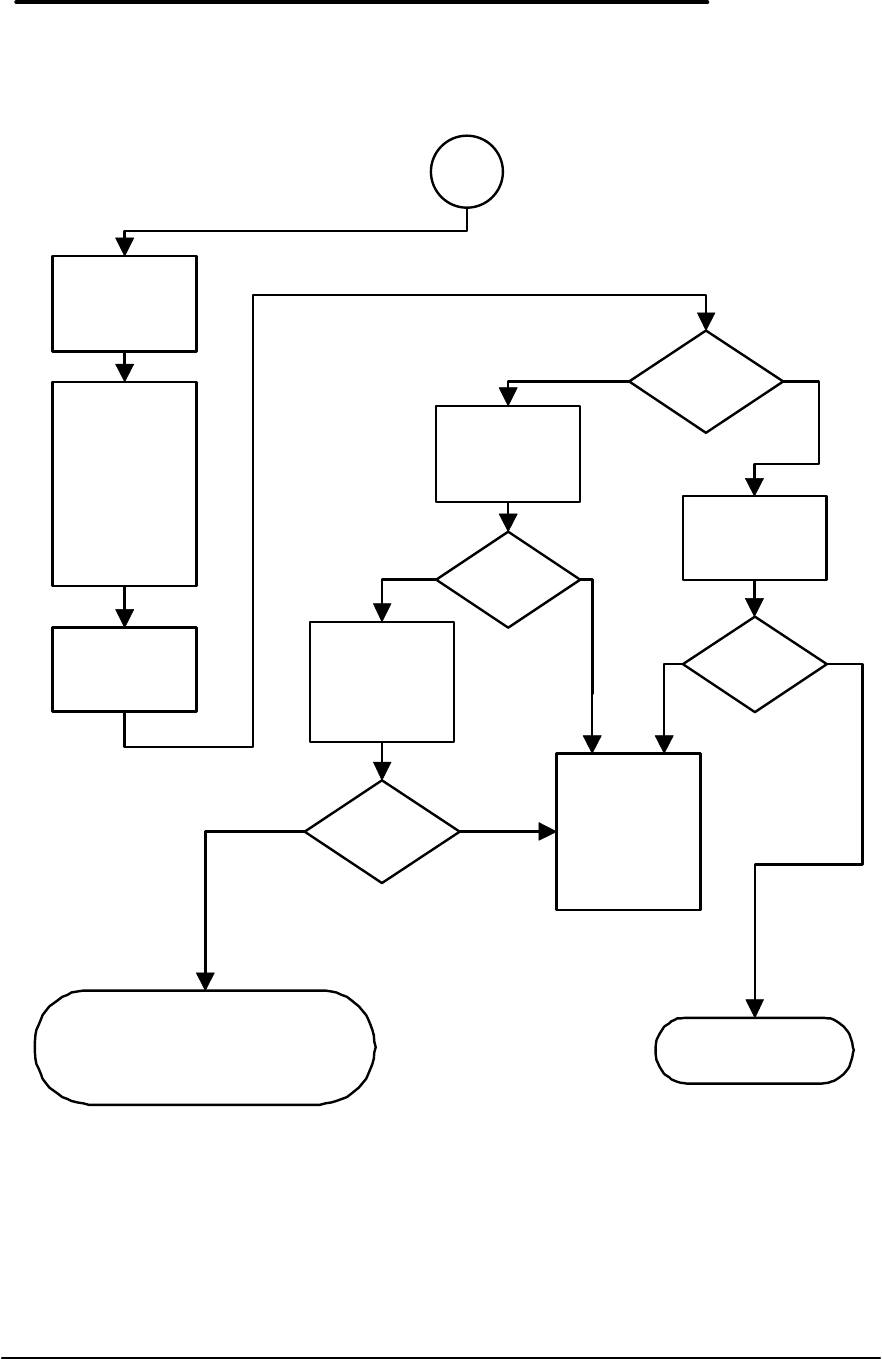
Floppy Drive Problems (continued)
A
Clean boot:
Ctrl Alt Del, press
F5 during boot
Run short self-
test twice
Can
you swap with known
good drive and
cable?
With original OB
turned on,
connect good
drive and cable
Good drive
works OK?
With known good
OB turned on,
connect original
drive and cable
Drive works
OK?
Done
With known good
OB turned on,
connect original
drive and cable
Original drive
works OK?
Original OB base
unit bad
Original drive
works OK?
Original drive or
cable bad
Suspect software
problem
Suspect software
problem
Drive passes
self-test OK?
Done: Suspect
bad drive
Suspect software
problem (proceed
to B)
Yes
Yes
Yes
Yes
Yes Yes
No
No No
No
No No
34
Floppy Drive Problems (continued)
B
Clean boot:
Ctrl Alt Del,
press F5 during
boot
Run OB disk
self-test:
Put empty,
known good
disk, formatted
for DOS, in
drive. Press
Enter.
Repeat disk
self-test
Disk self-test
OK?
Change diskette,
run self-test
again
Self-test
OK?
Suspect bad
floppy diskette;
replace floppy
with known good
one
Boot from drive
A: with OB
companion disk
Boots OK?
Insert blank,
formatted floppy
disk, do
long-term disk
self-test
Long-term
self-test OK?
Done: If long-term self-test
works but floppy drive still has
problem, suspect runtime
environment software problem
Done: Suspect
bad floppy drive
Yes
Yes
Yes
Yes
No
No
No
No

35
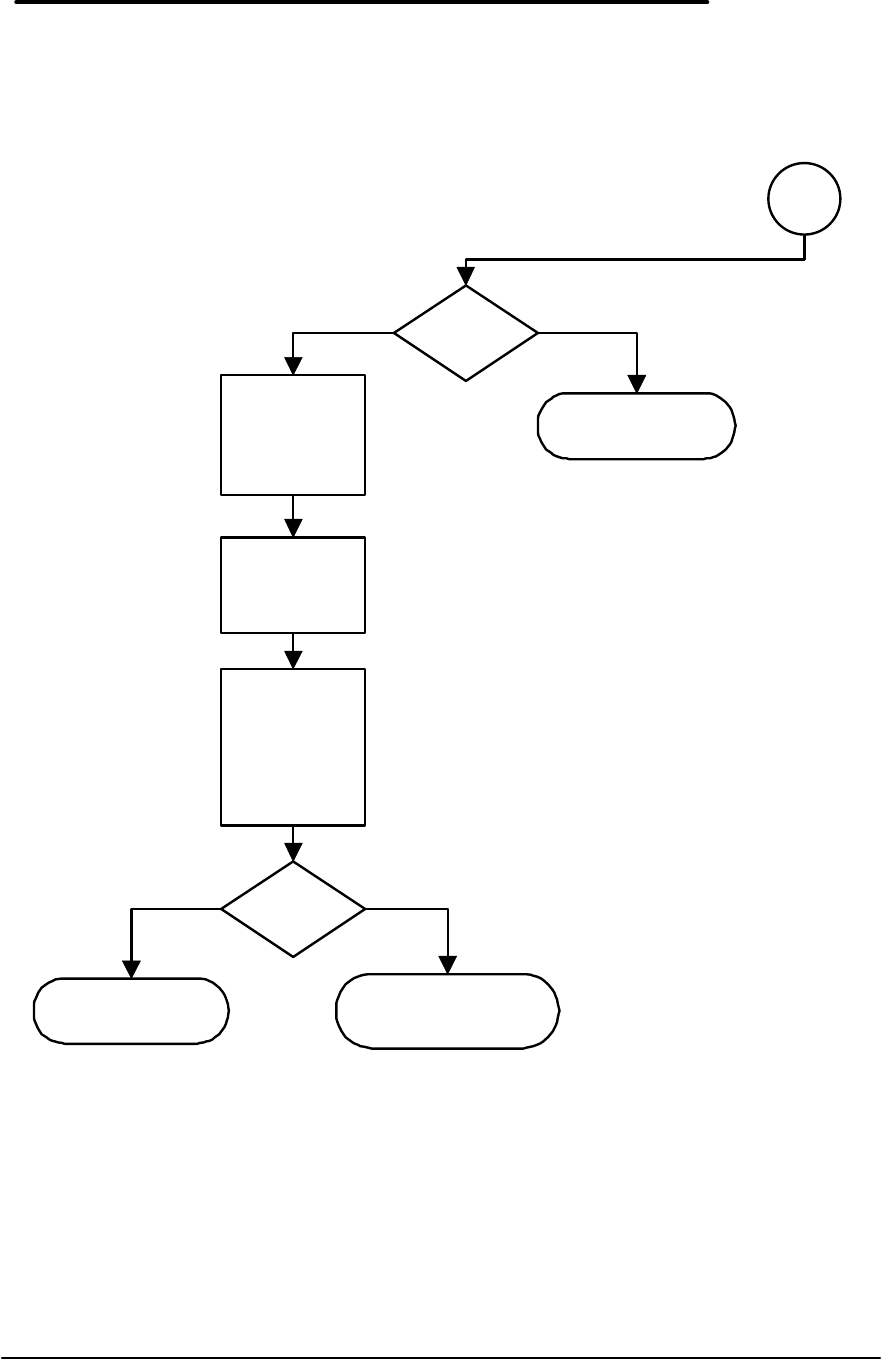
Parallel Port Problems
Start: Problem with
parallel port
Problem with
Laplink Remote?
Yes
Physical
inspection:
Cable
connected?
Cable pins OK?
No
Troubleshoot
Laplink Remote
Clean boot:
Ctrl Alt Del,
press F5 during
boot
See
Windows?
Exit to DOS
Use PRN
command to
print a file
Prints file
OK?
Other printer
available?
Attach OB and
use PRN
command to
print file on
different printer
Prints file
OK?
Done: Suspect bad
printer or cable
Run OB self-test
diagnostics:
CDIAG or
OBTEST,
depending on
unit
A
Yes
Done: Parallel
port OK
Yes
Yes
No
No
No
NoYes
36
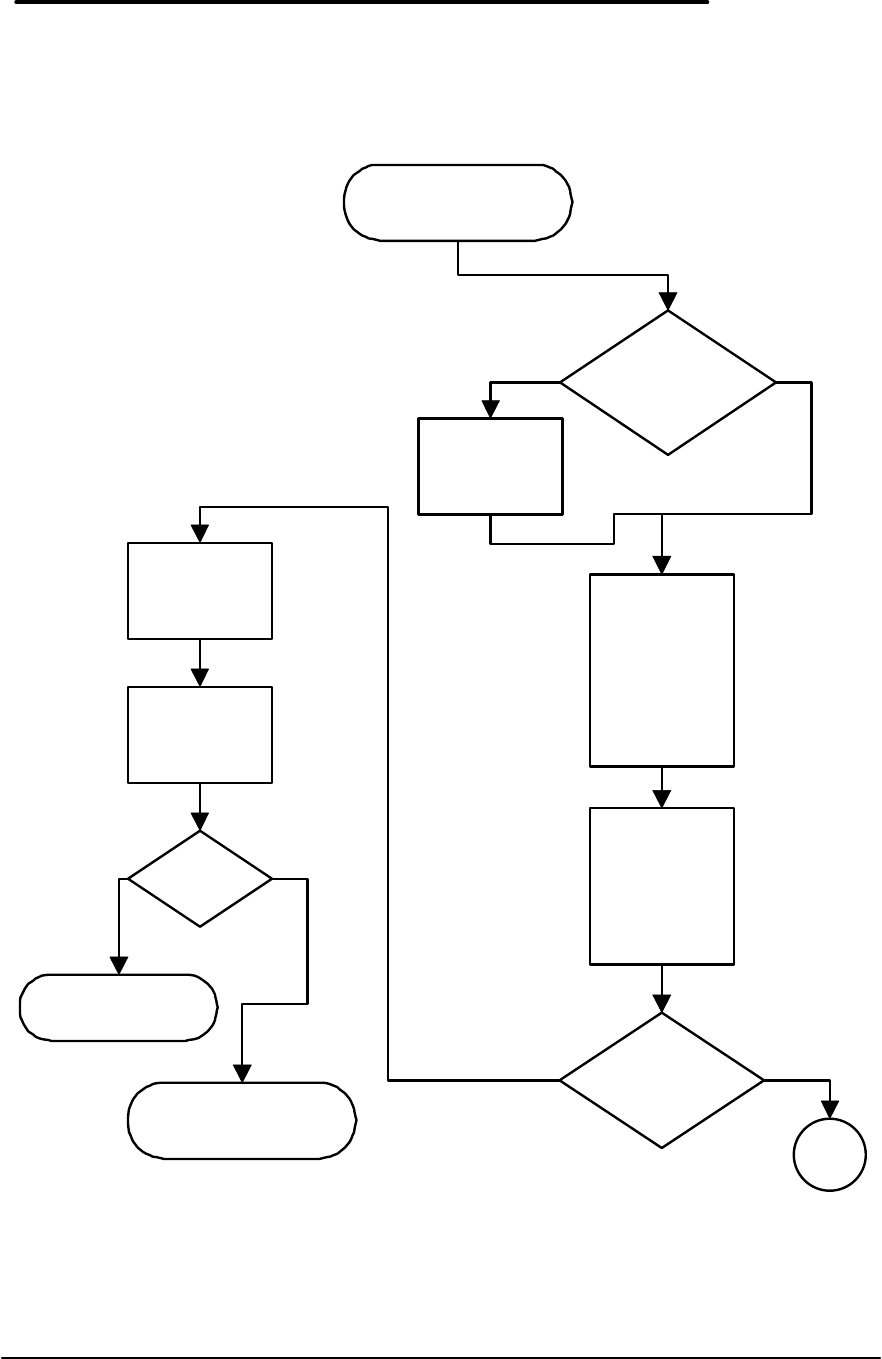
Parallel Port Problems (continued)
A
Self-test
OK?
Done: Bad OB
base unit
Reconfirm:
Printer plugged
in?
On?
On line?
Attach printer to
desktop PC
Clean boot to
DOS on desktop
PC:
Ctrl Alt Del,
press F5 during
boot
PRN prints
file OK?
Done: Suspect
original OB bad
Done: Suspect bad
printer or cable
Yes
Yes
No
No
37
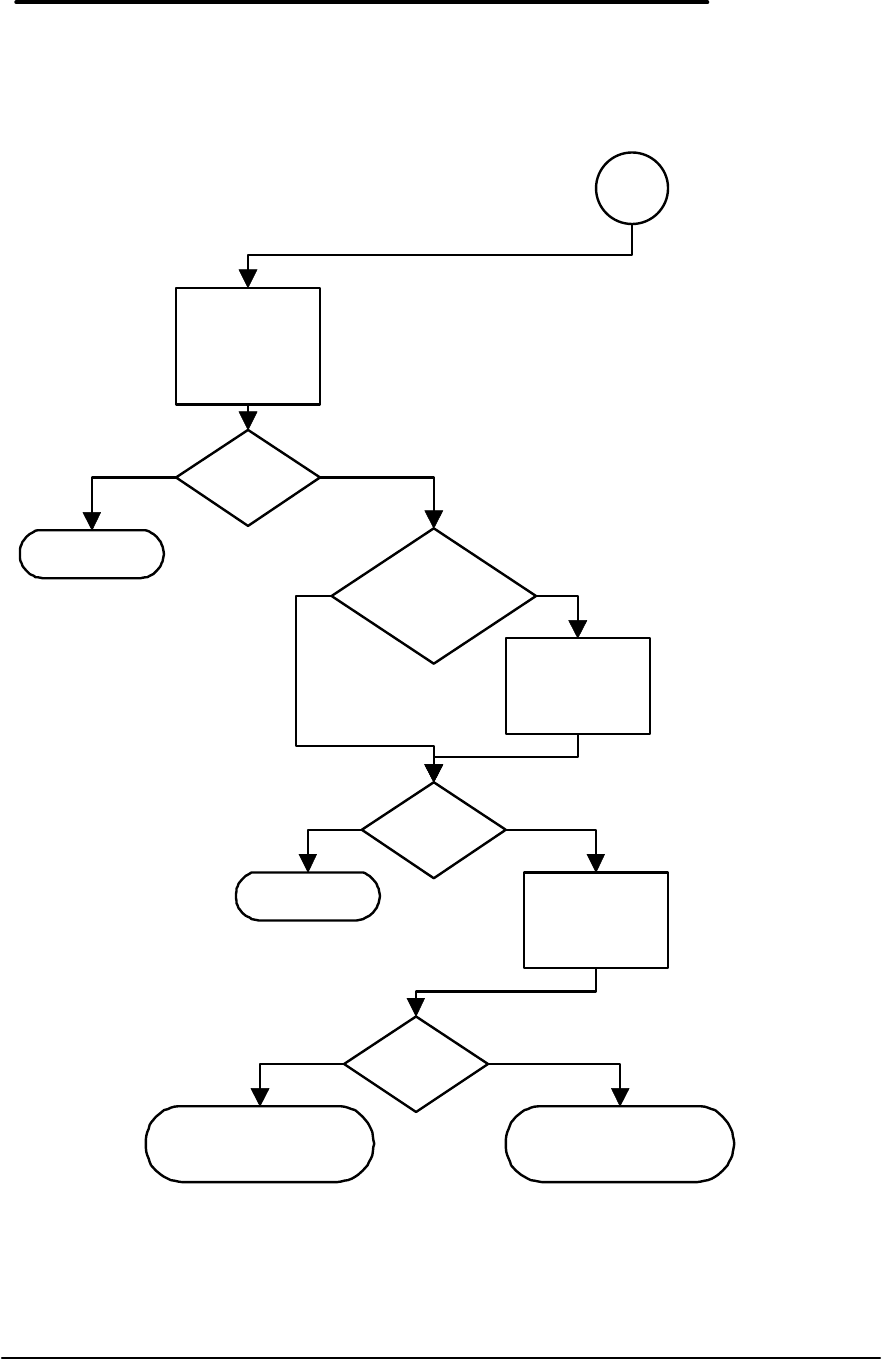
Serial Port Problems
Start: Problem with
serial port
Problem with
Laplink Remote?
Yes
Physical
inspection:
Cable
connected?
Bent pins?
Cable appears
OK?
No
Troubleshoot
Laplink Remote
Loopback
connector
available?
Connected to
what?
Modem?
Printer?
Other?
Install loopback
connector
Run OB self-test
procedure
Self-test
OK?
Done: Serial port
OK
Done: Suspect bad
serial port in OB
base unit A
Yes No
Yes No
38
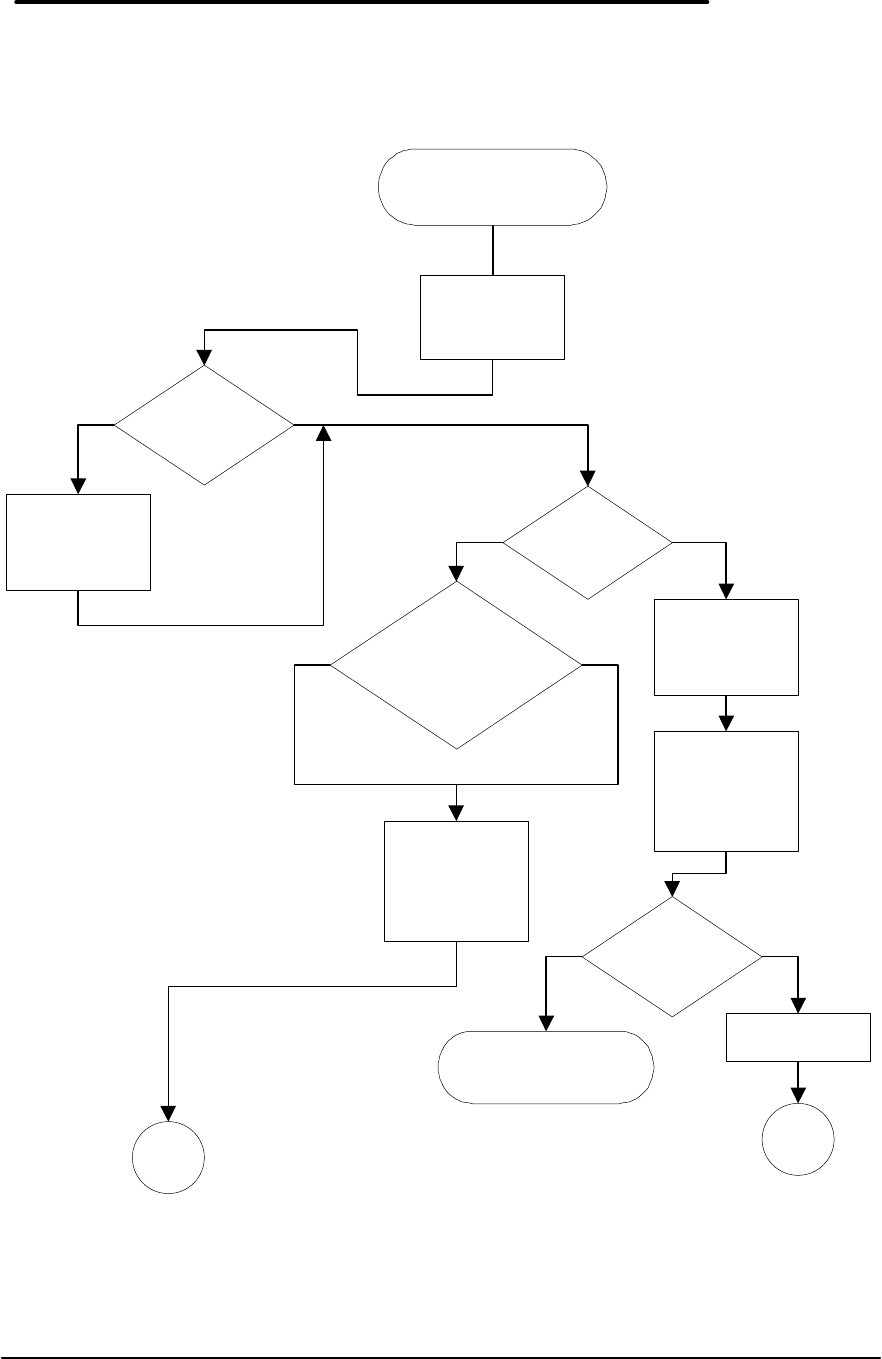
Serial Port Problems (continued)
Ensure proper
default serial
port
configuration
Serial port
works OK?
Can you
eliminate all
potential software
conflicts?
Eliminate
software
conflicts
Serial port
works OK?
Plug another
device and cable
into serial ports
Serial port
works OK?
Done: Suspect
original device or
cable bad
Done: Suspect bad
OB base unit serial
port
A
Done
Done
Yes No
No
No
No
Yes
Yes
Yes
39
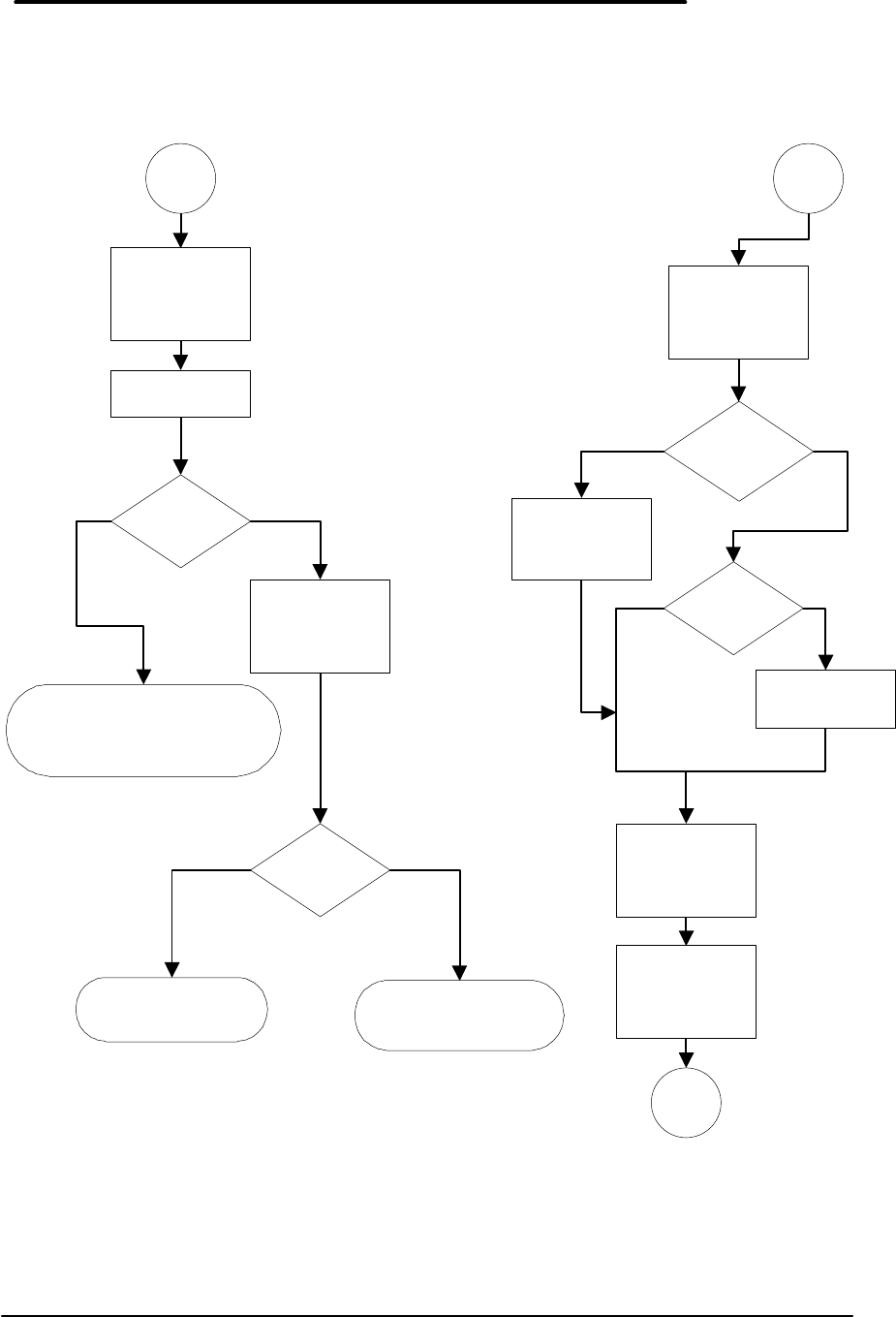
PCMCIA Problems
Start: PCMCIA card
problem
Known issue
with this card?
Has card ever
worked?
No
Determine type of
card
Seek additional
information on
card
Remove card
(with power on or
off)
Visually inspect
card:
Connectors bent?
Damaged?
Wet?
Inspection
reveals
problems?
Done: Suspect bad
PCMCIA card
Reinsert card
B
Has any software been
loaded or modified
since card worked?
Suspect software
configuration
problem
A
No
No
No
Yes
Yes
Yes
Yes
40
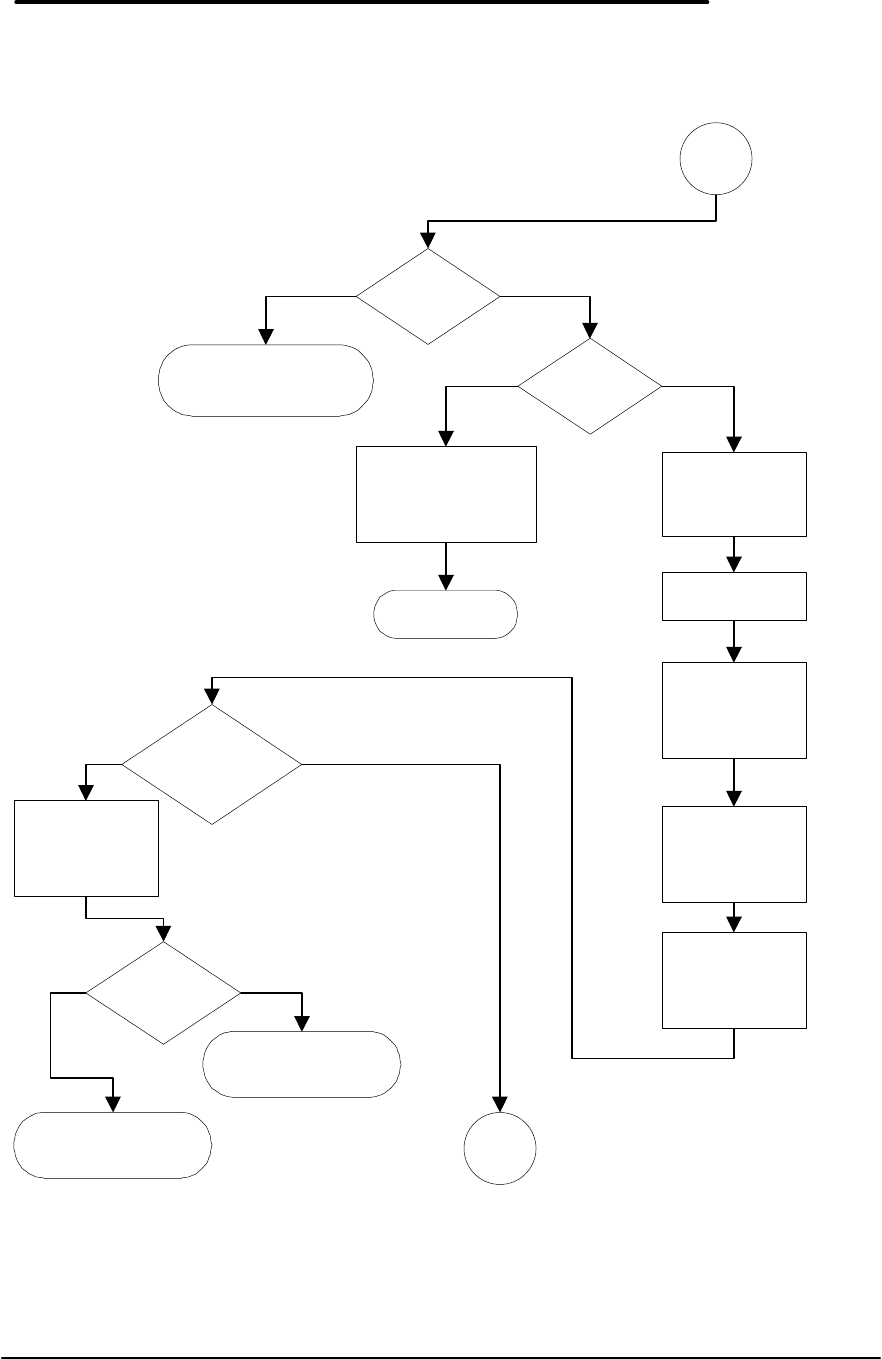
PCMCIA Problems (continued)
A
Clean boot:
Ctrl Alt Del, press
F5 during boot
Run OB self-test
Self-test
OK?
Suspect bad card
HP card?
Done: Contact card
vendor
Done: Return card
to HP
B
Press Ctrl Alt Del
See Windows
display?
See DOS
prompt?
Exit to DOS
prompt
Remove card and
run CARDINFO
Exit to DOS
prompt
Interpret
CARDINFO
results
C
No
Done: Software
configuration or setup
problem
No
No
No
Yes
Yes
Yes
Yes
41
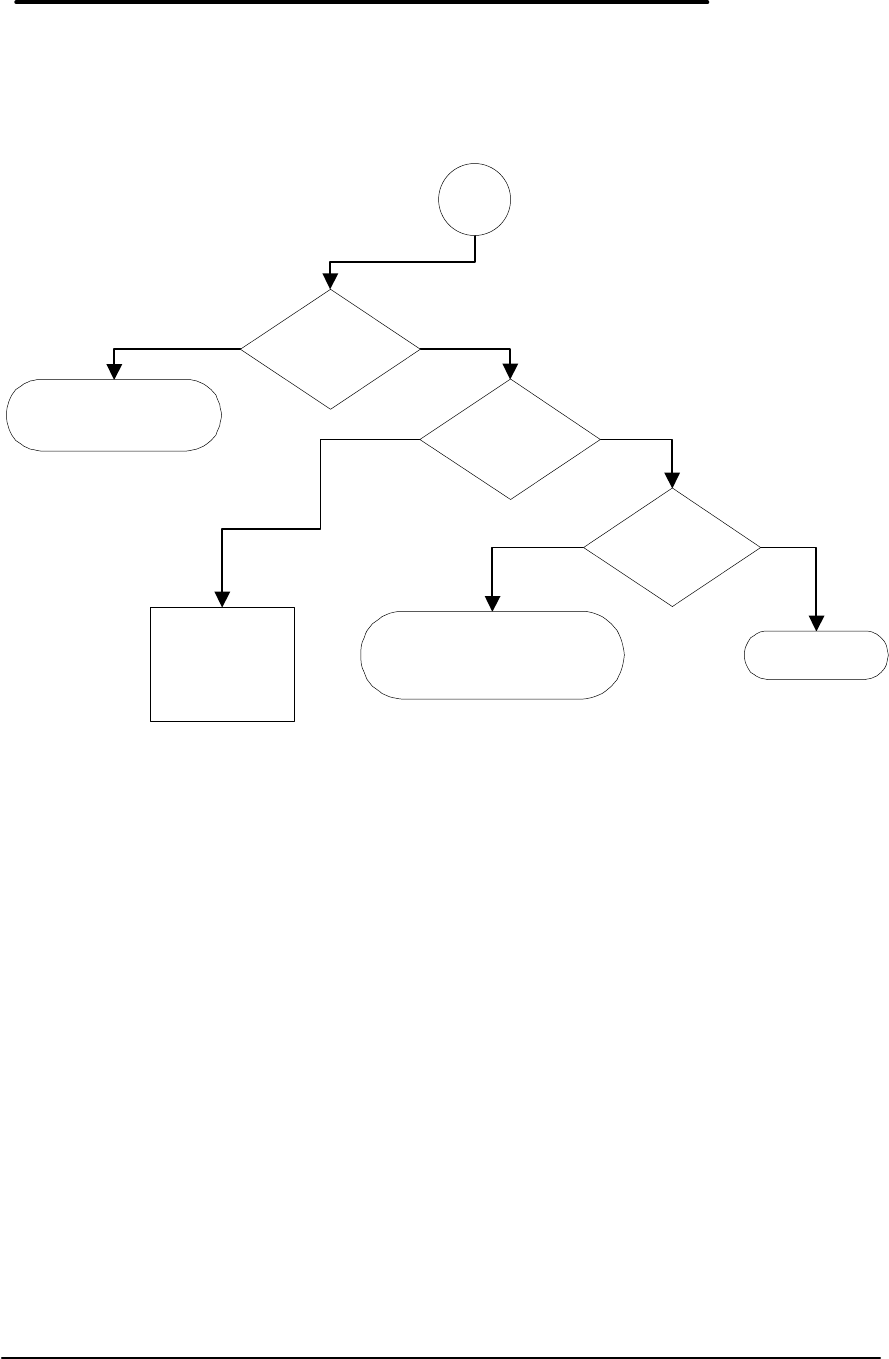
PCMCIA Problems (continued)
C
Hardware
problem?
Done: Suspect bad
OB base unit Software
problem?
Check CONFIG.SYS
and AUTOEXEC.BAT
Done
Insert card in top
slot
Run CARDINFO
Insert same card
in bottom slot
Run CARDINFO
Interpret results
Hardware
problem in both
slots?
Suspect bad card
Card is HP
device?
Done: Contact
card vendor
Done: Replace
card D
No
No
No
No
Yes
Yes
Yes
Yes
42
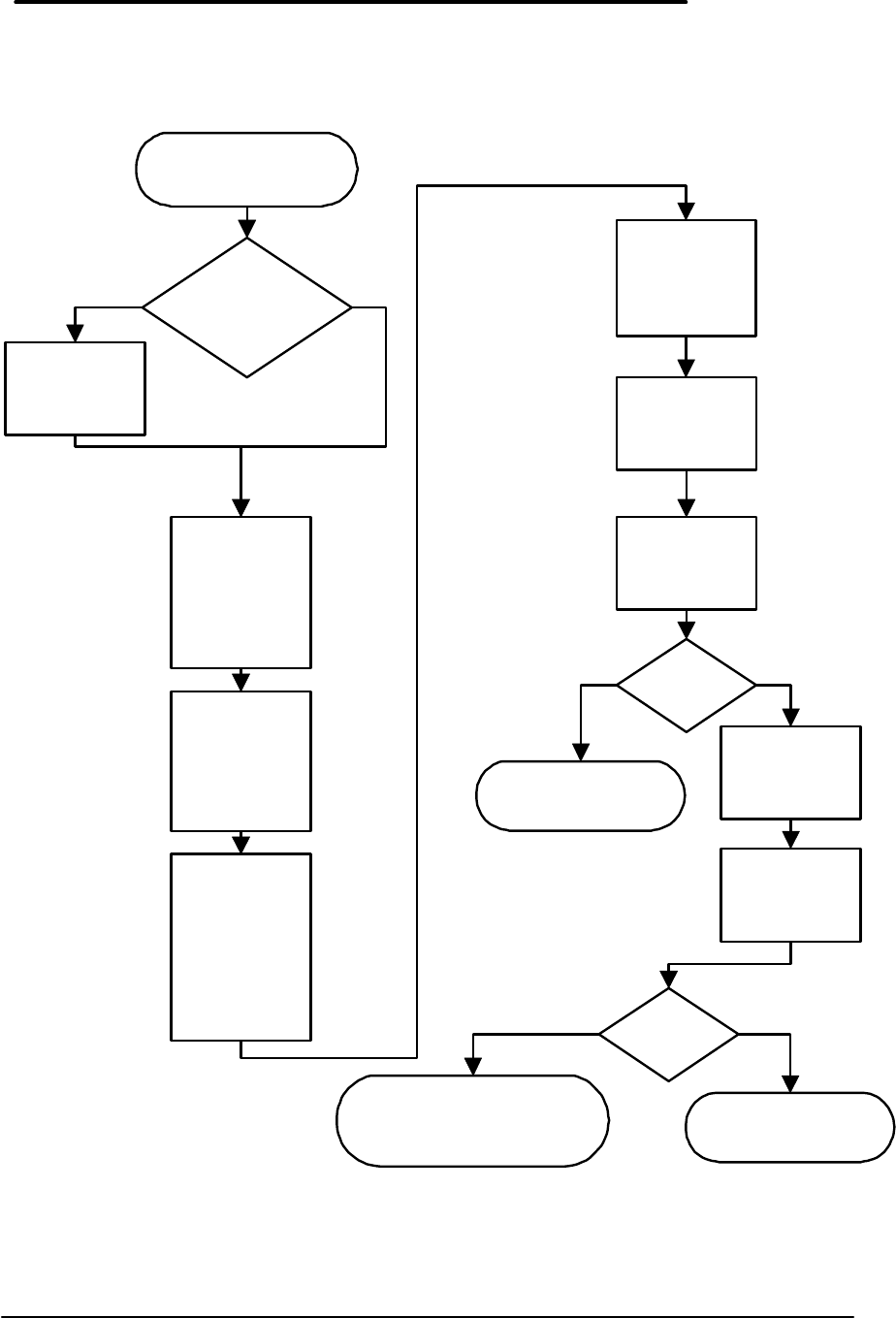
PCMCIA Problems (continued)
D
Hardware
problem in one
slot only?
Done: Suspect bad
OB base unit Software
problem in both
slots?
Software
problem in one
slot only?
Done: Suspect software
configuration problem Done
Seek further
information -
consult with
Technical
Support
No
No
Yes
Yes
Yes No
43
IR Port Problems
Start: Problem with
infrared (IR) port
Problem with
Laplink Remote?
Yes
Physical
inspection:
IR port not
covered?
Painted over?
Obscured?
No
Troubleshoot
Laplink Remote
Ensure
operating
distance within
specification (1
meter or less)
Ensure
operating
environment OK:
Not next to
bright or
oscillating light?
Clean boot:
Ctrl Alt Del,
press F5 during
boot
Run OB self-test
Run IR self-test
in proper
environment
IR self-test
OK?
Done: Suspect
software problem
Move OB to
different desk,
room
Run IR self-test
in proper
environment
IR self-test
OK?
Done: Suspect bad
OB base unit
Done: Suspect no
problem or software
problem
Yes
Yes
No
No

Part 3
Hardware Repair
• Battery
• Memory
• Hard Disk Drive/Flash Card and
System ROM
• Mouse
• Small Parts
• Display
• Keyboard
• Logic PCA Board
• Paw Carrier
• Other Components
CAUTION:Always provide proper grounding when performing any of the
following repairs. An electrostatic discharge may cause irreparable
damage to the OmniBook and its components

46
Battery
(End User Replaceable)
All of the monochrome OmniBook models use the same HP Nickel-Metal-Hydride (NiMH)
Battery Pack, part number F1045A (service replacement part number F1045-60901). However,
for some models, 1.5 V AA batteries can be used in place of the NiMH battery pack. The
following table lists all of the monochrome OmniBooks and the batteries that can be used safely
in each model.
OmniBook 300 OmniBook 425 OmniBook 430 OmniBook 530
Flash Disk
Version • NiMH Battery
Pack
• AA Alkaline
• AA Lithium
• NiMH Battery
Pack
• AA Alkaline
• AA Lithium
not applicable not applicable
Hard Disk
Version • NiMH Battery
Pack
• AA Lithium
• NiMH Battery
Pack
• AA Lithium
• NiMH Battery
Pack
• AA Lithium
• NiMH Battery
Pack
WARNING:Do not mutilate, puncture, or dispose of batteries in fire. The batteries can
burst or explode, releasing hazardous chemicals.
A nickel-metal-hydride rechargeable battery pack must be recycled or
disposed of properly. Recycle or discard used size-AA batteries according
to the manufacturer’s instructions.
Required Equipment
• none
Removal Procedure
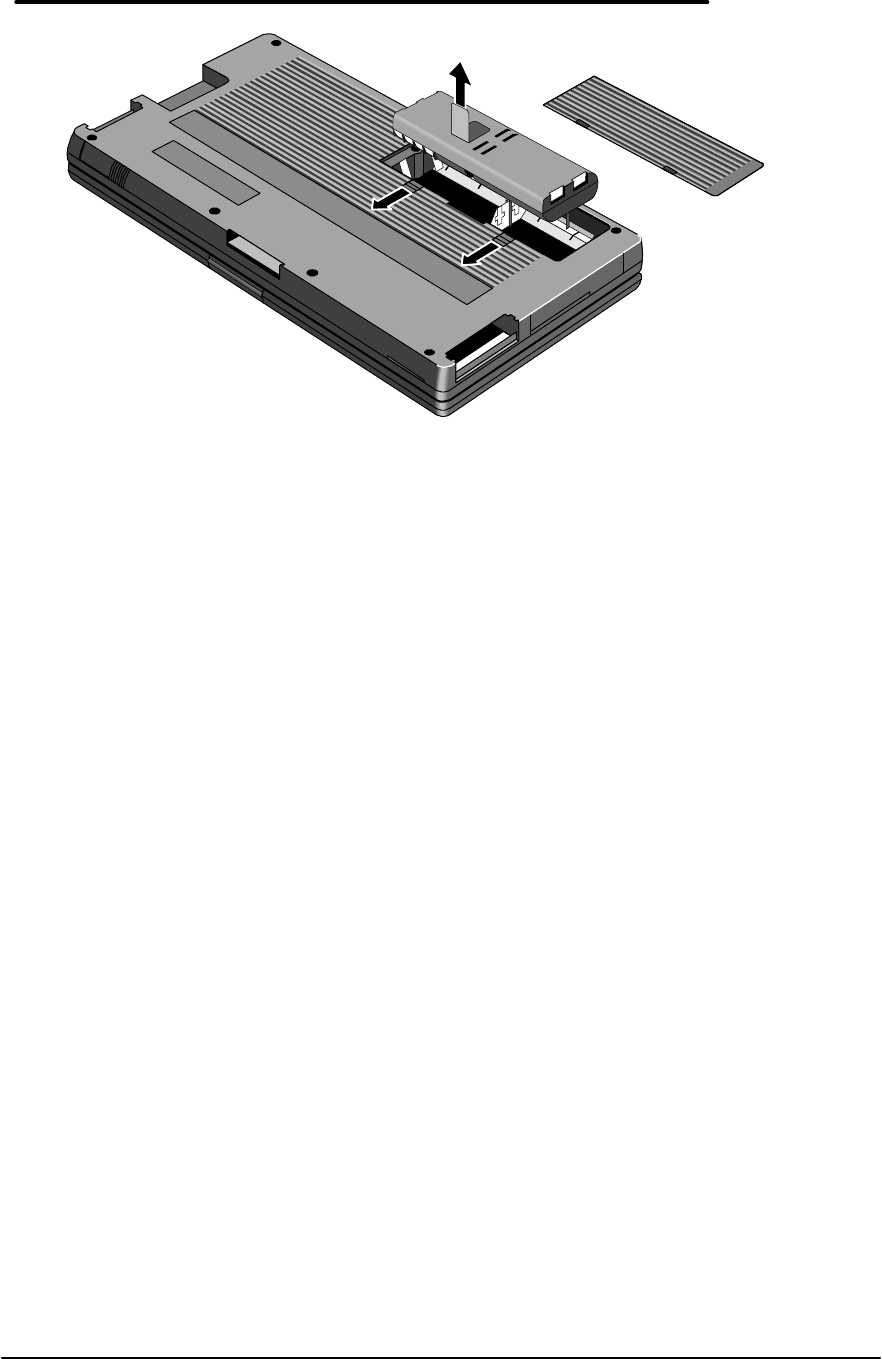
1. Release the two latches on the battery cover on the bottom case, then remove the cover.
Refer to the below illustration.
2. Do one of the following to remove the battery:
• If an OmniBook battery pack is installed, lift it out by its tab.
• If AA batteries are installed in place of the OmniBook battery pack, lift each out
individually.
47
Replacement Procedure
1. To replace the battery, do one of the following:
• To replace the OmniBook battery pack, insert the rounded side of the pack into the
compartment first. It is not possible to fully insert the battery pack incorrectly.
• To replace AA batteries, orient them as shown by the symbols in the battery
compartment.
2. Replace and latch the battery cover.
48
Memory
(End User Replaceable)
The OmniBook 530 uses a unique memory module that is not compatible with the OmniBook
300, 425, or 430. The table below summarizes the compatibility of the memory modules for
each OmniBook model.
Memory
Module Accessory
Number Service Replacement OB 300 OB 425 OB 430 OB 530
2-MB F1041A F1041-60901
4-MB F1042A F1038-60901
4-MB F1054A F1054-60901
8-MB F1055B F1055-60002
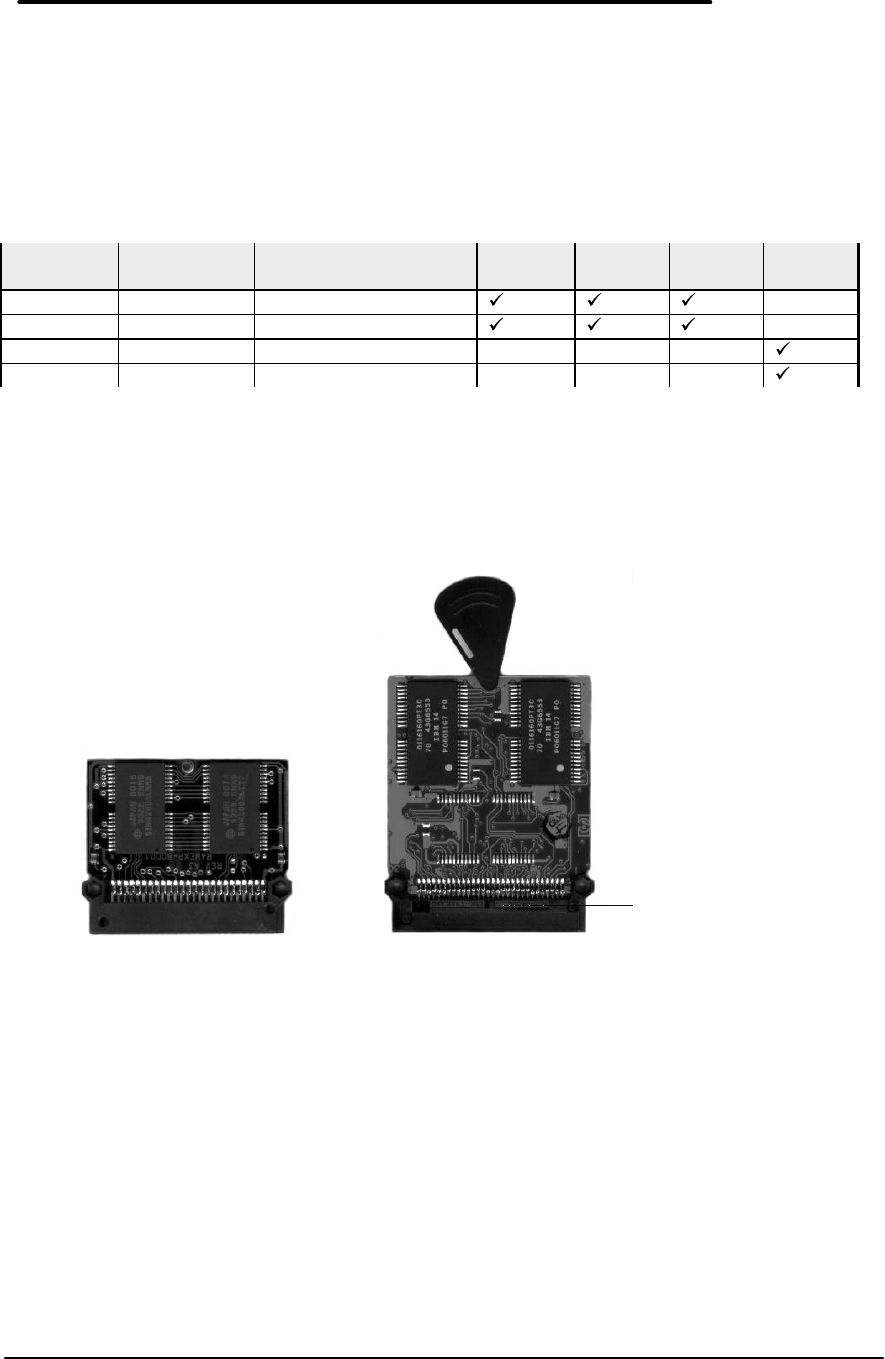
The following illustration provides a visual representation of the physical differences between the
memory module for the OmniBook 300, 425, and 430 and the memory module for the OmniBook
530.
Figure 5 - OmniBook Memory Modules
OmniBook 300, 425, and 430 OmniBook 530
49
Required Equipment
• Probe (or similar device) for the OmniBook 300, 425, and 430 only
CAUTION:To avoid damage due to electrostatic discharge, handle the memory module
by the edges only.
Removal Procedure
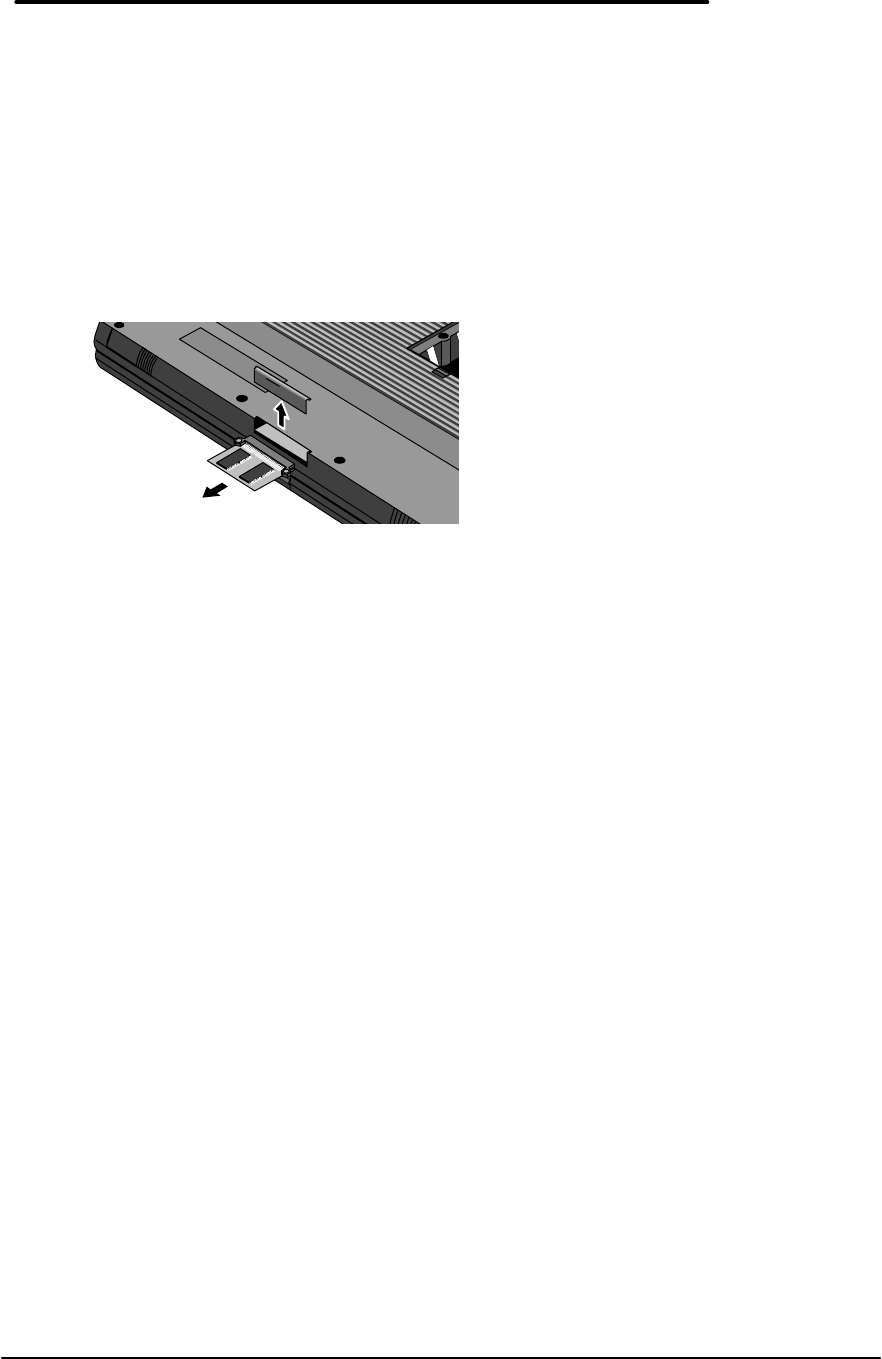
1. Remove the battery and ac adapter from the OmniBook.
2. Slide the memory door off (see below illustration).
3. Perform the appropriate action for the corresponding OmniBook:
• OmniBook 300, 425, or 430 -- Use a probe or similar device to pull on the small post
located on the front edge of the memory module.
• OmniBook 530 -- Flip out the plastic tab on the memory module and pull the module
out.
Replacement Procedure
1. Insert the memory module into the slot. (It is not possible to completely insert the memory if
it is upside down.)
• OmniBook 300, 425, 430 -- the small post on the board faces the bottom surface of the
OmniBook.
• OmniBook 530 – the plastic tab on the board faces the bottom surface of the
OmniBook.
2. Press in the module until it seats fully.
3. Replace the slot cover.
4. Replace the battery and press reset.
Figure 6 - Removing the Memory Module

50
Hard Disk Drive/Flash Card and System ROM
(End User Replaceable)
The Hard Disk Drives for the OmniBook 300, 425, 430, and 530 can be reimaged if necessary.
If the software is corrupted, or otherwise damaged, on the hard drive, it can be reformatted and
the software reloaded. Also, if the hard drive fails and must be replaced, a blank hard drive can
be ordered and the appropriate software loaded. The below procedures indicate the proper
actions necessary for reloading software on each OmniBook model.
For the OmniBook 300 and 425:
1. Place the hard drive into the OmniBook.
2. Reformat the hard drive.
3. Run OBSETUP /F from the System ROM to reload the software onto the hard drive.
For the OmniBook 430:
1. Place the hard drive into the OmniBook.
2. Reboot and press Alt then D to boot from the System ROM.
3. Reformat the hard drive.
4. Reload the software image from a set of OmniBook 430 Recovery Disks. The Recovery
Disks are available on the HP Internal WW Web at
http://webmcd.cv.hp.com/prodsupp/archive/.
For the OmniBook 530:
1. Place the hard drive into the OmniBook.
2. Boot from the Companion Disk or other bootable floppy disk.
3. Reformat the hard drive.
4. Reload the software image from a set of OmniBook 530 Recovery Disks. The Recovery
Disks are available on the HP Internal WW Web at
http://webmcd.cv.hp.com/prodsupp/archive/.
51
Required Equipment
• none
Removal Procedure
1. Exit all applications, including Windows.
2. Turn the OmniBook off and remove the battery and ac adapter.
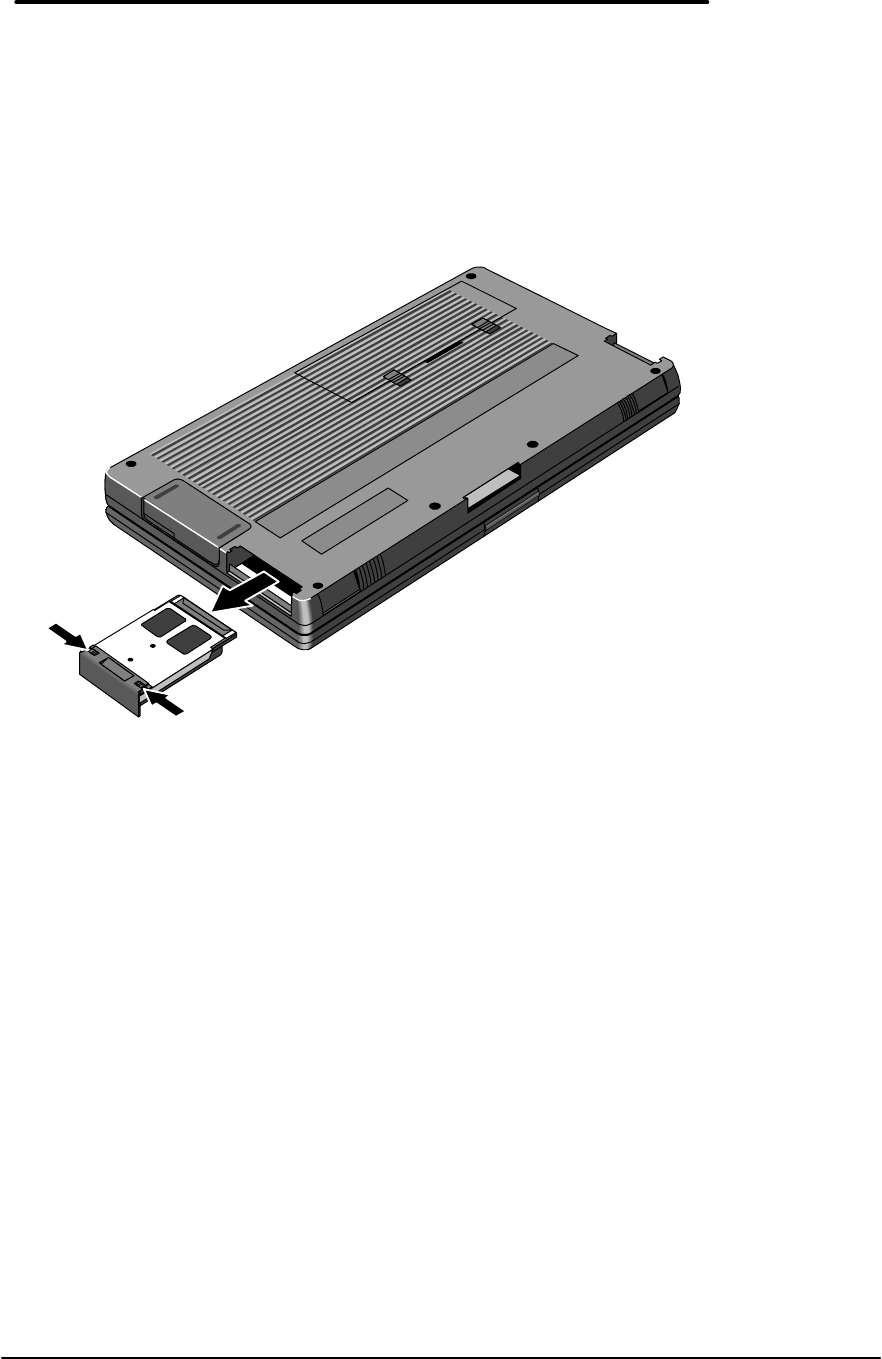
3. Turn the OmniBook over, release the two latches on the bottom of the tray, and pull out the
tray. See below illustration.
4. Lift the Hard Disk, Flash Card, or System ROM out of the tray.
Replacement Procedure
1. Reverse the above steps to replace the Hard Disk, Flash Card, or System ROM.
2. Replace the battery and ac adapter.
3. Press reset.
Figure 7 - Removing Card Slot Tray
52
Mouse
(End User Replaceable)
Required Equipment
• none
Removal Procedure
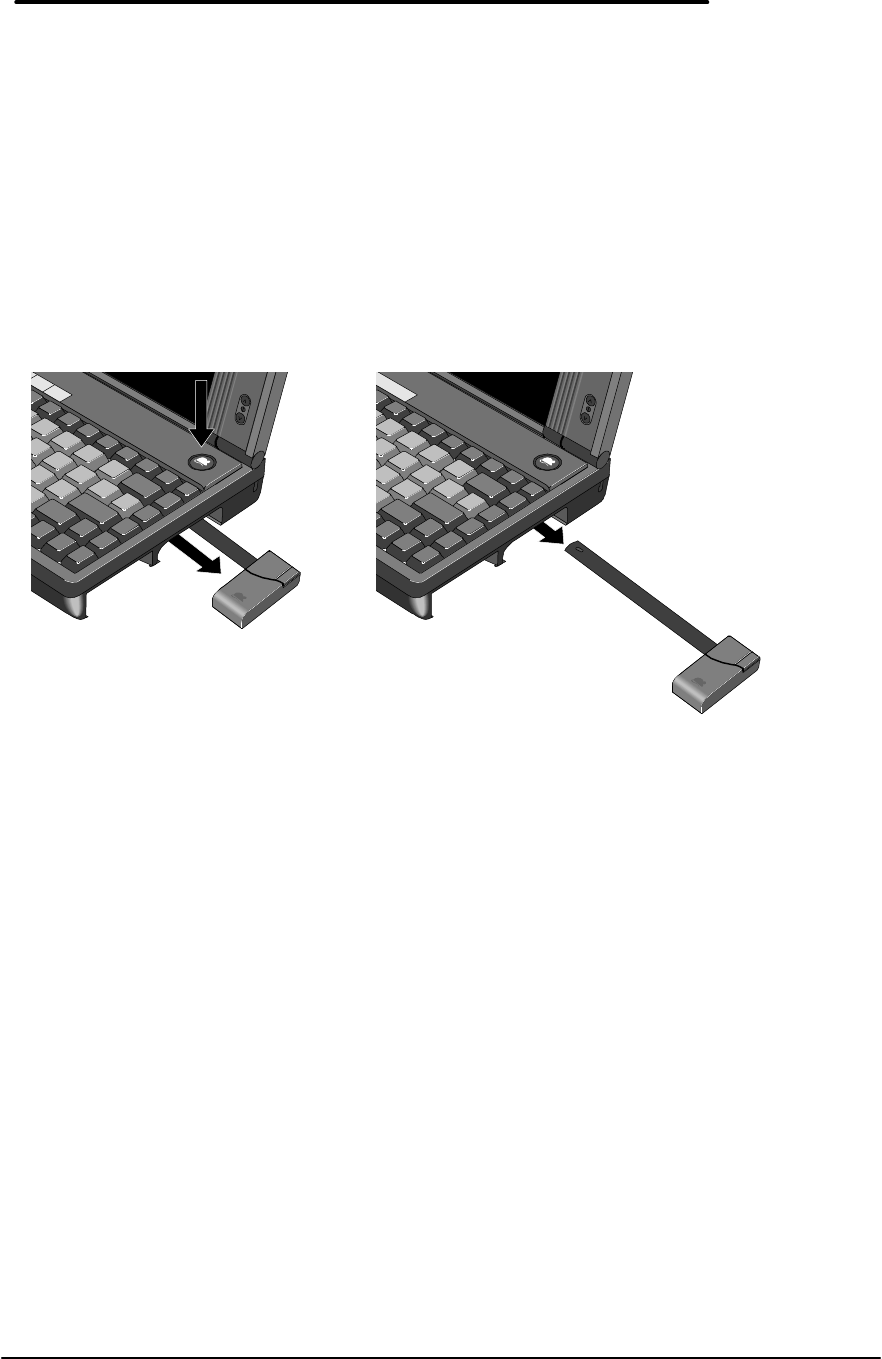
1. Press the mouse-eject button to eject the mouse.
2. Pull the mouse firmly away from the OmniBook (see below illustration). The entire mouse
assembly will pull free.
Replacement Procedure
1. Place the end of the mouse “stick” into the mouse housing.
2. Slide the mouse into the slot and firmly push the mouse until it is completely flush with the
side of the OmniBook.
Figure 8 - Removing the Mouse

53
Small Parts
(End User Replaceable)
The following small parts are all end user replaceable.
Battery Door
Push the two battery door latches away from the battery door. Remove the battery door by lifting
up at the notch in the bottom case. Place the battery door, tab side first, over the battery
compartment. Slide the two battery latches in place to secure the door.
Battery Door Latch
Once the battery door is removed (see above), the battery door latches will slide out of the
bottom case. To replace, align the sides of the latches with the groves in the slots. Press firmly
into place.
Blank Modem Door
Use a flat-blade screwdriver or similar device to press the small latch on the bottom of the blank
modem door. Pull the door free of the bottom case. To replace, simply reinsert the door into the
modem slot and press firmly.
Memory Door
Use a flat-blade screwdriver or similar device to pry the memory door from the bottom case.
Replace by aligning the edges of the door with the slots on the bottom case. Press firmly into
place.
I/O Door
To remove the I/O door, open it fully. Flex the middle of the door until the side pins clear the
holes in the back case. Reverse to replace.
Rubber Feet
Place a probe or similar device between the rubber foot and the plastic of the bottom case. Pry
upward to pop the foot out. To replace, firmly press the foot into the hole.
PCMCIA Card Tray
Slide the two tray latches toward each other. Pull the tray out of the card slot. If present,
remove the PCMCIA card from the tray. To replace the tray, insert into the appropriate card slot.
Slide the two latches away from each other to secure the tray.
54
Display
(HP Authorized Service Providers Only)
Required Equipment
• Appropriate ESD station
• Torx #6 screwdriver
• 5mm Hexdriver
• Two small flat tip screwdrivers (or similar prying devices)
• Probe
Removal Procedure
1. Remove the battery, ac adapter, mass storage, system card (if applicable), memory module
(if installed), modem (if installed), mouse, and any installed PCMCIA accessory cards.
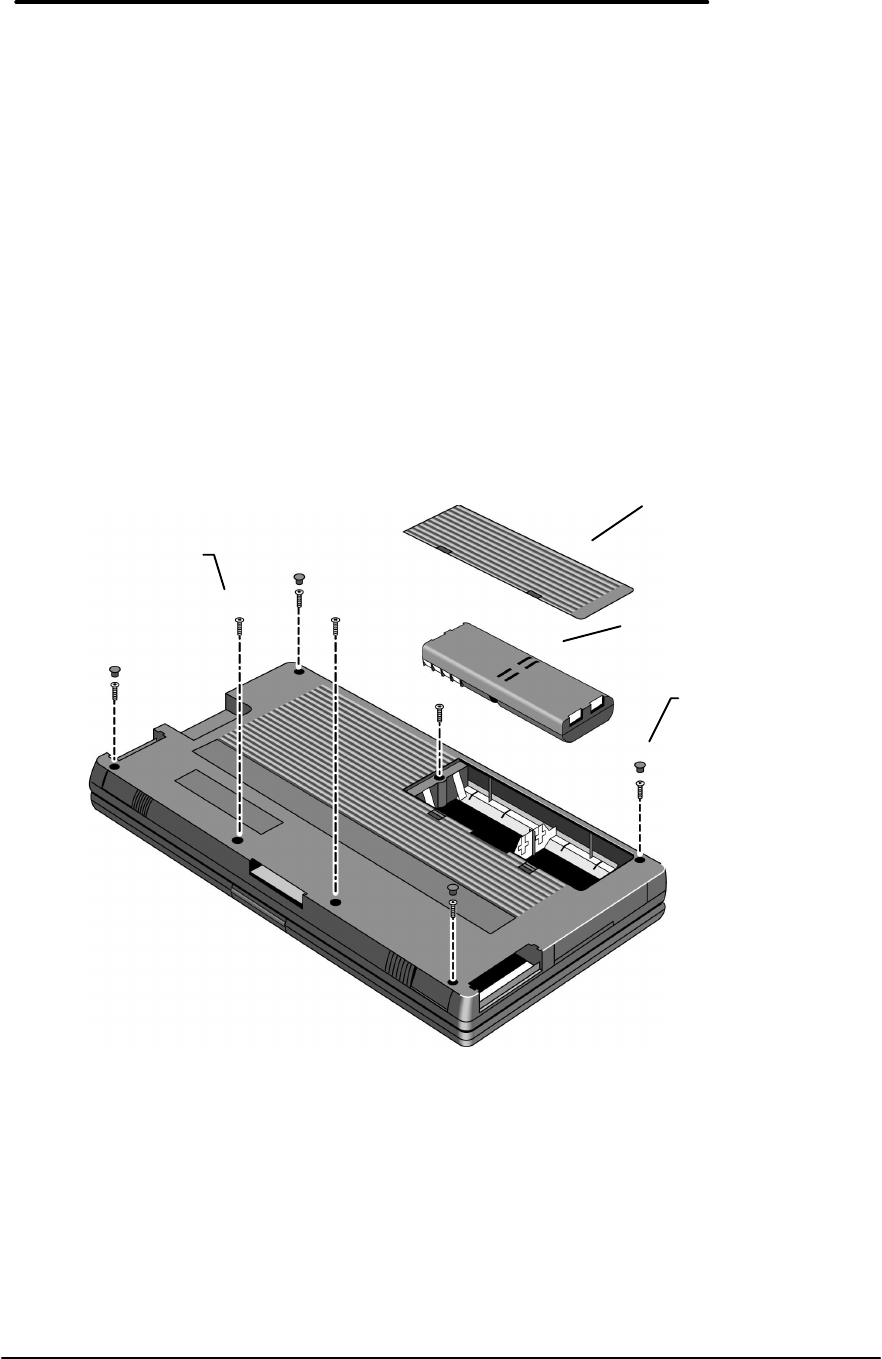
2. Remove the four Rubber Feet and seven Screws from the bottom case (see below
illustration).
Figure 9 - Outer Bottom Case Components
Screw
M2x4.6mm(T6)
(Qty 6)
Rubber Foot
(Qty 4)
Door - Battery
Battery
55
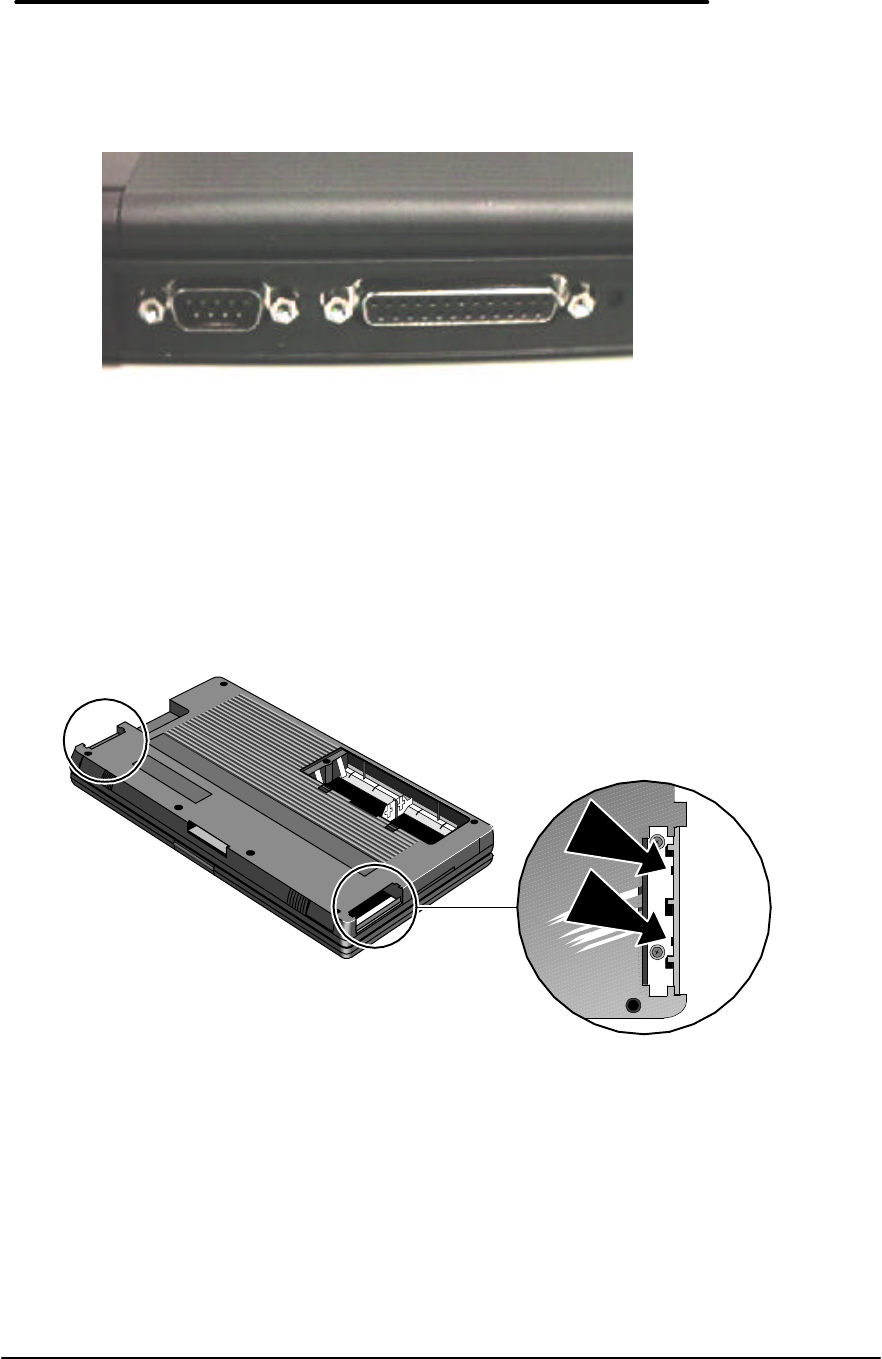
3. Remove the I/O Door and the four standoffs located on the I/O backplane (see figure below).
4. Two flat tip screwdrivers, or similar prying devices, are needed to remove the Top Case and
Display Assemblies. Four plastic tabs hold the Top Case and Bottom Case together. Two
tabs are located in each PCMCIA slot (see below illustration). Note, the screws seen in the
PCMCIA slot do not need to be removed.
Figure 10 - Backplane Standoffs
Figure 11 - Bottom Case Tabs
56
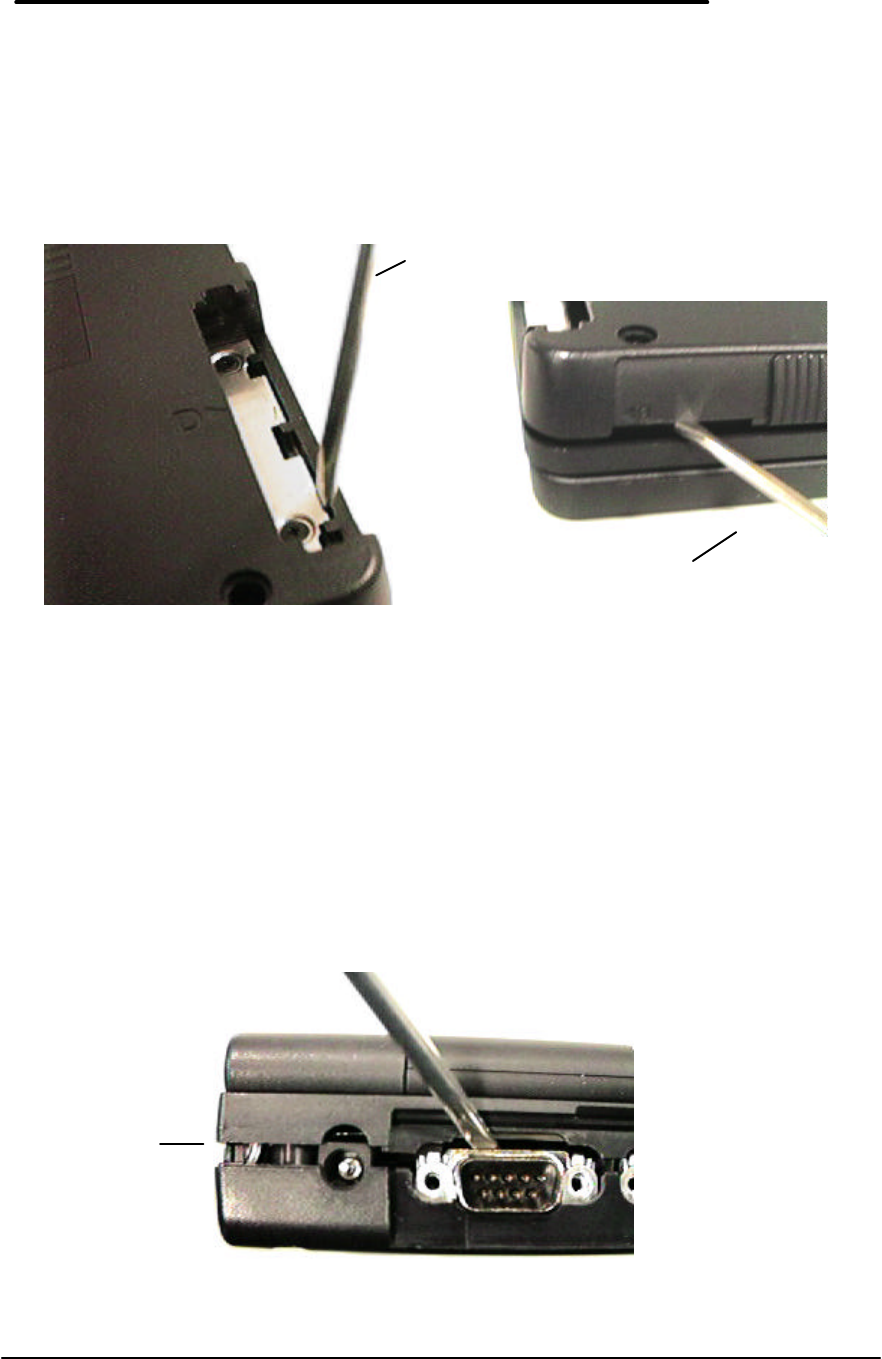
Place a prying device at a tab location between the metal and plastic of the Bottom Case
(see figure below, left). Place another prying device in the PCMCIA eject button (see figure
below, right). To release the tab, simultaneously twist prying device A while lifting on prying
device B. Use caution with this maneuver, as the plastic tabs can break off the Bottom
Case. If this occurs, the Bottom Case must be replaced.
5. Perform step four for each of the four tabs.
6. Once the Bottom Case tabs are released, the Bottom Case and Top Case are being held
together only by the display cable and the two keyboard cables. Do not allow the Top
Case and Bottom Case to separate at this point. The display cable and keyboard
cables will be damaged if they are not properly disconnected.
7. Use a prying device to increase the separation of the Top Case and Bottom Case (see figure
below). Do not separate the Top Case and Bottom Case more than 1 cm. A separation
greater than 1 cm will damage the keyboard flex cables by pulling them out of the
zero-force insertion connectors. The intent is to be able to view the display cable, located
to the left of the ac adapter socket.
Figure 12 - Bottom Case Prying Locations
Figure 13 - I/O Port Prying Location
Prying device “A”
Prying device “B”
Display Cable
57
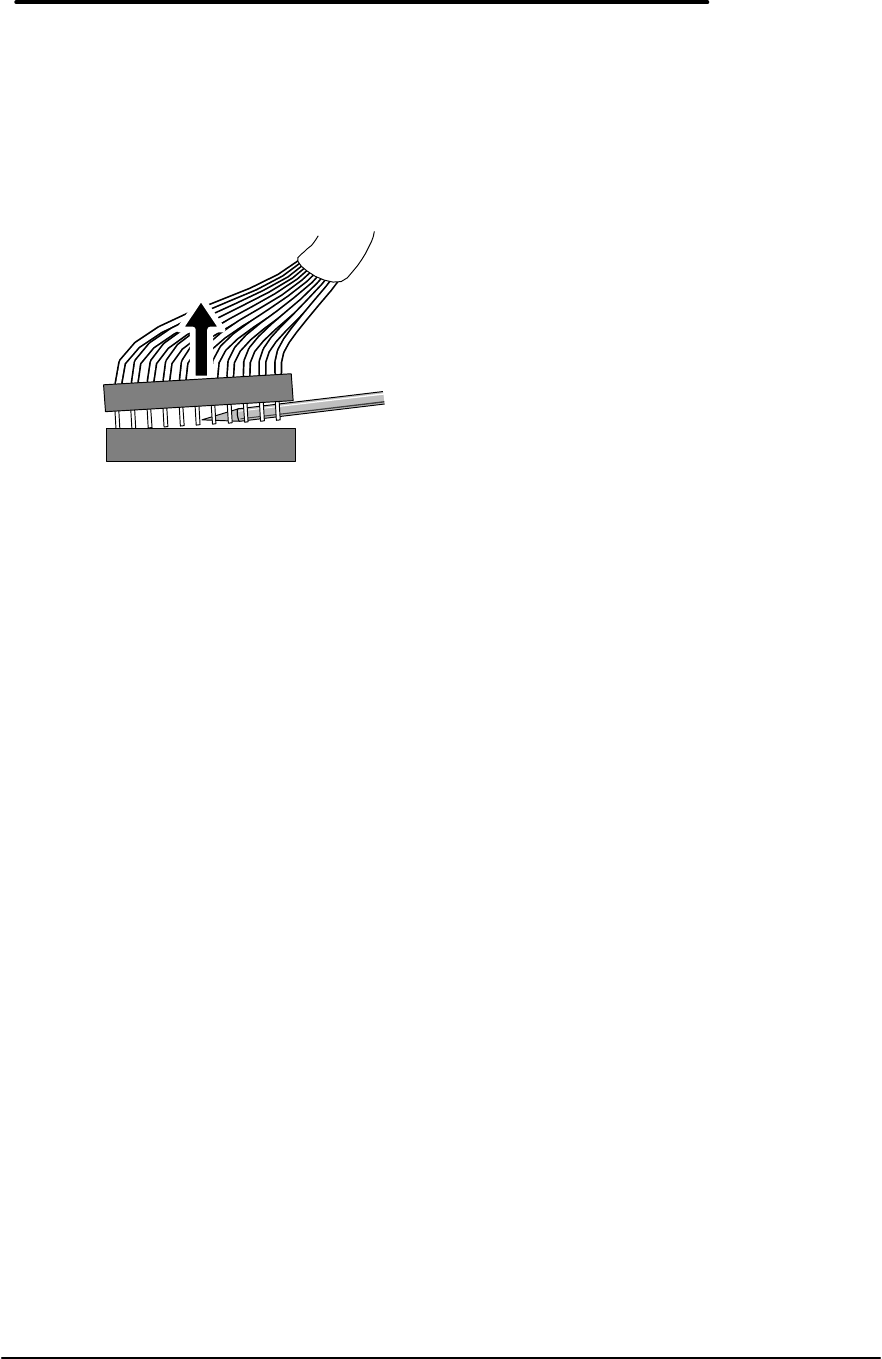
8. With the separation increased slightly, the display cable can be disconnected using a probe.
Use caution to keep the OmniBook on a level surface. With the Top Case partially
separated, small internal parts may dislodge when the OmniBook is tilted at a sharp
angle. Place the probe at the base of the display cable connector between the two rows of
pins. Use a rocking motion to lift the cable from the connector. See the below illustration for
proper placement of the probe.
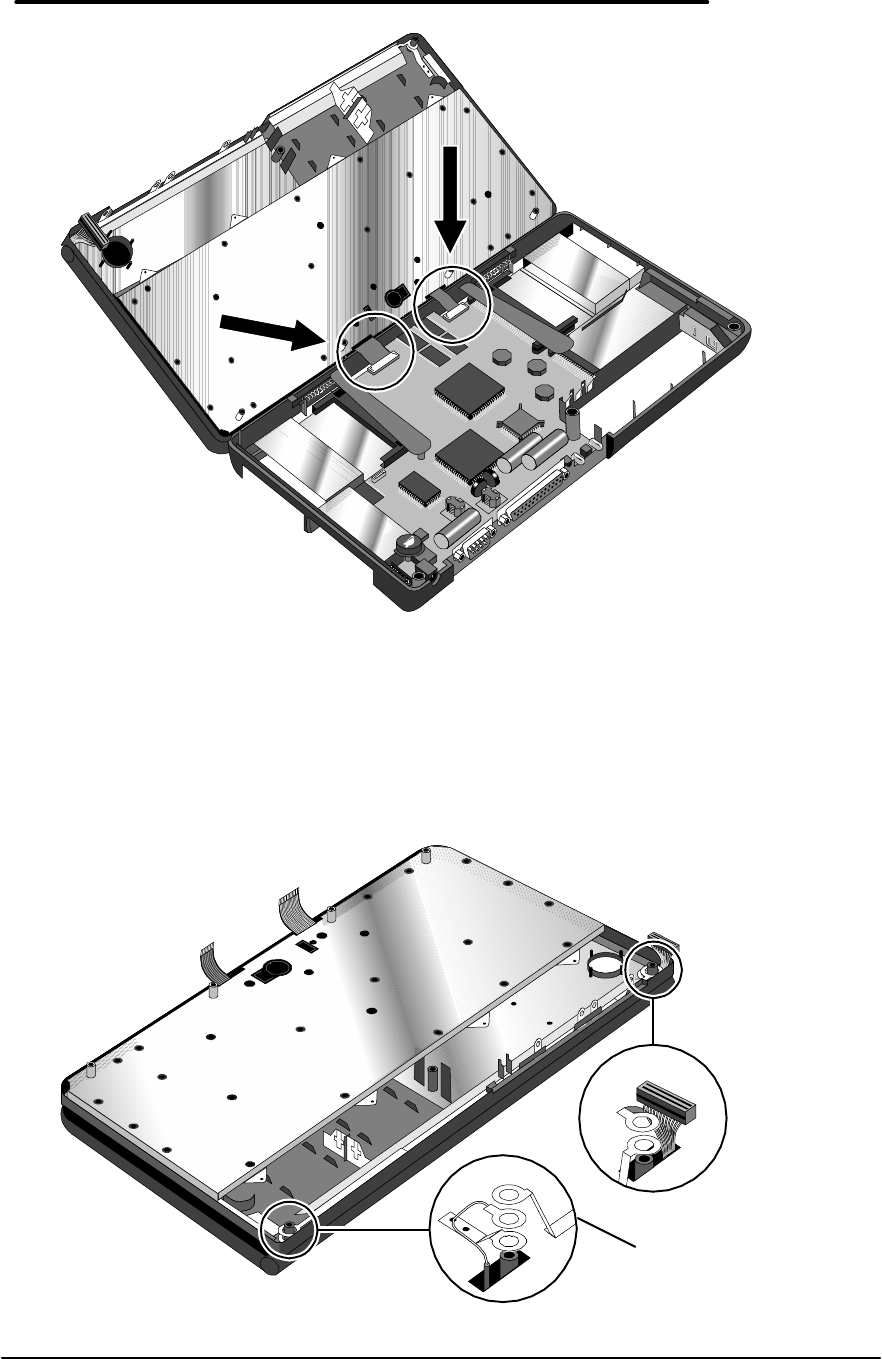
9. With the display cable removed, the Top Case and Bottom Case can be opened partially to
gain access to the keyboard flex cables (see below illustration). Do not open the unit
completely as this will damage the keyboard flex cables by pulling them out of the
zero-force insertion connectors. Open the zero-force insertion connectors and remove
the keyboard flex cables. The Top Case can now be removed completely from the Bottom
Case.
Figure 14 - Disconnecting Display
Cable
58
10. To separate the Keyboard from the Display, five grounding eyelets must be removed from
the display posts (see below illustration). Use caution when removing the grounding
eyelets, as they can be broken off easily. If this happens, the assembly must be
replaced. To prevent the eyelets from breaking, bend the grounding eyelet tabs at the
farthest point from the eyelet.
Figure 15 - Keyboard Flex Cables
Figure 16 - Display Grounding Eyelets
Proper Tab Bend

59
11. To remove the Display from the Top Case, the display cable and two grounding cables must
be guided through the holes in the Top Case.
Replacement Procedure
1. Guide the display posts, display cable and two grounding cables on the Display through the
holes in the Top Case.
2. Replace the grounding eyelets over the display posts (see Figure 16). Use caution when
replacing the grounding eyelets, as they can be broken off easily. If this happens, the
assembly must be replaced.
3. Press the Display and Top Case firmly at each display post to snap the assembly in place.
4. Position the Top Case and Display Assembly over the Bottom Case and insert the two
keyboard flex cables into the zero-force insertion connectors. Ensure the connectors are
fully closed. Once the keyboard flex cables are secured in the connectors, do not
allow them to be pulled out. This will damage the cables.
60
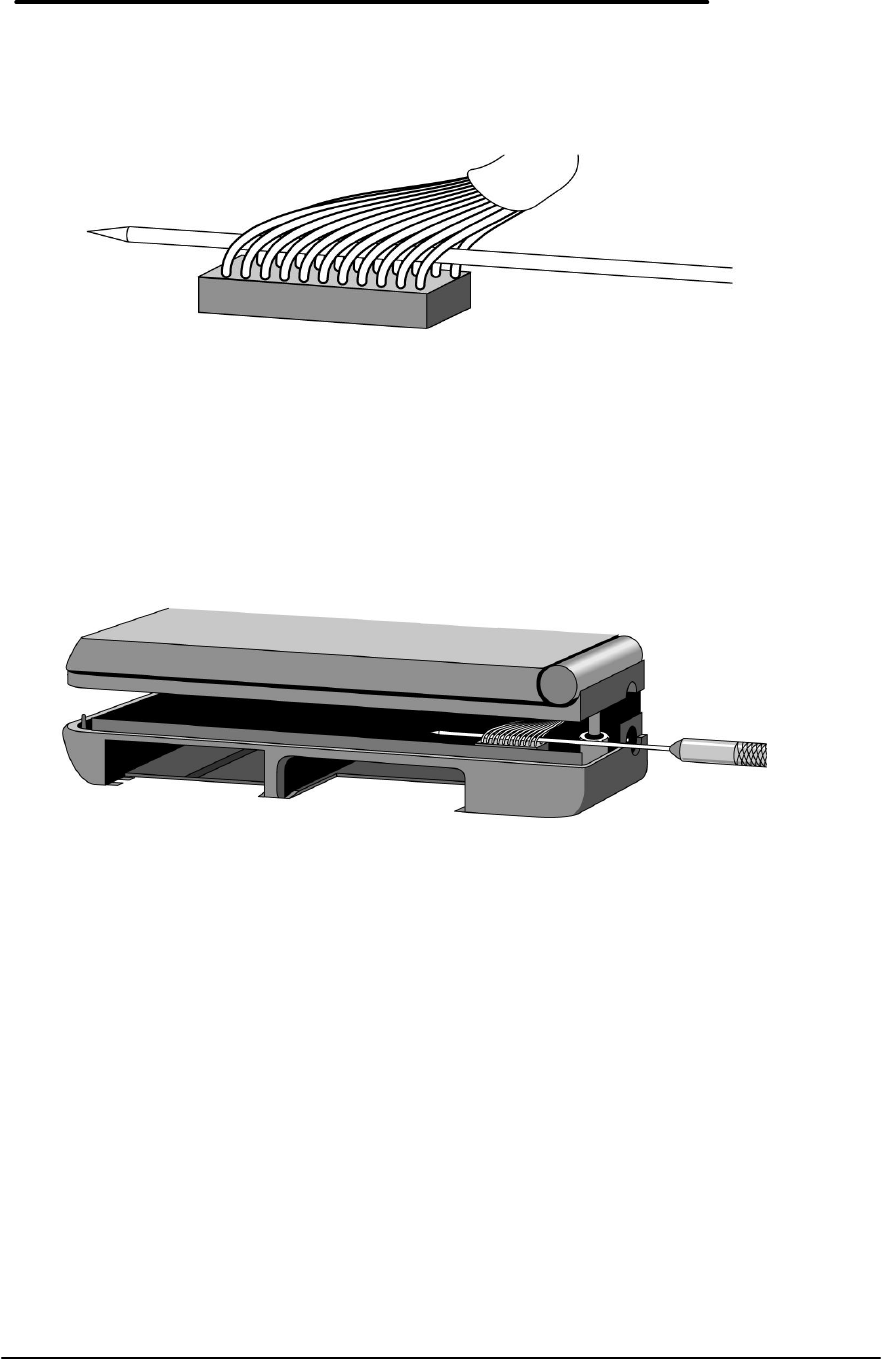
5. To reconnect the display cable, position a probe in the cable as shown in the below
illustration.
6. Use the probe to connect the display cable into the connector as shown below. Use caution
to keep the OmniBook on a level surface. With the Top Case partially separated,
small internal parts may dislodge when the OmniBook is tilted at a sharp angle.
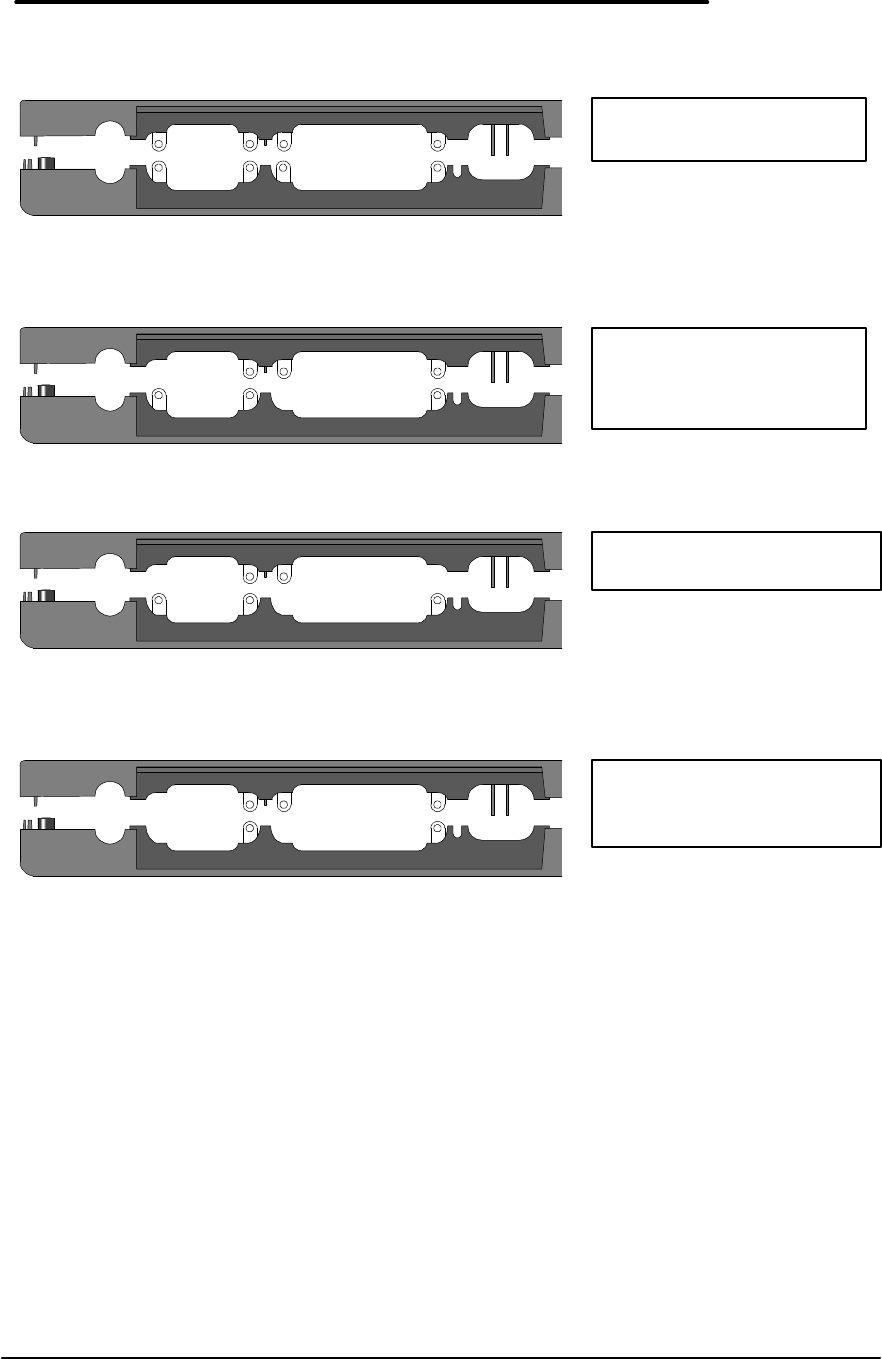
7. With the display cable reconnected, the I/O grounding eyelets must be slid into place. Use
caution when positioning the I/O grounding eyelets as they can be broken off easily.
It is acceptable to reassemble the OmniBook with certain I/O grounding eyelets broken if
there is at least one eyelet in each of the four positions AND at least two matched sets
remaining. See Figure 19, Figure 20, Figure 21, and Figure 22 for examples.
Figure 17 - Display Cable Probe Position
Figure 18 - Reconnecting Display Cable
61
8. Open the display and firmly press the Top Case and Bottom Case together around the entire
parameter of the OmniBook. This will lock the tabs of the two cases.
9. Replace the seven screws and four standoffs and the remainder of the components.
Figure 19 - I/O Port Eyelets (all present)
Figure 20 - I/O Port Eyelets (two matched sets)
Figure 21 - I/O Port Eyelets (only one matched set)
Figure 22 - I/O Port Eyelets (no eyelet in position one)
Acceptable to reassemble
All eyelets are present.
Acceptable to reassemble
There are two matched sets
and at least one eyelet in
each position.
Not acceptable to
reassemble
There is only one matched set.
Not acceptable to
reassemble
There are two matched set, but
no eyelet in position one.
62
Keyboard
(HP Authorized Service Providers Only)
Required Equipment
• Appropriate ESD station
• Torx #6 screwdriver
• Two small flat tip screwdrivers (or similar prying devices)
• Probe
Removal Procedure
1. Follow the Display Removal Procedure to separate the Display and Top Case from the
Bottom Case.
2. Once the Display is removed, the Keyboard must now be separated from the Top Case.
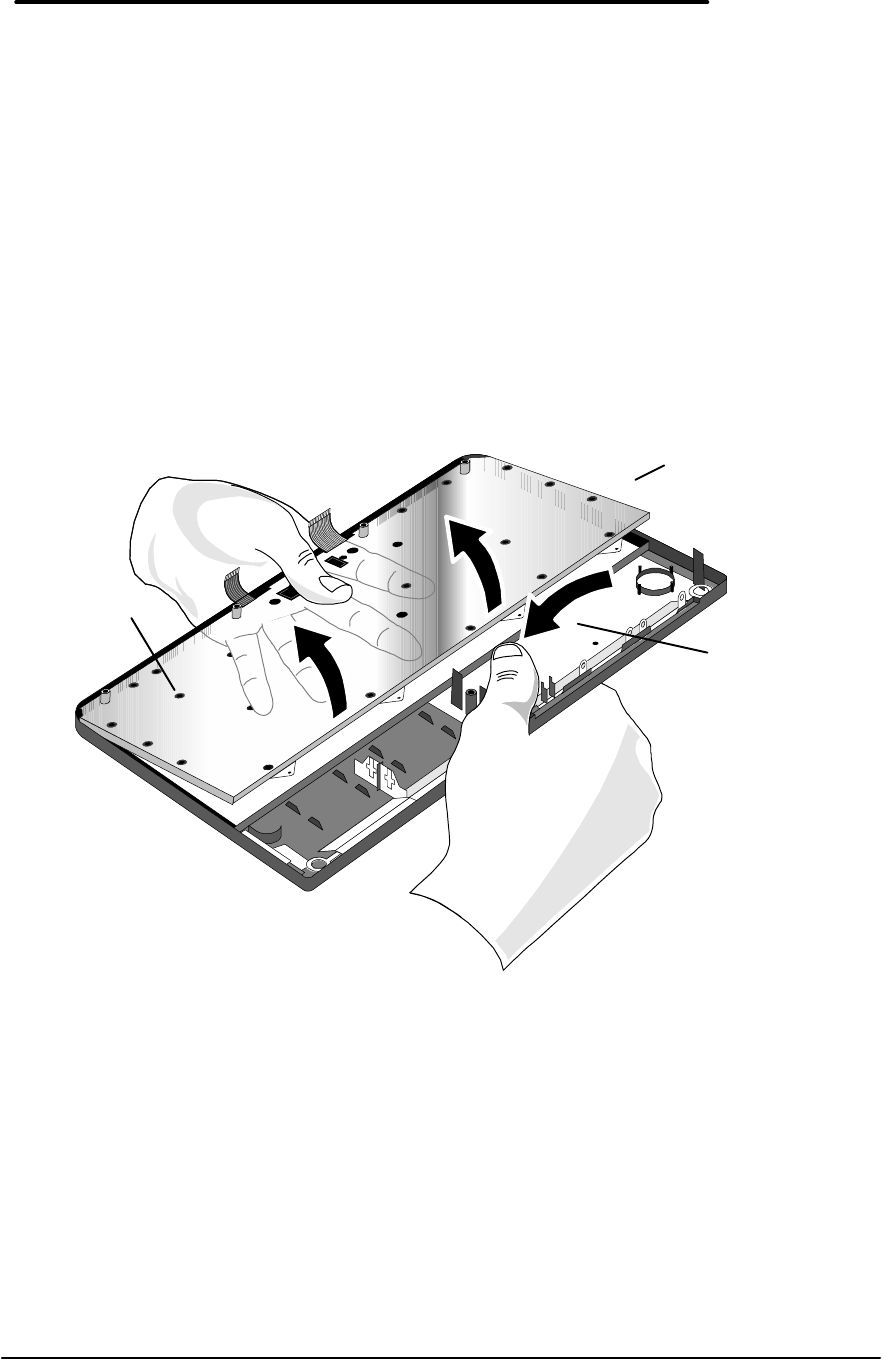
Hold the Top Case and Keyboard Assembly exactly as shown in the below illustration.
3. Apply even upward pressure with the fingers of the left hand. At the same time use the tip of
the thumb of the right hand to twist the backside of the Top Case icon panel inward and
toward the keyboard. There will be a slight bending in the plastic of the Top Case. This is
normal and will not damage the assembly.
Replacement Procedure
1. To replace the Keyboard, snap it into the Top Case. Ensure the entire perimeter of the
Keyboard is securely snapped into place.
2. Follow the Display Replacement Procedure to replace the Display and remaining
components.
Figure - Keyboard Removal Hand Placement
Top Case and
Keyboard
Assembly
(upside down)
Backside of the
Top Case icon
panel.
Keyboard
(upside down)
63
Logic PCA Board
(HP Authorized Service Providers Only)
Required Equipment
• Appropriate ESD station
• Torx #6 screwdriver
• Two small flat tip screwdrivers (or similar prying devices)
• Probe
Removal Procedure
1. Follow the Display Removal Procedure to separate the Display and Top Case Assembly from
the Bottom Case.
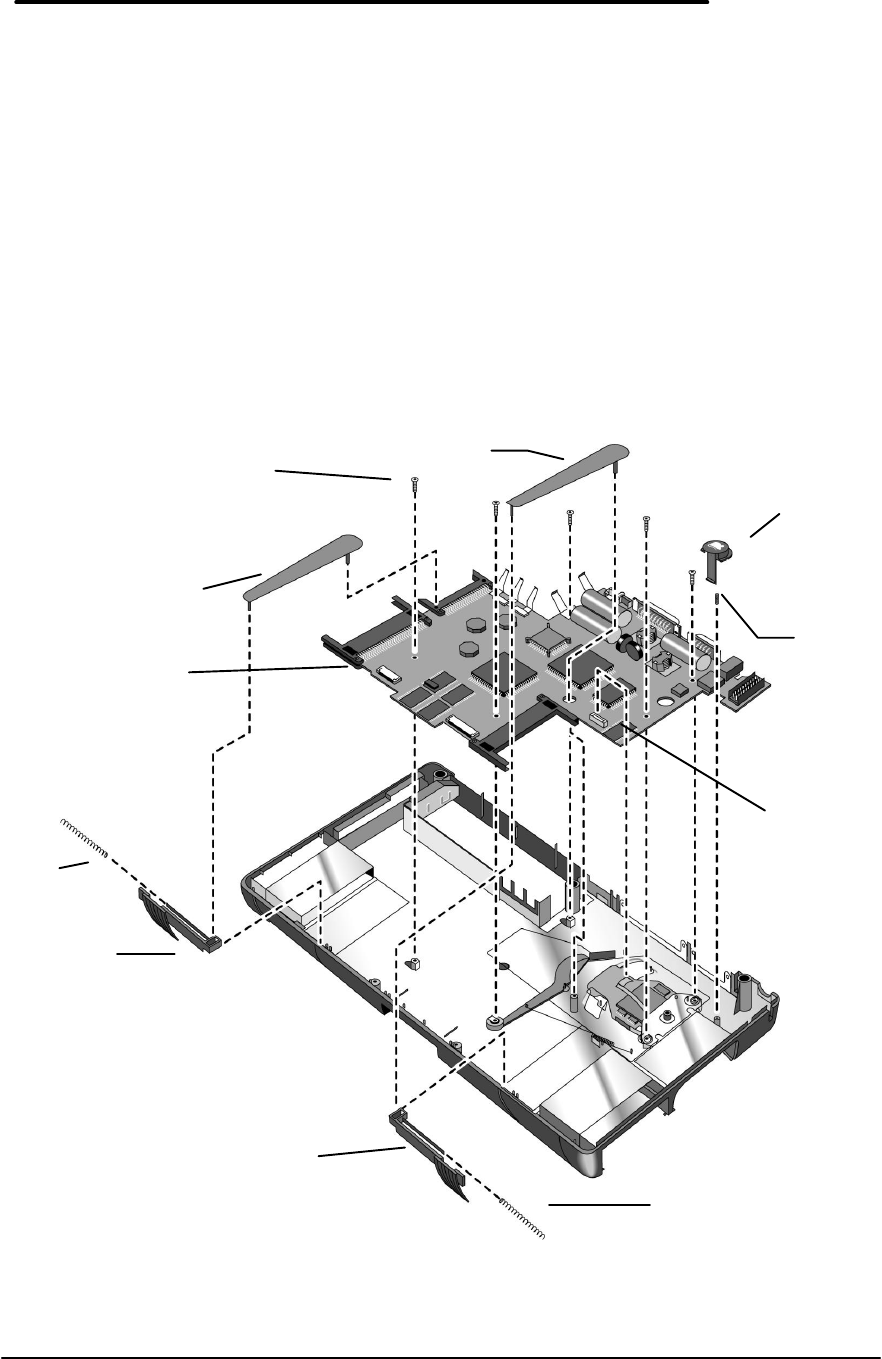
2. Remove the Eject Arms (both right and left) and Mouse Button Latch and Spring (see below
illustration). Note, the Mouse Latch Spring is very small and can be misplaced easily.
Figure 23 - Logic Board PCA Removal
Mouse
Button
Latch
Eject Arm Left
Eject Arm
Right
Eject Button A
Eject Button B
Eject Arm
Spring
Eject Arm
Spring
Screw
M2x4.6mm(T6)
(Qty 5)
Mouse
Latch
Spring
Paw Carrier
Flex Cable Slot
Logic PCA

64
3. The Eject Buttons and Springs do not need to be removed to gain access to the Logic Board.
However, because they can be dislodged easily, setting them aside is recommended.
4. Remove the Paw Carrier Flex Cable from the zero-force insertion slot.
5. Remove the five (5) screws from the Logic Board (see previous illustration).
6. The Logic Board can now be lifted from the Bottom Case.
Replacement Procedure
1. To replace the Logic Board, reverse the steps in the Removal Procedure. Ensure the Paw
Carrier flex cable is positioned properly – the end of the cable should be folded along the
holes in the cable. This folded portion then needs to be placed between the posts and
guided on the bottom case.
2. Follow the Display Replacement Procedure to replace the Display and remaining
components.
65
Paw Carrier (Paw Active)
(HP Authorized Service Providers Only)
Required Equipment
• Appropriate ESD station
• Torx #6 screwdriver
• Two small flat tip screwdrivers (or similar prying devices)
• Probe
Removal Procedure
1. Follow the Logic Board PCA Removal Procedure.
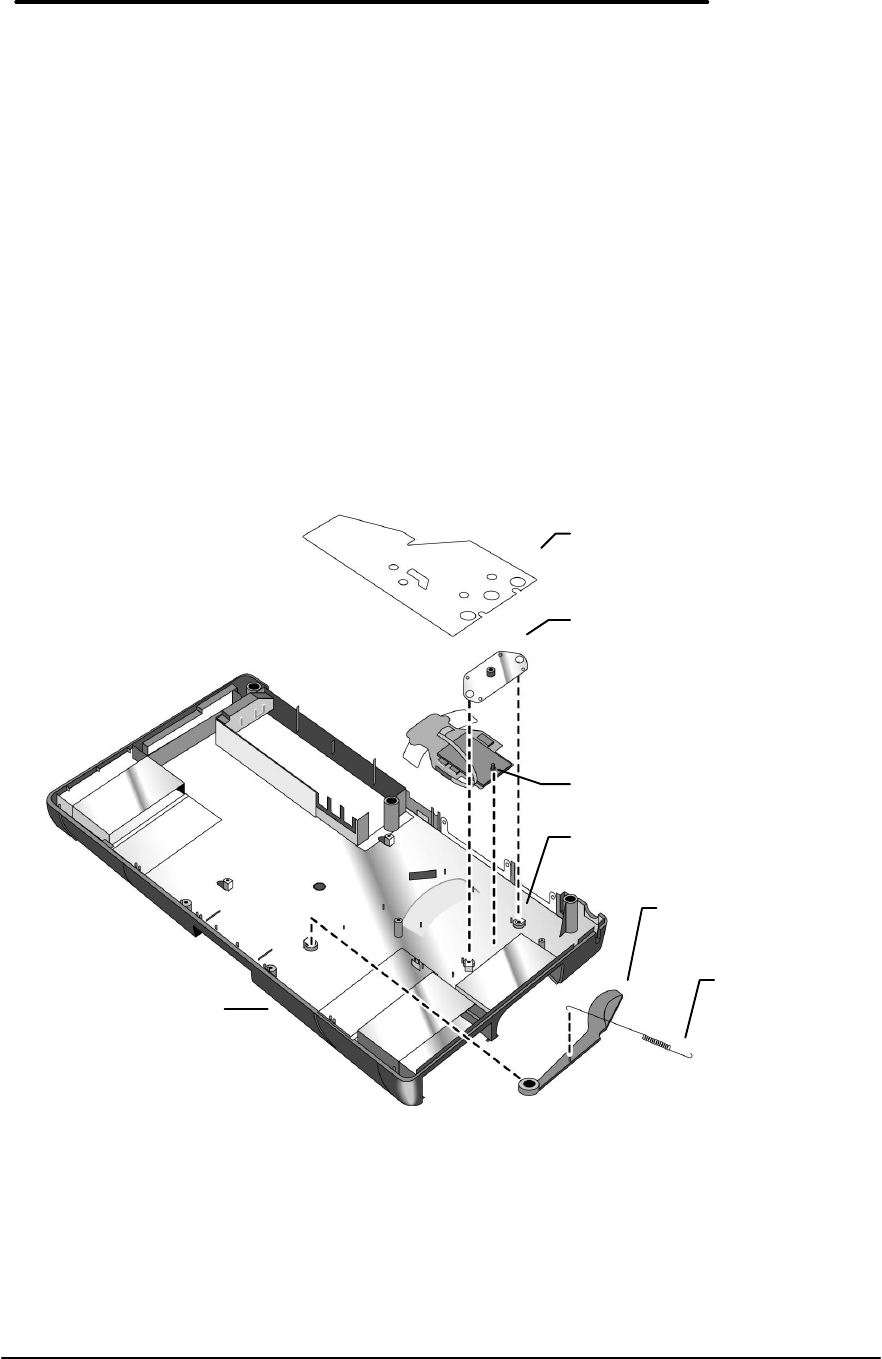
2. Remove the Mylar Mouse Shield. Refer to the below illustration for location of components.
3. The Mouse Eject Arm and Eject Arm Spring may be removed at this point for convenience.
4. Gently bend the Pivot Bracket Tabs upward. Take caution not to break these tabs. If this
occurs the Bottom Case must be replaced.
5. Remove the Pivot Bracket.
6. Lift the Paw Carrier from the plastic posts holding it in place.
Replacement Procedure
1. To replace the Paw Carrier, reverse the steps in the Removal Procedure.
2. Follow the Logic Board PCA Replacement Procedure to replace the Logic Board and
remaining components.
Figure 24 - Paw Carrier Removal
Mylar Mouse
Shield
Pivot Bracket
Paw Carrier
Mouse Eject
Arm
Eject Arm
Spring
Bottom Case
Pivot Bracket
Tabs (Qty 2)

66
Other Components
(HP Authorized Service Providers Only)
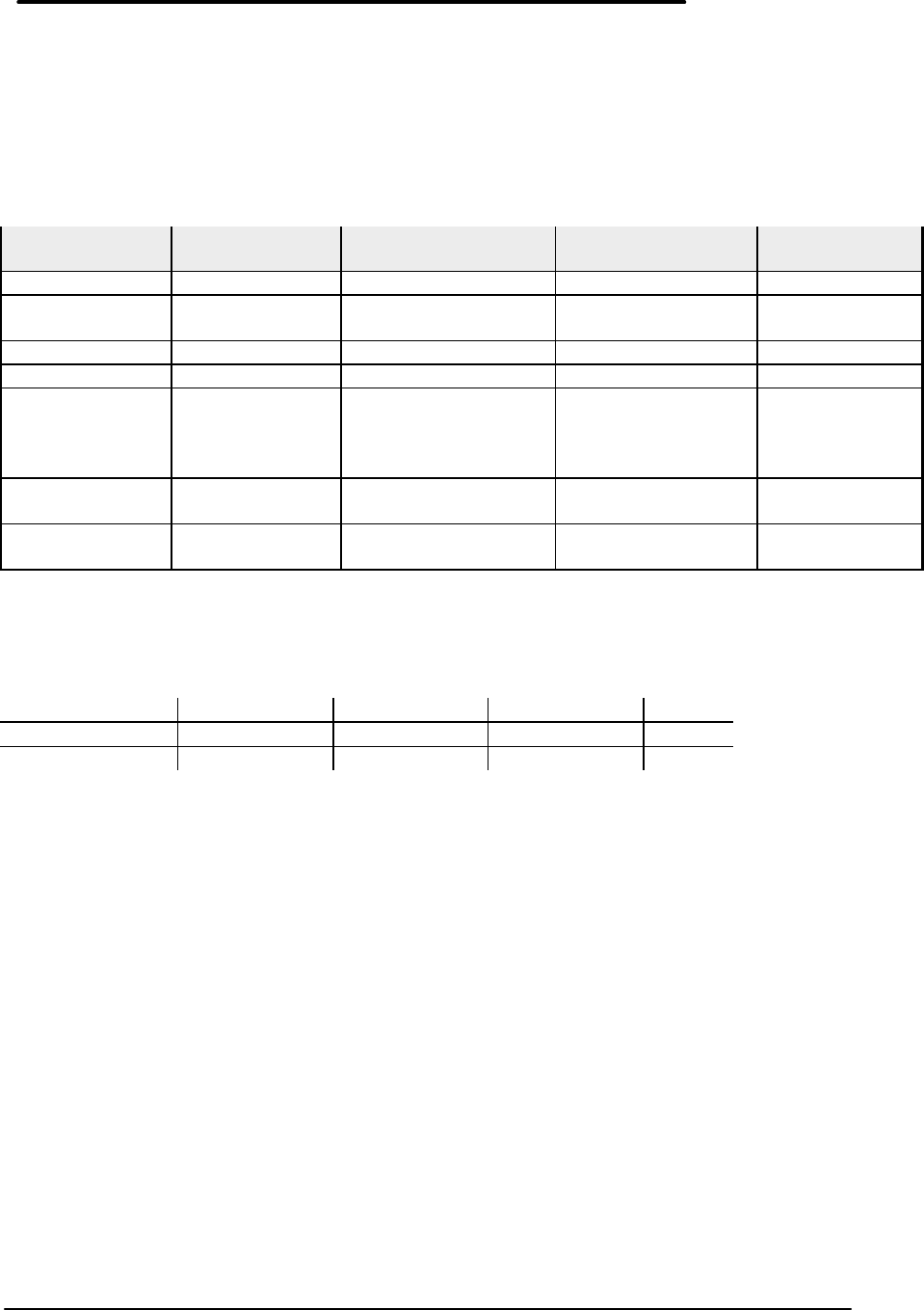
The below table list additional replaceable components and the disassembly procedure(s)
necessary to gain access to each.
Component Disassembly
Procedure(s) Equipment Special Notes
Top Case Display
Keyboard Torx #6 screwdriver
5mm hexdriver
Two flat tip screwdrivers
Probe
Bottom Case Display
Logic PCA Board
Paw Carrier
Torx #6 screwdriver
5mm hexdriver
Two flat tip screwdrivers
Probe
Mouse Button Latch
Mouse Latch Spring Display Torx #6 screwdriver
5mm hexdriver
Two flat tip screwdrivers
Probe
Mylar Mouse Shield
Pivot Bracket Display
Logic PCA Board Torx #6 screwdriver
5mm hexdriver
Two flat tip screwdrivers
Probe
Eject Buttons (A&B)
Eject Arms (L&R)
Eject Arm Spring
Display Torx #6 screwdriver
5mm hexdriver
Two flat tip screwdrivers
Probe
Pivot Doors (A&B)
Pivot Door Spring Display Torx #6 screwdriver
5mm hexdriver
Two flat tip screwdrivers
Probe
Hinge Cap Display Torx #6 screwdriver
5mm hexdriver
Two flat tip screwdrivers
Probe
The Hinge Caps
simply slide off of the
ends of the Display.
Security Latch Display Torx #6 screwdriver
5mm hexdriver
Two flat tip screwdrivers
Probe
Use a probe to
remove the Security
Latch from the
Bottom Case.
67
Appendix A - Technical and Resource
Specifications
Mass Storage Specifications
40MB 105MB 131MB Flash Disk
Cards (Typical)
Average seek < 19 ms 19 ms 19ms 2-3 ms
Track to Track
seek 5 ms 6 ms 6 ms NA
Average Latency 6.67 ms 6.72 ms 6.72 ms NA
Rotational speed 4503 rev/m 4464 rev/m 4464 rev/m NA
Data transfer
rate
Buffer to disc
Buffer to host
13-21 Mbits /sec
4.5 Mbytes /sec 11.4 - 19.2 Mbits/sec
4 Mbytes /sec 11.4 - 19.2 Mbits/sec
4 Mbytes/sec 2.5 MBytes/sec
6.0 MBytes/sec
Buffer size 32 Kbytes static
RAM 31 Kbytes 31 Kbytes NA
Spindle start
time 1 sec typical
3 sec maximum <2 sec maximum <2 sec maximum NA
Card Services and Socket Services Version Matrix
OB300 OB425 OB430 OB530
Card Services Card BIOS 1.0 Card BIOS 1.0 Card BIOS 1.0 2.1
Socket Services 1.01a 1.08 1.14 2.1
68
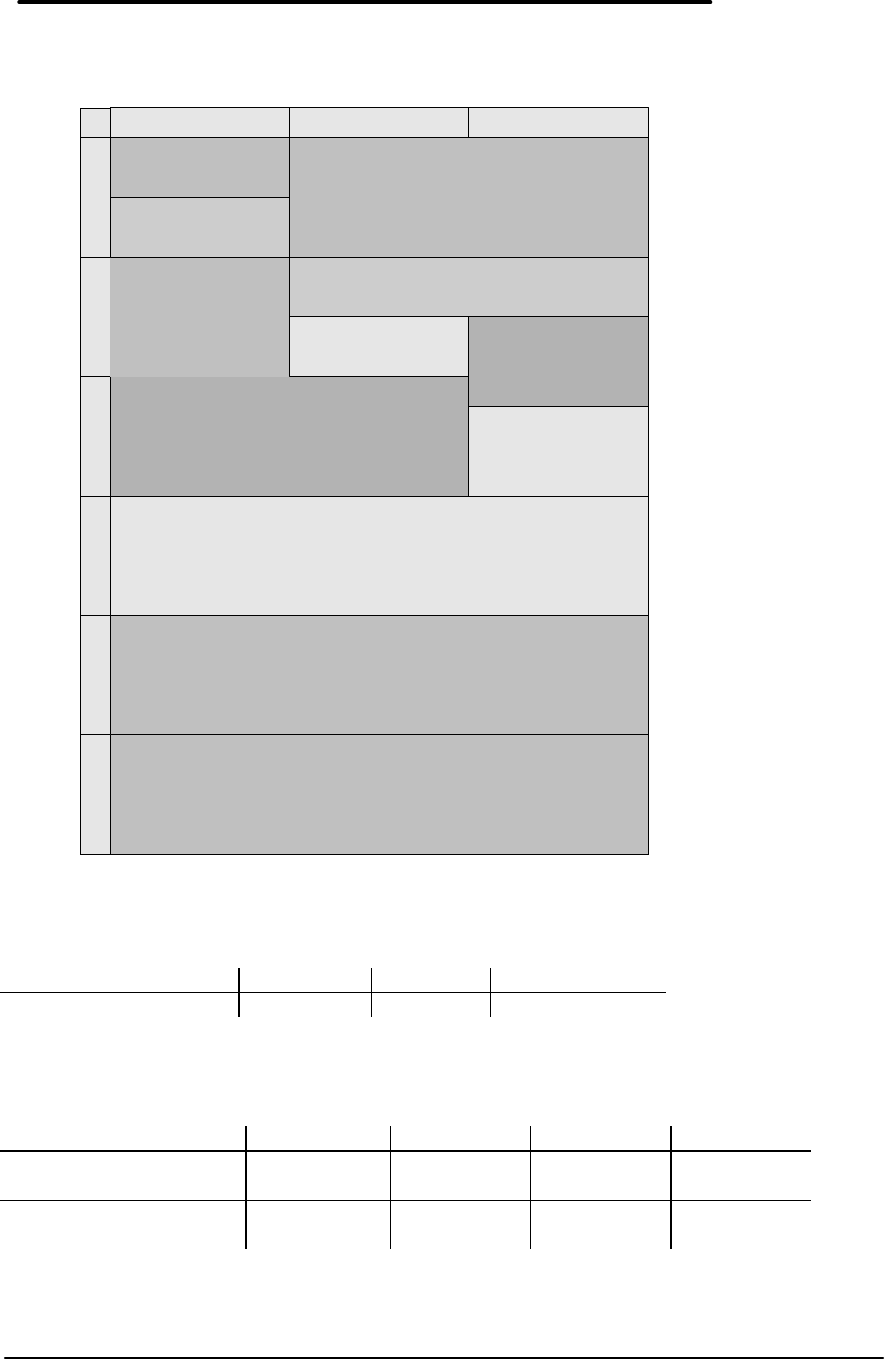
Memory Map
Upper Memory Block Space
OB300/425 OB430 OB530
UMB Space Available 64k 64k + 32k 112k contiguous
DOS Conventional Memory
OB300 OB425 OB430 OB530
Windows DOS Box
(with LapLink Remote) 315 KB 315 505 404
Exit Windows (with out
LapLink Remote) 435 KB 435 533 437
300/425 430 430
A
B
C
D
E
F
VGA RAM
VGA RAM
PCMCIA
UMB SPACE
UMB
SPACE
ROM
DOS
SYSTEM BIOS
VGA BIOS
VGA BIOS
SYSTEM BIOS
UMB SPACE PCMCIA

69
Appendix B - Power On Self Test Codes
Beep Codes
Beep Codes are used to identify a Power On Self Test (POST) error that
occurs when the screen is not available. Once the screen is operational,
diagnostic messages are reported to the screen. There are beep codes for
both fatal and nonfatal system board errors.
The codes are shown as x-y-z where 2-2-1 represents 2 beeps - pause - 2
beeps - pause - 1 beep.
Fatal Errors
1-1-1 CPU failure
1-1-3 CMOS failure
1-1-4 BIOS Checksum failure
1-2-1 8253 timer failure
1-2-2 DMA setup failure
1-2-3 DMA page register failure
1-3-1 RAM refresh not verified
1-3-2 SMI RAM bad
1-3-3 Low 64K RAM failure
1-3-4 Low 64K RAM even/odd failure
1-4-1 Low 64K RAM address line failure
1-4-2 Low 64K RAM parity error
2-1-1 Low 64K RAM bit 0 error
2-1-2 Low 64K RAM bit 1 error
2-1-3 Low 64K RAM bit 2 error
2-1-4 Low 64K RAM bit 3 error
2-2-1 Low 64K RAM bit 4 error
2-2-2 Low 64K RAM bit 5 error
2-2-3 Low 64K RAM bit 6 error
2-2-4 Low 64K RAM bit 7 error
2-3-1 Low 64K RAM bit 8 error
2-3-2 Low 64K RAM bit 9 error
2-3-3 Low 64K RAM bit 10 error
2-3-4 Low 64K RAM bit 11 error
2-4-1 Low 64K RAM bit 12 error
2-4-2 Low 64K RAM bit 13 error
2-4-3 Low 64K RAM bit 14 error
2-4-4 Low 64K RAM bit 15 error
3-1-1 DMA #2 register error
3-1-2 DMA #1 register error
3-1-3 8259 #1 error
3-1-4 8259 #2 error
3-2-4 8042 KB controller error
3-3-4 Video initialization error
3-4-1 Video retrace failure
3-4-2 Video ROM-scan in progress
3-4-3 Video ROM-scan error
Non-Fatal Errors
4-2-1 8253 timer tick test
4-2-2 Shutdown/Restart sequence
4-2-3 Gate A20 failure
4-2-4 Unexpected virtual mode interrupt
4-3-1 RAM test in progress
4-3-3 8253 timer channel 2 test
4-3-4 Time of day clock test
4-4-1 Serial port test
4-4-2 Parallel port test
4-4-3 Math coprocessor test
70
Display Codes
There are a number of Power On Self Test (POST) tests that are performed after the Beep Code
tests. Failure of one or more of these tests will result in a displayed failure code (such as 0240).
It is extremely important not to interpret a failure code immediately as a hardware failure. The
failure should be confirmed with a clean boot. A clean boot is defined as pressing the reset
button after removing all accessories (including memory cards, external floppy drive, modems,
PCMCIA cards, and printers) and providing a reliable power source.
The following list explains a number of POST Display Codes. Note, not all codes are available
on all models of the OmniBook.
No Error; Self-Test
Routine Passed 0000h test passed
80x86 Microprocessor
Error 000fh MPU failed self test
BIOS ROM Checksum
Errors 0010h errors relating to the BIOS rom
checksums
0011h
Real Time Clock Errors 0110h 011X where X = bad register
0120h RTC clock tick error
CMOS Errors 0240h CMOS power bad
0241h CMOS checksum bad
0280h HP checksum bad
0282h EISA checksum bad
error code 0281 was previously used
8041 Errors 0301h did not read 0AAH command
0302h did not respond to 0AAH command
0303h bad Response to 0AAH command
0305h did not respond when setting keyclick
volume
0306h did not read 0C0H command
0307h did not respond to 0C0H command
0308h keyboard fuse is open
0311h did not read 060H command
0312h did not read data for 060H command
0341h did not read kbd interface test cmd
0342h did not respond to kbd intrf test
0342h add 1-4 to this to get
00343h kbd clock line stuck low
00344h kbd clock line stuck high
00345h kbd data line stuck low
00346h kbd clock line stuck high
0350h no ACK from kbd test
0351h bad ACK from kbd test
71
0352h kbd not connected
0353h no response from kbd test
0354h kbd test failed
error codes 0304, 0313-0314, 0321-0323, 0331-033C were
previously used
AUX Self Test Errors 03E0h send enable-aux cmd to 8042 cmd
byte failed
03E1h 8042 failed to accept write-aux-
device cmd
03E2h write-aux-device cmd not sent by
8042
03E3h reset-aux cmd not accepted by 8042
03E4h 8042 failed to send aux-interface-test
03E5h no reply for aux-interface-test cmd
from 8042
03E6h aux device clock line stuck low
03E7h aux device clock line stuck high
03E8h aux device data line stuck low
03E9h aux device data line stuck high
03EAh no reply for aux-reset cmd from aux
03EBh aux failed to perform reset
03ECh send default cmd to 8042 cmd byte
failed
Protected-Mode Switch
Error 0401h failed to switch to protected mode
error code 0500 was previously used
Serial and Parallel Test
Errors 0503h no serial port
0505h bad serial port
0543h no parallel port
Keyboard Device
Errors 0600h kbd has keys stuck
06XXh where XX = the scan code of
the stuck key
System Speed Test
Errors 0702h timer failed to interrupt
0703h CPU clock too slow in SLOW speed
0704h CPU clock too fast in SLOW speed
0707h CPU clock too slow in FAST speed
0708h CPU clock too fast in FAST speed
error codes 0700-0701, 0705-0706, 0709-070C were
previously used
Timer Chip Errors 1100h failed timer test
110Xh where X = failed timer #
1200h no refresh tick
1201h refresh signal stuck low
EISA Init Errors 13XY X = slot number where error occurred
72
Y = error type
1300h error code displayed if fdc is not
configured properly
1301h error code if board is not ready
1302h error code if cmos says slot is empty
but a card is present in the slot
1303h error code if cmos says slot does not
have board with readable id but can
read board id
1304h error code if cmos id and board id do
not match
1305h error code if incomplete configuration
bit is set
Memory Configuration
(POST) Errors 2000h bad port or wrong memory board
2001h bad port or wrong board type
2002h port reports null or no SIMMs
2003h can't mix single and double density
SIMM parts
2005h physical SIMM config. invalid 20X5h
X = the memory bank the checking
routine stopped at - banks are
numbered 0, 1, 2, or 3
2006H bad memory controller
DMA Errors 21XYh DMA controller errors
XY= 0001 bbbb = register bbbb of
controller 01 failed write/read test
XY= 0010 bbbb = register bbbb of
controller 02 failed write/read test
213Xh DMA status register errors
X=0 => Controller 1's status register
failed
X=1 => Controller 2's status register
failed
22XYh DMA Page register errors
XY= 0001 abbb = channel bbb of
page register bad
bit a
0 = ISA (0xxh) register
1 = EISA (4xxh) register
0010h DMA page mask
error codes 3000-3010 were previously used
Real-Mode (0-1Mb)
RAM Errors 4000h 4XYZ - the interpretation of this error
code is machine dependent
error codes 5000-5FFF were previously used
RAM Address Line
Independence, Parity,
& IO_CHK Errors
6100h errors relating to the address
independence test of ram
XX = xxxx bbbb = address line
bbbb is bad (no. 0 to 19)
6200h errors relating to the RAM parity 620X

73
test (low 640k).
x = 64k bank no. with problem (i.e.
6204 = bank 4 is bad = address
range 40000h to 4ffffh)
6300h I/O channel check came active during
write read test of protected mode ram
63xx = xx = 256k ram bank/block
with problem
BIOS and Memory
Shadow-RAM Errors 6500h shadow RAM BIOS failed
6510h shadow RAM video BIOS failed
6520h shadow RAM option ROM failed
65A0h A000 shadow RAM test failed
65B0h B000 shadow RAM test failed
65C0h C000 shadow RAM test failed
65D0h D000 shadow RAM test failed
65E0h E000 shadow RAM test failed
65F0h F000 shadow RAM test failed
8259 Interrupt
Functionality Errors 07000h 7XYY where
X = 0 master's mask reg. failed
X = 1 slave's mask reg. failed
YY = XOR of value read & written to
the mask reg
07400h IRQ 0 error
07500h IRQ 8 error
error code 7600 was previously used
Hard Disk Errors 8310h controller fail
8311h fixed disk fail
8312h drive splitting failure
error codes 8001-8002, 8100, 8200, 8300 were previously
used
Flexible Disk Errors 9X0Z X = drive number (0..3 correspond to
drives A:, B:, FDE#1, FDE#2)
Z = determined by the following
equates
9000H FDC input error
9001H FDC output error
9002H FDC seek error
9003H FDC recall error
9005H FDC reset error
9006H FDC wrong drive
9008H FDC no interrupt
9009h FDC track 0 error
error codes 90XX and 98XX were previously used
80x87 Numerical Co-
Processor Errors 0a001h there is no 80287 in the system
0a002h problem with the 80287's registers
0a003h problem with the 80287's stack
74
0a004h FXCH or FCOMP didn't work
0a005h FADD didn't work
0a006h FMUL didn't work
0a007h FDIV didn't work
0a008h FSQRT didn't work
0a009h FPATAN didn't work
0a00ah invalid operation exception err
0a00bh denormal operand exception error
0a00ch zero divide exception error
0a00dh overflow exception error
0a00eh underflow error
Weitek Numerical Co-
Processor Errors 0af00h failed to enter protected mode
0af01h there is no Weitek in the system
0af02h error in Weitek data register
0af05h ADD didn't work
0af06h MULT didn't work
0af0Ch Zero Divide exception error
Video Errors 0b009h beep if no video card is installed
error codes B001-B008, B100, B200, B301-B307, B400-
BFFF were previously used
Cache Errors 0b308h internal cache error
0b300h P4 cache test failure
Protected Mode RAM
Errors 0c000h 0CXYZ - the interpretation of this
error code is machine dependent
error codes D000, D003-D040, D050, D1XX, EXXX, FFXX
were previously used

75
Appendix C - Password Policy
If the user forgets the system password, there is a master password that will
unlock the OmniBook. The user calls Technical Support to determine this
master password as follows:
1. Support will tell the user the keys to type at the password entry screen:
[alt][shft][f10]
2. The OmniBook generates and displays an encoded master password. This
is displayed under the normal password entry area. At this point, this is the
only password that will unlock the OmniBook unless the user presses [ESC] to
remove the encoded master from the password entry screen. Then the user's
stored password can be entered.
3. The user reads the encoded master password to Support.
4. Support runs a program that decodes the encoded password, and reads the
decoded password (alphanumeric) to the user.
5. The user types in the decoded password.
6. OmniBook decodes the encoded master password it generated and
compares it to the decoded password typed in by the user.
7. If the two passwords match, the OmniBook is unlocked. The forgotten
password is automatically erased. Support can then guide the user through
the process of entering a new password.
8. If the two passwords do not match, the previous sequence must be
repeated until the user correctly enters a master password.
The encoded master password is an eight-character alphanumeric sequence
that the OmniBook generates at random every time the appropriate keys are
pressed in the password entry screen. Because it is generated randomly, a
master password can only be used to unlock the OmniBook once. If the user
forgets the password at another time, it will require another call to Support. (If
the user presses the appropriate keys by mistake, pressing [ESC] will allow
entering the stored password.)
The password descramble programs for the HP OmniBook PCs are protected
as HP Company Private information. They may not be copied, backed-up,
printed or distributed. There are only six official copies of each program.
In addition to the program being protected, its use is also controlled. Hewlett-
Packard and authorized support providers must ensure with written evidence
that the OmniBook that is being "descrambled" is actually in the hands of the
unit's actual and current owner. This requires a sales receipt showing the unit
serial number and owner's name, or a written statement from the owner
attesting that he or she is the owner of the unit. The statement can be a FAX
copy of the document. The fact that the unit is in the hands of an HP
representative on behalf of the customer is not evidence of ownership. In
addition, HP will not descramble a unit for any non-owner, even if it involves
law enforcement agencies. If you receive such a request, you should notify
management and HP Corporate Legal immediately. (These requests may
require a court order prior to our participation.)

76
Further, you must log the name, serial number and date of the running of the
descramble program, and file the written backup with the log. The log and
backup are subject to standard record retention process and review.
The final issue relating to descramble of passwords is that HP cannot provide
information to users that would assist them in improperly descrambling a
password and opening a unit.
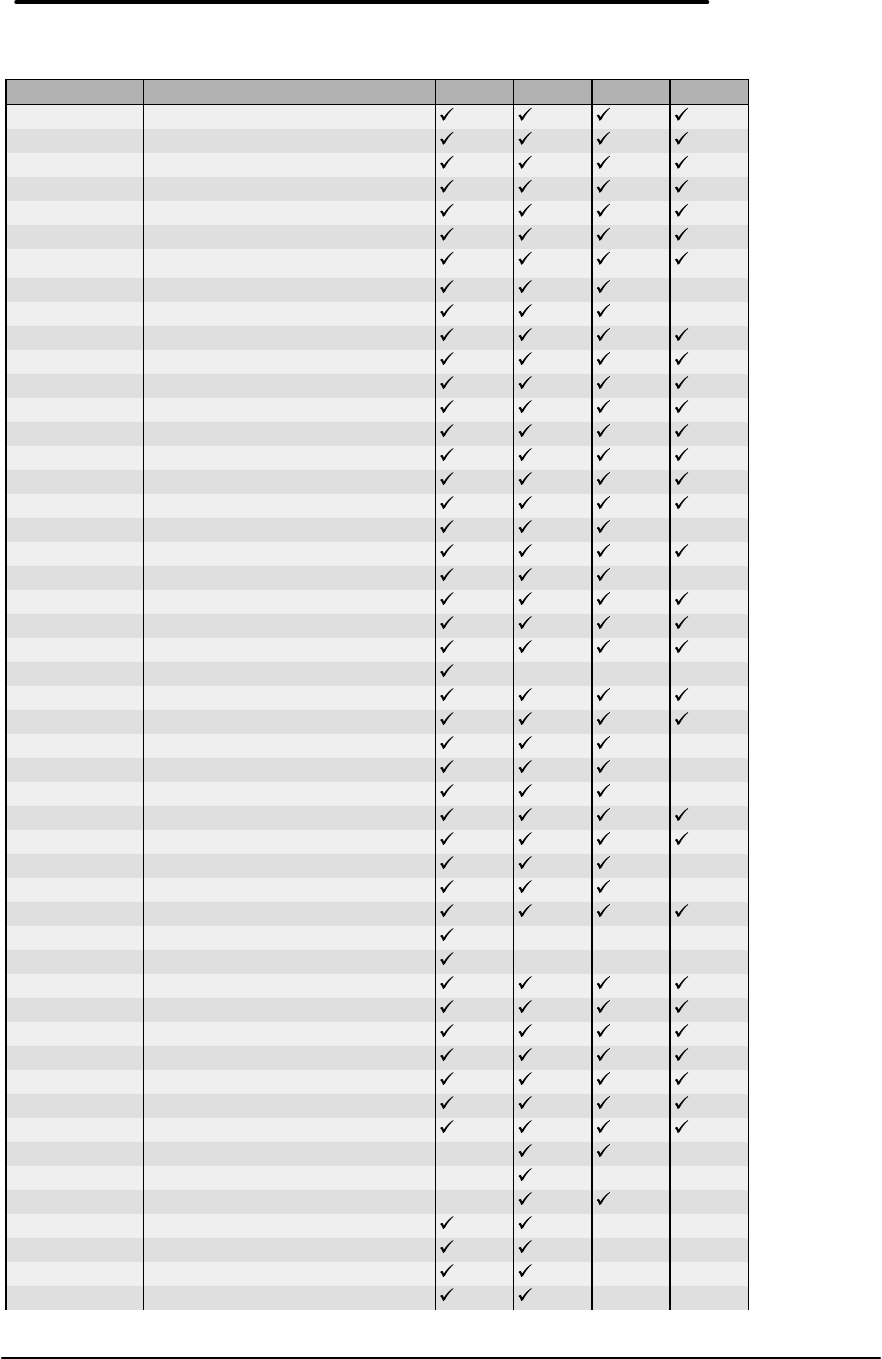
77
Appendix D - Part Numbers
Part Number Description OB300 OB425 OB430 OB530
0380-4060 Standoff
0515-2396 Screw M2x4.6mm (T6)
F1030-00016 Arm Eject Mouse Spring
F1030-00026 Pivot Door Spring
F1030-00029 Spring Card Eject
F1030-00030 Mouse Latch Spring
F1030-20001 Mylar Mouse Shield
F1030-40013 Pivot Door A
F1030-40014 Pivot Door B
F1030-40016 Door Modem Blank
F1030-40017 Door RAM
F1030-40018 Rubber Foot
F1030-40019 Hinge Cap
F1030-40021 Mouse Button Latch
F1030-40025 Battery Door Latch
F1030-40033 Security Latch
F1030-40044 Eject Button A
F1030-40045 Eject Button B
F1030-40046 Eject Arm Left
F1030-40047 Eject Arm Right
F1030-40050 Arm Eject Mouse
F1030-60901 Paw Carrier Srvc Assy
F1030-60904 LCD Display Assy (new)
F1030-60907 Logic PCA (new)
F1030-60908 Door I/O
F1030-60909 Pivot Bracket
F1030-60910 Bottom Case
F1030-60911 Top Case
F1030-60912 SVC Door Battery (10 pack)
F1030-60923 SVC Flash Tray Assy
F1030-60924 SVC ID Plate (10 pack)
F1030-60925 SVC Short Bar (10 pack)
F1030-60926 SVC Bat Jumper (10 pack)
F1030-80013 Keyboard USA
F1030-80015 Regulatory Label
F1030-80018 Icon Label
F1030-80019 Logo - Display
F1030-80031 Keyboard German
F1030-80032 Keyboard Spanish
F1030-80033 Keyboard French
F1030-80044 Foam Shipping Pouch
F1030-80057 Keyboard Int English
F1030-80063 FFC - Theta
F1033-60901 Regulatory Label (10 pack)
F1033-60902 SVC Icon Label 425 (10 pack)
F1033-60907 Logic PCA (new)
F1033-60908 Sys ROM (ABA) - US English
F1033-60909 Sys ROM (ABB) Int. English
F1033-60910 System ROM (ABD) German
F1033-60911 System ROM (ABF) French
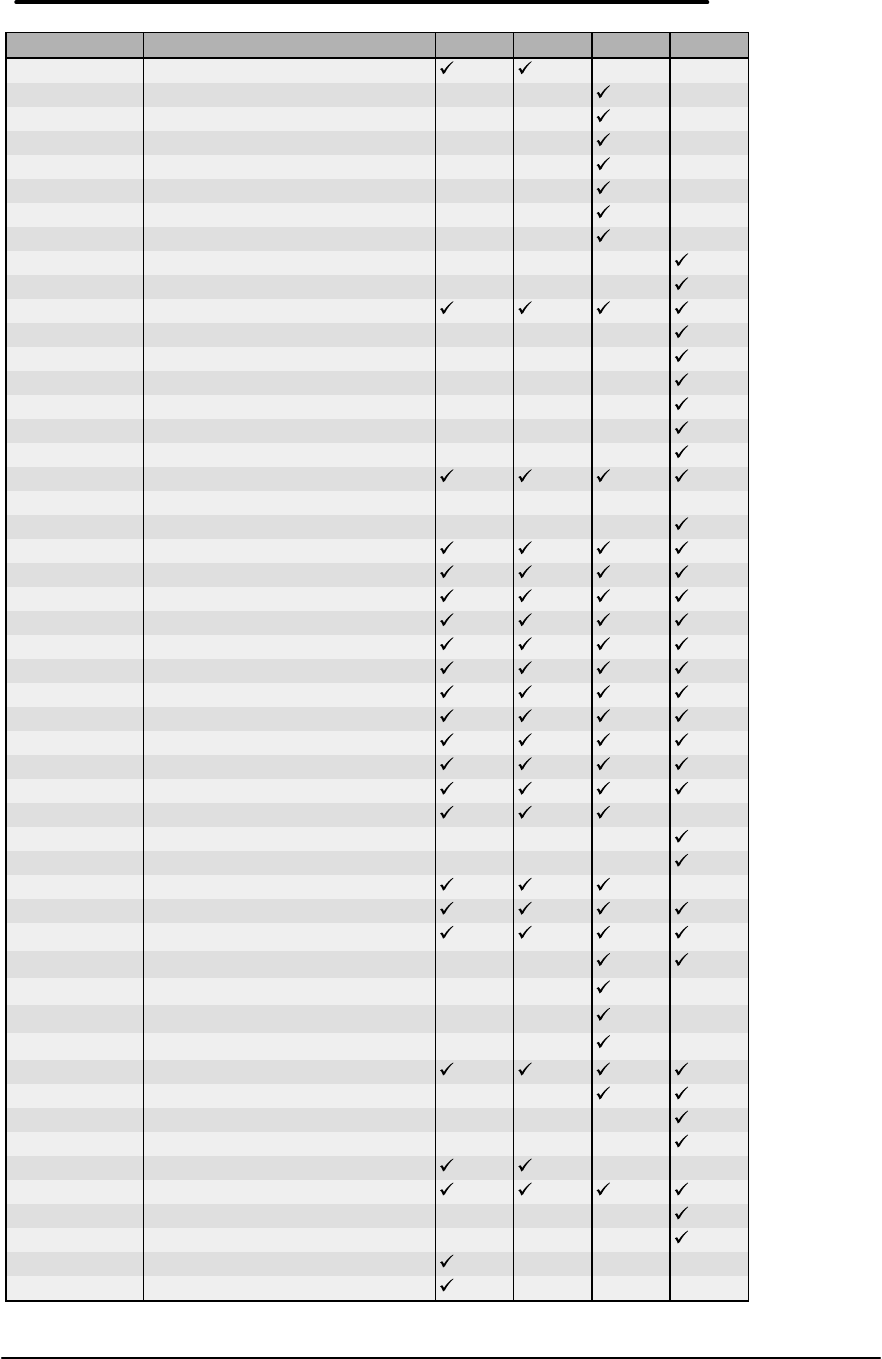
78
Part Number Description OB300 OB425 OB430 OB530
F1033-60912 System ROM (ABE) Spanish
F1037-60901 SVC Icon Label 430 (10 pack)
F1037-60902 Custom Icon Kit (10 pack)
F1037-60903 Sys ROM (ABA) US English
F1037-60904 Sys ROM (ABB) Int. English
F1037-60905 System ROM (ABD) German
F1037-60906 System ROM (ABE) Spanish
F1037-60907 System ROM (ABF) French
F1052-40007 PCMCIA Door Left
F1052-40012 Door Battery (silver)
F1052-60005 Flash Tray Assy w/ plug (qty 1)
F1052-60906 SVC Logic PCA (new)
F1052-60907 Top Case (silver)
F1052-60908 Bottom Case (silver)
F1052-60914 Icon Label (10 pack)
F1052-60915 Regulatory Label (10 pack)
F1052-69008 SVC Logic PCA (exchange)
F1065-60029 Hard Drive Tray
Accessories
0950-2630 Floppy drive
5061-4390 Mouse
8120-2104 Power Cord Swiss
8120-2956 Power Cord Danish
8120-4211 Power Cord S. Africa
8120-5342 Power Cord Japan
8120-6260 Power Cord US
8120-6261 Power Cord UK
8120-6262 Power Cord Europe
8120-6346 Power Cord Australia
9100-5315 AC Adaptor-worldwide
F1045-60901 Battery Pack
F1041-60901 2MB RAM Exp
F1054-60901 4MB RAM Exp
F1055-60002 8MB RAM Exp
F1038-60901 4MB RAM Exp
F1012-60902 5MB Flash disk card
F1013-60901 10MB Flash disk card
F1014-60901 20MB Flash disk card
F1037-60908 105MB HDD DOS/Win/PIM
F1037-60909 105MB HDD Word/Excel
F1035-60901 40MB HDD w/ DOS,WIN,PIM
F1050-60901 40MB Unprogrammed HDD
F1039-60901 105MB Unprogrammed HDD
F1052-60909 130MB HDD Programmed
F1057-60901 130MB Unprogrammed HDD
F1040-60901 F1040A Fax/Modem ABA US
F1047-60901 Serial cable
F1052-60910 VGA cable
F1059-60901 Floppy drive cable-parallel
F1030-90085 Ops Manual/QuickStart Guide
F1030-90086 Manual-Vol.2-Excel,PIM,Word
Note, for the most current parts list, always refer to the latest Product Support Plan.

HP Part Number
5965-0244
