91 5438 20 00_ATT3358_R0 3358 Manual Bkm2
User Manual: 3358
Open the PDF directly: View PDF  .
.
Page Count: 77
- CONTENTS
- BEFORE YOU BEGIN
- INSTALLATION
- FEATURE SETUP – HANDSET
- FEATURE SETUP – BASE
- TELEPHONE OPERATION
- INTERCOM OPERATION
- PHONE BOOK
- CALLER ID OPERATION
- Answering system operation at the base
- ANSWERING SYSTEM OPERATION at touch tone phone
- BATTERIES
- IN CASE OF DIFFICULTY
- PHONE
- If the phone does not work at all, check these items first:
- If you have no dial tone:
- If you hear two beeps when you try to use the handset:
- To re-initialize the handset and base:
- If you hear noise or interference when using the phone:
- If your handset displays ENTER BASE ID or NO BASE SUBSCRIPTION
- If the phone does not ring when you receive a call:
- CALLER ID
- ANSWERING SYSTEM
- If messages are incomplete:
- If you have difficulty hearing messages:
- If callers are unable to leave messages in Mailbox 2 or 3:
- If the system does not answer after the correct number of rings:
- If CL appears in the message window:
- If the system does not respond to commands from a remote touch tone phone:
- If your outgoing announcement isn’t clear:
- PHONE
- DEFAULT SETTINGS
- TECHNICAL SPECIFICATIONS
- INDEX
- IMAGES
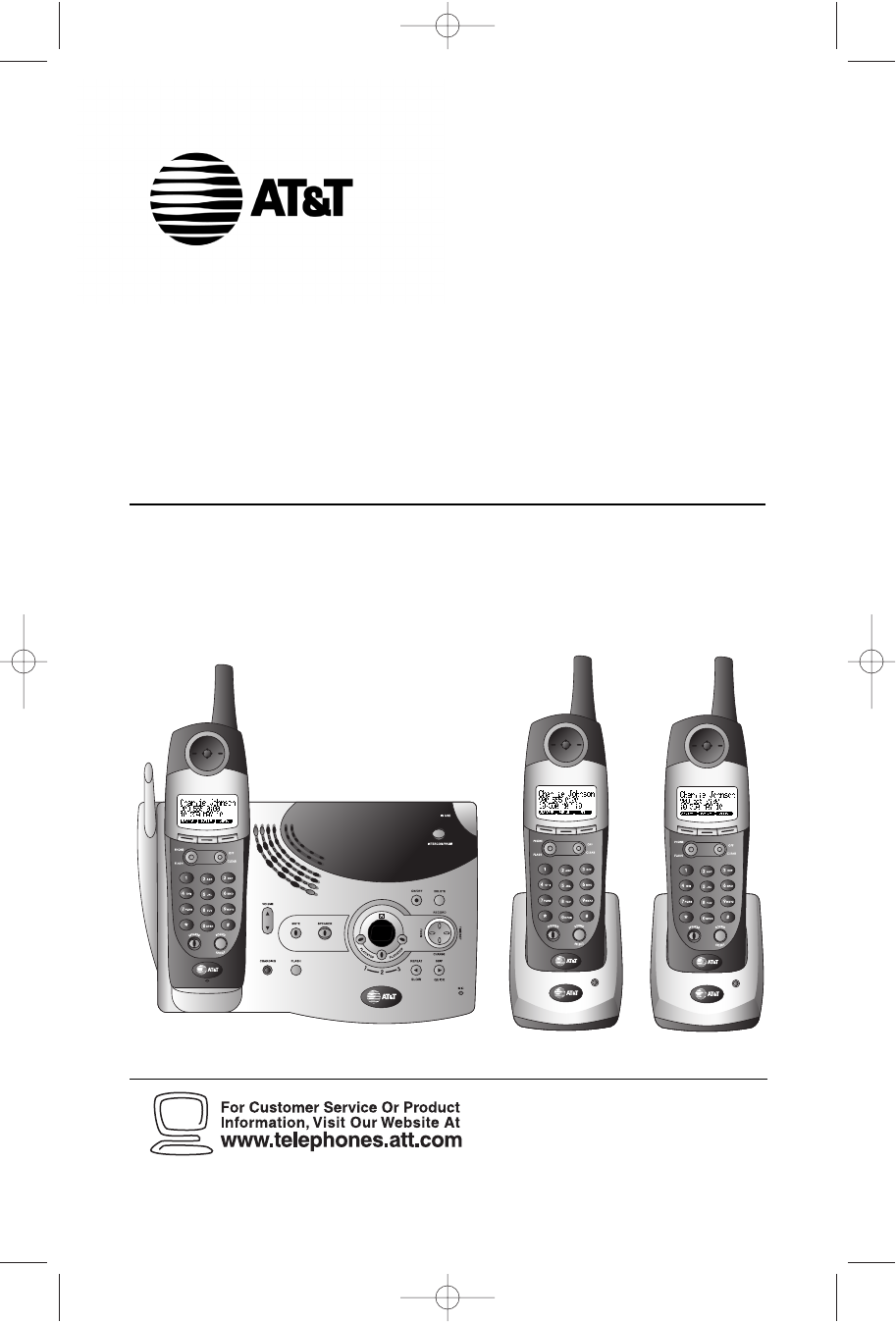
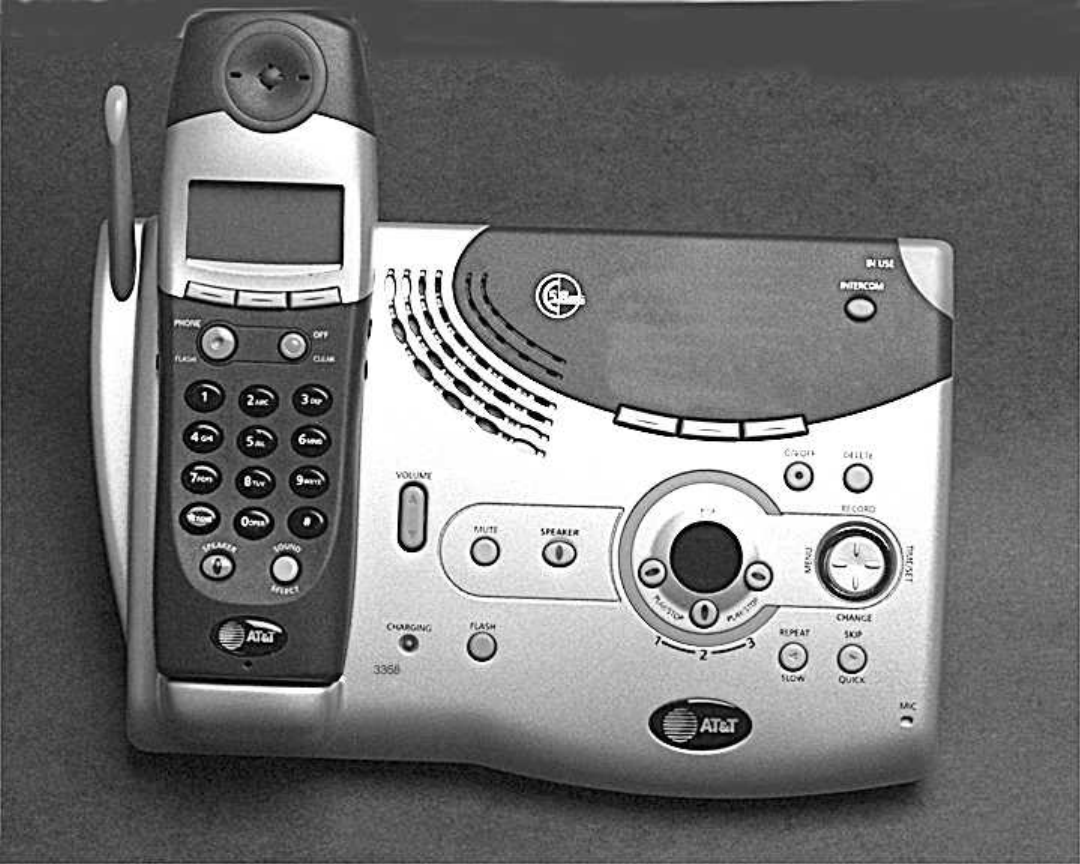
5.8 GHz Cordless Telephone
Answering System 3358
with Caller ID/Call Waiting
Please also read
Part 1 — Important
Product Information
USER’S MANUAL
Part 2
© 2003 Advanced American Telephones. All Rights Reserved.
AT&T and the Globe Symbol are trademarks of AT&T Corp., licensed to Advanced American Telephones.
3358
91-5438-20-00_ATT3358_R0 2003.7.11 9:41 AM Page II

© 2003 Advanced American Telephones.
All Rights Reserved.
AT&T and the Globe Design are
trademarks of AT&T Corp., licensed to
Advanced American Telephones.
Printed in China. Issue 1AT&T 05/03
Visit us at www.telephones.att.com
91-5438-20-00_ATT3358_R0 2003.7.11 9:41 AM Page III

CONTENTS
BEFORE YOU BEGIN .............. 1
Parts List .......................................................... 1
About Caller Identification
(Caller ID)............................................... 2
About the Calls Log ............................... 2
About Adding Handsets......................... 2
INSTALLATION.......................3
Table/Desk Installation.............................3
About Handset Registration...................5
Register an Additional Handset
(Model 5800 Handset).............................5
Wall Installation ....................................... 6
Spare Battery/
Power Failure Backup ........................ 7
Belt Clip ....................................................... 8
Headset...................................................... 8
FEATURE SETUP
HANDSET ...........................9
Feature Setup Menu................................ 9
Set Time..................................................... 9
Clock Mode............................................ 10
Sound Select........................................... 11
Ringer Volume ........................................ 12
Ringer Melody........................................ 13
Low Batt Tone........................................ 14
Range Tone.............................................. 15
Keypad Tone ........................................... 16
Set Contrast........................................... 17
Language Setting.................................... 18
FEATURE SETUP – BASE ... 19
Ringer Volume ........................................ 19
Ringer Melody........................................ 20
TELEPHONE OPERATION 21
Make a Call............................................. 21
Answer a Call ........................................ 21
Volume..................................................... 22
Handset Speakerphone........................ 23
Redial ....................................................... 24
Flash/Call Waiting .................................. 25
Mute ......................................................... 26
Hold ......................................................... 27
Display Screen Messages..................... 28
Handset Icons ........................................ 29
Base Lights.............................................. 30
Tones and What They Mean............... 31
INTERCOM OPERATION .. 32
Intercom Calls ....................................... 32
Answering Intercom............................. 33
End Intercom ......................................... 33
To Answer an Incoming Call
While Intercomming ............................ 33
Blind Call Transfer................................. 34
Announced Call Transfer..................... 34
Conference Calling ............................... 35
PHONE BOOK .................... 36
Store a Number and Name in
Phone Book ....................................... 36
Keypad Characters.................................37
Dial a Number in Phone Book.......... 38
Edit a Number/Name in
Phone Book ....................................... 39
Delete a Number/Name in
Phone Book ....................................... 40
CALLER ID OPERATION.....41
Review Calls Log................................... 42
Store Record in Phone book ..............42
Display Dial..............................................43
Remove Call Records. ......................... 44
ANSWERING SYSTEM
OPERATION AT THE BASE.. 45
Audible Indicators................................. 45
Turning Answering System
On/Off................................................. 45
Set the Clock ......................................... 45
About Mailboxes .................................. 46
About Announcements........................ 46
Record Your Announcement .............. 47
Answering System Feature Setup ........ 48
Feature Summary.................................. 49
Listen to, Save & Delete Messages........ 50
Adjust Playback Volume ....................... 51
Call Screening/Intercept ..................... 51
Record a Memo..................................... 52
Message Window Display.................... 53
ANSWERING SYSTEM
OPERATION AT TOUCH TONE
PHONE ................................... 54
Connect with the
Answering System ............................ 54
Voice Menu............................................. 54
Remote Access Commands ................ 55
BATTERIES .......................... 56
Battery Life............................................. 56
Battery Indicator................................... 56
Charge the Handset Battery Pack......56
Spare Battery ......................................... 57
Replace the Handset Battery Pack ... 58
IN CASE OF DIFFICULTY... 59
DEFAULT SETTINGS.......... 65
TECHNICAL
SPECIFICATIONS............ 66
INDEX................................... 67
CONTENTS
CONTENTS
91-5438-20-00_ATT3358_R0 2003.7.11 9:41 AM Page V
Parts List
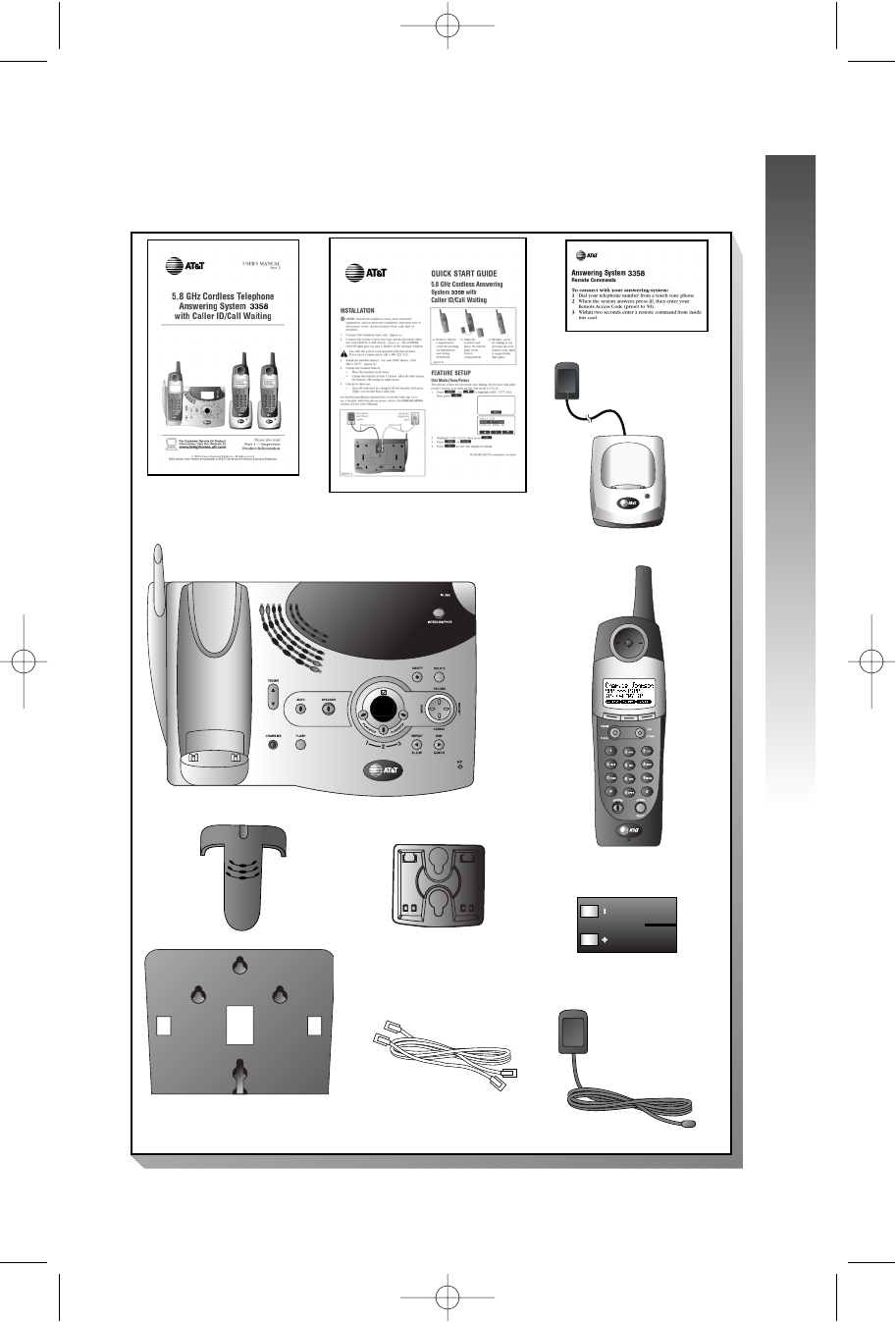
Your box should include:
1
BEFORE YOU BEGIN
BEFORE YOU BEGIN
BEFORE YOU BEGIN
3358
3 NiMH Battery Packs
Power Cord
Wall Mount Adapter
3 Cordless Handsets
Base Unit
Wallet Card
This User’s
Manual Quick Start Guide
2 Remote Charger
Wall Mount Adapters
2 Remote Chargers
Telephone Line Cords
3 Belt Clips
91-5438-20-00_ATT3358_R0 2003.7.11 9:41 AM Page 1

2
BEFORE YOU BEGIN
BEFORE YOU BEGIN
About Caller Identification (Caller ID)
This product has a Caller ID with Call Waiting feature that works with
service from your local phone service provider.
Caller ID with Call Waiting lets you see who’s calling before you answer the
phone, even when you’re on another call.
You may need to change your phone service to use this feature.
Contact your phone service provider if:
• You have both Caller ID and Call Waiting, but as separate services
(you may need combined service)
• You have only Caller ID service, or only Call Waiting service
• You don’t subscribe to any Caller ID or Call Waiting services.
You can use this product with regular Caller ID service, and you can use
this product’s other features without subscribing to either Caller ID or
combined Caller ID with Call Waiting service.
There are fees for Caller ID services, and they may not be available in all
areas.
This product can provide information only if both you and the caller are in
areas offering Caller ID service, and if both telephone companies use
compatible equipment.
About the Calls Log
This phone assigns each incoming call a number from 1 to 50 at the
handset. The most recent call will have the lowest number. When the
memory is full, the oldest call information is deleted to make room for new
incoming call information. See CALLER ID OPERATION, beginning on page
41, for more details.
If you answer a call before call information appears on the screen, it will not
appear in the calls log.
About Adding Handsets
This product is compatible with the AT&T 5800 Expansion Handset. You
may register a total of six handsets to this telephone system (Model 5800
Handset sold separately). Follow the instructions provided with the
additional handset(s) for installation and registration.
¥¥NOTE: Although you can register up to six handsets, only four can be
used at one time.
91-5438-20-00_ATT3358_R0 2003.7.11 9:41 AM Page 2
Table/Desk Installation
¥¥NOTE: Install this telephone away from electronic equipment, such as
personal computers, television sets or microwave ovens. Avoid
excessive heat, cold, dust or moisture.
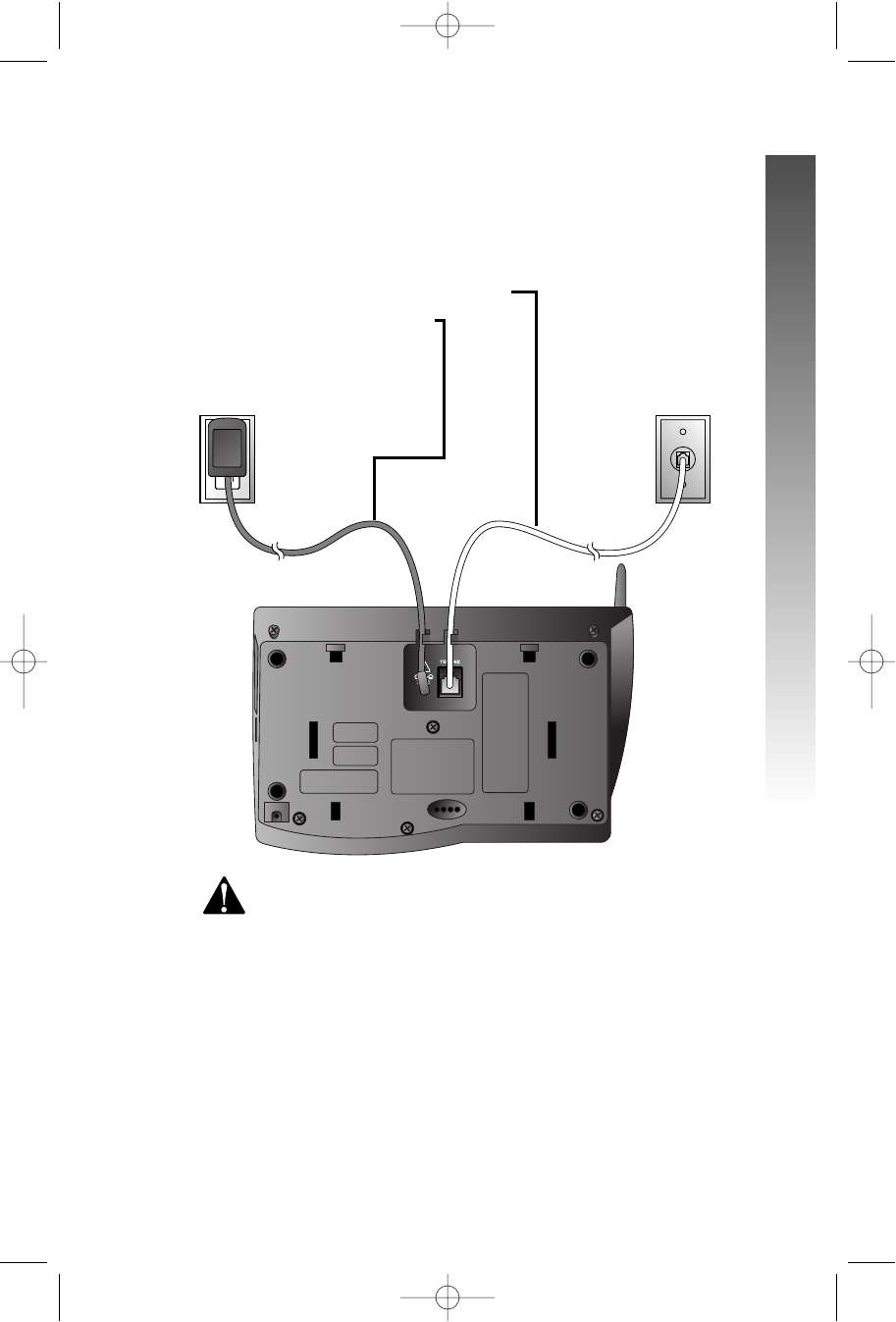
1 Connect the telephone line cord.
2 Connect the power cord.
CCLLflashes in the
message window.
Use only the power cord supplied with this product.
If you need a replacement, call 1-800-222-3111.
INSTALLATION
Standard
electrical
outlet
Modular
telephone
jack
INSTALLATION
INSTALLATION
3
91-5438-20-00_ATT3358_R0 2003.7.11 9:41 AM Page 3
4
INSTALLATION
INSTALLATION
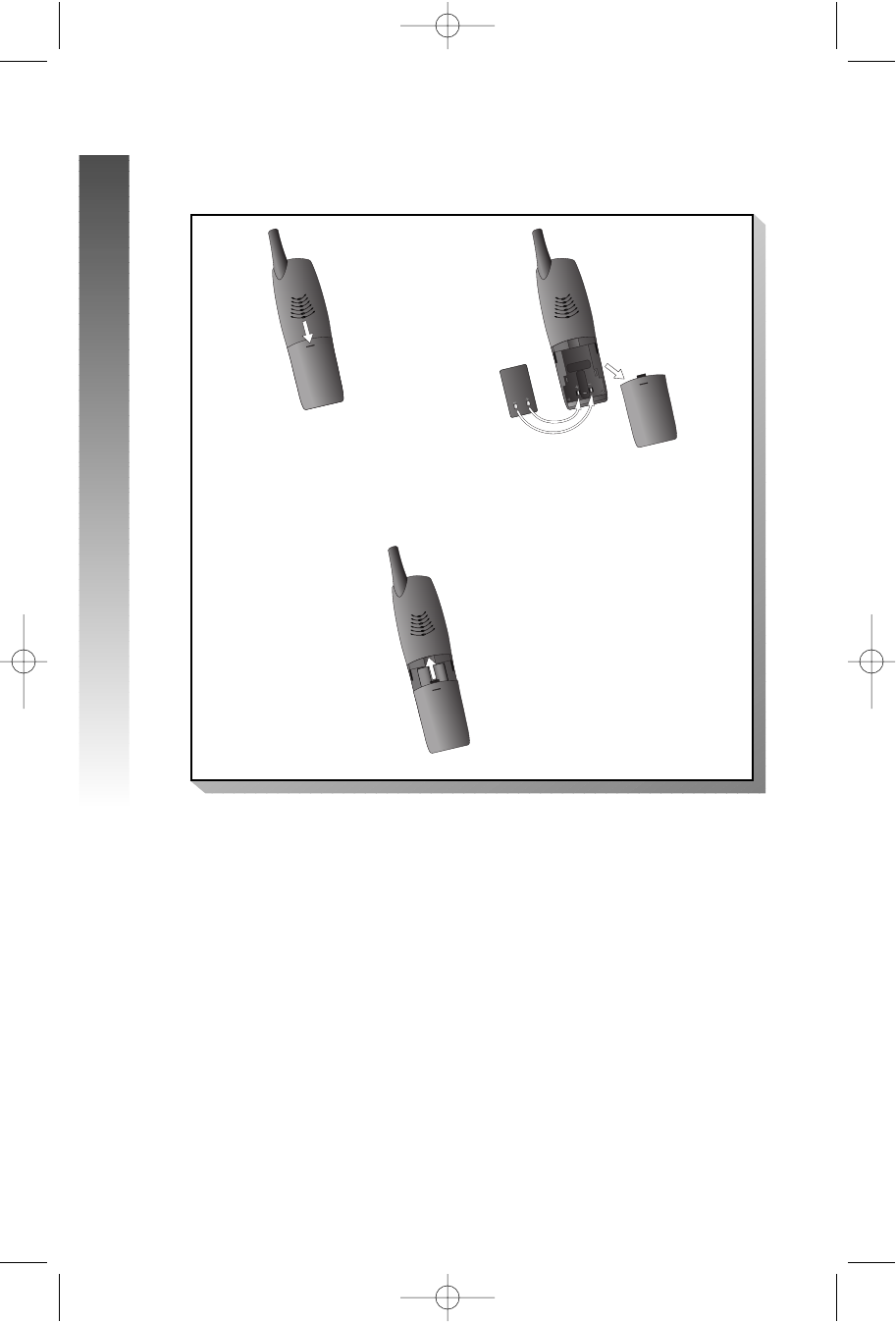
3 Install the handset battery.
Use only AT&T Battery 2401, SKU# 91077.
4 Charge the handset battery.
• Place the handset in the base or remote charger.
• Charge the battery at least 12 hours. After the first charge,
the battery will charge in eight hours.
5 Check for dial tone.
• After the batteries are charged, lift the handset and press
PP; you should hear a dial tone.
b) Align the contacts and place
the battery pack in the
battery compartment.
a) Remove battery
compartment cover by
pressing on indentation
and sliding downward.
c) Replace cover by
sliding it on its
track up over
battery case until
it snaps firmly into
place.
91-5438-20-00_ATT3358_R0 2003.7.11 9:41 AM Page 4

5
About Handset Registration
1 The cordless handsets that came with your system are automatically
registered as Handset 1,Handset 2, and Handset 3.There is no need to
re-register.
2 You may register up to a total of six Expansion Handsets to this
telephone system(Model 5800 handset sold separately).
3 Additional handsets will be assigned Handset 4, Handset 5, and Handset
6.
4 When you install the handset battery pack, the handset will display
SEARCHING FOR BASE (if it’s registered) or ENTER BASE ID (If it has
not been registered).
Register an Additional Handset(Model 5800
Handset)
1 Make sure to charge the handset battery pack at least 12 hours.
2 At the cordless handset,press the softkey under .
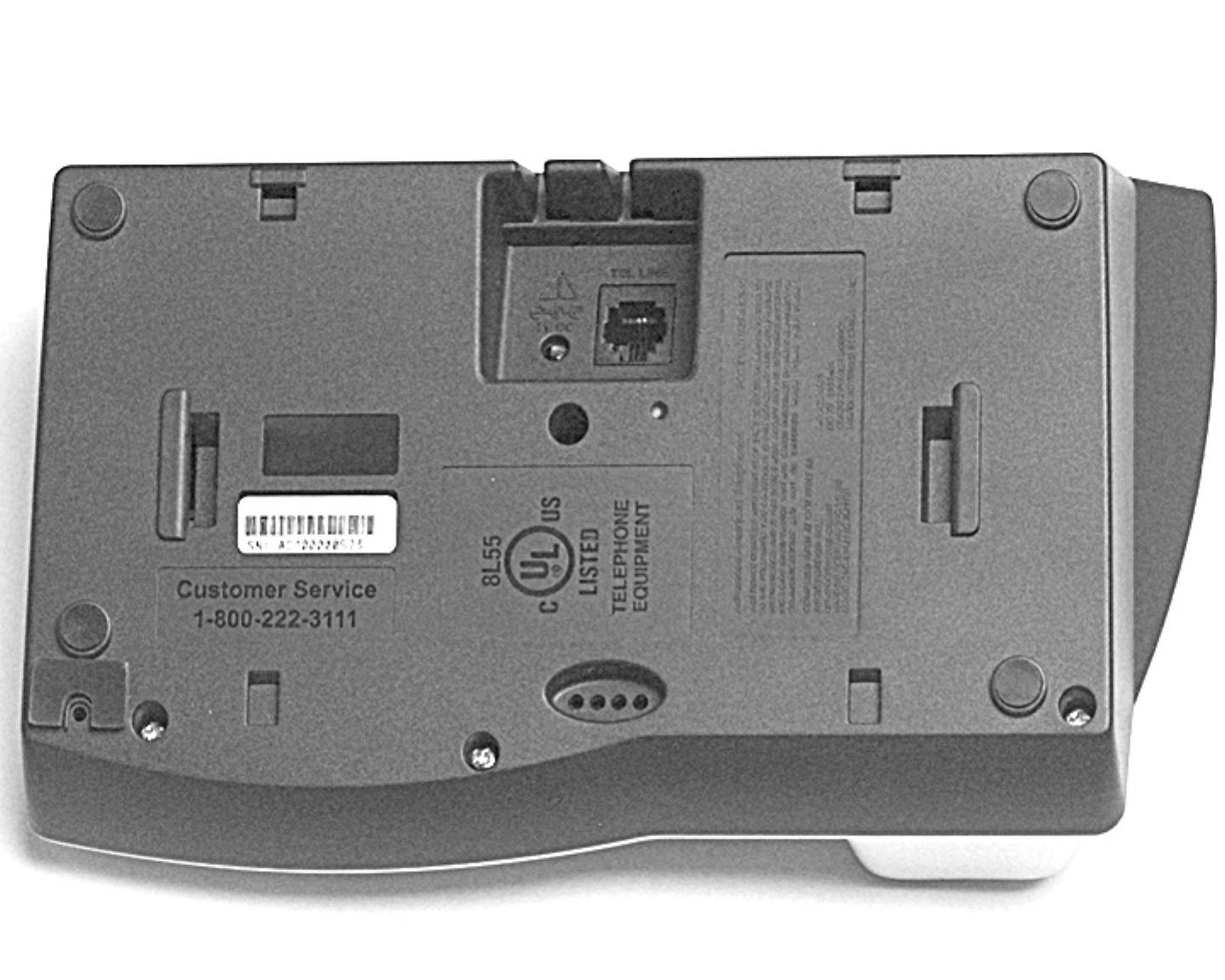
3 Enter the 15-digit Base Unit ID Code located on the underside of your
Model 3358 base.
4 Use the softkey to select .The screen displays PLEASE WAIT!!.
5 After about 45 seconds, the screen displays FOUND BASE. If the
handset displays BASE BUSY TRY LATER, the base is in use.
OK
NEW
INSTALLATION
INSTALLATION
91-5438-20-00_ATT3358_R0 2003.7.11 9:41 AM Page 5
6
Wall Installation
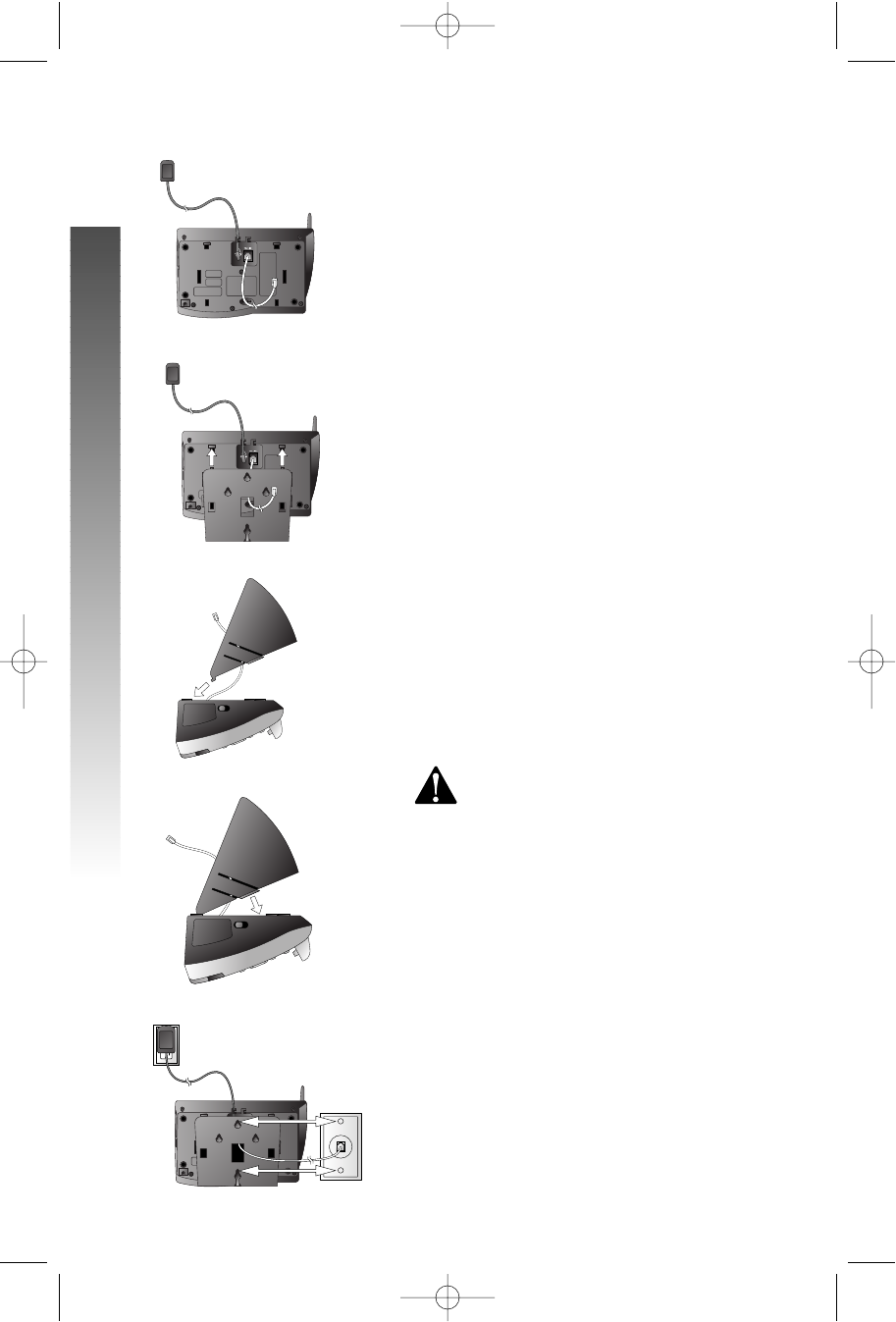
1 Connect the power cord and
telephone line cord to the underside
of the base, as shown (figure a).
2 Position the mounting bracket as
shown (figure b).
3 Feed the telephone line cord through
the hole in the center of the mounting
bracket (figure b), align the bracket
with the base, and slide it into the
hole on the base as shown (figure c).
4 Lock the mounting bracket in place
(figure d).
5 Plug the telephone line cord into a
modular wall jack, and mount the
base on the wall (figure e).
a) Align holes on base with mounting
studs on wall jack.
b) Place power cord as shown.
c) Pull base down on mounting studs until
it locks into place.
6 Plug the power cord into an electrical
outlet not controlled by a wall switch
(figure e).
Use only the power cord supplied
with this product. If you need a
replacement, call 1-800-222-3111.
7 Follow Steps 3–5 in “Table/Desktop
Installation.”
figure a
figure b
figure c
figure d
figure e
INSTALLATION
INSTALLATION
91-5438-20-00_ATT3358_R0 2003.7.11 9:41 AM Page 6
7
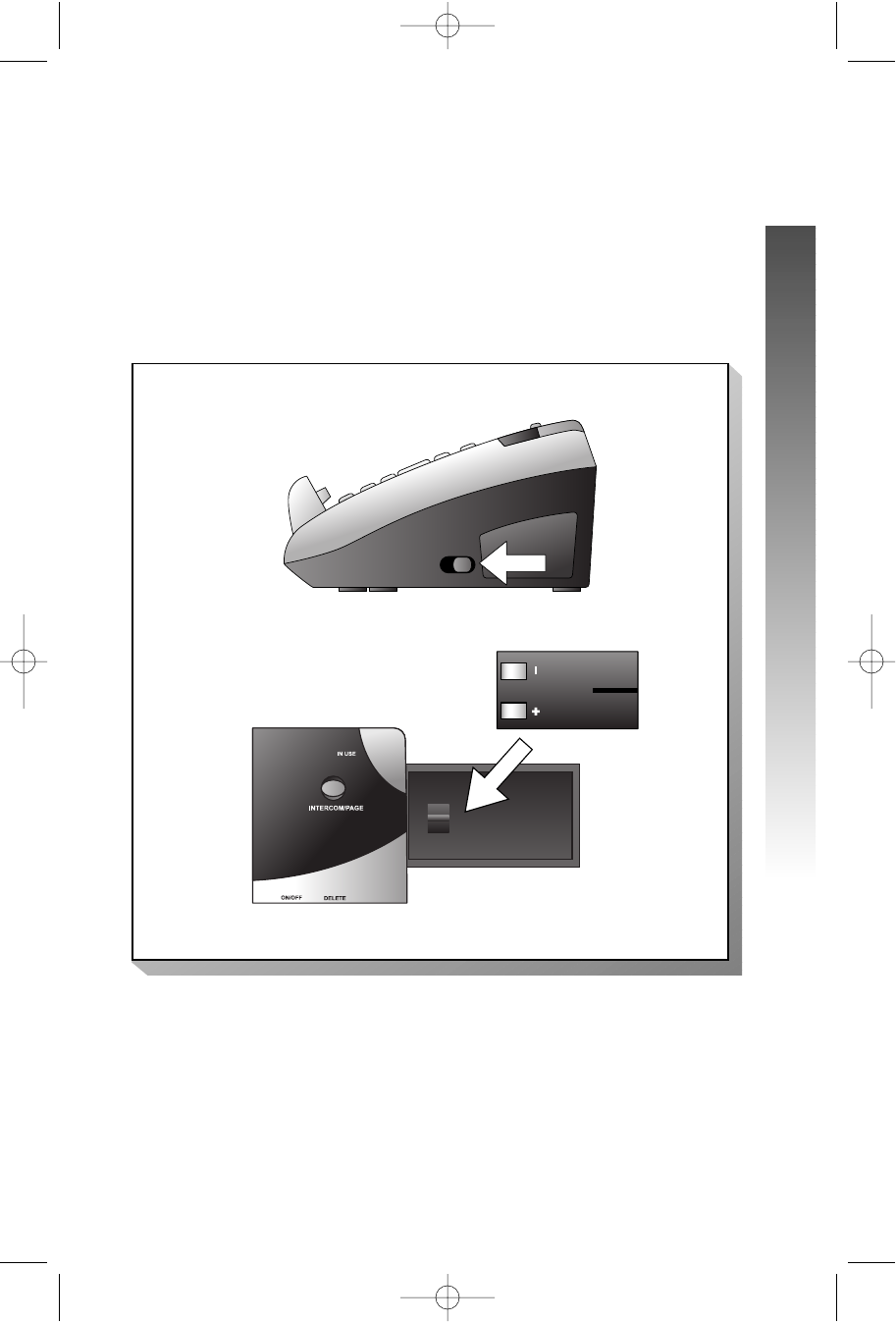
Spare Battery/Power Failure Backup
You can buy a spare handset battery (AT&T Battery 2401, SKU# 91077, sold
separately) and keep it charged in the base at all times.
In the event of a power failure, a fully charged battery in the spare battery
compartment will allow you to make and receive calls from the cordless
handset only for up to 21
/2hours.
The spare battery will fully charge in 24 hours.
SPARE
BATTERY
INSTALLATION
INSTALLATION
91-5438-20-00_ATT3358_R0 2003.7.11 9:41 AM Page 7
8
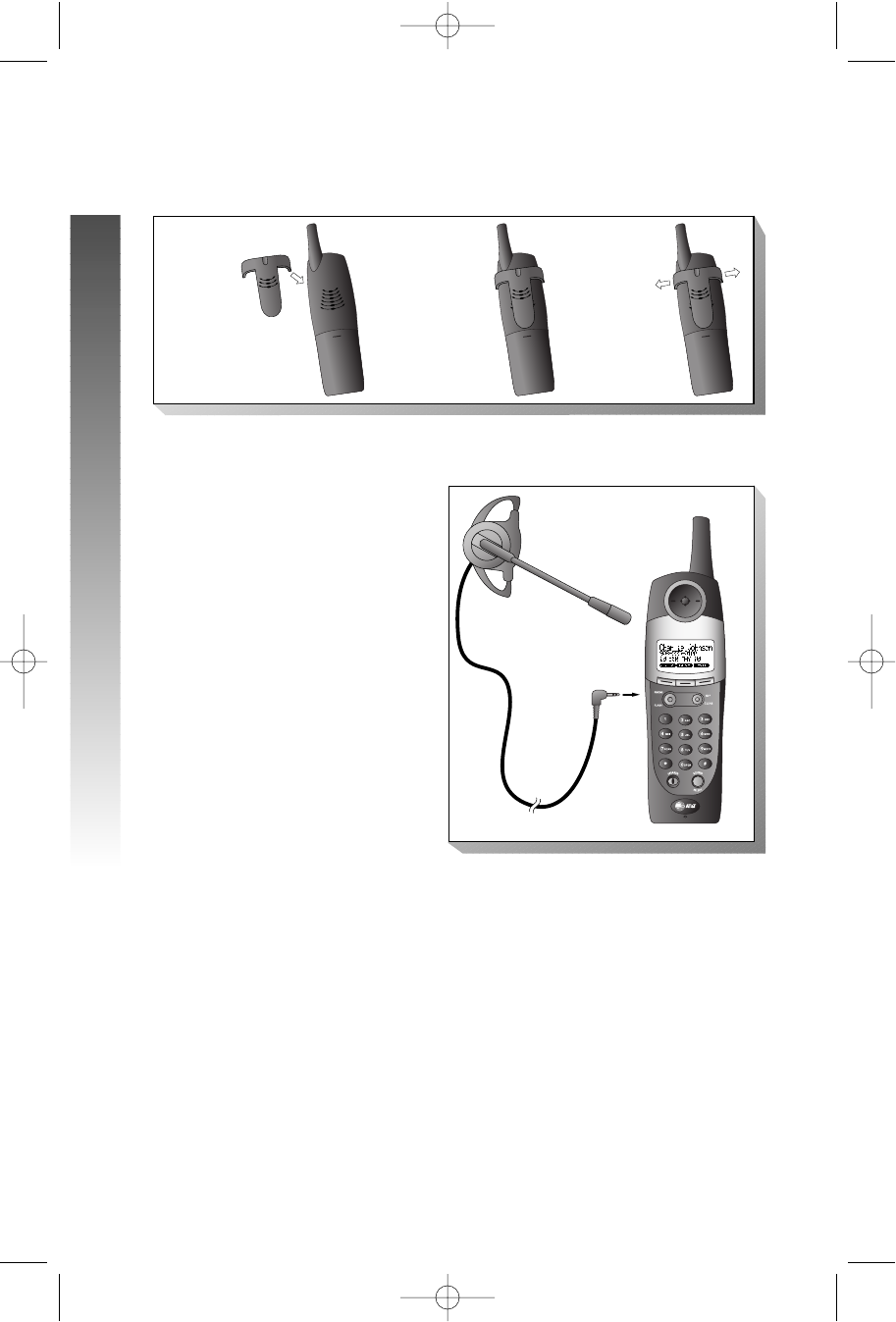
Belt Clip
You may choose to use the optional belt clip with your handset.
Headset
You can use this telephone
hands-free when you install
any industry standard 2.5
mm headset . For best
results use an AT&T 2.5 mm
headset.
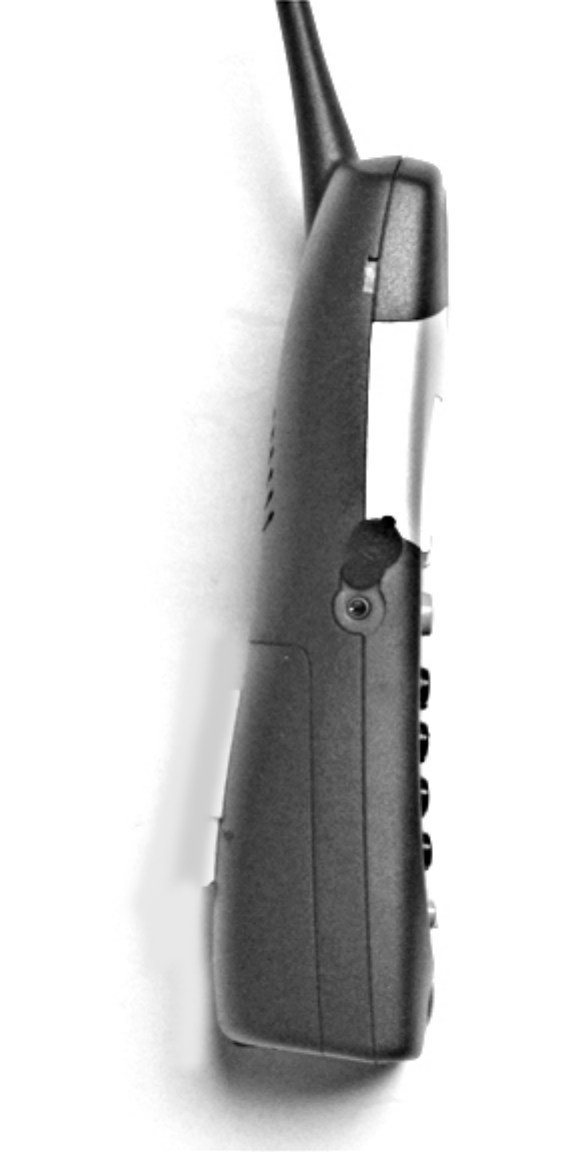
Plug the headset into the
jack located on the left side
of the handset (under the
small rubber flap). Do not
force the connection, but
make sure the plug fits
securely.
b) Press tabs
on belt clip
into slots
on back of
handset to
reattach.
a) Slide
down
into
grooves.
c) To remove,
lift one side
with your
thumbnail
and push
back.
INSTALLATION
INSTALLATION
91-5438-20-00_ATT3358_R0 2003.7.11 9:41 AM Page 8
9
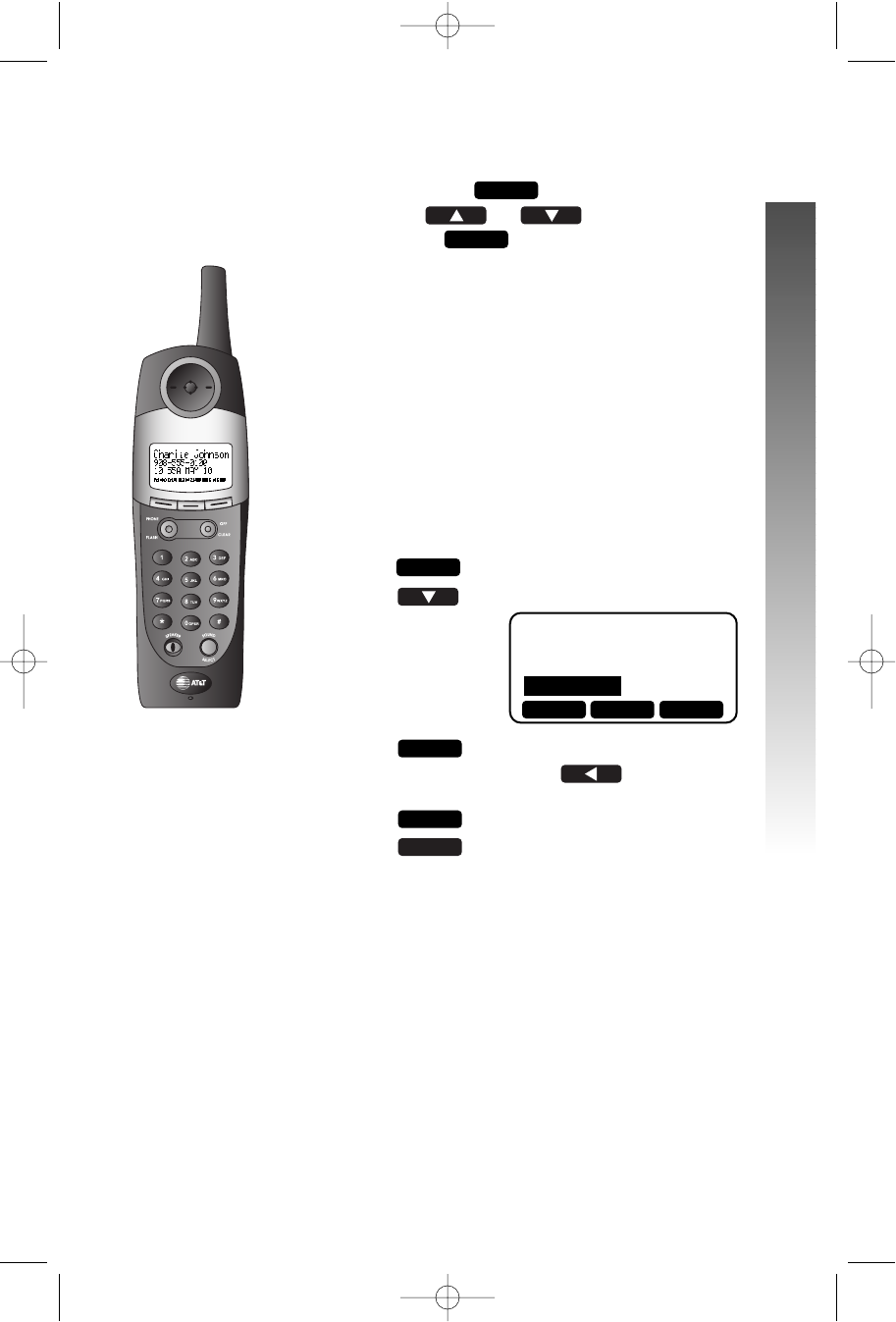
Feature Setup Menu
Press the softkey under to enter the Feature
Setup menu. Use or to choose
features, then select to save your choice.
¥¥NOTE: If you wait more than 20 seconds without
pressing a key, the handset returns to the idle screen.
¥¥NOTE: If you receive an incoming call while in
feature setup, the phone automatically exits the
menu to let you take the call.
Set Time
You can choose to set the time manually, or you
can allow it to be set automatically with incoming Caller
ID information.
1Press .
2Press until the screen displays
3Press . The screen displays the
current time setting. Use to move
the cursor, and use the keypad to change a digit.
Press to select AM or PM.
4Press to save the displayed time.
¥¥NOTE: To set up the answering system clock, please
see ANSWERING SYSTEM OPERATION on page 45
in this manual.
SAVE
AM/PM
OK
CALLS LOG
INTERCOM
HANDSET SETTINGS
SET TIME
MENU
OK
MENU
FEATURE SETUP – HANDSET
FEATURE SETUP – HANDSET
i
ii
iii
ii
ii
i
ii
ii
SET TIME
▲OK ▼
FEATURE SETUP – HANDSET
91-5438-20-00_ATT3358_R0 2003.7.11 9:41 AM Page 9
10
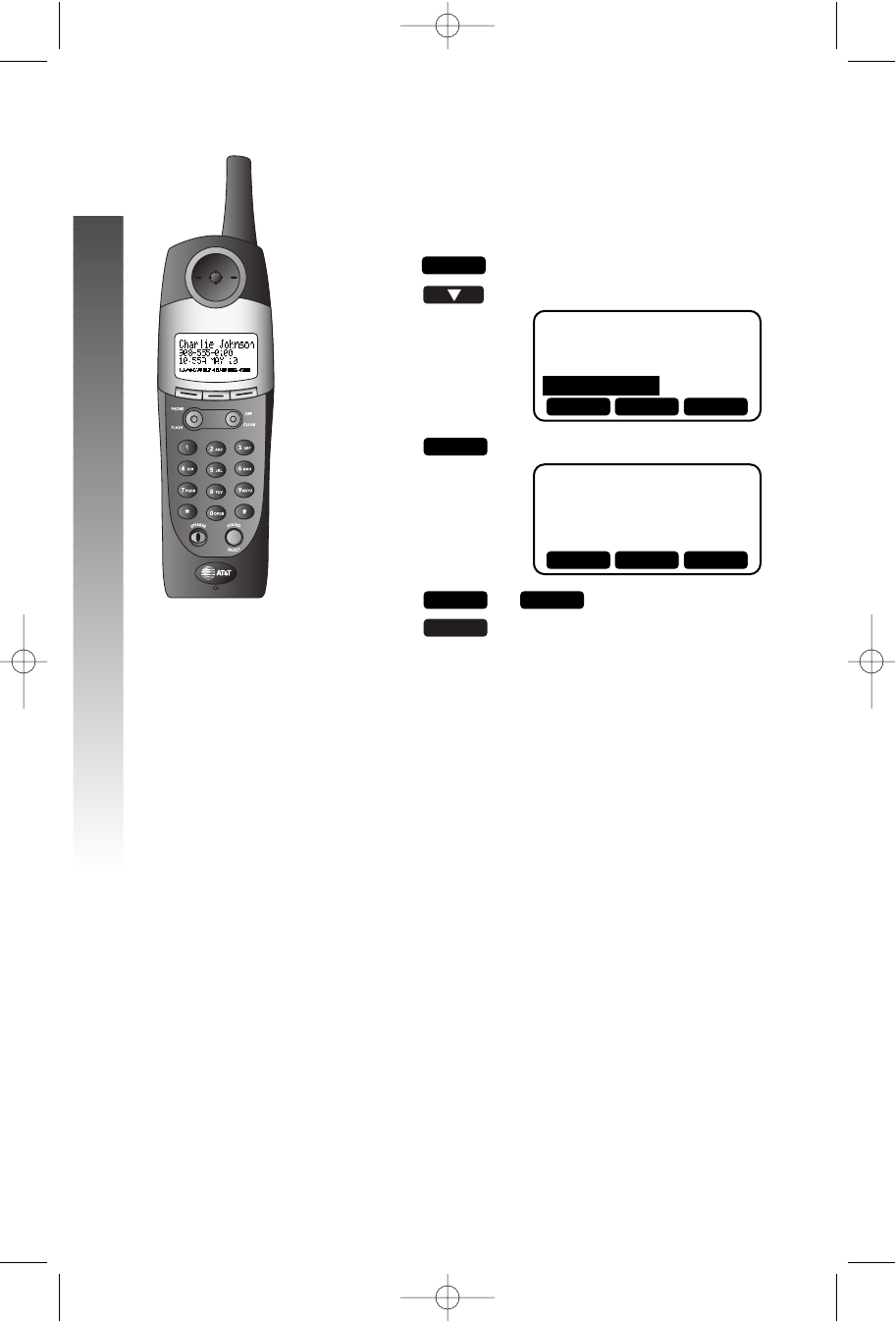
Clock Mode
You can choose to display the time when the phone is
idle at the handset, or you can turn this feature off. The
default setting is ON.
1Press .
2Press until the screen highlights
3Press . The screen displays
4Press or .
5Press to save the displayed setting.
REGISTER
You can refer to page 5.
OK
ONOFF
CLOCK ENABLE
ON
OK
INTERCOM
HANDSET SETTINGS
SET TIME
CLOCK MODE
MENU
CLOCK MODE
▲OK ▼
OFF OK ON
i
ii
iii
ii
ii
i
ii
ii
FEATURE SETUP – HANDSET
FEATURE SETUP – HANDSET
91-5438-20-00_ATT3358_R0 2003.7.11 9:41 AM Page 10
11
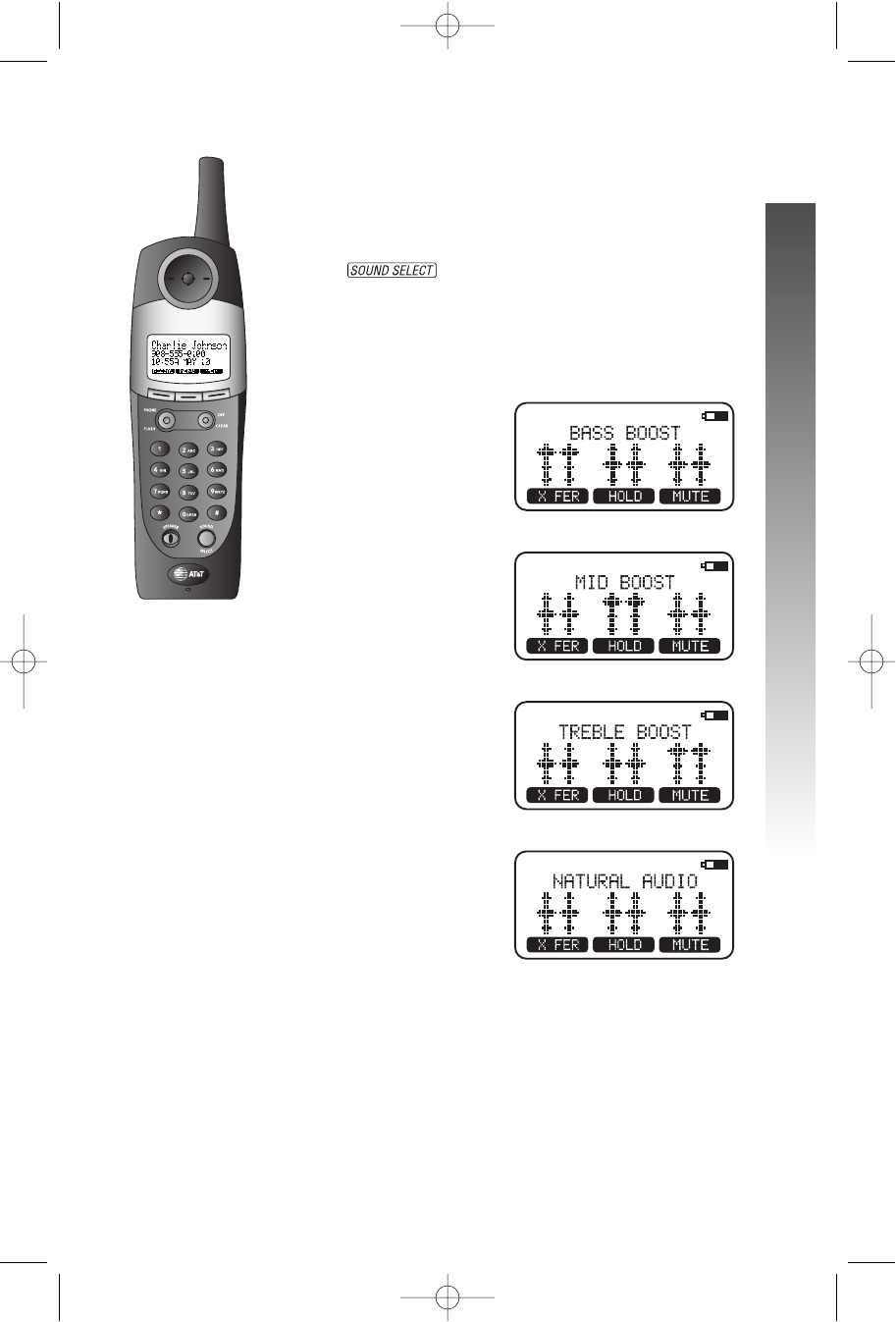
Sound Select
This telephone uses the latest acoustic receiver design,
providing you with four different sound quality settings.
During a call, you can adjust the quality of the sound.
Pressing repeatedly will cycle you through
four different responses.
¥¥NOTE: The mid-boost setting is hearing-aid
compatible.
BASS – Low frequency sounds enhanced.
MID – Mid-range sounds enhanced.
TREBLE – High frequency sounds enhanced.
NATURAL – No frequency enhancement.
¥¥NOTE: This feature is available only on the handset,
not on the speakerphone or optional headset.
p
pp
pp
FEATURE SETUP – HANDSET
FEATURE SETUP – HANDSET
91-5438-20-00_ATT3358_R0 2003.7.11 9:41 AM Page 11
OK
12
i
ii
iii
ii
ii
i
ii
ii
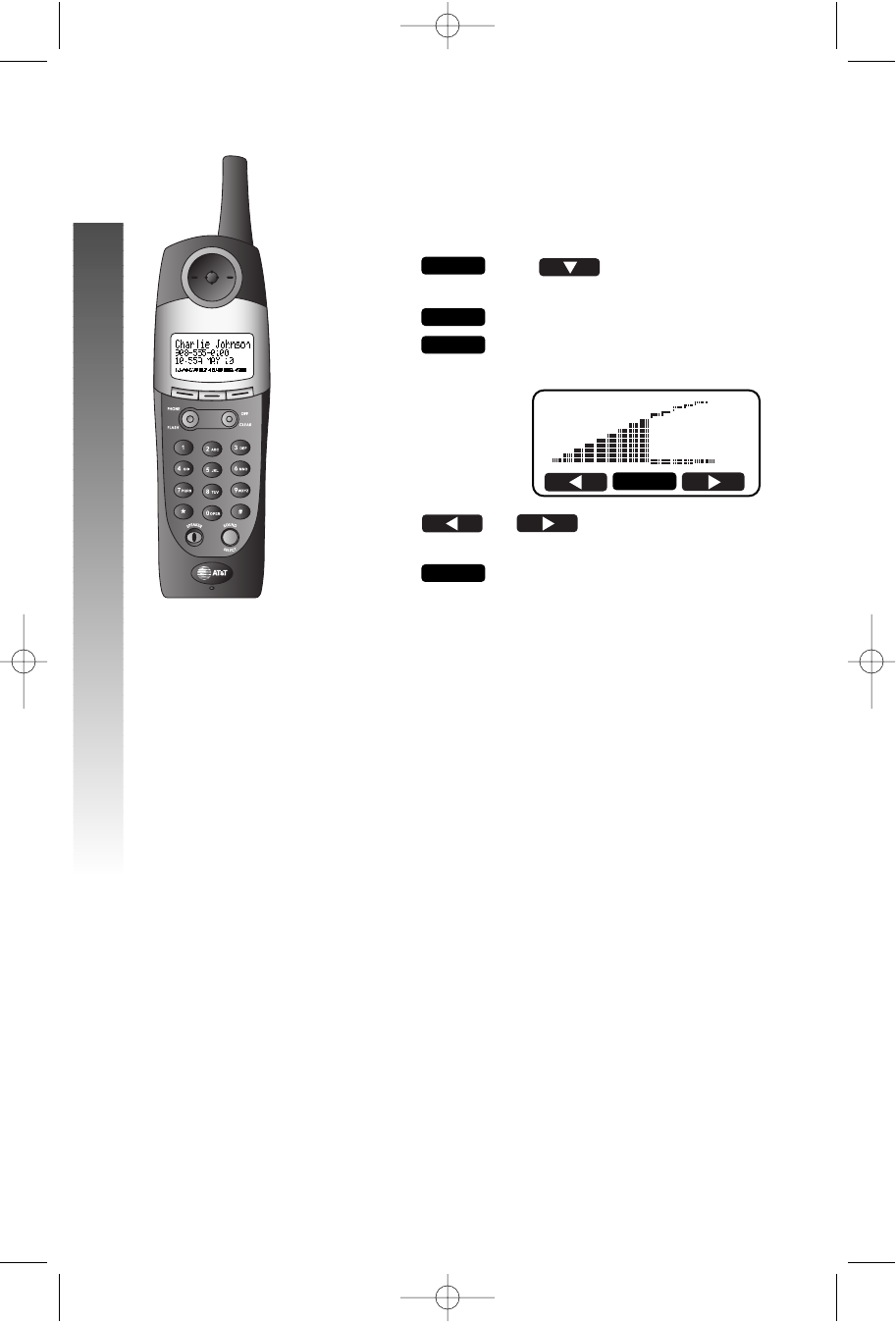
Ringer Volume
Adjust the volume of the handset ringer. Setting the
volume so that no bars show on the graph turns the ringer
off.
1Press , then until the screen
highlights HHAANNDDSSEETT SSEETTTTIINNGGSS.
2Press .
3Press when RRIINNGGEERR VVOOLLUUMMEEis
highlighted. The screen displays
4Press or to hear samples of
ring volumes.
5Press to save the displayed setting.
OK
RINGER
VOLUME
OK
OK
MENU
FEATURE SETUP – HANDSET
FEATURE SETUP – HANDSET
91-5438-20-00_ATT3358_R0 2003.7.11 9:41 AM Page 12
13
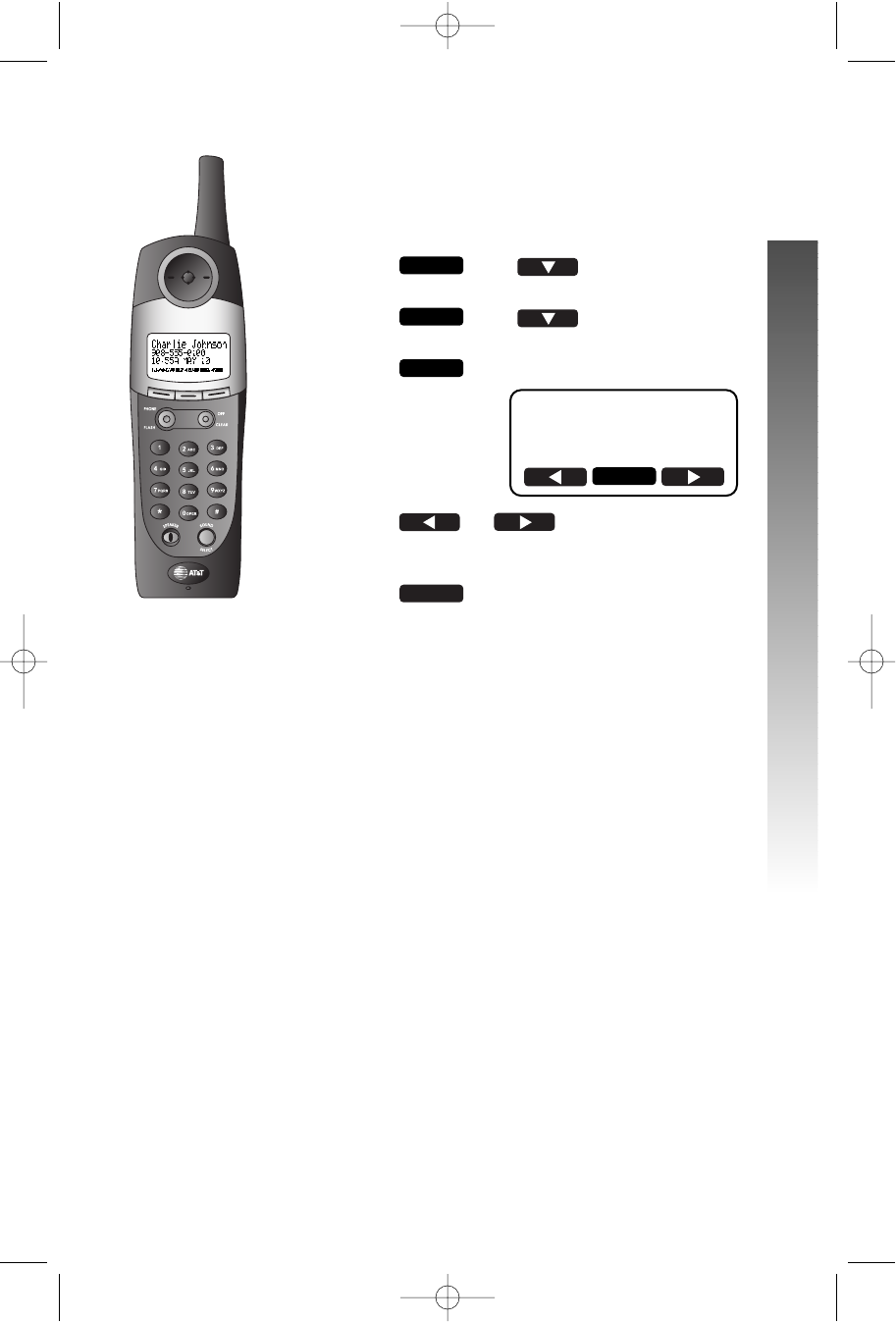
Ringer Melody
The Ringer Melody sets which ringer you hear when you
have an outside call. The Ringer Melody default setting is
#01; there are eight Ringer Melody selections.
1Press , then until the screen
highlights HHAANNDDSSEETT SSEETTTTIINNGGSS.
2Press , then until the screen
highlights RRIINNGGEERR MMEELLOODDYY.
3Press . The screen displays
4Press or to display desired
setting. A sample of the displayed setting is played
briefly.
5Press to save the displayed setting. You
will hear a confirmation tone.
OK
RINGER #01
OK
OK
MENU
i
ii
iii
ii
ii
i
ii
ii
OK
FEATURE SETUP – HANDSET
FEATURE SETUP – HANDSET
91-5438-20-00_ATT3358_R0 2003.7.11 9:41 AM Page 13
14
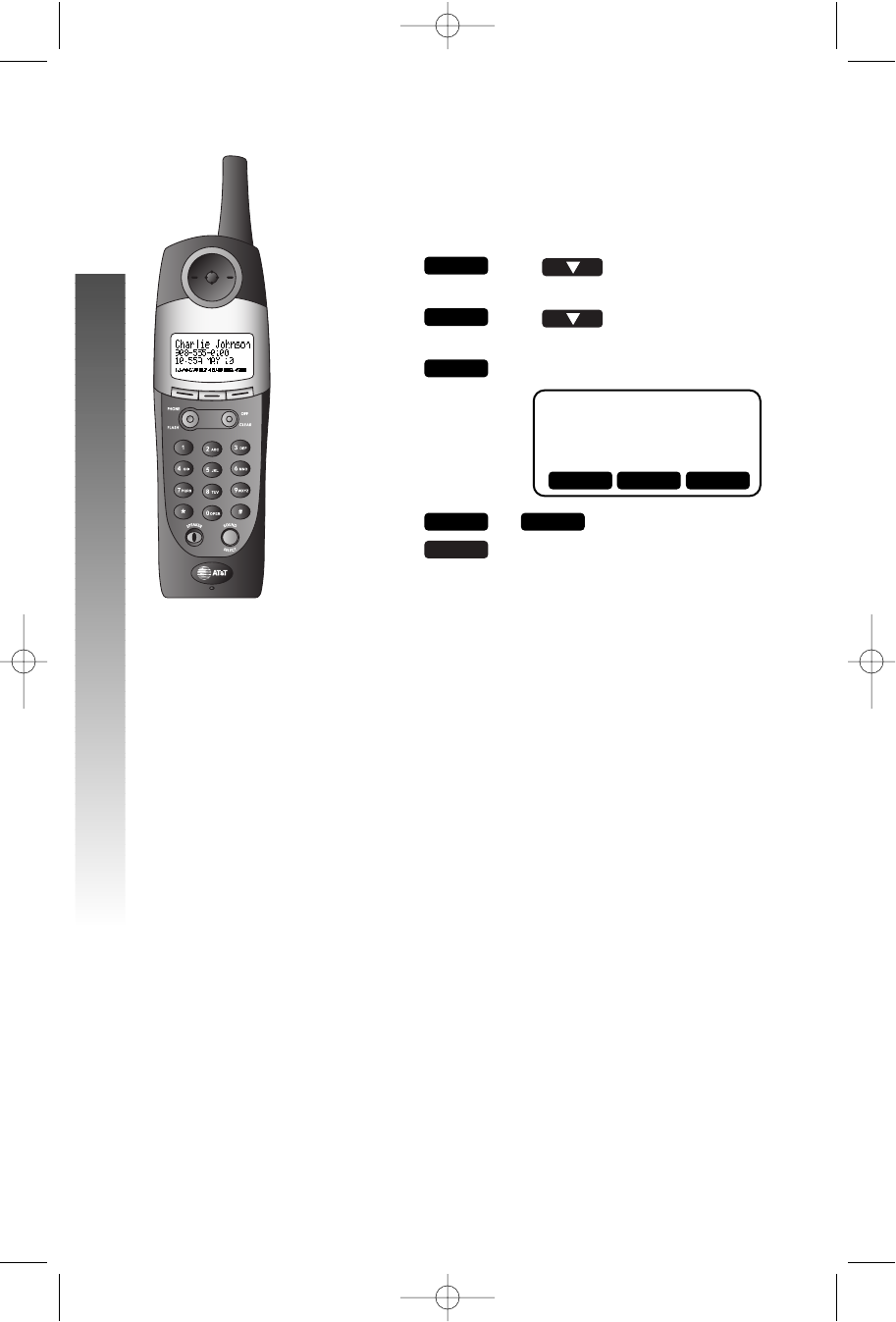
Low Batt Tone
You can set the handset to sound a tone when battery
power is low, or you can turn the tone off. Default setting
is OONN.
1Press , then until the screen
highlights HHAANNDDSSEETT SSEETTTTIINNGGSS.
2 Press , then until the screen
highlights LLOOWW BBAATTTT TTOONNEE.
3 Press The screen displays
4 Press or .
5 Press to save the displayed setting.
OK
ONOFF
LOW BATTERY TONE
ON
OK
OK
MENU
OFF OK ON
i
ii
iii
ii
ii
i
ii
ii
FEATURE SETUP – HANDSET
FEATURE SETUP – HANDSET
91-5438-20-00_ATT3358_R0 2003.7.11 9:41 AM Page 14
15
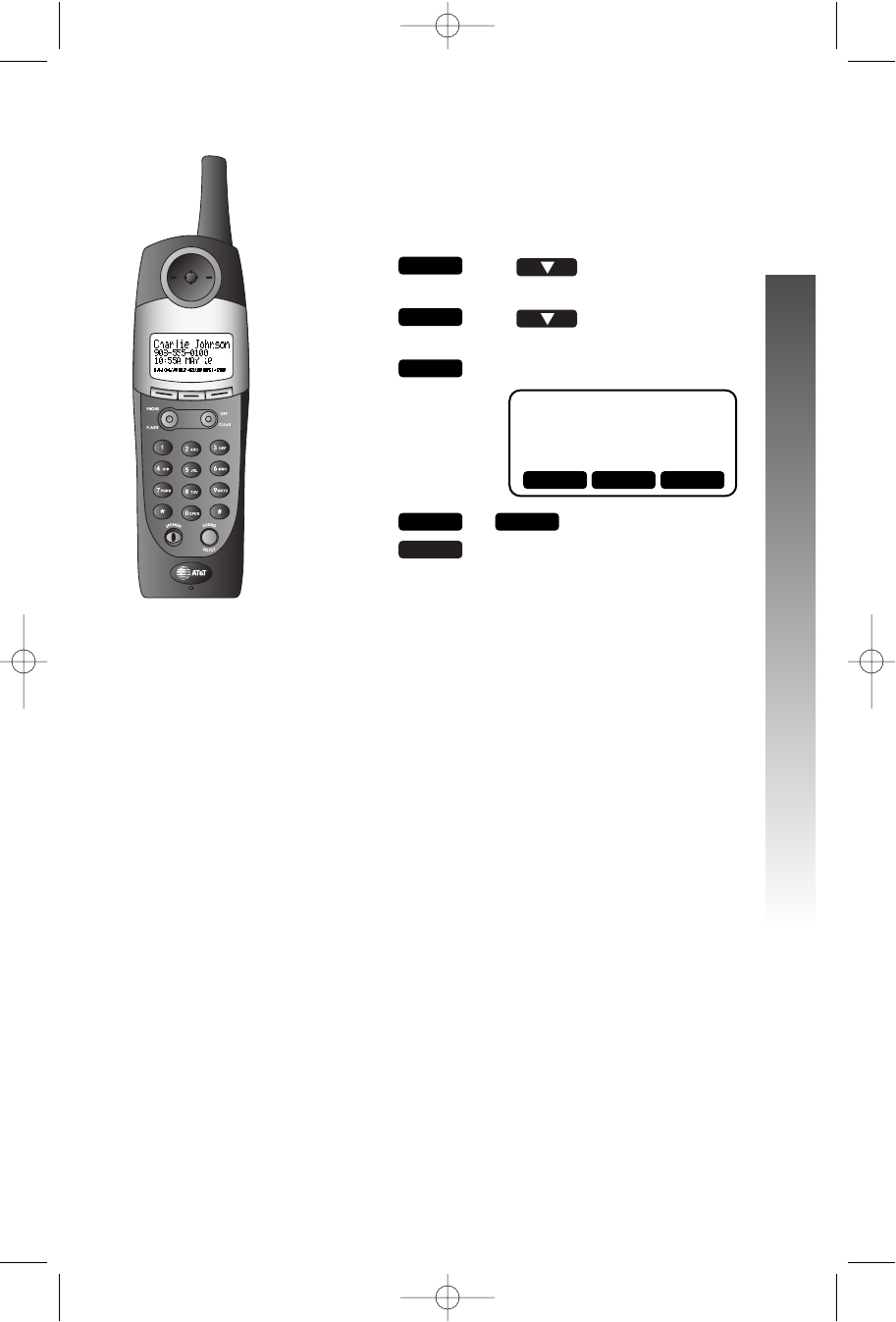
Range Tone
You can set the handset to sound a tone when you are
approaching the range limit, or you can turn this tone off.
The default setting is OONN.
1Press , then until the screen
highlights HHAANNDDSSEETT SSEETTTTIINNGGSS.
2Press , then until the screen
highlights RRAANNGGEE TTOONNEE.
3Press The screen displays
4Press or .
5Press to save the displayed setting.
OK
ONOFF
RANGE TONE
ON
OK
OK
MENU
OFF OK ON
i
ii
iii
ii
ii
i
ii
ii
FEATURE SETUP – HANDSET
FEATURE SETUP – HANDSET
91-5438-20-00_ATT3358_R0 2003.7.11 9:41 AM Page 15
16
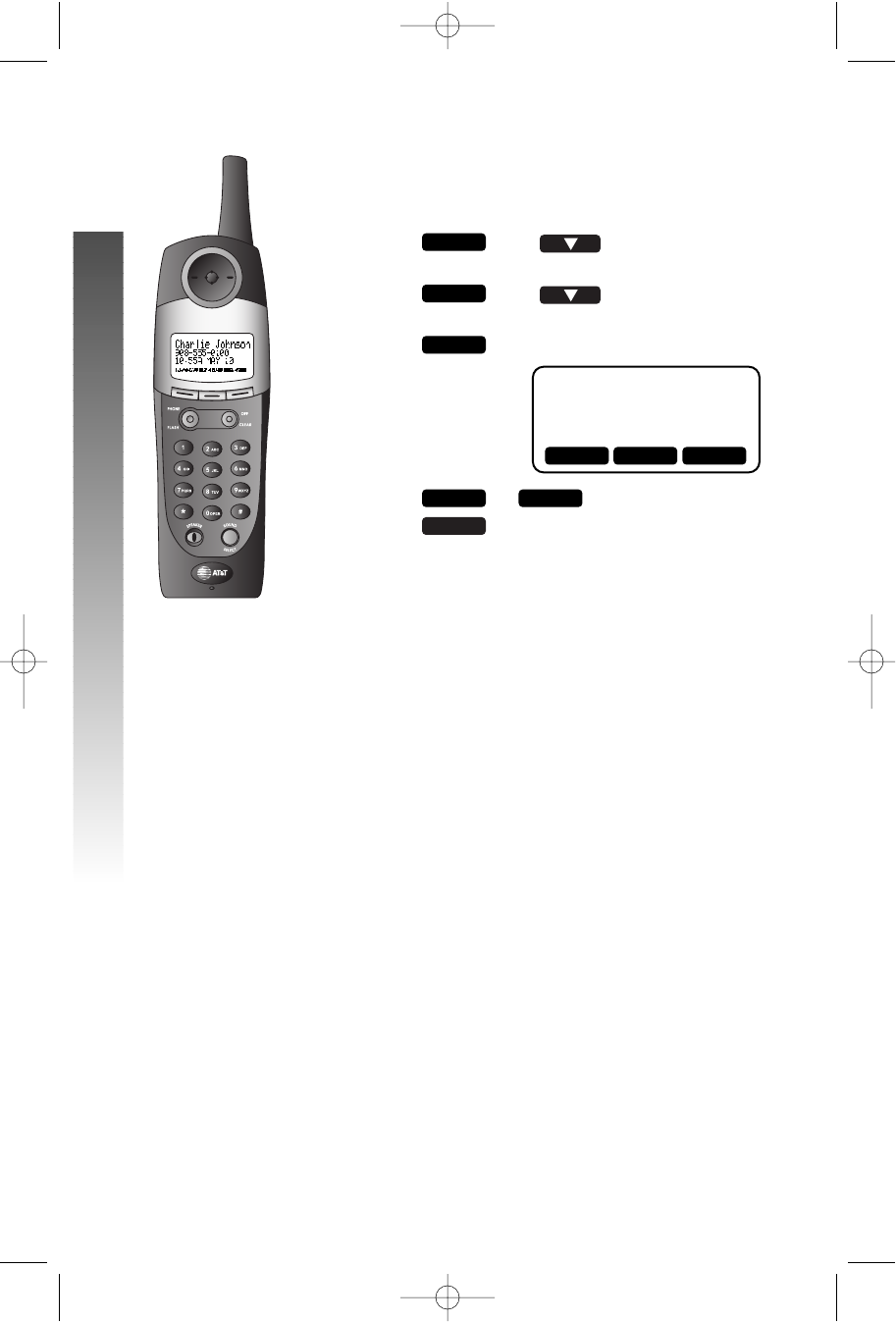
Keypad Tone
When this feature is on, each key press makes a sound.
The default setting is OONN.
1Press , then until the screen
highlights HHAANNDDSSEETT SSEETTTTIINNGGSS.
2Press , then until the screen
highlights KKEEYYPPAADD TTOONNEE.
3Press The screen displays
4Press or .
5Press to save the displayed setting.
OK
ONOFF
KEYPAD TONE
ON
OK
OK
MENU
OFF OK ON
i
ii
iii
ii
ii
i
ii
ii
FEATURE SETUP – HANDSET
FEATURE SETUP – HANDSET
91-5438-20-00_ATT3358_R0 2003.7.11 9:41 AM Page 16
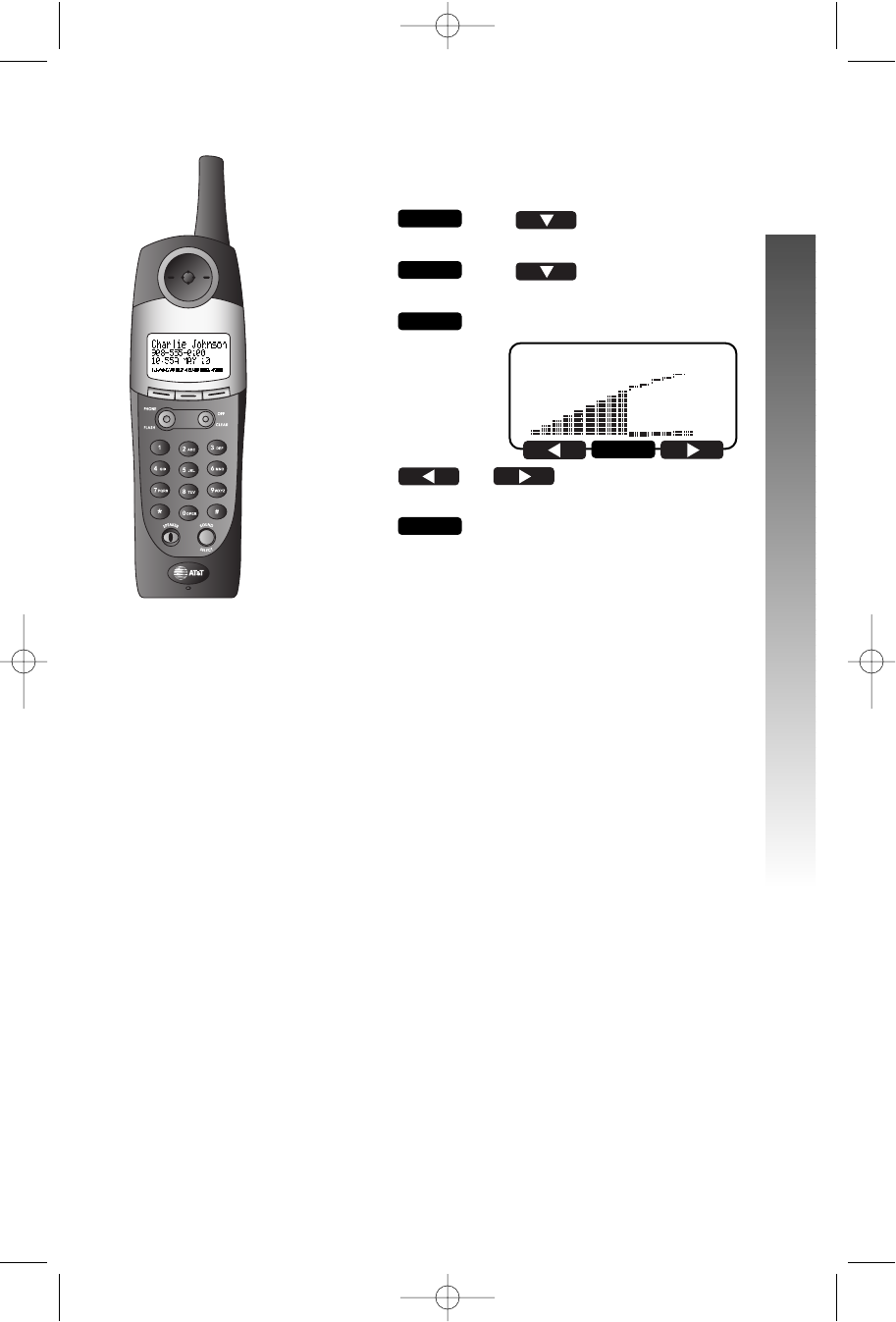
Set Contrast
You can adjust the screen contrast for easy viewing.
1Press , then until the screen
highlights HHAANNDDSSEETT SSEETTTTIINNGGSS.
2Press , then until the screen
highlights CCOONNTTRRAASSTT.
3Press The screen displays
4Press or to decrease or
increase contrast.
5Press to save the displayed setting.
OK
CONTRAST
OK
OK
MENU
17
OK
i
ii
iii
ii
ii
i
ii
ii
FEATURE SETUP – HANDSET
FEATURE SETUP – HANDSET
91-5438-20-00_ATT3358_R0 2003.7.11 9:41 AM Page 17
18
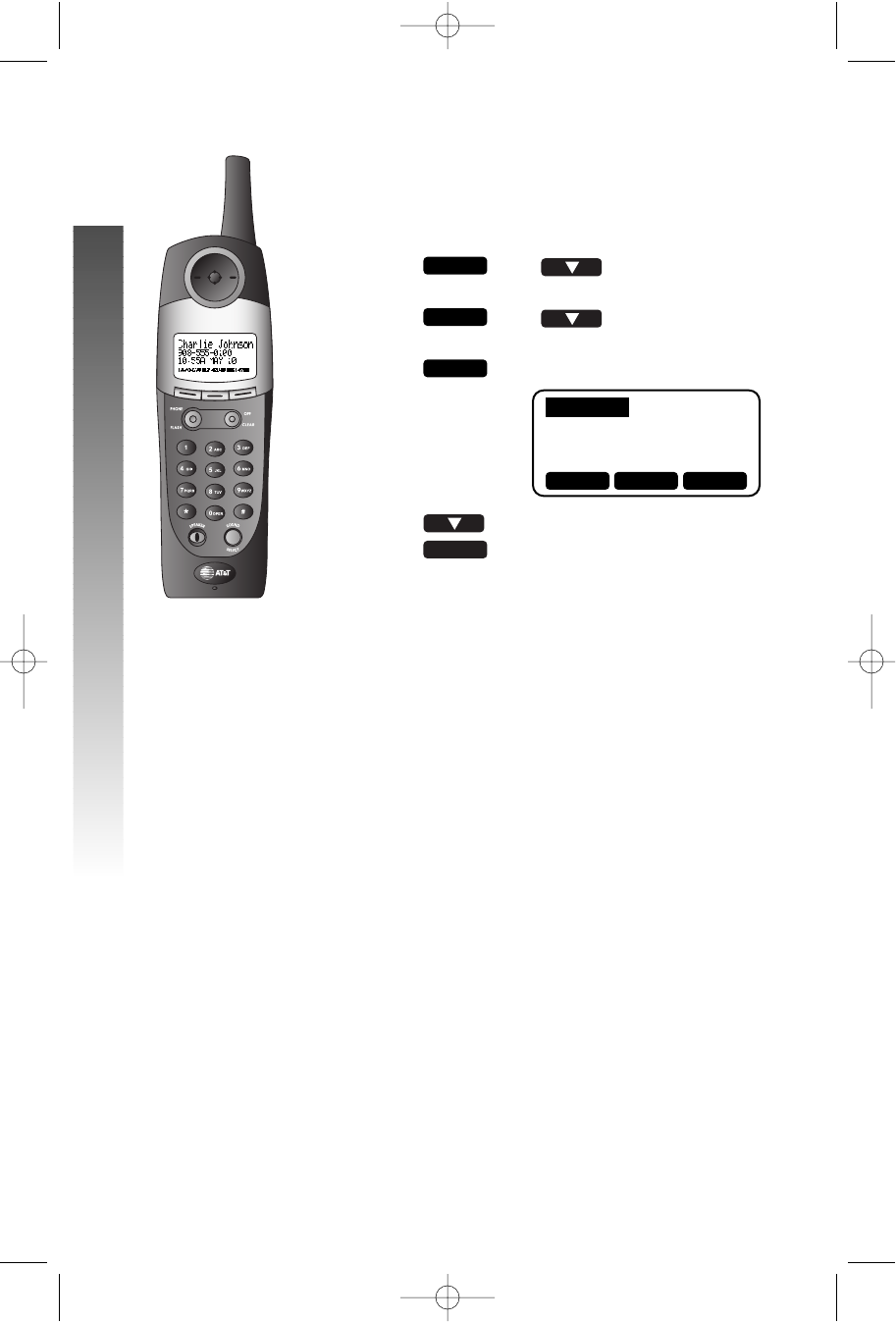
Language Setting
You can set each registered handset so the display
appears in English, Spanish or French. The default setting
is EENNGGLLIISSHH.
1Press , then until the screen
highlights HHAANNDDSSEETT SSEETTTTIINNGGSS.
2Press , then until the screen
highlights LLAANNGGUUAAGGEE.
3Press The screen displays
4Press to highlight the desired language.
5Press to save the displayed setting.
OK
ENGLISH
SPANISH
FRENCH
OK
OK
MENU
▲OK ▼
ENGLISH
i
ii
iii
ii
ii
i
ii
ii
FEATURE SETUP – HANDSET
FEATURE SETUP – HANDSET
91-5438-20-00_ATT3358_R0 2003.7.11 9:41 AM Page 18
19
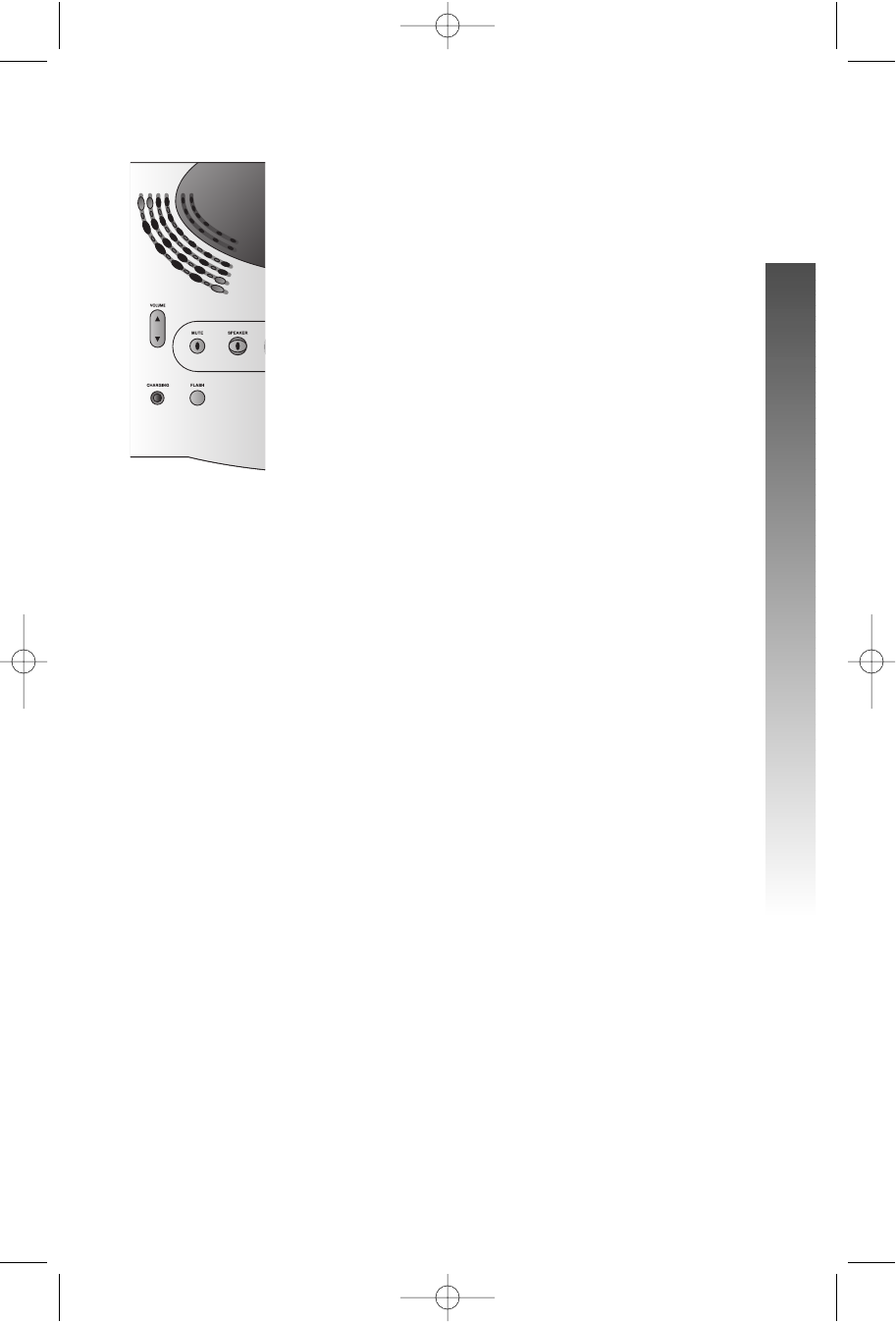
Ringer Volume
1 Make sure the base Speakerphone is off.
2 Press and hold MM, then press VOLUME ++or
--to adjust the ringer volume.You will hear
a sample of the ringer volume setting.
¥¥NOTE: The lowest volume setting is off.
3 Release MMto save your setting.
3358
i
ii
ii
i
ii
ii
i
ii
ii
FEATURE SETUP – BASE
FEATURE SETUP – BASE
FEATURE SETUP – BASE
91-5438-20-00_ATT3358_R0 2003.7.11 9:41 AM Page 19
20
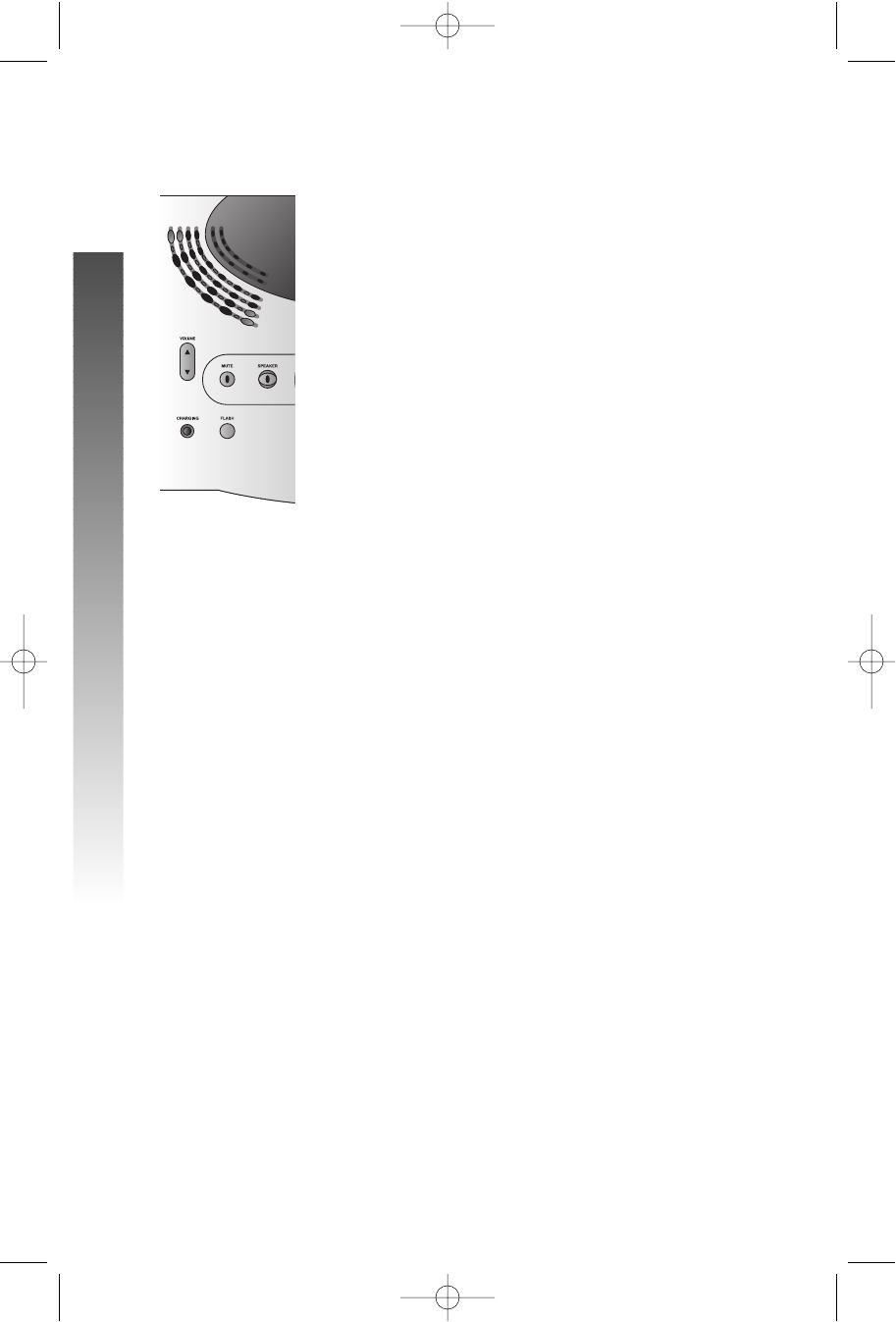
Ringer Melody
1 Make sure the base Speakerphone is off.
2 Press and hold FF, then press VOLUME ++
or --to change the ringer melody.You will hear
a brief sample of the selected melody.
3 Release FFto save your setting.
3358
i
ii
ii
i
ii
ii
i
ii
ii
FEATURE SETUP – HANDSET
FEATURE SETUP – HANDSET
91-5438-20-00_ATT3358_R0 2003.7.11 9:41 AM Page 20
21
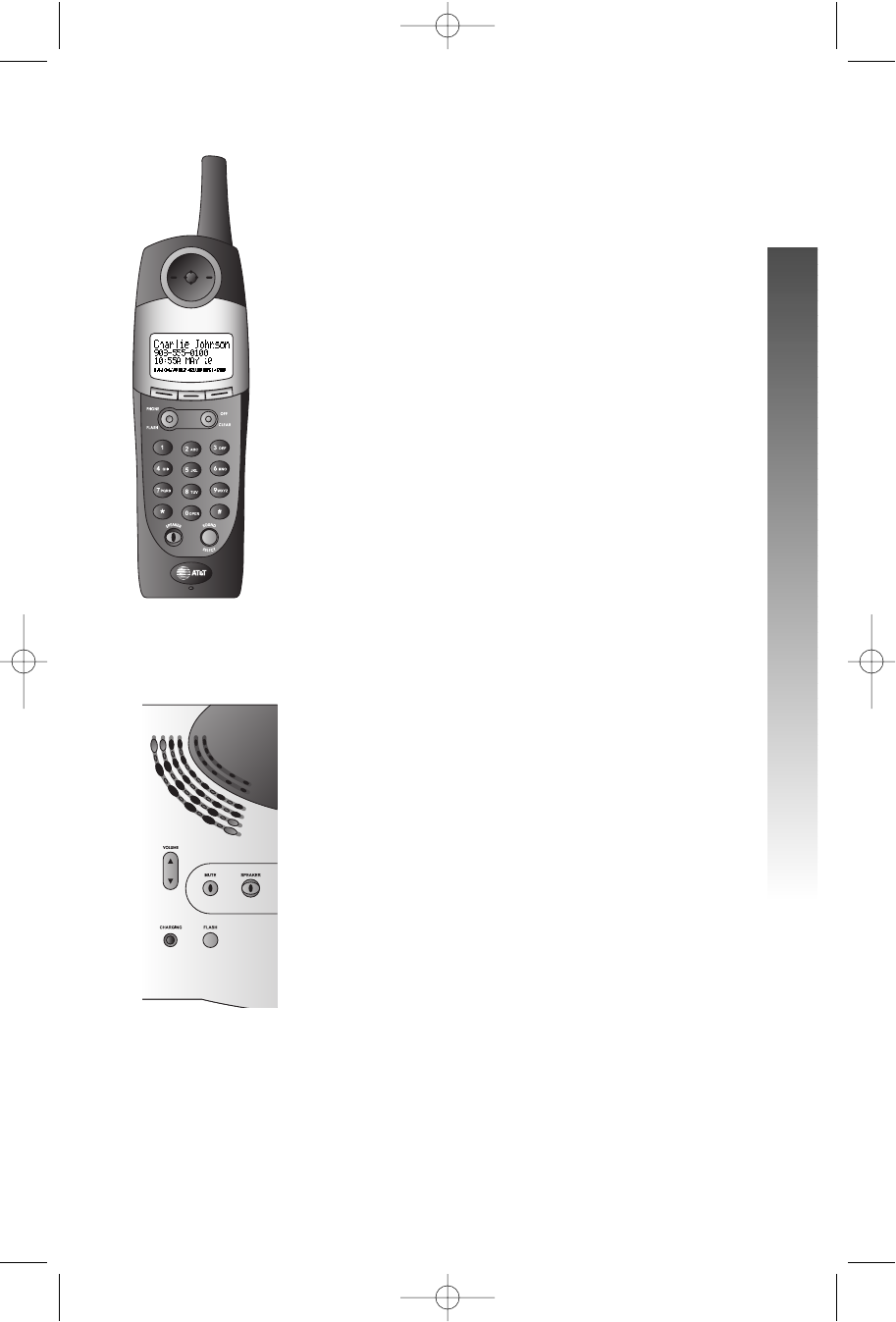
Make a Call
At the Handset
1Press PP, then dial the number
— OR —
Dial the number, then press PP.
2To end the call, press Oor place the handset
in the base.
Answer a Call
At the Handset
1To answer a call, press any key except O
and softkeys.
2To end the call, press Oor place the handset
in the base.
At the Base
1Press KKto answer a call.
2 To end the call, press KKagain.
TELEPHONE OPERATION
TELEPHONE OPERATION
TELEPHONE OPERATION
j
jj
jjp
pp
pp
3358
i
ii
ii
91-5438-20-00_ATT3358_R0 2003.7.11 9:41 AM Page 21
3358
22
ii
i
Volume
Handset
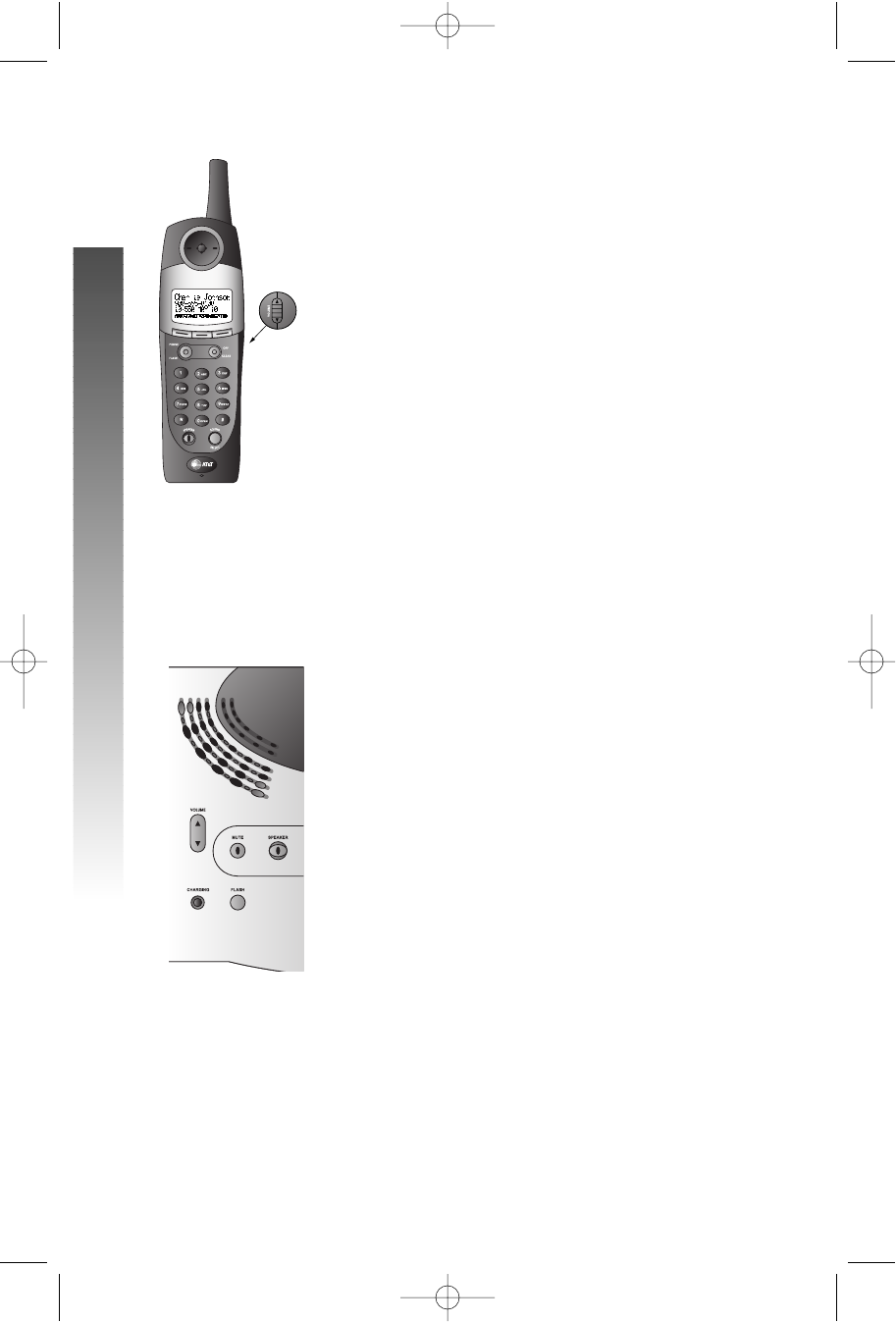
You can adjust the volume of what you hear through the
handset during a conversation by pressing VOLUME ++or
--on the right side of the handset. You will hear a
special tone when you reach the highest or lowest
setting.
Base Speaker
Press VOLUME ++or --to adjust the base speaker
volume while on a call. You will hear a special tone when
you reach the highest or lowest setting.
j
jj
jj
l
ll
ll
TELEPHONE OPERATION
TELEPHONE OPERATION
91-5438-20-00_ATT3358_R0 2003.7.11 9:41 AM Page 22
Handset Speakerphone
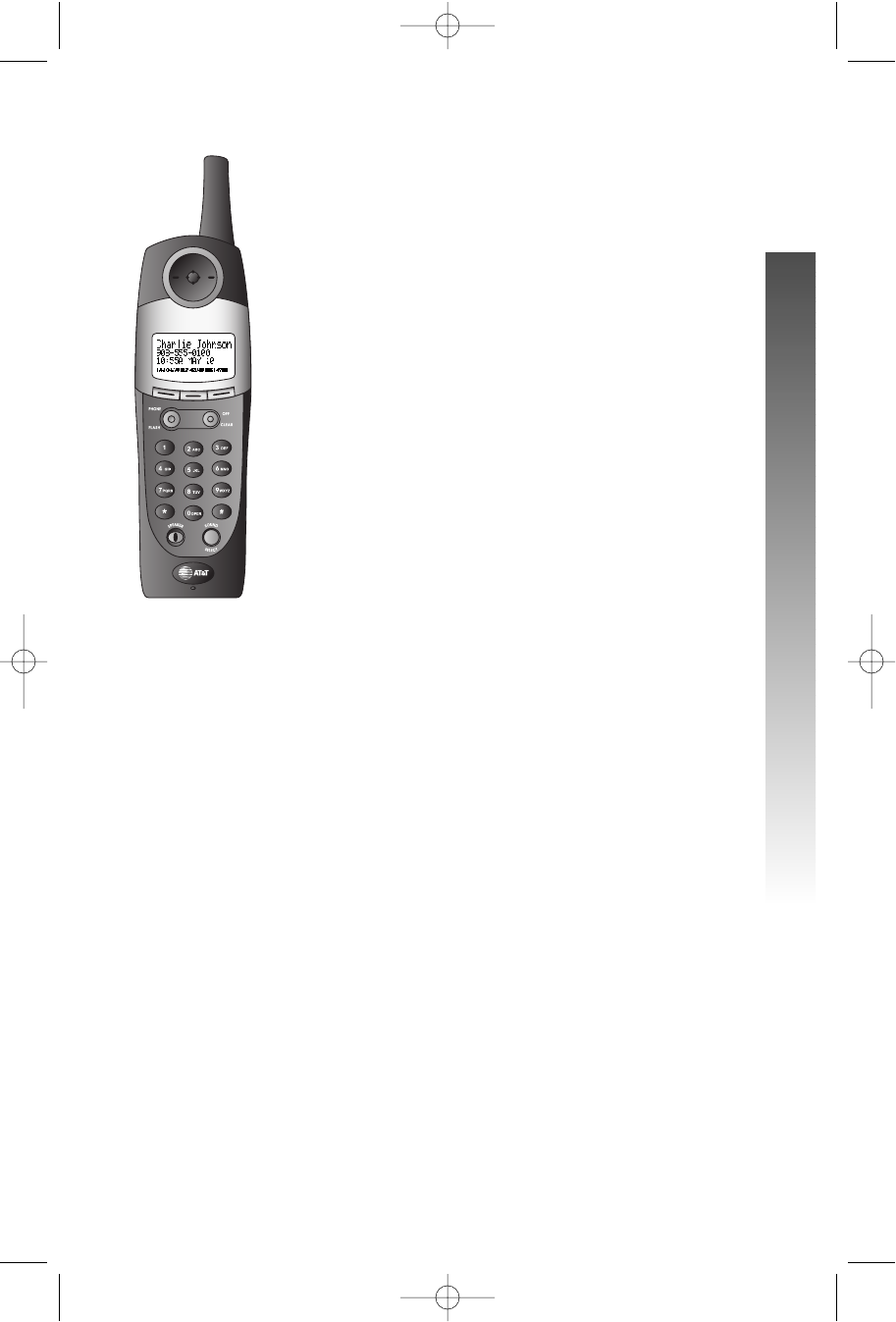
When the handset speakerphone is activated, you
can use the phone hands-free. Stand the handset on
a flat surface (not in the base) and continue your
conversation.
¥¥NOTE: For best performance, use the handset
speakerphone in a quiet location with the handset
facing you from no more than four feet away.
Make a Call
1 Press KK, then dial the number
— OR —
Dial the number, then press KK.
2 To end the call, press OO
— OR —
Place the handset in the base.
Answer a Call
1Press KKto answer a call.
2 To end the call, press OO
— OR —
Place the handset in the base.
Switch Between Handset and Speakerphone
While on a call you can press KKto switch to
speakerphone. While on a speakerphone call, press
KKto return to the handset earpiece.
¥¥NOTE: If you press PPwhile you are on the
speakerphone, you will flash the call.
23
ii
i
p
pp
pp
j
jj
jj
TELEPHONE OPERATION
TELEPHONE OPERATION
91-5438-20-00_ATT3358_R0 2003.7.11 9:41 AM Page 23
24
Redial
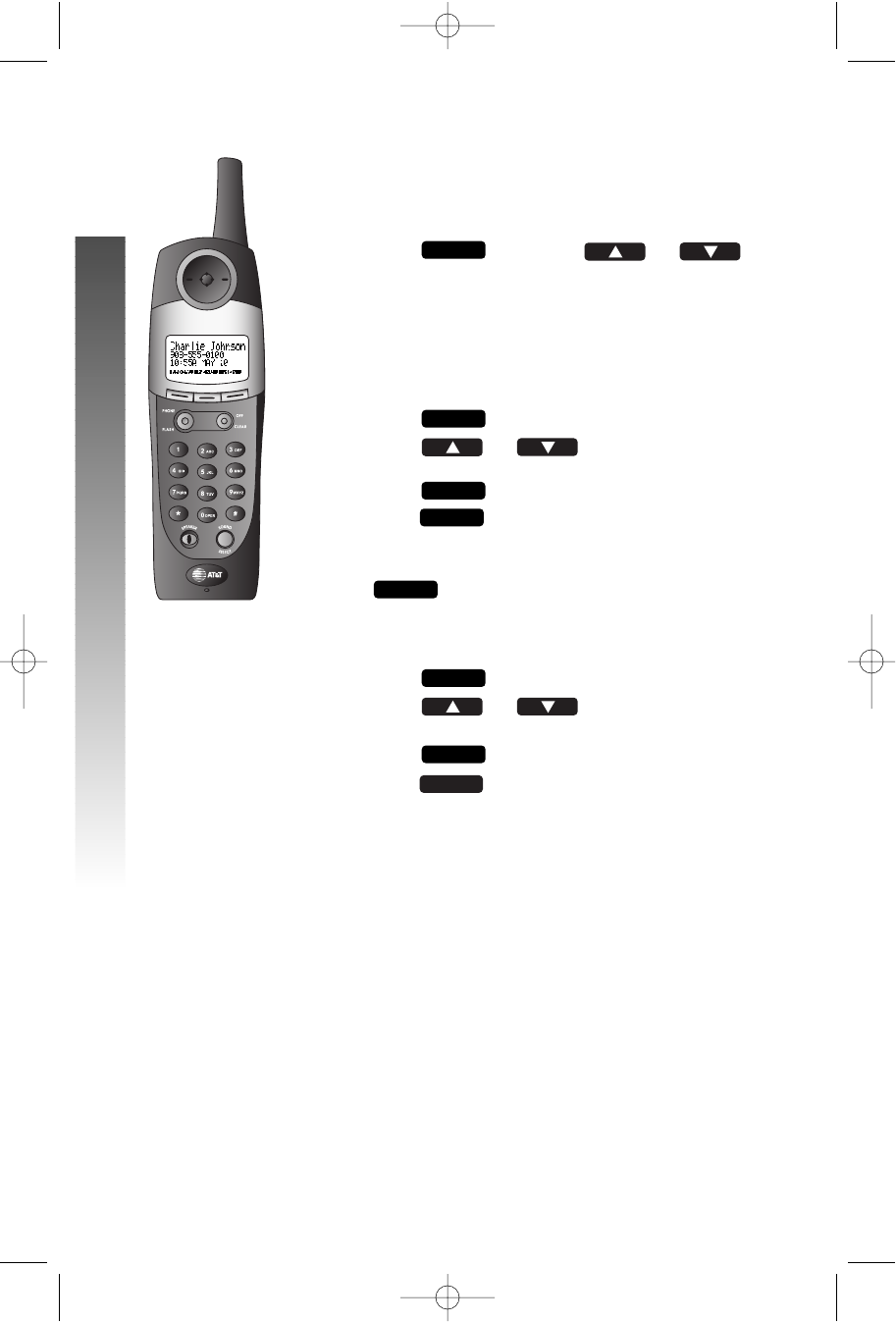
The last ten phone numbers dialed at the handset
are stored in redial memory.
1Press then press or
to scroll through the numbers in redial memory.
2Press PPor KKto dial the highlighted
number.
3Press OOto end the call.
Save a Redial Number
1Press .
2Press or until the screen
displays the number you want to save, then
press .
3Press . The screen displays EENNTTEERRNNAAMMEE.
4Using the chart on page 37, enter the name
associated with the redial number, then press
. The screen displays EENNTTRRYYHHAASS
BBEEEENNSSTTOORREEDD!!and gives a confirmation tone.
Delete a Redial Number
1Press .
2Press or until the screen
displays the number you want to delete.
3Press .
4Press . You will hear a confirmation
tone.
ERASE
SELECT
REDIAL
SAVE
SAVE
SELECT
REDIAL
REDIAL
j
jj
jj
j
jj
jjp
pp
pp
p
pp
pp
j
jj
jji
ii
ii
TELEPHONE OPERATION
TELEPHONE OPERATION
91-5438-20-00_ATT3358_R0 2003.7.11 9:41 AM Page 24
25
Flash/Call Waiting
If you subscribe to Call Waiting service with your local
telephone service provider, you can answer a new
incoming call without losing your current call.
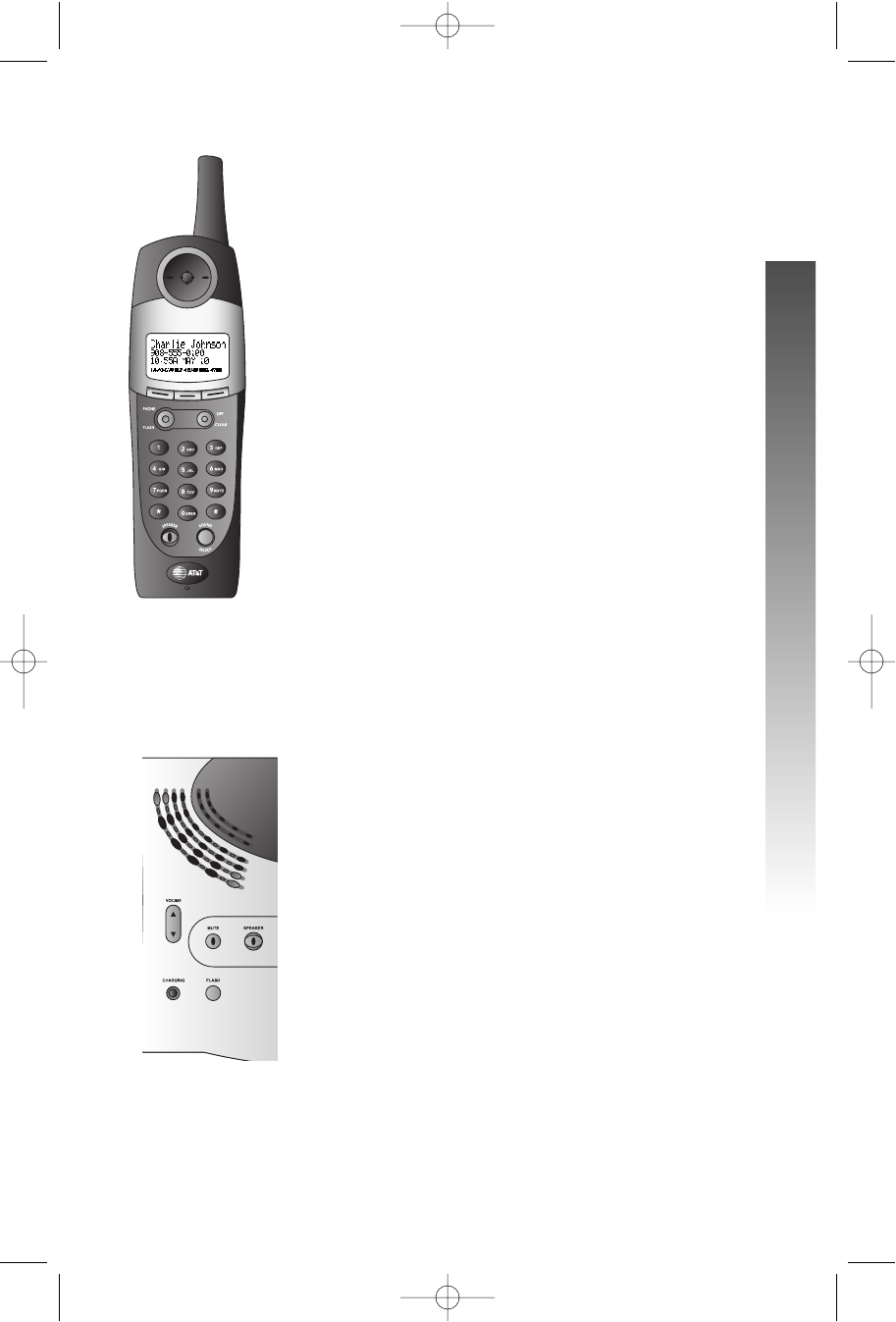
Handset
1Press PP/FFto connect to the new call
when you receive a call-waiting signal.
2Press PP/FFagain to return to the
original call.
¥¥NOTE: Use PP/FFto access other phone
company subscriber services, as described by
your provider.
Base
1Press FFto connect to the new call when
you receive a call-waiting signal.
2Press FFagain to return to the original call.
k
kk
kk
3358
i
ii
ii
TELEPHONE OPERATION
TELEPHONE OPERATION
91-5438-20-00_ATT3358_R0 2003.7.11 9:41 AM Page 25
3358
26
Mute
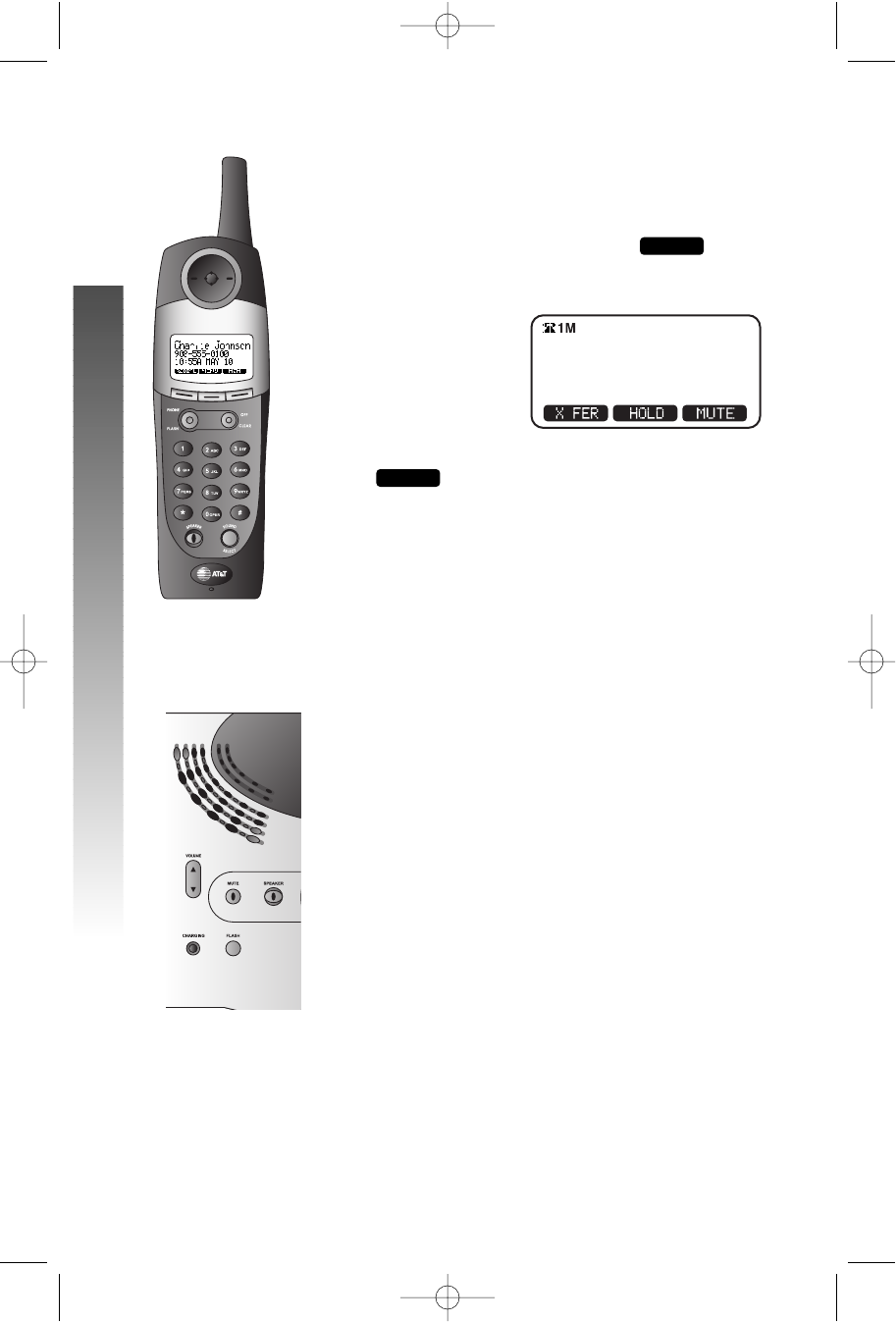
Handset
1During a telephone conversation, mute the
handset microphone by pressing . The
other party will be unable to hear anything on
your end. The screen displays
2To return to two-way conversation, press
again.
Base
Press MMon the base to prevent the other party from
hearing you. Press MMagain to return to two-way
conversation.
MUTE
MICROPHONE
MUTED
MUTE
o
oo
oo
m
mm
mm
TELEPHONE OPERATION
TELEPHONE OPERATION
91-5438-20-00_ATT3358_R0 2003.7.11 9:41 AM Page 26
27
Hold
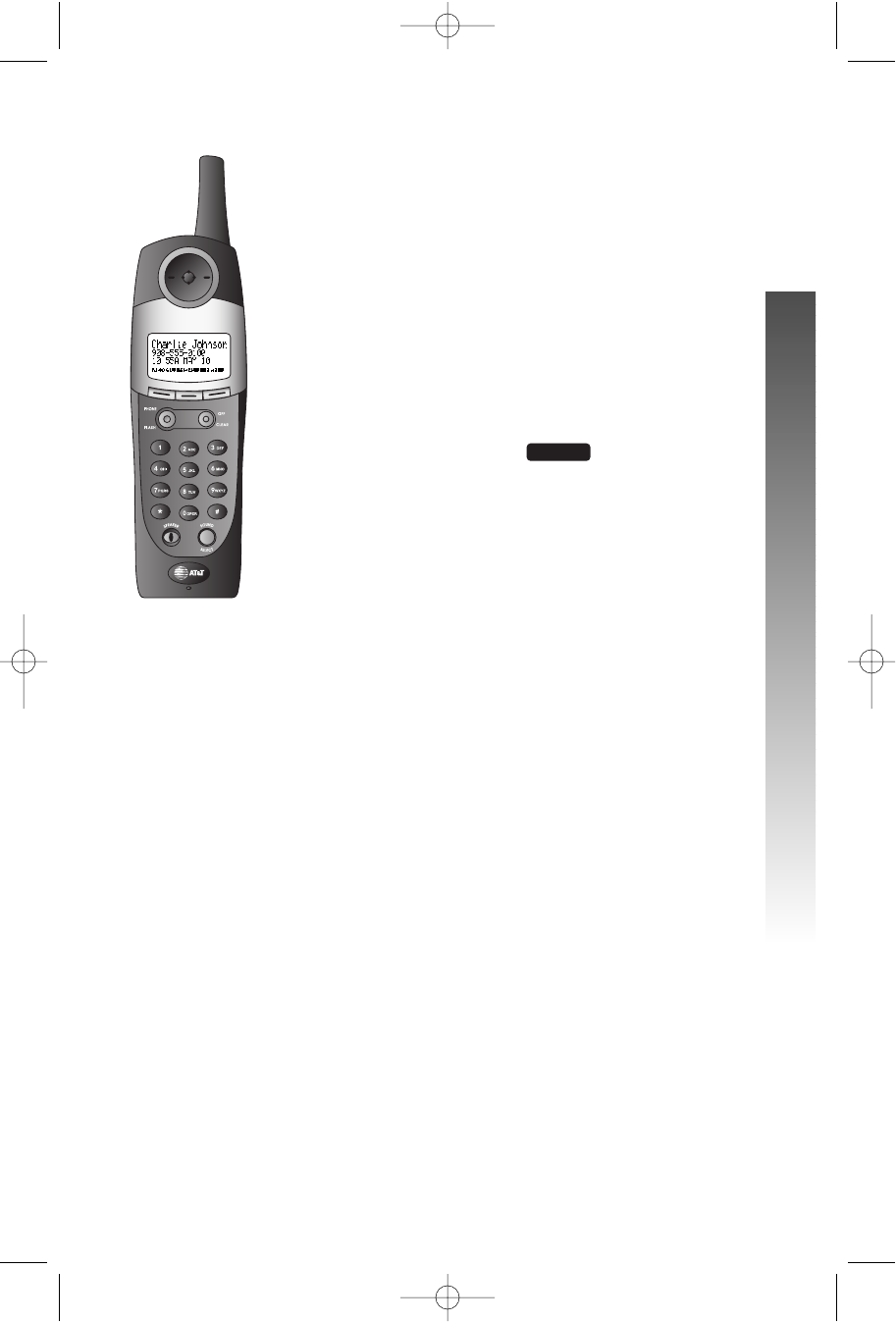
Handset
¥¥NOTE: When a call is on hold, the screen displays
CALL ON HOLD.If the clock feature is on, this
message will be displayed for five seconds, then
return to the clock display with Hon top of the
screen.
After five minutes, the handset will ring to remind you
there’s a call on hold. If you do not answer the ring,
the call will be disconnected.
1While on a call, press . You can now use
the intercom if you wish (see page 34).
2To return to the call, press PPagain.
HOLD
i
ii
ii
j
jj
jj
TELEPHONE OPERATION
TELEPHONE OPERATION
91-5438-20-00_ATT3358_R0 2003.7.11 9:41 AM Page 27

28
DISPLAY SCREEN MESSAGES
SCREEN DISPLAYS: WHEN:
IINNCCOOMMIINNGGOOUUTTSSIIDDEECCAALLLLYou have an incoming phone call (without
Caller ID).
IINNTTEERRCCOOMM FFRROOMMYou have an incoming intercom call from
[[PPAARRTTYY NNAAMMEE]][PPAARRTTYY NNAAMMEE], for example HHAANNDDSSEETT 22.
Once an intercom call is underway, the
handsets will show the icons of the
participating parties.
LLOOWW BBAATTTTEERRYYThe handset battery is low.
EEXXTTEENNSSIIOONN IINN UUSSEEAnother phone on this line is in use.
PPAARRAALLLLEELL SSEETT IINN UUSSEEBoth this phone and another phone on this
line are in use.
SSEEAARRCCHHIINNGG FFOORR BBAASSEEThe handset is out of range.
RREEJJEECCTTEEDD BBYY BBAASSEEThe base refuses to accept the handset,
either because it is in use by six handsets, or
the handset registrations on the base have
been deleted.
FFOOUUNNDD BBAASSEEThe handset has finished SSEEAARRCCHHIINNGG FFOORR
BBAASSEEand has made the link.
LLIINNEE IINN UUSSEEAnother device of the phone system is using
the telephone line; for example, if the base is
using the line, the handsets will all show this
message.
[XXXX]NNEEWW CCAALLLLSSThe number of distinct unanswered calls
with Caller ID which have not been viewed
in the calls log.
CCAALLLL OONN HHOOLLDD A call on hold has been on hold for five
RRIINNGG BBAACCKK!!minutes; pick up the call again.
CCHHEECCKK AACC PPOOWWEERRThe base is being powered by the spare
battery rather than by AC from a wall outlet;
check that the base is properly plugged into
a working electrical outlet.
TELEPHONE OPERATION
TELEPHONE OPERATION
91-5438-20-00_ATT3358_R0 2003.7.11 9:41 AM Page 28
29
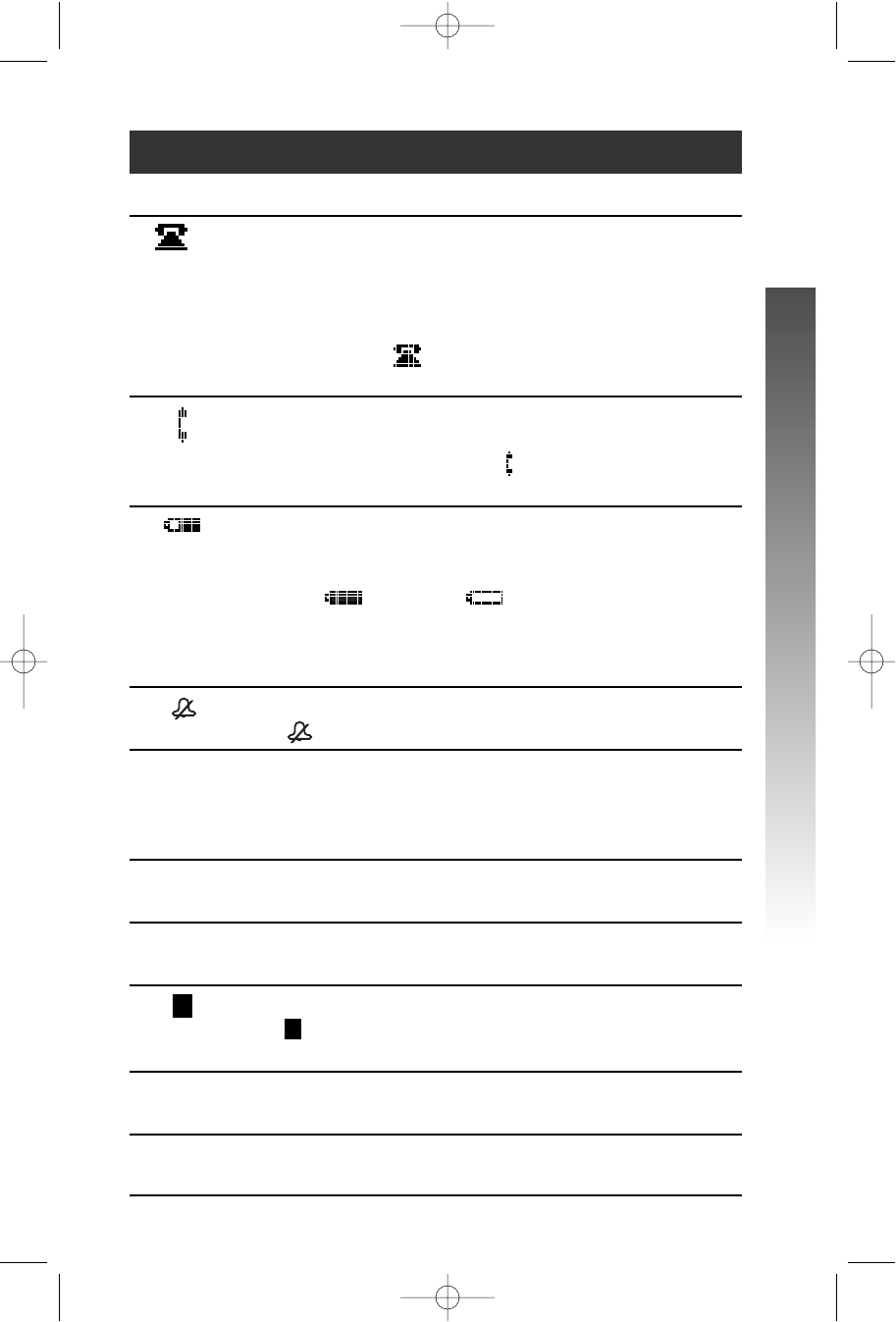
HANDSET ICONS
THIS ICON: INDICATES
Line In Use indicator
On steadily with no number next to it when another
phone on this line is in use.
On steadily with one or more numbers next to it,
indicating which extensions are using the line.
For example, 1122indicates that Handset 1 and
Handset 2 are on an outside call.
Intercom indicator
On steadily with the extension numbers currently on an
intercom call. For example, 0022indicates that the Base
and Handset 2 are on an intercom call.
Battery indicator
When the handset is removed from the charger, this lets
you know the level of charge in the battery pack, from
Full ()to Empty ().
Cycles (Low, Medium, and Full) when Handset battery is
charging.
Flashes when a low battery condition is detected.
Ringer Off indicator
is displayed when the ringer is turned off.
EEnhanced Mode indicator
On steadily when active handset is in Enhanced mode.
The handset will enter Enhanced mode automatically
when in an area with interference.
MMute indicator
On steadily when the handset microphone is muted.
HHold indicator
On steadily when the line is on hold.
Handset Registration indicator
is displayed when a handset is either not registered, or
searching for the base unit.
0–6 Handset indicator
Number is displayed to show which set is in use.
R
R
T Answering indicator
The answering system is answering an incoming call.
TELEPHONE OPERATION
TELEPHONE OPERATION
91-5438-20-00_ATT3358_R0 2003.7.11 9:41 AM Page 29

30
BASE LIGHTS
LIGHT STATUS: INDICATES:
IN USE on Handset or base is on a call
IN USE flashing Extension is in use
SPEAKER on Speakerphone is in use
SPEAKER flashing HOLD function is activated
ON/OFF on Answering system is on
ON/OFF off Answering system is off
CHARGING on Handset is in the base charging
PLAY/STOP flashing New messages in this mailbox
PLAY/STOP on Old or reviewed messages in
this mailbox
PLAY/STOP off No messages in this mailbox
MUTE on The base microphone is muted
TELEPHONE OPERATION
TELEPHONE OPERATION
91-5438-20-00_ATT3358_R0 2003.7.11 9:41 AM Page 30

31
TONES AND WHAT THEY MEAN
TONE: INDICATES:
Three quick beeps Battery charge is low
One beep Handset registration is complete
— OR —
A programming command is successfully
completed
One long beep Indicates an error in programming
Two beeps Handset is out of range of the base
TELEPHONE OPERATION
TELEPHONE OPERATION
91-5438-20-00_ATT3358_R0 2003.7.11 9:41 AM Page 31
32
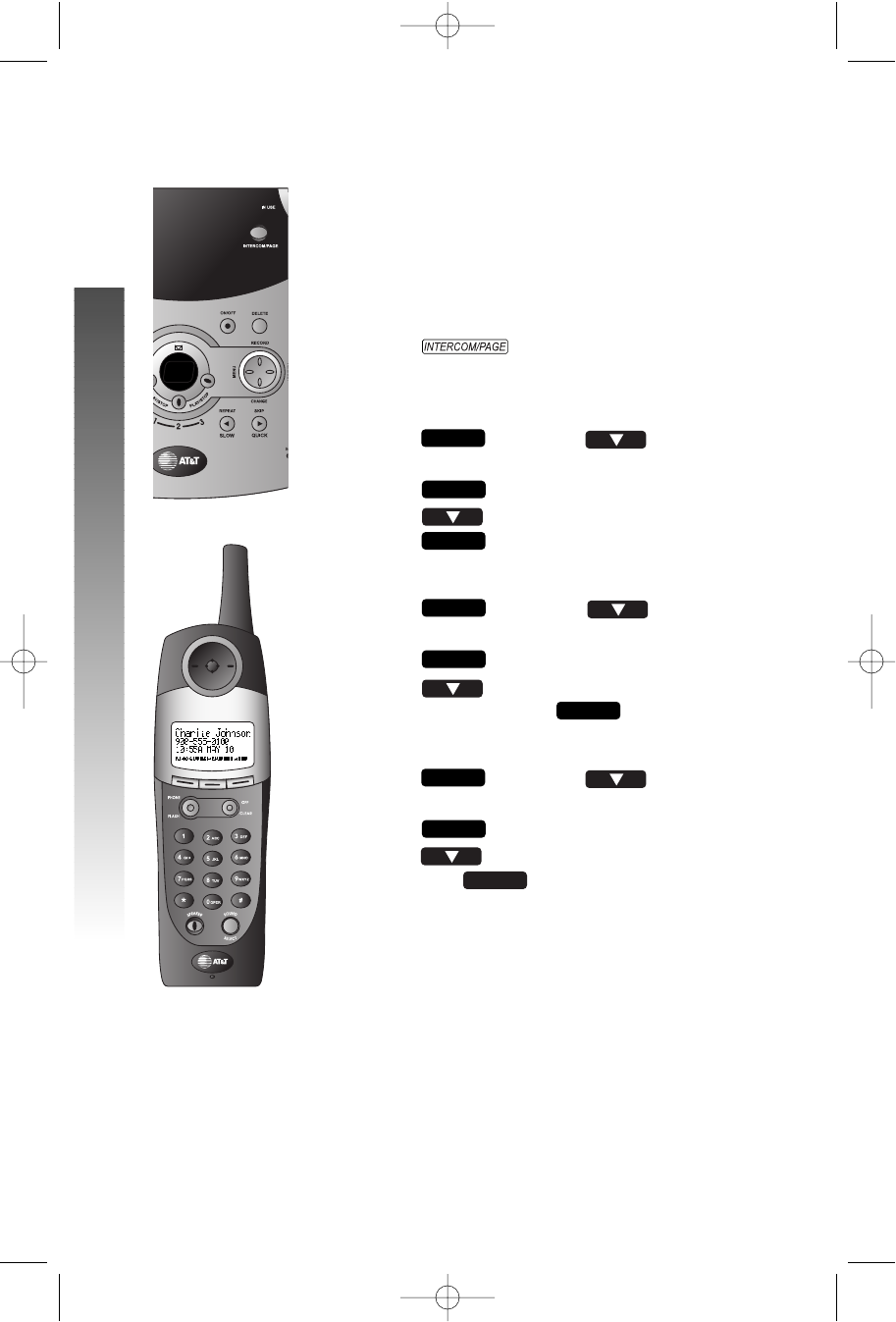
Intercom Calls
You can make intercom calls between handsets and the
base.
¥¥NOTE: The intercom feature is not available when
the base speakerphone is in use.
From Base to All Handsets
1Press on the base to page all
handsets.
From Handset to Base
1Press , then press until
IINNTTEERRCCOOMMis highlighted.
2Press .
3Press until BBAASSEEis highlighted, then
press .
From Handset to Handset
1Press , then press until
IINNTTEERRCCOOMMis highlighted.
2Press .
3Press until the desired handset is
highlighted, then press .
From Handset to Base/Handset(s)
1Press , then press until
IINNTTEERRCCOOMMis highlighted.
2Press .
3Press until GGLLOOBBAALLPPAAGGEEis highlighted
then press .
OK
OK
MENU
OK
OK
MENU
OK
OK
MENU
INTERCOM OPERATION
INTERCOM OPERATION
INTERCOM OPERATION
j
jj
jj
i
ii
iii
ii
ii
i
ii
ii
91-5438-20-00_ATT3358_R0 2003.7.11 9:41 AM Page 32
33
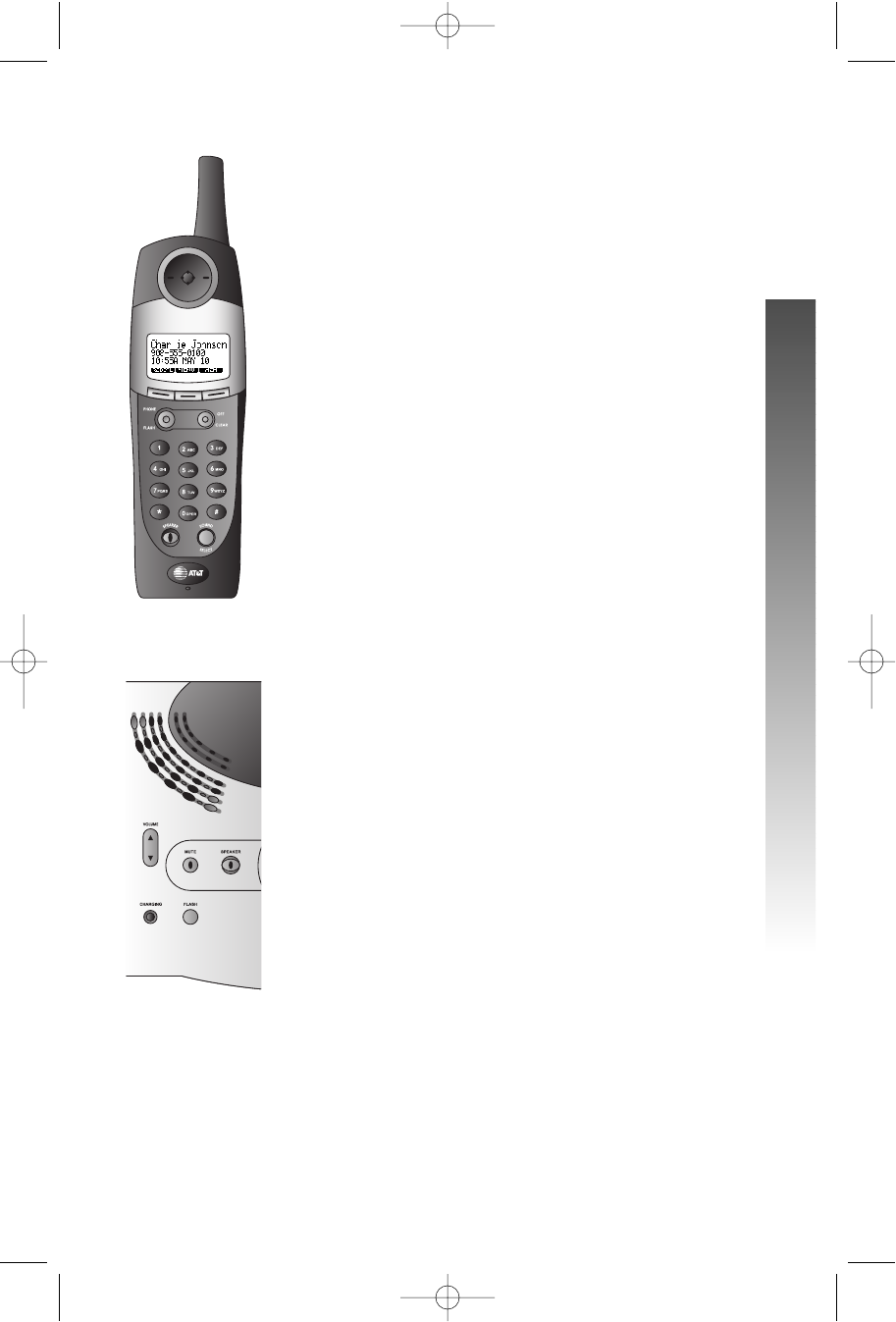
Answering Intercom
At handset, press any key except OOand softkeys.
At base, automatically answered.
End Intercom
At handset, press OO.
At base, press KK.
o
oo
oo
j
jj
jj
k
kk
kkTo Answer an Incoming Call While
Intercomming
If an incoming call is received while you are using the
intercom, you will hear a beep and the screen will display
call informations as usual for 10 seconds.
To end the intercom call and answer the
incoming call:
Press Otwice on the handset.
Wait for the handset or the base to ring, then press
any key (except Oand softkeys) on the handset or
Kon the base to answer the call.
.
.
To conference the incoming call with
the intercom call:
Press Pon the handset to conference the
outside line with the two handsets.
— OR —
Press Pon the handset or press Kon
the base to conference the outside line with the
base and the handset.
.
3358
p
pp
pp
INTERCOM OPERATION
INTERCOM OPERATION
91-5438-20-00_ATT3358_R0 2003.7.11 9:41 AM Page 33
34
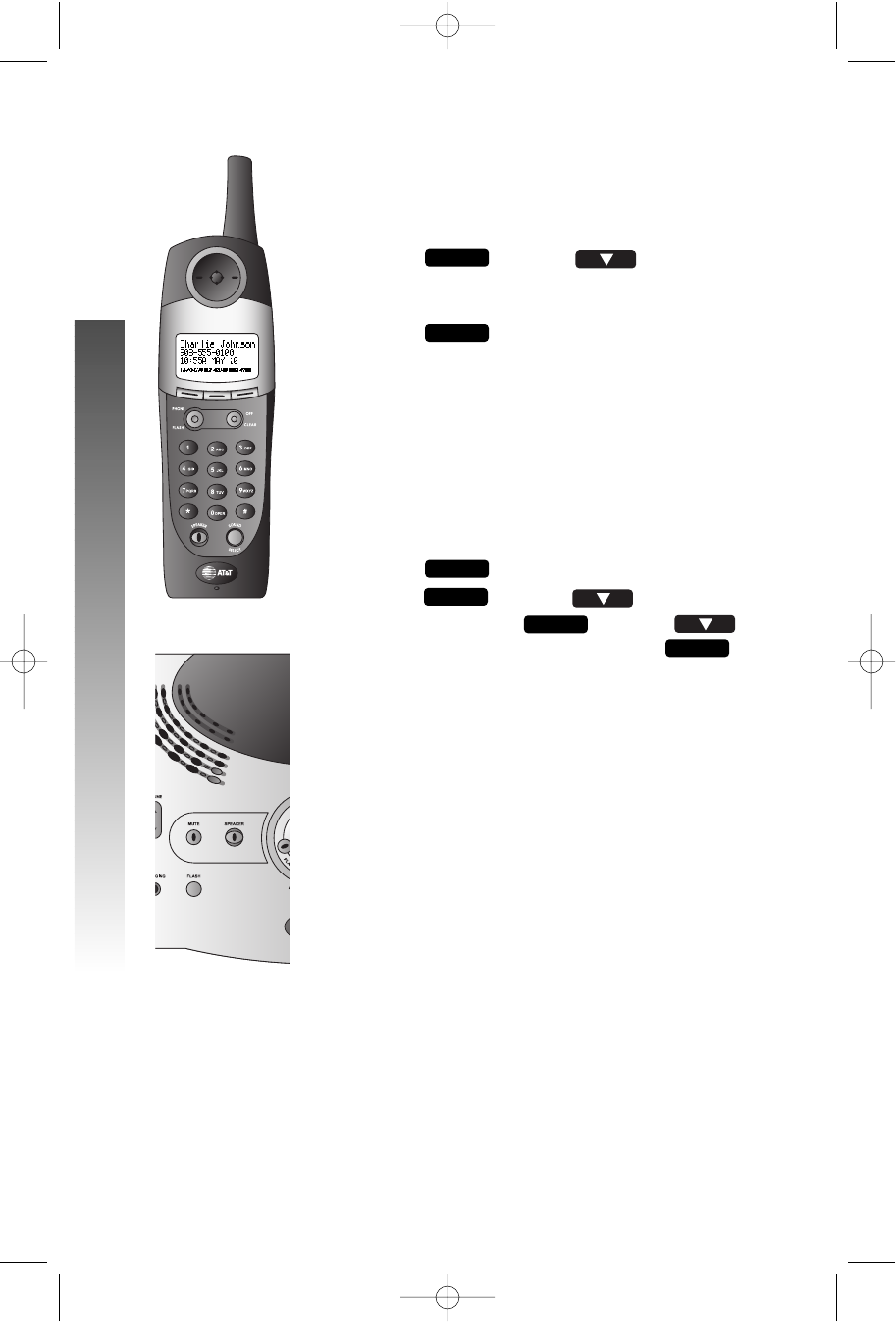
Blind Call Transfer
You can transfer a call from one handset to another.
From the Handset
1Press , then use to highlight
where you want the call transferred.
2When the desired destination is highlighted,
press to transfer the call.
¥¥NOTE: An unanswered call will ring back to the
originating handset if not answered within 30
seconds. If the originating handset does not pick up
call within 30 seconds, the call will be disconnected.
Announced Call Transfer
1Press to put the call on hold.
2Press , then use to highlight
IINNTTEERRCCOOMM. Press , then use to
highlight call destination, then press
again.
3When the handset or base answers, announce
the caller.
4Press OOon the handset or KKon the
base to end the intercom call.
5 Press PP(on the receiving handset) or
KK(on the receiving base) to pick up the
call on hold.
OK
OK
MENU
HOLD
OK
XFER
j
jj
jj
j
jj
jjp
pp
pp
k
kk
kko
oo
oo
i
ii
ii
58
j
jj
jj
INTERCOM OPERATION
INTERCOM OPERATION
91-5438-20-00_ATT3358_R0 2003.7.11 9:41 AM Page 34
35
3358
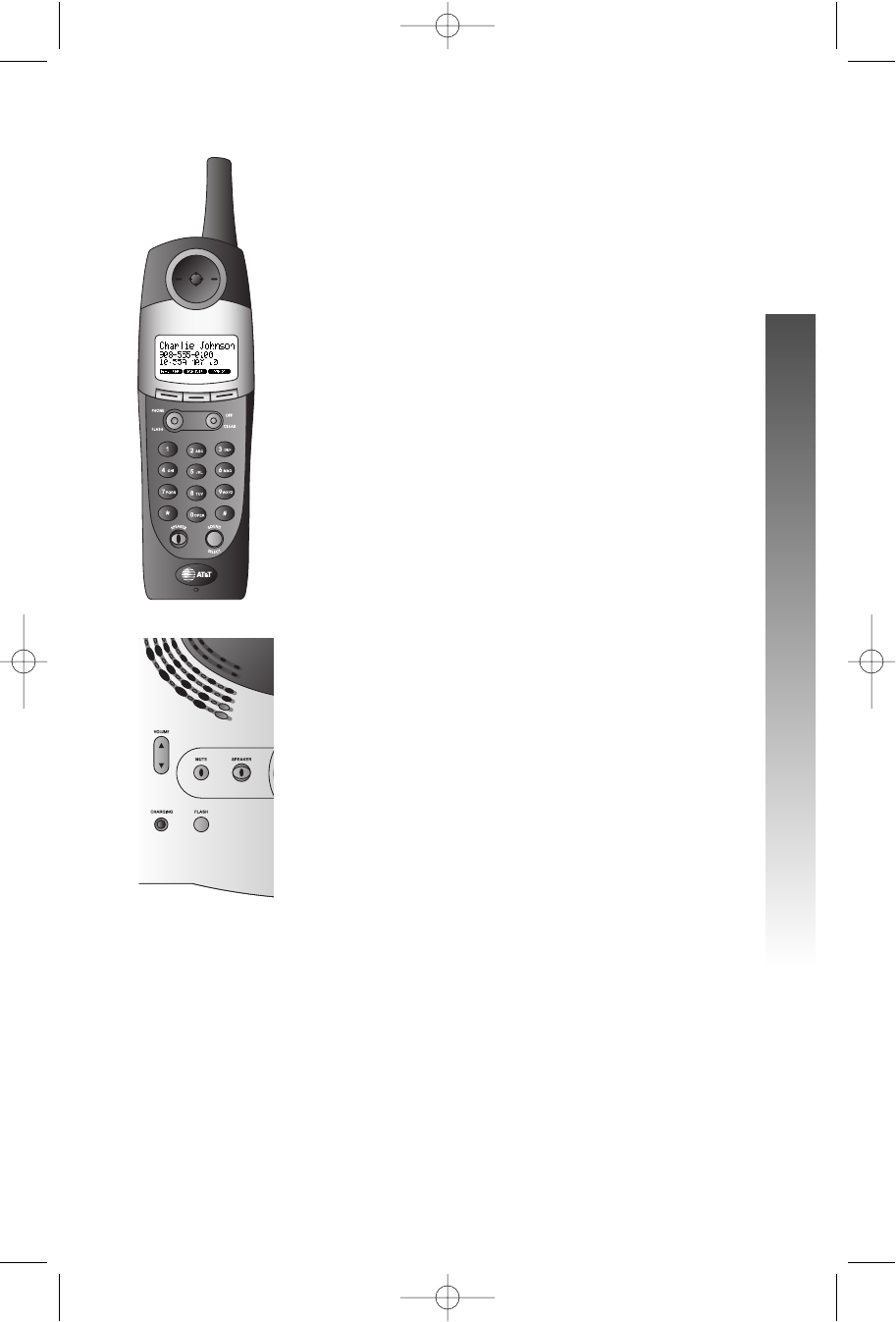
Conference Calling
1If one handset is already on a call, you can
connect a second handset or base to the call by
pressing PPon the second handset or
KKon the base.
2Disconnect either or both handsets by
pressing OO.
— OR —
Disconnect the base by pressing KK.
j
jj
jjp
pp
pp
i
ii
ii
INTERCOM OPERATION
INTERCOM OPERATION
91-5438-20-00_ATT3358_R0 2003.7.11 9:41 AM Page 35
36
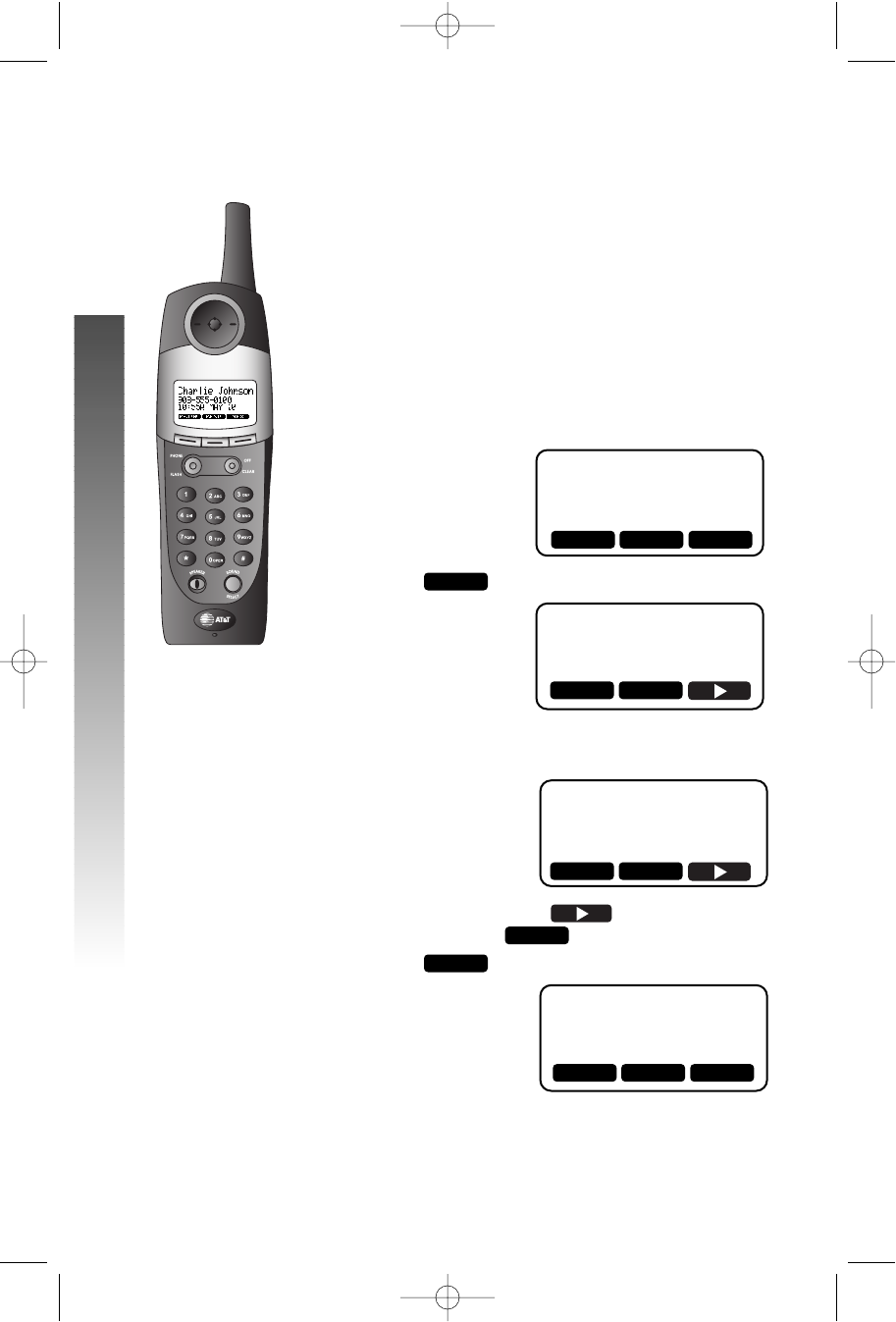
PHONE BOOK
This telephone can store up to 50 telephone numbers
with names. Each number can be up to 32 digits long and
each name can be up to 16 characters.
Store a Number and Name in Phone
Book
1Enter the number you want to store. The
screen displays the number you enter. To delete
a digit, press OO/CC; to clear the screen,
press and hold OO/CC.
2Press . The screen displays
3Use the keypad and the chart on page 37 to
enter the name
To add a space, press . To delete a
character press .
4Press . The screen displays
ENTRY HAS BEEN
STORED!
SAVE
CLEAR
ENTER NAME
OFFICE_
ENTER NAME
MEM
555 0123
PHONE BOOK
PHONE BOOK
p
pp
pp
k
kk
kko
oo
oo
i
ii
ii
PAUSE MENU MEM
SAVECLEAR
SAVECLEAR
PAUSE MENU MEM
91-5438-20-00_ATT3358_R0 2003.7.11 9:41 AM Page 36

37
Keypad Characters
Dial Presses
Key 123456789
11&’,.1
22ABCa b c 2
33DEFdef3
44GH I g h i 4
55JKLj k l 5
66MNOmn o 6
77PQR S p q r s 7
88TUV t u v 8
99WX Y Z w x y z 9
000
***
###
PHONE BOOK
PHONE BOOK
91-5438-20-00_ATT3358_R0 2003.7.11 9:41 AM Page 37
38
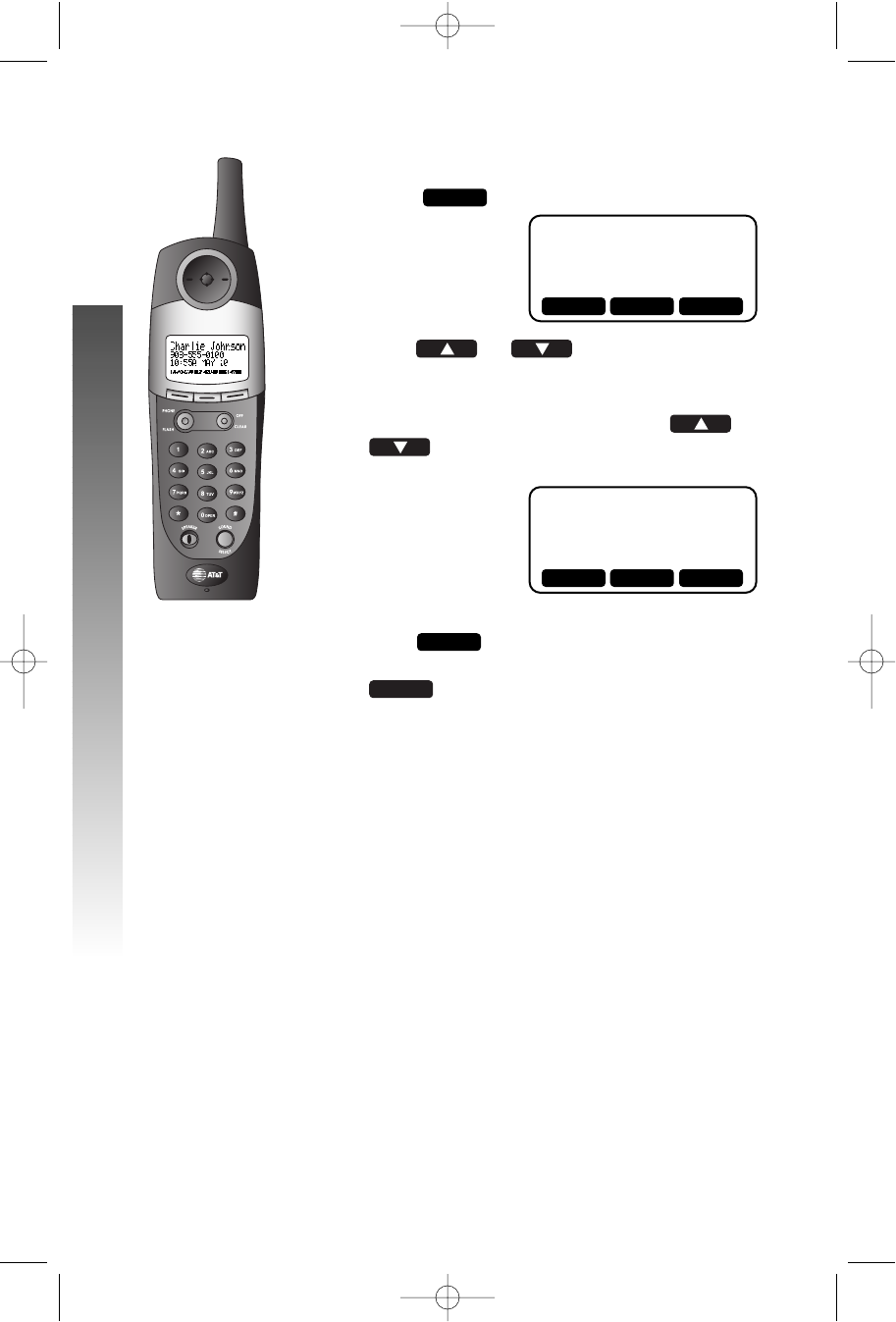
Dial a Number in Phone Book
1Press . The screen displays
2Press or to scroll through
memory in alphabetical order
— OR —
Enter the first letter of a name (then or
,if necessary) to display the name you’re
searching for
— OR —
Press , then enter the first few letters of
the name you’re searching for and press
again.
3Press PPor KKto dial the displayed
number.
FIND
FIND
GEORGE
555-0123
MEM
k
kk
kko
oo
oo
i
ii
ii
j
jj
jj
j
jj
jj
▲FIND ▼
▲EDIT ▼
PHONE BOOK
PHONE BOOK
91-5438-20-00_ATT3358_R0 2003.7.11 9:41 AM Page 38
39
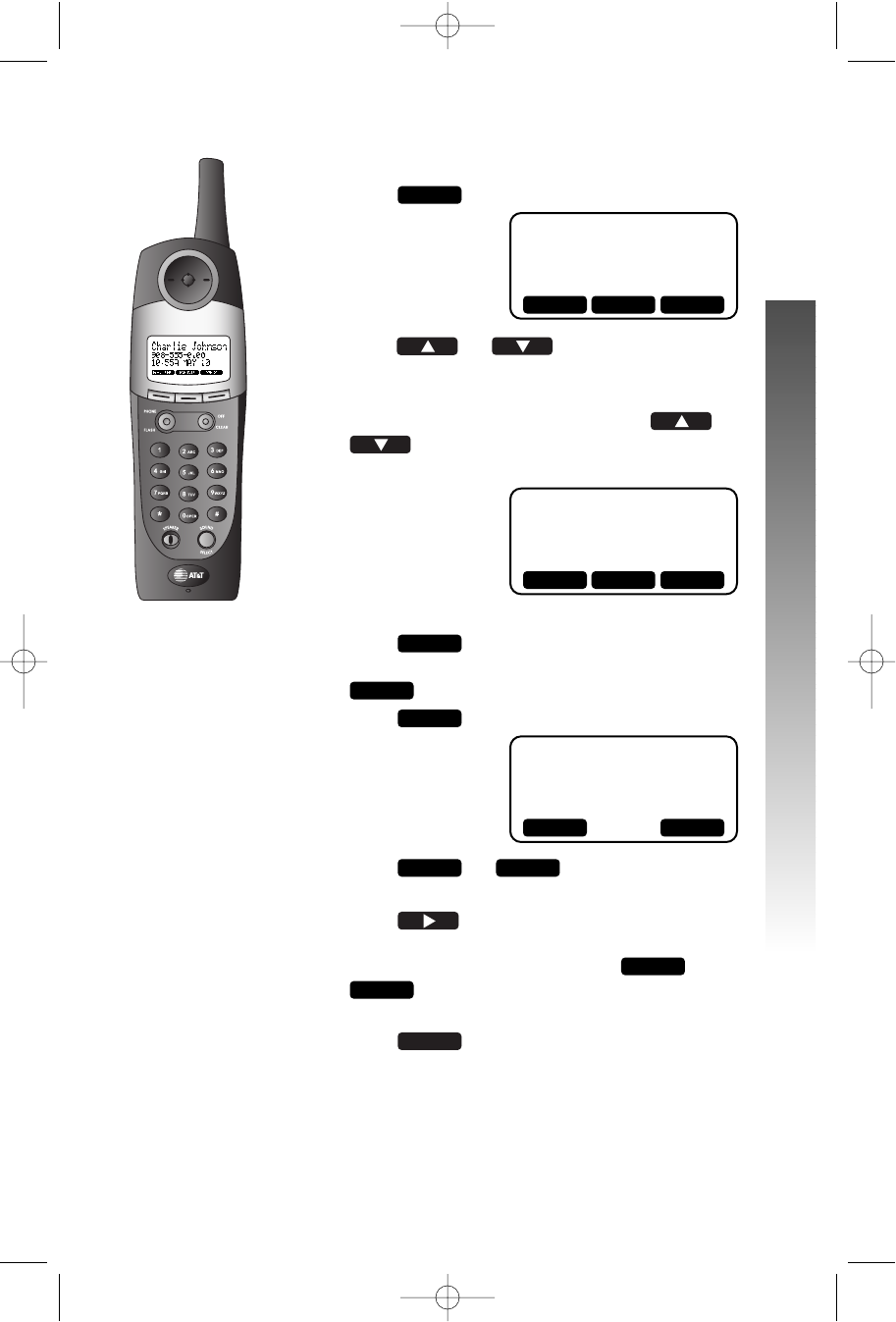
Edit a Number/Name in Phone Book
1Press . The screen displays
2Press or to scroll through
memory in alphabetical order
— OR —
Enter the first letter of a name (then or
,if necessary) to display the name you’re
searching for
— OR —
Press , then enter the first few letters of
the name you’re searching for and press
again.
3Press twice. The handset displays
4Press or , depending on which
you want to edit.
5Press to move the cursor to the
character or digit you want to edit, then enter
the corrections as needed. Press or
to toggle between DEL, SPACE or
PAUSE functions if necessary.
6Press to save changes. The screen will
display the updated entry.
— OR —
Press OOto exit without saving.
SAVE
BACK
MORE
NUMBERNAME
GEORGE
555-0123
EDIT
FIND
FIND
GEORGE
555-0123
MEM
▲FIND ▼
i
ii
iii
ii
ii
i
ii
ii
NAME NUMBER
▲EDIT ▼
PHONE BOOK
PHONE BOOK
91-5438-20-00_ATT3358_R0 2003.7.11 9:41 AM Page 39
40
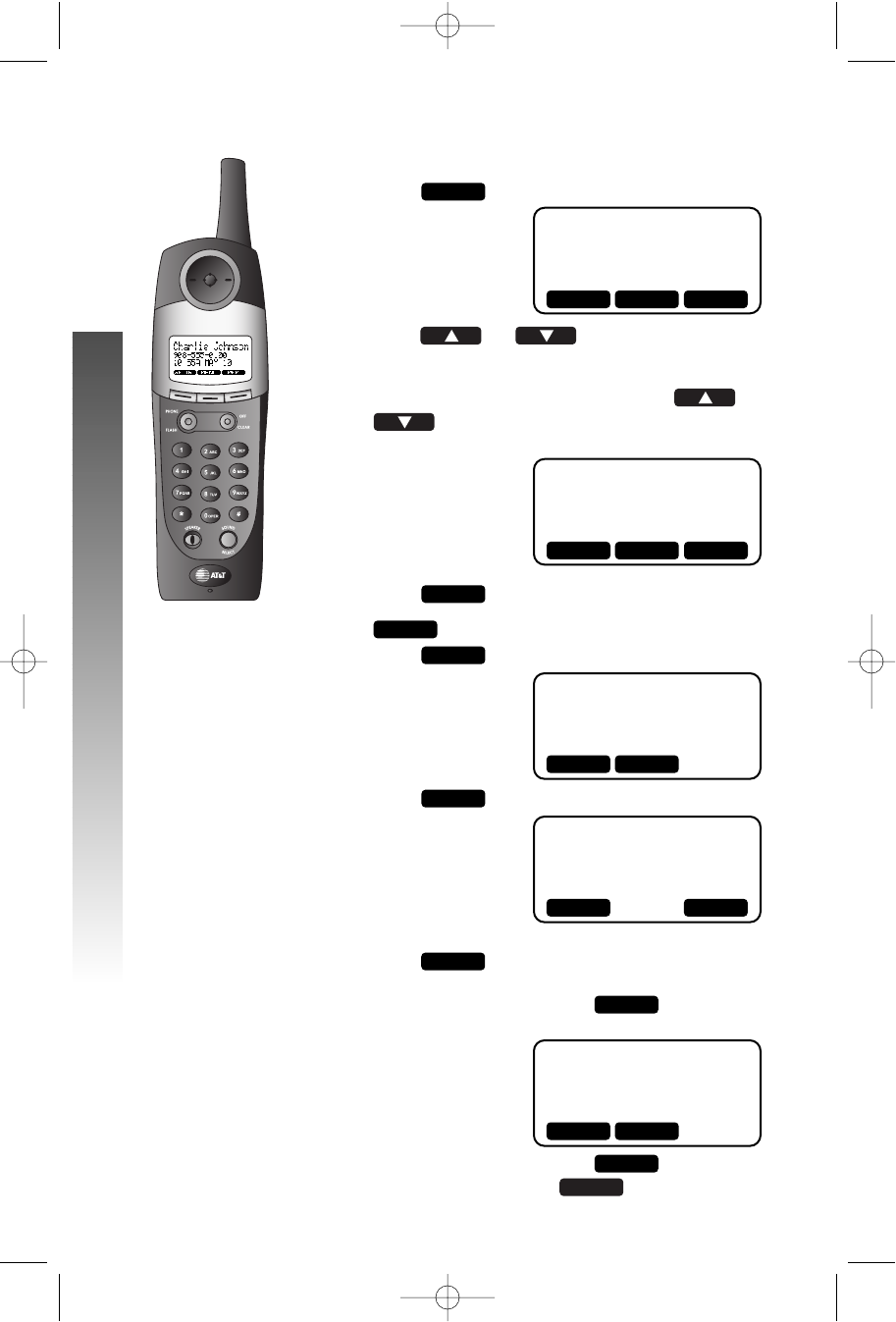
Delete a Number/Name in Phone Book
1Press . The screen displays
2Press or to scroll through
memory in alphabetical order
— OR —
Enter the first letter of a name (then or
,if necessary) to display the name you’re
searching for
— OR —
Press , then enter the first few letters of
the name you’re searching for and press
again.
3Press . The handset displays
4Press . The screen displays
5To delete only the displayed name and number,
press
— OR —
To delete all records, press . The screen
displays
6To delete all records, press . To exit
without deleting, press .
NO
YES
ARE YOU
SURE?
ALL
THIS
GEORGE
555-0123
DEL
GEORGE
555-0123
EDIT
FIND
FIND
GEORGE
555-0123
MEM
▲FIND ▼
NO YES
THIS ALL
DEL EDIT
▲EDIT ▼
i
ii
iii
ii
ii
i
ii
ii
PHONE BOOK
PHONE BOOK
91-5438-20-00_ATT3358_R0 2003.7.11 9:41 AM Page 40
41
CALLER ID OPERATION
CALLER ID OPERATION
If you subscribe to Caller ID service with your local phone service provider,
this phone stores all incoming calls (up to 50 at the handset ) with valid
Caller ID information in the calls log. Name, number, time and date
information can all be stored, if they are sent with the call. Calls are
automatically stored in the order they are received, with call “1” stored as
the most recent call. The calls log number appears next to the date on the
screen display.
¥¥NOTE: The number of new calls displayed on each handset may not
be the same. For example, if you answer a call on Handset 2, it will not
consider that call information as new, but the other handsets will.
If Caller ID information has been received you can see a summary of
the new calls on the idle screen.
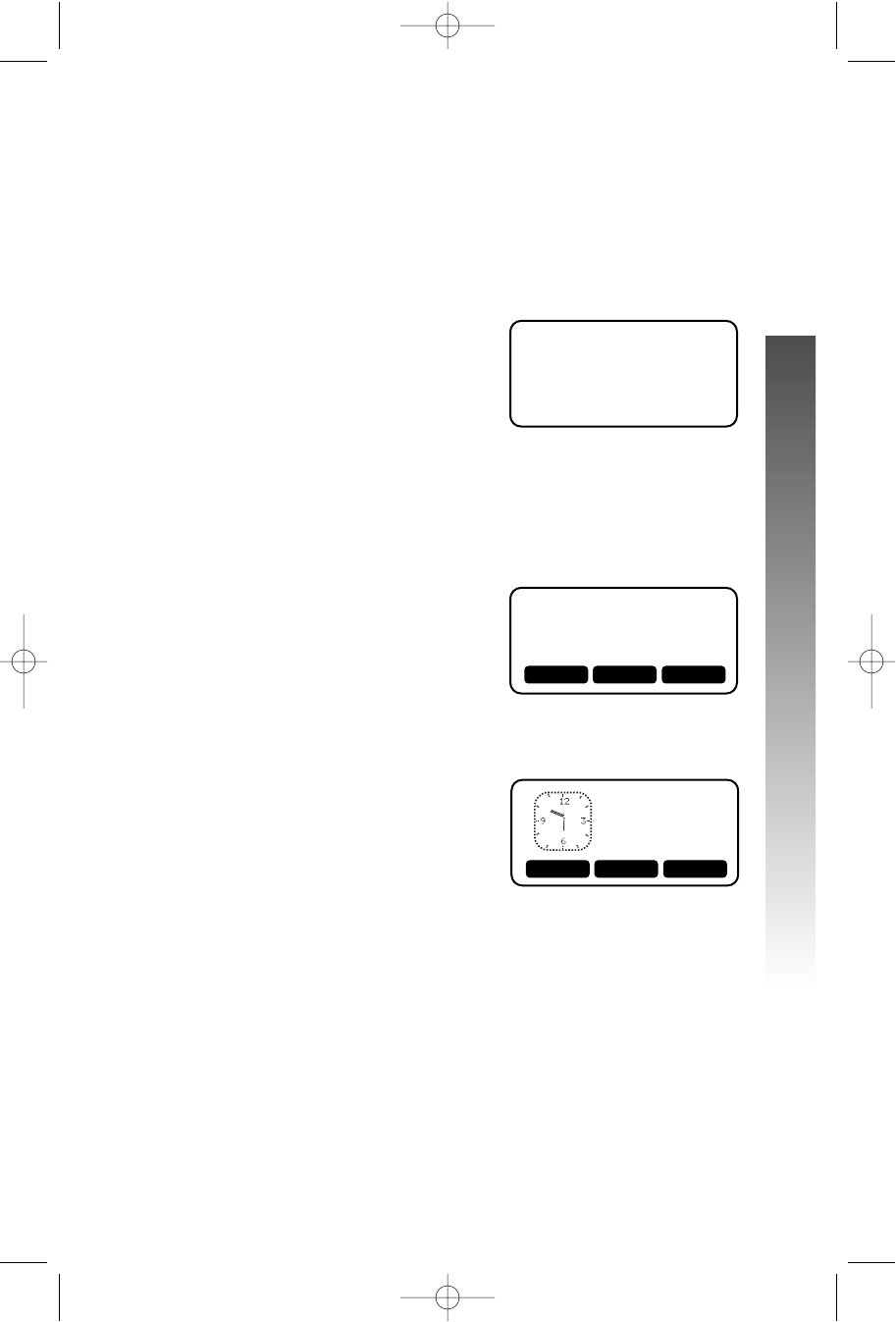
If the Clock Mode is on, the screen will be
HANDSET 1
5 NEW CALLS
JOHNSON THOMAS
908-555-0123
10:30P Oct12
CALLER ID OPERATION
REDIAL MENU MEM
REDIAL MENU MEM
10:30 PM
5 NEW
CALLS
91-5438-20-00_ATT3358_R0 2003.7.11 9:41 AM Page 41
42
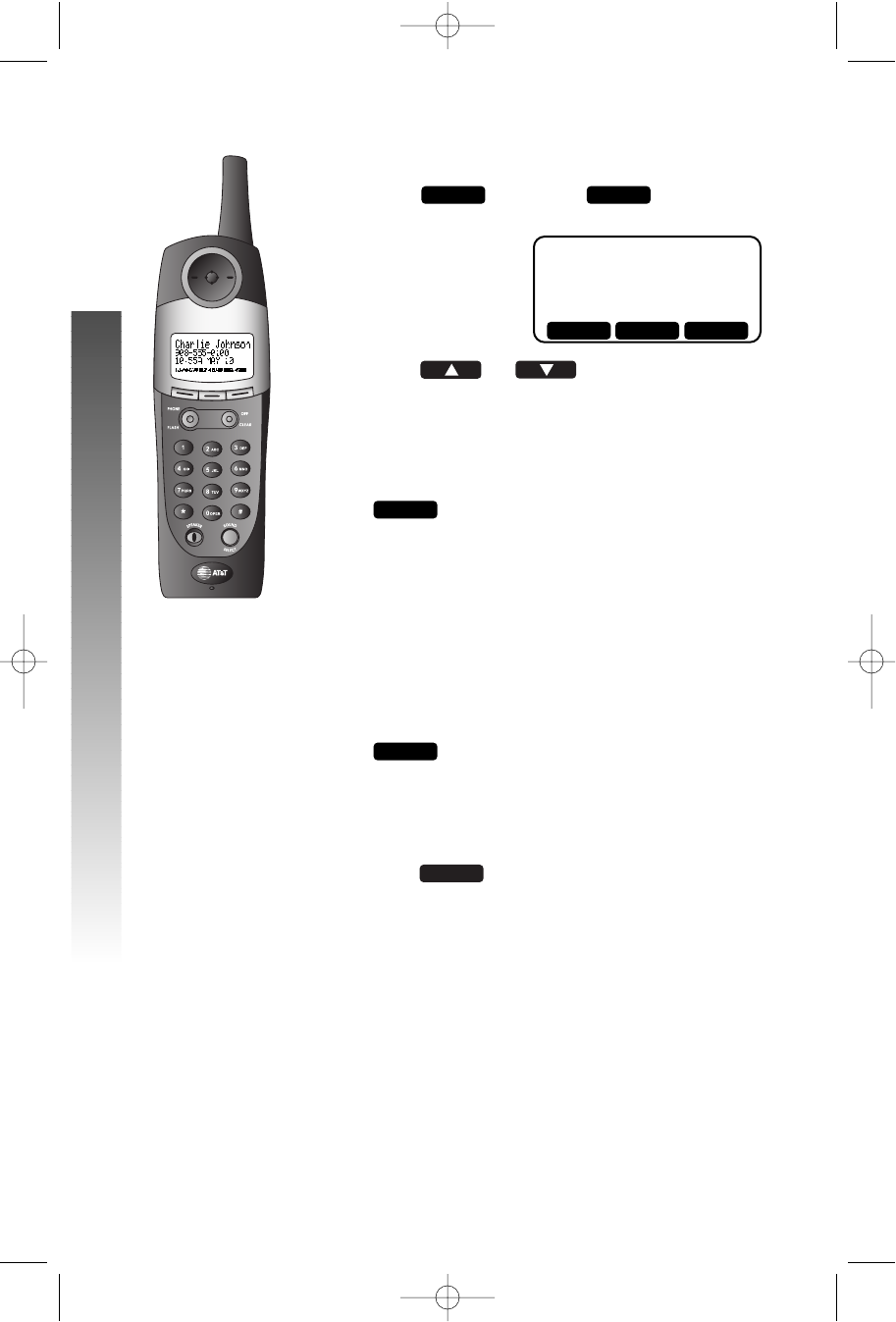
Review Calls Log
1Press , then press . The screen
displays the most recent call in the calls log.
2Press or to scroll through call
records.
Store Record in Phone Book
1While the call information is displayed, press
, then use # to scroll through dialing
options, if you want to change the format.
For example: 555-1212
1-555-1212
908-555-1212
1-908-555-1212
— OR —
While the call information is displayed, press #
to scroll through dialing options if you want to
change the format, then press
.
For example: 555-1212
1-555-1212
908-555-1212
1-908-555-1212
2Press .
3The screen displays EENNTTRRYYHHAASSBBEEEENNSSTTOORREEDD!!
SAVE
CID
CID
JOHNSON THOMAS
908-555-0123
10:30P Oct12 #01
OKMENU
i
ii
iii
ii
iii
ii
ii
p
pp
pp
▲CID ▼
CALLER ID OPERATION
CALLER ID OPERATION
91-5438-20-00_ATT3358_R0 2003.7.11 9:41 AM Page 42
43
Display Dial
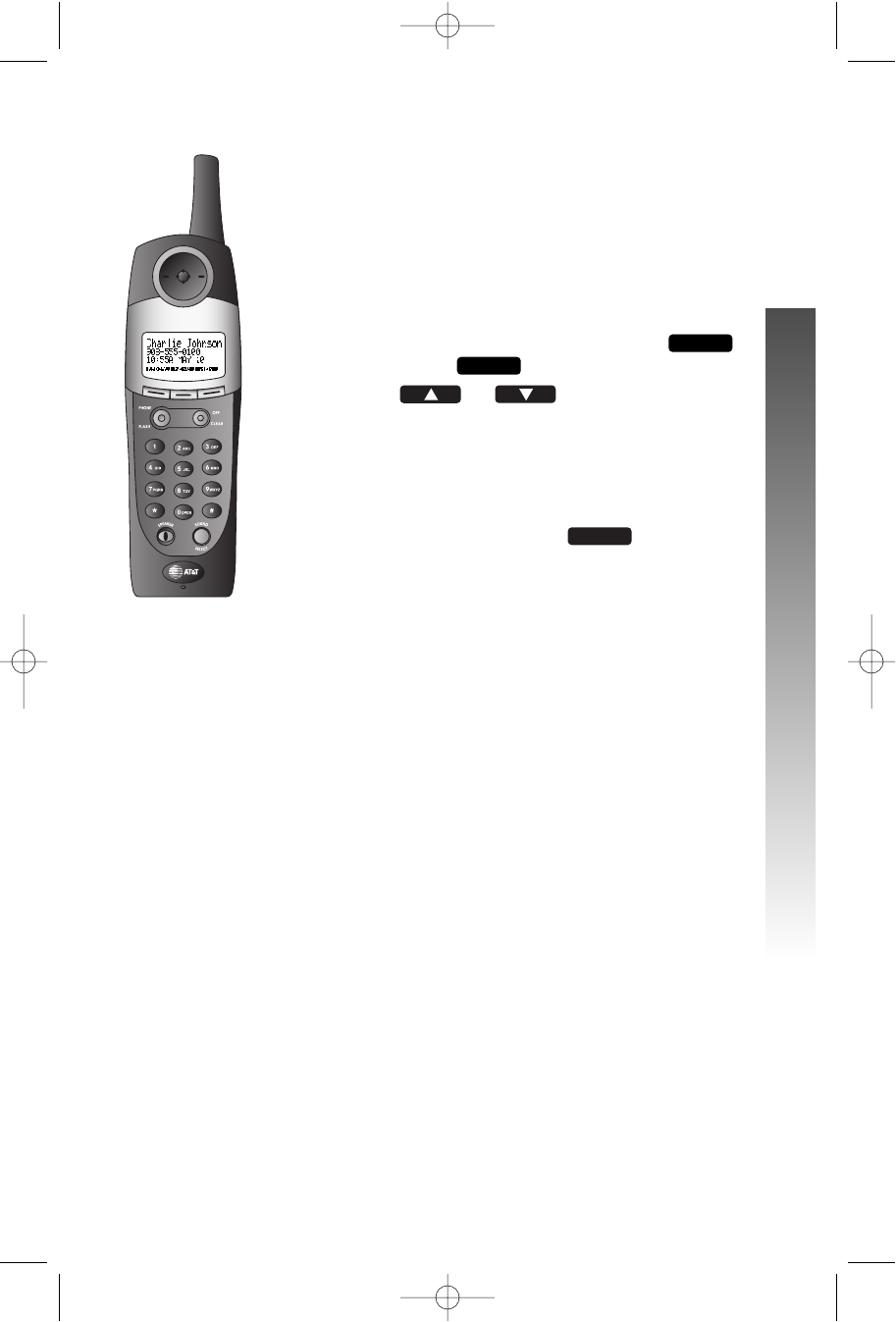
While you are reviewing the calls log, you can dial a
number displayed on the screen. You can change the
format of the number using “Dialing Options” below.
Press PPor KKto dial the displayed number.
Dialing Options
1While a call record is displayed, press ,
then select .
2Use or to highlight the
number the way you want to dial it.
For example: 555-1212
1-555-1212
908-555-1212
1-908-555-1212
Press KK, PPor to dial the
highlighted number.
The number of dialing options (up to four) available for
each call displayed depends on the format of the
original call.
DIAL
OPT#
CID
j
jj
jj
j
jj
jj
j
jj
jji
ii
ii
j
jj
jj
CALLER ID OPERATION
CALLER ID OPERATION
91-5438-20-00_ATT3358_R0 2003.7.11 9:41 AM Page 43
44
Remove Call Records
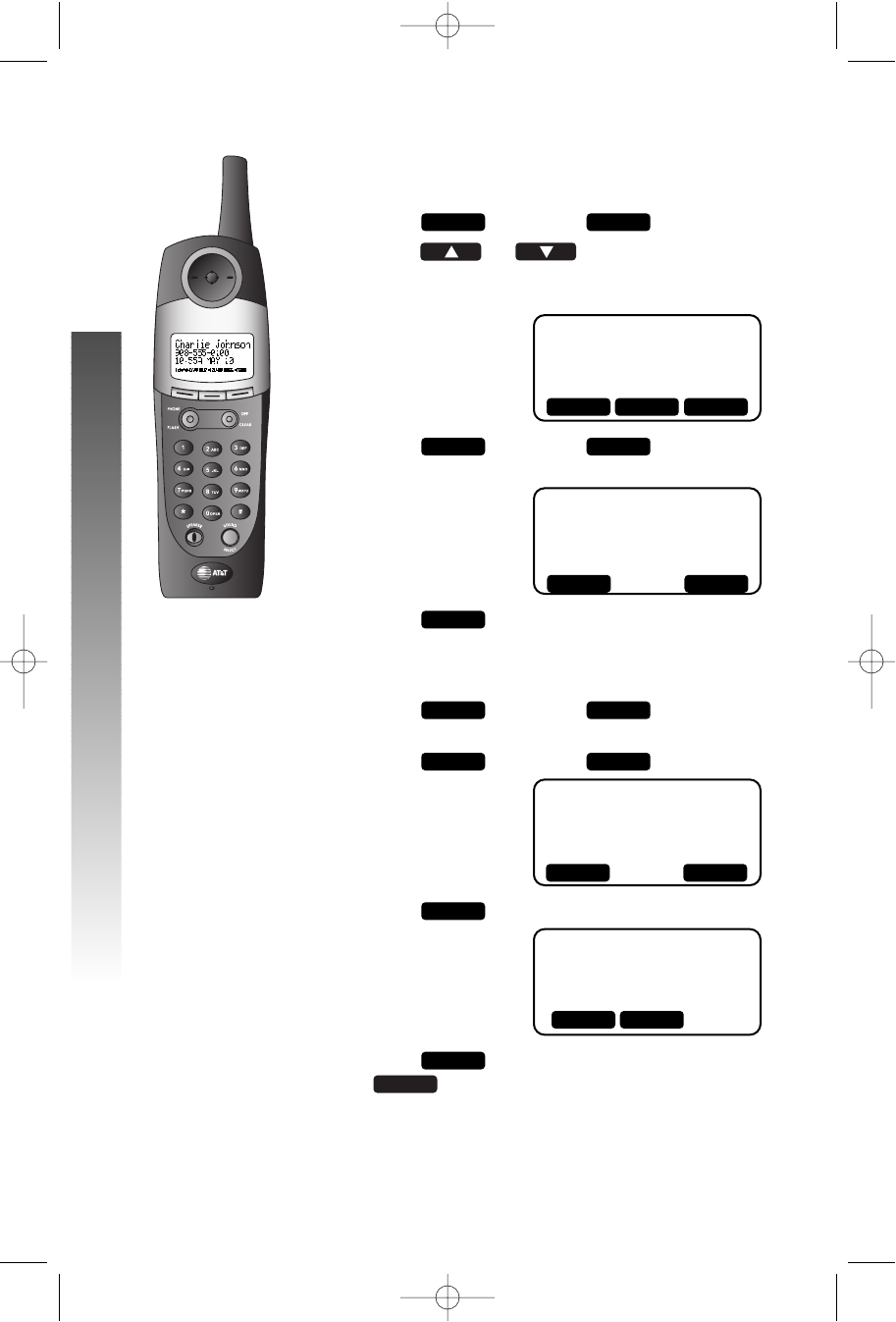
Removing a Specific Call Record
1Press , then press .
2Press or to scroll through call
records until the call you want to delete is
displayed.
3Press , then press . The screen
displays
4Press . The call record is deleted and
you hear a confirmation tone.
Removing All Records
1Press , then press .The screen
displays the most recent call record.
2Press , then press .
3Press . The screen displays
4Press to delete all call records or press
to exit without deleting.
NO
YES
ARE YOU
SURE?
ALL
JOHNSON THOMAS
908-555-0123
10:30P Oct25 #01
DELCID
OKMENU
THIS
JOHNSON THOMAS
908-555-0123
10:30P Oct25 #06
DELCID
JOHNSON THOMAS
908-555-0123
10:30P Oct25 #06
OKMENU
THIS ALL
i
ii
iii
ii
ii
i
ii
ii
▲CID ▼
THIS ALL
NO YES
CALLER ID OPERATION
CALLER ID OPERATION
91-5438-20-00_ATT3358_R0 2003.7.11 9:41 AM Page 44
45
Audible Indicators
This system gives you voice prompts for feature
operations and voice confirmations when you press a
button or complete an operation.
Turn Answering System On/Off
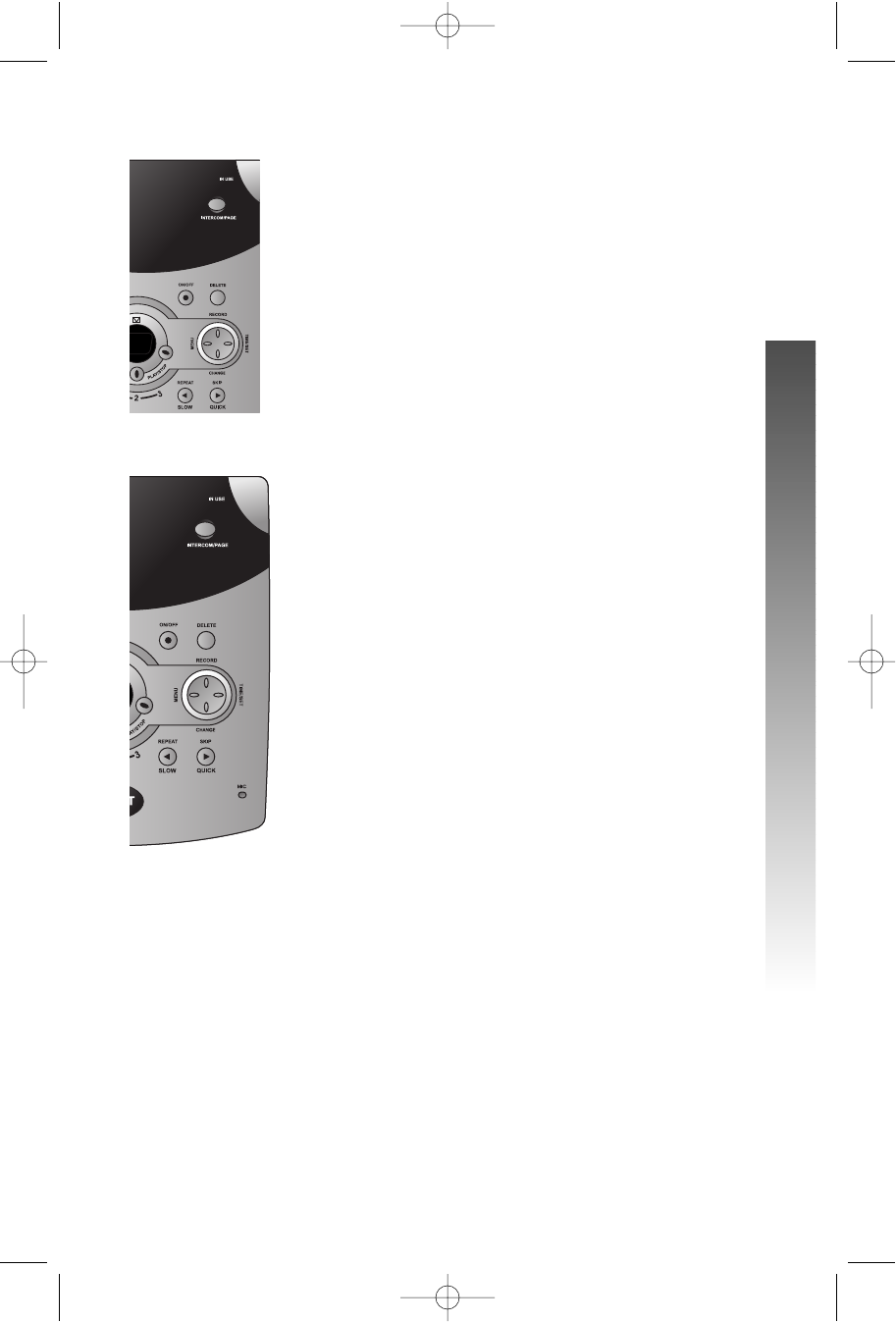
Press OOto turn the system on or off. When
the system is turned on, you will hear “Machine on” and
the OOlight will be lit.When turning the system on
for the first time, it will use the default setting and
prerecorded outgoing announcements.
Set the Clock
1Make sure the answering system is on.
2Press tt. The system announces the clock
setting, then announces “To change clock, press
tt.”
3Press tt.
4Press ccuntil the system announces the
correct day, then press tt.
5Press ccuntil the system announces the
correct hour, then press tt.
6Press ccuntil the system announces the
correct minutes, then press tt. The
system announces the current clock setting.
¥¥NOTE: You can press and hold ccto
advance the minutes setting by tens.
Answering system operation at the base
n
nn
nn
p
pp
pp
j
jj
jj
CALLER ID OPERATION
CALLER ID OPERATION
91-5438-20-00_ATT3358_R0 2003.7.11 9:41 AM Page 45

46
About Mailboxes
This answering system has three voice mailboxes. Callers using a touch tone
phone can select the mailbox in which their messages will be recorded by
pressing 11, 22, or 33. All other messages will be recorded in Mailbox 1.
About Announcements
• You can record up to two different announcements — one for normal
answering and one for when you’ve set the system to play the
announcement only.
• Use normal answering when you want the system to record callers’
messages. Use Announce Only when you want to give information
to callers without accepting messages.
• If you choose not to record an announcement, the system answers with
a pre-recorded announcement.
• The normal answering pre-recorded announcement says: “Hello. Please
leave a message after the tone.” The Announce Only pre-recorded
announcement says: “We’re sorry, messages to this number cannot be
accepted.”
• By setting Announce Only to on or off, you decide which announcement
your callers will hear when the system answers a call (the system comes
set for normal answering, with Announce Only turned off). See “Change
announce only” on page 49 to change your announcement selection.
ANSWERING SYSTEM OPERATION
ANSWERING SYSTEM OPERATION
91-5438-20-00_ATT3358_R0 2003.7.11 9:41 AM Page 46
47
m
mm
mm
m
mm
mmm
mm
mm
Record Your Announcement
¥¥NOTE: If you have assigned different mailboxes to
different people, be sure to tell callers in your
announcement to press 11, 22, or 33to leave a
message in the appropriate mailbox.
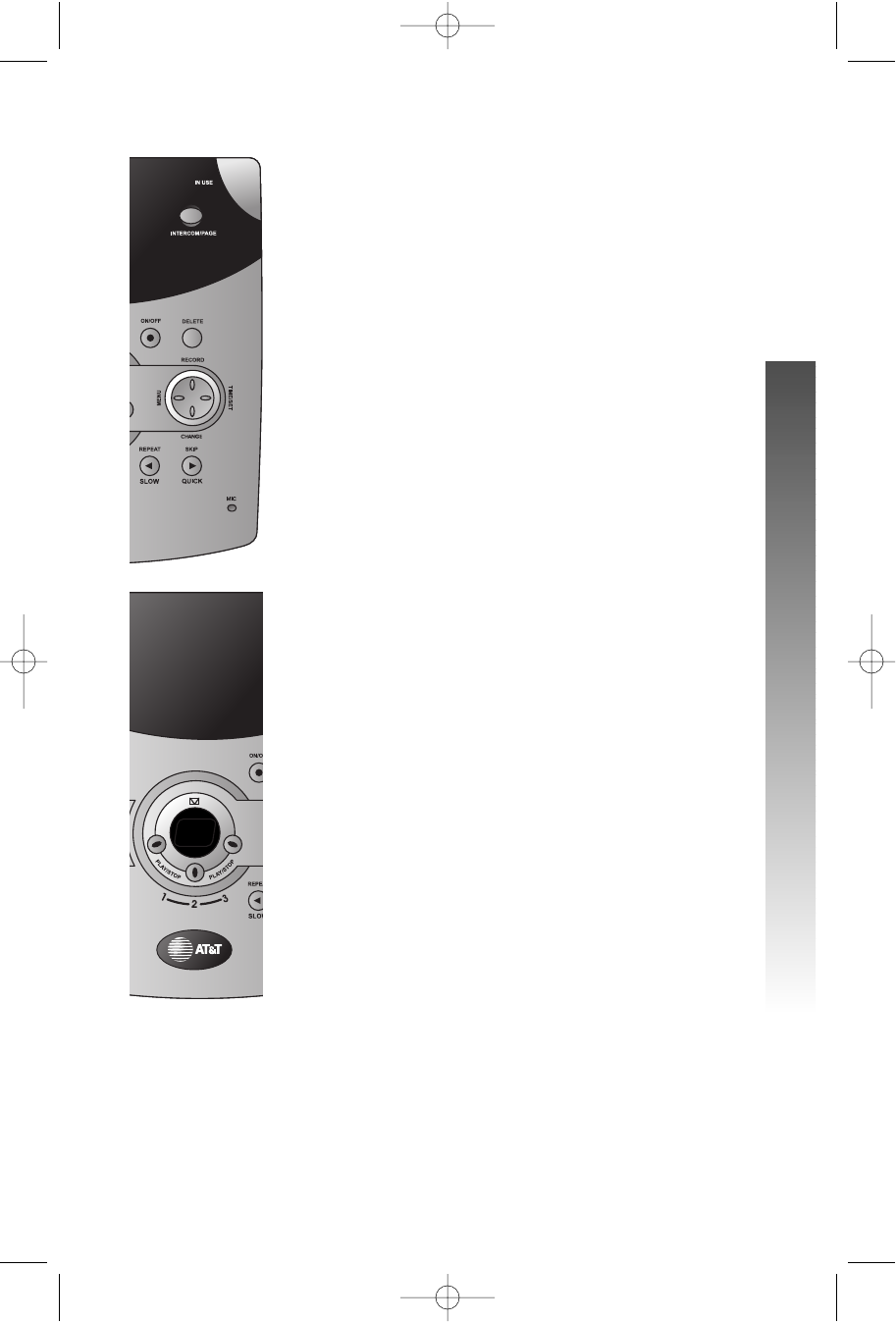
1Press UUuntil you hear “Change
announcement.”
2Press rr. After you hear “Now recording”
followed by a beep, speak toward the base to
record an announcement up to 90 seconds long.
3Press any PLAY/STOP button to stop recording.
The system plays back your recorded message.
To review your announcement at any time:
1Press UUuntil you hear “Change
announcement.”
2Press any PLAY/STOP button.
To delete your announcement:
Press DDduring announcement playback.
The system will use the pre-recorded
announcement until you record a new one.
l
ll
llo
oo
oo
j
jj
jj
ANSWERING SYSTEM OPERATION
ANSWERING SYSTEM OPERATION
91-5438-20-00_ATT3358_R0 2003.7.11 9:41 AM Page 47
48
Answering System Feature Setup
You can set up one feature at a time, or you can set up a
feature and then move on to set up another feature.
1Make sure the answering system is on.
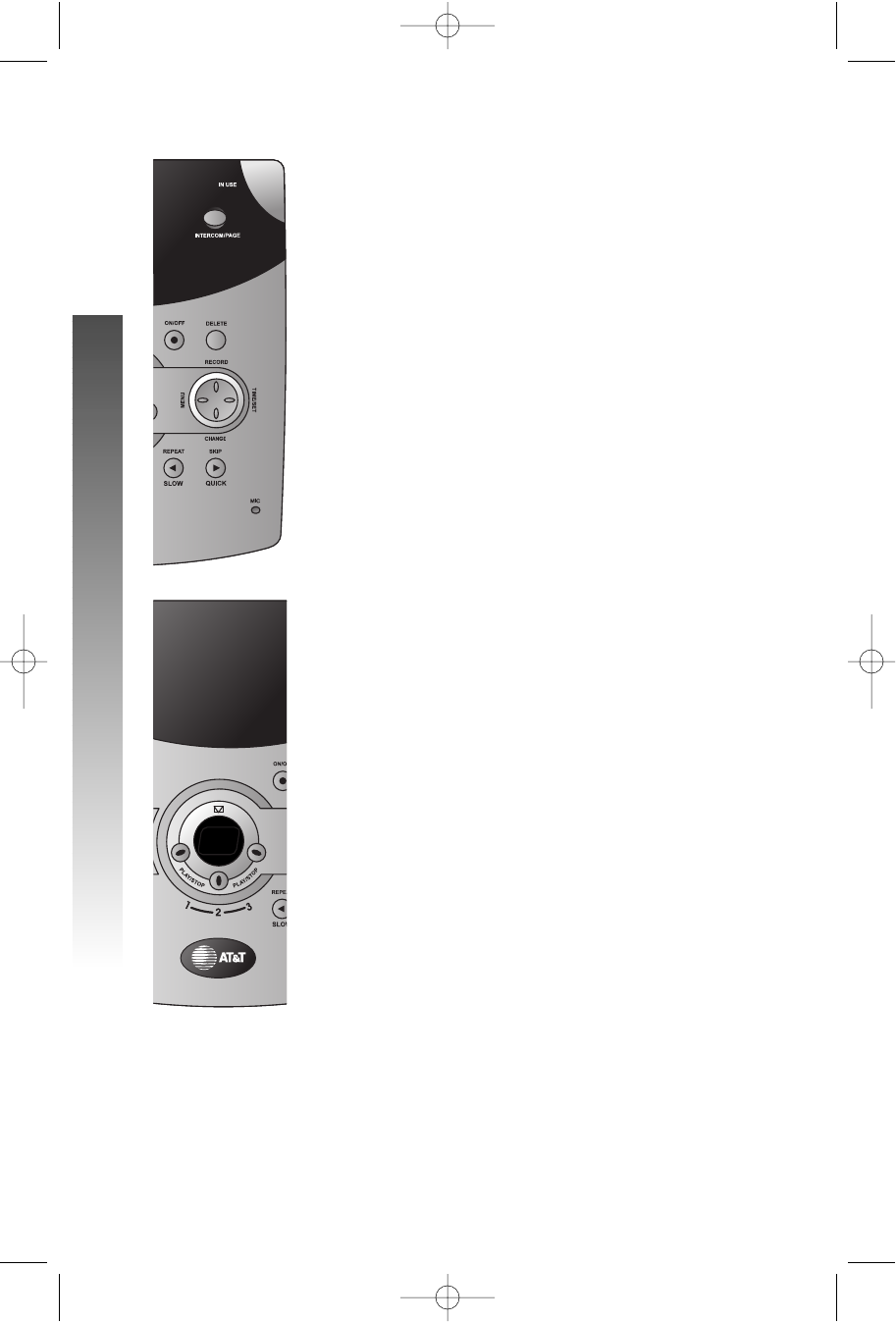
2Press and release UUuntil you hear the
system announce the feature you want to set.
Refer to the Feature Summary chart on page 49 for
a description of the features and your choices.
3Press ccto hear the feature’s settings.
4Press UUto move on to the next feature
or press a PLAY/STOP button to exit Feature
Setup.
m
mm
mm
m
mm
mmm
mm
mm
o
oo
oo
j
jj
jj
ANSWERING SYSTEM OPERATION
ANSWERING SYSTEM OPERATION
91-5438-20-00_ATT3358_R0 2003.7.11 9:41 AM Page 48

49
FETURE SUMMARY Default settings indicated by *.
SYSTEM ANNOUNCES: DESCRIPTION/DIRECTIONS:
“Change remote access code” Set the remote access code you
50 *will use to access features and
functions of the answering system
from a touch tone phone. The code
can be changed to any two-digit
number from 40–99.
¥¥NOTE: You can press and hold
ccto advance the remote access
code in increments of ten.
“Change message alert” When Message Alert is turned on,
Off *the base beeps once every 10
On seconds when new messages have
been received.
“Change announce only” When you turn Announce Only on,
Off *callers hear your announcement,
On but cannot leave a message.
“Change call screening” When you turn Call Screening off,
On *you will not hear incoming messages
Off as the caller leaves them.
“Change number of rings” Choose how many times the phone
2will ring before the system answers
4 *a call. With Toll Saver active, the
6system answers after two rings
Toll Saver when you have new messages and
after four rings when you have no
new messages.
¥¥NOTE: Exit Feature Setup at any time by pressing a PLAY/STOP button.
ANSWERING SYSTEM OPERATION
ANSWERING SYSTEM OPERATION
91-5438-20-00_ATT3358_R0 2003.7.11 9:41 AM Page 49
50
Listen to, Save & Delete Messages
The system automatically saves your messages until you
delete them, and can store approximately 15 minutes of
messages, memos, and announcements
(up to a maximum of 99 messages).
Before playing a message, the system announces the day
and time it was received. While the message plays, the
message window displays the number of the message.
After playing the last message in a mailbox, the system
announces “End of messages.” If the system has less than
five minutes of recording time left, it announces the
remaining time.
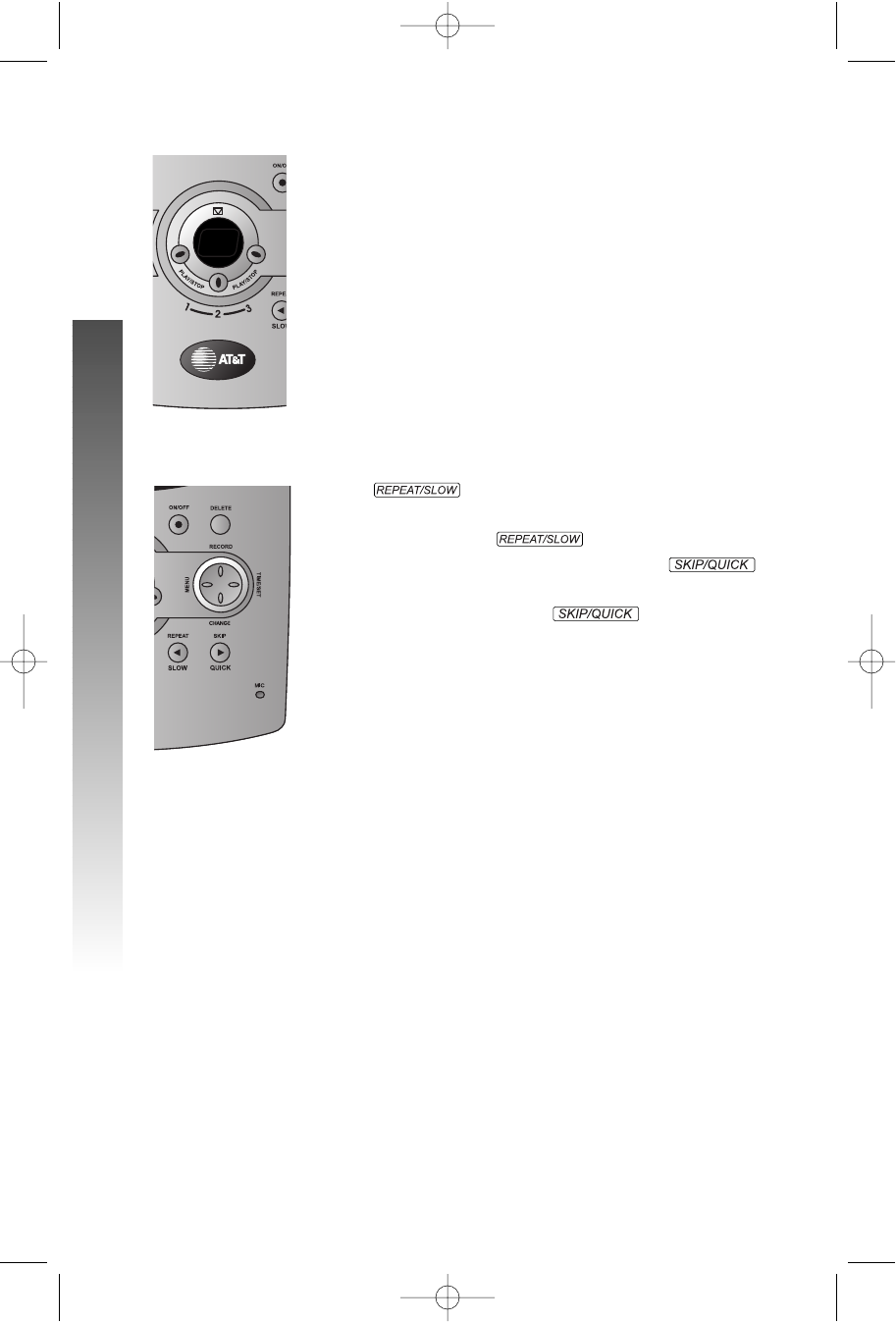
• To repeat a message, press and release
.
• To playback a message at half the normal speed,
press and hold .
• To skip a message, press and release .
• To playback a message at twice the normal
speed ,press and hold .
Play Messages
Press a PLAY/STOP button to play messages in a mailbox.
Press again to stop playback.
Delete Messages
•Press DDto delete the message that’s
playing.
•To delete all messages in a mailbox, press
DD, then the appropriate PLAY/STOP
button.
¥¥NOTE: You cannot delete a message until it’s been
reviewed; deleted messages cannot be recovered.
o
oo
oo
m
mm
mm
m
mm
mmm
mm
mm
m
mm
mm
m
mm
mm
ANSWERING SYSTEM OPERATION
ANSWERING SYSTEM OPERATION
91-5438-20-00_ATT3358_R0 2003.7.11 9:41 AM Page 50
51
Adjust Playback Volume
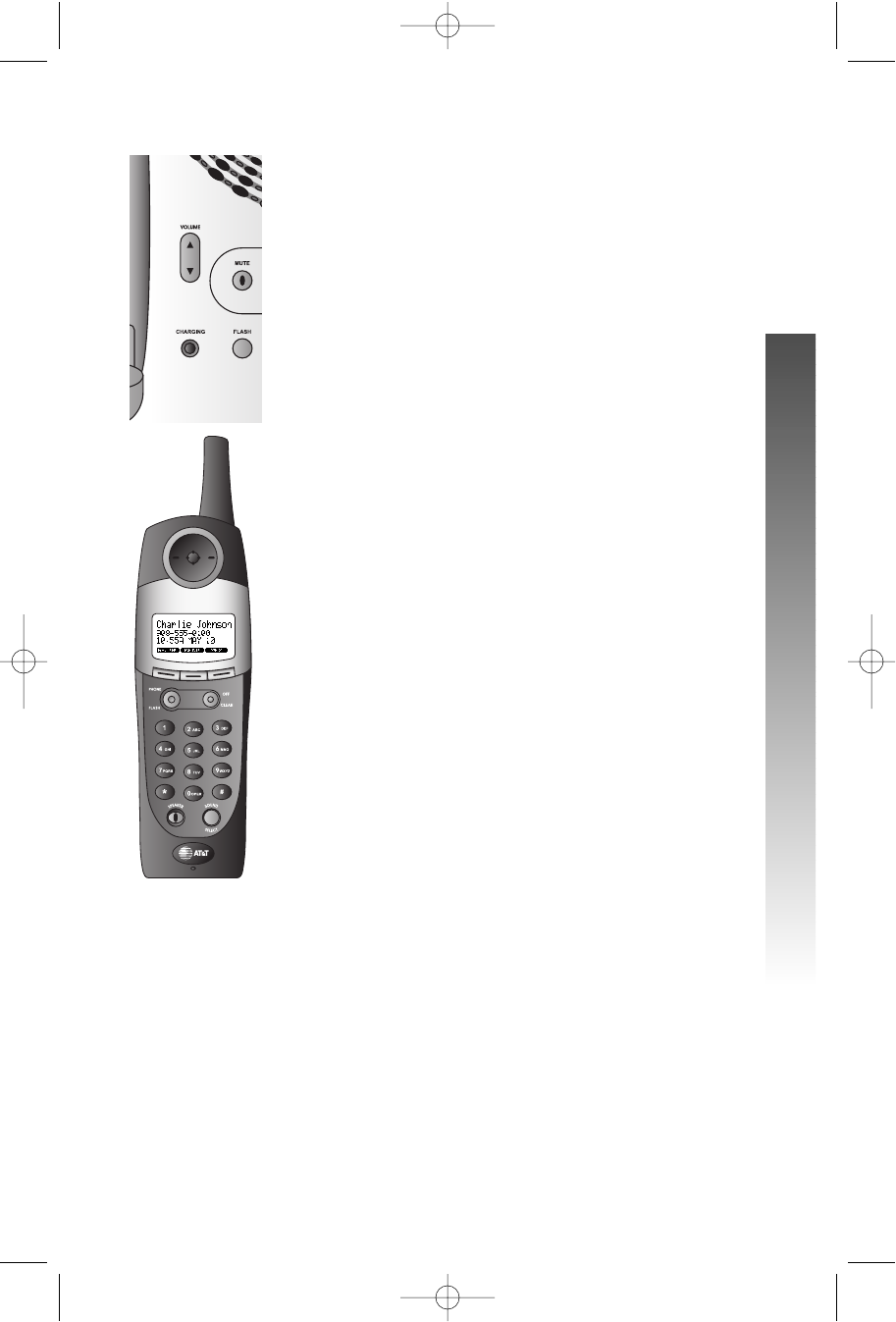
Press VOLUME +or VOLUME -to adjust the base
speaker volume while playing back messages.
Call Screening/Intercept
1Make sure the answering system and call
screening are on, and set the message playback
volume control above level 1 so you can hear the
caller’s message.
2If you decide to take the call, press Pon
the handset.
3If you pick up an extension phone during the
announcement and the announcement does not
stop right away, press and release the telephone
switchhook at the extension.
3358
j
jj
jj
l
ll
ll
k
kk
kk
ANSWERING SYSTEM OPERATION
ANSWERING SYSTEM OPERATION
91-5438-20-00_ATT3358_R0 2003.7.11 9:41 AM Page 51
52
Record a Memo
You can record
a memo up to four minutes long to store as an
incoming message.
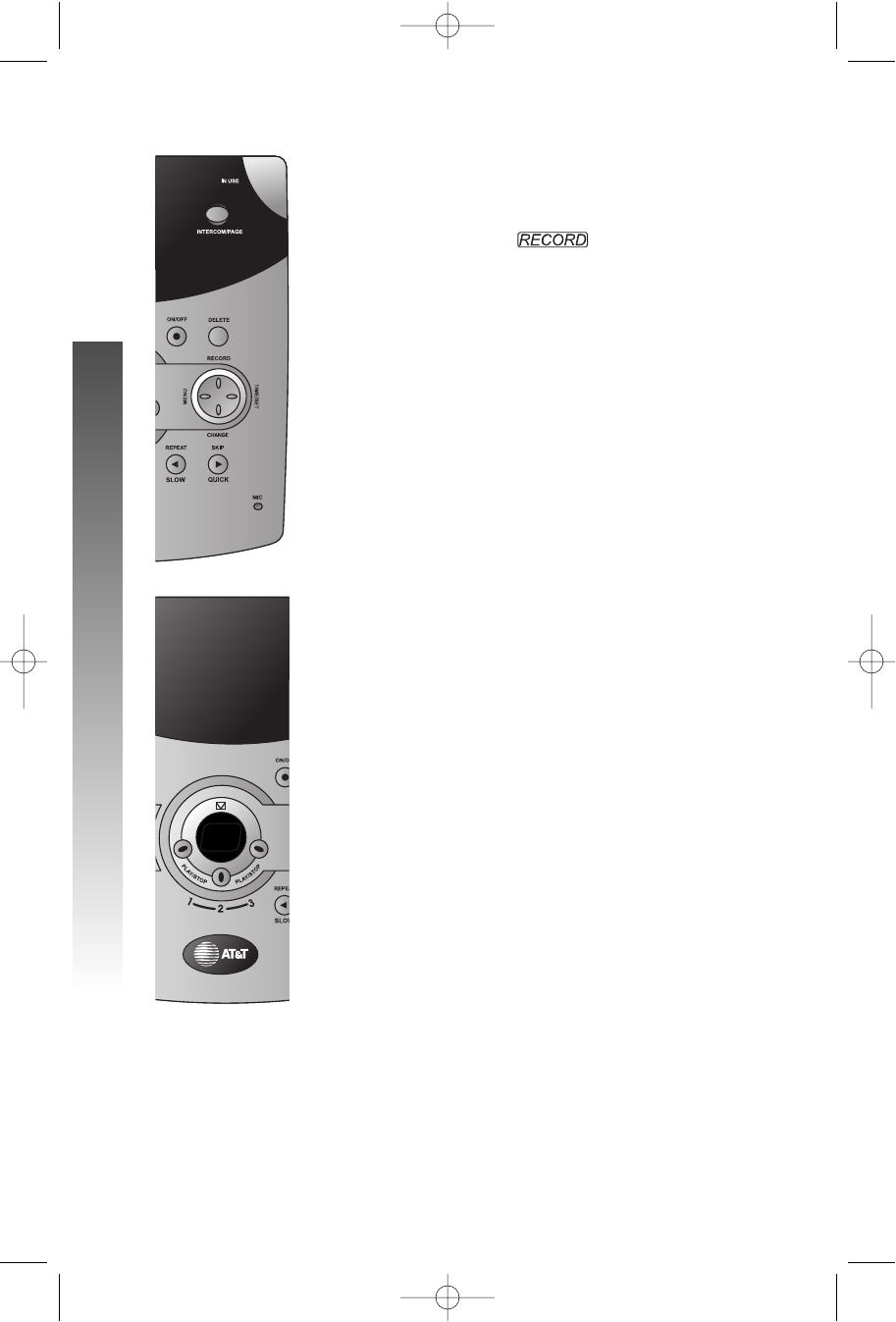
1Press and release .
2Press a PLAY/STOP button to select a mailbox
for the memo. After the beep, speak toward the
microphone. The message window displays the
length of your memo.
3To stop recording, press the PLAY/STOP button
again.
m
mm
mm
m
mm
mmm
mm
mm
j
jj
jj
ANSWERING SYSTEM OPERATION
ANSWERING SYSTEM OPERATION
91-5438-20-00_ATT3358_R0 2003.7.11 9:41 AM Page 52
53
MESSAGE WINDOW DISPLAY
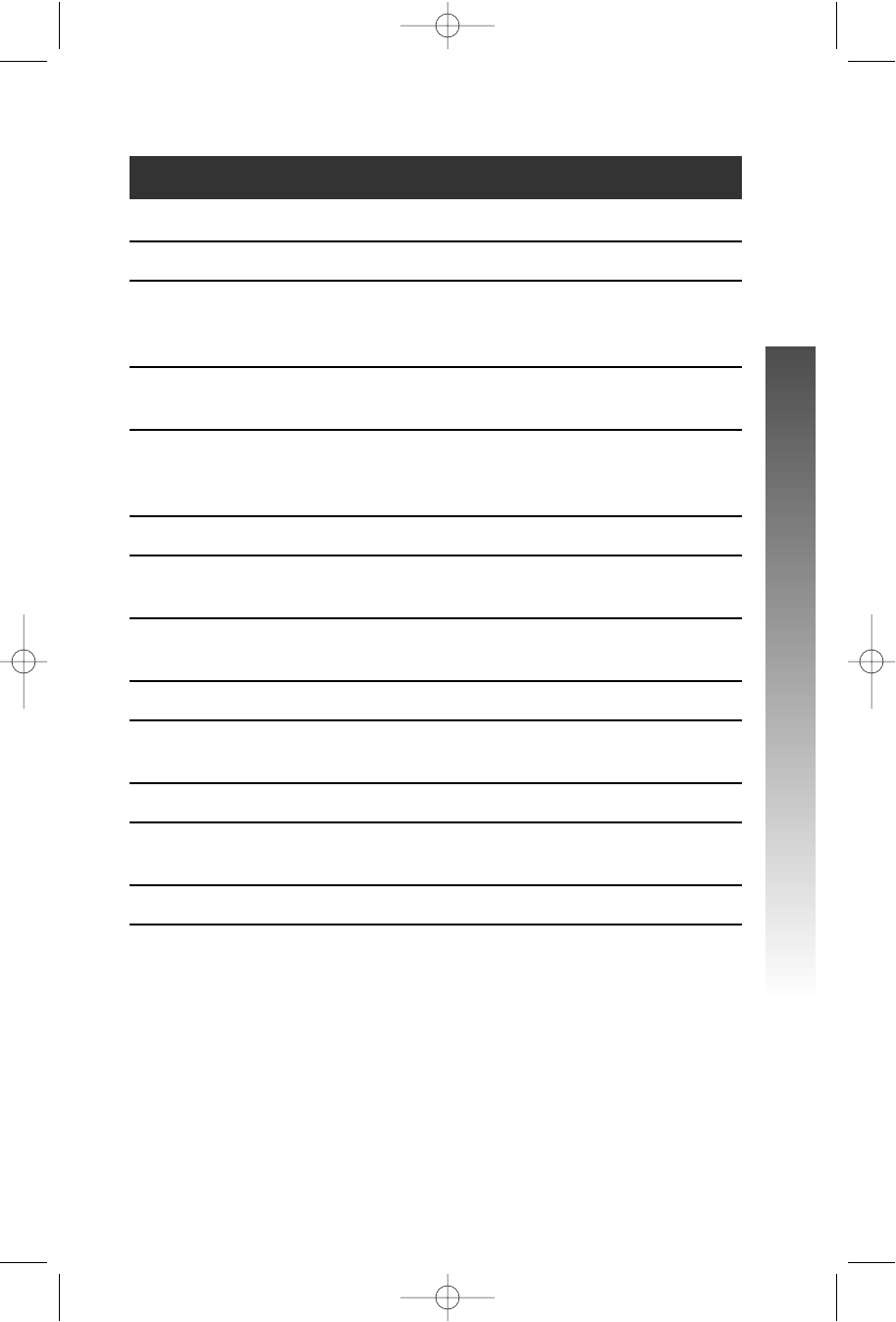
WINDOW DISPLAYS: WHEN:
00No messages in any mailbox
11– 9999Total number of messages in all mailboxes, or
current message number during message
playback.
00– 9999↔↔FFMemory is full, or total number of messages
is 99
Counting 11to 9999Duration of announcement or memo
recording (maximum announcement length is
90 seconds)
9999, flashing Length of recording is more than 99 seconds
11– 88, steadily for Indicates volume level selected when
one second VOLUME +or VOLUME -is pressed
4400– 9999Current Remote Access Code (40–99) while
setting
AAAnnounce Only mode
OOnnor OOFF, steadily for Displayed when any setting is changed
one second from on or off
CCLL↔↔normal display Clock needs to be set
––––System is answering a call or is in remote
operation
––––, flashing System is in programming mode or initializing
ANSWERING SYSTEM OPERATION
ANSWERING SYSTEM OPERATION
91-5438-20-00_ATT3358_R0 2003.7.11 9:41 AM Page 53

Connect with the Answering System
You can access many features of this system remotely from a touch
tone phone.
1 Dial your telephone number.
2 When the system answers, enter your Remote Access Code
(preset to 50). The system beeps once and then announces
the number of new messages.
3 Enter a remote command (see “Remote Access Commands” on
page 55).
4 Press *0to exit remote operation.
Voice Menu
The system has voice prompts to help you with remote operation.
Press *5to hear the menu while remotely connected to the answering
system.
54
ANSWERING SYSTEM OPERATION at touch tone phone
ANSWERING SYSTEM OPERATION
ANSWERING SYSTEM OPERATION
91-5438-20-00_ATT3358_R0 2003.7.11 9:41 AM Page 54

55
REMOTE ACCESS COMMANDS
FUNCTION: COMMAND:
Play messages Press #, then enter the appropriate
in a mailbox mailbox number(1,2, or 3). The system
plays new messages. If there are no new
messages, the system plays old messages.
Repeat a message Press #4while message is playing; press #
4twice back up another message.
Skip a message Press #6while message is playing; each
press advances another message.
Stop Press #5.
Save messages Hang up.
Delete message Press #9while message is playing.
Review announcement Press #7; system plays announcement,
then beeps.
Record announcement Press *7; after beep, record
announcement, press #5to stop.
System plays back announcement.
Record memo Press *8; then mailbox number where
you want memo recorded; speak after beep;
press #5to exit.
End remote access call Press *0.
Turn system off Press #0; the system announces, “Machine
off.” Press #0again to turn
the system back on.
Turn system on When system is off, it answers after 10 rings
and announces,“Please enter your remote
access code.” Enter your remote access
code.
¥¥NOTE: If no key is pressed within 10 seconds of entering remote
access code, the voice menu will be announced. After the voice menu
announcement, if no key is pressed within 20 seconds, the remote
access call will automatically end.
ANSWERING SYSTEM OPERATION
ANSWERING SYSTEM OPERATION
91-5438-20-00_ATT3358_R0 2003.7.11 9:41 AM Page 55
Battery Life
A fully charged battery provides an average talk time of about eight hours,
or standby time of five days.
¥¥NOTE: Talk time and standby time may vary depending on operating
conditions.
Battery Indicator
Ten to fifteen minutes before the battery charge indictor gets too low
to operate the handset, an empty battery icon ( ) will flash on the
screen, you’ll hear three short tones, and the screen will display LLOOWW
BBAATTTTEERRYY.
If you continue to use the handset without charging the battery or replacing
it (you can purchase a spare battery separately), the handset will turn off
automatically when there is no longer sufficient power.
¥¥NOTE: Monitor the battery icon to make sure your battery is
sufficiently charged.
Charge the Handset Battery Pack
•After a low battery indicator, the handset battery needs to be charged.
•Place the handset in the base so the CHARGING light goes on.
The battery pack is typically charged in eight hours.
•If you repeatedly get a low battery indicator, even after eight hours of
charging, the battery should be replaced. Use only AT&T Battery 2401,
SKU# 91077.
CAUTION: Charge the battery provided with or identified for
use with this product only in accordance with the instructions and
limitations specified in the User’s Manual, Part 1.
56
BATTERIES
BATTERIES
BATTERIES
91-5438-20-00_ATT3358_R0 2003.7.11 9:41 AM Page 56
57
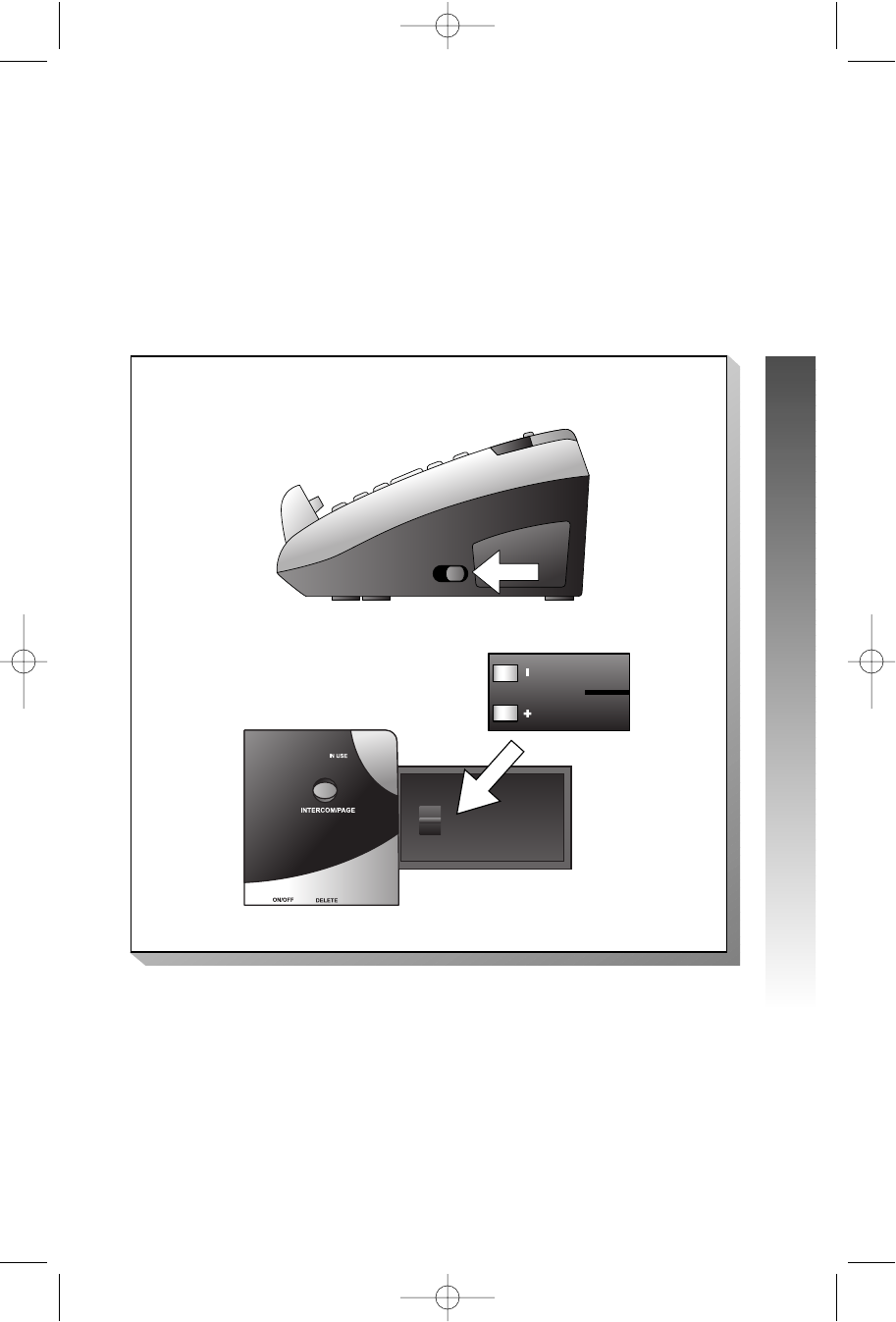
Spare Battery
You can buy a spare handset battery (AT&T Battery 2401, SKU# 91077, sold
separately) and keep it charged in the base at all times.
In the event of a power failure, a fully charged battery in the spare battery
compartment will allow you to make and receive calls from the cordless
handset only for up to 2 1
/2hours.
The spare battery will fully charge in 24 hours.
SPARE
BATTERY
BATTERIES
BATTERIES
91-5438-20-00_ATT3358_R0 2003.7.11 9:41 AM Page 57
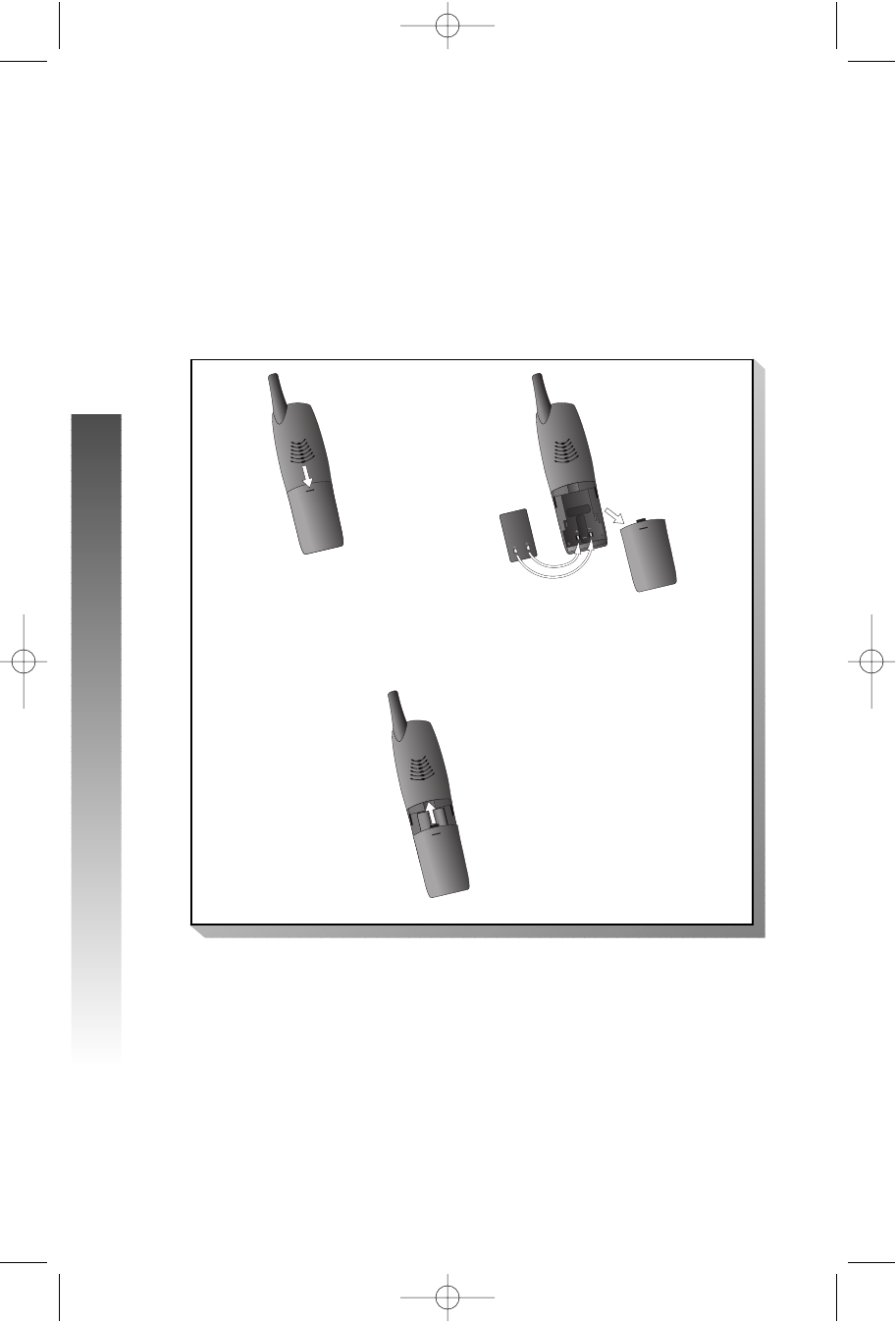
Replace the Handset Battery Pack
1Install the handset battery.
Use only AT&T Battery 2401, SKU# 91077.
2Charge the handset battery.
• Place the handset in the base.
• Charge the battery for at least 12 hours. After the first
charge, the battery will charge in eight hours.
58
b) Align the contacts and place
the battery pack in the
battery compartment.
a) Remove battery
compartment cover by
pressing on indentation
and sliding downward.
c) Replace cover by
sliding it on its
track up over
battery case until
it snaps firmly into
place.
BATTERIES
BATTERIES
91-5438-20-00_ATT3358_R0 2003.7.11 9:41 AM Page 58

59
IN CASE OF DIFFICULTY
IN CASE OF DIFFICULTY
If you have difficulty operating this phone, try the suggestions below.
For Customer Service, visit our website at www.telephones.att.com
or call 1-800-222-3111. Please retain your receipt as your proof
of purchase.
PHONE
PROBLEM SOLUTION
If the phone does not • Make sure the power cord is plugged
work at all, check these into the base and an electrical outlet
items first: not controlled by a wall switch.
• Make sure the telephone line cord is
plugged firmly into the base unit and
the telephone jack.
• Make sure the battery pack is installed
correctly.
If the above suggestions do not solve the problem, try re-initializing the
handset and base (see “To re-initialize the handset and base” on page 61).
PROBLEM SOLUTION
If you have no dial tone: Check all the previous suggestions.
If you still do not hear a dial tone, disconnect
the phone and try another phone in the
same jack. If there is no dial tone on that
phone either, the problem is probably in your
wiring or local service.
PROBLEM SOLUTION
If you hear two beeps • The handset and base are not
when you try to use communicating properly. You might be
the handset: out of range. Move closer to the base
and try again.
• If moving closer to the base does not help,
follow the directions “To re-initialize the
handset and base” on page 60. PH
IN CASE OF DIFFICULTY
91-5438-20-00_ATT3358_R0 2003.7.11 9:41 AM Page 59

PHONE
PROBLEM SOLUTION
To re-initialize the • Disconnect the power to the base.
handset and base: • Remove spare battery pack (if installed).
• Remove the handset battery pack.
•Wait at least 15 seconds.
• Insert the handset battery pack.
• Connect the power to the base.
PROBLEM SOLUTION
If you hear noise or • You may be out of range. Move closer to
interference when the base.
using the phone: • Household appliances plugged into the
same circuit as the base can sometimes
cause interference. Try moving the
appliance or the base to another outlet.
• The layout of your home or office may be
limiting the operating range. Try moving
the base to another location, preferably on
an upper floor.
• Using the handset near household
appliances (microwaves, computers,
televisions, stereos, etc.) can sometimes
cause interference. Move away from
appliances while using the handset.
60
PROBLEM SOLUTION
If your handset dis-
plays ENTER BASE
ID or NO BASE SUB-
SCRIPTION
It is necessary to register the handset
to the base. Please follow instructions
under REGISTER AN ADDITIONAL
HANDSET on page 5 of this manual.
IN CASE OF DIFFICULTY
IN CASE OF DIFFICULTY
91-5438-20-00_ATT3358_R0 2003.7.11 9:41 AM Page 60

61
PHONE
PROBLEM SOLUTION
If the phone does not • Make sure the ringer is on.
ring when you receive • Make sure the telephone line cord is
a call: connected firmly to the base and the
telephone jack.
• Make sure the AC adapter is plugged firmly
into an electrical outlet not controlled by a
wall switch.
• You might be too far from the base; move
closer.
• You might have too many extension phones
on your telephone line to allow all of them
to ring. Try unplugging some of them.
IN CASE OF DIFFICULTY
IN CASE OF DIFFICULTY
91-5438-20-00_ATT3358_R0 2003.7.11 9:41 AM Page 61

CALLER ID
PROBLEM SOLUTION
If the caller’s name or • Make sure you subscribe to Caller ID
phone number is not service from your local telephone
displayed: company.
• Make sure the battery is charged.
• Caller ID service might not work when the
phone is connected to a Private Branch
Exchange (PBX).
PROBLEM SOLUTION
If the caller’s name or • You should call your service provider to
phone number is not confirm that you subscribe to combined
displayed during Caller ID with Call Waiting service.
Call Waiting: • Caller ID information received during Call
Waiting is displayed only on the handset
that is in use.
• Make sure the battery is charged.
62
IN CASE OF DIFFICULTY
IN CASE OF DIFFICULTY
91-5438-20-00_ATT3358_R0 2003.7.11 9:41 AM Page 62

63
ANSWERING SYSTEM
PROBLEM SOLUTION
If messages are • If a caller leaves a very long message,
incomplete: part of it may be lost when the system
disconnects the call after four minutes.
• If the caller pauses for more than seven
seconds, the system stops recording and
disconnects the call.
• If the system’s memory becomes full during
a message, the system stops recording and
disconnects the call.
PROBLEM SOLUTION
If you have difficulty Check the volume setting.
hearing messages:
PROBLEM SOLUTION
If callers are unable to Make sure caller is dialing from a touch
leave messages in tone phone.
Mailbox 2 or 3:
PROBLEM SOLUTION
If the system does not • Make sure that the answering system
answer after the correct is on.
number of rings: • If Toll Saver is on, the number of rings
changes to two when you have new
messages.
• In some cases, the system may be affected
by the ringing system used by the local
telephone company.
• If the memory is full or the system is off,
the system answers after 10 rings.
IN CASE OF DIFFICULTY
IN CASE OF DIFFICULTY
91-5438-20-00_ATT3358_R0 2003.7.11 9:41 AM Page 63

ANSWERING SYSTEM
PROBLEM SOLUTION
If CL appears in the You need to reset the clock.The answering
message window: system clock is not set automatically with
incoming Caller ID information.
PROBLEM SOLUTION
If the system does not • Make sure you are calling from a touch
respond to commands tone phone. When you dial a number,
from a remote touch you should hear tones. If you hear clicks
tone phone: instead, the phone is not a touch tone
telephone.
• The answering system may not detect the
Remote Access Code while your
announcement is playing. Try waiting until
the announcement is over before entering
the code.
• Make sure you enter your Remote Access
Code correctly.
• There may be noise or interference on
the phone line you are using. Press keys
firmly.
PROBLEM SOLUTION
If your outgoing • When you record your announcement,
announcement isn’t make sure you speak in a normal tone of
clear: voice, about nine inches from the base.
• Make sure there is no “background” noise
(TV, music, etc.) while you are recording.
64
IN CASE OF DIFFICULTY
IN CASE OF DIFFICULTY
91-5438-20-00_ATT3358_R0 2003.7.11 9:41 AM Page 64

65
DEFAULT SETTINGS
DEFAULT SETTINGS
DEFAULT SETTINGS
FUNCTION: DEFAULT SETTING:
Handset Volume 2
Ringer Volume 3
Ringer Melody 1
Keypad Tone ON
Remote Access Code 50
Clock Mode ON
Message Alert OFF
Announce Only OFF
Number of Rings 4
Call Screening ON
DEFAULT SETTINGS
91-5438-20-00_ATT3358_R0 2003.7.11 9:41 AM Page 65

TECHNICAL SPECIFICATIONS
RF Frequency Band 2400 MHz – 2483.5 MHz
(Handset to base)
RF Frequency Band 5725 MHz – 5850 MHz
(Base to handset)
Number of Channels 95
Channel Spacing 864 kHz
Handset Transmit Power +23 dBm
Base Transmit Power +29 dBm
Sensitivity –93 dBm
Modulation GFSK
Operating Temperature 0°C – 50°C
Base Unit Voltage 96 – 127 Vrms
(AC Voltage, 60Hz)
Base Unit Voltage 7 Vdc @ 1A
(DC Adapter Output)
Handset Voltage 2.0 – 3.0 Vdc, 1400mAh
(2-Cell NiMH Battery)
66
TECHNICAL SPECIFICATIONS
TECHNICAL SPECIFICATIONS
TECHNICAL SPECIFICATIONS
91-5438-20-00_ATT3358_R0 2003.7.11 9:41 AM Page 66
INDEX
INDEX
67
A
40, 44
Announce Only 46, 49, 53, 65
announcements 46, 50
B
Base 1, 21,26, 33, 34, 60, 66
Base lights 30
Base ringer 19, 20
Base Unit See Base
BASS BOOST 11
battery 4, 7, 29, 56–58, 66
Beeps 31, 49, 54, 55
Belt Clip 8
C
Calls Log 2
CALL ON HOLD 27
Call Screening 49
Call Waiting 2
Caller ID 2, 41
c45, 48
43, 44
CL 3, 53, 64
C36
CLOCK ENABLE 10
CLOCK MODE 10
conference call 35
CONTRAST 17
D
default settings 65
40
D47, 50
Dial Tone 4, 59
dialing options 42,43
Display Screen Messages 28
E
39, 40
Empty ( ) 29, 56
English 18
ENTER NAME 36
ENTRY HAS BEEN STORED 36, 42
F
Feature Setup Menu 9
38
F25
French 18
Full ( ) 29
G
GLOBAL PAGE 32
H
Handset 1, 2, 8, 11, 21–23, 26, 29,
32–35, 56, 59, 60, 65, 66
Handset battery See battery
Handset Icons 29
Handset ringer 12–13
Headset 8, 11
Hold 27, 29, 35
27, 34
HOLD
FIND
EDIT
DEL
CID
ALL
INDEX
91-5438-20-00_ATT3358_R0 2003.7.11 9:41 AM Page 67
I
Idle Screen 9
32
interference 60, 64
K
KEYPAD TONE 16
L
LANGUAGE 18
long tone 59
Low Batt Tone 14
low battery 29, 56
LOW BATTERY 56
M
36
memos 50
9
Message Alert 49
message window 50, 52
Message Window Display 53
messages 50
messages are incomplete 63
MICROPHONE MUTED 26
MID BOOST 11
mute 26
M26
26
N
NATURAL BOOST 11
NEW CALLS 41
NiMH Battery pack 1
noise or interference 60, 64
39
O
O 21, 23, 24, 33–35
9
O45
P
P21, 23, 24, 33, 43, 51
Power Cord 1, 3, 6, 59
Power Failure Backup 7
R
range limit 15
range tone 15
re-initialize 60
r47, 52
redial 24
24
Remote Access Commands 55
RINGER #01 13
Ringer Melody 13,20, 65
RINGER MELODY 13
Ringer Volume 12, 19, 65
RINGER VOLUME 12
REDIAL
OK
NUMBER
MUTE
MENU
MEM
68
INDEX
INDEX
91-5438-20-00_ATT3358_R0 2003.7.11 9:41 AM Page 68

69
S
9, 36, 39, 42
SET TIME 9
sound quality settings 11
11
Spanish 18
Spare Battery 7, 52
Speaker 22, 52
K21, 23–24, 33, 34, 43
Speakerphone 11, 23
standby time 56
subscriber services 25
T
talk time 56
Technical Specifications 66
Telephone line cord 1, 3
40
Time 9, 10, 41, 50
t45
Toll Saver 49
tone 14, 15, 22, 65
Tones 31, 56
touch tone 46, 49, 61
TREBLE BOOST 11
V
Voice Mailboxes 46
voice prompts 45, 54
volume 12, 19, 22, 53, 65
VOLUME +22, 51, 53
VOLUME -22, 51, 53
X
34
XFER
THIS
SAVE
INDEX
INDEX
91-5438-20-00_ATT3358_R0 2003.7.11 9:41 AM Page 69