DispatchManager_receiver_manual_v1.2 Dispatch Manager Receiver Manual V1.2
User Manual:
Open the PDF directly: View PDF  .
.
Page Count: 38
User Manual for Receivers
Version 1.2
World Headquarters
IAS-Trinium
520 Third Street, Suite 101
Oakland, CA 94607
U.S.A.
www.ias trinium.com
Tel: +1 (510) 844-3000
Fax: +1 (510) 844-3001
Worldwide 24x7 Technical Support
U.S.A. Support:
Tel: +1 (866) 829-8804
support@interasset.com
Asia Support:
Tel: +852-2529-8038
© 2008 IAS-Trinium. All rights reserved.

Table of Contents
i
DispatchManager User Manual for Receivers
1. Introduction
2. Logging In
3. Work Orders for Receivers
Search . . . . . . . . . . . . . . . . . . . . . . . . . . . . . . . . . . . . . . . . . . . . . . . . . . . . . . . . . . . . . . . . . . . . . . . . . . . . . . . 3-3
Advanced Search . . . . . . . . . . . . . . . . . . . . . . . . . . . . . . . . . . . . . . . . . . . . . . . . . . . . . . . . . . . . . . . . . . . . . 3-3
4. Amending and Commenting on a Work Order
Amend a Work Order . . . . . . . . . . . . . . . . . . . . . . . . . . . . . . . . . . . . . . . . . . . . . . . . . . . . . . . . . . . . . . . . . . 4-1
Adding Comments to a Work Order . . . . . . . . . . . . . . . . . . . . . . . . . . . . . . . . . . . . . . . . . . . . . . . . . . . . 4-8
5. Accepting a Work Order
6. Rejecting a Work Order
7. Saving a Work Order
Editing Scheduled and Actual Information . . . . . . . . . . . . . . . . . . . . . . . . . . . . . . . . . . . . . . . . . . . . . 7-1
8. Reports
Trucker Performance Report . . . . . . . . . . . . . . . . . . . . . . . . . . . . . . . . . . . . . . . . . . . . . . . . . . . . . . . . . . . 8-1
Columns . . . . . . . . . . . . . . . . . . . . . . . . . . . . . . . . . . . . . . . . . . . . . . . . . . . . . . . . . . . . . . . . . . . . . . . . . . . . . . . . . . .8-2
Accept/Reject Responsiveness Report . . . . . . . . . . . . . . . . . . . . . . . . . . . . . . . . . . . . . . . . . . . . . . . . . . 8-2
Columns . . . . . . . . . . . . . . . . . . . . . . . . . . . . . . . . . . . . . . . . . . . . . . . . . . . . . . . . . . . . . . . . . . . . . . . . . . . . . . . . . . .8-3
Volume Report . . . . . . . . . . . . . . . . . . . . . . . . . . . . . . . . . . . . . . . . . . . . . . . . . . . . . . . . . . . . . . . . . . . . . . . 8-3
Columns . . . . . . . . . . . . . . . . . . . . . . . . . . . . . . . . . . . . . . . . . . . . . . . . . . . . . . . . . . . . . . . . . . . . . . . . . . . . . . . . . . .8-3
9. Supported Summary Size/Types
Appendix A: DispatchManager Glossary

Table of Contents
ii © 2008 International Asset Systems
1-1
DispatchManager User Manual for Receivers
1
Introduction
DispatchManager is an online Software-as-a-Service (SaaS) application that allows different parties in the
transport chain community to communicate using a single platform.
In DispatchManager, an Originator is the party that originates a work order for a move. Often the
originator is a ocean carrier, freight fowarder, or 3PL.
A receiver is the trucking company that accepts or rejects the work order. The receiver is constantly
updating the originator on appointments and actuals for each move.
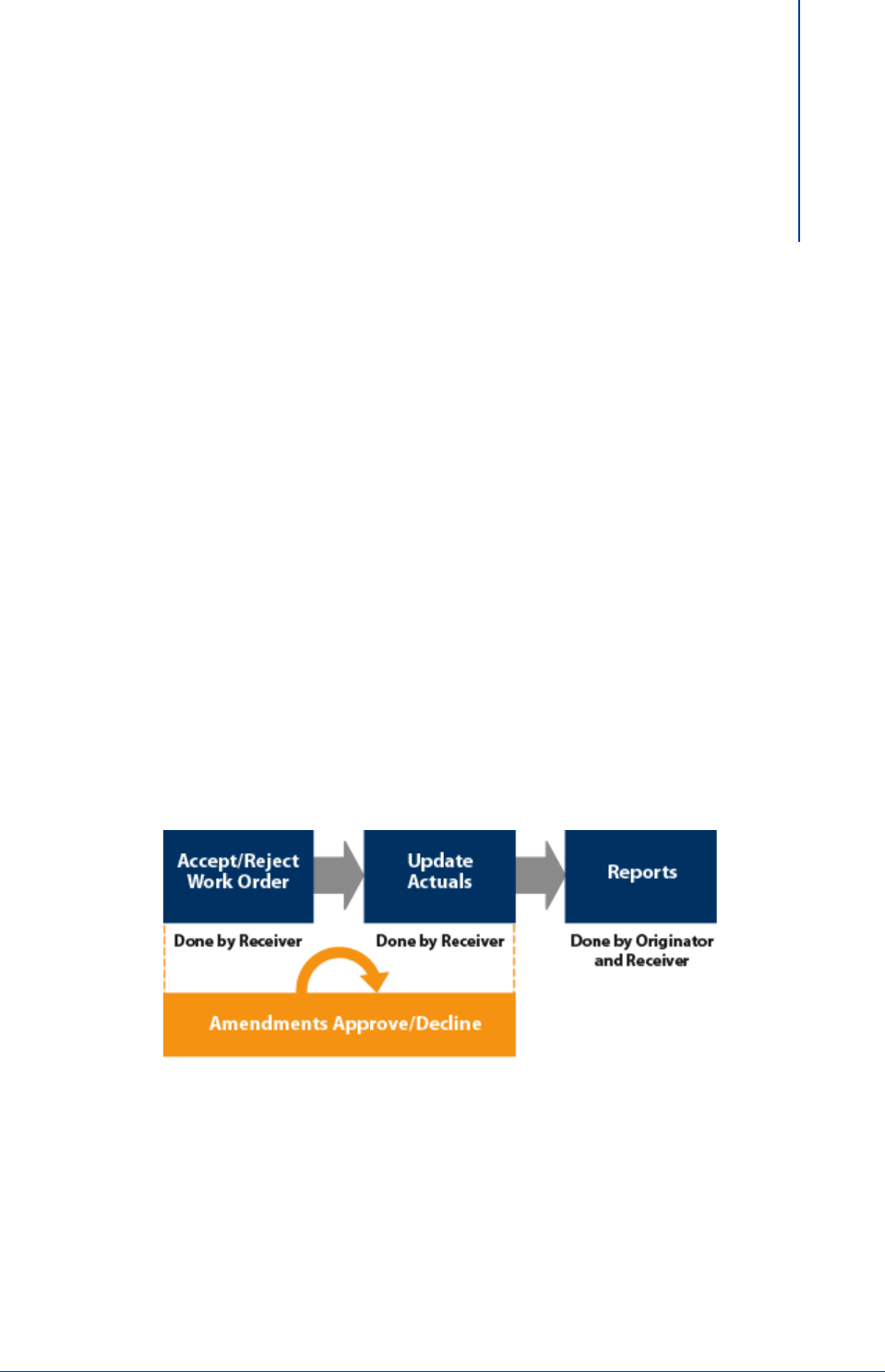
Process Flow for Receiver

1-2 © 2008 International Asset Systems
This page intentionally left blank.
2-1
DispatchManager User Manual for Receivers
2
Logging In
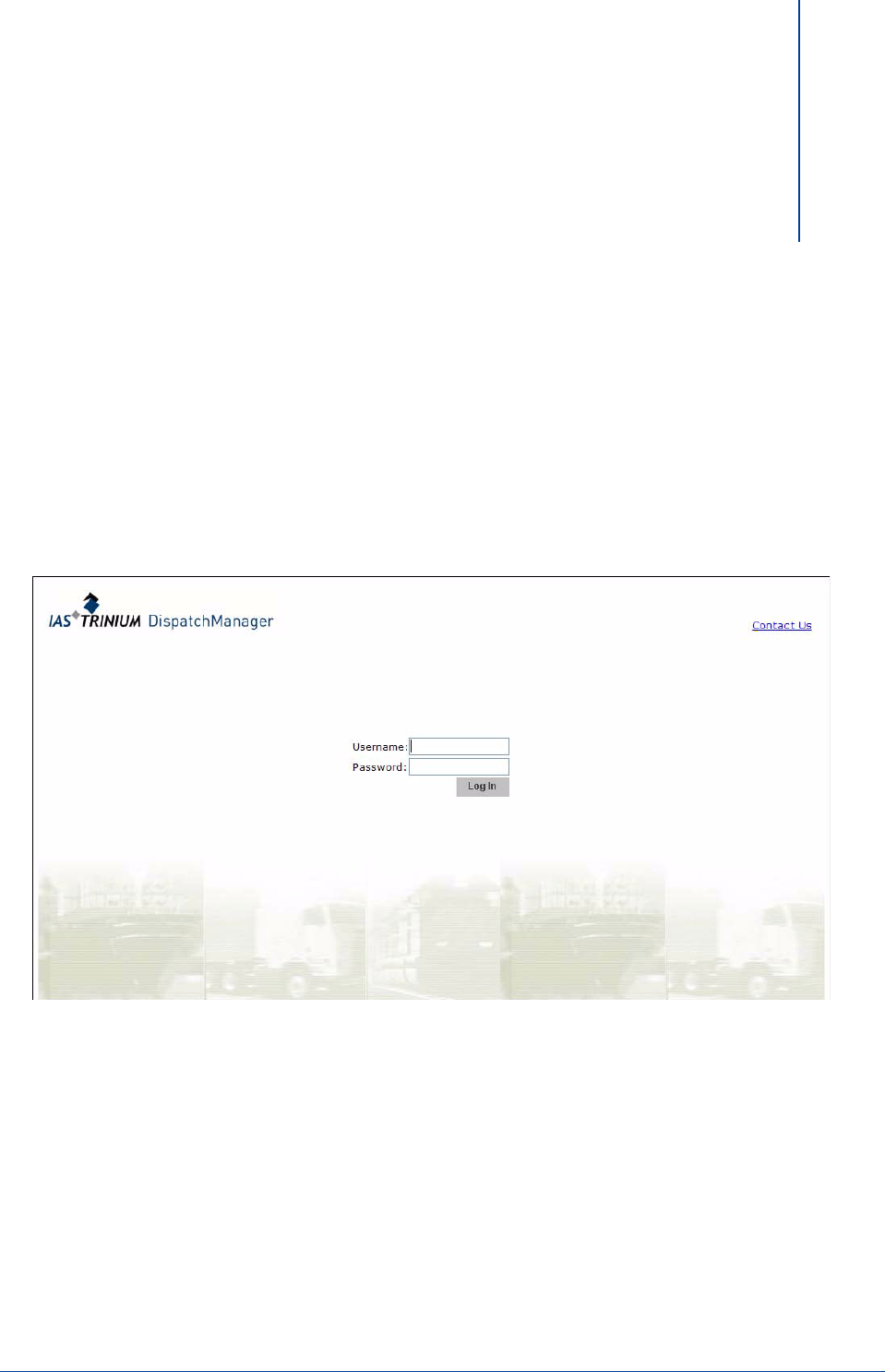
To log into DispatchManager:
1. In the web browser, type in: http://dm.ias-trinium.com/dispatchmanager/
Note: If DispatchManager is being used for training purposes, go to:
http://dm-training.iastrinium.com/dispatchmanager/
Data in the training system will not appear in production screens or reports.
2. Enter your username
3. Enter your password
4. Click
L
OGIN

2-2 © 2008 International Asset Systems
This page left intentionally blank.
3-1
DispatchManager User Manual for Receivers
3
Work Orders for Receivers
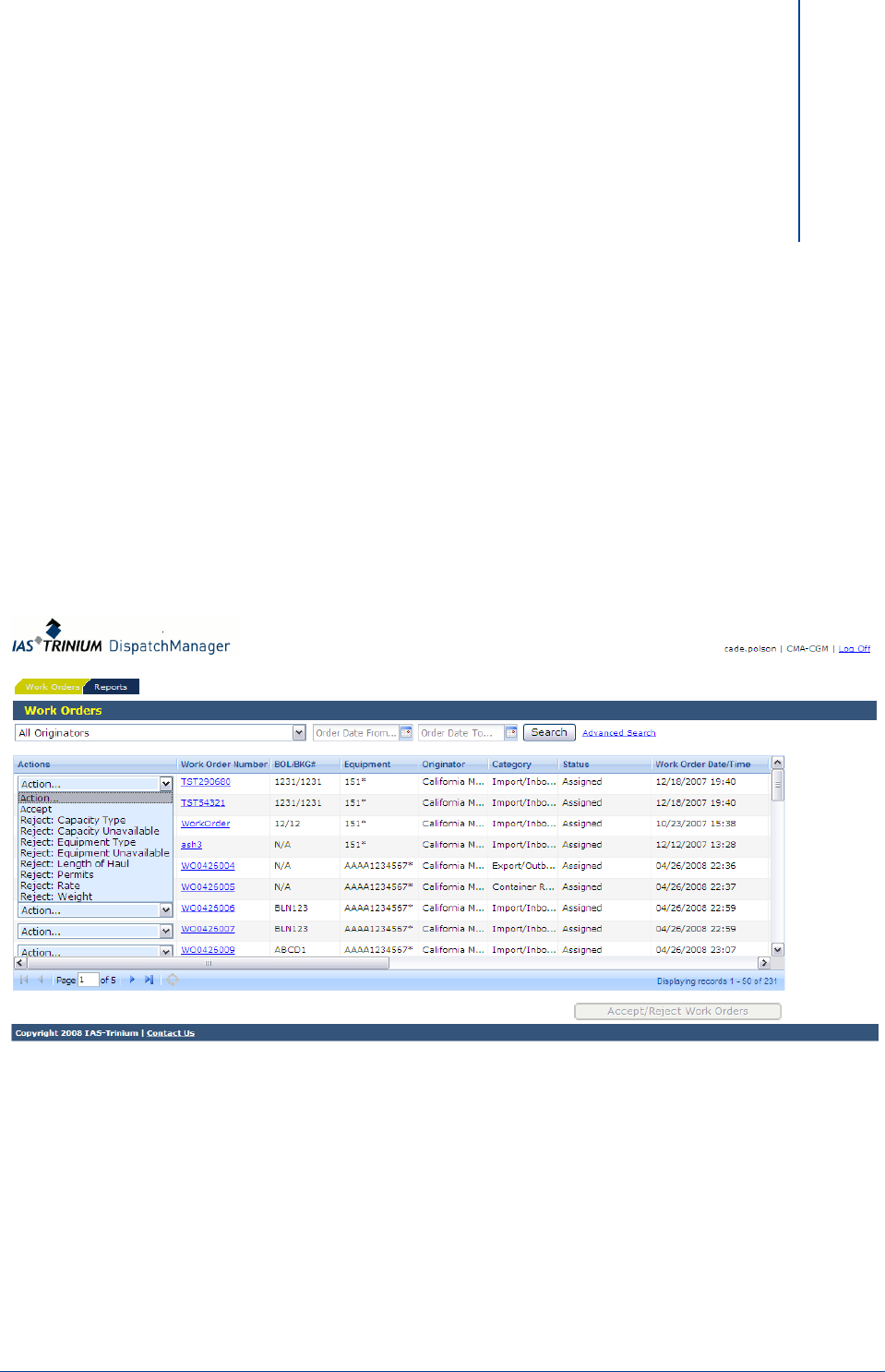
The Work Orders detail screen is displayed after you log into DispatchManager.
3-2 © 2008 International Asset Systems
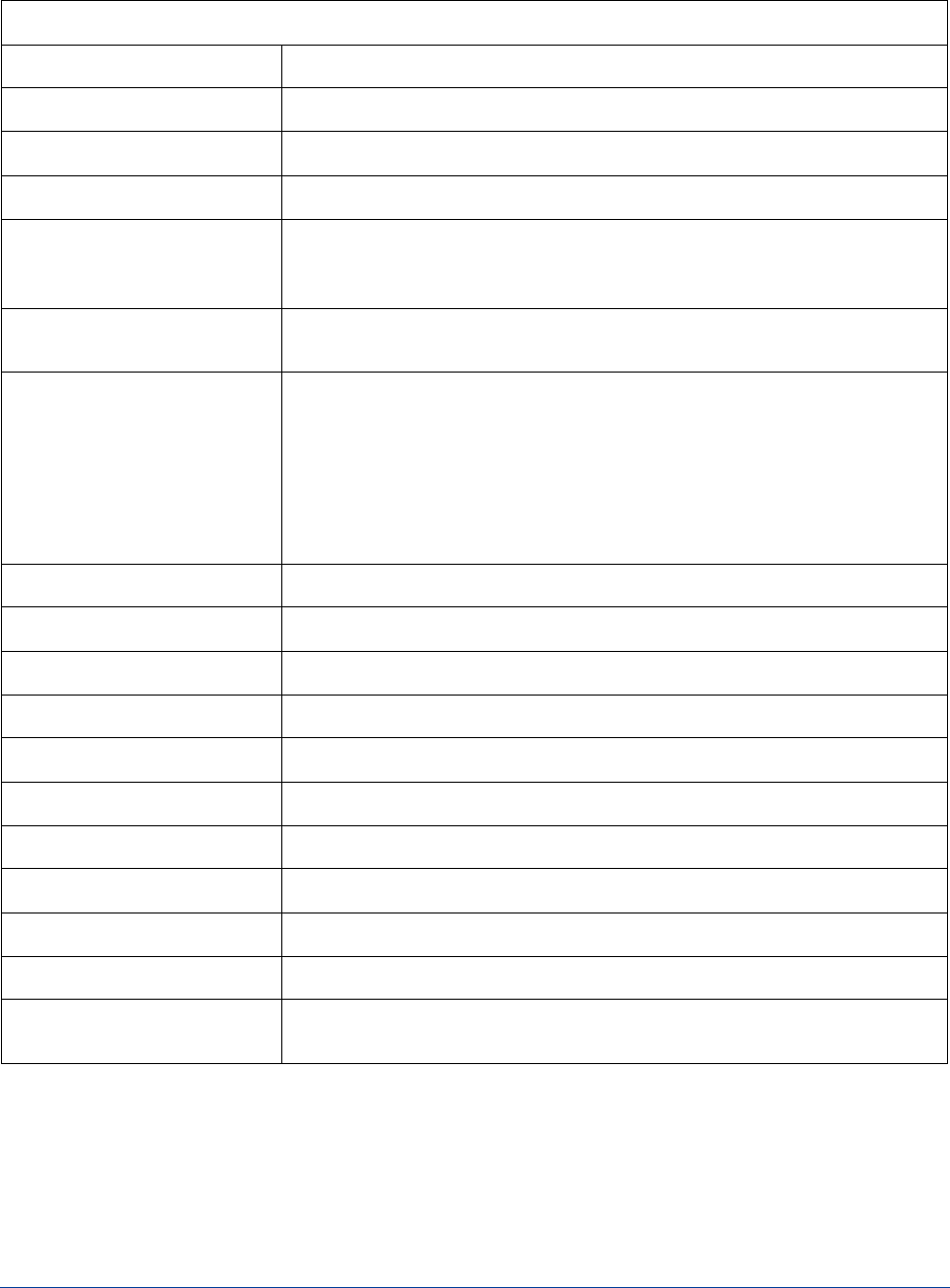
Work Orders Detail Screen Column Descriptions
Column Name Column Description
Work Order Number Originator's reference for a work order number.
BOL/BKG# Bill of Lading, Booking Number, or both.
Equipment Number of the container or chassis.
Originator or Receiver
For originators, this column will show the trucking company doing the
move described in the work order. For receivers, it will show the
originator of the work order.
Category Type of move. Can be Import/Inbound Dray, Export/Outbound Dray,
Container Reposition or Chassis Reposition.
Status
Status of the Work Order.
When an actual is added to any appointment, the work order and that
equipment will become active.
When an actual is added to the last stop for equipment, the equipment
will become completed.
When all actuals are added to the last stop for equipment, the work
order will become completed.
Work Order Date/Time Originator's date/time of the work order.
Vessel Ocean vessel executing an import or export.
Voyage Code for the regularly scheduled arrival or departure of the vessel.
Cutoff Date Date/time an export move must be gated-in at the terminal.
Last Free Day Date/time by which an import must be gated-out from the terminal.
Respond By Date Date/time deadline to respond to assignment.
Pickup Name Name of the pickup for the stop.
Pickup City Name of the pickup city for the stop.
Delivery Name Name of the delivery for the stop.
Delivery City Name of the delivery city for the stop.
Source Source of the work order. For manual orders, this will be the user's
username.
3-3
DispatchManager User Manual for Receivers
Search
Use
S
EARCH
to quickly find a work order that contains an equipment number or is within a specified
range.
TIP: If the container the user is looking for is located in a multi-
container work order, the results will include these work
orders, but the equipment number might not be viewed in
the Equipment Number column.Click on the work order
number to view see all of the equipment on that work order.
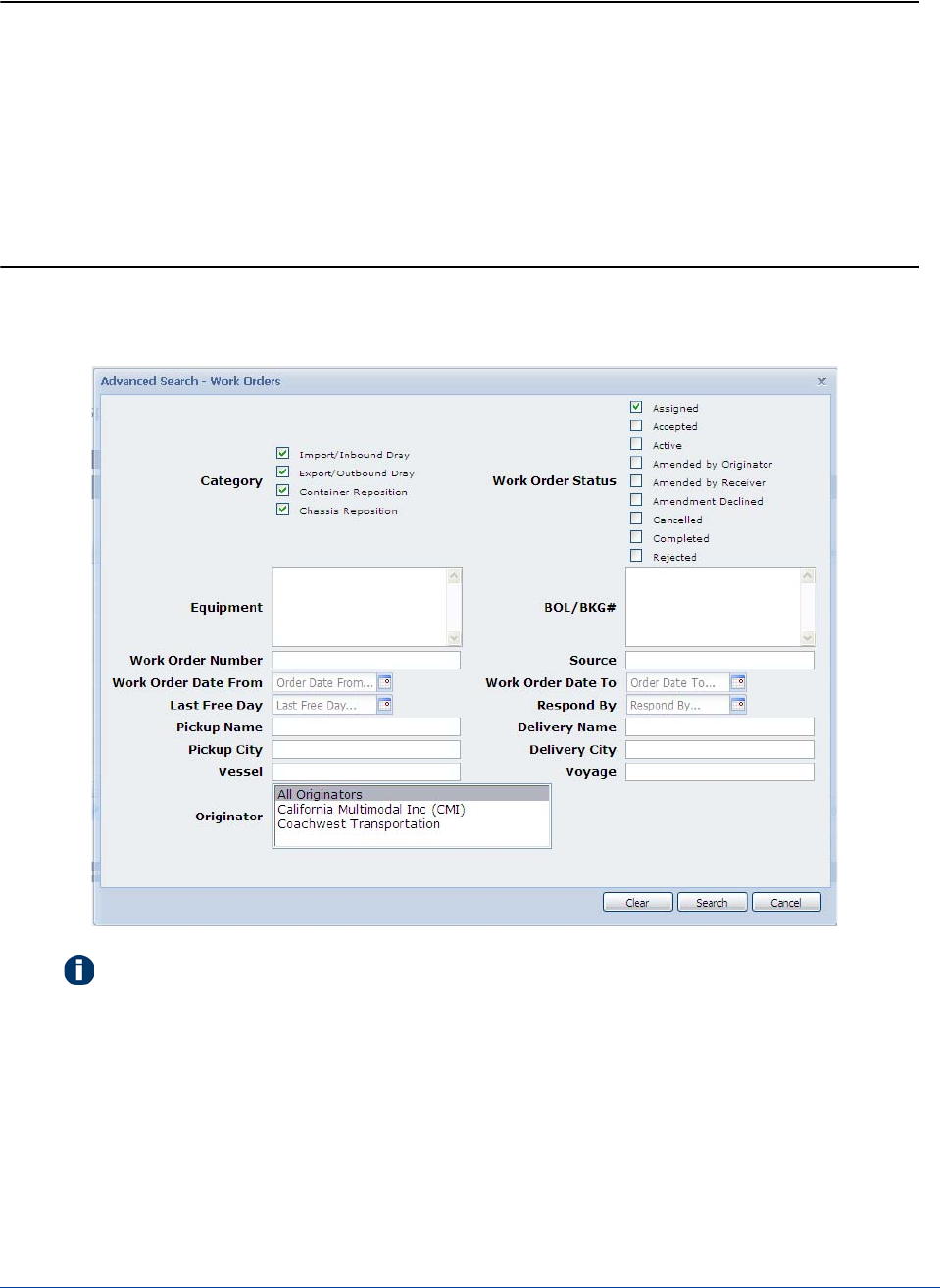
Advanced Search
By default, the Search window displays basic search options. Click
A
DVANCED
S
EARCH
to display
additional search options.
Note: Verify that the correct Status checkboxes are checked for the work orders that are to
be viewed. Otherwise, the work orders will not appear in the Work Orders detail
screen. The default filter for Originators is Assigned, Accepted, and Active Work
Orders. The search criteria will be reset each time the screen is revisited.

3-4 © 2008 International Asset Systems
This page intentionally left blank.
4-1
DispatchManager User Manual for Originators
4
Amending and Commenting on
a Work Order
Amend a Work Order
Update and amend work orders and communicate changes throughout the work order lifecycle. ·
•Update work orders before they are assigned to a trucking company
•Make additional changes to the work order and submit them to the trucking company·
•Quickly approve Assessorial and other amendments made by your trucking company.
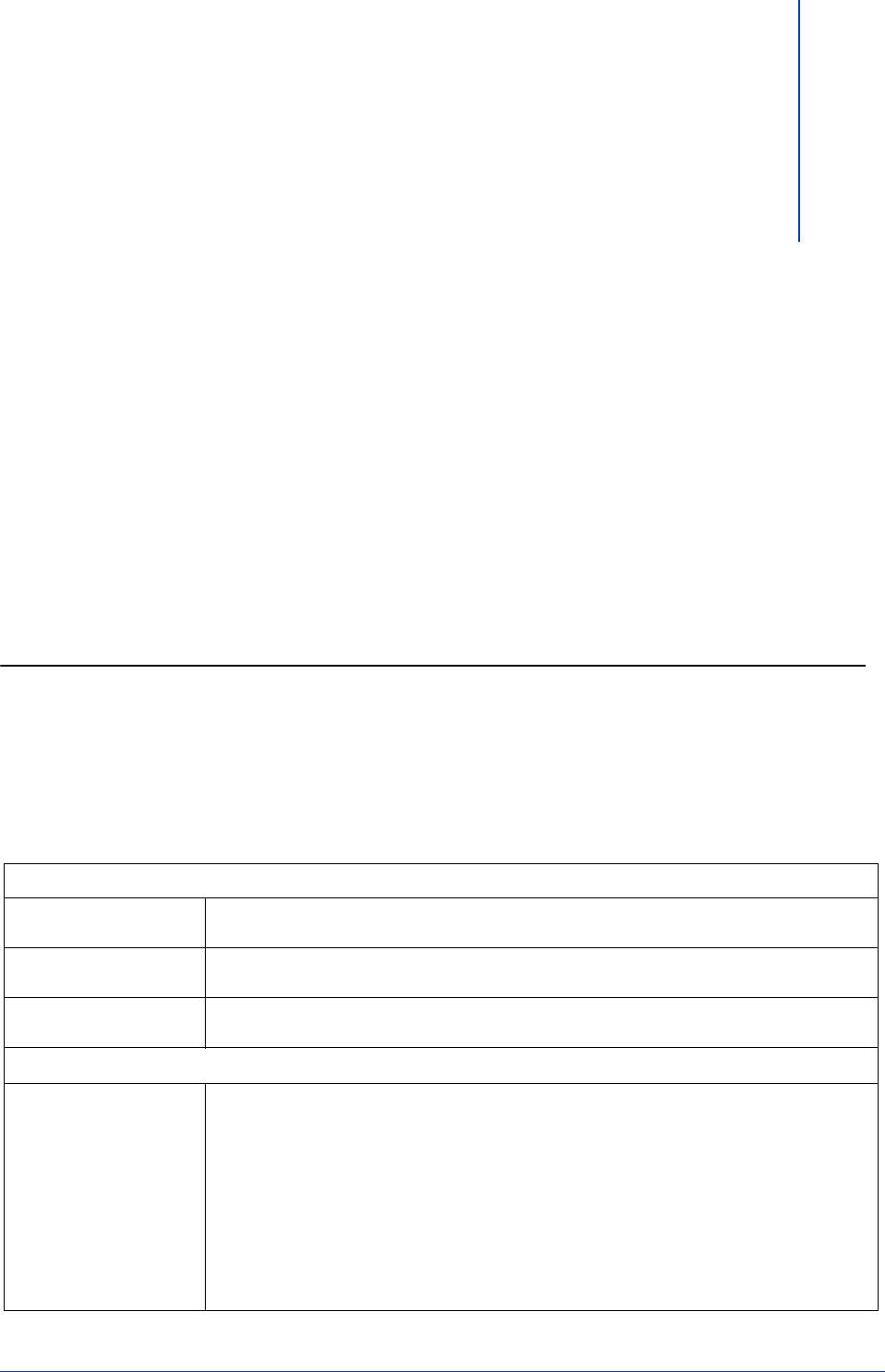
The following information can be amended for a work order:
Equipment
Add Equipment Originators or Receivers can add equipment to the work order. The amendment must
be approved or declined by the other party.
Delete Equipment Originators or Receivers can delete equipment off the work order. The amendment
must be approved or declined by the other party.
Update Equipment Originators or Receivers can update equipment on the work order. The amendment
must be approved or declined by the other party.
Updates
Update: BOL/BKG#,
Rail Billing Number,
Vessel, Voyage, ETA,
Cutoff Date, Respond
By, or Last Free Day
BOL/BKG#: Enter the booking number for an export.
Rail Billing Number: The Rail Waybill number. The railroad issues this when the rail
billing is submitted outside of DispatchManager.
Vessel: Ocean vessel executing an import or export.
Voyage: Code for the regularly scheduled arrival or departure of the vessel.
ETA: Estimated Time of Arrival
Cutoff Date: Date/time an export move must be gated-in at the terminal.
Respond By: Date and Time by which the Receiver must respond to the work order
by accepting or rejecting.
Last Free Day: Date/time by which an import must be gated-out from the terminal.
4-2 © 2008 International Asset Systems
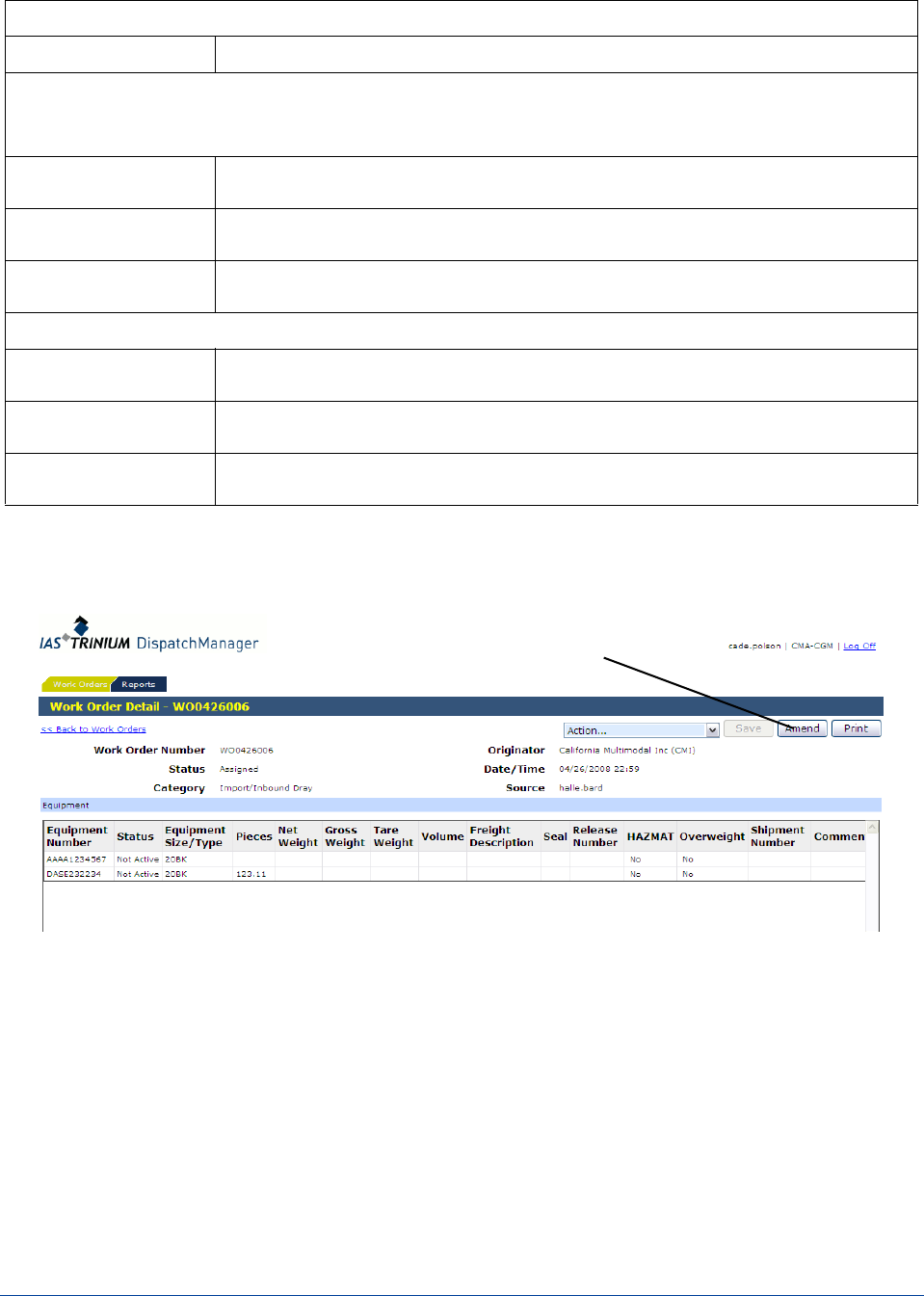
To amend information to an existing work order, do the following:
1. Click
A
MEND
Comments
Amend Comments Enter general comments about the work order amendments.
Charges
Charges can be created for a variety of services and then associate them to one or more equipment on a
work order. The charge can optionally be associated with a stop.
Add Charge Originators or Receivers can add charges to the work order. The amendment must be
approved or declined by the other party.
Delete Charge Originators or Receivers can delete charges to the work order. The amendment must
be approved or declined by the other party.
Update Charge Originators or Receivers can update charges to the work order. The amendment must
be approved or declined by the other party.
Stop
Add Stop Originators or Receivers can add stops to the work order. The amendment must be
approved or declined by the other party.
Delete Stop Originators or Receivers can delete stops to the work order. The amendment must be
approved or declined by the other party.
Update Stop Originators or Receivers can update stops to the work order. The amendment must be
approved or declined by the other party.
A
MEND
4-3
DispatchManager User Manual for Originators
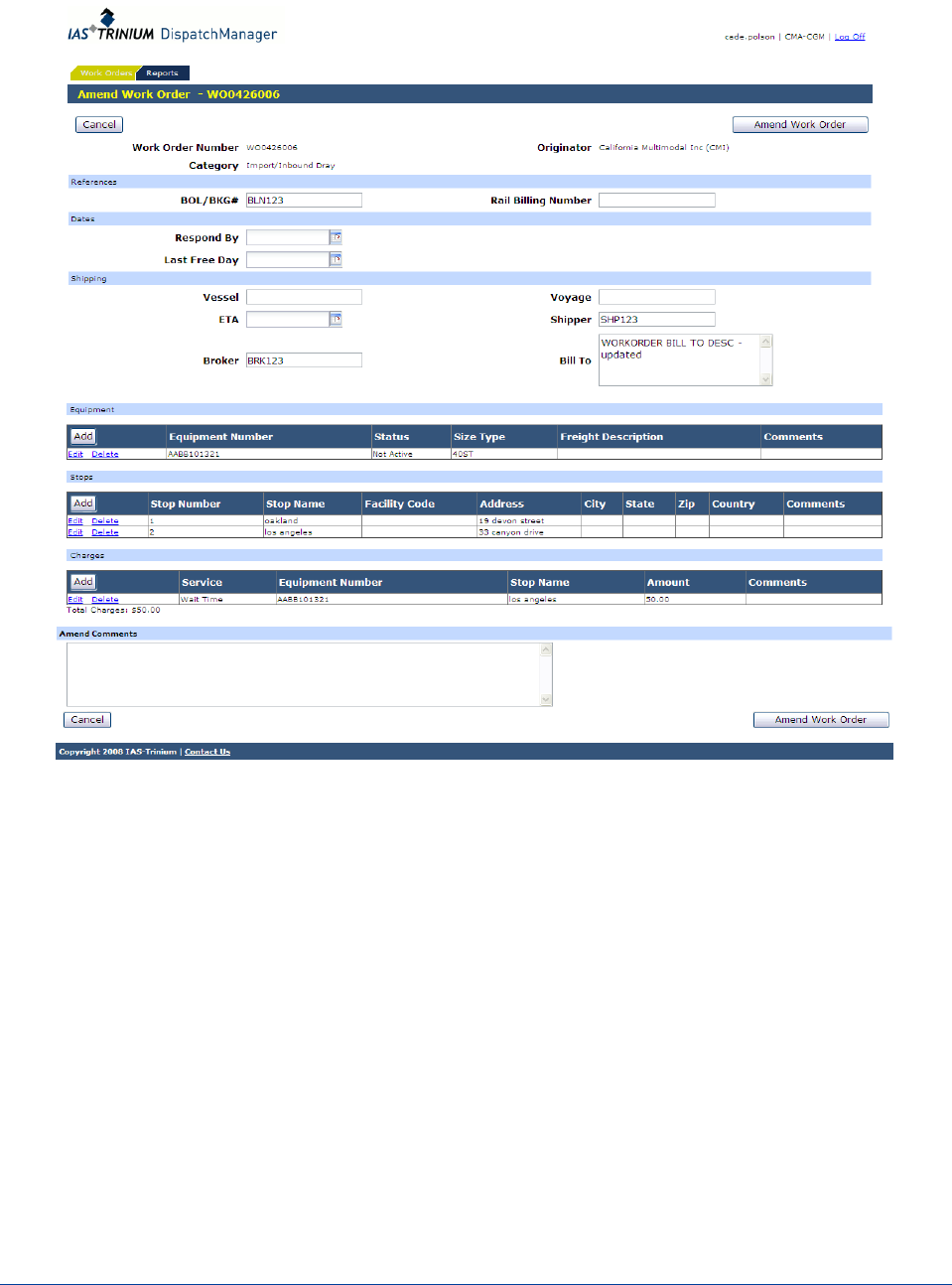
The Amend Work Order screen is displayed. References, Dates and Shipping can be edited. Equipment,
Stops and Charges can also be added, edited or deleted.
4-4 © 2008 International Asset Systems
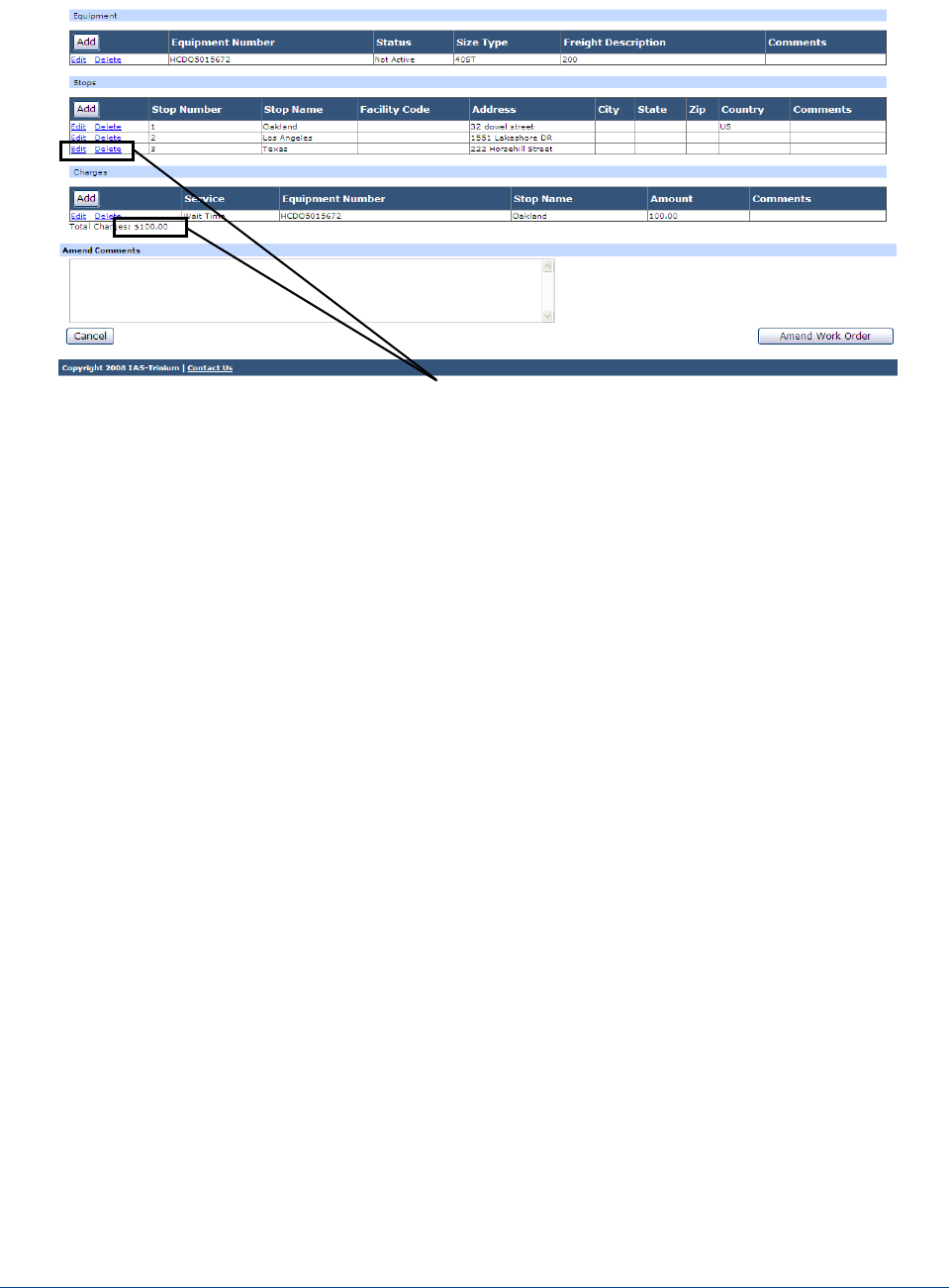
2. The information that has been amended will display in the work order.
3. Click
A
MEND
W
ORK
O
RDER
to add the information to the work order.
An email is sent to the receiver that they have the amendment. They can Approve or Decline the work
order.
•If the receiver Declines the work order they can amend the work order back to the originator.
The originator can then re-amend, cancel or comment on the work order.
•If the receiver Approves the work order, it goes back to the actual state it originally was, prior to
amending.
A
MENDED
INFORMATION
4-5
DispatchManager User Manual for Originators
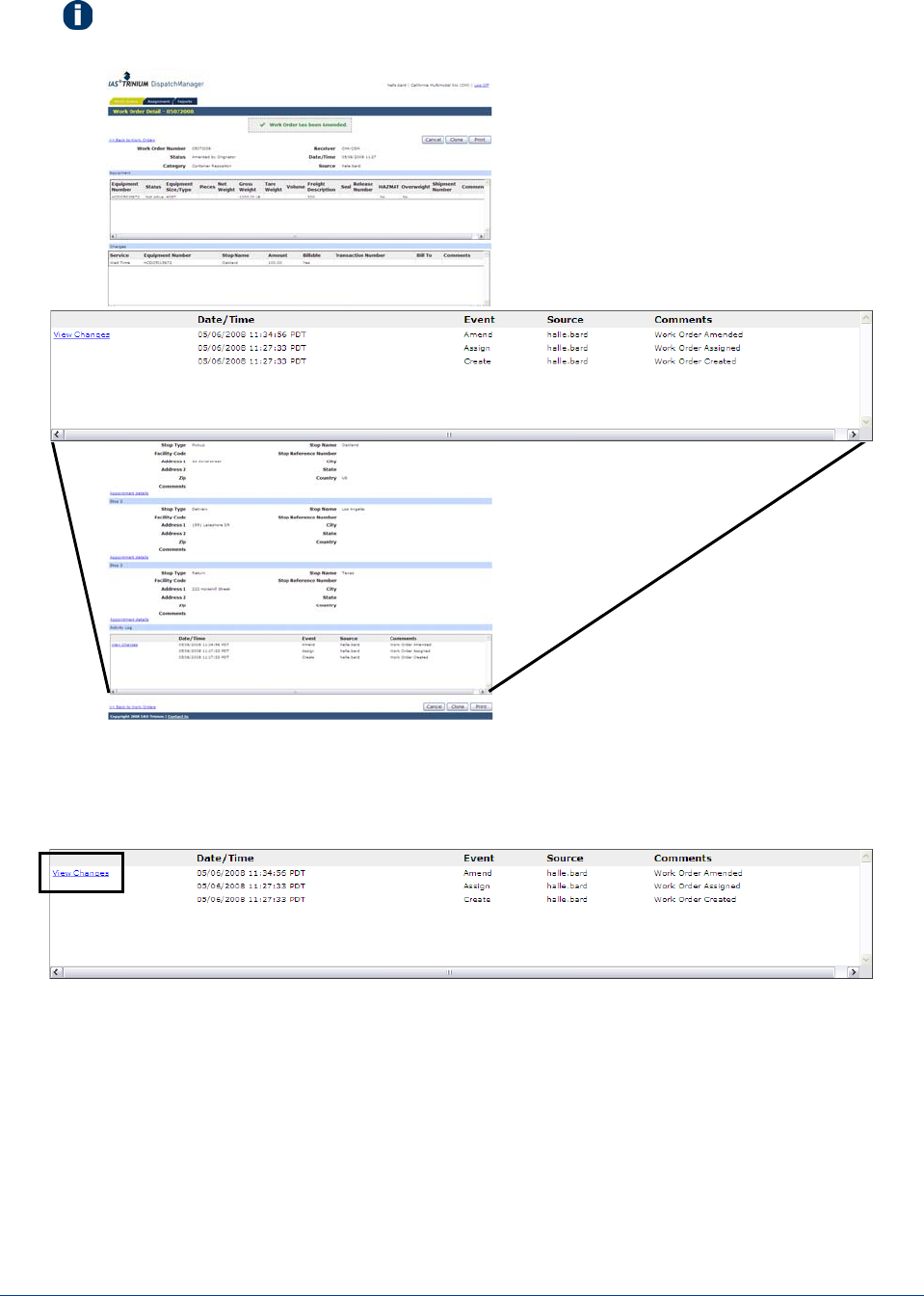
Note: Whenever there is a change to the work order the Activity Log will be updated. Any
change that is displayed in the Activity Log can be viewed.
To view activities in the current work order, do the following:
1. In the Activity Log, click
V
IEW
C
HANGES
.
View all activity for a Work Order,
including when the work order was
created, assigned, accepted, and
amended.
4-6 © 2008 International Asset Systems
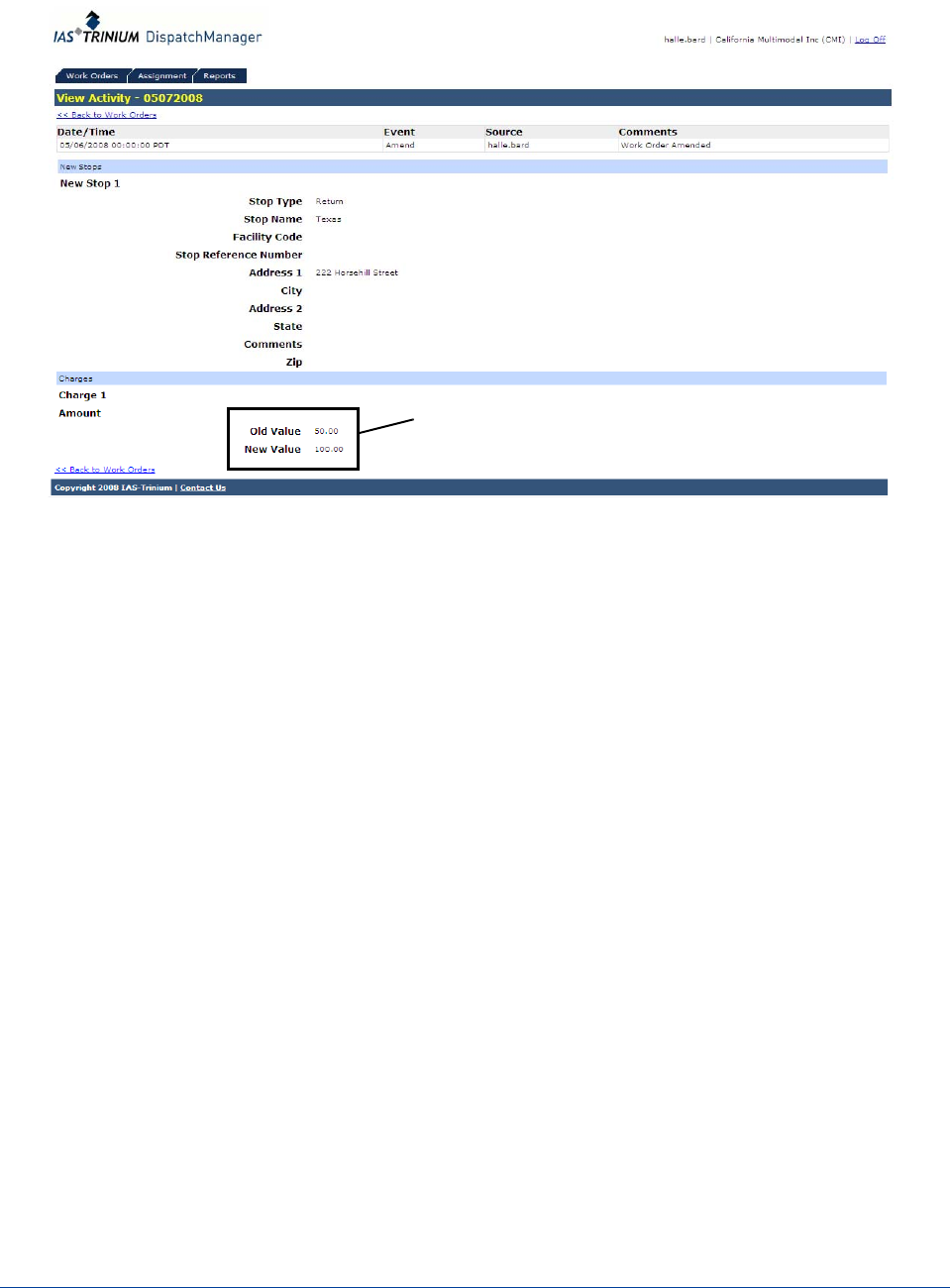
The View Activity screen is displayed. It shows all the activity details for the specific work order.
Actual change that was made.

4-7
DispatchManager User Manual for Originators
When a work order has been amended the Receiver will receive the following email:
The following work order has been amended and needs your approval:
Details:
--------------------------------------------------------------------------------
Originator: DHL
Receiver: Direct Delivery - PCC
Work Order Number: 558804560-D
Work Order Date/Time: 05/12/2008 14:26
BOL/BKG#: BOL12345
Bill To: DHL - CHS
Respond By Date/Time:
Category: Import/Inbound Dray
Equipment: TCKU9542615 40ST, TCKU9543422 40ST
Stops: Burris Warehouse North Charleston, ThyssenKrupp Presta Ladson
Vessel/Voyage:
Cutoff Date:
Last Free Day:
Comments: Rate: $80.00 + 32% FSC per Kevin Woodall
To view more details, log in to DispatchManager:
https://s02qaapp01/dispatchmanager/
Thank you,
DispatchManager Customer Support
This message (including any attachments) may contain confidential, proprietary and privileged
information intended for the specific individual or entity addressed, and is protected by law. If you are
not the intended recipient you must not disseminate, forward, print or copy it in any form or take any
action or reliance on it. If you have received this email in error, please notify the sender immediately
by replying to this message or by calling +1 510-844-3000.
4-8 © 2008 International Asset Systems
Adding Comments to a Work Order
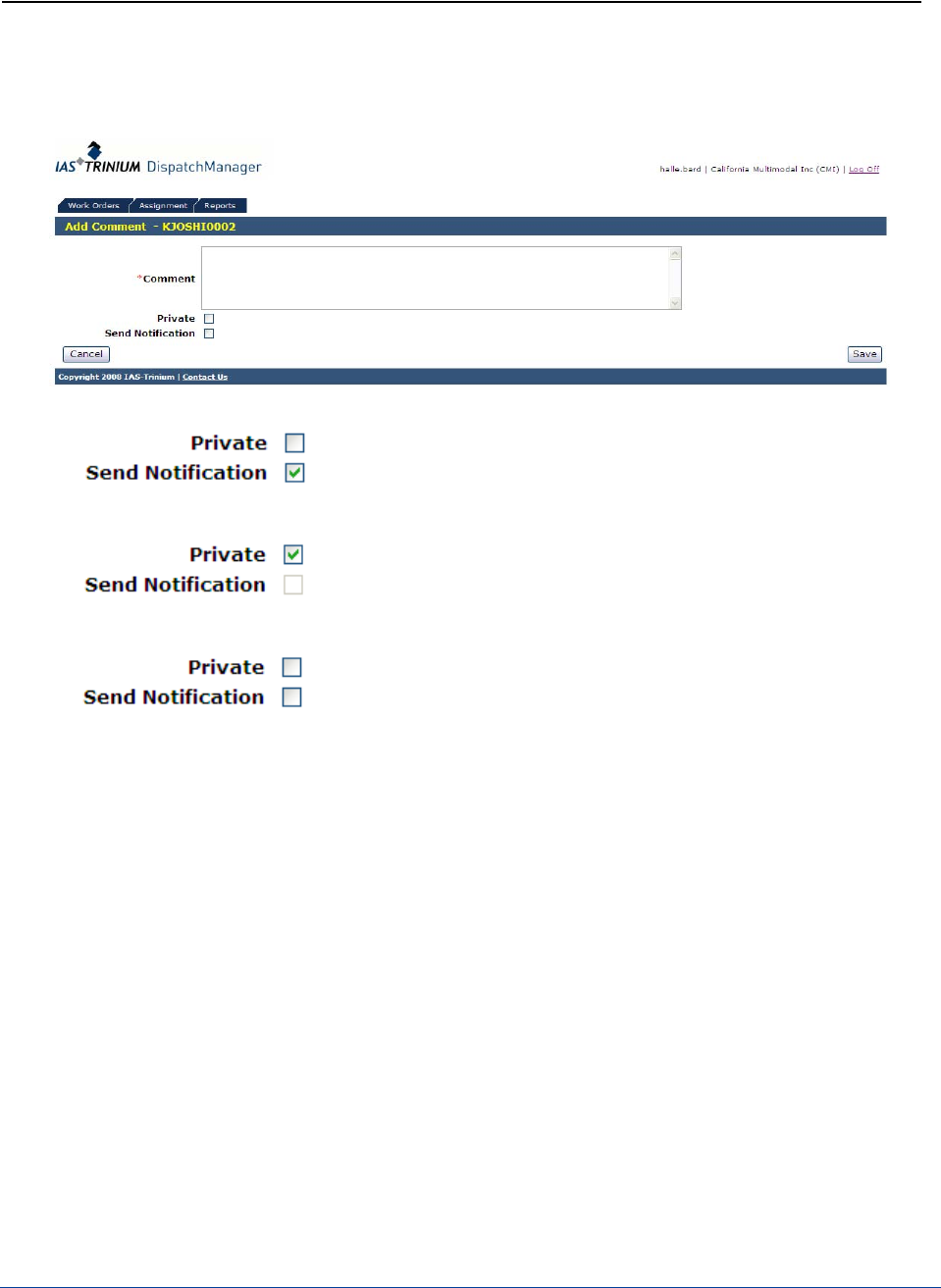
Originator or Receiver can add private or public comments to a Work Order. Comments are sent via email
and displayed in Dispatch Manager.
Private Comments are displayed in Dispatch
Manager. Only the senders own company can view
the comments. No email is sent.
Send Notification Comments are displayed in
Dispatch Manager for everyone to view. An email
is sent to the other party.
Private and Send Notification deselected
Comments are displayed in Dispatch Manager for
everyone to view. No email is sent.

4-9
DispatchManager User Manual for Originators
When a work order has been commented on the Receiver will receive the following email:
A comment has been added to the following work order:
Details:
--------------------------------------------------------------------------------
Originator: DHL
Receiver: Direct Delivery - PCC
Work Order Number: 558804560-B
Work Order Date/Time: 05/07/2008 10:29
New Comments: Freight and customs cleared.
To view more details, log in to DispatchManager:
https://s02qaapp01/dispatchmanager/
Thank you,
DispatchManager Customer Support
This message (including any attachments) may contain confidential, proprietary and privileged
information intended for the specific individual or entity addressed, and is protected by law. If you are
not the intended recipient you must not disseminate, forward, print or copy it in any form or take any
action or reliance on it. If you have received this email in error, please notify the sender immediately
by replying to this message or by calling +1 510-844-3000.

4-10 © 2008 International Asset Systems
This page intentionally left blank.
5-1
DispatchManager User Manual for Receivers
5
Accepting a Work Order
Note: When a work order is assigned, all users of the receiver are sent an email with the
details of the work order.
When an originator assigns a work order to a receiver, the receiver can accept or reject the work order.
Accepting a work order means you agree to the move and rate as outlined.
Work orders can be accepted on the Work Orders tab or the Work Orders details page.
Note: Multiple work orders can be accepted and rejected at one time on the Order
Workbench.
To accept a work order, do the following:
1. Verify that Advanced Search is showing Assigned work orders.
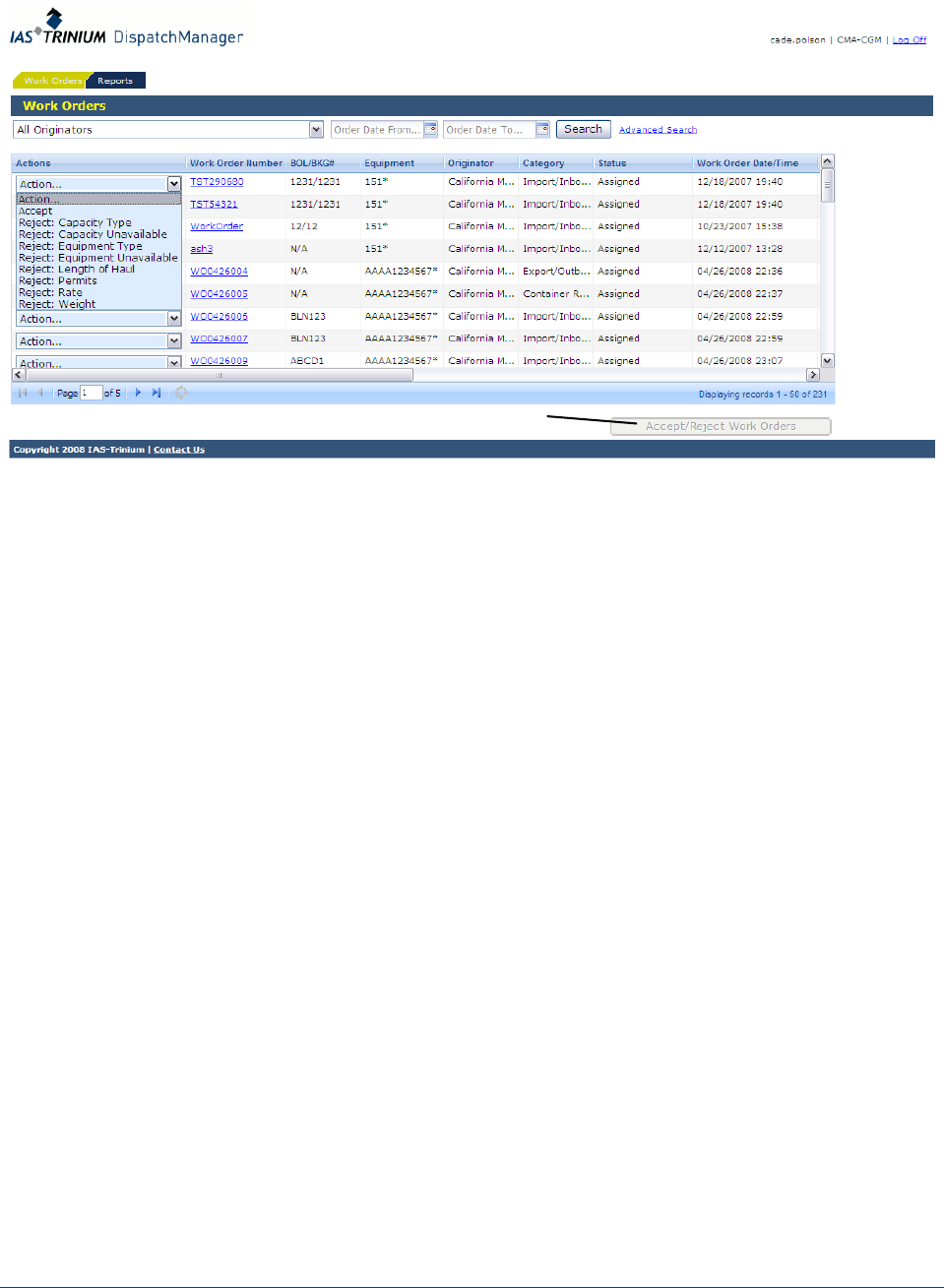
2. Select
A
CCEPT
in the action menu next to the work orders to be accepted.
3. Click Accept/Reject Work Orders to accept those work orders.
To accept a work order on the Order Details page:
1. Find the work order to accept or reject on the Order Workbench.
2. Click on the
W
ORK
O
RDER
N
UMBER
to go to the Work Order details page.
3. Click
A
CCEPT
W
ORK
O
RDER
to accept the work order.

5-2 © 2008 International Asset Systems
This page intentionally left blank.
6-1
DispatchManager User Manual for Receivers
6
Rejecting a Work Order
Rejecting a work order means the user does not agree to the move and rate as outlined.
Work orders can be rejected on the Order Workbench or the Work Order details page.
Note: Multiple work orders can be accepted and rejected at once on the Order Workbench.
To reject a work order, do the following:
1. Verify that the Advanced Search is showing Assigned work orders.
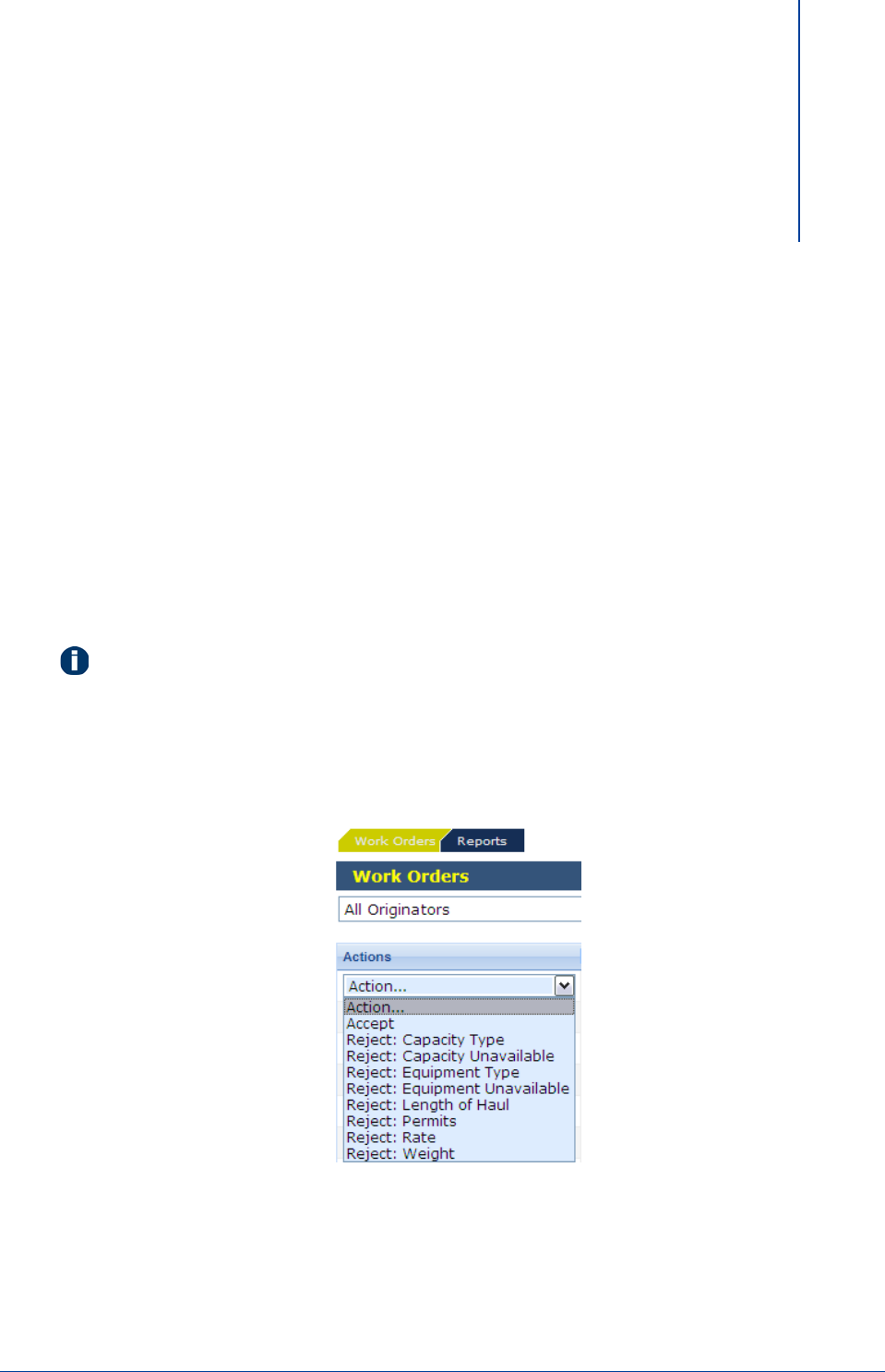
2. Select
R
EJECT
and a corresponding rejection reason in the action menu next to the work orders yto
be rejected.
6-2 © 2008 International Asset Systems
3. Click Accept/Reject Work Orders to accept those work orders.
To reject a work order on the Order Details page:
1. Find the work order to be rejected.
2. Click on the
W
ORK
O
RDER
N
UMBER
to go to the Work Order details page.
3. Click
R
EJECT
W
ORK
O
RDER
to reject the work order.
Accept/Reject Work Orders

6-3
DispatchManager User Manual for Receivers
When a work order is rejected the Receiver will receive the following email:
The following work order was rejected:
Details:
--------------------------------------------------------------------------------
Originator: ABCD
Receiver: Direct Delivery - PCC
Work Order Number: 558804560-B
Work Order Date/Time: 05/07/2008 10:29
BOL/BKG#: 558804560-B
Bill To: DHL - CHS
Respond By Date/Time: 05/07/2008 14:00
Category: Import/Inbound Dray
Equipment: TCKU9542615 LCL
Stops: Burris Warehouse North Charleston, ThyssenKrupp Presta Ladson
Vessel/Voyage:
Cutoff Date:
Last Free Day: 05/07/2008 16:00
Comments: Rate: $80.00 + 32% FSC per Kevin Woodall
To view more details, log in to DispatchManager:
https://s02qaapp01/dispatchmanager/
Thank you,
DispatchManager Customer Support
This message (including any attachments) may contain confidential, proprietary and privileged
information intended for the specific individual or entity addressed, and is protected by law. If you are
not the intended recipient you must not disseminate, forward, print or copy it in any form or take any
action or reliance on it. If you have received this email in error, please notify the sender immediately
by replying to this message or by calling +1 510-844-3000.

6-4 © 2008 International Asset Systems
When a work order is declined the Receiver will receive the following email:
The following amendement has been declined:
Details:
--------------------------------------------------------------------------------
Originator: ABCD
Receiver: Direct Delivery - PCC
Work Order Number: 558804560-B
Work Order Date/Time: 05/07/2008 10:29
BOL/BKG#: 558804560-B
Bill To: DHL - CHS
Respond By Date/Time: 05/07/2008 14:00
Category: Import/Inbound Dray
Equipment: TCKU9542615 LCL
Stops: Burris Warehouse North Charleston, ThyssenKrupp Presta Ladson
Vessel/Voyage:
Cutoff Date:
Last Free Day: 05/07/2008 16:00
Comments: Rate: $80.00 + 32% FSC per Kevin Woodall
To view more details, log in to DispatchManager:
https://s02qaapp01/dispatchmanager/
Thank you,
DispatchManager Customer Support
This message (including any attachments) may contain confidential, proprietary and privileged
information intended for the specific individual or entity addressed, and is protected by law. If you are
not the intended recipient you must not disseminate, forward, print or copy it in any form or take any
action or reliance on it. If you have received this email in error, please notify the sender immediately
by replying to this message or by calling +1 510-844-3000.
7-1
DispatchManager User Manual for Receivers
7
Saving a Work Order
Editing Scheduled and Actual Information
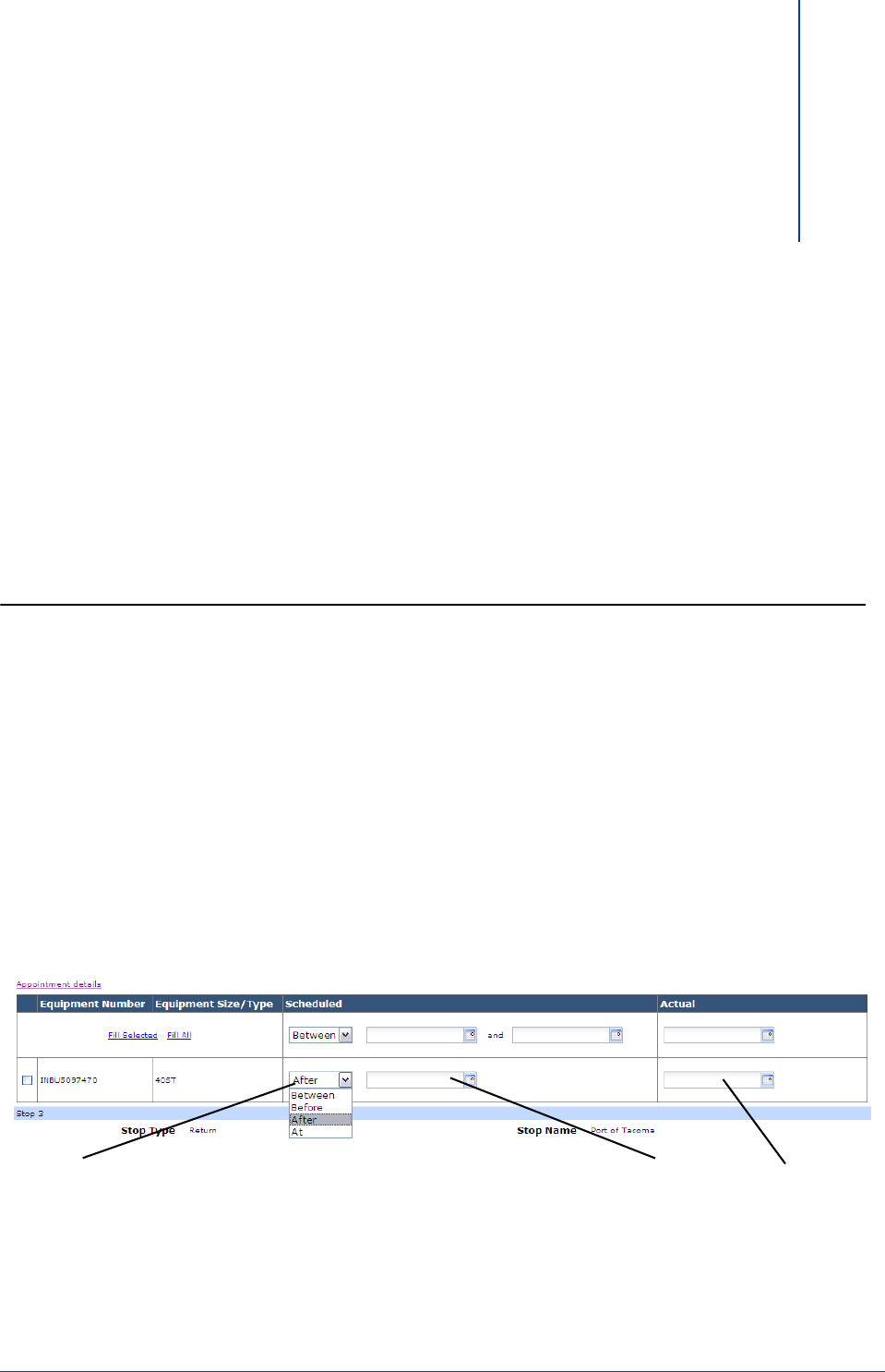
Receivers use the Work Order Detail screen to add appointment and actual information for each stop on
different legs. This gives the originator instant visibility into first and last mile activities.
There is a potential appointment for every stop for each piece of equipment. Appointment information is
made up of three parts:
Scheduled Appointment
The type of the appointment can be Between, After, At or Before. Between displays two drop-
down dates and times. All other types are just one date.
Scheduled Start/End
The date/time when the delivery or pickup is scheduled to be made.
Actual
The date/time the delivery or pickup was actually made.
Schedule Appointment Schedule
Start/End
Note:
B
ETWEEN
has two dates and times.
B
EFORE
,
A
FTER
and
A
T
have one
date and time.
Actual
7-2 © 2008 International Asset Systems
To edit appointments on a stop stop:
1. Click on
A
PPOINTMENT
D
ETAILS
for the stop you want to edit.
2. Select if the scheduled appointment is
BETWEEN
,
AFTER
,
AT
, or
BEFORE
.
3. Enter the dates and times.
Note: Several appointments can be updated at a time by using the top row and the "Fill All"
and "Fill Selected" boxes. Stops already added can be edited and deleted by selecting
A
DD
or
E
DIT
next to each equipment.
•When an actual is added to any appointment, the work order and that equipment will become
active.
•When an actual is added to the last stop for equipment, the equipment will become completed.
•When all actuals are added to the last stop for equipment, the work order will become
completed.
Stops
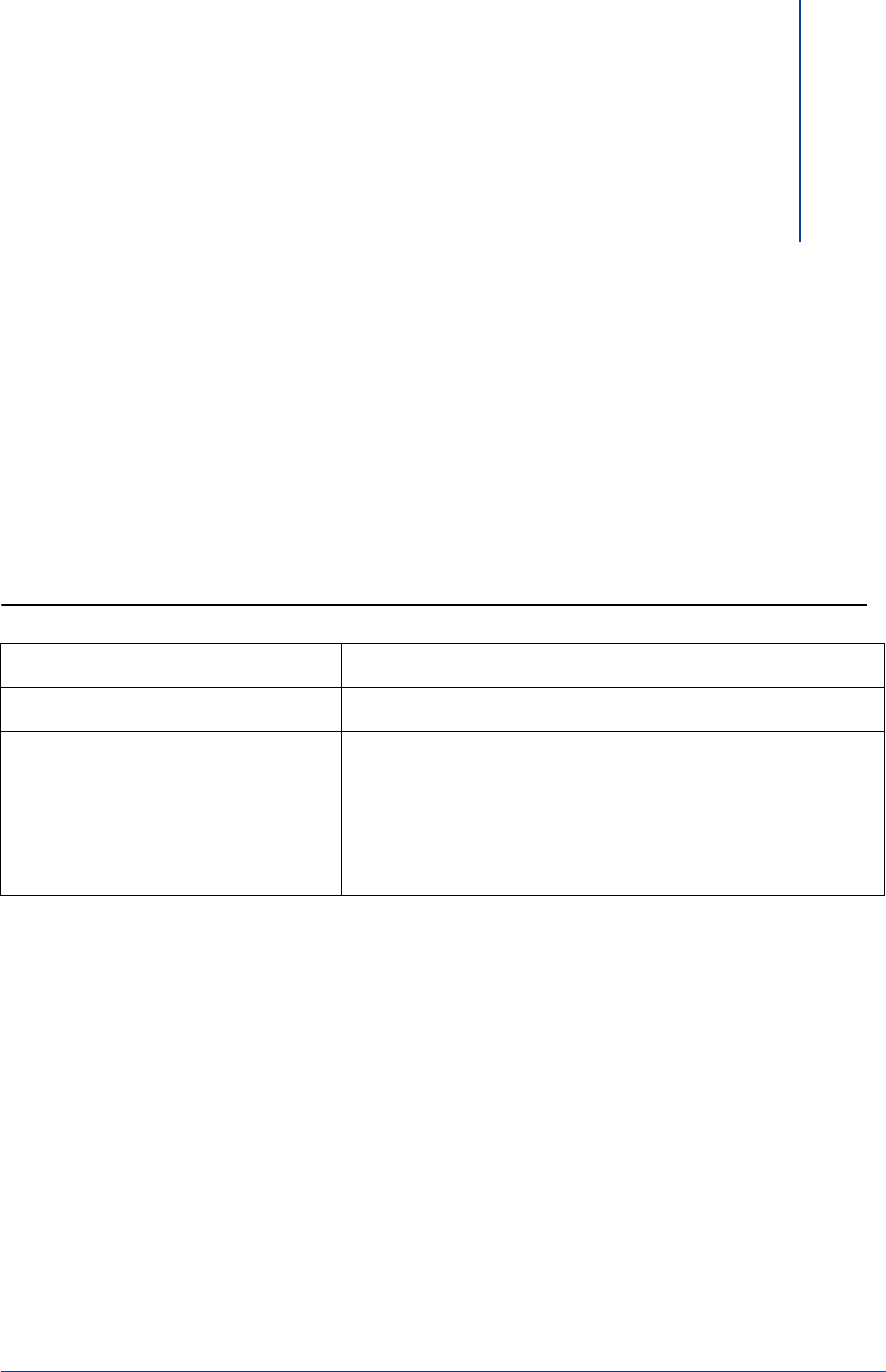
Field Name Field Description
Stop Number DispatchManager will assign a sequential stop number.
Stop Type Optionally specify what type of action will occur at the stop. This includes Live
Load, Live Unload, Drop and Pick, Pickup, Delivery, and Return.
Facility Code IAS-Trinium code for the stop.
Stop Reference Number Specific reference number for a stop.
Stop Name Name of the stop.
Address 1 First line of the address of the stop.
Address 2 Second line of the address of the stop.
City City of the stop.
State State of the stop.
Zip Zip code, postal code of the stop.
Country Country of the stop.
Comments General comments about the stop.
8-1
DispatchManager User Manual for Receivers
8
Reports
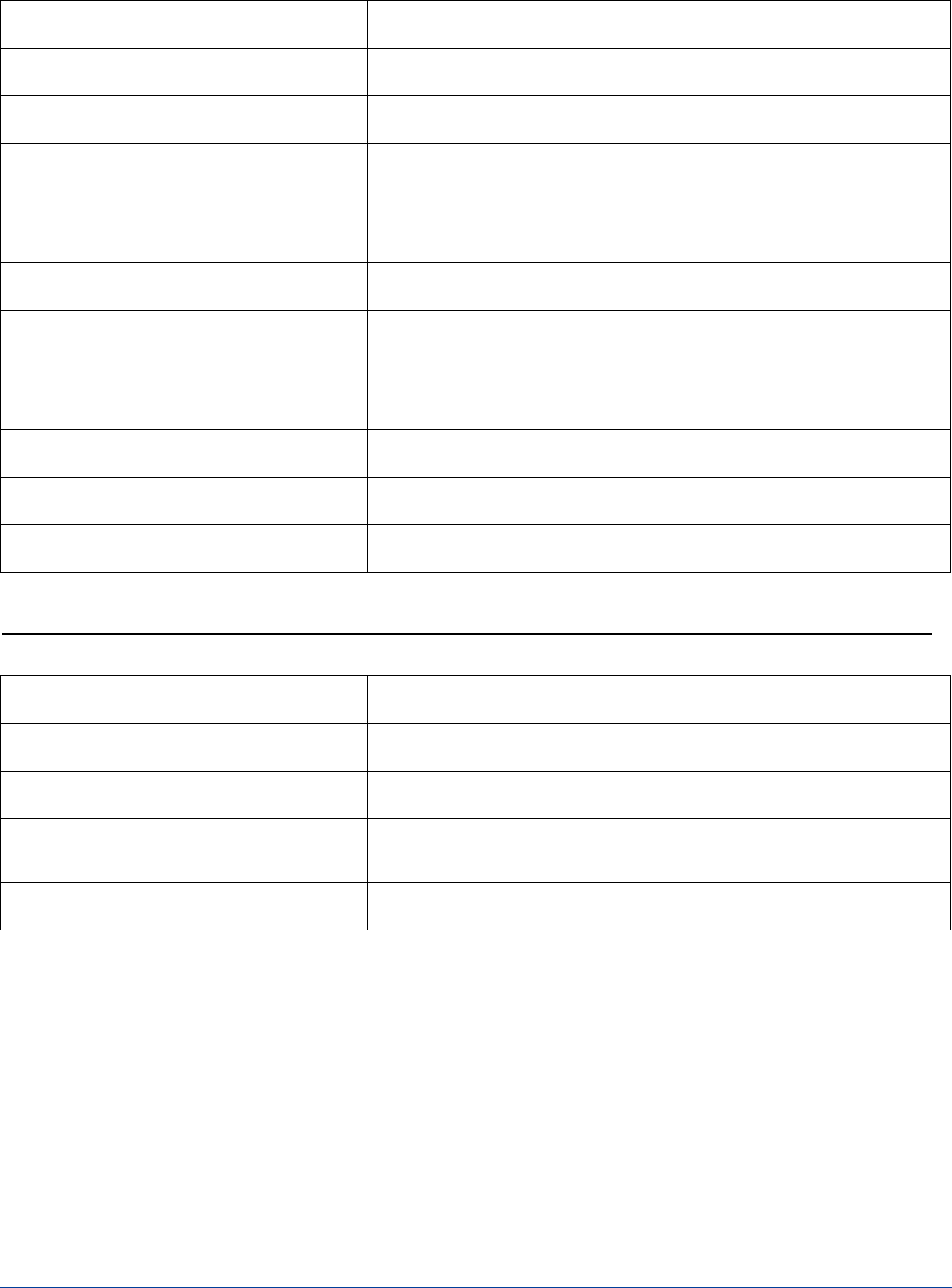
Trucker Performance Report
Header Date/Time Report was run, username, all parameters, # of results.
Summary Description Appointment vs. Actual Performance.
Roles who can run the report Originator, Receiver.
Parameters Originator/Receiver Name Multi-Select, Work Order Completed
Date/Time Range.
Order By Originator or Receiver Name, Work Order Number, Equipment
Number, Stop Number.
8-2 © 2008 International Asset Systems
Columns
Accept/Reject Responsiveness Report
Originator or Receiver Name Originator, Receiver.
Work Order Number Originator's reference for a work order number.
Work Order Creation Date/Time When the work order was created in DispatchManager.
Work Order Assignment Date/
Time When the work order was assigned in DispatchManager.
Equipment Number Number of the container or chassis.
Stop Number Sequence number of the Stop.
Stop Name Name of the stop.
Final Appointment Date/Time
Type Type of appointment: At, Begin, End, Start
Final Appointment Date/Time Start Beginning of last appointment window received before the actual.
Final Appointment Date/Time End End of the last appointment window received before the actual.
Actual Date/Time Actual date/time of the delivery or pickup.
Header Date/Time Report was run, username, all parameters, # of results.
Summary Response time from Assignment to Accept or Reject.
Roles who can run the report Originator, Receiver.
Parameters Originator/Receiver Name Multi-Select, Work Order Creation
Date/Time Range
Order By Originator or Receiver Name, Work Order Number.
8-3
DispatchManager User Manual for Receivers
Columns
Volume Report
Columns
Originator or Receiver Name Name of the originator or receiver.
Accept/Reject If the receiver accepted or rejected the work order.
Work Order Number Work order number.
Work Order Creation Date/Time Date/time the order was created in DispatchManager.
Work Order Assignment Date/
Time Date/time the order was assigned in DispatchManager.
Work Order Accept/Reject Date/
Time
The date/time the work order was accepted or rejected in
DispatchManager.
Header Date/Time Report was run, username, all parameters, # of results.
Summary Description Response time from Assignment to Accept or Reject.
Roles who can run the report Originator, Receiver.
Parameters Originator/Receiver Name Multi-Select, Work Order Completed
Date/Time Range.
Order By Originator or Receiver Name.
Total Work Orders Total number of completed work orders.
Work Orders Accepted Total number of work orders accepted.
Work Orders Rejected Total number of work orders rejected.
Work Orders Amended Total number of work orders amended.
Work Orders Cancelled Total number of work orders cancelled.
Work Orders Completed Total number of work orders completed.
Total Charges for Completed Work
Orders Total number of work orders completed.

8-4 © 2008 International Asset Systems
This page intentionally left blank.

9-1
DispatchManager User Manual for Receivers
9
Supported Summary Size/Types
•20BK 20' Bulk Dry Van
•20CZ 20' Chassis
•20DV 20' Dry Van
•20FR 20' Flatrack
•20HC 20' High Cube Dry Van
•20HR 20' High Cube Reefer
•20OT 20' Open Top
•20RF 20' Reefer
•20TC 20' Tank
•20FB 20' Flatbed Trailer
•20RFTR 20' Refrigerated Trailer
•20TR 20' Domestic Trailer
•40BK 40' Bulk Dry Van
•40CZ 20' Chassis
•40DV 40' Dry Van
•40FB 40' Flatbed Trailer
•40FR 40' Flatrack
•40HC 40' High Cube Dry Van
•40HCOT 40' High Cube Open Top
•40HCRF 40' High Cube Flatrack
•40HR 40' High Cube Reefer
•40OT 40' Open Top
•40RF 40' Reefer
•40RFTR 40' Refrigerated Trailer
•40PB 40' Piggyback
•40TR 40' Domestic Trailer
•45CZ 45' Chassis
•45HC 45' High Cube Dry Van
•45OT 45' Open Top
•45FB 45' Flatbed Trailer
•45RFTR 45' Refrigerated Trailer
•45PB 45' Piggyback

9-2 © 2008 International Asset Systems
•45TR 45' Domestic Trailer
•48DM 48' US Domestic Dry Van
•48PB 48' Piggyback
•48FR 48' Flatrack
•48FB 48' Flatbed Trailer
•48TRRF 48' Refrigerated Trailer
•48DD 48' Drop Deck
•48EMPU 48' EMPU
•48NACS 48' NACS
•48FB 48' Flatbed Trailer
•48TR 48' Domestic Trailer
•53DM 53' US Domestic Dry Van
•53TR 53' Domestic Trailer
•53DV 53' International Dry Van
•53EMHU 53' EMHU High Cube
•53EMUU 53' EMUU Standard
•53AIR 53' Domestic Trailer Air Ride
•GENSET Genset
•SPEC Special

A-1
DispatchManager User Manual for Receivers
A
DispatchManager Glossary
Work Order Request from the Originator to move a load from point A to B to C etc.
Also called a Transport Order.
Stop A facility where pickup and deliveries occur. Legs occur as moves
between stops.

A-2 © 2008 International Asset Systems
This page intentionally left blank.
