EinScan SP操作指南 20170526最新版 2 Ein Scan SP Quick Guide Compressed
User Manual:
Open the PDF directly: View PDF  .
.
Page Count: 2
Quick Start Guide
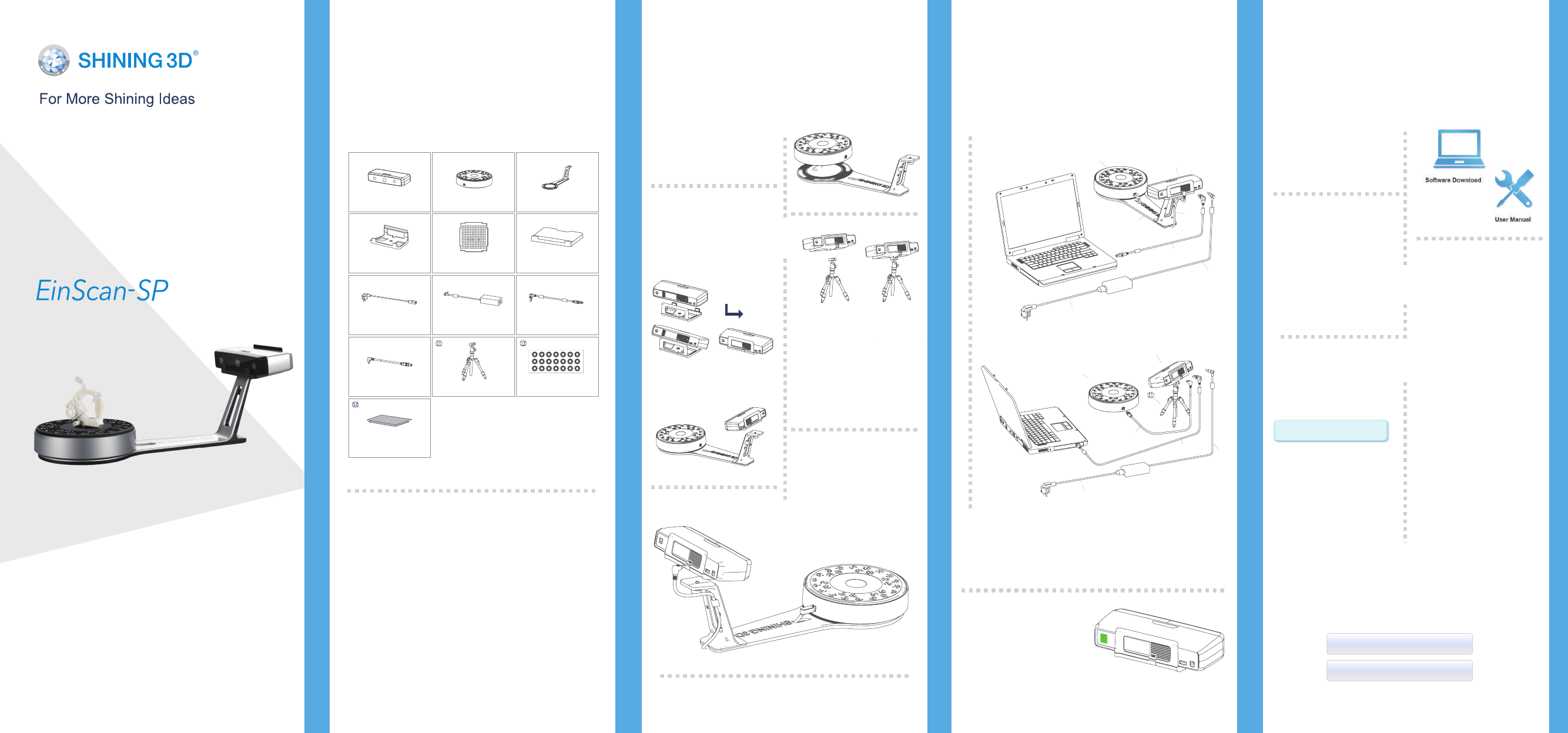
Getting Started with EinScan-SP
Scanner Head
Assembly
Turntable
Assembly
Connect the
Scanner to
Turntable
Setting Scanner on
Tripod for Fixed
Scan mode.
Software Download
Connect the Power Supply
Turn on the
Scanner
Scanner Assembly Scanner Assembly Software Installation
Place the scanner head
onto the bracket.
Plug power cord into outlet and the back of scanner.
Press the touch switch
for 1 second to turn the
scanner on.
Place the turntable onto scanner
stand
Plug USB cable into back
of scanner, and turntable.
Screw the scanner head onto
tripod.
Unpacking Checklist
PC Requirement
Preparation
Please prepare the PC with the following system
requirement .
Operating System:�
Port:
RAM:
Graphic Card:
Graphic Memory:
CPU:
Win7 / 8 / 10 / 64bit
at least One USB2.0 / 3.0 port
> 16 G
NVDIA Series, GTX660 or better
> 2 G
i5 or higher
Screw the scanner into
the socket on the stand.
Run the Installer
License Acquisition
Download & Service
During installation, you need
to obtain license file online
to activate your scanner.
Make sure the scanner has
been connected well and
your computer is network-
ing so as to detect your
computer and validate your
license .
If you fail to get license online, please contact your supplier or mail
your scanner serial number ( Sticker on the back of the scanner head )
to einscan_support@shining3d.com to get the license file. Save the
license file to your desktop. Click “Local Activation” and browse the
license file and “Import” .
STEP
01
STEP
01
STEP
02
STEP
02
STEP
03
STEP
03
STEP
04
STEP
05
STEP
06
Local Activation
Online Activation
Download software and user
manual from
http://www.einscan.com/soft-
ware-download
Double click to run the
installation wizard and follow
the installation instructions.
Power AdapterPower Cord
Scanner Head Turntable
Calibration BoardScanner Bracket
Scanner Stand
Calibration Board Holder
USB Cable B
USB Cable A
Quick Guide
① ② ③
④ ⑤ ⑥
⑦ ⑧ ⑨
⑩
Online Activation
Connect the Scanner to a Computer
Plug USB cable into back of scanner and computer USB port.
Tripod Reference Points
⑧
⑨
⑩
③
②
⑦
①
⑩
①
⑨⑧
⑦
②
Platinum Desktop 3D Scanner
Calibration Board
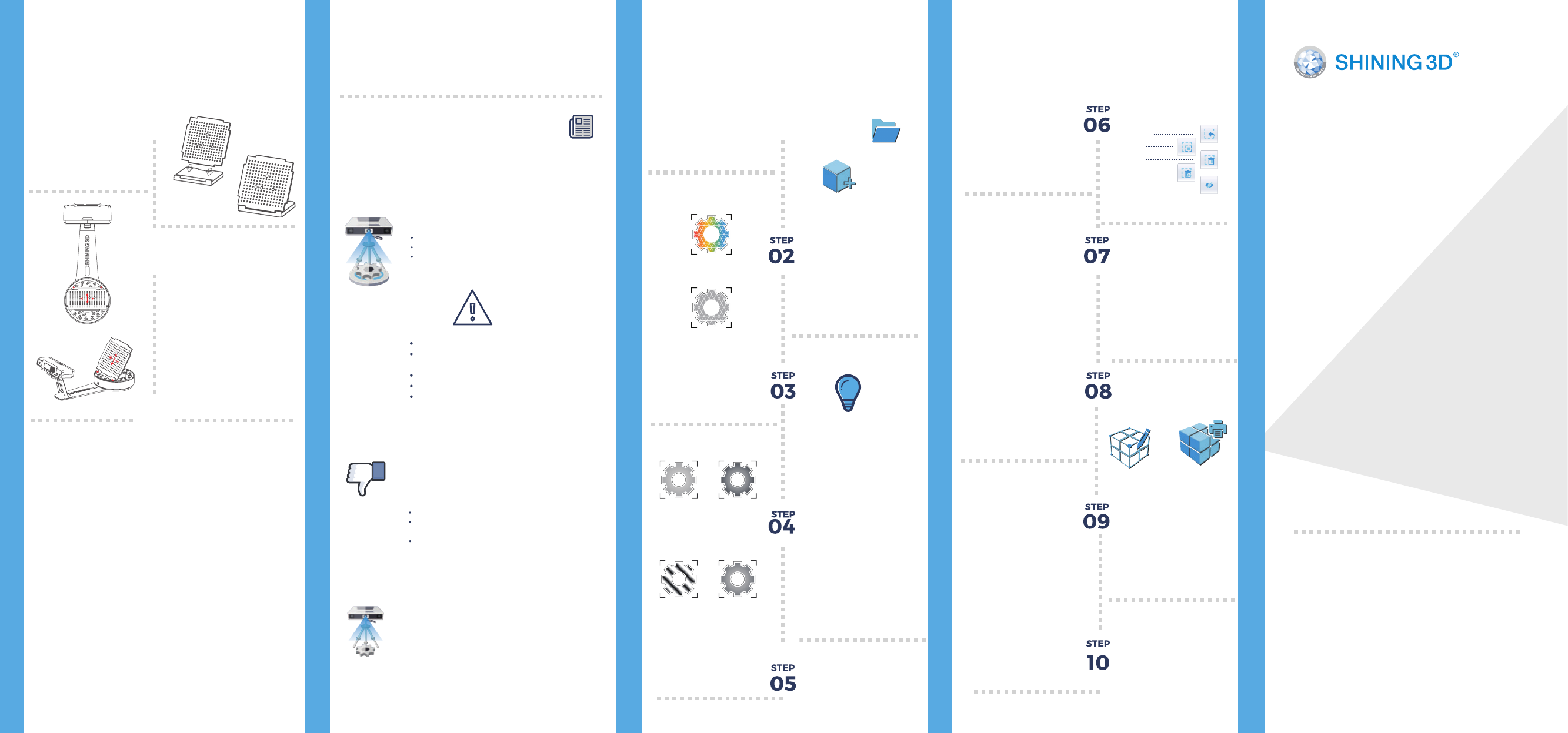
Assembly What Can Be Scanned?
Great to Scan Under
Auto Scan Mode
Build Project Edit Scan
Complete the
Scan in More
Directions
Manual
Alignment
Mesh
Save
Place Object
Adjust Brightness
Scan
Texture Scan Option
Do NOT Suggest
to Scan
Difficult to Scan
Calibration Board
Placement
Run the Calibration
Calibration Tips
Calibration Our Scan Process Our Scan Process
How to Get a
Successful Scan
Insert calibration board
onto the board holder.
Place the calibration board
on the center of the turntable
facing the scanner.
Open software, choose your scanner model of EinScan-SP and go
to NEXT. Getting started with calibration button, following the
on-screen instructions to turn the calibration board in 3 directions.
NOTE: Rotate the calibration board only during calibration.
You should calibrate the scanner in the initial set-up, or IF YOU
MOVE THE SCANNER OR TURNTABLE.
When you find the scanned quality is not as good as initial set-up,
you can recalibrate your scanner.
Calibration needed when alignment mistake or failure frequently
appear during the scanning.
Objects larger than 30*30*30 mm (1.2*1.2*1.2 in)
Objects smaller than 250*250*250 mm (38*38*38 in)
Object weighing less than 5 kg (11 lbs)
Choose texture scan if color
texture is needed for scanning.
Or, choose non-texture scan
(Texture scan is taking little
longer time, and white balance
test should be done before
texture scanning).
If automatic alignment fail
during scanning, you can use
manual alignment .
(Misalignment doesn't
frequently happen. Please refer
the detail of manual alignment
in user manual)
When the scan is completed,
go mesh directly .
Watertight or Unwatertight
model can be selected due to
your request.
Watertight is closed model
which
can be printed directly.
Unwatertight model is a
non-closed model keeping the
missing scanned area as it is,
which is usually chosen for
further design purpose in
other program.
Sometimes, if one rotate
can’t give you a full scan,
you can place the object
in other directions to
capture the missing faces.
After edit, save the
current scanned data, the
current data will
be aligned to the last scanned
data automatically.
Click “New Project” button
to start a new scan. SHIFT+Left mouse: Select
redundant data, the
selected section will show as
red. The tool bar on the top
will allow you to do further
edit.
Edit buttons:
1 Deselect
2 Revert
3 Delete
4 Undo
5 Show/Hide Stripes
Click to save data and exit the
single-piece edition.
Make sure the object is
stable during the scanning.
Asc, stl, obj and ply are
available.
Press the touch switch
for l second twice to
turn the scanner off.
Click Scan button to start
scanning.
Choose the brightness
setting according to your
object surface condition.
Too much red appears on
the object shown in the
window means over bright.
Note: Please check the
exposure instruction in user
manual.
Transparent objects like glass
Shining or ref
lective objects like varnished metal
parts
Dark color object like black keyboard
Fuzzy objects like hair
Solution: Painting white powder on objects will improve
the scan quality.
Moving objects
Hollow pattern object like Eiffel
Tower souvenirs
Objects smaller than 30*30*30 mm
(1.2*1.2*1.2 in)
Note: If�the�size�and�weight�of�the�object�are out as
mentioned above, please scan on tripod without
turntable by Fixed Scan Mode.
STEP
01
STEP
01
STEP
02
STEP
03
Dark or
difficult
to scan
MediumBright & Dark
Bright
www.einscan.com www.shining3d.com
Support Contact
Skype:einscan_support
WhatsApp:+86 13738029764
Email:einscan_support@shining3d.com
HANGZHOU SHINING 3D TECH CO., LTD.
Email:sales@shining3d.com
Address:No.1398 Xiangbin Road, Wenyan Street,
Xiaoshan District, Hangzhou, China
