Report Ingenico Driver Installer User Guide
User Manual:
Open the PDF directly: View PDF  .
.
Page Count: 22

www.ingenico.com
28/32, boulevard de Grenelle, 75015 Paris - France / (T) +33 (0)1 58 01 80 00 / (F) +33 (0)1 58 01 91 35
Ingenico – S.A. au capital de 53 086 309 € / 317 218 758 RCS PARIS
Ingenico Driver
Installer User
Guide
Installer v3.10
ICO-OPE-4329
Public
INGENICO Smart Terminals
31/01/2017

ICO-OPE-4329
Ingenico Driver Installer User Guide
Public
2/22
Ingenico document - Reproduction or disclosure prohibited without written authorization
Please check document validity before using
Contents
Document Information ....................................................................... 3 1
Evolution follow-up .............................................................................................. 3 1_1
Objective .............................................................................................................. 3 1_2
Scope .................................................................................................................. 3 1_3
Glossary .............................................................................................................. 3 1_4
Important notes .................................................................................. 4 2
Compatibility ........................................................................................................ 4 2_1
Operating Systems ....................................................................................................................... 4 2_1_1 Terminals ...................................................................................................................................... 4 2_1_2
Limitations ........................................................................................................... 5 2_2
Installation Process ........................................................................... 7 3
USB Driver Installation Wizard ............................................................................ 7 3_1
USB Driver Installation Command Line ............................................................. 10 3_2
Uninstall process ............................................................................. 12 4
Frequently asked questions ............................................................ 14 5
How do I know that the driver is installed? ......................................................... 14 5_1
How can I know the version of the driver I use? ................................................ 15 5_2
How can I use my previous driver again? .......................................................... 16 5_3
How to manually enable the force COM feature ................................................ 19 5_4
Why the window “System Settings Change” is displayed? ................................ 21 5_5
ICO-OPE-4329
Ingenico Driver Installer User Guide
Public
3/22
Ingenico document - Reproduction or disclosure prohibited without written authorization
Please check document validity before using
Document Information 1
Evolution follow-up 1_1
Revision
Type of modification
Author
Date
1.0
Initial Revision
S. Rabiller
2016/10/21
1.1
Limitations updated
C.Cayrol
2017/01/30
Objective 1_2
This document is the installation guide of the Ingenico USB driver for Telium
Scope 1_3
This document is aimed at every administrator or user who wants to install and use the new version of
the Ingenico USB driver.
Glossary 1_4
List of terms used within this document is shown below for reference.
Term
Meaning
Telium
The terminal operating system
PID
Product ID (USB)
VID
Vendor ID (USB)
USB
Universal Serial Bus
Driver
Ingenico USB driver for Telium devices
ICO-OPE-4329
Ingenico Driver Installer User Guide
Public
4/22
Ingenico document - Reproduction or disclosure prohibited without written authorization
Please check document validity before using
Important notes 2
Compatibility 2_1
Operating Systems 2_1_1
The Driver is compatible with the following versions of Microsoft Windows operating system:
Windows XP 32 bits
Windows XP 64 bits
Windows XP Embedded
Windows Vista 32 and 64 bits
Windows 7 32 bits
Windows 7 64 bits
Windows 8/8.1 32 bits
Windows 8/8.1 64 bits
Windows Server 2008
Windows Server 2008 R2
Windows Server 2012
Windows Server 2016
Windows 10
The screen shots in this guide are from a PC running on various Windows OS version, and may differ
from the user’s version of Windows.
Please note that by default the install process will remove the old Windows USB driver (usbser); if
desired you may opt to retain this driver during the installation.
Terminals 2_1_2
The Driver is compatible with the USB VIDs/PIDs of the following Telium terminal types:
USB ID Name
USB VID
USB PID
Ingenico Telium
0x079B
0x0028
Ingenico PPR30
0x079B
0x0029
Ingenico P30
0x079B
0x006D
Ingenico Telium Pass
0x079B
0x006E
Ingenico CAD30VR
0x079B
0x0081
Ingenico ELC930
0x079B
0x0088
Ingenico CAD30UPP
0x079B
0x008B
Ingenico PP30s
0x079B
0x008D
Ingenico CAD30VT
0x079B
0x0090
Ingenico CAD30USR
0x079B
0x009C
ICO-OPE-4329
Ingenico Driver Installer User Guide
Public
5/22
Ingenico document - Reproduction or disclosure prohibited without written authorization
Please check document validity before using
Ingenico iUN-UCI
0x0B00
0x0050
Ingenico iPP2xx
0x0B00
0x0051
Ingenico Move5000
0x0B00
0x0052
Ingenico Move3xxx
0x0B00
0x0053
Ingenico Desk3xxx
0x0B00
0x0054
Ingenico Move2xxx
0x0B00
0x0055
Ingenico Lane7xxx
0x0B00
0x0056
Ingenico iST1xx/iUC1xx/iUI120/iUP2xx
0x0B00
0x0057
Ingenico iPP3xx
0x0B00
0x0058
Ingenico iPP3xx/iPP4xx
0x0B00
0x0060
Ingenico iSC350/iSC4xx
0x0B00
0x0061
Ingenico iSC2xx
0x0B00
0x0062
Ingenico iSC4xx
0x0B00
0x0063
Ingenico iWL2xx/iWL3xx/iWB2xx
0x0B00
0x0064
Ingenico iCT2xx
0x0B00
0x0066
Ingenico E532
0x0B00
0x0067
Ingenico iPH
0x0B00
0x0069
Ingenico iRS1
0x0B00
0x006A
Ingenico iRS2
0x0B00
0x006B
Ingenico iRS3
0x0B00
0x006C
Ingenico iUR250
0X0B00
0x006F
Ingenico iUR255
0X0B00
0x007C
Ingenico iUC150B
0X0B00
0x007D
Ingenico Desk5000
0x0B00
0x0080
Ingenico Lane5000
0x0B00
0x0081
Ingenico Lane8xxx
0x0B00
0x0082
Ingenico Link2xxx
0x0B00
0x0083
Limitations 2_2
The Driver is intended to be used for Ingenico Telium device only and is only compatible with other
Ingenico applications such as:
Starting from LLT 5.2.6
Starting from Ingedev 8.4.2
Starting from SignKit 3.8

ICO-OPE-4329
Ingenico Driver Installer User Guide
Public
6/22
Ingenico document - Reproduction or disclosure prohibited without written authorization
Please check document validity before using
The Force COM feature provided by the Ingenico USB driver makes the “TeliumUsbPortUpdater”
obsolete. This software must not be used when the Ingenico USB driver is installed.
The Driver Installer automatically uninstalls the old Windows driver and the “TeliumUsbPortUpdater”
tool.
The user must have administrator level access in order to install or uninstall the driver
correctly.
The installer will uninstall all previous versions of the drivers and the TeliumUSBPortUpdater
service. This operation may take some time to complete.
ICO-OPE-4329
Ingenico Driver Installer User Guide
Public
7/22
Ingenico document - Reproduction or disclosure prohibited without written authorization
Please check document validity before using
Installation Process 3
To start the installation process, run the “IngenicoUSBDrivers_XX.YY_setup” executable file.
Please note that XX.YY is the version number of the installation package and not the version number
of the Driver itself.
USB Driver Installation Wizard 3_1
This installer can be launched with the graphical interface by double-clicking on the executable file.
The initial screen will confirm which version of the driver will be installed.
Click Next > to start the installation process.
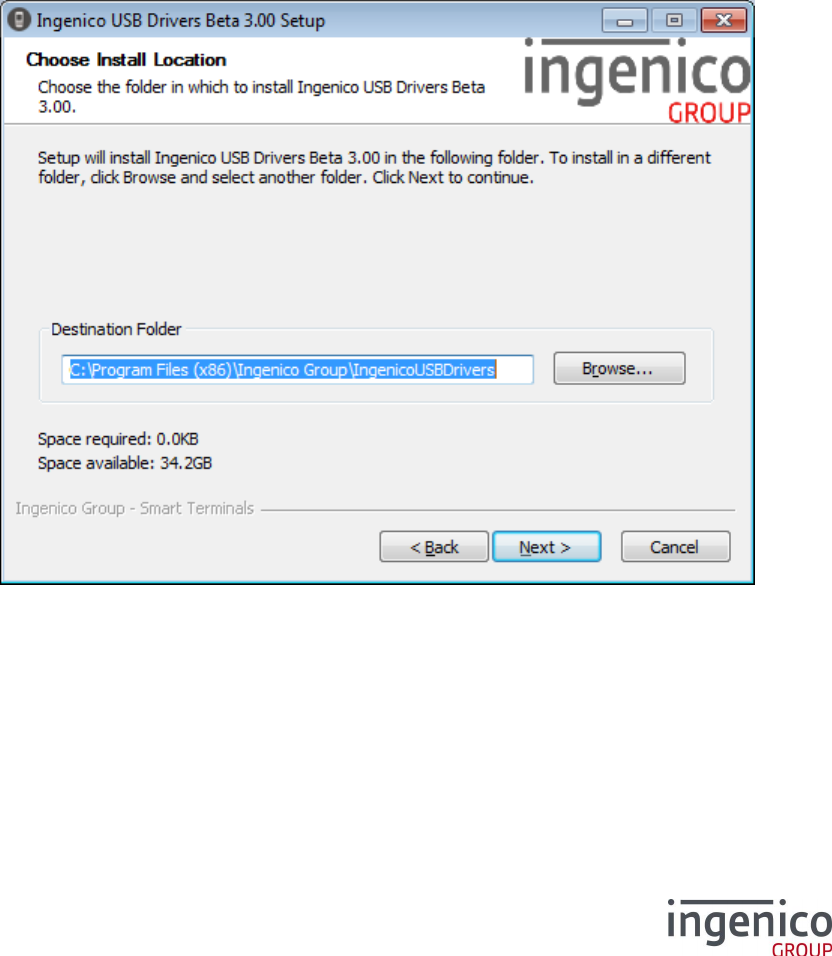
To install the driver to a specific location click Browse to search for the desired location, otherwise just
click Next > to accept the default location specified.
ICO-OPE-4329
Ingenico Driver Installer User Guide
Public
8/22
Ingenico document - Reproduction or disclosure prohibited without written authorization
Please check document validity before using
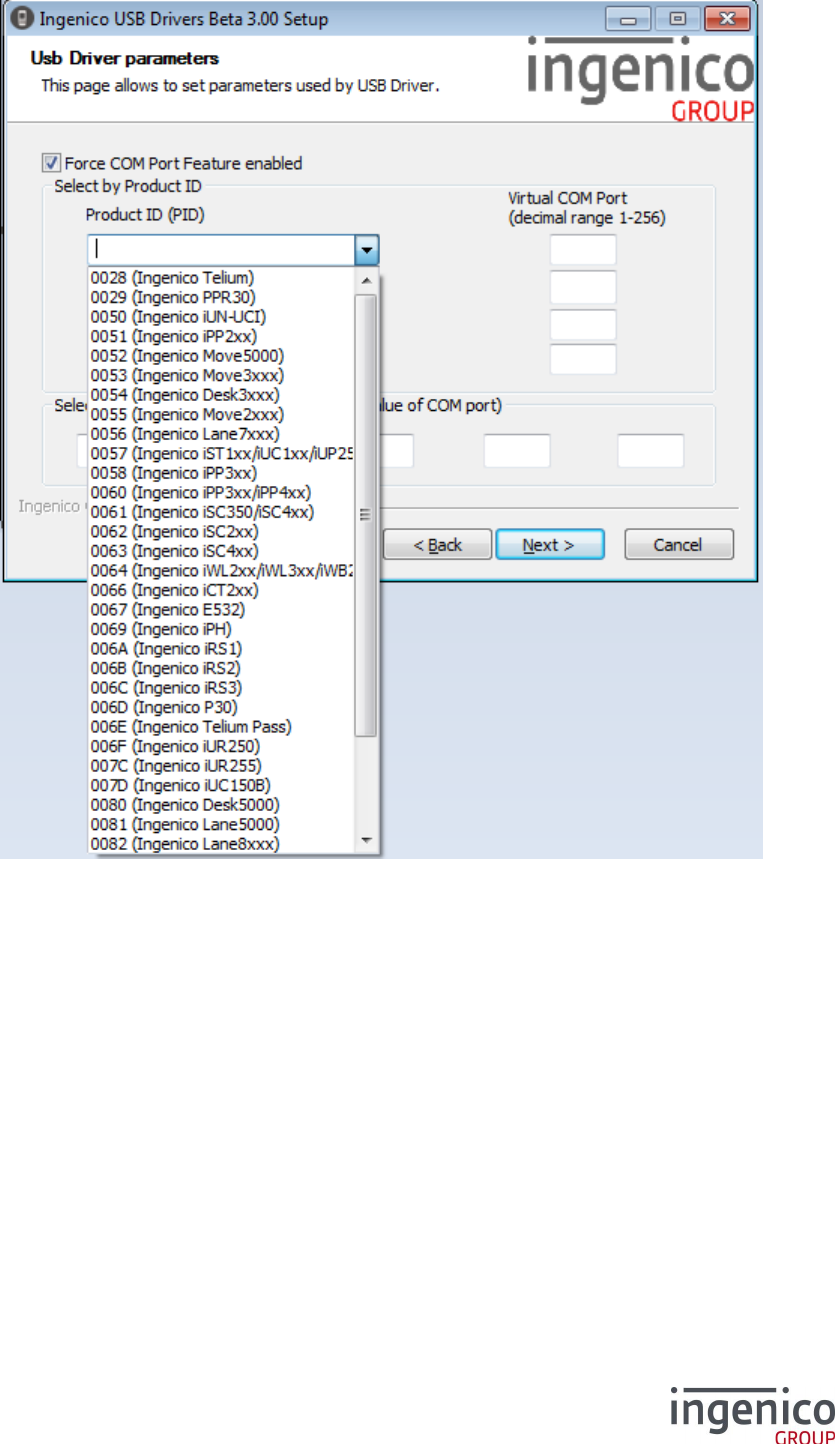
To enable the Force COM Port feature check the Force COM Port Feature enabled option and
complete the configuration as per your requirements. Once completed click Next >
For more information on the Force COM Port feature, or how to disable/enable it manually, please
refer to section 5_4 How to manually enable the force COM feature
ICO-OPE-4329
Ingenico Driver Installer User Guide
Public
9/22
Ingenico document - Reproduction or disclosure prohibited without written authorization
Please check document validity before using
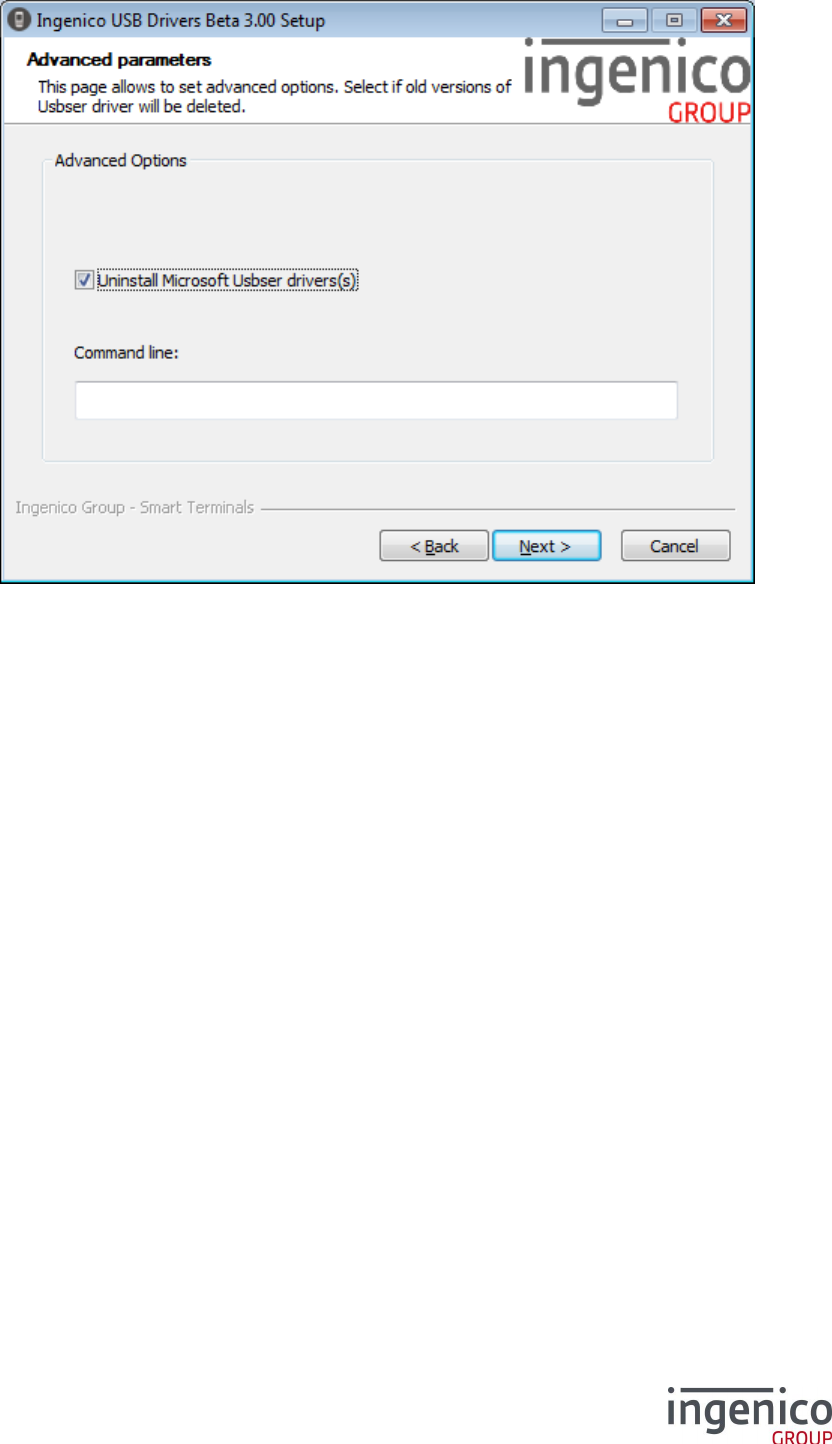
If you wish to uninstall the Microsoft USB driver (usbser) then check the option. Otherwise, if you wish
to retain this, uncheck the Uninstall Microsoft Usbser driver(s) option before clicking Next >
You can also add options for the installation process via the command line input. Please refer to
section 3_2 USB Driver Installation Command Line.
ICO-OPE-4329
Ingenico Driver Installer User Guide
Public
10/22
Ingenico document - Reproduction or disclosure prohibited without written authorization
Please check document validity before using
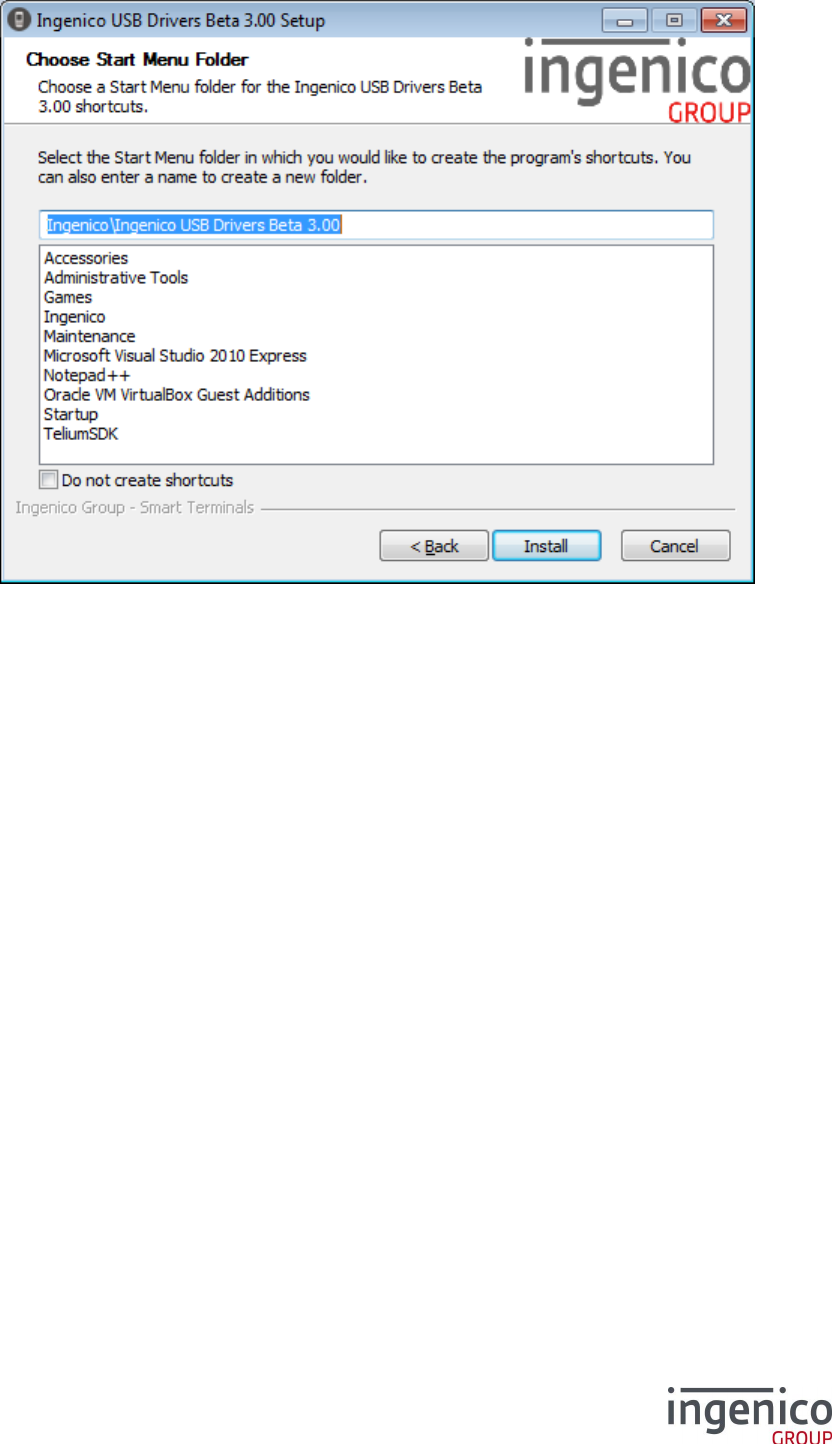
Choose the start menu folder into which shortcuts will be placed or check the Do not create
shortcuts option before clicking Install to start the installation.
During the installation process you shall accept to install the 3 components of this driver. This
Beta version is not signed by Microsoft.
Once the installation is complete the install wizard will advise that the install is now complete; click
Finish
USB Driver Installation Command Line 3_2
It can also be called via the command line with the following parameters which are case sensitive:
IngenicoUSBDrivers_XX.YY_setup.exe [/S] [/? --help] [[/PORT=NNN]
[/PID=XXXX:YYY]][/U --uninstall]
[/partial_cleanup][/INST_PATH path]
/? or --help Display this message.
/S Launch installation in silent mode.
/PORT=port Enable Force COM Port where “port” is the port number in numeric (eg. 1-99).
If “port” is specified then the installation is completed with the specified port
number. If the “port” is not specified then the installation will attempt to
complete using the port number found in the previous installation - if this is not
found then an error is returned.
/PID=pid:port Enable Force COM Port by PID where “pid” is the USB PID of the terminal
type in hex (eg. 0028) and the “port” is the port number in numeric (eg. 1-99).
/U or / uninstall Uninstall older versions of the USB drivers only and exit the program.
/partial_cleanup Uninstall current version of the Jungo USB Driver only.

ICO-OPE-4329
Ingenico Driver Installer User Guide
Public
11/22
Ingenico document - Reproduction or disclosure prohibited without written authorization
Please check document validity before using
/leave_usbser Do not uninstall the Windows USB Driver(s) (usbser).
/INST_PATH path Specify the installation path.
The installation will return one of the following codes:
0 The installation completed successfully
1 The installation requires the operating system to be restarted in order to complete
-2 The installation has failed or has been interrupted
However if the executable is run without any parameters, the force COM feature can be manually
enabled (cf 5_4 How to manually enable the force COM feature).
ICO-OPE-4329
Ingenico Driver Installer User Guide
Public
12/22
Ingenico document - Reproduction or disclosure prohibited without written authorization
Please check document validity before using
Uninstall process 4
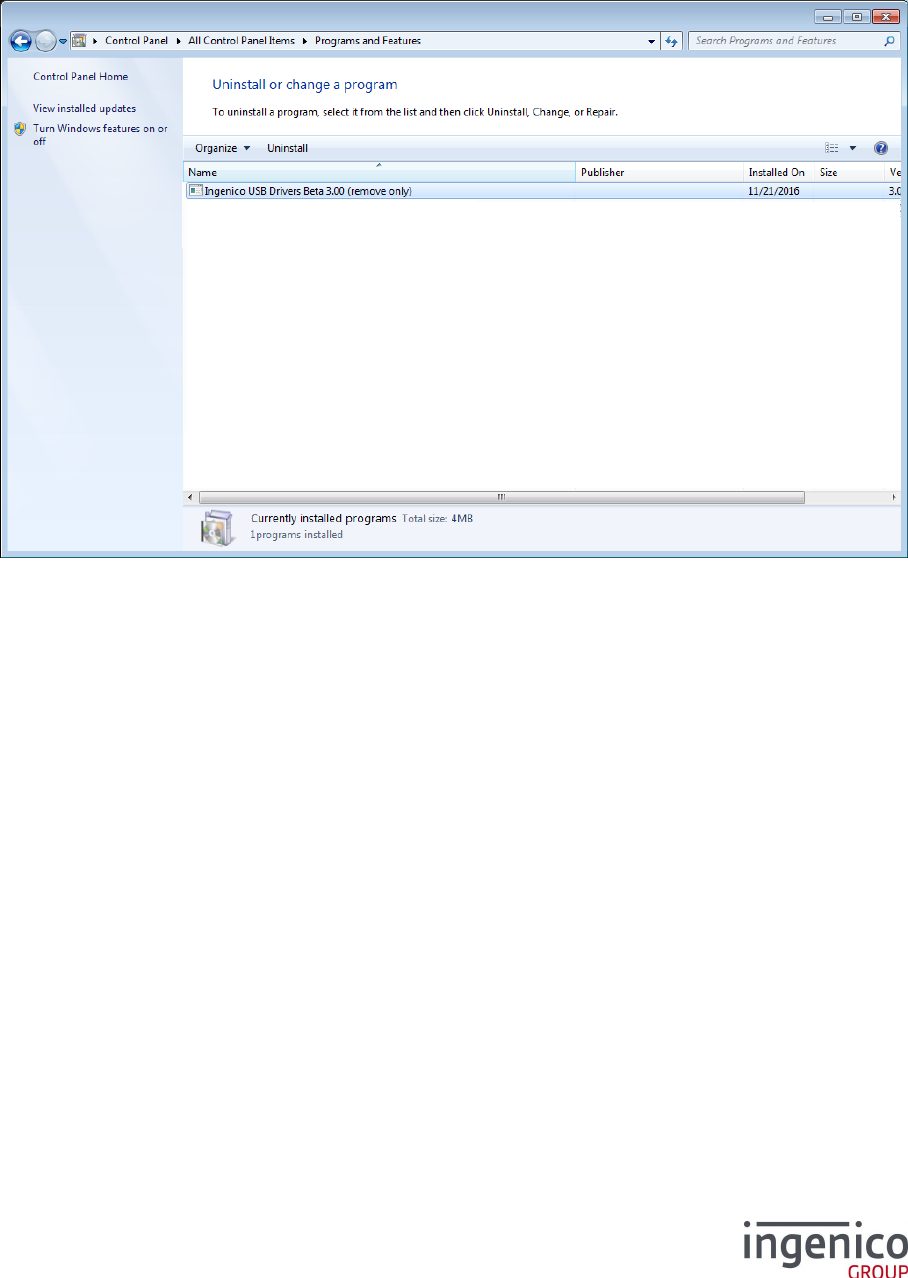
To uninstall the Driver go to the add/remove programs in the control panel and remove the Ingenico
USB Drivers Package xx.yy (remove only) item:
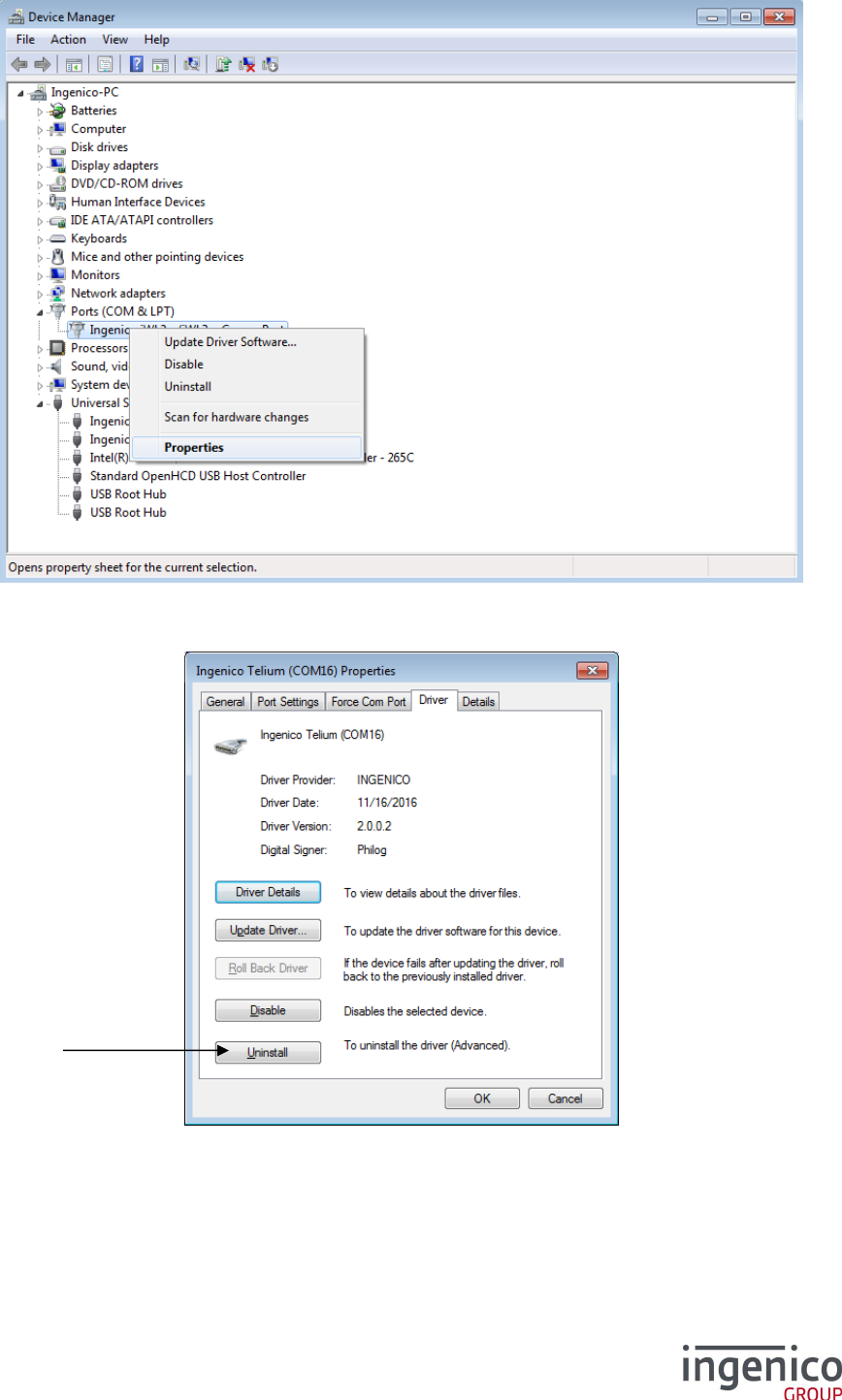
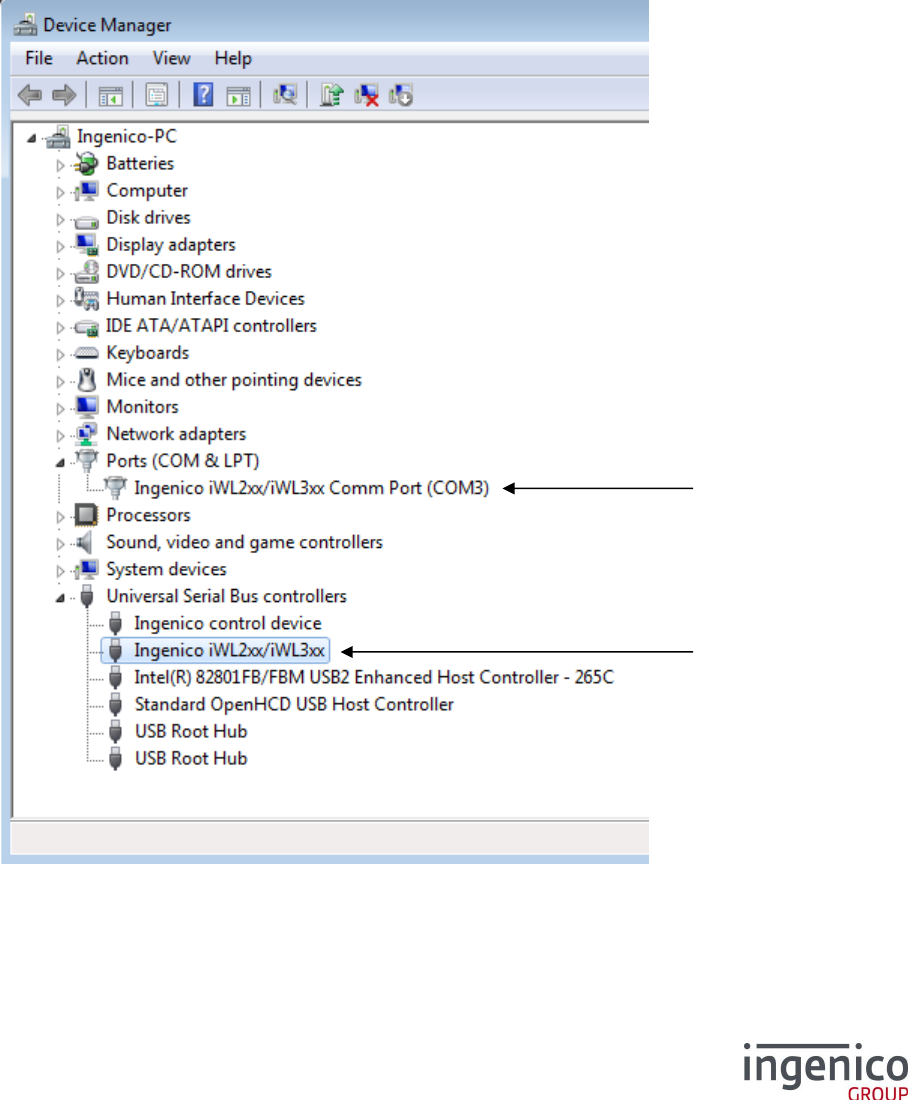
One must not try to uninstall through the device manager since it is either ineffective or incomplete. On
Windows XP it has no effect and on Windows Vista and Windows 7 it doesn’t uninstall the driver
completely.
Important note: Do not try to uninstall drivers through the following menus of the Device
Manager window.
ICO-OPE-4329
Ingenico Driver Installer User Guide
Public
13/22
Ingenico document - Reproduction or disclosure prohibited without written authorization
Please check document validity before using
ICO-OPE-4329
Ingenico Driver Installer User Guide
Public
14/22
Ingenico document - Reproduction or disclosure prohibited without written authorization
Please check document validity before using
Frequently asked questions 5
How do I know that the driver is installed? 5_1
The easiest way of knowing whether the driver is installed is to check the “add/remove programs”
window under the control panel. If the driver was installed with the installer there is the item “Ingenico
USB Drivers Package xx.yy (remove only).
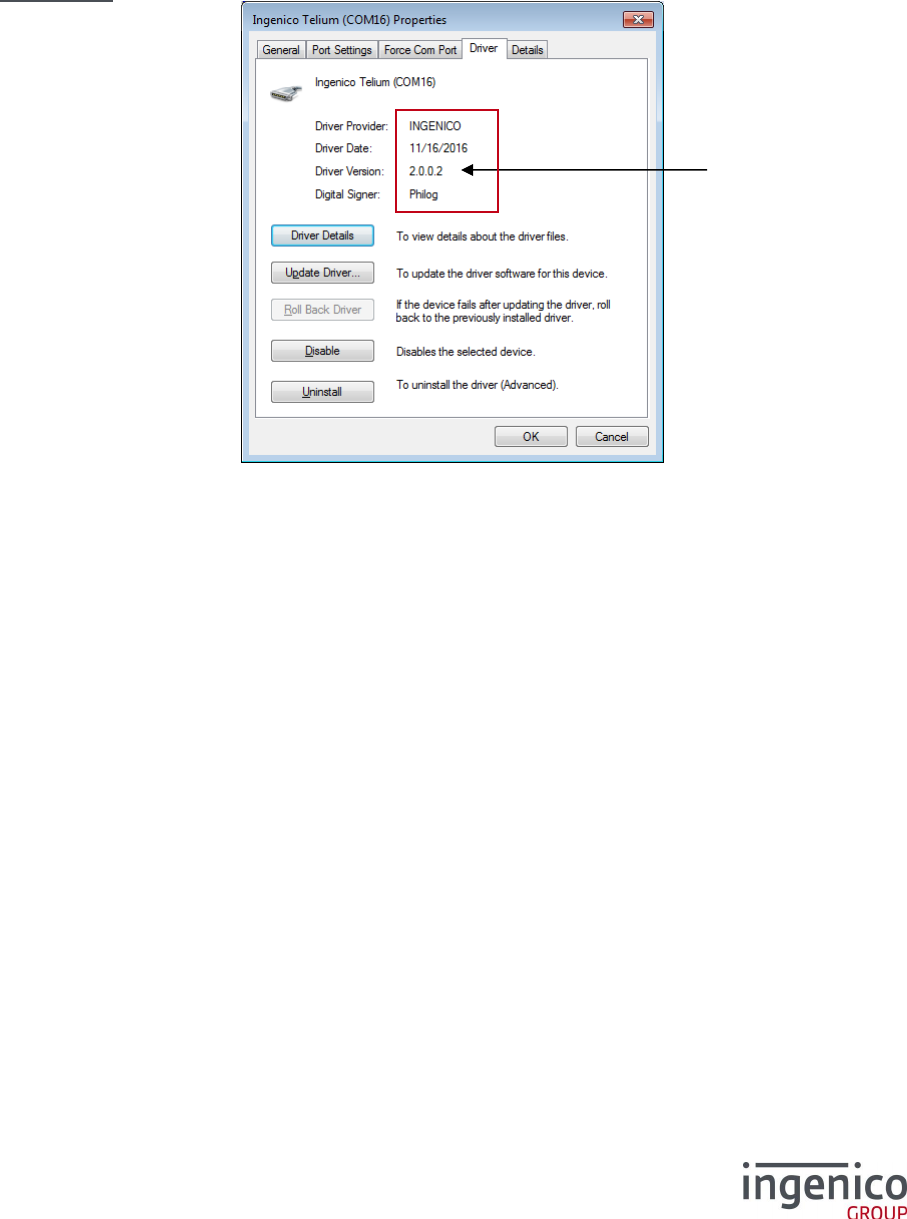
If the driver was not installed with the installer, one must find in the Device Manager the following new
hardware.
High-level part of the driver
(Depends on device name
regarding the PID)
Low-level part of the driver
ICO-OPE-4329
Ingenico Driver Installer User Guide
Public
15/22
Ingenico document - Reproduction or disclosure prohibited without written authorization
Please check document validity before using
How can I know the version of the driver I use? 5_2
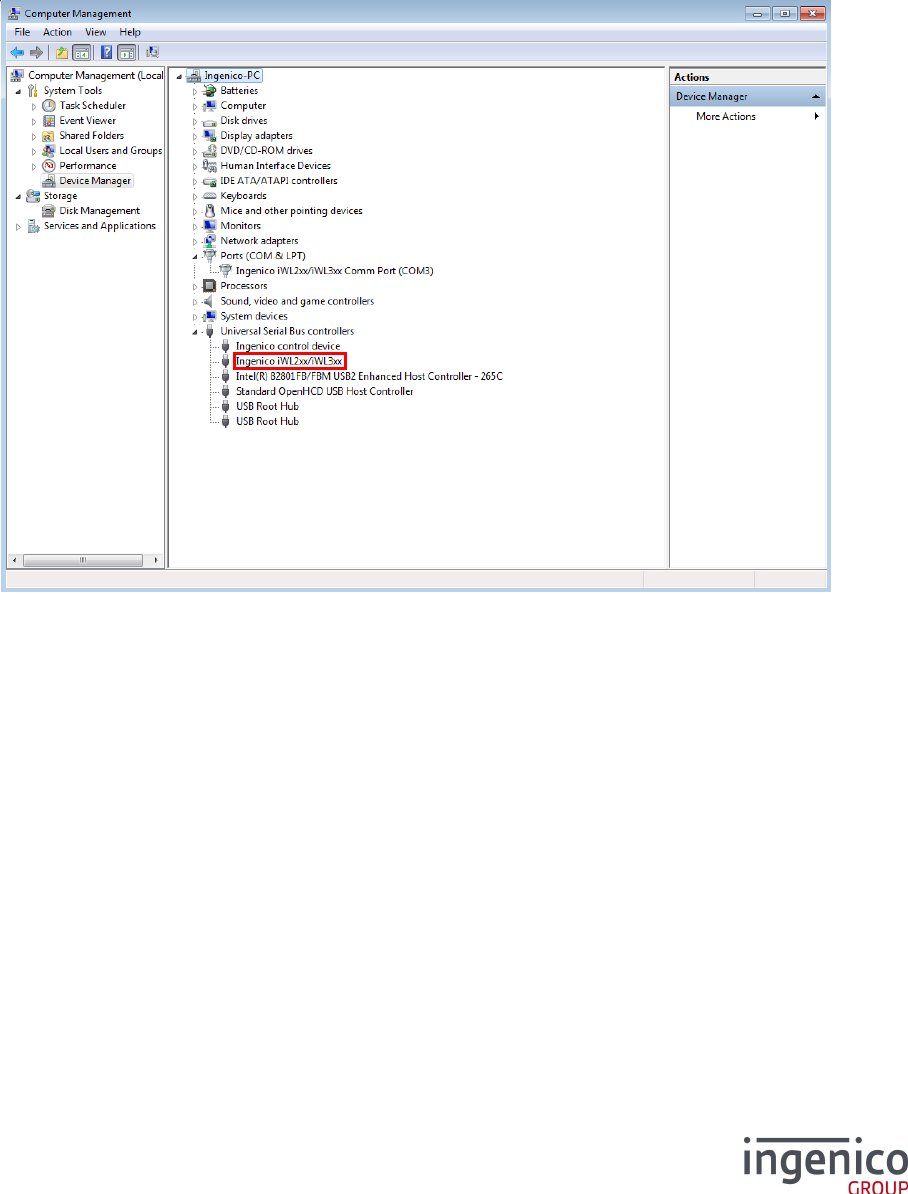
In order to check the current driver version, a Telium device must be connected. Right-click My
Computer, choose Manage and select Device Manager in the left-hand pane.
Note: If there is no “Force COM port” tab, it means that is not the Driver but the old Windows driver.
Beta Driver:
Driver version
ICO-OPE-4329
Ingenico Driver Installer User Guide
Public
16/22
Ingenico document - Reproduction or disclosure prohibited without written authorization
Please check document validity before using
How can I use my previous driver again? 5_3
If there is a requirement to roll back to the previous driver, for example if you were using LLT and you
just installed the new Driver or if you have another driver (not distributed by Ingenico) which has been
overwritten by this new driver, it’s possible to recover the previous state without uninstalling the driver.
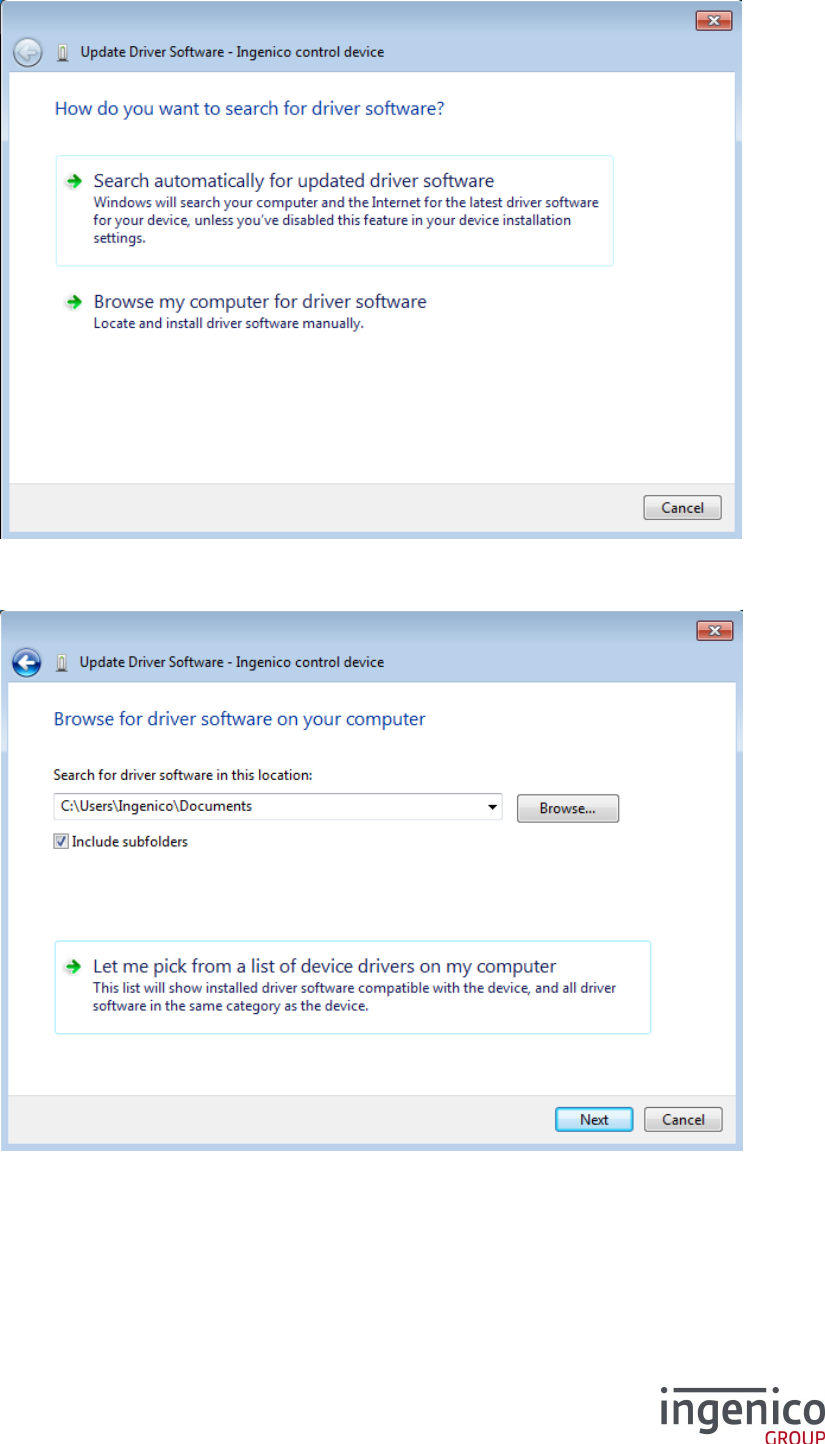
In order to roll back the driver a Telium device must be connected. Right-click My Computer, choose
Manage and select Device Manager in the left-hand pane
In the properties of the high-level part of the driver (the one under Universal Serial Bus controllers in
the Device Manager), right-click on the USB ID Name (eg. Ingenico iWL2xx/iWL3xx - see 2_1_2
Terminals ) and choose Update Driver and follow the instructions.
ICO-OPE-4329
Ingenico Driver Installer User Guide
Public
17/22
Ingenico document - Reproduction or disclosure prohibited without written authorization
Please check document validity before using
Choose Browse my computer for driver software and and click Next >
Choose Let me pick from a list of device drivers on my computer and click Next >
ICO-OPE-4329
Ingenico Driver Installer User Guide
Public
18/22
Ingenico document - Reproduction or disclosure prohibited without written authorization
Please check document validity before using
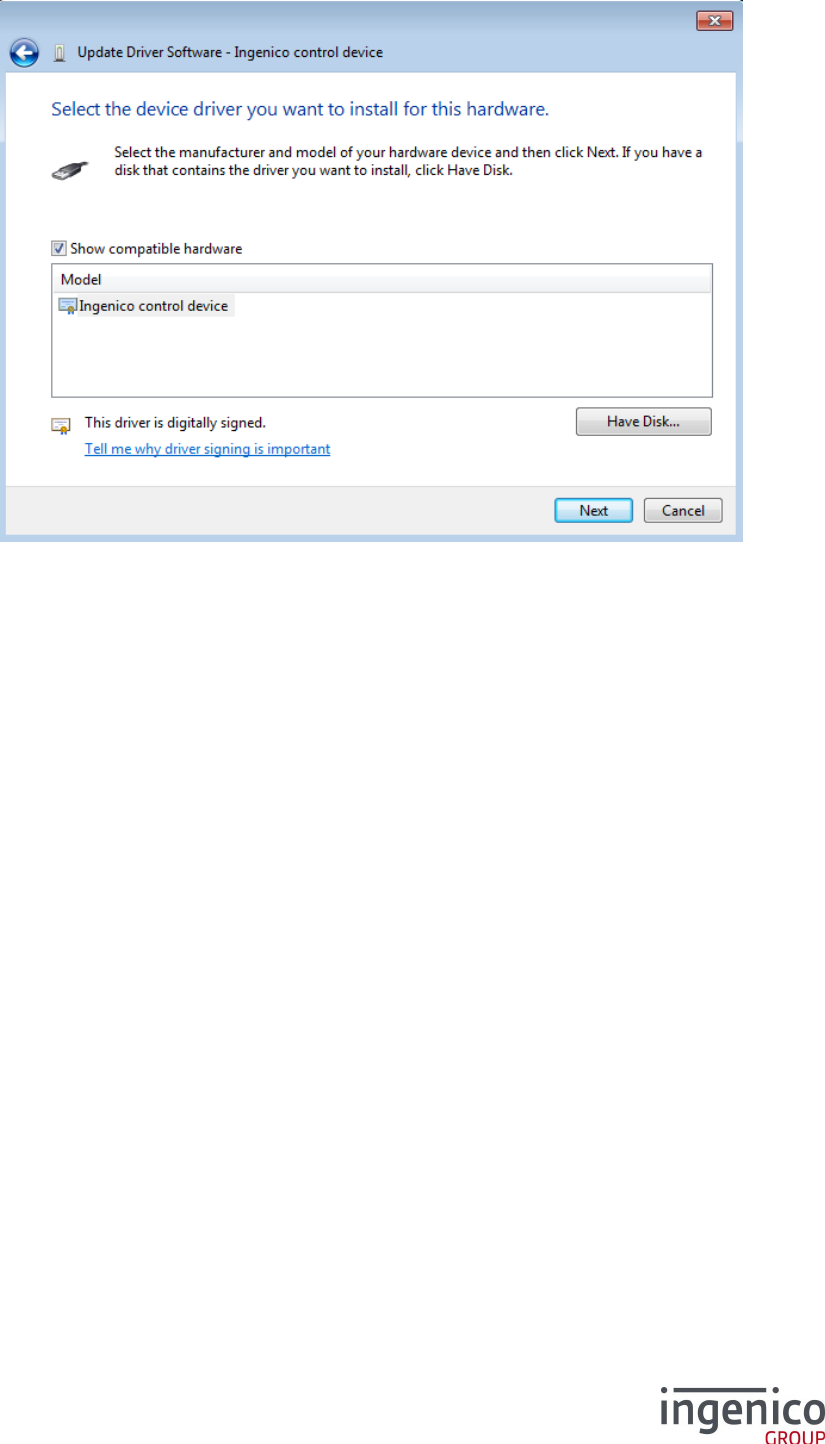
Choose the driver from the list as appropriate and click Next >
After the driver update has completed click Finish.
ICO-OPE-4329
Ingenico Driver Installer User Guide
Public
19/22
Ingenico document - Reproduction or disclosure prohibited without written authorization
Please check document validity before using
How to manually enable the force COM feature 5_4
The Driver allows for you to force the virtual COM port of the USB device so that it does not change
even if connected to different USB sockets. This feature can be configured to:
Specify the COM Port based on the type of terminal (USB VID/PID - see section 2_1_2
Terminals); or
Specify the COM Port order for unspecified types of terminal; or
A combination of both.
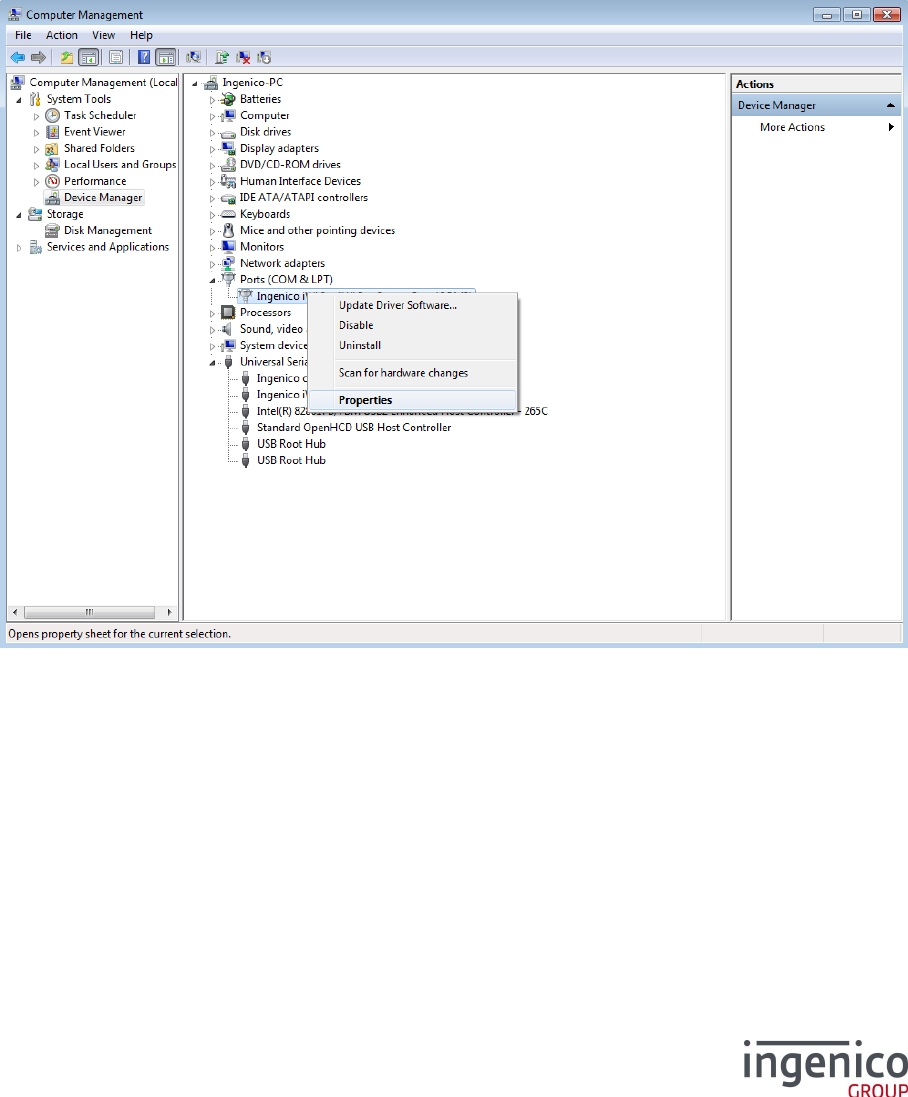
To enable or disable the Force COM feature, a Telium device must be connected. Right-click My
Computer, choose Manage and select Device Manager in the left-hand pane and right click on
Ingenico xxxxxx Comm Port then Properties.
In the right-hand pane you will see two devices:
Ports (COM & LPT) section
The low-level driver will be named “Ingenico xxxxxx Comm Port (COMn)” or “Ingenico Telium
Comm Port (COMn)”, where “COMn” refers to the port currently assigned. It contains all the
configuration options.
Universal Serial Bus controllers section
The high-level driver will be named as per the USB ID Name (see section 2_1_2 Terminals)
and will vary depending on the terminal.
ICO-OPE-4329
Ingenico Driver Installer User Guide
Public
20/22
Ingenico document - Reproduction or disclosure prohibited without written authorization
Please check document validity before using
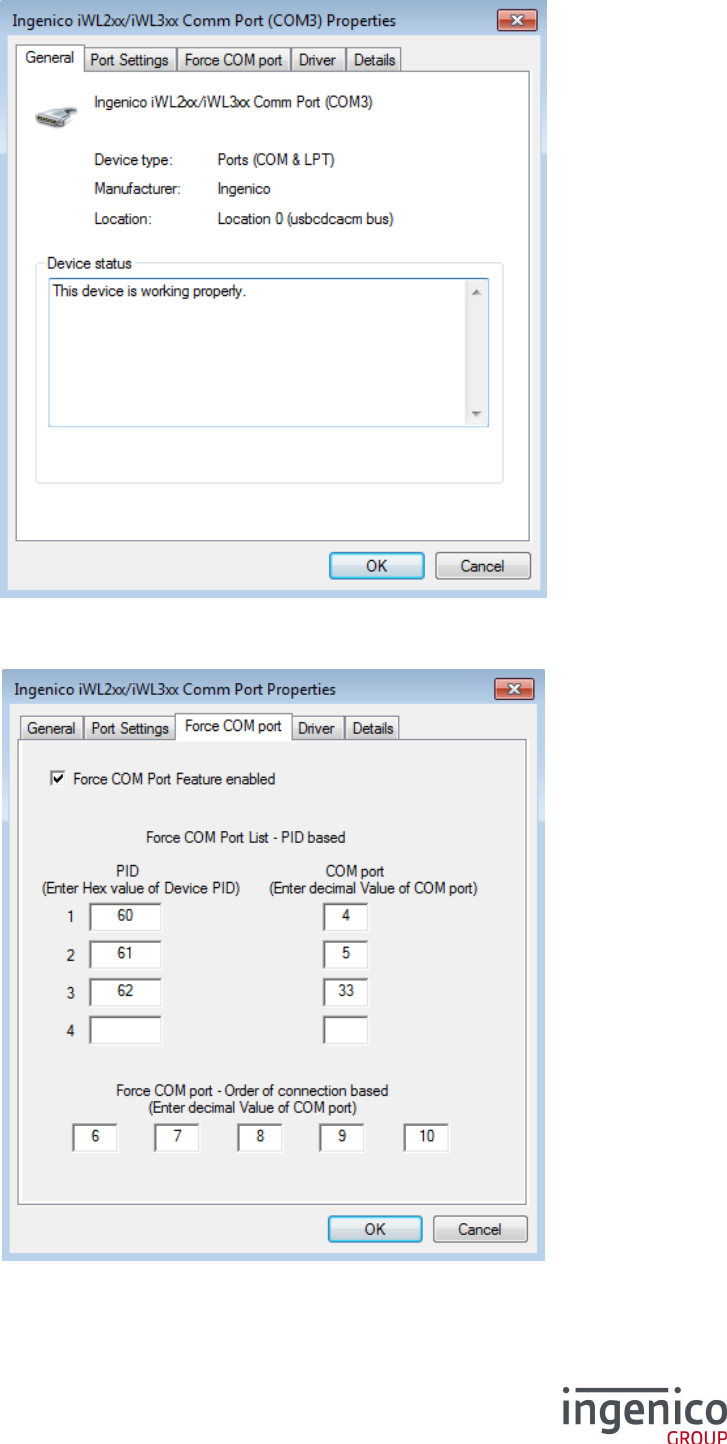
Then select the Force COM port tab to display the Force COM port features;
ICO-OPE-4329
Ingenico Driver Installer User Guide
Public
21/22
Ingenico document - Reproduction or disclosure prohibited without written authorization
Please check document validity before using
To enable or disable the Force COM Port feature check or uncheck the Force COM Port Feature
enabled option respectively.
In the example shown above the option is enabled.
The Force COM Port feature has a number of settings to force the COM port. Depending on the exact
requirements the level to which the different options are set will vary.
In the above example the following rules are defined:
If an Ingenico iPP3xx/iPP4xx terminal is connected (PID 0x0060) then the COM Port selected
will be COM4;
If an Ingenico iSC350 terminal is connected (PID 0x0061) then the COM Port selected will be
COM5;
If an Ingenico iSC2xx terminal is connected (PID 0x0062) then the COM Port selected will be
COM33;
If any other terminal is connected (any PID other than the three specified) then the COM Port
selected will be COM6 (or in this example it could fall back to COM7-10 in that order if those
ports are in use etc…).
The same port number may be used for more than one option for example, and there is no
requirement to complete all the fields. However, it is recommended that you add at least PID 0x0028,
together with at least one port for unspecified PIDs.
Incorrect configuration of the Force COM Port feature can cause the Windows “System Settings
Change” (ie. restart required) dialog box to appear when a terminal is attached and a COM Port
cannot be allocated.
See section 2_1_2 Terminals for a complete list of PID and USB ID Names supported by the current
version of the driver.
Why the window “System Settings Change” is displayed? 5_5
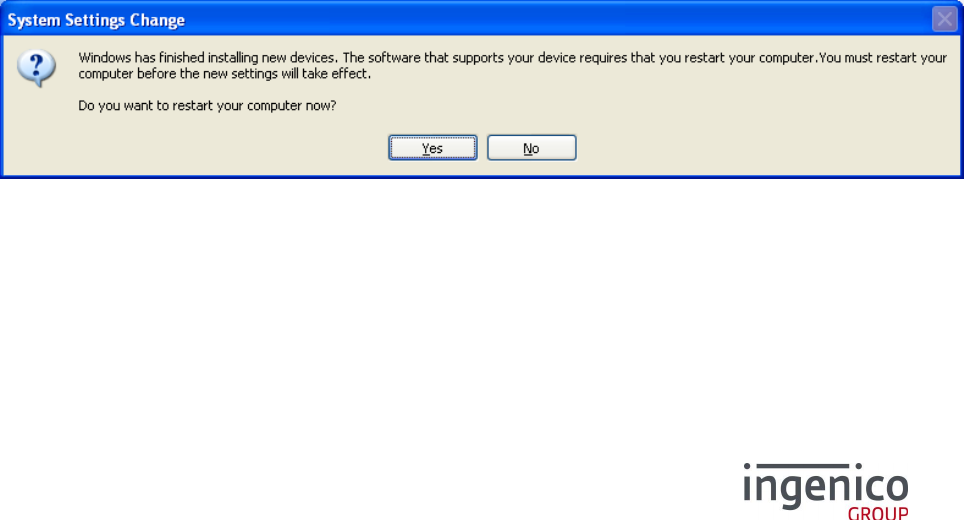
The “System Setting Change” window - requesting to restart the computer - is displayed when the PID
of the terminal currently connected to the PC is not listed in the parameters of the Force COM port
feature when enabled.
To remove this window, the PID of the terminal must be specified from the configuration panel of
Force COM port feature or a default COM port must be set.

ICO-OPE-4329
Ingenico Driver Installer User Guide
Public
22/22
Ingenico document - Reproduction or disclosure prohibited without written authorization
Please check document validity before using
This Document is Copyright © 2016 by INGENICO Group. INGENICO retains full copyright
ownership, rights and protection in all material contained in this document. The recipient can
receive this document on the condition that he will keep the document confidential and will not
use its contents in any form or by any means, except as agreed beforehand, without the prior
written permission of INGENICO. Moreover, nobody is authorized to place this document at the
disposal of any third party without the prior written permission of INGENICO. If such permission
is granted, it will be subject to the condition that the recipient ensures that any other recipient of
this document, or information contained therein, is held responsible to INGENICO for the
confidentiality of that information.
Care has been taken to ensure that the content of this document is as accurate as
possible. INGENICO however declines any responsibility for inaccurate, incomplete or outdated
information. The contents of this document may change from time to time without prior notice,
and do not create, specify, modify or replace any new or prior contractual obligations agreed
upon in writing between INGENICO and the user.
INGENICO is not responsible for any use of this software, which would be non-consistent with
the present document.
The Bluetooth® word mark and logos are registered trademarks owned by Bluetooth SIG, Inc.
and any use of such marks by INGENICO is under license.
Windows is a registered trademark of Microsoft Corporation in the United States and other
countries.
All trademarks used in this document remain the property of their rightful owners.”
