34972 90001_UG_EN Keysight 34972A Data Acquisition Unit User's Guide
User Manual:
Open the PDF directly: View PDF  .
.
Page Count: 345 [warning: Documents this large are best viewed by clicking the View PDF Link!]
- Keysight 34970A/34972A Data Acquisition / Switch Unit
- Software Updates/Licenses
- Restricted Rights Legend
- Safety Symbols
- Safety Considerations
- Regulatory Markings
- Waste Electrical and Electronic Equipment (WEEE) Directive 2002/ 96/EC
- Sales and Technical Support
- Keysight 34970A/34972A Data Acquisition / Switch Unit
- The Front Panel at a Glance
- The Front-Panel Menu at a Glance
- Display Annunciators
- The 34970A Rear Panel at a Glance
- The 34972A Rear Panel at a Glance
- BenchLink Data Logger 3 at a Glance
- The Plug-In Modules at a Glance
- Table of Contents
- List of Tables
- 1 Quick Start
- 2 Front-Panel Overview
- Front-Panel Menu Reference
- To Monitor a Single Channel
- To Set a Scan Interval
- To Apply Mx+B Scaling to Measurements
- To Configure Alarm Limits
- To Read a Digital Input Port
- To Write to a Digital Output Port
- To Read the Totalizer Count
- To Output a DC Voltage
- To Configure the Remote Interface - 34970A
- To Configure the Remote Interface - 34972A
- To Store the Instrument State
- 3 System Overview
- 4 Features and Functions
- SCPI Language Conventions
- Scanning
- Scanning with External Instruments
- General Measurement Configuration
- Temperature Measurement Configuration
- Voltage Measurement Configuration
- Resistance Measurement Configuration
- Current Measurement Configuration
- Frequency Measurement Configuration
- Mx+B Scaling
- Alarm Limits
- Digital Input Operations
- Totalizer Operations
- Digital Output Operations
- DAC Output Operations
- System-Related Operations
- Single-Channel Monitoring
- Mass Memory (USB) Subsystem - 34972A
- USB Drive Front Panel - 34972A
- Remote Interface Configuration - 34970A
- Remote Interface Configuration - 34972A
- Calibration Overview
- Factory Reset State
- Instrument Preset State
- Multiplexer Module Default Settings
- Module Overview
- 34901A 20-Channel Multiplexer
- 34902A 16-Channel Multiplexer
- 34903A 20-Channel Actuator
- 34904A 4x8 Matrix Switch
- 34905A/6A Dual 4-Channel RF Multiplexers
- 34907A Multifunction Module
- 34908A 40-Channel Single-Ended Multiplexer
- 5 Error Messages
- 6 Application Programs
- 7 Tutorial
- System Cabling and Connections
- Measurement Fundamentals
- The Internal DMM
- Temperature Measurements
- Sources of Error in Thermocouple Measurements
- DC Voltage Measurements
- Sources of Error in DC Voltage Measurements
- AC Voltage Measurements
- Sources of Error in AC Voltage Measurements
- Current Measurements
- Sources of Error in DC Current Measurements
- Sources of Error in AC Current Measurements
- Resistance Measurements
- Sources of Error in Resistance Measurements
- Strain Gage Measurements
- Frequency and Period Measurements
- Low-Level Signal Multiplexing and Switching
- Actuators and General-Purpose Switching
- Matrix Switching
- RF Signal Multiplexing
- Multifunction Module
- Relay Life and Preventive Maintenance
- 8 Specifications
- Index

Keysight 34970A/34972A
Data Acquisition / Switch
Unit
User’s Guide
2 Keysight 34970A/34972A User’s Guide
Notices
Copyright Notice
© Keysight Technologies 2009-2018
No part of this manual may be repro-
duced in any form or by any means
(including electronic storage and
retrieval or translation into a foreign
language) without prior agreement and
written consent from Keysight Technol-
ogies as governed by United States and
international copyright laws.
Manual Part Number
34972-90001
Edition
Edition 4, January 15, 2018
Printed in:
Printed in Malaysia
Published by:
Keysight Technologies
Bayan Lepas Free Industrial Zone,
11900 Penang, Malaysia
Technology Licenses
The hardware and/or software
described in this document are fur-
nished under a license and may be
used or copied only in accordance with
the terms of such license.
Declaration of Conformity
Declarations of Conformity for this
product and for other Keysight prod-
ucts may be downloaded from the
Web. Go to http://www.keysight.com/
go/conformity. You can then search by
product number to find the latest Dec-
laration of Conformity.
U.S. Government Rights
The Software is “commercial computer
software,” as defined by Federal Acqui-
sition Regulation (“FAR”) 2.101. Pursu-
ant to FAR 12.212 and 27.405-3 and
Department of Defense FAR Supple-
ment (“DFARS”) 227.7202, the U.S.
government acquires commercial com-
puter software under the same terms
by which the software is customarily
provided to the public. Accordingly,
Keysight provides the Software to U.S.
government customers under its stan-
dard commercial license, which is
embodied in its End User License
Agreement (EULA), a copy of which can
be found at http://www.keysight.com/
find/sweula. The license set forth in the
EULA represents the exclusive authority
by which the U.S. government may use,
modify, distribute, or disclose the Soft-
ware. The EULA and the license set
forth therein, does not require or per-
mit, among other things, that Keysight:
(1) Furnish technical information
related to commercial computer soft-
ware or commercial computer software
documentation that is not customarily
provided to the public; or (2) Relinquish
to, or otherwise provide, the govern-
ment rights in excess of these rights
customarily provided to the public to
use, modify, reproduce, release, per-
form, display, or disclose commercial
computer software or commercial com-
puter software documentation. No
additional government requirements
beyond those set forth in the EULA
shall apply, except to the extent that
those terms, rights, or licenses are
explicitly required from all providers of
commercial computer software pursu-
ant to the FAR and the DFARS and are
set forth specifically in writing else-
where in the EULA. Keysight shall be
under no obligation to update, revise or
otherwise modify the Software. With
respect to any technical data as
defined by FAR 2.101, pursuant to FAR
12.211 and 27.404.2 and DFARS
227.7102, the U.S. government
acquires no greater than Limited Rights
as defined in FAR 27.401 or DFAR
227.7103-5 (c), as applicable in any
technical data.
Warranty
THE MATERIAL CONTAINED IN THIS
DOCUMENT IS PROVIDED “AS IS,”
AND IS SUBJECT TO BEING
CHANGED, WITHOUT NOTICE, IN
FUTURE EDITIONS. FURTHER, TO THE
MAXIMUM EXTENT PERMITTED BY
APPLICABLE LAW, KEYSIGHT DIS-
CLAIMS ALL WARRANTIES, EITHER
EXPRESS OR IMPLIED, WITH REGARD
TO THIS MANUAL AND ANY INFORMA-
TION CONTAINED HEREIN, INCLUD-
ING BUT NOT LIMITED TO THE
IMPLIED WARRANTIES OF MER-
CHANTABILITY AND FITNESS FOR A
PARTICULAR PURPOSE. KEYSIGHT
SHALL NOT BE LIABLE FOR ERRORS
OR FOR INCIDENTAL OR CONSE-
QUENTIAL DAMAGES IN CONNECTION
WITH THE FURNISHING, USE, OR
PERFORMANCE OF THIS DOCUMENT
OR OF ANY INFORMATION CON-
TAINED HEREIN. SHOULD KEYSIGHT
AND THE USER HAVE A SEPARATE
WRITTEN AGREEMENT WITH WAR-
RANTY TERMS COVERING THE MATE-
RIAL IN THIS DOCUMENT THAT
CONFLICT WITH THESE TERMS, THE
WARRANTY TERMS IN THE SEPARATE
AGREEMENT SHALL CONTROL.
Safety Information
CAUTION
A CAUTION notice denotes a hazard. It
calls attention to an operating proce-
dure, practice, or the like that, if not
correctly performed or adhered to,
could result in damage to the product
or loss of important data. Do not pro-
ceed beyond a CAUTION notice until
the indicated conditions are fully
understood and met.
WARNING
A WARNING notice denotes a hazard. It
calls attention to an operating proce-
dure, practice, or the like that, if not
correctly performed or adhered to,
could result in personal injury or death.
Do not proceed beyond a WARNING
notice until the indicated conditions are
fully understood and met.
Keysight 34970A/34972A User’s Guide 3
Software Updates/Licenses
Periodically, Keysight releases software updates to fix known defects and
incorporate product enhancements. To search for software updates and the latest
documentation for your product, go to the product page at:
www.keysight.com/find/34970A
www.keysight.com/find/34972A
A portion of the software in this product is licensed under terms of the General
Public License Version 2 ("GPLv2"). The text of the license and source code can be
found at:
www.keysight.com/find/GPLV2
This product utilizes Microsoft Windows CE. Keysight highly recommends that all
Windows-based computers connected to Windows CE instruments utilize current
anti-virus software. For more information, go to the product page at:
www.keysight.com/find/34970A
www.keysight.com/find/34972A
Restricted Rights Legend
If software is for use in the performance of a U.S. Government prime contract or
subcontract, Software is delivered and licensed as “Commercial computer
software” as defined in DFAR 252.227-7014 (June 1995), or as a “commercial
item” as defined in FAR 2.101(a) or as “Restricted computer software” as defined
in FAR 52.227-19 (June 1987) or any equivalent agency regulation or contract
clause. Use, duplication or disclosure of Software is subject to Keysight
Technologies’ standard commercial license terms, and non-DOD Departments
and Agencies of the U.S. Government will receive no greater than Restricted
Rights as defined in FAR 52.227-19(c)(1-2) (June 1987). U.S. Government users
will receive no greater than Limited Rights as defined in FAR 52.227-14 (June
1987) or DFAR 252.227-7015 (b)(2) (November 1995), as applicable in any
technical data.
4 Keysight 34970A/34972A User’s Guide
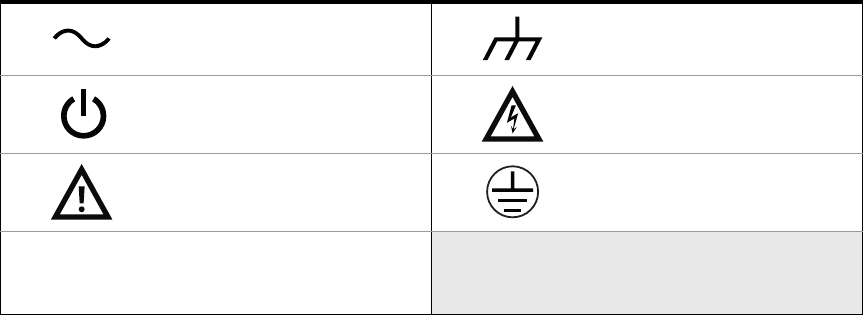
Safety Symbols
The following symbols on the instrument and in the documentation indicate
precautions which must be taken to maintain safe operation of the instrument.
Alternating current (AC) Frame or chassis (ground) terminal
Standby supply. Unit is not completely
disconnected from AC mains when
switch is off.
Caution, risk of electric shock
Caution, risk of danger (refer to this
manual for specific Warning or Caution
information)
Protective earth (ground) terminal
IEC Measurement
CAT I
Keysight 34970A/34972A User’s Guide 5
Safety Considerations
Read the information below before using this instrument.
The following general safety precautions must be observed during all phases of
operation, service, and repair of this instrument. Failure to comply with these
precautions or with specific warnings elsewhere in this manual violates safety
standards for design, manufacture, and intended use of the instrument. Keysight
Technologies assumes no liability for the customer’s failure to comply with these
requirements.
General
Do not use this product in any manner not specified by the manufacturer. The
protective features of this product may be impaired if it is used in a manner not
specified in the operation instructions.
Before applying power
Verify that all safety precautions are taken. Make all connections to the unit before
applying power and select the appropriate power line voltage on the fuse module.
Ground the instrument
This product is provided with protective earth terminals. To minimize shock
hazard, the instrument must be connected to the ac power mains through a
grounded power cable, with the ground wire firmly connected to an electrical
ground (safety ground) at the power outlet. Any interruption of the protective
(grounding) conductor or disconnection of the protective earth terminal will cause
a potential shock hazard that could result in personal injury.
Do not operate in an explosive atmosphere
Do not operate the instrument in the presence of flammable gases or fumes.

6 Keysight 34970A/34972A User’s Guide
Do not remove the instrument cover
Only qualified, service-trained personal who are aware of the hazards involved
should remove instrument covers. Always disconnect the power cable and any
external circuits before removing the instrument cover.
Do not modify the instrument
Do not install substitute parts or perform any unauthorized modification to the
product. Return the product to an Keysight Sales and Service Office for service
and repair to ensure that safety features are maintained.
In case of damage
Instruments that appear damaged or defective should be made inoperative and
secured against unintended operation until they can be repaired by qualified
service personnel.
CAUTION
Unless otherwise noted in the specifications, this instrument or system is
intended for indoor use in an installation category II, pollution degree 2
environment per IEC 61010-1 and 664 respectively. It is designed to operate
at a maximum relative humidity of 20% to 80% at 40 °C or less
(non-condensing). This instrument or system is designed to operate at
altitudes up to 2000 meters, and at temperatures between 0 °C and 55 °C.
Keysight 34970A/34972A User’s Guide 7
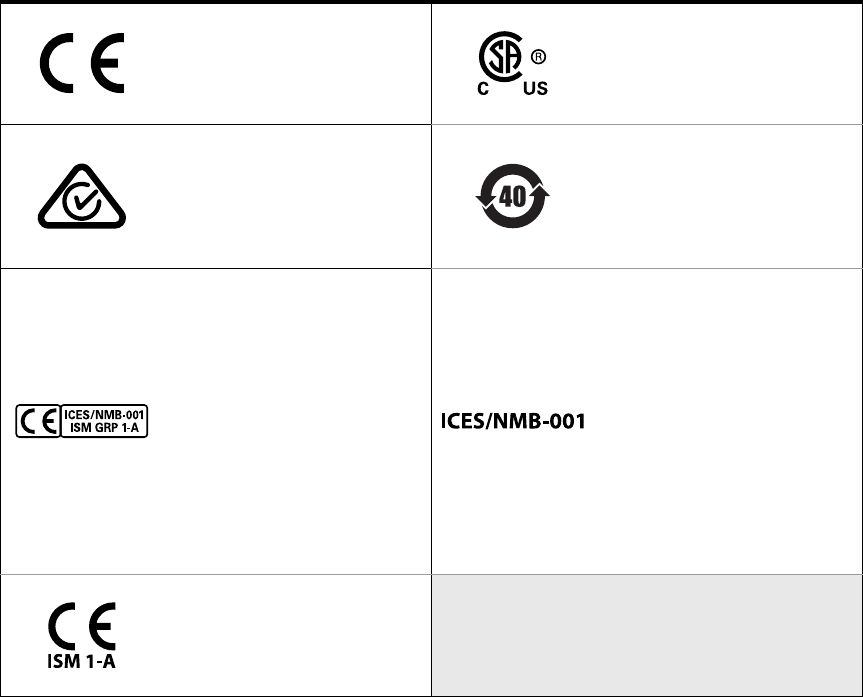
Regulatory Markings
The CE mark is a registered trademark
of the European Community. This CE
mark shows that the product complies
with all the relevant European Legal
Directives.
The CSA mark is a registered
trademark of the Canadian
Standards Association.
The RCM mark is a registered
trademark of the Australian
Communications and Media Authority.
This symbol indicates the time period
during which no hazardous or toxic
substance elements are expected to
leak or deteriorate during normal use.
Forty years is the expected useful life
of the product.
The CE mark is a registered trademark
of the European Community. This CE
mark shows that the product complies
with all the relevant European Legal
Directives.
ICES/NMB-001 indicates that this ISM
device complies with the
Canadian ICES-001.
Cet appareil ISM est conforme a la
norme NMB-001 du Canada.
ISM GRP.1 Class A indicates that this
is an Industrial Scientific and Medical
Group 1 Class A product.
ICES/NMB-001 indicates that this ISM
device complies with the
Canadian ICES-001.
Cet appareil ISM est conforme a la
norme NMB-001 du Canada.
The CE mark is a registered trademark
of the European Community. This CE
mark shows that the product complies
with all the relevant European Legal
Directives.

8 Keysight 34970A/34972A User’s Guide
Waste Electrical and Electronic Equipment (WEEE) Directive 2002/
96/EC
This instrument complies with the WEEE Directive (2002/96/EC) marking
requirement. This affixed product label indicates that you must not discard this
electrical or electronic product in domestic household waste.
Product category
With reference to the equipment types in the WEEE directive Annex 1, this
instrument is classified as a “Monitoring and Control Instrument” product.
The affixed product label is as shown below.
Do not dispose in domestic household waste.
To return this unwanted instrument, contact your nearest Keysight Service Center,
or visit http://about.keysight.com/en/companyinfo/environment/takeback.shtml
for more information.
Sales and Technical Support
To contact Keysight for sales and technical support, refer to the support links on
the following Keysight websites:
–www.keysight.com/find/34970A
–www.keysight.com/find/34972A
(product-specific information and support, software and documentation
updates)
–www.keysight.com/find/assist
(worldwide contact information for repair and service)

Keysight 34970A/34972A User’s Guide 9
Keysight 34970A/34972A Data Acquisition / Switch Unit
The Keysight Technologies 34970A/34972A combines precision measurement
capability with flexible signal connections for your production and development
test systems. Three module slots are built into the rear of the instrument to accept
any combination of data acquisition or switching modules. The combination of
data logging and data acquisition features makes this instrument a versatile
solution for your testing requirements now and in the future.
Convenient Data Logging Features
– Direct measurement of thermocouples, RTDs, thermistors, DC voltage, AC
voltage, resistance, DC current, AC current, frequency, and period
– Interval scanning with storage of up to 50,000 time-stamped readings
– Independent channel configuration with function, Mx+B scaling, and alarm
limits available on a per-channel basis
– Intuitive user interface with knob for quick channel selection, menu navigation,
and data entry from the front panel
– Portable, ruggedized case with non-skid feet
–BenchLink Data Logger 3 Software for Microsoft® Windows ® included
Flexible Data Acquisition/Switching Features
– 6½-digit multimeter accuracy, stability, and noise rejection
– Up to 60 channels per instrument (120 single-ended channels)
– Reading rates up to 500 readings per second on a single channel and scan
rates up to 250 channels per second
– Choice of multiplexing, matrix, general-purpose Form C switching, RF
switching, digital I/O, totalize, and 16-bit analog output functions
NOTE
Unless otherwise indicated, this manual applies to all serial numbers.
10 Keysight 34970A/34972A User’s Guide
– GPIB (IEEE-488) interface and RS-232 interface are standard on the 34970A.
Local Area Network (LAN) and Universal Serial Bus (USB) are standard on the
34972A.
–SCPI (Standard Commands for Programmable Instruments) compatibility
Keysight 34970A/34972A User’s Guide 11
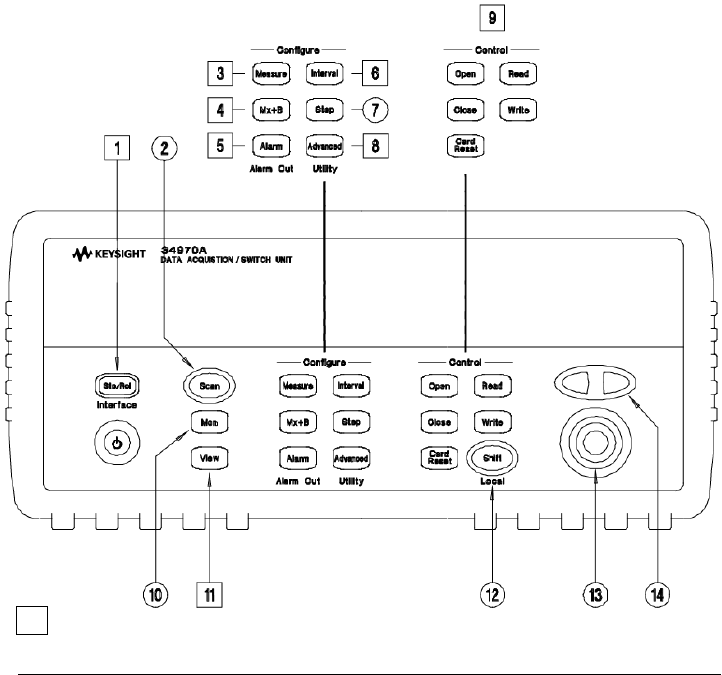
The Front Panel at a Glance
1 State Storage / Remote Interface Menus
2 Scan Start / Stop Key
3 Measurement Configuration Menu
4 Scaling Configuration Menu
5 Alarm / Alarm Output Configuration Menu
6 Scan-to-Scan Interval Menu
7 Scan List Single Step / Read Key
8 Advanced Measurement / Utility Menus
9 Low-Level Module Control Keys
10 Single-Channel Monitor On / Off Key
11 View Scanned Data, Alarms, Errors Menu
12 Shift / Local Key
13 Knob
14 Navigation Arrow Keys
Denotes a menu key. See the next page for details on menu operation.
12 Keysight 34970A/34972A User’s Guide
The Front-Panel Menu at a Glance
Several of the front-panel keys guide you through menus to configure various
parameters of the instrument (see previous page). The following steps
demonstrate the menu structure using the key.
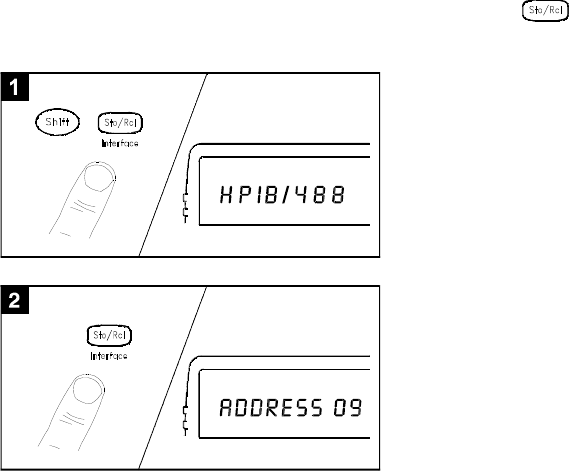
1Press the menu key. You are automatically
guided to the first level of the menu. Rotate the
knob to view the other choices on the first level
of the menu.
The menu will automatically time out after
about 20 seconds of inactivity. You will be
returned to the operation in progress prior to
entering the menu.
2Press the same menu key again to move to the
next item of the menu. Typically, this is where
you choose parameter values for the selected
operation.
Keysight 34970A/34972A User’s Guide 13
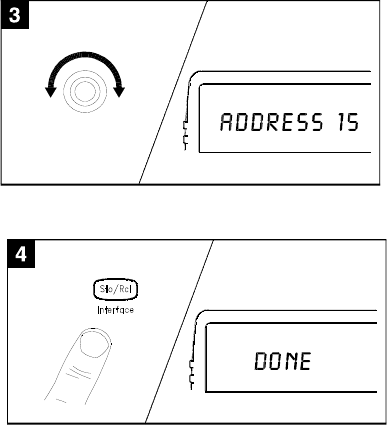
Tip: To review the current configuration of a specific menu, press the menu key
several times. A message NO CHANGES is displayed when you exit the menu.
3Rotate the knob to view the choices on this level
of the menu. When you reach the end of the list,
rotate the knob in the opposite direction to view
all of the other choices.
The current selection is highlighted for
emphasis. All other choices are dimmed.
4Press the same menu key again to accept the
change and exit the menu. A brief confirmation
message is displayed.
14 Keysight 34970A/34972A User’s Guide
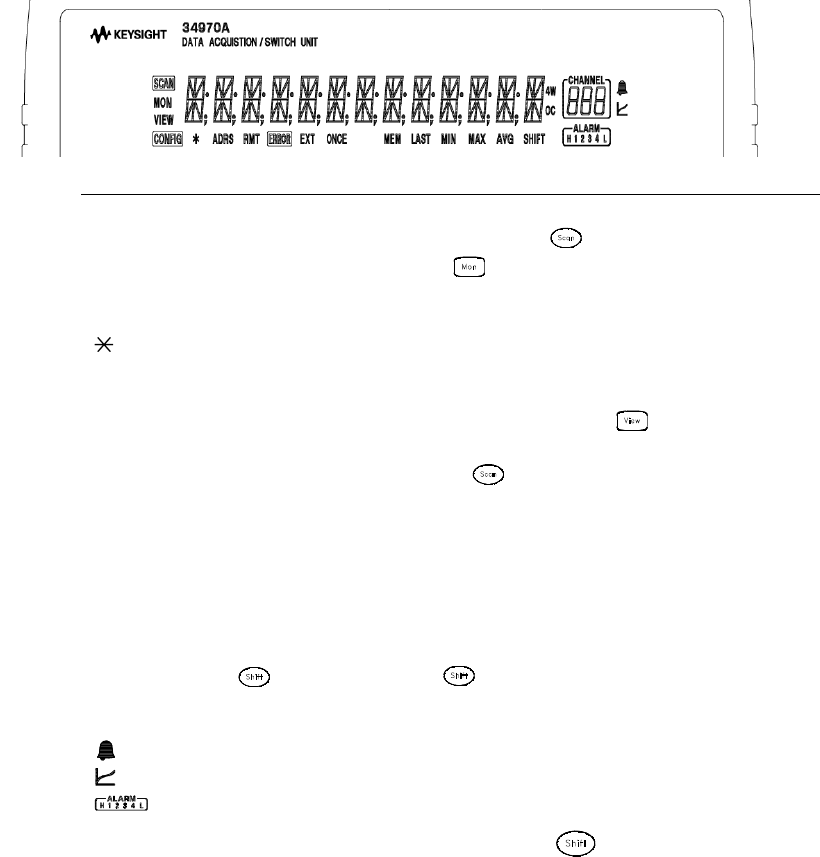
Display Annunciators
To review the display annunciators, hold down the key as you turn on the
instrument.
SCAN Scan is in progress or enabled. Press and hold again to turn off.
MON Monitor mode is enabled. Press again to turn off.
VIEW Scanned readings, alarms, errors, or relay cycles are being viewed.
CONFIG Channel configuration is in progress on displayed channel.
Measurement is in progress.
ADRS Instrument is addressed to listen or talk over the remote interface.
RMT Instrument is in remote mode (remote interface).
ERROR Hardware or remote interface errors are detected. Press to read errors.
EXT Instrument is configured for an external scan interval.
ONCE Scan Once mode is enabled. Press to initiate and hold key to disable.
MEM (34970A)
MEM (34972A)
Reading memory overflow; new readings will overwrite the oldest readings.
A USB drive is connected to the instrument (annunciator on), or data is being written
to or read from the USB drive (annunciator flashing).
AUTO (34972A) USB logging is active.
LAST Viewed data is the last reading stored during most recent scan.
MIN Viewed data is the minimum reading stored during most recent scan.
MAX Viewed data is the maximum reading stored during most recent scan.
SHIFT has been pressed. Press again to turn off.
4W 4-wire function is in use on displayed channel.
OC Offset compensation is enabled on displayed channel.
Alarms are enabled on displayed channel.
Mx+B scaling is enabled on displayed channel.
HI or LO alarm condition has occurred on indicated alarms.
Keysight 34970A/34972A User’s Guide 15
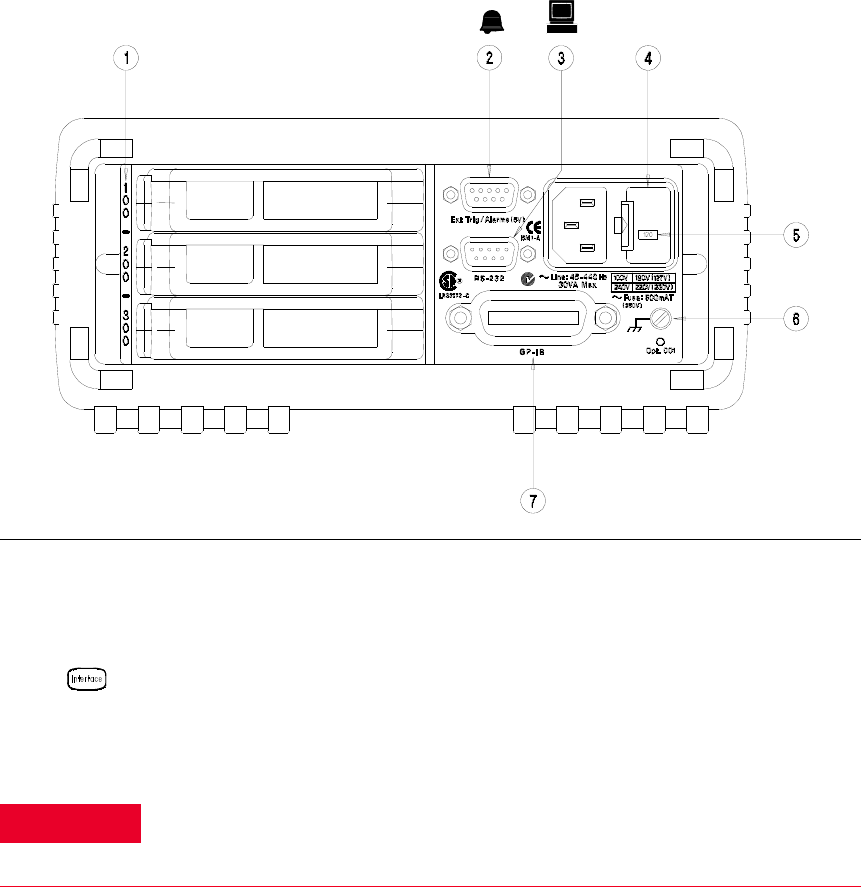
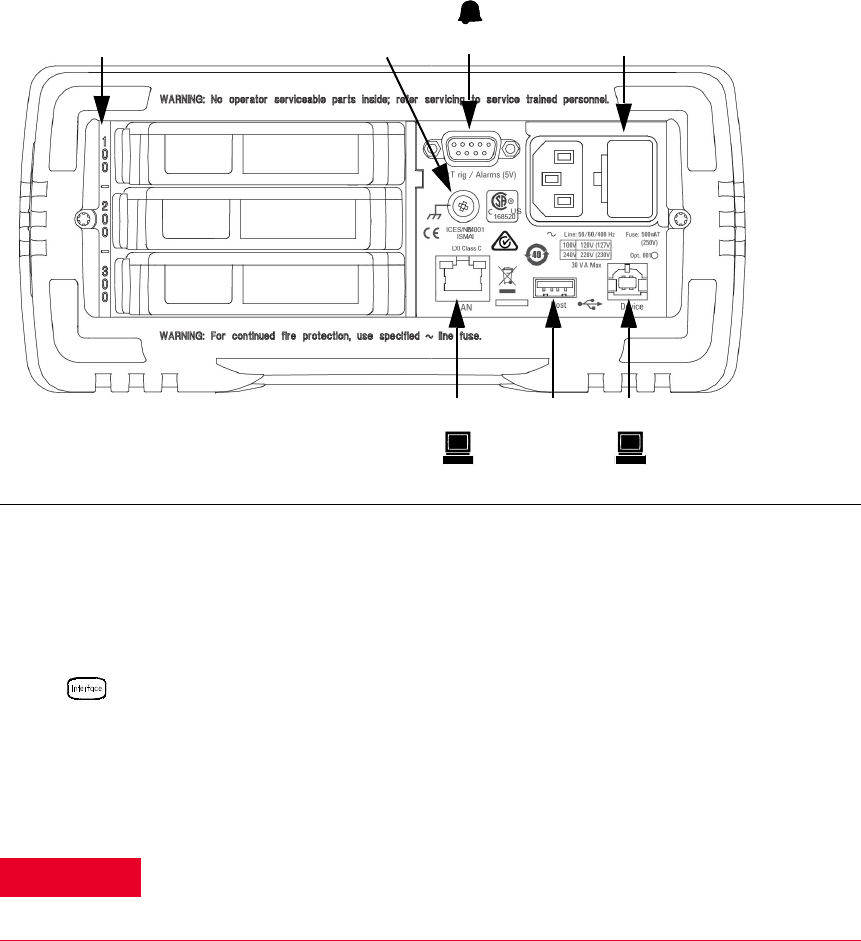
The 34970A Rear Panel at a Glance
1 Slot Identifier (100,200, 300)
2 Ext Trig Input / Alarm Outputs / Channel Advance Input / Channel
Closed Output (for pinouts, see page 109 and page 153)
3 RS-232 Interface Connector
4 Power-Line Fuse-Holder Assembly
5 Power-Line Voltage Setting
6 Chassis Ground Screw
7 GPIB (IEEE-488) Interface Connector
Use the Menu to:
– Select the GPIB or RS-232 interface (see Chapter 2).
– Set the GPIB address (see Chapter 2).
– Set the RS-232 baud rate, parity, and flow control mode (see Chapter 2).
WARNING
For protection from electrical shock, the power cord ground must not be
defeated. If only a two-contact electrical outlet is available, connect the
instrument’s chassis ground screw (see above) to a good earth ground.
16 Keysight 34970A/34972A User’s Guide
The 34972A Rear Panel at a Glance
1 Slot Identifier (100,200, 300)
2 Chassis Ground Screw
3 Ext Trig Input / Alarm Outputs / Channel
Advance Input / Channel Closed Output (for pinouts, see
page 109 and page 153)
4 Power-Line Fuse-Holder Assembly
5 LAN Connector
6 USB Drive Connector
7 USB Interface Connector[a]
Use the Menu to:
– Select and configure the LAN and USB interfaces (see Chapter 2).
[a] Under some conditions, while using the USB interface with the 34972A, you may experience connection or data loss in the presence of an
electrical transient from the main power line. You can re-establish the USB communication by performing a reboot (cycle power) on the
instrument. You can make the USB connection less susceptible to a potential power line transient by inserting a USB hub in the connection
between the computer and the instrument.
WARNING
For protection from electrical shock, the power cord ground must not be
defeated. If only a two-contact electrical outlet is available, connect the
instrument’s chassis ground screw (see above) to a good earth ground.

Keysight 34970A/34972A User’s Guide 17
BenchLink Data Logger 3 at a Glance
The Keysight BenchLink Data Logger 3 software provides a convenient way to
collect and analyze your data. The software uses a familiar spreadsheet
environment, streamlining your data gathering needs. Simply identify the
measurements you want to acquire, initiate the process, and see the data
displayed on the computer screen. Use one of the many options to analyze and
display your data-strip charts, histograms with statistical analysis, bar and scatter
charts, individual channel results, and more.
A sample of the BenchLink Data Logger 3 features include:
– Tab based user interface, simple menu structure.
– A data manager that manages all configurations and data logs; simplifies
opening, renaming, deleting, and editing; easy access to data export.
– A data log name template.
– Automatic data export with preconfigured preferences; control of the decimal
character and field separator; control of the export contents.
– Graph configurations saved and restored automatically the next time Data
Logger 3 is opened.
– Graph preferences to allow easy control of graph look and feel.
– Split graphs for easy viewing of independent measurements.
– Import Data Logger I and Data Logger II configurations.
– Configure up to four 34970A/34972As for simultaneous scanning.
For increased capabilities, purchase the optional Keysight BenchLink Data
Logger Pro software. This software provides advanced data logging and decision
making with no programming required.
NOTE
To install the software, refer to “BenchLink Data Logger 3
software installation procedure” on page 36
To learn more about the software and its capabilities, refer to
the On-Line Help System for BenchLink Data Logger 3.

18 Keysight 34970A/34972A User’s Guide
The Plug-In Modules at a Glance
For complete specifications on each plug-in modules, refer to the module
sections in Chapter 8.
34901A 20-Channel Armature Multiplexer
– 20 channels of 300 V switching
– Two channels for DC or AC current measurements (100 nA to 1A)
– Built-in thermocouple reference junction
– Switching speed of up to 60 channels per second
– Connects to the internal multimeter
–For detailed information and a module diagram, see page 206.
Each of the 20 channels switches both HI and LO inputs, thus providing fully
isolated inputs to the internal multimeter. The module is divided into two banks
of 10 two-wire channels each. When making four-wire resistance measurements,
channels from Bank A are automatically paired with channels from Bank B. Two
additional fused channels are included on the module (22 channels total) for
making calibrated DC or AC current measurements with the internal multimeter
(external shunt resistors are not required). You can close multiple channels on
this module only if you have not configured any channels to be part of the scan
list. Otherwise, all channels on the module are break-before-make.

Keysight 34970A/34972A User’s Guide 19
34902A 16-Channel Reed Multiplexer
– 16 channels of 300 V switching
– Built-in thermocouple reference junction
– Switching speed of up to 250 channels per second
– Connects to the internal multimeter
–For detailed information and a module diagram, see page 209.
Use this module for high-speed scanning and high-throughput automated test
applications. Each of the 16 channels switches both HI and LO inputs, thus
providing fully isolated inputs to the internal multimeter. The module is divided
into two banks of eight two-wire channels each. When making four-wire
resistance measurements, channels from Bank A are automatically paired with
channels from Bank B. You can close multiple channels on this module only if
you have not configured any channels to be part of the scan list. Otherwise, all
channels on the module are break-before-make.
34903A 20-Channel Actuator / General-Purpose Switch
– 300 V, 1 A actuation and switching
– SPDT (Form C) latching relays
– Breadboard area for custom circuits
–For detailed information and a module diagram, see page 211.
Use this module for those applications that require high-integrity contacts or
quality connections of non-multiplexed signals. This module can switch 300 V, 1
A (50 W maximum switch power) to your device under test or to actuate external
devices. Screw terminals on the module provide access to the Normally-Open,
Normally-Closed, and Common contacts for each of the 20 switches. A
breadboard area is provided near the screw terminals to implement custom
circuitry, such as simple filters, snubbers, or voltage dividers.

20 Keysight 34970A/34972A User’s Guide
34904A 4x8 Two-Wire Matrix Switch
– 32 two-wire crosspoints
– Any combination of inputs and outputs can be connected at a time
– 300 V, 1 A switching
–For detailed information and a module diagram, see page 213.
Use this module to connect multiple instruments to multiple points on your
device under test at the same time. You can connect rows and columns between
multiple modules to build larger matrices such as 8x8 and 4x16, with up to 96
crosspoints in a single mainframe.
34905/6A Dual 4-Channel RF Multiplexers
– 34905A (50Ω) / 34906A (75Ω)
– 2 GHz bandwidth with on-board SMB connections
– 1 GHz bandwidth with SMB-to-BNC adapter cables provided
–For detailed information and a module diagram, see page 215.
These modules offer wideband switching capabilities for high frequency and
pulsed signals. Each module is organized in two independent banks of 4-to-1
multiplexers. Both modules offer low crosstalk and excellent insertion loss
performance. To create larger RF multiplexers, you can cascade multiple banks
together. Only one channel in each bank may be closed at a time.
34907A Multifunction Module
– Two 8-bit Digital Input/Output ports, 400 mA sink, 42 V open collector
– 100 kHz Totalize input with 1 Vpp sensitivity
– Two 16-bit, ±12 V Calibrated Analog Outputs
– For detailed information and module block diagrams, see page 217.
Use this module to sense status and control external devices such as solenoids,
power relays, and microwave switches. For greater flexibility, you can read digital
inputs and the count on the totalizer during a scan.

Keysight 34970A/34972A User’s Guide 21
34908A 40-Channel Single-Ended Multiplexer
– 40 channels of 300 V single-ended (common LO) switching
– Built-in thermocouple reference junction
– Switching speed of up to 60 channels per second
– Connects to the internal multimeter
– For detailed information and a module diagram, see page 219.
Use this module for high-density switching applications which require
single-wire inputs with a common LO. All relays are break-before-make to
ensure that only one relay is connected at any time.
22 Keysight 34970A/34972A User’s Guide
THIS PAGE HAS BEEN INTENTIONALLY LEFT BLANK.
Keysight 34970A/34972A User’s Guide 23
Table of Contents
Software Updates/Licenses . . . . . . . . . . . . . . . . . . . . . . . . . . . . . . . . . . .3
Restricted Rights Legend . . . . . . . . . . . . . . . . . . . . . . . . . . . . . . . . . . . . .3
Safety Symbols . . . . . . . . . . . . . . . . . . . . . . . . . . . . . . . . . . . . . . . . . . . . .4
Safety Considerations . . . . . . . . . . . . . . . . . . . . . . . . . . . . . . . . . . . . . . . .5
General . . . . . . . . . . . . . . . . . . . . . . . . . . . . . . . . . . . . . . . . . . . . . . . . .5
Before applying power . . . . . . . . . . . . . . . . . . . . . . . . . . . . . . . . . . . . .5
Ground the instrument . . . . . . . . . . . . . . . . . . . . . . . . . . . . . . . . . . . .5
Do not operate in an explosive atmosphere . . . . . . . . . . . . . . . . . . . .5
Do not remove the instrument cover . . . . . . . . . . . . . . . . . . . . . . . . .6
Do not modify the instrument . . . . . . . . . . . . . . . . . . . . . . . . . . . . . . .6
In case of damage . . . . . . . . . . . . . . . . . . . . . . . . . . . . . . . . . . . . . . . .6
Regulatory Markings . . . . . . . . . . . . . . . . . . . . . . . . . . . . . . . . . . . . . . . . .7
Waste Electrical and Electronic Equipment (WEEE) Directive 2002/96/
EC . . . . . . . . . . . . . . . . . . . . . . . . . . . . . . . . . . . . . . . . . . . . . . . . . . . . .8
Product category . . . . . . . . . . . . . . . . . . . . . . . . . . . . . . . . . . . . . . . . .8
Sales and Technical Support . . . . . . . . . . . . . . . . . . . . . . . . . . . . . . . . . .8
Keysight 34970A/34972A Data Acquisition / Switch Unit . . . . . . . . . . .9
The Front Panel at a Glance . . . . . . . . . . . . . . . . . . . . . . . . . . . . . . . . . .11
The Front-Panel Menu at a Glance . . . . . . . . . . . . . . . . . . . . . . . . . . . .12
Display Annunciators . . . . . . . . . . . . . . . . . . . . . . . . . . . . . . . . . . . . . . .14
The 34970A Rear Panel at a Glance . . . . . . . . . . . . . . . . . . . . . . . . . . .15
The 34972A Rear Panel at a Glance . . . . . . . . . . . . . . . . . . . . . . . . . . .16
BenchLink Data Logger 3 at a Glance . . . . . . . . . . . . . . . . . . . . . . . . . .17
The Plug-In Modules at a Glance . . . . . . . . . . . . . . . . . . . . . . . . . . . . . .18
1Quick Start
To Prepare the Instrument for Use . . . . . . . . . . . . . . . . . . . . . . . . . . . . .34
BenchLink Data Logger Software . . . . . . . . . . . . . . . . . . . . . . . . . . . . . .36
BenchLink Data Logger 3 software installation procedure . . . . . . .36
On-Line help system . . . . . . . . . . . . . . . . . . . . . . . . . . . . . . . . . . . . .37
24 Keysight 34970A/34972A User’s Guide
To Connect Wiring to a Module . . . . . . . . . . . . . . . . . . . . . . . . . . . . . . . 38
To Set the Time and Date . . . . . . . . . . . . . . . . . . . . . . . . . . . . . . . . . . . 40
To Configure a Channel for Scanning . . . . . . . . . . . . . . . . . . . . . . . . . . 41
To Copy a Channel Configuration . . . . . . . . . . . . . . . . . . . . . . . . . . . . . 44
To Close a Channel . . . . . . . . . . . . . . . . . . . . . . . . . . . . . . . . . . . . . . . . 46
If the Instrument Does Not Turn On . . . . . . . . . . . . . . . . . . . . . . . . . . . 48
To Adjust the Carrying Handle . . . . . . . . . . . . . . . . . . . . . . . . . . . . . . . . 50
To Rack Mount the Instrument . . . . . . . . . . . . . . . . . . . . . . . . . . . . . . . 51
2 Front-Panel Overview
Front-Panel Menu Reference . . . . . . . . . . . . . . . . . . . . . . . . . . . . . . . . . 54
To Monitor a Single Channel . . . . . . . . . . . . . . . . . . . . . . . . . . . . . . . . . 57
To Set a Scan Interval . . . . . . . . . . . . . . . . . . . . . . . . . . . . . . . . . . . . . . 58
To Apply Mx+B Scaling to Measurements . . . . . . . . . . . . . . . . . . . . . . . 59
To Configure Alarm Limits . . . . . . . . . . . . . . . . . . . . . . . . . . . . . . . . . . . 60
To Read a Digital Input Port . . . . . . . . . . . . . . . . . . . . . . . . . . . . . . . . . . 62
To Write to a Digital Output Port . . . . . . . . . . . . . . . . . . . . . . . . . . . . . . 63
To Read the Totalizer Count . . . . . . . . . . . . . . . . . . . . . . . . . . . . . . . . . 64
To Output a DC Voltage . . . . . . . . . . . . . . . . . . . . . . . . . . . . . . . . . . . . . 65
To Configure the Remote Interface - 34970A . . . . . . . . . . . . . . . . . . . . 66
To Configure the Remote Interface - 34972A . . . . . . . . . . . . . . . . . . . . 68
To Store the Instrument State . . . . . . . . . . . . . . . . . . . . . . . . . . . . . . . . 70
3System Overview
Data Acquisition System Overview . . . . . . . . . . . . . . . . . . . . . . . . . . . . 72
The computer and interface cable (34970A only) . . . . . . . . . . . . . . 73
Measurement software . . . . . . . . . . . . . . . . . . . . . . . . . . . . . . . . . . . 74
The 34970A/34972A Data Acquisition / Switch Unit . . . . . . . . . . . . 76
Plug-In modules . . . . . . . . . . . . . . . . . . . . . . . . . . . . . . . . . . . . . . . . 77
System cabling . . . . . . . . . . . . . . . . . . . . . . . . . . . . . . . . . . . . . . . . . 79
Transducers and sensors . . . . . . . . . . . . . . . . . . . . . . . . . . . . . . . . . 80
Alarm limits . . . . . . . . . . . . . . . . . . . . . . . . . . . . . . . . . . . . . . . . . . . . 81
Keysight 34970A/34972A User’s Guide 25
Signal Routing and Switching . . . . . . . . . . . . . . . . . . . . . . . . . . . . . . . .82
Switching topologies . . . . . . . . . . . . . . . . . . . . . . . . . . . . . . . . . . . . .82
Measurement Input . . . . . . . . . . . . . . . . . . . . . . . . . . . . . . . . . . . . . . . .86
The internal DMM . . . . . . . . . . . . . . . . . . . . . . . . . . . . . . . . . . . . . . .86
Scanning . . . . . . . . . . . . . . . . . . . . . . . . . . . . . . . . . . . . . . . . . . . . . .88
Scanning with external instruments . . . . . . . . . . . . . . . . . . . . . . . . .90
The multifunction module . . . . . . . . . . . . . . . . . . . . . . . . . . . . . . . . .92
Control Output . . . . . . . . . . . . . . . . . . . . . . . . . . . . . . . . . . . . . . . . . . . .94
The multifunction module . . . . . . . . . . . . . . . . . . . . . . . . . . . . . . . . .94
The actuator / general purpose switch . . . . . . . . . . . . . . . . . . . . . . .96
4 Features and Functions
SCPI Language Conventions . . . . . . . . . . . . . . . . . . . . . . . . . . . . . . . . .99
Rules for using a channel list . . . . . . . . . . . . . . . . . . . . . . . . . . . . . .99
Scanning . . . . . . . . . . . . . . . . . . . . . . . . . . . . . . . . . . . . . . . . . . . . . . . .100
Rules for scanning . . . . . . . . . . . . . . . . . . . . . . . . . . . . . . . . . . . . . .100
Power failure . . . . . . . . . . . . . . . . . . . . . . . . . . . . . . . . . . . . . . . . . .103
Adding channels to a scan list . . . . . . . . . . . . . . . . . . . . . . . . . . . . .104
Scan interval . . . . . . . . . . . . . . . . . . . . . . . . . . . . . . . . . . . . . . . . . .106
Scan count . . . . . . . . . . . . . . . . . . . . . . . . . . . . . . . . . . . . . . . . . . . .113
Reading format . . . . . . . . . . . . . . . . . . . . . . . . . . . . . . . . . . . . . . . .114
. . . . . . . . . . . . . . . . . . . . . . . . . . . . . . . . . . . . . . . . . . . . . . . . . . . . . .114
Channel delay . . . . . . . . . . . . . . . . . . . . . . . . . . . . . . . . . . . . . . . . .115
Automatic channel delays . . . . . . . . . . . . . . . . . . . . . . . . . . . . . . . .116
Viewing readings stored in memory . . . . . . . . . . . . . . . . . . . . . . . .118
Scanning with External Instruments . . . . . . . . . . . . . . . . . . . . . . . . . .121
General Measurement Configuration . . . . . . . . . . . . . . . . . . . . . . . . . .125
Measurement range . . . . . . . . . . . . . . . . . . . . . . . . . . . . . . . . . . . . .125
Measurement resolution . . . . . . . . . . . . . . . . . . . . . . . . . . . . . . . . .127
Custom A/D integration time . . . . . . . . . . . . . . . . . . . . . . . . . . . . .129
Autozero . . . . . . . . . . . . . . . . . . . . . . . . . . . . . . . . . . . . . . . . . . . . .131
Temperature Measurement Configuration . . . . . . . . . . . . . . . . . . . . . .132
Measurement units . . . . . . . . . . . . . . . . . . . . . . . . . . . . . . . . . . . . .132
Thermocouple measurements . . . . . . . . . . . . . . . . . . . . . . . . . . . . .133
26 Keysight 34970A/34972A User’s Guide
RTD measurements . . . . . . . . . . . . . . . . . . . . . . . . . . . . . . . . . . . . . 135
Thermistor measurements . . . . . . . . . . . . . . . . . . . . . . . . . . . . . . . 137
Voltage Measurement Configuration . . . . . . . . . . . . . . . . . . . . . . . . . . 138
DC input resistance . . . . . . . . . . . . . . . . . . . . . . . . . . . . . . . . . . . . . 138
AC low frequency filter . . . . . . . . . . . . . . . . . . . . . . . . . . . . . . . . . . 139
Resistance Measurement Configuration . . . . . . . . . . . . . . . . . . . . . . . 140
Offset compensation . . . . . . . . . . . . . . . . . . . . . . . . . . . . . . . . . . . . 140
Current Measurement Configuration . . . . . . . . . . . . . . . . . . . . . . . . . . 141
AC low frequency filter . . . . . . . . . . . . . . . . . . . . . . . . . . . . . . . . . . 141
Frequency Measurement Configuration . . . . . . . . . . . . . . . . . . . . . . . 143
Low frequency timeout . . . . . . . . . . . . . . . . . . . . . . . . . . . . . . . . . . 143
Mx+B Scaling . . . . . . . . . . . . . . . . . . . . . . . . . . . . . . . . . . . . . . . . . . . . 144
Alarm Limits . . . . . . . . . . . . . . . . . . . . . . . . . . . . . . . . . . . . . . . . . . . . . 147
Viewing stored alarm data . . . . . . . . . . . . . . . . . . . . . . . . . . . . . . . 151
Using the alarm output lines . . . . . . . . . . . . . . . . . . . . . . . . . . . . . . 153
Using alarms with the multifunction module . . . . . . . . . . . . . . . . . 155
Digital Input Operations . . . . . . . . . . . . . . . . . . . . . . . . . . . . . . . . . . . . 158
Totalizer Operations . . . . . . . . . . . . . . . . . . . . . . . . . . . . . . . . . . . . . . . 160
Digital Output Operations . . . . . . . . . . . . . . . . . . . . . . . . . . . . . . . . . . 163
DAC Output Operations . . . . . . . . . . . . . . . . . . . . . . . . . . . . . . . . . . . . 165
System-Related Operations . . . . . . . . . . . . . . . . . . . . . . . . . . . . . . . . . 166
State storage . . . . . . . . . . . . . . . . . . . . . . . . . . . . . . . . . . . . . . . . . . 166
Error conditions . . . . . . . . . . . . . . . . . . . . . . . . . . . . . . . . . . . . . . . . 168
Self-test . . . . . . . . . . . . . . . . . . . . . . . . . . . . . . . . . . . . . . . . . . . . . . 169
Display control . . . . . . . . . . . . . . . . . . . . . . . . . . . . . . . . . . . . . . . . 170
Real-time system clock . . . . . . . . . . . . . . . . . . . . . . . . . . . . . . . . . . 171
Internal DMM disable . . . . . . . . . . . . . . . . . . . . . . . . . . . . . . . . . . . 171
Firmware revision query . . . . . . . . . . . . . . . . . . . . . . . . . . . . . . . . . 172
Relay cycle count . . . . . . . . . . . . . . . . . . . . . . . . . . . . . . . . . . . . . . 173
Single-Channel Monitoring . . . . . . . . . . . . . . . . . . . . . . . . . . . . . . . . . 175
SCPI language version query . . . . . . . . . . . . . . . . . . . . . . . . . . . . . 176
Mass Memory (USB) Subsystem - 34972A . . . . . . . . . . . . . . . . . . . . . 177
Keysight 34970A/34972A User’s Guide 27
General capabilities . . . . . . . . . . . . . . . . . . . . . . . . . . . . . . . . . . . . .177
SCPI commands . . . . . . . . . . . . . . . . . . . . . . . . . . . . . . . . . . . . . . . .179
Folder and file structure . . . . . . . . . . . . . . . . . . . . . . . . . . . . . . . . .179
Contents of data files . . . . . . . . . . . . . . . . . . . . . . . . . . . . . . . . . . . .181
USB Drive Front Panel - 34972A . . . . . . . . . . . . . . . . . . . . . . . . . . . . .183
Setting up automatic logging . . . . . . . . . . . . . . . . . . . . . . . . . . . . .183
Exporting readings . . . . . . . . . . . . . . . . . . . . . . . . . . . . . . . . . . . . . .183
Formatting readings . . . . . . . . . . . . . . . . . . . . . . . . . . . . . . . . . . . .183
Importing an instrument configuration . . . . . . . . . . . . . . . . . . . . . .184
Remote Interface Configuration - 34970A . . . . . . . . . . . . . . . . . . . . . .185
GPIB address . . . . . . . . . . . . . . . . . . . . . . . . . . . . . . . . . . . . . . . . . .185
Remote interface selection . . . . . . . . . . . . . . . . . . . . . . . . . . . . . . .186
Baud rate selection (RS-232) . . . . . . . . . . . . . . . . . . . . . . . . . . . . .186
Parity selection (RS-232) . . . . . . . . . . . . . . . . . . . . . . . . . . . . . . . . .187
Flow control selection (RS-232) . . . . . . . . . . . . . . . . . . . . . . . . . . .188
Remote Interface Configuration - 34972A . . . . . . . . . . . . . . . . . . . . . .190
Enabling and disabling LAN connectivity . . . . . . . . . . . . . . . . . . . .190
Determining the status of LAN connectivity . . . . . . . . . . . . . . . . . .190
Resetting the LAN . . . . . . . . . . . . . . . . . . . . . . . . . . . . . . . . . . . . . .190
Enabling and disabling DHCP . . . . . . . . . . . . . . . . . . . . . . . . . . . . .191
Setting the IP address . . . . . . . . . . . . . . . . . . . . . . . . . . . . . . . . . . .191
Setting the subnet mask . . . . . . . . . . . . . . . . . . . . . . . . . . . . . . . . .192
Setting the default gateway . . . . . . . . . . . . . . . . . . . . . . . . . . . . . .192
Setting the DNS server . . . . . . . . . . . . . . . . . . . . . . . . . . . . . . . . . .192
. . . . . . . . . . . . . . . . . . . . . . . . . . . . . . . . . . . . . . . . . . . . . . . . . . . . .192
Viewing the MAC address . . . . . . . . . . . . . . . . . . . . . . . . . . . . . . . .193
Calibration Overview . . . . . . . . . . . . . . . . . . . . . . . . . . . . . . . . . . . . . . .194
Calibration security . . . . . . . . . . . . . . . . . . . . . . . . . . . . . . . . . . . . .194
Calibration message . . . . . . . . . . . . . . . . . . . . . . . . . . . . . . . . . . . .197
Calibration count . . . . . . . . . . . . . . . . . . . . . . . . . . . . . . . . . . . . . . .198
Factory Reset State . . . . . . . . . . . . . . . . . . . . . . . . . . . . . . . . . . . . . . .199
Instrument Preset State . . . . . . . . . . . . . . . . . . . . . . . . . . . . . . . . . . . .201
Multiplexer Module Default Settings . . . . . . . . . . . . . . . . . . . . . . . . . .203
Module Overview . . . . . . . . . . . . . . . . . . . . . . . . . . . . . . . . . . . . . . . . .205
28 Keysight 34970A/34972A User’s Guide
34901A 20-Channel Multiplexer . . . . . . . . . . . . . . . . . . . . . . . . . . . . . 206
34902A 16-Channel Multiplexer . . . . . . . . . . . . . . . . . . . . . . . . . . . . . 209
34903A 20-Channel Actuator . . . . . . . . . . . . . . . . . . . . . . . . . . . . . . . 211
34904A 4x8 Matrix Switch . . . . . . . . . . . . . . . . . . . . . . . . . . . . . . . . . . 213
34905A/6A Dual 4-Channel RF Multiplexers . . . . . . . . . . . . . . . . . . . 215
34907A Multifunction Module . . . . . . . . . . . . . . . . . . . . . . . . . . . . . . 217
34908A 40-Channel Single-Ended Multiplexer . . . . . . . . . . . . . . . . . 219
5 Error Messages
Error Messages . . . . . . . . . . . . . . . . . . . . . . . . . . . . . . . . . . . . . . . . . . . 224
Execution Errors . . . . . . . . . . . . . . . . . . . . . . . . . . . . . . . . . . . . . . . . . . 225
Instrument Errors . . . . . . . . . . . . . . . . . . . . . . . . . . . . . . . . . . . . . . . . . 230
Self-Test Errors . . . . . . . . . . . . . . . . . . . . . . . . . . . . . . . . . . . . . . . . . . 238
Calibration Errors . . . . . . . . . . . . . . . . . . . . . . . . . . . . . . . . . . . . . . . . . 240
Plug-In Module Errors . . . . . . . . . . . . . . . . . . . . . . . . . . . . . . . . . . . . . 243
6 Application Programs
Application Programs . . . . . . . . . . . . . . . . . . . . . . . . . . . . . . . . . . . . . . 246
Example Programs for Excel 7.0 . . . . . . . . . . . . . . . . . . . . . . . . . . . . . 247
Excel 7.0 Example: takeReadings Macro . . . . . . . . . . . . . . . . . . . . 248
Excel 7.0 Example: Port Configuration Macro . . . . . . . . . . . . . . . . 250
Excel 7.0 Example: ScanChannels Macro . . . . . . . . . . . . . . . . . . . . 252
Example Programs for C and C++ . . . . . . . . . . . . . . . . . . . . . . . . . . . . 255
C/C++ Example: dac_out.c . . . . . . . . . . . . . . . . . . . . . . . . . . . . . . . 256
C/C++ Example: stat_reg.c . . . . . . . . . . . . . . . . . . . . . . . . . . . . . . . 257
7Tutorial
System Cabling and Connections . . . . . . . . . . . . . . . . . . . . . . . . . . . . 260
Cable Specifications . . . . . . . . . . . . . . . . . . . . . . . . . . . . . . . . . . . . 260
Grounding Techniques . . . . . . . . . . . . . . . . . . . . . . . . . . . . . . . . . . 262
Shielding Techniques . . . . . . . . . . . . . . . . . . . . . . . . . . . . . . . . . . . 263
Separation of High-Level and Low-Level Signals . . . . . . . . . . . . . 263
Sources of System Cabling Errors . . . . . . . . . . . . . . . . . . . . . . . . . 264
Keysight 34970A/34972A User’s Guide 29
Measurement Fundamentals . . . . . . . . . . . . . . . . . . . . . . . . . . . . . . . .268
The Internal DMM . . . . . . . . . . . . . . . . . . . . . . . . . . . . . . . . . . . . . .268
Temperature Measurements . . . . . . . . . . . . . . . . . . . . . . . . . . . . . .270
Sources of Error in Thermocouple Measurements . . . . . . . . . . . . .278
DC Voltage Measurements . . . . . . . . . . . . . . . . . . . . . . . . . . . . . . .280
Sources of Error in DC Voltage Measurements . . . . . . . . . . . . . . .281
AC Voltage Measurements . . . . . . . . . . . . . . . . . . . . . . . . . . . . . . .286
Sources of Error in AC Voltage Measurements . . . . . . . . . . . . . . . .289
Current Measurements . . . . . . . . . . . . . . . . . . . . . . . . . . . . . . . . . .294
Sources of Error in DC Current Measurements . . . . . . . . . . . . . . .295
Sources of Error in AC Current Measurements . . . . . . . . . . . . . . . .295
Resistance Measurements . . . . . . . . . . . . . . . . . . . . . . . . . . . . . . . .296
Sources of Error in Resistance Measurements . . . . . . . . . . . . . . . .299
Strain Gage Measurements . . . . . . . . . . . . . . . . . . . . . . . . . . . . . . .300
Frequency and Period Measurements . . . . . . . . . . . . . . . . . . . . . . .304
Low-Level Signal Multiplexing and Switching . . . . . . . . . . . . . . . . . . .306
One-Wire (Single-Ended) Multiplexers . . . . . . . . . . . . . . . . . . . . . .307
Two-Wire Multiplexers . . . . . . . . . . . . . . . . . . . . . . . . . . . . . . . . . . .308
Four-Wire Multiplexers . . . . . . . . . . . . . . . . . . . . . . . . . . . . . . . . . .309
Signal Routing and Multiplexing . . . . . . . . . . . . . . . . . . . . . . . . . . .310
Sources of Error in Multiplexing and Switching . . . . . . . . . . . . . . .311
Actuators and General-Purpose Switching . . . . . . . . . . . . . . . . . . . . .313
Snubber Circuits . . . . . . . . . . . . . . . . . . . . . . . . . . . . . . . . . . . . . . .314
RC Protection Networks . . . . . . . . . . . . . . . . . . . . . . . . . . . . . . . . .314
Using Varistors . . . . . . . . . . . . . . . . . . . . . . . . . . . . . . . . . . . . . . . . .315
Using Attenuators . . . . . . . . . . . . . . . . . . . . . . . . . . . . . . . . . . . . . .316
Matrix Switching . . . . . . . . . . . . . . . . . . . . . . . . . . . . . . . . . . . . . . . . . .317
Combining Matrices . . . . . . . . . . . . . . . . . . . . . . . . . . . . . . . . . . . . .318
RF Signal Multiplexing . . . . . . . . . . . . . . . . . . . . . . . . . . . . . . . . . . . . .319
Sources of Error in RF Switching . . . . . . . . . . . . . . . . . . . . . . . . . . .320
Multifunction Module . . . . . . . . . . . . . . . . . . . . . . . . . . . . . . . . . . . . . .321
Digital Input . . . . . . . . . . . . . . . . . . . . . . . . . . . . . . . . . . . . . . . . . . .321
Digital Output . . . . . . . . . . . . . . . . . . . . . . . . . . . . . . . . . . . . . . . . .322
Using an External Pull-Up . . . . . . . . . . . . . . . . . . . . . . . . . . . . . . . .323
30 Keysight 34970A/34972A User’s Guide
Driving External Switches . . . . . . . . . . . . . . . . . . . . . . . . . . . . . . . . 324
Totalizer . . . . . . . . . . . . . . . . . . . . . . . . . . . . . . . . . . . . . . . . . . . . . . 325
Totalizer Errors . . . . . . . . . . . . . . . . . . . . . . . . . . . . . . . . . . . . . . . . 326
Voltage (DAC) Output . . . . . . . . . . . . . . . . . . . . . . . . . . . . . . . . . . . 327
DAC Errors . . . . . . . . . . . . . . . . . . . . . . . . . . . . . . . . . . . . . . . . . . . . 328
Relay Life and Preventive Maintenance . . . . . . . . . . . . . . . . . . . . . . . . 329
Relay Life . . . . . . . . . . . . . . . . . . . . . . . . . . . . . . . . . . . . . . . . . . . . 330
Relay Load . . . . . . . . . . . . . . . . . . . . . . . . . . . . . . . . . . . . . . . . . . . 330
Switching Frequency . . . . . . . . . . . . . . . . . . . . . . . . . . . . . . . . . . . . 331
Replacement Strategy . . . . . . . . . . . . . . . . . . . . . . . . . . . . . . . . . . . 331
8Specifications
Keysight 34970A/34972A User’s Guide 31
List of Tables
Table 4-1 DC Voltage, Thermocouple, DC Current (
for all ranges) . . . . . . . . . . . . . . . . . . . . . . . . . . . . .116
Table 4-2 Resistance, RTD, Thermistor (2- and 4-wire) . . . . . .116
Table 4-3 AC Voltage, AC Current (for all ranges) . . . . . . . . . . .116
Table 4-4 Frequency, Period . . . . . . . . . . . . . . . . . . . . . . . . . . .117
Table 4-5 Digital Input, Totalize . . . . . . . . . . . . . . . . . . . . . . . . .117
32 Keysight 34970A/34972A User’s Guide
THIS PAGE HAS BEEN INTENTIONALLY LEFT BLANK.
Keysight 34970A/34972A Data Acquisition / Switch Unit
User’s Guide
33
1 Quick Start
This chapter is divided into the following sections:
To Prepare the Instrument for Use 34
BenchLink Data Logger Software 36
To Connect Wiring to a Module 38
To Set the Time and Date 40
To Configure a Channel for Scanning 41
To Copy a Channel Configuration 44
To Close a Channel 46
If the Instrument Does Not Turn On 48
To Adjust the Carrying Handle 50
To Rack Mount the Instrument 51
One of the first things to do with your instrument is to become acquainted with
the front panel. We have written the exercises in this chapter to prepare the
instrument for use and help you get familiar with some of its front-panel
operations.
The front panel has several groups of keys to select various functions and
operations. A few keys have a shifted function printed in blue below the key. To
perform a shifted function, press (the SHIFT annunciator will turn on). Then,
press the key that has the desired label below it. For example, to select the Utility
Menu, press .
If you accidentally press , just press it again to turn off the SHIFT
annunciator.

1 Quick Start
34 Keysight 34970A/34972A User’s Guide
To Prepare the Instrument for Use
1Check the list of supplied items.
Verify that you have received the following items with your instrument. If
anything is missing, contact your nearest Keysight Technologies Sales Office or
Keysight authorized reseller.
– One power cord.
–This User’s Guide.
–One Service Guide.
– Certificate of Calibration (if you ordered the internal DMM).
– BenchLink Data Logger 3 Software on CD-ROM.
To install the software, see page 36.
– Quick Start Package (if you ordered the internal DMM):
One RS-232 cable (34970A only).
One J-type thermocouple and a flatblade screwdriver.
– Any plug-in modules that you ordered are delivered in a separate shipping
container.
2Verify that the fuse on the back is set to the proper voltage range for your AC
power.
On/Standby
Switch
WARNING
Note that this switch is Standby only.
To disconnect the mains from the instrument, remove the power cord.
Quick Start 1
Keysight 34970A/34972A User’s Guide 35
3Connect the power cord and turn on the instrument.
The front-panel display will light up briefly while the instrument performs its
power-on self-test. The instrument initially powers up with all measurement
channels turned off. To review the power-on display with all annunciators
turned on, hold down as you turn on the instrument. Note that a battery
must be installed in the unit in order for it to boot up. The battery is installed
when you receive the unit from the factory; this is only a consideration if you
remove the battery for some reason. If the instrument does not turn on
properly, see page 48.
4Perform a complete self-test.
The complete self-test performs a more extensive set of tests than those
performed at power-on. Hold down as you turn on the instrument and
hold down the key until you hear a long beep. The self-test will begin when
you release the key following the beep.
If the self-test fails, see the 34970A/34972A Service Guide for instructions on
returning the instrument to Keysight for service.
1 Quick Start
36 Keysight 34970A/34972A User’s Guide
BenchLink Data Logger Software
The Keysight BenchLink Data Logger 3 software comes standard with the
34970A/34972A (if the internal DMM is ordered) and provides the basic data
logger capabilities. Or, for increased capabilities, purchase the optional Keysight
BenchLink Data Logger Pro software. This application provides advanced data
logging and decision making with no programming required.
For system requirements and additional details on the features of the software,
refer to the specifications in Chapter 8.
BenchLink Data Logger 3 software installation procedure
Microsoft Windows Vista/XP/2000
1Insert the 34825A Product CD-ROM into your drive.
2From the Product CD-ROM window that is displayed, locate “Keysight
BenchLink Data Logger 3 Software” in the Software group.
3Click on Install and follow the instructions as prompted by the installation
utility.
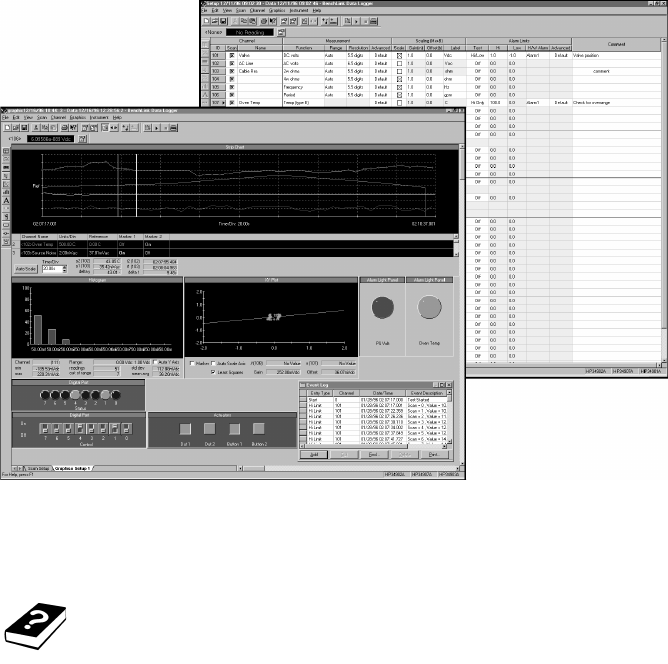
A representative screen of the software is shown below.
Quick Start 1
Keysight 34970A/34972A User’s Guide 37
On-Line help system
The software is shipped with an extensive on-line Help system to help you learn
the features of the software as well as troubleshoot any problems that might arise
as you are using the software. As you are installing the software, you will notice
that the on-line Help system is available in several languages.
1 Quick Start
38 Keysight 34970A/34972A User’s Guide
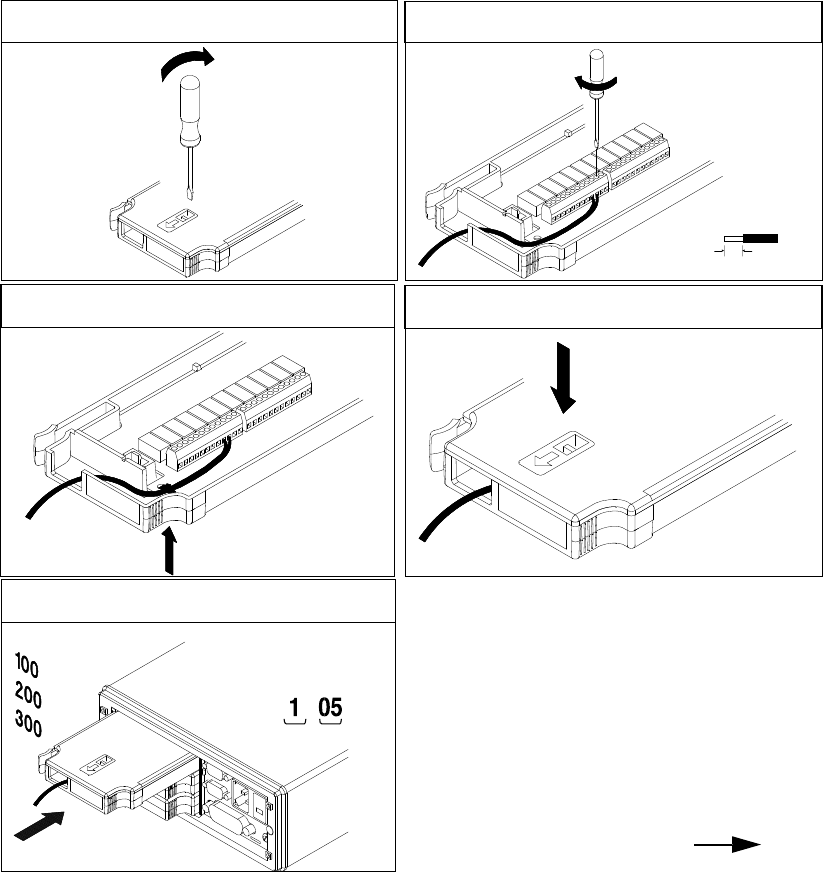
To Connect Wiring to a Module
20 AWG Typical
6 mm
2 Connect wiring to the screw terminals.
.
Slot Channel
Channel Number:
1 Remove the module cover.
3 Route wiring through strain relief.
5 Install the module into mainframe.
Cable Tie Wrap
(optional)
4 Replace the module cover.
Wiring Hints...
– For detailed information on each module,
refer to the section starting on page 205.
– To reduce wear on the internal DMM relays,
wire like functions on adjacent channels.
– For information on grounding and shielding,
see page 262.
– The diagrams on page 38 show how to
connect wiring to a multiplexer module for
each measurement function.
Quick Start 1
Keysight 34970A/34972A User’s Guide 39
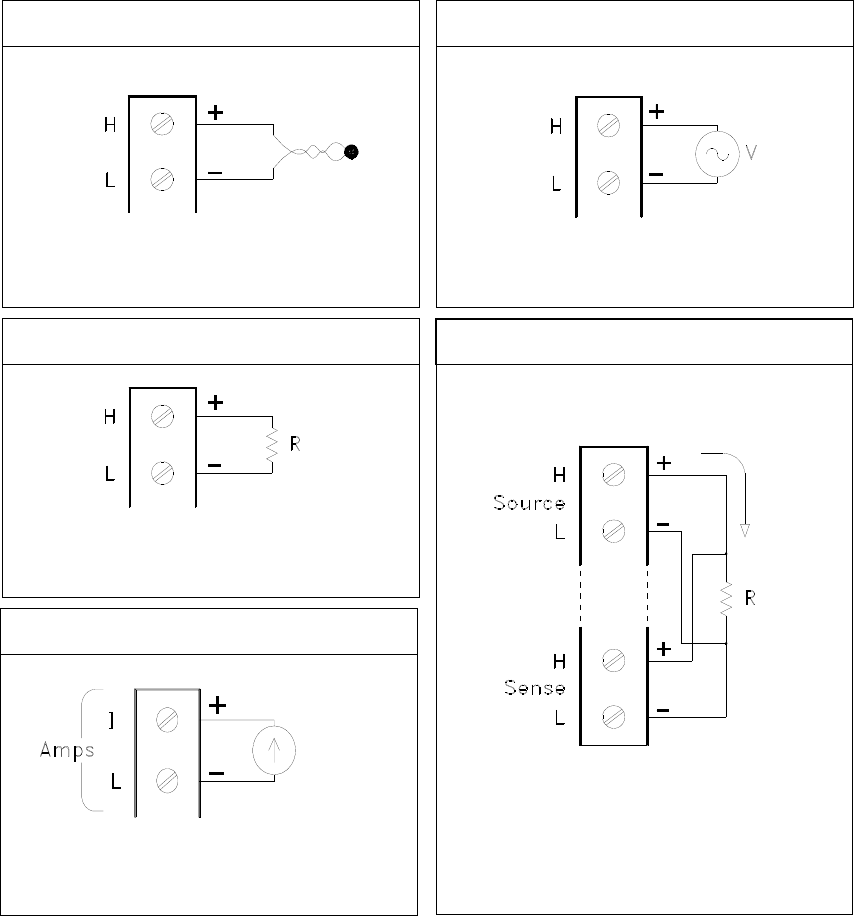
Thermocouple
2-Wire Ohms / RTD / Thermistor
Thermocouple Types: B, E, J, K, N, R, S, T
See page 280 for thermocouple color codes.
Ranges: 100, 1 k, 10 k, 100 k, 1 M, 10 M, 100 M
W
RTD Types: 0.00385, 0.00391
Thermistor Types, 2.2 k, 5 k, 10 k
DC Current / AC Current
Valid only on channels 21 and 22 on the 34901A
Ranges: 10 mA, 100 mA, 1A
Channel n (source) is automatically paired with
Channel n +10 (sense) on the 34901A, or
Channel n +8 (sense) on the 34902A.
Ranges: 100, 1 k, 10 k, 100 k, 1 M, 10 M, 100 MW
RTD Types: 0.00385, 0.00391
DC Voltage / AC Voltage / Frequency
Ranges: 100 mV, 1 V, 10 V, 100 V, 300 V
4-Wire Ohms / RTD
1 Quick Start
40 Keysight 34970A/34972A User’s Guide
To Set the Time and Date
All readings during a scan are automatically time stamped and stored in
non-volatile memory. In addition, alarm data is time stamped and stored in a
separate non-volatile memory queue.
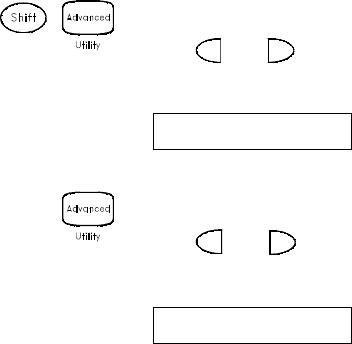
1Set the time of day.
Use and to select the field to modify and turn the knob to change the
value. You can also edit the AM/PM field.
2Set the date.
Use and to select the field to modify and turn the knob to change the
value.
TIME 03:45 PM
JUN 01 2009
Quick Start 1
Keysight 34970A/34972A User’s Guide 41
To Configure a Channel for Scanning
Any channel that can be “read” by the instrument can also be included in a scan.
This includes readings on multiplexer channels, a read of a digital port, or a read
of the count on a totalizer channel. Automated scanning is not allowed with the
RF multiplexer, matrix, actuator, digital output, or voltage output (DAC) modules.
1Select the channel to be added to the scan list.
Turn the knob until the desired channel is shown on the right side of
front-panel display. The channel number is a three-digit number; the left-most
digit represents the slot number (100, 200, or 300) and the two digits on the
right indicate the channel number (102, 110, etc.).
For this example, assume that you have the 34901A multiplexer installed in
slot 100 and select channel 103.
2Select the measurement parameters for the selected channel.
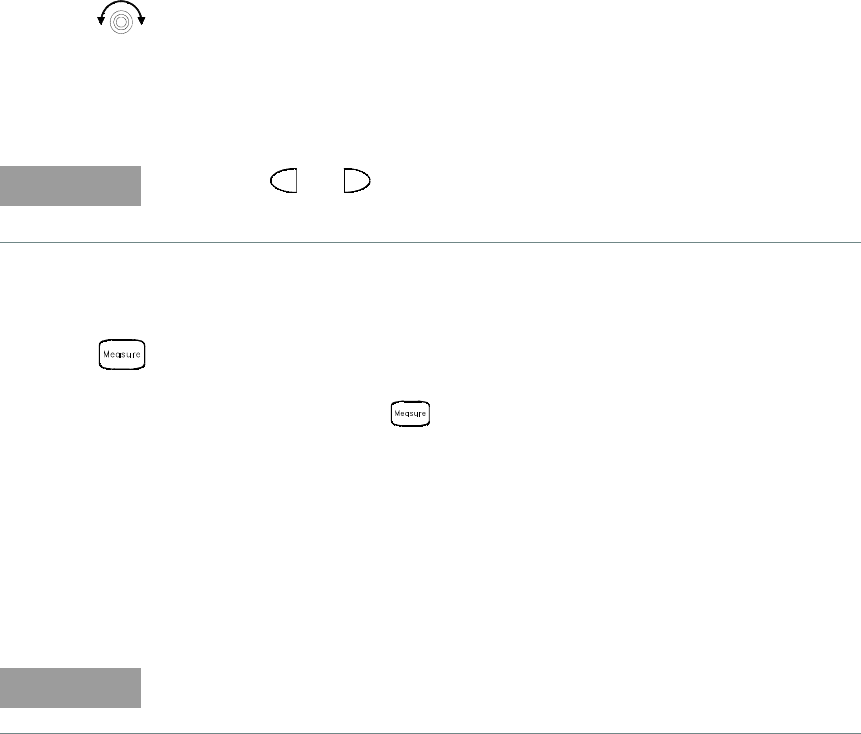
Use the knob to scroll through the measurement choices on each level of the
menu. When you press to make your selection, the menu automatically
guides you through all relevant choices to configure a measurement on the
selected function. When you have finished configuring the parameters, you are
automatically exited from the menu.
The current selection (or default) is displayed in full bright for easy
identification. When you make a different selection, the new choice is shown in
full bright and it becomes the default selection. The order of the choices
always remains the same; however, you always enter the menu at the current
(full bright) setting for each parameter.
NOTE
You can use and to skip to the beginning of the previous or next slot.
NOTE
The menu will time-out after about 20 seconds of inactivity and any changes
made previously will take effect.
1 Quick Start
42 Keysight 34970A/34972A User’s Guide
For this example, configure channel 103 to measure a J-type thermocouple
with 0.1 °C of display resolution.
3Run the scan and store the readings in non-volatile memory.
The instrument automatically scans the configured channels in consecutive
order from slot 100 through slot 300 (the SCAN annunciator turns on).
Channels that are not configured are skipped during the scan. In the default
configuration, the instrument continuously scans the configured channels at a
10-second interval.
Press and hold to stop the scan.
4View the data from the scan.
All readings taken during a scan are automatically time stamped and stored in
non-volatile memory. During the scan, the instrument calculates and stores
the minimum, maximum, and average on all channels in the scan list. You can
read the contents of memory at any time, even during a scan.
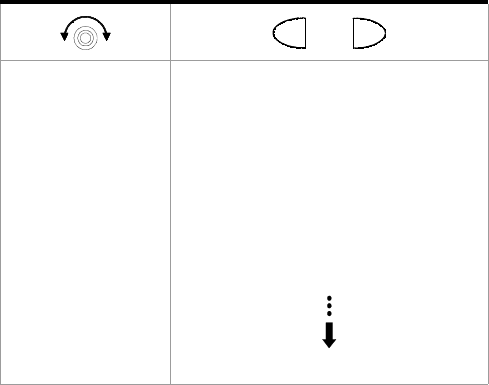
From the front panel, data is available for the last 100 readings on each
channel readings taken during a scan (all of the data is available from the
remote interface). From the View menu, select READINGS and press
again. Then press and to choose the data you want to view for the
selected channel as shown in the table below.
NOTE
Press to sequentially step through the scan list and take a measurement on
each channel (readings are not stored in memory). This is an easy way to verify
your wiring connections before initiating the scan.
Quick Start 1
Keysight 34970A/34972A User’s Guide 43
Select Channel
Last Reading on Channel
Time of Last Reading
Minimum Reading on Channel
Time of Minimum Reading
Maximum Reading on Channel
Time of Maximum Reading
Average of Readings on Channel
Second Most Recent Reading on Channel
Third Most Recent Reading on Channel
99th Most Recent Reading on Channel
and
1 Quick Start
44 Keysight 34970A/34972A User’s Guide
To Copy a Channel Configuration
After configuring a channel to be included in the scan list, you can copy that same
configuration to other channels in the instrument (including digital channels on
the multifunction module). This feature makes it easy to configure several
channels for the same measurement. When you copy the configuration from one
channel to another, the following parameters are automatically copied to the new
channel:
– Measurement configuration.
– Mx+B scaling configuration.
– Alarm configuration.
– Advanced measurement configuration.
Quick Start 1
Keysight 34970A/34972A User’s Guide 45
1Select the channel to copy the configuration from.
Turn the knob until the desired channel is shown on the right side of
front-panel display. For this example, let’s copy the configuration from channel
103.
2Select the copy function.
Use the knob to scroll through the measurement choices until you see COPY
CONFIG. When you press to make your selection, the menu
automatically guides you to the next step.
3Select the channel to copy the configuration to.
Turn the knob until the desired channel is shown on the right side of
front-panel display. For this example, let’s copy the configuration to channel
105.
4Copy the channel configuration to the selected channel.
PASTE TO
NOTE
To copy the same configuration to other channels, repeat this procedure.
1 Quick Start
46 Keysight 34970A/34972A User’s Guide
To Close a Channel
On the multiplexer and switch modules, you can close and open individual relays
on the module. However, note that if you have already configured any multiplexer
channels for scanning, you cannot independently close and open individual relays
on that module.
1Select the channel.
Turn the knob until the desired channel is shown on the right side of
front-panel display. For this example, select channel 213.
2Close the selected channel.
3Open the selected channel.
NOTE
will sequentially open all channels on the module in the selected slot.
Quick Start 1
Keysight 34970A/34972A User’s Guide 47
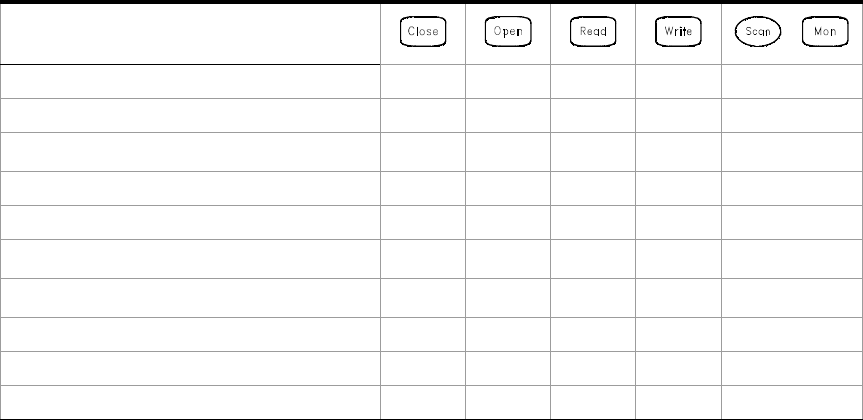
The table below shows the low-level control operations available for each of the
plug-in modules.
Plug-In Module
34901A 20-Channel Mux * * * *
34902A 16-Channel Mux * * * *
34908A 40-Channel Single-Ended Mux[a] *** *
34903A 20-Channel Actuator * *
34904A 4x8 Matrix * *
34905A Dual 4-Channel RF Mux (50Ω)[b] *
34906A Dual 4-Channel RF Mux (75Ω)[b] *
34907A Multifunction Module (DIO) * * *
34907A Multifunction Module (Totalizer) * *
34907A multifunction Module (DAC) *
[a] Only one channel can be closed at a time on this module.
[b] Only one channel in each bank can be closed at a time on this module.
,
1 Quick Start
48 Keysight 34970A/34972A User’s Guide
If the Instrument Does Not Turn On
Use the following steps to help solve problems you might encounter when turning
on the instrument. If you need more help, refer to the
34970A/34972A Service Guide for instructions on returning the instrument to
Keysight for service.
1Verify that there is AC power to the instrument.
First, verify that the power cord is firmly plugged into the power receptacle on
the rear panel of the instrument. You should also make sure that the power
source you plugged the instrument into is energized. Then, verify that the
instrument is turned on.
The On/Standby switch is located on the lower left side of the front panel.
2Verify that there is a battery in the instrument
A battery must be present for the instrument to boot up.
3Verify the power-line voltage setting.
The line voltage is set to the proper value for your country when the
instrument is shipped from the factory. Change the voltage setting if it is not
correct. The settings are: 100, 120, 220, or 240 VAC.
See the next page if you need to change the line voltage setting.
4Verify that the power-line fuse is good.
The instrument is shipped from the factory with a 500 mA fuse installed. This is
the correct fuse for all line voltages.
See the next page if you need to replace the power-line fuse.
NOTE
–For 127 VAC operation, use the 120 VAC setting.
–For 230 VAC operation, use the 220 VAC setting.
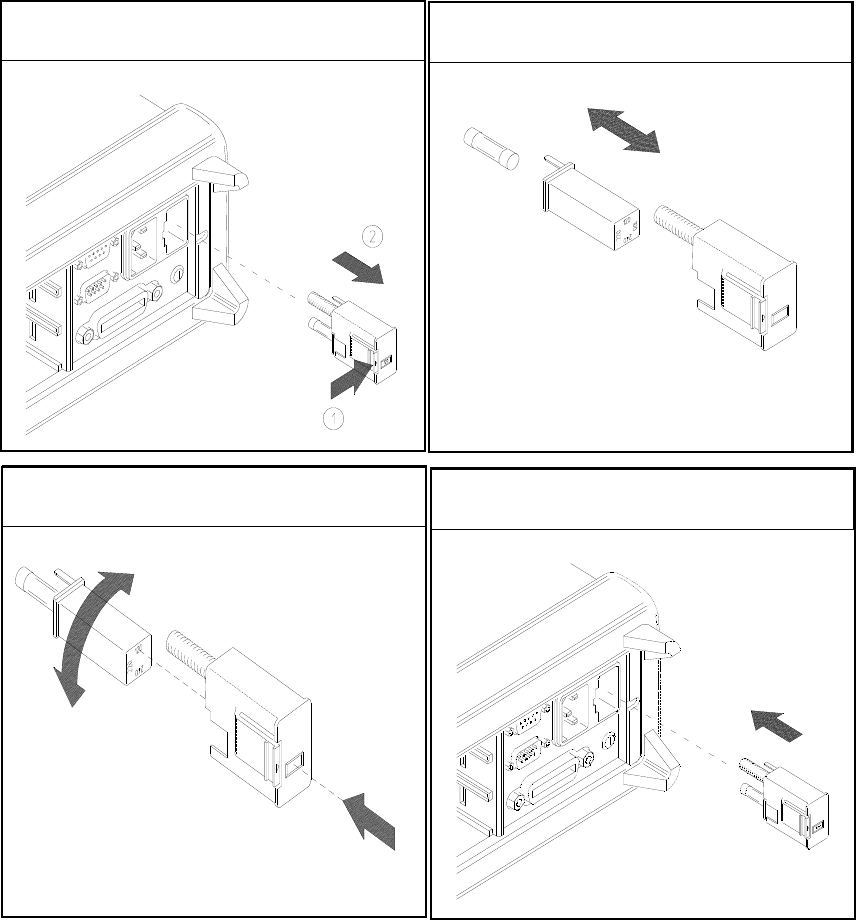
To replace the 500 mAT, 250 V fuse, order Keysight part number 2110-0458.
Quick Start 1
Keysight 34970A/34972A User’s Guide 49
3 Rotate the line-voltage selector until the
correct voltage appears in the window.
1 Remove the power cord. Remove the
fuse-holder assembly from the rear panel.
100, 120 (127), 220 (230), or 240 VAC
2 Remove the line voltage selector from the
assembly.
4 Replace the fuse-holder assembly in the rear
panel.
Fuse: 500 mAT (for all line voltages)
Keysight Part Number: 2110-0458
1 Quick Start
50 Keysight 34970A/34972A User’s Guide
To Adjust the Carrying Handle
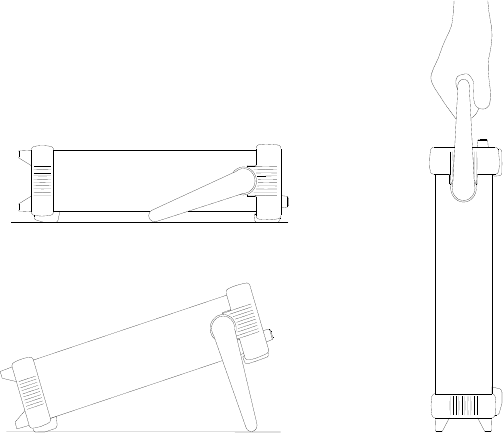
To adjust the position, grasp the handle by the sides and pull outward. Then,
rotate the handle to the desired position.
Bench-top viewing position Carrying position
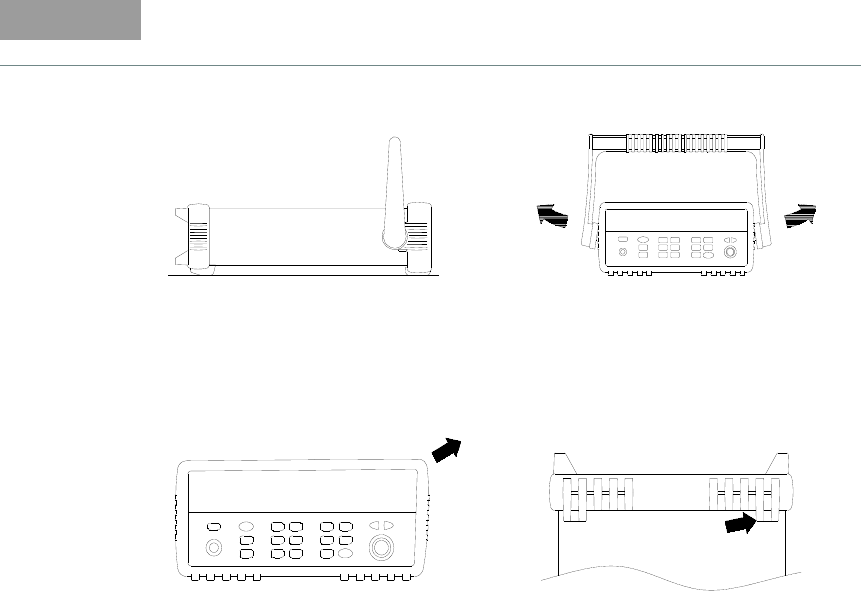
Quick Start 1
Keysight 34970A/34972A User’s Guide 51
To Rack Mount the Instrument
You can mount the instrument in a standard 19-inch rack cabinet using one of
three optional kits available. Instructions and mounting hardware are included
with each rack-mounting kit. Any Keysight System II instrument of the same size
can be rack-mounted beside the 34970A/34972A.
NOTE
Remove the carrying handle, and the front and rear rubber bumpers, before
rack-mounting the instrument.
To remove the handle, rotate it to the vertical position and pull the ends outward.
Front Rear (bottom view)
To remove the rubber bumper, stretch a corner and then slide it off.
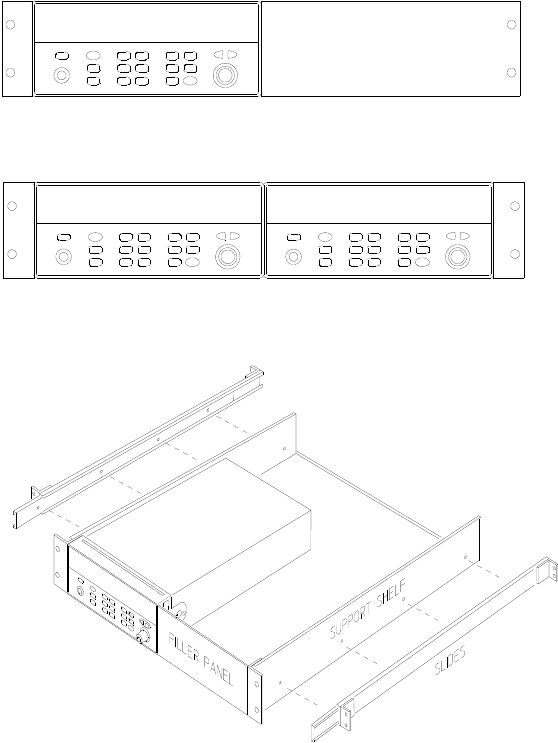
1 Quick Start
52 Keysight 34970A/34972A User’s Guide
To rack mount a single instrument, order adapter kit 5063-9240.
To rack mount two instruments side-by-side, order lock-link kit 5061-9694 and
flange kit 5063-9212. Be sure to use the support rails inside the rack cabinet.
To install one or two instruments in a slid ing support shelf, order shelf 5063-9255,
and slide kit 1494-0015 (for a single instrument, also order filler panel 5002-3999).

Keysight 34970A/34972A Data Acquisition / Switch Unit
User’s Guide
53
2 Front-Panel Overview
Front-Panel Menu Reference 54
To Monitor a Single Channel 57
To Set a Scan Interval 58
To Apply Mx+B Scaling to Measurements 59
To Configure Alarm Limits 60
To Read a Digital Input Port 62
To Write to a Digital Output Port 63
To Read the Totalizer Count 64
To Output a DC Voltage 65
To Configure the Remote Interface - 34970A 66
To Configure the Remote Interface - 34972A 68
To Store the Instrument State 70
This chapter introduces you to the front-panel keys and menu operation. This
chapter does not give a detailed description of every front-panel key or menu
operation. It does, however, give you an overview of the front-panel menus and
many front-panel operations. See Chapter 4, "Features and Functions", for a
complete discussion of the instrument’s capabilities and operation.
2 Front-Panel Overview
54 Keysight 34970A/34972A User’s Guide
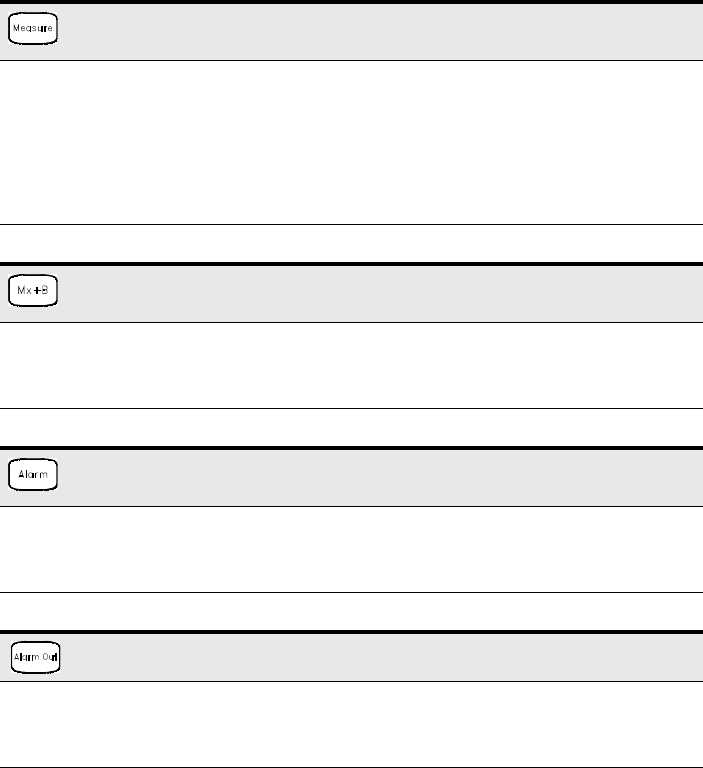
Front-Panel Menu Reference
This section gives an overview of the front-panel menus. The menus are designed
to automatically guide you through all parameters required to configure a
particular function or operation. The remainder of this chapter contains examples
of using the front-panel menus.
Configure the measurement parameters on the displayed channel.
– Select the measurement function (dc volts, ohms, etc.) on the displayed channel.
– Select transducer type for temperature measurements.
– Select units (°C, °F, or K) for temperature measurements.
– Select measurement range or autorange.
– Select measurement resolution.
– Copy and paste measurement configuration to other channels.
Configure the scaling parameters for the displayed channel.
– Set the gain (“M”) and offset (“B”) value for the displayed channel.
– Make a null measurement and store it as the offset value.
– Specify a custom label (RPM, PSI, etc.) for the displayed channel.
Configure alarms on the displayed channel.
– Select one of four alarms to report alarm conditions on the displayed channel.
– Configure a high limit, low limit, or both for the displayed channel.
– Configure a bit pattern that will generate an alarm (digital input only).
Configure the four Alarm Output hardware lines.
– Clear the state of the four alarm output lines.
– Select the “Latch” or “Track” mode for the four alarm output lines.
– Select the slope (rising or falling edge) for the four alarm output lines.
Front-Panel Overview 2
Keysight 34970A/34972A User’s Guide 55
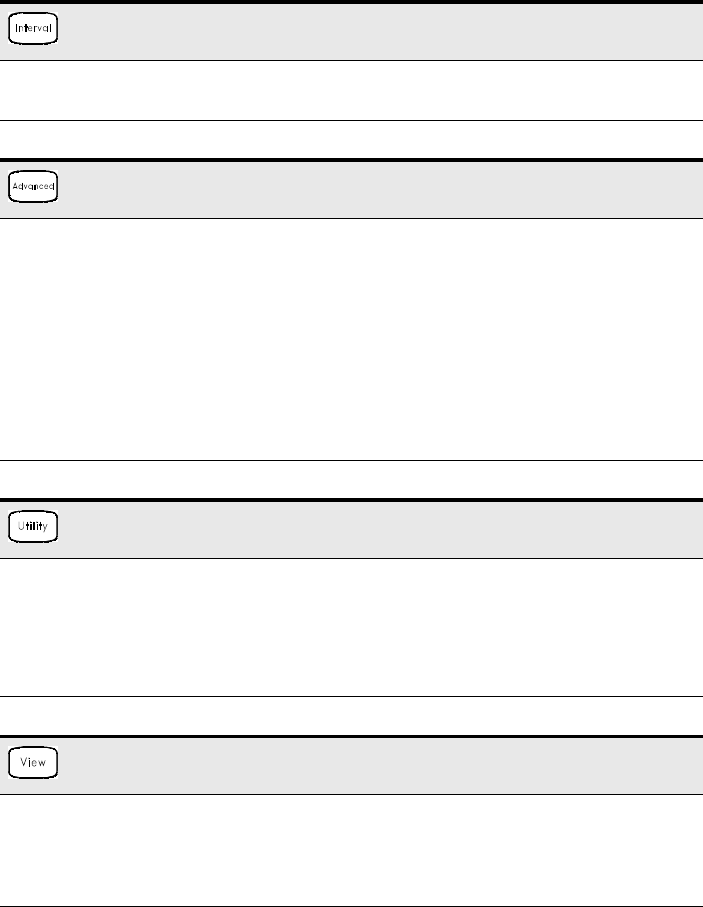
Configure the event or action that controls the scan interval.
– Select the scan interval mode (interval, manual, external, or alarm).
– Select the scan count.
Configure the ad vanced measurement features on displayed channel.
– Set the integration time for measurements on the displayed channel.
– Set the channel-to-channel delay for scanning.
– Enable/disable the thermocouple check feature (T/C measurements only).
– Select the reference junction source (T/C measurements only).
– Set the low frequency limit (ac measurements only).
– Enable/disable offset compensation (resistance measurements only).
– Select the binary or decimal mode for digital operations (digital input/output only).
– Configure the totalizer reset mode (totalizer only).
– Select which edge is detected (rising or falling) for totalizer operations.
Configure system-related instrument parameters.
– Set the real-time system clock and calendar.
– Query the firmware revisions for the mainframe and installed modules.
– Select the instrument’s power-on configuration (last or factory reset).
– Enable/disable the internal DMM.
– Secure/unsecure the instrument for calibration.
View readings, alarms, and errors.
– View the last 100 scanned readings from memory (last, min, max, and average).
– View the first 20 alarms in the alarm queue (reading and time alarm occurred).
– View up to 10 errors (34970A) or 20 errors (34972A) in the error queue.
– Read the number of cycles for the displayed relay (relay maintenance feature).
2 Front-Panel Overview
56 Keysight 34970A/34972A User’s Guide
Store and recall instrument states.
– Store up to five instrument states in non-volatile memory.
– Assign a name to each storage location.
– Recall stored states, power-down state, factory reset state, or preset state.
Configure the remote interface (34970A).
– Select the GPIB address.
– Configure the RS-232 interface (baud rate, parity, and flow control).
Configure the remote interface (34972A).
– Configure the LAN settings (IP Address, Hostname, DHCP, etc.)
– Configure the USB settings (Enable, USB ID, etc.)
– Configure and use the USB drive (Logging, etc.)
Front-Panel Overview 2
Keysight 34970A/34972A User’s Guide 57
To Monitor a Single Channel
You can use the Monitor function to continuously take readings on a single
channel, even during a scan. This feature is useful for troubleshooting your system
before a test or for watching an important signal.
1Select the channel to be monitored.
Only one channel can be monitored at a time but you can change the channel
being monitored at any time by turning the knob.
2Enable monitoring on the selected channel.
Any channel that can be “read” by the instrument can be monitored (the MON
annunciator turns on). This includes any combination of temperature, voltage,
resistance, current, frequency, or period measurements on multiplexer
channels. You can also monitor a digital input port or the totalizer count on the
multifunction module.
To disable monitoring, press again.
2 Front-Panel Overview
58 Keysight 34970A/34972A User’s Guide
To Set a Scan Interval
You can set the instrument’s internal timer to automatically scan at a specific
interval (e.g., start a new scan sweep every 10 seconds) or when an external TTL
trigger pulse is received. You can configure the instrument to scan continuously or
to stop after sweeping through the scan list a specified number of times.
1Select the interval scan mode.
For this example, select the Interval Scan mode which allows you to set the
time from the start of one scan sweep to the start of the next scan sweep. Set
the interval to any value between 0 and 99 hours
2Select the scan count.
You can specify the number of times that the instrument will sweep through
the scan list (the default is continuous). When the specified number of sweeps
have occurred, the scan stops. Set the scan count to any number between 1
and 50,000 scans (or continuous).
INTERVAL SCAN
00020 SCANS
Front-Panel Overview 2
Keysight 34970A/34972A User’s Guide 59
To Apply Mx+B Scaling to Measurements
The scaling function allows you to apply a gain and offset to all readings on a
specified multiplexer channel during a scan. In addition to setting the gain (“M”)
and offset (“B”) values, you can also specify a custom measurement label for your
scaled readings (RPM, PSI, etc.).
1Configure the channel.
You must configure the channel (function, transducer type, etc.) before
applying any scaling values. If you change the measurement configuration,
scaling is turned off on that channel and the gain and offset values are reset
(M=1 and B=0).
2Set the gain and offset values.
The scaling values are stored in non-volatile memory for the specified
channels. A Factory Reset turns off scaling and clears the scaling values on all
channels. An Instrument Preset or Card Reset does not clear the scaling values
and does not turn off scaling.
3Select the custom label.
You can specify an optional three-character label for your scaled readings
(RPM, PSI, etc.). The default label is the standard engineering unit for the
selected function (VDC, OHM, etc.).
4Run the scan and store the scaled readings in memory.
+1.000,000
+0.000,000 VDC
LABEL AS LBS
Set Gain
Set Offset
2 Front-Panel Overview
60 Keysight 34970A/34972A User’s Guide
To Configure Alarm Limits
The instrument has four alarms which you can configure to alert you when a
reading exceeds specified limits on a channel during a scan. You can assign a high
limit, a low limit, or both to any configured channel in the scan list. You can assign
multiple channels to any of the four available alarms (numbered 1 through 4).
1Configure the channel.
You must configure the channel (function, transducer type, etc.) before setting
any alarm limits. If you change the measurement configuration, alarms are
turned off and the limit values are cleared. If you plan to use Mx+B scaling on a
channel which will also use alarms, be sure to configure the scaling values
first.
2Select which of the four alarms you want to use.
3Select the alarm mode on the selected channel
You can configure the instrument to generate an alarm when a measurement
exceeds the specified HI or LO limits (or both) on a measurement channel.
4Set the limit value.
The alarm limit values are stored in non-volatile memory for the specified
channels. The default values for the high and low limits are “0”. The low limit
must always be less than or equal to the high limit, even if you are using only
one of the limits. A Factory Reset clears all alarm limits and turns off all
alarms. An Instrument Preset or Card Reset does not clear the alarm limits and
does not turn off alarms.
USE ALARM 1
HI ALARM ONLY
+0.250,000 °C

Front-Panel Overview 2
Keysight 34970A/34972A User’s Guide 61
5Run the scan and store the readings in memory.
If an alarm occurs on a channel as it is being scanned, then that channel’s
alarm status is stored in reading memory as the readings are taken. Each time
you start a new scan, the instrument clears all readings (including alarm data)
stored in reading memory from the previous scan. As alarms are generated,
they are also logged in an alarm queue, which is separate from reading
memory. Up to 20 alarms can be logged in the alarm queue. Reading the
alarm queue using the View menu clears the alarms in the queue.
2 Front-Panel Overview
62 Keysight 34970A/34972A User’s Guide
To Read a Digital Input Port
The multifunction module (34907A) has two non-isolated 8-bit
input/output ports which you can use for reading digital patterns. You can read
the live status of the bits on the port or you can configure a scan to include a
digital read.
1Select the Digital Input port.
Select the slot containing the multifunction module and continue turning the
knob until DIN is displayed (channel 01 or 02).
2Read the specified port.
You can specify whether you want to use binary or decimal format. Once you
have selected the number base, it is used for all input or output operations on
the same port. To change the number base, press the key and select
USE BINARY or USE DECIMAL.
The bit pattern read from the port will be displayed until you press another key,
turn the knob, or until the display times out.
01010101 DIN
Binary Display Shown
NOTE
To add a digital input channel to a scan list, press and select the
DIO READ choice.
Front-Panel Overview 2
Keysight 34970A/34972A User’s Guide 63
To Write to a Digital Output Port
The multifunction module (34907A) has two non-isolated 8-bit
input/output ports which you can use for outputting digital patterns.
1Select the Digital Output port.
Select the slot containing the multifunction module and continue turning the
knob until DIN is displayed (channel 01 or 02).
2Enter the bit pattern editor.
Notice that the port is now converted to an output port (DOUT).
3Edit the bit pattern.
Use the knob and or keys to edit the individual bit values. You can
specify whether you want to use binary or decimal format. Once you have
selected the number base, it is used for all input or output operations on the
same port. To change the number base, press the key and select USE
BINARY or USE DECIMAL.
4Output the bit pattern to the specified port.
The specified bit pattern is latched on the specified port. To cancel an output
operation in progress, wait for the display to time out.
00000000 DOUT
240 DOUT
Binary Display Shown
Decimal Display Shown
2 Front-Panel Overview
64 Keysight 34970A/34972A User’s Guide
To Read the Totalizer Count
The multifunction module (34907A) has a 26-bit totalizer which can count pulses
at a 100 kHz rate. You can manually read the totalizer count or you can configure
a scan to read the count.
1Select the totalizer channel
Select the slot containing the multifunction module and continue turning the
knob until TOTALIZE is displayed (channel 03).
2Configure the totalize mode.
The internal count starts as soon as you turn on the instrument. You can
configure the totalizer to reset the count to “0” after being read or it can count
continuously and be manually reset.
3Read the count.
The count is read once each time you press ; the count does not update
automatically on the display. As configured in this example, the count is
automatically reset to “0” each time you read it.
The count will be displayed until you press another key, turn the knob, or until
the display times out. To manually reset the totalizer count, press .
READ + RESET
12345 TOT
NOTE
To add a totalizer channel to a scan list, press and select the TOT READ
choice.
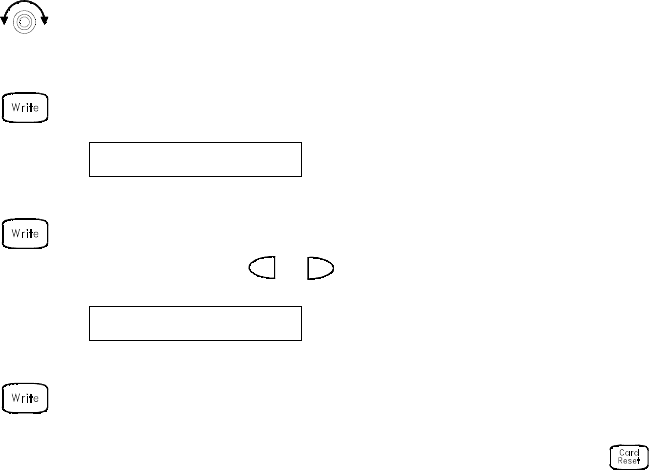
Front-Panel Overview 2
Keysight 34970A/34972A User’s Guide 65
To Output a DC Voltage
The multifunction module (34907A) has two analog outputs capable of outputting
calibrated voltages between ±12 volts.
1Select a DAC Output channel.
Select the slot containing the multifunction module and continue turning the
knob until DAC is displayed (channel 04 or 05).
2Enter the output voltage editor.
3Set the desired output voltage.
Use the knob and or keys to edit the individual digits.
4Output the voltage from the selected DAC.
The output voltage will be displayed until you press another key or turn the
knob. To manually reset the output voltage to 0 volts, press .
+00.000 V DAC
+05.250VDAC
2 Front-Panel Overview
66 Keysight 34970A/34972A User’s Guide
To Configure the Remote Interface - 34970A
The 34970A is shipped with both an GPIB (IEEE-488) interface and an RS-232
interface. Only one interface can be enabled at a time. The GPIB interface is
selected when the instrument is shipped from the factory.
1Select the GPIB interface.
2Select the GPIB address.
You can set the instrument’s address to any value between 0 and 30. The
factory setting is address “9”.
3Save the change and exit the menu.
GPIB Configuration
GPIB / 488
ADDRESS 09
NOTE
Your computer’s GPIB interface card has its own address. Be sure to avoid using
the computer’s address for any instrument on the interface bus. Keysight’s GPIB
interface cards generally use address “21”.
Front-Panel Overview 2
Keysight 34970A/34972A User’s Guide 67
1Select the RS-232 interface
2Select the baud rate.
Select one of the following: 1200, 2400, 4800, 9600, 19200, 38400,
57600 (factory setting), or 115200 baud.
3Select the parity and number of data bits.
Select one of the following: None (8 data bits, factory setting), Even
(7 data bits), or Odd (7 data bits). When you set the parity, you are also
indirectly setting the number of data bits.
4Select the flow control method.
Select one of the following: None (no flow control), RTS/CTS, DTR/DSR, XON/
XOFF (factory setting), or Modem.
5Save the changes and exit the menu.
RS-232 Configuration
RS-232
19200 BAUD
EVEN, 7 BITS
FLOW DTR/DSR
2 Front-Panel Overview
68 Keysight 34970A/34972A User’s Guide
To Configure the Remote Interface - 34972A
The instrument is shipped with both a Local Area Network (LAN) interface and a
Universal Serial Bus (USB) interface. Both interfaces can be enabled at the same
time and both interfaces are selected when the instrument is shipped from the
factory.
1Select the LAN interface.
2Enable the LAN.
This is enabled by default.
3Configure the instrument LAN settings according the instructions provided by
your LAN administrator.
LAN Configuration
LAN INTERFACE
LAN ENABLED
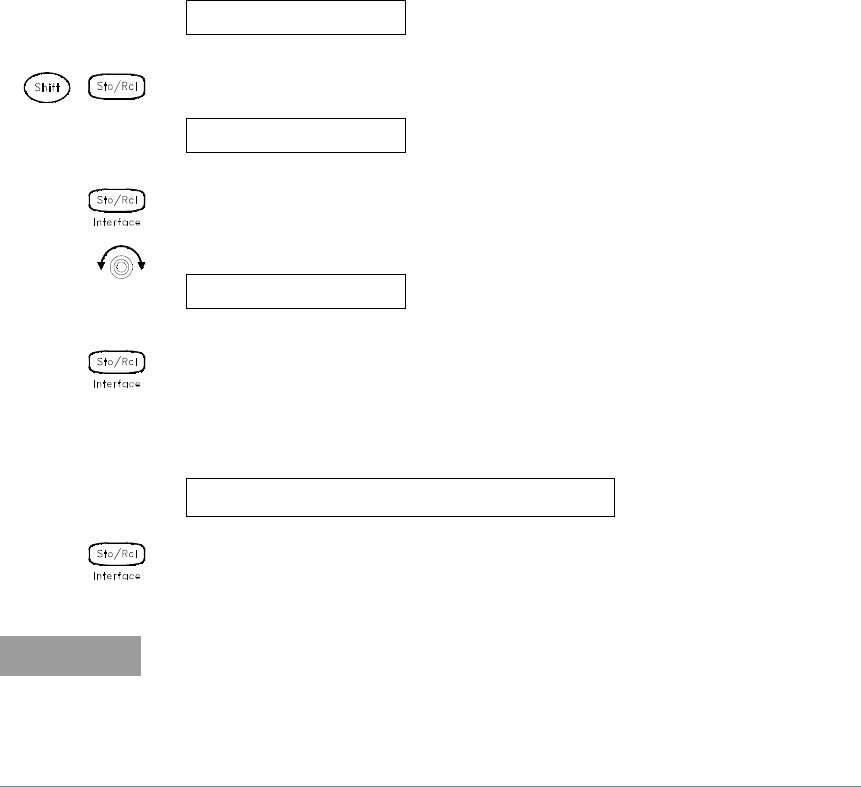
Front-Panel Overview 2
Keysight 34970A/34972A User’s Guide 69
1Select the USB interface.
2Enable or disable the USB interface.
Select either USB ENABLED or USB DISABLED.
3View the USB ID String
The instrument will display its USB identification (USB ID) string. This is helpful
in identifying the device on the USB network. Use the left and right arrows
above the knob to view the full string.
4Save the changes and exit the menu.
USB Configuration
USB INTERFACE
USB ENABLED
USB0::2391::8199::MY01023529::0::INSTR
NOTE
Under some conditions, while using the USB interface with the 34972A, you may
experience connection or data loss in the presence of an electrical transient from
the main power line. You can re-establish the USB communication by
performing a reboot (cycle power) on the instrument. You can make the USB
connection less susceptible to a potential power line transient by inserting a
USB hub in the connection between the computer and the instrument.
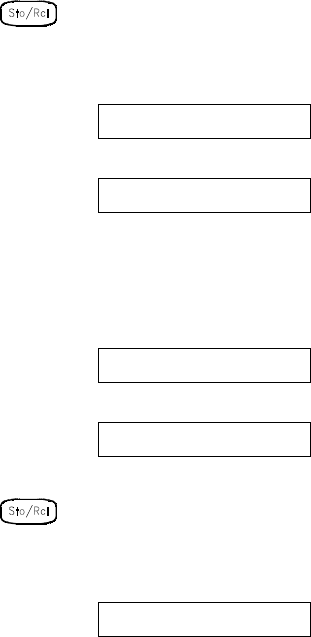
2 Front-Panel Overview
70 Keysight 34970A/34972A User’s Guide
To Store the Instrument State
You can store the instrument state in one of five non-volatile storage locations. A
sixth storage location automatically holds the power-down configuration of the
instrument. When power is restored, the instrument can automatically return to its
state before power-down (a scan in progress before power-down will also be
resumed).
1Select the storage location.
From the front panel, you have the ability to assign names (up to 12
characters) to each of the five stored states.
The storage locations are numbered 1 through 5. The power-down state is
automatically stored and can be recalled from the front panel (the state is
named LAST PWR DOWN).
2Store the instrument state
The instrument stores all channel configurations, alarm values, scaling values,
scan interval setups, and advanced measurement configurations.
NAME STATE
1: TEST_RACK_2
STORE STATE
2: STATE2
CHANGE SAVED

Keysight 34970A/34972A Data Acquisition / Switch Unit
User’s Guide
71
3 System Overview
Data Acquisition System Overview 72
Signal Routing and Switching 82
Measurement Input 86
Control Output 94
This chapter provides an overview of a computer-based system and describes the
parts of a data acquisition system.
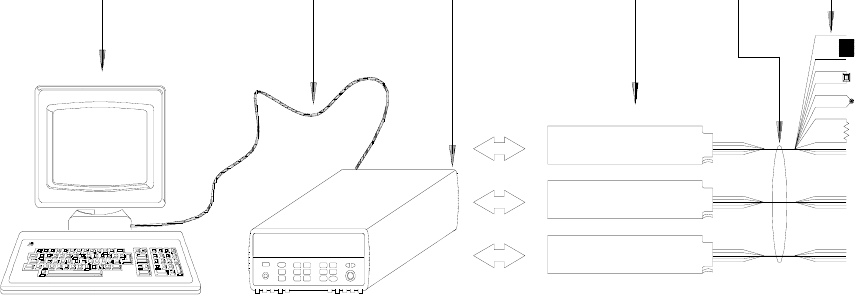
3 System Overview
72 Keysight 34970A/34972A User’s Guide
Data Acquisition System Overview
You can use the Keysight 34970A/34972A as a stand-alone instrument, but there
are many applications where you will want to take advantage of the built-in PC
connectivity features. A typical data acquisition system is shown below.
The configuration on the previous page offers the following advantages:
– You can use the 34970A/34972A to perform data storage, data reduction,
mathematical calculations, and conversion to engineering units. You can use
the PC to provide easy configuration and data presentation.
– You can remove the analog signals and measurement sensors from the noisy
PC environment and electrically isolate them from both the PC and earth
ground.
– You can use a single PC to monitor multiple instruments and measurement
points while performing other PC-based tasks.
Computer
and Software Interface Cable 34970A/34972A
Plug-in
Modules
System
Cabling
Sensors,
and Events
Transducers,
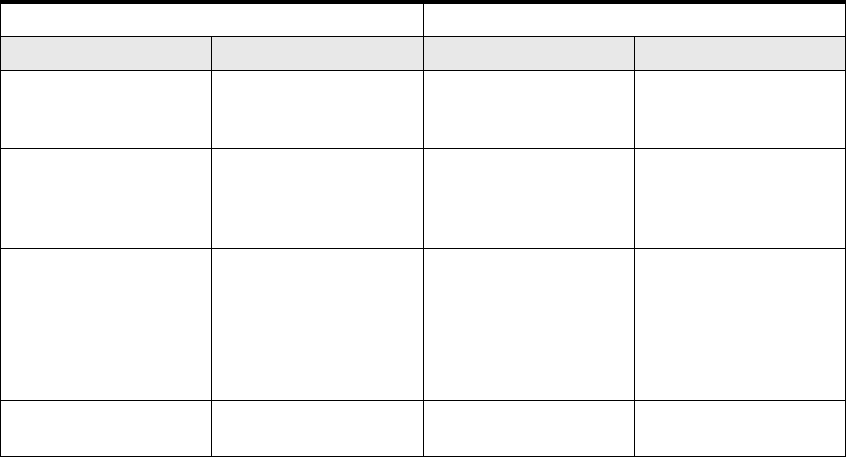
System Overview 3
Keysight 34970A/34972A User’s Guide 73
The computer and interface cable (34970A only)
Computers and operating systems are not discussed in this chapter. In addition to
the computer and operating system, you will need a serial port (RS-232) or GPIB
port (IEEE-488) and an interface cable.
Serial (RS-232) GPIB (IEEE-488)
Ad vantages Disad vantages Ad vantages Disad vantages
Often built into the computer;
no additional hardware is
required.
Cable length is limited to 45 ft
(15 m).[a]
Speed; faster data and
command transfers.
Cable length is limited to 60
ft. (20m).[a]
Drivers usually included in the
operating system.
Only one instrument or device
can be connected per serial
port
Additional system flexibility,
multiple instruments can be
connected to the same GPIB
port.
Requires an expansion slot
plug-in card in PC and
associated drivers.
Cables readily available and
inexpensive.
The 34970A is shipped with a
serial cable (if internal DMM
is ordered).
Cabling is susceptible to
noise, causing slow or lost
communications.
Varying connector ys and
styles
Direct Memory Transfers are
possible. Requires special cable
Data transfers up to 85,000
characters/sec.
Data transfers up to 750,000
characters/sec.
[a] You can overcome these cable length limitation using special communications hardware.
For example, you can use the Keysight E5810A LAN-to-GPIB Gateway interface or a serial modem.
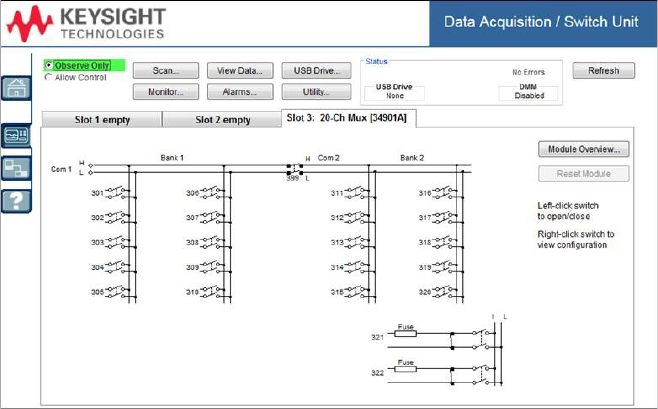
3 System Overview
74 Keysight 34970A/34972A User’s Guide
Measurement software
A variety of software is available to configure your data acquisition hardware and
manipulate and display your measurement data.
One particularly useful feature is 34972A’s Web Interface. Simply enter the IP
address of your instrument in your browser’s navigation bar to launch the Web
Interface.
The remote control page of the Web Interface, shown below, allows you to
monitor your instrument, set up and initiate scans, save data to the USB drive,
and much more. For help, simply click on the large question mark on the far left
side of the screen.
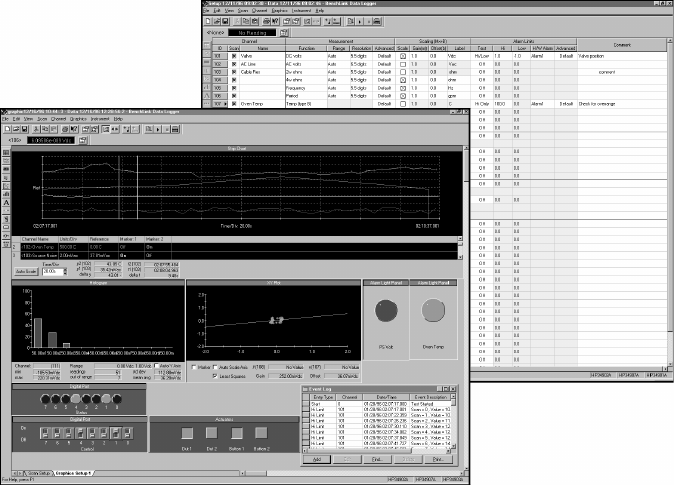
System Overview 3
Keysight 34970A/34972A User’s Guide 75
Data logging and monitoring
Keysight BenchLink Data Logger 3, which is included with your 34970A/34972A is
a Windows®-based application that makes it easy to use the instrument with your
PC for gathering and analyzing measurements. Use this software to set up your
test, acquire and archive measurement data, and perform real-time display and
analysis of your measurements.
The Keysight BenchLink Data Logger Pro option, available at additional cost,
provides advanced data logging and decision making with no programming
required.
Automated Testing with Multiple Instruments
–Keysight VEE
– TransEra HTBASIC® for Windows
– National Instruments LabVIEW
– Microsoft® Visual Basic or Visual C++
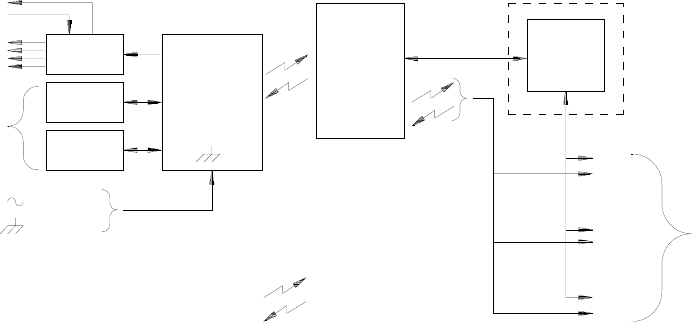
3 System Overview
76 Keysight 34970A/34972A User’s Guide
The 34970A/34972A Data Acquisition / Switch Unit
As shown below, the logic circuitry for the 34970A/34972A is divided into two
sections: earth-referenced and floating. These two sections are isolated from each
other in order to maintain measurement accuracy and repeatability (for more
information on ground loops, see page 265).
The earth-referenced and floating circuitry communicate with each other via an
optically-isolated data link. The earth-referenced section communicates with the
floating section to provide PC connectivity. The 34970A is shipped with both an
GPIB (IEEE-488) interface and an RS-232 interface. Only one interface can be
enabled at a time. The 34972A is shipped with Local Area Network (LAN) and
Universal Serial Bus (USB) connectivity.
The earth-referenced section also provides four hardware alarm outputs and
external trigger lines. You can use the alarm output lines to trigger external alarm
lights, sirens, or send a TTL pulse to your control system.
Optional
Analog Bus
100
200
300
= Optical Isolators
Control
GPIB,
Floating
Logic
Earth
Referenced
Logic
AC Power
External Trigger
Alarms
To Computer
IN
Plug-
In
Digital
Internal
DMM
OUT
Bus
RS-232
(34970A)
USB
LAN,
(34972A)
System Overview 3
Keysight 34970A/34972A User’s Guide 77
The floating section contains the main system processor and controls all of the
basic functionality of the instrument. This is where the instrument communicates
with the plug-in modules, scans the keyboard, controls the front-panel display,
and controls the internal DMM. The floating section also performs Mx+B scaling,
monitors alarm conditions, converts transducer measurements to engineering
units, time stamps scanned measurements, and stores data in non-volatile
memory.
Plug-In modules
The 34970A/34972A offers a complete selection of plug-in modules to give you
high-quality measurement, switching, and control capabilities. The plug-in
modules communicate with the floating logic via the internal isolated digital bus.
The multiplexer modules also connect to the internal DMM via the internal analog
bus. Each module has its own microprocessor to offload the mainframe processor
and minimize backplane communications for faster throughput. The table below
shows some common uses for each plug-in module.
For more information on each module, refer to the module sections in chapter 4,
starting on page 205.
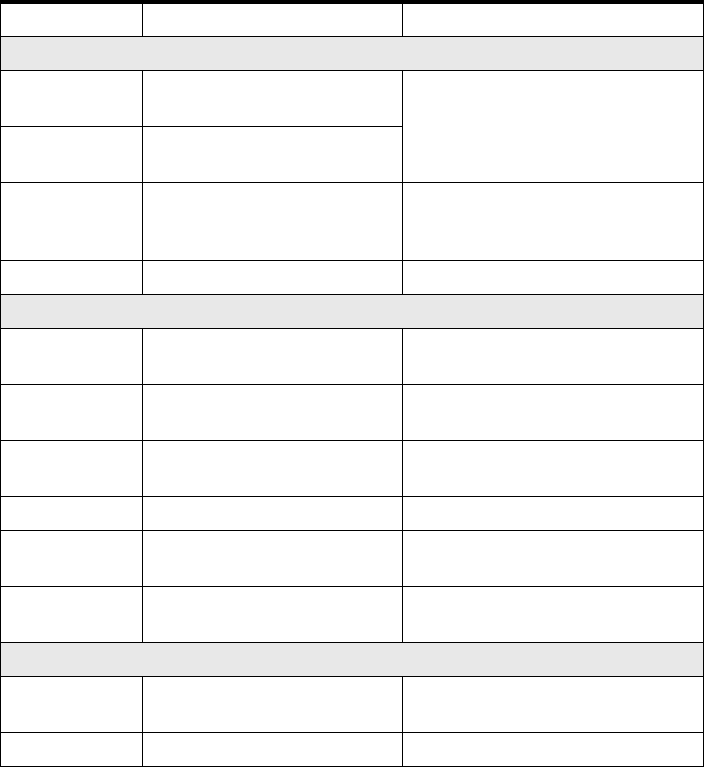
3 System Overview
78 Keysight 34970A/34972A User’s Guide
Model number Module name Common uses
Measurement input
34901A 20-Channel Mux with T/C
Compensation Scanning and direct measurement of
temperature, voltage, resistance,
frequency, and current (34901A only) using
the internal DMM.
34902A 16-Channel Reed Mux with T/C
Compensation
34908A 40-Channel Single-Ended Mux with
T/C Compensation
Scanning and direct measurement of
temperature, voltage, and resistance using
the internal DMM.
34907A Multifunction Module Digital Input, Event Counting.
Signal routing
34901A 20-Channel Mux with T/C
Compensation
Multiplexing of signals to or from external
instruments.
34902A 16-Channel Reed Mux with T/C
Compensation
34908A 40_Channel Single-Ended Mux with
T/C Compensation
34904A 4x8 Matrix Switch 32 Crossppoint Matrix switching.
34905A Dual 4-Channel RF Mux (50Ω) 50Ω high-frequency applications
(<2 GHz).
34906A Dual 4-Channel RF Mux (75Ω) 75Ω high-frequency applications
(<2 GHz).
Control output
34903A 20-Channel Actuator General-purpose switching and control
using Form C (SPDT) switches.
34907A Multifunction Module Digital Output, Voltage (DAC) Outputs.
System Overview 3
Keysight 34970A/34972A User’s Guide 79
System cabling
The plug-in modules have screw-terminal connectors to make it easy to connect
your system cabling. The type of cabling that you use to connect your signals,
transducers, and sensors to the module is critical to measurement success. Some
types of transducers, such as thermocouples, have very specific requirements for
the type of cable that can be used to make connections. Be sure to consider the
usage environment when choosing wire gauge and insulation qualities. Wire
insulation typically consists of materials such as PVC or Teflon®. The table below
lists several common cable types and describes their typical uses.
Teflon is a registered trademark of E.I. duPont deNemours and Company.
NOTE
Wiring insulation and usage is described in more detail in System Cabling and
Connections starting on page 260.
Cable type Common uses Comments
Thermocouple
Extension Wire Thermocouple measurements.
Available in specific thermocouple types.
Also available in a shielded cable for added
noise immunity.
Twisted Pair,
Shielded Twisted Pair
Measurement inputs, voltage
outputs, switching, counting.
Most common cable for low-frequency
measurement inputs. Twisted pair reduces
common mode noise. Shielded-twisted
pair provides additional noise immunity.
Shielded Coaxial,
Double-Shielded
Coaxial
VHF signal switching.
Most common cable for high-frequency
signal routing. Available in specific
impedance values (50Ω or 75Ω). Provides
excellent noise immunity. Double-shielded
cable improves isolation between channels.
Requires special connectors.
Flat Ribbon,
Twisted pair Ribbon Digital Input/Output
Often used with mass termination
connectors. These cables provide little
noise immunity.
3 System Overview
80 Keysight 34970A/34972A User’s Guide
Transducers and sensors
Transducers and sensors convert a physical quantity into an electrical quantity.
The electrical quantity is measured and the result is then converted to engineering
units. For example, when measuring a thermocouple, the instrument measures a
DC voltage and mathematically converts it to a corresponding temperature in °C,
°F, or K.
Measurement Typical transducer types Typical transducer output
Temperature
Thermocouple 0 mV to 80 mV
RTD 2-wire or 4-wire resistance from 5Ω to
500Ω
Thermistor 2-wire resistance from
10Ω to 1 MΩ
Pressure Solid State +/-10 VDC
Flow Rotary Type
Thermal Type 4 mA to 20 mA
Strain Resistive Elements 4-wire resistance from 10Ω to 10 kΩ
Events
Limit Switches
Optical Counters
Rotary Encoder
0V or 5V Pulse Train
Digital System Status TTL Levels
System Overview 3
Keysight 34970A/34972A User’s Guide 81
Alarm limits
The 34970A/34972A has four alarm outputs which you can configure to alert you
when a reading exceeds specified limits on a channel during a scan. You can
assign a high limit, a low limit, or both to any configured channel in the scan list.
You can assign multiple channels to any of the four available alarms (numbered 1
through 4). For example, you can configure the instrument to generate an alarm
on Alarm 1 when a limit is exceeded on any of channels 103, 205, or 320.
You can also assign alarms to channels on the multifunction module. For example,
you can generate an alarm when a specific bit pattern or bit pattern change is
detected on a digital input channel or when a specific count is reached on a
totalizer channel. With the multifunction module, the channels do not have to be
part of the scan list to generate an alarm.
3 System Overview
82 Keysight 34970A/34972A User’s Guide
Signal Routing and Switching
The switching capabilities of the plug-in modules available with the 34970A/
34972A provide test system flexibility and expandability. You can use the
switching plug-in modules to route signals to and from your test system or
multiplex signals to the internal DMM or external instruments.
Relays are electromechanical devices which are subject to wear-out failure
modes. The life of a relay, or the number of actual operations before failure, is
dependent upon how it is used – applied load, switching frequency, and
environment. The 34970A/34972A Relay Maintenance System automatically
counts the cycles of each relay in the instrument and stores the total count in
non-volatile memory on each switch module. Use this feature to track relay
failures and to predict system maintenance requirements. For more information on
using this feature, refer to “Relay cycle count” on page 173
Switching topologies
Several switching plug-in modules are available with different topologies for
various applications. The following switching topologies are available:
– Multiplexer (34901A, 34902A, 34905A, 34906A, 34908A)
– Matrix (34904A)
– Form C – Single Pole, Double Throw (34903A)
The following sections describe each of these switching topologies.
Multiplexer switching
Multiplexers allow you to connect one of multiple channels to a common channel,
one at a time. A simple 4-to-1 multiplexer is shown below. When you combine a
multiplexer with a measurement device, like the internal DMM, you create a
scanner.
For more information on scanning, see page 88.
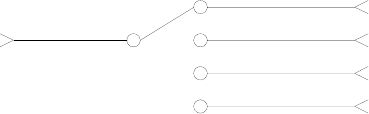
System Overview 3
Keysight 34970A/34972A User’s Guide 83
Multiplexers are available in several types:
–One-Wire (Single-Ended) Multiplexers for common LO measurements. For
more information, see page 307.
–Two-Wire Multiplexers for floating measurements. For more information, see
page 308.
–Four-Wire Multiplexers for resistance and RTD measurements. For more
information, see page 309.
–Very High Frequency (VHF) Multiplexers for switching frequencies up to 2.8
GHz. For more information, see page 319.
Common
Channel 1
Channel 2
Channel 4
Channel 3
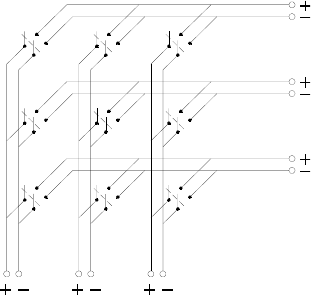
3 System Overview
84 Keysight 34970A/34972A User’s Guide
Matrix switching
A matrix switch connects multiple inputs to multiple outputs and therefore offers
more switching flexibility than a multiplexer. Use a matrix for switching
low-frequency (less than
10 MHz) signals only. A matrix is arranged in rows and columns. For example, a
simple 3x3 matrix could be used to connect three sources to three test points as
shown below.
Any one of the signal sources can be connected to any one of the test inputs. Be
aware that with a matrix, it is possible to connect more than one source at the
same time. It is important to make sure that dangerous or unwanted conditions
are not created by these connections.
Source 1
Source 2
Source 3
Test 1 Test 2 Test 3
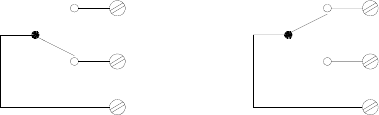
System Overview 3
Keysight 34970A/34972A User’s Guide 85
Form C (SPDT) switching
The 34903A Actuator contains 20 Form C switches (also called single-pole,
double-throw). You can use Form C switches to route signals but they are typically
used to control external devices.
Channel Open
(NC Contact Connected) Channel Closed
(NO Contact Connected)
NO = Normally Open
NC = Normally Closed
NO
NC
COM
NO
NC
COM
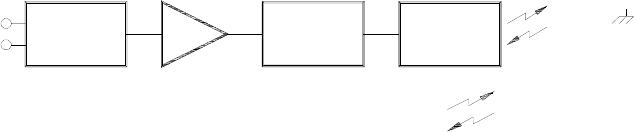
3 System Overview
86 Keysight 34970A/34972A User’s Guide
Measurement Input
The 34970A/34972A allows you to combine a DMM (either internal or external)
with multiplexer channels to create a scan. During a scan, the instrument
connects the DMM to the configured multiplexer channels one at a time and
makes a measurement on each channel.
Any channel that can be “read” by the instrument can also be included in a scan.
This includes any combination of temperature, voltage, resistance, current,
frequency, or period measurements on multiplexer channels. A scan can also
include a read of a digital port or a read of the totalizer count on the multifunction
module.
The internal DMM
A transducer or sensor converts a physical quantity being measured into an
electrical signal which can be measured by the internal DMM. To make these
measurements, the internal DMM incorporates the following functions:
– Temperature (thermocouple, RTD, and thermistor)
– Voltage (dc and ac up to 300V)
– Resistance (2-wire and 4-wire up to 100 MΩ)
– Current (DC and AC up to 1A)
– Frequency and Period (up to 300 kHz)
The internal DMM provides a universal input front-end for measuring a variety of
transducer types without the need for additional external signal conditioning. The
internal DMM includes signal conditioning, amplification (or attenuation), and a
high resolution (up to 22 bits) analog-to-digital converter. A simplified diagram of
the internal DMM is shown below.
To/From
Earth
Referenced
Section
= Optical Isolators
Amp
Signal
Conditioning
Analog to
Digital
Converter
Main
Processor
Analog
Input
Signal
System Overview 3
Keysight 34970A/34972A User’s Guide 87
Signal conditioning, ranging, and amplification
Analog input signals are multiplexed into the internal DMM’s signal-conditioning
section – typically comprising switching, ranging, and amplification circuitry. If the
input signal is a DC voltage, the signal conditioner is composed of an attenuator
for the higher input voltages and a DC amplifier for the lower input voltages. If the
input signal is an AC voltage, a converter is used to convert the AC signal to its
equivalent DC value (true RMS value). Resistance measurements are performed
by supplying a known DC current to an unknown resistance and measuring the DC
voltage drop across the resistor. The input signal switching and ranging circuitry,
together with the amplifier circuitry, convert the input to a DC voltage which is
within the measuring range of the internal DMM’s analog-to-digital converter
(ADC).
You can allow the instrument to automatically select the measurement range
using autoranging or you can select a fixed measurement range using manual
ranging. Autoranging is convenient because the instrument automatically selects
the range to use for each measurement based on the input signal. For fastest
scanning operation, use manual ranging for each measurement (some additional
time is required for autoranging since the instrument has to make a range
selection).
Analog-to-Digital Conversion (ADC)
The ADC takes a prescaled DC voltage from the signal-conditioning circuitry and
converts it to digital data for output and display on the front panel. The ADC
governs some of the most basic measurement characteristics. These include
measurement resolution, reading speed, and the ability to reject spurious noise.
There are several analog-to-digital conversion techniques but they can be divided
into two types: integrating and non-integrating. The integrating techniques
measure the average input value over a defined time interval, thus rejecting many
noise sources. The non-integrating techniques sample the instantaneous value of
the input, plus noise, during a very short interval. The internal DMM uses an
integrating ADC technique.
You can select the resolution and reading speed from 6 digits (22 bits) at 3
readings per second to 4 digits (16 bits) at up to 600 readings per second. The
Advanced menu from the 34970A/34972A front panel allows you to control the
integration period for precise rejection of noise signals.
3 System Overview
88 Keysight 34970A/34972A User’s Guide
Main processor
The main processor, located in the floating logic section, controls the input signal
conditioning, ranging, and the ADC. The main processor accepts commands from,
and sends measurement results to, the earth-referenced logic section. The main
processor synchronizes measurements during scanning and control operations.
The main processor uses a multi-tasking operating system to manage the various
system resources and demands.
The main processor also calibrates measurement results, performs Mx+B scaling,
monitors alarm conditions, converts transducer measurements to engineering
units, time stamps scanned measurements, and stores data in non-volatile
memory.
Scanning
The instrument allows you to combine a DMM (either internal or external) with
multiplexer channels to create a scan. During a scan, the instrument connects the
DMM to the configured multiplexer channels one at a time and makes a
measurement on each channel.
Before you can initiate a scan, you must set up a scan list to include all desired
multiplexer or digital channels. Channels which are not in the scan list are skipped
during the scan. The instrument automatically scans the list of channels in
ascending order from slot 100 through slot 300. Measurements are taken only
during a scan and only on those channels which are included in the scan list.
You can store up to 50,000 readings in non-volatile memory during a scan.
Readings are stored only during a scan and all readings are automatically time
stamped. Each time you start a new scan, the instrument clears all readings
stored in memory from the previous scan. Therefore, all readings currently stored
in memory are from the most recent scan.
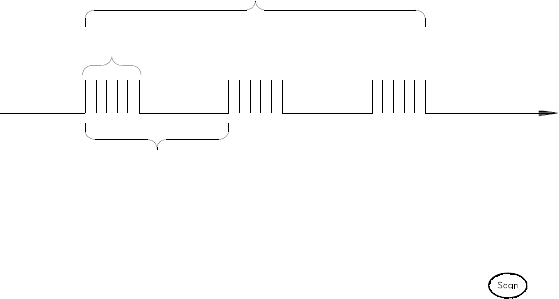
System Overview 3
Keysight 34970A/34972A User’s Guide 89
You can configure the event or action that controls the onset of each sweep
through the scan list (a sweep is one pass through the scan list):
– You can set the instrument’s internal timer to automatically scan at a specific
interval as shown below. You can also program a time delay between channels
in the scan list.
– You can manually control a scan by repeatedly pressing from the front
panel.
– You can start a scan by sending a software command from the remote
interface.
– You can start a scan when an external TTL trigger pulse is received.
– You can start a scan when an alarm condition is logged on the channel being
monitored.
Scan List (1 sweep)
Scan-to-Scan interval
(0 to 99:59:59 hours)
Scan Count
1 to 50,000 scans, or continuous)
t
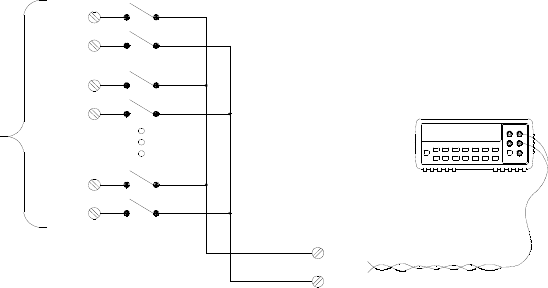
3 System Overview
90 Keysight 34970A/34972A User’s Guide
Scanning with external instruments
If your application doesn’t require the built-in measurement capabilities of the
34970A/34972A, you can order it without the internal DMM. In this configuration,
you can use the 34970A/34972A for signal routing or control applications. If you
install a multiplexer plug-in module, you can use the 34970A/34972A for
scanning with an external instrument. You can connect an external instrument
(such as a DMM) to the multiplexer COM terminal.
H
L
H
L
H
L
H
L
External DMM
Common Terminals
(COM)
Input
Channel
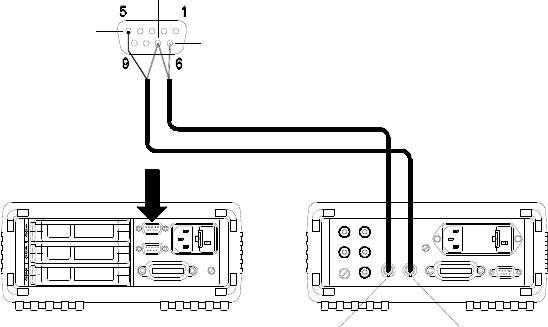
System Overview 3
Keysight 34970A/34972A User’s Guide 91
To control scanning with an external instrument, two control lines are provided.
When the 34970A/34972A and the external instrument are properly configured,
you can synchronize a scan sequence between the two.
Channel Closed OUT
34970A/34972A
External DMM
Ext Trig INVM Complete OUT
Ext Trig IN
GND
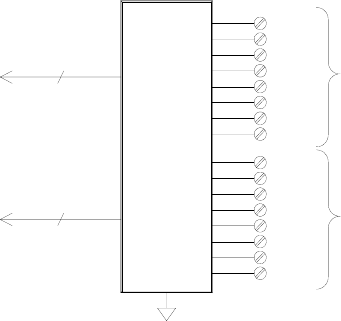
3 System Overview
92 Keysight 34970A/34972A User’s Guide
The multifunction module
The multifunction module (34907A) adds two additional measurement input
capabilities to the system: digital input and event totalize.
The multifunction module also contains a dual voltage output (DAC) which is
described in more detail on page 80.
Digital input
The multifunction module has two non-isolated 8-bit input/output ports which
you can use for reading digital patterns. You can read the live status of the bits on
the port or you can configure
a scan to include a digital read. Each port has a separate channel number on the
module and contains 8-bits. You can combine the two ports to read a 16-bit word.
8
8
Bit 0
Bit 0
Bit 7
Bit 7
Port 1 (LSB)
Channel 01
Port 2 (MSB)
Channel 02
Digital
Input
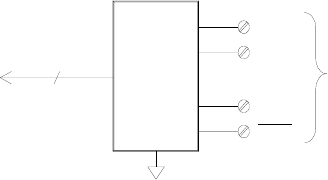
System Overview 3
Keysight 34970A/34972A User’s Guide 93
Totalizer
The multifunction module has a 26-bit totalizer which can count pulses at a 100
kHz rate. You can manually read the totalizer count or you can configure a scan to
read the count.
– You can configure the totalizer to count on the rising edge or falling edge of
the input signal.
– The maximum count is 67,108,863 (226- 1). The count rolls over to “0” after
reaching the maximum allowed value.
– You can configure the totalizer to read without affecting the count or reset the
count to zero without losing any counts.
Channel 03
+IN
-IN
Gate
26 Bits To tal i z e
Gate
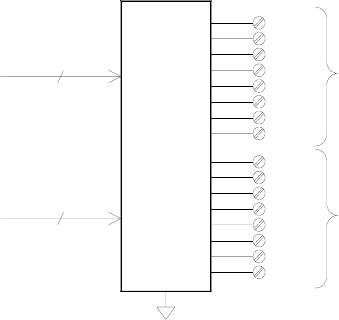
3 System Overview
94 Keysight 34970A/34972A User’s Guide
Control Output
In addition to signal routing and measurement, you can also use the 34970A/
34972A to provide simple control outputs. For example, you can control external
high-power relays using the actuator module or a digital output channel.
The multifunction module
The multifunction module (34907A) adds two additional control output
capabilities to the system: digital output and voltage (DAC) output.
The multifunction module also contains digital input and event totalizer
capabilities which are described in more detail starting on page 92.
Digital Output The multifunction module has two non-isolated 8-bit input/output
ports which you can use to output digital patterns. Each port has a separate
channel number on the module and contains 8-bits. You can combine the two
ports to output a 16-bit word.
8
8
Bit 0
Bit 0
Bit 7
Bit 7
Port 1 (LSB)
Channel 01
Port 2 (MSB)
Channel 02
Digital
Output
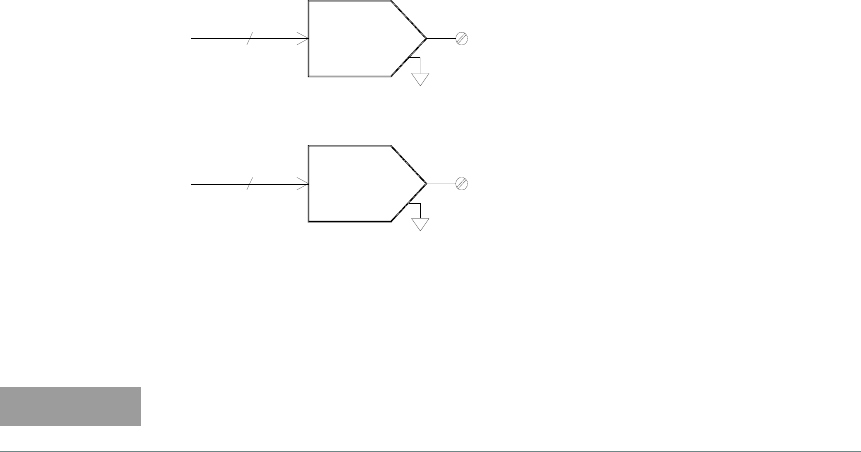
System Overview 3
Keysight 34970A/34972A User’s Guide 95
Voltage (DAC) output
The multifunction module has two analog outputs capable of outputting
calibrated voltages between ±12 volts with 16 bits of resolution. Each DAC
(Digital-to-Analog Converter) channel can be used as a programmable voltage
source for analog input control of other devices. A simplified diagram is shown
below.
– You can set the output voltage to any value between +12 VDC and -12 VDC, in
1 mV steps. Each DAC is earth referenced; it cannot float.
– Each DAC channel is capable of supplying 10 mA maximum current.
DAC 1
DAC 2
16
16
Channel 04
Channel 05
NOTE
You must limit the output current to 40 mA total for all three slots (six DAC
channels).
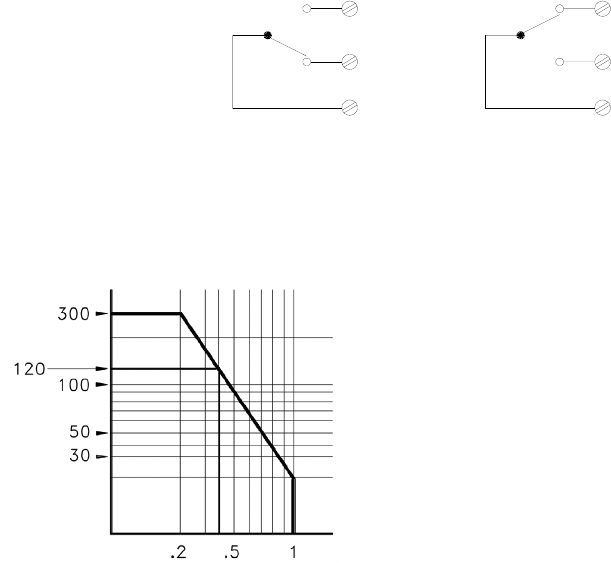
3 System Overview
96 Keysight 34970A/34972A User’s Guide
The actuator / general purpose switch
You can think of the 34903A Actuator as a control output because it is often used
to control external power devices. The actuator provides 20 independent, isolated
Form C (SPDT) switches.
Each channel can switch up to 300V DC or AC rms. Each switch can also switch
up to 1 A DC or AC rms up to 50 W maximum. For example, the maximum current
that you can switch at 120 V is 0.45 A as shown below.
For control applications, the actuator has the following advantages:
– Higher voltage and power rating than the digital output channels. The
actuator switches can also be used to control power devices.
– When used with high-power devices, however, it is critical that you provide
protection to the switch from capacitive and inductive loads to ensure
maximum relay life (for more information on attenuators, see the discussion on
page 316).
NO = Normally Open
NC = Normally Closed
NO
NC
COM
NO
NC
COM
Channel Open
(NC Contact Connected)
Channel Closed
(NO Contact Connected)
Voltage
Current

Keysight 34970A/34972A Data Acquisition / Switch Unit
User’s Guide
97
4 Features and Functions
SCPI Language Conventions 99
Scanning 100
Scanning with External Instruments 121
General Measurement Configuration 125
Temperature Measurement Configuration 132
Voltage Measurement Configuration 138
Resistance Measurement Configuration 140
Current Measurement Configuration 141
Frequency Measurement Configuration 143
Mx+B Scaling 144
Alarm Limits 147
Digital Input Operations 158
Totalizer Operations 160
Digital Output Operations 163
DAC Output Operations 165
System-Related Operations 166
Single-Channel Monitoring 175
Mass Memory (USB) Subsystem - 34972A 177
USB Drive Front Panel - 34972A 183
Remote Interface Configuration - 34970A 185
Remote Interface Configuration - 34972A 190
Calibration Overview 194
Factory Reset State 199
Instrument Preset State 201
Multiplexer Module Default Settings 203
Module Overview 205
34901A 20-Channel Multiplexer 206
34902A 16-Channel Multiplexer 209
4 Features and Functions
98 Keysight 34970A/34972A User’s Guide
34903A 20-Channel Actuator 211
34904A 4x8 Matrix Switch 213
34905A/6A Dual 4-Channel RF Multiplexers 215
34907A Multifunction Module 217
34908A 40-Channel Single-Ended Multiplexer 219
You will find that this chapter makes it easy to look up all the details about a
particular feature of the 34970A/34972A. Whether you are operating the
instrument from the front panel or over the remote interface, this chapter will be
useful.
Features and Functions 4
Keysight 34970A/34972A User’s Guide 99
SCPI Language Conventions
Throughout this manual, the following conventions are used for SCPI command
syntax for remote interface programming:
– Square brackets ( [ ] ) indicate optional keywords or parameters.
– Braces ( { } ) enclose parameter choices within a command string.
– Triangle brackets ( < > ) separate parameters for which you must substitute a
value
– A vertical bar (| ) separates multiple parameter choices.
Rules for using a channel list
Many of the SCPI commands for the 34970A/34972A include a scan_list or ch_list
parameter, which allow you to specify one or more channels. The channel number
has a form (
@
scc), where s is the slot number (100, 200, or 300) and cc is the
channel number. You can specify a single channel, multiple channels, or a range
of channels as shown below.
– The following command configures a scan list to include only channel 10 on
the module in slot 300.
ROUT:SCAN (@310)
– The following command configures a scan list to include multiple channels on
the module in slot 200. The scan list now contains only channels 10, 12, and
15 (the scan list is redefined each time you send a new ROUTe:SCAN
command).
ROUT:SCAN (@210,212,215)
– The following command configures a scan list to include a range of channels.
When you specify a range of channels, the range may contain invalid channels
(they are ignored), but the first and last channel in the range must be valid. The
scan list now contains channels 5 through 10 (slot 100) and channel 15 (slot
200).
ROUT:SCAN (@105:110,215)

4 Features and Functions
100 Keysight 34970A/34972A User’s Guide
Scanning
The instrument allows you to combine a DMM (either internal or external) with
multiplexer channels to create a scan. During a scan, the instrument connects the
DMM to the configured multiplexer channels one at a time and makes a
measurement on each channel.
Any channel that can be “read” by the instrument can also be included in a scan.
This includes any combination of temperature, voltage, resistance, current,
frequency, or period measurements on multiplexer channels. A scan can also
include a read of a digital port or a read of the totalizer count on the multifunction
module. Scanning is allowed with the following modules:
– 34901A 20-Channel Multiplexer
– 34902A 16-Channel Multiplexer
– 34907A Multifunction Module (digital input and totalizer only)
– 34908A 40-Channel Single-Ended Multiplexer
Automated scanning is not allowed with the actuator module, the matrix module,
or the RF multiplexer modules. In addition, a scan cannot include a write to a
digital port or a voltage output from a DAC channel. However, you can write your
own program to manually create a “scan” to include these operations.
Rules for scanning
– Before you can initiate a scan, you must set up a scan list to include all desired
multiplexer or digital channels. Channels which are not in the scan list are
skipped during the scan. The instrument automatically scans the list of
channels in ascending order from slot 100 through slot 300. Measurements are
taken only during a scan and only on those channels which are included in the
scan list.
The “ ” (sample) annunciator turns on during each measurement.
– You can store up to 50,000 readings in non-volatile memory during a scan.
Readings are stored only during a scan and all readings are automatically time
stamped. If memory overflows (the MEM annunciator will turn on), a status
register bit is set and new readings will overwrite the first readings stored (the
most recent readings are always preserved). You can read the contents of
memory at any time, even during a scan. Reading memory is not cleared when
you read it.
Features and Functions 4
Keysight 34970A/34972A User’s Guide 101
– Each time you start a new scan, the instrument clears all readings (including
alarm data) stored in reading memory from the previous scan. Therefore, the
contents of memory are always from the most recent scan.
– While a scan is running, the instrument automatically stores the minimum and
maximum readings and calculates the average for each channel. You can read
these values at any time, even during a scan.
– Mx+B scaling and alarm limits are applied to measurements during a scan and
all data is stored in non-volatile memory. You can read the contents of reading
memory or the alarm queue at any time, even during a scan.
– In the Monitor function, the instrument takes readings as often as it can on a
single channel, even during a scan (see Single-Channel Monitoring on
page 175). This feature is useful for troubleshooting your system before a test
or for watching an important signal.
– If you abort a scan that is running, the instrument will complete the one
measurement in progress (the entire scan will not be completed) and the scan
will stop. You cannot resume the scan from where it left off. If you initiate a new
scan, all readings are cleared from memory.
– When you add a multiplexer channel to a scan list, that entire module is
dedicated to the scan. The instrument issues a Card Reset to open all channels
on that module. You cannot perform low-level close or open operations on any
channels on that module (even those channels that are not configured).
– While a scan is running, you can perform some low-level control operations on
modules that do not contain channels in the scan list. For example, you can
open or close channels or issue a Card Reset on switching modules that do not
contain channels in the scan list. However, you cannot change any parameters
that affect the scan (channel configuration, scan interval, scaling values, alarm
limits, Card Reset, etc.) while a scan is running.
– When you add a digital read (multifunction module) to a scan list, that port is
dedicated to the scan. The instrument issues a Card Reset to make that port
an input port (the other port is not affected).
– While a scan is running, you can perform low-level control operations on any
channels on the multifunction module that are not in the scan. For example,
you can output a DAC voltage or write to a digital port (even if the totalizer is
part of the scan list). However, you cannot change any parameters that affect
the scan (channel configuration, scan interval, Card Reset, etc.) while a scan is
running.
4 Features and Functions
102 Keysight 34970A/34972A User’s Guide
– If a scan includes a read of the totalizer, multifunction module, the count is
reset each time it is read during the scan only when the totalizer reset mode is
enabled (TOTalize:TYPE RRESet command or the Advanced menu for the
totalizer).
– If you install a module while a scan is running, the instrument will cycle power
and resume scanning. If you remove a module while a scan is running, the
instrument will cycle power, and it will not resume scanning when the reboot
completes. If you are logging to a USB drive, the instrument will not log any
scans that occur between the removal of the module and the reboot of the
instrument.
– You can use either the internal DMM or an external DMM to make
measurements of your configured channels. However, the instrument allows
only one scan list at a time; you cannot scan some channels using the internal
DMM and others using an external DMM. Readings are stored in 34970A/
34972A memory only when the internal DMM is used.
– If the internal DMM is installed and enabled, the instrument will automatically
use it for scanning. For externally-controlled scans, you must either remove
the internal DMM from the 34970A/34972A or disable it (see “Internal DMM
Disable” on page 153).
Features and Functions 4
Keysight 34970A/34972A User’s Guide 103
Power failure
– When shipped from the factory, the instrument is configured to automatically
recall the power-down state when power is restored. In this configuration, the
instrument will automatically recall the instrument state at power-down and
resume a scan in progress. If you do not want the power-down state to be
recalled when power is restored, send the MEMory:STATe:RECall:AUTO
OFF command (also see the Utility menu); a Factory Reset (*RST command) is
then issued when power is restored.
– If the instrument is in the middle of a scan sweep when power fails, all
readings from that partially completed sweep will be discarded (a sweep is one
pass through the scan list). For example, assume that your scan list includes
four multiplexer channels and you want to sweep through the scan list three
times (see diagram). A power failure occurs after the second reading in the
third scan sweep. The instrument will discard the last two of the 10 readings
and will resume scanning at the beginning of the third scan sweep.
– If you remove a module or move a module to a different slot while power is off,
the scan will not resume when power is restored. No error is generated.
– If you replace a module with a module of the same type while power is off, the
instrument will continue scanning when power is restored. No error is
generated.
Power Fails
4 Features and Functions
104 Keysight 34970A/34972A User’s Guide
Adding channels to a scan list
Before you can initiate a scan, you must configure the channels to be scanned and
set up a scan list (these two operations occur simultaneously from the front
panel). The instrument automatically scans the configured channels in ascending
order from slot 100 through slot 300.
To build a scan list from the front panel:
To add the active channel to the scan list, press . Select the function, range,
resolution, and other measurement parameters for this channel. You can also
press to sequentially step through the scan list and take a measurement on
each channel (readings are not stored in memory). This is an easy way to verify
your wiring connections and channel configuration (also valid during a scan).
– When you reconfigure a channel and add it to the scan list, it is important to
note that the previous configuration on that channel is lost. For example,
assume that a channel is configured for DC voltage measurements. When you
reconfigure that channel for thermocouple measurements, the previous range,
resolution, and channel delay are set to their Factory Reset (*RST command)
state.
– To remove the active channel from the scan list, press and select
CHANNEL OFF. If you decide to add that channel back to the scan list with
the same function, the original channel configuration (including scaling and
alarm values) is still present.
– To initiate a scan and store all readings in memory, press (the SCAN
annunciator will turn on). Each time you initiate a new scan, the instrument
clears all previously stored readings.
– To stop a scan, press and hold .
Features and Functions 4
Keysight 34970A/34972A User’s Guide 105
To build a scan list from the remote interface:
–The MEASure?, CONFigure, and ROUTe:SCAN commands contain a scan_list
parameter which defines the list of channels in the scan list. Note that each
time you send one of these commands, it redefines the scan list. To determine
which channels are currently in the scan list, you can send the ROUTe:SCAN?
query command.
– To initiate a scan, execute the MEASure?, READ?, or INITiate command. The
MEASure? and READ? commands send readings directly to the instrument’s
output buffer but readings are not stored in memory. The INITiate command
stores readings in memory. Use the FETCh? command to retrieve stored
readings from memory.
See the Keysight 34970A/34972A Programmer’s Reference Help for more
information on using these commands.
– When you reconfigure a channel and add it to the scan list using MEASure? or
CONFigure, it is important to note that the previous configuration on that
channel is lost. For example, assume that a channel is configured for DC
voltage measurements. When you reconfigure that channel for thermocouple
measurements, the previous range, resolution, and channel delay are set to
their Factory Reset (*RST command) state.
– Each time you initiate a new scan, the instrument clears all previously stored
readings.
– To stop a scan, execute the ABORt command.
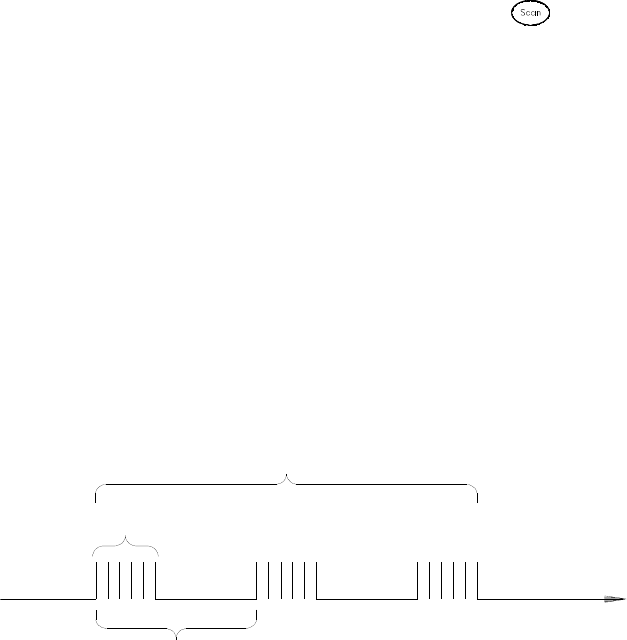
4 Features and Functions
106 Keysight 34970A/34972A User’s Guide
Scan interval
You can configure the event or action that controls the onset of each sweep
through the scan list (a sweep is one pass through the scan list):
– You can set the instrument’s internal timer to automatically scan at a specific
interval. You can also program a time delay between channels in the scan list.
– You can manually control a scan by repeatedly pressing from the front
panel.
– You can start a scan by sending a software command from the remote
interface (MEASure? or INITiate command).
– You can start a scan when an external TTL trigger pulse is received.
– You can start a scan when an alarm event is logged on the channel being
monitored.
Interval scanning
In this configuration, you control the frequency of scan sweeps by selecting a wait
period from the start of one sweep to the start of the next sweep (called the
scan-to-scan interval). The countdown time is shown on the front-panel display
between one scan sweep and the start of the next sweep. If the scan interval is
less than the time required to measure all channels in the scan list, the instrument
will scan continuously, as fast as possible (no error is generated).
– You can set the scan interval to any value between 0 seconds and 99:59:59
hours (359,999 seconds), with 1 ms resolution.
Scan List (1 sweep)
Scan-to-Scan interval
(0 to 99:59:59 hours)
Scan Count
1 to 50,000 scans, or continuous)
t
Features and Functions 4
Keysight 34970A/34972A User’s Guide 107
– Once you have initiated the scan, the instrument will continue scanning until
you stop it or until the scan count is reached. See “Scan Count” on page 113
for more information.
– Mx+B scaling and alarm limits are applied to measurements during a scan and
all data is stored in non-volatile memory.
–The MEASure? and CONFigure commands automatically set the scan interval
to immediate (0 seconds) and the scan count to 1 sweep.
– From the front panel, a Factory Reset (Sto/Rcl menu) sets the scan interval to
10 seconds and the scan count to continuous. From the remote interface, a
Factory Reset (*RST command) sets the scan interval to immediate (0
seconds) and the scan count to 1 sweep.
–Front-Panel Operation: To select interval scanning and set a scan interval time
(hour:minutes:seconds), choose the following item.
INTERVAL SCAN
To initiate the scan and store all readings in memory, press (the SCAN
annunciator will turn on). Between scan sweeps, the count-down time is
shown on the front-panel (00:04 TO SCAN).
–Remote Interface Operation: The following program segment configures the
instrument for an interval scan.
NOTE
To stop a scan, press and hold .
TRIG:SOURCE TIMER Select the interval timer configuration
TRIG:TIMER 5 Set the scan interval to 5 seconds
TRIG:COUNT 2 Sweep the scan list 2 times
INIT Initiate the scan
NOTE
To stop a scan, send the ABORt command.
4 Features and Functions
108 Keysight 34970A/34972A User’s Guide
Scan once
In this configuration, the instrument waits for either a front-panel key press or a
remote interface command before sweeping through the scan list.
– All readings from the scan are stored in non-volatile memory. Readings
accumulate in memory until the scan is terminated (until the scan count is
reached or until you abort the scan).
– You can specify a scan count which sets the number of front-panel key presses
or scan trigger commands that will be accepted before terminating the scan.
See “Scan Count” on page 113 for more information.
– Mx+B scaling and alarm limits are applied to measurements during a Scan
Once operation and all data is stored in non-volatile memory.
–Front-Panel Operation:
MANUAL SCAN
To initiate the scan and store all readings in memory, press . The ONCE
annunciator turns on as a reminder that a Scan Once operation is in progress.
–Remote Interface Operation: The following program segment configures the
instrument for a Scan Once operation.
NOTE
To stop a scan, press and hold .
TRIG:SOURCE BUS Select the bus (once) configuration
TRIG:COUNT 2 Sweep the scan list 2 times
INIT Initiate the scan
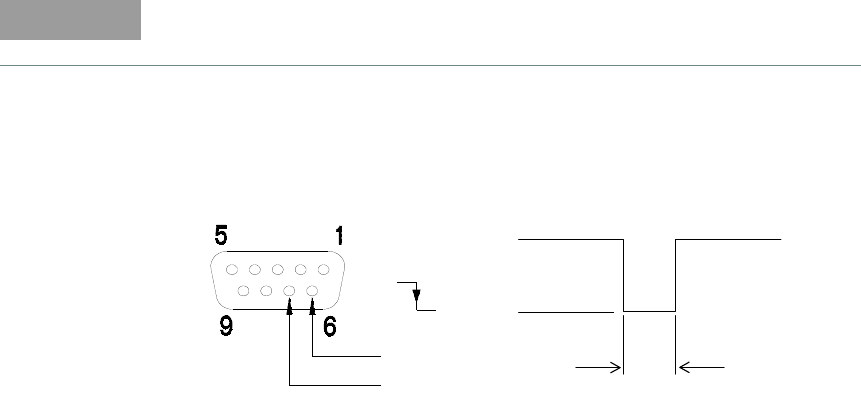
Features and Functions 4
Keysight 34970A/34972A User’s Guide 109
Then, send the *TRG (trigger) command to begin each scan sweep. You can
also trigger the instrument from the GPIB interface by sending the IEEE-488
Group Execute Trigger (GET) message. The following statement shows how to
send a GET message.
External scanning
In this configuration, the instrument sweeps through the scan list once each time
a low-going TTL pulse is received on the rear-panel Ext Trig Input line (pin 6).
– You can specify a scan count which sets the number of external pulses the
instrument will accept before terminating the scan. See “Scan Count” on page
113 for more information.
– If the instrument receives an external trigger before it is ready to accept one, it
will buffer one trigger before generating an error.
– All readings from the scan are stored in non-volatile memory. Readings
accumulate in memory until the scan is terminated (until the scan count is
reached or until you abort the scan).
– Mx+B scaling and alarm limits are applied to measurements during the scan
and all data is stored in non-volatile memory.
TRIGGER 709 Group Execute Trigger
NOTE
To stop a scan, send the ABORt command.
Ext Trig Input
Gnd
Input
Ext Trig Connector
> 1 ms
5V
0V
4 Features and Functions
110 Keysight 34970A/34972A User’s Guide
–Front-Panel Operation:
EXTERNAL SCAN
To initiate the scan, press . The EXT annunciator turns on as a reminder
that an External Scan is in progress. When a TTL pulse is received, the scan
starts and readings are stored in memory. To stop scan, press and hold .
–Remote Interface Operation: The following program segment configures the
instrument for an External Scan.
Scanning on alarm
In this configuration, the instrument sweeps the scan list once each time a
reading crossing an alarm limit on a channel. You can also assign alarms to
channels on the multifunction module. For example, you can generate an alarm
when a specific bit pattern is detected or when a specific count is reached.
– In this scan configuration, you may use the Monitor function to continuously
take readings on a selected channel and wait for an alarm on that channel. The
monitored channel can be part of the scan list but you can also use a channel
on the multifunction module (which does not have to be part of the scan list
and you do not have to use the Monitor function). For example, you can
generate an alarm on a totalizer channel which will initiate a scan when a
specific count is reached.
TRIG:SOURCE EXT Select the external trigger configuration
TRIG:COUNT 2 Sweep the scan list 2 times
INIT Initiate the scan
NOTE
To stop a scan, send the ABORt command.
NOTE
For complete details on configuring and using alarms, refer to “Alarm Limits”
starting on page 147.
Features and Functions 4
Keysight 34970A/34972A User’s Guide 111
– You can specify a scan count which sets the number of alarms that will be
allowed before terminating the scan. See “Scan Count” on page 113 for more
information.
– All readings from the scan are stored in non-volatile memory. Readings
accumulate in memory until the scan is terminated (until the scan count is
reached or until you abort the scan).
– Mx+B scaling and alarm limits are applied to measurements during the scan
and all data is stored in non-volatile memory.
–Front-Panel Operation:
SCAN ON ALARM
To enable the Monitor function select the desired channel and then press
. To initiate the scan, press . When an alarm event occurs, the scan
starts and readings are stored in memory.
–Remote Interface Operation: The following program segment configures the
instrument to scan when an alarm occurs.
NOTE
To stop a scan, press and hold .

4 Features and Functions
112 Keysight 34970A/34972A User’s Guide
TRIG:SOURCE ALARM1 Select the alarm configuration
TRIG:COUNT 2 Sweep the scan list 2 times
CALC:LIM:UPPER 5,(@103) Set the upper limit
CALC:LIM:UPPER:STATE ON,(@103) Enable the upper limit
OUTPUT:ALARM1:SOURCE (@103) Report alarms on Alarm 1
ROUT:MON (@103) Select monitor channel
ROUT:MON:STATE ON Enable monitoring
INIT Initiate the scan
NOTE
To stop a scan, send the ABORt command.
Features and Functions 4
Keysight 34970A/34972A User’s Guide 113
Scan count
You can specify the number of times the instrument will sweep through the scan
list. When the specified number of sweeps have occurred, the scan stops.
– Select a scan count between 1 to 50,000 scan sweeps, or continuous.
– During an Interval Scan (see page 106), the scan count sets the number of
times the instrument will sweep through the scan list and therefore determines
the overall duration of the scan.
– During a Scan Once operation (see page 108), the scan count sets the number
of front-panel key presses or scan trigger commands that will be accepted
before terminating the scan.
– During an External Scan (see page 109), the scan count sets the number of
external trigger pulses that will be accepted before terminating the scan.
– During an Alarm Scan (see page 110), the scan count sets the number of
alarms that will be allowed before terminating the scan.
– You can store up to 50,000 readings in non-volatile memory during a scan. If
you set a continuous scan and memory overflows (the MEM annunciator will
turn on), a status register bit is set and new readings will overwrite the first
readings stored (the most recent readings are always preserved).
–The MEASure? and CONFigure commands automatically set the scan count
to 1.
– From the front panel, a Factory Reset (Sto/Rcl menu) sets the scan count to
continuous. From the remote interface, a Factory Reset (*RST command) sets
the scan count to 1 sweep.
– Front-Panel Operation:
00020 SCANS
The default is CONTINUOUS. To set the count to a value between 1 and
50,000 scans, turn the knob clockwise and enter a number.
–Remote Interface Operation:
TRIG:COUNT 20
NOTE
To configure a continuous scan, send TRIG:COUNT INFINITY.

4 Features and Functions
114 Keysight 34970A/34972A User’s Guide
Reading format
During a scan, the instrument automatically adds a time stamp to all readings and
stores them in non-volatile memory. Each reading is stored with measurement
units, time stamp, channel number, and alarm status information. From the
remote interface, you can specify which information you want returned with the
readings (from the front panel, all of the information is available for viewing). The
reading format applies to all readings being removed from the instrument from a
scan; you cannot set the format on a per-channel basis.
– From the remote interface, the time stamp information is returned either in
absolute time (time of day with date) or relative time (time since start of scan).
Use the FORMat:READ:TIME:TYPE command to select absolute or relative
time. From the front panel, the time stamp is always returned in absolute time.
–The MEASure? and CONFigure commands automatically turn off the units,
time, channel, and alarm information.
–A Factory Reset (*RST command) turns off the units, time, channel, and alarm
information.
–Remote Interface Operation: The following commands select the format of
readings returned from a scan.
FORMat:READing:ALARm ON
FORMat:READing:CHANnel ON
FORMat:READing:TIME ON
FORMat:READing:TIME:TYPE {ABSolute|RELative}
FORMat:READing:UNIT ON
The following is an example of a reading stored in memory with all fields enabled
(relative time is shown).
.
1Reading with Units (26.195 °C)
2Channel Number
3Time Since Start of Scan (17 ms)
4Alarm Limit Threshold Crossed
0 = No Alarm, 1 = LO, 2 = HI)
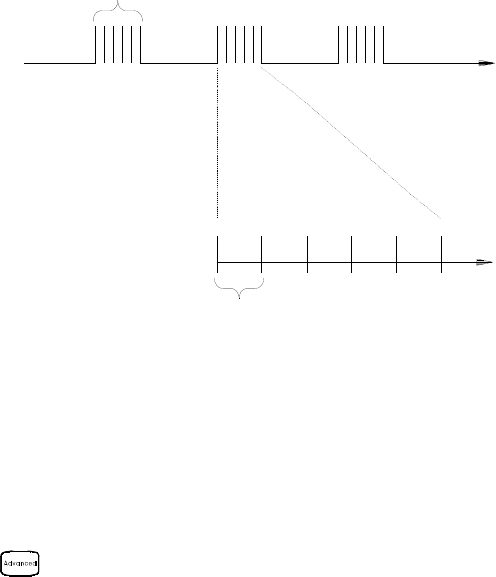
Features and Functions 4
Keysight 34970A/34972A User’s Guide 115
Channel delay
You can control the pace of a scan sweep by inserting a delay between multiplexer
channels in the scan list (useful for high-impedance or high-capacitance circuits).
The delay is inserted between the relay closure and the actual measurement on
the channel. The programmed channel delay overrides the default channel delay
that the instrument automatically adds to each channel.
– You can set the channel delay to any value between 0 seconds and 60
seconds, with 1 ms resolution. You can select a different delay for each
channel. The default channel delay is automatic; the instrument determines
the delay based on function, range, integration time, and AC filter setting (see
“Automatic Channel Delays” on the next page).
–The MEASure? and CONFigure commands set the channel delay to automatic.
A Factory Reset (*RST command) also sets the channel delay to automatic.
–Front-Panel Operation:
CH DELAY TIME
–Remote Interface Operation: The following command adds a 2-second
channel delay to channel 101.
ROUT:CHAN:DELAY 2,(@101)
Scan List
Channel Delay
Ch 1 Ch 2 Ch 3 Ch 4 Ch 5 Ch 6
4 Features and Functions
116 Keysight 34970A/34972A User’s Guide
Automatic channel delays
If you do not specify a channel delay, the instrument selects a delay for you. The
delay is determined by function, range, integration time, and AC filter setting as
shown below.
Table 4-1 DC Voltage, Thermocouple, DC Current (for all ranges)
Integration time Channel delay
PLC >1
PLC ≤ 1
2.0 ms
1.0 ms
Table 4-2 Resistance, RTD, Thermistor (2- and 4-wire)
Range Channel delay
(for PLC > 1) Range Channel delay
for PLC ≤ 1)
100Ω
1 kΩ
10 kΩ
100 kΩ
1 MΩ
10 MΩ
100MΩ
2.0 ms
2.0 ms
2.0 ms
25 ms
30 ms
200 ms
200 ms
100Ω
1 kΩ
10 kΩ
100 kΩ
1 MΩ
10 MΩ
100MΩ
1.0 ms
1.0 ms
1.0 ms
20 ms
25 ms
200 ms
200 ms
Table 4-3 AC Voltage, AC Current (for all ranges)
AC filter Channel delay
Slow (3 Hz)
Medium (20 Hz)
Fast (200 Hz)
7.0 sec
1.0 sec
120 ms
Features and Functions 4
Keysight 34970A/34972A User’s Guide 117
–Front-Panel Operation:
CH DELAY AUTO
–Remote Interface Operation: The following command enables an automatic
channel delay on channel 01.
ROUT:CHAN:DELAY:AUTO ON,(@101)
Selecting a specific channel delay using the ROUTe:CHANnel:DELay
command disables the automatic channel delay.
Table 4-4 Frequency, Period
AC filter Channel delay
Slow (3 Hz)
Medium (20 Hz)
Fast (200 Hz)
0.6 sec
0.3 sec
0.1 sec
Table 4-5 Digital Input, Totalize
Channel delay
0 sec
4 Features and Functions
118 Keysight 34970A/34972A User’s Guide
Viewing readings stored in memory
During a scan, the instrument automatically adds a time stamp to all readings and
stores them in non-volatile memory. Readings are stored only during a scan. You
can read the contents of memory at any time, even during a scan.
– You can store up to 50,000 readings in non-volatile memory during a scan.
From the front panel, you can view the last 100 readings and all of the readings
are available from the remote interface. If memory overflows (the MEM
annunciator will turn on), a status register bit is set and new readings will
overwrite the first readings stored (the most recent readings are always
preserved).
– Each time you start a new scan, the instrument clears all readings (including
alarm data) stored in reading memory from the previous scan. Therefore, the
contents of memory are always from the most recent scan.
– The instrument clears all readings in memory after a Factory Reset (*RST
command) or Instrument Preset (SYSTem:PRESet command). Reading
memory is not cleared when you read it.
– While a scan is running, the instrument automatically stores the minimum and
maximum readings and calculates the average for each channel. You can read
these values at any time, even during a scan.
– Each reading is stored with measurement units, time stamp, channel number,
and alarm status information. From the remote interface, you can specify
which information you want returned with the readings (from the front panel,
all of the information is available for viewing). For more information, see
“Reading Format” on page 114.
– Readings acquired during a Monitor are not stored in memory (however, all
readings from a scan in progress at the same time are stored in memory).
–The MEASure? and READ? commands send readings directly to the
instrument’s output buffer but readings are not stored in memory. You will not
be able to view these readings.
–The INITiate command stores readings in memory. Use the FETCh?
command to retrieve stored readings from memory (the readings are not
erased when you read them).
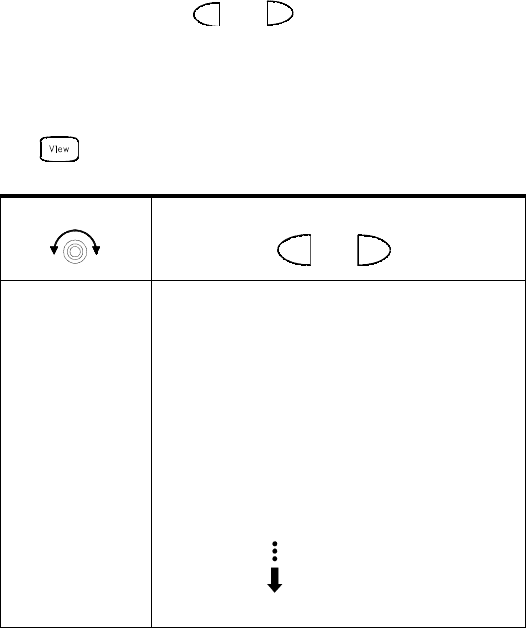
Features and Functions 4
Keysight 34970A/34972A User’s Guide 119
–Front-Panel Operation: From the front panel, data is available for the last 100
readings on each channel readings taken during a scan (all of the data is
available from the remote interface). After turning the knob to the desired
channel, press the and keys to choose the data that you want to view
for the selected channel as shown below (the LAST, MIN, MAX, and AV G
annunciators turn on to indicate what data is currently being viewed). Reading
memory is not cleared when you read it. Note that you can view readings from
the front panel even while the instrument is in remote.
READINGS
.
–Remote Interface Operation: The following command retrieves stored readings
from memory (the readings are not erased).
FETCH?
Select Channel
Last Reading on Channel
Time of Last Reading
Minimum Reading on Channel
Time of Minimum Reading
Maximum Reading on Channel
Time of Maximum Reading
Average of Readings on Channel
Second Most Recent Reading on Channel
Third Most Recent Reading on Channel
99th Most Recent Reading on Channel
and
4 Features and Functions
120 Keysight 34970A/34972A User’s Guide
Use the following commands to query the statistics on the readings stored in
memory for a specific channel. These commands do not remove the data from
memory.
The following command retrieves the last reading taken on channel 301 during
a scan.
DATA:LAST? (@301)
The following command clears the contents of statistics memory for the
selected channel.
CALC:AVER:CLEAR (@305)
Use the following command to determine the total number of readings stored
in memory (all channels) from the most recent scan.
DATA:POINTS?
The following command reads and clears the specified number of readings
from memory. This allows you to continue a scan without losing data stored in
memory (if memory becomes full, new readings will overwrite the first readings
stored). The specified number of readings are cleared from memory, starting
with the oldest reading.
DATA:REMOVE? 12
CALC:AVER:MIN? (@305) Minimum reading on channel
CALC:AVER:MIN:TIME? (@305) Time minimum was logged
CALC:AVER:MAX? (@305) Maximum reading on channel
CALC:AVER:MAX:TIME? (@305) Time maximum was logged
CALC:AVER:AVER? (@305) Average of all readings on channel
CALC:AVER:COUNT? (@305) Number of readings taken on channel
CALC:AVER:PTPEAK? (@305) Peak-to-peak (maximum-minimum)
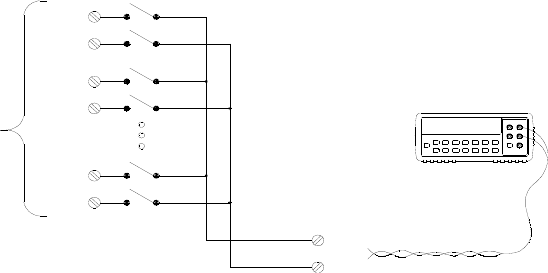
Features and Functions 4
Keysight 34970A/34972A User’s Guide 121
Scanning with External Instruments
If your application doesn’t require the built-in measurement capabilities of the
34970A/34972A, you can order it without the internal DMM. In this configuration,
you can use the 34970A/34972A for signal routing or control applications. If you
install a multiplexer plug-in module, you can use the 34970A/34972A for
scanning with an external instrument. You can connect an external instrument
(such as a DMM) to the multiplexer COM terminal.
H
L
H
L
Input
Channels
H
L
H
L
External DMM
Common Terminals
(COM)
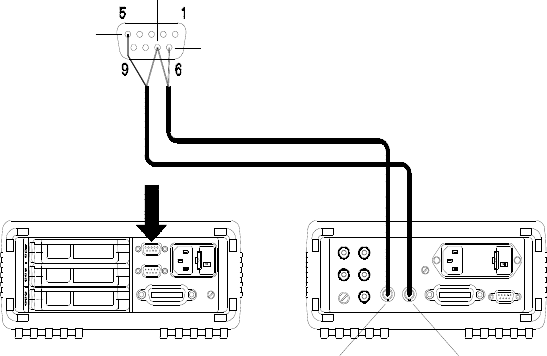
4 Features and Functions
122 Keysight 34970A/34972A User’s Guide
To control scanning with an external instrument, two control lines are provided.
When the 34970A/34972A and the external instrument are properly configured,
you can synchronize a scan sequence between the two.
In this configuration, you must set up a scan list to include all desired multiplexer
or digital channels. Channels which are not in the list are skipped during the scan.
The instrument automatically scans the list of channels in ascending order from
slot 100 through slot 300.
For an externally-controlled scan, you must either remove the internal DMM from
the 34970A/34972A or disable it (see “Internal DMM Disable” on page 171). Since
the internal DMM is not used, readings from multiplexer channels are not stored in
internal reading memory.
External connections are required to synchronize the scan sequence between the
34970A/34972A and the external instrument. The 34970A/34972A must notify the
external instrument when a relay is closed and settled (including channel delay).
The 34970A/34972A outputs a Channel Closed pulse from pin 5 on the rear-panel
connector (see previous page). In response, the external instrument must notify
the 34970A/34972A when it has finished its measurement and is ready to advance
to the next channel in the scan list. The 34970A/34972A accepts a Channel
Advance signal on the External Trigger input line (pin 6).
Channel Closed OUT
34970A/34972A
External DMM
Ext Trig INVM Complete OUT
Ext Trig IN
GND
Features and Functions 4
Keysight 34970A/34972A User’s Guide 123
– You can configure the event or action that controls the onset of each sweep
through the scan list (a sweep is one pass through the scan list). When the
internal DMM is removed (or disabled), the default scan interval source is
“timer.” For more information, refer to “Scan Interval” on page 90.
– You can configure the event or action that notifies the 34970A/34972A to
advance to the next channel in the scan list. Note that the Channel Advance
source shares the same sources as the scan interval. However, an error is
generated if you attempt to set the channel advance source to the same
source used for the scan interval.
– You can specify the number of times the instrument will sweep through the
scan list. When the specified number of sweeps have occurred, the scan stops.
For more information, refer to “Scan Count” on page 113.
– An externally-controlled scan can also include a read of a digital port or a read
of the totalizer count on the multifunction module. When the channel advance
reaches the first digital channel, the instrument scans through all of the digital
channels in that slot and stores the readings in reading memory (only one
channel advance signal is required).
– You can configure the list of channels for 4-wire external scanning without the
internal DMM. When enabled, the instrument automatically pairs channel n
with channel n+10 (34901A) or n+8 (34902A) to provide the source and sense
connections.
–Front-Panel Operation: To select the channel advance source, choose from the
following items.
AUTO ADVANCE , EXT ADVANCE
To initiate the scan, press (the SCAN annunciator will turn on).
To configure the instrument for 4-wire external scanning, choose the following
item.
4W SCAN
4 Features and Functions
124 Keysight 34970A/34972A User’s Guide
–Remote Interface Operation: The following program segment configures the
instrument for an externally controlled scan.
To configure the instrument for 4-wire external scanning, send the following
command.
ROUTe:CHANnel:FWIRe {OFF|ON}[,(@<ch_list>)]
TRIG:SOUR TIMER Select the scan interval
ROUT:CHAN:ADV:SOUR EXT Select the channel advance source
TRIG:TIMER 5 Set the scan interval to 5 seconds
TRIG:COUNT 2 Sweep the scan list 2 times
INIT Initiate the scan

Features and Functions 4
Keysight 34970A/34972A User’s Guide 125
General Measurement Configuration
This section contains general information to help you configure the instrument for
making measurements during a scan. Since these parameters are used by several
measurement functions, the discussion is combined into one common section.
Refer to the later sections in this chapter for more information on parameters that
are specific to a particular measurement function.
Measurement range
You can allow the instrument to automatically select the measurement range
using autoranging or you can select a fixed range using manual ranging.
Autoranging is convenient because the instrument decides which range to use for
each measurement based on the input signal. For fastest scanning operation, use
manual ranging on each measurement (some additional time is required for
autoranging since the instrument has to make a range selection).
– Autorange thresholds:
Down range at <10% of range
Up range at >120% of range
– If the input signal is greater than can be measured on the selected range, the
instrument gives an overload indication: “±OVLD” from the front panel or
“±9.90000000E+37” from the remote interface.
– For a complete list of the measurement ranges available for each function,
refer to the instrument specifications in Chapter 8.
– For temperature measurements, the instrument internally selects the range;
you cannot select which range is used. For thermocouple measurements, the
instrument internally selects the 100 mV range. For thermistor and RTD
measurements, the instrument autoranges to the correct range for the
transducer resistance measurement.
NOTE
It is important that you select the measurement function before selecting other
parameters on a given channel. When you change the function on a channel, all
other settings (range, resolution, etc.) are reset to their default values.

4 Features and Functions
126 Keysight 34970A/34972A User’s Guide
– For frequency and period measurements, the "range" parameter is used to
compute a specific measurement resolution (see the Keysight 34970A/34972A
Programmer’s Reference Help for details). When specifying a (non-default)
resolution, both the range and resolution parameters must be specified within
the MEASure? and CONFigure commands. Refer to the Keysight 34970A/
34972A Programmer’s Reference Help for more information.
–The MEASure? and CONFigure commands contain an optional range
parameter which allows you to specify the range or autoranging.
– The instrument returns to autoranging when the measurement function is
changed and after a Factory Reset (*RST command). An Instrument Preset
(SYSTem:PRESet command) or Card Reset (SYSTem:CPON command) does
not change the range setting.
–Front-Panel Operation: First, select the measurement function on the active
channel. You are automatically guided to the next level of the menu where you
can select a specific range or autorange.
100 mV RANGE
–Remote Interface Operation: You can select the range using parameters in the
MEASure? and CONFigure commands. For example, the following statement
selects the 10 VDC range on channel 301.
CONF:VOLT:DC 10,DEF,(@301)

Features and Functions 4
Keysight 34970A/34972A User’s Guide 127
Measurement resolution
Resolution is expressed in terms of number of digits the instrument can measure
or display on the front panel. You can set the resolution to 4, 5, or 6 full digits, plus
a “½” digit which can only be a “0” or “1”. To increase your measurement accuracy
and improve noise rejection, select 6½ digits. To increase your measurement
speed, select 4½ digits.
This is the 10 VDC range, 5½ digits are displayed.
This is the 100 mVDC range, 4½ digits are displayed.
This is the 100 ohm range, 6½ digits are displayed.
– For temperature measurements taken from the remote interface, the resolution
is fixed at 6½ digits. From the front panel, you can set the resolution in terms of
the number of digits displayed past the decimal point (Measure menu).
– For AC voltage measurements, the resolution is fixed at 6½ digits. The only
way to control the reading rate for AC measurements is by changing the
channel delay (see page 115) or by setting the AC filter to the highest
frequency limit (see page 139).
– The specified resolution is used for all measurements on the selected channel.
If you have applied Mx+B scaling or have assigned alarms to the selected
channel, those measurements are also made using the specified resolution.
Measurements taken during the Monitor function also use the specified
resolution.
10.216,5 VDC
-045.23 mVDC
113.325,6 OHM

4 Features and Functions
128 Keysight 34970A/34972A User’s Guide
– Changing the number of digits does more than just change the resolution of
the instrument. It also changes the integration time, which is the period the
instrument’s analog-to-digital (A/D) converter samples the input signal for a
measurement. See Custom A/D Integration Time, on page 129 for more
information.
–The MEASure? and CONFigure commands contain an optional resolution
parameter which allows you to specify the resolution.
– The instrument returns to 5½ digits when the measurement function is
changed and after a Factory Reset (*RST command). An Instrument Preset
(SYSTem:PRESet command) or Card Reset (SYSTem:CPON command)
does not change the resolution setting.
–Front-Panel Operation: First, select the measurement function on the active
channel. You are automatically guided to the next level of the menu where you
can select the number of digits. The default is 5½ digits.
6 1/2 DIGITS
For temperature measurements, go to the menu and select the number of
digits displayed past the decimal point on the selected channel.
DISPLAY 1 °C
–Remote Interface Operation: Specify the resolution in the same units as the
measurement function, not in number of digits. For example, if the function is
DC volts, specify the resolution in volts. For frequency, specify the resolution in
hertz.
You can select the resolution using parameters in the MEASure? and
CONFigure commands. For example, the following statement selects the
10 VDC range with 4½ digits of resolution on channel 301.
CONF:VOLT:DC 10,0.001,(@301)
The following statement selects the 1 A range with 6½ digits of resolution on
channel 221.
MEAS:CURR:AC? 1,1E-6,(@221)
– You can also select the resolution using the SENSe commands. For example,
the following statement specifies a 4-wire ohms measurement with 100Ω of
resolution on channel 103.
SENS:FRES:RES 100,(@103)

Features and Functions 4
Keysight 34970A/34972A User’s Guide 129
Custom A/D integration time
Integration time is the period of time that the instrument’s
analog-todigital (A/D) converter samples the input signal for a measurement.
Integration time affects the measurement resolution (for better resolution, use a
longer integration time) and measurement speed (for faster measurements, use a
shorter integration time).
– Integration time is specified in number of power line cycles (PLCs). Select from
0.02, 0.2, 1, 2, 10, 20, 100, or 200 power line cycles.
The default is 1 PLC.
– Only the integral number of power line cycles (1, 2, 10, 20, 100, or 200 PLCs)
provide normal mode (line frequency noise) rejection.
– You can also specify integration time directly in seconds (this is called aperture
time). Select a value between 400 µs and 4 seconds, with
10 µs resolution.
– The only way to control the reading rate for AC measurements is by changing
the channel delay (see page 115) or by setting the AC filter to the highest
frequency limit (see page 139).
– The specified integration time is used for all measurements on the selected
channel. If you have applied Mx+B scaling or have assigned alarms to the
selected channel, those measurements are also made using the specified
integration time. Measurements taken during the Monitor function also use the
specified integration time.
– The following table shows the relationship between integration time,
measurement resolution, number of digits, and number of bits.
Integration Time Resolution Digits Bits
0.02 PLC
0.2 PLC
1 PLC
2 PLC
10 PLC
20 PLC
100 PLC
200 PLC
<0.0001 x Range
<0.00001 x Range
<0.000003 x Range
<0.0000022 x Range
<0.000001 x Range
<0.0000008 x Range
<0.0000003 x Range
<0.00000022 x Range
4½ Digits
5½ Digits
5½ Digits
6½ Digits
6½ Digits
6½ Digits
6½ Digits
6½ Digits
15
18
20
21
24
25
26
26
4 Features and Functions
130 Keysight 34970A/34972A User’s Guide
– The instrument selects 1 PLC when the measurement function is changed and
after a Factory Reset (*RST command). An Instrument Preset (SYSTem:PRESet
command) or Card Reset (SYSTem:CPON command) does not change the
integration time setting.
–Front-Panel Operation: First, select the measurement function on the active
channel. Then, go to the Advanced menu and select one of the choices in PLCs
for the active channel.
INTEG 2 PLC
To select the aperture time, select INTEGRATE T from the Advanced menu
and then specify a value in seconds for the active channel.
INTEGRATE T
–Remote Interface Operation: You can set the integration time using the SENSe
commands. For example, the following statement specifies an integration time
of 10 PLC for DC voltage measurements on channel 301.
SENS:VOLT:DC:NPLC 10,(@301)
You can also select an aperture time using the SENSe commands. For
example, the following statement specifies an aperture time of 2 ms for
resistance measurements on channel 104.
SENS:RES:APER 0.002,(@104)
Features and Functions 4
Keysight 34970A/34972A User’s Guide 131
Autozero
When autozero is enabled (default), the instrument internally disconnects the
input signal following each measurement, and takes a zero reading. It then
subtracts the zero reading from the preceding reading. This prevents offset
voltages present on the instrument’s input circuitry from affecting measurement
accuracy.
When autozero is disabled, the instrument takes one zero reading and subtracts it
from all subsequent measurements. It takes a new zero reading each time you
change the function, range, or integration time.
– Applies to temperature, DC voltage, 2-wire ohms, and DC current
measurements only. Autozero is enabled when you select 4-wire ohms
measurements.
– The autozero mode is set indirectly when you set the resolution and integration
time. Autozero is automatically turned off when you select an integration time
less than 1 PLC.
– You can set autozero from the remote interface only; you cannot directly set
autozero from the front panel.
– The autozero setting is stored in non-volatile memory, and does not change
when power has been off, after a Factory Reset (*RST command), or after an
Instrument Preset (SYSTem:PRESet command).
–Remote Interface Operation: The OFF and ONCE parameters have a similar
effect. Autozero OFF does not issue a new zero measurement. Autozero ONCE
issues an immediate zero measurement.
ZERO:AUTO {OFF|ONCE|ON}[,(@<ch_list>)]
4 Features and Functions
132 Keysight 34970A/34972A User’s Guide
Temperature Measurement Configuration
This section contains information to help you configure the instrument for making
temperature measurements. For more information on the types of temperature
transducers, see “Temperature Measurements” starting on page 270.
The instrument supports direct measurement of thermocouples, RTDs, and
thermistors. The instrument supports the following specific types of transducers in
each category:
Measurement units
– The instrument can report temperature measurements in °C (Celsius),
°F (Fahrenheit), or K (Kelvin). You can mix temperature units on different
channels within the instrument and on the same module.
– The instrument selects Celsius when the probe type is changed and after a
Factory Reset (*RST command). An Instrument Preset (SYSTem:PRESet
command) or Card Reset (SYSTem:CPON command) does not change the units
setting.
– Setting the Mx+B measurement label to °C, °F, or K has no effect on the
temperature measurement units currently selected.
–Front-Panel Operation: First, select the temperature function on the active
channel. Then, select the temperature units.
UNITS °F
– Remote Interface Operation:
UNIT:TEMP F,(@103)
Thermocouples
Supported
RTDs
Supported
Thermistors
Supported
B, E, J, K, N, R, S, T
R0 = 49Ω to 2.1 kΩ
α = 0.00385 (DIN/IEC 751)
α = 0.00391
2.2 kΩ, 5 kΩ, 10 kΩ,
44000 Series
Features and Functions 4
Keysight 34970A/34972A User’s Guide 133
Thermocouple measurements
To connect a thermocouple to the module’s screw terminals, see page 39.
– The instrument supports the following thermocouple types:
B, E, J, K, N, R, S, and T using ITS-90 software conversions.
The default is a J-Type thermocouple.
– Thermocouple measurements require a reference junction temperature. For
the reference junction temperature, you can use an internal measurement on
the module, an external thermistor or RTD measurement, or a known fixed
junction temperature.
– If you select an external reference, the instrument automatically reserves
channel 01 on the multiplexer in the lowest slot as the reference channel
(thermistor or RTD measurement). If you have more than one multiplexer
installed, channel 01 on the module in the lowest slot is used as the reference
for the entire instrument.
– Before configuring a thermocouple channel with an external reference, you
must configure the reference channel (channel 01) for a thermistor or RTD
measurement. An error is generated if you attempt to select the external
reference source before configuring the reference channel. An error is also
generated if you change the function on the reference channel after selecting
the external reference for a thermocouple channel.
– If you select a fixed reference temperature, specify a value between
-20 °C and +80 °C (always specify the temperature in °C regardless of the
temperature units currently selected).
– The accuracy of the measurement is highly dependent upon the thermocouple
connections and the type of reference junction used. Use a fixed temperature
reference for the highest accuracy measurements. The internal isothermal
block reference provides the lowest accuracy measurements. For more
information on reference junction temperature measurements and associated
errors, see the sections on pages 270 and 278.
–The thermocouple check feature allows you to verify that your thermocouples
are properly connected to the screw terminals for measurements. If you enable
this feature, the instrument measures the channel resistance after each
thermocouple measurement to ensure a proper connection. If an open
connection is detected (greater than 5 kΩ on the 10 kΩ range), the instrument
reports an overload condition for that channel (or displays “OPEN T/C” on the
front panel).
4 Features and Functions
134 Keysight 34970A/34972A User’s Guide
–Front-Panel Operation: To select the thermocouple function on the active
channel, choose the following items.
TEMPERATURE , THERMOCOUPLE
To select the thermocouple type for the active channel, choose the following
item.
J TYPE T/C
To enable the thermocouple check feature on the active channel (opens are
reported as “OPEN T/C”), choose the following item.
T/C CHECK ON
To select the reference junction source for the active channel, choose one of
the following items.
INTERNAL REF , EXTERNAL REF , FIXED REF
–Remote Interface Operation: You can use the MEASure? or CONFigure
command to select the probe type and thermocouple type. For example, the
following statement configures channel 301 for a J-type thermocouple
measurement.
CONF:TEMP TC,J,(@301)
You can also use the SENSe command to select the probe type and
thermocouple type. For example, the following statement configures channel
203 for a J-type thermocouple measurement.
SENS:TEMP:TRAN:TC:TYPE J,(@203)
The following statements use the SENSe command to set a fixed reference
junction temperature of 40 degrees (always in °C) on channel 203.
SENS:TEMP:TRAN:TC:RJUN:TYPE FIXED,(@203)
SENS:TEMP:TRAN:TC:RJUN 40,(@203)
The following statement enables the thermocouple check feature on the
specified channels (opens are reported as “+9.90000000E+37”).
SENS:TEMP:TRAN:TC:CHECK ON,(@203,301)
NOTE
Before selecting an external source, be sure to configure channel 01 in the
lowest slot for a thermistor or RTD measurement.

Features and Functions 4
Keysight 34970A/34972A User’s Guide 135
RTD measurements
To connect an RTD to the module’s screw terminals, see page 39.
– The instrument supports RTDs with α = 0.00385 (DIN / IEC 751) using ITS-90
software conversions or α = 0.00391 using IPTS-68 software conversions.
The default is
α
= 0.00385.
– The resistance of an RTD is nominal at 0 °C and is referred to as R0. The
instrument can measure RTDs with R0 values from 49Ω to
2.1 kΩ. The default is R0 = 100Ω.
– “PT100” is a special label that is sometimes used to refer to an RTD with α =
0.00385 and R0 = 100Ω.
– You can measure RTDs using a 2-wire or 4-wire measurement method. The
4-wire method provides the most accurate way to measure small resistances.
Connection lead resistance is automatically removed using the 4-wire method.
– For 4-wire RTD measurements, the instrument automatically pairs channel n
with channel n+10 (34901A) or n+8 (34902A) to provide the source and sense
connections. For example, make the source connections to the HI and LO
terminals on channel 2 and the sense connections to the HI and LO terminals
on channel 12.
–Front-Panel Operation: To select the 2-wire or 4-wire RTD function for the
active channel, choose the following items.
TEMPERATURE , RTD , RTD 4W
To select the nominal resistance (R0) for the active channel, choose the
following item.
R
o
:100.000,0 OHM
To select the RTD type (α = 0.00385 or 0.00391) for the active channel, choose
the following item.
ALPHA 0.00385
–Remote Interface Operation: You can use the MEASure? or CONFigure
command to select the probe type and RTD type. For example, the following
statement configures channel 301 for 2-wire measurements of an RTD with α =
0.00385 (use “85” to specify α = 0.00385 or “91” to specify α = 0.00391).
CONF:TEMP RTD,85,(@301)
4 Features and Functions
136 Keysight 34970A/34972A User’s Guide
You can also use the SENSe command to select the probe type, RTD type, and
nominal resistance. For example, the following statement configures channel
103 for 4-wire measurements of an RTD with
α = 0.00391 (channel 103 is automatically paired with channel 113 for the
4-wire measurement).
SENS:TEMP:TRAN:FRTD:TYPE 91,(@103)
The following statement sets the nominal resistance (R0) to 1000Ω on channel
103.
SENS:TEMP:TRAN:FRTD:RES 1000,(@103)

Features and Functions 4
Keysight 34970A/34972A User’s Guide 137
Thermistor measurements
To connect a thermistor to the module’s screw terminals, see page 39
– The instrument supports 2.2 kΩ (44004), 5 kΩ (44007), and 10 kΩ (44006)
thermistors.
–Front-Panel Operation: To select the thermistor function for the active
channel, choose the following items.
TEMPERATURE , THERMISTOR
To select the thermistor type for the active channel, choose from the following
items.
TYPE 2.2 KOHM , TYPE 5 KOHM , TYPE 10 KOHM
–Remote Interface Operation: You can use the MEASure? or CONFigure
command to select the probe type and thermistor type. For example, the
following statement configures channel 301 for measurements of a 5 kΩ
thermistor:
CONF:TEMP THER,5000,(@301)
You can also use the SENSe command to select the probe type and thermistor
type. For example, the following statement configures channel 103 for
measurements of a 10 kΩ thermistor:
SENS:TEMP:TRAN:THERM:TYPE 10000,(@103)
4 Features and Functions
138 Keysight 34970A/34972A User’s Guide
Voltage Measurement Configuration
To connect voltage sources to the module’s screw terminals, see page 39.
This section contains information to help you configure the instrument for making
voltage measurements. The instrument can measure DC and true RMS
ac-coupled voltages on the measurement ranges shown below.
DC input resistance
Normally, the instrument’s input resistance is fixed at 10 MΩ for all DC voltage
ranges to minimize noise pickup. To reduce the effects of measurement loading
errors, you can set the input resistance to greater than 10 GΩ for the 100 mVDC,
1 VDC, and 10 VDC ranges.
Applies to DC voltage measurements only.
– The instrument selects 10 MΩ (fixed input resistance on all DC voltage ranges)
when the measurement function is changed or after a Factory Reset (*RST
command). An Instrument Preset (SYSTem:PRESet command) or Card Reset
(SYSTem:CPON command) does not change the input resistance setting.
–Front-Panel Operation: First, select the DC voltage function on the active
channel. Then, go to the Advanced menu and select 10 MΩ (fixed resistance
for all DC voltage ranges) or >10 GΩ. The default is 10 MΩ.
INPUT R >10 G
100 mV 1V 10V 100V 300V Autorange
Input Resistance Setting Input Resistance
100 mV, 1V, 10 V ranges
Input Resistance
100 V, 300 V ranges
Input R Auto OFF
Input R Auto ON
10 MΩ
> 10 GΩ
10 MΩ
10 MΩ
Features and Functions 4
Keysight 34970A/34972A User’s Guide 139
–Remote Interface Operation: You can enable or disable the automatic input
resistance mode on the specified channels. With AUTO OFF (default), the input
resistance is fixed at 10 MΩ for all ranges. With AUTO ON, the input resistance
is set to >10 GΩ for the three lowest DC voltage ranges. The MEASure? and
CONFigure commands automatically select AUTO OFF.
INPUT:IMPEDANCE:AUTO ON,(@103)
AC low frequency filter
The instrument uses three different AC filters which enable you to either optimize
low frequency accuracy or achieve faster AC settling times. The instrument selects
the slow, medium, or fast filter based on the input frequency that you specify for
the selected channels.
Applies to AC voltage and AC current measurements only.
– The instrument selects the medium filter (20 Hz) when the function is changed
or after a Factory Reset (*RST command). An Instrument Preset
(SYSTem:PRESet command) or Card Reset (SYSTem:CPON command) does
not change the setting.
–Front-Panel Operation: First, select the AC voltage (or AC current) function on
the active channel. Then, go to the Advanced menu and select the slow filter
(3 Hz), medium filter (20 Hz), or fast filter (200 Hz) for the active channel. The
default is the medium filter.
LF 3 HZ:SLOW
–Remote Interface Operation: Specify the lowest frequency expected in the
input signal on the specified channels. The instrument selects the appropriate
filter based on the frequency you specify (see table above). The MEASure?
and CONFigure commands automatically select the 20 Hz (medium) filter.
SENS:VOLT:AC:BAND 3,(@203)
Input frequency Default settling delay Minimum settling delay
3 Hz to 300 kHz (Slow)
20Hz to 300 kHz (Medium)
200 Hz to 300 kHz (Fast)
7 seconds / reading
1 second / reading
0.12 seconds / reading
1.5 seconds
0.2 seconds
0.02 seconds
Select the slow filter (3 Hz)
4 Features and Functions
140 Keysight 34970A/34972A User’s Guide
Resistance Measurement Configuration
To connect resistances to the module’s screw terminals, see page 39.
This section contains information to help you configure the instrument for making
resistance measurements. Use the 2-wire method for ease of wiring and higher
density or the 4-wire method for improved measurement accuracy. The
measurement ranges are shown below.
Offset compensation
Offset compensation removes the effects of any DC voltages in the circuit being
measured. The technique involves taking the difference between two resistance
measurements on the specified channels, one with the current source turned on
and one with the current source turned off.
Applies only to 2-wire and 4-wire ohms measurements on the 100Ω, 1 kΩ, and
10 kΩ ranges.
– For detailed information about offset compensation, see page 298.
– The instrument disables offset compensation when the measurement function
is changed or after a Factory Reset (*RST command). An Instrument Preset
(SYSTem:PRESet command) or Card Reset (SYSTem:CPON command) does
not change the setting.
–Front-Panel Operation: First, select the 2-wire or 4-wire ohms function on the
active channel. Then, go to the Advanced menu and enable or disable offset
compensation.
OCOMP ON
–Remote Interface Operation:
For 4-wire measurements, specify the paired channel in the lower bank
(source) as the <ch_list> parameter.
100Ω1 kΩ 10 kΩ100 kΩ1 MΩ10 MΩ100 MΩAutorange
RES:OCOM ON,(@208) Enable offset compensation (2-wire)
FRES:OCOM ON,(@208) Enable offset compensation (4-wire)
Features and Functions 4
Keysight 34970A/34972A User’s Guide 141
Current Measurement Configuration
To connect a current source to the module’s screw terminals, see page 39.
This section contains information to help you configure the instrument for making
current measurements on the 34901A multiplexer module. This module has two
fused channels for direct DC and AC current measurements on the measurement
ranges shown below.
AC low frequency filter
The instrument uses three different AC filters which enable you to either optimize
low frequency accuracy or achieve faster AC settling times. The instrument selects
the slow, medium, or fast filter based on the input frequency that you specify for
the selected channels.
Applies to AC current and AC voltage measurements only.
– The instrument selects the medium filter (20 Hz) when the function is changed
or after a Factory Reset (*RST command). An Instrument Preset
(SYSTem:PRESet command) or Card Reset (SYSTem:CPON command)
does not change the setting.
10 mA 100 mA 1 A Autorange
NOTE
Current measurements are allowed only on channels 21 and 22 on the 34901A
module.
Input frequency Default settling delay Minimum settling delay
3 Hz to 300 kHz (Slow)
20Hz to 300 KHz (Medium)
200 Hz to 300 kHz (Fast)
7 seconds / reading
1 second / reading
0.12 seconds / reading
1.5 seconds
0.2 seconds
0.02 seconds

4 Features and Functions
142 Keysight 34970A/34972A User’s Guide
–Front-Panel Operation: First, select the AC current (or AC voltage) function on
the active channel. Then, go to the Advanced menu and select the slow filter
(3 Hz), medium filter (20 Hz), or fast filter (200 Hz) for the active channel. The
default is the medium filter.
LF 3 HZ:SLOW
–Remote Interface Operation: Specify the lowest frequency expected in the
input signal on the specified channels. The instrument selects the appropriate
filter based on the frequency you specify (see table on previous page). The
MEASure? and CONFigure commands automatically select the 20 Hz
(medium) filter.
SENS:VOLT:AC:BAND 3,(@203) Select the slow filter (3 Hz)
Features and Functions 4
Keysight 34970A/34972A User’s Guide 143
Frequency Measurement Configuration
To connect an AC source to the module’s screw terminals, see page 39.
Low frequency timeout
The instrument uses three different timeout ranges for frequency measurements.
The instrument selects a slow, medium, or fast timeout based on the input
frequency that you specify for the selected channels.
– The instrument selects the medium timeout (20 Hz) when the function is
changed or after a Factory Reset (*RST command). An Instrument Preset
(SYSTem:PRESet command) or Card Reset (SYSTem:CPON command) does
not change the setting.
–Front Panel Operation. First, select the frequency function on the active
channel. Then, go to the Advanced menu and select the slow timeout (3 Hz),
medium timeout (20 Hz), or fast timeout (200 Hz) for the active channel. The
default is the medium timeout value.
LF 3 HZ:SLOW
–Remote Interface Operation: Specify the lowest frequency expected in the
input signal on the specified channels. The instrument selects the appropriate
timeout based on the frequency you specify (see table above). The MEASure?
and CONFigure commands automatically select the 20 Hz (medium) timeout.
Input frequency Default settling delay
3 Hz to 300 kHz (Slow)
20 Hz to 300 KHz (Medium)
200 Hz to 300 kHz (Fast)
1 s
100 ms
10 ms
SENS:FREQ:RANG:LOW 3,(@203) Select the slow timeout (3 Hz)
4 Features and Functions
144 Keysight 34970A/34972A User’s Guide
Mx+B Scaling
The scaling function allows you to apply a gain and offset to all readings on a
specified multiplexer channel during a scan. In addition to setting the gain (“M”)
and offset (“B”) values, you can also specify a custom measurement label for your
scaled readings (RPM, PSI, etc.). You can apply scaling to any multiplexer
channels and for any measurement function. Scaling is not allowed with any of
the digital channels on the multifunction module.
– Scaling is applied using the following equation:
Scaled Reading = (Gain x Measurement) + Offset
– You must configure the channel (function, transducer type, etc.) before
applying any scaling values. If you change the measurement configuration,
scaling is turned off on that channel and the gain and offset values are reset
(M=1 and B=0). Scaling is also turned off when you change the temperature
probe type, temperature units, or disable the internal DMM.
– If you plan to use scaling on a channel which will also use alarms, be sure to
configure the scaling values first. If you attempt to assign the alarm limits first,
the instrument will turn off alarms and clear the limit values when you enable
scaling on that channel. If you specify a custom measurement label with
scaling, it is automatically used when alarms are logged on that channel.
– If you remove a channel from the scan list (by selecting
CHANNEL OFF from the front panel or by redefining the scan list from the
remote interface), scaling is turned off for that channel but the gain and offset
values are not cleared. If you decide to add that channel back to the scan list
(without changing the function), the original gain and offset values are restored
and scaling is turned back on. This makes it easy to temporarily remove a
channel from the scan list without entering the scaling values again.
– You can make a null measurement on a channel and store it as the offset (“B”)
for subsequent measurements. This allows you to adjust for voltage or resistive
offsets through your wiring to the point of the measurement.
– During a Monitor operation, the gain and offset values are applied to all
readings on the specified channel.
Features and Functions 4
Keysight 34970A/34972A User’s Guide 145
– You can specify a custom label with up to three characters. You can use letters
(A-Z), numbers (0-9), an underscore ( _ ), or the “#” character which displays a
degree symbol ( ° ) on the front panel (displayed as a blank space in an output
string from the remote interface). The first character must be a letter or the “#”
character (the “#” character is allowed only as the leftmost character in the
label). The remaining two characters can be letters, numbers, or an
underscore.
– Although the instrument does not directly support strain gage measurements,
you can measure a strain gage using a 4-wire resistance measurement with
scaling. For more information, refer to “Strain Gage Measurements” on page
300.
Use the following equations to calculate the gain and offset.
M = B =
Where GF is the gage factor and R0 is the unstrained gage resistance. For
example, a 350Ω strain gage with a gage factor of 2 would use the following
gain and offset values: M=0.001428571, B=-0.5 (be sure to use 6½ digits of
resolution for this measurement).
– The maximum gain allowed is ±1E+15 and the maximum offset allowed is
±1E+15.
–The MEASure? and CONFigure commands automatically set the gain (“M”) to
1 and offset (“B”) to 0.
– A Factory Reset (*RST command) turns off scaling and clears the scaling
values on all channels. An Instrument Preset (SYSTem:PRESet command) or
Card Reset (SYSTem:CPON command) does not clear the scaling values and
does not turn off scaling.
NOTE
If you set the measurement label to °C, °F, or K, note that this has no effect on
the temperature units set in the Measure menu.
NOTE
Keysight BenchLink Data Logger 3 software has built-in strain gage
measurement capability.
1
GF R0
×
--------------------
1
GF
-----
–

4 Features and Functions
146 Keysight 34970A/34972A User’s Guide
–Front-Panel Operation: The menu automatically guides you through the gain,
offset, and measurement label settings.
SET GAIN , SET OFFSET , SET LABEL
To reset the gain, offset, and measurement label to their defaults, go to the
corresponding level in the menu and turn the knob. To turn scaling off (without
clearing the gain and offset values), go to the first level in the menu and select
SCALING OFF.
SET GAIN TO 1 , SET OFST TO 0 , DEFAULT LABEL
To make a null measurement and store it as the offset, go to
SET OFFSET in the menu and turn the knob.
SET OFFSET
–Remote Interface Operation: Use the following commands to set the gain,
offset, and custom measurement label.
CALC:SCALE:GAIN 1.2,(@101)
CALC:SCALE:OFFSET 10,(@101)
CALC:SCALE:UNIT ’PSI’,(@101)
After setting the gain and offset values, send the following command to enable
the scaling function on the specified channel.
CALC:SCALE:STATE ON,(@101)
To make a null measurement and store it as the offset, send the following
command.
CALC:SCALE:OFFSET:NULL (@101)
Features and Functions 4
Keysight 34970A/34972A User’s Guide 147
Alarm Limits
The instrument has four alarms which you can configure to alert you when a
reading exceeds specified limits on a channel during a scan. You can assign a high
limit, a low limit, or both to any configured channel in the scan list. You can assign
multiple channels to any of the four available alarms (numbered 1 through 4). For
example, you can configure the instrument to generate an alarm on the Alarm 1
output when a limit is exceeded on any of channels 103, 205, or 320.
You can also assign alarms to channels on the multifunction module. For example,
you can generate an alarm when a specific bit pattern or bit pattern change is
detected on a digital input channel or when a specific count is reached on a
totalizer channel. With the multifunction module, the channels do not have to be
part of the scan list to generate an alarm. For complete details, see “Using Alarms
With the Multifunction Module” on page 155.
Alarm data can be stored in one of two locations depending on whether a scan is
running when the alarm occurs.
1If an alarm event occurs on a channel as it is being scanned, that channel’s
alarm status is stored in reading memory as the readings are taken. Each
reading outside the specified alarm limits is logged in memory. You can store
up to 50,000 readings in memory during a scan. You can read the contents of
reading memory at any time, even during a scan. Reading memory is not
cleared when you read it.
2As alarm events are generated, they are also logged in an alarm queue,
separate from reading memory. This is the only place where non-scanned
alarms get logged (alarms during a monitor, alarms generated by the
multifunction module, etc.). Up to 20 alarms can be logged in the alarm
queue. If more than 20 alarm events are generated, only the first 20 alarms are
saved). Even if the alarm queue is full, the alarm status is still stored in reading
memory during a scan. The alarm queue is cleared by the *CLS (clear status)
command, when power is cycled, and by reading all of the entries. A Factory
Reset (*RST command) does not clear the alarm queue.
– You can assign an alarm to any configured channel and multiple channels can
be assigned to the same alarm number. However, you cannot assign alarms on
a specific channel to more than one alarm number.
4 Features and Functions
148 Keysight 34970A/34972A User’s Guide
– When an alarm occurs, the instrument stores relevant information about the
alarm in the queue. This includes the reading that caused the alarm, the time
of day and date of the alarm, and the channel number on which the alarm
occurred. The information stored in the alarm queue is always in absolute time
format and is not affected by the FORMat:READing:TIME:TYPE command
setting.
– You must configure the channel (function, transducer type, etc.) before setting
any alarm limits. If you change the measurement configuration, alarms are
turned off and the limit values are cleared. Alarms are also turned off when you
change the temperature probe type, temperature units, or disable the internal
DMM.
– If you plan to use alarms on a channel which will also use scaling, be sure to
configure the scaling values first. If you attempt to assign the alarm limits first,
the instrument will turn off alarms and clear the limit values when you enable
scaling on that channel. If you specify a custom measurement label with
scaling, it is automatically used when alarms are logged on that channel.
– If you remove a channel from the scan list (by selecting CHANNEL OFF from
the front panel or by redefining the scan list from the remote interface), alarms
are no longer evaluated on that channel (during a scan) but the limit values are
not cleared. If you decide to add that channel back to the scan list (without
changing the function), the original limit values are restored and alarms are
turned back on. This makes it easy to temporarily remove a channel from the
scan list without entering the alarm values again.
– Each time you start a new scan, the instrument clears all readings (including
alarm data) stored in reading memory from the previous scan. Therefore, the
contents of reading memory are always from the most recent scan.
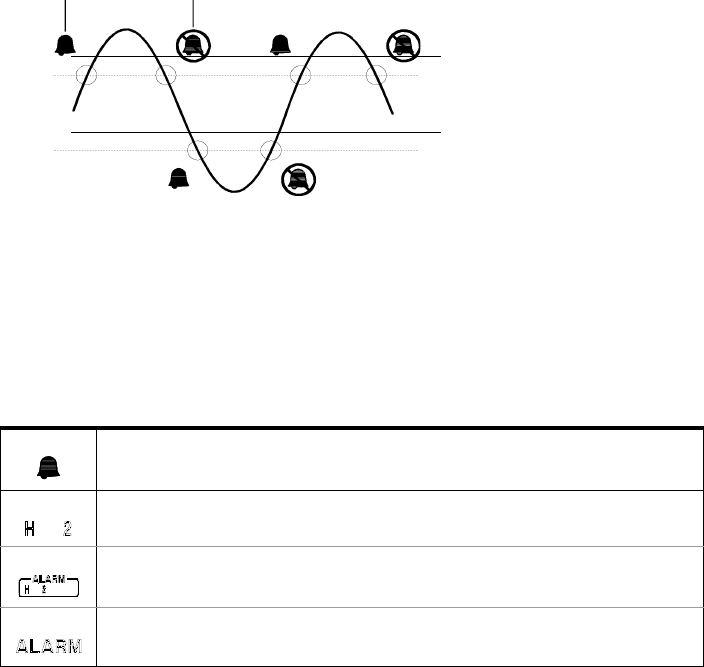
Features and Functions 4
Keysight 34970A/34972A User’s Guide 149
– Alarms are logged in the alarm queue only when a reading crosses a limit, not
while it remains outside the limit and not when it returns to within limits.
– Four TTL alarm outputs are available on the rear-panel Alarms connector. You
can use these hardware outputs to trigger external alarm lights, sirens, or send
a TTL pulse to your control system. You can also initiate a scan sweep (no
external wiring required) when an alarm event is logged on a channel. For
complete details, refer to “Using the Alarm Output Lines” on page 153.
– The following table shows the different combinations of front-panel
annunciators that may appear while using alarms.
– In addition to being stored in reading memory, alarms are also recorded in
their own SCPI status system. You can configure the instrument to use the
status system to generate a Service Request (SRQ) when alarms are
generated. See the Keysight 34970A/34972A Programmer’s Reference Help
for more information.
An alarm is enabled on the displayed channel.
The indicated HI or LO limit is being configured on the indicated alarm (shown while in the
Alarm menu).
An alarm has occurred on one or more channels. The behavior of the alarm output lines
tracks the alarm annunciators on the front panel.
The alarm output lines have been cleared but alarms remain in the queue.
Alarm Event No Alarm
Upper Limit
Lower Limit

4 Features and Functions
150 Keysight 34970A/34972A User’s Guide
– The default values for the upper and lower alarm limits are “0”. The lower limit
must always be less than or equal to the upper limit, even if you are using only
one of the limits.
– For details on configuring alarms on the multifunction module, see “Using
Alarms With the Multifunction Module” on page 155.
– A Factory Reset (*RST command) clears all alarm limits and turns off all
alarms. An Instrument Preset (SYSTem:PRESet command) or Card Reset
(SYSTem:CPON command) does not clear the alarm limits and does not turn off
alarms.
–Front-Panel Operation: To select the alarm for use on the active channel,
choose from the following items.
NO ALARM , USE ALARM 1 , ... USE ALARM 4
Then, choose from the following alarm conditions.
HI+LO ALARMS , HI ALARM ONLY , LO ALARM ONLY
Then, set the desired limit values and exit the menu. Note that the instrument
does not start evaluating the alarm conditions until you exit the Alarm menu.
–Remote Interface Operation: To assign the alarm number to report any alarm
conditions on the specified channels, use the following command (if not
assigned, all alarms on all channels are reported on Alarm 1 by default).
OUTPUT:ALARM2:SOURCE (@103,212)
– To set the upper and lower alarm limits on the specified channels, use the
following commands.
CALC:LIMIT:UPPER 5.25,(@103,212)
CALC:LIMIT:LOWER 0.025,(@103,212)
– To enable the upper and lower alarm limits on the specified channels, use the
following commands.
CALC:LIMIT:UPPER:STATE ON,(@103,212)
CALC:LIMIT:LOWER:STATE ON,(@103,212)
Features and Functions 4
Keysight 34970A/34972A User’s Guide 151
Viewing stored alarm data
If an alarm occurs on a channel as it is being scanned, then that channel’s alarm
status is stored in reading memory as the readings are taken. As alarm events are
generated, they are also logged in an alarm queue, which is separate from reading
memory. This is the only place where non-scanned alarms get logged (alarms
during a monitor, alarms generated by the multifunction module, etc.).
– You can store up to 50,000 readings in memory during a scan. You can read
the contents of reading memory at any time, even during a scan. Reading
memory is not cleared when you read it.
– Each time you start a new scan, the instrument clears all readings (including
alarm data) stored in reading memory from the previous scan. Therefore, the
contents of memory are always from the most recent scan.
– Up to 20 alarms can be logged in the alarm queue. If more than 20 alarms are
generated, they will be lost (only the first 20 are saved).
– The alarm queue is cleared by the *CLS (clear status) command, when power
is cycled, and by reading all of the entries. A Factory Reset (*RST command) or
Instrument Preset (SYSTem:PRESet command) does not clear the alarm
queue.
–Front-Panel Operation: From the front panel, you can view the first 20 alarms
in the queue. After turning the knob to the desired channel, press and
to view either the alarm reading or the time that the alarm occurred. Notice
that the annunciators indicate which alarm is being viewed.
ALARMS
–Remote Interface Operation: The following command reads data from the
alarm queue (one alarm event is read and cleared each time this command is
executed).
SYSTEM:ALARM?
NOTE
The alarm queue is cleared when you read the alarms.
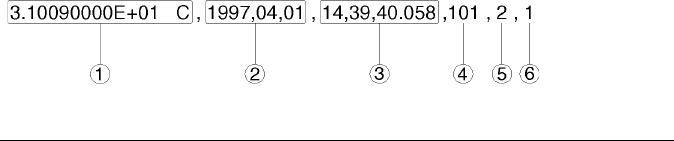
4 Features and Functions
152 Keysight 34970A/34972A User’s Guide
The following is an example of an alarm stored in the alarm queue (if no alarm
data is in the queue, the command returns “0” for each field).
The following command retrieves scanned readings and alarm data from
reading memory (the readings are not erased).
FETCH?
11 Reading with Units (31.009 °C)
22 Date (May 1, 1997)
33 Time (2:39:40.058 PM)
44 Channel Number
55 Limit Threshold Crossed
(0 = No Alarm, 1 = LO, 2 = HI)
66 Alarm Number Reported
(1, 2, 3, or 4)
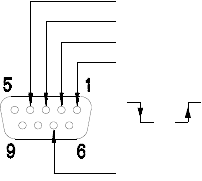
Features and Functions 4
Keysight 34970A/34972A User’s Guide 153
Using the alarm output lines
Four TTL alarm outputs are available on the rear-panel Alarms connector. You can
use these hardware outputs to trigger external alarm lights, sirens, or send a TTL
pulse to your control system. You can assign an alarm to any configured channel
and multiple channels can be assigned to the same alarm number. Each alarm
output line represents the logical “OR” of all channels assigned to that alarm
number (an alarm on any of the associated channels will pulse the line).
You can configure the behavior of the alarm output lines as described below. The
behavior of the alarm annunciators on the front panel also tracks the alarm output
configuration. The configuration that you select is used for all four alarm output
lines. A Factory Reset (*RST command) clears all four alarm outputs but does not
clear the alarm queue in either configuration.
–Latch Mode: In this mode, the corresponding output line is latched true when
the first alarm occurs and remains asserted until you clear it by initiating a new
scan or cycling power. You can manually clear the output lines at any time
(even during a scan) and the alarm data in memory is not cleared (however,
data is cleared when you initiate a new scan).
–Track Mode: In this mode, the corresponding output line is asserted only when
a reading crosses a limit and remains outside the limit. When a reading returns
to within limits, the output line is automatically cleared. You can manually
clear the output lines at any time (even during a scan) and the alarm data in
memory is not cleared (however, data is cleared when you initiate a new scan).
The alarm outputs are also cleared when you initiate a new scan.
Alarms Connector
or
Alarm 4 Output
Alarm 3 Output
Alarm 2 Output
Alarm 1 Output
Gnd
4 Features and Functions
154 Keysight 34970A/34972A User’s Guide
– You can control the slope of the pulse from the alarm outputs (the selected
configuration is used for all four outputs). In the falling edge mode, 0V (TTL
low) indicates an alarm. In the rising edge mode, +5V (TTL high) indicates an
alarm. A Factory Reset (*RST command) will reset the slope to falling edge.
.
–Front-Panel Operation: To specify if you want to manually clear all four alarm
outputs, choose from the following items.
DO NOT CLEAR , CLEAR OUTPUTS
To select the output configuration for all four output lines, choose from the
following items.
LATCH ON FAIL , TRACK PASS/F
To configure the slope of all four output lines, choose from the following items.
FAIL = HIGH , FAIL = LOW
–Remote Interface Operation: To clear the specified output lines (or to clear all
four lines), use one of the following commands.
To select the output configuration for all four output lines, use the following
command.
OUTPut:ALARm:MODE {LATCh|TRACk}
To configure the slope of all four output lines, use the following command.
OUTPut:ALARm:SLOPe {NEGative|POSitive}
Falling Edge Rising Edge
NOTE
Changing the slope of the output lines may cause the lines to change state
OUTPUT:ALARM2:CLEAR Clear alarm output line 2
OUTPUT:ALARM:CLEAR:ALL Clear all four alarm outputs
Features and Functions 4
Keysight 34970A/34972A User’s Guide 155
Using alarms with the multifunction module
You can configure the instrument to generate an alarm when a specific bit pattern
or bit pattern change is detected on a digital input channel or when a specific
count is reached on a totalizer channel. These channels do not have to be part of
the scan list to generate an alarm. Alarms are evaluated continuously as soon as
you enable them.
– The digital input channels are numbered “s01” (lower byte) and “s02” (upper
byte), where s represents the slot number. The totalizer channel is numbered
“s03”.
– Alarms are evaluated continuously on the multifunction module, but alarm
data is stored in reading memory only during a scan.
– Each time you start a new scan, the instrument clears all readings (including
alarm data) stored in reading memory from the previous scan. However, alarm
data stored in the alarm queue from the multifunction module is not cleared.
Therefore, although the contents of reading memory are always from the most
recent scan, the alarm queue may contain data that occurred during previous
scans or while the instrument was not scanning.
–Front-Panel Operation: To configure an alarm on a digital input channel,
choose from the following items and then set the desired bit pattern. Set each
bit to “0”, “1”, or “X” (don’t care). You can either specify that an alarm will
occur when certain bits change or when a specific 8-bit pattern is read.
NOT PATTERN , PATTERN MATCH
To configure an alarm on a totalizer channel, select a high limit and then set
the desired count for the selected alarm.
HI ALARM ONLY
00X10010 BIN
Bit 7 Bit 0
4 Features and Functions
156 Keysight 34970A/34972A User’s Guide
–Remote Interface Operation (Digital Input Channel): To assign the alarm
number to report any alarm conditions on the specified digital input channels,
use the following command.
OUTPut:ALARm[1|2|3|4]:SOURce (@<ch_list>)
To configure alarms on the specified digital input channel, use the following
commands (also see the example on the following page).
CALCulate
:COMPare:TYPE {EQUal|NEQual}[,(@<ch_list>)]
:COMPare:DATA <data>[,(@<ch_list>)]
:COMPare:MASK <mask>[,(@<ch_list>)]
Select EQUal to generate an alarm when the data read from the port is equal
to CALC:COMP:DATA after being masked by CALC:COMP:MASK. Select NEQual
(not equal) to generate an alarm when the data read from the port is not equal
to CALC:COMP:DATA after being masked by CALC:COMP:MASK.
Use CALC:COMP:MASK to designate the “don’t care” bits. Bits that you set to
“0” in the mask are ignored.
To enable the specified alarm mode, send the following command.
CALCulate:COMPare:STATe ON [,(@<ch_list>)]
Example: Configuring an Alarm on a Digital Input
Assume that you want to generate an alarm when a binary pattern of “1000” is
read on the upper four bits of port 1. Send the following commands to
configure the port for an alarm.
CALC:COMP:TYPE EQUAL,(@301)
CALC:COMP:DATA 128,(@301)
CALC:COMP:MASK 240,(@301)
OUTPUT:ALARM2:SOURCE (@301)
CALC:COMP:STATE ON,(@301)

Features and Functions 4
Keysight 34970A/34972A User’s Guide 157
Here are the calculations used to evaluate the alarm (assume that a decimal
146 was read from the port):
Since the calculations produce a non-zero result (decimal 16), an alarm is not
generated in this example.
–Remote Interface Operation (Totalizer Channel): To assign the alarm number
to report any alarm conditions on the specified totalizer channels, use the
following command.
OUTPut:ALARm[1|2|3|4]:SOURce (@<ch_list>)
To configure an alarm on a totalizer channel, specify the desired count as the
upper limit using the following command.
CALCulate:LIMit:UPPer <count>[,(@<ch_list>)]
To enable the upper limit on the specified totalizer channel, use the following
command.
CALCulate:LIMit:UPPer:STATe ON [,(@<ch_list>)]
ABX-OR
000
011
101
110
1 0 0 1 0 0 1 0
1 0 0 0 0 0 0 0
0 0 0 1 0 0 1 0
1 1 1 1 0 0 0 0
Bit 7 Bit 0
Data read from port (decimal 146)
CALC:COMP:DATA command (decimal 128)
“X-OR” result
CALC:COMP:MASK command (decimal 240)
“AND” result (no alarm generated)
ABAND
000
010
100
111

4 Features and Functions
158 Keysight 34970A/34972A User’s Guide
Digital Input Operations
The multifunction module (34907A) has two non-isolated 8-bit input/output ports
which you can use for reading digital patterns. You can read the live status of the
bits on the port or you can configure a scan to include a digital read.
– The digital input channels are numbered “s01” (lower byte) and “s02” (upper
byte), where s represents the slot number.
– You can generate an alarm when a specific bit pattern or bit pattern change is
detected on an input channel. With the multifunction module, the channels do
not have to be part of the scan list to generate an alarm. For more information,
see “Using Alarms With the Multifunction Module” on page 155.
– When you add a digital read to a scan list, that port is dedicated to the scan.
The instrument issues a Card Reset to make that port an input port (the other
port is not affected). While included in the scan list, you can still perform
low-level read operations on the port, but you cannot perform write operations
on the port.
– From the front panel, you can read data from only one 8-bit input port at a
time. From the remote interface, you can read both ports simultaneously as a
16-bit word only if neither port is in the scan list. If one or both ports are
included in the scan list, you can read only one 8-bit port at a time. However, if
you have included both ports in the scan list, the data will be read from both
ports simultaneously and will have the same time stamp. Therefore, you can
externally combine the two 8-bit quantities into a 16-bit quantity.
– From the front-panel only, you can specify whether you want to use binary or
decimal format (readings are always stored in memory in decimal format).
Once you have selected the number base, it is used for all input or output
operations on the same port.
– You can monitor a digital input channel even if the channel is not part of the
scan list (the internal DMM is not required either).
– A Factory Reset (*RST command), Instrument Preset (SYSTem:PRESet
command), and Card Reset (SYSTem:CPON command) from the remote
interface will reconfigure both ports as input ports.
NOTE
Note that a from the front panel resets only the port currently selected
(both ports are not reset).
Features and Functions 4
Keysight 34970A/34972A User’s Guide 159
–Front-Panel Operation: After selecting the port, press to read the bit
pattern (the least significant bit is on the right). The bit pattern read from the
port will be displayed until you press another key, turn the knob, or until the
display times out.
To add a digital read to a scan list, choose the following item.
DIO READ
From the front-panel only, you can specify whether you want to use binary or
decimal format.
USE DECIMAL , USE BINARY
–Remote Interface Operation: From the remote interface, you can read an 8-bit
byte from one port or a 16-bit word from both ports using the following
commands. If you are going to read both ports simultaneously, you must send
the command to port 01 and neither port can be included in the scan list
To redefine the scan list to include a digital read (8-bit read only), send the
following command.
SENS:DIG:DATA:BYTE? (@302) Read port 02
SENS:DIG:DATA:WORD? (@301) Read both ports together
CONF:DIG:BYTE (@302) Add port 02 read to scan list
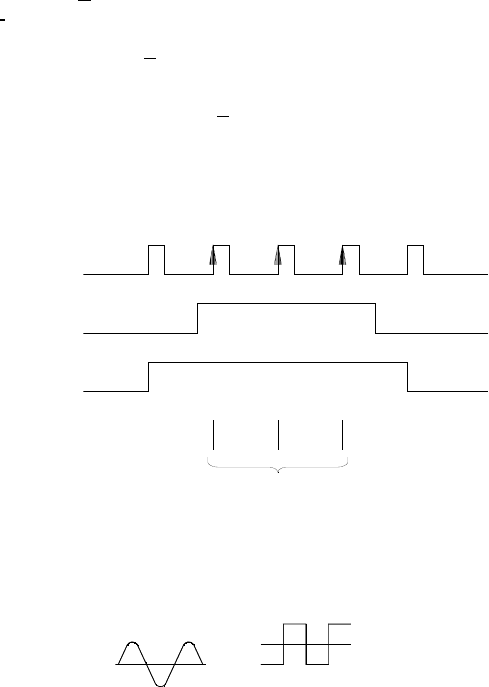
4 Features and Functions
160 Keysight 34970A/34972A User’s Guide
Totalizer Operations
The multifunction module has a 26-bit totalizer which can count TTL pulses at a
100 kHz rate. You can manually read the totalizer count or you can configure a
scan to read the count.
– The totalizer channel is numbered “s03”, where s represents the slot number.
– You can configure the instrument to count on the rising edge or falling edge of
the input signal.
– You can control when the totalizer actually records counts by providing a gate
signal (G and terminals on the module). A TTL high signal applied to the
“G” terminal enables counting and a low signal disables counting. A TTL low
signal applied to the “ ” terminal enables counting and a high signal disables
counting. The totalizer only counts when both terminals are enabled. You can
use either the G terminal, the terminal, or both. When a gate is not
connected, the gate terminal floats to the enabled state, effectively creating a
“gate always” condition.
– Using the hardware jumper labeled “Totalize Threshold” on the module, you
can control the threshold at which an edge is detected. Move the jumper to the
“AC” position to detect changes through 0 volts. Move the jumper to the “TTL”
position (factory setting) to detect changes through TTL threshold levels.
G
G
G
Input Signal
(Rising Edge)
Gate Signal
Totalizer Input
(High True)
Add to Total
2.5 V Threshold (TTL)
0 V Threshold (AC)
Features and Functions 4
Keysight 34970A/34972A User’s Guide 161
The maximum count is 67,108,863 (226 -1). The count rolls over to “0” after
reaching the maximum allowed value.
– You can configure the totalizer to reset its count after it is read without losing
any counts (TOTalize:TYPE RRESet command). Then, if the totalizer is
included in a scan list, the count will be reset on every scan sweep. The count
is also reset whenever it is read directly by pressing from the front panel
or when sending the SENSe:TOTalize:DATA? command.
– You can configure the instrument to generate an alarm when a specific count
is reached on a totalizer channel. These channels do not have to be part of the
scan list to generate an alarm. Alarms are evaluated continuously as soon as
you enable them. For more information, see “Using Alarms With the
Multifunction Module” on page 155.
– You can monitor a totalizer channel even if the channel is not part of the scan
list (the internal DMM is not required either). The count on a totalizer channel
is not reset when it is being monitored (the Monitor ignores the totalizer reset
mode).
– A Factory Reset (*RST command), Instrument Preset (SYSTem:PRESet
command), and Card Reset (SYSTem:CPON command) reset the count to “0”.
–Front-Panel Operation: After selecting the totalizer, press to read the
count. If you have selected the READ+ RESET mode, the count is reset each
time it is read. The count is displayed until you press another key, turn the
knob, or until the display times out.
To configure the totalizer reset mode, choose from the following items.
READ , READ + RESET
To configure the totalizer to count on the falling edge or rising edge of the
input signal, choose from the following items.
COUNT FALLING , COUNT RISING
– To add a totalizer read to a scan list, choose the following item.
TOT READ
4 Features and Functions
162 Keysight 34970A/34972A User’s Guide
–Remote Interface Operation: To read the count from the specified totalizer
channel, send the following command. The count may be returned with time
stamp, channel number, and alarm status information depending on the
FORMat:READing command setting (see “Reading Format” on page 114 for
more information).
SENS:TOT:DATA? (@303)
To configure the totalizer reset mode, send either of the following commands
(RRESet means “read and reset”).
SENSe:TOTalize:TYPE {READ|RRESet}[,(@<ch_list>)]
CONFigure:TOTalize {READ|RRESet} ,(@<scan_list>)
To configure the totalizer to count on the falling edge (negative) or rising edge
(positive) of the input signal, send the following command.
SENSe:TOTalize:SLOPe {NEG|POS} ,[(@<ch_list>)]
To immediately clear the count on the specified totalizer channel (whether
scanning or not), send the following command.
SENSe:TOTalize:CLEar:IMMediate [(@<ch_list>)]
Features and Functions 4
Keysight 34970A/34972A User’s Guide 163
Digital Output Operations
The multifunction module (34907A) has two non-isolated 8-bit input/output ports
which you can use for outputting digital patterns.
– The digital output channels are numbered “s01” (lower byte) and “s02” (upper
byte), where s represents the slot number.
– You cannot configure a port for output operations if that port is already
configured to be part of the scan list (digital input).
– From the front panel, you can write to one 8-bit output port at a time. From the
remote interface, you can write to both ports simultaneously.
– From the front-panel only, you can specify whether you want to use binary or
decimal format. Once you have selected the number base, it is used for all
input or output operations on the same port.
– A Factory Reset (*RST command), Instrument Preset (SYSTem:PRESet
command), and Card Reset (SYSTem:CPON command) from the remote
interface will reconfigure both ports as input ports.
–Front-Panel Operation: After selecting the output port, press to edit the
bit pattern or decimal value (the least significant bit is on the right). Press
again to output the bit pattern. To cancel an output operation in
progress, wait for the display to time out.
From the front-panel only, you can specify whether you want to use binary or
decimal format.
USE DECIMAL , USE BINARY
NOTE
A from the front panel resets only the port currently selected (both ports
are not reset).
4 Features and Functions
164 Keysight 34970A/34972A User’s Guide
–Remote Interface Operation: From the remote interface, you can output an
8-bit byte to one port or a 16-bit word to both ports simultaneously using the
following commands. You must specify a decimal value (binary data is not
accepted). If you are going to read both ports simultaneously, you must send
the command to port 01.
SOUR:DIG:DATA:BYTE 10 ,(@302) Write to port 02
SOUR:DIG:DATA:WORD 10327 ,(@301) Write to both ports
Features and Functions 4
Keysight 34970A/34972A User’s Guide 165
DAC Output Operations
The multifunction module (34907A) has two low-noise analog outputs capable of
outputting calibrated voltages between ±12 volts with 16 bits of resolution. Each
DAC (Digital-to-Analog Converter) channel can be used as a programmable
voltage source for analog input control of other devices.
– On the multifunction module, the DAC channels are numbered “s04” and
“s05”, where s represents the slot number.
– You can set the output voltage to any value between +12 VDC and -12 VDC, in
1 mV steps. Each DAC is earth referenced; it cannot float.
– Each DAC channel is capable of 10 mA maximum output current.
– A Factory Reset (*RST command), Instrument Preset (SYSTem:PRESet
command), and Card Reset (SYSTem:CPON command) from the remote
interface will reset both DACs to 0 VDC.
–Front-Panel Operation: After selecting the desired DAC, press to edit the
output voltage. Press again to output the specified voltage from the DAC
channel.
–Remote Interface Operation: The following command outputs +2.5 VDC from
the DAC on channel 05.
SOURCE:VOLT 2.5,(@305)
NOTE
You must limit the output current to 40 mA total for all three slots (six DAC
channels).
NOTE
A from the front panel resets only the DAC currently selected (both
channels are not reset).
4 Features and Functions
166 Keysight 34970A/34972A User’s Guide
System-Related Operations
This section gives information on system-related topics such as storing
instrument states, reading errors, running a self-test, displaying messages on the
front panel, setting the system clock, disabling the internal DMM, reading the
firmware revisions, and reading the relay cycle count.
State storage
The instrument has six storage locations in non-volatile memory to store
instrument states. The locations are numbered 0 through 5. The instrument uses
location “0” to automatically hold the state of the instrument at power down. You
can also assign a name to each of the locations (1 through 5) for use from the
front panel.
– You can store the instrument state in any of the six locations. However, you
can only recall a state from a location that contains a previously stored state.
You can use location “0” to store a sixth instrument state. However, keep in
mind that location “0” is automatically overwritten when power is cycled.
– The instrument stores the state of all modules including all channel
configurations, scanning setups, alarm values, and scaling values.
– When shipped from the factory, storage locations “1” through “5” are empty
(location “0” has the power-on state).
– When shipped from the factory, the instrument is configured to automatically
recall the power-down state (state “0”) when power is restored. You can
change the factory configuration such that a Factory Reset (*RST command) is
issued when power is restored.
– Before recalling a stored state, the instrument verifies that the same module
types are installed in each slot. If a different module type is installed, the
instrument will perform the equivalent of a Card Reset (SYSTem:CPON
command) on that slot.
– You can assign a name to the storage locations (you cannot assign a name to
location “0”). You can name a location from the front panel or over the remote
interface but you can only recall a named state from the front panel. From the
remote interface, you can only recall a stored state using a number (0 through
5).
Features and Functions 4
Keysight 34970A/34972A User’s Guide 167
– The name can contain up to 12 characters. The first character must be a letter
(A-Z), but the remaining 11 characters can be letters, numbers (0-9), or the
underscore character (“ _ ”). Blank spaces are not allowed. An error is
generated if you specify a name with more than 12 characters.
– A Factory Reset (*RST command) does not affect the configurations stored in
memory. Once a state is stored, it remains until it is overwritten or specifically
deleted.
–Front-Panel Operation:
NAME STATE , STORE STATE , RECALL STATE
After recalling a stored state, you will notice that a new choice
(UNDO RECALL) is added under RECALL STATE. This allows you to cancel the
last recall operation and revert to the previous state. You can also select
LAST PWR DOWN to recall the state of the instrument at the power-down.
To configure the instrument to recall the power-down state or issue a Factory
Reset when power is restored, select from the following.
PWR ON LAST , PWR ON RESET
–Remote Interface Operation: Use the following commands to store and recall
instrument states (state “0” is the state of the instrument at power down).
*SAV {0|1|2|3|4|5}
*RCL {0|1|2|3|4|5}
To assign a name to a stored state to be recalled from the front panel, send the
following command. From the remote interface, you can only recall a stored
state using a number (0 through 5).
MEM:STATE:NAME 1,TEST_RACK_1
To configure the instrument to automatically issue a Factory Reset (*RST
command) when power is restored, send the following command.
MEMory:STATe:RECall:AUTO OFF
4 Features and Functions
168 Keysight 34970A/34972A User’s Guide
Error conditions
When the front-panel ERROR annunciator turns on, one or more command
syntax or hardware errors have been detected. A record of up to 10 errors
(34970A) or 20 errors (34972A) is stored in the instrument’s error queue. See
Chapter 5 for a complete listing of the errors.
– Errors are retrieved in first-in-first-out (FIFO) order. The first error returned is
the first error that was stored. Errors are cleared as you read them. When you
have read all errors from the queue, the ERROR annunciator turns off and the
errors are cleared. The instrument beeps once each time an error is generated.
– If more than 10 errors (34970A) or 20 errors (34972A) have occurred, the last
error stored in the queue (the most recent error) is replaced with “Error queue
overflow”. No additional errors are stored until you remove errors from the
queue. If no errors have occurred when you read the error queue, the
instrument responds with “No error”.
– The error queue is cleared by the *CLS (clear status) command or when
power is cycled. The errors are also cleared when you read the queue. The
error queue is not cleared by a Factory Reset (*RST command) or an
Instrument Preset (SYSTem:PRESet command).
–Front-Panel Operation:
ERRORS
If the ERROR annunciator is on, press to view the error. Use the knob to
scroll through the error numbers. Press to view the text of the error
message. Press again to increase the scrolling speed (the final key press
cancels the scroll). All errors are cleared when you exit the menu.
–Remote Interface Operation:
Errors have the following format (the error string may contain up to 80
characters):
-113,"Undefined header"
SYSTem:ERRor? Read and clear one error from the queue

Features and Functions 4
Keysight 34970A/34972A User’s Guide 169
Self-test
A power-on self-test occurs automatically when you turn on the instrument. This
limited test assures you that the instrument and all installed plug-in modules are
operational. This self-test does not perform the extensive set of tests that are
included as part of the complete self-test described below.
A complete self-test runs a series of tests and takes approximately 20 seconds to
execute. If all tests pass, you can have a high confidence that the instrument and
all installed plug-in modules are operational.
– If the complete self-test is successful, PASS is displayed on the front panel. If
the self-test fails, FAIL is displayed and the ERROR annunciator turns on. See
the 34970A/34972A Service Guide for instructions on returning the instrument
to Keysight for service.
–Front-Panel Operation: To perform the complete front-panel self-test, hold
down as you turn on the instrument and hold down the key until you
hear a long beep. The self-test will begin when you release the key following
the beep.
–Remote Interface Operation:
*TST?
Returns “0” if the self-test is successful or “1” if it fails.
4 Features and Functions
170 Keysight 34970A/34972A User’s Guide
Display control
For security reasons or for a slight increase in scanning rates, you may want to
turn off the front-panel display. From the remote interface, you can also display a
13-character message on the front-display.
– You can only disable the front-panel display by sending a command from the
remote interface (you cannot disable the front panel while in local operation).
– When disabled, the entire front-panel display goes blank and all display
annunciators except ERROR are disabled. All keys except are locked out
when the display is disabled.
– The display is automatically enabled when power is cycled, after a Factory
Reset (*RST command), or when you return to local by pressing .
– You can display a message on the front panel by sending a command from the
remote interface. The instrument can display up to 13 characters on the front
panel; if you attempt to send more than 13 characters, an error is generated.
You can use letters (A-Z), numbers (0-9), and special characters like “
@
”, “%”,
“*”, etc. Use the “#” character to display a degree symbol ( ° ). Commas,
periods, and semicolons share a display space with the preceding character,
and are not considered individual characters. While a message is displayed on
the front panel, readings from a scan or monitor are not sent to the display.
– Sending a message to the display from the remote interface overrides the
display state; this means that you can display a message even if the display is
turned off.
–Remote Interface Operation: The following command turns off the front panel
display.
DISPLAY OFF
The following command displays a message on the front panel and turns on
the display if disabled.
DISP:TEXT ’SCANNING ...’
To clear the message displayed on the front panel (without changing the
display state), send the following command.
DISPLAY:TEXT:CLEAR

Features and Functions 4
Keysight 34970A/34972A User’s Guide 171
Real-time system clock
During a scan, the instrument stores all readings and alarms with the current time
and date. The instrument stores the time and date information in non-volatile
memory.
– When shipped from the factory, the instrument is set to the current time and
date (U.S. Mountain Time).
–Front-Panel Operation:
TIME 03:45 PM
J
UN 01 1997
–Remote Interface Operation: Use the following commands to set the time and
date.
Internal DMM disable
You can scan through the configured channels using either the internal DMM or
an external instrument. For externally-controlled scans, you must either remove
the internal DMM from the instrument or
– For information on controlling a scan with an external instrument, refer to
“Scanning with External Instruments” on page 121.
– When shipped from the factory, the internal DMM is enabled. When you
change the state of the internal DMM, the instrument issues a Factory Reset
(*RST command).
– A Factory Reset (*RST command) or Instrument Preset (SYSTem: PRESet
command) does not affect the internal DMM configuration.
–Front-Panel Operation:
DMM ENABLED , DMM DISABLED
– Remote Interface Operation:
INSTrument:DMM {OFF|ON}
SYST:TIME 15,45,00 Set time to 3:45 PM
SYST:DATE 1997,06,01 Set date to June 1, 1997

4 Features and Functions
172 Keysight 34970A/34972A User’s Guide
Firmware revision query
The instrument has three microprocessors for control of various internal systems.
Each plug-in module also has its own on-board microprocessor. You can query
the instrument and each module to determine which revision of firmware is
installed for each microprocessor.
– The instrument returns three revision numbers. The first number is the
firmware revision number for the measurement processor; the second is the
input/output processor; and the third is the front-panel display processor. For
each plug-in module, the instrument returns one revision number for the
on-board processor.
–Front-Panel Operation:
REV X.X-Y.Y-Z.Z (for 34970A)
REV X.XX-Y.YY-Z (for 34972A)
Turn the knob to read the firmware revision number for the module installed in
each of the three slots. If a slot does not contain a module, EMPTY SLOT is
displayed.
–Remote Interface Operation: Use the following command to read the system
firmware revision numbers (be sure to dimension a string variable with at least
40 characters).
*IDN?
The above command returns a string in the form:
Keysight Technologies,34970A,0,X.X-Y.Y-Z.Z
Keysight Technologies,34972A,0,I.II-O.OO-FP-FPGA
See the Keysight 34970A/34972A Programmer’s Reference Help for details.
Use the following command to read the firmware revision number of the module in
the specified slot (be sure to dimension a string variable with at least 30
characters).
SYSTem:CTYPe? {100|200|300}
This command returns a string in the form:
Keysight Technologies,34901A,0,X.X
(for 34970A)
Keysight Technologies,0,0,0
(for 34970A)
See the Keysight 34970A/34972A Programmer’s Reference Help for details.

Features and Functions 4
Keysight 34970A/34972A User’s Guide 173
Relay cycle count
The instrument has a Relay Maintenance System to help you predict relay
end-of-life. The instrument counts the cycles on each relay in the instrument and
stores the total count in non-volatile memory on each switch module. You can use
this feature on any of the relay modules and the internal DMM.
– In addition to the channel relays, you can also query the count on backplane
relays and bank relays. Note that you cannot control the state of these relays
from the front panel but you can query the count. For more information on
channel numbering and layout, refer to “Module Overview” starting on page
205.
– You can also query the state of the three relays on the internal DMM. These
relays are numbered “1”, “2”, and “3” (which correspond to relays K102, K103,
and K104 respectively). These relays open or close when a function or range is
changed on a module.
– The 34908A multiplexer contains 40 channels which are switched (HI only)
using only 20 relays. Each relay is used to switch HI on two different channels
(and only one channel can be closed at a time). The channels are arranged
such that channels 01 and 21 use different contacts on the same relay. The
remaining channels are also paired in the same manner (channels 02 and 22,
channels 03 and 23, etc.). Therefore, when you query the relay count on a
channel, the number reflects the number of times that the relay was closed.
For example, the relay count will always be the same on channels 01 and 21.
– You can reset the count (allowed only from remote) but the instrument must be
unsecured (see “Calibration Overview” on page 194 to unsecure the
instrument).
– For more information on relay life and load considerations, refer to “Relay Life
and Preventive Maintenance” starting on page 329.
–Front-Panel Operation: To read the count on the active channel, choose the
following item and then turn the knob. To read the count on the internal DMM
relays, turn the knob counterclockwise beyond the lowest numbered channel
in the instrument. To read the “hidden” backplane and bank relays, turn the
knob clockwise beyond the highest numbered channel in the current slot.
RELAY CYCLES
4 Features and Functions
174 Keysight 34970A/34972A User’s Guide
–Remote Interface Operation: To read the relay count on either the internal
DMM (all three relays) or the specified module channels, send the following
commands.
DIAG:DMM:CYCLES?
DIAG:RELAY:CYCLES? (@305,399)
To clear the count on either the specified internal DMM relay or the specified
module channels (the instrument must be unsecured), send the following
commands.
DIAG:DMM:CYCLES:CLEAR 2
DIAG:RELAY:CYCLES:CLEAR (@305,399)
Features and Functions 4
Keysight 34970A/34972A User’s Guide 175
Single-Channel Monitoring
In the Monitor function, the instrument takes readings as often as it can on a
single channel, even during a scan. This feature is useful for troubleshooting your
system before a test or for watching an important signal.
Any channel that can be “read” by the instrument can be monitored. This includes
any combination of temperature, voltage, resistance, current, frequency, or period
measurements on multiplexer channels. You can also monitor a digital input port
or the totalizer count on the multifunction module. Monitoring is not allowed with
the actuator module, the matrix module, or the RF multiplexer modules.
– The Monitor function is equivalent to making continuous measurements on a
single channel with an infinite scan count. Only one channel can be monitored
at a time but you can change the channel being monitored at any time.
– Readings acquired during a Monitor are not stored in memory but they are
displayed on the front panel (however, all readings from a scan in progress at
the same time are stored in memory).
– Mx+B scaling and alarm limits are applied to the selected channel during a
Monitor and all alarm data is stored in the alarm queue (which will be cleared if
power fails).
– A scan in progress always has priority over the Monitor function. The
instrument will take at least one monitor reading per scan sweep and will take
more as time permits.
– You can monitor a multiplexer channel only if the internal DMM is installed and
enabled (see “Internal DMM Disable” on page 171). The channel must also be
configured to be part of the scan list.
– You can monitor a digital input channel or totalizer channel even if the channel
is not part of the scan list (the internal DMM is not required either). The count
on a totalizer channel is not reset when it is being monitored (the Monitor
ignores the totalizer reset mode).
– In the Alarm Scan configuration (see “Scanning on Alarm” on page 110), the
instrument sweeps the scan list once each time a reading crosses an alarm
limit on a channel. In this configuration, you may use the Monitor function to
continuously take readings on a selected channel and wait for an alarm on that
channel. The monitored channel can be part of the scan list but you can also
use a channel on the multifunction module (which does not have to be part of
the scan list and you do not have to use the Monitor function).
4 Features and Functions
176 Keysight 34970A/34972A User’s Guide
–Front-Panel Operation: To start a Monitor, press . Turn the knob to
advance to the desired channel. The instrument begins monitoring after you
pause for a few seconds on a configured channel.
– To stop a Monitor press again. Note that while the instrument is in the
remote mode, you can still turn on the Monitor function and select the desired
channel.
–Remote Interface Operation: The following program segment selects the
channel to be monitored (specify only one channel) and enables the Monitor
function.
ROUT:MON (@101)
ROUT:MON:STATE ON
To read the monitor data from the selected channel, send the following
command. This command returns the reading only; the units, time, channel,
and alarm information are not returned (the FORMat:READing commands do
not apply to monitor readings.
ROUT:MON:DATA?
SCPI language version query
The instrument complies with the rules and conventions of the present version of
SCPI (Standard Commands for Programmable Instruments). You can determine
the SCPI version with which the instrument is in compliance by sending a
command from the remote interface.
You cannot query the SCPI version from the front panel.
– The following command returns the SCPI version.
SYSTem:VERSion?
Returns a string in the form “YYYY.V”, where “YYYY” represents the year of the
version, and “V” represents a version number for that year (for example, 1994.0).
Features and Functions 4
Keysight 34970A/34972A User’s Guide 177
Mass Memory (USB) Subsystem - 34972A
This section gives information on the mass memory subsystem (34972A only). The
mass memory subsystem enables you to capture data to, or import an instrument
configuration from a USB drive connected to the instrument’s USB port.
General capabilities
The mass memory subsystem suppports the following capabilities:
1Automatic streaming of scanned data to USB drive during scan.
– Files are automatically named.
– Data is logged to USB drive and reading memory simultaneously. Most
internal operations of the instrument continue to operate on reading
memory.
– If you are using TRIGger:COUNt INFinity and capturing more than
50,000 readings, reading memory will fill and then overflow, discarding the
oldest data. The USB streaming will continue after reading memory
overflows, allowing you to capture all of the data (up to 232 sweeps, or up
to the limits imposed by the USB drive).
2Copying of data from reading memory to USB drive
– Files are automatically named.
– After a scan finishes, you can export reading memory to your USB drive (up
to 50,000 readings).
3Setup of your instrument based on channel configurations specified in
Keysight BenchLink Data Logger.
– Keysight BenchLink Data Logger allows you save configuration (BLCFG)
files on the USB drive. You can then import the file on the USB drive into
your instrument.
There are two annunciators related to the USB drive:
MEM (on) - Indicates that a USB drive is connected to the 34972A.
MEM (flashing) - Indicates the the USB drive is either streaming data to USB
(logging), copying from reading memory to USB (exporting), or importing a
configuration from Keysight BenchLink Data Logger.
4 Features and Functions
178 Keysight 34970A/34972A User’s Guide
AUTO (on) - Indicates that logging is active.
– To avoid data loss or incomplete instrument configuration, do not remove
the USB drive while MEM is flashing.
4Management of files on the USB drive via File Transfer Protocol (FTP). You
would typically use FTP to download and delete files from the USB drive
attached to the 34972A. A typical FTP session is shown below.
– From a command prompt, enter FTP AAA.BBB.CCC.DDD to start the FTP
session. Use the numbers of your instrument’s IP address in place of
AAA.BBB.CCC.DDD.
– The software will ask for a user name and password. The user name is
Anonymous, and the password is any string, such as xyz.
– Enter the command CD DATA to log onto the USB drive.
– Enter the command DIR to obtain a directory of the USB drive.
– Enter the command CD MY00012345/20091210_134523123 to change to
the directory containing the data you wish to download from the USB drive
to your local computer. Of course, the exact directory name will vary.
– Enter the command ascii to ensure that you transfer the appropriate file
type.
– Enter the command get dat00001.csv to download that specific file, or
enter mget *.csv to download all files ending in CSV. The MEM
annunciator will not flash during the download.
– Enter the command delete data00001.csv to delete a specific file, or
enter mdelete *.csv to delete all files ending in CSV.
– Enter the command quit to leave the FTP session.
Refer to your computer’s FTP documentation for further details.
Features and Functions 4
Keysight 34970A/34972A User’s Guide 179
SCPI commands
This section concentrates on the features available from the front panel; you can
also control the mass memory subsystem with the following SCPI commands:
– MMEMory:FORMat:READing:CSEParator <column_separator>
– MMEMory:FORMat:READing:CSEParator?
– MMEMory:FORMat:READing:RLIMit <row_limit>
– MMEMory:FORMat:READing:RLIMit?
– MMEMory:LOG[:ENABle] <state>
– MMEMory:LOG[:ENABle]?
– MMEMory:EXPort?
– MMEMory:IMPort:CONFiguration? "<configuration_file>"
– MMEMory:IMPort:CATalog?
For more information on the SCPI commands available to program the instrument
over the remote interface, see the MMEMory commands in the Keysight 34970A/
34972A Programmer’s Reference Help.
Folder and file structure
Folder description
Each saved scan will be stored in a top-level folder named:
/34972A/data/[instrument_SN]/[yyyymmdd_hhmmssmmm]
The square brackets ( [ ] ) are not actually part of the directory name, and the
yyyymmdd_hhmmssmmm is a timestamp indicating the approximate start of the
scan. The format is year (yyyy), month (mm), day (dd), underscore (_), hours (hh),
minutes (mm), seconds (ss), and milliseconds (mmm).
For example, the folder named:
/34972A/data/MY00012345/20091210_134523123
would indicate a scan on instrument number MY00012345 that started
approximately 23.123 seconds after 1:45 pm (13:45) on December 10, 2009.
4 Features and Functions
180 Keysight 34970A/34972A User’s Guide
File descriptions
The top level folder described above will contain two types of files. The first is a file
named as follows:
config.csv
This is a text file that documents the instrument configuration for this scan. The
timestamp is as described above. This file lists the configuration of the instrument
in a human readable form.
In addition to the config.csv file, you will have one or more data files named as
follows:
dat#####.csv
If you use the command MMEMory:FORMat:READing:RLIMit OFF, all of the data
will be stored in one file, named dat00001.csv.
You can issue the command MMEMory:FORMat:READing:RLIMit ON to limit the
data to 64K - 1 (65,535) sweeps per file, in which case the sweeps are stored in
multiple files, named dat00001.csv, dat00002.csv, dat00003.csv, and so on.
This is helpful for importing data into spreadsheet or other data analysis software.
Note that some spreadsheet or data analysis software may import the data more
easily if you change the extension from csv to txt. If your software does not
import the file correctly, try changing the extension on the data file.
Features and Functions 4
Keysight 34970A/34972A User’s Guide 181
Contents of data files
Logging into data files is only supported for channels that are in the scan list. The
possible channels are shown in the table below; note that s stands for the slot
number, which is 1, 2, or 3.
For example, the 34901A module supports could have channels 101-120,
201-220, or 301-320.
The format for all USB data files is similar to what Keysight BenchLink Data
Logger produces by default. The default field separator is a comma, but you can
use the following command to specify a different separator.
MMEMory:FORMat:READing:CSEParator {TAB|COMMa|SEMicolon}
Module Description Channels
34901A 20-channel, 2-wire armature multiplexer s01-s20
34902A 16 channel, 2-wire reed multiplexer s01-s16
34907A 2-channel DIO input s01-s02
34907A 1-channel totalizer s03
34908A 40-channel, 1-wire armature multiplexer s01-s40
4 Features and Functions
182 Keysight 34970A/34972A User’s Guide
A sample file is shown below.
– The channel numbers and the associated units are shown in the header row.
– If the row limit feature is ON and the data spills over into multiple files, scan
numbering continues where it left off in the previous file. Thus, the first scan in
the second data file would be number 65,536, the first scan in the third data
file would be number 131,071, and so on.
Sweep # Time Chan 201 (VDC) Chan 202 (VDC)
1 01/26/2009 08:07:12:237 0.36823663 1.23895216
2 01/26/2009 08:07:13:237 0.62819233 0.98372939
3 01/26/2009 08:07:14:237 0.38238212 0.39382906
4 01/26/2009 08:07:15:237 0.46773299 0.55543345
5 01/26/2009 08:07:16:237 1.32323567 0.21213335

Features and Functions 4
Keysight 34970A/34972A User’s Guide 183
USB Drive Front Panel - 34972A
This section gives information on configuring the USB drive with the front panel.
For more information about using the USB drive, see “Mass Memory (USB)
Subsystem - 34972A” on page 177. For more information on the SCPI commands
available to configure the USB drive over the remote interface, see the MMEMory
Subsystem in hte Keysight 34970A/34972A Programmer’s Reference Help.
Setting up automatic logging
You can set up the USB drive for automatic logging of readings.
Front-Panel Operation:
LOG READINGS AUTO/OFF
Exporting readings
You can export readings from reading memory onto the USB drive.
–Front-Panel Operation:
EXPORT READNG YES/NO
Formatting readings
You can control how readings are formatted on the USB drive. In particular, you
can choose whether the readings are stored in one large file (
ROWS/FILE:AUTO)
or in a series of files with 64K - 1 rows per file (
ROWS/FILE:64K)
. You can also
choose whether the files are formatted with a tab, comma or semicolon between
columns.
–Front-Panel Operation:
FORMAT READNG ROWS/FILE:AUTO
FORMAT READNG ROWS/FILE:64K
FORMAT READNG SEP: TAB
FORMAT READNG SEP: COMMA
FORMAT READNG SEP: SEMICOLON

4 Features and Functions
184 Keysight 34970A/34972A User’s Guide
Importing an instrument configuration
You can import an instrument configuration stored in an Keysight BenchLink Data
Logger configuration (BLCFG) file in the root directory of your USB drive.
–Front-Panel Operation:
IMPORT CONFIG

Features and Functions 4
Keysight 34970A/34972A User’s Guide 185
Remote Interface Configuration - 34970A
This section gives information on configuring the 34970A for remote interface
communication. For more information on configuring the instrument from the
front panel, see “To Configure the Remote Interface” starting on page 66. For
more information on the SCPI commands available to program the instrument
over the remote interface, see the Keysight 34970A/34972A Programmer’s
Reference Help.
GPIB address
Each device on the GPIB (IEEE-488) interface must have a unique address. You
can set the instrument’s address to any value between 0 and 30. The address is
set to “9” when the instrument is shipped from the factory. The GPIB address is
displayed at power-on.
You can set the GPIB address from the front panel only.
– The address is stored in non-volatile memory, and does not change when
power has been off, after a Factory Reset (*RST command), or after an
Instrument Preset (SYSTem:PRESet command).
– Your computer’s GPIB interface card has its own address. Be sure to avoid
using the computer’s address for any instrument on the interface bus.
Keysight’s GPIB interface cards generally use address “21”.
–Front-Panel Operation:
ADDRESS 09

4 Features and Functions
186 Keysight 34970A/34972A User’s Guide
Remote interface selection
The 34970A is shipped with both an GPIB (IEEE-488) interface and an RS-232
interface. Only one interface can be enabled at a time. The GPIB interface is
selected when the instrument is shipped from the factory.
– The interface selection is stored in non-volatile memory, and does not change
when power has been off, after a Factory Reset (*RST command), or after an
Instrument Preset (SYSTem:PRESet command).
– If you select the GPIB interface, you must select a unique address for the
instrument. The GPIB address is displayed on the front panel when you turn on
the instrument.
– If you select the RS-232 interface, you must also set the baud rate, parity, and
flow control mode for the instrument. “RS-232” is displayed on the front panel
when you turn on the instrument.
–Front-Panel Operation:
GPIB / 488 , RS-232
–Remote Interface Operation:
SYSTem:INTerface {GPIB|RS232}
Baud rate selection (RS-232)
You can select one of eight baud rates for RS-232 operation. The rate is set to
57,600 baud when the instrument is shipped from the factory.
You can set the baud rate from the front panel only.
– Select one of the following: 1200, 2400, 4800, 9600, 19200, 38400, 57600
(factory setting), or 115200 baud.
– The baud rate selection is stored in non-volatile memory, and does not change
when power has been off, after a Factory Reset (*RST command), or after an
Instrument Preset (SYSTem:PRESet command).
–Front-Panel Operation:
19200 BAUD

Features and Functions 4
Keysight 34970A/34972A User’s Guide 187
Parity selection (RS-232)
You can select the parity for RS-232 operation. The instrument is configured for
no parity with 8 data bits when shipped from the factory.
You can set the parity from the front panel only.
– Select one of the following: None (8 data bits), Even (7 data bits), or Odd (7
data bits). When you set the parity, you are also indirectly setting the number
of data bits.
– The parity selection is stored in non-volatile memory, and does not change
when power has been off, after a Factory Reset (*RST command), or after an
Instrument Preset (SYSTem:PRESet command).
–Front-Panel Operation:
EVEN, 7 BITS
4 Features and Functions
188 Keysight 34970A/34972A User’s Guide
Flow control selection (RS-232)
You can select one of several flow control methods to coordinate the transfer of
data between the instrument and your computer or modem. The method that you
select will be determined by the flow method used by your computer or modem.
You can select the flow control method from the front panel only.
– Select one of the following: None (no flow control), XON/XOFF (factory
setting), DTR/DSR, RTS/CTS, or Modem.
–None: In this mode, data is sent and received over the interface without any
flow control used. When using this method, use a slower baud rate (< 9600
baud) and avoid sending more than 128 characters without stopping or
reading a response.
–XON/XOFF: This mode uses special characters embedded in the data stream
to control the flow. If the instrument is addressed to send data, it continues
sending data until the “XOFF” character (13H) is received. When the “XON”
character (11H) is received, the instrument resumes sending data.
–DTR/DSR: In this mode, the instrument monitors the state of the DSR (data
set ready) line on the RS-232 connector. When the line goes true, the
instrument sends data over the interface. When the line goes false, the
instrument stops sending information (typically within six characters). The
instrument sets the DTR line false when the input buffer is almost full
(approximately 100 characters) and releases the line when space is available
again.
–RTS/CTS: This mode operates the same as the DTR/DSR mode but uses the
RTS (request to send) and CTS (clear to send) lines on the RS-232 connector
instead. When the CTS line goes true, the instrument sends data over the
interface. When the line goes false, the instrument stops sending information
(typically within six characters). The instrument sets the RTS line false when
the input buffer is almost full (approximately 100 characters) and releases the
line when space is available again.

Features and Functions 4
Keysight 34970A/34972A User’s Guide 189
–Modem: This mode uses the DTR/DSR and RTS/CTS lines to control the flow
of data between the instrument and a modem. When the RS-232 interface is
selected, the instrument sets the DTR line true. The DSR line is set true when
the modem is on-line. The instrument sets the RTS line true when it is ready to
receive data. The modem sets the CTS line true when it is ready to accept
data. The instrument sets the RTS line false when the input buffer is almost
full (approximately 100 characters) and releases the line when space is
available again.
– The flow control selection is stored in non-volatile memory, and does not
change when power has been off, after a Factory Reset (*RST command), or
after an Instrument Preset (SYSTem:PRESet command).
–Front-Panel Operation:
FLOW RTS/CTS

4 Features and Functions
190 Keysight 34970A/34972A User’s Guide
Remote Interface Configuration - 34972A
This section gives information on configuring the instrument for remote interface
communication. For more information on configuring the instrument from the
front panel, see “To Configure the Remote Interface” starting on page 66. For
more information on the SCPI commands available to program the instrument
over the remote interface, see the Keysight 34970A/34972A Programmer’s
Reference Help.
All of these menu items are accessed under the top-level menu:
LAN INTERFACE
Enabling and disabling LAN connectivity
You can enable or disable the LAN connectivity. If you are not controlling the
instrument via LAN, it is a good idea to disable LAN connectivity in order to
prevent others from connecting to your instrument over the LAN.
–Front-Panel Operation:
LAN ENABLED/DISABLED
Determining the status of LAN connectivity
You can determine whether you are connected to the LAN. This menu item simply
indicates the status; it does not allow you to connect. If your instrument loses LAN
connectivity, it may take up to 30 seconds for the LXI FAULT message to appear.
–Front-Panel Operation:
STAT:CONNECTED/LXI FAULT
Resetting the LAN
You can reset the instrument's LAN settings to their default values.
–Front-Panel Operation:
RESET LAN: NO/YES

Features and Functions 4
Keysight 34970A/34972A User’s Guide 191
Enabling and disabling DHCP
You can enable or disable Dynamic Host Configuration Protocol (DHCP). When
DHCP is enabled (factory setting), the instrument will try to obtain an IP address
from a DHCP server. If a DHCP server is found, it will assign a dynamic IP address,
Subnet Mask, and Default Gateway to the instrument.
If a DHCP server is not found, the instrument uses AutoIP to automatically
configure its IPsetting in the Automatic Private IP Addressing range
(169.254.xxx.xxx).
When DHCP is disabled, the instrument will use the static IP address, Subnet
Mask, Default Gateway and DNS Server during power-on.
–Front-Panel Operation:
DHCP ENABLED/DISABLED
Setting the IP address
You can set the IP address for your 34972A. This menu option assigns the static IP
address for the instrument. You must disable DHCP in order to set this on the front
panel.
The static IP address is applied when DHCP is disabled. If DHCP is enabled, DHCP
will auto-assign the IP address. This auto-assigned IP address takes precedence
over the static IP address assigned with this feature.
–Front-Panel Operation:
IP ADDRESS

4 Features and Functions
192 Keysight 34970A/34972A User’s Guide
Setting the subnet mask
You can set the subnet mask for your LAN connection. This menu option assigns a
Subnet Mask for the instrument. The instrument uses the Subnet Mask to
determine whether a client IP address is on the same local subnet. You must
disable DHCP in order to set this on the front panel.
When a client IP address is on a different subnet, all packets must be sent to the
Default Gateway. Contact your network administrator to determine whether
subnetting is being used and for the correct Subnet Mask.
–Front-Panel Operation:
SUBNET MASK
Setting the default gateway
You can set the default gateway for your LAN connection. Contact your network
administrator to determine whether subnetting is being used and for the correct
address. If DHCP is enabled, DHCP will auto-assign the gateway. This
auto-assigned gateway takes precedence over the static gateway assigned with
this menu option. You must disable DHCP in order to set this on the front panel.
–Front-Panel Operation:
DEF GATEWAY
Setting the DNS server
You can set the address of the DNS server for your LAN connection.Contact your
network administrator to determine whether DNS is being used and for the
correct address. If DHCP is available and enabled, DHCP will auto-assign the DNS
address. This auto-assigned DNS address takes precedence over the static DNS
address assigned with this menu option. You must disable DHCP in order to set
this on the front panel.
–Front-Panel Operation:
DNS SERVER

Features and Functions 4
Keysight 34970A/34972A User’s Guide 193
Viewing the MAC address
You can view the MAC address of your 34972A. This address is of the form
##:##:##:##:##:##, where each # is a hexadecimal digit (0-9 or A-F). The LAN
relies on every device attached to the network having a unique MAC address. The
MAC address for each instrument is set at the factory and cannot be changed.
–Front-Panel Operation:
MAC ADDRESS

4 Features and Functions
194 Keysight 34970A/34972A User’s Guide
Calibration Overview
This section gives a brief introduction to the calibration features of the instrument
and plug-in modules. For a more detailed discussion of the calibration
procedures, see chapter 4 in the 34970A/34972A Service Guide.
Calibration security
This feature allows you to enter a security code to prevent accidental or
unauthorized calibrations of the instrument. When you first receive your
instrument, it is secured. Before you can calibrate the instrument, you must
unsecure it by entering the correct security code.
– The security code is set to either “KT034970” or “KT034972”, depending on the
product number, when the instrument is shipped from the factory. The security
code is stored in non-volatile memory on the mainframe, and does not change
when power has been off, after a Factory Reset (*RST command), or after an
Instrument Preset (SYSTem:PRESet command).
– The security code may contain up to 12 alphanumeric characters. The first
character must be a letter, but the remaining characters can be letters,
numbers, or an underscore ( _ ). You do not have to use all 12 characters but
the first character must always be a letter.
If you forget your security code, you can disable the security feature by adding a
jumper inside the instrument. See the 34970A/34972A Service Guide for more
information.
Features and Functions 4
Keysight 34970A/34972A User’s Guide 195
To unsecure for calibration
You can unsecure the instrument either from the front panel or over the remote
interface. The instrument is secured when shipped from the factory and the
security code is set to “KT034970” or “KT034972”, depending on the product
number.
– Once you enter a security code, that code must be used for both front-panel
and remote operation. For example, if you secure the instrument from the front
panel, you must use that same code to unsecure it from the remote interface.
–Front-Panel Operation:
UNSECURE CAL
When you first enter the Utility menu, the calibration entries toggle between
CAL SECURED and UNSECURE CAL. To unsecure the instrument, select
UNSECURE CAL and press . After entering the correct security code,
press again. When you return to the menu, you will see new choices CAL
UNSECURED and SECURE CAL.
–Remote Interface Operation: To unsecure the instrument, send the following
command with the correct security code.
CAL:SECURE:STATE OFF,KT034970
NOTE
If you enter the wrong secure code, NO MATCH is displayed and a new choice,
EXIT, is shown.
4 Features and Functions
196 Keysight 34970A/34972A User’s Guide
To secure against calibration
You can secure the instrument either from the front panel or over the remote
interface. The instrument is secured when shipped from the factory and the
security code is set to “KT034970” or “KT034972”, depending on the product
number.
– Once you enter a security code, that code must be used for both front-panel
and remote operation. For example, if you secure the instrument from the front
panel, you must use that same code to unsecure it from the remote interface.
–Front-Panel Operation:
SECURE CAL
When you enter the Utility menu, the calibration entries toggle between CAL
UNSECURED and SECURE CAL. To secure the instrument, select SECURE
CAL and press . After entering the desired security code, press
again. When you return to the menu, you will see new choices CAL SECURED
and UNSECURE CAL.
–Remote Interface Operation: To secure the instrument, send the following
command with the desired security code.
CAL:SECURE:STATE ON,KT034970
To change the security code
To change the security code, you must first unsecure the instrument, and then
enter a new code. Make sure you have read the security code rules described on
page 194 before attempting to change the security code.
–Front-Panel Operation: To change the security code, first make sure that the
instrument is unsecured. Go to the SECURE CAL entry, enter the new
security code, and press (the instrument is now secured with the new
code). Changing the code from the front panel also changes the code as seen
from the remote interface.
–Remote Interface Operation: To change the security code, first unsecure the
instrument using the old security code. Then, enter the new code as shown
below.
CAL:SECURE:STATE OFF, KT034970 Unsecure with old code
CAL:SECURE:CODE ZZ007943 Enter new code
Features and Functions 4
Keysight 34970A/34972A User’s Guide 197
Calibration message
The instrument allows you to store one message in calibration memory in the
mainframe. For example, you can store such information as the date when the last
calibration was performed, the date when the next calibration is due, the
instrument’s serial number, or even the name and phone number of the person to
contact for a new calibration.
– You can record a calibration message only from the remote interface and only
when the instrument is unsecured. You can read the message from either the
front-panel or over the remote interface. You can read the calibration message
whether the instrument is secured or unsecured.
– The calibration message may contain up to 40 characters. From the front
panel, you can view 13 characters of the message at a time. Press to scroll
through the text of the message. Press again to increase the scrolling
speed.
– Storing a calibration message will overwrite any message previously stored in
memory.
– The calibration message is stored in non-volatile memory in the mainframe,
and does not change when power has been off, after a Factory Reset (*RST
command), or after an Instrument Preset (SYSTem:PRESet command).
–Front-Panel Operation:
CAL MESSAGE
–Remote Interface Operation: To store the calibration message, send the
following command.
CAL:STRING ’CAL: 06-01-98’

4 Features and Functions
198 Keysight 34970A/34972A User’s Guide
Calibration count
You can query the instrument to determine how many calibrations have been
performed. Note that your instrument was calibrated before it left the factory.
When you receive your instrument, be sure to read the count to determine its
initial value.
– The calibration count is stored in non-volatile memory in the mainframe, and
does not change when power has been off, after a Factory Reset (*RST
command), or after an Instrument Preset (SYSTem:PRESet command).
– The calibration count increments up to a maximum of 65,535 after which it
rolls over to “0”. Since the value increments by one for each calibration point, a
complete calibration may increase the value by many counts.
– The calibration count is also incremented with calibrations of the DAC
channels on the multifunction module.
–Front-Panel Operation:
CAL COUNT
–Remote Interface Operation:
CALibration:COUNt?

Features and Functions 4
Keysight 34970A/34972A User’s Guide 199
Factory Reset State
The table below shows the state of the instrument after a
FACTORY RESET from the Sto/Rcl menu or *RST command from the remote
interface.
Measurement Configuration
Function
Range
Resolution
Integration Time
Input Resistance
Channel Delay
Totalizer Reset Mode
Totalizer Edge Detect
Factory Reset State
DC Volts
Autorange
5½ digits
1 PLC
10 MΩ (fixed for all DCV ranges)
Automatic Delay
Count Not Reset When Read
Rising Edge
Scanning Operation
Scan List
Reading Memory
Min, Max, and Average
Scan Trigger Source
Scan Interval (used with
TRIGger:SOURce TIMer)
Scan Count
Scan Reading Format
Monitor in Progress
Factory Reset State
Empty
All Readings are Cleared
Not Changed
Immediate
10 Seconds
1
Reading Only (No Units, Channel, Time)
Stopped
Mx+B Scaling
Gain Factor (“M”)
Scale Factor (“B”)
Scale Label
Factory Reset State
1
0
VDC
Alarm Limits
Alarm Queue
Alarm State
HI and LO Alarm Limits
Alarm Output
Alarm Output Configuration
Alarm Output State
Alarm Output Slope
Factory Reset State
Not Cleared
Off
0
Alarm 1
Latched Mode
Output Lines are Cleared
Fail = Low

4 Features and Functions
200 Keysight 34970A/34972A User’s Guide
Module Hard ware
34901A, 34902A, 34908A
34903A, 34904A
34905A, 34906A
34907A
Factory Reset State
All Channels Open
All Channels Open
Channels s11 and s21 Selected
Both DIO Ports = Input,
Totalizer Count = 0, Both DACs = 0 VDC
System-Related Operations
Display State
Error Queue
Stored States
Factory Reset State
On
Errors Not Cleared
No Change

Features and Functions 4
Keysight 34970A/34972A User’s Guide 201
Instrument Preset State
The table below shows the state of the instrument after a PRESET from the
Sto/Rcl menu or SYSTem:PRESet command from the remote interface.
Measurement Configuration
Function
Range
Resolution
Advanced Settings
Totalizer Reset Mode
Totalizer Edge Detect
Instrument Preset State
No Change
No Change
No Change
No Change
Count Not Reset When Read
Rising Edge
Scanning Operation
Scan List
Reading Memory
Min, Max, and Average
Scan Interval Source
Scan Interval
Scan Count
Scan Reading Format
Monitor in Progress
Instrument Preset State
No Change
All Readings are Cleared
No Change
No Change
No Change
No Change
No Change
Stopped
Mx+B Scaling
Gain Factor (“M”)
Scale Factor (“B”)
Scale Label
Instrument Preset State
No Change
No Change
No Change
Alarm Limits
Alarm Queue
Alarm State
HI and LO Alarm Limits
Alarm Output Configuration
Alarm Output State
Alarm Output Slope
Instrument Preset State
No Change
No Change
No Change
No Change
Output Lines are Cleared
No Change

4 Features and Functions
202 Keysight 34970A/34972A User’s Guide
Module Hard ware
34901A, 34902A, 34908A
34903A, 34904A
34905A, 34906A
34907A
Instrument Preset State
All Channels Open
All Channels Open
Channels s11 and s21 Selected
Both DIO Ports = Input, Totalizer Count = 0, Both
DACs = 0 VDC
System-Related Operations
Display State
Error Queue
Stored States
Instrument Preset State
No Change
Errors Not Cleared
No Change

Features and Functions 4
Keysight 34970A/34972A User’s Guide 203
Multiplexer Module Default Settings
The table below shows the default settings for each measurement function on the
multiplexer modules. When you configure a channel for a particular function,
these are the default settings.
Temperature Measurements
Temperature Units
Integration Time
Display Resolution
Thermocouple Type
Open T/C Detection
Reference Junction Source
RTD Type
RTD Reference Resistance
Thermistor Type
Channel Delay
Default Setting
°C
1 PLC
0.1°C
Type J
Off
Internal
α= 0.00385
Ro = 100Ω
5 kΩ
Automatic Delay
Voltage Measurements
Range
Resolution
Integration Time
Input Resistance
AC Low Frequency Filter
Channel Delay
Default Setting
Autorange
5½ digits
1 PLC
10 MΩ (fixed for all DCV ranges)
20 Hz (medium)
Automatic Delay
Resistance Measurements
Range
Resolution
Integration Time
Offset Compensation
Channel Delay
Default Setting
Autorange
5½ digits
1 PLC
Off
Automatic Delay

4 Features and Functions
204 Keysight 34970A/34972A User’s Guide
Frequency/Period Measurements
Range
Resolution
AC Low Frequency Filter
Channel Delay
Default Setting
Autorange
5½ digits (frequency), 6½ digits (period)
20 Hz (medium)
Automatic Delay
Current Measurements
Range
Resolution
Integration Time
AC Low Frequency Filter
Channel Delay
Default Setting
Autorange
5½ digits
1 PLC
20 Hz (medium)
Automatic Delay
Features and Functions 4
Keysight 34970A/34972A User’s Guide 205
Module Overview
This section gives a description of each plug-in module, including simplified
schematics and block diagrams. A wiring log is also included to make it easy to
document your wiring configuration for each module.
For complete specifications on each plug-in module, refer to the module sections
in Chapter 8.
“34901A 20-Channel Multiplexer” on page 206
“34902A 16-Channel Multiplexer” on page 209
“34903A 20-Channel Actuator” on page 211
“34904A 4x8 Matrix Switch” on page 213
“34905A/6A Dual 4-Channel RF Multiplexers” on page 215
“34907A Multifunction Module” on page 217
“34908A 40-Channel Single-Ended Multiplexer” on page 219
4 Features and Functions
206 Keysight 34970A/34972A User’s Guide
34901A 20-Channel Multiplexer
This module is divided into two banks of 10 channels each. Two additional fused
channels are available for making direct, calibrated DC or AC current
measurements with the internal DMM (external shunts are not required). All 22
channels switch both HI and LO inputs, thus providing fully isolated inputs to the
internal DMM or an external instrument. When making 4-wire resistance
measurements, the instrument automatically pairs channel n with channel n+10
to provide the source and sense connections. The module has a built-in
thermocouple reference junction to minimize errors due to thermal gradients
when measuring thermocouples.
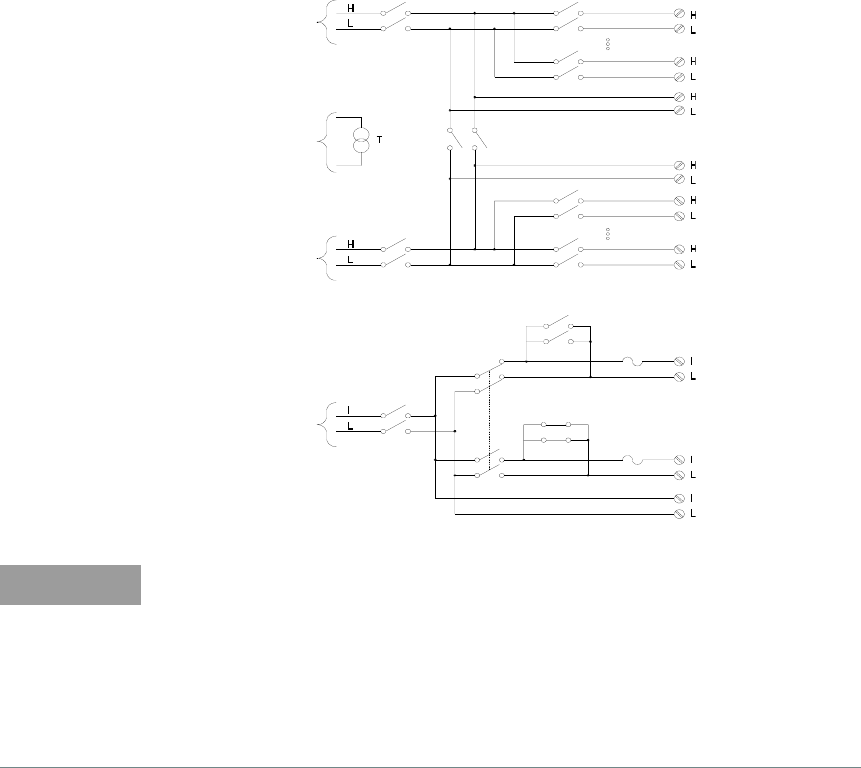
Features and Functions 4
Keysight 34970A/34972A User’s Guide 207
Backplane Switches Channel Switches
Internal
DMM Input
Reference
Sensor
Internal
DMM Input
(4W Sense)
Internal
DMM Input
(Current)
01
10
Com
Com (4W Sense)
11
20
21
Current Channels
22
Com (Current)
98
99
97
96 Fuse
Fuse
94
93
Bank Switches
Shunt Switches
Junction
NOTE
Only one of channels 21 and 22 can be connected to the internal DMM and/or
Com at a time; connecting one channel will close the other (thus shorting the
input “I” to “LO”).
If any channels are configured to be part of the scan list, you cannot close
multiple channels; closing one channel will open the previously closed channel.
Connections to AC line are not recommended unless you provide external
transient suppression.
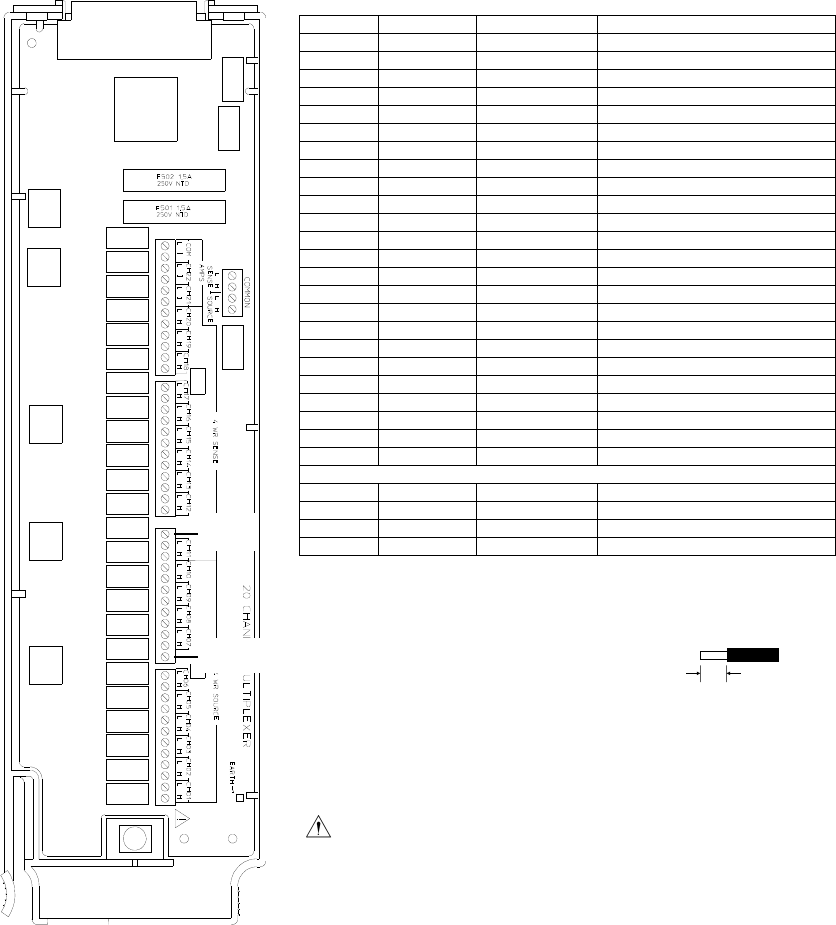
4 Features and Functions
208 Keysight 34970A/34972A User’s Guide
*4W Sense Channels are paired to Channel (n-10).
Refer to the diagrams on page 38 to connect wiring to the module.
Maximum Input Voltage: 300 V (CAT 1)
Maximum Input Current: 1 A
Maximum Switching Power: 50 W
Not Used
Not Used
WIRING LOG Slot Number: 100 200 300
Ch Name Function Comments
01
02
03
04
05
06
07
08
09
10
H COM
L COM
11*
12*
13*
14*
15*
16*
17*
18*
19*
20*
H COM
L COM
Current Channels Only:
21
22
I COM
L COM
6mm
20 AWG Typical
WARNING: To prevent electrical shock, use only wire
that is rated for the highest voltage applied to any channel.
Before removing a module cover, turn off all power to external
devices connected to the module.
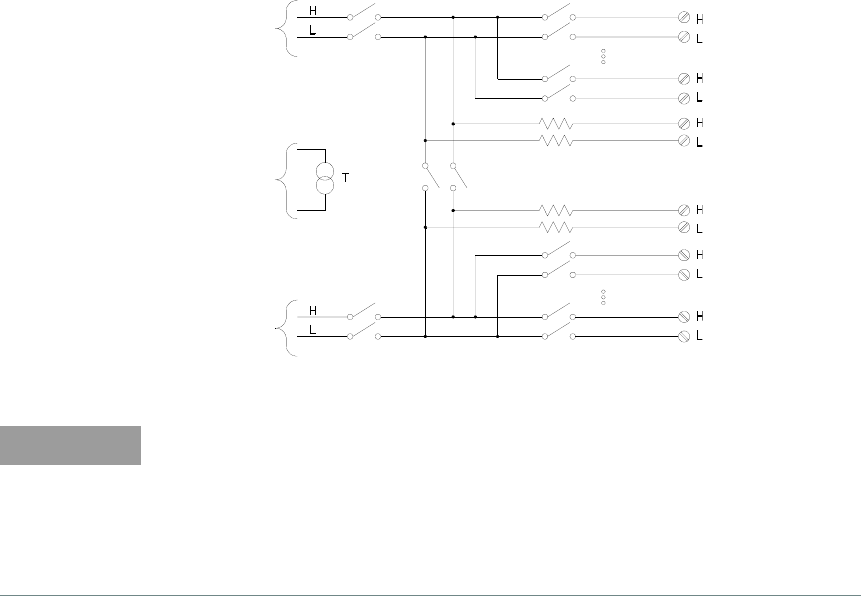
Features and Functions 4
Keysight 34970A/34972A User’s Guide 209
34902A 16-Channel Multiplexer
This module is divided into two banks of eight channels each. All 16 channels
switch both HI and LO inputs, thus providing fully isolated inputs to the internal
DMM or an external instrument. When making 4-wire resistance measurements,
the instrument automatically pairs channel n with channel n+8 to provide the
source and sense connections. The module has a built-in thermocouple reference
junction to minimize errors due to thermal gradients when measuring
thermocouples.
Backplane Switches Channel Switches
Bank Switches
01
08
Com
Com (4W Sense)
09
16
97
98
99
Internal
DMM Input
Reference
Sensor
Junction
Internal
DMM Input
(4W Sense)
100Ω
100Ω
100Ω
100Ω
NOTE
– If any channels are configured to be part of the scan list, you cannot close
multiple channels; closing one channel will open the previously closed
channel.
– Current measurements on this module will require external shunt resistors.
– Connections to AC line are not recommended unless you provide external
transient suppression.
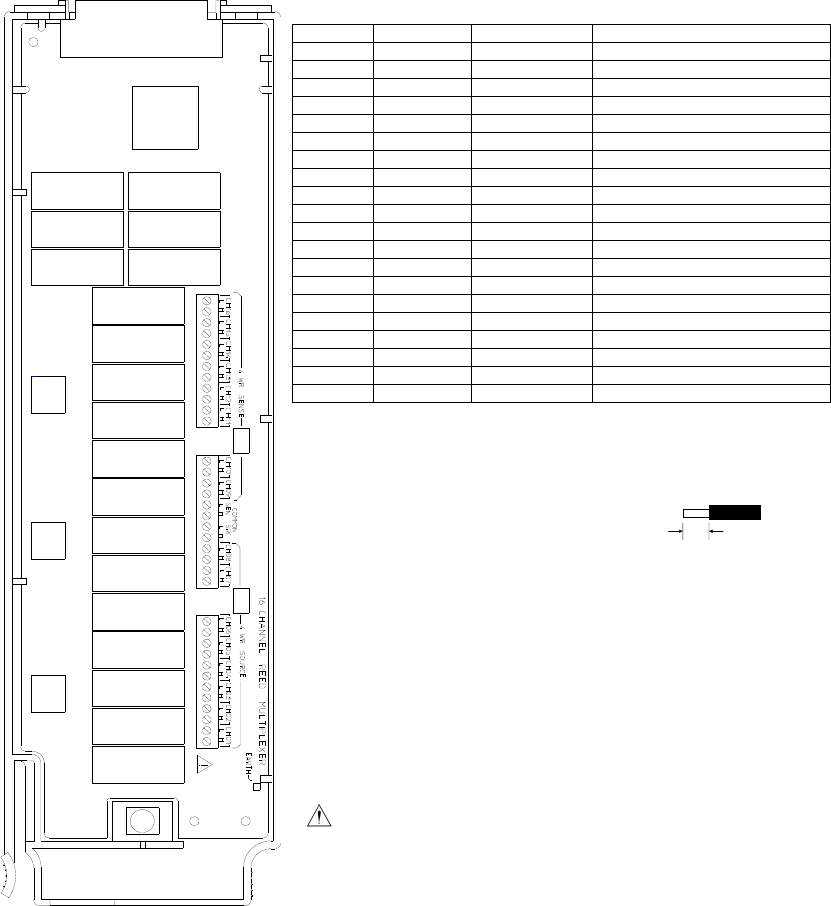
4 Features and Functions
210 Keysight 34970A/34972A User’s Guide
WIRING LOG Slot Number: 100 200 300
Ch Name Function Comments
01
02
03
04
05
06
07
08
H COM
L COM
09*
10*
11*
12*
13*
14*
15*
16*
H COM
L COM
*4W Sense Channels are paired to Channel (n-8).
Refer to the diagrams on page 38 to connect wiring to the module.
Maximum Input Voltage: 300 V (CAT 1)
Maximum Input Current: 50 mA
Maximum Switching Power: 2 W
6mm
20 AWG Typical
WARNING: To prevent electrical shock, use only wire
that is rated for the highest voltage applied to any channel.
Before removing a module cover, turn off all power to external
devices connected to the module.

Features and Functions 4
Keysight 34970A/34972A User’s Guide 211
34903A 20-Channel Actuator
This module contains 20 independent, SPDT (Form C) latching relays. Screw
terminals on the module provide access to the Normally-Open, Normally-Closed,
and Common contacts for each switch. This module does not connect to the
internal DMM.
A breadboard area is provided near the screw terminals to implement custom
circuitry, such as simple filters, snubbers, and voltage dividers. The breadboard
area provides the space necessary to insert your own components but there are
no circuit board traces here. You must add your own circuitry and signal routing.
01
20
NOTE
– You can close multiple channels at the same time on this module.
– The channel CLOSE and OPEN commands control the state of the Normally
Open (NO) to COM connection on each channel. For example, CLOSE 201
connects the Normally Open contact to COM on channel 01.
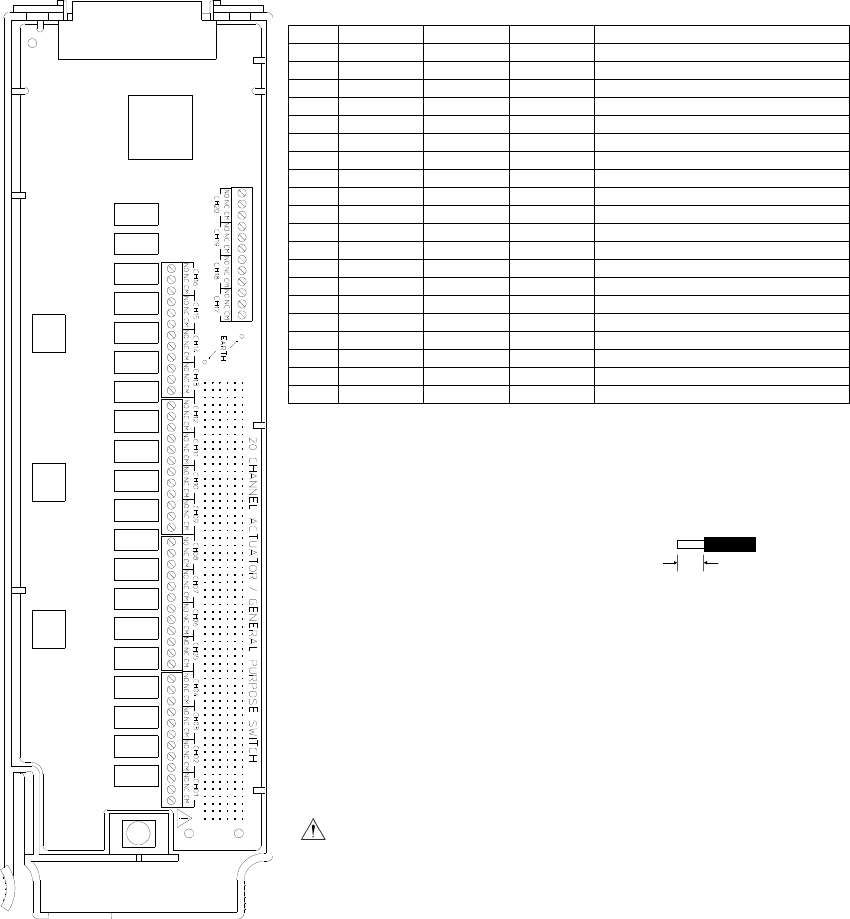
4 Features and Functions
212 Keysight 34970A/34972A User’s Guide
WIRING LOG Slot Number: 100 200 300
Ch NO NC COM Comments
01
02
03
04
05
06
07
08
09
10
11
12
13
14
15
16
17
18
19
20
NO = Normally Open, NC = Normally Closed
Refer to the diagrams on page 38 to connect wiring to the module.
Maximum Input Voltage: 300 V (CAT 1)
Maximum Input Current: 1 A
Maximum Switching Power: 50 W
6mm
20 AWG Typical
WARNING: To prevent electrical shock, use only wire
that is rated for the highest voltage applied to any channel.
Before removing a module cover, turn off all power to external
devices connected to the module.
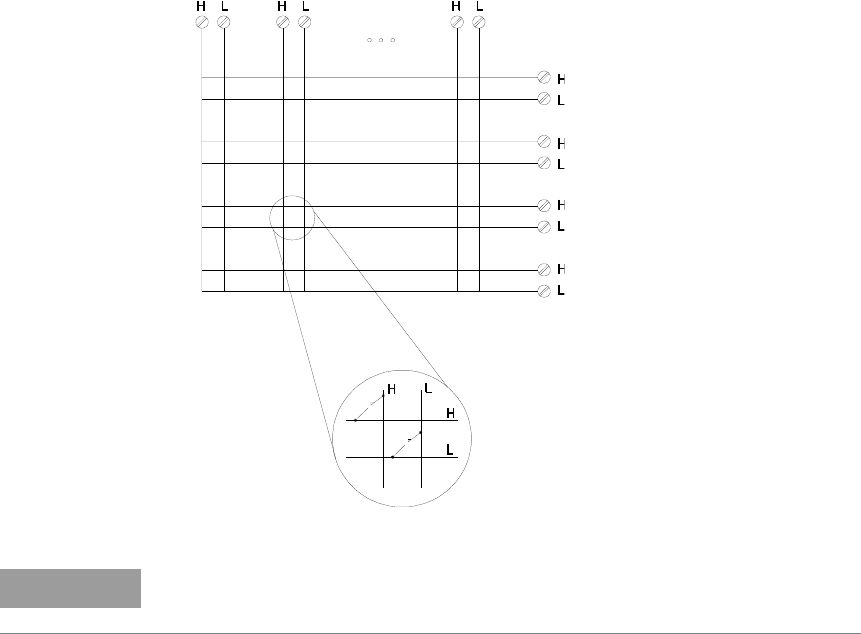
Features and Functions 4
Keysight 34970A/34972A User’s Guide 213
34904A 4x8 Matrix Switch
This module contains 32 two-wire crosspoints organized in a 4-row by 8-column
configuration. You can connect any combination of inputs and outputs at the
same time. This module does not connect to the internal DMM. Each crosspoint
relay has its own unique channel label representing the row and column. For
example, channel 32 represents the crosspoint connection between row 3 and
column 2 as shown below.
Row 1
Row 2
Row 3
Row 4
Col 1 Col 2 Col 8
Channel 32
(Row 3, Column 2)
NOTE
You can close multiple channels at the same time on this module.
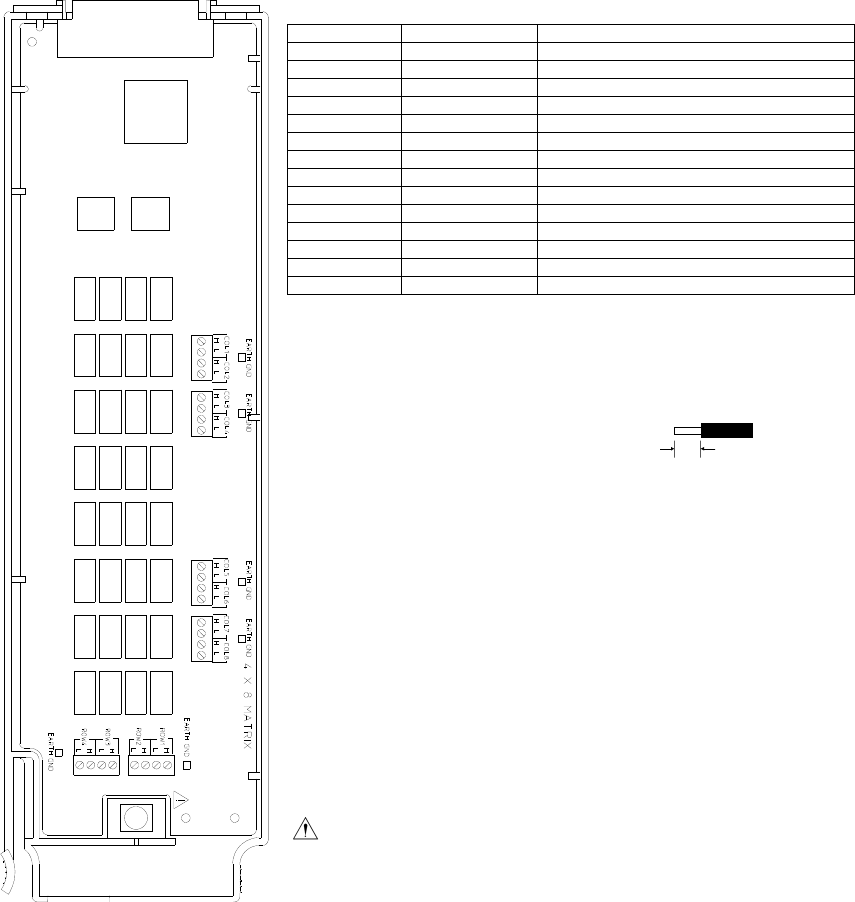
4 Features and Functions
214 Keysight 34970A/34972A User’s Guide
WIRING LOG Slot Number: 100 200 300
Row Name Comments
1
2
3
4
Column Name Comments
1
2
3
4
5
6
7
8
Example: Channel 32 represents Row 3 and Column 2.
Refer to the diagrams on page 38 to connect wiring to the module.
Maximum Input Voltage: 300 V (CAT 1)
Maximum Input Current: 1 A
Maximum Switching Power: 50 W
6mm
20 AWG Typical
WARNING: To prevent electrical shock, use only wire that is rated
for the highest voltage applied to any channel. Before removing a
module cover, turn off all power to external devices connected to the
module.
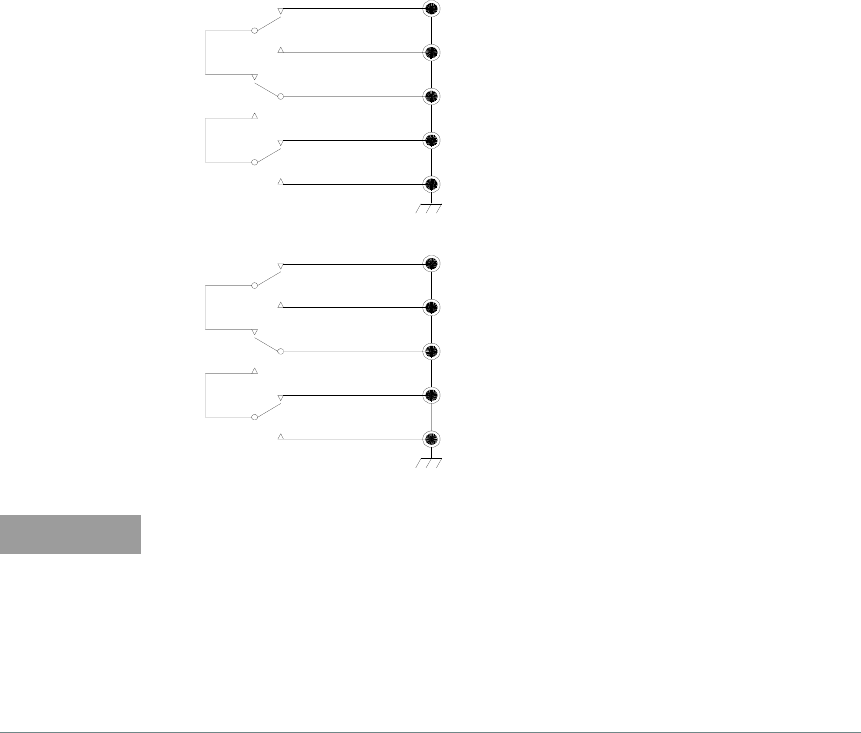
Features and Functions 4
Keysight 34970A/34972A User’s Guide 215
34905A/6A Dual 4-Channel RF Multiplexers
These modules consist of two independent 4-to-1 multiplexers.The channels in
each bank are organized in a “tree” structure to provide high isolation and low
VSWR. Both banks have a common earth ground. This module does not connect
to the internal DMM. You can connect your signals directly to the on-board SMB
connectors or to the
SMB-to-BNC cables provided with the module.
11
12
Com1
13
14
21
22
Com2
23
24
98
99
Bank Switch
Bank Switch
NOTE
– The 34905A is used for 50W applications. The 34906A is used for 75W
applications (mini SMBs).
– You can close only one channel per bank at a time on these modules; closing
one channel in a bank will open the previously closed channel. One channel
in each bank is always connected to COM.
– This module responds only to the CLOSE command (OPEN does not apply).
To OPEN a channel, send the CLOSE command to another channel in the
same bank.
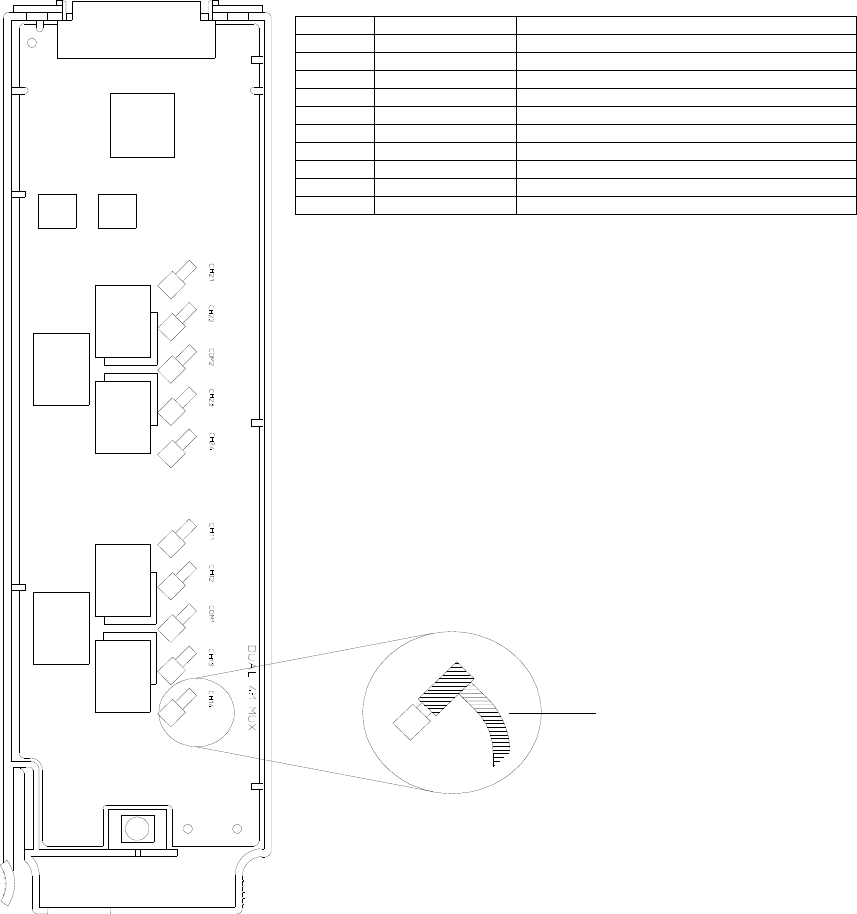
4 Features and Functions
216 Keysight 34970A/34972A User’s Guide
SMB-to-BNC Cable
WIRING LOG Slot Number: 100 200 300
Refer to the diagrams on page 38 to connect wiring to the module.
Maximum Input Voltage: 42 V
Maximum Input Current: 700 mA
Maximum Switching Power: 20 W
Ten color-coded cables are included with the module. To order
additional cables, use the following cable kit part numbers
(10 cables are included):
34905-60001 (50Ω cables)
34906-60001 (75Ω cables)
Ch Name Comments
11
12
13
14
COM1
21
22
23
24
COM2
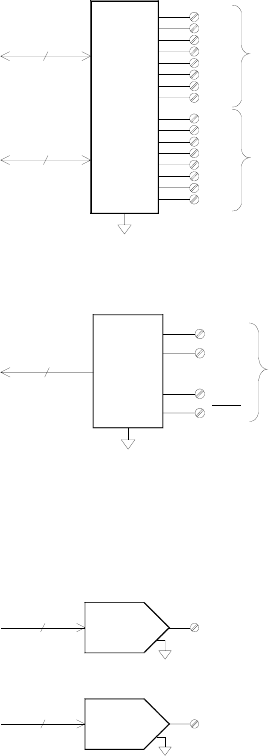
Features and Functions 4
Keysight 34970A/34972A User’s Guide 217
34907A Multifunction Module
This module combines two 8-bit ports of digital input/output, a 100 kHz totalizer,
and two ±12V analog outputs. For greater flexibility, you can read digital inputs
and the totalizer count during a scan.
Digital Input/Output
The DIO consists of two 8-bit ports with
TTL-compatible inputs and output. The open-drain
outputs can sink up to 400 mA. From the front panel,
you can read data from only one 8-bit input port at a
time. From the remote interface, you can read both
ports simultaneously as a 16-bit word only if neither
port is in the scan list.
Totalize Input
The 26-bit totalizer can count pulses at a 100 kHz
rate. You can configure the totalizer to count on the
rising edge or falling edge of the input signal. A TTL
high signal applied to the “G” terminal enables
counting and a low signal disables counting. A TTL
low signal applied to the “” terminal enables counting
and a high signal disables counting. The totalizer only
counts when both terminals are enabled. Move the
Totalize Threshold jumper to the “AC” position to
detect changes through 0 volts. Move the jumper to
the “TTL” position (factory setting) to detect changes
through TTL threshold levels.
Analog Output (DAC)
The two analog outputs are capable of outputting
calibrated voltages between ±12 volts with 16 bits of
resolution. Each DAC channel is capable of 10 mA
maximum current. You must limit the DAC output
current to 40 mA total for all three slots (six DAC
channels).
Port 1 (LSB)
Channel 01
Port 2 (MSB)
Channel 02
8
8
DIO Bit 7
Bit 0
Bit 7
Bit 0
Channel 03
26 Bits
Gate
Gate
-IN
+IN
TOT
DAC 1
DAC 2
16
16
Channel 04
Channel 05
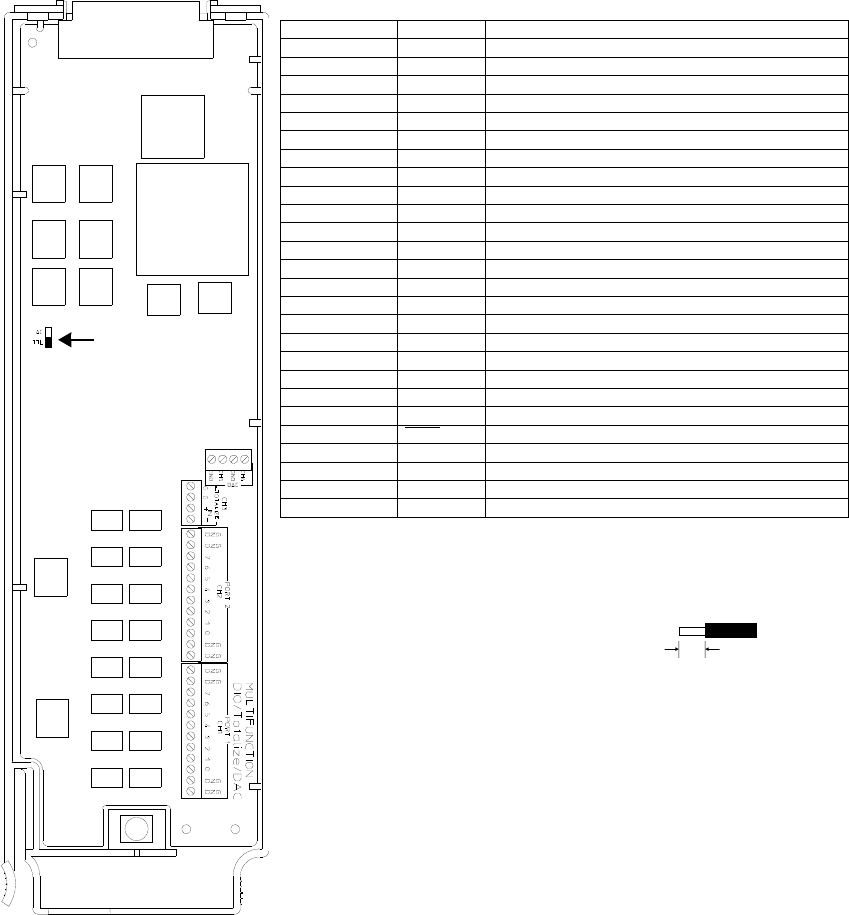
4 Features and Functions
218 Keysight 34970A/34972A User’s Guide
Threshold
Jumper
WIRING LOG Slot Number: 100 200 300
Ch Name Comments
01 (DIO 1) Bit 0
Bit 1
Bit 2
Bit 3
Bit 4
Bit 5
Bit 6
Bit 7
GND
02 (DIO 2) Bit 0
Bit 1
Bit 2
Bit 3
Bit 4
Bit 5
Bit 6
Bit 7
GND
03 (Totalizer) Input (+)
Input (-)
Gate
04 (DAC 1) Output
GND
05 (DAC 2) Output
GND
Gate
Threshold Jumper Position: rTTL rAC
Refer to the diagrams on page 38 to connect wiring to the module.
Digital Input/Output:
Vin (L): < 0.8V (TTL
Vin (H): >2.0V (TTL)
Vout (L): <0.8V @ lout = -400 mA
Vout (H): >2.4V@ lout = 1 mA
Vin(H) Max: <42V with external open-drain pull-up
Totalizer:
Maximum Count: 67,108,863 (226 - 1)
Totalize Input: 100 kHz (max)
Signal Level: 1 Vp-p (min), 42 Vpk (max)
DAC Output:
±12V, non-isolated
lout: 10 mA max per DAC; 40 mA max per mainframe
6mm
20 AWG Typical

Features and Functions 4
Keysight 34970A/34972A User’s Guide 219
34908A 40-Channel Single-Ended Multiplexer
The module is divided into two banks of 20 channels each. All of the 40 channels
switch HI only, with a common LO for the module. The module has a built-in
thermocouple reference junction to minimize errors due to thermal gradients
when measuring thermocouples.
Bank Switch
Channel Switches
Backplane
Internal
DMM Input
Reference
Junction
Sensor
01
20
Com
21
40
98
99
Switch Com
NOTE
– Refer to the diagrams on page 38 to connect wiring to the module.
– Only one channel can be closed at a time; closing one channel will open the
previously closed channel.
– This module cannot be used to directly measure current or any 4-wire
measurements.
– When connecting thermocouples to the screw terminals on this module (not
recommended due to the common LO configuration), be sure to provide
electrical isolation between thermocouples to avoid current loops and
subsequent measurement errors.
– Connections to AC line are not recommended unless you provide external
transient
4 Features and Functions
220 Keysight 34970A/34972A User’s Guide
Maximum Input Voltage: 300 V (CAT I)
Maximum Input Current: 1 A
Maximum Switching Power: 50 W
WARNING: To prevent electrical shock, use only wire that is rated for the highest
voltage applied to any channel. Before removing a module cover, turn off all power to
external devices connected to the module.
6mm
20 AWG Typical
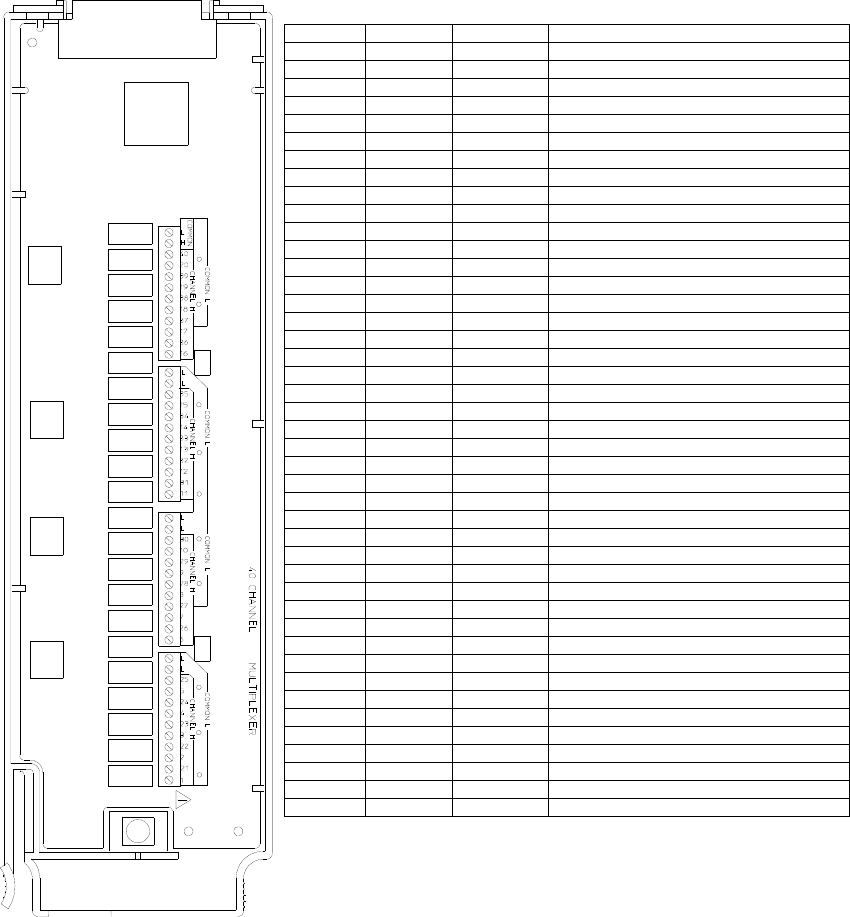
Features and Functions 4
Keysight 34970A/34972A User’s Guide 221
WIRING LOG Slot Number: 100 200 300
Ch Name Function Comments
01
02
03
04
05
06
07
08
09
10
11
12
13
14
15
16
17
18
19
20
21
22
23
24
25
26
27
28
29
30
31
32
33
34
35
36
37
38
39
40
LO
H COM
L COM
4 Features and Functions
222 Keysight 34970A/34972A User’s Guide
THIS PAGE HAS BEEN INTENTIONALLY LEFT BLANK.

5 Error Messages
224 Keysight 34970A/34972A User’s Guide
Error Messages
– Errors are retrieved in first-in-first-out (FIFO) order. The first error returned is
the first error that was stored. Errors are cleared as you read them. When you
have read all errors from the queue, the ERROR annunciator turns off and the
errors are cleared. The instrument beeps once each time an error is generated.
– If more than 10 errors (34970A) or 20 errors (34972A) have occurred, the last
error stored in the queue (the most recent error) is replaced with
“Error queue overflow”. No additional errors are stored until you remove errors
from the queue. If no errors have occurred when you read the error queue, the
instrument responds with “No error”.
– The error queue is cleared by the *CLS (clear status) command or when power
is cycled. The errors are also cleared when you read the queue. The error
queue is not cleared by a Factory Reset (*RST command) or an Instrument
Preset (SYSTem:PRESet command).
– Front-Panel Operation:
ERRORS
If the ERROR annunciator is on, press
to view the errors. Use the knob to
scroll through the error numbers. Press to view the text of the error message.
Press again to increase the scrolling speed (the final key press cancels the
scroll). All errors are cleared when you exit the menu.
–Remote Interface Operation:
Errors have the following format (the error string may contain up to 80
characters):
-113,"Undefined header"
SYSTem:ERRor? Read and clear one error from the queue
Error Messages 5
Keysight 34970A/34972A User’s Guide 225
Execution Errors
-101 Invalid character
An invalid character was found in the command string. You may have used an
invalid character such as #, {, $, or % in the command header or within a
parameter. Example: CONF:VOLT:DC {@101)
-102 Syntax error
Invalid syntax was found in the command string. You may have inserted a blank
space before or after a colon in the command header, or before a comma. Or you
may have omitted the “@” character in the channel list syntax.
Examples: ROUT:CHAN: DELAY 1 or CONF:VOLT:DC ( 101)
-103 Invalid separator
An invalid separator was found in the command string. You may have used a
comma instead of a colon, semicolon, or blank space – or you may have used a
blank space instead of a comma.
Examples: TRIG:COUNT,1 or CONF:FREQ 1000 0.1
-105 GET not allowed
A Group Execute Trigger (GET) is not allowed within a command string.
-108 Parameter not allowed
More parameters were received than expected for this command. You may have
entered an extra parameter or added a parameter to a command that does not
require a parameter. Example: READ? 10
-109 Missing parameter
Fewer parameters were received than expected for this command. You have
omitted one or more parameters that are required for this command. Example:
ROUT:CHAN:DELAY
-112 Program mnemonic too long
A command header was received which contained more than the maximum 12
characters allowed. Example: CONFIGURATION:VOLT:DC
5 Error Messages
226 Keysight 34970A/34972A User’s Guide
-113 Undefined header
A command was received that is not valid for this instrument. You may have
misspelled the command or it may not be a valid command. If you are using the
shortened form of this command, remember that it may contain up to four
letters. Or you may have inserted an extra colon where one is not required.
Examples: TRIGG:COUN 3 or
CONF:VOLT:DC: (@101)
-114 Header suffix out of range
A header suffix is the number that can be appended to the end of some
command headers. This error is generated if an invalid number is used.
Example: OUTP:ALARM5:SOURCE (“5” is not a valid alarm number)
-121 Invalid character in number
An invalid character was found in the number specified for a parameter.
Example: TRIG:TIMER 12..34
-123 Numeric overflow
A numeric parameter was found whose exponent was too large for this
command. Example: CALC:SCALE:GAIN 1E34000
-124 Too many digits
A numeric parameter was found whose mantissa contained more than 255
digits, excluding leading zeros.
-128 Numeric data not allowed
The wrong parameter type was found in the command string. You may have
specified a number where a string or expression was expected, or vice versa.
Examples: DISP:TEXT 5.0 or ROUT:CLOSE 101
-131 Invalid suffix
A suffix was incorrectly specified for a numeric parameter. You may have
misspelled the suffix. Example: ROUT:CHAN:DELAY 5 SECS
-134 Suffix too long
A header suffix is the number that can be appended to the end of some
command headers. This error is generated if the header suffix contains more
than 12 characters.
-138 Suffix not allowed
A parameter suffix was specified when one was not allowed.
Error Messages 5
Keysight 34970A/34972A User’s Guide 227
-148 Character data not allowed
A discrete parameter was received but a character string or a numeric parameter
was expected. Check the list of parameters to verify that you have used a valid
parameter type. Examples: ROUTE:CLOSE CH101 or DISP:TEXT TESTING (the
string must be enclosed in quotes)
-151 Invalid string data
An invalid character string was received. Check to see if you have enclosed the
character string in quotation marks and verify that the string contains valid ASCII
characters. Example: DISP:TEXT ’TESTING (the ending quote is missing)
-158 String data not allowed
A character string was received but is not allowed for this command. Check the
list of parameters to verify that you have used a valid parameter type.
Example: CALC:SCALE:STATE ’ON’
-168 Block data not allowed
Data was sent to the instrument in SCPI definite length block format but this
command does not accept this format.
Example: SOUR:DIG:DATA #128
-178 Expression data not allowed
A channel list was received but is not allowed for this command.
Example: SYST:CTYPE? (@100)
-211 Trigger ignored
More than one trigger was received while the instrument was scanning. Triggers
are occurring too frequently and you may need to slow them down. Also make
sure that you have selected the proper trigger source.
-213 INIT ignored
An INITiate command was received but could not be executed because a scan
was already in progress. Send an ABORt command or bus Device Clear to stop a
scan in progress.
-214 Trigger deadlock
A trigger deadlock occurs when the trigger source is “BUS” and a READ?
command is received.
5 Error Messages
228 Keysight 34970A/34972A User’s Guide
-221 Settings conflict
An invalid configuration was requested. This error is most commonly generated
when setting alarm limits. Note that the lower limit must always be less than or
equal to the upper limit, even if you are using only one of the limits. This error is
also generated if you send the MEASure? or CONFigure command with
autorange enabled with a fixed resolution.
-222 Data out of range
A numeric parameter value is outside the valid range for this command.
Example: TRIG:COUNT -3
-223 Too much data
A character string was received but could not be executed because the string
length was more than 12 characters. This error can be generated by the
CAL:STRing and DISPlay:TEXT commands.
-224 Illegal parameter value
A discrete parameter was received which was not a valid choice for this
command. You may have used an invalid parameter choice.
Example: TRIG:SOURCE ALARM (ALARM is not a valid choice)
-230 Data stale
A FETCh? or DATA:REMove? command was received but internal reading
memory was empty. The readings retrieved may be invalid.
-310 System error
A firmware defect has been found. This is not a fatal error but you should contact
your nearest Keysight Service Center if this error is reported.
-350 Error queue overflow
The error queue is full because more than 10 errors (34970A) or 20 errors
(34972A) have occurred. No additional errors are stored until you remove errors
from the queue. The error queue is cleared by the *CLS (clear status) command
or when power is cycled. The errors are also cleared when you read the queue.
-410 Query INTERRUPTED
A command was received which sends data to the output buffer, but the output
buffer contained data from a previous command (the previous data is not
overwritten). The output buffer is cleared when power has been off or after a bus
Device Clear.
Error Messages 5
Keysight 34970A/34972A User’s Guide 229
-420 Query UNTERMINATED
The instrument was addressed to talk (i.e., send data over the interface) but a
command has not been received which sends data to the output buffer. For
example, you may have executed a CONFigure command (which does not
generate data) and then attempted to read data from the remote interface.
-430 Query DEADLOCKED
A command was received which generates too much data to fit in the output
buffer and the input buffer is also full. Command execution continues but all
data is lost.
-440 Query UNTERMINATED after indefinite response
The *IDN? command must be the last query command within a command string.
The *IDN? command returns an indefinite length string which cannot be
combined with any other query command. Example: *IDN?;*STB?
5 Error Messages
230 Keysight 34970A/34972A User’s Guide
Instrument Errors
111 Channel list: slot number out of range
The specified slot number is invalid. The channel number has the form (@scc),
where s is the slot number (100, 200, or 300) and cc is the channel number.
Example: CONF:VOLT:DC (@404)
112 Channel list: channel number out of range
The specified channel number is invalid for the module in the selected slot. The
channel number has the form (@scc), where s is the slot number (100, 200, or
300) and cc is the channel number.
Example: ROUT:CLOSE (@134)
113 Channel list: empty scan list
Before you can initiate a scan, you must set up a scan list which includes all
configured multiplexer or digital channels in the instrument. Use the MEASure?,
CONFigure, or ROUTe:SCAN commands to set up your scan list.
201 Memory lost: stored state
This error is reported at power-on to indicate that a stored state has become
unusable. This error is most likely caused by a dead battery (memory is
battery-backed). Refer to the 34970A/34972A Service Guide to replace the
internal battery.
202 Memory lost: power-on state
This error is reported at power-on to indicate that the power-down state of the
instrument (normally recalled when power is turned on) has become unusable.
This error is most likely caused by a dead battery (memory is battery-backed).
Refer to the 34970A/34972A Service Guide to replace the internal battery.
203 Memory lost: stored readings
This error is reported at power-on to indicate that readings stored in memory
from a previous scan have been lost. This error is most likely caused by a dead
battery (memory is battery-backed). Refer to the 34970A/34972A Service Guide
to replace the internal battery.
204 Memory lost: time and date
This error is reported at power-on to indicate that the time and date settings
have been lost (they are reset to JAN 1, 1996 00:00:00). This error is most likely
caused by a dead battery (memory is battery-backed). Refer to the 34970A/
34972A Service Guide to replace the internal battery.
Error Messages 5
Keysight 34970A/34972A User’s Guide 231
221 Settings conflict: calculate limit state forced off
If you plan to use scaling on a channel which will also use alarms, be sure to
configure the scaling values first. This error is generated if you attempt to assign
the alarm limits first and the instrument will turn off alarms and clear the limit
values.
222 Settings conflict: module type does not match stored state
Before recalling a stored state, the instrument verifies that the same module
types are installed in each slot. The instrument has detected a different module
type in one or more slots.
223 Settings conflict: trig source changed to IMM
This error is generated if you attempt to set the channel advance source
(ROUTe:CHAN:ADVance:SOURce command) to the same source used for the
scan trigger (TRIGger:SOURce command). The command has been accepted
and executed but the scan trigger source is reset to “IMMediate”.
224 Settings conflict: chan ad v source changed to IMM
This error is generated if you attempt to set the scan trigger source
(TRIGger:SOURce command) to the same source used for the channel advance
source (ROUTe:CHAN:ADVance:SOURce command). The command has been
accepted and executed but the channel advance source is reset to “IMMediate”.
225 Settings conflict: DMM disabled or missing
This command is valid only when the internal DMM is installed and enabled. Use
the INSTrument:DMM? command to determine the state of the internal DMM.
For more information, see “Internal DMM Disable” on page 171.
226 Settings conflict: DMM enabled
When the internal DMM is enabled, the ROUTe:CHAN:ADVance:SOURce and
ROUTe:CHAN:FWIRe commands are not allowed. Use the INSTrument:DMM?
command to determine the state of the internal DMM. For more information, see
“Internal DMM Disable” on page 171.
251 Unsupported temperature transducer type
An invalid RTD or thermistor type has been specified. The following RTDs are
supported: α = 0.00385 (“85”) and α = 0.00391 (“91”). The following thermistors
are supported: 2.2 kΩ (“2252”), 5 kΩ (“5000”), and 10 kΩ (“10000”).
Example: CONF:TEMP RTD,1,(@101)
5 Error Messages
232 Keysight 34970A/34972A User’s Guide
261 Not able to execute while scan initiated
While a scan is running, you cannot change any parameters that affect the scan
(channel configuration, scan interval, scaling values, alarm limits, issue a Card
Reset, or recall a stored state). To stop a scan in progress, send the ABORt
command or a bus Device Clear.
271 Not able to accept unit names longer than 3 characters
For Mx+B scaling, you can specify a custom label with up to three characters.
You can use letters (A-Z), numbers (0-9), an underscore ( _ ), or the “#” character
which displays a degree symbol ( ° ) on the front panel.
272 Not able to accept character in unit name
For Mx+B scaling, you can specify a custom label with up to three characters.
The first character must be a letter or the “#” character (the “#” character is
allowed only as the leftmost character in the label). The remaining two
characters can be letters, numbers, or an underscore.
281 Not able to perform on more than one channel
You can perform this operation on only one channel at a time. Check the channel
list that you sent with this command to see if it contains more than one channel.
This error is generated by the ROUTe:MON and DATA:LAST? commands.
291 Not able to recall state: it is empty
You can only recall a state from a location that contains a previously stored state.
The state location that you attempted to recall is empty. The storage locations
are numbered 0 through 5.
292 Not able to recall state: DMM enable changed
The enable/disable state of the internal DMM has been changed since the
instrument state was stored. Use the INSTrument:DMM? command to
determine the state of the internal DMM. For more information, see “Internal
DMM Disable” on page 171.
301 Module currently committed to scan
When you add a multiplexer channel to a scan list, that entire module is
dedicated to the scan. You cannot perform low-level close or open operations on
any channels on that module (even those channels that are not configured). To
stop a scan in progress, send the ABORt command or a bus Device Clear.
303 Module not able to perform requested operation
A command was received which is not valid for the specified module. This error is
most commonly generated when you send a command intended for the
multifunction module to a switching module.
Error Messages 5
Keysight 34970A/34972A User’s Guide 233
305 Not able to perform requested operation
The requested operation is not valid for the specified channel. You may have
tried to a configure a channel for current measurements (valid only on channels
21 and 22 on the 34901A module). Or you may have tried to configure scaling on
a module that does not connect to the internal DMM.
306 Part of a 4-wire pair
For 4-wire resistance measurements, the instrument automatically pairs channel
n with channel n+10 (34901A) or n+8 (34902A) to provide the source and sense
connections. To change the configuration on the upper channel in a 4-wire pair,
you must first reconfigure the lower channel to a measurement function other
than 4-wire resistance.
307 Incorrectly configured ref channel
For thermocouple measurements using an external reference, the instrument
automatically reserves channel 01 on the multiplexer in the lowest slot as the
reference channel. Before configuring a thermocouple channel with an external
reference, you must configure the reference channel (channel 01) for a
thermistor or RTD measurement.
This error is also generated if you change the function on the reference channel
(channel 01) after selecting the external reference source on a thermocouple
channel.
308 Channel not able to perform requested operation
The channel is unable to perform the requested operation.
309 Incorrectly formatted channel list
The channel list is not formatted correctly. Examples of proper formats are
shown below.
(@321) - channel 21 on the module in slot 300.
(@221:222) - channels 21 through 22 on the module in slot 200.
(@121:122,222,321:322) - channels 21 and 22 on the module in slot 100,
channel 22 on the module in slot 200, and channels 21-22 on the module in slot
300.
401 Mass storage error: failed to create file
The file was not created on the USB drive.
402 Mass storage error: failed to open file
The file was not opened on the USB drive.
5 Error Messages
234 Keysight 34970A/34972A User’s Guide
403 Mass storage error: failed to close file
The file was not closed on the USB drive.
404 Mass storage error: file write error
The file data was not written on the USB drive.
405 Mass storage error: file read error
File data was not read from the USB drive.
406 Mass storage error: file write error
File data was not flushed to the USB drive.
407 Mass storage error: failed to remove file
The instrument was unable unable to delete the file on the USB drive.
408 Mass storage error: failed to create directory
The instrument was unable to create the directory on the USB drive.
409 Mass storage error: failed to remove directory
The instrument was unable to remove the directory on the USB drive.
410 Not enough disk space
The external USB drive is full.
411 No external disk detected
The operation requires a USB drive, which is not detected.
412 External disk has been detached
The external USB drive has been unplugged.
413 File already exists
The instrument was unable to create new file because a file with that name
already exists on the USB drive.
414 Directory already exists
The instrument was unable to create new directory because a directory with that
name already exists on the USB drive.
415 File not found
The file does not exist on the USB drive.
416 Path not found
The directory does not exist on the USB drive.
417 File not opened for writing
The instrument failed to open the file for writing on the USB drive.
Error Messages 5
Keysight 34970A/34972A User’s Guide 235
418 File not opened for reading
The instrument failed to open the file for reading from the USB drive.
450 Overrun during data collection: readings lost in USB transfer
Internal error: readings were collected too fast and were not buffered for output
to the USB drive.
451 Overrun during USB output: readings lost in USB transfer
Internal error: USB write operation was unable to keep up with data collection.
452 Reading memory export aborted due to measurement reconfig
The export of reading memory was aborted because of measurement
reconfiguration.
453 Not able to execute while logging data to USB
Operation can not be completed while data is being actively logged to USB.
454 Not able to execute while copying data to USB
Operation can not be completed while data is being exported to USB.
455 Not able to execute while importing a configuration from USB
Operation can not be completed while a measurement configuration is being
imported from USB.
457 Logging request ignored: USB device is busy
Logging was not started because USB is busy, but the scan will continue to run
normally, placing data in reading memory.
458 External USB drive is inaccessible
External USB drive can not be accessed; either the disk is full or else it may need
to be reformatted. The instrument will behave as if no drive is present. The
instrument was unable to find a valid partition to use for storing instrument data.
459 Logging to USB was stopped
Data logging was stopped prior to completion due to an abort or some other
error condition.
460 Logging to USB was stopped after 2^32 sweeps of data
Instrument is only able to capture 2^32 (~4.3 billion) sweeps worth of data on an
external USB drive
461 Memory lost: non-volatile settings; USB drive
Data in non-volatile memory was lost or corrupted. USB logging enable, row
limit and column separator will be set to defaults.
5 Error Messages
236 Keysight 34970A/34972A User’s Guide
462 Configuration import aborted
Reconfiguration of the instrument was aborted.
463 Configuration import failed
This is a summary error that will be generated if ANY other errors were reported
during configuration import.
464 Invalid import file
The instrument did not recognize the USB configuration import file.
465 Import file cardset does not match instrument
The current instrument configuration does not match the cardset expected by
the USB import file.
466 Operation not allowed in a configuration import file
An illegal command was used inside the USB import file.
467 No readings to export
Reading memory is empty; nothing was exported to the USB drive.
468 Unable to fetch measurement config from internal processor
The instrument was unable to fetch measurement configuration data from the
secondary processor due to a communications error.
469 Internal processor returned an invalid measurement config
Configuration data returned by secondary processor was bad. Measurement
configuration could not be determined.
470 Measurement was reconfigured; Cannot save configuration data
Measurement configuration no longer agrees with the corresponding set of
readings. Configuration data will not be saved to the USB drive.
471 USB operation aborted; Cannot save configuration data
An abort or device clear was received while fetching configuration data from
secondary processor. Configuration data will not be saved to the USB drive.
472 One or more blcfg file names invalid; files inaccessible
Keysight BenchLink Data Logger BLCFG configuration files on the USB drive are
limited to 40 character filenames (including the .blcfg extension), and all
characters must be ANSI. Only legal filenames will be selectable for import.
473 Disk contains too many blcfg files; oldest files inaccessible
Instrument will only catalog the 50 most recently created Keysight BenchLink
Data Logger BLCFG files. Older files will not be selectable for import.
Error Messages 5
Keysight 34970A/34972A User’s Guide 237
501 I/O processor: isolator framing error
502 I/O processor: isolator overrun error
511 Communications: RS-232 framing error
512 Communications: RS-232 overrun error
513 Communications: RS-232 parity error
514
(34970A only)
RS-232 only: unable to execute using HP-IB
There are three commands which are allowed only with the RS-232 interface:
SYSTem:LOCal, SYSTem:REMote, and SYSTem:RWLock.
514
(34972A only)
Not allowed; Instrument locked by another I/O session
The requested operation is not allowed because another I/O session has locked
the instrument.
521 Communications: input buffer overflow
522 Communications: output buffer overflow
532 Not able to achieve requested resolution
The instrument cannot achieve the requested measurement resolution. You may
have specified an invalid resolution in the CONFigure or MEASure? command.
540 Not able to null channel in overload
The instrument cannot store an overload reading (9.90000000E+37) as the
offset for Mx+B scaling using a null measurement.
550 Not able to execute command in local mode
The instrument has received a READ? or MEASure? command while in the local
mode.
5 Error Messages
238 Keysight 34970A/34972A User’s Guide
Self-Test Errors
The following errors indicate failures that may occur during a self-test. Refer to
the 34970A/34972A Service Guide for more information.
601 Self-test: front panel not responding
602 Self-test: RAM read/write
603 Self-test: A/D sync stuck
604 Self-test: A/D slope convergence
605 Self-test/Cal: not able to calibrate rundown gain
606 Self-test/Cal: rundown gain out of range
607 Self-test: rundown too noisy
608 Self-test: serial configuration readback
609 Self-test: DC gain x1
610 Self-test: DC gain x10
611 Self-test: DC gain x100
612 Self-test: Ohms 500 nA source
613 Self-test: Ohms 5 uA source
614 Self-test: DC 300V zero
615 Self-test: Ohms 10 uA source
616 Self-test: DC current sense
617 Self-test: Ohms 100 uA source
618 Self-test: DC high voltage attenuator
619 Self-test: Ohms 1 mA source
620 Self-test: AC rms zero
621 Self-test: AC rms full scale
622 Self-test: frequency counter
Error Messages 5
Keysight 34970A/34972A User’s Guide 239
623 Self-test: not able to calibrate precharge
624 Self-test: not able to sense line frequency
625 Self-test: I/O processor not responding
626 Self-test: I/O processor sel f-test
5 Error Messages
240 Keysight 34970A/34972A User’s Guide
Calibration Errors
The following errors indicate failures that may occur during a calibration. Refer to
the 34970A/34972A Service Guide for more information.
701 Cal: security disabled by jumper
The calibration security feature has been disabled with a jumper inside the
instrument. When applicable, this error will occur at power-on to alert you that
the instrument is unsecured.
702 Cal: secured
The instrument is secured against calibration.
703 Cal: invalid secure code
You have entered an invalid calibration security code. You must use the same
security code to unsecure the instrument that was used to secure it, and vice
versa. The security code may contain up to 12 alphanumeric characters. The first
character must be a letter, but the remaining characters can be letters,
numbers, or an underscore ( _ ). You do not have to use all 12 characters but the
first character must always be a letter. The security code is set to “KT034970” or
“KT034972” when the instrument is shipped from the factory.
704 Cal: secure code too long
The security code may contain up to 12 alphanumeric characters. A security
code was received which contained more than 12 characters.
705 Cal: aborted
A calibration in progress is aborted when you turn off the instrument or send a
bus Device Clear.
706 Cal: value out of range
The specified calibration value (CALibration:VALue) is not valid for the present
measurement function and range.
707 Cal: signal measurement out of range
The specified calibration value (CALibration:VALue) does not match the signal
applied to the instrument.

Error Messages 5
Keysight 34970A/34972A User’s Guide 241
708 Cal: signal frequency out of range
The input signal frequency for an ac calibration does not match the required
input frequency for this calibration.
709 Cal: no cal for this function or range
You cannot perform calibrations for most ac current ranges, the 100 MΩ
resistance range, and period.
NOTE
The following error messages indicate possible hardware failures within the
instrument. If any of the following errors occur, contact your nearest Keysight
Service Center for repair.
710 Cal: full scale correction out of range
720 Cal: DCV offset out of range
721 Cal: DCI offset out of range
722 Cal: RES offset out of range
723 Cal: FRES offset out of range
724 Cal: extended resistance self cal failed
725 Cal: 300V DC correction out of range
730 Cal: precharge DAC convergence failed
731 Cal: A/D turnover correction out of range
732 Cal: AC flatness DAC convergence failed
733 Cal: AC low frequency convergence failed
734 Cal: AC low frequency correction out of range
735 Cal: AC rms converter noise correction out of range
736 Cal: AC rms 100th scale correction out of range
740 Cal data lost: secure state
741 Cal data lost: string data
5 Error Messages
242 Keysight 34970A/34972A User’s Guide
742 Cal data lost: DCV corrections
743 Cal data lost: DCI corrections
744 Cal data lost: RES corrections
745 Cal data lost: FRES corrections
746 Cal data lost: AC corrections
747
(34970A only)
Config data lost: HP-IB address
747
(34972A only)
Calibration failed
748
(34970A only)
Config data lost: RS-232
748
(34972A only)
Cal checksum failed internal data
749 DMM relay count data lost

Error Messages 5
Keysight 34970A/34972A User’s Guide 243
Plug-In Module Errors
NOTE
The following error messages indicate possible hardware failures within the
instrument. If any of the following errors occur, contact your nearest Keysight
Service Center for repair.
901 Mod ule hard ware: unexpected data received
902 Mod ule hard ware: missing stop bit
903 Module hard ware: data overrun
904 Module hard ware: protocol violation
905 Module hard ware: early end of data
906 Module hardware: missing end of data
907 Module hard ware: module srq signal stuck low
908 Mod ule hard ware: not respond ing
910 Module reported an unknown module type
911 Module reported command buffer overflow
912 Module reported command syntax error
913 Module reported nonvolatile memory fault
914 Module reported temperature sensor fault
915 Module reported firmware defect
916 Module reported incorrect firmware installed
5 Error Messages
244 Keysight 34970A/34972A User’s Guide
THIS PAGE HAS BEEN INTENTIONALLY LEFT BLANK.


6 Application Programs
246 Keysight 34970A/34972A User’s Guide
Application Programs
This chapter contains several example programs to help you develop programs for
your specific measurement application. See the Keysight 34970A/34972A
Programmer’s Reference Help for details on the SCPI language for the instrument.
The examples in this chapter have been tested on a PC running on Windows 95.
The examples are written for use over the GPIB interface and require a VISA
(Virtual Instrument Software Architecture) library for use with your GPIB interface
card in your PC. You will want to make sure that you have the visa32.dll file in your
c:\windows\system directory for the examples to work properly.
These programs were written for the 34970A, but other than the connectivity, the
principles and code should generally apply to the 34972A as well.
For programs specific to the 34972A, see the product page at
www.keysight.com/find/34972A
NOTE
The GPIB (IEEE-488) address is set to “09” when the instrument is shipped from
the factory. The examples in this chapter assume an GPIB address of 09.

Application Programs 6
Keysight 34970A/34972A User’s Guide 247
Example Programs for Excel 7.0
This section contains two example programs written using Excel macros (Visual
Basic® for Applications) to control the 34970A/34972A. Using Excel, you can
send SCPI commands to configure the instrument and then record measurement
data on the Excel spreadsheet.
To write an Excel macro you must first open a module in Excel. Go to the Insert
menu, choose Macro, and then Module. Name this module “Send Commands” by
clicking on the tab with the right mouse button. Create another module and name
it “Port Configuration”. You will use the “Port Configuration” module to configure
all of the overhead required to communicate with the instrument over the
interface. You will use the “Send Commands” module to send the SCPI commands
to the instrument using the “Port Configuration” module.
Two Excel examples are included in this section. To enter the first example
(“takeReadings”), type the text as shown on page 248 into the “Send Commands”
module. Then type the text for configuring the interface as shown on page 250
into the “Port Configuration” module.
After entering the information for both modules, go to a spreadsheet and run the
example program. Note that you must run the macro from a spreadsheet. With the
cursor in the spreadsheet, select Macro from the Tools menu. Then double-click
on the “takeReadings” macro in the Macro dialog box.
To run the second example (“ScanChannels”), type the text as shown on page 252
into the “Send Commands” module and reuse the “Port Configuration” module
from the first example (page 250).
Make any changes necessary to suit your application in the “Send Commands”
module. You must enter the information in the modules exactly as shown or an
error will be generated. If several system errors occur while attempting to run a
macro, you may have to reboot your PC to get the GPIB port to work properly.
NOTE
To use these examples with Windows 3.1, you will need to modify the
declarations at the top of the “Port Configuration” module. Change visa32.dll to
visa.dll in all declarations.
6 Application Programs
248 Keysight 34970A/34972A User’s Guide
Excel 7.0 Example: takeReadings Macro
Continued on next page
’"""""""""""""""""""""""""""""""""""""""""""""""""""""""""""""""""""""""""""""""""""""
’This Excel Macro (Visual Basic) configures the 34970A for scanning with the 34901A, ’34902A, or
34908A multiplexer modules. When this subroutine is executed, it will
’take the specified number of readings on the selected channel. You can easily modify the ’number
of readings, channel delay, and channel number. To make these changes, modify the ’code in the
section titled ’SET UP’. Note that you must have one of the above
’modules installed in slot 100 for this program to run properly. You must also have an
’GPIB interface card installed in your PC with the VISA or VTL library.
’"""""""""""""""""""""""""""""""""""""""""""""""""""""""""""""""""""""""""""""""""""""
’
Option Explicit
Sub takeReadings()
Columns(1).ClearContents
Columns(2).ClearContents
Dim I As Integer ’Used for counter in For-Next loop
Dim numberMeasurements As Integer ’ Number of readings
Dim measurementDelay As Single ’ Delay between relay closure and measurement
Dim points As Integer
’
’"""""""""""""""""""""""""""""""""""""""""""""""""""""""""""""""""""""""""""""""""""""
’ To change the GPIB address, modify the variable ’VISAaddr’ below.
VISAaddr = "9"
OpenPort ’ Open communications on GPIB
SendSCPI "*RST" ’ Issue a Factory Reset to the instrument
’"""""""""""""""""""""""""""""""""""""""""""""""""""""""""""""""""""""""""""""""""""""
’ SET UP: Modify this section to select the number of readings, channel delay,
’ and channel number to be measured.
numberMeasurements = 10 ’ Number of readings
measurementDelay = 0.1 ’ Delay (in secs) between relay closure and measurement
’ Configure the function, range, and channel
SendSCPI "CONF:VOLT:DC (@103)" ’ Configure channel 103 for DC voltage
’"""""""""""""""""""""""""""""""""""""""""""""""""""""""""""""""""""""""""""""""""""""
’ Select channel delay and number of readings
SendSCPI "ROUT:CHAN:DELAY " & Str$(measurementDelay)
SendSCPI "TRIG:COUNT " & Str$(numberMeasurements)
’ Set up the spreadsheet headings
Cells(2, 1) = "Chan Delay:"
Cells(2, 2) = measurementDelay
Cells(2, 3) = "sec"
Cells(3, 1) = "Reading #"
Cells(3, 2) = "Value"
SendSCPI "INIT" ’ Start the readings and wait for instrument to put
Do ’ one reading in memory
SendSCPI "DATA:POINTS?" ’ Get the number of readings stored
points = Val(getScpi())
Loop Until points >= 1
’ Remove one reading at a time from memory
Application Programs 6
Keysight 34970A/34972A User’s Guide 249
For I = 1 To numberMeasurements
SendSCPI "DATA:REMOVE? 1" ’ Request 1 reading from memory
Cells(I + 3, 1) = I ’ The reading number
Cells(I + 3, 2) = Val(getScpi()) ’ The reading value
Do ’ Wait for instrument to put another reading in memory
SendSCPI "DATA:POINTS?" ’ Get the number of readings stored
points = Val(getScpi())
Loop Until points >= 1 Or I >= numberMeasurements
Next I
ClosePort ’ Close communications on GPIB
End Sub
6 Application Programs
250 Keysight 34970A/34972A User’s Guide
Excel 7.0 Example: Port Configuration Macro
Continued on next page
Option Explicit
’ Declarations for VISA.DLL
’ Basic I/O Operations
Private Declare Function viOpenDefaultRM Lib "VISA32.DLL" Alias "#141" (sesn As Long) As Long
Private Declare Function viOpen Lib "VISA32.DLL" Alias "#131" (ByVal sesn As Long, _
ByVal desc As String, ByVal mode As Long, ByVal TimeOut As Long, vi As Long) As Long Private
Declare Function viClose Lib "VISA32.DLL" Alias "#132" (ByVal vi As Long) As Long Private Declare
Function viRead Lib "VISA32.DLL" Alias "#256" (ByVal vi As Long, _
ByVal Buffer As String, ByVal Count As Long, retCount As Long) As Long
Private Declare Function viWrite Lib "VISA32.DLL" Alias "#257" (ByVal vi As Long, _
ByVal Buffer As String, ByVal Count As Long, retCount As Long) As Long
’ Error Codes
Global Const VI_SUCCESS = 0
’ Global Variables
Global videfaultRM As Long ’ Resource manager id for VISA GPIB
Global vi As Long ’ Stores the session for VISA
Dim errorStatus As Long ’ VTL error code
Global VISAaddr As String
’""""""""""""""""""""""""""""""""""""""""""""""""""""""""""""""""""""""""""""""""""""""""" ’ This
routine requires the file ’VISA32.DLL’ which typically resides in the
’ c:\windows\system directory on your PC. This routine uses the VTL Library to send
’ commands to the instrument. A description of these and additional VTL commands can be
’ found in the Keysight VISA User’s Guide.
’"""""""""""""""""""""""""""""""""""""""""""""""""""""""""""""""""""""""""""""""""""""""""
Public Sub SendSCPI(SCPICmd As String)
’ This routine sends a SCPI command string to the GPIB port. If the command is a
’ query command (contains a question mark), you must read the response with ’getScpi’
Dim commandstr As String ’ Command passed to instrument
Dim actual As Long ’ Number of characters sent/returned
’Write the command to the instrument terminated by a line feed
commandstr = SCPICmd & Chr$(10)
errorStatus = viWrite(vi, ByVal commandstr, Len(commandstr), actual)
End Sub
Application Programs 6
Keysight 34970A/34972A User’s Guide 251
Function getScpi() As String
Dim readbuf As String * 2048 ’ Buffer used for returned string
Dim replyString As String ’ Store the string returned
Dim nulpos As Integer ’ Location of any nul’s in readbuf
Dim actual As Long ’ Number of characters sent/returned
’ Read the response string
errorStatus = viRead(vi, ByVal readbuf, 2048, actual)
replyString = readbuf
’ Strip out any nul’s from the response string
nulpos = InStr(replyString, Chr$(0))
If nulpos Then
replyString = Left(replyString, nulpos - 1)
End If
getScpi = replyString
End Function
Sub OpenPort()
’""""""""""""""""""""""""""""""""""""""""""""""""""""""""""""""""""""""""""
’ Be sure that the GPIB address has been set in the ’VISAaddr’ variable
’ before calling this routine.
’""""""""""""""""""""""""""""""""""""""""""""""""""""""""""""""""""""""""""
’ Open the VISA session
errorStatus = viOpenDefaultRM(videfaultRM)
’ Open communications to the instrument
errorStatus = viOpen(videfaultRM, "GPIB0::" & VISAaddr & "::INSTR", 0, 2500, vi)
’ If an error occurs, give a message
If errorStatus < VI_SUCCESS Then
Range("A2").Select
Cells(1, 1) = "Unable to Open Port"
End If
End Sub
Sub ClosePort()
errorStatus = viClose(vi)
’ Close the session
errorStatus = viClose(videfaultRM)
End Sub
""""""""""""""""""""""""""""""""""""""""""""""""""""""""""""""""""""""""""""""
’ This subroutine is used to create delays. The input is in seconds and
’ fractional seconds are allowed.
’""""""""""""""""""""""""""""""""""""""""""""""""""""""""""""""""""""""""""""""
Sub delay(delay_time As Single)
Dim Finish As Single
Finish = Timer + delay_time
Do
Loop Until Finish <= Timer
End Sub
6 Application Programs
252 Keysight 34970A/34972A User’s Guide
Excel 7.0 Example: ScanChannels Macro
Continued on next page
’"""""""""""""""""""""""""""""""""""""""""""""""""""""""""""""""""""""""""""""""""""""""""
’ This Excel Macro (Visual Basic) configures the 34970A for scanning with the 34901A,
’ 34902A, or 34908A multiplexer modules. When this subroutine is executed, it will
’ scan 5 channels and display the readings on a spreadsheet. You can easily modify the
’ channels in the scan list, number of scans, channel delay, and scan delay. To make these
’ changes, modify the code in the section titled ’SET UP’. Note that you must have one of
’ the above modules installed in slot 100 for this program to run properly. You must also
’ have an GPIB interface card installed in your PC with the VISA or VTL library.
’"""""""""""""""""""""""""""""""""""""""""""""""""""""""""""""""""""""""""""""""""""""""""
Option Explicit
Sub ScanChannels()
Dim columnIndex As Integer ’ The column number of the data
’ "1" indicates the first data column
Dim numberScans As Integer ’ Total number of scans
Dim numberChannels As Integer ’ Total number of scanned channels
Dim ScanInterval As Single ’ Time interval in seconds between scans
Dim points As Integer ’ Reading count in instrument memory
Dim replyString As String ’ Store the string returned from instrument
Dim scanList As String ’ List of channels included in scan
Dim channelDelay As Single ’ Delay between relay closure and measurement
Dim Channel As Integer
Range("a1:ba40").ClearContents ’ Clear the spreadsheet
’
’"""""""""""""""""""""""""""""""""""""""""""""""""""""""""""""""""""""""""""""""""""""
’ To change the GPIB address, modify the variable ’VISAaddr’ below.
VISAaddr = "9"
OpenPort ’ Open communications on GPIB
SendSCPI "*RST" ’ Issue a Factory Reset to the instrument
’"""""""""""""""""""""""""""""""""""""""""""""""""""""""""""""""""""""""""""""""""""""
’ SET UP: Modify this section to select the scan interval, the scan count,
’ and channel delay.
’
’ These are variables that are used to set the scan parameters
ScanInterval = 10 ’ Delay (in secs) between scans
numberScans = 3 ’ Number of scan sweeps to measure
channelDelay = 0.1 ’ Delay (in secs) between relay closure and measurement
’ To delete channels from the scan list, modify the scan list string variable
’ ’scanList’ below. To add channels to the scan list, modify ’scanList’ and then
’ configure the channel using the CONFigure command.
’
’ ’scanList’ is the list of channels in the scan list; note that this does not have
’ to include all configured channels in the instrument.
scanList = "(@101,102,110:112)"
SendSCPI "CONF:TEMP TC,T,(@101)" ’ Configure channel 101 for temperature
SendSCPI "CONF:TEMP TC,K,(@102)" ’ Configure channel 102 for temperature
SendSCPI "CONF:TEMP THER,5000,(@103)" ’ Configure channel 103 for temperature
SendSCPI "CONF:VOLT:DC (@110,111,112)" ’ Configure three channels for DC volts
’"""""""""""""""""""""""""""""""""""""""""""""""""""""""""""""""""""""""""""""""""""""
Application Programs 6
Keysight 34970A/34972A User’s Guide 253
Continued on next page
SendSCPI "ROUTE:SCAN " & scanList ’ Select the list of channels to scan
SendSCPI "ROUTE:SCAN:SIZE?" ’ Query the number of channels in scan list and
numberChannels = Val(GetSCPI()) ’ set variable equal to number of channels
SendSCPI "FORMAT:READING:CHAN ON" ’ Return channel number with each reading
SendSCPI "FORMAT:READING:TIME ON" ’ Return time stamp with each reading
’ Set the delay (in seconds) between relay closure and measurement
SendSCPI "ROUT:CHAN:DELAY " & Str$(channelDelay) & "," & scanList
’ Set up the scan trigger parameters after configuring the channels in the scan list
’ using the CONFigure command. The following commands configure the scan interval.
SendSCPI "TRIG:COUNT " & Str$(numberScans)
SendSCPI "TRIG:SOUR TIMER"
SendSCPI "TRIG:TIMER " & Str$(ScanInterval)
Cells(2, 1) = "Start Time" ’ Put headings on spreadsheet
Cells(4, 1) = "Channel" ’ Put headings on spreadsheet
’ Start the scan and retrieve the scan start time
SendSCPI "INIT;:SYSTEM:TIME:SCAN?"
replyString = GetSCPI() ’ Put time into string variable
’ Convert the time to Excel format and put into cells B2 and C2
Cells(2, 2) = ConvertTime(replyString)
Cells(2, 3) = Cells(2, 2)
Cells(2, 3).NumberFormat = "d-mmm-yy" ’ Format for date
Cells(2, 2).NumberFormat = "hh:mm:ss" ’ Format for time
Range("a1:ba1").ClearContents ’Clear out row 1
’ Step through the number of scan sweeps
For columnIndex = 1 To numberScans ’ Start of scan data
Do ’ Wait for instrument to put a reading in memory
SendSCPI "DATA:POINTS?" ’ Get the number of readings stored
points = Val(GetSCPI())
Loop Until points >= 1
’ Remove one reading at a time from memory
For Channel = 1 To numberChannels
SendSCPI "DATA:REMOVE? 1" ’ Request one reading from memory
Application.ScreenUpdating = False
’ Get readings from buffer and store in cell A1
Cells(1, 1) = GetSCPI()
’ Parse the string in cell A1 and put into row ’1’
Range("a1").TextToColumns Destination:=Range("a1"), comma:=True
’ Call routine to organize the data in row 1 into a table
makeDataTable Channel, columnIndex
Range("a1:ba1").ClearContents ’ Clear out row 1
Application.ScreenUpdating = True
Do ’ Wait for instrument to put another reading in memory
SendSCPI "DATA:POINTS?" ’ Get the number of readings stored
points = Val(GetSCPI())
Loop Until points >= 1 Or Channel >= numberChannels
Next Channel
Next columnIndex
ClosePort ’ Close communications on GPIB
End Sub
6 Application Programs
254 Keysight 34970A/34972A User’s Guide
Sub makeDataTable(Channel As Integer, columnIndex As Integer)
’ This routine will take the parsed data in row ’1’ for a channel and put it into a
’ table. ’Channel’ determines the row of the table and ’columnIndex’ determines the
’ column (scan sweep count).
’ The number of comma-delimited fields returned per channel is determined by the
’ FORMat:READing commands. The number of fields per channel is required to locate
’ the data in row 1. In this example, there are three cells (fields) per channel.
’ Set up the heading while scanning the first channel.
If Channel = 1 Then
’ Label the top of the data column and time stamp column
Cells(4, columnIndex * 2) = "Scan " & Str(columnIndex)
Cells(4, columnIndex * 2).Font.Bold = True
Cells(3, columnIndex * 2 + 1) = "time stamp"
Cells(4, columnIndex * 2 + 1) = "min:sec"
End If
’ Get channel number, put in column ’A’ for first scan only
If columnIndex = 1 Then
Cells(Channel + 4, 1) = Cells(1, 3)
End If
’ Get the reading data and put into the column
Cells(Channel + 4, columnIndex * 2) = Cells(1, 1)
’ Get the time stamp and put into the column to the right of data; to convert relative
’ time to Excel time, divide by 86400.
Cells(Channel + 4, columnIndex * 2 + 1) = Cells(1, 2) / 86400
Cells(Channel + 4, columnIndex * 2 + 1).NumberFormat = "mm:ss.0"
End Sub
Function ConvertTime(TimeString As String) As Date
’ This routine will take the string returned from the SYSTem:TIME:SCAN? command and
’ return a number compatible with the Excel format. When loaded into a cell, it can
’ be formatted using the Excel ’Format’ menu.
Dim timeNumber As Date ’ Decimal or time portion of the number
Dim dateNumber As Date ’ Integer or date portion of the number
Cells(1, 1).ClearContents
Cells(1, 1) = TimeString
Range("a1").TextToColumns Destination:=Range("a1"), comma:=True
dateNumber = DateSerial(Cells(1, 1), Cells(1, 2), Cells(1, 3))
timeNumber = TimeSerial(Cells(1, 4), Cells(1, 5), Cells(1, 6))
ConvertTime = dateNumber + timeNumber
End Function
Sub GetErrors()
’ Call this routine to check for instrument errors. The GPIB address variable
’ ’VISAaddr’ must be set.
Dim DataString As String
OpenPort
SendSCPI "SYSTEM:ERROR?" ’ Read one error from the error queue
Delay (0.1)
DataString = GetSCPI()
MsgBox DataString
ClosePort
End Sub
Application Programs 6
Keysight 34970A/34972A User’s Guide 255
Example Programs for C and C++
The following C programming examples show you how to send and receive
formatted I/O. For more information on non-formatted I/O, refer to the Keysight
VISA User’s Guide. The examples in this section show you how to use the SCPI
commands for the instrument with the VISA functionality and does not include
error trapping. Error trapping, however, is good programming practice and is
recommended for your application. For more information on error trapping, refer
to the Keysight VISA User’s Guide.
The example programs are written in Microsoft® Visual C++ Version 1.52 using
project type “QuickWin application”, and using the large memory model. Be sure
to have access in the project to visa.lib or visa32.lib usually found in the
c:\vxipnp or c:\visa directory.
6 Application Programs
256 Keysight 34970A/34972A User’s Guide
C/C++ Example: dac_out.c
Continued on next page
/* dac_out.c
/*************************************************************************************
* Required: 34907A Multifunction Module in slot 200; VISA library *
* This program uses the VISA library to communicate with the 34970A. *
* The program queries slot 200 and displays the response. It then resets *
* the instrument and sends the value ’voltage’ to the DAC on channel 205. *
**************************************************************************************/
#include <visa.h>
#include <stdio.h>
#include <string.h>
#define ADDR "9" /* Set GPIB address for instrument */
void main ()
{ViSession defaultRM; /* Resource manager id */
ViSession dac; /* Identifies instrument */
char reply_string [256]; /* String returned from instrument */
char Visa_address[40]; /* VISA address sent to module */
double voltage; /* Value of voltage sent to DAC */
/* Build the address required to open communication with GPIB card.
The address format looks like this "GPIB0::9::INSTR". */
strcpy(Visa_address,"GPIB0::");
strcat(Visa_address, ADDR);
strcat(Visa_address, "::INSTR");
/* Open communication (session) with the 34970A */
viOpenDefaultRM (&defaultRM);
viOpen (defaultRM, Visa_address,VI_NULL,VI_NULL, &dac);
/* Query the module id in slot 200; Read response and print. */
viPrintf (dac, "SYST:CTYPE? 200\n");
viScanf (dac, "%s", &reply_string);
printf("Instrument identification string:\n %s\n\n", reply_string);
viPrintf (dac, "*RST\n"); /* Set power-on condition */
voltage = 5; /* Set variable to voltage setting */
viPrintf (dac, "SOURCE:VOLTAGE %f,(@205)\n",voltage); /* Set output voltage */
/* Close communication session */
viClose (dac);
viClose (defaultRM);
}
Application Programs 6
Keysight 34970A/34972A User’s Guide 257
C/C++ Example: stat_reg.c
/* stat_reg.c
/************************************************************************************
* Required: VISA library. *
* This program demonstrates the use of the 34970A Status Registers *
* for an alarm and Operation Complete (OPC) and for enabling and receiving *
* an SRQ interrupt. This program also shows how to configure a scan for *
* 10 readings on one channel. *
*************************************************************************************/
#include <visa.h>
#include <stdio.h>
#include <string.h>
ViSession defaultRM; /* Resource manager id */
ViSession DataAcqu; /* Variable to identify an instrument */
char reply_string [256]= {0}; /* string returned from instrument */
double volt [10];
int index, count;
int srqFlag = {0};
/* Function prototypes for SRQ handler */
ViStatus _VI_FUNCH SRQ_handler(ViSession DataAcqu, ViEventType eventType,
ViEvent context,ViAddr userHdlr);
void main ()
{
/* Open communication with DataAcqu using GPIB address "9" */
viOpenDefaultRM (&defaultRM);
viOpen (defaultRM,"GPIB0::9::INSTR",VI_NULL,VI_NULL, &DataAcqu);
/* Reset instrument to power-on and clear the Status Byte */
viPrintf (DataAcqu, "*RST;*CLS\n");
/* Configure the Status Registers to generate an interrupt whenever an alarm
is detected on Alarm 1 or when the operation is complete */
viPrintf (DataAcqu, "STATUS:ALARM:ENABLE 1\n"); /* Enable Alarm 1 */
viPrintf (DataAcqu, "*ESE 1\n"); /* Enable the Operation Complete bit */
/* Enable Status Byte Register bit 1 (2) and 5 (32) for SRQ */
viPrintf (DataAcqu, "*SRE 34\n");
/* Enable the interrupt handler for SRQ from the instrument */
viInstallHandler(DataAcqu, VI_EVENT_SERVICE_REQ, SRQ_handler, (ViAddr)10);
viEnableEvent(DataAcqu,VI_EVENT_SERVICE_REQ, VI_HNDLR, VI_NULL);
/* Configure the instrument to take 10 DC voltage readings on channel 103.
Set the alarm and set SRQ if the voltage is greater than 5 volts.*/
viPrintf (DataAcqu, "CONF:VOLT:DC 10,(@103)\n");
viPrintf (DataAcqu, "TRIG:SOURCE TIMER\n");
viPrintf (DataAcqu, "TRIG:TIMER 1\n");
viPrintf (DataAcqu, "TRIG:COUNT 10\n");
viPrintf (DataAcqu, "CALC:LIMIT:UPPER 5,(@103)\n");
viPrintf (DataAcqu, "CALC:LIMIT:UPPER:STATE ON,(@103)\n");
viPrintf (DataAcqu, "OUTPUT:ALARM1:SOURCE (@103)\n");
viPrintf (DataAcqu, "INIT;*OPC\n");
6 Application Programs
258 Keysight 34970A/34972A User’s Guide
/* Wait for the instrument to complete its operations so waste time
and stay in the program in case there is an SRQ */
do{ /* Stay in loop until the srqFlag goes negative */
index = 1;
for (count = 0; count <45; count++)
{
index = 0;
printf(".");
}
printf(" srq flag = %d\n",srqFlag);
}
while (srqFlag>=0); /* A negative srqFlag indicates scan is done */
/* The instrument is done, so close the SRQ handler */
viDisableEvent(DataAcqu,VI_EVENT_SERVICE_REQ,VI_HNDLR);
viUninstallHandler (DataAcqu,VI_EVENT_SERVICE_REQ,SRQ_handler,(ViAddr)10);
viPrintf (DataAcqu,"FETCH?\n"); /* Get all the readings */
viScanf(DataAcqu,"%,10lf",&volt); /* Put readings into an array */
for (index = 0;index<10;index++){ /* Print the readings */
printf("reading %d = %lf\n",index+1,volt[index]);
}
viClose (DataAcqu); /* Close the communication port */
viClose (defaultRM);
}
/* This function will be called when the instrument interrupts the controller with
an SRQ for alarm and/or Operation Complete */
ViStatus _VI_FUNCH SRQ_handler(ViSession DataAcqu, ViEventType eventType,
ViEvent context,ViAddr userHdlr)
{
ViUInt16 statusByte;
viReadSTB(DataAcqu,&statusByte); /* Read status byte register and clear SRQ */
/* Bit 6 (64) indicates this SRQ is for our instrument, bit 1 (2) indicates
an alarm, and bit 5 (32) indicates the standard event register;
so alarm 64+2=66; OPC 64+32=96; both 64+32+2=98 */
if ((statusByte==66)|(statusByte==98)){
srqFlag = 1; /* Set flag to indicate this is an alarm */
viPrintf (DataAcqu,"STATUS:ALARM:EVENT?\n");/* Check and clear alarm */
viScanf(DataAcqu,"%s",&reply_string);
printf("alarm event; bit = %s\n",reply_string);
}
if ((statusByte==96)|(statusByte==98)){
srqFlag = -1; /* Set flag to indicate end of operation */
viPrintf (DataAcqu,"*ESR?\n"); /* Check and clear ESR bit */
viScanf(DataAcqu,"%s",&reply_string);
printf("Standard Event Register; bit %s\n",reply_string);
}
return VI_SUCCESS;
}

Keysight 34970A/34972A Data Acquisition / Switch Unit
User’s Guide
259
7 Tutorial
System Cabling and Connections 260
Measurement Fundamentals 268
Low-Level Signal Multiplexing and Switching 306
Actuators and General-Purpose Switching 313
Matrix Switching 317
RF Signal Multiplexing 319
Multifunction Module 321
Relay Life and Preventive Maintenance 329
This chapter describes methods that you can use to reduce errors that can affect
your measurements. You will also find information to help you better understand
how the 34970A/34972A makes measurements and what you can do to get the
best results.

7Tutorial
260 Keysight 34970A/34972A User’s Guide
System Cabling and Connections
This section describes methods to reduce measurement errors that can be
introduced by your system cabling. Many system cabling errors can be reduced or
eliminated by selecting the proper cable and grounding scheme for your system.
Cable Specifications
A wide variety of general-purpose and custom cables are available. The following
factors influence the type of cable that you choose.
–Signal Requirements – such as voltage, frequency, accuracy, and
measurement speed.
–Interconnection Requirements – such as wire sizes, cable lengths, and cable
routing.
–Maintenance Requirements – such as intermediate connectors, cable
terminations, strain relief, cable lengths, and cable routing.
Cables are specified in a variety of ways. Be sure to check the following
specifications for the cable type you intend to use (continued on the following
page).
–Nominal Impedance (insulation resistance) – Varies with the frequency of the
input signal. Check for HI-to-LO, channel-tochannel, and HI- or LO-to-shield.
High frequency RF applications have exact requirements for cable impedance.
–Dielectric Withstand Voltage – Must be high enough for your application.
–Cable Resistance – Varies with wire gauge size and cable length. Use the
largest gauge wire possible and try to keep the cable lengths as short as
possible to minimize the cable resistance. The following table lists typical
cable resistance for copper wire of several gauge sizes (the temperature
coefficient for copper wire is 0.35% per °C).
WARNING
To prevent electrical shock or equipment damage, insulate all channels to
the highest potential in the system. It is recommended that you use wire with
600 V rated insulation.
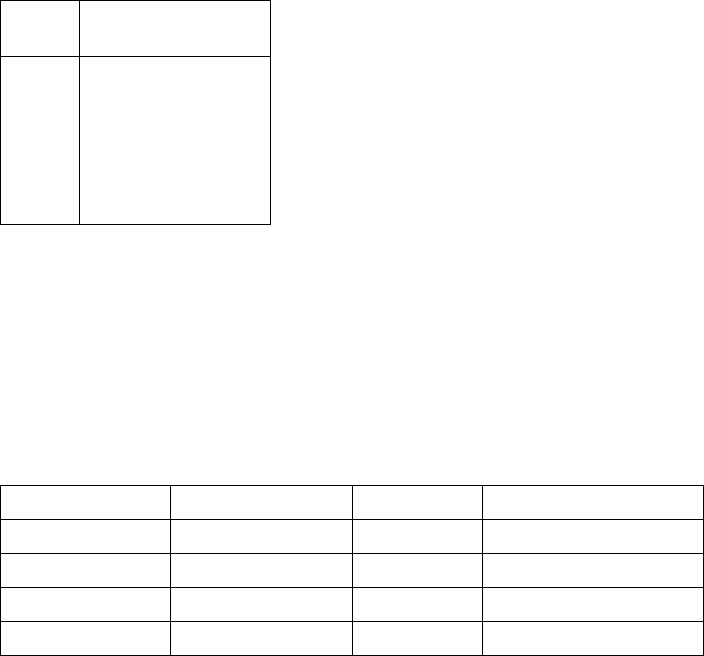
Tutorial 7
Keysight 34970A/34972A User’s Guide 261
–Cable Capacitance – Varies with the insulation type, cable length, and cable
shielding. Cables should be kept as short as possible to minimize cable
capacitance. In some cases, low-capacitance cable can be used.
The table below lists typical cable specifications.
AWG
Ω / ft (2 conductors)
at 25 °C
14
16
18
20 [a]
22
24
[a] Recommended wire size for the screw terminals on 34970A/34972A plug-in modules.
5 mΩ
10 mΩ
15 mΩ
20 mΩ
30 mΩ
50 mΩ
Cable Type Nominal Impedance Capacitance Attenuation
Twisted Pair 100Ω at 1 MHz 10 to 20 pF/ft Up to 1 dB/100 ft at 1 MHz
Shielded Twisted Pair 100Ω at 1 MHz 10 to 20 pF/ft Up to 1 dB/100 ft at 1 MHz
Coaxial 50Ω or 75Ω at 100 MHz 15 to 25 pF/ft Up to 6 dB/100 ft at 100 MHz
Twisted Pair Ribbon 100Ω at 1 MHz 15 to 20 pF/ft Up to 1 dB/100 ft at 1 MHz
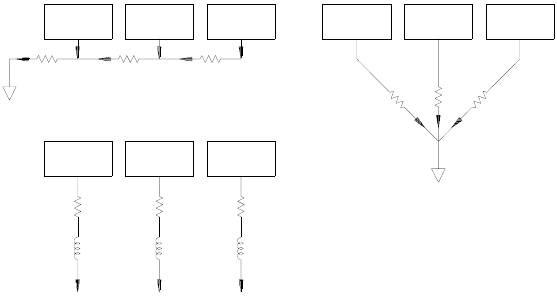
7Tutorial
262 Keysight 34970A/34972A User’s Guide
Grounding Techniques
One purpose of grounding is to avoid ground loops and minimize noise. Most
systems should have at least three separate ground returns.
1One ground for signals. You may also want to provide separate signal grounds
between high-level signals, low-level signals, and digital signals.
2A second ground is used for noisy hardware such as relays, motors, and
high-power equipment.
3A third ground is used for chassis, racks, and cabinets. The AC power ground
should generally be connected to this third ground.
In general, for frequencies below 1 MHz or for low-level signals, use single-point
grounding (see below). Parallel grounding is superior but is also more expensive
and more difficult to wire. If single-point grounding is adequate, the most critical
points (those with the lowest levels and/or the most precise measurement
requirements) should be positioned near the primary ground point. For
frequencies above 10 MHz, use the separate grounding system. For signals
between 1 MHz and 10 MHz, you can use a single-point system if the longest
ground return path is kept to less than 1/20 of a wavelength. In all cases,
return-path resistance and inductance should be minimized.
Circuit A Circuit B Circuit C Circuit A Circuit B Circuit C
Circuit A Circuit B Circuit C
Single-Point Ground
Separate Grounds
Parallel Ground s

Tutorial 7
Keysight 34970A/34972A User’s Guide 263
Shielding Techniques
Shielding against noise must address both capacitive (electrical) and inductive
(magnetic) coupling. The addition of a grounded shield around the conductor is
highly effective against capacitive coupling. In switching networks, this shielding
often takes the form of coaxial cables and connectors. For frequencies above 100
MHz, double-shielded coaxial cable is recommended to maximize shielding
effectiveness.
Reducing loop area is the most effective method to shield against magnetic
coupling. Below a few hundred kilohertz, twisted pairs may be used against
magnetic coupling. Use shielded twisted pair for immunity from magnetic and
capacitive pickup. For maximum protection below 1 MHz, make sure that the
shield is not one of the signal conductors.
Separation of High-Level and Low-Level Signals
Signals whose levels exceed a 20-to-1 ratio should be physically separated as
much as possible. The entire signal path should be examined including cabling
and adjacent connections. All unused lines should be grounded (or tied to LO) and
placed between sensitive signal paths. When making your wiring connections to
the screw terminals on the module, be sure to wire like functions on adjacent
channels.
Recommended Low-Frequency Cable:
Shielded twisted pair
Recommended High-Frequency Cable:
Double-shielded coaxial cable
LO
HI
LO
HI
Twisted Pair Shield
Center Conductor
Shield Foil
Shield Braid
PVC Jacket
7Tutorial
264 Keysight 34970A/34972A User’s Guide
Sources of System Cabling Errors
Radio Frequency Interference
Most voltage-measuring instruments can generate false readings in the presence
of large, high-frequency signals. Possible sources of high-frequency signals
include nearby radio and television transmitters, computer monitors, and cellular
telephones. High-frequency energy can also be coupled to the internal DMM on
the system cabling. To reduce the interference, try to minimize the exposure of the
system cabling to high-frequency RF sources.
If your application is extremely sensitive to RFI radiated from the instrument, use a
common mode choke in the system cabling as shown below to attenuate
instrument emissions.
Thermal EMF Errors
Thermoelectric voltages are the most common source of error in low-level DC
voltage measurements. Thermoelectric voltages are generated when you make
circuit connections using dissimilar metals at different temperatures. Each
metal-to-metal junction forms a thermocouple, which generates a voltage
proportional to the junction temperature difference. You should take the
necessary precautions to minimize thermocouple voltages and temperature
variations in low-level voltage measurements. The best connections are formed
using copper-to-copper crimped connections. The table below shows common
thermoelectric voltages for connections between dissimilar metals.
Torroid
To Transducers
To Plug-In
Modules

Tutorial 7
Keysight 34970A/34972A User’s Guide 265
Noise Caused by Magnetic Fields
If you are making measurements near magnetic fields, you should take
precautions to avoid inducing voltages in the measurement connections. Voltage
can be induced by either movement of the input connection wiring in a fixed
magnetic field or by a varying magnetic field. An unshielded, poorly dressed input
wire moving in the earth’s magnetic field can generate several millivolts. The
varying magnetic field around the AC power line can also induce voltages up to
several hundred millivolts. You should be especially careful when working near
conductors carrying large currents.
Where possible, you should route cabling away from magnetic fields. Magnetic
fields are commonly present around electric motors, generators, televisions, and
computer monitors. Also make sure that your input wiring has proper strain relief
and is tied down securely when operating near magnetic fields. Use twisted-pair
connections to the instrument to reduce the noise pickup loop area, or dress the
wires as close together as possible.
Noise Caused by Ground Loops
When measuring voltages in circuits where the internal DMM and the
device-under-test are both referenced to a common earth ground, a ground loop
is formed. As shown below, any voltage difference between the two ground
reference points (Vground) causes a current to flow through the LO measurement
lead. This causes an error voltage (VL) which is added to the measured voltage.
Copper-to- Approx. μV/°C
Copper
Gold
Silver
Brass
Beryllium Copper
Aluminum
Kovar or Alloy 42
Silicon
Copper-Oxide
Cadmium-Tin Solder
Tim-Lead Solder
<0.3
0.5
0.5
3
5
5
40
500
1000
0.2
5
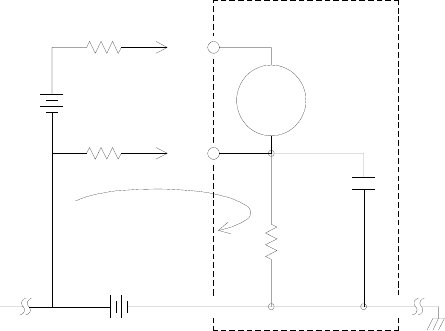
7Tutorial
266 Keysight 34970A/34972A User’s Guide
Where:
RL = Lead resistance
Ri = DMM isolation resistance
Ci = DMM isolation capacitance
Vground = Ground noise voltage
I = Current flow caused by Vground =
Z ≈ ZCi = ≈ 10 MΩ at 50 or 60 Hz
VL =
To minimize ground loop errors:
–If V
ground is a DC voltage, keep RL small compared to Ri.
–If V
ground is an AC voltage, keep RL small compared to Z, and set the DMM’s
integration time to 1 PLC or greater (see page 129 for a discussion of
integration time).
DMM
HI
LO
RL
RL
Vground
I
Vtest
» Ci
250 pF
Ri
>10 GW
Vground
RLZ+
--------------------
1
2πfC
-------------
IR
L
×
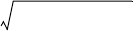
Tutorial 7
Keysight 34970A/34972A User’s Guide 267
Low-Level AC Measurement Errors
When measuring AC voltages less than 100 mV, be aware that these
measurements are especially susceptible to errors introduced by extraneous noise
sources. An exposed test lead will act as an antenna and the internal DMM will
measure the signals received. The entire measurement path, including the power
line, act as a loop antenna. Circulating currents in the loop will create error
voltages across any impedances in series with the instrument’s input. For this
reason, you should apply low-level AC voltages to the instrument through
shielded cables. You should also connect the shield to the input LO terminal.
Be sure to minimize the area of any ground loops that cannot be avoided. A
high-impedance source is more susceptible to noise pickup than a
low-impedance source. You can reduce the high-frequency impedance of a source
by placing a capacitor in parallel with the instrument’s input terminals. You may
have to experiment to determine the correct capacitance value for your
application.
Most extraneous noise is not correlated with the input signal. You can determine
the error as shown below.
Voltage Measured =
Correlated noise, while rare, is especially detrimental. Correlated noise will always
add directly to the input signal. Measuring a low-level signal with the same
frequency as the local power line is a common situation that is prone to this error.
You should use caution when switching high-level and low-level signals on the
same module. It is possible that high-level charged voltages may be discharged
onto a low-level channel. It is recommended that you either use two different
modules or separate the high-level signals from the low-level signals with an
unused channel connected to ground.
Vin2Noise2
+
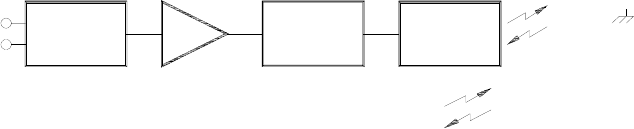
7Tutorial
268 Keysight 34970A/34972A User’s Guide
Measurement Fundamentals
This section explains how the 34970A/34972A makes measurements and
discusses the most common sources of error related to these measurements.
The Internal DMM
The internal DMM provides a universal input front-end for measuring a variety of
transducer types without the need for additional external signal conditioning. The
internal DMM includes signal conditioning, amplification (or attenuation), and a
high resolution (up to 22 bits) analog-to-digital converter. A simplified diagram of
the internal DMM is shown below. For complete details on the operation of the
internal DMM, refer to “Measurement Input” on page 86.
The internal DMM can directly make the following types of measurements. Each of
these measurements is described in the following sections of this chapter.
– Temperature (thermocouple, RTD, and thermistor)
– Voltage (dc and AC up to 300V)
– Resistance (2-wire and 4-wire up to 100 MΩ)
– Current (dc and AC up to 1A)
– Frequency and Period (up to 300 kHz)
Rejecting Power-Line Noise Voltages
A desirable characteristic of an integrating analog-to-digital (A/D) converter is its
ability to reject spurious signals. Integrating techniques reject power-line related
noise present with DC signals on the input. This is called normal mode rejection or
NMR. Normal mode noise rejection is achieved when the internal DMM measures
the average of the input by “integrating” it over a fixed period. If you set the
integration time to a whole number of power line cycles (PLCs) of the spurious
input, these errors (and their harmonics) will average out to approximately zero.
To/From
Earth
Referenced
Section
= Optical Isolators
Amp
Signal
Conditioning
Analog to
Digital
Converter
Main
Processor
Analog
Input
Signal
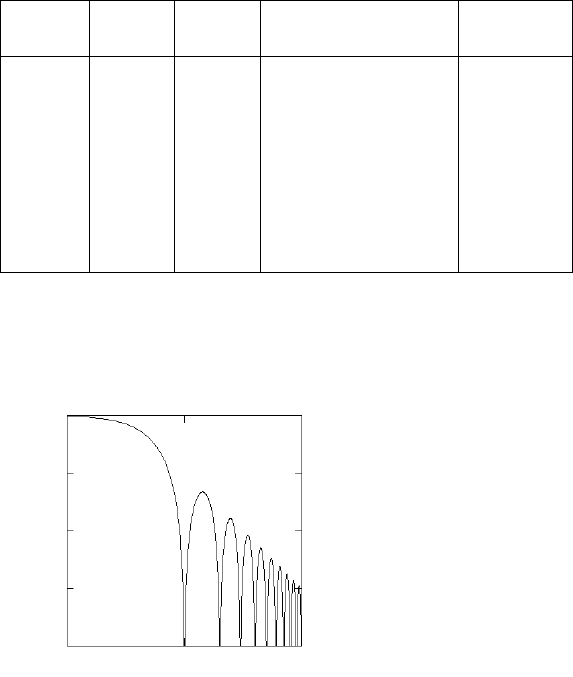
Tutorial 7
Keysight 34970A/34972A User’s Guide 269
When you apply power to the internal DMM, it measures the power-line frequency
(50 Hz or 60 Hz), and uses this measurement to determine the integration time.
The table below shows the noise rejection achieved with various configurations.
For better resolution and increased noise rejection, select a longer integration
time.
The following graph shows the attenuation of AC signals measured in the DC
voltage function for various A/D integration time settings. Note that signal
frequencies at multiples of 1/T exhibit high attenuation.
PLCs Digits Bits Integration Time
60 Hz (50 (Hz) NMR
0.02
0.2
1
2
10
20
100
200
4½
5½
5½
6½
6½
6½
6½
6½
15
18
20
21
24
25
26
26
400 μs (400 μs)
3 ms (3 ms)
16.7 ms (20 ms)
33.3 ms (40 ms)
167 ms (200 ms)
333 ms (400 ms)
1.67 s (2 s)
3.33 s (4 s)
0 dB
0 dB
60 dB
90 dB
95 dB
100 dB
105 dB
110 dB
Signal Frequency x T
Signal Gain
0 dB
-10 dB
-20 dB
-30 dB
-40 dB
0.1 110
7Tutorial
270 Keysight 34970A/34972A User’s Guide
Temperature Measurements
A temperature transducer measurement is typically either a resistance or voltage
measurement converted to an equivalent temperature by software conversion
routines inside the instrument. The mathematical conversion is based on specific
properties of the various transducers. The mathematical conversion accuracy (not
including the transducer accuracy) for each transducer type is shown below.
Errors associated with temperature measurements include all of those listed for
DC voltage and resistance measurements elsewhere in this chapter. The largest
source of error in temperature measurements is generally the transducer itself.
Your measurement requirements will help you to determine which temperature
transducer type to use. Each transducer type has a particular temperature range,
accuracy, and cost. The table below summarizes some typical specifications for
each transducer type. Use this information to help select the transducer for your
application. The transducer manufacturers can provide you with exact
specifications for a particular transducer.
.
Transducer Conversion Accuracy
Thermocouple
RTD
Thermistor
0.05°C
0.02°C
0.05°C
Parameter Thermocouple RTD Thermistor
Temperature Range
Measurement Type
Transducer Sensitivity
Probe Accuracy
Cost (U.S. Dollars)
Durability
-210°C to 1820°C
Voltage
6 μV/°C to 60 μV/°C
0.5°C to 5°C
$1 / foot
Rugged
-200°C to 850°C
2- or 4-Wire Ohms
≈ R0 x 0.004°C
0.01°C to 0.1°C
$20 to $100 each
Fragile
-80°C to 150°C
2- or 4-Wire Ohms
≈ 400Ω /°C
0.1°C to 1°C
$10 to $100 each
Fragile
Tutorial 7
Keysight 34970A/34972A User’s Guide 271
RTD Measurements
An RTD is constructed of a metal (typically platinum) that changes resistance with
a change in temperature in a precisely known way. The internal DMM measures
the resistance of the RTD and then calculates the equivalent temperature.
An RTD has the highest stability of the temperature transducers. The output from
an RTD is also very linear. This makes an RTD a good choice for high-accuracy,
long-term measurements. The 34970A/34972A supports RTDs with α = 0.00385
(DIN / IEC 751) using ITS-90 software conversions and α = 0.00391 using IPTS-68
software conversions. “PT100” is a special label that is sometimes used to refer to
an RTD with α = 0.00385 and R0 = 100Ω.
The resistance of an RTD is nominal at 0 °C and is referred to as R0. The 34970A/
34972A can measure RTDs with R0 values from 49Ω to 2.1 kΩ.
You can measure RTDs using a 2-wire or 4-wire measurement method. The 4-wire
method provides the most accurate way to measure small resistances. Connection
lead resistance is automatically removed using the 4-wire method.
Thermistor Measurements
A thermistor is constructed of materials that non-linearly changes resistance with
changes in temperature. The internal DMM measures the resistance of the
thermistor and then calculates the equivalent temperature.
Thermistors have a higher sensitivity than thermocouples or RTDs. This makes a
thermistor a good choice when measuring very small changes in temperature.
Thermistors are, however, very non-linear, especially at high temperatures and
function best below 100 °C.
Because of their high resistance, thermistors can be measured using a
2-wire measurement method. The internal DMM supports 2.2 kΩ (44004), 5 kΩ
(44007), and 10 kΩ (44006) thermistors. The thermistor conversion routines used
by the 34970A/34972A are compatible with the International Temperature Scale
of 1990 (ITS-90).
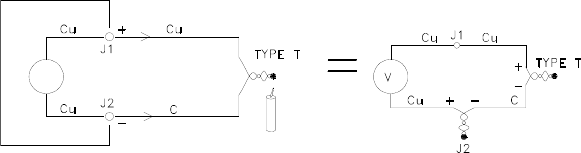
7Tutorial
272 Keysight 34970A/34972A User’s Guide
Thermocouple Measurements
A thermocouple converts temperature to voltage. When two wires composed of
dissimilar metals are joined, a voltage is generated. The voltage is a function of
the junction temperature and the types of metals in the thermocouple wire. Since
the temperature characteristics of many dissimilar metals are well known, a
conversion from the voltage generated to the temperature of the junction can be
made. For example, a voltage measurement of a T-type thermocouple (made of
copper and constantan wire) might look like this:
Notice, however, that the connections made between the thermocouple wire and
the internal DMM make a second, unwanted thermocouple where the constantan
(C) lead connects to the internal DMM’s copper (Cu) input terminal. The voltage
generated by this second thermocouple affects the voltage measurement of the
T-type thermocouple.
If the temperature of the thermocouple created at J2 (the LO input terminal) is
known, the temperature of the T-type thermocouple can be calculated. One way
to do this is to connect two T-type thermocouples together to create only
copper-to-copper connections at the internal DMM’s input terminals, and to hold
the second thermocouple at a known temperature.
Internal DMM
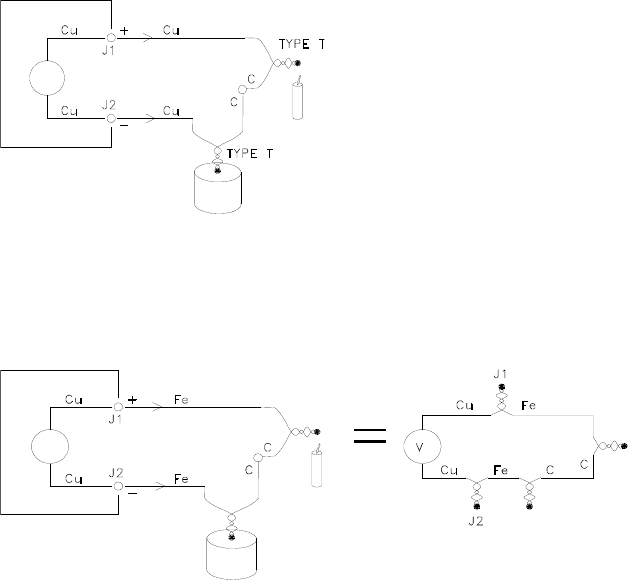
Tutorial 7
Keysight 34970A/34972A User’s Guide 273
An ice bath is used to create a known reference temperature (0 °C). Once the
reference temperature and thermocouple type are known, the temperature of the
measurement thermocouple can be calculated.
The T-type thermocouple is a unique case since one of the conductors (copper) is
the same metal as the internal DMM’s input terminals. If another type of
thermocouple is used, two additional thermocouples are created. For example,
take a look at the connections with a J-type thermocouple (iron and constantan):
Two additional thermocouples have been created where the iron (Fe) lead
connects to the internal DMM’s copper (Cu) input terminals. Since these two
junctions will generate opposing voltages, their effect will be to cancel each
other. However, if the input terminals are not at the same temperature, an error
will be created in the measurement.
Internal DMM
Ice Bath
Ice Bath
Internal DMM
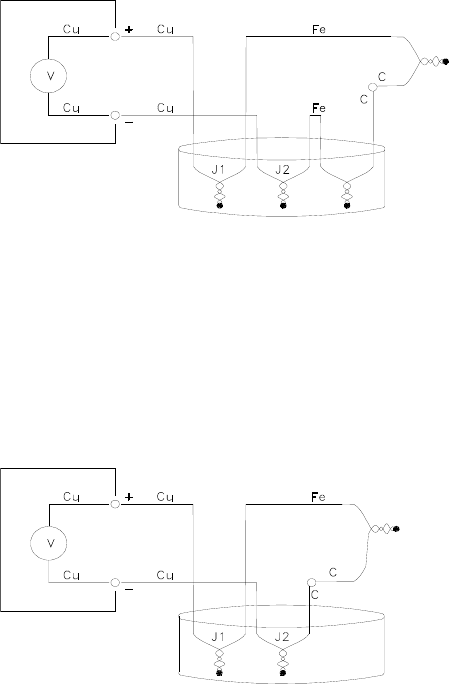
7Tutorial
274 Keysight 34970A/34972A User’s Guide
To make a more accurate measurement, you should extend the copper test leads
of the internal DMM closer to the measurement and hold the connections to the
thermocouple at the same temperature.
This circuit will give accurate temperature measurements. However, it is not very
convenient to make two thermocouple connections and keep all connections at a
known temperature. The Law of Intermediate Metals eliminates the need for the
extra connection. This empirical law states that a third metal (iron (Fe) in this
example) inserted between two dissimilar metals will have no effect upon the
output voltage, provided the junctions formed are at the same temperature.
Removing the reference thermocouple makes the connections much easier.
This circuit is the best solution for accurate thermocouple connections.
Measurement
Thermocouple
Reference Thermocouple
Ice Bath
Internal DMM
Internal DMM
Measurement
Thermocouple
Ice Bath
(External Reference Junction)
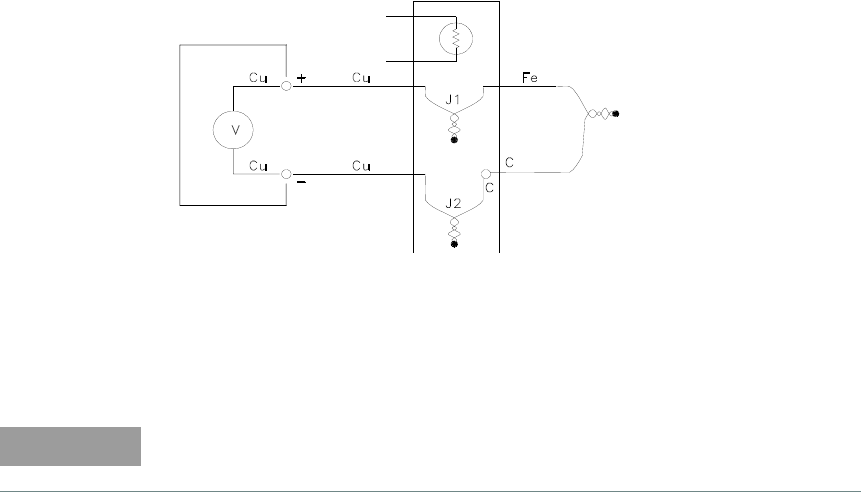
Tutorial 7
Keysight 34970A/34972A User’s Guide 275
In some measurement situations, however, it would be nice to remove the need
for an ice bath (or any other fixed external reference). To do this, an isothermal
block is used to make the connections. An isothermal block is an electrical
insulator, but a good heat conductor. The additional thermocouples created at J1
and J2 are now held at the same temperature by the isothermal block.
Once the temperature of the isothermal block is known, accurate temperature
measurements can be made. A temperature sensor is mounted to the isothermal
block to measure its temperature.
Thermocouples are available in a variety of types. The type is specified by a single
letter. The table on the following page shows the most commonly used
thermocouple types and some key characteristics of each.
Measurement
Thermocouple
Internal DMM Reference
Temperature Reference
Sensor
Isothermal Block
(Internal or External Reference)
NOTE
The thermocouple conversion routines used by the 34970A/34972A are
compatible with the International Temperature Scale of 1990 (ITS-90).

7Tutorial
276 Keysight 34970A/34972A User’s Guide
Thermocouple Types
T/C Type Pos (+) Lead Neg (-) Lead Temperature
Range
Probe
Accuracy Comments
B
U.S.
British
DIN
Japanese
French
Platinum -30% Rhodium
Gray
N/A
Red
Red
N/A
Platinum -60% Rhodium
Red
N/A
Gray
Gray
N/A
250°C - 1820°C ±0.5°C
High Temperature.
Beware of contamination.
Do not insert
in metal tubes.
J
U.S.
British
DIN
Japanese
French
Iron
White
Yellow
Red
Red
Yellow
Constantan
Red
Blue
Blue
White
Black
-210°C -
1200°C
±1.1°C -
2.2°C
For vacuum, inert
environments.
Least expensive.
Not recommended for
low temperature.
K
U.S.
British
DIN
Japanese
French
Nickel-Chromium
Yellow
Brown
Red
Red
Yellow
Nickel-Aluminum
Red
Blue
Green
White
Purple
-200°C -
1370°C
±1.1°C -
2.2°C
For oxidizing environments.
Good linearity
above 8°C.
T
U.S.
British
DIN
Japanese
French
Copper
Blue
White
Red
Red
Yellow
Constantan
Red
Blue
Brown
White
Blue
-200°C - 400°C ±0.5°C - 1°C
Withstands moisture.
Has a copper lead.
Low temperature
applications.
E
U.S.
British
DIN
Japanese
French
Nickel-Chromium
Purple
Brown
Red
Red
Yellow
Constantan
Red
Blue
Black
White
Blue
-200°C -
1000°C ±1°C - 1.7°C Highest output voltage.
Highest resolution.

Tutorial 7
Keysight 34970A/34972A User’s Guide 277
Constantan = Copper-Nickel; Nicrosil = Nickel-Chromium-Silicon;
Nisil = Nickel-Silicone-Magnesium; N/A = Not Available
N
U.S.
British
DIN
Japanese
French
Nicrosil
Orange
N/A
N/A
N/A
N/A
Nisil
Red
N/A
N/A
N/A
N/A
-200°C -
1300°C
±1.1°C -
2.2°C
Superior stability to
K type at higher
temperatures
R
U.S.
British
DIN
Japanese
French
Platinum -13% Rhodium
Black
White
Red
Red
Yellow
Rhodium
Red
Blue
White
White
Green
-50°C - 1760°C ±0.6°C -
1.5°C
High Temperature.
Beware of contamination.
Do not insert in
metal tubes.
S
U.S.
British
DIN
Japanese
French
Platinum -10% Rhodium
Black
White
Red
Red
Yellow
Platinum
Red
Blue
White
White
Green
-50°C - 1760°C ±0.6°C -
1.5°C
Low error, good stability.
High temperature
Beware of contamination.
Do not insert in
metal tubes.
T/C Type Pos (+) Lead Neg (-) Lead Temperature
Range
Probe
Accuracy Comments
7Tutorial
278 Keysight 34970A/34972A User’s Guide
Sources of Error in Thermocouple Measurements
Reference Junction Error
A thermocouple is typically formed by welding or soldering two wires together to
make the junction. Soldering introduces a third metal into the junction. Provided
that both sides of the thermocouple are at the same temperature, the third metal
has little effect.
Commercial thermocouples are welded using a capacitive-discharge technique.
This technique is used to prevent overheating of the thermocouple wire near the
junction and to prevent the diffusion of the welding gas and atmosphere into the
thermocouple wire.
A poor weld or bad solder connection can also cause errors in a thermocouple
measurement. Open thermocouple junctions can be detected by checking the
resistance of the thermocouple. A resistance measurement of more than 5 kΩ.
typically indicates a defective thermocouple. The 34970A/34972A contains a
built-in, automatic thermocouple check feature. If you enable this feature, the
instrument measures the channel resistance after each thermocouple
measurement to ensure a proper connection. For more information on using the
thermocouple check feature, see page 133.
Diffusion Error
Diffusion in a thermocouple wire is the process of changing the alloy type along
the wire itself. Atmospheric particles can actually diffuse into the metal. These
changes in the wire alloy introduce small voltage changes in the measurement.
Diffusion is caused by exposure to high temperatures along the wire or by physical
stress to the wire such as stretching or vibration.
Temperature errors due to diffusion are hard to detect since the thermocouple will
still respond to temperature changes and give nearly correct results. The diffusion
effects are usually detected as a drift in the temperature measurements.
Replacing a thermocouple which exhibits a diffusion error may not correct the
problem. The extension wire and connections are all subject to diffusion. Examine
the entire measurement path for signs of temperature extremes or physical stress.
If possible, keep the temperature gradient across the extension wire to a
minimum.
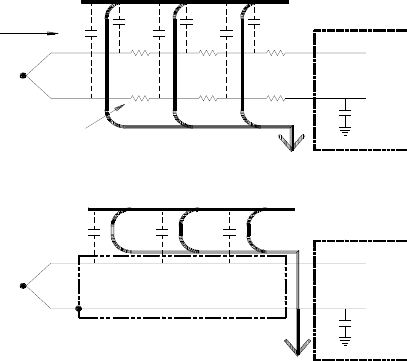
Tutorial 7
Keysight 34970A/34972A User’s Guide 279
Shunt Impedance
The insulation used for thermocouple wire and extension wire can be degraded by
high temperatures or corrosive atmospheres. These breakdowns appear as a
resistance in parallel with the thermocouple junction. This is especially apparent
in systems using a small gauge wire where the series resistance of the wire is high.
Shielding
Shielding reduces the effect of common mode noise on a thermocouple
measurement. Common mode noise is generated by sources such as power lines
and electrical motors. The noise is coupled to the unshielded thermocouple wires
through distributed capacitance. As the induced current flows to ground through
the internal DMM, voltage errors are generated along the distributed resistance of
the thermocouple wire. Adding a shield to the thermocouple wire will shunt the
common mode noise to earth ground and preserve the measurement.
Common mode noise can dramatically affect the internal DMM. A typical
thermocouple output is a few millivolts and a few millivolts of common mode
noise can overload the input to the internal DMM.
HI
LO
DMM
WITH SHIELD
WITHOUT SHIELD
Distributed
Distributed
Capacitance
Resistance
Power Line
DMM
LO
HI
Power Line
C
R
CC
C
C
C
C
C
C
R
R
R
R
R
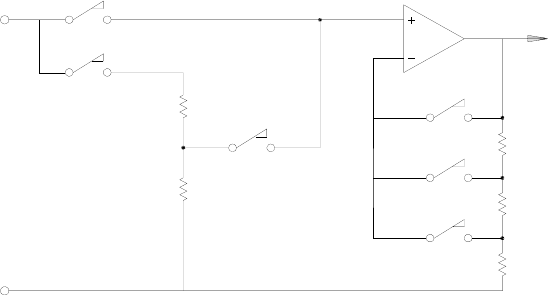
7Tutorial
280 Keysight 34970A/34972A User’s Guide
Calculation Error
An error is inherent in the way a thermocouple voltage is converted to a
temperature. These calculation errors are typically very small compared to the
errors of the thermocouple, wiring connections, and reference junction (see page
270).
DC Voltage Measurements
To make a useful DC meter, a “front-end” is required to condition the input before
the analog-to-digital conversion. Signal conditioning increases the input
resistance, amplifies small signals, and attenuates large signals to produce a
selection of measuring ranges.
Signal Conditioning for DC Measurements
Input signal conditioning for DC voltage measurements includes both
amplification and attenuation. A simplified input to the internal DMM is shown
below.
For input voltages less than 12 VDC, the Low V switch is closed and applies the
input signal directly to the input amplifier. For higher voltages, the High V switch
is closed and the signal is attenuated 100:1 before being applied to the input
amplifier. The input amplifier gain is set to one of three values (x1, x10, or x100) to
yield a signal in the range of ±12 VDC for the analog-to-digital converter.
HI
LO
Low V
High V
100:1
X1
X10
X100
Ranging
+/- 12 Vcd to
Analog-to-Digital
Converter
Tutorial 7
Keysight 34970A/34972A User’s Guide 281
For the lower voltage ranges, the internal DMM’s input resistance is essentially
that of the input amplifier. The input amplifier uses a low-bias current (less than
50 pA) FET input stage yielding an input resistance greater than 10 GΩ. On the
100V and 300V input ranges, the input resistance is determined by the total
resistance of the 100:1 divider. You can also set the input resistance to 10 MΩ by
continuously closing the High V switch (for more information on DC input
resistance, see page 138).
Sources of Error in DC Voltage Measurements
Common Mode Rejection
Ideally, the internal DMM is completely isolated from earth-referenced circuits.
However, there is finite resistance and capacitance between the input LO terminal
and earth ground. If the input terminals are both driven by an earth-referenced
signal (Vf) then a current will flow through RS and create a voltage drop VL as
shown below.
Any resulting voltage (VL) will appear as an input to the internal DMM. As the
value of RS approaches zero, so does the error. Additionally, if Vf is at the power
line frequency (50 Hz or 60 Hz), the noise can be greatly reduced by setting the
internal DMM’s integration time to 1 PLC
or greater (see page 129 for a discussion of integration time).
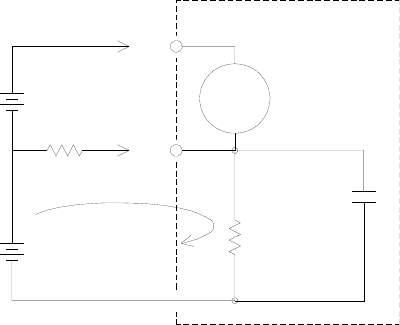
7Tutorial
282 Keysight 34970A/34972A User’s Guide
Where:
Vf = Common mode float voltage
Rs = LO lead resistance
Ri = Isolation resistance
Ci = Isolation capacitance
Zi = Parallel impedance of Ri + Ci
Error (VL) =
DMM
Ri
>10 GW
»Ci
250 pF
HI
Vtest
Vf
RsLO
+ VL -
VfRs
×
RsZ+
------------------
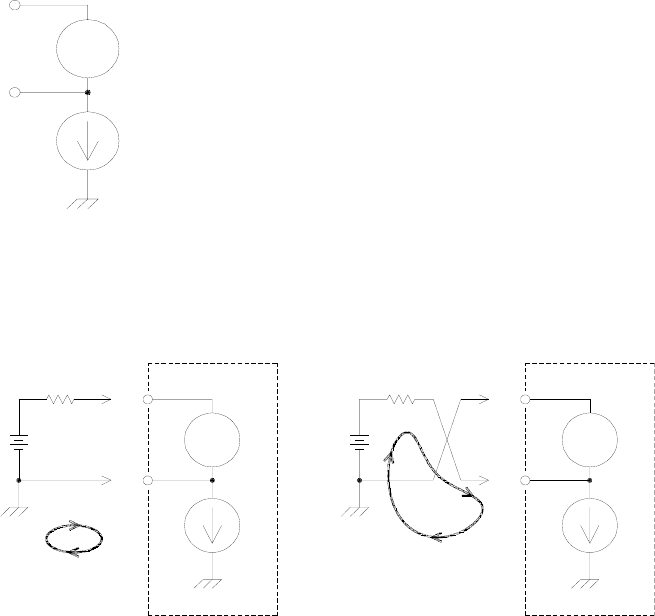
Tutorial 7
Keysight 34970A/34972A User’s Guide 283
Noise Caused by Injected Current
Residual capacitances in the instrument’s power transformer cause small currents
to flow from the LO terminal of the internal DMM to earth ground. The frequency
of the “injected current” is the power line frequency or possibly harmonics of the
power line frequency. The injected current is dependent upon the power line
configuration and frequency. A simplified circuit is shown below.
With Connection A (see below), the injected current flows from the earth
connection provided by the circuit to the LO terminal of the internal DMM. This
configuration adds no noise to the measurement. However, with Connection B,
the injected current flows through the resistor R thus adding noise to the
measurement. With Connection B, larger values of R will make the problem worse.
The measurement noise caused by injected current can be significantly reduced
by setting the integration time of the internal DMM to 1 PLC or greater (see page
129 for a discussion of integration time).
DMM
Injected Current
(50/60 Hz ac line leakage current)
HI
LO
DMM DMM
HI HI
LO LO
VSVS
RR
Connection A Connection B
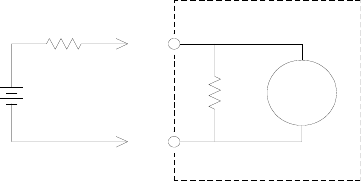
7Tutorial
284 Keysight 34970A/34972A User’s Guide
Loading Errors Due to Input Resistance
Measurement loading errors occur when the resistance of the device-under-test
(DUT) is an appreciable percentage of the instrument’s own input resistance. The
diagram below shows this error source.
Where:
Vs = Ideal DUT voltage
Rs = DUT source resistance
Ri = Input resistance (10 MΩ or > 10 GΩ)
Error (%) =
To minimize loading errors, set the DMM’s DC input resistance to greater than 10
GΩ when needed (for more information on DC input resistance, see page 138).
Loading Errors Due to Input Bias Current
The semiconductor devices used in the input circuits of the internal DMM have
slight leakage currents called bias currents. The effect of the input bias current is
a loading error at the internal DMM’s input terminals. The leakage current will
approximately double for every 10 °C temperature rise, thus making the problem
much more apparent at higher temperatures.
Rs
DMM
Ri
HI
LO
Vs
100–Rs
×
RsRi
+
-------------------------
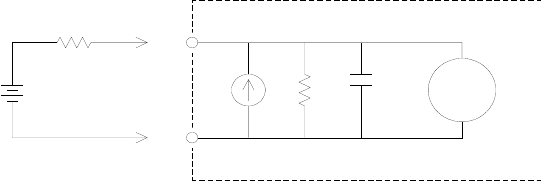
Tutorial 7
Keysight 34970A/34972A User’s Guide 285
Where:
Ib = DMM bias current
Rs = DUT source resistance
Ri = Input resistance (10 MΩ or > 10 GΩ)
Ci = DMM input capacitance
Error (V) = Ib X Rs
VsDMM
RsHI
LO
Ri
Ci
Ib
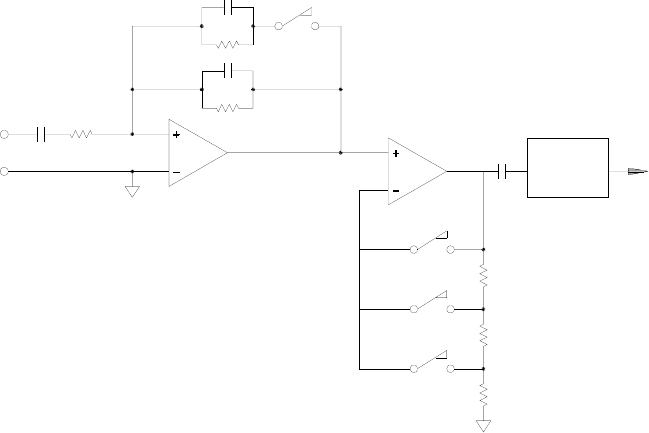
7Tutorial
286 Keysight 34970A/34972A User’s Guide
AC Voltage Measurements
The main purpose of an AC “front end” is to change an AC voltage input into a DC
voltage which can be measured by the ADC.
Signal Conditioning for AC Measurements
Input signal conditioning for AC voltage measurements includes both attenuation
and amplification. An input coupling capacitor (C) blocks the DC portion of the
input signal so that only the AC component is measured. Ranging is accomplished
by combining signal attenuation from the first-stage amplifier and gain from the
second-stage amplifier.
The first stage implements a high input impedance (1 MΩ) switchable
compensated attenuator. The second stage provides variable-gain signal
amplification to scale the input to the AC converter to the full-scale level. Any
residual DC offset from the attenuator and amplifier stages is blocked by a
capacitor.
An AC voltage front end similar to the one discussed above is also used to
measure AC current. Shunt resistors convert the AC current into an AC voltage
which can then be measured. Current shunts are switched to provide selectable
AC current ranges.
C1MW
X 0.01
X1
A1
A2
X1
X10
X100
AC to DC
Converter
HI
LO

Tutorial 7
Keysight 34970A/34972A User’s Guide 287
True RMS AC Measurements
True RMS responding multimeters measure the “heating” potential of an applied
voltage. Unlike an “average responding” measurement, a true RMS measurement
is used to determine the power dissipated in a resistor. The power is proportional
to the square of the measured true RMS voltage, independent of waveshape. An
average responding AC multimeter is calibrated to read the same as a true RMS
meter for sinewave inputs only. For other waveform shapes, an average
responding meter will exhibit substantial errors as shown below.
The internal DMM’s AC voltage and AC current functions measure the ac-coupled
true RMS value. This is in contrast to the ac+dc true RMS value shown above.
Only the “heating value” of the AC component of the input waveform is measured
(dc is rejected). For sinewaves, triangle waves, and square waves, the AC and
AC+DC values are equal since these waveforms do not contain a DC offset.
Non-symmetrical waveforms, such as pulse trains, contain DC voltages which are
rejected by ac-coupled true RMS measurements.
An ac-coupled true RMS measurement is desirable in situations where you are
measuring small AC signals in the presence of large DC offsets. For example, this
situation is common when measuring AC ripple present on DC power supplies.
There are situations, however, where you might want to know the ac+dc true RMS
value. You can determine this value by combining results from DC and AC
measurements as shown below. You should perform the DC measurement using at
least 10 power line cycles of integration (6½ digit mode) for best AC rejection.
AC DC+AC2DC2
+=

7Tutorial
288 Keysight 34970A/34972A User’s Guide
Making High-Speed AC Measurements
The internal DMM’s AC voltage and AC current functions implement three
low-frequency filters. These filters allow you to trade-off low frequency accuracy
for faster scanning speed. The fast filter settles in 0.12 seconds and is useful for
measurements above 200 Hz. The medium filter settles in 1 second and is useful
for measurements above 20 Hz. The slow filter settles in 7 seconds and is useful
for measurements above 3 Hz.
With a few precautions, you can perform AC measurements at speeds up to 100
readings per second (use manual ranging to eliminate autoranging delays). By
setting the preprogrammed channel settling delays to zero, each filter will allow
up to 100 channels per second. However, the measurement might not be very
accurate since the filter is not fully settled. In scanning applications where
sample-to-sample levels vary widely, the medium filter (20 Hz) will settle at 1
reading per second, and the fast filter (200 Hz) will settle at 10 readings per
second.
If the sample-to-sample levels are similar, little settling time is required for each
new reading. Under this specialized condition, the medium filter (20 Hz) will
provide reduced accuracy results at 5 readings per second, and the fast filter (200
Hz) will provide reduced accuracy results at 50 readings per second. Additional
settling time may be required when the DC level varies from sample to sample.
The internal DMM’s DC blocking circuitry has a settling time constant of 0.2
seconds. This settling time only affects measurement accuracy when DC offset
levels vary from sample to sample. If maximum measurement speed is desired in a
scanning system, you may want to add an external DC blocking circuit to those
channels with significant DC voltages present. This circuit can be as simple as a
resistor and a capacitor.
DC blocking settling time (1 time constant) = 0.2 seconds.
AC Filter Channel Delay Settling Time
200 Hz (Fast)
20 Hz (Medium)
3 Hz (Slow)
200 Hz (Fast)
20 Hz (Medium)
3 Hz (Slow)
AUTO
AUTO
AUTO
0
0
0
0.12 seconds
1 second
7 seconds
0.02 seconds
0.2 seconds
1.5 seconds
Tutorial 7
Keysight 34970A/34972A User’s Guide 289
Sources of Error in AC Voltage Measurements
Many of the errors associated with DC voltage measurements also apply to AC
voltage measurements. Additional errors unique to AC voltage measurements are
described in this section.
Crest Factor Errors (non-sinusoidal inputs)
A common misconception is that “since the internal DMM is true RMS, its
sinewave accuracy specifications apply to all waveforms.” Actually, the shape of
the input signal can dramatically affect measurement accuracy. A common way to
describe signal waveshapes is crest factor. Crest factor is the ratio of the peak
value to the RMS value of a waveform.
For a pulse train, for example, the crest factor is approximately equal to the square
root of the inverse of the duty cycle as shown in the table on page 287. In general,
the greater the crest factor the greater the energy contained in higher frequency
harmonics. All multimeters exhibit measurement errors that are crest factor
dependent. Crest factor errors are shown in the specifications in Chapter 8. Note
that the crest factor errors do not apply for input signals below 100 Hz when using
the slow AC filter.
You can estimate the measurement error due to signal crest factor as shown
below:
Total Error = Errorsine + Errorcrest factor + Errorbandwidth
Where:
Errorsine = DMM’s sinewave accuracy (see Chapter 8, "Specifications")
Errorcrest factor = DMM’s crest factor (see Chapter 8, "Specifications")
Errorbandwidth = Estimated bandwidth error as shown below:
Errorbandwidth =
Where:
C.F. = Signal crest factor (see the table on page 287)
F = Fundamental input signal frequency
BW = DMM’s -3 dB bandwidth (1 MHz for the 34970A/34972A)
C.F.2
–F×
4πBW×
-------------------------
7Tutorial
290 Keysight 34970A/34972A User’s Guide
Example: Calculating Measurement Error
Calculate the approximate measurement error for a pulse train input with a crest
factor of 3 and a fundamental frequency of 20 kHz. The internal DMM is set to the
1 V range. For this example, use the 90-day accuracy specifications of ± (0.05% of
reading + 0.04% of range), as shown in Chapter 8.
Errorsine = ±(0.05% + 0.04%) = ±0.09%
Errorcrest factor = 0.15%
Errorbandwidth = * 100 = 1.4%
Total Error = 0.09% + 0.15% + 1.4% = 1.6%
3–220000×
4 3.14159 1000000××
-----------------------------------------------------------
Tutorial 7
Keysight 34970A/34972A User’s Guide 291
AC Loading Errors
In the AC voltage function, the input of the internal DMM appears as a 1 MΩ
resistance in parallel with 150 pF of capacitance. The cabling that you use to
connect signals to the instrument will also add additional capacitance and
loading. The table below shows the approximate input resistance at various
frequencies.
For low frequencies:
Error (%) =
Additional error for high frequencies:
Error (%) = 100 x
F = Input frequency
Rs = Source resistance
Cin = Input capacitance (150 pF) + Cable capacitance
Use low-capacitance cable when measuring high-frequency AC signals (see page
261).
Input Frequency Input Resistance
100 Hz
1 kHz
10 kHz
100 kHz
700 kΩ
600 kΩ
100 kΩ
10 kΩ
100–Rs
×
Rs1 MΩ+
----------------------------
1
12πFR
sCin
×××()
2
+
------------------------------------------------------------------ 1–
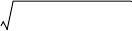
7Tutorial
292 Keysight 34970A/34972A User’s Guide
Low-Level AC Measurement Errors
When measuring AC voltages less than 100 mV, be aware that these
measurements are especially susceptible to errors introduced by extraneous noise
sources. An exposed test lead will act as an antenna and the internal DMM will
measure the signals received. The entire measurement path, including the power
line, act as a loop antenna. Circulating currents in the loop will create error
voltages across any impedances in series with the instrument’s input. For this
reason, you should apply low-level AC voltages to the instrument through
shielded cables. You should also connect the shield to the input LO terminal.
Be sure to minimize the area of any ground loops that cannot be avoided. A
high-impedance source is more susceptible to noise pickup than a
low-impedance source. You can reduce the high-frequency impedance of a source
by placing a capacitor in parallel with the instrument’s input terminals. You may
have to experiment to determine the correct capacitance value for your
application.
Most extraneous noise is not correlated with the input signal. You can determine
the error as shown below.
Voltage Measured =
Correlated noise, while rare, is especially detrimental. Correlated noise will always
add directly to the input signal. Measuring a low-level signal with the same
frequency as the local power line is a common situation that is prone to this error.
You should use caution when switching high-level and low-level signals on the
same module. It is possible that high-level charged voltages may be discharged
onto a low-level channel. It is recommended that you either use two different
modules or separate the high-level signals from the low-level signals with an
unused channel connected to ground.
Measurements Below Full Scale
You can make the most accurate AC measurements when the internal DMM is at
full scale of the selected range. Autoranging occurs at 10% and 120% of full scale.
This enables you to measure some inputs at full scale on one range and 10% of
full scale on the next higher range. Note that the measurement accuracy will be
significantly different for the two cases. For highest accuracy, you should use
manual ranging to select the lowest range possible for the measurement.
Vin2Noise2
+
Tutorial 7
Keysight 34970A/34972A User’s Guide 293
Temperature Coefficient and Overload Errors
The internal DMM uses an AC measurement technique that periodically measures
and removes internal offset voltages when you select a different function or range.
When manual ranging to a new range in an overload condition, the internal offset
measurement may be degraded for the selected range. Typically, an additional
0.01% of range error may be introduced. This additional error will remain until the
next periodic removal (typically 15 minutes).
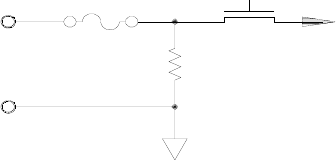
7Tutorial
294 Keysight 34970A/34972A User’s Guide
Current Measurements
Current measurements are allowed only on the 34901A module.
An ammeter senses the current flowing through its input connections –
approximating a short circuit between its input terminals. An ammeter must be
connected in series with the circuit or device being measured such that current
flows through both the meter and the test circuit.
A resistor, Rs in the diagram below, is connected across the input terminals such
that a voltage drop proportional to the input current is generated. The value of Rs
is selected as low as possible to minimize the instrument’s burden voltage, or IR
drop. This voltage drop is sensed by the internal DMM and scaled to the proper
current value to complete the measurement (see the discussion on the following
page).
AC current measurements are very similar to DC current measurements. The
output of the current-to-voltage sensor is measured by an AC voltmeter. The
input terminals are direct coupled (ac+dc coupled) to the shunt so that the
internal DMM maintains DC continuity in the test circuit. Performing AC current
measurements demands additional care. The burden voltage (loading) varies with
frequency and input inductance, often causing unexpected behavior in the test
circuit (see the discussion on the following page).
On-Card
Fuse S1
Rs
LO
I±VDC to Input Amplifier and
Analog-to-Digital Converter
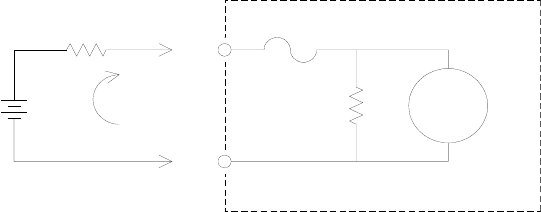
Tutorial 7
Keysight 34970A/34972A User’s Guide 295
Sources of Error in DC Current Measurements
When you connect the internal DMM in series with a test circuit to measure
current, a measurement error is introduced. The error is caused by the DMM’s
series burden voltage. A voltage is developed across the wiring resistance and
current shunt resistance of the internal DMM as shown below.
Vs = Source voltage
Rs = Source resistance
Vb = Burden voltage
R = Current shunt resistance
Error (%) =
Sources of Error in AC Current Measurements
Burden voltage errors, which apply to DC current, also apply to AC current
measurements. However, the burden voltage for AC current is larger due to the
internal DMM’s series inductance and the measurement connections. The burden
voltage increases as the input frequency increases. Some circuits may oscillate
when performing current measurements due to the internal DMM’s series
inductance and the measurement connections.
Vs
Rs
VbRDMM
100%–Vb
×
Vs
-------------------------------
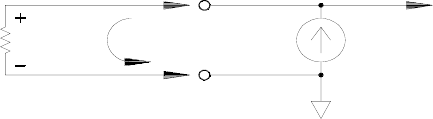
7Tutorial
296 Keysight 34970A/34972A User’s Guide
Resistance Measurements
An ohmmeter measures the DC resistance of a device or circuit connected to its
input. Resistance measurements are performed by supplying a known DC current
to an unknown resistance and measuring the DC voltage drop.
The internal DMM offers two methods for measuring resistance: 2-wire and 4-wire
ohms. For both methods, the test current flows from the input HI terminal through
the resistor being measured. For 2-wire ohms, the voltage drop across the resistor
being measured is sensed internal to the DMM. Therefore, test lead resistance is
also measured. For 4-wire ohms, separate “sense” connections are required. Since
no current flows in the sense leads, the resistance in these leads does not give a
measurement error.
4-Wire Ohms Measurements
The 4-wire ohms method provides the most accurate way to measure small
resistances. Test lead, multiplexer, and contact resistances are automatically
reduced using this method. The 4-wire ohms method is often used in automated
test applications where long cable lengths, input connections, and a multiplexer
exist between the internal DMM and the device-under-test.
The recommended connections for 4-wire ohms measurements are shown in the
diagram on the following page. A constant current source, forcing current I
through unknown resistance R, develops a voltage measured by a DC voltage
front end. The unknown resistance is then calculated using Ohm’s Law.
Itest
HI
LO
To Amplifier and
Analog-to-Digital
Converter
Runknown
I
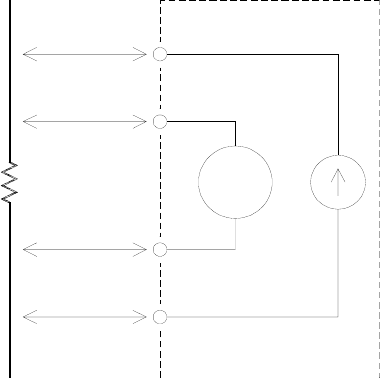
Tutorial 7
Keysight 34970A/34972A User’s Guide 297
The 4-wire ohms method is used in systems where lead resistances can become
quite large and variable and in automated test applications where cable lengths
can be quite long. The 4-wire ohms method has the obvious disadvantage of
requiring twice as many switches and twice as many wires as the 2-wire method.
The 4-wire ohms method is used almost exclusively for measuring lower
resistance values in any application, especially for values less than 10Ω and for
high-accuracy requirements such as RTD temperature transducers.
HI-Sense
Vmeter
Itest
LO-Source
HI-Source
R=Vmeter
Itest
------------
LO-Sense
7Tutorial
298 Keysight 34970A/34972A User’s Guide
Offset Compensation
Most connections in a system use materials that produce small DC voltages due
to dissimilar metal-to-metal contact (thermocouple effect) or electrochemical
batteries (for a description of the thermocouple effect, see page 264). These DC
voltages also add errors to resistance measurements. The offset-compensated
measurement is designed to allow resistance measurements in the presence of
small DC voltages.
Offset compensation makes two measurements on the circuit connected to the
input channel. The first measurement is a conventional resistance measurement.
The second is the same except the internal DMM’s test current source is turned off
(essentially a normal DC voltage measurement). The second measurement is
subtracted from the first prior to scaling the result, thus giving a more accurate
resistance measurement. Refer to “Offset Compensation” on page 140 for more
information.
Offset compensation can be used for 2-wire or 4-wire ohms measurements (but
not for RTD or thermistor measurements). The 34970A/34972A disables offset
compensation when the measurement function is changed or after a Factory
Reset (*RST command). An Instrument Preset (SYSTem:PRESet command) or
Card Reset (SYSTem:CPON command) does not change the setting.
If the resistor being measured does not respond quickly to changes in current,
offset compensation will not produce an accurate measurement. Resistors with
very large inductances or resistors with large parallel capacitance would fall into
this category. In these cases, the channel delay parameter can be increased to
allow more settling time after the current source is switched on or off, or offset
compensation can be turned off. For more information on channel delay, see page
115.
Tutorial 7
Keysight 34970A/34972A User’s Guide 299
Sources of Error in Resistance Measurements
External Voltages
Any voltages present in the system cabling or connections will affect a resistance
measurement. The effects of some of these voltages can be overcome by using
offset compensation (as described on the previous page).
Settling Time Effects
The internal DMM has the ability to insert automatic measurement settling delays.
These delays are adequate for resistance measurements with less than 200 pF of
combined cable and device capacitance. This is particularly important if you are
measuring resistances above 100 kΩ. Settling due to RC time constant effects can
be quite long. Some precision resistors and multifunction calibrators use large
parallel capacitances (1000 pF to 0.1 μF) with high resistance values to filter out
noise currents injected by their internal circuitry. Non-ideal capacitances due to
dielectric absorption (soak) effects in cables and other devices may have much
longer settling times than expected just by RC time constants. Errors will be
measured when settling after the initial connection, after a range change, or when
using offset compensation. You may need to increase the channel delay time
before a measurement in these situations (for more information on channel delay,
see page 115).

7Tutorial
300 Keysight 34970A/34972A User’s Guide
High-Resistance Measurement Errors
When you are measuring large resistances, significant errors can occur due to
insulation resistance and surface cleanliness. You should take the necessary
precautions to maintain a “clean” high-resistance system. Test leads and fixtures
are susceptible to leakage due to moisture absorption in insulating materials and
“dirty” surface films. Nylon and PVC are relatively poor insulators (109 ohms) when
compared to PTFE Teflon® insulators (1013 ohms). Leakage from nylon or PVC
insulators can easily contribute a 0.1% error when measuring a 1 MΩ resistance in
humid conditions. The table below shows several common insulating materials
and their typical resistances.
Strain Gage Measurements
Although the instrument does not directly support strain measurements, you can
measure a strain gage using a 4-wire resistance measurement with scaling.
However, BenchLink Data Logger 3 software has built-in strain gage
measurement capability.
When a force is applied to a body, the body deforms. The deformation per unit
length is called strain (ε). Strain may be either tensile (+) or compressive (-).
Practical strain values are usually quite small (typically less than 0.005 inch/inch
for most metals) and are often expressed in micro-strains (με). There are three
common types of strain measurements as shown below.
Insulating Material Resistance Range Moisture Absorbing
Teflon® (PTFE)
Nylon
PVC
Polystyrene
Ceramic
Glass Epoxy (FR-4, G-10)
Phenolic, Paper
1 TΩ to 1 PΩ
1 GΩ to 10 TΩ
10 GΩ to 10 TΩ
100 GΩ to 1 PΩ
1 GΩ to 1 PΩ
1 GΩ to 10 TΩ
10 MΩ to 10 GΩ
N
Y
Y
N
N
Y
Y
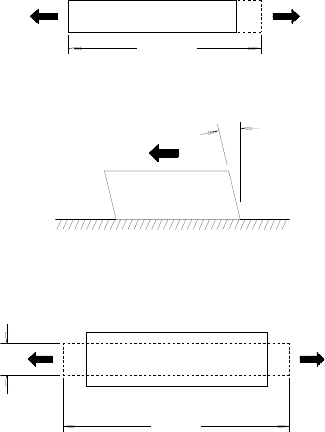
Tutorial 7
Keysight 34970A/34972A User’s Guide 301
Normal Strain (ε) is a measure of the
deformation along the axis of the
applied force. ε = ΔL/L
Shearing Strain (γ) is a measure of
the angular distortion of a body. It is
approximated by the tangent of the
angle formed by the angular change
between two line segments that
were parallel in the undeformed
state.
Poisson Strain (ν) measures a
property of materials known as the
Poisson Ratio. It is the negative ratio
of transverse and longitudinal
normal strain when a body has a
longitudinal tensile force applied. ν
= -εt/ε, where
εt = ΔD/D and ε = ΔL/L
Stress
Stress is a term used to compare the loading applied to a material with its ability
to carry the load. Stress (σ) in a material
can not be measured directly; it must be computed from material properties and
measurable quantities such as strain and force.
Strain Sensors
The metal foil resistance strain gage is by far the most widely used strain
measurement sensor. It consists of a thin metallic foil grid bonded to a thin
insulating, adhesive backing. The resistance of the foil varies linearly with strain.
Strain in the test body is simply the ratio of the foil’s strained to unstrained
resistance: ε = ΔR / R.
The Gage Factor (GF) indicates the sensitivity of a strain gage and is a measure of
the fractional resistance change per strain: GF = (ΔR / R) / ε. Devices with a higher
gage factor will exhibit a greater resistance change per strain applied.
γ
D -ΔD
FF
F
Force
(F)
Force
(F)
L + ΔL
L + ΔL
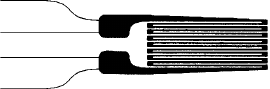
7Tutorial
302 Keysight 34970A/34972A User’s Guide
Strain gages are available in many patterns with various numbers and
configurations of elements. The most common element is the single gage form
shown below. Multi-element strain gages, also called rosettes, are used to
measure components of strain in different directions. Two-element (90°) and
three-element (45° or 60°) configurations are the
most common.
Common Uses for Strain Gages
Strain gages are used to sense many types of physical parameters. Strain gages
are primarily a force-sensing device. Force is measured indirectly by measuring
the deformation of a test body to a known applied force thus producing a
resistance change proportional to the applied force. Many other physical
quantities can be measured through force measurements. Common applications
of strain gages include weight, pressure, flow, and level measurements.
Making Strain Gage Measurements
A Wheatstone bridge is commonly used to enable instruments with low-sensitivity
measuring capabilities to measure small resistance changes common in strain
measurements. Instruments with high-resolution resistance measuring
capabilities, like the 34970A/34972A internal DMM, can directly measure small
resistance changes with high precision and linearity. You should also use the
4-wire resistance method when measuring strain gages to eliminate system
cabling errors.
An initial, unstrained, gage resistance measurement is used as the reference (R0)
measurement from which strain (ΔR / R0) is measured. For best results, you
should perform this reference measurement after the strain gage has been
mounted to the test body. The table below shows the resistance changes
corresponding to 1 με strain for common gage factor and unstrained gage
resistance values.
HI Source
HI Sense
LO Sense
LO Source
Tutorial 7
Keysight 34970A/34972A User’s Guide 303
Using the Mx+B scaling function with the equations shown below will allow you to
display results directly in strain on the 34970A/34972A front-panel display. You
can use a custom measurement label to display readings in “με” (micro-strain)
directly. The instrument will automatically add the micro (“μ”) prefix based upon
actual calculated values. For more information on scaling, see page 144.
M = B = -
Temperature Effects
The resistive element of a strain gage will produce a resistance change ΔR due to
measured strain as well as changes in gage temperature. This will create an
“apparent” strain change which is undesirable. A second gage of similar type can
be used to detect temperature changes and thus remove this error source. You
should mount the second gage in close proximity and at 90° to the first gage, thus
responding to local temperature changes but rejecting strain changes.
Subtracting measurements from the second gage will remove any undesirable
strain errors.
Strain GF R0ΔR DMM Sensitivity
1 με 2.0 120Ω0.24 mΩ0.1 mΩ (0.4 με)
1 με 2.0 350Ω0.70 mΩ1.0 mΩ (1.4 με)
1 με 2.0 1000Ω2.0 mΩ1.0 mΩ (0.5 με)
1
GF R0
×
--------------------
1
GF
-----
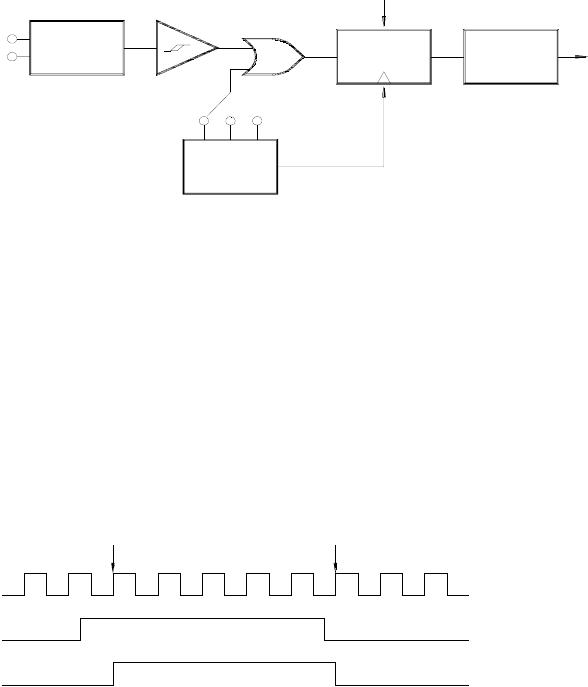
7Tutorial
304 Keysight 34970A/34972A User’s Guide
Frequency and Period Measurements
The internal DMM uses a reciprocal counting technique to measure frequency and
period. This method generates constant measurement resolution for any input
frequency. The internal DMM’s AC voltage measurement section performs input
signal conditioning for frequency and period measurements.
The timebase is divided to provide a gate signal. The gate signal and input signal
are combined to enable the counter. During the “on” time, the counter counts the
6 MHz timebase signal. At the end of each gate period, the total count is latched
and the result is divided by the known timebase frequency to determine the input
frequency. The counter is then reset before the next gate period. The resolution of
the measurement is tied to the timebase, and not the input frequency. This
increases measurement speed especially at low frequencies.
The reciprocal counter has the advantage of a constant number of digits of
display, no matter what the input frequency is. With a reciprocal counter, the
number of digits of resolution scales with the gate time. If a 1-second gate gives
six digits of resolution, a 0.1-second gate gives five digits, and so forth.
Sources of Error in Frequency and Period Measurements
The internal DMM’s AC voltage measurement section performs input signal
conditioning. All frequency counters are susceptible to errors when measuring
Timebase
and Divider
Analog
Input
Signal
Conditioning
F/F Counter
Reset
Latch
6 MHz
.01s .1s 1s
1st Edge Last Edge
Input
Gate
Count
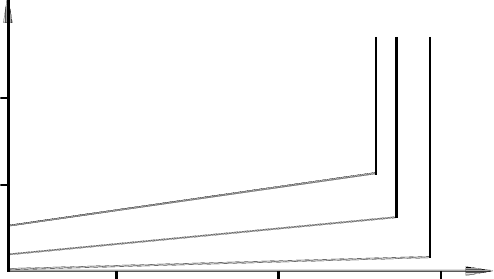
Tutorial 7
Keysight 34970A/34972A User’s Guide 305
low-voltage, low-frequency signals. The effects of both internal noise and external
noise pickup are critical when measuring “slow” signals. The error is inversely
proportional to frequency. Measurement errors will also occur if you attempt to
measure the frequency (or period) of an input following a DC offset voltage
change. You must allow the internal DMM’s input DC blocking capacitor to fully
settle before making frequency measurements.
If the external noise pickup becomes large enough to exceed the hysteresis of the
measuring circuitry, the frequency function may actually become unusable.
External shielding and low-pass filtering may help.
Input Random Noise (RMS)
1 mV 2 mv 3 mv
10 mv, 10 Hz
10 mv, 100 Hz
100 mV, 10 Hz
1%
0.5%
Input Error
7Tutorial
306 Keysight 34970A/34972A User’s Guide
Low-Level Signal Multiplexing and Switching
Low-level multiplexers are available in the following types: one-wire,
2-wire, and 4-wire. The following sections in this chapter describe each type of
multiplexer. The following low-level multiplexer modules are available with the
34970A.
– 34901A 20-Channel Armature Multiplexer
– 34902A 16-Channel Reed Multiplexer
– 34908A 40-Channel Single-Ended Multiplexer
An important feature of a multiplexer used as a DMM input channel is that only
one channel is connected at a time. For example, using a multiplexer module and
the internal DMM, you could configure a voltage measurement on channel 1 and a
temperature measurement on channel 2. The instrument first closes the channel 1
relay, makes the voltage measurement, and then opens the relay before moving
on to channel 2 (called break-before-make switching).
Other low-level switching modules available with the 34970A/34972A include the
following:
– 34903A 20-Channel Actuator
– 34904A 4x8 Two-Wire Matrix
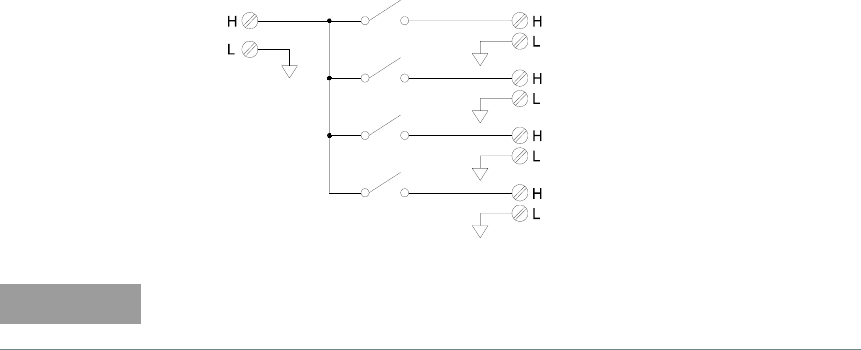
Tutorial 7
Keysight 34970A/34972A User’s Guide 307
One-Wire (Single-Ended) Multiplexers
On the 34908A multiplexer, all of the 40 channels switch the HI input only, with a
common LO for the module. The module also provides a thermocouple reference
junction for making thermocouple measurements (for more information on the
purpose of an isothermal block, see page 275).
Channel 1
Channel 2
Channel 3
Channel 4
To DMM
NOTE
Only one channel can be closed at a time; closing one channel will open the
previously closed channel.
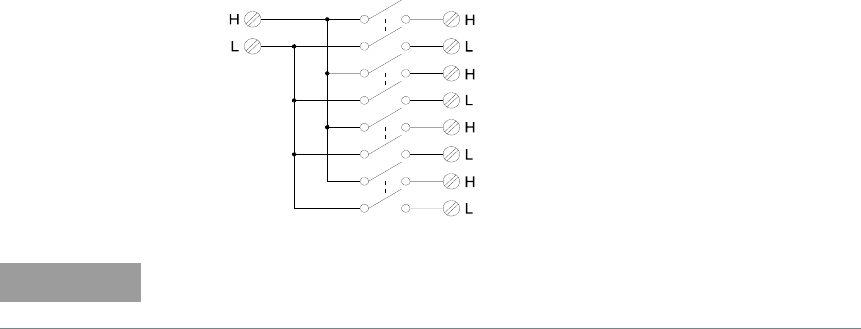
7Tutorial
308 Keysight 34970A/34972A User’s Guide
Two-Wire Multiplexers
The 34901A and 34902A multiplexers switch both HI and LO inputs, thus
providing fully isolated inputs to the internal DMM or an external instrument.
These modules also provide a thermocouple reference junction for making
thermocouple measurements (for more information on the purpose of an
isothermal block, see page 275).
To DMM Channel 1
Channel 2
Channel 3
Channel 4
NOTE
If any channels are configured to be part of the scan list, you cannot close
multiple channels; closing one channel will open the previously closed channel.
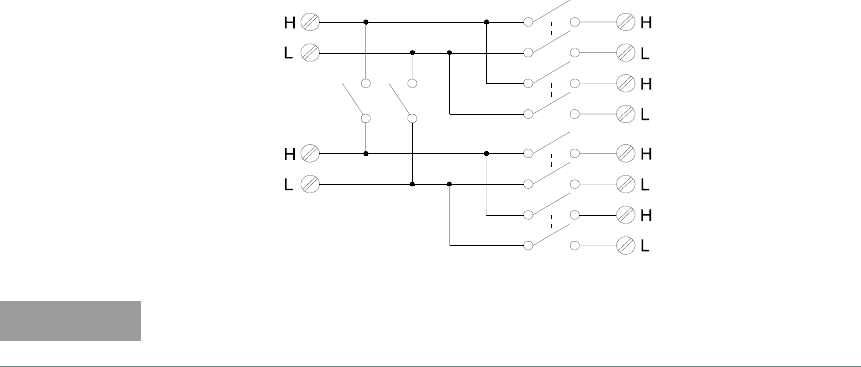
Tutorial 7
Keysight 34970A/34972A User’s Guide 309
Four-Wire Multiplexers
You can make 4-wire ohms measurements using the 34901A and 34902A
multiplexers. For a 4-wire ohms measurement, the channels are divided into two
independent banks by opening the bank relay.
For 4-wire measurements, the instrument automatically pairs channel n with
channel n+10 (34901A) or n+8 (34902A) to provide the source and sense
connections. For example, make the source connections to the HI and LO
terminals on channel 2 and the sense connections to the HI
and LO terminals on channel 12.
When making a 4-wire measurement, the test current flows through the source
connections from the HI terminal through the resistor being measured. To
eliminate the test lead resistance, a separate set of sense connections are used as
shown below.
Channel 1 Source
Channel 11 Sense
Channel 12 Sense
To DMM Source
Bank Relay
To DMM Sense
Channel 2 Source
NOTE
If any channels are configured to be part of the scan list, you cannot close
multiple channels; closing one channel will open the previously closed channel.
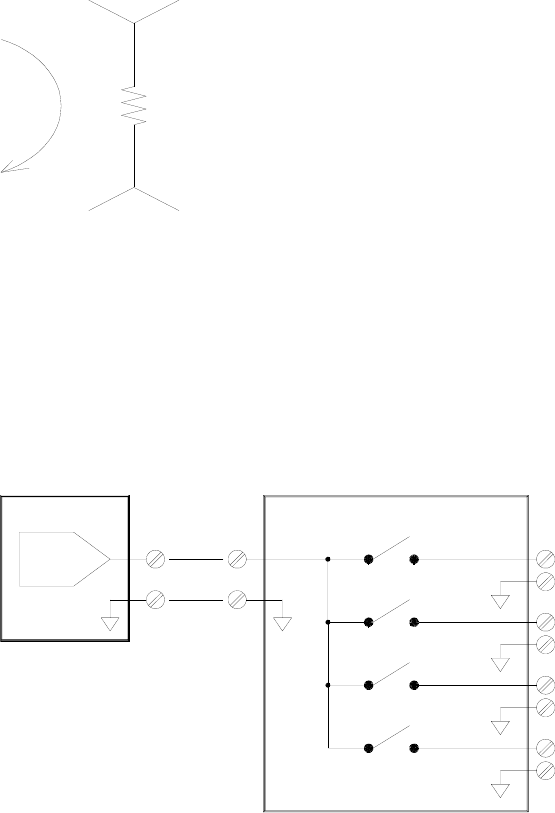
7Tutorial
310 Keysight 34970A/34972A User’s Guide
Signal Routing and Multiplexing
When used stand-alone for signal routing (not scanning or connected to the
internal DMM), multiple channels on the 34901A and 34902A multiplexers can be
closed at the same time. You must be careful that this does not create a hazardous
condition (for example, connecting two power sources together).
Note that a multiplexer is not directional. For example, you can use a multiplexer
with a source (such as a DAC) to connect a single source to multiple test points as
shown below.
Source
HI
LO
R Sense
_
+
Channel 1
Channel 2
Channel 3
Channel 4
DAC
OUT
GND
COM H
COM L
Multiplexer
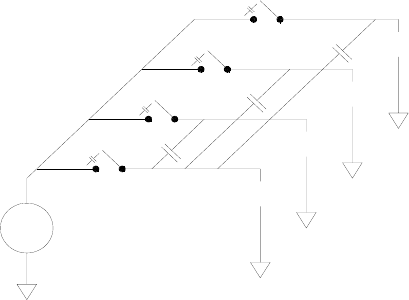
Tutorial 7
Keysight 34970A/34972A User’s Guide 311
Sources of Error in Multiplexing and Switching
Noise can be coupled inside a switch by the drive circuitry, by switch thermal
EMFs, or by coupling among signal paths. Noise can also be generated outside
the network and conducted or coupled into the switch. Although noise problems
apply to the entire system, they can become especially acute for switching. Switch
networks contain a high concentration of signals, which magnify the errors. Most
problems with electric noise can be traced to improper grounding and shielding
(for more information on grounding and shielding, see page 262).
Noise can be capacitively coupled between physically adjacent channels in a
switching system. Noise can be coupled between the switch contacts themselves
(Csw) or between adjacent cabling (Cadj).
Capacitive noise coupling is a function of area and proximity. A simple method to
reduce the noise coupling is to physically separate the switches and cables from
each other. However, this may not be practical for all applications.
Another solution is to keep large amplitude signals and small amplitude signals
away from each other. Group similar signals together (high voltages, low voltages,
analog, and digital). If possible, use two separate switch modules; one for
high-level signals and one for low-level signals. If you are using a single module
for mixed-signal switching, leave one unused, grounded channel between the
groups. Also, ground any unused channels on the module.
The 34901A and 34902A multiplexers have an additional relay, called a bank
switch or tree switch, which helps reduce channel-to- channel noise (Cadj). The
multiplexer channels are divided into two banks. The bank switch isolates one
Source
Source
Source
Source
DMM
Csw
Cadj
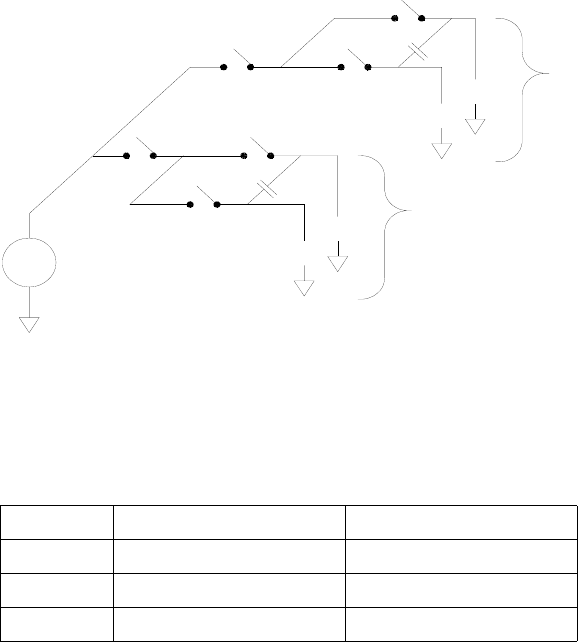
7Tutorial
312 Keysight 34970A/34972A User’s Guide
bank of channels from the other, effectively removing any parallel adjacent
capacitance from the isolated bank. During a scan, the instrument automatically
controls the bank switches.
If you are not using all of the channels on the multiplexer, divide the input signals
equally between Bank 1 and Bank 2. For example, if you are multiplexing eight
channels using the 16-channel multiplexer, use four channels in the lower bank
and four channels in the upper bank. For even better noise immunity, leave one
unused, grounded channel between each input channel.
Module Bank 1 Bank 2
34901A Channels 1 through 10 Channels 11 through 20
34902ΑChannels 1 through 8 Channels 9 through 16
34908A Channels 1 through 20 Channels 21 through 40
Source
Source
Source
Bank 1
Bank 2
Channel
DMM
Bank Switch
Bank Switch
Cadj
Cadj
Source
Switch
Channel
Switch

Tutorial 7
Keysight 34970A/34972A User’s Guide 313
Actuators and General-Purpose Switching
The 34903A Actuator provides 20 independent, isolated SPDT
(single-pole, double-throw) or Form C switches. This module offers simple on-off
switching which you can use to control power devices or for custom switching
applications. For example, you can use an actuator to build a simple resistance
ladder as shown below.
In the above diagram, the resistance is 60Ω when all of the actuator channels are
open (not connected to COM). Note that when the actuator channels are open, as
shown above, the normally-closed contacts (not shown above) are connected to
COM. Values from 10Ω to 50Ω are selected by closing the appropriate channel(s)
on the module.
COM
COM
COM
COM
COM
NO
NO
NO
NO
NO
Actuator Resistance Out
NO = Normally Open
10W
10W
10W
10W
10W
10W
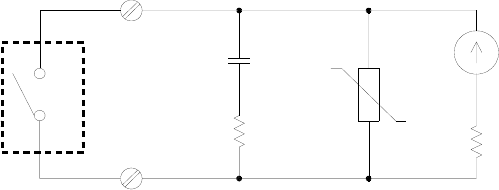
7Tutorial
314 Keysight 34970A/34972A User’s Guide
Snubber Circuits
Whenever a relay contact opens or closes, electrical breakdown or arching can
occur between the contacts. This can cause high-frequency noise radiation,
voltage and current surges, and physical damage to the relay contacts.
A breadboard area is provided on the 34903A to implement custom circuitry such
as simple filters, snubbers, and voltage dividers. The breadboard area provides
the space necessary to insert your own components but there are no circuit board
traces here. You can build these networks to provide contact protection when
actuating AC power line for reactive loads. Although many types of contact
protection networks can be used, only RC networks and varistors are described in
this section.
RC Protection Networks
When designing RC protection networks, the protection resistor Rp is selected as
a compromise between two resistance values. The minimum value of Rp is
determined by the maximum acceptable relay contact current (Imax). For the
34903A, the maximum allowable relay current (Imax) is 1A DC or AC rms. Thus, the
minimum value for Rp is V/Io, where V is the peak value of the supply voltage.
Relay
Contact
Cp
Rp
Varistor
IL
RL
RpV
Imax
--------V
2
--==
Tutorial 7
Keysight 34970A/34972A User’s Guide 315
The maximum value for Rp is usually made equal to the load resistance RL.
Therefore, the limits on Rp can be stated as:
Note that the actual value of the current (Io) in a circuit is determined by the
equation:
Where V is the peak value of the source voltage and RL is the resistance of the
load. The value for Io will be used to determine the value of the protection
capacitor (Cp).
In determining the value of the protection network capacitor (Cp), there are
several things that you will need to consider. First, the total circuit capacitance
(Ctot) must be such that the peak voltage across the open relay contacts does not
exceed 300 Vrms. The equation for determining the minimum allowable circuit
capacitance is:
where L is the inductance of the load and Io is the current value calculated earlier.
The total circuit capacitance (C) is actually made up of the wiring capacitance
plus the value of the protection network capacitor Cp. Therefore, the minimum
value for Cp should be the value obtained for the total circuit capacitance (C).
Note that the actual value used for Cp should be substantially greater than the
value calculated for C.
Using Varistors
Use a varistor to add an absolute voltage limit across the relay contacts. Varistors
are available for a wide range of voltage and clamp energy ratings. Once the
circuit reaches the voltage rating of the varistor, the varistor’s resistance declines
rapidly. A varistor can supplement an RC network and is especially useful when
the required capacitance (Cp) is too large.
V
Imax
-------- Rp RL
<<
IoV
RL
----=
Ctot Io300⁄()
2L×≥
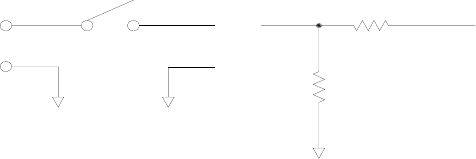
7Tutorial
316 Keysight 34970A/34972A User’s Guide
Using Attenuators
Provisions have been made on the 34903A circuit board for installing simple
attenuators or filter networks. An attenuator is composed of two resistors that act
as a voltage divider. A typical attenuator circuit is shown below.
To select the attenuator components, use the following equation:
One typical use for the shunt component is with 4 to 20 mA transducers. A 50Ω,
±1%, 0.5 watt resistor can be installed in the R2 location. The resultant voltage
drop (transducer current through the resistor) can be measured by the internal
DMM. Thus, the 50Ω resistor converts the 4 to 20 mA current to a 0.2 to 1 volt
signal.
R1
R2
Vsignal
Vatt
HI
LO
Vatt Vsignal R2
R1R2
+
--------------
×=
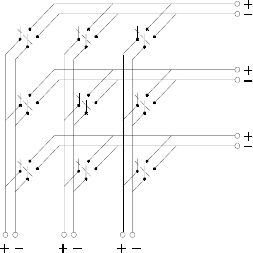
Tutorial 7
Keysight 34970A/34972A User’s Guide 317
Matrix Switching
A matrix switch connects multiple inputs to multiple outputs and therefore offers
more switching flexibility than a multiplexer. Use a matrix for switching
low-frequency (less than 10 MHz) signals only. A matrix is arranged in rows and
columns. For example, a simple 3x3 matrix could be used to connect three
sources to three test points as shown below.
Any one of the signal sources can be connected to any one of the test inputs. Be
aware that with a matrix, it is possible to connect more than one source at the
same time. It is important to make sure that dangerous or unwanted conditions
are not created by these connections.
Source 1
Source 2
Source 3
Test 1 Test 2 Test 3
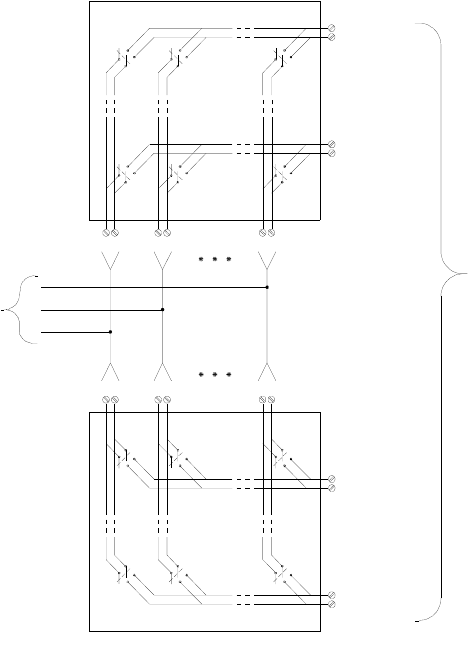
7Tutorial
318 Keysight 34970A/34972A User’s Guide
Combining Matrices
You can combine two or more matrix switches to provide more complex switching.
For example, the 34904A provides a 4-row by 8-column matrix. You can combine
two of these modules as either a 4-row by 16-column matrix or an 8-row by
8-column matrix. An 8x8 matrix is shown below.
8 Rows
Row 1
Row 4
Row 1
Row 4
Col 1 Col 8
Col 1 Col 8
8 Columns
Matrix Module 1
Matrix Module 2
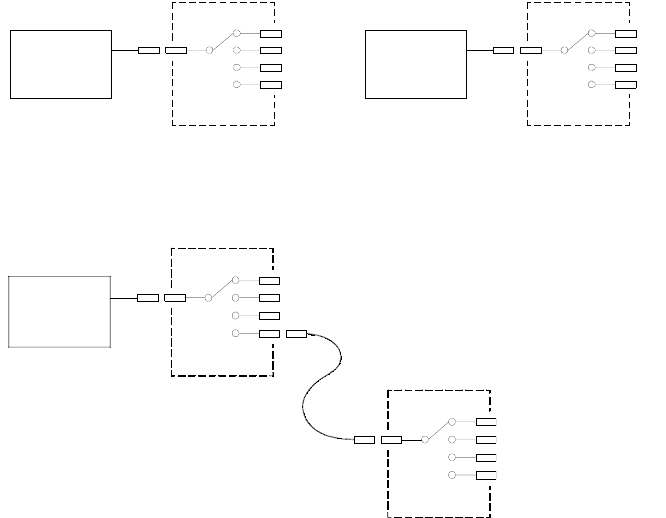
Tutorial 7
Keysight 34970A/34972A User’s Guide 319
RF Signal Multiplexing
A special type of multiplexer is the RF multiplexer. This type of multiplexer uses
special components to maintain a 50Ω or 75Ω impedance in the signal line being
switched. In a test system, these switches are often used to route a test signal
from a signal source to the device-under-test. The switches are bi-directional. The
diagram below shows two examples of a 4-to-1 channel RF multiplexer in a test
system.
By using patch cables, you can expand RF multiplexers to provide additional test
inputs or outputs. For example, you can combine two 4-to-1 multiplexers to
create a 7-to-1 multiplexer as shown below.
On the 34905A (50Ω) and 34906A (75Ω) RF multiplexers, you can close only one
channel per bank at a time; closing one channel in a bank will open the previously
closed channel. These modules respond only to the CLOSE command (OPEN does
not apply). To open a channel, send the CLOSE command to another channel in
the same bank.
Source 1
Source 4
4 x 1 Multiplexer 4 x 1 Multiplexer
Source 2
Source 3
Signal
Generator External
Power Meter
Test 1
Test 2
Test 4
Test 3
Test 7
Test 6
Test 5
Patch Cable
Oscilloscope
4 x 1 Multiplexer
4 x 1 Multiplexer
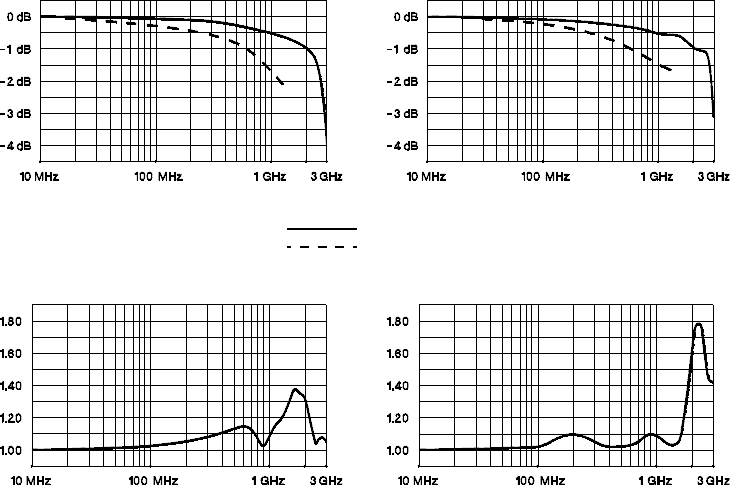
7Tutorial
320 Keysight 34970A/34972A User’s Guide
Sources of Error in RF Switching
Impedance mismatching can cause a variety of errors in an RF multiplexing
system. These errors can cause distorted waveforms, overvoltage, or
undervoltage conditions.
To minimize RF impedance mismatching:
– Use the correct cable and connector for the circuit impedance (50Ω or 75Ω).
Note that it is difficult to visually differentiate a 50Ω connector from a 75Ω
connector.
– Be sure that all leads and signal paths are properly terminated. Unterminated
sections of line can appear as near shorts at RF frequencies. Note that the
34905A and 34906A do not automatically terminate open channels.
Insertion Loss (75Ω)
Insertion Loss (50Ω)
VSWR (50Ω)VSWR (75Ω)
Direct to Module
Using provided adapter cables
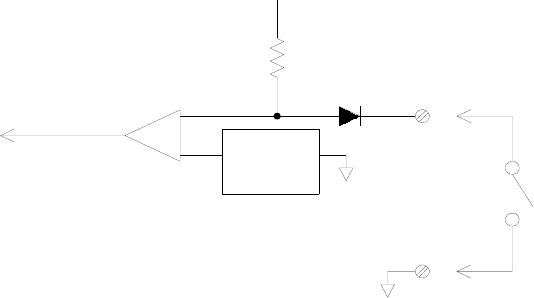
Tutorial 7
Keysight 34970A/34972A User’s Guide 321
Multifunction Module
Digital Input
The 34907A module has two non-isolated 8-bit input/output ports which you can
use for reading digital patterns.
– You can read the live status of the bits on the port or you can configure a scan
to include a digital read.
– You can generate an alarm when a specific bit pattern or bit pattern change is
detected on an input channel. The channels do not have to be part of the scan
list to generate an alarm.
– The internal +5V pull-up circuitry allows you to use the digital input to detect
contact closures like micro-switches or limit switches. An open input floats to
+5V and is read as a “1”. An input shorted to ground is read as a “0”. An
example of a contact closure detection channel is shown below.
Limit Switch
I/O Line (1 of 8)
10 kΩ
+5 V
+
Digital Read +TTL
Reference
(+2.1 V)
_
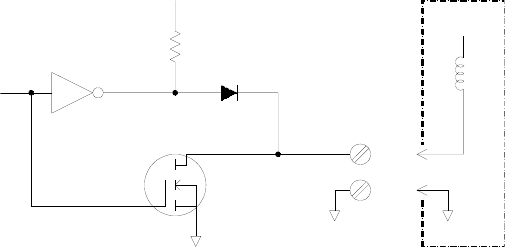
7Tutorial
322 Keysight 34970A/34972A User’s Guide
Digital Output
The 34907A module has two non-isolated 8-bit input/output ports, which you can
use for outputting digital patterns. You can combine the two ports to output a
16-bit word. A simplified diagram of a single output bit is shown below.
– Each output bit is capable of directly driving up to 10 TTL loads (less than 1
mA). The buffer for each port is used to drive a high output from the internal
+5V supply through the diode. The drive is rated at +2.4V minimum at 1 mA.
– Each output bit is also an active sink, capable of sinking up to 400 mA from an
external power supply. The FET is used to sink currents and has a nominal “on”
resistance of 0.2Ω.
– For non-TTL logic you must provide an external pull-up. A description of the
pull-up calculation is given on the following page.
– If used with an external power supply and pull-up, the external supply must be
greater than +5 VDC and less than +42 VDC.
Output
External Circuit
+5 V
10 kΩ
0.2Ω
I/O Line
(1 of 16)
+V
Tutorial 7
Keysight 34970A/34972A User’s Guide 323
Using an External Pull-Up
In general, an external pull-up is required only when you want to set the output
“high” value greater than TTL levels. For example, to use a +12V external power
supply, the value of the external pull-up resistor is calculated as follows:
VDC
Imax = Iout low x safety factor = 1 mA x 0.5 + 0.5 ma
= 24 kΩ
The value of the logic “high” level with the external 24 kΩ pull-up resistor is
calculated as follows:
Vhigh = Vcc x = 12 x = 8.47 VDC
Vcc 12=
RVcc
Imax
--------12
0.0005
·
-------------==
Rexternal
Rexternal Rexternal
+
---------------------------------------
24 kΩ
24 kΩ10 kΩ+
---------------------------------------
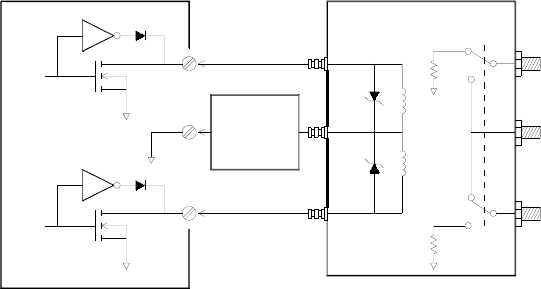
7Tutorial
324 Keysight 34970A/34972A User’s Guide
Driving External Switches
You can use two digital output channels to control an external switch. For
example, you can drive the Keysight 876X series of microwave switches using an
external power supply and two digital output channels. The state of the 2-to-1
multiplexer is changed by setting the appropriate output bit low (0).
Digital Output Channel Keysight 876X Microwave Switc
Power
24 Volt
Supply
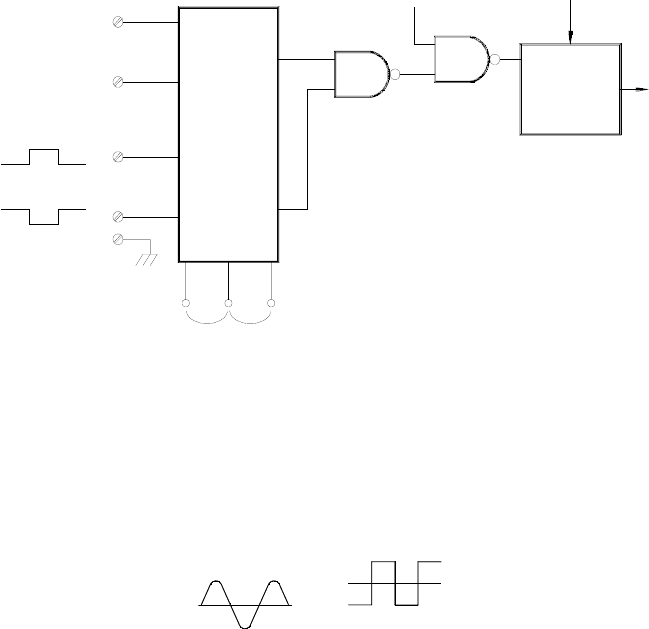
Tutorial 7
Keysight 34970A/34972A User’s Guide 325
Totalizer
The 34907A module has a 26-bit totalizer which can count pulses at a 100 kHz
rate. You can manually read the totalizer count or you can configure a scan to
read the count.
– You can configure the totalizer to count on the rising edge or falling edge of
the input signal.
– Using the hardware jumper labeled “Totalize Threshold” on the module, you
can control the threshold at which an edge is detected. Move the jumper to the
“AC” position to detect changes through 0 volts. Move the jumper to the “TTL”
position (factory setting) to detect changes through TTL threshold levels.
– The maximum count is 67,108,863 (226 -1). The count rolls over to “0” after
reaching the maximum allowed value.
Signal
Conditioning
Threshold Jumper
+
_
G
GND
Totalizer
On/Off
TTL AC
Counter
Software Reset
Data
Gate
Input
Gate
Input
Input Signal
(1V to 42V)
0 V Threshold (AC)
2.5 V Threshold (TTL)
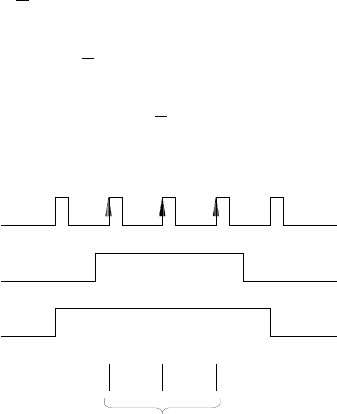
7Tutorial
326 Keysight 34970A/34972A User’s Guide
– You can control when the totalizer actually records counts by providing a gate
signal (G and terminals on the module). A TTL high signal applied to the
“G” terminal enables counting and a low signal disables counting. A TTL low
signal applied to the “ ” terminal enables counting and a high signal disables
counting. The totalizer only counts when both terminals are enabled. You can
use either the G terminal, the terminal, or both. When a gate is not
connected, the gate terminal floats to the enabled state, effectively creating a
“gate always” condition.
Totalizer Errors
– Noise on the totalizer input can be a problem, especially on signals with a slow
rise time. This noise can create a false indication of a threshold crossing. For
more information on cabling noise, see page 260.
– Contact bounce on external switches can create false counts. All mechanical
switches bounce when they open and close. Use an external capacitor to filter
the contact bounce.
G
G
G
Input Signal
(Rising Edge)
Gate Signal
(High True)
Totalizer Input
Add to Total
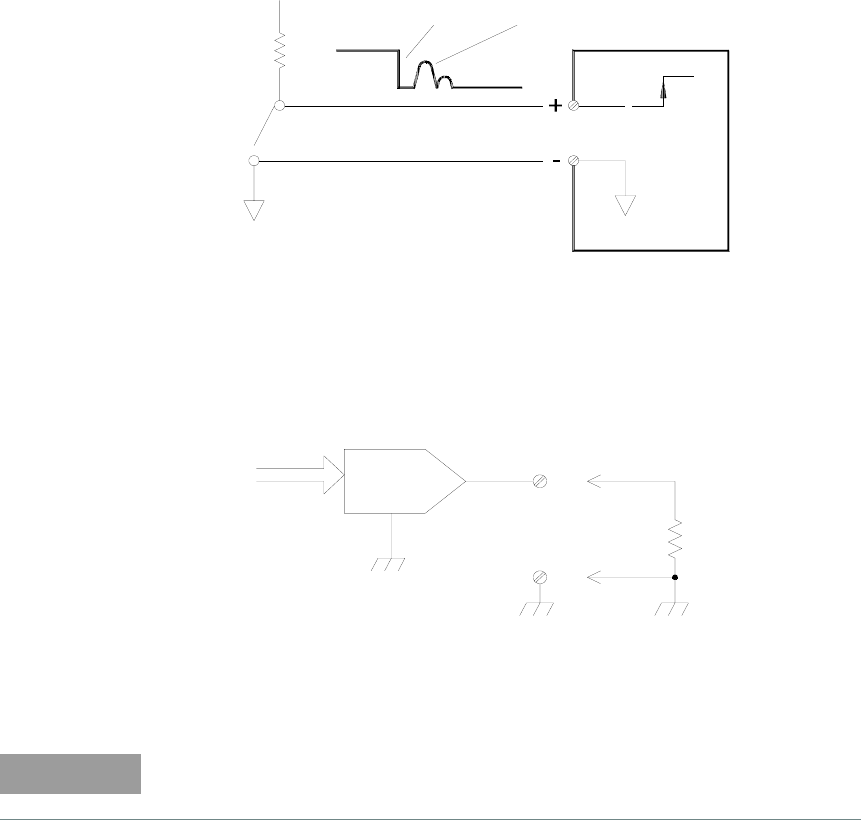
Tutorial 7
Keysight 34970A/34972A User’s Guide 327
Voltage (DAC) Output
The 34907A module has two analog outputs capable of outputting calibrated
voltages between ±12 volts with 16 bits of resolution. Each DAC
(Digital-to-Analog Converter) channel can be used as a programmable voltage
source for analog input to other devices.
– You can set the output voltage to any value between +12 VDC and -12 VDC, in
1 mV steps. Each DAC is earth referenced; it cannot float.
– Each DAC channel is capable of supplying 10 mA maximum current.
– To maintain the rated output accuracy, the load (RL in the diagram shown
above) must be greater than 1 kΩ.
Limit Switch
+5 V Switch
Closed
Totalizer
Noise caused by bounce
creates a false count
16-Bit
Digital Data DAC
Output Voltage
RL
NOTE
You must limit the output current to 40 mA total for all three slots (six DAC
channels).
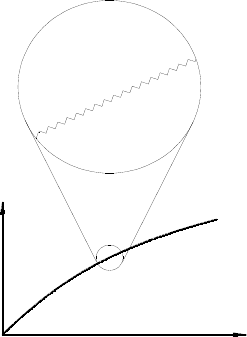
7Tutorial
328 Keysight 34970A/34972A User’s Guide
DAC Errors
The output of a DAC varies with temperature. If possible, you should operate the
instrument at a stable temperature and as close as possible to the calibration
temperature of the DAC for greater accuracy.
The output of a DAC also exhibits two other types of errors: differential error and
integral error.
–Differential Error refers to the smallest possible change in voltage. The DAC
output is not linear, but is stepped as progressively larger (or smaller) voltages
are programmed. The step size is 1 mV.
–Integral Error refers to the difference between the programmed voltage and
the actual output voltage from the DAC. This error is included in the output
specifications shown in Chapter 8.
Differential Error
Integral Error
Vout
Vprogrammed
Tutorial 7
Keysight 34970A/34972A User’s Guide 329
Relay Life and Preventive Maintenance
The 34970A/34972A Relay Maintenance System automatically counts the cycles
on each relay in the instrument and stores the total count in non-volatile memory
on each switch module. Use this feature to track relay failures and predict system
maintenance requirements. For more information on using this feature, refer to
“Relay Cycle Count” on page 173.
Relays are electromechanical devices which are subject to wear-out failure
modes. The life of a relay, or the number of actual operations before failure, is
dependent upon how it is used – applied load, switching frequency, and
environment.
You can use the graphs shown in this section to estimate relay lifetimes for your
application. Additional background information is also provided to give you a
better understanding of relay wear-out mechanisms. In general, relay lifetimes
depend heavily upon the signals that are being switched and the types of
measurements being performed.
– Switching typical signal levels will result in relay lifetimes from 1,000,000 to
10,000,000 operations.
– High-power switching (>25% rating) or high-voltage switching (>100V)
applications will yield relay lifetimes from 100,000 to 1,000,000 operations.
– Low-voltage switching (<30V) and low-current switching (<10 mA)
applications will yield relay lifetimes to 10,000,000 operations.
– RF switching applications seldom exhibit relay lifetimes exceeding 1,000,000
operations due to more stringent contact resistance requirements (typically
less than 0.2Ω).
The following table shows the time required to reach the specified number of
switch operations for several switching speeds.
Continuous Switching
Speed
Switching Operations
100,000 1,000,000 10,000,000
1 / Hour
1 / Minute
1 / Second
10 / Second
12 Years
10 Weeks
1 Day
3 Hours
2 Years
12 Days
1 Day
4 Months
12 Days
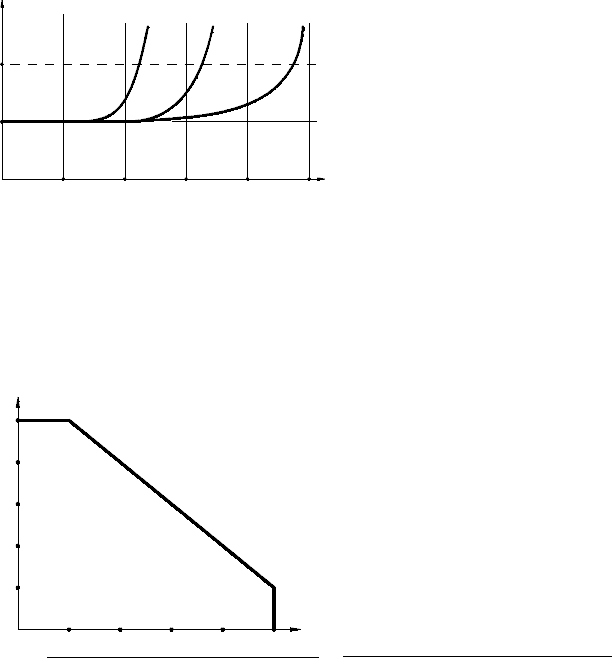
7Tutorial
330 Keysight 34970A/34972A User’s Guide
Relay Life
As a relay is used, the contacts begin to wear and the resistance of the closed
contacts increases. The initial contact resistance of a relay is typically 50 mΩ (plus
lead resistance). When the contact resistance exceeds 20 to 50 times its initial
value, the contact resistance becomes very erratic and the relay should probably
be replaced. For most applications, a relay with contact resistance greater than
1Ω should be replaced. The graph below shows the typical contact resistance
characteristics of the relays used on the 34970A/34972A switching modules.
Relay Load
For most applications, the load switched by the relay is the most important factor
affecting relay life. As shown in the graph below, relay life is maximized by
switching low power. As the power switched increases, relay life deteriorates.
1k 10k 100k 1M 10M 100M
0Ω
1Ω
Typical Relay Lifetime
Relay Operations (Cycles)
Relay Contact
Full Load Typical Signals No Load
Maximum Switching Capacity
Voltage Switched
300V
240V
180V
120V
60V
0.2A 0.4A 0.6A 0.8A 1A
10 mA 20 mA 30 mA 40 mA 50 mA Reed (34902A)
Armature (34901A, 34903A, 34904A,34908A)
Current Switched

Tutorial 7
Keysight 34970A/34972A User’s Guide 331
Switching Frequency
Relay contacts heat up as they switch significant power. The heat is dissipated
through the leads and the body of the relay. As you increase the switching
frequency to near its maximum, heat cannot dissipate before the next cycle. The
contact temperature rises and the life of the relay is reduced.
Replacement Strategy
There are essentially two strategies that you can use for preventive maintenance
of the relays on the switching modules. The strategy that you choose depends
upon your application, the consequences of a relay failure in your system, and the
number of relay cycles during a measurement session.
The first strategy is to replace each relay as needed after it fails or becomes
erratic. This is suitable if you are switching higher loads on only a few relays on the
module. The disadvantage of this strategy is the inconvenience of continually
replacing relays as they near the end of their life at different times.
The second strategy is to replace all relays on the module or simply purchase a
new module as the relays near the end of their life. This strategy is best suited for
those applications where all relays on the module are switching similar loads. The
failure of several relays over a relatively short period of time may indicate
impending failures on other relays switching similar loads. This strategy decreases
the risk of failure during actual use at the expense of replacing some relays that
may have useful life remaining.
NOTE
In both cases described above, you can use the 34970A/34972A Relay
Maintenance System to track and even predict relay failures.
7Tutorial
332 Keysight 34970A/34972A User’s Guide
THIS PAGE HAS BEEN INTENTIONALLY LEFT BLANK.

8 Specifications
334 Keysight 34970A/34972A User’s Guide
THIS PAGE HAS BEEN INTENTIONALLY LEFT BLANK.
Keysight 34970A/34972A User’s Guide 335
Index
Symbols
"½" digit,,127
"B" (Mx+B scaling offset),,144
"half" digit,,127
"M" (Mx+B scaling gain),,144
"OPEN T/C" message,,133
*RST command,,199
*TRG command,,109
Numerics
34901A module
channel numbering,,206
description,,206
module overview,,18, 206
screw terminal
diagram,,208
simplified schematic,,206
wiring log,,208
34902A module
channel numbering,,209
description,,209
module overview,,19, 209
simplified schematic,,209
34903A module
channel numbering,,211
description,,211, 313
module overview,,19, 211
RC protection circuitry,,314
simplified schematic,,211
snubber circuitry,,314
34904A module
channel numbering,,213
combining matrices,,318
description,,213, 317
module overview,,20, 213
simplified schematic,,213
34905A module (50W)
channel numbering,,215
description,,215, 319
module overview,,20, 215
simplified schematic,,215
34906A module (75W)
channel numbering,,215
description,,215, 319
module overview,,20, 215
simplified schematic,,215
34907A module
8-bit vs. 16-bit
operations,,158, 163
ac vs. TTL threshold,,160
adding to scan list,,158, 161
binary format,,62, 158
channel numbering,,217
clearing the count
(totalizer),,162
current limitations
(DAC),,165, 327
decimal format,,62, 158
description,,217
driving microwave
switches,,324
gate signal,,160
maximum totalizer
count,,161
module overview,,20, 217
simplified block
diagrams,,217
Totalize Threshold
jumper,,160
totalizer reset mode,,161
using alarms,,155
34908A module
channel numbering,,219
description,,219
module overview,,21, 219
simplified schematic,,219
34970A
block diagram,,76
firmware revision,,172
4W annunciator,,14
50W RF switching,319
75W RF switching,,319
A
ABORT command,,105
aborting a scan,,104, 105
absolute time,,114
ac bandwidth
ac current,141
ac voltage,,139
vs. channel delays,,117
ac current
ac filter,,141, 288
low frequency filter,,141,
288
measurement ranges,,141
settling time,,141, 288
ac filter
definition,,139, 141, 288
vs. channel delays,,117
ac measurement errors,,265
ac settling time,,139, 141
ac voltage measurements
ac filter,,139, 288
loading errors,,291
low frequency filter,,139,
288
ranges,,138
settling time,,139, 288
signal conditioning,,286
true RMS
measurements,,287
actuator switching,,85, 313
address (GPIB)
factory setting,,185, 190,
191, 192
selecting,,12, 185, 190,
191, 192
address, channel number,,41
ADRS annunciator,,14
Advanced key,,55, 130
ALARM annunciator,,149
ALARM annunciator,,14
Alarm key,,60, 150
alarm limits
annunciators,,149
clearing alarm outputs,,154
configuring,,60
default settings,,150
336 Keysight 34970A/34972A User’s Guide
interaction with Mx+B,,148
output connector
location,,15, 16
output connector
pinout,,153
output latch mode,,153
output slope (polarity),,154
output track mode,,153
scan on alarm,,110
setting limits,,60
with readings,,114
Alarm Out key,,154
alarm output lines
clearing,,154
connector location,,15, 16
connector pinout,,153
latch mode,,153
slope (polarity),,154
track mode,,153
alarm queue,
number of alarms,,147
output format,,152
storing alarms,,147
alarms
alarm output lines,,153
annunciators,,149
default limit values,,150
description,,147
front-panel
annunciators,,149
hardware output lines,,149,
153
interaction with Mx+B,,148
output connector,,153
setting limits,,150
storing in alarm queue,,147
storing in reading
memory,,147
while scanning,,101
with multifunction
module,,155
Alarms connector,,153
alpha (a) for RTDs
default,,135
values,,135
analog-to-digital conversion
explanation,,87
integrating technique,,87
non-integrating
technique,,87
annunciators,,14, 149
aperture time
definition,,129
selecting,,129
application programs
C and C++,,255
Excel 7.0,,247
attenuation,,261, 269, 316
automatic channel delays,,116
Automatic Logging,183
automatic recall,
power-down,,70, 103
autorange, threshold
values,,125
autozero
definition,,131
vs. integration time,,131
average responding error,,287
average, during scan,,101
AWG, wire gauge size,,260
B
backplane relays,,206, 209,
311
bandwidth (ac)
ac current,,141
ac voltage,,139
vs. channel delays,,116
bank switch,,206, 209, 219,
311
baud rate (RS-232)
factory setting,,67, 69, 186
selecting,,67, 69, 186
BenchLink Data Logger Software
installation,,36
on-line help,,37
software overview,,17
bias current, dc loading
errors,,284
binary format, digital read,,62,
158
bits, vs. integration time,,129
block diagram
34970A,,76
internal DMM,,86
braces ({ }), syntax,,99
brackets ([ ]), syntax,,99
break-before-make
switching,,306
bridge, strain gage,,302
buffering triggers,,109
burden voltage,,295
C
C and C++ example
programs,,255
cabling
attenuation,,261
capacitance,,261
coaxial,,79
dielectric withstand
voltage,,260
errors,,264
flat ribbon,,79
nominal impedance,,260
resistance,,261
RS-232,,34, 73
shielded coaxial,,263
shielding,,263
specifications,,260
twisted pair,,79, 263
types,,79
wire gauge size,,260
calculation error,
thermocouple,,280
calendar
factory setting,,171
setting,,40, 171
calibration
overview,,194
read count,,198
security code,,194
text message,,197
to secure,,196
to unsecure,,195
calibration certificate,,34
capacitance, cable,,261
capacitive coupling,,263, 310
Card Reset key,,46
carrying handle
adjusting,,50
removing,,50
Keysight 34970A/34972A User’s Guide 337
celsius, setting units,,132
Channel Advance (external scan-
ning)
connector,,15, 16
operation,,122
Channel Closed (external scan-
ning)
connector,,15, 16
operation,,122
channel configuration
copying,,44
front panel,,41
channel delay
automatic,,116
default values,,115
defined,,115
settings,,115
channel list
building from front
panel,,104
building from remote,,105
examples,,99
rules,,99
channel number, with
readings,,114
channel numbering,,41
34901A,,206
34902A,,209
34903A,,211
34904A,,213
34905A,,215
34906A,,215
34907A,,217
34908A,,219
chassis ground,,15, 16
clearing reading memory,,101
clock
factory setting,,171
setting the,,40, 171
Close key,,46
coaxial cables,,79, 263
coefficient, temperature,,293
color codes,
thermocouples,,276
command syntax (SCPI)
conventions,,99
version query,,176
common LO multiplexers,,82,
306
common mode noise,,279
CONFIG annunciator,,14
CONFigure command,,105
connector location
Alarm output,,15, 16, 153
Channel Advance,,15, 16
Channel Closed,,15, 16
Ext Trig,,15, 16, 109
GPIB,,15
RS-232,,15
connector pinout
alarm output,,153
contact
debounce (totalizer),,326
protection,,314
resistance,,329
continuous scan count,,113
conversion accuracy
RTD,,270
thermistor,,270
thermocouple,,270
copying, channel
configuration,,44
correlated noise,,265, 292
count
calibration,,198
clearing relay cycles,,174
reading relay cycles,,173,
329
count (scan)
continuous,,58, 113
default value,,58, 113
settings,,58, 113
count-down time,,106
counter
adding to scan list,,64
manually reset,,64
reading count,,64
reset mode,,64
crest factor
defined,,289
crosspoint switching,,84
current measurements
ac low frequency filter,,141,
288
ac settling time,,141, 288
burden voltage,,295
low frequency filter,,141,
288
measurement ranges,,141
valid channels,,141
custom label (Mx+B)
displaying "°"
character,,145
valid characters,,145
cycles
clearing relay count,,173
reading relay count,,173,
329
D
DAC output (34907A)
differential error,,328
integral error,,328
simplified schematic,,327
writing to,,65
data acquisition overview,,72
data bits (RS-232)
factory setting,,187
selecting,,187
DATA:LAST? command,,120
DATA:POINts? command,,120
DATA:REMove? command,,120
date (calendar)
factory settings,,171
setting,,40, 171
dc voltage
bias current,,284
common mode noise,,280
injected current,,283
input resistance,,138, 284
loading errors,,284
measurement ranges,,138
signal conditioning,,280
decimal format (digital
input),,62, 158
default delays (channel
delays),,116
Default Gateway,192
delay (channel delay),,115
DHCP,191
dielectric withstand
voltage,,260
differential error, (DAC),,328
338 Keysight 34970A/34972A User’s Guide
diffusion error,,278
digital channels, external
scanning,,123
digital input (34907A)
8-bit vs. 16-bit
operations,,158
adding to scan list,,62, 158
binary format,,62, 158
block diagram,,217
card reset,,158, 159
decimal format,,62, 158
scanning,,101
simplified schematic,,321
using alarms,,155
digital output (34907A)
8-bit vs. 16-bit
operations,,163
binary format,,63, 163
card reset,,163
decimal format,,63, 163
driving microwave
switches,,324
simplified schematic,,322
sink current,,322
TTL drive capability,,322
digits
number of,,127
vs. integration time,,129
DIN/IEC 751,,132
disabling internal DMM,,122
display
annunciators,,14
enable/disable,,170
text message,,170
dissimilar metals,,264
DMM (internal)
block diagram,,268
enabling/disabling,,171,
173
reading relay count,,173
DNS Server,192
DTR/DSR flow mode
(RS-232),,188
Dynamic Host Configuration
Protocol,191
E
ERROR annunciator,,14, 168,
223
errors
ac loading,,291
cabling,,264
capacitive coupling,,310
clearing,,168
common mode noise,,279
diffusion error,,278
frequency
measurements,,304
loading, dc voltage,,284
loading, input bias
current,,284
low-level ac,,265
magnetic fields,,264
multiplexing and
switching,,310
period measurements,,304
reading error queue,,168,
223
RF multiplexing,,320
thermal EMF,,264
thermocouple
calculation,,280
thermocouple reference
junction,,278
totalizer,,326
example programs
C and C++,,255
Excel 7.0,,247
Excel macro example
programs,,247
Exporting readings to USB,183
EXT annunciator,,14
Ext Trig connector,,15, 16, 109,
121
external DMM
connections,,121
scanning with,,121
external reference (T/C),,133
external scanning
connections,,121
with digital channels,,123
external trigger
connector,,15, 16, 109, 121
scan interval,,106
F
factory reset state,,199
fahrenheit, setting units,,132
fast ac filter,,139, 141, 142,
288
fast timeout,,143
FETCh? command
description,,105
filler panel kit (rack
mounting),,52
filter, ac signal,,139, 141, 142,
288
firmware revision
34970A,,172
plug-in modules,,172
fixed input range (dc
voltage),,138
fixed reference
(thermocouple),,133
flange kit (rack mounting),,52
flow mode (RS-232)
DTR/DSR mode,,188
factory setting,,67, 188
Modem mode,,189
None (no flow mode),,188
RTS/CTS mode,,188
selecting,,67, 188
XON/XOFF mode,,188
form C (SPDT) switching,,85,
313
format
alarm queue data,,152
scanned readings,,114
four-wire multiplexers,,82, 309
four-wire ohms,,140, 296
four-wiring paring (RTD),,135
frequency measurements
low frequency timeout,,143
sources of error,,304
front panel
annunciators,,14
defining scan list,,41
layout,,11
menu overview,,12
front-panel display
Keysight 34970A/34972A User’s Guide 339
enable/disable,,170
text message,,170
fuse
factory setting,,48
location,,15, 16, 48
part number,,48
replacing,,48
fuseholder assembly,,15, 16,
48
G
gage factor (strain),,301
gain "M" (Mx+B) scaling,,59,
144
gate signal (totalizer),,160, 326
gauge, wire size,,260
GET (Group Execute
Trigger),,109
GPIB (IEEE-488)
address selection,,15, 66,
68, 186
cable,,73
connector,,15
factory address
setting,,177, 183, 185, 190
interface selection,,66, 68,
186
setting address,,177, 183,
185, 190
ground loops,,262, 265
grounding,,262
H
handle
adjusting,,50
handshake (RS-232)
DTR/DSR mode,,188
factory setting,,67, 188
Modem mode,,189
None (no flow mode),,188
RTS/CTS mode,,188
selecting,,67, 188
XON/XOFF mode,,188
hardware output lines
(alarms),,153
hardware, rack mounting,,52
high-frequency switching,,319
I
ice bath,,273
IEEE-488 (GPIB)
address selection,,66, 68,
186
cable,,73
connector,,15
factory address
setting,,185, 190, 191, 192
interface selection,,66, 68,
186
setting address,,185, 190,
191, 192
impedance mismatching,,320
INITiate command
description,,105
injected current, dc
voltage,,283
input resistance
dc loading errors,,284
dc voltage,,138, 139, 284
INPut:IMP:AUTO
command,,139
insertion loss,,320
installing
BenchLink Data Logger
software,,36
Instrument configuration,
importing,184
instrument preset state,,201
instrument state storage
definition,,70
front-panel operation,,167
naming states,,70, 166
power-down recall,,166
remote operation,,167
integral error (DAC),,328
integrating ADC,,87
integration time
definition,,129
selecting,,129
vs. channel delays,,116
vs. number of bits,,129
vs. number of digits,,129
vs. resolution,,129
Interface key,,56, 66, 68, 186
interface, GPIB (IEEE-488)
address selection,,66, 68,
186
cable,,73
connector,,15
factory address setting,,185
interface selection,,66, 68,
186
setting address,,185
interface, RS-232 (serial)
baud rate,,67
cable,,73
flow control,,67
parity,,67
stop bits,,67
internal DMM
block diagram,,268
enabling/disabling,,171
reading relay count,,173
internal reference
(thermocouple),,133
internal timer, scan
interval,,133
Interval key,,55, 107, 123
interval scan
default value,,107
resolution,,107
setting from front
panel,,107
setting from remote,,107
settings,,107
interval, scan-to-scan,,58, 106
IP address,191
IPTS-68 conversions,,135, 271
isothermal block,,133, 275
ITS-90 conversions,,135, 271
J
jumper, Totalize Threshold,,160
junction temperature,,272
K
kelvins, setting units,,132
340 Keysight 34970A/34972A User’s Guide
L
labels
Mx+B scaling,,59, 145
stored states,,70
LAN Connectivity,190
LAN, Resetting,190
language, SCPI syntax
conventions,,99
version query,,176
LAST annunciator,,14
latch mode, alarm output
lines,,153
limits (alarms)
annunciators,,150
clearing alarm outputs,,154
configuring,,60
default settings,,150
interaction with Mx+B,,148
output connector
location,,15, 16
output connector
pinout,,153
output latch mode,,153
output slope (polarity),,154
output track mode,,153
scan on alarm,,110
setting limits,,60
with readings,,114
line voltage
factory setting,,48
fuse,,48
selection,,48
selector module,,15, 48
loading errors
ac voltage,,291
dc input resistance,,284
input bias current,,284
lock-link kit (rack mounting),,52
low frequency limit
ac current,,141
frequency,,143
M
MAC Address,193
magnetic field errors,,264
mainframe
firmware revision,,172
maintenance
clearing relay count,,173
reading relay count,,173,
329
matrix switching,
combining,,317
MAX annunciator,,14
maximum reading, during
scan,,173
Measure key,,41, 54, 104
MEASure? command,,105
Measurement Complete
signal,,122
measurement range
autorange,,125
overload,,125
selecting,,126
measurement resolution
"half" digit,,127
selecting,,128
vs. integration time,,129
medium ac filter,,139, 141, 288
medium frequency
timeout,,143
MEM annunciator,,14
memory
reading scanned
readings,,118
menus
front panel,,12
summary,,54
message
calibration,,197
front-panel display,,170
Microsoft Visual C++,,255
microwave switches,
driving,,324
MIN annunciator,,14
minimum reading, during
scan,,101
modem
flow control mode
(RS-232),,189
module description
34901A,,206
34902A,,209
34903A,,211
34904A,,213
34905A,,215
34906A,,215
34907A,,217
34908A,,219
module information
default settings,,203
firmware revision,,172
reading relay count,,173
Mon key,,57, 175
MON annunciator,,14
Monitor function
definition,,175
scan on alarm,,111, 175
while scanning,,101
with alarms,,175
with Mx+B scaling,,175
multiplexer types,,306
multiplexers
errors,,310
four-wire,,82, 309
one-wire
(single-ended),,82, 306
two-wire,,82, 306
VHF,,83
Mx+B key,,54, 59
Mx+B scaling
custom label,,59, 145
default gain ("M"),,144, 146
default offset ("B"),,144,
146
equation used,,144
interaction with alarms,,144
null stored as offset,,144
setting gain ("M"),,59, 146
setting offset ("B"),,59, 146
strain measurements,,302
valid gain ("M") values,,145
valid offset ("B") values,,145
while scanning,,101, 144
N
name, stored states,,70
noise caused by ground
loops,,265
noise rejection, normal
mode,,129
Keysight 34970A/34972A User’s Guide 341
nominal impedance,
cabling,,260
nominal resistance (RTD)
default,,135
values,,135
normal mode rejection,,129,
268
NPLC,,129, 268
vs. channel delays,,116
null, stored as offset ("B"),,144
number of bits
vs. integration time,,129
number of digits,,127
vs. integration time,,129
O
OC annunciator,,14
offset "B" (Mx+B) scaling,,59,
144
offset compensation,,140, 298
offset voltages,,131
ONCE annunciator,,14
output format, alarm queue
data,,152
output lines, alarms,,149, 153
P
parity (RS-232)
factory setting,,187
selecting,,67, 187
pasting, channel
configuration,,44
PCL,,129, 268
vs.channel delays,,116
period measurements
sources of error,,304
plug-in module description
34901A,,206
34902A,,209
34903A,,211
34904A,,213
34905A,,215
34906A,,215
34907A,,217
34908A,,219
plug-in module information
default settings,,203
firmware revision,,172
reading relay count,,173
poisson strain,,301
polarity, alarm output lines,,154
power failure, during scan,,103
power line cycles,,129, 268
power-down recall,,70, 103,
166
power-line fuse
factory setting,,48
location,,15, 16, 48
part number,,48
replacing,,48
power-line voltage
factory setting,,48
fuse,,48
selection,,48
selector module,,48
power-line, rejecting noise,,268
preset state,,201
programming examples
C and C++,,255
Excel 7.0,,247
PT100 (RTD),,135, 271
Q
Quick Start Kit,,34
R
R0 (RTD)
default,,135
range,,135
rack mounting
filler panel,,52
flange kit,,52
lock-link kit,,52
sliding-shelf kit,,52
radio frequency
interference,,264
random noise,,304
range
autorange,,125
overload,,125
selecting,,126
ranges by function
2-wire ohms,,140
4-wire ohms,,140
ac current,,141
ac voltage,,138
dc current,,141
dc voltage,,138
RC protection circuitry,,314
Read key,,62, 64
READ? command,,105
reading format,,114
readings memory, storing
alarms,,147
readings, viewing,,118
real-time clock
factory setting,,171
setting,,40, 171
rear panel
external scanning,,121
pictorial overview,,15, 16
recall power-down state,,166
reference junction (thermocouple)
definition,,133
external reference,,133
fixed temperature,,133
internal reference,,133
reference channel,,133
reference thermocouple,,274
relative time,,114
relay contact protection,,314
relay contact resistance,,329
relay cycle count
clearing,,173
estimating relay life,,329
reading,,173, 329
relay life,,330
relay maintenance
system,,329
vs. load switched,,330
relay maintenance system
clearing relay count,,173
reading relay count,,173,
329
remote interface,,66, 68
remote interface, GPIB (IEEE-488)
address selection,,66, 68,
186
cable,,73
interface selection,,66, 68,
342 Keysight 34970A/34972A User’s Guide
186
remote interface, RS-232 (serial)
baud rate,,67, 69
cable,,73
flow control,,67
parity,,67
stop bits,,67
reset mode, totalizer,,102
resistance measurements
2-wire ohms,,296
4-wire ohms,,296
nominal (RTD),,135
offset compensation,,140,
298
resolution,
"half"digit,,127
selecting,127
vs. integration time,,129
revision number (firmware)
34970A,,172
plug-in modules,,172
RF multiplexers
insertion loss,,320
sources of error,,320
VSWR,,320
RFI radiation,,264
ribbon cables,,79
RMT annunciator,,14
rosette (strain gage),,302
ROUTe:CHAN:ADV:SOUR
command,,124
ROUTe:CHAN:DELay
command,,115
ROUTe:CHAN:FWIRe
command,,124
ROUTe:MON:DATA?
command,,176
ROUTe:MON:STATe
command,,176
ROUTe:SCAN command,,105
RS-232 (serial) interface
baud rate,,186
cable,,34, 73
connector location,,15
flow mode,,188
parity,,187
selecting interface,,186
RTD measurements,,135
alpha (a),,135
conversion accuracy,,270
measurement tutorial,,271
measurement units,,132
supported types,,132
RTS/CTS flow mode
(RS-232),,188
S
Sample (*) annunciator,,14
sample programs
C and C++,,255
Excel 7.0,,247
scale, temperature units,,132
scaling (Mx+B)
custom label,,59, 145
default gain ("M"),,144, 146
default offset ("B"),,144,
146
equation used,,144
interaction with alarms,,144
null stored as offset,,144
setting gain ("M"),,59, 146
setting offset ("B"),,59, 146
strain measurements,,302
valid gain ("M") values,,145
valid offset ("B") values,,145
while scanning,,101, 144
SCAN annunciator,,14
scan configuration, copying,,44
scan configuration, front
panel,,41
scan count
continuous,,58, 113
default value,,58, 113
settings,,58, 113
scan interval
default value,,58, 107
resolution,,107
setting from front
panel,,107
setting from remote,,107
Scan key,,104
scan list
adding channels to,,104
building from front
panel,,104
building from remote,,105
defining,,41—42
examples,,99
reading digital input,,62
reading totalizer count,,64
rules,,99
scan sweep, defined,,106
scanning
aborting a scan,,104, 105
alarm mode,,110
channel delay,,115
clearing memory,,101, 104,
105
external mode,,109
external scan with digital
input,,123
initiating from front
panel,,104
initiating from remote,,105
interval (timer) mode,,106
interval trigger,,106
manual (once) mode,,108
memory overview,,100
modules allowed,,100
on alarm,,110
power failure,,103
reading format,,114
readings stored in
memory,,100
removing modules
during,,102
rules,,100
scan once (manual)
mode,,108
statistics,,101
storing readings,,102
timer (interval) mode,,106
viewing readings,,118
with alarms,,101
with digital input
channels,,101
with external
instrument,,121
with Monitor function,,101
with Mx+B scaling,,101
with totalizer channels,,102
SCPI language
syntax conventions,,99
Keysight 34970A/34972A User’s Guide 343
vision query,,176
screw terminal diagram
34901A,,208
secure calibration,,196
security code (calibration)
factory setting,,194
to change,,196
self-test
complete,,35
failure,,35
power-on,,35
sense connections (RTD),,135
sense connections,,309
sensor types,,80
serial (RS-232) interface
baud rate,,186
cable,,34, 73
connector location,,15
flow mode,,188
parity,,186
selecting interface,,186
settling delay
automatic,,116
default value,,115
defined,,115
settings,,115
settling time,,299
settling time, ac voltage,,288
shearing strain,,301
shielding,,263
shielding, thermocouple
wire,,279
SHIFT annunciator,,14, 33
Shift key,,33
shunt impedance,,279
signal conditioning,,87
ac voltage,,286
dc voltage,,280
simplified schematic,
34901A,,206
34902A,,209
34903A,,211
34904A,,213
34905A,,215
34906A,,215
34907A,,217
34908A,,219
single-channel Monitor,,175
sink current, digital output,,322
sliding-shelf kit (rack
mounting),,52
slope, alarm output lines,,154
slot numbering,,15, 16
slow ac filter,,139, 288
slow timeout,,143
snubber circuitry,,314
software (BenchLink Data Logger)
installation,,36
on-line help,,37
overview,,17
source connections (RTD),,135
source connections,,309
SPDT (Form C) switching,,85,
313
state storage
definition,,70
front-panel operation,,167
naming states,,70, 166
power-down recall,,166
remote operation,,167
statistics, while scanning,,101
Status of LAN Connectivity,190
Step key,,104
Sto//Rcl key,,56, 70
stored states
definition,,70
front-panel operation,,167
naming states,,70, 166
power-down recall,,166
remote operation,,167
strain gage
common uses,,302
gage factor,,301
measurements,,145, 300
Mx+B equations,,145
poisson strain,,301
rosette,,302
shearing strain,,301
Wheatstone bridge,,302
strain relief,,260
stress (strain gage),,300
Subnet Mask,192
sweep (scan), defined,,104, 106
switch contact resistance,,329
switch life,,329
switch types
form C (SPDT),,85
matrix,,84
multiplexer,,82, 306
switching, errors,,310
syntax, SCPI conventions,,99
system cabling,,79, 260
system clock
factory setting,,171
setting the,,40, 171
SYSTem:ERRor? command,,224
SYSTem:PRESet
command,,201
T
temperature coefficient,,293
temperature conversion
accuracy,,270
temperature measurements
RTDs,,135
thermistors,,137
thermocouples,,133
temperature units,,132
terminal connections
ac current,,40
ac voltage,,40
dc current,,40
dc voltage,,40
frequency,,40
period,,40
resistance,,40
RTDs,,40
thermistors,,40
thermocouples,,40
thermal EMF errors,,264
thermistors
conversion accuracy,,270
measurement tutorial,,137,
271
measurement units,,132
types supported,,132
Thermocouple Check
feature,,133
thermocouples
calculation error,,280
color codes,,276
conversion accuracy,,270
diffusion error,,278
344 Keysight 34970A/34972A User’s Guide
external reference,,133
fixed reference,,133
internal reference,,133
isothermal block,,133
measurement tutorial,,272
measurement units,,132
metals used,,276
probe accuracy,,276
reference junction
error,,278
reference junction,,133
shielding,,279
shunt impedance,,279
temperature range,,276
Thermocouple Check ,,133
thermoelectric voltages,,264
threshold, totalize,,160—162
time (clock)
factory setting,,171
setting the,,40, 171
time stamp
absolute,,114
relative,,114
timeout, low frequency,,143
torroid,264
totalize threshold,,160
hardware jumper,,325
totalizer
ac vs. TTL threshold,,160
adding to scan list,,161
block diagram,,325
clearing the count,,162
contact bounce,,326
counting on falling
edge,,160
counting on rising
edge,,160
errors,,326
gate signal,,160, 326
manually reset,,64
maximum count,,161, 325
reset mode while
scanning,,101
reset mode,,161
scanning,,101
Totalize Threshold
jumper,,160
track mode, alarm output
lines,,153
transducer types,,80
tree switch,,311
triangle brackets (< >),
syntax,,99
TRIG:SOUR command,,107,
108, 110, 112
TRIGger:COUNt command,,113
triggering
buffering,,109
external,,109
scan,,106
true RMS,,287
TTL drive, digital output,,322
twisted pair cables,,79
two-wire multiplexers,,83, 306
two-wire ohms,,296
U
UNIT:TEMP command,,132
units
temperature,,132
with readings,,114
unsecure calibration,,195
USB Front Panel,183
USB, exporting readings,183
USB, formatting readings,183
USB, importing an instrument
configuration,184
Utility key,55
V
varistor,,315
vertical bar ( | ), syntax,,99
VIEW annunciator,,14
View key,,55, 119, 151
viewing
readings,,118
Visual Basic, example,,247
VM Complete signal,,122
voltage (DAC) output
card reset,,165
current limitations,,327
differential error,,328
integral error,,328
resetting,,65
simplified schematic,,327
writing,,65
voltage dividers,,314
voltage measurements,,138
ac low frequency filter,,139
ac settling time,,139
VSWR,,320
W
Warnings
34901A,,208
34908A,,220
Wheatstone bridge (strain),,302
wire size (gauge),,260
wiring connections
RTDs,,40
thermistors,,40
thermocouples,,40
wiring log
34901A,,208
X
XON/XOFF annunciator,,188
Z
ZERO:AUTO command,,131

This information is subject to change
without notice. Always refer to the
English version at the Keysight
website for the latest revision.
© Keysight Technologies 2009-2017
Edition 4, January 15, 2018
Printed in Malaysia
*34972-90001*
34972-90001
www.keysight.com
