Administrator's Guide C950 Lexmark Print Management Admin En
User Manual: C950
Open the PDF directly: View PDF  .
.
Page Count: 43
- Contents
- Overview
- Using Lexmark Management Console
- Managing Print Management
- Managing and generating a report
- Troubleshooting
- Firmware failure [9yy.xx]
- An application error about a missing bean on the home screen
- Profile server is not responding
- Unable to add new devices using LMC
- “Out of Policy” error message still appears even after multiple tries to update the policy
- “Unsupported Device” error message appears when installing a badge reader to the printer
- “Unable to Read Badge Data” error message appears when swiping the badge
- Print jobs released by the users do not appear in the print queue
- An error has occurred when swiping the badge
- Page count is inaccurate
- Appendix
- Contacting Lexmark Help Desk
- Understanding Print Management database fields
- Solutions Setting Index
- Understanding standard reports
- Usage by device (PR_DeviceUsageReport.jasper)
- Usage by device host name (PR_DeviceUsageReport_Hostname.Jasper)
- Usage by device IP address and model name (PR_DeviceUsageReport_IPModel.jasper)
- Usage by device IP address, model name, and model type (PR_DeviceUsageReport_IPModelType.jasper)
- Detailed print report by user (PR_DetailPrintReportByUser.jasper)
- Detailed print report by host name (PR_detailPrintReportByUser_Hostname.jasper)
- Detailed print report by printer IP address, model name, and model type (PR_detailPrintReportByUser_ ...
- Detailed print report by printer IP address and model type (PR_detailPrintReportByUser_ IPModelType. ...
- Color or mono printing report by user (PR_ColorMonoByUser.jasper)
- Usage report defined in Custom1 field (PR_[custom1]UsageReport.jasper)
- Single-sided or two-sided printing report by user (PR_simplexDuplexByUser.jasper)
- Top or bottom 20 users report by print count (PR_top20PRINTUser.jasper or PR_bottom20PRINTUser.jasper)
- Top or bottom 20 users report by copy count (PR_top20COPYUser.jasper or PR_ bottom20COPYUser.jasper)
- Top or bottom 20 users report by e-mail count (PR_top20EMAILUser.jasper or PR_bottom20EMAILUser.jasper)
- Top or bottom 20 users report by scan to network count (PR_top20SCANUser.jasper or PR_ bottom20SCANU ...
- Top or bottom 20 users report by fax count (PR_top20FAXUser.jasper or PR_ bottom20FAXUser.jasper)
- Deleted pages report by user (PR_pageDeletedByUser.jasper)
- Notices
- Index


Contents
Overview.....................................................................................................4
Supported printers....................................................................................................................................5
Using Lexmark Management Console...........................................................6
Accessing Lexmark Management Console................................................................................................6
Configuring the application.......................................................................................................................6
Configuring chunk size for device discovery and policy updates..............................................................9
Scheduling cleanup tasks...........................................................................................................................9
Managing Print Management.....................................................................11
Accessing Print Management Console....................................................................................................11
Using the Print Queue and RePrint Queue tabs......................................................................................12
Using the Delegate tab............................................................................................................................13
Using the Badges tab...............................................................................................................................14
Using the Function Access tab.................................................................................................................14
Using the Quotas tab...............................................................................................................................15
Using the Alternate Locations tab...........................................................................................................17
Using the Print Track Devices tab............................................................................................................17
Testing the solution.................................................................................................................................17
Managing and generating a report.............................................................19
Generating reports..................................................................................................................................19
Scheduling reports..................................................................................................................................19
Troubleshooting.........................................................................................21
Firmware failure [9yy.xx].........................................................................................................................21
An application error about a missing bean on the home screen............................................................21
Profile server is not responding..............................................................................................................21
Unable to add new devices using LMC....................................................................................................21
“Out of Policy” error message still appears even after multiple tries to update the policy....................22
“Unsupported Device” error message appears when installing a badge reader to the printer..............22
“Unable to Read Badge Data” error message appears when swiping the badge...................................22
Print jobs released by the users do not appear in the print queue.........................................................22
An error has occurred when swiping the badge.....................................................................................23
Page count is inaccurate..........................................................................................................................23
Contents 2

Appendix....................................................................................................24
Notices.......................................................................................................40
Index..........................................................................................................41
Contents 3
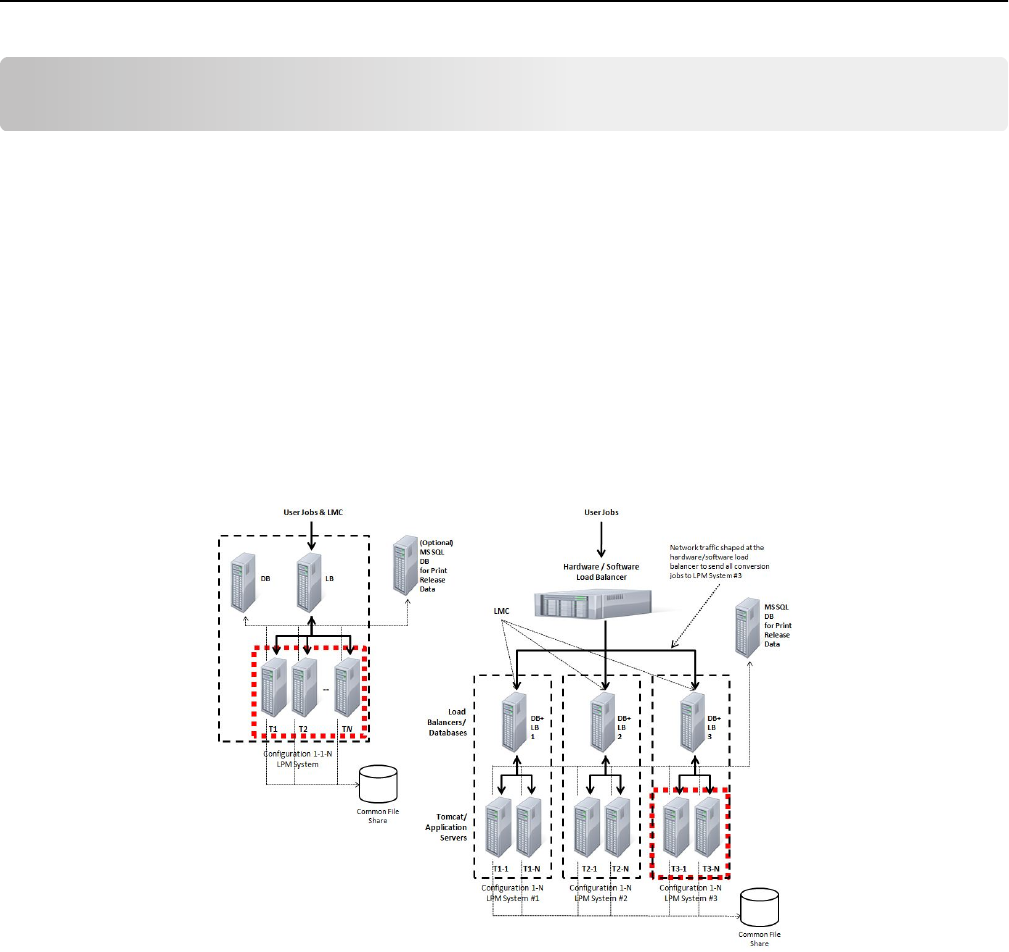
Overview
Use the application to print documents from a workstation to a central print queue. Print jobs that are sent from a
computer, from the Web, or through e‑mail are held until the user deletes or prints them. Jobs that are not released
after a specified period are automatically deleted.
Users can also download mobile printing applications to send print jobs from their mobile devices. For more information
on how to purchase the mobile application, contact your Lexmark sales representative.
The solution also supports:
•User authentication in order to use the standard functions of the printer. These functions include, copying, faxing,
e‑mailing, and scanning to FTP and to a network.
•Allowing another user (called a delegate) to release one user's print job.
•Badge authentication, quota tracking, and usage tracking.
•Sending print jobs using AirPrint.
For more information on how to print using this solution, see the User’s Guide.
For more information on how to print from your mobile device, see the Lexmark Mobile Printing User’s Guide.
Overview 4
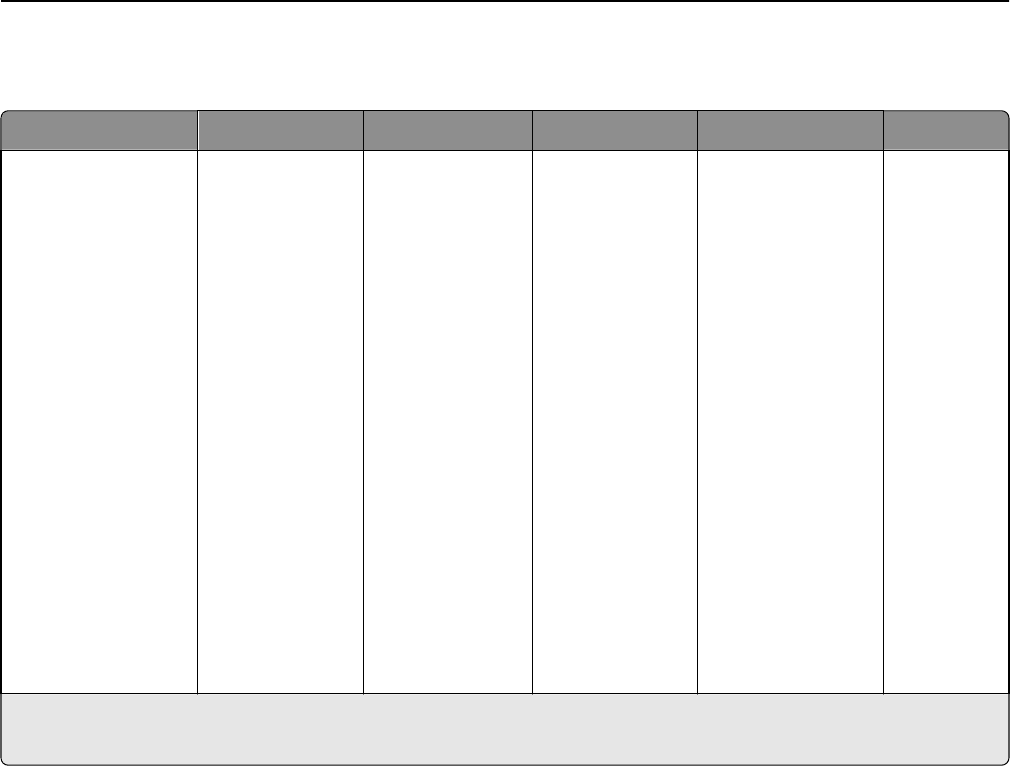
Supported printers
e‑Task 4 printers e‑Task 3 printers e‑Task 2+ printers e‑Task 2 printers e‑Task printers1X642 printers
•MS610
•MS810, MS812
•MS911
•MX410, MX510,
MX511
•MX610, MX611
•MX710, MX711
•MX810, MX811,
MX812
•MX910, MX911,
MX912
•CS510
•CX410
•CX510
•X548
•6500
•X746, X748
•X792
•X950, X952,
X954
•C748
•C792
•C925
•C950
•X463, X464,
X466
•X651, X652,
X654, X656,
X658
•X734, X736,
X738
•X860, X862,
X864
•T656
•X644, X646
•X772
•X782
•X850, X852,
X854
•X940, X945
•T654
•W850
•X6202
•X632, X6342
•X7522
•X8202
•X830, X8322
•X9122
•C520, C522, C524
•C530, C532, C534
•C732, C734, C736
•C780, C782
•C920
•C935
•E450
•E460, E462
•T640, T632, T644
•T650, T652
•W840
X642
1 These printers do not support eSF applications used in hybrid solutions.
2 These printers may be identified as “C,” “T,” or “W” models in Lexmark Management Console.
Note: For more information on the latest device and firmware level support, see the Readme file.
Overview 5

Using Lexmark Management Console
Accessing Lexmark Management Console
1Launch Lexmark Management Console (LMC) from your Web browser using either of the following URLs:
•http://hostname:9780/lmc
•https://hostname/lmc
where hostname is the host name or IP address of the computer on which the server is installed.
Notes:
•It may take several minutes to start all services when the server is first booted. If LMC cannot be accessed
immediately after booting the system, then wait a few minutes, and then try again.
•Cookies must be enabled on your Web browser in order to use LMC.
•Adobe Flash Player 10 or later is required. If your Web browser settings do not allow ActiveX controls to run,
then manually upgrade the plug‑in by visiting the Adobe Web site.
2Type the administrator user name and password, and then click Login.
Notes:
•The default user name and password are both admin.
•If LMC is configured to connect to an LDAP server, then any valid user name and password can be used.
Configuring the application
Changing the status of the server
Print Management lets administrators control whether jobs are sent to the server from the load balancer.
1Access Lexmark Management Console from your Web browser, and then click the System tab.
2Select a server.
3Click Set Online or Set Offline.
Note: Set Offline still allows administrators to stay connected to the server.
Configuring the application settings for your environment
Note: Before changing the settings, contact Lexmark Help Desk to make sure that the change is appropriate and
necessary.
During the initial installation, your Lexmark Integration Specialist configures the settings of the solution to meet the
needs of your environment. If you need to modify the settings because of user feedback or configuration changes within
your environment, then do the following:
1Access Lexmark Management Console from your Web browser, and then click the Solutions tab.
2From the Solutions section, click PrintReleasev2.
Using Lexmark Management Console 6

3From the Tasks section, click Configuration, and then change the settings.
4Click Apply.
Adding printers to a device group
When you expand to other departments or locations, you need to add devices to the solution. Before adding devices
to the solution, make sure you have obtained licenses from your Lexmark Technical Program Manager.
Typically, you need to add devices to the existing device group to have the same local settings as all other devices in
the group. Creating groups also lets you better organize all your devices, such as by location, and modify different
configurations in the local settings, such as Authentication Method, Print All Settings, and Keypad Only Device Settings.
1Access Lexmark Management Console from your Web browser, and then click the Device Groups tab.
2From the Device Groups section, click Add, and then type a name for your device group.
Note: If you want to use the existing group, then select the name of your device.
3From the Tasks section, select Discovery Profiles.
4In the address field, type the IP address of the printer, and then click Add.
Notes:
•You can add only one IP address at a time.
•Do not fill up any information in the fields unless that information is already configured on the printers that
are added.
5Click Discover.
6From the Discovery section, select the Discover new devices only check box, and then click Discover.
7Click Done.
8To verify that your printer is successfully added, click Summary or Discovered Devices from the Tasks section.
Configuring the home screen
When new printers are added to the solution, you may need to configure the home screen if your printer is part of a
new device group or if your printer is a different model from the previously configured printer. Because different device
classes have different capabilities, a separate custom home screen must be configured for each device class. For a list
of supported printers in each device class, see “Supported printers” on page 5.
1Access Lexmark Management Console from your Web browser, and then click the Device Groups tab.
2From the Device Groups section, select a device group you want to configure, and then click Home Screen from the
Tasks section.
3From the Home Screen section, select the type of printer you want to configure.
Note: Make sure to select the Use this home screen as part of the device group’s policy check box.
4If you have not configured your home screen, then select the number of buttons you want to appear on your home
screen from the Layout menu.
5Assign a button, action, and profile to each function.
Using Lexmark Management Console 7
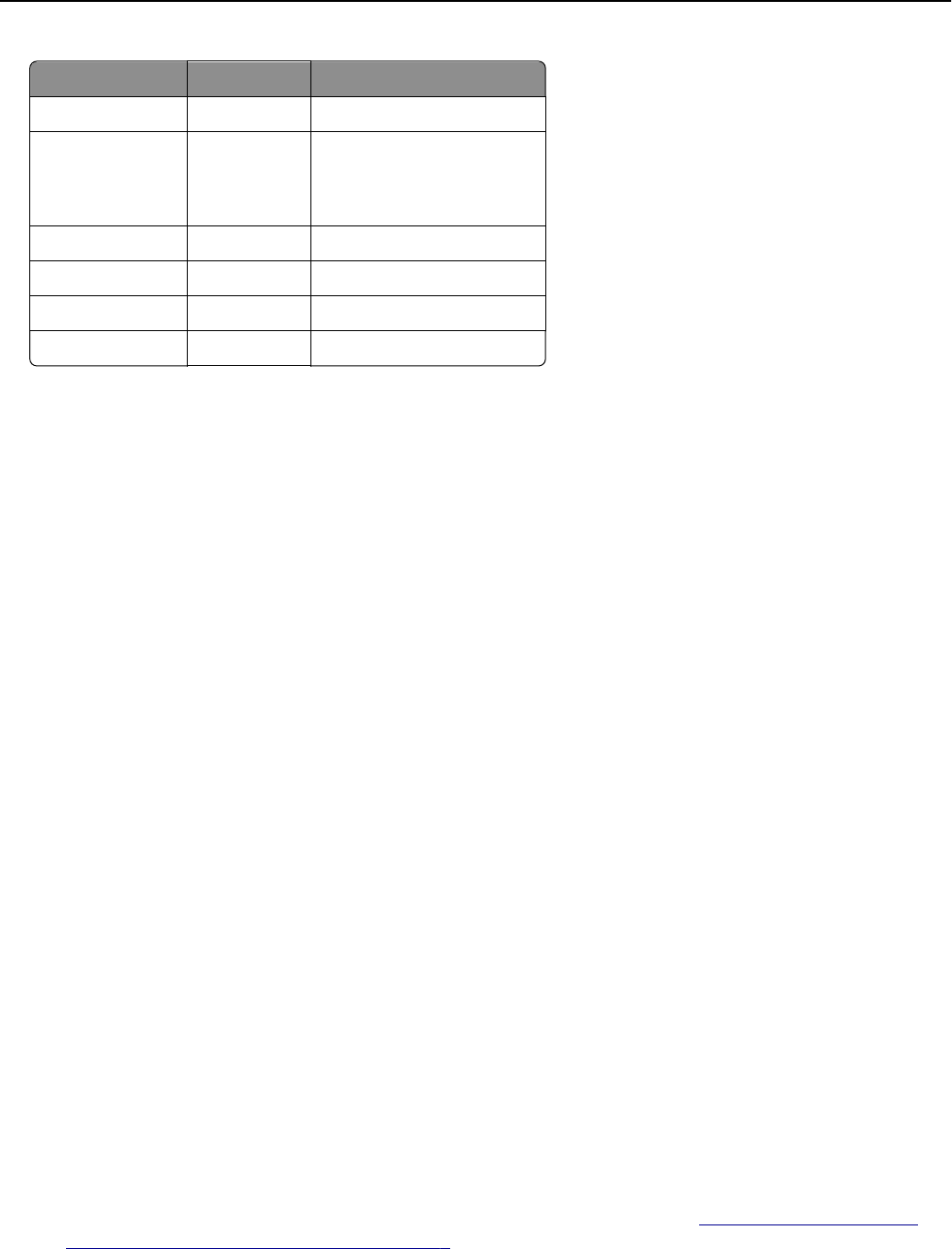
Function Action Profile
Copy Copy + Profile CopyTrack
Fax Fax + Profile Select either of the following
•FaxTrackAnalog
•FaxServerTrack
Email Email + Profile EmailTrack
Ftp Ftp + Profile
Print Management Single Profile Print Release
Scan to Network Single Profile ScantoNetwork
Note: Unassigned buttons do not appear on the home screen.
6Click Apply.
Deploying applications to the printer
Before using the solution, make sure that you have deployed the applications to the printer, and that you have
configured the deployment and home screen settings of all supported applications. For more information on deploying
the applications, see the Deployment White Paper that came with the solutions.
1Access Lexmark Management Console from your Web browser, and then click the Device Groups tab.
2From the Device Groups section, select Print Release.
3From the Tasks section, select eSF Configuration, and then configure the deployment settings in the following order:
•deviceusage
•card reader drivers: keyboardreader, omnikey5427ckdriver, ominikeydriver
•advancedprompt
•badgeauth
Note: The correct compatible eSF framework level and the recommended deployment order are installed by
default.
4If you want to change the deployment order, then click the up and down arrow buttons on the eSF Applications
section.
5If you want to remove the eSF applications from a policy update, then clear the check box that corresponds to each
of the applications from the “Deploy to” menu on the eSF Configuration Settings section.
6Click Save Settings.
7From the Tasks section, click Policy Update > Update Policy.
Notes:
•Make sure to update the policy to successfully use the application.
•The deployment can take from 1 to 2 minutes.
•For more information on how to improve the policy update performance, see “Configuring chunk size for
device discovery and policy updates” on page 9.
8Click Done.
Using Lexmark Management Console 8

Configuring Universal Configuration File (UCF)
1Access Lexmark Management Console from your Web browser, and then click the Solutions tab.
2From the Solutions section, select Print Releasev2.
3From the Tasks section, select Security Setup Files, and then configure the settings.
Use To
BadgeAuth Create LDAP security building block.
Notes:
•This setting is compatible with eTask2 framework.
•This setting is only used if LDAP is used for authentication.
BadgeAuth2 •Configure LDAP security building block.
•Set up an LDAP security template associated with BadgeAuth eSF applications and
apply it to an access control.
•Set up a badgeauth security template associated with BadgeAuth eSF applications
and apply it to an access control.
Notes:
•This setting is compatible with eTask2+, eTask3, and eTask4 frameworks.
•This setting is used if LDAP and badgeauth eSF application is used for
authentication and configuring UCF, respectively.
4If you want to specify a policy update to use the device group level of UCF, then select BadgeAuth2, and then clear
Use Solution Configuration check box.
5If you want to remove a configuration file from a policy update, then clear the check box that corresponds to each
of the frameworks from the “Deploy to” menu.
6Click Apply.
Configuring chunk size for device discovery and policy updates
When using three or more servers, reducing the chunk size increases the speed of device discovery and policy updates.
1Access Lexmark Management Console from your Web browser, and then click the Services tab.
2From the Services section, select General.
3From the Tasks section, select Parameters.
4In the ChunkSize field, enter a new value.
Note: When using three or more servers, a value as low as 2 may be appropriate.
5Click Apply.
Scheduling cleanup tasks
Lexmark Print Management provides many flexible features, including the capability for establishing total or color user
quotas on a monthly or yearly basis, limiting function access by user or group, and managing temporary badges. Each
feature requires scheduled tasks to run in order to update and clean up data periodically.
Using Lexmark Management Console 9

If you are using quotas, then quotas must be reset in order to automatically delete data for the previous year and allow
all users to start with new, full quotas. This task should be scheduled to run once a year on a schedule that works best
for your business processes. For example, many schools run this task at the beginning of each school year.
If you are using function access, you need to periodically update users’ group information to make sure that they are
getting access to the functions granted to their user role. The frequency at which this task runs is at your discretion
and may be dictated by how frequently users move around within groups in your environment.
For temporary badges, it is important to reset the user information associated with the badges so that when the badge
is assigned to a new user, the new user must re-register and cannot gain access to the previous user’s jobs. The frequency
at which this task runs is at your discretion and may be dictated by how long you assign temporary badges.
1Access Lexmark Management Console from your Web browser, and then click the System tab.
2From the System section, select Schedule.
3Click Add > Script > Next > None > Next.
4Select the solution you want to configure and the script associated with your task.
•ResetFAUserGroup—This lets you reset the function access limit of the group.
•PrintDelete—This lets you automatically delete print jobs in a period of time.
•GenerateCSV—This lets you generate report in a period of time.
•TempBadgeDelete—This lets you delete temporary badge data.
•ResetQuota—This lets you reset user quotas annually.
•ResetUserGroup—This lets you update users that are already defined in the database to their current group.
5Click Next.
6From the “Choose a frequency” dialog, specify the start date and time and how often the cleanup occurs.
7Click Finish.
Using Lexmark Management Console 10
Managing Print Management
Accessing Print Management Console
1Launch Print Management Console (PMC) from your Web browser using either of the following URLs:
•http://hostname:9780/printrelease/index.html
•https://hostname/printrelease/index.html
where hostname is the network address of the load balancer.
2Type the administrator user name and password, and then click Login.
Notes:
•The default user name and password are both admin.
•If PMC is configured to connect to an LDAP server, then type your LDAP user name and password.
•PMC is supported only in Internet Explorer version 6 to Internet Explorer version 9.
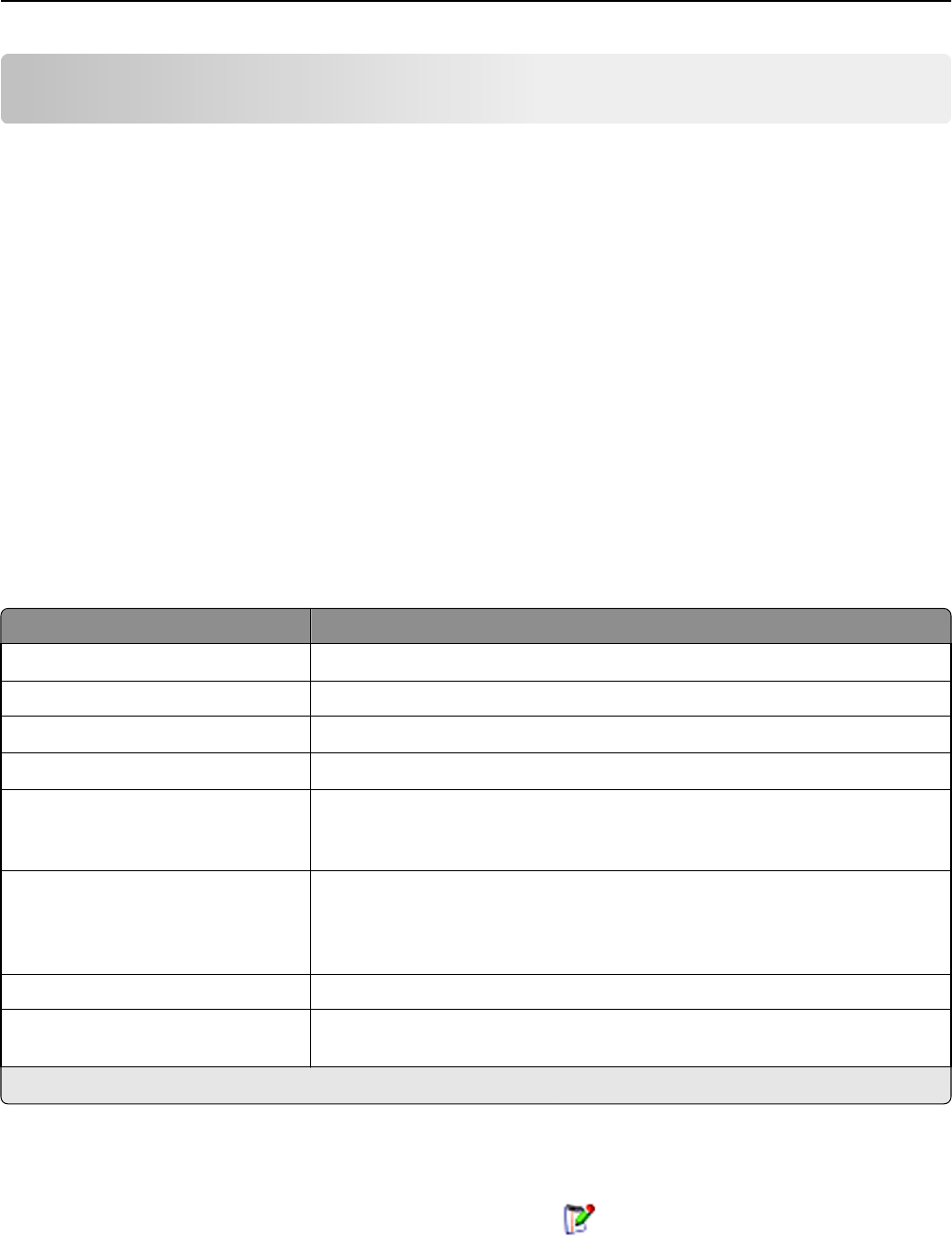
While in the console view, the active tab is highlighted in blue. The upper‑right corner shows the name of the user
currently logged in. You can also manage the tabs and other features of PMC by clicking the image in the upper‑left
corner.
Tab Description
Print Queue*This lets you view and manage all pending print jobs.
RePrint Queue This lets you view and manage all printed and kept jobs.
Delegates*This lets you view and manage all print delegates.
Badges*This lets you view and manage all registered badges.
Function Access This lets you view all users who perform certain functions (printing, copying,
e‑mailing, faxing, and scanning to a network) of the printer. This also lets you
manage function access at a group or user level.
Quotas This lets you view the list of users and groups with the corresponding total page
count of print jobs and the number of pages each user printed for the specified
time. This also lets you manage quotas at a group or user level on a monthly or
yearly basis.
Alternate Locations This lets you view and manage printers to which print jobs can be released from.
PrintTrack Devices This lets you add devices in order to record information about the printer with the
print job data.
* These tabs are active by default. Other tabs can be managed and activated by clicking the image in the upper‑left corner.
Modifying information from the list
1From the list, locate the entry you want to modify, and then click in the Action column.
2Make necessary changes, and then click OK.
Managing Print Management 11

Deleting entries from the list
1From the list, locate the entry you want to delete, and then click in the Action column.
2Click OK to confirm.
Logging out from the console
On the upper‑right corner of the page, click Logout.
Using the Print Queue and RePrint Queue tabs
The Print Queue tab lets you view all submitted print jobs that are not yet released or deleted.
The RePrint Queue tab lets you view all submitted print jobs that were released at least once but not yet deleted. The
list appears if the "Delete Printed Jobs After Specified Hours" option is set to a value greater than 0.
Viewing and managing print queues
1Access Print Management Console from your Web browser, and then click the Print Queue tab or the RePrint
Queue tab.
2In the Filter menu, select the appropriate data field, and then set a criteria for your search.
3In the text field, type the word that defines your search, and then click Apply Filter.
4View the following print job information.
•Site—This shows the site code of the Print Management system.
•User—This shows the Windows user ID who submitted the print jobs in the queue.
•Job Name—This shows the file name of the print jobs in the queue.
•Pages—This indicates the total number of pages of a print job in the queue.
•Date Submitted—This indicates the date and time the print job was submitted.
•Delegate—This shows the name of the user or group who has allowed to print the job.
•Actions—This allows you to view job properties, delete, edit, delegate, or print a job in the queue.
To view a specific print job, click with the following additional print job information:
•Color—This indicates whether the job was printed in black and white or in color.
•Duplex—This indicates whether the job was printed on one or both sides of the page.
•Paper Size—This indicates the size of the paper set to a print job in the queue.
5To sort the items in the column, click the column header.
•—This sorts the column in ascending order.
•—This sorts the column in descending order.
Managing Print Management 12

Delegating print jobs
1From the list, locate the print job, and then click in the Action column.
2From the Delegate Job dialog, assign a delegate or delegate group, and then click OK.
Releasing print jobs
1Access Print Management Console from your Web browser, and then click the Print Queue tab or the RePrint
Queue tab.
2Locate the job you want to print, and then click the printer icon in the Actions column.
3Type the printer address, and then click OK.
Notes:
•If the Multi‑Select feature is configured, then select the print jobs you want to print, and then click Print. You
can configure Multi‑Select by clicking the image in upper‑left corner of the Print Management Console, and then
modifying it in the Queue Tab Options section.
•This feature allows you to print if the printer fails to authenticate the credentials or if the job needs to be
released by a person other than a delegate.
Using the Delegate tab
A delegate is a person who is allowed to release another person's print job. For example, an administrative assistant
might release print jobs submitted by an executive.
The Delegates tab lets you view and manage individual delegates or delegate groups associated with a given user. You
can designate a user as the delegate or as part of a delegate group for more than one person. However, you can
designate only one delegate or delegate group to each user.
Adding delegate groups
1Access Print Management Console from your Web browser, and then click the Delegates tab > Add Delegate Group.
Note: If the Add Delegate Group button does not appear, then click Manage Delegate Groups.
2From the Add Group dialog, type the name of the group.
3Type the Windows user ID, and then click Add.
Note: You can add only one user ID at a time.
4Click OK.
Adding delegates
1Access Print Management Console from your Web browser, and then click the Delegates tab > Add Delegate.
Note: If the Add Delegate button does not appear, then click Manage Delegates.
2From the Add Delegate dialog, type the name of the user.
Managing Print Management 13

3If you want to add an individual delegate, then select Single User, and then type the Window user ID.
4If you want to add a delegate in a group, then select Delegate Group, and then select a group from the list.
5Select the Update the delegate for existing print jobs check box.
Note: If you do not select the check box, then the delegate is allowed only to release future print jobs.
6Click OK.
Using the Badges tab
If badge authentication is going to be used, then configure the solution to allow users to register their badges when
using the solution for the first time.
The Badges tab lets you view badges that are registered for the solution. It also lets you modify badge information and
add them manually.
Registering badge IDs
1Access Print Management Console from your Web browser, and then click the Badges tab > Add Badge.
2From the Add Badge dialog, type the Windows user ID and the badge ID.
Note: Make sure that the badge ID is mapped to the Windows user ID to get the correct print jobs the user
submitted in the print queue.
3Click Add.
Adding temporary badge IDs
1Access Print Management Console from your Web browser, and then click the Badges tab > Temporary Badges.
2From the Temporary Badges dialog, type the temporary badge ID you want to add, and then click Add.
Note: You can add only one badge ID at a time.
3Click OK.
Using the Function Access tab
Managing the default user function access
1Access Print Management Console from your Web browser, and then click the Function Access tab > Default User.
2From the Default User dialog, select which printer functions the new user is allowed to access, and then click OK.
Managing Print Management 14

Managing default group function access
Make sure that you have enabled the group function access in the Configuration options in Print Management Console.
1Click Manage Groups > Default Group.
2From the Default Group dialog, select which printer functions the new user is allowed to access, and then click
OK.
Adding groups
Before you can add a group, make sure to enable the group function access.
1Access Print Management Console from your Web browser, and then click the Function Access tab > Add Group.
Note: If the Add Group button does not appear, then click Manage Groups.
2From the Add Group dialog, type the name of the group, and then select which printer functions the user is allowed
to access.
3Click OK.
Adding users
1Access Print Management Console from your Web browser, and then click Function Access > Add User.
2From the Add User dialog, type the Windows user ID, and then select which printer functions the user is allowed
to access.
Note: If a group has been added, then select a group to which the user belongs.
3Click OK.
Using the Quotas tab
The Quotas tab lets you view and manage groups' and users' print quotas.
Viewing and managing quotas
You can manage quotas on a monthly or yearly basis. When monthly quotas are used, the user will receive a new
allocation of pages on the first day of each month. There is no carryover of unused pages from previous months. When
quotas are tracked annually, the user gets a much larger allocation of pages at the first of each year.
1Access Print Management Console from your Web browser, and then click the Quotas tab.
2In the Filter menu, select the appropriate data field, and then set a criteria for your search.
Note: The settings in the data field vary depending on the settings selected in the Quota View and Usage View
menus.
3In the text field, type the word that defines your search, and then click Apply Filter.
4In the Quota View menu, select the impressions you want to view.
•All Quota (T/C)—This shows the overall total number of pages a user can print or copy.
•Total Quota—This shows the total number of pages a user can print or copy.
Managing Print Management 15

•Color Quota—This shows the total number of pages a user can print or copy in color.
5In the Usage View menu, select a period to view.
•This Month
•Last Month
•Last 3 Months
•Last 6 Months
•Last 12 Months
6To sort the items in the column, click the column header.
•—This sorts the column in ascending order.
•—This sorts the column in descending order.
Adding groups
You may choose to manage quotas at a group or user level. If group quotas are implemented, then a user’s quota would
be established dependent on the Active Directory (AD) group to which they belong. For example, you may have an
employee hierarchy where users in one group (ex. Marketing) would logically print more than users in another group
(ex. Helpdesk). You could establish quotas specific to each group and, thus, users in each group will get the appropriate
number of pages assigned. If you manage quotas at an individual user basis, then a default quota value will be established
for all users as they are registered or entered. The administrator manages any individual quota changes, if needed.
The group that corresponds to the AD group must be added manually. The group name must match the name in the
AD group.
1Access Print Management Console from your Web browser, and then click the Quotas tab > Add Group.
Note: If the Add Group button does not appear, then click Manage Groups.
2From the Add Group dialog, type the name of the group, and then set the following:
•Total Quota—This is the total number of pages a user is allowed to print or copy.
•Color Quota—This is the total number of pages a user is allowed to print or copy in color.
Note: The individual user quota supercedes the group quota if both quotas are set for a user.
3Click OK.
Adding users to a group
Clicking Manage Users lets you view the list of all users, the group to which each user belongs, and the number of pages
each user printed for the specified time frame. By default, the quotas that appear are the total number of pages or
color pages printed. You can modify the quota view and time frame by using the "Quota View" and "Usage View" filters.
1Access Print Management Console from your Web browser, and then click the Quotas tab > Add User.
Note: If the Add User button does not appear, then click Manage Users to return to the list of current users.
2From the Add User dialog, type the Windows user ID, and then select the group to which the user belongs.
3Click OK.
Managing Print Management 16

Using the Alternate Locations tab
Print Management lets users release print jobs using printers from other locations. This tab lets you view and manage
these printers.
Allowing users to release print jobs to another printer
1Access Print Management Console from your Web browser, and then click the Alternate Locations tab > Add
Alternate Locations.
2From the Add Alternate Locations dialog, set the following:
•Release IP—This is the IP address of the printer where the print job is submitted.
•Alternate IP—This is the IP address of the printer where the print job is released.
•Alternate Display Name—This is the name of the printer where the print job is released.
•Alternate Model Name—This is the model name of the printer where the print job is released.
•Alternate Device is Color—This indicates whether the printer where the print job is released prints in color.
3Click OK.
Using the Print Track Devices tab
Tracking print jobs
Lexmark Print Management lets administrators track users’ print jobs to devices that are not sent to the printer print
queue. Jobs are still printed through a shared Windows print queue but directly to the printer instead of being held for
release. If print jobs are being tracked to any devices, administrators must add the information in the Print Track Devices
Tab to make sure that information about the printer gets stored with the print job data. This is completely optional,
and users can still print from printers that are not configured. However, if not added, the model and device type (such
as color or mono) will not be stored in the usage data.
1Access Print Management Console, and then click the PrintTrack Devices tab > Add Print Track Device.
2From the Add Print Track Device dialog, set the following settings.
•Site—This is where the print job is released.
•Address—This is the IP address of the printer where the print job is released.
•Model Name—This is the model name of the printer where the print job is released.
•Model Type—This is the model type of the printer where the print job is released.
•Comment—This is an optional field where administrators can add information about the printer.
3Click OK.
Testing the solution
After changing the configuration or adding devices to the device group, you need to configure a client workstation to
make sure that print queueing is working properly.
1Open the printer wizard.
Managing Print Management 17

In Windows 8
From the Search charm, type run, and then navigate to:
Apps list > Run > type control printers > OK > Add devices and printers
In Windows 7 and Vista
aClick > Run.
bIn the Start Search dialog, type control printers.
cClick Add a printer > Add a network, wireless or Bluetooth printer.
In Windows XP or earlier
aClick Start > Run.
bIn the Run dialog, type control printers.
cClick File > Add Printer.
2Select the option that lets you connect to your network printer, and then type the destination folder where your
printer is located.
3Set the printer as default, and then select the option that lets you print a page, if prompted.
4From the printer home screen, touch Print Release.
5Select the print job that contains the test page, and then touch Print Selected.
Managing Print Management 18

Managing and generating a report
Generating reports
This lets you analyze usage trends across the user population. You can export the data from the usage tracking database
to a .csv file that can be used in Excel or with some other reporting tool to analyze the data. This export can be configured
to provide only data for a specific time frame.
1Access Lexmark Management Console from your Web browser, and then click the System tab.
2From the Systems section, select Reports.
3From the Available Reports section, select PR ‑ Full Data Export, and then specify the reporting period.
4Select the output format you want to generate.
•PDF—This generates a report in PDF format.
•CSV—This generates a report in Excel format.
5If you want to save the exported tile, then do the following:
aSelect the Save To check box, and then click the button next to the “Save to” field.
bSpecify the path of the folder where you want to save the file, and then click OK.
6If you want to send the report to an e‑mail address, then do the following:
aSelect the Email To check box, and then click the button next to the “Email to” field.
bSpecify the recipient of your e‑mail and other information, and then click OK.
7Click Run Report.
Scheduling reports
1Access Lexmark Management Console from your Web browser, and then click the System tab.
2From the System section, select Schedule, and then click Add.
Note: If you want to modify the existing schedule, then select the scheduled task, and then click Edit.
3From the “Choose task” dialog, select Report, and then click Next.
4From the Available Reports section, select PR ‑ Full Data Export, and then specify the reporting period.
5Select the output format you want to generate.
•PDF—This generates a report in PDF format.
•CSV—This generates a report in Excel format.
6If you want to save the exported file, then do the following:
aSelect the Save To check box, and then click the button next to the “Save to” field.
bSpecify the path of the folder where you want to save the file, and then click OK.
Managing and generating a report 19

7If you want to send the report to an e‑mail address, then do the following:
aSelect the Email To check box, and then click the button next to the “Email to” field.
bSpecify the recipient of your e‑mail and other information, and then click OK.
8Click Next.
9From the “Choose the frequency” dialog, specify the start date and time and how often the generated report runs,
and then click Finish.
Managing and generating a report 20

Troubleshooting
Firmware failure [9yy.xx]
The firmware on the device needs to be updated.
Contact Lexmark Help Desk for more information on the latest firmware update.
An application error about a missing bean on the home screen
Restart the Lexmark Solutions Application Server service on the LDD server.
Profile server is not responding
MAKE SURE THAT ALL REQUIRED LEXMARK SERVICES ON THE LDD LOAD BALANCER ARE
RUNNING
1From the LDD load balancer, navigate to:
Settings > Control Panel > Administrative Tools > Services
2Make sure that the following services are in a Started state:
•Firebird Server ‑ Default Instance
•Lexmark Solutions Backup and Restore Agent
•Apache2
•Lexmark Solutions Apache Agent
•Lexmark Solutions Web (or Protocol)
•Adaptor
•Lexmark Solutions License Manager
MAKE SURE THAT LEXMARK SOLUTIONS APPLICATION SERVER IS RUNNING
Restart the Lexmark Solutions Application Server service on the LDD server.
Unable to add new devices using LMC
MAKE SURE THAT YOUR PRINTER HAS SUFFICIENT LICENSES
1From LMC, click the System tab, and then select Licenses.
2Check if the licenses of your printer are added on the server and are not expired.
Note: If you have not purchased licenses or if the licenses are expired, then contact your Lexmark Technical
Program Manager.
Troubleshooting 21

“Out of Policy” error message still appears even after multiple
tries to update the policy
The licenses may not be configured to allow the number of devices in the group. Contact your Lexmark Technical
Program Manager to determine the number of printers for which licensing was purchased.
“Unsupported Device” error message appears when installing a
badge reader to the printer
MAKE SURE THAT THE APPROPRIATE DRIVER IS INSTALLED ON THE PRINTER
If you do not know the driver that is required, then check another working printer in the environment or contact
Lexmark Help Desk.
“Unable to Read Badge Data” error message appears when
swiping the badge
MAKE SURE THE BADGE READER HAS THE CORRECT CONFIGURATION FILE
If you do not know the required configuration file, then check another working printer in your environment or contact
Lexmark Help Desk.
Print jobs released by the users do not appear in the print
queue
MAKE SURE THAT THE LEXMARK UNIVERSAL PRINT DRIVER IS INSTALLED AND THE PORT IS
CONFIGURED TO THE PRINT MANAGEMENT SERVER
For more information, contact Lexmark Help Desk.
MAKE SURE THAT THE DOCUMENT NAME AND THE USER ID ARE CORRECT AND THAT THE USER
WAS NOT LOGGED IN USING A DIFFERENT USER ID WHEN PRINTING
For more information, see “Viewing and managing print queues” on page 12.
MAKE SURE THAT THE BADGE ID IS REGISTERED TO THE CORRECT USER ID
For more information, see “Registering badge IDs” on page 14.
Troubleshooting 22

An error has occurred when swiping the badge
MAKE SURE THAT THE BADGE ID IS REGISTERED TO THE PRINT MANAGEMENT CONSOLE
For more information, see “Registering badge IDs” on page 14.
RESTART THE PRINTER
The card reader may be having issues that require the printer to be restarted.
Page count is inaccurate
MAKE SURE THAT THE PRINT JOBS ARE NOT SENT UNTIL THEY ARE FINISHED SPOOLING
1From the printer folder, right‑click your printer, and then click Printer properties or Properties.
2Click the Advanced tab, and then select the following check boxes:
•Spool print documents so program finishes printing faster.
•Start printing after last page is spooled.
3Click OK.
Note: Print Management page count tracking is for trending purposes only and is not designed for billing.
Troubleshooting 23
Appendix
Contacting Lexmark Help Desk
When contacting Lexmark Help Desk, make sure that you have the following information to expedite handling of issues:
•The PIN of your company, if provided.
•The version of LDD your printer is currently connected to.
To obtain the version, do the following:
1Access Lexmark Management Console from your Web browser.
2From the top section of the page, click About.
•The version of the Print Management solution you are currently using.
To obtain the version, do the following:
1Access Lexmark Management Console from your Web browser.
2Click the Solutions tab, and then select PrintReleasev2 in the Solutions section.
3From the Tasks section, select Summary, and then find the version section.
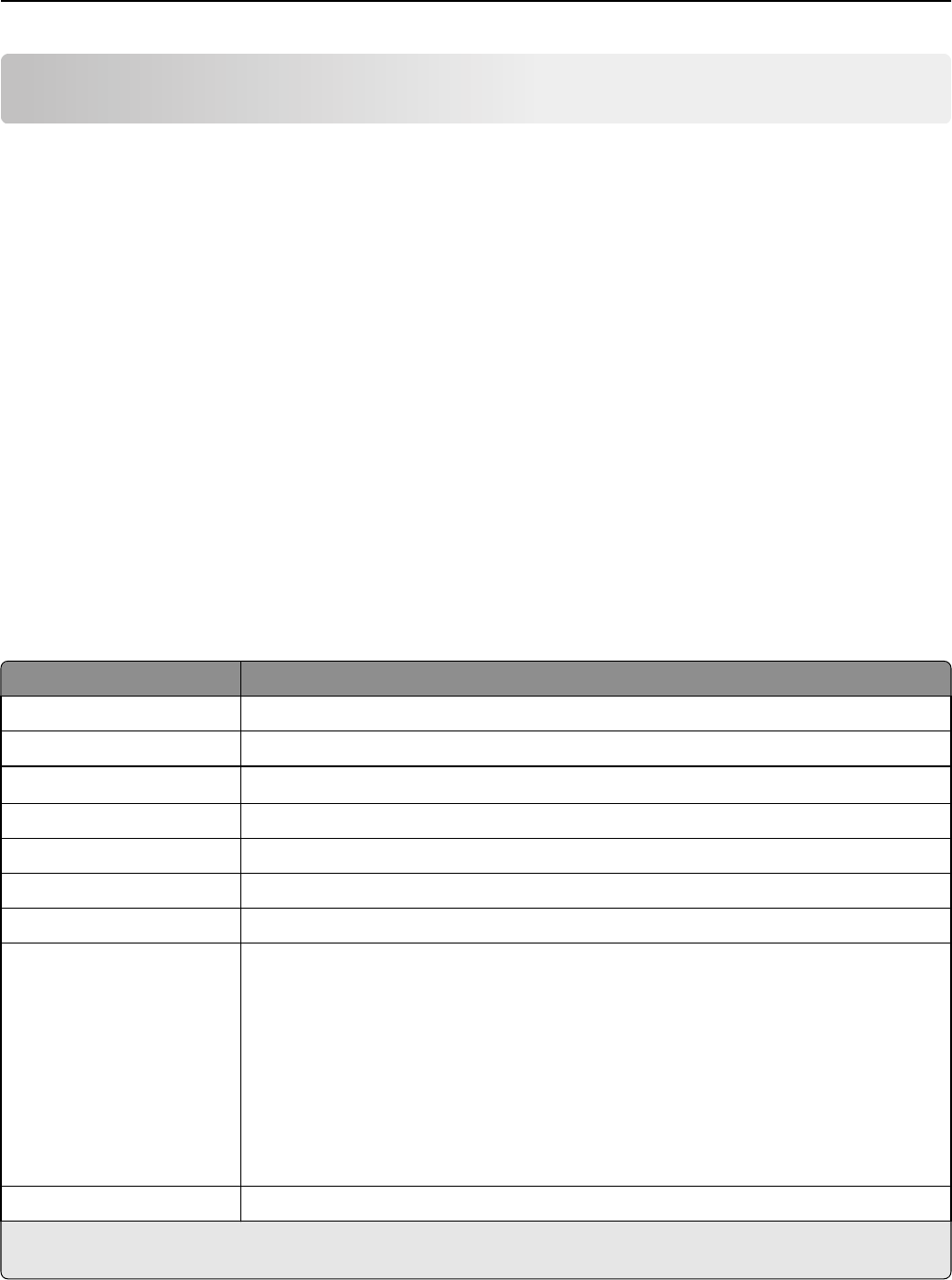
Understanding Print Management database fields
Usage data field Description
ID This is the unique ID referenced to a job.
SITE This is where the job was submitted.
USERID*This is the name of the user who submitted the job. This matches the Windows user ID.
SUBMITIP This is the IP address of the printer where the job was submitted.
PRINTJOBNAME This is the name assigned to a print job.
SUBMITDATE The is the date and time the print job was submitted.
FINALDATE This is the date and time the print job was released.
FINALACTION*This indicates the job performed by the user.
•P—This indicates that a print job was released.
•D—This indicates that a job was deleted.
•C—This indicates that a copy job was released.
•F—This indicates that a fax job was released.
•E—This indicates that an e‑mail job was released.
•T—This indicates that an FTP job was released.
•S—This indicates that a scan job was released to a network.
FINALSITE This is the printer where the job was released.
* Basic Print Management supports tracking for releasing and deleting of print jobs only. The solution tracks other standard
printer functions if authentication is used to access the function and if you purchased the tracking option.
Appendix 24

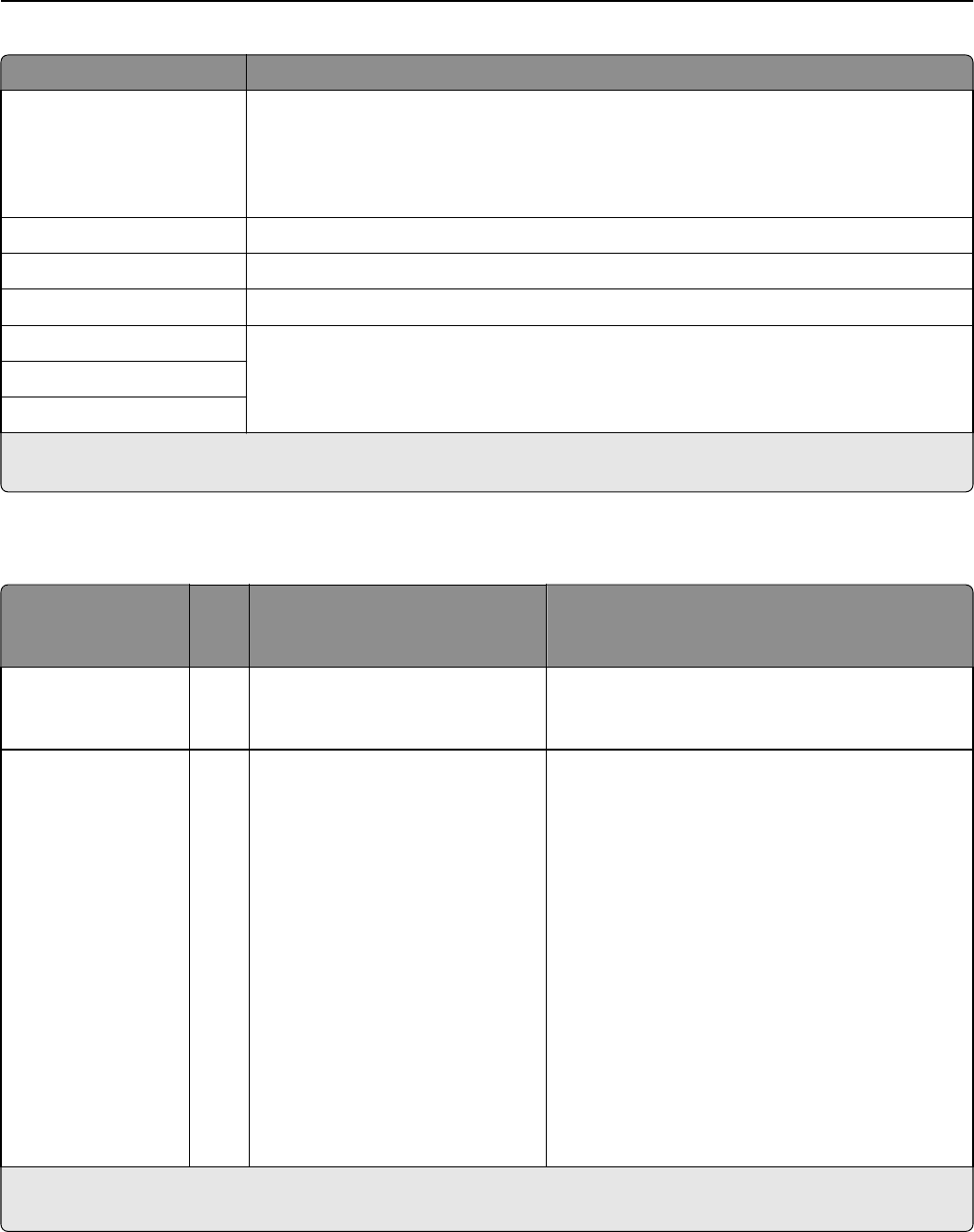
Usage data field Description
NUMPAGES This is the number of pages a job contains.
RELEASEIP This is the IP address of the printer where the job was released.
RELEASEUSERID This is the name of the user or delegate who released the job.
RELEASEMETHOD This indicates how a job was tracked, released, or deleted.
PRINT
T—This indicates that a print job was released outside of a Print Management queue.
P—This indicates that a print job was released by a user.
W—This indicates that a print job was released from Print Management Console (PMC).
D—This indicates that a print job was released through a Print Management queue.
COPY
T—This indicates that a copy job was released from LMC.
E‑MAIL
T—This indicates that an e‑mail job was released from LMC.
FAX
T—This indicates that a fax job was released from LMC.
S—This indicates that a fax job was released through a fax feature of the printer.
R—This indicates that a fax job was submitted through a fax feature of the printer.
FTP
T—This indicates that an FTP job was released through an FTP.
SCAN TO NETWORK
T—This indicates that a scan job was sent to a network.
DELETE
W—This indicates that a print job was deleted from PMC.
U—This indicates that a print job was deleted from the printer.
A—This indicates that a print job was automatically deleted from the queue or has
expired.
PRINTJOBCOLOR This shows whether a job was printed in color or in black and white.
•Y—This indicates that a job was printed in color.
•N—This indicates that a job was printed in black and white.
PRINTJOBDUPLEX This shows whether a job was printed on one or both sides of the page.
•S—This indicates that a job was printed on one side of the page.
•N—This indicates that a job was printed on both sides of the page.
PRINTJOBPAPERSIZE This indicates the size of the paper used for the print job.
RELEASEMODEL This is the model name of the printer for the print job.
* Basic Print Management supports tracking for releasing and deleting of print jobs only. The solution tracks other standard
printer functions if authentication is used to access the function and if you purchased the tracking option.
Appendix 25
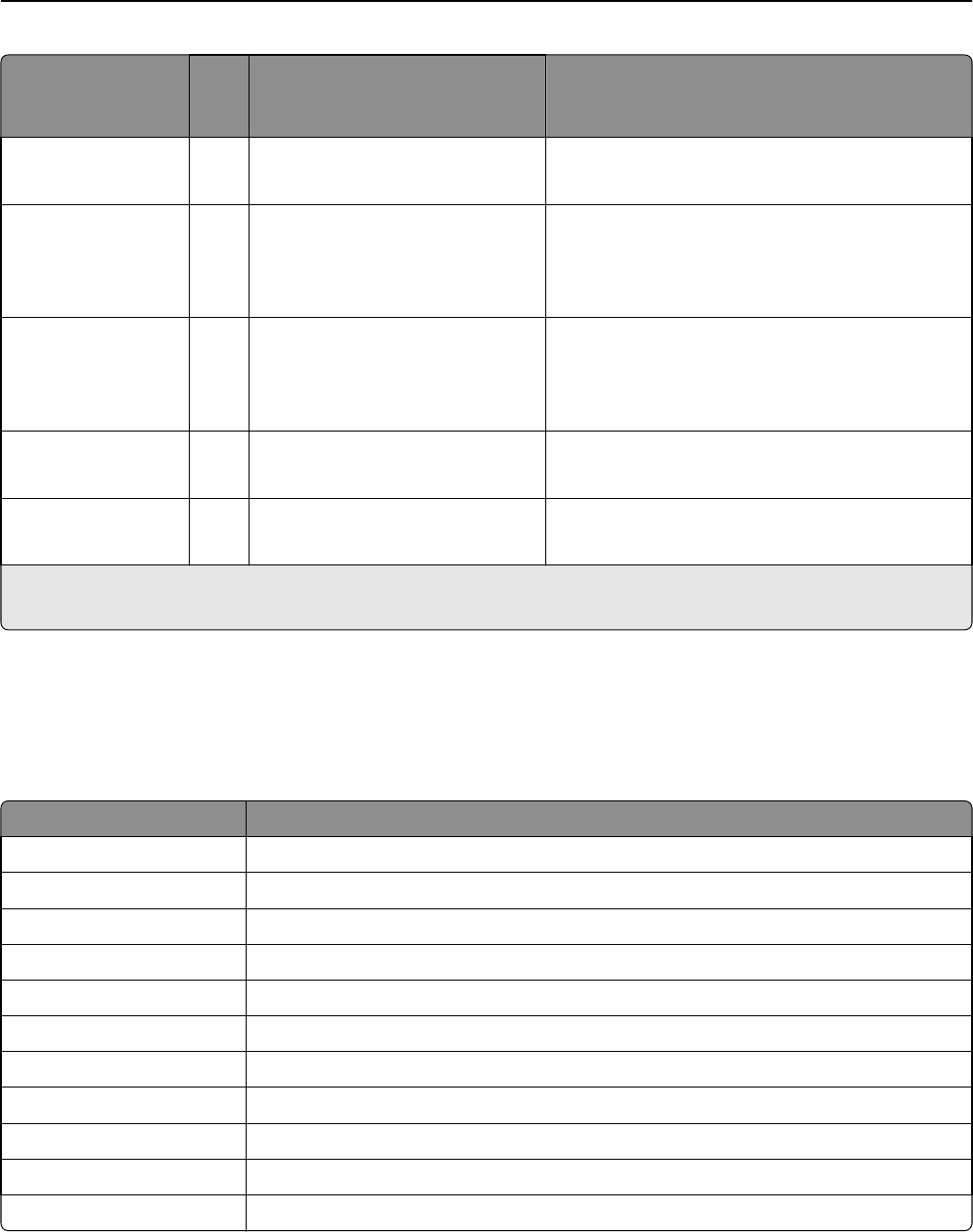
Usage data field Description
RELEASEMODELTYPE This indicates the type of printer used for the print job.
•C—This indicates that the job was printed using a color printer.
•M—This indicates that the job was printed using a mono printer.
•U—This indicates that the job was printed using an unknown printer.
RELEASEHOSTNAME This indicates the IP address of the printer where the job was released.
DESTINATION This is where e‑mail and fax jobs were sent.
PROFILE This shows the profile executed to complete the job.
CUSTOM1 This refers to the additional information from a defined LDAP attribute.
CUSTOM2
CUSTOM3
* Basic Print Management supports tracking for releasing and deleting of print jobs only. The solution tracks other standard
printer functions if authentication is used to access the function and if you purchased the tracking option.
Solutions Setting Index
Item Can
be
local
Values Description
Site Y<any text string> This is the descriptor for the name of the site tracked
in a print job. Typically, this is used only when the
solution is used across customer locations.
User Authentication YProvided by Device*
Badge
Badge with Database Lookup
Badge with LDAP Lookup
PIN with Database Lookup
PIN with LDAP Lookup
Userid Only
Userid/Password
Custom
This determines the method used for authenticating
user IDs.
Notes:
•If Badge Auth eSF or PKI/CAC application is
installed and used, then set it to Provided by
Device.
•Database Lookup setting is used if the badges
or PIN values are stored in the database tables.
•Active Directory or LDAP is used for LDAP
options.
•Userid/Password and Userid Only require users
to enter their credentials in the printer control
panel.
•Custom refers to a custom authentication
script.
Y This refers to the item that is in the local solutions settings and can be defined per printer group.
* This refers to the default value of a setting.
Appendix 26

Item Can
be
local
Values Description
Alternate Badge Login YDisabled
Userid/Password*
PIN with Database Lookup
PIN with LDAP Lookup
This is an authentication method where the badges
are the primary login and the users are allowed to
enter their credentials manually.
Note: This method does not work if Badge Auth eSF
is installed.
Register New Badge
Users
Disabled*
Enabled
This allows users to enter their LDAP credentials, if
prompted, to register their badges for the first time.
Note: This setting does not work if Badge Auth eSF
is installed.
Badge Prompt <any text string>
Please Swipe Your Badge*
This shows the message displayed on the screen
before the users enter their credentials.
Note: This setting does not work if Badge Auth eSF
is installed.
Touchscreen ‑ Print All YDisabled*
Enabled
This allows users to select the “Print All” option.
Note: This setting applies only to touch‑screen
printers.
Keypad Only ‑ Job
Release
YUser selects from the list*
Print all jobs
This determines whether a user is allowed to scroll
and select a print job or to print all print jobs after
authenticating.
Keypad Only ‑ User
Options*
YPrint Only*
Print and Delete
This allows users to selectively delete a print job.
Note: This setting applies only to non‑touch‑screen
printers.
Keypad Only ‑ Print All YDisabled*
Enabled
This allows users to select all print jobs.
Note: This setting applies only to non‑touch‑screen
printers and if “Keypad Only ‑ Job Release” is set to
User selects from the list.
Job Display Order Date Printed (Descending)*
Date Printed (Ascending)
This determines whether print jobs are displayed in
descending or ascending order.
Job Print Order Date Printed (Descending)*
Date Printed (Ascending)
This determines whether released print jobs are
displayed in descending or ascending order.
Directory for Print Jobs <any network or local path>
c:\lexmark\printrelease*
This is where print jobs were held or saved.
Username for Print
Job Directory
<any text string> This is the name of the user granted with read and
write privileges to the directory specified in Directory
for Print Jobs.
Note: If a domain account is used, then the user
name is written as <domain; username>.
Y This refers to the item that is in the local solutions settings and can be defined per printer group.
* This refers to the default value of a setting.
Appendix 27

Item Can
be
local
Values Description
Password for Print Job
Directory
<any text string> This is the password assigned to the user granted with
read and write privileges to the directory specified in
Directory for Print Jobs.
Directory for
Encrypted Print Jobs
<any network or local path>
c:\lexmark\printrelease*
This is where encrypted print jobs are saved. The
administrator uses PrintCryption or smart cards to
encrypt the print jobs.
Job Encryption
Method
Device Certificate*
User Certificate
This indicates the certificate used to decrypt
encrypted print jobs before the jobs are released.
•Select Device Certificate if PrintCryption is used.
•Select User Certificate if smart cards are used.
Delete Unprinted Jobs
After Specified Hours
1–168
10*
This indicates the number of hours the printer waits
before a print job is deleted.
Delete Printed Jobs
After Specified Hours
1–24
0*
This indicates the number of hours the printer waits
before a released and kept job for reprinting is
deleted.
Notes:
•0 disables reprinting.
•Any value from 1 to 24 enables reprinting.
Function Access Disabled*
By Userid
By Group
This determines whether certain printer functions are
accessed by user or group.
User Quotas Disabled*
By Userid
By Group
This determines the number of quota a user or group
is set for print and copy job.
Quota Duration Monthly*
Yearly
This determines whether quotas are measured on a
monthly or yearly basis.
Default User Total
Quota
<any positive integer value>
0*
This indicates the initial number of pages the user is
allowed to print or copy.
Default User Color
Quota
<any positive integer value>
0*
This indicates the initial number of pages the user is
allowed to print or copy in color.
Default User Allow Yes*
No
This indicates whether a user is allowed to print in
color.
Quota for Group
Members
By Group*
By User
This determines if an administrator can override the
quotas for individual users or all users in a group.
Note: This setting only applies when User Quotas is
set to By Group.
Y This refers to the item that is in the local solutions settings and can be defined per printer group.
* This refers to the default value of a setting.
Appendix 28

Item Can
be
local
Values Description
Show Copy Quota
Remaining
Never*
Before Copy Job
After Copy Job
This determines whether users are notified of their
remaining allowable number of times to copy.
Reset Quotas Reset All Totals*
Remove All users
This determines whether to reset the quotas or
remove the users from the quota table.
Note: This setting works only if the ResetQuotas
script is configured.
Alternate Release
Locations
Disabled*
Enabled
This determines whether a user is allowed to release
a job to another printer.
Enable Printing from
Unix/Novell
Yes
No*
This determines whether a user can perform
advanced processing of the incoming jobs released
from a Unix, Linux, OSX, or Novell print queue
environment.
LDAP Server <any text string> This is the LDAP server used for authentication.
LDAP Port 389*
636
3268
3269
This indicates the network port used by the LDAP
server.
•389 is the standard LDAP port
•636 is the standard LDAP port with SSL
•3268 is the Global Catalog
•3269 is the Global Catalog with SSL
LDAP Use SSL Yes
No*
This determines whether Print Management uses SSL
when querying LDAP.
LDAP Login Username <any string> This is the user ID used when logging in to the LDAP
server.
LDAP Login Password <any string> This is the password used when logging in to the LDAP
server.
LDAP Userid Type Principal Name*
Distinguished Name
This is the user ID format used for LDAP login
credentials.
LDAP Principal
Domain
<any text string> This indicates the domain name used in LDAP.
Note: This domain name is used when LDAP Userid
Type is set to Principal Name.
LDAP Search Base Y<any text string> This is the LDAP search base used with LDAP queries.
LDAP Use Advanced
Config File
Yes
No*
This specifies whether the LDAP system requires LDD
to use an Advanced Config File.
LDAP Userid Attribute <any text string> This is the name of the LDAP field containing the user
IDs.
Y This refers to the item that is in the local solutions settings and can be defined per printer group.
* This refers to the default value of a setting.
Appendix 29

Item Can
be
local
Values Description
LDAP Badgeid
Attribute
<any text string> This is the name of the LDAP field containing the
badge numbers.
Note: This setting is required if User Authentication
is set to Badge with LDAP Lookup.
LDAP PinID Attribute <any text string> This is the name of the LDAP field containing the PIN
numbers.
Note: This setting is required if User Authentication
is set to PIN with LDAP Lookup.
LDAP Email Attribute <any text string>
mail*
This is the name of the LDAP field containing users’
e‑mail addresses.
Note: This setting is required if any of the advanced
e‑mail features is used.
LDAP Home Directory
Attribute
<any text string>
homeDirectory*
This is the name of the LDAP field containing users’
home directories.
Note: This setting is required if Scan to Network
profile and destination settings are configured in
User’s Home Directory.
LDAP Custom
Attribute 1
<any text string> This setting is used only when users have additional
LDAP attributes in tracked usage data.
LDAP Custom
Attribute 2
LDAP Custom
Attribute 3
Copy ‑ Return to Copy
Screen
Yes
No*
This determines whether the printer allows users to
return to the copy home screen after a copy job
completes.
Copy ‑ Warning
Threshold
0 ‑ 999 This indicates the number of copies that a user
requires to confirm before the copy job was released.
Notes:
•999 is the factory default setting.
•0 disables this feature.
Copy ‑ Copy Center
Threshold
<any integer> This determines the number of pages allowed on a
single copy job.
Notes:
•If the number of pages exceeds the maximum,
then a prompt informing users to use the Copy
Center appears, and then the users can not
proceed with the copy job.
•0 is the factory default setting.
Y This refers to the item that is in the local solutions settings and can be defined per printer group.
* This refers to the default value of a setting.
Appendix 30

Item Can
be
local
Values Description
Copy Center Error
Message
<any text string>
This job is too large to be processed
on this device. It must be sent to the
Copy Center.*
This shows an error message when the number of
pages exceeds to the maximum number of pages set
in Copy ‑ Copy Center Threshold.
Email ‑ From Source LDAP*
Database
Device
This indicates what e‑mail address to use when
sending an e‑mail from a printer.
Notes:
•LDAP and Database use the user’s e‑mail
address.
•Device uses the e‑mail address configured in
the printer e‑mail settings.
Email ‑ User can only
send to self
Yes
No*
This determines whether users send e‑mails to
themselves or to any other e‑mail addresses.
Email ‑ Send User a
copy
Yes*
No
This determines whether users receive a copy of
e‑mail jobs released.
Email ‑ Track
Destination
Yes
No*
This determines whether to track the e‑mail
addresses in the “TO” field every time an e‑mail job
completes.
Email ‑ Send Thru MFP*
Server
This determines whether the user sends an e‑mail
from a printer or an LDD server.
Email ‑ Return to Email
Screen
Yes
No*
This determines whether the printer allows users to
return to the e‑mail home screen after an e‑mail job
completes.
Email ‑ Maximum
Attachment Size
<any integer> This determines the maximum size of the file in
megabyte a user can attach to an e‑mail.
Notes:
•0 is the factory default setting. Setting it to 0
disables the checking of the attachment.
•If the size of the file exceeds the maximum,
then the user can not proceed with the e‑mail
job.
Email ‑ Maximum Size
Error Message
<any text string>
The attachment exceeds the
maximum allowed size set by your
email system; the email cannot be
sent.*
This shows an error message when the size of the file
exceeds to the maximum size set in Email ‑ Maximum
Attachment Size.
Fax ‑ Track Destination Yes
No*
This determines whether the printer tracks fax
destination numbers every time a fax job completes.
Y This refers to the item that is in the local solutions settings and can be defined per printer group.
* This refers to the default value of a setting.
Appendix 31

Item Can
be
local
Values Description
Scan to Network ‑
Destination
User’s Home Directory*
File Share
File Share + Userid
File Share + LDAP Attribute
Database Lookup
This determines the type of destination path when
scanning to a network.
Scan to Network ‑ File
Share
Y<any network or local path> This specifies the destination path from any of the File
Share options set in Scan to Network ‑ Destination.
Scan to Network ‑
Subfolder
<any text string> This specifies the network destination subfolder.
Scan to Network ‑
Create Directory
No*
Yes ‑ Create Only
Yes ‑ Create and Set Permissions
This determines whether the printer automatically
creates a directory if the network destination path set
by the user does not exist.
Scan to Network ‑
Authentication
User Service Account*
Prompt User for Password
This specifies what type of authentication the printer
does when scanning to a network.
Scan to Network ‑
Domain
<any text string> This determines the network domain used when
scanning to a network.
Scan to Network ‑
Userid
<any text string> This determines the name of the user who sends the
job to a network.
Note: This setting only applies if Scan to Network ‑
Authentication is set to Use Service Account.
Scan to Network ‑
Password
<any text string> This determines the password assigned to the user
who sends the job to a network.
Note: This setting only applies if Scan to Network ‑
Authentication is set to Use Service Account.
Scan to Network ‑
Default Filename
<any text string>
Scan*
This specifies the name of the document sent to a
network.
Scan to Network ‑
Append Timestamp
Yes*
No
This determines the date and time appended to a
document when sent to a network.
Scan to Network ‑
Prompt to Scan More
Yes
No*
This determines whether the user chooses to scan
again after scanning to a network completes.
Note: No lets users to return to the scan to network
home screen.
Track Device
Hostname
Yes*
No
This determines whether the printer host name or IP
address is recorded with the usage data.
Print ‑ Duplex Check
for Page Counts
Disabled
Enabled*
This determines whether to record the printer
performing the advanced checking of jobs printed on
both sides of the page.
Y This refers to the item that is in the local solutions settings and can be defined per printer group.
* This refers to the default value of a setting.
Appendix 32
Item Can
be
local
Values Description
Print File Operations Use Standard Method*
Use Alternate Method
This determines whether the printer saves the file in
a standard or alternate method.
Use Device Usage for
Print Stats
Yes
No*
This determines whether to use the printer to track
print jobs.
Note: Setting this to Yes lets LDD not to record print
jobs to usage data.
User Server Time for
Device Usage
Yes
No*
This determines whether the printer time is used for
usage data.
Note: No lets you record LDD server time for usage
data.
Job Separator YDisabled*
Enabled
This determines whether the printer places a sheet of
paper between pages.
Show Print Status Disabled
Enabled*
This lets you show a status message on the screen
when printing a job.
Y This refers to the item that is in the local solutions settings and can be defined per printer group.
* This refers to the default value of a setting.
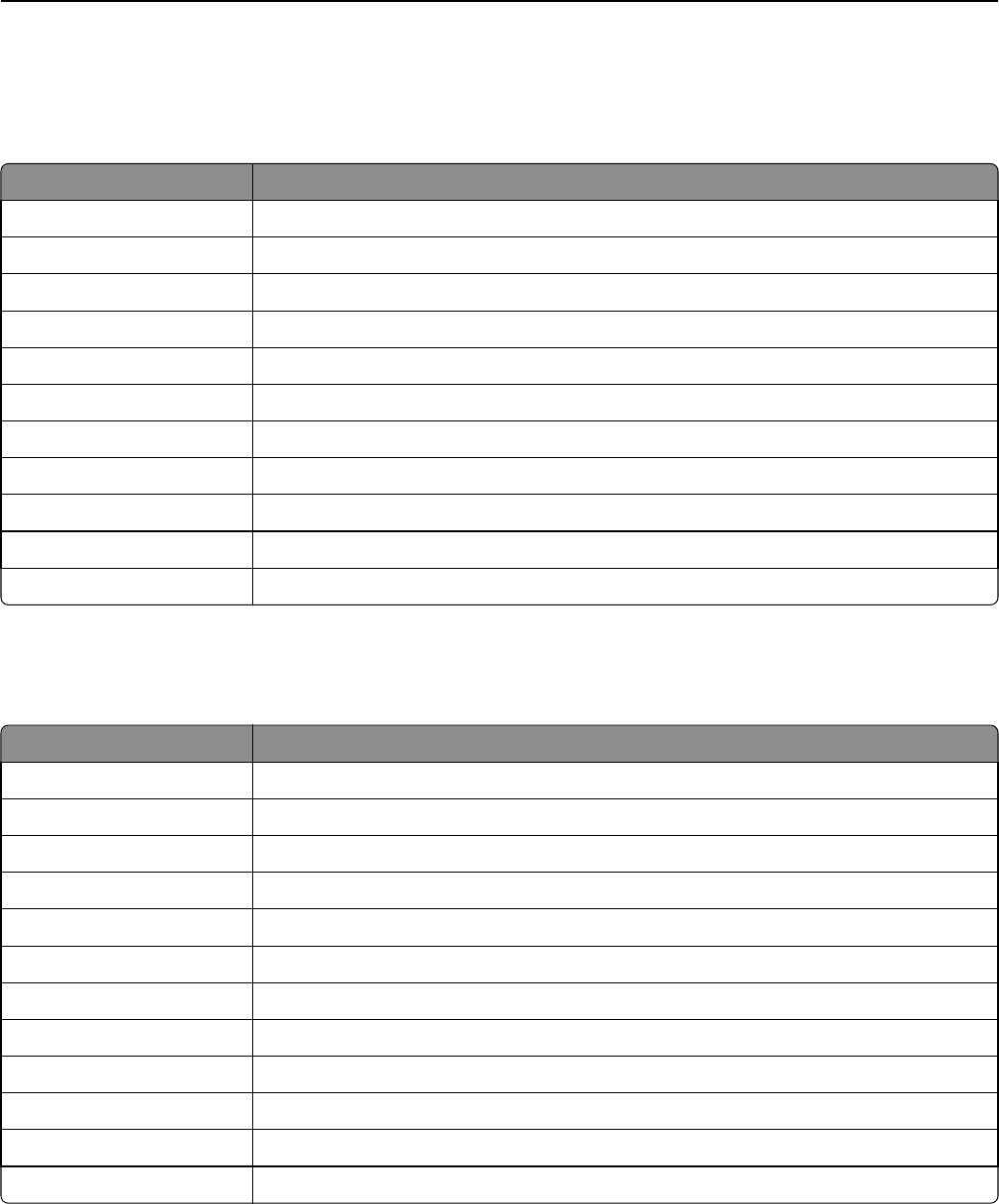
Understanding standard reports
Usage by device (PR_DeviceUsageReport.jasper)
Report field Description
Device IP The IP address of the printer where you released the job
Output Volume (Total) The total number of print and copy jobs released
Print (Total) The total number of print jobs released
Print (Color) The total number of jobs printed in color
Print (Mono) The total number of jobs printed in black and white
Print (Duplex) The total number of jobs printed on both sides of the paper
Copy The total number of copy jobs released
Email The total number of e‑mail jobs released
Fax The total number of fax jobs released
Scan The total number of jobs sent to a network
FTP The total number of jobs sent to an FTP address
Appendix 33
Usage by device host name (PR_DeviceUsageReport_Hostname.Jasper)
Note: The host name is obtained through DNS query. If the host name is not configured in DNS, then the IP address
will be used as substitute.
Report field Description
Device Name The name of the printer where you released the job
Output Volume (Total) The total number of print and copy jobs released
Print (Total) The total number of jobs printed
Print (Color) The total number of jobs printed in color
Print (Mono) The total number of jobs printed in black and white
Print (Duplex) The total number of jobs printed on both sides of the paper
Copy The total number of copy jobs released
Email The total number of e‑mail jobs released
Fax The total number of fax jobs released
Scan The total number of jobs sent to a network
FTP The total number of jobs sent to an FTP address
Usage by device IP address and model name
(PR_DeviceUsageReport_IPModel.jasper)
Report field Description
Device IP The IP address of the printer where you released the job
Model The model name of the printer where the users released the job
Output Volume (Total) The total number of print and copy jobs released
Print (Total) The total number of print jobs released
Print (Color) The total number of jobs printed in color
Print (Mono) The total number of jobs printed in black and white
Print (Duplex) The total number of jobs printed on both sides of the paper
Copy The total number of copy jobs released
Email The total number of e‑mail jobs released
Fax The total number of fax jobs released
Scan The total number of jobs sent to a network
FTP The total number of jobs sent to an FTP address
Appendix 34
Usage by device IP address, model name, and model type
(PR_DeviceUsageReport_IPModelType.jasper)
Report field Description
Device IP The IP address of the printer where you released the job
Model The model name of the printer where you released the job
Output Volume (Total) The total number of print and copy jobs released
Print (Total) The total number of print jobs released
Print (Color) The total number of jobs printed in color
Print (Mono) The total number of jobs printed in black and white
Print (Duplex) The total number of jobs printed on both sides of the paper
Copy The total number of copy jobs released
Email The total number of e‑mail jobs released
Fax The total number of fax jobs released
Scan The total number of jobs sent to a network
FTP The total number of jobs sent to an FTP address
Detailed print report by user (PR_DetailPrintReportByUser.jasper)
Group header
User The name of the user who released the print job
Total Print The total number of pages printed
Report field Description
Device Address The IP address of the printer where you released the print job
Print Job Name The name of the print job defined by the submitting system and extracted from the print
job header
Print (Total) The total number of print jobs released
Color Determines whether a job is printed in color
Duplex Determines whether a job is printed on both sides of the paper
Paper Size The size of the paper selected at the time the print job was released
Detailed print report by host name
(PR_detailPrintReportByUser_Hostname.jasper)
Group header
User The name of the user who released the job
Total Print The total number of pages printed
Appendix 35
Report field Description
Hostname The host name of the printer where you released the job
Print Job Name The name of the print job defined by the submitting system and extracted from the print
job header
Print (Total) The total number of print jobs released
Color Whether a job is printed in color
Duplex Whether a job is printed on both sides of the paper
Paper Size The size of the paper selected at the time the job was released
Detailed print report by printer IP address, model name, and model type
(PR_detailPrintReportByUser_ IPMMT.jasper)
Group header
User The name of the user who released the print job
Total Print The total number of pages printed
Report field Description
Device IP The IP address of the printer where you released the print job
Model The model name of the printer where you released the print job
Model Type The model type of the printer where you released the print job
Print Job Name The name of the print job defined by the submitting system and extracted from the print
job header.
Print (Total) The total number of print jobs released
Color Determines whether a job is printed in color
Duplex Determines whether a job is printed on both sides of the paper
Paper Size The size of the paper selected at the time the print job was released
Detailed print report by printer IP address and model type
(PR_detailPrintReportByUser_ IPModelType.jasper)
Group header
User The name of the user who released the print job
Total Print The total number of pages printed
Report field Description
Device IP The IP address of the printer where you released the print job
Model Type The model type of the printer where you released the print job
Print Job Name The name of the print job defined by the submitting system and extracted from the print
job header
Appendix 36
Report field Description
Print (Total) The total number of print jobs released
Color Determines whether a job is printed in color
Duplex Determines whether a job is printed on both sides of the paper
Paper Size The size of the paper selected at the time the print job was released
Color or mono printing report by user (PR_ColorMonoByUser.jasper)
Report field Description
User The name of the user who released the print job
Print (Total) The total number of print jobs released
Print (Mono) The total number of jobs printed in black and white
Print (Color) The total number of jobs printed in color
Usage report defined in Custom1 field (PR_[custom1]UsageReport.jasper)
Group header
Custom1 The variable name defined as attribute for grouping users in LDAP database
Report field Description
User The name of the user who released the job
Copy The total number of copy jobs released
Email The total number of e‑mail jobs released
Fax The total number of fax jobs released
Print (Total) The total number of print jobs released
Print (Mono) The total number of jobs printed in black and white
Print (Color) The total number of jobs printed in color
Print (Duplex) The total number of jobs printed on both sides of the paper
Single‑sided or two‑sided printing report by user
(PR_simplexDuplexByUser.jasper)
Report field Description
User The name of the user who released the job
Print (Total) The total number of print jobs released
Print (Simplex) The total number of jobs printed on one side of the paper
Print (Duplex) The total number of jobs printed on both sides of the paper
Appendix 37
Top or bottom 20 users report by print count (PR_top20PRINTUser.jasper or
PR_bottom20PRINTUser.jasper)
Report field Description
User The name of the user who released the print job
Print (Total) The total number of print job a user released
% of Total The percentage of print job a user released against the total number of print job all users
released
Top or bottom 20 users report by copy count (PR_top20COPYUser.jasper or PR_
bottom20COPYUser.jasper)
Report field Description
User The name of the user who released the copy job
Page Count (Total) The total number of copy job the user released
% of Total The percentage of copy job a user released against the total number of copy job all users
released
Top or bottom 20 users report by e‑mail count (PR_top20EMAILUser.jasper or
PR_bottom20EMAILUser.jasper)
Report field Description
User The name of the user who released the e‑mail job
Page Count (Total) The total number of e‑mail job a user released
% of Total The percentage of e‑mail job a user released against the total number of e‑mail job all users
released
Top or bottom 20 users report by scan to network count
(PR_top20SCANUser.jasper or PR_ bottom20SCANUser.jasper)
Report field Description
User The name of the user who sent the scan job to a network
Page Count (Total) The total number of scan job the user sent to a network
% of Total The percentage of scan job a user sent to a network against the total number of scan job all
users sent to a network
Appendix 38
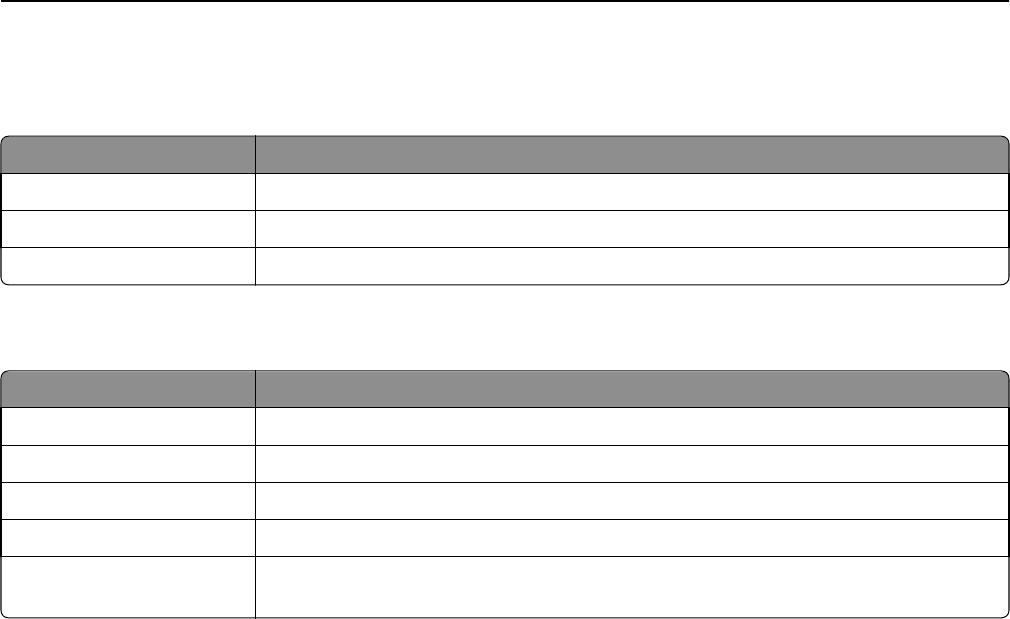
Top or bottom 20 users report by fax count (PR_top20FAXUser.jasper or PR_
bottom20FAXUser.jasper)
Report field Description
User The name of the user who released the fax job
Page Count (Total) The total number of fax job the user released
% of Total The percentage of fax job a user released against the total number of fax job all users released
Deleted pages report by user (PR_pageDeletedByUser.jasper)
Report field Description
User The name of the user who deleted the jobs
Page Count (Total) The total number of all deleted jobs
Deleted User The total number of jobs the user deleted
Deleted System The total number of jobs the system automatically deleted
% of Total The percentage of jobs the user and the system deleted against the total number of all
deleted jobs
Appendix 39

Notices
Edition notice
November 2014
The following paragraph does not apply to any country where such provisions are inconsistent with local law:
LEXMARK INTERNATIONAL, INC., PROVIDES THIS PUBLICATION “AS IS” WITHOUT WARRANTY OF ANY KIND, EITHER
EXPRESS OR IMPLIED, INCLUDING, BUT NOT LIMITED TO, THE IMPLIED WARRANTIES OF MERCHANTABILITY OR FITNESS
FOR A PARTICULAR PURPOSE. Some states do not allow disclaimer of express or implied warranties in certain
transactions; therefore, this statement may not apply to you.
This publication could include technical inaccuracies or typographical errors. Changes are periodically made to the
information herein; these changes will be incorporated in later editions. Improvements or changes in the products or
the programs described may be made at any time.
References in this publication to products, programs, or services do not imply that the manufacturer intends to make
these available in all countries in which it operates. Any reference to a product, program, or service is not intended to
state or imply that only that product, program, or service may be used. Any functionally equivalent product, program,
or service that does not infringe any existing intellectual property right may be used instead. Evaluation and verification
of operation in conjunction with other products, programs, or services, except those expressly designated by the
manufacturer, are the user’s responsibility.
For Lexmark technical support, visit http://support.lexmark.com.
For information on supplies and downloads, visit www.lexmark.com.
© 2014 Lexmark International, Inc.
All rights reserved.
Trademarks
Lexmark and Lexmark with diamond design are trademarks of Lexmark International, Inc., registered in the United
States and/or other countries.
All other trademarks are the property of their respective owners.
AirPrint and the AirPrint logo are trademarks of Apple, Inc.
GOVERNMENT END USERS
The Software Program and any related documentation are "Commercial Items," as that term is defined in 48 C.F.R.
2.101, "Computer Software" and "Commercial Computer Software Documentation," as such terms are used in 48 C.F.R.
12.212 or 48 C.F.R. 227.7202, as applicable. Consistent with 48 C.F.R. 12.212 or 48 C.F.R. 227.7202-1 through 227.7207-4,
as applicable, the Commercial Computer Software and Commercial Software Documentation are licensed to the U.S.
Government end users (a) only as Commercial Items and (b) with only those rights as are granted to all other end users
pursuant to the terms and conditions herein.
Notices 40

Index
Symbols
“Out of Policy” error message still
appears even after multiple tries to
update the policy
troubleshooting 22
“Unable to Read Badge Data” error
message appears when swiping the
badge
troubleshooting 22
“Unsupported Device” error
message appears when installing a
badge reader to the printer
troubleshooting 22
A
accessing
Lexmark Management Console 6
accessing Print Management
Console 11
adding delegate groups 13
adding delegates 13
adding groups 16
function access 15
adding printers to a device group 7
adding temporary badge IDs 14
adding users
function access 15
adding users to a group 16
function access 15
allowing users to release print jobs
to another printer 17
alternate locations
configuring 17
application settings
configuring 6
applications
deploying 8
B
badge IDs
registering 14
bottom 20 users report by copy
count
understanding standard report 38
bottom 20 users report by e‑mail
count
understanding standard report 38
bottom 20 users report by fax
count
understanding standard report 39
bottom 20 users report by print
count
understanding standard report 38
bottom 20 users report by scan to
network count
understanding standard report 38
C
changing the status of the server 6
chunk size
configuring 9
cleanup tasks
scheduling 9
color printing report by user
understanding standard report 37
configuring chunk size for device
discovery and policy updates 9
configuring the application settings
for your environment 6
configuring the home screen 7
contacting Lexmark Help Desk 24
D
delegate groups
adding 13
delegates
adding 13
delegating print jobs 12
deleted pages report by user
understanding standard report 39
deleting entries 11
deploying applications
using UCF files 8
deploying applications to the
printer 8
detailed print report by host name
understanding standard report 35
detailed print report by IP address
understanding standard
report 36
detailed print report by model
name
understanding standard report 36
detailed print report by model type
understanding standard
report 36
detailed print report by user
understanding standard report 35
device groups
adding printers to 7
discovery
configuring chunk size 9
E
error that occurred when swiping
the badge
troubleshooting 23
F
firmware failure [9yy.xx] 21
G
generating reports 19
group quotas
setting 16
groups
adding 15, 16
adding users to 16
H
home screen
configuring 7
I
improving performance
configuring chunk size 9
L
Lexmark Management Console
accessing 6
logging out 11
M
managing group quotas 15
managing groups
default function access 14
function access 15
managing print queues 12
managing user quotas 15
Index 41

managing users
default function access 14
missing bean on the home
screen 21
modifying entries 11
mono printing report by user
understanding standard report 37
N
notices 40
O
overview 4
Print Management Console 11
P
page count is inaccurate
troubleshooting 23
policy updates
configuring chunk size 9
print jobs
releasing 13
releasing to another printer 17
tracking 17
print jobs released by the users do
not appear in the print queue
troubleshooting 22
Print Management Console
accessing 11
overview 11
Print Management database fields
understanding 24
printers
adding to a device group 7
printers supported 5
profile server is not responding
troubleshooting 21
R
registering badge IDs 14
releasing print jobs 13
reports
generating 19
scheduling 19
S
scheduling cleanup tasks 9
scheduling reports 19
server status
changing 6
setting group quotas 16
setting the default function
access 14
single‑sided (simplex) printing
report by user
understanding standard report 37
solutions setting index 26
supported printers 5
T
temporary badge IDs
adding 14
testing the solution 17
top 20 users report by copy count
understanding standard report 38
top 20 users report by e‑mail count
understanding standard report 38
top 20 users report by fax count
understanding standard report 39
top 20 users report by print count
understanding standard report 38
top 20 users report by scan to
network count
understanding standard report 38
tracking print jobs 17
troubleshooting
error that occurred when swiping
the badge 23
firmware failure [9yy.xx] 21
missing bean on the home
screen 21
page count is inaccurate 23
print jobs released by the users do
not appear in the print queue 22
profile server is not responding 21
unable to add new devices using
LMC 21
“Out of Policy” error message still
appears even after multiple tries
to update the policy 22
“Unable to Read Badge Data”
error message appears when
swiping the badge 22
“Unsupported Device” error
message appears when installing
a badge reader to the printer 22
two‑sided (duplex) printing report
by user
understanding standard report 37
U
unable to add new devices using
LMC
troubleshooting 21
understanding Print Management
database fields 24
understanding standard report
bottom 20 users report by copy
count 38
bottom 20 users report by e‑mail
count 38
bottom 20 users report by fax
count 39
bottom 20 users report by print
count 38
bottom 20 users report by scan to
network count 38
color printing report by user 37
deleted pages report by user 39
detailed print report by host
name 35
detailed print report by IP
address 36
detailed print report by model
name 36
detailed print report by model
type 36
detailed print report by user 35
mono printing report by user 37
single‑sided (simplex) printing
report by user 37
top 20 users report by copy
count 38
top 20 users report by e‑mail
count 38
top 20 users report by fax
count 39
top 20 users report by print
count 38
top 20 users report by scan to
network count 38
two‑sided (duplex) printing report
by user 37
usage by device 33
usage by device host name 34
usage by device IP address 34, 35
usage by device model
name 34, 35
usage by device model type 35
usage report defined in Custom1
field 37
Index 42

usage by device
understanding standard report 33
usage by device host name
understanding standard report 34
usage by device IP address
understanding standard
report 34, 35
usage by device model name
understanding standard
report 34, 35
usage by device model type
understanding standard report 35
usage report defined in Custom1
field
understanding standard report 37
users
adding 15
using UCF files
deploying applications 8
V
viewing and managing print
queues 12
viewing and managing quotas 15
viewing group quotas 15
viewing print queues 12
viewing user quotas 15
Index 43
