Moto E5 Play User Guide Motorola Manual
2018-06-25
: Motorola-Moto-E5-Play-Manual motorola-moto-e5-play-manual 4015 manuals phones
Open the PDF directly: View PDF  .
.
Page Count: 33

User guide
Check it out
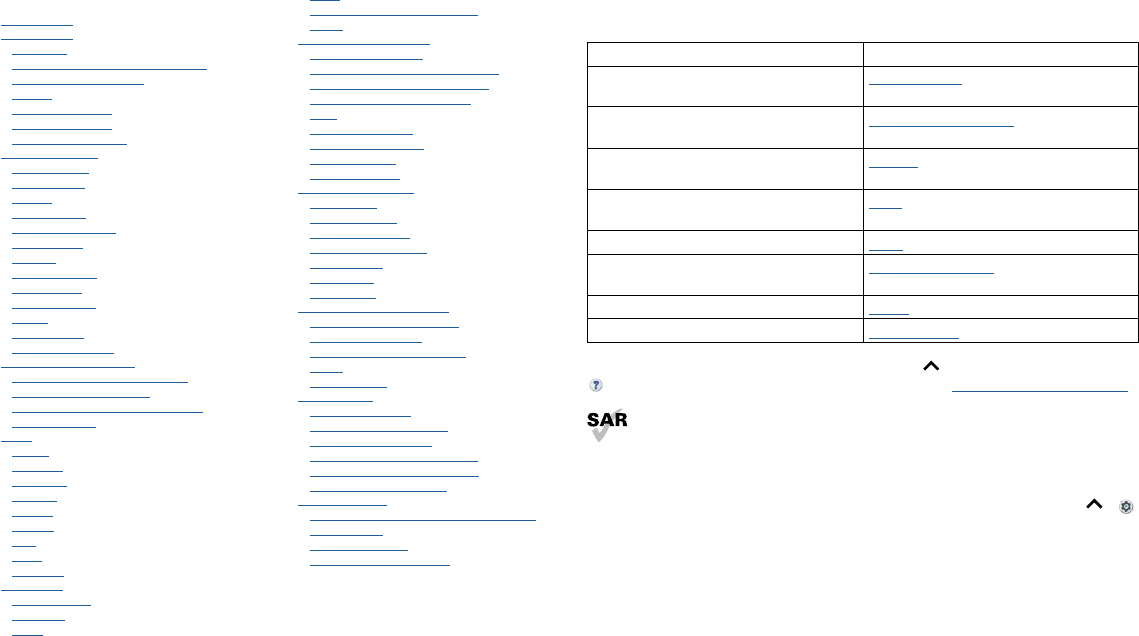
Contents
Check it out
Get Started
First look
Insert the SIM and microSD cards
Charge up & power on
Sign in
Connect to Wi-Fi
Explore by touch
Improve battery life
Learn the basics
Home screen
Help & more
Search
Notifications
App notifications
Status icons
Volume
Do not disturb
Lock screen
Quick settings
Speak
Direct Share
Picture-in-Picture
Customize your phone
Redecorate your home screen
Choose apps & widgets
Customize sounds & appearance
Discover Moto
Apps
Phone
Message
Chrome™
Camera
Photos
Gmail™
Duo
Moto
Calendar
More apps
Google Play™
Contacts
Maps
Drive
Music, movies, TV & Youtube
Clock
Connect, share & sync
Connect with Wi-Fi
Connect with Bluetooth wireless
Share files with your computer
Share your data connection
Print
Sync to the cloud
Use a memory card
Airplane mode
Mobile network
Protect your phone
Screen lock
Screen pinning
Backup & restore
Encrypt your phone
Your privacy
App safety
Data usage
Troubleshoot your phone
Restart or remove an app
Restart your phone
Check for software update
Reset
Stolen phone
Accessibility
Create a shortcut
Make your phone speak
Speak to your phone
Change your phone’s display
Change your phone’s sounds
Hearing aids (U.S. only)
Get more help
Where is my legal, safety, & regulatory
information?
Service & repairs
Copyright & trademarks
Check it out
When you’re up and running, explore what your phone can do.
Topic Location
Find these fast: Wi-Fi, airplane mode,
flashlight, and more.
Quick settings
Choose new wallpaper, set ringtones, and
add widgets.
Customize your phone
Experience crisp, clear photos, movies,
and videos.
Camera
Customize your phone to match the way
you use it.
Moto
Browse, shop, and download apps. Apps
Keep your info safe. Set up your password
and more.
Protect your phone
Ask questions, get answers. Speak
Share your Internet connection. Wi-Fi hotspot
Tip: View all of these topics on your phone, swipe up from the home screen and tap
Device Help. For FAQs, and other phone support, visit www.motorola.com/support.
This product meets the applicable national or international RF exposure
guidance (SAR guideline) when used normally against your head or, when worn
or carried, at a distance of 5 mm from the body. The SAR guideline includes a
considerable safety margin designed to assure the safety of all persons, regardless of
age and health.
Caution: Before using your phone, please read the Legal information. Swipe up >
Settings > System > Legal information.
Get Started
Get Started
First look
Let’s get started. We’ll guide you through startup and tell you a bit about your phone’s
features.
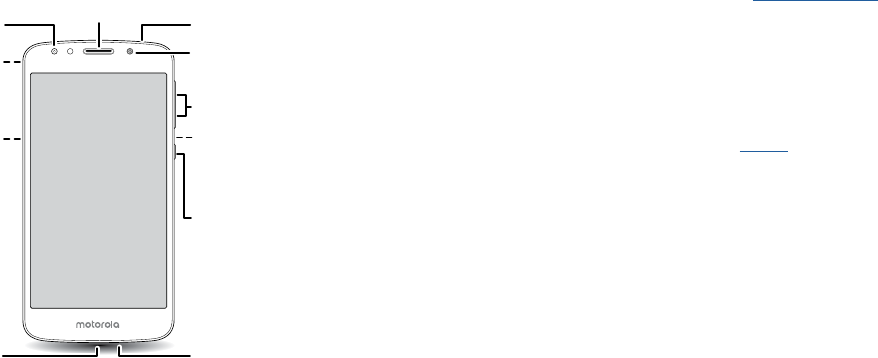
Phone hardware buttons: top right are Volume up and down keys, middle right is Power button. Bottom middle is charging port. Top right is headset jack. On screen, top left is front camera, top right is flash. Navigation
icons are along the bottom.
Note: Certain apps and features may not be available in all countries.
Power button
Your Power button helps in a few ways.
» Power on/o: Press and hold the Power button, then tap Power o. When your
phone is o, press and hold the Power button to turn it on.
Volume Buttons
Flash
Fr
ont Camera
Speaker
Microphone
Micro
USB/Charger
Back
Camera
Fingerprint
Sensor
(on back)
Power Button
Press:
Display on/off.
Press & hold:
Phone on/off.
Double Press:
Open Camera.
SIM & microSD
Card Slots
(Under back cov
er)
Headset Jack
» Sleep: To conserve battery power or prevent accidental touches, put the touchscreen
to sleep by pressing the Power button.
» Wake up: Press the Power button again.
» Reboot: To reboot your phone, press and hold the Power button , then tap Restart.
Tip: To add security to your phone, see Protect your phone.
Volume buttons
Your volume buttons can help:
» Ringer volume: Press the buttons when your phone is ringing to silence it.
» Earpiece volume: Press the buttons during a call.
» Music/video volume: Press the buttons during a song or video.
Tip: For more on volume control, see Volume.
Insert the SIM and microSD cards
To activate phone service, you might need to insert a SIM card, or this may have been
done for you. You can also add a microSD card, which is optional and sold separately.
Get Started
Remove the back cover
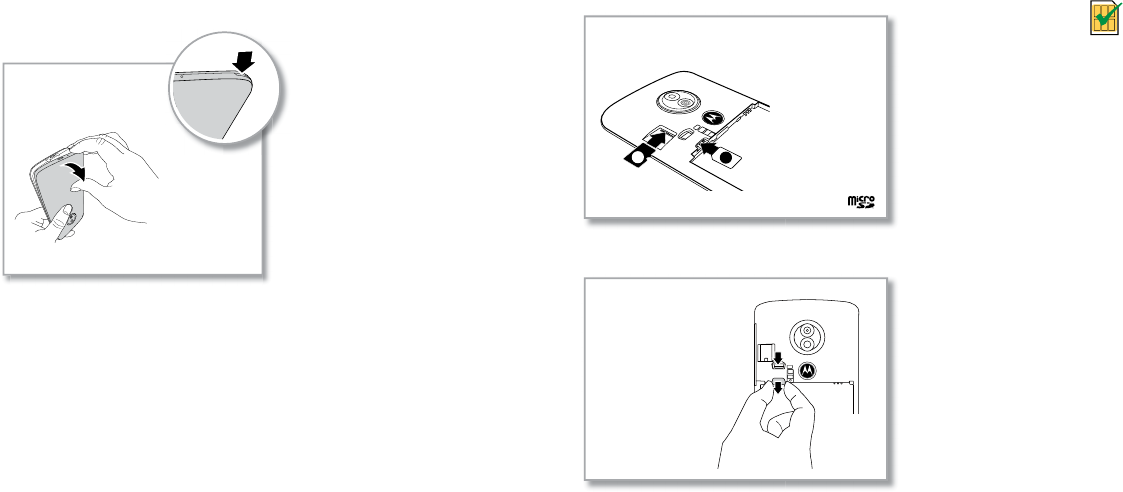
To insert SIM and memory cards, remove the back cover.
Caution: Don’t use tools to remove the cover—doing so may damage your phone.
Back cover removal graphic. Remove the back cover starting at the small opening on the lower left corner [looking at it from the back].
Caution: Do not pull the USB port
part to remove the back cover.
Take off the back cover.
Put your finger in the notch at
the bottom corner of the back
cover and pry off the cover.
Put in the cards
Caution: Make sure you use the correct size SIM card and don’t cut the SIM card. Don’t
use tools to remove the battery -- doing so may damage your phone.
SIM card insert graphic. The SDcard card is inserted in the slot on the left with the clipped corner to the middle left. The SIM card is pre-inserted in the slot in the lower right.
Note: If you need to remove the SIM card, follow the instructions below.
SIM card removal graphic. Push the SIM card down from the top of the slot, then pull the card from the bottom to remove it.
Nano SIM
21
1. SIM
Insert the SIM card first, then insert an optional
microSD card.
2. microSD
(optional, sold
separately)
(gold contacts
facing down)
Push the SIM card down
from the top of the slot,
then pull the card from the
bottom to remove it
Get Started
Charge up & power on
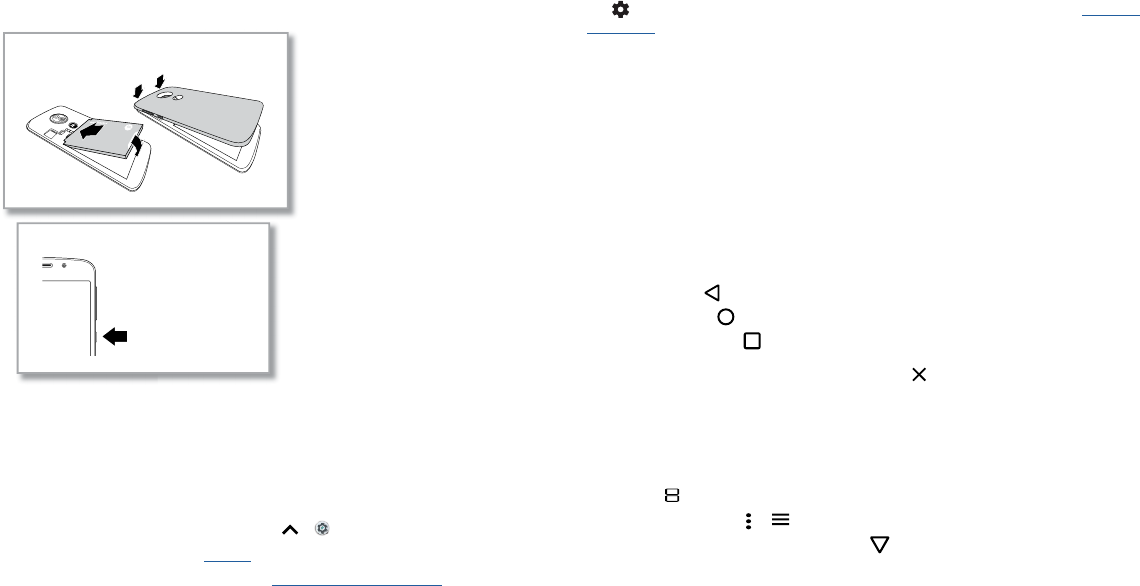
Put on the back cover. Charge your phone fully and turn the power on. Follow the
screen prompts to get started.
Battery in and power on graphic. Put the battery back in top down first and snap the cover on. After you charge the phone, press and hold the Power button until the screen lights up.
Sign in
If you use Gmail™, you already have a Google™ account—if not, you can create an
account during setup. Signing into your Google account lets you access, sync, and
backup your stu. You can see your Google apps, contacts, calendar, photos, and more.
Tips
» To add, edit, or delete accounts, swipe up > Settings > Users & accounts.
» To set up email accounts, see Gmail™.
» For help with your Google account, visit www.google.com/accounts.
Charge up & power on
Put in the battery & put on the cover
Press and hold the
Power button until
the screen lights up.
Connect to Wi-Fi
For faster Internet access and to conserve data use, swipe the status bar down, then
tap > Network & Internet > Wi-Fi to turn Wi-Fi on. For full instructions, see Connect
with Wi-Fi.
Note: This phone supports apps and services that may use a lot of data, so make sure
your data plan meets your needs. Contact your service provider for details.
Explore by touch
Find your way around:
» Tap: Choose an icon or option.
» Touch and hold: See more options.
» Drag: Move items on the home screen.
» Swipe: Scroll through lists or between screens.
» Pinch or double-tap: Zoom in and out on websites, photos and maps.
» Twist: Twist a map with two fingers to rotate it, and pull two fingers down to tilt it.
» Back: Tap Back to go to the previous screen.
» Home: Tap Home to return to the home screen.
» Recents: Tap Recents to see your recent apps (or browser tabs), and tap an app
to reopen it. Double tap to quickly switch between your recent apps. To remove an
app from the recent list, swipe it left, right or tap . To scroll the list, swipe up or
down.
Tip: You don’t need to remove apps from Recents for your phone to run eciently.
» Split screen: From the recent apps list, touch and hold an app and then drag it to the
top of the screen to view two apps at once. Not all apps will work in split screen. To
close the split screen, drag the dividing line to the bottom of the screen. Or, touch
and hold .
» Menus: When you see or , you can tap it to open options for the current screen.
» Close Keyboard: To close a keyboard, tap .
Learn the basics
Improve battery life
Your phone processes tons of information. Depending on what you use, that can take a
lot of power.
When your phone is stationary, not charging, or not in use for a period of time,
unnecessary background processes are shut down to optimize battery life.
» To see what’s using up battery power, swipe up > Settings > Battery > USAGE
DETAILS.
» To help improve battery life, swipe up > Settings > Battery > Battery saver,
and turn it on.
Tip: To quickly open Settings, swipe down on the status bar and tap .
Battery Tips
To save even more battery life between charges, you could reduce:
» Widgets that stream information to your home screen, like news or weather.
» Unused accounts: Swipe up > Settings > Users & accounts.
» Recording or streaming videos or music.
Learn the basics
Home screen
The home screen is what you see when you turn on your phone. From here you can
explore apps and more.
Note: Software updates happen frequently, so your screen may look a little dierent.
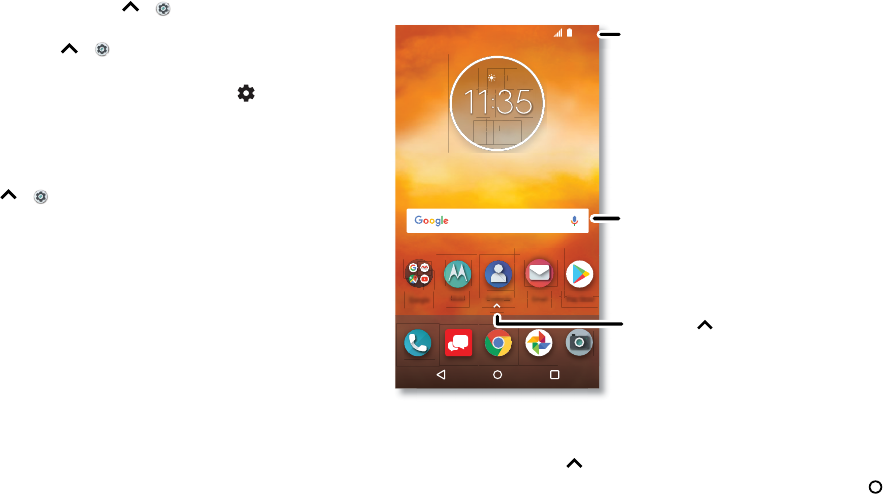
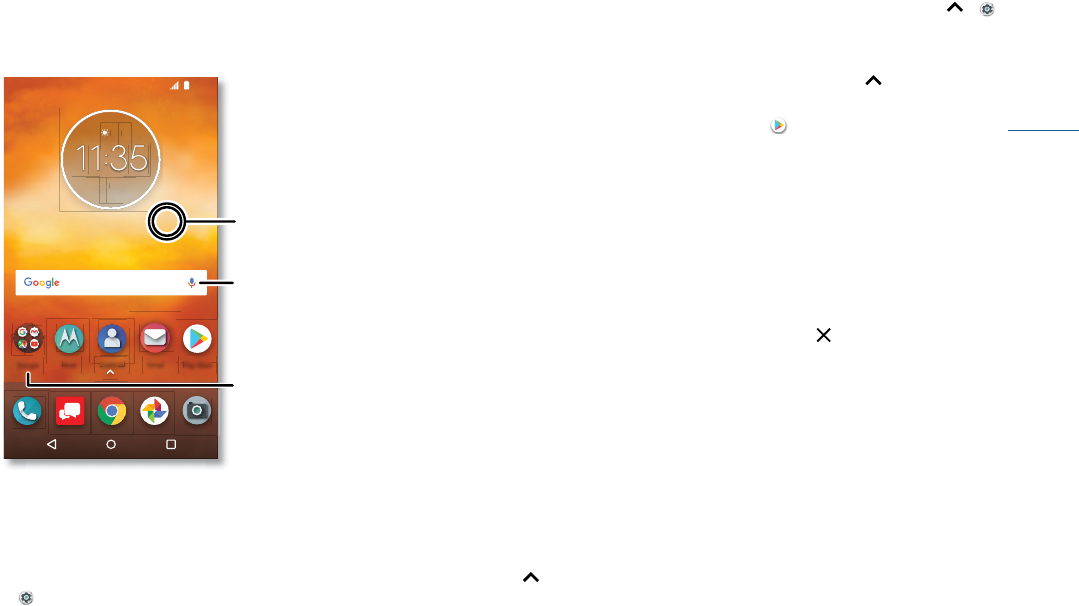
Home screen. In the middle, tap the Google bar to type search options or tap the right hand microphone icon to speak a search. Icons at the top show notifications and phone status icons. Swipe up from center bottom to
get to your apps. App icons along the bottom are commonly used apps: phone, message+, Google Chrome, photos, and camera.
Tips
» Open app list: Swipe up to see all your apps.
» Return home: To return to the home screen from any location, tap Home .
Google
73°7
3
3APR
3
TUE
Contacts
Contacts
Play Store
Pl St
Email
Moto
Moto
11:35
Swipe up to see
all your apps.
Search by typing or
say "OK, Google.”
Swipe down for
notifications and
settings.
Learn the basics
» Pages: To add a page, drag an app to the right side of the screen until you see a new
page. You can add multiple pages. To see other pages of shortcuts and widgets (if
available), swipe the home screen left.
» Settings: To quickly open common settings, swipe the status bar down. To open
more settings, tap .
» Customization: To personalize your home screen, see Customize your phone.
Help & more
Learn even more about your phone and get support.
Find it: Swipe up > Device Help
Search
On the home screen, tap the Google Search box for a text search or tap to search by
voice.
When you type, suggestions appear below the search field:
» To search for a suggestion, tap it.
» To search for text in the search field, tap on the keyboard.
Tip: To close the keyboard, tap .
Note: For more on voice search, see Speak.
Notifications
At the top of the screen, icons on the left notify you about new messages or events. If
you don’t know what an icon means, swipe the status bar down for details.
Tip: Getting too many notifications? Touch and hold a notification to see which app is
sending them to you. Then you can turn them o.
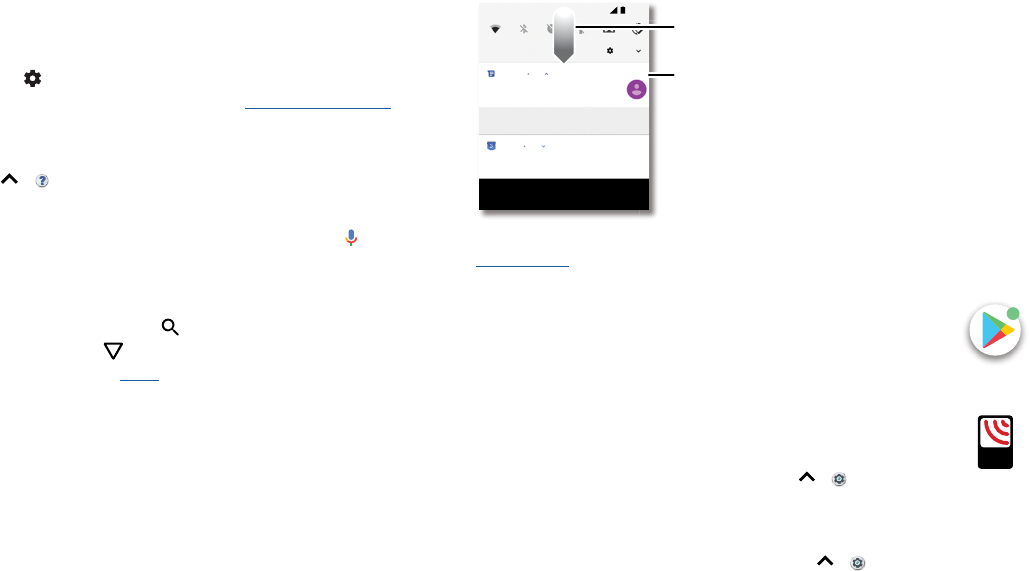
Notifications screen. Swipe down from the top of the home screen down to view notifications.
Tip: To quickly change common settings, swipe the status bar down. For more, see
Quick settings.
App notifications
You may see a notification dot on an app. This app notification, or badge,
tells you the app has an update or an announcement, such as a new email or
a missed call. Press and hold the app for more information, options, or app
shortcuts.
Wireless Emergency Alerts (U.S. & some countries)
Wireless Emergency Alerts, also known as CMAS or PLAN,
is a U.S. national emergency alert system. Emergency alerts
can pop up to tell you about a national or local crisis. After
you close an alert, you can reopen it by swiping up >
Settings > Sound > Advanced > Emergency broadcasts.
Tip: Emergency alerts have a special sound and vibration that is two seconds long,
followed by one second, then another one second.
To choose which types of alerts you receive, swipe up > Settings > Sound >
Advanced > Emergency broadcasts. The U.S. and local governments send these alerts
through your service provider. So you will always receive alerts for the area where you
are, and you won’t receive alerts if you’re outside of the U.S.
Tue, Apr 3
Weekly Staff Meeting
MARK AS READ REPLY
11:35
Messages now
Calendar 17m
CLEAR ALL
Can you come on Sat.?
10:30 - 11:30
Tip: Swipe left or right to
remove a notification.
Some notifications show
more options when you
slide them halfway.
Swipe down to see
your notifications.
Karen Travis Tap a notification to open it,
or choose an option, such as
REPLY.
A
LERTS
WIRELESS
CAPABLE
EMERGENCY
TM
Learn the basics
For more, visit www.ctia.org/consumer-tips/how-wireless-emergency-alerts-help-save-
lives.
Status icons
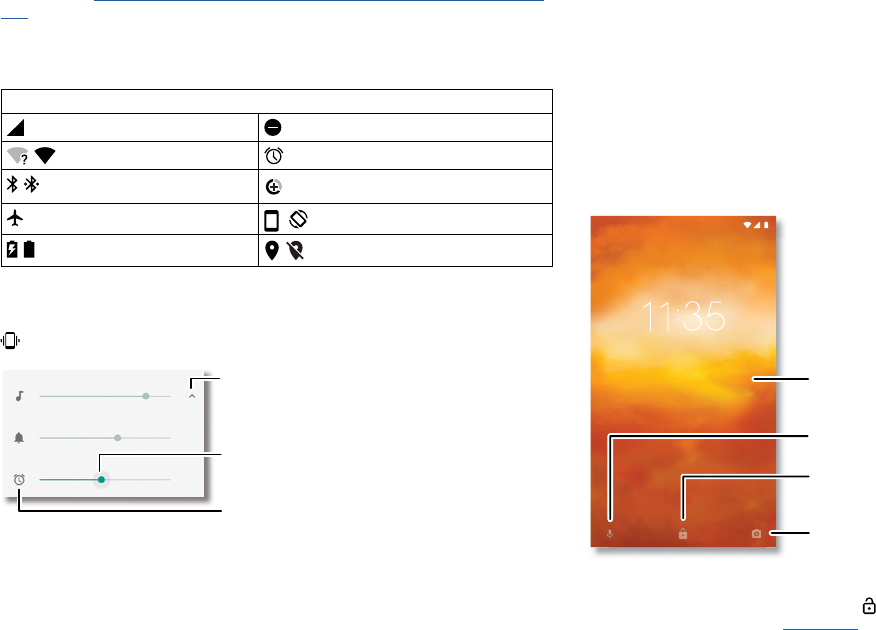
Icons at the top right of the screen tell you about phone status:
Status Icons
Network strength Do not disturb
/ Wi-Fi in range/connected Alarm set
/ Bluetooth on/connected Data Saver on
Airplane mode / Portrait/auto-rotate
/ Battery charging/full / Location on/o
Volume
Press the side volume buttons up or down to select a ringer volume from high to vibrate
.
Volume screen. Press the Volume keys up or down to control the volume for Ring Notification, Media, and Alarm sounds. On screen, change the volume using slide bars.
Do not disturb
To turn o some or all sounds, swipe the status bar down, tap Do not disturb and turn
it on. Select one of these options:
Media
Ring
Alarm
Tap to show all volume
controls. Tap again to
show only the ringtone
volume.
Tap an icon to mute
or set to vibrate.
Slide the bar to
increase/decrease
volume.
» Total silence: Turn o all sounds and alarms. Override sound settings from other
apps. Set how long to stay in this mode, or choose indefinitely.
» Alarms only: Set how long you want to only hear alarms, or choose indefinitely. Tap
MORE SETTINGS to customize which other interruptions to receive.
» Priority only: Set how long you want to only hear priority interruptions, or choose
indefinitely. Tap MORE SETTINGS to customize which interruptions to receive.
Tip: To create an exception for repeat callers that allows a call from the same person
within a 15 minute period, tap MORE SETTINGS > Priority only allows > Repeat callers.
Lock screen
Your touchscreen is on when you need it and o when you don’t.
Lock screen showing access to voice control on the bottom left and camera on the bottom right. Swipe this screen up to unlock it.
» Screen o and on: Press the Power button to turn the screen o and on.
» Screen lock: To unlock the screen, touch and drag up. To apply security to the lock
screen (recommended), see Screen lock.
TUESDAY, APR 3
Swipe up to unlock
your screen.
Add a lock screen message
for anyone who finds your
phone.
Swipe up to open the camera.
Swipe up for voice assist.
Thanks for finding my phone!
Learn the basics
» Notifications: Double tap a notification in the lock screen to open it.
Tip: To prevent notifications from appearing in the lock screen, swipe up >
Settings > Apps & notifications > Notifications > On the lock screen > Don’t show
notifications at all.
» Owner info: To add a message to your lock screen, swipe up > Settings >
Security & Location, tap > Lock screen message.
» Screen timeout: To change your timeout (screen locks automatically), swipe up >
Settings > Display > Advanced > Sleep.
Quick settings
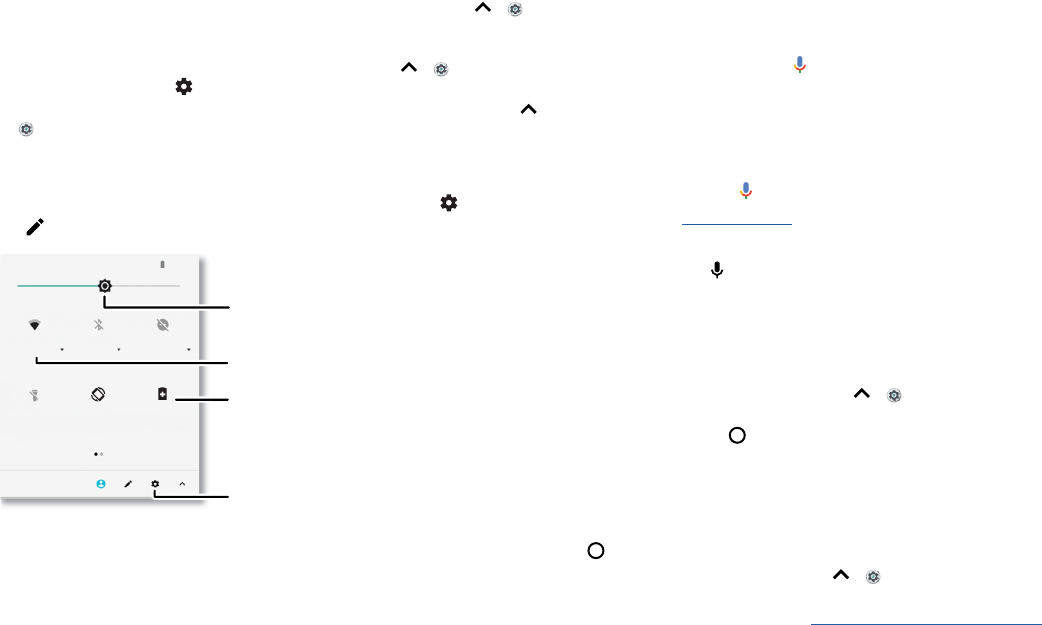
For quick access to Wi-Fi, Bluetooth, Airplane mode, brightness, and other settings,
swipe the status bar or lock screen down. For even more settings, tap .
Tap to rearrange your settings and add or remove settings.
Quick Settings screen that shows options, such as Wi-Fi, Bluetooth, Do not disturb, Flashlight and more. Customizable.
100% 11:35
Wi-Fi Bluetooth Do not disturb
Flashlight
Tue, Apr 3
Battery Saver
Auto-rotate
Turn Wi-Fi on/o.
See all phone settings.
Set screen brightness.
Tap an icon to turn it
on/o.
Speak
Google voice
Use Google voice commands to tell your phone what you want.
» Use voice to make a call: Tap on the home screen or say “Ok Google” to control
your phone by voice.
Then say “Call” and then a contact name or number. Or, say “Send text,” “Go to” an
app, or “Help”.
Tip: If a contact has more than one number, you can say which number to call (for
example, “Call Joe Black Mobile”).
» Search by voice: Tap on the home screen or say “Ok Google” to search by voice.
Note: See also Google Assistant.
Voice to text
On a keyboard, tap , then speak your message or search text. You can also speak
punctuation.
Google Assistant
Note: This feature may not be available in all languages.
Ask your phone questions, find answers and set tasks using the Google Assistant.
To turn on the Google Assistant, swipe up > Settings > Google > Search >
Settings > Phone > Google Assistant.
Touch and hold Home from any screen, then speak or type a command. You can also
say, “Ok Google” to open Google Assistant.
Screen search
Note: This feature may not be available in all languages.
Screen search provides information based on the app you’re in. Touch and hold Home
while in an app.
To turn Screen search on/o, swipe up > Settings > Google > Search > Settings
> Phone > Use Screen context.
For more on Google Assistant, visit https://support.google.com/assistant.
Learn the basics
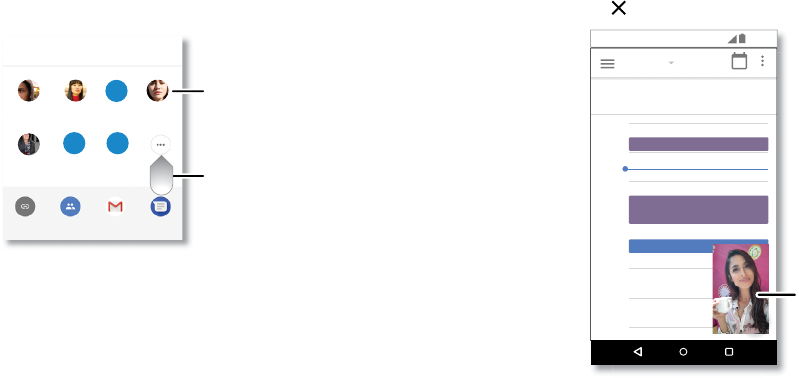
Direct Share
In some apps, you can share something directly to a contact, app, or conversation.
Select the share option within an app, then select a contact, choose an app, or type a
name or number to find a contact.
.
Google Direct Share screen. Tap a contact to share an item. Swipe up to get more options.
Abe
Allie
Create link Shared
album
Gmail Messages
Anna Medina Kevin Astrid Fanning
TO Ty pe an name, phone number, or email
K
Michael
M
Nathan More
N
Swipe up for more
share options.
Tap a contact to
share information.
Picture-in-Picture
If you’re watching a video, on a video call, or using navigation, and you change screens,
your video continues to play in a small window on your screen. Tap it to return to it. Tap
the to close it.
Picture-in-Picture mode. Tap the video to open it on your screen.
29
January
29
Fri
10 AM
5 PM
4 PM
3 PM
2 PM
1 PM
12 PM
11 AM
Weekly Project Meeting
Start hangout with Alexis
https://plua.Google.com/hangouts
Pick up snacks for the party
11:35
Tap the video to return to it.
Customize your phone
Customize your phone
Redecorate your home screen
Customize your home screen the way you want.
Home screen showing customize options. Touch and hold the home screen to add a widget. Tap an app to open it. Touch and hold it to move or remove it.
» Change your wallpaper: Touch and hold an empty spot on the home screen, then
tap WALLPAPERS.
» Add a home screen page: Drag an app to the right side of the home screen until a
new page appears. You can add multiple pages.
» Adjust display settings: Adjust brightness, font size, and screen saver. Swipe up >
Settings > Display.
Google
73°7
3
3APR
3
TUE
Contacts
Contacts
Play Store
Pl St
Email
Moto
Moto
11:35
Tap a shortcut to open.
Touch and hold to move or
delete.
Touch and hold an empty
spot to change wallpaper.
Drag shortcuts on top of
each other to make a folder.
» Rotate: In many apps, the touchscreen switches from portrait to landscape when
you rotate your phone. To turn this on or o, swipe up > Settings > Display >
Advanced > Device rotation.
Choose apps & widgets
» Add apps to the home screen: Swipe up , touch and hold an app, then drag it to
one of your home screen pages.
» Download new apps: Tap Play Store. For more on apps, see App safety.
» Group apps together: Drag one app onto another. Do it again to add more apps to
the folder. To name the folder, tap it and enter a name below the apps.
» See app options: Touch an hold an app. If the app has quick options (shortcuts),
you’ll see a list.
» Add widgets: Touch and hold an empty spot on the home screen, tap WIDGETS,
touch and hold a widget, then drag it to your home screen.
» Resize widgets: You can resize some widgets—touch and hold a widget until you feel
a vibration, then release. Drag the white circles at the edges to resize.
» Move or delete widgets and apps: Touch and hold a widget or app and drag it to
another spot, another page, or to Remove.
Note: Removing an app from your home screen doesn’t uninstall the app from your
phone.
Apps
Customize sounds & appearance
Customize your phone’s sounds and display settings:
» Set ringtone and notifications: Swipe up > Settings > Sound.
Tip: Set notification sounds for individual apps within the app’s settings.
» Add vibrate for calls: To make your phone vibrate, swipe up > Settings >
Sound, turn on Also vibrate for calls. To silence incoming calls, see Do not disturb.
» Set ringtone for a contact: Swipe up > Contacts, tap the contact, then tap
Menu > Set ringtone.
» Change language: Swipe up > Settings > System > Languages & input >
Languages.
» Adjust font size: Swipe up > Settings > Display > Advanced > Font size .
Discover Moto
See Moto to set more custom features, like swiping down to the left or right to make
the screen smaller for one-handed use, and placing the phone face down to silence
notifications and calls.
Apps
Your phone comes ready with some great apps. To find and add more apps, tap
Play Store. To learn more, see App safety.
Phone
Keep in touch by choosing a contact, returning a missed call, or using a voice command
to start a call.
Make a call
Find it: Phone
» Call a contact: To call a contact or recent call, tap the contact name.
» Dial a phone number: To open the dialpad, tap . Enter a number, then tap to
call it.
» Voice dial: To voice dial, tap on the home screen or say “Ok Google”, then say “Call
<name>”.
» Voicemail: appears in the status bar when you have new voicemail. To hear it,
swipe down and tap the notification.
» Make a contact widget: Touch and hold an empty spot on the home screen, tap
WIDGETS, then touch and hold the Direct dial widget. Drag it to your home screen,
then select the contact. Tap the widget to call the person.
Tip: To enter the international dialing code (+), touch and hold 0. To add a pause or
wait after numbers, tap Menu .
Apps
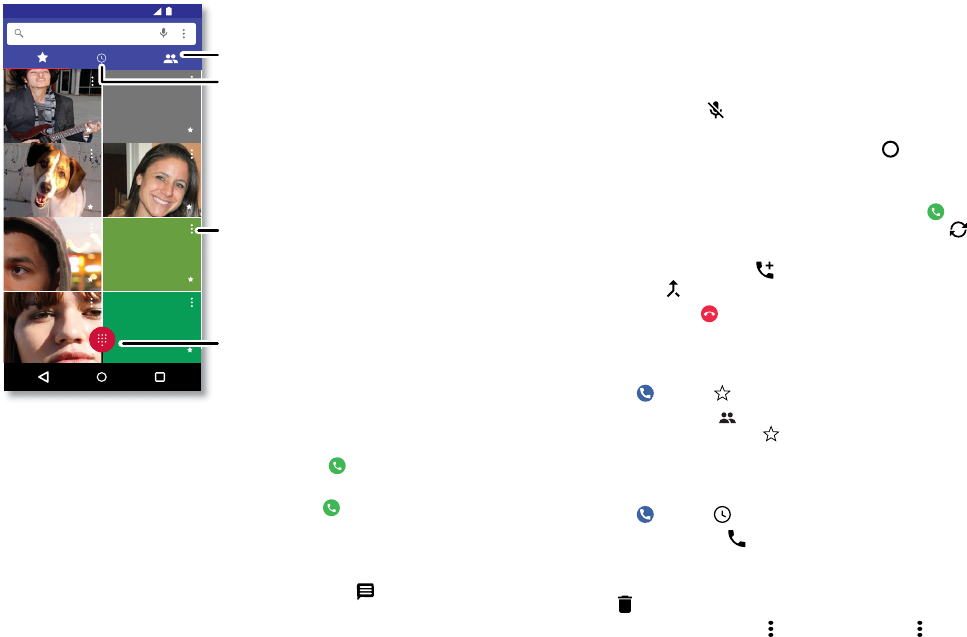
Calls screen and options that show during a call. To find and call a contact, enter a name in the Search field, tap the Contacts tab at the top right, or tap a contact’s image in the middle of the screen. Tap the dialpad at the
middle bottom of the screen to enter a number.
Receive a call
» Answer a call: When your phone is locked, swipe up to answer. When the phone
is unlocked, tap ANSWER.
» Ignore a call: When your phone is locked, swipe down to reject the call and send
it to voicemail. When the phone is unlocked, tap DECLINE.
Tip: You can also press the Power button to ignore the call, or press a volume button
to silence the ringer.
» Respond with a text: When your phone is locked, tap and select a message to
immediately send it.
Search contacts
K
M
N
11:35
Lauren
Gracie Jo
Allie
Abe Marc
Norm
Astrid
Kira
See recent calls.
See all your contacts.
Dial a number.
Tap a favorite to call
it. Tap the Menu to
see options for the
contact.
Note: When you hold your phone to your ear, the touchscreen goes dark to avoid
accidental touches. When you move the phone away from your ear, the screen lights
up again. Don’t use covers or screen protectors (even clear ones) that cover the
proximity sensor above the touchscreen.
During a call
» Mute a call: Tap Mute on the call screen to mute the call. You can hear your caller,
but they can’t hear you.
» Multi-task: While you’re on a call, tap Home to hide the call screen and look up
a phone number, address, or open other apps. To reopen the call screen, swipe the
status bar down and tap Ongoing call.
» Answer a second call: To answer a second call, tap Hold and Answer Voice. The
first call is placed on hold. To switch between calls, tap Swap.
» 3-way call: To join two calls together, answer the second incoming call while your
first call is active, or tap Add call to dial a second call. The first call is placed on
hold. Tap Merge to join the calls together.
» End a call: Tap .
Favorites
See all your favorite contacts together.
Find it: Phone >
To add favorites, tap , scroll or search to find the contact, then tap the picture (or
letter, if no picture) and tap .
Recent calls
View your calls (with newest first), and then call, text, or store them:
Find it: Phone >
» To return a call, tap . next to the caller’s name or number.
» To send a text message, store the number, or other options, tap the caller’s picture.
» To remove an entry from the call log, tap the name or number, then tap Call details
> .
» To clear the list, tap Menu > Call History > Menu > Clear call history.
Apps
Your phone number
Find it: Swipe up > Settings > System > About phone > Status > SIM status > My
phone number
Emergency calls
Your service provider programs one or more emergency phone numbers you can call
under any circumstances, even when your phone is locked. Emergency numbers vary
by country. Your pre-programmed emergency number(s) may not work in all locations,
and sometimes an emergency call cannot be placed due to network, environmental, or
interference issues.
1 Tap Phone (if your phone is locked, drag up to unlock it, then tap Emergency).
2 Enter the emergency number.
3 Tap to call the emergency number.
Note: Your phone can use location based services (GPS and AGPS) to help emergency
services find you. For more information, swipe up > Settings > System > Legal
Information > Legal and safety > Location services.
Message
Stay in touch with messages and pictures. For tips on using the keyboard, see Use the
keyboard.
Find it: Messages
» Create: Tap .
» Attach: When you’re typing a message, tap to attach a picture, audio, video, or
more.
» Send: Tap to send the message.
» Reply: Open a conversation, then enter your response in the text box at the bottom
and tap .
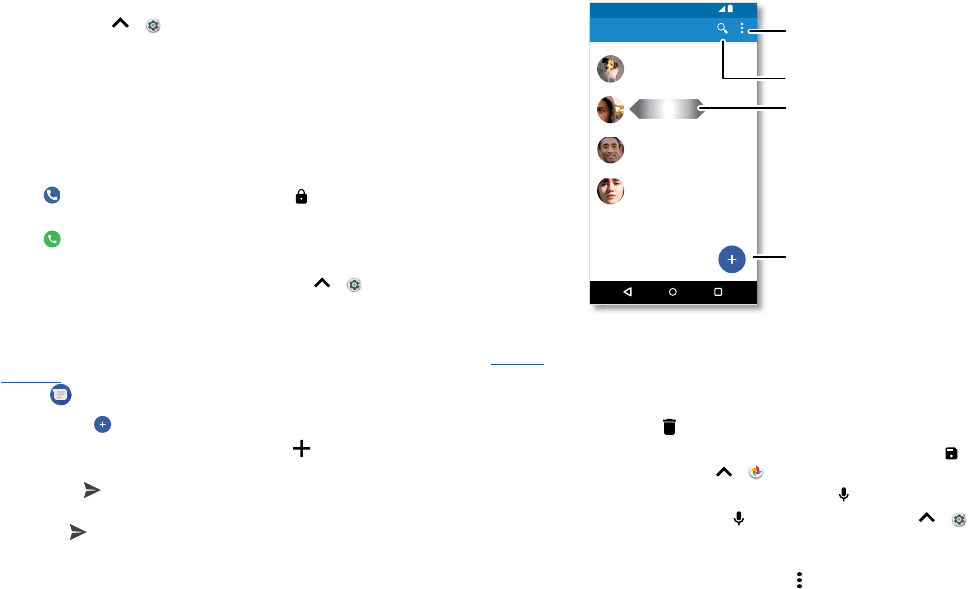
Message screen showing change and search options in the upper right, a list of previous messages with contacts, and the new message icon in the lower right corner.
Tips
» Add a contact: In a conversation, touch and hold a message for more options, such
as adding another contact.
» Delete thread: To delete a whole thread of messages, touch and hold the thread,
then tap to delete.
» Save pictures: Touch and hold a picture, and then tap to save it. To see the
picture, swipe up > Photos.
» Voice entry: Tap a text box, then tap on the keyboard.
Tip: If you don’t see on the keyboard, swipe up > Settings > System >
Languages & input > Virtual keyboard > Google voice typing to activate voice entry.
» Turn o notifications: Stuck in a busy conversation? You can turn o notifications.
Tap the thread, then tap Menu > People & options > Notifications.
11:35
Messages
You: Hey, where are you?
Astrid Fanning
You: Lunch tomorrow?
Daniel Lester
You: Do we need more treats?
Gracie Jo
Just now
20 min
Wed
Search messages.
Swipe left or right to
archive a message.
Write a new message.
Change settings.
Apps
Set your default messaging app
To set Messages as your default messaging app, swipe up > Settings > Apps
& notifications > Advanced > Default apps > SMS app, and select the messaging app
to use as the default.
Use the keyboard
When you tap a text box, like in a message or search, you have keyboard options.
» Type or gesture: Enter letters by touching them one at a time. Or, enter a word by
tracing a path through the letters. While you’re typing, word suggestions appear
above the keyboard. Tap one to select it.
» Voice entry: Tap on the touchscreen keyboard, then say what you want to type.
» Close the keyboard: Tap .
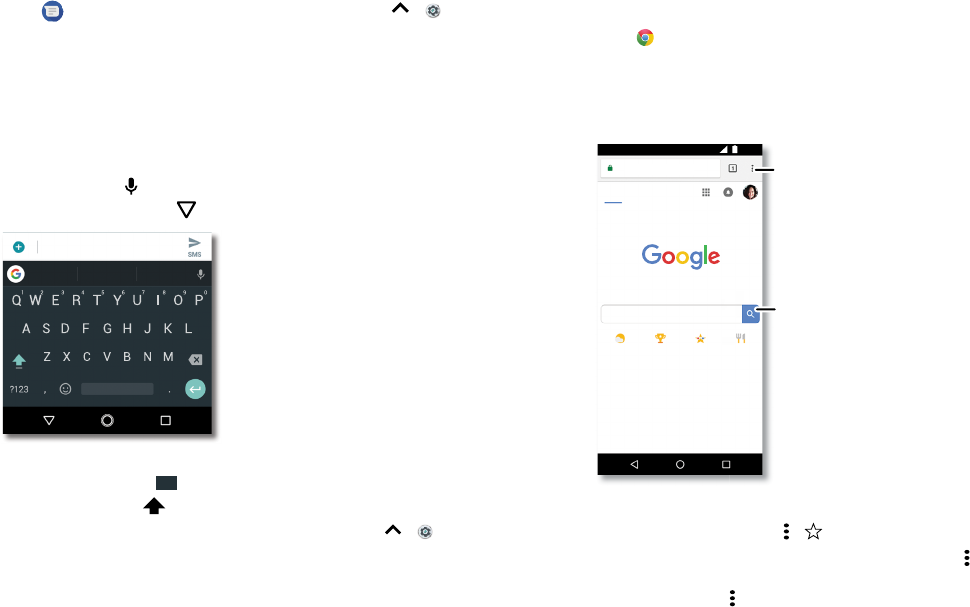
Keyboard screen. Tap the microphone in the top right to speak a message.
» Symbols and numbers: Touch and hold a letter to enter the number at the top of it.
To enter symbols, tap ?123 .
» Capital letters: Tap .
» Keyboard options: To customize your keyboard, swipe up > Settings > System
> Languages & input > Virtual keyboard > Gboard.
» Cut, copy and paste: Touch and hold a word to highlight it, tap CUT or COPY. Touch
and hold the location you want to paste the text, and tap PASTE.
I’m IWe
Type an SMS message
See a different keyboar
d?
It varies by app. This one
is for texting.
Chrome™
Access the Internet with the Chrome browser app.
Find it: Chrome
Or, from the home screen, tap the Google search box and enter or speak text to search.
Note: Your phone uses your Wi-Fi network (or your mobile phone network if no Wi-Fi
network is connected) to access the Internet. If you can’t connect, contact your service
provider. Your service provider may charge to surf the web or download data.
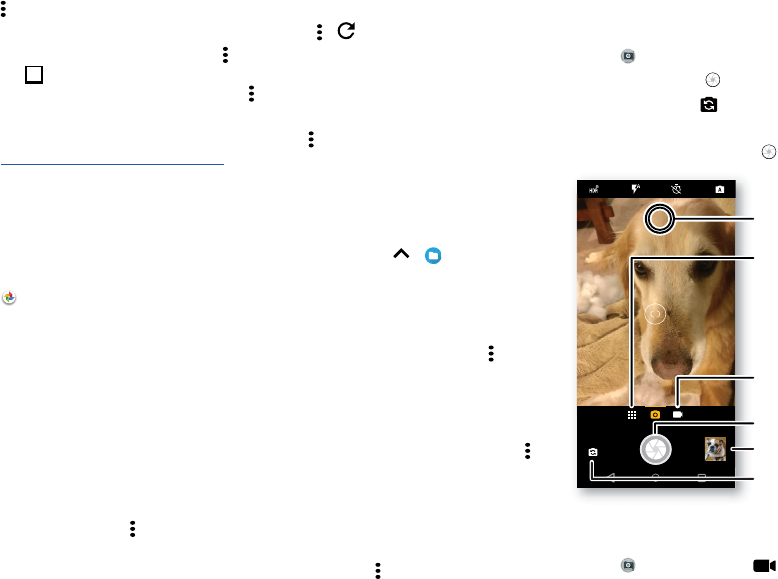
Google Chrome browser showing the options menu in the upper right corner. In the middle, enter text to search.
» Go to a web page: Tap the address bar at the top of a page and enter an address.
» Add a bookmark: Tap Menu > .
» Open a bookmark: Open the address bar, then tap Menu > Bookmarks.
» Web page shortcut: To add a web page shortcut to your home screen, go to the web
page and tap Menu > Add to Home screen.
ALL IMAGES
11:35
https://www.google.com See options.
Enter text to search.
Apps
» Mobile sites: Some websites automatically show you a “mobile” version of their
page—if you want to show the standard computer versions of all websites, tap Menu
> Desktop site.
» Reload: If a page doesn’t load correctly, tap Menu > .
» Tabs: To open a new tab, tap Menu > New tab. To move from one tab to another,
tap
1
.
» Clear history: In the browser, tap Menu > Settings > Privacy > Clear browsing data.
Then choose history, cache, cookies, and other options.
» Help: For more about Google Chrome, tap Menu > Help & feedback or visit
https://support.google.com/chrome.
Downloads
Warning: Apps downloaded from the web can be from unknown sources. To protect
your phone and personal data from theft, download apps only on Google Play™.
» Files: Tap the download link. To show the file or app, swipe up > Files.
» Pictures: Touch and hold it, then tap Download image. To see the picture, tap
Photos > Download.
Browser settings
To change your browser security settings, text size, and other options, tap Menu >
Settings.
Safe surfing & searching
Keep track of what your browser and searches show:
» Incognito: To open a tab that won’t appear in your browser or search history, Menu
> New Incognito tab.
» Auto complete: Your browser can automatically fill information like names or
addresses in web forms, if you have entered the same information before. If you don’t
want that, tap Menu > Settings > Autofill and payments > Autofill forms, then tap
the switch to turn it o.
» Pop-ups: To stop pop-up windows from opening, tap Menu > Settings > Site
settings > Pop-ups, then tap the switch to turn it o.
Camera
Take crisp, clear photos with the back or front camera.
Take photos
Find it: Camera
» Take a photo: Tap to take a photo.
» Take a selfie: Tap in the camera screen to switch to the front camera.
» Zoom: Drag two fingers apart. To zoom out, drag your fingers together.
» Multi-shot: Touch and hold to take a burst of photos.
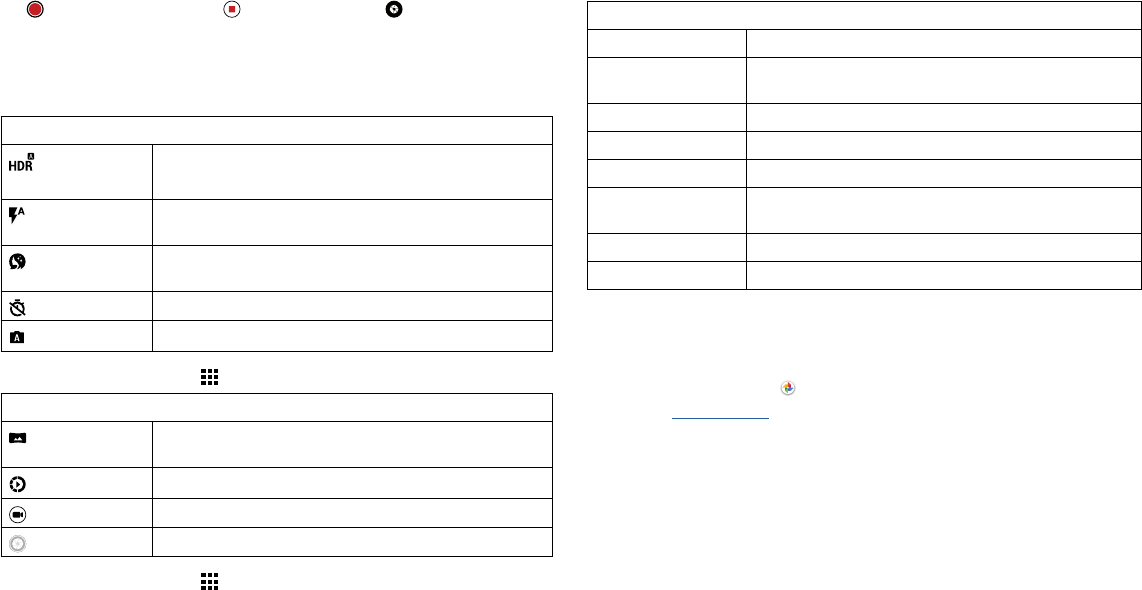
Camera viewfinder screen. Take a photo by pressing the shutter button at the bottom middle, switch to front camera on the lower left. Video camera button is at the bottom right while the options menu is at the extreme
right.
Record videos
Find it: Camera, then tap
Switch to front camera.
Tap anywhere to
change the focus.
See more options.
See your last picture.
Ta ke a photo.
Switch to video camera.
Apps
Tap to start recording. Then tap to stop recording. Tap on the screen while
recording to save a photo.
Camera settings
Point, tap, and you’re done, or play with these camera options. You can find these
options along the top of the camera or video screen:
Options
HDR Turn on HDR (high dynamic range) eect for better pictures
in challenging lighting situations, such as outdoors.
Flash Set to On, O, or Auto. With the front facing camera, you
can also turn the torch on or o.
Beautify With the front-facing camera, smooth skin and beautify
faces. Set to Auto, Manual, or O.
Timer Set a timer to 3 or 10 seconds.
Manual mode Control camera settings manually.
To find these options, tap Menu or swipe right on the camera screen:
Options
Panorama Take a wide-angle shot. Use the on-screen guide to slowly
pan while you are taking the photo.
Slow motion Take a slow motion video.
Video Take a video.
Photo Take a photo.
To find these options, tap Menu or swipe right on the camera screen, then tap
Settings:
Options
Shutter sound Turn the shutter sound on or o.
Storage Choose a storage location for your photos and videos
(Phone or Memory card).
Quick capture Double tap the Power button to open the camera.
Save location Turn on to tag photos with a location.
Photo size (rear) Set the photo resolution for the back camera.
Tap anywhere to
capture
Capture photos or videos by tapping anywhere on the
screen. Zoom by scrolling up or down with one finger.
Assistive grid Overlay a grid to help align the subjects in your photos.
Video size (rear) Set the video resolution.
Capture your screen
To capture your phone’s screen, press and hold both the Power and the Volume Down
buttons at the same time.
To see the screen capture, tap Photos > Screenshots.
Tip: Also see Screen pinning.
Apps
Photos
View, edit & share
Find it: Photos
» Play, share, or delete: Tap a thumbnail to open it, then tap to share, to delete,
or Menu for more options.
Tip: To select multiple files, open a folder, touch and hold a photo, then tap others. Or
group photos in an album and share the whole album.
» Zoom: Open a photo in your gallery, then double-tap or drag two fingers apart or
together on the screen.
Tip: Turn your phone sideways for a landscape view.
» Wallpaper or contact photo: Open a picture, then tap Menu > Use as > Wallpaper
or Contact photo.
» Edit: Open a picture, then tap .
» Slideshow: Tap a picture, then tap Menu > Slideshow. To stop the slideshow, tap the
screen. To show the slideshow on a television or other device, see Connect, share &
sync.
Tip: For more about Google Photos, visit https://support.google.com/photos.
Gmail™
Send and receive email from all of your personal accounts (even if they’re not Gmail
accounts). You can manage your accounts in Gmail and easily switch between them.
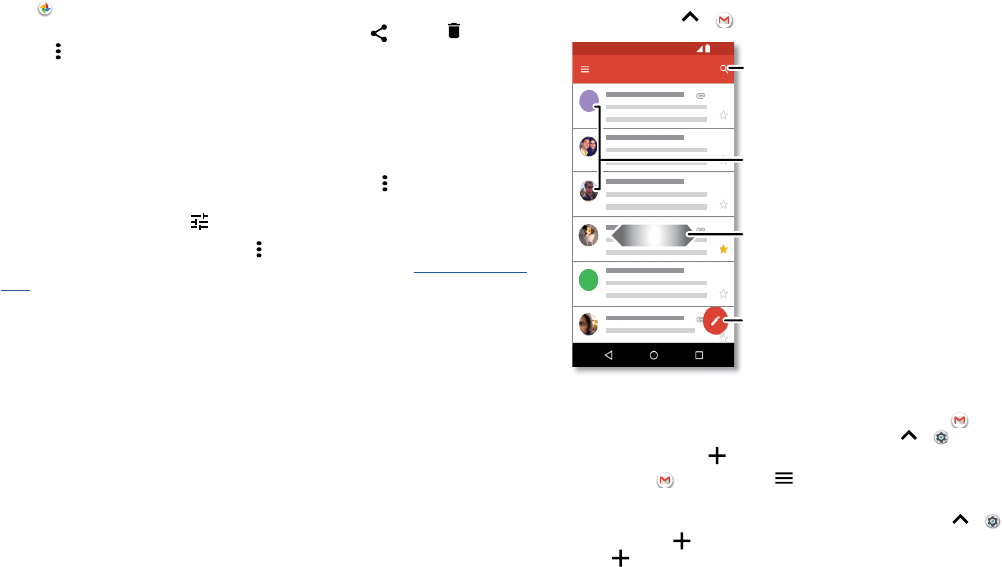
Find it: Swipe up > Gmail
Email screen listing emails for this account. Tap the magnifying icon in the top right to search email. Tap the Pencil icon in the bottom right to start a new email.
» Add Gmail accounts: The first time you turned on your phone, you probably set
up or logged in to your Google account—that sets up the Gmail app for one
account. To add more Google accounts, swipe up > Settings > Users &
accounts, then tap Add account > Google.
Tip: In the Gmail app, tap > Settings > Add account.
» Add email accounts: The Gmail app manages all of your email accounts. To add
other personal email accounts to the Gmail app, swipe up > Settings >Users
& accounts > Add account. For Microsoft® Exchange server work email accounts,
tap Add account > Exchange, and enter details from your IT administrator.
1:51PM
10:17AM
8:44AM
Dec 2
Dec 2
Inbox
11:35
B
A
H
Search mail.
Swipe left or right to
archive a message.
Touch and hold to choose
multiple messages, then
select an option at the top.
Compose a
new email.
Apps
» Change account settings: To change the settings for a Gmail or email account, swipe
up > Gmail > > Settings, then tap the account name.
» Delete accounts: Swipe up > Settings > Users & accounts > Google, then tap
the account name. Tap Menu > Remove account.
Duo
Sign in with your Google account to make and receive video calls.
Find it: Swipe up > Duo
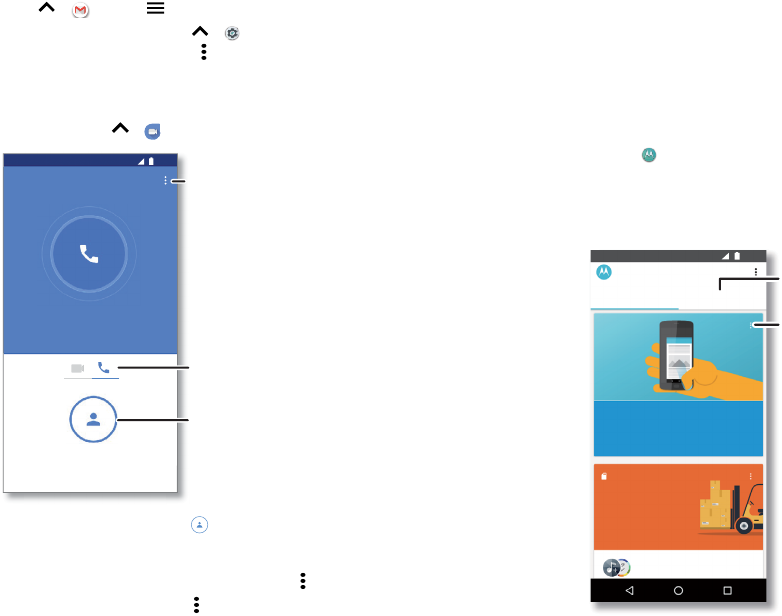
Google Duo screen that can be used to make video and voice calls. Tap the contacts icon to find a contact, or tap LET’S GO to invite friends.
» Start a new video call: Tap Contacts, then tap a name in your contacts to start
the video call.
» Preview incoming calls: See live video of the caller before you answer. To turn this
o for both the caller and receiver, tap Menu > Settings > Knock Knock.
» Change settings: Tap Menu > Settings to change the vibration setting, block
11:35
Contacts
Choose a contact.
Switch to video or call.
View settings.
numbers, and more.
» Call anyone: Duo works across platforms, allowing you to call friends with the Duo
app on non-Android devices.
Tip: When on a video call, your phone will automatically switch from cellular network
to Wi-Fi, if available.
Moto
Explore special features designed to save you time and make your day easier.
Find it: Moto > FEATURES
» Moto Actions: Use gestures as phone shortcuts.
» Moto Display: See your notifications at a glance and night settings.
Note: Your phone may not have all features.
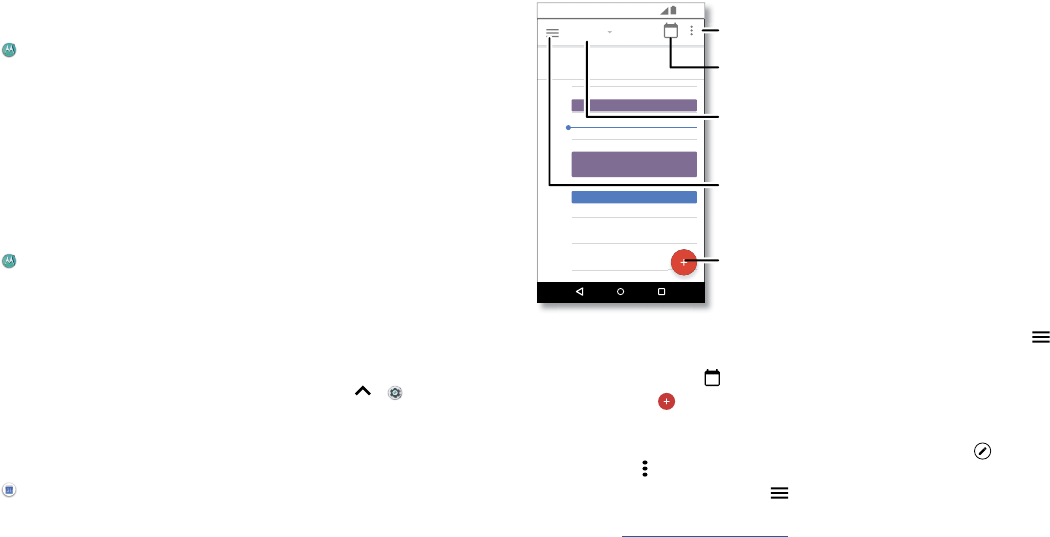
Moto app screen. Tap Features on the top right corner to see and change app features, like Moto Actions. Moto apps are used to customize your phone
11:35
Hi Anna
SUGGESTIONS FEATURES
Swipe to shrink screen
Plenty of
storage
Make the entire screen reachable with
a single hand
18.80GB available
Remove unused apps
Save up to 11.96MB
Tap to see and change app
features, like Moto Actions.
See suggestions customized
for your phone. Tap Menu to
remove a card.
Apps
Moto Actions
Enhance your phone with gestures and actions.
Find it: Moto > FEATURES > Moto Actions
» Quick Screenshot: Use three fingers to capture a screenshot.
» Swipe to shrink screen: Swipe down to the left or right corner to make the screen
smaller for one-handed use.
» Pick up to stop ringing: Lift the phone to switch incoming calls to vibrate.
» Flip for Do Not Disturb: Place the phone face down to silence notifications and calls.
Moto Display
See notifications, keep the screen on when you’re looking at it, and reduce blue light in
the evenings.
Find it: Moto > FEATURES > Moto Display
» Night Display: Reduces the amount of blue light on your display.
» Attentive Display: Your screen won’t dim or sleep while you’re looking at it.
» Moto Display: Battery friendly notifications fade in and out while the screen is o to
show you what’s going on. To customize what notifications show, tap Level of details
to show.
Note: Notification display settings can also be set by swiping up > Settings >
Apps & notifications > Notifications.
Calendar
See all your events, all in one place.
Find it: Calendar
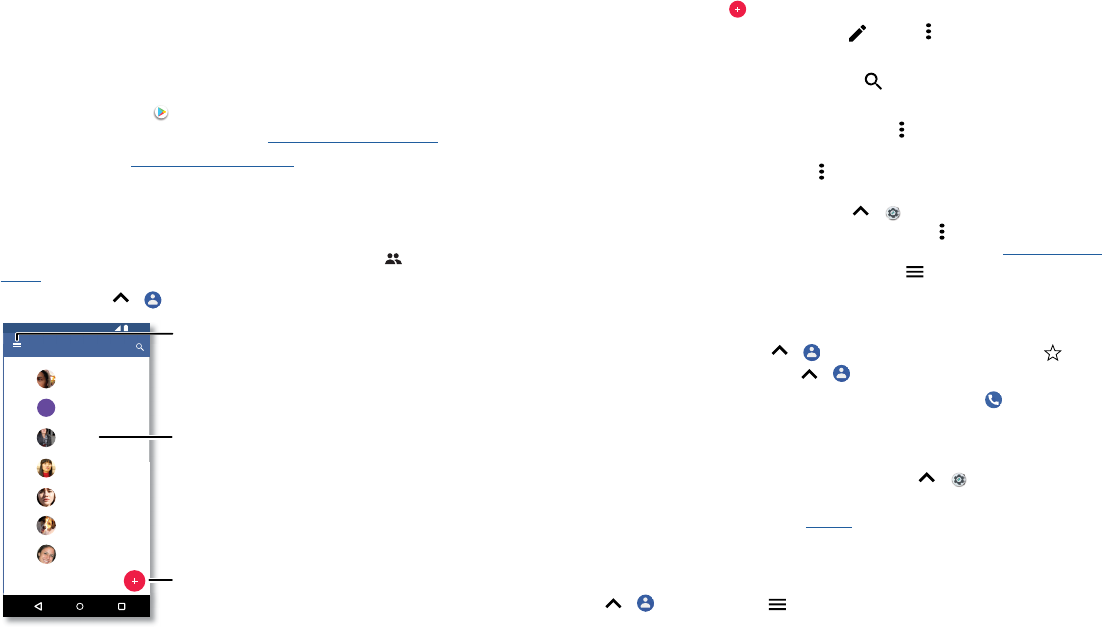
Google Calendar screen with today’s events shown by the hour. Tap the New item icon to add an event.
» Change the view: Tap the month at the top to choose a date to view. Or tap to
choose Schedule, Day, 3 Day, Week, or Month.
» Go to today’s date: Tap at the top.
» Add events: Tap > Event, enter event details, then tap SAV E .
Tip: Alternatively, tap a time on the calendar to enter event details.
» Show, edit, or delete events: Tap an event to open it, then tap edit . Tap an event
and tap menu > DELETE to remove the event.
» Show, hide, or add calendars: Tap to show or hide calendars from your Google™
account. You can use a computer to add or remove calendars on your Google
account at www.google.com/calendar.
Tip: Add a Calendar widget to your home screen. Touch and hold an empty spot on the
home screen, tap WIDGETS, then touch and hold the Calendar widget and drag it to
your home screen.
29
January
29
Fri
10 AM
5 PM
4 PM
3 PM
2 PM
1 PM
12 PM
11 AM
Weekly Project Meeting
Start hangout with Alexis
https://plua.Google.com/hangouts
Pick up snacks for the party
11:35
Jump to a dierent day.
Add a new event.
Tap to refresh the
Calendar screen.
Go to today’s date.
Change the calendar view,
adjust settings, get help,
and more.
More apps
More apps
Google Play™
Google Play is a digital content experience from Google where you can find and enjoy
your favorite music, movies, TV shows, books, magazines, and Android apps and games.
» Download apps: Tap Play Store.
» Log in or open a Google account: Visit www.google.com/accounts.
» Google help: See www.google.com/support.
Contacts
Combine information from your Google™ contacts and social networks for quick access
to everyone you know.
Tip: You can find most of these features on the Contacts tab in the Phone app. See
Phone.
Find it: Swipe up > Contacts
Contacts screen that shows a list of contacts. Scroll bar on the far right to scroll through contacts. Tap the New Contact icon to the bottom right to add a contact.
11:35
Contacts
A
Abe
Allie
Anna Medina
Astrid Fanning
Lauren
Gracie Jo
A Alison
G
L
Tap to view contact
information, call, send a
text message, and more.
Sort contacts, change
settings, accounts, & more.
Add a contact.
» Add a contact: Tap .
» Edit or delete: Tap a contact, then tap or menu > Delete.
» Call, text, or email: Tap a contact, then tap an option.
» Search contacts: In the Contacts list, tap .
Tip: From the home screen, tap the Google search box and enter a contact’s name.
» Share a contact: Tap a contact, then tap Menu > Share to send it in a message or
email, via a Bluetooth® connection, or save to Google Drive™.
Tip: Tap a contact, then tap Menu > Add to Home screen to add a shortcut for the
contact on your home screen.
» Synchronize: On your phone, swipe up > Settings > Users & accounts, choose
your Google account, then tap Account sync > Menu > Sync now to sync it (if it has
not been updated recently). You can also see these contacts at www.gmail.com.
» Add your details: To store your user profile, tap > Settings > Your info.
Favorites
Set your most-used contacts as favorites, so you can get to them faster.
» To set a favorite, swipe up > Contacts, select a contact and tap .
» To see your favorites, swipe up > Contacts.
Starred contacts also appear on your SPEED DIAL list in the Phone app.
Get contacts
Get all your contacts in one place.
» To add your social networking contacts, swipe up > Settings > Users &
accounts, then tap Add account.
» To add your email contacts, see Gmail™.
Tip: If you add an Exchange account, you can send messages to your coworkers,
even if you don’t have them stored in your contacts.
» To import contacts from your SIM card (if it didn’t happen automatically), swipe up
> Contacts > Menu > Settings > Import > SIM card.
More apps
» To import contacts from your computer, upload the contacts to your Google account
at http://contacts.google.com. On your phone, swipe up > Contacts > Menu
> > Manage accounts > Automatically sync data. You can also see these contacts
at http://mail.google.com.
For help with transferring contacts, go to www.motorola.com/transfercontacts.
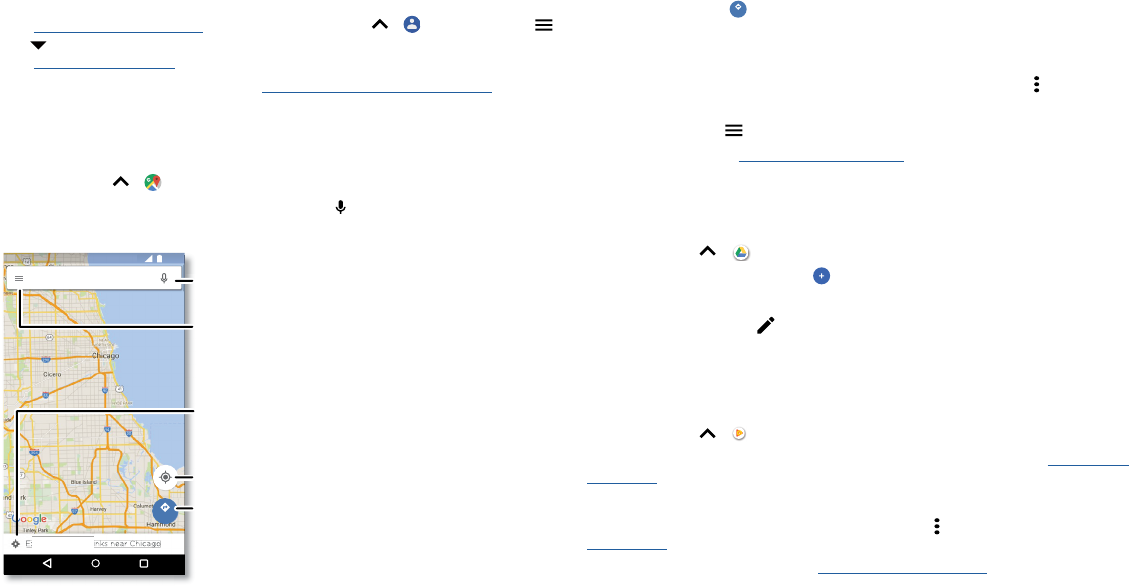
Maps
Find a nearby cafe, get directions or step-by-step GPS voice navigation using Google
Maps™.
Find it: Swipe up > Maps
Enter what you want to find in the search bar, or tap to search by voice.
Note: Your map screen may look dierent.
Google Maps screen. Enter an address or search by voice in the search field at the top of the screen.
» Find an address: In the search field, enter an address or something you’re looking for,
like “restaurant.” Tap a item to see more, or tap CALL or DIRECTIONS.
Search Google Maps
11:35
GO
x
plore food & dr
i
Search by voice for
an address or location.
See your current location.
Get directions and
navigation instructions.
Find nearby food,
drinks, and attractions.
See your places, map
views, settings, help, and
more.
» Get directions: Tap GO GO, then enter a place or address.
» Zoom: To zoom in or out, drag two fingers together or apart on the screen.
» Turn and tilt: Rotate two fingers on the map to turn it, or drag up/down to tilt.
» Share a location: Tap a location, then tap the address and tap Menu > Share.
» Identify address: Touch and hold a spot on the map to show the nearest address.
» Get map help: Tap > Help.
For more on maps, visit support.google.com/maps.
Drive
Keep all your photos, videos, documents, and more safely in one place—private unless
you choose to share. Available on Google DriveTM from all your devices.
Find it: Swipe up > Drive
» To create a new file or folder, tap .
» To open a file, tap it.
» To edit a document, tap .
Music, movies, TV & Youtube
Music
Music everywhere—stream it, buy it, save it, play it. Listen and create playlists anytime.
Find it: Swipe up > Play Music
To upload your music library to Google Play Music, from a computer, visit www.google.
com/music.
Tap Listen Now to see recommendations and more.
Tip: Share songs directly with your contacts. Tap Menu next to a song > Share. See
Direct Share.
For more on the Play Music app, see support.google.com/music.
Note: Copyright—do you have the right? Always follow the rules. See “Content
Copyright” in the legal and safety information on your phone.
More apps
FM Radio
Find it: Swipe up > FM Radio
Plug in a headset, then use the arrows to tune to a higher/lower frequency station.
Note: Your phone has the Frequency Modulation (FM) broadcast receiver functionality
for reception without data usage. The phone will perform an auto tuning for the radio
channels with the best signal.
Movies & TV
Find and rent movies and TV shows to watch on your phone, tablet, or computer:
Find it: Swipe up > Play Movies & TV
To shop, rent, or watch on a computer, go to play.google.com/store/movies.
YouTube™
Watch videos and podcasts from YouTube users everywhere—or log in to your account
to share your own.
Find it: Swipe up > YouTube
Clock
Find it: Swipe up > Clock
Options
Alarm Tap . Tap an alarm to edit it, or tap to add a new alarm.
Tip: Pressing the volume button up or down while you’re setting
an alarm sets the volume level for that alarm.
When an alarm sounds, tap and drag to to turn it o, or drag
to to snooze for ten minutes.
Clock To change your alarm volume, snooze delay, or other settings, tap
Menu > Settings. For other time zones, tap Home time zone.
Timer For a timer, tap .
Stopwatch For a stopwatch, tap .
Tip: To set your current date, time, time zone, and formats, swipe up > Settings >
System > Date & time.
Connect, share & sync
Connect, share & sync
Connect accessories, computers, networks, and more.
Connect with Wi-Fi
Turn Wi-Fi power on/o
Find it: Swipe up > Settings > Network & Internet > Wi-Fi, then tap the switch
to turn it on
When Wi-Fi is on, your phone automatically reconnects to available networks it has
used before.
Note: You can also turn Wi-Fi on and o in Quick settings.
Connect to networks
To find networks in your range:
1 Swipe up > Settings > Network & Internet > Wi-Fi.
2 With Wi-Fi turned on, tap a found network to connect to it. When connected, you’ll
see in the status bar.
Note: If you see a question mark in the Wi-Fi status indicator , swipe the status bar
down, tap the network, and enter the network’s password.
Wi-Fi hotspot
Your can make your phone a Wi-Fi hotspot to provide portable, convenient Internet
access to other Wi-Fi enabled devices. Your phone turns o Wi-Fi and uses the mobile
network for Internet access. This feature may require an additional subscription service
from your service provider.
Find it: Swipe up > Settings > Network & Internet > Hotspot & tethering, then
tap Portable Wi-Fi hotspot
Note: These steps may vary depending on your network.
1 Tap Set up Wi-Fi hotspot to set up security:
• Network name: Enter a unique name for your hotspot.
• Security: Select the type of security you want: None or WPA2 PSK. For WPA2
PSK, enter a unique password (8 characters) that others will need to access your
Wi-Fi hotspot.
Note: To protect your phone and hotspot from unauthorized access, set up hotspot
security (WPA2 is the most secure), including a password.
2 Tap SAVE .
Wi-Fi modes
Your phone supports the following Wi-Fi modes: 802.11 a, b, g, n.
Connect with Bluetooth wireless
Turn Bluetooth power on/o
Find it: Swipe up > Settings > Connected devices > Bluetooth, then tap the
switch to turn it on
When Bluetooth is on, your phone automatically reconnects to available devices it has
used before. Turning Bluetooth on also lets other devices find your phone.
Note: You can also turn Bluetooth on and o in Quick settings.
Tip: To extend battery life or stop connections, turn Bluetooth o when you’re not using
it.
Connect devices
The first time you connect a Bluetooth device, follow these steps:
1 Make sure the device you are pairing with is in discoverable mode (for details, refer to
the guide that came with the device).
2 Swipe up > Settings > Connected devices > Bluetooth.
3 With Bluetooth turned on, tap a found device to connect it (if necessary, tap PAIR or
enter a passkey like 0000). You can tap to rename the device and choose what
the device will be used for.
When the device connects, the Bluetooth connected indicator appears at the top
of the screen.
To automatically disconnect or reconnect a device, just turn the device o or on.

Connect, share & sync
Note: Using a mobile device or accessory while driving may cause distraction and may
be illegal. Always obey the laws and drive safely.
Transfer files
» Photos or videos: Open the photo or video, then tap > Bluetooth.
» Contacts: Swipe up > Contacts, tap a person, then tap Menu > Share >
Bluetooth.
Share files with your computer
Note: Copyright—do you have the right? Always follow the rules. See “Content
Copyright” in the legal and safety information on your phone.
USB
To load music, pictures, videos, documents, or other files from your computer, connect
your phone to your computer with a USB cable. To change the type of USB connection,
swipe the status bar down and tap USB.
Tip: Make sure to connect the phone to a high power USB port.
Note: The first time you use a USB connection, your computer may indicate that drivers
are being installed. Follow any prompts you see to complete the installation. This may
take a few minutes.
» For Microsoft® Windows®: On your computer, choose Start, then select Windows
Explorer from your list of programs. In Windows Explorer, your phone will appear as
a connected drive (mass storage device) where you can drag and drop files, or it will
appear as an MTP or PTP device that lets you use Windows Media Player to transfer
files. For more instructions or driver files, visit www.motorola.com/support.
» For Apple™ Macintosh™: Use Android File Transfer, available at www.android.com/
filetransfer.
Virtual Private Network (VPN)
A VPN lets you access files on a secured network (like an oce network with a firewall).
Contact the network administrator for VPN settings, and any additional apps or
requirements.
To enter VPN settings, swipe up > Settings > Network & Internet > VPN. Tap
to add a new VPN. Choose the type of VPN and enter settings from the network
administrator. Select the VPN name to connect.
Share your data connection
Your computer can access the Internet through your phone’s mobile network—you just
need a USB cable.
1 Connect your phone to your computer using a USB cable.
Note: If your computer is running something older than Microsoft® Windows® 7 or
Apple™ Macintosh™ OSX, it might require special configuration.
2 On your phone, swipe up > Settings > Network & Internet, and make sure
Wi-Fi is o.
3 In Settings, tap Network & Internet > Hotspot & tethering, then tap the USB
tethering.
To stop the connection, tap USB tethering again, then disconnect your phone from
your computer.
Print
To print your photos, documents, and more from your phone, check if your printer’s
manufacture has an app on Google Play. Then swipe up > Settings > Connected
devices > Printing to get started.
You can also send your photos, docs, and more to any Android device in your cloud or
to Google Drive. Just download the Cloud Print app from Play Store.
Sync to the cloud
One account with access to everything, everywhere—phone, tablet, computer.
Sync your Google account
When you log in to the same Google account, all devices can get to all the same apps,
movies, books, and music from Google Play™—plus you share the same Gmail, Google
Calendar™, and Google Mobile™. To add Google accounts to your phone, swipe up >
Settings > Users & accounts > Add account > Google.

Connect, share & sync
Phone & tablet
Your Android phone and tablet can work together to help you get the most out of both:
» Transfer media and files: Copy files to your phone and transfer them to other
devices—see Transfer files.
» Phone hotspot: If you have a Wi-Fi tablet, turn your phone into a Wi-Fi hotspot to let
your tablet access the Internet anywhere—see Wi-Fi hotspot.
» Bluetooth® accessories: If you have a Bluetooth keyboard or other accessories to use
with your tablet, remember you can use them with your phone too. To connect them,
see Connect with Bluetooth wireless.
Use a memory card
You can use your microSD card (sold separately) as portable or internal storage:
» Portable storage (default): Store your pictures, videos, audio and other media files.
You can remove the microSD card at any time and insert it in another device. The
media files that are on the microSD card can be viewed on and copied to that device.
» Internal storage: In addition to your media files, you can store some downloaded
apps. The microSD card acts as an extension of the internal storage of your phone.
Note: Not all apps work from a microSD card.
To set your microSD card to internal storage, swipe up > Settings > Storage, then
select the microSD card and tap Menu > Storage settings > Format as internal.
Caution: If your microSD card is set to internal storage, it is formatted and encrypted to
protect your information. If you want to use it as portable storage, or in another device,
you’ll need to reformat it. Before doing so, please remember that formatting erases all
the data stored on your microSD card.
Note: Your phone supports microSD cards up to 128 GB. Use a Class 10 (or higher)
microSD card for best results.
Mount or unmount memory card
To mount an microSD card, just put it in your phone (see Insert the SIM and microSD
cards).
To unmount your microSD card (so you can take it out of your phone), swipe up >
Settings > Storage > Portable storage. Then tap next to the microSD card name.
Caution: Do not remove a microSD card while your phone is using it or writing files to it.
Airplane mode
Use airplane mode to turn o all your wireless connections—useful when flying. Swipe
the status bar down and tap Airplane mode .
Note: When you select airplane mode, all wireless services are disabled. You can then
turn Wi-Fi and/or Bluetooth power back on, if permitted by your airline. Other wireless
voice and data services (such as calls and text messages) remain o in airplane mode.
Emergency calls to your region’s emergency number can still be made.
Mobile network
You should not need to change any network settings. Contact your service provider for
help.
To see network settings options, swipe up > Settings > Network & Internet >
Mobile network.
Protect your phone
Protect your phone
Make sure your information is protected in case your phone is lost or stolen.
Screen lock
The easiest way to protect your phone is to lock your touchscreen when you are not
using it. You can choose to swipe to unlock, or enter a pattern, PIN, or password to
unlock your phone.
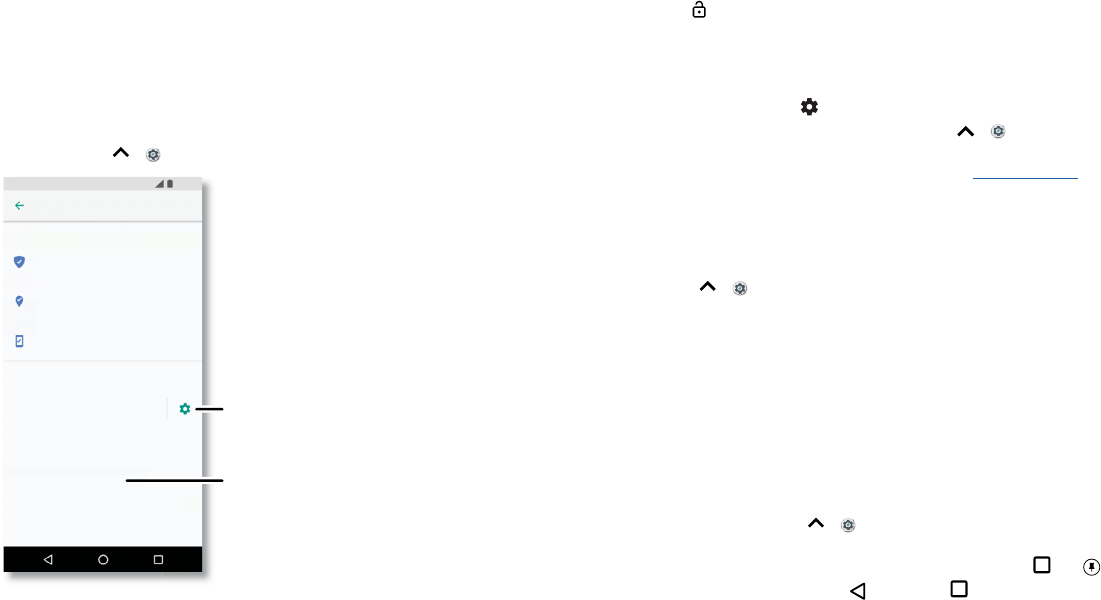
Find it: Swipe up > Settings > Security & Location
Security screen that shows options for locking your phone’s screen.
1 Select the lock type:
» None: Turn o the screen lock.
Google Play Protect
Apps scanned yesterday at 12:00PM
Find My Device
On
Security update
January 1, 2018
Security status
Security & Location
Device security
11:35
Screen lock
Pattern
Lock screen preferences
Show all notification content
Fingerprint
Set your screen lock,
then tap to adjust
settings.
Add a fingerprint for
more unlock options.
» Swipe: Touch and drag up to unlock.
» Pattern: Draw a pattern to unlock.
» PIN: Enter four to sixteen digits to unlock.
» Password: Enter four to sixteen letters, digits, or symbols to unlock.
2 After setting the lock type, tap for screen lock settings.
To change when your touchscreen goes to sleep, swipe up > Settings > Display >
Advanced> Sleep.
Note: You can make emergency calls on a locked phone (see Emergency calls). A
locked phone still rings, and you do not need to enter a PIN or password to answer a
call.
Unlock with your fingerprint
You can use the fingerprint sensor to unlock your phone.
Find it: Swipe up > Settings > Security & Location > Fingerprint
Can’t unlock?
If you forget your pattern, PIN, or password, you can enter your Google™ account email
and password on another device to unlock the phone.
If you don’t have a Google account on your phone, contact your service provider to
have your device factory reset.
Warning: A factory reset will delete all data on your phone.
Screen pinning
Need to keep an important screen handy, like a boarding pass or shopping coupon? Pin
the screen for easy access.
To set up screen pinning, swipe up > Settings > Security & Location > Screen
pinning, then tap the switch to turn it on.
To pin a screen, open the app you want to pin, touch and hold Recents . Tap .
To unpin the screen, touch and hold Back and Recents until you see Screen
unpinned.

Protect your phone
Tip: To secure your phone when you activate screen pinning, tap Ask for PIN before
unpinning.
Backup & restore
Find it: Swipe up > Settings > System > Backup, then tap the Back up to Google
Drive switch to turn it on
Your Google account data is backed up online. If you reset or replace your phone, just
log in to your Google account to restore the contacts, events, and other details you
synced with the account.
To restore your Google Play™ apps, see Take care of your apps.
Encrypt your phone
Caution: If you forget your encryption code, you cannot recover the data stored on
your phone or memory card. Encrypting your files can take an hour or more. Leave your
phone plugged in, and be careful not to interrupt the process.
Encryption protects the accounts, settings, apps, and files on your phone, so that
people cannot access them if your phone is stolen.
You shouldn’t need to use this feature, but to encrypt your phone and require a PIN or
password whenever you turn on your phone, swipe up > Settings > Security &
Location > Encryption & credentials > Encrypt phone.
Your privacy
Location
Some apps, such as Map, request your location in order to provide information, like
directions or helping you find a nearby gas station.
» To turn location on or o: Swipe up > Settings > Security & Location >
Location.
» To see which apps have access to your location, tap App-level permissions.
Passwords
Your phone briefly shows password characters as you type. To turn this o, swipe up
> Settings > Security & Location and tap Show passwords.
App safety
Apps from Google Play
™
Get music, movies, books, apps, games, and more.
Find it: Play Store
Apps from the Internet
You can get apps from other online app stores using your browser.
Tip: Choose your apps and updates carefully, as some may impact your phone’s
performance—see Choose carefully.
Note: When installing an app, make sure you read the alerts that tell you what
information the app will access. If you don’t want the app to access this information,
cancel the installation.
To let your phone install apps that are not on Google Play, swipe up > Settings >
Apps & notifications > Advanced > Special app access, then tap Install Unknown apps
and choose which sources are allowed.
Choose carefully
Here are a few tips:
» To help prevent spyware, phishing, or viruses, use apps from trusted sites, like the
Google Play.
» Check the app’s ratings and comments before installing. If you doubt the safety of an
app, don’t install it.
» Apps use up memory, data, battery, and processing power—some more than others.
If you’re not happy with how much memory, data, battery or processing power an
app is using, uninstall it.
» Monitor children’s access to apps to help prevent exposure to inappropriate content.
» Certain apps may not provide completely accurate information. Take care, especially
when it comes to personal health.
Protect your phone
Set app permissions
You may be asked for permissions when you use a feature in an app.
To modify the app permissions settings, swipe up > Settings > Apps &
notifications > App Permissions, then tap a feature (such as microphone) to see which
apps have permissions to use it. Tap the switch to turn the permission on or o.
Take care of your apps
» Uninstall apps: To remove an app from a home screen page, touch and hold the
app, then drag it to Remove. The app isn’t removed from your phone, just the home
screen.
To remove an app from your phone, touch and hold the app, then drag it to Uninstall.
To disable an app or force it to stop running, swipe up > Settings > Apps &
notifications > App info. Tap an app, then tap DISABLE or FORCESTOP to remove
the app from your menu. To enable it, tap ENABLE (tap the down arrow to sort the
apps listed).
Reinstall apps: To reinstall apps from Google Play, swipe up > Play Store, then
tap > My Apps & games > Library. The apps you downloaded are listed and
available for download.
» See app details: Touch and hold an app, then tap .
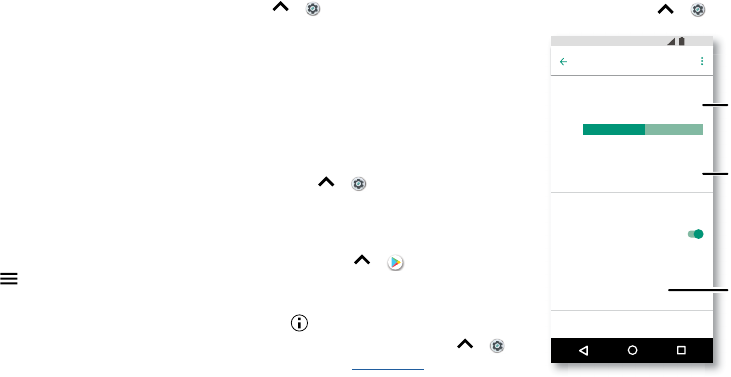
» See app data usage: To show which apps are using the most data, swipe up >
Settings > Network & Internet > Data usage. For more, see Data usage.
Data usage
You can track the amount of data your phone uploads and downloads.
Find it: Swipe up > Settings > Network & Internet > Data usage
Data Usage screen. View current billing cycle, data usage and a breakdown of which apps use the most data.
Some apps transfer data in the background when you’re not viewing them—to help
reduce this type of data usage, tap Data saver to turn it on.
Note: Usage information is provided to help you manage your phone. This may not
match the amounts charged by your service provider, as they’re not measured in the
same way.
Data usage
Usage
7.4 kB mobile data
J
an 30 - Mar
1
1
.14 GB
2
.15 GB
Data saver
Of
f
Mobile
Mobile data
Mobile data usage
7
.37 kB used between Jan 30 - Mar
1
Billing cycle
Monthly starting 30
Wi-F i
2
.15 GB Data warnin
g
1
1:3
5
Tap to turn on Data
saver to reduce data
usage.
Your current billing cycle.
Tap to set alerts and data
limits.
See the total amount of
data used for this period.

Troubleshoot your phone
Troubleshoot your phone
Restart or remove an app
If an app locks up your phone as soon as you turn it on, restart in Safe Mode: Press
and hold the Power button. When you see the Power o option, press and hold it until
the screen goes dark. Your phone restarts with Safe mode in the lower left. Then, try
removing the app.
Restart your phone
In the unlikely event that your phone stops responding to touches and button presses,
try a reboot—press and hold the Power button until the screen goes dark and your
phone restarts.
Check for software update
To manually check for updates, swipe up > Settings > System > System updates.
Your phone downloads updates over your Wi-Fi connection (if available) or mobile
network. We recommend that you download updates over a Wi-Fi connection. These
updates can be quite large and may not be available in all countries.
Note: When updating your phone, make sure you have enough battery power to
complete the update.
If the mobile network updates are not available in your country, update using a
computer. On your computer, go to www.motorola.com/update.
Reset
To reset your phone to factory settings and erase all the data on your phone, swipe up
> Settings > System > Reset > Factory data reset.
Warning: All downloaded apps and user data on your phone will be deleted. Data on
the cloud will not be deleted.
Stolen phone
Your phone has Android Device Manager. You can remotely lock or reset your device
to protect your device from thieves. For details, see www.google.com/android/
devicemanager.
Find the IMEI number
You can find the IMEI number by typing *#06# on your phone’s dialpad. Or you can go
to Settings > System > About phone > Status > IMEI information.
Note: For service and support, see Get more help.

Accessibility
Accessibility
See, hear, speak, feel, and use. Accessibility features are there for everyone, helping to
make things easier.
Find it: Swipe up > Settings > Accessibility
For more information about your phone’s accessibility features, visit www.motorola.
com/accessibility.
Create a shortcut
Use a gesture to quickly activate an accessibility features on your phone. For more
information, swipe up > Settings > Accessibility > Accessibility shortcut.
Tap Shortcut service and choose an app. When the shortcut is on, press both volume
buttons for three seconds to start the app.
Make your phone speak
Select to speak
Find it: Swipe up > Settings > Accessibility > Select to Speak
Turn on, then tap and press . Your phone reads the screen from top to bottom.
To have your phone only read items that you touch, tap SETTINGS > Continuous read
mode to turn it o.
TalkBack
Use TalkBack to read your screen out loud—screen navigation, selections, even books.
To turn TalkBack on or o, swipe up > Settings > Accessibility > TalkBack.
» Tap something on the screen to hear a description or text readout.
» Double-tap anywhere on the screen to open or activate the last touched item.
» Swipe using two fingers to scroll through lists or between screens.
Text-to-speech output
To set the language, speech rate and pitch of the screen reader, swipe up >
Settings > Accessibility > Text-to-speech output.
Braille
Combine your Braille display with TalkBack for braille and speech feedback.
1 Download the BrailleBack™ app on Google Play (swipe up > Play Store), and
install it on your phone.
2 Swipe up > Settings > Accessibility > BrailleBack.
3 Turn on your Braille display and put it in Bluetooth pairing mode.
4 On your phone, swipe up > Settings > Connected devices > Bluetooth, then
tap the switch at the top to turn it on and scan.
5 Tap the name of your Braille display to pair it with the phone.
Speak to your phone
Speak a command to turn on an accessibility feature. For example: “Ok, Google, turn on
TalkBack”. For more on voice commands, see Speak.
Change your phone’s display
Display settings & magnification
Get a closer look.
» Change font size: Increase the font size on your screen. Swipe up > Settings >
Accessibility > Font size. See also Customize sounds & appearance.
» Change display size: Make the items on the screen larger. Swipe up > Settings
> Accessibility > Display size.
» Pinch to zoom: Pinch to zoom on maps, web pages, and photos—to zoom in, tap the
screen with two fingers and then drag them apart. To zoom out, drag your fingers
together. You can also double-tap to zoom in.
» Screen magnification: Triple-tap the screen for full screen magnification, or triple-
tap and hold to temporarily magnify. Swipe up > Settings > Accessibility >
Magnification.
» Display brightness: Swipe the status bar down, and drag the slider to set brightness
level. Setting brightness to a high level decreases your phone’s battery life.
Accessibility
» Browser: Choose text size when browsing websites. Swipe up > Chrome >
Menu > Settings > Accessibility. Select Force enable zoom to allow zooming on all
web pages.
Messages
To make text entry even easier, use features like auto-capitalization, auto-correction, and
more. Swipe up > Settings > System > Languages & input > Virtual keyboard >
Gboard > Text correction. Or speak your message. Tap on the keyboard.
Change your phone’s sounds
Calls
When you want to hear who’s calling, assign a unique ringtone to a contact. Swipe up
> Contacts, tap the contact, then tap Menu > Set ringtone.
To end a call by pressing the Power button, swipe up > Settings > Accessibility
and tap Power button ends call.
Volume & vibrate
Find it: Swipe up > Settings > Sound
» Drag the volume sliders to set volume levels for your music or videos, alarms, and
ringtones/notifications.
» To make your phone vibrate for incoming calls (even when the ringer is silent), tap
Also vibrate for calls.
Tip: Feel a vibration when you tap the screen. Tap Advanced > Vibrate on tap to turn
it on.
Hearing aids (U.S. only)
To help get a clear sound when using a hearing aid or cochlear implant, your phone may
have been rated for use with hearing aids. If your phone’s box has “Rated for Hearing
Aids” printed on it, then please read the following guidance.
Note: Ratings are not a guarantee of compatibility (visit www.motorola.com/
hacphones). You may also want to consult your hearing health professional, who should
be able to help you get the best results.
» Settings: Tap Phone > Menu > Settings > Accessibility > Hearing aids.
» Call volume: During a call, press the side volume buttons to set a call volume that
works for you.
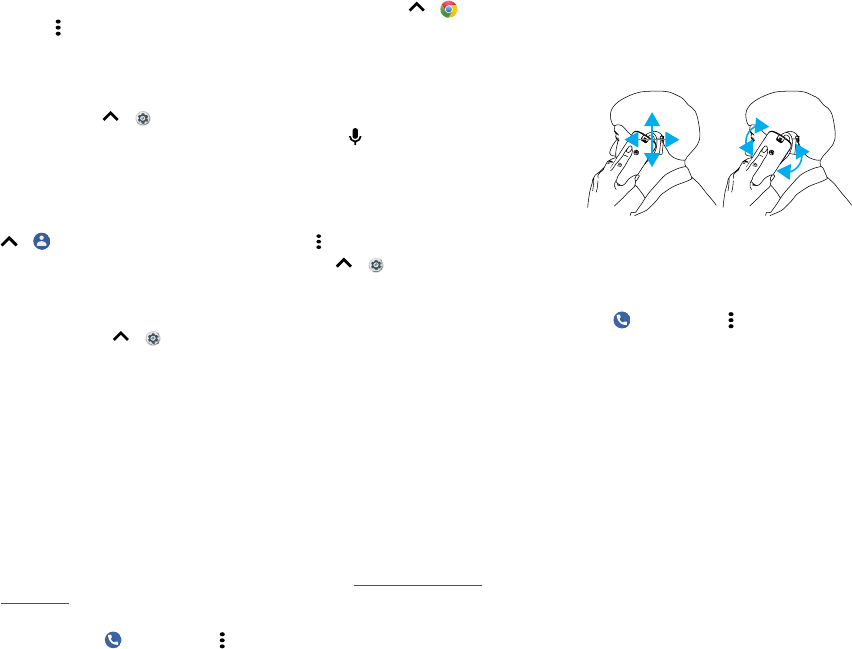
» Position: During a call, hold the phone to your ear as normal, and then rotate/move it
to get the best position for speaking and listening.
Diagram showing how to use your phone with a hearing aid.
TTY (U.S. only)
You can use your phone in TTY mode with standard teletype machines.
Note: Wi-Fi must be turned o.
Tap Phone > Menu > Settings > Accessibility > TTY mode and select the mode
you need:
» TTY Full: Type and read text on your TTY device.
» TTY HCO: Type on your TTY device and listen to voice replies on your phone’s
speaker.
» TTY VCO: Speak into your phone and read text replies on your TTY device.
Note: You’ll need a cable/adapter to connect your TTY device to the headset jack on
your phone. Refer to your TTY device guide for mode and usage information.

Get more help
Get more help
Get answers, updates, and info:
» Help is here: Swipe up > Device Help to get walk-through tutorials, how-tos,
or FAQs, right on your phone.
» Get more: Get software, FAQs, and more at www.motorola.com/mymotoe.
» Join the conversation: Find us on YouTube™, Facebook™, and Twitter.
Where is my legal, safety, & regulatory information?
In order to provide you with better access to this important information, we’ve made
the materials accessible from the phone’s settings menu and on the web. Review these
materials prior to using your device. To access the materials from a connected phone,
go to Settings > System > Legal information, and select a topic. To access the materials
on the web, visit www.motorola.com/device-legal.
Service & repairs
If you have questions or need assistance, we’re here to help. Go to www.motorola.com/
support, where you can select from a number of customer care options.
Copyright & trademarks
Motorola Mobility LLC
222 W. Merchandise Mart Plaza
Chicago, IL 60654
www.motorola.com
Certain features, services and applications are network dependent and may not be available in all areas; additional terms,
conditions and/or charges may apply. Contact your service provider for details.
All features, functionality, and other product specifications, as well as the information contained in this guide, are based upon
the latest available information and believed to be accurate at the time of printing. Motorola reserves the right to change or
modify any information or specifications without notice or obligation.
Note: The images in this guide are examples only.
MOTOROLA, the stylized M logo, MOTO, and the MOTO family of marks are trademarks or registered trademarks of Motorola
Trademark Holdings, LLC. LENOVO is a trademark of Lenovo. Google, Android, Google Play and other marks are trademarks
of Google Inc. microSD Logo is a trademark of SD-3C, LLC. All other product or service names are the property of their
respective owners.
© 2018 Motorola Mobility LLC. All rights reserved.
Model(s): moto e5 play (XT1921-6)
Manual Number: SSC8C29419-B
