Quectel QFlash User Guide V2.5
Quectel_QFlash_User_Guide_V2.5
Quectel_QFlash_User_Guide_V2.5
Quectel_QFlash_User_Guide_V2.5
Quectel_QFlash_User_Guide_V2.5
Quectel_QFlash_User_Guide_V2.5
User Manual:
Open the PDF directly: View PDF  .
.
Page Count: 36


QFlash User Guide
QFlash_User_Guide 1 / 35
Our aim is to provide customers with timely and comprehensive service. For any
assistance, please contact our company headquarters:
Quectel Wireless Solutions Co., Ltd.
7th Floor, Hongye Building, No.1801 Hongmei Road, Xuhui District, Shanghai 200233, China
Tel: +86 21 5108 6236
Email: info@quectel.com
Or our local office. For more information, please visit:
http://www.quectel.com/support/sales.htm
For technical support, or to report documentation errors, please visit:
http://www.quectel.com/support/technical.htm
Or email to: support@quectel.com
GENERAL NOTES
QUECTEL OFFERS THE INFORMATION AS A SERVICE TO ITS CUSTOMERS. THE INFORMATION
PROVIDED IS BASED UPON CUSTOMERS’ REQUIREMENTS. QUECTEL MAKES EVERY EFFORT
TO ENSURE THE QUALITY OF THE INFORMATION IT MAKES AVAILABLE. QUECTEL DOES NOT
MAKE ANY WARRANTY AS TO THE INFORMATION CONTAINED HEREIN, AND DOES NOT ACCEPT
ANY LIABILITY FOR ANY INJURY, LOSS OR DAMAGE OF ANY KIND INCURRED BY USE OF OR
RELIANCE UPON THE INFORMATION. ALL INFORMATION SUPPLIED HEREIN IS SUBJECT TO
CHANGE WITHOUT PRIOR NOTICE.
COPYRIGHT
THE INFORMATION CONTAINED HERE IS PROPRIETARY TECHNICAL INFORMATION OF
QUECTEL WIRELESS SOLUTIONS CO., LTD. TRANSMITTING, REPRODUCTION, DISSEMINATION
AND EDITING OF THIS DOCUMENT AS WELL AS UTILIZATION OF THE CONTENT ARE
FORBIDDEN WITHOUT PERMISSION. OFFENDERS WILL BE HELD LIABLE FOR PAYMENT OF
DAMAGES. ALL RIGHTS ARE RESERVED IN THE EVENT OF A PATENT GRANT OR
REGISTRATION OF A UTILITY MODEL OR DESIGN.
Copyright © Quectel Wireless Solutions Co., Ltd. 2018. All rights reserved.

QFlash User Guide
QFlash_User_Guide 2 / 35
About the Document
History
Revision
Date
Author
Description
1.0
2012-10-30
Yolanda YAO
Initial
1.1
2012-12-02
Yolanda YAO
Updated QFlash version to 1.1
1.2
2013-02-25
Karen REN
Updated QFlash version to 1.4
1.3
2013-05-20
Apple SONG/
Karen REN
Added USB port to upgrade firmware for U10 and
UC20 module
1.4
2013-10-10
James CAI
1. Added the way to upgrade GCxx module
2. Updated QFlash version to 2.1
1.5
2013-11-05
Lucky DOU
Updated QFlash version to 2.2
1.6
2013-12-07
James CAI
Updated QFlash version to 2.3
1.7
2013-12-12
Lucky DOU
Updated QFlash version for UC15
1.8
2014-02-11
James CAI
Updated QFlash version to 2.4
1.9
2014-02-26
Steed NING
Updated QFlash version to 2.5
1.10
2014-03-18
James CAI
Updated QFlash version to 2.6
1.11
2014-04-24
Anny ZHANG
Updated QFlash version to 2.7
1.12
2014-06-25
James CAI
Updated QFlash version to 2.8
1.13
2014-08-13
Martin LI/
Roddick SUN
Updated QFlash version to 2.9
1.14
2014-10-08
Martin LI
Updated QFlash version to 3.0
1.15
2014-11-11
Mario XU
Updated QFlash version to 3.1
1.16
2015-03-05
Jesse ZHANG
Updated QFlash version to 3.3

QFlash User Guide
QFlash_User_Guide 3 / 35
1.17
2015-06-03
James CAI
Updated QFlash version to 3.4
1.18
2016-03-24
James CAI
Updated QFlash version to 3.5
1.19
2016-06-16
Sophie ZHU
1. Added the way to upgrade Ecxx module
2. Updated QFlash version to 3.6
1.20
2016-09-26
Dylan LIU
1. Added the way to load APP firmware
2. Updated QFlash version to 3.7
1.21
2017-07-24
Abby WU/
Upton XU
1. Added the way to upgrade SCxx and AG35
modules
2. Updated QFlash version to 4.3
2.0
2017-09-28
Joy WANG
1. Updated QFlash version to 4.4
2. Added information about applicable modules
2.1
2017-11-29
Joy WANG
1. Updated QFlash version to 4.5
2. Added the way to upgrade BC95 module
2.2
2018-01-03
Joy WANG
1. Updated QFlash version to 4.6
2. Added a note about firmware downloading in
Firehose mode for Ecxx modules
2.3
2018-04-25
Kitty WANG
Updated QFlash version to 4.7
2.4
2018-05-21
Kitty WANG
1. Updated QFlash version to 4.8
2. Added notes about tool and firmware paths
2.5
2018-09-14
Kitty WANG
1. Updated QFlash version to 4.9
2. Added the way to upgrade EM12, BC95-G,
BC68 and BC66 modules

QFlash User Guide
QFlash_User_Guide 4 / 35
Contents
About the Document ................................................................................................................................... 2
Contents ....................................................................................................................................................... 4
Figure Index ................................................................................................................................................. 5
1 Introduction .......................................................................................................................................... 7
1.1. OS and Version ........................................................................................................................... 7
1.2. Applicable Modules ..................................................................................................................... 7
1.3. About QFlash Tool ....................................................................................................................... 8
2 Firmware Upgrade Procedures .......................................................................................................... 9
2.1. Configure Serial Port and Baud Rate ......................................................................................... 9
2.1.1. Set Serial Port ................................................................................................................ 10
2.1.1.1. COM Port Selection for Mxx/GCxx/BCxx Modules ........................................ 10
2.1.1.2. COM Port Selection for UGxx Modules ...........................................................11
2.1.1.3. COM Port Selection for UCxx/ECxx/EGxx/Ex06/EM05/AG35/BG96/EM12
Modules ........................................................................................................................11
2.1.1.4. COM Port Selection for SCxx/SGxx Modules ................................................ 12
2.1.2. Set Baud Rate ................................................................................................................ 13
2.2. Load Firmware Files ................................................................................................................. 14
2.2.1. Load APP Firmware for OpenCPU or Quecopen Modules ........................................... 14
2.3. Upgrade the Firmware .............................................................................................................. 16
2.4. Abnormalities ............................................................................................................................ 21
2.4.1. Selected a Wrong Serial Port ......................................................................................... 21
2.4.2. Connected to an Occupied Serial Port .......................................................................... 25
2.4.3. Selected an Unsupported Baud Rate ............................................................................ 27
2.4.4. Selected an Invalid Load File ......................................................................................... 28
2.4.5. Power Supply is Abnormal ............................................................................................. 31
2.4.6. USB to RS-232 Converter Cable is Abnormal ............................................................... 35

QFlash User Guide
QFlash_User_Guide 5 / 35
Figure Index
FIGURE 1: ABOUT THE TOOL ........................................................................................................................... 8
FIGURE 2: MAIN INTERFACE ............................................................................................................................ 9
FIGURE 3: SELECT THE CORRECT SERIAL PORT FOR MXX/GCXX/BCXX MODULES ............................ 10
FIGURE 4: NO NEED TO SELECT COM PORT FOR UGXX MODULES ......................................................... 11
FIGURE 5: SELECT THE USB DM PORT FOR UCXX/ECXX/EGXX/EX06/EM05/AG35/BG96/EM12
MODULES ................................................................................................................................................. 12
FIGURE 6: SELECT THE HS-USB DIAGNOSTICS 9091 PORT FOR SCXX/SGXX MODULES .................... 12
FIGURE 7: SELECT THE BAUD RATE ............................................................................................................. 13
FIGURE 8: SELECT THE FILE TO BE DOWNLOADED .................................................................................. 14
FIGURE 9: SELECT THE .CFG FILE ................................................................................................................ 15
FIGURE 10: SELECT THE MODULE TYPE ..................................................................................................... 15
FIGURE 11: CLICK THE START BUTTON ....................................................................................................... 16
FIGURE 12: START TO UPGRADE AFTER RESTARTING THE MXX MODULES ......................................... 17
FIGURE 13: START TO UPGRADE AFTER RESTARTING THE BCXX MODULES ....................................... 18
FIGURE 14: START TO UPGRADE FIRMWARE ............................................................................................. 19
FIGURE 15: SUCCESSFUL UPGRADE ........................................................................................................... 20
FIGURE 16: CONNECTED TO A WRONG SERIAL PORT (MXX MODULES) ................................................ 21
FIGURE 17: CONNECTED TO A WRONG SERIAL PORT (GCXX MODULES) .............................................. 22
FIGURE 18: CONNECTED TO A WRONG SERIAL PORT (UCXX MODULES) .............................................. 22
FIGURE 19: CONNECTED TO A WRONG SERIAL PORT (ECXX/EG9X/EX06/EM05/BG96/EM12 MODULES)
................................................................................................................................................................... 23
FIGURE 20: CONNECTED TO A WRONG SERIAL PORT (SCXX/SGXX MODULES) ................................... 23
FIGURE 21: CONNECTED TO A WRONG SERIAL PORT (AG35 MODULE) ................................................. 24
FIGURE 22: CONNECTED TO A WRONG SERIAL PORT (BCXX MODULES) .............................................. 24
FIGURE 23: CONNECTED TO AN OCCUPIED SERIAL PORT (MXX MODULES) ........................................ 25
FIGURE 24: CONNECTED TO AN OCCUPIED SERIAL PORT (GCXX MODULES) ...................................... 25
FIGURE 25: CONNECTED TO AN OCCUPIED SERIAL PORT
(UCXX/ECXX/EG9X/EX06/SCXX/SGXX/EM05/AG35/ BG96/EM12 MODULES) .................................... 26
FIGURE 26: CONNECTED TO AN OCCUPIED SERIAL PORT (BCXX MODULES) ...................................... 26
FIGURE 27: AN UNSUPPORTED BAUD RATE IS SELECTED (MXX MODULES) ........................................ 27
FIGURE 28: AN UNSUPPORTED BAUD RATE IS SELECTED (GCXX MODULES) ...................................... 28
FIGURE 29: AN INVALID SCATTER FILE IS SELECTED (MXX MODULES) ................................................. 28
FIGURE 30: AN INVALID LOAD FILE IS SELECTED (GCXX MODULES) ...................................................... 29
FIGURE 31: AN INVALID LOAD FILE IS SELECTED (UCXX MODULES) ...................................................... 29
FIGURE 32: AN INVALID LOAD FILE IS SELECTED (ECXX/EG9X MODULES) ............................................ 30
FIGURE 33: AN INVALID LOAD FILE IS SELECTED (EX06/AG35/BG96/EM12 MODULES) ........................ 30
FIGURE 34: AN INVALID LOAD FILE IS SELECTED (EM05 MODULE) ......................................................... 31
FIGURE 35: POWER SUPPLY IS ABNORMAL (MXX MODULES) .................................................................. 31
FIGURE 36: POWER SUPPLY IS ABNORMAL (GCXX MODULES)................................................................ 32
FIGURE 37: POWER SUPPLY IS ABNORMAL (UCXX/ECXX/EG9X/EX06/EM05/AG35/BG96/EM12
MODULES) ................................................................................................................................................ 32
FIGURE 38: POWER SUPPLY IS ABNORMAL (UGXX MODULES)................................................................ 33

QFlash User Guide
QFlash_User_Guide 6 / 35
FIGURE 39: POWER SUPPLY IS ABNORMAL (SCXX/SGXX MODULES) ..................................................... 33
FIGURE 40: POWER SUPPLY IS ABNORMAL (BCXX MODULES) ................................................................ 34
FIGURE 41: USB TO RS-232 CONVERTER CABLE IS ABNORMAL ............................................................. 35

QFlash User Guide
QFlash_User_Guide 7 / 35
1 Introduction
1.1. OS and Version
This document mainly introduces how to upgrade the firmware with “QFlash” upgrade tool supplied by
Quectel. The tool can run on a PC without installation if the OS is among the ones listed below:
- Windows XP
- Windows 7
- Windows 8
- Windows 10
Any newer version of the tool will be informed and provided in advance.
1.2. Applicable Modules
QFlash is applicable to the following Quectel modules.
Table 1: Applicable Modules
NB-loT Module Series
BCxx: BC95/BC95-G/BC68/BC66 module
LTE Module Series
ECxx: includes EC20/EC25/EC21 modules
EG9x: includes EG91/EG95 modules
Ex06: includes EP06/EG06/EM06 modules
SCxx: includes SC20/SC60 modules
SGxx: includes SG30/SG36 modules
EM05 module
AG35 module
QFlash User Guide
QFlash_User_Guide 8 / 35
1.3. About QFlash Tool
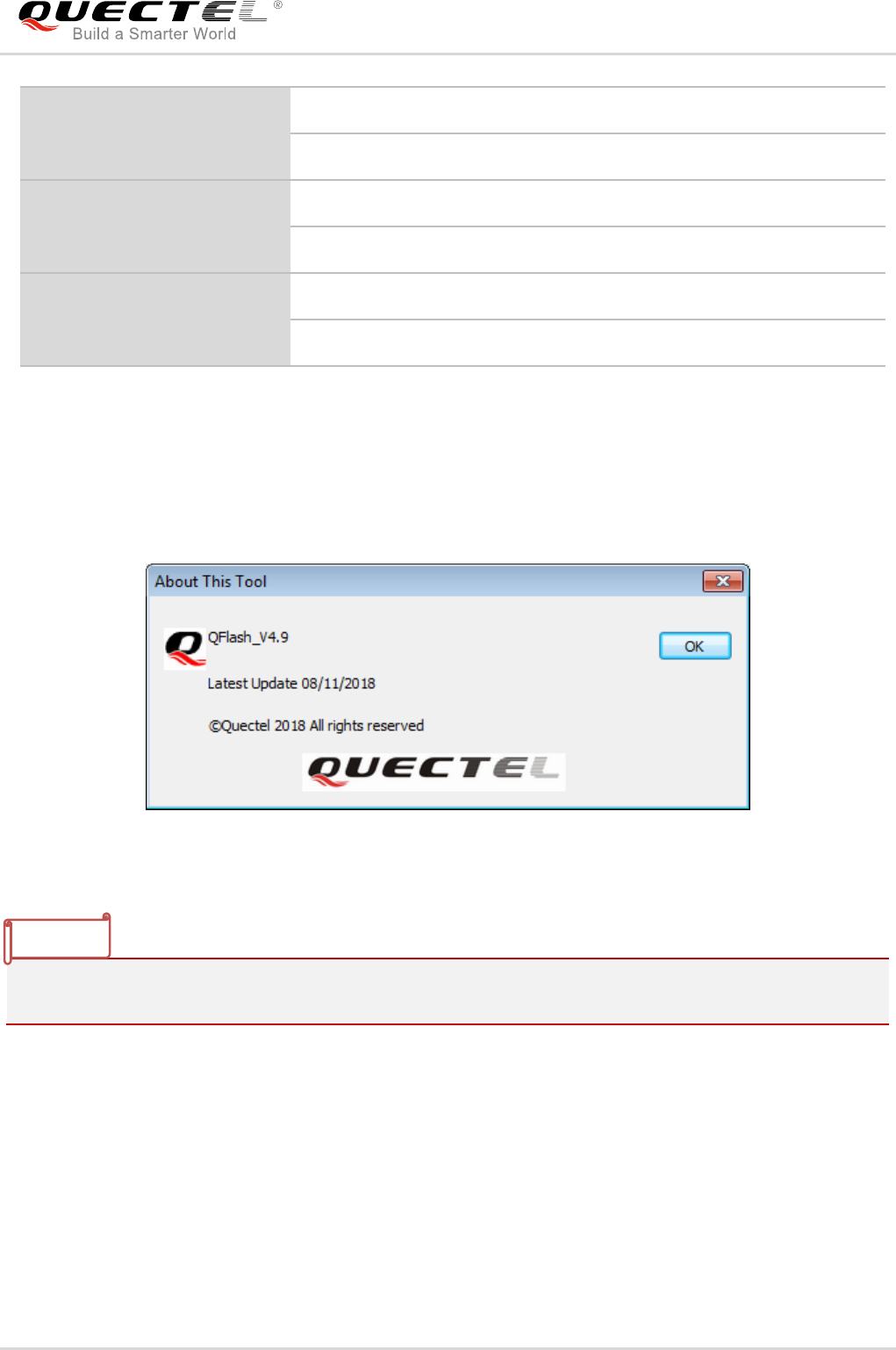
The QFlash tool developed by Quectel is shown as below.
Figure 1: About the Tool
The paths where the tool and firmware are stored should NOT contain any spaces, and English
characters are preferred.
BG96 module
EM12 module
UMTS/HSPA(+) Module
Series
UCxx: includes UC15/UC20 modules
UGxx: includes UG95/UG96 modules
GSM/GPRS Module Series
Mxx: includes M10/M66/M72/M80/M85/M95/MC60 modules
GCxx: GC10 module
NOTE
QFlash User Guide
QFlash_User_Guide 9 / 35
2 Firmware Upgrade Procedures
The firmware can be upgraded through the following three steps by the QFlash tool.
Step 1: Set serial port and baud rate.
Step 2: Load firmware files.
Step 3: Upgrade the firmware.
The following describes the details of how to use the tool to upgrade firmware.
2.1. Configure Serial Port and Baud Rate
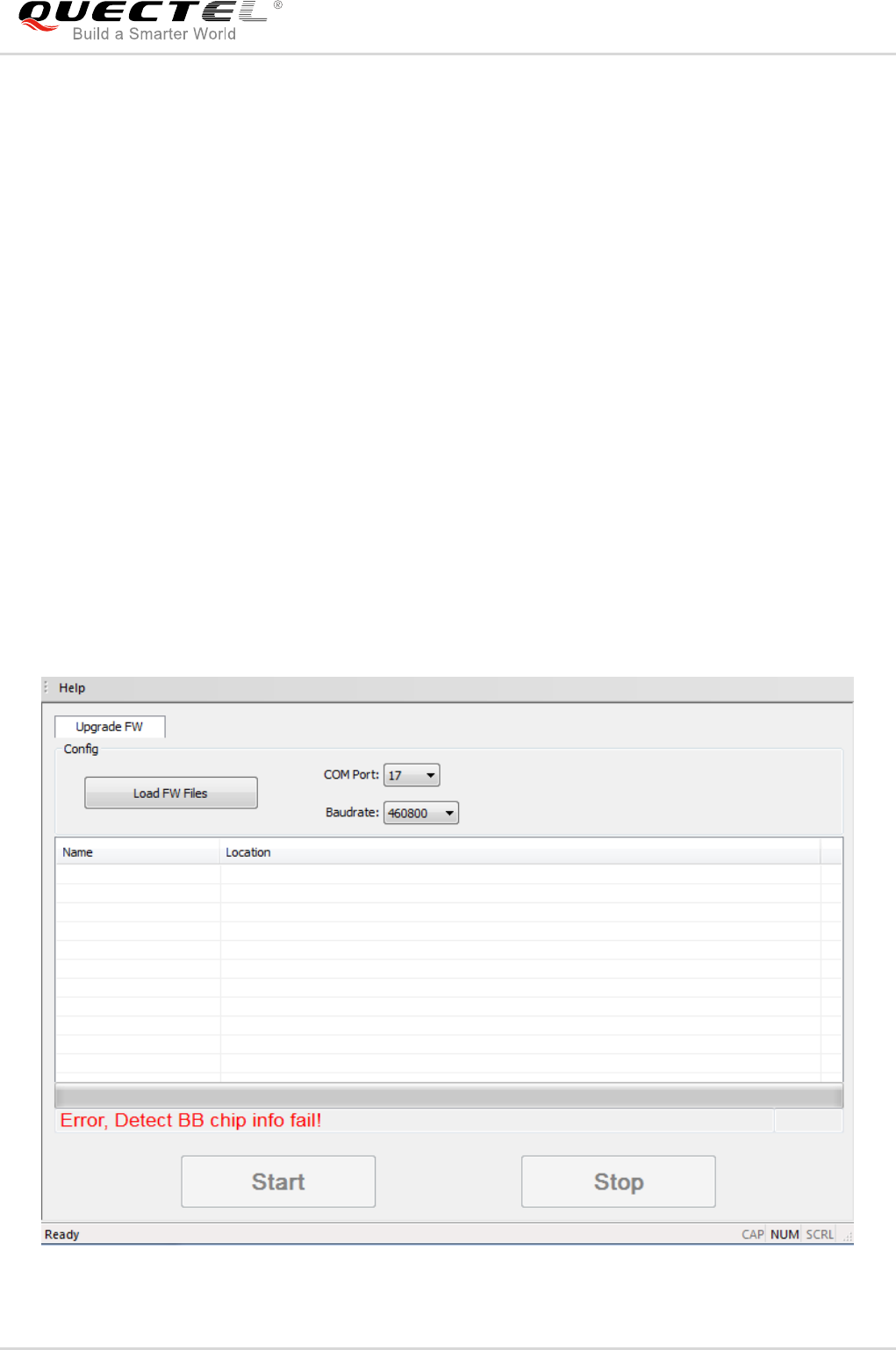
When the QFlash tool is opened, the main interface will show as below.
Figure 2: Main Interface
QFlash User Guide
QFlash_User_Guide 10 / 35
2.1.1. Set Serial Port
2.1.1.1. COM Port Selection for Mxx/GCxx/BCxx Modules
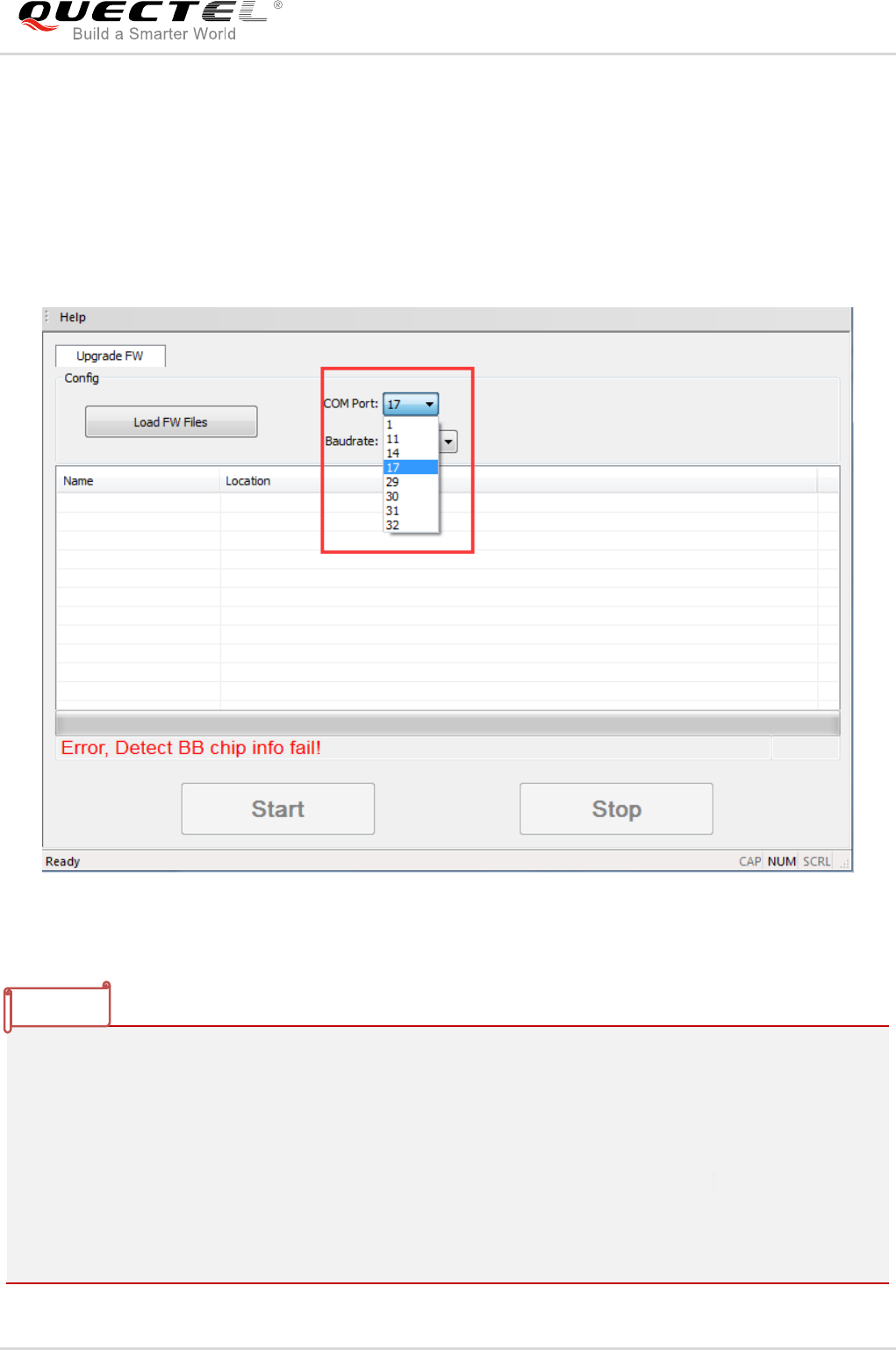
Click “COM Port” dropdown list to select the COM port through which the firmware is upgraded. As shown
in the following figure.
Figure 3: Select the Correct Serial Port for Mxx/GCxx/BCxx Modules
1. For Mxx modules, it is the main UART to be used for firmware upgrade. After the port is selected,
please manually restart the module.
2. For GCxx modules, it is the USB port to be used for firmware upgrade, and then the module will be
automatically restarted.
3. For BC95 modules, it is the main UART to be used for firmware upgrade. After the port is selected,
please click the “Start” button to wait for the prompt “Module Reset By Hand”, and then manually
restart the module.
4. For BC66 module, it is the USB UART Ch A to be used for firmware upgrade. After the port is
selected, please click the “Start” button to wait for the prompt “[INFO]Start connect with
NOTES
QFlash User Guide
QFlash_User_Guide 11 / 35
target,Please reset DUT...”, and then manually restart the module.
5. For BC95-G and BC68 modules, it is the USB UART Ch A to be used for firmware upgrade. After the
port is selected, please click the “Start” button to wait for the prompt “reset”, and then manually
restart the module.
2.1.1.2. COM Port Selection for UGxx Modules
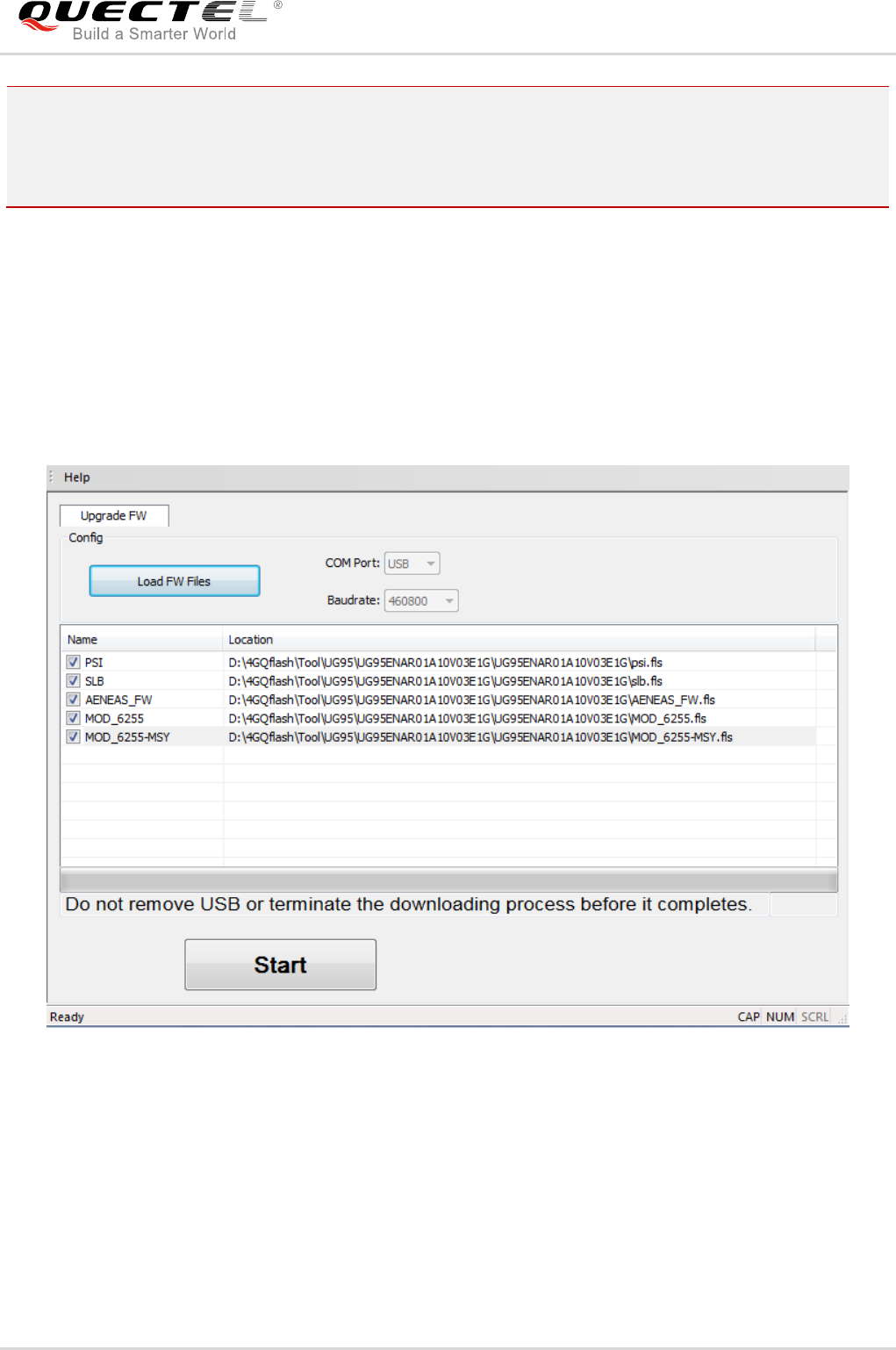
For UGxx modules, it is the USB port to be used for firmware upgrade, and it can be selected
automatically. When firmware files are uploaded, “COM Port” dropdown list will display “USB” in gray.
Then the module will be automatically restarted and ready to upgrade, and the USB port will be identified.
The interface is shown in the following figure.
Figure 4: No Need to Select COM Port for UGxx Modules
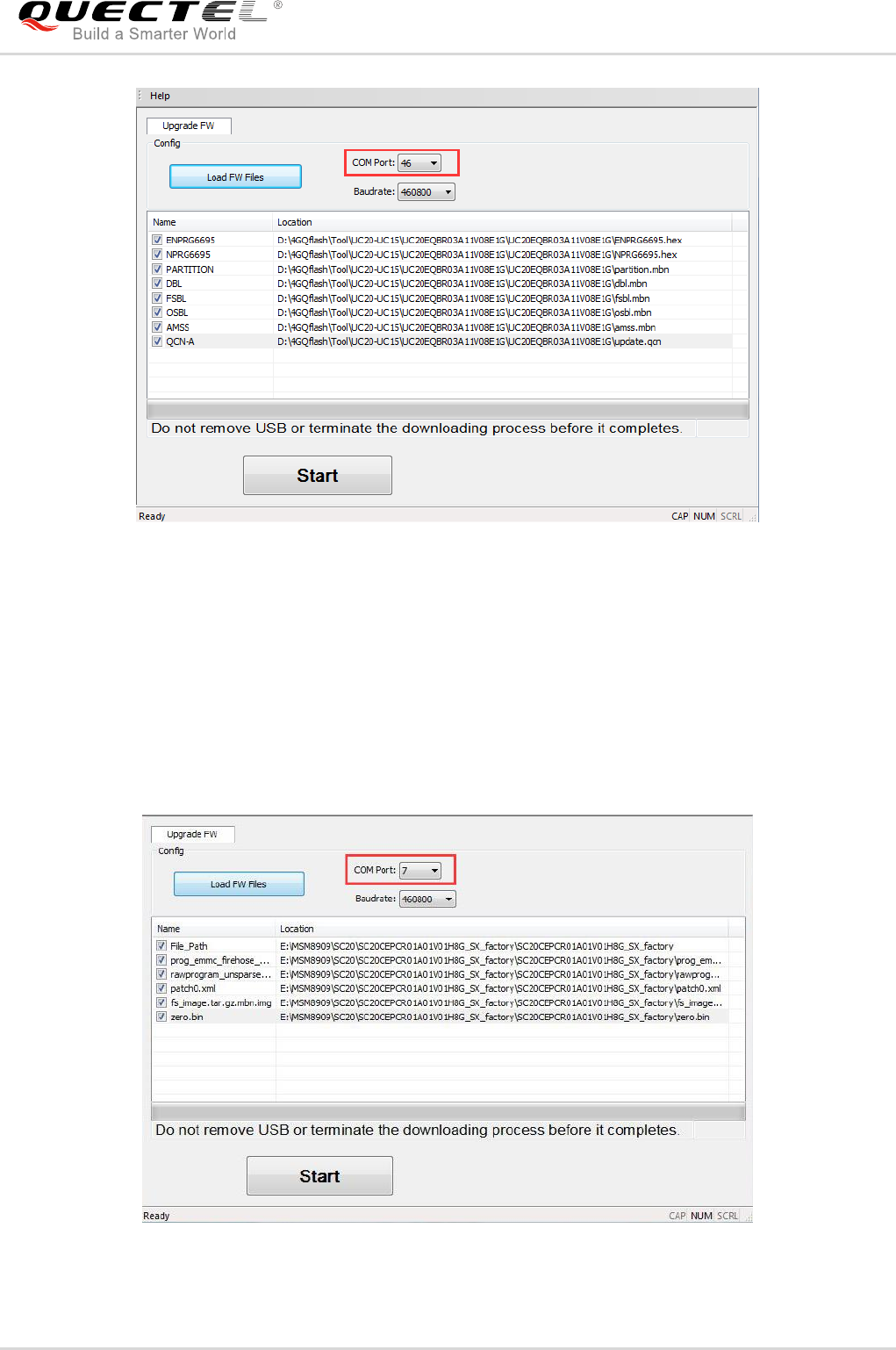
2.1.1.3. COM Port Selection for UCxx/ECxx/EGxx/Ex06/EM05/AG35/BG96/EM12 Modules
For UCxx/ECxx/EGxx/Ex06/EM05/AG35/BG96/EM12 modules, the USB DM port can be used for
firmware upgrade. Click “COM Port” dropdown list and select the USB DM port for upgrade, as shown in
the following figure.
QFlash User Guide
QFlash_User_Guide 12 / 35
Figure 5: Select the USB DM Port for UCxx/ECxx/EGxx/Ex06/EM05/AG35/BG96/EM12 Modules
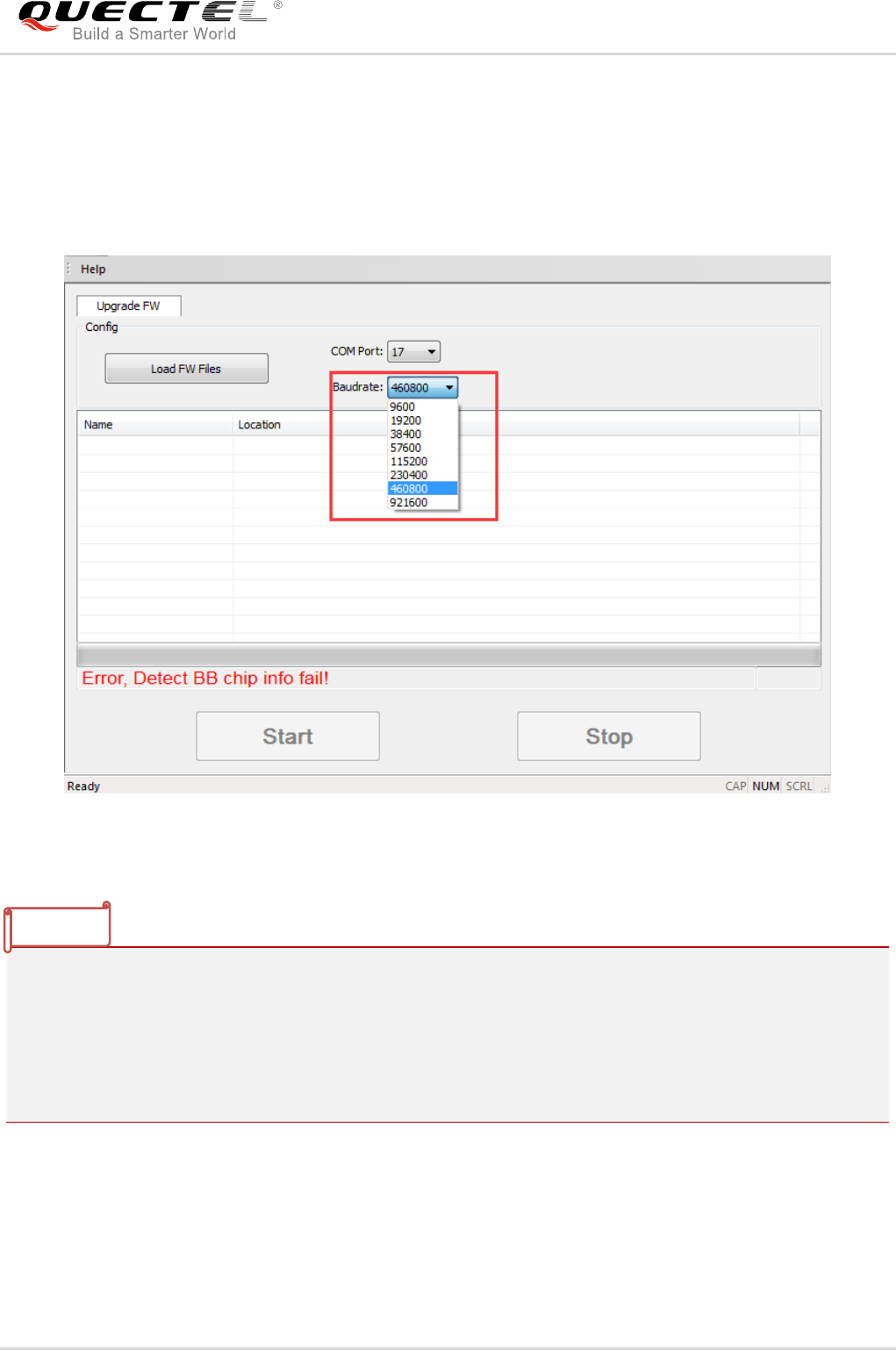
2.1.1.4. COM Port Selection for SCxx/SGxx Modules
For SCxx/SGxx modules, the HS-USB Diagnostics 9091 port can be used for firmware upgrade. Click
“COM Port” dropdown list and select the HS-USB Diagnostics 9091 port for upgrade, as shown in the
following figure.
Figure 6: Select the HS-USB Diagnostics 9091 Port for SCxx/SGxx Modules
QFlash User Guide
QFlash_User_Guide 13 / 35
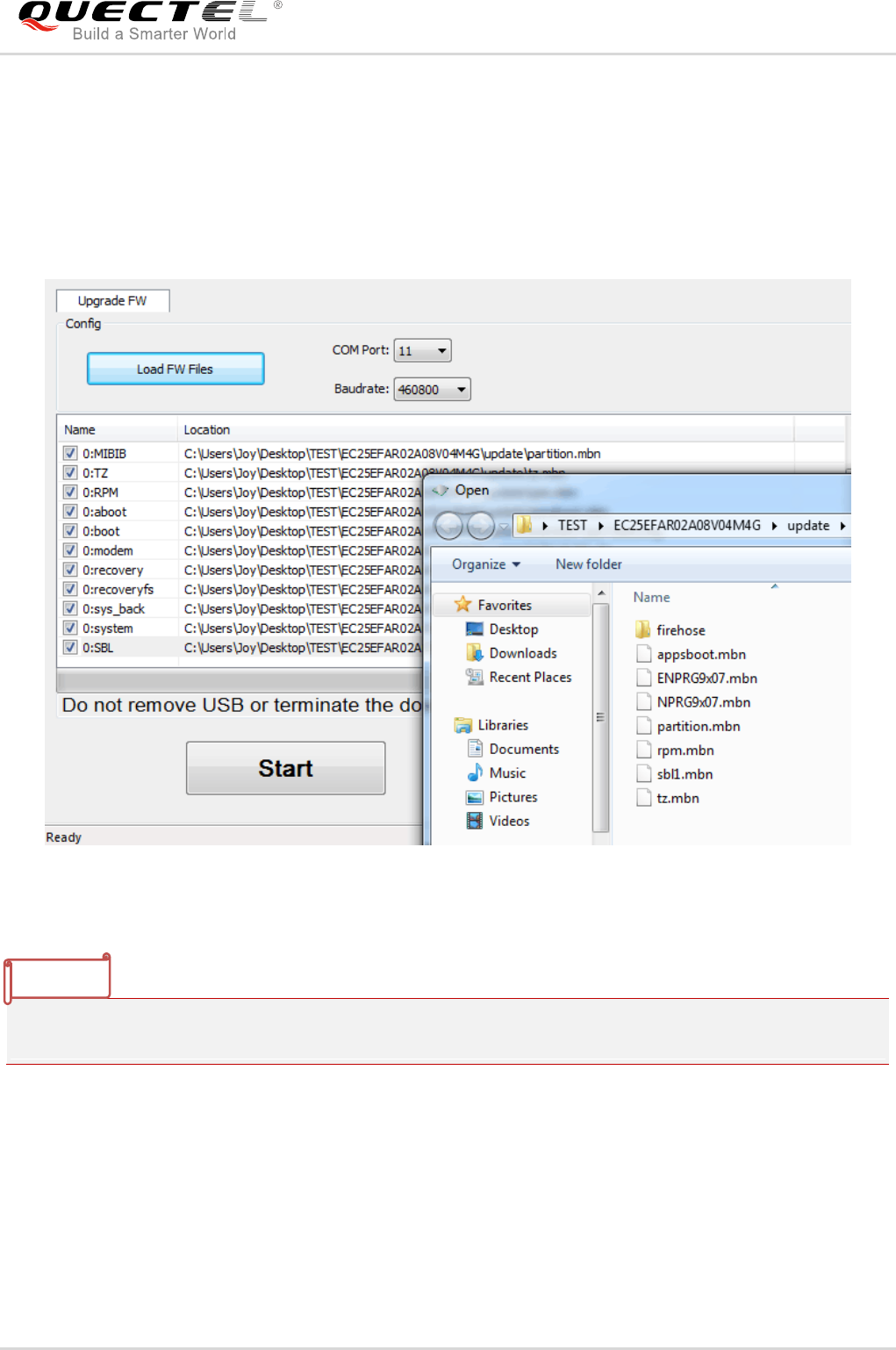
2.1.2. Set Baud Rate
Click the “Baudrate” dropdown list and select an appropriate baud rate. It is recommended to select
921600 for GCxx modules, 9600 for BCxx modules and 460800 for other Quectel modules, as shown in
the following figure.
Figure 7: Select the Baud Rate
1. Baud rates have many different values, and it is the hardware environment that determines whether a
specified baud rate can be supported. If not supported, an error message will be returned.
2. Please set baud rate into 921600 when upgrading firmware for GCxx modules. Other baud rates may
lead to an upgrading failure.
3. When upgrading firmware for BCxx modules, the baud rate is 9600 by default.
4. Baud rate setting is unnecessary for USB virtual ports.
NOTES
QFlash User Guide
QFlash_User_Guide 14 / 35
2.2. Load Firmware Files
Step 1: Click the button “Load FW Files”.
Step 2: Select the .txt, .cfg, .mbn, .lod, .fls or .fwpkg file which needs to be downloaded to the module.
Figure 8: Select the File to be Downloaded
The path where the firmware is stored should NOT contain any spaces, and English characters are
preferred.
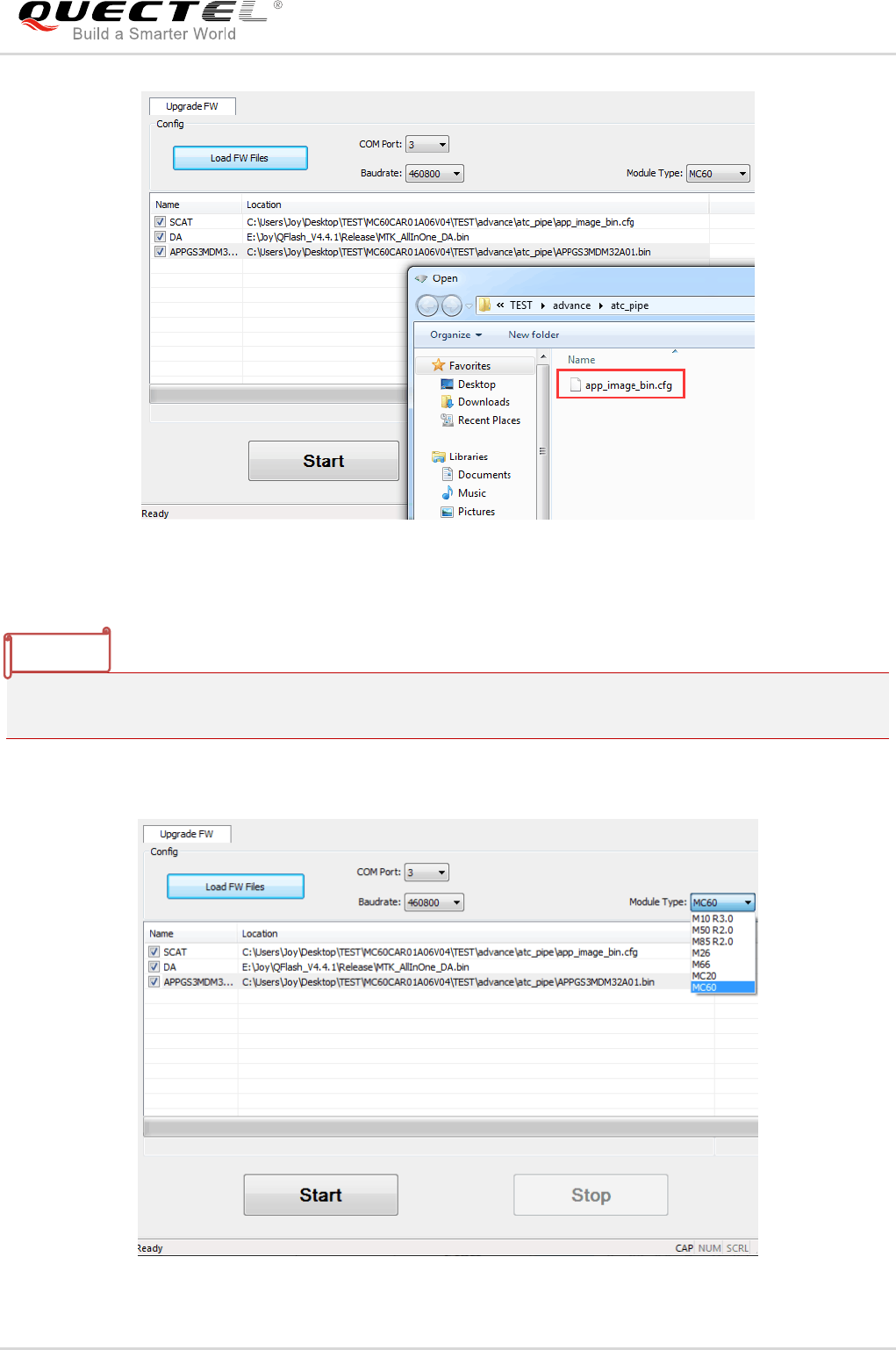
2.2.1. Load APP Firmware for OpenCPU or Quecopen Modules
This step is only necessary for Quectel OpenCPU or Quecopen modules.
Step 1: Click the button “Load FW Files”, and select the .cfg file which needs to be downloaded to the
module.
NOTE
QFlash User Guide
QFlash_User_Guide 15 / 35
Figure 9: Select the .cfg File
The path where the firmware is stored should NOT contain any spaces, and English characters are
preferred.
Step 2: Click the “Module Type” dropdown list and choose an appropriate module type.
Figure 10: Select the Module Type
NOTE
QFlash User Guide
QFlash_User_Guide 16 / 35
2.3. Upgrade the Firmware
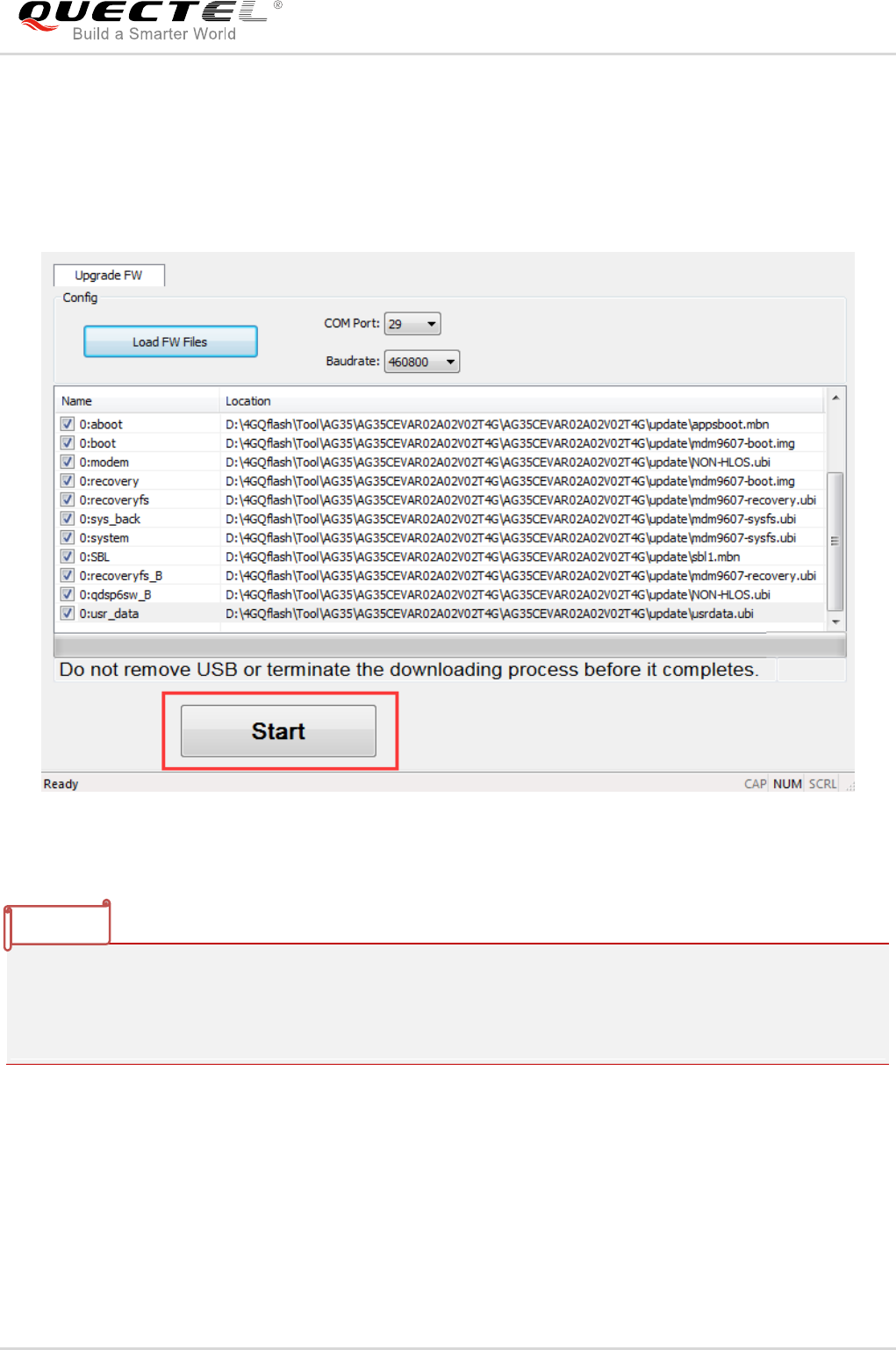
Step 1: Click “Start” button to upgrade the firmware. There is no “Stop” button while upgrading firmware
for GCxx/UCxx/UGxx/ECxx/EG9x/Ex06/SCxx/SGxx/BCxx/EM05/AG35/BG96/EM12 modules
Figure 11: Click the Start Button
1. Please note that it is NOT permitted to stop the upgrading process, and please do NOT remove USB
or terminate the downloading process before upgrading is completed.
2. For ECxx modules, if the firmware contains a Firehose folder, then it will be downloaded in Firehose
mode by default.
NOTES
QFlash User Guide
QFlash_User_Guide 17 / 35
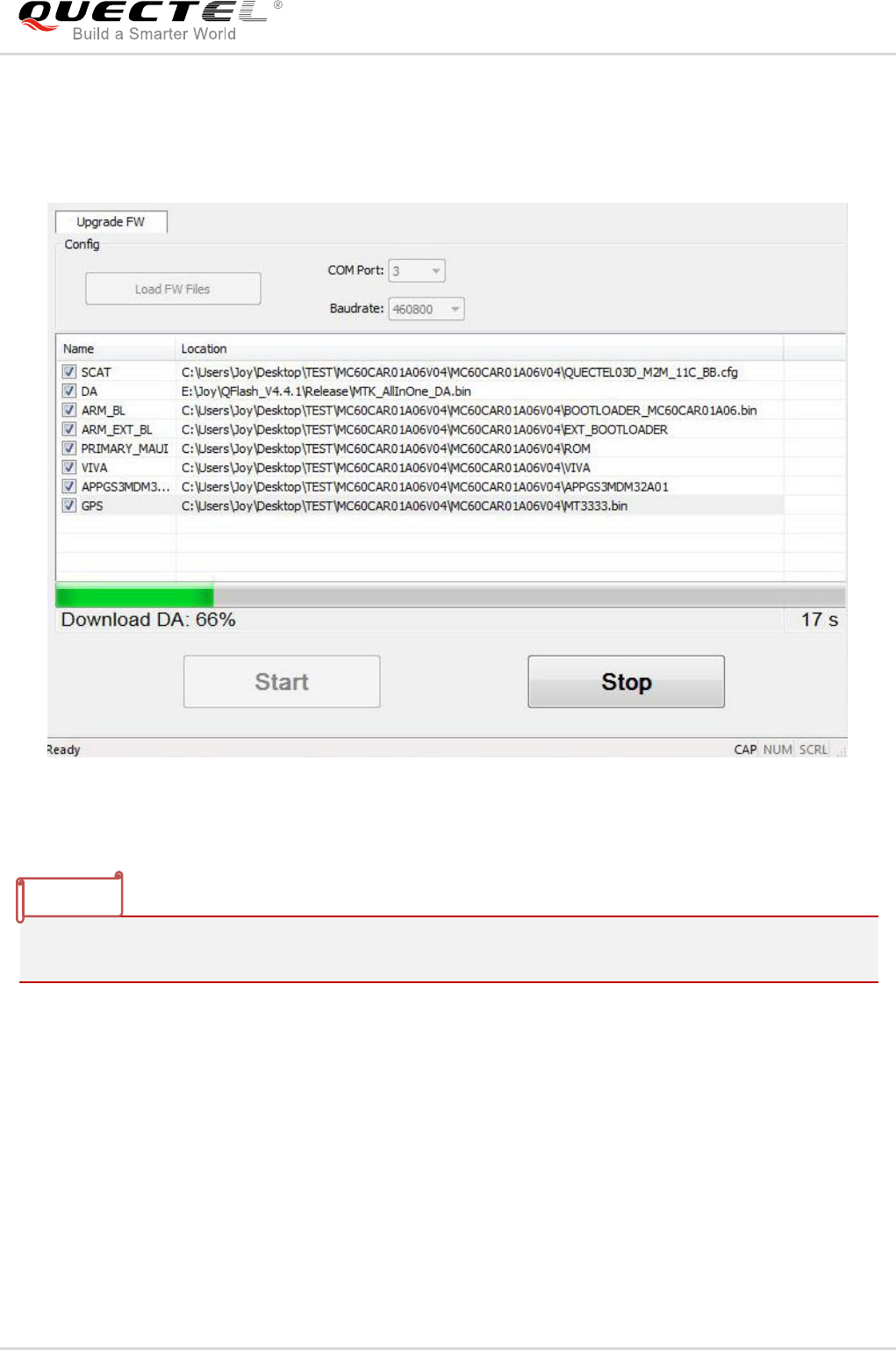
Step 2: For Mxx/BC95 modules, switch the D/L to “ON” on EVB after clicking “Start” button in 30 seconds,
and then manually restart the module. It will start to upgrade the firmware as shown in the
following figure.
Figure 12: Start to Upgrade after Restarting the Mxx Modules
On Mxx modules, please make sure the EVB is powered by 5V power supply when switching the D/L to
“ON”, and then manually restart the module.
NOTE
QFlash User Guide
QFlash_User_Guide 18 / 35
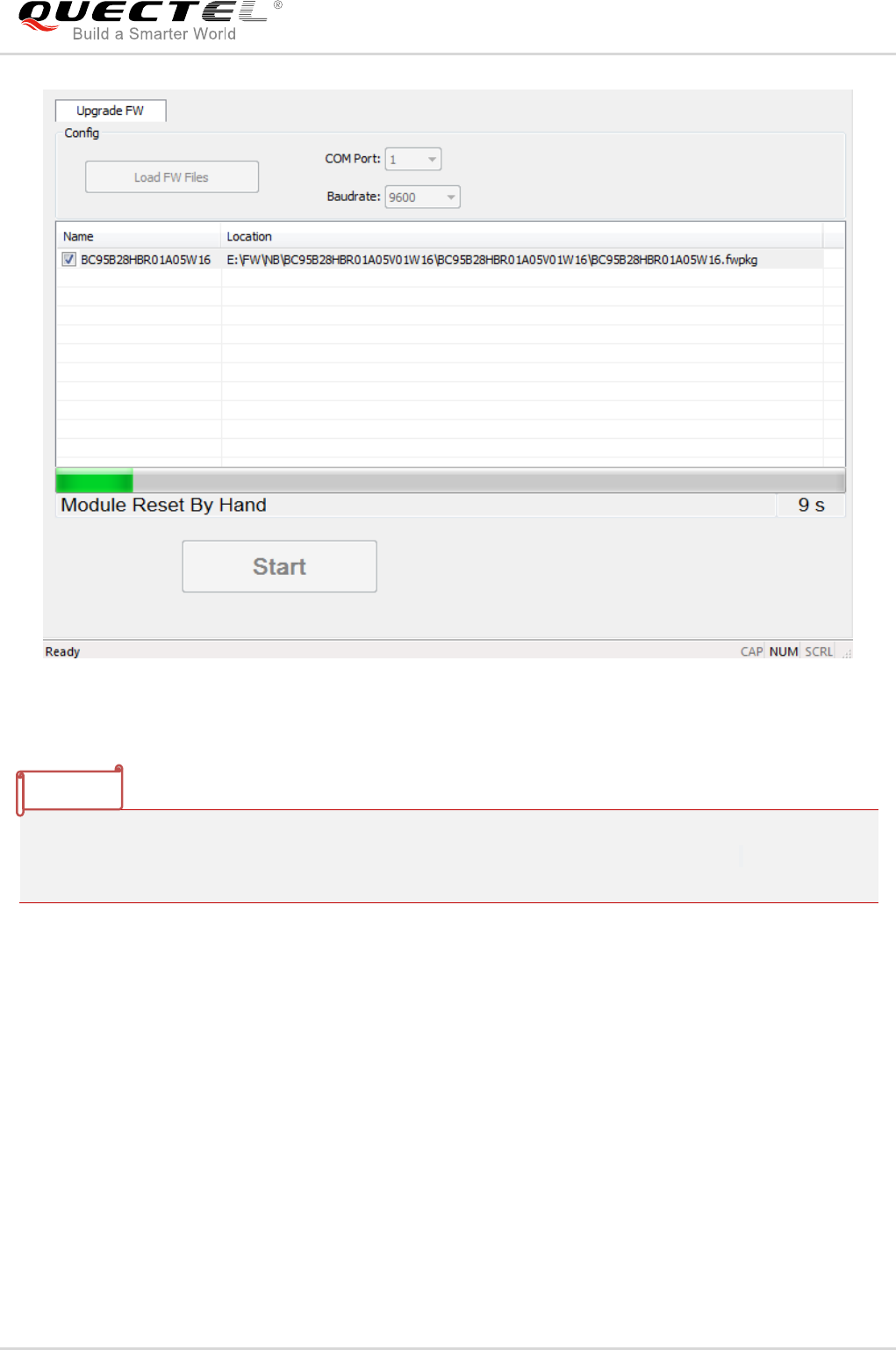
Figure 13: Start to Upgrade after Restarting the BCxx Modules
On BC95 module, please make sure the EVB is powered by 5V power supply when switching the D/L
to “ON”, and click the “Start” button to wait for the prompt “Module Reset By Hand”, then manually
restart the module.
For BC95-G, BC68 and BC66 modules upgrading firmware through TE-B, please wait for the prompt
“reset” (for BC95-G/BC68) or “[INFO]Start connect with target,Please reset DUT...” (for BC66) after
clicking the “Start” button, and then manually restart the modules.
NOTE
QFlash User Guide
QFlash_User_Guide 19 / 35
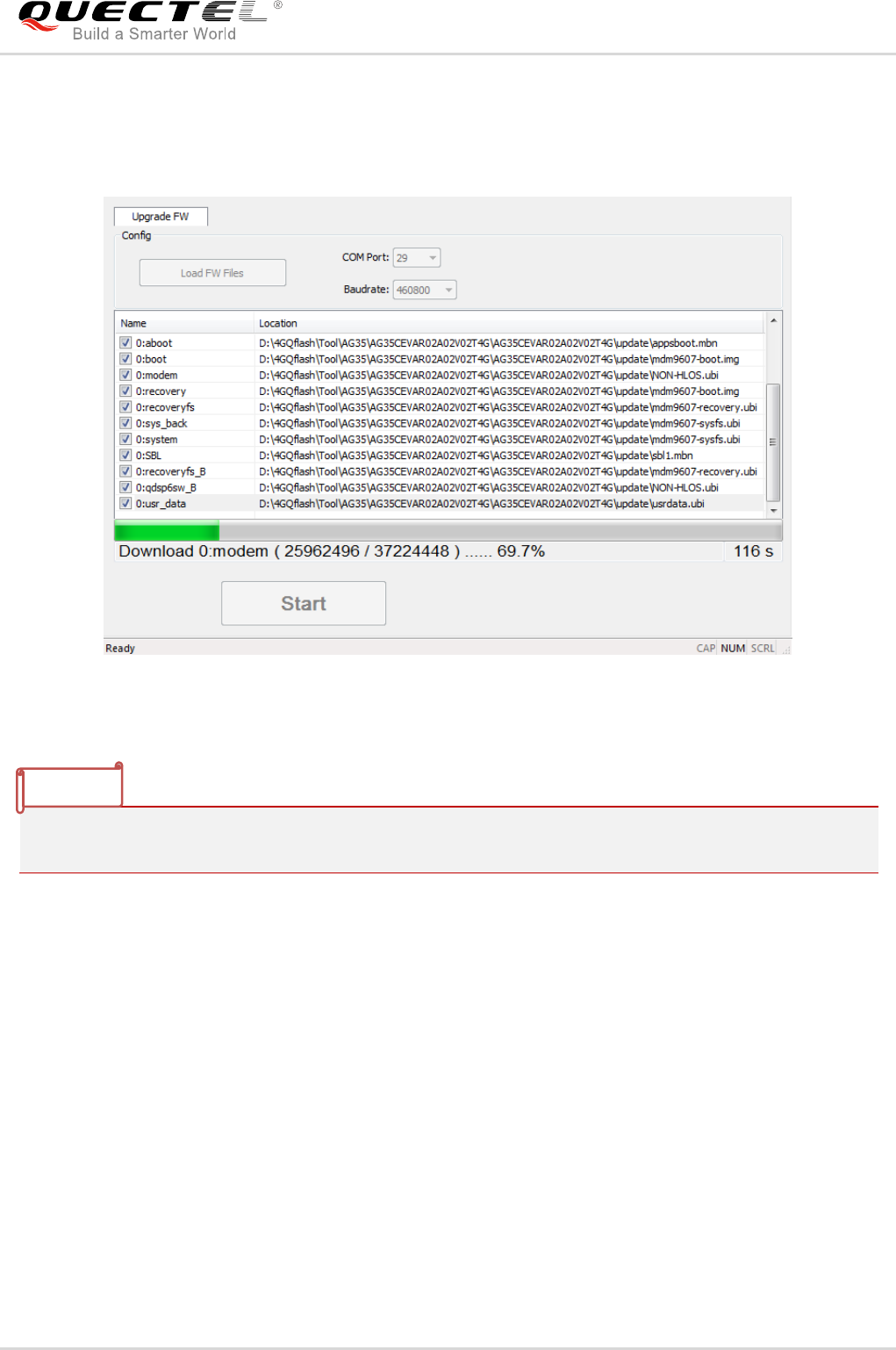
If users are upgrading the firmware for GCxx/UCxx/UGxx/ECxx/EG9x/Ex06/SCxx/SGxx/EM05/AG35/
BG96/EM12 modules, the module will be restarted automatically, so there is no need to restart the module.
Please refer to the following figure.
Figure 14: Start to Upgrade Firmware
If there is no EVB for module firmware upgrading, please drive the PWRKEY pin to low level after
clicking the “Start” button in 30 seconds.
NOTE
QFlash User Guide
QFlash_User_Guide 20 / 35
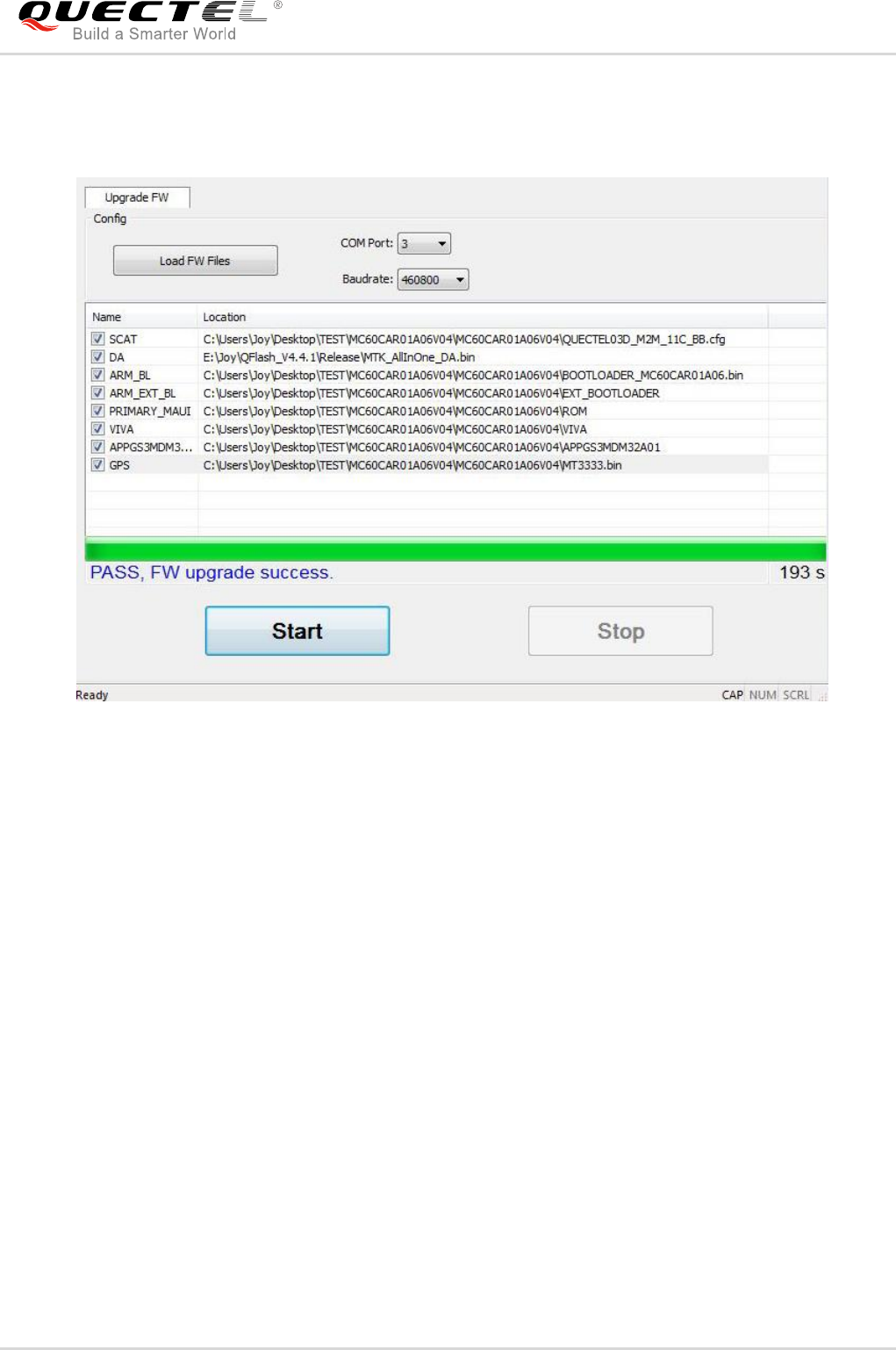
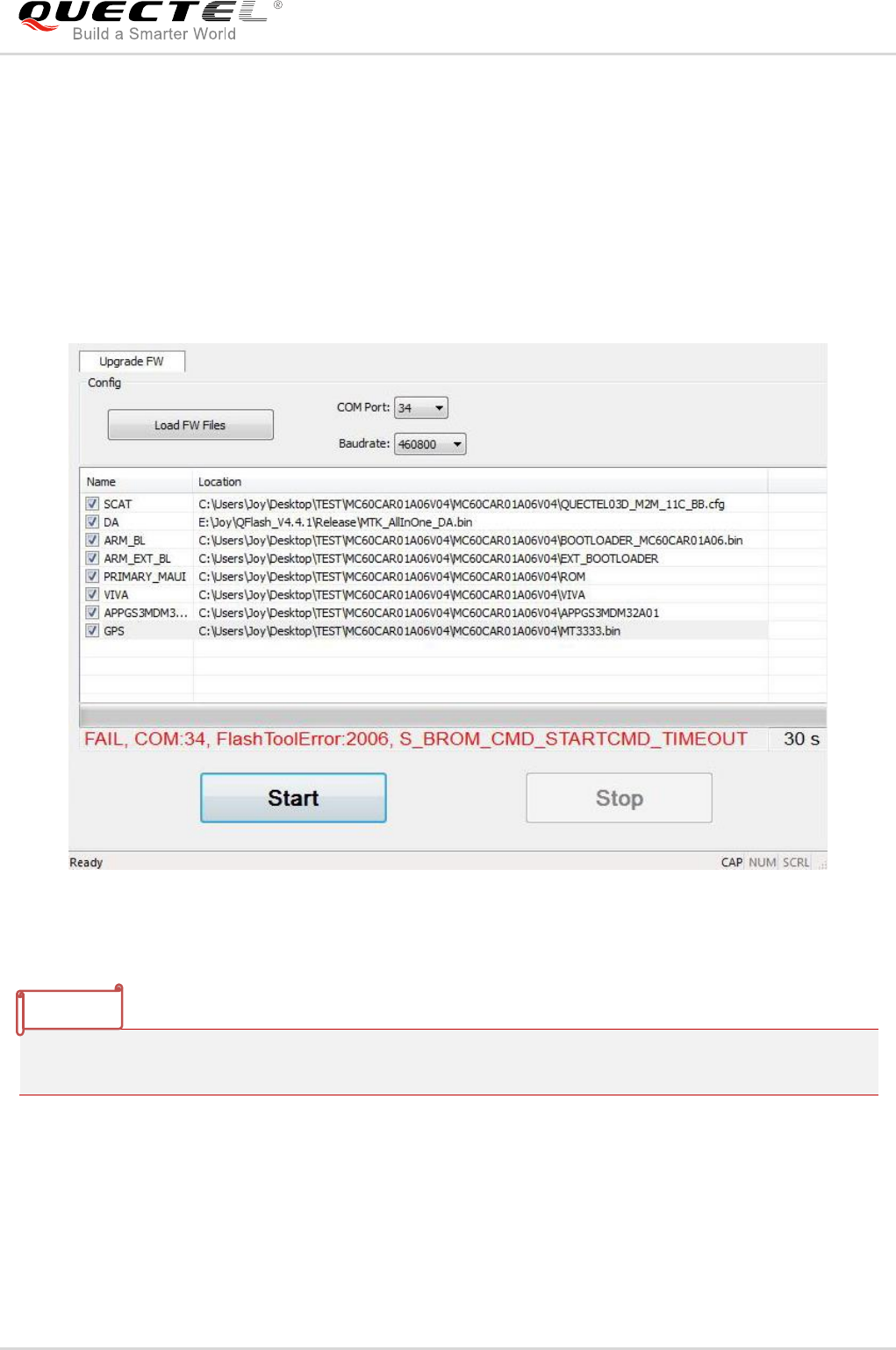
Step 3: “FW upgrade success” will be shown on the interface after the firmware has been successfully
upgraded, as shown in the following figure.
Figure 15: Successful Upgrade
QFlash User Guide
QFlash_User_Guide 21 / 35
2.4. Abnormalities
Abnormalities may be caused by incorrect parameter of baud rate, damaged EVB/TE-B or invalid files, etc.
The following illustrates some common abnormalities.
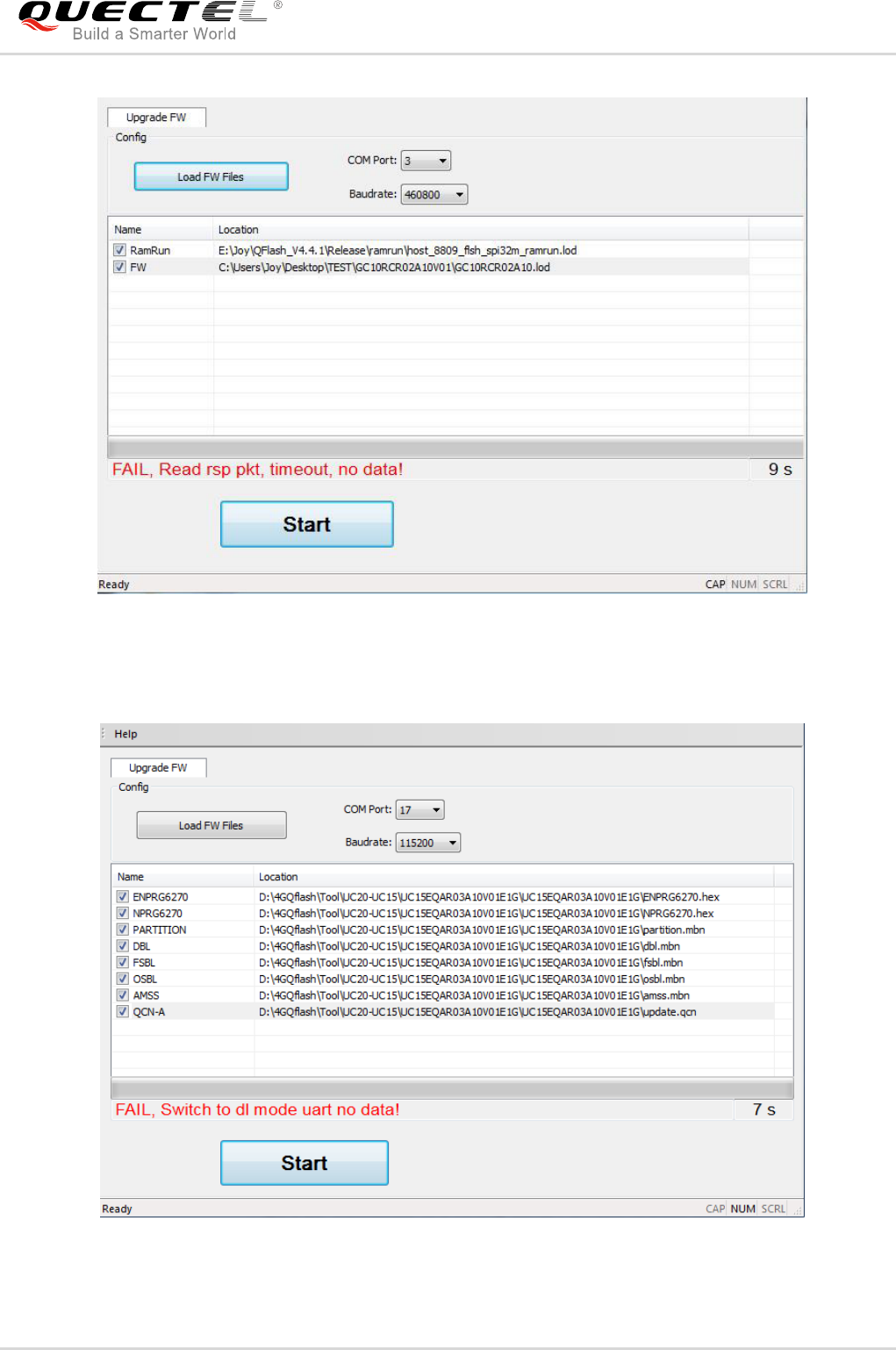
2.4.1. Selected a Wrong Serial Port
Figure 16: Connected to a Wrong Serial Port (Mxx Modules)
After selecting a correct serial port, if the Mxx modules are not restarted, then the error message will be
the same as that of selecting a wrong serial port.
NOTE
QFlash User Guide
QFlash_User_Guide 22 / 35
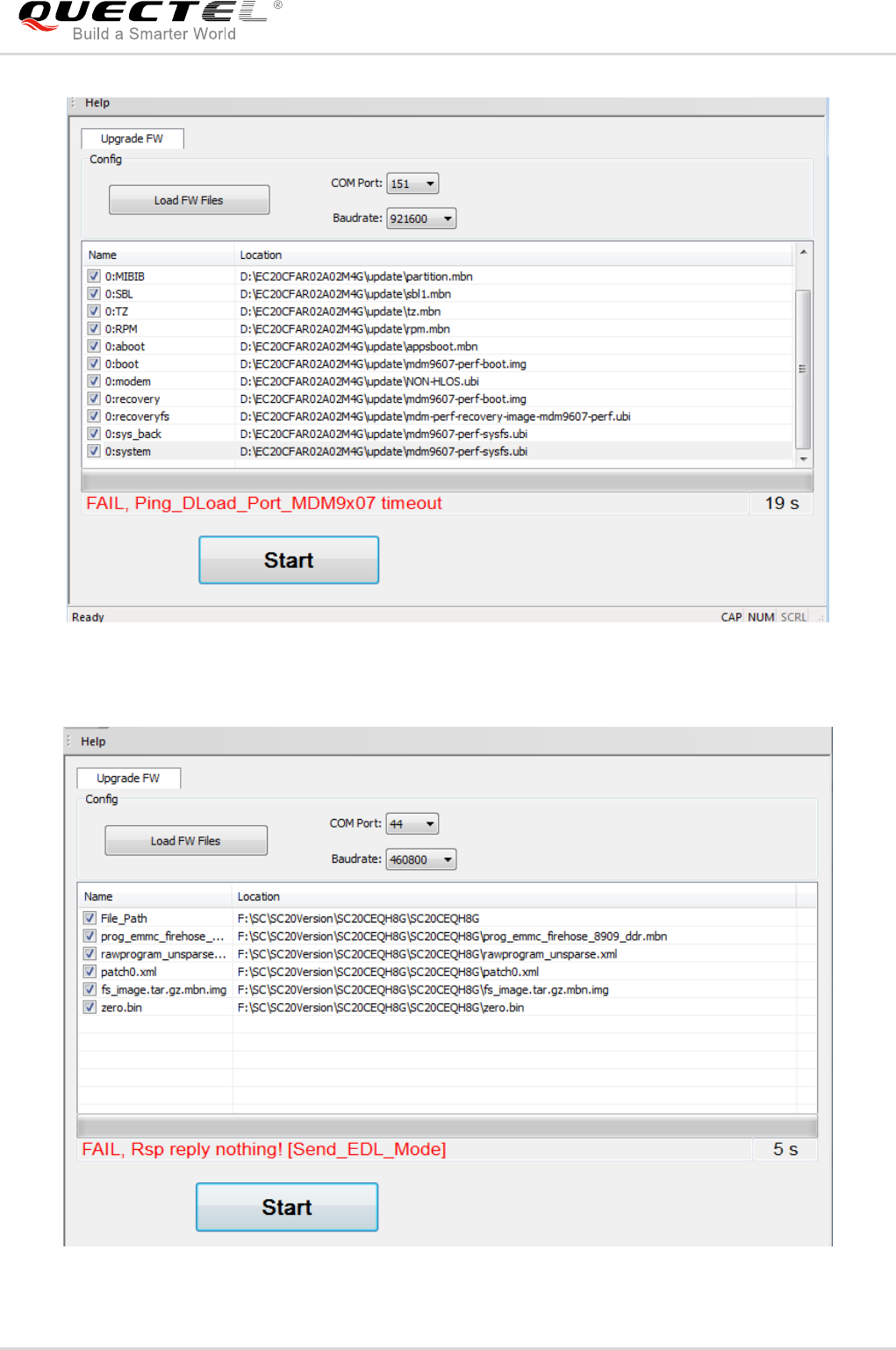
Figure 17: Connected to a Wrong Serial Port (GCxx Modules)
Figure 18: Connected to a Wrong Serial Port (UCxx Modules)
QFlash User Guide
QFlash_User_Guide 23 / 35
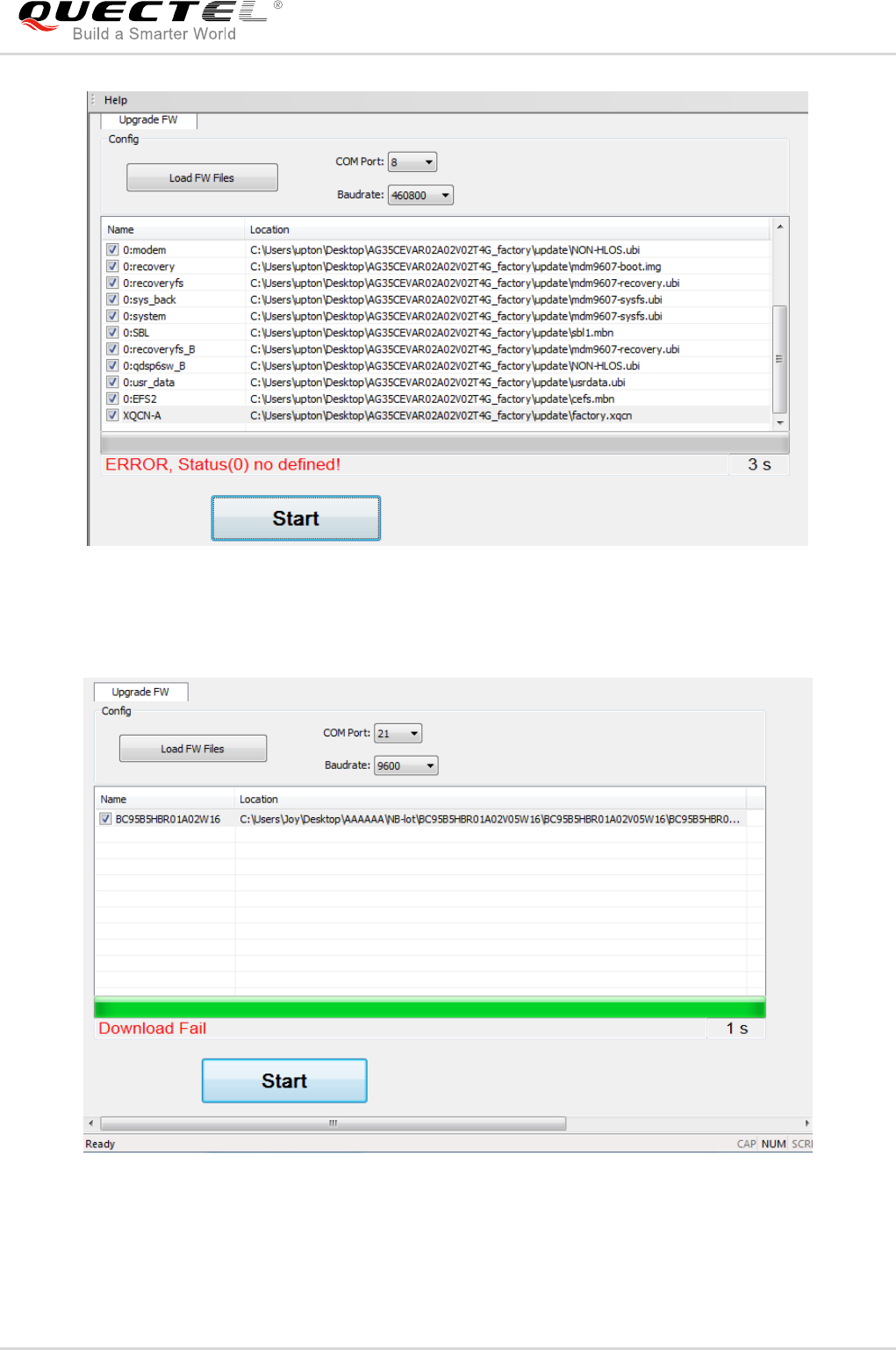
Figure 19: Connected to a Wrong Serial Port (ECxx/EG9x/Ex06/EM05/BG96/EM12 Modules)
Figure 20: Connected to a Wrong Serial Port (SCxx/SGxx Modules)
QFlash User Guide
QFlash_User_Guide 24 / 35
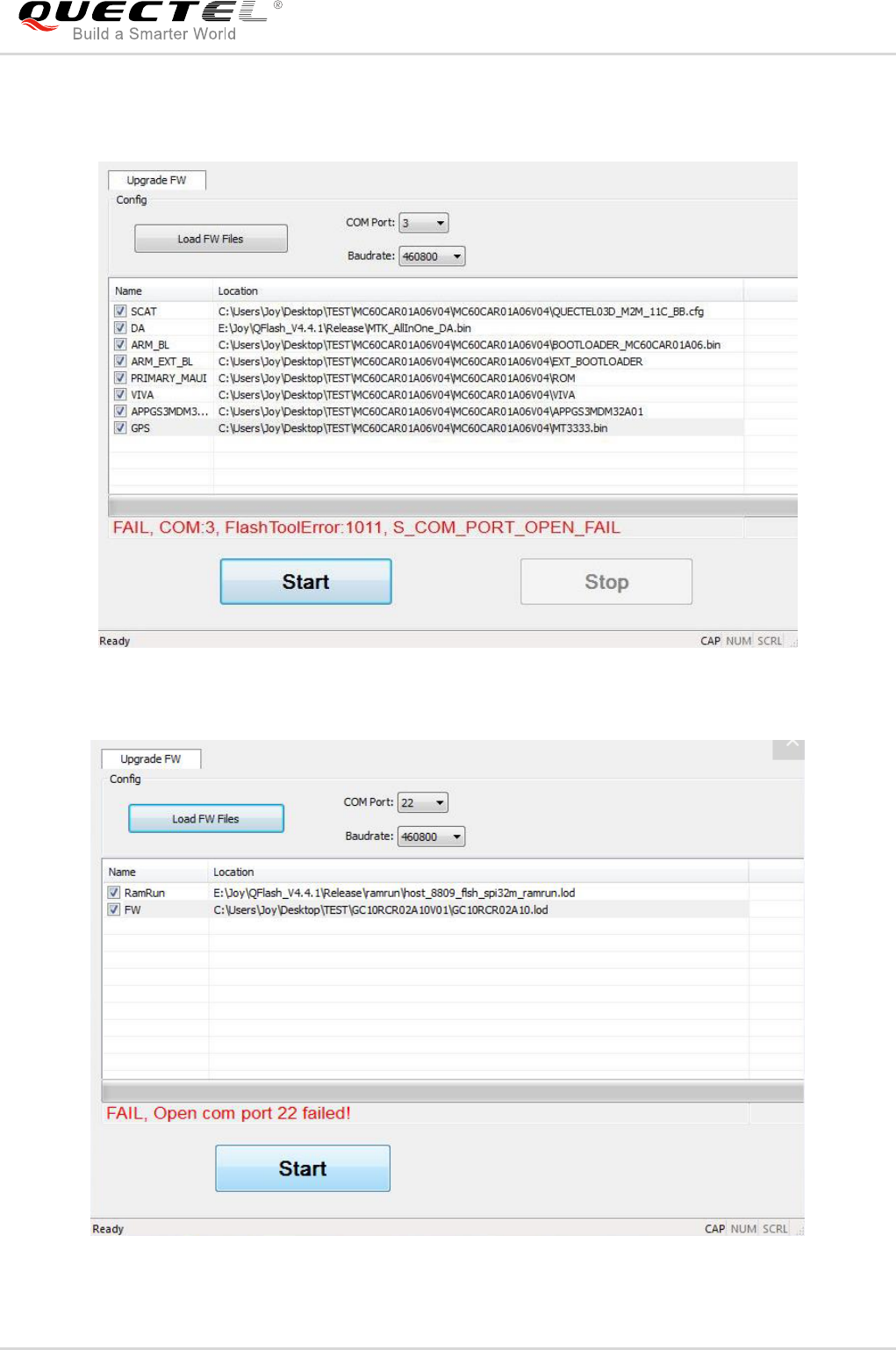
Figure 21: Connected to a Wrong Serial Port (AG35 Module)
Figure 22: Connected to a Wrong Serial Port (BCxx Modules)
QFlash User Guide
QFlash_User_Guide 25 / 35
2.4.2. Connected to an Occupied Serial Port
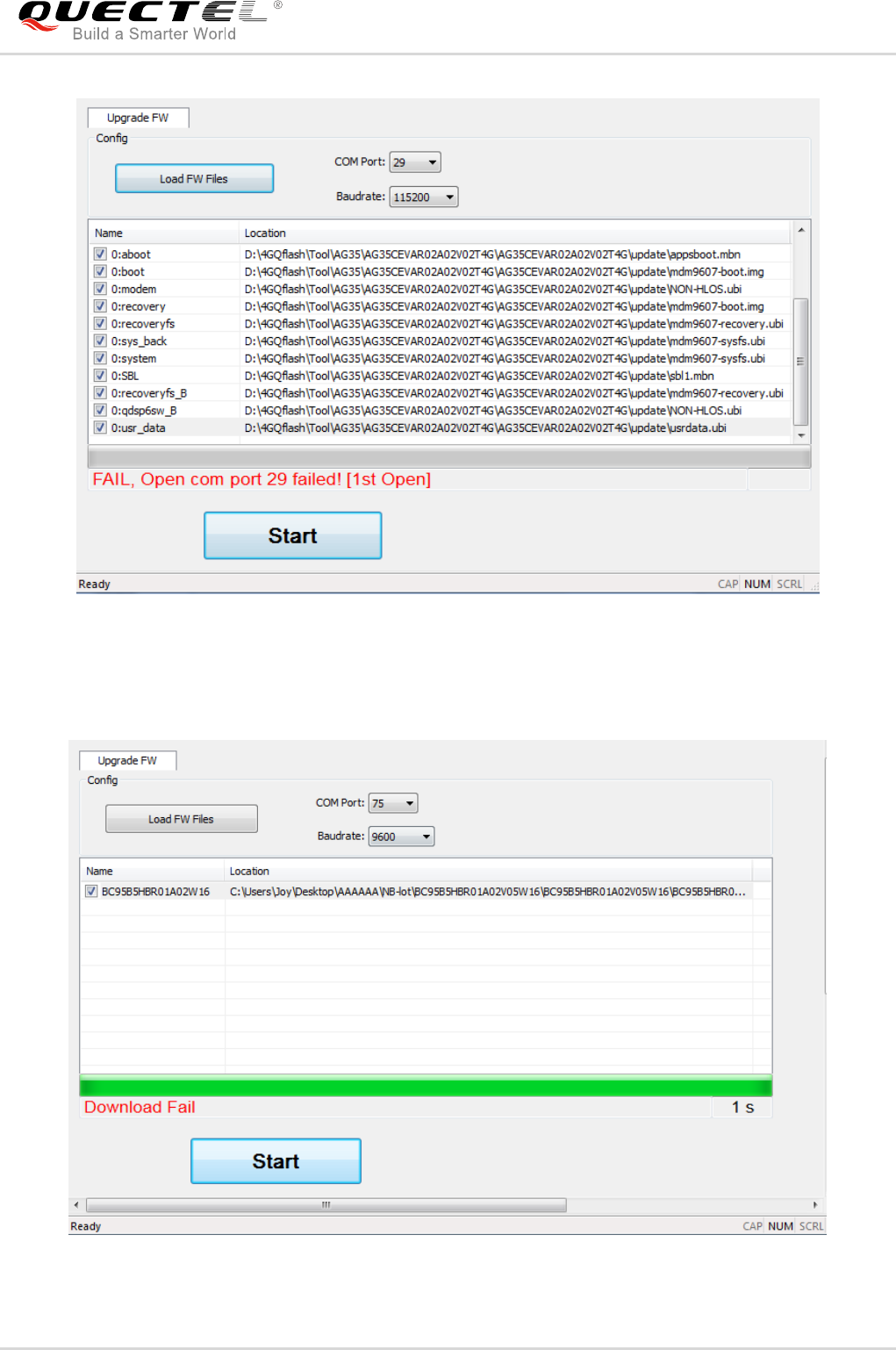
Figure 23: Connected to an Occupied Serial Port (Mxx Modules)
Figure 24: Connected to an Occupied Serial Port (GCxx Modules)
QFlash User Guide
QFlash_User_Guide 26 / 35
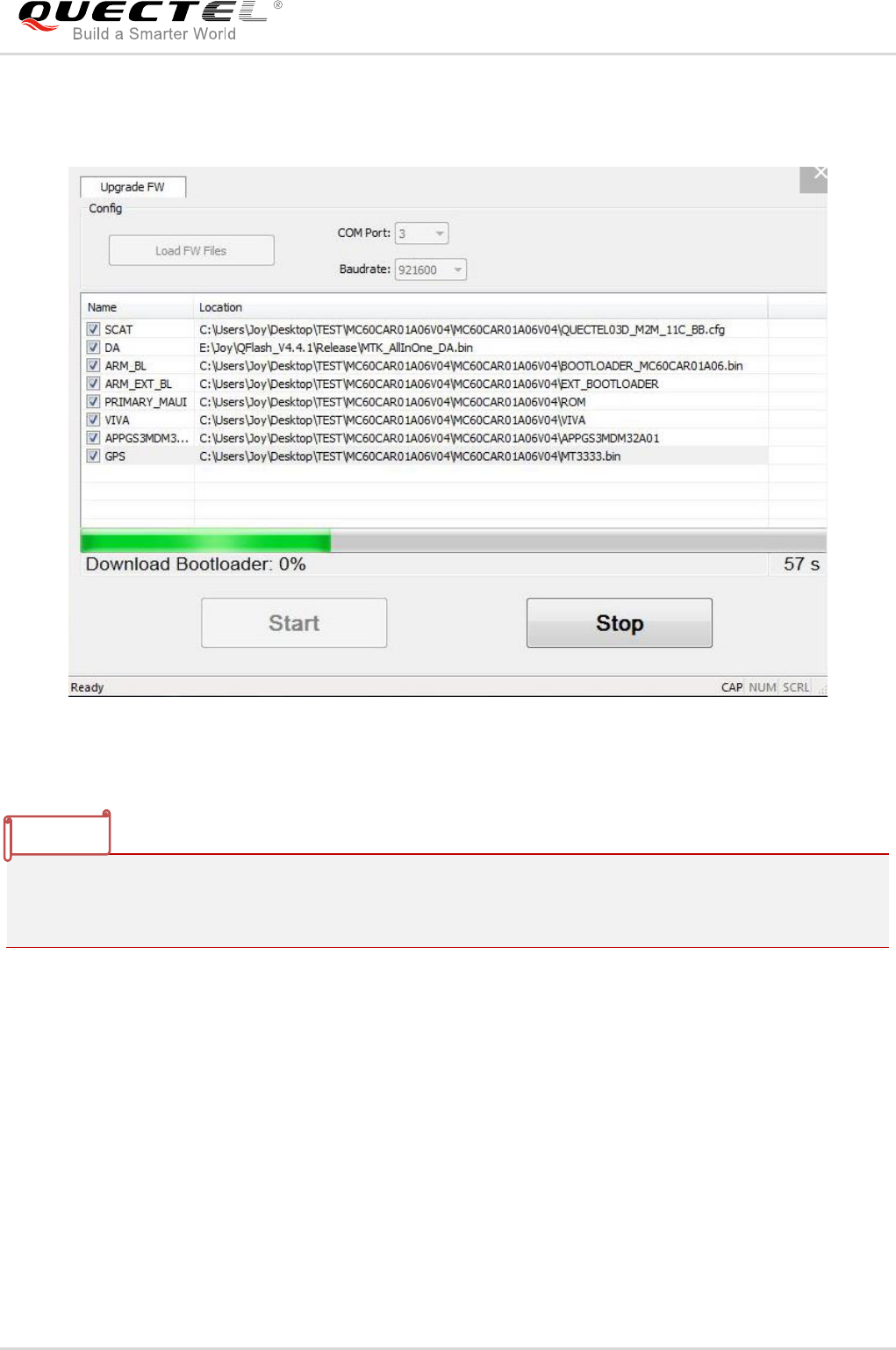
Figure 25: Connected to an Occupied Serial Port (UCxx/ECxx/EG9x/Ex06/SCxx/SGxx/EM05/AG35/
BG96/EM12 Modules)
Figure 26: Connected to an Occupied Serial Port (BCxx Modules)
QFlash User Guide
QFlash_User_Guide 27 / 35
2.4.3. Selected an Unsupported Baud Rate
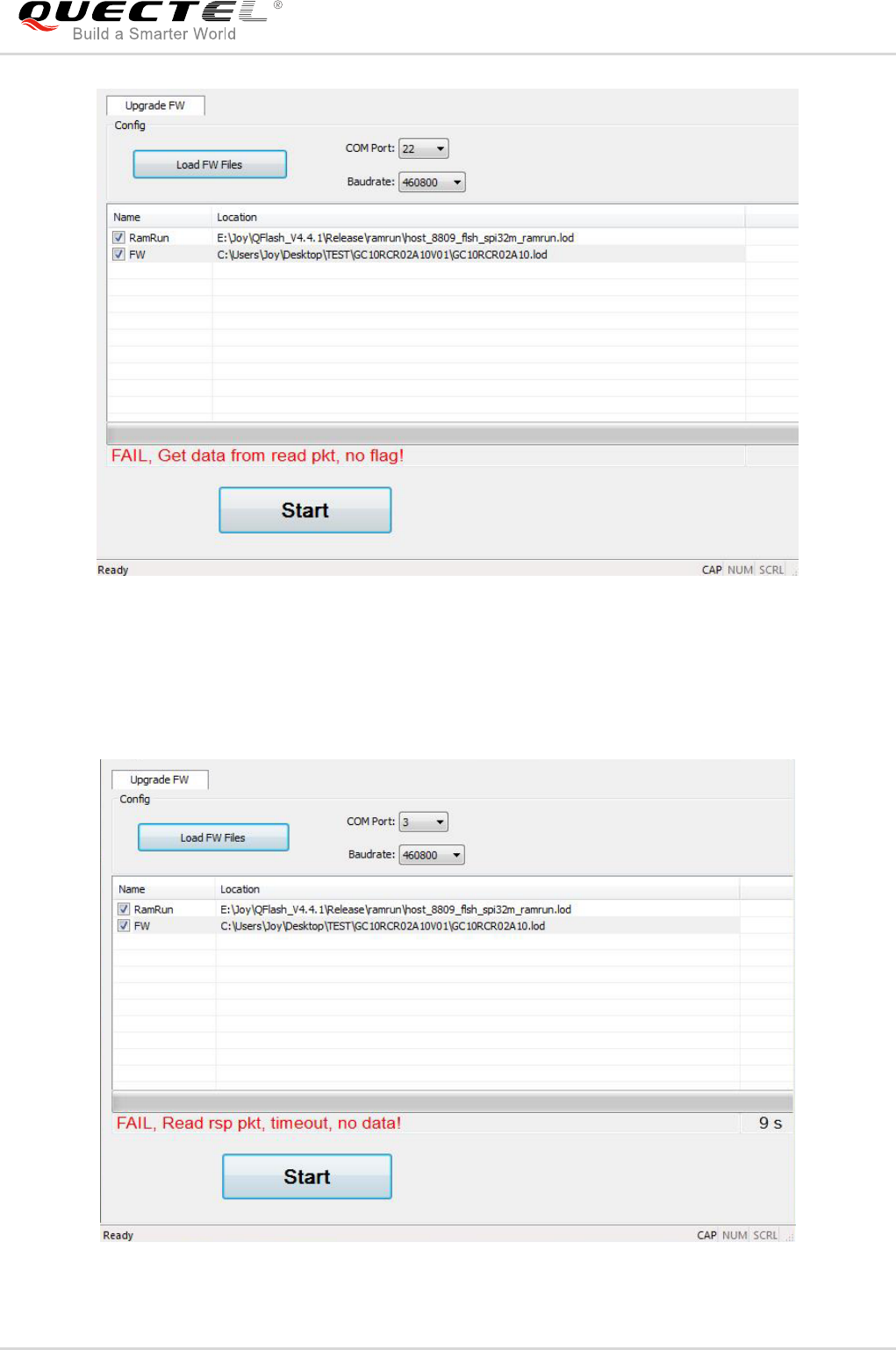
Figure 27: An Unsupported Baud Rate is Selected (Mxx Modules)
For Mxx modules, if an unsupported baud rate is selected, the tool will stop to run and no error message
will be prompted. In such case, please click the “Stop” button to re-select a supported baud rate to
upgrade.
NOTE
QFlash User Guide
QFlash_User_Guide 28 / 35
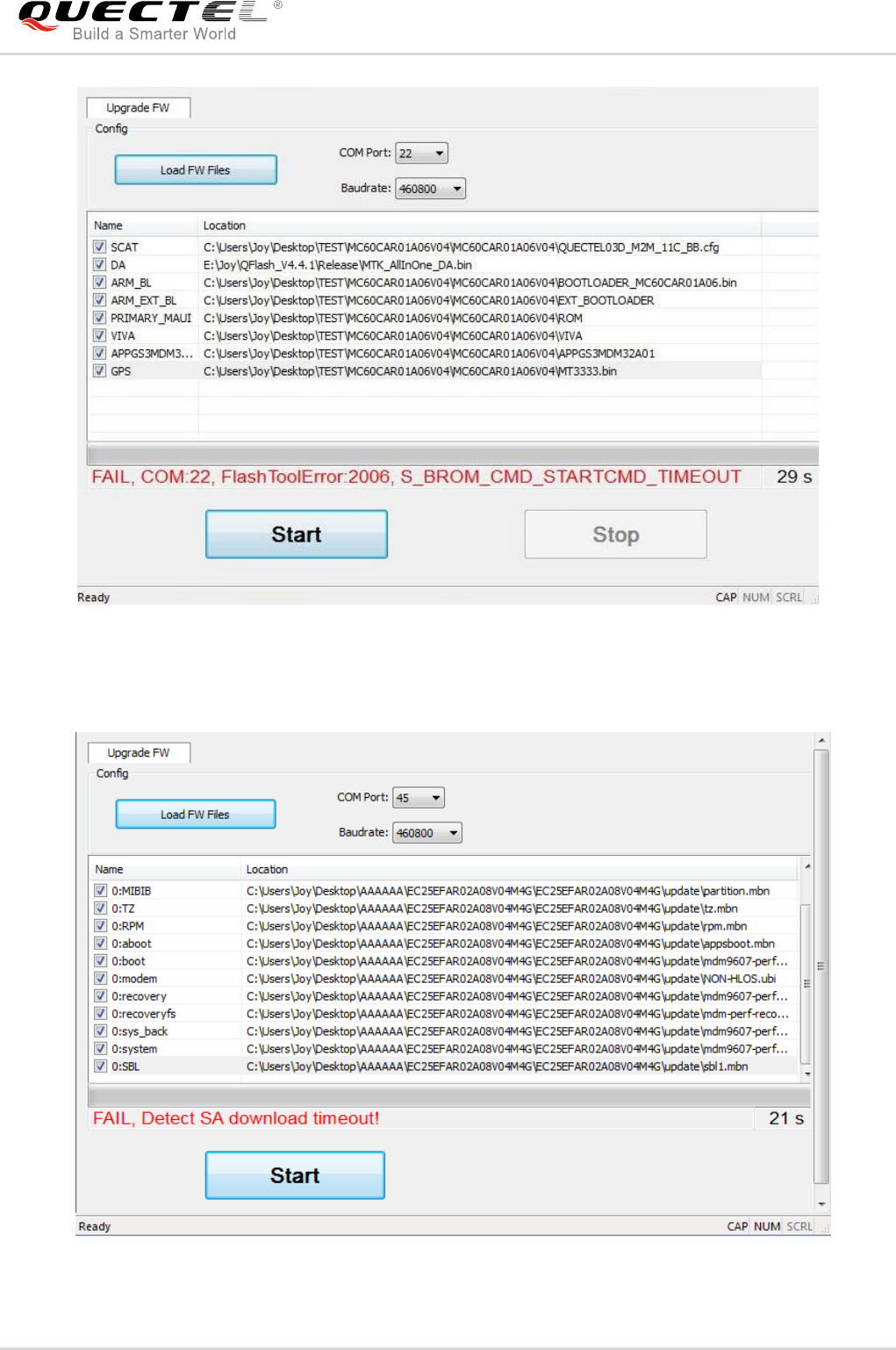
Figure 28: An Unsupported Baud Rate is Selected (GCxx Modules)
2.4.4. Selected an Invalid Load File
Figure 29: An Invalid Scatter File is Selected (Mxx Modules)
QFlash User Guide
QFlash_User_Guide 29 / 35
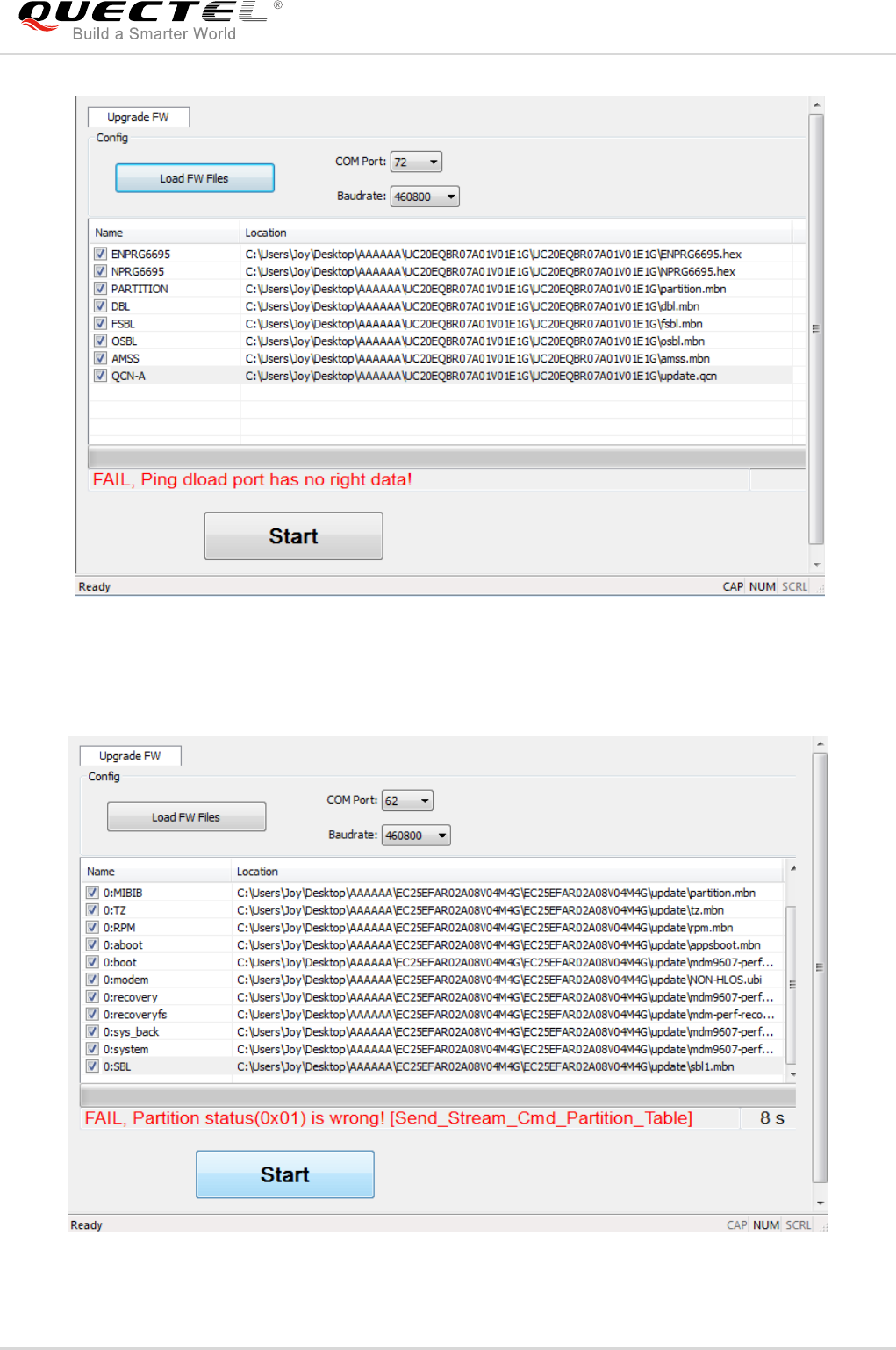
Figure 30: An Invalid Load File is Selected (GCxx Modules)
Figure 31: An Invalid Load File is Selected (UCxx Modules)
QFlash User Guide
QFlash_User_Guide 30 / 35
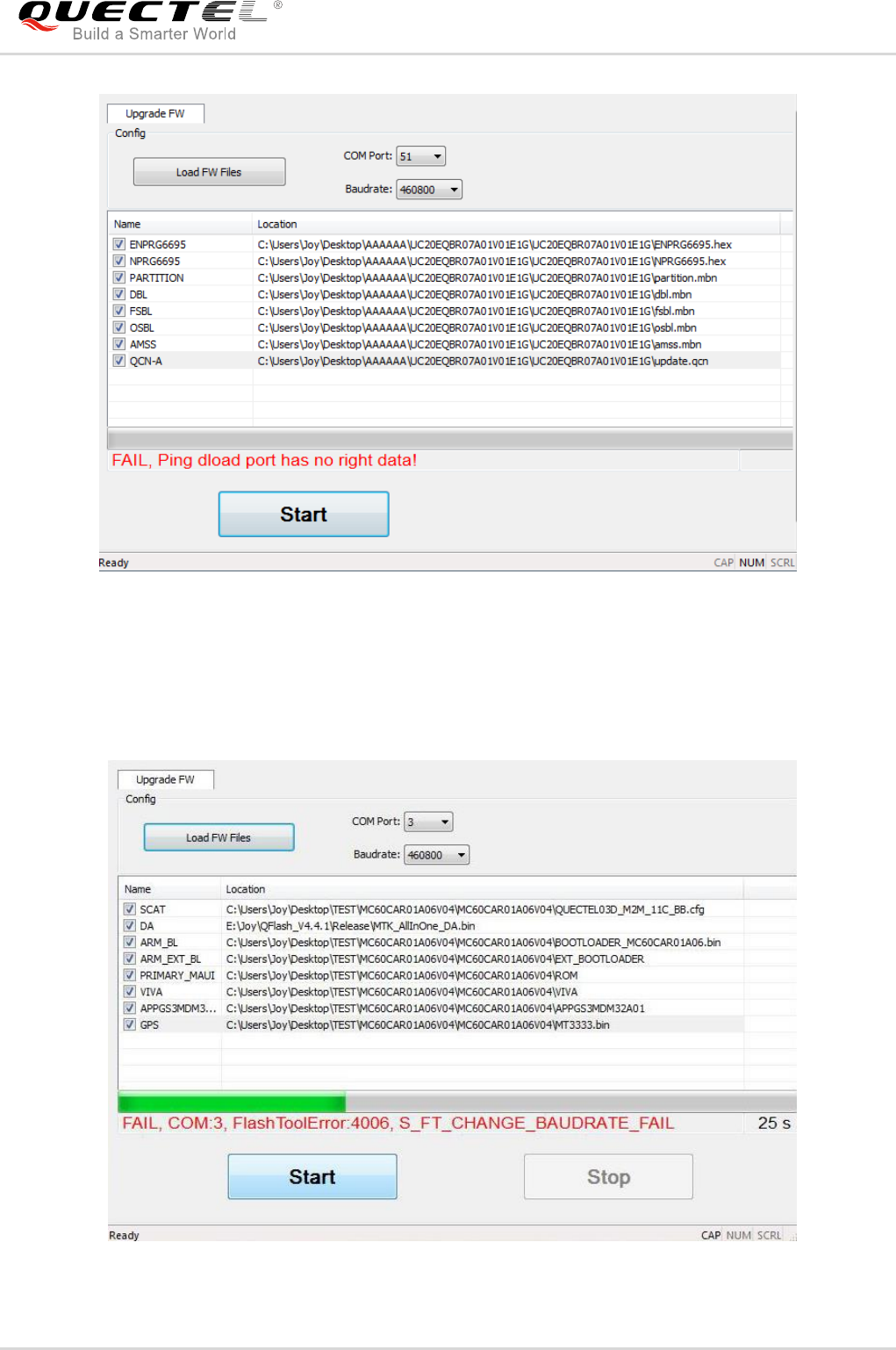
Figure 32: An Invalid Load File is Selected (ECxx/EG9x Modules)
Figure 33: An Invalid Load File is Selected (Ex06/AG35/BG96/EM12 Modules)
QFlash User Guide
QFlash_User_Guide 31 / 35
Figure 34: An Invalid Load File is Selected (EM05 Module)
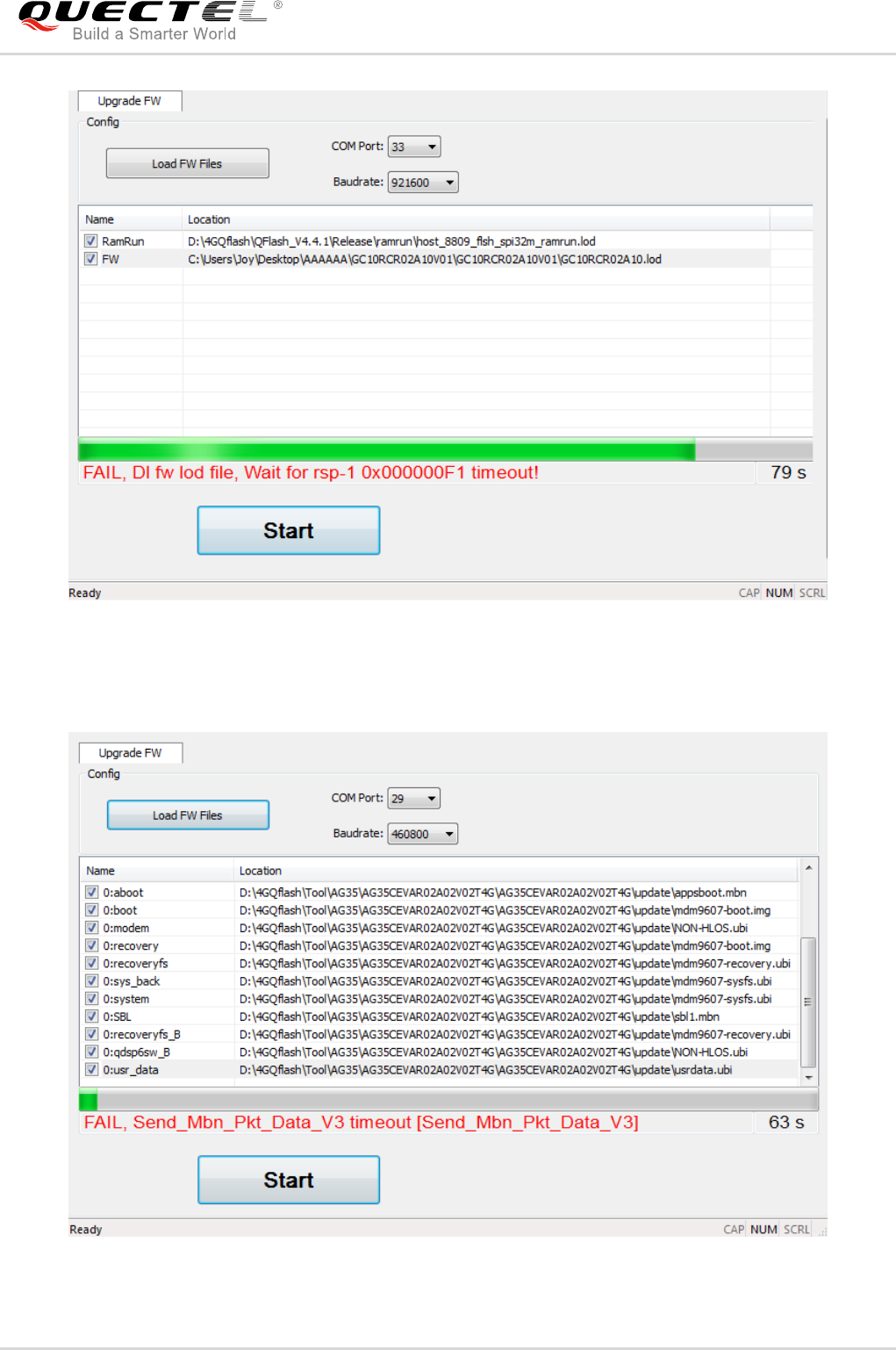
2.4.5. Power Supply is Abnormal
Figure 35: Power Supply is Abnormal (Mxx Modules)
QFlash User Guide
QFlash_User_Guide 32 / 35
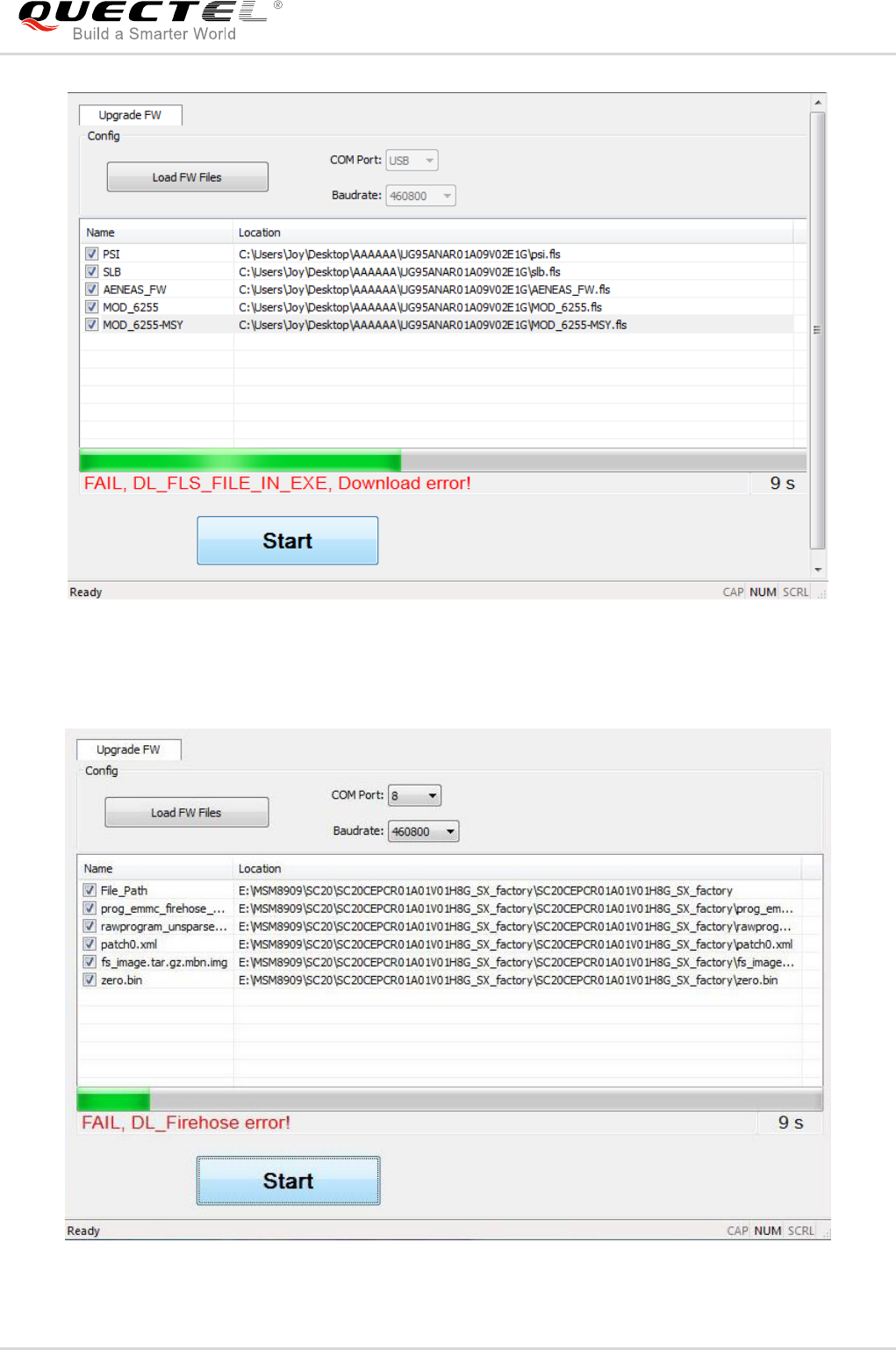
Figure 36: Power Supply is Abnormal (GCxx Modules)
Figure 37: Power Supply is Abnormal (UCxx/ECxx/EG9x/Ex06/EM05/AG35/BG96/EM12 Modules)
QFlash User Guide
QFlash_User_Guide 33 / 35
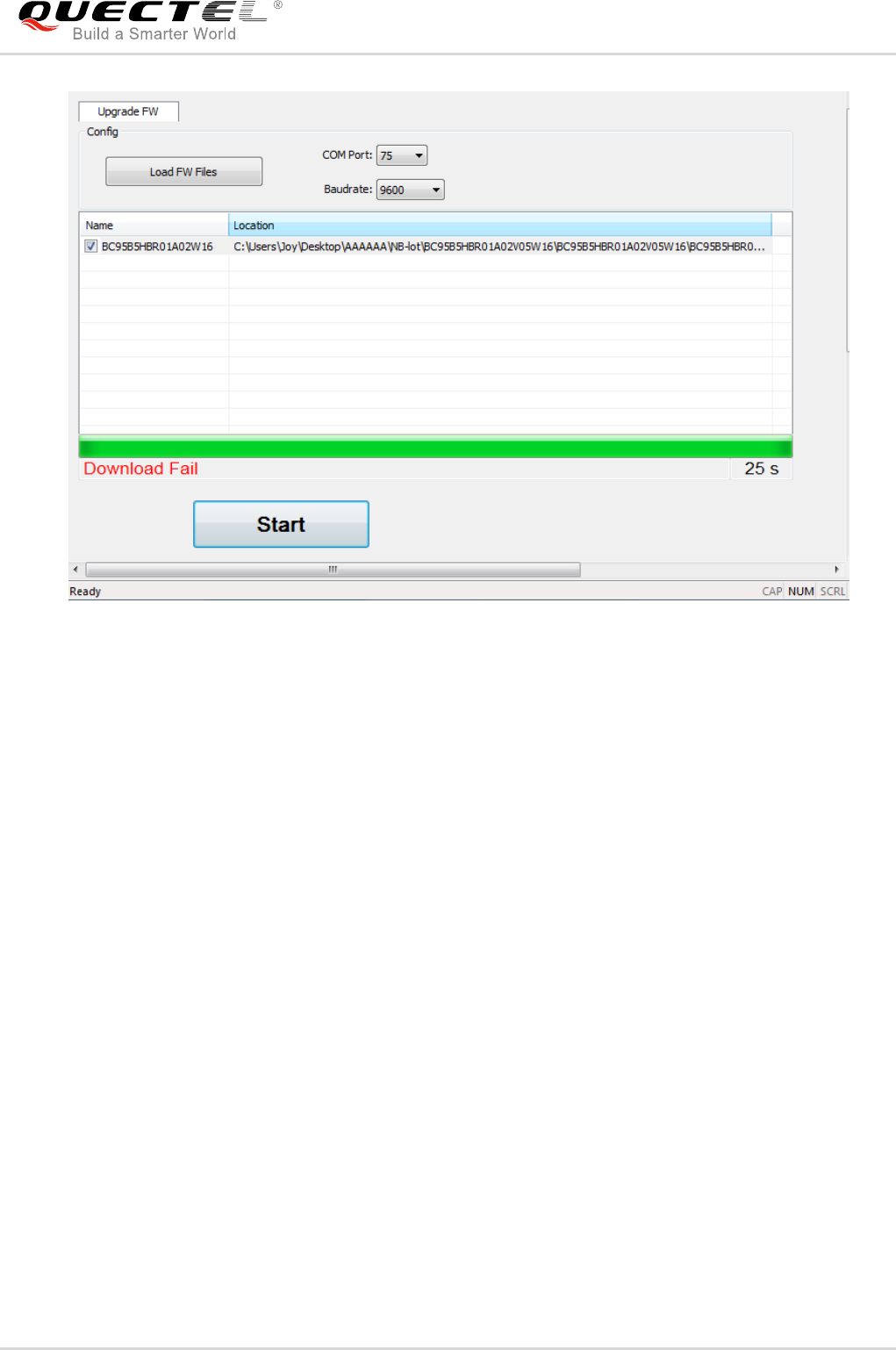
Figure 38: Power Supply is Abnormal (UGxx Modules)
Figure 39: Power Supply is Abnormal (SCxx/SGxx Modules)
QFlash User Guide
QFlash_User_Guide 34 / 35
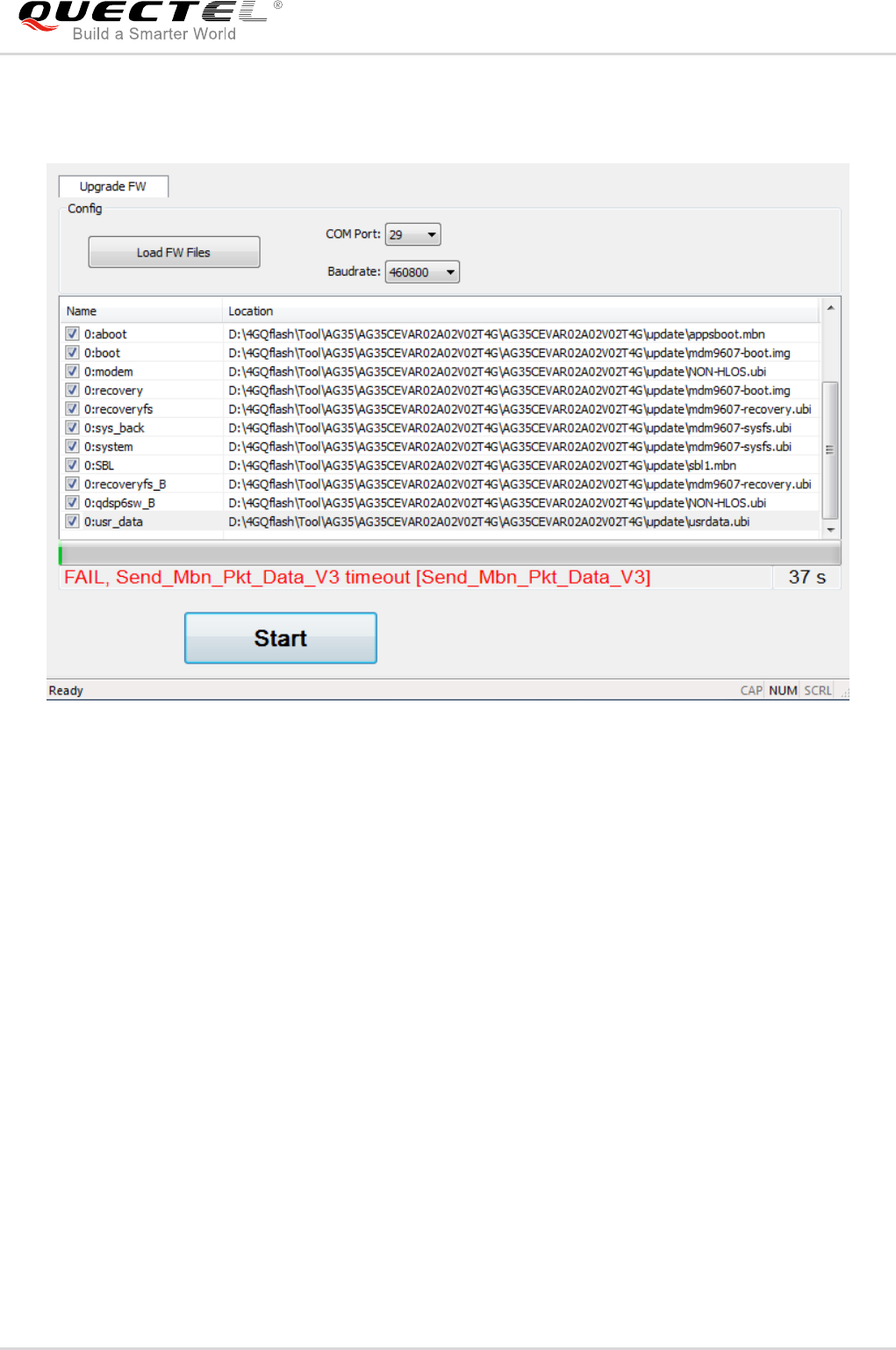
Figure 40: Power Supply is Abnormal (BCxx Modules)
QFlash User Guide
QFlash_User_Guide 35 / 35
2.4.6. USB to RS-232 Converter Cable is Abnormal
Figure 41: USB to RS-232 Converter Cable is Abnormal
