Un Carrier Academy And T Mobile Connect Ready! Resource Guide
User Manual:
Open the PDF directly: View PDF  .
.
Page Count: 2
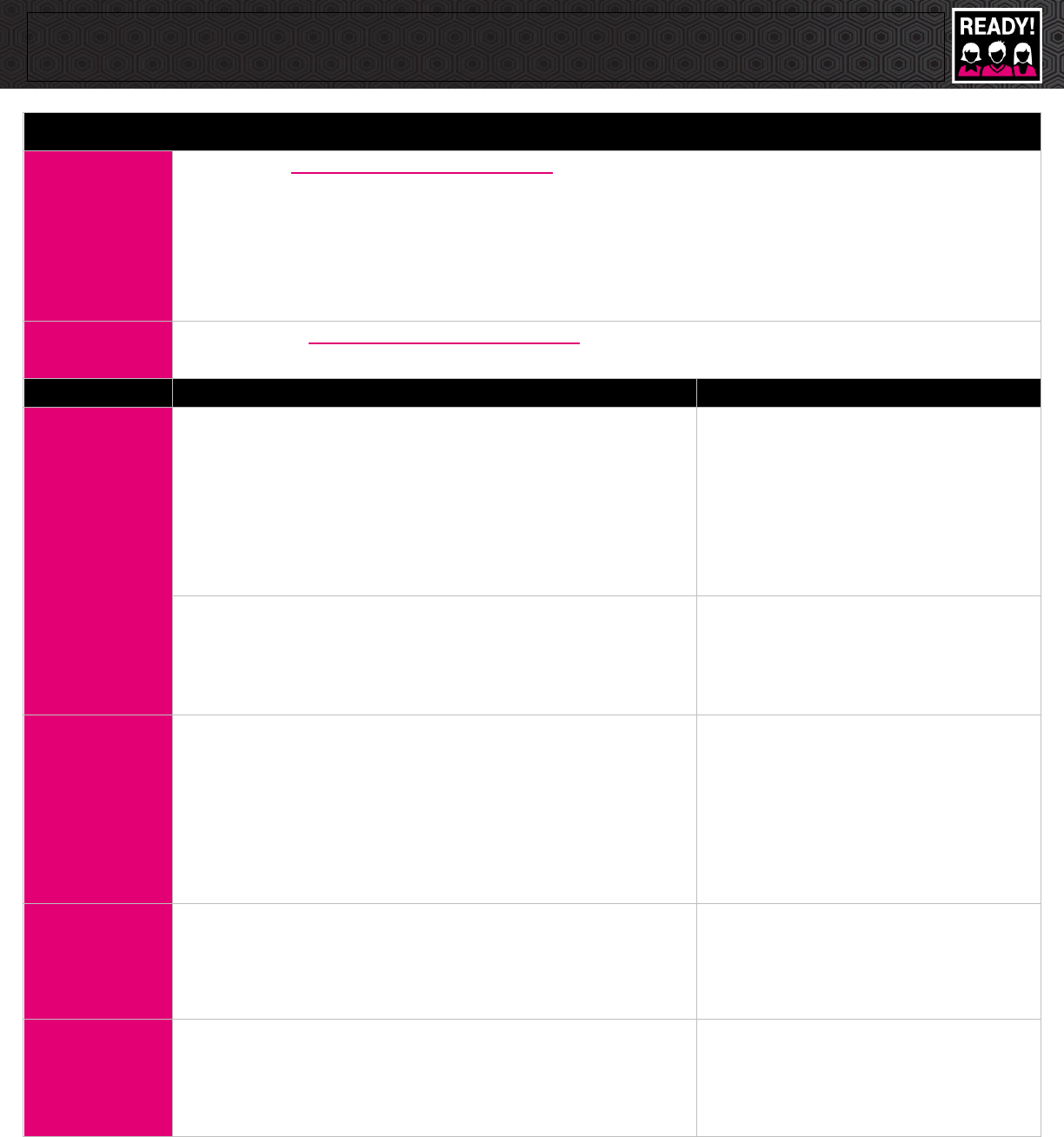
T-Mobile Connect & Un-carrier Academy Ready! Resource Guide
Use this resource guide to navigate T-Mobile Connect & Un-carrier Academy within the Ready! program.
Get Started
Download the ‘T-Mobile Connect Quick Start Guide’
• The T-Mobile Connect Quick Start Guide provides:
✓ Log in Steps
✓ Navigation Basics
✓ Customer Connect
✓ Purchase Estimate
✓ Customer Ready
✓ Recent News
Log In
Desktop Access: https://tmo.appnext.bigtincan.com/
REMO Access: T-Mobile Connect Icon
Task
T-Mobile Connect & Un-carrier Academy Tools
Steps
Daily
Customer Ready!
At the beginning of every day, have Mobile Associates (MA) log in to
Customer Ready! and complete the following tasks:
✓ Punch In
✓ Get Breaking News
✓ Complete Priority Training*
✓ Quick Connect
*Set expectations with Mobile Associates of when to complete Priority
Trainings while they are in Ready!
Log in & Customer Ready!
1. Select ‘T-Mobile Connect’ icon
2. Enter NT ID and Password
3. Select ‘Customer Ready’
Un-carrier Academy > Ready!
Prior to the Mobile Associates leaving each day, ensure they are going into
Un-carrier Academy > Ready! to complete any necessary tasks.
Un-carrier Academy > Ready!
1. Log in to T-Mobile Connect
2. Select ‘Un-carrier Academy’
3. Select ‘Ready’
4. Select appropriate day
Research
Quick Links > C2
When setting Mobile Associates up for activities in C2, search using Doc #s
or key phrases.
Quick Links > C2
1. Log in to T-Mobile Connect
2. Select ‘Quick Links’
3. Scroll to find ‘C2’
4. Select ‘C2’
5. Once in C2, tap magnifying glass icon
6. Enter Doc #s or key phrase in search field
7. Press ‘Enter’ to search
WBT Completion
Un-carrier Academy > My Training
When directing Mobile Associates to Human Resource related trainings use
these steps. The ‘My Training’ page mirrors Cornerstone.
Un-carrier Academy > My Training
1. Log in to T-Mobile Connect
2. Select ‘Un-carrier Academy’
3. Select ‘My Training’
4. Scroll to find training name
Knowledge Checks
Un-carrier Academy > Ready!
For Ready! Knowledge Checks, navigate your Mobile Associates to Un-carrier
Academy > Ready!
Un-carrier Academy > Ready!
1. Log in to T-Mobile Connect
2. Select ‘Un-carrier Academy’
3. Select ‘Ready!’
4. Select ‘Day 5’, ‘Day 10’, or ‘Day 15’
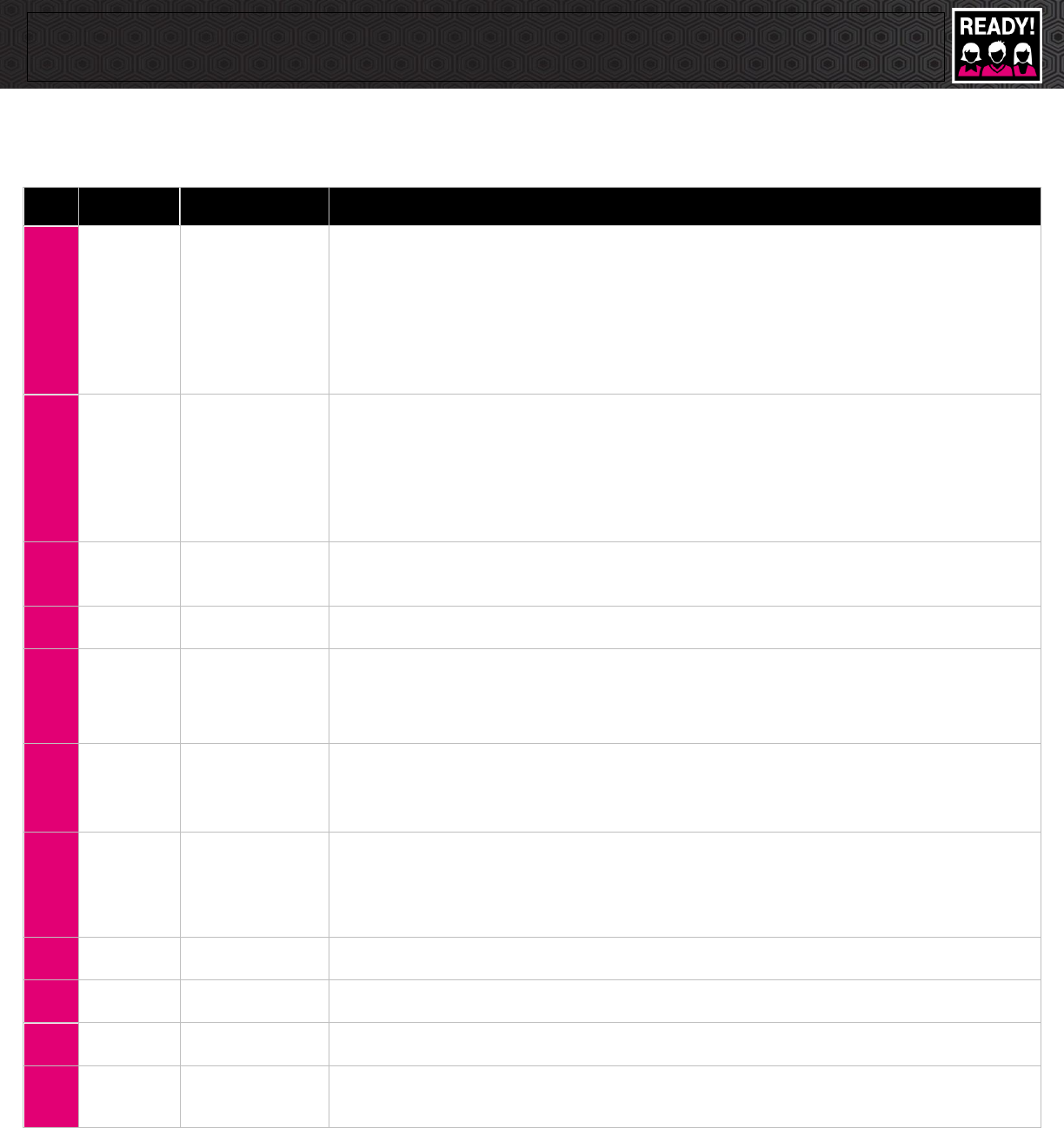
T-Mobile Connect & Un-carrier Academy Ready! Resource Guide
Below is a capture of all changes made to the Ready! content with the launch of T-Mobile Connect. Please use this list as a
reference when delivering Ready! when you are live with T-Mobile Connect.
Day
Module
Topics
Details
1
Welcome
T-Mobile Connect
• FG Page 2 – Added a note to use Un-carrier Academy > My Training instead of Cornerstone for WBTs.
• FG Page 6 - Starting Your Day - explains how MA will access REMO T-Mobile Connect to start the day
and what are REMO & T-Mobile Connect are.
• FG Page 7 - 8 - TMC Resources - Overview of TMC navigation and log in to tools used in Ready!
Replaced Cornerstone with Un-carrier Academy > My Training.
• FG Page 20 – Skip Resources and Log Ins.
• PPT Slides 5 – 7 - New slides to align with FG additions. T-Mobile Connect navigation basics.
• PPT Slide 17 - If you are using T-Mobile Connect skip slide 17.
3
Side-by-Side
Selling
Customer Connect
Purchase Estimate
• PPT Slides 6 – 9 – Alternative slides for those that are live with T-Mobile Connect. Introduces
Customer Connect and Purchase Estimate.
• PPT Slide 12 – Alternative Sales Floor Activity (SFA) for those that are live with T-Mobile Connect.
• FG Page 2 – Instructions for steps to complete Side-by-Side Selling module if live with T-Mobile
Connect.
• FG Page 5 – 8 – Alternate section for those live with T-Mobile Connect.
• FG Page 9 – Alternate SFA for those live with T-Mobile Connect.
4
Signature
Moves
Customer Connect
• PPT Slide 8 – Added SFA where the learner identifies where Signature Moves appear in Customer
Connect.
• FG Page 5 – Added debrief question about where Signature Moves appear in T-Mobile Connect.
5
Week 1
Review
Un-carrier
Academy
• PPT Slide 4 – Removed mention of Cornerstone.
• FG Page 4 – Learners should access the knowledge check via Un-carrier Academy.
6
Rate Plans
T-Mobile Connect
Purchase Estimate
• PPT Slide 4 – Added Purchase Estimate for the DIY rate plan activity.
• PPT Slide 10 – Added Customer Connect competitive comparison as a “bonus” activity in the SFA.
• FG Page 2 – Added T-Mobile Connect note into Module Introduction.
• FG Page 5 – Added T-Mobile Connect language for using the Purchase Estimate in the DIY activity.
7
Accessories
T-Mobile Connect
Purchase Estimate
• PPT Slide 4 – Added compound purchase estimate activity (uses handset from previous module,
along with accessories and EIP) to the DIY.
• FG Page 2 – Added T-Mobile Connect note into Module Introduction.
• FG Page 4 – Corresponding compound purchase estimate instructions, to align with DIY slide.
9
Value
Added
Services
T-Mobile Connect
Purchase Estimate
• PPT Slide 4 – Updated steps for matching customer profile videos to VAS. Removed combined
pricing research.
• PPT Slide 6: Removed debrief question about combined pricing.
• PPT Slide 8: Added T-Mobile Connect Purchase Estimate call out if available to include in this activity.
• FG Page 6 & 7 – Updated instructions for the Bring it Together Activity.
10
Week 2
Review
Un-carrier
Academy
• PPT Slide 4 – Removed mention of Cornerstone.
• FG Page 4 – Learners should access the knowledge check via Un-carrier Academy.
12
Lean on Me
Un-carrier
Academy
• FG Page 2 – Added a note to use Un-carrier Academy > My Training instead of Cornerstone for WBTs.
13
REMO
Un-carrier
Academy
• FG Page 2 – Added a note to use Un-carrier Academy > My Training instead of Cornerstone for WBTs.
• FG Page 3 – Skip the Intro > REMO Overview section.
15
Week 3
Review
Un-carrier
Academy
• PPT Slide 5 – Removed mention of Cornerstone.
• FG Page 4 – Learners should access the knowledge check via Un-carrier Academy.
