Wordstar_3.0_General_Information_Manual_May81 Wordstar 3.0 General Information Manual May81
Wordstar_3.0_General_Information_Manual_May81 manual pdf -FilePursuit
Wordstar_3.0_General_Information_Manual_May81 Wordstar_3.0_General_Information_Manual_May81
User Manual: Wordstar_3.0_General_Information_Manual_May81
Open the PDF directly: View PDF  .
.
Page Count: 50
WordStar
General
Information
Manual
WS-3630-1 (3.ftJ)
First
Issue:
May
lS,
1981
Copyright
(c)
1981
MicroPro
International
Corporation
1299
Fourth
street,
Suite
488
San
Rafael,
California
94991
USA
All
Rights
Reserved
Worldwide

COPYRIGB~
NOTICB
Copyright
ec)
1981
by
MicroPro
International
Corporation.
All
Rights
Reserved
Worldwide.
No
part
of
this
publication
may
be
reproduced,
transmitted,
transcribed,
stored
in
a
retrieval
system,
or
translated
into
any
human
or
computer language,
in
any
form
or
by
any means,
electronic,
mechanical, magnetic,
optical,
chemical,
manual,
or
otherwise,
without
the
express
written
per-
mission
of
MicroPro
International
Corporation, 1299
Fourth
Street,
San
Rafael,
california
94991
U.s.A.
TRADEMARK
The
names
MailMerge, WordStar, DataStar, WordMaster, SUperSOrt,
I/O
Master, and MicroPro InternatioriaJ. Corporation
are
trademarks
of
MicroPro
Intecnational
Corporation.
DISCLAIJlBR
MicroPro
International
Corporation
makes no
representations
or
warranties
wit:h
respect
to
the
contents
hereof
and
specifically
disclaims
any
implied
warranties
of
merchantibility
or
fitness
for
any
particular
purpJse.
Further, MicroPro
International
Corpora-
tion
reserves
the
right
to
revise
this
publication
and
to
make
changes from
time
to
time
in
the
O)ntent hereof
without
d:lligation
of
MicroPro
International
Corporation
to
notify
any
person
or
organization
of
such
revision
or
changes.
References
are
made
throughout
this
manual
to
the
Control
Program
Monitor,
commonly
known
as
CP/M.
CP/M
is
a trademark
of
Digital
Research
of
Pacific
Grove,
california.
i
This
page
intentionally
left
blank
ii
1
Introduction
An
Overview
of
Wordstar
The
Fdi
ting
Function
Video
Editing
Contents
Autatatic
Disk
Buffering
Ch-Screen
Text
Fo:cmatting
Powerful
Elli
ting
Canmands
Flexible
Find
and
Replace
camnands
Help
systen
Dynamic Page Break
Display
Precise
Control
of
Text
Fomat
Hyphen-Help
Moving
Text
and
Wide Documents
The
Printing
Function
Page
Formatting
Pagination
Control
Special
Effects
Microspice
Justification
~rator
Options
The MailMerge
Option
Merging
Text
Data
Files
Nested
and Chained
Printing
Screen
Display
and
Input
Printing
Multiple
Copies
Print-Time
Formatting
Print-Time
Conditionals
Additional
WorCiStar
Features
Keyboard
BUffering
Convenient
Defaults
2 .
System
Requirements
Canpatibility
FUe
CcmpitibUity
Terminal
Canpatibility
Printer
Ccmpitibili
ty
Fasy
Installation
~e
TeIlllinal
The
Scr~
~e
CUrsor
Highlighting
Insert
and
Delete
a
Line
The Keyboard
Other
canponents
The Disk
Drives
The
Rest
of
the
catputer
The
Cperating
Systan
iii
Contents
1-1
1~1
1-1
1-2
1-2
1-2
1-3
1-3
1-3
1-3
1-4
1-4
1-4
1-4
1-4
1-5
1-5
1-5
1-5
1-6
1-6
1-6
1-6
1-6
1-6
1-7
1-7
1-7
1-7
2-1
2-1
2-1
2-1
2-2
2-2
2-2
2-2
2-2
2-3
2-3
2-4
2-4
2-4
2-4
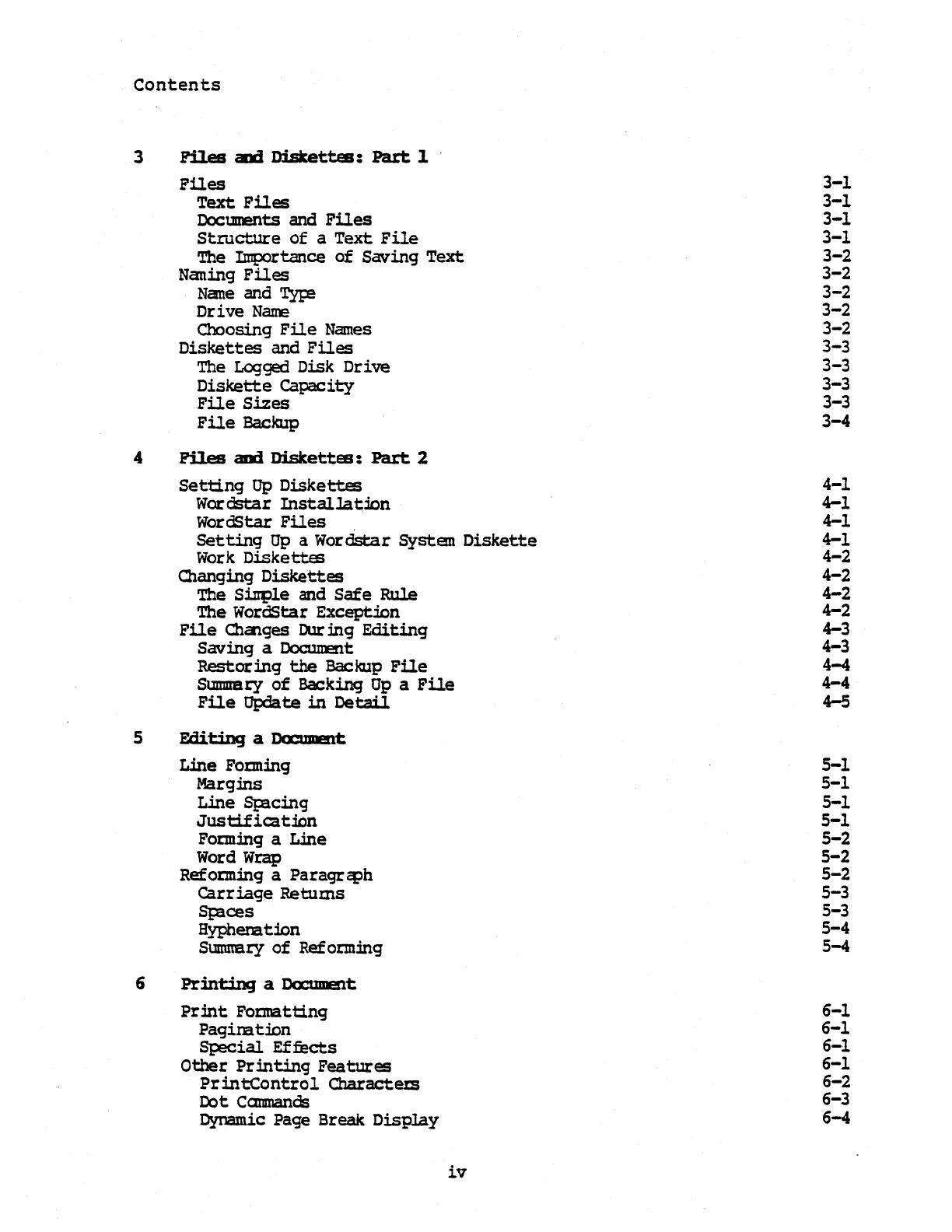
Contents
3
Piles
and
Diskettes:
Part
1
FUes
3-1
Text
Files
3-1
Documents and
FUes
3-1
Structure
of
a
Text
File
3-1
The Importance
of
Saving
Text
3-2
Naning
Files
3-2
Nane and Tyr:e
3-2
Drive
Name
3-2
Choosing
File
Names
3-2
Diskettes
and
FUes
3-3
The Logged Disk
Drive
3-3
Diskette
Capacity
3-3
File
Sizes
3-3
File
Backup
3-4
4
Piles
aDd
Diskettes:
Part
2
Setting
Up
Diskettes
4-1
Wor
dstar
Installa
tmn
4-1
WorOStar
Files
4-1
Setting
Up
a
Wordstar
Systen
Diskette
4-1
Work
Diskettes
4-2
Changing
Diskettes
4-2
The
S~1e
and
Safe
Rule
4-2
The WordStar
Exceptmn
4-2
File
Chalges
OUr
mg
Editing
4-3
Saving
a Document
4-3
Restoring
the
Backup
File
4-4
Sl.lmIIBry
of
Backing
Up
a
File
4-4
File
Update
in
Detail
4-5
5
Editing
a Doc,.l1IB\t
Line
FOIming
5-1
Marg:ins
5-1
Line
Spicing
5-1
Just:i.f
ica
twn
5-1
Foening
a L.ine
5-2
Word
Wrap
5-2
Ref orming a
Paragr
c:ph
5-2
Carriage
Retums
5-3
Spices
5-3
Hyphena t:ion
5-4
Sumrrary
of
Reforming
5-4
6
Printing
a Da:tDDf!!lt
Pr:int
Foena.
tting
6-1
Pagina
t:ion
6-1
S};ecial
Effects
6-1
Other
Printing
Features
6-1
Pr
in
tcontro1
Charactem
6-2
Dot
Camnands
6-3
Dynamic Page Break
Display
6-4
iv
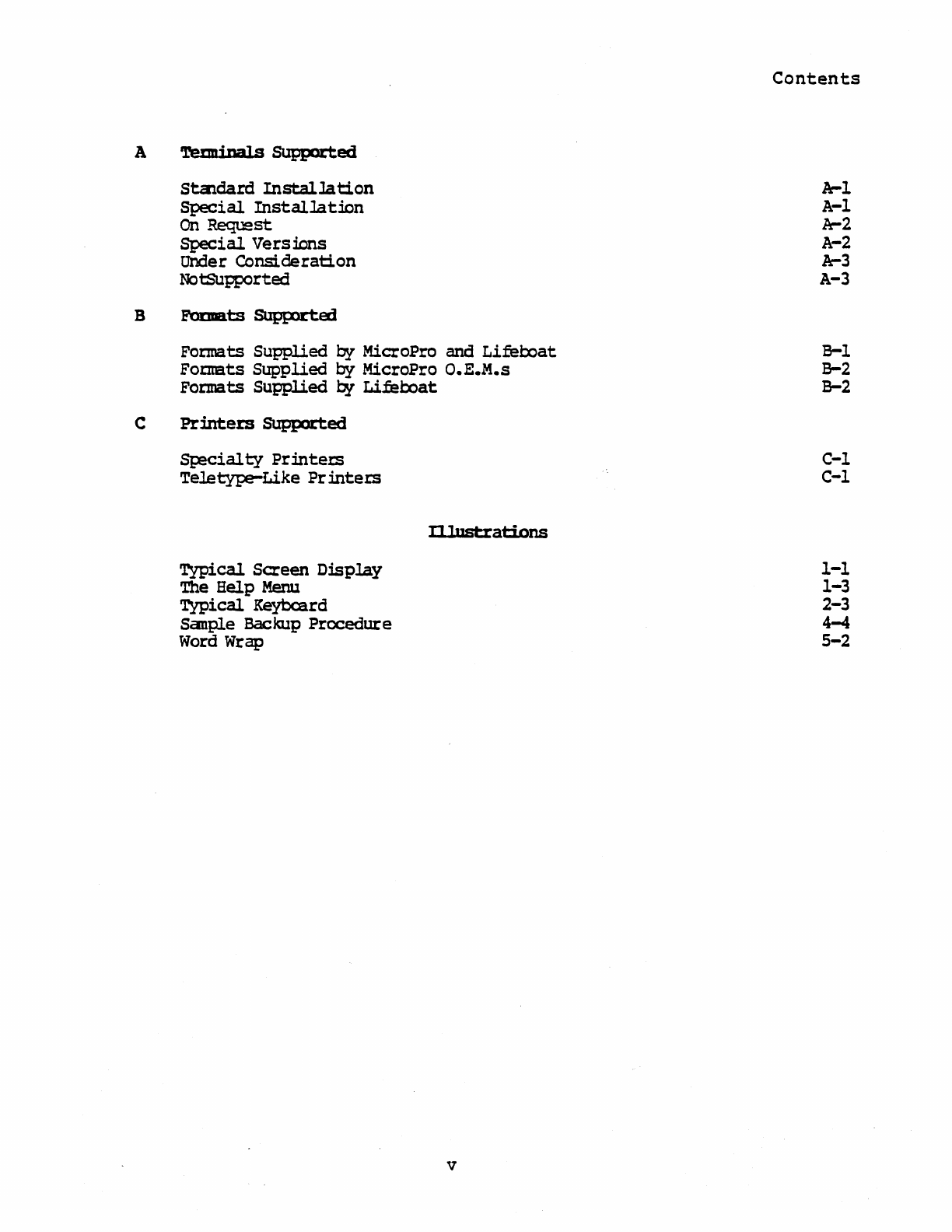
Contents
A '!'erm;
na]
S
SUpported
S1:aldard
InstalJa
tion
A-1
Special
Installa
tlon
A-1
On~st
A-2
Special
Versions
A-2
Under
Consideration
A-3
NotSupported
A-3
B
Faaats
SUpplrted
FOIInats
Supplied
by
MicroPro and Lifel::oat
B-1
Fornats
Supplied
by
MicroPro
O.E.M.s
B-2
Forma
ts
Supplied
by
Lifeboat
B-2
C
~cialty
Printers
C-1
Teletype-Like
Pr
inters
C-1
D.lustrations
Typical
Screen
Display
1-1
The Help Menu 1-3
Typical
Keybaird 2-3
Sanple
Backup
Procedure
4-4
Word
Wrap 5-2
v
This
Page
Intentionally
Left
Blank
vi
AN
OVERVIEW
OF
WORDSTAR
Section
1
Introduction
WordStar
is
a
screE!l-Oriented
word-process:ing
systan
with
integratal
I;rinting.
Both
initial
altry
of
text
and
alteration
of
text
I;%'eviously
altered
are
dis-
played
directly
on
the
screen.
Most
formatting
functions
take
place
imme-
diately,
resulting
in
the
display
of
a
Ute
pr:int
image1
additional
enhance-
ments
are
p!.r:formed dur:ing
pr
:intOlt.
The MailMerge
option
adcs
form
letter
generation
and
other
capabilities.
Originally
designed
for
use
under
the
Canmand
Progr
an
Monitor
(CP/M), WordStar
has
since
been
modified
for
use
on
other
op!ra
ting
systems.
TBB
EDITIBG
PUNaIOB
WordStar's
editing
function
is
used
to
create
and
alter
documents
stored
on
diskette.
Features
of
the
edit
function
include
vic20
editing,
automatic
disk
tnffering,
on-screen
text
formatting,
powerful
editing
canmands,
flexible
f:ind
and
replace
canmands,
help
system,
dynanic
pige
break
display,
precise
centrol
of
text
format,
and
hyplen
help.
Video
Editing
A
portion
'of
the
document
being
entered
or
corrected
is
al
ways
shown
on
the
terminal
screen
1
addit:ions
and
correct:ions
are
immediately
displayed.
Text
entry
is
accomplished
merely
by
typing
the
desired
text1
command
functions
such
as
cursor
motion
or
deletion
of
text
are
quickly
accoutplished
with
visual
feedback.
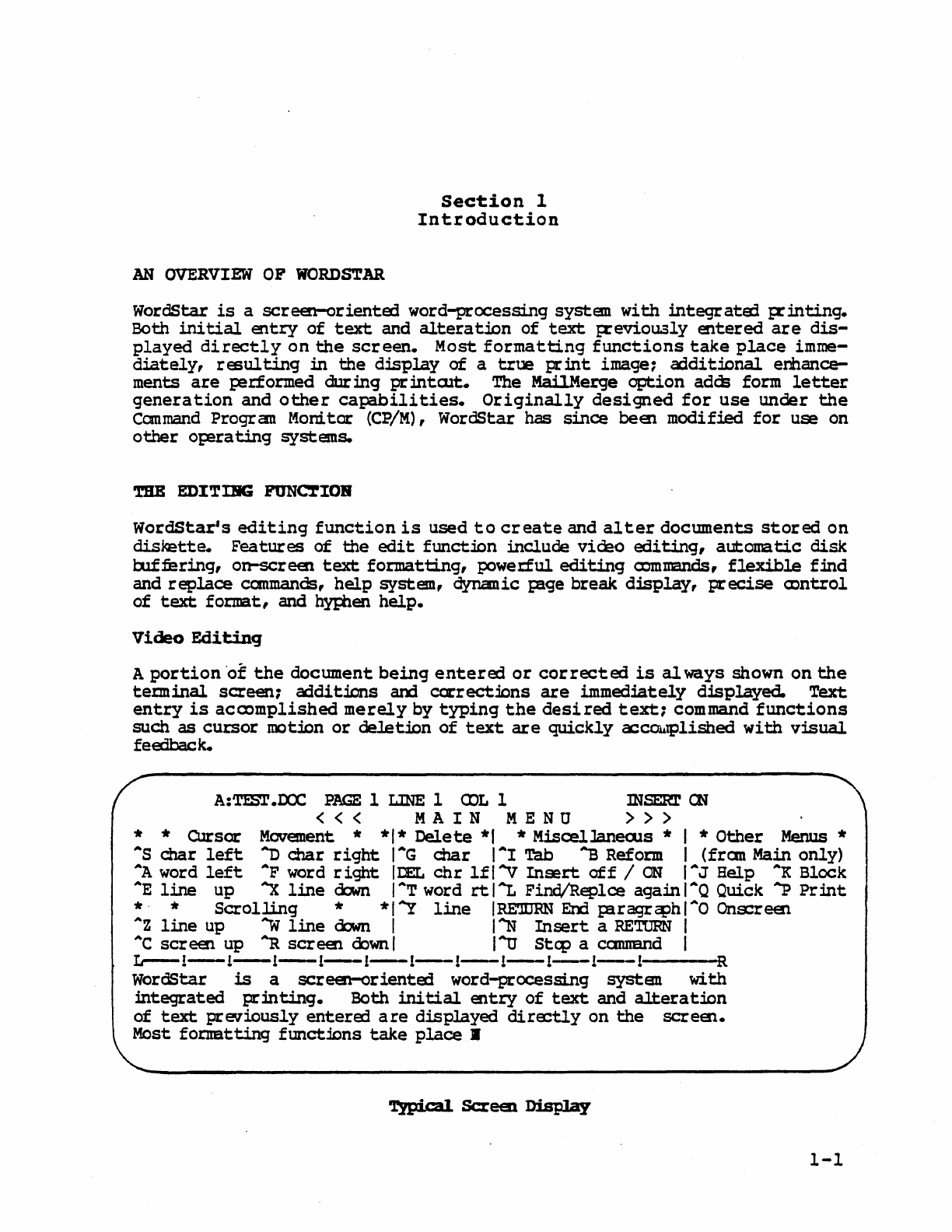
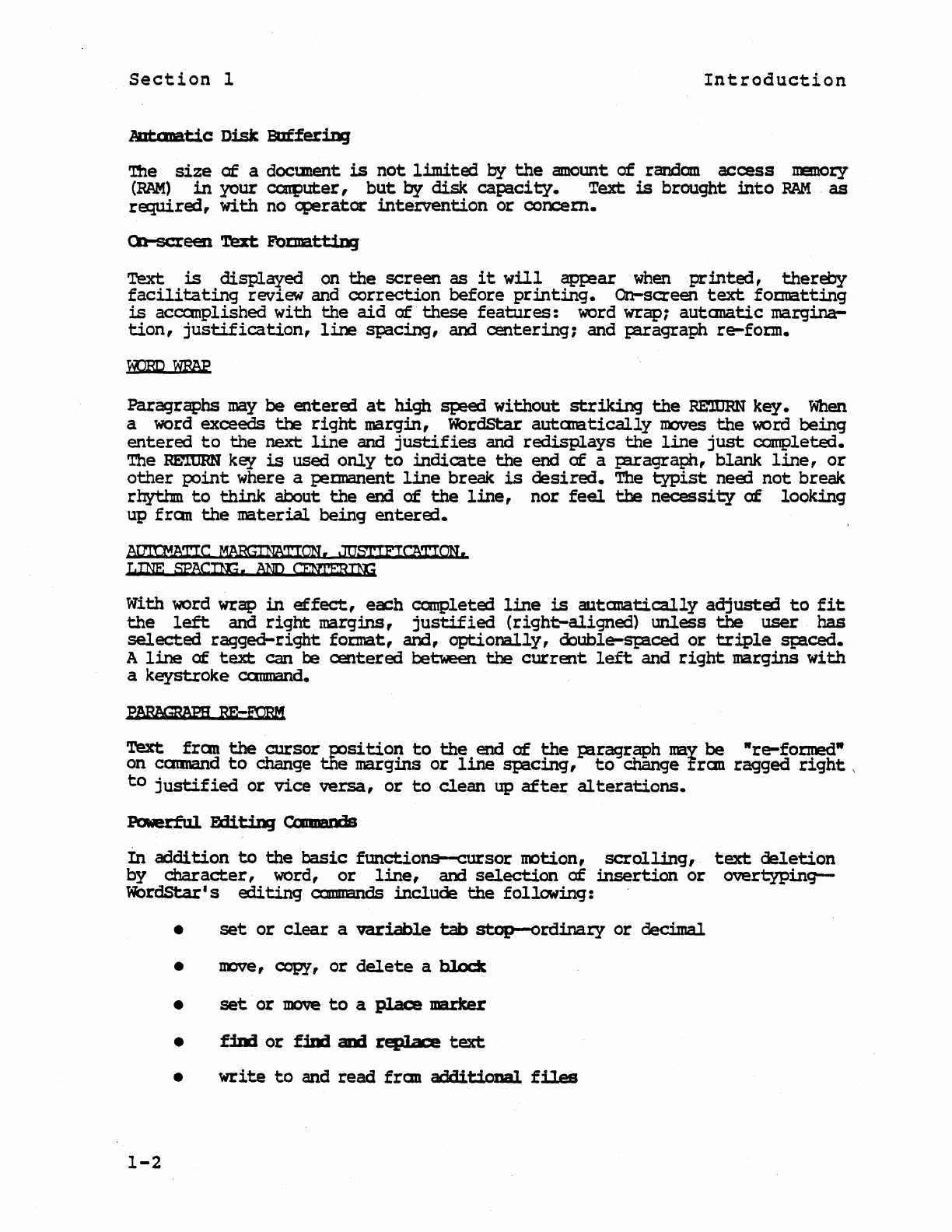
A:Tml'
.ra:
PAGE
1 LINE 1
<DL
1 INSERl'
CN
«<
MAIN
MENU
»>
* * CUrsor Movement * * I * Dele
te
* I *
MiscelJanerus
* I *
Other
Menus
*
AS
char
left
~
dlar
right
I
AG
char
I AI Tab
~
Reform I
(fran
Main
only)
AA
word
left
AF
word
right
IDEL
chr
Ifl"V
Insert
off
/
ON
IAJ Help
.lOoK
Block
AE
line
up
"X
line
down
IAT
word
rtl"L
Find/Replce
agamlAQ Quick
~
Print
*.
*
Scrolling
*
*I~
line
1RE'IDRN
ErxJ
piragrzphlAO
Ons::reen
A
Z
line
up
~
line
down
I I
~
Insert
a
RETtmN
I
AC
screen
up
"'R
screen
oownl
III
Step
a cannand I
L--!-!-!-1-1-1-!-1-1--1-1
R
WordStar
is
a
screen-oriented
word-processing
systen
with
integrated
pr:in
ting.
Both
initial
entry
of
text
and
alteration
of
text
previously
entered
are
displayed
dira::tly
on
the
screen.
Most
fornatting
ftmct:ions
take
place
•
1-1
Section
1
Introduction
ADtanatic
Disk
Buffering
'!he
size
of
a doctment
is
not
limited
by
the
amount
of
random
access
memory
(RAM)
in
your CQ'q?uter,
but
by
disk
capacity.
Text
is
brought
into
RAM
as
required,
with
no
operator
intet:Vention
or
concern.
CD-screen
'!'ext:
Fomatt:1ng
Text
is
displayed
on
the
screen
as
it
will
app:!ar
when
printed,
thereby
facilitating
review
and
correction
before
printing.
On-screen
text
fOInBtting
is
accanplished
with
the
aid
of
these
features:
word wrap;
autanatic
margina-
tion,
justification,
line
spacing,
and
centering;
and r:aragraph
re-fotm.
Paragraphs
may
be
enterai
at
high
S);:eed
without
striking
the
RE'lORN
key.
When
a word exceeds
the
right
margin,
WordStar
autamtically
moves
the
word
being
entered
to
the
next
line
and
justifies
and
redisplays
the
line
just
completed.
The
RE'ItJRN
key
is
used
only
to
indicate
the
end
of
a
p9Iagraph,
blank
line,
or
other
point
where a
pennanent
line
break
is
desired.
The
typist
need
not
break
rhythm
to
think
about
the
end
of
the
line,
nor
feel
the
necessity
of
looking
up
fran
the
material
being
enterai.
Atrn:MATIC
MARGINATION,
JUSTIFICATION,
LINE
$PACIW,
AND
CENrEBINi
With word wrap
in
effect,
each
canpleted
line
is
autanatically
adjusted
to
fit
the
left
and
right
margins,
justified
(right-aligned)
unless
the
user
has
selected
ragged-right
focnat,
and,
optionally,
double-Sp:lced
or
triple
staced.
A
line
of
text
can
te
centered
between
the
current
left
and
right
margins
with
a
keystroke
camnand.
Text
fran
the
cursor
pesi
tion
to
the
end
of
the
Piragr~h
my
be
-re-fomed
w
on ccmnand
to
change
tile
margins
or
line
spacing,
to
change
fran
ragged
right
\
to
justified
or
vice
versa,
or
to
clean
up
after
alterations.
PoNerful
EdU:iDJ
Cmmands
In
addition
to
the
basic
function&-cUrsor rootion,
scrolling,
text
deletion
by
character,
word,
or
line,
and
selection
of
:insertion
or
overtypinq-
WordStar· s
editing
cc:mm:mds
include
the
following:
•
set
or
clear
a
variable
tab
stop-ordinary
or
decimal
• IOOVe, copy,
or
delete
a
block
•
set
or
move
to
a
place
marker
• f:fD1
or
f:iDd
aD3
replace
text
•
write
to
and
read
fran
additional
files
1-2
Section
1
In
troduction
Plexi
Me
Find
and
Replace
0
"""
•
.as
Searchmg
Op!rations
and
StDstitution
operations
can
be
done orx:e, n
times,
globally
(on
the
en
tire
dcx:ument) ,
on
whole words
only,
i910ring
case
(upp!r
or
lower),
and/or
selectively
(the
op:ratar
is
asked
whether
replacement
is
to
be
I;2rformed
in
each
.instance).
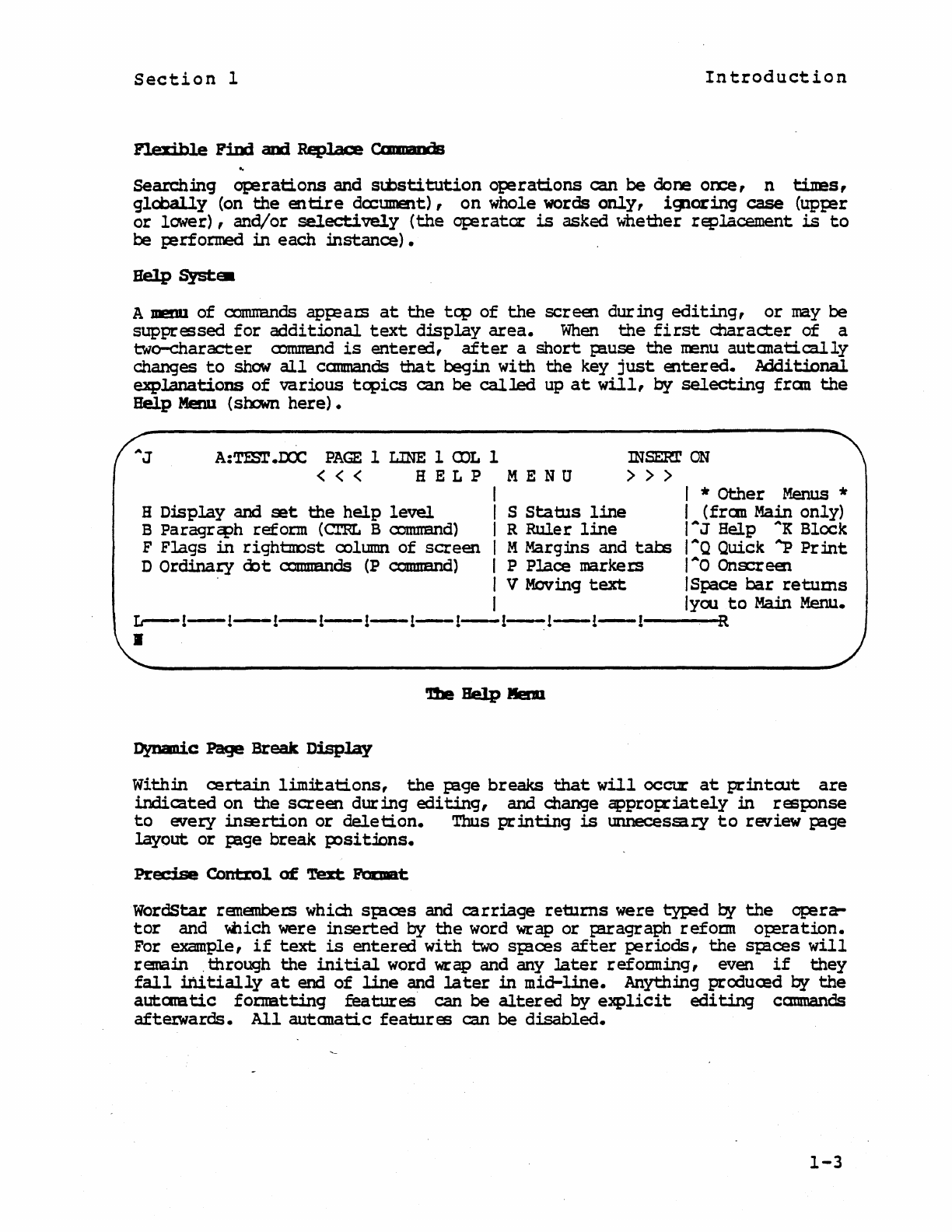
A
meml
of
ccnurands
ap};eaIS
at
the
tcp
of
the
screen
during
editing,
or
may
be
suppressed
for
additional
text
display
area.
When
the
first
character
of
a
two-character
CDInIIaIld
is
entered,
after
a
short
};ause
the
n:enu
autanatically
changes
to
show
all
camnands
that
begin
with
the
key
just
entered.
Additional
explanations
of
various
tcpics
can
be
called
up
at
will,
by
selecting
fran
the
Help
Meml
(shown
here).
A:Tmr
.IX:c
PAGE
1 LINE 1
<DL
1 INSERr
ON
> > >
«<
HELP
MENU
H
Display
and
set
the
help
level
B
Paragrcph
reform
(Cl'BL B comnand)
F
Flags
in
righ1::IIost column
of
screen
D
Ordinary
cbt
cnmrends
(P
comnand)
I I *
Other
Menus
*
I S
status
line
I
(fran
Main
only)
I R
Ruler
line
IAJ
Help
AK
Block
I M Marg:ins and
tats
I
AQ
Quick
"'p
Pr
int
I P
Place
markeIS
lAO
Ons:reen
I V Moving
text
I Space
bar
retums
I
Iyou
to
Main Menu.
Ir--l-l-l-l-l-l-l-l-l-i-l----KR
•
Dynanic
Pac]e
Break
Display
Within
certain
limitations,
the
};age
breaks
that
will
occur
at
printCllt
are
indicated
on
the
screen
during
editing,
and change
appro};riately
in
rest;:Onse
to
every
insertion
or
deletion.
Thus
printing
is
unnecessary
to
review
tage
layout
or
};age
break
I,X)si
tmns.
Precise
Contr:o~
of
'!'ext
Pm:Dat
WordStar rananbeIS which
Staces
and
carriage
returns
were
typed
by
the
op:!ra-
tor
and
'lbich
were
.inserted
by
the
word
wrap
or
taragraph
refoIItl
oJ;eration.
For example,
if
text
is
entered
with
two
Staces
after
periods,
the
Sp!ces
will
remain .
through
the
initial
word wrap
and
any
later
refoming,
even
if
they
fall
initially
at
end
of
line
and
later
in
mid-line.
Anything
produced
by
the
autaIBtic
fomatting
features
can
be
altered
by
explicit
editing
camnands
aftawards.
All
autanatic
features
can
be
disabled.
1-3
Section
1
Introduction
WordStar can
identify
desirable
places
to
divide
a word between
lines
with
a
l¥Phen.
At
each
occurence,
the
o~rator
may
decide
whether
to
hyphenate, and
optionally
adjust
the
hyphen
p:>sition.
Hyphen-Help
inserts
t:e.poraJ;y hjj;:t.Iais
which do
not
print
if
moved
to
mid-line
by
later
refoming.
Mov:lD!J
'l'ezt
aDd
Wide
nrx,
nts
WordStar
allows
you
to
move
either
an
ordinaty
block
of
text
or
a column
of
text,
as.in
a
table.
For
docUIIelts
more
than
8ra
coltmns wide, WordStar
also
allows
horizontal
scrolling
of
text
.in
either
direction.
THE
PRINTING
FUNCTION
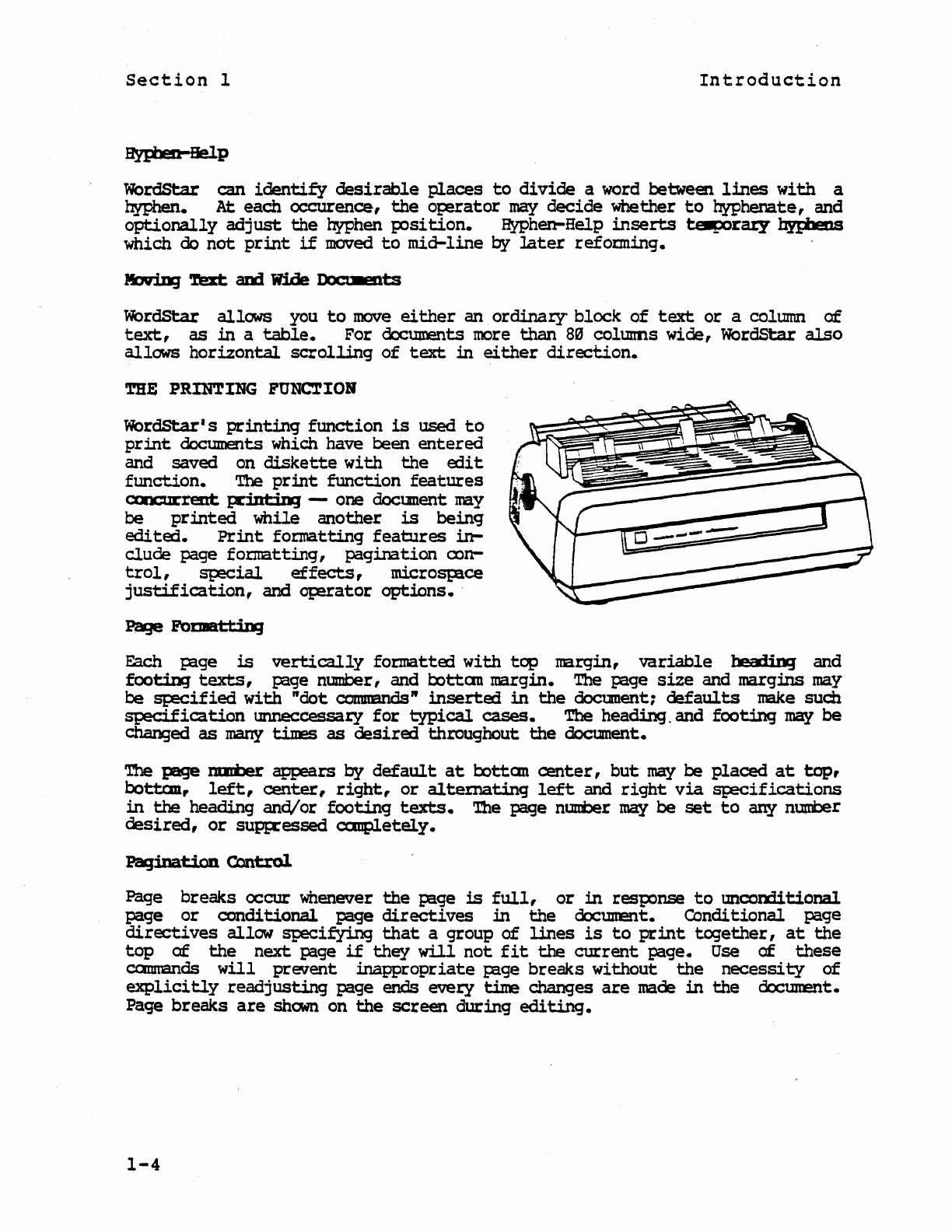
WordStar's
printing
function
is
used
to
print
documents
which have been
entered
and saved on
diskette
with
the
edit
function.
The
print
function
features
axx:urrent
IXint::ing -one docunent
may
be
printed
while
another
is
being
edi
ted.
Print
formatting
features
in-
clude
page
fomatting,
pagination
con-
trol,
~ial
effects,
microS};8ce
justification,
and
qerator
options.
Each p;lge
is
vertically
formatted
with
top
margin,
variable
heading
and
footing
texts,
r=age
number, and
oottan
margin.
The
r=age
size
and margins
may
be
~ified
with
"dot
cortmmdsJt
inserted
in
the
document;
defaults
make
such
specification
unneccessaty
for
typical
cases.
The heading. and
footing
may
be
changed
as
many
times
as
desired
throughout
the
document.
The page
nmi'ler
appears
by
default
at
oottan
center,
but
may
be
placed
at
top,
bottan,
left,
center,
right,
or
alte!:nating
left
and
right
via
S};eCifications
in
the
heading
and/or
footing
texts.
The
page
n1lIICer
may
be
set
to
an:y
number
deSired,
or
supp:essed
ccmpletely.
Pag:ination
Control
Page
breaks
occur whenever
the
P=lge
is
full,
or
in
response
to
unconditional
page
or
conditional
page
directives
in
the
docuuent.
Conditional
page
directives
allow
SJ;:ECifying
that
a group
of
lines
is
to
print
together,
at
the
top
of
the
next
page
if
they
will
not
fit
the
current
page.
Use
of
these
camnands
will
prevent
inappropriate
p;lge
breaks
without
the
necessity
of
explicitly
readjusting
page
ends
every
time changes
are
made
in
the
document.
Page
breaks
are
shown
on
the
screen
during
editing.
1-4
Section
1
In
traduction
Speci
a1
Effects
pndetline,
Double
Strike,
Boldface,
and Sbd:lteem:
are
generated
at
pr:int
t:ime,
.in
resp:lnse
to
special
characters
imbedded
in
the
dcx:ument. WordStar can
pr
int
these
enhancements on
regular
pr
inters
as
well
as
on
da.isy-..beel
printers.
During
editing,
the
special
characters
used
to
invoke
the
enhance-
ments
are
displayed
at
the
beginning
and
em
of
the
affected
text,
allowing
mst
staneard
rnT
teminals
to
be
used.
Satmcripts
(CD
2) ,
sup!ISCrjp:s
(e
2x
),
variable
charact:er
pitch
(pica,
elite,
or
your
choice
of
number
of
characters
:fer
inch),
variable
line
height
(6,
8,
or
your
choice
of
lines:fer
inch)
and
al
tema
te
riblDn
color
are
fully
supported
on
daisy-wheel
and
other
incremental
prmters,
and
within
limita-
tions
on
Tele~like
pr:intem.
Underline,
double
strike,
l:oldface,
and
strikerut
may
be
used
freely
in
IIid-
IBragra.tX1 as
well
as
in
seplrate
lines
such
as
titles;
use
of
these
features
is
completely
c:cnq;:atible
with
word
wrzp
and J;aragrcph
reform.
Prmt
enhance-
ments
may
be
used
in
all
cxubinations.
For
example,
unaerlined
text
and
boldfaced
stDscripts
are
possible
~).
MicxosplCe
Justification
When
printing
justified
text
on
a
daisy
wheel
pr:inter,
the
white
SPlce
:in
each
line
is
evenly
distribut:ed
Q!~
the
words and
characters
for
sU};:erior
ap};earance.
On
printem
not
capable
of
incranental
sJ;licing, and
on
the
temi-
nal
display
'Iilile
editing,
justification
is
accanplished
by
varying
the
number
of
blanks
betweEn words.
Operator
Options
The
op!ratcx
may
sp!Cifrj
any
CDnbination
of
the
following
pr:inting
features:
•
starting
and
ending
l=8ge
numbers
• use
of
-fom
feed"
chara::tetS
•
pausing
Q!tween
pages
for
single-sheet
pap!r
loading
• -
pr:inting
exact
file
contents
without
J:8ge
formatting
•
outputting
to
a
disk
file
:instead
of
the
prmter
Print
op!ration
can be SUS'f2nded
or
arorted
at
any
time
while
printing
is
being
~rformed,
whether
or
not
a dccument
is
being
edited.
TIlE IlAILMBRGE OPTION
WordStar's
MailMerge
option
allows
prooud:ion
of
form
lettetS
and
provides
other
enhanced
printing
ca;abilities.
The
sepu-ately
supplied
Ma.iJ.Merge
option
activates
the
"MailMerge"
cannend.
The Maill'..erge cannand
has
all
of
the
cap!bilities
of
the
regular
lXint
function
(as
described
above)
except
the
ability
to
edit
while
pr:inting,
plus
a number
of
additional
capabilities,
including
the
following:
1-5

Section
1
In
troduction
MailMerge can
insert
variable
information
into
a document and
autanatically
print
a copy
for
each
set
of
data.
For
example, a
p!I'Sonalized
letter
can be
produced
for
each
name
and addrESs
on
a
mailing
list.
The
letter
is
pr~red
with
the
edit
function
in
the
usual
manner,
with
imbedded
directives
added
to
control
the
merg:inq. The
information
to
be
inserted
COInDDnly
cxmes
fran
a
"chta
file";
alternately,
the
opa-ator
may
be
q1.Eried
for
variable
infOIIna-
tion,
or
values
may
be
set
at
the
beginning
of
a document
for
:insertion
at
mul
tiple
places
in
the
dccument.
Data
Piles
Data
files
containing
mailing
lists
or
other
information
to
be
:inserted
into
dccuments
by
MailMerge
may
be prep!]:
ed
with
WordStar' s
edit
function
or
wi
th
MicroPro' s
screen-oriented
data
entry
progran,
DataStar.
The
canI;atible
for-
nat
used
also
allows
generation
of
data
files
by
programs
written
in
~c
or
another
language.
Nested
am
Oytjnpd
Pr:inting
One
<Dcunent
nay
:invoke
another
document
file
by
name
dur:ing pr:intCllt.
"Boiler
plate
n pu:
agr
aphs
used
in
many
dccuments can
be
recorded
on
seplrate
files
and invoked
fran
as many <Dctinents
as
desired;
insertion
of
variable
infoIIIBtion
and
refornatting
may
be
p!rfomed
during·
prmtout
of
the
invoked
file.
A
large
doc1.JllElt
that
is
maintained
on
multiple
files
may
be lX':inted
with
a
single
ot;erator
request
through
the
use
of
a
control
file
ccntaining
comnands
to
invoke
pr
:intOlt
of
the
various
sections.
Screen
Display
and
Input.
Conmmds
nay
be
imbedded
in
a
docuuent
file
to
display
messages
to
the
op!ra-
tor
on
the
screen
during
~:intout:,
and
to
request
o~ator
mput
of
variable
information.
Printing
Multiple
eq,i.es
A comnand
may
be imbedded
in
a doctment
to
cause
repeata:i
pr
:inting.
Such
retetition
also
cx:curs
aut:ata
tically
when
variable
infornation
is
read
fran
a
data
file.
In
addition,
the
op!rata:
may
request
multiple-copy
printing
when
MailMerge
is
invoked. The
o~rator-requested
mul
tiple-copy
pr
:intout
canple-
menta
that
invoked
by
comnands
in
the
file,
to
:feI1llit
p:ooucing
(for
example)
two
or
more
oopies
of
each
letter
pr
:inted
fran
a
mailing
list.
Pr:iDf:-'.riIle
Paaatting
The form;ing
of.
text
into
lines,
nornally
done dur:ing
text
entry
with
WordStar's
edit
function,
is
also
J;erfor:med
by
MailMerge.
Thus,
variable
information
may
be
inserted
in
mid-I;aragr~h1
MailMerge
will
realign
the
narg:ins
as
necessary.
1-6
Section
1
In
troduction
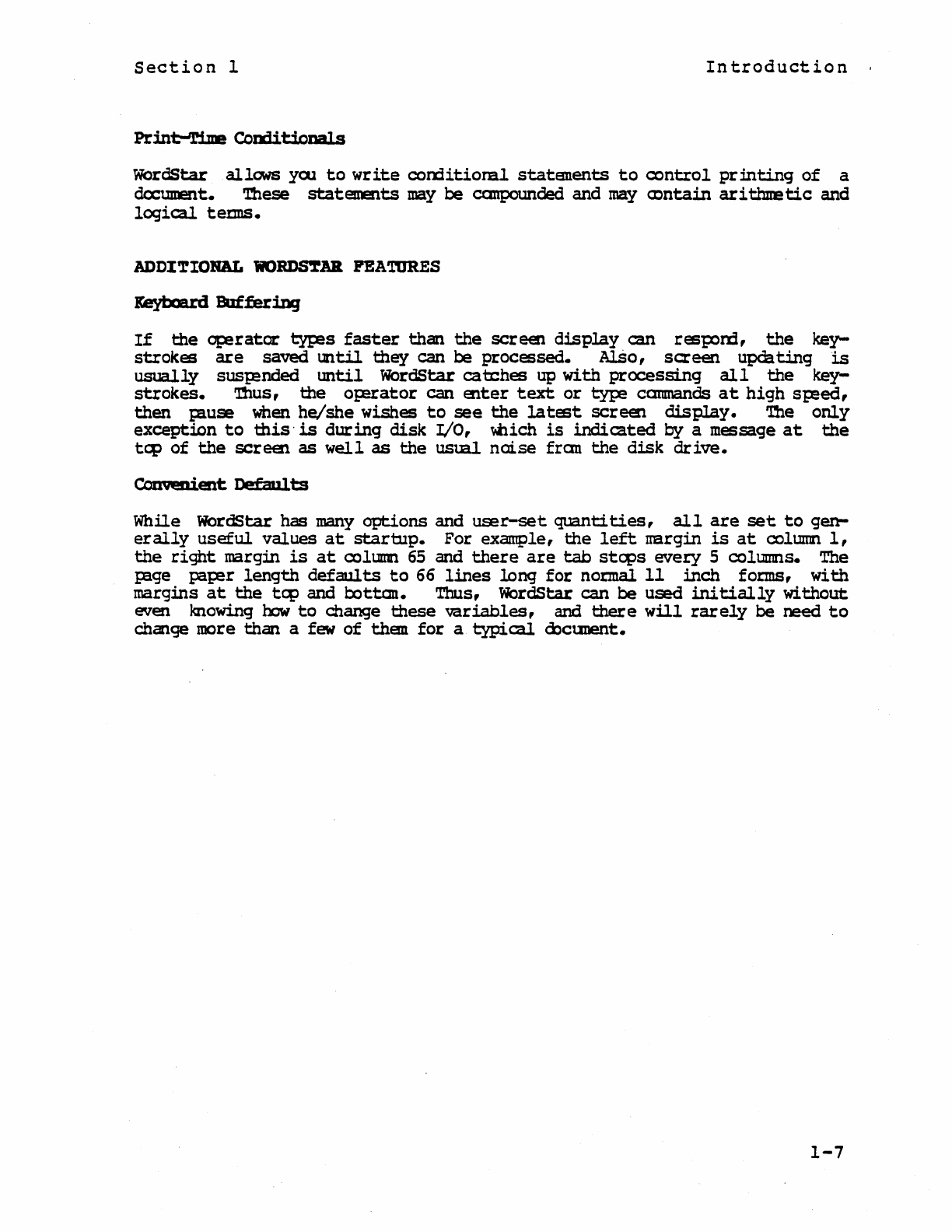
Print-Time
Comitionals
WOrdStar
allows
yoo
to
write
corXiitioml
statanents
to
control
pr:inting
of
a
document. These
statements
may
be
canpounded and
may
<J:)ntain
arithmetic
and
logical
tetmS.
ADDZ'rIORAL
1iO~1Ul
FEATURES
If
the
Op!rator
1:yp:!s
faster
than
the
screen
display
can resI=Om,
the
key-
strokes
are
saved
until
they
can
be
processed.
AlSo,
screen
upchting
is
usually
SUStended
tmtil
WordStar
catches
up
with
processing
all
the
key-
strokes.
'lllus,
the
opu:ator
can
enter
text
or
~
camnands
at
high
speed,
then
Pluse
when
he/she
wishes
to
see
the
latest
scree1
display.
The
only
exception
to
this·
is
during
disk
I/O, 'Iilich
is
indicated
by
a message
at
the
tcp
of
the
screen
as
well
as
the
usual
noise
fran
the
disk
drive.
ComeDient
DpfaJl1
ts
While WordStar
has
many
options
and
user-set
quantities,
all
are
set
to
gen-
erally
useful
values
at
startup.
For example,
the
left
mrgin
is
at
column
1,
the
right
margin
is
at
column
65
and
there
are
tab
steps
every
5 columns. The
p3.ge
paJ;er
length
defaults
to
66
lines
long
for
nor:mal
11
inch
foIIIlS,
with
margins
at
the
tcp
and
botten.
Thus, WordStar
can
be
used
initially
without
even knowing
how
to
change
these
variables,
and
there
will
rarely
be need
to
change more
than
a few
of
than
for
a
typical
oocunent.
1-7

This
Page
Intentionally
Left
Blank
1-8
Section
2
COMPATIBILITY
Section
2
Syste.
Require.ents
System
Requirements
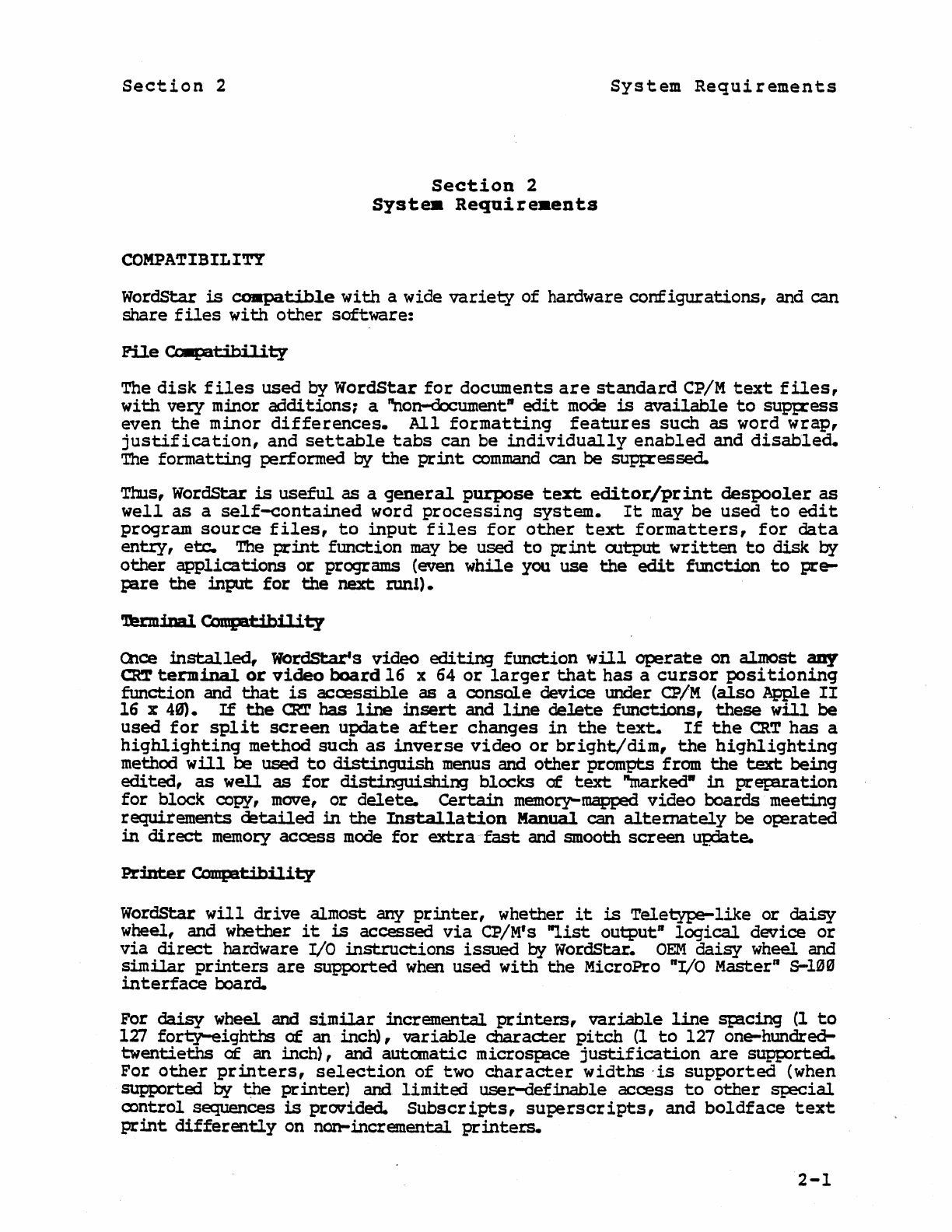
WordStar
is
co.patible
with
a wide
varie~
of
hardware
configurations,
and
can
share
files
with
other
software:
File
CcIIpatihj
1 j
i:y
The
disk
files
used
by
WordStar
for
documents
are
standard
CP/M
text
files,
with
very
minor
additions;
a "non-document"
edit
mode
is
available
to
supt;ress
even
the
minor
differences.
All
formatting
features
such
as
word
wrap,
justification,
and
settable
tabs
can
be
individually
enabled
and
disabled.
The
formatting
performed
by
the
pr:int
command
can be suptXessed.
Thus, WordStar
is
useful
as a
general
purpose
text
editor/print
despooler
as
well
as
a
self-contained
word
processing
system.
It
may
be
used
to
edit
program
source
files,
to
input
files
for
other
text
formatters,
for
data
entry,
etc.
The
print
function
may
be used
to
print
Oltput
written
to
disk
by
other
applications
or
programs (even
while
you
use
the
edit
fmction
to
pre-
pare
the
inp.tt
for
the
next
run!) •
Qlce
installed,
WordStars
video
editing
function
will
operate
on
almost
any
~
terminal
or
video
board
16
x 64
or
larger
that
has
a
cursor
positioning
function
and
that
is
accessible
as
a
console
device
under
CP/M
(also
Apple
II
16 x 49).
If
the
Cla' has
line
insert
and
line
delete
functions,
these
will
be
used
for
split
screen
update
after
changes
in
the
text.
If
the
CRT
has
a
highlighting
method
such
as
inverse
video
or
bright/dim,
the
highlighting
method
will
be used
to
distinguish
menus and
other
prompts from
the
text
being
edited,
as
well
as
for
distinguishing
blocks
of
text
"markedw
in
pr~ation
for
block
copy, move,
or
delete.
Certain
memory-mapped
video
boards
meeting
requirements
detailed
.in
the
Installation
Manual can
alternately
be
o~rated
in
direct
memory
access
mode
for
extra
fast
and smooth
screen
update.
Printer
Compatibility
WordStar
will
drive
almost
any
printer,
whether
it
is
Teletype-like
or
daisy
wheel, and whether
it
is
accessed
via
CP/M's
"list
output"
logical
device
or
via
direct
hardware I/O
instructions
issued
by
WordSt:ar.
OEM
daisy
wheel and
similar
printers
are
supported
when
used
with
the
MicroPro nI/o Master"
S-l~Hl
interface
board.
For
daisy
wheel and
similar
incremental
printers,
variable
line
spacing
(1
to
127
fori:y-eighths
of
an
inch),
variable
character
pitch
(1
to
127 one-hundred-
twentieths
of
an
inch),
and
autanatic
microspace
justification
are
supported.
For
other
printers,
selection
of
two
character
widths
·is
supported
(when
supported
by
t;he
printer)
and
limited
user-definab1e
access
to
other
special
a:>ntrol sequences
is
provided.
Subscripts,
superscripts,
and
boldface
text
print
differently
on
non-incremental
printers.
2-1
section
2
System
Requirements
It
is
p:>ssible
to
use a
fast
pr:inter
for
drafts
and a
daisy
wheel
for
finished
copy
with
no
special
considerations
other
than
creating
two
versions
of
WordStar
:installed
for
different
pr:int~rs.
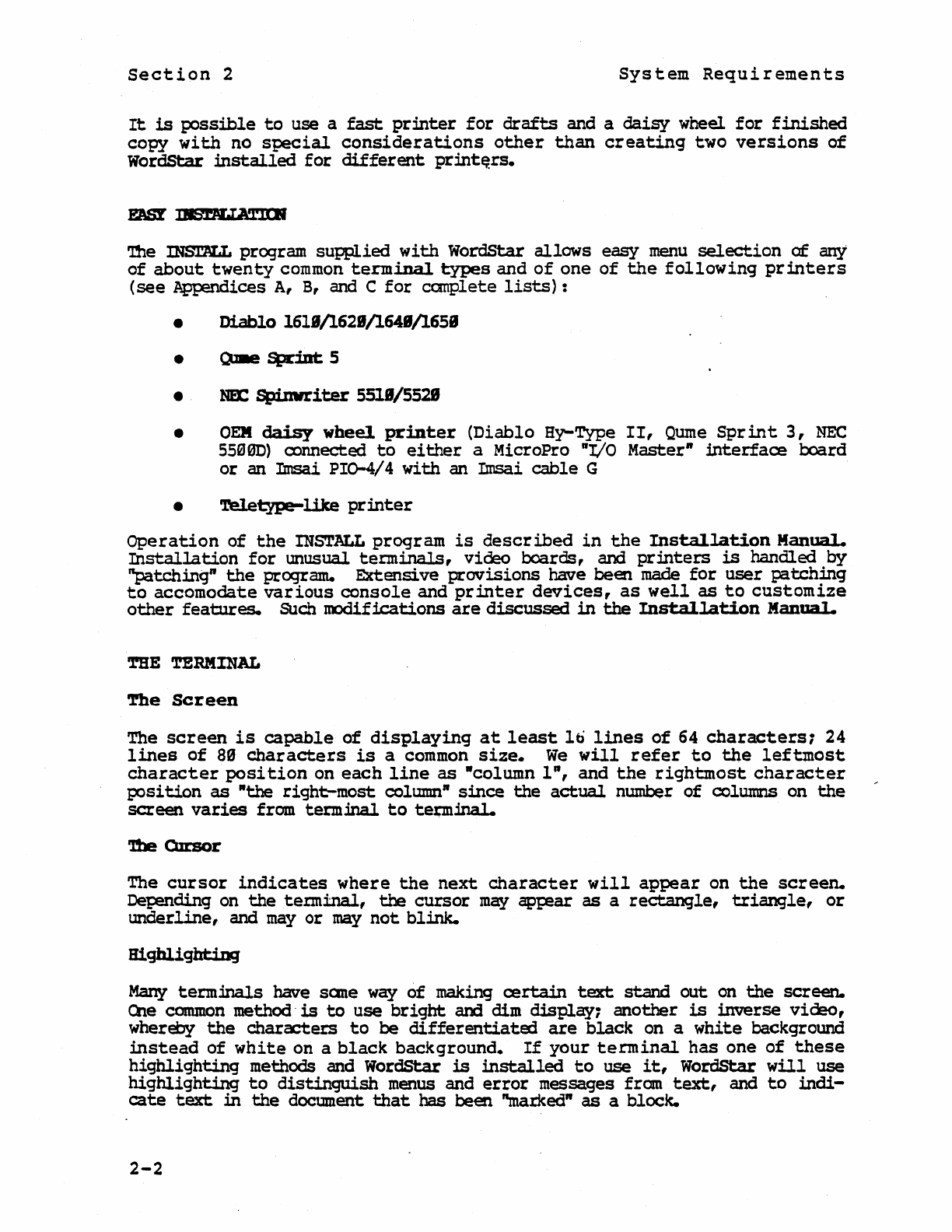
'nle
INST.PLL
program
supplied
with
WordStar
allows
easy
menu
selection
of
arrJ
of
about
twenty
common
terminal
types
and
of
one
of
the
following
printers
(see Appendices A, B, and C
for
canplete
lists)
:
• Diablo 1618/1621/1648/1658
• OllIe
Spr:int
5
•
NEt:
Spinwriter
5Sl.8/5528
•
OEM
daisy
wheel
printer
(Diablo
By-Type
II,
Qume
Sprint
3,
NEe
55~
01))
connected
to
either
a MicroPro
"I/O
Master"
:interface
OOard
or
an
Imsai
PI0-4/4
with
an
Imsai
cable
G
•
Teletype-like
printer
Operation
of
the
INSTALL
program
is
described
in
the
Insta1lation
ManuaL
Installation
for
lmUSual
terminals,
video boaroo,
and
pr:inters
is
handled
by
"patching"
the
program.
Extensive provisiOns have been made
for
user
patching
to
accomodate
various
console
and
printer
devices,
as
well
as
to
customize
other
features.
SUch
roodifications
are
discussed
in
the
Installation
Manual.
'mE
TERMINAL
~e
Screen
The
screen
is
capable
of
displaying
at
least
It)
lines
of
64
characters7
24
lines
of
a9
characters
is
a
common
size.
We
will
refer
to
the
leftmost
character
posi
tion
on
each
line
as
·column
l",
and
the
rightmost
character
position
as
·the
right-most
column"
since
the
actual
number
of
columns on
the
screen
varies
from
termmal
to
tepnmaJ..
The
cursor
indicates
where
the
next
character
will
appear
on
the
screen.
Depmding
on
the
terminal,
the
cursor
may
apr:ear
as
a recta.ngle,
triangle,
or
underline,
and
mayor
may
not
blink.
Many
termlnals
have
sane
w~
of
making
certain
text
stand
out
on
the
screen.
Qle
common
method·
is
to
use
bright
and
dim
display:
another
is
inverse
video,
whereby
the
characters
to
be
differentiated
are
black
on a
white
background
instead
of
white
on a
black
background.
If
your
terminal
has
one
of
these
highlighting
methods and WordStar
is
installed
to
use
it,
wordStar
will
use
highlighting
to
distinguish
menus
and
error
messages
fran
text,
and
to
indi-
cate
text
in
the
document
that
has been "marked"
as
a block.
2-2
Section
2
S.ystem
Requirements
Insert
and
Delete
Line
Many
terminals
have
SI=eCial
control
codes
to
\
permit
deleting
or
inserting
a
line
of
text
on
the
screen,
automatically
moving
the
lines
below up
or
down.
If
your
termmal
has
these
capabilities
and WordStar
is
correctly
installed
to
use
them,
WordStar
will
use
split
screen
upward and downward
scrolling
to
achieve
rapid
screen
upJate
as
text
is
edited
or
scanned.
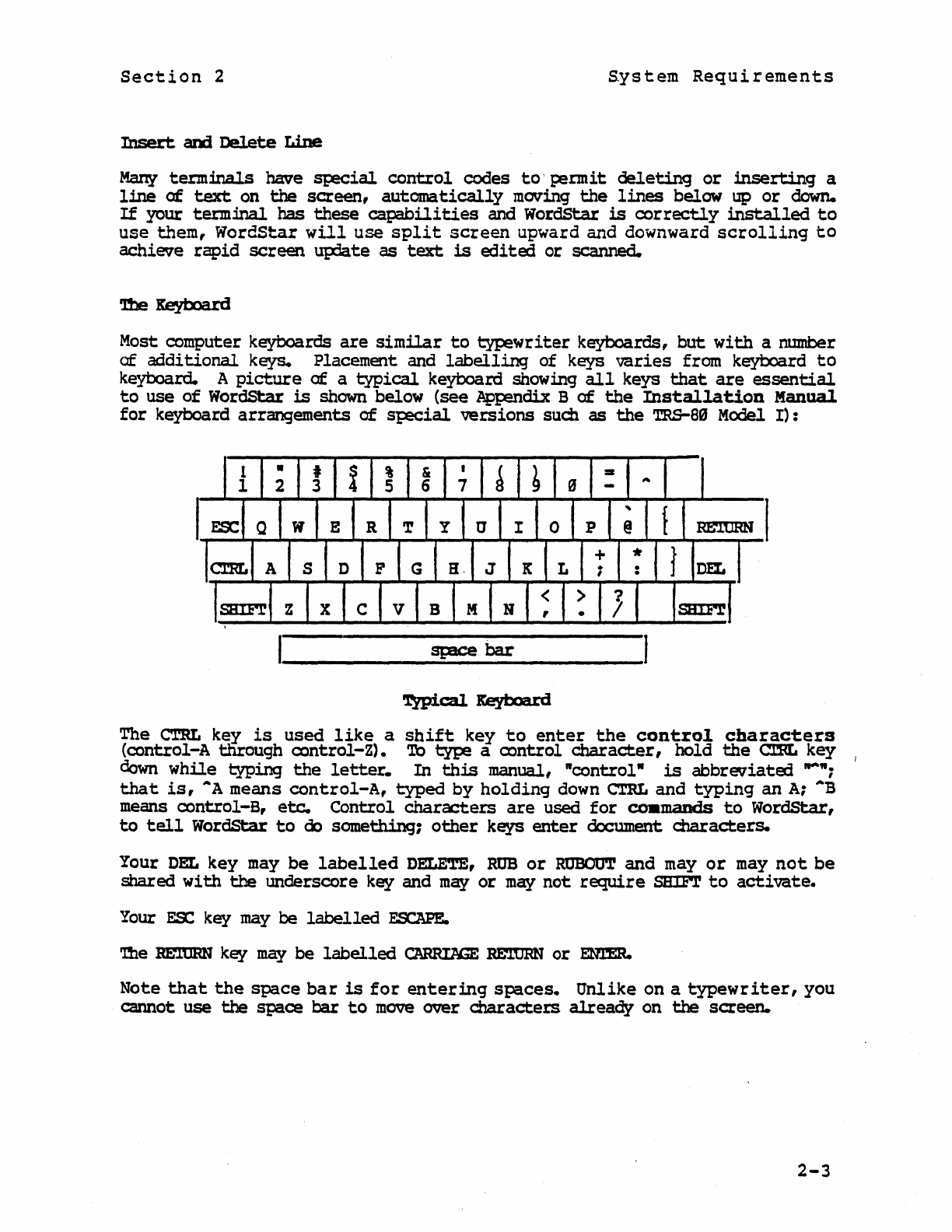
Most computer keyboards
are
similar
to
1:yI:ewriter keyboards,
but
with
a number
of
additional
keys. Placement and
labelling
of keys
varies
from keyboard
to
keyboard. A
picture
of
a
typical
keyboard showing
all
keys
that
are
essential
to
use
of
WordStar
is
shown below (see
Appendix
B
of
the
Installation
Manual
for
keyboard arrangements
of
special
versions
such
as
the
TRS-80
Model
I):
The
CT.RL
key
is
used
like
a
shift
key
to
enter
the
control
characters
(conuol-A
wough
control-Z).
To
type
a
control
character,
hold
the
CJ:m.
key I
down
while
typing
the
letter.
In
this
manual, "controlN
is
abbreviated
'-";
that
is,
AA
means
control-A,
typed
by
holding
down
CTRL
and
typing
an
A;
AB
means
control-B,
etc.
Control
characters
are
used
for
COIImands
to
WordStar,
to
tell
WordStar
to
cb
something~
other
keys
enter
document
characters.
Your
DEL
key
may
be
labelled
DELETE,
RUB
or
RtJBOtJT
and
mayor
may
not
be
shared
with
the
underscore key and
may
or
may
not
require
SBIFr
to
activate.
Your
ES:
key
may
be
labelled
ES:APE.
'!he
RE"lURN
key
may
be
labelled
CARRI1Q
RE'l.tJHN
or
EmER.
Note
that
the
space
bar
is
for
entering
spaces.
Unlike
on a
typewr
iter,
you
cannot use
the
space
bar
to
move
over
characters
already
on
the
screen.
2-3
Section
2
System
Requirements
A number
of
additional
keys
may
J:e
present,
including:
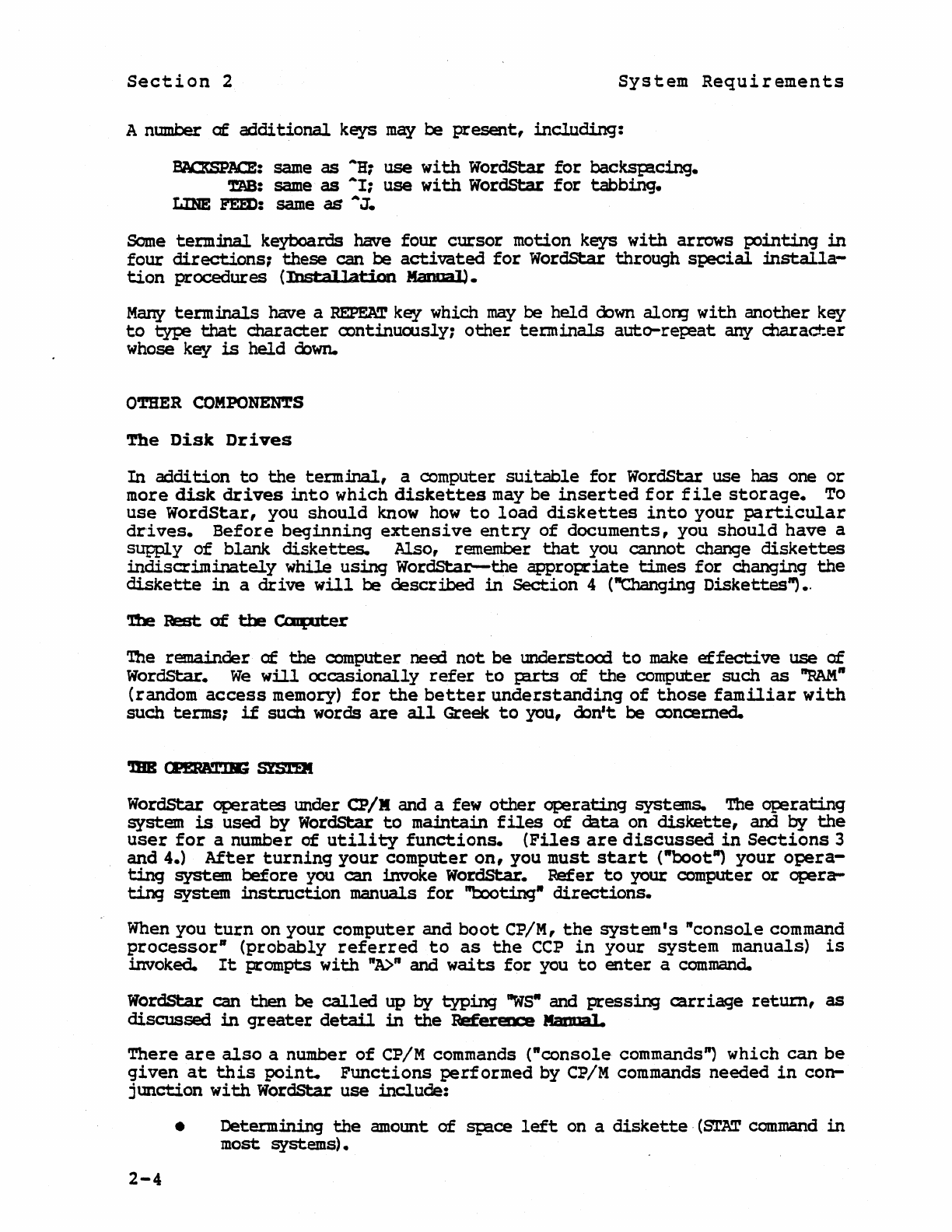
lW:XSPACE:
same
as
AHr
use
with
WordStar
for
backstacing.
TAB:
same as
AI;
use
with
WordStar
for
tabbin9.
LIN!
FEm:
same as AJ.
Some
term:inal keyboards have
four
clltsor
motion keys
with
arrows
pointing
in
four
directions,
these
can be
activated
for
WordStar through
special
installa-
tion
procedures
(Inst:allation
Mamal).
Many
terminals
have a
REPEAT
key which
may
be
held
oown
alorq
with
another
key
to
type
that
character
continuously;
other
terminals
auto-re~at
any
dlaracter
whose key
is
held
down.
OTHER
COMPONENTS
'.rhe
Disk
Drives
In
addition
to
the
terminal,
a computer
sui
table
for
WordStar use
has
one
or
more
disk
drives
into
which
diskettes
may
be
inserted
for
file
storage.
To
use
WordStar,
you
should
know
how
to
load
diskettes
into
your
particular
drives.
Before
beginning
extensive
entry
of
documents,
you
should
have
a
supply
of
blank
diskettes.
Also, remember
that
you cannot change
diskettes
indiscriminately
while
using
WordStar-the
appropriate
times
for
changing
the
diskette
in
a
drive
will
be
described
in
Section
4 ("Changing Diskettes")
e·
'1b!
Rest
of
the
CoIpJter
The remainder
of
the
computer
need
not
be
understcxXl
to
make
effective
use
of
WordStar.
We
will
occasionally
refer
to
pirts
of
the
computer such
as
"RAM"
(random
access
memory)
for
the
better
understanding
of
those
familiar
with
such terms1
if
such words
are
all
Greek
to
you,
oon't
be concerned.
WordStar
operates
under
CP/X
and a few
other
operating
systems.
The
operating
system
is
used by WordStar
to
mamtain
files
of
data
on
diskette,
and
by
the
user
for
a number
of
utility
functions.
(Files
are
discussed
in
Sections
3
and 4.)
After
turning
your
computer
on,
you
must
start
("boot")
your
opera-
ting
system
before
you can invoke WordStar. Refer
to
your computer
or
opera-
ting
system
:instruction
manuals
for
"I::ooting-
directions.
When
you
turn
on
your
computer
and
boot
CP/M,
the
system's
"console
command
processor"
(probably
referred
to
as
the
CCP
in
your
system
manuals)
is
invoked.
It
prompts
with
nA>.
and
waits
for
you
to
enter
a
command.
WordStar can
then
be
called
up
by
typing
"WS"
and
pressing
carriage
return,
as
discussed
in
greater
detail
in
the
Refererx:e
Mama].
There
are
also
a number
of
CP/M commands
("console
commands")
which
can
be
given
at
this
point.
Functions
performed
by CP/M commands needed
in
con-
jtmction
with
WordStar
use
include:
2-4
• Determining
the
amotmt
of
stace
left
on a
diskette,
(STAT
command
in
most systems).
Section
2
System
Requirements
•
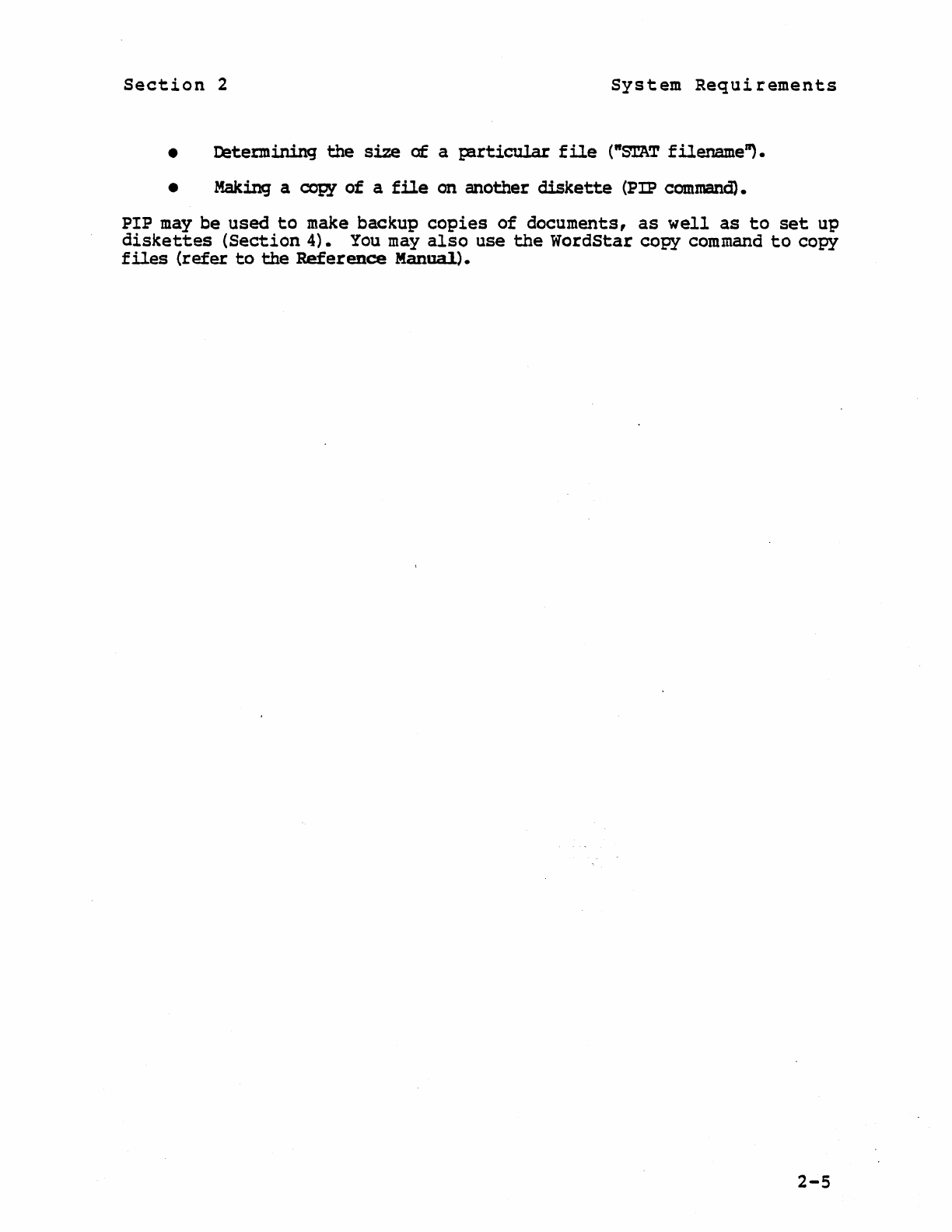
l:etemining
the
size
of
a
J;8rticular
file
("STAT
filename"'.
• Making a copy
of
a
file
on
another
diskette
(PIP
command).
PIP
may
be
used
to
make backup
copies
of
documents,
as
well
as
to
set
up
diskettes
(Section
4).
You
may
also
use
the
WordStar
copy command
to
copy
files
(refer
to
the
Reference
Manua1).
2-5
'!his
Page
Intentionally
Left
Blank
2-6
Section
3
Piles
and
Diskettes:
Part
1
PILES
Understanding
the
nature
of
a
file
is
important
to
understanding
the
Ot;=eration
of
WordStar. Since
we
will
refer
to
files
frequently,
we
will
discuss
them
and
related
concepts
before
proceeding.
What
is
a
file?
A
file
is
a
collection
of
characters
stored,
in
order,
under
a
name,
on a
diskette.
'l.'ext.
files
Files
containing
text
are
used
to
store
documents,
such
as
letters,
books,
grocery
lists,
and so
on
diskette.
When
you
enter
a document
into
the
compu-
ter
with
WordStar, you
are
using WordStar
to
create
a
file
containing
the
text
of
the
document.
When
you
make
corrections
:in
a document, you
are
modifying
an
existing
file.
I:ocuments and
Files
Generally,
we
will
use
the
words
-f
ile"
and "document"
interchangeably
to
refer
to
the
textual
material
being
entered
or
altered
with
WordStar.
Q::ca-
sionally,
of
course,
what you
think
of
as a "document"
may
not
corres};Orxl
to
a
"filell.
For example, a
book
(a
large
document!) might have, each
chapter
stored
as
a
separate
file,
or
a
commonly
used
taragraph
(less
than
a document) might
be
stored
on a
sep!rate
file
for
later
retrieval
for
inclusion
in
future
docu-
ments.
stmcture
of
a
'l'eI±
Pile
The
characters
are
stored
in
a
file
containing
text
in
exactly
the
order
you
would
type
them on a
~writer.
Every
place
you
would
hit
the
space
bar,
a
"spacell
character
is
stored
in
the
file.
At
the
end
of
each
line,
where
you
would
return
the
carriage,
there
is
a
-carriage
return"
character
stored
in
the
file.
There
really
is
a
"character"
for
llcarriage
return
ll
that
is
stored
between
lines
in
the
file.
You
can
take
advantage
of
this
knowledge
when
editing
a document. For example,
if
you
want
to
join
two
lines
together,
you
delete
the
IIcarriage
return
ll
at
the
end
of
the
first
line.
If
you command
the
cursor
to
back up from
the
beginning
of
a
line,
the
cursor
goes
to
the
end
of
the
preceding
line.
(Technically
speaking,
there
are
two
characters,
called
"carriage
return"
and
IIline
feed",
between
lines
of
a
text
file.
Since
WordStar
automatically
manipulates
the
line
feed
along
with
the
carriage
return,
the
user
need
not
be
aware
of
the
second
character
except:
in
a few
sp!cific
contexts
which
will
be mentioned
later.)
3-1
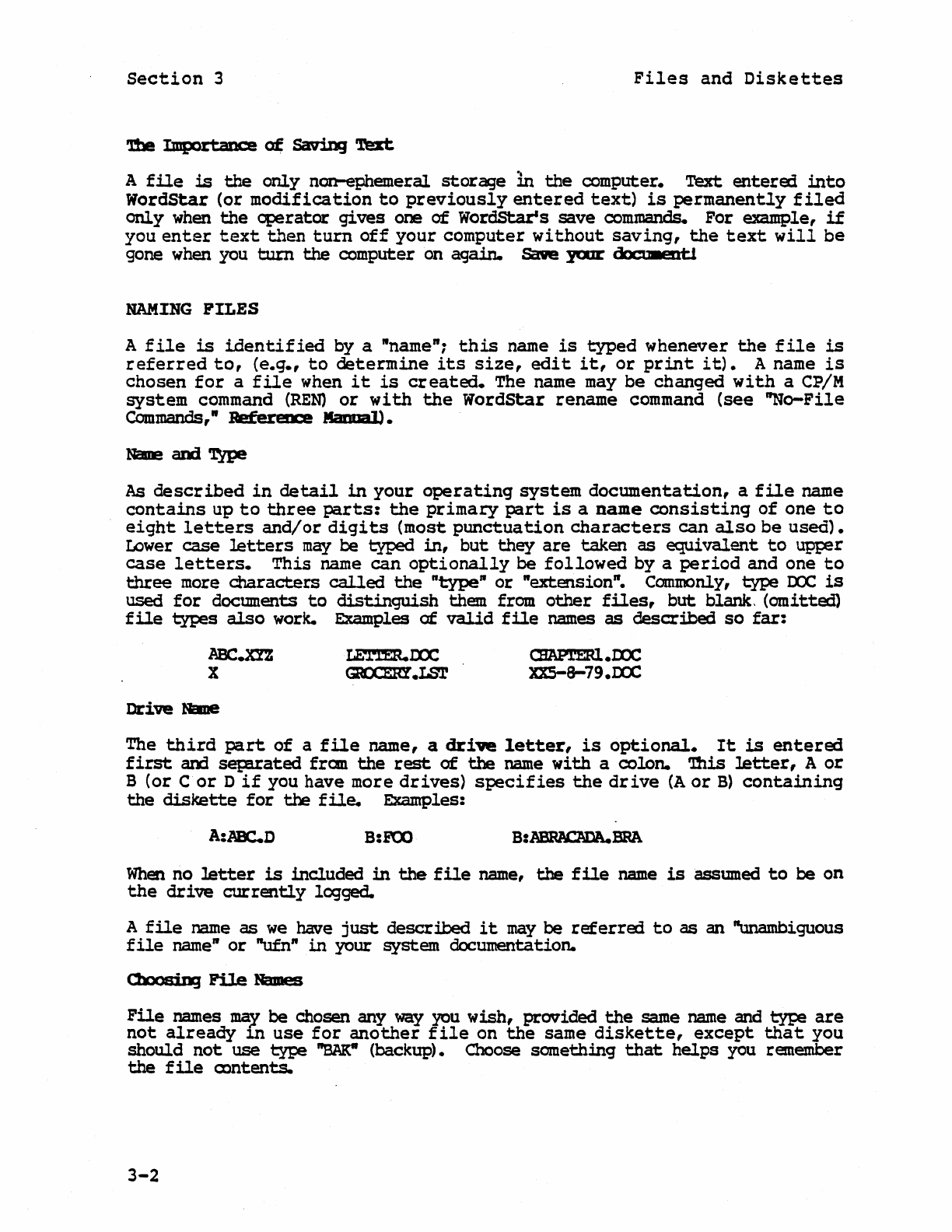
Section
3
Files
and
Diskettes
~
Importance
of
saving
'l'ert
A
file
is
the
only
non-ephemeral
storage
in
the
computer.
Text
entered
into
WordStar
(or
modification
to
previously
entered
text)
is
permanently
filed
only
when
the
operator
gives
one
of
WordSt:ar's
save
commands. For example,
if
you
enter
text
~~en
turn
off
your
computer
without
saving,
the
text
will
be
gone when you
tum
the
computer on
again.
save
JOlr
&x:u.ent1
NAMING
PILES
A
file
is
identified
by a "name";
this
name
is
typed
whenever
the
file
is
referred
to,
(e.g.,
to
determine
its
size,
edit
it,
or
print
it).
A name
is
chosen
for
a
file
when
it
is
created.
The name may
be
changed
with
a
CP/M
system
command
(REN)
or
with
the
WordStar
rename
command
(see
"No-File
Commands,"
BefereD:e
Mamal).
As
described
in
detail
in
your
operating
system
documentation,
a
file
name
contains
up
to
three
parts:
the
primary
part
is
a
name
consisting
of
one
to
eight
letters
and/or
digits
(most
punctuation
characters
can
also
be
used).
!£)wer
case
letters
may
be
typed
in,
but
they
are
taken
as
equivalent
to
upt::er
case
letters.
This
name
can
optionally
be
followed
by
a
period
and
one
to
three
more
characters
called
the
"type"
or
"extension". Commonly,
type
I:CC
is
used
for
documents
to
distinguish
them from
other
files,
but
blank, (omitted)
file
types
also
work. Examples
of
valid
file
names
as
described
so
far:
ABC.XYZ
X
Drive
NeIDe
CBAP'l'ERl.llX
xxs-a-79.OCC
The
third
part
of
a
file
name, a
dri-ve
letter,
is
optional.
It
is
entered
first
arxl
sep!rated
fran
the
rest
of
the
name
with
a colon.
'Ibis
letter,
A
or
B
(or
Cor
D
if
you
have
more
drives)
specifies
the
drive
(A
or
B)
containing
the
diskette
for
the
file.
Examples:
A:ABC.D
B:FCXl
B:A'BBAC\DA.BRA
When
no
letter
is
included
in
the
file
name,
the
file
name
is
assumed
to
be
on
the
drive
currently
logged.
A
file
name
as
we
have
just
described
it
may
be
referred
to
as
an "unambiguous
file
name"
or
"ufn"
in
your system documentation.
<:boosing
Pile
Names
File
names
may
be chosen any
~
you
wish,
provided
the
same
name
and
type
are
not
already
Jon
use
for
another
file
on
the
same
diskette,
except
that
you
should
not
use
type
"BAK-
(backup). Choose something
that
helps
you remember
the
file
alntents.
3-2
Section
3
Files
and
Diskettes
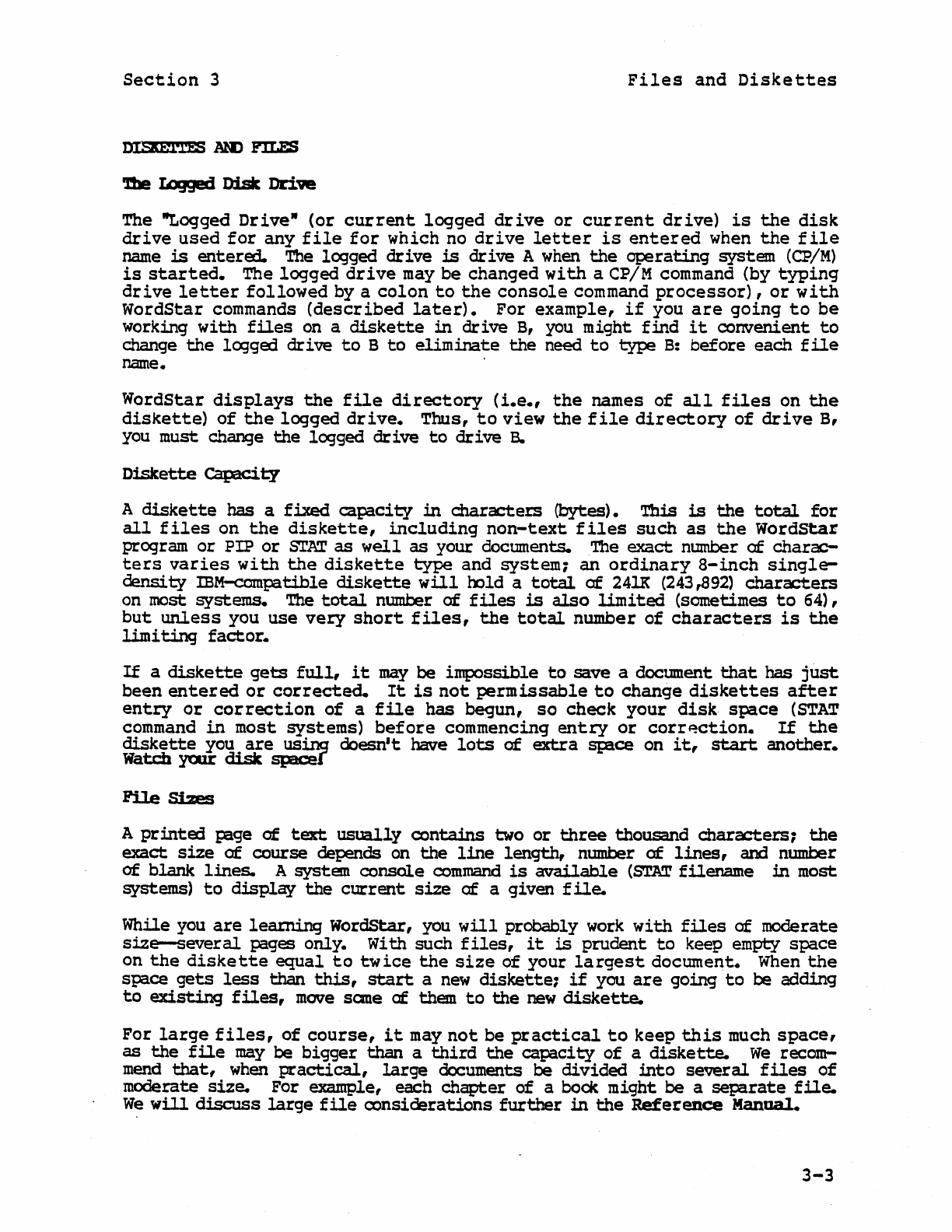
The "Logged
Drive"
(or
current
logged
drive
or
current
drive)
is
the
disk
drive
used
for
any
file
for
which
no
drive
letter
is
entered
when
the
file
name
is
entered.
The
logged
drive
is
drive
A when
the
operating
system
(CP/M)
is
started.
The
logged
drive
may
be
changed
with
a
CP/M
command
(by
typing
drive
letter
followed
by
a
colon
to
the
console
command
processor),
or
with
WordStar
commands
(described
later).
For
example,
if
you
are
going
to
be
working
with
files
on a
diskette
in
drive
B, you
might
find
it
convenient
to
change
the
logged
drive
to
B
to
eliminate
the
need
to
type
B:
before
each
file
name.
WordStar
displays
the
file
directory
(i.e.,
the
names
of
all
files
on
the
diskette)
of
the
logged
drive.
Thus,
to
view
the
file
directory
of
drive
B,
you must change
the
logged
drive
to
drive
B.
Diskette
capacity
A
diskette
has
a
fixed
capacity
in
characters
(bytes) •
This
is
the
total
for
all
files
on
the
diskette,
including
non-text
files
such
as
the
WordStaE
program
or
PIP
or
STAT
as
well
as
your documents. The
exact
number
of
charac-
ters
varies
with
the
diskette
type
and
system;
an
ordinary
a-inch
single-
density
mM-compatible
diskette
will
oold
a
total
of
24lK (243,892)
characters
on most
systems.
The
total
number
of
files
is
also
limited
(sometimes
to
64),
but
unless
you
use
very
short
files,
the
total
number
of
characters
is
the
limi
ting
factor.
If
a
diskette
gets
full,
it
may
be
impossible
to
save
a document
that
has
just
been
entered
or
corrected.
It
is
not
permissable
to
change
diskettes
after
entry
or
correction
of
a
file
has
begun,
so
check
your
disk
space
(STAT
command
in
most
systems)
before
commencing
entry
or
corr~ction.
If
the
diskette
you
are
using
doesn't
have
lots
of
extra
spice
on
it,
start
another.
Watch
yaIr
disk
spacer
A
printed
I=Bge
of
text
usually
contains
two
or
three
thousand
characters;
the
exact
size
of
course
depends on
the
line
length,
number
of
lines,
and
number
of
blank
lines.
A system
console
command
is
available
(STAT
filename
in
most
systems)
to
display
the
current
size
of
a
given
file.
While you
are
learning
WordStar, you
will
probably
work
with
files
of
moderate
size-several
pages
only.
With
such
files,
it
is
prudent
to
keep empty
space
on
the
diskette
equal
to
twice
the
size
of
your
largest
document.
When
the
space
gets
less
than
this,
start
a
new
diskette1
if
you
are
going
to
be
adding
to
existing
files,
move
sane
of
them
to
the
new
diskette.
For
large
files,
of
course,
it
may
not
be
practical
to
keep
this
much
space,
as
the
file
may
be
bigger
than
a
third
the
capacity
of
a
diskette.
We
recom-
mend
that,
when
practical,
large
documents
be
divided
into
several
files
of
moderate
size.
For example, each
chapter
of
a bock
might
be
a
separate
file.
We
will
discuss
large
file
considerations
further
in
the
Reference
Manual.
3-3
Section
3
Files
and
Diskettes
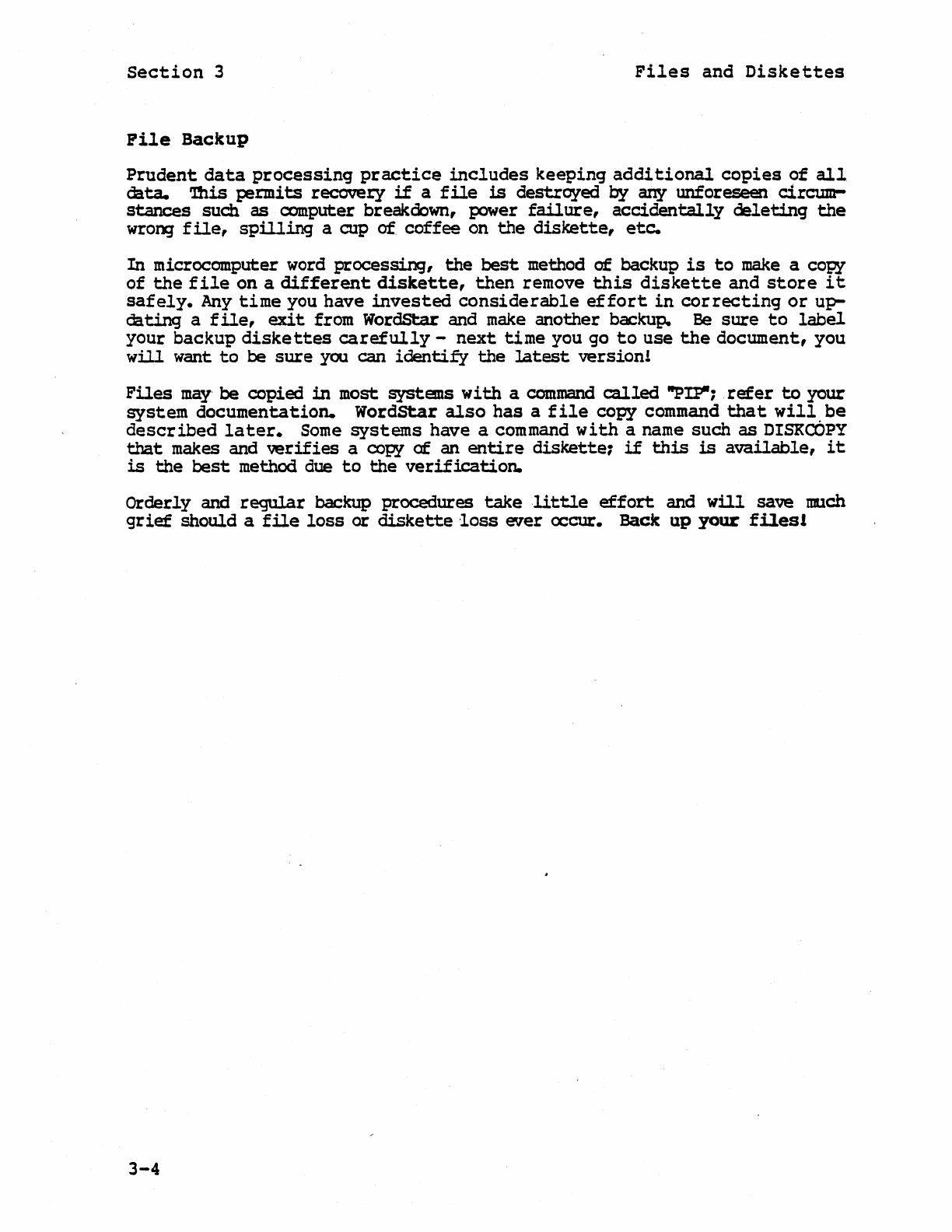
Pile
Backup
Prudent
data
processing
practice
includes
keeping
additional
copies
of
all
data.
'!his
permits
recovery
if
a
file
is
destroyed
by
any unforeseen
circum-
stances
such as computer breakoown, power
failure,
accidentally
deleting
the
wrong
file,
spilling
a cup of.
coffee
on
the
diskette,
etc.
In
microcomputer word
processing,
the
best
method
of
backup
is
to
make
a copy
of
the
file
on
a
different
diskette,
then
remove
this
diskette
and
store
it
safely.
Any
time
you
have
invested
considerable
effort
in
correcting
or
up-
dating
a
file,
exit
from WordStar and
make
another
backup. Be
sure
to
label
your
backup
diskettes
carefully
-
next
time
you go
to
use
the
document,
you
will
want
to
be
sure
you can
identify
the
latest
version!
Files
may'
be
copied
in
most
systans
with
a
command
called
"PIJ?II1
refer
to
your
system
documentation.
WordStar
also
has
a
file
copy
command
that
will,be
described
later.
Some
systems
have
a command
with
a name
such
as
DISKCOPY
that
makes and
verifies
a copy
of
an
entire
diskette1
if
this
is
available,
it
is
the
best
method due
to
the
verification.
Orderly
and
regular
backup
procedures
take
little
effort
and
will
save much
grief
should
a
file
loss
or
diskette
loss
ever
occur. Back
up
your
files!
3-4
Section
4
Piles
and
Diskettes:
Part
2
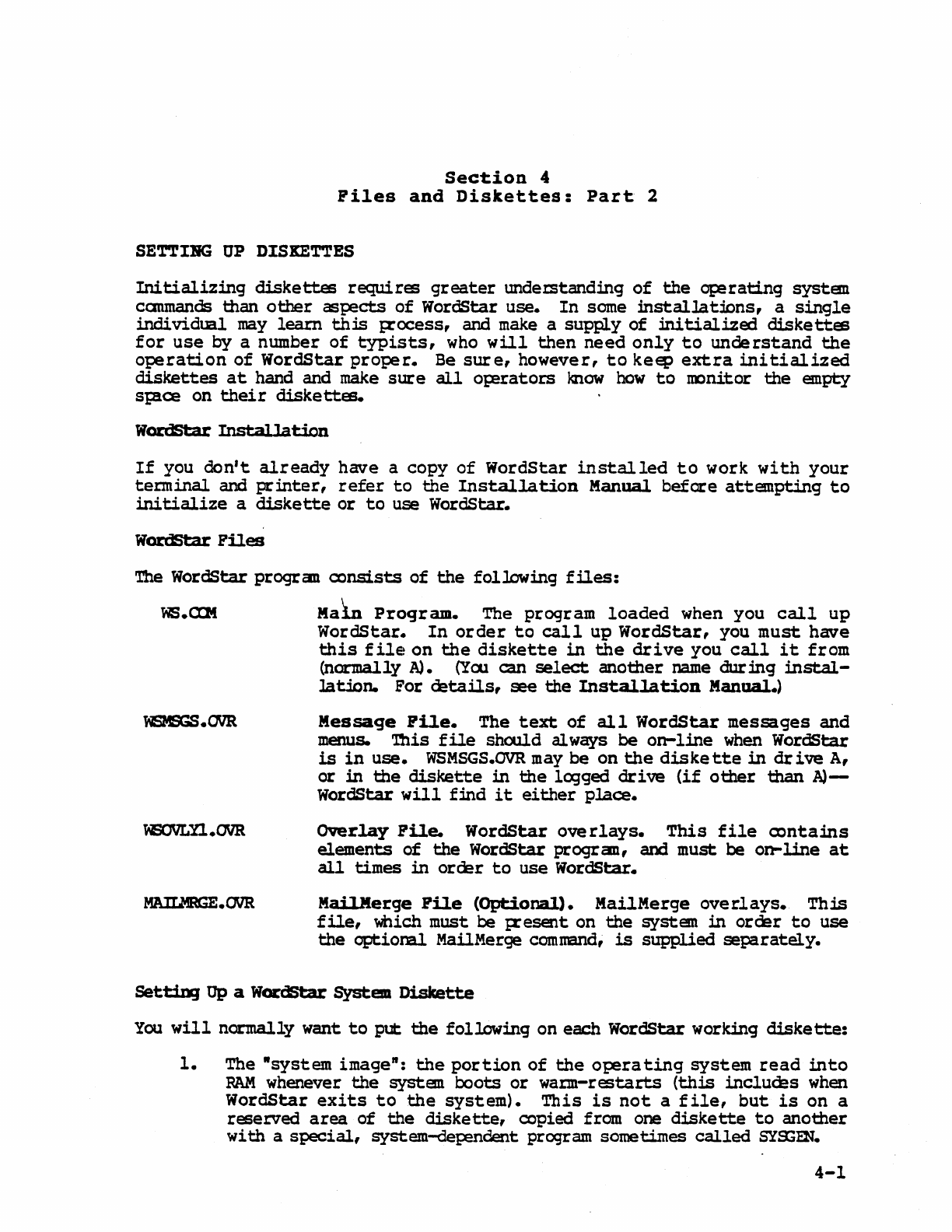
SETTIBG
UP
DISKETTES
Initializing
diskettes
requires
greater
undez:standing
of
the
q:2rating
system
canmands
than
other
aerpects
of
WordStar
use.
In
some
installat:icns,
a
single
individual
may
learn
this
IXocess,
and
make
a
supply
of
initialized
diskettes
for
use
by
a number
of
typists,
who
will
then
need
only
to
understand
the
operation
of
WordStar
proper.
Be
sure,
however,
to
keep
extra
initialized
diskettes
at
hand and
make
sure
all
o};erators
know
how
to
mnitor
the
empty
sp!ce
on
their
diskettes.
WardStar
Installation
If
you
don't
already
have
a
copy
of
WordStar
installed
to
work
with
your
terminal
and
printer,
refer
to
the
Installation
Manual
before
attempting
to
initialize
a
diskette
or
to
use WordStar.
WardStar
Piles
The
WordStar
progran
Q)nsists
of
the
following
files:
ws.CQt
Maln
Program.
The
program
loaded
when
you
call
up
WordStar.
In
order
to
call
up
WordStar,
you
must
have
this
file!
on
the
diskette
in
the
drive
you
call
it
from
(normally
A).
(Yoo
can
select
another
name
during
instal-
lation.
For
details,
see
the
Installation
Manual.)
~.OVR
liBNLn.OVR
MAIUR;E.OVR
Message
Pile.
The
text
of
all
WordStar
messages
and
menus.
'Ibis
file
should always
be
on-line
when
WordStar
is
in
use.
WSMSGS.OVR
may
be
on
the
diskette
in
drive
A,
or
in
the
diskette
in
the
legged
drive
(if
other
than
A)-
WordStar
will
f:ind
it
either
place.
OVerlay
Pile.
WordS
tar
overlays.
This
file
Q)ntams
elements
of
the
WordStar
progran,
and
must
be
on-line
at
all
times
in
order
to
use
WordStar.
Mai.l.Merge
Pile
(Optional).
MailMerge
overlays.
This
file,
which must
be
IXesent on
the
system
in
order
to
use
the
optional
MailMerge comnand,
is
supplied
separately.
Sett:i.D)
Up a
WordStar
System
Diskette
You
will
normally
want
to
put
the
following
on each WordStar worJdng
diskette:
1.
The
"system
image":
the
portion
of
the
operating
system
read
into
RAM
whenever
the
systen
boots
or
wann-restarts
(this
includes
when
WordStar
exits
to
the
system).
This
is
not
a
file,
but
is
on
a
reserved
area
of
the
diskette,
Q)pied from one
diskette
to
another
wi
th
a
special,
system-dep=ndent
program sometimes
called
gyS;EN.
4-1
Section
4
Files
and
Diskettes
2.
The
files
for
any
-transient"
CP/M
canmands you wish.
We
recanmend
STAT.COM
and
PIP.CDM
for
all
diskettes.
3.
'!be
files
required
by
WordStar:
a.
WS.COM,
the
WS
program
(as
produced
by
the
"installation"
procedure,
described
in
the
Installation
Manual).
b.
WSMSGS.ovR,
the
WordStar message
text
file.
This
file
should
al
ways
be
on
the
diskette
in
drive
A,
or
on
the
diskette
in
the
logged
drive.
c.
WSOVLn.ovR,
the
WordStar
overlay
file.
This
file
must
al
ways
be
on
the
diskette
in
the
logged
dr
i
ve,
or
on
the
diskette
in
drive
A.
We
recommend
that
you
keEP
a
diskette
containing
all
three
of
these
files
in
drive
A whenever you
use
WordStar.
d.
MAILMRGE.OVR
(optional).
This
f
lie
must be
pr
esent
on
the
dis-
kette
in
drive
A
(or
in
the
logged
drive)
in
order
to
use
WordStar's MailMerge
capability.
In
most
systems,
files
(items
2 and
3)
are
moved
with
the
CP/M
utility
program
PIP:
refer
to
your
operating
system
documentation.
Once
your
WordStar
is
installed,
a WordStar canmand
may
also
be
used
to
move
files.
A
diskette
in
drive
B
can
be
used
for
document
file
storage
only.
It
need
have
none
of
the
above
items
on
it
(provided
WSMSGS.ovR
and
~OVLn.OVR
are
on
the
diskette
in
drive
A),
making
its
entire
capacity
available
for
document
stcrage.
(However,
it
is
often
to
include
itans
2
and
3
for
ccnvenience.)
Rote
For WordStar
to
op:!rate,
there
must
always
be
a
diskette
in
drive
A,
and
also
in
the
logged
drive
if
other
than
A.
'lb!
Simple
and
Safe
Rule
Change
diskettes
only
when
the
systan.
is
ready
to
accept
a
command
(A>
or
B>
pranpt),
and
after
changing
diskettes
typ!
CDltrol-<:
("'e).
l:on't
forget
the
"'Cl Cha'lging
diskettes
at
the
wron;
time,
such as when WordStar
is
editing
or
printing
a
file,
or
forgetting
the
CDntrol-<:
results
in
errors
under some
versions,
and
destroys
existing
files
under
other
versions.
Under
certain
systems,
"'c
is
unnecessary,
but
it
ooes
no harm.
'!be
WcxdStar BmepI
ion
When
WordStar
is
running,
diskettes
may be
changed
if
WordStar
is
neither
editing
a
file
nor
printing.
The
no-file
menu
(described
later)
must
be'
on
the
screen,
and
printing
must be
inactive.
"'c
is
not
used
in
this
case.
4-2
Section
4
Files
and
Diskettes
Used
with
caution,
this
exception
is
a convenience:
it
makes
it
lJUlecessary
to
re-invoke
WordStar
to
edit
a
file
on a
different
diskette,
and
elimmates
the
need
to
have
WS.CDM
~.e
up
diskette
stace
when
working
with
large
files.
There
is
no
general
provision
for
chmging
diskettes
in
the
midst
of
an
edit.
Make
sure
you
have
plenty
of
working
space
on
your
diskette
before
invoking
WordStar.
caution
Never change
diskettes
W:lile
editing
or
printing!
When
initiating
editing
with
WordStar,
the
op!ratar
enteIS
a
f:lle
name.
Thjs
may
be
the
name
of
an
existing
file
to
be
altered,
or
the
name
of
a new
file
into
which
text
is
to
be
entered.
The
processes
of
altering
an
existing
Cbcu-
ment
and
enter
ing
a new
document
are
the
same
in
WordStar,
except
of
course
that
the
new
oocument
starts
out
empty.
Saving
a DOCl1"E'1'lt
When
an
existing
oocument
is
edited,
the
changes
are
entered
ten};X)rar:lly
into
an
ephemeral
working
document;
no
change
is
made
in
the
permanent
diskette
storage
until
one
of
WordStar's
save
commands
is
given.
When
you
save
the
dccument,
the
I;X'eviOlS
version
of
the
file
is
changed
to
type
"BAr (backup),
and
the
contents
of
the
working document
are
filed
lmder
the
file
name
of
the
I;X'evioos
version
(see
the
illustration
below uncer "Summary").
For
example,
if
you
edit
a
previously
entered
file.
named
LETTER.DOC,
after
saving
it
the
new
version
will
be
on
the
original
file
name
(IETTER-DOC)
and
the
version
of
the
document
that
existed
before
the
edit
will
now be
called
IETlER.BAK.
When
a
new
oocument
is
entered,
the
text
goes
into
the
working Cbcument
as
it
is
entered
and
is
J;:ermanently
recorCed
on
diskette
only
when
a
save
canmand
is
given.
After
saving
the
first
time,
the
enteral
text
will
be on
the
st:ecified
file
name.
There
will
be
no
BAK
file
since
there
was no
lXior
version.
To
review,
the
working
docmaent
is
the
version
of
the
document
containing
changes and
additwns
made
during
editing.
The
.original
file
is
not
altered
until
you
give
a
save
command (and
even
then
the
original
version
is
kept,
wi
th
type
BAK).
If
the
edit
is
inter
rupted
for
any reasol'l-OJ;:erator canmand,
power
failure,
etc.--the
working
document
is
lost
and
the
original
file
is
unchanged
(non-existent
for
a
new
file).
The most
important
t:Oint atout
the
working oocument
is
its
transitory
nature:
working document
text
is
not
J;:ermanently
recorded
on
diskette
until
you
~
it.
Save
your
docmaentl
For convenience, WordStar
contains
a "save and
re-
edit"
canmand which ooes a
canplete
save,
then
initiates
editing
of
the
file
just
saved.
Use
of
this
command
periodically
dur
ing
long
edit
sessions
is
highly
recommended.
4-3

Section
4
Files
and
Diskettes
BestoriDg
the
Backup
Pile
Alternately,
if
you
make
changes
in
a document,
then
decide
before
saving
that
you
want
the
original
kept,
you
may
use
WordStar's
abandon command as
des-
cribed
later.
This
oommand
discards
the
working document,
leaving
the
origi-
nal
f
ile
un~ianged.
If
you
discover
after
saving
that
you
made
drastic
errors
while
editing
file
LETrER.IX:C,
you
may
recover
the
prior
version
by
using
operating
system
com-
mands
to
copy
or
rename
LETl'ER.BAK
to
LE'.ITERJX)C,
or
by usinq WordStar's
"real
addi
tional
file"
canmand.
Note
that
only
one
prior
version
is
kept.
If
you
want
to
keep
a
version
indefinitely,
make
a
coJ;¥
on
another
file
name.--say
LE'I'I'EB.OLD
or
IETTEIU3~1.
If
the
"save
and
re-edit"
command
is
used
during
an
edit,
the
BAK
file
(upon
completion)
will
be
the
version
at
the
last
"save and
reedit".
9JMIBry
We
have
made
three
important
};X.)ints
in
the
above l;Braqraphs:
4-4
1.
Disk
files
aren't
changed
at
all
tmtil
a
save
canmand
is
given,
and
any
work
not
saved
will
be
lost.
2.
When
an
existing
file
is
edited
and saved,
the
new
version
is
filed
under
the
original
primary
name
and
type.
3.
When
an
existing
file
is
edited
and saved,
the
previous
version
is
filed
under
the
original
J;rimat:y
name
and
type
BAR.
~rkinq
Docunent
(TEXT.IX:x:)
=>
Saq2l.e Backup Procedure
TEXT.
roc
(Disk
File)
TEXT.
BAR:
(Disk
File)
Section
4
Files
and
Diskettes
Pile
Update
in
Detail
We
will
now
descrfre
the
implementation
of
the
working docmnent and
the
file
changes
which
occur
when a
file
is
edited
in
a more
pr
ecise
and
technical
manner, and
p:lint
rut
implications
for
large
docmnents.
(New
and
non-ta:hni-
cal
readers
may
skip
the
rest
of
this
section).
During
an
edit,
the
working
document
is
stored
in
RAM
and,
for
large
docu-
ments,
on
temporary
disk
files
that
are
created
and
erased
automa
tically.
Initially,
the
beginning
of
the
original
(input)
document
is
read
from
disk
into
RAM
for
display
and
pas
sible
modif
ica
tion.
As
you
proceed
through
the
oocument,
additional
text
is
autanatically
read
as
required.
If
and when
the
capacity
of
your
PAM
is
reached, some
of
the
text
fran
the
begmning
of
what
is
in
RAM
is
autanatically
written
to
a
tanporaty
output
file.
Up:>n
saving,
the
rest
of
the
text
is
copied
to
this
tempcrary
file.
Then,
any
existing
BAK
file
is
deleted,
the
input
file
is
renamed
to
type
BAK,
and
the
temporary
file
is
renamed
to
the
file
name
being
edited,
thus
becaning
the
output
file.
If
you
move
the
cursor
backwards through
the
file
O'ler more
chara::tem
than
are
contained
in
RAM
(the
number
of
characters
RAM
will
hold
depends
on
how
much
RAM
yoo have),
text
is
read
back from
this
tanporaty
output
file,
and,
if
necessary,
text
from
the
end
of
that
in
RAM
is
written
to
another
temporary
file.
This
backing up
o~ration
is
logically
transp!rent,
rut
it
is
slow and
uses
extra
diskette
space
for
the
additional
working
file.
Thus,
large
files
can be
edited
most
r~idly
and
with
mmimum
diskette
sp!ce
requirements
by
working forward throlJ3h
the
file,
fran
the
begmning
to
the
end.
To
move
from
near
the
end
to
near
the
beginning, use a "save
and
ree3it"
command (AKS)
as
described
later.
Saving
is
a
relatively
quick
oparation
because,
if
the
cursor
is
near
the
erxl
of
the
document when
the
save
command
is
given,
llUlch
of
the
text
is
already
in
the
tempexary
file
which
is
renamed
to
become
the
attput
file.
4-5
This
Page
Intentionally
Left
Blank
4-6
Section
5
Editing
a
Document
This
section
introduces
the
concepts
and
termmology
relating
to
WordStar·s
on-screen
formatting.
Section
6
describes
those
concepts
that
apply
to
printing.
Descriptions
of
the
specific
editing
commands
and
print
directives
are
given
in
the
Reference
Manual.
LDIB-PORIIIBG
Here
we
will
introduce
WordStar's
on-screen
line
formatting
features,
word
wrap and J;8Iagra{il
reform,
and
define
a number
of
terms
used
when
discussing
WordStar.
Margins
WordStar
uses
left
and
right
margins
that
determme
where on
the
:r;age
the
text:
appears
and
how
long
the
lines
are.
Like
a
typewriter,
the
left
margin
and
right
margin
are
set
to
the
desired
columns;
the
difference
between
them
determines
the
line
length.
By
default,
the
left
marg:in
is
column 1 and
the
right
margin
is
column 65;
commands
for
changing
the
margins
willl:e
described
later.
Line
Spacing
WordStar
allows
you
to
set
single,
double,
triple,
or
greater
line
SP!cing1
the
default
is
single.
Justification
IIJustified-
text
has
additional
staces
inserta:i
l:etween
the
words
to
make
the
right
end
of
each
line
in
a
paragraph
come
out
exactly
at
the
right
margin;
IIragged
right"
text
does
not
have
these
S{:aces. The
bulk
of
this
manual
is
an
example
of
IIjustified-
text;
this
particular
paragratb
is
ragged
right
to
provide
an example
of
the
difference.
wordStars
justification
is
on
by
de-
fault,
but
may
1:e
turned
off
to
produce ragged
right
text:.
Some
users
prefer
ragged
right,
e.g.
for
corresJ:X)nJence which
they
wish
to
apJ;:ear
hand-typed.
Justified
text
is
always
displayed
on
the
screen
with
whole S{:aces
inserted
to
achieve
justification;
this
leads
to
uneven
word
spacing.
However,
if
you
have
a
daisy
wheel
printer
capable
of
incremental
spacing
and WordStar
is
properly
installed
for
it,
the
printed
copy
will
be
-microspace
justified-
with
the
white
space
added evenly throughout
the
line.
Margins,
line
spacing,
and
justification
are
all
applied
automatically
by
WordStar
to
text
as
it
is
entered,
or
uy;on
command
to
previously
entered
text.
We
will
refer
to
this
process
as
forming
the
text;
and
will
describe
the
process
in
more
detail.
5-1
section
5
Editing
a
Document
Porming
a
line
Given a
collection
of
words,
WordStar
forms a
Nline-
in
the
document
as
follows:
1.
EStablishes
the
left
margin:
inserts
the
necessaty
number
of
spaces
to
move
from colwnn 1
to
left
margin column.
2.
Places
as
many
words
as
fit
on
the
line.
If
all
the
words
fit,
then
this
is
a
partial
line
and WordStar
stops
here.
Otherwise, saves
the
excess words
for
~ter
lines
and
does
steps
3 and
4.
3.
If
justification
is
on,
adds
spaces
between
words
to
align
right
margin.
4.
Adds a
carriage
return
to
the
end
of
the
line--or
two
for
double
spacing,
three
for
triple
spacing,
and
so
on.
Word Wrap
When
word wrap
is
on (as
it
is
by
default),
lines
are
autanatically
formed
as
text
is
entered
by
the
o~rator.
'!be
operator
types
words,
without
using
the
return
key
within
a
paragraph.
On
the
first
keystroke,
indentation
to
the
left
margin
occurs;
whenever
text
is
typed
beyond
the
right
margin, a
line
is
"formed-
as
described,
and
the
tartly-typed
word
that
did
not
fit
on
the
line
is
moved down
to
the
next
screen
line
and
over
to
the
left
margin.
This
all
happ:ms
autanaticallY1
the
operator
just
keeps
typing,
and
the
lines
form on
the
screen
as
they
will
prmt.
REFORMING
A
PARAGRAPH
A document
is
a changing
entity.
After
entry,
one
usually
makes
revisions
and
corrections.
During
entry,
one
can
pause
in
typing,
read
the
screen,
and
immediately
start
rewriting.
Or, one might want
to
change
the
margins
or
line
spacing
of
text
already
entered,
or
change
text
from
justified
to
ragged
right
or
vice
versa.
Thus, WordStar
mat
be
able
to
"reform"
text
already
entered.
Text
is
reformed
by
applying
the
line
forming procedure
described
above
re-
peatedly
until
all
words
to
the
end
of
the
paragraph
have
been
formed
into
lines.
First,
of
course,
all
the
spaces
and
carriage
returns
added by
pre-
vious
forming
are
renoved.
5-2
Section
5
Editing
a
Document
This
brings
us
to
a
vert
important
point.
WordStar
must
know
where
the
paragraph
ends.
When
reforming,
the
words
in
a
paragraph
are
regrouped,
frequently
changing
the
liPe
break
points.
However,
the
reforming
process
must
not
continue
across
the
end
of
a
paragraph
-
the
next
paragraph
must
begin
on a
new
line,
even
if
the
last
line
of
the
preceding
paragra:r;il was
not
full
of
words.
The same
situation
occurs
with
tables,
columnar
lists,
etc:
the
user
wants
the
text
in
these
divided
into
lines
as
originally
entered1'
WordStar should never remove
the
carriage
returns
between
the
lines
of
a
table
or
list.
Similarly,
user-entered
blank
lines
should
not
be removed from
the
docunent.
Thus,
there
is
the
need
to
record
in
the
file
permanent,
user-entered
line
breaks
that
WordStar
will
not
alter
when
reforming, as
distinct
from
the
line
breaks between
lines
in
a r:aragraph, which
are
supplied
by
WordStar and which
may
be moved
or
removed
as
necessary
during
the
reforming
of
the
paragraph.
This
distinction
is
handled
via
permanent and tenporcuy
carriage
returns.
carriage
Returns
PERMANENl'
("BARO")
CARRUGE
RE'mEN
A
permanent
("hard")
carriage
return
is
a
carriage
return
used
at
a
point
in
the
file
where
the
user
wants
a
line
break,
as
at
the
end
of
a
paragraph
or
between
lines
of
a
table.
All
permanent ("hard,,)
carriage
returns
are
expli-
citly
entered
by
the
user,
usually
with
the
RETORN
key.
Permanent
carriage
returns
are
never
moved
or
removed by
WordStar's
reforming
process.
The
presence
of
a
permanent
(or
"hard-)
carr
iage
return
at
the
end
of
a
document
line
is
indicated
on
the
screen
by a
"<"
in
the
rightmost
column
of
the
saeen.
A temporazy (·soft..,
carriage
return
is
a
carriage
return
supplied
by
WordStar
in
the
process
of
forming
lines,
ei
ther
under word wrap
during
text
entty
or
during paragraph reform
up:>n
user
command.
Temporaty
carriage
returns
will
be
moved
or
removed
freely
by
WordStar
up:>n
later
reformation
of
the
text;
thIs,
they
should
be
present
only
between
lines
of
a
paragraph
or
at
other
points
where
the
user
does
not
want a
fixed
line
break. The presence
of
a temporary
(or ·soft,,}
carriage
return
at
the
end
of
a
line
is
indicated
on
the
screen
by
a blank
rightmost
col~
To review,
all
carriage
returns
supplied
by
wordStar
jn
the
process
of
autana-
tically
forming
lines
are
"soft"
carriage
returns
and
may
be
moved
or
removed
by
WordStar
if
the
text
is
later
reformed:
all
carriage
returns
entered
by
the
user
are
"hard"
carriage
retums
(indicated
by <
in
the
rightmost
saeen
co-
lumn)
and
will
not
be
moved
or
removed except
by
an
explicit
editing
command.
When
entering
text
Wlder
word wrap,
do
not
use
the
RE'1URN
key between
lines
of
a
paragraph,
but
do
use
the
RETORN
key
wherever
you
want
a
fixed
line
break
(e.g.,
the
end
of
a
paragraph,
between
lines
of
a
table,
after
headings
and
titles,
etc).
To
make a
blank
line
(as
between
block
paragraphs)
press
the
RE"lORN
key a second time.
Spaces
WordStar
also
makes a
distinction
between
the
s;aces
entered
by
the
user
and
tr.e spaces
supplied
by
the
systen:
5-3
Section
5
Editing
a
Document
A
permanent
("hard,,}
space
is
a
space
entered
into
the
file
by
the
user,
by
pressing
the
space
bar.
Permanent
(or
"hard
n)
spaces
are
never
deleted
by
wordSt:ars reforming
process.
TmroMRY
("SOFl'.)
SPACE
A
temporary
(llsoftft)
space
is
a
space
supplied
by
WordStar
in
the
process
of
forming
lines:
the
spaces
to
the
left
of
the
left
margin, and
the
spaces added
between words
to
achieve
justification
(when
justification
is
on).
All
exis-
ting
temporary (or ftsoft") spaces
are
deleted
before
a
line
is
reformed, as an
insertion
or
margin change
may
reduce
the
number
of
s};'aces needed.
WordStar never
forgets
spaces
typed
by
the
user.
Spaces
that
fall
at
the
end
of
a
line
are
not
visible,
but
they
will
reappear
if
later
reforming
makes
them
fall
in
mid
line.
User-entered
spaces
at
the
beginning
of
a
paragraph
(after
a
hard
carriage
return)
are
forced
to
the
right
of
the
left
margin,
like
any
other
character.
When
entering
text
under word wrap, wherever you want a
space,
type
a
sp!Ce.
For
example,
indented
paragraphs
can
be
fanned
by
pressing
the
space
bar
a
number
of
times
just
after
pressing
the
RE'lURN
key
to
end
the
previous
:para-
graph.
This
will
cause
the
first
line
of
the
paragraph
to
be
indented
from
the
left
margin,
i.e.,
a number
of
columns
more
than
the
rest
of
the
para-
graph.
If
you
like
two st;Bces
after
periods,
type
that
wa:y,
and
WordStar
will
never'
print
the
sentences
closer
than
that.
The
spaces
may
fall
at
the
end
of
the
line
when
initially
entered,
but
they
will
be remembered. (The
sentences
may
also
print
farther
apart,
because
of
justification.)
Hyphenation
WordStar
has
a "hyt:hen-help·
feature
that
allows
you
to
hyphenate words
when
reforming
p!ragraphs
for
retter
line
ap~arance.
When
WordStar
is
refonning
a
paragraph
and
encounters
a word
that
will
not
fit
at
the
end
of
a
line,
a
prompt
will
be
displayed
to
allow
you
to
insert
a hyphen
if
desired
before
continuing
to
reform
the
I=8ragraph. WordStar
will
indicate
a
position
for
the
proposed
hyphenl you
may
place
the
hyphen
elsewhere
within
the
word
if
you
prefer.
After
the
word
has
been
hyphenated,
or
if
you
instruct
WordStar
to
skip
the
hyphen, WordStar
will
continue reforming
the
r:aragraph. Hyphen-Belp
may
be
turned
on
or
off
as
desired.
Summary
of
Reforminq
Text
that
has
been
entered
with
the
RE'IDRN
key
used
only
at
paragraph
ends,
blank
lines,
and
other
fixed
line
breaks can be
};aI'tially
or
wholly reformed
at
will
to
change
the
margins,
line
spacing,
or
to
change
between
justified
and
ragged
right
format.
There
is
nothing
done by word wrap
as
text
is
entered
that
cannot
be
redone
as
often
as
desired
by
the
paragraph
reform
c~and.
Thus,
one can
initially
concentrate
on
entering
the
text
of
a
docu-
ment
without
regard
to
format;
subsequently,
one can
manipulate
the
margins,
spacing, and
justification
to
achieve
the
desired
appearance.
5-4
PRINT
FORMA'rrING
Section
6
Printing
a
Document
Section
5
descril:ed
line
forming,
which
is
Cbne
as
text
is
enteral
and
alteral
and
is
recorded
in
the
file
and
visible
on
the
screen.
This
section
intro-
duces
the
additional
formatting
op:!rations
oone
as
text
is
being
pr:inted
by
the
pr:int
function,
under
the
CDntrol
of
optional
print
directives
entered
in
the
file.
Pagination
The
pr:int
function
divides
the
text
into
};ages, and
can
add
headings
and
pige
numbers. Page
breaks
(t:oth
conditional
and
l.mconditional)
can
be
specified
by
the
user
where
desired;
otherwise
the
print
function
starts
a
new
page
when-
ever
a
page
is
full.
Since
the
appropr
iate
places
for
page
breaks
can
change
as
text
is
added,
deleted,
or
moved,
the
p3.ge
breaks
are
not
recorded
in
the
file.
However,
the
places
where
they
will
fall
are
displayed
on
the
screen
by
the
d~amic
~
break
displa¥
feature,
described
Jater
:in
this
section.
Spec:ial
Effects
Subscripts,
sUI;erscripts,
boldface,
underline,
and
other
s};ecial
printing
effects
are
activated
by
special
characters
entered
:into
the
file
before
and
after
the
desired
text.
During
editing,
these
chara:tem
display
as
centrol
characters;
during
pr
intout,
the
print
function
responds
appropriately
to
produce
the
desired
effect.
These
features
may
thus
be
used
freely
in
mid-
paragraph
-
they
fall
through
word
wrap
and
p!ragraph
reform
with
no
special
user
consideration;
there
is
no
neal
to
manually
align
the
tmderline
with
the
text
to
be
underlined,
or
to
align
the
sutscript
with
the
space
it
pr:ints
in.
ChEllges
in
line
height,
chara:::ter
width,
and rib1:on
color,
insofar
as supp:>r-
ted
by
your
plrticular
pr
mter,
can
also
be I;erformed
by
the
print
function
in
resplnfe
to
directives
imbedd!d
in
the
file.
User
control
of
print
formatting
is
accomplished
via
print
directives
imbedded
in
the
file.
WordStar
has
two
tYI=eS
of
print
directives,
print
control
characters
and
.QQt
commands.,
Pr:int
contml
characters
are
single-chara:ter
directives
for
functions
such
as
begin/end
underline
or
change
riboon
color;
prmt
control
dlaracters
can
be
used
freely
in
mid-word,
mid-line
and mi.d-p3.ragrc:ph.
Dot
commands
are
special
lines
enter
ed
:into
the
file
for
functions
such
as
setting
the
p3.per
length,
or
sI;ecifying
a J:age
heading,
or
causing
a
new
page
to
be
begun.
All
cbt
canmands
have
defaults
suitable
for
normal
use.
6-1
Section
6
Printing
a
Document
Print
COlltral
Qaract:ers
Print
control
characters
are
single-character
commands
enteral
into
the
file
to
sped£;(
functions,
including
begin/end
underline,
begin/end
strikeout
or
change
ribbon
color.
For example, a
control-S
character
in
the
file
turns
underlining
on
if
off,
or
off
if
on.
To
print
The
word
gnc1et'
lin
e
is
underlined.
type
the
following:
The word
YSmderlineYS
is
underlined.
and see
this
displayed
on
the
screen:
The
word
ASmderlineAS
is
underlined.
(where
...
s
represents
a
control-S
character-not
a
caret
and an
51)
As
described
in
more
detail
in
the
Reference
Manual,
a
Qrint
control
character
is
entered
into
the
file
by
typing
a
special
prefix
C'P),
then
the
desired
character.
If
typed
without
the
prefix,
control
characters
~rform
editing
canmand
ftmctions.
As
another
example, a
control-H
character
in
the
file
causes
the the
character
after
the
control-H
to
p:cint
in
the
same
pasi
tion
as
the
character
before
the
control-a.
'Ibis
facility
is
useful
for
printing
accent
marks
over
letteIS,
as
used
in
a number
of
Euro};'ean
languages. To
print
Ie
db-sept:ieme
siecJ.e
type
the
following:
le
dh-sept:ie~'me
sie~'cle
and see
this
displayed
on
the
screen:
Ie
db-sept:ieil'me
sieil'cle
All
the
print
oontrol
characters
are
described
in
the
Reference
Manual.
Print
control
characters
can be
used
freely
in
mid-line
and
in
mid-paragraph1
they
are
treated
as
other
file
characters
and
fall
through
word
wrap
and
paragraph
reform
with
no
special
operator
consideration.
When
a {:aragraph
is
reformed,
the
underlines,
etc.
move
with
the
words1 a i;ilrase can be
underlined
with
two
AS'S,
one
at
the
beginning
and
one
at
the
end.
It
doesn't
matter
if
the
end
is
on a
different
line
fran
the
beginning.
However,
the
columns
they
occupy·
on
the
screen
are
disregarded
in
forming
lines,
since
the
characters
themselves
don't
print.
Thus,
if
a
line
in
a
paragraph
contains
an
underlined
word,
that
line
will
appear
longer
when
justified
on
the
screen,
because
of
the
print
controls
to
start
and
stop
underline.
Each
print
control
displays
as
an A
and
a
letter.
6-2
Section
6
Printing
a
Document
DDt
0
liHiBi
ds
~
commands
are
special
lines
entered
into
the
file
for
purposes
such
as
positioning
the
text
on
the
paper,
settinq
the
page number,
or
startinq
a
new
};'age.
Dot
exmtmands
do
not
in
themselves
print,
but
control
the
printing.
The
dot
commands
have
defaults
suitable
for
normal
use;
you can
begin
using
wordStar
without
using
dot
commands
at
all.
The
gener
al
form
of
a
dot
command
begins
with
a
per
iod
(hence
the
name),
in
column 1
(i.e.,
immediately
after
a
carriage
return),
followed
immediately
by
a
2-1etter
code
in
upper
or
lower
case
identifying
the
function,
optionally
followed
by
a number,
text,
or
other
argument
depending
on
the
particular
command. A number,
if
used,
may
be
separated
from
the
code
by
nothing,
1
space,
or
several
spaces.
!n¥
additional
.text
,gn
~.aam.e.
~
(up
to
and
including
the
next
carr
iage
return)
.ia.
assumed
J:.Q
.bJ=.
.a
cgmment
~
.1a.
.ua.t.
printed.
Here
are
three
examples:
.M!
5
.BE
Sect:ion
II
.CP
12
Indicates
that
a
5-line
margin
is
to
be
used
at
the
t~
of
each page
Indicates
that
IIS
ec
tion
II-
is
to
be
printed
at
the
top
of
each page
until
another
.BE
canmand
is
given
Starts
a
new
page
if
fewer
than
12
lines
remain
on
the
current
page
Full
descriptions
of
all
the
individual
dot
commands
will
be
given
in
the
Reference
Manual.
WordStar can be
initially
learned
using
the
default
page
format.
Dot
commands
are
being
introduced
here
because
they
will
be
referred
to
frequently
in
subsequent
sections.
Dot
commands
are
normally
used
in
con-
junction
with
documents
rather
than
programs.
Since
dot
commands
invoke
print
functions,
they
<Xl
not
app!ar
in
the
prmtout
unless
print
formatting
is
sup-
pressed.
Dot
commands
are
entered
into
the
file
like
any
other
text,
using
the
edit
function
as
will
be
described
in
the
following
sections.
Dot
command
lines
are
not
counta:i
as
lines
in
the
};'age
for
page break
determmation,
since
they
do
not
print
unless
print
formatting
is
suppressed.
The
print
function
has no
error
messages
for
dot
commands. unrecognized
dot
command
lines
have
no
effect,
and
are
not
printed:
they
are
assumed
to
be
comments. However,
unrecognized
or
incomplete
dot
commands
are
brought
to
y<?ur
attention
during
editing
with
a
II?_
in
the
rightmost
column
of
the
screen
line.
Avoid document
lines
intended
for
printcnt:
that
begin
with
a t:eriod
in
column
1,
as
they
will
be
taken
as
dot
commands
and
not
printed.
For
example,
be
sure
that
a
space
or
other
character
appears
before
any
ellipsiS
you
use.
A
-trick-
to
use
in
this
case
is
to
place
control
characters
(such
as
'-SAS)
in
column
1.
The
control
characters
will
be
dropped
when
your
document
is
pr:inted.
(See
the
Reference
Manual
for
details.)
6-3
Section
6 .
Printing
a
Document
DyIaIic
Page
Bceat
Display
DyDaaic
Page
Break
Display
is
the
ability
to
continually
determine
and
display,
while
the
document
is
beiD;
changed, where
the
page
breaks
will
fall
during
printing.
The
I2gination
information
is
displayed
in
two
ways:
the
page and
line
where
the
cursor
is
posi
coned
are
displayed
on
the
top
line
of
the
screen,
and
the
following
display
app!ars
at
each page
boundaty:
----------------------------------------------------------------.P
A
page
break
is
displayed
wherever
a
full
page
would
occur
on
pr
intout,
and
wherever
a
page
break
is
caused
by
an
unconditional
page
(.PA)
or
a
condi-
tional
page (.CP)
dot
command.
Dynamic
I2ge
break
display
res{X)rXIs
to
those
dot
commands
which
influence
the
number
of
lines
printed
on
a page:
.LH
(line
height)
.PL (pcq:2r
length)
.Mr
(t~
margin)
.MB
(oottan
margin)
However, resp:>nse
is
limited
to
these
commands
at
the
very
beginning
of
the'
file
only,
as documents
are
handled
with
a
constant
number
of
lines
on a page.
(The
print
function
will
handle
aIbitraty
changes
in
vertical
page
format;
the
dynamiC
paging
limitation
relates
only
to
display
of
page
breaks
while
editing.)
If
one
of
those
dot
commands
app!ars
in
the
file
:in a
position
where dynamic
page break
display
cannot hancUe·
it,
a warning message apJ;ears
next
to
it
on
the
screen
and
the
command
is
ignored
for
page
break
display
purposes.
In
this
case,
the
pr:inted page
breaks
may
not
be
the
same
as
tmse
displayed
on
the
screen
during
editing.
Dynamic
page
break
display
can
be
turned
off
and
is
always
disabled
in
the
non-dccument
edit
mode.
6-4
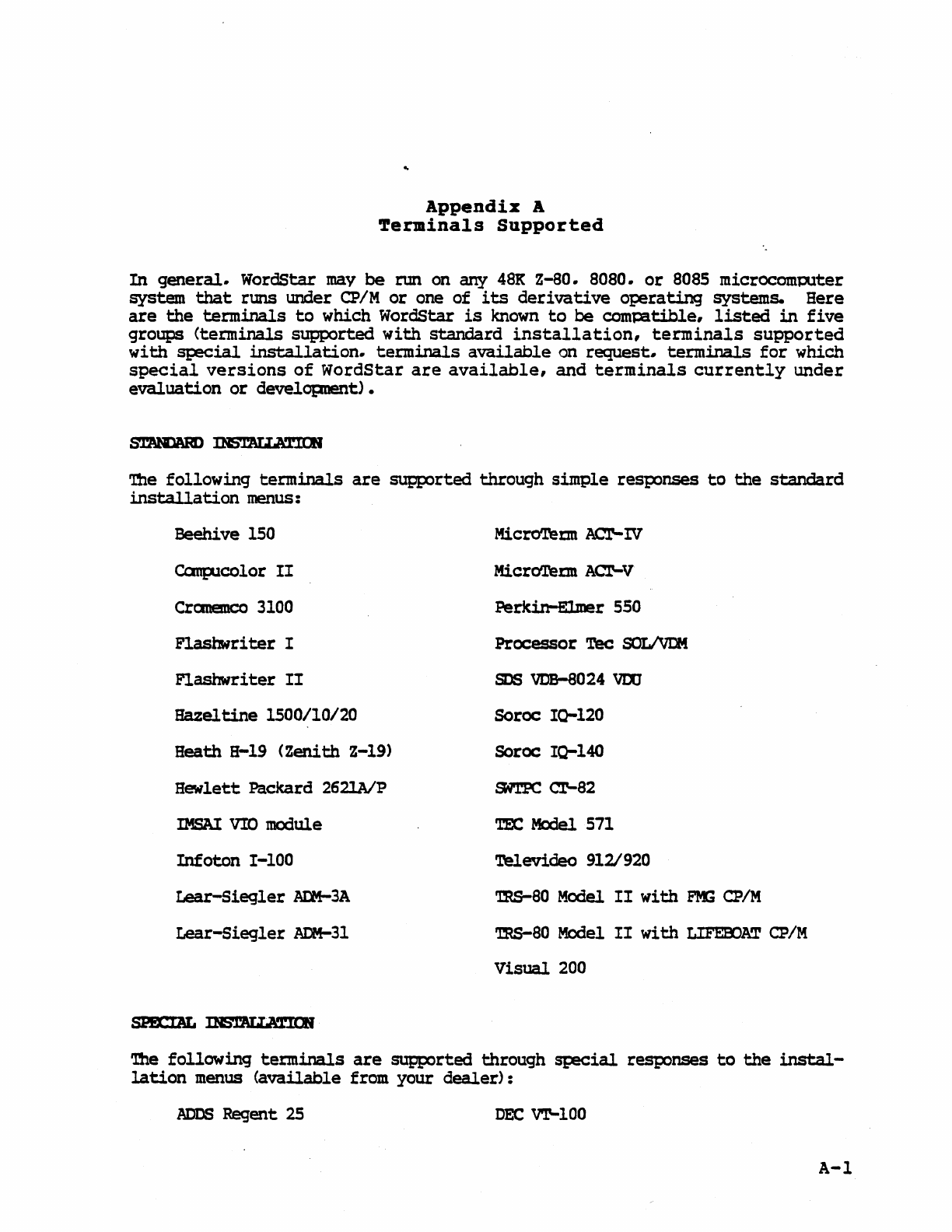
Appendix
A
Terminals
Supported
In
general.
WordStar
may
be
rtm
on
any
48K
Z-80.
8080.
or
8085
microcomputer
system
that
runs
under
CP/M
or
one
of
its
derivative
operating
systems.
Here
are
the
terminals
to
which
wordStar
is
known
to
be
comt:atible,
listed
in
five
groups
(terminals
supported
with
standard
installation,
terminals
supported
with
special.
installation.
terminals
available
on
request
..
terminals
for
which
special
versions
of
WordStar
are
available,
and
terminals
currently
under
evaluation
or
developnent).
'nle
following
terminals
are
supp:>rted
through
simple
resIX>nses
to
the
standard
installation
menus:
Beehive
150
Conplcolor
II
Cranemco
3100
Flashwriter
I
Flashwriter
II
Hazeltine 1500/10/20
Heath
8-19
(Zenith
Z-19)
Hewlett
Packard
262lA1P
IMSAI VIC module
Infoton
I-IOO
Lear-Siegler
ACM-3A
Lear-Siegler
ADM-3I
Micro'l'etm ArJr-
IV
Micro'l'ellll
Acr-V
Perkin-Ellner
550
Processor
Tee
SOLIVDM
SDS
VDB-8024
VOO
Sorce IQ-120
Sorce
IQ-l40
Si'l'PC
cr-82
TEe
Medel 571
Televideo
9121920
rms-80
Model
II
with
FftG
CP/M
rms-80 Model
II
with
LIFE8JAT
CP/M
Visual
200
1be
following
terminals
are
supported
through
st=eCial
responses
to
the
instal-
lation
menus
(available
from
your
dealer):
ADDS
Regent
25
DEC
VT-IOO
A-I
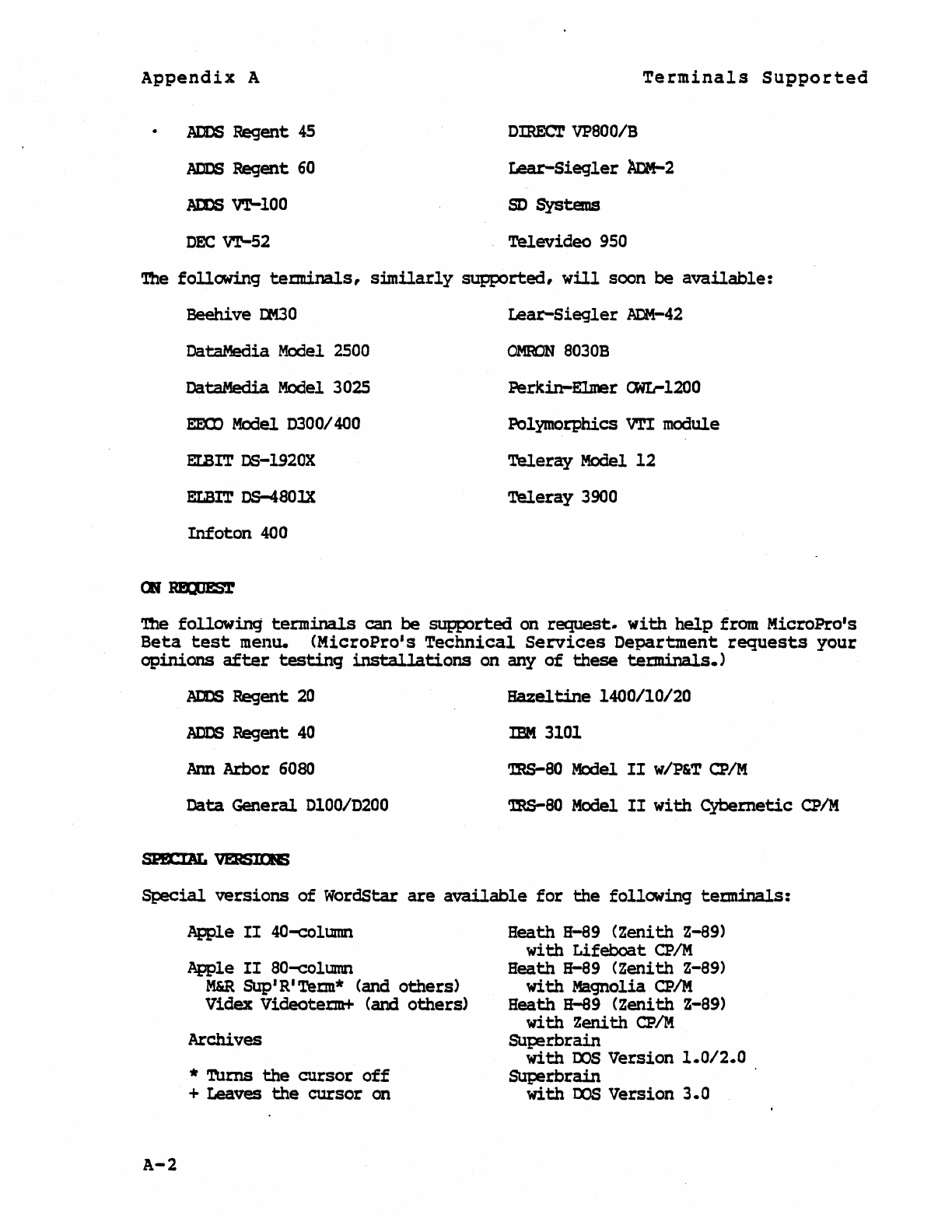
Appendix
A
ADDS
Regent
45
ADDS
Regent
60
AIDS
VT-IOO
DEC
V'1'-52
Terminals
Supported
DIRECT
VP800/B
Lear-Siegler
AcM-2
SD
Systems
Televideo
950
The
following
tetminals,
similarly
supported,
will
soon be
available:
Beehive
I:M30
DataMedia
Model
2500
DataMedia Model 3025
EEOC
Model 0300/400
EmIT
DS-1920X
ELBIT
DS-480lX
Infoton
400
aq
RIQJJ§4'
Lear-Siegler
ACM-42
OMRON
8030B
Perkin-Elmer
CWL-1200
Polymorphics VTI module
Teleray
Model
12
Teleray
3900
'Dle
following
terminals
can be
supported
on request:.
with
help
from MicroPro's
Beta
test
mellu.
(MicroPro'
s
Technical
Services
Department
requests
your
opinions
after
testing
installations
on any
of
these
terminals.)
ADDS
Regent
20
ADDS
Regent
40
Arm
Arbor 6080
Data
General
DlOO/D200
Hazeltine
1400/10/20
IBM 3101
TRS-80 Medel
II
w/P&T
CP/M
TRS-80 Model
II
with
Cybemetic
CP/M
Special
versions
of
WordStar
are
available
for
the
following
teminals:
A-2
Apple
II
40-column
Apple
II
80-co1umn
M&R
SUp' R'
Term*
(and
others)
Videx Videotetm+
(and
others>
Archives
* Turns
the
cursor
off
+ Leaves
the
cursor
on
Heath H-89
(Zenith
Z-89)
with
Lifeboat
CP/M
Heath H-89
(Zenith
Z-89)
with
Magnolia
CP/M
Heath H-89
(Zenith
Z-89)
with
zenith
CP/M
SUp!rbrain
with
DOS
Version
1.0/2.0
SUperbrain
with
OOS
Version
3.0
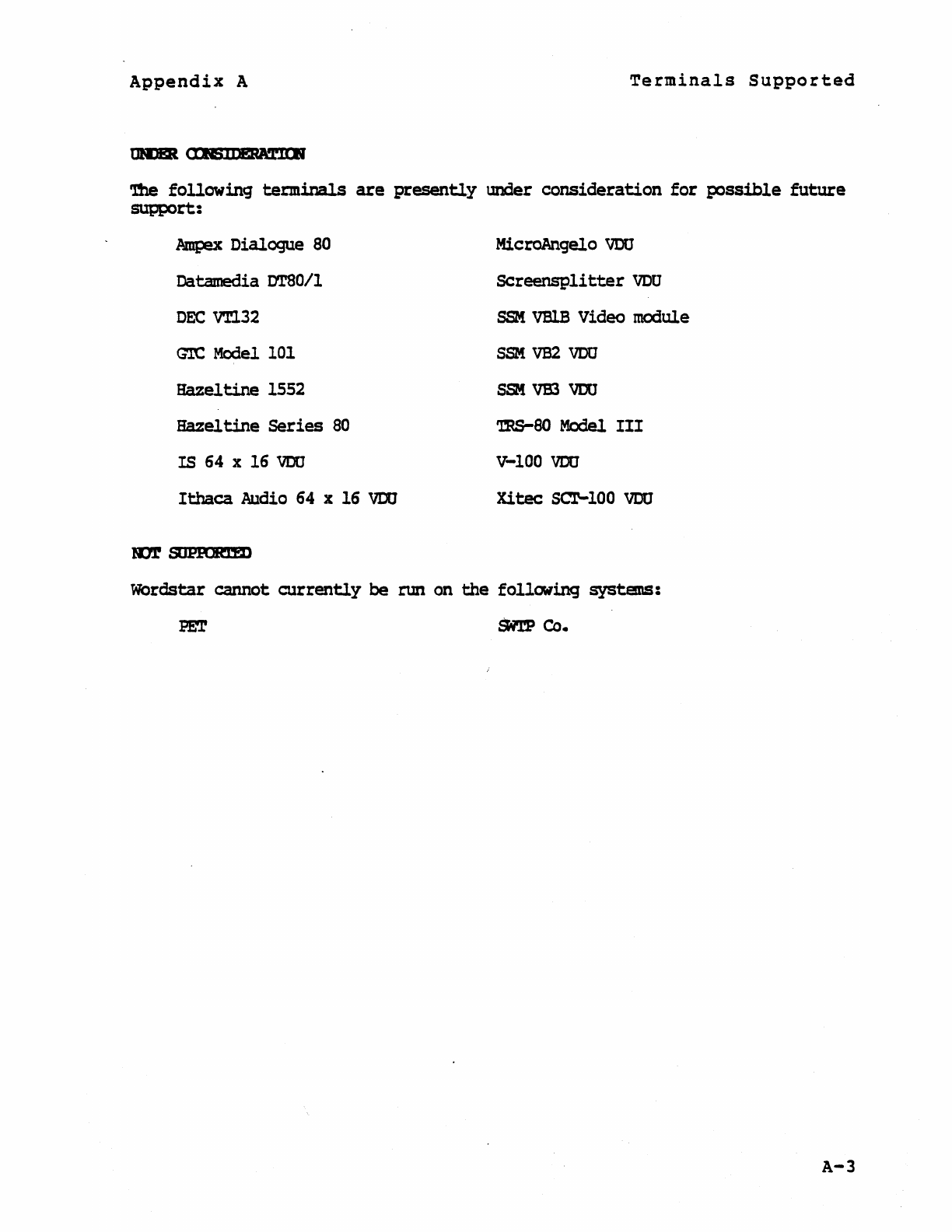
Appendix
A
Terminals
Supported
••
'..:1n:~·
I.
'
'!he
following
terminals
are
presently
under
consideration
for
possible
future
support:
~
Dialogue
80
Datamedia DTSO/l
DEC
V'I'l32
G'lC
Model 101
Hazeltine
1552
Hazeltine
Series
80
IS
64 x 16
VDO
Ithaca
Audio 64 x 16
VDO
MicroAngelo
VDU
Screensplitter
veo
SSM
VBlB
Video module
SSM
VB2
VDU
SSe!
VB3
VDU
TRS-SO
Medel
III
V-lOa
VDU
Xitec
SCl'-lOO
VDO
Wordstar
cannot
currently
be
run
on
the
fo11a-ll.ng
systems:
PET
Sft'p
Co.
A-3

This
Page
Intentionally
Left
Blank
A-4
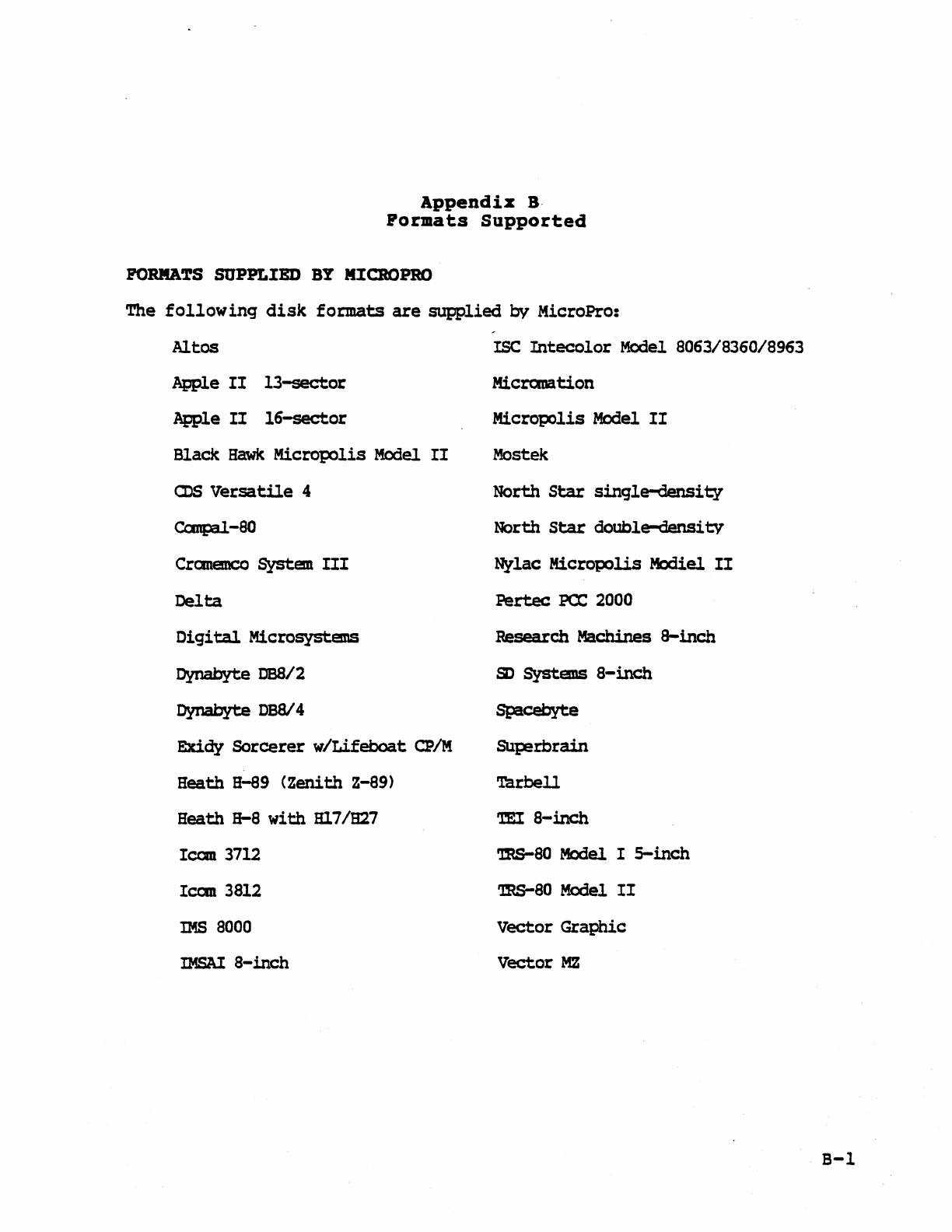
Appendix
B·
Pormats
Supported
PORIlATS SUPPLIED
BY
IIICROPRO
The
following
disk
formats
are
supplied
by
MicroPro:
Altos
App[e
II
13-sector
Apple
II
16-sector
Black
Hawk
Micropolis
Model
II
cos
Versatile
4
canpal.-SO
Cranenco System
III
Delta
Digital
Microsystems
Dynabyte
DBS/2
Dynabyte
DB8I4
Exidy
Sorcerer
w/Lifeboat
CP/M
Heath H-89
(Zenith
Z-89)
Heath H-8
with
Hl7/B27
lean
3712
lean
3812
IMS
8000
IMSAI
8-inch
ISC
Intecolor
Model 8063/8360/8963
Micranation
Micropolis
Model
II
Mostek
North
Star
single-density
North
Star
double-densi
tv
Nylac
Micropolis
Mediel
II
Pertec
PCC
2000
Research Machines
8-inch
S)
Systans
8-inch
Spacebyte
SUp!rbrain
Tarbell
TEl
8-inch
TBS-80 Model I
5-inch
'mS-80
Model
II
Vector
Graphic
Vector
HZ
B-I
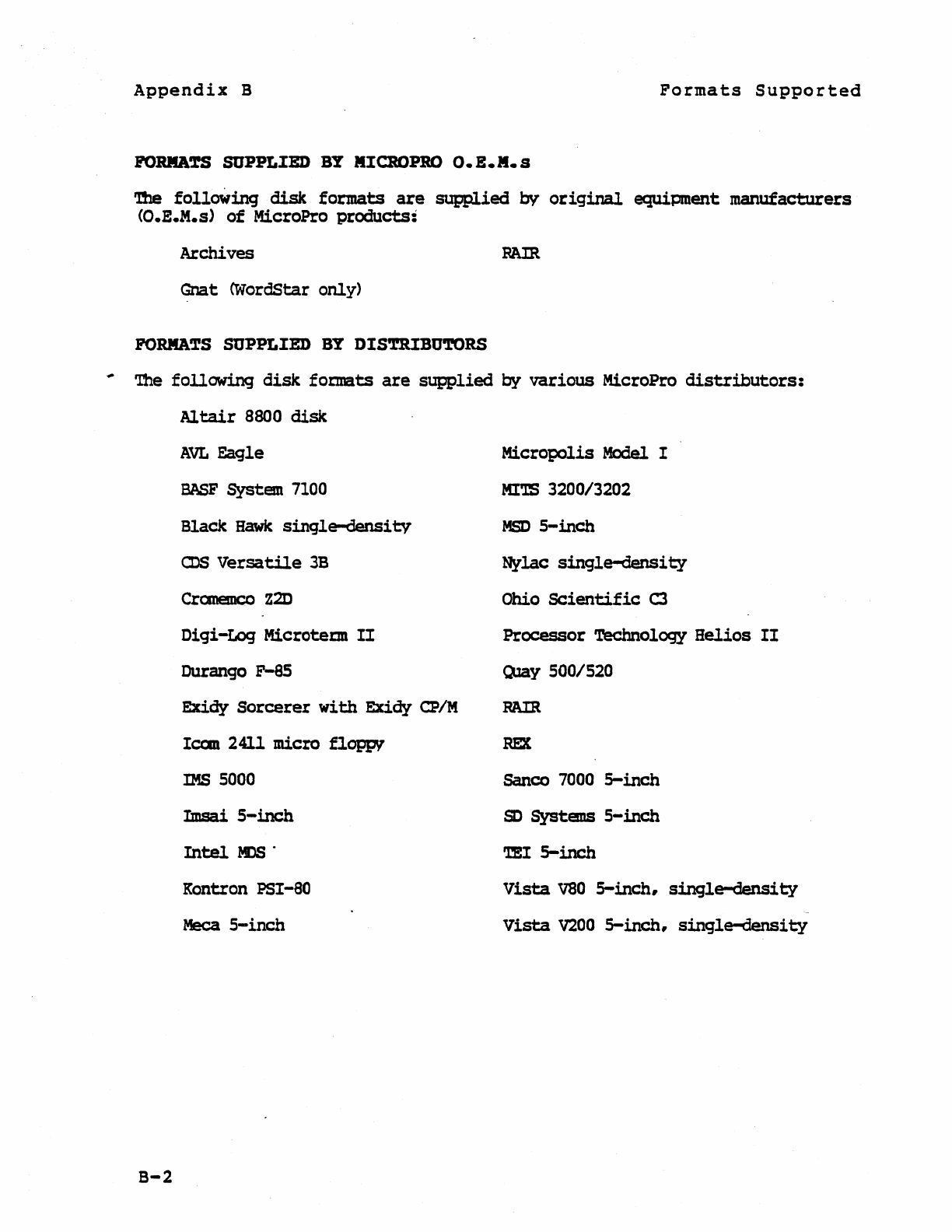
Appendix
B
Formats
Supported
POlUIA~
SUPPLIED
BY
IIICROPRO
O.B.II.s
'l!le
folloWing
disk
formats
are
supplied
by
original
equipment
manufacturers
(O.E.M.s)
of
MicroPro
products:
Archives
Gnat
CWordStar
only)
FORMATS SUPPLIED
BY
DIS'rRIBU'l'ORS
# The
following
disk
foI'Illats
are
supplied
by
various
MicroPro
distributors:
B-2
Al
tair
8800
disk
AVL
Eagle
BASF
System
7100
Black
Hawk
single-densitv
CDS
Versatile
3B
CranencoZ2D
Digi-Log
Microte~
II
Durango F-85
Exidy
Sorcerer
with
Exidy
CP/M
Iean 2411 micro
floppv
IMS
5000
Imsai
S-inch
Intel
MDS
.
Kontron
PSI-eO
Meca
5-inch
Micropolis
Model I
MITS
3200/3202
MSD
5-inch
Nylac
single-densi
ty
Ohio
SCientific
C3
Processor
Technology
Helios
II
Olay 500/520
RAm
REX
Sanco 7000
5-inch
SD
Systens
5-inch
TEl
5-inch
Vista
VSO
5-inch,
single-densi
ty
Vista
V200
5-inch,
singltHlensity
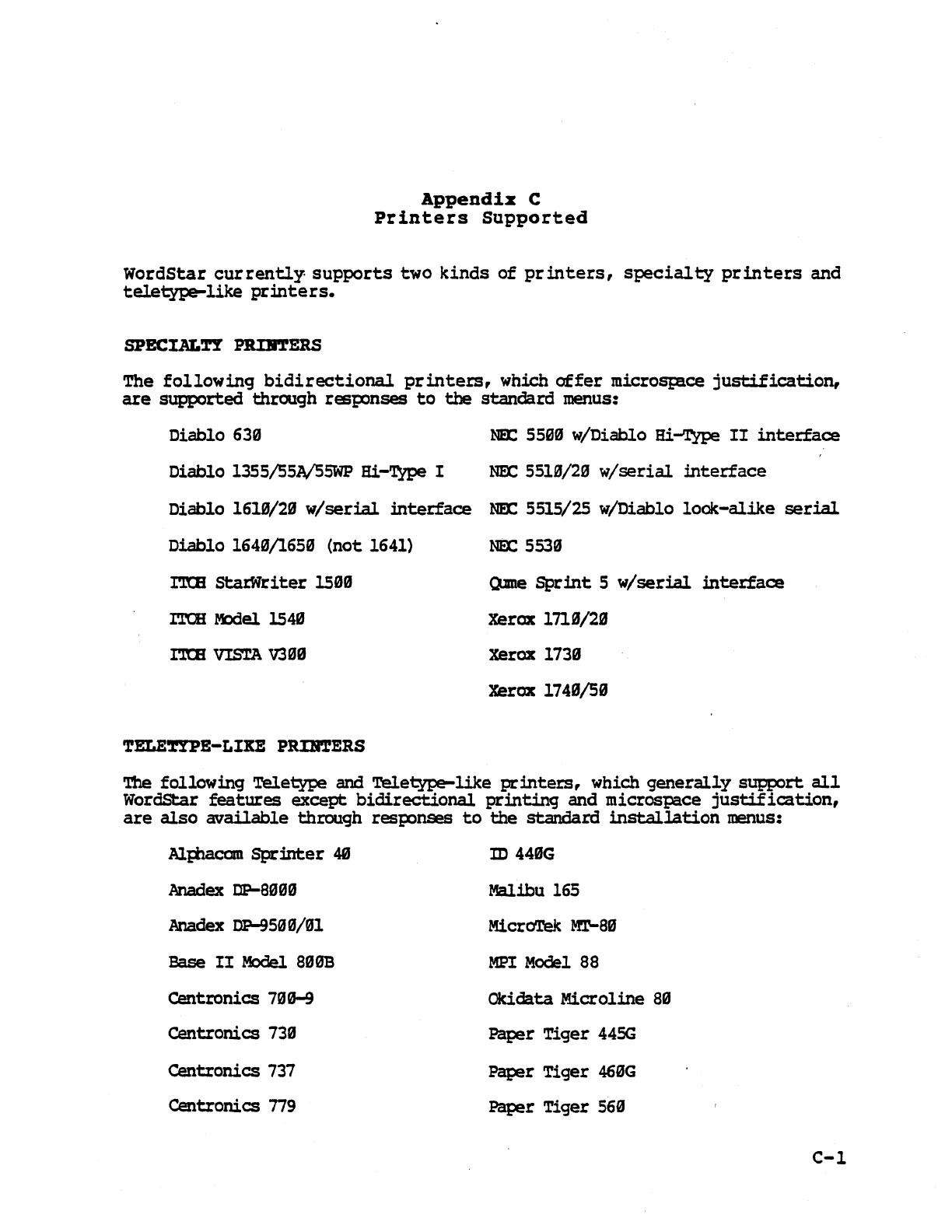
Appendix
C
Printers
Supported
WordStar
currently
supports
two
kinds
of
printers,
specialty
printers
and
teletype-like
printers.
The
following
bidirectional
printers,
which
offer
microsp!ce
justification,
are
supported
through
resplnses
to
the
standard
menus:
Diablo 633
Diablo 1355/S5A/55WP
Hi-Type
I
NEZ:
5593 w/Diablo
Hi-Type
II
interface
NEX:
5510/23
w/serial
interface
Diablo 1610/29
w/serial
interface
NPX:
5515/25 w/Diablo
look-alike
serial
Diablo 1649/1659
(not
1641)
I'ItB
starNriter
150B
ITCH Model 1549
I'.ltE
VISTA
V339
~ELE~E-LlXE
P~ERS
NEX:
5533
()Jme
Sprint
5
w/serial
interface
Xerox
1711/29
xerox 1739
Xerox
1740/50
'ftle
following
Teletype
and
Teletype-like
printers,
which
generally
support
all
WordStar
features
except:
bidirectional
printing
and
microspace
justification,
are
also
available
through
resplnses
to
the
standard
installation
menus:
AJ.};ilaccm
Sprinter
48
m
449G
Anadex DP-S300
Malibu
165
Anadex DP-9500/B1 MicroTek
m'-a9
Base
II
Model
S00B
MPI
Model
S8
Centronics
700-9 Okidata
Microline
89
Centronics
73B
Paper
Tiger
445G
Centronics
737
Paper
Tiger
460G
Centronics
n9
Paper
Tiger
560
C-1
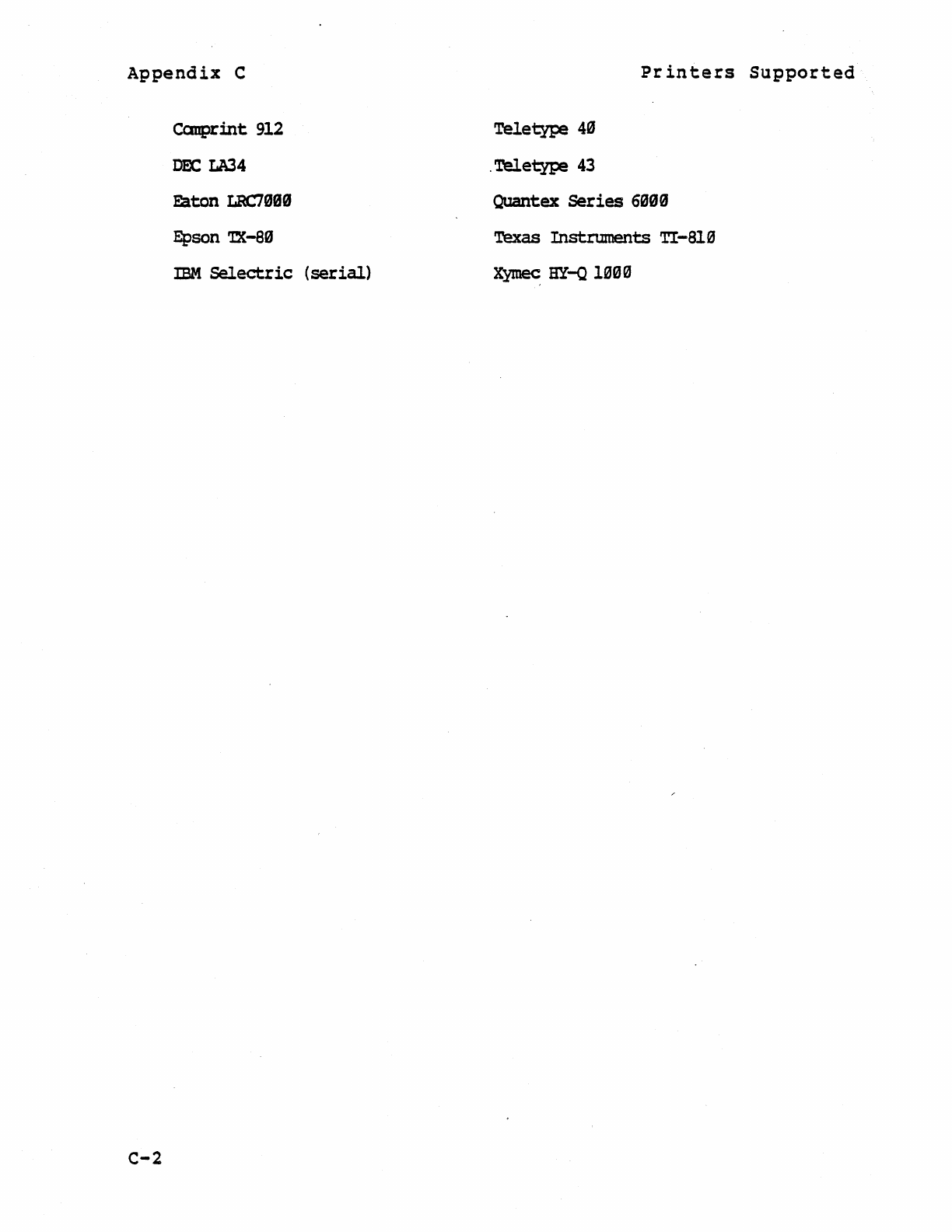
Appendix
C
C-2
Canprint
912
DECW4
Faton
LRC70B9
Epson
'lX-SO
IBM
Selectric
(serial)
Teletype
40
.
Teletype
43
Printers
Supported
Quantex
Series
6990
Texas
Instruments
TI-S19
x~
HY-Q
1990

(mi<CtOPI~
IN1"SCNA1lONAL
CORPORATION
1299 Fourth Street
San Rafa.l, Ca
94901
(415) 457·8990 • Telex: 340-388
