THINKPAD 365X/XD (2625) D3maebs6
User Manual: THINKPAD 365X/XD (2625)
Open the PDF directly: View PDF  .
.
Page Count: 222 [warning: Documents this large are best viewed by clicking the View PDF Link!]
- HMM TP365X, 365XD, 560 Feb 1997
- Contents
- Introduction
- ThinkPad 365X, 365XD (2625)
- Read This First
- Checkout Guide
- Symptom-to-FRU Index
- Numeric Error Codes
- Beep Symptoms
- No-Beep Symptoms
- LCD–Related Symptoms
- Keyboard/TrackPoint III–Related Symptoms
- Indicator–Related Symptoms
- Power–Related Symptoms
- Function–Related Symptoms
- Peripheral Device–Related Symptoms
- Infrared–Related Symptoms
- Other Symptoms
- Intermittent Problems
- Undetermined Problems
- Related Service Procedures
- Product Overview (365X, 365XD)
- FRU Removals and Replacements
- 1010 Rear Connector Door
- 1020 Battery Pack
- 1025 Insulator Sheet
- 1030 DIMM Card (If Installed)
- 1040 Diskette Drive / CD-ROM Drive
- 1045 Base Cover Assembly / Keyboard Latch
- 1050 Hard Disk Drive
- 1060 Top Cover
- 1070 Keyboard Unit
- 1080 LCD Assembly
- 1085 LCD Panel
- 1090 Indicator Card
- 1100 Volume Switch / Speaker Assembly
- 1110 Keyboard Card / Cable
- 1120 CPU Card and System Board Card
- 1130 System Board / PCMCIA Slot Assembly
- Locations
- Parts Listing 365X, 365XD (2625)
- ThinkPad 560 (2640)
- Read This First
- Checkout Guide
- Symptom-to-FRU Index
- Numeric Error Codes
- Diagnostic Error Codes
- Beep Symptoms
- No Beep Symptoms
- LCD-Related Symptoms
- Keyboard/TrackPoint III-Related Symptoms
- Indicator-Related Symptoms
- Power-Related Symptoms
- Function-Related Symptoms
- Peripheral-Device-Related Symptoms
- Infrared-Related Symptoms
- Other Symptoms
- Intermittent Problems
- Undetermined Problems
- Related Service Procedures
- Product Overview (560)
- FRU Removals and Replacements
- Locations
- Parts Listing 560 (2640)
- Common Devices Checkout
- Miscellaneous Information
This Manual Supports:
ThinkPad 365X (2625)
ThinkPad 365XD (2625)
ThinkPad 560 (2640)
S84H-8101-00
IBM Mobile Systems
Hardware Maintenance Manual
ThinkPad 365X, 365XD, 560
February 1997
We Want Your Comments!
(Please see page 205)
S84H-8101-00
IBM Mobile Systems
Hardware Maintenance Manual
ThinkPad 365X, 365XD, 560
February 1997
We Want Your Comments!
(Please see page 205)
IBM

Note
Before using this information and the product it
supports, be sure to read the general information
under “Notices” on page 210.
First Edition (February 1997)
The following paragraph does not apply to the United
Kingdom or any country where such provisions are
inconsistent with local law: INTERNATIONAL
BUSINESS MACHINES CORPORATION PROVIDES THIS
PUBLICATION “AS IS” WITHOUT WARRANTY OF ANY
KIND, EITHER EXPRESS OR IMPLIED, INCLUDING, BUT
NOT LIMITED TO, THE IMPLIED WARRANTIES OF
MERCHANTABILITY OR FITNESS FOR A PARTICULAR
PURPOSE. Some states do not allow disclaimer of
express or implied warranties in certain transactions,
therefore, this statement may not apply to you.
This publication could include technical inaccuracies or
typographical errors. Changes are periodically made to
the information herein; these changes will be incorporated
in new editions of the publication. IBM may make
improvements and/or changes in the product(s) and/or the
program(s) described in this publication at any time.
This publication was produced in the United States of
America. IBM may not offer the products, services, or
features discussed in this document in other countries, and
the information is subject to change without notice.
Consult your local IBM representative for information on
the products, services, and features available in your area.
Requests for technical information about IBM products
should be made to your IBM reseller or IBM marketing
representative.
Copyright International Business Machines
Corporation 1997. All rights reserved.
Note to U.S. Government users–Documentation related to
Restricted rights–Use, duplication, or disclosure is subject
to restrictions set forth in GSA ADP Schedule Contract
with IBM Corp.
ii IBM Mobile Systems HMM

About This Manual
This manual contains service and reference information for
IBM ThinkPad 365X, 365XD, and 560 products. Use this
manual along with the advanced diagnostic tests to
troubleshoot problems effectively.
The manual is divided into sections as follows:
The Introduction section provides general information,
guidelines, and safety information required to service
computers.
The product-specific sections include service,
reference, and product-specific parts information.
The Common Devices Checkout section provides
procedures for testing the devices that are commonly
attached to ThinkPad computers.
The Miscellaneous Information section contains
information about acronyms, abbreviations, terms,
and a telephone number listing.
Important
This manual is intended for trained servicers who are
familiar with ThinkPad products. Use this manual
along with the advanced diagnostic tests to
troubleshoot problems effectively.
Before servicing an IBM ThinkPad product, be sure to
review the safety information under “Safety Notices
(Multi-lingual Translations)” on page 8 and “Safety
Information” on page 15.
iii

Related Publications
The following product publications are available through
IBM or your IBM Authorized Dealer.
Publication Part, Form Number
Mobile Systems HMM
Volume 1: Laptop,
Notebook, Portable, and
ThinkPad Computers
(Models L40, CL57, N45,
N51, P70/P75, ThinkPad
300, 350, 500, 510, 710T,
Expansion Unit, Dock I,
Dock II)
30H2356, S82G-1501-01
Mobile Systems HMM
Volume 2: ThinkPad
Computers
(Models 340, 355, 360, 370,
700, 701, 720, 750, 755)
30H2357, S82G-1502-03
Mobile Systems HMM
Volume 3: ThinkPad
Computers
(Models 365, 560, 760,
SelectaDock)
78H6675, S82G-1503-04
ThinkPad 700 (9552) HMS 42G2016, S42G-2016
ThinkPad 700 (9552) HMR 42G2015, S42G-2015
ThinkPad 700C (9552) HMS 42G2022, S42G-2022
ThinkPad 700C (9552) HMR 42G2021, S42G-2021
ThinkPad 720/720C (9552)
HMS
61G1193, S61G-1193
ThinkPad 720/720C (9552)
HMR
61G1187, S61G-1187
ThinkPad 730T (2524) HMM 82G5497, S82G-5497
ThinkPad Exp. Crtg. (3550)
HMS
42G2338, S42G-2338
ThinkPad Exp. Crtg. (3550)
HMR
42G2339, S42G-2339
PS/2 FaxConcentrator HMS 15F2262, S15F-2262
PS/2 FaxConcentrator HMR 84F8541, S84F-8541
PS/2 Comm. Cartridge I
HMS
10G5993, S10G-5993
PS/2 Comm. Cartridge I
HMR
10G5992, S10G-5992
IBM High Speed Internal,
PCMCIA Data/Fax Modems
61G1556, S61G-1556
iv IBM Mobile Systems HMM

Related Diskettes
The following diskettes are available through IBM or your
IBM Authorized Dealer.
Diskette Part, Form Number
ThinkPad 300 (2615)
Advanced Diagnostics
Diskette
33G9361, S33G-9361
ThinkPad 350, 350C, 425,
425C (2618) Advanced
Diagnostics Diskette
A211000, GA21-1000
ThinkPad 365 (2625)
Advanced Diagnostics
Diskette
76H7578, S30H-2498
ThinkPad 500 (2603)
Advanced Diagnostics
Diskette
71G3702, S71G-3702
ThinkPad 510 (2604)
Advanced Diagnostics
Diskette
83G8095, S83G-8095
ThinkPad 700 (9552)
Reference Diskette
42G2017, S42G-2017
ThinkPad 700C (9552)
Reference Diskette
42G2023, S42G-2023
ThinkPad 720/720C (9552)
Reference Diskette
61G1194, S61G-1194
ThinkPad Hardware
Maintenance Diskette
(for all Models 355, 360,
560, 750, 755, 760)
78H5384, S78H-5384
ThinkPad Dock I (3545) 71G4140, S71G-4140
Docking Station (3550) 42G2428, S42G-2428
Data/Fax Modem 61G1556, S61G-1556
FaxConcentrator/A 84F8540, S84F-8540
v
vi IBM Mobile Systems HMM

Contents
Introduction . . . . . . . . . . . . . . . . . . . 1
Portable Computer Descriptions .......... 2
Drive and Diskette Compatibility Matrix ....... 5
Important Service Information ........... 6
Safety Notices (Multi-lingual Translations) ..... 8
Safety Information . . . . . . . . . . . . . . . . 15
Laser Compliance Statement ........... 20
Screw Size Chart ................. 22
ThinkPad 365X, 365XD (2625) .......... 25
Read This First .................. 27
Checkout Guide . . . . . . . . . . . . . . . . . 30
Symptom-to-FRU Index . . . . . . . . . . . . . . 40
Related Service Procedures ............ 51
Product Overview (365X, 365XD) . . . . . . . . . 60
FRU Removals and Replacements ......... 61
Locations . . . . . . . . . . . . . . . . . . . . . 96
Parts Listing 365X, 365XD (2625) ........ 102
ThinkPad 560 (2640) . . . . . . . . . . . . . 115
Read This First ................. 117
Checkout Guide . . . . . . . . . . . . . . . . 121
Symptom-to-FRU Index . . . . . . . . . . . . . 132
Related Service Procedures ........... 144
Product Overview (560) . . . . . . . . . . . . . 149
FRU Removals and Replacements ........ 150
Locations . . . . . . . . . . . . . . . . . . . . 174
Parts Listing 560 (2640) ............. 178
Common Devices Checkout .......... 189
External Diskette Drive Test ........... 190
External Display Self-Test ............ 190
External Keyboard/Auxiliary Input Device Checkout 191
Fax/Modem Checkout . . . . . . . . . . . . . . 192
Printer Checkout . . . . . . . . . . . . . . . . 194
Port Replicator Checkout ............ 195
TrackPoint Checkout . . . . . . . . . . . . . . 196
TV Tuner . . . . . . . . . . . . . . . . . . . . 197
Miscellaneous Information . . . . . . . . . . . 203
Acronyms, Abbreviations and Terms ....... 203
Send Us Your Comments! ............ 205
Do You Need Technical References? ...... 206
Problem Determination Tips ........... 207
Notices . . . . . . . . . . . . . . . . . . . . . 210
Copyright IBM Corp. 1997 vii
viii IBM Mobile Systems HMM

Introduction
Portable Computer Descriptions .......... 2
Drive and Diskette Compatibility Matrix ....... 5
Important Service Information ........... 6
How to Use Error Messages .......... 7
How to Read POST Error Messages ...... 7
Safety Notices (Multi-lingual Translations) ..... 8
Safety Information . . . . . . . . . . . . . . . . 15
General Safety . . . . . . . . . . . . . . . . 15
Electrical Safety . . . . . . . . . . . . . . . . 16
Safety Inspection Guide ............ 17
Handling Electrostatic Discharge-Sensitive Devices 19
Grounding Requirements . . . . . . . . . . . . 19
Laser Compliance Statement ........... 20
Screw Size Chart ................. 22
Copyright IBM Corp. 1997 1

Portable Computer Descriptions
Models N51, CL57, and P70/75 and Thinkpads 700x and
720x are Micro Channel systems. All others are AT/ISA
bus systems.
Model Type Processor Memory Hrd Dsk
Model L40SX 8543-044 386SX-20 2M/18M 60M
Model N45 SL 2614-065 386SL-25 2M/8M 80M
2614-067 386SL-25 2M/8M 120M
Model N51 SLC 8551-025 386SLC-16 2M/10M 80M
Model N51 SX 8551-033 386SX-16 2M/10M 40M
Model CL57 SX 8554-045 386SX-20 2M/16M 80M
Model P70 386 8573-031 80386-16 2M/8M 30M
8573-061 80386-20 2M/8M 60M
8573-121 80386-20 2M/8M 120M
Model P75 486 8573-161 80486-33 8M/16M 160M
8573-401 80486-33 8M/16M 400M
ThinkPad 300 2615-065 386SL-25 4M/12M 80M
2615-067 386SL-25 4M/12M 120M
ThinkPad 340 2610 486SLC2-50/25 4M/12M 125M
ThinkPad 340CSE 2610 486SLC2-50/25 4M/12M 200M
ThinkPad 340CSE 2610 486SLC2-66/33 4M/12M 360M
ThinkPad 345 2610 486DX4-75 4M/20M 360M
ThinkPad 345CS 2610 DX4-75 4M/20M 540M
ThinkPad 350 2618-AOE 486SL-25 4M/20M 85M
2618-JOA 486SL-25 4M/20M 125M
2618-LOA 486SL-25 4M/20M 250M
ThinkPad 350C 2618-NOA 486SL-25 4M/20M 125M
2618-POA 486SL-25 4M/20M 250M
ThinkPad 355 2619 486SX-33 4M/16M 125M
ThinkPad 355C 2619 486SX-33 4M/16M 125M
2619 486SX-33 4M/16M 250M
ThinkPad 355Cs 2619 486SX-33 2M/16M 170M
2619 486SX-33 2M/16M 250M
ThinkPad 360 2620 486SX-33 4M/16M 170M
2620 486SX-33 4M/16M 340M
ThinkPad 360C 2620 486SX-33 4M/16M 170M
2620 486SX-33 4M/16M 340M
ThinkPad 360Cs 2620 486SX-33 4M/16M 170M
2620 486SX-33 4M/16M 340M
ThinkPad 360Ce 2620 486DX2-50/25 4M/16M 170M
2620 486DX2-50/25 4M/16M 340M
2620 486DX2-50/25 4M/16M 540M
ThinkPad 360Cse 2620 486DX2-50/25 4M/16M 170M
2620 486DX2-50/25 4M/16M 340M
2620 486DX2-50/25 4M/16M 540M
ThinkPad 360P 2620 486SX-33 4M/16M 170M
2620 486SX-33 4M/16M 340M
ThinkPad 365C 2625-205 486DX4-75 8M/24M 340M
2625-x05 486DX4-75 8M/24M 540M
ThinkPad 365E 2625 5x86-100/33 8M/24M 540M
ThinkPad 365ED 2625 5x86-100/33 8M/24M 540M
ThinkPad 365X/XD 2625 Pentium-100 8M/24M 540M
2625 Pentium-100 8M/24M 810M
2625 Pentium-100 8M/24M 1.0G
ThinkPad 365X/XD 2625 Pentium-120 8M/24M 540M
2625 Pentium-120 8M/24M 810M
2625 Pentium-120 8M/24M 1.0G
ThinkPad 365X/XD 2625 Pentium-133 8M/40M 810M
2625 Pentium-133 8M/40M 1.0G
2625 Pentium-133 8M/40M 1.3G
ThinkPad 370C 9545 486DX4-75/25 4M/32M 340M
9545 486DX4-75/25 4M/32M 540M
9545 486DX4-75/33 4M/32M 810M
C Color
M Megabyte
P Pen
T Tablet
TPF ThinkPad File
2IBM Mobile Systems HMM

Model Type Processor Memory Hrd Dsk
ThinkPad 500 2603-081 486SLC2-50/25 4M/12M 80M
2603-171 486SLC2-50/25 4M/12M 170M
ThinkPad 560 2630 Pentium-100 8M/40M 540M
2630 Pentium-100 8M/40M 810M
2630 Pentium-100 8M/40M 1.0G
ThinkPad 560 2630 Pentium-120 8M/40M 540M
2630 Pentium-120 8M/40M 810M
2630 Pentium-120 8M/40M 1.0G
ThinkPad 560 2640 Pentium-130 8M/40M 540M
2640 Pentium-130 8M/40M 810M
2640 Pentium-130 8M/40M 1.0G
ThinkPad 700 9552-300 486SLC-25 4M/16M 80M
9552-301 486SLC-25 4M/16M 120M
ThinkPad 700C 9552-30B 486SLC-25 4M/16M 120M
ThinkPad 701C 2630 486DX2-25/50 4M/32M 360MB
2630 486DX2-25/50 4M/32M 540MB
2630 486DX4-25/75 8M/32M 360MB
2630 486DX4-25/75 8M/32M 540MB
ThinkPad 701Cs 2630 486DX2-25/50 4M/32M 360MB
2630 486DX2-25/50 4M/32M 540MB
2630 486DX4-25/75 8M/32M 360MB
2630 486DX4-25/75 8M/32M 540MB
ThinkPad 710T 2523-09Y 486SLC2-25 4M/12M TPF
2523-302 486SLC2-25 4M/12M 60M
2523-303 486SLC2-25 4M/12M 60M
ThinkPad 720 9552-307 486SLC-25/50 4M/16M 120M
9552-308 486SLC-25/50 4M/16M 160M
ThinkPad 720C 9552-30J 486SLC-25/50 4M/16M 160M
ThinkPad 730T 2524 486SLC2-25 4M/12M 0M
2524 486SLC2-25 4M/12M 60M
ThinkPad 750 9545-006 486SL-33 4M/20M 170M
9545-008 486SL-33 4M/20M 340M
ThinkPad 750C 9545-306 486SL-33 4M/20M 170M
9545-308 486SL-33 4M/20M 340M
ThinkPad 750Ce 9545 P24S-50/25 4M/20M 340M
ThinkPad 750Cs 9545 486SL-33 4M/20M 170M
9545 486SL-33 4M/20M 340M
ThinkPad 750P 9545-40C 486SL-33 4M/20M 170M
9545-40E 486SL-33 4M/20M 340M
ThinkPad 755C 9545 486DX4-50/25 4M/32M 170M
9545 486DX4-50/25 4M/32M 340M
9545 486DX4-50/25 4M/32M 540M
9545 486DX4-75/25 4M/32M 170M
9545 486DX4-75/25 4M/32M 340M
9545 486DX4-75/25 4M/32M 540M
ThinkPad 755CD 9545 486DX4-100/33 8M/32M 540M
9545 486DX4-100/33 8M/32M 810M
ThinkPad 755CDV 9545 486DX4-100/33 8M/32M 540M
9545 486DX4-100/33 8M/32M 810M
ThinkPad 755Ce 9545 486DX4-100/33 8M/32M 340M
9545 486DX4-100/33 8M/32M 540M
9545 486DX4-100/33 8M/32M 810M
ThinkPad 755Cs 9545 486DX4-50/25 8M/32M 170M
9545 486DX4-50/25 8M/32M 340M
9545 486DX4-50/25 8M/32M 540M
9545 486DX4-75/25 8M/32M 170M
9545 486DX4-75/25 8M/32M 340M
9545 486DX4-75/25 8M/32M 540M
ThinkPad 755Cse 9545 486DX4-100/33 8M/32M 340M
9545 486DX4-100/33 8M/32M 540M
9545 486DX4-100/33 8M/32M 810M
ThinkPad 755CV 9545 486DX4-100/33 8M/32M 540M
9545 486DX4-100/33 8M/32M 810M
ThinkPad 755CV 9545 486DX4-100/33 8M/32M 540M
9545 486DX4-100/33 8M/32M 810M
C Color
M Megabyte
P Pen
T Tablet
TPF ThinkPad File
Introduction 3

Model Type Processor Memory Hrd Dsk
ThinkPad 760C/CD 9546 Pentium-90 8M/40M 360M
9546 Pentium-120 8M/40M 720M
9546 Pentium-90 8M/40M 810M
9546 Pentium-120 8M/40M 1.2G
ThinkPad 760E/ED 9546 Pentium-120 8M/80M 810M
9546 Pentium-133 8M/80M 1.0G
9546 Pentium-150 8M/80M 1.2G
9546 Pentium-166 8M/80M 1.3G
9546 Pentium-166 8M/80M 2.1G
ThinkPad 760EL/ELD9547 Pentium-100 8M/80M 810M
9547 Pentium-100 8M/80M 1.0G
9547 Pentium-100 8M/80M 1.2G
9547 Pentium-120 8M/80M 810M
9547 Pentium-120 8M/80M 1.0G
9547 Pentium-120 8M/80M 1.2G
9547 Pentium-133 8M/80M 810M
9547 Pentium-133 8M/80M 1.0G
9547 Pentium-133 8M/80M 1.2G
ThinkPad 760L/LD 9546 Pentium-90 8M/40M 810M
9546 Pentium-90 8M/40M 1.1G
9546 Pentium-90 8M/40M 1.2G
9546 Pentium-120 8M/40M 810M
9546 Pentium-120 8M/40M 1.1G
9546 Pentium-120 8M/40M 1.2G
C Color
M Megabyte
P Pen
T Tablet
TPF ThinkPad File
4IBM Mobile Systems HMM

Drive and Diskette Compatibility Matrix
The following table provides identification information for
3.5-inch drives.
Diskette
Drive Identifying
Mark
3.5-Inch - 1.44MB 1.44 on the eject button
3.5-Inch - 2.88MB 2.88 on the eject button
The following table provides compatibility information for
3.5-inch diskettes and 3.5-inch diskette drives.
The following table provides identification information for
5.25-inch diskette drives.
Diskette
Capacity 1.44MB
Drive 2.88MB
Drive
1.0MB Read/Write Read/Write
2.0MB Read/Write Read/Write
4.0MB Not Compatible Read/Write
Diskette
Drive Identifying
Mark
5.25-Inch - 360KB (External) Asterisk on bezel
5.25-Inch - 1.2MB (Internal) 1.2 on the eject button
The following table provides compatibility information for
5.25-inch diskettes and 5.25-inch diskette drives.
Note: A 360KB diskette written to or formatted on a
1.2MB drive can be read reliably only on a 1.2MB
drive.
Diskette
Capacity 360KB
Drive 1.2MB
Drive
360KB Read/Write Read/Write
1.2MB Not Compatible Read/Write
Introduction 5

Important Service Information
Important
Diskette fixes are customer installable. The diskette
fixes are located on the PC Company Bulletin Board
Service (BBS). The direct phone line for modem
connection is 919-557-0001 or tieline 255-0001.
Advise customers to contact the PC Company
HelpCenter at 800-772-2227 if they need assistance in
obtaining or installing any diskette fixes.
Customers in Canada should call IBM HelpPC at
800-565-3344 for assistance or down-load information.
The Canadian BBS phone numbers are:
Montreal 514-938-3022
Toronto 905-316-4255
Vancouver 604-664-6464
Winnipeg 204-934-2735
FRU Replacement Strategy
Before Replacing Parts
Ensure that all diskette fixes are installed prior to
replacing any FRUs listed in this manual.
Use the following strategy to prevent unnecessary FRU
replacement and service expense:
If you are instructed to replace a FRU and that
does not correct the problem, reinstall the original
FRU before you continue.
Some computers have both a processor board and a
system board. If you are instructed to replace either
the processor board or the system board, and the first
board that you replaced does not correct the problem,
reinstall the original board, then replace the other
(processor or system) board.
If an adapter or device consists of more than one
FRU, an error code may be caused by any of the
FRUs. Before replacing the adapter or device,
remove the FRUs, one by one, to see if the
symptoms change. Replace only the FRU that
changed the symptoms.
Attention
A customized setup configuration (other than default
settings) may exist on the computer you are servicing.
Running Automatic Configuration may alter those
settings. Note the current configuration settings (using
the View Configuration option) and verify that the
settings are in place when service is complete.
6IBM Mobile Systems HMM

The advanced diagnostic tests are intended to test
only
IBM products. Non-IBM products or modified options can
give false errors and invalid responses.
Hard Disk Drive Replacement Strategy:
Always try to run a low-level format before replacing a hard
disk drive.
Attention
The drive startup sequence in the computer you are
servicing might have been changed. Be extremely
careful during write operations such as copying,
saving, or formatting. Data or programs can be
overwritten if you select an incorrect drive.
How to Use Error Messages
Use the error codes displayed on the screen to diagnose
failures. If more than one error code is displayed, begin
the diagnosis with the first error code. The cause of the
first error code can result in false error codes being
displayed. If no error code is displayed, see if the error
symptom is listed in the Symptom-to-FRU Index for the
computer you are servicing.
How to Read POST Error Messages
POST error messages are displayed on the screen as
three, four, five, or eight digits. The error messages that
can be displayed as shorter POST messages are
highlighted in this index. Some digits will represent
different information for SCSI errors versus non-SCSI
errors.
The following example shows which digits display the
shorter POST error messages and also defines the SCSI
information in an eight-digit error message.
Shorter POST Messages
Reserved Size (SCSI)
Slot Number (SCSI)
Device Code Logical Unit Number (SCSI)
ID (SCSI)
All SCSI devices are set to a different SCSI ID.
Duplicate SCSI ID settings can generate a false error
message. Use the SCSI ID to determine whether the error
message is coming from an internal or an external device.
Introduction 7

Safety Notices (Multi-lingual
Translations)
In this manual, safety notices appear in English with a
page number reference to the appropriate multi-lingual,
translated safety notice found in this section.
The following safety notices are provided in English,
French, German, Italian, and Spanish languages.
Safety Notice 1
Before the computer is powered-on after FRU
replacement, make sure all screws, springs, or other
small parts are in place and are not left loose inside
the computer. Verify this by shaking the computer
and listening for rattling sounds. Metallic parts or
metal flakes can cause electrical shorts.
Avant de remettre l'ordinateur sous tension après
remplacement d'une unité en clientèle, vérifiez que
tous les ressorts, vis et autres pièces sont bien en
place et bien fixées. Pour ce faire, secouez l'unité et
assurez-vous qu'aucun bruit suspect ne se produit.
Des pièces métalliques ou des copeaux de métal
pourraient causer un court-circuit.
Bevor nach einem FRU-Austausch der Computer
wieder angeschlossen wird, muß sichergestellt
werden, daß keine Schrauben, Federn oder andere
Kleinteile fehlen oder im Gehäuse vergessen wurden.
Der Computer muß geschüttelt und auf
Klappergeräusche geprüft werden. Metallteile oder
-splitter können Kurzschlüsse erzeugen.
Prima di accendere l'elaboratore dopo che é stata
effettuata la sostituzione di una FRU, accertarsi che
tutte le viti, le molle e tutte le altri parti di piccole
dimensioni siano nella corretta posizione e non siano
sparse all'interno dell'elaboratore. Verificare ciò
scuotendo l'elaboratore e prestando attenzione ad
eventuali rumori; eventuali parti o pezzetti metallici
possono provocare cortocircuiti pericolosi.
Antes de encender el sistema despues de sustituir
una FRU, compruebe que todos los tornillos, muelles
y demás piezas pequeñas se encuentran en su sitio y
no se encuentran sueltas dentro del sistema.
Compruébelo agitando el sistema y escuchando los
posibles ruidos que provocarían. Las piezas metálicas
pueden causar cortocircuitos eléctricos.
8IBM Mobile Systems HMM

Safety Notice 2
Some standby batteries contain a small amount of
nickel and cadmium. Do not disassemble it, recharge
it, throw it into fire or water, or short-circuit it. Dispose
of the battery as required by local ordinances or
regulations. Use only the battery in the appropriate
parts listing. Use of an incorrect battery can result in
ignition or explosion of the battery.
Certaines batteries de secours contiennent du nickel
et du cadmium. Ne les démontez pas, ne les
rechargez pas, ne les exposez ni au feu ni à l'eau.
Ne les mettez pas en court-circuit. Pour les mettre au
rebut, conformez-vous à la réglementation en vigueur.
Lorsque vous remplacez la pile de sauvegarde ou
celle de l'horloge temps réel, veillez à n'utiliser que les
modèles cités dans la liste de pièces détachées
adéquate. Une batterie ou une pile inappropriée
risque de prendre feu ou d'exploser.
Die Bereitschaftsbatterie, die sich unter dem
Diskettenlaufwerk befindet, kann geringe Mengen
Nickel und Cadmium enthalten. Sie darf nur durch die
Verkaufsstelle oder den IBM Kundendienst
ausgetauscht werden. Sie darf nicht zerlegt,
wiederaufgeladen, kurzgeschlossen, oder Feuer oder
Wasser ausgesetzt werden. Die Batterie kann
schwere Verbrennungen oder Verätzungen
verursachen. Bei der Entsorgung die örtlichen
Bestimmungen für Sondermüll beachten. Beim
Ersetzen der Bereitschafts- oder Systembatterie nur
Batterien des Typs verwenden, der in der
Ersatzteilliste aufgeführt ist. Der Einsatz falscher
Batterien kann zu Entzündung oder Explosion führen.
Alcune batterie di riserva contengono una piccola
quantità di nichel e cadmio. Non smontarle, ricaricarle,
gettarle nel fuoco o nell'acqua né cortocircuitarle.
Smaltirle secondo la normativa in vigore (DPR 915/82,
successive disposizioni e disposizioni locali). Quando
si sostituisce la batteria dell'RTC (real time clock) o la
batteria di supporto, utilizzare soltanto i tipi inseriti
nell'appropriato Catalogo parti. L'impiego di una
batteria non adatta potrebbe determinare l'incendio o
l'esplosione della batteria stessa.
Algunas baterías de reserva contienen una pequeña
cantidad de níquel y cadmio. No las desmonte, ni
recargue, ni las eche al fuego o al agua ni las
cortocircuite. Deséchelas tal como dispone la
normativa local. Utilice sólo baterías que se
encuentren en la lista de piezas. La utilización de una
batería no apropiada puede provocar la ignición o
explosión de la misma.
Introduction 9

Safety Notice 3
The battery pack contains small amounts of nickel.
Do not disassemble it, throw it into fire or water, or
short-circuit it. Dispose of the battery pack as
required by local ordinances or regulations. Use only
the battery in the appropriate parts listing when
replacing the battery pack. Use of an incorrect battery
can result in ignition or explosion of the battery.
La batterie contient du nickel. Ne la démontez pas,
ne l'exposez ni au feu ni à l'eau. Ne la mettez pas en
court-circuit. Pour la mettre au rebut, conformez-vous
à la réglementation en vigueur. Lorsque vous
remplacez la batterie, veillez à n'utiliser que les
modèles cités dans la liste de pièces détachées
adéquate. En effet, une batterie inappropriée risque
de prendre feu ou d'exploser.
Akkus enthalten geringe Mengen von Nickel. Sie
dürfen nicht zerlegt, wiederaufgeladen,
kurzgeschlossen, oder Feuer oder Wasser ausgesetzt
werden. Bei der Entsorgung die örtlichen
Bestimmungen für Sondermüll beachten. Beim
Ersetzen der Batterie nur Batterien des Typs
verwenden, der in der Ersatzteilliste aufgeführt ist.
Der Einsatz falscher Batterien kann zu Entzündung
oder Explosion führen.
La batteria contiene piccole quantità di nichel. Non
smontarla, gettarla nel fuoco o nell'acqua né
cortocircuitarla. Smaltirla secondo la normativa in
vigore (DPR 915/82, successive disposizioni e
disposizioni locali). Quando si sostituisce la batteria,
utilizzare soltanto i tipi inseriti nell'appropriato
Catalogo parti. L'impiego di una batteria non adatta
potrebbe determinare l'incendio o l'esplosione della
batteria stessa.
Las baterías contienen pequeñas cantidades de
níquel. No las desmonte, ni recargue, ni las eche al
fuego o al agua ni las cortocircuite. Deséchelas tal
como dispone la normativa local. Utilice sólo baterías
que se encuentren en la lista de piezas al sustituir la
batería. La utilización de una batería no apropiada
puede provocar la ignición o explosión de la misma.
10 IBM Mobile Systems HMM

Safety Notice 4
The lithium battery can cause a fire, explosion, or
severe burn. Do not recharge it, remove its polarized
connector, disassemble it, heat it above 100°C
(212°F), incinerate it, or expose its cell contents to
water. Dispose of the battery as required by local
ordinances or regulations. Use only the battery in the
appropriate parts listing. Use of an incorrect battery
can result in ignition or explosion of the battery.
La pile de sauvegarde contient du lithium. Elle
présente des risques d'incendie, d'explosion ou de
brûlures graves. Ne la rechargez pas, ne retirez pas
son connecteur polarisé et ne la démontez pas. Ne
l'exposez pas à une temperature supérieure à 100°C,
ne la faites pas brûler et n'en exposez pas le contenu
à l'eau. Mettez la pile au rebut conformément à la
réglementation en vigueur. Une pile inappropriée
risque de prendre feu ou d'exploser.
Die Systembatterie ist eine Lithiumbatterie. Sie kann
sich entzünden, explodieren oder schwere
Verbrennungen hervorrufen. Batterien dieses Typs
dürfen nicht aufgeladen, zerlegt, über 100 C erhitzt
oder verbrannt werden. Auch darf ihr Inhalt nicht mit
Wasser in Verbindung gebracht oder der zur richtigen
Polung angebrachte Verbindungsstecker entfernt
werden. Bei der Entsorgung die örtlichen
Bestimmungen für Sondermüll beachten. Beim
Ersetzen der Batterie nur Batterien des Typs
verwenden, der in der Ersatzteilliste aufgeführt ist.
Der Einsatz falscher Batterien kann zu Entzündung
oder Explosion führen.
La batteria di supporto e una batteria al litio e puo
incendiarsi, esplodere o procurare gravi ustioni.
Evitare di ricaricarla, smontarne il connettore
polarizzato, smontarla, riscaldarla ad una temperatura
superiore ai 100 gradi centigradi, incendiarla o gettarla
in acqua. Smaltirla secondo la normativa in vigore
(DPR 915/82, successive disposizioni e disposizioni
locali). L'impiego di una batteria non adatta potrebbe
determinare l'incendio o l'esplosione della batteria
stessa.
La bateria de repuesto es una bateria de litio y puede
provocar incendios, explosiones o quemaduras
graves. No la recargue, ni quite el conector
polarizado, ni la desmonte, ni caliente por encima de
los 100°C (212°F), ni la incinere ni exponga el
contenido de sus celdas al agua. Deséchela tal como
dispone la normativa local.
Introduction 11

Safety Notice 5
If the LCD breaks and the fluid from inside the LCD
gets into your eyes or on your hands, immediately
wash the affected areas with water for at least 15
minutes. Seek medical care if any symptoms from the
fluid are present after washing.
Si le panneau d'affichage à cristaux liquides se brise
et que vous recevez dans les yeux ou sur les mains
une partie du fluide, rincez-les abondamment pendant
au moins quinze minutes. Consultez un médecin si
des symptômes persistent après le lavage.
Die Leuchtstoffröhre im LCD-Bildschirm enthält
Quecksilber. Bei der Entsorgung die örtlichen
Bestimmungen für Sondermüll beachten. Der
LCD-Bildschirm besteht aus Glas und kann
zerbrechen, wenn er unsachgemäß behandelt wird
oder der Computer auf den Boden fällt. Wenn der
Bildschirm beschädigt ist und die darin befindliche
Flüssigkeit in Kontakt mit Haut und Augen gerät,
sollten die betroffenen Stellen mindestens 15 Minuten
mit Wasser abgespült und bei Beschwerden
anschließend ein Arzt aufgesucht werden.
Nel caso che caso l'LCD si dovesse rompere ed il
liquido in esso contenuto entrasse in contatto con gli
occhi o le mani, lavare immediatamente le parti
interessate con acqua corrente per almeno 15 minuti;
poi consultare un medico se i sintomi dovessero
permanere.
Si la LCD se rompe y el fluido de su interior entra en
contacto con sus ojos o sus manos, lave
inmediatamente las áreas afectadas con agua durante
15 minutos como mínimo. Obtenga atención medica
si se presenta algún síntoma del fluido despues de
lavarse.
12 IBM Mobile Systems HMM

Safety Notice 6
To avoid shock, do not remove the plastic cover that
surrounds the lower portion of the inverter card.
Afin d'éviter tout risque de choc électrique, ne retirez
pas le cache en plastique protégeant la partie
inférieure de la carte d'alimentation.
Aus Sicherheitsgründen die Kunststoffabdeckung, die
den unteren Teil der Spannungswandlerplatine umgibt,
nicht entfernen.
Per evitare scosse elettriche, non rimuovere la
copertura in plastica che avvolge la parte inferiore
della scheda invertitore.
Para evitar descargas, no quite la cubierta de plástico
que rodea la parte baja de la tarjeta invertida.
Safety Notice 7
Though main batteries have low voltage, a shorted or
grounded battery can produce enough current to burn
combustible materials or personnel.
Bien que le voltage des batteries principales soit peu
élevé, le court-circuit ou la mise à la masse d'une
batterie peut produire suffisamment de courant pour
brûler des matériaux combustibles ou causer des
brûlures corporelles graves.
Obwohl Hauptbatterien eine niedrige Spannung
haben, können sie doch bei Kurzschluß oder Erdung
genug Strom abgeben, um brennbare Materialien zu
entzünden oder Verletzungen bei Personen
hervorzurufen.
Sebbene le batterie di alimentazione siano a basso
voltaggio, una batteria in corto circuito o a massa può
fornire corrente sufficiente da bruciare materiali
combustibili o provocare ustioni ai tecnici di
manutenzione.
Aunque las baterías principales tienen un voltaje bajo,
una batería cortocircuitada o con contacto a tierra
puede producir la corriente suficiente como para
quemar material combustible o provocar quemaduras
en el personal.
Introduction 13

Safety Notice 8
Before removing any FRU, power-off the computer,
unplug all power cords from electrical outlets, remove
the battery pack, then disconnect any interconnecting
cables.
Avant de retirer une unité remplaçable en clientèle,
mettez le système hors tension, débranchez tous les
cordons d'alimentation des socles de prise de courant,
retirez la batterie et déconnectez tous les cordons
d'interface.
Die Stromzufuhr muß abgeschaltet, alle Stromkabel
aus der Steckdose gezogen, der Akku entfernt und
alle Verbindungskabel abgenommen sein, bevor eine
FRU entfernt wird.
Prima di rimuovere qualsiasi FRU, spegnere il
sistema, scollegare dalle prese elettriche tutti i cavi di
alimentazione, rimuovere la batteria e poi scollegare i
cavi di interconnessione.
Antes de quitar una FRU, apague el sistema,
desenchufe todos los cables de las tomas de corriente
eléctrica, quite la batería y, a continuación,
desconecte cualquier cable de conexión entre
dispositivos.
14 IBM Mobile Systems HMM

Safety Information
The following section contains the safety information that
you need to be familiar with before servicing an IBM
mobile computer.
General Safety
Follow these rules to ensure general safety:
Observe good housekeeping in the area of the
machines during and after maintenance.
When lifting any heavy object:
1. Ensure you can stand safely without slipping.
2. Distribute the weight of the object equally
between your feet.
3. Use a slow lifting force. Never move suddenly
or twist when you attempt to lift.
4. Lift by standing or by pushing up with your leg
muscles; this action removes the strain from the
muscles in your back.
Do not attempt to lift any
objects that weigh more than 16 kg (35 lb) or
objects that you think are too heavy for you.
Do not perform any action that causes hazards to the
customer, or that makes the equipment unsafe.
Before you start the machine, ensure that other
service representatives and the customer's personnel
are not in a hazardous position.
Place removed covers and other parts in a safe
place, away from all personnel, while you are
servicing the machine.
Keep your tool case away from walk areas so that
other people will not trip over it.
Do not wear loose clothing that can be trapped in the
moving parts of a machine. Ensure that your sleeves
are fastened or rolled up above your elbows. If your
hair is long, fasten it.
Insert the ends of your necktie or scarf inside clothing
or fasten it with a nonconductive clip, approximately 8
centimeters (3 inches) from the end.
Do not wear jewelry, chains, metal-frame eyeglasses,
or metal fasteners for your clothing.
Attention: Metal objects are good electrical
conductors.
Wear safety glasses when you are: hammering,
drilling soldering, cutting wire, attaching springs, using
solvents, or working in any other conditions that might
be hazardous to your eyes.
After service, reinstall all safety shields, guards,
labels, and ground wires. Replace any safety device
that is worn or defective.
Reinstall all covers correctly before returning the
machine to the customer.
Introduction 15

Electrical Safety
Observe the following rules when working on electrical
equipment.
Important
Use only approved tools and test equipment. Some
hand tools have handles covered with a soft material
that does not insulate you when working with live
electrical currents.
Many customers have, near their equipment, rubber
floor mats that contain small conductive fibers to
decrease electrostatic discharges. Do not use this
type of mat to protect yourself from electrical shock.
Find the room emergency power-off (EPO) switch,
disconnecting switch, or electrical outlet. If an
electrical accident occurs, you can then operate the
switch or unplug the power cord quickly.
Do not work alone under hazardous conditions or
near equipment that has hazardous voltages.
Disconnect all power before:
– Performing a mechanical inspection
– Working near power supplies
– Removing or installing main units
Before you start to work on the machine, unplug the
power cord. If you cannot unplug it, ask the customer
to power-off the wall box that supplies power to the
machine and to lock the wall box in the off position.
If you need to work on a machine that has
exposed
electrical circuits, observe the following precautions:
– Ensure that another person, familiar with the
power-off controls, is near you.
Attention: Another person must be there to
switch off the power, if necessary.
– Use only one hand when working with
powered-on electrical equipment; keep the other
hand in your pocket or behind your back.
Attention: There must be a complete circuit to
cause electrical shock. By observing the above
rule, you may prevent a current from passing
through your body.
– When using testers, set the controls correctly
and use the approved probe leads and
accessories for that tester.
– Stand on suitable rubber mats (obtained locally,
if necessary) to insulate you from grounds such
as metal floor strips and machine frames.
Observe the special safety precautions when you
work with very high voltages; these instructions are in
the safety sections of maintenance information. Use
extreme care when measuring high voltages.
16 IBM Mobile Systems HMM
Regularly inspect and maintain your electrical hand
tools for safe operational condition.
Do not use worn or broken tools and testers.
Never assume
that power has been disconnected
from a circuit. First,
check
that it has been
powered-off.
Always look carefully for possible hazards in your
work area. Examples of these hazards are moist
floors, nongrounded power extension cables, power
surges, and missing safety grounds.
Do not touch live electrical circuits with the reflective
surface of a plastic dental mirror. The surface is
conductive; such touching can cause personal injury
and machine damage.
Do not service the following parts
with the power on
when they are removed from their normal operating
places in a machine:
– Power supply units
– Pumps
– Blowers and fans
– Motor generators
and similar units. (This practice ensures correct
grounding of the units.)
If an electrical accident occurs:
–Use caution; do not become a victim
yourself.
– Switch off power.
– Send another person to get medical aid.
Safety Inspection Guide
The intent of this inspection guide is to assist you in
identifying potentially unsafe conditions on these products.
Each machine, as it was designed and built, had required
safety items installed to protect users and service
personnel from injury. This guide addresses only those
items. However, good judgment should be used to identify
potential safety hazards due to attachment of non-IBM
features or options not covered by this inspection guide.
If any unsafe conditions are present, you must determine
how serious the apparent hazard could be and whether
you can continue without first correcting the problem.
Consider these conditions and the safety hazards they
present:
Electrical hazards, especially primary power (primary
voltage on the frame can cause serious or fatal
electrical shock).
Explosive hazards, such as a damaged CRT face or
bulging capacitor
Mechanical hazards, such as loose or missing
hardware
Introduction 17
The guide consists of a series of steps presented in a
checklist. Begin the checks with the power off, and the
power cord disconnected.
Checklist:
1. Check exterior covers for damage (loose, broken, or
sharp edges).
2. Power-off the computer. Disconnect the power cord.
3. Check the power cord for:
a. A third-wire ground connector in good condition.
Use a meter to measure third-wire ground
continuity for 0.1 ohm or less between the
external ground pin and frame ground.
b. The power cord should be the appropriate type
as specified in the parts listings.
c. Insulation must not be frayed or worn.
4. Remove the cover.
5. Check for any obvious non-IBM alterations. Use
good judgment as to the safety of any non-IBM
alterations.
6. Check inside the unit for any obvious unsafe
conditions, such as metal filings, contamination, water
or other liquids, or signs of fire or smoke damage.
7. Check for worn, frayed, or pinched cables.
8. Check that the power-supply cover fasteners (screws
or rivets) have not been removed or tampered with.
18 IBM Mobile Systems HMM

Handling Electrostatic
Discharge-Sensitive Devices
Any computer part containing transistors or integrated
circuits (ICs) should be considered sensitive to electrostatic
discharge (ESD). ESD damage can occur when there is a
difference in charge between objects. Protect against ESD
damage by equalizing the charge so that the machine, the
part, the work mat, and the person handling the part are all
at the same charge.
Notes
1. Use product-specific ESD procedures when they
exceed the requirements noted here.
2. Make sure that the ESD protective devices you
use have been certified (ISO 9000) as fully
effective.
When handling ESD-sensitive parts:
Keep the parts in protective packages until they are
inserted into the product.
Avoid contact with other people.
Wear a grounded wrist strap against your skin to
eliminate static on your body.
Prevent the part from touching your clothing. Most
clothing is insulative and retains a charge even when
you are wearing a wrist strap.
Use the black side of a grounded work mat to provide
a static-free work surface. The mat is especially
useful when handling ESD-sensitive devices.
Select a grounding system, such as those listed
below, to provide protection that meets the specific
service requirement.
Note
The use of a grounding system is desirable but
not required to protect against ESD damage.
– Attach the ESD ground clip to any frame ground,
ground braid, or green-wire ground.
– Use an ESD common ground or reference point
when working on a double-insulated or
battery-operated system. You can use coax or
connector-outside shells on these systems.
– Use the round ground-prong of the AC plug on
AC-operated computers.
Grounding Requirements
Electrical grounding of the computer is required for
operator safety and correct system function. Proper
grounding of the electrical outlet can be verified by a
certified electrician.
Introduction 19

Laser Compliance Statement
Some IBM Personal Computer models are equipped from
the factory with a CD-ROM drive. CD-ROM drives are
also sold separately as options. The CD-ROM drive is a
laser product. The CD-ROM drive is certified in the U.S. to
conform to the requirements of the Department of Health
and Human Services 21 Code of Federal Regulations
(DHHS 21 CFR) Subchapter J for Class 1 laser products.
Elsewhere, the drive is certified to conform to the
requirements of the International Electrotechnical
Commission (IEC) 825 and CENELEC EN 60 825 for
Class 1 laser products.
When a CD-ROM drive is installed, note the following.
CAUTION:
Use of controls or adjustments or performance of
procedures other than those specified herein might
result in hazardous radiation exposure.
O uso de controles, ajustes ou desempenho de
procedimentos diferentes daqueles aqui especificados
pode resultar em perigosa exposição à radiação.
Pour éviter tout risque d'exposition au rayon laser,
respectez les consignes de réglage et d'utilisation des
commandes, ainsi que les procédures décrites.
Werden Steuer- und Einstellelemente anders als hier
festgesetzt verwendet, kann gefährliche
Laserstrahlung auftreten.
L'utilizzo di controlli, regolazioni o l'esecuzione di
procedure diverse da quelle specificate possono
provocare l'esposizione a
El uso de controles o ajustes o la ejecución de
procedimientos distintos de los aquí especificados
20 IBM Mobile Systems HMM
puede provocar la exposición a radiaciones
peligrosas.
Opening the CD-ROM drive could result in exposure to
hazardous laser radiation. There are no serviceable parts
inside the CD-ROM drive. Do not open.
Some CD-ROM drives contain an embedded Class 3A or
Class 3B laser diode. Note the following.
DANGER:
Laser radiation when open. Do not stare into the
beam, do not view directly with optical instruments,
and avoid direct exposure to the beam.
Radiação por raio laser ao abrir. Não olhe fixo no feixe
de luz, não olhe diretamente por meio de instrumentos
óticos e evite exposição direta com o feixe de luz.
Rayonnement laser si carter ouvert. Évitez de fixer le
faisceau, de le regarder directement avec des
instruments optiques, ou de vous exposer au rayon.
Laserstrahlung bei geöffnetem Gerät. Nicht direkt oder
über optische Instrumente in den Laserstrahl sehen
und den Strahlungsbereich meiden.
Kinyitáskor lézersugár ! Ne nézzen bele se szabad
szemmel, se optikai eszközökkel. Kerülje a
sugárnyalábbal való érintkezést !
Aprendo l'unità vengono emesse radiazioni laser. Non
fissare il fascio, non guardarlo direttamente con
strumenti ottici e evitare l'esposizione diretta al fascio.
Radiación láser al abrir. No mire fijamente ni examine
con instrumental óptico el haz de luz. Evite la
exposición directa al haz.
Introduction 21
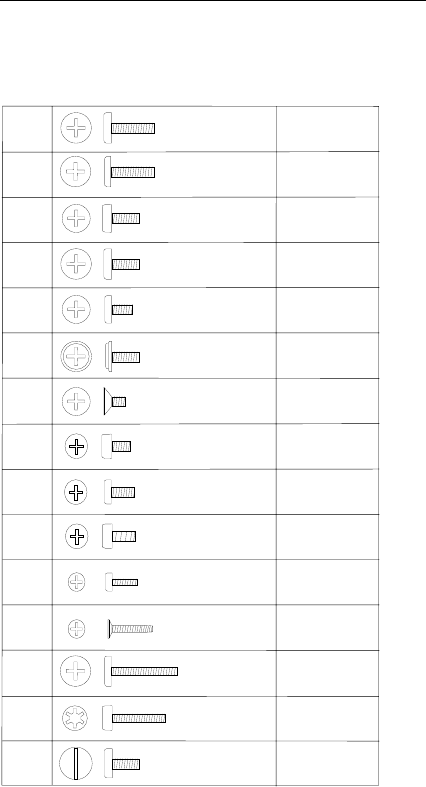
Screw Size Chart
Use the chart below to match the size and shape of the
screws used in the computer you are servicing.
A
H
C
K
E
D
L
F
N
B
J
G
M
P
Q
Silver
Black
Silver
Brass
Black
Black
Black
Brass
Silver
Brass
Silver
Silver
Silver
Black
Brass
22 IBM Mobile Systems HMM
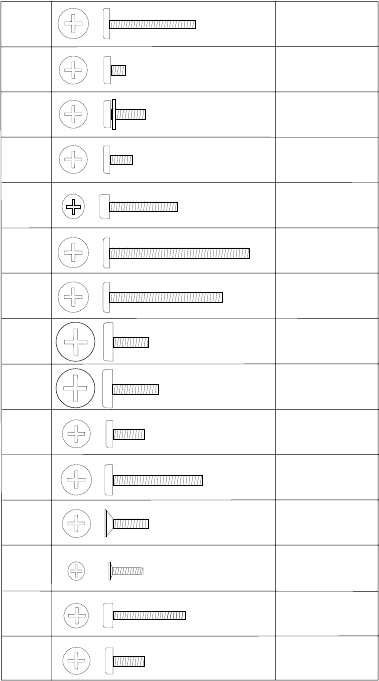
Screw Size Chart (continued):
Use the chart below
to match the size and shape of the screws used in the
computer you are servicing.
R
Y
T
V
U
W
S
X
Brass
Black
Brass
Black
Black
Black
Brass
Brass
AA
BB
DD
Z
CC
EE
FF Silver
Black
Black
Black
Brass
Brass
Brass
Introduction 23
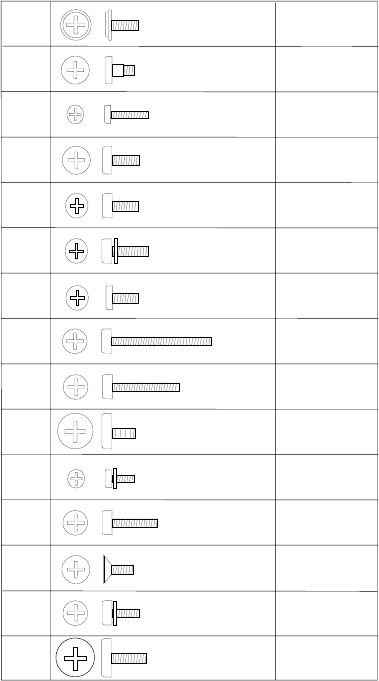
Screw Size Chart (continued):
Use the chart below
to match the size and shape of the screws used in the
computer you are servicing.
GG
QQ
JJ
SS
KK
TT
MM
WW
HH
RR
LL
UU
NN
XX
PP
Silver
Silver
Silver
Silver
Black
Black
Black
Black
Brass
Brass
Brass
Brass
Brass
Brass
Brass
24 IBM Mobile Systems HMM

ThinkPad 365X, 365XD (2625)
Read This First .................. 27
Checkout Guide . . . . . . . . . . . . . . . . . 30
Memory Checkout . . . . . . . . . . . . . . . 31
System Board and CPU Card Checkout ..... 32
Keyboard/Auxiliary Input Device Checkout .... 32
TrackPoint III Checkout ............ 33
Port Replicator Game Port Checkout ...... 33
Diskette Drive Test .............. 33
Status Indicators Checkout ........... 34
Power Systems Checkout ........... 34
Power Management Features ......... 38
Symptom-to-FRU Index . . . . . . . . . . . . . . 40
Numeric Error Codes .............. 40
Beep Symptoms . . . . . . . . . . . . . . . . 44
No-Beep Symptoms . . . . . . . . . . . . . . 45
LCD–Related Symptoms . . . . . . . . . . . . 46
Keyboard/TrackPoint III–Related Symptoms . . . 47
Indicator–Related Symptoms . . . . . . . . . . 47
Power–Related Symptoms . . . . . . . . . . . 47
Function–Related Symptoms . . . . . . . . . . 48
Peripheral Device–Related Symptoms ...... 49
Infrared–Related Symptoms . . . . . . . . . . 49
Other Symptoms . . . . . . . . . . . . . . . . 49
Intermittent Problems . . . . . . . . . . . . . 49
Undetermined Problems . . . . . . . . . . . . 50
Related Service Procedures ............ 51
Status Indicators . . . . . . . . . . . . . . . . 51
How to Run the Diagnostics .......... 54
Error Log . . . . . . . . . . . . . . . . . . . 55
Diagnostic Error Codes ............ 55
Checking the Installed Devices List ....... 57
Password Combinations (POP, HDP, PAP) . . . 58
How to Run a Low-Level Format ........ 58
PC Test Card LED ............... 58
Fn Key Combinations ............. 59
Product Overview (365X, 365XD) . . . . . . . . . 60
FRU Removals and Replacements ......... 61
1010 Rear Connector Door .......... 62
1020 Battery Pack . . . . . . . . . . . . . . 63
1025 Insulator Sheet . . . . . . . . . . . . . 64
1030 DIMM Card (If Installed) ......... 66
1040 Diskette Drive / CD-ROM Drive ...... 67
1045 Base Cover Assembly / Keyboard Latch . 69
1050 Hard Disk Drive ............. 70
1060 Top Cover . . . . . . . . . . . . . . . 71
1070 Keyboard Unit . . . . . . . . . . . . . . 73
1080 LCD Assembly . . . . . . . . . . . . . 74
1085 LCD Panel . . . . . . . . . . . . . . . 75
1090 Indicator Card . . . . . . . . . . . . . . 87
1100 Volume Switch / Speaker Assembly .... 88
1110 Keyboard Card / Cable .......... 89
Copyright IBM Corp. 1997 25
1120 CPU Card and System Board Card .... 91
1130 System Board / PCMCIA Slot Assembly . . 94
Locations . . . . . . . . . . . . . . . . . . . . . 96
Front View . . . . . . . . . . . . . . . . . . 96
Inside View . . . . . . . . . . . . . . . . . . 97
Bottom View . . . . . . . . . . . . . . . . . . 98
Rear View . . . . . . . . . . . . . . . . . . . 99
Power-On Password Jumper Pads ...... 100
Parts Listing 365X, 365XD (2625) ........ 102
Model 365X - Diskette Drive ......... 102
Model 365XD - CD-ROM Drive ........ 104
Common/Option Parts List .......... 111
26 IBM Mobile Systems HMM

Read This First
Before you go to the checkout guide, be sure to read this
section.
Important Notes
Only certified trained personnel should
service the computer.
Read FRU service procedures before replacing
any FRUs.
Be extremely careful during write operations
such as copying, saving, or formatting. Drives
in the computer that you are servicing might have
been rearranged or the drive startup sequence
might have been altered. If you select an
incorrect drive, data or programs can be written
over.
Replace FRUs only for the correct model.
When you replace the FRU, make sure the
model of the machine and FRU part number are
correct by referring to the parts list.
FRUs should not be replaced because of a
single, un-reproducible failure. Single failures
can occur from a variety of reasons that have
nothing to do with a hardware defect such as:
cosmic radiation, electrostatic discharge, or
software errors. FRU replacement should only
be considered when a recurring problem exists.
If this is suspected, clear the error log and run
the test again. Do not replace any FRUs if log
errors do not reappear.
Be careful not to replace a non-defective FRU.
How to Use Error Messages: Use the error
codes displayed on the screen to diagnose failures. If
more than one error code is displayed, begin the diagnosis
with the first error code. The cause of the first error code
can result in false error codes being displayed. If no error
code is displayed, see if the error symptom is listed in the
“Symptom-to-FRU Index” on page 40.
Port Replicator Problems: If you suspect a
problem with the Port Replicator, see “Port Replicator
Checkout” in the “Common Devices Checkout” section.
How to Diagnose Multiple FRUs: When the
adapter or device has more than one FRU, the error code
could be caused by either FRU. Before replacing multiple
FRUs, try removing or exchanging each FRU, one by one
in the designated sequence, to see if the symptoms
change.
ThinkPad 365X, 365XD (2625) 27

What to Do First: The servicer must include the
following information on the parts exchange form or parts
return form that is attached to the returned FRU:
1. Name and phone number of servicer.
2. Date of service.
3. Date when part failed.
4. Date of purchase.
5. Failure symptoms, error codes appearing on
display, and beep symptoms.
6. Procedure index and page number in which
failing FRU was detected.
7. Failing FRU name and part number.
8. Machine type, model number, and serial number.
9. Customer's name and address.
Before checking problems with the computer, determine
whether or not the damage is covered by the warranty by
referring to the following:
Warranty Note
During the warranty period, the customer may be
responsible for repair costs if the computer damage
was caused by misuse, accident, modification,
unsuitable physical or operating environment, or
improper maintenance by the customer. The following
list provides some common items that are not covered
under warranty and some symptoms that may indicate
the system was subjected to stresses beyond normal
use.
LCD panel cracked by excessive force or being
dropped.
Scratched (cosmetic) parts.
Cracked or broken plastic parts, broken latches,
broken pins, or broken connectors caused by
excessive force.
Damage caused by liquid spilled into the system.
Damage caused by improperly inserting a
PCMCIA card or installation of an incompatible
card.
Damage caused by foreign material in the
diskette drive slot.
Diskette drive damage caused by pressing the
diskette drive cover or inserting diskettes with
multiple labels.
Damaged or bent diskette eject button.
CD-ROM drive damage caused by excessive
force, shock, or from being dropped.
Fuses blown by attaching a non-supported
device.
Forgotten computer or hard disk password
(making computer or hard disk unusable).
28 IBM Mobile Systems HMM

How to Disable the Power-On Password:
1. Power off the computer.
2. Open the keyboard and lift the right-most section of
the insulator sheet.
3. Push out the small door on the right side of the base
cover. See page 100 for location.
4. Apply a short across the Power-On Password Jumper
Pads.
Warning: When using a metal tool to short the two
jumper pads, make sure the metal tool does not touch
any metal parts other than the two jumper pads.
5. With the jumper tool in place, power on the computer
to clear the password.
6. Remove the jumper and power off the computer.
7. Power on the computer and verify that the password
has been cleared.
To reactivate the password, set the password again.
Supervisor and Hard Disk Passwords: The
Supervisor Password and the Hard Disk Password (HDP)
are security features that are used to protect the system
and the hard disk data from unauthorized access. No
overriding capability is provided. If only a hard disk
password is set, obtaining permission from the password
owner to unlock the password is a prerequisite for running
diagnostic tests and performing service. If both supervisor
password and hard disk password are set, you can enter
Easy-Setup by pressing the Enter key or power-on
password at the supervisor password prompt. In this case,
the Password, Start up, and Initialize icons cannot be
selected.
See “Password Combinations (POP, HDP, PAP)” on
page 58 for more information about passwords.
If the following symptoms are present, they may
indicate damage caused by non-warranted
activity:
Missing parts may be a symptom of unauthorized
service or modification.
HDD spindles can become noisy if subjected to
excessive force or if the HDD is dropped.
I9990303 errors can be caused by exposure to
strong magnetic fields.
ThinkPad 365X, 365XD (2625) 29

Checkout Guide
Use the following procedure as a guide for computer
problems.
Note
The diagnostic tests are intended to test only IBM
products. Non-IBM products, prototype cards, or
modified options can give false errors and invalid
system responses.
1. Obtain the failing symptoms in as much detail as
possible.
2. Verify the symptoms by attempting to recreate the
failure by running the diagnostic test or by repeating
the same operation.
Note
To run the diagnostics, refer to “How to Run the
Diagnostics” on page 54.
3. Use the following table with the verified symptom to
determine which page to go to. Search the
symptoms column and find the description that best
matches your symptom; then go to the page shown in
the “Go to” column.
Symptoms (Verified) Go to
Power failure. (The
power indicator does not
go on or stay on.)
“Power Systems
Checkout” on page 34.
POST does not
complete. No beeps or
error codes are
indicated.
“Symptom-to-FRU
Index” on page 40, and
then use the No-Beep
Symptoms table.
POST beeps, but no
error codes are
displayed.
“Symptom-to-FRU
Index” on page 40, and
then use the Beep
Symptoms table.
POST detected an error
and displayed numeric
error codes.
“Symptom-to-FRU
Index” on page 40, and
then use the Numeric
Error Codes table.
The diagnostic test
detected an error and
displayed a FRU code.
“FRU Codes” on
page 57.
The configuration is not
the same as the
installed devices.
“Checking the Installed
Devices List” on
page 57.
30 IBM Mobile Systems HMM

Symptoms (Verified) Go to
Other symptoms (such
as LCD display
problems).
“Symptom-to-FRU
Index” on page 40, and
then use the Other
Symptoms table.
Symptoms cannot be
recreated. (Intermittent
problems.)
Use the customer
reported symptoms and
go to “Symptom-to-FRU
Index” on page 40.
Memory Checkout
DIMM cards are available for increasing memory capacity.
Memory errors might stop system operations, show error
messages on the screen, or hang the system.
Use the following procedure to isolate memory problems.
Note
Make sure that the DIMM is fully installed into the
connector. Both latches must be latched completely.
A loose connection can cause error code 195.
1. Power off the computer and remove the DIMM from
its slot (if installed).
2. Press and hold the F1 key; then power on the
computer. Hold the F1 key down until the
Easy-Setup screen appears.
3. Select Test and press Enter.
4. Select Memory and press Enter to run the memory
test on base memory. If an error appears, replace
the system board.
5. Power off the computer and reinstall the DIMM; then
power on the computer. Verify the memory size; then
test the memory. If an error appears, replace the
DIMM.
If memory problems occur intermittently, make sure the
DIMM socket latches are latched completely. If the DIMM
latches are securely latched, use the loop option to repeat
the test. When the test detects an error, an error log is
printed on the printer connected to the parallel port. See
“Error Log” on page 55 for more information.
DIMM Displayed Value
No DIMM installed 7808KB
8MB 16000KB
16MB 24192KB
32MB 40576KB
ThinkPad 365X, 365XD (2625) 31
System Programs in Flash Memory:
System setup
programs and diagnostic tests are stored in flash memory.
Flash Memory Update:
A flash memory update is
required for the following conditions:
New versions of system programs.
New features or options are added.
To update the flash memory, do the following:
1. Get the appropriate diskette containing the update.
2. Insert the System Program Service Diskette into
drive A and power on the computer.
3. Select Update system programs from the menu.
System Board and CPU Card Checkout
The processing functions are performed by both the
system board and the CPU card. Processor problems can
be caused by either FRU. However, the CPU card
generally has a lower probability of failure. When a
numeric code calls the system board or the CPU card as a
FRU, or the CPU card is called by a diagnostic test by
showing FRU code 11, use the following procedure to
isolate the problem:
1. Run the system board test to verify the symptom.
This test verifies both the system board and the CPU
card. If no error is detected, return to “Checkout
Guide” on page 30.
2. If FRU code 10 appears, replace the system board
but do not replace the CPU card. Transfer the CPU
card from the old system board to the new system
board.
3. If FRU code 11 appears, reseat the CPU card.
4. Rerun the test to verify the fix.
5. If FRU code 11 remains, replace the CPU card.
If above procedure does not correct the problem, go to
“Undetermined Problems” on page 50.
Keyboard/Auxiliary Input Device
Checkout
Remove the external keyboard if the internal keyboard is to
be tested.
If the internal keyboard does not work or an unexpected
character appears, make sure that the three flexible cables
extending from the keyboard are correctly seated in the
connectors on the keyboard card.
If the keyboard cable connections are correct, check the
keyboard card.
32 IBM Mobile Systems HMM
TrackPoint III Checkout
If the TrackPoint III will not work, check the configuration in
the ThinkPad Features program. If the configuration of the
TrackPoint III is disabled, select Enable to enable it.
If this does not correct the TrackPoint III problem, continue
with the following steps.
The TrackPoint III does automatic compensations to adjust
the pointer sensor. During this process, the pointer moves
on the screen automatically for a short time. This
self-acting pointer movement can occur when a slight,
steady pressure is applied to the TrackPoint III pointer
while the computer is powered on or while the system is
running, or when re-adjustment is required because the
temperature has exceeded its normal temperature range.
This symptom does not indicate a hardware problem. No
service actions are necessary if the pointer movement
stops in a short period of time.
If a click button problem or pointing stick problem occurs,
do the following:
1. Go to the Easy-Setup screen.
2. Select an item with the pointing stick.
3. Press either the left or right click button.
4. Verify that both buttons work correctly.
If either the pointing stick or the click button do not work,
do the following actions one at a time to correct the
problem. Do not replace a non-defective FRU.
Reseat the keyboard card cables.
Replace the keyboard.
Replace the keyboard card.
Replace the system board.
Port Replicator Game Port Checkout
Do the following if a Port Replicator joystick problem
occurs:
1. Connect the joystick to the Port Replicator game port.
2. Go to the Easy-Setup screen.
3. Select an item with the joystick.
4. Press any button of the joystick.
5. Verify that all buttons work correctly.
If either the joystick or a button does not work, replace the
Port Replicator. If the problem still remains, replace the
system board.
Diskette Drive Test
Do the following to isolate the problem to a controller,
drive, or diskette. A scratch, write enabled, non-defective
2HD diskette is required.
FDD-1 represents the built-in diskette drive for 365X.
FDD-2 represents a diskette drive in the Port Replicator or
ThinkPad 365X, 365XD (2625) 33
a diskette drive attached through the external diskette drive
connector.
Warning: Make sure that the diskette does not have
more than one label attached to it. Multiple labels can
cause damage to the drive or can cause the drive to fail.
Do the following to select the test device:
1. Select the advanced diagnostics mode and select
Tool; then select the FDD-1 or FDD-2 icon and press
the spacebar. A mark appears next to the selected
icon. Insert a blank diskette when instructed.
2. Run the diskette drive test.
3. If the controller test detects an error, FRU code 10
appears. Replace the system board.
4. If the controller test runs without errors, the drive
read/write tests start automatically.
5. If the drive test detects an error, FRU code 50 for
FDD-1 or 51 for FDD-2 appears. If the diskette itself
is known to be good, replace the drive.
Status Indicators Checkout
If a status indicator LED problem occurs, do the following:
1. Power off the computer.
2. Power on the computer.
3. All the LEDs in the status indicator panel turn on for a
moment soon after the computer is powered on.
Verify that all indicators turn on correctly.
If some of the indicators do not turn on, replace the LED
indicator card.
If the problem still remains, replace the keyboard card.
Power Systems Checkout
To verify the symptom of the problem, power on the
computer using each of the power sources as follows:
1. Remove the battery pack, diskette drive, and hard
disk drive.
2. Connect the AC Adapter and check that power is
supplied.
3. Install the diskette drive or hard disk drive one at a
time, and check that power is supplied from each
power source.
4. Disconnect the AC Adapter, remove the hard disk and
diskette drive, and install the charged battery pack;
then check that power is supplied by the battery pack.
If you suspect a power problem, see the appropriate power
supply check listed below.
“Checking the AC Adapter” on page 35.
“Checking Operational Charging” on page 36.
“Checking the Battery Pack” on page 36.
“Checking the Backup Battery” on page 37.
34 IBM Mobile Systems HMM
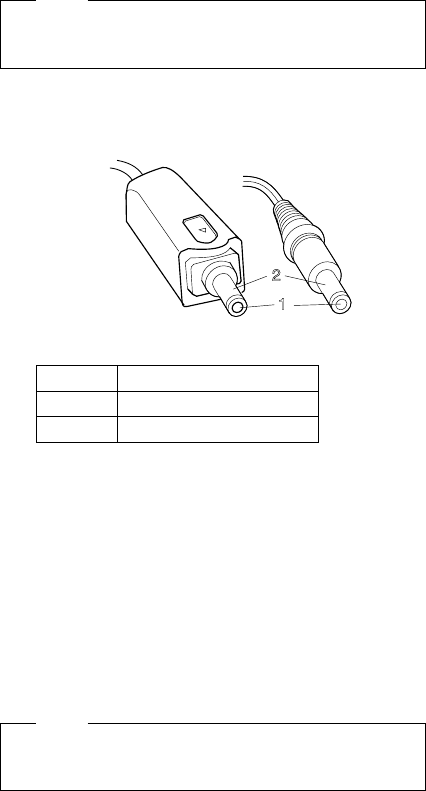
Checking the AC Adapter: You are here
because the computer fails only when the AC Adapter is
used.
If the power problem occurs only when a Port
Replicator is used, replace the replicator.
If the power-on indicator does not turn on, check the
power cord of the AC Adapter for correct continuity
and installation.
If the operational charge does not work, go to
“Checking Operational Charging” on page 36.
Note
There are two types of adapters. The procedure for
checking both types is the same.
1. Unplug the AC Adapter cable from the computer and
measure the output voltage at the plug of the AC
Adapter cable. See the following figure:
1
2
(16 - 10 V)
If the voltage is correct, replace the system board.
If the problem is not corrected, go to “Undetermined
Problems” on page 50.
If the voltage is not correct, go to the next step.
2. Unplug the AC Adapter cable from the ac power
outlet and wait five minutes or longer to allow the
over-voltage protection circuit to be fully discharged
and initialized.
3. Plug the AC Adapter cable into the ac power outlet.
4. Measure the output voltage of the AC Adapter.
5. If the voltage is still not correct, replace the AC
Adapter.
Note
An audible noise from the AC Adapter does not
always indicate a defective adapter.
Pin Voltage (V dc)
1+14.5 to +17.0
2 Ground
ThinkPad 365X, 365XD (2625) 35
Checking Operational Charging: To check
operational charging, use a discharged battery pack or a
battery pack that has less than 50% of the total power
remaining when installed in the computer.
Perform operational charging. If the battery status
indicator does not turn on, remove the battery pack and
leave it to return to room temperature. Reinstall the
battery pack. If the charge indicator still does not turn on,
replace the battery pack.
Checking the Battery Pack: Battery charging will
not start until the Fuel-Gauge shows that less than 95% of
the total power remains; with this condition the battery
pack will charge to 100% of its capacity. This protects the
battery pack from being overcharged or having a
shortened life.
Do the following:
1. Power off the computer.
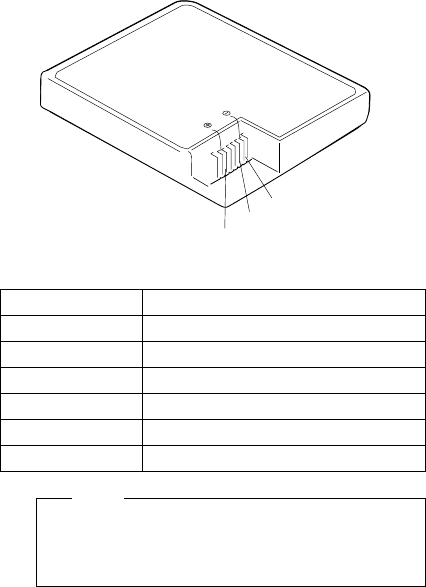
2. Remove the battery pack and measure the voltage
between battery terminals 2 (+) and 6 (−). See the
following figure:
2
6(-)
(+)
(T)
5
Note
Signal lines, not used in these steps, are used for
communication between the system and the
battery.
Terminal Voltage (V dc) / Signal
1 —
2+8 to +13.5
3 —
4 —
5 Thermal
6 Ground (−)
36 IBM Mobile Systems HMM
3. If the voltage is less than +9.6 V dc, the battery pack
has been discharged. Recharge the battery pack.
If the voltage is still less than +9.6 V dc after
recharging, replace the battery.
Note
If the voltage of the battery pack is 0 V, it is not
defective.
4. If the voltage is more than +9.6 V dc, measure the
resistance between battery terminals 5 and 6. The
resistance must be 4 K to 30 K ohm.
If the resistance is not correct, replace the battery
pack. If the resistance is correct, replace the system
board.
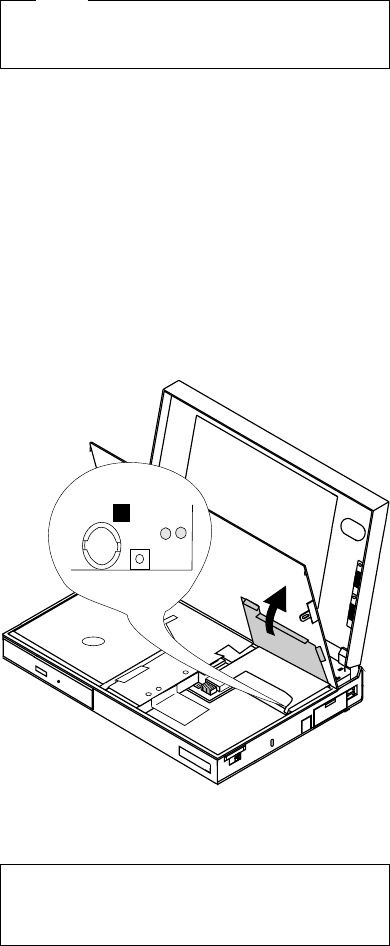
Checking the Backup Battery
1. Power off the computer and unplug the AC Adapter
from the computer.
2. Open the keyboard and remove the battery pack.
3. Lift the right-hand section of the black insulator sheet.
4. Locate the backup battery on the system board,
shown at 1.
1
5. Using a plastic tool, remove the backup battery from
the system board.
DANGER
Do not use a metal tool when removing
the backup battery. Use only a plastic
tool.
ThinkPad 365X, 365XD (2625) 37

6. Measure the voltage of the backup battery. Refer to
the following table for voltages:
If the voltage is correct, replace the system board.
If the voltage is not correct, the backup battery has
been discharged. Replace the backup battery.
If the backup battery discharges quickly after
replacement, replace the system board.
Wire Voltage (V dc)
+ +2.5 to +3.7
−Ground
Power Management Features
Three power management modes are provided by the
computer to reduce power consumption and prolong
battery power.
Standby Mode: When in standby mode the following
occurs:
The LCD backlight turns off.
The hard disk motor stops.
Events that cause the computer to enter standby mode:
Standby requested by the Fn key. (Fn+F3)
No activity under auto-standby enabled by the
ThinkPad Features program.
Events that cause the computer to exit or resume standby
mode:
(Resume) Any key operation.
Suspend Mode: When in suspend mode, the
following, in addition to the two actions of standby mode,
occur:
The LCD is powered off.
The hard disk is powered off.
The CPU is stopped.
Notes
1. In the ThinkPad Features Program, the computer
can be set to “Will not suspend even if LCD is
closed.”
2. When the computer is powered with ac power
and is used with one of the communication PC
cards, the computer enters
standby mode
; the
PC card and application program remain active.
3. The computer cannot enter suspend mode while
a communication link is running.
38 IBM Mobile Systems HMM

Events that cause the computer to enter suspend mode:
Suspend mode is requested by the Fn key (Fn+F4).
The LCD is closed.
The specified time has elapsed from the last
operation with the keyboard, mouse, hard disk drive,
parallel connector, or diskette drive; or the AC
Adapter is plugged in. The time is specified by
Suspend Timer
in the ThinkPad Features program.
The battery condition is low. The battery power
indicator blinks amber.
Either the
PS2 OFF
or
PS2 SUSpend
command is
set in the ThinkPad Features program.
Events that cause the computer to exit or resume suspend
mode:
(Resume) The LCD is opened.
(Resume) The real time clock alarm is signaled.
(Resume) The ring indicator (RI) is signaled by a
serial or PCMCIA device.
(Resume) The Fn key is pressed.
(Resume) An external keyboard key is pressed while
operating with ac power.
(Exit) Timer (timeout) conditions are satisfied for
entering hibernation mode.
Hibernation Mode: When in hibernation mode, the
following occurs:
The system status, RAM, VRAM, and setup data are
stored on the hard disk.
The system is powered off.
Note
The computer cannot enter hibernation mode when
the computer is powered with ac power and a
communication PC card is used.
Events that cause the computer to enter hibernation mode:
The keyboard is opened.
Hibernation mode is requested by the Fn key
(Fn+F12).
Timer/timeout conditions are satisfied in suspend
mode.
A critical low battery condition occurs.
The
PS2 HIB
ernation command is set in the
ThinkPad Features program.
Event that causes the computer to exit hibernation mode:
The power-on switch is operated.
When power is turned on, the hibernation history in the
boot record on the hard disk is recognized and system
status is restored from the hard disk to resume operation.
ThinkPad 365X, 365XD (2625) 39

Symptom-to-FRU Index
The Symptom-to-FRU Index lists the symptoms and errors
and the possible causes. The most likely cause is listed
first.
Note
Perform the FRU replacement or actions in the
sequence shown in the “FRU/Action” columns. If a
FRU did not solve the problem, put the original part
back in the computer. Do not replace a non-defective
FRU.
This index can also be used to help you decide which
FRUs to have available when servicing a computer.
Numeric error codes show the errors detected in POST or
system operation. In the following error codes, X can be
any number.
If no codes are available, use narrative symptoms.
If the symptom is not listed, go to “Undetermined
Problems” on page 50.
Note
For any IBM device not supported by the diagnostic
codes in this ThinkPad computer, see the manual for
that device.
Numeric Error Codes
Symptom / Error FRU / Action in Sequence
10X
101 Interrupt failure.
102 Timer failure.
103 Timer interrupt failure.
104 Protected mode
failure.
105 Last 8042 command
not accepted.
107 NMI test failure.
108 Timer bus test failure.
109 Low meg-chip select
test.
1. System Board
110
(Planar parity.)
1. Go to “Memory
Checkout” on
page 31.
2. DIMM
3. The computer is
attached to a Port
Replicator.
4. System Board
40 IBM Mobile Systems HMM

Symptom / Error FRU / Action in Sequence
111
(I/O parity.)
1. Go to “Memory
Checkout” on
page 31.
2. Port Replicator
3. System Board
158
(HDP was not set even
though the supervisor
password is set.)
1. Set an HDP for the
hard disk drive.
159
(HDP is not set the same as
the supervisor password.)
1. Set a correct HDP for
the hard disk drive.
161
(Dead battery.)
1. Go to “Checking the
Backup Battery” on
page 37.
2. Backup Battery
3. System Board
163
(Time and Date were not
set.)
1. Set Time and Date.
2. Backup Battery
3. System Board
173
(Configuration data was
lost.)
1. Select OK in the error
screen; then set the
time and date.
2. Backup Battery
3. System Board
174
(Configuration error:
Perform “Checking the
Installed Devices List” on
page 57 before changing
any FRUs.)
1. Check Device
Configuration.
2. System Board
3. Diskette Drive
Assembly
4. Hard Disk Drive
Assembly
175, 177, 178
175 EEPROM CRC #1
error.
177 Supervisor password
check sum error.
178 EEPROM is not
functional.
1. System Board
183
(Incorrect password entered
at the supervisor password
prompt.)
1. Have the user
examine the
password.
184
(POP check sum error.)
1. Reset the POP
(power-on password)
in Easy-Setup.
185
(The startup sequence is
not valid. Suspect that
power was off when the
startup sequence was being
updated.)
1. Reset the startup
sequence in
Easy-Setup.
186 1. System Board
ThinkPad 365X, 365XD (2625) 41

Symptom / Error FRU / Action in Sequence
188
(EEPROM CRC #2 error.)
1. Set the system
identification using
the ThinkPad 750Ce
hardware
maintenance diskette.
190
(Depleted battery pack was
installed when the power
was on.)
1. Go to “Checking the
Battery Pack” on
page 36.
191XX
(PM initialization error.)
1. System Board
2. CPU card
195
(The configuration read from
the hibernation area does
not match the actual
configuration.)
1. Check if the
configuration was
changed.
For example, check if
the hard disk drive is
from another computer.
Also, when a DIMM
card has been
installed, unsecured
DIMM latches can
result in this error.
Make sure the DIMM is
securely seated and
fully latched into place.
196
(Read error occurred in the
hibernation area of the
HDD.)
1. Run the hard disk
drive test.
2. Hard Disk Drive
199XX
(Resume error.)
1. System Board
1XX 1. System Board
2XX
201 Memory data error.
202 Memory line error
00–15.
203 Memory line error
16–23.
205 Memory test failure
on on-board memory.
221 ROM to RAM remap
error.
1. Go to “Memory
Checkout” on
page 31.
2. DIMM
3. System Board
301, 303, 304, 305, 3XX
(301: Keyboard error.)
1. Go to
“Keyboard/Auxiliary
Input Device
Checkout” on
page 32.
2. Keyboard
3. External Numeric
Keypad
4. External Keyboard
5. Keyboard/Mouse Cable
6. Keyboard Card
7. System Board
42 IBM Mobile Systems HMM

Symptom / Error FRU / Action in Sequence
601, 6XX
(601: Diskette drive or
controller error.)
1. Go to “Diskette Drive
Test” on page 33.
2. Diskette Drive
Assembly
3. Diskette
4. System Board
602
(Diskette read error.)
1. Go to “Diskette Drive
Test” on page 33.
2. Diskette
3. Diskette Drive
Assembly
604
(Unacceptable ID was read
from the diskette drive.)
1. Go to “Diskette Drive
Test” on page 33.
2. Diskette Drive
Assembly
3. System Board
11XX
1101: Serial_A test failure.
1. Serial Device
2. Communication Cable
3. System Board
12XX
1201: Serial_B test failure.
1. System Board
17XX
1701 Hard disk controller
failure.
1780, 1790 Hard disk 0
error.
1781, 1791 Hard disk 1
error.
1. Hard Disk Drive
2. System Board
24XX
(2401: System board video
error.)
1. System Board
808X
8081 PCMCIA presence
test failure.
(PCMCIA revision
number also
checked.)
8082 PCMCIA register
test failure.
1. Reseat the PCMCIA
Connector.
2. PCMCIA Slot
Assembly
3. PCMCIA Device
4. System Board
860X
(Pointing device error when
TrackPoint III is disabled.)
8601 System bus
error–8042 mouse
interface.
8602 External mouse
error.
8603 System bus error or
mouse error.
1. External Mouse
2. External Keyboard
3. System Board
ThinkPad 365X, 365XD (2625) 43

Symptom / Error FRU / Action in Sequence
861X
(Pointing device error when
TrackPoint III is enabled.)
8611 System bus
error–I/F between
8042 and IPDC.
8612 TrackPoint error.
8613 System board or
TrackPoint error.
1. Reseat the keyboard
connector.
2. Reseat the keyboard
TrackPoint III cable on
the keyboard card.
See “1070 Keyboard
Unit” on page 73.
3. Keyboard
4. External Mouse
5. System Board
I9990301
I9990302
I9990305
I9990301 Hard disk error.
I9990302 Invalid hard
disk boot
record.
I9990305 No bootable
device.
1. Reseat the boot
device.
2. Check the startup
sequence for the
correct boot device.
3. Check that the
operating system has
no failure and is
installed correctly.
I9990303
(Bank 2 flash ROM check
sum error.)
1. System Board
Other codes not listed
above 1. Go to “Undetermined
Problems” on
page 50.
Beep Symptoms
Symptom / Error FRU / Action in Sequence
Continuous beeps. System Board
One beep and a
blank, unreadable, or
flashing LCD.
1. Reseat the LCD connector.
2. LCD Assembly
3. System Board
One beep, and the
message “Unable to
access boot source.”
1. Boot device
2. System Board
One long beep, two
short beeps, and a
blank or unreadable
LCD.
1. System Board
2. LCD Assembly
One long beep
followed by four short
beeps each time the
power switch is
operated.
(System cannot
power on because of
low battery voltage.)
Connect the AC Adapter or
install a fully charged battery.
One beep every
second.
(System shuts down
because of low
battery voltage.)
Connect the AC Adapter or
install a fully charged battery
(allows system to complete
shutdown before changing the
battery).
44 IBM Mobile Systems HMM

Symptom / Error FRU / Action in Sequence
Two short beeps with
error codes. POST error. See “Numeric Error
Codes” on page 40.
Two short beeps with
blank screen. System Board
No-Beep Symptoms
Symptom / Error FRU / Action in Sequence
No beep, power-on
indicator not on, and
a blank LCD during
POST.
1. Go to “Power Systems
Checkout” on page 34.
2. System Board
3. Power sources
No beep, power-on
indicator on, and a
blank LCD during
POST.
1. System Board
2. CPU Card
No beep, power-on
indicator on, and a
blinking cursor only
during POST.
1. System Board
2. CPU Card
No beep during
POST but system
runs correctly.
1. Turn the volume up and
check the speaker.
2. Speaker / Volume Switch
Assembly
ThinkPad 365X, 365XD (2625) 45

LCD–Related Symptoms
Important
The TFT LCD on some models of this computer
contains over 1,440,000 thin-film transistors (TFTs). A
small number of missing, discolored, or lighted dots
(on all the time) is characteristic of TFT LCD
technology, but excessive pixel problems can cause
viewing concerns. The LCD should be replaced if the
number of dots satisfies the following condition:
The number of missing, discolored, or lighted
dots in any background is 21 or more.
Symptom / Error FRU / Action in Sequence
No beep, power-on
indicator on, and a
blank LCD during
POST.
1. System Board
2. CPU Card
LCD backlight
not working, or
LCD too dark, or
LCD brightness
cannot be
adjusted, or
LCD contrast
cannot be
adjusted.
1. Reseat the LCD connectors.
2. LCD Assembly
LCD screen
unreadable, or
Characters
missing pels, or
Screen
abnormal, or
Wrong color
displayed.
1. See important note for
“LCD–Related Symptoms.”
2. Reseat all LCD connectors.
3. LCD Assembly
4. System Board
LCD has extra
horizontal or vertical
lines displayed.
LCD Assembly
46 IBM Mobile Systems HMM

Keyboard/TrackPoint III–Related
Symptoms
Symptom / Error FRU / Action in Sequence
Keyboard (one or
more keys) does not
work.
1. Reseat the keyboard
connector.
2. Reseat the three keyboard
cables on the keyboard card.
3. Keyboard
4. Keyboard Card
5. System Board
TrackPoint III does
not work.
1. Reseat the keyboard
connector.
2. Go to “TrackPoint III
Checkout” on page 33.
3. Keyboard
4. System Board
Pointer moves
automatically or does
not work correctly.
1. See “TrackPoint III
Checkout” on page 33.
Indicator–Related Symptoms
Symptom / Error FRU / Action in Sequence
Indicator incorrectly
remains off or on, but
system runs
correctly.
1. Reseat the LED Indicator
Card cable.
2. LED Indicator Card
3. System Board
Power–Related Symptoms
Symptom / Error FRU / Action in Sequence
Power shuts down
during operation.
1. Go to “Power Systems
Checkout” on page 34.
2. Battery Pack
3. Remove the battery pack and
let it cool for two hours.
4. Power sources
The system will not
power off. System Board
ThinkPad 365X, 365XD (2625) 47

Function–Related Symptoms
Symptom / Error FRU / Action in Sequence
The system will not
enter hibernation
mode by opening the
keyboard.
1. Go to “Hibernation Mode”
on page 39 and check
whether the computer can
enter hibernation mode.
2. Enable hibernation mode
using the ThinkPad Features
program.
3. Boot an operating system and
press Fn+F12. If the
computer enters hibernation
mode, suspect that the
application program is not
working properly.
4. CPU Card
5. Initialize the system in
Easy-Setup.
6. System Board
The system will not
suspend or resume
by opening or closing
the LCD.
1. Go to “Suspend Mode” on
page 38, and check that the
computer can enter
suspend mode.
2. Boot an operating system and
press Fn+F4. If the computer
enters suspend mode,
suspect that the application
program is not working
properly.
3. Initialize the system in
Easy-Setup.
4. Keyboard Card
5. System Board
Battery Fuel-Gauge
does not go higher
than 90%.
Go to “Checking the Battery
Pack” on page 36 and see the
note.
Memory count (size)
appears different
from actual size.
Go to “Memory Checkout” on
page 31.
System configuration
does not match the
installed devices.
Go to “Checking the Installed
Devices List” on page 57.
System hangs
intermittently. Go to “Intermittent Problems”
on page 49.
48 IBM Mobile Systems HMM

Peripheral Device–Related Symptoms
Symptom / Error FRU / Action in Sequence
External display does
not work correctly.
1. See “External Display
Self-Test” in “Common
Devices Checkout” section.
Printer problems. 1. Run Printer Self-test.
2. Parallel Port Device
3. Cable
4. System Board
Serial or parallel port
device problems.
1. Device
2. Device Cable
3. System Board
Infrared–Related Symptoms
Symptom / Error FRU / Action in Sequence
Unable to
communicate using
the Infrared (IR) Port.
1. Make sure the setup for the
IR is correct.
2. Make sure there are no
fluorescent lights near the
computer.
The computer may receive
optical interference from the
fluorescent light.
3. Reseat the IR unit.
4. Run the advanced diagnostic
test. If an error occurs and a
FRU code is displayed,
replace the parts shown by
the FRU code.
Other Symptoms
Note
If you cannot find a symptom or error in this list and
the problem remains, see “Undetermined Problems”
on page 50.
Symptom / Error FRU / Action in Sequence
Errors occur only
when Port Replicator
is used.
See “Port Replicator Checkout”
in the “Common Devices
Checkout” section.
PCMCIA slot pin is
damaged. PCMCIA Slots Assembly
Intermittent Problems
Intermittent system hang problems can be caused by a
variety of reasons that have nothing to do with a hardware
defect, such as: cosmic radiation, electrostatic discharge,
or software errors. FRU replacement should only be
considered when a recurring problem exists.
When analyzing the intermittent problem, do the following:
ThinkPad 365X, 365XD (2625) 49
1. Run the advanced diagnostic test for the system
board in loop mode at least 10 times.
2. If no error is detected, do not replace any FRUs.
3. If any error is detected, replace the FRU shown by
the FRU code. Rerun the test to verify that no more
errors exist.
Undetermined Problems
You are here because the diagnostic tests did not identify
which adapter or device failed, installed devices are
incorrect, a short circuit is suspected, or the system is
inoperative. Follow the procedures below to isolate the
failing FRU (do not isolate non-defective FRUs).
Verify that all attached devices are supported by the
computer.
Verify that the power supply being used at the time of the
failure is operating correctly. (See “Power Systems
Checkout” on page 34.)
1. Power off the computer.
2. Check the cables, wires, and connectors for short
circuits and open circuits. Visually check them for
damage. If any problems are found, replace the
FRU.
3. Remove or disconnect all of the following devices.
a. Non-IBM devices
b. Devices attached to the expansion bus
connector
c. Printer, mouse, and other external devices
d. Battery pack
e. Hard disk drive
f. Internal diskette drive or CD-ROM drive
g. DIMM
h. PC Cards
4. Power on the computer.
5. Determine if the problem has changed.
6. If the problem does not occur again, reconnect the
removed devices one at a time until you find the
failing FRU.
7. If the problem still remains, remove the backup
battery and wait for 3 minutes; then replace the
backup battery and set current date and time.
8. Determine if the problem has changed.
9. If the problem remains, replace the following FRUs
one at a time. Do not replace a non-defective FRU.
Keyboard card
LCD assembly
System board
CPU card
50 IBM Mobile Systems HMM

Related Service Procedures
This section provides information about the following:
“Status Indicators”
“How to Run the Diagnostics” on page 54
“Diagnostic Error Codes” on page 55
“Error Log” on page 55
“Checking the Installed Devices List” on page 57
“Password Combinations (POP, HDP, PAP)” on
page 58
“How to Run a Low-Level Format” on page 58
“PC Test Card LED” on page 58
“Fn Key Combinations” on page 59
“Keyboard/Auxiliary Input Device Checkout” on
page 32
Status Indicators
The system status LED indicators show the current
computer status in green and amber using symbols. The
following shows the location of each symbol and the
meaning of each indicator.
10
1952 63 7
4 8
Symbol Color Meaning
1 Battery
Power Status
Green Indicates that sufficient
power remains for
operation. The battery
power status cannot be
determined when the
battery is not installed in
the computer.
Blinking
Amber
Indicates that the battery
pack needs charging.
When the indicator starts
blinking amber, the
computer beeps three
times.
ThinkPad 365X, 365XD (2625) 51
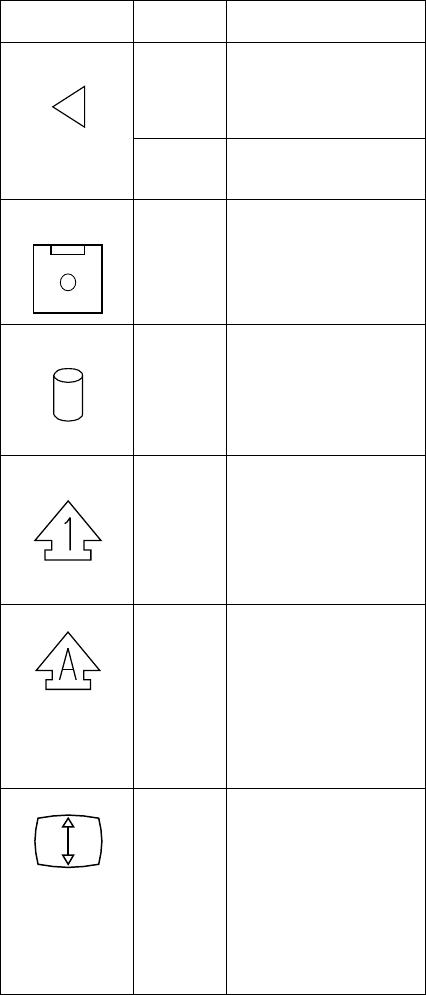
Symbol Color Meaning
2 Battery
Charging
Green Indicates that the battery
pack is charging. When
the indicator turns off, the
battery pack is fully
charged.
Off Indicates that the battery
pack is charged (if the AC
Adapter is attached).
3 Diskette
Drive In Use
Amber Turns on when data is
written to or read from the
internal diskette drive.
4 Hard Disk
In-Use
Amber Turns on when data is
read from or written to the
hard disk or internal
CD-ROM. Do not enter
suspend mode or turn off
the computer when this
indicator is on.
5 Numeric
Lock
Green When on, indicates the
numeric keypad on the
keyboard is enabled. You
enable and disable the
keypad by pressing and
holding the Shift key.
Then press the NumLk
key.
6 Caps Lock Green When on, indicates the
Caps Lock mode is
enabled. All alphabetic
characters (A–Z) are
entered in capital letters
without pressing the Shift
key. You enable and
disable Caps Lock mode
by pressing the Caps
Lock key.
7 Scroll Lock Green Alternately turns on and
off each time the Scroll
Lock key is pressed.
While this indicator is on,
the Arrow keys are used
as screen-scroll function
keys. In this state, the
cursor cannot be moved
with the Arrow keys. Not
all application programs
support this function.
52 IBM Mobile Systems HMM
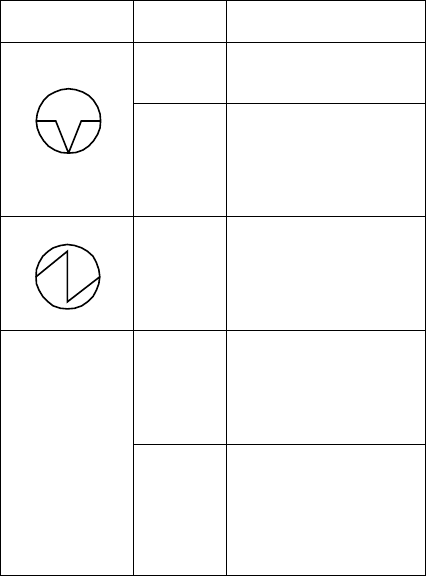
Symbol Color Meaning
8 Suspend
Mode
Green When on, indicates the
computer is in suspend
mode.
Blinking
Green
Indicates that the
computer is entering
suspend mode or
hibernation mode, or the
computer is resuming
normal operation.
9 Power On Green Shows that the computer
is operational. This
indicator turns on when
the computer is turned on
and the computer is not in
suspend mode.
1 CD-ROM
Drive /
Diskette
Drive
In-Use
LED
Amber 365XD: turns on when
data is read from a CD in
the CD-ROM drive. Do
not enter suspend mode
or eject the CD when this
indicator is on.
Amber 365X: turns on when
data is read from or
written to a diskette in the
internal diskette drive. Do
not enter suspend mode
or eject the diskette when
this indicator is on.
ThinkPad 365X, 365XD (2625) 53

How to Run the Diagnostics
Use either the TrackPoint III or the cursor move keys to
interact with the tests. The Enter key works the same as
selecting the OK icon to reply OK.
Note
Make sure you have the following tools available
before starting the tests:
Wrap Plug (P/N 72X8546) for the serial and
parallel connector tests.
Wrap Plug (P/N 35G4680) for the PCMCIA tests.
Scratch diskette for the FDD1 or FDD2 tests.
Any data CD for the CD-ROM drive test.
1. Press and hold the F1 key; then power on the
computer. Hold the F1 key down until the
Easy-Setup screen appears.
2. Select Test and press Enter.
3. Select a device and press Enter to run the test.
4. The test progress screen appears.
5. OK appears when the test ends without any errors.
6. Start the Advanced Diagnostic test by pressing
Ctrl+A on the basic diagnostic menu screen.
7. Select Tool to install the tools.
8. Select a device, press the Spacebar and install the
tool. Multiple devices can be selected by repeating
this step.
A mark appears beside the selected devices.
9. Select OK and press Enter if the selection is OK.
10. Select a device and press Enter to start the tests.
11. Select Test All to test all devices.
12. Select Loop Test to run the tests in a repeated loop.
A loop option menu appears in which a device loop or
all-device loop can be selected. Select a device and
press the Spacebar to select a device. Repeat this
step to select multiple devices. Press Enter to start
the diagnostic loop. If no device is selected, all
device tests are looped.
13. To exit the loop, keep pressing Ctrl+Pause until the
test exits. A beep sounds to notify that the exit
interrupt is sensed by the test program.
54 IBM Mobile Systems HMM
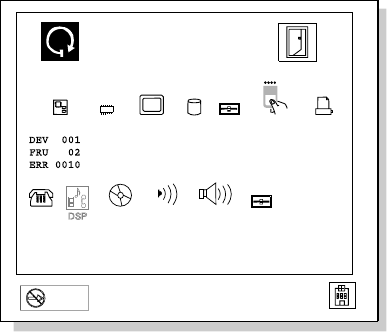
Error Log
Diagnostic errors are printed on the printer that is attached
to the parallel port when the error is detected. The error is
also logged in the system memory.
Do the following to display the errors:
1. End the test, if it is running.
2. Press Ctrl+A to select the advanced diagnostic mode.
3. Press Ctrl+E.
4. The error log appears.
5. To exit the screen, select the cancel icon or press
Esc.
The error log is not saved when the system is powered-off.
Diagnostic Error Codes
If an error is detected, the following appears:
Large X on the left side of the device icon.
Device ID (three digit)
Error code (two digit)
FRU code (four digit)
Exit
Restart
Start
SystemBoard Memory Display HDD FDD-1 Parallel
PCMCIA
1
2
FDD-2
Serial CDROM AudioInfrared
X
The device ID and error code are used to indicate the
detail portion of the FRU which caused the error. If
replacing a FRU does not correct the problem, see the
device ID or error code from the previous failure. If they
have changed, the cause might be because the new FRU
is defective or that the FRU was incorrectly installed.
ThinkPad 365X, 365XD (2625) 55
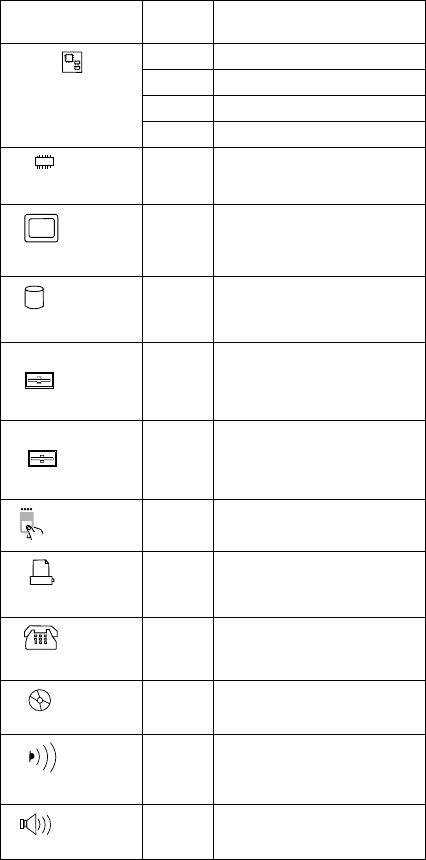
Device ID: If an error is detected by the diagnostic
tests, a three-digit device ID is displayed. The device ID
indicates the suspected device.
Icon Device
ID Suspected Device
SystemBoard
001 System Board
003 Keyboard
007 Math Coprocessor
086 Pointing Device
Memory
002 Memory
Display
050 Display
HDD
017 Hard Disk Drive
FDD-1
1006 Diskette Drive
FDD-2
2066 External Diskette Drive
080 PCMCIA
Parallel
009 Parallel
Serial
011 Serial
CDROM
215 CD-ROM
Infrared
103 Infrared port
Audio
150 Audio (ESS AudioDrive
Sound Chip)
56 IBM Mobile Systems HMM

FRU Codes: If an error is detected by the diagnostic
tests, a
four-digit
FRU code is displayed. The FRU code
indicates two suspected FRUs. Replace the FRU that is
indicated by the
two leftmost digits
first, then replace the
FRU indicated by the
two rightmost digits
. No FRU is
assigned to code 00. If only one FRU is suspected, the
other FRU code is filled with zeros. See the referenced
page before replacing the FRU.
If the problem remains after replacement of the FRUs, go
to “Undetermined Problems” on page 50.
FRU Code FRU/Action
10 System Board
11 CPU Card
20 Memory
(See “Memory Checkout” on page 31.)
30 Reserved
32 External Keyboard
33 External Mouse
40 LCD Assembly
45 External CRT
50 1. Reseat the Diskette Drive (FDD-1)
2. Diskette Drive (FDD-1)
51 1. Reseat the Diskette Drive (FDD-2)
2. Diskette Drive (FDD-2)
60 1. Reseat the Hard Disk Drive (HDD)
2. Hard Disk Drive (HDD)
72 PCMCIA Slot Assembly
90 CD-ROM Drive
Checking the Installed Devices List
If a device is installed but the icon appears in a gray shade
rather than a dark shade on the basic diagnostics screen,
the device is defective. Reseat the device connectors. If
the symptom remains, replace the device or the system
board. If needed, adjust the contrast control to clearly
distinguish the shade of the icon.
If a device that is not installed appears in a dark shade (for
example, FDD-2 appears in a dark shade when
no
second
FDD is installed), do the following:
1. Replace the first device in the configuration, such as
the FDD-1.
2. If the problem remains, replace the system board.
The PCMCIA, Parallel, and Serial icons are always
displayed in a dark shade because the icons represent
subsystems of the system board and not the actual
attachment of the devices.
ThinkPad 365X, 365XD (2625) 57

The FDD-1 icon represents the first drive in the system
configuration. Similarly, the FDD-2 icon represents the
second drive, attached to the external diskette drive
connector or through a Port Replicator.
Password Combinations (POP, HDP,
PAP)
When the power-on password (POP), hard disk password
(HDP), and supervisor password (PAP) are used, the
following situations may occur:
When the POP is the same as the HDP
The POP prompt appears, but the HDP prompt does
not appear.
When the POP is not the same as the HDP
The POP and HDP prompts both appear.
When the PAP and HDP are enabled
When a PAP is used, the HDP is enabled
automatically, but no HDP prompt appears. The HDP
is set to the same password as the PAP.
How to Run a Low-Level Format
Do the following to format the hard disk.
Warning: Make sure the drive address to be formatted is
correct. This procedure will erase all information on the
disk.
1. Power off the computer.
2. Insert the ThinkPad 750Ce hardware maintenance
diskette into diskette drive A and power on the
computer.
Note
You can use this maintenance diskette for the
ThinkPad 365X and 365XD computers.
3. Select Format the hard disk from the main menu.
4. Select the drive from the menu.
5. Follow the instructions on the screen.
PC Test Card LED
The green LED on the PC test card turns on when the
PCMCIA test is running. If the LED does not turn on,
check that the card is installed correctly by reseating the
card. If it still does not turn on after it is reseated, try
using another slot for the test. If the LED still does not
turn on and the test fails, replace the FRU shown by the
diagnostic error code.
58 IBM Mobile Systems HMM

Fn Key Combinations
The following table shows the Fn key and function key
combinations and their corresponding functions.
The Fn key works independently from the operating
system. The operating system obtains the status through
the system management interface to control the system.
Fn +Description
F1 Reserved
F2 Fuel-Gauge display ON/OFF
F3 Standby mode invocation
F4 Suspend mode invocation
F5 Reserved
F6 Reserved
F7 LCD/CRT display switching
F8 Reserved
F9 Reserved
F10 Reserved
F11 Power management mode switching
(Toggles between High Power, Auto, and
Customize settings.)
F12 Hibernation invocation
Page
Up
Reserved
Page
Down
Reserved
ThinkPad 365X, 365XD (2625) 59

Product Overview (365X, 365XD)
The following table shows an overview of the system
features.
Feature Description
Processor Intel** Pentium** 100 MHz,
120 MHz, or 133 MHz.
Bus Architecture PCI
Memory (Standard) 8MB
Memory (Option) 8 MB, 16 MB, or 32 MB
DIMM card, maximum 40 MB
(70ns, 144-pin EDO)
CMOS RAM 114 bytes
SVGA Video 10.4-inch, 65,536 colors
800×600 pixel TFT color LCD
11.3-inch, 65,536 colors
800×600 pixel TFT color LCD
10.4-inch, 256 colors,
800×600 pixel DSTN color
LCD
11.3-inch, 256 colors,
800×600 pixel DSTN color
LCD
Diskette Drive
(For 365X: built-in;
for 365XD: external)
1.44MB (2-mode), 3.5-inch
1.44MB (3-mode), 3.5-inch,
for Japan
Hard Disk Drive 810MB, 2.5-inch, IDE
interface
1.08GB, 2.5-inch, IDE
interface
1.4GB, 2.5-inch, IDE interface
2.1GB, 2.5-inch, IDE interface
I/O Port Headphone
Microphone
Stereo Line-In
Port Replicator
Audio ESS AudioDrive Sound Chip
Internal speaker
Mechanical volume
CD-ROM
(For 365XD: built-in)
5-inch, X4, X6, or X8 speed,
IDE interface
Infrared Transfer Rear IR port
IrDA** 1.0 compliant
115K bps
PCMCIA** Cards One Type III
or two Type II
60 IBM Mobile Systems HMM

FRU Removals and Replacements
This section contains information about removals and
replacements.
Do not damage any part. Only certified and trained
personnel should service the computer.
The arrows in the “Removals and Replacements”
section show the direction of movement to remove a
FRU, or to turn a screw to release the FRU. The
arrows are marked in numeric order, in square
callouts, to show the correct sequence of removal.
When other FRUs must be removed before removing
the failing FRU, they are listed at the top of the page.
To replace a FRU, reverse the removal procedure
and follow any notes that pertain to replacement.
See “Locations” for internal cable connections and
arrangement information.
When replacing a FRU, use the correct screw size as
shown in the procedures.
Safety Notice 1: Translation on page 8
Before the computer is powered-on after FRU
replacement, make sure all screws, springs, or other
small parts, are in place and are not left loose inside
the computer. Verify this by shaking the computer
and listening for rattling sounds. Metallic parts or
metal flakes can cause electrical short circuits.
Safety Notice 3: Translation on page 10
The battery pack contains small amounts of nickel.
Do not disassemble it, throw it into fire or water, or
short-circuit it. Dispose of the battery pack as
required by local ordinances or regulations.
Safety Notice 8: Translation on page 14
Before removing any FRU, power-off the computer,
unplug all power cords from electrical outlets, remove
the battery pack, and then disconnect any
interconnecting cables.
ThinkPad 365X, 365XD (2625) 61
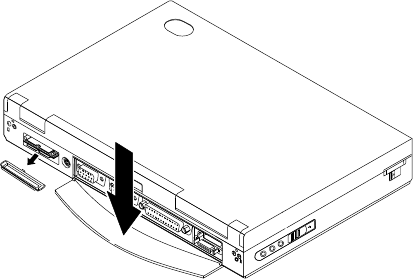
1010 Rear Connector Door
Remove the center latch, then remove the rear connector
door by flexing it.
62 IBM Mobile Systems HMM
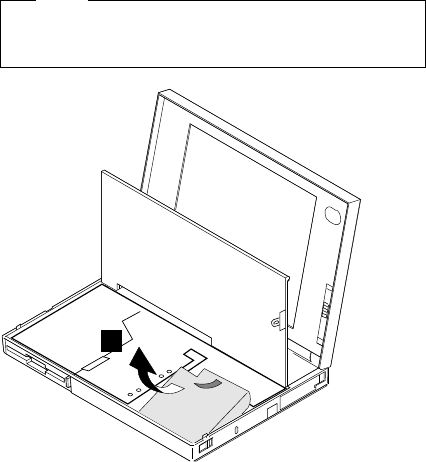
1020 Battery Pack
Note
Be careful that the computer does not fall backward
when the battery pack is removed.
1
ThinkPad 365X, 365XD (2625) 63
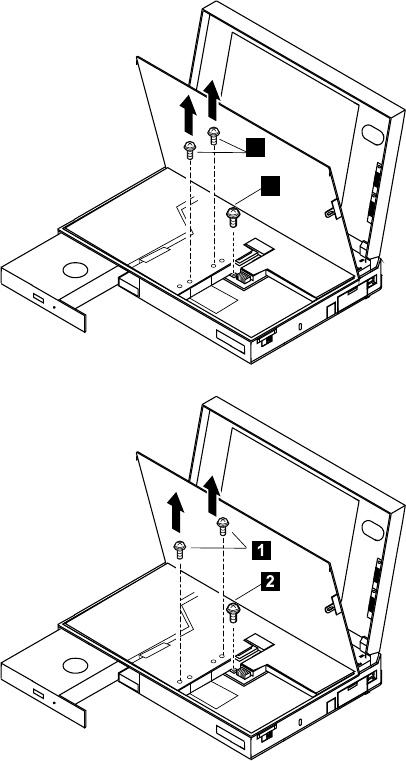
1025 Insulator Sheet
To access items under the keyboard other than the battery
pack, first raise the black insulator sheet as shown in the
figures.
To access the hard disk drive and DIMM slots, remove the
three screws and raise the middle section of the insulator
sheet, as shown in the figures.
The location of the screws is different according to the
model.
1
2
OR
64 IBM Mobile Systems HMM
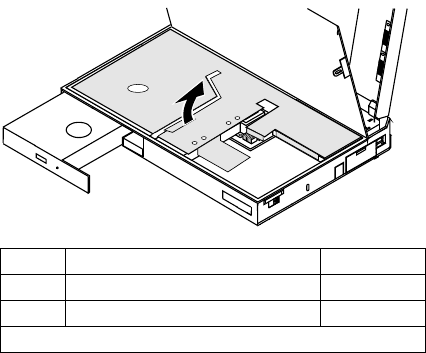
Step Screw Location (Quantity) Length
1Insulator Sheet (2) M3 x 3 mm
2HDD Bracket (1) M2 x 5 mm
Note: Make sure you use the correct screws when replacing.
ThinkPad 365X, 365XD (2625) 65
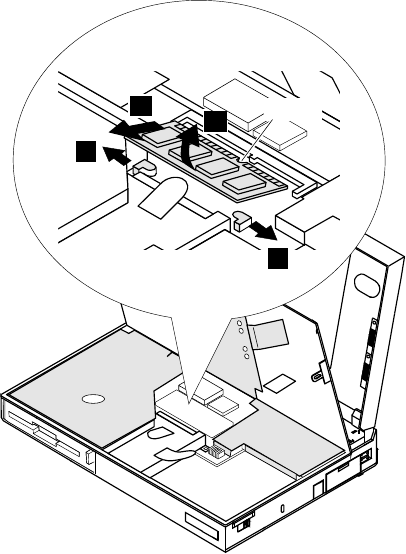
1030 DIMM Card (If Installed)
Battery Pack (1020)
Lift Insulator Sheet (1025)
32
1
1
Notch
66 IBM Mobile Systems HMM
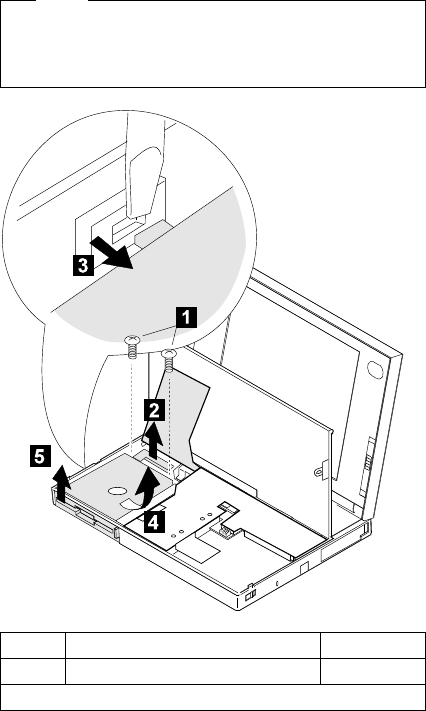
1040 Diskette Drive / CD-ROM Drive
Battery Pack (1020)
Lift Insulator Sheet (1025)
Diskette Drive (Model 365X):
Note
Release the latch at the left side of the diskette drive,
as shown in the figure at 3, and remove the diskette
drive.
Step Screw Location (Quantity) Length
1Diskette Drive (2) M2 x 5 mm
Note: Make sure you use the correct screws when replacing.
ThinkPad 365X, 365XD (2625) 67
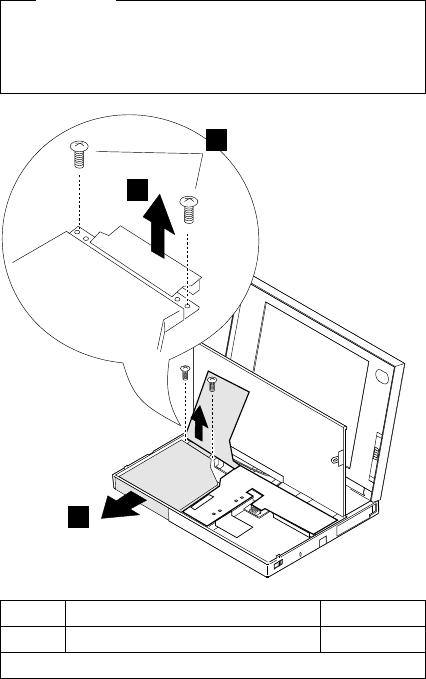
CD-ROM Drive (Model 365XD)
Warning
Remove the CD-ROM drive exactly as shown in the
figure. Do not apply any extra force to the CD-ROM
drive when removing it.
3
1
2
Step Screw Location (Quantity) Length
1CD-ROM Drive (2) M2 x 8 mm
Note: Make sure you use the correct screws when replacing.
68 IBM Mobile Systems HMM
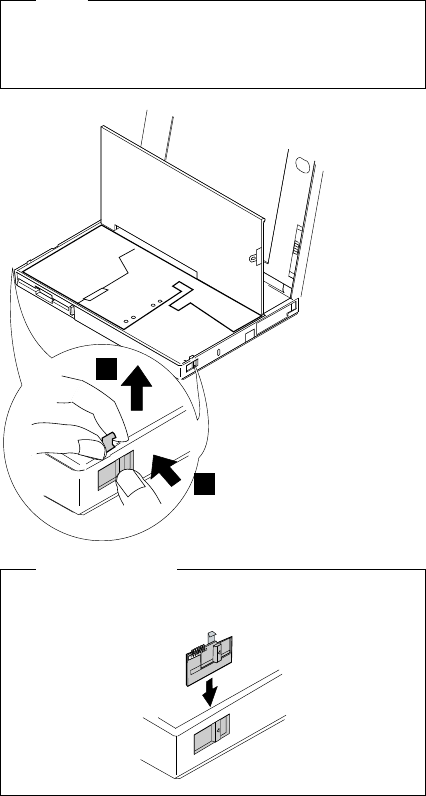
1045 Base Cover Assembly / Keyboard
Latch
Battery Pack (1020)
Diskette Drive / CD-ROM Drive (1040)
Note
Push the keyboard latch from the outside of the base
cover ( 1), then pull out the latch ( 2). Some
pressure might be needed to push the latch.
2
1
When replacing:
Assemble the parts as shown below; then replace the
latch.
ThinkPad 365X, 365XD (2625) 69
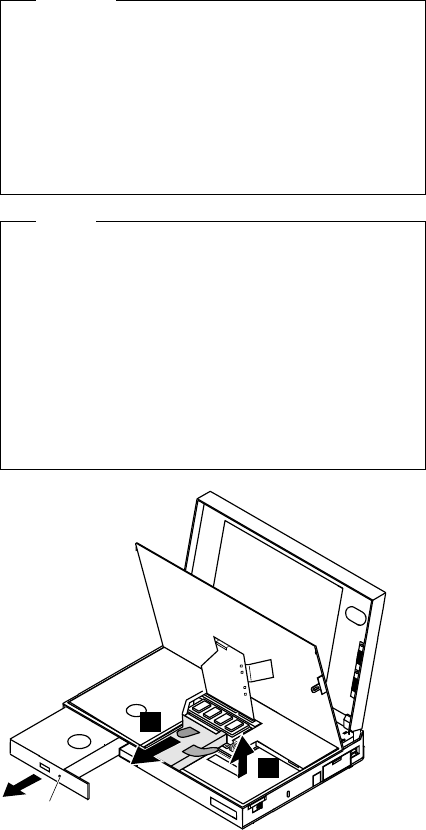
1050 Hard Disk Drive
Battery Pack (1020)
Lift Insulator Sheet (1025)
Warning
Do not drop or apply any shock to the hard disk
drive. The hard disk drive is sensitive to physical
shock. Incorrect handling can cause damage and
permanent loss of data on the hard disk. Before
removing the hard disk drive, have the user make a
backup copy of all the information on the hard disk.
Never remove the hard disk drive while the system is
operating or is in suspend mode.
Notes
1. Before removing the hard disk drive, eject the
CD-ROM tray by by inserting a pin into the
mechanical eject hole on the front of the
CD-ROM drive. Pull the tray out fully.
Otherwise, the CD-ROM drive may be damaged
when you remove the hard disk drive.
2. Remove the hard disk drive exactly as shown in
the figure. Do not apply any extra force to the
hard disk drive when removing it.
3. This procedure is the same for Model 365X and
Model 365XD.
2
1
Eject hole
70 IBM Mobile Systems HMM
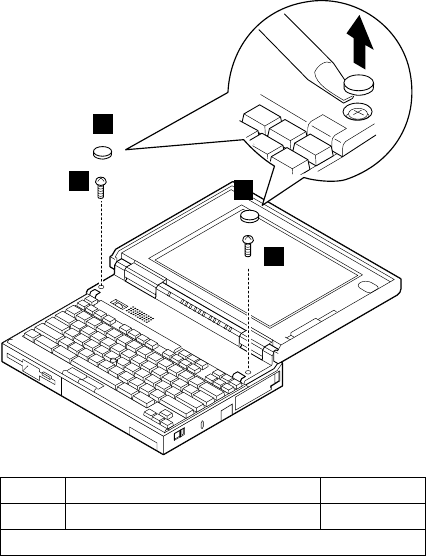
1060 Top Cover
Battery Pack (1020)
1
1
2
2
Step Screw Location (Quantity) Length
2Top Cover (2) M2 x 5 mm
Note: Make sure you use the correct screws when replacing.
ThinkPad 365X, 365XD (2625) 71
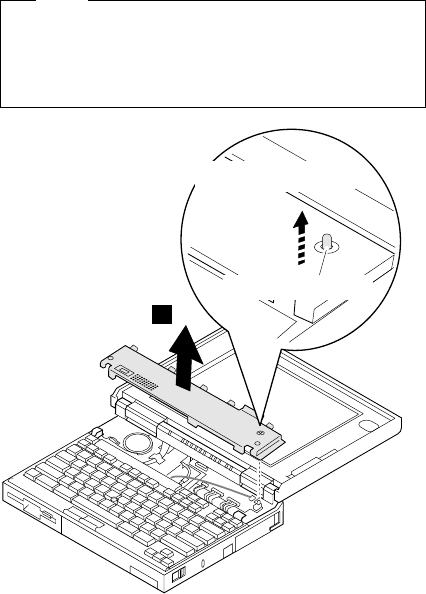
Note
When replacing the top cover, be careful not to
damage the resume switch. Ensure that the resume
switch extends through the hole, as shown in the
figure.
3
When replacing
Resume switch
72 IBM Mobile Systems HMM
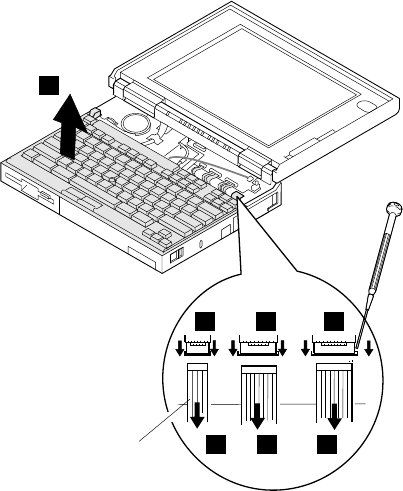
1070 Keyboard Unit
Battery Pack (1020)
Top Cover (1060)
When replacing the keyboard unit, connect the keyboard
connector as shown in the figure; then replace the
keyboard.
3
Cable of the
TrackPoint 222
111
ThinkPad 365X, 365XD (2625) 73
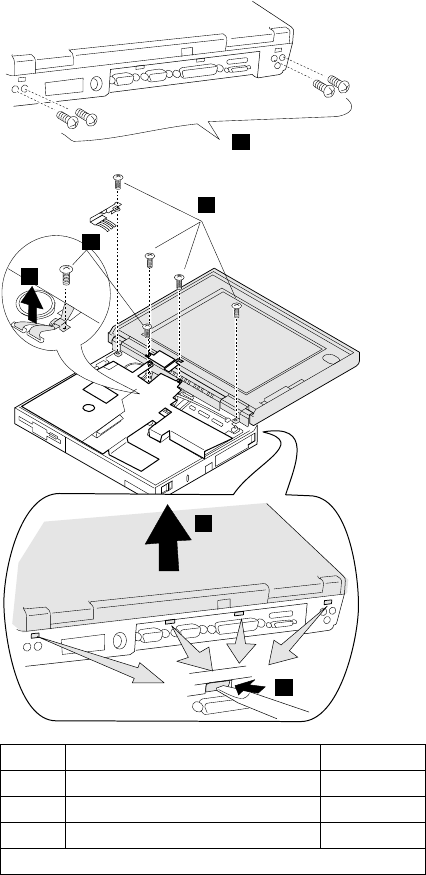
1080 LCD Assembly
Battery Pack (1020)
Insulator Sheet (1025)
Diskette Drive / CD-ROM Drive (1040)
Hard Disk Drive (1050)
Top Cover (1060)
Keyboard Unit (1070)
1
2
6
5
4
3
Step Screw Location (Quantity) Length
1Base Cover (4) M3 x 5 mm
2LCD Assembly (4) M2 x 5 mm
3LCD Cable (1) M3 x 4 mm
Note: Make sure you use the correct screws when replacing.
74 IBM Mobile Systems HMM
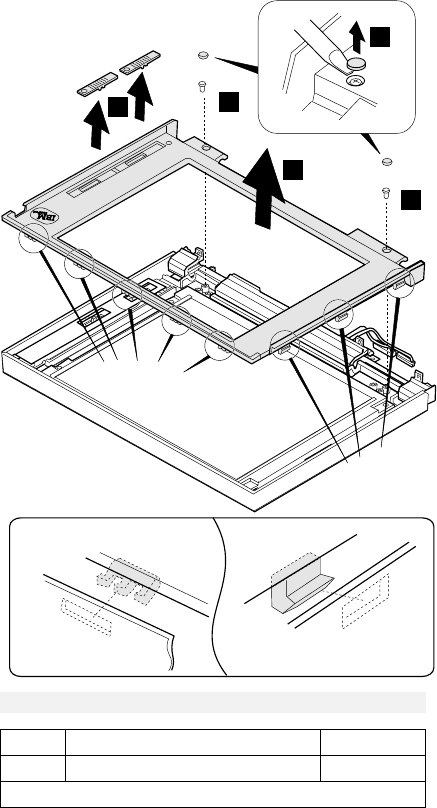
1085 LCD Panel
Battery Pack (1020)
Insulator Sheet (1025)
Diskette Drive / CD-ROM Drive (1040)
Hard Disk Drive (1050)
Top Cover (1060)
Keyboard Unit (1070)
LCD Assembly (1080)
DSTN LCD Panel
Latches A Latches B
1
2
3
4
2
Latches A
Latches B
*
*
*Latches only for 11.3-inch LCDs (total 5 latches).
Step Screw Location (Quantity) Length
2LCD Front Cover (2) M3 x 6 mm
Note: Make sure you use the correct screws when replacing.
ThinkPad 365X, 365XD (2625) 75
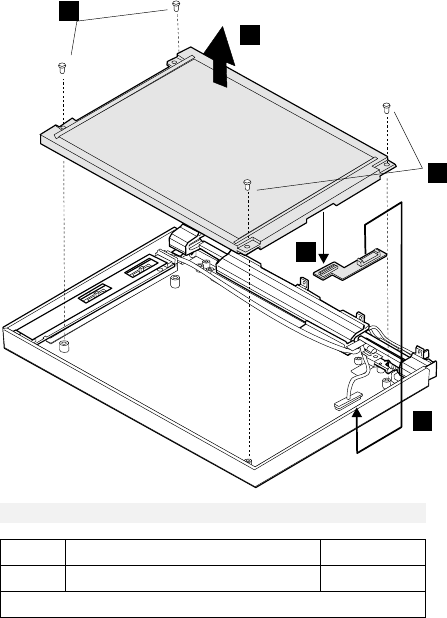
5
8
6
7
5
**
**Part only for 10.4-inch LCDs.
Step Screw Location (Quantity) Length
5LCD Panel (4) M3 x 6 mm
Note: Make sure you use the correct screws when replacing.
76 IBM Mobile Systems HMM
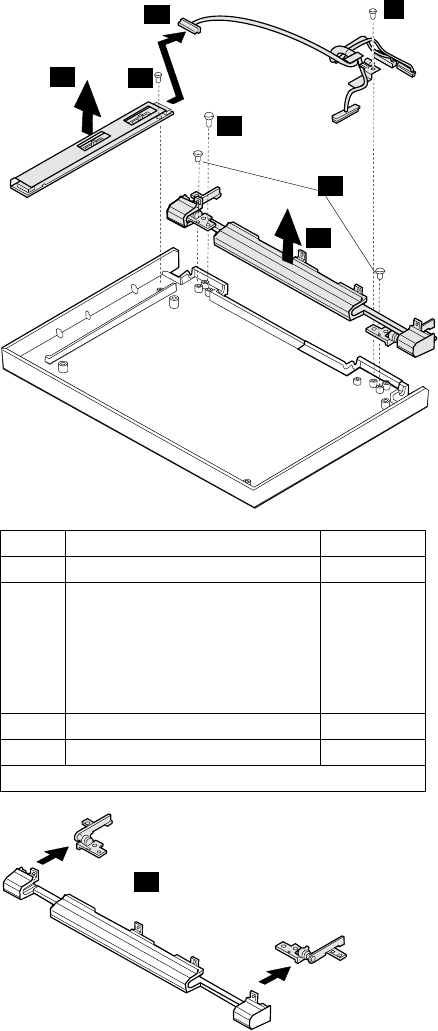
9
10
11
12
15
13
14
15
Step Screw Location (Quantity) Length
9LCD Cable (1) M3 x 6 mm
11 Inverter Card (1) ST2.9 x
4.5 mm
(10.4-inch
LCD)
M3 x 6 mm
(11.3-inch
LCD)
13 Right Hinge (1) M3 x 6 mm
14 Hinge (2) M2 x 4 mm
Note: Make sure you use the correct screws when replacing.
ThinkPad 365X, 365XD (2625) 77
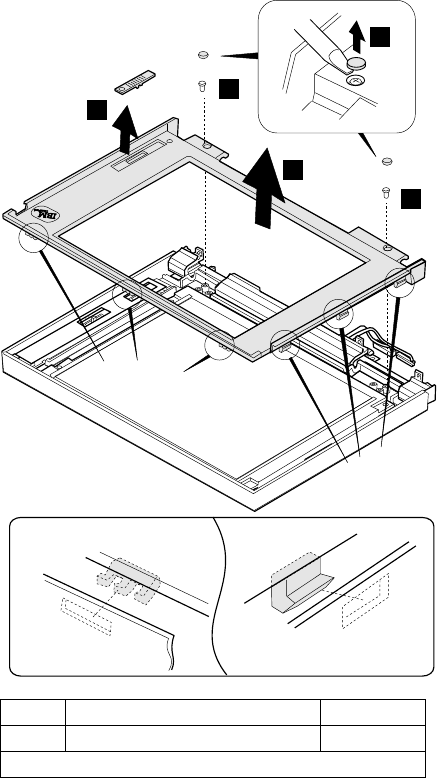
TFT 10.4-inch LCD Panel (A)
TFT 10.4 (A) P/N 46H8093 69H7947 82H8039
Note: You can replace the entire 10.4-inch TFT LCD unit
(A) with the entire LCD unit (B), or vice versa. But
you cannot replace parts of (A) with parts of (B), or
vice versa.
Latches A Latches B
1
2
3
4
2
Latches A
Latches B
Step Screw Location (Quantity) Length
2LCD Front Cover (2) M3 x 6 mm
Note: Make sure you use the correct screws when replacing.
78 IBM Mobile Systems HMM
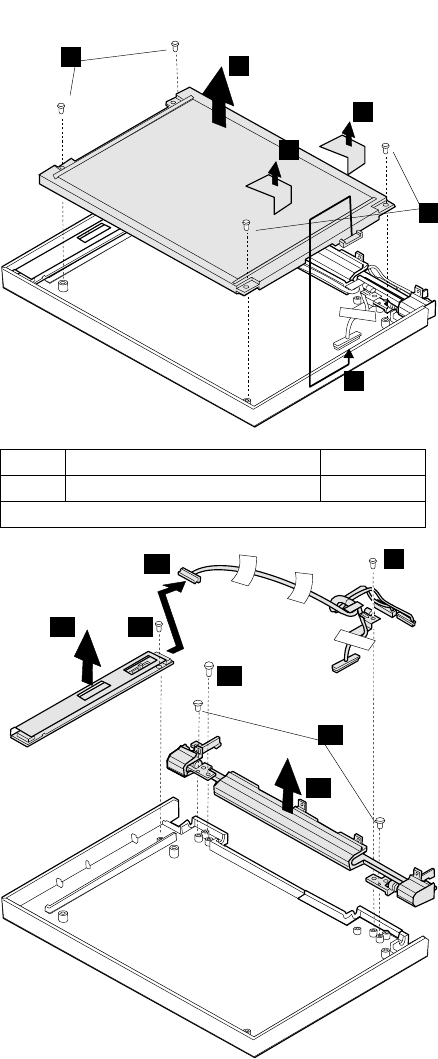
5
8
6
6
7
5
9
10
11
12
15
13
14
Step Screw Location (Quantity) Length
6LCD Panel (4) M3 x 6 mm
Note: Make sure you use the correct screws when replacing.
ThinkPad 365X, 365XD (2625) 79
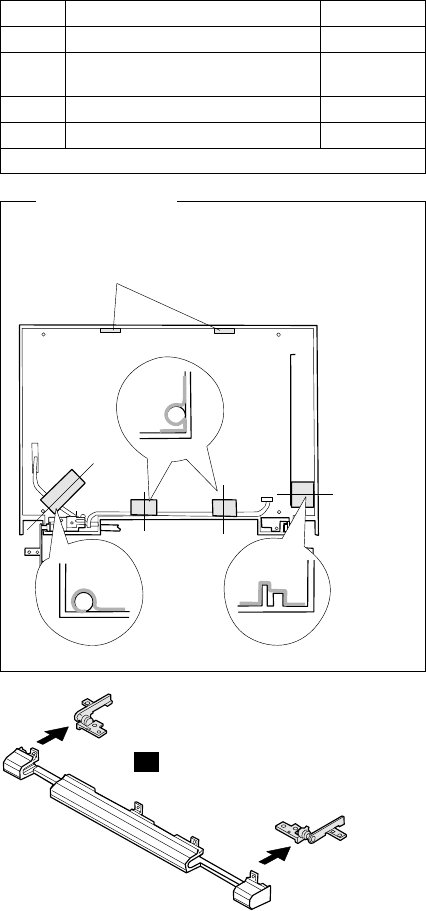
When replacing:
When replacing the LCD cable, replace the copper
tape and gasket top as shown below.
Gasket Top
15
Step Screw Location (Quantity) Length
9LCD Cable (1) M3 x 6 mm
11 Inverter Card (1) ST2.9 x
4.5 mm
13 Right Hinge (1) M3 x 6 mm
14 Hinge (2) M2 x 4 mm
Note: Make sure you use the correct screws when replacing.
80 IBM Mobile Systems HMM
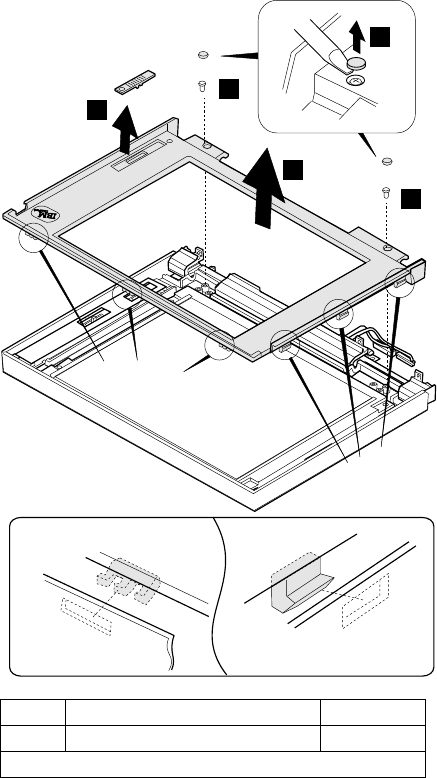
TFT 10.4-inch LCD Panel (B)
TFT 10.4 (B) P/N 83H5349 83H5350
Note: You can replace the entire 10.4-inch TFT LCD unit
(A) with the entire LCD unit (B), or vice versa. But
you cannot replace parts of (A) with parts of (B), or
vice versa.
Latches A Latches B
1
2
3
4
2
Latches A
Latches B
Step Screw Location (Quantity) Length
2LCD Front Cover (2) M3 x 6 mm
Note: Make sure you use the correct screws when replacing.
ThinkPad 365X, 365XD (2625) 81
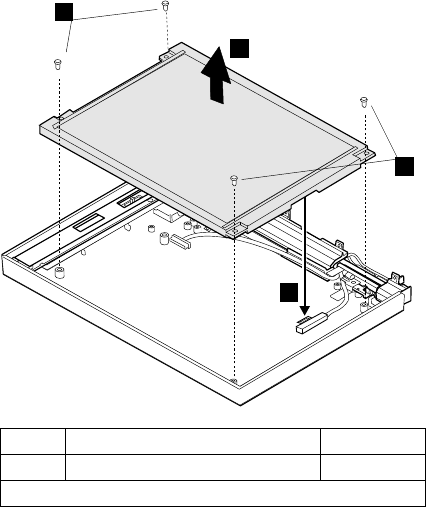
5
5
7
6
Step Screw Location (Quantity) Length
5LCD Panel (4) M3 x 6 mm
Note: Make sure you use the correct screws when replacing.
82 IBM Mobile Systems HMM
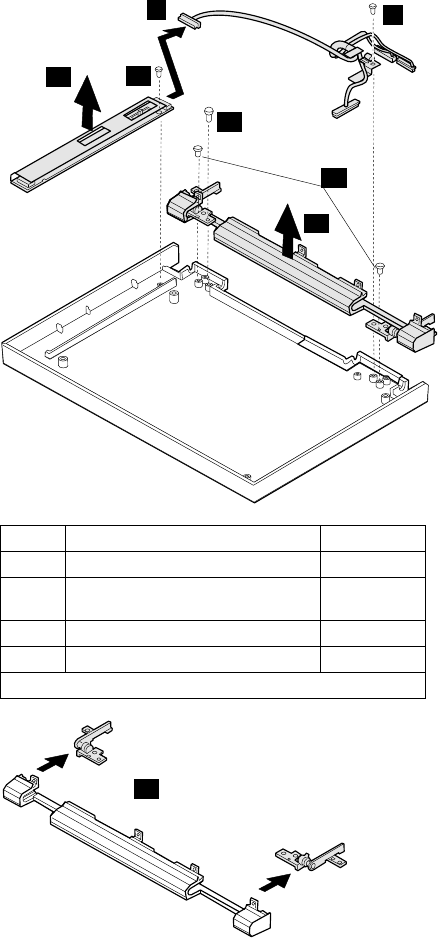
98
10
11
12
13
14
15
Step Screw Location (Quantity) Length
8LCD Cable (1) M3 x 6 mm
1Inverter Card (1) ST2.9 x
4.5 mm
12 Right Hinge (1) M3 x 6 mm
13 Hinge (2) M2 x 4 mm
Note: Make sure you use the correct screws when replacing.
ThinkPad 365X, 365XD (2625) 83
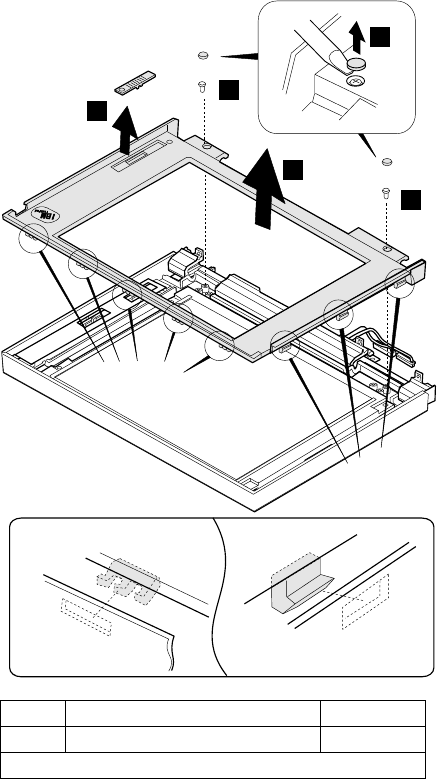
TFT 11.3-inch LCD Panel
Latches A Latches B
1
2
3
4
2
Latches A
Latches B
Step Screw Location (Quantity) Length
2LCD Front Cover (2) M3 x 6 mm
Note: Make sure you use the correct screws when replacing.
84 IBM Mobile Systems HMM
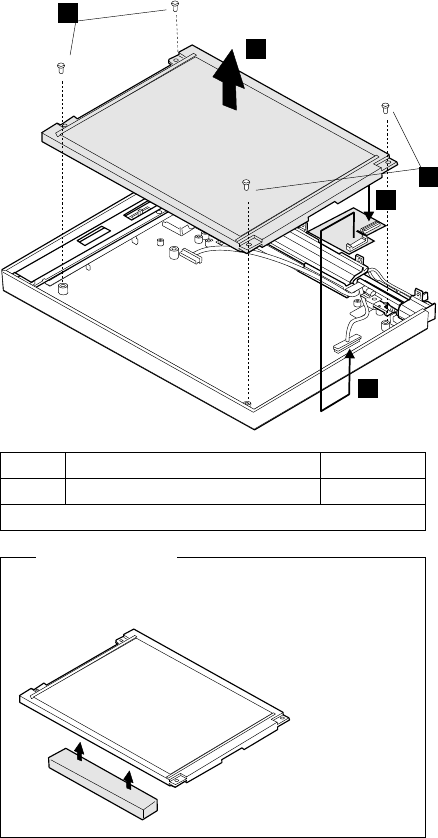
6
5
5
8
7
When replacing:
When replacing the LCD panel, glue the rear foam on
the rear of the LCD as shown below.
Step Screw Location (Quantity) Length
5LCD Panel (4) M3 x 6 mm
Note: Make sure you use the correct screws when replacing.
ThinkPad 365X, 365XD (2625) 85
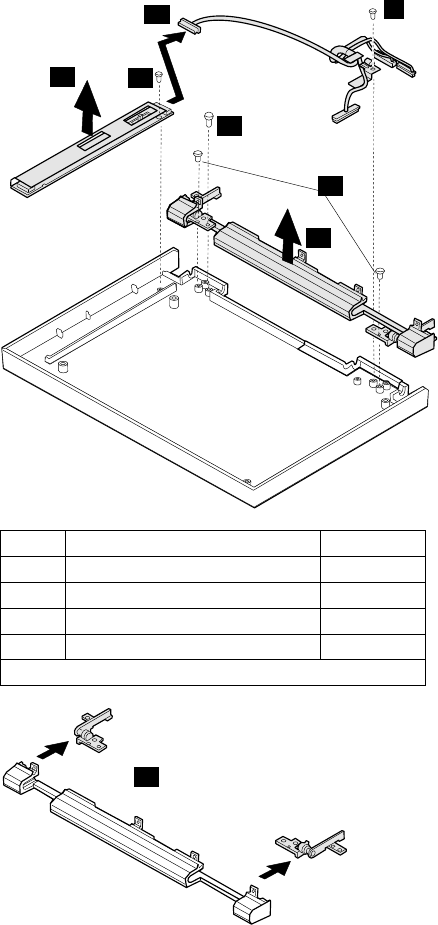
9
10
11
12
15
13
14
15
Step Screw Location (Quantity) Length
9LCD Cable (1) M3 x 6 mm
11 Inverter Card (1) M3 x 6 mm
13 Right Hinge (1) M3 x 6 mm
14 Hinge (2) M2 x 4 mm
Note: Make sure you use the correct screws when replacing.
86 IBM Mobile Systems HMM
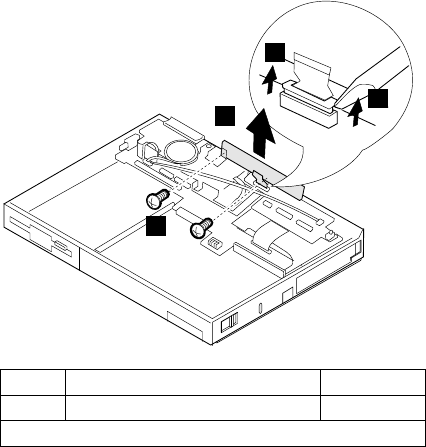
1090 Indicator Card
Battery Pack (1020)
Insulator Sheet (1025)
Diskette Drive / CD-ROM Drive (1040)
Hard Disk Drive (1050)
Top Cover (1060)
Keyboard Unit (1070)
LCD Assembly (1080)
LCD Panel (1085)
2
3
1
1
Step Screw Location (Quantity) Length
2Indicator Card (2) M2 x 4 mm
Note: Make sure you use the correct screws when replacing.
ThinkPad 365X, 365XD (2625) 87
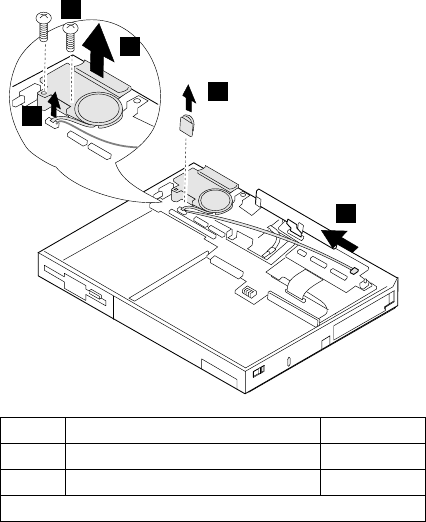
1100 Volume Switch / Speaker
Assembly
Battery Pack (1020)
Insulator Sheet (1025)
Diskette Drive / CD-ROM Drive (1040)
Hard Disk Drive (1050)
Top Cover (1060)
Keyboard Unit (1070)
LCD Assembly (1080)
LCD Panel (1085)
Indicator Card (1090)
4
1
5
2
3
Step Screw Location (Quantity) Length
2Speaker Assembly (1) M2 x 4 mm
3Speaker Assembly (2) M2 x 5 mm
Note: Make sure you use the correct screws when replacing.
88 IBM Mobile Systems HMM
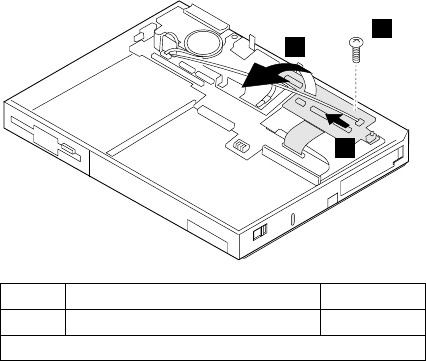
1110 Keyboard Card / Cable
Battery Pack (1020)
Insulator Sheet (1025)
Diskette Drive / CD-ROM Drive (1040)
Hard Disk Drive (1050)
Top Cover (1060)
Keyboard Unit (1070)
LCD Assembly (1080)
LCD Panel (1085)
Indicator Card (1090)
2
1
3
Step Screw Location (Quantity) Length
1Keyboard Card (1) M2 x 5 mm
Note: Make sure you use the correct screws when replacing.
ThinkPad 365X, 365XD (2625) 89
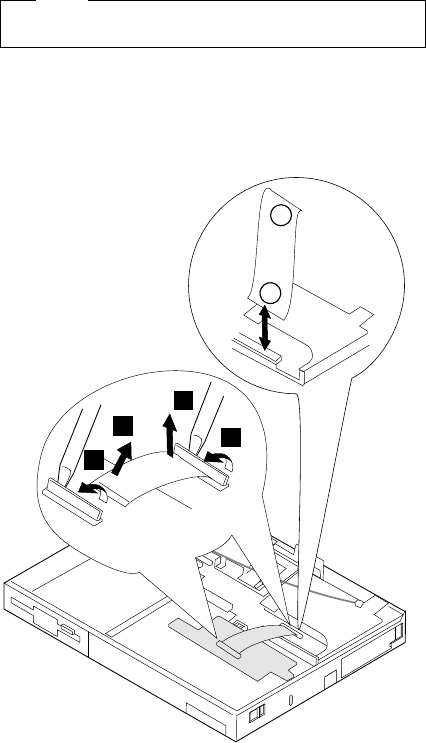
Note
To remove the cable, do steps 6 and 7.
When reinstalling the cable, make sure the cable end with
the letter P is installed in the system board connector. The
end with the letter K should be installed in the keyboard
card connector. (The letters should be facing you when
you install the cable from the front of the machine.)
46
7
5
K
P
90 IBM Mobile Systems HMM
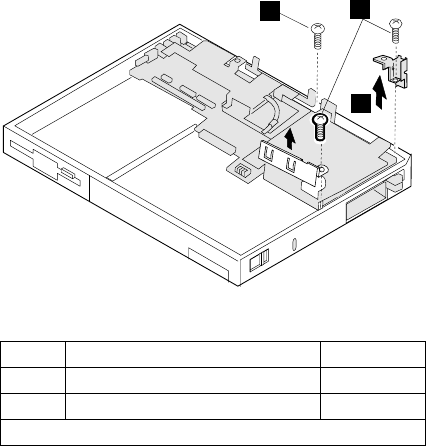
1120 CPU Card and System Board
Card
Battery Pack (1020)
Insulator Sheet (1025)
Diskette Drive / CD-ROM Drive (1040)
Hard Disk Drive (1050)
Top Cover (1060)
Keyboard Unit (1070)
LCD Assembly (1080)
LCD Panel (1085)
Indicator Card (1090)
Volume Switch / Speaker (1100)
Keyboard Card (1110)
To remove the system board and CPU Card:
12
3
Step Screw Location (Quantity) Length
1CPU Card to System Board (1) M2 x 4 mm
2CPU Card to System Board (2) M2 x 5 mm
Note: Make sure you use the correct screws when replacing.
ThinkPad 365X, 365XD (2625) 91
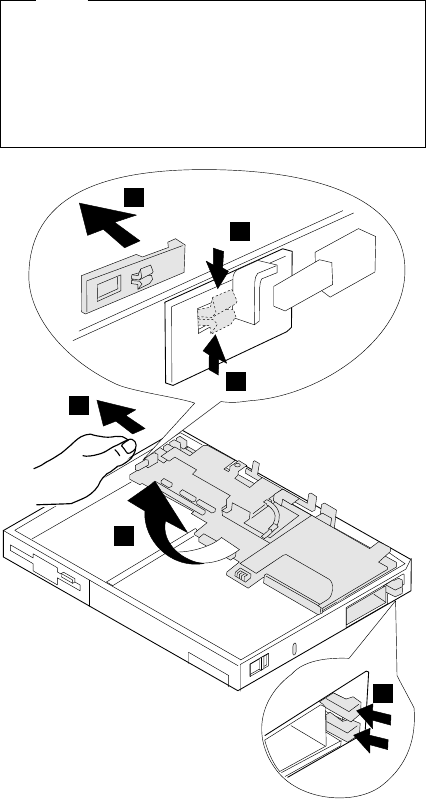
Note
The system board fits exactly in place in the base
cover. Align the system board carefully when
removing or reinstalling. Do not force it. Be careful
not to damage the input jacks on the left side of the
computer or the PCMCIA slots on the right side of the
computer.
6
7
7
4
4
5
92 IBM Mobile Systems HMM
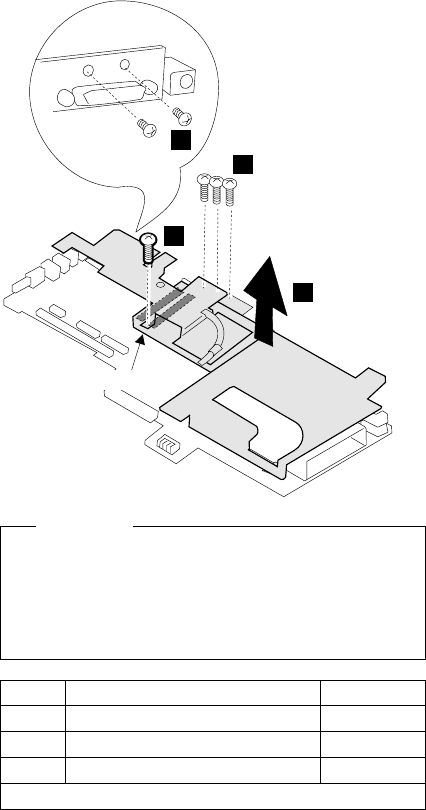
To remove the CPU card from the system board:
3
4
12
Rear view
Connector
Be Careful
When connecting the CPU card and the system board
again, use the procedures exactly as shown in the
figures. Make sure that the two CPU card connectors
are connected properly. If these connectors are not
properly connected, the computer will not work.
Step Screw Location (Quantity) Length
1System Board (2) M2 x 4 mm
2System Board (3) M2 x 4 mm
3System Board (1) M2 x 4 mm
Note: Make sure you use the correct screws when replacing.
ThinkPad 365X, 365XD (2625) 93

1130 System Board / PCMCIA Slot
Assembly
Battery Pack (1020)
Insulator Sheet (1025)
Diskette Drive / CD-ROM Drive (1040)
Hard Disk Drive (1050)
Top Cover (1060)
Keyboard Unit (1070)
LCD Assembly (1080)
LCD Panel (1085)
Indicator Card (1090)
Volume Switch / Speaker (1100)
Keyboard Card (1110)
CPU Card (1120)
Be Careful
Connect the CPU card using the procedures
exactly as shown in the figures. Make sure that
the two CPU card connectors are connected
properly. If these connectors are not connected,
you cannot power on the computer.
Do not apply any extra force to the shaded
area of the CPU card when connecting.
Notes
1. The system unit serial number must be restored
when the system board is replaced. To restore
the system unit serial number, select the option
“Set system identification” on the maintenance
diskette. The EEPROM on the system board
contains the vital product data (VPD); that is, the
system unit serial number, system board system
number, and other computer-unique data.
2. Do not power off the computer when restoring
the VPD. The system unit serial number label is
attached to the base cover.
3. Before removing and replacing the system board,
make sure that the PCMCIA cards are removed
and the eject levers are not sticking out.
4. Do not pull the PCMCIA slot assembly while
removing the system board.
5. When handling the PCMCIA slot assembly, be
careful not to disassemble any part of it. The slot
assembly is not solidly fixed when it is removed
from the system board or the FRU.
94 IBM Mobile Systems HMM
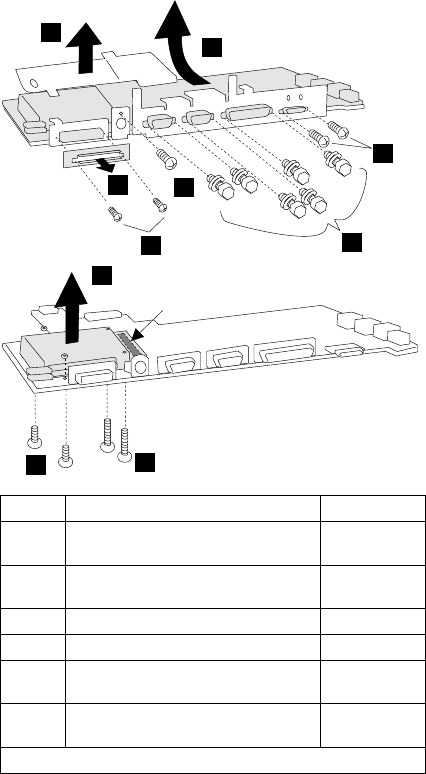
1
2
3
4
5
6
7
9
10
8
Connector
Step Screw Location (Quantity) Length
2System Board (2) M2.5 x 3
mm
3System Board (1) M2.5 x 4
mm
4System Board (6) Hex Stud
5System Board (2) M2 x 4 mm
8PCMCIA Slot (2) M2 x 4 mm
and M2 nut
9PCMCIA Slot (2) M2 x 14
mm
Note: Make sure you use the correct screws when replacing.
ThinkPad 365X, 365XD (2625) 95
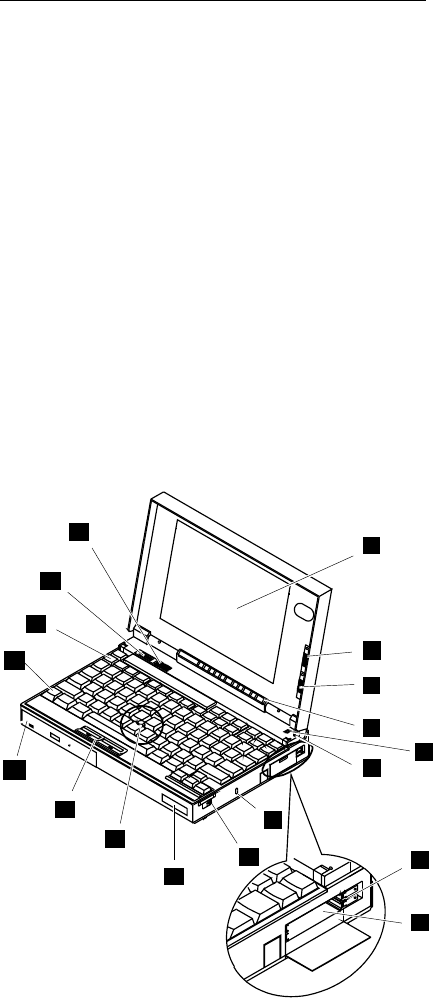
Locations
Front View
1 LCD
2 Contrast Control
3 Brightness Control
4 Indicator Panel
5 Built-in Microphone
6 LCD Suspend Switch
7 PC Card Eject Buttons
8 PCMCIA Slots
9 Locking Device Keyhole
1 Release Latches
11 Personalization Name Plate
12 TrackPoint III
13 Click Buttons
14 CD-ROM (365XD) / Diskette Drive (365X)
15 Fn Key
16 Function Keys
17 Speaker Volume Control
18 Speaker
1
4
7
2
5
8
11
15
14
18
12
16
13
10
17
3
6
9
96 IBM Mobile Systems HMM
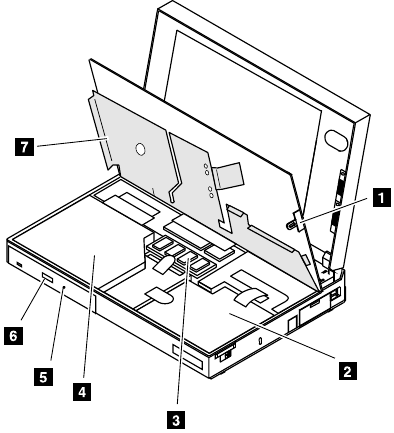
Inside View
1 Keyboard Lock
2 Battery Pack
3 Optional Memory Expansion Module
4 CD-ROM Drive (365XD) /
Diskette Drive (365X)
5 Mechanical CD-ROM eject (365XD)
6 CD-ROM Eject Button (365XD) /
FDD Bezel (365X)
7 Cosmetic Shield
ThinkPad 365X, 365XD (2625) 97
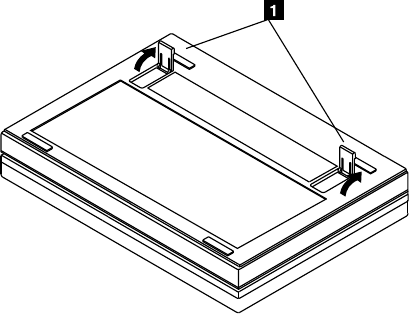
Bottom View
1 Legs
98 IBM Mobile Systems HMM
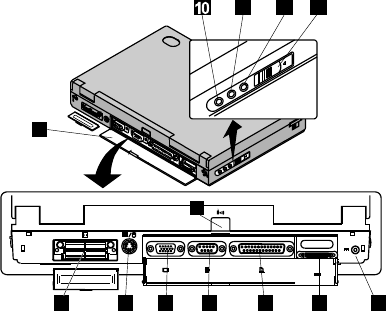
Rear View
1 Rear Connector Door
2 Connector for Port Replicator
3 IR Port
4 External Input Device Connector
5 External Display Connector
6 Serial Connector
7 Parallel Connector
8 External Diskette Drive Connector
9 Power Jack
1 Line-out/Headphone Jack
11 Line-in Jack
12 Microphone Jack
13 Power Switch
1
24 5 6 87 9
11 12 13
3
ThinkPad 365X, 365XD (2625) 99
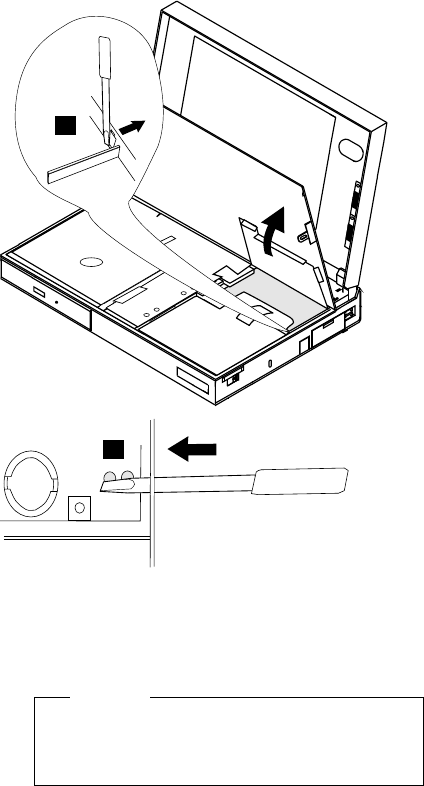
Power-On Password Jumper Pads
The power-on password jumper pads are found on the
system board near the backup battery, as shown in the
figures.
1
2
1. Push out the door at 1.
2. See “How to Disable the Power-On Password:” on
page 29 to cancel the power-on password. Apply the
short across the Power-On Password Jumper Pads at
2.
Warning
When using a metal tool to short the two jumper
pads, make sure the metal tool does not touch
any metal parts other than the two jumper pads.
100 IBM Mobile Systems HMM
Notes
ThinkPad 365X, 365XD (2625) 101
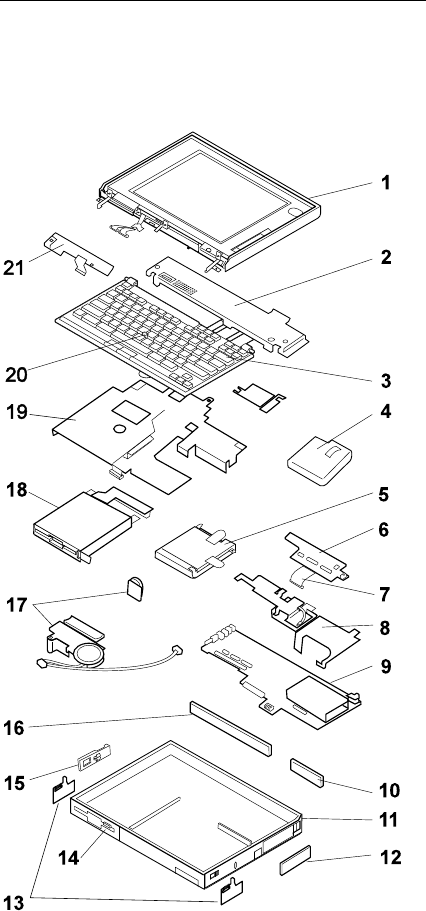
Parts Listing 365X, 365XD (2625)
Model 365X - Diskette Drive
102 IBM Mobile Systems HMM
Index System Unit (365X)
1LCD Panel — See page 106.
2 Top Cover 69H7919
3Keyboard — See page 110.
4 Battery Pack 41H7438
5Hard Disk Drive (720 MB) 85G8371
Hard Disk Drive (810 MB) 39H2220
Hard Disk Drive (1.08 GB) 39H2221
Hard Disk Drive (1.35 GB) 73H6419
NS Bracket Kit (HDD) 74H0238
6Keyboard Card Assembly 69H7913
7Miscellaneous Cable Kit:
Keyboard Card to System Board
FDD to System Board (365X) 74H0574
8CPU Card Assembly (P100) 69H7912
CPU Card Assembly (P120) 74H0237
CPU Card Assembly (P133) 82H8162
9System Board Card Assembly
with Audio 83H7117
10 Port Replicator Cap 69H7906
11 Base Cover Assembly 69H7903
12 PCMCIA Card Slot Cover 69H7904
13 Keyboard Latch (L/R) 82H8177
14 FDD Bezel 83H5275
15 Power Switch — See Misc. Base Parts
16 Rear I/O Connector Cover 69H7905
17 Speaker/Volume/Cable Assembly 74H0573
18 Diskette Drive (2 mode) 69H7926
Diskette Drive (3 mode; Japan) 74H0232
19 Cosmetic Shield 82H8172
20 TrackPoint III Cap set 84G6536
21 LED Indicator Card 69H7914
NS Real-Time Clock Backup Battery 46H4132
NS Misc. Base Parts:
Cover Support Bracket, Screw Caps,
Power Switch Knob, Power Switch Bracket,
EMI Bracket, EMI Top Plate,
System Insulator, Base Insulator,
Base Right Clip 69H7916
NS Misc. Logic Parts:
CPU Spacer, CPU Heat Sink
I/O Connector Bracket,
Port Replicator Bracket 69H7915
NS Foot (Tilt) 74H0571
ThinkPad 365X, 365XD (2625) 103
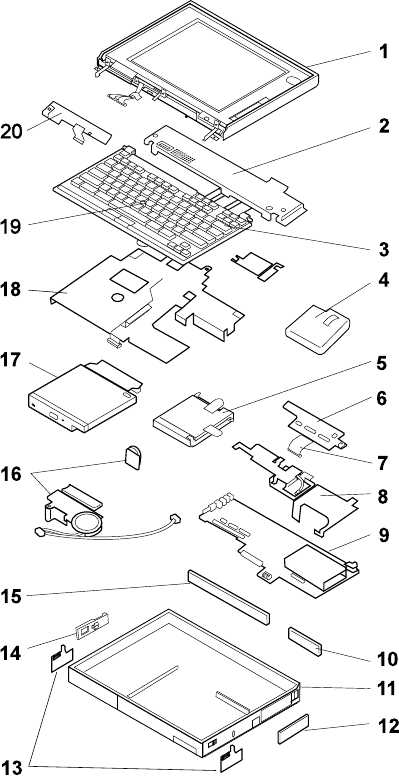
Model 365XD - CD-ROM Drive
104 IBM Mobile Systems HMM
Index System Unit (365XD)
1LCD Panel — See page 106.
2 Top Cover 69H7919
3Keyboard — See page 110.
4 Battery Pack 41H7438
5Hard Disk Drive (720 MB) 85G8371
Hard Disk Drive (810 MB) 39H2220
Hard Disk Drive (1.08 GB) 39H2221
Hard Disk Drive (1.35 GB) 73H6419
NS Bracket Kit (HDD) 74H0238
6Keyboard Card Assembly 69H7913
7Miscellaneous Cable Kit:
Keyboard Card to System Board
CD-ROM to system board (365XD) 74H0574
8CPU Card Assembly (P100) 69H7912
CPU Card Assembly (P120) 74H0237
CPU Card Assembly (P133) 82H8162
9System Board Card Assembly
with Audio 83H7117
10 Port Replicator Cap 69H7906
11 Base Cover Assembly 69H7903
12 PCMCIA Card Slot Cover 69H7904
13 Keyboard Latch (L/R) 82H8177
14 Power Switch — See Misc. Base Parts
15 Rear I/O Connector Cover 69H7905
16 Speaker/Volume/Cable Assembly 74H0573
17 CD-ROM Drive (X4 Speed) 69H7925
CD-ROM Drive (X6 Speed) 82H8160
CD-ROM Drive (X8 Speed) 82H8173
18 Cosmetic Shield 82H8172
19 TrackPoint III Cap set 84G6536
20 LED Indicator Card 69H7914
NS Real-Time Clock Backup Battery 46H4132
NS Miscellaneous Base Parts:
Cover Support Bracket, Screw Caps,
Power Switch Knob, Power Switch Bracket,
EMI Bracket, EMI Top Plate,
System Insulator, Base Insulator,
Base Right Clip 69H7916
NS Miscellaneous Logic Parts:
CPU Spacer, CPU Heat Sink
I/O Connector Bracket,
Port Replicator Bracket 69H7915
NS Foot (Tilt) 74H0571
ThinkPad 365X, 365XD (2625) 105
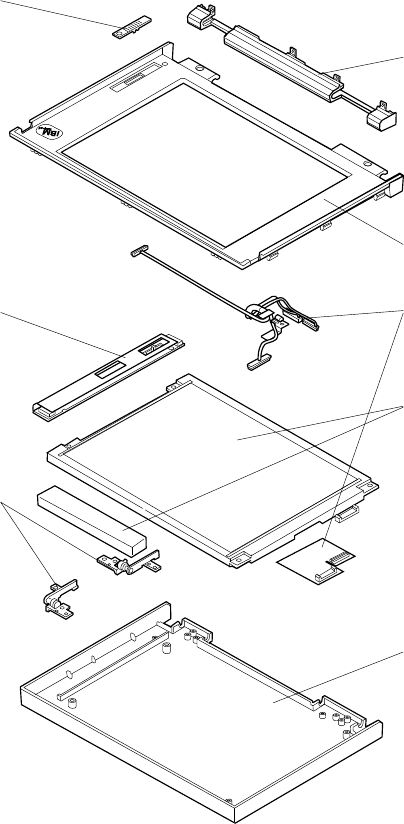
Model 365X/365XD - TFT LCD Panel
IBM
TinkPad
2
3
2
4
5
6
*
*
7
1
* Parts only for the 11.3-inch TFT.
106 IBM Mobile Systems HMM

TFT LCD FRU Parts List
10.4-inch (A) P/N 46H8093 69H7947 82H8039
10.4-inch (B) P/N 83H5349 83H5350
Notes
1. You can distinguish the 10.4-inch TFT LCD unit
(A) or (B) by the label sealed on the inside of its
hinge cover assembly (1 in the parts list).
2. You can replace the entire 10.4-inch TFT LCD
unit (A) with the entire LCD unit (B), or vice
versa. But you cannot replace parts of (A) with
parts of (B), or vice versa.
3. Model-Gxx contains only 10.4-inch (B) type.
System Unit 10.4 (A) 10.4 (B) 11.3
1Hinge Cover Assembly
FDD 74H0617 74H0617 74H0617
CD-ROM 74H0618 74H0618 74H0618
2LCD Cover Kit 74H0582 83H5355 82H8165
3LCD Cable Kit 74H0627 83H5356 82H8169
4LCD Unit 74H0621 83H5357 82H8166
5 Hinges (Right/Left)
– See LCD Misc. Parts
6Inverter Card 69H7959 83H5358 82H8167
7 Slide Knob
– See LCD Misc. Parts
LCD Misc. Parts: 74H0619 74H0619 74H0619
LCD Slide Knob,
LCD Foam Support,
Right Hinge,
Left Hinge,
Cable Clamp,
Back Gasket,
Top Gasket,
Copper TFT Tape,
Rubber Lid,
Front Logo,
Rear Logo
ThinkPad 365X, 365XD (2625) 107
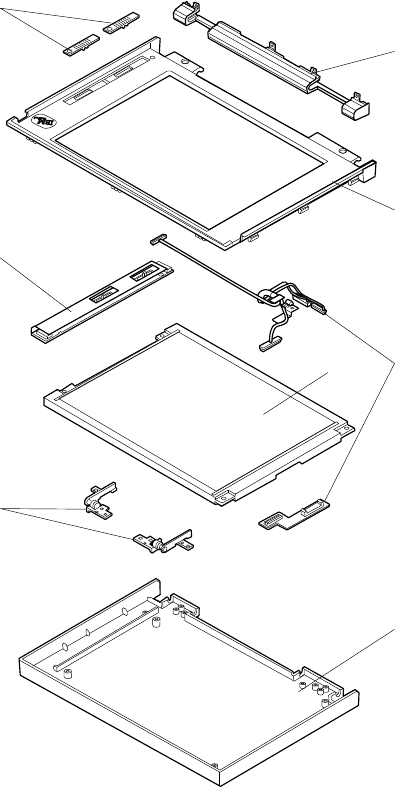
Model 365X/365XD - DSTN LCD Panel
2
1
3
4
*
2
5
6
7
* Part only for the 10.4-inch LCDs.
108 IBM Mobile Systems HMM
DSTN LCD FRU Parts List
10.4-inch DSTN LCD
Index
System Unit
1Hinge Cover Assembly FDD 74H0617
Hinge Cover Assembly CD-ROM 74H0618
2LCD Cover Kit 74H0581
3LCD Cable Kit 74H0626
4LCD Unit 74H0620
5Hinges (Right/Left) — See LCD Misc. Parts
6Inverter Card 69H7958
7Slide Knob — See LCD Misc. Parts
11.3-inch DSTN LCD
Index
System Unit
1Hinge Cover Assembly FDD 74H0617
Hinge Cover Assembly CD-ROM 74H0618
2LCD Cover Kit 74H0583
3LCD Cable Kit 74H0628
4LCD Unit 74H0622
5Hinges (Right/Left) — See LCD Misc. Parts
6Inverter Card 69H7961
7Slide Knob — See LCD Misc. Parts
LCD Miscellaneous Parts
LCD Slide Knob, LCD Foam Support,
Right Hinge, Left Hinge, Cable Clamp,
Back Gasket, Top Gasket,
Copper TFT Tape, Rubber Lid,
Front Logo, Rear Logo 74H0619
ThinkPad 365X, 365XD (2625) 109
Keyboard Unit
Arabic 42H3936
Belgian 42H3937
Canadian French 42H3938
Czeck 73H7241
Danish 42H3939
Dutch 42H3940
French 42H3942
German 42H3943
Greek 42H3944
Hungary 73H7242
Hebrew 42H3945
Italian 42H3946
Japanese 42H3947
Latin Spanish 42H3948
Norwegian 42H3949
Poland 73H7243
Portuguese 42H3950
Russian 42H3956
Spanish 42H3951
Slovenia /Croatia / Bosnia 73H7244
Swedish / Finnish 42H3941
Swiss 75H7562
Turkish 42H3954
U.K. English 42H3955
U.S. English 41H9789
110 IBM Mobile Systems HMM
Common/Option Parts List
Miscellaneous Parts
Screw Kit 74H0229
Includes (Type) (Quantity):
M2 x 4 (Bind Head) (15)
M2 x 5 (Pan Head) (11)
M2 x 4 with washer (Pan Head) (2)
M2 x 8 (Pan Head) (2)
M2.5 x 4 (Bind Head) (4)
M2.5 x 3 (3.5D Pan Head) (2)
M2.5 x 4 with washer (Bind Head) (3)
M3 x 3 (Cross Slotted Pan Head) (4)
M3 x 4 (Pan Head) (2)
M3 x 4 (Flat Head) (4)
M3 x 6 (Pan Head) (6)
M3 x 6 with washer (Pan Head) (2)
Hex Stud M2.5 Short length (6)
Screw ST2.9 x 4.5 (Pan Head) (1)
M2 x 5 (Bind Head) (4)
M2 x 5 (Cross Slotted Pan Head) (2)
M3 x 5 (Pan Head) (6)
ThinkPad 365X, 365XD (2625) 111
Options
Notes:
1. When you replace the AC Adapter with a new one,
use the one for the country where the computer is
used, even if the computer is from different country.
2. The warranty for the system unit does not apply to all
options.
720MB Hard Disk Drive Assembly 85G8371
810MB Hard Disk Drive Assembly 39H2220
810MB Hard Disk Drive Assembly 07H0392
1.08GB Hard Disk Drive Assembly 39H2221
1.35GB Hard Disk Drive Assembly 73H6419
2.1GB Hard Disk Drive Assembly 73H6427
AC Adapter
35W Universal 85G6698
35W Japan only 85G6700
Slim AC Adapter
3 Prong 85G6736
2 Prong 85G6738
Port Replicator Base Assembly 41H7457
Port Replicator Cable Cover 41H7458
Mini Replicator Assembly 75H7528
DIMM 8MB 42H2767
DIMM 16MB 42H2768
DIMM 32MB 42H2769
External Diskette Drive (2 mode) 10H4056
External Diskette Drive (3 mode; Japan) 10H4055
External Diskette Drive Cable 74H0219
Battery Pack 41H7438
CD-ROM Drive (x4 speed) 69H7925
CD-ROM Drive (x6 speed) 82H8160
CD-ROM Drive (x8 speed) 82H8173
112 IBM Mobile Systems HMM
Numeric Keypad
Belgian 95F5741
Canadian French 95F5466
Danish 95F5467
Dutch 95F5467
French 95F6313
German 95F6314
Greek 95F5467
Hebrew 95F5741
Icelandic 95F5467
Italian 95F6316
Japanese 79F6401
Norwegian 95F5467
Spanish 95F6315
Swedish / Finnish 95F5468
Swiss / French 95F5711
Swiss / German 95F5715
Turkish 95F5467
U.K. English 95F5741
U.S. English 95F5741
Black Keypad
French 84G6286
German 84G6280
Italian 84G6292
Swedish 84G6304
U.K. English 84G6298
Norway 84G6310
U.S. English 84G2530
Black Keyboard
French 84G6285
German 84G6279
Italian 84G6291
Swedish 84G6303
U.K. English 84G6297
Norway 84G6309
U.S. English 84G2529
Accessories
Keyboard/Mouse Cable 54G0444
ThinkPad 365X, 365XD (2625) 113
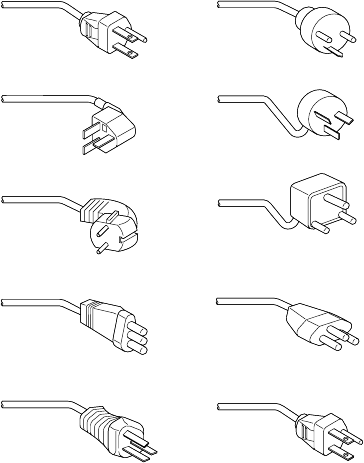
Tools
Tri-Connector Wrap Plug 72X8546
PC Test Card 35G4703
Screwdriver Kit 95F3598
ThinkPad 750Ce
Hardware Maintenance Diskette 82G3891
(This diskette is used for
365X and 365XD also.)
Power Cords
1
2
3
4
5
6
7
8
9
10
Warning:
Use the power cord certified for your country.
1 Colombia, U.S., Venezuela 25H2207
Japan, 2-pin 85G6665
2 Hong Kong, Singapore, U.K. 25H2215
3 France, Germany, Spain 25H2209
4 Italy 25H2223
5 Australia, New Zealand 25H2205
6 Denmark 25H2211
7 Israel 25H2225
8 Bangladesh, Pakistan, Sri Lanka,
South Africa 25H2213
9 Switzerland 25H2221
10 Thailand 25H2219
114 IBM Mobile Systems HMM

ThinkPad 560 (2640)
Read This First ................. 117
Checkout Guide . . . . . . . . . . . . . . . . 121
Memory Checkout . . . . . . . . . . . . . . 122
System Board Checkout ........... 123
Keyboard/Auxiliary Input Device Checkout . . . 123
TrackPoint III Checkout ........... 124
Diskette Drive Test ............. 124
Status Indicator Checkout .......... 125
Power Systems Checkout .......... 125
Port Replicator Checkout ........... 128
Power Management Features ........ 129
Symptom-to-FRU Index . . . . . . . . . . . . . 132
Numeric Error Codes ............. 132
Diagnostic Error Codes ........... 136
Beep Symptoms . . . . . . . . . . . . . . . 138
No Beep Symptoms ............. 139
LCD-Related Symptoms . . . . . . . . . . . 139
Keyboard/TrackPoint III-Related Symptoms . . 140
Indicator-Related Symptoms . . . . . . . . . 140
Power-Related Symptoms . . . . . . . . . . 140
Function-Related Symptoms . . . . . . . . . 141
Peripheral-Device-Related Symptoms . . . . . 141
Infrared-Related Symptoms . . . . . . . . . . 142
Other Symptoms . . . . . . . . . . . . . . . 142
Intermittent Problems . . . . . . . . . . . . 142
Undetermined Problems . . . . . . . . . . . 143
Related Service Procedures ........... 144
Status Indicators . . . . . . . . . . . . . . . 144
How to Run the Diagnostics ......... 145
Error Log . . . . . . . . . . . . . . . . . . 146
Checking the Installed Devices List ...... 146
How to Run a Low-Level Format ....... 147
PC Test Card LED .............. 147
Fn Key Combinations ............ 148
Product Overview (560) . . . . . . . . . . . . . 149
FRU Removals and Replacements ........ 150
1010 Backup Battery . . . . . . . . . . . . 151
1020 DIMM Card (If installed) ........ 152
1030 Battery Pack . . . . . . . . . . . . . 153
1040 Frame . . . . . . . . . . . . . . . . 154
1050 Keyboard Unit . . . . . . . . . . . . . 156
1060 LCD Assembly . . . . . . . . . . . . 160
1070 Speaker . . . . . . . . . . . . . . . . 161
1080 Hard Disk Drive ............ 162
1090 PCMCIA Slot Assembly ........ 163
1100 System Board . . . . . . . . . . . . . 164
1120 LCD Front Cover ........... 166
1130 LCD Panel . . . . . . . . . . . . . . 168
1140 Inverter Card (DSTN only) ....... 171
1150 LCD Cable / Hinges .......... 172
Locations . . . . . . . . . . . . . . . . . . . . 174
Copyright IBM Corp. 1997 115
Front View . . . . . . . . . . . . . . . . . 174
Bottom View . . . . . . . . . . . . . . . . . 175
Rear View . . . . . . . . . . . . . . . . . . 176
Parts Listing 560 (2640) ............. 178
LCD FRU (DSTN) .............. 180
LCD FRU (TFT) ............... 181
Common/Option Parts List .......... 183
116 IBM Mobile Systems HMM

Read This First
Before you go to the checkout guide, be sure to read this
section.
Important Notes
Only certified trained personnel should
service the computer.
Read FRU service procedures before replacing
any FRUs.
Be extremely careful during write operations
such as copying, saving, or formatting. Drives
in the computer that you are servicing might have
been rearranged or the drive startup sequence
might have been altered. If you select an
incorrect drive, data or programs can be written
over.
Replace FRUs only for the correct model.
When you replace the FRU, make sure the
model of the machine and FRU part number are
correct by referring to the part list.
FRUs should not be replaced because of a
single, un-reproducible failure. Single failures
can occur from a variety of reasons that have
nothing to do with a hardware defect such as:
cosmic radiation, electrostatic discharge, or
software errors. FRU replacement should only
be considered when a recurring problem exists.
If this is suspected, clear the error log and run
the test again. Do not replace any FRUs if log
errors do not reappear.
Be careful not to replace a non-defective FRU.
How to Use Error Messages: Use the error
codes displayed on the screen to diagnose failures. If
more than one error code is displayed, begin the diagnosis
with the first error code. The cause of the first error code
can result in false error codes being displayed. If no error
code is displayed, see if the error symptom is listed in the
“Symptom-to-FRU Index” on page 132.
Port Replicator Problems: If you suspect a
problem with the Port Replicator, see “Port Replicator
Checkout” on page 128.
How to Diagnose Multiple FRUs: When the
adapter or device has more than one FRU, the error code
could be caused by either FRU. Before replacing multiple
FRUs, try removing or exchanging each FRU, one by one
in the designated sequence, to see if the symptoms
change.
ThinkPad 560 (2640) 117

What to Do First: The servicer must include the
following in the parts exchange form or parts return form
that is attached to the returned FRU.
1. Name and phone number of servicer.
2. Date of service.
3. Date when part failed.
4. Date of purchase.
5. Failure symptoms, error codes appearing on
display, and beep symptoms.
6. Procedure index and page number in which
failing FRU was detected.
7. Failing FRU name and part number.
8. Machine type, model number, and serial number.
9. Customer's name and address.
Before checking problems with the computer, determine
whether or not the damage applies the warranty by
referring to the following:
Warranty Note
During the warranty period, the customer may be
responsible for repair costs if the computer damage
was caused by misuse, accident, modification,
unsuitable physical or operating environment, or
improper maintenance by the customer. The following
list provides some common items that are not covered
under warranty and some symptoms that may indicate
the system was subjected to stresses beyond normal
use:
LCD panel cracked by applying excessive force
or by being dropped.
Scratched (cosmetic) parts.
Cracked or broken plastic parts, broken latches,
broken pins, or broken connectors caused by
excessive force.
Damage caused by liquid spilled into the system.
Damage caused by improperly inserting a
PCMCIA card or installation of an incompatible
card.
Damage caused by foreign material in the FDD.
Diskette drive damage caused by pressing the
diskette drive cover or inserting diskettes with
multiple labels.
Damaged or bent diskette eject button.
Fuses blown by attaching a non-supported
device.
Forgotten computer password, making computer
unusable.
118 IBM Mobile Systems HMM
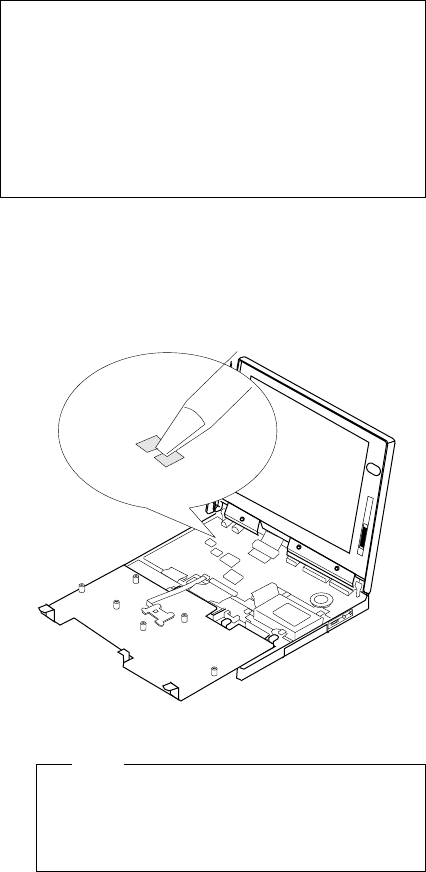
How to Disable the Power-On Password
1. Power off the computer.
2. Remove the frame (see “1040 Frame” on page 154).
3. Position the keyboard as shown in the figure.
4. Jumper the two password jumper pads located on the
system board.
R364
5. Power on the computer to clear the password.
6. Replace the keyboard and the frame.
Note
When replacing the frame, make sure the frame
fits correctly in place. If not, the click buttons of
the TrackPoint III cannot be pressed. (See the
note in “1050 Keyboard Unit” on page 156.)
7. Replace the screws.
8. Power on the computer and wait until the POST ends.
9. Verify that the password prompt does not appear.
To reactivate the password, set the password again.
If the following symptoms are present, they may
indicate damage caused by non-warranted
activity:
Missing parts may be a symptom of unauthorized
service or modification.
HDD spindles can become noisy if subjected to
excessive force or by being dropped.
I9990303 errors can be caused by exposure to
strong magnetic fields.
ThinkPad 560 (2640) 119
Power Shutdown Switch: The power shutdown
switch resets the system regardless of the microcode
status and forces the power off. Use this push button to
power-off when power is not completely off or the
microcode is in a hung state.
See “Bottom View” on page 98 for the power shutdown
switch.
120 IBM Mobile Systems HMM

Checkout Guide
Use the following procedure as a guide for computer
problems.
Note
The diagnostic tests are intended to test only IBM
products. Non-IBM products, prototype cards, or
modified options can give false errors and invalid
system responses.
1. Obtain the failing symptoms in as much detail as
possible.
2. Verify the symptoms by attempting to recreate the
failure by running the diagnostic test or by repeating
the same operation.
Note
To run the diagnostics, refer to “How to Run the
Diagnostics” on page 145.
3. Use the following table with the verified symptom to
determine which page to go to. Search the
symptoms column and find the description that best
matches your symptom; then go to the page shown in
the “Go to” column.
Symptoms (Verified) Go to
Power failure. (The
power indicator does not
go on or stay on.)
“Power Systems
Checkout” on page 125.
POST does not
complete. No
beeps/error code are
indicated.
“Symptom-to-FRU
Index” on page 132,
and then use the No
Beep Symptoms table.
POST beeps, but no
error codes are
displayed.
“Symptom-to-FRU
Index” on page 132,
and then use the Beep
Symptoms table.
POST detected an error
and displayed numeric
error codes.
“Symptom-to-FRU
Index” on page 132,
and then use the
Numeric Error Codes
table.
The diagnostic test
detected an error and
displayed an FRU code.
“How to Run the
Diagnostics” on
page 145.
The configuration is not
the same as the
installed devices.
“Checking the Installed
Devices List” on
page 146.
ThinkPad 560 (2640) 121

Symptoms (Verified) Go to
Other symptoms (such
as LCD display
problems).
“Symptom-to-FRU
Index” on page 132,
and then use the Other
Symptoms table.
Symptoms cannot be
recreated. (Intermittent
problems.)
Use the customer
reported symptoms and
go to “Symptom-to-FRU
Index” on page 132.
Memory Checkout
DIMM cards are available for increasing memory capacity.
Memory errors might stop system operations, show error
messages on the screen, or hang the system.
Use the following procedure to isolate memory problems.
Note
Make sure that the DIMM card is fully installed into the
connector. A loose connection can cause an error.
1. Power off the computer and remove the DIMM card
from its slot (if installed).
2. Press and hold the F1 key; then power on the
computer. Hold the F1 key down until the
Easy-Setup screen appears.
3. Select Test and press Enter.
4. Select Memory and press Enter to run the memory
test on base memory. If an error appears, replace
the system board.
5. Power off the computer and reinstall the DIMM card;
then power on the computer. Verify the memory size;
then test the memory. If an error appears, replace
the DIMM card.
If memory problems occur intermittently, use the loop
option to repeat the test. When the test detects an error,
an error log is printed on the printer connected to the
parallel port. See “Error Log” on page 146 for more
information.
System Programs in Flash Memory:
System setup
programs and diagnostic tests are stored in flash memory.
DIMM Displayed Value
No DIMM installed 7808KB
8MB 16000KB
16MB 24192KB
32MB 40576KB
122 IBM Mobile Systems HMM

Flash Memory Update:
A flash memory update is
required for the following conditions:
New versions of system programs.
New features or options are added.
To update the flash memory, do the following:
1. Get the appropriate diskette containing the update.
2. Insert the System Program Service Diskette into
drive A and power on the computer.
3. Select Update system programs from the menu.
System Board Checkout
The processing functions are performed by the system
board. When a numeric code calls the system board as a
FRU, use the following procedure to isolate the problem.
1. Run the system board test to verify the symptom.
This test verifies the system board. If no error is
detected, return to “Checkout Guide” on page 121.
2. If FRU code 10 appears, replace the system board.
3. Rerun the test to verify the fix.
If above procedure does not correct the problem, go to
“Undetermined Problems” on page 143.
Keyboard/Auxiliary Input Device
Checkout
Remove the external keyboard if the internal keyboard is to
be tested.
If the internal keyboard does not work or an unexpected
character appears, make sure that the flexible cable
extending from the keyboard is correctly seated in the
connector on the system board.
If the keyboard cable connection is correct, run the
Keyboard Test by doing the following:
1. Go to the diagnostic menu screen by pressing Ctrl+A
in the Easy-Setup screen.
2. Press Ctrl+K; a layout of the keyboard appears on
the screen.
3. Check that when each key is pressed, the key's
position on the keyboard layout on the screen
changes to a black square.
Note
When a Fn key is pressed, a black square briefly
appears.
If the tests detect a keyboard problem, do the following
one at a time to correct the problem. Do not replace a
non-defective FRU.
Reseat the keyboard cable.
Replace the keyboard.
ThinkPad 560 (2640) 123
Replace the system board.
The following auxiliary input devices are supported for this
computer.
Numeric keypad
Mouse (PS/2 compatible)
External keyboard (with keyboard/mouse cable)
If any of the above devices do not work, reseat the cable
connector and repeat the failing operation.
If the problem does not occur again, recheck the
connector.
If the problem is not corrected, replace the device, and
then the system board.
TrackPoint III Checkout
If the TrackPoint III will not work, check the configuration in
the ThinkPad Features program. If the configuration of the
TrackPoint III is disabled, select Enable to enable it.
If this does not correct the TrackPoint III problem, continue
with the following.
The TrackPoint III does automatic compensations to adjust
the pointer sensor. During this process, the pointer moves
on the screen automatically for a short time. This
self-acting pointer movement can occur when a slight,
steady pressure is applied to the TrackPoint III pointer
while the computer is powered on or while the system is
running, or when re-adjustment is required because the
temperature has exceeded its normal temperature range.
This symptom does not indicate a hardware problem. No
service actions are necessary if the pointer movement
stops in a short period of time.
If a click button problem or pointing stick problem occurs,
do the following:
1. Go to the Easy-Setup screen.
2. Select an item with the pointing stick.
3. Press either the left or right click button.
4. Verify that both buttons work correctly.
If either the pointing stick or the click button do not work,
do the following actions one at a time to correct the
problem. Do not replace a non-defective FRU.
Reseat the keyboard cables.
Replace the keyboard.
Replace the system board.
Diskette Drive Test
Do the following to isolate the problem to a controller,
drive, or diskette. A scratch, write enabled, non-defective
2HD diskette is required.
124 IBM Mobile Systems HMM
FDD-1 represents external diskette drive attached through
the external diskette drive connector. FDD-2 represents
the port replicator.
Warning: Make sure that the diskette does not have
more than one label attached to it. Multiple labels can
cause damage to the drive or can cause the drive to fail.
Do the following to select the test device:
1. Select the advanced diagnostics mode and select
Tool; then select the FDD-1 or FDD-2 icon and press
the spacebar. A mark appears next to the selected
icon. Insert the blank diskette when instructed.
2. Run the diskette drive test.
3. If the controller test detects an error, FRU code 10
appears. Replace the system board.
4. If the controller test runs without errors, the drive
read/write tests start automatically.
5. If the drive test detects an error, FRU code 50 for
FDD-1 or 51 for FDD-2 appears. If the diskette itself
is known to be good, replace the drive.
6. If FDD-2 test detects an error, move the drive to the
computer's diskette drive connector directly, if
possible, and test it again as FDD-1.
If no errors occur in the FDD-1 position, the drive is
not defective. Go to “Port Replicator Checkout” on
page 128 to isolate the replicator problem.
Status Indicator Checkout
If an LED problem occurs, do the following:
1. Power off the computer
2. Power on the computer
3. All the LEDs in the indicator panel turn on for a
moment soon after the computer is powered-on.
Make sure that all LEDs turn on.
If the problems remains, replace the system board.
Power Systems Checkout
To verify the symptom of the problem, power on the
computer using each of the power sources as follows.
1. Remove the battery pack and diskette drive.
2. Connect the AC Adapter and check that power is
supplied.
3. Disconnect the AC Adapter and install the charged
battery pack; then check that power is supplied by the
battery pack.
If you suspect a power problem, see the appropriate power
supply check listed below.
“Checking the AC Adapter” on page 126.
“Checking Operational Charging” on page 126.
“Checking the Battery Pack” on page 127.
ThinkPad 560 (2640) 125
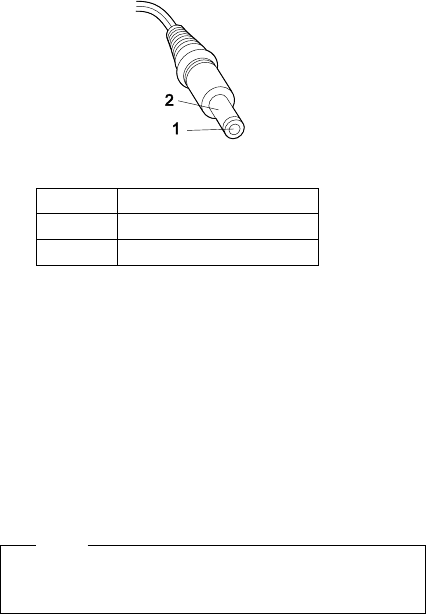
“Checking the Backup Battery” on page 128.
Checking the AC Adapter: You are here
because the computer fails only when the AC Adapter is
used.
If the power problem occurs only when the port
replicator is used, replace the replicator.
If the power-on indicator does not turn on, check the
power cord of the AC Adapter for correct continuity
and installation.
If the operational charge does not work, go to
“Checking Operational Charging.”
1. Unplug the AC Adapter cable from the computer and
measure the output voltage at the plug of the AC
Adapter cable. See the following figure.
(16 - 10 V)
Replace the system board.
If the problem is not corrected, go to
“Undetermined Problems” on page 143.
If the voltage is not correct, go to the next step.
2. Unplug the AC Adapter cable from the ac power
outlet and wait five minutes or longer to allow the
over-voltage protection circuit to be fully discharged
and initialized.
3. Plug the AC Adapter cable into the ac power outlet.
4. Measure the output voltage of the AC Adapter.
5. If the voltage is still not correct, replace the AC
Adapter.
Note
An audible noise from the AC Adapter does not
always indicate a defective adapter.
Checking Operational Charging: To check
operational charging, use a discharged battery pack or a
battery pack that has less than 50% of the total power
remaining when installed in the computer.
Pin Voltage (V dc)
1+14.5 to +17.0
2 Ground
126 IBM Mobile Systems HMM
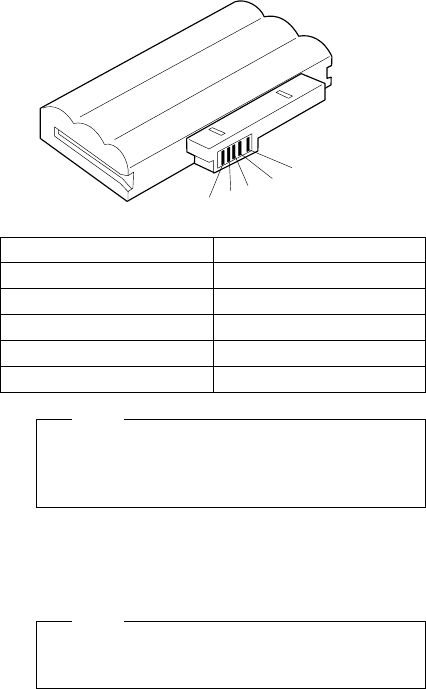
Perform operational charging. If the battery status
indicator does not turn on, remove the battery pack and
leave it to return to room temperature. Reinstall the
battery pack. If the charge indicator still does not turn on,
replace the battery pack.
Checking the Battery Pack: Battery charging will
not start until the Fuel-Gauge shows that less than 95% of
the total power remains; with this condition the battery
pack will charge to 100% of its capacity. This protects the
battery pack from being over-charged or having a
shortened life.
Do the following:
1. Power off the computer.
2. Remove the battery pack and measure the voltage
between battery terminals 1 (+) and 4 (−). See the
following figure.
1
2
3
4
5
Note
Signal lines, not used in these steps, are used for
communication between the system and the
battery.
3. If the voltage is less than +11.0 V dc, the battery pack
has been discharged. Recharge the battery pack.
If the voltage is still less than +11.0 V dc after
recharging, replace the battery.
Note
If the voltage of the battery pack is 0 V, it is not
defective.
Terminal Voltage (V dc) / Signal
1+0 to +13.5
2 Send
3 Thermal
4 Ground (−)
5 Select
ThinkPad 560 (2640) 127
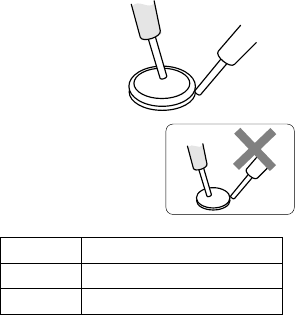
4. If the voltage is more than +11.0 V dc, measure the
resistance between battery terminals 3 and 4. The
resistance must be 4 to 30 K ohm.
If the resistance is not correct, replace the battery
pack. If the resistance is correct, replace the system
board.
Checking the Backup Battery
1. Power off the computer and unplug the AC Adapter
from the computer.
2. Turn the computer upside down.
3. Remove the DIMM cover and backup battery (see
“1010 Backup Battery” on page 151).
4. Measure the voltage of the backup battery. See the
following figure.
Note: Be careful not to measure the wrong side of
the backup battery.
Black (-)
Red (+)
S
O
N
Y
+
If the voltage is correct, replace the system board.
If the voltage is not correct, the backup battery has
been discharged. Replace the backup battery.
If the backup battery discharges quickly after
replacement, replace the system board.
Wire Voltage (V dc)
Red +2.5 to +3.7
Black Ground
Port Replicator Checkout
Use the following procedure to isolate a port replicator
problem. A port replicator attaches to the system
expansion connector at the bottom of the computer.
1. Power off the computer.
2. Remove the failing devices from the replicator.
3. Unplug the AC adapter from the replicator, if
attached.
4. Remove the port replicator from the computer.
128 IBM Mobile Systems HMM
5. Reconnect the failing device directly to the computer.
(If another device already connected to the computer,
remove it first.)
6. Go to the “How to Run the Diagnostics” on page 145
and run the diagnostics.
7. If the advanced diagnostic device test does not find
an error, suspect a problem with the port replicator of
the system expansion bus.
8. Power off the computer and reconnect the port
replicator.
9. Power on the computer and run the following
advanced diagnostic tests:
Serial port test with the wrap plug installed on
the replicator.
Parallel port test with the wrap plug installed on
the replicator.
FDD-2 device test on the failing device with
scratch diskette.
10. If diagnostic errors appear, replace the replicator or
diskette drive attachment unit.
If the problem remains after the replacement, replace
the system board.
11. If power problems appear only when using the
replicator, replace the replicator.
Power Management Features
Three power management modes are provided by the
computer to reduce power consumption and prolong
battery power.
Standby Mode: When in standby mode the following
occurs:
The LCD backlight turns off.
The hard disk motor stops.
Events that cause the computer to enter standby mode:
Standby requested by the Fn key. (Fn+F3)
No activity under auto-standby enabled by the
ThinkPad Features program.
Events that cause the computer to exit or resume standby
mode:
(Resume) Any key operation.
Suspend Mode: When in suspend mode, the
following, in addition to the four actions of standby mode,
occur:
The LCD is powered-off.
The hard disk is powered-off.
The CPU is stopped.
ThinkPad 560 (2640) 129

Notes
1. In the ThinkPad Features Program, the computer
can be set to “Will not suspend even if LCD is
closed.”
2. When the computer is powered with ac power
and is used with one of the communication PC
cards, the computer enters
standby mode
; the
PC card and application program remain active.
3. The computer cannot enter suspend mode while
a communication link is running.
Events that cause the computer to enter suspend mode:
Suspend mode is requested by the Fn key (Fn+F4).
The LCD is closed.
The specified time has elapsed from the last
operation with the keyboard, mouse, hard disk drive,
parallel connector, or diskette drive; or the AC
Adapter is plugged in. The time is specified by
Suspend Timer
in the ThinkPad Features program.
The battery condition is low. The battery power
indicator blinks orange.
Either the
PS2 OFF
or
PS2 SUSpend
command is
set in the ThinkPad Features program.
Events that cause the computer to exit or resume suspend
mode:
(Resume) The LCD is opened.
(Resume) The real time clock alarm is signaled.
(Resume) The ring indicator (RI) is signaled by a
serial or PCMCIA device.
(Resume) The Fn key is pressed.
(Resume) An external keyboard key is pressed while
operating with ac power.
(Exit) Timer conditions are satisfied for entering
hibernation mode.
Hibernation Mode: When in hibernation mode, the
following occurs:
The system status, RAM, VRAM, and setup data are
stored on the hard disk.
The system is powered-off.
Note
The computer cannot enter hibernation mode when
the computer is powered with ac power and a
communication PC card is used.
Events that cause the computer to enter hibernation mode:
Hibernation mode is requested by the Fn key
(Fn+F12).
Timer conditions are satisfied in suspend mode.
A critical low battery condition occurs.
130 IBM Mobile Systems HMM
The
PS2 HIB
ernation command is set in the
ThinkPad Features program.
Event that causes the computer to exit hibernation mode.
The power-on switch is operated.
When power is turned on, the hibernation history in the
boot record on the hard disk is recognized and system
status is restored from the hard disk to resume operation.
ThinkPad 560 (2640) 131

Symptom-to-FRU Index
The Symptom-to-FRU Index lists the symptoms and errors
and the possible causes. The most likely cause is listed
first.
Note
Perform the FRU replacement or actions in the
sequence shown in the “FRU/Action” columns. If a
FRU did not solve the problem, put the original part
back in the computer. Do not replace a non-defective
FRU.
This index can also be used to help you decide which
FRUs to have available when servicing a computer.
Numeric error codes show the errors detected in POST or
system operation. In the following error codes, X can be
any number.
If no codes are available, use narrative symptoms.
If the symptom is not listed, go to “Undetermined
Problems” on page 143.
Note
For IBM devices not supported by diagnostic codes in
the ThinkPad notebook computers, see the manual for
that device.
Numeric Error Codes
Symptom / Error FRU / Action in Sequence
10X
101: Interrupt failure.
102: Timer failure.
103: Timer interrupt
failure.
104: Protected mode
failure.
105: Last 8042
command not
accepted.
107: NMI test failure.
108: Timer bus test
failure.
109: Low meg-chip
select test.
1. System Board
132 IBM Mobile Systems HMM

Symptom / Error FRU / Action in Sequence
110
(Planar parity.)
1. Go to “Memory
Checkout” on
page 122.
2. DIMM Card
3. The computer is
attached to the
expansion unit.
4. System Board
111
(I/O parity.)
1. Go to “Memory
Checkout” on
page 122.
2. System Board
161
(Dead battery.)
1. Go to “Checking the
Backup Battery” on
page 128.
2. Backup Battery
3. System Board
163
(Time and Date was not
set.)
1. Reseat the keyboard
connector on the
system board.
2. Set Time and Date.
3. System Board
173
(Configuration data was
lost.)
1. Reseat the keyboard
connector on the
system board.
2. Select OK in the error
screen; then set the
time and date.
3. Backup Battery
4. System Board
174
(Configuration error:
Perform“Checking the
Installed Devices List” on
page 146 before changing
any FRUs.)
1. Check Device
Configuration.
2. System Board
3. Diskette Drive
Assembly
4. Hard Disk Drive
Assembly
184
(POP check sum error.)
1. Reset the POP
(power-on password)
in Easy-Setup.
190
(Depleted battery pack was
installed when the power
was on.)
1. Go to “Checking the
Battery Pack” on
page 127.
191XX
(PM initialization error.)
1. System Board
195
(The configuration read from
the hibernation area does
not match the actual
configuration.)
1. Check if the
configuration was
changed.
For example, check if
the DIMM card is
added.
ThinkPad 560 (2640) 133

Symptom / Error FRU / Action in Sequence
196
(Read error occurred in the
hibernation area of the
HDD.)
1. Run the hard disk
drive test.
2. Hard Disk Drive
1XX 1. System Board
2XX
201: Memory data
error.
202: Memory line error
00–15.
203: Memory line error
16–23.
205: Memory test
failure on on-board
memory.
221: ROM to RAM
remap error.
1. Go to “Memory
Checkout” on
page 122.
2. DIMM Card
3. System Board
301, 303, 304, 305, 3XX
(301: Keyboard error.)
1. Go to
“Keyboard/Auxiliary
Input Device
Checkout” on
page 123.
2. Keyboard
3. External Numeric
Keypad
4. External Keyboard
5. Keyboard/Mouse Cable
6. System Board
601, 6XX
(601: Diskette drive or
controller error.)
1. Go to “Diskette Drive
Test” on page 124.
2. Diskette Drive
Assembly
3. Diskette
4. System Board
602
(Diskette read error.)
1. Go to “Diskette Drive
Test” on page 124.
2. Diskette
3. Diskette Drive
Assembly
604
(Unacceptable ID was read
from the diskette drive.)
1. Go to “Diskette Drive
Test” on page 124.
2. Diskette Drive
Assembly
3. System Board
11XX
1101: Serial_A test failure.
1. Serial Device
2. Communication Cable
3. System Board
12XX
1201: Serial_B test failure.
1. System Board
(Infrared)
134 IBM Mobile Systems HMM

Symptom / Error FRU / Action in Sequence
17XX
1701: Hard disk
controller failure.
1780, 1790: Hard disk
0 error.
1781, 1791: Hard disk
1 error.
1. Hard Disk Drive
2. System Board
24XX
(2401: System board video
error.)
1. System Board
808X
8081: PCMCIA
presence test failure.
(PCMCIA revision
number also checked.)
8082: PCMCIA register
test failure.
1. PCMCIA Slot
Assembly
2. PCMCIA Device
3. System Board
860X
(Pointing device error when
TrackPoint III is disabled.)
8601: System bus
error–8042 mouse
interface.
8602: External mouse
error.
8603: System bus
error or mouse error.
1. External Mouse
2. External Keyboard
3. System Board
861X
(Pointing device error when
TrackPoint III is enabled.)
8611: System bus
error–I/F between 8042
and IPDC.
8612: TrackPoint error.
8613: System board or
TrackPoint error.
1. Reseat the keyboard
cable on the system
board.
2. Keyboard
3. External Mouse
4. System Board
I9990301
I9990302
I9990305
I9990301: Hard disk
error.
I9990302: Invalid hard
disk boot record.
I9990305: No bootable
device.
1. Check that the
operating system is
installed in the HDD.
If not, install the
operating system.
2. Reseat the boot
device.
3. Check the startup
sequence for the
correct boot device.
4. Check that the
operating system has
no failure and is
installed correctly.
I9990303
(Bank–2 flash ROM check
sum error.)
1. System Board
ThinkPad 560 (2640) 135
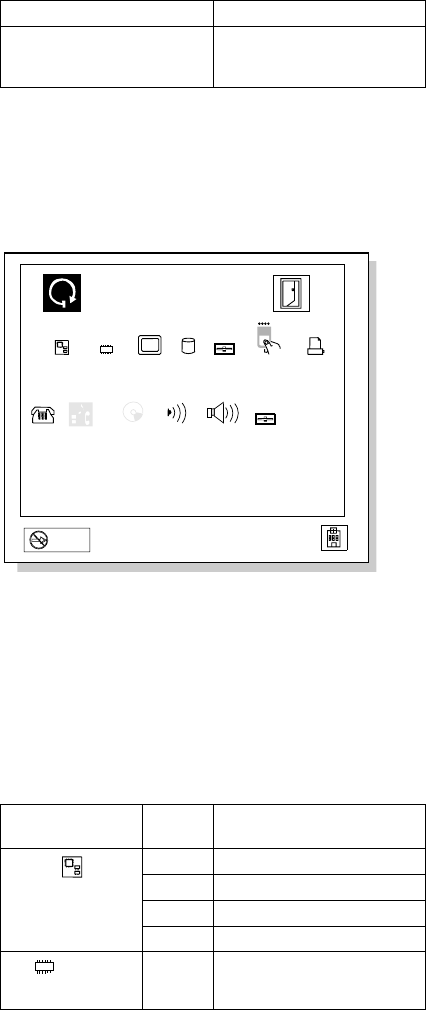
Symptom / Error FRU / Action in Sequence
Other codes not listed
above 1. Go to “Undetermined
Problems” on
page 143.
Diagnostic Error Codes
If an error is detected, the following appears:
Large X on the left side of the device icon.
Device ID (three digit)
Error code (two digit)
FRU code (four digit)
Exit
OK
x
Restart
Start
DEV 001
ERR 0010
FRU 02
SystemBoard Memory Display HDD FDD-1
FDD-2
Parallel
PCMCIA
1
2
Serial CDROMDSP AudioInfrared
The device ID and error code are used to indicate the
detail portion of the FRU which caused the error. If
replacing a FRU does not correct the problem, see the
device ID or error code from the previous failure. If they
have changed, the cause might be because the new FRU
is detective or that the FRU was incorrectly installed.
Device ID: If an error is detected by the diagnostic
tests, a three digits device ID is displayed. The device ID
indicates suspected device.
Icon Device
ID Suspected Device
SystemBoard
001 System Board
003 Keyboard
007 Math Coprocessor
086 Pointing Device
Memory
002 Memory
136 IBM Mobile Systems HMM
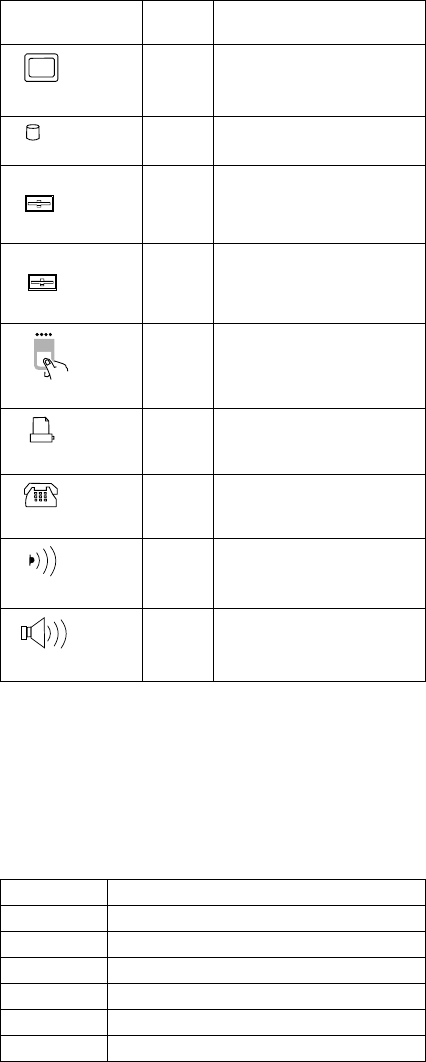
FRU Codes: If an error is detected by the diagnostic
tests, a four-digit FRU code is displayed. The FRU code
indicates two suspected FRUs. Replace the FRU that is
indicated by the
two leftmost digits
first, then replace the
FRU that indicated
two rightmost digits.
No FRU is
assigned to code 00. If only one FRU is suspected, the
other FRU code is filled with zeros. See the reference
page before replacing the FRU.
Icon Device
ID Suspected Device
Display
050 Display
HDD
017 Hard Disk Drive
FDD-1
1006 External Diskette Drive
or FDD Connector of the
computer
FDD-2
2066 External Diskette Drive
or FDD Connector of the
port replicator
PCMCIA
080 PCMCIA
Parallel
009 Parallel
Serial
011,
012
Serial
Infrared
103 IR
Audio
150 Audio (ESS)
FRU Code FRU
10 System Board
30 Reserved
32 External Keyboard
33 External Mouse
40 LCD Assembly
45 External CRT
ThinkPad 560 (2640) 137

If the problem still remains after replacement of the FRUs,
go to “Undetermined Problems” on page 143.
FRU Code FRU
50 1. Reseat the Diskette Drive (FDD-1)
2. Diskette Drive (FDD-1)
51 1. Reseat the Diskette Drive (FDD-2)
2. Diskette Drive (FDD-2)
60 1. Reseat the Hard Disk Drive
2. Hard Disk Drive
72 PCMCIA Slot Assembly
Beep Symptoms
Symptom / Error FRU / Action in Sequence
Continuous beeps. System Board
One beep and a blank,
unreadable, or flashing
LCD.
1. Reseat the LCD
connector.
2. LCD Assembly
3. System Board
One beep, and the message
“Unable to access boot
source.”
1. Boot device
2. System Board
One long, two short beeps
and a blank or unreadable
LCD.
1. System Board
2. LCD Assembly
One long beep followed by
four short beeps each time
the power switch is
operated.
(System cannot power-on
due to low battery voltage.)
Connect the AC Adapter
or install a fully charged
battery.
One beep every second.
(System is shutting down
due to low battery voltage.)
Connect the AC Adapter
or install a fully charged
battery (allows system to
complete shutdown
before changing the
battery).
Two short beeps with error
codes. POST error. See
“Numeric Error Codes” on
page 132.
Two short beeps with blank
screen. System Board
138 IBM Mobile Systems HMM

No Beep Symptoms
Symptom / Error FRU / Action in Sequence
No beep, power-on indicator
not on, and a blank LCD
during POST.
1. Go to “Power
Systems Checkout”
on page 125.
2. System Board
3. Power sources
No beep, power-on indicator
on, and a blank LCD during
POST.
1. System Board
No beep, power-on indicator
on, and a blinking cursor
only during POST.
1. System Board
No beep during POST but
system runs correctly.
1. Turn the volume up
and check the
speaker.
2. Speaker
3. System Board
LCD-Related Symptoms
Important
The LCD for the notebook computer contains over
921000 thin-film transistors (TFTs). A small number
of missing, discolored, or lighted dots (on all the time)
is characteristic of TFT LCD technology, but excessive
pixel problems can cause viewing concerns. The LCD
should be replaced if the number of dots satisfies the
following condition:
The number of missing, discolored, or lighted
dots in any background is 21 or more.
Symptom / Error FRU / Action in Sequence
No beep, power-on indicator
on, and a blank LCD during
POST.
1. System Board
LCD backlight not
working, or
LCD too dark, or
LCD brightness cannot
be adjusted, or
LCD contrast cannot
be adjusted.
1. Reseat the LCD
connectors.
2. LCD Assembly
LCD screen
unreadable, or
Characters missing
pels, or
Screen abnormal, or
Wrong color displayed.
1. See important note
for “LCD-Related
Symptoms.”
2. Reseat all LCD
connectors.
3. LCD Assembly
4. System Board
ThinkPad 560 (2640) 139

Symptom / Error FRU / Action in Sequence
LCD has extra horizontal or
vertical lines displayed. LCD Assembly
Keyboard/TrackPoint III-Related
Symptoms
Symptom / Error FRU / Action in Sequence
Keyboard (one or more
keys) does not work.
1. Reseat the keyboard
cable on the system
board.
2. Keyboard
3. System Board
TrackPoint III does not
work.
1. Reseat the keyboard
cable on the system
board.
2. Go to “TrackPoint III
Checkout” on
page 124.
3. Keyboard
4. System Board
Pointer moves automatically
or does not work correctly.
1. See “TrackPoint III
Checkout” on
page 124.
Indicator-Related Symptoms
Symptom / Error FRU / Action in Sequence
Indicator incorrectly remains
off or on, but system runs
correctly.
1. System Board
Battery power status
indicator blinks from green,
yellow, to orange.
1. Check that a correct
battery is installed.
2. Battery Pack
3. System Board
Power-Related Symptoms
Symptom / Error FRU / Action in Sequence
Power shuts down during
operation.
1. Go to “Power
Systems Checkout”
on page 125.
2. Battery Pack
3. Remove the battery
pack and let it cool for
two hours.
4. Power sources
The system will not
power-off.
(See “Power Shutdown
Switch” on page 120.)
1. Press the power
shutdown switch.
2. System Board
140 IBM Mobile Systems HMM

Function-Related Symptoms
Symptom / Error FRU / Action in Sequence
The system will not suspend
or resume by opening or
closing the LCD.
1. Go to “Suspend
Mode” on page 129,
and check that the
computer can enter
suspend mode.
2. Boot an operating
system and press
Fn+F4. If the
computer enters
suspend mode,
suspect that the
application program is
not working properly.
3. LCD Assembly
4. System Board
Battery Fuel-Gauge does
not go higher than 90%. Go to “Checking the
Battery Pack” on
page 127 and see the
note.
Memory count (size)
appears different from
actual size.
Go to “Memory Checkout”
on page 122.
System configuration does
not match the installed
devices.
Go to “Checking the
Installed Devices List” on
page 146.
System hangs intermittently. Go to “Intermittent
Problems” on page 142.
Peripheral-Device-Related Symptoms
Symptom / Error FRU / Action in Sequence
External display does not
work correctly.
1. See “External Display
Self-Test” in
“Common Devices
Checkout” section.
Printer problems. 1. Run Printer Self-test.
2. Parallel Port Device
3. Cable
4. System Board
Serial or parallel port device
problems.
1. Device
2. Device Cable
3. System Board
ThinkPad 560 (2640) 141

Infrared-Related Symptoms
Symptom / Error FRU / Action in Sequence
Unable to communicate
using the Infrared (IR) Port.
1. Make sure the setup
for the IR is correct.
2. Make sure there are
no fluorescent lights
near the computer.
The computer may
receive optical noise
from the fluorescent
light.
3. Run the advanced
diagnostic test. If an
error occurs and a
FRU code is displayed,
replace the parts
shown by the FRU
code.
Other Symptoms
Note
If you cannot find a symptom or error in this list and
the problem remains, see “Undetermined Problems”
on page 143.
Symptom / Error FRU / Action in Sequence
Errors occur only when Port
Replicator is used. See “Port Replicator
Checkout” on page 128.
PCMCIA slot pin is
damaged. PCMCIA Slots Assembly
Intermittent Problems
Intermittent system hang problems can be caused by a
variety of reasons that have nothing to do with a hardware
defect, such as: cosmic radiation, electrostatic discharge,
or software errors. FRU replacement should only be
considered when a recurring problem exists.
When analyzing the intermittent problem, do the following:
1. Run the advanced diagnostic test for the system
board in loop mode at least 10 times.
2. If no error is detected, do not replace any FRUs.
3. If any error is detected, replace the FRU shown by
the FRU code. Rerun the test to verify that no more
errors exist.
142 IBM Mobile Systems HMM
Undetermined Problems
You are here because the diagnostic tests did not identify
which adapter or device failed, installed devices are
incorrect, a short circuit is suspected, or the system is
inoperative. Follow the procedures below to isolate the
failing FRU (do not isolate non-defective FRUs).
Verify that all attached devices are supported by the
computer.
Verify that the power supply being used at the time of the
failure is operating correctly. (See “Power Systems
Checkout” on page 125.)
1. Power off the computer.
2. Check the cables, wires, and connectors for short
circuits and open circuits. Visually check them for
damage. If any problems are found, replace the
FRU.
3. Remove or disconnect all of the following devices.
a. Non-IBM devices
b. Devices attached to the expansion bus
connector
c. Printer, mouse, and other external devices
d. Battery pack
e. Hard disk drive
f. Diskette drive
g. DIMM card
h. PC Cards
4. Power on the computer.
5. Determine if the problem has changed.
6. If the problem does not occur again, reconnect the
removed devices one at a time until you find the
failing FRU.
7. If the problem remains, replace the following FRUs
one at a time. Do not replace a non-defective FRU.
LCD assembly
System board
ThinkPad 560 (2640) 143
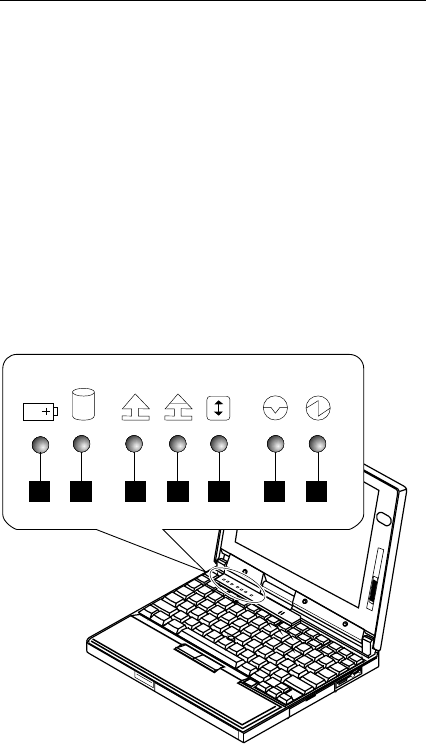
Related Service Procedures
This section provides information about the following:
“Status Indicators”
“How to Run the Diagnostics” on page 145
“Error Log” on page 146
“Checking the Installed Devices List” on page 146
“How to Run a Low-Level Format” on page 147
“PC Test Card LED” on page 147
“Fn Key Combinations” on page 148
“Keyboard/Auxiliary Input Device Checkout” on
page 123
Status Indicators
The system status indicators show the current computer
status in different colors (green, yellow, and orange).
1
5263 741
144 IBM Mobile Systems HMM

Symbol Color Meaning
1Battery Green Battery fully charged
Orange Battery charging
Blinking
orange
Battery needs charging
2Hard Disk
In Use
Orange Data is read from or written
to the hard disk drive.
3Numeric
Lock
1
Green Numeric keypad on the
keyboard is enabled.
4Caps
Lock
A
Green Caps lock mode is enabled.
5Scroll
Lock
Green Arrow keys can be used as
screen-scroll function key.
6Suspend
Mode
Green Suspend mode
Blinking
Green
Entering suspend mode
7Power On Green Power on
How to Run the Diagnostics
Use either the TrackPoint III or the cursor move keys to
interact with the tests. The Enter key works the same as
selecting the OK icon to reply OK.
Note
The following tools are required:
FDD:
Erasable 2HD diskette
Parallel:
Wrap plug (P/N 72X8546)
Serial:
Wrap plug (P/N 72X8546)
PCMCIA:
PC Test Card (P/N 35G4703)
1. Press and hold the F1 key; then power on the
computer. Hold the F1 key down until the
Easy-Setup screen appears.
2. Select Test and press Enter.
3. Select a device and press Enter to run the test.
4. The test progress screen appears.
5. OK appears when the test ends without any errors.
ThinkPad 560 (2640) 145
6. Start the Advanced Diagnostic test by pressing
Ctrl+A on the basic diagnostic menu screen.
7. Select Tool to install the tools.
8. Select a device, press the Spacebar and install the
tool. Multiple devices can be selected by repeating
this step.
A mark appears beside the selected devices.
9. Select OK and press Enter if the selection is OK.
10. Select a device and press Enter to start the tests.
11. Select Test All to test all devices.
12. Select Loop Test to run the tests in a repeated loop.
A loop option menu appears in which a device loop or
all-device loop can be selected. Select a device and
press the Spacebar to select a device. Repeat this
step to select multiple devices. Press Enter to start
the diagnostic loop. If no device is selected, all
device tests are looped.
13. To exit the loop, keep pressing Ctrl+Pause until the
test exits. A beep sounds to notify that the exit
interrupt is sensed by the test program.
Error Log
Diagnostic errors are printed on the printer that is attached
to the parallel port when the error is detected. The error is
also logged in the system memory.
Do the following to display the errors.
1. End the test, if it is running.
2. Press Ctrl+A to select the advanced diagnostic mode.
3. Press Ctrl+E.
4. The error log appears.
5. To exit the screen, select the cancel icon or press
Esc.
The error log is not saved when the system is powered-off.
Checking the Installed Devices List
If a device is installed but the icon appears in a gray shade
rather than a dark shade on the basic diagnostics screen,
the device is defective. Reseat the device connectors. If
the symptom remains, replace the device or the system
board. If needed, adjust the contrast control to clearly
distinguish the shades of the icon.
If a device that is not installed appears in a dark shade (for
example, FDD-2 appears in a dark shade when
NO
second FDD is installed), do the following:
1. Replace the first device in the configuration, such as
an FDD-1.
2. If the problem remains, replace the system board.
The Parallel, and Serial icons are always displayed in a
dark shade because the icons represent subsystems of the
system board and not the attachment of the devices.
146 IBM Mobile Systems HMM
The FDD-1 icon represent the first drive in the system
configuration for each type of device. For ThinkPad 560,
FDD-1 represents an external diskette drive attached
through the external diskette drive connector. Similarly,
the FDD-2 icon represent the second drive, usually
attached through a port replicator.
How to Run a Low-Level Format
Do the following to format the hard disk.
Warning: Make sure the drive address to be formatted is
correct. This procedure will erase all information on the
disk.
1. Power off the computer.
2. Insert the ThinkPad hardware maintenance
diskette Ver 1.20 into diskette drive A and power on
the computer.
3. Select Format the hard disk from the main menu.
4. Select the drive from the menu.
5. Follow the instructions on the screen.
PC Test Card LED
The green LED on the PC test card turns on when the
PCMCIA test is running. If the LED does not turn on,
check that the card is installed correctly by reseating the
card. If it still does not turn on after it is reseated, try
using another slot for the test. If the LED still does not
turn on and the test fails, replace the FRU shown by the
diagnostic error code.
ThinkPad 560 (2640) 147

Fn Key Combinations
The following table shows the Fn key and function key
combinations and their corresponding functions.
The Fn key works independently from the operating
system. The operating system obtains the status through
the system management interface to control the system.
Fn +Description
F1 Reserved
F2 Fuel-Gauge display ON/OFF
F3 Standby mode invocation
F4 Suspend mode invocation
F5 Reserved
F6 Reserved
F7 LCD/CRT display switching
F8 Reserved
F9 Reserved
F10 Reserved
F11 Power management mode switching
(Toggles High Power, Intelligent, Economy)
F12 Hibernation invocation
148 IBM Mobile Systems HMM

Product Overview (560)
The following table shows an overview of the system
features.
Feature Description
Processor Intel** Pentium** 100
MHz
Intel Pentium 120 MHz
Intel Pentium 133 MHz
Bus Architecture PCI Bus
Memory (Standard) 8MB (on the system board)
Memory (Option) 8MB, 16MB, 32MB
DIMM card (max.
40MB)
CMOS RAM 114 Bytes
VGA Video 11.3-inch, 256 colors,
800×600 pixel DSTN
color LCD
12.1-inch, 64K colors,
800×600 pixel TFT
color LCD
Diskette Drive
(External)
1.44MB (2-mode),
3.5-inch
1.44MB (3-mode),
3.5-inch, for Japan
Hard Disk Drive 810MB, 2.5-inch, IDE
interface
1.08GB, 2.5-inch, IDE
interface
2.11GB, 2.5-inch, IDE
interface
I/O Port Headphone
Microphone
Port replicator
Audio 16-bit Audio
Internal speaker
Internal microphone
Mechanical volume
Infrared Transfer IrDA** 1.0
PCMCIA One Type-III
or two Type-II
ThinkPad 560 (2640) 149

FRU Removals and Replacements
This section contains information about removals and
replacements.
Do not damage any part. Only certified and trained
personnel should service the computer.
The arrows in the “Removals and Replacements”
section show the direction of movement to remove a
FRU, or to turn a screw to release the FRU. The
arrows are marked in numeric order, in square
callouts, to show the correct sequence of removal.
When other FRUs must be removed before removing
the failing FRU, they are listed at the top of the page.
To replace a FRU, reverse the removal procedure
and follow any notes that pertain to replacement.
See “Locations” for internal cable connections and
arrangement information.
When replacing a FRU, use the correct screw size as
shown in the procedures.
Safety Notice 1: Translation on page 8
Before the computer is powered-on after FRU
replacement, make sure all screws, springs, or other
small parts, are in place and are not left loose inside
the computer. Verify this by shaking the computer
and listening for rattling sounds. Metallic parts or
metal flakes can cause electrical short circuits.
Safety Notice 3: Translation on page 10
The battery pack contains small amounts of nickel.
Do not disassemble it, throw it into fire or water, or
short-circuit it. Dispose of the battery pack as
required by local ordinances or regulations.
Safety Notice 8: Translation on page 14
Before removing any FRU, power-off the computer,
unplug all power cords from electrical outlets, remove
the battery pack, and then disconnect any
interconnecting cables.
150 IBM Mobile Systems HMM
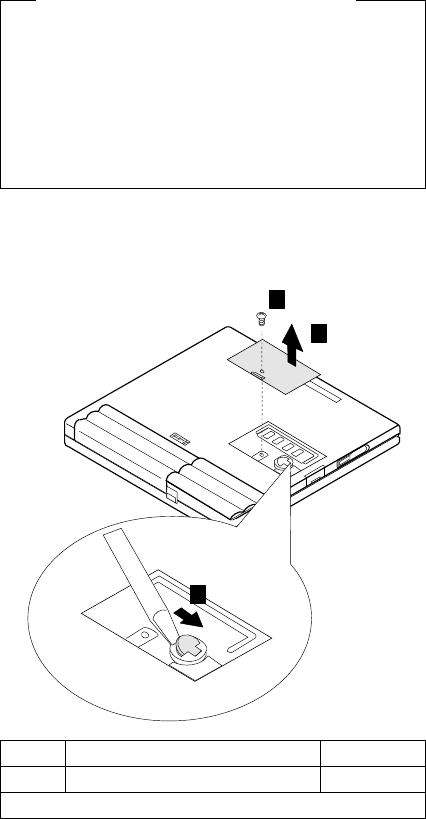
1010 Backup Battery
Safety Notice 4: Translation on page 11
The lithium battery can cause a fire, explosion, or
severe burn. Do not recharge it, remove its polarized
connector, disassemble it, heat it above 100°C
(212°F), incinerate it, or expose its cell contents to
water. Dispose of the battery as required by local
ordinances or regulations. Use only the battery in the
appropriate parts listing. Use of an incorrect battery
can result in ignition or explosion of the battery.
Turn the computer upside down.
1
2
3
Step Location (Quantity) Length
1DIMM Cover (1) 6 mm
Note: Make sure you use the correct screw.
ThinkPad 560 (2640) 151
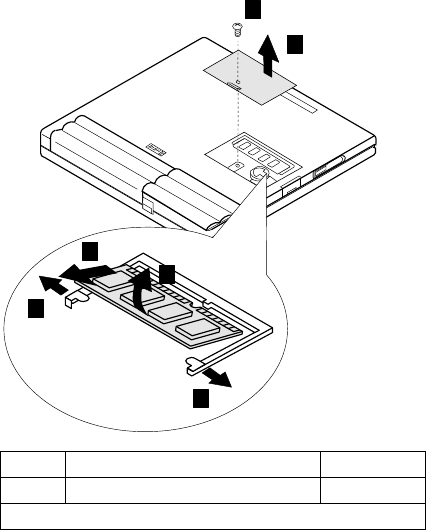
1020 DIMM Card (If installed)
Turn the computer upside down.
1
2
3
3
4
5
Step Location (Quantity) Length
1DIMM Cover (1) 6 mm
Note: Make sure you use the correct screw.
152 IBM Mobile Systems HMM
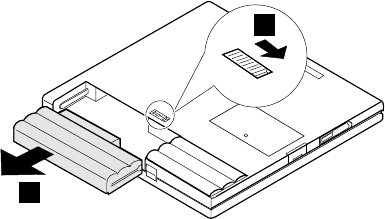
1030 Battery Pack
Turn the computer upside down.
1
2
ThinkPad 560 (2640) 153
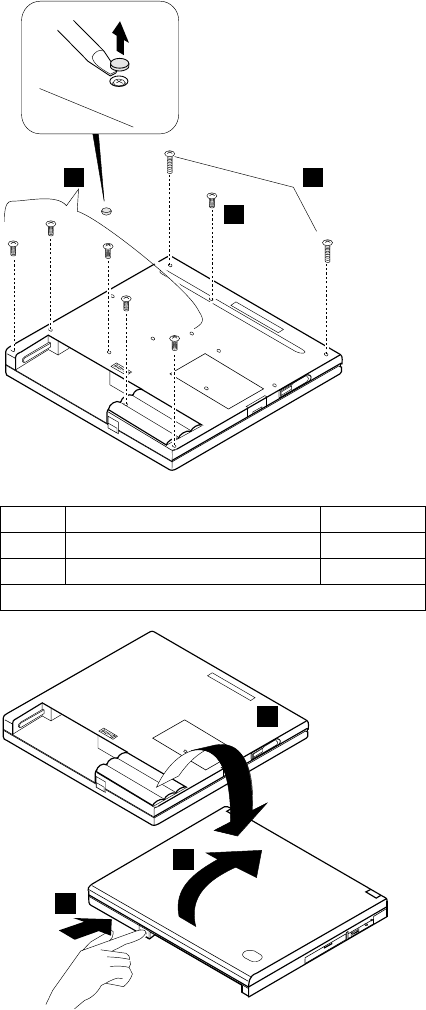
1040 Frame
Battery Pack (1030)
2
21
6
3
4
5
Step Location (Quantity) Length
1Base Cover (2) 12 mm
2Base Cover (6) 6 mm
Note: Make sure you use the correct screw.
154 IBM Mobile Systems HMM
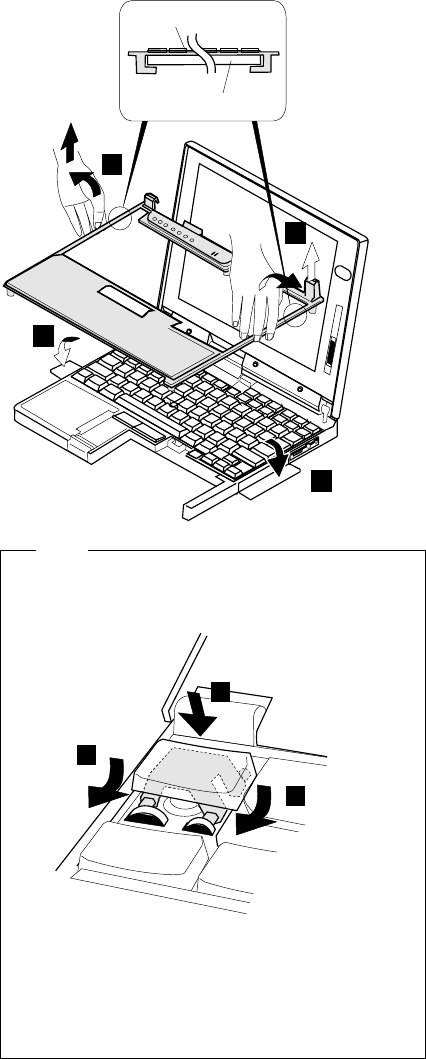
6
6
Frame
Keyboard
7
7
Note
1. Be careful not to remove the Esc key when you
remove the frame. If Esc key is removed,
replace the key as shown.
1
1
2
Esc
F1 F2
2. When replacing the frame, check whether the
click buttons of the TrackPoint III can be pressed
correctly.
If the frame is not in place, the click buttons do
not work.
ThinkPad 560 (2640) 155
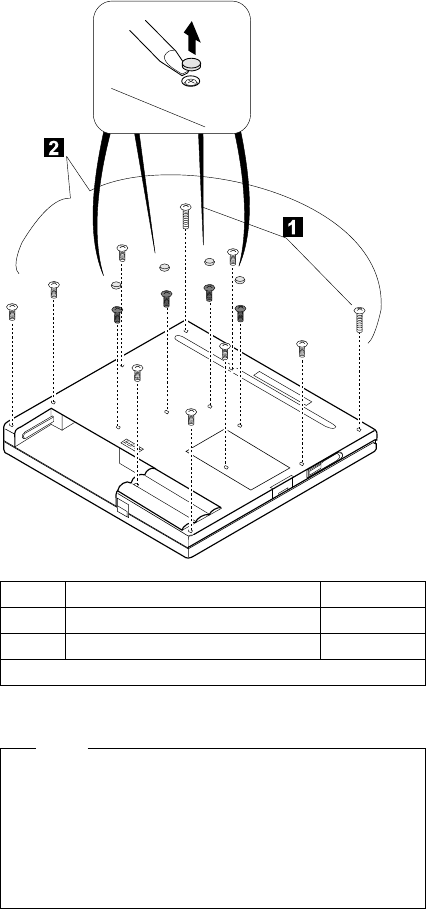
1050 Keyboard Unit
Battery Pack (1030)
Note
When replacing the frame, first replace the middle four
screws that shown in black in the figure; then check
whether the click buttons of the TrackPoint III can be
pressed correctly.
If the frame is not in place, the click buttons do not
work.
Step Location (Quantity) Length
1Base Cover (2) 12 mm
2Base Cover (12) 6 mm
Note: Make sure you use the correct screw.
156 IBM Mobile Systems HMM
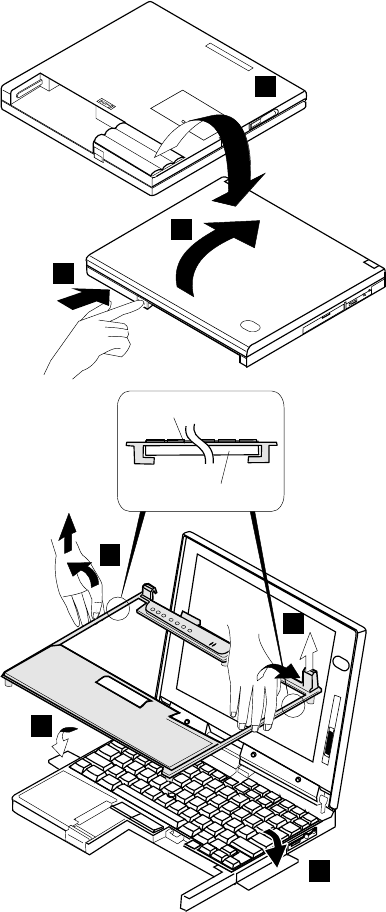
3
4
5
6
6
Frame
Keyboard
7
7
ThinkPad 560 (2640) 157
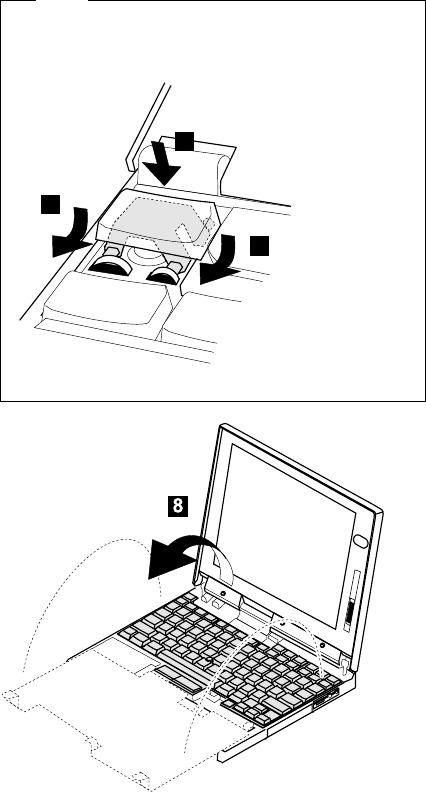
Note
Be careful not to remove the Esc key when you
remove the frame. If Esc key is removed, replace the
key as shown.
1
1
2
Esc
F1 F2
158 IBM Mobile Systems HMM
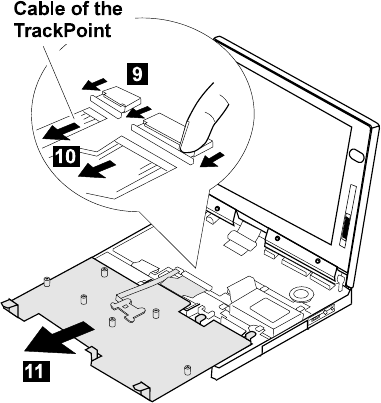
ThinkPad 560 (2640) 159
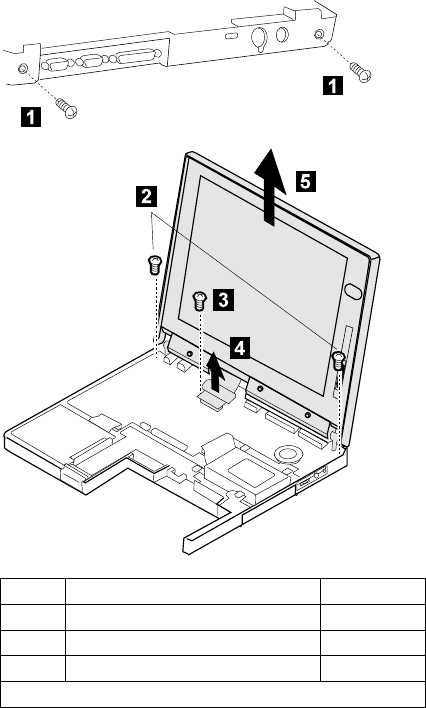
1060 LCD Assembly
Battery Pack (1030)
Keyboard Unit (1050)
Step Location (Quantity) Length
1Base Cover (2) 4 mm
2LCD Assembly (2) 6 mm
3LCD Cable (1) 4 mm
Note: Make sure you use the correct screw.
160 IBM Mobile Systems HMM
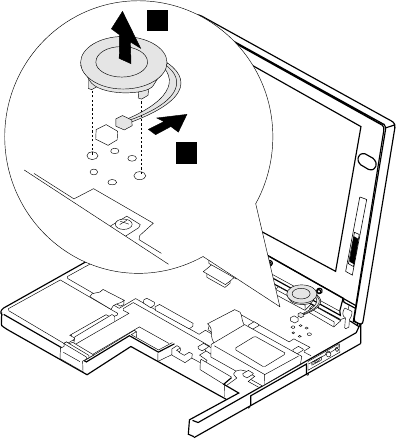
1070 Speaker
Battery Pack (1030)
Keyboard Unit (1050)
1
2
ThinkPad 560 (2640) 161
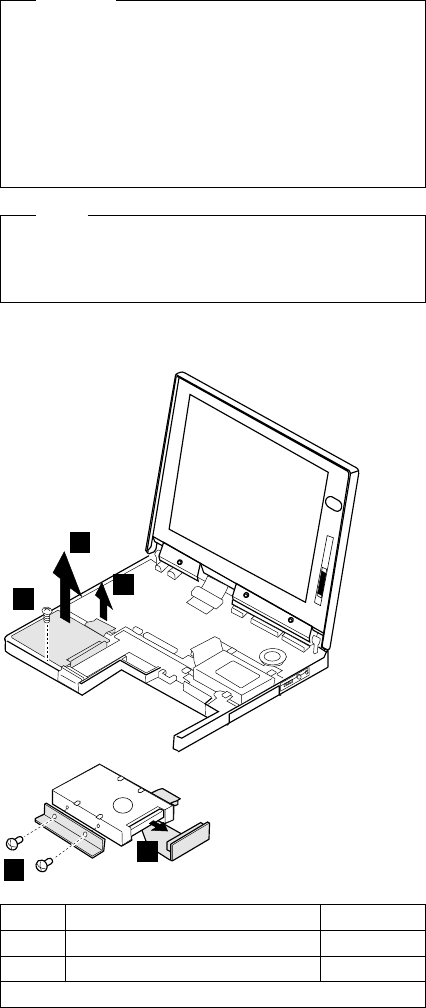
1080 Hard Disk Drive
Warning
Do not drop or apply any shock to the hard disk
drive. The hard disk drive is sensitive to physical
shock. Incorrect handling can cause damage and
permanent loss of data on the hard disk. Before
removing the hard disk drive, have the user make a
backup copy of all the information on the hard disk.
Never remove the hard disk drive while the system is
operating or is in suspend mode.
Note
Remove the hard disk drive exactly as shown in the
figure. Do not apply any extra force to the hard disk
drive when removing it.
Battery Pack (1030)
Keyboard Unit (1050)
12
3
4
5
Step Location (Quantity) Length
1HDD Bracket (1) 6 mm
5Hard Disk Drive (2) 3 mm
Note: Make sure you use the correct screw.
162 IBM Mobile Systems HMM
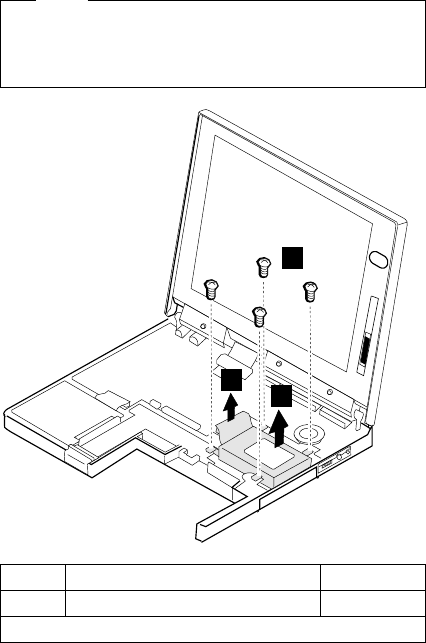
1090 PCMCIA Slot Assembly
Battery Pack (1030)
Keyboard Unit (1050)
Note
Before removing and replacing the PCMCIA slot
assembly, make sure that the PCMCIA cards are
removed and the eject levers are not sticking out.
1
23
Step Location (Quantity) Length
1PCMCIA Slot Assembly (4) 6 mm
Note: Make sure you use the correct screw.
ThinkPad 560 (2640) 163
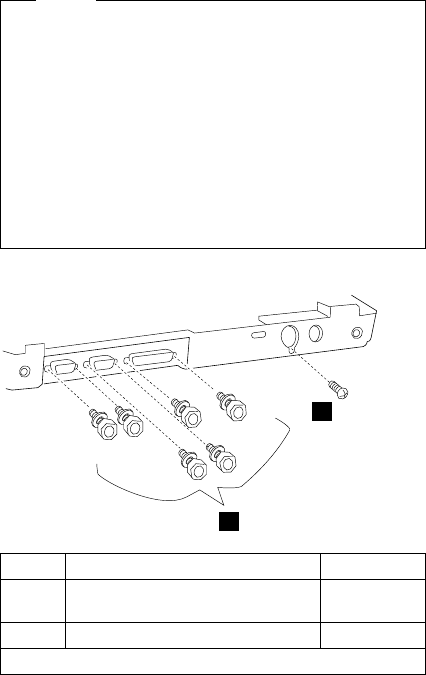
1100 System Board
DIMM Card (If installed) (1020)
Battery Pack (1030)
Keyboard Unit (1050)
LCD Assembly (1060)
Speaker (1070)
Hard Disk Drive (1080)
PCMCIA Slot Assembly (1090)
Notes
The system unit serial number must be restored
when the system board is replaced. To restore
the system unit serial number, select the option
“Set system identification” on the maintenance
diskette. The flash ROM on the system board
contains the vital product data (VPD), that is, the
system unit serial number, system board system
number, and other computer-unique data.
Do not power off the computer when restoring
the VPD. The system unit serial number label is
attached to the base cover.
1
2
Step Location (Quantity) Length
1Base Cover (6) 4 mm
(Hex)
2Base Cover (1) 3 mm
Note: Make sure you use the correct screw.
164 IBM Mobile Systems HMM
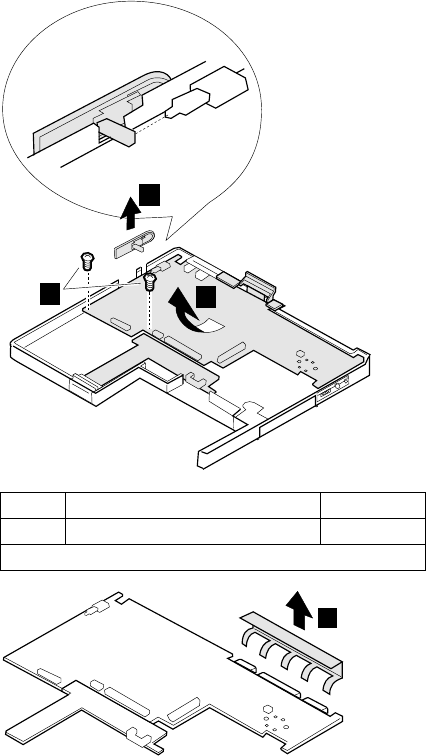
5
4
3
When replacing
6
Step Location (Quantity) Length
4System Board (2) 4 mm
Note: Make sure you use the correct screw.
ThinkPad 560 (2640) 165
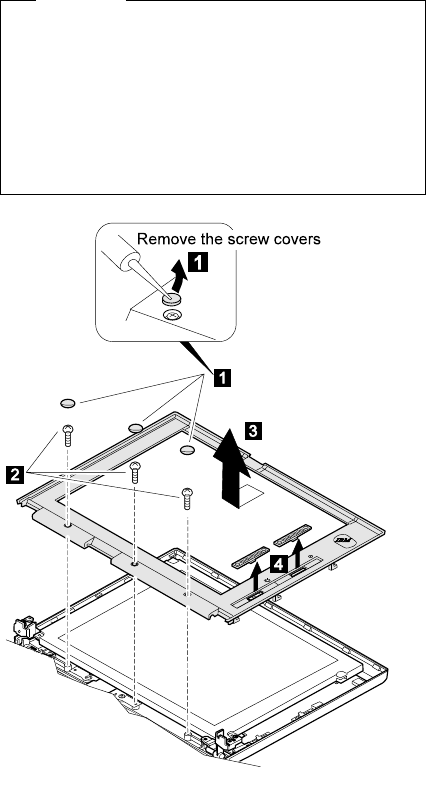
1120 LCD Front Cover
Important
The LCD for the notebook computer contains over
921,000 thin-film transistors (TFTs). A small number
of missing, discolored, or constantly lighted dots is
characteristic of TFT LCD technology, but excessive
pixel problems can cause viewing concerns. The LCD
should be replaced if the number of missing,
discolored, or lighted dots in any background is 21 or
more.
166 IBM Mobile Systems HMM
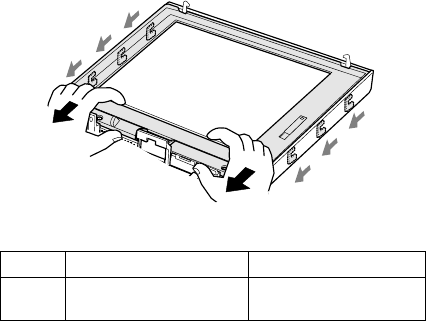
Notes:
1. For the TFT LCD, the slide knob is one in step 4.
2. The LCD front cover has several latches. Release
the latches as shown.
Step Location (Quantity) Length
2LCD Front Cover (3) M 2.6 x 6mm,
Flat head
ThinkPad 560 (2640) 167
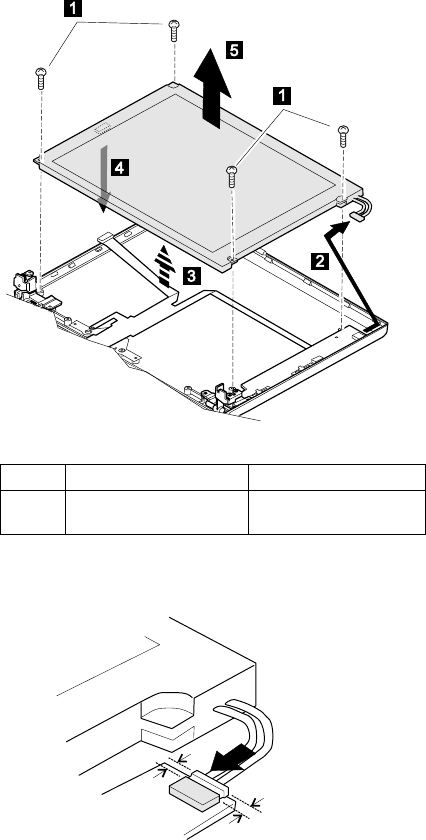
1130 LCD Panel
LCD Front Cover (1110)
DSTN Panel
When replacing:
Connect the LCD connector to the inverter card by
lining them up straight.
Step Location (Quantity) Length
1LCD Panel (4) M 2.5 x 6mm,
Flat head
168 IBM Mobile Systems HMM
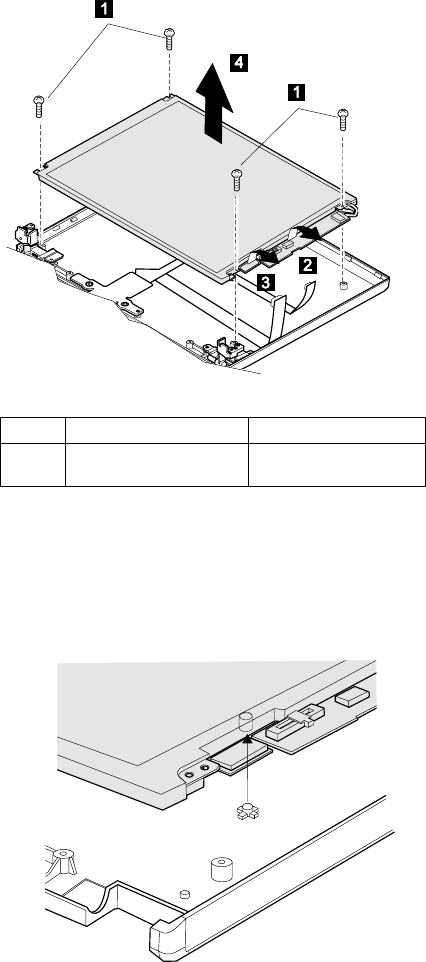
TFT Panel
Notes:
There are two types of rear covers for the ThinkPad
560 TFT LCD unit. Make sure which type you have
and follow the relevant information.
1. If there are bosses on the rear cover, put each boss
into each hole of the LCD panel assembly.
2. If there are no bosses on the rear cover, assemble
the panel as shown in the following figure.
Step Location (Quantity) Length
1LCD Panel (4) M 2.5 x 6mm,
Flat head
ThinkPad 560 (2640) 169
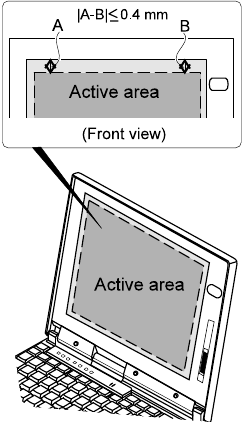
170 IBM Mobile Systems HMM
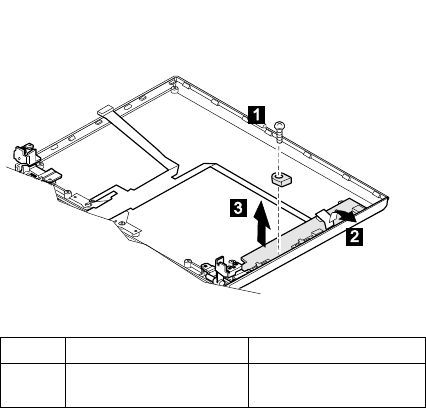
1140 Inverter Card (DSTN only)
LCD Front Cover (1120)
LCD Panel (1130)
Step Location (Quantity) Length
1Hinges (1) M 2.5 x 6mm,
Flat head
ThinkPad 560 (2640) 171
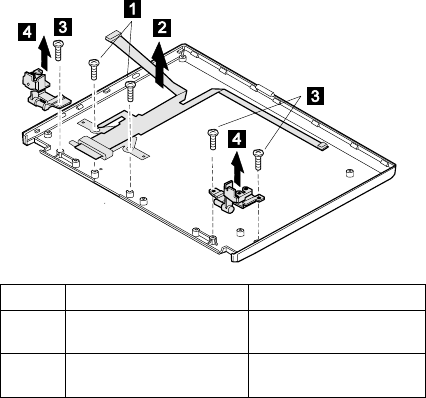
1150 LCD Cable / Hinges
DIMM Card (If installed) (1020)
Battery Pack (1030)
Keyboard Unit (1050)
LCD Assembly (1060) file
LCD Front Cover (1120)
LCD Panel (1130)
Inverter Card (DSTN only)(1140)
DSTN
12: LCD cable
34: Hinges
Step Location (Quantity) Length
1LCD Cable (2) M 2.5 x 6mm,
Flat head
3Hinges (3) M 2.5 x 6mm,
Flat head
172 IBM Mobile Systems HMM
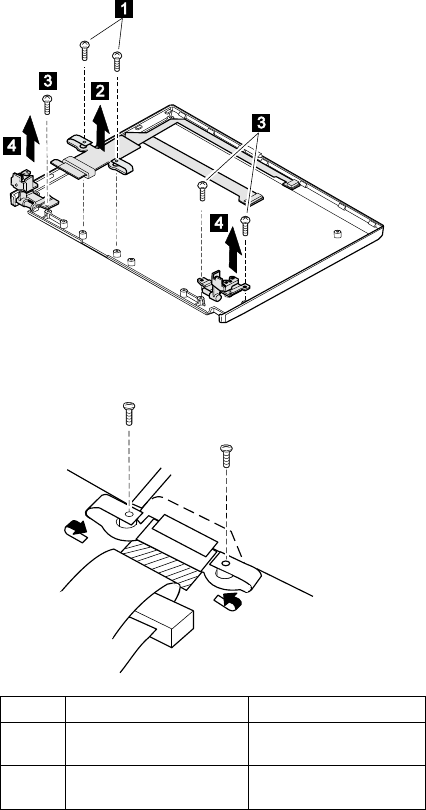
TFT
12: LCD cable
34: Hinges
When replacing:
See the following figure when replacing the LCD
cable.
Step Location (Quantity) Length
1LCD Cable (2) M 2.5 x 6mm,
Flat head
3Hinges (3) M 2.5 x 6mm,
Flat head
ThinkPad 560 (2640) 173
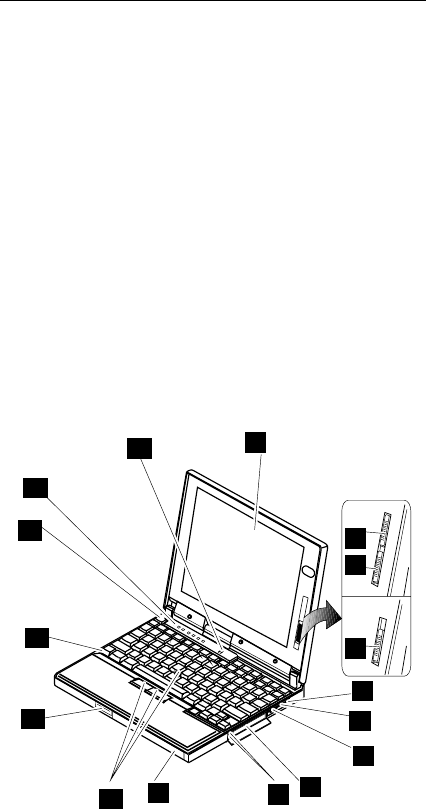
Locations
Front View
1 LCD
2 Contrast Control
3 Brightness Control
4 Headphone Jack
5 Microphone/Line-In Jack
6 Volume Control
7 PCMCIA Slots
8 PC Card Eject Buttons
9 Battery Pack
1 TrackPoint III
11 LCD Latch
12 Fn Key
13 Keyboard
14 Indicator Panel
15 Built-In Microphone
DSTN
TFT
1
9
10
11
12
13
14
15
5
2
6
3
3
7
4
8
174 IBM Mobile Systems HMM
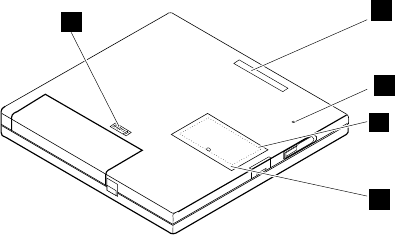
Bottom View
1 System-Expansion Connector
2 Power Shutdown Switch
3 Memory Slot
4 Memory-Slot Cover
5 Battery Pack Latch
1
2
3
4
5
ThinkPad 560 (2640) 175
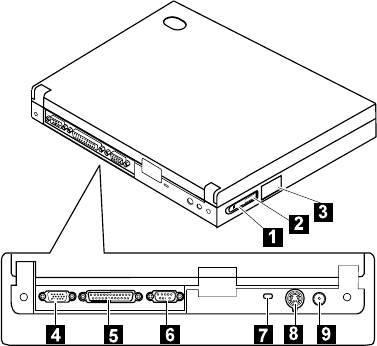
Rear View
1 Power Switch
2 IR Port
3 External Diskette Drive Connector
4 External Monitor
5 Parallel Connector
6 Serial Connector
7 Security Keyhole
8 External-Input-Device Connector
9 Power Jack
176 IBM Mobile Systems HMM
Notes
ThinkPad 560 (2640) 177
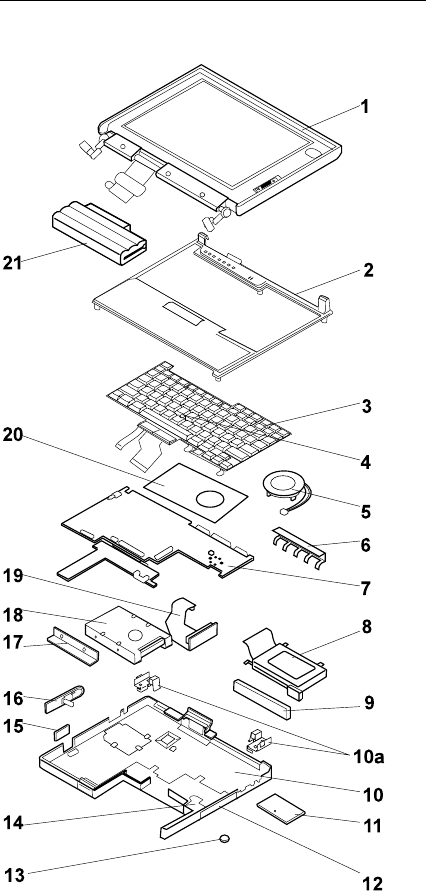
Parts Listing 560 (2640)
178 IBM Mobile Systems HMM
Index
System Unit
1LCD Assembly (11.3 DSTN) 46H4139
LCD Assembly (12.1 TFT) 46H4140
2 Frame 46H4141
3Keyboard (see keyboard section)
4 TrackPoint III 84G6536
5 Speaker 46H4133
6EMI Bracket I/O 46H4149
7System Board (100 MHz) 46H4146
System Board (120 MHz) 46H4147
System Board (133 MHz) 46H4148
For type 2640-1xx, 2640-2xx 46H3893
8 PCMCAI Slot 46H4134
9Rubber Cap I/O 46H4151
10 Base Cover 46H4126
For type 2640-1xx, 2640-2xx 46H4084
10a EMI Spring 46H4145
11 DIMM Cover 46H4131
12 PCMCIA Cover 46H4127
13 Backup Battery 46H4132
14 Bracket Battery Guide 46H4135
15 FDD Connector Cover 46H4128
16 Power Switch 46H4138
17 HDD Bracket 46H4137
18 Hard Disk Drive (540 MB) 39H2219
Hard Disk Drive (810 MB) 39H2220
Hard Disk Drive (1.0 GB) 39H2221
Hard Disk Drive (2.1 GB) 83H7080
19 HDD Flexible Cable 46H4136
20 Keyboard Sheet 46H4150
21 Battery Pack 46H4144
External FDD (2-mode) 10H4056
External FDD (3-mode) 39F2086
External FDD Cable 39F2077
AC Adapter Slim (2 plong) 85G6738
AC Adapter 85G6698
Screw Kit 46H4143
Screw Cap 66G5046
ThinkPad 560 (2640) 179
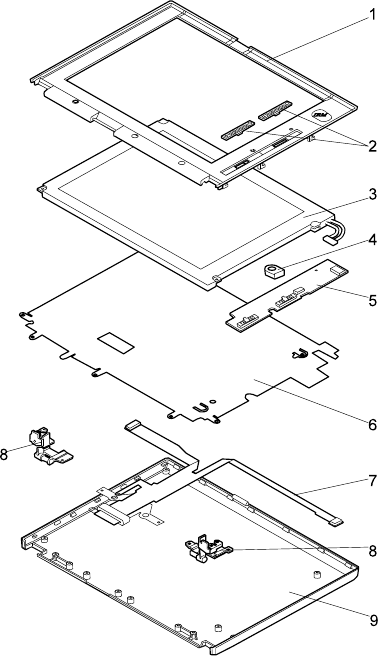
LCD FRU (DSTN)
Index
System Unit
1LCD Front Cover 46H4154
2 Control Knob 46H4158
3LCD Panel (Order LCD Assembly) N/A
4 Spacer 46H4159
5 Inverter Card 46H4152
6 Shield Sheet 46H4157
7 LCD Cable 46H4156
8 Hinges 46H4155
9LCD Rear Cover 46H4153
Screw Cover 66G5046
Screw 46H4160
180 IBM Mobile Systems HMM
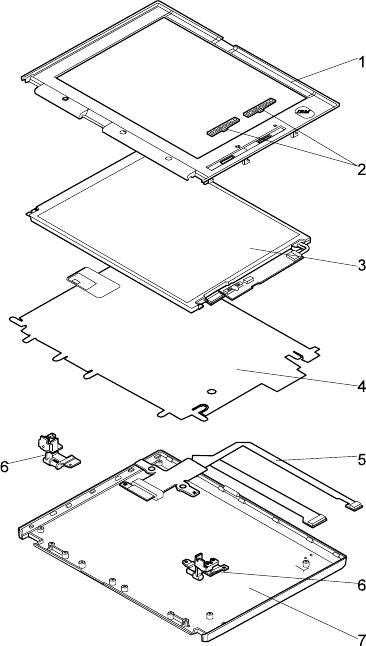
LCD FRU (TFT)
Index
System Unit
1LCD Front Cover 46H4162
2 Control Knob 46H4224
3LCD Panel (Order LCD Assembly) N/A
4 Shield Sheet 46H4165
5 LCD Cable 46H4164
6 Hinges 46H4163
7LCD Rear Cover 46H4161
Screw Cover 66G5046
Screw 46H3939
ThinkPad 560 (2640) 181
Keyboard
Arabic 20H4232
Belgian 20H4230
Canadian French 20H4237
Danish 20H4225
Dutch 20H4224
French 20H4222
German 20H4221
Greek 20H4235
Hebrew 20H4233
Italian 20H4223
Japanese 20H4239
Korean 20H4140
Latin Spanish 20H4236
Norwegian 20H4227
Portuguese 20H4231
Russian 20H4238
Spanish 20H4226
Swedish / Finnish 20H4229
Swiss 20H4228
Turkish 20H4234
U.K. English 20H4220
U.S. English 20H4219
182 IBM Mobile Systems HMM
Common/Option Parts List
Miscellaneous Parts
Screw Kit 46H4143
(Includes the following:)
M2 x 3 Screw (1)
M2.5 x 4, black (5)
M2.5 x 6, black (19)
M2.5 x 12, black (2)
M3 x 3 (2)
Hex Stud (6)
Options
Notes:
1. When you replace the AC Adapter with a new one,
use the one for the country you are in even if the
computer is from different country.
2. The warranty for the system unit does not apply to all
options.
Headset 85G1529
1.08 GB Hard Disk Drive Assembly 39H2221
Microphone 66G7871
PS/2 Miniature Mouse 95F5723
ThinkPad 560 Port Replicator 46H4107
DIMM 8MB 42H2767
DIMM 16MB 42H2768
DIMM 32MB 42H2769
Interface Cable to System for Keyboard 84G2531
Interface Cable to Keyboard for Keypad 84G2532
Mini-DIN to Mini-DIN Cable. 84G6474
ThinkPad 560 (2640) 183
Numeric Keypad
Belgian 95F5741
Canadian French 95F5466
Danish 95F5467
Dutch 95F5467
French 95F6313
German 95F6314
Greek 95F5467
Hebrew 95F5741
Icelandic 95F5467
Italian 95F6316
Japanese 79F6401
Norwegian 95F5467
Spanish 95F6315
Swedish / Finnish 95F5468
Swiss / French 95F5711
Swiss / German 95F5715
Turkish 95F5467
U.K. English 95F5741
U.S. English 95F5741
Black Keypad
French 84G6286
German 84G6280
Italian 84G6292
Swedish 84G6304
U.K. English 84G6298
Norway 84G6310
U.S. English 84G2530
Black Keyboard
French 84G6285
German 84G6279
Italian 84G6291
Swedish 84G6303
U.K. English 84G6297
Norway 84G6309
U.S. English 84G2529
Accessories
Keyboard/Mouse Cable 54G0444
Tools
Tri-Connector Wrap Plug 72X8546
PC Test Card 35G4703
Audio Wrap Cable 66G5180
Screwdriver Kit 95F3598
ThinkPad Hardware Maintenance 78H5384
Diskette Ver 2.01
(This diskette is common for
all ThinkPad models.)
184 IBM Mobile Systems HMM

Power Cords
IBM power cords for a specific country are usually
available only in that country:
For 2-pin power cords:
IBM
Power
Cord
Part
Number
Used in These Countries
13H5264 Bahamas, Barbados, Bermuda, Bolivia, Canada,
Cayman Islands, Colombia, Costa Rica,
Dominican Republic, Ecuador, El Salvador,
Guatemala, Guyana, Haiti, Honduras, Jamaica,
Korea (South), Mexico, Netherlands Antilles,
Nicaragua, Panama, Peru, Philippines, Saudi
Arabia, Suriname, Taiwan, Thailand, Trinidad
(West Indies), United States of America,
Venezuela
13H5267 Abu Dhabi, Albania, Antigua, Bahrain, Brunei,
Dubai, Fiji, Hong Kong, India, Ireland, Kenya,
Kuwait, Macao, Malasia, Nigeria, Oman,
People's Republic of China, Qatar, Singapore,
United Kingdom
13H5270 Austria, Belgium, Bulgaria, Chile, Czech
Republic, Denmark, Egypt, Finland, France,
Germany, Greece, Hungary, Iceland, Indonesia,
Israel, Italy, Netherlands, Norway, Poland,
Portugal, Romania, Slovakia, Spain, Sweden,
Switzerland, Turkey, former Yugoslavia
13H5273 Japan
13H5276 Argentina, Australia, New Guinea, New Zealand,
Papua, Paraguay, Uruguay
13H5279 Bangladesh, Pakistan, South Africa, Sri Lanka
ThinkPad 560 (2640) 185

For 3-pin power cords:
Note
The grounded adapter is required for full MPRII
compliance.
IBM
Power
Cord
Part
Number
Used in These Countries
25H2205 Argentina, Australia, New Guinea, New Zealand,
Papua, Paraguay, Uruguay
25H2207 Bahamas, Barbados, Bermuda, Bolivia, Canada,
Cayman Islands, Colombia, Costa Rica,
Dominican Republic, Ecuador, El Salvador,
Guatemala, Guyana, Haiti, Honduras, Jamaica,
Korea (South), Mexico, Netherlands Antilles,
Nicaragua, Panama, Peru, Philippines, Saudi
Arabia, Suriname, Taiwan, Trinidad (West
Indies), United States of America, Venezuela
25H2209 Austria, Belgium, Bulgaria, Czech Republic,
Egypt, Finland, France, Germany, Greece,
Hungary, Iceland, Indonesia, Netherlands,
Norway, Poland, Portugal, Romania, Slovakia,
Spain, Sweden, Turkey, former Yugoslavia
25H2211 Denmark
25H2213 Bangladesh, Pakistan, South Africa, Sri Lanka
25H2215 Abu Dhabi, Albania, Antigua, Bahrain, Brunei,
Dubai, Fiji, Hong Kong, India, Ireland, Kenya,
Kuwait, Macao, Malaysia, Nigeria, Oman,
People's Republic of China, Qatar, Singapore,
United Kingdom
25H2219 Thailand
25H2221 Switzerland
25H2223 Chile, Italy
25H2225 Israel
186 IBM Mobile Systems HMM

For 3-pin slim power cords:
IBM
Power
Cord
P/N
Used in These Countries
76H3514 Argentina, Australia, Papua New Guinea, New
Zealand, Paraguay, Uruguay
76H3516 Bahamas, Barbados, Bermuda, Bolivia, Canada,
Cayman Islands, Colombia, Costa Rica,
Dominican Republic, Ecuador, El Salvador,
Guatemala, Guyana, Haiti, Honduras, Jamaica,
Mexico, Netherlands Antilles, Nicaragua,
Panama, Peru, Philippines, Saudi Arabia,
Suriname, Taiwan, Trinidad (West Indies),
United States of America, Venezuela
76H3518 Austria, Belgium, Bulgaria, Czech Republic,
Egypt, Finland, France, Germany, Greece,
Hungary, Iceland, Indonesia, Netherlands,
Norway, Poland, Portugal, Romania, Slovakia,
Spain, Sweden, Turkey, former Yugoslavia
76H3520 Denmark
76H3522 Bangladesh, Pakistan, South Africa, Sri Lanka
76H3524 Abu Dhabi, Albania, Antigua, Bahrain, Brunei,
Dubai, Fiji, Hong Kong, India, Ireland, Kenya,
Kuwait, Macao, Malaysia, Nigeria, Oman,
People's Republic of China, Qatar, Singapore,
United Kingdom
76H3526 Japan
76H3528 Switzerland, Liechtenstein
76H3530 Chile, Italy, Ethiopia, Libia
76H3532 Israel
76H3535 Korea
76H4866 Thailand
ThinkPad 560 (2640) 187
188 IBM Mobile Systems HMM

Common Devices Checkout
External Diskette Drive Test ........... 190
External Display Self-Test ............ 190
External Keyboard/Auxiliary Input Device Checkout 191
Fax/Modem Checkout . . . . . . . . . . . . . . 192
Printer Checkout . . . . . . . . . . . . . . . . 194
Port Replicator Checkout ............ 195
TrackPoint Checkout . . . . . . . . . . . . . . 196
TV Tuner . . . . . . . . . . . . . . . . . . . . 197
Identifying Names and Functions ....... 197
Using the Front Panel ............ 198
Troubleshooting . . . . . . . . . . . . . . . 202
Copyright IBM Corp. 1997 189

External Diskette Drive Test
Use the following procedure to isolate the diskette problem
to a controller, drive or diskette. A scratch, write-enabled
2HD diskette is required.
1. Select the icon FDD on the TEST MENU. By doing
this, the controller test and the drive read/write test
run. If the controller test detects an error, FRU code
10 appears. In this case, replace the system board.
2. If the controller test run without errors, follow the
instructions on the screen and insert a scratch
diskette.
3. If the drive test detects an error, FRU code 50
appears. If the diskette media are known to be good,
replace the drive or the drive cable.
External Display Self-Test
If the display problem occurs only when using an external
display, use the following instructions to correct the
problem.
Note
Before you replace a display, check the following list
to see if it is connected correctly.
8506 and 8508 displays must be connected to an
Image Adapter/A or an Image-I Adapter/A.
63XX and 85XX systems support either 63XX or
85XX displays.
85XX systems with an XGA-2 adapter support 95XX
displays.
95XX systems support either 63XX, 85XX, or 95XX
displays.
ThinkPad models support either 85XX or 95XX
displays.
If the screen is rolling, replace the display assembly. If
that does not correct the problem, replace FRUs in the
following order until the problem goes away:
1. Video card
2. Display adapter (any type)
3. System board
4. Bus adapter (if used)
If the screen is not rolling, run the display self-test as
follows:
1. Power-off the computer and display.
2. Disconnect the display signal cable.
3. Power-on the display.
4. Set the contrast to its maximum position.
5. Set the brightness control to the center detent
position.
190 IBM Mobile Systems HMM

Check for the following conditions:
You should be able to vary the screen intensity by
adjusting the contrast and brightness controls.
The screen should be white or light gray, with a black
margin (test margin) on the screen.
Note: The location of the test margin varies with the
type of display. The test margin might be on
the top, bottom, or one or both sides.
If you do not see a test margin on the screen, replace the
display. If there is a test margin on the screen, replace the
system board.
Note: On ThinkPad Models 700, 700C, 720C, 720C, do
the following:
1. Video card
2. System board
External Keyboard/Auxiliary Input
Device Checkout
The following auxiliary input devices may be available for
IBM ThinkPad models.
– Numeric keypad
– Mouse (PS/2 compatible)
– External keyboard (with Keyboard/Miniature
Mouse cable)
If you suspect a problem with any of the auxiliary
input devices (listed above), replace the device.
If the problem is not corrected, replace the following
FRUs one at a time to correct the problem.
– Keyboard control card
– System board
If the computer receives an incorrect keyboard
response, remove other external devices, check the
keyboard connections, and recheck the keyboard
responses. If the problem remains, replace the
following FRUs one at a time to correct the problem.
– Keyboard
– Keyboard control card
– System board
If a 00030100 error message appears, power-off the
computer and the external devices. Then power-on
the computer before you power-on the external
devices.
Common Devices Checkout 191
Fax/Modem Checkout
001
– Power-off the computer.
– Ensure that the modem is installed correctly.
– If the modem never worked in customer mode, ensure
that all drivers are loaded correctly onto the computer.
– Ensure that the communication program is supported on
the computer.
– Ensure that the public switch telephone network (PSTN)
cable and the data access arrangement (DAA) cable, if
installed, are connected correctly.
If you need to correct one of the above conditions, do so
now; then continue.
Note: PCMCIA cards can be inserted and removed while
the system is powered on.
– Power-on the system.
– Insert the IBM Data/FAX Modem diskette into the default
diskette drive.
– If you are servicing a High Speed Internal Data/Fax
Modem (Models FC3632 and FC3650), at the DOS
prompt (for example, A:\), type IBMDIAG; then press
Enter.
– If you are servicing a PCMCIA Data/FAX Modem
(Models FC3634 and FC3635), at the DOS prompt (for
example, A:\), type ESTDIAG; then press Enter.
– Follow the instructions on the screen. (If you need help,
press F1.)
DID THE DIAGNOSTIC TESTS DETECT AN ERROR?
Yes No
002
The diagnostic tests have completed successfully. If
you suspect a problem, go to Step 004.
003
Go to the Symptom-to-FRU Index for the computer you are
servicing.
004
– Check the PSTN cable and the DAA cable, if installed,
for continuity.
IS THE CABLE(S) GOOD?
Yes No
005
Replace the defective cable(s).
006
(Step 006 continues)
192 IBM Mobile Systems HMM
006 (continued)
– Have the customer transmit a call.
WAS THE CALL TRANSMITTED SUCCESSFULLY?
Yes No
007
Go to Step 011.
008
– Have the customer receive an incoming call on the
modem.
WAS THE INCOMING CALL RECEIVED?
Yes No
009
Go to Step 014.
010
The diagnostic tests have completed successfully. If you
still suspect a problem that is not software related, replace
the External DAA; then replace the modem.
011
– Have the customer transmit a call at a lower speed.
WAS THE CALL TRANSMITTED SUCCESSFULLY?
Yes No
012
If installed, replace the external DAA. If you do not
have an external DAA installed, or replacing the
external DAA does not correct the problem, replace
the modem.
013
Have the telephone line checked.
014
– Have the customer receive an incoming call on the
modem at a lower speed.
WAS THE INCOMING CALL RECEIVED?
Yes No
015
If installed, replace the external DAA. If you do not
have an external DAA installed, or replacing the
external DAA does not correct the problem, replace
the modem.
Common Devices Checkout 193
(CONTINUED)
016
Have the telephone line checked.
Printer Checkout
1. Make sure the printer is correctly connected and is
powered-on.
2. Run the printer self-test.
If the printer self-test does not run correctly, the problem is
in the printer. Refer to the printer service manual.
If the printer self-test runs correctly, do the following.
1. Verify the port settings in configuration.
2. Install a wrap plug on the port (indicated in
configuration) and run the advanced diagnostic tests.
3. If the advanced diagnostic tests (with the wrap plug
installed) do not detect a failure, replace the printer
cable.
If the problem is not corrected, replace the system
board.
194 IBM Mobile Systems HMM

Port Replicator Checkout
Use the following procedure to isolate a port replicator
problem. A port replicator attaches to the system
expansion connector at the rear of the computer.
1. Power-off the computer.
2. Remove the failing devices from the replicator.
3. Unplug the AC adapter from the replicator, if
attached.
4. Remove the port replicator from the computer.
5. Reconnect the failing device directly to the computer.
(If another device occupies the connector, remove it
first.)
6. Go to General Checkout and follow that procedure.
7. If the advanced diagnostic device test does not find
an error, suspect a problem with the port replicator or
the system expansion bus.
8. Power-off the computer and reconnect the port
replicator.
9. Power-on the computer and run the following
advanced diagnostic tests:
Serial port test with the wrap plug installed on
the replicator.
Parallel port test with the wrap plug installed on
the replicator.
PCMCIA-2 test with the PC test card installed.
FDD-2 (FDD-1 if no drive is installed in the
computer) drive test on the failing device.
10. If diagnostic errors appear, replace the replicator or
diskette drive attachment unit.
If the problem remains after the replacement, replace
the system board.
11. If power problems appear only when using the
replicator, replace the replicator.
If power shut downs occur intermittently when using
PCMCIA-2 devices via a port replicator, suspect an
over-current problem. Some PCMCIA devices use more
power; if the maximum usage of each device occurs
simultaneously, the total current will exceed the limit,
thereby causing a power shut down. Isolate this problem
by removing one of the devices, and use the computer
under the same condition, and see whether a power shut
down occurs. Do this procedure for all devices then
determine the cause. Customer purchase of the larger AC
adapter (50W, optional) is recommended, if it is not yet in
use.
Common Devices Checkout 195

TrackPoint Checkout
If the TrackPoint does not work, check the
configuration. If the configuration of the TrackPoint is
set to Disabled or Off, change it to Enable or On.
If the problem remains, continue.
Note: TrackPoint automatically compensates to
adjust the pointer sensor. This causes the
pointer to move slightly on the screen and
then stop. Pointer movement might occur
when a slight, steady pressure is applied to
the TrackPoint pointer when the computer is
powered-on or running, or when exceeded
temperature range requires re-adjustment.
If the cursor floats or moves erratically, power-off and
disconnect the mouse. Power-on the computer. If
the problem goes away, replace the mouse. If the
problem remains, replace the keyboard.
For click button or pointing stick problems:
1. Go to the Easy-Setup screen.
2. Select an item with the pointing stick.
3. Press either left or right click button.
4. Verify that both buttons work correctly.
If the pointing stick or the click button does not work,
do the following.
1. Reseat the keyboard cables.
2. Replace the keyboard.
3. Replace the interposer card
(355x, 360x, 750x, 755x).
4. Replace keyboard control card (720).
5. Replace the system board.
196 IBM Mobile Systems HMM
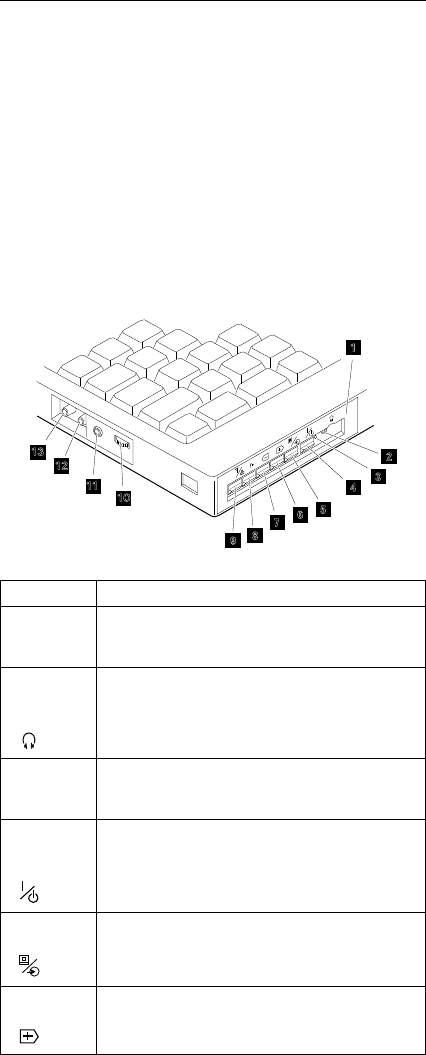
TV Tuner
The TV Tuner Pack (hereafter called TV Tuner) is an
option for watching TV programs or videos on the IBM TFT
color notebook computer. The computer changes to TV
reception when the removable diskette drive is replaced
with the TV Tuner.
The TV screen and normal computer display are easily
switched by using the Hot key on the front panel of the TV
Tuner.
Identifying Names and Functions
The following figure and table show the names and
functions of each part of the TV Tuner.
1
12
2
3
4
5
6
7
8
9
13
11 10
Icons Functions
1 Front
Panel
Used to change the TV channels, switch TV
mode to computer mode, and operate most
functions of the TV Tuner.
2
Headphone
Jack
Connects the headphones.
3
Power
Indicator
Shows the TV Tuner is powered on.
4
Power
Switch
Powered on and off the TV Tuner.
5 Hot
Key
Switches between the TV screen and
computer screen.
6 Up
Switch
Increases the value such as the channel
number.
Common Devices Checkout 197
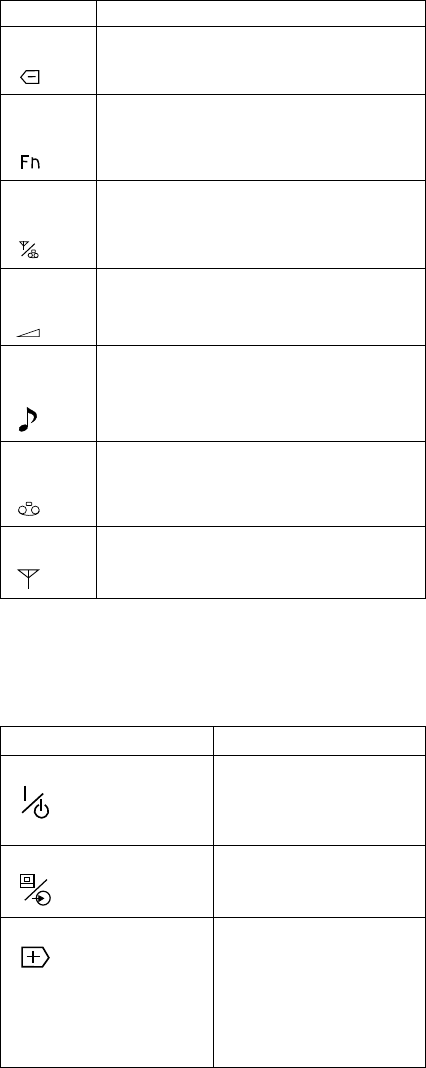
Icons Functions
7 Down
Switch
Decreases the value such as the channel
number.
8
Function
Key
Enters the mode to change the value of each
function, such as TV channel or color contrast.
(See “Using the Function Key” on page 199.)
9
TV/EXT
Switch
Switches the TV mode or external video mode.
1
Volume
Knob
Controls the speaker volume.
11
Audio-In
Jack
Connects the audio-in connector of the AV
cable.
12
Video-In
Jack
Connects video-in connector of the AV cable.
13 RF
Connector
Connects the active antenna unit or antenna
cable.
Using the Front Panel
The following table shows how to operate all functions of
the TV Tuner with the controls on the front panel.
Key Function
Power Turns on the TV Tuner.
This key is used only
when the computer is
turned on.
Hot Key Switches computer
display and TV screen.
Up Increases the value of
parameters, Channel
Number, Color, Tint,
Brightness, Contrast,
Auto Tuning Sensitivity,
On-screen Message
Selection.
198 IBM Mobile Systems HMM
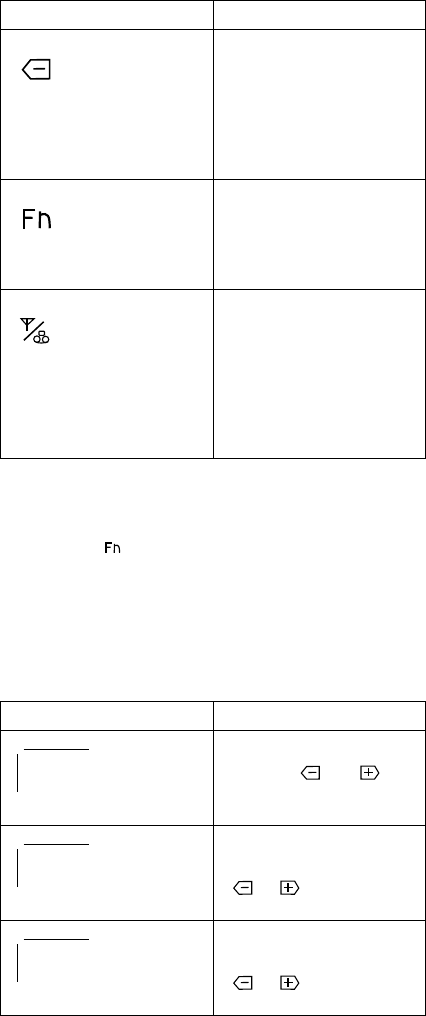
Using the Function Key: Each time you press the
Function key ( ), one of the following messages (called
On-Screen Message
) appears at the top left corner of the
LCD.
The changed values are automatically saved when you
return to the “TV Channel” On-Screen message. The
values are not saved when you power-off the TV Tuner
without returning to this message.
Key Function
Down Decreases the value of
parameters, Channel
Number, Color, Tint,
Brightness, Contrast,
Auto Tuning Sensitivity,
On-screen Message
Selection.
Function Selects a function mode
to adjust each function
parameter. (See “Using
the Function Key” on
page 199.)
TV/Ext Switches the displayed
video source between
the receiving TV
broadcast program and
external devices such as
VCR, video camera
recorder, laser disk, and
so on.
Message on LCD Parameter
(xx)
TV Channel
By using and ,
you can select the
channels from 2 to 69.
COL
Color Adjustment
By pressing and holding
or , you can
change the color.
TNT
TINT Adjustment
By pressing and holding
or , you can
change the tint.
Common Devices Checkout 199
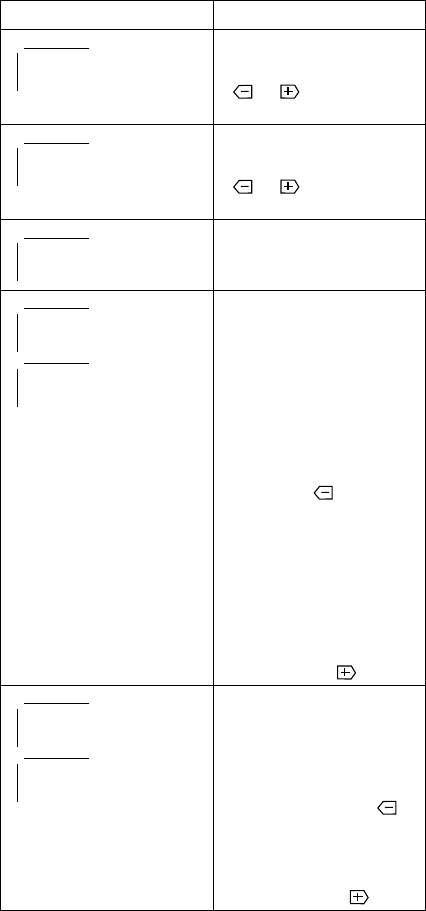
Message on LCD Parameter
BRT
Bright Adjustment
By pressing and holding
or , you can
change the brightness.
CNT
Contrast Adjustment
By pressing and holding
or , you can
change the contrast.
---
(No function)
Reserved.
LO
HI
Auto Tune Sensitivity
Selection
LO: Means the
sensitivity of the TV
is low. In this
mode, the TV
Tuner receives
strong TV signals
only. To set LO,
press .
HI: Means the
sensitivity of the TV
is high (factory
default). In this
mode, the TV
Tuner receives
weak and strong
TV signals. To set
HI, press .
D3S
DON
Time On-Screen
Message appears
D3S: On-Screen
Message appears
for 3 seconds. To
set D3S, press .
DON: On-Screen
Message always
appears. To set
DON press
200 IBM Mobile Systems HMM
Power-on the TV Tuner: Use the ThinkPad
Features program or PS2.EXE. to power-on the TV Tuner;
then power-on the internal device in the diskette drive
compartment. If power for the internal device is turned off
when the TV Tuner is set up, nothing appears on the LCD
display. Turn on power for the TV Tuner again.
If you are using DOS, do one of the following:
– Power-on the computer and type PS2 from the
command prompt to start the ThinkPad Features
program.
Select Set Power Features from the ThinkPad
Features menu; then put a check mark at
Internal Serial Port (or Diskette Drive
Compartment) under the Power for devices.If
you need help, press F1 to display the help
menu.
– Type PS2 MODEM ON (or PS2 DDC ON) from the
command prompt; press the Enter key to set the
power ON.
If you are using OS/2* or Microsoft Windows**, do the
following:
1. Power-on the computer and start the ThinkPad
Features program.
2. Select the Power icon; then move the pointer to
Internal Serial Port (or Diskette Drive
Compartment) under the Power for devices
and click the button to check mark it.
3. Press the OK button.
Common Devices Checkout 201

Troubleshooting
The following table shows what to do to solve problems
when the TV Tuner does not work correctly.
Problem Probable Cause
The TV Tuner
does not
operate.
(No picture or
sound)
Computer is not powered on.
Computer is in suspend mode.
Volume control of the TV Tuner or
computer is not adjusted correctly.
The power for the TV Tuner is not
supplied. (See “Power-on the TV
Tuner” on page 201.)
The wall outlet from the outdoor
antenna is not active.
The video or antenna cable is not
connected correctly.
Antenna elements of the active
antenna unit are not adjusted.
The batteries in the active antenna
unit are not inserted correctly.
The batteries in the active antenna
unit are depleted.
The TV Tuner is not set up
correctly.
You cannot watch TV or videos on
the external display.
LO is set for the auto tune
sensitivity selection. (See page
199.)
No color. The program is not in color.
Snow and noise
only. Switch the TV/EXT ( ) button.
Pictures are out
of shape, or
have double
images.
For TV:
The channel is not tuned correctly.
Adjust the antenna.
For VCR:
Change the tracking adjustment.
Dotted lines or
stripes.
Usually caused by interference
from neon signs, hair dryers, and
so on. Move the computer to
avoid the interference.
Picture control
are not saved.
Do not power-off the TV Tuner
when adjusting functions such as
picture control, color, tint,
brightness, or contrast.
Channel number
is always
displayed or is
not displayed.
Select your favorite mode for the
on-screen message. (See page 199.)
202 IBM Mobile Systems HMM
Miscellaneous Information
Acronyms, Abbreviations and Terms
Term Information
ACPA/A Audio Capture and Playback Adapter
ADP Automatic Data Processing
Alt Alternate
ANSI American National Standards Institute
ARTIC A Real Time Interface Coprocessor
ASCII American National Standard Code for Interface
Interchange
AT Advanced Technology (as in AT Bus)
AVC Audio Video Connection
BIOS Basic Input/Output System (Controls System
Resources)
bps Bits Per Second
BPS Bytes Per Second
CCITT The International Telephone and Telegraph
Consultative Committee
CCS Common Command Set
CCSB Common Complete Status Block
CCSB Configuration Control Sub Board
CD Compact Disc
CDPD Cellular Digital Packet Data
CD-ROM CD Read Only Memory (stores data/audio)
CE Customer Engineer or Service Representative
CRC Cyclic Redundancy Check
CRT Cathode Ray Tube
CSD Corrective Service Diskette
CGA Color Graphics Adapter (See EGA, VGA, XGA)
CRC Cyclic Redundancy Check
CRT Cathode Ray Tube
CSA Canadian Standards Association
CSD Corrective Service Diskette
DASD Direct Access Storage Device (hard disk, diskette)
DMA Direct Memory Access
DRAM Dynamic Random Access Memory
DSTN Double Super Twisted Nematic
ECA Engineering Change Announcement
ECC Error Correction Code
EGA Enhanced Graphics Adapter
ESD Electrostatic Discharge
ESDI Enhanced Small Device Interface
EEPROM Electrically Erasable Programmable Read Only
Memory
EWS Energy Work Station
FDD Floppy Disk Drive
FRU Field Replaceable Unit (replaceable part)
GPIB General Purpose Interface Bus (IEEE 348)
GSA General Services Administration
HDD Hard Disk Drive
Ht Height
IDE Integrated Drive Electronics
IC Integrated Circuit
IEEE Institute of Electrical and Electronics Engineers
IEC International Electrotechnical Commission
IML Initial Machine Load
Copyright IBM Corp. 1997 203

Term Information
IPL Initial Program Load
IR Infrared
ISO International Organization for Standardization
ISDN Integrated-Services Digital Network
LAN Local Area Network
LBA Local Block Address
LTB Local Transfer Bus
LUN Logical Unit Number (as in SCSI)
MAP Maintenance Analysis Procedure
MCGA Modified Color Graphics Adapter
(320 x 200 x 256)
MCA Micro Channel Architecture (bus structure)
MHz Mega hertz (millions of cycles per second)
MIDI Musical Instrument Digital Interface
MM Multimedia
N/A Not Available or Not Applicable
NMI Non-Maskable Interrupt
NSC National Support Center
NVRAM Non Volatile Random Access Memory
OEM Original Equipment Manufacturer
PCMCIA Personal Computer Memory Card
International Association
POS Programmable Option Select
PUN Physical Unit Number (as in SCSI)
RAID Redundant Array of Inexpensive Disks
(disk array models)
RAM Random Access Memory (read/write)
RGB Red Green Blue (is in monitors)
RIPL Remote Initial Program Load
ROM Read Only Memory
SASD Sequential Access Storage Device (Tape)
SCB Subsystem Control Block
SCSI Small Computer Systems Interface
SCSI ID SCSI Identification Number
(assigned device number)
SPD Software Product Description
SR Service Representative
SRAM Static Random Access Memory
SVGA Super Video Graphics Array
STN Super Twisted Nematic
T/A NDD Technical Advisor
(See your Marketing Representative)
TDD Telecommunications Device for the Deaf
TFT Thin-Film Transistor
TPF ThinkPad File
UL Underwriters Laboratory
VCA Video Capture Adapter
VESA Video Electronics Standards Association
VGA Video Graphics Array (640x480x16)
VPD Vital Product Data
VRAM Video Random Access Memory
WORM Write Once, Read Many Media
XGA Extended Graphics Array (1024 x 768 x 256)
Y/C Luminance/Chrominance Signal
(Pertains to Video)
204 IBM Mobile Systems HMM

Send Us Your Comments!
We want to know your opinion about this manual (part
number 84H8101). Your input will help us to improve our
publications.
Please photocopy this survey, complete it, and then fax it
to IBM HMM Survey at 919-543-8167 (USA).
Name
Phone Number
1. Do you like this manual?
Yes No
2. What would you like to see added, changed, or
deleted in this manual?
3. What is your service experience level?
Less than five years
More than five years
4. Which ThinkPad systems do you service most?
Thanks in advance for your response!
Miscellaneous Information 205

Do You Need Technical References?
We have a wide range of hardware technical references
that provide in-depth information about IBM personal
computer products. Our Technical Reference Library
includes information about:
Micro Channel, Setup, and Subsystem Control Block
architectures
Common interfaces (including microprocessors,
system timers, parallel and serial port controllers,
keyboards and keystrokes, SCSI, DMA, video, and
more)
Specific Personal System/2 systems (including
system board connectors, jumpers, memory
subsystems, I/O subsystems, programming interfaces
and registers, and error codes)
Basic input/output system (BIOS)
Options and adapters
Important
A catalog of our current offerings is available on the
World Wide Web at:
http://www.pc.ibm.com/desktop/pcdcat.html
Technical information manuals for the latest Commercial
Desktop computers are available on the World Wide Web.
These publications can be viewed online in BookManager
format, or they can be downloaded as PostScript files.
Go to http://www.pc.ibm.com/cdt
and then select the “Technical information” topic.
206 IBM Mobile Systems HMM

Problem Determination Tips
Due to the variety of hardware and software combinations
that can be encountered, use the following information to
assist you in problem determination. If possible, have this
information available when requesting assistance from
Service Support and Engineering functions.
Machine type and model
Processor or hard disk upgrades
Failure symptom
– Do diagnostics fail?
– What, when, where, single, or multiple systems?
– Is the failure repeatable?
– Has this configuration ever worked?
– If it has been working, what changes were made
prior to it failing?
– Is this the original reported failure?
Diagnostics Diskette Version
– Type and revision level
Hardware configuration
– Print out (print screen) configuration from
Reference Diskette currently in use
– BIOS level
Operating system software
– Type and revision level
Important
To eliminate confusion, identical systems are
considered
identical
only if they:
1. Are the exact machine type and models
2. Have the same BIOS level
3. Have the same adapters/attachments in the
same locations
4. Have the same address
jumpers/terminators/cabling
5. Have the same software versions and levels
6. Have the same Diagnostics Diskette (version)
7. Have the same configuration options set in the
system
8. Have the same setup for the operation system
control files
Comparing the configuration and software set-up
between “working and non-working” systems will often
lead to problem resolution.
Miscellaneous Information 207

Authorized Dealers or Servicers
U.S. Customers and Helpware Subscribers
Number Information
919-517-0001 Bulletin Board Service - PC Company
800-528-7705 Bulletin Board Service - TSS Only
800-937-3737 IBM Business Partner Education
800-426-2472 IBM Customer Engineer Technical
Support
800-IBM-DEAL IBM Dealer Support Center
800-342-6672 IBM Direct Desktop Software Sales
303-924-4015 IBM Part Number ID and Look Up
800-426-7763 IBM PC HelpCenter
800-237-5511 IBM Software Defect Support (CSDs)
800-327-5711 IBM Software Ordering (Publications)
800-426-1484 IBM Supplies Technical Hotline
800-388-7080 IBM Warranty Parts Claims Center
Number Information
919-517-0001 Bulletin Board Service - PC Company
800-426-8322 Customer Education Business Unit
800-999-0052 Customized Operational Services
800-237-4824 EduQuest (Educational Computers)
800-964-8523 End User HelpDesk Support
800-742-2493 IBM Anti-Virus Services
800-447-4700 IBM Authorized Dealer Referrals
800-426-2468 IBM Dealer Referral
800-426-3333 IBM Information Referral Service
800-IBM-SERV IBM Service
800-772-2227 IBM PC HelpCenter and HelpDesk
800-426-7282 IBM Technical Manuals
800-426-9402
(Ext. 150)
Multimedia Information Center
800-241-1620 Multimedia HelpCenter
800-342-6672 OS/2 Information Line
800-237-5511 OS/2 Support Services
800-284-5933 Prodigy
914-962-0310 Prodigy User Questions
800-547-1283 Technical Coordinator Program
SystemXtra for Personal Systems
LAN Automated Distribution/2
OS/2 Bulletin Board
OS/2 Application Assistance Center
800-551-2832 Technical Solutions Magazine
208 IBM Mobile Systems HMM

IBM Canada Customer and Servicer Support
Number Information
800-661-PSMT Business Partner Marketing Support
905-316-5556 Business Partner Marketing Support -
Toronto
514-938-6048 Business Partner Marketing Support -
French
800-465-4YOU Customer Relations
800-IBM-SERV Customer Service Dispatch
800-263-2769 Customer Service Parts
800-465-2222 Customer Support Center (ISC)
416-443-5701 Customer Service Repair Centre
800-505-1855 Dealer Support Group (DSG)
800-465-7999 HelpClub Registration / IBM Direct
800-465-3299 HelpFax
905-316-3299 HelpFax - Toronto
800-565-3344 HelpPC
905-513-3355 IBM Certification Administrator
Mail to: 50 Acadia Drive
Markham, Ontario L3R 0B3
800-661-2131 IBM Education (A+ Course)
800-268-3100 IBM Information Network Support
800-387-8343 IBM PC Service Partners
800-487-7426 International Warranty Registration
800-663-7662 Lexmark Product Information
800-IBM-9990 PartnerLine
800-263-2769 Parts Orders, Exchange or Emergency
416-443-5808
(Fax)
Parts Regular Orders, Exchange
416-443-5755 Parts Orders, Inquiries
514-938-3022 PC Co Bulletin Board - Montreal
905-316-4255 PC Co Bulletin Board - Markham
604-664-6464 PC Co Bulletin Board - Vancouver
204-934-2735 PC Co Bulletin Board - Winnepeg
800-661-7768 PS Marketing Support (PSMT)
800-565-3344 PS/1 Warranty Customer Helpline
800-387-8483 PS/1 Warranty Service (DOAs)
800-465-1234 Publications Ordering
905-316-4148 Service Management Support
905-316-4100
(Fax)
Service Management Support
905-316-4150 Service (Warranty) Manager
905-316-4100
(Fax)
Service (Warranty) Manager
905-316-4872 Service Quality Programs
905-316-4100
(Fax)
Service Quality Programs
800-661-2131 Skill Dynamics (Education)
800-565-3344 ThinkPad EasyServe
416-443-5835
(Fax)
Warranty Claim Fulfillment
905-316-2445 Warranty Claim Reimbursement
905-316-3515
(Fax)
Warranty Claim Reimbursement
416-443-5778 Warranty Claim Parts Inquiry
800-505-1855 Warranty Provider Support Hotline
800-267-7472 Warranty Service, ThinkPad
Miscellaneous Information 209

Notices
References in this publication to IBM products, programs,
or services do not imply that IBM intends to make these
available in all countries in which IBM operates. Any
reference to an IBM product, program, or service is not
intended to state or imply that only that IBM product,
program, or service may be used. Subject to IBM’s valid
intellectual property or other legally protectable rights, any
functionally equivalent product, program, or service may be
used instead of the IBM product, program, or service. The
evaluation and verification of operation in conjunction with
other products, except those expressly designated by IBM,
are the responsibility of the user.
IBM may have patents or pending patent applications
covering subject matter in this document. The furnishing
of this document does not give you any license to these
patents. You can send license inquiries, in writing, to:
IBM Director of Licensing
IBM Corporation
500 Columbus Avenue
Thornwood, NY 10594
U.S.A.
210 IBM Mobile Systems HMM
Trademarks
The following terms are trademarks or service marks of the
IBM Corporation in the United States and other countries:
AIX AT FaxConcentrator
HelpCenter HelpClub HelpLearn
HelpWare IBM Micro Channel
OS/2 Personal System/2 Portmaster
PS/1 PS/2 PS/Note
Skill Dynamics SystemXtra ThinkPad
Trackpoint TrackPoint II XGA
The following terms are trademarks or service marks of
other companies as follows:
ActionMedia Intel Corporation
DCA Digital Communications Associates, Inc.
Intel Intel Corporation
Intel486 Intel Corporation
Lexmark Lexmark International, Inc.
Mylar E. I. du Pont de Nemours and Company
Microsoft Microsoft Corporation
PCMCIA Personal Computer Memory
Card International Association
PenDOS Communications Intelligence Corporation
PenPoint GO Corporation
Pentium Intel Corporation
PostScript Adobe Systems Incorporated
Prism Marcom Corporation
Prodigy Prodigy Services Company
QAPlus/PRO DiagSoft, Inc.
RIPL CTA Incorporated
VESA Video Electronics Standards Association
Windows is a trademark of Microsoft Corporation.
Miscellaneous Information 211
IBM
Part Number: 84H8101
Printed in U.S.A.
S84H-81 1-
