Konami Game Master Manual (GB) Gamemaster1 Text
User Manual:
Open the PDF directly: View PDF  .
.
Page Count: 16
KONAM/
User's Manual
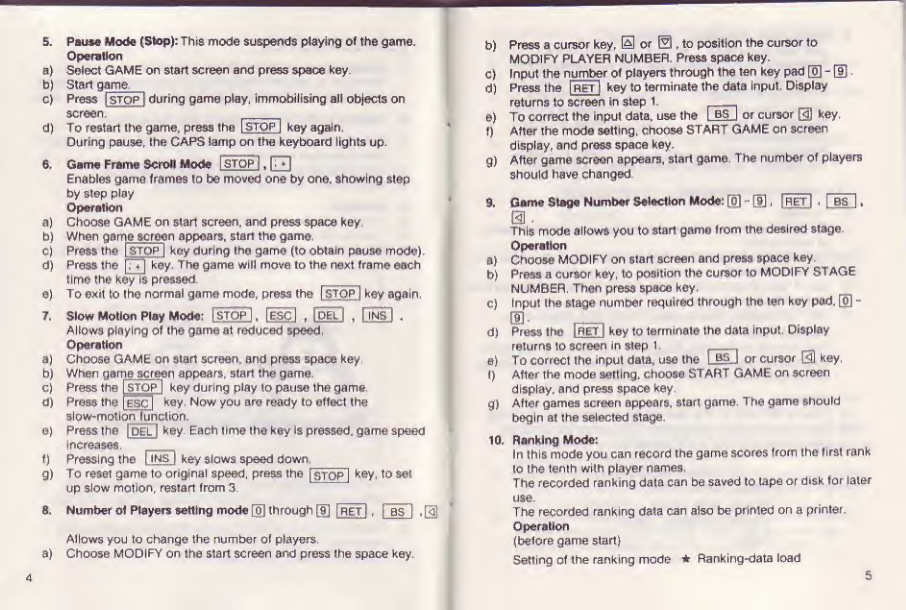
GAMESMASTER
1. Equipment required: In addition to an M5X computer with a
minimum of 16K memory and two or mors slots, certain items
are needed to implement af/the functions or Itie Gamesmaster.
2. Requirements: Data Recorder or Disk Drive, Printer.
2Set up procedure: Connect all external options as described In
their respective manuals.
a) Insert Gamesmaster cartridge in slot tof computer.
bf lnsert games cartrl dge of cholce Inslot 2
.
4, Operation
a) Turn on all external opllons.
b) Turn on MSX computer
cj Did ascreen appear with amessage similar to the following:
ll NO the cartridges may not be in the proper slots. Turn
computer power oft. exchange cartridge positions, and turn
computer on.
d) Press cursor key, [&] or 0so that Penguin selects correct
menu item.
e} Press space key to start chosen item.
3
5, Pause Mode (Stop): This mode suspends paying of the game.
Operation
a) Select GAME on start screen and press space key.
b) Start oatne.
c) Press Istqp |during game play, immobilising all objects on
screen. __
d) To restart the gamerpress the ISTOP Jkey again
During pause, Ihe GAPS lamp on the keyboard lights up.
6, Game Frame Scroll Mode ISTOP 3,
0
Enables game frames lo be moved one by one, showing step
by step play
Operation
a) Choose GAME on start screen, and press space key.
b) When ga me screenappears, start the game
cj Press the (stop! key during the game (to oblaln pause mode)
d) Press the [77] key. The game will move to the next frame each
11me the key is pressed
|
e) To exit to Ihe normal game mode, press the [STOP] key again,
7, Slow Motion Play Mode: I'STOPl ,[Hfi] ,IDEL I,QnsI .
Allows playing of the game at reduced speed
Operation
a) Choose GAME on start screen, and press space key.
b) When ga me screenappears, start the game.
cj Press the [stop] key during play to pause the game.
d| Press the [esc] key. Now you are ready to effect the
slow-mot Ion function,
e) Press the |del Ikey. Each lime Ihe key is pressed, game speed
increases,
f) Pressing the IINS [key slows speed down.
g) To reset game to original speed, press the [stop Ikey, to set
up slow motion, restart from 3
8, Number of Players setting mode [0] through Ef] [RET IP['as I.
Allows you to change the hum be rof players,
a) Choose MODIFY on the start screen and press the space key.
4
b) Press acursor key, 0or (z! fto position the cursor to
MODIFY PLAYER NUMBER Press Space key.
c) Input the n umberof players through the ten key pad [0] -®
dj Press the |r~e7| key to terminate the data input. Display
returns to screen in step t.
e) To correct the input data, use the [BSj or cursor El] key.
f) After the mode setting, choose START GAME on screen
display, and press space key,
g) After game screen appears, start game. The number of players
should have changed.
9. Game Stage Number Selection Mode: [o] -@J ,fREt] ,[W]
,
a
.
This mode allows you to start game from the desired stage.
Operation
a) Choose MODIFY on start screen and press space key
b) Press acursor key, to position the cursor lo MODIFY STAGE
NUMBER. Then press space key.
c) input the stage number required through the ten key pad, [o| -
\§\.
d) Press the IRET Ikey to terminate the data Input Display
returns to screen in step 1.
e) To correct the input data, use the 1. .BS jor cursor ®key.
f) After the mode setting, choose START GAME on screen
display, and press space key.
g) After games screen appears, start game The game should
begin at the selected stage
10, Bunking Mode:
In this mode you can record the game scores from the first rank
to the tenth with player names
The recorded ranking data can be saved to tape or disk for later
use.
The recorded ranking data can also be printed on aprinter.
Operation
(before game start}
Setting of the ranking mode *Ranking-data load
5
*Ranking-data initialization Refer to 1,1.1.
(just after game start)
Registration of the player names. Refer to 1,1 2.
(during game play)
Ran king-date display Refer toll .3.
Ran king-data pri nt-out Refer to 1.1 ,4
.
Ran king-data save Refer to 1.1.5.
Ranking-data load
Player name change Refer to 1.1.6.
The following paragraphs explain these in succession:
1.1.1 Setting the Ranking Mode -g}» E1SPACE |
A, Function
The following three methods are available for the initialization
of ranking data:
a) updating of ranking daia -CLEAR RANKING DATA mode (the
old dale is erased).
b) use of tape -saved ranking daia -LOAD TAPE DATA mode (I he
saved data remains retained).
c) use of disk-saved ranking data -LOAD DISK DATA mode.
PRECAUTION:
After Itiming on the MSX, be sure to execute one of the above
Initialization methods prior to ranking, If not executed, ranking
data display and print-out are not effected.
BOperation
(1) Choose MODIFY on ihe start screen and press the space key
(2) Select ranking mode with cursor. Then press the space key
Your screen changes lo the following:
RANKING MODE
LOAD DISK DATA
LOAD TAPE DATA
CLEAR RANKING DATA
END
6
(3) Choose one of the initialization methods described above,
aCLEAR RANKING DATA mode
*Position the cursor to CLEAR RANKING DATA on the screen
and press the space key
The ranking data is cleared 10.000 points will be set in the firsi
rank for the player "KONAMI".
b. LOAD DISK DATA mode
*Position the cursor to LOAD DISK DATA on the screen and
press the space key. The following screen will appear.
disk-load SEARCH FILE
RANKING
This screen indicates that Ihe ranking data files on the disk are
being retrieved. If the files are found, then the screen changes
to the following:
DISK-LOAD SELECT FILE NAME
RANKING ^ABCRQI
DEF.ROI
GHI.ROI
RC-TWI
The found file names are displayed. The maximum number of
file names per frame is three Files up to 20 can be displayed by
successively pressing the @cursor key.
*Posit ion the c ursor to the file na me of inte rest using th ecorso r
key,!*] or [v[ and press the space key. Data loading from the
disk will be initiated.
If there is no desired file, then position ihe cursor lo END on
the tile name screen with the 0cursor key and press the
space key. The display returns to the screen in step 2.
7
*
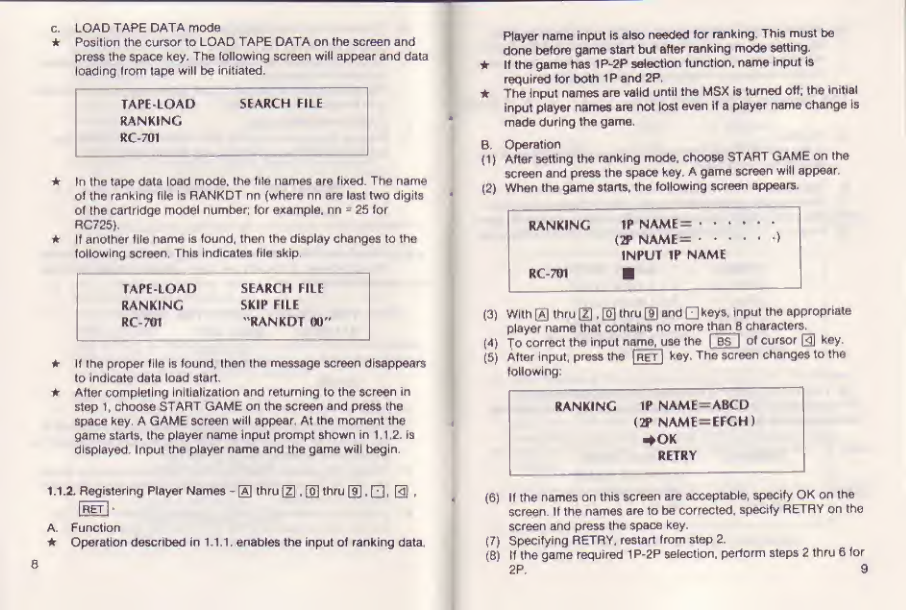
pLOAD TAPE DATA mode
Position the cursor to LOAD TAPE DATA on the screen and
press the space key. The following screen will appear and data
loading from (ape will be initiated.
tape-load SEARCH FILE
RANKING
RC-701
*In (ho tape data load mode, the file names are fixed. The name
of the ranking file is RANKDT nn (where nn are last Iwo digits
of the carl ridge model number; for example, nn =25 for
RC725}
*It another life name is found, then the display changes to the
following screen This Indicates file skip.
TAPE-LOAD SEARCH FILE
RANKING SKIP FILE
RC-70T 'RANKDT 00"
*If ihe proper file is found, Ihen ihe message screen disappears
to indicate data load atari.
After completing initialization and returning to the screen in
step 1, choose START GAME on the screen and press the
space key. AGAME screen will appear At the moment the
game starls, Ihe player name Input prompt shown in 1,1 2. is
displayed. Inpul the player name and Ihe game will begin.
1.1,ZRegistering Player Names -[a] thru Jz} .®thru [!],, Q] -
[RET |-
A. Function
Operaiion described in 1.1.1. enables the input of ranking data
Player name input is also needed for ranking. This must be
done before game start but after ranking mode setting.
*If the game has 1P-2P selection function, name input is
required for both 1P and 2P.
The input names are valid until the MSX is turned off; the initial
input player names are not lost even if aplayer name change is
made during the game.
B, Operation
(1) After setting the ranking mode, choose START GAME on the
screen and press the space key. A game screen will appear
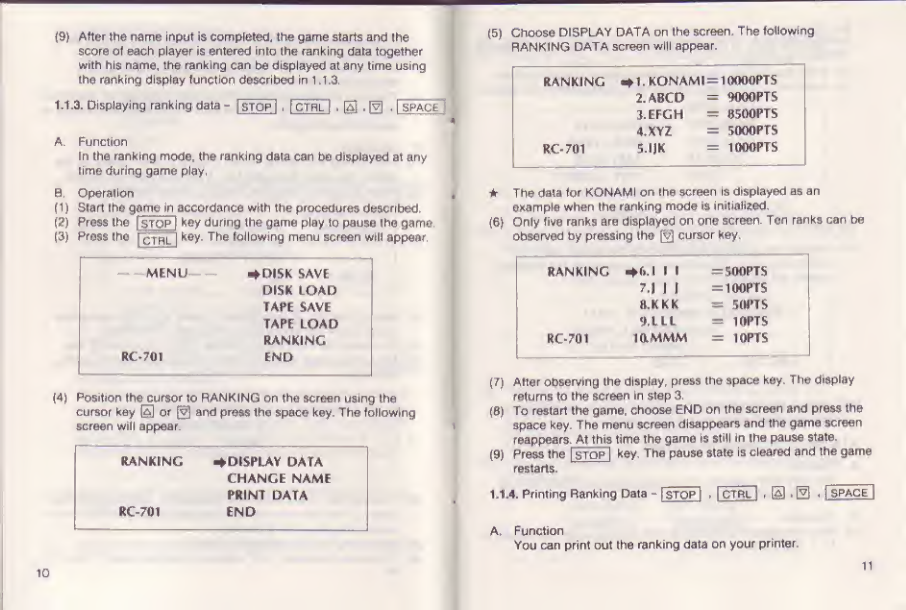
(2) When the game starts, the following screen appears
RANKING TP NAME= *** *
(2P NAME= * *
INPUT IP NAME
RC-701
(3) With [a] thru [Z] fOthru [H and Qkeys, input the appropriate
player name that contains no more than Bcharacters,
(4) To correct the input name, use the IBS |of cursor |<fl key.
(5) After input, press the fRETl key. The screen changes to the
following:
RANKING IP NAME =ABCD
(2P NAME =EFGH1
efrOK
RETRY
(6) If the names on this screen are acceptable, specify OK on the
screen. It the names are to be corrected, specify RETRY on the
screen and press the space key ,
(7) Specifying RETRY, restart from step 2.
(8) if the game required 1P-2P selection, perform steps 2 thru 6for
2P. 9
(9} After the name input is completed, the game starts and the
score of each player is entered into the ranking data together
with his name, the ranking can be displayed at any time using
the ranking display function described in 1.T.3.
1*1-3- Displaying ranking data -|STOP I,fCTRL f@.|v| ,fjpACE
'
A. Function
In the ranking mode, the ranking data can be displayed at any
lime during game play.
BOperation
(1 )Start Ihe game maccordance with the procedures descrrbed
f£) Press the [stop Ikey during the game play to pause Ihe game.
(3)
Press the CT ^L|
key The following menu screen will appear
MENU— i+DISK SAVE
DISK LOAD
TAPE SAVE
TAPE LOAD
RANKING
RC*701 end
(4)
Position the cursor to RANKING on the screen using the
cursor key 0or ®and press the space key. The following
screen will appear.
RANKING -display data
CHANGE NAME
PRINT DATA
RC-701 END
10
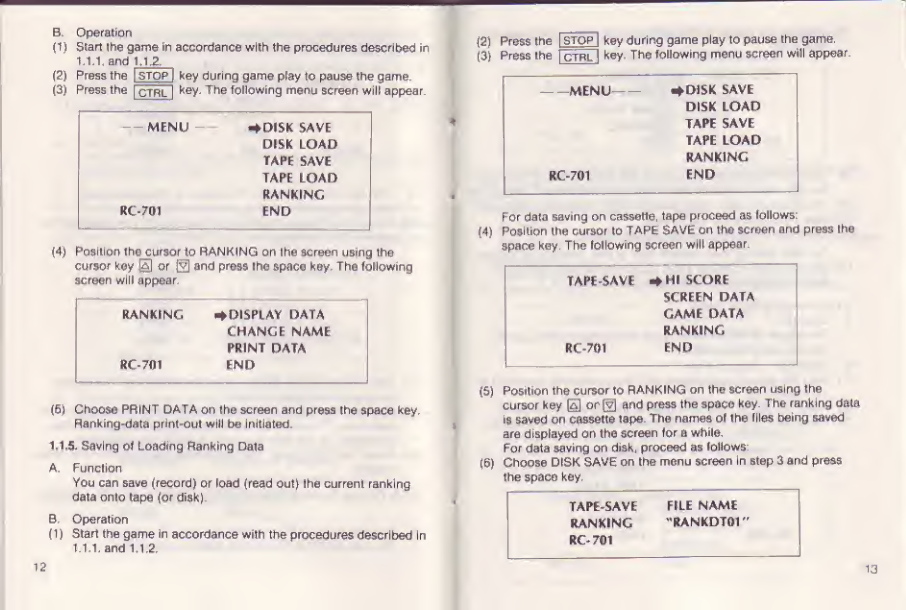
(5) Choose DISPLAY DATA on the screen. The following
RANKING DATA screen will appear.
RANKING *1. KONAMI =1OOOOPTS
2. ABCO =9000FTS
3.EFGH -05OOPTS
OYZ =SOOOPTS
RC- 701 5.1JK =1ADOPTS
*The data for KONAMI on ihe screen is displayed as an
example when the ranking mode is initialized
{6}Only five ranks are displayed or one screen. Ter ranks can be
observed by pressing the (s?) cursor key.
ranking -M>.l rf-SODPTS
7.1 I1=100PTS
8.KKK =SOPTS
9pL LL =10PTS
RC-701 mMMM =10PTS
[7) After observing the display, press the space key. The display
returns to the screen in slep 3.
(0) To restart the game, choose END on the screen and press the
space key. The menu screen disappears and the game screen
reappears At this time the game ts still in the pause state.
(9) Press the
|stop Ikey. The pause state is cleared and the game
restarts.
1.1.4. Printing Ranking Data -isTQPj ,IcTRlI ,0-Bh1SPACE |
A. Function
You can print out the ranking data on your printer
11
BOperation
(1) Start the game in accordance with the procedures described in
1.1.1. and 1,12,
(2)Press the Istop Ikey during game play to pause the game.
(3) Press the
|Ctrl Ikey The following menu screen wilt appear
MENU DISK SAVE
DISK LOAD
TAPE SAVE
TAPE LOAD
RANKING
RC-701 END
(4) Position the cursor (o RANKING on Ihe screen using the
cursor key HO or fzl and press Ihe apace key. The following
screen will appear
RANKING DISPLAY DATA
CHANGE NAME
PRINT DATA
RC-701 END
(6) Choose PRINT DATA on the screen and press the space key,
Ranking-data print-out will be Initiated,
1.1.5. Saving of Loading Ranking Data
A, Function
You can save (record) or load (read out) Ihe current ranking
data onto tape (or disk).
B, Operation
(1) Start the game in accordance with the procedures described In
1.1.1. and 1.12
12
stop! key during game play to pause the game.
ctbl 1
key- The following menu screen will appear.
(2) Press the
(3) Press the
-MENU *DI5K SAVE
DISK LOAD
TAPE SAVE
TAPE LOAD
RANKING
RC-701 END
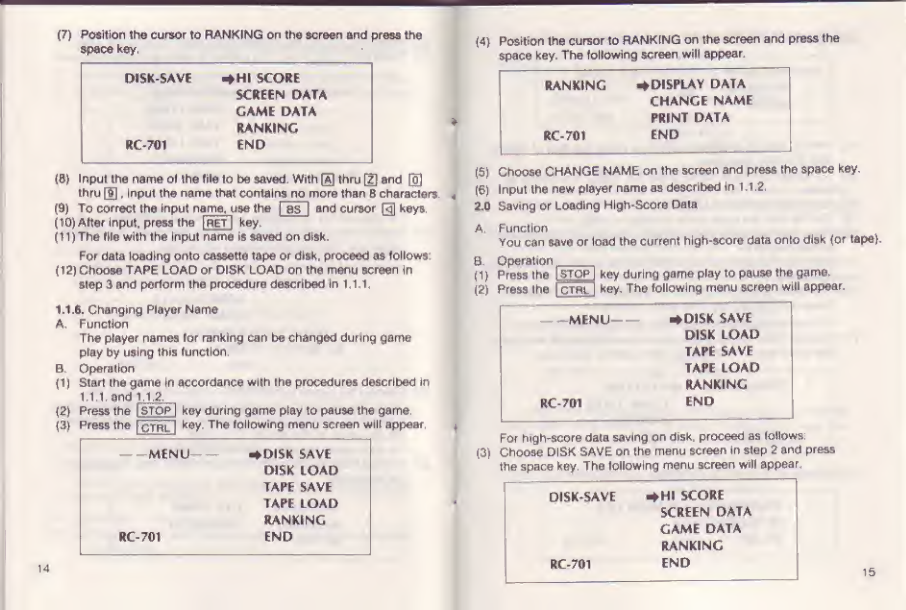
For data saving on cassette, tape proceed as lollows:
(4) Position the cursor to TAPE SAVE on the screen and press Ihe
space key. The following screen will appear
TAPE-SAVE p+ HI SCORE
SCREEN DATA
GAME DATA
RANKING
RC-701 END
(5) Position the cursor to RANKING on the screen using Ihe
cursor key (£] or(v| and press the space key The ranking data
is saved on cassette tape. The names of the flies being saved
are displayed on Ihe screen for awhile.
For data saving on disk, proceed as follows:
£6) Choose DISK SAVE on the menu screen in step 3 and press
the space key.
TAPE-SAVE FILE NAME
RANKING "RANKDT01
"
RC- 701
13
(7) Fortiori the cursor to RANKING on the screen and press the
space key,
DISK-SAVE -HI SCORE
SCREEN DATA
CAME DATA
RANKING
RC-701 END
(8) Input the name ol the file to be saved. With ®thru \z} and [0]
thru 0,Inpul the name that contai ns no more than 8 characters
(9) To correct the input name, use the fes~| and cursor g] keys,
(10) Alter Input, press the [RET Ikey,
(11) The file with the Input name is saved on disk
For data loading onto cassette tape or disk, proceed as follows:
(12) Choose TAPE LOAD or DISK LOAD on the menu screen In
step 3and perform the procedure described Jn1.1.1.
1.1.6. Changing Player Name
A, Function
The player names for ranking can be changed during game
play by using this function,
B. Operation
(1 )Start the game in accordance with the procedures described in
i.l.l. and 1.1.2.
(2) Press the ISTOP 1key during game piay to pause the game.
(3) Press the [CTRL] k®y The following menu screen will appear
MENU +DtSK SAVE
DISK LOAD
TAPE SAVE
TAPE LOAD
RANKING
RC-701 END
14
(4) Position the cursor to RANKENG on the screen and press the
space key. The following screen will appear.
RANKING -DISPLAY DATA
CHANGE NAME
PRINT DATA
RC-701 END
(5) Choose CHANGE NAME on the screen and press the space key,
(6) Input the new player name as described in 1.1.2.
2.0 Saving or Loading High-Score Data
A. Fund Ion
You can save or load the current hlgh-score data onto disk (or tape).
8Operation
(1) Press the Istop 1key during game play to pause the game
(2) Press Ihe |ctrl key. The following menu screen will appear.
MENU- *DISK SAVE
DISK LOAD
TAPE SAVE
TAPE LOAD
RANKING
RC-701 END
For high-score data saving on disk, proceed as follows:
(3)
Choose DISK SAVE on the menu screen In step 2and press
the space key. The lollowlng menu screen will appear.
DISK-SAVE HkHI SCORE
SCREEN DATA
GAME DATA
RANKING
RC-701 END 15

(4) Choose HI SCORE on the screen and press the space key,
DISK-SAVE INPUT FILE NAME
HI SCORE
RC-701
(5) With 0thru [Zj and [o] thru gj keys, name the data of in le rest
wit h 8 or less cha meters,
(6) To correct the input name, press the fBS Iand cursor [^j
keys.
(7) After input, press the JRET Ikey.
(8) The file with the input name is saved on disk.
(9) When the data saving Is terminated, the display returns to the
screen in step 2.
To return the game, choose END on the screen and press the
space key.
(10) The menu screen disappears and agame screen reappears
Press the jstop jkey. The game restarts.
To load the high score data from disk, proceed as follows:
(1 1) Choose DISK LOAD on the menu screen In step 2 and press
the space key. The following menu screen will appear
DISK-LOAD *HI SCORE
GAME DATA
RANKING
RC-701 END
(12) Choose HI SCORE on the screen and press the space key
DISK-LOAD search file
HI SCORE
RC-701
16
This screen indicates that the high-score data for the present
game is being searched from the disk.
(13} When the file is found, the following screen will appear.
DISK-LOAD SELECT FILE NAME
HI SCORE ^ADCD.HOI
EFGH.HOI
RC-701 (1 KL.HOI
(14) The maximum number of fife names per frame is three. File
names up to 20 can be displayed by successively pressing the
©cursor key
(15) Position the cursor to the file name of interest and press the
space key. Data loading from the disk will be Initiated.
(16) ff there Is no desired file, then position Ihe cursor lo END on
the file name screen and press the space key. Data loading Is
aborted and the display returns to the screen In step 2.
DISK-LOAD SELECT FILE NAME
HI SCORE r11* HOI
|jJ.HQ1
RC-701 •4 END
To save the high-score data onto tape, proceed as follows:
(17) Choose TAPE SAVE on the screen in step 2 and press the
space key. The following menu screen will appear.
TAPE SAVE 4Hf SCORE
SCREEN DATA
GAME DATA
RANKING
RC-701 END
17
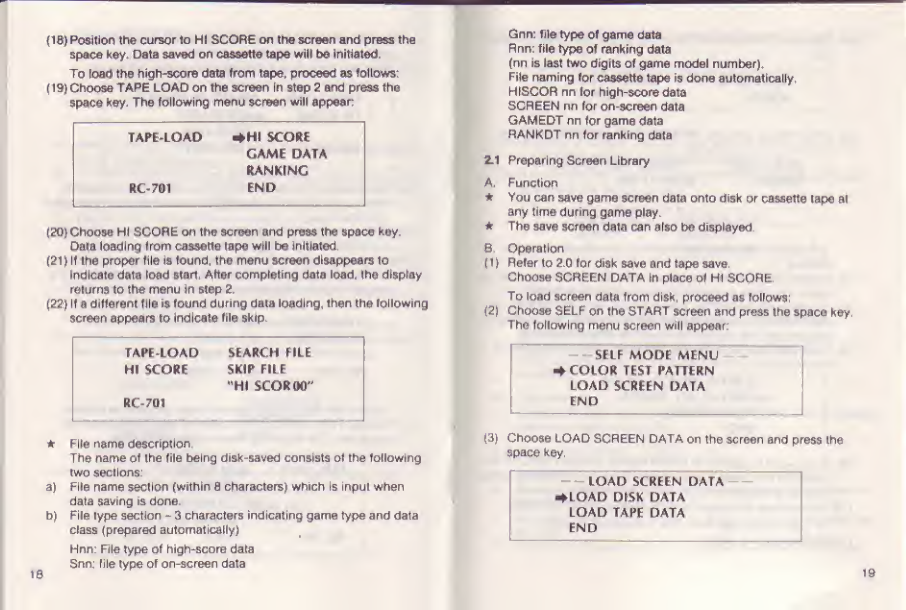
f18) Position The cursor to HI SCORE on the screen and press the
space key Data saved on cassette tape will be initiated.
To Toad the high-score data from tape, proceed as follows;
n9} Choose TAPE LOAD on the screen in step 2 and press the
space key. The following menu screen will appear:
TAPE-LOAD #H1 SCORE
GAME DATA
RANKING
RO701 END
(2Q) Choose Hi SCORE on the screen and press the space key,
Dale loading from cassette lape will be Initiated,
{21 )If the proper file is found, the menu screen disappears to
indicate data load start, Alter completing data load, the display
returns to the menu in step 2.
(22) If adifferent file is found dufing data loading, then the following
screen appears to indlcam file skip,
TAPE-LOAD SEARCH FILE
HI SCORE SKIP FILE
"HI SCOR00"
RC-701
*File name description
The name of the file being disk-saved consists of the following
two seel ions:
a) File name section [within 8characters) which is input when
data saving is done.
b) File lype section -3 characters indicating game type and data
class (prepared automatically)
Hnn: File type of high-score data
Snn: file type of on-screen data
IS
Gnn: file type of game data
Rnn: file type of ranking data
(nn is last two digits of game model number)
File naming for cassette tape is done automatically
HISCOR nn for high-score data
SCREEN nn for on-screen data
GAMEDT nn tor game data
RANKDT nn for ranking data
21 Preparing Screen Library
A. Function
*You can save game screen data onto disk or cassette tape al
any time during game play.
*The save screen data ca naIso be displayed
8Operation
{i ) Refer to 2.0 for disk save and tape save.
Choose SCREEN DATA in place of HI SCORE.
To load screen daia from disk, proceed as follows:
(2) Choose SELF on the START screen and press ihe space key.
The following menu screen will appear
SELF MODE MENU
*COLOR TEST PATTERN
LOAD SCREEN DATA
END
13) Choose LOAD SCREEN DATA on the screen and press the
space key,
LOAD SCREEN DATA
(LOAD DISK DATA
LOAD TAPI DATA
END
19
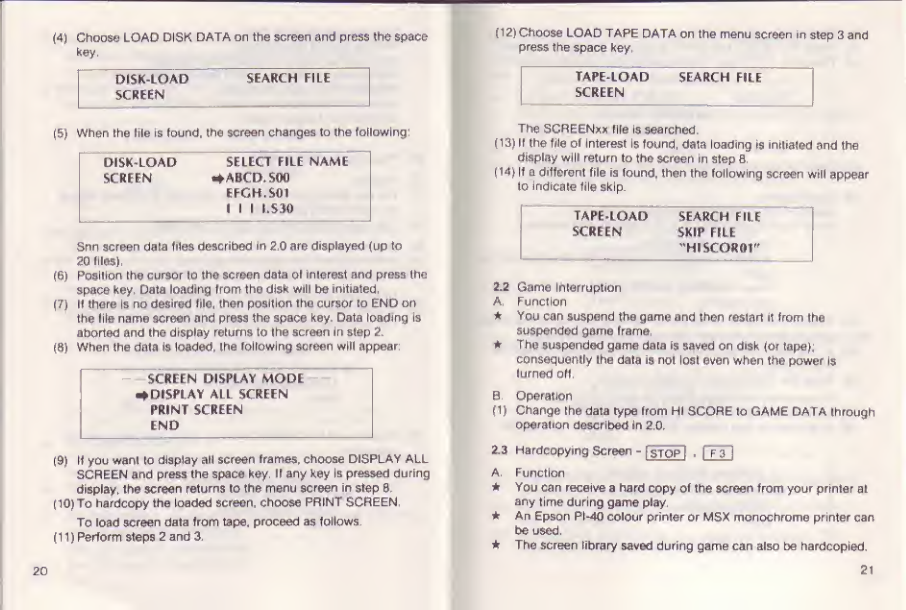
{4) Choose LOAD DISK DATA on the screen and press the space
hey.
DISK-LOAD SEARCH FILE
SCREEN
(5)
When the file is found, the screen changes to the following:
DISK-LOAD SELECT FILE NAME
SCREEN #abcd. son
EFGH.S0!
111LS30
Snn screen data files described In 2.0 are displayed (up to
20 files).
(6) Position the cursor lo the screen data of interest and press the
space key. Data loading from the disk will be initiated
(7) If there Is no desired file, then position the cursor to END on
the file name screen and press the space key. Data loading is
aborted and the display returns to Ihe screen in step 2.
(8) When the daia is loaded, the following screen will appear:
SCREEN DISPLAY MODE
^DISPLAY ALL SCREEN
PRINT SCREEN
END
(9) If you warn to display all screen frames, choose DISPLAY ALL
SCREEN and press the space key. II any key is pressed during
display, the screen returns to the menu screen in siep B
(10) To hardcopy the Loaded screen, choose PRINT SCREEN.
To load screen data from tape, proceed as follows
(11) Perform steps 2and 3.
20
(12) Choose LOAD TAPE DATA on the menu screen in step 3 and
press the space key
TAPE-LOAD SEARCH FILE
SCREEN
The SCREEN** file is searched.
(13)
If the file of Interest is found, data loading is initialed and the
display will return to the screen in step fl.
£14) If adifferent file is found, then the following screen will appear
to indicate file skip.
tape-load SEARCH FILE
SCREEN SKIP FILE
"HISCOROT"
2.2 Game Interruption
A. Function
*You can suspend tha game and then restart it from the
suspended game frame.
*The suspended game data is saved on disk (or tape),
consequently Iha dale is not losl even when the power is
lurned off,
0Operation
fl) Change the data type from HI SCORE lo GAME DATA through
operation described in 2,0,
2.3 Hardcopying Screen -[STOP f.IF3]
A. Function
*You can receive ahard copy of the screen from your printer at
any time during game play
*An Epson PI-4Q colour printer Or M5X monochrome printer can
be used.
*The screen library saved during game can also be hardcopied,
21
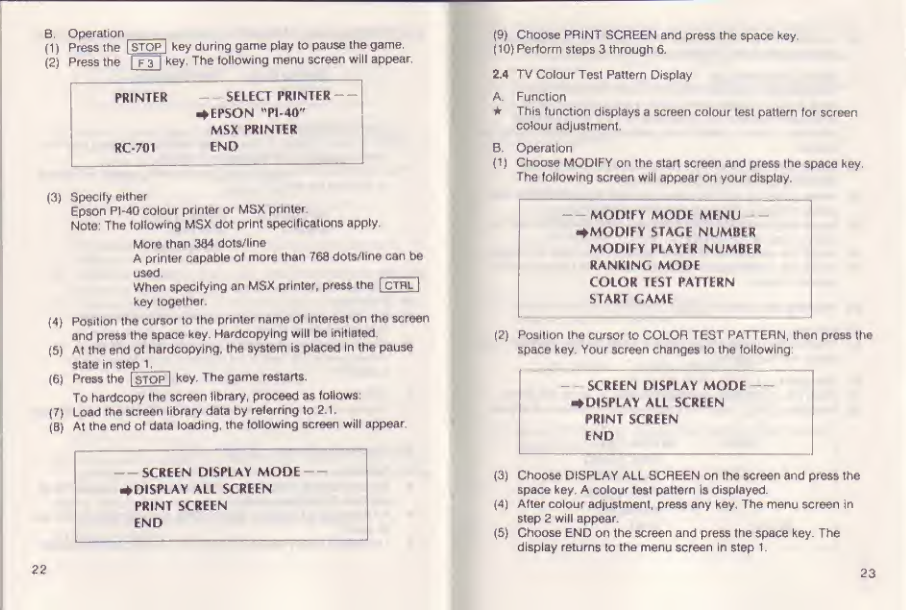
8.Operati o n
(1)Press the Istop] key during game play to pause the game.
(£) Press the frsl Hey. The following menu screen will appear.
PRINTER SELECT PRINTER
^EPSON "PI-40"
MSX PRINTER
RC-701 END
(3)
Specify either
Epson PI ‘40 colour printer or MSX printer.
Note: The following M$X dot print specifications appfy.
More than 384 dots/lire
Aprimer capable of more than 768 dots/line can be
_r
,
When specifying an MSX printer, press the ICTRL I
key together.
[A] Position the cursor to Ihe printer name of Interest on the screen
and press Ihe space key. Hardcopy Ing will be initiated
(5) At the end of hardcopyIng. the system is placed In the pause
slate in step 1
,
(6) Press the [stofI Hey. The game restarts.
To hardcopy Ihe screen library, proceed as follows:
{7} Load the screen library data by referring to 3.1
.
(B) At the end of data loading, the following screen will appear
SCREEN DISPLAY MODE
*DISPLAY ALL SCREEN
PRINT SCREEN
END
22
(9) Choose PRINT SCREEN and press the space key.
(10} Perform steps 3through 6.
2.4 TV Colour Test Pattern Display
A. Function
*This function displays ascreen colour test pattern for screen
colour adjustment.
BOperation
(1 )Choose MODIFY on the start screen and press (he space key
The following screen will appear on your display.
MODIFY MODE MENU
^MODIFY 5TACE NUMBER
MODIFY PLAYER NUMBER
RANKING MODE
COLOR TEST PATTERN
START GAME
(2} Position the cursor to COLOR TEST PATTERN, then press the
space key. Your screen changes lo the following:
-SCREEN DISPLAY MODE -
DISPLAY ALL SCREEN
PRINT SCREEN
END
(3) Choose DISPLAY ALL SCREEN on the screen and press the
space key, Acolour lesl pattern Is displayed.
(4) After colour adjustment, press any key. The menu screen in
step 2 wifi appear
(5) Choose END on the screen and press the space key. The
display returns to the menu screen In step T.
23
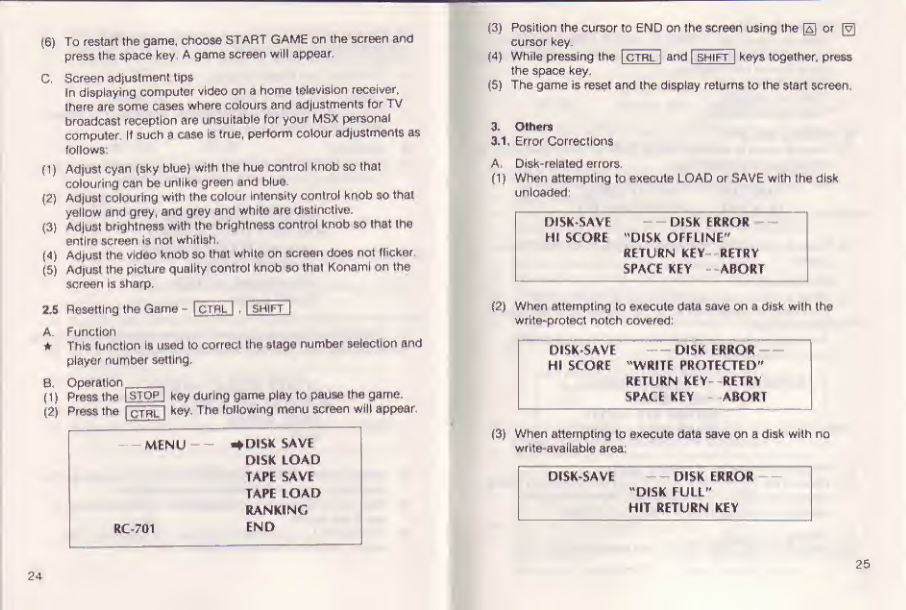
(6) To restart the game, choose START GAME on the screen and
press the space key, Agame screen will appear.
CScreen adjustment tips
In displaying computer video on ahome television receiver,
there are some cases where colours and adjustments for TV
broadcast reception are unsuitable for your MSX personal
computer If such acase is true, perform colour adjustments as
follows:
fl) Adjust cyan fsky blue} with the hue control knob so that
colouring can be unlike green and blue.
(2)Adjust colouring with the colour intensity control knob so that
yellow and grey, and grey and white are distinctive.
(3) Adjust brightness with the brightness control knob so that the
entire screen is not whitish
(4) Adjust the video knob so that white on screen does not flicker.
(5) Adjust the picture quality control knob so that Konaml on the
screen is sharp.
2,5 Resetting the Game -|CTRL I,ISHIFT [
A. Function
*This function is used to correct the stage number selection and
player number setting.
8Operation^
fi ) press the l~STOP Ikey during game play to pause the game.
(2)
Press the ("ctrL IWThe following menu screen will appear
MENU *DISK SAVE
DISK LOAD
TAPE SAVE
TAPI LOAD
RANKING
RO701 END
24
(3) Position the cursor to END on the screen using the @or @
cursor key.
(4) White pressing the ICTRL Iand [shift Ikeys together, press
the space key.
(5) The game is reset and the display returns to the start screen.
3. Others
3.1, Error Corrections
A.Disk-rel aled errors.
(1 )When attempting to execute LOAD or SAVE with the disk
unloaded:
DISK-SAVE DISK ERROR
HI SCORE "DISK OFFLINE"
RETURN KEY RETRY
SPACE KEY ABORT
f2j When attempting lo execute data gave on adisk with the
write-protect notch covered:
DISK SAVE DISK ERROR
HI SCORE "WRITE PROTECTED"
RETURN KEY RETRY
SPACE KEY ABORT
(3) When attempting to execute data save on adisk with no
write-available area:
DISK-SAVE -DISK ERROR
"DISK FULL"
HIT RETURN KEY
25
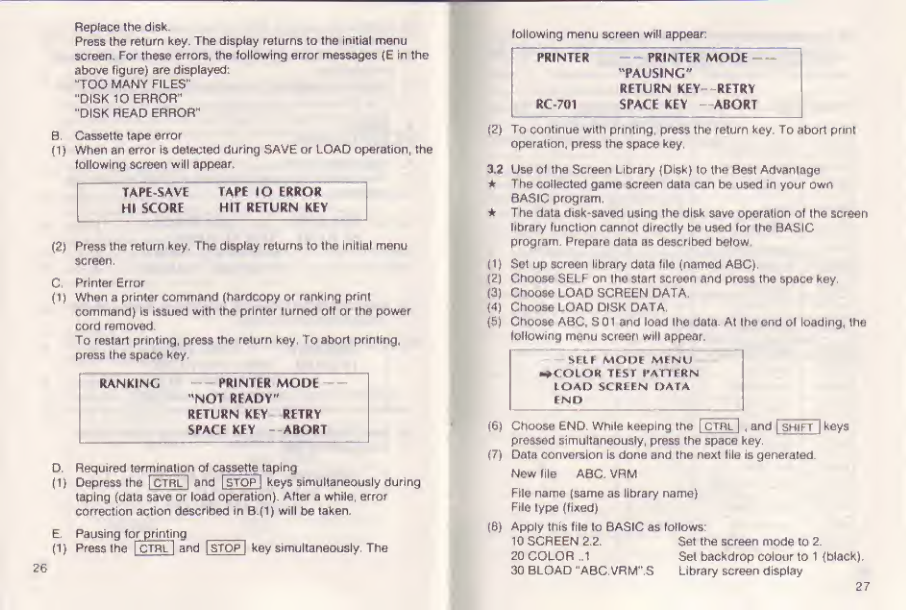
RepFace the disk.
Press the return key. The display returns to the initial menu
screen. For these errors, the following error messages (E in the
above figure) are displayed:
'TOO MANY FILES
"DISK 10 ERROR'
“DISK READ ERRORH
0. Cassette tape error
(1)
When an error Is detected during SAVE or LOAD operation, the
following screen will appear.
TAPE-SAVE TAPE IO ERROR
HI SCORE HIT RETURN KEV
(2)
Press the return key The display returns to the initial menu
screen.
C, Printer Error
(1) When aprinter command (hardcopy or ranking print
command) is issued with the printer turned olf or the power
cord removed.
To restart printing, press the return key To abort printing,
press the space key,
RANKING PRINTER MODE
"NOT READY"
RETURN KEY RETRY
SPACE KEY ABORT
D, Required terminatio n of cassette taping
(!) Depress the [Ctrl] and ISTOP! keys simultaneously during
taping (data save or load operation). After awhile, error
correction action described in B.(1) will be taken.
E. Pausing fo rprinting
(1) Press lhe ICTRL Iand jSTOP Ikey simultaneously. The
26
following menu screen will appear:
PRINTER PRINTER MODE
"PAUSING"
RETURN KEY RETRY
RC-701 SPACE KEY ABORT
(2) To continue with printing, press the return key To abort prim
operation, press the space key,
3.2 Use of the Screen Library (Disk) to the Seat Advantage
*The collected game screen daia can be used in your own
BASIC program
*The data disk-saved using the dIsk save ope rail on of Ihe screen
library function cannot directly be used for the BASIC
program Prepare data as described below
(1) Set up screen library data file (named ABC).
(2) Choose SELF on the start screen and press the space key.
(3) Choose LOAD SCREEN DATA.
(4) Choose LOAD DISK DATA.
(6) Choose ABC, S01 and load the data. At the end of loading, the
following menu screen will appear.
SELF MODI MENU
COLOR TEST PATTERN
LOAD SCREEN DATA
END
(6) Choose END While keeping the [CTRL I . and |shift Ikeys
pressed simultaneously, press the space key.
(7) Data conversion Is done and the next lile is generaled.
New Ills ABC, VRM
File name (same as library name)
File lype (fixed)
(0) Apply this file to BASIC as follows:
10 SCREEN 2,2. Set the screen mode to 2.
20 COLOR .1 Set backdrop colour to 1(black).
30 BLOAD "ABC. VRMLS Library screen display
27
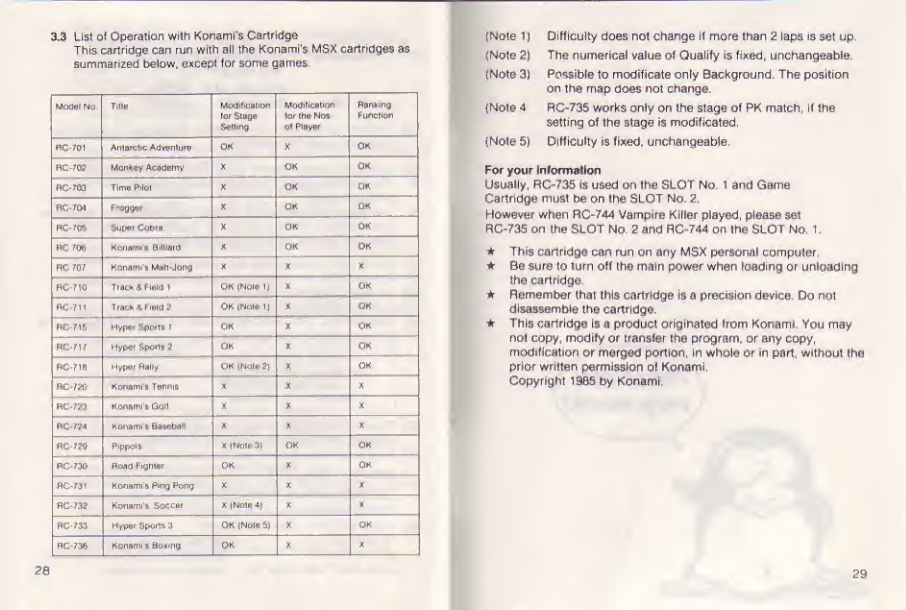
3,3 List Of Operation with Konami'S Cartridge
This cartridge can run with all the Ken ami's M5X cartridges as
summarized below, except for some games.
Mode) No Trite Modification
ter Slags
Selling
Modification
for the NOI
cl Player
Asruking
Function
RG-701 Aniarcli* Adwnluni OK XOK
floras Mdn*oy Atedamy XOK OK
flc-rao Tima Pilot XOK OK
flC»7W Froggar XOK OK
ftcros iSupor Cobra XOK OK
pierce Konami'a Billiard XOK OK
RC 707 Karmm't Mnih-Jonc X X X
PC TIC TricKSfmio 7OK (NOlO 1) XOK
RC711 Tfiich Xhold 2OK (Nolo 1] XOK
RC-71B Hypnf Sport! 1OK XOK
RC-717 Hypter Spwtt ?OK XOK
flC-715 Hypn-r Rally OK (Note 2) XOK
HC-730 KohAtei'! Tenme XXX
RC-7?3 Kaflsppii’a Qflll X X X
non* HDnnmi'ft BbwImiM XXX
flc-jse PuppolS X4Mute 3) OK OK
nC’7» Hftflrt Fighter OK XOK
BC-73T Konarni‘a Pmg Pong XX X
HC-J32 Konami'a, Soccer X| Note XX
HC’733 Hitper SfMJfla 3OK (Nolo 5) XOK
RC-736 Konaml'a Box-ng OK XX
28
(Note 1) Difficult/ does not change if more than 2 laps is set up,
(Note 2) The numerical value of Qualify is fixed, unchangeable,
(Note 3) Possible to modificate only Background The position
on the map does not change,
(Note 4RC-735 works only on the stage of PK match, if the
setting of Ihe stage is modificated.
(Note 5) Difficulty is fixed, unchangeable,
For your information
Usually, RC-735 is used on ihe SLOT No, 1and Game
Cartridge must be on the SLOT No. 2.
However when RG-744 Vampire Killer played, please set
RC-735 on the SLOT No. 2and RG-744 on ihe SLOT No. 1
*This cartridge can run on any MSX personal computer.
*Be sure to turn off the main power when loading or unloading
the cartridge
*Remember that this cartridge is aprecision device. Do not
disassemble the cartridge
*Th Is ca rtrl dge 15aprod uct orig ihated Irom Kon ami. You may
nol copy, modify or transfer the program, or any copy,
modification or merged portion, In whole or in part, without the
prior written permission o! Konami,
Copyright 19B5 by Konamf,
29