Ug162 Simplicity Commander Reference Guide
ug162-simplicity-commander-reference-guide
ug162-simplicity-commander-reference-guide
User Manual:
Open the PDF directly: View PDF  .
.
Page Count: 58
- Table of Contents
- 1. Introduction
- 2. File Format Overview
- 3. General Information
- 4. EFR32 Custom Tokens
- 5. Simplicity Commander Commands
- 5.1 Device Flashing Commands
- 5.2 Flash Verification Command
- 5.3 Memory Read Commands
- 5.4 Token Commands
- 5.5 Convert and Modify File Commands
- 5.5.1 Combine Two Files
- 5.5.2 Define Specific Bytes
- 5.5.3 Define Tokens
- 5.5.4 Dump File Contents
- 5.5.5 Signing an Application for Secure Boot
- 5.5.6 Signing an Application for Secure Boot Using a Hardware Security Module
- 5.5.7 Signing an Application for Secure Boot Signing using a Signature Created by a Hardware Security Module
- 5.5.8 Adding a CRC32 for Gecko Bootloader
- 5.6 EBL Commands
- 5.7 GBL Commands
- 5.7.1 GBL File Creation
- 5.7.2 GBL File Creation with Compression
- 5.7.3 Creating a GBL File for Bootloader Upgrade
- 5.7.4 Creating a GBL File for Secure Element Upgrade
- 5.7.5 Creating a Signed and Encrypted GBL Upgrade Image File from an Application
- 5.7.6 Creating a Partial Signed and Encrypted GBL Upgrade File for Use with a Hardware Security Module
- 5.7.7 Creating a Signed GBL File Using a Hardware Security Module
- 5.7.8 GBL File Parsing
- 5.7.9 GBL Key Generation
- 5.7.10 Generating a Signing Key
- 5.7.11 Generate a Signing Key Using a Hardware Security Module
- 5.8 Kit Utility Commands
- 5.9 Device Erase Commands
- 5.10 Device Lock and Protection Commands
- 5.11 Device Utility Commands
- 5.12 External SPI Flash Commands
- 5.13 Advanced Energy Monitor Measure Command
- 5.14 Serial Wire Output Read Commands
- 5.15 NVM3 Commands
- 5.16 CTUNE Commands
- 6. Software Revision History

UG162: Simplicity Commander Reference
Guide
This document describes how and when to use the Command-
Line Interface (CLI) of Simplicity Commander. Simplicity
Commander supports all EFR32 Wireless SoCs, EFR32 Wireless
SoC modules (such as the MGM111 or MGM12P), EFM32 MCU
families, and EM3xx Wireless SOCs. EFM8 MCU families are not
supported at this time.
This document is intended for software engineers, hardware engineers, and release
engineers. Silicon Labs recommends that you review this document to familiarize your-
self with the CLI commands and their intended uses. You can refer to specific sections
of this document to access operational information as needed. This document also in-
cludes examples so you can gain an understanding of Simplicity Commander in action.
This document is up-to-date with Simplicity Commander version 1.7. See section
6. Software Revision History for a list of new features and commands for previous ver-
sions of the application.
KEY POINTS
• Introduces Simplicity Commander.
• Adds new features and commands.
• Describes the file formats supported by
Simplicity Commander.
• Includes detailed syntax of all Simplicity
Commander commands and example
command line inputs and outputs.
silabs.com | Building a more connected world. Rev. 1.6

Table of Contents
1. Introduction ................................6
2. File Format Overview ............................7
2.1 Motorola S-record (s37) File Format .......................7
2.2 Update Image File Formats..........................7
2.3 Intel HEX-32 File Format ..........................8
3. General Information .............................9
3.1 Installing Simplicity Commander ........................9
3.2 Command Line Syntax ...........................9
3.3 General Options .............................10
3.3.1 Help (--help).............................10
3.3.2 Version (--version)..........................11
3.3.3 Device (--device <device name>).....................12
3.3.4 J-Link Connection Options ........................12
3.3.5 Debug Interface Configuration .......................13
3.3.6 Graphical User Interface .........................13
3.4 Output and Exit Status ...........................14
4. EFR32 Custom Tokens........................... 15
4.1 Introduction ...............................15
4.2 Custom Token Groups ...........................15
4.3 Creating Custom Token Groups ........................15
4.4 Defining Tokens .............................16
4.5 Memory Regions .............................16
4.6 Token File Format Description .........................16
4.7 Using Custom Token Files ..........................17
4.8 Using Custom Token Files in Any Location ....................17
5. Simplicity Commander Commands ......................18
5.1 Device Flashing Commands .........................18
5.1.1 Flash Image File ............................19
5.1.2 Flash Using IP Address without Verification and Reset ...............19
5.1.3 Flash Several Files ...........................20
5.1.4 Patch Flash .............................21
5.1.5 Patch Using Input File ..........................22
5.1.6 Flash Tokens .............................23
5.2 Flash Verification Command .........................24
5.3 Memory Read Commands ..........................24
5.3.1 Print Flash Contents...........................25
5.3.2 Dump Flash Contents to File ........................25
5.4 Token Commands .............................26
silabs.com | Building a more connected world. Rev. 1.6 | 2

5.4.1 Print Tokens .............................26
5.4.2 Dump Tokens to File ..........................26
5.4.3 Dump Tokens from Image File .......................27
5.4.4 Generate C Header Files from Token Groups ..................27
5.5 Convert and Modify File Commands .......................27
5.5.1 Combine Two Files ...........................28
5.5.2 Define Specific Bytes ..........................28
5.5.3 Define Tokens.............................29
5.5.4 Dump File Contents ...........................29
5.5.5 Signing an Application for Secure Boot ....................30
5.5.6 Signing an Application for Secure Boot Using a Hardware Security Module ........30
5.5.7 Signing an Application for Secure Boot Signing using a Signature Created by a Hardware
Security Module ............................31
5.5.8 Adding a CRC32 for Gecko Bootloader ....................31
5.6 EBL Commands .............................32
5.6.1 Print EBL Information ..........................32
5.6.2 EBL Key Generation ..........................32
5.6.3 EBL File Creation ...........................33
5.6.4 EBL File Parsing ............................33
5.6.5 Memory Usage Information from AAT .....................34
5.7 GBL Commands .............................34
5.7.1 GBL File Creation ...........................34
5.7.2 GBL File Creation with Compression .....................35
5.7.3 Creating a GBL File for Bootloader Upgrade ..................35
5.7.4 Creating a GBL File for Secure Element Upgrade .................36
5.7.5 Creating a Signed and Encrypted GBL Upgrade Image File from an Application ......36
5.7.6 Creating a Partial Signed and Encrypted GBL Upgrade File for Use with a Hardware Security
Module ...............................37
5.7.7 Creating a Signed GBL File Using a Hardware Security Module ............37
5.7.8 GBL File Parsing ............................38
5.7.9 GBL Key Generation ..........................38
5.7.10 Generating a Signing Key ........................38
5.7.11 Generate a Signing Key Using a Hardware Security Module .............39
5.8 Kit Utility Commands ............................39
5.8.1 Firmware Upgrade ...........................39
5.8.2 Kit Information Probe ..........................40
5.8.3 Adapter Reset Command .........................40
5.8.4 Adapter Debug Mode Command ......................41
5.8.5 List Adapter IP Configuration Command ....................41
5.8.6 Adapter DHCP Command .........................41
5.8.7 Set Static IP Configuration Command ....................42
5.9 Device Erase Commands ..........................42
5.9.1 Erase Chip ..............................42
5.9.2 Erase Region .............................42
5.9.3 Erase Pages in Address Range ......................43
5.10 Device Lock and Protection Commands .....................43
5.10.1 Debug Lock .............................43
silabs.com | Building a more connected world. Rev. 1.6 | 3

5.10.2 Debug Unlock ............................43
5.10.3 Write Protect Flash Ranges ........................44
5.10.4 Write Protect Flash Region ........................44
5.10.5 Disable Write Protection .........................44
5.11 Device Utility Commands ..........................44
5.11.1 Device Information Command ......................45
5.11.2 Device Reset Command .........................45
5.11.3 Device Recovery Command .......................45
5.11.4 Device Z-Wave QR Code Command ....................46
5.12 External SPI Flash Commands ........................46
5.12.1 Erase External SPI Flash Command ....................46
5.12.2 Read External SPI Flash Command ....................47
5.12.3 Write External SPI Flash Command ....................47
5.13 Advanced Energy Monitor Measure Command ...................48
5.14 Serial Wire Output Read Commands ......................48
5.14.1 Configure SWO Speed .........................48
5.14.2 Read SWO Until Timeout ........................48
5.14.3 Read SWO Until a Marker Is Found .....................49
5.14.4 Dump Hex Encoded SWO Output......................49
5.15 NVM3 Commands ............................49
5.15.1 Read NVM3 Data From a Device ......................50
5.15.2 Parse NVM3 Data ...........................50
5.15.3 Initialize NVM3 Area in a File .......................51
5.15.4 Write NVM3 Data Using a Text File .....................52
5.15.5 Write NVM3 Data Using CLI Options.....................53
5.16 CTUNE Commands ............................53
5.16.1 CTUNE Get Command .........................53
5.16.2 CTUNE Set Command .........................54
5.16.3 CTUNE Autoset Command ........................54
6. Software Revision History .........................55
6.1 Version 1.7 ...............................55
6.2 Version 1.5 ...............................55
6.3 Version 1.4 ...............................55
6.4 Version 1.3 ...............................55
6.5 Version 1.2 ...............................55
6.6 Version 1.1 ...............................55
6.7 Version 1.0 ...............................55
6.8 Version 0.25 ...............................55
6.9 Version 0.24 ...............................56
6.10 Version 0.22 ..............................56
6.11 Version 0.21 ..............................56
6.12 Version 0.16 ..............................56
silabs.com | Building a more connected world. Rev. 1.6 | 4

6.13 Version 0.15 ..............................57
6.14 Version 0.14 ..............................57
6.15 Version 0.13 ..............................57
6.16 Version 0.12 ..............................57
6.17 Version 0.11 ..............................57
silabs.com | Building a more connected world. Rev. 1.6 | 5

1. Introduction
Simplicity Commander is a single, all-purpose tool to be used in a production environment. It is invoked using a simple Command Line
Interface (CLI) that is also scriptable. Simplicity Commander enables customers to complete these essential tasks:
• Flash their own applications.
• Configure their own applications.
• Create binaries for production.
Simplicity Commander is designed to support the Silicon Labs Wireless STK and STK platforms.
The primary intended audience for this document is software engineers, hardware engineers, and release engineers who are familiar
with programming the EFR32 and EM3xx. This reference guide describes how to use the Simplicity Commander CLI. It provides gener-
al information on file formats supported by Simplicity Commander and the Silicon Labs bootloaders, and includes details on using the
Simplicity Commander commands, options, and arguments. It also includes example command line inputs and outputs so you can gain
a better understanding of how to use Simplicity Commander effectively.
UG162: Simplicity Commander Reference Guide
Introduction
silabs.com | Building a more connected world. Rev. 1.6 | 6

2. File Format Overview
Simplicity Commander works with different file formats: .bin, .s37, .ebl, .gbl, and .hex. Each file format serves a slightly different pur-
pose. The file formats supported by Simplicity Commander are summarized below.
2.1 Motorola S-record (s37) File Format
Silicon Labs uses the Simplicity Studio as its Integrated Development Environment (IDE) and leverages the IAR Embedded Workbench
for ARM platforms. This tool combination produces Motorola S-record files, s37 specifically, as its output. (For more information on Mo-
torola S-record file format, see http://en.wikipedia.org/wiki/S_record.) In Silicon Labs development, an s37 file contains programming
data about the built firmware and generally only represents a single piece of firmware—application firmware or bootloader firmware—
but not both. An application image in s37 format can be loaded into a supported target device using the Simplicity Commander flash
command. The s37 format can represent any combination of any byte of flash in the device. The Simplicity Commander convert com-
mand can also be used to read multiple s37 files and hex files; output an s37 file for combining multiple files into a single file; and
modify individual bytes of a file.
2.2 Update Image File Formats
An update image file provides an efficient and fault-tolerant image format for use with Silicon Labs bootloaders to update an application
without the need for special programming devices. Two image formats are supported: Gecko Bootloader (GBL) format for use with the
Silicon Labs Gecko Bootloader introduced for use with EFR32 devices and Ember Bootloader (EBL) format for use with legacy Ember
bootloaders. See UG103.6: Application Development Fundamentals: Bootloading for more details about these image file formats and
bootloader use with different platforms.
Update image files are generated by the Simplicity Commander gbl create or ebl create command. These formats can only repre-
sent firmware images; they cannot be used to capture Simulated EEPROM token data (as described by AN703: Using the Simulated
EEPROM for the EM35x and Mighty Gecko (EFR32MG) SoC Platforms). GBL upgrade files may contain data that gets flashed outside
the main flash.
Bootloaders can receive an update image file either over-the-air (OTA) or via a supported peripheral interface, such as a serial port,
and reprogram the flash in place. Update image files are generally used in later stage development and for upgrading manufactured
devices in the field.
During development, bootloaders should be loaded onto the device using the .s37 or .hex file format. If the Gecko Bootloader with sup-
port for in-field bootloader upgrades is used, it is possible to perform a bootloader upgrade using a GBL update image. For other boot-
loaders or file formats, do not attempt to load a bootloader image onto the device as an update image.
UG162: Simplicity Commander Reference Guide
File Format Overview
silabs.com | Building a more connected world. Rev. 1.6 | 7

2.3 Intel HEX-32 File Format
Production programming uses the standard Intel HEX-32 file format. The normal development process for EFR32 chips involves creat-
ing and programming images using the s37 and ebl file formats. The s37 and ebl files are intended to hold applications, bootloaders,
manufacturing data, and other information to be programmed during development. The s37 and ebl files, though, are not intended to
hold a single image for an entire chip. For example, it is often the case that there is an s37 file for the bootloader, an s37 file for the
application, and an s37 file for manufacturing data. Because production programming is primarily about installing a single, complete
image with all the necessary code and information, the file format used is Intel HEX-32 format. While s37 and hex files are functionally
the same—they simply define addresses and the data to be placed at those addresses—Silicon Labs has adopted the conceptual dis-
tinction that a single hex file contains a single, complete image often derived from multiple s37 files. You can use the Simplicity
Commander convert command to read multiple hex files and s37 files; output a hex file for combining multiple files into a single file;
and modify individual bytes of a file.
Note: Simplicity Commander is capable of working identically with s37 and hex files. All functionality that can be performed with s37
files can be performed with hex files. Ultimately, with respect to production programming, Simplicity Commander flash command al-
lows the developer to load a variety of sources onto a physical chip. The convert command can be used to merge a variety of sources
into a final image file and modify individual bytes in that image if necessary.
The following table summarizes the inputs and outputs for the different file formats used by Simplicity Commander.
Table 2.1. File Format Summary
Inputs Outputs
ebl s37 hex bin chip ebl s37 hex bin chip
flash X X X X
readmem X X X X
convert X X X X X X
ebl create X X X X
ebl parse X X X X
UG162: Simplicity Commander Reference Guide
File Format Overview
silabs.com | Building a more connected world. Rev. 1.6 | 8

3. General Information
3.1 Installing Simplicity Commander
You can install Simplicity Commander using Simplicity Studio or by downloading the standalone version from https://www.silabs.com/
products/mcu/programming-options and then completing the installation.
3.2 Command Line Syntax
To execute Simplicity Commander commands, start a Windows command window, and change to the Simplicity Commander directory.
The general command line structure in Simplicity Commander looks like this:
commander [command] [options][arguments]
where:
•commander is the name of the tool.
•command is one of the commands supported by Simplicity Commander, such as, flash, readmem, convert, etc. The command-spe-
cific help provides additional information on each command.
•option is a keyword that modifies the operation of the command. Options are preceded with -- (double dash) as described for each
command. Some commands have single-character short versions which are preceded by – (single dash). Refer to the command-
specific help for the single-dash shorthands.
•argument is an item of information provided to Simplicity Commander when it is started. An argument is commonly used when the
command takes one or more input files.
• square brackets indicate optional parameters as in this example: commander flash [filename(s)] [options]
• angle brackets indicate required parameters as in this example: commander readmem –-output <filename>
UG162: Simplicity Commander Reference Guide
General Information
silabs.com | Building a more connected world. Rev. 1.6 | 9

3.3 General Options
3.3.1 Help (--help)
Displays help for all Simplicity Commander commands and command-specific help for each command.
Command Line Syntax
$ commander –-help
Command Line Usage Output
Simplicity Commander help displays a list of all Simplicity Commander commands. The following figure is an example.
Figure 3.1. Simplicity Commander Help
To display help on a specific Simplicity Commander command, enter the name of the command followed by –-help.
Command Line Input Example
$commander flash --help
Command Line Output Example
Simplicity Commander displays help for the flash command in the following figure.
UG162: Simplicity Commander Reference Guide
General Information
silabs.com | Building a more connected world. Rev. 1.6 | 10
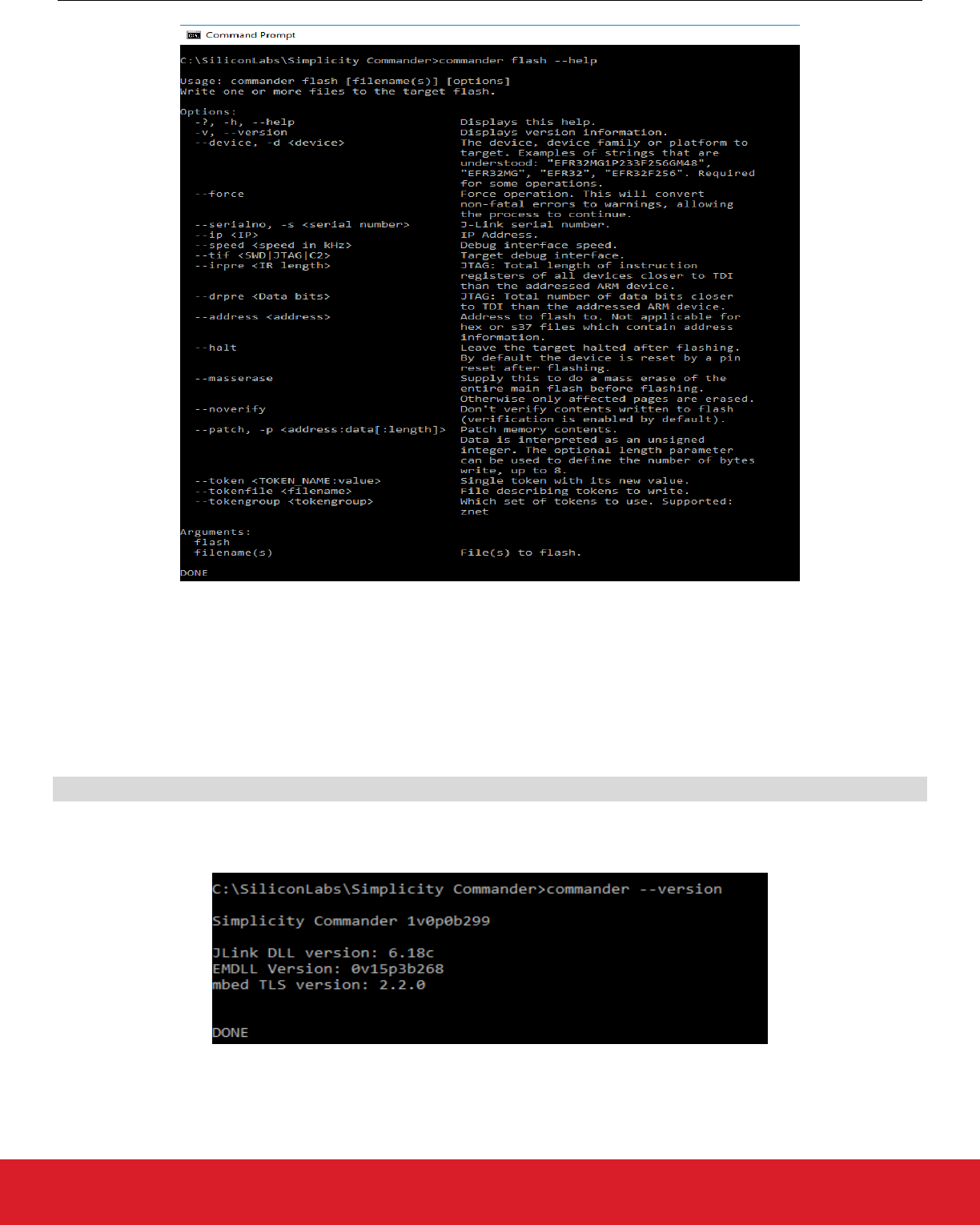
Figure 3.2. Simplicity Commander Flash Command Help
3.3.2 Version (--version)
Displays the version information for Simplicity Commander, J-Link DLL, and EMDLL, and a list of detected USB devices. If you use this
option in conjunction with another command or command/option, Simplicity Commander displays this extra information before any com-
mand is executed.
Command Line Syntax
$ commander –-version
Command Line Usage Output
Simplicity Commander displays version information. The following figure is an example.
Figure 3.3. Simplicity Commander Version Information
UG162: Simplicity Commander Reference Guide
General Information
silabs.com | Building a more connected world. Rev. 1.6 | 11

3.3.3 Device (--device <device name>)
Specifies a target device for the command. If this option is supplied, no auto-detection of the target device is used. In some cases, such
as when using convert with the --token option, this option is required.
For convenience, Simplicity Commander attempts to parse the --device option so that a complete part number is normally not re-
quired as a command input. For example, Simplicity Commander interprets commander --device EFR32 to mean that the selected
device is an EFR32, which has implications regarding the memory layout and available features of this specific device. As another ex-
ample, Simplicity Commander interprets --device EFR32F256 as an EFR32 with 256 kB flash memory.
Using a complete part number such as --device EFR32MG1P233F256GM48 is always supported and recommended.
Command Line Syntax
$ commander <command> --device <device name>
Command Line Input Example
$ commander device info --device Cortex M3
3.3.4 J-Link Connection Options
Use the following options to select a J-Link device to connect to and use for any operation that requires a connection to a kit or debug-
ger. You can connect over IP (using the –-ip option) or over USB (using the --serialno option) as shown in the following examples.
You can use only one of these options at a time. If no option is provided, Simplicity Commander attempts a connection to the only USB
connected J-Link adapter.
Command Line Syntax
$ commander <command> –-serialno <J-Link serial number>
Command Line Input Example
$ commander adapter probe –-serialno 440050184
Command Line Usage
$ commander <command> –-ip <IP address>
Command Line Input Example
$ commander adapter probe –-ip 10.7.1.27
UG162: Simplicity Commander Reference Guide
General Information
silabs.com | Building a more connected world. Rev. 1.6 | 12

3.3.5 Debug Interface Configuration
Use the --tif and --speed options to configure the target interface and clock speed when connecting the debugger to the target de-
vice.
Simplicity Commander supports using Serial Wire Debug (SWD) or Joint Test Action Group (JTAG) as the target interface. All currently
supported Silicon Labs hardware works with SWD, while some can also be used with JTAG. Custom hardware may require JTAG to be
used.
The maximum clock speed available typically depends on the debug adapter, the target device, and the physical connection between
the two. Silicon Labs kits typically support speeds up to 1000 –8000 kHz, depending on the kit model. If the selected clock speed is
higher than what the adapter supports, the clock speed will fall back to using the highest speed it does support. You may want to select
a lower clock speed if the debug connection is unstable or not working at all when working with custom hardware with longer debug
cables or when the electrical connections are less than ideal.
If the --tif and --speed options are not used, the default configuration is SWD and 4000 kHz.
Command Line Syntax
$ commander <command> [--tif <target interface>] [–-speed <speed in kHz>]
Command Line Input Example
$ commander device info --tif SWD–-speed 1000
Command Line Output Example
Setting debug interface speed to 1000 kHz
Setting debug interface to SWD
Part Number : EFR32BG1P332F256GJ43
Die Revision : A2
Production Ver : 138
Flash Size : 256 kB
SRAM Size : 32 kB
Unique ID : 000b57fffe0934e3
DONE
3.3.6 Graphical User Interface
Displays a Graphical User Interface (GUI) for laboratory use of Simplicity Commander. The GUI can be used in the lab for such typical
tasks as:
• Flashing device images
• Upgrading Silicon Labs kit firmware and configuration
• Setting device lock features
Command Line Syntax
$ commander
UG162: Simplicity Commander Reference Guide
General Information
silabs.com | Building a more connected world. Rev. 1.6 | 13

3.4 Output and Exit Status
The exit status of Simplicity Commander can take on a few different values. Whenever an operation completed successfully, Simplicity
Commander's exit status is 0 (zero). Any error will cause the exit status to be non-zero.
Simplicity Commander defines the following exit status codes.
Exit Status Description
0 No error occured
-1 Input error. For example, this could be a missing command line option, non-existent command, or an invalid filename.
-2 Run time error. Used whenever anything goes wrong when executing the command. Examples include not being able to
connect to a debug adapter or flash verification failed.
Note: Some operations systems present the exit status as an unsigned integer. On these systems, -1 will be interpreted as 255, -2 as
254, and so on.
The operating system itself may create other exit codes if the application crashes. These will always be non-zero and are out of the
control of Simplicity Commander.
All errors and potential error conditions are indicated in Simplicity Commander's output in addition to the exit status. All errors are dis-
played with the prefix "ERROR:". All warnings are displayed with the prefix "WARNING:".
Any output from Simplicity Commander will always end with "DONE". This does not indicate that the operation was successful, merely
that execution has finished.
Example of an error in Windows follows.
C:\>commander device info -s 440000000
ERROR: Unable to connect with device with given serial number
ERROR: Could not open J-Link connection.
DONE
C:\>echo %errorlevel%
-2
UG162: Simplicity Commander Reference Guide
General Information
silabs.com | Building a more connected world. Rev. 1.6 | 14

4. EFR32 Custom Tokens
4.1 Introduction
Simplicity Commander supports defining custom token groups for reading and writing. Custom tokens work just like manufacturing to-
kens, but the definition and location of the tokens is configurable to suit different requirements.
There are two different ways for Simplicity Commander to find and use custom token definition files. For Simplicity Commander to treat
the custom token file in the same way as a regular token group, the file must be placed in a specific location as described below.
The other option is to use the --tokendefs command line option instead of the --tokengroup option. With this method, Simplicity
Commander uses a token definition file in an arbitrary location, for example, under revision control. This is described in more detail in
4.8 Using Custom Token Files in Any Location.
4.2 Custom Token Groups
For Simplicity Commander to treat custom token files like regular token groups, the file must be placed in a specific tokens folder and
the filename must follow a special syntax.
The location and initialization of the tokens folder depends on the operating system used.
On Windows and Linux, the tokens folder is included in the zip file and is placed alongside the executable in the installation directory.
On Mac OS X, the folder named ~/Library/SimplicityCommander/tokens/ is generated automatically when running
commander on the command line for the first time. Running commander --help, for example, is enough to ensure that the folder with
files is created. Inside this tokens folder, there is a file named tokens-example-efr32.json. This file provides an example of the to-
ken types and locations currently supported by Simplicity Commander.
The syntax of the filename is tokens-<group name>-<architecture>.json. <group name> is the name of the custom token group
and can be any string. <architecture> is a string describing which devices the token definitions apply to. The supported architecture
strings are listed in the table below.
Architecture Devices
efr32 All Series 1 EFR32 devices
efr32xg2 All Series 2 EFR32 devices
em3xx All EM3xx devices
efm32 All EFM32 devices (Series 0 and 1)
ezr32 All EZR32 devices
For example, to define the token group myapp for EFR32 series 1 devices, the filename would be tokens-myapp-efr32.json.
4.3 Creating Custom Token Groups
To define a custom token group, copy tokens-example-efr32.json to a new file in the same directory using the following naming
convention: tokens-<groupname>-efr32.json
For example: tokens-myapp-efr32.json
To verify that Simplicity Commander sees the new file, run
$ commander tokendump –-help
The name of your token group (for example, "myapp") should be listed as a supported token group like this:
--tokengroup <tokengroup> which set of tokens to use. Supported: myapp, znet
UG162: Simplicity Commander Reference Guide
EFR32 Custom Tokens
silabs.com | Building a more connected world. Rev. 1.6 | 15

4.4 Defining Tokens
Each token in the JSON file has the following properties:
Property Description
Name The name of the token, which is used as an identifier when dumping or writing tokens.
Page The named memory region to use for the token. See section 4.5 Memory Regions.
Offset The offset in number of bytes from the start of the memory region at which to place the token.
sizeB The size of the token in bytes.
•A token of size 1 is interpreted as an unsigned 8-bit integer.
•A token of size 2 is interpreted as an unsigned 16-bit integer.
•A token of size 4 is interpreted as an unsigned 32-bit integer.
•Any other size is interpreted as a byte array of the given size.
Description A plain text description of the token. This property is currently only used for documentation of the JSON file.
4.5 Memory Regions
The following values are valid data in the "page" option:
USERDATA
The data in the user data page is not erased via a mass erase (commander.exe flash --masserase,
commander.exe masserase, or when disabling debug lock). It can, however, be erased by a specific page erase (located at address
0x0FE00000 with size 2 kB on EFR32 devices).
LOCKBITSDATA
The lock bits page is used by the chip itself to configure flash write locks, debug lock, AAP lock, and so on. However, the last 1.5 kB of
this page is unused by the device itself, and has the important property that it is erased in a mass erase event
The lock bits page is located at address 0x0FE04000 with size 2 kB on EFR32 devices. Tokens in this page must use an offset of at
least 0x200; otherwise, collisions with chip functionality can occur.
4.6 Token File Format Description
A token file declares what values are programmed for manufacturing tokens on the chip. Lines are composed of one of the following
forms:
<token-name> : <data>
<token-name> : !ERASE!
Follow these guidelines when using a token file:
• Omitted tokens are left untouched and not programmed on the chip.
• Token names are case insensitive.
• All integer values are interpreted as hexadecimal numbers in BIG-endian format and must be prefixed with '0x'.
• Blank lines and lines beginning with # (hashtag) are ignored.
• Byte arrays are given in hexadecimal format without a leading '0x'.
• Specifying !ERASE! for the data sets that token to all 0xFF.
• The token data can be in one of three main forms: byte-array, integer, or string.
• Byte arrays are a series of hexadecimal numbers of the required length.
• Integers are BIG-endian hexadecimal numbers that must be prefixed with '0x'.
• String data is a quoted set of ASCII characters.
UG162: Simplicity Commander Reference Guide
EFR32 Custom Tokens
silabs.com | Building a more connected world. Rev. 1.6 | 16

4.7 Using Custom Token Files
Refer to 4.1 Introduction for a definition of custom token files and where they should be located for Simplicity Commander to find them
automatically. To use a custom token file located in the tokens folder, run Simplicity Commander with a --tokengroup option corre-
sponding to the name of the JSON file. For example, if the file was named tokens-myapp-efr32.json, use this option:
--tokengroup myapp
To create a text file useful as input to the flash or convert commands, the easiest way is to start by dumping the current data from a
device.
For example:
$ commander tokendump -s 440050148 --tokengroup myapp --outfile mytokens.txt
mytokens.txt can then modified to have the desired content, and then used when flashing devices or creating images in this way:
$ commander flash -s 440050148 --tokengroup myapp --tokenfile mytokens.txt
To be able to read the custom token data from an application, Simplicity Commander provides the tokenheader command, which gen-
erates a C header file that can be included in an application. See section 5.4.4 Generate C Header Files from Token Groups for details.
4.8 Using Custom Token Files in Any Location
In some cases, it is more convenient to have the custom token defintions file somewhere in the file system (for example, if it is placed
under revision control). Simplicity Commander supports this functionality with the --tokendefs option which refers to a JSON file any-
where in the file system. Use it instead of the --tokengroup option.
For example:
$ commander tokendump --tokendefs my_tokens.json --outfile mytokens.txt
$ commander flash --tokendefs my_tokens.json --tokenfile mytokens.txt
UG162: Simplicity Commander Reference Guide
EFR32 Custom Tokens
silabs.com | Building a more connected world. Rev. 1.6 | 17

5. Simplicity Commander Commands
This section includes the following information for using each Simplicity Commander command:
• Command Line Syntax
• Command Line Input Example
• Command Line Output Example
In cases where the Command Line Syntax is the same as the Command Line Input Example, only the former is included.
The Simplicity Commander commands are organized in the following categories:
•5.1 Device Flashing Commands
•5.2 Flash Verification Command
•5.3 Memory Read Commands
•5.4 Token Commands
•5.5 Convert and Modify File Commands
•5.6 EBL Commands
•5.7 GBL Commands
•5.8 Kit Utility Commands
•5.9 Device Erase Commands
•5.10 Device Lock and Protection Commands
•5.11 Device Utility Commands
•5.12 External SPI Flash Commands
•5.13 Advanced Energy Monitor Measure Command
•5.14 Serial Wire Output Read Commands
•5.15 NVM3 Commands
•5.16 CTUNE Commands
5.1 Device Flashing Commands
The commands in this section all require a working debug connection for communicating with the device. You would normally always
use one of the J-Link connection options when running the flash command, but it is intentionally left out of most of the examples to
keep them short and concise.
UG162: Simplicity Commander Reference Guide
Simplicity Commander Commands
silabs.com | Building a more connected world. Rev. 1.6 | 18

5.1.1 Flash Image File
Flashes the image in the specified filename to the target device, starting at the specified address. The affected bytes will be erased
before writing. If the image contains any partial flash pages, these pages will be read from the device and patched with the image con-
tents before erasing the page and writing back. After writing, the affected flash areas are read back and compared. Finally, the chip is
reset using a pin reset, making code execution start. The debugger to connect to is indicated by the J-Link serial number (--serialno
option).
Command Line Syntax
$ commander flash <filename> --address <address> --serialno <serial number>
Command Line Input Example
$ commander flash blink.bin --address 0x0 --serialno 440012345
Connects to the J-Link debugger with serial number 440012345 and flashes the image in blink.bin to the target device, starting at ad-
dress 0.
Command Line Output Example
Flashing blink.s37.
Flashing 2812 bytes, starting at address 0x00000000
Resetting...
Uploading flash loader...
Waiting for flashloader to become ready...
Erasing flash...
Flashing...
Verifying written data...
Resetting...
Finished!
DONE
5.1.2 Flash Using IP Address without Verification and Reset
Flashes the image in the specified filename to the target device, using the IP address specified. The data in flash is not verified after
flashing, and the device is left halted after flashing.
Command Line Syntax
$ commander flash <filename> --ip <IP> --halt --noverify>
Command Line Input Example
$ commander flash blink.s37 --ip 10.7.1.27 --halt --noverify
Flashes the image in blink.s37 to the target device, using the IP address 10.7.1.27. The data in flash is not verified after flashing, and
the device is left halted after flashing.
Command Line Output Example
Flashing blink.s37.
Flashing 2812 bytes, starting at address 0x00000000
Resetting...
Uploading flash loader...
Waiting for flashloader to become ready...
Erasing flash...
Flashing...
Finished!
DONE
UG162: Simplicity Commander Reference Guide
Simplicity Commander Commands
silabs.com | Building a more connected world. Rev. 1.6 | 19

5.1.3 Flash Several Files
Flashes the images to the target device. Any overlapping data is considered an error.
Command Line Syntax
$ commander flash <filename> <filename>
Command Line Input Example
$ commander flash blink.s37 userpage.hex
Flashes the images in blink.s37 and userpage.hex to the target device.
Command Line Output Example
Adding file blink.s37...
Adding file userpage.hex...
Flashing 2812 bytes, starting at address 0x00000000
Resetting...
Uploading flash loader...
Waiting for flashloader to become ready...
Erasing flash...
Flashing...
Verifying written data...
Finished!
Flashing 2048 bytes, starting at address 0x0fe00000
Resetting...
Uploading flash loader...
Waiting for flashloader to become ready...
Erasing flash...
Flashing...
Verifying written data...
Resetting...
Finished!
DONE
UG162: Simplicity Commander Reference Guide
Simplicity Commander Commands
silabs.com | Building a more connected world. Rev. 1.6 | 20

5.1.4 Patch Flash
Writes the specified byte(s) to the flash. The affected pages will be read from the device and patched with this data before erasing the
page and writing back. When you use the –-patch option, the patch memory data is interpreted as an unsigned integer. The optional
length argument can be used to define the number of bytes, up to 8 bytes. If no length is specified, the default is to patch 1 byte.
Command Line Syntax
$ commander flash -–patch <address>:<data>[:length]
Command Line Input Example
$ commander flash --patch 0x120:0xAB --patch 0x3200:0xA5A5:2
Writes the specified bytes 0xAB to address 0x120 and 0xA5A5 to address 0x3200. The affected pages will be read from the device and
patched with this data before erasing the page and writing back.
Command Line Output Example
Patching 0x00000120 = 0xAB...
Patching 0x00003200 = 0xA5A5...
Flashing 2048 bytes, starting at address 0x00000000
Resetting...
Uploading flash loader...
Waiting for flashloader to become ready...
Erasing flash...
Flashing...
Verifying written data...
Finished!
Flashing 2048 bytes, starting at address 0x00003000
Resetting...
Uploading flash loader...
Waiting for flashloader to become ready...
Erasing flash...
Flashing...
Verifying written data...
Resetting...
Finished!
DONE
UG162: Simplicity Commander Reference Guide
Simplicity Commander Commands
silabs.com | Building a more connected world. Rev. 1.6 | 21

5.1.5 Patch Using Input File
Flashes the specified application while simultaneously patching the image file and the flash of the device. If a filename is inside the file,
these bytes are patched before writing the image
Command Line Syntax
$ commander flash <filename> –-patch <address>:<data>[:length] –-patch <address>:<data>[:length]
Command Line Input Example
$ commander flash blink.s37 --patch 0x123:0x00FF0001:4 --patch 0x0FE00004:0x00
Flashes the blink application while simultaneously patching the image file and the flash of the device. Because 0x123 is inside the file,
these bytes are patched before writing the image. Additionally, the user page will be read from the device and patched with this data
before erasing the page and writing back.
Command Line Output Example
Flashing blink.s37.
Patching 0x00000123 = 00FF0001...
Patching 0x0FE00004 = 00...
Flashing 4096 bytes, starting at address 0x00000000
Resetting...
Uploading flash loader...
Waiting for flashloader to become ready...
Erasing flash...
Flashing...
Verifying written data...
Finished!
Flashing 2048 bytes, starting at address 0x0fe00000
Resetting...
Uploading flash loader...
Waiting for flashloader to become ready...
Erasing flash...
Flashing...
Verifying written data...
Finished!
DONE
UG162: Simplicity Commander Reference Guide
Simplicity Commander Commands
silabs.com | Building a more connected world. Rev. 1.6 | 22

5.1.6 Flash Tokens
This section describes how to flash one or more tokens from text file(s) and/or command line options with their new values. Manufactur-
ing tokens are the only token type supported by Simplicity Commander; simulated EEPROM tokens are not supported. For more infor-
mation on manufacturing tokens, see AN961: Bringing Up Custom Nodes for the Mighty Gecko and Flex Gecko Families.
The --tokengroup option defines which group of tokens is used. Simplicity Commander currently has built-in support for the znet
token group.
Silicon Labs recommends generating a token file from a device or image file using the tokendump command and then making modifica-
tions to this file for use with the --tokenfile option.
Command Line Syntax
$ commander flash --tokengroup <token group> -–token <TOKEN_NAME:value> –-tokenfile <filename>
Command Line Input Example
$ commander flash --tokengroup znet --token TOKEN_MFG_STRING:"IoT Inc"
Set the token MFG_STRING to have the value IoT Inc. The TOKEN_ prefix is optional, that is, TOKEN_MFG_STRING and MFG_STRING are
equivalent.
Command Line Input Example
$ commander flash --tokengroup znet --tokenfile tokens.txt
Sets the tokens specified in tokens.txt. All tokens in the file are processed, and if a duplicate is found, it will be treated as an error.
Command Line Input Example
$ commander flash --tokengroup znet --tokenfile tokens.txt --token TOKEN_MFG_STRING:”IoT Inc”
Sets the tokens specified in tokens.txt. Additionally, sets the MFG_STRING to the value given. All files and tokens specified on the com-
mand line are processed, and if a duplicate is found, it will be treated as an error.
Depending on the operating system and shell being used, some escapes may be needed to correctly specify a string. For example, on
the command line in a Windows 7 Professional Command Prompt window, execute the following command:
$ commander flash --tokengroup znet --token "TOKEN_MFG_STRING:\"IoT Inc\""
Command Line Output Example
Flashing 2048 bytes to 0x0fe00000
Resetting...
Uploading flash loader...
Waiting for flashloader to become ready...
Erasing flash...
Flashing...
Verifying written data...
Resetting...
Finished!
DONE
UG162: Simplicity Commander Reference Guide
Simplicity Commander Commands
silabs.com | Building a more connected world. Rev. 1.6 | 23

5.2 Flash Verification Command
The verify command verifies the contents of a device against a set of files, tokens, and/or patch options without writing anything to the
flash. It works just like the verification step of the flash command, but without actually flashing first. For example, the verify command
can be used to verify that the application on a microcontroller is what you expect it to be.
Command Line Syntax
All options and examples for the flash command also apply to the verify command. The exceptions are the --halt, --masserase,
and --noverify options that do not apply to the verify command.
$ commander verify [filename] [filename ...] [patch options] [token options]
Command Line Input Example
$ commander verify myimage.hex
Command Line Output Example
Parsing file myimage.hex...
Verifying 52000 bytes at address 0x00000000...OK!
Verifying 2048 bytes at address 0x0fe00000...OK!
DONE
5.3 Memory Read Commands
The readmem command reads data from a device and can either store it to file or print it in human-readable format. The location and
length to be read from the device is defined by the --range and --region options. You can combine one or more ranges and regions
to read and combine several different areas in flash to one file.
Note: Like flash, the commands in this section all require a working debug connection for communicating with the device. One would
normally always use one of the J-Link connection options when running readmem, but this is left out of the examples to keep them short
and concise.
The --range option supports two different range formats:
• The first is <startaddress>:<endaddress>, for example, --range 0x4000:0x6000. The range is non-inclusive, meaning that all
bytes from 0x4000 up to and including 0x5FFF are read out.
• The second is <startaddress>:+<length>, which takes an address to start reading from, and a number of bytes to read. For ex-
ample, the equivalent command line input to the previous example is --range 0x4000:+0x2000.
The --region option takes a named flash region with an @ prefix. Valid regions for use with the --region option are listed below.
EFM32, EZR32, EFR32: @mainflash, @userdata, @lockbits, @devinfo
EM3xx: @mfb, @cib, @fib
UG162: Simplicity Commander Reference Guide
Simplicity Commander Commands
silabs.com | Building a more connected world. Rev. 1.6 | 24

5.3.1 Print Flash Contents
Specifies the range of memory to read from flash and prints data.
Command Line Syntax
$ commander readmem –-range <startaddress>:<endaddress>
OR
Command Line Syntax
$ commander readmem –-range <startaddress>:+<length>
Command Line Input Example
$ commander readmem --range 0x100:+128
Reads 128 bytes from flash starting at address 0x100 and prints it to standard out.
Command Line Output Example
Reading 128 bytes from 0x00000100...
{address: 0 1 2 3 4 5 6 7 8 9 A B C D E F}
00000100: 12 F0 40 72 11 00 DF F8 C0 24 90 42 07 D2 DF F8
00000110: BC 24 90 42 03 D3 5F F0 80 72 11 00 01 E0 00 22
00000120: 11 00 DF F8 84 26 12 68 32 F0 40 72 0A 43 DF F8
00000130: 78 36 1A 60 70 47 80 B5 00 F0 90 FC FF F7 DD FF
00000140: 01 BD DF F8 70 16 09 68 08 00 70 47 38 B5 DF F8
00000150: 4C 06 00 F0 9F F9 05 00 ED B2 28 00 07 28 05 D0
00000160: 08 28 07 D1 00 F0 7C FC 04 00 0B E0 FF F7 E9 FF
00000170: 04 00 07 E0 40 F2 25 11 DF F8 3C 06 00 F0 B0 FC
DONE
5.3.2 Dump Flash Contents to File
Reads the contents of the specified user page and stores it in the specified filename. File format will be auto-detected based on file
extension (.bin, .hex, or .s37). (See 2. File Format Overview for more information on file formats.)
Command Line Syntax
$ commander readmem –-region <@region> --outfile <filename>
Command Line Input Example
$ commander readmem --region @userdata --outfile userpage.hex
Reads the contents of the region named userdata and stores it in an output file named userpage.hex.
Command Line Output Example
Reading 2048 bytes from 0x0fe00000...
Writing to userpage.hex...
DONE
UG162: Simplicity Commander Reference Guide
Simplicity Commander Commands
silabs.com | Building a more connected world. Rev. 1.6 | 25

5.4 Token Commands
The tokendump command generates a text dump of token data. It can take as input either a (set of) files using the same command line
options as the convert command, or a microcontroller using the same command line options as the readmem command.
The output of tokendump can either be printed to standard output or written to an output file using the --outfile option. The file written
when using the --outfile option is suitable for modification and re-use as input to the flash, verify, or convert commands using
the --tokenfile option.
tokendump always requires a token group to be selected with the --tokengroup option. A token group is a defined set of tokens for a
specific stack or application. Simplicity Commander only supports the znet token group.
Manufacturing tokens are the only token type supported by Simplicity Commander; simulated EEPROM tokens are not supported. For
more information on manufacturing tokens, see AN961: Bringing Up Custom Nodes for the Mighty Gecko and Flex Gecko Families.
5.4.1 Print Tokens
Command Line Syntax
$ commander tokendump --tokengroup <token group> [--token <token name>]
Command Line Input Example
$ commander tokendump --tokengroup znet --token TOKEN_MFG_STRING --token TOKEN_MFG_EMBER_EUI_64
Reads the selected tokens from the device and prints it to stdout.
Command Line Output Example
#
# The token data can be in one of three main forms: byte-array, integer, or string.
# Byte-arrays are a series of hexadecimal numbers of the required length.
# Integers are BIG endian hexadecimal numbers.
# String data is a quoted set of ASCII characters.
#
MFG_STRING : "IoT_Inc"
# MFG_EMBER_EUI_64: F0B2030000570B00
DONE
5.4.2 Dump Tokens to File
This example works just like section 5.4.1 Print Tokens, except that the output is written to a file suitable for use with the --tokenfile
option (flash, verify, and convert commands).
Command Line Syntax
$ commander tokendump --tokengroup <token group> [--token <token name>] --outfile <filename>
Command Line Input Example
$ commander tokendump --tokengroup znet --outfile tokens.txt
Reads all tokens from the device and outputs it to the file named tokens.txt.
Command Line Output Example
Writing tokens to tokens.txt...
DONE
UG162: Simplicity Commander Reference Guide
Simplicity Commander Commands
silabs.com | Building a more connected world. Rev. 1.6 | 26

5.4.3 Dump Tokens from Image File
If an input file is given to the tokendump command, the input is read from one or more files instead of reading from a device.
In this case, the --device option must be provided, because token locations can be different from one device family to another.
Command Line Syntax
$ commander tokendump <filename> --tokengroup <token group> --device <device> [--outfile <filename>]
Command Line Input Example
$ commander tokendump blink.hex --tokengroup znet --device EFR32MG1P --outfile tokens.txt
Command Line Output Example
Parsing file blink.hex...
DONE
5.4.4 Generate C Header Files from Token Groups
The tokenheader command generates a simple header file based on a custom token group. The generated header file contains pre-
processor defines that specify the location and size of each token.
See section 4. EFR32 Custom Tokens for details on custom tokens.
Command Line Syntax
$ commander tokenheader --tokengroup <group name> --device <target device> <filename>
Command Line Input Example
$ commander tokenheader --tokengroup myapp --device EFR32MG1P233F256 my_tokens.h
Command Line Output Example
Writing token header file: my_tokens.h
DONE
5.5 Convert and Modify File Commands
The convert command performs image file conversion and manipulation. It supports the following actions:
• Conversion between file formats
• Merging several image files
• Extracting subsets of images
• Patching bytes
• Setting token data
The convert command can either write its output to a file or print it to standard out in human-readable format, similar to the readmem
command. When writing to a file, the file format is auto-detected based on the file extension used.
The convert command works off-line without any J-Link/debug connection. The command is device-agnostic, except when working
with tokens or ebl files. In this case, you must use the --device option.
Command Line Syntax
$ commander convert [infile1] [infile2 …] [options]
UG162: Simplicity Commander Reference Guide
Simplicity Commander Commands
silabs.com | Building a more connected world. Rev. 1.6 | 27

5.5.1 Combine Two Files
Converts two files with different file formats into one specified output file.
Command Line Syntax
$ commander convert <filename> <filename> [--address <address>] --outfile <filename>
Command Line Input Example
$ commander convert blink.bin userpage.hex --address 0x0 --outfile blinkapp.s37
Combines blink.bin and userpage.hex to blinkapp.s37. The address option is used to set the start address of the .bin file, since bin files
doesn’t contain any addressing information. If more than one .bin file is supplied, the same start address is used for all. If this is not
desirable, consider converting the bin files to s37 or hex in a separate preparation step.
Command Line Output Example
Parsing file blink.bin...
Parsing file userpage.hex...
Writing to blinkapp.s37...
DONE
5.5.2 Define Specific Bytes
Like the flash command, the convert command supports the --patch option for setting arbitrary unsigned integers at any address.
Command Line Syntax
$ commander convert [filename] --patch <address>:<data>[:length] [--outfile <filename>]
Command Line Input Example
$ commander convert blink.s37 --patch 0x0FE00000:0x12345:4 --outfile blink.hex
Converts blink.s37 to hex format, while simultaneously defining the first four bytes of the user page to 0x00012345. This works just like
flash blink.s37 --patch 0x0FE00000:0x12345:4, but works against a file instead of writing to a device flash.
Command Line Output Example
Parsing file blink.s37...
Patching 0x0FE00000 = 0x00012345...
Writing to blink.hex...
DONE
UG162: Simplicity Commander Reference Guide
Simplicity Commander Commands
silabs.com | Building a more connected world. Rev. 1.6 | 28

5.5.3 Define Tokens
Like the flash command, the convert command supports the --tokengroup, --token and --tokenfile options for setting token data
while doing file conversion.
Command Line Syntax
$ commander convert [filename] --tokengroup <token group> [--tokenfile <filename>]
[--token <token name>
:<token data>] [--device <device>] [--outfile <filename>]
Command Line Input Example
$ commander convert blink.s37 --tokengroup znet --tokenfile tokens.txt --device EFR32MG1P --outfile blink.hex
Converts blink.s37 to hex format, while simultaneously defining the tokens defined in tokens.txt and on the command line. Works just
like the corresponding options with flash, but writes to file instead of flash.
Command Line Output Example
Parsing file blink.s37...
Writing to blink.hex...
DONE
5.5.4 Dump File Contents
Like the readmem command, the convert command will print its output in human-readable format to standard out if no output file is
given.
Command Line Syntax
$ commander convert <filename> [--address <bin file start address>]
Command Line Input Example
$ commander convert blink.bin --address 0x0 userpage.hex
If the --outfile option is not used, the data is printed to stdout instead of writing to file.
Command Line Output Example
Parsing file blink.bin...
Parsing file userpage.hex...
{address: 0 1 2 3 4 5 6 7 8 9 A B C D E F}
00000000: 10 04 00 20 B5 0A 00 00 57 08 00 00 8B 0A 00 00
00000010: 00 00 00 00 00 00 00 00 00 00 00 00 00 00 00 00
00000020: 00 00 00 00 00 00 00 00 00 00 00 00 97 0A 00 00
00000030: 00 00 00 00 00 00 00 00 D1 0A 00 00 13 06 00 00
00000040: D3 0A 00 00 D5 0A 00 00 D7 0A 00 00 D9 0A 00 00
00000050: DB 0A 00 00 DD 0A 00 00 DF 0A 00 00 E1 0A 00 00
00000060: E3 0A 00 00 E5 0A 00 00 E7 0A 00 00 E9 0A 00 00
00000070: EB 0A 00 00 ED 0A 00 00 EF 0A 00 00 F1 0A 00 00
<shortened data for documentation>
00000ac0: C5 0A 00 00 C0 46 C0 46 C0 46 C0 46 FF F7 CA FF
00000ad0: FE E7 FE E7 FE E7 FE E7 FE E7 FE E7 FE E7 FE E7
00000ae0: FE E7 FE E7 FE E7 FE E7 FE E7 FE E7 FE E7 FE E7
00000af0: FE E7 FE E7 00 36 6E 01 00 80 00 00
{address: 0 1 2 3 4 5 6 7 8 9 A B C D E F}
0fe00000: 45 23 01 00 FF FF FF FF FF FF FF FF FF FF FF FF
0fe00010: FF FF FF FF FF FF FF FF FF FF FF FF FF FF FF FF
0fe00020: FF FF FF FF FF FF FF FF FF FF FF FF FF FF FF FF
<shortened data for documentation>
0fe007e0: FF FF FF FF FF FF FF FF FF FF FF FF FF FF FF FF
0fe007f0: FF FF FF FF FF FF FF FF FF FF FF FF FF FF FF FF
DONE
UG162: Simplicity Commander Reference Guide
Simplicity Commander Commands
silabs.com | Building a more connected world. Rev. 1.6 | 29

5.5.5 Signing an Application for Secure Boot
Signs an application for use with a Secure Boot bootloader. For more information, see UG266: Silicon Labs Gecko Bootloader User's
Guide.
Command Line Syntax
$ commander convert <image file> --secureboot --keyfile <signing key> --outfile <signed image file>
Command Line Input Example
$ commander convert nodetest.s37 --secureboot --keyfile mykey --outfile nodetest-signed.s37
This example signs the image file named nodetest.s37.
Command Line Output Example
Parsing file nodetest.s37...
Image SHA256: 4591da45b6c40a424b81753001708061d5319197adec5188f4acc512cfb88e65
R = 8E417EB4CBC584218A8605FCF3E778F2A7810F2CAE190CB2EF4D0DF842829CC1
S = 5B095025FFD571699725107C4666C0B8B867370E990B73E74A0502CB9788DCA8
Writing to nodetest-signed.s37...
DONE
5.5.6 Signing an Application for Secure Boot Using a Hardware Security Module
Prepares an application for signing for use with a Secure Boot enabled bootloader using a Hardware Security Module (HSM). For more
information, see UG266: Silicon Labs Gecko Bootloader User's Guide.
Command Line Syntax
$ commander convert <image file> --secureboot --extsign --outfile <image file for external signing>
Command Line Input Example
$ commander convert nodetest.s37 --secureboot --extsign --outfile nodetest.s37.extsign
This example creates an output in the form that an HSM can create a signature over of the entire file. This signature can again be
written to the file using the command described in 5.5.7 Signing an Application for Secure Boot Signing using a Signature Created by a
Hardware Security Module.
Command Line Output Example
Parsing file nodetest.s37...
Writing to nodetest.s37.extsign...
DONE
UG162: Simplicity Commander Reference Guide
Simplicity Commander Commands
silabs.com | Building a more connected world. Rev. 1.6 | 30

5.5.7 Signing an Application for Secure Boot Signing using a Signature Created by a Hardware Security Module
Signs an application for use with a Secure Boot bootloader using a signature created by a Hardware Security Module (HSM). For more
information, see UG266: Silicon Labs Gecko Bootloader User's Guide.
Command Line Syntax
$ commander convert <image file> --secureboot --signature <signature from external signing> --outfile <signed image file>
Command Line Input Example
$ commander convert nodetest.s37 --secureboot --signature nodetest.s37.extsign.sig --outfile nodetest-signed.s37
This example signs the image file nodetest.s37 using a signature obtained from an HSM using the .extsign file generated in 5.5.6 Sign-
ing an Application for Secure Boot Using a Hardware Security Module. The input file (nodetest.s37) used with this function must be the
same file as was used when generating the .extsign file in 5.5.6 Signing an Application for Secure Boot Using a Hardware Security
Module.
Command Line Output Example
Parsing file nodetest.s37...
Parsing signature file nodetest.s37.extsign.sig...
R = 8E417EB4CBC584218A8605FCF3E778F2A7810F2CAE190CB2EF4D0DF842829CC1
S = 5B095025FFD571699725107C4666C0B8B867370E990B73E74A0502CB9788DCA8
Writing to nodetest-signed.s37...
Overwriting file: nodetest-signed.s37...
DONE
5.5.8 Adding a CRC32 for Gecko Bootloader
This option adds a CRC32 (32-bit cyclic redundancy check) of the image that the Gecko Bootloader can use to ensure image integrity
when Secure Boot is not used. This feature requires that an ApplicationProperties_t struct is present in the image. For more details
on the ApplicationProperties_t struct, see UG266: Silicon Labs Gecko Bootloader User’s Guide.
Command Line Syntax
$ commander convert <image file> --crc --outfile <image file with CRC>
Command Line Input Example
$ commander convert nodetest.s37 --crc --outfile nodetest-crc.s37
This example adds a checksum to the image file named nodetest.s37.
Command Line Output Example
Parsing file nodetest.s37...
Appending CRC32 checksum...
Writing to nodetest-crc.s37...
DONE
UG162: Simplicity Commander Reference Guide
Simplicity Commander Commands
silabs.com | Building a more connected world. Rev. 1.6 | 31

5.6 EBL Commands
5.6.1 Print EBL Information
Parses and prints EBL information from the specified .ebl file.
Command Line Syntax
$ commander ebl print <filename>
Command Line Input Example
$ commander ebl print nodetest.ebl
Command Line Output Example
Found EBL Tag = 0x0000, length 140, [EBL Header]
Version: 0x0201
Signature: 0xE350 (Correct)
Flash Addr: 0x00004000
AAT CRC: 0x53BC1F4E
AAT Size: 128 bytes
HalAppBaseAddressTableType
Top of Stack: 0x20006980
Reset Vector: 0x000121F9
Hard Fault Handler: 0x00012125
Type: 0x0AA7
HalVectorTable: 0x00004100
Full AAT Size: 172
Ember Version: 5.7.0.0
Ember Build: 0
Timestamp: 0x561E581F (Wed Oct 14, 2015 13:26:55 UTC [+0100])
Image Info String:''
Image CRC: 0x2ACE0C5B
Customer Version: 0x00000000
Image Stamp: 0xF4271F50BA2E2FBA
Found EBL Tag = 0xFD03, length 1924, [Erase then Program Data]
Flash Addr: 0x00004080
Found EBL Tag = 0xFD03, length 2052, [Erase then Program Data]
Flash Addr: 0x00004800
(32 additional tags of the same type and length.)
Found EBL Tag = 0xFD03, length 1772, [Erase then Program Data]
Flash Addr: 0x00015000
Found EBL Tag = 0xFC04, length 4, [EBL End Tag]
CRC: 0xDBC82DA5
The CRC of this EBL file is valid (0xdebb20e3)
File has 0 bytes of end padding.
Calculated image stamp matches value found in AAT.
DONE
5.6.2 EBL Key Generation
Generates a keyfile to be used for encryption or decryption and outputs the keyfile to the specified filename.
Command Line Syntax
$ commander ebl keygen --type aes-ccm --outfile <filename>
Command Line Input Example
$ commander ebl keygen --type aes-ccm --outfile key.txt
Command Line Output Example
Using /dev/random for random number generation
Gathering sufficient entropy... (may take up to a minute)...
DONE
UG162: Simplicity Commander Reference Guide
Simplicity Commander Commands
silabs.com | Building a more connected world. Rev. 1.6 | 32

5.6.3 EBL File Creation
Creates an EBL file from an application image and writes the output to the specified filename. Can optionally encrypt the EBL file using
a keyfile generated by the ebl keygen command.
Command Line Syntax
$ commander ebl create <eblfile> --app <filename> --device <part number> [--encrypt <keyfile>]
Command Line Input Example
$ commander ebl create app.ebl.encrypted --app nodetest.s37 --device EFR32F256 --encrypt key.txt
Command Line Output Example
Parsing file nodetest.s37...
Parse .s37 format for flash
Flash Usage:
Reserved for Bootloader: 0x00000000-0x00003fff (16384 bytes)
CODE and Tables: 0x00004000-0x00014ddb (69084 bytes)
CONST and INITC: 0x00014ddc-0x000184ab (14032 bytes)
Available for future use: 0x000184ac-0x0003dfff (154452 bytes)
Reserved for SIMEE: 0x0003e000-0x0003ffff (8192 bytes)
Usage Summary:
262144 total bytes Flash, 107692 used, 154452 available
Setting AAT timestamp to current time: 0x586e1ec9
Create ebl image file
Wrote image stamp into AAT.
Encrypting EBL...
Unencrypted input file: ebl_plaintext_ux8544.ebl
Encrypt output file: app.ebl.encrypted
Randomly generating nonce
Using /dev/random for random number generation
Gathering sufficient entropy... (may take up to a minute)...
Created ENCRYPTED ebl image file
DONE
5.6.4 EBL File Parsing
Parses an EBL file and writes the application image to the specified filename. Optionally decrypts an encrypted EBL file. The keyfile
must be the same as was used for encrypting the encrypted EBL file.
Command Line Syntax
$ commander ebl parse <ebl filename> --app < filename> --device <part number> [--decrypt <key filename>]
Command Line Input Example
$ commander ebl parse nodetest.ebl.encrypted --app app.s37 --device EFR32F256 --decrypt ../aeskey
Command Line Output Example
Unencrypted output file: ebl_plaintext_L10567.ebl
Encrypt input file: nodetest.ebl.encrypted
MAC matches. Decryption successful.
Created DECRYPTED ebl image file
Parse .ebl format for flash
Create image file
Writing application to app.s37...
DONE
UG162: Simplicity Commander Reference Guide
Simplicity Commander Commands
silabs.com | Building a more connected world. Rev. 1.6 | 33

5.6.5 Memory Usage Information from AAT
For applications containing an Application Address Table (AAT), Simplicity Commander can analyze the memory usage of the applica-
tion. The AAT is included in Zigbee and Thread applications.
RAM usage is only available for EM3xx applications. Applications built for EFR32 can only be analyzed for flash usage.
Command Line Syntax
$ commander ebl aat-usageinfo <filename> --device <part number>
Command Line Input Example
$ commander ebl aat-usageinfo nodetest.s37 --device EM357
Command Line Output Example
Parse .s37 format for flash
Approximate Usage Information:
RAM Usage:
APPLICATION_CONFIGURATION_HEADER usage: 0x20000000-0x20000fc3 (4036 bytes)
Available for future use: 0x20000fc4-0x2000195f (2460 bytes)
Call Stack: 0x20001960-0x200022bf (2400 bytes)
Globals and Statics: 0x200022c0-0x20002fe8 (3369 bytes)
Alignment Overhead: 0x20002fe9-0x20002fef (7 bytes)
NO_INIT and Debug Channel: 0x20002ff0-0x20002fff (16 bytes)
Flash Usage:
Reserved for Bootloader: 0x08000000-0x08001fff (8192 bytes)
CODE and Tables: 0x08002000-0x08011cdf (64736 bytes)
CONST and INITC: 0x08011ce0-0x08014263 (9604 bytes)
Available for future use: 0x08014264-0x0802dfff (105884 bytes)
Reserved for SIMEE: 0x0802e000-0x0802ffff (8192 bytes)
Usage Summary:
12288 total bytes RAM, 9828 used, 2460 available
196608 total bytes Flash, 90724 used, 105884 available
DONE
5.7 GBL Commands
5.7.1 GBL File Creation
Creates a Gecko Bootloader (GBL) file from an application image and writes the output to the specified filename. Can optionally encrypt
the GBL file using a keyfile generated by the gbl keygen command.
Command Line Syntax
$ commander gbl create <gblfile> --app <filename> [--encrypt <keyfile>]
Command Line Input Example
$ commander gbl create app.gbl.encrypted --app nodetest.s37 --encrypt key.txt
Command Line Output Example
Parsing file nodetest.s37...
Initializing GBL file...
Adding application to GBL...
Encrypting GBL...
Writing GBL file app.gbl.encrypted...
DONE
UG162: Simplicity Commander Reference Guide
Simplicity Commander Commands
silabs.com | Building a more connected world. Rev. 1.6 | 34

5.7.2 GBL File Creation with Compression
Creates a compressed Gecko Bootloader (GBL) file from an application image and writes the output to the specified filename. Can op-
tionally encrypt the GBL file using a keyfile generated by the gbl keygen command.
The currently supported compression algorithms are lz4 and lzma. The bootloader on the targeted devices must support decompress-
ing the selected compression type.
Command Line Syntax
$ commander gbl create <gblfile> --app <filename> --compress <compression algorithm> [--encrypt <keyfile>]
Command Line Input Example
$ commander gbl create app.gbl --app nodetest.s37 --compress lz4
Command Line Output Example
Parsing file nodetest.s37...
Initializing GBL file...
Adding application to GBL...
Compressing using lz4...
Writing GBL file app.gbl...
DONE
5.7.3 Creating a GBL File for Bootloader Upgrade
Creates a GBL file from a bootloader image and writes the output to the specified bootloader image filename. For more information, see
UG266: Silicon Labs Gecko Bootloader User's Guide.
Command Line Syntax
$ commander gbl create <gblfile> --bootloader <bootloader image file> [--encrypt <keyfile>]
Command Line Input Example
$ commander gbl create bootloader.gbl --bootloader bootloader.s37
Command Line Output Example
Initializing GBL file...
Adding bootloader to GBL...
Writing GBL file bootloader.gbl...
DONE
UG162: Simplicity Commander Reference Guide
Simplicity Commander Commands
silabs.com | Building a more connected world. Rev. 1.6 | 35

5.7.4 Creating a GBL File for Secure Element Upgrade
The Secure Element on EFR32xG21 devices can be upgraded using a Secure Element upgrade binary provided by Silicon Labs. This
command creates a GBL file containing a Secure Element upgrade file and writes the output to the specified GBL filename. For more
information, see UG266: Silicon Labs Gecko Bootloader User's Guide.
Command Line Syntax
$ commander gbl create <gblfile> --seupgrade <secure element upgrade file> --app <application image>
Command Line Input Example
$ commander gbl create se-upgrade.gbl --seupgrade secure-element-1.0.0.seu --app myapp.s37
Command Line Output Example
Parsing file myapp.s37...
Initializing GBL file...
Adding application to GBL...
Adding Secure Element upgrade image to GBL...
Writing GBL file se-upgrade.gbl...
DONE
5.7.5 Creating a Signed and Encrypted GBL Upgrade Image File from an Application
Creates a GBL file, signs the GBL file, and encrypts the GBL file. For more information, see UG266: Silicon Labs Gecko Bootloader
User's Guide.
Command Line Syntax
$ commander gbl create <gblfile> --app <app image file> --sign <signing key> [--encrypt <encryption key>]
Command Line Input Example
$ commander gbl create nodetest.gbl --app nodetest.s37 --sign ecdsakey --encrypt aeskey
Command Line Output Example
Parsing file nodetest.s37...
Initializing GBL file...
Adding application to GBL...
Encrypting GBL...
Signing GBL...
Image SHA256: 74b126bdbad680470487e32d7d7b3ec7f12b15d9988e028b26c2dd54f81dcfb7
R = 055A23A44CDEDA34506EE72F4530FE174CFC85F48933C1379C1360F8BC1AA75B
S = 1C9EF6C3F5CAA0D5B92ECC2569E4A8251F8561DAF52DE54D3E59591A5001B9EA
Writing GBL file nodetest.gbl...
DONE
UG162: Simplicity Commander Reference Guide
Simplicity Commander Commands
silabs.com | Building a more connected world. Rev. 1.6 | 36

5.7.6 Creating a Partial Signed and Encrypted GBL Upgrade File for Use with a Hardware Security Module
It is often not desirable to keep the private key used for signing locally on the computer that creates the GBL images. A good way to
increase security is to use a Hardware Security Module (HSM) to generate the actual signatures. Simplicity Commander supports using
a three-step process:
1. Create a partial GBL file for external signing using Simplicity Commander.
2. Create an Elliptic Curve Digital Signature Algorithm (ECDSA) signature of the partial GBL file using an HSM.
3. Use Simplicity Commander to sign the partial GBL file using the signature from the HSM, and create a complete GBL file.
Step 1 is described in this section. Step 2 is specific to the HSM you are using. Step 3 is described in 5.7.7 Creating a Signed GBL File
Using a Hardware Security Module. For more information, see UG266: Silicon Labs Gecko Bootloader User's Guide.
Command Line Syntax
$ commander gbl create <output partial GBL file for external signing> --app <app image file>
--extsign [--encrypt <encryption key>]
Command Line Input Example
$ commander gbl create nodetest.gbl.extsign --app nodetest.s37 --extsign --encrypt aeskey
Command Line Output Example
Parsing file nodetest.s37...
Initializing GBL file...
Adding application to GBL...
Encrypting GBL...
Preparing GBL for external signing...
Writing GBL file nodetest.gbl.extsign...
DONE
5.7.7 Creating a Signed GBL File Using a Hardware Security Module
Creates a signed GBL file from a partial GBL file and an ECDSA signature file in Distinguished Encoding Rules (DER) format generated
as described in 5.7.6 Creating a Partial Signed and Encrypted GBL Upgrade File for Use with a Hardware Security Module . For more
information, see UG266: Silicon Labs Gecko Bootloader User's Guide.
Silicon Labs recommends that you use the --verify option with the public key corresponding to the private key used by the HSM to
ensure the integrity of the generated GBL file.
Command Line Syntax
$ commander gbl sign <partial GBL file for external signing> --signature <signature from HSM>
[--verify <public key file>] --outfile <signed GBL file>
Command Line Input Example
$ commander gbl sign nodetest.gbl.extsign --signature nodetest.gbl.extsign.sig --verify ecdsakey.pub
--outfile nodetest-signed.gbl
Command Line Output Example
Reading GBL data from nodetest.gbl.extsign...
Parsing signature file nodetest.gbl.extsign.sig...
R = 2E73426A1052E12BFFFEFBA9BE2AA50CEA815B630C3CA878494EEF26088A5673
S = C218596DB9958AB30924B516953D2E5107644963B4CA128072AC965BE5C2992D
Writing signature to GBL...
Verifying GBL...
Image SHA256: 4d7325b09ade0ea272eb9895096c8137b18451f694a4eca9a5782f5c08dea03a
Q_X: 60BA97B850291456217C2149061AA344B32BBFB69A91A94BBF2F274744308D39
Q_Y: 41927DA5DB171E1C723C6B59C2BC88EDFF5A37014B0473775BA5B15921686ECA
R = 2E73426A1052E12BFFFEFBA9BE2AA50CEA815B630C3CA878494EEF26088A5673
S = C218596DB9958AB30924B516953D2E5107644963B4CA128072AC965BE5C2992D
Writing GBL file nodetest-signed.gbl...
DONE
UG162: Simplicity Commander Reference Guide
Simplicity Commander Commands
silabs.com | Building a more connected world. Rev. 1.6 | 37

5.7.8 GBL File Parsing
Parses a Gecko Bootloader (GBL) file and writes the application image to the specified filename. Optionally decrypts an encrypted GBL
file. The keyfile must be the same as was used for encrypting the encrypted GBL file.
Command Line Syntax
$ commander gbl parse <gbl filename> --app < filename> [--decrypt <key filename>]
Command Line Input Example
$ commander gbl parse nodetest.gbl.encrypted --app app.s37 --decrypt key.txt
Command Line Output Example
Reading GBL data...
Decrypting GBL...
Reading application...
Writing application to app.s37...
DONE
5.7.9 GBL Key Generation
Generates a keyfile to be used for encryption or decryption and outputs the keyfile to the specified filename.
Command Line Syntax
$ commander gbl keygen --type aes-ccm --outfile <filename>
Command Line Input Example
$ commander gbl keygen --type aes-ccm --outfile key.txt
Command Line Output Example
Using /dev/random for random number generation
Gathering sufficient entropy... (may take up to a minute)...
DONE
5.7.10 Generating a Signing Key
Creates an EDCSA-P256 key pair and outputs the result to the specified key file. For more information, see UG266: Silicon Labs Gecko
Bootloader User's Guide.
Command Line Syntax
$ commander gbl keygen --type ecc-p256 --outfile <signing-key>
Command Line Input Example
$ commander gbl keygen --type ecc-p256 --outfile ecckey
Command Line Output Example
Generating ECC P256 key pair...
Q_X: 79BF593CA56CBCEEBD7E7FB600B6EB7EE33572099220856EE62180BA6A90AB77
Q_Y: ABEBB15823554ECEF5A70ACB0FDC8DEC6C2E7BF091B333EFFC7AFD691462CDE4
D: DE073A7B41031C1B07EF720C9583BB865E407733F17F7B43973A794A0A167DBA
Writing EC tokens to ecckey-tokens.txt...
Writing private key file in PEM format to ecckey...
Writing public key file in PEM format to ecckey.pub...
DONE
UG162: Simplicity Commander Reference Guide
Simplicity Commander Commands
silabs.com | Building a more connected world. Rev. 1.6 | 38

5.7.11 Generate a Signing Key Using a Hardware Security Module
Creates a token text file containing an Elliptic Curve Cryptography (ECC) public key suitable for flashing to a device. For more informa-
tion, see UG266: Silicon Labs Gecko Bootloader User's Guide.
Command Line Syntax
$ commander gbl keyconvert <public key> --outfile <key token text file>
Command Line Input Example
$ commander gbl keyconvert ecckey.pub -o keytokens.txt
Command Line Output Example
Writing EC tokens to keytokens.txt...
DONE
5.8 Kit Utility Commands
5.8.1 Firmware Upgrade
Updates the application running on the board controller on the kit to a new version provided in an .emz file by Silicon Labs.
Command Line Syntax
$ commander adapter fwupgrade --serialno <J-Link serial number> <filename>
Command Line Input Example
$ commander adapter fwupgrade -s 440050184 S1015B_wireless_stk_firmware_package_0v14p0b435.emz
Command Line Usage Output
Checking manifest...
Checking if target is in bootloader...
Waiting for kit to restart...
Package is usable
Deleting previous firmware...
Installing files...
Resetting target...
Waiting for kit to restart...
Finished!
DONE
UG162: Simplicity Commander Reference Guide
Simplicity Commander Commands
silabs.com | Building a more connected world. Rev. 1.6 | 39

5.8.2 Kit Information Probe
Retrieves information about a connected kit. Lists information about the kit part number and name, connected boards, and firmware
version.
The options --kit, --boards, and --firmware limit the output to just kit information, board list, or firmware information, respectively.
Command Line Syntax
$ commander adapter probe --serialno <J-Link serial number> [--kit] [--boards] [--firmware]
Command Line Input Example
$ commander adapter probe --serialno 440050184
Command Line Usage Output
Kit Information:
=======================================
Kit Name : EFR32 Mighty Gecko 2400/915 MHz Dual Band Wireless Starter Kit
Kit Part Number : WSTK6002A Rev. A00
J-Link Serial : 440050184
Debug Mode : MCU
Firmware Information:
=======================================
FW Version : 0v14p0b435
Board List:
=======================================
Name : Wireless Starter Kit Mainboard
Part Number : BRD4001A Rev. A01
Serial Number : 152607557
Name : EFR32MG 2400/915 MHz 19.5 dBm Dual Band Radio Board
Part Number : BRD4150B Rev. B00
Serial Number : 151300035
DONE
5.8.3 Adapter Reset Command
This command resets the adapter itself, causing a restart. The adapter reset command is usually not required during normal opera-
tion.
An error about “Communication timed out” may occur because the adapter sometimes restarts before it has time to reply to the com-
mand.
Command Line Syntax
$ commander adapter reset
Command Line Input Example
$ commander adapter reset
Command Line Output Example
Communication timed out: Requested 76 bytes, received 0 bytes !
DONE
UG162: Simplicity Commander Reference Guide
Simplicity Commander Commands
silabs.com | Building a more connected world. Rev. 1.6 | 40

5.8.4 Adapter Debug Mode Command
This command sets or reads the current debug mode of the adapter. The supported debug modes are typically IN, OUT, MCU, and
OFF. See the quick start guide for your kit for a description of the debug modes it supports.
Command Line Syntax
$ commander adapter dbgmode [mode]
Command Line Input Example
$ commander adapter dbgmode MCU
Command Line Output Example
Setting debug mode to MCU...
DONE
5.8.5 List Adapter IP Configuration Command
The adapter ip command gets or sets the IP configuration of the adapter. With no options, the current configuration is retrieved and
displayed.
Command Line Syntax
$ commander adapter ip
Command Line Input Example
$ commander adapter ip
Command Line Output Example
IP Address: 192.168.0.5/24
Gateway : 192.168.0.1
DNS Server: 192.168.0.1
DONE
5.8.6 Adapter DHCP Command
This command sets up the adapter to use DHCP to automatically retrieve IP, gateway and DNS addresses. This is the default con-
figuration. After enabling DHCP, the adapter must be restarted for the change to take effect.
Command Line Syntax
$ commander adapter ip --dhcp
Command Line Input Example
$ commander adapter ip --dhcp
Command Line Output Example
Enabling DHCP. The adapter must be restarted to acquire a new IP address.
DONE
UG162: Simplicity Commander Reference Guide
Simplicity Commander Commands
silabs.com | Building a more connected world. Rev. 1.6 | 41

5.8.7 Set Static IP Configuration Command
This command sets the IP address of the adapter in Classless Inter-Domain (CIDR) notation.
Command Line Syntax
$ commander adapter ip --addr <IP address/prefix> [--gw <gateway address>] [--dns <dns server address>]
Command Line Input Example
$ commander adapter ip --addr 192.168.1.5/24 --gw 192.168.1.1 --dns 192.168.1.1
Command Line Output Example
Setting IP Address: 192.168.1.5/24
Setting gateway: 192.168.1.1
Setting DNS server: 192.168.1.1
DONE
5.9 Device Erase Commands
5.9.1 Erase Chip
Executes a mass erase for devices where it is supported. On EFM32G and EFM32TG, all pages are erased instead, which is signifi-
cantly slower.
Command Line Syntax
$ commander device masserase
Command Line Usage Output
Erasing chip...
DONE
5.9.2 Erase Region
Erases a named region. For more information on the –-region option, see section 5.2 Flash Verification Command.
Command Line Syntax
$ commander device pageerase –-region <@region>
Command Line Input Example
$ commander device pageerase --region @userdata
Command Line Output Example
Erasing range 0x0fe00000 - 0x0fe00800
DONE
UG162: Simplicity Commander Reference Guide
Simplicity Commander Commands
silabs.com | Building a more connected world. Rev. 1.6 | 42

5.9.3 Erase Pages in Address Range
Erases all flash pages affected by the given memory range. If the given range doesn't match page boundaries, it will be extended to
always erase entire pages.
Command Line Syntax
$ commander device pageerase –-range <startaddress>:<endaddress>
Command Line Input Example
$ commander device pageerase –-range 0x200:0x6000
Erases all flash pages 0 to 11 or 0x0000 to 0x5FFF (assuming a page size of 2 kB).
Command Line Output Example
Erasing range 0x00000000 - 0x00006000
DONE
5.10 Device Lock and Protection Commands
5.10.1 Debug Lock
Locks access to the debug interface of the device. This feature is only supported on EFM32 and EFR32 devices.
Command Line Syntax
$ commander device lock –-debug enable
Command Line Usage Output
Locking debug access...
DONE
5.10.2 Debug Unlock
Unlocks access to the debug interface of the device. This triggers a mass erase if the device was locked before.
This feature is only supported on EFM32 and EFR32 devices.
Command Line Syntax
$ commander device lock –-debug disable
Command Line Usage Output
ERROR: Could not get MCU information
Removing all locks/protection...
Unlocking debug access (triggers a mass erase)...
DONE
UG162: Simplicity Commander Reference Guide
Simplicity Commander Commands
silabs.com | Building a more connected world. Rev. 1.6 | 43

5.10.3 Write Protect Flash Ranges
Protects all flash pages affected by the given memory range from any writes or erases. The available granularity of flash write protec-
tion is device-dependent. Consult the device reference manual for details. For EFM32 and EFR32 devices, for example, the write pro-
tect feature operates on flash pages. On EM3xx devices, this works on 8 kB or 16 kB blocks.
For all devices, if the given range doesn't match the block size supported by the device, it will be extended to always protect entire
regions.
Command Line Syntax
$ commander device protect --write --range <startaddress>:<endaddress>
Command Line Input Example
$ commander device protect --write --range 0x0:0x4000
Protects all flash pages in the first 16 kB from being erased or written to. Useful for protecting a bootloader from being modified by
buggy application code, for example.
Command Line Output Example
Write protecting range 0x00000000 - 0x00004000
DONE
5.10.4 Write Protect Flash Region
Protects all flash pages in the named region from being written to or erased.
Command Line Syntax
$ commander device protect --write --region @<region>
Command Line Input Example
$ commander device protect --write --region @mainflash
Protects the entire main flash from being written to or erased.
Command Line Output Example
Write-protecting all pages in main flash.
DONE
5.10.5 Disable Write Protection
Disables write protection for all pages.
Command Line Syntax
$ commander device protect --write --disable
Command Line Output Example
Disabling all write protection...
DONE
5.11 Device Utility Commands
UG162: Simplicity Commander Reference Guide
Simplicity Commander Commands
silabs.com | Building a more connected world. Rev. 1.6 | 44

5.11.1 Device Information Command
Shows detailed information about the target device.
Command Line Syntax
$ commander device info
Command Line Usage Output
Part Number : EFR32MG1P233F256GM48
Die Revision : A0
Production Ver : 0
Flash Size : 256 kB
SRAM Size : 32 kB
Unique ID : 000b57000003b2f0
DONE
5.11.2 Device Reset Command
Resets a device using a pin reset.
Command Line Syntax
$ commander device reset
Command Line Usage Output
Resetting chip...
DONE
5.11.3 Device Recovery Command
On EFM32 and EFR32 devices, this command tries to recover a device that has lost debug access due to misconfiguration of clocks,
GPIO pins, or similar. Recovery is not supported on all devices, and in some cases requires the kit corresponding to the device you
want to recover, for example, an EFM32TG STK to recover an EFM32TG device.
On EM3xx devices, this command can be used to recover from option byte failure.
Command Line Syntax
$ commander device recover
Command Line Usage Output
Recovering "bricked" device...
DONE
UG162: Simplicity Commander Reference Guide
Simplicity Commander Commands
silabs.com | Building a more connected world. Rev. 1.6 | 45

5.11.4 Device Z-Wave QR Code Command
The Z-Wave QR code command is used to read out the QR code from all Z-Wave devices. The QR code is 90 bytes, displayed as
ASCII characters, and stored in the TOKEN_MFG_ZW_QR_CODE manufacturing token.
The QR code is generated in the chip during initialization. When the QR code is correctly initialized, the value of the manufacturing
token TOKEN_MFG_ZW_INITIALIZED is changed from 0xFF to 0x00. The optional --timeout option is used to indicate how long
Simplicity Commander should wait for the QR code to be initialized. If no time is given, the default is 5000 ms.
Command Line Syntax
$ commander device zwave-qrcode [--timeout <timeout in ms>]
Command Line Input Example
commander device zwave-qrcode --timeout 5000
Command Line Usage Output
QR code: 900132782003515253545541424344453132333435212223242500100435301537022065520001000000300578
DONE
5.12 External SPI Flash Commands
Simplicity Commander supports reading, writing, and erasing data on an external SPI flash on a limited selection of boards and devi-
ces. The following configurations are currently supported:
• The integrated SPI flash on EFR32MG1x632 and EFR32MG1x732 devices
• The MX25 SPI flash on EFR32 radio boards
5.12.1 Erase External SPI Flash Command
Use this command to erase data on an external flash. By default, the erased range is read back to verify that it was actually erased.
This blank check can be disabled by including the --noverify option.
The extflash erase command always erases complete sectors. Any sector overlapping with the range provided will be erased. All
currently supported flash devices have a sector size of 4096 bytes. For example, erasing with option --range 0xE00:0x1100 will effec-
tively erase the first two sectors (equivalent to --range 0x0:0x2000).
Command Line Syntax
$ commander extflash erase --range <range expression> [--noverify]
Command Line Input Example
$ commander extflash erase --range 0x1000:0x3000
Command Line Output Example
Erasing 8192 bytes from 0x00001000 on external flash.
Resetting target...
Uploading flashloader...
Erasing external flash...
Verifying written data...
Waiting for flashloader to become ready...
Reading from external flash...
DONE
UG162: Simplicity Commander Reference Guide
Simplicity Commander Commands
silabs.com | Building a more connected world. Rev. 1.6 | 46

5.12.2 Read External SPI Flash Command
Use this command to read from external flash.
Command Line Syntax
$ commander extflash read --range <range expression>
Command Line Input Example
$ commander extflash read --range 0x0:+0x20
Command Line Output Example
Reading 32 bytes from 0x00002000 on external flash.
Resetting target...
Uploading flashloader...
Waiting for flashloader to become ready...
Reading from external flash...
{address: 0 1 2 3 4 5 6 7 8 9 A B C D E F}
00002000: 48 65 6C 6C 6F 20 57 6F 72 6C 64 21 0A FF FF FF
00002010: FF FF FF FF FF FF FF FF FF FF FF FF FF FF FF FF
DONE
5.12.3 Write External SPI Flash Command
Use this command to write to external flash.
Any existing content in the affected flash sectors will be erased before writing.
In contrast to the flash command for internal flash, the extflash write command always flashes the raw content of the given file. If,
for example, an S-record file is provided, the ASCII content of the file is written; the S-record format is not parsed and written to the
addresses specified in the file.
Command Line Syntax
$ commander extflash write <filename> --address <start address>
Command Line Input Example
$ commander extflash write myfile.txt --address 0x2000
Command Line Output Example
Flashing 13 bytes to 0x00002000 on external flash.
Resetting target...
Uploading flashloader...
Waiting for flashloader to become ready...
Erasing external flash...
Writing to external flash...
Verifying written data...
Waiting for flashloader to become ready...
Reading from external flash...
DONE
UG162: Simplicity Commander Reference Guide
Simplicity Commander Commands
silabs.com | Building a more connected world. Rev. 1.6 | 47

5.13 Advanced Energy Monitor Measure Command
The Advanced Energy Monitor (AEM) command measures the average current in a time window. The --windowlength is in millisec-
onds (ms) and is defined as the duration where current samples will be measured and averaged. The default is 100 ms if no time is
given.
Command Line Syntax
$ commander aem measure [–-windowlength <time in ms>]
Command Line Input Example
$ commander aem measure –-windowlength 200
Command Line Output Example
Averaged over 200 ms:
Current [mA]: 5.359
Power [mW] : 17.763
Voltage [V] : 3.314
DONE
5.14 Serial Wire Output Read Commands
Simplicity Commander supports reading and dumping data received over Serial Wire Output (SWO) using the swo read command.
When the command is executed, the target device is reset. The command will then read and dump SWO data until the application is
terminated by pressing Ctrl+C, or one of the conditions described below is met.
5.14.1 Configure SWO Speed
This command sets the SWO speed frequency in Hz. The default SWO speed is 875000 Hz. The SWO speed must match the frequen-
cy used by the target application.
Command Line Syntax
$ commander swo read [–-swospeed <frequency in Hz>]
Command Line Input Example
$ commander swo read –-swospeed 1000000
Command Line Output Example
<data written by the target application at 1 MHz>
Got signal 2, exiting...
5.14.2 Read SWO Until Timeout
This command sets the number of seconds for the adapter to wait without receiving data before it times out. The default is to never time
out.
Command Line Syntax
$ commander swo read [–-timeout <timeout in s>]
Command Line Input Example
$ commander swo read –-timeout 1
Command Line Output Example
<data written by the target application>
Timeout: No SWO output for 1 seconds.
DONE
UG162: Simplicity Commander Reference Guide
Simplicity Commander Commands
silabs.com | Building a more connected world. Rev. 1.6 | 48

5.14.3 Read SWO Until a Marker Is Found
If the --endmarker option is used, the command will terminate after finding the specified string in the SWO stream.
Command Line Syntax
$ commander swo read [–-endmarker <end marker>]
Command Line Input Example
$ commander swo read [–-endmarker --finished--]
Command Line Output Example
<data written by the target application>
--finished--
DONE
5.14.4 Dump Hex Encoded SWO Output
If the --hex option is used, all input and output is converted to a hexadecimal string. This is useful if the target dumps binary data. If the
--hex option is used, --endmarker must also be hex-encoded.
Command Line Syntax
$ commander swo read [–-hex] [--endmarker <hex encoded end marker>]
Command Line Input Example
$ commander swo read –-hex --endmarker 50415353
Command Line Output Example
0a5374617274696e6720746573742067726f757020434d550a434d553a333836323a546573745f434d555f4275675f363639393a50415353
DONE
5.15 NVM3 Commands
The Third Generation Non-Volatile Memory (NVM3) module in the Gecko SDK provides a way to store data in non-volatile memory
(flash) on EFM32 and EFR32 devices. Refer to UG103.7: Non-Volatile Memory Fundamentals or AN1135: Using Third Generation Non-
Volatile Memory (NVM3) Data Storage in Dynamic Multiprotocol Applications for more details on NVM3.
Simplicity Commander supports reading out the NVM3 data area from a device and parsing the NVM3 data to extract stored values.
This can be useful in a debugging scenario where you may need to find out the stored state of an application that has been running for
some time.
UG162: Simplicity Commander Reference Guide
Simplicity Commander Commands
silabs.com | Building a more connected world. Rev. 1.6 | 49

5.15.1 Read NVM3 Data From a Device
This command searches for an NVM3 area in the device's flash and dumps the content to a file in .bin, .s37 or .hex format.
The optional --range parameter can be used to specify the memory range where Simplicity Commander should search for NVM3 data.
If no range is given, the entire flash is searched.
Command Line Syntax
$ commander nvm3 read -o <outfile> [--range <startaddress>:<endaddress>]
Command Line Input Example
$ commander nvm3 read -o my_nvm3_data.s37
Scans through the device flash and searches for a valid NVM3 area. When it is found, the NVM3 area is written to the file named
my_nvm3_data.s37.
Command Line Output Example
Reading 24576 bytes from 0x000fa000...
Writing to my_nvm3_data.s37...
DONE
5.15.2 Parse NVM3 Data
This command takes an image file containing NVM3 data and parses the contents. The parsed NVM3 objects are printed to standard
out.
The optional --range parameter can be used to specify the memory range where Simplicity Commander should search for NVM3 data.
If no range is given, the entire file is searched.
The optional --key parameter can be used to specify specific NVM3 keys to look up. It can be used multiple times to look up more than
one key at a time. Objects with more than eight bytes of data will be truncated when listing all objects. Use the --key parameter to
select objects whose data should be displayed.
Command Line Syntax
$ commander nvm3 parse <file> [--range <startaddress>:<endaddress>] [--key <object key>]
Command Line Input Example
$ commander nvm3 parse my_nvm3_data.s37
Scans through the given file and searches for valid NVM3 data. When it is found, the data is parsed and printed to standard out.
Command Line Output Example
Parsing file my_nvm3_data.s37...
Found NVM3 range: 0x000FA000 - 0x00100000
All NVM3 objects:
KEY - TYPE - SIZE - DATA
0x00001 - Data - 4 B - 2A 00 00 00
0x00002 - Data - 16 B - 73 36 57 CA 6B CE CF E2 (+ 8 more bytes)
0x00003 - Counter - 4 B - 2
NVM3 erase count: 1
DONE
UG162: Simplicity Commander Reference Guide
Simplicity Commander Commands
silabs.com | Building a more connected world. Rev. 1.6 | 50

5.15.3 Initialize NVM3 Area in a File
The nvm3 initfile command creates a blank NVM3 area in an image file. For example, this feature is useful to create a file that the
nvm3 set command can work on to create a default set of NVM3 data that can be written during production.
The size and location of the NVM3 area must be given and must match the size and location used in the embedded application using
the NVM3 area.
Command Line Syntax
$ commander nvm3 initfile --address <location> --size <size in bytes> --device <target device part number> --
outfile <image file>
Command Line Input Example
$ commander nvm3 initfile --address 0xfa000 --size 0x6000 --device EFR32MG12P233F1024 --outfile
my_nvm3_data.s37
This creates a 24 kB NVM3 area spanning the flash address range 0xfa000 - 0x100000.
Command Line Output Example
Placing NVM3 area at address 0x000fa000
Writing to my_nvm3_data.s37...
DONE
UG162: Simplicity Commander Reference Guide
Simplicity Commander Commands
silabs.com | Building a more connected world. Rev. 1.6 | 51

5.15.4 Write NVM3 Data Using a Text File
The nvm3 set command takes an image file containing an NVM3 data region and sets the value of one or more NVM3 objects. The
objects may already exist, in which case the value is updated. If the object does not already exist, it is created. The definition of the data
to write can be passed either as a text file (--nvm3file) or as command line parameters (--object and --counter).
The text file passed by the --nvm3file option must have the following format:
• Each line defines a single object or counter.
• Empty lines are ignored.
• Lines starting with # are ignored.
Each line in the file must have the following syntax:
<key>:<type>:<data>
<key> is the NVM3 object key which is the unique identifer used by the embedded application. It has a maximum size of 20 bits (maxi-
mum value 0xFFFFF).
<type> is the NVM3 object type. It can be one of two values: OBJ or CNT. OBJ indicates a plain byte array. CNT indicates an NVM3
counter type (32-bit unsigned integer).
<data> is the value the object should be set to. For counter types, the value is interpreted as an unsigned integer which can be prefixed
with 0x to indicate a hexadecimal value. Byte arrays are always parsed as hexadecimal and should not be prefixed with 0x.
Example File
0x00001 : OBJ : 01020304AABBCCDD
0x01000 : CNT : 0x80
0x01001 : CNT : 42
This file sets the object with ID 0x1 to be a byte array of eight bytes in length with the contents above.
The object with ID 0x1000 is a counter with value 0x80 (128). The object with ID 0x1001 is a counter with value 42.
Command Line Syntax
$ commander nvm3 set <input image file> --nvm3file <filename> --outfile <image file>
Command Line Input Example
$ commander nvm3 set my_nvm3_data.s37 --nvm3file nvm3_objects.txt --outfile my_modified_nvm3_data.s37
nvm3_objects.txt is parsed for NVM3 objects following the format described above. The given input image file is scanned for a valid
NVM3 region. The objects defined in the text file are written into the NVM3 region and the modified output is written to the output image
file.
Command Line Output Example
Parsing file my_nvm3_data.s37...
Found NVM3 range: 0x000FA000 - 0x00100000
Setting NVM3 object: 0x00001 = 01020304AABBCCDD
Setting NVM3 counter: 0x01000 = 128 (0x00000080)
Setting NVM3 counter: 0x01001 = 42 (0x0000002a)
Writing to my_modified_nvm3_data.s37...
DONE
UG162: Simplicity Commander Reference Guide
Simplicity Commander Commands
silabs.com | Building a more connected world. Rev. 1.6 | 52

5.15.5 Write NVM3 Data Using CLI Options
In some cases, it may be more convenient to set the NVM3 object data directly from the command line without using a text file. In this
instance, use the command line options --object and --counter.
The two options both use the same syntax: <key>:<data>. The definitions of <key> and <data> are the same as in 5.15.4 Write NVM3
Data Using a Text File. The only difference between the two formats is that the <type> field has been removed because it is given by
the command line option name instead.
Command Line Syntax
$ commander nvm3 set <input image file> --object <key>:<data> --counter <key>:<data> --outfile <image file>
Command Line Input Example
$ commander nvm3 set my_nvm3_data.s37 --object 0x1:01020304AABBCCDD --counter 0x1000:0x80 --counter 0x01001:42
--outfile my_modified_nvm3_data.s37
All --object and --counter parameters are parsed according to the format above. The given input image file is scanned for a valid
NVM3 region. The objects defined in the text file are written into the NVM3 region and the modified output is written to the output image
file.
Command Line Output Example
Parsing file my_nvm3_data.s37...
Setting NVM3 object: 0x00001 = 01020304AABBCCDD
Setting NVM3 counter: 0x01000 = 128 (0x00000080)
Setting NVM3 counter: 0x01001 = 42 (0x0000002a)
Writing to my_modified_nvm3_data.s37...
DONE
5.16 CTUNE Commands
Wireless Gecko (EFR32™) portfolio devices support configuring the crystal oscillator load capacitance in software. The crystal oscillator
load capacitor tuning (CTUNE) values are tuned during the production test of both Wireless Gecko-based modules and Silicon Labs
Wireless Starter Kit (WSTK) radio boards. For modules, the optimal value for each device is written to the Device Information (DI) page
in flash. For radio boards, the optimal value for each board is written to an EEPROM that is inaccessible to the software running on the
target device, but readable by Simplicity Commander. The ctune commands support reading out the stored CTUNE values from these
locations, and writing and reading the CTUNE manufacturing token.
5.16.1 CTUNE Get Command
This command retrieves the CTUNE value stored in the Device Info page, the value stored in EEPROM on the board, and the value
written to the CTUNE manufacturing token. The values are displayed.
Command Line Syntax
$ commander ctune get
Command Line Input Example
$ commander ctune get
Command Line Output Example
Getting CTUNE values from the Device Info page, stored in EEPROM on the board, and the MFG token.
DI: Not set
Board: 346
Token: 346
DONE
Note: Not all devices have the CTUNE value stored in both the Device Info page and in EEPROM on the board. If this is the case, the
value is displayed as "Not set".
UG162: Simplicity Commander Reference Guide
Simplicity Commander Commands
silabs.com | Building a more connected world. Rev. 1.6 | 53

5.16.2 CTUNE Set Command
This command sets the CTUNE manufacturing token to the value specified by the value option.
Command Line Syntax
$ commander ctune set <value>
Command Line Input Example
$ commander ctune set --value 346
Command Line Output Example
Setting CTUNE token to 346
DONE
5.16.3 CTUNE Autoset Command
This command retrieves the CTUNE value from EEPROM on the board and sets the CTUNE manufacturing token to this value.
Command Line Syntax
$ commander ctune autoset
Command Line Input Example
$ commander ctune autoset
Command Line Output Example
Getting CTUNE value stored on the board...
Board: 346
Setting the CTUNE value...
UG162: Simplicity Commander Reference Guide
Simplicity Commander Commands
silabs.com | Building a more connected world. Rev. 1.6 | 54

6. Software Revision History
The following subsections summarize the new features of Simplicity Commander by version number.
6.1 Version 1.7
2018-11-28
• Added CTUNE manufacturing token commands.
• Added support for EFR32XG21 devices.
• Added support for generating Secure Element upgrade GBL files.
6.2 Version 1.5
2018-10-02
• Added support for analyzing the memory usage of the application using an Application Address Table (AAT).
6.3 Version 1.4
2018-09-19
• Added support for module part numbers (e.g. BGM111) as --device parameter
• Module part numbers will be read from the device when it exists (new modules only)
6.4 Version 1.3
2018-08-14
• Added support for manipulating and writing NVM3 data.
• Added support for custom token definition files in any location.
6.5 Version 1.2
2018-03-23
• Added support for creating GBL images using the LZMA compression algorithm.
6.6 Version 1.1
2018-01-19
• Added support for writing CRC32 to an image as a means of integrity check when not using Secure Boot.
• Added the nvm3 command which supports reading NVM3 data from a device and parsing an image file containing NVM3 data.
6.7 Version 1.0
2017-11-28
• Added support for EM3xx devices.
6.8 Version 0.25
2017-06-09
Added support for lz4 compression of GBL files:
•gbl create --compress lz4
UG162: Simplicity Commander Reference Guide
Software Revision History
silabs.com | Building a more connected world. Rev. 1.6 | 55

6.9 Version 0.24
2017-04-25
Added commands that support the Gecko Bootloader Security features:
•convert --secureboot
•gbl keygen --type ecc-p256
•gbl keyconvert
•gbl create
--bootloader option
--sign option
--extsign option
•gbl sign
6.10 Version 0.22
2017-03-03
Added commands that support the Gecko Bootloader (GBL) file format:
•gbl create
•gbl parse
•gbl keygen
6.11 Version 0.21
2017-02-02
Added commands:
•ebl create
•ebl parse
Deprecated and hid these commands that only support version 2 of the EBL format:
•ebl encrypt
•ebl decrypt
These commands have been replaced by ebl create and ebl parse which support both version 2 and 3 of the EBL format.
Changed command:
• Creating and parsing EBL files using the convert command has been deprecated, but still supports parsing and creating EBL v2
files for backwards compatibility. New applications should use the ebl create and ebl parse commands instead.
6.12 Version 0.16
2016-06-16
Added commands:
•aem measure
•adapter ip
•swo read
UG162: Simplicity Commander Reference Guide
Software Revision History
silabs.com | Building a more connected world. Rev. 1.6 | 56

6.13 Version 0.15
2016-04-27
Added commands:
•extflash
•adapter reset
•adapter dbgmode
6.14 Version 0.14
2016-02-05
Added commands:
•device lock
•device protect
•device pageerase
•device recover
6.15 Version 0.13
Not released
• Added tokenheader command.
6.16 Version 0.12
2016-01-20
• Added support for EFR32 custom tokens.
6.17 Version 0.11
2016-01-15
Initial release.
UG162: Simplicity Commander Reference Guide
Software Revision History
silabs.com | Building a more connected world. Rev. 1.6 | 57

Smart.
Connected.
Energy-Friendly.
Products
www.silabs.com/products Quality
www.silabs.com/quality Support and Community
community.silabs.com
http://www.silabs.com
Silicon Laboratories Inc.
400 West Cesar Chavez
Austin, TX 78701
USA
Disclaimer
Silicon Labs intends to provide customers with the latest, accurate, and in-depth documentation of all peripherals and modules available for system and software implementers using or
intending to use the Silicon Labs products. Characterization data, available modules and peripherals, memory sizes and memory addresses refer to each specific device, and "Typical"
parameters provided can and do vary in different applications. Application examples described herein are for illustrative purposes only. Silicon Labs reserves the right to make changes without
further notice to the product information, specifications, and descriptions herein, and does not give warranties as to the accuracy or completeness of the included information. Without prior
notification, Silicon Labs may update product firmware during the manufacturing process for security or reliability reasons. Such changes will not alter the specifications or the performance
of the product. Silicon Labs shall have no liability for the consequences of use of the information supplied in this document. This document does not imply or expressly grant any license to
design or fabricate any integrated circuits. The products are not designed or authorized to be used within any FDA Class III devices, applications for which FDA premarket approval is required
or Life Support Systems without the specific written consent of Silicon Labs. A "Life Support System" is any product or system intended to support or sustain life and/or health, which, if it fails,
can be reasonably expected to result in significant personal injury or death. Silicon Labs products are not designed or authorized for military applications. Silicon Labs products shall under no
circumstances be used in weapons of mass destruction including (but not limited to) nuclear, biological or chemical weapons, or missiles capable of delivering such weapons. Silicon Labs
disclaims all express and implied warranties and shall not be responsible or liable for any injuries or damages related to use of a Silicon Labs product in such unauthorized applications.
Trademark Information
Silicon Laboratories Inc.® , Silicon Laboratories®, Silicon Labs®, SiLabs® and the Silicon Labs logo®, Bluegiga®, Bluegiga Logo®, Clockbuilder®, CMEMS®, DSPLL®, EFM®, EFM32®,
EFR, Ember®, Energy Micro, Energy Micro logo and combinations thereof, "the world’s most energy friendly microcontrollers", Ember®, EZLink®, EZRadio®, EZRadioPRO®, Gecko®, Gecko
OS, Gecko OS Studio, ISOmodem®, Precision32®, ProSLIC®, Simplicity Studio®, SiPHY®, Telegesis, the Telegesis Logo®, USBXpress® , Zentri, the Zentri logo and Zentri DMS, Z-Wave®,
and others are trademarks or registered trademarks of Silicon Labs. ARM, CORTEX, Cortex-M3 and THUMB are trademarks or registered trademarks of ARM Holdings. Keil is a registered
trademark of ARM Limited. Wi-Fi is a registered trademark of the Wi-Fi Alliance. All other products or brand names mentioned herein are trademarks of their respective holders.
