DynaPoint H3T6001 BLUETOOTH User Manual UserManual

DynaPoint (Dong Guan) Inc. BLUETOOTH UserManual

USERS MANUAL

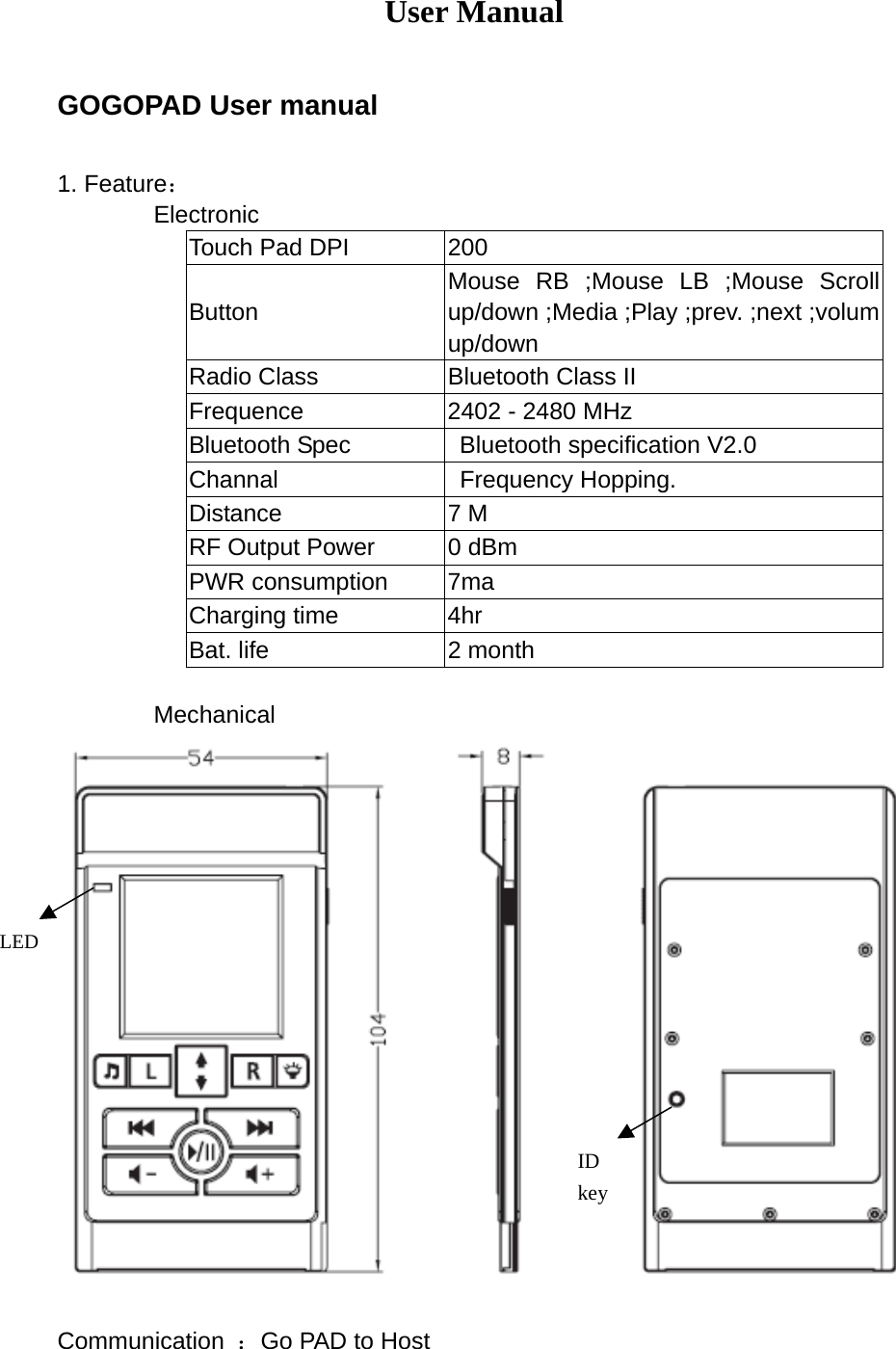
User Manual  GOGOPAD User manual  1. Feature:         Electronic Touch Pad DPI  200 Button Mouse RB ;Mouse LB ;Mouse Scroll up/down ;Media ;Play ;prev. ;next ;volum up/down Radio Class  Bluetooth Class II Frequence  2402 - 2480 MHz Bluetooth Spec    Bluetooth specification V2.0 Channal  Frequency Hopping. Distance 7 M RF Output Power  0 dBm PWR consumption  7ma Charging time  4hr Bat. life  2 month          Mechanical                        Communication  :Go PAD to Host ID keyLED
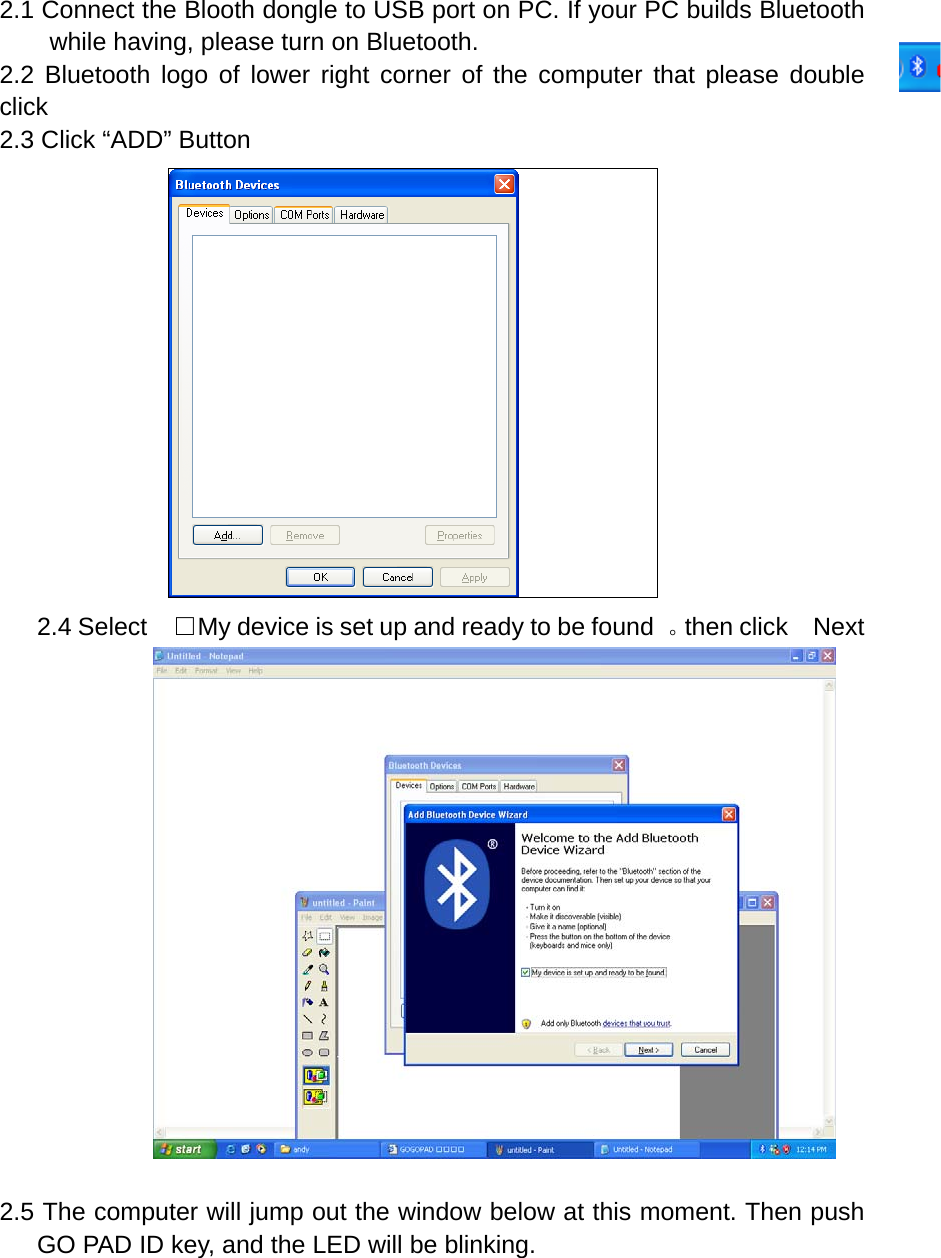
2.1 Connect the Blooth dongle to USB port on PC. If your PC builds Bluetooth while having, please turn on Bluetooth. 2.2 Bluetooth logo of lower right corner of the computer that please double click  2.3 Click “ADD” Button  2.4 Select    □My device is set up and ready to be found  。then click  Next                   2.5 The computer will jump out the window below at this moment. Then push GO PAD ID key, and the LED will be blinking.
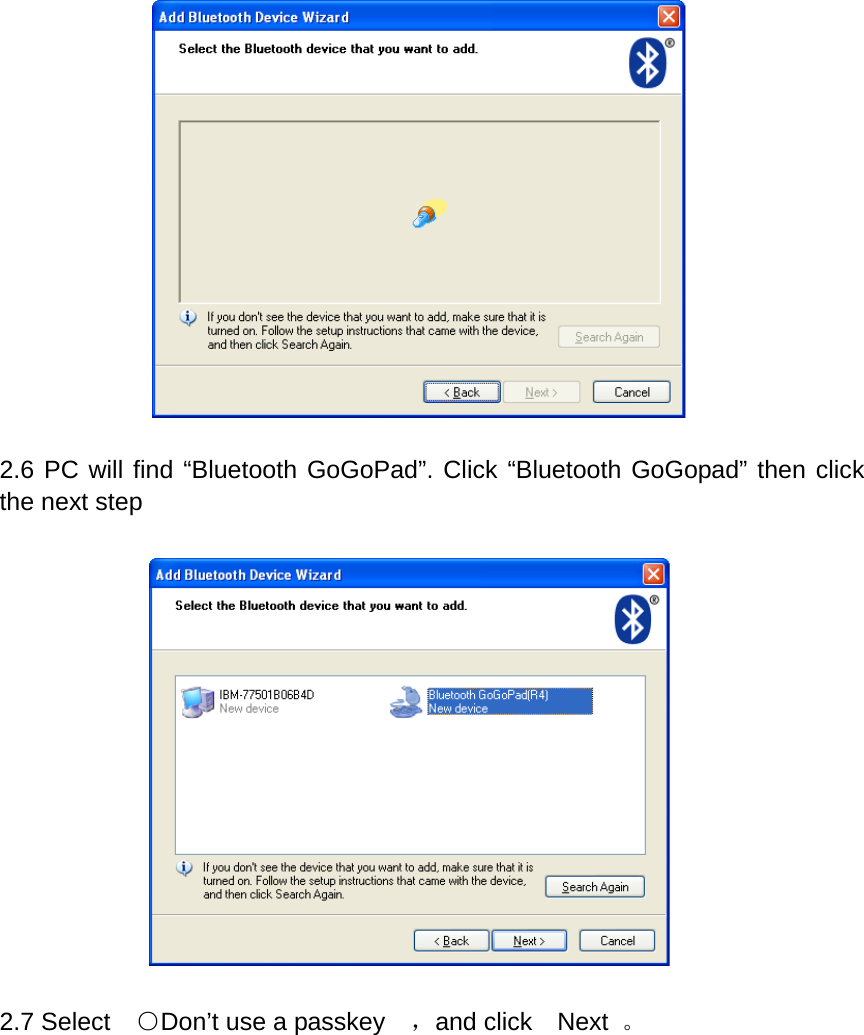
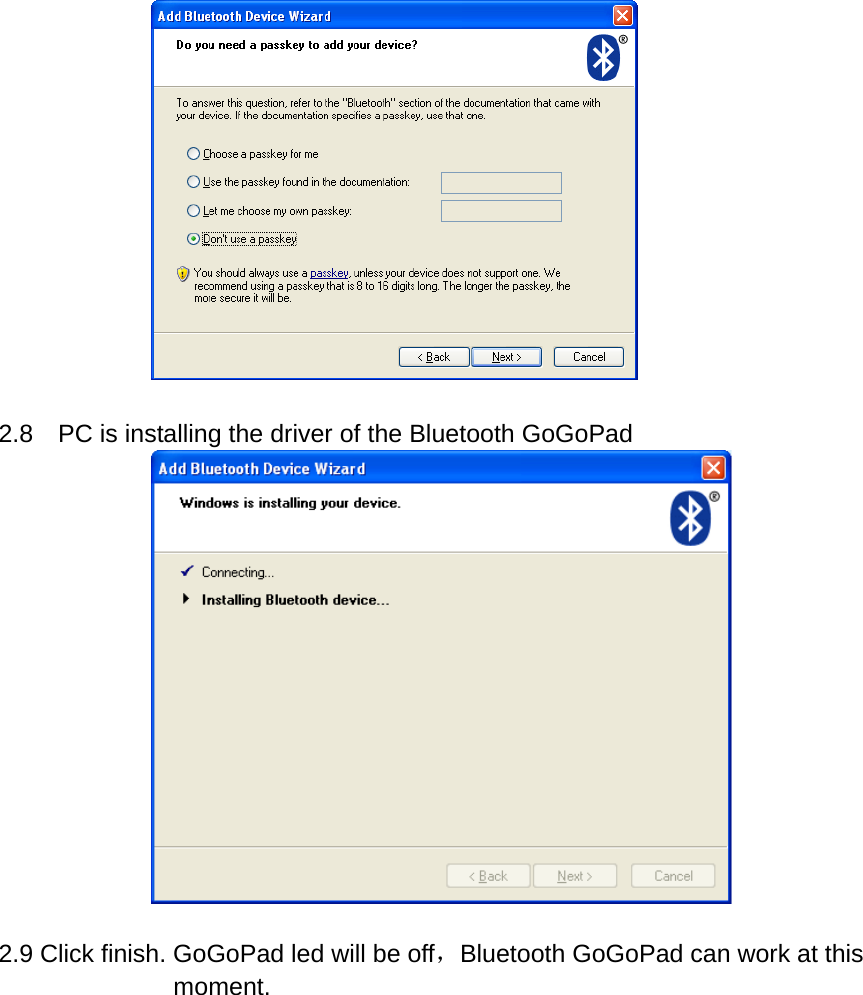
  2.6 PC will find “Bluetooth GoGoPad”. Click “Bluetooth GoGopad” then click the next step    2.7 Select    ○Don’t use a passkey    ,and click  Next 。
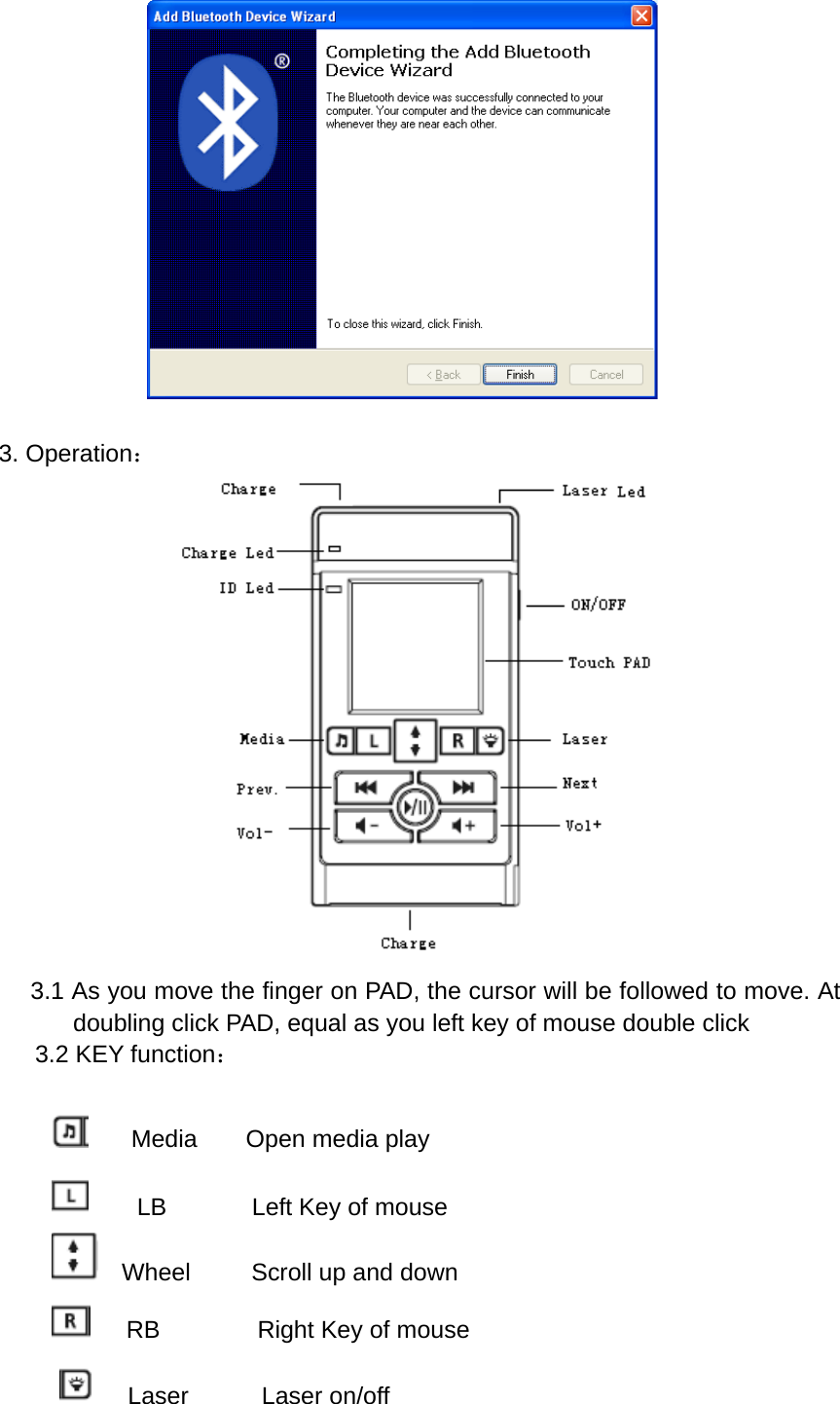
  2.8    PC is installing the driver of the Bluetooth GoGoPad   2.9 Click finish. GoGoPad led will be off,Bluetooth GoGoPad can work at this moment.
  3. Operation:     3.1 As you move the finger on PAD, the cursor will be followed to move. At doubling click PAD, equal as you left key of mouse double click 3.2 KEY function:      Media    Open media play     LB       Left Key of mouse   Wheel     Scroll up and down    RB        Right Key of mouse    Laser      Laser on/off
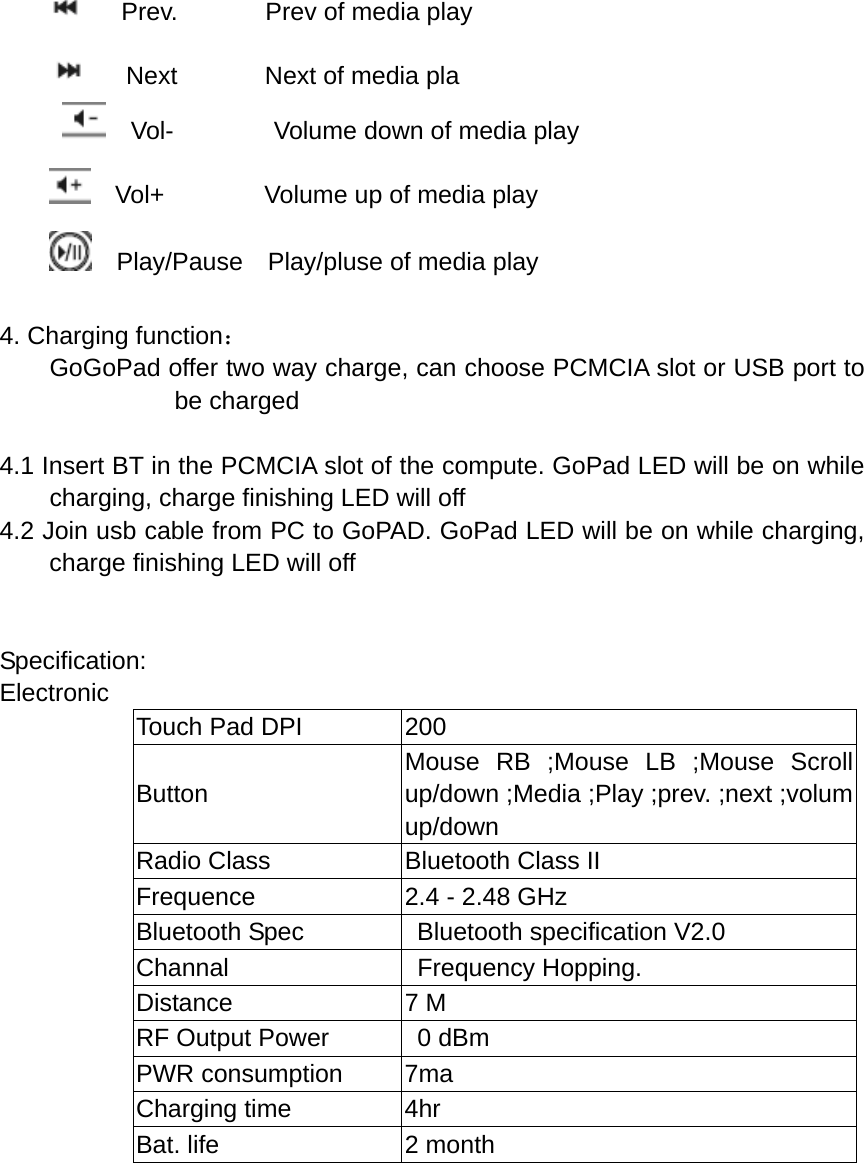
   Prev.       Prev of media play       Next       Next of media pla   Vol-        Volume down of media play   Vol+        Volume up of media play   Play/Pause  Play/pluse of media play  4. Charging function:         GoGoPad offer two way charge, can choose PCMCIA slot or USB port to be charged   4.1 Insert BT in the PCMCIA slot of the compute. GoPad LED will be on while charging, charge finishing LED will off 4.2 Join usb cable from PC to GoPAD. GoPad LED will be on while charging, charge finishing LED will off   Specification: Electronic Touch Pad DPI  200 Button Mouse RB ;Mouse LB ;Mouse Scroll up/down ;Media ;Play ;prev. ;next ;volum up/down Radio Class  Bluetooth Class II Frequence  2.4 - 2.48 GHz Bluetooth Spec    Bluetooth specification V2.0 Channal  Frequency Hopping. Distance 7 M RF Output Power    0 dBm PWR consumption  7ma Charging time  4hr Bat. life  2 month
 FCC WARNING  This device complies with Part 15 of the FCC Rules. Operation is subject to the following two conditions: (1) this device may not cause harmful interference, and (2) this device must accept any interference received, including interference that may cause undesired operation.  NOTE: This equipment has been tested and found to comply with the limits for a Class B digital device, pursuant to part 15 of the FCC Rules. These limits are designed to provide reasonable protection against harmful interference in a residential installation. This equipment generates, uses and can radiate radio frequency energy and, if not installed and used in accordance with the instructions, may cause harmful interference to radio communications. However, there is no guarantee that interference will not occur in a particular installation. If this equipment does cause harmful interference to radio or television reception, which can be determined by turning the equipment off and on, the user is encouraged to try to correct the interference by one or more of the following measures: - Reorient or relocate the receiving antenna. - Increase the separation between the equipment and receiver. -Connect the equipment into an outlet on a circuit different from that to which the receiver is connected. -Consult the dealer or an experienced radio/TV technician for help.  NOTE: The manufacturer is not responsible for and radio or TV interference caused by unauthorized modifications to this equipment. Such modifications could void the user’s authority to operate the equipment.

Navigation menu