EC Electronics ECAM102 Android Terminal User Manual M102 EC 2017

EC Electronics, Limited Android Terminal M102 EC 2017

Users manual

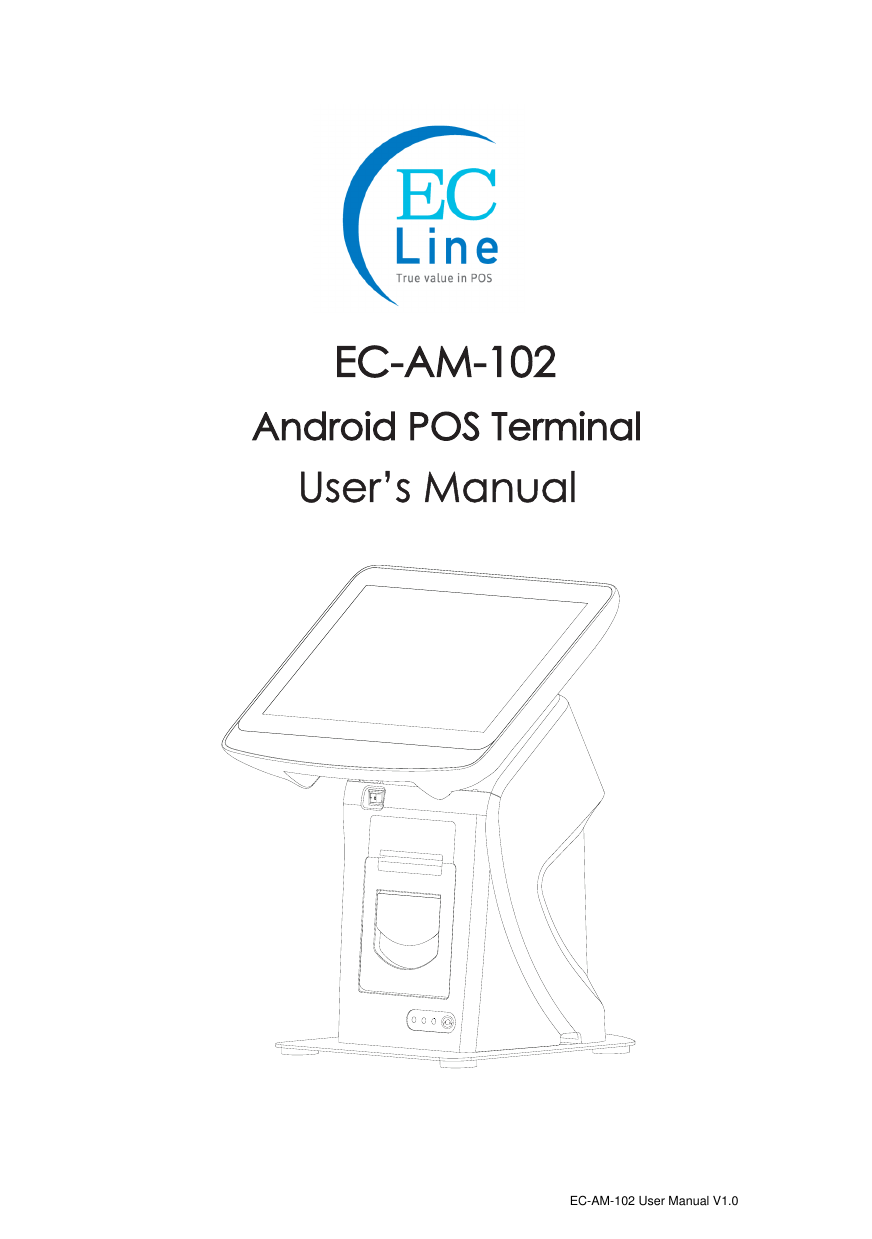
User’s ManualEC-AM-102Android POS TerminalEC-AM-102 User Manual V1.0
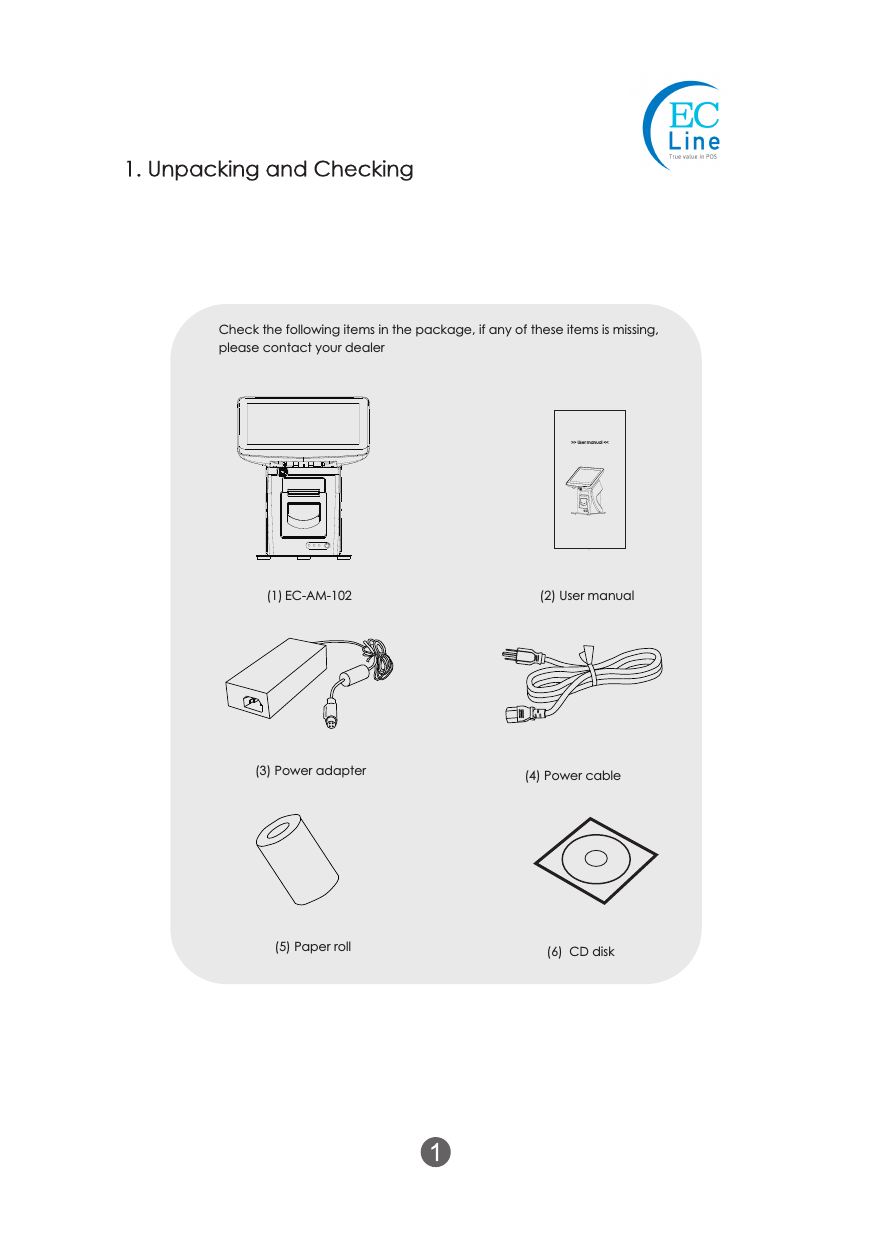
(1) EC-AM-102 (2) User manual(3) Power adapter (4) Power cable(5) Paper roll (6) CD diskCheck the following items in the package, if any of these items is missing, please contact your dealer>> User manual <<1. Unpacking and Checking
Read the instructions carefully and thoroughly and save them for later reference. The unauthorized  operation  may  lead  to  error  or  accident.  Follow  all  the  warnings  and instructions in the manual as well as marked on the product.  Whenever problem exists, power off and unplug the terminal and contact the authorized reseller / distributor.IntroductionThis  manual  is  for  EC-AM-102  Android  POS  terminal  series,  all  contents  have  been validated and reviewed.EC-AM-102 complies with GB4943.1-2011; GB9254-2008Device  must  be  opened by authorized  person  or  qualified technical engineer.    If  the product does not operate normally when the operating instructions are followed. Adjustonly  those  controls  that  are  covered  by  the  operating  instructions  since  importer adjustment of other controls may result in damage and will often require extensive work by a qualified technician to restore the product to normal operation.WarrantyAbout this manual / Safety statement:** The content of this manual is subject to change without prior notice.managment function for non-cash settlement.Feature: Through commodity and media bussiness .Supply data service and
1.  Avoid radio interference2.  Use genuine accessories or spare parts.  Use improper spare part may cause damage or malfunction.3.  The power cord of this product is come with ground connection.  Make sure the voltage of the electricity is correctly match our power supply.4.  Keep the product, power supply and paper roll in a dry or cool environment.  It should never be placed near or over a radiator or heat origin, and should avoid of direct sunshine.5.  Make sure the connection of the cable are connected correctly to the interfaces.6.  Keep your communication device and the integrated printer in the WAN environment, don’t connect it to unknown or unrecognized network.7.  The product should use horizontally8.  Unplug this product from the power outlet before cleaning. Do not use liquid or aerosol cleaners. Use a damp cloth for cleaning.9.  Slots and openings on the cabinet and the back or bottom are provided for air ventilation. To ensure reliable operation of the product and to protect it from overheating, do not block or cover these openings. The openings should never be blocked by placing the product on a bed, sofa, rug or other similar surface. This product should never be placed near or over a radiator or heater. This product should not be placed in a built-in installation or kiosk stand unless proper ventilation is provided.10.  This product should never be placed near or over a radiator or heat origin, and should avoid of direct sunshine.11.  Do not locate this product where the cord will be walked on. When the cord or the plug is mangled, please stop using and get a new one replaced. Make sure the old one is far away from the printer, so it can avoid someone who does not know the inside story getting damage.12.  Do not use in locations subject to high humidity or dust levels. Excessive humidity and dust may cause equipment damage or fire.13.  Never push objects of any kind into this product through cabinet slots as they may touch dangerous voltage dots or short out parts.14.  Make sure to turn off the power of the printer whenever repair.15.  Unplug this product from the power outlet and leave servicing to qualified service personnel under the following conditions:Caution16.  When the power cord or plug is damaged or frayed.a) If liquid has been spilled into the product.b) If the product has been exposed to rain or water.c) Power cable is damagedd) Strongly impact3
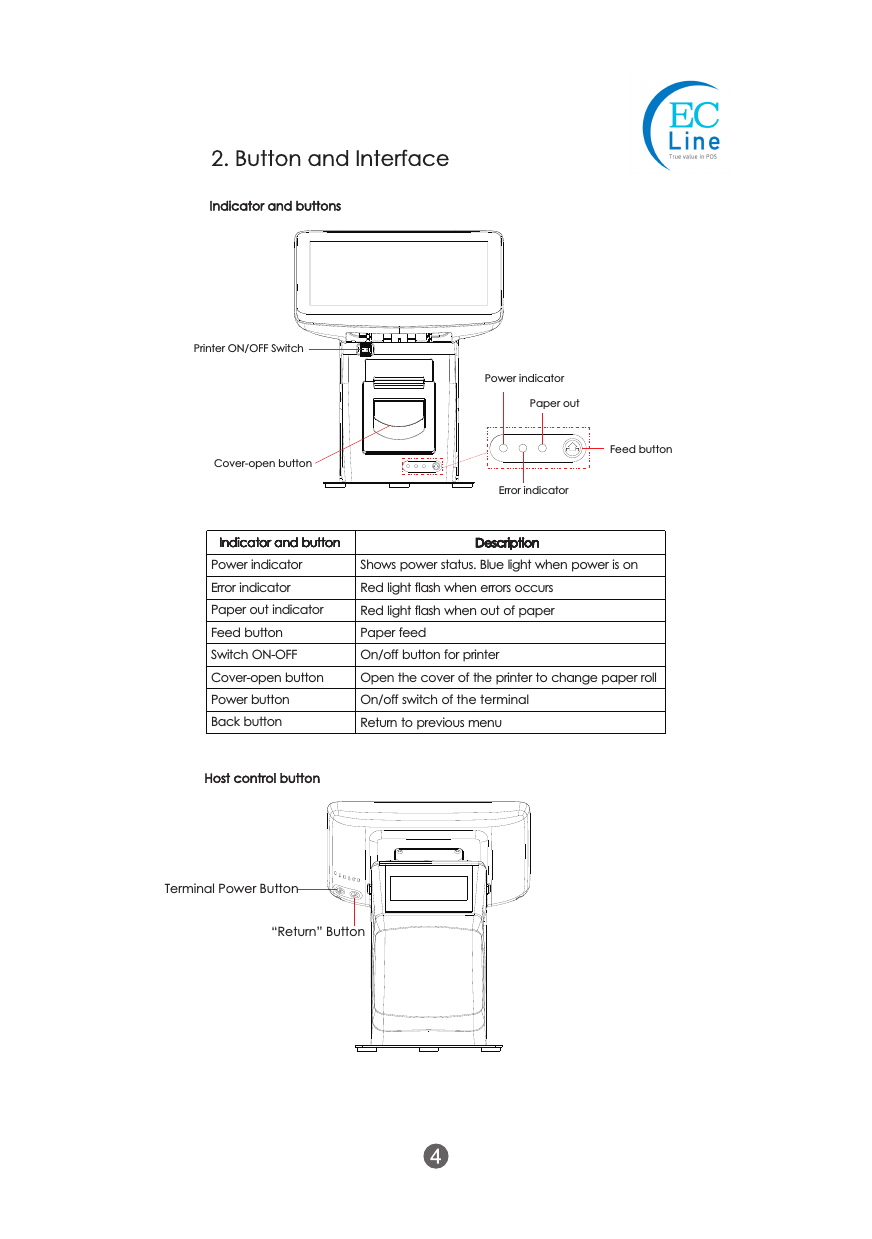
Indicator and buttonsCover-open buttonPower indicatorPaper outFeed buttonError indicatorPrinter ON/OFF SwitchHost control buttonTerminal Power Button “Return” ButtonIndicator and buttonPower indicatorError indicatorPaper out indicatorFeed buttonSwitch ON-OFFCover-open buttonPower buttonBack buttonShows power status. Blue light when power is onRed light flash when errors occursRed light flash when out of paperPaper feed On/off button for printerOpen the cover of the printer to change paper rollOn/off switch of the terminalReturn to previous menuDescriptionIndicator and buttonIndicator and buttonIndicator and buttonIndicator and buttonIndicator and buttonIndicator and button2. Button and Interface DescriptionDescriptionDescription
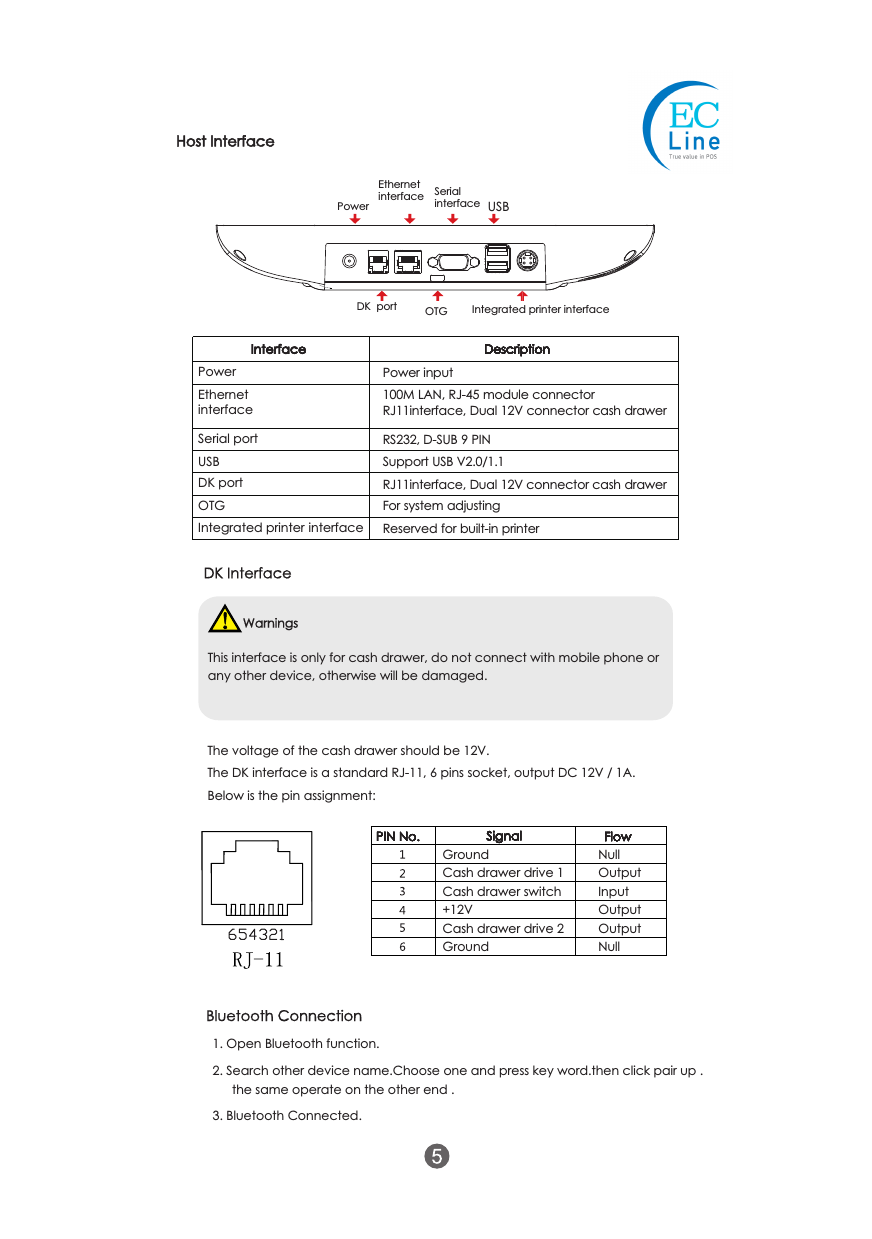
Host InterfacePower Ethernet interface Serial interface USB DK  port OTGPower EthernetinterfaceSerial portUSBDK portOTGIntegrated printer interfacePower input100M LAN, RJ-45 module connector RJ11interface, Dual 12V connector cash drawerRS232, D-SUB 9 PINSupport USB V2.0/1.1RJ11interface, Dual 12V connector cash drawerFor system adjustingReserved for built-in printerDescriptionInterfaceThis interface is only for cash drawer, do not connect with mobile phone or any other device, otherwise will be damaged.DK InterfaceWarnings PIN No.GroundCash drawer drive 1Cash drawer switch+12VCash drawer drive 2GroundSignalNullOutputInputOutputOutputNullFlowIntegrated printer interfaceThe voltage of the cash drawer should be 12V.The DK interface is a standard RJ-11, 6 pins socket, output DC 12V / 1A.Below is the pin assignment:PIN No.PIN No.PIN No.PIN No.PIN No.PIN No.PIN No.DescriptionDescriptionSignal FlowSignal FlowSignal FlowSignal FlowInterface DescriptionDescriptionDescriptionBluetooth Connection 1. Open Bluetooth function.2. Search other device name.Choose one and press key word.then click pair up .3. Bluetooth Connected. the same operate on the other end .
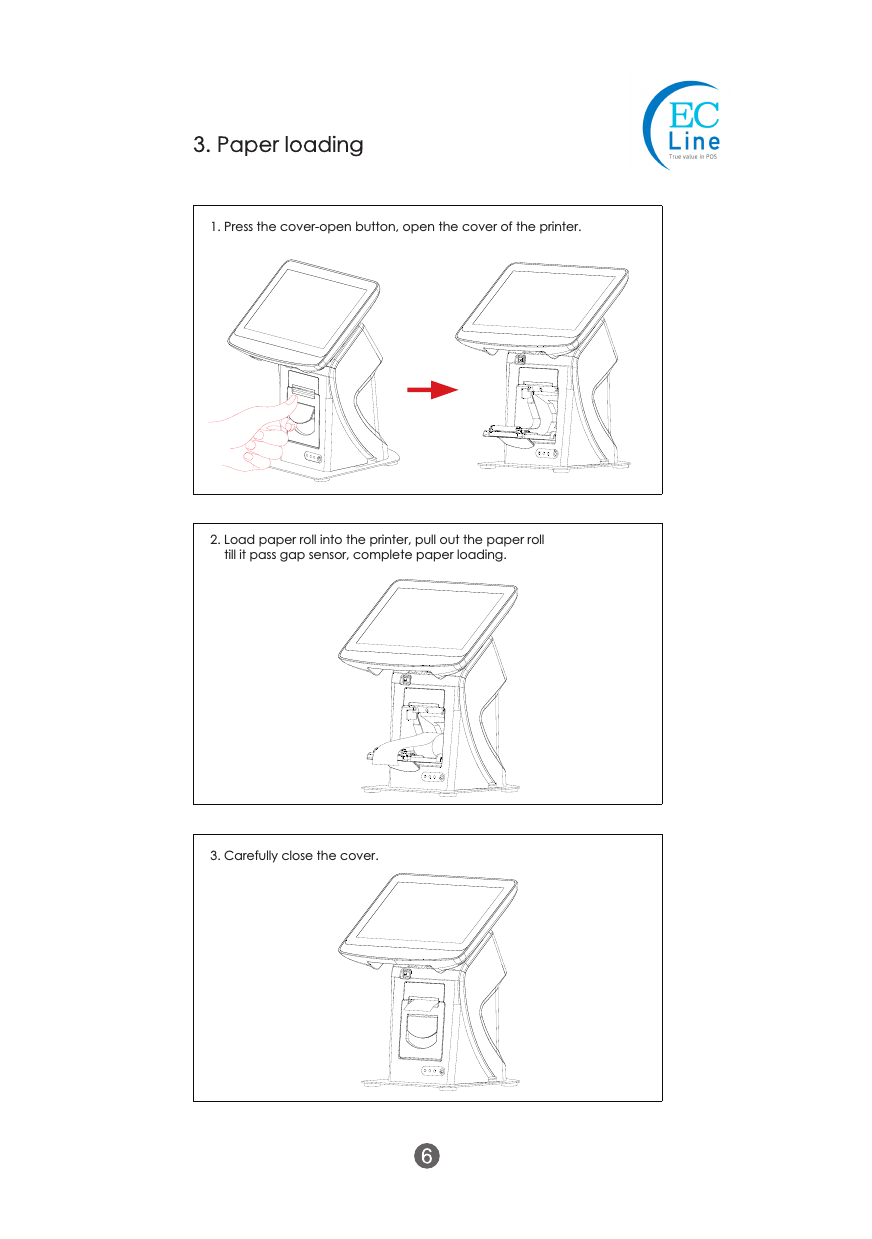
1. Press the cover-open button, open the cover of the printer.2. Load paper roll into the printer, pull out the paper roll till it pass gap sensor, complete paper loading.3. Carefully close the cover.3. Paper loading
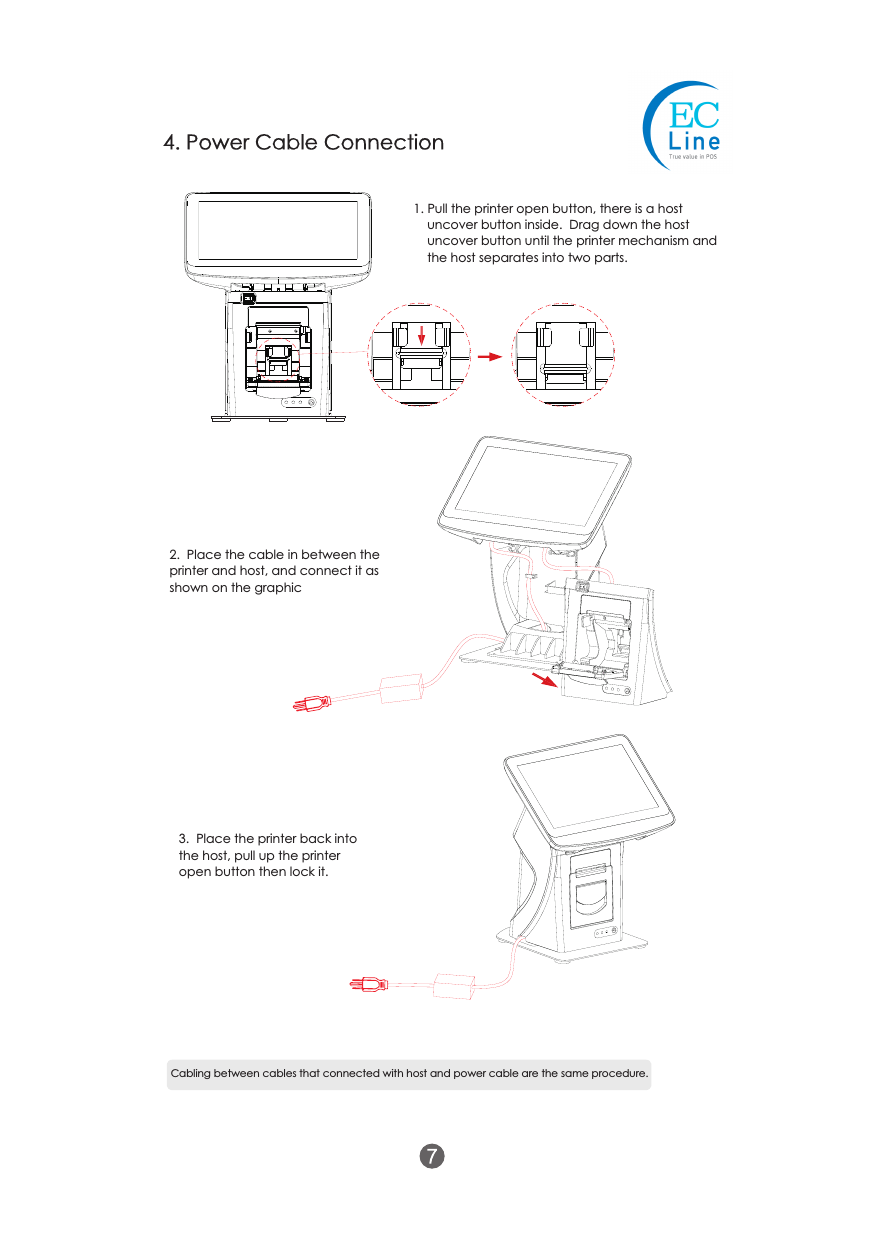
4. Power Cable Connection1. Pull the printer open button, there is a host uncover button inside.  Drag down the host uncover button until the printer mechanism and the host separates into two parts.Cabling between cables that connected with host and power cable are the same procedure.2.  Place the cable in between the printer and host, and connect it as shown on the graphic3.  Place the printer back into the host, pull up the printer open button then lock it.
1. To prolong the life of the terminal, make sure that it is well away from heaters, other sources  of  extreme  heat,  sunlight;  and  the  surrounding  area  is  clean, dry,  and  free of dust.2. The device should never be placed near or over a radiator or electromagnetic.3. The device should use under a stable power  voltage  connection with  an independent power supply.4. Do not shake or kick the device.5.  Do  not  remove  or  install  any  integrated  device  that  is  not  approved  from  the manufacturer.  Do not relocate the device frequency.6.  Remove  the  dirt  of  the  case  with  clean and  soft  cloth.   Do  not  use  any  chemical detergent.7.  Turn  off  the  power  immediately  whenever  problem  occurs.   Do  not  maintain  and disassemble the units, contact the authorized person for service.8. Check the cable connection to make sure they are connected correctly.9. Disconnect the power when the terminal is not going to use for a period of time.Can not start device, power indicator off.1. Check whether power socket works.2. Check whether power cable plugs tightly.No noise, the printer can not print.1. Check whether the printer cover is opened.Receipt is printed unclearly.1. Turn off the power, clean up the print head with medical alcohol.Printer keeps beeping, fail to print.1. Check whether the cover of printer is closed correctly.2. Check whether the paper is out.3. Check whether the LED is still on.5. Troubleshooting6. Maintenance
The manual content and version are subject to change without prior notice.Manufacturer: EC LINEThank you very much for using EC Line product For service, please contact service@ecline.com.hkwww.eclinepos.com

Navigation menu