ETEK TECHNOLOGY TD-8013 GSM/GPRS MODEM User Manual

ETEK TECHNOLOGY(SHENZHEN) CO., LTD. GSM/GPRS MODEM

User Manual

GSM/GPRS ModemUser's Manual
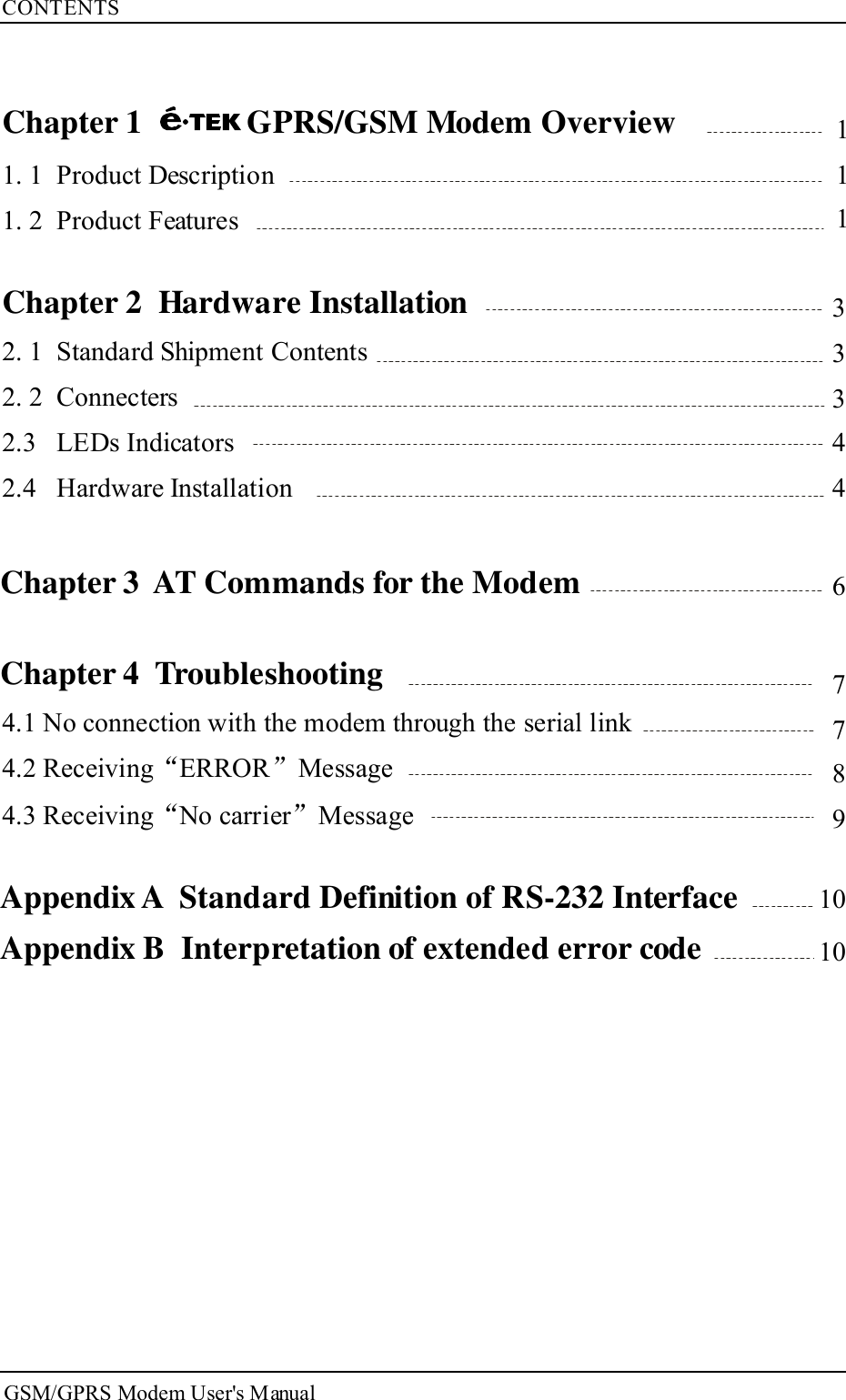
CONTENTS4.1 No connection with the modem through the serial link4.2 Receiving ERROR Message4.3 Receiving No carrier Message“ ”“ ”1113334467789Chapter 2 Hardware Installation2. 1 Standard Shipment Contents2. 2 Connecters2.3 LEDs Indicators2.4 Hardware InstallationChapter 3 AT Commands for the ModemChapter 4 TroubleshootingGSM/GPRS Modem User's ManualChapter 1 GPRS/GSM Modem Overview1. 1 Product Description1. 2 Product FeaturesAppendix B Interpretation of extended error codeAppendix A Standard Definition of RS-232 Interface 1010
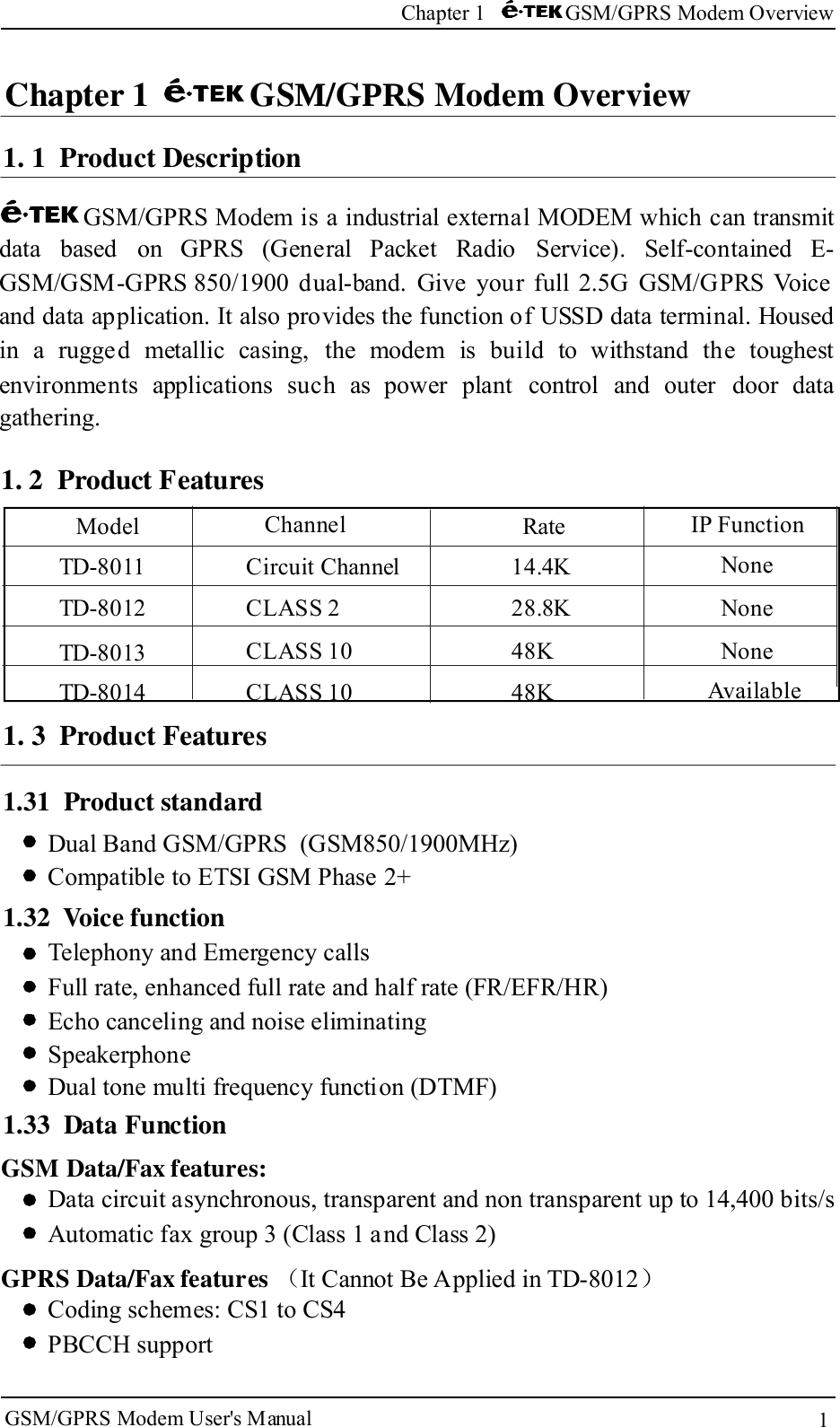
1GSM/GPRS Modem User's ManualChapter 1 GS0/G35S Modem OverviewChapter 1 GSM/GPRS Modem Overview1. 1 Product DescriptionGSM/GPRS Modem is a industrial external MODEM which can transmitdata based on GPRS (General Packet Radio Service). Self-contained E-GSM/GSM-GPRS 850/1900 dual-band. Give your full 2.5G GSM/GPRS Voiceand data application. It also provides the function of USSD data terminal. Housedin a rugged metallic casing, the modem is build to withstand the toughestenvironments applications such as power plant control and outer door datagathering.1. 3 Product FeaturesDual Band GSM/GPRS (GSM850/1900MHz)Compatible to ETSI GSM Phase 2+1.31 Product standard1.32 Voice functionTelephony and Emergency callsFull rate, enhanced full rate and half rate (FR/EFR/HR)Echo canceling and noise eliminatingSpeakerphoneDual tone multi frequency function (DTMF)1.33 Data FunctionGSM Data/Fax features:Data circuit asynchronous, transparent and non transparent up to 14,400 bits/sAutomatic fax group 3 (Class 1 and Class 2)GPRS Data/Fax features ( )It Cannot Be Applied in TD-8012Coding schemes: CS1 to CS4PBCCH supportModelTD-8011TD-8012TD-8013TD-8014ChannelCircuit ChannelCLASS 2CLASS 10CLASS 10Rate14.4K28.8K48K48KIP FunctionNoneNoneNoneAvailable1. 2 Product Features
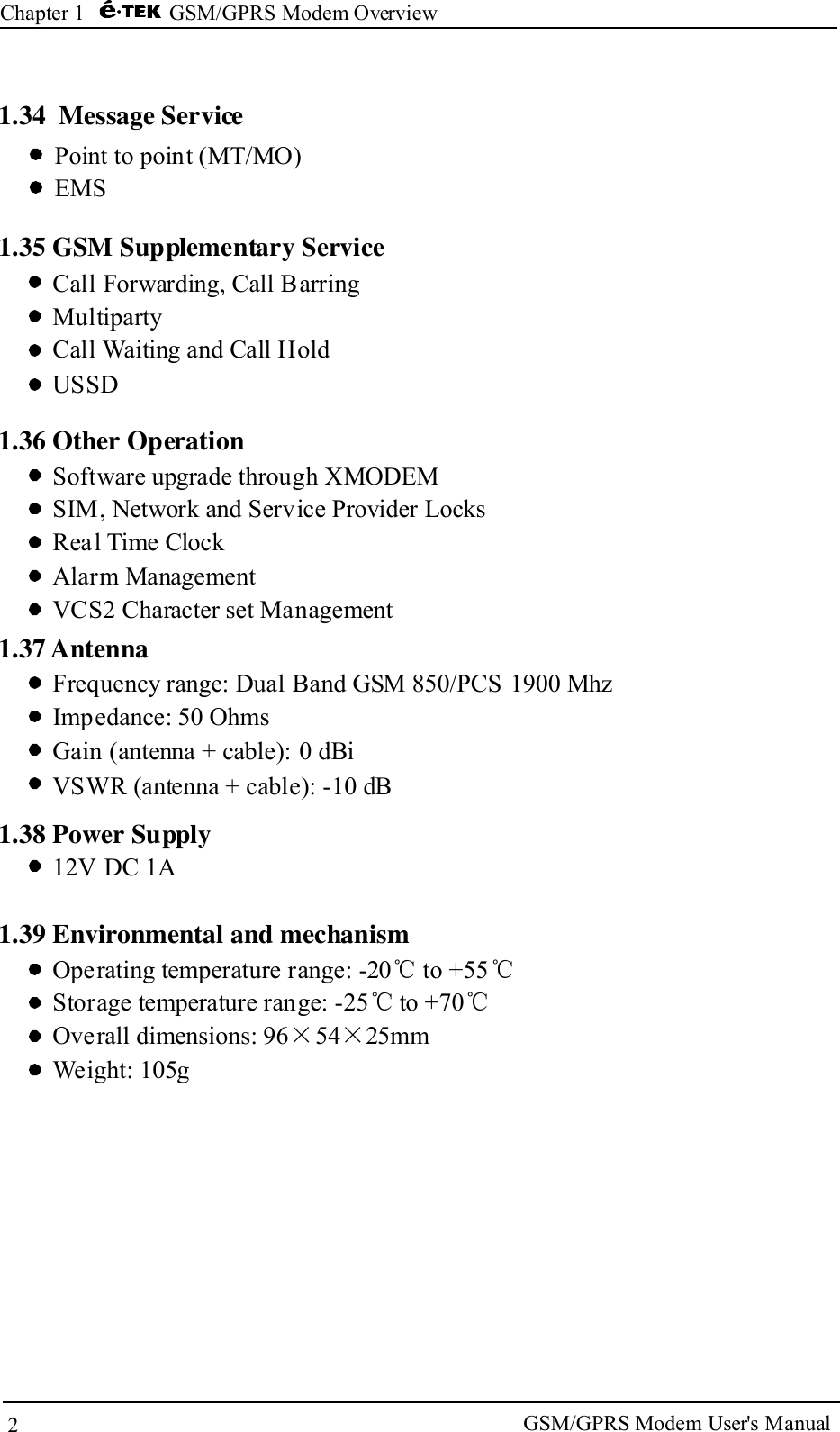
2Chapter 1 GSM/GPRS Modem Overview1.35 GSM Supplementary ServiceCall Forwarding, Call BarringMultipartyCall Waiting and Call HoldUSSD1.36 Other OperationSoftware upgrade through XMODEMSIM, Network and Service Provider LocksReal Time ClockAlarm ManagementVCS2 Character set Management1.37 AntennaFrequency range: Dual Band GSM 850/PCS 1900 MhzImpedance: 50 OhmsGain (antenna + cable): 0 dBiVSWR (antenna + cable): -10 dB1.38 Power Supply12V DC 1AOperating temperature range: -20 to +55Storage temperature range: -25 to +70Overall dimensions: 96 54 25mmWeight: 105g℃ ℃℃ ℃× ×1.39 Environmental and mechanismGSM/GPRS Modem User's Manual1.34 Message ServicePoint to point (MT/MO)EMS
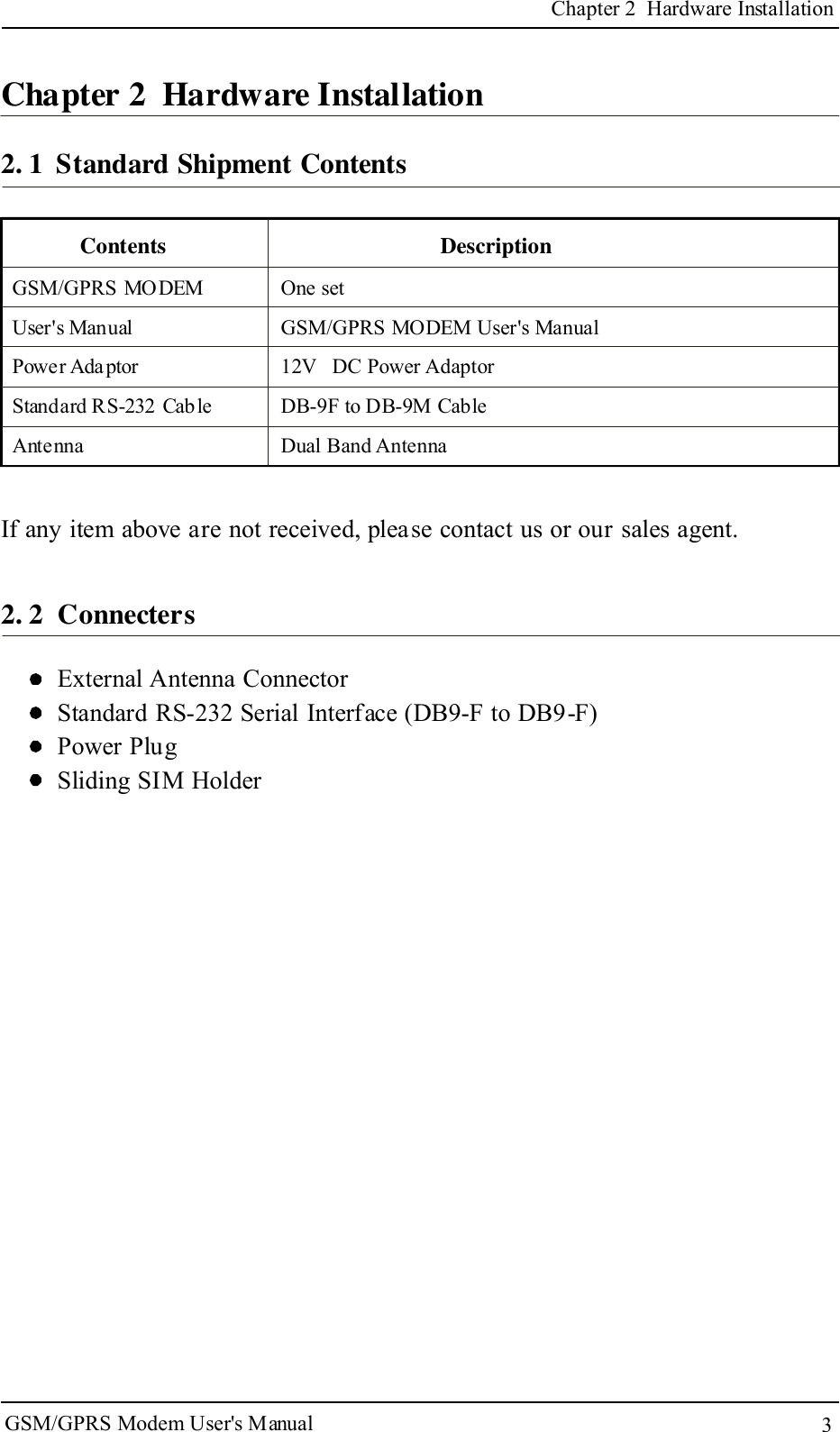
3Chapter 2 Hardware InstallationChapter 2 Hardware Installation2. 1 Standard Shipment ContentsContents DescriptionIf any item above are not received, please contact us or our sales agent.2. 2 ConnectersGSM/GPRS MODEMUser's ManualPower AdaptorStandard RS-232 CableAntennaOne setMODEM User's Manual12V DC Power AdaptorDB-9F to DB-9M CableDual Band AntennaGSM/GPRSExternal Antenna ConnectorStandard RS-232 Serial Interface (DB9-F to DB9-F)Power PlugSliding SIM HolderGSM/GPRS Modem User's Manual
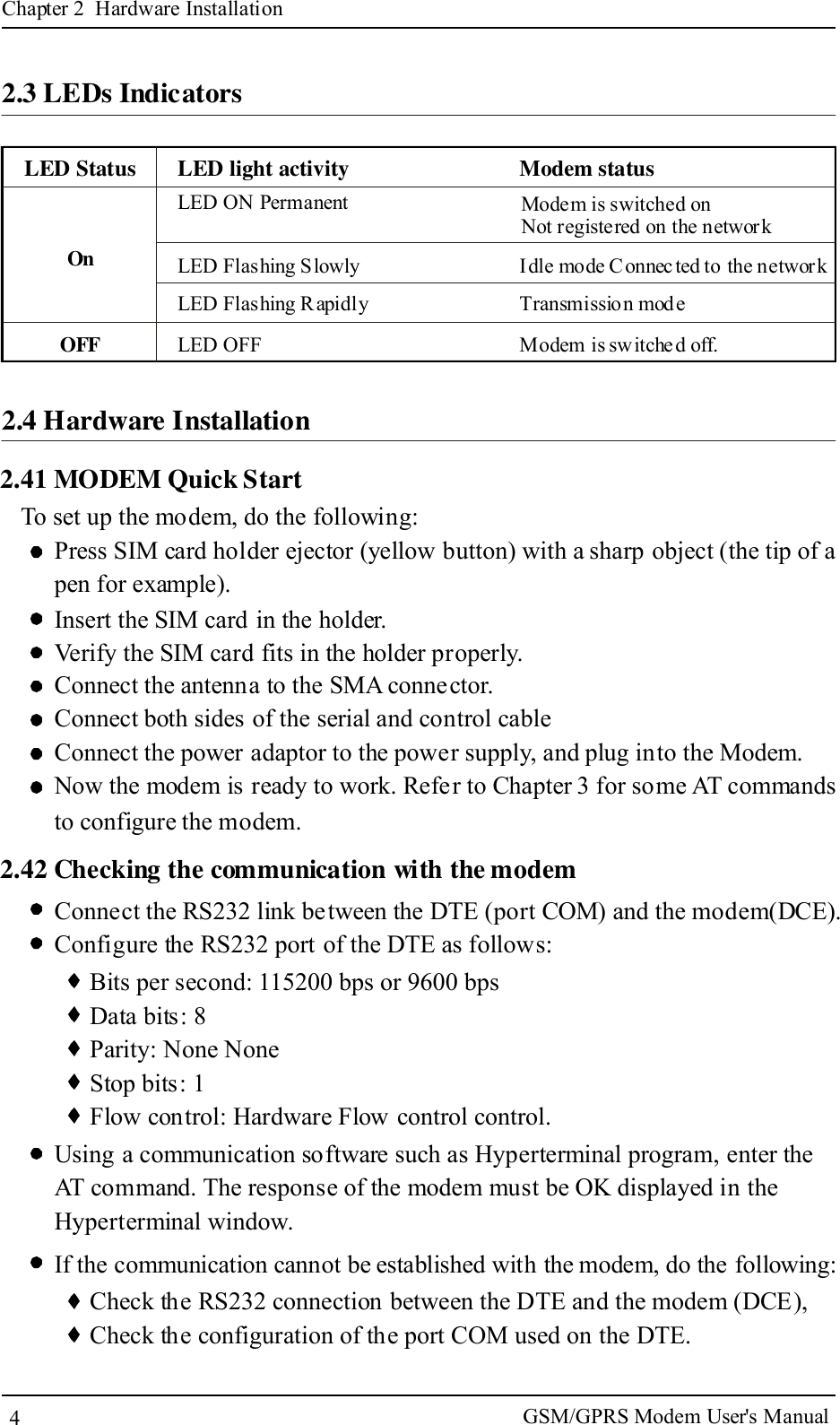
4Chapter 2 Hardware Installation2.3 LEDs IndicatorsLED StatusOnOFFLED light activity Modem statusLED ON Permanent Modem is switched onNot registered on the networkLED Flashing SlowlyLED Flashing RapidlyLED OFFIdle mode Connected to the networkTransmission modeModem is switche d off.2.4 Hardware Installation2.41 MODEM Quick StartTo set up the modem, do the following:Press SIM card holder ejector (yellow button) with a sharp object (the tip of apen for example).Insert the SIM card in the holder.Verify the SIM card fits in the holder properly.Connect the antenna to the SMA connector.Connect both sides of the serial and control cableConnect the power adaptor to the power supply, and plug into the Modem.Now the modem is ready to work. Refer to Chapter 3 for some AT commandsto configure the modem.2.42 Checking the communication with the modemConnect the RS232 link between the DTE (port COM) and the modem(DCE).Configure the RS232 port of the DTE as follows:Bits per second: 115200 bps or 9600 bpsData bits: 8Parity: None NoneStop bits: 1Flow control: Hardware Flow control control.Using a communication software such as Hyperterminal program, enter theAT command. The response of the modem must be OK displayed in theHyperterminal window.If the communication cannot be established with the modem, do the following:Check the RS232 connection between the DTE and the modem (DCE),Check the configuration of the port COM used on the DTE.GSM/GPRS Modem User's Manual
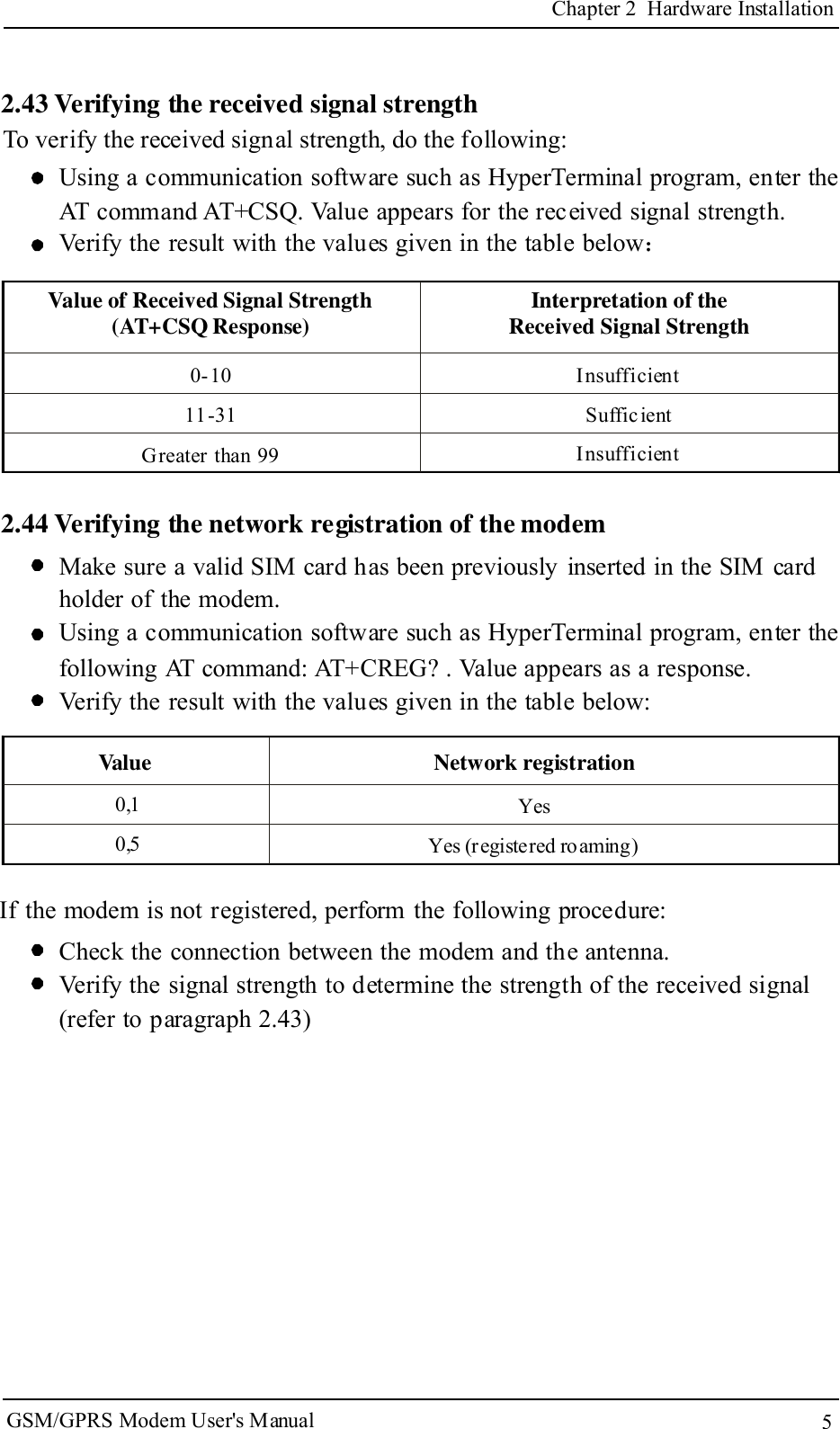
2.43 Verifying the received signal strength5Chapter 2 Hardware InstallationTo verify the received signal strength, do the following:Using a communication software such as HyperTerminal program, enter theAT command AT+CSQ. Value appears for the received signal strength.Verify the result with the values given in the table below:Value of Received Signal Strength(AT+CSQ Response) Interpretation of theReceived Signal Strength0-1011-31Greater than 99InsufficientSuffic ientInsufficient2.44 Verifying the network registration of the modemMake sure a valid SIM card has been previously inserted in the SIM cardholder of the modem.Using a communication software such as HyperTerminal program, enter thefollowing AT command: AT+CREG? . Value appears as a response.Verify the result with the values given in the table below:Value Network registration0,10,5YesYes (registered roaming)If the modem is not registered, perform the following procedure:Check the connection between the modem and the antenna.Verify the signal strength to determine the strength of the received signal(refer to paragraph 2.43)GSM/GPRS Modem User's Manual
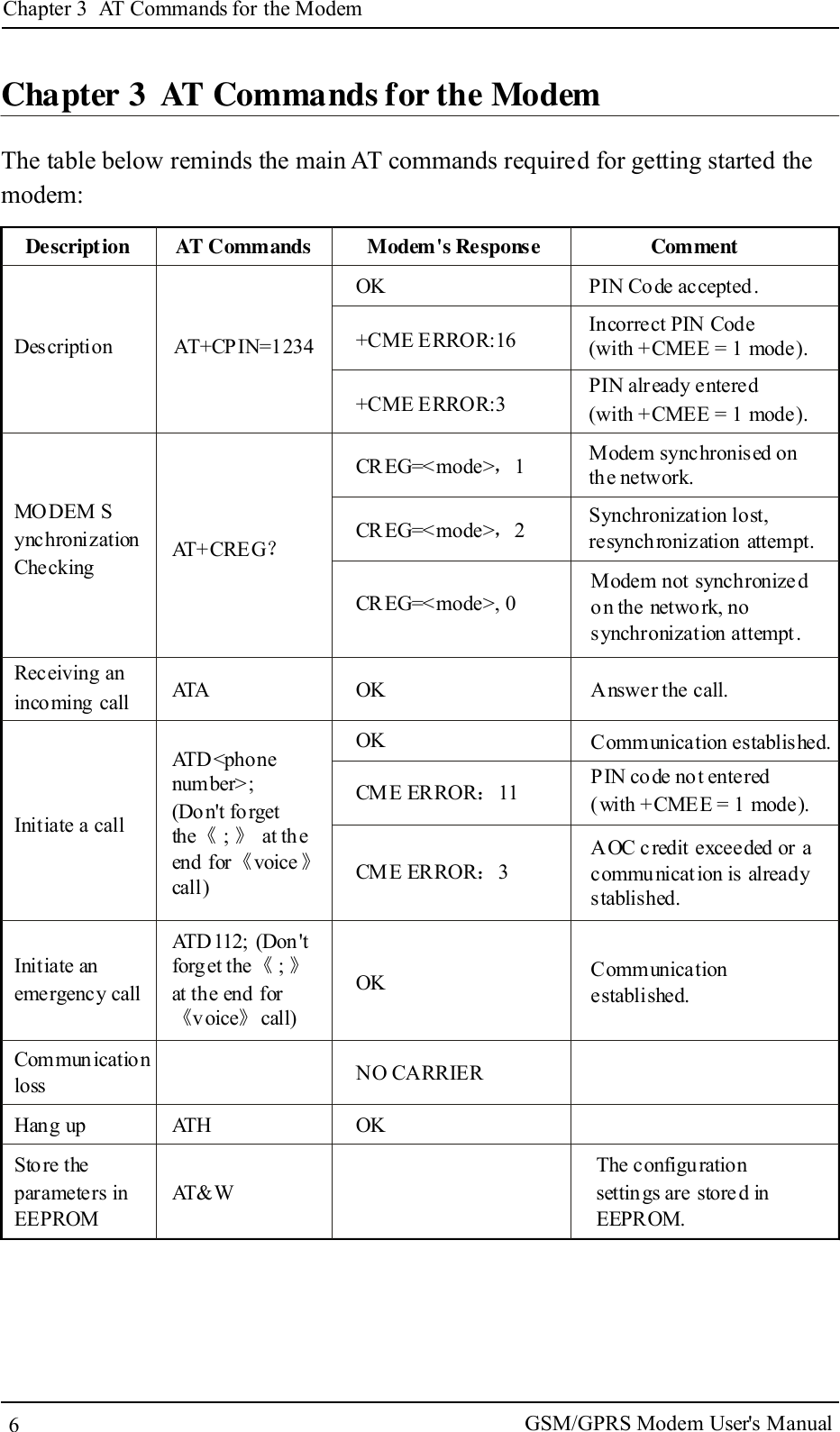
Chapter 3 AT Commands for the ModemChapter 3 AT Commands for the ModemThe table below reminds the main AT commands required for getting started themodem:Description6AT Commands Modem's Response CommentPIN Code accepted.Incorrect PIN Code(with +CMEE = 1 mode).PIN already entered(with +CMEE = 1 mode).Modem synchronised onthe network.Synchronization lost,resynchronization attempt.Modem not synchronize don the network, nosynchronization attempt.+CME ERROR:16+CME ERROR:3CR EG=<mode> 1CR EG=<mode> 2,,MODEM SynchronizationCheckingDescriptionAT+CREG?AT+CPIN=1234CR EG=<mode>, 0OKAnswer the call.Communication established.PIN code not entered(with +CMEE = 1 mode).AOC credit exceeded or acommunication is alreadystablished.Communicationestablished.ATA OKCME ERROR 11:CME ERROR 3:OKOKNO CARRIERATD<phonenumber>;(Don't forgetthe ; at th eend for voicecall)《 》《 》ATD112; (Don'tforget the ;at the end forvoice call)《 》《 》Initiate anemergency callInitiate a callReceiving anincoming callCommunicationlossHang up ATH OKSto re theparameters inEEPROMAT&WThe configurationsettings are stored inEEPROM.GSM/GPRS Modem User's Manual
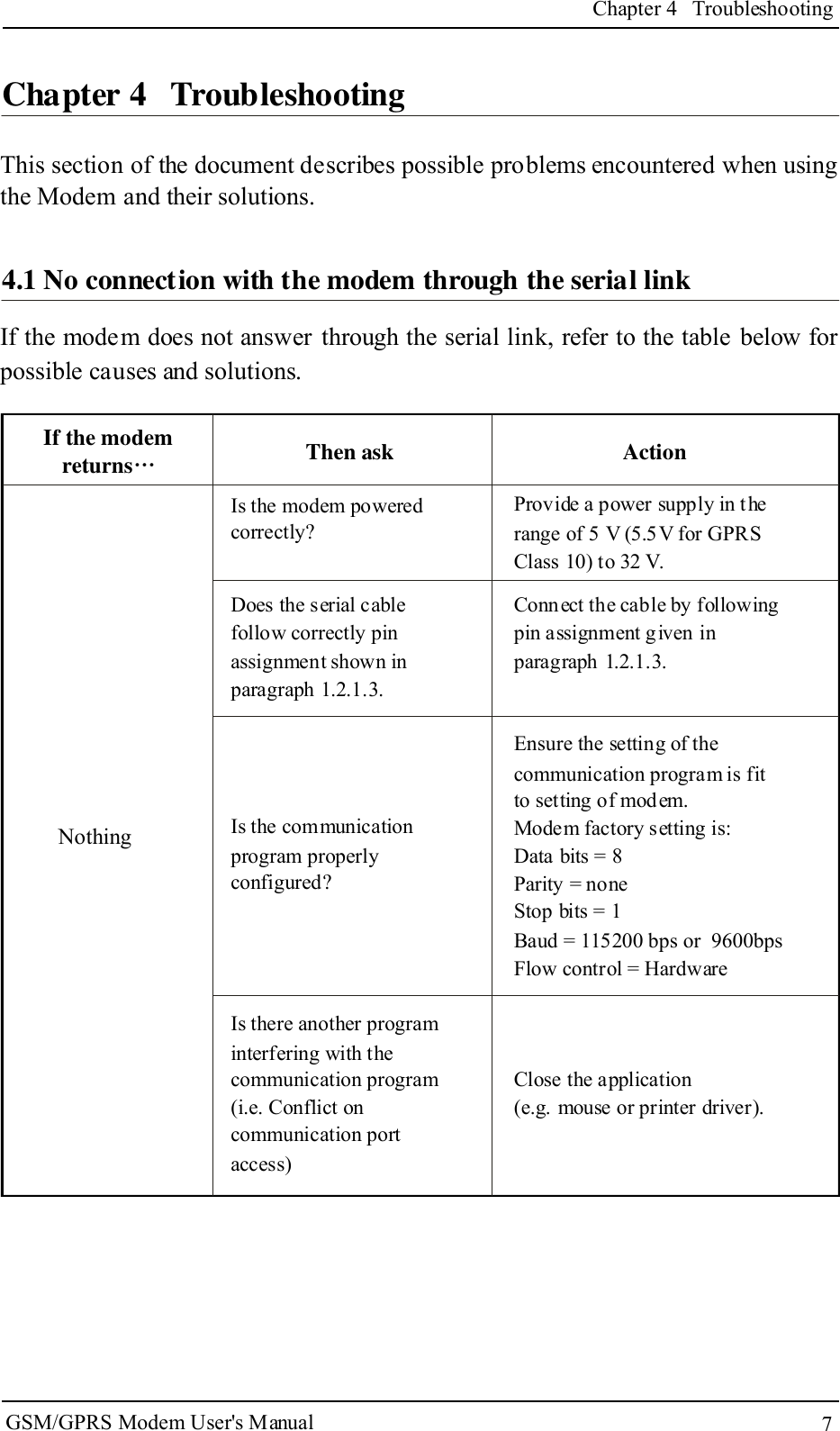
If the modem does not answer through the serial link, refer to the table below forpossible causes and solutions.7Chapter 4 TroubleshootingChapter 4 TroubleshootingThis section of the document describes possible problems encountered when usingthe Modem and their solutions.If the modemreturns…Then ask ActionIs the modem poweredcorrectly?Provide a power supply in therange of 5 V (5.5 V for GPRSClass 10) to 32 V.Does the serial cablefollow correctly pinassignment shown inparagraph 1.2.1.3.Connect the cable by followingpin assignment given inparagraph 1.2.1.3.Is the communicationprogram properlyconfigured?Ensure the setting of thecommunication program is fitto setting of mod em.Modem factory setting is:Data bits = 8Parity = noneStop bits = 1Baud = 115200 bps or  9600bpsFlow control = HardwareClose the application(e.g. mouse or printer driver).Is there another programinterfering with thecommunication program(i.e. Conflict oncommunication portaccess)Nothing4.1 No connection with the modem through the serial linkGSM/GPRS Modem User's Manual
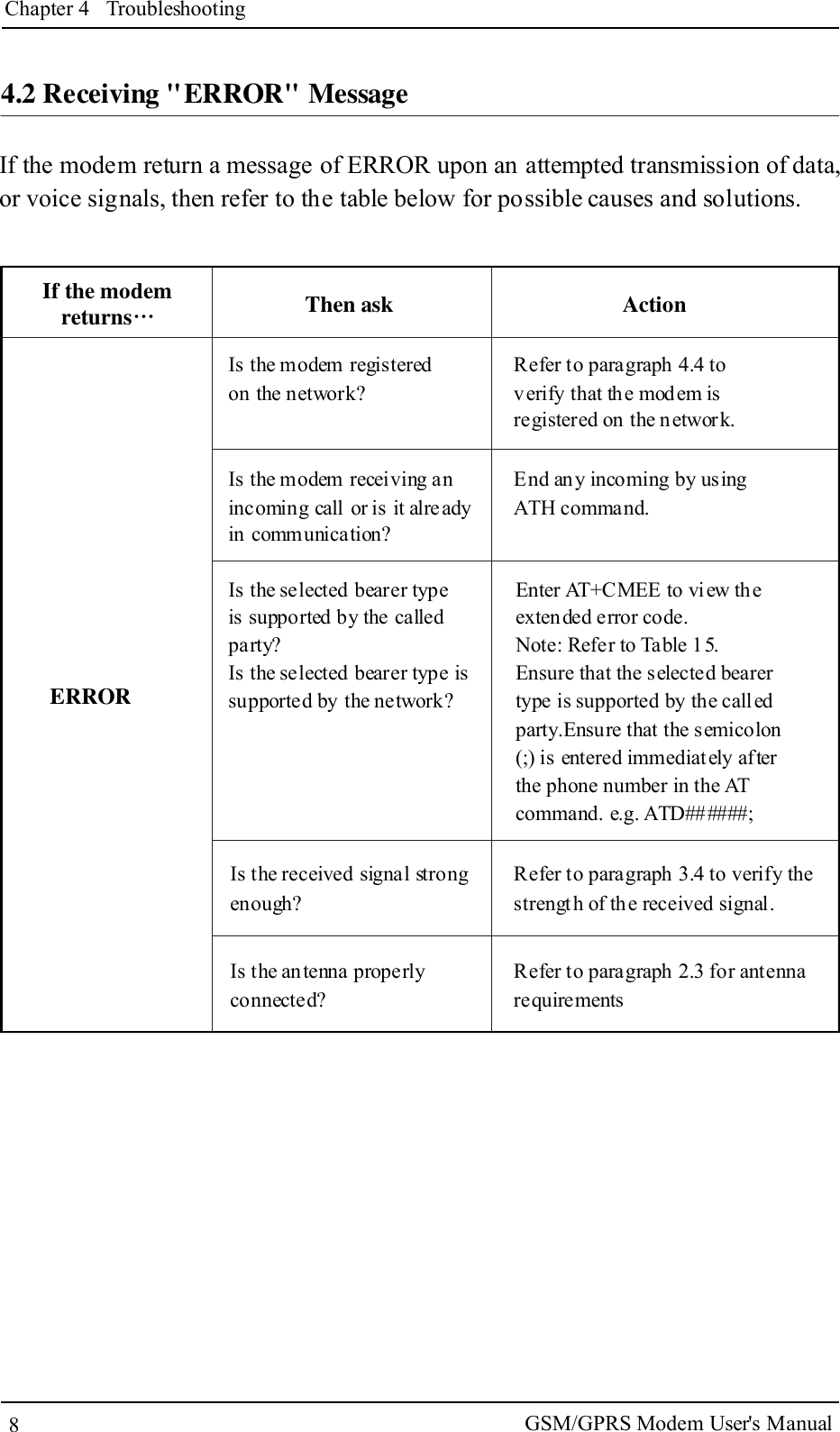
4.2 Receiving "ERROR" MessageChapter 4 TroubleshootingIf the modem return a message of ERROR upon an attempted transmission of data,or voice signals, then refer to the table below for possible causes and solutions.If the modemreturns…Then ask ActionIs the modem registeredon the network?Refer to paragraph 4.4 toverify that the modem isregistered on the network.End any incoming by usingATH command.Is the modem receiving anincoming call or is it alreadyin communication?Is the selected bearer typeis supported by the calledparty?Is the selected bearer type issupported by the network?Enter AT+CMEE to vi ew theextended error code.Note: Refer to Table 15.Ensure that the selected bearertype is supported by the calledparty.Ensure that the semicolon(;) is entered immediately afterthe phone number in the ATcommand. e.g. ATD######;Refer to paragraph 3.4 to verify thestrength of th e received signal.Refer to paragraph 2.3 for antennarequirementsIs the received signal strongenough?Is the antenna properlyconnected?ERROR8GSM/GPRS Modem User's Manual
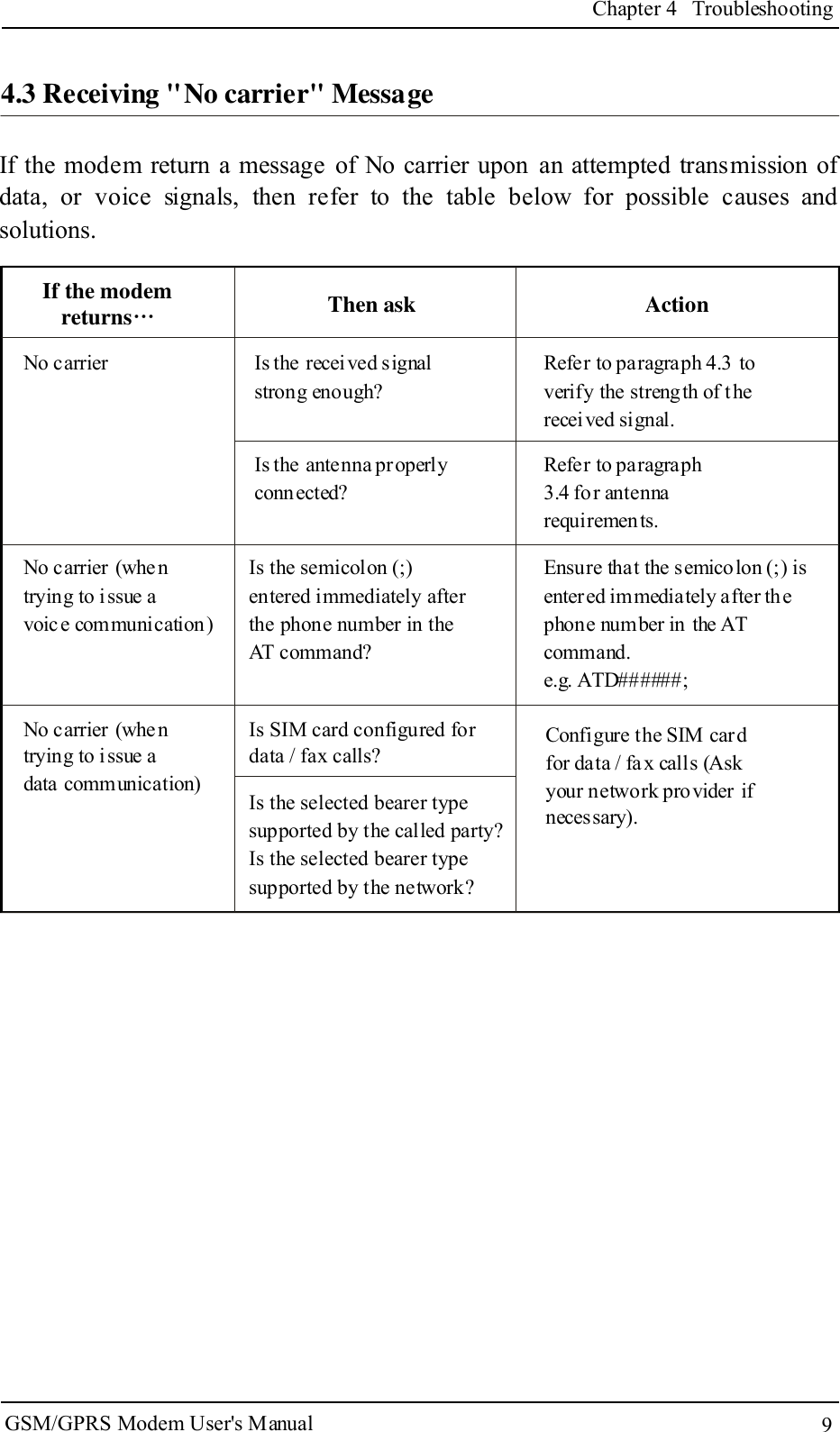
4.3 Receiving "No carrier" Message9Chapter 4 TroubleshootingIf the modem return a message of No carrier upon an attempted transmission ofdata, or voice signals, then refer to the table below for possible causes andsolutions.If the modemreturns…Then ask ActionIs the received signalstrong enough?Refer to paragraph 4.3 toverify the strength of thereceived signal.Refer to paragraph3.4 for antennarequirements.Is the antenna properlyconnected?No carrierIs the semicolon (;)entered immediately afterthe phone number in theAT command?Ensure that the semicolon (;) isentered immediately after thephone number in the ATcommand.e.g. ATD######;Is SIM card configured fordata / fax calls?Configure the SIM car dfor data / fa x calls (Askyour network provider ifnecessary).Is the selected bearer typesupported by the called party?Is the selected bearer typesupported by the network?No carrier (whentrying to issue avoice communication)No carrier (whentrying to issue adata communication)GSM/GPRS Modem User's Manual
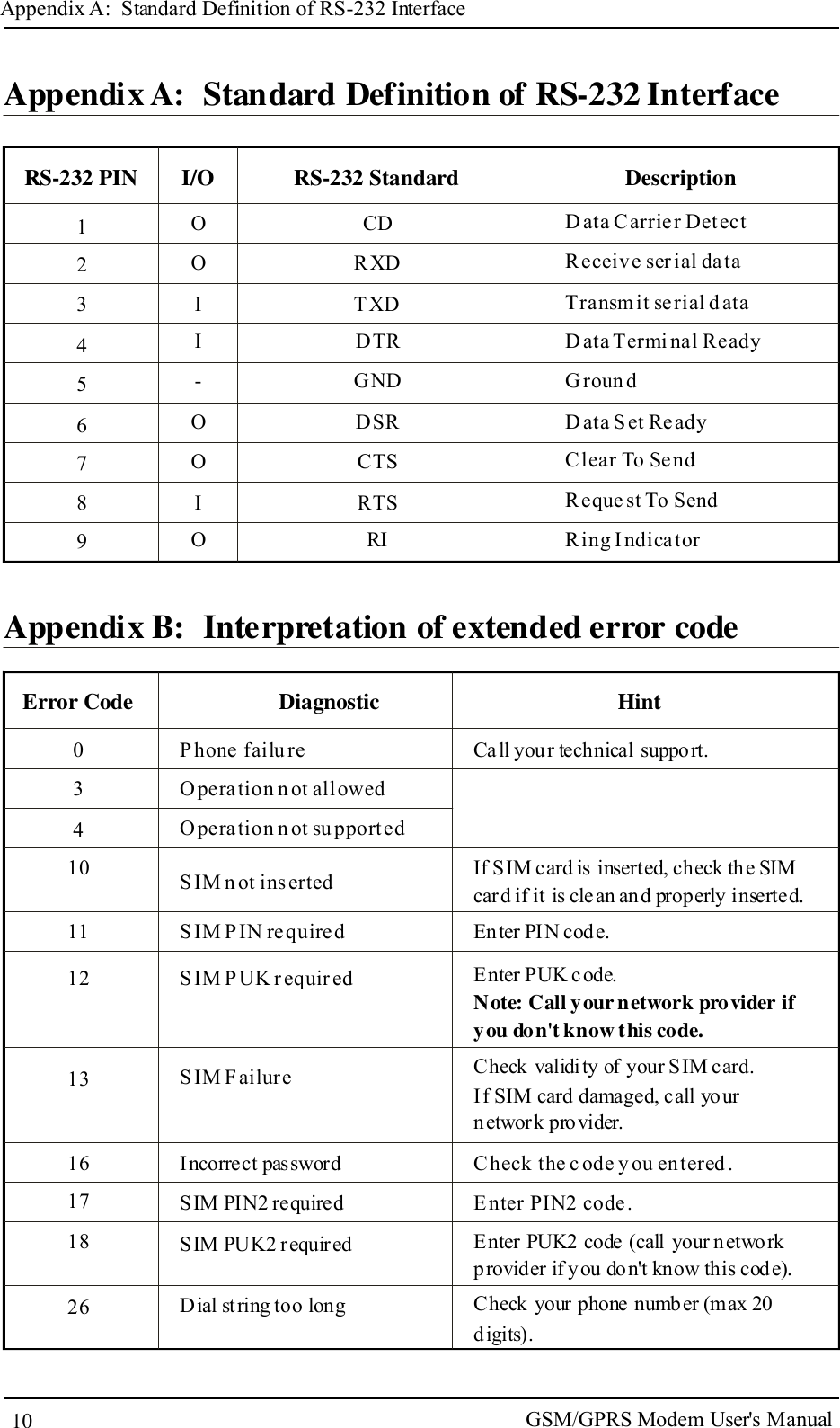
Appendix A: Standard Definition of RS-232 InterfaceAppendix A: Standard Definition of RS-232 InterfaceRS-232 PIN I/O RS-232 Standard Description123456789OOII-OOIOCDRXDT XDDTRGNDDSRCTSRTSRID ata Carrie r Det ectReceive ser ial da taTransm it se rial d ataD ata Termi nal ReadyG roun dD ata S et Re adyClear To Se ndReque st To SendRing I ndicatorAppendix B: Interpretation of extended error code03410P hone failu reO peration n ot allowedError Code DiagnosticO pera tion n ot su pportedHintIf SIM card is inserted, check the SIMcard if it is clean and properly inserted.S IM n ot ins ertedS IM P IN re quire dS IM P UK r equir edEnter PIN code.Enter PUK c ode.Note: Call yournetwork provider ifyou don't know this code.Check validity of your SIM card.If SIM card damaged, call yournetwork provider.Check the c ode y ou entered .E nter PIN2 code .Enter PUK2 code (call your networkprovider if you do n't know this code).Incorrect passwordSIM PIN2 requiredSIM PUK2 requir edS IM F ailur e161718111213Call your technical support.1026 Dial st ring too long Check your phone numb er (max 20digits).GSM/GPRS Modem User's Manual
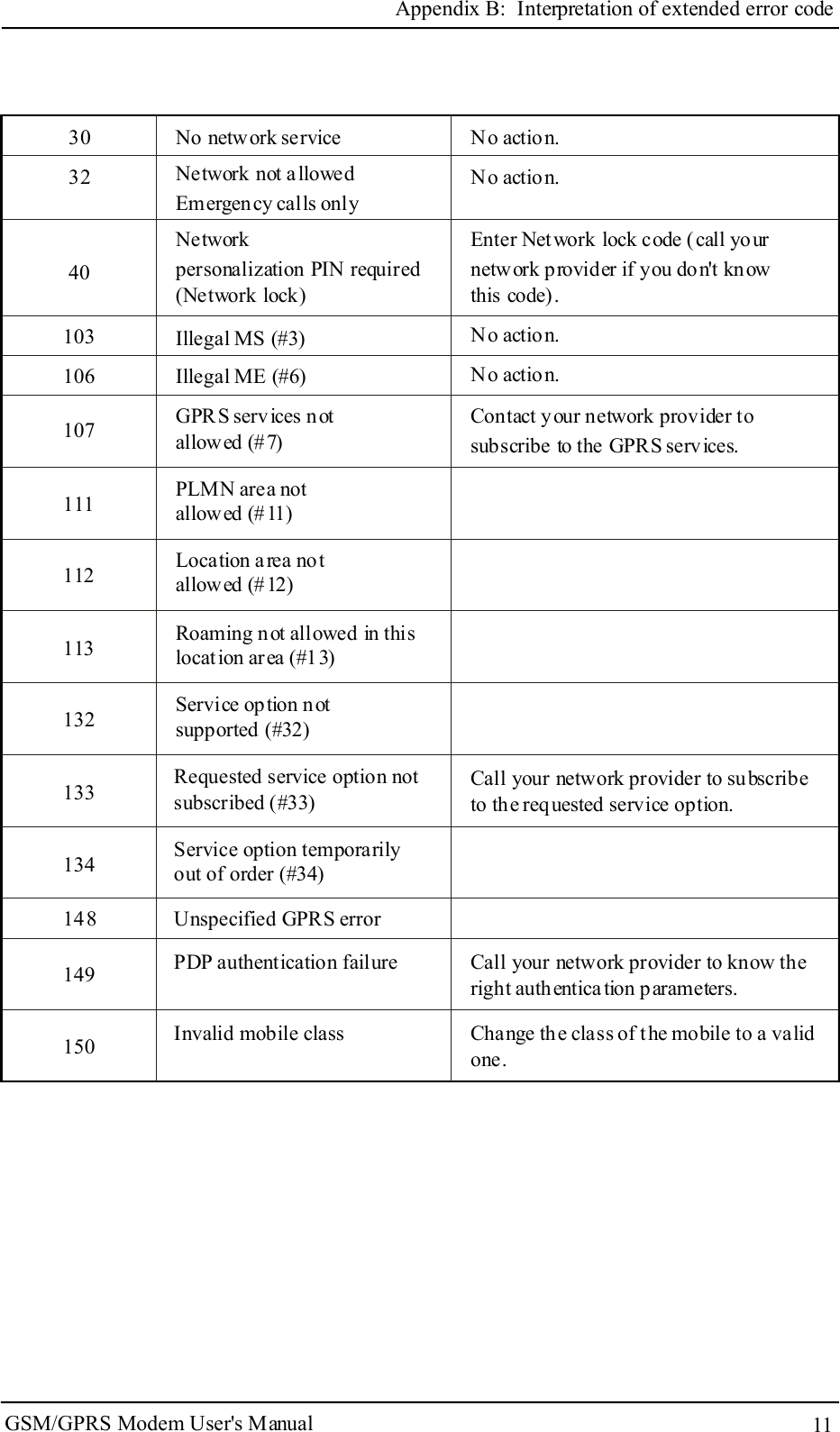
11Appendix B: Interpretation of extended error code3032No network service No action.No action.Enter Network lock code (call yournetwork provider if you don't knowthis code).Network not allowedEmergency calls onlyNetworkpersonalization PIN required(Network lock)Illegal MS (#3)Illegal ME (#6)No action.No action.Contact your network provider tosubscribe to the GPRS services.GPR S services notallowed (#7)PLMN area notallowed (#11)Location area notallowed (#12)Roaming not allowed in thislocation area (#13)Service option n otsupported (#32)Requested service option notsubscribed (#33)Service option temporarilyout of order (#34)Call your network provider to subscribeto the requested service option.Unspecified GPRS errorPDP authentication failureInvalid mobile classCall your network provider to know theright authentication parameters.Change the class of the mobile to a validone.14915014810711111211313213313410310640GSM/GPRS Modem User's Manual
 FCC STATEMENT    This device complies with Part 1 5 of the FCC Rules. Operation is subject to the  condition that this device does not cause harmful interference.     This equipment has been tested and found to comply with the limits for a C lass B digital device, pursuant to part 15 of the FCC Rules. These limits are designed to provi de reasonable protection against harmful interference in a residential installation. This equipment generaters, uses and can radiate radio frequency energy and, if n ot installed and used in accordance with the instructions, may cause h armful in terference t o ra dio com munications. H owever, th ere is n o guarantee that interference will not occur in  a  particular i nstallation. If  this e quipment do es cause h armful interference to radio or television reception, which can be determined by turning the equipment off and on, the user is enc ouraged to try to c orrect the interference by one or m ore of the fol lowing measures:    —Reorient or relocate the receiving antenna.       —Increase the separation between the equipment and receiver.         —Connect the equipment i nto an outlet on a  circuit d ifferent from that to w hich the receiver is connected.      —Consult the dealer or an experienced radio/ TV technician for help.     FCC Radiation Exposure Statement:   This equipment complies with FC C ra diation ex posure l imits set  forth  for  an u ncontrolled environment. In ord er to  a void the p ossibility of ex ceeding t he F CC rad io fre quency ex posure limits, Hu man pr oximity to t he an tenna sha ll not be less t han 20cm (8 inc hes) during n ormal operation

Navigation menu