EU3C SCND502A1232 FilmScan35 II-Professional-2.4-TV out User Manual
EU3C COMPANY LIMITED FilmScan35 II-Professional-2.4-TV out
EU3C >
User Manual
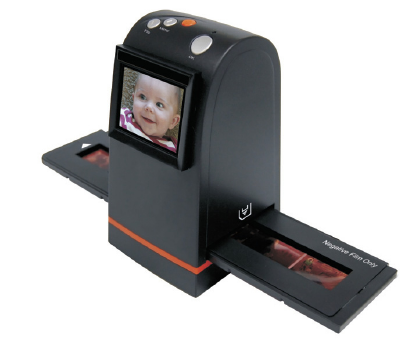
FilmScan35‐II‐2.4‐TVout
-Patent pending-
User Manual
Version 1.02
July 2009
Index
I.UnpackFilmScan35‐II‐2.4‐TVout.....................................2
II.Installfilmintothefilmholder.........................................3
III.QuickStart.....................................................................7
IV.OperationGuide............................................................12
V.Specification..................................................................32
‐1‐
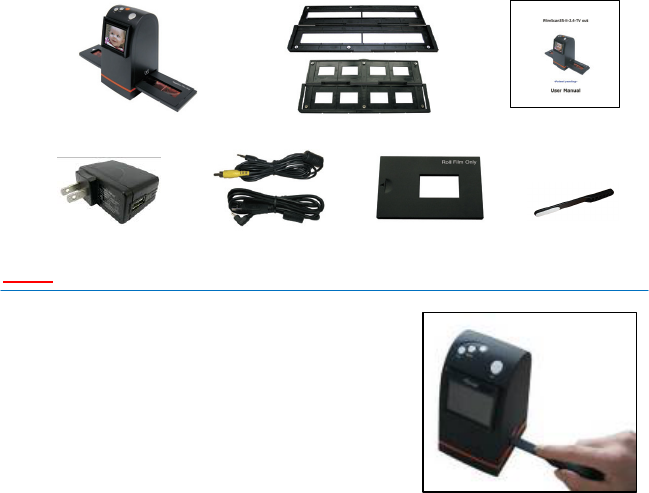
I.UnpackFilmScan35‐II‐2.4‐TVout
FilmScan35‐II‐2.4‐TV‐outNegative/SlideFilmHolderUserManual
USBpowercoreUSB/VideocableRollFilmHolderCleanbrush
Note
Westronglysuggestusingaclean,dry,non‐alcohol
cottonswabtocleantheglasssurfaceperiodically
toproduceaclearimageduringoperation.
CleandustfromFilmScannerbacklight,tousethe
cleanbrushtowipethedust.
Dustordirtfromthenegative,slidefilmsand
covertraysmayaffectthescannedimagequality,
pleasemakesurethematerialsarecleanedbefore
insertingintothescanner.
Pleasefindrecommend,processionalpurgerfromphotostoretocleantheduston
filmsifanytoavoiddamagingtheonlyonecopyofoldfilms.
‐2‐
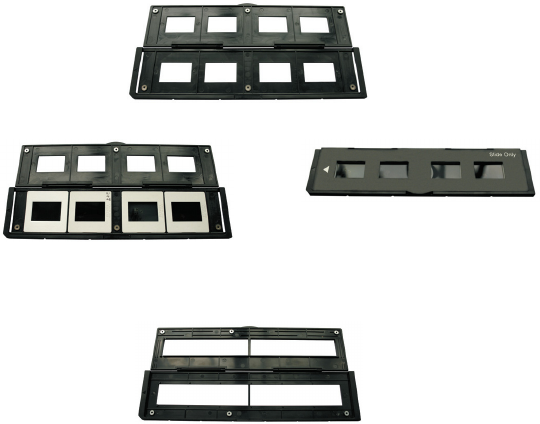
II.Installfilmintothefilmholder
●
InstalltheSlideintoholder
1.Opentheslideholderasillustrated
2.Putslideintopositiveslideslot 3.Closethefilmholder
●
InstalltheNegativeFilmintoholder
1.Openthefilmholderasillustrated
‐3‐
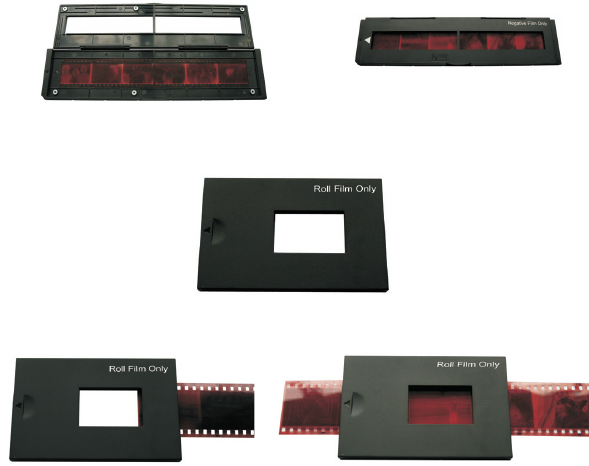
2.Installfilmintonegativefilmslot3.Closethefilmholder
●
InstalltheRollFilmintoholder:
1.Takeouttherollfilmholderfrompackage
2.Insertrollfilmintofilmslot3.Pullouttherollfilminanotherside
-4-
Note
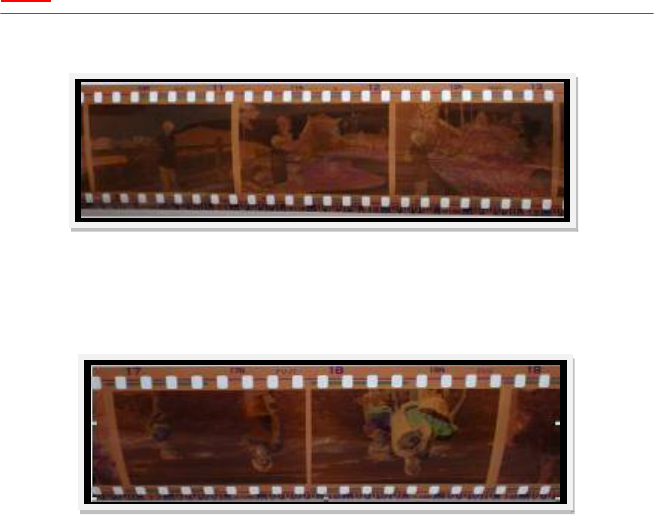
Toavoidmirrorimage,followtheserialnumbers(fromlefttoright)ontopoffilm
wheninstallnegativefilmintoholder
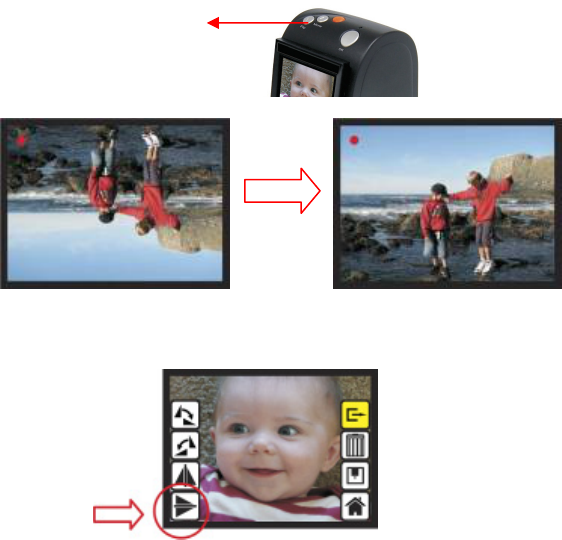
Iftheimageisupsidedown[seefig.2],theimagecanbecorrectedbyFlipfunctionin
hardkeyofdevicebeforecapture,orenterplaybackeditmenuaftercapture[see
fig.3.4].
‐5‐
Figure1
Figure2
●
Presshardkeyontopofdeviceinliveview
Figure3
●
Playbackmodemenu
Figure4
‐6‐
Down/Flipbutton
(Fliphardkey)
Flip
III.QuickStart
‐7‐
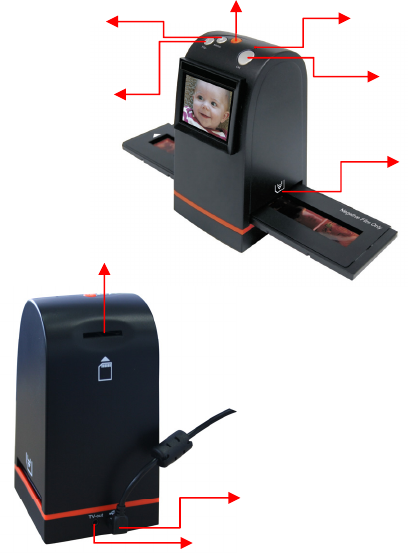
Up/Mirrorbutton
FilmSlot
OKbutton
SDcardSlot
Down/Flipbutton
Powerbutton
USBport
TVoutjack
PowerstatusLED
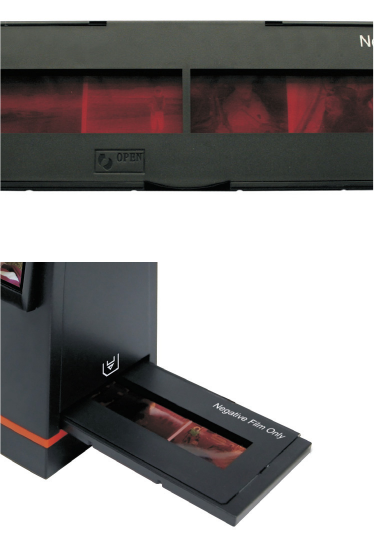
1.PutFilmontothefilmcartridge
2.InsertthefilmcartridgeintoFilmScan35‐II‐2.4‐TVout
‐8‐
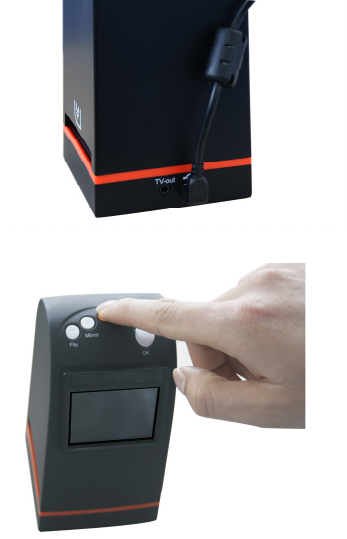
3.ConnectUSBcabletoFilmScan35‐II‐2.4‐TVout
4.TurnonDevicebypowerbutton
-9-
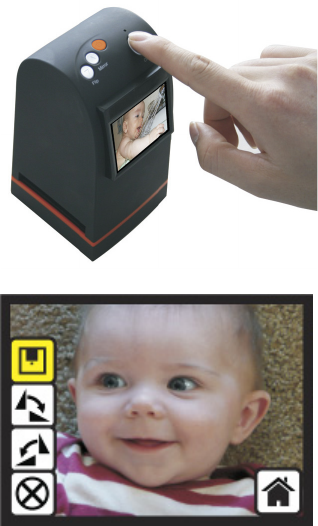
5.PressOKbuttontocapturetheimage
6.Followthemenuondisplayforscanning
‐10‐
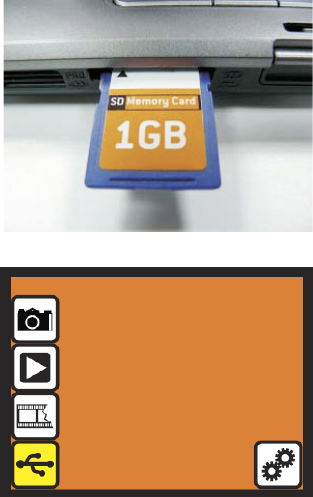
7.Afterfinishedthecapture,takeouttheSDcardwhichstoredcapture
images
8.OrreadpicturefromPCbyMSDCmode
‐11‐
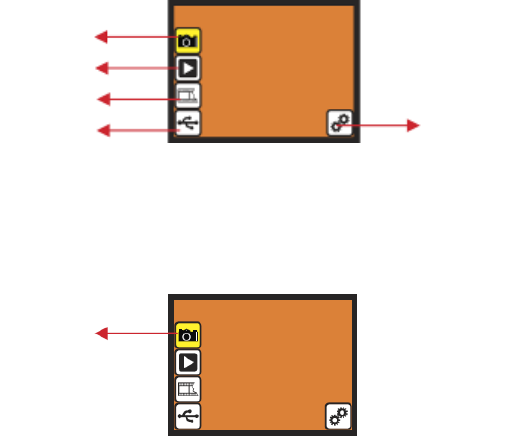
IV.OperationGuide
Home:Mainmenu
●
Capture:capturemode(default)
●
Playback:playbackmode
●
FilmType:definethefilmtypewhichloadedincartridge
●
USBmode:MSDC(MassStorageDeviceClass)mode
●
Setting:TVoutandformatoption
1.Capture
Afterwelcomepage,abovemenuwillremainsfor5sec.Usercanpressup/downbutton
fordesiredmenu.OrsystemwillautoenterCapturemodeifthereisnoactionduringthis
5secondperiod.
‐12‐
Capture
Playback
FilmType
USBmode Setting
Capture
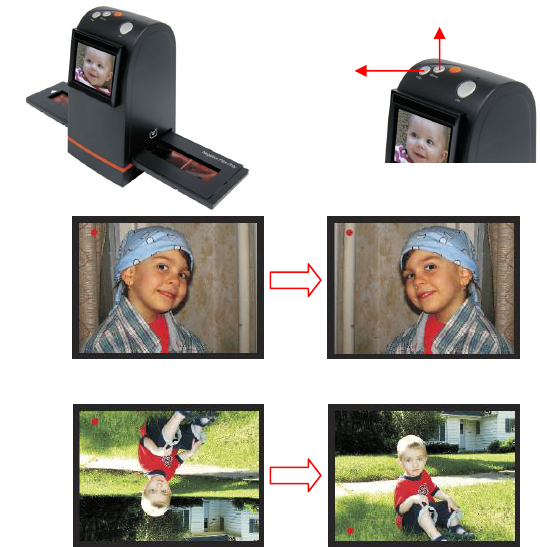
1.1Capture:Mirror/Flip(HardKey)
●
PressUp/Mirrorbuttontochangeimagelefttoright
●
PressDown/Flipbuttontoupsidedownimage
‐13‐
Up/Mirrorbutton
Down/Flipbutton
Mirror
Flip
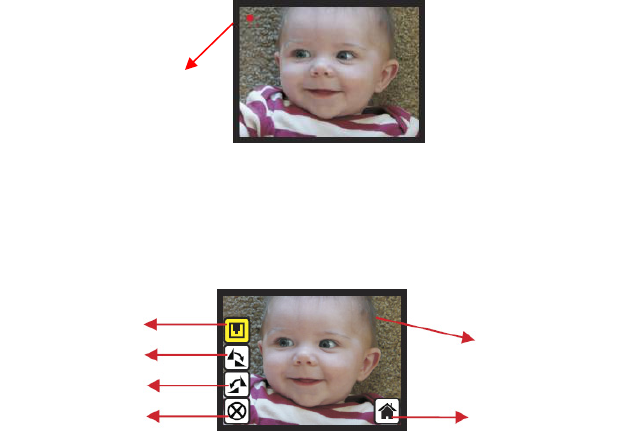
1.2Capturemode
Onceentercapturemode,therewillbearedindicatoronlefttopcornertoindicateitis
inliveviewmode.Whenthefilmcartridgeisinsertedintothescannerslot,theimage
alwaysshowsthepositiveimageaccordingtopreviousdefinedFilmType(afterpoweron.
theFilmTypeisdefaulttonegativefilm).Reconfirmthefilmpositionthroughthedisplay
beforepressOKbutton.
1.3Capture:EditMenu
●
Save:savecapturedimage
●
Rotate+90:continuerotate+90degrees
●
Rotate‐90:continuerotate‐90degrees
(thisisforadjustingtheuserwhotooktheportraitpicture)
●
Cancel:cancelanyeditingwiththisimage
●
Home:Backtomainmenu
‐14‐
Liveviewindicator
(
flashin
g
at0.5secrate
)
Save
Rotate+90
Cancel
Rotate‐90
Home
Selectedima
g
e
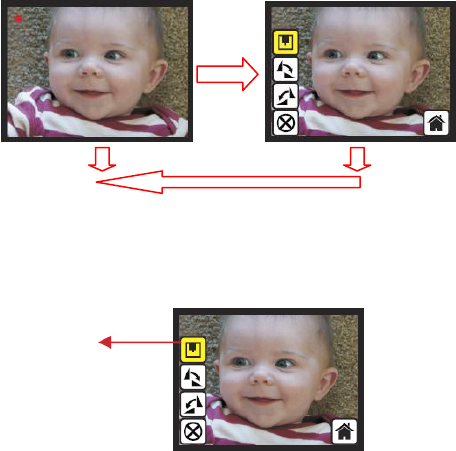
1.4LiveView‐>Capture/EditMenu
LiveViewCapture/EditMenu
OK
OK
OncepressOKbuttoninliveview,theeditmenuwillbeappeared.WhenuserpressOK
buttonagain,thecurrentimagewillbesavedintoSDcard.Thedisplaywillreturntolive
viewagain.
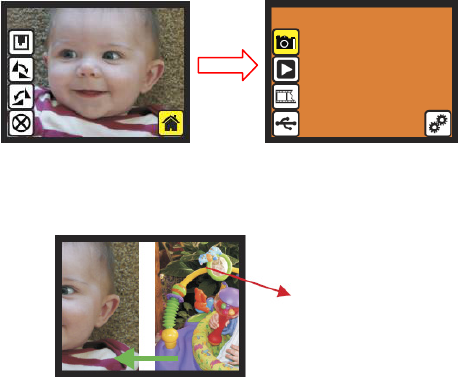
1.5Capture:Save
OnceuserpressOKbuttonontopofFilmScan35‐II‐2.4‐TVout,preview(liveview)image
willbeselectedandshownontheTFTwhichwilltakebetween3‐4secondwith4icons
shownontheleftsideofthescreen.Saveiconwillbehighlightedforusertoconfirmthe
savingbyOKbutton.Aftertheabovestep,displaygoesbacktoliveviewmode(preview).
‐15‐
Save
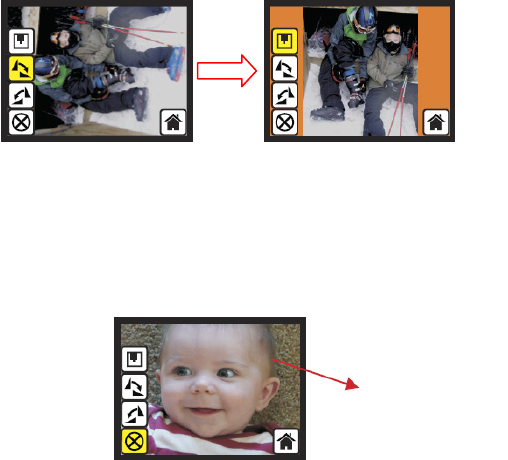
1.6Capture:Rotate+/‐90degrees
Usercanapplytheup/downbuttonforfurtherediting(rotate+90/‐90).Onceuser
confirmrotate+90degrees,theycanpresstheOKbutton,theimagewillberotate+90
degreesandcursorwillremainatSave.PressOKbuttonagainwillsavetherotated
imagetoSDcardandscreenwillreturntoliveview.Forcontinuouslyrotate+90degrees,
movecursortorotateagainandpressOK.
1.7Capture:Cancel
OrselectCancelandpressOKbuttontocancelanyoftheeditingstepwithpresent
selectedimageandFilmScan35‐II‐2.4‐TVoutgoestoliveviewmode(nothingwillbe
savedontotheSDcard).
‐16‐
OK
Playback
/capturedimage
1.8Capture:Home
Gobacktomainmenu,pressOKbuttonwhenselectHomeicon.
1.9ExitfromEditmodebacktoCapturemode(LiveView)
OnceUserpressesOKbuttonforsaveorcanceloption,displaywillreturntocapture
mode/liveview.Then,usercanmovethefilmcartridgetonexttargetfilmtocapture.
-17-
Nextimagein
filmcartridge
OK
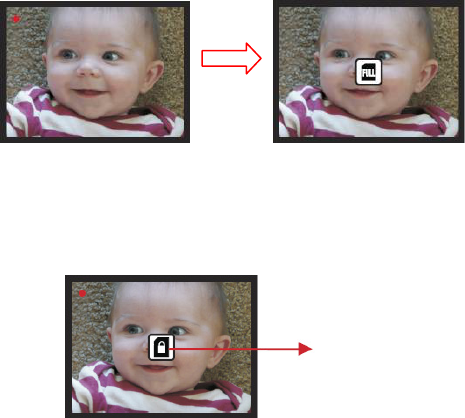
1.10Memoryfull
OncetheinternalmemoryorSDcardisfull,usercanseeaSDcardfulloncepressOK
button.UserhastodownloadtheimagestoPCorreplaceanotherSDcardforcontinue
capture.
1.11SDcardlocked
IftheSDwaslocked,oncepresstheOKbutton,aSDCardlockedicondisplaysonscreen.
PleasedoslidetheswitchofSDcardtounlockbeforeinsertintodevice.
‐18‐
OK
SDcardlocked
indicator

1.12SDcarderror
IfscannercannotdetectSDcardingoodcondition,awarningiconwithquestionmark
willbeshownondisplay.PleasetrytoformattheSDcardorreplaceanotherproperSD
cardforcontinuefurtheroperation.(RefertoSettingsectiononpage31.)
FULL
‐19‐
SDcarderror
indicator
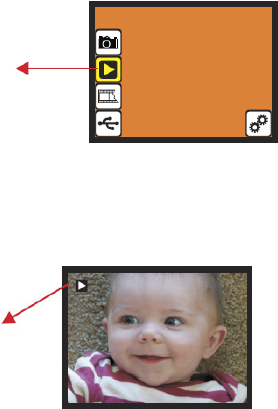
2.Playback
Playback
PressDownbuttontoPlaybackmodewhenpoweronFilmScan35‐II‐2.4‐TVoutoraccess
themainmenubyHomeiconifduringoperation.PressOKbuttontoconfirmthe
selection.
2.1Playback:AutoSlideShow
Slideshowmode
Onceuserenterplaybackmode(defaulttoslideshow),2.4TFTwillautodisplayall
imagesstoredinSDcardwith2secondsintervalfrompreviouscapturedimage.Usercan
alsostoptheslideshowmodebypressOKbutton.
‐20‐
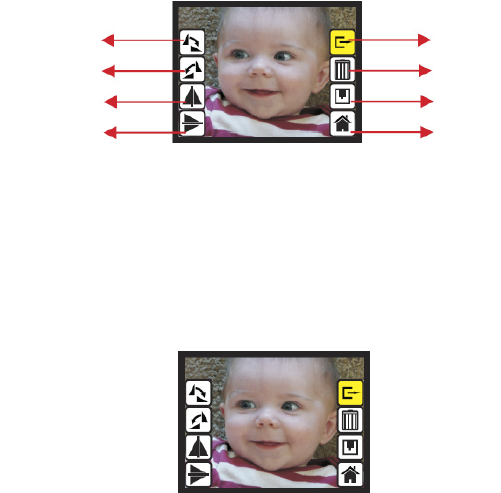
2.2Playback:EditMenu
●
Rotate+90:capturedimagerotate+90degrees
●
Rotate‐90:capturedimagerotate‐90degrees
●
Mirror:changeimagelefttoright
●
Flip:upsidedownimage
●
Exit:returnstoSlideshow
●
Delete:deletethispicturestoredinSDcard
●
Save:savethemodifiedimageontoSDcard
●
Home:returnstomainmenu
2.3Playback:Slidemode‐>Editmode
Usercaninterrupt(stop)theslideshowmodetostandaloneplaybackmode(single
pictureplayback)bypressOKbutton.(Pauseslideshow)Thenuserisabletoscrolleach
picturebyup/downbutton.OnceuserselectthepicturestoredinSDcardwhichintended
tobemodified,thenuseOKbuttonagaintobringouttheeditmodeformodification
‐21‐
Save
Hom
Rotate+90 Exit
Delete
Rotate‐90
Mirror
Fli
p
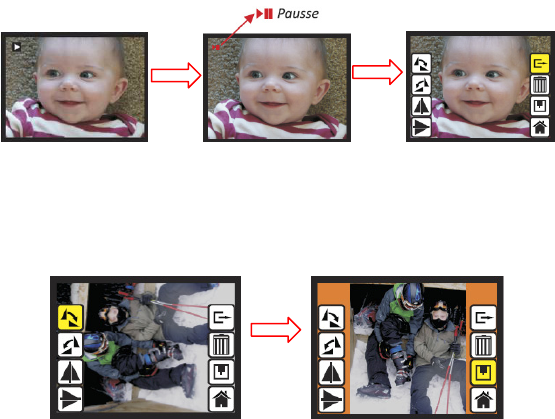
2.4SlideShow‐>Singlepicture‐>Editmode
SlideshowmodeEditmode
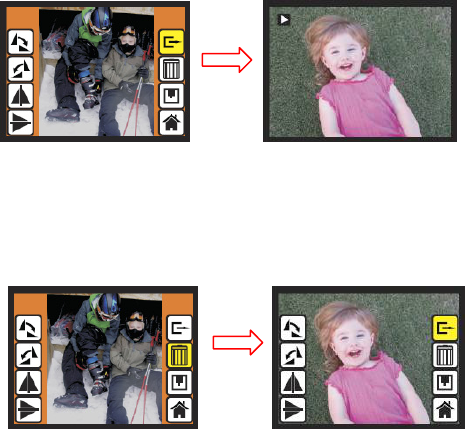
2.5Playback:Rotate/Mirror/Flip/Save
IfuserwantstoRotate+90degreesbyOKbutton,theimagewillberotate+90degrees
andcursorwillremainsatSave.PressOKbuttonagaintosavemodifiedresultandnext
picturewillbeshown(N+1).ForcontinuouslyRotate+90degrees,movecursortoRotate
againandpressOK.(SameforRotate‐90,Mirror,andFlipfunction)
-22-
Pausse
OK OK
Singlepicturemode
UseUp/Downbutton
toscrollpicturetobemodified
OK
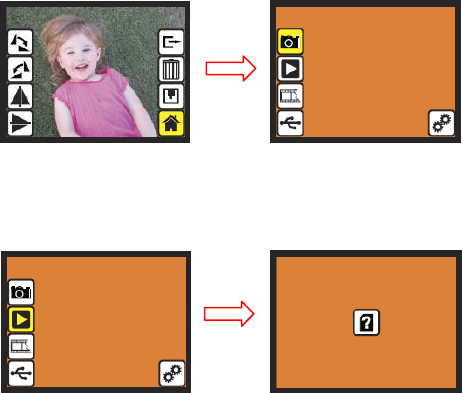
2.6Playback:Exit
OnceuserselecttheEXITfunctionineditmenu,thedisplaywillgobacktoslideshow
startingwiththecurrentpictureininternalmemoryorSDcardwithoutsavingany
changeofpresentpicture
2.7Playback:Delete
Deletewilldeletethepresentselectedpictureandnextpicturewillbeshown(N+1).
CursorgoestoExiticon.Ifuserintendtoprocesscontinuouslydelete,justmovetodelete
iconagainandpressOKtoconfirm.
‐23‐
OK
OK
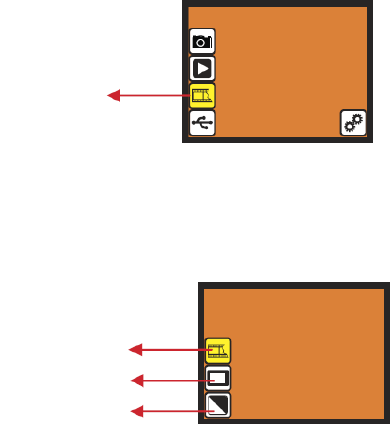
2.8Playback:Home
Gobacktomainmenu,pressOKbuttonwhenselectHomeicon
2.9Playback:NoPicture
Ifthere’snopictureinsideinternalmemoryorSDcardwhenenterplaybackmode,aNo
picturesymbolwillshowondisplay.
-24-
OK
OK
3.FilmType
FilmType
ChangefilmtypedefinitionbyenterFilmTypemenuwhenpoweronFilmScan35‐II‐2.4‐TV
outoraccessthemainmenubyHomeiconifduringoperation.Pressdownbuttonfor
FilmTypeandpressOKtoconfirm.
3.1FilmType:SelectFilmType
●
Negativefilm:selectNegativefilmwhencartridgeloadedwithnegativefilm
●
Slide:selectSlidetypewhenloadslideinholder
●
B&Wfilm:selectB&WwhencartridgeloadedwithBlack&Whitenegativefilm
‐25‐
Slidefilm
B&WNegative
ColorNegative
film
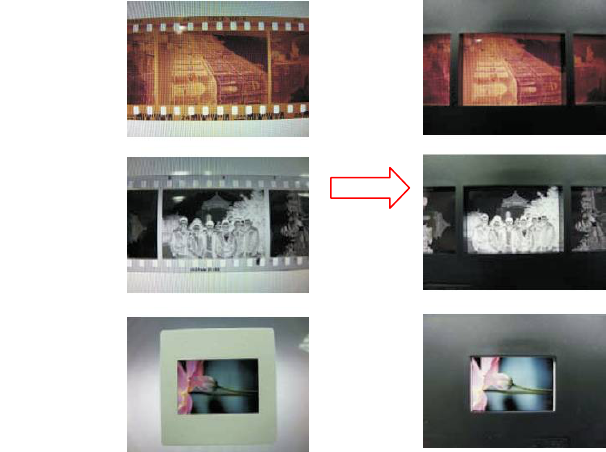
3.2FilmType:Example
‐26‐
ColorNegative
film
B&W
Negativefilm
Slide
Loaded
Into
Cartridge
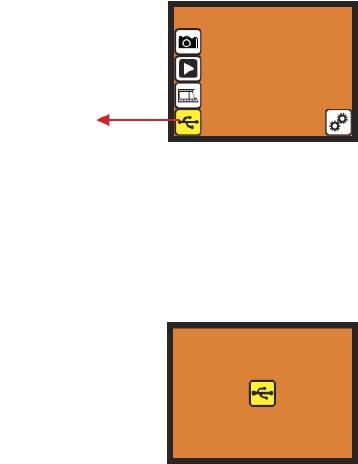
4.USBMode
Afterfinishedcapture,usercandownloadthestoredimagesfrominternalmemoryorSD
cardtoPCbyselectingUSBmode.PressOKbuttonwhenconnectUSBcabletoPC,
FilmScan35‐II‐2.4‐TVoutbecomesamassstoragedevice.Usercanrevieworeditimages
oncePCdetectedtheexternalstoragedevice.OrjusttakeouttheSDcardfromdevice
intoPCtoreadtheimagesdirectly.
4.1USBMode:Status
OnceuserselectUSBmode,FilmScan35‐II‐2.4‐TVoutbecomesamassstoragedeviceand
thenastatusiconshowsondisplay,thenusercanfindanexternalUSBdiskdevicefrom
mycomputerandreviewtheimagesininternalmemoryorSDcardwithPC.
‐27‐
USBmode
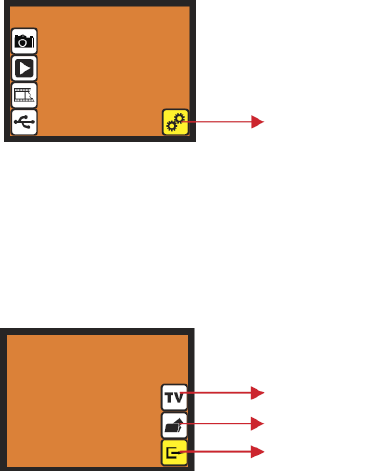
5.SettingMode.
ThesettingmodecoversTVoutandformatoption.UsercanconnectthedevicetoTV
andfinishtheoperationwithTVdisplay.Moreover,thescannedimagescanbeplayback
onTVdisplaytosharewithfamily.
IftheSDcardwasformattedbytheotherdevicesandnotreadablebyscanner,usercan
applytheformatfunctioninscannertocorrectrequiredformat.
5.1SettingMode
●
TVout:selectNTSCorPALaccordingtorequiredinterface
●
Format:formatinternalmemoryorSDcard
●
Exit:returnstomainmenu
‐28‐
Settingmode
TVout
Format
Exit
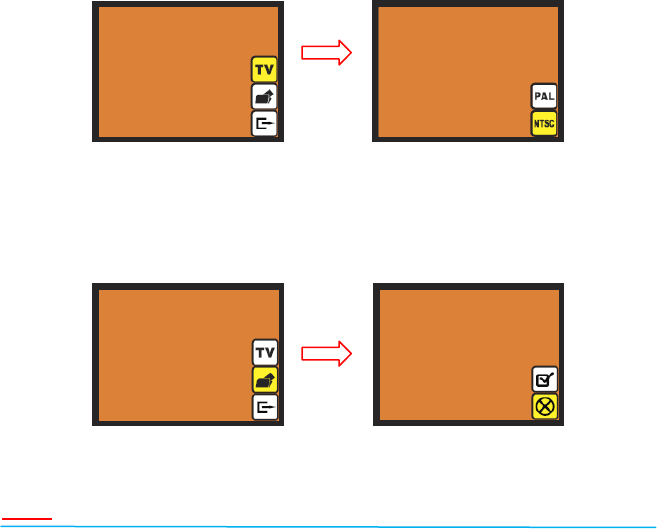
5.2Setting:TVout
WhenuserwanttoswitchthedisplayfromondeviceLCDtoTVdisplay,usercanconnect
devicetoTVandselectPALorNTSCasrequiredinTVoutmenubyOKbutton.Then,the
TVdisplaywillshowthesameoptionforscanningoperation.Ordirectlyenterplayback
modetoslideshowcapturedimagesonTV.
5.3Setting:Format
IftheinternalmemoryorSDcardrequiresformatbyscanner,usercanenterformat
modebypressOKbutton.Thedefaultsettingwillbecancelformat.UsercanpressOK
buttonagaintocanceltheformatorselectconfirmicontoconfirmformatthememory.
Note
Ifthere’snoSDcardinsidedevice,theinternalmemorywillbeformattedonceprocess
Format.Instead,ifSDcardisinsertedindevice,SDcardwillbeformatted.
‐29‐
OK
OK

V. Specificaon
Image Sensor: 5 mega CMOS sensor
Lens: F no.=2.0, 4 Glass elements,
LCD: 2.4’’ Color TFT LCD
Internal memory: 24MB NAND Flash (for saving images)
Focus Range: Fixed focus
Exposure Control: Automac
Color Balance: Automac
Scan Quality: 1,800 dpi
Data Conversion: 10 bits per color channel
Scan Method: Single pass
Light Source: Back light (3 white LEDs)
Interface: USB 2.0, TV-out (video 3.5mm jack)
USB Configuraon: Mass Storage Device Class/MSDC
Power: 5V adapter, or USB power
Dimensions: 82x86x152mm
Weight: 0.41kg
External memory: SD/MMC compable
Good bye page
- 30 -
‐31‐
NOTE
THEMANUFACTURERISNOTRESPONSIBLEFORANYRADIOORTVINTERFERENCE
CAUSEDBYUNAUTHORIZEDMODIFICATIONSTOTHISEQUIPMENT.SUCH
MODIFICATIONSCOULDVOIDTHEUSERAUTHORITYTOOPERATETHEEQUIPMENT.
ThisequipmenthasbeentestedandfoundtocomplywiththelimitsforaClassBdigital
device,pursuanttopart15oftheFCCRules.Theselimitsaredesignedtoprovide
reasonableprotectionagainstharmfulinterferenceinaresidentialinstallation.This
equipmentgenerates,usesandcanradiateradiofrequencyenergyand,ifnotinstalled
andusedinaccordancewiththeinstructions,maycauseharmfulinterferencetoradio
communications.However,thereisnoguaranteethatinterferencewillnotoccurina
particularinstallation.Ifthisequipmentdoescauseharmfulinterferencetoradioor
televisionreception,whichcanbedeterminedbyturningtheequipmentoffandon,the
userisencouragedtotrytocorrecttheinterferencebyoneormoreofthefollowing
measures:
‐Reorientorrelocatethereceivingantenna.
‐Increasetheseparationbetweentheequipmentandreceiver.
‐Connecttheequipmentintoanoutletonacircuitdifferentfromthattowhichthe
receiverisconnected.
‐Consultthedealeroranexperiencedradio/TVtechnicianforhelp.
‐Modificationsnotexpresslyapprovedbythemanufacturercouldvoidtheuser's
authoritytooperatetheequipmentunderFCCrules.