EU3C SCND522A1231 FS-I-5M-ND User Manual 1

EU3C COMPANY LIMITED FS-I-5M-ND Users Manual 1

Contents

Users Manual-1

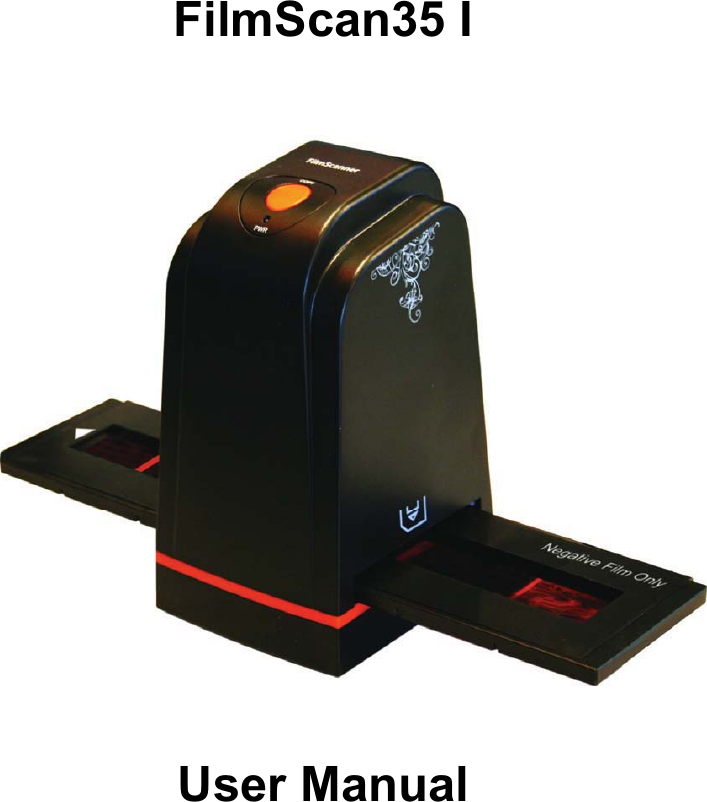
    FilmScan35 I         User Manual
                    Version 2.00 Mar 2011 FSͲIͲ5M
   Index I. Unpack FilmScan35I ………...……………………………….. 1  II. Install Film into Holder ………………………………………. 2  III. Connect FilmScan35I  …………..…………………………… 6  IV. Install Bundled Application …………….….………………….. 7  V. Use FilmScan35I  ……………………..……………………… 11  VI. Introduce User Interface ……………………………………... 15  VII. Specifications …..……………………………………………… 22  Appendix. Clean FilmScan35I
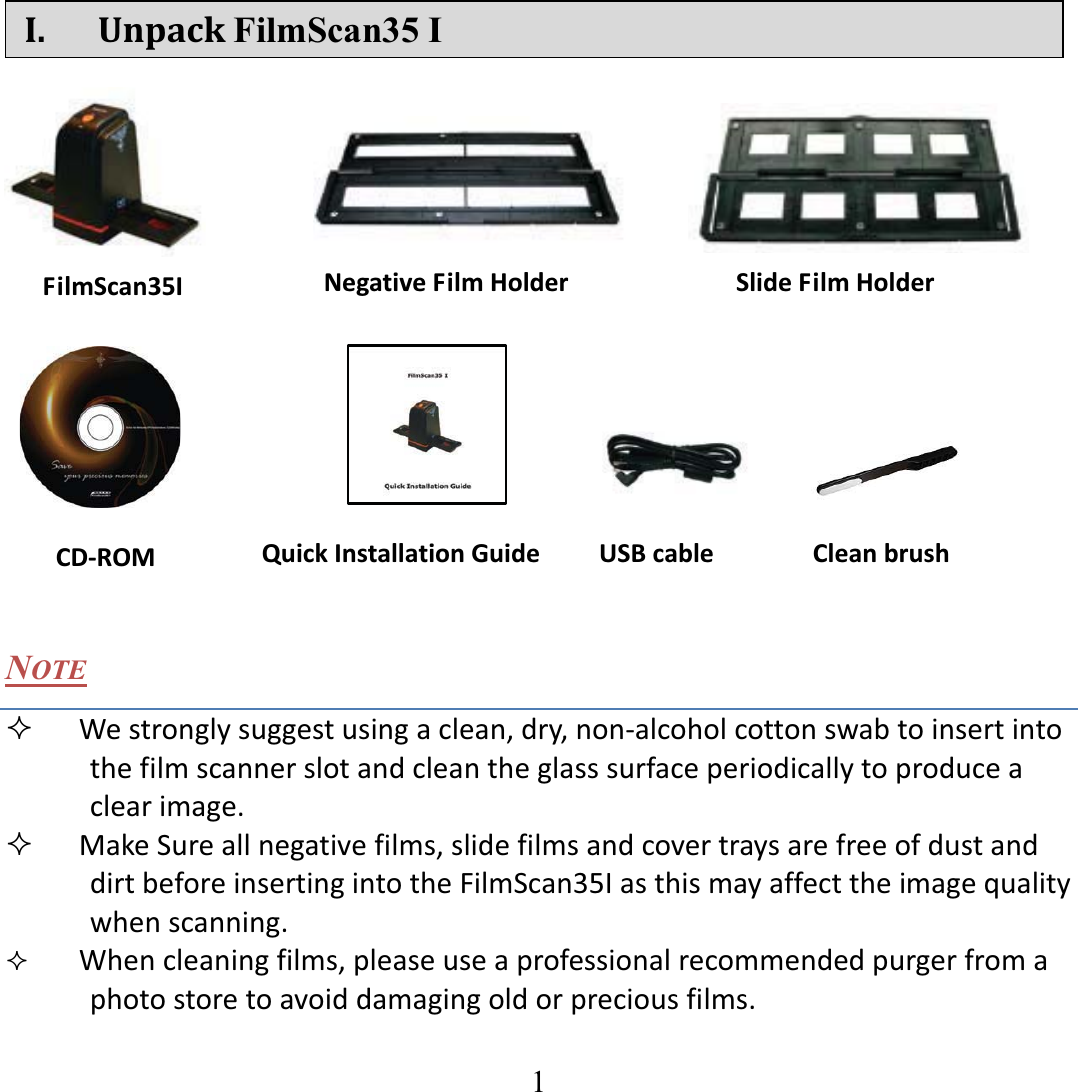
  1   I. UnpackFilmScan35 I                    NOTE  Westronglysuggestusingaclean,dry,nonͲalcoholcottonswabtoinsertintothefilmscannerslotandcleantheglasssurfaceperiodicallytoproduceaclearimage.  MakeSureallnegativefilms,slidefilmsandcovertraysarefreeofdustanddirtbeforeinsertingintotheFilmScan35Iasthismayaffecttheimagequalitywhenscanning. Whencleaningfilms,pleaseuseaprofessionalrecommendedpurgerfromaphotostoretoavoiddamagingoldorpreciousfilms.   FilmScan35I SlideFilmHolderNegativeFilmHolderCDͲROM CleanbrushQuickInstallationGuide USBcable
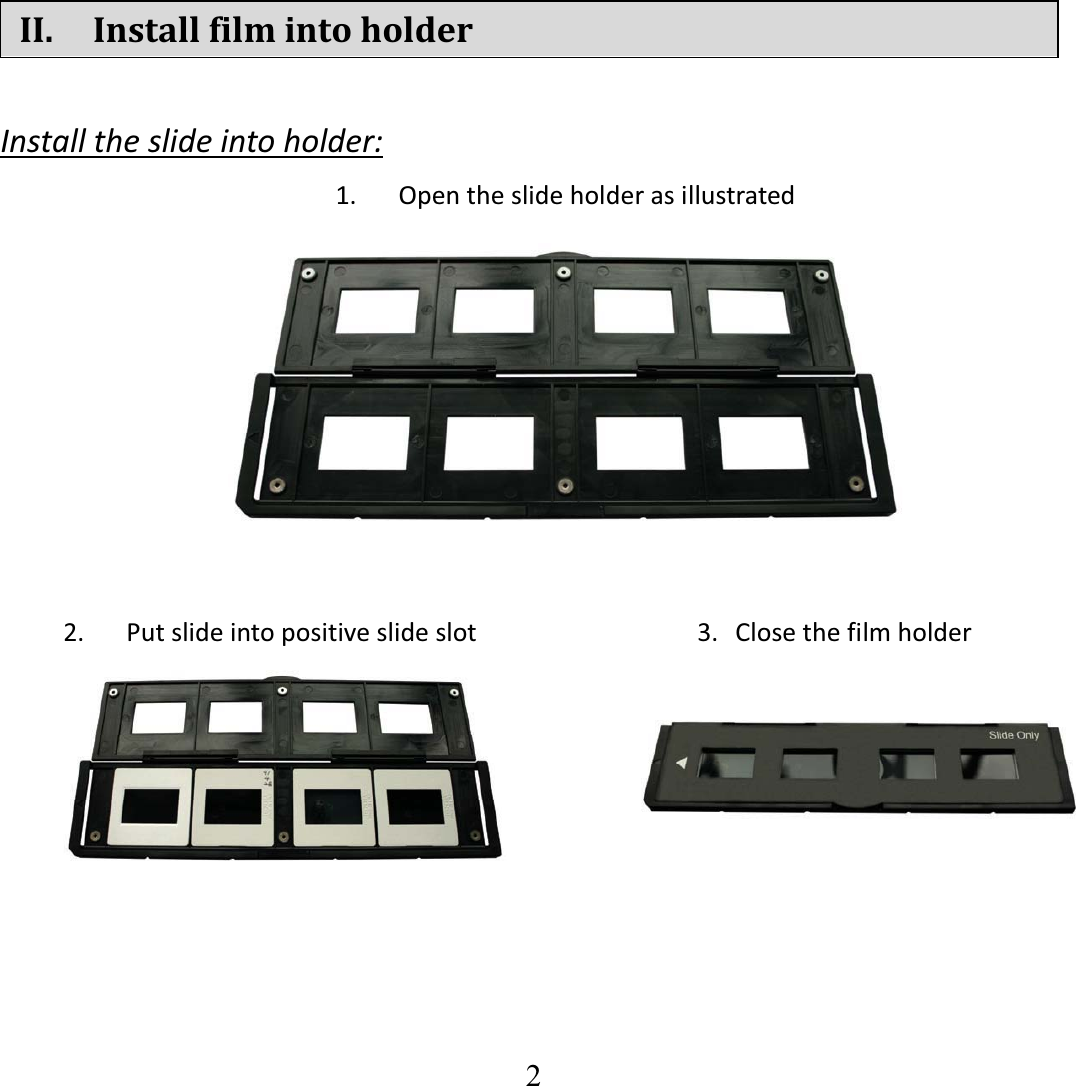
  2    II. Installfilmintoholder Installtheslideintoholder:1. Opentheslideholderasillustrated2. Putslideintopositiveslideslot  3. Closethefilmholder
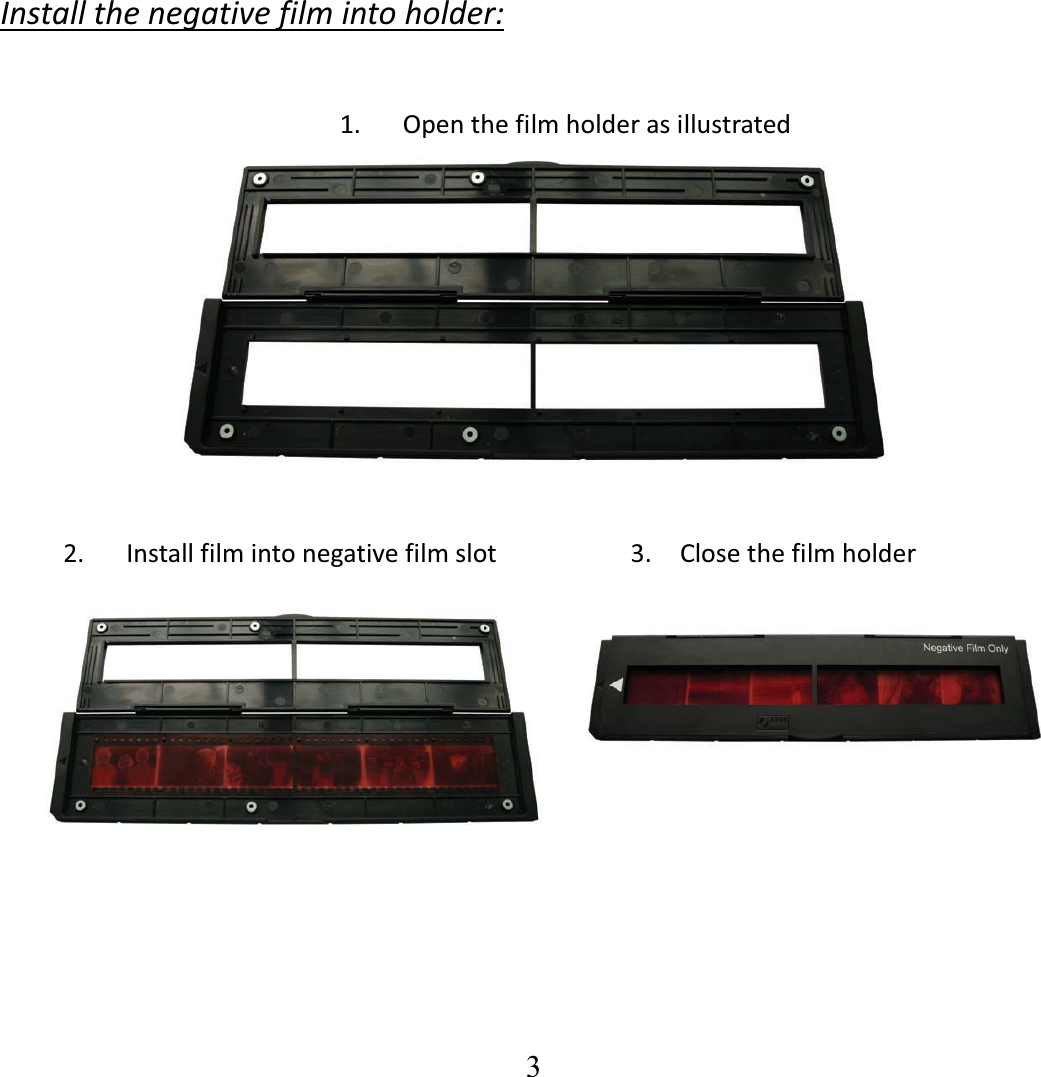
  3   Installthenegativefilmintoholder: 1. Openthefilmholderasillustrated2. Installfilmintonegativefilmslot     3.  Closethefilmholder  
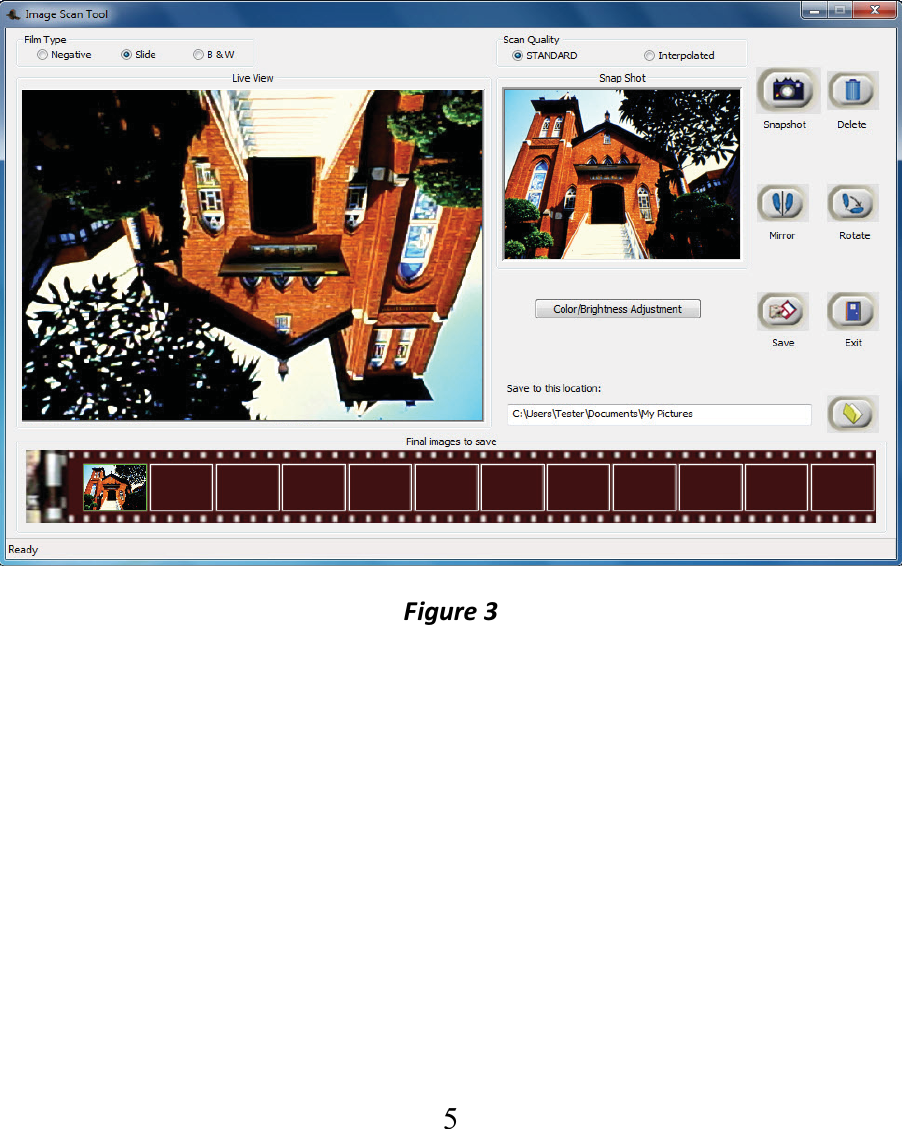
  4  NOTE  Toavoidmirrorimage,followtheserialnumbers(fromlefttoright)ontopoffilmwheninstallnegativefilmintoholder.Figure1 If the image is upside down [see fig. 2] , the image can be corrected bycontinuously“Rotate”functioninImageScanToolaftercapture[seefig.3].  Figure2
  5  Figure3
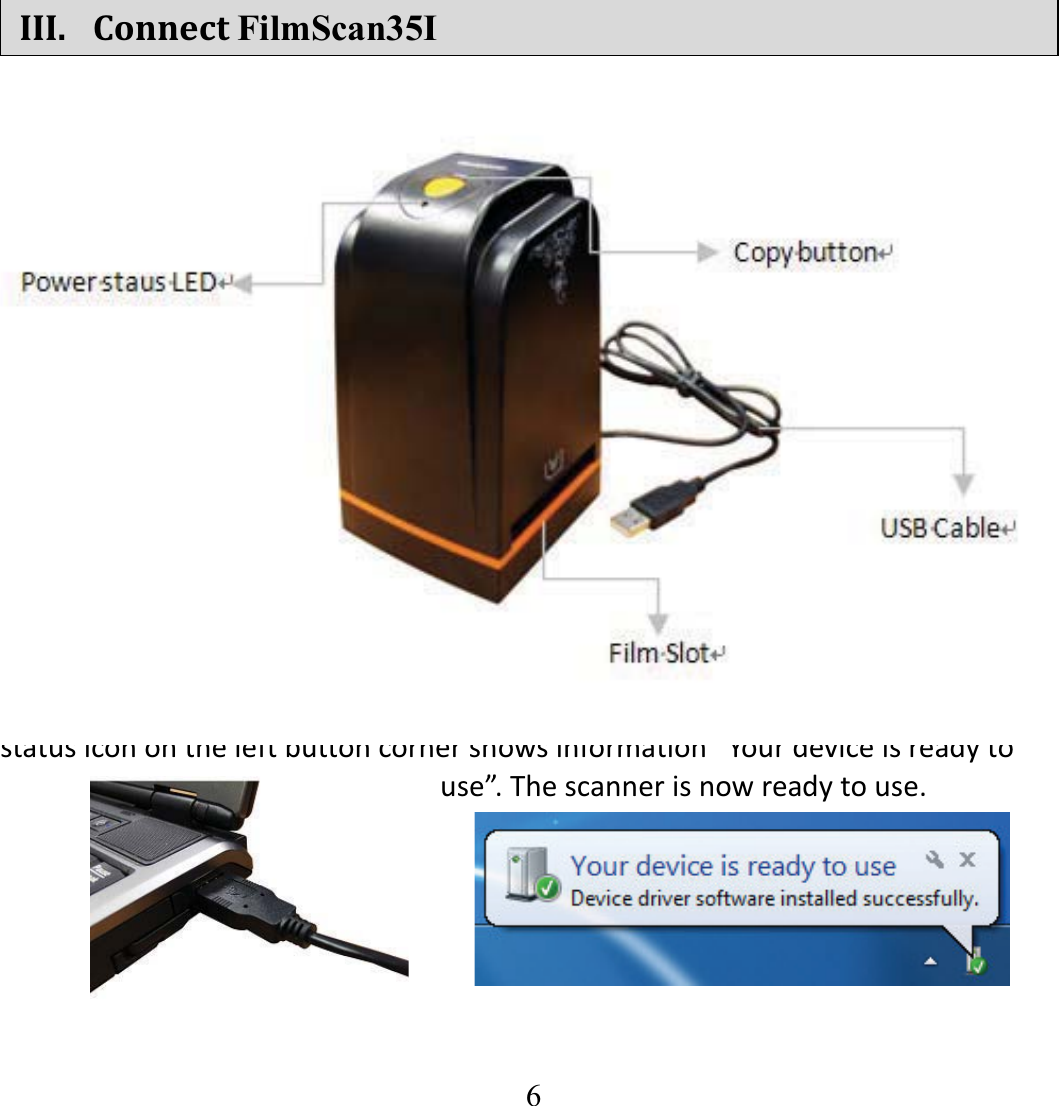
  6   III. ConnectFilmScan35I               PluginUSBcabletocomputerwithoutinstallinganynecessarydriver.Whenthestatusiconontheleftbuttoncornershowsinformation“Yourdeviceisreadytouse”.Thescannerisnowreadytouse.
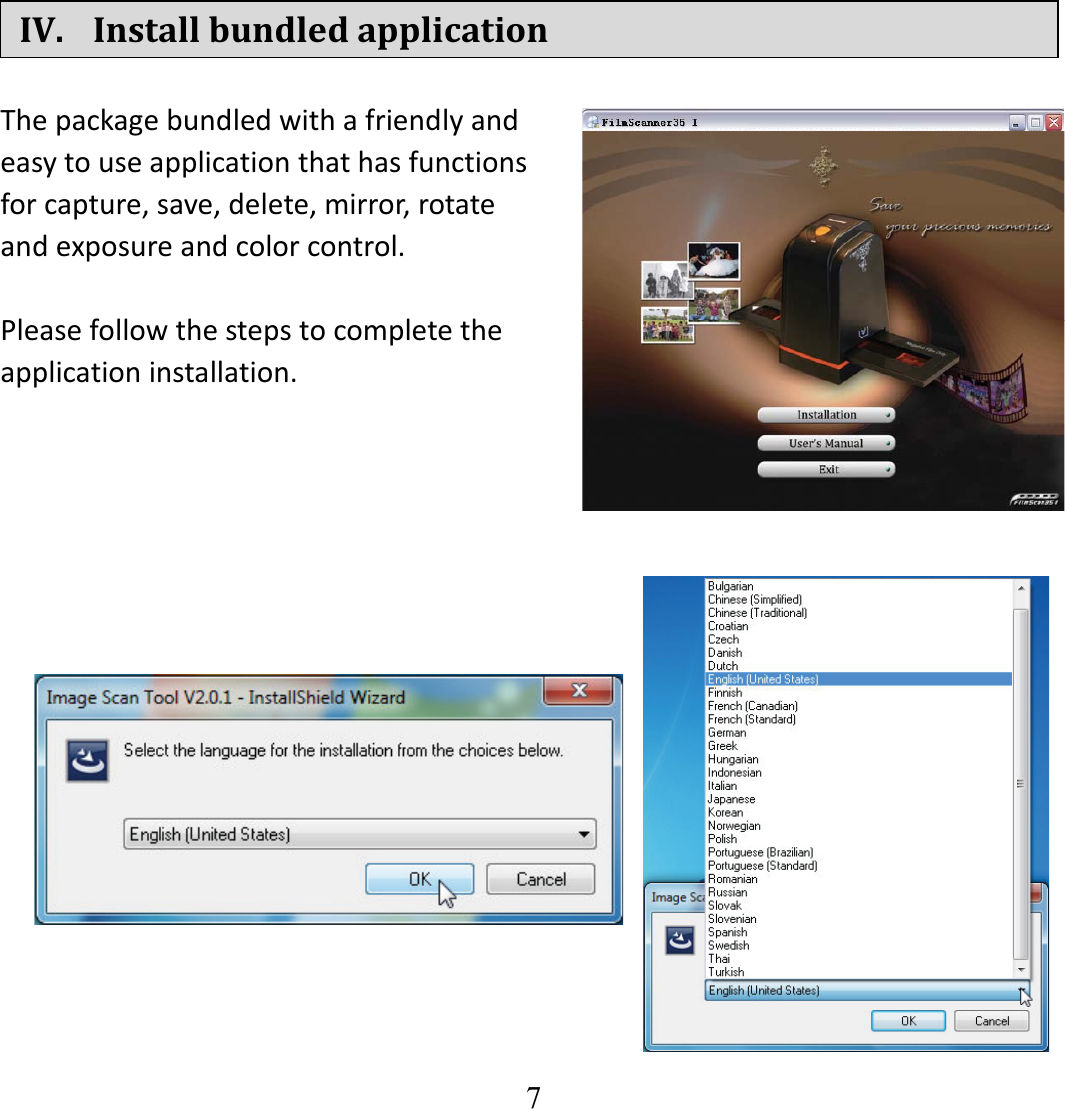
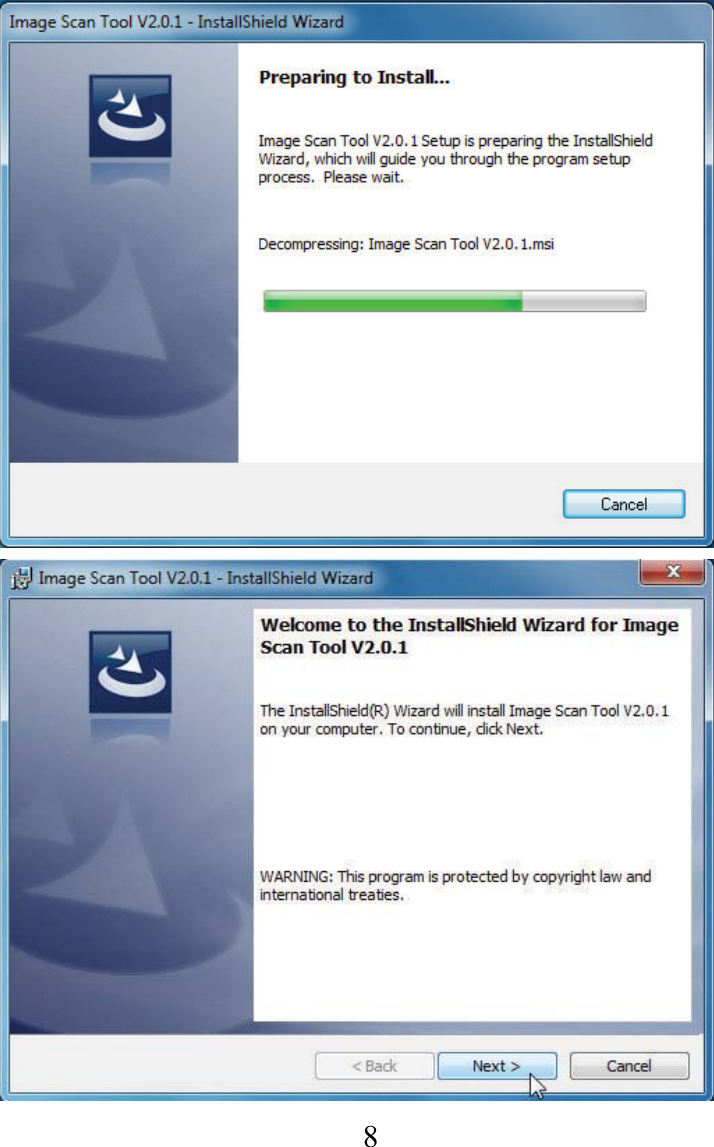
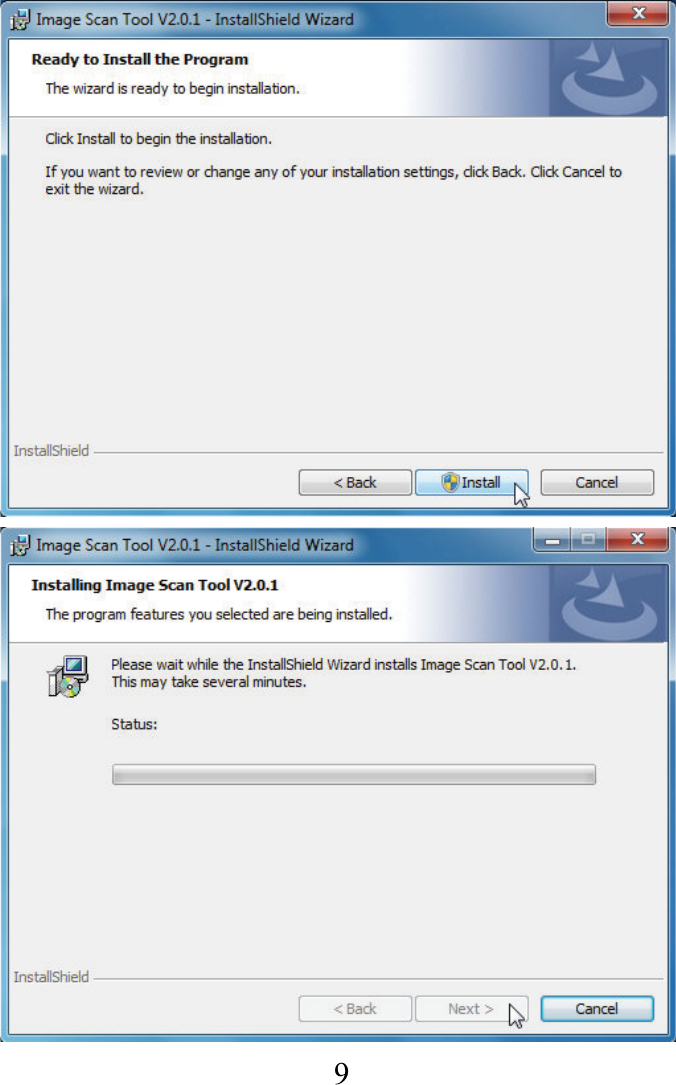
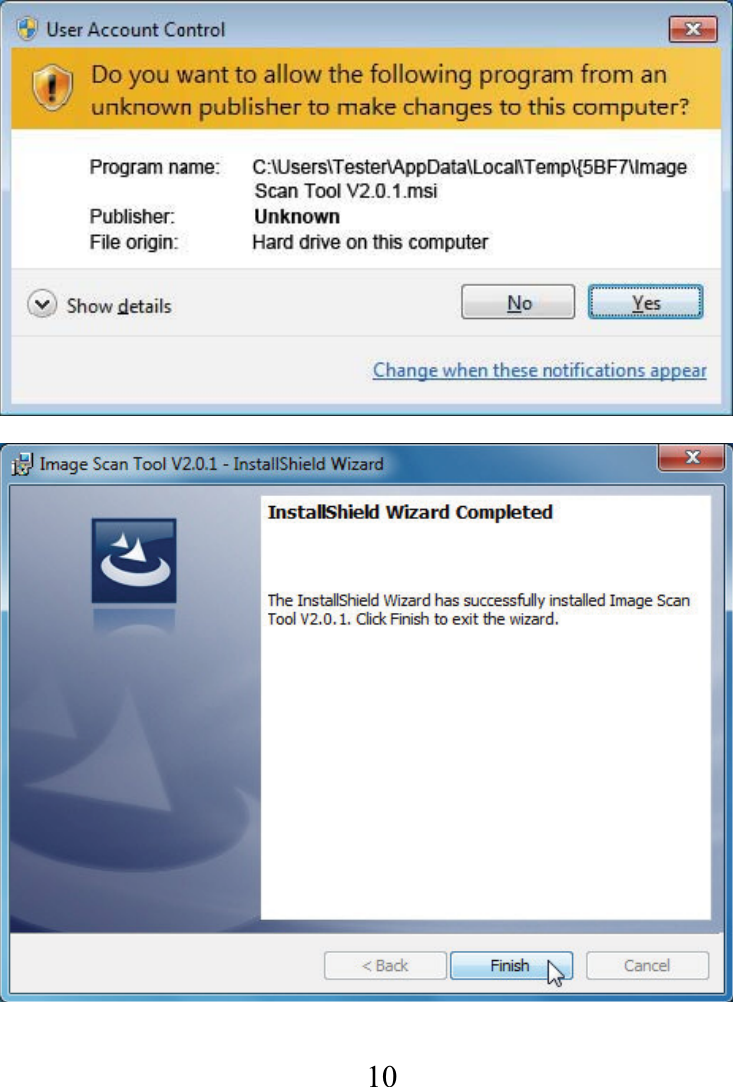
  7   IV. InstallbundledapplicationThepackagebundledwithafriendlyandeasytouseapplicationthathasfunctionsforcapture,save,delete,mirror,rotateandexposureandcolorcontrol. Pleasefollowthestepstocompletetheapplicationinstallation.
  8
  9
  10                 
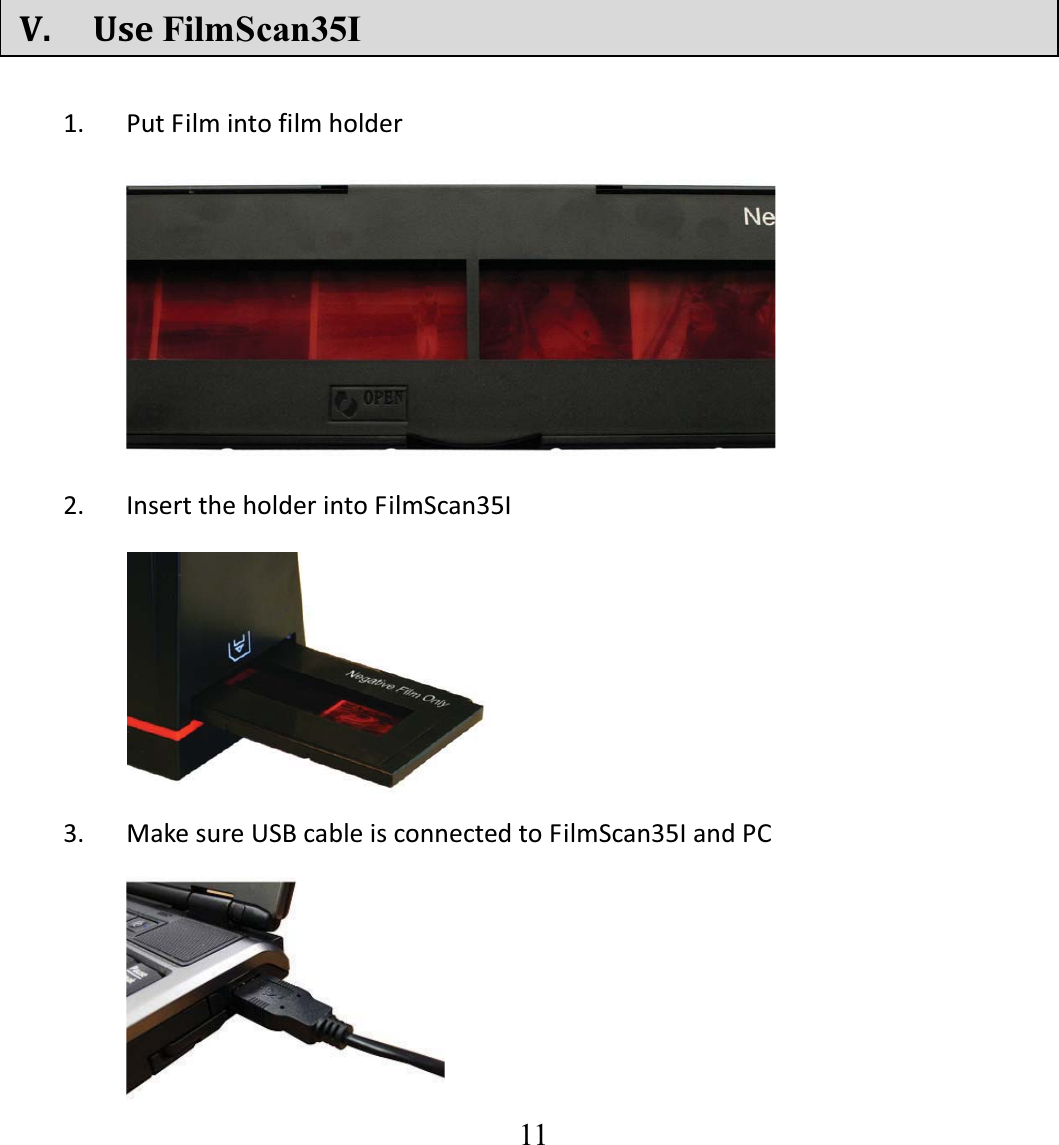
  11  V. UseFilmScan35I 1. PutFilmintofilmholder2. InserttheholderintoFilmScan35I    3. MakesureUSBcableisconnectedtoFilmScan35IandPC
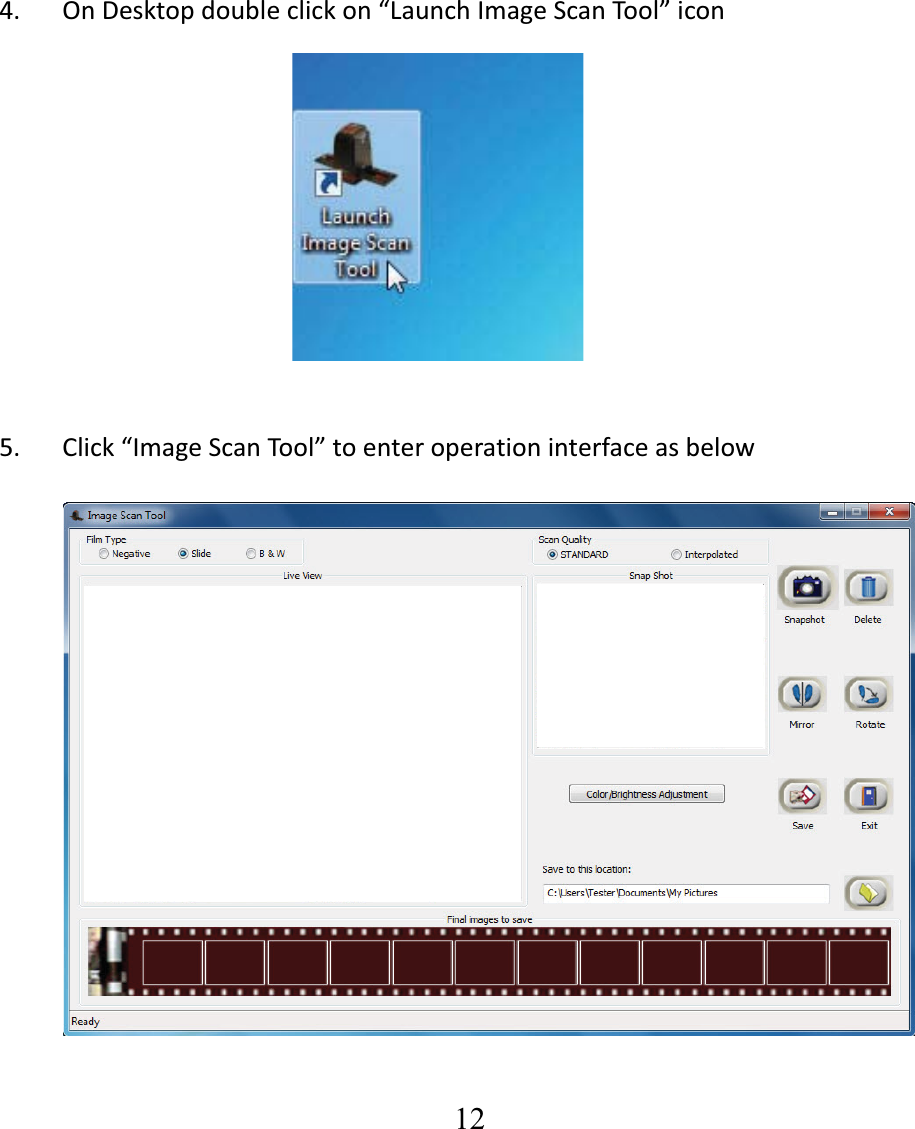
  12  4. OnDesktopdoubleclickon“LaunchImageScanTool”icon5. Click“ImageScanTool”toenteroperationinterfaceasbelow
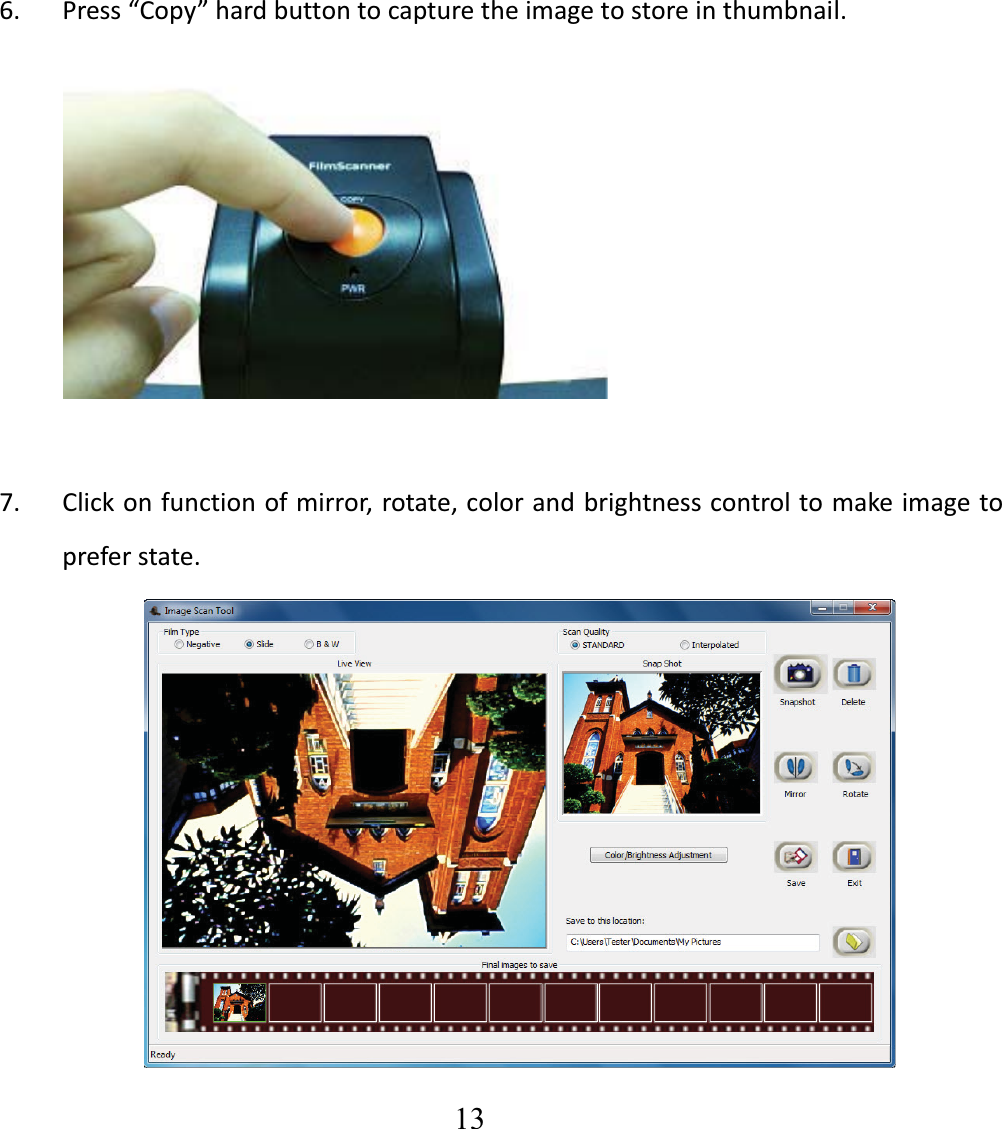
  13  6. Press“Copy”hardbuttontocapturetheimagetostoreinthumbnail.7. Clickonfunctionofmirror,rotate,colorandbrightnesscontroltomakeimagetopreferstate.
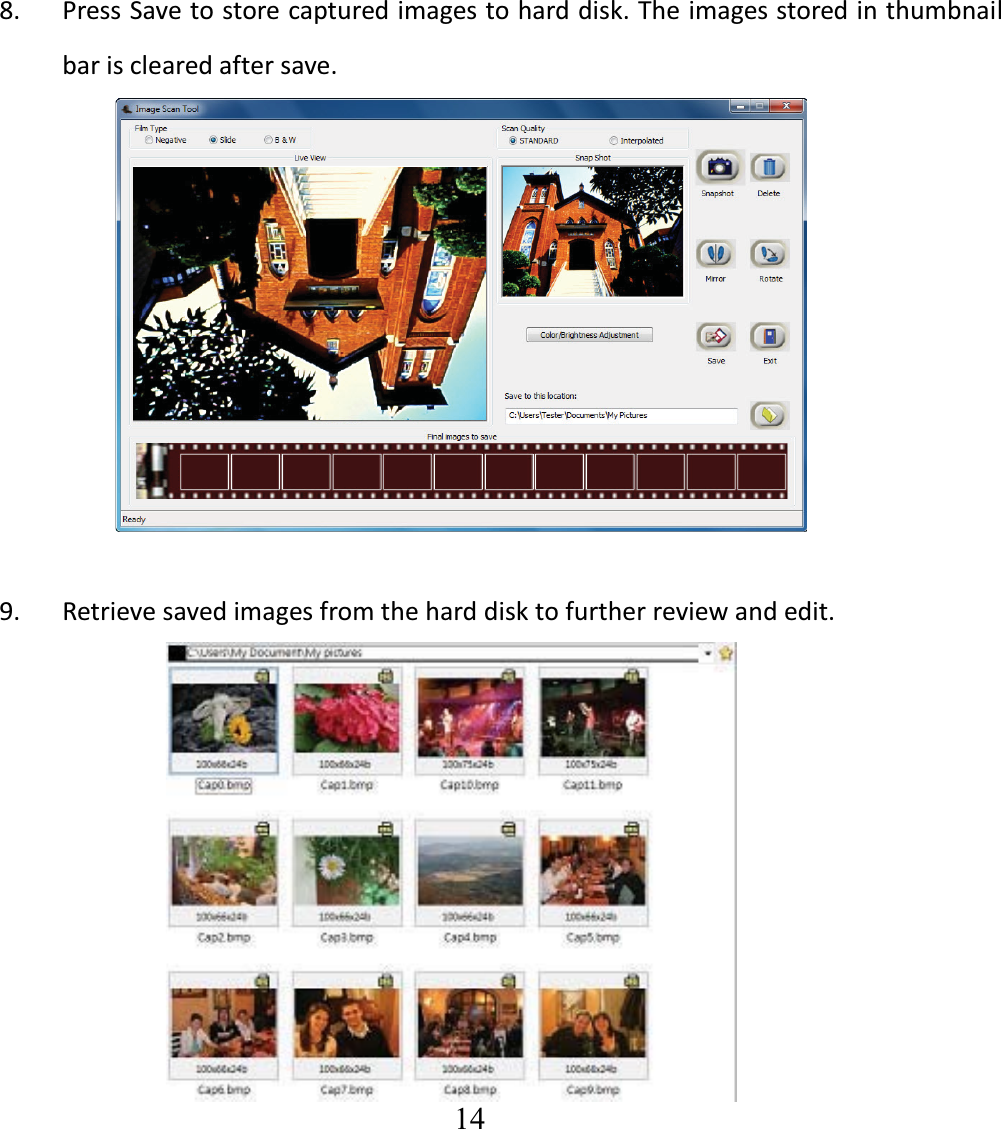
  14  8. PressSavetostorecapturedimagestoharddisk.Theimagesstoredinthumbnailbarisclearedaftersave.9. Retrievesavedimagesfromtheharddisktofurtherreviewandedit.
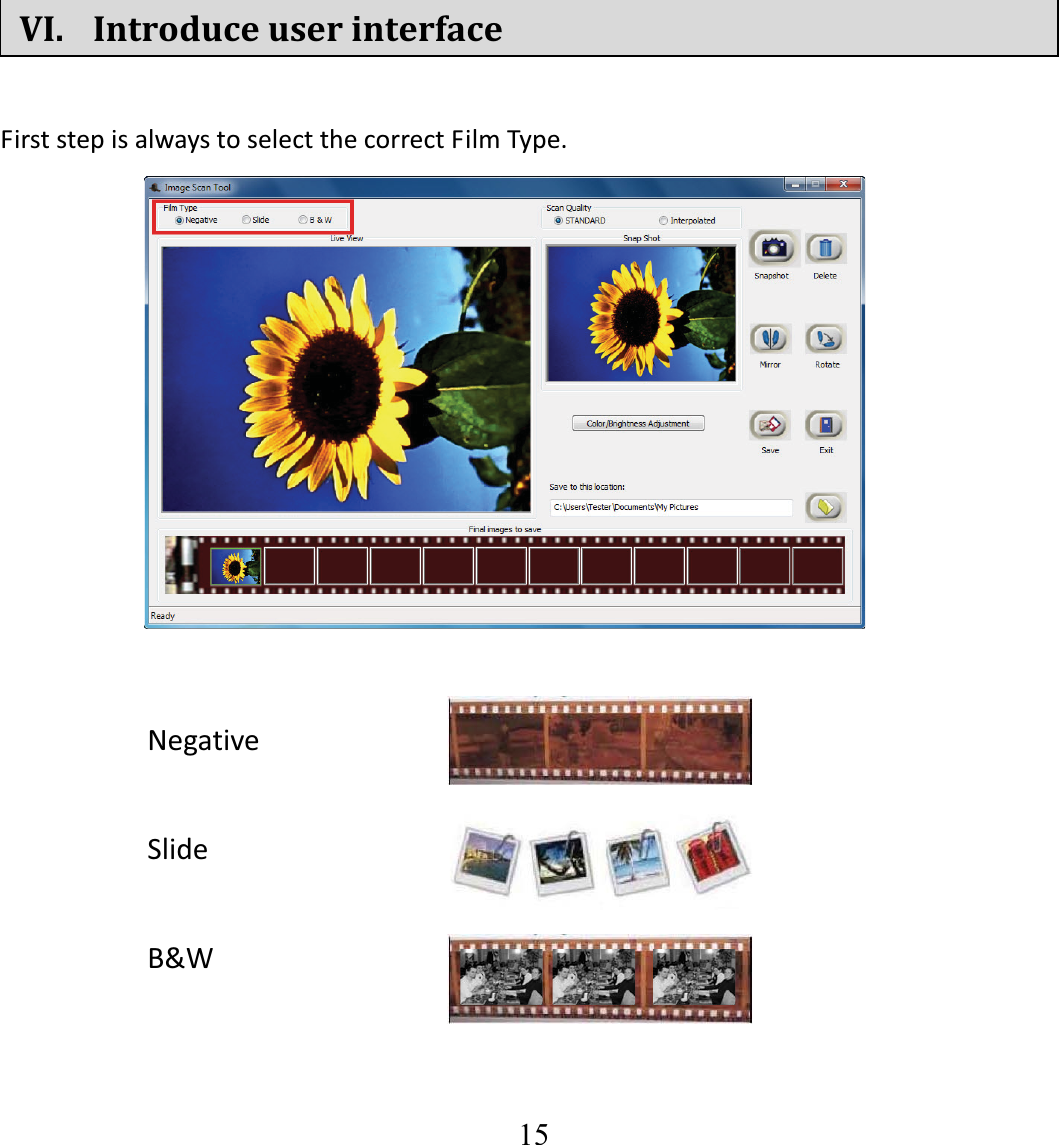
  15  VI. IntroduceuserinterfaceFirststepisalwaystoselectthecorrectFilmType.       Negative Slide B&W 
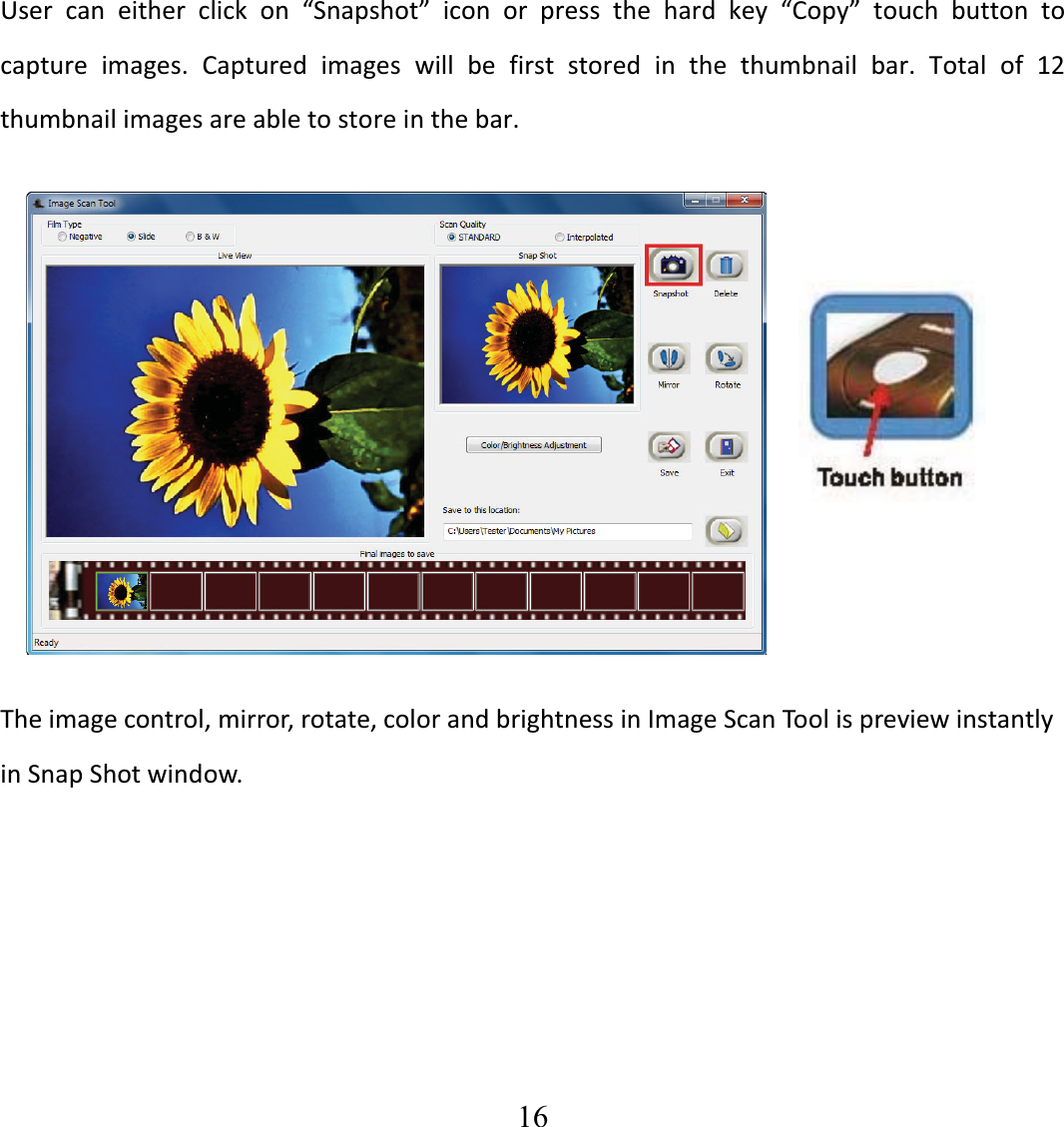
  16  User can either click on “Snapshot” icon or press the hard key “Copy” touch button tocapture images. Captured images will be first stored in the thumbnail bar. Total of 12thumbnailimagesareabletostoreinthebar. Theimagecontrol,mirror,rotate,colorandbrightnessinImageScanToolispreviewinstantlyinSnapShotwindow.  

Navigation menu