Eaton HHB1BBGW Networking Device User Manual bbgateway C2 sas finalrev3
Eaton Corporation Networking Device bbgateway C2 sas finalrev3
Eaton >
Manual
Need help? Call 1-800-813-2199 for customer support or visit www.MyHomeHeartbeat.com
If Your Broadband Gateway Extender . . .
Getting started
The Home Key screen should say:
Follow the instructions on the Home Key screen to join the
sensor to your system and name it.
Broadband Gateway Extender
To install and use the Broadband Gateway
Extender, you will need the following (not
included):
• Home Heartbeat Starter Pack
• Broadband service
• Cable or DSL modem
• Cable/DSL router with a free LAN port
• Access to an Internet browser
You may also need:
• 1 additional Ethernet cable
After you have successfully installed the Home
Heartbeat Starter Pack (which includes at least one
sensor), you can install the Broadband Gateway.
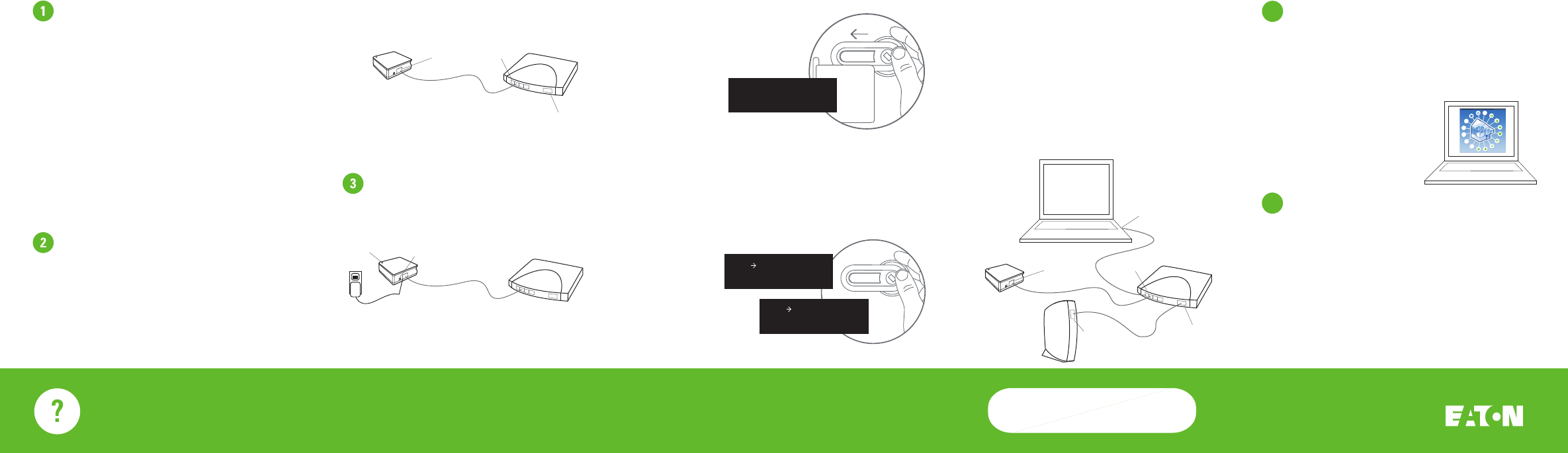
Connect
CARRY the Broadband Gateway Extender
and the Home Key to the location of your
Cable/DSL modem and router.*
Using the enclosed Ethernet cable, plug one end
into the LAN port on the Broadband Gateway
Extender, and the other into a free LAN port
on the router.
If the Home Key or sensor is out of range, you can:
• Add a Home Heartbeat Range Extender between the Base
Station and Broadband Gateway Extender,
• select an alternate location in your home for the Broadband
Gateway Extender that is still within reach of your modem
and router, or
• try moving the Base Station to a more central location in
your our home. Then, complete Step 2 and 3 again.
Plug in and set up
* If you purchased a router in order to add the Broadband Gateway
Extender to your network, follow the manufacturer’s instructions to
install. NOTE: All interconnecting equipment must be UL Listed.
After you have made the connections, your setup should look
something like this:
To monitor your home online, you must register the Broadband
Gateway Extender.
Visit www.MyHomeHeartbeat.com. Choose a name and password,
enter the ID number (found on the bottom of the unit), and input
your account settings.
After you’ve registered, you will be able
to monitor the sensors you’ve installed
from anywhere you have internet access.
4Register
5Conrm Gateway-Portal Link
PLUG the Broadband Gateway Extender into a wall outlet. The
green Status LED light on the top will blink quickly several
times.
After the light stops blinking, CLICK the thumbwheel to wake
the Home Key if it is asleep, then SLIDE the Home Key into the
Slide Channel on the top of the Broadband Gateway Extender.
NOTE: If you slide the Home Key into the Broadband Gateway
Extender Slide Channel and the Home Key screen shows either
of the following messages, it means that the Home Key or
sensor may be outside the range of the Base Station.
Remove Key...
Please try again
Sensor out of range?
Remove Key...
Can't set up now
Key out of range
Device found
OK to remove Key...
Eaton can not take responsibility for the transmission
time required for alerts to contact your cell phone or
email, as it is regulated by your service provider.
Verify that the Portal is receiving data from the Gateway by
triggering an alert from one of your installed sensors. For example,
open and close a door that you have set to “Alarm on open.”
• will not respond, make sure the outlet it is plugged into has power.
• does not show the status of your sensors online, make sure that all cables connected to the devices are plugged in correctly and securely.
Router
Broadband Gateway
Cable/DSL Modem
PC
WAN Port
LAN Port LAN Ports
Ethernet Port
Ethernet Port
Router
Broadband Gateway
WAN Port
LAN Port LAN Ports
Power Port
Status LED
Power Supply
Router
Broadband Gateway
Cable/DSL Modem
PC
WAN Port
LAN Port LAN Ports
Ethernet Port
Ethernet Port
Router
Broadband Gateway
WAN Port
LAN Port LAN Ports
Power Port
Status LED
IM00416013E Rev. 1
Part No.: 67A5035H01
© 2006 Eaton Corporation
FCC Statement
(Compliance Statement, Part 15.19): This device complies with Part 15 of the
FCC Rules. Operation is subject to the following two conditions: (1) this
device may not cause harmful interference, and (2) this device must accept
any interference received, including interference that may cause undesired
operation.
WARNING (Part 15.21): Changes or modications not expressly approved by
the party responsible for compliance could void the user’s authority to
operate this equipment.
To comply with FCC’s RF exposure limits for general
population/uncontrolled exposure, the antenna(s) used for this transmitter
must be installed to provide a separation distance of at least 20 cm from all
persons and must not be co-located or operating in conjunction with any
other antenna or transmitter.
Industry Canada Statement
The term “IC” before the certication/registration number only signies that
the Industry Canada technical specications were met.
Interference
This equipment has been tested and found to comply with the limits for a
Class B digital device, pursuant to Part 15 of the FCC rules. These limits are
designed to provide reasonable protection against harmful interference in a
residential installation. This equipment generates, uses, and can radiate
radio frequency energy and, if not installed and used in accordance with the
instructions, may cause harmful interference to radio communications.
However, there is no guarantee that interference will not occur in a
particular installation. If this equipment does cause harmful interference to
radio or television reception, which can be determined by turning the
equipment o and on, then the user is encouraged to try to correct the
interference by one or more of the following measures:
• Reorient or relocate the receiving antenna
• Increase the separation between the equipment and the receiver
• Connect the equipment into a power source on dierent circuit than the
receiver.
Broadband Gateway Extender
• will not respond, make sure the outlet it is plugged into has power.
•
Broadband Gateway Extender
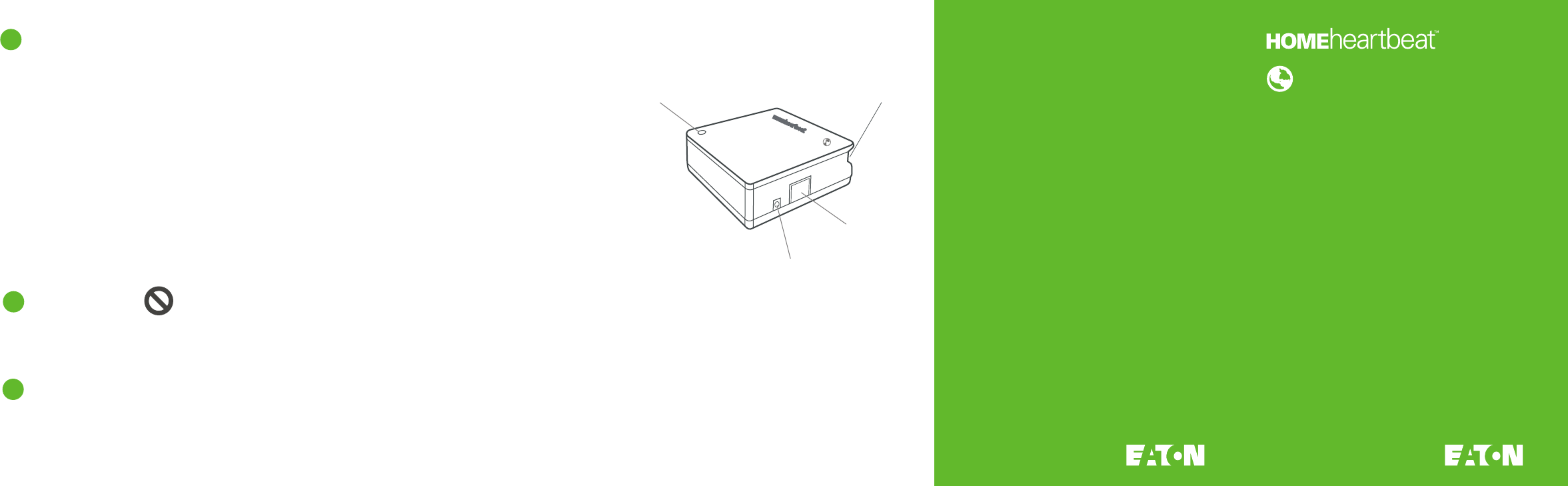
Components
Broadband Gateway Extender Uses:
LAN Port
Power Port
Home Key Slide Channel
Status LED
Learn about the status of your home from any place with an
internet connection, and extend the transmission zone to reach
sensors that are farther away from the Base Station.*
Perfect for monitoring your home:
• while at work
• when travelling for business
• when on vacation
• anytime you're away from home
*actual range may vary, depending on the location of the Base Station
and home construction
Changing sensor settings online
* Most routers have detailed instructions about this setting and rewall
protection features in a section called “Virtual Servers” or "Forwarding."
7
IMPORTANT
If you want to change sensor and device settings while logged
into the website, you need to congure your router to allow
port forwarding.*
Type your router’s IP address into your web browser address bar and
login to the router. Select the DHCP page and locate the Broadband
Gateway Extender ID in the Dynamic DHCP Client List. To ensure that
the Broadband Gateway address remains xed, it is recommended that
the DHCP be set to Static DHCP.
Select the Virtual Server page (usually located in the Advanced
section). Add a Virtual Server that forwards TCP connections to port
1136 to the IP address used by the Broadband Gateway Extender.
For complete details or instructions go to:
www.MyHomeHeartbeat.com/help/
Do not connect the telephone cable supplied with the Base
Station. If you have already connected the telephone cable to
the Base Station, disconnect it if you are using the Broadband
Gateway Extender.
6
7
Maintenance
8
The Broadband Gateway Extender is for indoor use only.
There are no serviceable parts. Clean with a soft, dry cloth.