Ecovacs Robotics RC1712 2.4G wireless module User Manual
Ecovacs Robotics Co., Ltd. 2.4G wireless module
User manual

Instruction Manual

Congratulations on the purchase of your ECOVACS ROBOTICS DEEBOT! We hope it brings you many years of
satisfaction. We believe that your new robot will help keep your home clean and give you more quality time to do other
things.
Live Smart. Enjoy Life.
Should you encounter situations that have not been properly addressed in this Instruction Manual, please contact our
Customer Service Center where a technician will be able to help you with your specic problem or question.
For more information, please visit the ECOVACS ROBOTICS ofcial website: HYPERLINK "http://www.ecovacs.com/" \h www.
ecovacs.com
The company reserves the right to make technological and/or design changes to this product for continuous improvement.
Thank you for choosing WINBOT!
Instruction Manual ..............................................................................................................2
EN

3EN
1. Important Safety Instructions ...........................................................................................................................................4
2. Package Contents and Technical Specifications ...........................................................................................................6
3. Operating WINBOT ..........................................................................................................................................................10
4. Maintenance .....................................................................................................................................................................19
5. Status Indicator Light and Sounds ................................................................................................................................23
6. Troubleshooting ..............................................................................................................................................................24
Contents

4
EN
1. This Appliance is not intended to be used by children under 8
or anyone lacking knowledge on proper use. Supervision may
be necessary. Do not allow children to play with the Appliance.
2. Do not use the Appliance in extremely hot, cold or humid
environments (below 0˚C/32˚F, above 40˚C/104˚F, above 65%
humidity). The Appliance can be used to clean outside windows
if it is properly tethered to the Safety Pod, winds are calm, and
it is not raining or snowing.
3. Do not leave the Appliance unattended when it is working.
4. For household use ONLY. Do not use the Appliance in
commercial or industrial environments.
5. Do not use the Appliance on cracked glass, or glass with
posters attached or raised dots on it.
6. Only use the Appliance as instructed by the instruction manual.
Only use accessories recommended or supplied by the
manufacturer. Only use the Rechargebale Battery and Power
Adapter supplied by the manufacturer.
7. Please make sure your power supply voltage matches the
power voltage marked on the Power Adapter.
8. Do not use the Appliance on a framed window with a frame
smaller than 5mm (0.2 inches).
9. Do not use the Appliance on wet or greasy windows.
10. 1Store the Appliance away from heat and ammable materials.
11. Do not use the Appliance if it does not rmly attach to the glass
or has visible signs of damage.
12. To reduce the risk of electrical shock, do not put the Appliance
in water or other liquid. Do not place or store Appliance where
it can fall or be pulled into a tub or sink.
13. Do not touch power plug or the Appliance with wet hands.
14. Do not charge the Appliance in extremely hot or cold environments,
or it may affect battery life span.
15. When charging the Appliance, do not place it on other electrical
appliances and keep it away from re and liquid.
16. Take care not to damage the power cord. Do not pull on or
carry the Appliance by the power cord, use the power cord as
a handle, or put heavy weights on the power cord. Keep power
cord away from hot surfaces.
17. Do not use with a damaged power cord or receptacle. Do
not use the Appliance if it is not working properly, has been
dropped, damaged, or come in contact with water. It must be
repaired by the manufacturer or its service agent in order to
avoid a hazard.
18. If the supply cord is damaged, it must be replaced by the
manufacturer or its service agent in order to avoid a hazard.
19. The plug must be removed from the receptacle before cleaning
or maintaining the Appliance.
20. Do not unplug the Power Adapter by pulling on the power cord.
21. The Battery must be replaced by the manufacturer or its service
agent in order to avoid a hazard.
22. The Battery must be removed and discarded according to local
laws and regulations before disposal of the Appliance.
IMPORTANT SAFETY INSTRUCTIONS
When using an electrical appliance, basic precautions should always
be followed, including the following:
READ ALL INSTRUCTIONS BEFORE USING THIS
APPLIANCE
SAVE THESE INSTRUCTIONS
1. Important Safety Instructions
5EN
23. The Appliance must be disconnected from the receptacle
before removing the battery for disposal of the Appliance.
24. Please dispose of used batteries according to local laws and
regulations.
25. Do not incinerate the Appliance even if it is severely damaged.
The battery can explode in a re.
26. The Appliance must be used in accordance with the directions
in this Instruction Manual. The manufacturer cannot be held
liable or responsible for any damages or injuries caused by
improper use.
1. Important Safety Instructions
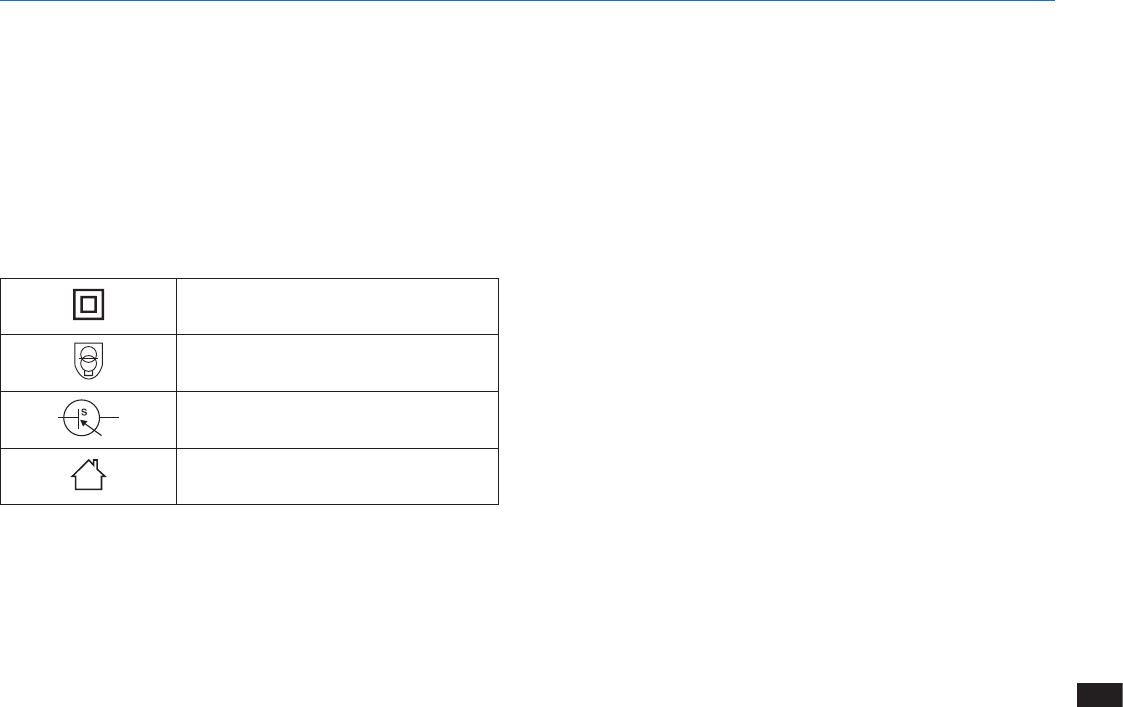
Class II
Short-circuit-proof safety isolating
transformer
Switch mode power supply
For indoor use only
This device complies with Industry Canada’s licence-exempt RSSs.
Operation is subject to the following two conditions:
(1) This device may not cause interference; and
(2) This device must accept any interference, including interference
that may cause undesired operation of the device.
This equipment has been tested and found to comply with the limits
for a Class B digital device, pursuant to Part 15 of the FCC Rules.
These limits are designed to provide reasonable protection against
harmful interference in a residential installation. This equipment
generates uses and can radiate radio frequency energy and, if not
installedand used in accordance with the instructions, may cause
harmful interference to radio communications. However, there is no
guarantee that interference will not occur in aparticular installation. If
this equipment does cause harmful interference to radio or television
reception, which can be determined by turning the equipment off and
on, the user is encouraged to try to correct the interference by one or
more of the following measures:
-- Reorient or relocate the receiving antenna.
-- Increase the separation between the equipment and receiver.
-- Connect the equipment into an outlet on a circuit different from
that to which the receiver is connected.
-- Consult the dealer or an experienced radio/TV technician for help.
Changes or modifications not expressly approved by the party
responsible for compliance could void the user's authority to operate
the equipment.
This device complies with part 15 of the FCC Rules. Operation is
subject to the following two conditions: (1) This device may not cause
harmful interference, and (2) thisdevice must accept any interference
received, including interference that may cause undesired operation.
6
EN
2.1 Package Contents
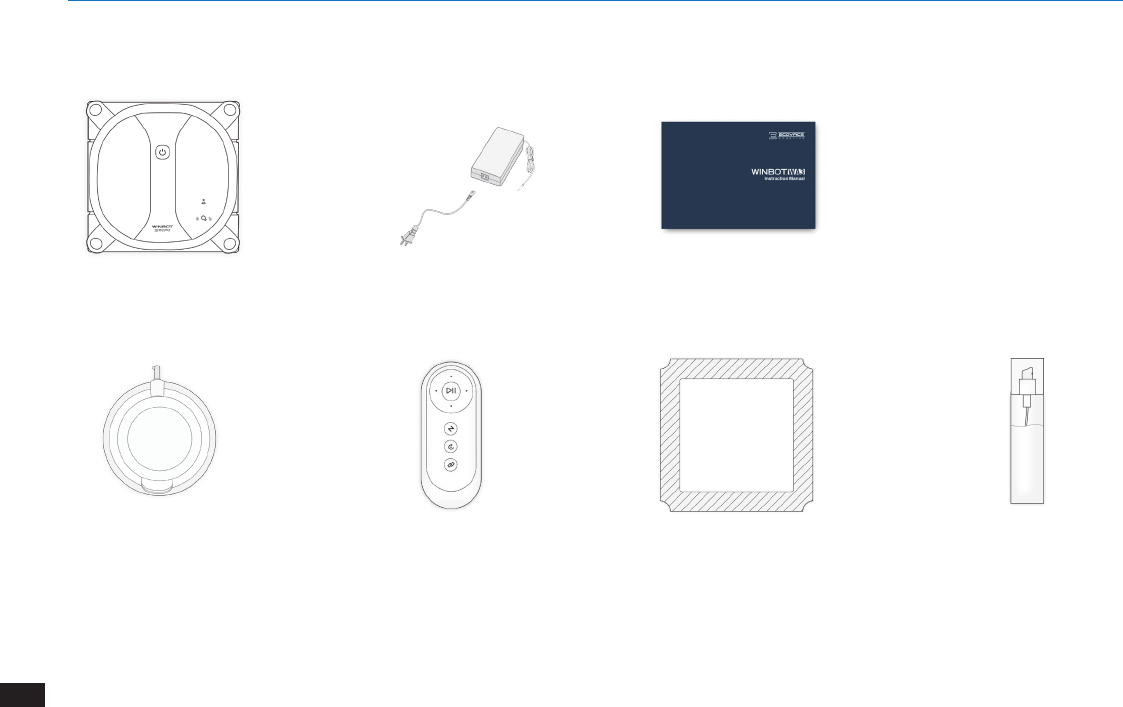
WINBOT
Safety Pod with Batteries
Power Adapter
Remote Control with
Batteries
Instruction Manual
Cleaning Pads * 4
Quick Start Guide
WINBOT Cleaning
Solution
2. Package Contents and Technical Specifications
Note: Figures and illustrations are for reference only and may differ from actual product appearance.
Product design and specications are subject to changes without notice.
7EN
2.2 Specifications 2.3 Product Diagram
WINBOT
2. Package Contents and Technical Specifications
Model WA30
Working voltage 22.2V DC Rated power 60W
Remote Control
Rated output voltage 3V DC
Power Adapter OH-1048A2701700U1-U
Input 100-240V AC,
50/60Hz,1.5A Output 27V DC, 1.7A
Note: Technical and design specications may be changed in the course
of continuous product improvement.
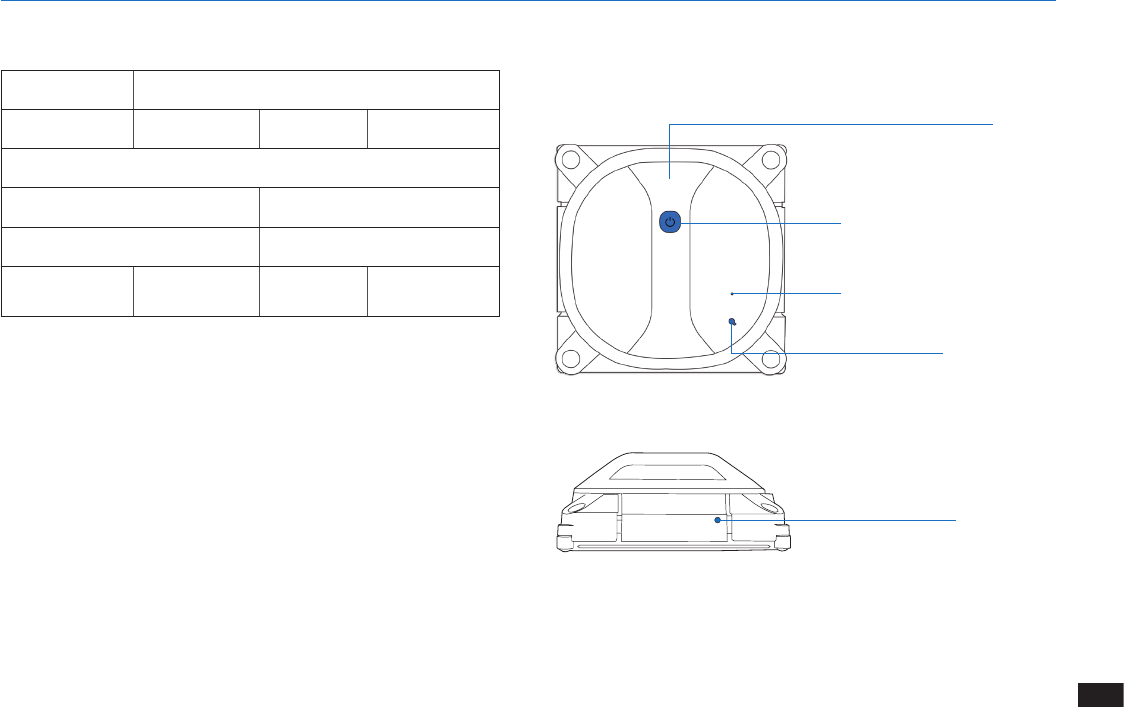
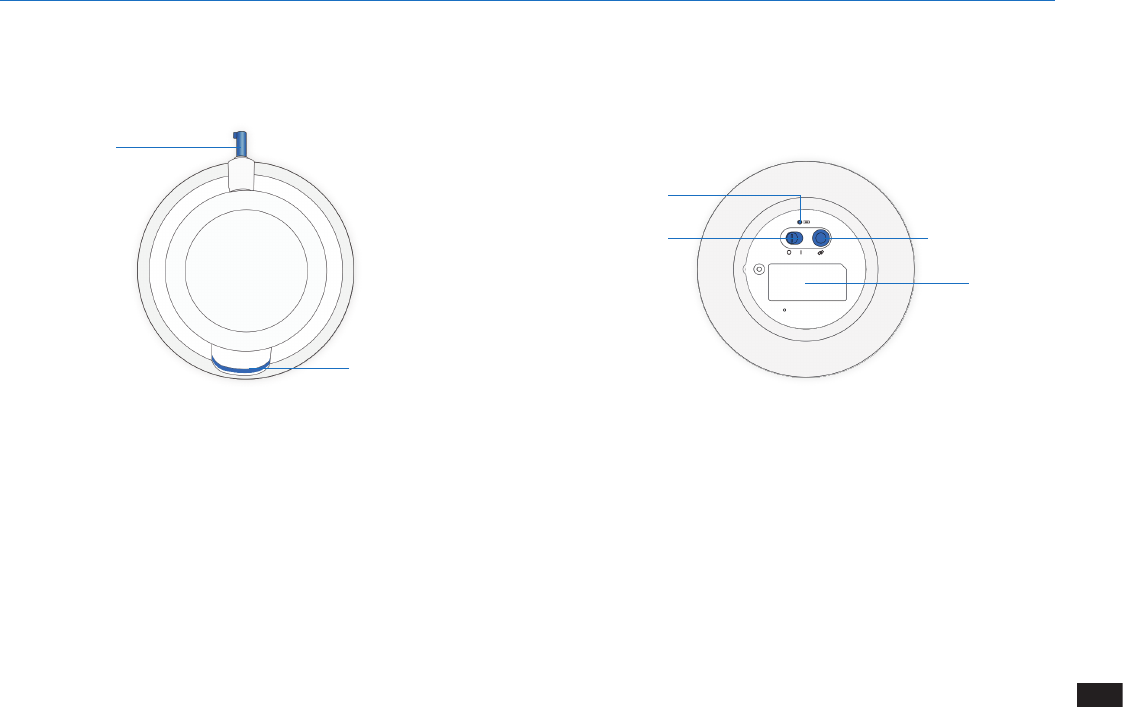
Handle
Charging Port
Safety Pod Status Indicator Light
Safety Pod Port
WINBOT Status Indicator Light/
START/ PAUSE Button
8
EN
WINBOT
2. Package Contents and Technical Specifications
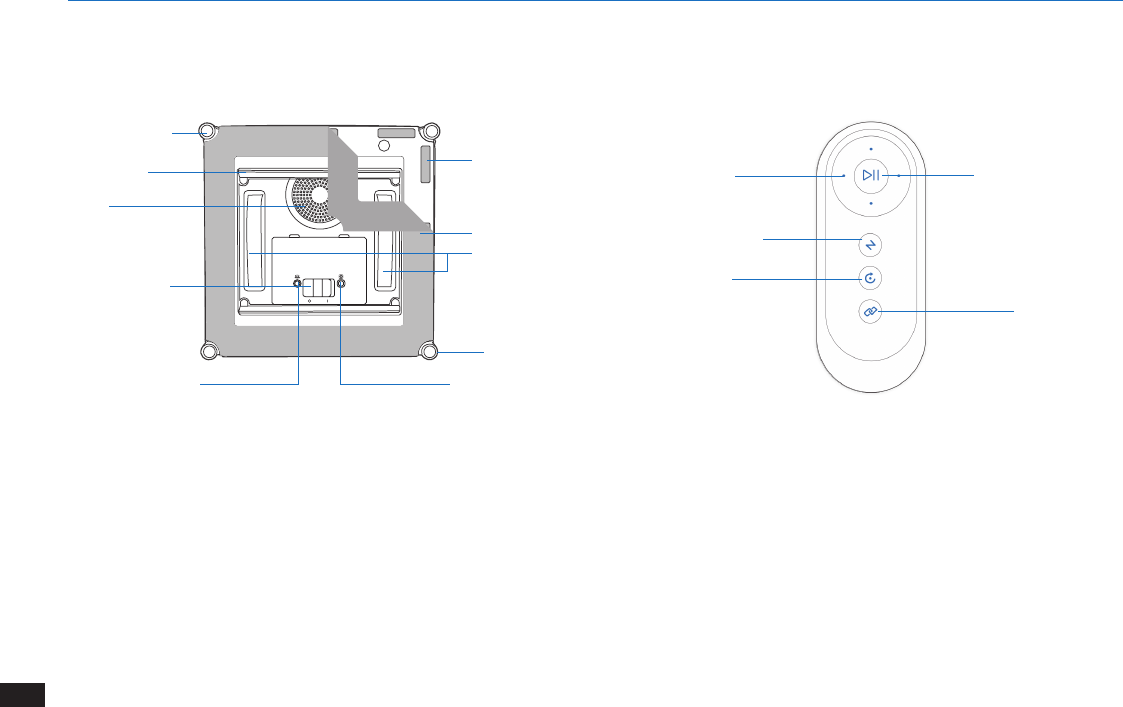
Remote Control
Direction Control
Buttons
Edge Detection
Sensors
Squeegee
Fan
Power Switch
Bottom Safety Pod
Status Indicator Light
Cleaning Pad
Driving Treads
Cleaning Pad
Velcro
Side Rollers
Bottom WINBOT
Status Indicator Light
Deep Cleaning Mode
Button
RESET Button
START/PAUSE Button
Remote Control
Pairing Button
9EN
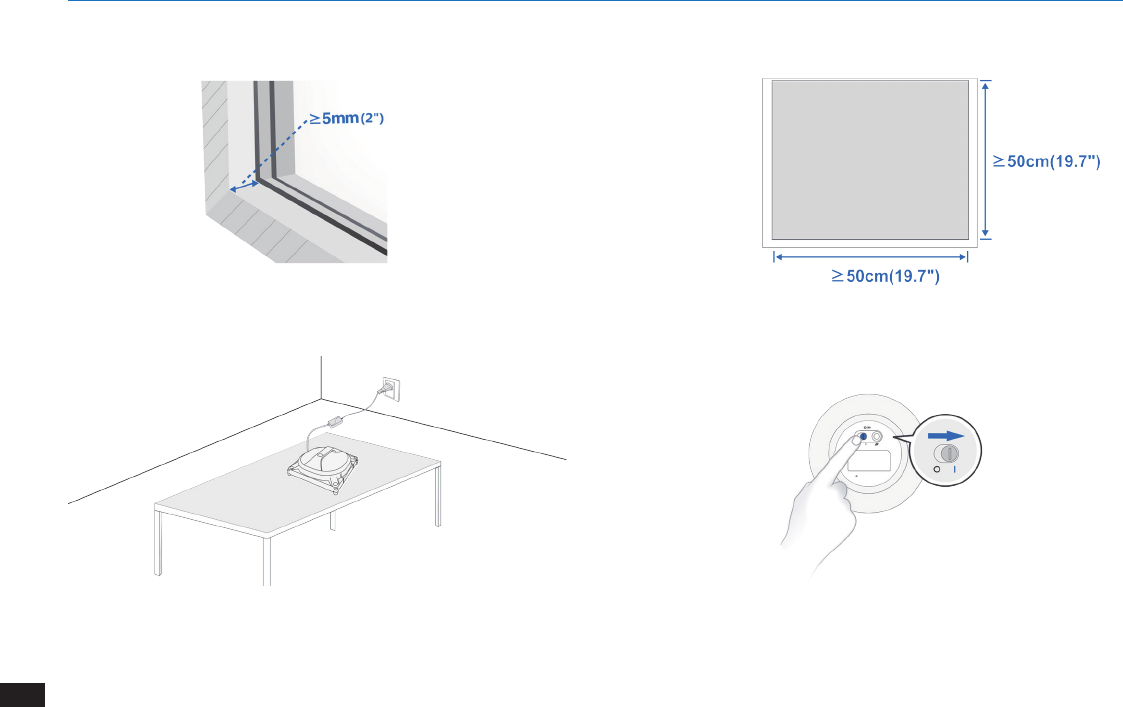
Safety Pod
Safety Pod Jack
Battery Indicator
Power Switch
Quick Release Handle
Battery Slot
Safety Pod Pairing
Button
2. Package Contents and Technical Specifications
10
EN
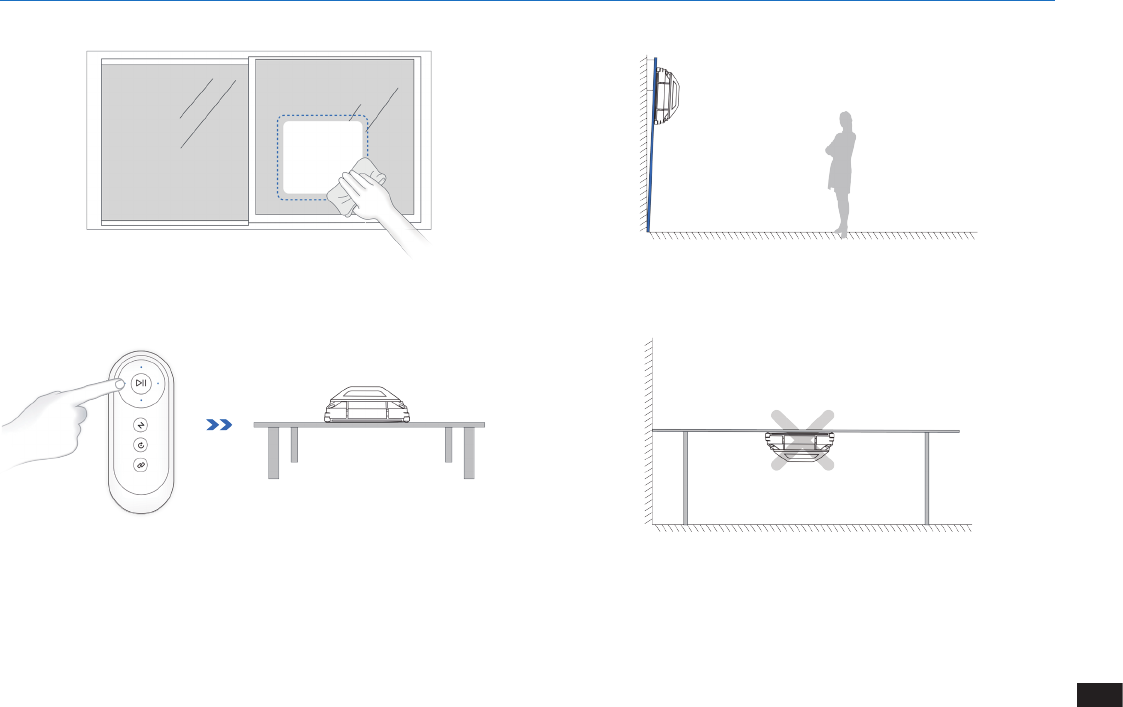
Do not use WINBOT on a framed window with a frame smaller than
5mm (0.2’’).
If WINBOT’s Status Indicator Light ashes RED, the battery requires
charging.
WINBOT can clean framed or frameless glass, larger than 50cm x
50cm (19.7’’ x 19.7’’).
If the Battery Pod’s Battery Indicator Light ashes RED, the battery power
is low, and the Safety Pod cannot work. Please change the battery.
3.1 Notes Before Cleaning
3. Operating and Programming
11 EN
WINBOT is intended to be used for maintenance cleaning on common windows. The product is not designed to replace heavy-duty or cleaning
windows with heavy dust for the rst time.
Please refer to the glass manufacturer's care and cleaning instructions before using WINBOT on glass with an uneven surface, such as frosted,
textured, patterned, or coated glass. The manufacturer cannot be responsible for damage due to improper use on these surfaces.
3. Operating and Programming
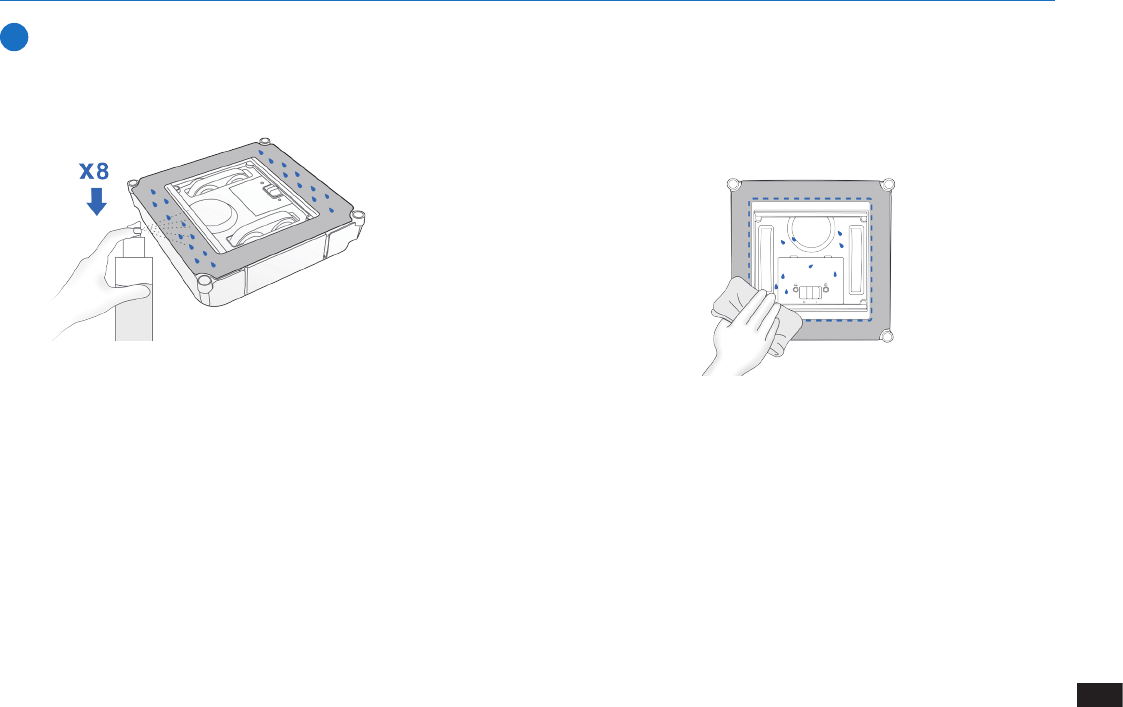
WINBOT can clean horizontally mounted glass but only when using the
Direction Control Buttons on the Remote Control.
Do not use WINBOT upside down.
If the window is covered with dirt, clean a small area on the glass before
use and place WINBOT there.
WINBOT can clean glass mounted at an angle but may not operate
normally; in such a case, a person should be in the vicinity to assist
should there be a problem.

12
EN
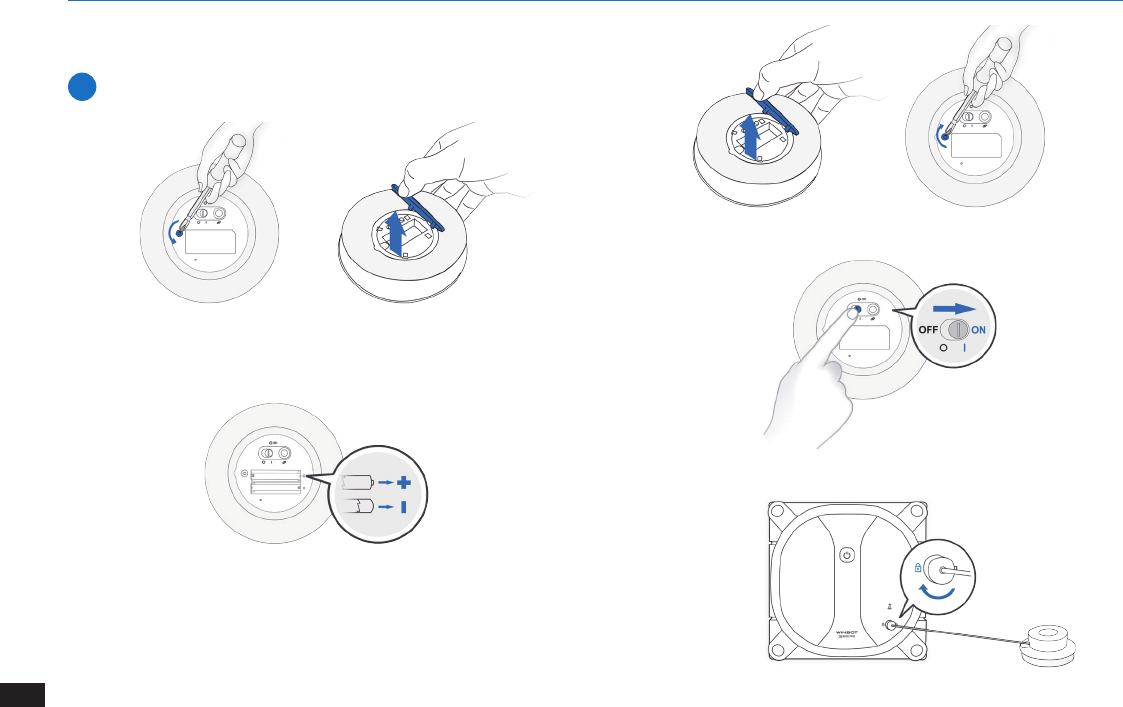
2 Power ON
3. Operating and Programming
Note: Keep objects away from WINBOT’s Fan to avoid blockage.
3 Charge WINBOT
Note: When WINBOT is charging, the Status Indicator Light ashes
BLUE. When WINBOT is fully charged, WINBOT glows a continuous
BLUE and then goes out.
3.2 Using WINBOT
4 Attach the Cleaning Pad
1 Assemble Power Adapter
Note: Make sure the white side of the Cleaning Pad attaches to the Velcro.
Make sure the Cleaning Pad does not cover the Squeegee or Edge
Detection Sensors. The Cleaning Pad is not completely square and if
attached improperly, covers part of the Squeegees.
13 EN
3. Operating and Programming
5 Spray Cleaning Solution
After spraying, wipe the bottom of WINBOT with a dry cloth.
Note: The spray volume can be subject to the condition of dirt.
Note: It is recommended to use WINBOT with WINBOT Cleaning Solution from ECOVACS. Using tap water or other cleaners could have an adverse
effect on cleaning performance. Using other cleaning solutions could potentially nullify the warranty.
1
Step
2
Step
14
EN
3. Operating and Programming
3
Step
4
Step
5
Step
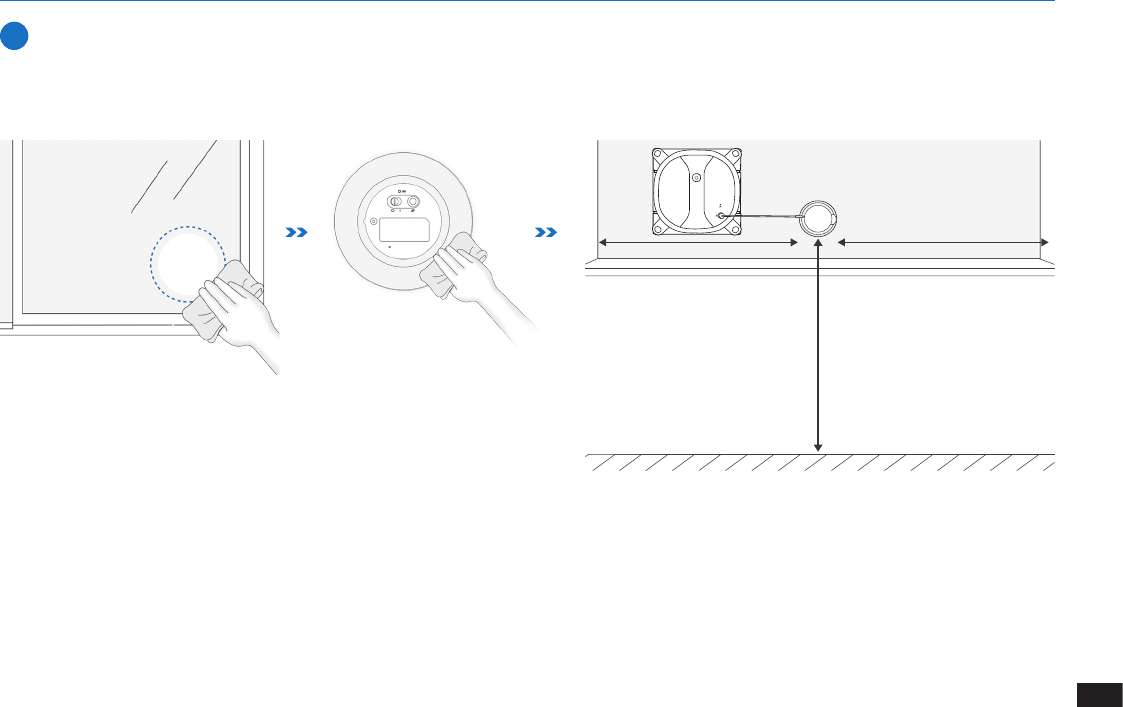
Warning: When using WINBOT to clean windows, Safety Pod
must be used to guarantee the safety function of WINBOT.
6 Attach the Safety Pod
1
Step
2
Step
15 EN
3. Operating and Programming
7 Start Cleaning
1
Step
N
N N
16
EN
3. Operating and Programming
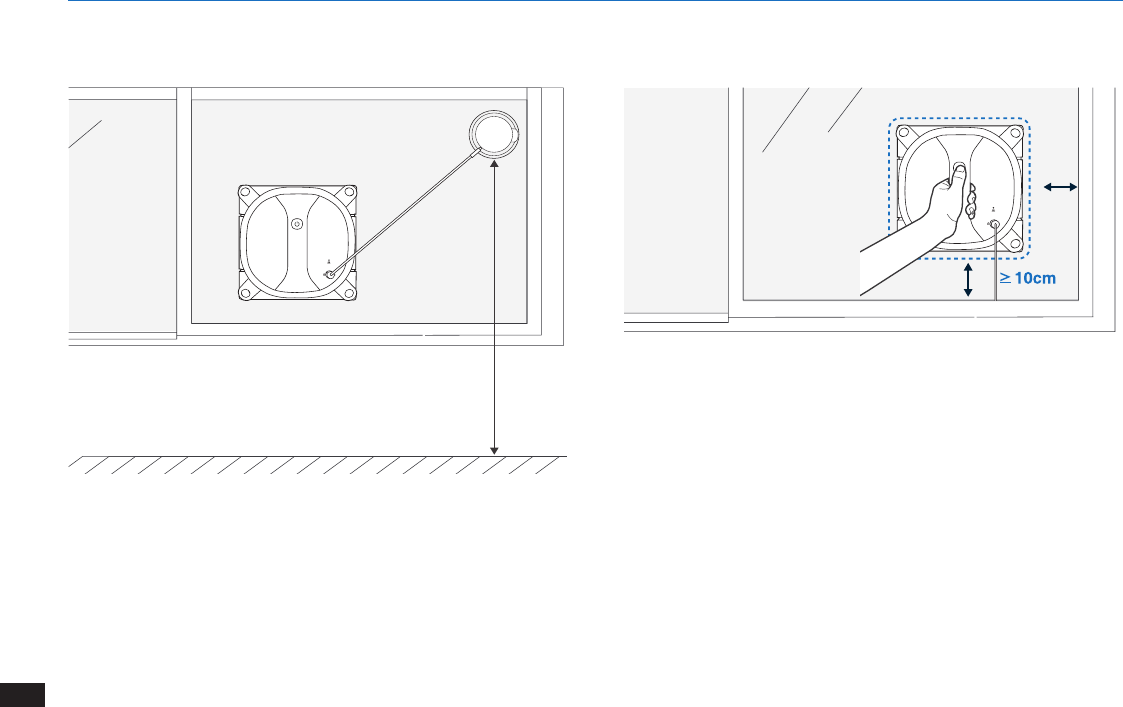
Make sure Safety Pod is attached at least 1.6 meters above
ground, and the robot is suggested to be placed within an
1-meter radius of Safety Pod.
2
Step
Note: WINBOT has successfully attached to the window when the
WINBOT Status Indicator Light glows a continuous BLUE and beeps.
Note: Please ensure there is a 15cm (5.9”) clearance between the
glass and obstacles in the room like curtains or furniture.
Note: The Fan does not start until Safety Pod is rmly pressed on the glass
and keep it away from hair or any debris..
Warning: If WINBOT is being used to clean an inside or outside
windon, ALWAYS press Safety Pod FIRMLY on the INSIDE window.
Make sure the Safety Pod is attached and securely in place.
The length of the Safety Pod line is 2.5m.
It is suggested to place the Safety Pod on the top corner of the window
to ensure 1.6m above ground if the window is smaller.
ㆠ
3
Step
17 EN
3. Operating and Programming
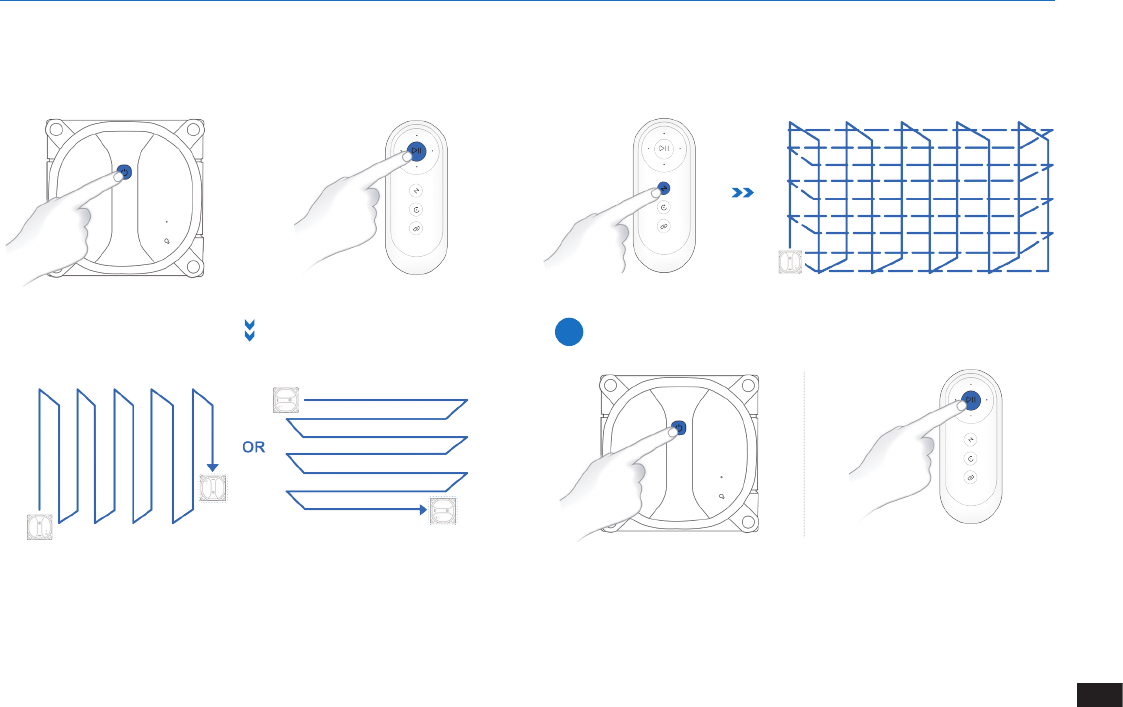
Note: WINBOT automatically chooses the suitable cleaning path in “N”
or “Z” Cleaning Mode depending on the shape of the window.
AUTO Cleaning Mode
This is the most commonly used mode and is good for regular cleaning.
OR
Deep Cleaning Mode
This mode is applicable for glass of more concentrated dirt or dust.
Note: Direct WINBOT to move using the Direction Control Buttons on
the Remote Control when Paused. WINBOT cleans when the Direction
Control Buttons are used.
Note: Avoid moving WINBOT manually when it is cleaning or paused to
ensure cleaning efciency.
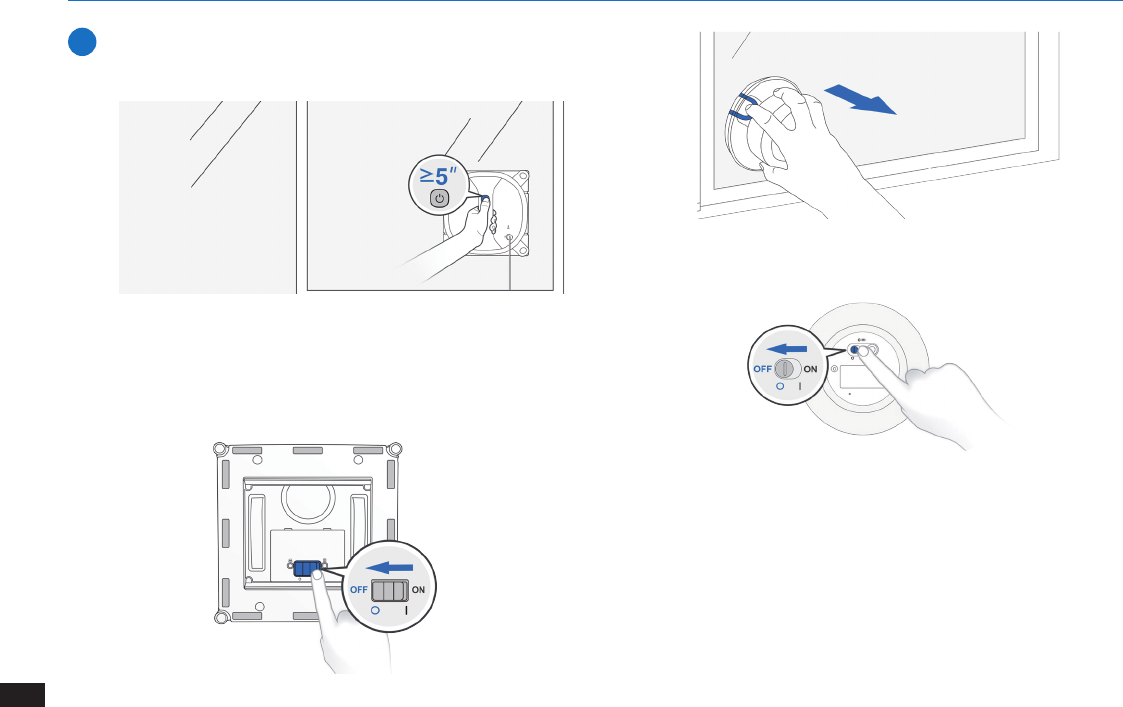
9 Pause
4
Step
18
EN
3. Operating and Programming
Note: Remove WINBOT from the window after the fan stops working.
Polish away any marks left on the glass from the robot’s removal with
a dry cloth If you want to stop the WINBOT during cleaning, please rst
press Start/Pause Button once to pause WINBOT and then press and
hold this button for more than 5 seconds to stop WINBOT..
When WINBOT completes its cleaning cycle, it returns to the place it
started and beeps.
10 Stop
1
Step
2
Step
3
Step
Note: If WINBOT has a problem and the indicator Light ashes RED,
it can be reset by pressing the RESET Button on the Remote Control.
See “Troubleshooting” for details.
4
Step
19 EN
4. Maintenance
Before performing cleaning and maintenance on WINBOT, Power OFF WINBOT and disconnect it from the Power Adapter.
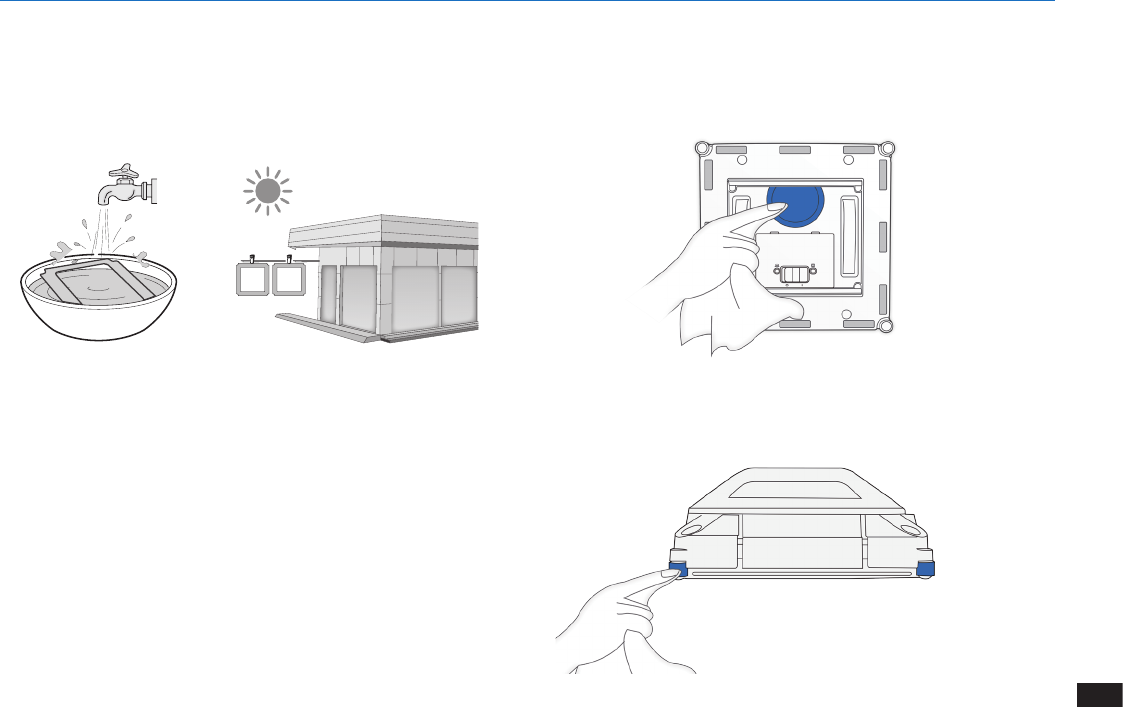
4.1 Cleaning Pad
Wash with mild detergent .
Do NOT use a wet Cleaning Pad on WINBOT or it may slip on the
window.
Washing the Cleaning Pad regularly can extend its service life.
If the Cleaning Pad becomes worn or no longer ts exactly within
the Velcro area, replace it with a new one to achieve best cleaning
performance.
4.2 Fan, Sensors and Squeegee
Fan
Side Rollers
20
EN
4. Maintenance
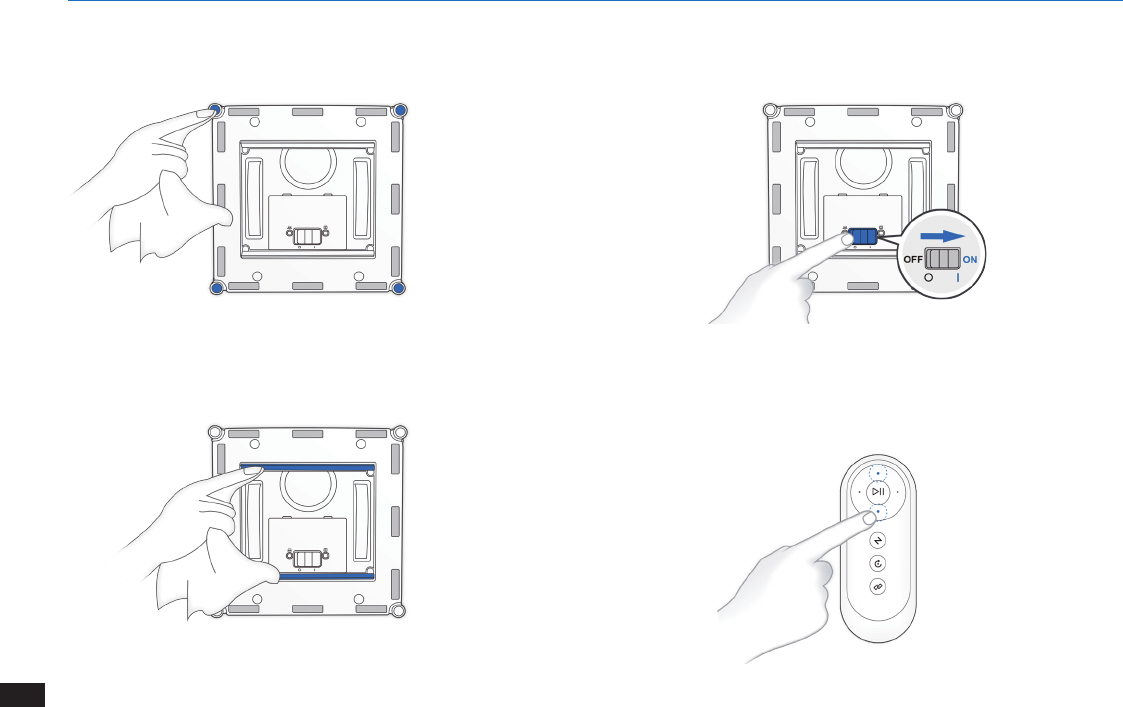
Edge Detection Sensors
Squeegee
4.3 Driving Treads
1
Step
Inspect the Driving Treads by using the Direction Control
buttons on the Remote Control. Stop the Driving Treads if dirt is
seen on the Treads.
2
Step
21 EN
4. Maintenance
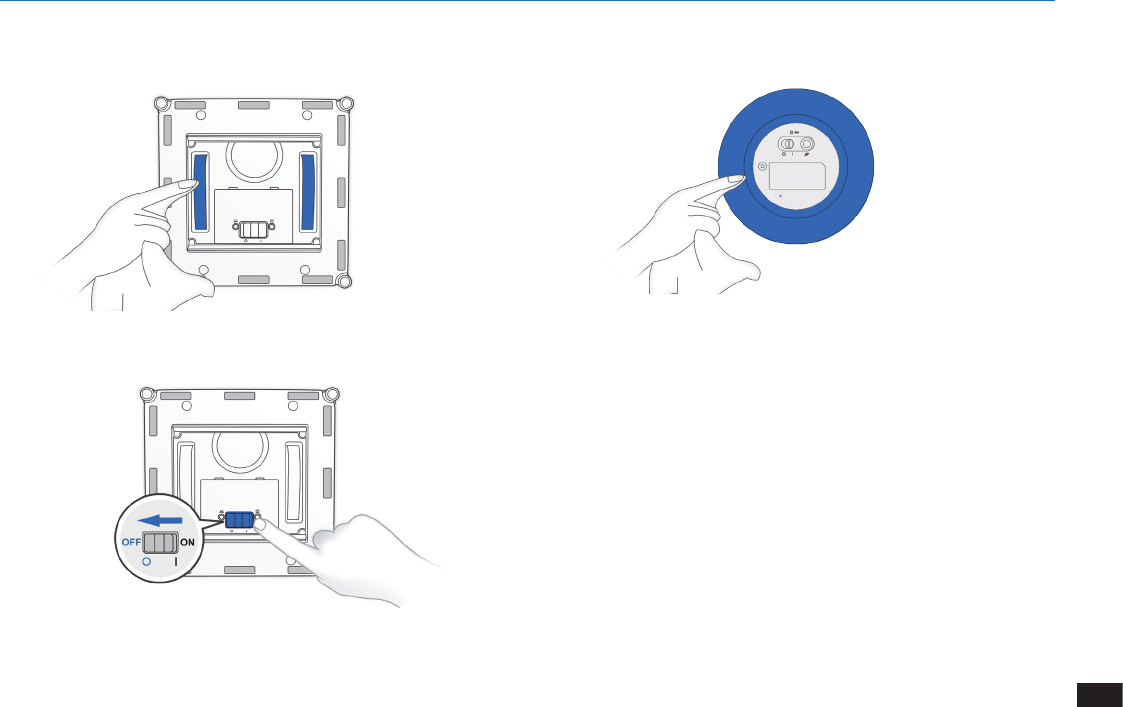
4
Step 4.4 Safety Pod
Note: Remove the Safety Pod’s battery if the robot will not be used for
a long time. In case of battery leakage, please remove the battery and
dispose of it according to local laws and regulations.

22
EN
4. Maintenance
4.5 Regular Maintenance
To keep WINBOT running at peak performance, perform the maintenance and replacement according to the following frequency.
Note: ECOVACS manufactures various replacement parts and assemblies. Please contact Customer Service for more information on replacement
parts.
Robot Robot Part Maintenance Frequency Replacement Frequency
WINBOT
Cleaning Pad After each use Every 40 washings
Fan
After each use /
Side Rollers
Edge Detection Sensors
Squeegees
Driving Treads

23 EN
5. Status Indicator Light and Sounds
Indicator Description
WINBOT
WINBOT Status Indicator Light ashes BLUE
1. WINBOT is charging.
2. WINBOT has been paired with Safety Pod already and ready to be
placed on the glass.
WINBOT Status Indicator Light glows a
continuous BLUE
1. WINBOT has successfully adhered itself to the glass and is ready to
clean.
2. The Safety Pod is in preparation.
WINBOT Status Indicator Light ashes RED The robot’s battery is low. Charge WINBOT as described in Section 3.2.
WINBOT Status Indicator Light glows a
continuous RED Please refer to Section 6, Troubleshooting, for details.
Safety Pod Status Indicator Light ashes GREEN
The Safety Pod is not prepared to be pressed onto the glass:
1.The Safety Pod Jack is not inserted into WINBOT.
2.The Safety Pod is not paired with WINBOT.
3.The Safety Pod is not attached to the glass safely and rmly.
4.The Safety Pod is pairing with WINBOT.
Safety Pod Status Indicator Light glows a
continuous GREEN The Safety Pod is working normally. WINBOT can start working.
Safety Pod Status Indicator Light ashes RED The Safety Pod’s battery is low. Replace the battery as described in
Section 3.2.
Safety Pod Status Indicator Light glows a
continuous RED Please refer to Section 6, Troubleshooting, for details.
Safety Pod
Battery Indicator glows a continuous GREEN The Safety Pod’s battery is sufcient.
Battery Indicator ashes RED The Safety Pod’s battery is low. Please replace the battery as described
in Section 3.2.

24
EN
6. Troubleshooting
No. Malfunction Possible Causes Solutions
1 The robot’s fan does not work Safety Pod malfunction Check the Safety Pod Status Indicator Light on the
WINBOT, and refer to Section 5 for details.
2 Remote Control does not work
When WINBOT is cleaning, only the START/
PAUSE Button works on the Remote Control.
Pause WINBOT by pressing the START/PAUSE button on
the robot or Remote Control. Other buttons on the Remote
Control will function when WINBOT is paused.
The Remote Control is not paired with
WINBOT.
(WINBOT arrives from the factory paired with
its Remote Control. If the Remote Control
becomes un-paired or is replaced, it can be
re-paired.)
Power ON WINBOT. Press and hold START/PAUSE
Button on WINBOT and Pairing button on the Remote
Control at the same time. Pairing is complete when
START/PAUSE Button blinks RED and BLUE beeps.
WINBOT Status Indicator Light glows a
continuous RED.
Press and hold RESET on the Remote Control to initialize
WINBOT and then the remote control functions.
The batteries are not installed in the Remote
Control or need to be changed. Install or replace the batteries in the Remote Control.

25 EN
6. Troubleshooting
No. Malfunction Possible Causes Solutions
3
WINBOT Status Indicator Light
ashes BLUE after the product
is placed on the glass.
The Cleaning Pad is attached incorrectly and
is covering the fan or the Edge Detection
Sensors.
Remove the Cleaning Pad and re-attach it making sure it
is placed exactly within its Velcro area and does not cover
the fan or the Edge Detection Sensors.
Edge Detection Sensor malfunction.
A. Remove the Cleaning Pad and re-attach it making sure
it will not cover or affect the Edge Detection Sensors.
B. Clean the Edge Detection Sensors as described in
section 4.
C. If the problem persists, please contact Customer
Service.
Fan malfunction.
A. Clean the Fan as described in section 4.
B. If the problem persists, please contact Customer
Service.
Glass is too dirty for WINBOT to adhere
properly.
Clean a small area on the glass before using and placing
WINBOT there, or clean the window by hand rst and use
WINBOT for regular cleaning after that.
* WINBOT is intended to be used for maintenance
cleaning on common windows. The product is not
designed to replace heavy-duty or windows with heavy
dust for the rst time.

26
EN
6. Troubleshooting
No. Malfunction Possible Causes Solutions
4
WINBOT Status Indicator
Light of the product glows a
continuous RED
WINBOT has moved over a problem area and
is losing suction.
A. Press the RESET Button on the Remote Control. Use
the Direction Control buttons on the Remote Control to
move WINBOT away from the problem area and at least
10cm/4〃 from window corners and obstacles. Restart
WINBOT.
B. Check if WINBOT meets an obstacle of window handle.
Press the RESET Button on the Remote Control, and then
use the Direction Control Buttons to direct WINBOT to
clean around the area around the handle.
Edge Detection Sensor are dirty.
Wipe the Edge Detection Sensors clean as described
in section 4. If the problem persists, please contact
Customer Service.
5
Safety Pod Status Indicator
Light of the product glows a
continuous RED
The Safety Pod is not paired with WINBOT.
WINBOT arrives from the factory paired with
its Safety Pod. If the Safety Pod becomes un-
paired or is replaced, it can be re-paired.
Power ON WINBOT. At the same time, press and hold
START/PAUSE Button on WINBOT and Pairing button
on the Safety Pod. Pairing is complete when Safety Pod
Status Indicator Light blinks RED and GREEN and beeps.
Safety Pod is losing its suction.
Remove the Safety Pod, and re-press it onto the glass
until the Safety Pod Status Indicator Light glows a
continuous GREEN.
Safety Pod is in Sleep Mode. Power off the Safety Pod then Power it on.
Safety Pod Jack is not connected with
WINBOT Safety Pod Port.
Insert the Safety Pod Jack into the Port as described in
section 3.2

27 EN
6. Troubleshooting
No. Malfunction Possible Causes Solutions
6WINBOT moves in an irregular
pattern during cleaning.
There is too much dirt and debris on the
window.
A. Spray additional Cleaning Solution on the Cleaning
Pad.
B. Clean the Driving Treads as described in section 4.
C. Replace the Cleaning Pad and restart the cleaning
cycle.
D. Use the Remote Control to control the cleaning by
pressing Direction Buttons.
* WINBOT is intended to be used for maintenance
cleaning on common windows. The product is NOT
designed to replace heavy duty or rst time cleaning.
7
WINBOT is stuck, and cannot
move, be controlled by the
Remote Control, or be reset by
pressing RESET.
Insufcient suction or Edge Detection Sensor
signal abnormity.
Press the RESET Button on the Remote Control and then
press and hold it until the WINBOT Status Indicator Light
glows a continuous BLUE or Safety Pod Status Indicator
Light glows a continuous GREEn to switch WINBOT to
Manual Override Mode. In Manual Override Mode, the
Direction Control Buttons on the Remote Control are
activated. Use the Direction Control Buttons to move
WINBOT to a position away from edges and where you
can safely reach it. Remove WINBOT from the window
and power OFF. Power ON and restart.
*When using the Manual Override Mode, do not leave
WINBOT attached to the glass unattended.
If the problem persists, please contact Customer Service.
8WINBOT will not charge. WINBOT is not powered ON. Move the robot’s Bottom Power Switch
to the ON position.

WA30-EN01-IM2017R00
Ecovacs Robotics Co., Ltd
No. 18 You Xiang Road, Wuzhong District, Suzhou City,
Jiangsu Province, P.R.China