Electronics Tomorrow A60000515 Bluetooth Ambient Monitor User Manual A600 IOSandAn

Electronics Tomorrow Ltd. Bluetooth Ambient Monitor A600 IOSandAn

user manual

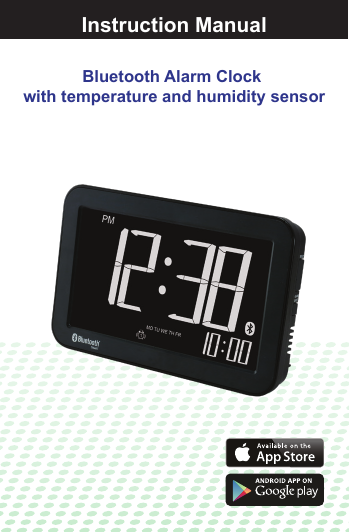
Instruction ManualBluetooth Alarm Clock with temperature and humidity sensorInstruction Manual
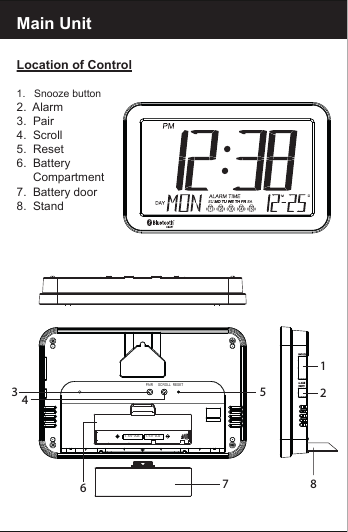
Main UnitLocation of Control1.   Snooze button2.  Alarm3.  Pair4.  Scroll5.  Reset6.  Battery     Compartment7.  Battery door8.  Stand1.5V''AA''1.5V''AA''PAIR SCROLL RESET57128346
FeaturesThank you for purchasing the BLE Alarm Clock. This product is designed as a BLE Alarm Clock by working with your mobile devices. -  Support Bluetooth version 4.0.-  Set wake up buzzer alarm with snooze function, up to 5    alarms.- Take full control of the BLE Alarm Clock with device app    via Bluetooth Low Energy.-  Selectable alarm tone pattern and volume to different     alarms.- Temperature and Humidity reading whith history chart- History chart that can be read on App without alarm clock   connection-  Set count down timer.-  Monitor the battery status of the BLE Alarm Clock and      have battery warning if it is at low level.- Can stop alarm via App- Wall mounting or desk standBefore you start using it•  Please make sure to read the instruction manual carefully.•  Following and respecting the instructions in your manual    will prevent damage to your instrument and loss of your     statutory rights arising from defects due to incorrect use.• We shall not be liable for any damage occurring as a      result of non-following of these instructions. Likewise, we    take no responsibility for any incorrect readings and for     any consequences which may result from them.• Please take particular note of the safety advice!• Please keep this instruction manual for future reference.
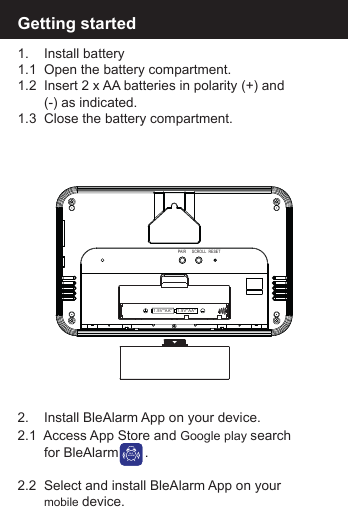
Getting started1.    Install battery1.1  Open the battery compartment.1.2  Insert 2 x AA batteries in polarity (+) and        (-) as indicated.1.3  Close the battery compartment.2.    Install BleAlarm App on your device.2.1  Access App Store and Google play search        for BleAlarm       .2.2  Select and install BleAlarm App on your        mobile device.BLEALARM1.5V''AA''1.5V''AA''PAIR SCROLL RESET
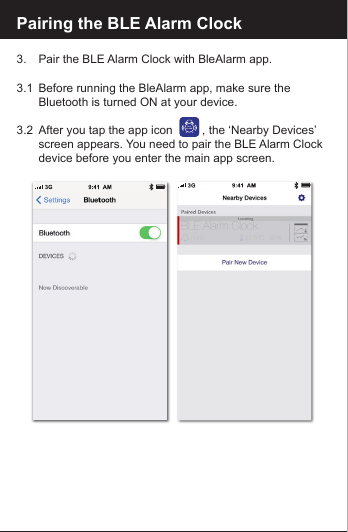
Pairing the BLE Alarm Clock3.    Pair the BLE Alarm Clock with BleAlarm app.3.1  Before running the BleAlarm app, make sure the        Bluetooth is turned ON at your device. 3.2  After you tap the app icon         , the ‘Nearby Devices’    screen appears. You need to pair the BLE Alarm Clock   device before you enter the main app screen.BLEALARM
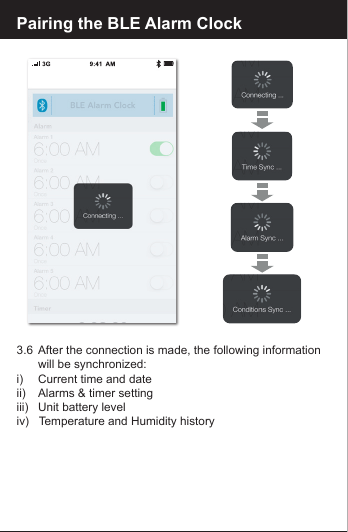
Pairing the BLE Alarm Clock3.3  Tap “ Pair New Device”   to search for nearby  devices.3.4   Press and hold the [PAIR]        button on the  BLE Alarm  Clock device for 5 seconds.  You can find that the                     icon start to blink.3.5  The new  BLE Alarm Clock  will be displayed on App   and is ready for pairing. Tap   the "BLE Alarm Clock" will  start the pairing and   connection process. Once the BLE Alarm Clock is   paired, it will start time and  data synchronization.BLE Alarm Clock
Pairing the BLE Alarm Clock3.6  After the connection is made, the following information       will be synchronized:i)     Current time and dateii)     Alarms & timer settingiii)    Unit battery leveliv)   Temperature and Humidity history
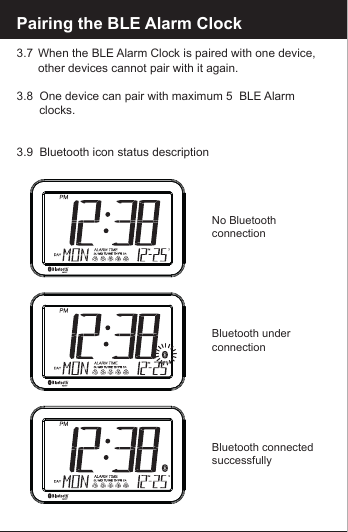
Pairing the BLE Alarm Clock3.7  When the BLE Alarm Clock is paired with one device,       other devices cannot pair with it again.3.8  One device can pair with maximum 5  BLE Alarm         clocks.3.9  Bluetooth icon status descriptionNo Bluetooth connectionBluetooth underconnectionBluetooth connected successfully
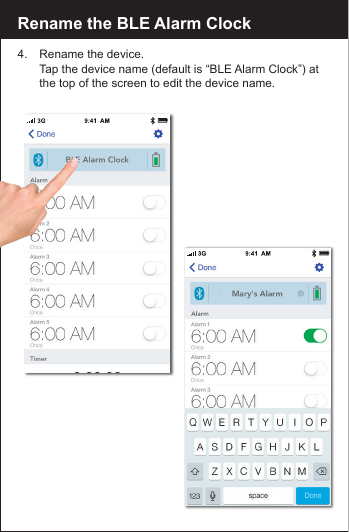
Rename the BLE Alarm Clock4.    Rename the device.  Tap the device name (default is “BLE Alarm Clock”) at    the top of the screen to edit the device name.
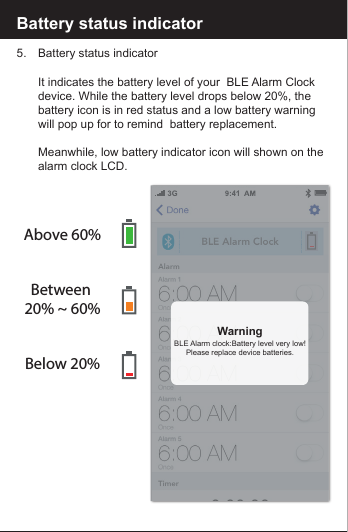
Battery status indicator5.     Battery status indicator     It indicates the battery level of your  BLE Alarm Clock       device. While the battery level drops below 20%, the        battery icon is in red status and a low battery warning         will pop up for to remind  battery replacement.      Meanwhile, low battery indicator icon will shown on the       alarm clock LCD.Above 60%Between 20% ~ 60%Below 20%WarningBLE Alarm clock:Battery level very low!Please replace device batteries.
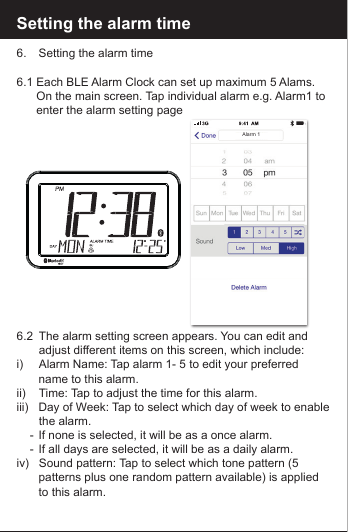
Setting the alarm time6.    Setting the alarm time6.1 Each BLE Alarm Clock can set up maximum 5 Alams.         On the main screen. Tap individual alarm e.g. Alarm1 to       enter the alarm setting page6.2   The alarm setting screen appears. You can edit and            adjust different items on this screen, which include:i)        Alarm Name: Tap alarm 1- 5 to edit your preferred           name to this alarm.ii)       Time: Tap to adjust the time for this alarm.iii)   Day of Week: Tap to select which day of week to enable           the  alarm.    -  If none is selected, it will be as a once alarm.    -  If all days are selected, it will be as a daily alarm. iv)    Sound pattern: Tap to select which tone pattern (5           patterns plus one random pattern available) is applied         to this alarm.Alarm 1
Setting the alarm timev)   Alarm volume level: Tap to select the alarm sound        volume level (three options: Low, Med and High).6.3  Complete the alarm setting.i)    Tap [Done] to save the alarm setting and turn on the      alarm.ii)    At the main screen,user can turn the alarm on / off by       scrolling the        right and left6.4 Stop the alarm via app.i)  When the alarm clock is alarming, you can enter the      alarm by tapping the notification on device. ii) There is an “     ” icon at the right hand side of the row.     You can tap the “      ” icon to stop the alarm.OnOff
Snooze operation7.  Using the SNOOZE function7.1  When the alarm sounds,   press the [Snooze] button   to get an extra 5 minutes   of sleep. The snooze will  repeat up to three times. 7.2  The above default value is  set by the factory. User can    set the “Maximum Snooze”   and “Snooze Duration” in        the preference screen.
To turn off the alarm8.   To disable the alarm8.1  When the alarm sounds,   press the [Snooze] button  once or press [Alarm] to   disable the alarm. 8.2  The alarm will sound for   1 minute and stop   automatically. If Snooze  Enabled setting is ON,   the alarm will repeat   every 5 minutes. You can  press the [Snooze] button  to interrupt the alarm   momentarily, or can press   [Alarm] button to turn off   the alarm and stop the   snooze function completely.8.3 User can tap the alarm   time to disable the alarm  completely ( Please   make sure your app is  paired with the device)
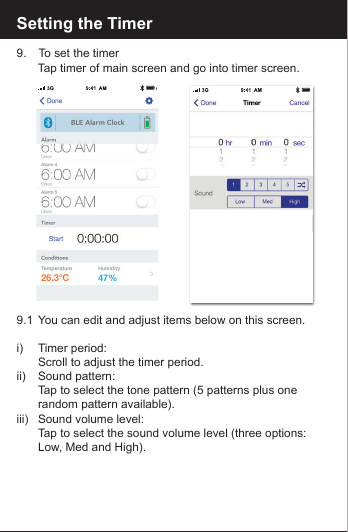
Setting the Timer9.   To set the timer   Tap timer of main screen and go into timer screen.9.1  You can edit and adjust items below on this screen.i)   Timer period:   Scroll to adjust the timer period.ii)   Sound pattern:   Tap to select the tone pattern (5 patterns plus one      random pattern available).iii)  Sound volume level:   Tap to select the sound volume level (three options:      Low, Med and High).
Setting the timer9.2  Using the Timer    In the Home screen, you can tap “Start” under Timer to     start counting.    Then you can tap “Stop” to stop the current timer and      “Start” to re-continue the timer again. The timer can be      reset by tapping the [Reset].
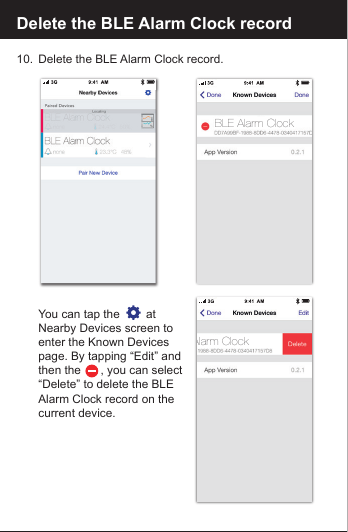
Delete the BLE Alarm Clock record10.  Delete the BLE Alarm Clock record.   You can tap the        at   Nearby Devices screen to  enter the Known Devices   page. By tapping “Edit” and  then the      , you can select   “Delete” to delete the BLE   Alarm Clock record on the   current device.Alarm ClockBLE Alarm Clock
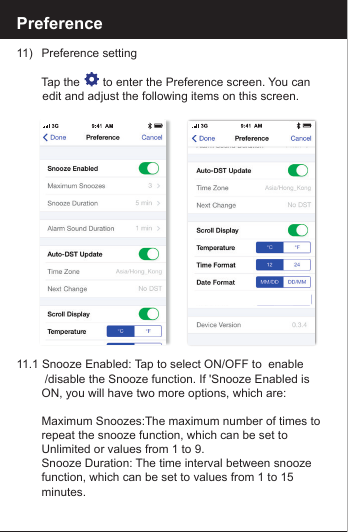
Preference11)   Preference setting     Tap the       to enter the Preference screen. You can         edit and adjust the following items on this screen.11.1 Snooze Enabled: Tap to select ON/OFF to  enable         /disable the Snooze function. If 'Snooze Enabled is        ON, you will have two more options, which are:    Maximum Snoozes:The maximum number of times to       repeat the snooze function, which can be set to         Unlimited or values from 1 to 9.    Snooze Duration: The time interval between snooze         function, which can be set to values from 1 to 15         minutes.
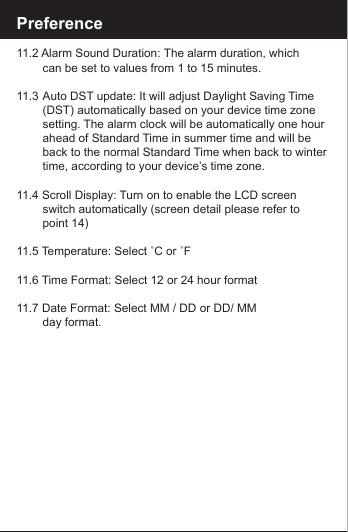
Preference11.2 Alarm Sound Duration: The alarm duration, which        can be set to values from 1 to 15 minutes.11.3 Auto DST update: It will adjust Daylight Saving Time      (DST) automatically based on your device time zone      setting. The alarm clock will be automatically one hour      ahead of Standard Time in summer time and will be       back to the normal Standard Time when back to winter        time, according to your device’s time zone.11.4 Scroll Display: Turn on to enable the LCD screen        switch automatically (screen detail please refer to        point 14)11.5 Temperature: Select ˚C or ˚F11.6 Time Format: Select 12 or 24 hour format11.7 Date Format: Select MM / DD or DD/ MM        day format.
Reset the BLE Alarm Clock12.   Reset the BLE Alarm ClockAfter reset, all data in the BLE Alarm Clock is deleted. Press and hold the [PAIR] button againto re-pair the BLE Alarm Clock.If it has been paired previouslywith the same device, you canselect “Restore” to resume all setting and data or select “Erase” to start all from scratch.If the BLE Alarm Clock is not working properly, try to press RESET button to resume default setting. The LED flashes twice in (purple) color, then the LED will flash once per 6 seconds inred color.BLE Alarm Clock2) Insert stand into the back case 1) Pull down ip over stand to access battery compartment2211
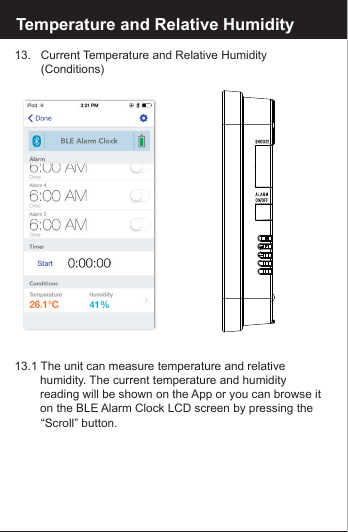
Reset the BLE Alarm Clock13.   Current Temperature and Relative Humidity         (Conditions)13.1 The unit can measure temperature and relative       humidity. The current temperature and humidity       reading will be shown on the App or you can browse it     on the BLE Alarm Clock LCD screen by pressing the       “Scroll”  button.Temperature and Relative Humidity
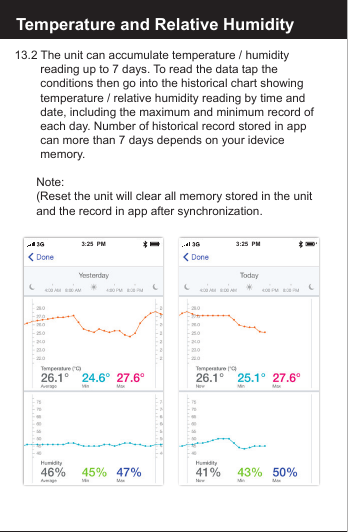
Reset the BLE Alarm Clock13.2 The unit can accumulate temperature / humidity       reading up to 7 days. To read the data tap the       conditions then go into the historical chart showing       temperature / relative humidity reading by time and       date, including the maximum and minimum record of     each day. Number of historical record stored in app      can more than 7 days depends on your idevice       memory. Note:  (Reset the unit will clear all memory stored in the unit    and the record in app after synchronization.Temperature and Relative Humidity3:25  PM3:25  PM
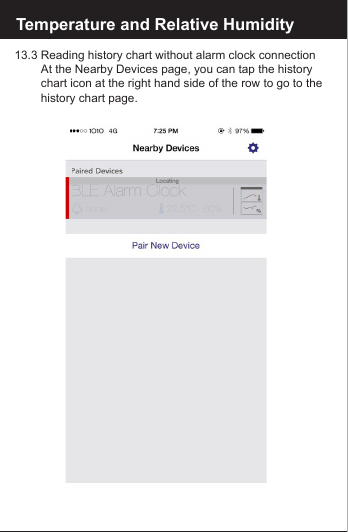
Reset the BLE Alarm Clock13.3 Reading history chart without alarm clock connection   At the Nearby Devices page, you can tap the history     chart icon at the right hand side of the row to go to the     history chart page.Temperature and Relative Humidity
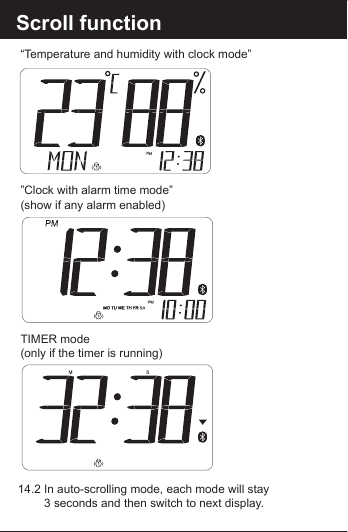
Reset the BLE Alarm C14. You can press the [Scroll] button on the BLE Alarm      Clock to switch between  different information manually.    Or you can press and hold the [Scroll] button to      enable/disable auto-scrolling display function. 14.1  The scrolling display will be in following order:“Clock with calendar mode” ”Calendar Mode”Scroll function
Scroll function 14.2 In auto-scrolling mode, each mode will stay    3 seconds and then switch to next display.TIMER mode(only if the timer is running)”Clock with alarm time mode”(show if any alarm enabled)“Temperature and humidity with clock mode”
BLE Alarm ClockunitspacebuzzerManufacturer reserves the right to update the contents of this manual and App.
Disposal of Your Old ProductYour product is designed and manufactured with high quality materials and components, which can be recycled and reused. When this crossed-out wheeled bin symbol is attached to a product itmeans the product is covered by the European Directive2002/96/EC.Please inform yourself about the local separate collectionsystem for electrical and electronic products. Please act according to your local rules and do not dispose of yourold products with your normal household waste. The correct disposal of your old product will help prevent potential negative consequences for the environment and human health. Disposal of Flat Batteries / AccumulatorsYou, as the end user, are legally obliged (Battery Ordinance) to return all flat batteries and rechargeable batteries. Disposal in the household waste is prohibited. “European Directive 2006/66/EC” Batteries, including rechargeable batteries, which contain hazardous substancesare marked by symbols which indicate the prohibition ofdisposal in the household waste. The designations for the heavy metals concerned are as follows: Cd = cadmium, Hg = mercury, Pd = lead. You can return flatbatteries / rechargeable batteries free of charge to thecollection points in your community or anywhere wherebatteries / rechargeable batteries are sold.You thus fulfil your statutory obligations and help protect the environment.CautionReplace only with the same or equivalent type of battery, please refer to the engraved battery marks inside the battery compartment for the correct battery  polarity (+) and (-).  Danger of explosion is  possible if battery is incorrectly replaced.This product complies with the requirement of the 1999/5/EC directive.Use this unit and mobile phone only in environments with ambienttemperatures between 0°C and 70°C.The maximum operating temperature of the unit is 70°C
018-140077BAC

Navigation menu