Epson Labelworks Iron On Kit Users Guide User's
Epson-Epson-Labelworks-Iron-On-Kit-Owner-S-Manual epson-epson-labelworks-iron-on-kit-owner-s-manual
2015-03-28
: Epson Epson-Labelworks-Iron-On-Kit-Users-Guide-665749 epson-labelworks-iron-on-kit-users-guide-665749 epson pdf
Open the PDF directly: View PDF  .
.
Page Count: 40
- Contents
- Welcome
- Getting Started
- Inserting batteries
- Using the optional AC adapter
- Inserting a tape cartridge
- 1. Remove any slack from the ink ribbon.
- 2. Remove the rear cover.
- 3. Insert the tape cartridge and press it down firmly until it snaps into place.
- 4. If there is excess tape, feed the end of the tape through the tape guide slot.
- 5. Replace the cover and snap it into place.
- 6. Press to turn on the printer.
- 7. Press + .
- 8. Press the Cut button to cut the tape.
- 1. Remove any slack from the ink ribbon.
- Removing a tape cartridge
- Changing the language
- Creating labels
- Saving labels
- Printing labels
- 1. Press to print the current label. The length of the label and the number of copies shows on the display while the label prints.
- Printing multiple copies
- 1. Press . You see 2-9 on the display.
- 2. Press the one of the number keys to enter the number of copies (2-9).
- 3. Press . The length of the label and the number of copies shows on the display while the labels print.
- 4. When printing stops, press the Cut button to cut the tape. A cut mark is printed between each copy, as shown:
- 5. Using scissors, cut along the marks to separate each label.
- 1. Press . You see 2-9 on the display.
- Customizing your labels
- Adjusting the Display
- Applying Iron-On labels
- Attaching your labels
- 1. Set your iron to 284-320 ˚F (140-160 ˚C), without steam.
- 2. Make sure the area where you want to attach the label doesn’t have any wrinkles.
- 3. Place the label in the desired location with the printed side up.
- 4. Gently press the iron down on one end of the label to temporarily attach it in place.
- 5. Press the iron firmly down on the entire label, holding the iron still for about 10 to 15 seconds. To make sure the label adheres securely, repeat this step 3 or 4 times.
- 1. Set your iron to 284-320 ˚F (140-160 ˚C), without steam.
- Label usage tips
- Attaching your labels
- Cleaning the Printer
- Solving Problems
- Error messages
- Problems and solutions
- The product does not function normally
- Power is on but no images appear on the display
- The display turns off
- Nothing prints
- Characters do not print properly
- Printing stops in the middle of text
- Saved labels are gone
- Labels curl after ironing
- Labels fall off after a few washings
- Epson Technical Support
- Specifications
- Notices

Iron-on Kit
User’s Guide
LW300_IronOn_UGcover_CPD38096.in1 1 10/22/12 2:05:17 PM
Printed in USA
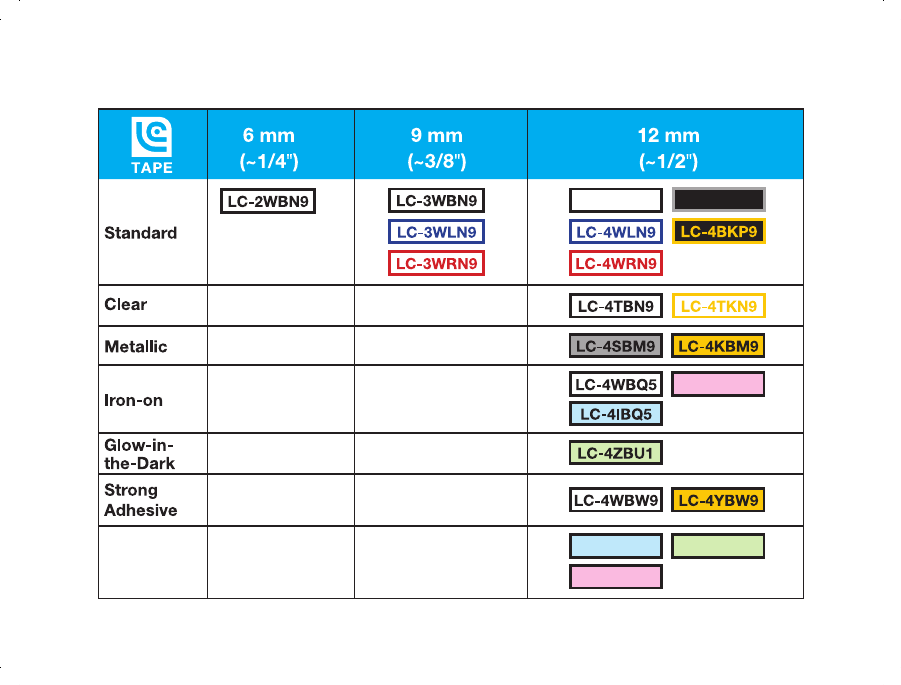
Pearlized LC-4LBL9
LC-4WBN9
LC-4GBL9
LC-4BWN9
LC-4LBQ5
LC-4RBL9
CPD-38096
LabelWorks tapes available at www.epson.com/LabelWorks
LW300_IronOn_UGcover_CPD38096.in2 2 10/22/12 2:05:18 PM
Contents
Welcome . . . . . . . . . . . . . . . . . . . . . . . . . . . . . . . . . . . . 3
Getting Started. . . . . . . . . . . . . . . . . . . . . . . . . . . . . . 4
Inserting batteries . . . . . . . . . . . . . . . . . . . . . . . . . 4
Using the optional AC adapter . . . . . . . . . . . . . 5
Inserting a tape cartridge . . . . . . . . . . . . . . . . . . 5
Removing a tape cartridge. . . . . . . . . . . . . . . . . 6
Changing the language. . . . . . . . . . . . . . . . . . . . 6
Creating labels . . . . . . . . . . . . . . . . . . . . . . . . . . . . . . 7
Entering text . . . . . . . . . . . . . . . . . . . . . . . . . . . . . . 7
Adding punctuation. . . . . . . . . . . . . . . . . . . . . . . 7
Adding letters with an accent mark . . . . . . . . 8
Adding symbols . . . . . . . . . . . . . . . . . . . . . . . . . . . 8
Adding frames . . . . . . . . . . . . . . . . . . . . . . . . . . . 13
Changing the font size. . . . . . . . . . . . . . . . . . . . 15
Changing the font. . . . . . . . . . . . . . . . . . . . . . . . 15
Changing the font style. . . . . . . . . . . . . . . . . . . 16
Saving labels . . . . . . . . . . . . . . . . . . . . . . . . . . . . . . . 16
Deleting labels . . . . . . . . . . . . . . . . . . . . . . . . . . . 16
Printing labels . . . . . . . . . . . . . . . . . . . . . . . . . . . . . . 17
Printing multiple copies . . . . . . . . . . . . . . . . . . 17
Customizing your labels . . . . . . . . . . . . . . . . . . . 18
Creating vertical text . . . . . . . . . . . . . . . . . . . . . 18
Using mirror-image text . . . . . . . . . . . . . . . . . . 18
Creating sequentially numbered labels. . . . 19
Customizing the length of labels. . . . . . . . . . 19
Adding space between characters . . . . . . . . 19
Selecting narrow characters . . . . . . . . . . . . . . 20
Increasing print density. . . . . . . . . . . . . . . . . . . 20
Adjusting the Display . . . . . . . . . . . . . . . . . . . . . . 20
Applying Iron-On labels. . . . . . . . . . . . . . . . . . . . 21
Attaching your labels . . . . . . . . . . . . . . . . . . . . . 21
Label usage tips . . . . . . . . . . . . . . . . . . . . . . . . . . 22
Cleaning the Printer. . . . . . . . . . . . . . . . . . . . . . . . 23
Cleaning the print head . . . . . . . . . . . . . . . . . . 23
Solving Problems . . . . . . . . . . . . . . . . . . . . . . . . . . 24
Error messages . . . . . . . . . . . . . . . . . . . . . . . . . . . 24
Problems and solutions. . . . . . . . . . . . . . . . . . . 25
Epson Technical Support . . . . . . . . . . . . . . . . . . 27
Recycling . . . . . . . . . . . . . . . . . . . . . . . . . . . . . . . . 27
Purchase supplies and accessories . . . . . . . . 28
2|Contents
Specifications . . . . . . . . . . . . . . . . . . . . . . . . . . . . . . 28
Notices . . . . . . . . . . . . . . . . . . . . . . . . . . . . . . . . . . . . . 29
Safety instructions. . . . . . . . . . . . . . . . . . . . . . . . 29
About printed labels. . . . . . . . . . . . . . . . . . . . . . 32
FCC Compliance Statement. . . . . . . . . . . . . . . 32
Epson America, Inc. Limited Warranty . . . . . 33
Trademarks . . . . . . . . . . . . . . . . . . . . . . . . . . . . . . 35
Welcome |3
Welcome
Your LabelWorks Iron-on Kit lets you create
attractive, long-lasting labels for uniforms,
clothing, backpacks, and other fabric items.
Get creative by adding symbols and frames
for holidays, sports, animals, food, and more!
Use iron-on labels for:
■day care
■school
■camp
■nursing homes
■handmade craft projects
Save up to 30 labels to reuse at any time. The
kit includes two iron-on cartridges so you
can print more than 150 labels.
In addition to the included blue and white
tapes, iron-on labels are also available in
pink.
Need more ideas for iron-on labels?
■Try using decorative-edge scissors to
shape your labels.
■Personalize baby shower gifts.
■Add symbols to sports team uniforms.
■Use fun frames, animals, or other graphic
symbols to help young children identify
their clothing.
With the other types of tape listed on the
back cover, you can do even more:
■Organize stuff in your kitchen, bathroom,
and every room of your house.
■Decorate and personalize school
supplies.
■Create professional looking file labels.
■Identify your computer cables and other
equipment.
You’ll find hundreds of uses for your
LabelWorks printer!
4|Getting Started
Getting Started
Your Label Works printer requires 6 AAA
batteries (not included). An optional AC
adapter is also available (APT0615Z1-1).
Follow the instructions in this section to
insert the batteries and tape cartridge, and
change the language if necessary.
Inserting batteries
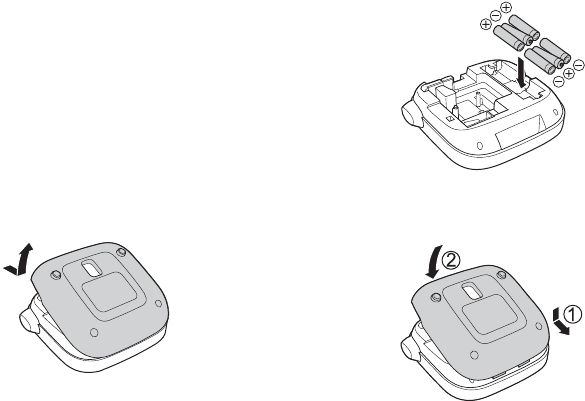
1. Remove the rear cover.
2. Insert 6 AAA alkaline batteries,
positioning the + and - ends as shown.
3. Replace the cover and snap it into place.
Getting Started |5
Using the optional AC adapter
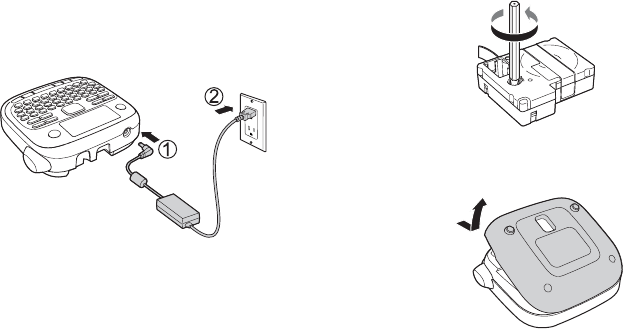
1. Plug one end of the AC adapter into the
product.
2. Plug the other end of the AC adapter into
a wall outlet.
Caution: Make sure you use only the AC adapter
designed for your LabelWorks printer
(APT0615Z1-1) or damage may occur.
Inserting a tape cartridge
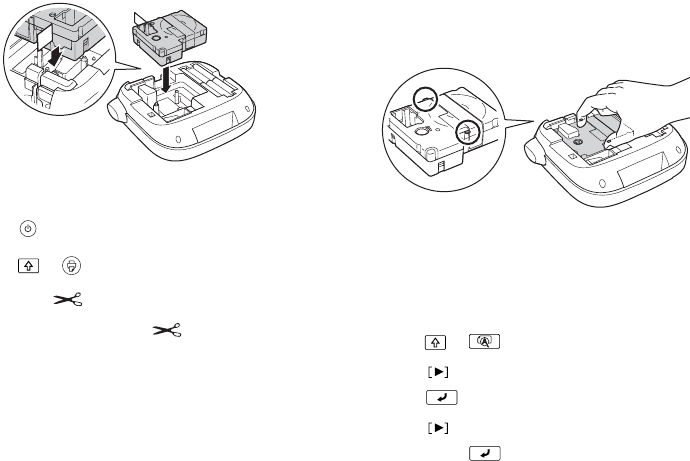
1. Remove any slack from the ink ribbon.
2. Remove the rear cover.
3. Insert the tape cartridge and press it
down firmly until it snaps into place.
6|Getting Started
4. If there is excess tape, feed the end of the
tape through the tape guide slot.
5. Replace the cover and snap it into place.
6. Press to turn on the printer.
7. Press + .
8. Press the Cut button to cut the tape.
Warning: Do not press the Cut button until
the tape stops moving or the tape cartridge
may be damaged.
Removing a tape cartridge
1. Remove the rear cover.
2. Hold the cartridge by the tabs, and lift it
straight up.
Changing the language
If you want to change the language on the
display, follow these steps:
1. Press + .
2. Press to highlight Language, then
press to select it.
3. Press to highlight your language,
then press to select it.
Creating labels |7
Creating labels
You can create labels with text, symbols, and
frames in a variety of fonts and styles.
Entering text
Use the built-in keyboard to enter letters and
numbers.
■Press to use upper case for all letters,
or + character for a single letter.
■Press to delete the previous
character.
■Press to start a new line. The line
number is indicated on the display.
Note: You can print a maximum of two lines
of text. If you try to exceed the maximum,
appears and you will not be able to print.
Press to delete the and print your
label.
Adding punctuation
You can select from two groups of
punctuation marks, as shown below:
■Press repeatedly to scroll through the
first group of marks, then press to
select the desired mark.
■Press + , then press repeatedly
to scroll through the second group of
marks. Then press to select the
desired mark.
̍">@A^
; ( ) < > [ ] { }
Group 1
Group 2
8|Creating labels
Adding letters with an accent mark
You can choose from a list of accented letters
on the display.
1. Enter the letter that needs an accent
mark.
2. Press . A list of options appears on
the display (for example, ÀÁÂ).
3. Press or to highlight an item, then
press to select it.
Adding symbols
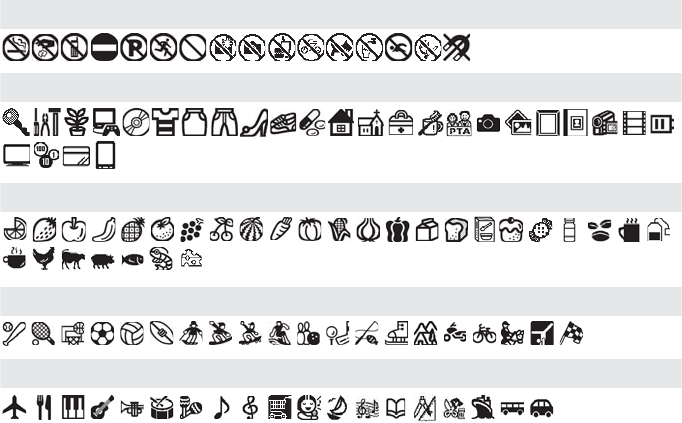
You can add symbols for sports, food,
holidays, animals, and more.
1. Press .
2. Press to scroll through the symbol
categories, then press to select a
category.
3. Press or to highlight a symbol,
then press to select it.
Note: To cancel and return to the previous
menu, press .
Tip: For young children, try using animal labels
to help them match clothing.
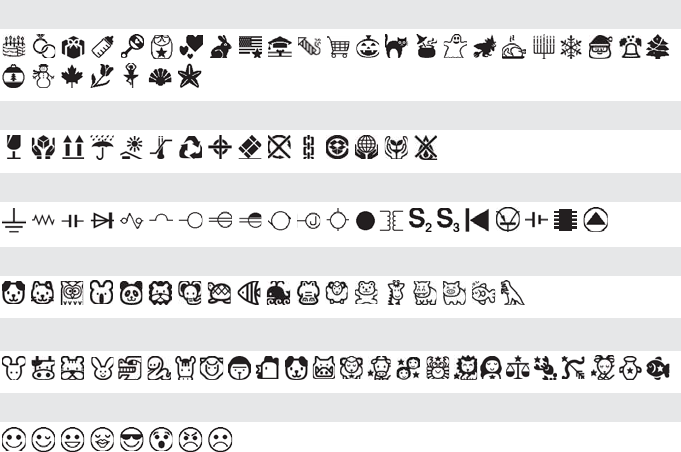
You can choose from the symbols shown on
the following pages.
9|Creating labels
Symbols
Prohibition
Household
Food
Sports
Activity
10 |Creating labels
Occasion
Shipping
Electrical
Animals
Zodiac
Emoticons
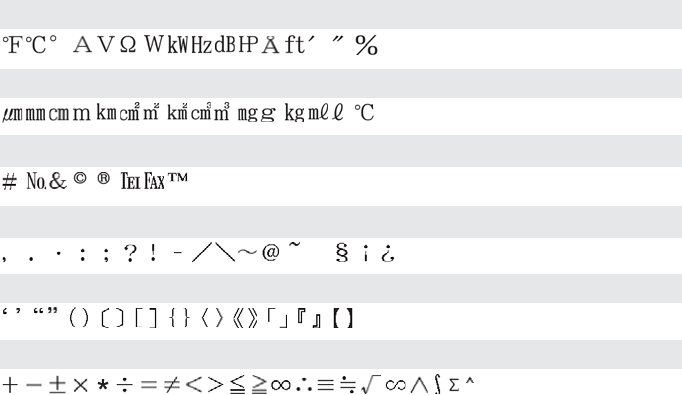
11 |Creating labels
Measurement
Metric
Abbreviation
Punctuation
Parentheses
Math
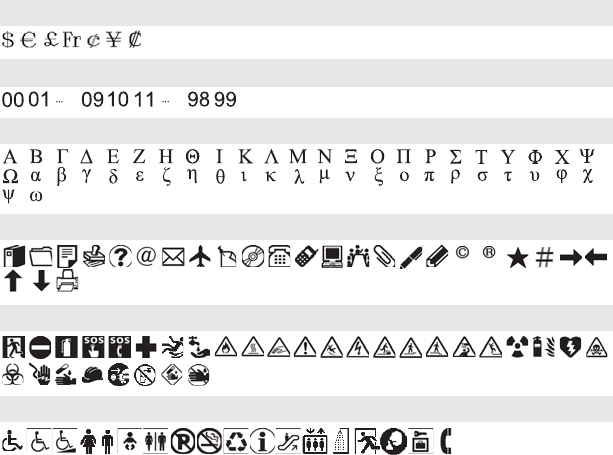
12 |Creating labels
Currency
DoubleFigure
Greek
Oce
Safety
Facility
13 |Creating labels
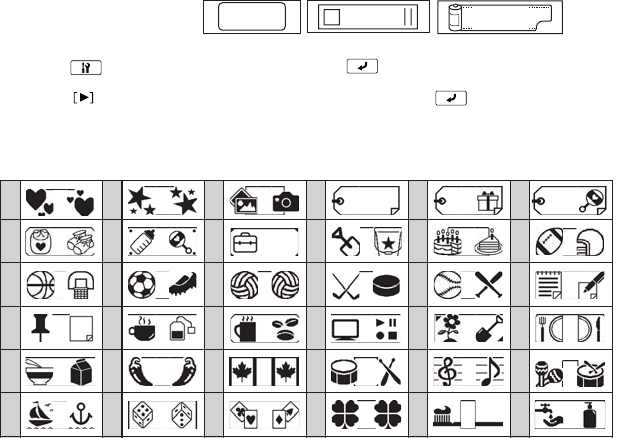
Adding frames
Frames include borders and fun symbols for activities and special occasions.
1. Press to display Frame, then press to select it.
2. Press to scroll through the options, then press or enter the frame number to select
the frame you want to use.
You can choose from the following frames:
ABC ABC ABC
1 2 3 4 5 6
7 8 9 10 11 12
13 14 15 16 17 18
19 20 21 22 23 24
25 26 27 28 29 30
31 32 33 34 35 36
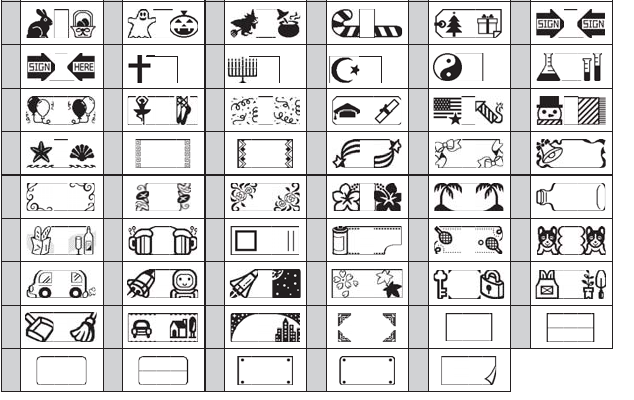
14 |Creating labels
37 38 39 40 41 42
43 44 45 46 47 48
49 50 51 52 53 54
55 56 57 58 59 60
61 62 63 64 65 66
67 68 69 70 71 72
73 74 75 76 77 78
79 80 81 82 83 84
85 86 87 88 89
Creating labels |15
Changing the font size
You can change the size for the letters,
numbers, and symbols on your label.
1. Press .
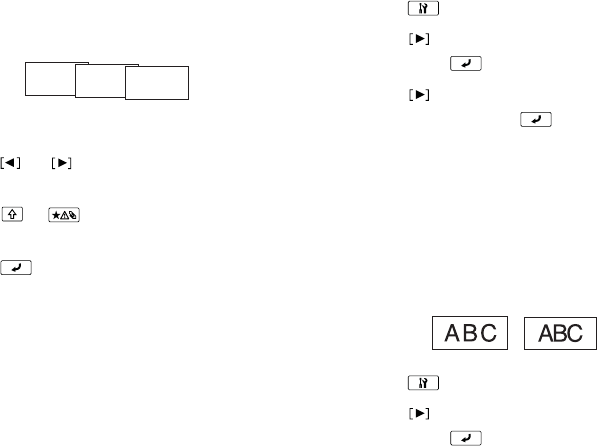
2. Press to select a 1-line or 2-line layout,
then press . You see squares
representing the font, and an indication
of the size and number of lines.
3. Press to scroll through the 4 available
sizes, then press to select the one
you want to use.
Tip: The size you select is indicated on the
display.
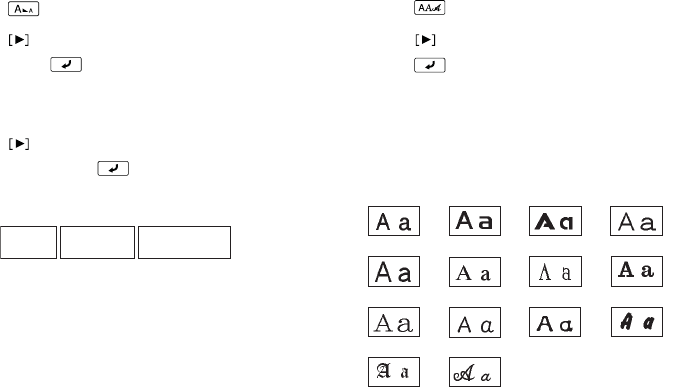
Changing the font
Go from simple to ornate, and create the
right impression for each label.
1. Press .
2. Press to scroll through the fonts, then
press to select the one you want.
The font you select will apply to the entire
line.
You can choose from the following fonts:
ABC
ABC
ABC B.Gothic
BR
CB
CL Roman
Gothic
Gyosho
SansS.HG
Mincho
ScriptPL
Reisho
Roman
SansS. SansS.ST
US Roman
16 |Saving labels
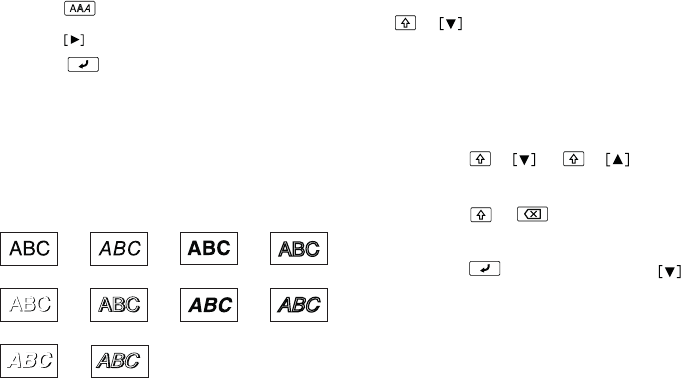
Changing the font style
Personalize your labels with italic, shadow,
and outline effects.
1. Press .
2. Press to scroll through the styles, then
press to select the one you want.
Note: Styles applied to small or elaborate
characters may not print clearly.
You can choose from the following font
styles:
Saving labels
You can store up to 30 saved labels at a time.
After you finish creating your first label, press
+ to create another label (the label
number appears to the left of the text). Your
first label is automatically saved.
Deleting labels
1. Press + or + to select a label
for deletion.
2. Press + . You see a confirmation
message.
3. Press to delete, or press if you
change your mind.
Shadow
Outline
S+O+I
Italic
S+I
S+O
Normal Bold
B+I O+I
Printing labels |17
Printing labels
1. Press to print the current label.
The length of the label and the number
of copies shows on the display while the
label prints.
2. When printing stops, press the Cut
button.
Warning: Do not press the Cut button until
the tape stops moving or the tape cartridge
may be damaged.
■To select a saved label for printing, press
+ or + to scroll through
your labels, then press to select the
one you want.
■To preview your label before printing,
press . The text scrolls across the
display.
Note: Only the text and the length of the
label can be previewed. The actual print
image will not show on the display.
Printing multiple copies
You can print up to 9 copies of a label at the
same time.
1. Press . You see 2-9 on the display.
2. Press the one of the number keys to
enter the number of copies (2-9).
3. Press . The length of the label and the
number of copies shows on the display
while the labels print.
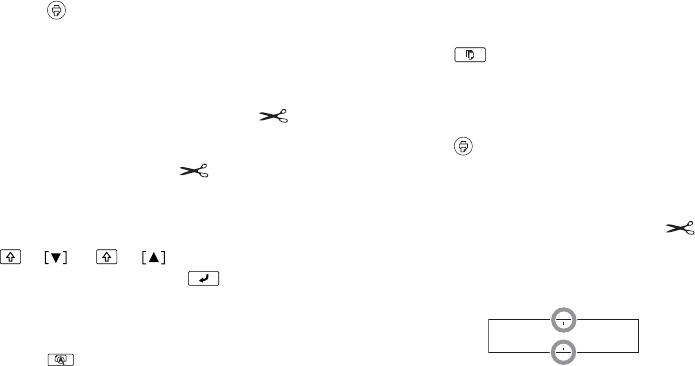
4. When printing stops, press the Cut
button to cut the tape. A cut mark is
printed between each copy, as shown:
5. Using scissors, cut along the marks to
separate each label.
ABC ABC
18 |Customizing your labels
Customizing your labels
You can customize your labels by creating
special effects, such as vertical and mirrored
text. You can also print sequentially
numbered labels or custom lengths. In
addition, you can adjust the font width,
spacing, and print density.
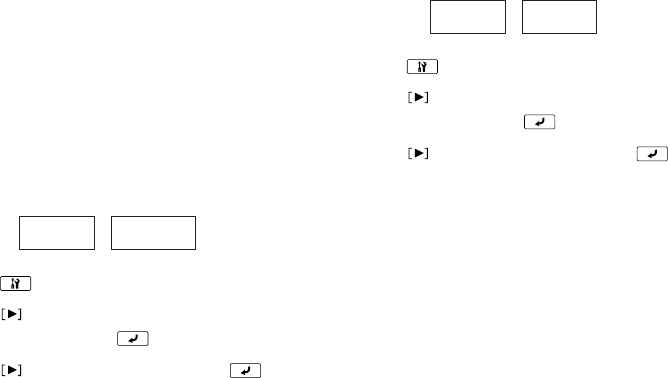
Creating vertical text
You can specify vertical orientation either
before or after you enter the text for a label.
1. Press .
2. Press repeatedly until Vertical
appears, then press to select it.
3. Press to select On, then press .
Using mirror-image text
Create unique labels with mirror-image text
and symbols.
1. Press .
2. Press repeatedly until Mirror print
appears, then press to select it.
3. Press to select On, then press .
ABC
A
B
C
ABC
ABC
Customizing your labels |19
Creating sequentially numbered
labels
You can create a label, and then print
numbered copies of it.
1. Create your label as described on page 7.
2. Press or to move the cursor
where you want to add the number, then
press + .
3. Enter the number for the first label, then
press .
4. Follow the instructions on page 17 to
print multiple copies of the label. Each
copy is numbered in order.
Customizing the length of labels
You can create extra-long or short labels.
1. Press .
2. Press until you see Label length,
then press to select it.
3. Press to select a value up to 15 in.
(40 cm), then press .
Tip: Selecting Auto will adjust to the proper
length automatically.
Adding space between characters
You can add extra space between the letters,
numbers, and symbols on your label.
1. Press .
2. Press until you see Char. spacing,
then press to select it.
A-1 A-2 A-3
20 |Adjusting the Display
3. Press to change from Narrow to
Wide, then press .
Selecting narrow characters
You can change from normal characters and
symbols to narrow ones.
1. Press .
2. Press until you see Narrow, then
press to select it.
3. Press again to select Narrow.
Increasing print density
You can make your labels darker if necessary.
1. When the power is off, press + .
Print density appears on the display.
2. Press .
3. Press to adjust the print density, then
press to select the density you want.
Note: The default value (0) is recommended.
Adjusting the Display
You can adjust the following display settings:
Contrast: Adjusts the density of the fonts on
the display.
Language: Changes the language of the
settings and messages on the display.
inch:cm: Selects the unit of measurement.
1. Press + .
2. Press to highlight a setting, then
press to select it.
3. Press to highlight the option you
want, then press to select it.
Applying Iron-On labels |21
Applying Iron-On labels
Use only label cartridges with this mark: .
You can attach labels to the following types
of fabric:
■100% cotton
■100% linen
■100% polyester
■cotton/polyester blends
■fabrics with a flat, smooth surface
Do not use textured fabrics such as terry
cloth, corduroy, or flannel; roughly woven
fabrics; fabrics with a rough surface such as
denim; waterproof fabrics; or fabrics which
require a cool iron.
Attaching your labels
Press the entire label firmly, avoid the steam
vents, and do not use a press cloth.
1. Set your iron to 284–320 °F (140–160 °C),
without steam.
2. Make sure the area where you want to
attach the label doesn’t have any
wrinkles.
3. Place the label in the desired location
with the printed side up.
4. Gently press the iron down on one end of
the label to temporarily attach it in place.
5. Press the iron firmly down
on the entire label,
holding the iron still for
about 10 to 15 seconds. To
make sure the label
adheres securely, repeat
this step 3 or 4 times.
22 |Applying Iron-On labels
Label usage tips
■Labels are made from non-toxic
materials; however, attached labels are
stiff, and may rub or scratch the skin if
direct contact occurs.
■Labels are dry-cleanable and machine
washable.
■Keep the label length short (up to about
half the width of the iron soleplate).
Labels that are too long may be difficult
to attach or may look distorted due to
the expansion and contraction of the
fabric.
■Trimming the corners of the label before
attaching it will prevent it from peeling
easily.
■If a label does peel, it can be re-attached
by ironing; however, it may not adhere as
securely to the fabric.
■When attaching a label to fabric that may
be frequently washed or dry-cleaned, it is
recommended that the label be sewn on.
■When using a steam iron, turn the steam
off when ironing on the label.
■Once a label is attached, it cannot be
easily removed.
■Never clean the labels with chemicals or
solvents such as benzine, thinner, or
alcohol. Otherwise, the print on the label
may become faint or distorted.
■If labels are exposed to direct sunlight for
long periods of time, yellowing may
occur.
■Labels do not adhere to non-fabric
materials such as paper or leather.
■When using bleach or spot detergent,
make sure you test it in advance.
Cleaning the Printer |23
Cleaning the Printer
Use a dry, soft cloth or, for stubborn stains, a
moist cloth that has been wrung dry.
Caution: Never use chemicals or solvents such
as benzine, thinner, or alcohol, or use a
chemical duster. This could damage your
product.
Cleaning the print head
If the print becomes faint or distorted, the
print head may need cleaning.
Remove the tape cartridge and clean the
print head using a cotton swab moistened
with rubbing alcohol, as shown below:
24 |Solving Problems
Solving Problems
If you have a problem with your LabelWorks,
check the display or the troubleshooting
suggestions below.
Error messages
Insert tape Turn the power off and install a
tape cartridge.
Check battery The batteries may be running out
or installed incorrectly, non-
alkaline batteries are being used
with alkaline batteries, or old and
new batteries are being used
together. Turn the power off and
replace batteries with new ones,
or use the optional AC adapter.
Make sure new batteries are
installed correctly.
Too many lines You have exceeded the maximum
number of lines (2). Press to
delete the lines indicated by the
cursor.)
Seq. num. only 1 Sequence numbers have already
been set. You can only enter one
sequence number per label.
Txt too long-OK? Entered text is too long for the
specified tape length. Press
and adjust the label length or
make text shorter.
Overheated! The print head is too hot. Turn the
power off and take out the tape
cartridge. Allow the print head to
cool before trying to print again.
Cover open! If you open the rear cover while
the power is on, this message
displays and the power turns off
automatically. Always turn the
power off before opening the rear
cover.
Delete all text? When creating a label with a
special format, the current text
will be deleted. Press to
delete the text and show the
special format.
Motor error! An error occurred in the motor
operation. Turn the power off,
then turn it back on. If the same
message appears, turn the power
off again and contact Epson for
technical support.
Solving Problems |25
Problems and solutions
Check the solutions below if you are having
trouble using your product.
The product does not function normally
The product may stop functioning due to
static electricity or other causes. If your
product does not function normally (for
example, the power doesn’t turn on/off or
the display is distorted), reset your product
by following the procedure below.
Warning: Resetting your product will erase all
saved labels and formatting and return your
product to default settings.
1. Press to turn the power off.
2. Press and hold + , and press .
3. When a message appears, press (to
cancel, press any other button).
The product will be reset.
Power is on but no images appear on the
display
■Make sure the batteries are correctly
seated.
■Replace the batteries with new ones, or
use the optional AC adapter
(APT0615Z1-1).
■If you are using the AC adapter, make
sure that it is securely connected to both
the wall outlet and the product.
■Adjust the contrast as described on
page 20.
The display turns off
■The power turns off automatically if the
product is idle for more than 5 minutes.
■If an incorrect button sequence is
entered, the display may flicker or turn
off for an instant.

26 |Solving Problems
Nothing prints
■Make sure text has been entered.
■Replace the tape cartridge if necessary.
■Check the display for an error message
and perform the suggested solution.
■Replace the batteries with new ones,
or use the optional AC adapter
(APT0615Z1-1).
■Make sure the rear cover is closed.
Characters do not print properly
■Make sure the tape cartridge is correctly
seated.
■Clean the print head.
■Change the font (sometimes symbols do
not print properly when certain fonts are
selected).
Printing stops in the middle of text
■Install a new tape cartridge.
■Replace the batteries or use the optional
AC adapter (APT0615Z1-1).
Saved labels are gone
■Make sure you have not accidentally
deleted the text by pressing + .
■If the product is reset, all of the
previously entered text will be deleted.
■If the AC adapter is unplugged or the
batteries are removed during operation,
the text may be deleted.
Labels curl after ironing
■Try raising the iron temperature setting.
■Make sure you press the iron down on
the entire label.
■Try trimming the corners of the label and
iron it again.
Epson Technical Support |27
Labels fall off after a few washings
■Try ironing the label on again with a
higher temperature setting.
■Make sure you press the iron down on
the entire label.
■Try holding the iron down for 15 to 20
seconds.
■If the item needs frequent washing, you
might need to sew on the label.
Epson Technical Support
Visit epson.com/support (U.S.) or epson.ca/
support (Canada) where you can view
manuals, get FAQs, or e-mail Epson.
To speak with a support specialist, call:
U.S.: (562) 276-7245, 6 am to 8 pm, Pacific
Time, Monday through Friday, and 7 am to
4pm, Saturday.
Canada: (905) 709-2567, 6 am to 8 pm,
Pacific Time, Monday through Friday.
Days and hours of support are subject to
change without notice. Toll or long distance
charges may apply.
Recycling
Epson offers a recycling program for end of
life products. Please go to www.epson.com/
recycle for information on how to return
your products for proper disposal.
28 |Specifications
Purchase supplies and accessories
Epson offers a wide array of tapes for
multiple uses. For a complete list of available
tapes, including additional widths, visit
epson.com/LW300Tapes.
You can purchase tape cartridges and
accessories at:
www.epson.com/LabelWorks (U.S. sales) or
www.epson.ca/LabelWorks (Canadian
sales).
You can also purchase supplies from an
Epson authorized reseller. To find the nearest
one, call 800-GO-EPSON (800-463-7766).
Specifications
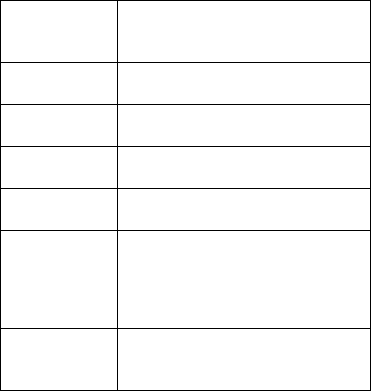
Dimensions
(approximate) Width: 5.70 inches (145 mm)
Depth: 5.90 inches (150 mm)
Height: 2.16 inches (55 mm)
Weight
(approximate) 14 oz (400 g) (excluding batteries
and tape cartridge)
Operating
temperature 50 to 95 ºF (10 to 35 ºC)
Storage
temperature 14 to 131 ºF (-10 to 55 ºC)
Power supply -
batteries AAA alkaline battery x 6
Power supply -
optional AC
adapter
Model: APT0615Z1-1
Manufacturer: Seiko Epson Corp.
Input: AC100-240 V, 0.3 A, 50-60Hz
Output: DC 6.5 V, 1.5 A
Total output power: 10 W
Supported tape
widths
(approximate)
1/4” (6 mm)
3/8” (9 mm)
1/2” (12 mm)
Notices |29
Notices
Safety instructions
Before using your product, read the following safety
instructions to make sure you use it safely and
effectively.
■Always use the product as instructed in the manual.
Otherwise, damage or injury may occur.
■Do not subject the product to any strong force or
shock such as dropping, hitting, or standing on the
product.
■Do not spill liquid on the product or use the
product with wet hands.
■Do not open any covers on the product other than
the rear cover.
■Do not touch the print head.
■Turn the product off, unplug the AC adapter and
remove the batteries, and refer servicing to
qualified service personnel under the following
conditions: if liquid or foreign objects get inside the
product; if the product does not operate normally
or exhibits a distinct change in performance.
Continuing to use the product may result in
damage or injury.
■To avoid injury, keep your fingers away from the
label exit slot when printing or using the cutter.
■Avoid locations that are subject to rapid changes in
heat or humidity, shocks or vibrations, or dust.
■Do not place or store the product in the following
locations: outdoors or in direct sunlight; near
sources of excessive heat, humidity, shocks,
vibrations, or dust; where it may get wet or be
exposed to excessive humidity; on an unstable
place such as a shaky or inclined surface; near
potential sources of electromagnetic interference
such as loudspeakers or the base units of cordless
telephones.
■The product and product manuals may come
packaged in plastic bags. Keep plastic bags away
from small children to avoid any risk of suffocation.
■If you will not be using the product for a long
period, unplug the power cord and remove the
batteries.
■Before cleaning, unplug the power cord and
remove the batteries. Use only a dry, soft cloth to
clean the product; do not use liquid or chemical
cleaners.
30 |Notices
■Operate the keyboard gently.
■Take care not to cut your fingers when cutting a
label with scissors.
■Do not attach a label on human bodies, living
things, public facilities or other people’s
belongings.
■Do not touch the soleplate of your iron or the label
immediately after it is attached. Doing so may
cause a burn.
■Make sure the label is ironed down firmly.
Otherwise, the edges of the label may rub or
scratch the skin.
■Do not let children use an iron unsupervised. Doing
so may cause accidents such as fire or burns.
■Do not iron wet fabric.
■Take extreme care when handling your iron.
Battery
■Use batteries properly to avoid injury or fire caused
by leaking, overheating, explosion, erosion, or
damage to the product.
■Keep batteries out of reach of children. If battery
acid gets into your eyes or on your skin,
immediately rinse the affected area thoroughly
with water and seek medical treatment. If a battery
is swallowed, seek medical treatment immediately.
■When replacing batteries, follow these safety
instructions:
• If battery acid leaks from a battery, wipe it off
with a cloth and replace the battery with a new
one.
• Do not use new and old batteries together or
mix different types of batteries.
• Use only AAA alkaline batteries. You cannot use
rechargeable batteries with your product.
• Insert batteries so that the polarities (+ and -)
are correct.
• Remove dead batteries promptly.
• Do not heat batteries or throw them in fire or
water.
• Do not remove batteries with metal objects
such as tweezers or the tip of a pen.
■Make sure to follow local battery disposal
regulations.

Notices |31
AC adapter
■Use only model APT0615Z1-1 AC adapter and
power cord with your product. Do not use the AC
adapter with any other equipment and use only
with the specified voltage. Using the wrong AC
adapter and power cord may result in damage,
overheating, fire, or electric shock.
■Plug the power cord firmly into the outlet. When
removing the plug from the outlet, grasp the plug
firmly and do not yank on the cord.
■Make sure the plug is not dusty when inserting it
into an outlet.
■Do not hold the plug with wet hands.
■Do not make any modifications to the AC adapter
or power cord.
■Place the AC adapter and power cord to avoid
abrasions, cuts, fraying, crimping, and kinking. Do
not place heavy objects on top of the AC adapter or
power cord.
■Make sure the AC adapter has sufficient ventilation
so that it doesn’t overheat and become damaged.
Do not crowd it with too many other adapters or
cords.
■Do not forcibly bend or twist the power cord.
■Do not place the AC adapter or power cord near a
heater.
■To avoid fire or electric shock, do not use a
damaged AC adapter or power cord.
■Turn off the product before unplugging the AC
adapter. Otherwise, it may not function properly or
may become damaged.
Tape cartridge
■Use only compatible LC tape cartridges.
■To avoid damage, do not drop or disassemble tape
cartridges.
■Feed the tape using the + buttons. Do not
forcibly pull out the tape. Otherwise, you may
damage the tape cartridge.
■Do not try to print with an empty tape cartridge;
this may overheat the print head and damage the
product.
Note: Tape cartridges contain ink ribbons. Make sure
to follow local ink disposal regulations.
32 |Notices
About printed labels
Attached labels and adhesive are affected by the type of
surface and by environmental conditions such as
humidity and heat. Labels may peel off, curl, or fade;
printed characters may fade; color may be left behind
after removing the label; adhesive may become stuck to
the attached surface.
Epson is not responsible for any damage or loss caused
by labels or adhesive.
FCC Compliance Statement
For United States Users
This equipment has been tested and found to comply
with the limits for a Class B digital device, pursuant to
Part 15 of the FCC Rules. These limits are designed to
provide reasonable protection against harmful
interference in a residential installation. This equipment
generates, uses, and can radiate radio frequency energy
and, if not installed and used in accordance with the
instructions, may cause harmful interference to radio or
television reception. However, there is no guarantee
that interference will not occur in a particular
installation. If this equipment does cause interference
to radio and television reception, which can be
determined by turning the equipment off and on, the
user is encouraged to try to correct the interference by
one or more of the following measures:
■Reorient or relocate the receiving antenna.
■Increase the separation between the equipment
and receiver.
■Connect the equipment into an outlet on a circuit
different from that to which the receiver is
connected.
■Consult the dealer or an experienced radio/TV
technician for help.
For Canadian Users
This Class B digital apparatus complies with Canadian
ICES-003.
Cet appareil numérique de la classe B est conforme à la
norme NMB-003 du Canada.
Notices |33
Epson America, Inc. Limited
Warranty
What Is Covered: Epson America, Inc. (“Epson”)
warrants to the original retail purchaser that the Epson
label-printing device and its consumables and
accessories covered by this limited warranty statement
(each, a “product”), if purchased and operated only in
the United States, Canada, or Puerto Rico, will be free
from defects in workmanship and materials for a period
of one (1) year from the date of original purchase, in the
case of the label-printing device, and for a period of
thirty (30) days from the date of original purchase, in the
case of its consumables or accessories. Consumables
include label and tape rolls and cassettes. Accessories
include an AC adaptor. For consumables, the warranty
covers only mechanical defects in workmanship and
materials. For warranty service, you must provide proof
of the date of original purchase.
What Epson Will Do To Correct Problems: Should
your Epson product prove defective during the
warranty period, please call the Epson Connection at
(562) 276-7245 (U.S. and Puerto Rico) or (905) 709-2567
(Canada) for warranty repair instructions and return
authorization. An Epson service technician will provide
telephone diagnostic service to determine whether the
product requires service. If service is needed, Epson will,
at its option, exchange or repair the product without
charge for parts or labor. If Epson authorizes an
exchange for the defective unit, Epson will ship a
replacement product to you, freight prepaid, so long as
you use an address in the United States, Canada, or
Puerto Rico. Shipments to other locations will be made
freight collect. You are responsible for securely
packaging the defective unit and returning it to Epson
within five (5) working days of receipt of the
replacement. Epson requires a debit or a credit card
number to secure the cost of the replacement product
in the event that you fail to return the defective one. If
Epson authorizes repair instead of exchange, Epson will
direct you to send your product to Epson or its
authorized service center, where the product will be
repaired and sent back to you. You are responsible for
packing the product and for all costs to and from the
Epson authorized service center. When warranty service
involves the exchange of the product or a part, the item
replaced becomes Epson property. The replacement
product or part may be new or refurbished to the Epson
standard of quality, and, at Epson's option, may be
another model of like kind and quality. Exchange
products and parts assume the remaining warranty
period of your original product covered by this limited
warranty.
34 |Notices
What This Warranty Does Not Cover: This warranty
covers only normal use in the United States, Canada, or
Puerto Rico. Using this product for continuous
production or similar high duty purposes is not
considered normal use; damage, maintenance or
service from such use will not be covered under this
warranty. This warranty is not transferable. This
warranty does not cover damage to the Epson product
caused by parts or supplies not manufactured,
distributed or certified by Epson. This warranty does not
cover third party parts, components, or peripheral
devices added to the Epson product after its shipment
from Epson, e.g., dealer or user-added boards or
components. Epson is not responsible for warranty
service should the Epson label or logo or the rating label
or serial number be removed or should the product fail
to be properly maintained or fail to function properly as
a result of misuse, abuse, improper installation, neglect,
improper shipping, damage caused by disasters such as
fire, flood, and lightning, improper electrical current,
software problems, interaction with non-Epson
products, or service other than by an Epson Authorized
Servicer. If a claimed defect cannot be identified or
reproduced, you will be held responsible for the costs
incurred.
THE WARRANTY AND REMEDY PROVIDED ABOVE ARE
EXCLUSIVE AND IN LIEU OF ALL OTHER EXPRESS OR
IMPLIED WARRANTIES INCLUDING, BUT NOT LIMITED
TO, THE IMPLIED WARRANTIES OF MERCHANTABILITY,
NON-INFRINGEMENT OR FITNESS FOR A PARTICULAR
PURPOSE. SOME LAWS DO NOT ALLOW THE EXCLUSION
OF IMPLIED WARRANTIES. IF THESE LAWS APPLY, THEN
ALL EXPRESS AND IMPLIED WARRANTIES ARE LIMITED
TO THE WARRANTY PERIOD IDENTIFIED ABOVE. UNLESS
STATED HEREIN, ANY STATEMENTS OR
REPRESENTATIONS MADE BY ANY OTHER PERSON OR
FIRM ARE VOID. IN NO EVENT SHALL EPSON OR ITS
AFFILIATES BE LIABLE FOR ANY SPECIAL, INCIDENTAL,
OR CONSEQUENTIAL DAMAGES RESULTING FROM THE
USE OR INABILITY TO USE THE EPSON PRODUCT,
WHETHER RESULTING FROM BREACH OF WARRANTY OR
ANY OTHER LEGAL THEORY. IN NO EVENT SHALL EPSON
OR ITS AFFILIATES BE LIABLE FOR DAMAGES OF ANY
KIND IN EXCESS OF THE ORIGINAL RETAIL PURCHASE
PRICE OF THE PRODUCT.
In Canada, warranties include both warranties and
conditions.
Some jurisdictions do not allow limitations on how long
an implied warranty lasts, and some jurisdictions do not
allow the exclusion or limitation of incidental or
consequential damages, so the above limitations and
Notices |35
exclusions may not apply to you. This warranty gives
you specific legal rights and you may have other rights
which vary from jurisdiction to jurisdiction.
To find the Epson Authorized Reseller nearest you, visit
our website at
http://www.epson.com.
To find the Epson Customer Care Center nearest you,
visit http://www.epson.com/support.
You can also write to Epson America, Inc., P.O.
Box 93012, Long Beach, CA 90809-3012.
Trademarks
EPSON is a registered trademark and EPSON Exceed
Your Vision is a registered logomark of Seiko Epson
Corporation.
General Notice: Other product names used herein are
for identification purposes only and may be trademarks
of their respective owners. Epson disclaims any and all
rights in those marks.
This information is subject to change without notice.
© 2012 Epson America, Inc. 9/12 CPD-38096
Printed in USA
36 |Notices
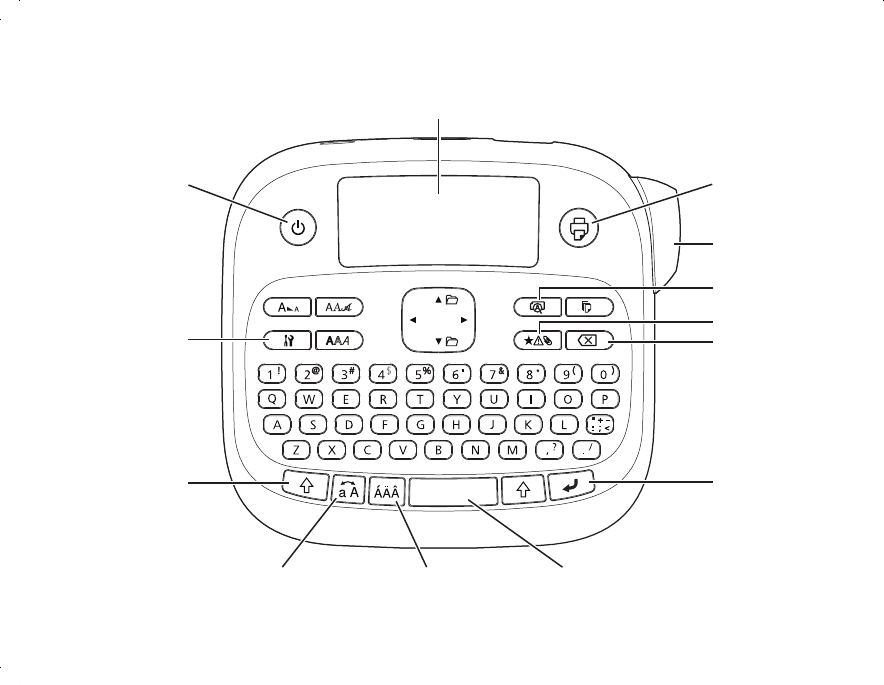
Display
Add a frame or
other special
effect
Turn on/off
Shift
Caps lock Add an accented letter Add a space
Select/Enter
Add symbols
Preview
Cut
Print
Delete
LW300_IronOn_UGcover_CPD38096.in3 3 10/22/12 2:05:19 PM
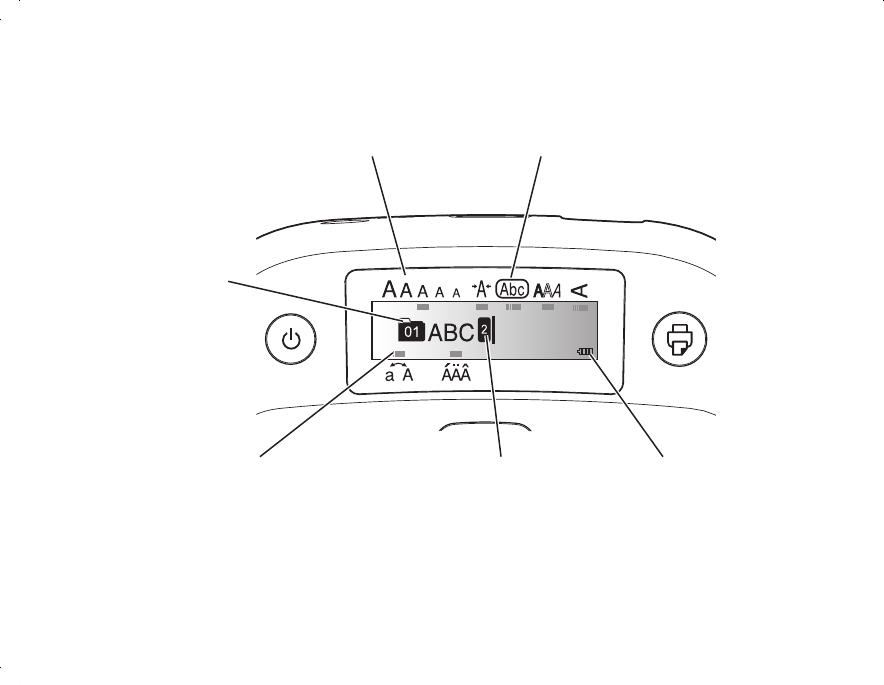
The black marks
indicate features
you are using
2-line label Battery level
Frame
Label number
Font size
LW300_IronOn_UGcover_CPD38096.in4 4 10/22/12 2:05:19 PM
