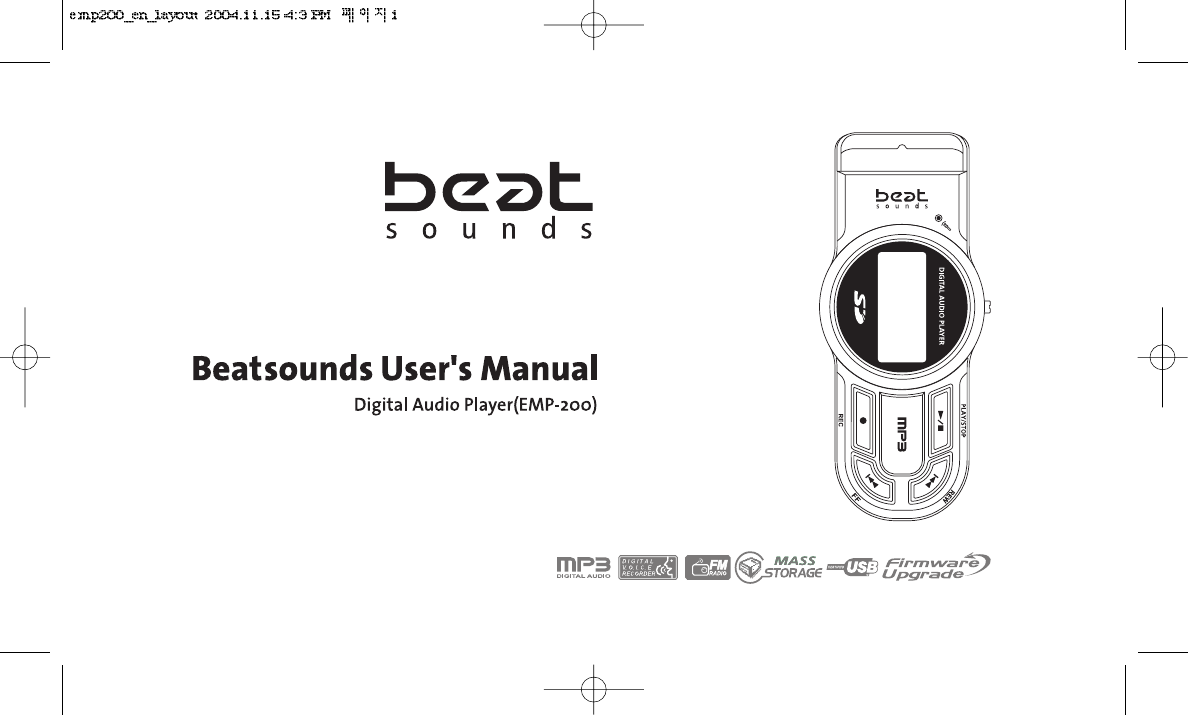
Eratech Co EMP-200 Voice Recorder with MP3 Player User Manual emp200 en layout

Eratech Co, Ltd Voice Recorder with MP3 Player emp200 en layout

Users Manual

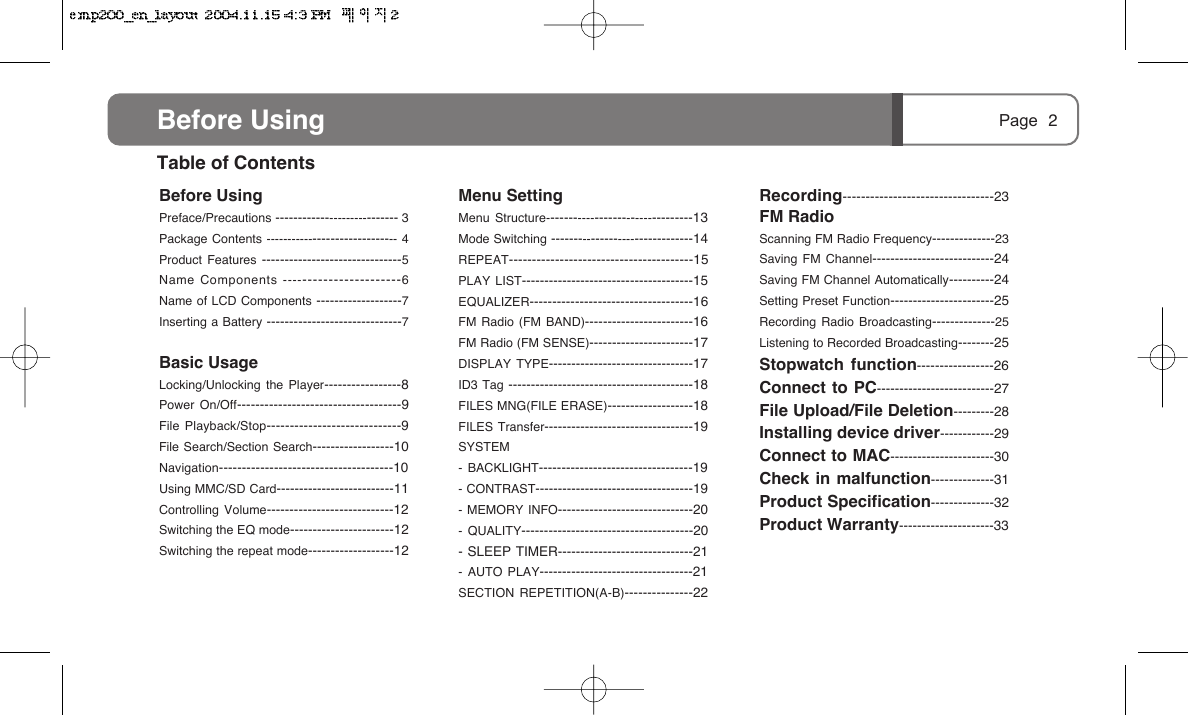
Page 2Menu SettingMenu Structure---------------------------------13Mode Switching --------------------------------14REPEAT----------------------------------------15PLAY LIST--------------------------------------15EQUALIZER------------------------------------16FM Radio (FM BAND)------------------------16FM Radio (FM SENSE)-----------------------17DISPLAY TYPE--------------------------------17ID3 Tag -----------------------------------------18FILES MNG(FILE ERASE)-------------------18FILES Transfer---------------------------------19SYSTEM- BACKLIGHT----------------------------------19- CONTRAST-----------------------------------19- MEMORY INFO------------------------------20- QUALITY--------------------------------------20- SLEEP TIMER------------------------------21- AUTO PLAY----------------------------------21SECTION REPETITION(A-B)---------------22Recording---------------------------------23FM RadioScanning FM Radio Frequency--------------23Saving FM Channel---------------------------24Saving FM Channel Automatically----------24Setting Preset Function-----------------------25Recording Radio Broadcasting--------------25Listening to Recorded Broadcasting--------25Stopwatch function-----------------26Connect to PC--------------------------27File Upload/File Deletion---------28Installing device driver------------29Connect to MAC-----------------------30Check in malfunction--------------31Product Specification--------------32Product Warranty---------------------33Before UsingPreface/Precautions ---------------------------- 3Package Contents ------------------------------ 4Product Features -------------------------------5Name Components -----------------------6Name of LCD Components -------------------7Inserting a Battery ------------------------------7Basic UsageLocking/Unlocking the Player-----------------8Power On/Off------------------------------------9File Playback/Stop-----------------------------9File Search/Section Search------------------10Navigation--------------------------------------10Using MMC/SD Card--------------------------11Controlling Volume----------------------------12Switching the EQ mode-----------------------12Switching the repeat mode-------------------12Table of ContentsBefore Using
Page Before Using 3Page Before UsingPreface.  Thank you for choosing this digital audio player..  Please read this manual carefully before using the player..  Please be noted that this user's manual is subject to change without notice for improving product performance.PrecautionsPlease be sure to comply with the following instructions to avoid possible risk or physical damage from carelessness.1. Safety precautions1) Do not leave the player in the following places.- Place with high temperature (over 60oC)- Inside the window-closed vehicle- Place with high humidity including bathrooms- Place exposed to the direct sunlight or close to heating devices- Place with much dust2) Do not drop or strike a strong shock.3) Do not disassemble, repair or modify the product at your own discretion.4) Do not use the player in the restricted area like inside the aircraft.5) Excessive shock on LCD panel will cause a break or malfunction.6) Do not use the player while you are driving a car, a motorcycle, or a bicycle. It may be dangerous and may be illegal in some districts. 7) It may be dangerous to keep the volume of the headphone high while you are walking on the street. 8) Prolonged use of the headphone at a high volume level may hurt your hearing.(If you have a ringing in the ears, turn the volume down or stop using the headphone.) 2. If the battery is totally flat during recording, the player will be automatically stopped. Make sure to check the available battery capacity before recording.
Page Before Using 4What is MP3? MP3 is short for MPEG1 (Motion Picture ExpertsGroup) Audio Layer 3. It is one of the file formats that save variousaudio data with digital system. MP3 maintains the sound qualitysimilar to that of CD while compressing the audio data by less than1/12 of the WAV file.MMC/SD card usage functionAdditional card (MMC/SD) can be inserted into the internal memoryslot, which enables easy memory expansion.Large-capacity USB removable storage deviceThe player(EMP-200) has a built-in USB connector. Therefore, youcan use he player safely and conveniently without separate USBcable or manager program.Navigation (Search) functionUsing the navigation function, you can search for and select the fileto playback easily and conveniently.5-type equalizerYou can select among the following 9 tones; Normal, Pop, Rock,Classic, Live. Convenient file management using folder functionBy default, the RADIO folder and VOICE folder are separated. Youcan also create or delete the folder for your convenience in filemanagement.MP3 format voice recordingRecorded voice is saved in a MP3 file format, which gives you arepetitive playback with the clear sound quality and permanentstorage in your PC.FM radio reception and recordingThe player supports stereo radio reception, real-time recording andplayback.17-hour continuous playback The internal battery lasts with up to 17 hours for continuousplayback.Multilingual supportThe player supports various languages such as Korean, English,Japanese, Chinese and European special characters.Product FeaturesThis Digital audio player is a multiple codec player that supports various formats such as MP3.EMP-200Package ContentsBefore Using
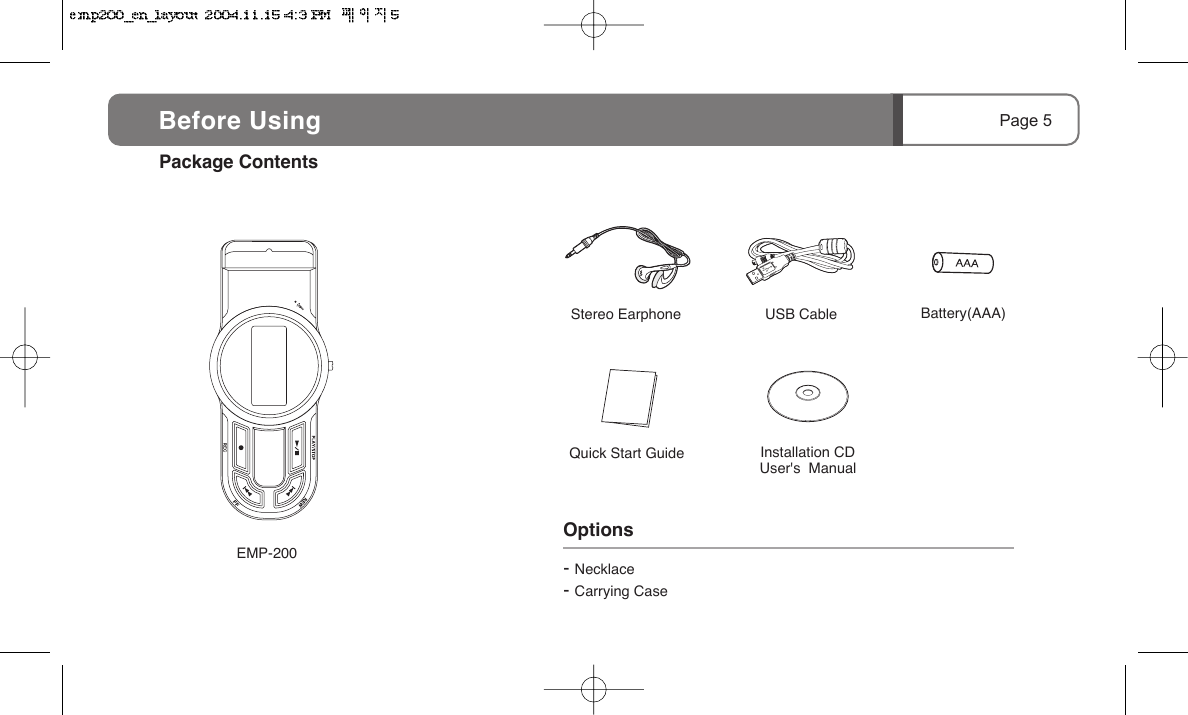
Stereo EarphoneQuick Start GuideEMP-200Installation CDUser's  ManualUSB Cable Battery(AAA) Options- Necklace- Carrying CasePackage ContentsPage 5Before Using
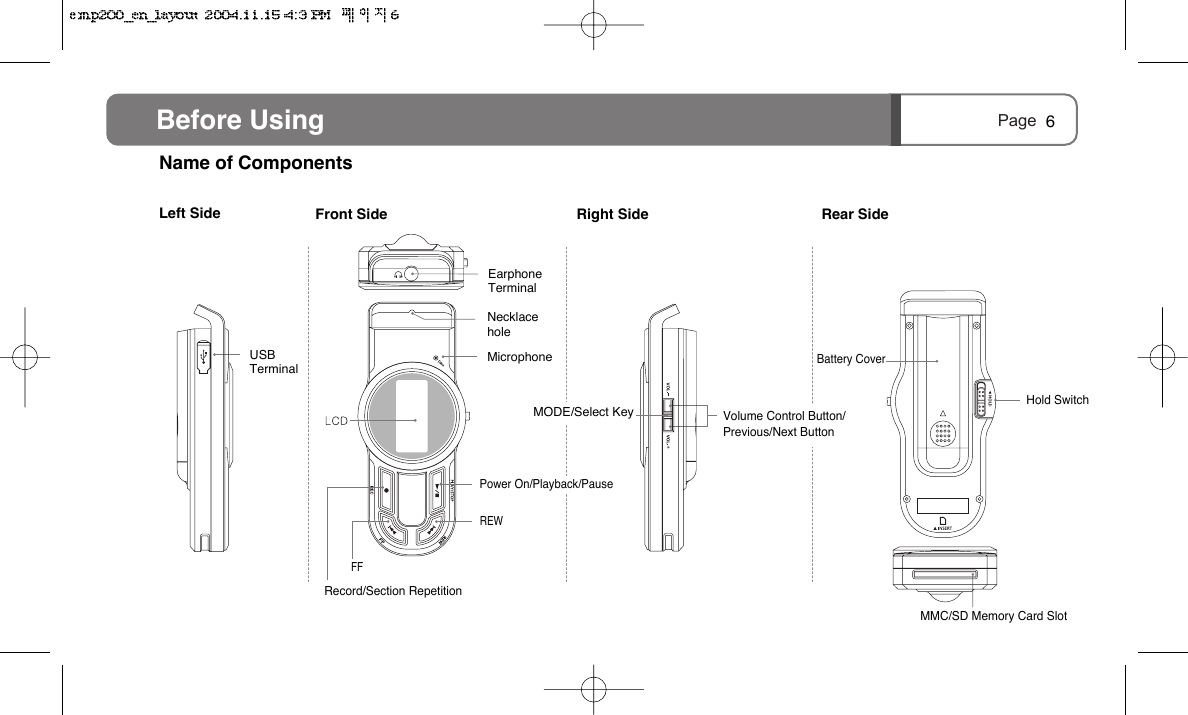
Page Before Using 6Name of ComponentsLeft Side  Front Side EarphoneTerminalVolume Control Button/Previous/Next ButtonBattery CoverHold SwitchMMC/SD Memory Card SlotMODE/Select KeyNecklace holeMicrophoneRight Side Power On/Playback/PauseREWFFRecord/Section RepetitionUSBTerminalRear Side
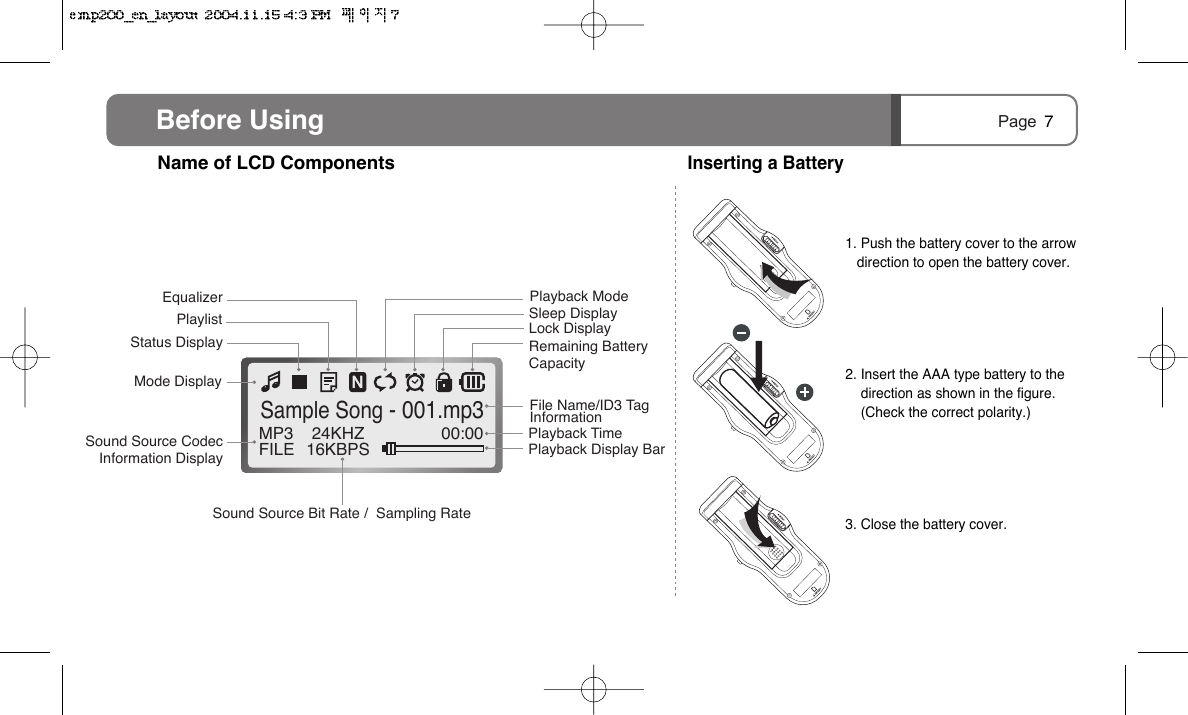
Page MP3FILE 24KHZ16KBPS 00:00Sample Song - 001.mp3Mode DisplayStatus DisplayPlaylistEqualizer Playback ModeSleep DisplayLock DisplayRemaining Battery CapacityFile Name/ID3 Tag InformationPlayback TimePlayback Display Bar Sound Source Codec Information DisplaySound Source Bit Rate /  Sampling RateBefore Using 7Name of LCD ComponentsInserting a Battery1. Push the battery cover to the arrowdirection to open the battery cover.2. Insert the AAA type battery to thedirection as shown in the figure. (Check the correct polarity.)3. Close the battery cover.
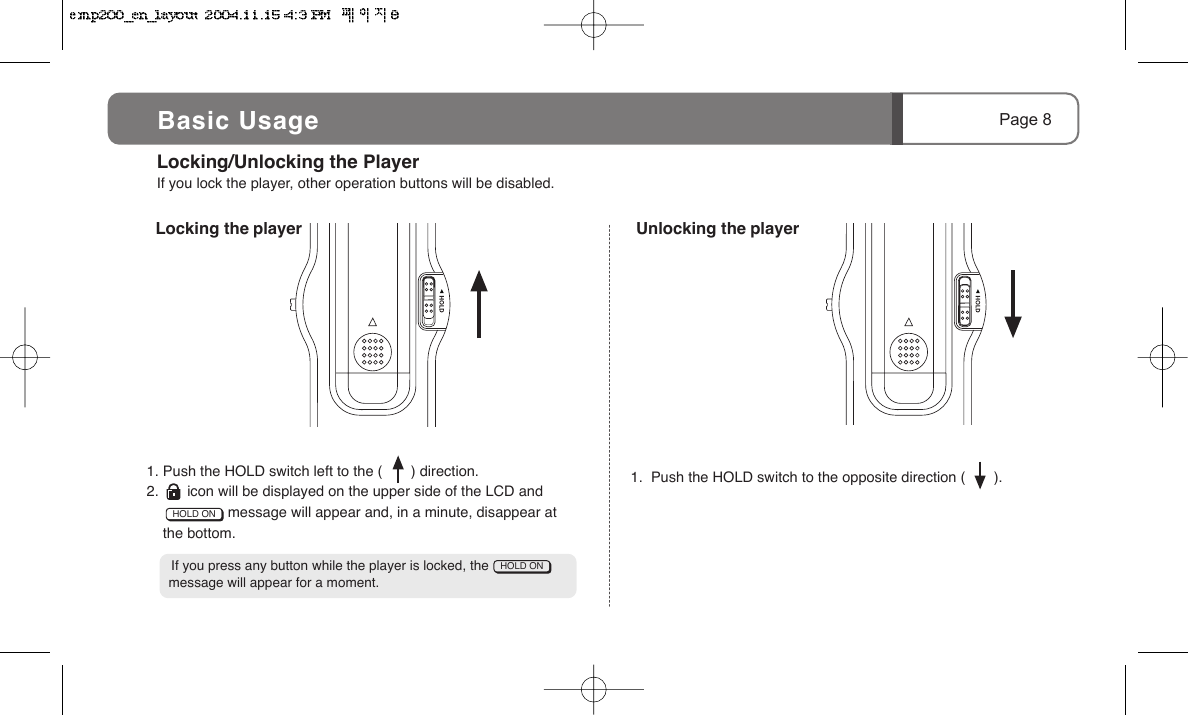
Page 8 Locking/Unlocking the PlayerIf you lock the player, other operation buttons will be disabled.  Locking the player   Unlocking the player1. Push the HOLD switch left to the (       ) direction.2.       icon will be displayed on the upper side of the LCD and                     message will appear and, in a minute, disappear at     the bottom.    If you press any button while the player is locked, the                   message will appear for a moment.1.  Push the HOLD switch to the opposite direction (       ).HOLD ONHOLD ONBasic Usage
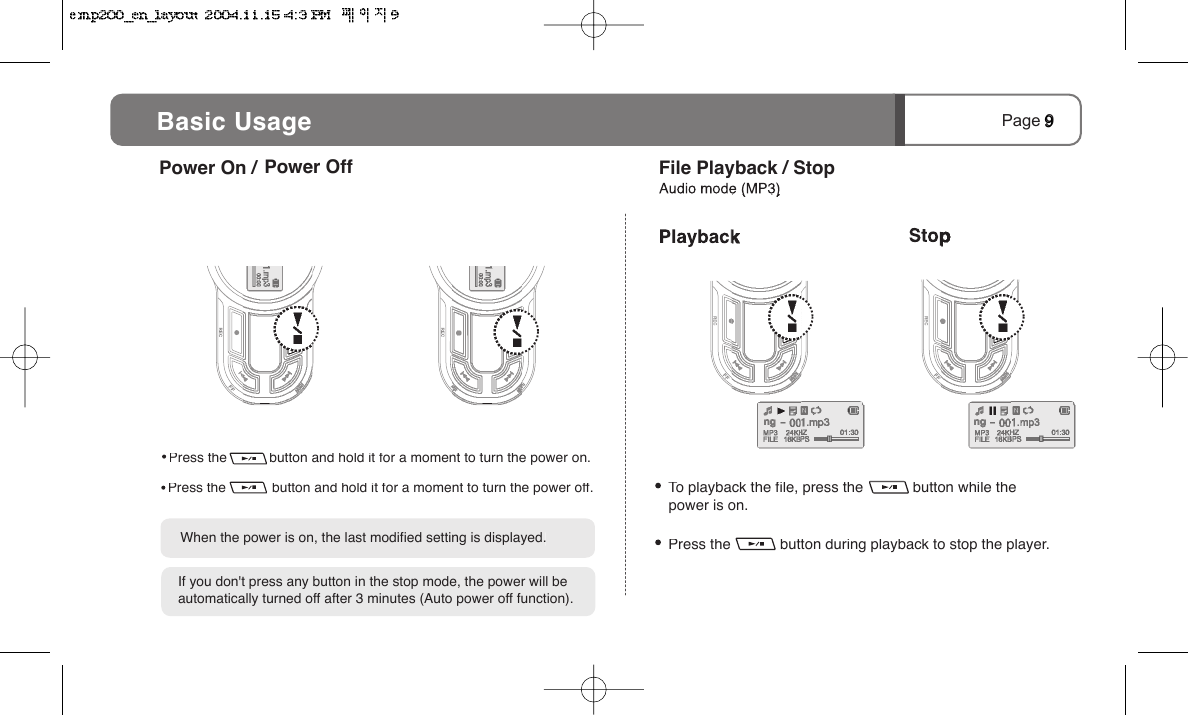
      Press the            button during playback to stop the player. Press the            button and hold it for a moment to turn the power off. Press the           button and hold it for a moment to turn the power on.Page 9  Power On /   When the power is on, the last modified setting is displayed.  If you don't press any button in the stop mode, the power will be automatically turned off after 3 minutes (Auto power off function).  Power Off      To playback the file, press the            button while the                power is on.File Playback / StopBasic Usage9
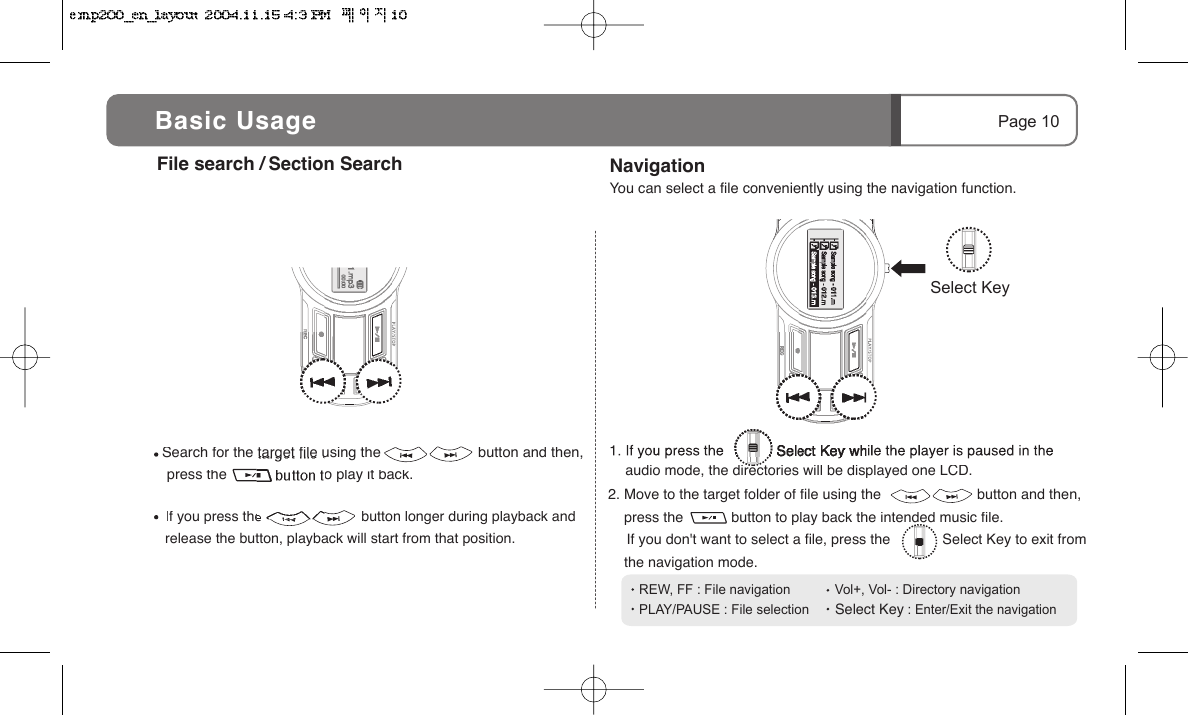
Page 10 Select Key2. Move to the target folder of file using the                        button and then,    press the            button to play back the intended music file.   If you don't want to select a file, press the             Select Key to exit from     the navigation mode.   Search for the target file using the                        button and then,         press the            button to play it back. REW, FF : File navigation            Vol+, Vol- : Directory navigationPLAY/PAUSE : File selection       Select Key : Enter/Exit the navigation      If you press the                         button longer during playback and                        release the button, playback will start from that position.    File search /  Section Search NavigationYou can select a file conveniently using the navigation function.    audio mode, the directories will be displayed one LCD.Basic Usage
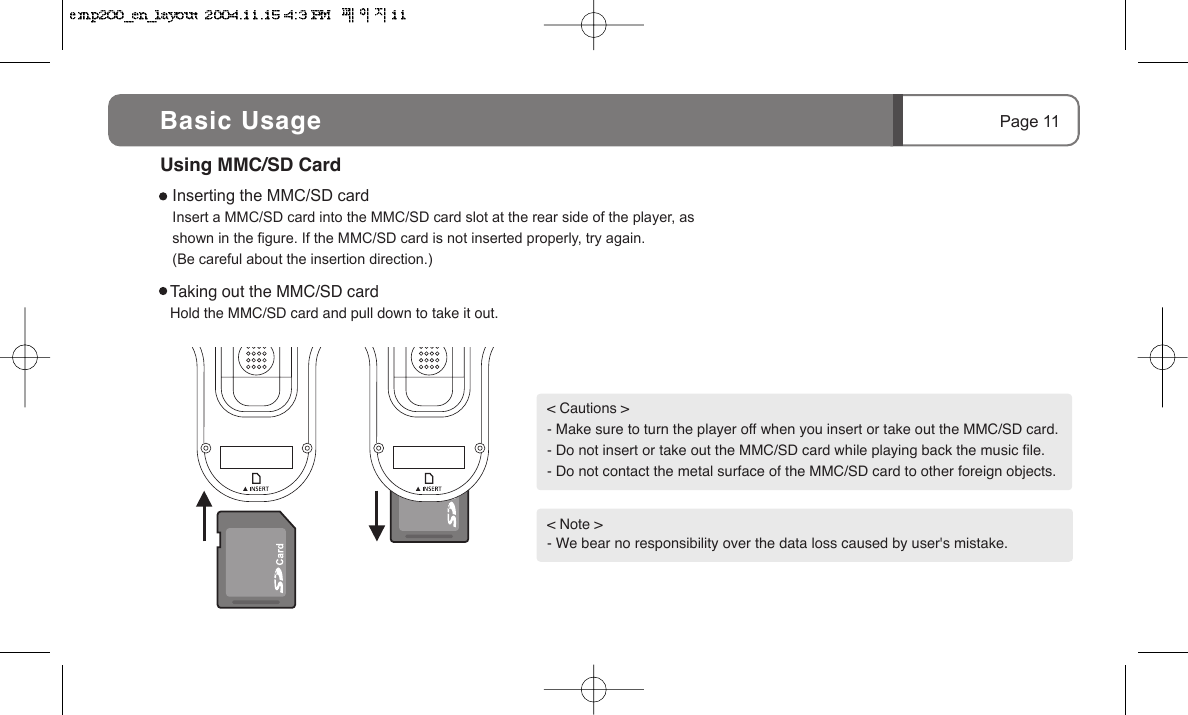
Page 11Taking out the MMC/SD cardHold the MMC/SD card and pull down to take it out.< Cautions >- Make sure to turn the player off when you insert or take out the MMC/SD card.- Do not insert or take out the MMC/SD card while playing back the music file.- Do not contact the metal surface of the MMC/SD card to other foreign objects. < Note >- We bear no responsibility over the data loss caused by user's mistake.Inserting the MMC/SD cardInsert a MMC/SD card into the MMC/SD card slot at the rear side of the player, as shown in the figure. If the MMC/SD card is not inserted properly, try again. (Be careful about the insertion direction.)Using MMC/SD CardBasic Usage
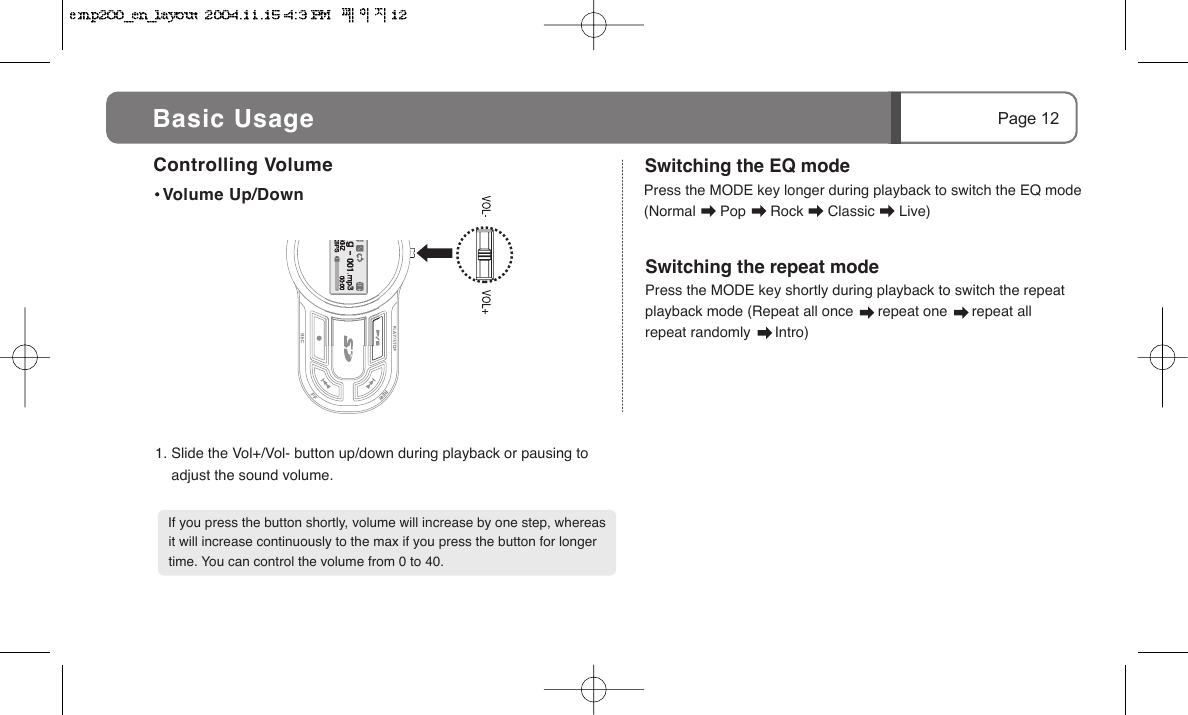
Press the MODE key shortly during playback to switch the repeat playback mode (Repeat all once      repeat one      repeat all      repeat randomly      Intro)   Page 12Controlling Volume Volume Up/Down   If you press the button shortly, volume will increase by one step, whereas it will increase continuously to the max if you press the button for longer time. You can control the volume from 0 to 40.1. Slide the Vol+/Vol- button up/down during playback or pausing to      adjust the sound volume.   Press the MODE key longer during playback to switch the EQ mode (Normal      Pop      Rock      Classic      Live)   Switching the EQ modeSwitching the repeat modeBasic Usage
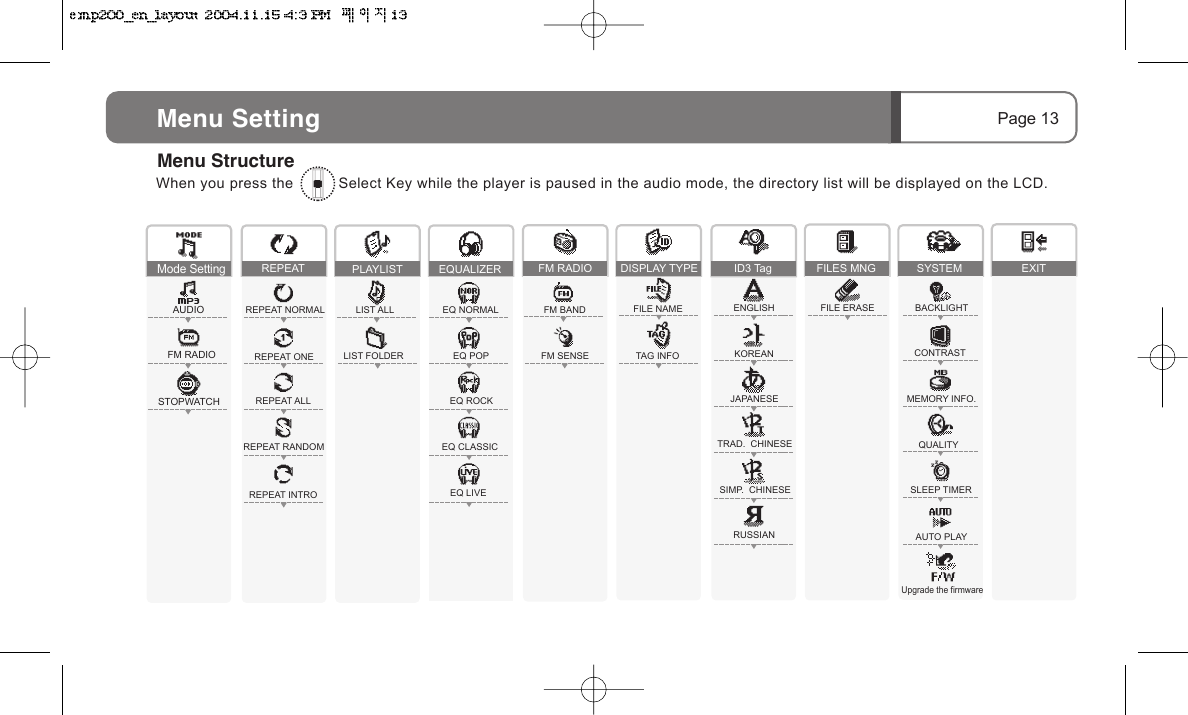
Upgrade the firmwareMode SettingAUDIOFM RADIOSTOPWATCHWhen you press the          Select Key while the player is paused in the audio mode, the directory list will be displayed on the LCD.Page 13Menu SettingMenu StructureFM BANDFM SENSEFM RADIOFILE ERASEFILES MNGFILE NAMETAG INFODISPLAY TYPEENGLISHKOREANJAPANESETRAD.  CHINESESIMP.  CHINESERUSSIANID3 TagREPEAT NORMALREPEAT ONEREPEAT ALLREPEAT RANDOMREPEAT INTROREPEATBACKLIGHTCONTRASTMEMORY INFO.QUALITYSLEEP TIMERAUTO PLAYEXITSYSTEMLIST ALLLIST FOLDERPLAYLISTEQ NORMALEQ POPEQ ROCKEQ CLASSICEQ LIVEEQUALIZER
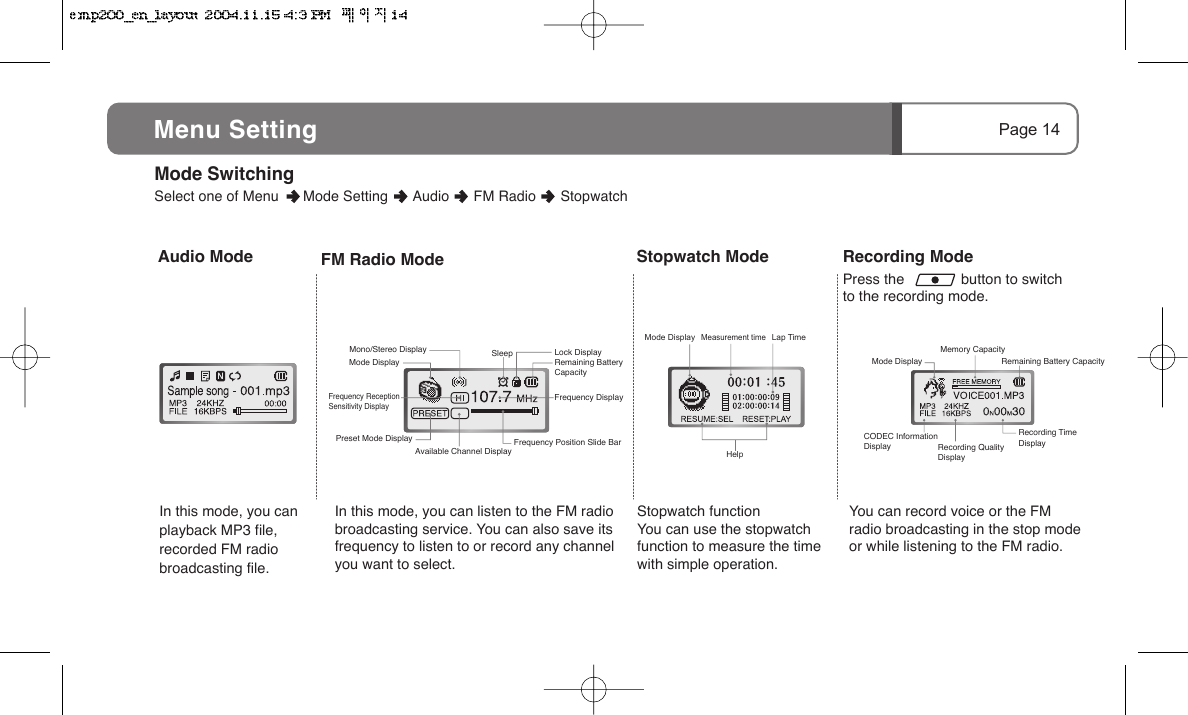
Recording ModePress the              button to switch to the recording mode.Stopwatch ModeStopwatch functionYou can use the stopwatch function to measure the time with simple operation.Page 14Menu SettingMeasurement timeHelpLap Time Audio ModeIn this mode, you can playback MP3 file, recorded FM radio broadcasting file.FM Radio ModeIn this mode, you can listen to the FM radio broadcasting service. You can also save its frequency to listen to or record any channel you want to select.You can record voice or the FM radio broadcasting in the stop mode or while listening to the FM radio.Mode Display Remaining Battery CapacityMemory CapacityRecording QualityDisplayRecording Time DisplayCODEC InformationDisplayMode DisplayMode DisplayFrequency ReceptionSensitivity DisplayMono/Stereo Display SleepAvailable Channel DisplayPreset Mode DisplayRemaining BatteryCapacityLock DisplayFrequency DisplayFrequency Position Slide Bar Mode Switching      Select one of Menu      Mode Setting      Audio      FM Radio      Stopwatch
2. Move to the intended menu     item using the Vol+/Vol- button     (folder playback, playback all),     and press the         Select Key.2. Move to the intended menu      item using the Vol+/Vol-     button, and press the            Select Key.Page 15PLAY LISTIf you select LIST FOLDER in the PLAY LIST, only the files in theselected folder are played repeatedly.1.  Select [MENU] - [           ].   REPEAT   Select the play order of the list (NORMAL/ REPEAT ONE/ REPEAT ALL/ SHUFFLE/ INTRO).REPEAT  REPEAT NORMAL LIST ALLPLAY LIST1.  Select [MENU] - [         ].Menu Setting REPEAT: Set the repeated file playback.REPEAT NORMAL     Plays back entire files sequentially once.REPEAT ONE        Repeats one file selected.REPEAT ALL        Plays the entire list sequentially and repetitively.REPEAT RANDOM    Repeats all files randomly.REPEAT INTRO        Plays the intro section of any file.PLAY LIST: Selects the scope of file playback.LIST ALL     Plays back all files.LIST FOLDER    Plays only files listed in the selected folder.
2. Move to the intended tone using       the Vol+/Vol- button, and press     the         Select Key.2. Move to the intended position using     the Vol+/Vol- button, and press the             Select Key.You can apply various tones to music.FM BANDFM SENSE Page 16Menu Setting1.  Select [MENU] - [         ].      EQUALIZER  FM RADIO (FM BAND)Modifies the Frequency band to listen to the radio broadcasting in Korea, U.S., Europe or Japan.   Frequency band in every country except Japan is same.EQUALIZER EQ NORMAL1. Select [         ] from the            [MENU] - [          ].EQ NORMAL     Selects normal toneEQ POP     Selects pop toneEQ ROCK     Selects rock toneEQ CLASSIC     Selects classic toneEQ LIVE     Selects live toneModifies the radio Frequency band for each country. (Select among U.S., KR and Japan. All  countries except Japan have the same frequency)Sets the radio reception sensitivity (Low/Middle/High).
   You can select the sensitivity from LOW/MIDDLE/HIGH.      Low reception sensitivity area means the area where radio     reception sensitivity is poor.1.  Select [        ] from the         [MENU] - [         ].  FM RADIO (FM SENSE) Sets the radio reception sensitivity when auto-scanning the frequency. Adjust reception sensitivity that best fits for your region as the number of radio stations can differ depending on the sensitivity value.1.  Select [         ] from the        [MENU].DISPLAY TYPE Titles that are scrolled during playback can be displayed in file name or ID3 tag.FM RADIO SENSE LOW DISPLAY TYPE FILE NAME2. Move to the intended position     using the Vol+/Vol- button, and     press the        Select Key.FILE NAME   Displays the file nameTAG INFO Displays the tag information (If the tag informationis not available, the file name will be displayed)Page 17Menu Setting2. Move to the intended menu     item using the Vol+/Vol- button     (File Name or TAG INFO),     and press the         Select Key.       When the tag information consists only of ID3V1, only the file name is displayed.       Only when the tag information includes ID3V2 is the TAG information displayed        normally.
SYSTEM     BACKLIGHTBACKLIGHT :ALWAYS  OFFBACKLIGHTMenu Setting   You can select one of Off/3/5/10/15 Sec/BACKLIGHT1.  Select [         ] from the                 [MENU] - [           ].2. Move to the intended po    using the Vol+/Vol- butto    press the         Select Ke2.  Select the target folder or file using                        , Vol+ or Vol- button. Then, press the          Select Key. The "DELETE FILE ARE YOU SURE?" message will be displayed on the LCD.3.  Move to the [Yes]       and press the          Select Key.       to delete the selected file.ID3 TAGSets the language used to display the ID3 tag.                       : Moves between files          : Moves between directories          : Selects filesPage 18Menu Setting 1.  Select [MENU] - [           ].ID3 TAG ENGLISH2. Move to the intended menu      item using the Vol+/Vol-     button, and press the             Select Key.ENGLISH      Sets English as a tag language.KOREAN      Sets Korean as a tag language.JAPANESE      Sets Japanese as a tag language.TRAD. CHINESE  Sets Traditional Chinese as a tag language.SIMP. CHINESE   Sets Simplified Chinese as a tag language.RUSSIAN       Sets Russian as a tag language. FILE ERASE   Deletes (a) file(s)FILE MNG(FILE ERASE)Use this function to delete files.1. When you select [         ] from the [MENU] - [         ], the directories will be displayed on the LCD.FILE MNG NODELETE FILEARE  YOU  SURE?YES           Sample song 001.MP3
SYSTEM     BACKLIGHTBACKLIGHT :ALWAYS  OFFBACKLIGHTPage 19Menu Setting   You can select one of Off/3/5/10/15 Sec/Always BACKLIGHT1.  Select [         ] from the                 [MENU] - [           ].2. Move to the intended position     using the Vol+/Vol- button, and     press the         Select Key.CONTRAST      Sets LCD brightness.  SYSTEM      CONTRAST1.  Select [         ] from the                [MENU] - [           ].2. Move to the intended position     using the Vol+/Vol- button, and     press the         Select Key..  You can select on of -5/-4/-3/-2/-1/0/+1/+2/+3/+4/+5 step..  By default, contrast is set to "0".
MEMORY INFO    Displays the current memory available and a                                total capacity of memory.                                                 128 MB                                121  MB  256 MB                                248  MB  512 MB                                502  MB                                            1,010  MB1 GBPage 202. Total and available memory will      be displayed.  SYSTEM      MEMORY INFO Displays total and available memory .MEMORY INFOTOTAL :   119MBFREE :    90MBTotal Memory                   Available MemoryMenu Setting 1.  Select [         ] from the                [MENU] - [           ].  SYSTEM      QUALITYMONO16KBPS 16KHzQUALITY1.  Select [         ] from the         [MENU] - [          ].MPEG 2 MPEG 1mono/stereo stereoSampling Rate 44.1128/160/19232112Bit Ratemono16 164016/24/32stereo22.0544/48/56/64/80/962. Move to the intended position     using the Vol+/Vol- button, and     press the         Select Key.QUALITY     Sets the recording quality (16 Kbps ~ 192 Kbps).Menu Setting SYSTEM      SLEEP TIMERThe player will be automatically turned off on a defined peri1.  Select [          ] from the         [MENU] - [          ].2. Move to the intended po    using the Vol+/Vol- butto    press the         Select KeSLEEP TIMERSLEEP :TURN OFFSLEEP TIMER    The player is turn off automatically aft                            period of time (Off/10/20/30/60/120m
Page 21Menu Setting System      AUTO PLAYThe player will start playback automatically when you turn the power on.2. Select [         ].1.  Select [          ] from [Menu] - [           ].AUTO PLAYAUTO PLAY   Sets the playback status when the power is on                        (Automatic playback or stop).SYSTEM      SLEEP TIMERThe player will be automatically turned off on a defined period of time.1.  Select [          ] from the         [MENU] - [          ].2. Move to the intended position     using the Vol+/Vol- button, and     press the         Select Key.SLEEP TIMERSLEEP :TURN OFFSLEEP TIMER    The player is turn off automatically after defined                             period of time (Off/10/20/30/60/120minutes).
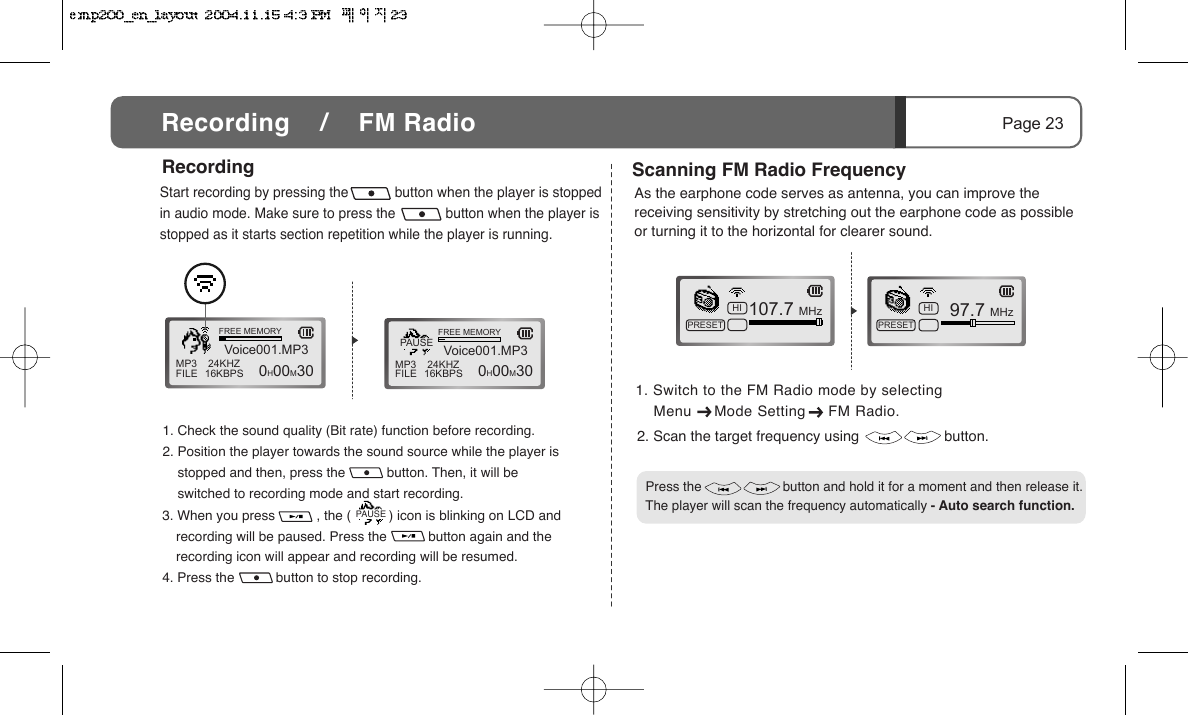
3. Press the            button to set off section repetition.2. Set the end of the section            by pressing the (          ) button     again. Then, the selected section will be played repeatedly.System      FIRMWARE UPGRADEFIRMWAREPage 22Menu Setting 1. This feature copies the firmware from the homepage to the root directory      of the digital audio player.2. Select [MENU] - [SYSTEM] - [FIRMWARE].      (Refer to the NOTICE on our homepage about FIRMWARE UPGRADES.)Verify that the remaining battery capacity is sufficient before executing a FIRMWARE UPGRADE. When the unit malfunctions during a FIRMWARE UPGRADE, quickly refer to qualified personnel about servicing the unit.< Notice > Use this function to upgrade the firmware. You can download the up-to-date firmware from the web site (www.eratech.co.kr).1. Play a file in audio mode and press             to mark the        beginning point (      ) for section repetition.  SECTION REPETITION (A-B)Selects and repeats playing a certain section of a file during playbackPress                    or          button to cancel section repetition.When you already selected [REPET INTRO] from [MENU] - [REPEAT], the section repetition will not be supported.1. Check the sound quality (Bit rate) function before recording.2. Position the player towards the sound source while the playe    stopped and then, press the           button. Then, it will be        switched to recording mode and start recording.3. When you press           , the (          ) icon is blinking on LCD recording will be paused. Press the           button again and trecording icon will appear and recording will be resumed.4. Press the           button to stop recording.Start recording by pressing the            button when the player in audio mode. Make sure to press the             button when thstopped as it starts section repetition while the player is runninMP3FILE 24KHZ16KBPSVoice001.MP3FREE MEMORY  0H00M30 MP3FILE 24KHZ16KBPSVoice001.MP3FREE MEMORY  0H00M30PAUSERecordingRecording    /    FM RadioPAUSE
Menu     Mode Setting     FM Radio.1. Check the sound quality (Bit rate) function before recording.2. Position the player towards the sound source while the player is       stopped and then, press the           button. Then, it will be        switched to recording mode and start recording.3. When you press           , the (          ) icon is blinking on LCD and recording will be paused. Press the           button again and the recording icon will appear and recording will be resumed.4. Press the           button to stop recording.Start recording by pressing the            button when the player is stopped in audio mode. Make sure to press the             button when the player is stopped as it starts section repetition while the player is running.MP3FILE 24KHZ16KBPSVoice001.MP3FREE MEMORY  0H00M30 MP3FILE 24KHZ16KBPSVoice001.MP3FREE MEMORY  0H00M30PAUSEScanning FM Radio Frequency107.7 MHzHIPRESET  97.7 MHzHIPRESETRecordingPage 23Recording    /    FM RadioPAUSE2. Scan the target frequency using                     button.As the earphone code serves as antenna, you can improve the receiving sensitivity by stretching out the earphone code as possible or turning it to the horizontal for clearer sound.   Press the                      button and hold it for a moment and then release it. The player will scan the frequency automatically - Auto search function.1. Switch to the FM Radio mode by selecting
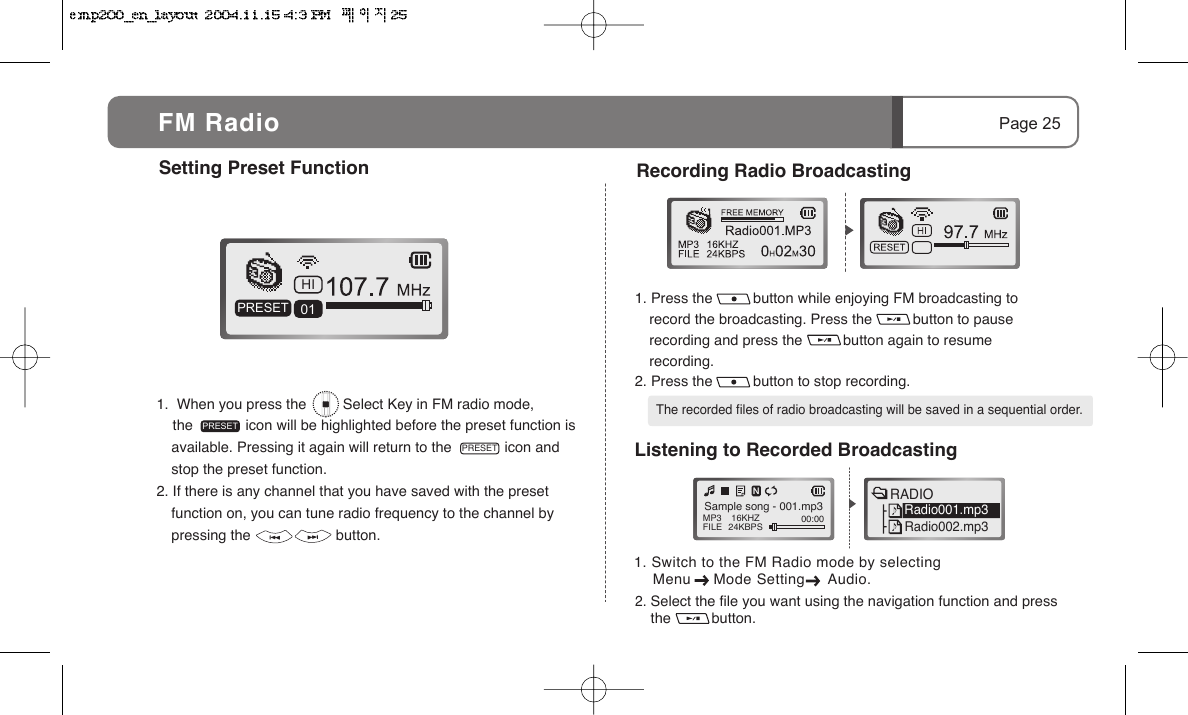
3. The screen as shown above will appear when you press the          Select Key after selecting a channel. Then select [Yes] using the VOL+/VOL-  button and press the        Select Key.4. Select [NO] and press the               Select Key to cancel.1.  If you press the           button longer than 2 seconds, the player will       switch to preset mode and the "ARE YOU SURE?" message will appear.107.70MHz87.50  MhzHI01200201 107.70MHzHI01 NOYES200201 AUTOSCANARE YOU SURE?200203HI01NOYES1.  Find the frequency that you     want to choose and press the              button. The channel      saving window will appear.2. Select the channel using     the       Select Key.  2.  Move to [YES] by sliding the jog key towards Vol+/Vol- direction,      and press the        Select Key.3.  Press the          button to stop automatic saving.Saving FM ChannelPage 24FM RadioCertain areas under weak electronic field will have irregular reception sensitivity for some broadcasting service.Saving FM Channel Automatically  All the channel information saved will be deleted in auto channel   saving.1.  When you press the         Select Key in FM radio mode,     the             icon will be highlighted before the preset funcavailable. Pressing it again will return to the             icon stop the preset function.2. If there is any channel that you have saved with the presfunction on, you can tune radio frequency to the channel pressing the                     button.HI01PRESETPRESETSetting Preset Function FM RadioPRESET
    Menu     Mode Setting     Audio.1.  When you press the         Select Key in FM radio mode,     the             icon will be highlighted before the preset function is available. Pressing it again will return to the             icon and stop the preset function.2. If there is any channel that you have saved with the preset function on, you can tune radio frequency to the channel by pressing the                     button.1. Press the          button while enjoying FM broadcasting to record the broadcasting. Press the          button to pause recording and press the          button again to resume recording.2. Press the          button to stop recording.HI01PRESETPRESETSetting Preset Function Page 25FM RadioPRESET Recording Radio Broadcasting    The recorded files of radio broadcasting will be saved in a sequential order.2. Select the file you want using the navigation function and press the          button.  Listening to Recorded BroadcastingMP3FILE 16KHZ24KBPS 00:00 Sample song - 001.mp3RADIORadio001.mp3Radio002.mp31. Switch to the FM Radio mode by selecting
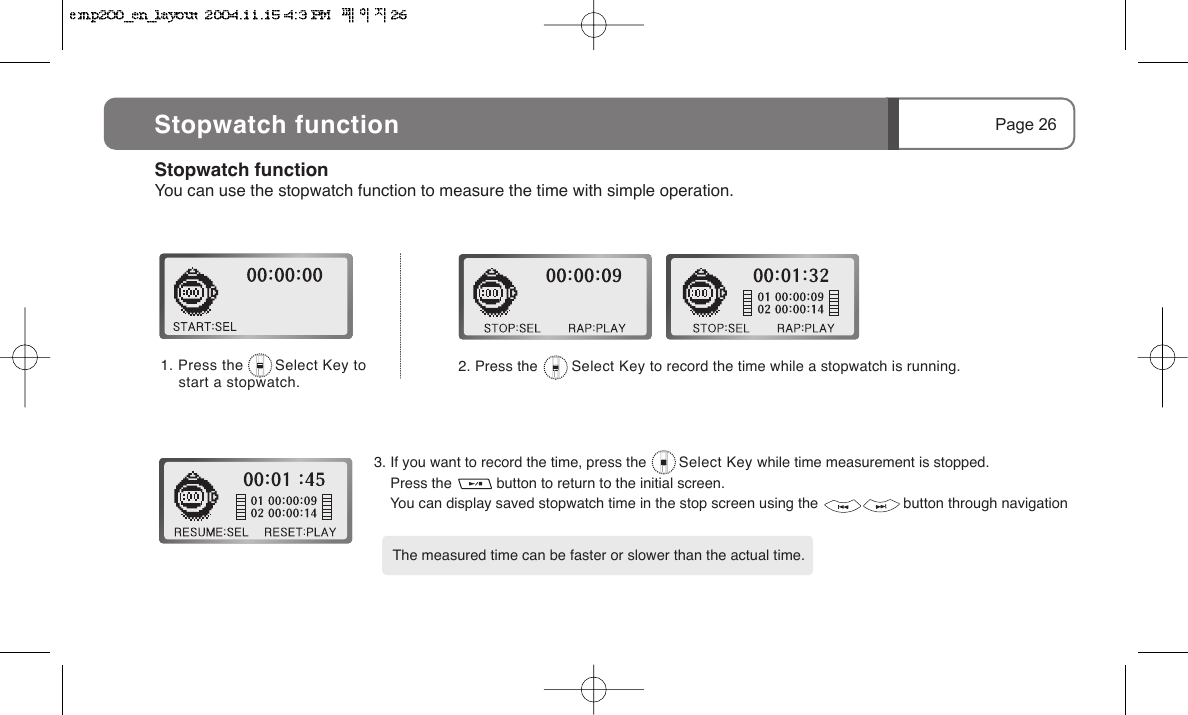
2. Press the        Select Key to record the time while a stopwatch is running.Page 26Stopwatch function1. Press the       Select Key to     start a stopwatch.The measured time can be faster or slower than the actual time.3. If you want to record the time, press the        Select Key while time measurement is stopped.     Press the           button to return to the initial screen.    You can display saved stopwatch time in the stop screen using the                     button through navigationStopwatch functionYou can use the stopwatch function to measure the time with simple operation.
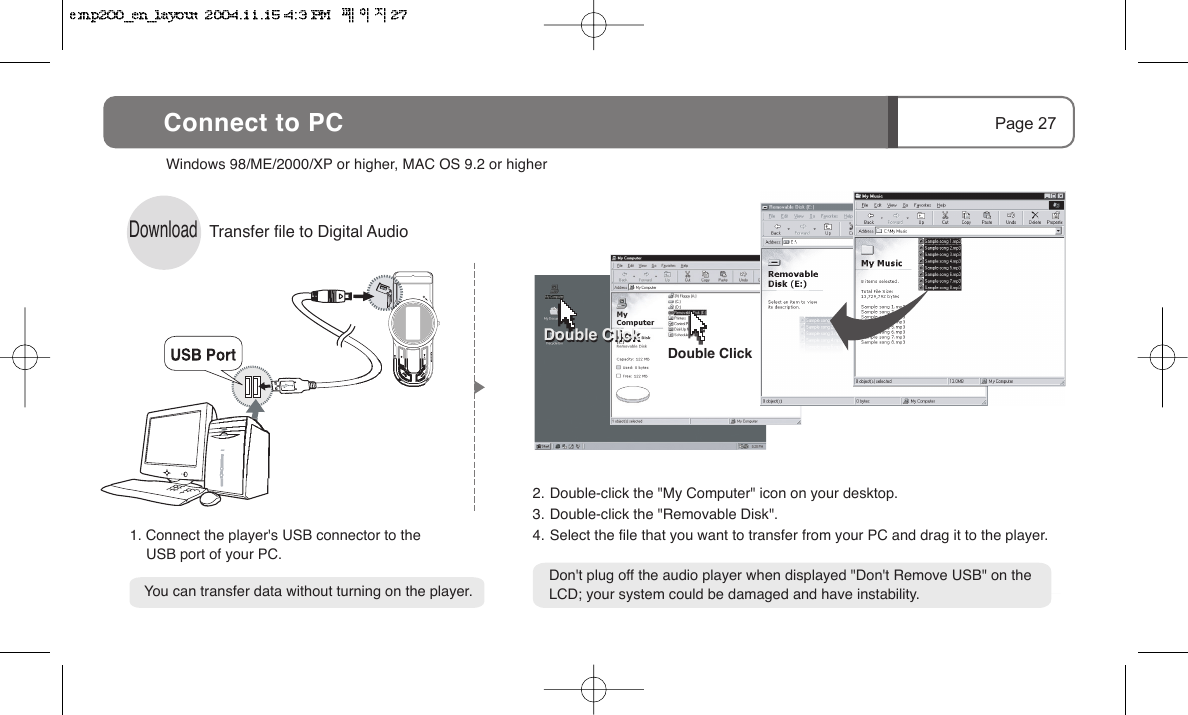
Page 27Connect to PCDownloadTransfer file to Digital Audio Windows 98/ME/2000/XP or higher, MAC OS 9.2 or higher    You can transfer data without turning on the player.Don't plug off the audio player when displayed "Don't Remove USB" on theLCD; your system could be damaged and have instability.1. Connect the player's USB connector to the      USB port of your PC.2. Double-click the "My Computer" icon on your desktop.3. Double-click the "Removable Disk".4. Select the file that you want to transfer from your PC and drag it to the player.Double ClickDouble ClickDouble Click
Page 28File Upload / File DeletionFileUpload Transfer File in the Player to PC Delete File in PC'Voice' or 'Radio' folder in the audio player is regenerated automatically even if deleted.1. Connect the player to your PC.2. Select the "Removable Disk" in "My Computer".3. Select the file that you want to transfer to your PC and drag and        drop it.1. Select the file that you want to delete in the player and right click it; select "Delete" in the file menu.2. Select [Yes] will show you the deletion process.FileDeletion
1. Do not connect the digital audio player to the PC USB port.2. Insert the Installation CD into the CD-ROM of the PC.3. Run "Setup.exe" in the Win98 driver folder of the installation CD.4. Install the file and reboot the computer and then, connect the digital audio player to the PC USB port.You do not need to install an additional device driver for this unit in systems with Windows ME, Windows 2000/XP or higher, or MAC OS 9.2 or higher.Installing a Driver in Windows 98Page 29Installing device driver
Page 30Connect to MacDownload1. Connect the player's USB connector to the USB port of your PC. Double-click "Removable Drive".2. Select the file that you want to transfer from your PC and drag and drop it to the player.Mac OS 9.2 or higherTransfer File to Player. You can transfer data to your PC without turning on the player.. Press [Option] on your keyboard before drag-and-drop.Upload1.  Connect the player to your PC.2.  Select "Removable Drive" on your        desktop.3.  Select any file that you want to transfer      to your PC.4.  Drag and drop the file to the folder       where you want to save.Transfer File from the player to your PCDouble ClickCheck the battery status      Check if music files are in the     Check if the volume is too lowCheck points for product malfuncWhen it doesn't tag information      When the tag information consists only of ID3V1, only the file      Only when the tag information includes ID3V2 is the TAG info      displayed normally.Stop using immediately      Disconnect the earphone from       Face the earphone inlet down and then draw water       Contact the service centerWhen it falls into the waterWhen it doesn't playback misic
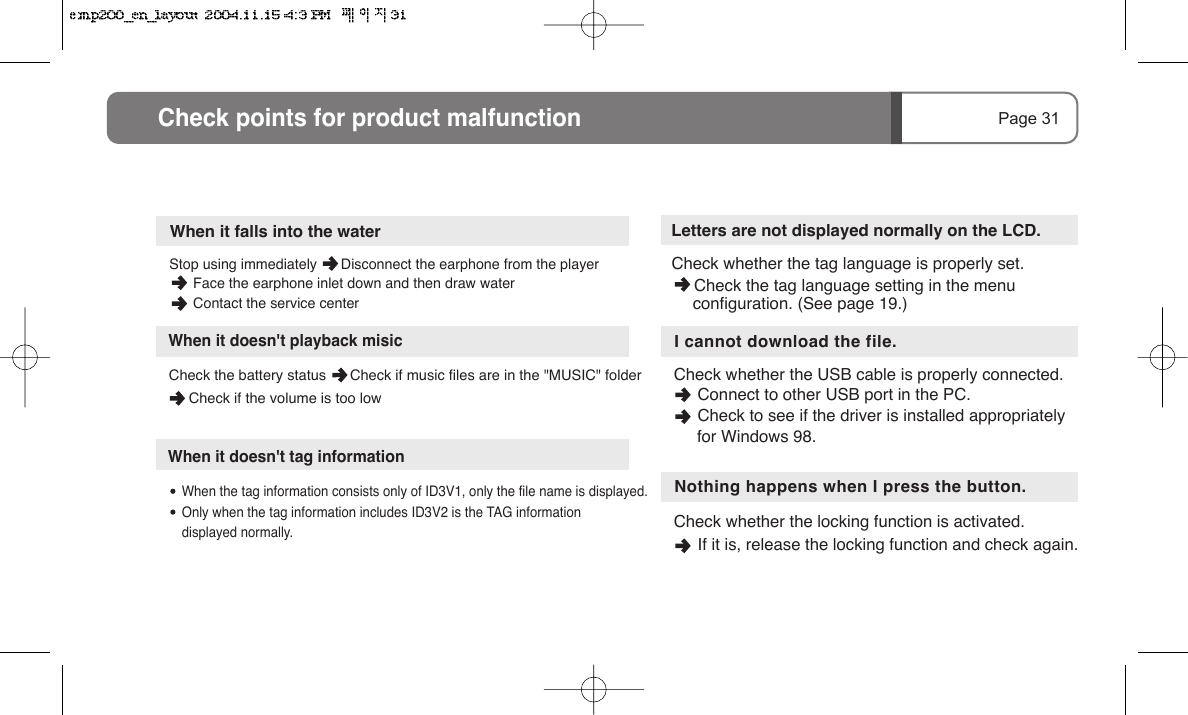
Check the battery status      Check if music files are in the "MUSIC" folder      Check if the volume is too lowNothing happens when I press the button.Check whether the locking function is activated.          If it is, release the locking function and check again.Letters are not displayed normally on the LCD.Check whether the tag language is properly set.     I cannot download the file.Check whether the USB cable is properly connected.           Connect to other USB port in the PC.      Check to see if the driver is installed appropriately      for Windows 98.Page 31Check points for product malfunctionWhen it doesn't tag information      When the tag information consists only of ID3V1, only the file name is displayed.      Only when the tag information includes ID3V2 is the TAG information       displayed normally.Stop using immediately      Disconnect the earphone from the player        Face the earphone inlet down and then draw water       Contact the service centerWhen it falls into the waterWhen it doesn't playback misic     Check the tag language setting in the menu     configuration. (See page 19.)
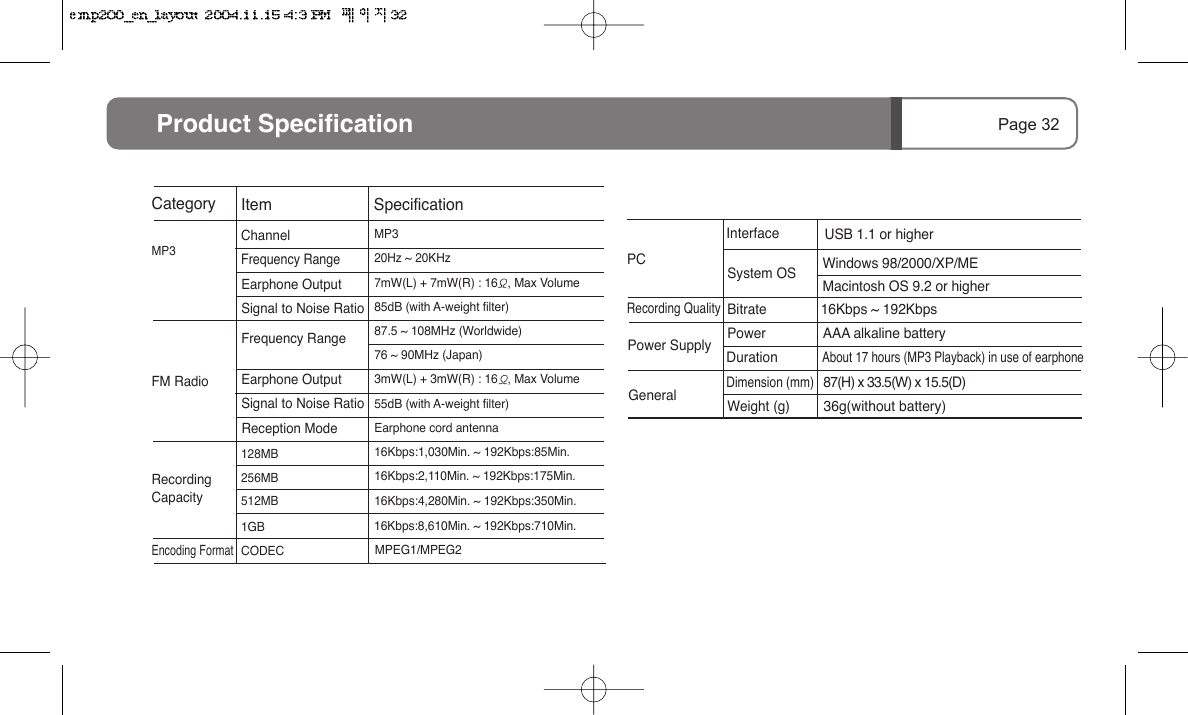
MP3 FM RadioChannelFrequency Range128MB256MB512MBMP320Hz ~ 20KHz7mW(L) + 7mW(R) : 16   , Max Volume85dB (with A-weight filter)87.5 ~ 108MHz (Worldwide)76 ~ 90MHz (Japan)3mW(L) + 3mW(R) : 16   , Max Volume55dB (with A-weight filter)Earphone cord antenna16Kbps:1,030Min. ~ 192Kbps:85Min.16Kbps:2,110Min. ~ 192Kbps:175Min.16Kbps:4,280Min. ~ 192Kbps:350Min.1GB 16Kbps:8,610Min. ~ 192Kbps:710Min.Page 32CODEC MPEG1/MPEG2 PCProduct SpecificationCategory Item SpecificationRecording CapacityEarphone OutputSignal to Noise RatioFrequency RangeEarphone OutputSignal to Noise RatioReception ModePower SupplyRecording QualityGeneralEncoding FormatInterfaceSystem OSBitrateUSB 1.1 or higherWindows 98/2000/XP/ME Macintosh OS 9.2 or higherPowerDuration16Kbps ~ 192KbpsAAA alkaline batteryAbout 17 hours (MP3 Playback) in use of earphoneDimension (mm)36g(without battery)87(H) x 33.5(W) x 15.5(D)Weight (g)
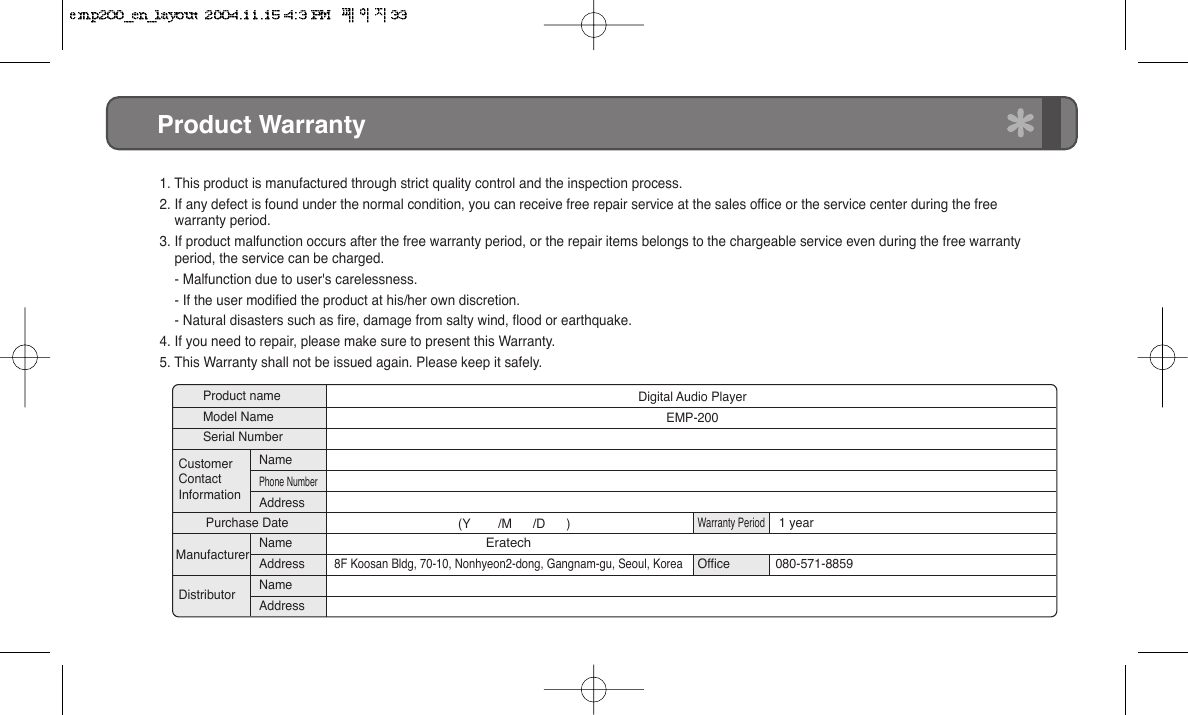
Product Warranty1. This product is manufactured through strict quality control and the inspection process.2. If any defect is found under the normal condition, you can receive free repair service at the sales office or the service center during the free     warranty period.3. If product malfunction occurs after the free warranty period, or the repair items belongs to the chargeable service even during the free warranty      period, the service can be charged.    - Malfunction due to user's carelessness.    - If the user modified the product at his/her own discretion.    - Natural disasters such as fire, damage from salty wind, flood or earthquake.4. If you need to repair, please make sure to present this Warranty.5. This Warranty shall not be issued again. Please keep it safely.Product nameModel NameSerial NumberDigital Audio PlayerEMP-200   (Y        /M      /D      )Eratech8F Koosan Bldg, 70-10, Nonhyeon2-dong, Gangnam-gu, Seoul, KoreaWarranty PeriodOffice 1 year080-571-8859Purchase DateCustomerContactInformationManufacturerDistributorNamePhone NumberAddressNameAddressNameAddress
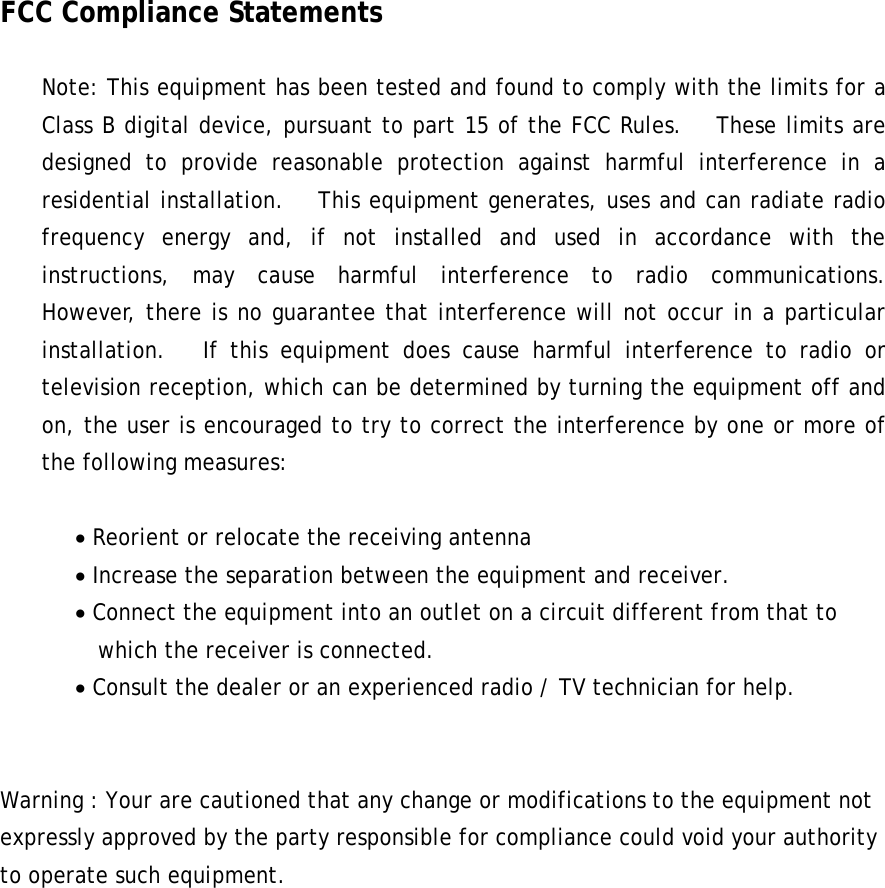
FCC Compliance Statements  Note: This equipment has been tested and found to comply with the limits for a Class B digital device, pursuant to part 15 of the FCC Rules.   These limits are designed to provide reasonable protection against harmful interference in a residential installation.   This equipment generates, uses and can radiate radio frequency energy and, if not installed and used in accordance with the instructions, may cause harmful interference to radio communications.   However, there is no guarantee that interference will not occur in a particular installation.   If this equipment does cause harmful interference to radio or television reception, which can be determined by turning the equipment off and on, the user is encouraged to try to correct the interference by one or more of the following measures:  • Reorient or relocate the receiving antenna • Increase the separation between the equipment and receiver. • Connect the equipment into an outlet on a circuit different from that to     which the receiver is connected. • Consult the dealer or an experienced radio / TV technician for help.   Warning : Your are cautioned that any change or modifications to the equipment not expressly approved by the party responsible for compliance could void your authority to operate such equipment.

Navigation menu