Eratech Co EVR-150 Voice Recorder User Manual 030204 EVR 150 eng
Eratech Co, Ltd Voice Recorder 030204 EVR 150 eng
Users Manual
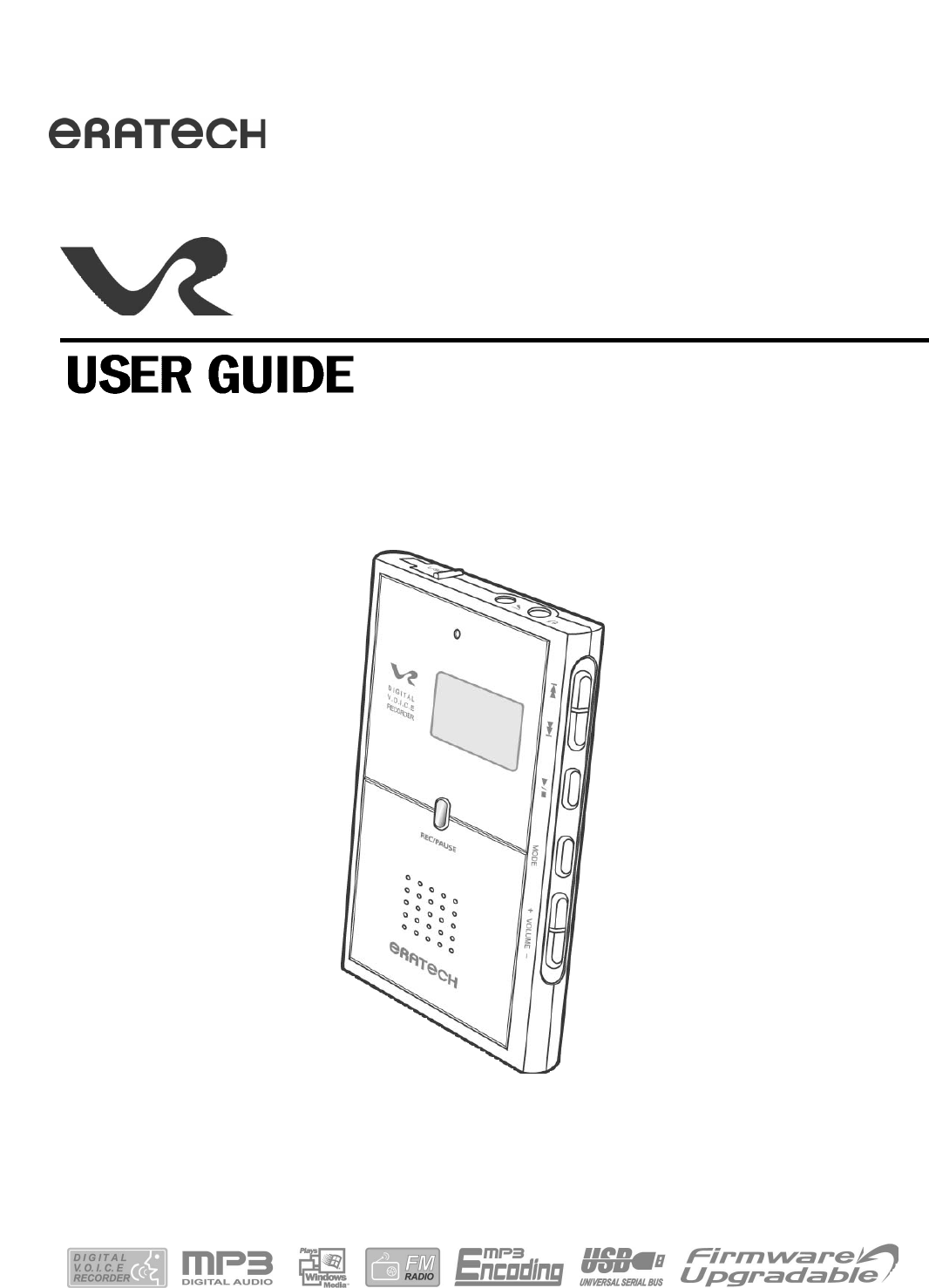
Digital Audio Recorder(EVR-150)
Thank you for choosing Eratech s exciting new digital product, the EVR-Digital Audio
Recorder(EVR-150).
For optimum performance please read the User Guide before operating the recorder.
Highlights and features
Components and accessories
Player controls
Mode menus
Power sources
Power On/Off
Playback/Stop
Hold On
Hold Off
Search and Seek
Volume controls
Setting Menu
Mode change
Using ithe Internal Microphone
Using the External Microphone
Using Line-in Recording
a. Recording Telephone Conversations
b. Recording Mobile Phone Conversations
c. Recording From an External Source
Setting the MONO/STEREO Function
Selecting Recording Quality
VOR(Voice Operating Recordign) Function
<PRE-SET RECORDING MODE>
Using ithe Internal Microphone
Using the External Microphone
Adjusting the Playing Speed
Setting the Repeat Function
Repeat Segment(A B)
Listening to Music with the Internal Speaker
Setting the Equalizer
Setting the Repeat Function
Changing FM Channels
Storing FM Channels
Overwriting FM channels
Listening to Preset FM Channels
Recording from FM Rradio
Listening to Recorded Broadcasting
Deleting Items Stored in Memory
Safety Precautions
Troubleshooting
Technical specifications
Installing VR Manager
Connecting the EVR-150 to your PC
Install the USB driver
a. Windows 98
b. Windows 2000
c. Windows XP
Understanding Toolbar Icons
Formatting Internal Memory
Downloading Files to the EVR-150
Uploading Files to Your PC
Deleting Files from Your PC
4
5
6
7~8
9~11
28
29
30
31
31
31
32
32
33
34
35
36
37
38
39
40
43
42
41
40
44
45
46
12
12
12~13
13
14
14
14
15
16
17
21
23
19
24
20
18
25
26
27
18
22
The EVR-150 Digital Audio Recorder is a portable digital audio player as well as Digital
Audio Recorder. Users can save recorded voices as MP3 files, making the EVR-150 a
very useful/powerful tool for saving business discussions, meetings, consultations,
telephone/mobile phone conversations, school lectures, foreign language
lesson/education tapes, FM broadcasts, as well as instaneous ideas and interviews. You
can replay high quality sounds or messages from the device repeatedly and/or save them
on your PC.
Unlike other Audio Recorders, the EVR-150 can save your voice as an MP3 file without
the benefit of a PC(direct encoding), making it convenient to listen and play saved songs
and nessages through the built-in speaker as well as on your PC. Listening to saved MP3
music and FM broadcasting has never been easier!
Record high quality audio, sound or voice files as MP3 files.
The EVR-150 is smaller than a business card with an eye-
catching 9.5mm ultra-slim design.
Users can save high quality audio, sound or voice recordings as
permanent MP3 files on a PC.
The EVR-150 supports various languages, such as English,
Korean, Chinese, Japanese, and French etc., dispalyable on the
LCD screen.
Download files in record speed with the USB interface.
An omnidirectional, highly sensitive internal microphone allows
sounds to be captured and recorded from all directions.
The EVR-150 offers firmware upgradeability. Users can easily
update the functions to have access to the latest emerging
standards and enhanced features.
4
The battery can be charged via the USB port.
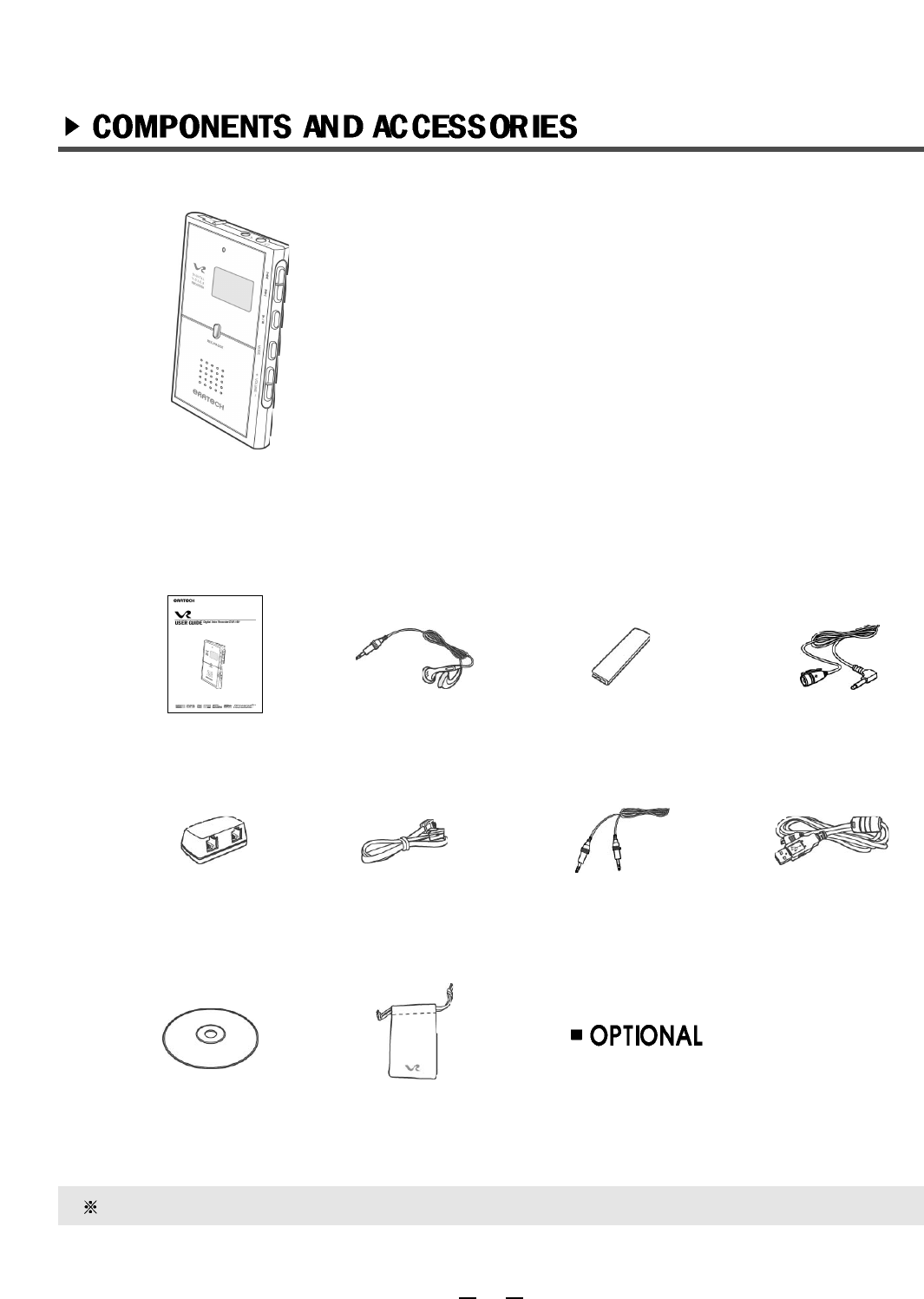
- Quick Charger
- Hands free
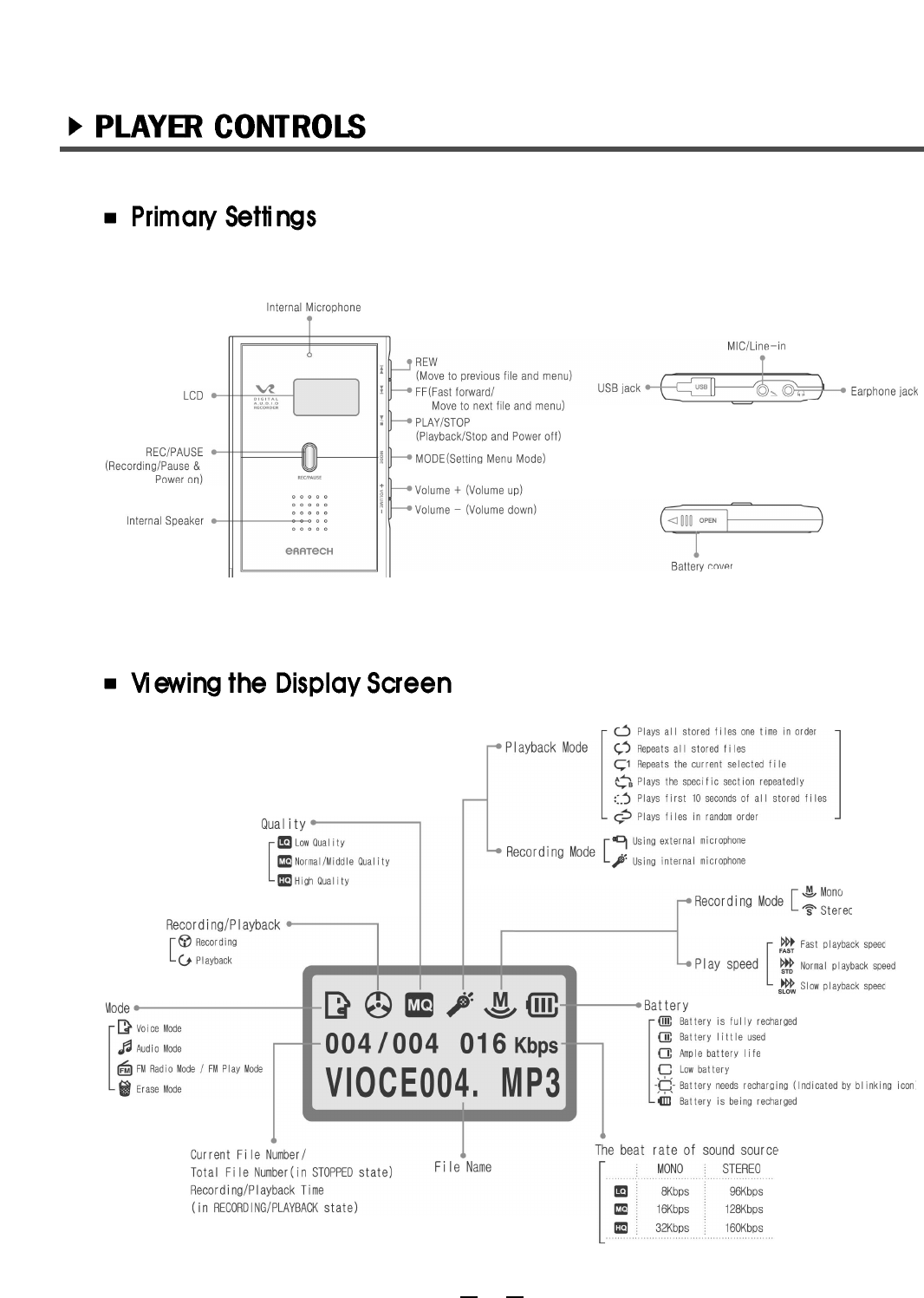
EVR-150 Primary Settings
User Guide External
Microphone
Line in/out
Cable
Telephone
Recording Adapter Telephone
Recording Cable
Ni-MH 1.2V
Rechargeable Battery
USB Cable
PC install CD disc Carrying Case
Stereo Earphones
5
Accessorries are subject to change without notice for improvements.
6
7
8
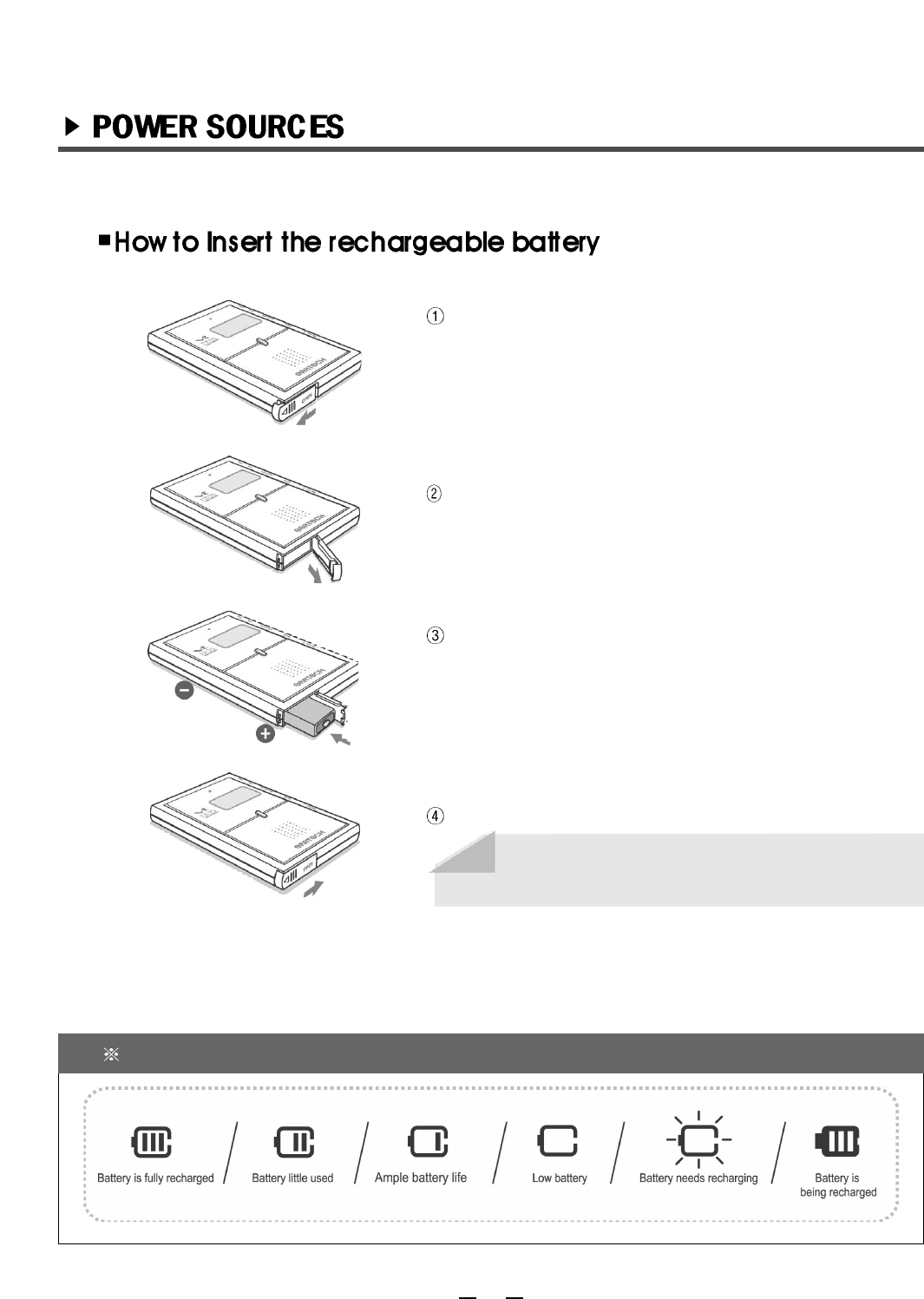
Slide the battery cover in the direction of the arrow.
Open the battery cover in the downward direction
as the picture indicates.
Insert the rechargeable battery as shown in the
picture.
Adjust the (+)(-) polarities of the batteries in the
compartment.
Remember to check the remaining battery life before recharging
9
Close the battery cover.
Note
The battery life is 10 hours maximum if the
earphone is used.
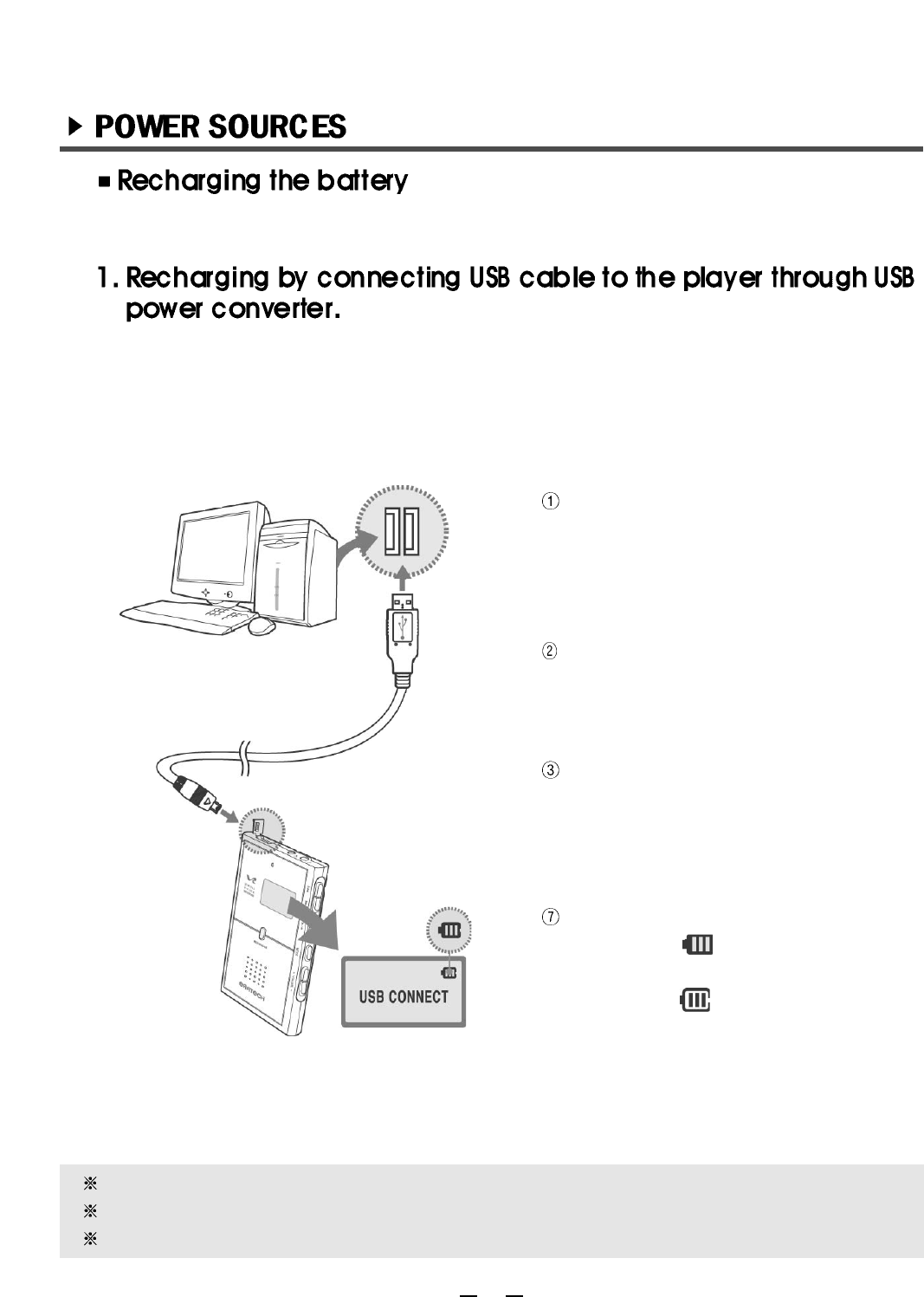
Press MODE button to return from menu
and display ( ) icon on LCD.
If charging is finished, the icon will be
changed to ( ).
If Rechargeable Battery is not inserted into the player, Display "Battery" on LCD.
When USB calbe connect to PC and Recorder, please dis-connect earphone from recorder.
The battery takes 6~7 hours to fully-recharge.
Connect the USB cable to USB port of
the PC when the PC is powered on.
To power on the digital audio recorder.
Connect the USB cable to the USB port
of player.
You can recharge the player by connecting it to a USB port from the PC.
10
It is possible to recharge even if the battery is not fully discharged. (No need for
discharging)
To charge is available on VOICE, AUDIO, FM playback and recording mode.
11
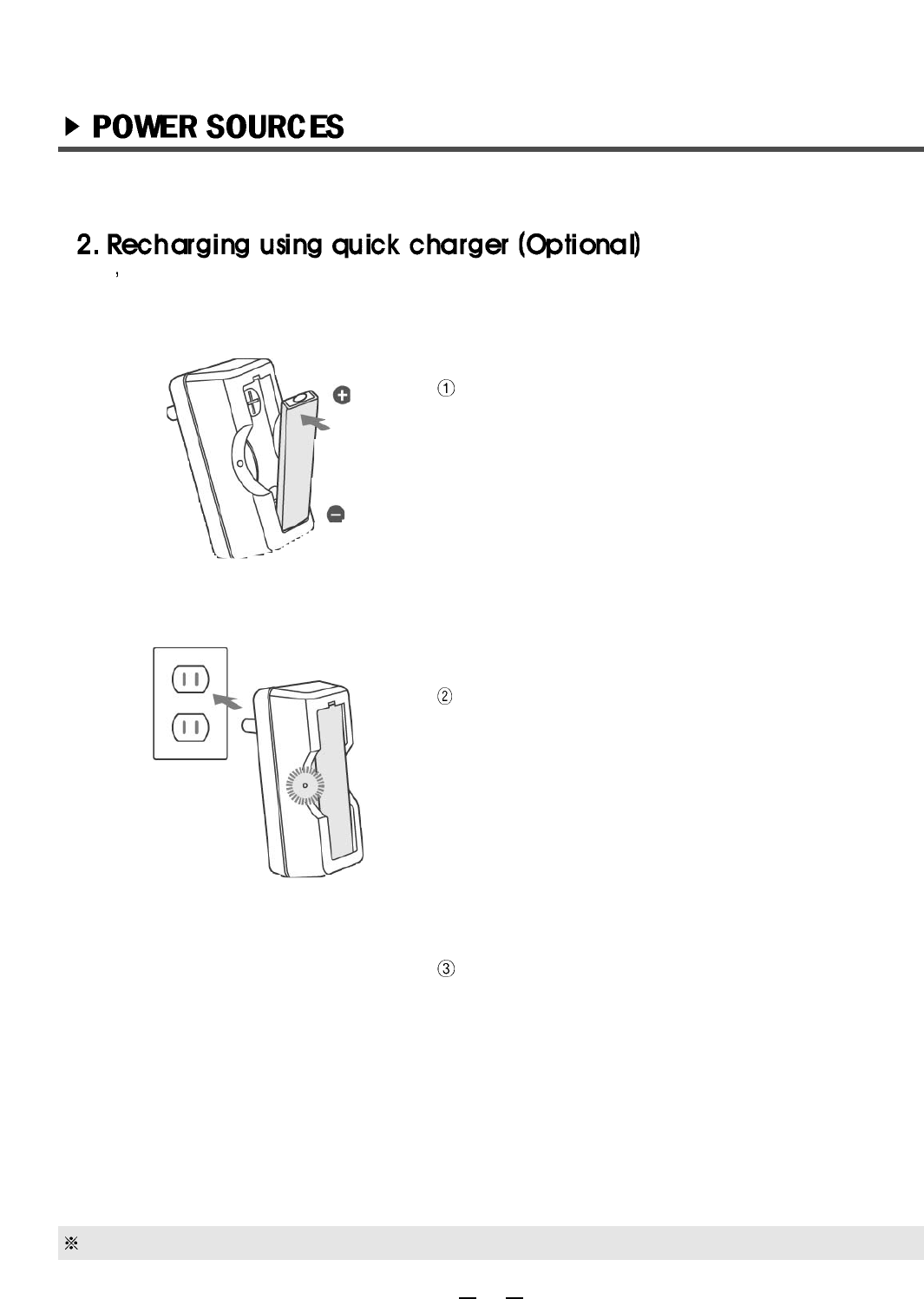
Place the rechargeable battery on the quick
charger as shown in the picture.
Adjust the (+)(-) polarities of the batteries in the
compartment.
Insert the quick charger in a wall outlet (110V).
(LED turns on red light during recharging and turn
off light when recharging is completed.)
The battery takes 2 hours to fully-recharge.
When Battery icon on LCD of the player blink, please recharge the Ni-MH rechargeable battery.
It s possible to recharge even if the battery is not fully discharged.
12
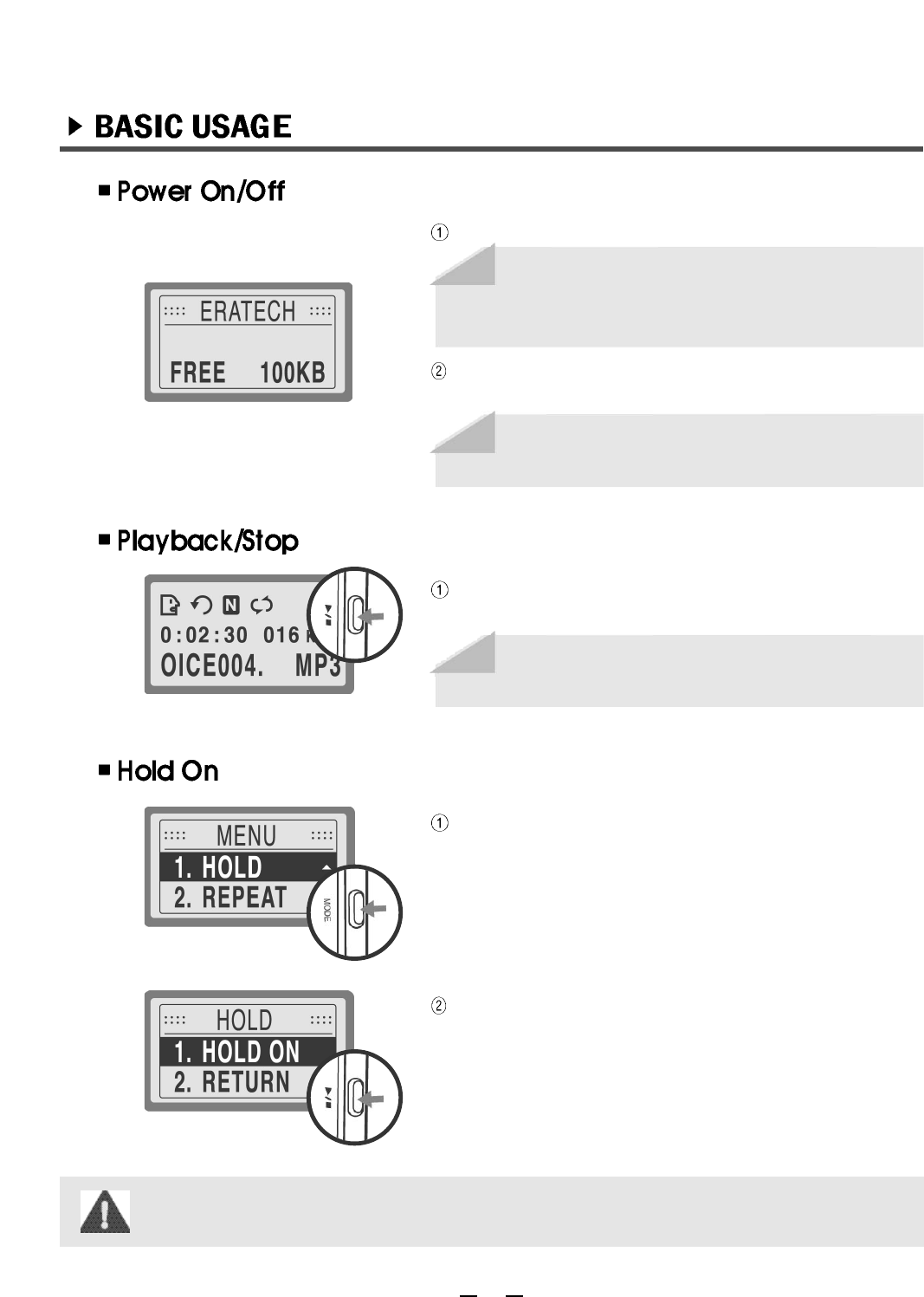
To power on, press the REC button for 2 seconds.
To power off, press the PLAY/STOP Button 2 or
more seconds.
Pressing the PLAY/STOP button will play a file
when the EVR-150 is powered on.
Press the MODE button to go to the Menu.
Select HOLD ON, and then press the PLAY/STOP
button.
If the MODE button in held for longer than 2 seconds the MODE will be changed into 4
Section Mode.
Note
If yor power on the main setting, the last
setting (MODE) will be displayed on the LCD.
Note
If the REC button is pressed longer than 2
seconds, the EVR-150 will start recording
automatically.
Note
The EVR-150 is automatically powered off
after 3 minutes of non-use.
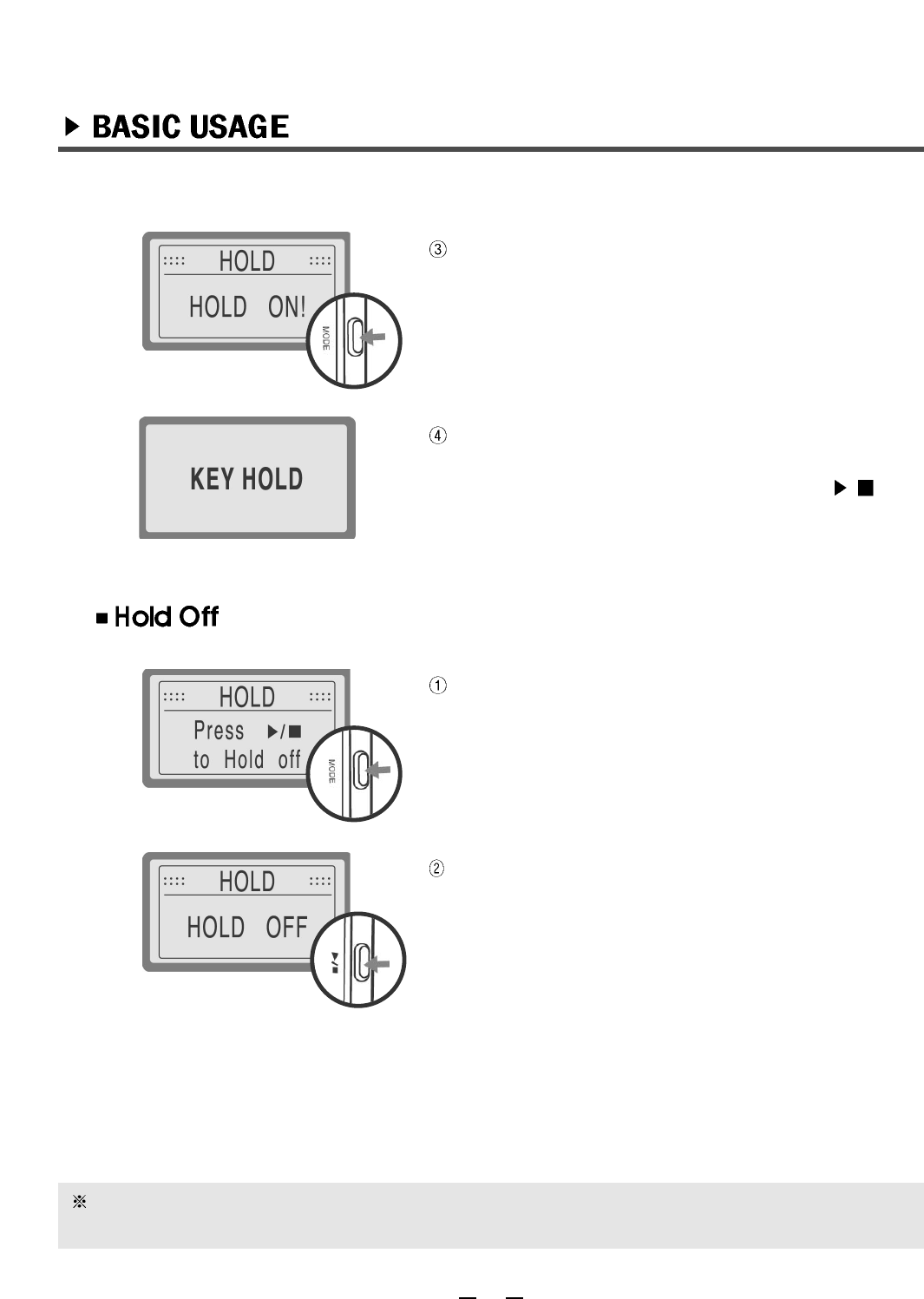
If display "HOLD ON" on LCD, exit from menu with
pressing MODE button.
If press any button except "MODE", display "KEY
HOLD " on LCD.
If press MODE button ,display " PRESS /TO
HOLD OFF " on LCD.
When set 'HOLD ON" , press MODE button shortly.
To set "HOLD OFF", press PLAY/STOP button.
13
If press MODE button for over 2 seconds , mode may be changed .
To set HOLD OFF, press MODE button shortly.
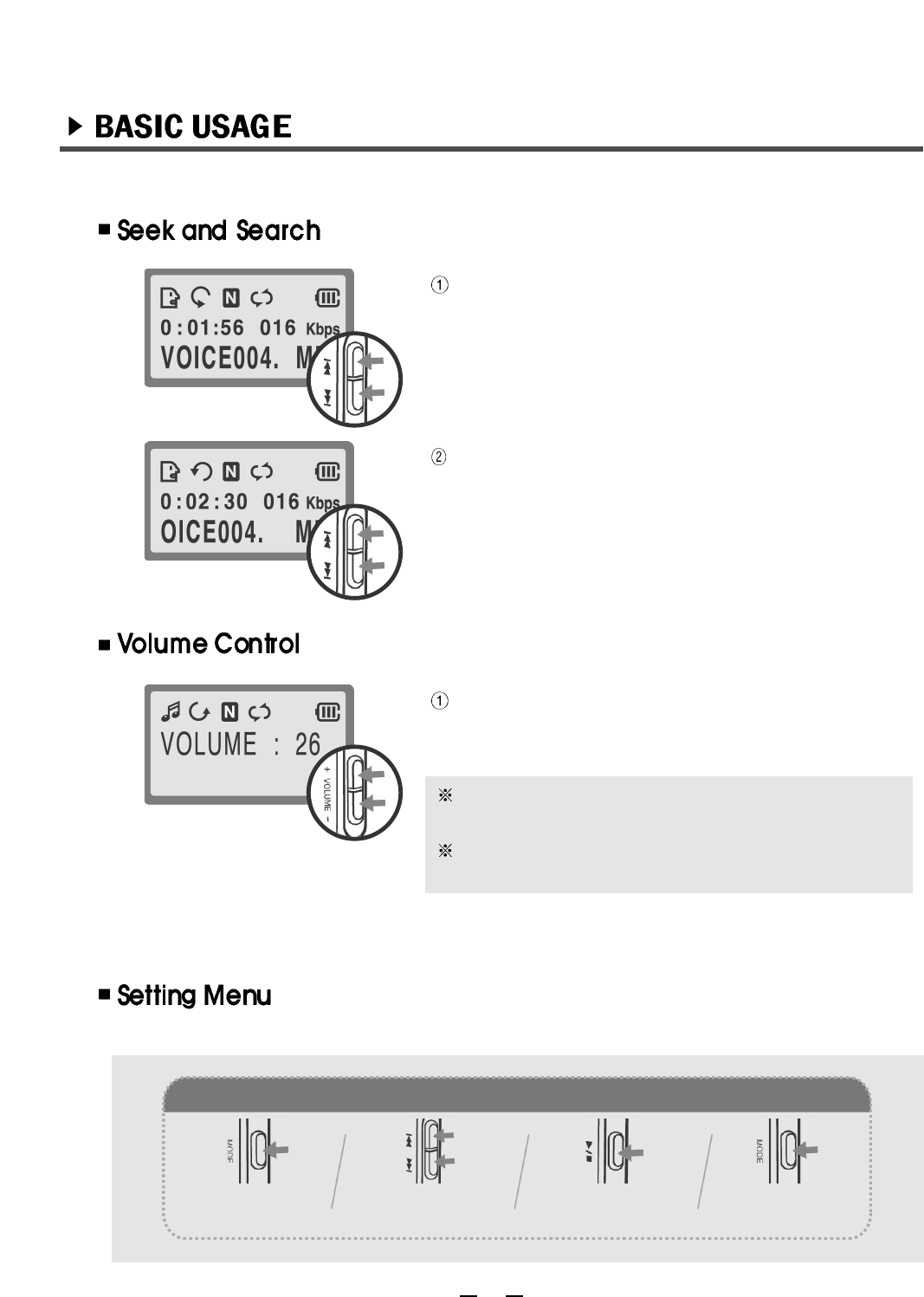
During playback in the Stop mode, press the
FF/REW button to navigate to the desired file.
Adjust the volume by pressing (+)/(-) buttons.
(If press (+)/(-) for a long time, volume level
continuously goes up.)
Press and hold the FF/REW button until the desired
time, the EVR-150 will start playback from that
point.(SEEK Function)
The menu for each mode can be set during PLAYBACK or STOP.
With earphone use the volume level is
controllable from 0 to 30.
With internal speaker use the volume level is
controllable from 0 to 24.
quickly press the
MODE button.
Go to Menu:
press the FF/REW
button to move the
menu.
Move to Menu:
press the PLAY/STOP
button to select menu.
Select Menu:
press the MODE
button to exit menu.
Exit Menu:
14
15
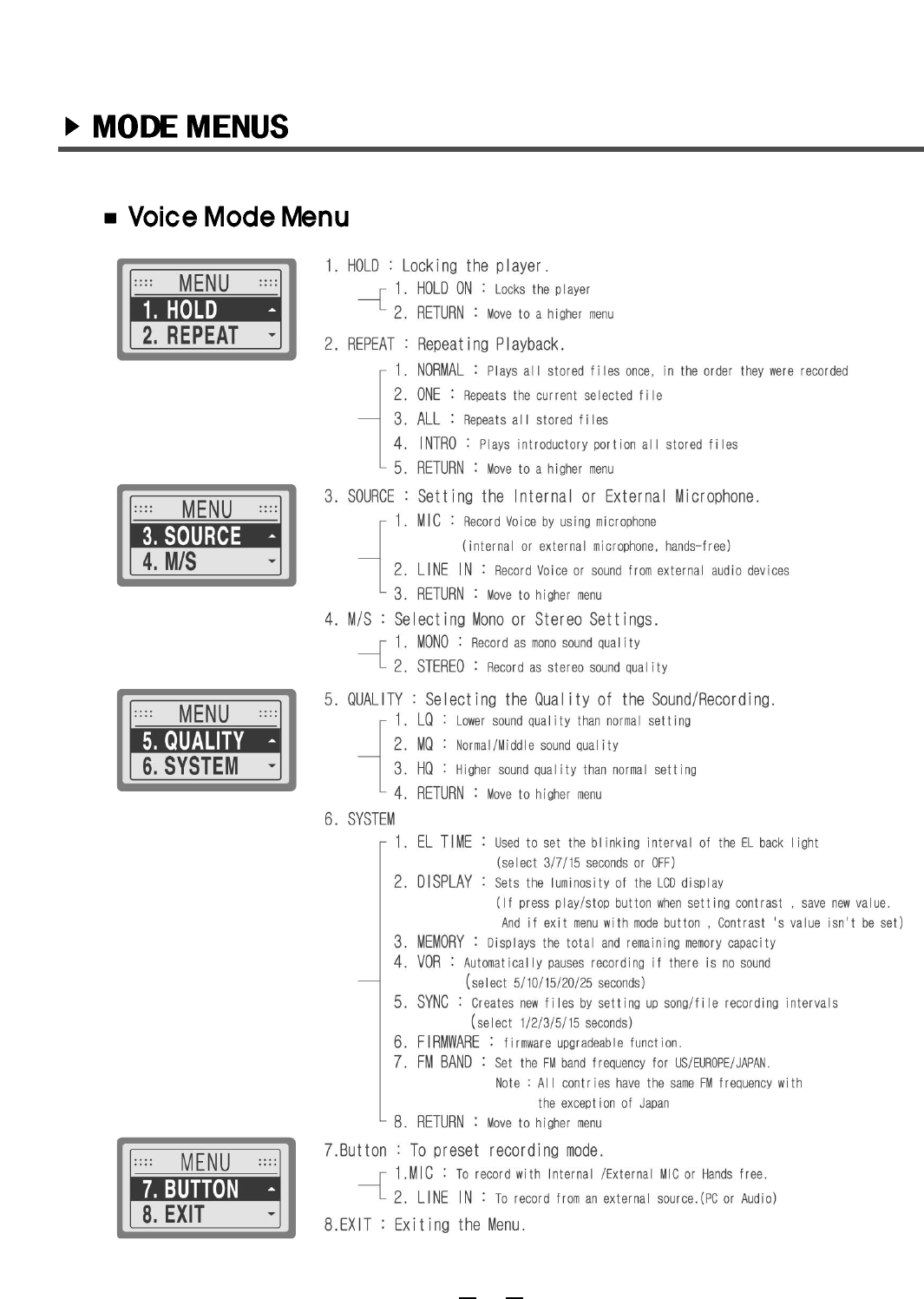
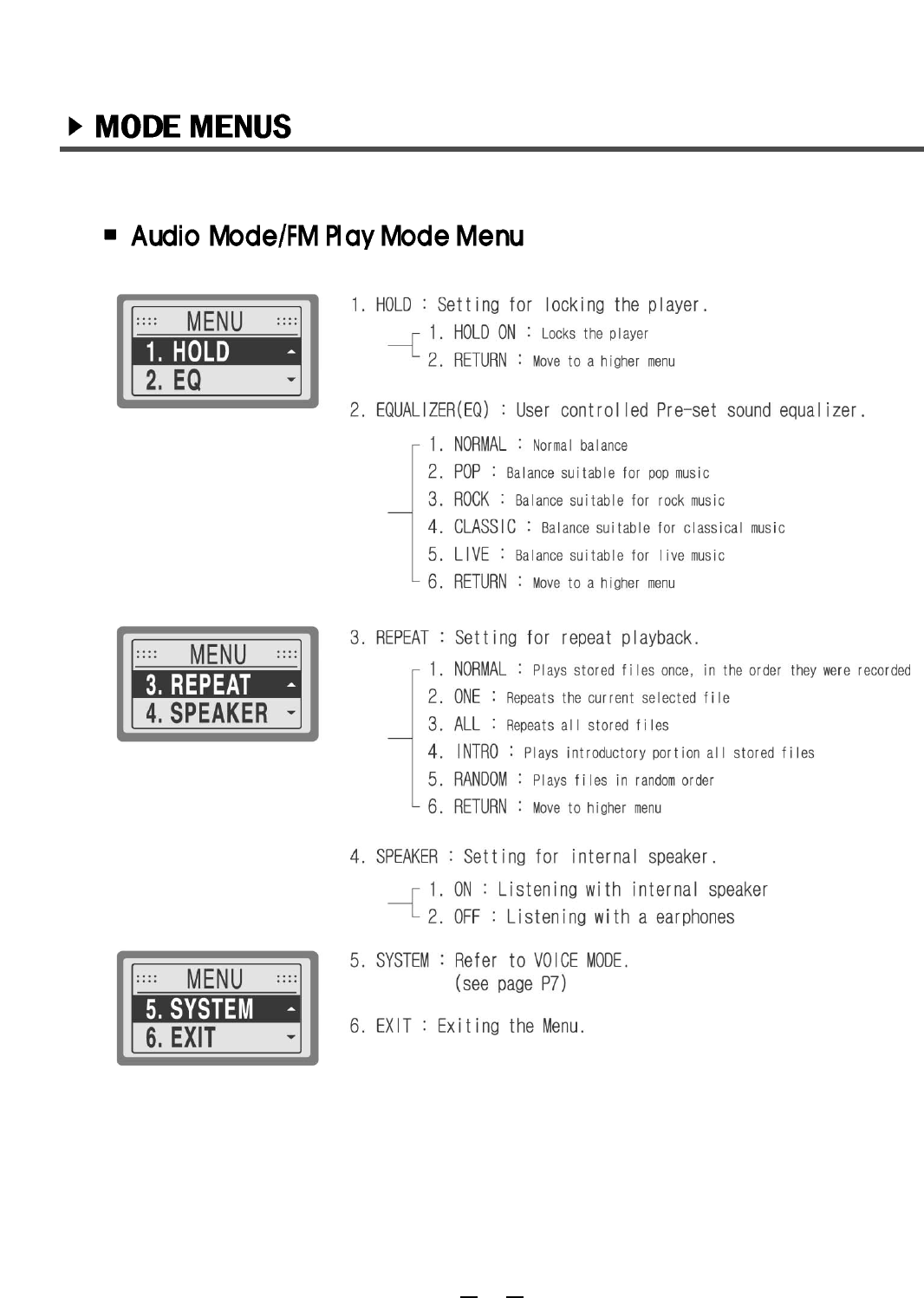
VOICE MODE
Voice Recording and Playback.
FM RADIO MODE
User can save FM frequencies and record/listen to FM
broadcasting as well.
FM PLAY MODE
Play back recorded FM radio and/or broadcasting.
ERASE MODE
Erase each files and/or folder of VOICE MODE, AUDIO
MODE and FM PLAY MODE.
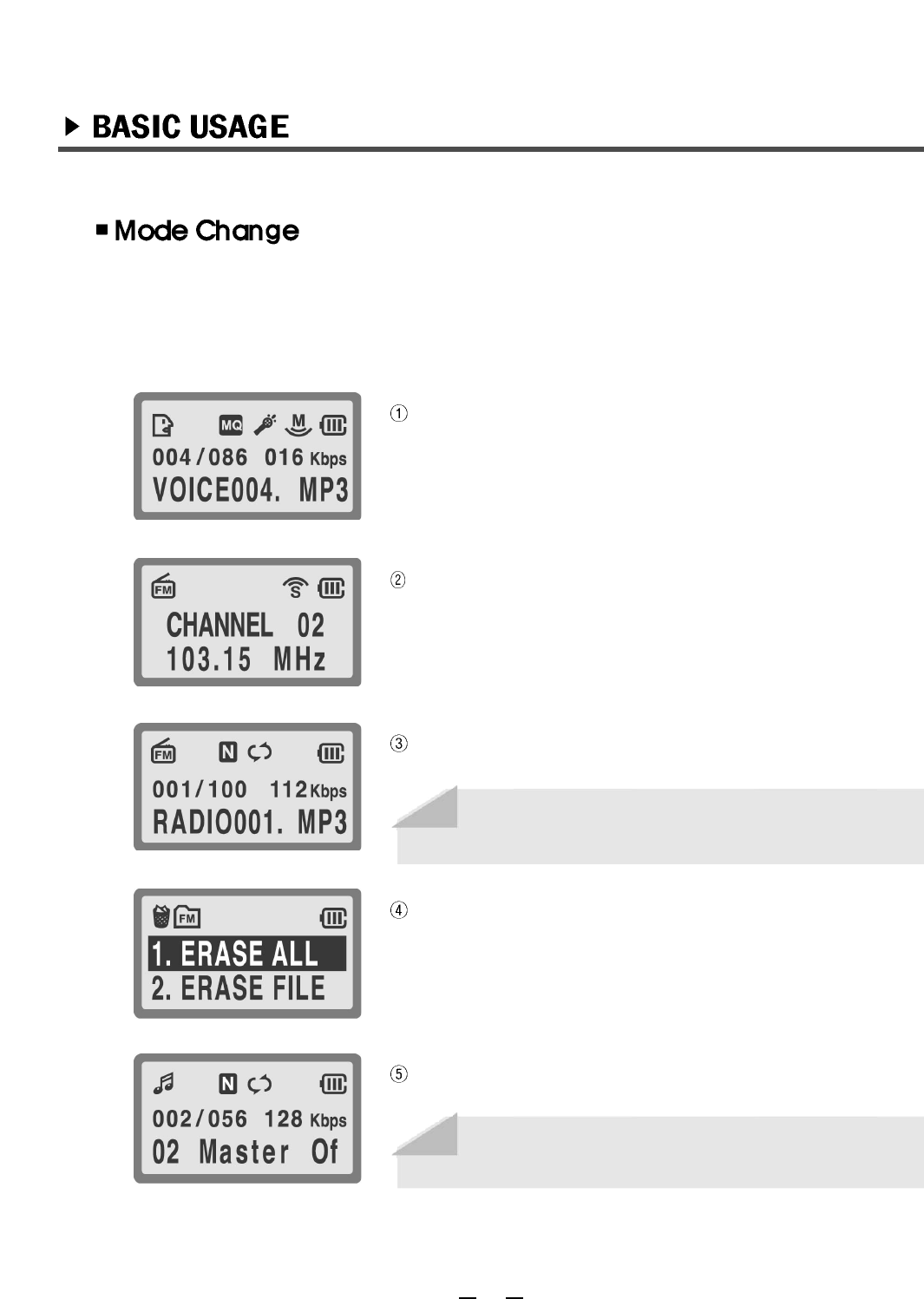
The EVR-150 has 5 MODES: VOICE MODE - FM RADIO MODE - FM PLAY MODE -
ERASE MODE - AUDIO MODE.
To navigate to the next mode, press the MODE button for 2 seconds while the EVR-150 is
in the STOP state.
AUDIO MODE
Playback MP3 and WMA audio files.
Note
This mode is available only if a recorded FM
broadcast/music file already exists.
Note
By pressing the REC button in STOP state, the
recording function is activated.
16
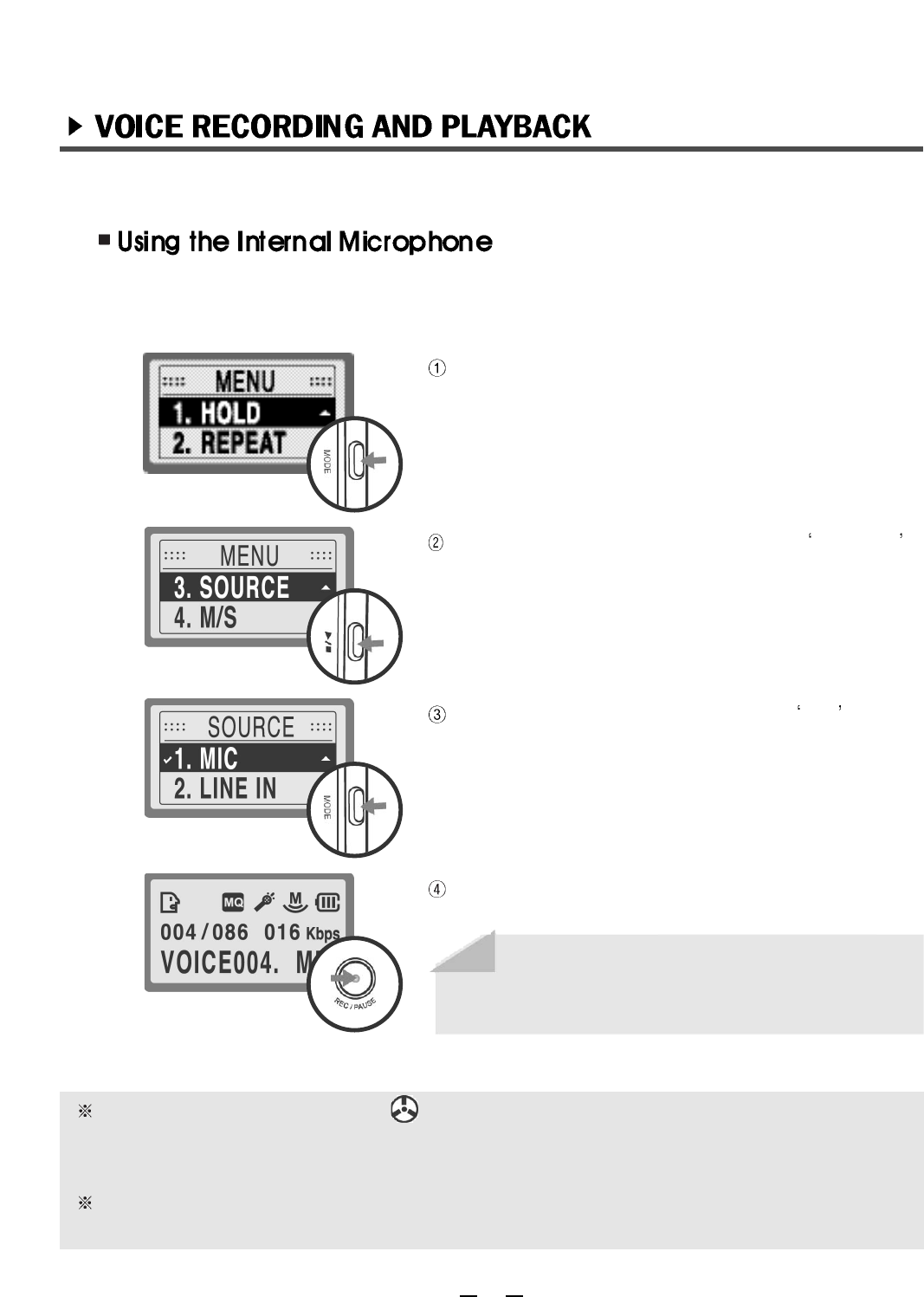
Press the MODE button to move to MENU in Voice
Mode.
Press the FF/REW button to move to SOURCE
menu, and then press the PLAY/STOP button to
select.
Press the FF/REW button to move to MIC menu;
press the PLAY/STOP to select it and press the
MODE button to exit MENU.
In the STOP state of VOICE MODE(or AUDIO
MODE), press the REC button to start recording.
During recording, the REC icon( ) will appear on the LCD display and the blue LED light
will blink. The blue LED light will appear solid if the pause button is pressed once. By
pressing the REC button again, recording will resume and the LED light will blink.
Recorded file(s) automatically assigned the next available number following the last
recorded file.
Before recording, set the Internal/External Microphone, Mono/Stereo, Quality and VOR
function(s). For instructions on setting these functions, refer to pages 21~23.
Note
Press the REC/PAUSE button to pause
recording temporarily. Press the PLAY/STOP
button to stop recording.
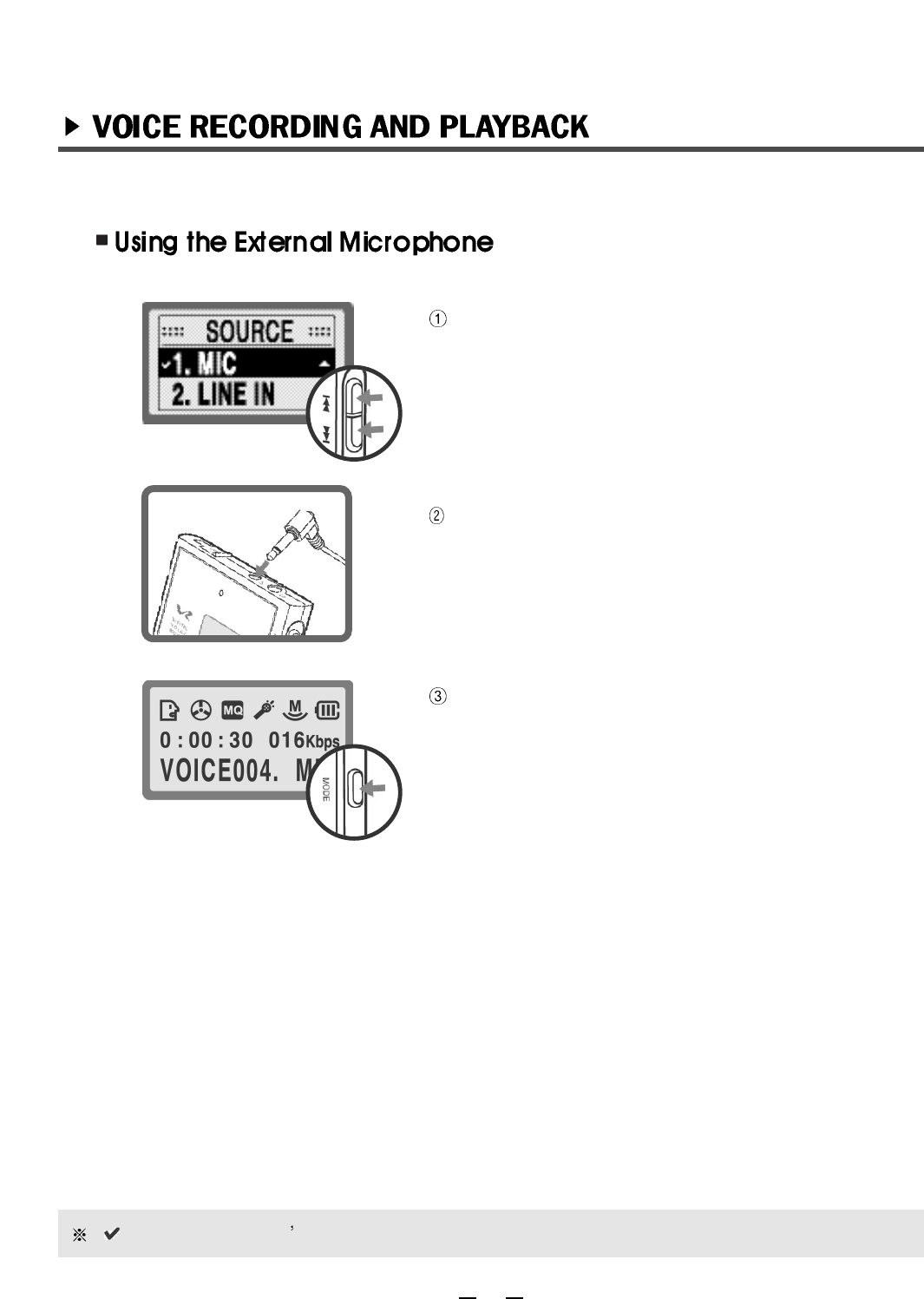
Use the same method described for the external
microphone: set [MENU]-[SOURCE]-[MIC].
Connect the external microphone to external jack of
the EVR-150 using earphone connector.
In the STOP state of VOICE MODE(or AUDIO
MODE), press the REC button to start recording.
To pause recording, press the REC/PAUSE button.
To stop recording, press the PLAY/STOP button.
17
( ) mark means user s current setting.
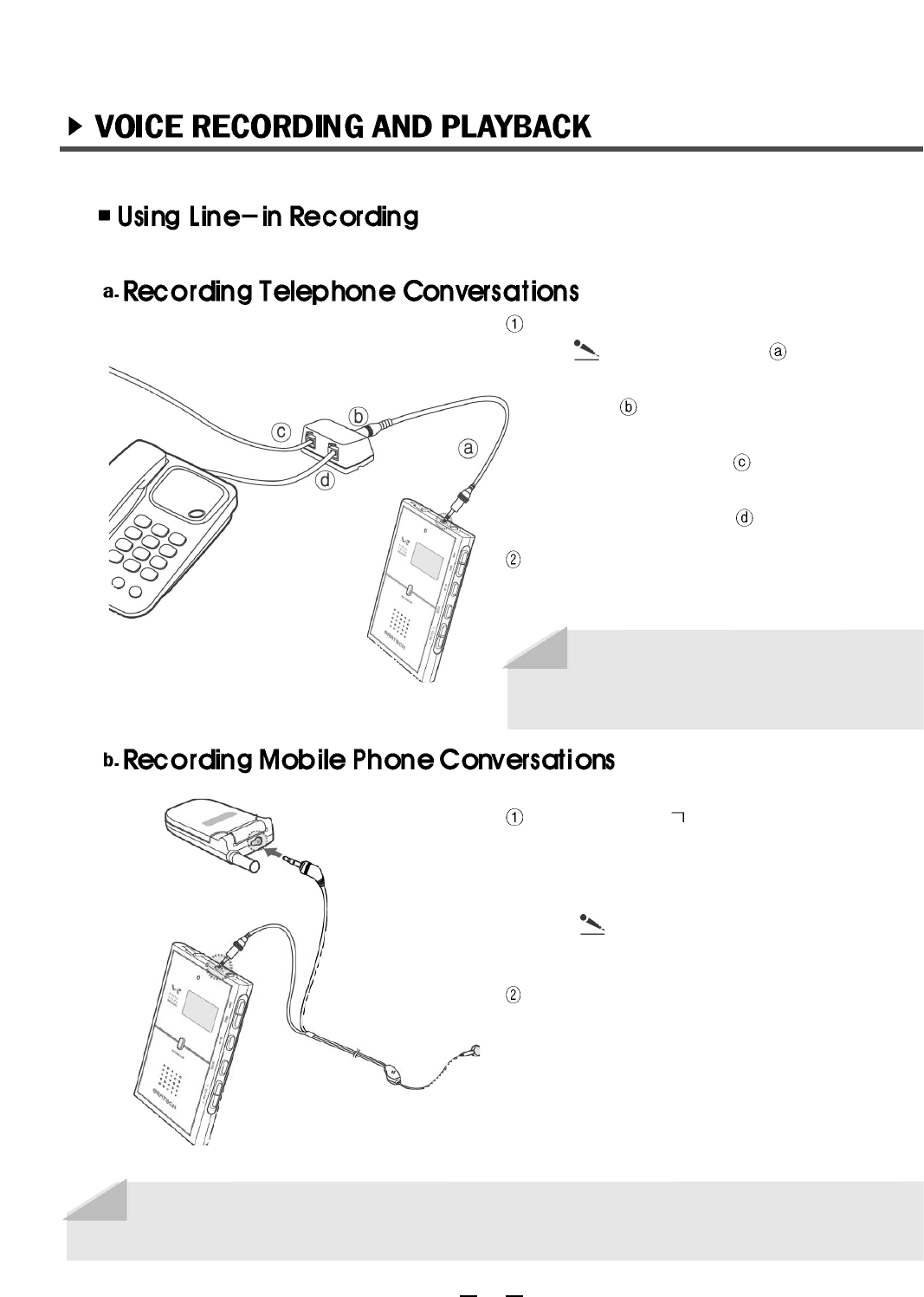
Connect the " " jack of the hands free
set(optional) to the earphone jack of the
mobile phone . Next, connect the "-" jack
of the hands free set to the microphone
jack ( )the EVR-150.
To record a telephone conversation in
VOICE MODE(or AUDIO MODE), press
the REC button to start recording.
To pause recording, press the
REC/PAUSE button. To stop recording,
press the PLAY/STOP button.
18
Connect the audio cable to the microphone
jack( ) of the EVR-150( ). Connect the
other head of the audio cable to telephone
adapter( ). Connect the incoming
telephone line(a service line) to the
telephone adapter( ). Connect the
telephone cable between the telephone
and telephone adaptor( ).
Use the same method as using an external microphone: set [MENU]-[SOURCE]-[MIC].
To record a telephone conversation in
VOICE MODE(or AUDIO MODE), press
the REC button to start recording.
Note
To pause recording, press the
REC/PAUSE button. And to stop
recording, press the PLAY/STOP button.
Note
This function is only applicable if the mobile phone has an earphone jack. Some mobile
phones might not be compatible(operate properly).
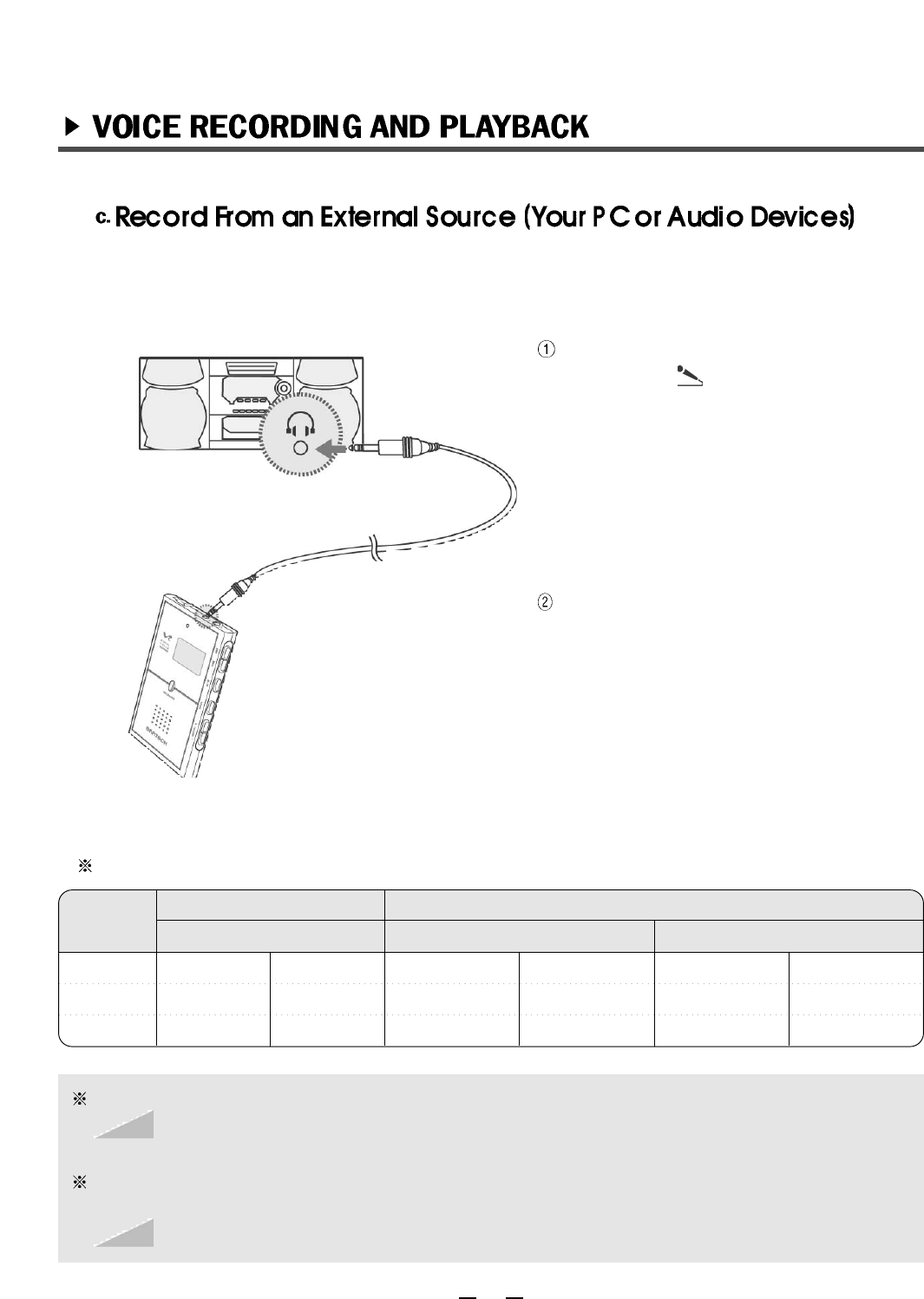
Connect the audio cable to micro-
phone jack ( )of the EVR-150 and
connect the other head of audio cable
to the earphone jack of the audio
devices.
Press the REC button to start recording.
To pause recording, press the REC/
Pause button. To stop recording, press
the PLAY/STOP button.
If the volume level of your external device is too high, it can cause some noise/distortion.
Before recording, set [MENU]-[SOURCE]-[LINE IN].
Recording quality and timetable (based on 128MB)
LINE- IN
MONO
8 Kbps
16 Kbps
32 Kbps
Max.2180Min
Max.1090Min
Max.540Min
MIC
MONO
8 Kbps
16 Kbps
32 Kbps
Max.2180 Min
Max.1090 Min
Max.540 Min
STEREO
96 Kbps
128 Kbps
160 Kbps
Max.180Min
Max.130Min
Max.100Min
LQ
MQ
HQ
19
The sound quality is automatically set to MONO when the internal microphone is in use.
The STEREO mode is only applicable with the external microphone or external
audio devices.
When recording from an external sound source, such as an audio devices, select
STEREO/HQ mode for high quality recording sound.
In this mode the recording time will be reduced.
Note
Note
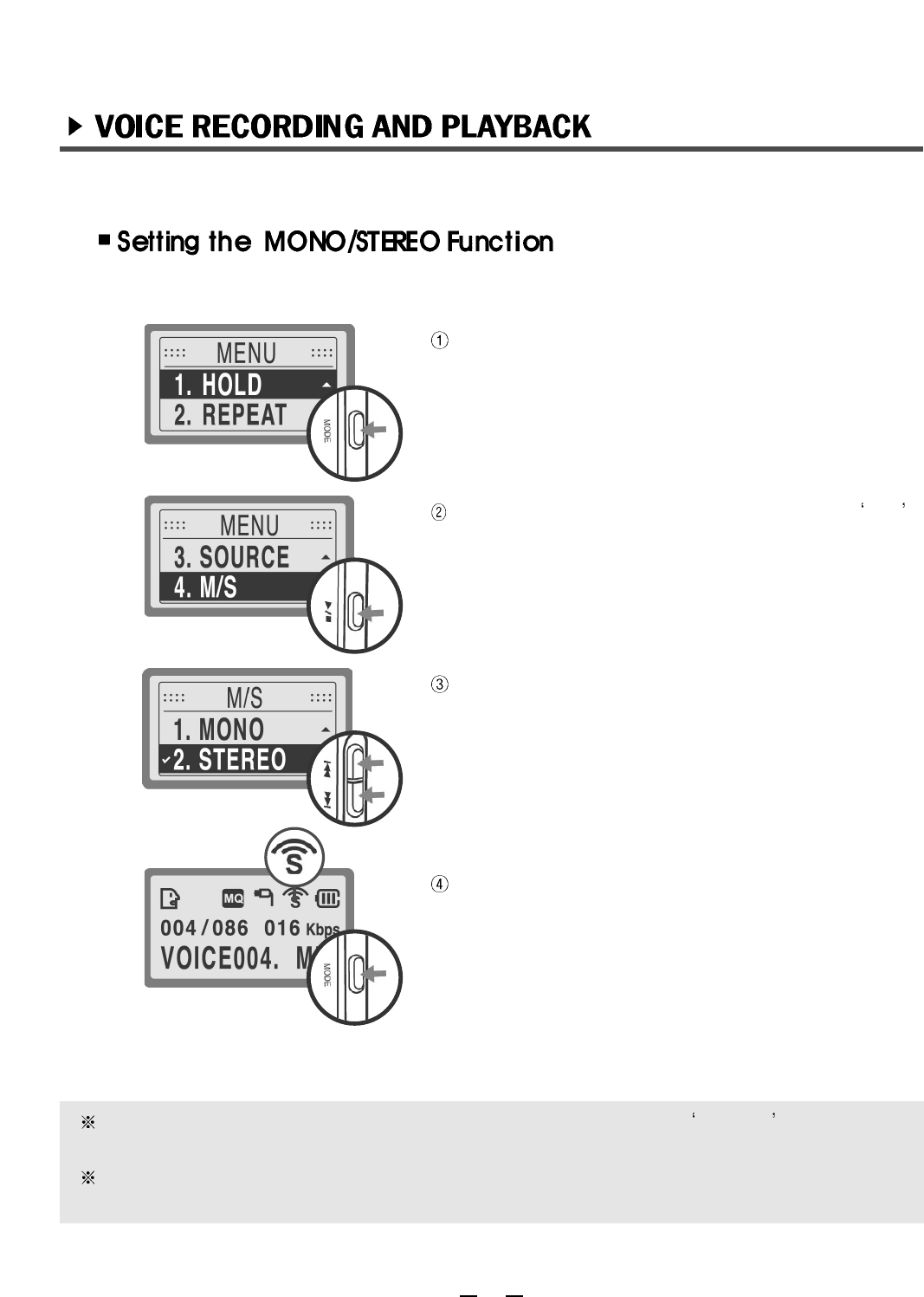
Quickly press the MODE button.
Press the FF/REW button to move to the M/S
menu and then press the PLAY/STOP button.
Press the FF/REW button to choose either MONO
or STEREO, and then press the PALY/STOP
button.
Press the MODE button to exit the menu. Make
sure the icon on the LCD.
If an audio cable will be used for recording purposes set the MODE prior to recording.
If you select [MENU]-[SOURCE]-[MIC] and move to M/S MODE, MONO!! message will
appear on the LCD.
STEREO is only available when connecting external devices and by setting the following
MODE: [MENU]-[SOURCE]-[LINE IN].
20
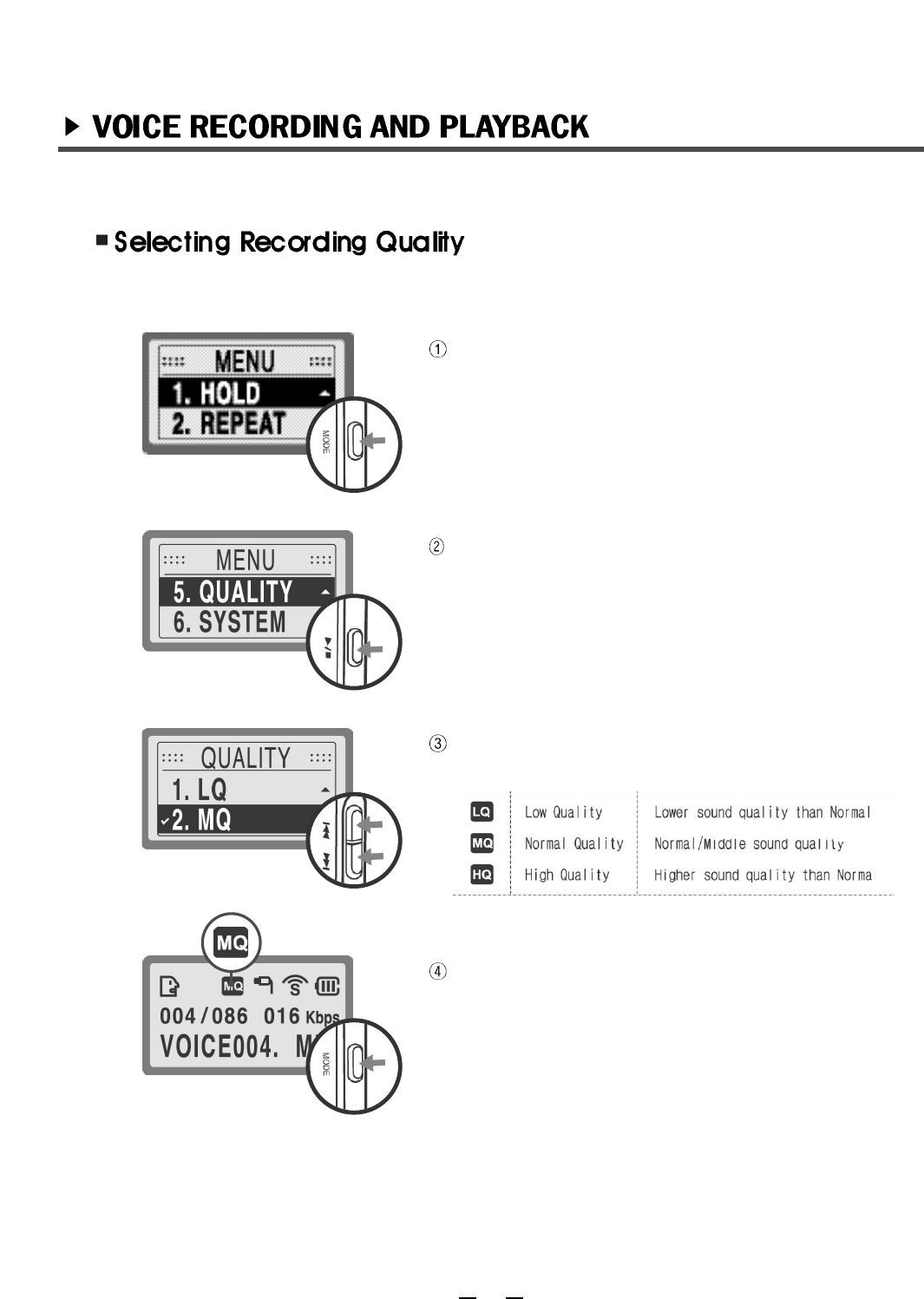
Press the MODE button.
Press the FF/REW button to move to the QUALITY
menu, and then press the PLAY/STOP button.
Press the FF/REW button to select among LQ, MQ
and HQ, and then press the PLAY/STOP button.
Press the MODE button to exit menu, make sure the
icon is on the LCD.
It is recommended that recording quality be selected prior to actual recording.
21
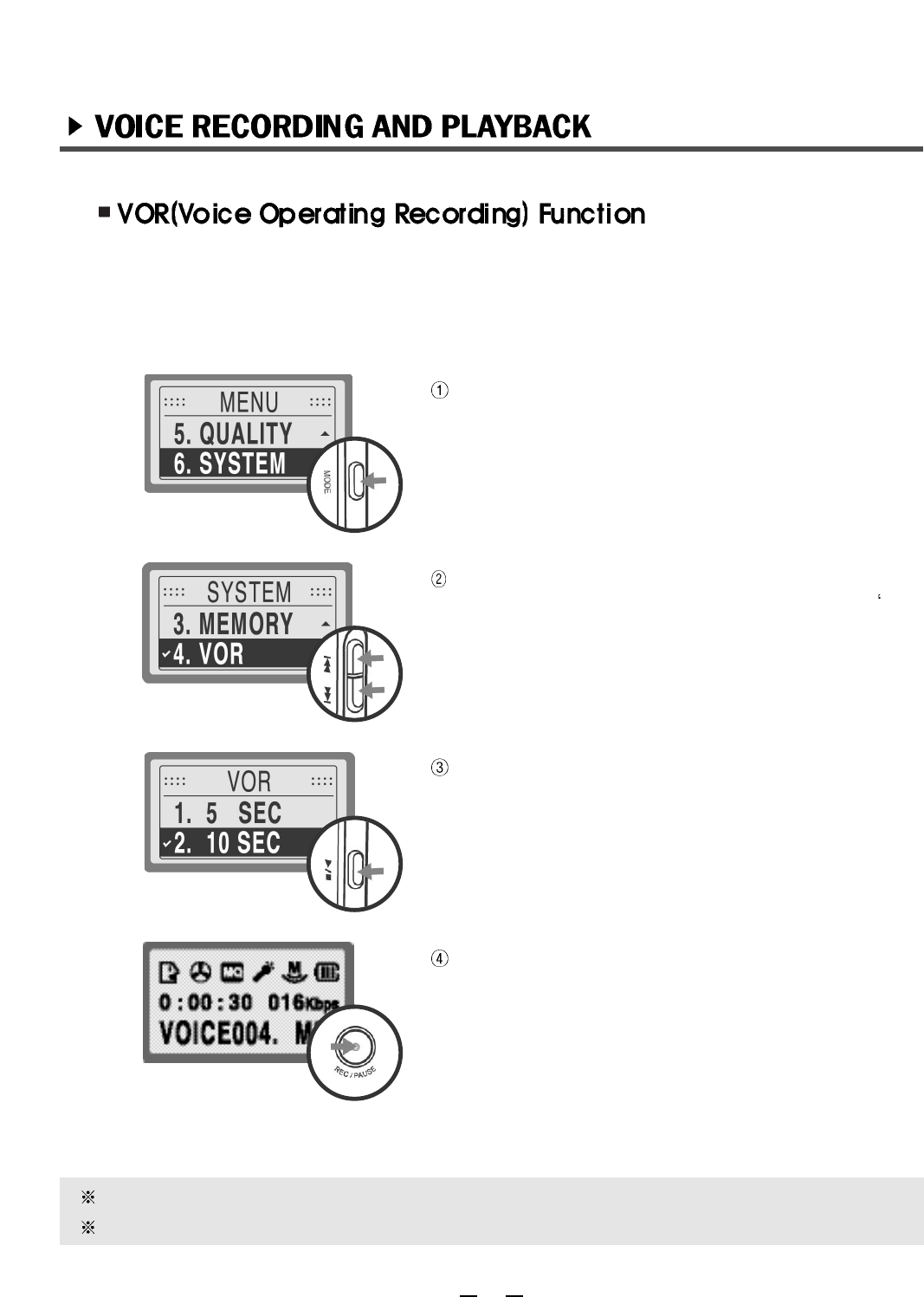
Quickly press the MODE button. Press the FF/REW
button to move to SYSTEM menu, and then press
the PLAY/STOP button.
Press the FF/REW button to move to VOR menu,
then press the PLAY/STOP button and select OR
ON.
Then press the PLAY/STOP button.
Press the FF/REW button to select your desired
time and press the PLAY/STOP button.
Press the MODE button to exit the menu and make
sure the setting(VOR time) is on during recording.
To automatically pause recording when there is no sound or voice present (and
prevent unnecessary recording), use the VOR function. This function maximizes
recording time and is very useful for recording telephone conversations and lectures.
User can set the VOR time.
User can select VOR times of 5, 10, 15, 20 and 25 seconds.
The VOR function might not operate properly if a loud, grinding noise is present.
22
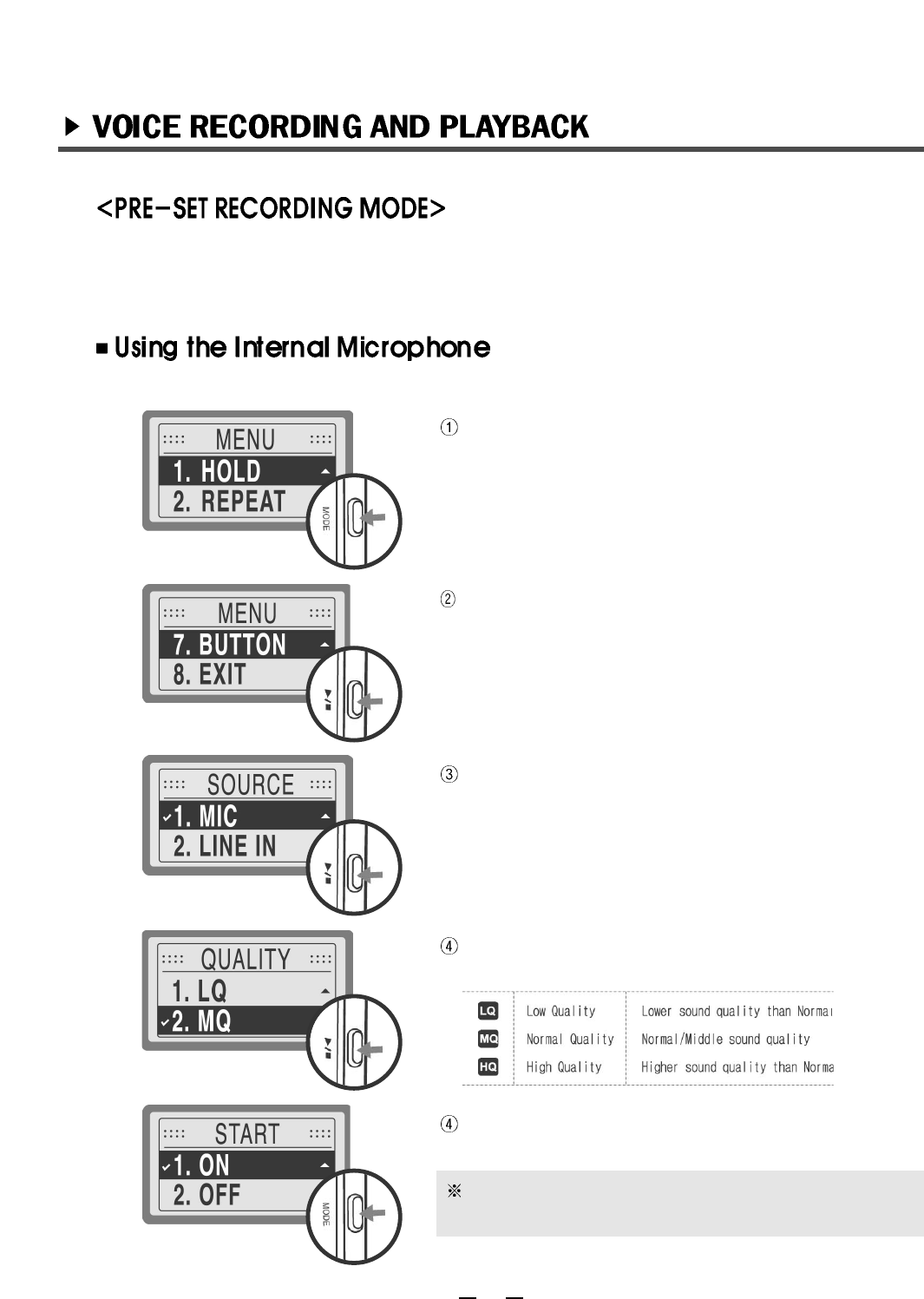
Press MODE button ,to enter menu.
Press FF/REW button to move to BUTTON MENU,
select BUTTON MENU with PLAY/STOP button.
Go to MIC mode with FF/REW button and select
with PLAY/STOP button.
(If select MIC, Set "MONO" automatically.)
Select quality of the sounds with FF/REW and
PLAY/STOP.
After select ON/OFF with FF/REW button, exit the
menu with MODE button.
23
This function is to pre-set recording mode used frequently.
Without setting recorde mode every time , User can instantly record by pressing RECORD
button for a long.
If select MIC,set "MONO" automatically.
This function is operated only when select "ON" in
START menu.
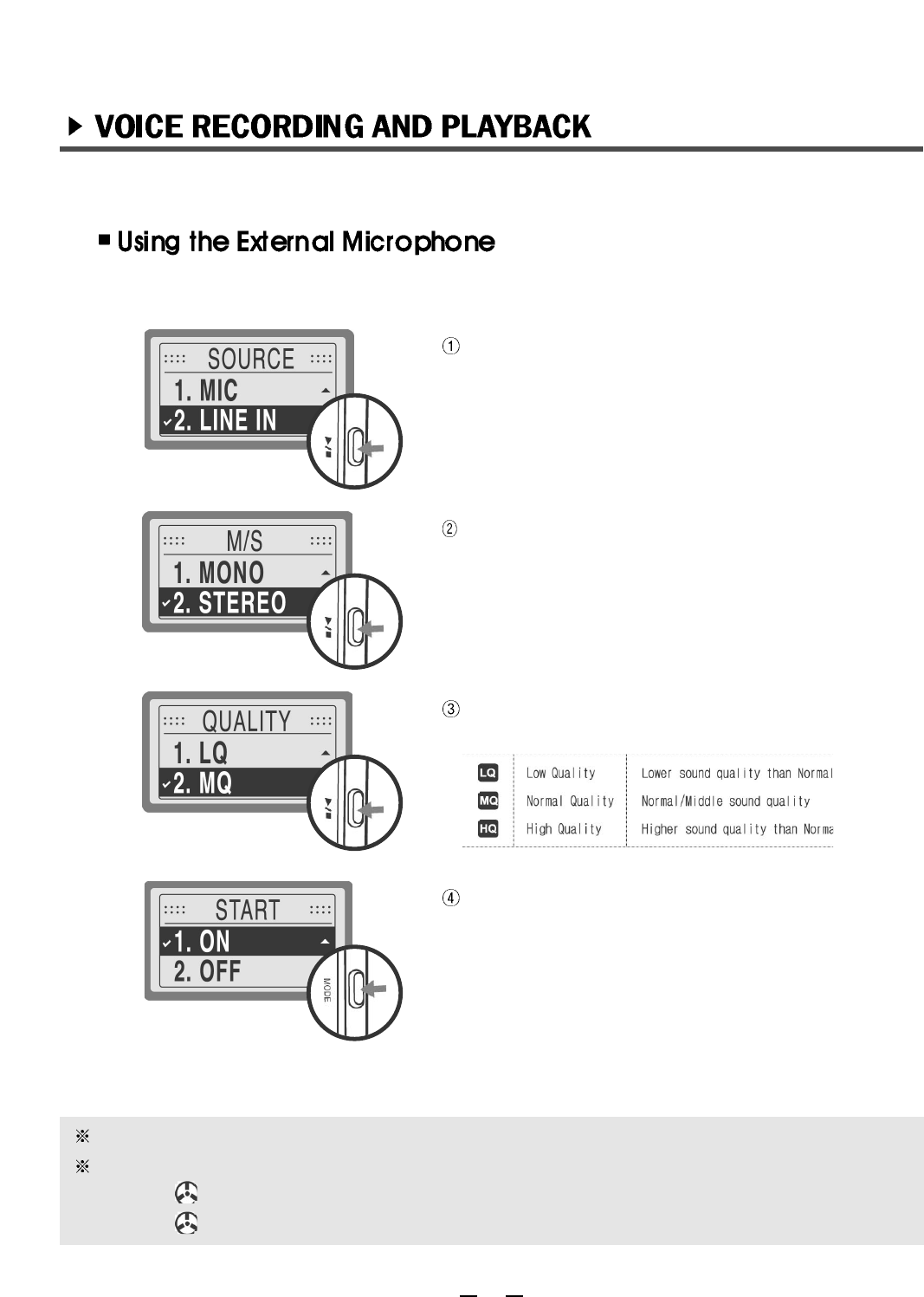
If Select Line-in ,set STEREO automactically.
As same recording from internal mic, go to [MENU]-
[Button] and select LINE IN.
If select [LINE IN] , set STEREO automatically.
To set MONO , select MONO with FF/REW and
PLAY/STOP button.
Select quality of the sounds with FF/REW and
PLAY/STOP.
After select ON/OFF with FF/REW button, exit the
menu with MODE button.
If select OFF, this function isn't operated .
If exit menu during setting , set the previouse recording mode.
When pre-set recording mode.
If press ( ) button shortly , record by the mode saved on SOURCE menu.
If press ( ) button for over 3 seconds , record by mode saved on BUTTON.
24
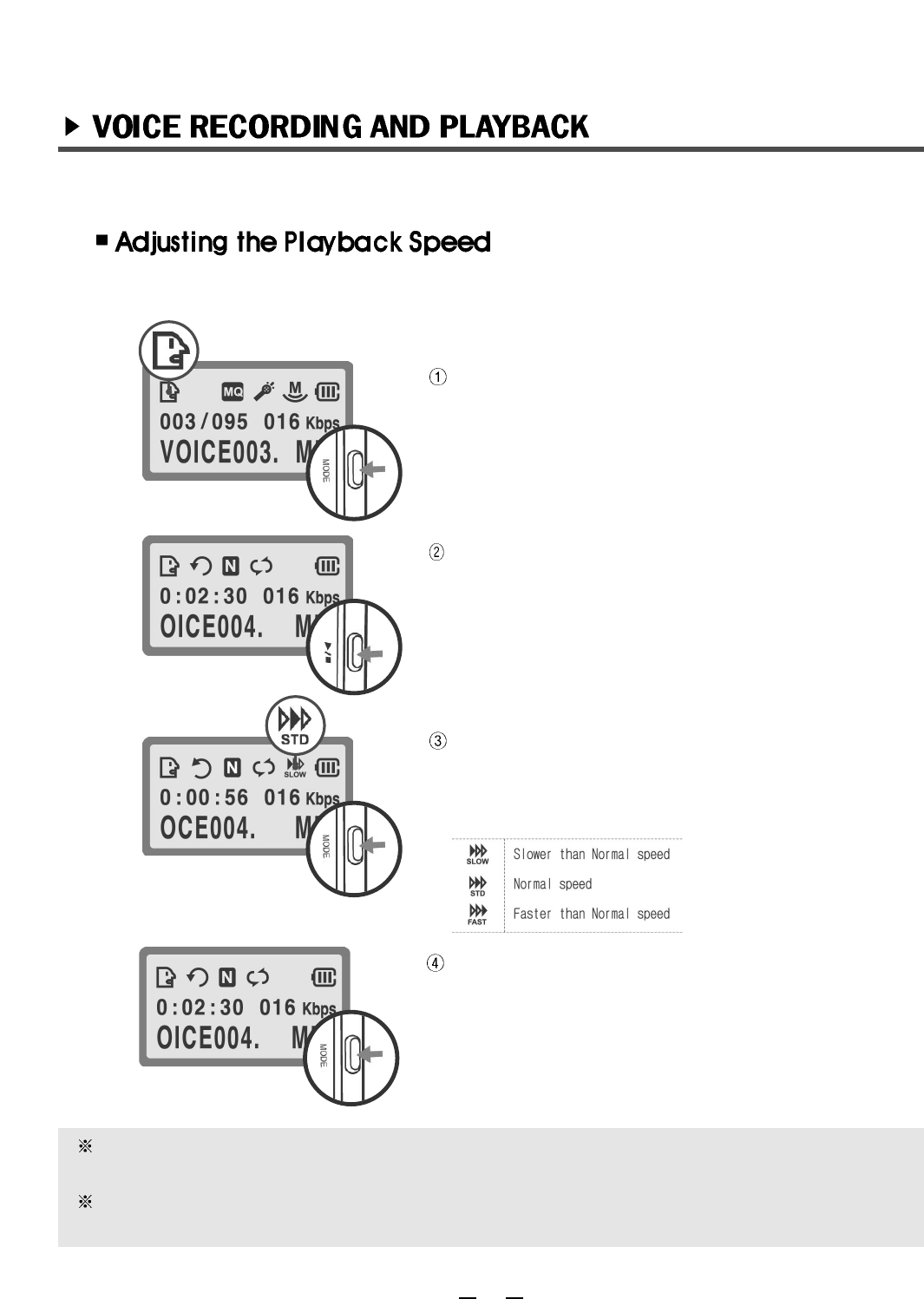
Press the MODE button 2 seconds to change to
VOICE MODE(or AUDIO MODE, FM PLAY
MODE).
Press the FF/REW button to select the desired file
and then press the PLAY/STOP button to play. (To
stop, press PLAY/STOP button again.)
To change the play speed, press the MODE button
up to 2 seconds during playback. The SPEED icon
will be displayed on the LCD. To select your desired
speed, press (+)(-).
To cancel the play speed setting, press the MODE
button 2 seconds.
User can control the play speed during the playback of every file in each MODE(VOICE
MODE, AUDIO MODE, FM PLAY MODE).
If user disconnect the earphone from the EVR-150 during the playback of a recorded sound
or voice file, the user can listen to the sound or voice through the internal(built-in) speaker.
User controllable play speed during playback.
25
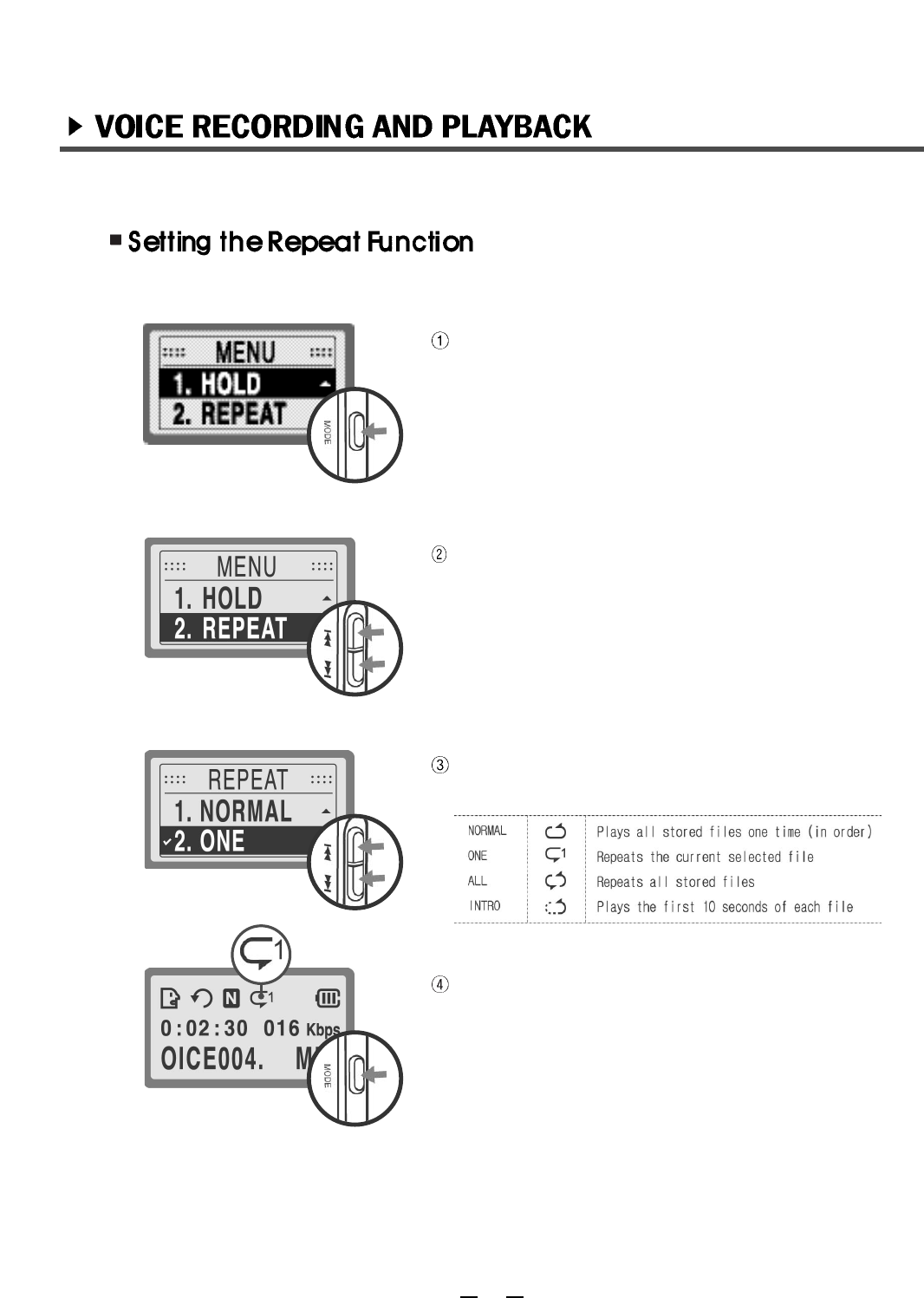
Press the MODE button.
Press the FF/REW button to navigate to REPEAT
and then press the PLAY/STOP.
Press the FF/REW button to select NORMAL-ONE-
ALL-INTRO and then press the PLAY/STOP button.
Press the MODE button to exit the menu(make sure
the REPEAT icon is on the LCD display).
User can set REPEAT method.
26
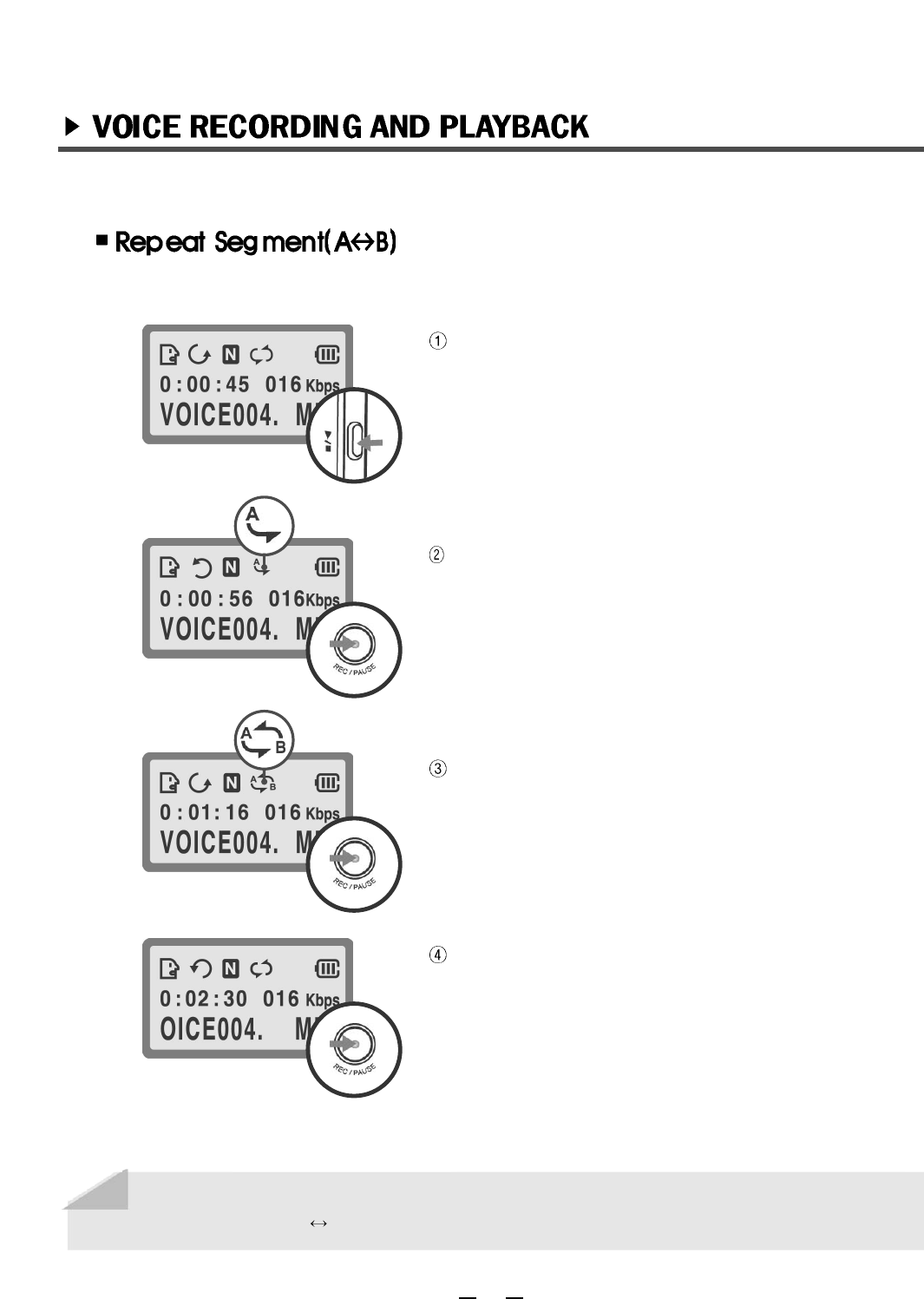
Press the PLAY/STOP button to play the selected
file in VOICE MODE.
Press the REC button to set the start point(the
beginning of a section).
Press the REC button once again to set the end
point(the ending of a section). The specific section
you selected will be played repeatedly.
Press the REC button again to stop repeat the
segment mode.
Play and listen to the specific section repeatedly.
27
Note
If the EVR-150 is changed to any other MODE during the repeat segment mode, the
selected segment(A B) mode will be released.
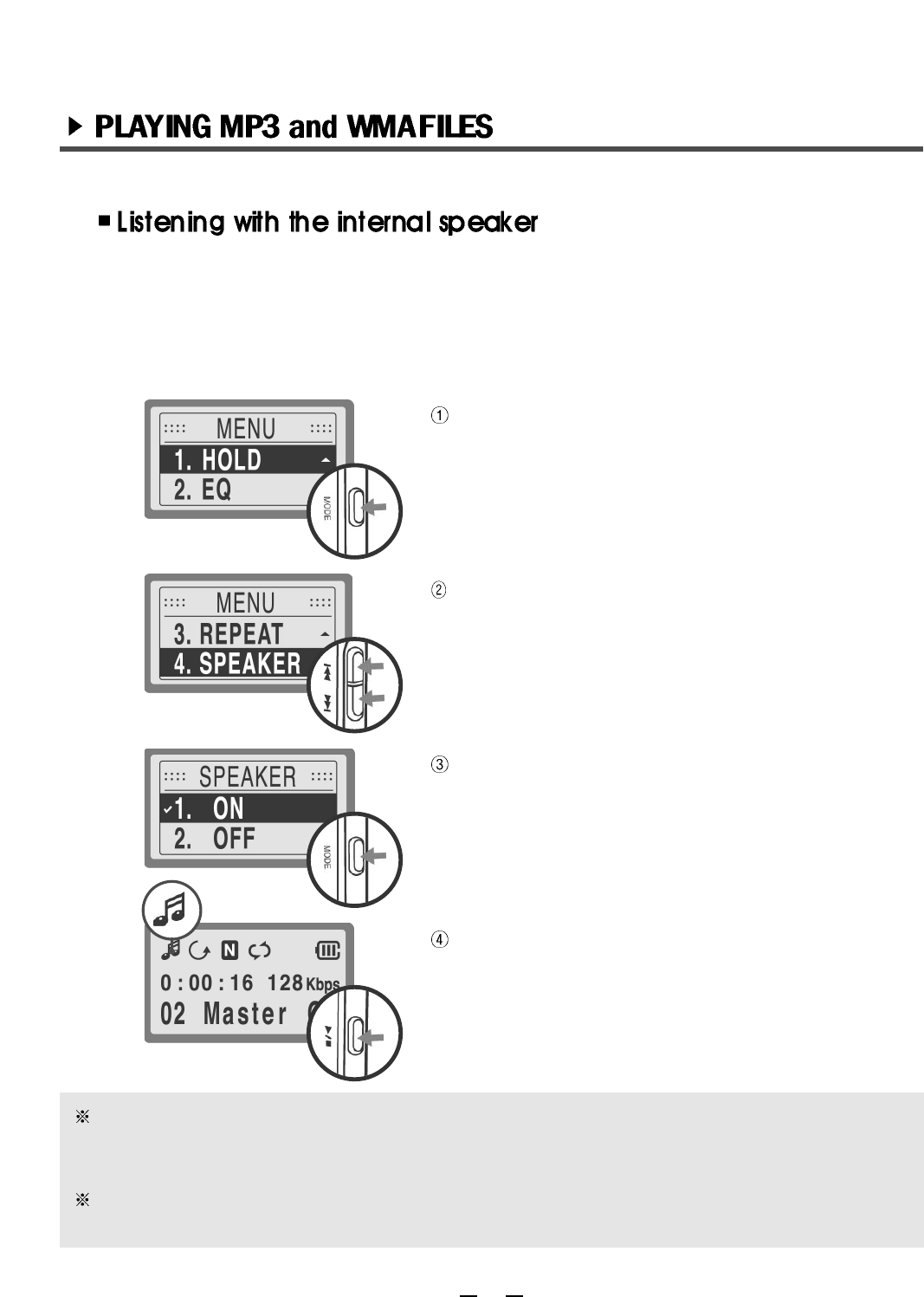
the Press MODE button quickly in AUDIO MODE to
move to the MENU.
Press the FF/REW button to select SPEAKER, and
then press the PLAY/STOP button.
Press the FF/REW button to navigate to SPEAKER
ON. Press the PLAY/STOP to select. Press the
MODE button to exit the MENU.
Press the PLAY/STOP button to listen to music in
the SPEAKER ON MODE with earphones.
In VOICE MODE, the EVR-150 is automatically switched to the available sound output
(earphone of internal speaker) depending on whether or not the earphone is connected to
the EVR-150. For example, if the earphone is disconnected from the EVR-150, the sound
output is automatically switched to the internal speaker. But, in AUDIO MODE, the internal
speaker should be set ON or OFF manually as follows:
In AUDIO MODE, there are two kinds of volume levels according to using earphones as follows:
- SPEAKER ON: volume level can be adjusted from 0 to 24.
- SPEAKER OFF: volume level can be adjusted from 0 to 30.
The battery life is reduced when the internal speaker is in use. Adjusting the volume level can
extend the battery life.
28
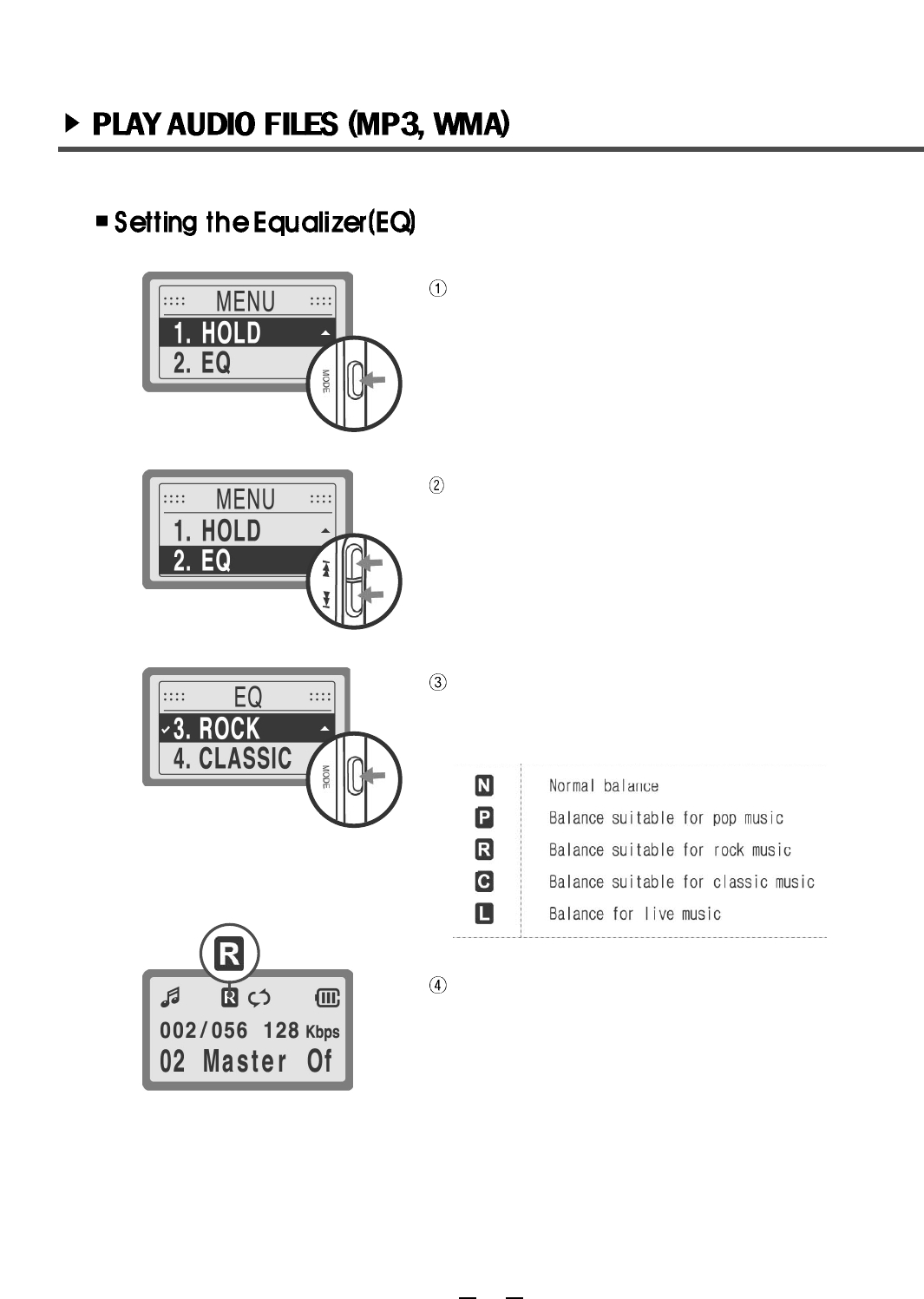
Press the MODE button in AUDIO MODE.
Press the FF/REW button to move to EQ and then
press the PLAY/STOP button to select.
Press the FF/REW button to move to the desired
equalizer mode and press the PLAY/STOP button
to select. Press the MODE button to exit the MENU.
Make sure the EQ icon is on the LCD.
29
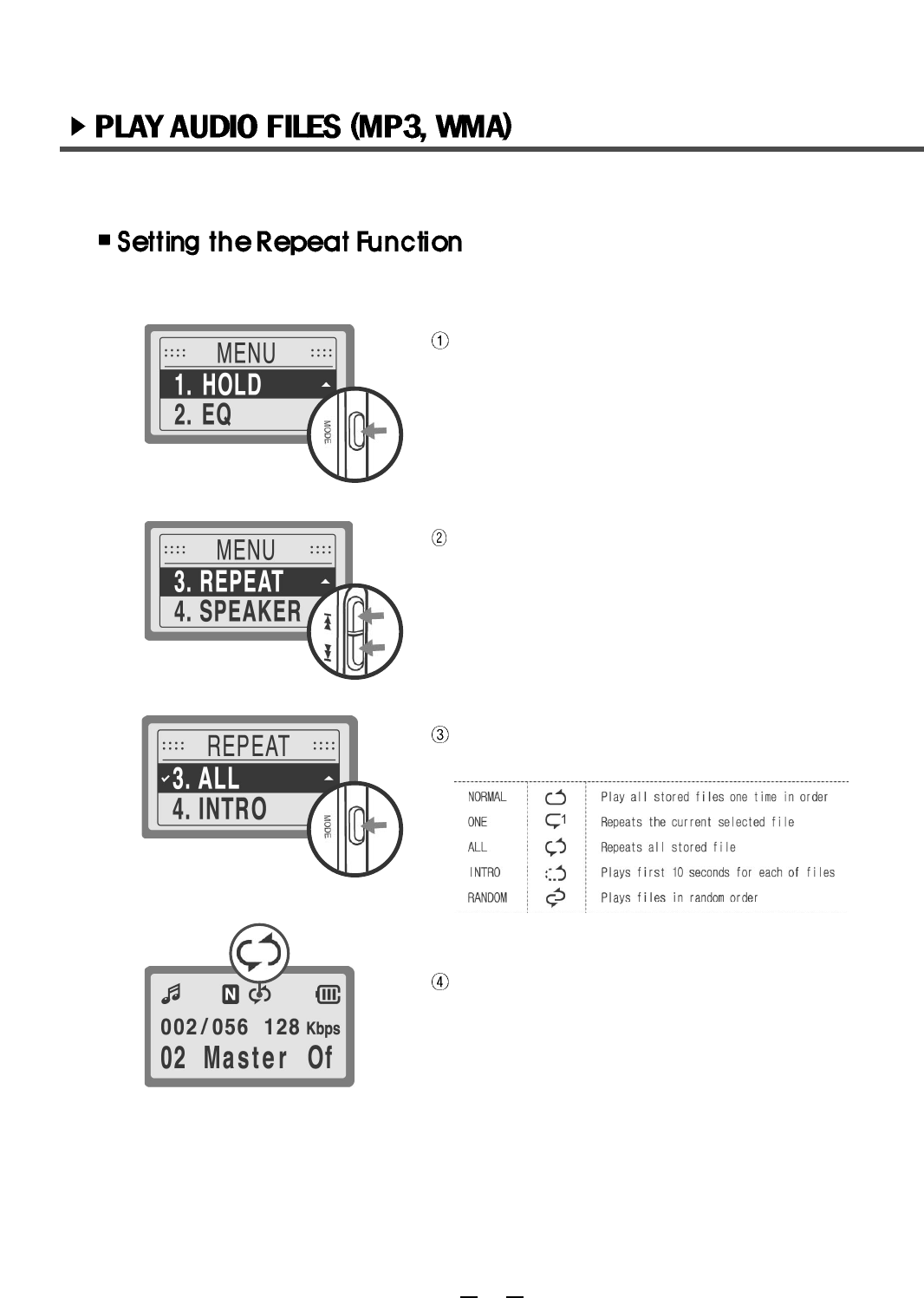
Press the MODE button.
Press the FF/REW button to navigate to REPEAT,
then press the PLAY/STOP.
Press the FF/REW button to select NORMAL-ONE-
ALL-INTRO and then press the PLAY/STOP button.
Press the MODE button to exit the menu.
The REPEAT icon on the LCD should be lit.
User can set repeat method.
30
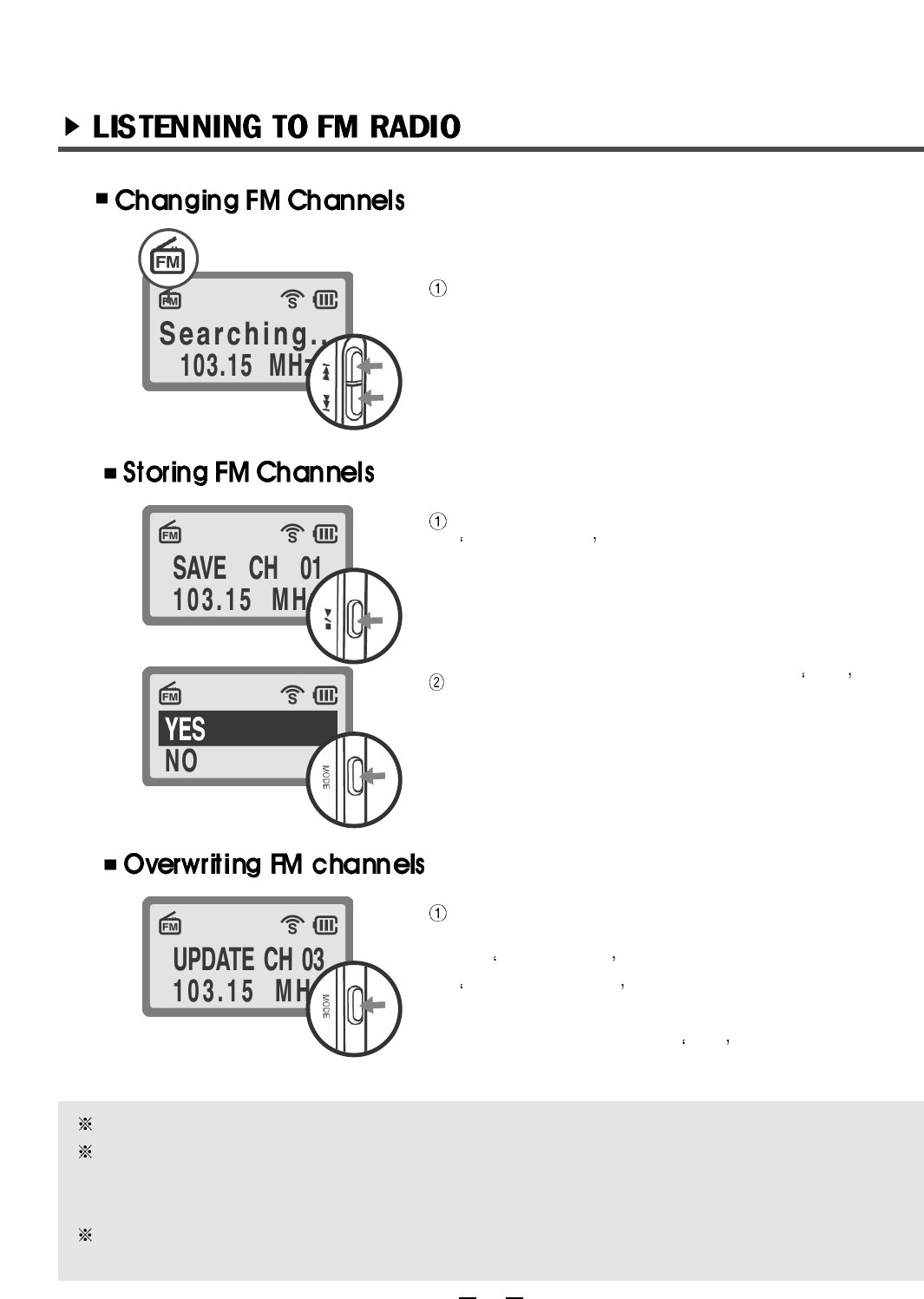
In FM RADIO MODE, press the FF/REW button to
select a channel. Press the FF/REW button two
seconds (or longer). The frequency will go up/down
and will seek channels automatically (Auto-seeking
function).
After selecting a channel press the MODE button.
SAVE CH 01 will appear on the LCD display.
Press the PLAY/STOP button.
Press the FF/REW button to select YES , then
press the PLAY/STOP button to store channel.
The EVR-150 has the capacity to store 20
channels.
To overwrite FM channels, press the FF/REW
button to select your desired channel number when
the SAVE CH 00 message is displayed. Then, the
UPDATE CH 00 message will be displayed on
LCD. Press the PLAY/STOP button and the
FF/REW button to select YES .
The FM tuner may not be function properly in weak transmission areas.
If you eaperience difficulty finding a clear FM frequency, or if there is a loud noise, try using a
longer earphone cable (earphone cables function as receiving antennae). Additionally,
rotating the earphone cable with the ground may improve FM reception.
Earphones are required for FM radio listening capability. (The internal speaker does not
function in FM radio listening mode.)
31
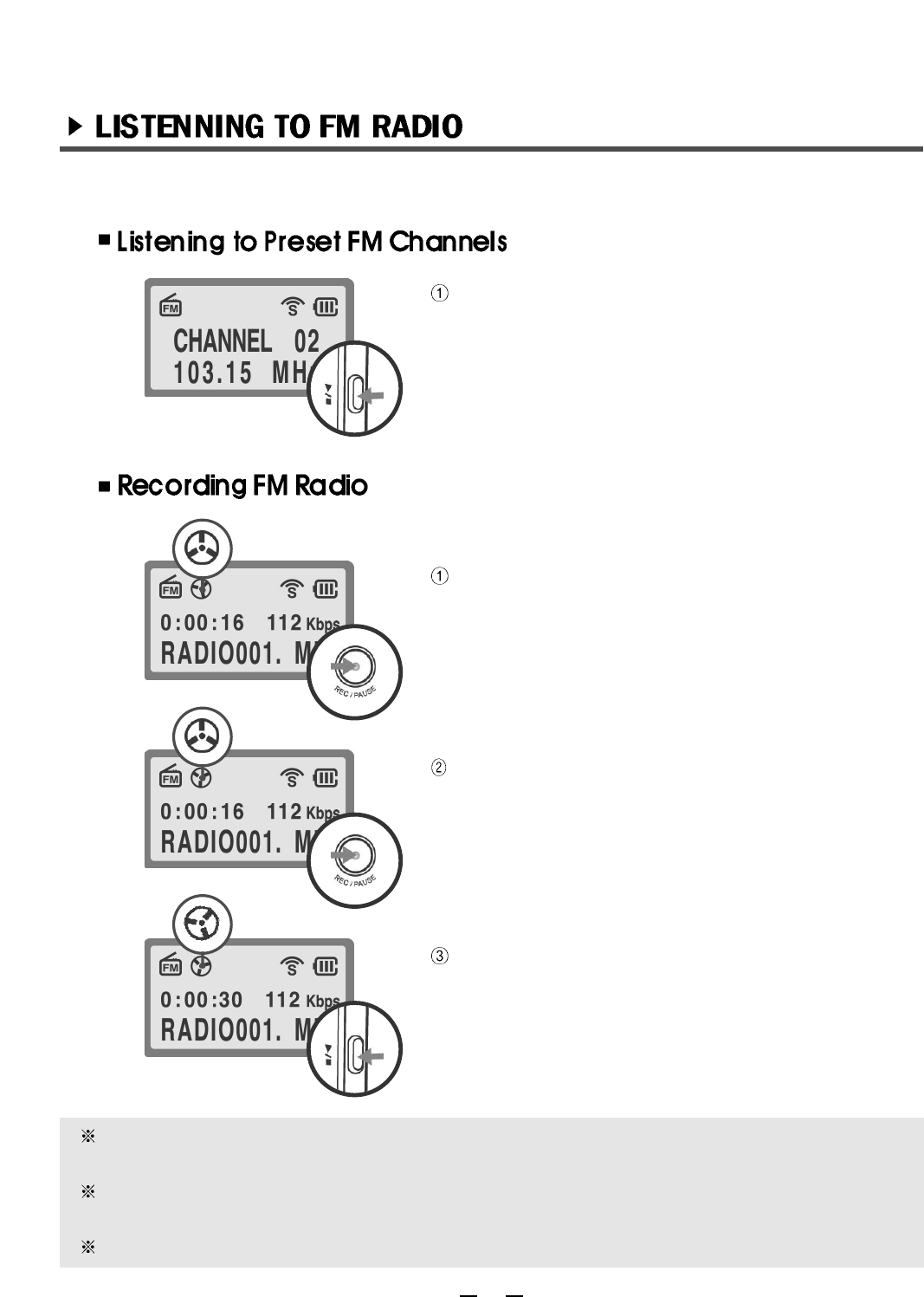
Once the preset channels have been selected,
press the PLAY/STOP button to change the
channel.
Press the REC button to record FM broadcasting
while listening to FM radio.
To pause recording, press the REC button again.
To resume recording, press the REC button once.
To stop recording, press the PLAY/STOP button.
Recorded FM radio file numbers will automatically be stored in the order in which they were
recorded.
Adjust the volume level before recording has begun (Volume levels can not be adjusted
during recording).
FM play mode is available only if an FM broadcast has been previously recorded.
32
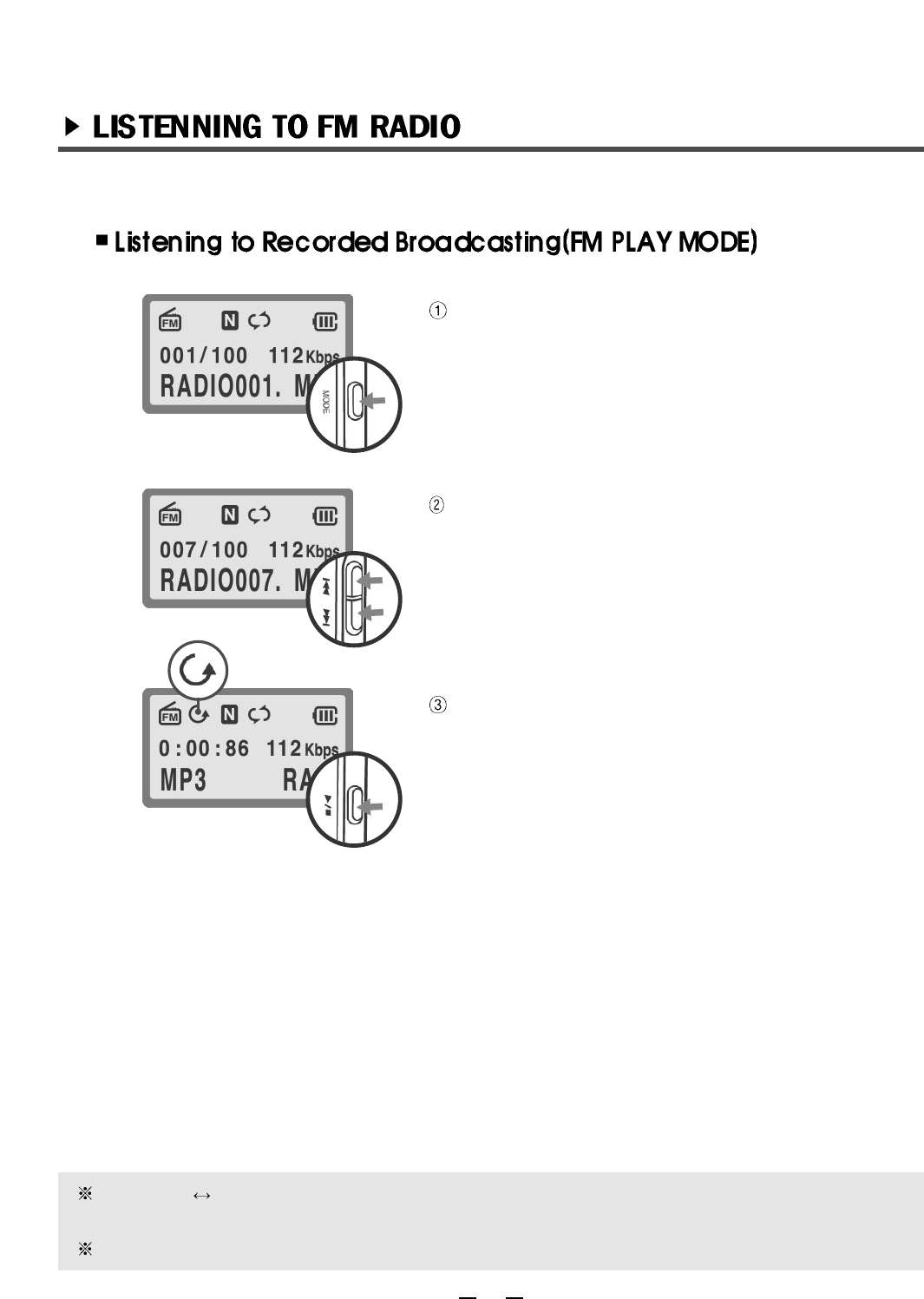
Press the MODE button for 2 seconds to change
from FM MODE to FM PLAY MODE.
Press FF/REW button to select the appropriate file.
Press the PLAY/STOP button to play recorded FM
radio file.
Repeat, A B repeat, EQ function is available in the FM PLAY MODE (as it is in AUDIO
MODE).
Recording is not available in FM PLAY MODE.
33

34
Press the MODE button for 2 seconds to change to
ERASE MODE.
Press the Volume(+)(-) button to select the folder
erased (VOICE FOLDER, AUDIO FOLDER, FM
FOLDER.)
If select ERASE ALL is selected, all files in the
selected folder will be erased.
Press the FF/REW button to move to ERASE
FILE and then press the PLAY/STOP button.
Press the FF/REW button to select YES , then
press the PLAY/STOP button to erase the file.
(If NO is, erase function will be canceled.)
Erased/deleted files can not be recovered. Excercise extreme caution when deleting/erasing files.
35
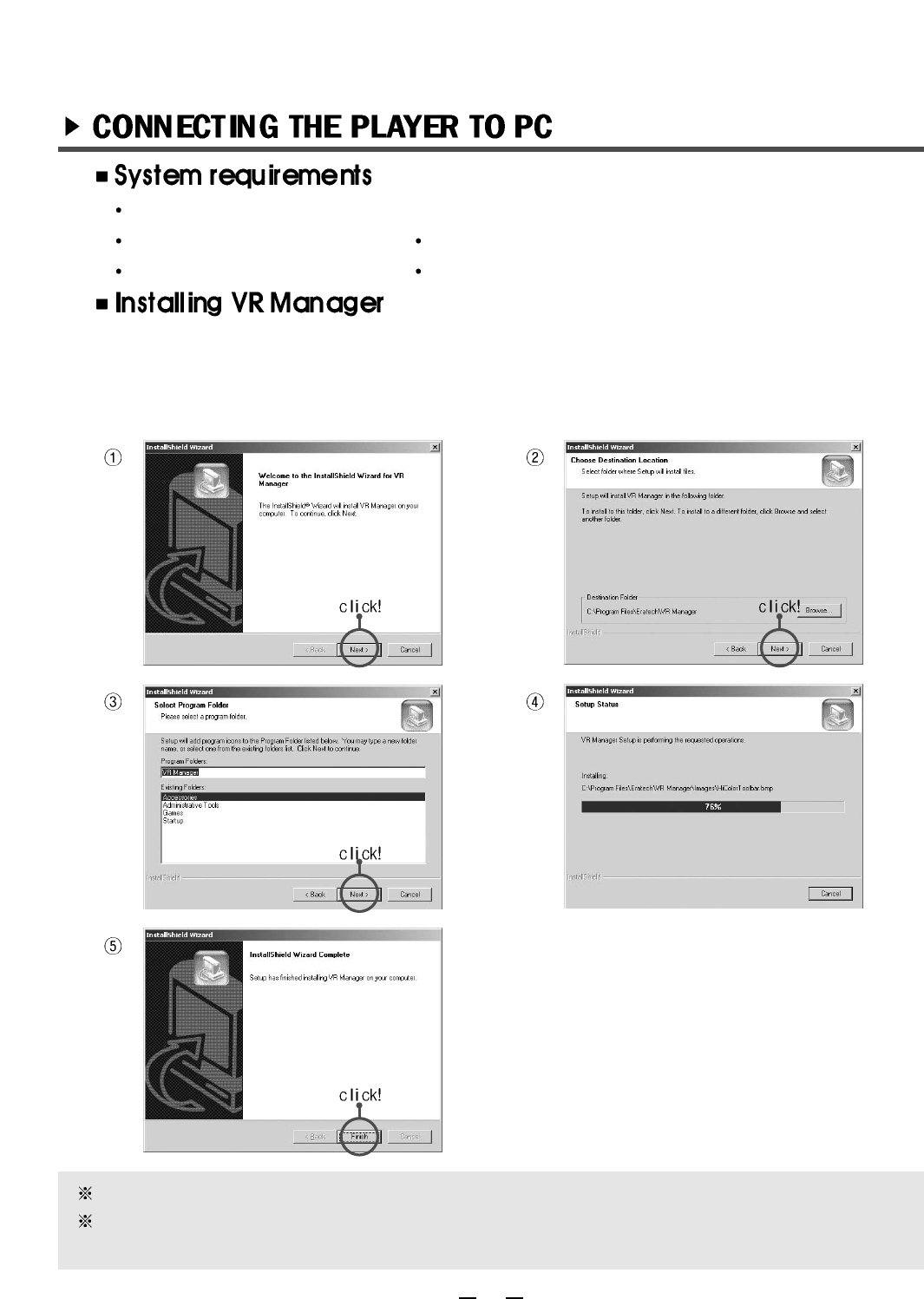
Place the installation CD into your CD-ROM drive. The installation dialogue box (VR
Manager InstallSheild Wizard) will be displayed on Monitor.
If the dialogue box does not display, double click [Start]-[My Computer]-[CD-ROM]-
[autorun.exe] on the PC.
Reboot your PC when the installation is complete.
To uninstall the VR Manager, select [Start]-[Settings]-[Control Panel]-[Add/Remove
Programs]-[VR manager].
Pentium 133MHz or faster . Windows 98/ME/2000(PRO)
CD-ROM drive More than 20MB free hard disk space
Sound Blaster Compatible USB port
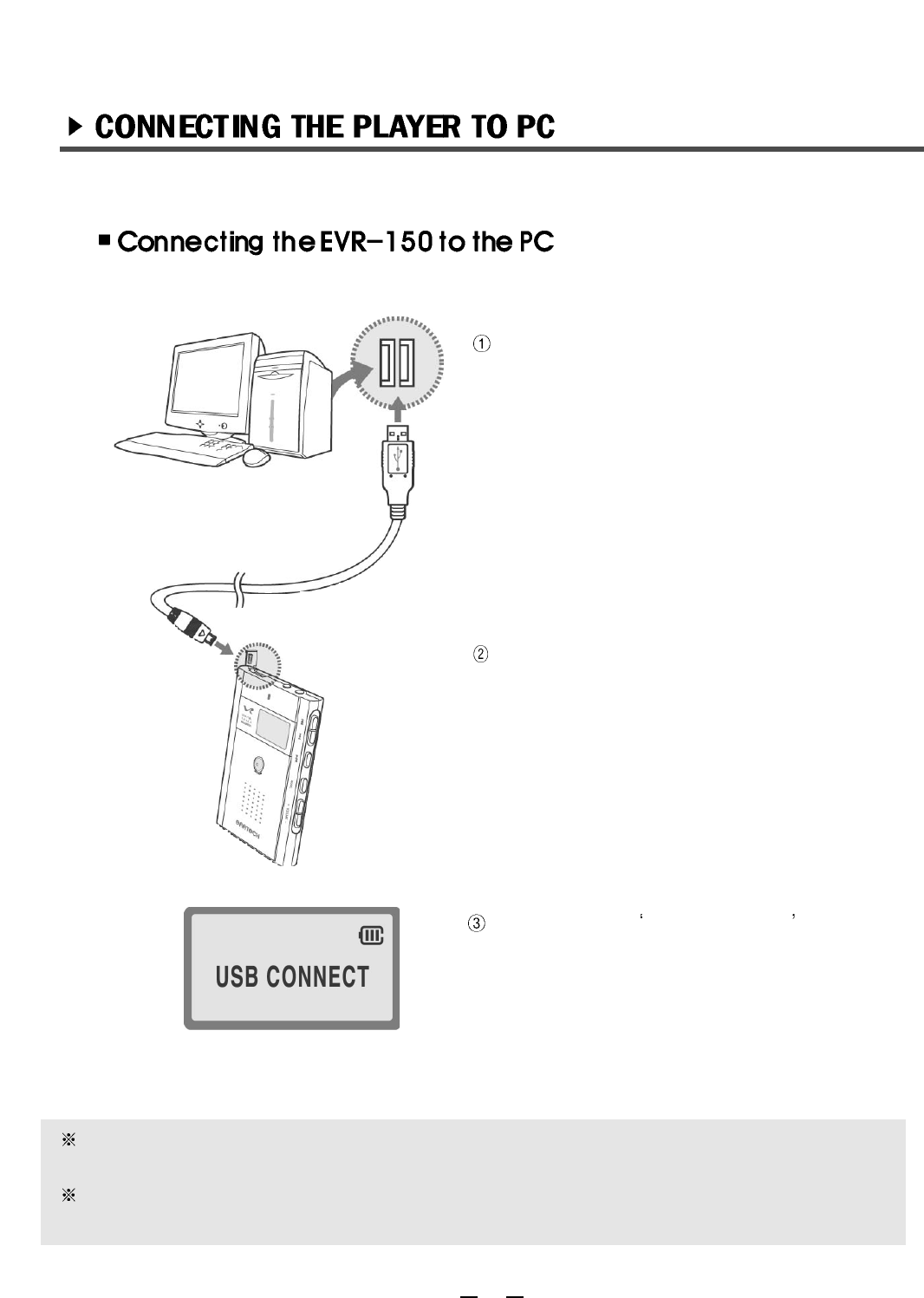
connect the provided USB cable to a USB port
of your PC.
Power on the EVR-150 and open the USB
rubber cap, then connect the USB cable to the
USB port.
Make sure the USB CONNECT message
appears on the LCD display.
Connect the USB cable to the player in the STOP state. Failure to do so can result in
malfunction.
Disconnect any audio cables from the EVR-150 before connecting the USB cable to the
PC.
36
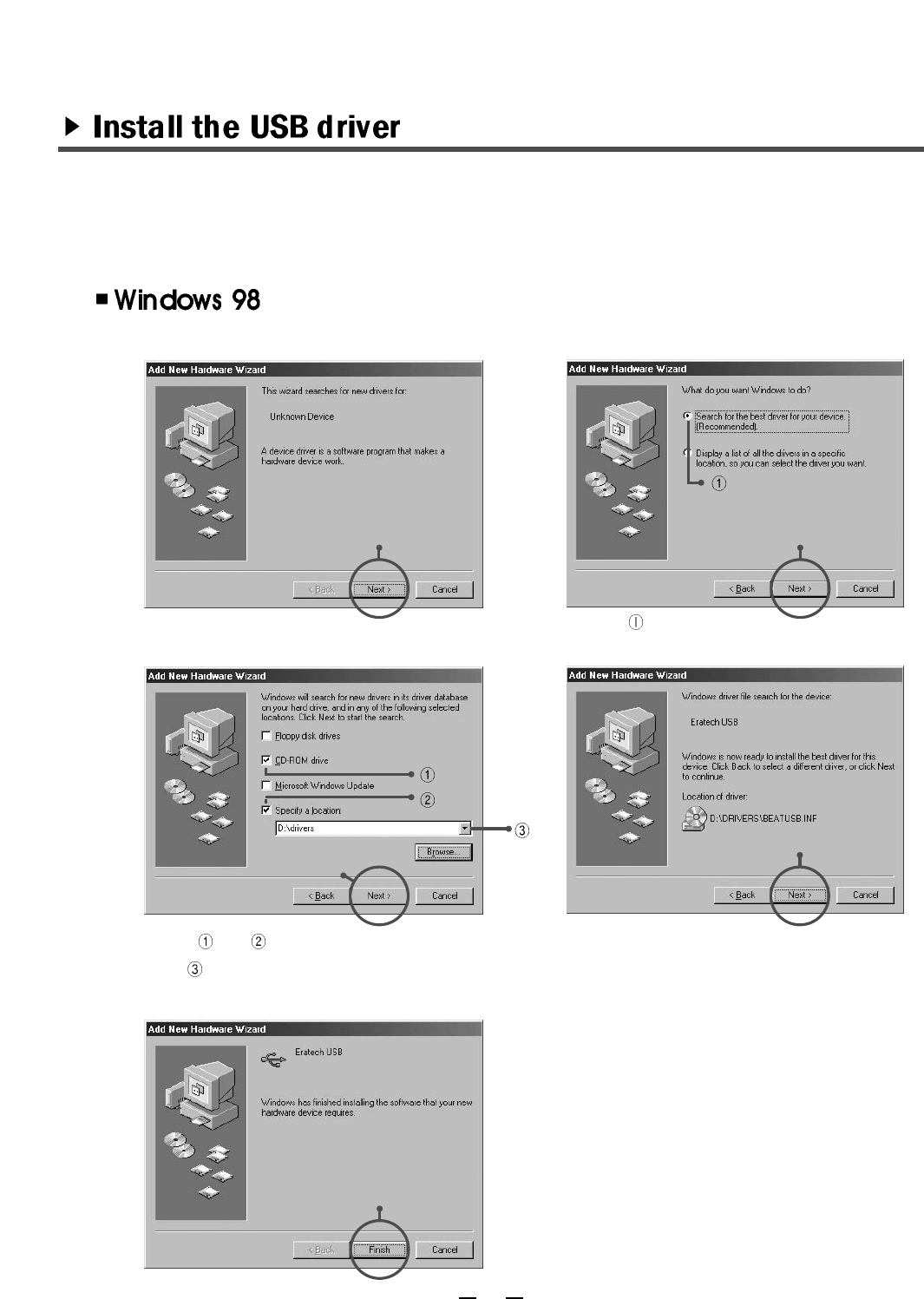
The procedure is as following.
When you connect the player to PC without installment the VR manager, You should install
the USB driver.
Up to personnel computer , the procedure of installment may be different.
37
1)
3)
5)
2)
4)
click! click!
click!
click!
click!
Select like above illustration and click
the NEXT.
Select and like above illustration .
Click and Select the drivers folder in CD.
Click the NEXT.
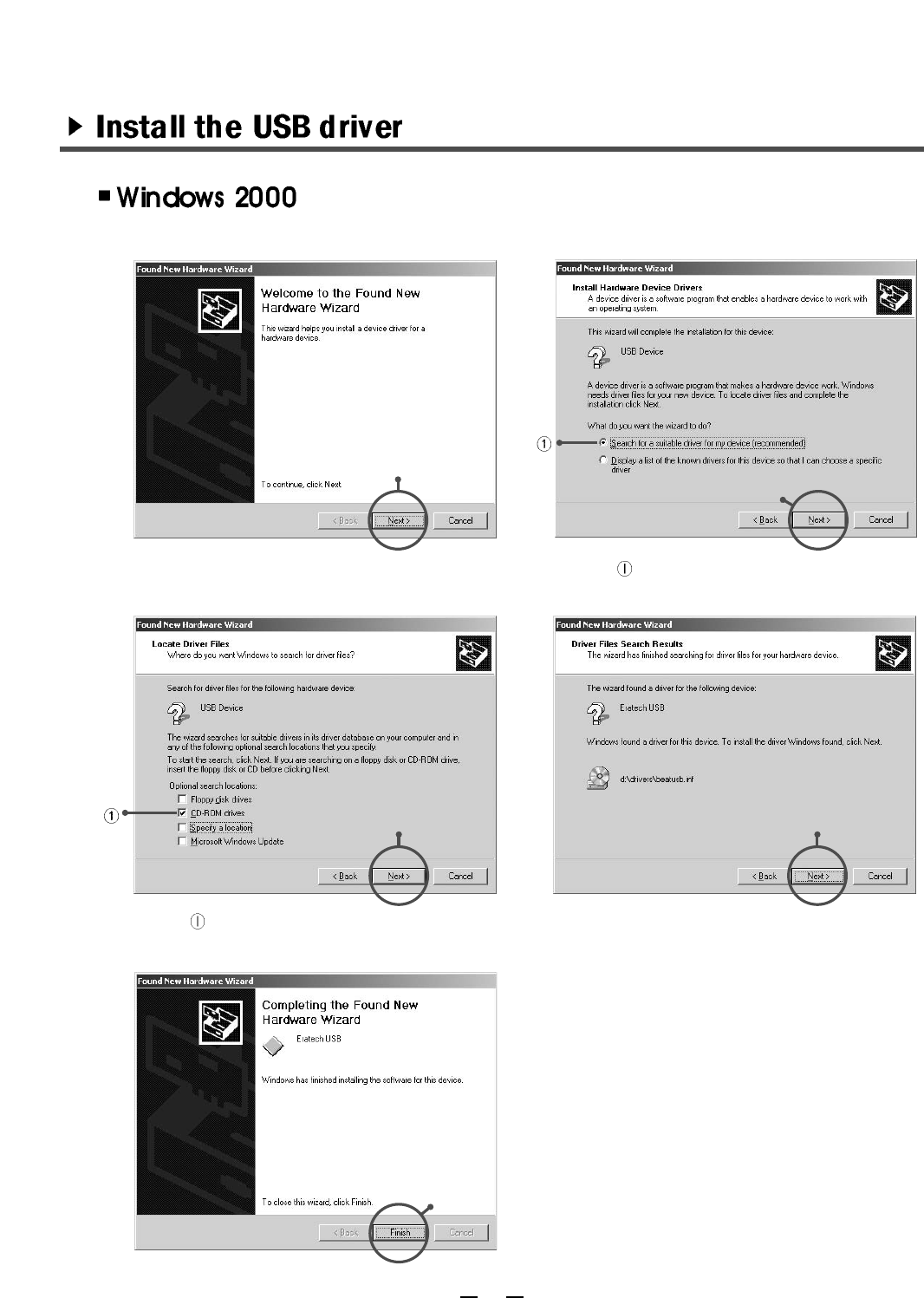
The procedure is as following.
38
1)
3) 4)
2)
click!
click!
5)
click!
click!
click!
Select like above illustration and click the
NEXT.
Select like above illustration and click the
NEXT.
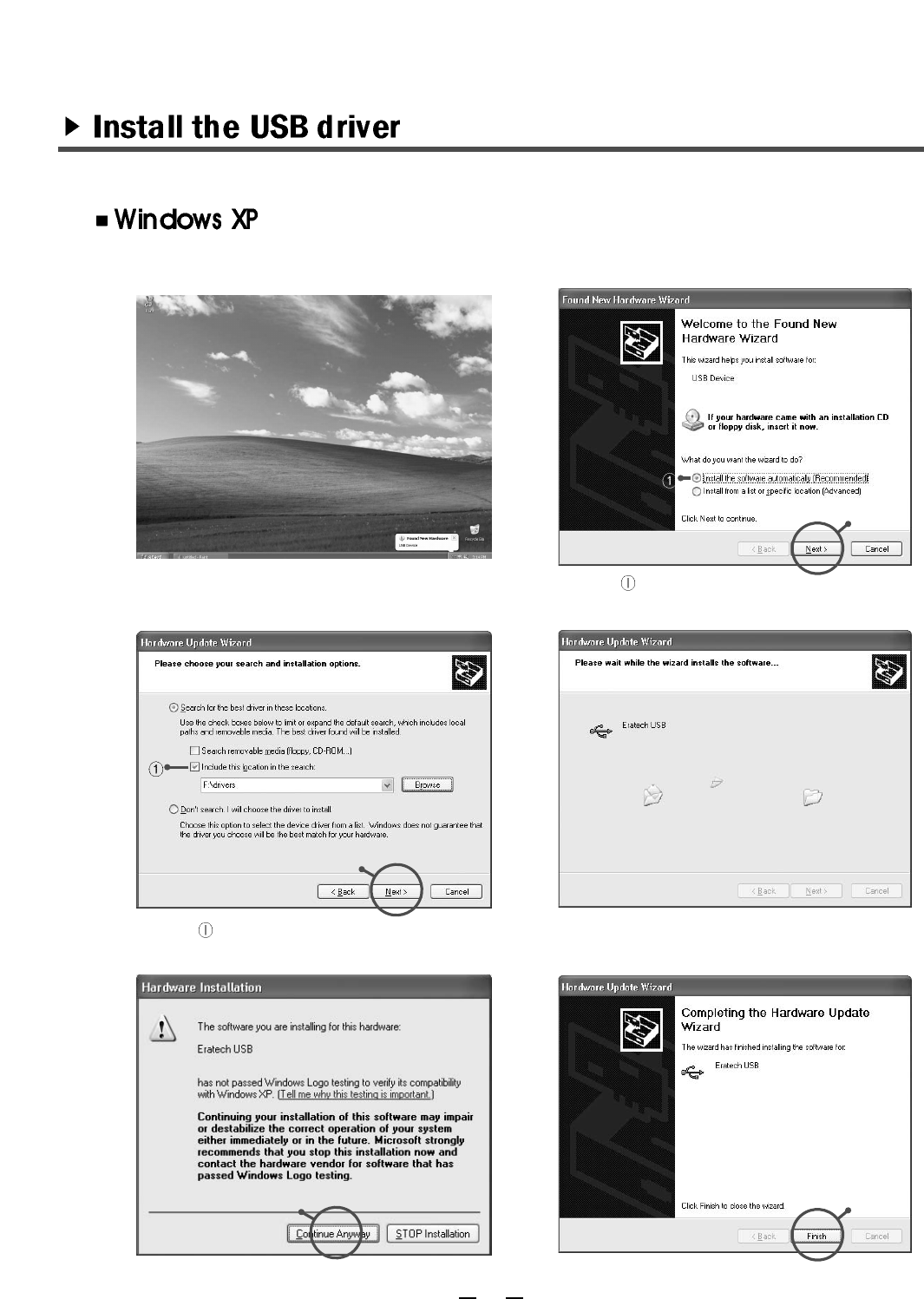
The procedure is as following.
39
1)
3)
5)
2)
4)
6)
click!
click!
Select like above illustration and click the
NEXT.
Select like above illustration and click the
NEXT.
click!
click!
If the internal memory is formatted, all previously downloaded fonts will be removed as well.
To restore lost fonts download the fonts again from the VR Manager by following these
steps: Select [Tool]-[Font]-[Download]. If MEMORY FULL (font capacity size is about 2MB)
message appears on the LCD display, remove unnecessary files from the EVR-150 until
enough space is created to accommodate additional fonts.
If the font files are deleted, dommands will appear in English only in the AUDIO MODE.
40
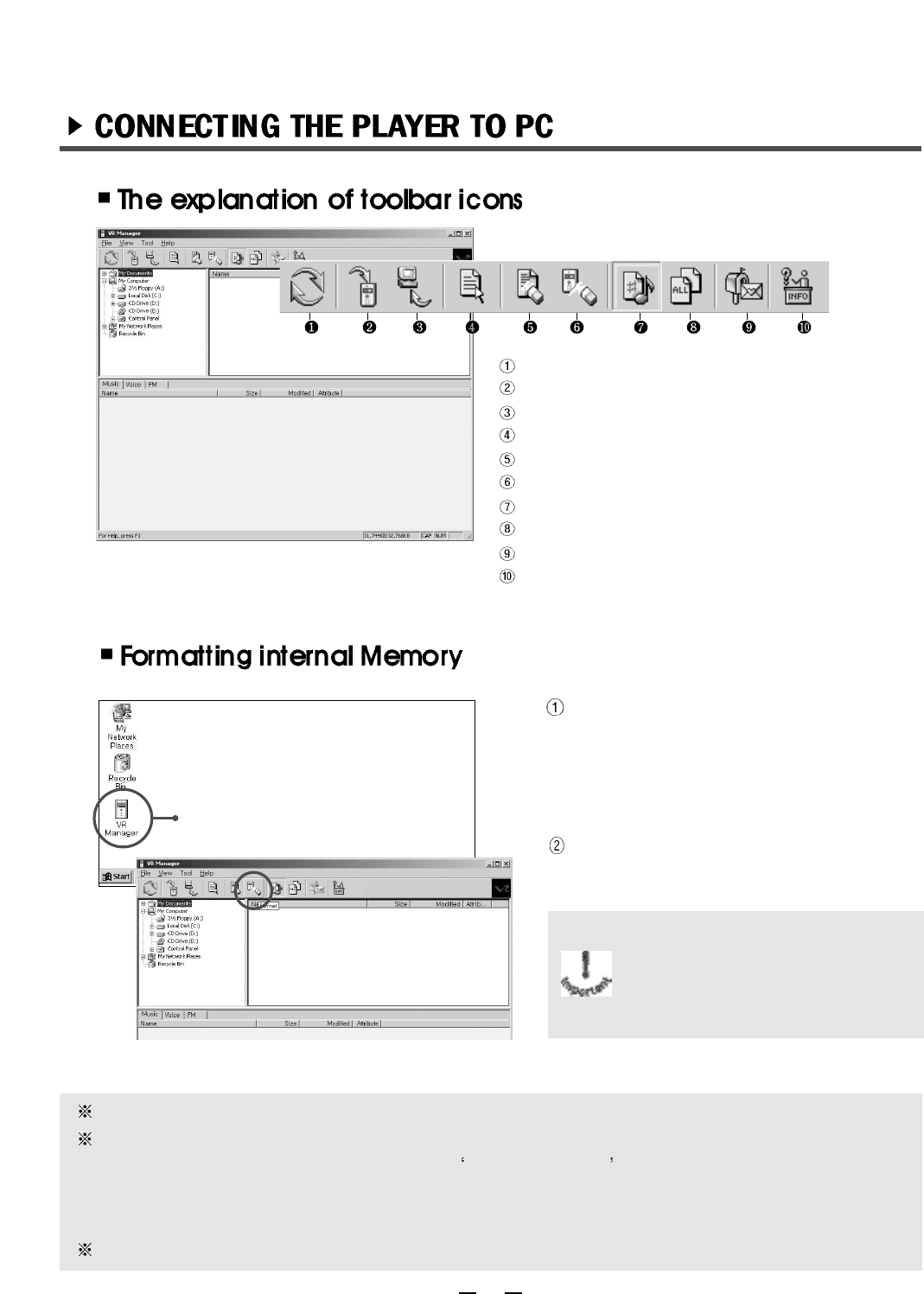
Refresh the information of the EVR-150 Manager.
Download files to the EVR-150 from the PC.
Upload files to the PC from the EVR-150.
Change the order downloaded files for playback.
Delete files from the EVR-150.
Format the internal memory of the EVR-150.
Display audio files only.
Display all files.
E-mail the file (selected from the PC).
Confirm the information of the EVR-150 Manager.
Double click the VR Manager Icon to
execute the manager program.
Double click!
Click [Tool] of toolbar and select
[Format] icon.
If you formate the internal memory, all
files in the unit will be permanently
removed. It is imperative to back-up any
and all impotant files before formatting
the internal memory.
41
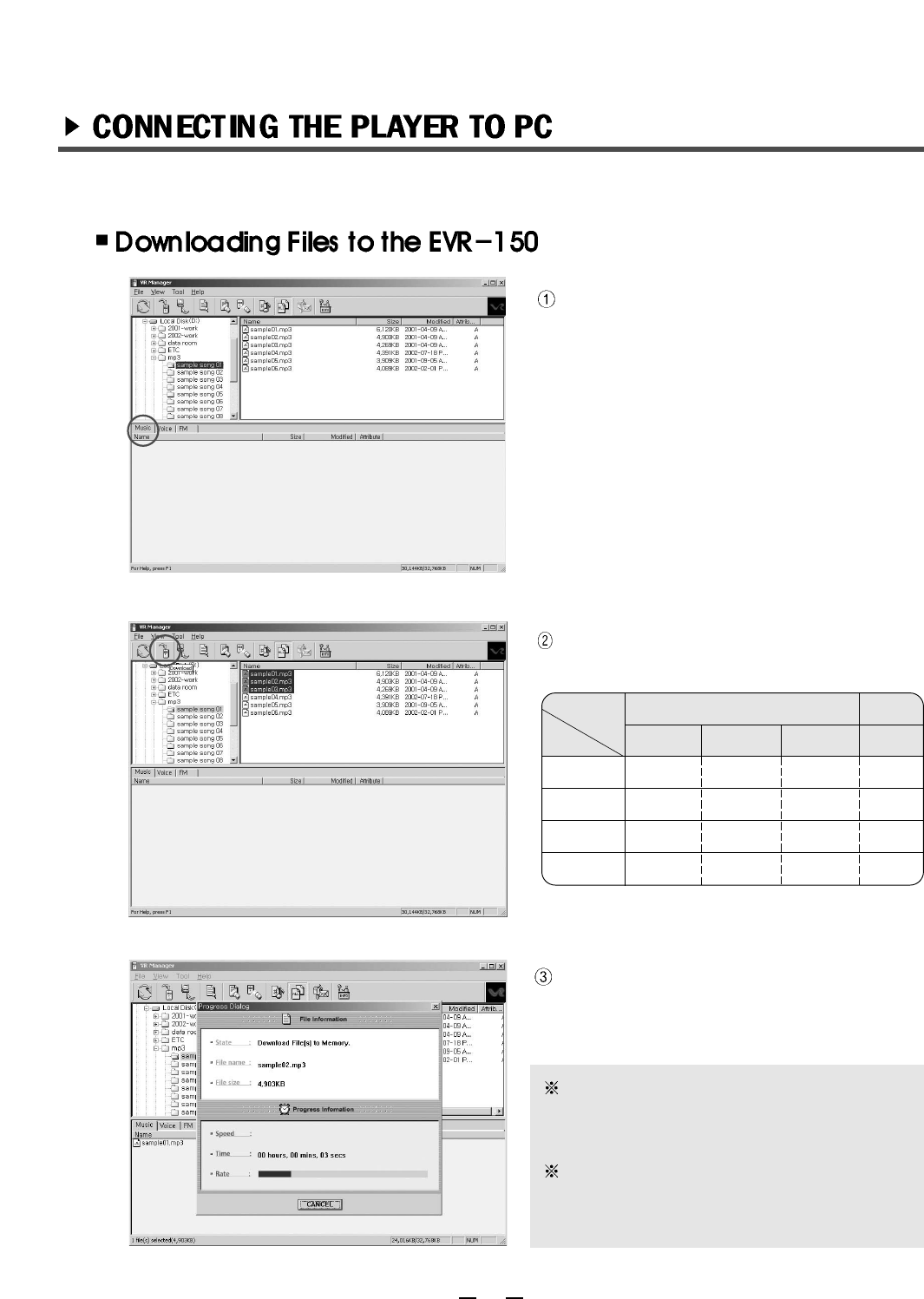
Select the Music folder from the VR
Manager.
Select the file to be downloaded from the
PC, then click the download button.
The DOWNLOADING status window will
be displayed.
file
store folder
Download files
Audio folder
O
X
X
O
Voice folder
X
X
X
X
FM folder
X
X
X
X
X
O
O
O
Upload
PC
To download a file to the player, select
[File]-[Download] or select the file by
dragging and dropping.
Do not remove/disconnect USB cable
from the player during
downloading/uploading.
Music
Voice
FM radio
Others
42
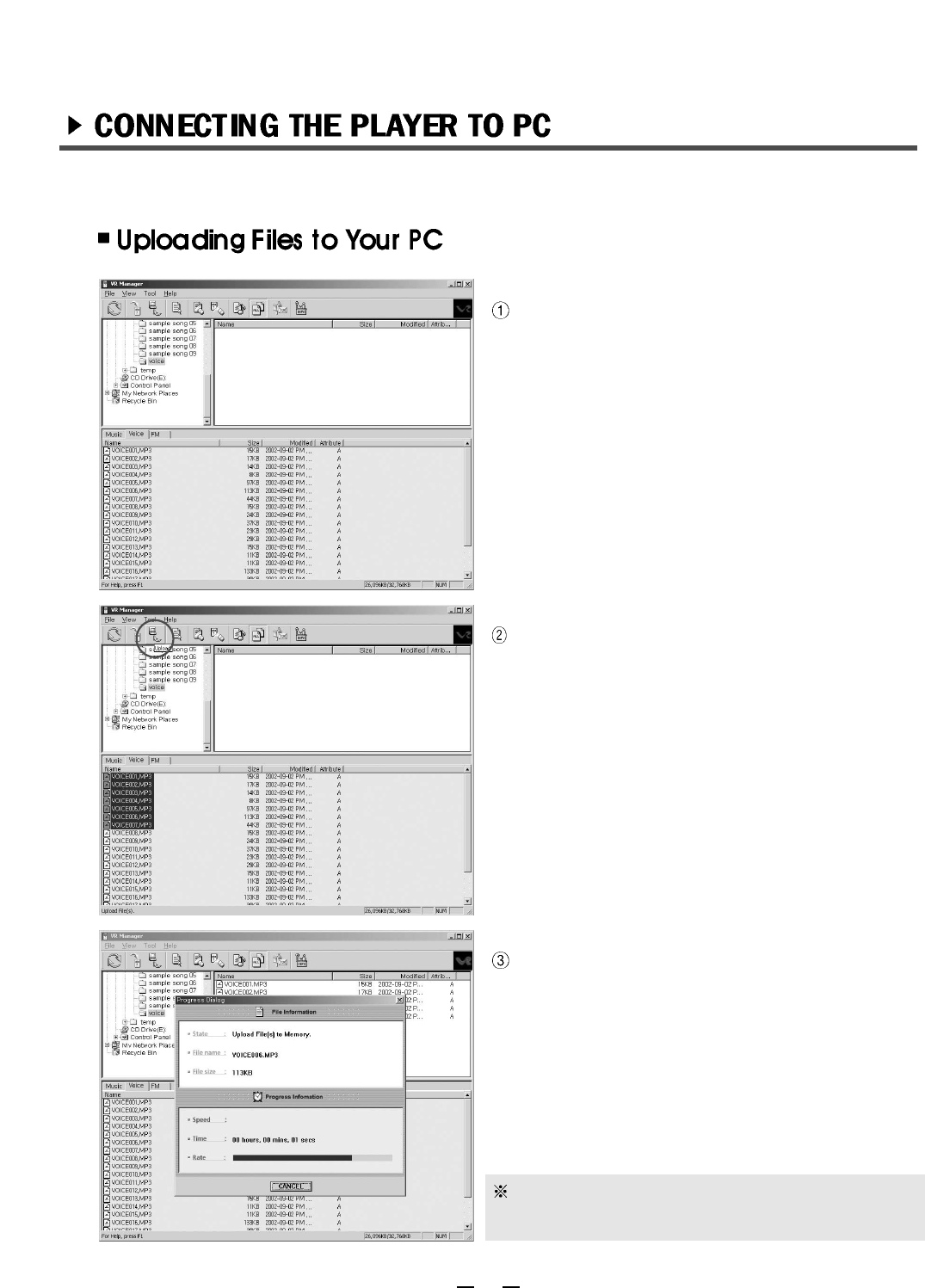
Select a folder to save uploaded file.
Select the file to upload from each folder.
then click upload button.
The UPLOADING status window will be
displayed.
Do not remove/disconnect the USB cable from
the EVR-150 during downloading/uploading.
43
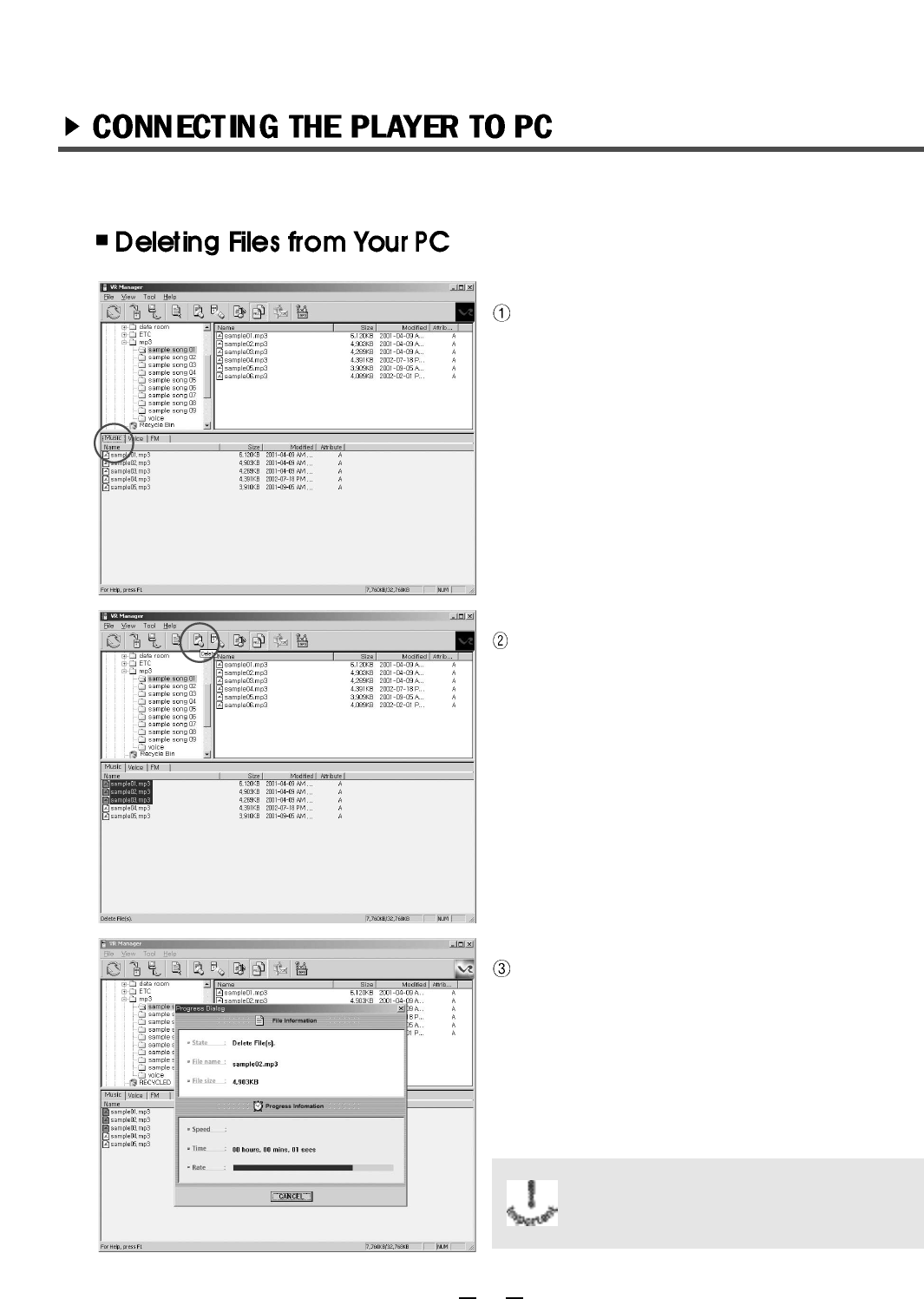
Select a folder to delete file.
Select the file to be deleted and click the
DELETE button.
The REMOVING status window will be
displayed.
Erased/deleted files can not be
recovered. Exercise extreme caution
when deleting/erassing files.
1. Safety Precautions
Do not use or place product :
- In high temperature(above 60 )
- Inside a car with closed windows(during the summer)
- In areas with high humidity(such as bathrooms)
- In direct sunlight or near the heaters
- In dusty places
Do not drop the product. The electronic components are delicate and may be rendered useless if
mishandled.
Do not repair, open or remodel the product.
Do not operate the product when driving a car or walking.
Do not operate the product in places where eletronic components operations are prohibited (i.e.
during air travel).
Magnetic cards, sudh as a credit cards or a public transit tickets, may be permanemtly disabled if
placed on or near the speaker.
Any excessive force on or against the LCD display can result in significant damage to the screen
and the LCD functions.
When USB calbe connect to PC and Recorder, please dis-connect earphone from recorder.
2. Battery Use.
Do not heat, disassemble or place into fire. Alkali solvents may harm skin, eyes and may possibly
result in fever.
In this should occur, wash your skin and/or eyes with clean water and seek immediate medical
attention.
If the player is exposed to fumes, smoke and/or excessive heat remove the battery immediately.
Confirm that the battery is charged before recording.
The seller holds no liability for any damages caused by misuse of the product, and/or any claims
from a third party.
The seller holds no liability for any lost messages due to repair or for any other reason.
44
1. Check the battery and recharge if necessary.
2. Make sure the battery is properly inserted to match the (+),(-) polarities.
3. Make sure the battery cover is properly shut. Remove the battery and
wait awhile before replacing.
1. Check the status of the HOLD switch.
2. Make sure the internal memory isn t full.
3. Check the battery and recharge if necessary.
1. Check the status fo the HOLD switch.
2. Verify weather or not a recorded sound and/or message as already
in the player.
3. Check the battery and recharge if necessary.
1. Check volume level.
2. Make sure the earphone is properly plugged into the player.
Note : When the eatphone is connected to the player, no sound is
heard from the speaker.
3. Check if SPEAKER OFF is set on the MENU. Refer to P26.
1. Check volume level.
2. Make sure the eatphone is properly plugged into the player.
No display on LCD/
The player does not
function.
Recording function
isn t operable.
Playback function
isn t operable.
No sound is heard
from speaker.
No sound is heard
from earphone.
If you experience diffficulty operating the EVR-150, refer to the problem-solving
directions below before calling customer service.
45
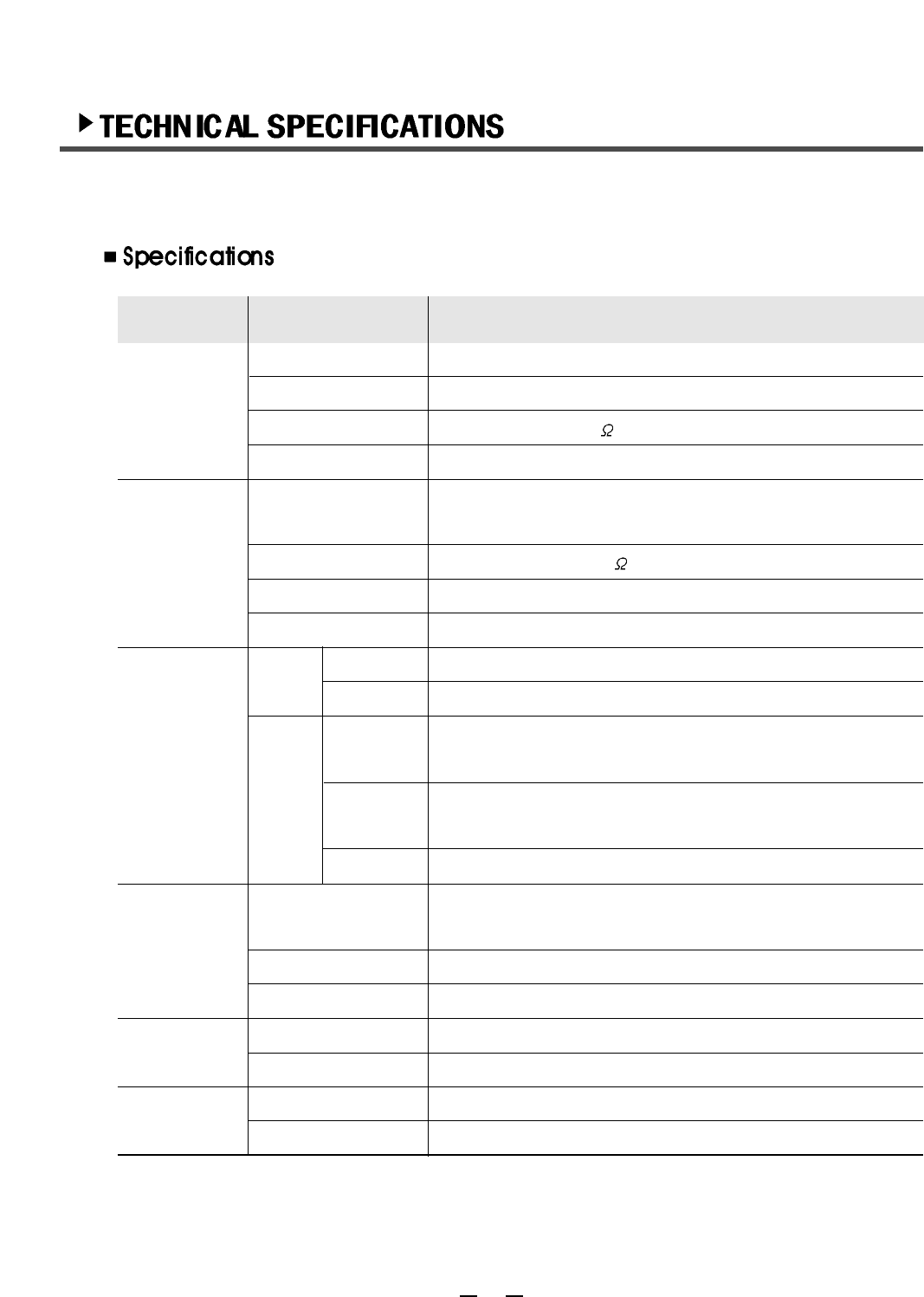
46
MP3/WMA
CATEGORY
ITEM SPECIFICATION
Stereo
20Hz ~ 20KHz
6mW(L) + 6W(R) : 16 , Max. Volume
85dB (with A-weighting filter)
Channels
Frequency Range
Earphone Out
S/N Ratio
FM Radio
Frequency Range
Earphone Out
S/N Ratio
Receiver Type
87.5 ~ 108MHz (Korea/USA/Europe)
76 ~ 90MHz (Japan)
6mW(L) + 6mW(R) : 16 , Max. Volume
55dB (with A-weighting filter)
Earphone cord antenna
Recording
Max. 2180min(LQ), Max. 1090min(MQ), Max. 540min(HQ)
Max. 4.370min(LQ), Max. 2.184min(MQ), Max. 1.092min(HQ)
16KHz sampling 8Kbps(LQ), 16KHz sampling 16Kbps(MQ),
16KHz sampling 32Kbps(HQ)
128MB
256MB
MONO
STEREO
FM Radio
Time
(mono)
Sound
Quality
44.1KHz sampling 96Kbps(LQ), 44.1KHz sampling 128Kbps(MQ),
44.1KHz sampling 160Kbps(HQ)
44.1KHz sampling 112Kbps
PC Interface
Power Supply
General
System Requirements
System O/S
Sound Card
Power
Internal Battery
Dimensions
Weight
Recommended more than Pentium / RAM 64MB /
20MB of free hard space, USB port,
CD-ROM drive
Win98 / ME / NT 2000(PRO) / XP
Sound Blaster 16 compatible
USB power
Sticks type Ni-MH rechargeable battery x 1
56(W) x 84(H) x 9.8(D)mm
37.1g (without battery)

FCCComplianceStatements
Note: This equipment has been tested and found to comply with the limits for a Class
B digital device, pursuant to part 15 of the FCC Rules. These limits are designed to
provide reasonable protection against harmful interference in a residential installation.
This equipment generates, uses and can radiate radio frequency energy and, if not
installed and used in accordance with the instructions, may cause harmful interference
to radio communications. However, there is no guarantee that interference will not
occur in a particular installation. If this equipment does cause harmful interference to
radio or television reception, which can be determined by turning the equipment off
and on, the user is encouraged to try to correct the interference by one or more of the
following measures:
•Reorientorrelocatethereceivingantenna
•Increasetheseparationbetweentheequipmentandreceiver.
•Connecttheequipmentintoanoutletonacircuitdifferentfromthatto
whichthereceiverisconnected.
•Consultthedealeroranexperiencedradio/TVtechnicianforhelp.
Warning:Yourarecautionedthatanychangeormodificationstotheequipmentnotexpressly
approvedbythepartyresponsibleforcompliancecouldvoidyourauthoritytooperate
suchequipment.

www.eratech.co.kr / www.beatsounds.co.kr / www.beatsounds.com