Evervictory Electronic PKG-RSE3 DVD ENTERTAINMENT SYSTEM User Manual

Evervictory Electronic Company Limited DVD ENTERTAINMENT SYSTEM

User Manual

DVD EMTERTAINMENT SYSTEM
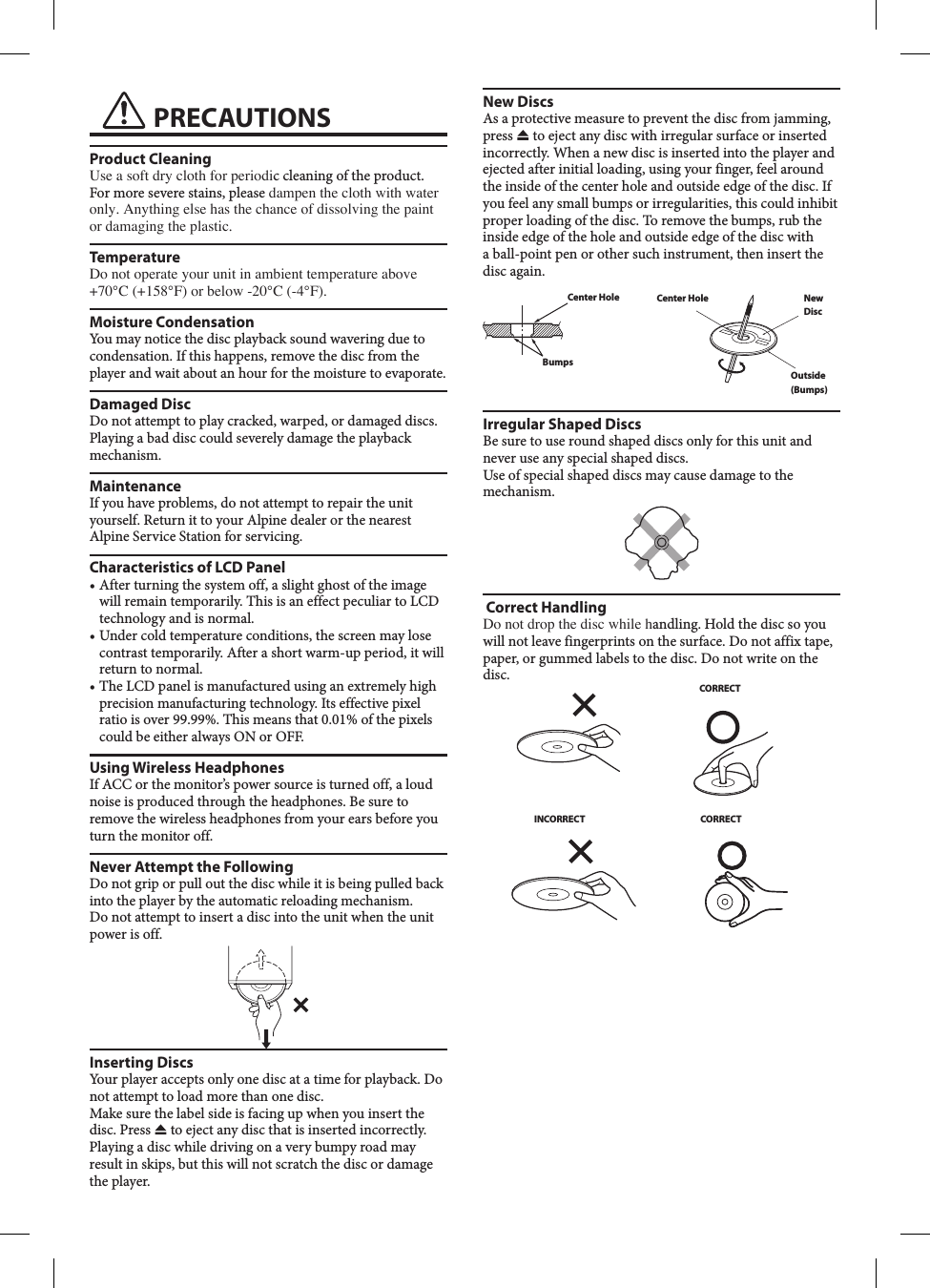
 PRECAUTIONSProduct CleaningUse a soft dry cloth for periodic cleaning of the product. For more severe stains, please dampen the cloth with water only. Anything else has the chance of dissolving the paint or damaging the plastic.TemperatureDo not operate your unit in ambient temperature above +70°C (+158°F) or below -20°C (-4°F).Moisture CondensationYou may notice the disc playback sound wavering due to condensation. If this happens, remove the disc from the player and wait about an hour for the moisture to evaporate.Damaged DiscDo not attempt to play cracked, warped, or damaged discs. Playing a bad disc could severely damage the playback mechanism.MaintenanceIf you have problems, do not attempt to repair the unit yourself. Return it to your Alpine dealer or the nearest Alpine Service Station for servicing.Characteristics of LCD Panel •  After turning the system off, a slight ghost of the image will remain temporarily. This is an effect peculiar to LCD technology and is normal.•  Under cold temperature conditions, the screen may lose contrast temporarily. After a short warm-up period, it will return to normal.•  The LCD panel is manufactured using an extremely high precision manufacturing technology. Its effective pixel ratio is over 99.99%. This means that 0.01% of the pixels could be either always ON or OFF.Using Wireless HeadphonesIf ACC or the monitor’s power source is turned off, a loud noise is produced through the headphones. Be sure to remove the wireless headphones from your ears before you turn the monitor off.Never Attempt the FollowingDo not grip or pull out the disc while it is being pulled back into the player by the automatic reloading mechanism.Do not attempt to insert a disc into the unit when the unit power is off.Inserting DiscsYour player accepts only one disc at a time for playback. Do not attempt to load more than one disc.Make sure the label side is facing up when you insert the disc. Press   to eject any disc that is inserted incorrectly. Playing a disc while driving on a very bumpy road may result in skips, but this will not scratch the disc or damage the player.New DiscsAs a protective measure to prevent the disc from jamming, press   to eject any disc with irregular surface or inserted incorrectly. When a new disc is inserted into the player and ejected after initial loading, using your finger, feel around the inside of the center hole and outside edge of the disc. If you feel any small bumps or irregularities, this could inhibit proper loading of the disc. To remove the bumps, rub the inside edge of the hole and outside edge of the disc with a ball-point pen or other such instrument, then insert the disc again.Center HoleBumpsCenter Hole New DiscOutside (Bumps)Irregular Shaped DiscsBe sure to use round shaped discs only for this unit and never use any special shaped discs. Use of special shaped discs may cause damage to the mechanism. Correct Handling Do not drop the disc while handling. Hold the disc so you will not leave fingerprints on the surface. Do not affix tape, paper, or gummed labels to the disc. Do not write on the disc.CORRECTINCORRECT CORRECT
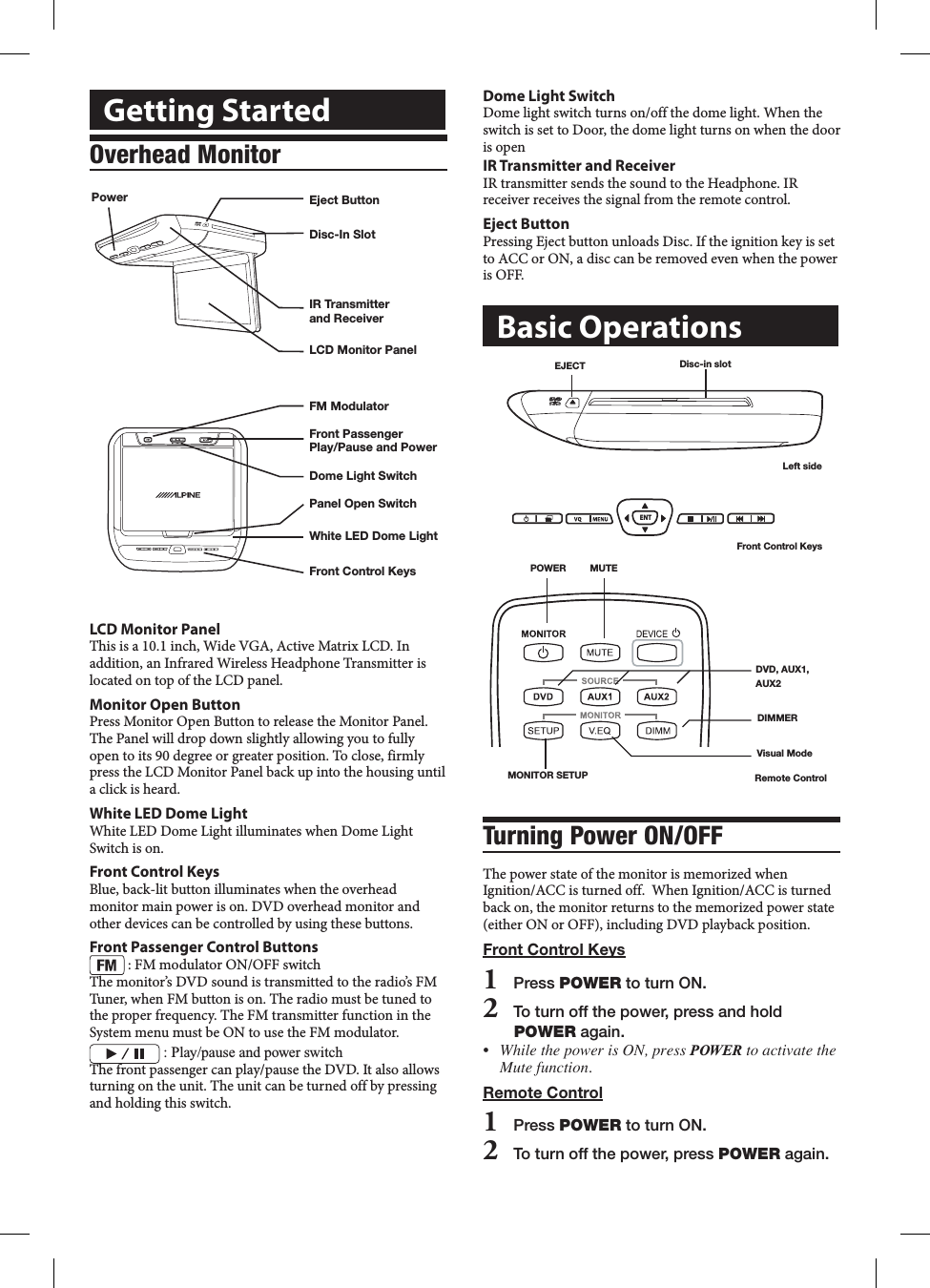
Dome Light SwitchDome light switch turns on/off the dome light. When the switch is set to Door, the dome light turns on when the door is openIR Transmitter and ReceiverIR transmitter sends the sound to the Headphone. IR receiver receives the signal from the remote control.Eject ButtonPressing Eject button unloads Disc. If the ignition key is set to ACC or ON, a disc can be removed even when the power is OFF.Basic OperationsV I D E ODisc-in slotEJECTLeft sideENTFront Control Keys DIMMERVisual ModeDVD, AUX1, AUX2 POWER         MUTE MONITOR SETUP Remote ControlTurning Power ON/OFFThe power state of the monitor is memorized when Ignition/ACC is turned off.  When Ignition/ACC is turned back on, the monitor returns to the memorized power state (either ON or OFF), including DVD playback position.Front Control Keys1   Press POWER to turn ON.2   To turn off the power, press and hold POWER again.• WhilethepowerisON,pressPOWERtoactivatetheMutefunction.Remote Control1   Press POWER to turn ON.2   To turn off the power, press POWER again.Getting StartedOverhead MonitorFront Control KeysWhite LED Dome LightPanel Open SwitchFM ModulatorDome Light SwitchFront PassengerPlay/Pause and PowerLCD Monitor PanelPower Eject ButtonIR Transmitter and ReceiverDisc-In SlotLCD Monitor PanelThis is a 10.1 inch, Wide VGA, Active Matrix LCD. In addition, an Infrared Wireless Headphone Transmitter is located on top of the LCD panel.Monitor Open ButtonPress Monitor Open Button to release the Monitor Panel. The Panel will drop down slightly allowing you to fully open to its 90 degree or greater position. To close, firmly press the LCD Monitor Panel back up into the housing until a click is heard.White LED Dome LightWhite LED Dome Light illuminates when Dome Light Switch is on. Front Control KeysBlue, back-lit button illuminates when the overhead monitor main power is on. DVD overhead monitor and other devices can be controlled by using these buttons.Front Passenger Control Buttons : FM modulator ON/OFF switchThe monitor’s DVD sound is transmitted to the radio’s FM Tuner, when FM button is on. The radio must be tuned to the proper frequency. The FM transmitter function in the System menu must be ON to use the FM modulator. :฀Play/pause฀and฀power฀switchThe front passenger can play/pause the DVD. It also allows turning on the unit. The unit can be turned off by pressing and holding this switch.
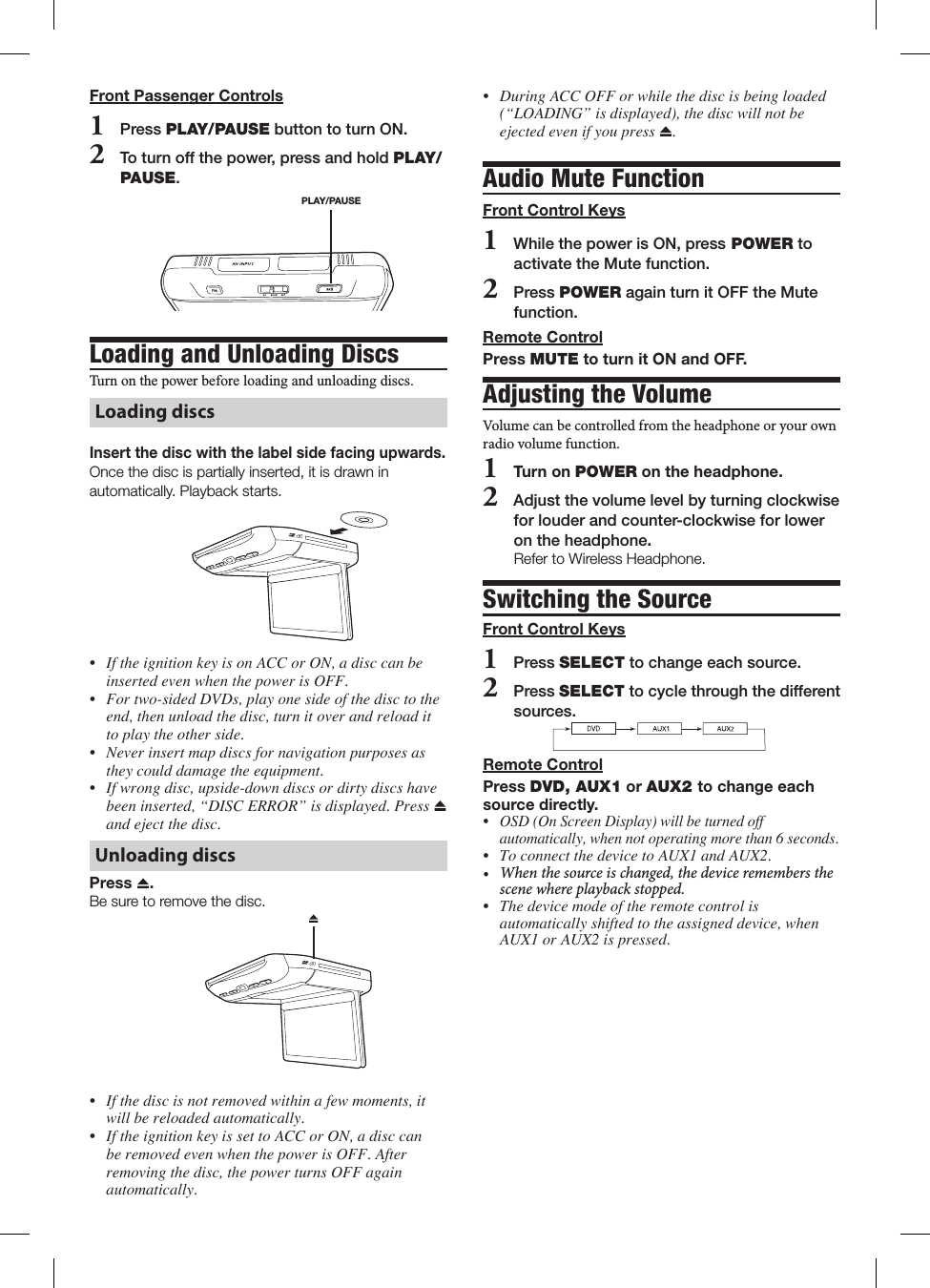
• DuringACCOFForwhilethediscisbeingloaded(“LOADING”isdisplayed),thediscwillnotbeejectedevenifyoupress .Audio Mute FunctionFront Control Keys1 While the power is ON, press POWER to activate the Mute function. 2 Press POWER again turn it OFF the Mute function.Remote ControlPress MUTE to turn it ON and OFF.Adjusting the VolumeVolume can be controlled from the headphone or your own radio volume function.1   Turn on POWER on the headphone.2   Adjust the volume level by turning clockwise for louder and counter-clockwise for lower on the headphone. Refer to Wireless Headphone.Switching the SourceFront Control Keys1   Press SELECT to change each source.2   Press SELECT to cycle through the different sources.Remote ControlPress DVD, AUX1 or AUX2 to change each source directly.• OSD(OnScreenDisplay)willbeturnedoffautomatically,whennotoperatingmorethan6seconds.• ToconnectthedevicetoAUX1andAUX2.• Whenthesourceischanged,thedeviceremembersthescenewhereplaybackstopped.• Thedevicemodeoftheremotecontrolisautomaticallyshiftedtotheassigneddevice,whenAUX1orAUX2ispressed.Front Passenger Controls1   Press PLAY/PAUSE button to turn ON.2   To turn off the power, press and hold PLAY/PAUSE.PLAY/PAUSELoading and Unloading Discs Turn฀on฀the฀power฀before฀loading฀and฀unloading฀discs.฀Loading discsInsert the disc with the label side facing upwards.Once the disc is partially inserted, it is drawn in automatically. Playback starts.• IftheignitionkeyisonACCorON,adisccanbeinsertedevenwhenthepowerisOFF.• Fortwo-sidedDVDs,playonesideofthedisctotheend,thenunloadthedisc,turnitoverandreloadittoplaytheotherside.• Neverinsertmapdiscsfornavigationpurposesastheycoulddamagetheequipment.• Ifwrongdisc,upside-downdiscsordirtydiscshavebeeninserted,“DISCERROR”isdisplayed.Press andejectthedisc.Unloading discsPress  .Be sure to remove the disc. • Ifthediscisnotremovedwithinafewmoments,itwillbereloadedautomatically.• IftheignitionkeyissettoACCorON,adisccanberemovedevenwhenthepowerisOFF.Afterremovingthedisc,thepowerturnsOFFagainautomatically.
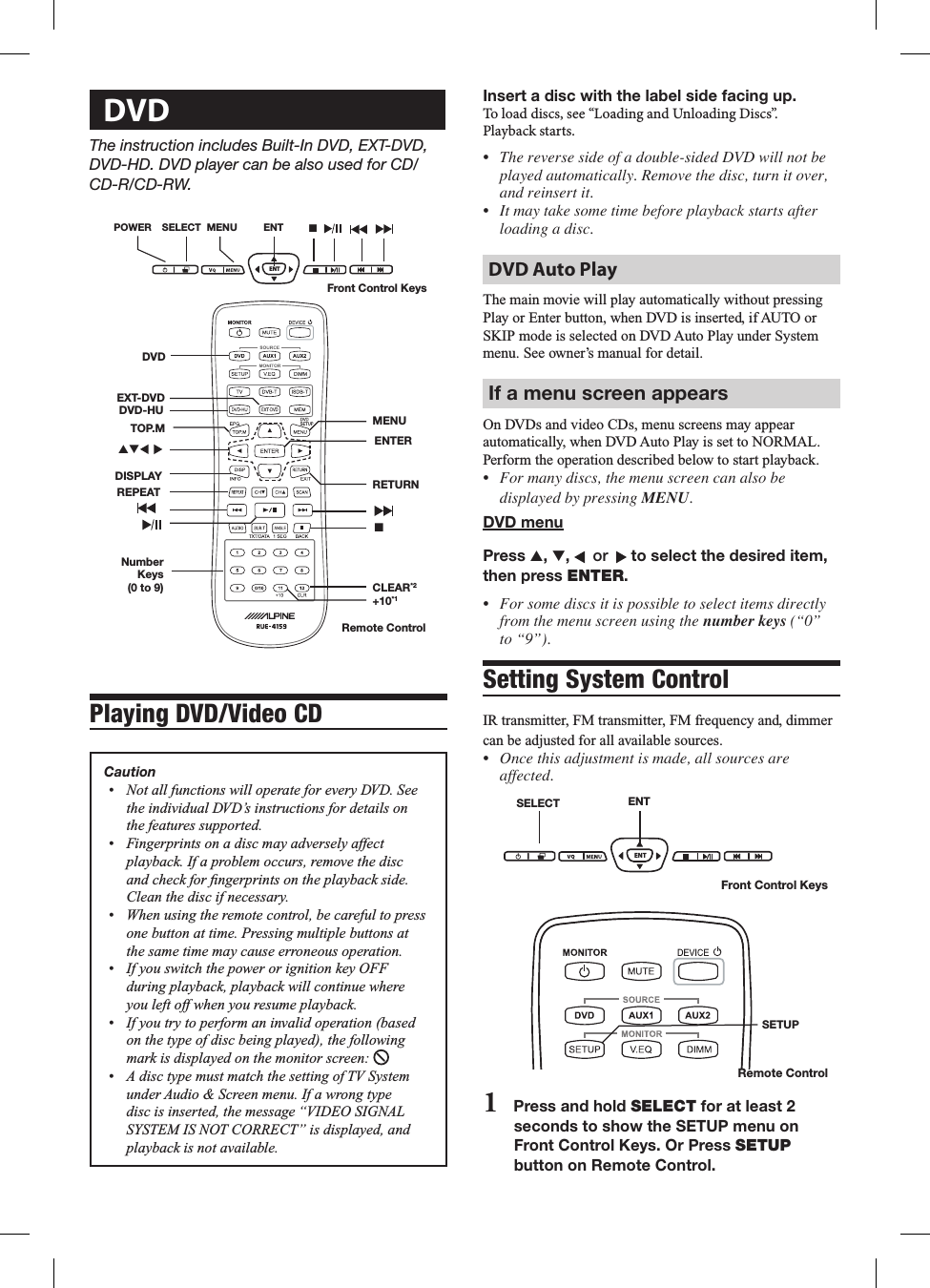
Insert a disc with the label side facing up.To load discs, see “Loading and Unloading Discs”.Playback starts.• Thereversesideofadouble-sidedDVDwillnotbeplayedautomatically.Removethedisc,turnitover,andreinsertit.• Itmaytakesometimebeforeplaybackstartsafterloadingadisc.DVD Auto PlayThe฀main฀movie฀will฀play฀automatically฀without฀pressing฀Play฀or฀Enter฀button,฀when฀DVD฀is฀inserted,฀if฀AUTO฀or฀SKIP฀mode฀is฀selected฀on฀DVD฀Auto฀Play฀under฀System฀menu.฀See฀owner’s฀manual฀for฀detail.If a menu screen appearsOn฀DVDs฀and฀video฀CDs,฀menu฀screens฀may฀appear฀automatically,฀when฀DVD฀Auto฀Play฀is฀set฀to฀NORMAL.฀Perform฀the฀operation฀described฀below฀to฀start฀playback.• Formanydiscs,themenuscreencanalsobedisplayedbypressingMENU.DVD menuPress s, t,    or    to select the desired item, then press ENTER.• Forsomediscsitispossibletoselectitemsdirectlyfromthemenuscreenusingthenumber keys(“0”to“9”).Setting System ControlIR฀transmitter,฀FM฀transmitter,฀FM฀frequency฀and,฀dimmer฀can฀be฀adjusted฀for฀all฀available฀sources.• Oncethisadjustmentismade,allsourcesareaffected.ENTSELECT ENTFront Control KeysSETUPRemote Control1   Press and hold SELECT for at least 2 seconds to show the SETUP menu on Front Control Keys. Or Press SETUP button on Remote Control. DVDThe instruction includes Built-In DVD, EXT-DVD,  DVD-HD. DVD player can be also used for CD/CD-R/CD-RW.ENTSELECTPOWER MENU nENTFront Control KeysDISPLAY RETURN nREPEATMENU ENTERNumber Keys (0 to 9)DVD-HUEXT-DVD+10*1CLEAR*2Remote ControlDVDst  TOP.MPlaying DVD/Video CDCaution       
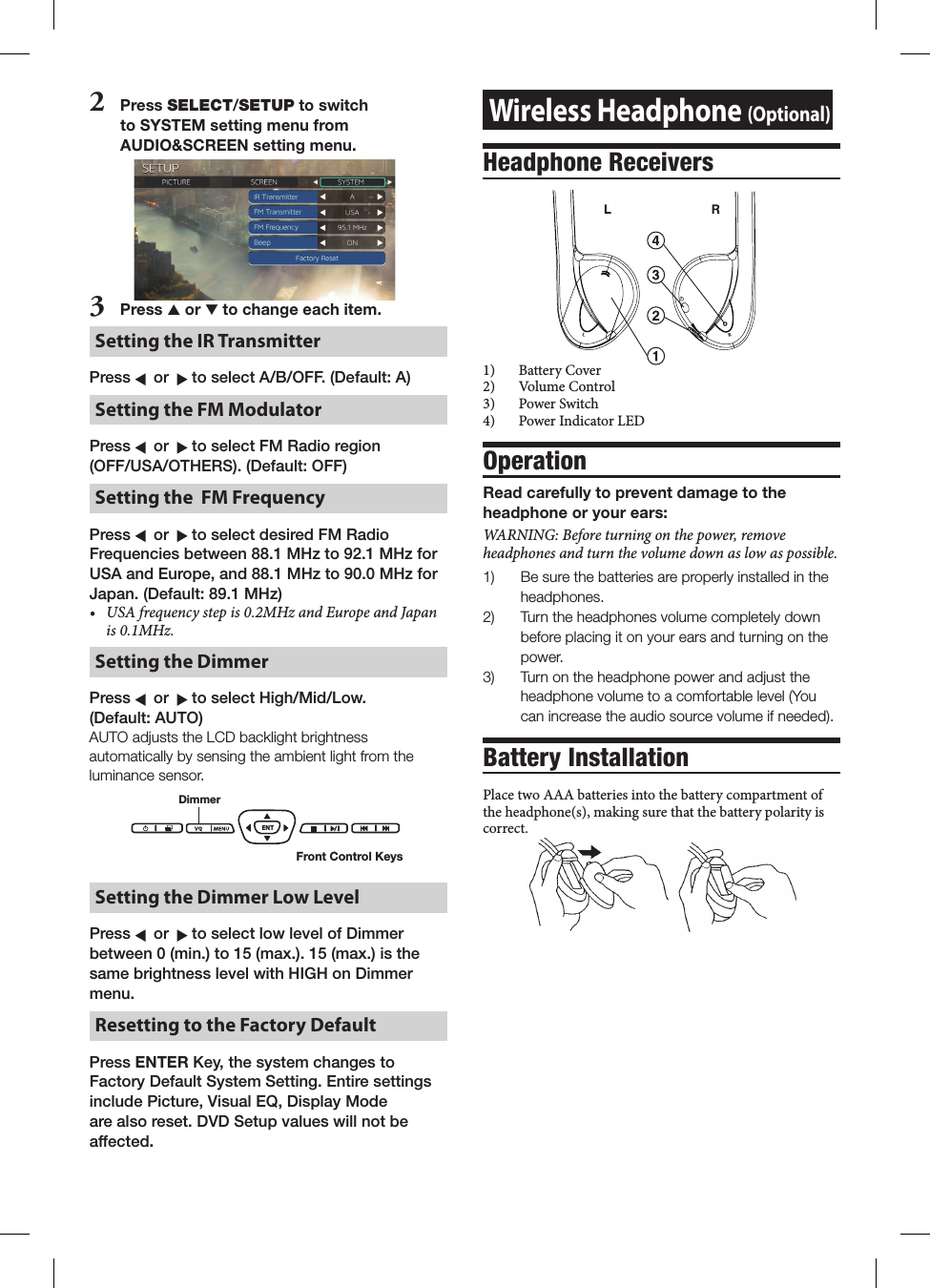
Wireless Headphone (Optional)Headphone Receivers฀ LR1)  Battery Cover2)  Volume Control3)  Power Switch4)  Power Indicator LEDOperationRead carefully to prevent damage to the headphone or your ears:WARNING:Beforeturningonthepower,removeheadphonesandturnthevolumedownaslowaspossible.1)   Be sure the batteries are properly installed in the headphones. 2)   Turn the headphones volume completely down before placing it on your ears and turning on the power.3)   Turn on the headphone power and adjust the headphone volume to a comfortable level (You can increase the audio source volume if needed).Battery InstallationPlace two AAA batteries into the battery compartment of the headphone(s), making sure that the battery polarity is correct.2  Press SELECT/SETUP to switch to SYSTEM setting menu from AUDIO&SCREEN setting menu.3   Press s or t to change each item.Setting the IR Transmitter Press    or    to select A/B/OFF. (Default: A)Setting the FM ModulatorPress    or    to select FM Radio region  (OFF/USA/OTHERS). (Default: OFF)Setting the  FM FrequencyPress    or    to select desired FM Radio Frequencies between 88.1 MHz to 92.1 MHz for USA and Europe, and 88.1 MHz to 90.0 MHz for Japan. (Default: 89.1 MHz)• USAfrequencystepis0.2MHzandEuropeandJapanis0.1MHz.Setting the DimmerPress    or    to select High/Mid/Low.  (Default: AUTO)AUTO adjusts the LCD backlight brightness automatically by sensing the ambient light from the luminance sensor.ENTDimmerFront Control KeysSetting the Dimmer Low LevelPress    or    to select low level of Dimmer between 0 (min.) to 15 (max.). 15 (max.) is the same brightness level with HIGH on Dimmer menu. Resetting to the Factory Default Press ENTER Key, the system changes to Factory Default System Setting. Entire settings include Picture, Visual EQ, Display Mode are also reset. DVD Setup values will not be affected.
  LIMITED WARRANTYALPINE ELECTRONICS OF AMERICA, INC. AND ALPINE OF CANADA INC. ("Alpine"), are dedicated to quality craftsmanship and are pleased to offer this Warranty. We suggest that you read it thoroughly. Should you have any questions, please contact your Dealer or contact Alpine at one of the telephone numbers listed below.●PRODUCTS COVERED:This Warranty covers Car Audio Products and Related Accessories ("the product"). Products purchased in the Canada are covered only in the Canada. Products purchased in the U.S.A. are covered only in the U.S.A.●LENGTH OF WARRANTY:This Warranty is in effect for one year from the date of the fi rst consumer purchase.●WHO IS COVERED:This Warranty only covers the original purchaser of the product, who must reside in the United States, Puerto Rico or Canada.●WHAT IS COVERED:This Warranty covers defects in materials or workmanship (parts and labor) in the product.●WHAT IS NOT COVERED:This Warranty does not cover the following:1 Damage occurring during shipment of the product to Alpine for repair (claims must be presented to the carrier).2 Damage caused by accident or abuse, including burned voice coils caused by over-driving the speaker (amplifi er level is turned up and driven into distortion or clipping). Speaker mechanical failure (e.g. punctures, tears or rips). Cracked or damaged LCD panels. Dropped or damaged hard drives.3 Damage caused by negligence, misuse, improper operation or failure to follow instructions contained in the Owner's manual.4 Damage caused by act of God, including without limitation, earthquake, fi re, fl ood, storms or other acts of nature.Any cost or expense related to the removal or reinstallation of the product.5 Service performed by an unauthorized person, company or association.6 Any product which has the serial number defaced, altered or removed.7 Any product which has been adjusted, altered or modifi ed without Alpine's consent.8 Any product not distributed by Alpine within the United States, Puerto Rico or Canada.9 Any product not purchased from an Authorized Alpine Dealer.●HOW TO OBTAIN WARRANTY SERVICE:1 You are responsible for delivery of the product to an Authorized Alpine Service Center or Alpine for repair and for payment of any initial shipping charges. Alpine will, at its option, repair or replace the product with a new or reconditioned product without charge. If the repairs are covered by the warranty, and if the product was shipped to an Authorized Alpine Service Center or Alpine, Alpine will pay the return shipping charges.2 You should provide a detailed description of the problem(s) for which service is required.3 You must supply proof of your purchase of the product.4 You must package the product securely to avoid damage during shipment. To prevent lost packages it is recommended to use a carrier that provides a tracking service.●HOW WE LIMIT IMPLIED WARRANTIES:ANY IMPLIED WARRANTIES INCLUDING FITNESS FOR USE AND MERCHANTABILITY ARE LIMITED IN DURATION TO THE PERIOD OF THE EXPRESS WARRANTY SET FORTH ABOVE AND NO PERSON IS AUTHORIZED TO ASSUME FOR ALPINE ANY OTHER LIABILITY IN CONNECTION WITH THE SALE OF THE PRODUCT.●HOW WE EXCLUDE CERTAIN DAMAGES:ALPINE EXPRESSLY DISCLAIMS LIABILITY FOR INCIDENTAL AND CONSEQUENTIAL DAMAGES CAUSED BY THE PRODUCT. THE TERM "INCIDENTAL DAMAGES" REFERS TO EXPENSES OF TRANSPORTING THE PRODUCT TO THE ALPINE SERVICE CENTER, LOSS OF THE ORIGINAL PURCHASER'S TIME, LOSS OF THE USE OF THE PRODUCT, BUS FARES, CAR RENTALS OR OTHERS COSTS RELATING TO THE CARE AND CUSTODY OF THE PRODUCT. THE TERM "CONSEQUENTIAL DAMAGES" REFERS TO THE COST OF REPAIRING OR REPLACING OTHER PROPERTY WHICH IS DAMAGED WHEN THIS PRODUCT DOES NOT WORK PROPERLY. THE REMEDIES PROVIDED UNDER THIS WARRANTY ARE EXCLUSIVE AND IN LIEU OF ALL OTHERS.●HOW STATE/PROVINCIAL LAW RELATES TO THE WARRANTY:This Warranty gives you specifi c legal rights, and you may also have other rights which vary from state to state and province to province. In addition, some states/provinces do not allow limitations on how long an implied warranty lasts, and some do not allow the exclusion or limitation of incidental or consequential damages. Accordingly, limitations as to these matters contained herein may not apply to you.●IN CANADA ONLY:This Warranty is not valid unless your Alpine car audio product has been installed in your vehicle by an Authorized Installation Center, and this warranty stamped upon installation by the installation center.●HOW TO CONTACT CUSTOMER SERVICE:Should the product require service, please call the following number for your nearest Authorized Alpine Service Center.CAR AUDIO 1-800-ALPINE-1 (1-800-257-4631)NAVIGATION 1-888-NAV-HELP (1-888-628-4357)Or visit our website at; http://www.alpine-usa.comALPINE ELECTRONICS OF AMERICA, INC., 19145 Gramercy Place, Torrance, California 90501, U.S.A.ALPINE ELECTRONICS OF CANADA, INC., 777 Supertest Road, Toronto, Ontario M3J 2M9, CanadaDo not send products to these addresses.Call the toll free telephone number or visit the website to locate a service center.R
 FCC Statement This equipment has been tested and found to comply with the limits for a Class B digital device, pursuant to part 15 of the FCC Rules. These limits are designed to provide reasonable protection against harmful interference in a residential installation. This equipment generates, uses and can radiate radio frequency energy and, if not installed and used in accordance with the instructions, may cause harmful interference to radio communications. However, there is no guarantee that interference will not occur in a particular installation. If this equipment does cause harmful interference to radio or television reception, which can be determined by turning the equipment off and on, the user is encouraged to try to correct the interference by one or more of the following measures:   —Reorient or relocate the receiving antenna. —Increase the separation between the equipment and receiver.   —Connect the equipment into an outlet on a circuit different from that to which the receiver is connected.   —Consult the dealer or an experienced radio/TV technician for help.    This device must not be co-located or operating in conjunction with any other antenna or transmitter. Operation is subject to the following two conditions:   (1) this device may not cause harmful interference, and   (2) this device must accept any interference received, including interference that may cause undesired operation.  Caution!   The manufacturer is not responsible for any radio or TV interference caused by unauthorized modifications to this equipment. Such modifications could void the user authority to operate the equipment.   Canada Statement   This device complies with Industry Canada licence-exempt RSS standard(s). Operation is subject to the following two conditions: (1) this device may not cause interference, and (2) this device must accept any interference, including interference that may cause undesired operation of the device. Le présent appareil est conforme aux CNR d'Industrie Canada applicables aux appareils radio exempts de licence. L'exploitation est autorisée aux deux conditions suivantes : (1) l'appareil ne doit pas produire de brouillage, et (2) l'utilisateur de l'appareil doit accepter tout brouillage radioélectrique subi, même si le brouillage est susceptible d'en compromettre le fonctionnement.

Navigation menu