Evervictory Electronic TR1073ZE1050D Automotive LCD Monitor with DVD Player User Manual Manual

Evervictory Electronic Company Limited Automotive LCD Monitor with DVD Player Manual

Manual

  10.2” TFT LCD Monitor with DVD Player   TR-1073    User manual             Please read it carefully before you operate this player
 Welcome  Thank you for buying the Roof Mount LCD Monitor with DVD player. Please read this manual carefully before using the Roof Mount LCD Monitor with DVD player in order to get the most out of all the features and functions. Keep this manual in a safe place, as it can be a valuable tool in helping you to understand all the features and functions.  Contents  Safety information.........................................................................1 DVD player features .....................................................................3 Setting up your DVD player ..........................................................7 Using your DVD player .................................................................10 Troubleshooting ............................................................................13 Specification..................................................................................14 Maintaining ...................................................................................15 Operation flow………………………………………………………….16   Safety information    Do not operate the unit in any way other than described within this manual. Failure to follow the instructions within the manual will invalidate your warranty.   SAFETY FIRST! Do not install the display where it may (i) obstruct the driver’s vision, (ii) impair the performance of any of the vehicle’s operating systems or safety features, including airbags, or (iii) impair the driver’s ability to safely operate the vehicle.   When using the system, make sure you are firmly secured by your seat belt to ensure you do not accidentally hit your head on the screen during sudden braking or other incidents. If you are ever in an accident, injuries can be more severe if the seat belt is not properly buckled.   Do not attempt to install or service your display by yourself. Installation   1
or servicing of the display by persons without training and experience in electronic equipment and automotive accessories may be dangerous and could expose you to the risk of electric shock or other hazards.   Be careful not to drain the car battery while using the unit with the car engine stopped. To avoid draining the battery, it is suggested that the vehicle engine always is running while using the unit.     Do not disassemble or alter the unit in any way. Failure to do so can cause damage to the unit and invalid the warranty.   Never clean the surface of the screen with chemical solvent or corrosive detergent, which may cause permanent damage to the TFT LCD screen.   Avoid installing the unit wherever is under direct sunlight or near hot air vent. Please note that the normal working temperature of the unit is between -5℃ to +50℃. If the internal temperature of the vehicle is extremely high, a short cooling down period is necessary before operating the unit. W If the temperature inside the car is very low and the monitor is used soon after switching on the heater, moisture may form on the panel of the unit. Turn off the unit immediately! Failure to do so may cause the internal components to short. Allow the unit to rest for about one hour to allow the condensation to disappear before continue operation.  In extremely cold temperatures, the movement of the picture may be slow and the picture may be dark. It is not a malfunction. The unit will work normally once it reaches its operating temperature.   Do not drop or hit the LCD panel with a hard object, as it may cause permanent damage to the LCD panel. Should LCD panel break, avoid touching glass and fluid. If do, please clean it with plenty of water and ask for medical attention immediately.   Due to different car specifications, please kindly ensue that the display monitor is properly located and not obstructing the air-conditioning vent.  Avoid inserting any foreign objects into the slot of the disc Player. Failure to observe this may cause malfunction due to the precise mechanism of this unit.   Protect your disc. When you leave the car, be sure to eject the disc from this unit and store it separately away from direct sun light.  Heat and humidity may damage the disc and you may not be able to play it again.   Use the supplied screws to fix the monitor Metal Mounting Plate.       2
FCC NOTICE:        This device complies with part 15 of the FCC Rules. Operation is subject of the following two conditions: (1) this device may not cause harmful interference, and(2) this device must accept any interference received, including interference that may cause undesired operation. DOLBY:                  Manufactured under license from Dobly Laboratories. “Dolby” and the double-D symbol are trademarks of Dobly laboratories.  DVD player features  This player is a Roof Mount 10.2" TFT-LCD Color Display with DVD player that can be used as a stand-alone display, or can be integrated into a mobile multimedia system. This player has the following features:    10.2" TFT-LCD color monitor (16:9)  Roof Mounting Application   Pixel (dots): 800RGB(W) x 480(H)   Wide Viewing angle (up/down/left/right): 45/55/65/65   NTSC and PAL Compatible  Adjustable Color/Contrast/Brightness/Tint   Manual Viewing Angle Adjustment W Vertical Adjustable: up/down>1500   Yellow LED Dome Light   Automotive Startup Protection   Built-in IR Transmitter for IR Wireless Headphone   IR Remote Control   On Screen Display  2xAV Input  2xAV Output   Slot-in DVD mechanism   Capability to read: DVD Format /DVD±R/DVD±RW/CD-DA/CD-RW/MP3/VCD/SVCD   Audio output-FMT: The unit shall have a built in FM Transmitter and an additional Line Audio Out for FMM, with switched12volt control line   FM Transmitter for listening the audio from your car audio system via FM radio receiver (setting frequency: 88.1~107.9MHz)    Note: Multi-session CDs and 320kbps WMA files cannot be played on this player.   3
 DVD VIDEO FEATURES This unit provides the following functions in addition to high image quality and sound quality of DVD video:  Multi-sound Function     DVD audio can store up to 8 languages for one film. This allows for the selection of language of ones preference.  Multi-angle Function    A DVD video that is filmed from multiple angle which allows you choosing to view from different perspectives.  Subtitle Function    A DVD video can record subtitles for up to 32 languages to choose from.                           4
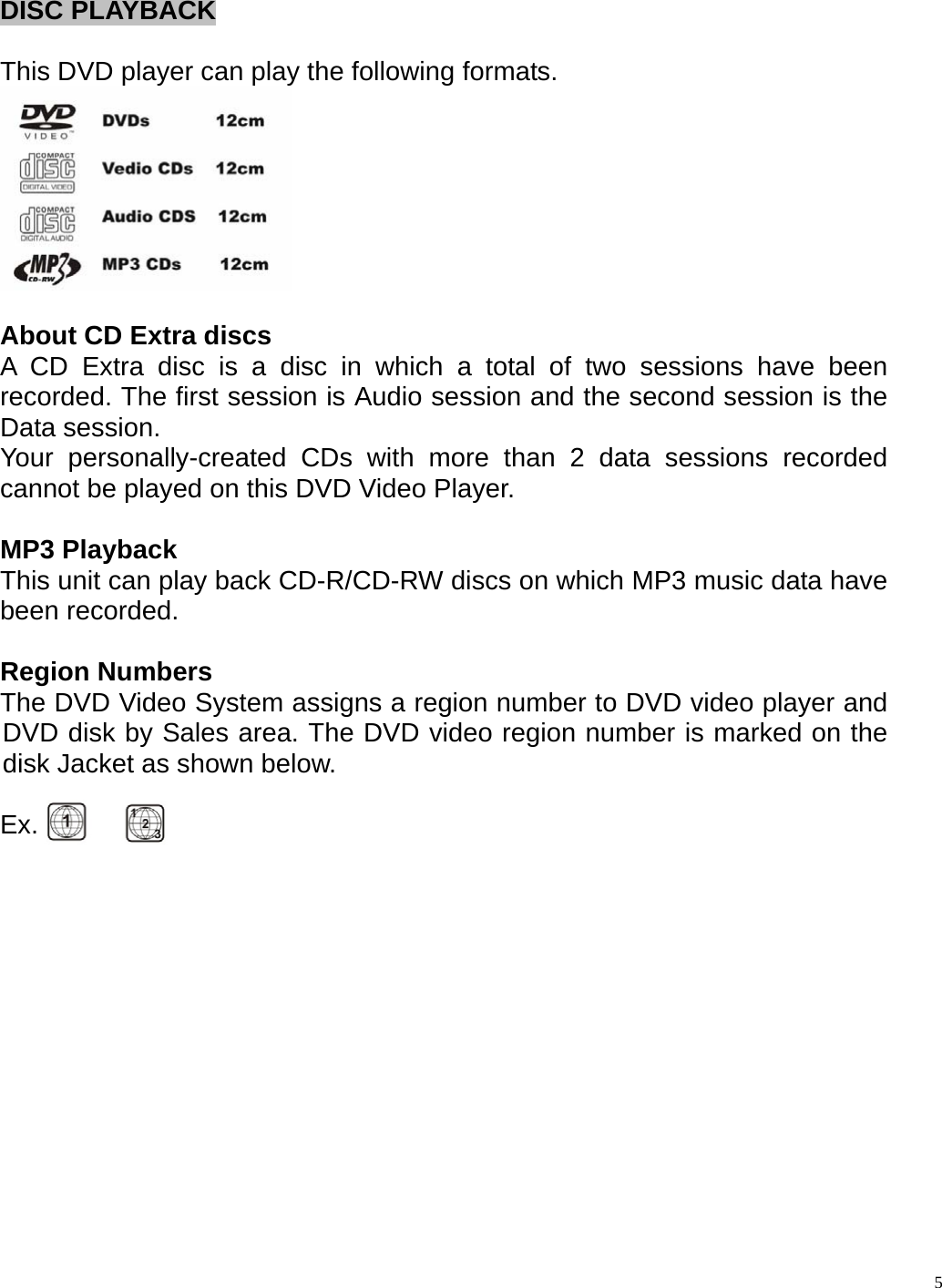
DISC PLAYBACK  This DVD player can play the following formats.   About CD Extra discs A CD Extra disc is a disc in which a total of two sessions have been recorded. The first session is Audio session and the second session is the Data session. Your personally-created CDs with more than 2 data sessions recorded cannot be played on this DVD Video Player.  MP3 Playback   This unit can play back CD-R/CD-RW discs on which MP3 music data have been recorded.  Region Numbers The DVD Video System assigns a region number to DVD video player and DVD disk by Sales area. The DVD video region number is marked on the disk Jacket as shown below.  Ex.                        5
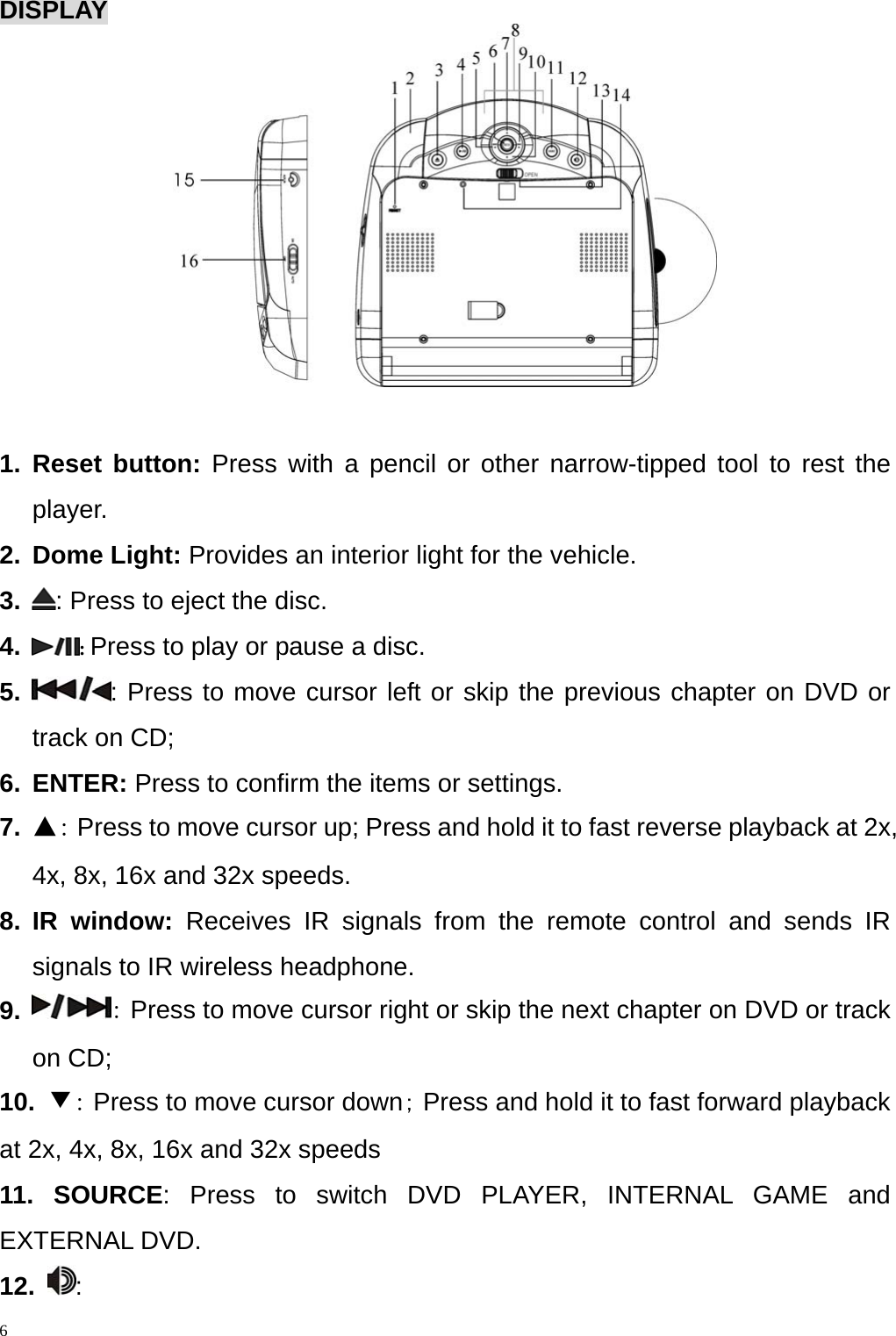
DISPLAY   1. Reset button: Press with a pencil or other narrow-tipped tool to rest the     player. 2. Dome Light: Provides an interior light for the vehicle. 3.  : Press to eject the disc. 4.  : Press to play or pause a disc. 5.  : Press to move cursor left or skip the previous chapter on DVD or track on CD; 6. ENTER: Press to confirm the items or settings.   7.  ▲: Press to move cursor up; Press and hold it to fast reverse playback at 2x, 4x, 8x, 16x and 32x speeds.  8. IR window: Receives IR signals from the remote control and sends IR signals to IR wireless headphone. 9.  : Press to move cursor right or skip the next chapter on DVD or track on CD; 10.  ▼: Press to move cursor down; Press and hold it to fast forward playback at 2x, 4x, 8x, 16x and 32x speeds  11. SOURCE: Press to switch DVD PLAYER, INTERNAL GAME and EXTERNAL DVD. 12. :   6
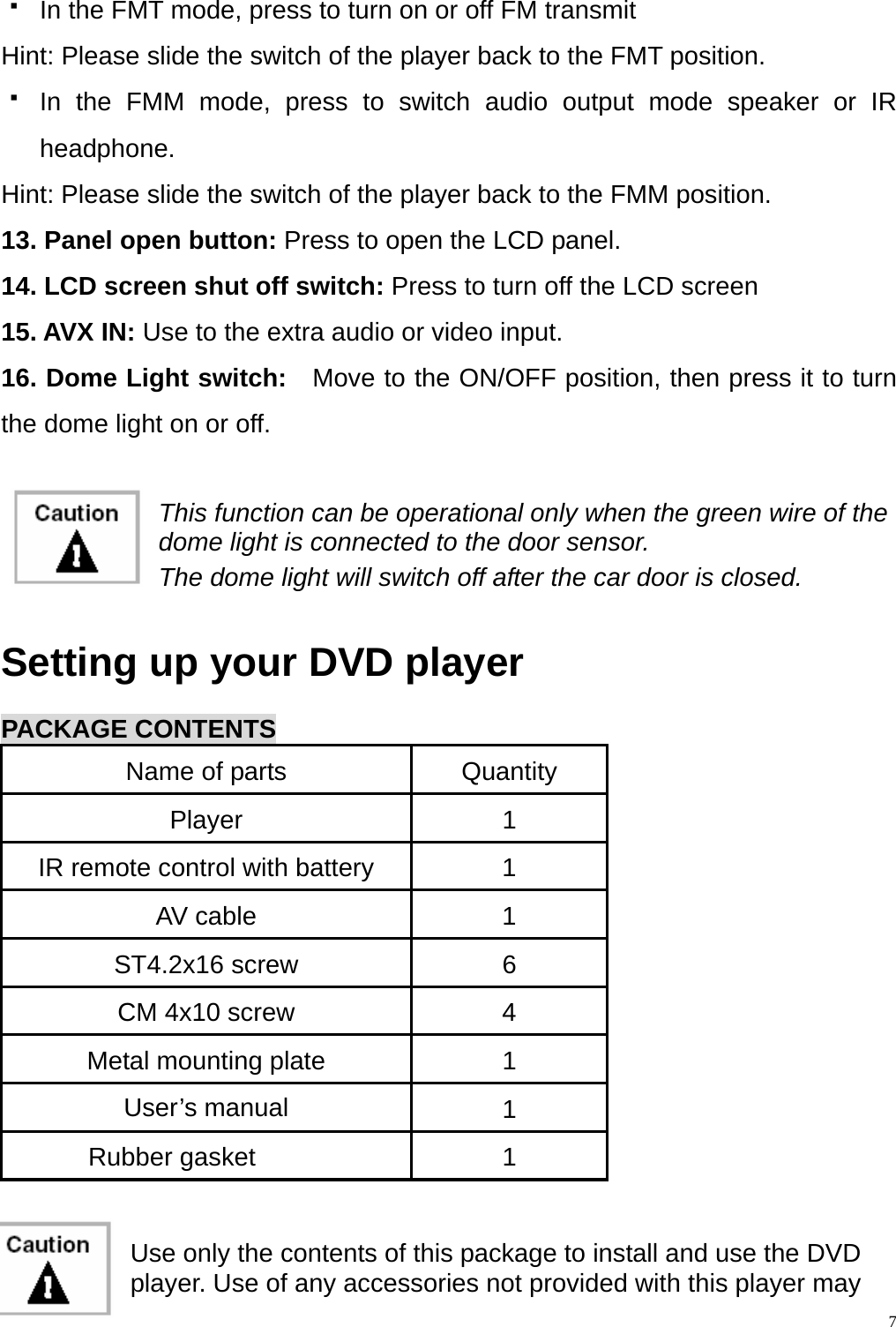
  In the FMT mode, press to turn on or off FM transmit Hint: Please slide the switch of the player back to the FMT position.  In the FMM mode, press to switch audio output mode speaker or IR headphone. Hint: Please slide the switch of the player back to the FMM position. 13. Panel open button: Press to open the LCD panel. 14. LCD screen shut off switch: Press to turn off the LCD screen 15. AVX IN: Use to the extra audio or video input. 16. Dome Light switch:   Move to the ON/OFF position, then press it to turn the dome light on or off.   This function can be operational only when the green wire of the dome light is connected to the door sensor. The dome light will switch off after the car door is closed.  Setting up your DVD player  PACKAGE CONTENTS Name of parts  Quantity Player 1 IR remote control with battery  1 AV cable  1 ST4.2x16 screw  6 CM 4x10 screw  4 Metal mounting plate  1 User’s manual  1 Rubber gasket  1   Use only the contents of this package to install and use the DVD player. Use of any accessories not provided with this player may 7
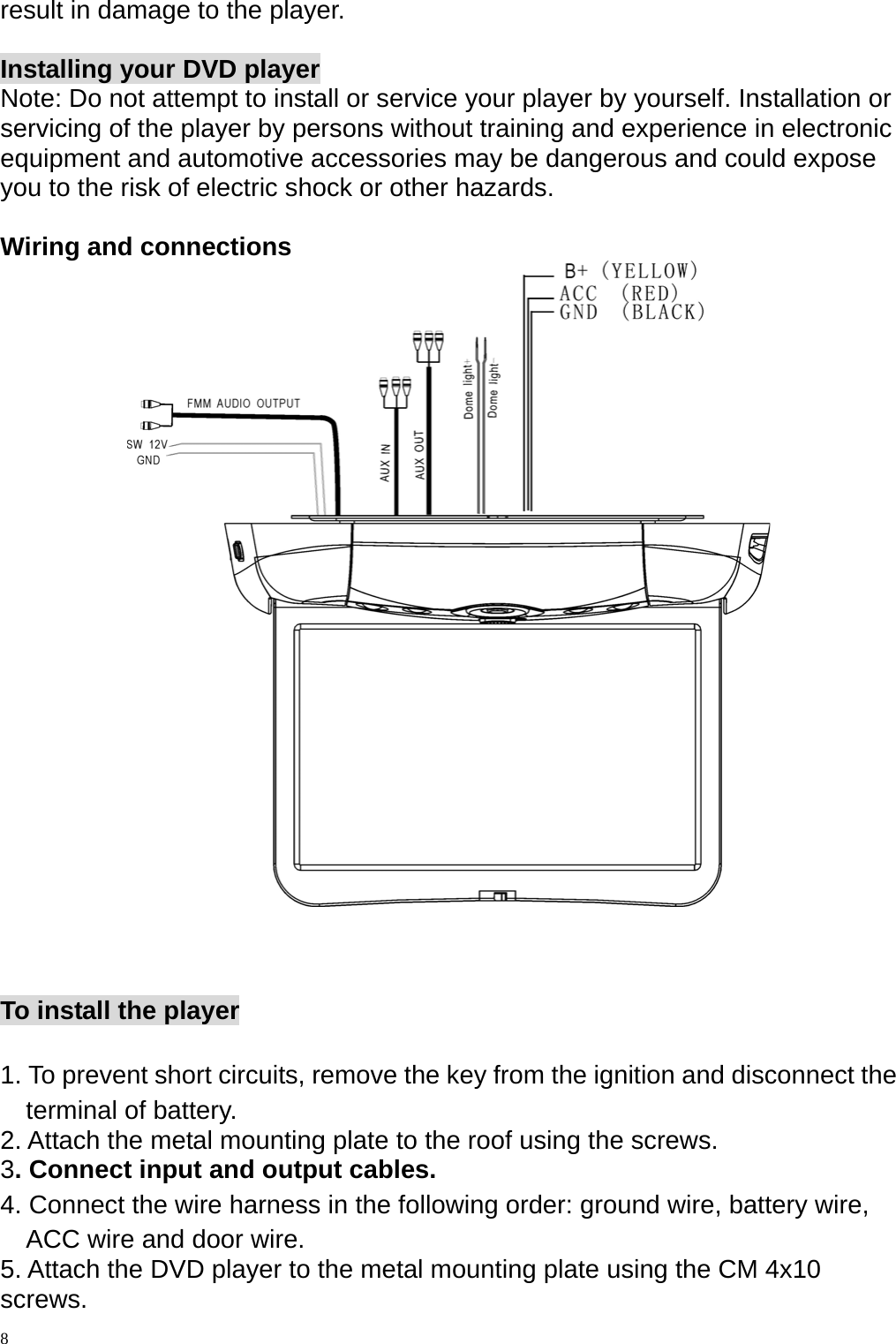
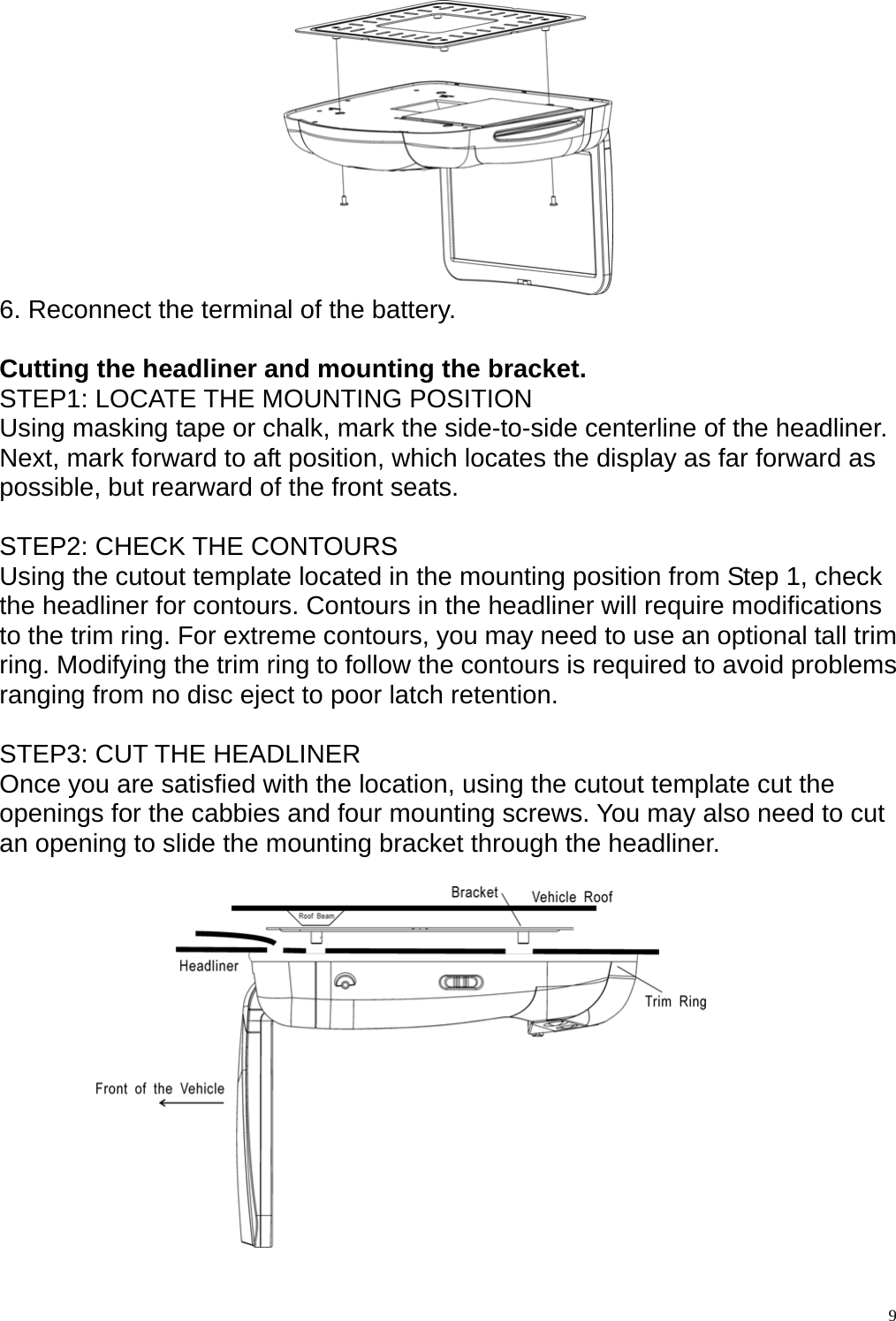
result in damage to the player.  Installing your DVD player Note: Do not attempt to install or service your player by yourself. Installation or servicing of the player by persons without training and experience in electronic equipment and automotive accessories may be dangerous and could expose you to the risk of electric shock or other hazards.  Wiring and connections     To install the player  1. To prevent short circuits, remove the key from the ignition and disconnect the terminal of battery. 2. Attach the metal mounting plate to the roof using the screws. 3. Connect input and output cables. 4. Connect the wire harness in the following order: ground wire, battery wire, ACC wire and door wire. 5. Attach the DVD player to the metal mounting plate using the CM 4x10 screws.  8
   6. Reconnect the terminal of the battery.    Cutting the headliner and mounting the bracket. STEP1: LOCATE THE MOUNTING POSITION Using masking tape or chalk, mark the side-to-side centerline of the headliner. Next, mark forward to aft position, which locates the display as far forward as possible, but rearward of the front seats.  STEP2: CHECK THE CONTOURS Using the cutout template located in the mounting position from Step 1, check the headliner for contours. Contours in the headliner will require modifications to the trim ring. For extreme contours, you may need to use an optional tall trim ring. Modifying the trim ring to follow the contours is required to avoid problems ranging from no disc eject to poor latch retention.  STEP3: CUT THE HEADLINER Once you are satisfied with the location, using the cutout template cut the openings for the cabbies and four mounting screws. You may also need to cut an opening to slide the mounting bracket through the headliner.      9
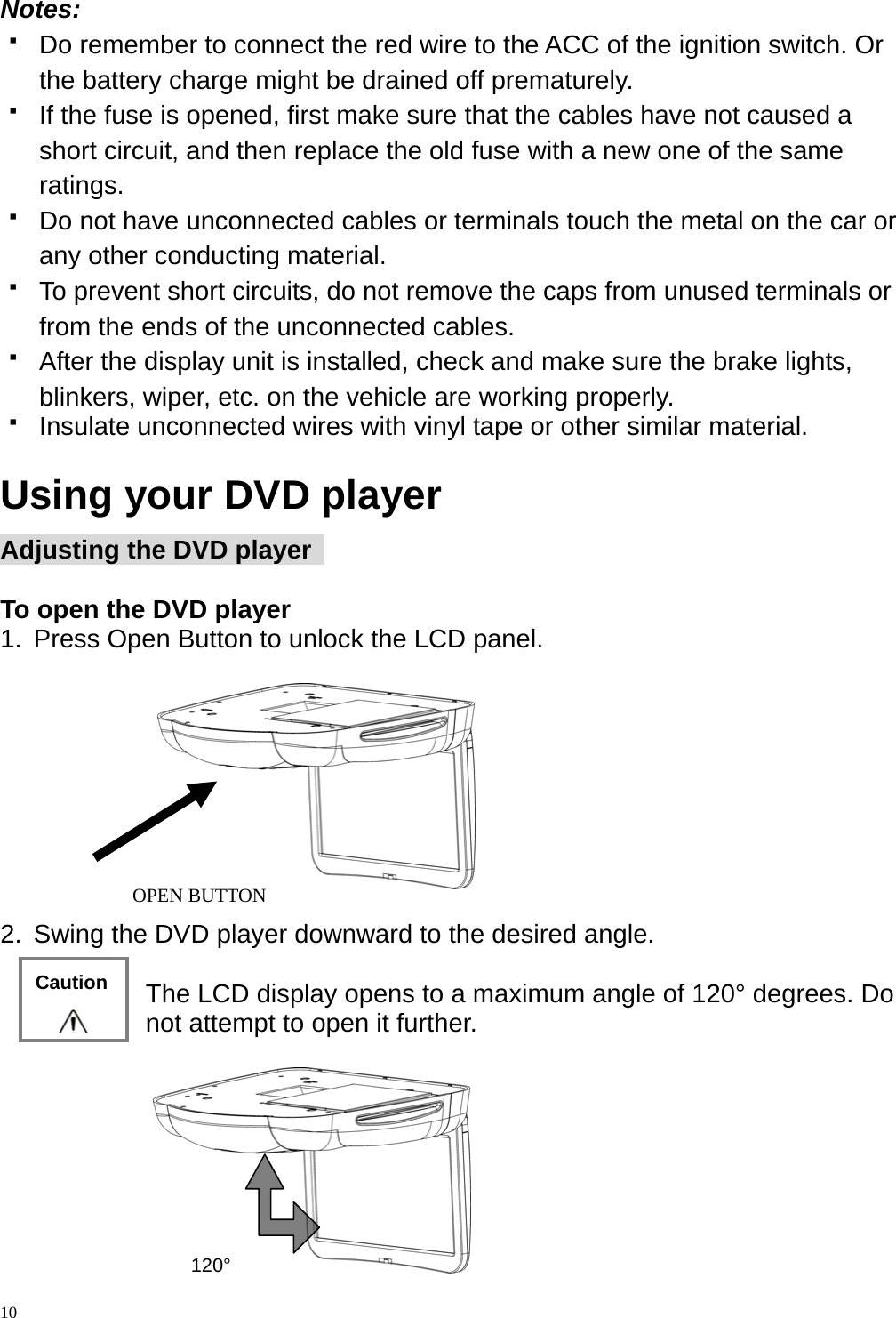
 Notes:    Do remember to connect the red wire to the ACC of the ignition switch. Or the battery charge might be drained off prematurely.   If the fuse is opened, first make sure that the cables have not caused a short circuit, and then replace the old fuse with a new one of the same ratings.   Do not have unconnected cables or terminals touch the metal on the car or any other conducting material.   To prevent short circuits, do not remove the caps from unused terminals or from the ends of the unconnected cables.   After the display unit is installed, check and make sure the brake lights, blinkers, wiper, etc. on the vehicle are working properly.   Insulate unconnected wires with vinyl tape or other similar material.  Using your DVD player Adjusting the DVD player    To open the DVD player     1.  Press Open Button to unlock the LCD panel.    10  2.  Swing the DVD player downward to the desired angle.  The LCD display opens to a maximum angle of 120° degrees. Do not attempt to open it further.   120° OPEN BUTTON Caution
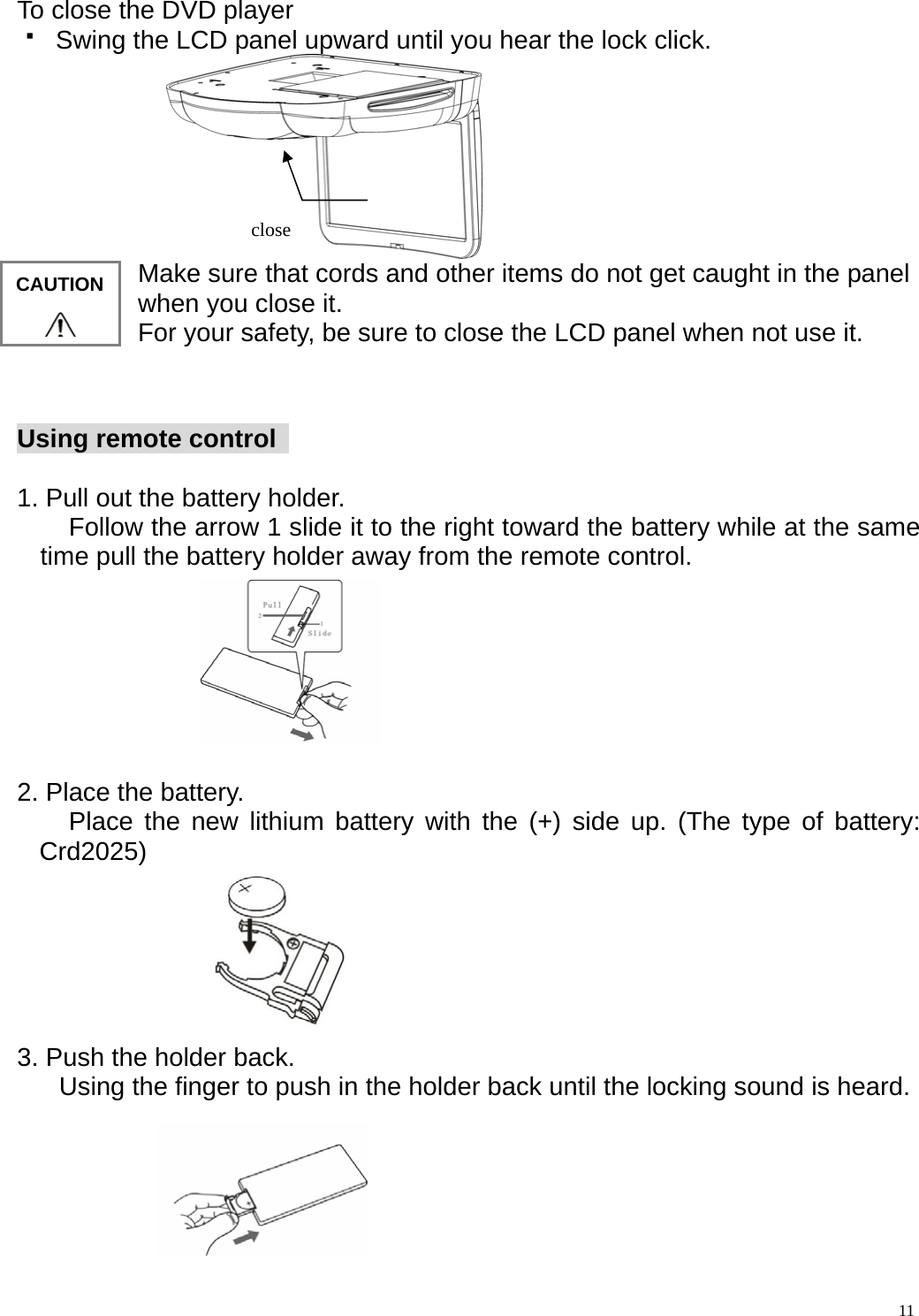
 To close the DVD player   Swing the LCD panel upward until you hear the lock click.  close  11Make sure that cords and other items do not get caught in the panel when you close it. For your safety, be sure to close the LCD panel when not use it.  CAUTION  Using remote control    1. Pull out the battery holder.         Follow the arrow 1 slide it to the right toward the battery while at the same time pull the battery holder away from the remote control.          2. Place the battery.     Place the new lithium battery with the (+) side up. (The type of battery: Crd2025)       3. Push the holder back.      Using the finger to push in the holder back until the locking sound is heard.
4.Aim the IR Remote Control directly at the DVD player, then press any button.    Use the remote control only inside the vehicle  12   Use the IR Remote Control no further than five feet( 3 meter) from the sensor.   Direct sunlight or very bright light reduces sensitivity to the remote signal commands. Be sure the player is not located in direct sunlight.   Any obstruction between the remote sensor and remote control may disrupt reception.      Note   Replacing the battery If the remote control does not function, or if the operating range becomes reduced, replace the old battery with new one.  Note    Dispose used battery properly.   Do not misuse battery by shorting the positive + and - negative terminal or put into fire which may cause the battery to explode.   Battery and battery holder can be a choking hazard. Keep the remote control away from young children.
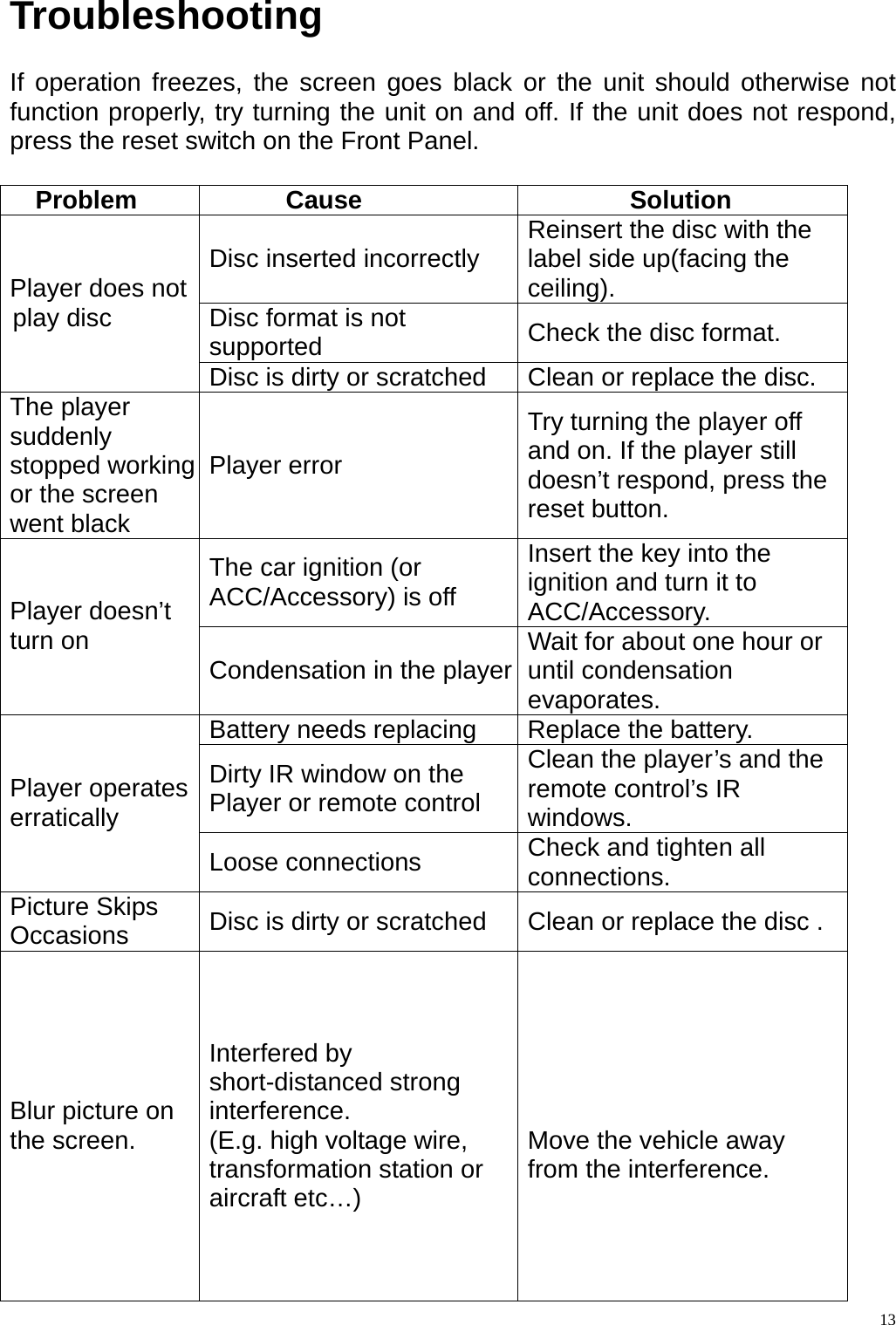
  13Troubleshooting   If operation freezes, the screen goes black or the unit should otherwise not function properly, try turning the unit on and off. If the unit does not respond, press the reset switch on the Front Panel.  Problem Cause  Solution Disc inserted incorrectly  Reinsert the disc with the label side up(facing the ceiling). Disc format is not supported  Check the disc format. Player does not play disc Disc is dirty or scratched  Clean or replace the disc. The player suddenly stopped working or the screen went black Player error Try turning the player off and on. If the player still doesn’t respond, press the reset button. The car ignition (or ACC/Accessory) is off Insert the key into the ignition and turn it to ACC/Accessory. Player doesn’t turn on  Condensation in the player Wait for about one hour or until condensation evaporates. Battery needs replacing  Replace the battery. Dirty IR window on the Player or remote control   Clean the player’s and the remote control’s IR windows. Player operates erratically Loose connections  Check and tighten all connections. Picture Skips Occasions   Disc is dirty or scratched  Clean or replace the disc .      Blur picture on the screen.      Interfered by short-distanced strong interference. (E.g. high voltage wire, transformation station or aircraft etc…)   Move the vehicle away from the interference.
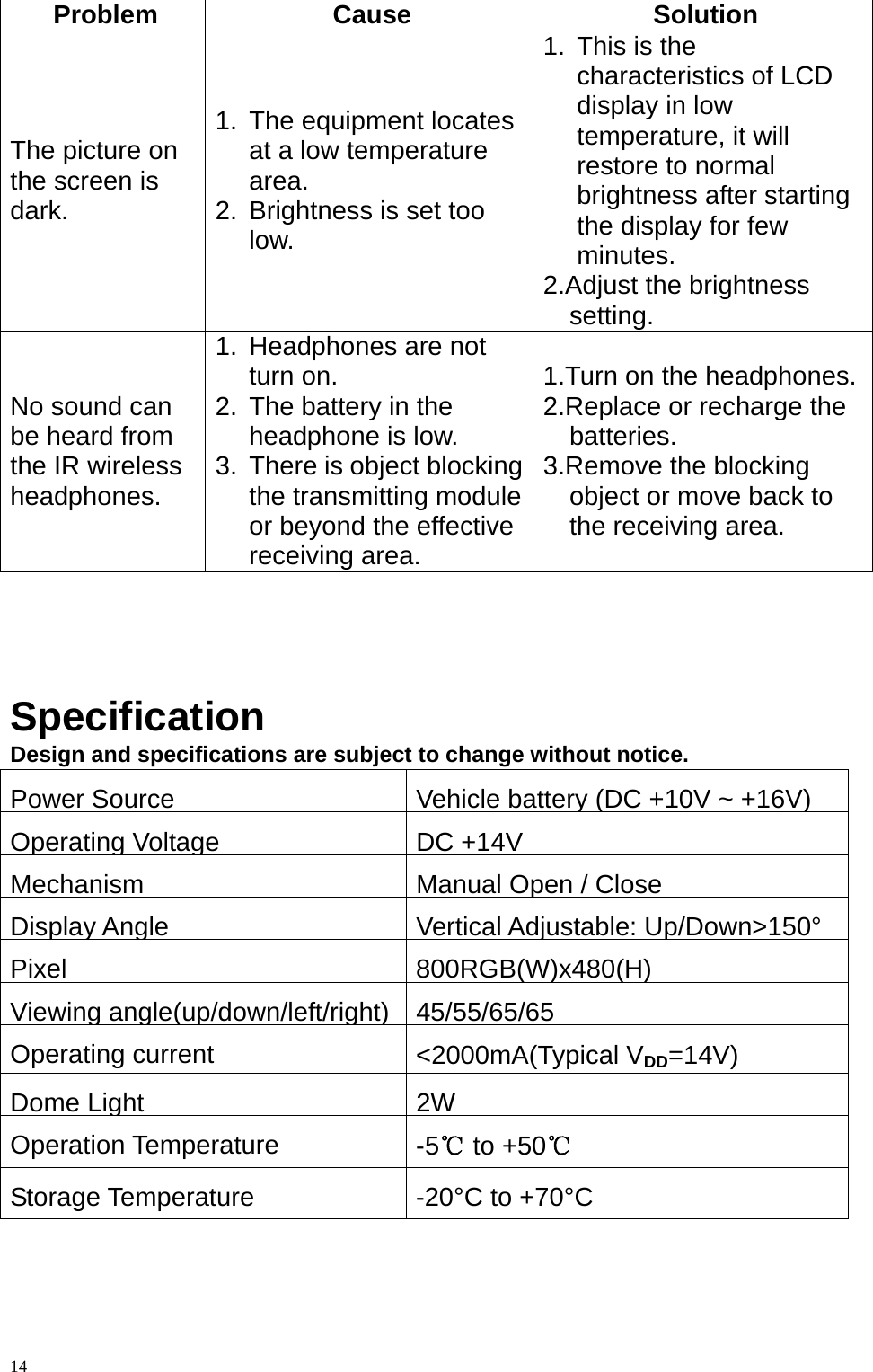
 14 Problem Cause  Solution The picture on the screen is dark. 1.  The equipment locates at a low temperature area. 2.  Brightness is set too low. 1.  This is the characteristics of LCD display in low temperature, it will restore to normal brightness after starting the display for few minutes. 2.Adjust the brightness setting. No sound can be heard from the IR wireless headphones. 1.  Headphones are not turn on. 2.  The battery in the headphone is low. 3.  There is object blocking the transmitting module or beyond the effective receiving area. 1.Turn on the headphones.2.Replace or recharge the batteries. 3.Remove the blocking object or move back to the receiving area.     Specification Design and specifications are subject to change without notice. Power Source Vehicle battery (DC +10V ~ +16V) Operating Voltage DC +14VMechanism Manual Open / CloseDisplay Angle Vertical Adjustable: Up/Down>150° Pixel 800RGB(W)x480(H)Viewing angle(up/down/left/right)45/55/65/65Operating current    <2000mA(Typical VDD=14V) Dome Light 2WOperation Temperature  -5℃ to +50℃ Storage Temperature  -20°C to +70°C
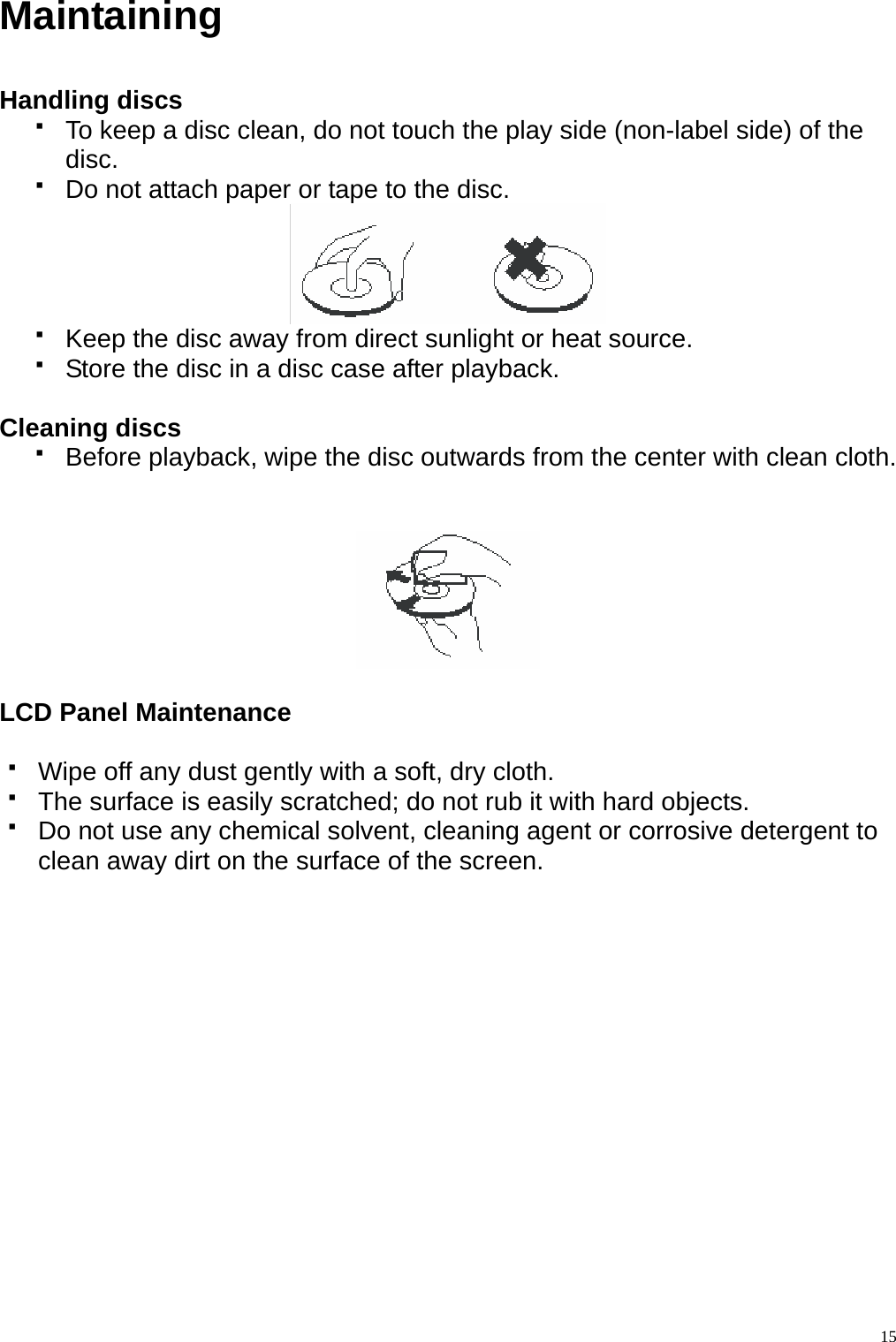
Maintaining  Handling discs     To keep a disc clean, do not touch the play side (non-label side) of the disc.   Do not attach paper or tape to the disc.    Keep the disc away from direct sunlight or heat source.   Store the disc in a disc case after playback.  Cleaning discs   Before playback, wipe the disc outwards from the center with clean cloth.     LCD Panel Maintenance    Wipe off any dust gently with a soft, dry cloth.   The surface is easily scratched; do not rub it with hard objects.   Do not use any chemical solvent, cleaning agent or corrosive detergent to clean away dirt on the surface of the screen.    15
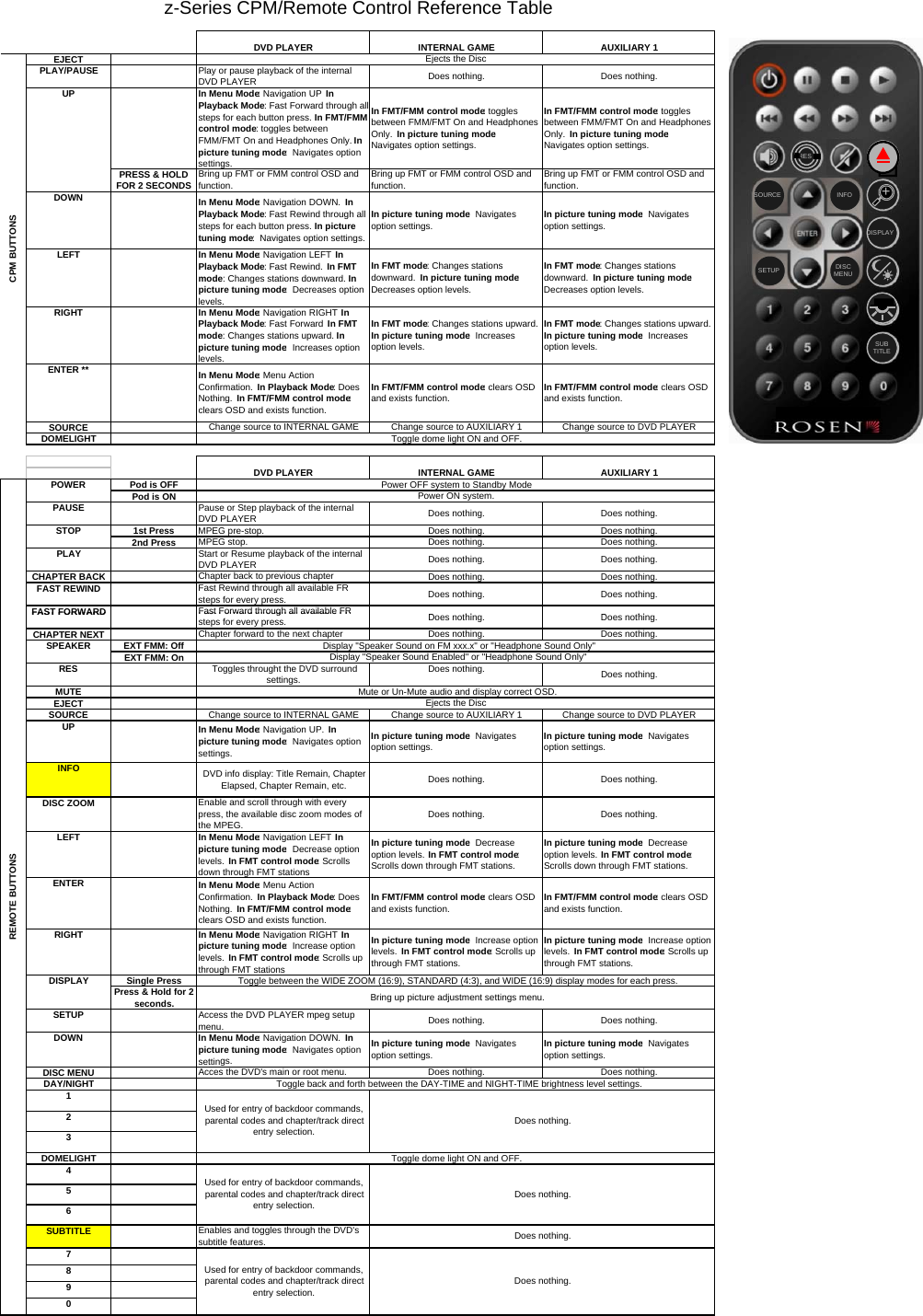
EJECTPLAY/PAUSE Play or pause playback of the internal DVD PLAYER Does nothing. Does nothing.In Menu Mode: Navigation UP  In Playback Mode: Fast Forward through allsteps for each button press.  In FMT/FMM control mode: toggles between FMM/FMT On and Headphones Only.  In picture tuning mode:  Navigates option settings.In FMT/FMM control mode: toggles between FMM/FMT On and Headphones Only.  In picture tuning mode:  Navigates option settings.In FMT/FMM control mode: toggles between FMM/FMT On and Headphones Only.  In picture tuning mode:  Navigates option settings.PRESS & HOLD FOR 2 SECONDS Bring up FMT or FMM control OSD and function.Bring up FMT or FMM control OSD and function.Bring up FMT or FMM control OSD and function.DOWN In Menu Mode: Navigation DOWN.  In Playback Mode: Fast Rewind through all steps for each button press.  In picture tuning mode:  Navigates option settings.In picture tuning mode:  Navigates option settings.In picture tuning mode:  Navigates option settings.LEFT In Menu Mode: Navigation LEFT  In Playback Mode: Fast Rewind.  In FMT mode: Changes stations downward.  In picture tuning mode:  Decreases option levels.In FMT mode: Changes stations downward.  In picture tuning mode:  Decreases option levels.In FMT mode: Changes stations downward.  In picture tuning mode:  Decreases option levels.RIGHT In Menu Mode: Navigation RIGHT  In Playback Mode: Fast Forward  In FMT mode: Changes stations upward.  In picture tuning mode:  Increases option levels.In FMT mode: Changes stations upward.  In picture tuning mode:  Increases option levels.In FMT mode: Changes stations upward.  In picture tuning mode:  Increases option levels.ENTER ** In Menu Mode: Menu Action Confirmation.  In Playback Mode: Does Nothing.  In FMT/FMM control mode: clears OSD and exists function.In FMT/FMM control mode: clears OSD and exists function.In FMT/FMM control mode: clears OSD and exists function.SOURCE Change source to INTERNAL GAME Change source to AUXILIARY 1 Change source to DVD PLAYERDOMELIGHTPod is OFFPod is ONPAUSE Pause or Step playback of the internal DVD PLAYER Does nothing. Does nothing.1st Press MPEG pre-stop. Does nothing. Does nothing.2nd PressMPEG stop. Does nothing. Does nothing.PLAY Start or Resume playback of the internal DVD PLAYER Does nothing. Does nothing.CHAPTER BACKChapter back to previous chapterDoes nothing. Does nothing.FAST REWIND Fast Rewind through all available FR steps for every press. Does nothing. Does nothing.FAST FORWARDFast Forward through all available FRDhiDhiCPM BUTTONSUPz-Series CPM/Remote Control Reference TablePOWER Power OFF system to Standby ModePower ON system.STOPDVD PLAYER INTERNAL GAME AUXILIARY 1Ejects the DiscToggle dome light ON and OFF.DVD PLAYER INTERNAL GAME AUXILIARY 1INFOSOURCEDISPLAYSUBTITLERESDISCMENUSETUP++FAST FORWARDFast Forward through all available FRsteps for every press. Does nothing. Does nothing.CHAPTER NEXTChapter forward to the next chapterDoes nothing. Does nothing.EXT FMM: OffEXT FMM: OnRES Toggles throught the DVD surround settings.Does nothing. Does nothing.MUTEEJECTSOURCE Change source to INTERNAL GAME Change source to AUXILIARY 1 Change source to DVD PLAYERUP In Menu Mode: Navigation UP.  In picture tuning mode:  Navigates option settings.In picture tuning mode:  Navigates option settings.In picture tuning mode:  Navigates option settings.INFO DVD info display: Title Remain, Chapter Elapsed, Chapter Remain, etc. Does nothing. Does nothing.DISC ZOOM Enable and scroll through with every press, the available disc zoom modes of the MPEG.Does nothing. Does nothing.LEFT In Menu Mode: Navigation LEFT  In picture tuning mode:  Decrease option levels.  In FMT control mode: Scrolls down through FMT stationsIn picture tuning mode:  Decrease option levels.  In FMT control mode: Scrolls down through FMT stations.In picture tuning mode:  Decrease option levels.  In FMT control mode: Scrolls down through FMT stations.ENTER In Menu Mode: Menu Action Confirmation.  In Playback Mode: Does Nothing.  In FMT/FMM control mode: clears OSD and exists function.In FMT/FMM control mode: clears OSD and exists function.In FMT/FMM control mode: clears OSD and exists function.RIGHT In Menu Mode: Navigation RIGHT  In picture tuning mode:  Increase option levels.  In FMT control mode: Scrolls up through FMT stationsIn picture tuning mode:  Increase option levels.  In FMT control mode: Scrolls up through FMT stations.In picture tuning mode:  Increase option levels.  In FMT control mode: Scrolls up through FMT stations.Single PressPress & Hold for 2 seconds.SETUP Access the DVD PLAYER mpeg setup menu. Does nothing. Does nothing.DOWN In Menu Mode: Navigation DOWN.  In picture tuning mode:  Navigates option settings.In picture tuning mode:  Navigates option settings.In picture tuning mode:  Navigates option settings.DISC MENU Acces the DVD's main or root menu. Does nothing. Does nothing.DAY/NIGHT123DOMELIGHT456SUBTITLE Enables and toggles through the DVD's subtitle features.7890Used for entry of backdoor commands, parental codes and chapter/track direct entry selection.Display "Speaker Sound Enabled" or "Headphone Sound Only"Mute or Un-Mute audio and display correct OSD.Does nothing.DISPLAYToggle back and forth between the DAY-TIME and NIGHT-TIME brightness level settings.Toggle dome light ON and OFF.Ejects the DiscToggle between the WIDE ZOOM (16:9), STANDARD (4:3), and WIDE (16:9) display modes for each press.Bring up picture adjustment settings menu.Used for entry of backdoor commands, parental codes and chapter/track direct entry selection.Does nothing.Used for entry of backdoor commands, parental codes and chapter/track direct entry selection.Does nothing.REMOTE BUTTONSSPEAKERDoes nothing.Display "Speaker Sound on FM xxx.x" or "Headphone Sound Only"
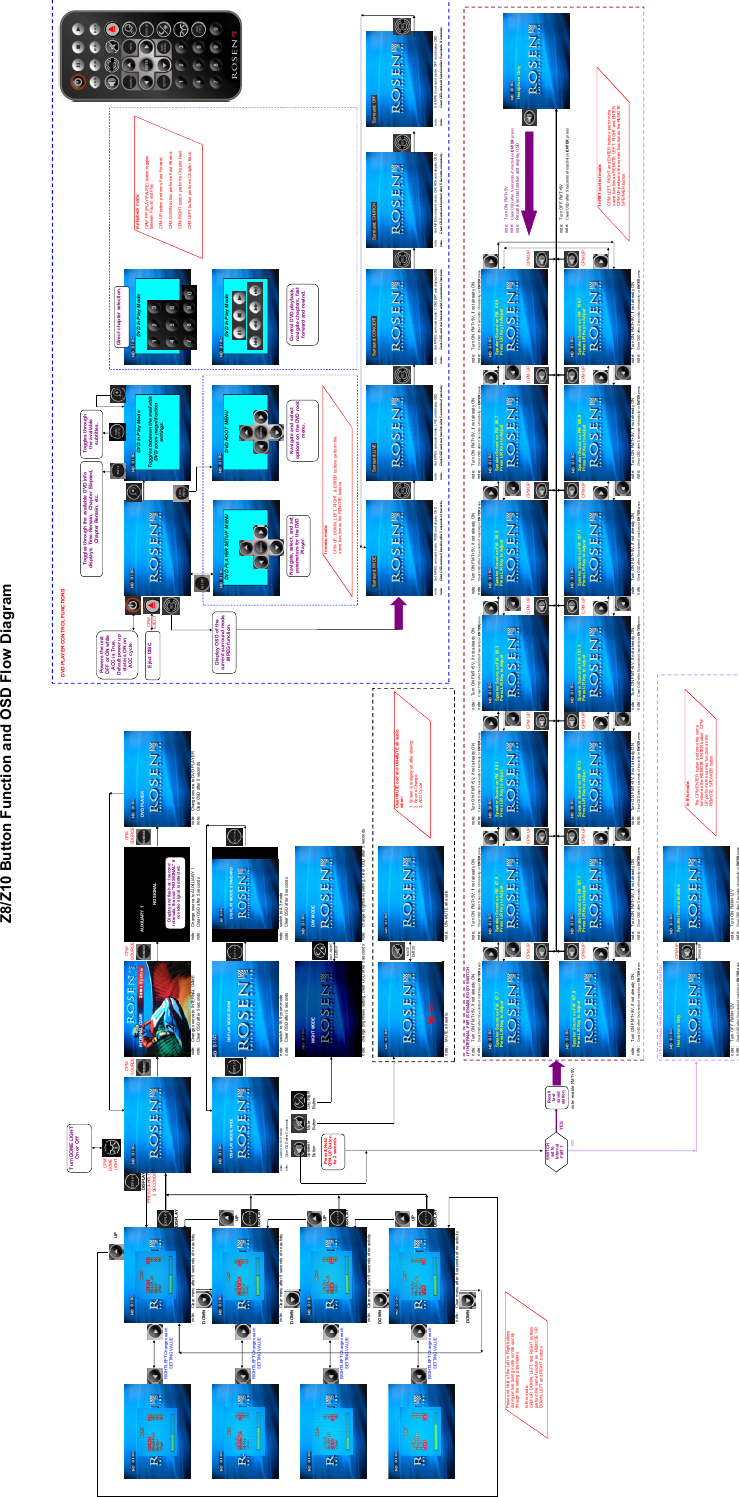
DVD PLAYER CONTRO L FUNCTIONSCPMDOMEUP LIGHTCPM CPM CPMSOURCE S OURCE SOURC EINTERNAL GAMEDISPLAYPRESS & HOLD CPM2 SECONDS EJECTDISPLAYnote: Clear menu after 5 seconds of  no activity note: Change source to I NTERNAL GAME note: Change sourc e to AUXILIARY 1 note: Change source to DVD PLAYERnote: Clear OSD after 5 sec onds note: Clear OSD after 5 sec onds note: Clear OSD after 5 sec ondsDOWNUPDISPLAYnote: Clear menu after 5 seconds of  no activitynote: switc h to 16:9 modenote: switch to 16: 9 zoom mode note: switch to 4: 3 modenote: Clear OSD after 5 s econdsnote: Clear OSD after 5 sec onds note: Clear OSD after 5 sec ondsDOWNSpeaker Day/NightButton Button ButtonUPDAY-NIGHTbuttonDISPLAYnote: c hange brightness setting, clear  OSD after 5 sec onds note: change br ightness setting, clear OSD after  5 secondsnote: Clear menu after 5 seconds of  no activityDOWN Surr ound: WIDE Surround:  LIVE Surround:  CONCERT Surround:  CHURCH Surround:  OFFMUTEUP buttonDISPLAYnote: Set MP EG surround mode: WIDE and dis play OSD note: Set MP EG surround mode: LIVE and dis play OSD note: Set MP EG surround mode: CONCERT and dis play OSD note: Set  MPEG surroun d mode: CHURCH and displ ay OSD note: Set M PEG surround mode: OF F and display OSDnote:Clear OSD and exit function after 5 s econds of inactivity .note:Clear OSD and exit function after 5 s econds of inactivity .note:Clear OSDand exit functionafter 5 seconds ofinactivity.note:Clear OSD and exit function after 5 s econds of inactivity .note:Clear OSD and exit function after 5 s econds of inactivity .NO SIGNALMuteRIGHT/LEFT Changes each SETTING VALUERIGHT/LEFT Changes each SETTING VALUERIGHT/LEFT Changes each SETTING VALUERIGHT/LEFT Changes each SETTING VALUEZ8/Z10 Button Function and OSD Flow DiagramWIDEDay-time BrightnessMUTEDAY MODEDVD PLAYERPress &  Hold CPM UP Button for 2 secondsINFOSOURCEDISPLAYSUBTITLERESDISCMEN USETUP++Clear MUTE osd and UN-MUTE all audio  when:1. Scr een is redeployed  after stowing.2. Sourc e Change.3. ACC CycleDVD  PLAYER SETUP  M ENUNavigate, select, and set parameters for the DVD Player.DVD ROOT MENUNavigate and select options on the DVD root menu.In menu mode:CPM UP, DOWN, LEFT, RIGHT,  & ENTER buttons  perform the same function as  the REMOTE buttons.DVD In Play M odeControl DVD playback, navigate chapters, fast forward and r ewind.In playback  mode:CPM  PP (PLAY/PAUSE) button toggles between Pause and P lay .CPM UP button perfor ms Fast Forward.CPM DOWN button perf orms Fast Rewind.CPM RIGHT  button perfor ms Chapter Next.CPM LEFT button perf orms Chapter Back.DVD In Play M odeDVD  In Play M odeToggles between the available DVD  zoom magnification settings.Direct chapter selection.Eject DISCTurn DOME LIGHT On or OffDisplay and flash at  1 second intervals,  the osd "N O SIGNAL"  if no video signal  is detect ed.Toggles through the available subtit les.Toggles through the available DVD info displays: Time Remain,  Chapter Elapsed, Chapter  Remain, etc.Powers the unit OFF or  ON while ACC is True.  Default power  up state is ON on ACC cycle.Display OSD of the current surr ound mode.   MPEG function.Surround:  WIDE Surround: LIVE Surround: CONCERT Sur rou nd: C HURCH Surround: OFFNIGHT MODEDISPLAY MODE: WIDE DISPLAY MODE: ZOOM DISPLAY MODE: STANDARDDVD PLAYERAUXI LIARY 1INTERNAL GAMEnote:Clear OSD and exit function after 5 seconds of inactivity.note:Clear OSD and exit function after 5 seconds of inactivity.note:Clear OSD and exit function after 5 seconds of inactivity.note:Clear OSD and exit function after 5 seconds of inactivity.note:Clear OSD and exit function after 5 seconds of inactivity.note: MUTE all audio note: UN-MUTE all audionote: Clear menu after 5 seconds of no activityDOWN IF INTERNAL FMT IS ENABLED BY SWITCHnote: Turn ON FMT+5V, if not already ON note: Turn ON FMT+5V, if not already ON note: Turn ON FMT+5V, if not already ON note: Turn ON FMT+5V, if not already ON note: Turn ON FMT+5V, if not already ON note: Turn ON FMT+5V, if not already ON note: Turn ON FMT+5V, if not already ONnote: Clear OSD after 5 seconds of inactivity or ENTER press note: Clear OSD after 5 seconds of inactivity or ENTER press note: Clear OSD after 5 seconds of inactivity or ENTER press note: Clear OSD after 5 seconds of inactivity or ENTER press note: Clear OSD after 5 seconds of inactivity or ENTER press note: Clear OSD after 5 seconds of inactivity or ENTER press note: Clear OSD after 5 seconds of inactivity or ENTER pressSpeaker Sound on FM  87.9 Speaker Sound on FM  88.1 Speaker Sound on FM  88.3 Speaker Sound on FM  88.5 Speaker Sound on FM  88.7 Speaker Sound on FM  88.9note: Turn ON FMT+5Vnote: Clear OSD after 5 seconds of inactivity or ENTER pressnote: Recall & set last station and display OSD Headphones OnlyCPM UP CPM UP CPM UP CPM UP CPM UP CPM UP CPM UPYES note: Turn OFF FMT+5Vnote: Clear OSD after 5 seconds of inactivity or ENTER pressNO note: enable FMT+5VSpeaker Sound on FM   107.9 Speaker Sound on FM   107.7 Speaker Sound on FM   107.5 Speaker Sound on FM    107.3 Speaker Sound on FM    107.1 Speaker Sound on FM  106.9 Speaker Sound on FM  106.7CPM UP CPM UP CPM UP CPM UP CPM UP CPM UP CPM UPnote: Turn ON FMT+5V, if not already ON note: Turn ON FMT+5V, if not already ON note: Turn ON FMT+5V, if not already ON note: Turn ON FMT+5V, if not already ON note: Turn ON FMT+5V, if not already ON note: Turn ON FMT+5V, if not already ON note: Turn ON FMT+5V, if not already ONnote: Clear OSD after 5 seconds of inactivity or ENTER press note: Clear OSD after 5 seconds of inactivity or ENTER press note: Clear OSD after 5 seconds of inactivity or ENTER press note: Clear OSD after 5 seconds of inactivity or ENTER press note: Clear OSD after 5 seconds of inactivity or ENTER press note: Clear OSD after 5 seconds of inactivity or ENTER press note: Clear OSD after 5 seconds of inactivity or ENTER pressIF EXTERNAL FMM IS ENABLED BY SWITCHHeadphones Only CPM UP Speaker SoundSPEAKERnote: Turn OFF FMM+12V note: Turn ON FMM+12Vnote: Clear OSD after 5 seconds of inactivity or ENTER press note: Clear OSD after 5 seconds of inactivity or ENTER pressSWITCH set to Inter nal FMT ?Recall last saved station.Press and Hold of the Left or Right buttons during picture tuning mode scr olls quickly  through the setting  parameters.In this  mode:CPM UP, DOWN, LEFT, and  RIGHT buttons perfor m the same func iton as  REMOTE  UP, DOWN, LEFT and RIGHT  buttons.In FMT contr ol mode:CPM LEFT, RIGHT and ENTER  buttons perform the same function as  REMOTE  LEFT, RIGHT  and ENTER.   CPM UP performs the sames functi on as the REMOTE SPEAKER button.In this  mode:The CPM ENTER  button perf orms the same functi on as the REMOTE  ENTER  button.   CPM UP performs the sames  function as the REMOTE SPEAKER button.Speaker Sound on FM   87.7Press L/R Key to AdjustSpeaker Sound on FM   87.9Press L/R Key to AdjustSpeaker Sound on FM   88.1Press L/R Key to AdjustSpeaker Sound on FM   88.3Press L/R Key to AdjustSpeaker Sound on FM   88.5Press L/R Key to AdjustSpeaker Sound on FM   88.7Press L/R Key to AdjustSpeaker Sound on FM   88.9Press L/R Key to AdjustSpeaker Sound on FM   106.7Press L/R Key to AdjustSpeaker Sound on FM  106.9Press L/R Key to AdjustSpeaker Sound on FM  107.1Press L/R Key to AdjustSpeaker Sound on FM  107.3Press L/R Key to AdjustSpeaker Sound on FM  107.5Press L/R Key to AdjustSpeaker Sound on FM  107.7Press L/R Key to AdjustSpeaker Sound on FM  107.9Press L/R Key to AdjustHeadphone OnlyHeadphone Only Speaker Sound  Enabled
          Page 46Evervictory Electronic Company Limited                        All-In-One DVD Overhead System                                                            FCC ID:TZ8TR1073ZE1050D   NOTE: THE MANUFACTURER IS NOT RESPONSIBLE FOR ANY RADIO OR TV          INTERFERENCE CAUSED BY UNAUTHORIZED MODIFICATIONS TO THIS             EQUIPMENT. SUCH MODIFICATIONS COULD VOID THE USER’S AUTHORITY          TO OPERATE THE EQUIPMENT.

Navigation menu