Fitcare Electronics PE805A Activity Tracker User Manual 2015 11 24 MOVE
Shenzhen Fitcare Electronics Co., Ltd Activity Tracker 2015 11 24 MOVE
User Manual
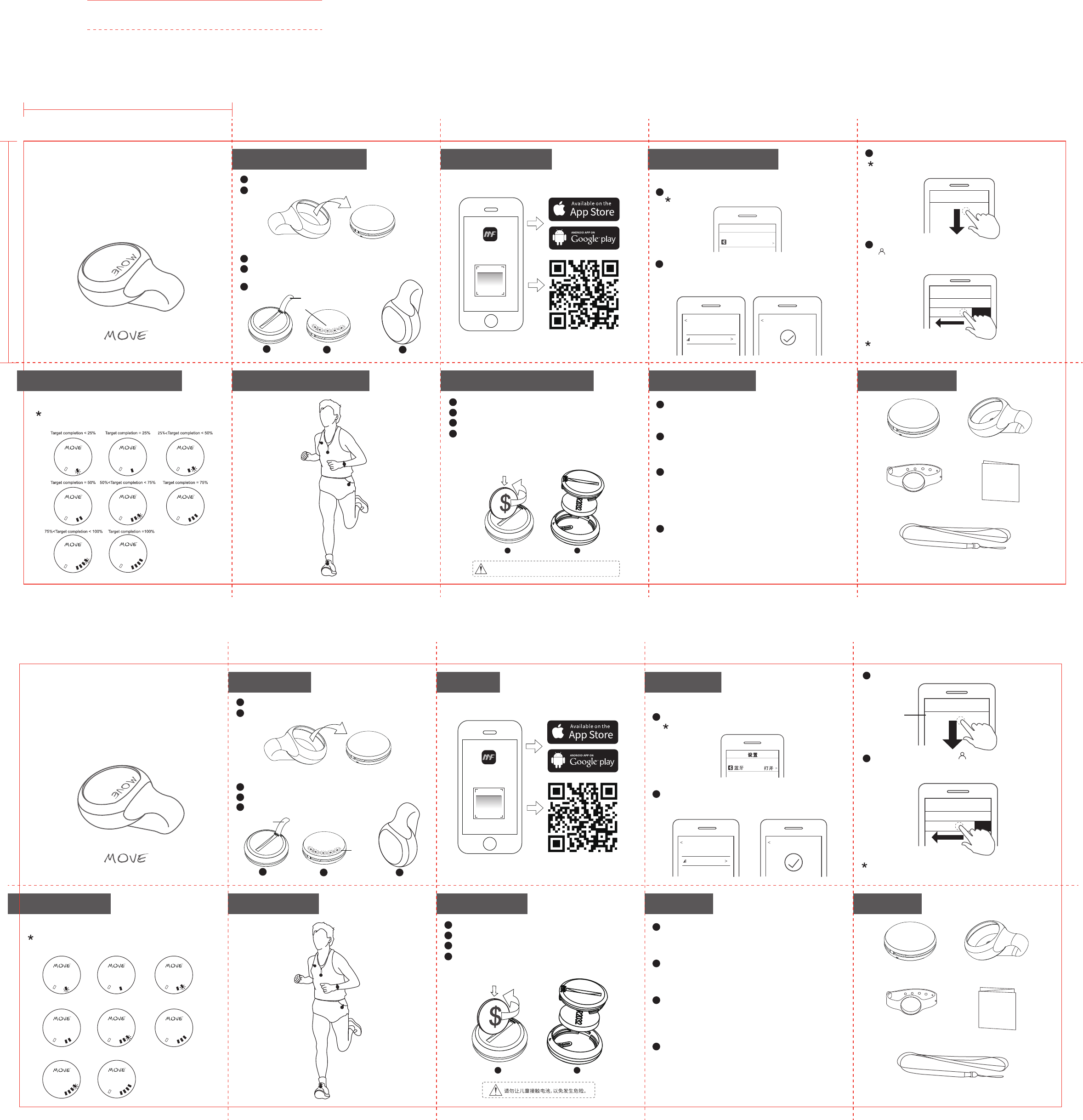
Quick Start
Twist the battery door counter clockwise by a coin;
Replace the battery;
Twist the battery door clockwise to install the battery door;
Main device Silicon clip
Wrist band
(optional) User manual
Quick Start
Strap
(optional)
正面
80mm
85mm
背面
You need to activated the device for the first time using and after the
battery replacement.
使用手册
如果白色灯亮,设备还没有被激活,需要被激活后再使用(参考:2.1连接app)
敲击两次主机:
目标完成<25% 目标完成=25% 25%<目标完成<50%
目标完成=50% 50%<目标完成<75%
目标完成75%<目标完成<100%
目标完成=75%
使用硬币逆时针拧开电池后盖;
更换电池;
顺时针拧紧电池后盖;
拧紧电池后盖后主机的灯会闪烁(大约两秒钟),并且在App上能够
正常配对及同步数据,则电池更换成功,否则请检查更换电池过程是
否正确。
主机 硅胶夹
腕带
(可选) 说明书
使用手册
挂绳
(可选)
1
2
3
3
4
4 5
5
打开包装;
将主机从硅胶夹内取出;
将电池绝缘片从主机背面拉出;
主机的灯开始闪烁,主机开始工作;
把主机装回硅胶夹内。
拉出绝缘片
硅胶夹 主机
灯闪烁
1 第一次使用 2 下载App
1 2 3 4
5
版本:V1.0
从App商店搜索"MooFit"下载,或者扫描以下二维码安装App。
MooFit
步行
正在同步数据...
显示数据
正在同步数据
....
设备管理
我的设备
MOVE 删除
我的
打开手机蓝牙: 设置--蓝牙--打开蓝牙。
第一次连接App
不要尝试在本页面寻找设备或配对。
1
绑定设备 绑定设备
2
MOVE
-88
2.1 连接App
打开 App, 注册填写资料 , 完成后,进入绑定设备页面,将本
品靠近手机放置,( 建议在 1m 以内);在搜索例表中点击
"MOVE" 进行配对。
3 如何查看显示
6
4 如何佩戴本品
7
5 如何更换电池
3进入App 会自动同步数据,也可以手动下拉屏幕刷新 同步数据
。
4
设备管理: 在 App 底部,点 " ",进入个人中心,在例表中找
到 " 设备管理 ",可查看当前已连接的设备,左划已连接的设备可
删除当前设备(安卓手机长按删除),点击 "添加设备" 搜索添加新设备。
第一次使用本品或每次更换电池之后都需要按上述步骤重新激活本设备。
1
1
2
2
3
4
1
2
3
4
8
6 常见问题
如何启动设备蓝牙?
本产品为无按键设计,产品通电后,蓝牙一直处在开启的状态,无需
任何触发。
配对过程找不到设备?
a 确认手机的蓝牙处于打开状态。
b 本品的电池电量可能已经耗完,请更换电池。
配对成功,但是数据不能上传?
a 请确保本品在手机的无线可接收范围之内,建议在1m以内。
b 在App的左上角查看设备的连接状态,如果显示“设备未连接”,请
查看本设备是否需要更换电池。
双击本设备没有灯闪烁指示?
a 敲击的力度可能会影响到灯的触发,请用不同的力度尝试。
b 检查是否需要更换电池。
9
7 元件清单
1
2
3
3
4
4 5
5
Open the package;
Take the main device out from the silicone clip;
Pull out the insulation sheet from the back of the main device;
The light of the main device starts to flash, which means the main
device starts to work;
Replace the main device back into the silicone clip.
Pull out the insulation sheet
the silicone clip the main device
The light flashes
1 Using for the first time
1 2 3 4
5
Version:V1.0
MooFit
3 How to check the progress
6
4 How to wear the device
7
5 How to replace the battery
1
1
2
2
3
4
8
6 Trouble Shooting
9
7 Component list
To avoid danger, batteries should be kept away
from the children's area.
Find “Moofit” from the App store or scan the following QR code to install
the App.
2 Download the App
2Open the App, register and log in. Place the device near the phone,
(recommended within 1m). Enter device center-add new device
-search device. Select “MOVE”, to start paring.
Turn on the Bluetooth: Setup - Bluetooth - Turn on the Bluetooth
First Time Connection
1
Do not try to find or pair with the device on this page.
Pair Pair
Succeed
MOVE
-88
Setup
Bluetooth on 4
3After succeed, you may sync the data by pulling down the page.
If the white LED is on, the device haven’ t been activated, need to
activated the device in the App(check part 2.1 to connect to the
App). The light of the main device will flash(last about two seconds) after
the battery door has been tightened. And the device can be paired
on the App, the data can be synchronized. Then the battery has
been successfully replaced. If not, please check up whether the
battery replacement process is correct.
Device management: Enter personal center by touching the icon
“ ” . In the sub-menu of device management, you may check the
current paired device, or delete paired device by sliding to the left
and select “delete” , for Androids, hold the device name to delete.
Me
Steps
synchronizing
....
Device Management
My Device
MOVE Delete
Double tap the device:
2.1 Connect to the App
材料:105克铜版纸双面单色
切线:
折线:
PE805A 中性说明书
1
2
3
4
How to turn on the device’ s Bluetooth?
The product is no button design, once powered up, the Bluetooth will
be on, without any trigger.
The device can’ t be found during pairing?
a. Make sure the Bluetooth on the phone has been turned on.
b. The battery may has been run off, please replace the battery.
Successfully paired, the data can’ t be uploaded?
a. Please make sure the device is within the wireless reception range
of the mobile phone, recommended within 1m.
b. Check the connection status of the device in the upper left corner
of the App, if “Device disconnected” is displayed, please check if
battery replacement is necessary.
Double click on the device but no flashing light?
a. The strength level of the click may affect the trigger of the light,
please try with different strength.
b. Check if battery replacement is necessary.
The word "synchronizing" will be showed on the upper left corner.
During synchronizing please wait till the word "synchronizing"
disappear.
User Manual
FCC Warning
This device complies with Part 15 of the FCC Rules. Operation is subject to the following two
conditions:
(1) This device may not cause harmful interference, and (2) this device must accept any
interference received, including interference that may cause undesired operation.
NOTE 1: Any changes or modifications to this unit not expressly approved by the party
responsible for compliance could void the user's authority to operate the equipment.