Fortuneship Technology E351 WCDMA Mobile Phone User Manual ok

Shenzhen Fortuneship Technology Co., LTD WCDMA Mobile Phone ok

Users Manual

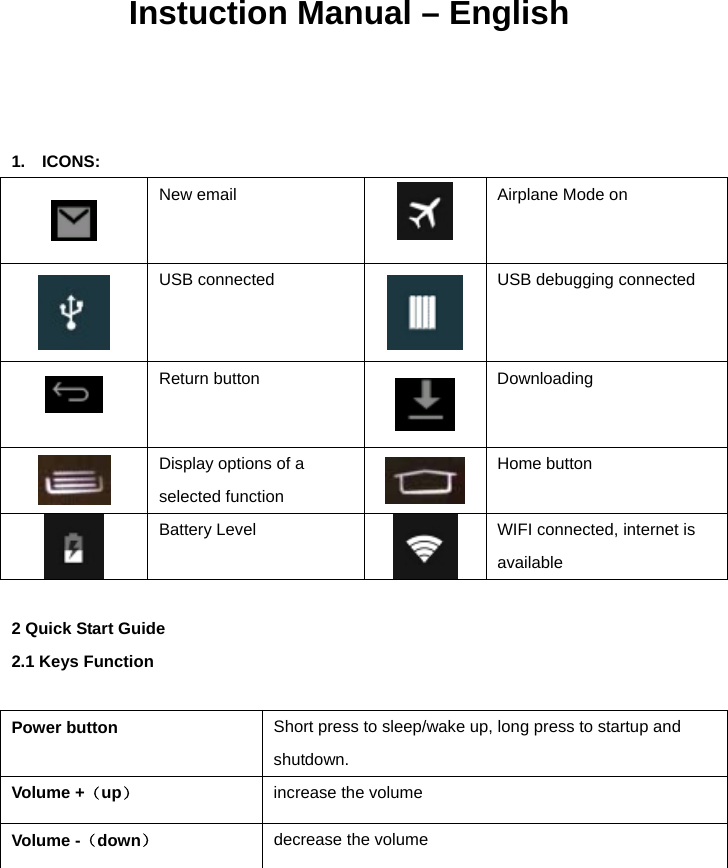
             Instuction Manual – English    1.  ICONS:   New email  Airplane Mode on  USB connected  USB debugging connected  Return button  Downloading  Display options of a selected function   Home button  Battery Level  WIFI connected, internet is available  2 Quick Start Guide 2.1 Keys Function  Power button  Short press to sleep/wake up, long press to startup and shutdown. Volume +(up) increase the volume Volume -(down) decrease the volume
 HOME button  (home) Click it in any interface will return to main interface. Back button(back) click it in any interface will return to previous menu App button      This button will display in menu interface. Menu button   Touch this icon to access options of a selected function  3.0 Home Page Main interface as below, long press the blank and it will popup windows to set wallpaper.                                            Search                                                                                                App button  3.1 USB Connection Phone storage configuration
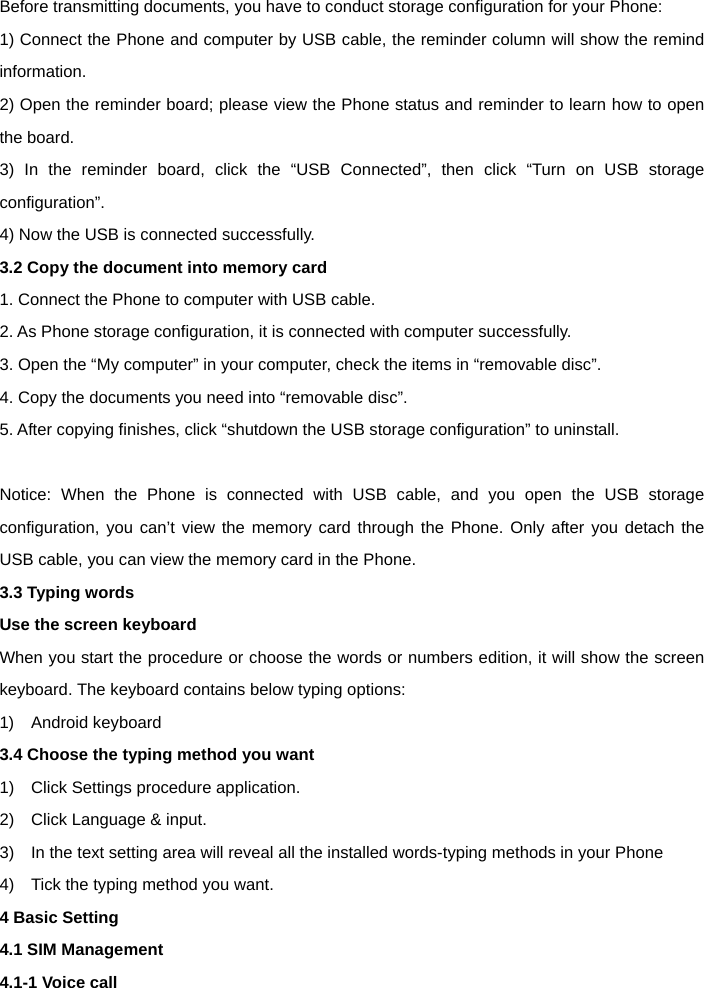
 Before transmitting documents, you have to conduct storage configuration for your Phone:   1) Connect the Phone and computer by USB cable, the reminder column will show the remind information.  2) Open the reminder board; please view the Phone status and reminder to learn how to open the board.   3) In the reminder board, click the “USB Connected”, then click “Turn on USB storage configuration”. 4) Now the USB is connected successfully.   3.2 Copy the document into memory card 1. Connect the Phone to computer with USB cable. 2. As Phone storage configuration, it is connected with computer successfully.   3. Open the “My computer” in your computer, check the items in “removable disc”.   4. Copy the documents you need into “removable disc”.   5. After copying finishes, click “shutdown the USB storage configuration” to uninstall.    Notice: When the Phone is connected with USB cable, and you open the USB storage configuration, you can’t view the memory card through the Phone. Only after you detach the USB cable, you can view the memory card in the Phone. 3.3 Typing words Use the screen keyboard   When you start the procedure or choose the words or numbers edition, it will show the screen keyboard. The keyboard contains below typing options:   1)  Android keyboard  3.4 Choose the typing method you want   1)    Click Settings procedure application.   2)    Click Language & input.   3)    In the text setting area will reveal all the installed words-typing methods in your Phone   4)    Tick the typing method you want. 4 Basic Setting 4.1 SIM Management   4.1-1 Voice call
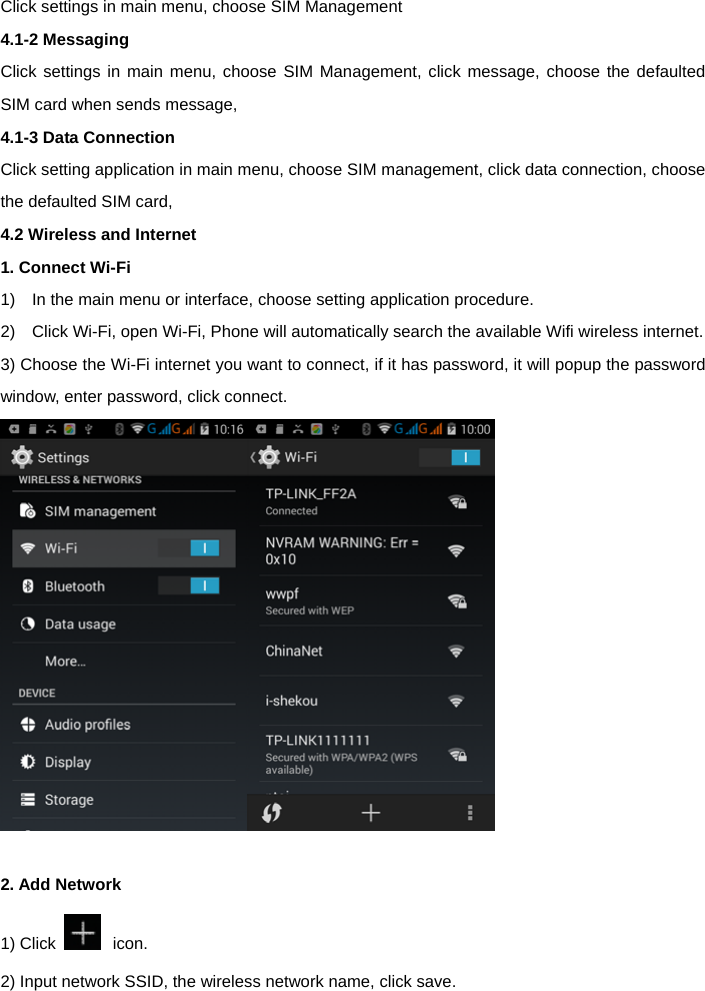
 Click settings in main menu, choose SIM Management   4.1-2 Messaging   Click settings in main menu, choose SIM Management, click message, choose the defaulted SIM card when sends message,   4.1-3 Data Connection  Click setting application in main menu, choose SIM management, click data connection, choose the defaulted SIM card,   4.2 Wireless and Internet   1. Connect Wi-Fi  1)    In the main menu or interface, choose setting application procedure.   2)    Click Wi-Fi, open Wi-Fi, Phone will automatically search the available Wifi wireless internet. 3) Choose the Wi-Fi internet you want to connect, if it has password, it will popup the password window, enter password, click connect.   2. Add Network 1) Click   icon. 2) Input network SSID, the wireless network name, click save.
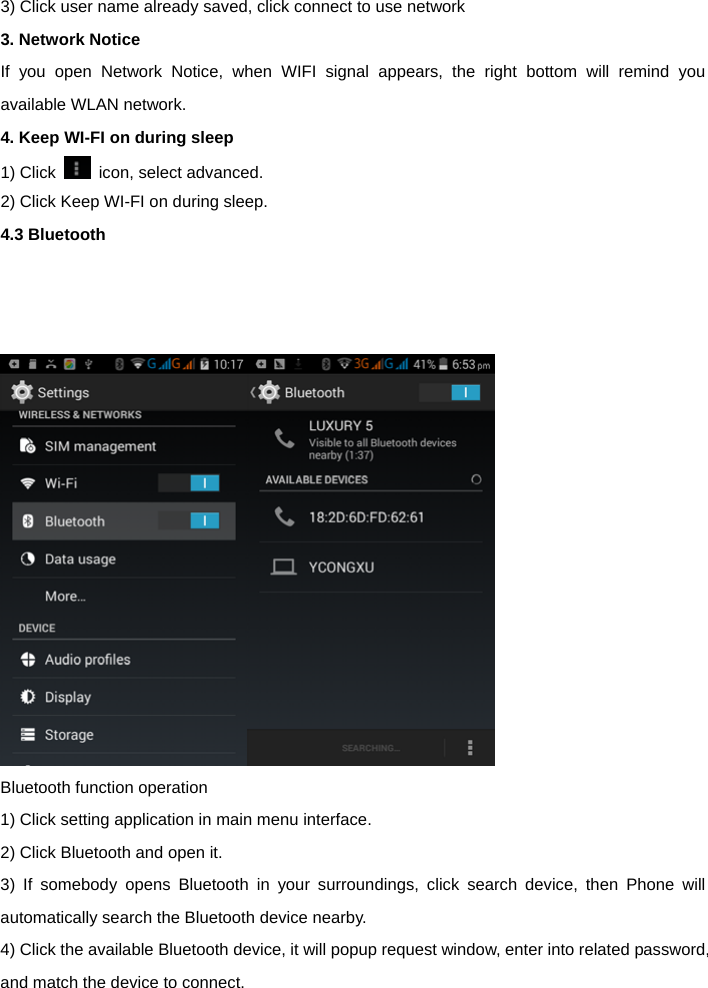
 3) Click user name already saved, click connect to use network 3. Network Notice   If you open Network Notice, when WIFI signal appears, the right bottom will remind you available WLAN network.   4. Keep WI-FI on during sleep   1) Click    icon, select advanced. 2) Click Keep WI-FI on during sleep. 4.3 Bluetooth       Bluetooth function operation   1) Click setting application in main menu interface. 2) Click Bluetooth and open it. 3) If somebody opens Bluetooth in your surroundings, click search device, then Phone will automatically search the Bluetooth device nearby.   4) Click the available Bluetooth device, it will popup request window, enter into related password, and match the device to connect.
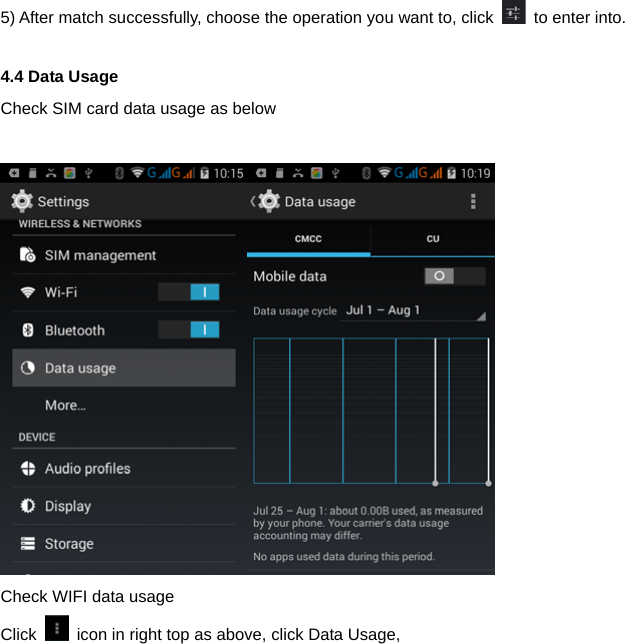
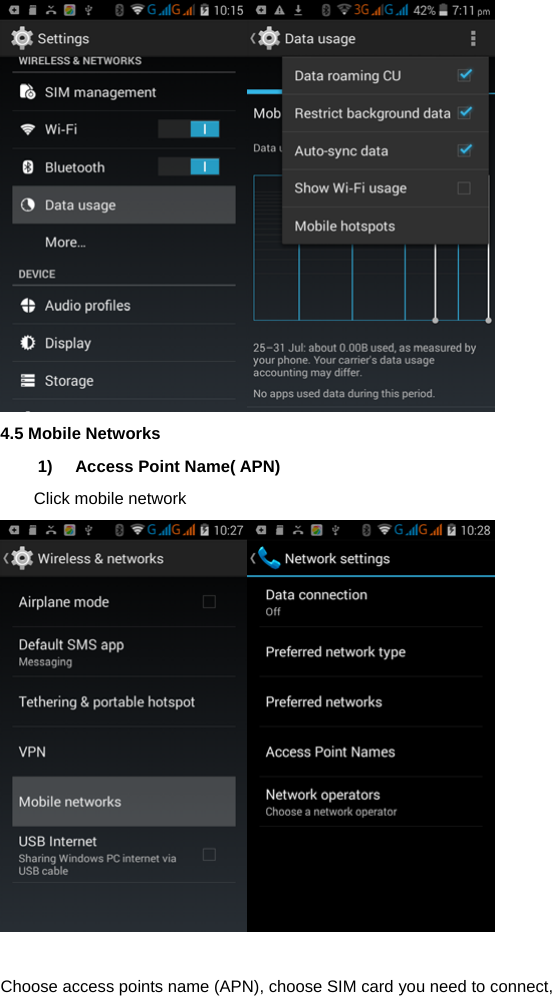
 5) After match successfully, choose the operation you want to, click    to enter into.    4.4 Data Usage   Check SIM card data usage as below     Check WIFI data usage   Click    icon in right top as above, click Data Usage,
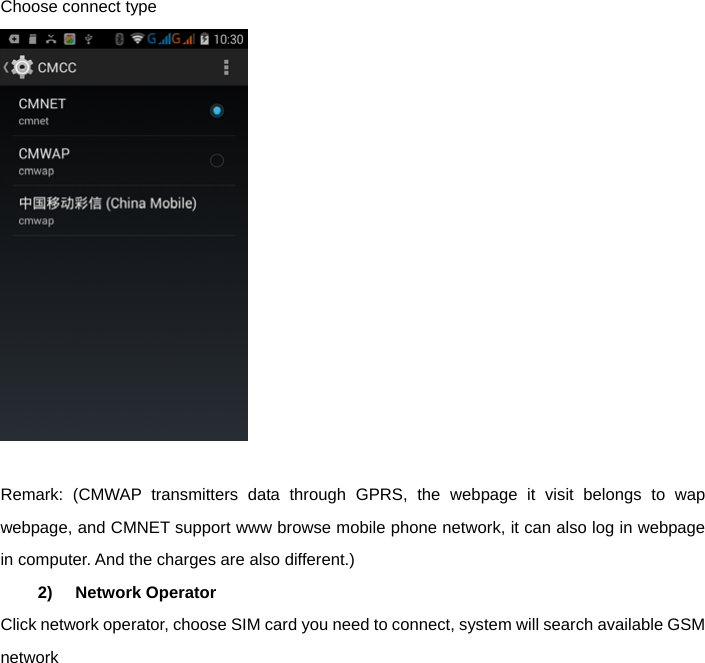
  4.5 Mobile Networks   1) Access Point Name( APN) Click mobile network   Choose access points name (APN), choose SIM card you need to connect,
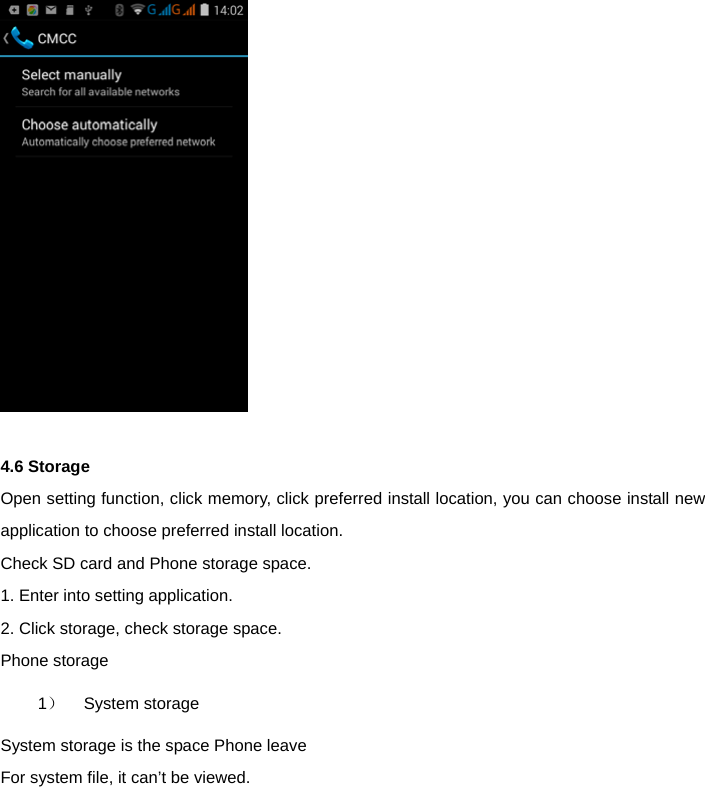
 Choose connect type   Remark: (CMWAP transmitters data through GPRS, the webpage it visit belongs to wap webpage, and CMNET support www browse mobile phone network, it can also log in webpage in computer. And the charges are also different.) 2) Network Operator Click network operator, choose SIM card you need to connect, system will search available GSM network
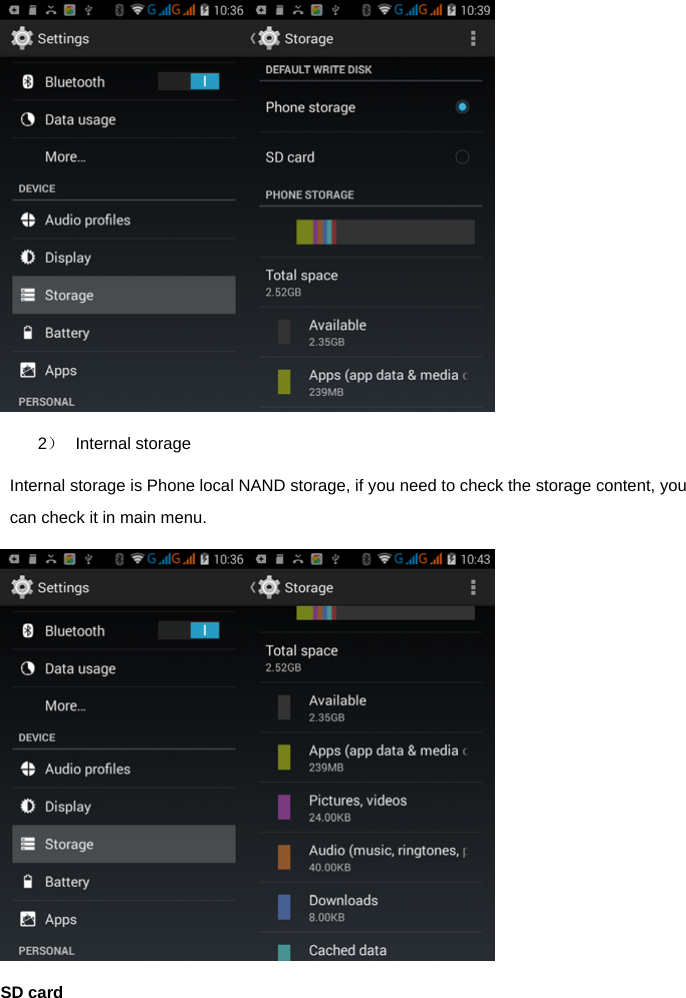
   4.6 Storage   Open setting function, click memory, click preferred install location, you can choose install new application to choose preferred install location.   Check SD card and Phone storage space.   1. Enter into setting application.   2. Click storage, check storage space.   Phone storage   1)   System storage  System storage is the space Phone leave   For system file, it can’t be viewed.
  2) Internal storage Internal storage is Phone local NAND storage, if you need to check the storage content, you can check it in main menu.  SD card
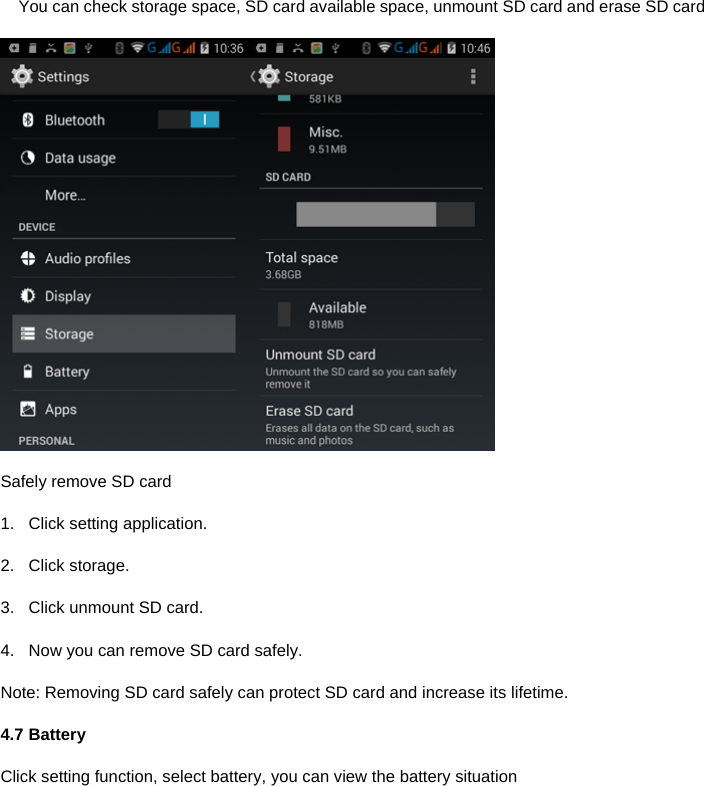
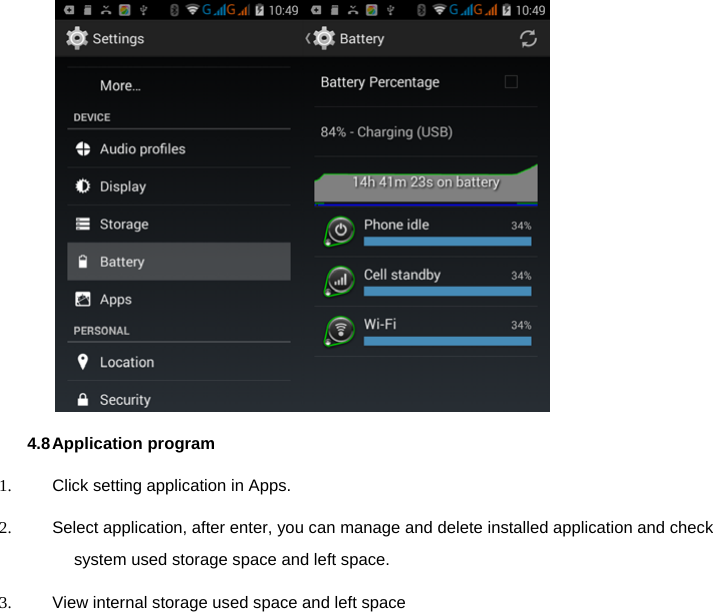
 You can check storage space, SD card available space, unmount SD card and erase SD card  Safely remove SD card 1.  Click setting application. 2. Click storage. 3.  Click unmount SD card. 4.  Now you can remove SD card safely. Note: Removing SD card safely can protect SD card and increase its lifetime. 4.7 Battery Click setting function, select battery, you can view the battery situation
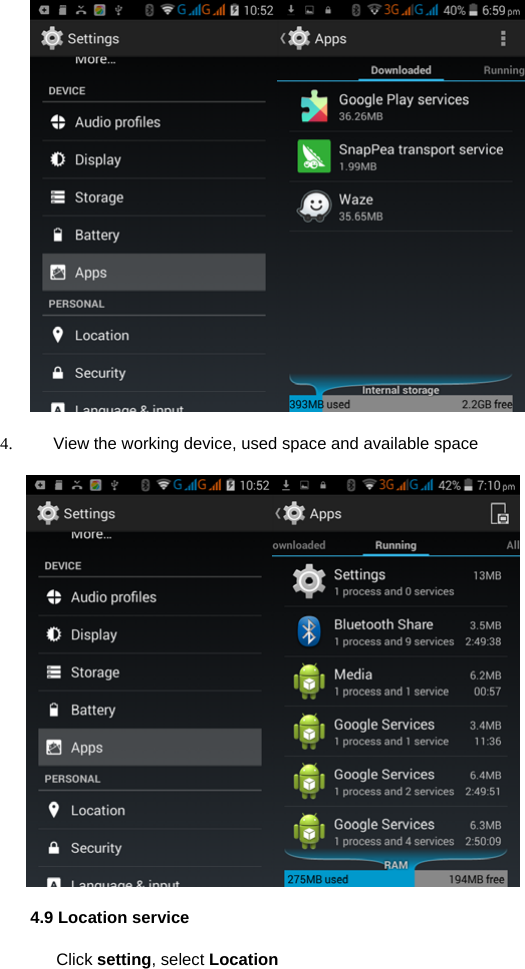
  4.8 Application  program 1.  Click setting application in Apps. 2.  Select application, after enter, you can manage and delete installed application and check system used storage space and left space. 3.  View internal storage used space and left space
  4.  View the working device, used space and available space  4.9 Location service Click setting, select Location
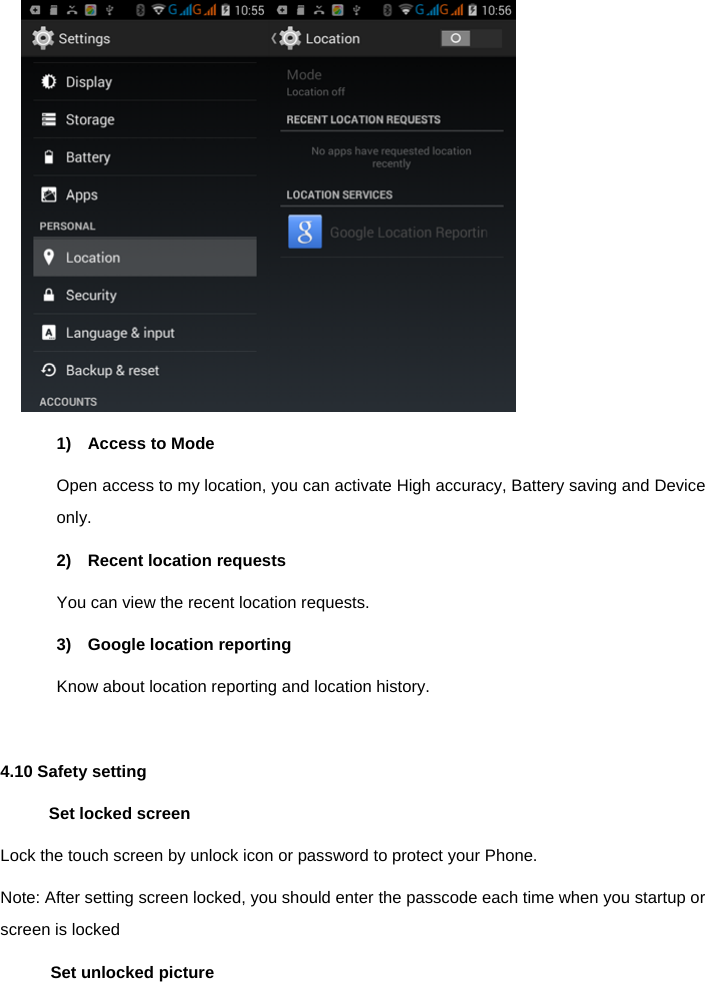
  1)  Access to Mode Open access to my location, you can activate High accuracy, Battery saving and Device only. 2)  Recent location requests You can view the recent location requests. 3)  Google location reporting Know about location reporting and location history.  4.10 Safety setting Set locked screen Lock the touch screen by unlock icon or password to protect your Phone. Note: After setting screen locked, you should enter the passcode each time when you startup or screen is locked     Set unlocked picture
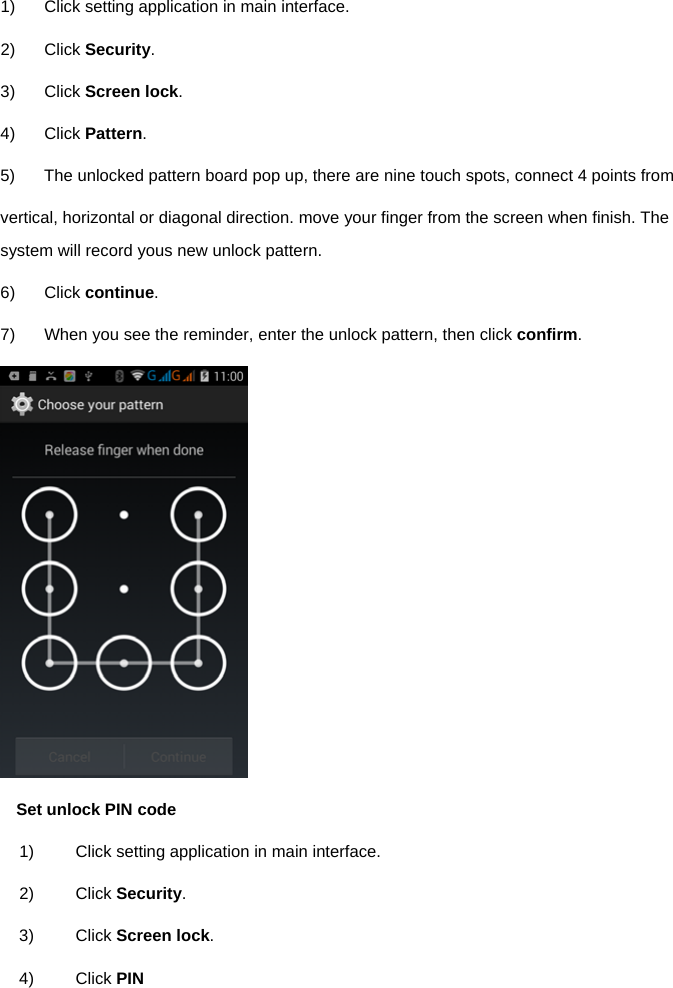
 1)  Click setting application in main interface. 2) Click Security. 3) Click Screen lock. 4) Click Pattern. 5)  The unlocked pattern board pop up, there are nine touch spots, connect 4 points from   vertical, horizontal or diagonal direction. move your finger from the screen when finish. The system will record yous new unlock pattern. 6) Click continue. 7)  When you see the reminder, enter the unlock pattern, then click confirm.  Set unlock PIN code 1)  Click setting application in main interface. 2) Click Security. 3) Click Screen lock. 4) Click PIN
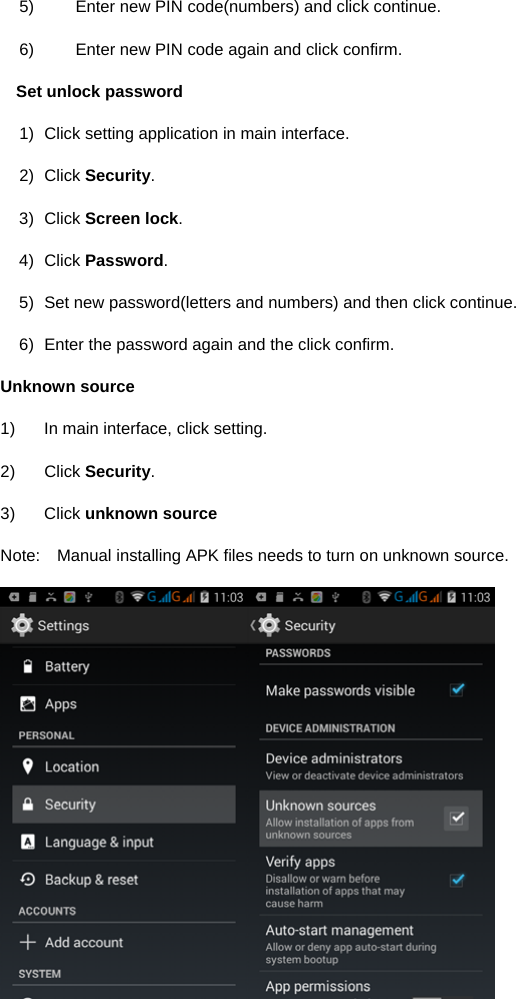
 5)  Enter new PIN code(numbers) and click continue. 6)  Enter new PIN code again and click confirm. Set unlock password 1)  Click setting application in main interface.   2) Click Security. 3) Click Screen lock. 4) Click Password. 5)  Set new password(letters and numbers) and then click continue. 6)  Enter the password again and the click confirm. Unknown source 1)  In main interface, click setting. 2) Click Security. 3) Click unknown source Note:    Manual installing APK files needs to turn on unknown source.
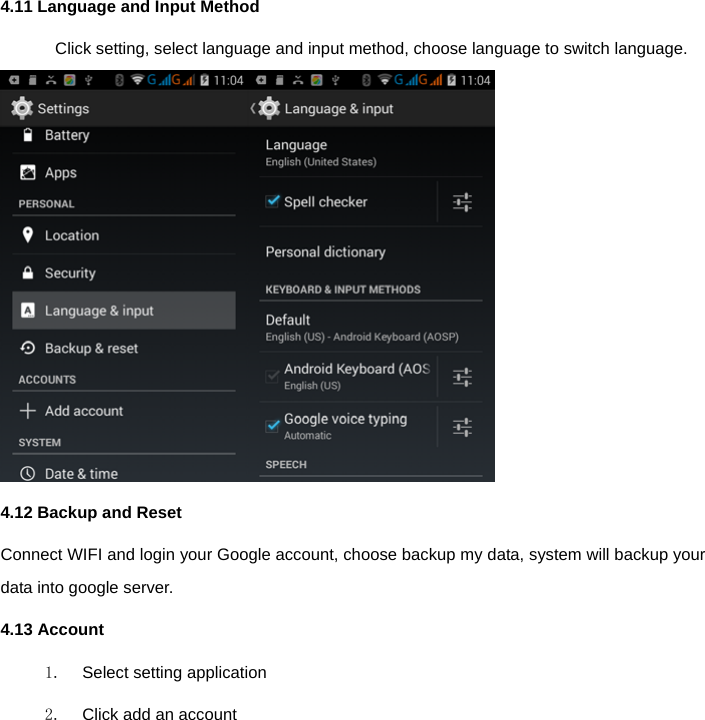
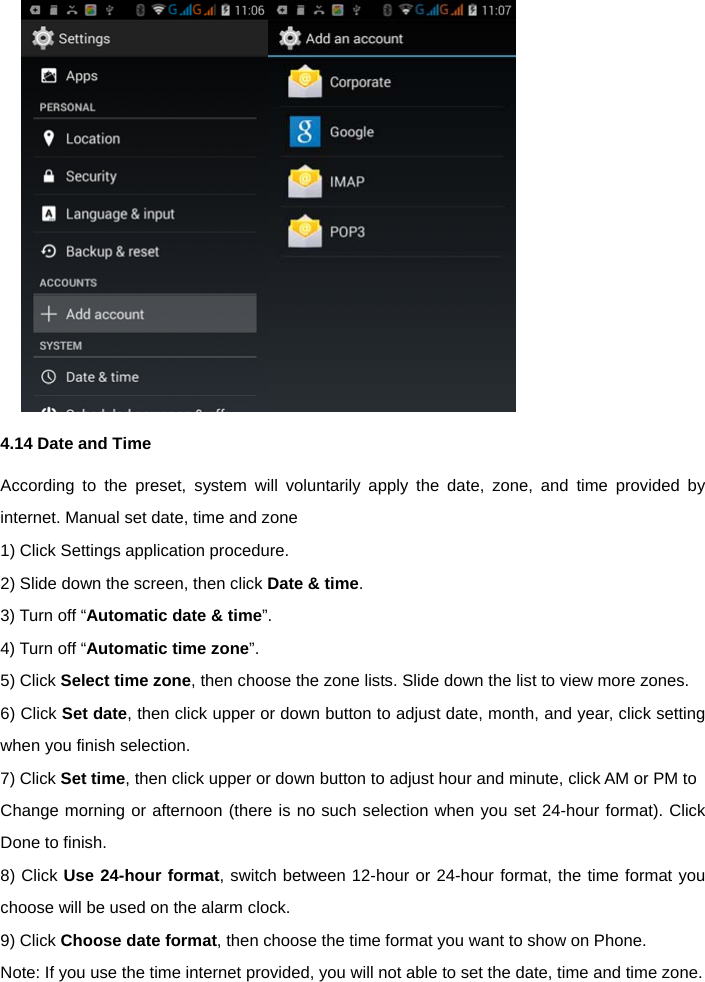
 4.11 Language and Input Method Click setting, select language and input method, choose language to switch language.  4.12 Backup and Reset   Connect WIFI and login your Google account, choose backup my data, system will backup your data into google server.   4.13 Account 1.  Select setting application 2.  Click add an account
  4.14 Date and Time According to the preset, system will voluntarily apply the date, zone, and time provided by internet. Manual set date, time and zone   1) Click Settings application procedure.   2) Slide down the screen, then click Date & time. 3) Turn off “Automatic date & time”.  4) Turn off “Automatic time zone”. 5) Click Select time zone, then choose the zone lists. Slide down the list to view more zones.   6) Click Set date, then click upper or down button to adjust date, month, and year, click setting when you finish selection.   7) Click Set time, then click upper or down button to adjust hour and minute, click AM or PM to   Change morning or afternoon (there is no such selection when you set 24-hour format). Click Done to finish.   8) Click Use 24-hour format, switch between 12-hour or 24-hour format, the time format you choose will be used on the alarm clock.   9) Click Choose date format, then choose the time format you want to show on Phone.   Note: If you use the time internet provided, you will not able to set the date, time and time zone.
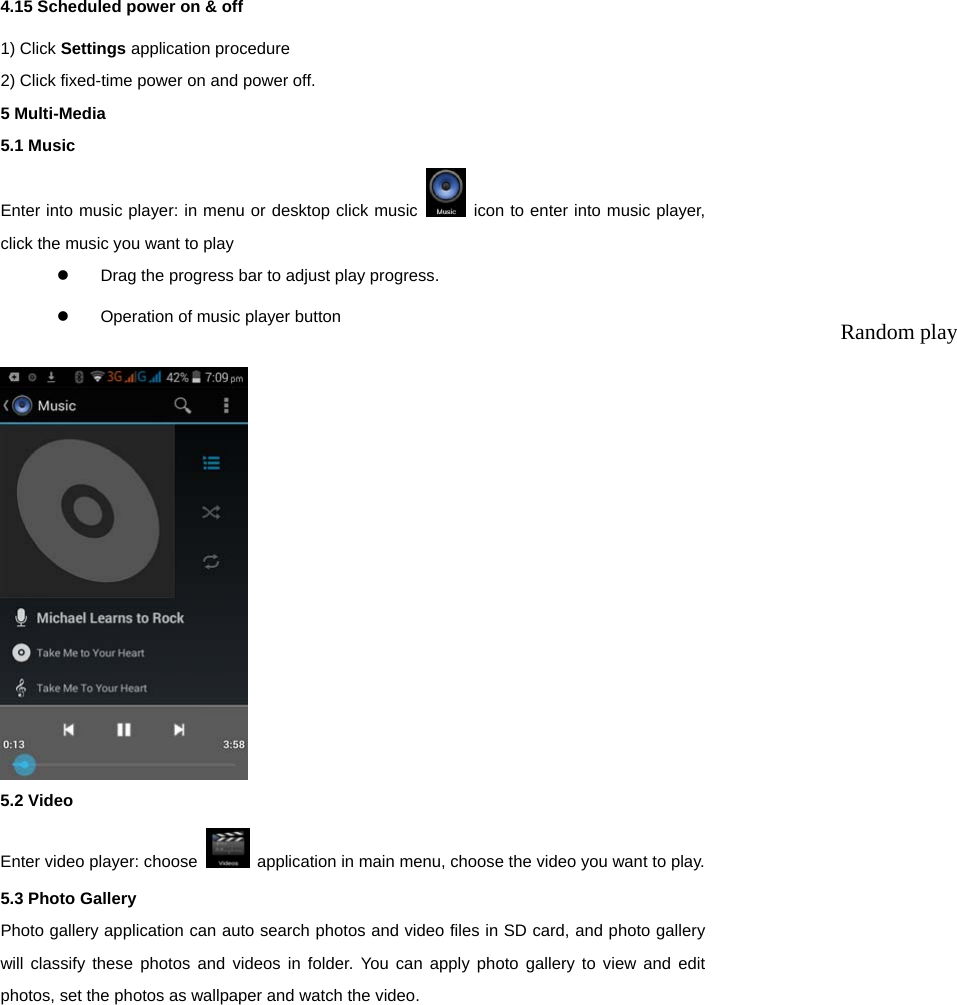
 4.15 Scheduled power on & off 1) Click Settings application procedure   2) Click fixed-time power on and power off. 5 Multi-Media 5.1 Music Enter into music player: in menu or desktop click music   icon to enter into music player, click the music you want to play   Drag the progress bar to adjust play progress.   Operation of music player button     5.2 Video Enter video player: choose    application in main menu, choose the video you want to play.   5.3 Photo Gallery   Photo gallery application can auto search photos and video files in SD card, and photo gallery will classify these photos and videos in folder. You can apply photo gallery to view and edit photos, set the photos as wallpaper and watch the video. Random play
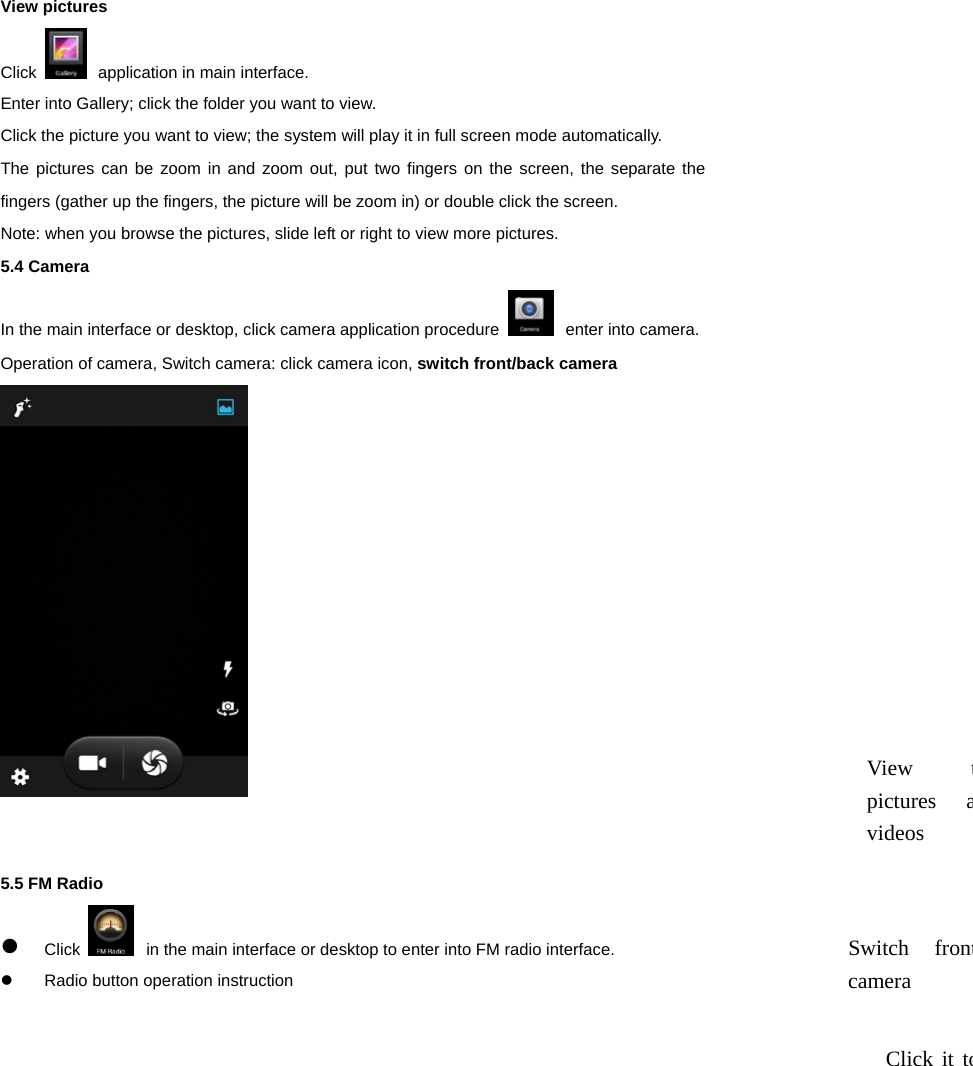
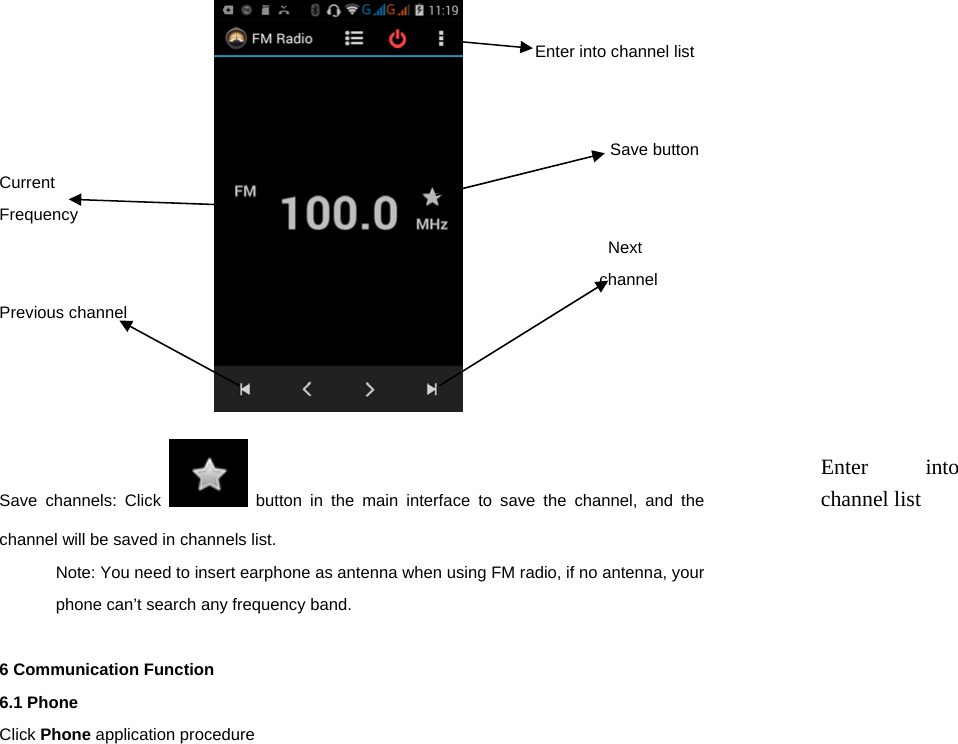
 View pictures   Click   application in main interface. Enter into Gallery; click the folder you want to view. Click the picture you want to view; the system will play it in full screen mode automatically.   The pictures can be zoom in and zoom out, put two fingers on the screen, the separate the fingers (gather up the fingers, the picture will be zoom in) or double click the screen.   Note: when you browse the pictures, slide left or right to view more pictures.   5.4 Camera In the main interface or desktop, click camera application procedure   enter into camera. Operation of camera, Switch camera: click camera icon, switch front/back camera    5.5 FM Radio  Click   in the main interface or desktop to enter into FM radio interface.   Radio button operation instruction View tpictures avideos Switch frontcamera Click it to
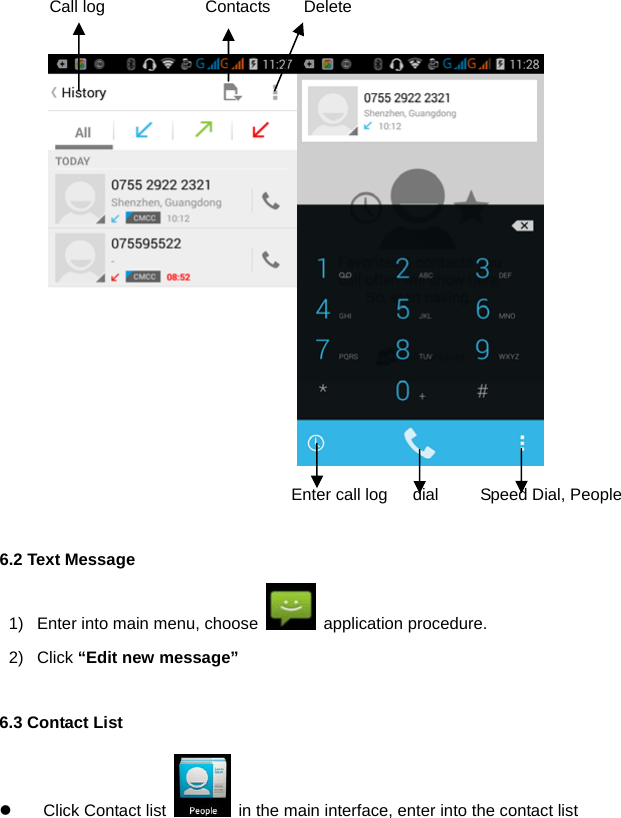
                                                            Enter into channel list                                                                       Save button Current Frequency                                                                          Next channel Previous channel    Save channels: Click   button in the main interface to save the channel, and the channel will be saved in channels list. Note: You need to insert earphone as antenna when using FM radio, if no antenna, your phone can’t search any frequency band.   6 Communication Function 6.1 Phone Click Phone application procedure          Enter into channel list
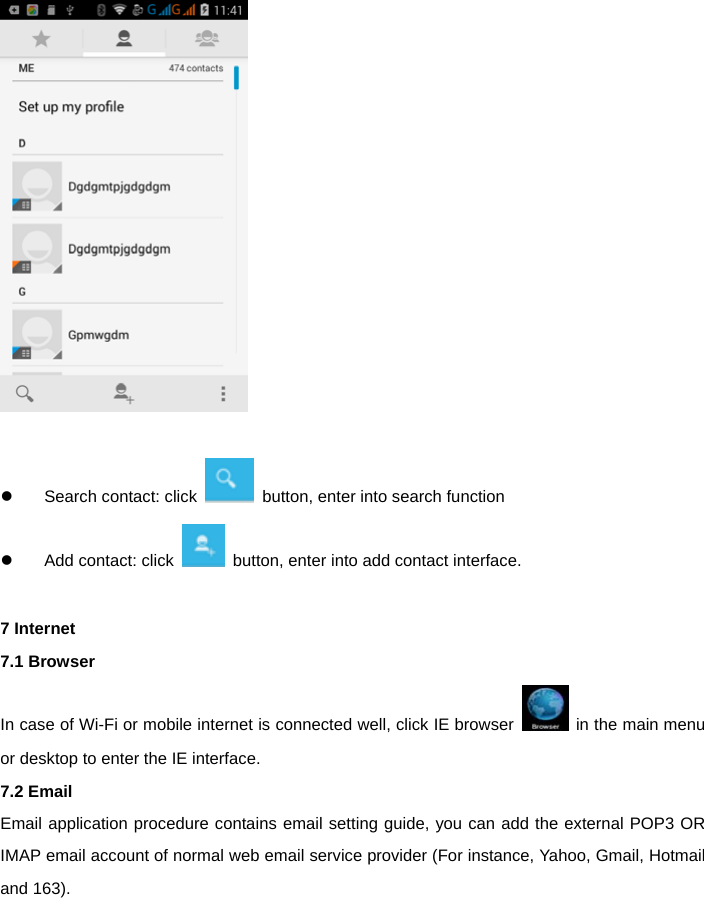
 Call log            Contacts    Delete                                                  Enter call log   dial     Speed Dial, People  6.2 Text Message 1)  Enter into main menu, choose   application procedure.    2) Click “Edit new message”   6.3 Contact List   Click Contact list    in the main interface, enter into the contact list
     Search contact: click    button, enter into search function     Add contact: click    button, enter into add contact interface.  7 Internet 7.1 Browser In case of Wi-Fi or mobile internet is connected well, click IE browser    in the main menu or desktop to enter the IE interface. 7.2 Email Email application procedure contains email setting guide, you can add the external POP3 OR IMAP email account of normal web email service provider (For instance, Yahoo, Gmail, Hotmail and 163).
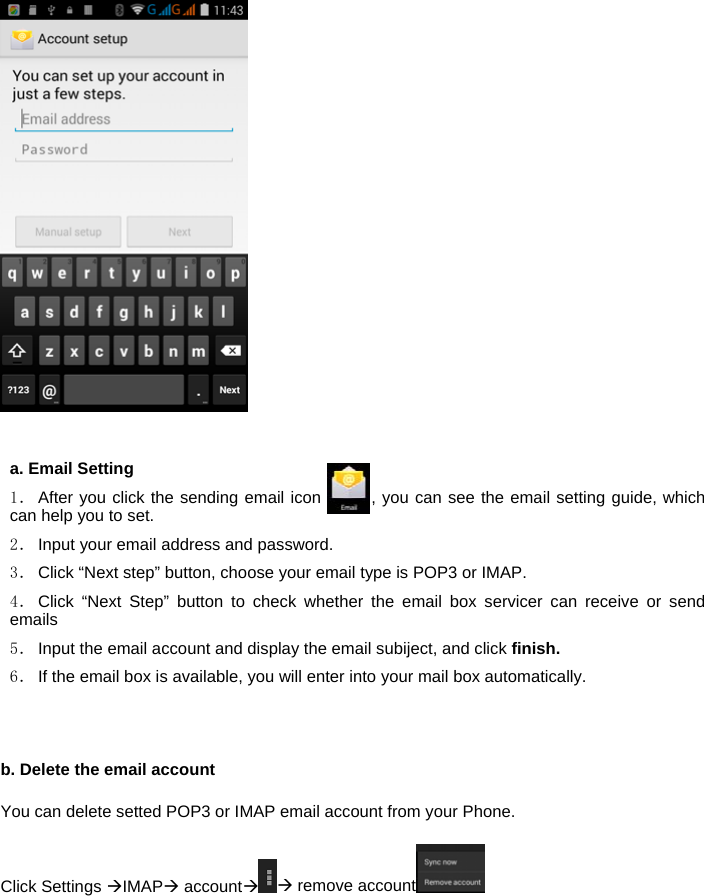
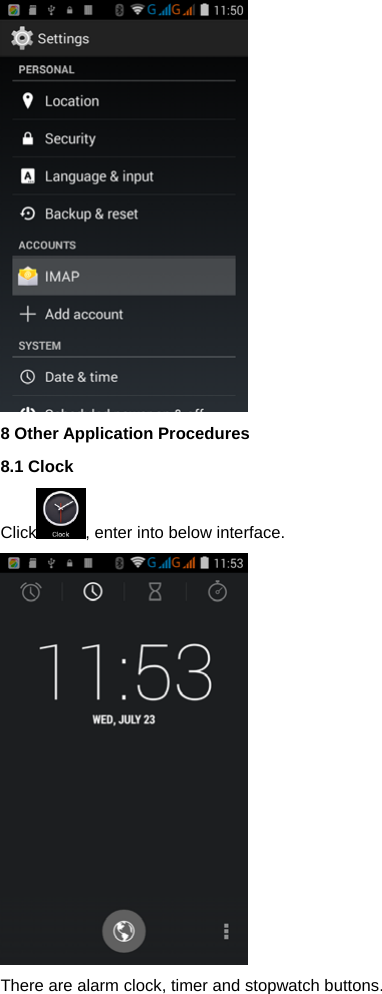
   a. Email Setting 1. After you click the sending email icon       , you can see the email setting guide, which can help you to set. 2. Input your email address and password. 3. Click “Next step” button, choose your email type is POP3 or IMAP. 4. Click “Next Step” button to check whether the email box servicer can receive or send emails 5. Input the email account and display the email subiject, and click finish. 6. If the email box is available, you will enter into your mail box automatically.   b. Delete the email account You can delete setted POP3 or IMAP email account from your Phone. Click Settings IMAP account remove account
  8 Other Application Procedures   8.1 Clock  Click , enter into below interface.  There are alarm clock, timer and stopwatch buttons.
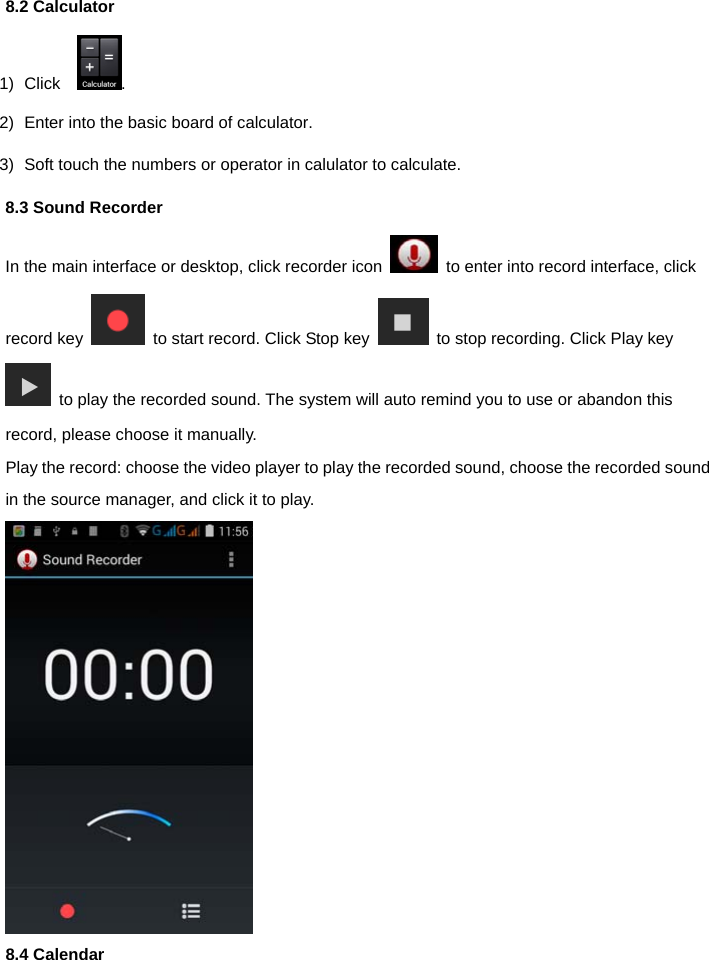
 8.2 Calculator 1) Click   . 2)  Enter into the basic board of calculator. 3)  Soft touch the numbers or operator in calulator to calculate.   8.3 Sound Recorder In the main interface or desktop, click recorder icon    to enter into record interface, click record key    to start record. Click Stop key    to stop recording. Click Play key   to play the recorded sound. The system will auto remind you to use or abandon this record, please choose it manually. Play the record: choose the video player to play the recorded sound, choose the recorded sound in the source manager, and click it to play.  8.4 Calendar
 1) Click    2) Enter into the calendar interface. 3) You can use Calendar to create events . 8.5 To Do 1) Click    2) Enter into the To Do interface. 3) You can create the note you need to do to remind you .   EC COMPLIANCY DECLARATION      The company S.p.A., with legal headquarters in Via B. Gozzoli  n. 60-00142 Roma and operative base in Via Guido Rossa 3-10024 Moncalieri (TO), declaration that the device  SURFING PHONE A 3G  complies with all the requirements specified in the  95/5/CE European Directive Concerning radio and equipment and that it complies with the following telecommunication regulations EN 60950-1 : 2006 + A11 : 2009 + A1 : 2010 + A12 : 2011  EN 301 489-1 V1.9.2  EN 301 489-17 V2.2.1  EN 55022 : 2010  EN 55024 : 2010
 EN 300 328 V1.8.1  EN 62311 : 2008     The compliance with the above mentioned requirements is shown by the label        The product complies with the 2004/108/CE Directive relating to the electromagnetic compliancy and with the 2006 /95 / CE (LVD) concerning safety regulations. The Product complies with the ROHS 2011 / 65 / EU Standard.
  FCC Waring: Any Changes or modifications not expressly approved by the party responsible for compliance could void the user's authority to operate the equipment.      This device complies with part 15 of the FCC Rules. Operation is subject to the following two conditions: (1) This device may not cause harmful interference, and (2) this device must accept any interference received, including interference that may cause undesired operation.  Specific Absorption Rate (SAR) information SAR tests are conducted using standard operating positions accepted by the FCC with the phone transmitting at its highest certified power level in all tested frequency bands, although the SAR is determined at the highest certified power level, the actual SAR level of the phone while operating can be well below the maximum value, in general, the closer you are to a wireless base station antenna, the lower the power output. Before a new model phone is a available for sale to the public, it must be tested and certified to the FCC that it does not exceed the exposure limit established by the FCC, Tests for each phone are performed in positions and locations (e.g. at the ear and worn on the body)as required by the FCC. For body worn operation, this model phone has been tested and meets the FCC RF exposure guidelines when used with an accessory designated for this product or when used with an accessory that contains no metal and that positions the handset a minimum of 1.0 cm from the body. Note: This equipment has been tested and found to comply with the limits for a Class B digital device, pursuant to part 15 of the FCC Rules. These limits are designed to provide reasonable protection against harmful interference in a residential installation. This equipment generates, uses and can radiate radio frequency energy and, if not installed and used in accordance with the instructions, may cause harmful interference to radio communications. However, there is no guarantee that interference will not occur in a particular installation. If this equipment does cause harmful interference to radio or television reception, which can be determined by turning the
 equipment off and on, the user is encouraged to try to correct the interference by one or more of the following measures:     —Reorient or relocate the receiving antenna.     —Increase the separation between the equipment and receiver.     —Connect the equipment into an outlet on a circuit different from that to which the receiver is connected.   —Consult the dealer or an experienced radio/TV technician for help.

Navigation menu