Fortuneship Technology LF890 Mobile Phone User Manual

Shenzhen Fortuneship Technology Co., LTD Mobile Phone

User manual

 1  Shenzhen Fortuneship Technology Co., LTD Mobile Phone LF890G 1. Your mobile………..    Left soft key  Call log (Idle screen) Send call  Voicemail (long key-press)  Lock Key(press   then    key)  Right soft key  Power on/Power off End call  Vibration alert  Navigation key      Menu/Confirm an option        Increase volume         Reduce volume New SMS
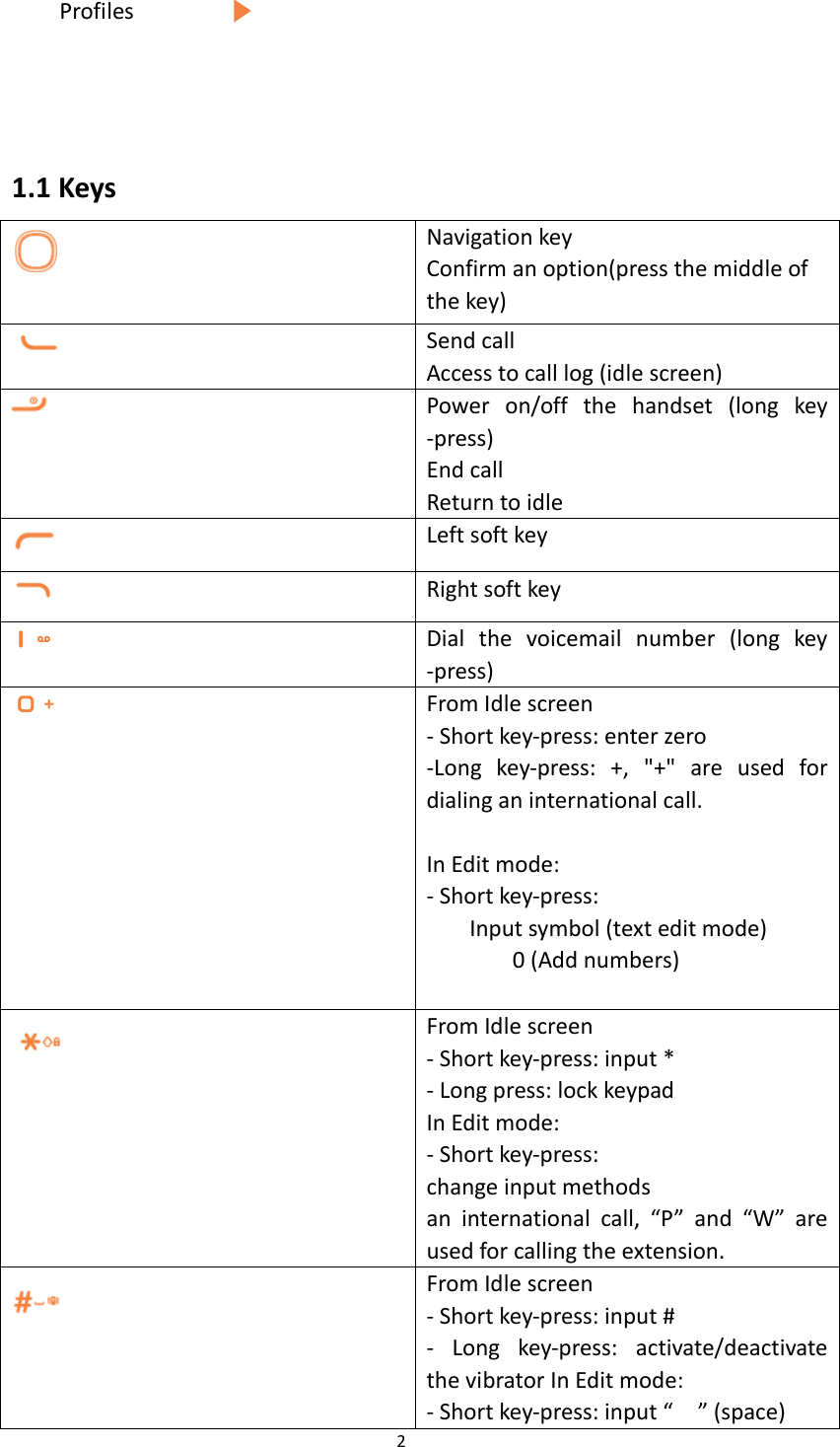
 2  Profiles     1.1 Keys  Navigation key Confirm an option(press the middle of the key)  Send call Access to call log (idle screen)  Power  on/off  the  handset  (long  key -press) End call Return to idle  Left soft key  Right soft key  Dial  the  voicemail  number  (long  key -press)  From Idle screen - Short key-press: enter zero -Long  key-press:  +,  "+"  are  used  for dialing an international call.  In Edit mode: - Short key-press: Input symbol (text edit mode) 0 (Add numbers)  From Idle screen - Short key-press: input * - Long press: lock keypad In Edit mode: - Short key-press:   change input methods an  international  call,  “P”  and  “W”  are used for calling the extension.  From Idle screen - Short key-press: input # -  Long  key-press:  activate/deactivate the vibrator In Edit mode: - Short key-press: input “    ” (space)
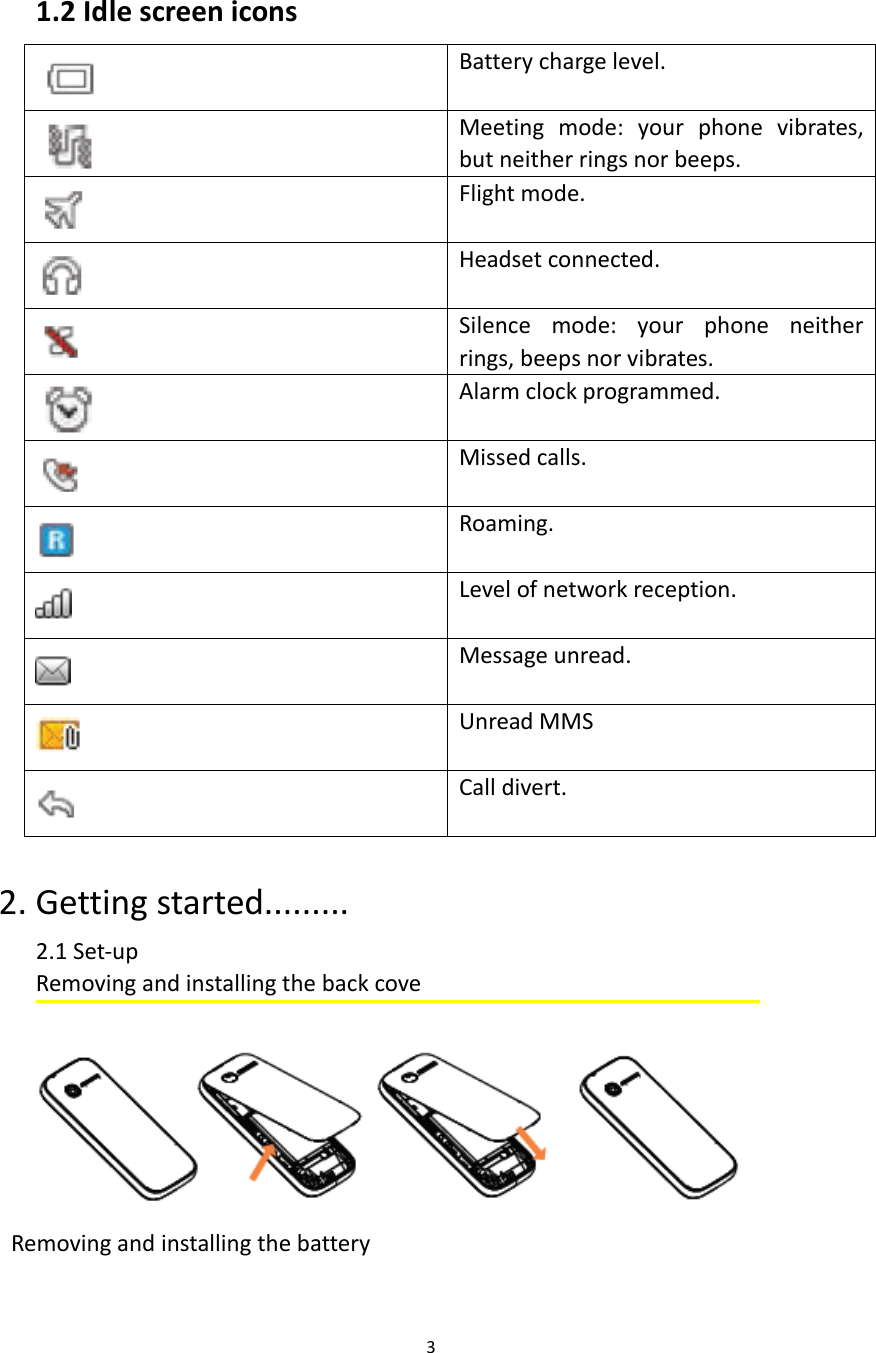
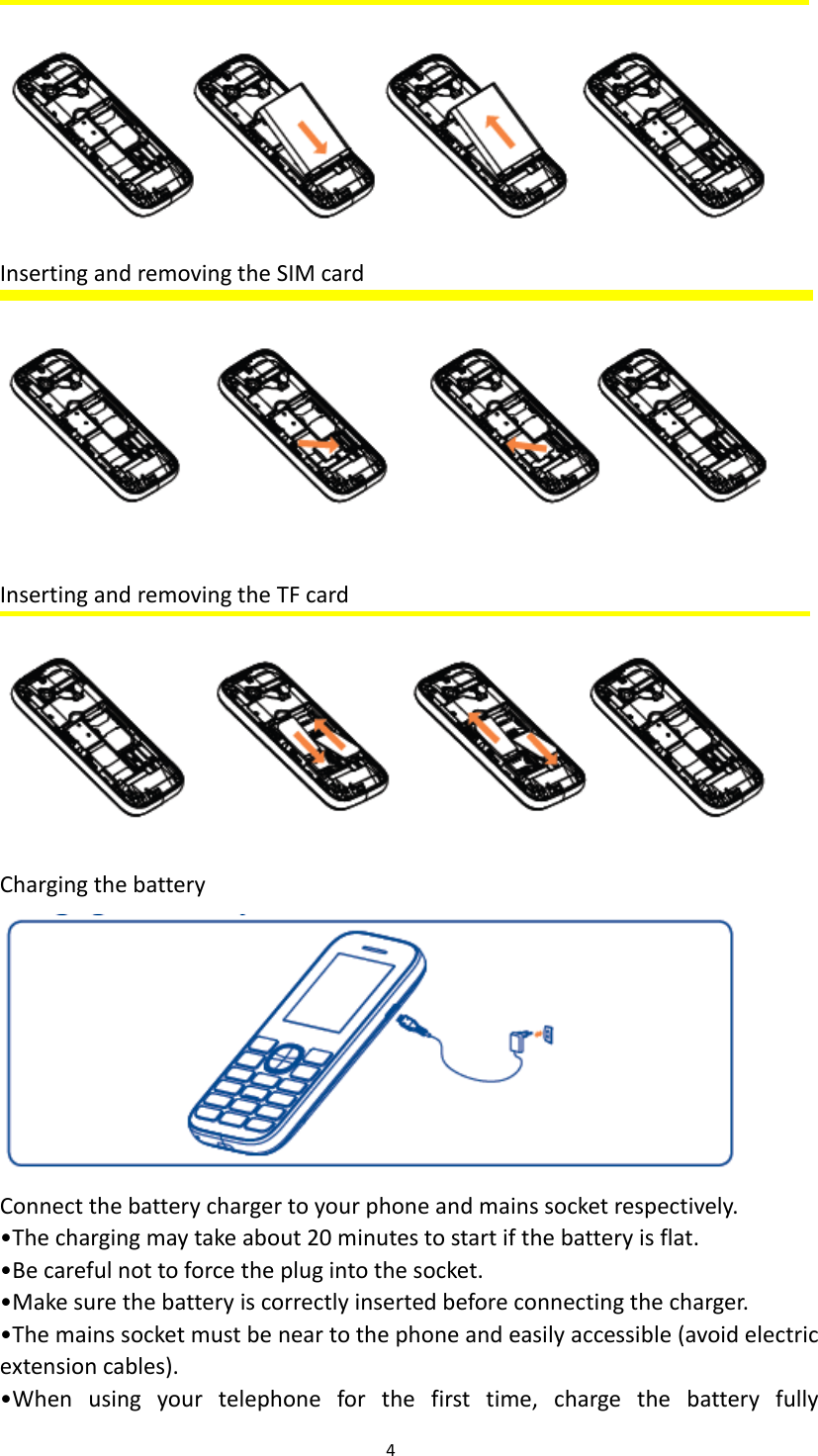
 3    1.2 Idle screen icons  Battery charge level.  Meeting  mode:  your  phone  vibrates, but neither rings nor beeps.  Flight mode.  Headset connected.  Silence  mode:  your  phone  neither rings, beeps nor vibrates.  Alarm clock programmed.  Missed calls.  Roaming.  Level of network reception.  Message unread.  Unread MMS  Call divert.  2. Getting started......... 2.1 Set-up Removing and installing the back cove  Removing and installing the battery
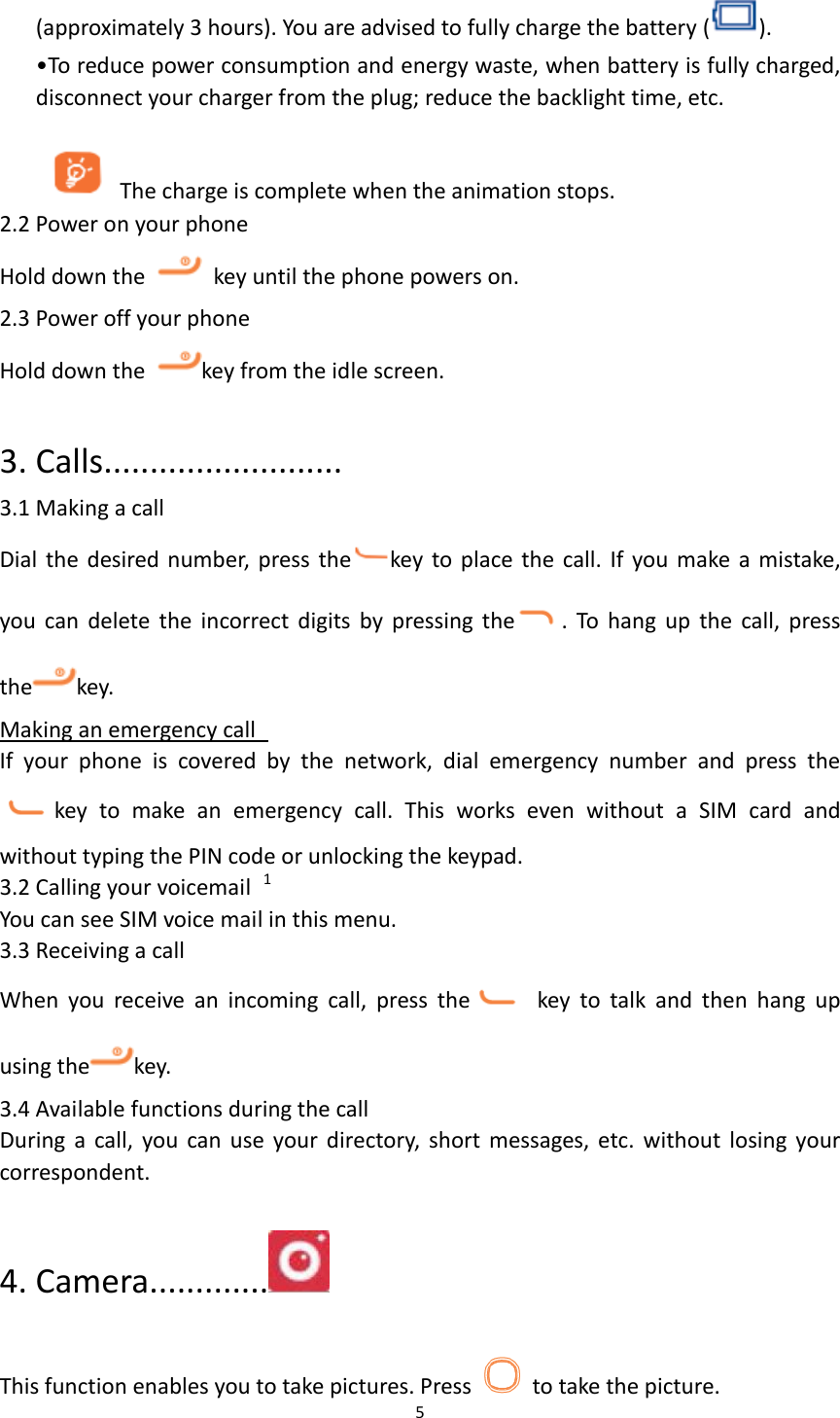
 4   Inserting and removing the SIM card   Inserting and removing the TF card  Charging the battery    Connect the battery charger to your phone and mains socket respectively. •The charging may take about 20 minutes to start if the battery is flat. •Be careful not to force the plug into the socket.   •Make sure the battery is correctly inserted before connecting the charger. •The mains socket must be near to the phone and easily accessible (avoid electric extension cables). •When  using  your  telephone  for  the  first  time,  charge  the  battery  fully
 5  (approximately 3 hours). You are advised to fully charge the battery ( ). •To reduce power consumption and energy waste, when battery is fully charged, disconnect your charger from the plug; reduce the backlight time, etc.  The charge is complete when the animation stops. 2.2 Power on your phone Hold down the    key until the phone powers on. 2.3 Power off your phone Hold down the  key from the idle screen.  3. Calls.......................... 3.1 Making a call Dial the desired number, press the key to place the call. If  you make a mistake, you  can  delete  the  incorrect  digits  by  pressing  the .  To  hang  up  the  call,  press the key.   Making an emergency call   If  your  phone  is  covered  by  the  network,  dial  emergency  number  and  press  the     key  to  make  an  emergency  call.  This  works  even  without  a  SIM  card  and without typing the PIN code or unlocking the keypad.     3.2 Calling your voicemail  1 You can see SIM voice mail in this menu. 3.3 Receiving a call When  you  receive  an  incoming  call,  press  the   key  to  talk  and  then  hang  up using the key.   3.4 Available functions during the call During  a  call,  you  can  use  your directory,  short  messages, etc.  without  losing  your correspondent.  4. Camera.............                                                               This function enables you to take pictures. Press   to take the picture.
 6  5. Call logs…………  You  can  access  your  call  memory  by  pressing   from  the  idle  screen,  or  press the   key and select the  icon from the menu. In this menu, you will see all call history. 6. Browser…………  This function enables you to surf the Internet using the mobile phone  7. Tools……….     7.1 Alarm Your mobile phone has a built-in alarm clock with snooze feature. 7.2 Calculator Press the up, down, left, right and OK key to select +, - ×, ÷ and = respectively. Press to delete the figure. 7.3 Calendar Once you enter this menu, there is a monthly-view calendar for you to view the date; you can go to any day you want. 7.4 Bluetooth You  can  transfer  data,  such  as  music  to  other  device  using  Bluetooth.  Search  the device  and  accept/transfer  data.  The  received  data  is  automatically  stored  in  the directory.   7.5 Unit conversion Unit conversion support weight conversion and length conversion. 7.6 Torch You can turn on/off the torch through this function. 8. Message..............  8.1 Create SMS From the main menu select “Messaging” to create text message. You can type a message send it to a recipient in the SIM card directory. You can type a message, and you're also able to insert a pre-defined message from “Templates”. While writing a message, select “Options” to access all the messaging options.      Specific letters (accent) will  increase the size of the  SMS,  this  may cause
 7  multiple SMS to be sent to your recipient. 8.2 Create MMS Your  phone  can  send  and  receive  MMS  which  enables  you  to  send  message containing picture, ring and text.  9. Multimedia.............  9.1 Music Use this function to play audio files. Press to play/pause the audio player, short press  or   to last or next audio, in audio player interface, press   and  to tune volume.   9.2 Video Use  this  function  to  play  video  files.  Press   to  play/pause  the  video  player, short press  and  to tune volume; press  or  to last or next video. 9.3 FM radio Your phone is equipped with a radio. You can use the application as a traditional radio with saved channels. In FM radio interface, press to play/pause the playing process of the current channel, press and to tune volume. 9.4 Image You can view images through this function. 9.5 Recorder Use this function to record audio files. The phone support WAV, AMR or MP3. The recording file you stopped will be stored in my music list automatically. 9.6 My files The  phone  provides  a  certain  space  for  users  to  manage  files  and  support  the memory  card.  The  capacity  of the  memory  card  is  selectable.  You  can  use  the  file manager to conveniently manage various directories and files on the phone and the memory card.  10. SIM Tool Kit.................   STK  service  is  the  tool  kit  of  SIM  card.  This  phone  supports  the  service function .The specific items depend on SIM card and network. Service menu will be automatically added to the phone menu when supported by network and SIM card.
 8  11. Contacts……….   11.1 Consulting your contacts You can access your call memory by pressing   from the idle screen, or press the    key and select the    icon from the menu. In this menu, you will see all call history. 11.2 Adding a contact Select  the  menu  “Add contacts” then  save  it  to  “Phone”,  “SIM1”,”SIM2”  as  you like. 12. Settings……..   From the main menu, select the menu  and select the function of your choice in order to  customize your telephone:  Profiles,  Phone  settings,  Call  settings, Network selection, Connections, Security and Restore factory settings. 13. Input mode......... To write messages, there are two writing methods: - Normal: this mode allows you to type a text by choosing a letter or a sequence of characters associated with a key. Press the key several times until the desired letter is highlighted.  When  you  release  the  key  the  highlight  character  is  inserted  into  the text.  Safety and use ...................... We recommend that you read this chapter carefully before using your phone. The manufacturer disclaims any liability for damage, which may result as a consequence of improper use or use contrary to the instructions contained herein. TRAFFIC SAFETY: Given  that  studies  show  that  using  a  mobile  phone  while  driving  a  vehicle constitutes  a  real  risk,  even  when  the  hands-free  kit  is  used  (car  kit,  headset...), drivers  are  requested  to  refrain  from  using  their  mobile  when  the  vehicle  is  not parked. When driving, do not use your phone and headphone to listen to music or to the radio.  Using  a  headphone  can  be  dangerous  and  forbidden  in  some  areas.  When switched  on,  your  phone  emits  electromagnetic  waves  that  can  interfere  with  the vehicle’s electronic systems such as ABS anti-lock brakes or airbags.  To ensure that there is no problem: -  do  not  place  your  phone  on  top  of  the  dashboard  or  within  an  airbag
 9  deployment area, -  check  with  your  car  dealer  or  the  car  manufacturer  to  make  sure  that  the dashboard is adequately shielded from mobile phone RF energy. CONDITIONS OF USE: You  are  advised  to  switch  off  the  telephone  from  time  to  time  to  optimise  its performance. Switch the phone off before boarding an aircraft. Switch the phone off when you are in health care facilities, except in designated areas. As with many other types of equipment now in regular use, mobile telephones can  interfere  with  other  electrical  or  electronic  devices,  or  equipment  using  radio frequency. Switch the phone off when you are near gas or flammable liquids. Strictly obey all signs and instructions posted in a fuel depot, petrol station, or chemical plant, or in any potentially explosive atmosphere. When  the  phone  is  switched  on,  it  should  be  kept  at  least  15  cm  from  any medical device such as a pacemaker, a hearing aid or insulin pump, etc. In particular when using the phone, you should hold it against the ear on the opposite side to the device, if any.   To avoid hearing impairment, pick up the call before holding your phone to your ear. Also move the handset away from your ear while using the “hands-free” mode because the amplified volume might cause hearing damage. Do not let children use the phone and/or play with the telephone and accessories without supervision. When replacing the cover please note that your phone may contain substances that could create an allergic reaction. Always handle your phone with care and keep it in a clean and dust-free place. Do  not  allow  your  phone  to  be  exposed  to  adverse  weather  or  environmental conditions  (moisture,  humidity,  rain,  infiltration  of  liquids,  dust,  sea  air,  etc).  The manufacturer’s recommended operating temperature range is -10°C to +55°C.   At over 55°C the legibility of the phone’s display may be impaired, though this is temporary and not serious.   Emergency  call  numbers  may  not  be  reachable  on  all  cellular  networks.  You should never rely only on your phone for emergency calls. Do not open, dismantle or attempt to repair your mobile phone yourself. Do not drop, throw or bend your mobile phone. Do not use the phone if the glass made screen, is damaged, cracked or broken to avoid any injury.   Do not paint it. Some people may suffer epileptic seizures or blackouts when exposed to flashing lights, or when playing video games. These seizures or blackouts may occur even if a person never had a previous seizure or blackout. If you have experienced seizures or blackouts, or  if  you  have  a  family  history  of  such  occurrences, please consult  your doctor  before  playing  video  games  on  your  phone  or  enabling  a  flashing-lights
 10  feature on your phone.   Parents should monitor their children’s use of video games or other features that incorporate  flashing  lights  on  the  phones.  All  persons  should  discontinue  use  and consult a doctor if any of the following symptoms occur: convulsion, eye or muscle twitching, loss of awareness, involuntary movements, or disorientation. To limit the likelihood of such symptoms, please take the following safety precautions: -  Do not play or use a flashing-lights feature if you are tired or need sleep. -  Take a minimum of a 15-minute break hourly. -  Play in a room in which all lights are on. -  Play at the farthest distance possible from the screen. -  If your hands, wrists, or arms become tired or sore while playing, stop and rest for several hours before playing again. -  If  you  continue  to  have  sore  hands,  wrists,  or  arms  during  or  after  playing, stop the game and see a doctor. When you play games on your phone, you may experience occasional discomfort in  your  hands,  arms,  shoulders,  neck,  or  other  parts  of  your  body.  Follow  the instructions to avoid problems such as tendinitis, carpal tunnel syndrome, or other musculoskeletal disorders. In non European Union jurisdictions: Items of equipment with this symbol are not to be thrown into ordinary bins if your jurisdiction or your region has suitable recycling and collection facilities; instead they are to be taken to collection points for them to be recycled.   CAUTION: RISK OF EXPLOSION IF BATTERY IS REPLACED BY AN INCORRECT TYPE. DISPOSE OF USED BATTERIES ACCORDING TO THE INSTRUCTIONS. CHARGERS Mains  powered  chargers  will  operate  within  the  temperature  range  of:  0°C  to 40°C. The chargers designed for your mobile phone meet with the standard for safety of  information  technology  equipment  and  office  equipment  use.    They  are  also compliant  to  the  ecodesign  directive  2009/125/EC.  Due  to  different  applicable electrical specifications, a charger you purchased in one jurisdiction may not work in another jurisdiction. They should be used for this purpose only. Due to the used enclosure material, the mobile phone shall only be connected to a USB Interface  of version 2.0 or higher.  The  connection to so called power USB  is prohibited.The  adapter  shall  be  installed  near  the  equipment  and  shall  be  easily accessible. This charger is for indoor use only. Troubleshooting.................... Before contacting the  service  centre, you are advised to follow the instructions below: • You are advised to fully charge   the battery for optimal operation. •  Avoid  storing  large  amounts  of  data  in  your  phone  as  this  may  affect  its performance.
 11  My phone is frozen or cannot switch on • Check the battery contacts, remove and reinstall your battery, then  turn your phone on. • Check  the battery power level, charge for at least 20 minutes.  My phone has not responded for several minutes • Remove and re-install the battery, then restart the phone.My phone turns off by itself • Check that your screen is locked when you are not using your phone, and make sure the Power key is not mis-contacted due to unlocked screen. • Check the battery charge level. • If it still does not work, please use User Data Format to reset the phone. My phone cannot charge properly • Make sure you are using a battery and the charger from the box. • Make sure your battery is inserted properly and clean the battery . • Make sure that your battery is not completely discharged; if the attery power is     empty  for  a  long  time,  it  may  take  around  20  minutes  to  display  the  battery charger indicator on the screen. • Make sure charging is carried out under normal conditions (0°C to +40°C). •  When  abroad,  check  that  the  voltage  input  is  compatible.  My  phone  cannot connect to a network or “No service” is displayed • Try connecting in another location. • Verify the network coverage with your operator. • Check with your operator that your SIM card is valid. • Try selecting the available network(s) manually. • Try connecting at a later time if the network is overloaded. My phone cannot connect to the Internet • Check that the IMEI number (press *#06#) is the same as the one printed on your warranty card or box. • Make sure that the internet access service of your SIM card is available. • Check your phone's Internet connecting settings. • Make sure you are in a place with network coverage. • Try connecting at a later time or another location. Invalid SIM card • Make sure the SIM card has been correctly inserted (see “Inserting or removing the SIM card”). • Make sure the chip on your SIM card is not damaged or scratched. • Make sure the service of your SIM card is available. Unable to make outgoing calls • Make sure you have dialed a valid number and pressed the   key. • For international calls, check the country and area codes. •  Make  sure  your  phone  is  connected  to  a  network,  and  the  network  is  not overloaded or unavailable. • Check your subscription status with your operator (credit, SIM card valid, etc.). • Make sure you have not barred outgoing calls.
 12  • Make sure that your phone is not in flight mode. Unable to receive incoming calls • Make sure your phone is switched on and connected to a network (check for overloaded or unavailable network). • Check your subscription status with your operator (credit, SIM card valid, etc.). • Make sure you have not forwarded incoming calls. • Make sure that you have not barred certain calls. •  Make  sure  that  your  phone  is  not  in  flight  mode. The  caller’s  name/number does not appear when a call is received • Check that you have subscribed to this service with your operator. • Your caller has concealed his/her name or number I cannot find my contacts • Make sure your SIM card is not broken. • Make sure your SIM card is inserted properly. • Import all contacts stored in SIM card to phone. The sound quality of the calls is poor • You can adjust the volume during a call by pressing the Up/Down key. • Check the network strength . • Make sure that the receiver, connector or speaker on your phone is clean. I am unable to use the features described in the manual •  Check  with  your  operator  to  make  sure  that  your  subscription  includes  this service. • Make sure this feature does not require an accessory. When I select a number from my contacts, the number cannot be dialed • Make sure that you have correctly recorded the number in your file. • Make sure that you have selected the country prefix when calling a foreign country. I am unable to add a contact in my contacts • Make sure that your SIM card contacts are not full; delete some files or save the files  in  the  phone  contacts  (i.e.  your  professional  or  personal  directories). My callers are unable to leave messages on my voicemail • Contact your network operator to check service availability.I cannot access my voicemail • Make sure your operator’s voicemail number is correctly entered in "Voicemail number". • Try later if the network is busy. I am unable to send and receive MMS • Check your phone memory availability as it might be full. •  Contact  your  network  operator  to  check  service  availability  and  check  MMS parameters. • Verify the server centre number or your MMS profile with your operator. • The server centre may be swamped, try again later. SIM card PIN locked •  Contact your  network  operator  to  obtain the  PUK  code  (Personal Unblocking Key).I am unable to download new files • Make sure there is sufficient phone memory for your download.
 13  • Select the microSD card as the location to store downloaded files. • Check your subscription status with your operator. How to make your battery last longer • Make sure you follow the complete charge time (minimum 4 hours). • After a partial charge, the battery level indicator may not be exact. Wait for at least 20 minutes after removing the charger to obtain an exact indication. • Switch on the backlight upon request. • Exit background-running applications if they are not being used for a long time. The phone will become warm following prolonged calls, game playing, internet surfing or running other complex applications •  This  heating  is  a  normal  consequence  of  the  CPU  handling  excessive  data. Ending above actions will make your phone return to normal temperatures.  FCC Statement 1. This device complies with Part 15 of the FCC Rules. Operation is subject to the following two conditions: (1) This device may not cause harmful interference. (2) This device must accept any interference received, including interference that may cause undesired operation. 2. Changes or modifications not expressly approved by the party responsible for compliance could void the user's authority to operate the equipment. NOTE:   This equipment has been tested and found to comply with the limits for a Class B digital device, pursuant to Part 15 of the FCC Rules. These limits are designed to provide reasonable protection against harmful interference in a residential installation. This equipment generates uses and can radiate radio frequency energy and, if not installed and used in accordance with the instructions, may cause harmful interference to radio communications. However, there is no guarantee that interference will not occur in a particular installation. If this equipment does cause harmful interference to radio or television reception, which can be determined by turning the equipment off and on, the user is encouraged to try to correct the interference by one or more of the following measures: Reorient or relocate the receiving antenna. Increase the separation between the equipment and receiver. Connect the equipment into an outlet on a circuit different from that to which the receiver is connected.   Consult the dealer or an experienced radio/TV technician for help.  SAR Information Statement Your wireless phone is a radio transmitter and receiver. It is designed and manufactured not to exceed the emission limits for exposure to radiofrequency (RF) energy set by the Federal Communications Commission of the U.S. Government. These limits are part of comprehensive guidelines and establish permitted levels of RF energy for the general population. The guidelines are based on standards that were developed by independent scientific organizations through periodic and thorough evaluation of scientific studies. The standards include a substantial safety margin designed to assure the safety of all persons, regardless of age and health. The exposure standard for wireless mobile phones employs a unit of measurement known as the Specific Absorption Rate, or SAR. The SAR limit set by the FCC is 1.6 W/kg. * Tests for SAR are conducted with the phone transmitting at its highest certified power level in all tested frequency bands. Although the SAR is determined at the highest certified power level, the actual SAR level of the phone while operating can be well below the maximum value. This is because the phone is
 14  designed to operate at multiple power levels so as to use only the power required to reach the network. In general, the closer you are to a wireless base station antenna, the lower the power output. Before a phone model is available for sale to the public, it must be tested and certified to the FCC that it does not exceed the limit established by the government adopted requirement for safe exposure. The tests are performed in positions and locations (e.g., at the ear and worn on the body) as required by the FCC for each model. The highest SAR value for this model phone when tested for use at the ear is 0.797W/Kg and when worn on the body, as described in this user guide, is 0.618 W/Kg(Body-worn measurements differ among phone models, depending upon available accessories and FCC requirements). While there may be differences between the SAR levels of various phones and at various positions, they all meet the government requirement for safe exposure. The FCC has granted an Equipment Authorization for this model phone with all reported SAR levels evaluated as in compliance with the FCC RFexposure guidelines. SAR information on this model phone is on file with the FCC and can be found under the Display Grant section of http://www.fcc.gov/ oet/fccid after searching on   FCC ID: 2ABXI-LF890 Additional information on Specific Absorption Rates (SAR) can be found on the Cellular Telecommunications Industry Asso-ciation (CTIA) web-site at http://www.wow-com.com. * In the United States and Canada, the SAR limit for mobile phones used by the public is 1.6 watts/kg (W/kg) averaged over one gram of tissue. The standard incorporates a sub-stantial margin of safety to give additional protection for the public and to account for any variations in measurements.  Body-worn Operation This device was tested for typical body-worn operations. To comply with RF exposure requirements, a minimum separation distance of 15mm must be maintained between the user’s body and the handset, including the antenna. Third-party belt-clips, holsters, and similar accessories used by this device should not contain any metallic components. Body-worn accessories that do not meet these requirements may not comply with RF exposure requirements and should be avoided. Use only the supplied or an approved antenna.

Navigation menu