GE IC300TIU111 User Manual To The 04d87b05 4e34 49c9 92e4 88eb26bc6cb4
User Manual: GE IC300TIU111 to the manual
Open the PDF directly: View PDF  .
.
Page Count: 43

Hardware Manual for the
HE500TIU050
HE500TIU100
IC300TIU101
HE500TIU102
HE500TIU103
HE500TIU110
IC300TIU111
HE500TIU112
HE500TIU113
HE500TIU200
IC300TIU201
HE500TIU202
HE500TIU203
And SmartStack Modules
Operator Station
Hardware Manual
06 April 2000 GFK-1819

PREFACE 06 Apr 2000 PAGE 3
GFK-1819
Warnings, Cautions, and Notes
as Used in this Publication
Warning notices are used in this publication to emphasize that
hazardous voltages, currents, temperatures or other conditions that
could cause personal injury exist in this equipment or may be
associated with its use.
In situations where inattention could cause either personal injury
or damage to equipment, a Warning notice is used.
Caution notices are used where equipment might be damaged if care is
not taken.
Note
Notes merely call attention to information that is especially significant to
understanding and operating the equipment.
This document is based on information available at the time of its publication. While
efforts have been made to be accurate, the information contained herein does not
purport to cover all details or variations in hardware or software, nor to provide for
every possible contingency in connection with installation, operation, or maintenance.
Features may be described herein which are not present in all hardware and software
systems. GE Fanuc Automation assumes no obligation of notice to holders of this document with
respect to changes subsequently made.
GE Fanuc Automation makes no representations or warranty, expressed, implied, or
statutory with respect to, and assumes no responsibility for the accuracy, completeness,
sufficiency, or usefulness of the information contained herein. No warranties of
merchantability or fitness for purpose shall apply.
The following are trademarks of GE Fanuc Automation North America, Inc.
Alarm Master CIMSTAR Helpmate PROMACRO Series Six
CIMPLICITY GEnet Logicmaster Series One Series 90
CIMPLICITY 90 – ADS Genius ModelMaster Series Three VuMaster
CIMPLICITY Power TRAC Genius PowerTRAC ProLoop Series Five Workmaster
The following are trademarks of Horner Electric, APG, LLC.
Cscape SmartStack CsCAN
Copyright 2000 GE Fanuc Automation North America, Inc.
All Rights Reserved
Warning
Caution

PAGE 4 06 Apr 2000 PREFACE
GFK-1819
ABOUT PROGRAMMING EXAMPLES
Any example programs and program segments in this manual or provided on accompanying diskettes are
included solely for illustrative purposes. Due to the many variables and requirements associated with any
particular installation, GE Fanuc cannot assume responsibility or liability for actual use based on the
examples and diagrams. It is the sole responsibility of the system designer utilising the Operator Station
to appropriately design the end system, to appropriately integrate the Operator Station and to make
safety provisions for the end equipment as is usual and customary in industrial applications as defined in
any codes or standards which apply.
NOTE: The programming examples shown in this manual are illustrative
only. Proper machine operation is the sole responsibility of the system
integrator.
DECLARATION OF EMC CONFORMITY
Manufacturer's Name: Horner Ireland Ltd.
Manufacturer's Address: Unit 1, Centrepoint, Centre Park Road, Cork, Ireland
Declares that the products Models: HE500TIU050, HE500TIU100, IC300TIU101, HE500TIU102,
HE500TIU110, IC300TIU111, HE500TIU200, IC300TIU201 and
HE500TIU202.
Conforms to the following EMC standards:
EMC: EN 55 022, Radiated and Conducted Emissions
EN 50 082-1, RF, EFT/EFB, ESD Immunity
Supplementary Information:
The above conformity only relates to the products in a stand-alone capacity. The products are used as
part of a system and are therefore classified as a component. As a component, the products are
prohibited by EC regulations to carry a CE Mark for EMC conformity. Static discharge tests only apply to
normal operation of the keyboards via the front panel. We would stress that the use of our products
within your system, while helping to ensure compliance of your system to the same directives, do not
necessarily guarantee that compliance will be achieved. We would also like to point out that the
interpretation of the law concerning CE marking and its application to sub-assemblies and components is
open to interpretation.
Date: 31 Mar 1999

PREFACE 06 Apr 2000 PAGE 5
GFK-1819
TABLE OF CONTENTS
ABOUT PROGRAMMING EXAMPLES ....................................................................................................4
DECLARATION OF EMC CONFORMITY.................................................................................................4
CHAPTER 1: INTRODUCTION................................................................................................................7
1.1 Scope ....................................................................................................................................... 7
1.2 Equipment Needed ................................................................................................................... 9
1.3 Technical Specifications...........................................................................................................11
1.4 Upgrade Revision Software & Firmware ...................................................................................12
1.4.1 Scope ...............................................................................................................................12
1.4.2 Software Upgrade .............................................................................................................12
1.4.3 Firmware Upgrade ............................................................................................................12
CHAPTER 2: TIU050 .............................................................................................................................15
2.1 Scope ......................................................................................................................................15
2.2 TIU050 Button Selection Actions ..............................................................................................15
2.3 TIU050 Contrast Adjustment ....................................................................................................15
2.4 TIU050 Ports............................................................................................................................16
2.4.1 TIU050 Configuration of the RS-485 Port ..........................................................................16
2.5 TIU050 Dimensions..................................................................................................................17
CHAPTER 3: TIU100/101/102/103.........................................................................................................19
3.1 Scope ......................................................................................................................................19
3.2 TIU10X Button Selection Actions..............................................................................................19
3.3 TIU10X Contrast Adjustment....................................................................................................19
3.4 TIUX Rear View .......................................................................................................................20
3.5 TIU100 Ports............................................................................................................................20
3.5.1 TIU10X Configuration of the RS-485 Port..........................................................................21
3.6 TIU10X Dimensions .................................................................................................................22
CHAPTER 4: TIU110/111/112/113.........................................................................................................23
4.1 Scope ......................................................................................................................................23
4.2 TIU11X Button Selection Actions .............................................................................................23
4.3 TIU11X Contrast Adjustment....................................................................................................23
4.4 TIU11X Rear View ...................................................................................................................24
4.5 TIU110 Ports............................................................................................................................24
4.5.1 TIU11X Configuration of the RS-485 Port..........................................................................26
4.6 TIU11X Dimensions .................................................................................................................26
CHAPTER 5: TIU200/201/202/203.........................................................................................................27
5.1 Scope ......................................................................................................................................27
5.2 TIU20X Button Selection Actions..............................................................................................27
5.3 TIU20X Contrast Adjustment....................................................................................................28
5.4 TIU20X Rear View ...................................................................................................................28
5.5 TIU20X Ports ...........................................................................................................................28
5.5.1 TIU20X Configuration of the RS-485 Port..........................................................................30
5.6 TIU20X Dimensions .................................................................................................................30
CHAPTER 6: COMMUNICATIONS ........................................................................................................31
6.1 PC to Operator Station Communications..................................................................................31
6.2 Automation Equipment (AE) Communications Connections......................................................31
6.2.1 Recommended Automation Equipment Communication Cables.........................................31
6.3 RS-232 Connection..................................................................................................................31
6.4 RS-422/485 Four-Wire.............................................................................................................32
6.5 RS-485 Two-Wire ....................................................................................................................33
6.6 Current Loop............................................................................................................................34
CHAPTER 7: GETTING STARTED........................................................................................................35
7.1 Self-Test ..................................................................................................................................35
7.1.1 Contrast Band...................................................................................................................35

PAGE 6 06 Apr 2000 PREFACE
GFK-1819
7.1.2 Display Test......................................................................................................................35
7.1.3 Keyboard Test...................................................................................................................35
7.1.4 RAM Test..........................................................................................................................35
7.1.5 Serial Loop-back Tests......................................................................................................35
7.2 Updating the Protocol...............................................................................................................36
7.3 Updating the Operating System................................................................................................36
CHAPTER 8 : NETWORKS....................................................................................................................37
8.1 Scope ......................................................................................................................................37
8.2 Controller Area Network (CAN) Overview.................................................................................37
8.2.1 CAN Features...................................................................................................................37
8.3 CsCAN Network Overview .......................................................................................................37
8.3.1 CsCAN Network Features .................................................................................................37
8.3.2 CsCAN Network Operation................................................................................................37
8.4 DeviceNet Overview.................................................................................................................38
8.4.1 DeviceNet Features...........................................................................................................38
8.4.2 DeviceNet Protocol ...........................................................................................................39
8.4.3 DeviceNet Operation.........................................................................................................39
8.5 CAN Wiring Rules....................................................................................................................40
8.6 Profibus ...................................................................................................................................41
8.6.1 Profibus Wiring..................................................................................................................41
CHAPTER 9: SMARTSTACK .............................................................................................................43
9.1 Scope ......................................................................................................................................43
9.2 Installing and Removing a SmartStack Module.........................................................................43
9.2.1 Installing SmartStack Modules...........................................................................................43
9.2.2 Removing SmartStack Modules.........................................................................................43
CH.1: INTRODUCTION 06 Apr 2000 PAGE 7
GFK-1819
CHAPTER 1: INTRODUCTION
1.1 Scope
The Operator Station (TIU050/10X/11X/20X) is an Operator Station (OS) that provides extensive
monitoring and control in an extremely small package. The Operator Station “OS” product line offers four
distinct categories of products as described in Table 1.1.
Table 1.1 – Operator Station (OS) Product Line
Note: Only IC300 TIU101 / IC300 TIU111 IC300 TIU201 models are available through GE
Fanuc Channels.
Model Description
TIU050: Text Only
HE500TIU050-001
HE500TIU050-002 2 lines x 20 characters.
2 lines x 20 characters with Real Time Clock.
TIU10x: Text / Semi-Graphics
HE500TIU100-01
HE500TIU100-02
HE500TIU100-03
HE500TIU100-04
HE500TIU100-05
HE500TIU100-06
HE500TIU100-07
HE500TIU100-09
8 Lines x 20 Characters plus 128 x 64 pixels.
8 Lines x 20 Characters plus 128 x 64 pixels with Real Time Clock.
8 Lines x 20 Characters plus 128 x 64 pixels with Current Loop.
8 Lines x 20 Characters plus 128 x 64 pixels with Current Loop and Real
Time Clock.
8 Lines x 20 Characters plus 128 x 64 pixels with Stud Type Metalwork
8 Lines x 20 Characters plus 128 x 64 pixels with wide temperature
display.
8 Lines x 20 Characters plus 128 x 64 pixels with Bezel
8 Lines x 20 Characters plus 128 x 64 pixels with no metal and dill
connectors
IC300TIU101-01
IC300TIU101-02
8 Lines x 20 Characters plus 128 x 64 pixels with CsCAN Network.
8 Lines x 20 Characters plus 128 x 64 pixels with CsCAN Network and
Real Time Clock.
HE500TIU102-01
HE500TIU102-02
8 Lines x 20 Characters plus 128 x 64 pixels with a Profibus Network.
8 Lines x 20 Characters plus 128 x 64 pixels with Profibus Network
and Real Time Clock.
HE500TIU103-01
HE500TIU103-02
8 Lines x 20 Characters plus 128 x 64 pixels with DeviceNet
Networks.
8 Lines x 20 Characters plus 128 x 64 pixels with DeviceNet
Networks and Real Time Clock.
TIU11X: Text / Semi Graphics with Numeric Keypad
HE500TIU110-01
HE500TIU110-02
HE500TIU110-03
HE500TIU110-04
HE500TIU110-05
HE500TIU110-06
HE500TIU110-07
HE500TIU110-09
8 Lines x 20 Characters plus 128 x 64 pixels plus a Numeric keypad.
8 Lines x 20 Characters plus 128 x 64 pixels plus a Numeric keypad with
Real Time Clock.
8 Lines x 20 Characters plus 128 x 64 pixels plus a Numeric keypad with
Current Loop.
8 Lines x 20 Characters plus 128 x 64 pixels plus a Numeric keypad with
Current Loop and Real Time Clock.
8 Lines x 20 Characters plus 128 x 64 pixels with Stud Type Metalwork.
8 Lines x 20 Characters plus 128 x 64 pixels with wide temperature
display.
8 Lines x 20 Characters plus 128 x 64 pixels with Bezel
8 Lines x 20 Characters plus 128 x 64 pixels with no metal and dill
connectors
IC300TIU111-01
IC300TIU111-02
8 Lines x 20 Characters plus 128 x 64 pixels plus a Numeric keypad with
CsCAN Network.
8 Lines x 20 Characters plus 128 x 64 pixels plus a Numeric keypad with
CsCAN Network and Real Time Clock.
HE500TIU112-01
HE500TIU112-02
8 Lines x 20 Characters plus 128 x 64 pixels plus a Numeric keypad with
Profibus Network.
8 Lines x 20 Characters plus 128 x 64 pixels plus a Numeric keypad with
Profibus Network and Real Time Clock.
PAGE 8 06 Apr 2000 CH. 1: INTRODUCTION
GFK-1819
HE500TIU113-01
HE500TIU113-02
8 Lines x 20 Characters plus 128 x 64 pixels with DeviceNet Network.
8 Lines x 20 Characters plus 128 x 64 pixels with DeviceNet Network
and Real Time Clock.
TIU20X: Text / Full Graphics with Numeric / Function Keypad
HE500TIU200 16 Lines x 40 Characters plus 240 x 128 pixels plus a Numeric keypad /
Function keypad. Optional SmartStack I/O.
IC300TIU201 16 Lines x 40 Characters plus 240 x 128 pixels plus a Numeric keypad /
Function keypad. Optional SmartStack I/O. Can be used with CsCAN
Network.
HE500TIU202 16 Lines x 40 Characters plus 240 x 128 pixels plus a Numeric keypad /
Function keypad. Optional SmartStack I/O. Can be used in a Profibus
Network.
HE500TIU203 16 Lines x 40 Characters plus 240 x 128 pixels plus a Numeric keypad /
Function keypad. Optional SmartStack I/O. Can be used with
DeviceNet Network.
The front panel of the OS has a bright and clear display (LCD with adjustable back lit) and easy-to-use
push buttons. On the back panel are communication ports for connection to automation equipment
(programmable logic controller, drive, weighing equipment or other equipment) and a PC (IBM or
compatible computer). Also located on the back panel or end of the back panel depending on the model,
the OS has clearly displayed features such as power input, PC and PLC port, Tx and Rx LEDs. Also,
depending on the model, a network port is provided for connection to whichever OS network you have
chosen.
The OS supports a variety of protocols. Various protocols can be downloaded through the PC port and
stored in the unit’s flash memory. The operating system can also be downloaded through the PC port.
The OS range supports 3 network options. CsCAN (TIUXX1) and Device (TIUXX3) and Profibus with the
TIUXX2 range.
HE500TIU050 HE500TIU10X HE500TIU11X HE500TIU20X
Software Cbreeze Included Included Included Included
Programming Port
RS232 Standard Standard Standard Standard
Communication Port
232/485 1111
Flash Ram 64 K Words 256 K Words 256 K Words 512 K Words
Memory UpgradeNoNoNo1 Meg
Words SRam 32 K Bytes 128 K Bytes 128 K Bytes 128 K Bytes
Memory Upgrade No No No 512 K Bytes
Total Pages 300 300 300 300
Characters per Page 2x20 8x20 8x20 16x40
Graphics pixels Text Only 128 x 64 128 x 64 240 x 128
Data fields/page88824
No. of Text tables 249 249 249 249
Text table size Rows
& Columns No No No 256
Recipe Memory 0 64K 64K 64K
Recipes No Standard Standard Standard
Editable Fonts No Standard Standard Standard
Scaling Range
checking Standard Standard Standard Standard
Tending No Standard Standard Standard
Graphing No Standard Standard Standard
Editable Graphics No No No Standard

CH.1: INTRODUCTION 06 Apr 2000 PAGE 9
GFK-1819
Animated BitmapsNoNoNoStandard
Alarms and Status
pages Standard Standard Standard Standard
Numeric keys Standard No Standard Standard
System keys4444
Function keys *10No1218
LED'sNoNoNo10
SmartStack option No No No Standard
Battery Back Ram +
Real Time Clock Optional Optional Optional Standard
Comprehensive
Math's Facilities No 1024 lines 1024 lines 1024 lines
Day & Time
Scheduling,
Background Task
No Standard Standard Standard
Internal Registers No 1024 %R 1024 %R 1024 %R
Operating
Temperature C° 0 to 50 0 to 50 0 to 50 0 to 50
Storage Temperature
C° -10 to 70 -10 to 70 -10 to 70 -10 to 70
Humidity Non
Condensing Storage 10-90% 10-90% 10-90% 10-90%
Environmental
NEMA4 / IP65 Yes Yes Yes Yes
Y2K Certified CE
Approved Yes Yes Yes Yes
Size -Width ,Height
,Depth mm 180 X 120 X 60 121 X 105 X 38 172 X 105 X 38 281 X 192 X 58
Cut-out -- Width ,
Height mm 151 X 89 100 X 85 153 X 85 242 X 158
Screen dimensions
mm 80 X 17 70 X 38 70 X 38 130 X 75
Input Voltage Range 9-35 Vdc 9-35 Vdc 9-35 Vdc 9-35 Vdc
Weight (grams) 325 370 450 1855
Network-
DeviceNet, CsCAN No Optional Optional Optional
Data xfer from
Automated device
via network -
Profibus
No Optional Optional Optional
* System keys can be programmed to be function keys at specific times in the project. See Function keys in
CBREEZE Software Manual MAN0023
** The TIU100/110 is available with two non-standard features: 20mA current loop communication and a
real-time clock (RTC). Both can be ordered at the time of purchase. The current loop can be re-fit by the
user later. The RTC requires factor re-fit. The TIU050 is only available with the real-time clock option.
*** The TIU20X provides for the display of both text and full graphics and has a Numeric/Function
Keypad. It also allows the use of a wide range of SmartStack I/O options.
1.2 Equipment Needed
1. The current version of CBREEZE software install on a PC running Windows 95, Windows 98 or
Windows NT.
2. TIU050/10X/11X/20X Interface Unit.

PAGE 10 06 Apr 2000 CH. 1: INTRODUCTION
GFK-1819
3. PC to TIU Programming Cable HE693CBL232 or equivalent See Chapter on Communications
CH.1: INTRODUCTION 06 Apr 2000 PAGE 11
GFK-1819
1.3 Technical Specifications
Table 1.2 – Technical Specifications
Parameter Conditions Min. Typical Max. Units
Input voltage (VI)102432VDC
Typical power consumption
TIU050
TIU10X
TIU11X
TIU20X
VI = 24VDC
VI = 24VDC
VI = 24VDC
VI = 24VDC
130
130
130
350
mA
Inrush input current VI = 24VDC for 4ms 260 mA
Operating temperature
TIU050
TIU10X
TIU10X-6
TIU11X
TIU11X-6
TIU20XA
TIU20XB or higher
0
0
-10
0
-10
0
0
50
50
60
50
60
45
50
°C
Storage temperature -20 70 °C
Relative Humidity (non-condensing) 10 90 %
Weight
TIU050
TIU10X
TIU11X
TIU20X
320
370
470
1870
350
400
500
1900
g
Dimensions
TIU050
TIU10X
TIU11X
TIU20X
179 x 111 x 60
121 x 105 x 38
172 x 105 x 38
282 x 194 x 62
mm
Cable Lengths †
RS-232
RS-485 1 15
1500 m
IP rating NEMA 4-12/IP65
EMC Conformance EN 55 022, Radiated and Conducted Emissions
EN 61000-4-3, Radiated and Conducted RF Immunity
ENV 50144
† Cables beyond the maximum recommended length may create communication problems. Both ends of
an RS-485 network must be properly terminated at 120Ω and grounded.

PAGE 12 06 Apr 2000 CH. 1: INTRODUCTION
GFK-1819
1.4 Upgrade Revision Software & Firmware
1.4.1 Scope
To avail of any new features that are included in this new release on units that were purchased previous
to this release, both software and firmware require updating by the user. Any new unit will be set-up for
the latest version released.
1.4.2 Software Upgrade
To update the software requires that the user install the new version of software from the installation CD.
You may install the new software over any previous version installed. See section 1.4 Software
Installation Instructions.
To update existing projects simple open the project from the newly installed version of the software. Once
the project is saved to disk the update is complete. For backup reasons we recommend that you save the
new version of your project in a different location or under a different file name.
1.4.3 Firmware Upgrade
The following steps assume that a project or configuration is loaded to the Operator Station and that the
user is running the latest version of software.
a) Upload the project/configuration from the unit.
b) If a customised character set is loaded to the unit then upload the character set also.
c) Choose Automation Device from main menu Configure/Communication Settings.
d) From File menu choose Update TIU Operating System. (See Updating Operating System for more
details).
e) From File menu choose Update TIU Protocol. If you are updating from firmware version 2.00 or later
then you just have to update to the latest protocol file. However if you are updating from firmware
version 1.24 or earlier you most update to a Upgrade.1xx protocol file first, then update to the latest
firmware revision. See Note. (See updating protocol for further information).
f) Choose Download Character Sets to TIU from File menu.
g) Choose Download Project to TIU from File menu.
Note: When updating the protocol file the screen may go blank after the protocol file is complete.
Continue with the procedure as described and the display will recover.

CH.1: INTRODUCTION 06 Apr 2000 PAGE 13
GFK-1819

PAGE 14 06 Apr 2000 CH. 1: INTRODUCTION
GFK-1819
NOTES
CH.2: TIU050 06 Apr 2000 PAGE 15
GFK-1819
CHAPTER 2: TIU050
2.1 Scope
The TIU050 is a 2 line text only display terminal. The hardware description is detailed in this chapter.
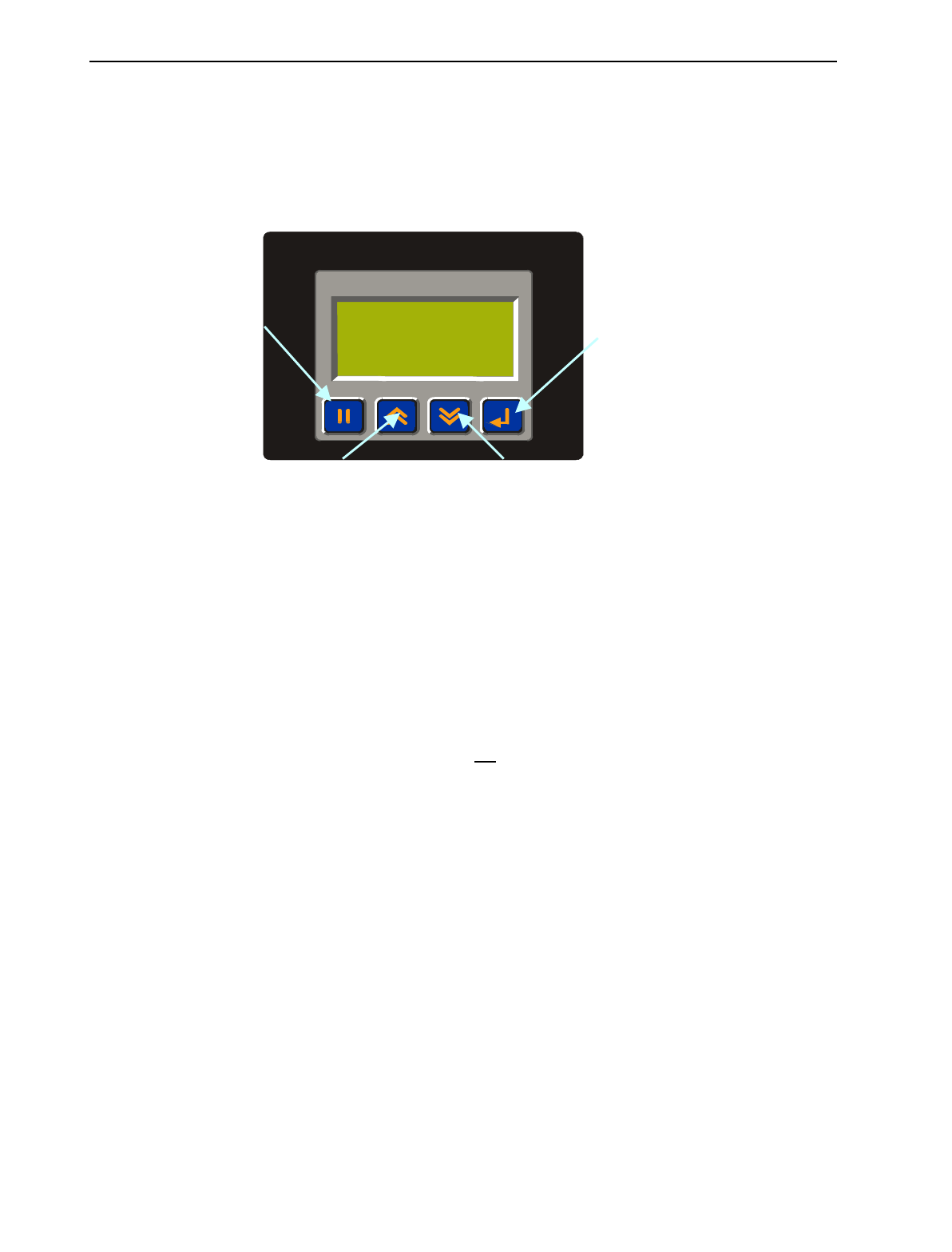
2.2 TIU050 Button Selection Actions
a) PAUSE key selects data for editing OR exits from data editing.
b) PAUSE & DOWN keys pressed together, enters sub menu pages.
c) PAUSE & UP keys pressed together, exits sub menus to the parent menu pages.
d) UP key selects the previous menu page, sub menu page, alarms, and increments data
e) DOWN key selects the next menu page, sub menu page, alarms and also decrements data.
f) ENTER key sends data to the automation equipment, accepts alarms, and displays accepted alarms.
g) ALPHANUMERIC KEYPAD and FUNCTION KEYS can be used to enter data or can be used to
preform some pre-programmed action.
2.3 TIU050 Contrast Adjustment
On menu page 1 (after the start-up screen), hold the ENTER key and press the UP or DOWN key to
adjust the contrast. The contrast setting is stored and not lost after removing power.
CONTRAST BAND - allows the user to set the lower and upper limits of contrast. Adjust the lower limit
using the UP or DOWN key and press Enter when done. Do the same for the upper limit.
WARNING: - Changes to the lower or upper limits may allow the user to set the contrast to a setting
where the display may appear blank. It is recommended that the factory setting are used (Min 8A, Max
FE).
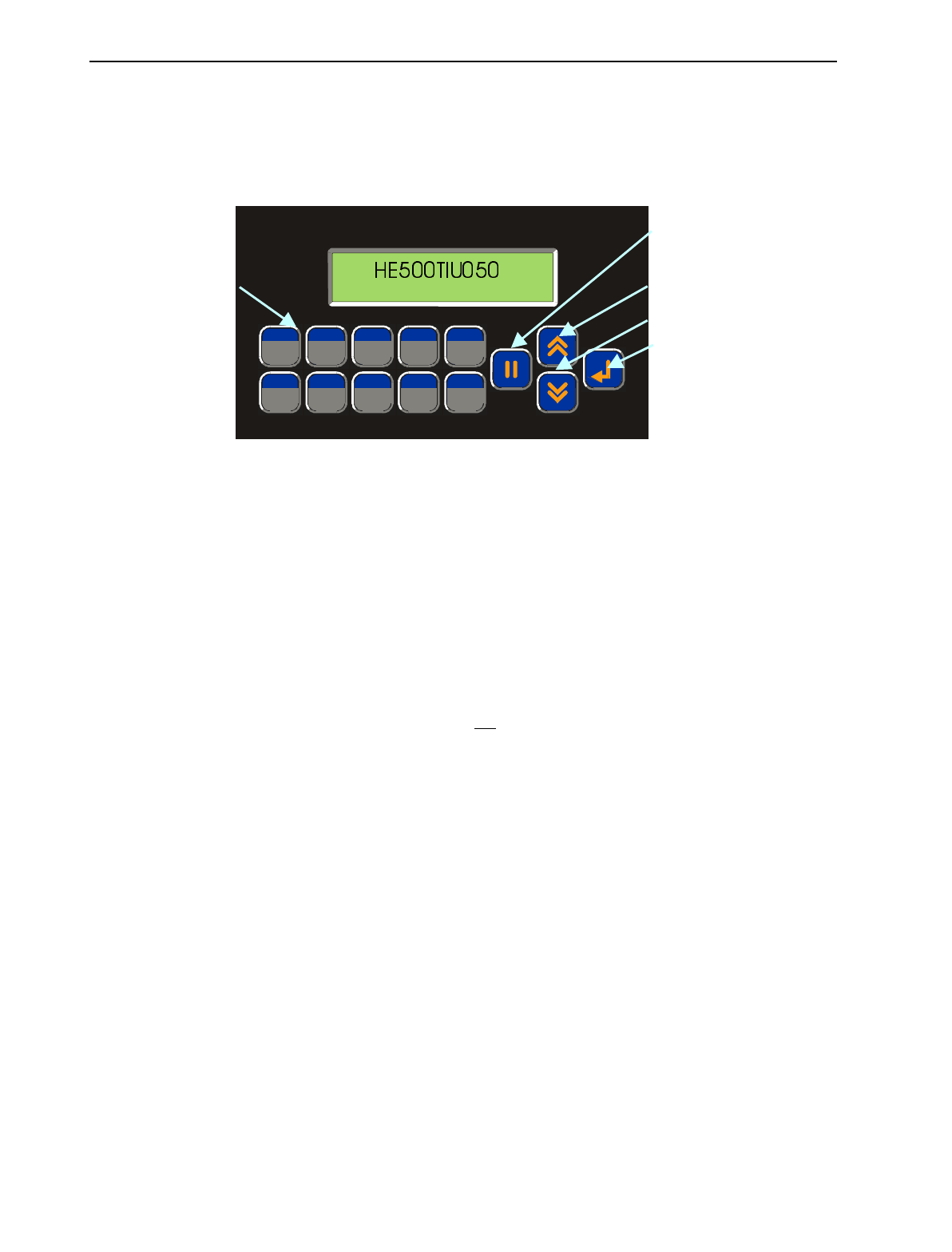
Figure 2.1 – Front View of TIU050
Alphanumeric
Keypad
Programmable
Function Keys
P
AUSE Key
U
P Key
D
OWN Key
E
NTER Key
1QZ_
F1
2 ABC 3 DEF 4 GHI 5 JKL
F2 F3 F4 F5
F6
6 MNO 7 PRS
F7
8 TUV
F8 F9
9 WXY 0
F10
+-
PAGE 16 06 Apr 2000 CH. 2: TIU050
GFK-1819
2.4 TIU050 Ports
2.4.1 TIU050 Configuration of the RS-485 Port
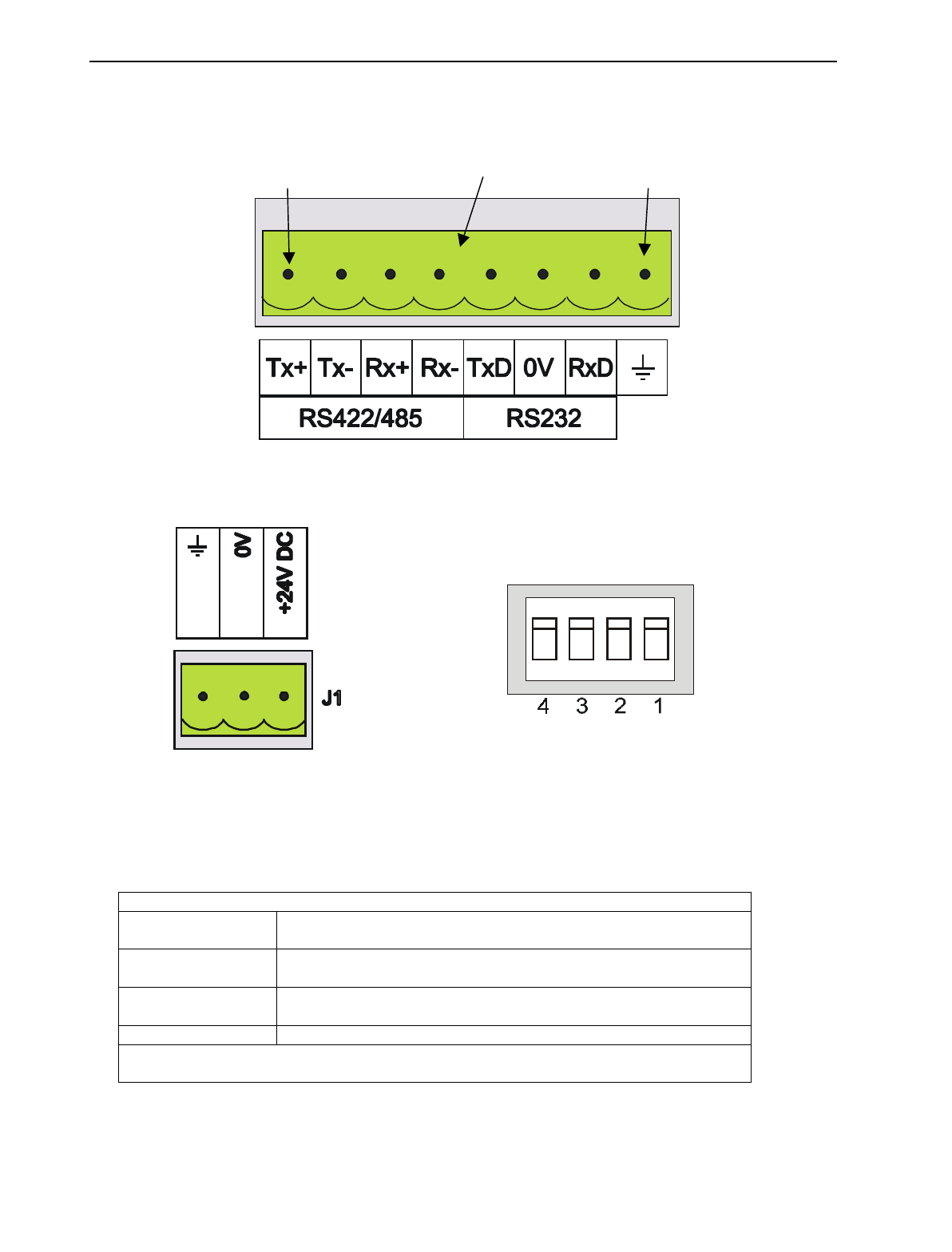
The configuration bank (shown in Figure 2.5) sets the parameters of the RS-485 port as described in
Table 2.1.
Table 2.1 – Configuration Bank
Switch 1 ON: Pull-up (must be used together with switch 3)
OFF: no Pull-up
Switch 2 ON: 120Ω termination
OFF: no termination
Switch 3 ON: Pull-down (must be used together with switch 1)
OFF: no Pull-down
Switch 4 Reserved for future use
NOTE: Switch 1 and 3 must be used together. Either both pull-up and pull-down are
used or neither is used.
Figure 2.3 – Power Connector
Powered by +24VDC and Ground. Figure 2.4 – Configuration Bank
OFF
ON
SW1
F
igure 2.2 – Automation Equipment Serial Port
Pin 1
P
in 8TIU050 8-pin Terminal Block
CH.2: TIU050 06 Apr 2000 PAGE 17
GFK-1819
Pull-up and Pull-down switches are used to increase the signal level on the RS-485 bus. This is useful if
there is a long bus and a significant amount of attenuation is anticipated.
Termination resistance of 120Ω must be placed across each end of the RS-485 bus. With switch 2 ON,
a 120Ω resistance is placed across the bus. This is only used if the TIU050/100/110 is the last device at
either end of the bus.
2.5 TIU050 Dimensions
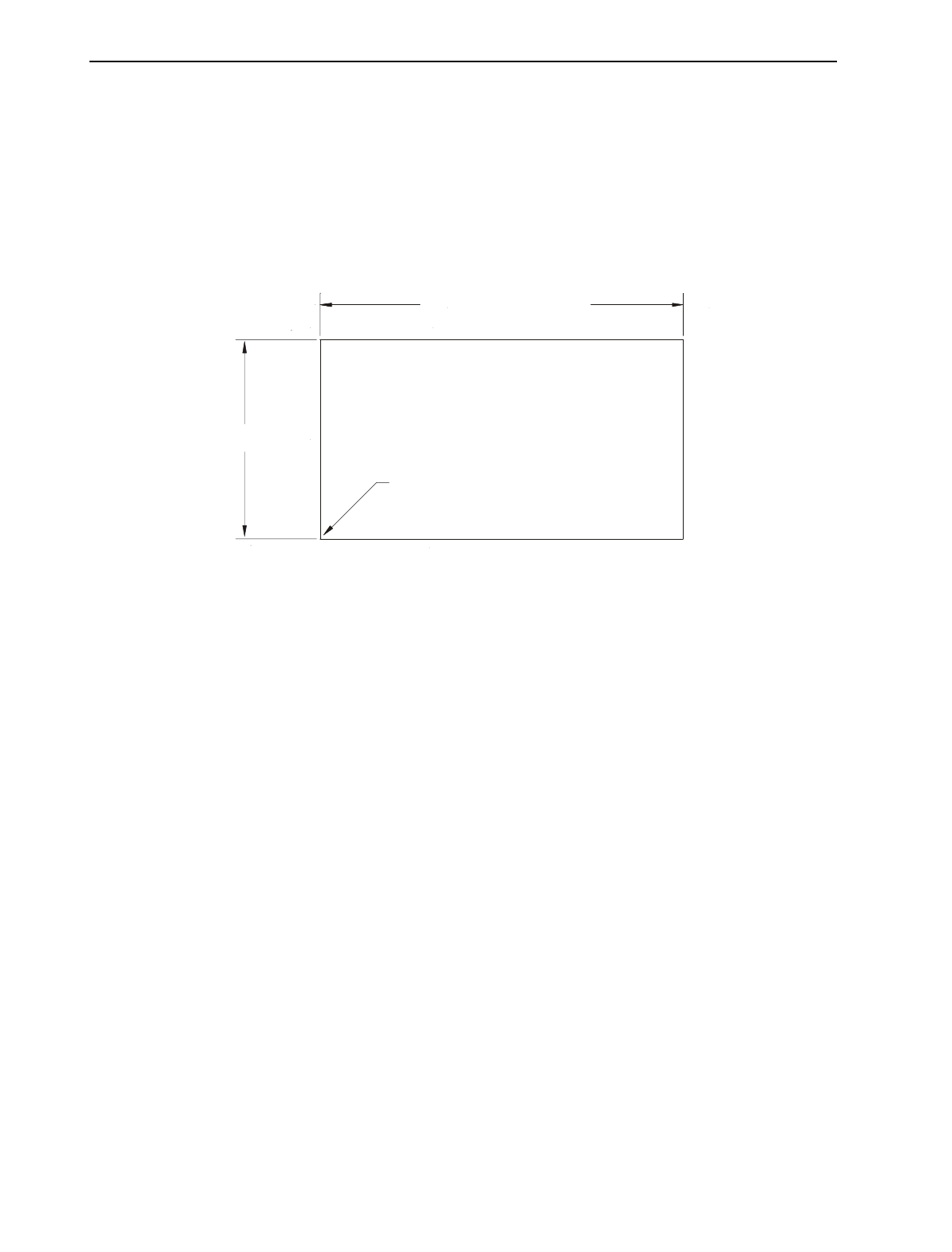
TOLERANCES ARE +/- 0.01” [0.3mm] UNLESS STATED OTHERWISE
TIU050 CUTOUT DETAILS
3.27” [83 mm]
+0.02
-0.00 +0.5
-0.0
5.95” [151mm]
UP TO 0.04”[1mm] CORNER
RADIUS IS ACCEPTABLE
Figure 2.5 – TIU050 Cutout

PAGE 18 06 Apr 2000 CH. 2: TIU050
GFK-1819
NOTES
CH. 3: TIU100/101/102/103 06 Apr 2000 PAGE 19
GFK-1819
CHAPTER 3: TIU100/101/102/103
3.1 Scope
The TIU10X 128 x 64 pixel display, which allows for some graphics and various fonts to be displayed. .
The hardware description is detailed in this chapter.
3.2 TIU10X Button Selection Actions
a) PAUSE key selects data for editing OR exits from data editing.
b) PAUSE & DOWN keys pressed together, enters sub menu pages.
c) PAUSE & UP keys pressed together, exits sub menus to the parent menu pages.
d) UP key selects the previous menu page, sub menu page, alarms, and increments data
e) DOWN key selects the next menu page, sub menu page, alarms and also decrements data.
f) ENTER key sends data to the automation equipment, accepts alarms, and displays accepted alarms.
3.3 TIU10X Contrast Adjustment
On menu page 1 (after the start-up screen), hold the ENTER key and press the UP or DOWN key to
adjust the contrast. The contrast setting is stored and not lost after removing power.
CONTRAST BAND - allows the user to set the lower and upper limits of contrast. Adjust the lower limit
using the UP or DOWN key and press Enter when done. Do the same for the upper limit.
WARNING: - Changes to the lower or upper limits may allow the user to set the contrast to a setting
where the display may appear blank. It is recommended that the factory setting are used (Min 8A, Max
FE).
PAUSE Key
Figure 3.1 - Front View of TIU100
E
NTER Key
UP Key
D
OWN Key
PAGE 20 06 Apr 2000 CH.3: TIU100/101/102/103
GFK-1819
3.4 TIUX Rear View
3.5 TIU100 Ports
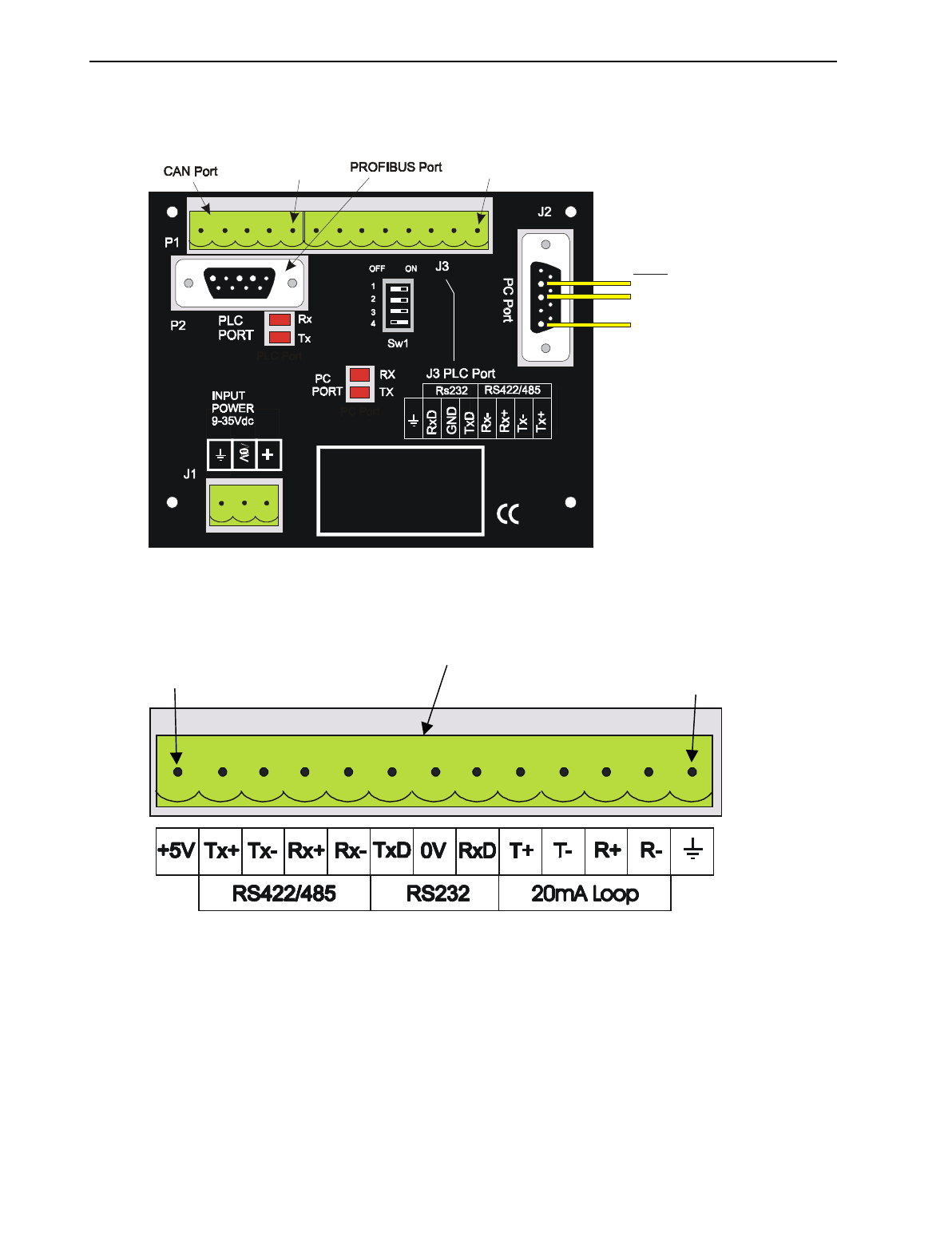
Figure 3.2 – Rear View of TIU100/101/102
Pin 13
Pin 1
T
IU100 13-pin Terminal Block
Pin 1 Pin 1
To PC
Rx Pin 2
Tx Pin 3
0V Pin 5
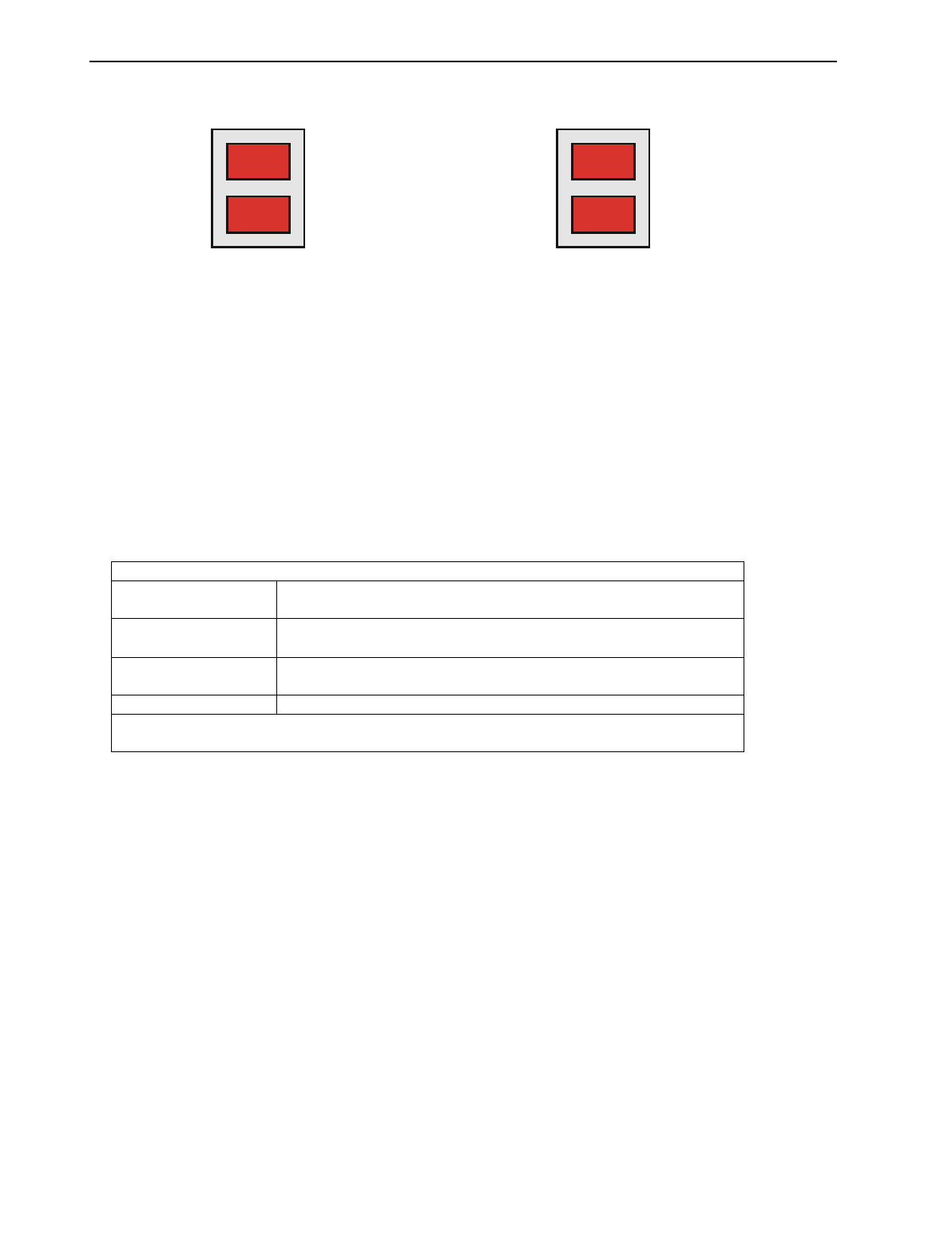
CH. 3: TIU100/101/102/103 06 Apr 2000 PAGE 21
GFK-1819
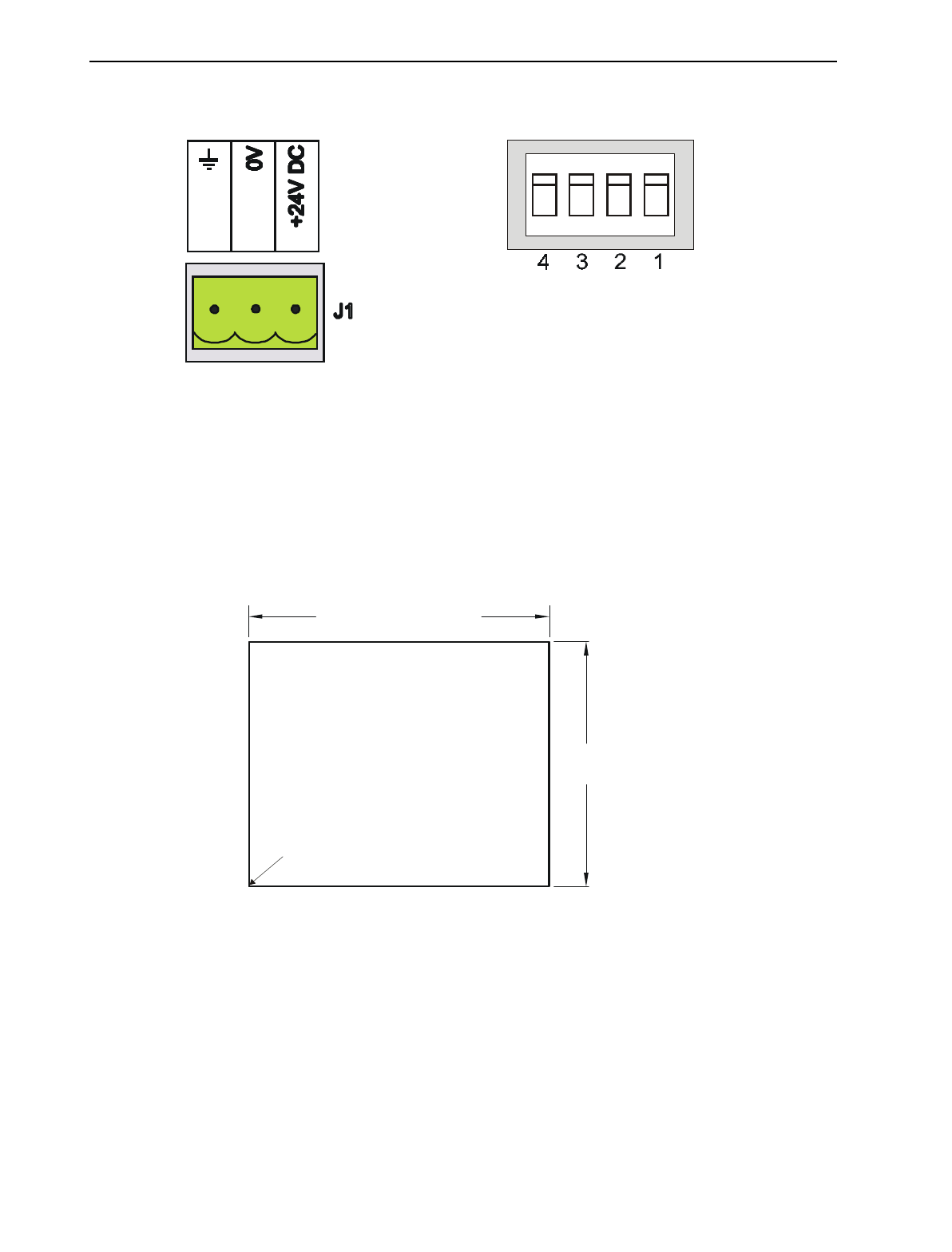
3.5.1 TIU10X Configuration of the RS-485 Port
The configuration bank (shown in Figure 3.8) sets the parameters of the RS-485 port as described in
Table 3.1.
Table 3.1 – Configuration Bank
Switch 1 ON: Pull-up (must be used together with switch 3)
OFF: no Pull-up
Switch 2 ON: 120Ω termination
OFF: no termination
Switch 3 ON: Pull-down (must be used together with switch 1)
OFF: no Pull-down
Switch 4 Reserved for future use
NOTE: Switch 1 and 3 must be used together. Either both pull-up and pull-down are
used or neither is used.
Pull-up and Pull-down switches are used to increase the signal level on the RS-485 bus. This is useful if
there is a long bus and a significant amount of attenuation is anticipated.
Figure 3.4 – Automation
Equipment Port Receive &
Transmit LEDs
The LED’s flash when the TIU10X
is communicating with the AE.
Figure 3.5 – PC Port Receive &
Transmit LEDs
The LED’s flash when the PC is
communicating with the TIU10X
Serial Port
Tx
Rx
PC Port
Tx
Rx
Figure 3.3 – Automation Equipment Serial Port
PAGE 22 06 Apr 2000 CH.3: TIU100/101/102/103
GFK-1819
Termination resistance of 120Ω must be placed across each end of the RS-485 bus. With switch 2 ON,
a 120Ω resistance is placed across the bus. This should only be used if the TIU050/100/110 is the last
device at either end of the bus.
3.6 TIU10X Dimensions
Figure 3.6 – Power Connector
Powered by +24VDC and Ground.
Figure 3.7 – Configuration Bank
OFF
ON
SW1
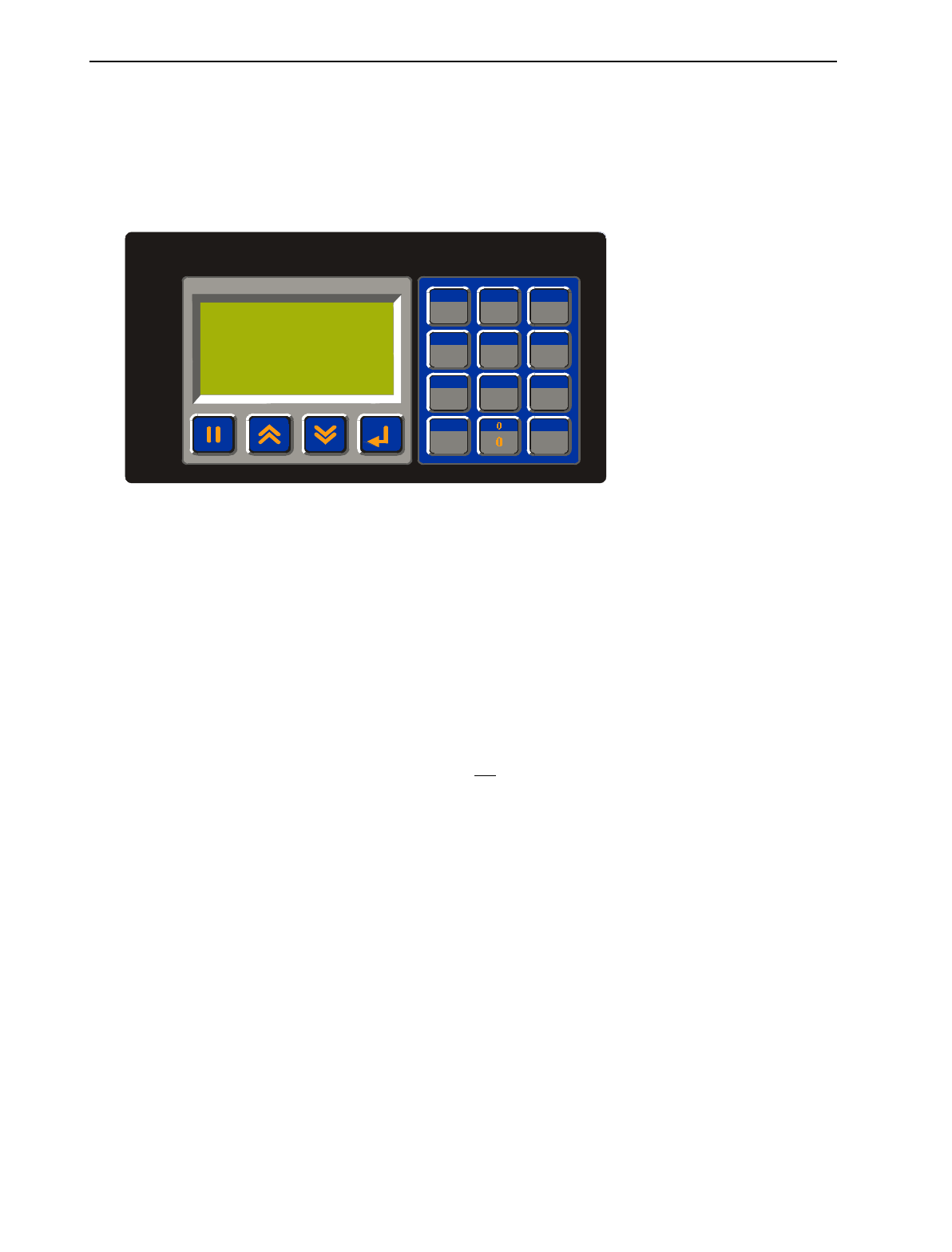
Figure 3.8 – TIU10X Cutout
UP TO 0.04”[1mm] CORNER
RADIUS IS ACCEPTABLE
TOLERANCES ARE +/- 0.01” [0.3mm] UNLESS STATED OTHERWISE
TIU10X CUTOUT DETAILS
3.94” [100 mm]
+0.02
-0.00 +0.5
-0.0
3.27” [83 mm]
+0.02
-0.00 +0.5
-0.0
CH. 4: TIU110/111/112/113 06 Apr 2000 PAGE 23
GFK-1819
CHAPTER 4: TIU110/111/112/113
4.1 Scope
The TIU11X 128 x 64 pixel display, which allows for some graphics and various fonts to be displayed.
The hardware description is detailed in this chapter.
4.2 TIU11X Button Selection Actions
a) PAUSE key selects data for editing OR exits from data editing.
b) PAUSE & DOWN keys pressed together, enters sub menu pages.
c) PAUSE & UP keys pressed together, exits sub menus to the parent menu pages.
d) UP key selects the previous menu page, sub menu page, alarms, and increments data
e) DOWN key selects the next menu page, sub menu page, alarms and also decrements data.
f) ENTER key sends data to the automation equipment, accepts alarms, and displays accepted alarms.
g) ALPHANUMERIC KEYPAD and PROGRAMMABLE KEYS can be used to enter data or can be
used to preform some pre-programmed action.
4.3 TIU11X Contrast Adjustment
On menu page 1 (after the start-up screen), hold the ENTER key and press the UP or DOWN key to
adjust the contrast. The contrast setting is stored and not lost after removing power.
CONTRAST BAND - allows the user to set the lower and upper limits of contrast. Adjust the lower limit
using the UP or DOWN key and press Enter when done. Do the same for the upper limit.
WARNING: - Changes to the lower or upper limits may allow the user to set the contrast to a setting
where the display may appear blank. It is recommended that the factory setting are used (Min 8A, Max
FE).
+/-
.
Del
PRS
7
TUV
8
WXY
9
MNO
6
JKL
5
GHI
4
DEF
3
ABC
2
QZ_
1
N
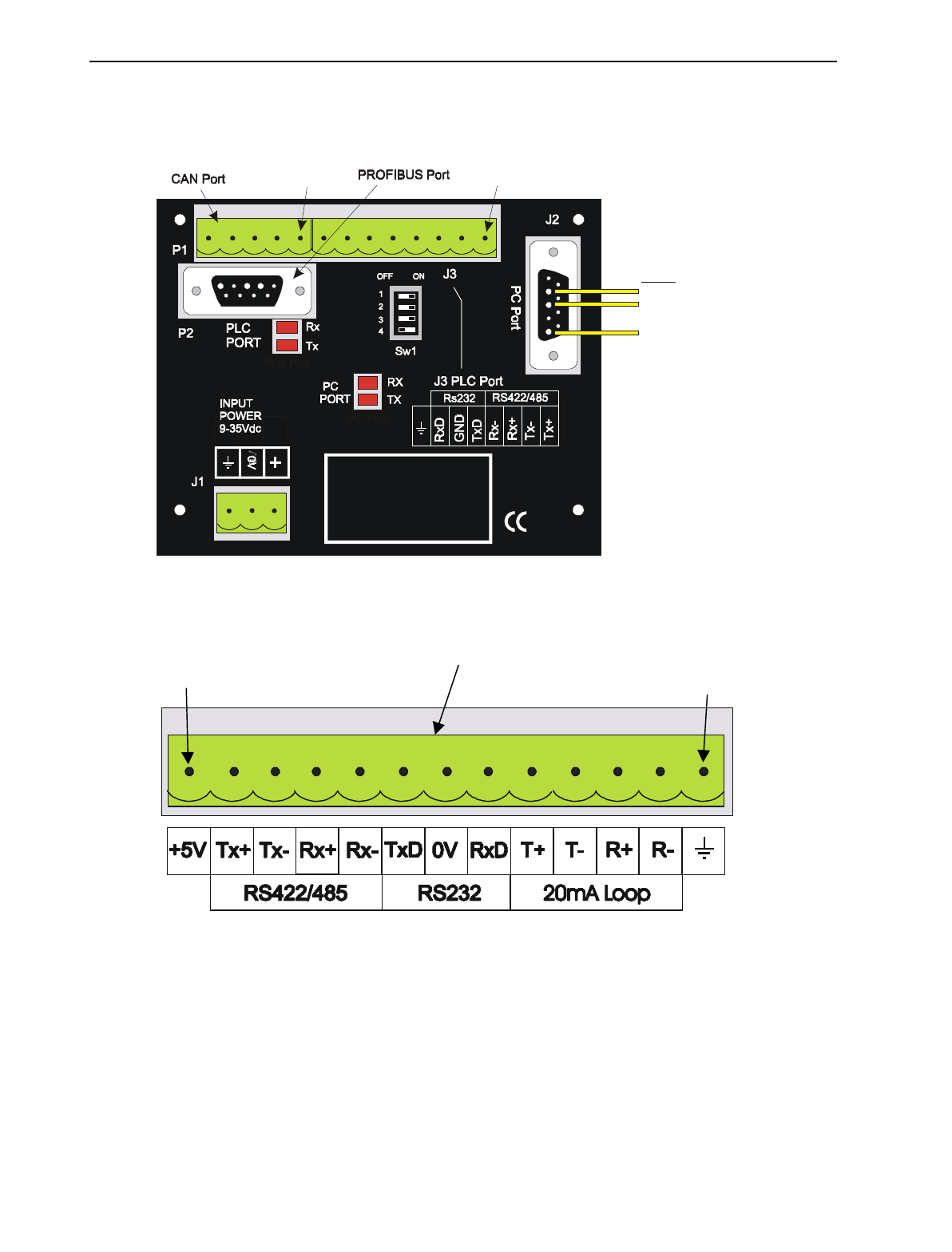
umeric Keypad
P
rogrammable
F
unction Keys
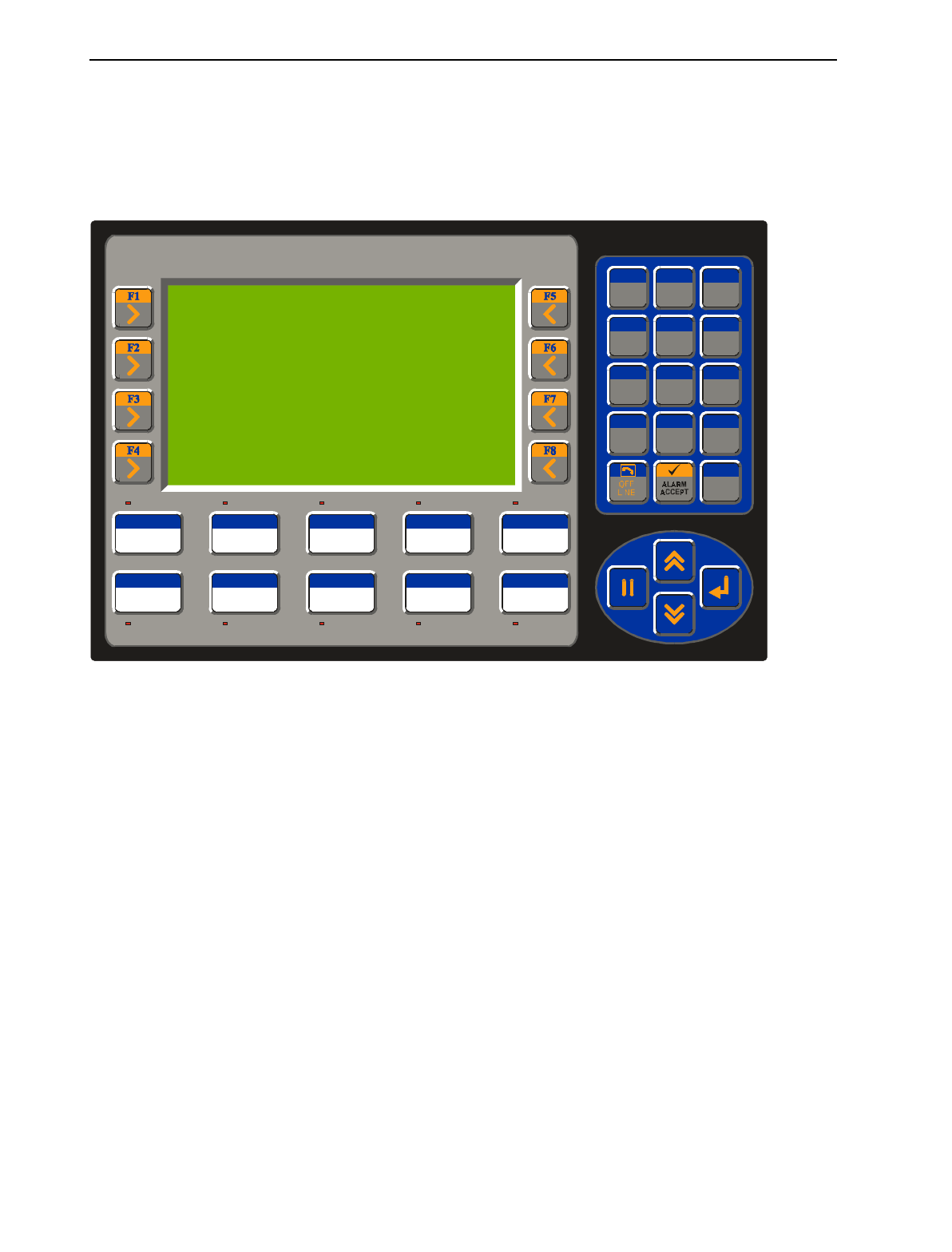
Figure 4.1 – Front View of TIU110
PAGE 24 06 Apr 2000 CH. 4: TIU110/111/112/113
GFK-1819
4.4 TIU11X Rear View
4.5 TIU110 Ports
Figure 4.2 – Rear View of TIU11X
Pin 13
Pin 1
T
IU110 13-pin Terminal Block
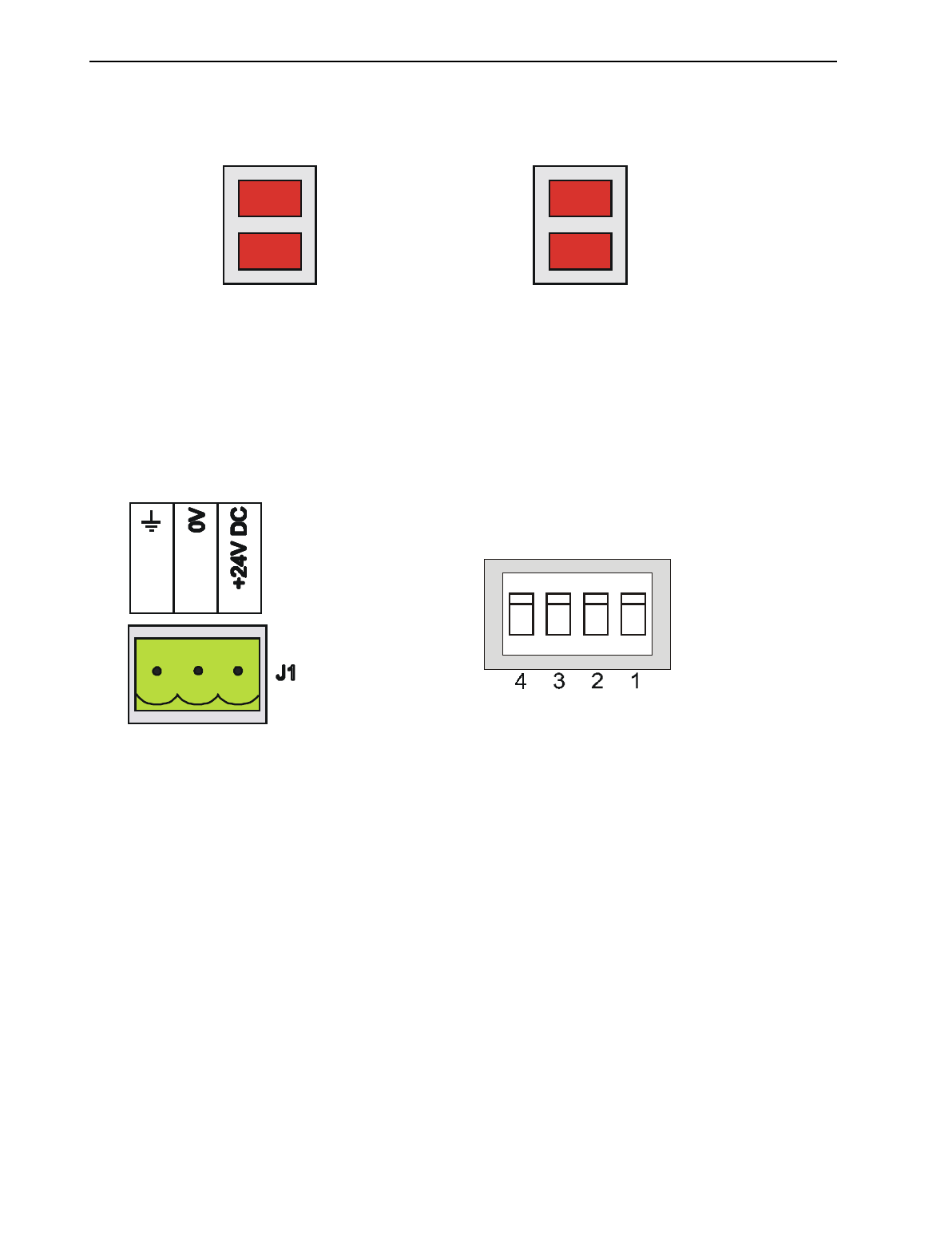
Figure 4.3 – Automation Equipment Serial Port
Pin 1 Pin 1
To PC
Rx Pin 2
Tx Pin 3
0V Pin 5
CH. 4: TIU110/111/112/113 06 Apr 2000 PAGE 25
GFK-1819
Figure 4.4 – Automation
Equipment Port Receive &
Transmit LEDs
The LED’s flash when the TIU110
is communicating with the AE.
Figure 4.5 – PC Port Receive &
Transmit LEDs
The LED’s flash when the PC is
communicating with the TIU110
Serial Port
Tx
Rx
PC Port
Tx
Rx
Figure 4.6 – Power Connector
Powered by +24VDC and Ground. Figure 4.7 – Configuration Bank
OFF
ON
SW1

PAGE 26 06 Apr 2000 CH. 4: TIU110/111/112/113
GFK-1819
4.5.1 TIU11X Configuration of the RS-485 Port
The configuration bank (shown in Figure 4.8) sets the parameters of the RS-485 port as described in
Table 4.1.
Table 4.1 – Configuration Bank
Switch 1 ON: Pull-up (must be used together with switch 3)
OFF: no Pull-up
Switch 2 ON: 120Ω termination
OFF: no termination
Switch 3 ON: Pull-down (must be used together with switch 1)
OFF: no Pull-down
Switch 4 Reserved for future use
NOTE: Switch 1 and 3 must be used together. Either both pull-up and pull-down are
used or neither is used.
Pull-up and Pull-down switches are used to increase the signal level on the RS-485 bus. This is useful if
there is a long bus and a significant amount of attenuation is anticipated.
Termination resistance of 120Ω must be placed across each end of the RS-485 bus. With switch 2 ON,
a 120Ω resistance is placed across the bus. This should only be used if the TIU050/100/110 is the last
device at either end of the bus.
4.6 TIU11X Dimensions
TOLERANCES ARE +/- 0.01” [0.3mm] UNLESS STATED OTHERWISE
TIU11X CUTOUT DETAILS
3.27” [83 mm]
+0.02
-0.00 +0.5
-0.0
5.95” [151mm]
UP TO 0.04”[1mm] CORNER
RADIUS IS ACCEPTABLE
Figure 4.8 – TIU11X Cutout
CH. 5: TIU200/201/202/203 06 Apr 2000 PAGE 27
GFK-1819
CHAPTER 5: TIU200/201/202/203
5.1 Scope
The TIU20X is 240 x 128 pixel display which allows for full graphic screen. The hardware description is
cover under the following chapter
5.2 TIU20X Button Selection Actions
a) PAUSE key selects data for editing OR exits from data editing.
b) PAUSE & DOWN keys pressed together, enters sub menu pages.
c) PAUSE & UP keys pressed together, exits sub menus to the parent menu pages.
d) UP key selects the previous menu page, sub menu page, alarms, and increments data
e) DOWN key selects the next menu page, sub menu page, alarms and also decrements data.
f) ENTER key sends data to the automation equipment, accepts alarms, and displays accepted alarms.
g) ALPHANUMERIC KEYPAD can be used to enter data
h) PROGRAMMABLE KEYS can be used to preform some pre-programmed action.
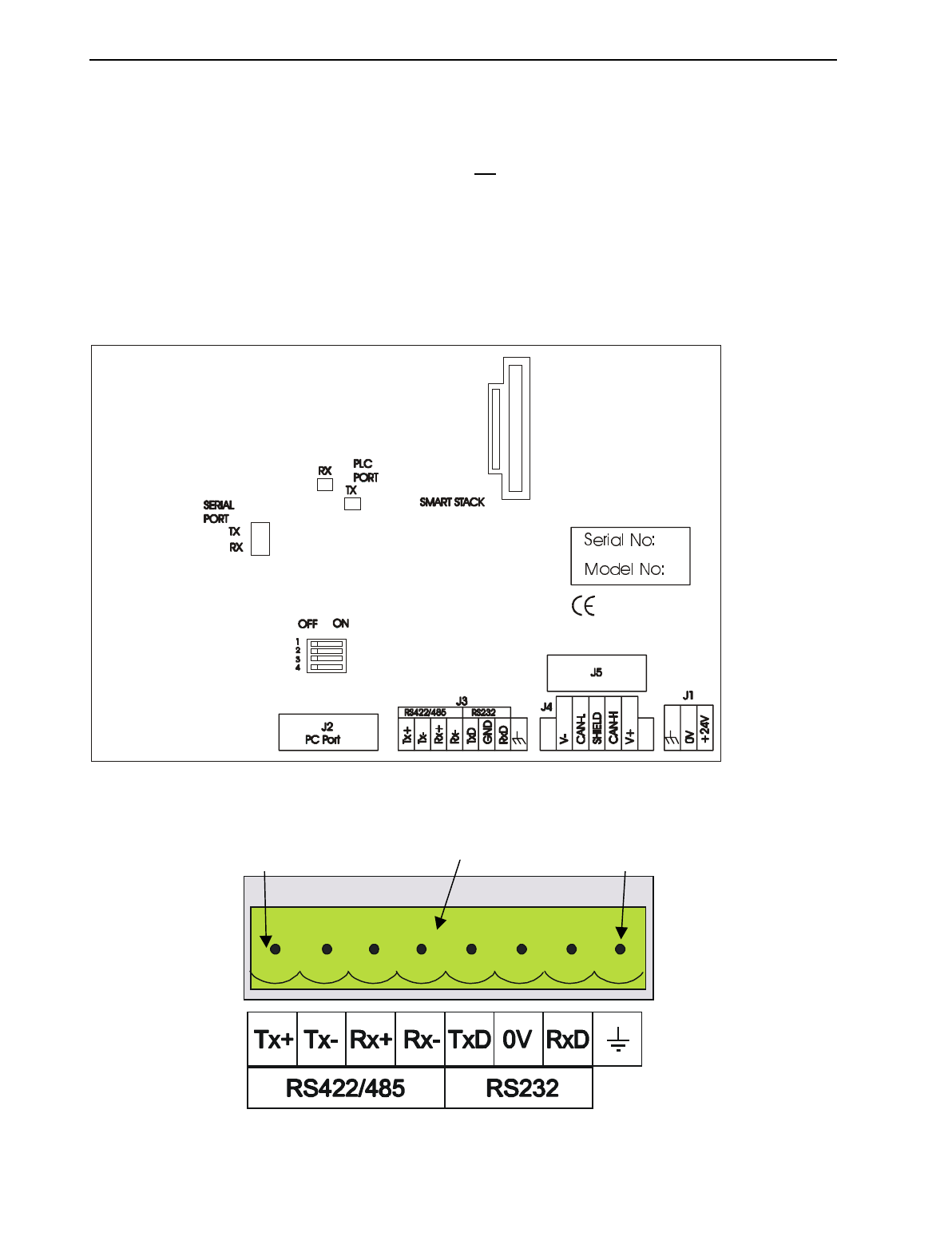
F14 F15 F16 F17 F18
F9 F10 F11 F13F12
DEF
3
ABC
2
QZ
1
GHI
4
JKL
5
MNO
6
PRS
7
TUV
8
WXY
9
0
0
.
Del
SPACE
NEXT
+/-
Figure 5.1 – Front View of TIU20X
PAGE 28 06 Apr 2000 CH. 5: TIU200/201/202/203
GFK-1819
5.3 TIU20X Contrast Adjustment
On menu page 1 (after the start-up screen), hold the ENTER key and press the UP or DOWN key to
adjust the contrast. The contrast setting is stored and not lost after removing power.
CONTRAST BAND - allows the user to set the lower and upper limits of contrast. Adjust the lower limit
using the UP or DOWN key and press Enter when done. Do the same for the upper limit.
WARNING: - Changes to the lower or upper limits may allow the user to set the contrast to a setting
where the display may appear blank. It is recommended that the factory setting are used (Min 8A, Max
FE).
5.4 TIU20X Rear View
5.5 TIU20X Ports
Pin 1
P
in 8TIU20X 8-pin Terminal Block
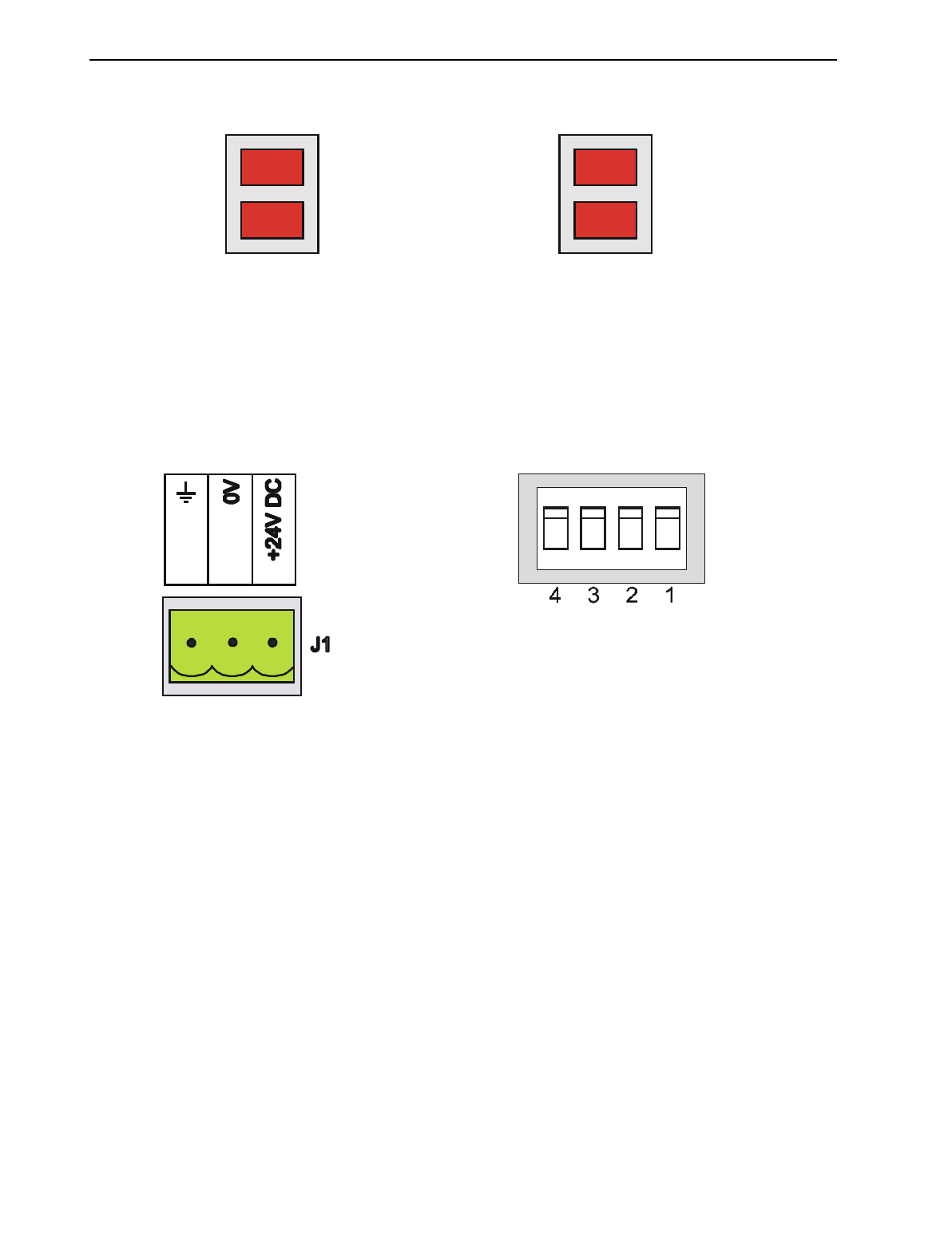
Figure 5.2 – Rear View of TIU20X
Figure 5.3 Automated Equipment Serial Port
CH. 5: TIU200/201/202/203 06 Apr 2000 PAGE 29
GFK-1819
Figure 5.4 – Automation
Equipment Port Receive &
Transmit LEDs
The LED’s flash when the TIU20X
is communicating with the AE.
Figure 5.5 – PC Port Receive &
Transmit LEDs
The LED’s flash when the PC is
communicating with the TIU20X
Serial Port
Tx
Rx
PC Port
Tx
Rx
Figure 5.6 – Power Connector
Powered by +24VDC and Ground.
Figure 5.7 – Configuration Bank
OFF
ON
SW1
PAGE 30 06 Apr 2000 CH. 5: TIU200/201/202/203
GFK-1819
5.5.1 TIU20X Configuration of the RS-485 Port
The configuration bank (shown in Figure 2.23) sets the parameters of the RS-485 port as described in
Table 5.1.
Table 5.1 – Configuration Bank
Switch 1 ON: Pull-up (must be used together with switch 3)
OFF: no Pull-up
Switch 2 ON: 120Ω termination
OFF: no termination
Switch 3 ON: Pull-down (must be used together with switch 1)
OFF: no Pull-down
Switch 4 Reserved for future use
NOTE: Switch 1 and 3 must be used together. Either both pull-up and pull-down are
used or neither is used.
Pull-up and Pull-down switches are used to increase the signal level on the RS-485 bus. This is useful if
there is a long bus and a significant amount of attenuation is anticipated.
Termination resistance of 120Ω must be placed across each end of the RS-485 bus. With switch 2 ON,
a 120Ω resistance is placed across the bus. This should only be used if the TIU050/10X/11X/20X is the
last device at either end of the bus.
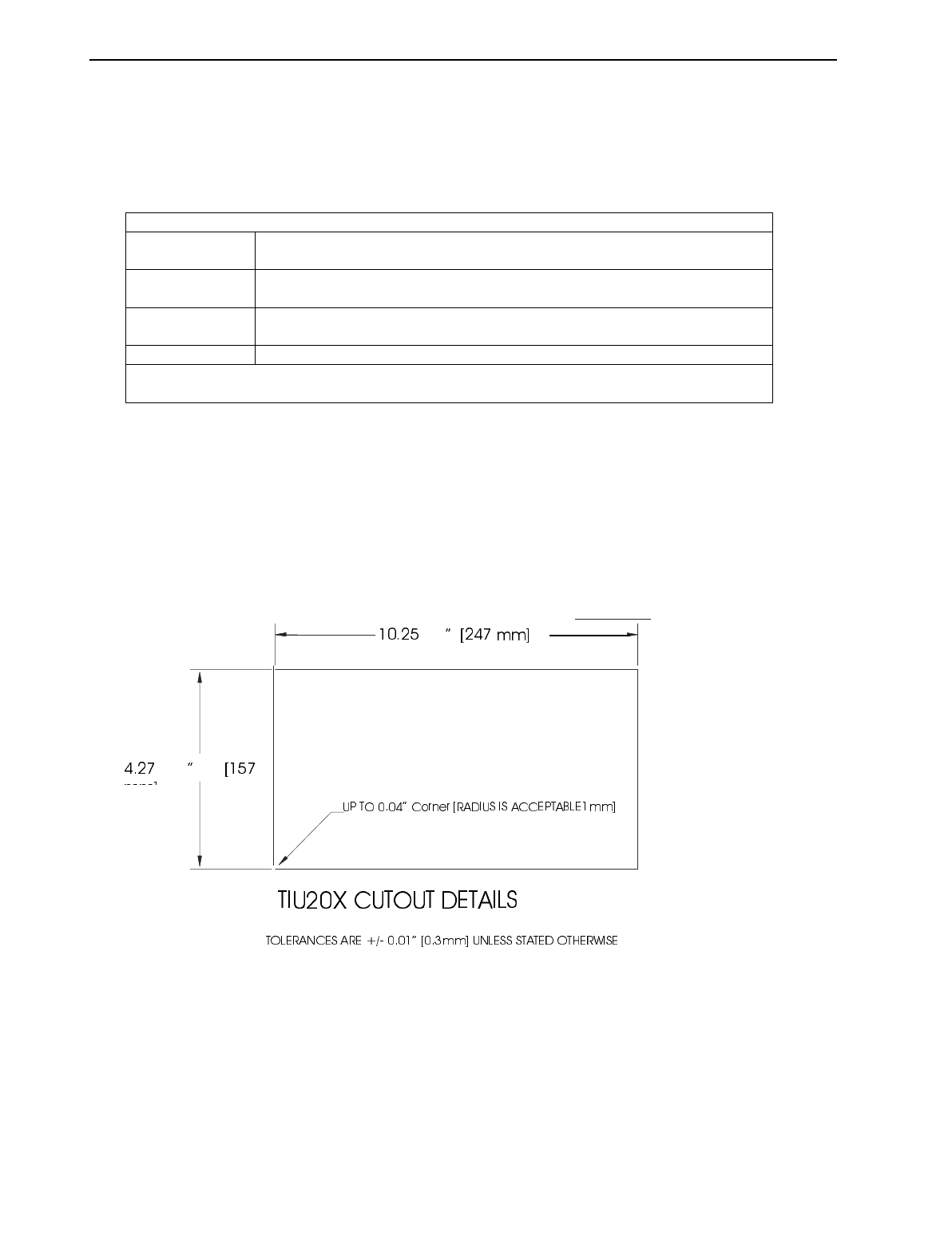
5.6 TIU20X Dimensions
Figure 5.8 – TIU20X Cutout
+0.02
-0.00 +0.5
-0.0
+
0.02
-
0.00
CH. 6: COMMUNICATIONS 06 Apr 2000 PAGE 31
GFK-1819
CHAPTER 6: COMMUNICATIONS
6.1 PC to Operator Station Communications
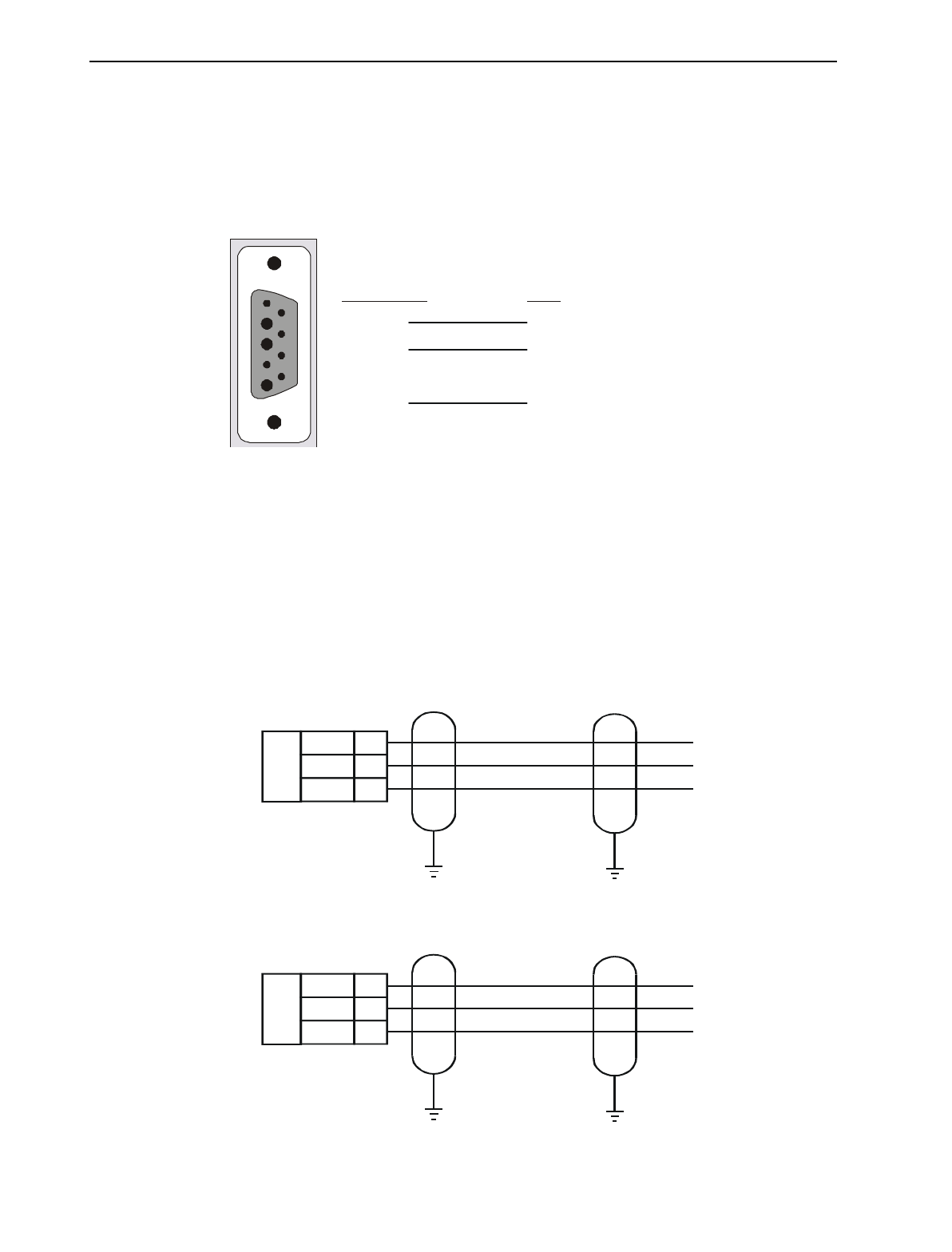
The serial pin connections for transmit (Tx), receive (Rx) and ground are displayed below.
6.2 Automation Equipment (AE) Communications Connections
6.2.1 Recommended Automation Equipment Communication Cables
Horner Electric recommends the following cables for automation equipment communication:
Belden No. 8105, 9807 or 9832 – General Purpose
Belden No. 8165 – Heavy Noise Environment
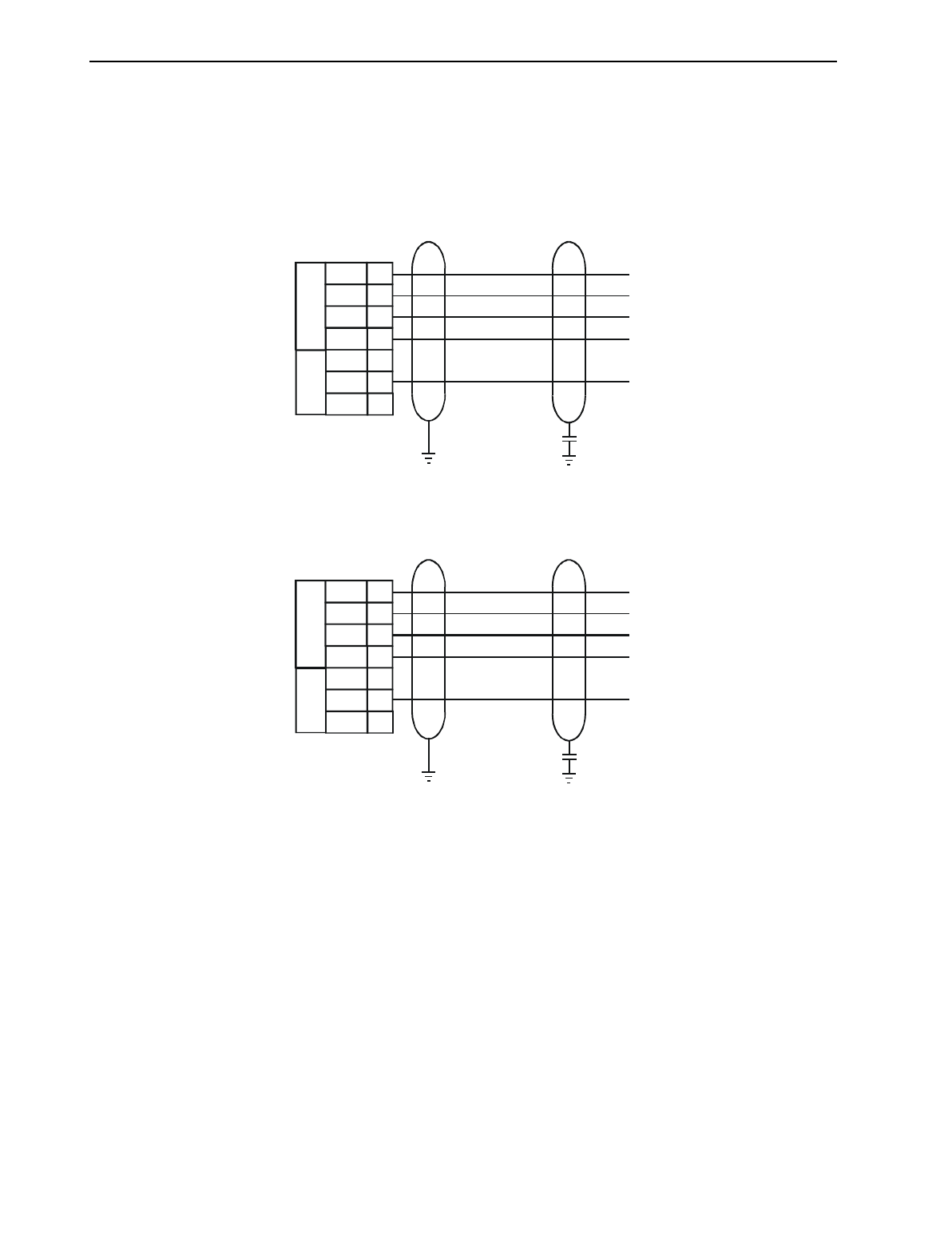
6.3 RS-232 Connection
Figure 6.2 – RS-232 Connection
Rx
Tx
0V
AE
TxD
0V
RxD
RS232
7
8
6
RS232
(Section of 13-pin
Terminal Block)
TIU110/100
TIU050/101/102/103/111/112/113/20X
Rx
Tx
0V
AE
TxD
0V
RxD
RS232
6
7
5
RS232
(Section of 8-pin
Terminal Block)
1
5
TIU1XX PC
2 Tx 2 Rx
3 Rx 3 Tx
5 0V 5 0V
Figure 6.1 – PC Programming Serial Port & Connection Detail
PAGE 32 06 Apr 2000 CH. 6: COMMUNICATIONS
GFK-1819
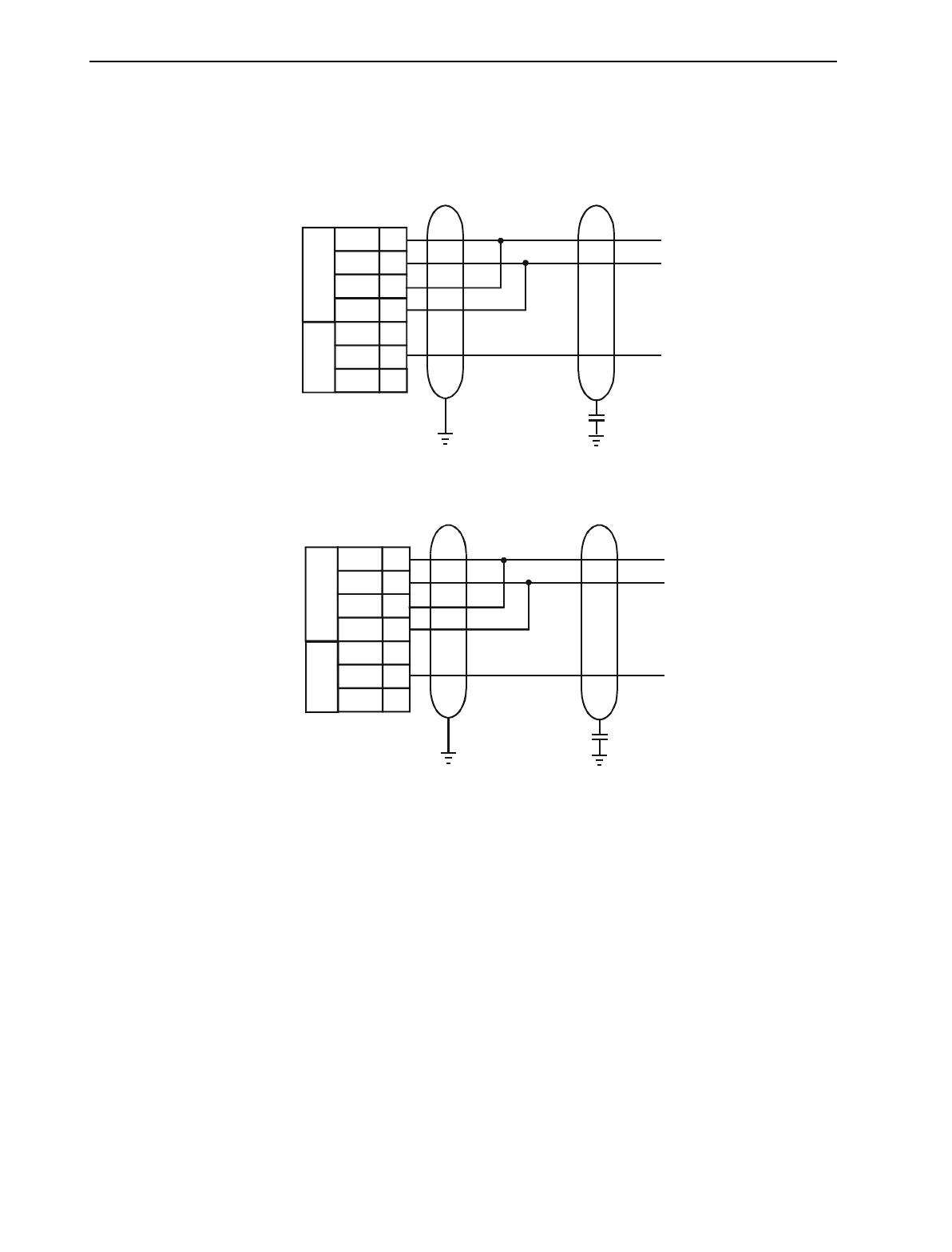
6.4 RS-422/485 Four-Wire
Note: The descriptions used by different manufacturers for RS-422/485 connections vary. Please refer to
the automation equipment manufacturers own manuals for connection details.
Note: Horner produces application notes explaining the connection to each of the different automated
equipment manufactures. These application notes are ongoing, see your installation CD for any released
documentation.
Figure 6.2 – RS-422/485 Four-Wire
RS422/485
(4-wire)
Automated Equipment
RS422/485 Connections
See Note Below
Rx-
TxD
RS232
6
0V 7
RxD 8
5
Tx+
Tx-
Rx+
RS422/485
3
4
2
0.1uF Ceramic
(Section of 13-pin
Terminal Block)
TIU110/100
RS422/485
(4-wire)
Rx-
TxD
RS232
5
0V 6
RxD 7
4
Tx+
Tx-
Rx+
RS422/485
2
3
1
0.1uF Ceramic
(Section of 8-pin
Terminal Block)
TIU050/101/102/103/111/112/113/20X
Automated Equipment
RS422/485 Connections
See Note Below
CH. 6: COMMUNICATIONS 06 Apr 2000 PAGE 33
GFK-1819
6.5 RS-485 Two-Wire
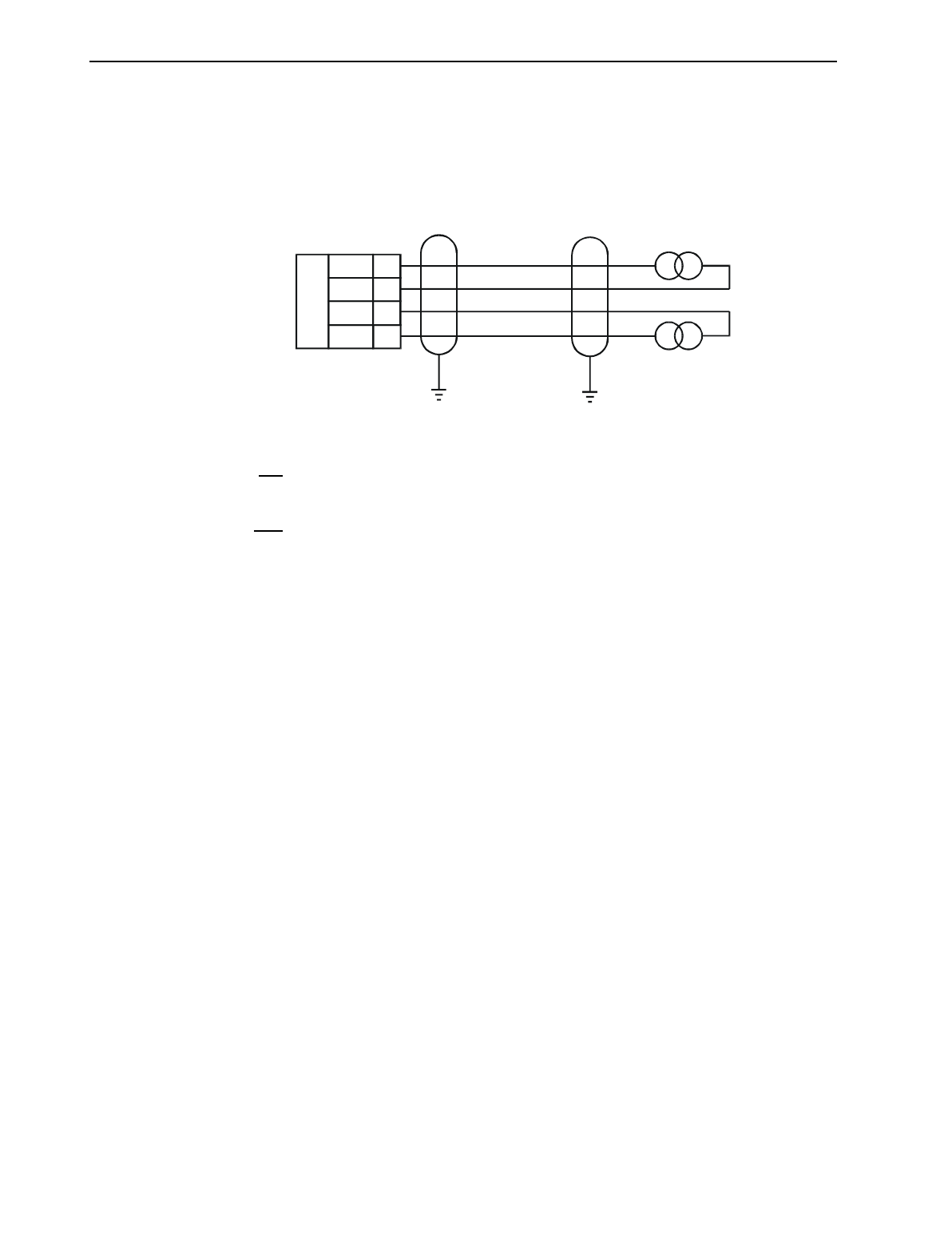
Figure 6.3 – RS-485 Two-Wire
RS422/485
(2-wire)
RxD 8
AE
Rx-
TxD
0V
RS232
6
7
5
Tx+
Tx-
Rx+
RS422/485
3
4
2
0.1uF Ceramic
Tx/Rx+
Tx/Rx-
COM
TIU110/100
TIU050/101/102/103/111/112/113/20X
RS422/485
(2-wire)
RxD 7
AE
Rx-
TxD
0V
RS232
5
6
4
Tx+
Tx-
Rx+
RS422/485
2
3
1
0.1uF Ceramic
Tx/Rx+
Tx/Rx-
COM
PAGE 34 06 Apr 2000 CH. 6: COMMUNICATIONS
GFK-1819
6.6 Current Loop
The following diagram shows the connection to a device with an active 20mA current loop. The current
loop on the TIU100/110 is passive. Either the PLC must provide the 20mA source or an external current
source must be supplied.
Note: Current Loop is not a standard option on the TIU100/110. Current loop must be ordered
specifically or can be re-fit into a standard unit. Contact a Horner Electric dealer for more information.
Note: Current Loop is not an option with the TIU050/101/102/103/111/112/113/20X.
Figure 6.4 – Current Loop
+
SR
ST
-
T+
T-
R+
R-
20mA Loop
20mA Loop
10
11
12
9

CH. 7: GETTING STARTED 06 Apr 2000 PAGE 35
GFK-1819
CHAPTER 7: GETTING STARTED
7.1 Self-Test
Power up the unit with the UP and ENTER keys pressed at the same time. The unit enters a self-test
mode. The self-test consists of the following four checks:
7.1.1 Contrast Band
This test allows the user to set the lower and upper limits of contrast. Adjust the lower limit using the UP or DOWN
key and press Enter when done. Do the same for the upper limit.
WARNING: - Changes to the lower or upper limits may allow the user to set the contrast to a
setting where the display may appear blank. It is recommended that the factory setting are used
(Min 8A, Max FE).
7.1.2 Display Test
The display test continuously blinks all pixels on (black) to off. Look for any pixels stuck on or off. Exit
this test by pressing and holding any key for approximately two seconds.
7.1.3 Keyboard Test
As each key is pressed, an indication *** appears above that key. In the case of units with a numeric
keypad, press the key and a message appears indicating the key press. Check for keys indicating
multiple presses or not reporting presses. Exit this test by pressing and holding any key for
approximately two seconds.
7.1.4 RAM Test
Test either segment 0000 or segment 1000 (on the TIU100/110) of the RAM. The segment 1000 test
performs a base 3 repeating test. This test detects shorted address lines and damaged memory bits.
The segment 0000 test performs a Read-Modify-Write test on each byte of RAM, detecting damaged
memory bits. Exit this test by selecting DONE.
7.1.5 Serial Loop-back Tests
Tests the PC port and the Serial Port in each of it’s three modes for serial loop-back. Pre-made plugs are
required to link the pins of a particular port. This takes the following form:
Table 7.1 Loop-back Test Plugs
Port Tested Product Type of Connector Pins to Short
PC (J2) TIU100/110 Pin male D link connector pin 2 to pin 3
RS-232 (J3) TIU100/110 13-pin phoenix connection pin 6 to pin 8
RS-422/485 (J3) TIU100/110 13-pin phoenix connection pin 2 to pin 4 and pin 3
to pin 5.
Current Loop TIU100/110 13-pin phoenix connection pin 1 to 9, pin 10 to 11
and pin 12 to 7
PC TIU050/101/102/1
03/112/113/20X Pin male D link connector pin 2 to pin 3
RS-232 TIU050/101/102/1
03/112/113/20X 8-pin phoenix connection Pin 5 to pin 7
RS-422/485 TIU050/101/102/1
03/112/113/20X 8-pin phoenix connection Pin 1 to pin 3, Pin 2 to
pin 4
NOTE: current loop in not installed on standard models, as such a standard model will fail the
current loop-back test. Current Loop is not an option on the TIU050/20X.
After starting the test, the OK counter begins to count up. Exit this test by selecting DONE.
PAGE 36 06 Apr 2000 CH. 7: GETTING STARTED
GFK-1819
7.2 Updating the Protocol
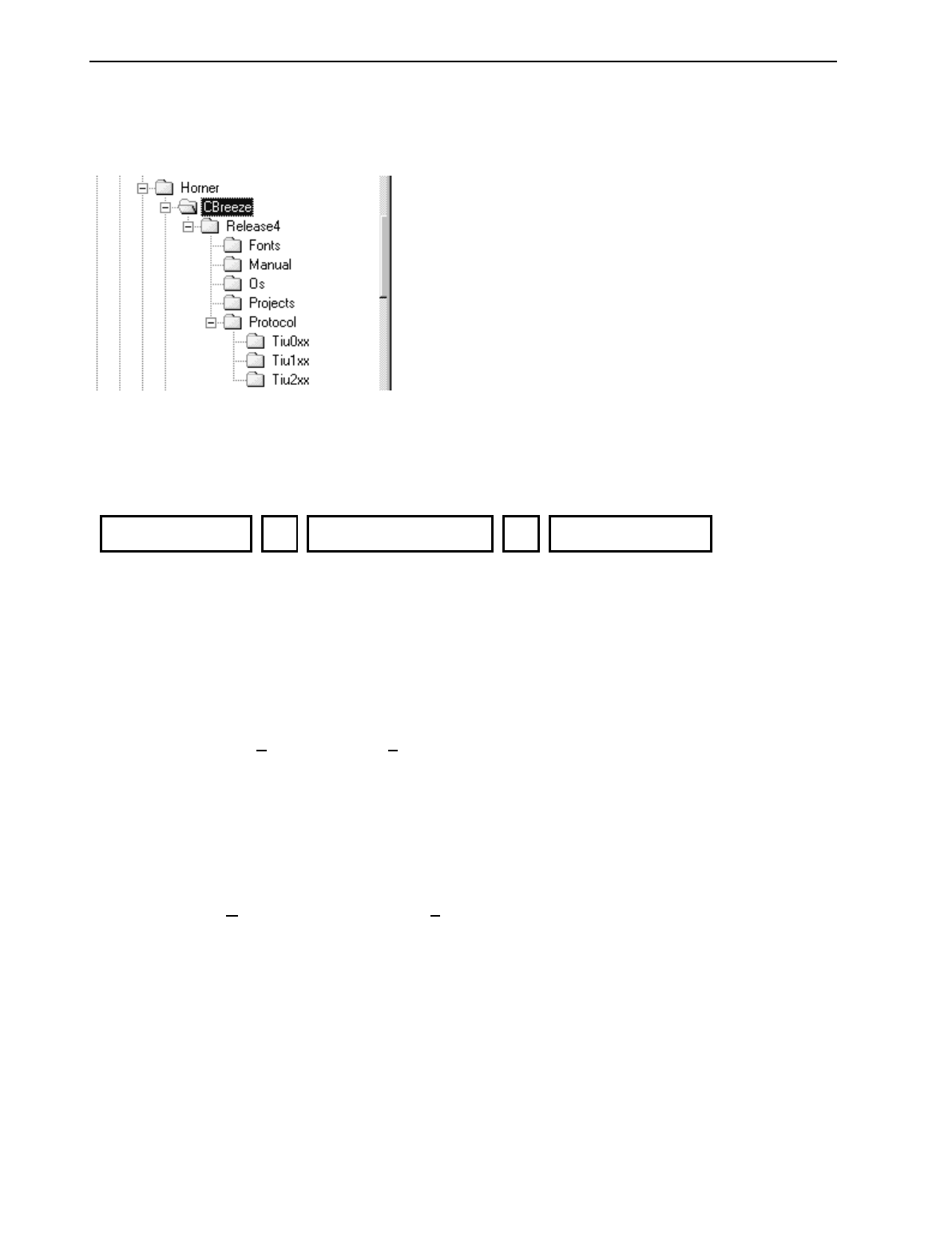
When the software is installed the user decides where the main CBREEZE folder resides. During
installation the following folders are created: -
In the protocol directory 3 folders are created, TIU0xx, TIU1xx and TIU2xx. The protocol files for the
different terminal is loaded into these folders. The protocol files for the TIU050 are loaded into Tiu0xx, the
protocol files for the TIU10X are loaded into Tiu10x and the protocol files for the TIU20X are loaded into
Tiu20x.
The name of the protocol file is broken up into three section, the protocol, the main software revsion and
the terminal type that protocol file is for.
Example
snp_R4.1xx
This is the protocol file for release 4 software for the GE FANUC PLC, for the TIU10X
df1_R4.2xx
This is the protocol file for release 4 software for Allen Brabley PLC, for the TIU20X
To Update Protocol File
1. Set Terminal Type
2. Set the required Automation Equipment in Communications Settings
3. Select
Update TIU Protocol from the File menu.
4. Select the folder of the terminal you have connected to the PC. The correct file will appear for the
terminal type selected and the Automation Equipment selected. Select that file and click OK.
5. A status bar appears indicating download progress.
6. After the transfer, the TIU050/10X/11X/20X resets itself. The correct PLC type is displayed on the
TIU050/10X/11X/20X.
7. Next, the project loaded runs.
7.3 Updating the Operating System
1. Select
Update Operating System from the File menu.
2. Choose the updated file with the “BIN” extension. Click OK.
3. A status bar appears indicating download progress.
4. During the download process, TIU050/10X/11X/20X displays the message “SYSTEM SHUTDOWN”.
Protocol Name
_
Software Revision
.
T
erminal Type

CH. 8: NETWORKS 06 Apr 2000 PAGE 37
GFK-1819
CHAPTER 8 : NETWORKS
8.1 Scope
This chapter gives a brief introduction into the networking hardware available on the Operator Station
range. The part numbers of the various options are available in the Introduction Chapter of this manual.
For information on programming the various network options see GFK-1818, User Manual for the
CBREEZE Software.
8.2 Controller Area Network (CAN) Overview
The controller area network (or CAN bus) is a serial communications bus that was originally developed in
the late 1980’s by a German company (Robert Bosch) for use in the automotive industry. CAN is an ISO
(International Standards Organisation) - defined serial communications bus for real-time applications.
Established in 1947, the International Standards Organisation (ISO) is a multinational body dedicated to
worldwide agreement on international standards. Specifically, CAN is documented in ISO 11898 (for
high-speed applications) and ISO 11519 (for lower-speed applications).
8.2.1 CAN Features
CAN-based open automation technology successfully competes on the market of distributed automation
systems because of the special features of the CAN protocol. The special features are CAN’s producer-
consumer-oriented (or peer-to-peer) principle of data transmission and its multi-master capability. The
general design of CAN originally specified a high bit rate, high immunity to electrical interference and an
ability to detect any errors produced. CAN networks have the following general attributes:
• Automatic error detection
• Easily configurable
• Cost-effective to design and implement
• Capable of operating in harsh environments
8.3 CsCAN Network Overview
The CsCAN Network was first developed in 1993 by Horner Electric. It was developed for use in a project
that Horner Electric completed for the United States Post Office. Horner Electric developed its own
network, because it needed a network that had a specific set of powerful peer-to-peer and host-to-node
capabilities. The CsCAN Network has a “pass-through” feature whereby PC-based programs access
other nodes connected to a network by passing the programming command through the serial port to the
network port. (For a more detailed description, see below.) Horner Electric found that by developing its
own network, it satisfied several important needs. Horner Electric continues CsCAN Network
development to satisfy the requirements of today and the requirements of the future.
8.3.1 CsCAN Network Features
The CsCAN Network is based on CAN, which has many desirable features such as ruggedness, ease of
configuration, etc. With Horner Electric Controllers, data is passed at 125Kbps using a differential pair of
wires plus a ground. It is important to note that the data rate is not limited to 125Kbps. The maximum
data rate is 1Mbps (limited by the speed of light). The CAN implementation in the CsCAN controller
allows up to 64 controllers to be networked with no additional hardware and up to 253 controllers with
three CAN repeaters.
For the programmer, little knowledge of networking procedures is needed. However for troubleshooting
and optimizing, the following information is helpful. Instead of using master/slave or token passing, the
hardware self-arbitrates based on the Network ID. Controllers with lower Network ID numbers are
given a higher priority than controllers with higher Network ID numbers.
8.3.2 CsCAN Network Operation
When a controller needs to send data over the network, it first waits for the network to be idle (currently a
maximum of 900uS). If two controllers start broadcasting information on the network at the same time, the

PAGE 38 06 Apr 2000 CH. 8: NETWORKS
GFK-1819
"self-arbitration" causes the controller with the greater Network ID number to cease broadcasting without
affecting the message-in-progress of the other controller.
In applications with a large number of networked controllers, better results may be achieved by assigning
lower Network IDs to controllers that have more critical network data than other controllers. By assigning
higher Network IDs to controllers that provide numerous network updates, the controllers are prevented
from monopolising the bus time.
Each controller is capable of broadcasting Global Digital Output bits (%QG) and Global Analog Output
bits (%AQG), which are periodically broadcasted to the other controllers on the network. The coil
representations %QG and %AQG may be used in CBREEZE like any other coil or internal register
reference.
All digital global outputs are broadcast to the network each time one of them has a state change. In
addition, if a controller has not transmitted its global data for specific time period, the controller's
programmable network timer may expire, which in turn results in a global data broadcast. Finally, as part
of its power-up initialisation sequence, another controller can explicitly request a controller to broadcast
its global data.
8.4 DeviceNet Overview
DeviceNet is an open network. The specification and the protocol are open. Vendors are not required to
purchase hardware, software or licensing rights to connect devices to a system.
8.4.1 DeviceNet Features
DeviceNet is a low-cost communications link to connect industrial devices. It allows the interchangeability
of simple devices while making interconnectivity of more complex devices possible. DeviceNet is based
on CAN. It is an application layer protocol (ISO layer 7) and is defined in terms of an abstract object
model, which represents the available communication services and the external visible behaviour of a
DeviceNet node.
The DeviceNet Model is application independent. DeviceNet provides the communication services
needed by various types of applications. Many of today's lower level industrial control devices must retain
their low cost/low resource characteristics even when directly connected to a network. DeviceNet takes
this into consideration by defining a specific instance of the DeviceNet Model for communications typically
seen in a Master/Slave application. This is referred to as the Predefined Master/Slave Connection Set.
Some of the features and functionality of the DeviceNet network are described Table 8.1.
Table 8.1 - DeviceNet Features and Functionality
Network Size Up to 64 Nodes
Network Length Selectable end-to end network distance varies with speed
Baud Rate Distance
125 Kbps 500m (1,640 feet)
250 Kbps 250m (820 feet)
500 Kbps 100m (328 feet)
Data Packets 0-8 bytes
Bus Topology Linear (trunkline/dropline); power and signal on the same network cable
Bus Addressing Peer-to-Peer with Multi-Cast (one-to-many); Multi-Master and Master/Slave
special case; polled or change-of-state (exception-based)
System
Features Removal and replacement of devices from the network under power

CH. 8: NETWORKS 06 Apr 2000 PAGE 39
GFK-1819
8.4.2 DeviceNet Protocol
Some of the communication protocol features of DeviceNet consist of the following:
1. A DeviceNet product can behave as a Client, a Server or both.
2. Master/Slave operation.
3. Capable of Peer-to-Peer exchange capability exists in which any DeviceNet product can produce and
consume messages.
4. Capable of supporting 64 node addresses
5. Each node can support an unlimited number of I/O.
8.4.3 DeviceNet Operation
The following restrictions are placed on operations when using an OS that is configured as a
DeviceNet slave.
1. Currently, communication between the PC and the controller is only possible to the device physically
connected to the PCs’ serial port. Project downloads, uploads, monitoring, and configuration cannot
currently take place over a DeviceNet network.
2. The HE200CGM40x gateway card can not currently be used with DeviceNet communications.
Horner Electric is providing a special Gateway device that is based on the OCS hardware. The
Gateway device makes it possible to connect the PC serial port with the DeviceNet network.
3. DeviceNet network nodes are in a range from 0 to 63. The controller is able to observe network
responses (polled connections) from any slave to the DeviceNet Master. The first 16-words of these
observed responses are made available for mapping on the Network Input Assignments page.
These correspond to the available nodes 0 to 63 and registers AQG1 to AQG16. Node 64 is used for
a special case. When data is sent to a controller from a DeviceNet Master (via the polled connection)
this data is mapped to node 64. Relative addressing is limited to -64 to +64.
PAGE 40 06 Apr 2000 CH. 8: NETWORKS
GFK-1819
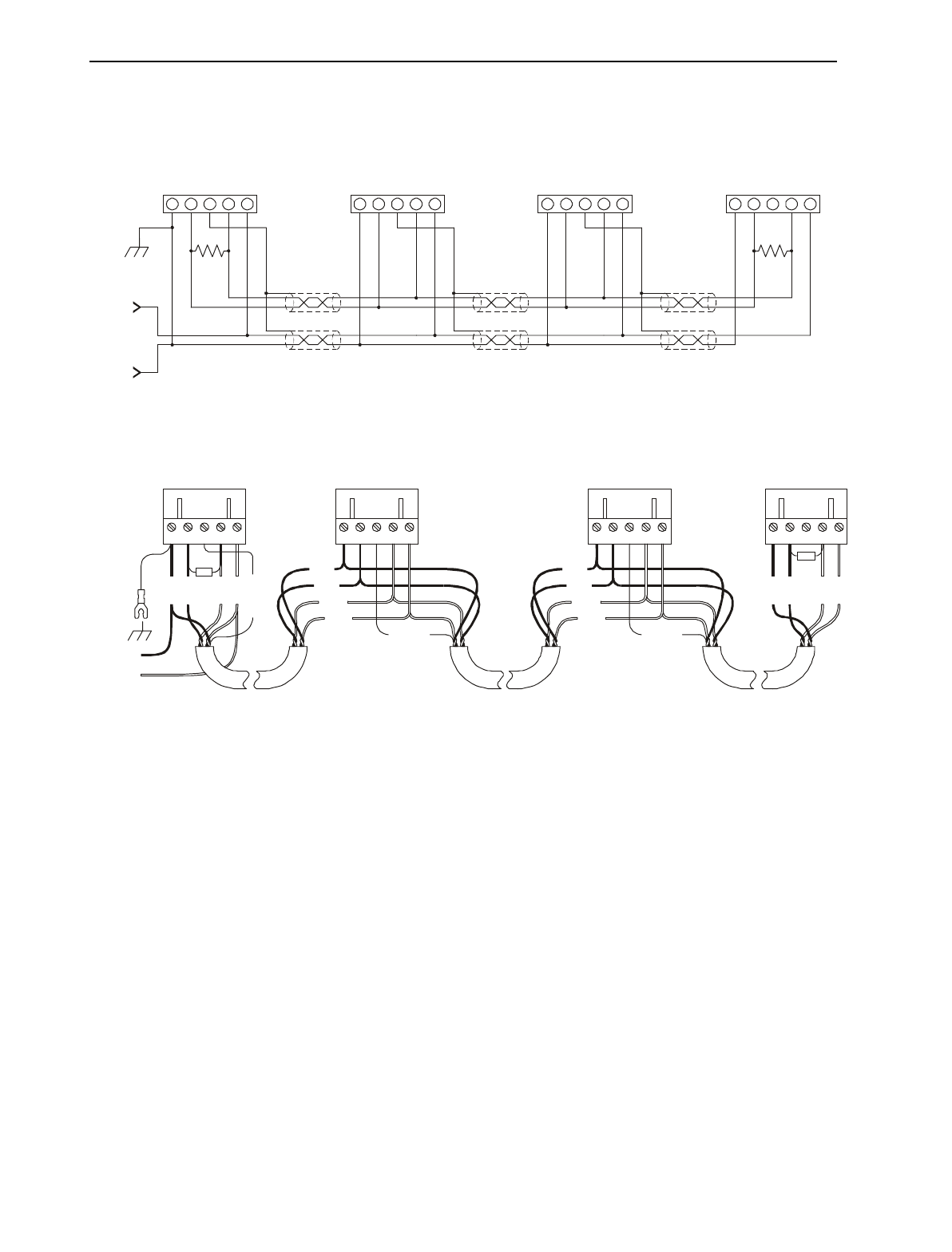
8.5 CAN Wiring Rules
121
Ω
V-
CN_L
SHIELD
CN_H
V+
V-
CN_L
SHIELD
CN_H
V+
V-
CN_L
SHIELD
CN_H
V+
121
Ω
V-
CN_L
SHIELD
CN_H
V+
12-25VDC
+
-
RED
WHT
SHIELD
BLU
BLK
RED
SHIELD
RED
WHT
BLU
BLK
V+
CN_L
V-
SHIELD
121
Ω
CN_H
V+
CN_L
V-
SHIELD
CN_H
RED
WHT
BLU
BLK
121
Ω
V+
CN_L
V-
SHIELD
CN_H
RED
WHT
BLU
BLK
RED
WHT
SHIELD
BLU
BLK
RED
WHT
BLU
BLK
V+
CN_L
V-
SHIELD
CN_H
12-25VDC
+
-
1. Wire the CAN network in a daisy-chained fashion such that there are exactly two physical end-points
on the network.
2. The two nodes at the physical end-points need to have 121 ohm 1% terminating resistors connected
across the CN_L and CN_H terminals.
3. Use data conductors (CN_L and CN_H) that are 24 AWG shielded twisted pair for “thin cable” and 22
AWG shielded twisted pair for “thick cable”. They must also have 120-ohm characteristic impedance.
In typical industrial environments, use a Belden wire #3084A (“thin”). Use #3082A (“thick”) for
environments where noise is a concern.
4. Use power conductors (V- and V+) that are 18 AWG twisted-pair for “thin cable” and 15 AWG twisted-
pair for “thick cable”.
5. Connect the V- power conductor to a good earth ground at one place only on the network, preferably
physical endpoints.
6. For a section of cable between two nodes, the cable shield is connected to the cable shield input at
one end of the cable only.
7. A CAN network (without repeaters) is limited to 64 nodes (with 63 cable segments) with a maximum
cable length of 1500 ft.
8. Up to four CAN network segments, which adhere to the above rules, may be connected together
using three CAN repeaters. In this manner, a CAN network may be extended to 253 nodes with a
total cable distance of 6000 ft.
Figure 8.3 – CAN Network Cabling
CH. 8: NETWORKS 06 Apr 2000 PAGE 41
GFK-1819
8.6 Profibus
Profibus utilises a Master-Slave type of communication with the TIUXX2 functioning as a slave device.
Decentralised Peripherals (Slave) Baud rates of up to 12 MBd can be obtained through Profibus.
Up to 32 devices 9master or slaves) can be connected in one segment without using repeaters, or up to
64 devices can be connected using repeaters.
Master devices are used to determine the data communication on the bus. One master can service
several slaves. Several Masters can participate on the bus simultaneously, but only one Master can write
outputs to a slave.
The slave devices are peripheral devices. Slaves do not have bus access rights and can only
acknowledge received messages or send messages to the master when requested to do so. Any master
can read data from the slave devices. All connected Slaves have the same priority.
For further information on the Profibus Network, visit their website at www.profibus.com
8.6.1 Profibus Wiring
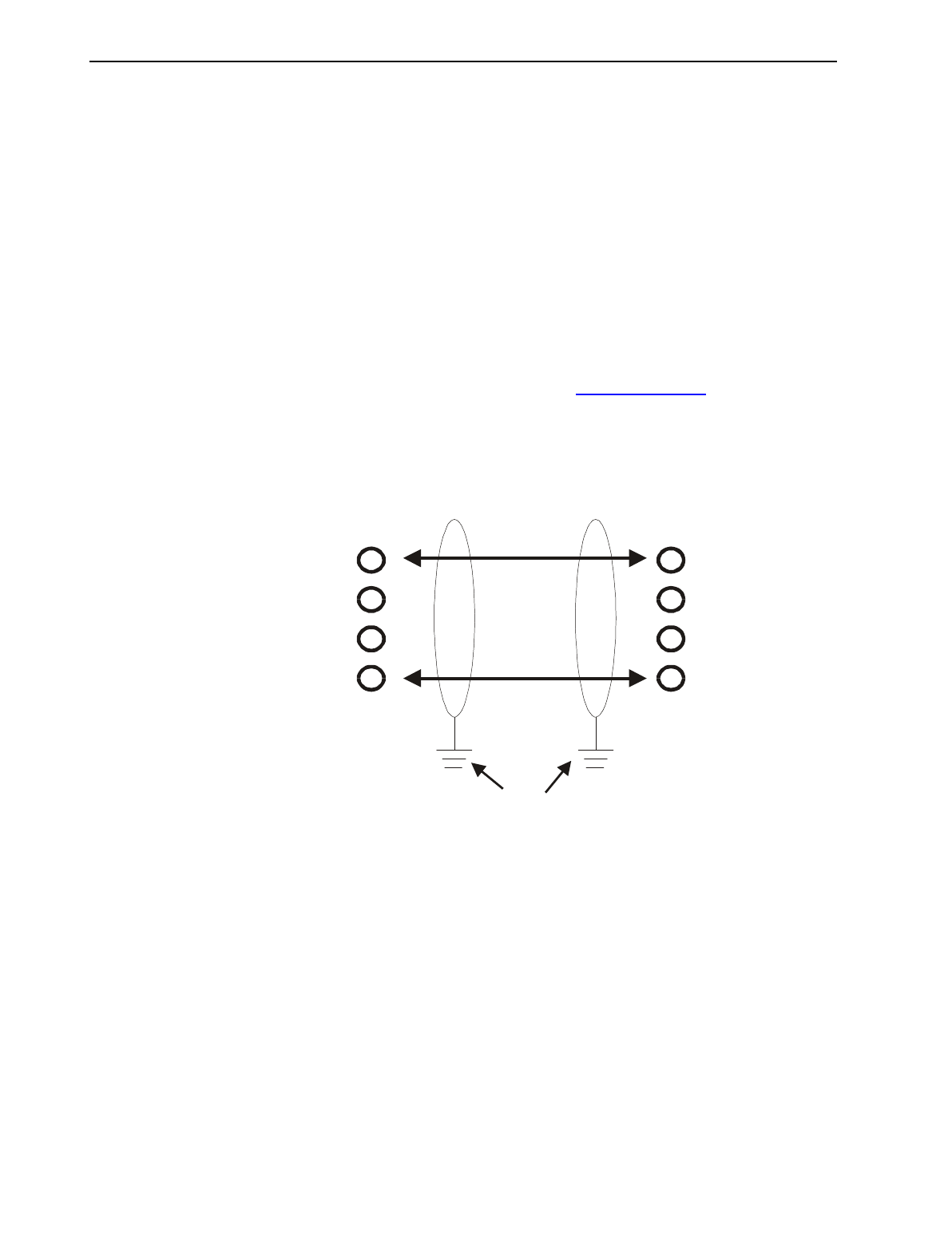
The TIUXX2 uses a 9 pin D-sub plug connector for its Profibus port. The pin assignment of the plug
connector and the wiring are show below.
Protective Ground
Station 1 Station 2
Rxd/TxD -P 3
V+ 6
DGnd 5
RxD/TxD -N 8
3
6
5
8
Figure 8.4 Profibus Port Pinout
PAGE 42 06 Apr 2000 CH. 8: NETWORKS
GFK-1819
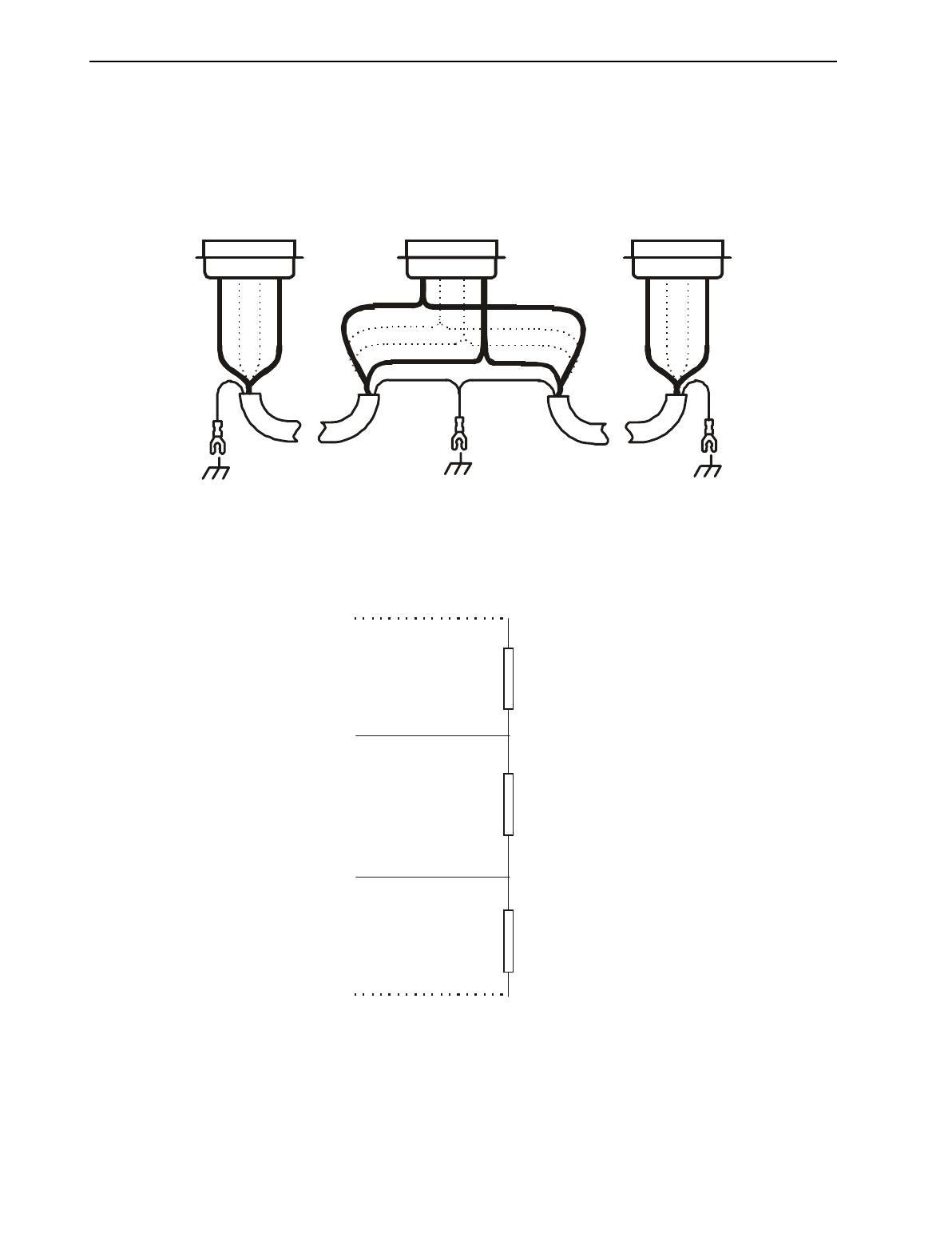
Its is necessary to terminate both ends of the network. Both terminations must have power to them to
insure proper operation of the network. The following diagram illustrates the correct connection for the
termination resistors.
RxD/TxD-N 8
DGND 5
V+ 6
RxD/TxD-P 3
RxD/TxD-N 8
DGND 5
V+ 6
RxD/TxD-P 3
RxD/TxD-N 8
DGND 5
V+ 6
RxD/TxD-P 3
Figure 8.5 – Profibus Network Cabling
VP (6)
A-Line (3)
B-Line (8)
GND (5)
Line termination 390 Ohm
220 Ohm
390 Ohm
Figure 8.6 – Profibus termination resistors
CH. 9: SMARTSTACK 06 Apr 2000 PAGE 43
GFK-1819
CHAPTER 9: SMARTSTACK
9.1 Scope
Horner has now added the SmartStack modules from the OCS Range to the TIU20X range. The
SmartStack system is a method of allowing I/O expansion on an HMI. A wide range of modules is
available including Digital and Analogue.
9.2 Installing and Removing a SmartStack Module
The following section describes how to install and remove a SmartStack Module.
Caution: To function properly and avoid possible damage, do not install more than four
Smart Stack Modules per TIU20X.
9.2.1 Installing SmartStack Modules
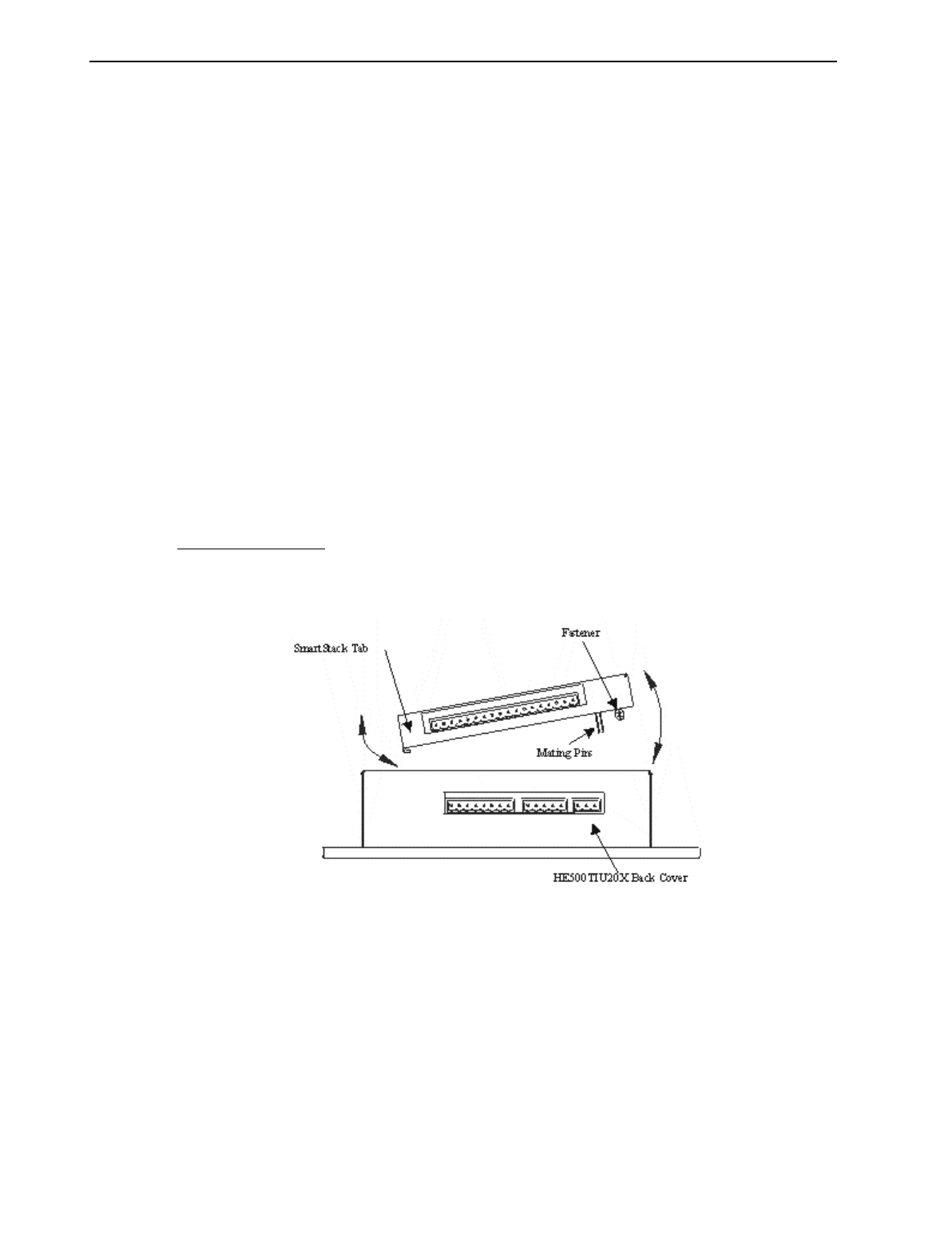
1. Hook the tabs. Each SmartStack Module has two tabs that fit into slots located on the TIU20X. (The
slots on the TIU20X are located on the back cover.)
2. Press the SmartStack Module into the “locked” position, making sure to align the SmartStack Module
fasteners with the SmartStack receptacles on the TIU20X.
9.2.2 Removing SmartStack Modules
1. Using a Flathead screwdriver, pry up the end of the SmartStack Module (opposite of tabs) and swing
the module out.
2. Lift out the tabs of the module.
Figure 9.1 – Installing a SmartStack Module in an OCS.

PAGE 44 06 Apr 2000 CH. 9: SMARTSTACK
GFK-1819
NOTES
