GENERALSCAN ELECTRONICS GSM500BT Bluetooth Barcode Scanner User Manual

GENERALSCAN ELECTRONICS CO., LIMITED Bluetooth Barcode Scanner

User Manual

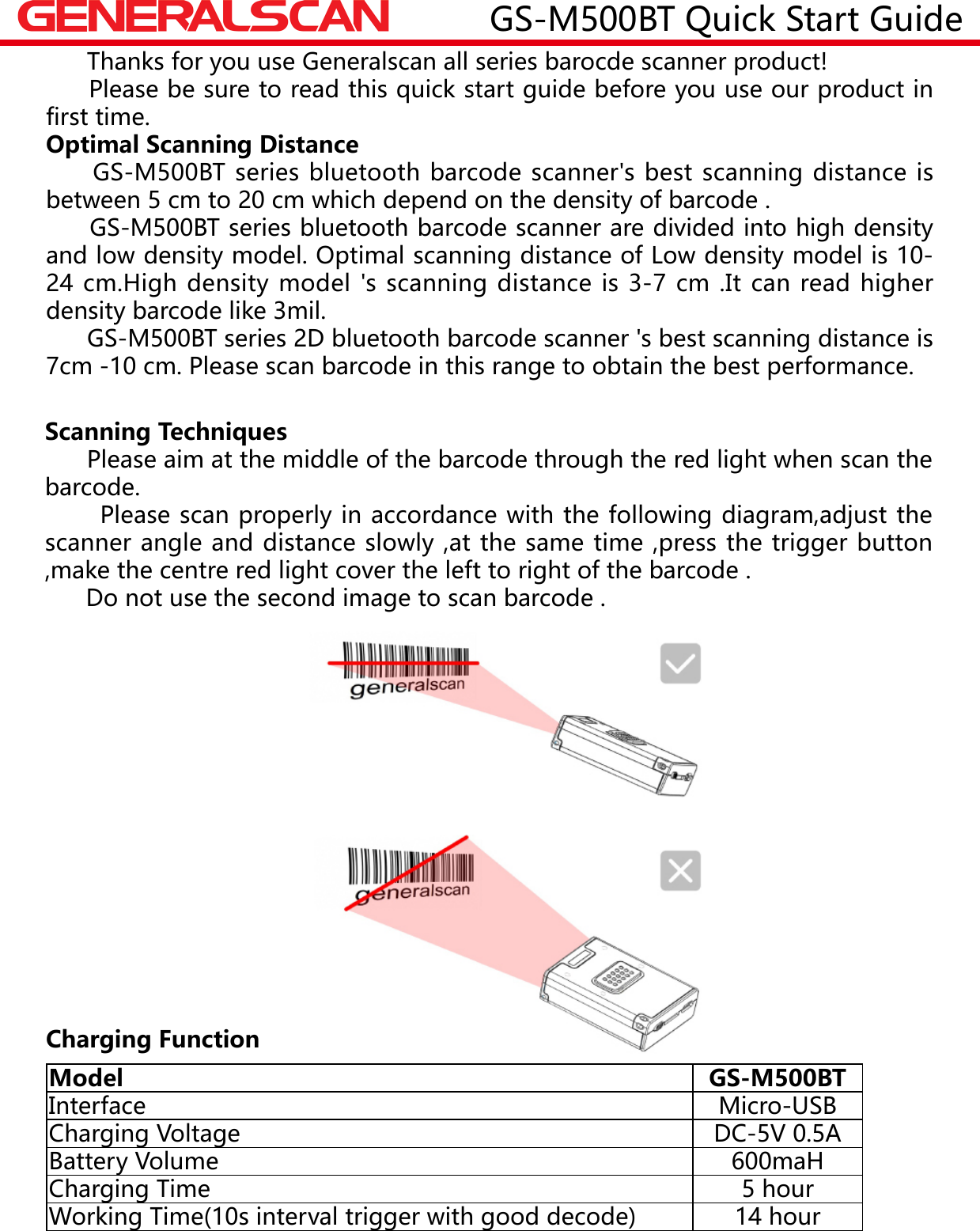
GS-M500BT Quick Start Guide      Thanks for you use Generalscan all series barocde scanner product!     Please be sure to read this quick start guide before you use our product in first time.Optimal Scanning Distance     GS-M500BT series bluetooth barcode scanner's best scanning distance is between 5 cm to 20 cm which depend on the density of barcode .     GS-M500BT series bluetooth barcode scanner are divided into high density and low density model. Optimal scanning distance of Low density model is 10-24 cm.High density model 's scanning distance is 3-7 cm .It can read higher density barcode like 3mil.      GS-M500BT series 2D bluetooth barcode scanner 's best scanning distance is 7cm -10 cm. Please scan barcode in this range to obtain the best performance.Scanning Techniques      Please aim at the middle of the barcode through the red light when scan the barcode.       Please scan properly in accordance with the following diagram,adjust the scanner angle and distance slowly ,at the same time ,press the trigger button ,make the centre red light cover the left to right of the barcode .      Do not use the second image to scan barcode .Model GS-M500BTInterface Micro-USBCharging Voltage DC-5V 0.5ABattery Volume 600maHCharging Time 5 hourWorking Time(10s interval trigger with good decode) 14 hourCharging Function
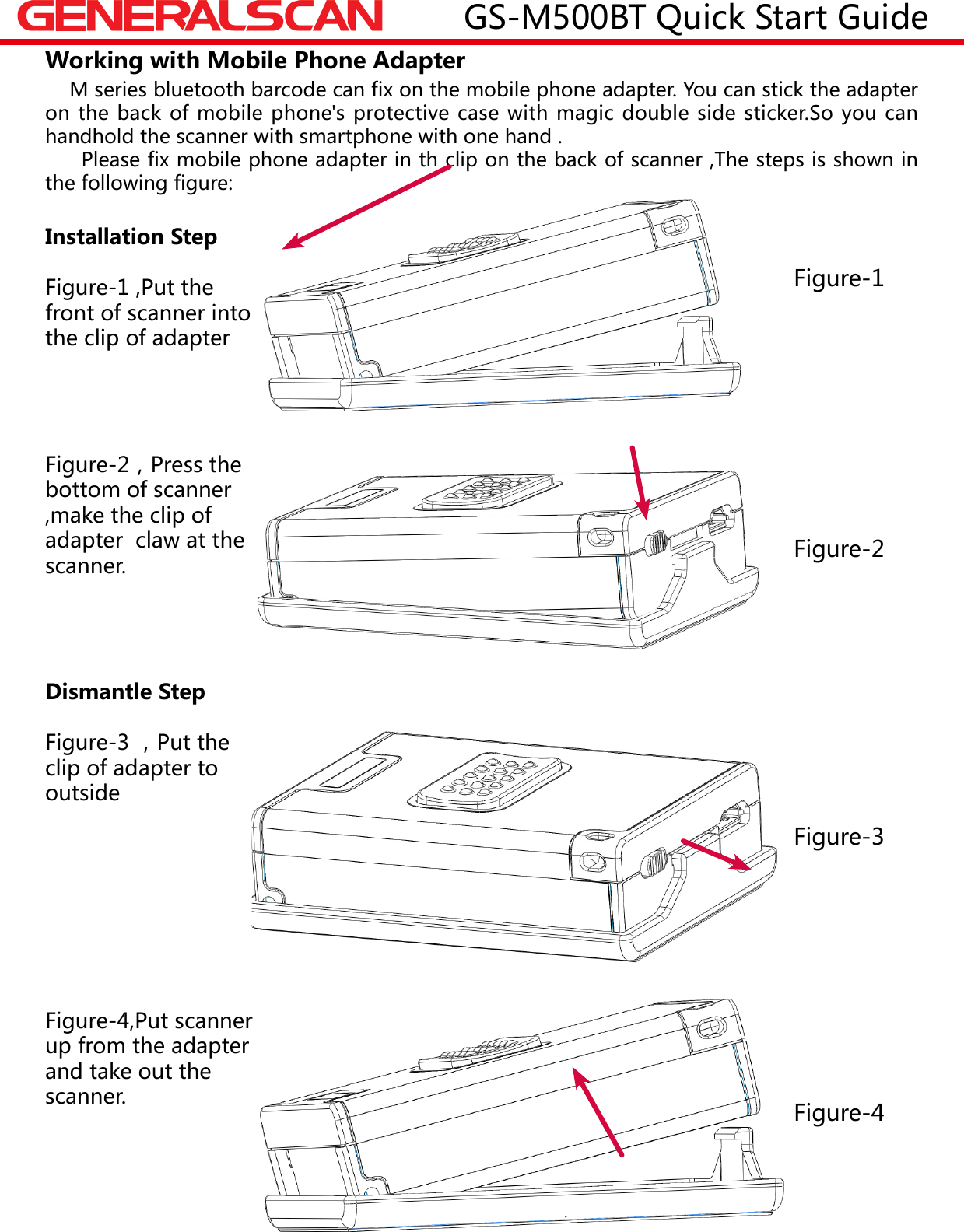
Working with Mobile Phone Adapter    M series bluetooth barcode can fix on the mobile phone adapter. You can stick the adapter on the back of mobile phone's protective case with magic double side sticker.So you can handhold the scanner with smartphone with one hand .     Please fix mobile phone adapter in th clip on the back of scanner ,The steps is shown in the following figure:Installation StepFigure-1 ,Put the front of scanner into the clip of adapterFigure-2,Press the bottom of scanner ,make the clip of  adapter  claw at the scanner.Dismantle StepFigure-3 ,Put the clip of adapter to outsideFigure-4,Put scanner up from the adapter and take out the scanner.Figure-1Figure-3图二Figure-2Figure-4GS-M500BT Quick Start Guide
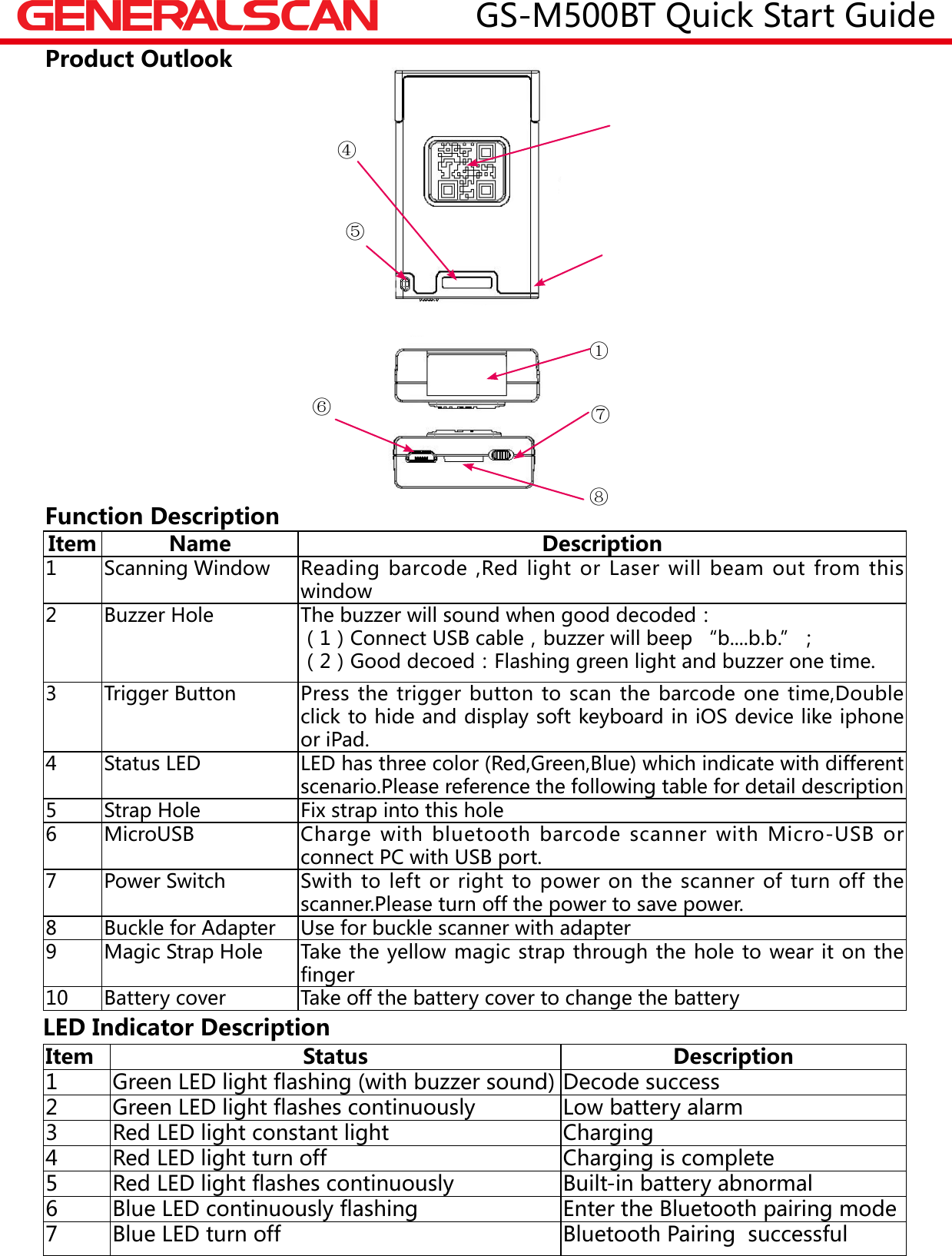
Item Name Description1 Scanning Window Reading barcode ,Red light or Laser will beam out from this window2 Buzzer Hole The buzzer will sound when good decoded:(1)Connect USB cable,buzzer will beep “b....b.b.”;(2)Good decoed:Flashing green light and buzzer one time.3 Trigger Button Press the trigger button to scan the barcode one time,Double click to hide and display soft keyboard in iOS device like iphone or iPad.4 Status LED LED has three color (Red,Green,Blue) which indicate with different scenario.Please reference the following table for detail description5 Strap Hole Fix strap into this hole 6MicroUSB Charge  with  bluetooth  barcode  scanner  with  Micro-USB  or connect PC with USB port.7 Power Switch Swith to left or right to power on the scanner of turn off the scanner.Please turn off the power to save power.8 Buckle for Adapter Use for buckle scanner with adapter 9 Magic Strap Hole Take the yellow magic strap through the hole to wear it on the finger10 Battery cover Take off the battery cover to change the batteryFunction DescriptionLED Indicator DescriptionItem Status Description1Green LED light flashing (with buzzer sound) Decode success2Green LED light flashes continuously Low battery alarm3 Red LED light constant light Charging4 Red LED light turn off Charging is complete5 Red LED light flashes continuously Built-in battery abnormal6 Blue LED continuously flashing  Enter the Bluetooth pairing mode7 Blue LED turn off Bluetooth Pairing  successfulProduct Outlook①④⑤⑥⑦⑧GS-M500BT Quick Start Guide
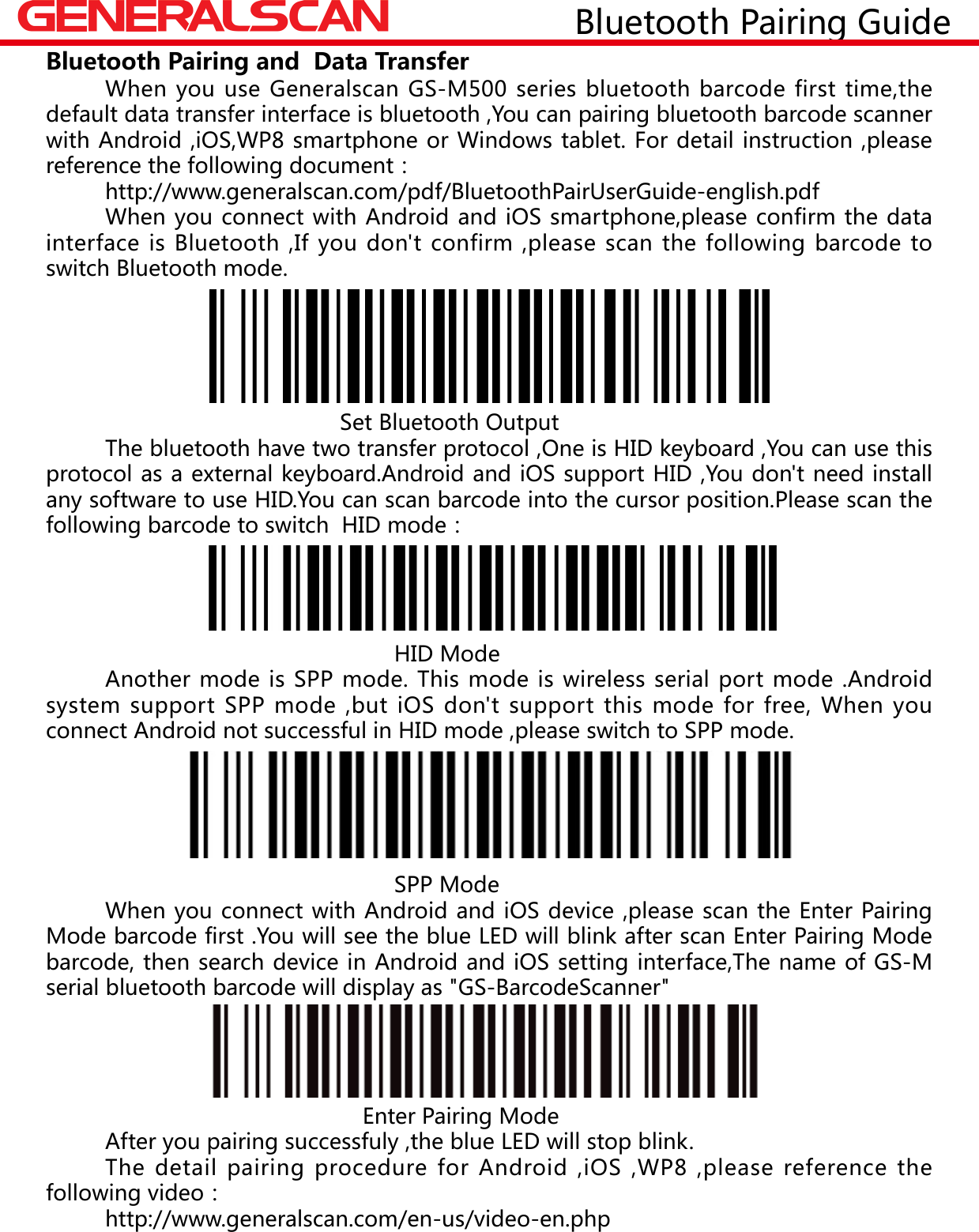
 When you use Generalscan GS-M500 series bluetooth barcode first time,the default data transfer interface is bluetooth ,You can pairing bluetooth barcode scanner with Android ,iOS,WP8 smartphone or Windows tablet. For detail instruction ,please reference the following document:  http://www.generalscan.com/pdf/BluetoothPairUserGuide-english.pdf  When you connect with Android and iOS smartphone,please confirm the data interface is Bluetooth ,If you don't confirm ,please scan the following barcode to switch Bluetooth mode.                 Set Bluetooth Output  The bluetooth have two transfer protocol ,One is HID keyboard ,You can use this protocol as a external keyboard.Android and iOS support HID ,You don't need install any software to use HID.You can scan barcode into the cursor position.Please scan the following barcode to switch  HID mode:                                                       HID Mode  Another mode is SPP mode. This mode is wireless serial port mode .Android system support SPP mode ,but iOS don't support this mode for free, When you connect Android not successful in HID mode ,please switch to SPP mode.                                                                 SPP Mode  When you connect with Android and iOS device ,please scan the Enter Pairing Mode barcode first .You will see the blue LED will blink after scan Enter Pairing Mode barcode, then search device in Android and iOS setting interface,The name of GS-M serial bluetooth barcode will display as "GS-BarcodeScanner"                                                             Enter Pairing Mode         After you pairing successfuly ,the blue LED will stop blink.       The detail pairing procedure for Android ,iOS ,WP8 ,please reference the following video:       http://www.generalscan.com/en-us/video-en.phpBluetooth Pairing and  Data Transfer                Bluetooth Pairing Guide
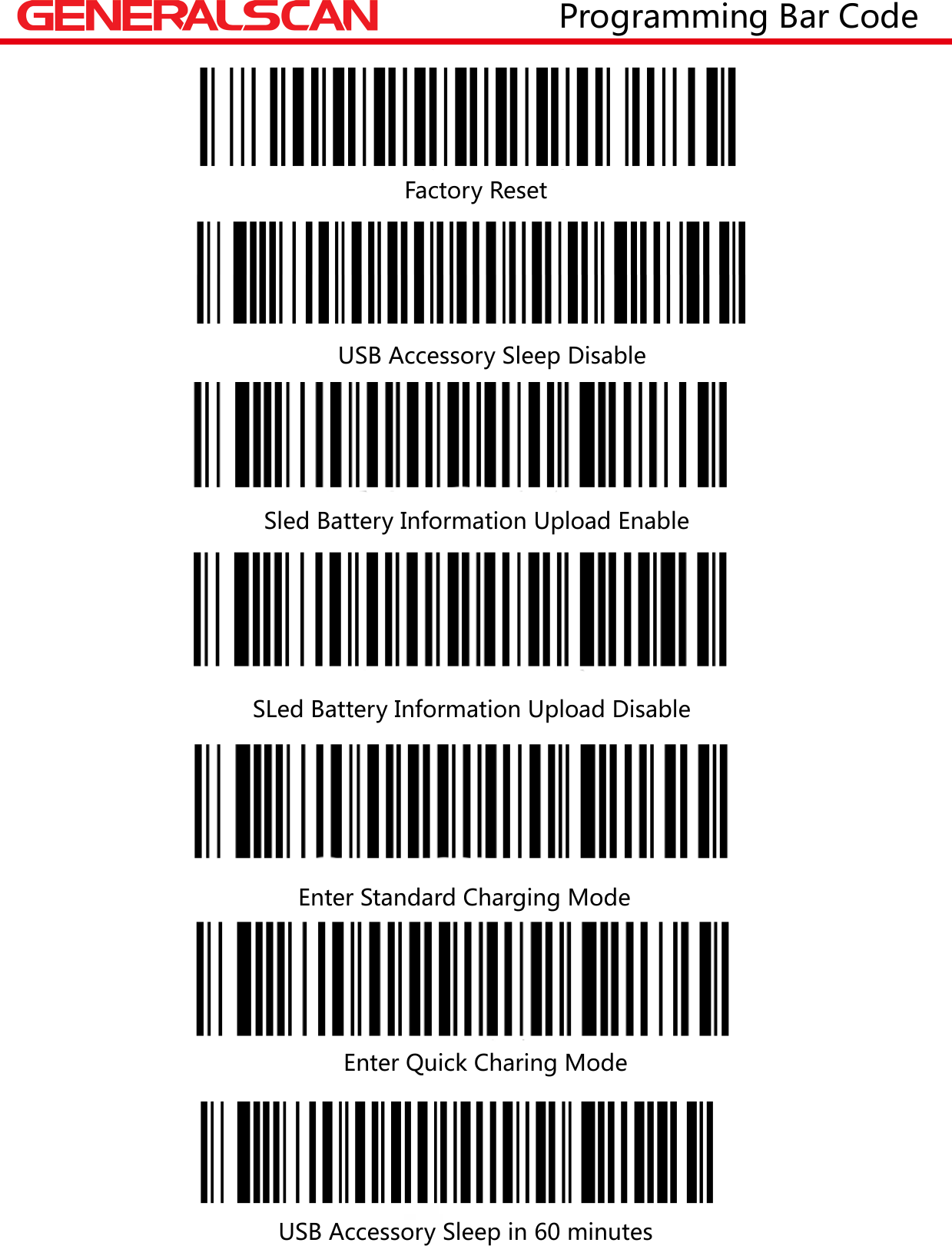
                                                          Factory Reset                                                                                    USB Accessory Sleep Disable                                                                      Sled Battery Information Upload Enable                                          SLed Battery Information Upload Disable                                                                                                                Enter Standard Charging Mode                                                         Enter Quick Charing Mode                                                                                                 USB Accessory Sleep in 60 minutes                   Programming Bar Code
FCC STATEMENT :This device complies with Part 15 of the FCC Rules. Operation is subject to the followingtwo conditions:(1) This device may not cause harmful interference, and(2) This device must accept any interference received, including interference that maycause undesired operation.Warning: Changes or modifications not expressly approved by the party responsible forcompliance could void the user's authority to operate the equipment.NOTE: This equipment has been tested and found to comply with the limits for a Class Bdigital device, pursuant to Part 15 of the FCC Rules. These limits are designed to providereasonable protection against harmful interference in a residential installation.This equipment generates uses and can radiate radio frequency energy and, if notinstalled and used in accordance with the instructions, may cause harmful interference toradio communications. However, there is no guarantee that interference will not occur in aparticular installation. If this equipment does cause harmful interference to radio ortelevision reception, which can be determined by turning the equipment off and on, theuser is encouraged to try to correct the interference by one or more of the followingmeasures:  Reorient or relocate the receiving antenna.  Increase the separation between the equipment and receiver.  Connect the equipment into an outlet on a circuit different from that to which thereceiver is connected.  Consult the dealer or an experienced radio/TV technician for help.RF warning statement:The device has been evaluated to meet general RF exposure requirement. The devicecan be used in portable exposure condition without restriction.

Navigation menu