GIGA BYTE Communications 9QATOMV000 3.5G HSDPA/UMTS/GSM/DCS/PCS PDA Phone User Manual Revised part2

GIGA-BYTE Communications Inc. 3.5G HSDPA/UMTS/GSM/DCS/PCS PDA Phone Revised part2

Revised User Manual part2
Chapter 5Synchronization5.1 About synchronization5.2 Installing ActiveSync5.3 Choosing your synchronization type5.4 Using ActiveSync tools5.5 ActiveSync errors
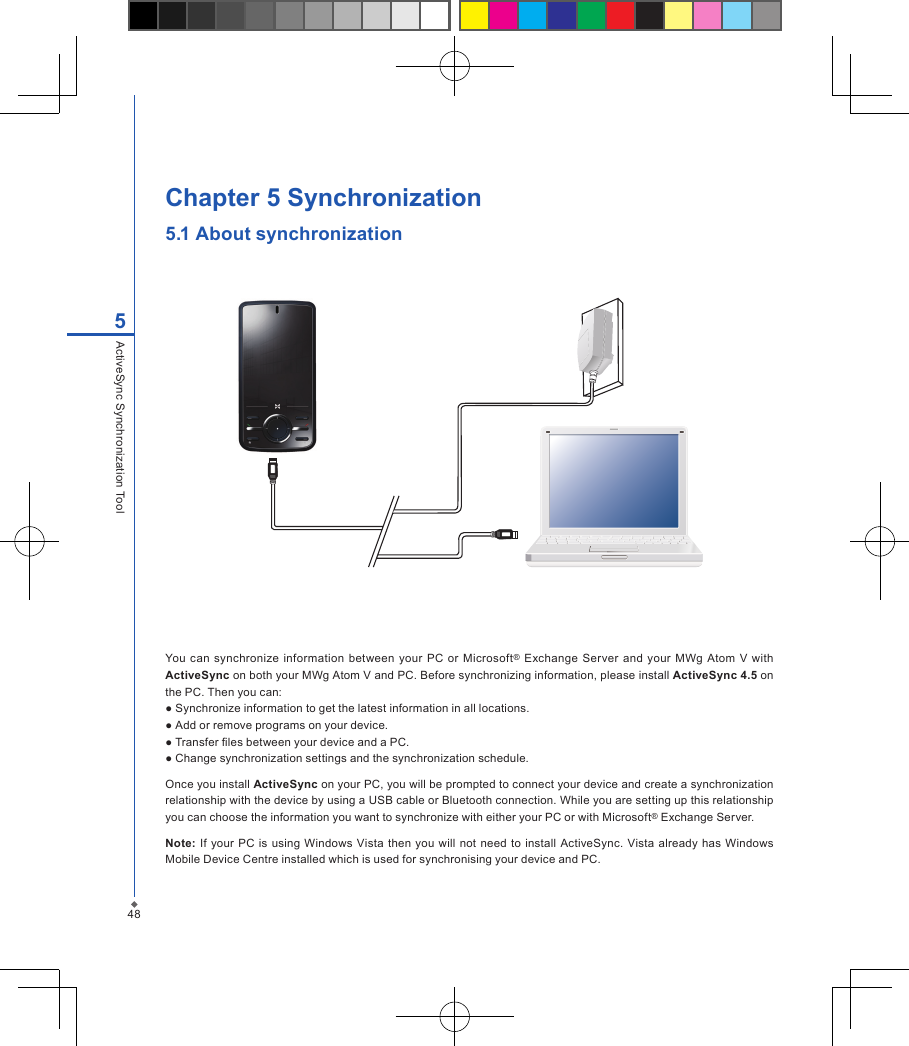
48Chapter 5 Synchronization5.1 About synchronization You can  synchronize information  between your PC  or  Microsoft® Exchange  Server  and your  MWg Atom V  with ActiveSync on both your MWg Atom V and PC. Before synchronizing information, please install ActiveSync 4.5 on the PC. Then you can:● Synchronize information to get the latest information in all locations.● Add or remove programs on your device.● Transfer les between your device and a PC.● Change synchronization settings and the synchronization schedule.Once you install ActiveSync on your PC, you will be prompted to connect your device and create a synchronization relationship with the device by using a USB cable or Bluetooth connection. While you are setting up this relationship you can choose the information you want to synchronize with either your PC or with Microsoft® Exchange Server.Note: If your PC is  using Windows  Vista  then  you will not  need to install  ActiveSync. Vista already  has Windows Mobile Device Centre installed which is used for synchronising your device and PC.5ActiveSync Synchronization Tool
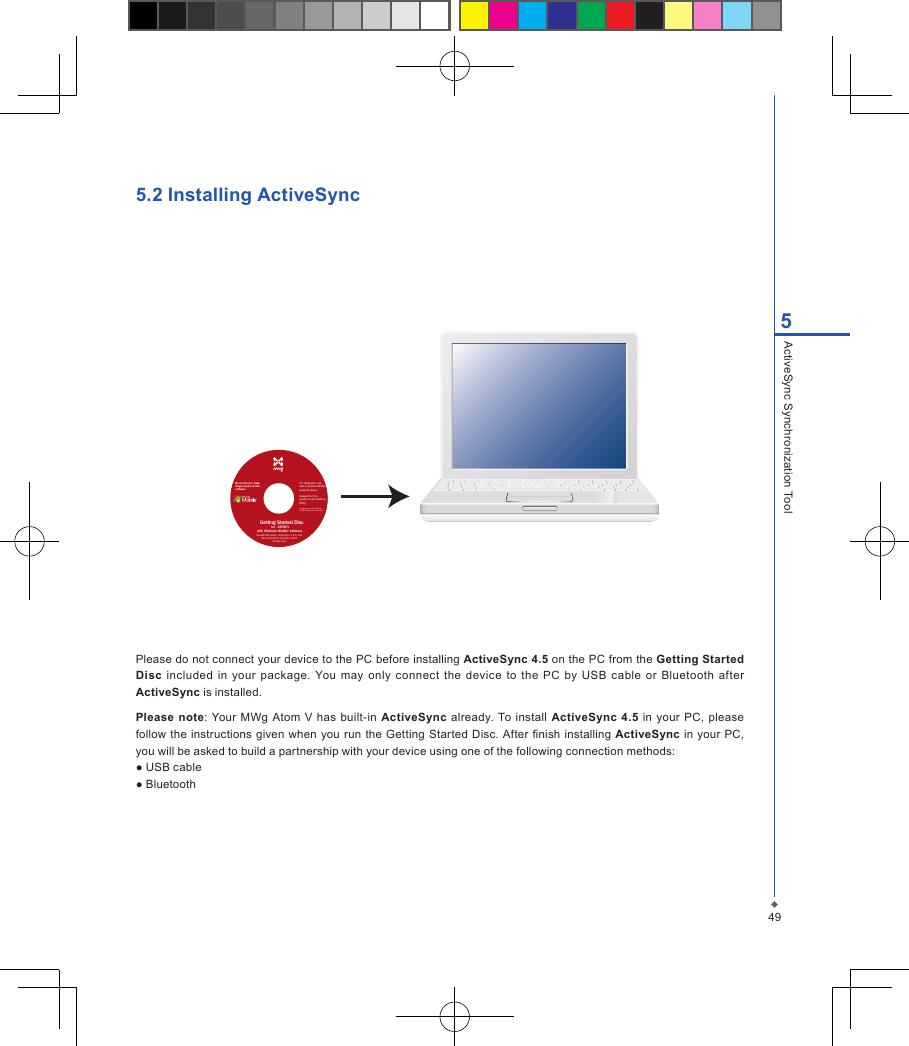
495ActiveSync Synchronization Tool5.2 Installing ActiveSyncPlease do not connect your device to the PC before installing ActiveSync 4.5 on the PC from the Getting Started Disc  included  in  your  package. You may only  connect  the  device  to the  PC  by  USB  cable  or  Bluetooth  after ActiveSync is installed.Please  note:  Your MWg Atom  V  has built-in ActiveSync  already.  To install ActiveSync  4.5 in  your PC, please follow the instructions  given  when  you  run the  Getting Started Disc.  After nish installing ActiveSync in your PC, you will be asked to build a partnership with your device using one of the following connection methods:● USB cable● BluetoothDo not lend or makeillegal copies of thissoftware.Getting Started Disc             for              ATOM Vwith Windows Mobile     ® softwareFor distribution only with a Windows Mobile powered device.Support for this product is provided by MWg.All rights reserved. Portions© 2007 Microsoft Corporation.Includes Microsoft ® ActiveSync ® 4.5, and Microsoft Office Outlook ® 200760-day trial.
505.3 Choosing your synchronization typeUSB cableYou can connect your device with other devices via a mini-USB connector. You can manually change the connection settings as follows. The new settings will be used when you connect your device to the PC next time.1. Tap Start > Programs > ActiveSync.2. Tap Menu tab > Connections.3. Choose USB in the drop-down menus and check Synchronize all PCs using this connection.Bluetooth connectionYou can  also  synchronize  your information  by using Bluetooth  wireless connectivity technology, which allows  your device to connect to a Bluetooth-compatible device within 10 meters. For best connection results, it is recommended that you connect the device  to the PC using USB to establish  a synchronization relationship before connecting via Bluetooth.To synchronize via Bluetooth connection:1. Execute ActiveSync Help on the PC and follow the instructions for conguring Bluetooth on your PC to support ActiveSync.2. Tap Start > Programs > ActiveSync.3. Tap Menu > Connect via Bluetooth. Make sure that the device and the PC are within 10 meters or shorter.4. Tap Sync.5. After nishing the synchronization, tap Menu > Disconnect Bluetooth.6. Turn off Bluetooth to preserve battery power if not used.Please note: Before you connect to this PC via Bluetooth, please make sure that you have set up aBluetooth partnership with the PC: Tap Start > Settings > Connections > Bluetooth.For more details, please refer to Chapter 6 Getting Connected.5ActiveSync Synchronization Tool
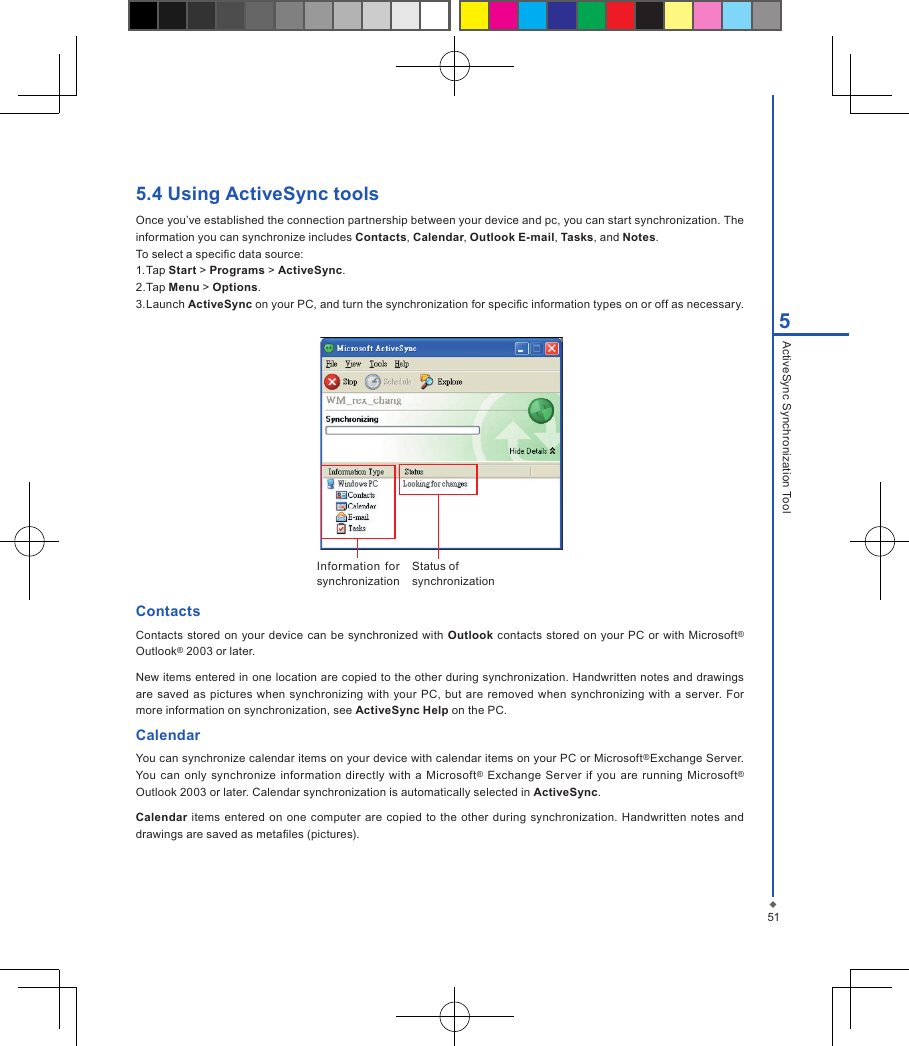
515ActiveSync Synchronization Tool5.4 Using ActiveSync toolsOnce you’ve established the connection partnership between your device and pc, you can start synchronization. The information you can synchronize includes Contacts, Calendar, Outlook E-mail, Tasks, and Notes.To select a specic data source:1. Tap Start > Programs > ActiveSync.2. Tap Menu > Options.3. Launch ActiveSync on your PC, and turn the synchronization for specic information types on or off as necessary.Information  for synchronizationStatus of synchronizationContactsContacts stored on your  device can be synchronized with Outlook contacts stored  on  your PC  or  with  Microsoft® Outlook® 2003 or later.New items entered in one location are copied to the other during synchronization. Handwritten notes and drawings are saved  as pictures  when synchronizing with  your  PC,  but  are removed when  synchronizing with a server.  For more information on synchronization, see ActiveSync Help on the PC.CalendarYou can synchronize calendar items on your device with calendar items on your PC or Microsoft®Exchange Server. You can  only  synchronize  information  directly with a  Microsoft® Exchange  Server if  you are  running Microsoft® Outlook 2003 or later. Calendar synchronization is automatically selected in ActiveSync.Calendar items entered  on  one  computer  are  copied to the other  during synchronization. Handwritten  notes and drawings are saved as metales (pictures).
525ActiveSync Synchronization ToolOutlook E-mailAfter  you  have  selected  Inbox  for  synchronization  in  ActiveSync,  Microsoft®  Outlook  E-mail  messages  are synchronized as part of the general synchronization process. During synchronization:• Messages are  updated from the  Inbox folder  on  your PC or the Microsoft® Exchange  server  to  the Inbox  folder a of the Outlook E-mail account on your device. You can only synchronize information directly with an Microsoft® Exchange Server if you are running Microsoft® Outlook® 2003 or later. By default, you’ll receive messages from the last three days only, the rst 100 lines of each new message, and le attachments of less than 100KB in size.• Messages in the Outbox folder on your device are transferred to Exchange or Outlook and then sent from those programs.• Messages on the two computers are linked. When you delete a message on your device, the message will also be deleted from your PC the next time you synchronize.•  Messages in subfolders  in  other  E-mail  folders  in  Outlook  are  synchronized  only  if  they have  been  selected for  synchronization  in  ActiveSync.  For  information  on  initiating Outlook  E-mail  synchronization  or  changing synchronization settings, see ActiveSync Help on the PC or Connections Help. Please note: Text messages  (SMS)  and  Multimedia  messages  (MMS) are  not  received through synchronization. Instead, they are sent to your device via your network service provider.TasksTasks stored on your device can be synchronized with Outlook on your PC. Task synchronization is automatically selected  in  ActiveSync. New items entered on  one computer are copied  to  your device during  synchronization. Handwritten  notes and drawings are saved  as  metales (pictures). For  more information on  synchronization, see ActiveSync Help on the PC.NotesNotes can be synchronized between your PC and phone either through notes synchronization or le synchronization. Notes synchronization synchronizes the notes on your device with Outlook Notes on your PC. File synchronization synchronizes all notes on your device with My Documents folder on your PC.To synchronize your notes through notes synchronization, rst select Notes information type for synchronization in ActiveSync. The next time you synchronize, all notes in My Documents and its subfolder on your device will appear in  Outlook Notes  on your PC.  Notes that contain  only  text will  appear  as regular  notes in  Outlook  on  your  PC, while notes containing written text or drawings will appear in the device format. In addition, all notes in Notes group in Outlook on the PC will appear in Notes on the device.To synchronize  your  notes  as  files,  in  ActiveSync,  select  Files  information type  for  synchronization  and clear Notes  information  type. When  you select Files, My  Documents folder  is  created  on your PC’s desktop.  All  .pwi les placed in My Documents folder on your device and all .doc les placed in \ My Documents folder on your PC will  be synchronized. Password-protected les cannot  be synchronized. ActiveSync  converts  documents  during synchronization. For more information on synchronization or le conversion, see ActiveSync Help on the PC.
535ActiveSync Synchronization ToolPlease note: When you delete or change an item on either your PC or device, the item is changed or deleted in the other location the next time you synchronize. If you synchronize your notes using le synchronization and then later decide  to use notes  synchronization, all of  your  notes will  be synchronized with Outlook on  your  PC and will  no longer be stored in My Documents folder.5.5 ActiveSync errorsWhenever ActiveSync cannot successfully synchronize your information, it displays an error on  your  device  and your PC.Viewing error information Press Action button when the error text is displayed. ActiveSync will then display more information about the error that has occurred. Some types of errors can interfere with automatic synchronization. If you suspect that a scheduled automatic  synchronization  has  not  occurred,  you  should  attempt  to  manually  synchronize  your  information. Successfully  completing  manual synchronization  will reset automatic synchronization.  For  more information,  see Synchronizing Information section of ActiveSync Help on your PC.Please note:  Most firewall  applications are  intended to  block  network traffic  and  secure the  PC  from  incoming network  connections.  Since  ActiveSync  uses  TCP  ports for  data  transfer  with  devices, to avoid this  potential experience, you will need to manually allow this trafc to be un-blocked by Firewall applications for the Device using ActiveSync. You will need to add ActiveSync application processes into Firewall Programs Exception List.
Chapter 6 Getting Connected6.1 Wireless manager 6.2 GPRS6.3 Bluetooth6.4 Wi-Fi6.5 USB card reader6.6 Internet sharing6.7 Cell broadcast setting6.8 Connecting to the Internet
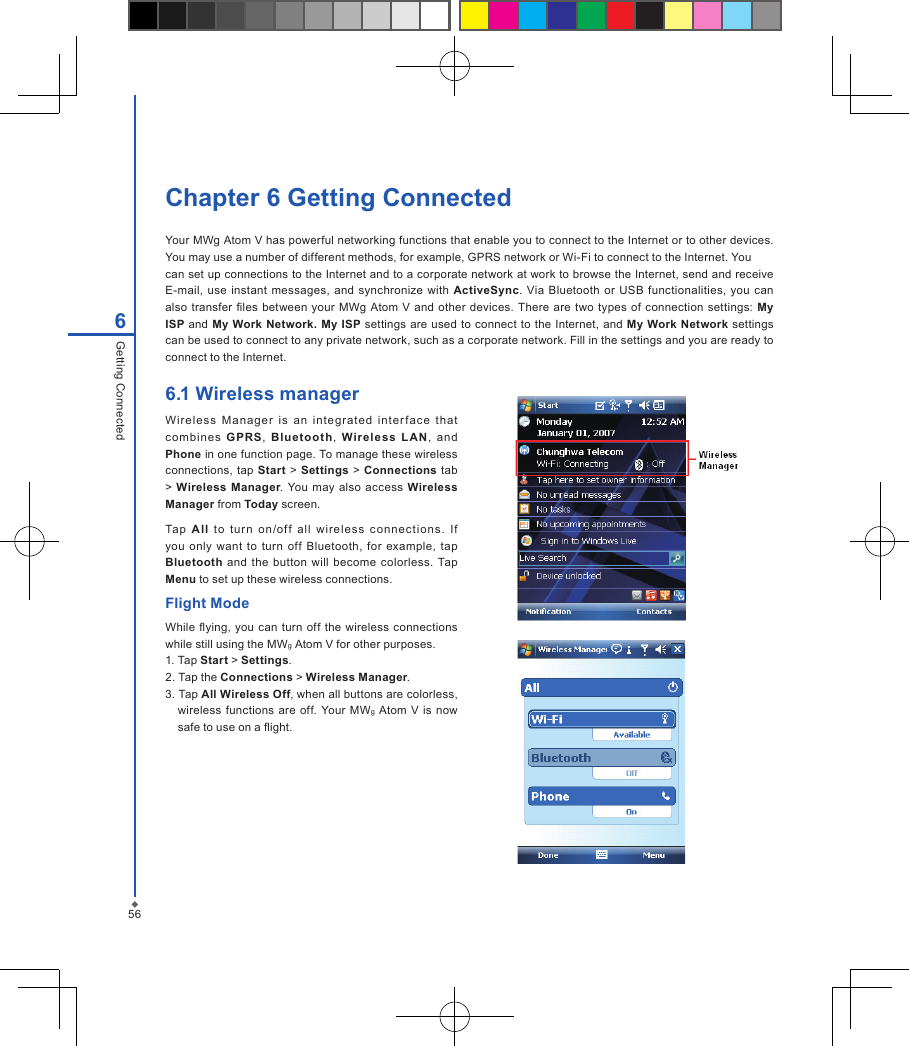
56Chapter 6 Getting ConnectedYour MWg Atom V has powerful networking functions that enable you to connect to the Internet or to other devices. You may use a number of different methods, for example, GPRS network or Wi-Fi to connect to the Internet. You can set up connections to the Internet and to a corporate network at work to browse the Internet, send and receive E-mail,  use instant  messages,  and  synchronize with  ActiveSync. Via  Bluetooth or  USB functionalities, you can also  transfer les  between  your MWg Atom V and  other devices. There  are two  types  of  connection settings:  My ISP and My Work Network. My ISP  settings are used to connect to the Internet,  and  My  Work  Network settings can be used to connect to any private network, such as a corporate network. Fill in the settings and you are ready to connect to the Internet. 6Getting Connected6.1 Wireless manager Wi re le ss  M anager  i s  an  integrated  inter fa ce  t ha t co mbine s  GPRS,  Bluetooth,  Wir el es s  L AN ,  and Phone in one function page. To manage these wireless connections, tap  Start  > Settings > Connections tab > Wireless Manager. You  may  also access  Wireless Manager from Today screen.Tap  A ll  to  tur n  on /of f  all  wire le ss  c onnect io ns.  I f you only  want  to  turn  off  Bluetooth,  for  example,  tap Bluetooth  and the  button  will  become  colorless.  Tap Menu to set up these wireless connections.Flight ModeWhile ying, you  can  turn off the wireless connections while still using the MWg Atom V for other purposes.1. Tap Start > Settings.2. Tap the Connections > Wireless Manager.3. Tap All Wireless Off, when all buttons are colorless, wireless  functions  are  off. Your MWg  Atom  V  is now safe to use on a ight.
576Getting Connected6.2 GPRSBefore  using  GPRS  to  connect  to  the Internet,  please contact  your network operator  to  conrm  that the  service  is enabled and  supported on your SIM card. Using  GPRS is convenient for you  while traveling  or  working  at home. You can  use this device  to browse  web pages,  read or send E-mail  or  MMS  messages, and  sign in Windows Live Messenger through wireless network.GPRS connection settingsYour device comes installed with a conguration wizard to install the operator/ carrier settings relevant to your SIM card. This application should start and attempt to congure the device when you rst turn it on. If your device needs to have the application run manually please follow the process below: 1. Tap > Start > Programs > Auto Cong 2. Select your Country and Operator and select OK If your Operator is not listed you will need to contact them directly with the number on your bill to help acquire and insert the relevant setting.Activating GPRS connection1. Tap Start > Internet Explorer.2. Input an URL address you desire to browse in address eld and tap the arrow icon to go to the URL.3. After completing connection,    icon will become   icon.4. Or  you  may  select  Start  > Settings  >  Connections tab  >  Connections  > Tasks  tab  >  Manage  Existing Connection > tap and hold on a connection to open pop-up Menu > Connect. After completing connection, you may go Internet surng or send and receive E-mail. Please note:  If this device is under ight mode, please turn off ight mode beforehand. Tap  icon on Today screen, then tap Wireless Manager on the pop-up window. Tap on “Phone” to turn the phone function on. The   icon will appear on Today screen when GPRS is activated.
586Getting Connected6.3 BluetoothBluetooth  is  a  short-range wireless communications  technology.  With Bluetooth,  you  don’t  need to  line  up  the devices  to beam information. The  two devices  only need to  be within a range  of  about 10  meters.  You  may use Bluetooth in the following ways:1. Exchange information, such as les, appointments, tasks, and contact cards, between devices that have Bluetooth capabilities. For example, if you and a co-worker each have a device with Bluetooth, you can beam items between your devices; these items could include les, contact cards, appointments, tasks, etc.2. Create a dial-up modem connection between your device and a Bluetooth phone. You can then use the Bluetooth phone as a modem.Bluetooth settingsTo  access  the  Bluetooth  settings  screen, tap  Start  >  Settings  > Connections  tab  >  Bluetooth.  To  turn  on Bluetooth, check Turn on  Bluetooth option; uncheck the option to  turn off. If  Bluetooth is turned  off, you  cannot use Bluetooth to  either send  or  receive information. In order to conserve the  battery power  or  where radio  use  is prohibited, you might want to turn Bluetooth off. By default, Bluetooth is turned off. If you turn it on, and then turn off your device, the Bluetooth radio also turns off. When you turn on your device again, the Bluetooth radio automatically turns on the radio. If you wish to turn on the radio, turn  off Bluetooth  rst,  and then  turn on  the radio. To make your device visible to other Bluetooth  devices, check Make this device visible to other devices option. If  Bluetooth  radio  is turned  on,  then all of the other Bluetooth devices within  range  (about  10  meters) can detect your device and attempt to beam information to it, establish a bond, or use a Bluetooth service. In this mode, other devices can detect your device whether or not a bond has been created; however, in order to receive a beam from another device, you must accept it on your device. Other Bluetooth devices can now detect your device and attempt to beam information to it, establish a bond,  or  use a Bluetooth  service. Note that,  to  receive  beamed  information, you must accept it on your device by selecting Make this device visible to other devices; this also turns on your Bluetooth radio. If you no longer want your device to be visible, uncheck Turn on Bluetooth option or uncheck Make this device visible to other devices option to leave the radio on, but not allow detection by other devices.BondsTo exchange information in a secure manner, you may use a bond to create a relationship between your MWg Atom V and another Bluetooth device.  To create a bond, you need  to enter the same pass  code on the two devices that you  want  to  bond. You  need  only create a bond once  between  two  devices.  Once a bond is  created, the devices recognize the bond and are able to exchange information without your needing to enter PIN again.To create a bond:You can create a bond between your device and another device that has Bluetooth. Once you do this,
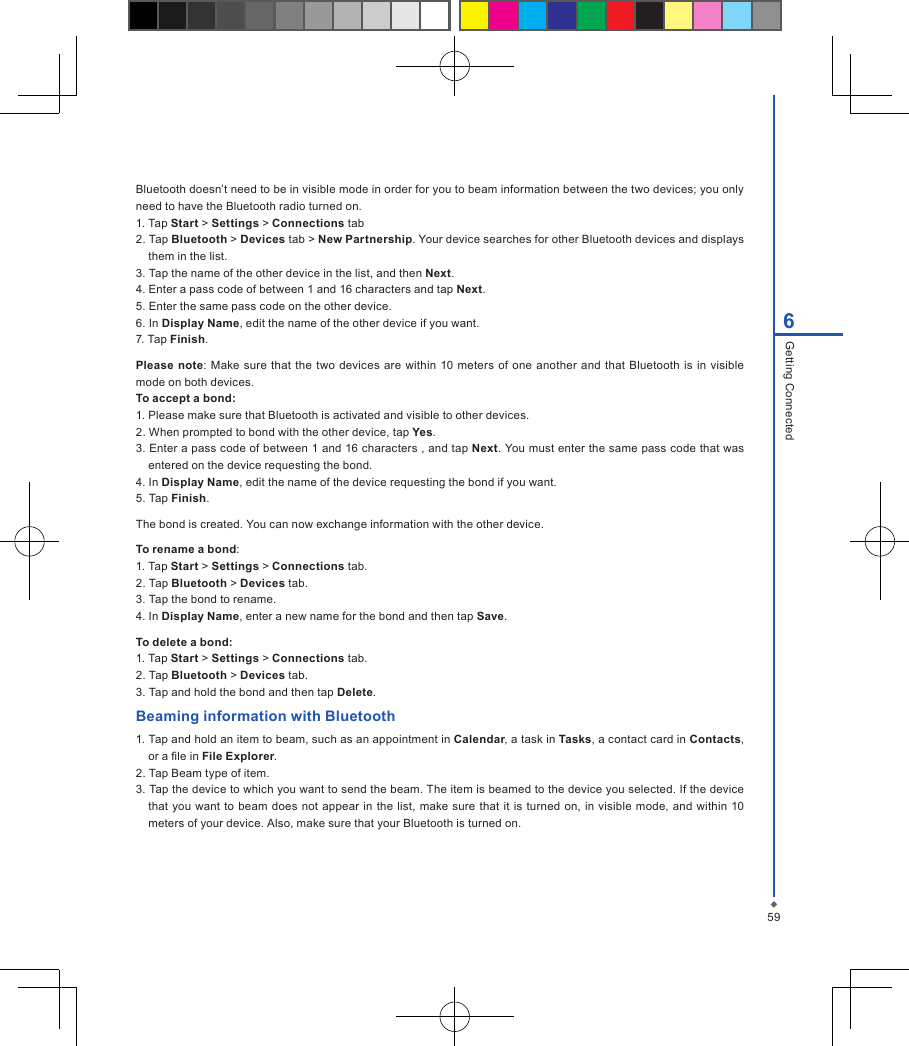
596Getting ConnectedBluetooth doesn’t need to be in visible mode in order for you to beam information between the two devices; you only need to have the Bluetooth radio turned on.1. Tap Start > Settings > Connections tab2. Tap Bluetooth > Devices tab > New Partnership. Your device searches for other Bluetooth devices and displays them in the list.3. Tap the name of the other device in the list, and then Next.4. Enter a pass code of between 1 and 16 characters and tap Next.5. Enter the same pass code on the other device.6. In Display Name, edit the name of the other device if you want.7. Tap Finish.Please  note: Make sure that the  two devices  are within 10 meters of one another  and that Bluetooth is  in  visible mode on both devices.To accept a bond:1. Please make sure that Bluetooth is activated and visible to other devices.2. When prompted to bond with the other device, tap Yes.3. Enter a pass code of between 1 and 16 characters , and tap Next. You must enter the same pass code that was entered on the device requesting the bond.4. In Display Name, edit the name of the device requesting the bond if you want.5. Tap Finish.The bond is created. You can now exchange information with the other device.To rename a bond:1. Tap Start > Settings > Connections tab.2. Tap Bluetooth > Devices tab.3. Tap the bond to rename.4. In Display Name, enter a new name for the bond and then tap Save.To delete a bond:1. Tap Start > Settings > Connections tab.2. Tap Bluetooth > Devices tab.3. Tap and hold the bond and then tap Delete.Beaming information with Bluetooth1. Tap and hold an item to beam, such as an appointment in Calendar, a task in Tasks, a contact card in Contacts, or a le in File Explorer.2. Tap Beam type of item.3. Tap the device to which you want to send the beam. The item is beamed to the device you selected. If the device that you want to beam  does  not appear  in  the list, make  sure that  it  is  turned on,  in  visible  mode,  and within  10 meters of your device. Also, make sure that your Bluetooth is turned on.
606Getting ConnectedReceiving a Bluetooth beam: 1. Make sure that your device is congured to receive incoming beams and that Bluetooth is in visible mode.2. Make sure that your device is within 10 meters of the device beaming the information.3. When prompted to receive an incoming beam, tap Yes. The information is now stored on your device.
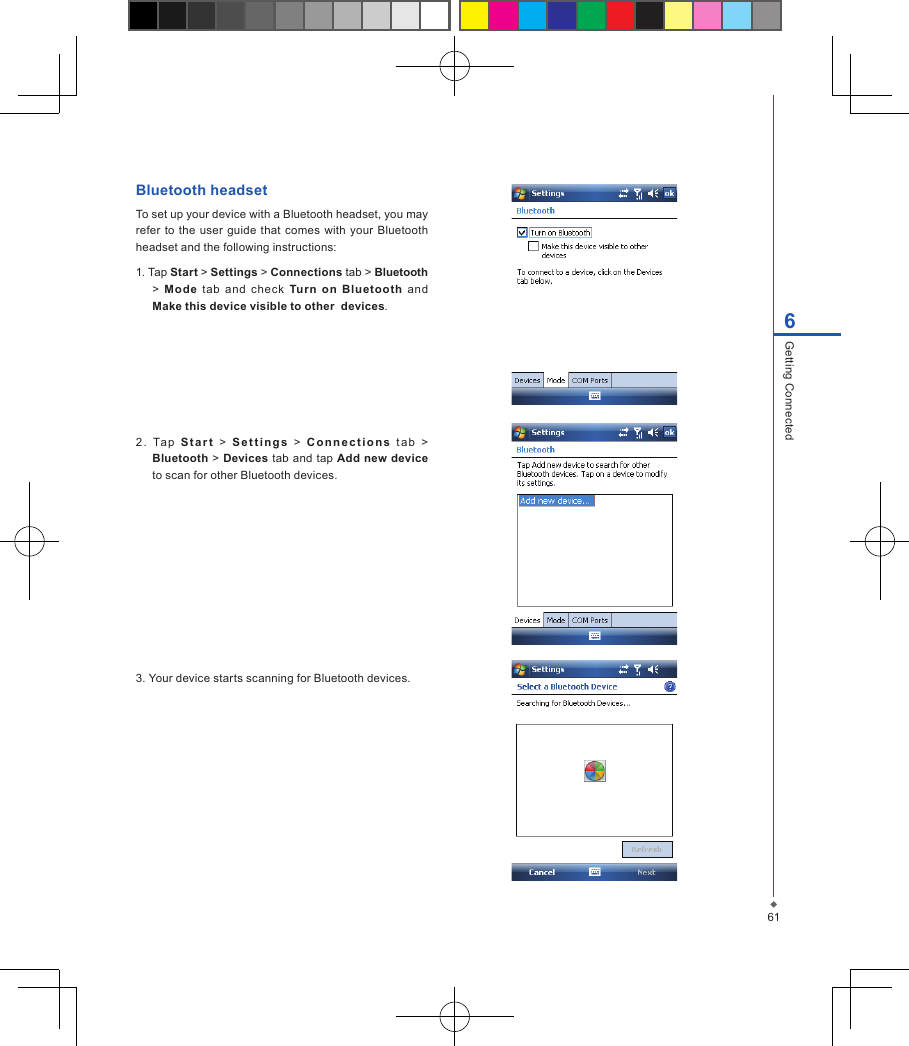
616Getting ConnectedBluetooth headsetTo set up your device with a Bluetooth headset, you may refer  to the user guide  that comes with  your  Bluetooth headset and the following instructions:1. Tap Start > Settings > Connections tab > Bluetooth >  Mode  tab  and  check  Tur n  on  Blu etooth  and Make this device visible to other  devices.2 .  Tap  S t a r t   >   S e t t i n g s   >  C o n n e c t i o n s   t ab  > Bluetooth > Devices  tab and tap  Add new device to scan for other Bluetooth devices.3. Your device starts scanning for Bluetooth devices.
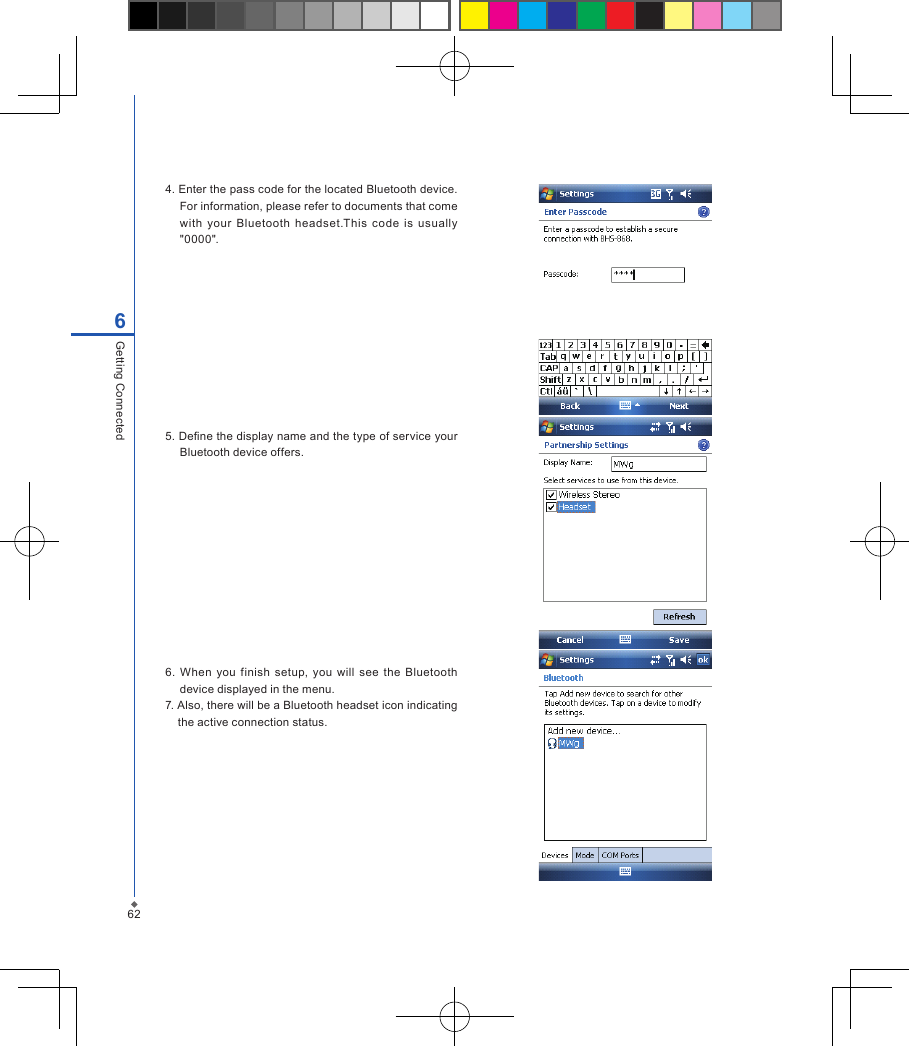
626Getting Connected4. Enter the pass code for the located Bluetooth device. For information, please refer to documents that come with  your  Bluetooth  headset.This  code  is  usually "0000".5. Dene the display name and the type of service your Bluetooth device offers.6.  When  you  finish  setup,  you  will  see  the  Bluetooth device displayed in the menu.7. Also, there will be a Bluetooth headset icon indicating the active connection status.
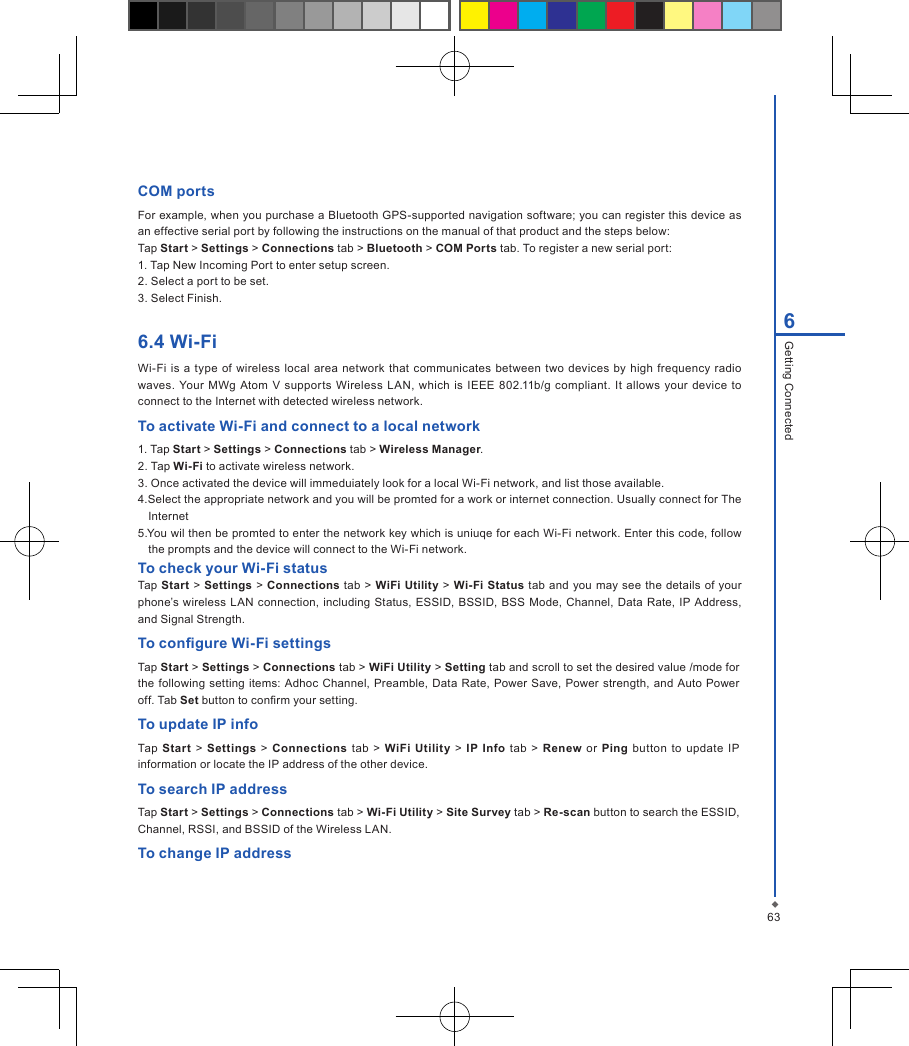
636Getting ConnectedCOM portsFor example, when you purchase a Bluetooth GPS-supported navigation software; you can register this device as an effective serial port by following the instructions on the manual of that product and the steps below:Tap Start > Settings > Connections tab > Bluetooth > COM Ports tab. To register a new serial port:1. Tap New Incoming Port to enter setup screen.2. Select a port to be set.3. Select Finish.6.4 Wi-FiWi-Fi is  a  type  of wireless local  area network  that communicates between  two  devices by high  frequency  radio waves.  Your MWg Atom  V  supports  Wireless  LAN,  which  is  IEEE 802.11b/g compliant.  It allows your  device  to connect to the Internet with detected wireless network.To activate Wi-Fi and connect to a local network1. Tap Start > Settings > Connections tab > Wireless Manager.2. Tap Wi-Fi to activate wireless network.3. Once activated the device will immeduiately look for a local Wi-Fi network, and list those available. 4.Select the appropriate network and you will be promted for a work or internet connection. Usually connect for The Internet 5.You wil then be promted to enter the network key which is uniuqe for each Wi-Fi network. Enter this code, follow the prompts and the device will connect to the Wi-Fi network. To check your Wi-Fi statusTap Start  > Settings  > Connections tab  > WiFi Utility > Wi-Fi Status tab and you  may  see the  details of your phone’s wireless  LAN connection, including  Status,  ESSID,  BSSID, BSS  Mode, Channel, Data Rate, IP Address, and Signal Strength.To congure Wi-Fi settingsTap Start > Settings > Connections tab > WiFi Utility > Setting tab and scroll to set the desired value /mode for the following setting items:  Adhoc Channel, Preamble,  Data  Rate,  Power Save,  Power  strength,  and Auto  Power off. Tab Set button to conrm your setting.To update IP infoTap  Start >  Settings  >  Connections tab >  WiFi Utility >  IP  Info  tab  > Renew  or  Ping  button  to  update  IP information or locate the IP address of the other device.To search IP addressTap Start > Settings > Connections tab > Wi-Fi Utility > Site Survey tab > Re-scan button to search the ESSID, Channel, RSSI, and BSSID of the Wireless LAN.To change IP address
646Getting Connected1. Tap Start > Settings > Connections tab > Wi-Fi > Network Adapters tab.2. In My network card connects to drop-down list, tap either The Internet or Work. If you are connecting to your ISP at home, tap The Internet. If you are connecting to a private network such as a corporate network at work, tap Work.3.  Tap the  appropriate  adapter  in  Tap an adapter  to modify settings box. The  IP address  will  now appear in IP Address box on IP Address tab.4. To  change TCP/IP settings  if  your ISP  or  private network  does  not  use dynamically  assigned IP addresses, tap Use specific IP address and enter the requested information. Contact your ISP or network administrator to get the IP address, Subnet mask, and/or Default gateway (if needed).5.  To  change  DNS  and  WINS  settings  if  your  ISP  or  private  network  does  not  use  dynamically  assigned  IP addresses, tap  Name Servers tab  and  enter the  requested  information.  Servers  that  require  an assigned  IP address may also require a way to map computer names to IP address. DNS and WINS are the resolution options supported on your MWg Atom V.Please  note:  After  activating  Wi-Fi,  a new  window,  New  Network  Detected, will appear  if  any is detected.  Select Connect and enter  your password  to the local  network.  Tap  Connect to  connect this  device with local  network. You may use Wi-Fi for up to 2 hours. The actual use time will depend on the power status of your battery. When this feature is not in use, please disable it to save power.6.5 USB card readerYou may use the device as a mass storage device or a micro SD card reader.1. Tap Start > Settings > Connections tab > USB.2. On USB Connection Mode screen, tap SD-Card Reader, and then tap Change.3. Connect the phone to the computer with USB cable.4. Your PC will automatically detect the new hardware. Now you can view or transfer les to and from your micro SD card.6.6 Internet sharingBy using utility, you can set your MWg Atom V as a wireless modem. Internet Sharing allows your PC/Notebook be connected to a wireless network.1. Tap Start > Programs > Internet Sharing.2. Select a USB or Bluetooth PAN as PC Connection type.3. Connect your device via USB cable or Bluetooth to a PC/Notebook, and then tap Connect.Please note: Before you tap  Connect,  please make sure  that your have installed  a GPRS SIM card, and that you have connected this phone to your PC/Notebook by USB cable or Bluetooth and disabled ActiveSync.
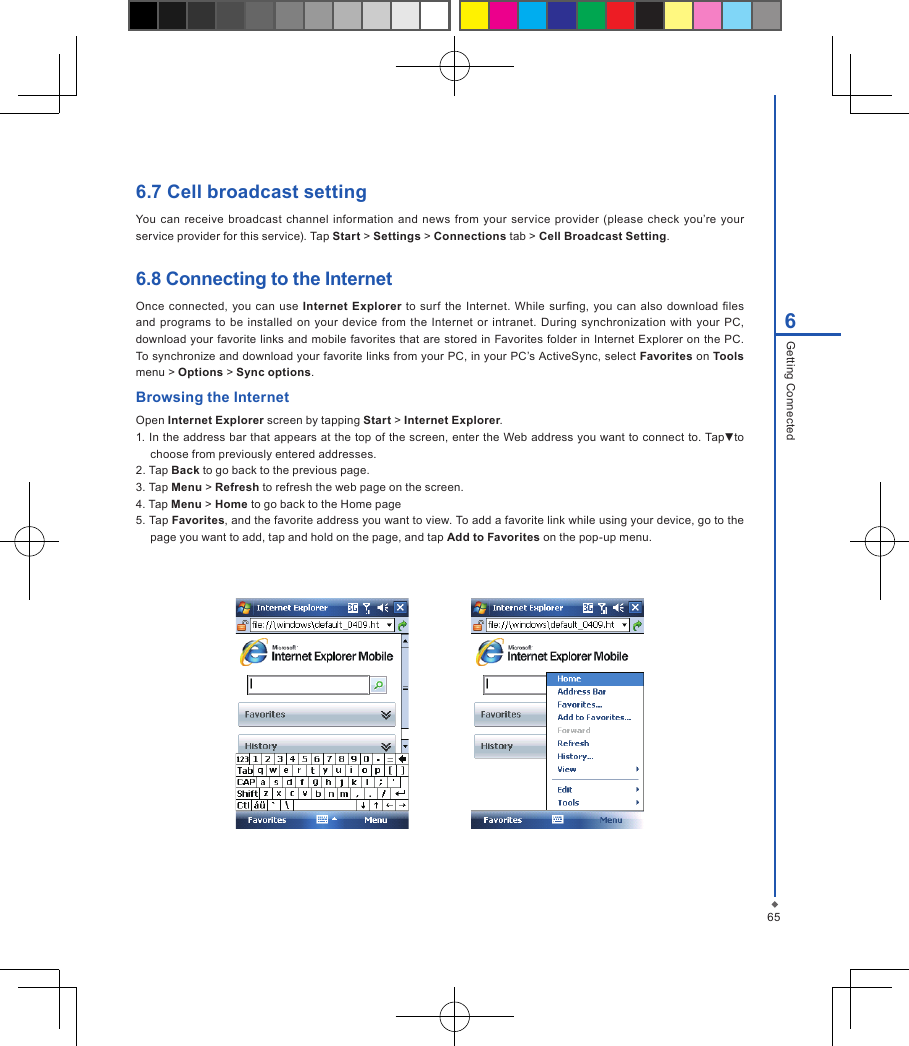
656Getting Connected6.7 Cell broadcast settingYou can  receive  broadcast  channel  information and news from your  service  provider  (please  check  you’re  your service provider for this service). Tap Start > Settings > Connections tab > Cell Broadcast Setting.6.8 Connecting to the InternetOnce connected, you can use Internet  Explorer  to  surf the Internet. While surng,  you  can  also download  les and  programs  to  be installed  on  your device from the  Internet  or intranet.  During synchronization  with  your PC, download your favorite links and mobile favorites that are stored  in Favorites folder in Internet Explorer on the PC. To synchronize and download your favorite links from your PC, in your PC’s ActiveSync, select Favorites on Tools menu > Options > Sync options.Browsing the InternetOpen Internet Explorer screen by tapping Start > Internet Explorer.1. In the address bar that appears at the top of the screen, enter the Web address you want to connect to. Tap▼to choose from previously entered addresses.2. Tap Back to go back to the previous page.3. Tap Menu > Refresh to refresh the web page on the screen.4. Tap Menu > Home to go back to the Home page5. Tap Favorites, and the favorite address you want to view. To add a favorite link while using your device, go to the page you want to add, tap and hold on the page, and tap Add to Favorites on the pop-up menu.
666Getting Connected
Chapter 7 Messaging7.1 Short message (SMS)7.2 Multimedia messages (MMS)7.3 Voice mail7.4 E-mail7.5 Push e-mail7.6 Windows Live Messenger
68Chapter 7 MessagingYou can  receive  e-mails  and text  messages  in Messaging.  Text messages are sent and received  through  your network operator by using a phone number as the message address. Before receiving and sending your e-mails or messages, please make sure that your MWg Atom V has connected to a network.Your MWg Atom V supports the following messaging services:SMS (Short Messaging Service)SMS allows you to send short messages. For receiving and sending text messages (SMS), you only need to ensure that the  phone function is activated by observing the  satellite icon  on  the top  of  outline  bar. It is not  necessary  to activate GPRS connection or establish new e-mail account and connection. MMS ( Multimedia Messaging Service)MMS allows  you  to send multimedia messages.  You  can include text,  pictures, photos,  sound  files  or  recorded voice in an MMS message. To send an MMS message, your must register and congure the MMS service with your network provider.Voice MailYou can forward a call to your voice mail box when you are unable to receive a call. The voice mail centre will send you a notication.E-mailYou  can  either  use  your MWg  Atom V  to directly  send/receive  e-mails from  e-mail server  or  by synchronously updating the Microsoft Outlook / Microsoft Exchange Server E-mail in your MWg Atom V and PC. Push E-mailThe Direct Push technology enables you to have access to your new incoming e-mails in real time.Windows Live MessengerYour MWg Atom V is equipped with Windows Live Messenger. To send instant messages, you need to connect to the Internet.7Messaging
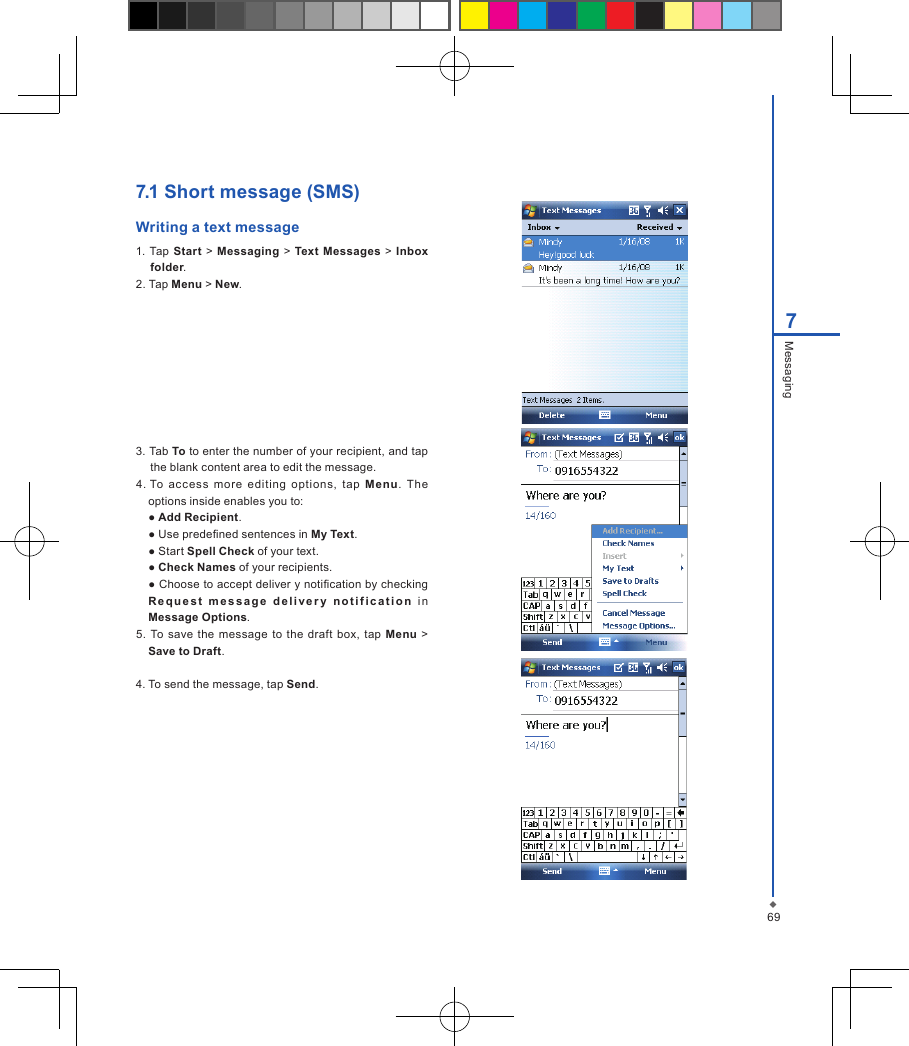
697Messaging7.1 Short message (SMS) Writing a text message1. Tap  Start  >  Messaging  > Text  Messages > Inbox folder.2. Tap Menu > New.3. Tab To to enter the number of your recipient, and tap the blank content area to edit the message.4. To  access  more  editing  options,  tap  Menu.  The options inside enables you to:  ● Add Recipient.  ● Use predened sentences in My Text.  ● Start Spell Check of your text.  ● Check Names of your recipients.  ● Choose to accept deliver y notication by checking R e q u e s t   m e s s a g e   d e l i v e r y  n o t i f i c a t i o n   in Message Options.5. To save  the message to  the draft box,  tap Menu  > Save to Draft.4. To send the message, tap Send.
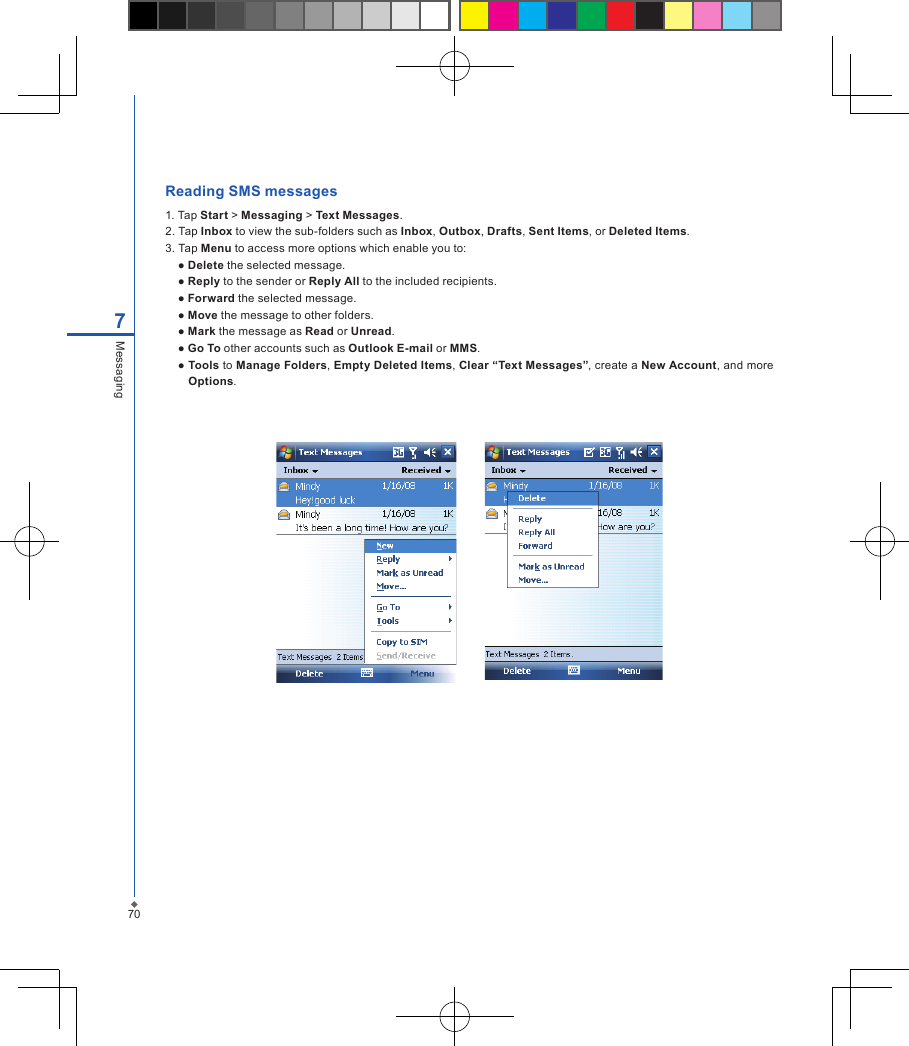
707MessagingReading SMS messages 1. Tap Start > Messaging > Text Messages.2. Tap Inbox to view the sub-folders such as Inbox, Outbox, Drafts, Sent Items, or Deleted Items.3. Tap Menu to access more options which enable you to:  ● Delete the selected message.  ● Reply to the sender or Reply All to the included recipients.  ● Forward the selected message.  ● Move the message to other folders.  ● Mark the message as Read or Unread.  ● Go To other accounts such as Outlook E-mail or MMS.  ● Tools to Manage Folders, Empty Deleted Items, Clear “Text Messages”, create a New Account, and more Options.
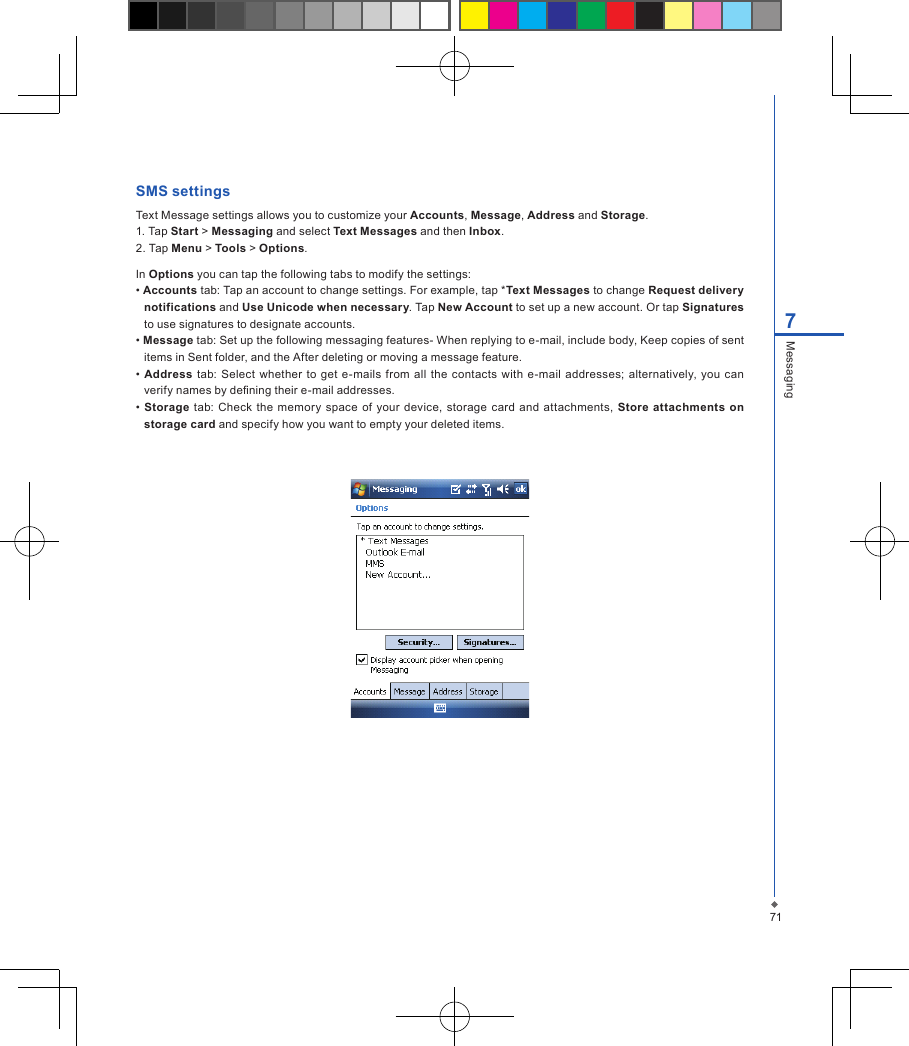
717MessagingSMS settingsText Message settings allows you to customize your Accounts, Message, Address and Storage.1. Tap Start > Messaging and select Text Messages and then Inbox.2. Tap Menu > Tools > Options.In Options you can tap the following tabs to modify the settings:• Accounts tab: Tap an account to change settings. For example, tap *Text Messages to change Request delivery notifications and Use Unicode when necessary. Tap New Account to set up a new account. Or tap Signatures to use signatures to designate accounts.• Message tab: Set up the following messaging features- When replying to e-mail, include body, Keep copies of sent items in Sent folder, and the After deleting or moving a message feature.• Address tab:  Select  whether  to get e-mails from all the contacts  with  e-mail  addresses;  alternatively, you  can verify names by dening their e-mail addresses.• Storage  tab:  Check the memory  space of  your device, storage  card  and  attachments, Store attachments  on storage card and specify how you want to empty your deleted items.
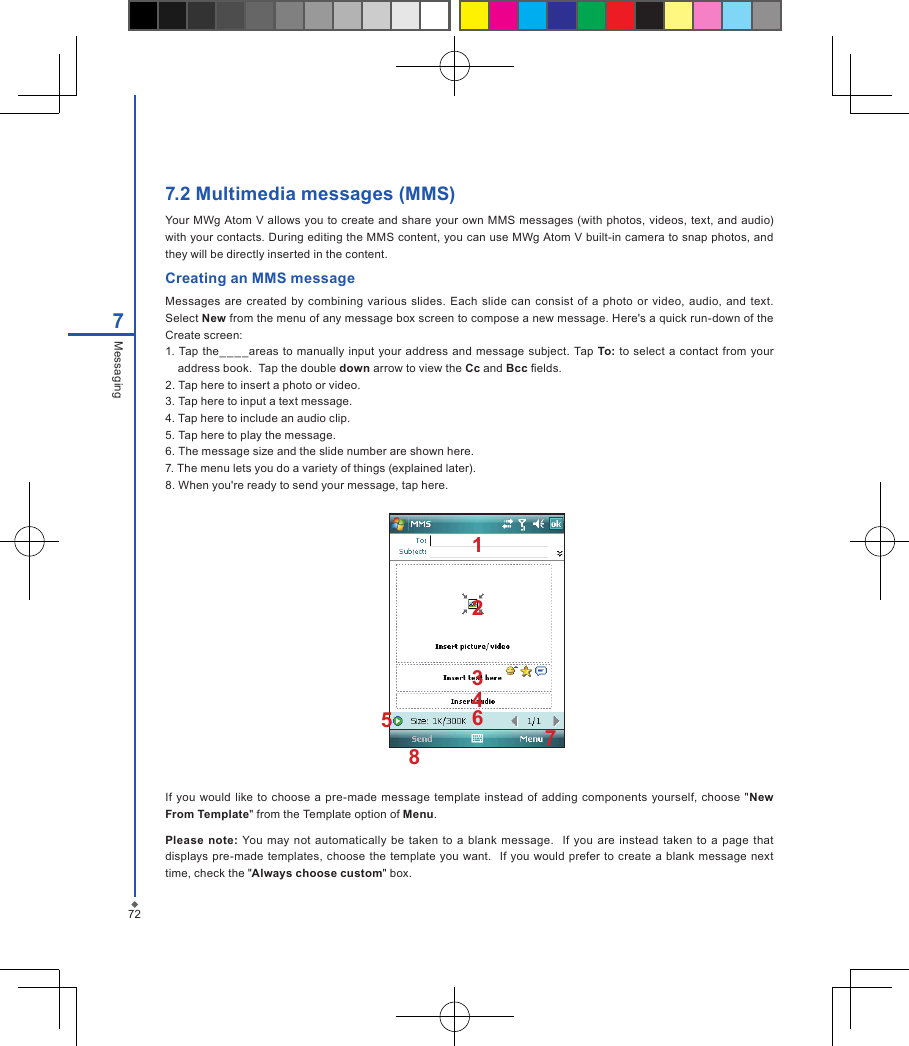
727.2 Multimedia messages (MMS)Your MWg Atom  V allows you to create and share your own MMS messages (with photos, videos, text, and audio) with your contacts. During editing the MMS content, you can use MWg Atom V built-in camera to snap photos, and they will be directly inserted in the content.Creating an MMS messageMessages  are created  by combining various  slides. Each slide can  consist  of a photo or  video,  audio, and text.  Select New from the menu of any message box screen to compose a new message. Here's a quick run-down of the Create screen:1. Tap the____areas to manually input  your address and  message subject.  Tap To: to select a contact  from  your address book.  Tap the double down arrow to view the Cc and Bcc elds.2. Tap here to insert a photo or video.3. Tap here to input a text message.4. Tap here to include an audio clip.5. Tap here to play the message. 6. The message size and the slide number are shown here.7. The menu lets you do a variety of things (explained later).8. When you're ready to send your message, tap here.7MessagingIf  you would like to  choose a pre-made message  template  instead of adding  components yourself,  choose  "New From Template" from the Template option of Menu.Please  note:  You  may  not  automatically be taken  to a blank  message.  If  you are instead  taken to  a  page  that displays pre-made  templates,  choose the template you  want.   If you would  prefer to create  a  blank  message next time, check the "Always choose custom" box.12345768
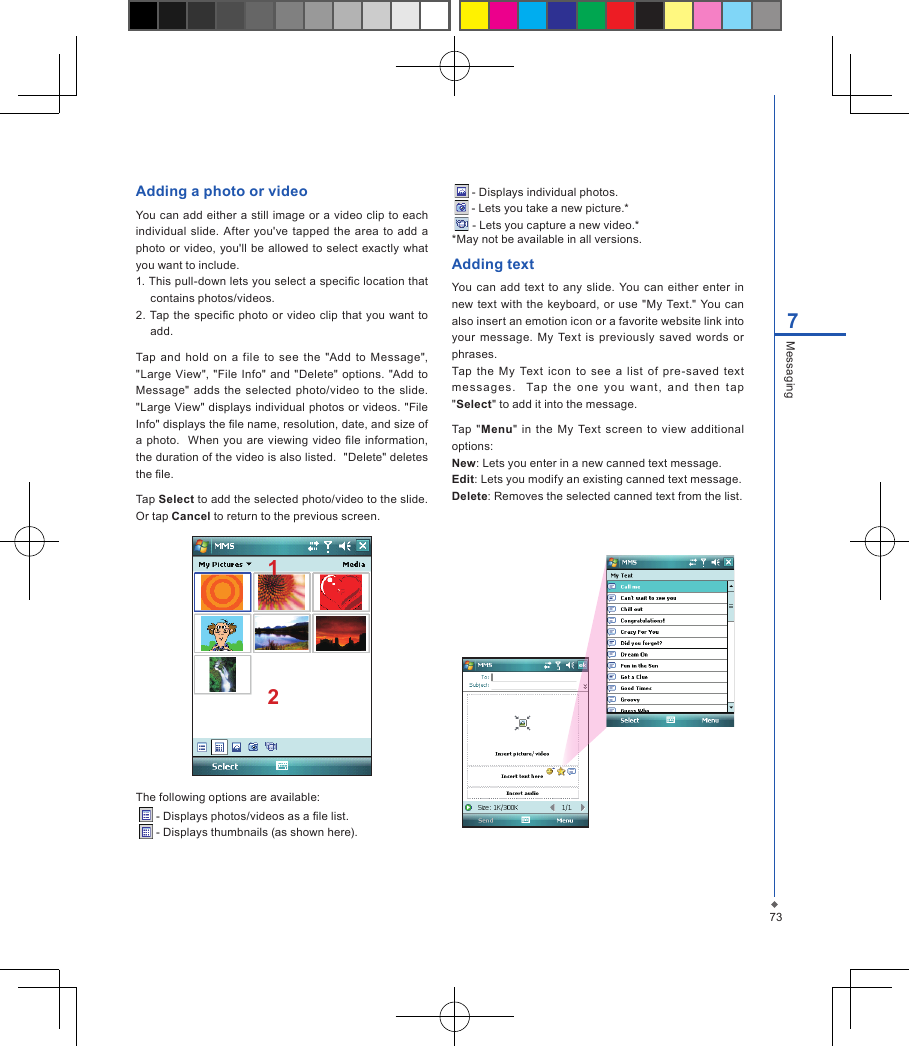
737MessagingAdding a photo or videoYou can  add either a still  image  or a video clip to  each individual slide.  After  you've tapped the area to  add  a photo or video,  you'll be allowed to select exactly  what you want to include.1. This pull-down lets you select a specic location that contains photos/videos.2.  Tap the specic  photo or video  clip  that you  want to add.Tap  and  hold  on  a  file to  see  the  "Add  to Message", "Large  View",  "File  Info" and "Delete"  options. "Add  to Message" adds the  selected  photo/video  to  the  slide.  "Large View" displays individual photos or videos. "File Info" displays the le name, resolution, date, and size of a photo.    When  you are viewing  video  le information, the duration of the video is also listed.  "Delete" deletes the le.Tap Select to add the selected photo/video to the slide. Or tap Cancel to return to the previous screen.12The following options are available:  - Displays photos/videos as a le list.   - Displays thumbnails (as shown here).   - Displays individual photos.   - Lets you take a new picture.*   - Lets you capture a new video.**May not be available in all versions.Adding textYou can  add  text  to any  slide.  You can  either  enter  in new  text  with the  keyboard, or  use "My Text." You can also insert an emotion icon or a favorite website link into your  message.  My  Text  is  previously saved words  or phrases.Tap  the  My  Text  icon  to  see  a  list  of  pre-saved  text me ssa ges .    Ta p  t he  on e  y ou  wa nt ,  and  th en  tap "Select" to add it into the message. Tap  "Menu"  in  the  My  Text  screen  to  view  additional options:New: Lets you enter in a new canned text message.Edit: Lets you modify an existing canned text message.Delete: Removes the selected canned text from the list.
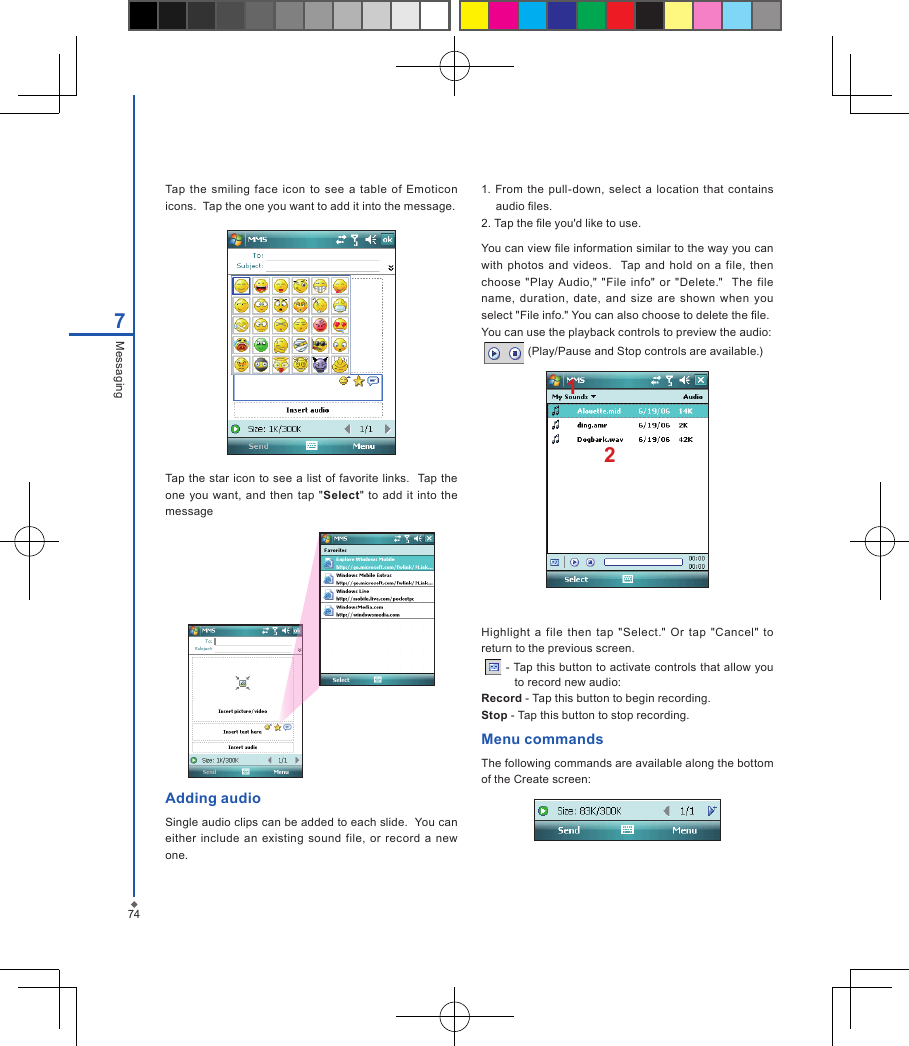
747MessagingTap  the  smiling  face  icon  to see a  table  of  Emoticon icons.  Tap the one you want to add it into the message.Tap the star icon to see a list of favorite links.  Tap the one you want,  and  then tap  "Select"  to add it  into  the messageAdding audioSingle audio clips can be added to each slide.  You can either include  an  existing  sound  file,  or  record  a new one.1. From  the pull-down, select  a  location  that  contains audio les.2. Tap the le you'd like to use.You can view le information similar to the way you can with  photos and  videos.    Tap  and hold  on  a  file,  then choose  "Play Audio,"  "File  info"  or  "Delete."   The file name,  duration,  date,  and  size  are  shown  when  you select "File info." You can also choose to delete the le.You can use the playback controls to preview the audio:   (Play/Pause and Stop controls are available.)12Highlight  a  file then  tap  "Select."  Or  tap  "Cancel"  to return to the previous screen.   - Tap this button to activate controls that allow you to record new audio:Record - Tap this button to begin recording.Stop - Tap this button to stop recording.Menu commandsThe following commands are available along the bottom of the Create screen:
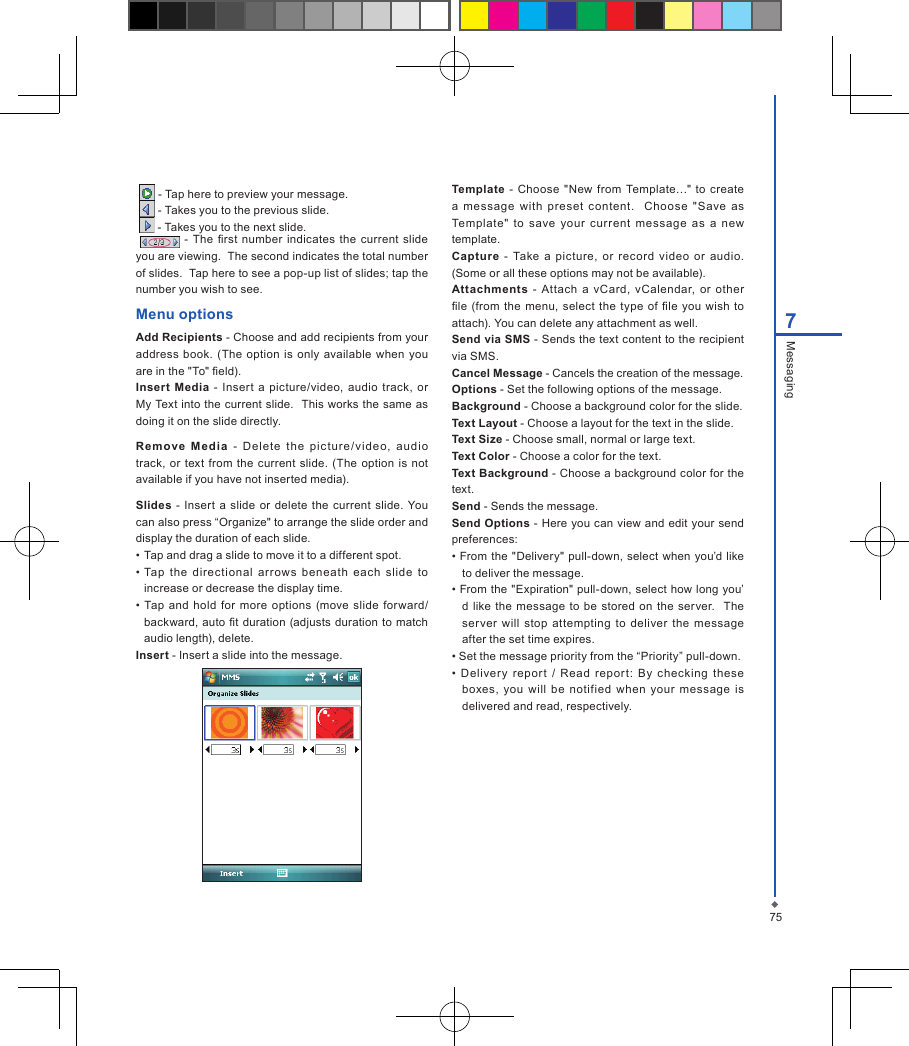
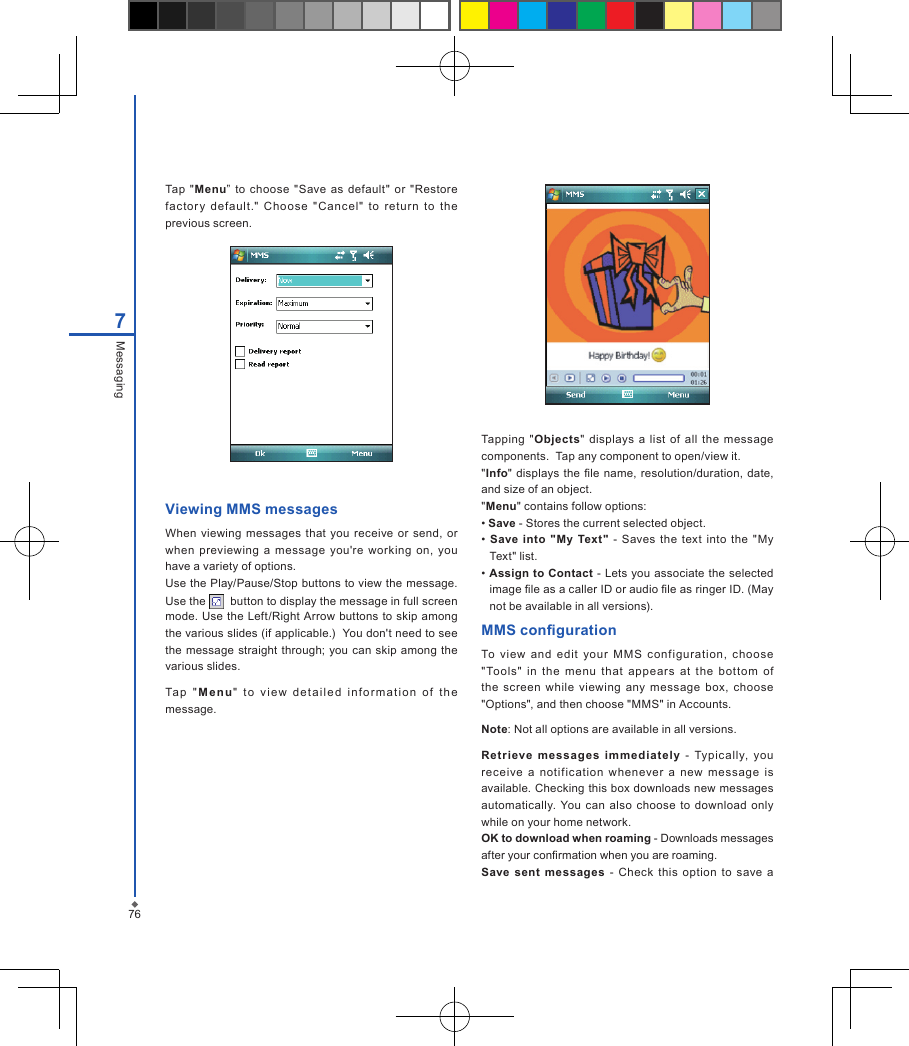
757Messaging   - Tap here to preview your message.   - Takes you to the previous slide.   - Takes you to the next slide.  - The rst  number indicates the current slide you are viewing.  The second indicates the total number of slides.  Tap here to see a pop-up list of slides; tap the number you wish to see.Menu optionsAdd Recipients - Choose and add recipients from your address  book.  (The  option  is  only available when you are in the "To" eld).Insert Media -  Insert a  picture/video,  audio  track,  or My Text into the current slide.  This works the same as doing it on the slide directly.Re move  M edi a  -  Delete  t he  pic tu re /vi de o,  audio track, or  text  from  the current slide.  (The option  is not available if you have not inserted media).Slides  -  Insert a slide or  delete the current  slide. You can also press “Organize" to arrange the slide order and display the duration of each slide. • Tap and drag a slide to move it to a different spot.• Tap  the  directional  arrows  beneath  each  slide  to increase or decrease the display time.•  Tap  and hold  for  more  options (move slide forward/backward, auto  t duration (adjusts  duration to match audio length), delete.Insert - Insert a slide into the message.Template  - Choose  "New  from Template…" to  create a  message  with  preset  content.    Choose  "Save  as Template"  to  save  your  current  message  as  a  new template.Capture  -  Take  a  picture,  or  record  video  or  audio. (Some or all these options may not be available).Attachments  -  Attach  a  vCard,  vCalendar,  or  other le  (from  the  menu, select the  type  of le  you  wish to attach). You can delete any attachment as well.Send via SMS - Sends the text content to the recipient via SMS.Cancel Message - Cancels the creation of the message.Options - Set the following options of the message.Background - Choose a background color for the slide.Text Layout - Choose a layout for the text in the slide.Text Size - Choose small, normal or large text.Text Color - Choose a color for the text.Text Background - Choose a background color for the  text.Send - Sends the message.Send Options - Here you can view  and edit your send preferences: • From the  "Delivery"  pull-down, select  when you’d like to deliver the message.• From the "Expiration" pull-down, select how long you’d like  the  message to  be stored  on  the  server.  The ser ver  will  stop attempting  to  deliver  the  message after the set time expires.• Set the message priority from the “Priority” pull-down.•  Delivery  report  /  Read  repor t:  By  checking  these boxes,  you  will  be  notified  when  your  message  is delivered and read, respectively.
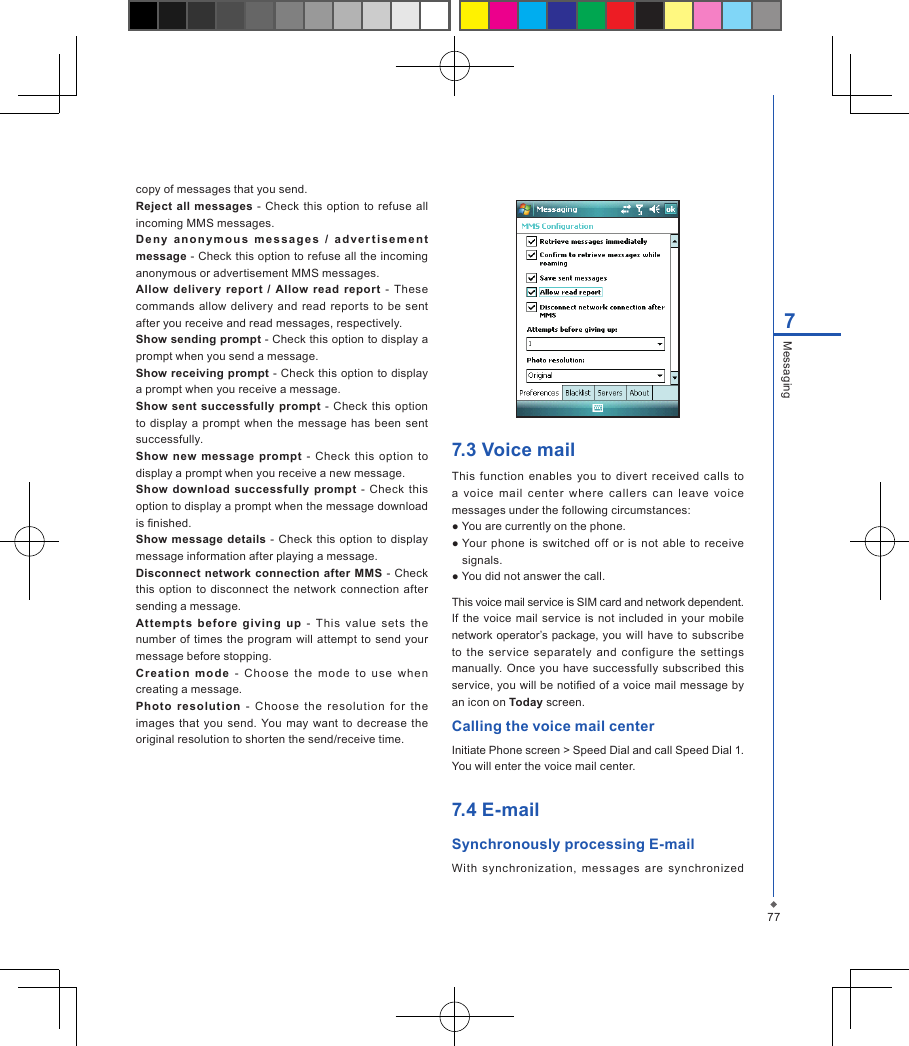
767MessagingTap  "Menu”  to  choose  "Save  as default"  or "Restore fac tory  defaul t."  Choo se  "Cancel"  to  retur n  to  the previous screen.Viewing MMS messagesWhen  viewing messages that you receive or  send,  or when  previewing  a message  you're  working  on,  you have a variety of options.Use the Play/Pause/Stop buttons to view the message. Use the    button to display the message in full screen mode. Use  the Left/Right Arrow buttons to skip  among the various slides (if applicable.)  You don't need to see the  message straight through; you can skip among the various slides.Ta p  " M e n u "  t o  vie w  det a i l ed  in f o r mati o n  of  t h e message.Tapping "Objects"  displays  a list  of all  the  message components.  Tap any component to open/view it."Info"  displays the  le name,  resolution/duration, date, and size of an object."Menu" contains follow options: • Save - Stores the current selected object. •  Save  into  "My  Text"  -  Saves  the  text  into  the  "My Text" list. • Assign to Contact  - Lets you associate the selected image le as a caller ID or audio le as ringer ID. (May not be available in all versions).MMS congurationTo  view  and  edit  your  M MS  conf iguration,  choose "Tools"  in  the  menu  that  appears  at  the  bottom  of the  screen  while  viewing  any  message  box,  choose "Options", and then choose "MMS" in Accounts.Note: Not all options are available in all versions.Ret ri eve  messages  immediately  -  Typically,  you receive  a  notification  whenever  a  new  message  is available. Checking this box downloads new messages automatically. You  can also  choose  to download only while on your home network.OK to download when roaming - Downloads messages after your conrmation when you are roaming.Save  sent  messages  -  Check  this  option  to  save  a
777Messagingcopy of messages that you send.Reject  all  messages - Check this  option to  refuse all incoming MMS messages.Deny   a n o n y m ous  messages  /  a d v e r t i s e m e n t message - Check this option to refuse all the incoming anonymous or advertisement MMS messages.Allow  delivery  report  /  Allow  read report  - These commands  allow delivery  and  read  reports to  be  sent after you receive and read messages, respectively.Show sending prompt - Check this option to display a prompt when you send a message. Show receiving prompt - Check this option  to display a prompt when you receive a message.Show sent successfully  prompt - Check  this option to  display a prompt  when the message  has  been sent successfully.Show  new  message  prompt -  Check  this  option  to display a prompt when you receive a new message.Show download  successfully prompt  -  Check  this option to display a prompt when the message download is nished.Show  message details - Check this  option  to display message information after playing a message.Disconnect network  connection after  MMS  -  Check this  option  to  disconnect  the  network connection  after sending a message.Attempts  before  gi ving  up  -  T his  value  sets  t he number of times  the program  will  attempt  to  send  your message before stopping.Cr ea tio n  mod e  -  C ho ose  t he  m od e  to  u se  w hen creating a message.Photo  resolution  -  Cho ose  the  resolution  for  the images  that you  send.  You  may  want to  decrease  the original resolution to shorten the send/receive time.7.3 Voice mailThis  function  enables  you  to  divert  received  calls  to a  voice  mail  c enter  where  callers  can  leave  voice messages under the following circumstances:● You are currently on the phone.● Your  phone is switched  off or  is  not able to receive signals.● You did not answer the call.This voice mail service is SIM card and network dependent. If  the voice mail service is  not included in  your  mobile network operator’s package, you  will have  to  subscribe to  the  service  separately  and  configure  the  settings manually. Once  you have successfully subscribed  this service, you will be notied of a voice mail message by an icon on Today screen.Calling the voice mail centerInitiate Phone screen > Speed Dial and call Speed Dial 1. You will enter the voice mail center.7.4 E-mailSynchronously processing E-mailWith  synchronization,  messages  are  synchronized
787Messagingbetween  you r  MWg  Atom  V  and  t he  P C  by  u si ng Ac t iveSy nc  and  M i cro sof t  E xch ang e  o r  O utl o ok. If  you  want  to  synchronously  pr oc ess  E-mail,  you must  activate  the  Inbox synchronization  function in  ActiveSync  beforehand.  For  more  information  on Inbox synchronization,  please  refer  to  Chapter  5 Synchronization. Please be aware of the following Inbox Synchronization process rules:•  Please select  a desired  cooperation relationship  on New  Cooperation Relationship screen in computer to synchronously  transmit information. If  you select not to perform synchronization, you  may  manually  copy or move E-mail messages between your MWg Atom V and the computer.•  Only  the  mails  in  Inbox  of  your  computer  will  be synchronized.•  O nly  the  mails  in  Exch ange  or  Out lo ok  c an  be synchronized.•  The  mail  from  Outbox  folder  in  your  MWg  Atom  V will  be  sent  to  your  computer  first,  and  then  it  will be delivered through  Microsoft  Exchange  Server or Microsoft Outlook.• If a specic letter is deleted in your MWg Atom V, then it  will  also  be  deleted  in  your  computer  when  you reconnect your device with computer.• SMS in your device will not be synchronized.Establishing E-mail servicesIf  you  have  E-mail  account s  from  ISP  or  company network,  you  may  use  Messaging  to receive  or send e-mails. Please refer to the following instructions to set up a new E-mail account in Messaging.1. Please acquire  the following information  from ISP  or company network administrator:  • E-mail address, user name and password.  • POP3 or IMAP4 server name of Intranet E-mail.  • SMTP server name for outgoing E-mail.2. Establish E-mail services:  Tap  Star t  >  Messaging  >  Menu  >  Tools  >  New Account,  and  then  follow  the  instructions  on  the screen to set up a new E-mail account.3. See Section 6.1 Wireless Manager to connect your MWg  Atom  V  to a  network  and  start receiving  and sending e-mails and messages.4. Connect with E-mail Server:  • Tap Messaging > Menu > Send and Receive.  • Tap  Me ssaging  >  M enu  >  Tools  >  Options  > Accounts  tab  to  change  E-mail  account  settings. When  you  finish,  your  new  E-mail  account  will  be displayed under this menu. You can start connecting to  your  E-mail  server  at  this  point.  You  can  set  up several  E-mail  account s,  including  your  Outlook E-mail account.Connecting to the serverYou  may  directly  rec eive  new  e-mails  from  E-mail ser ver  without  connecting  to  a  computer.  You  may select  to  use it online or ofine; if it  is  online,  you may directly  read and  reply  mail when your  MWg Atom  V is connected to E-mail server. You can reply a mail directly by simply tapping Send. You  may  selec t  to  disconnect  to  the  internet  after downloading  only  the  subjects  of  new  messages  or par tial  messages  and  decide  whether  to  download the  full  mes sa ge  late r.  W he n  you  reco nn ec t  next time, Inbox  will download in  accordance  to  appointed methods, and send out unsent e-mails in Outbox. You may choose to read just the e-mails within the last few days, mail subjects only, or complete mail. You can also  choose to receive only the attachments less  than specific  file  size. To  make  these  settings, tap  Start  > Messaging  > Menu  >  Tools  > Options,  and change E-mail account setup by requirement.
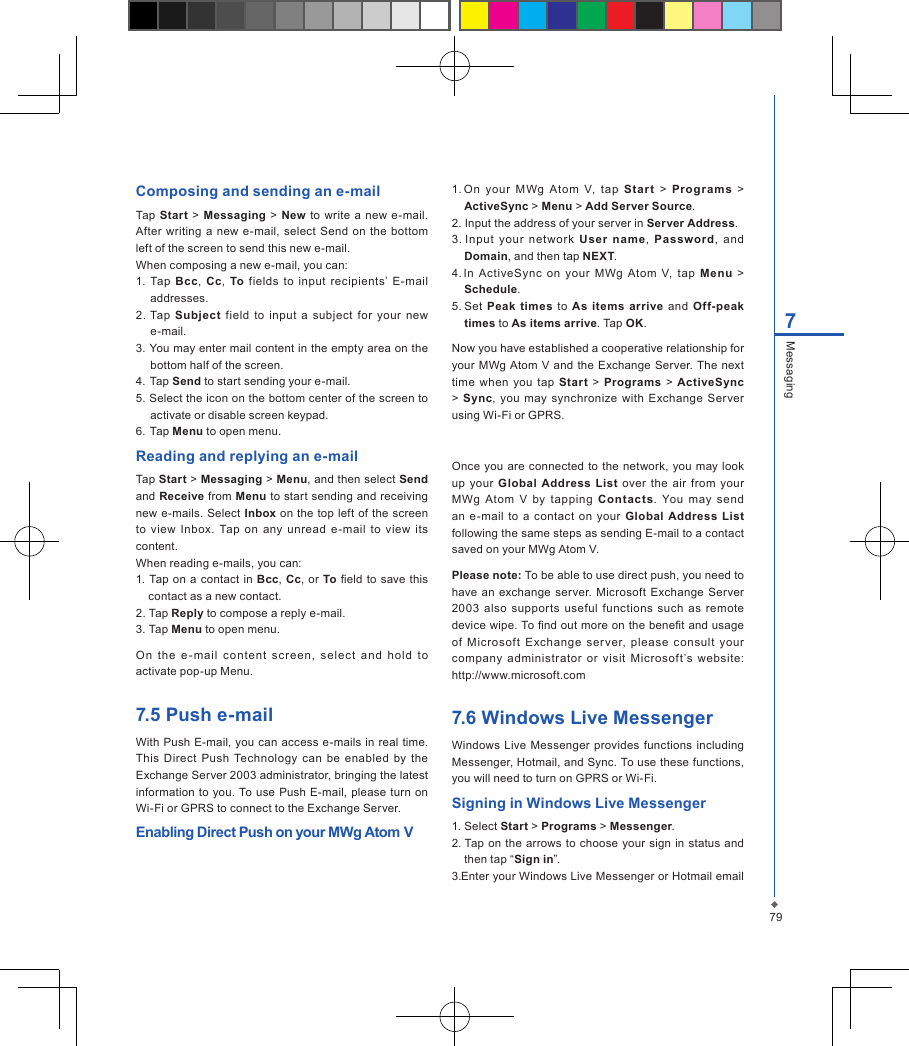
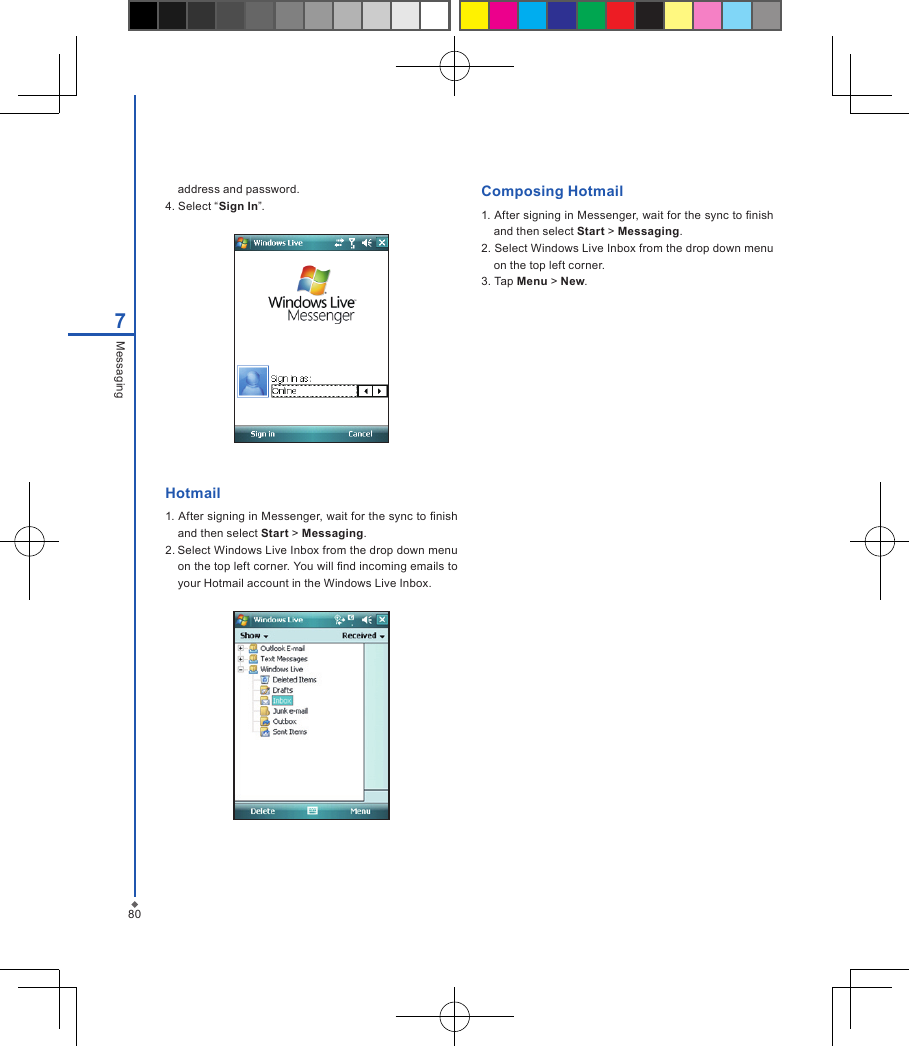
797MessagingComposing and sending an e-mailTap Start > Messaging  > New  to  write a new e-mail. After writing  a  new  e-mail,  select  Send on  the  bottom left of the screen to send this new e-mail.When composing a new e-mail, you can:1.  Tap  Bcc,  Cc,  To  fields  to input  recipients’  E-mail addresses.2. Tap  Subject  field  to  input  a  subject  for  your  new e-mail.3. You may enter mail content in the empty area on the bottom half of the screen.4. Tap Send to start sending your e-mail.5. Select the icon on the bottom center of the screen to activate or disable screen keypad.6.  Tap Menu to open menu.Reading and replying an e-mailTap Start > Messaging > Menu, and then select Send and Receive from Menu to start sending and receiving new e-mails. Select Inbox on the top left of the screen to  view  Inbox.  Tap  on  any  unread  e-mail  to  view  its content.When reading e-mails, you can:1. Tap on  a contact  in  Bcc, Cc, or To eld to save this contact as a new contact.2. Tap Reply to compose a reply e-mail.3. Tap Menu to open menu.On  the  e -mail  content  screen,  select  and  h ol d  to activate pop-up Menu.7.5 Push e-mailWith Push  E-mail, you can access e-mails in real time. This  Direct  Push  Technology  can  be  enabled  by  the Exchange Server 2003 administrator, bringing the latest information  to  you. To use Push  E-mail, please  turn on Wi-Fi or GPRS to connect to the Exchange Server.Enabling Direct Push on your MWg Atom V1. O n  your  MWg  Atom  V,  tap  S tar t  >  Prog ra ms  > ActiveSync > Menu > Add Server Source.2. Input the address of your server in Server Address.3. Input  your  network  User  na me,  Password,  and Domain, and then tap NEXT.4. In  ActiveSync  on  your  MWg  Atom  V,  tap  Menu  > Schedule.5. Set  Peak  times to  As  items  arrive  and  Off-peak times to As items arrive. Tap OK.Now you have established a cooperative relationship for your MWg Atom V  and the  Exchange Server. The next time when  you  tap  Star t > Programs  >  ActiveSync >  Sync, you  may  synchronize  with  Exchange  Server using Wi-Fi or GPRS.Once  you are  connected to the  network,  you may look up  your  Global  Address  List over  the  air  from  your MWg  Atom  V  by  tapping  Contacts.  You  may  send an  e-mail  to  a  contact  on  your Global Address  List following the same steps as sending E-mail to a contact saved on your MWg Atom V.Please note: To be able to use direct push, you need to have an  exchange server. Microsoft Exchange Server 2003  also  suppor ts  useful  functions  such  as  remote device wipe. To nd out more on the benet and usage of  Microsoft  Exchange  server,  please  consult  your company  administrator  or  visit  Microsof t’s  website: http://www.microsoft.com7.6 Windows Live MessengerWindows Live Messenger provides functions including Messenger, Hotmail, and Sync. To use these functions, you will need to turn on GPRS or Wi-Fi.Signing in Windows Live Messenger1. Select Start > Programs > Messenger. 2. Tap on  the arrows to choose  your sign in status and then tap “Sign in”.3. Enter your Windows Live Messenger or Hotmail email
807Messagingaddress and password.4. Select “Sign In”.Hotmail1. After signing in Messenger, wait for the sync to nish and then select Start > Messaging.2. Select Windows Live Inbox from the drop down menu on the top left corner. You will nd incoming emails to your Hotmail account in the Windows Live Inbox.Composing Hotmail1. After signing in Messenger, wait for the sync to nish and then select Start > Messaging.2. Select Windows Live Inbox from the drop down menu on the top left corner. 3. Tap Menu > New.
Chapter 8 Multimedia8.1   Camera8.2   Video recorder8.3   Taking a Geo tagged photo8.4   Photo editor8.5   FM radio8.6   Pictures & videos8.7   JAVA8.8   Streaming player8.9   Recorder8.10 Audio Mixer
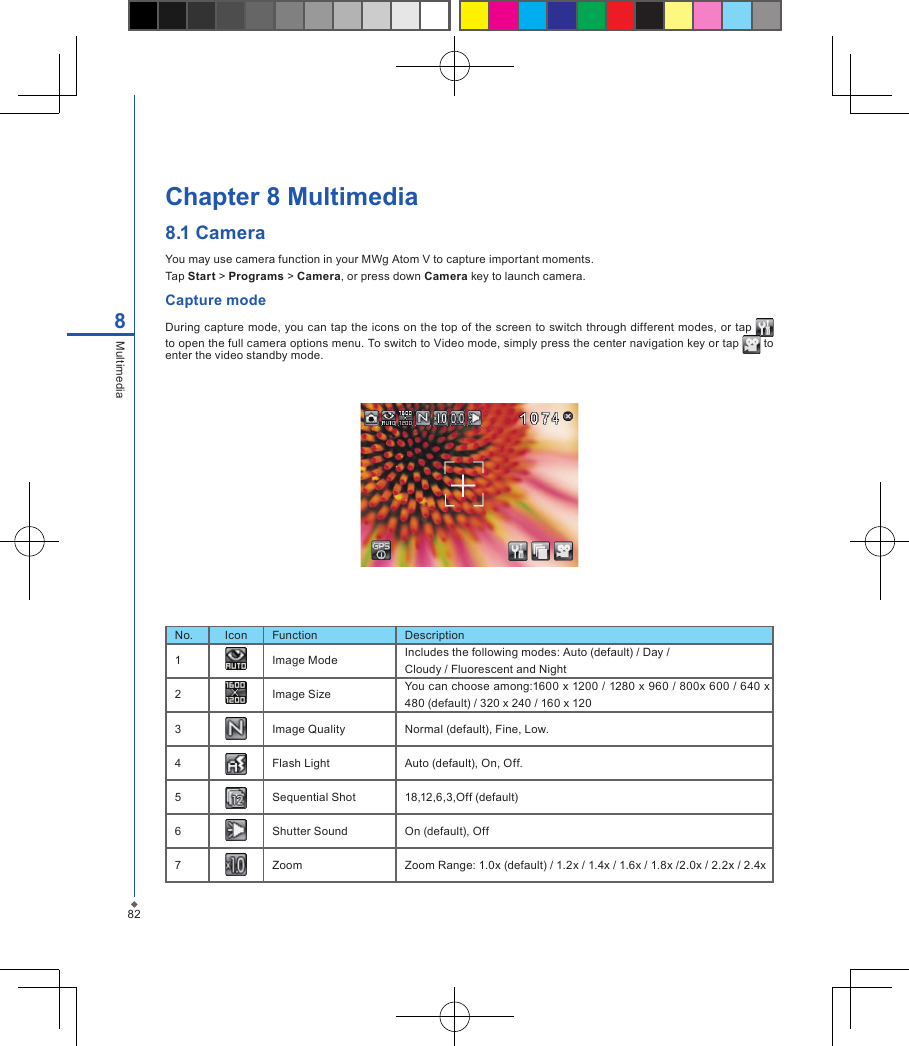
82Chapter 8 Multimedia8.1 CameraYou may use camera function in your MWg Atom V to capture important moments.Tap Start > Programs > Camera, or press down Camera key to launch camera.Capture modeDuring capture  mode, you can  tap the icons on the top of the screen to switch through different modes, or tap   to open the full camera options menu. To switch to Video mode, simply press the center navigation key or tap   to enter the video standby mode. No. Icon Function Description1 Image Mode Includes the following modes: Auto (default) / Day /Cloudy / Fluorescent and Night2 Image Size You can choose among:1600 x 1200 / 1280 x 960 / 800x 600 / 640 x 480 (default) / 320 x 240 / 160 x 1203 Image Quality Normal (default), Fine, Low.4 Flash Light Auto (default), On, Off.5 Sequential Shot 18,12,6,3,Off (default)6 Shutter Sound On (default), Off7Zoom Zoom Range: 1.0x (default) / 1.2x / 1.4x / 1.6x / 1.8x /2.0x / 2.2x / 2.4x8Multimedia
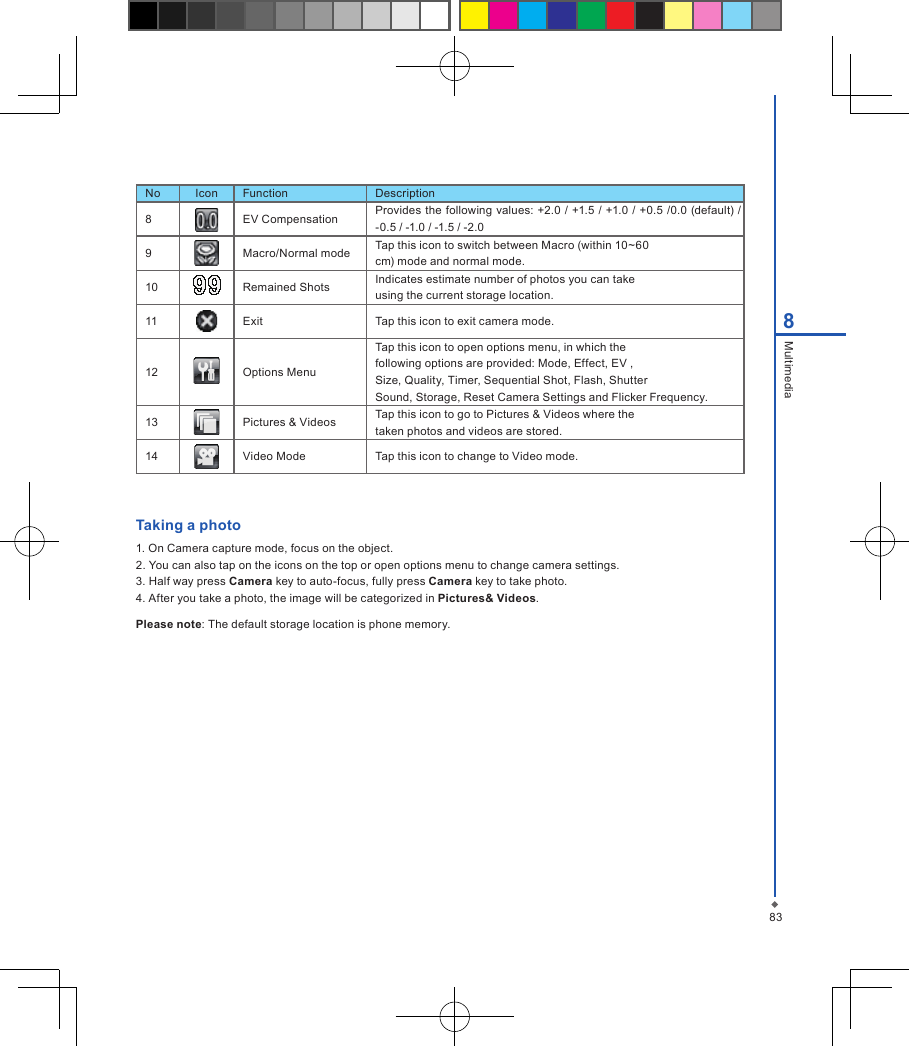
838MultimediaNo Icon Function Description8 EV Compensation Provides the following  values:  +2.0 / +1.5 /  +1.0 / +0.5 /0.0 (default) / -0.5 / -1.0 / -1.5 / -2.09 Macro/Normal mode Tap this icon to switch between Macro (within 10~60cm) mode and normal mode.10 Remained Shots Indicates estimate number of photos you can takeusing the current storage location.11 Exit Tap this icon to exit camera mode.12 Options MenuTap this icon to open options menu, in which thefollowing options are provided: Mode, Effect, EV ,Size, Quality, Timer, Sequential Shot, Flash, ShutterSound, Storage, Reset Camera Settings and Flicker Frequency.13 Pictures & Videos Tap this icon to go to Pictures & Videos where thetaken photos and videos are stored.14 Video Mode Tap this icon to change to Video mode.Taking a photo1. On Camera capture mode, focus on the object.2. You can also tap on the icons on the top or open options menu to change camera settings.3. Half way press Camera key to auto-focus, fully press Camera key to take photo.4. After you take a photo, the image will be categorized in Pictures& Videos.Please note: The default storage location is phone memory.
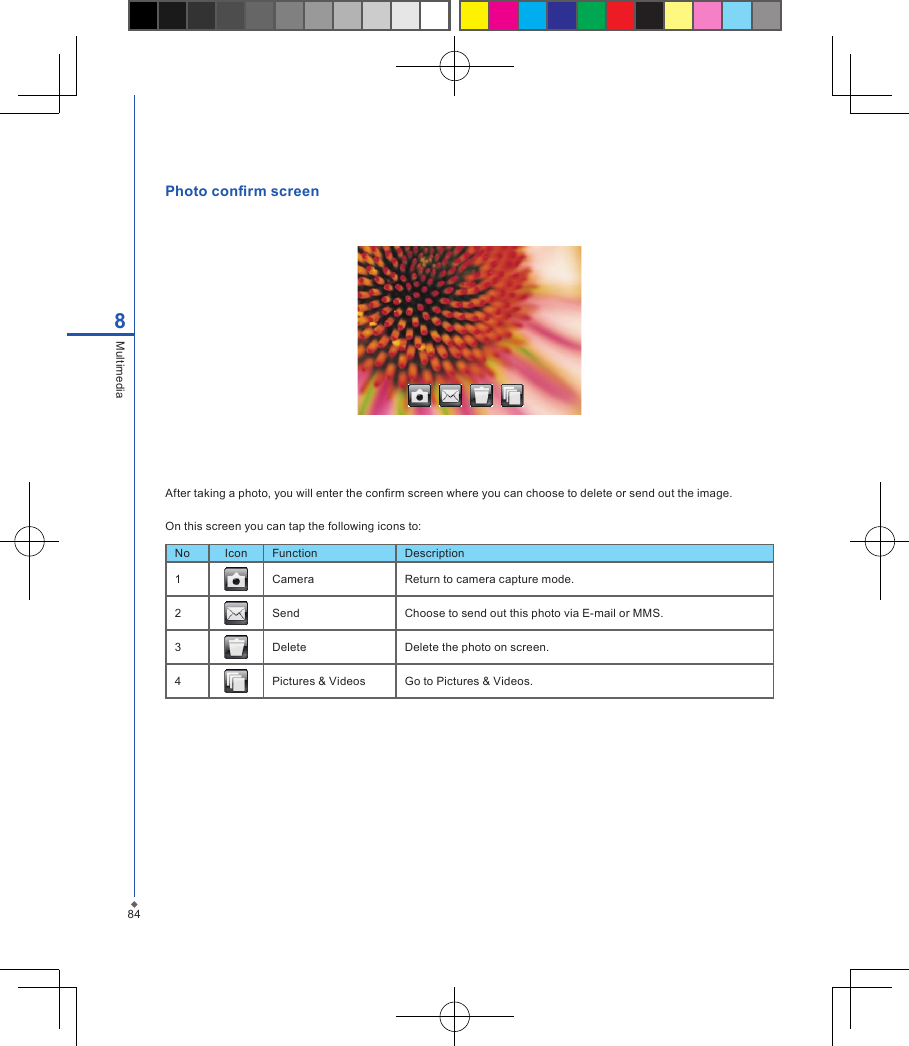
84Photo conrm screenAfter taking a photo, you will enter the conrm screen where you can choose to delete or send out the image.On this screen you can tap the following icons to:No Icon Function Description1 Camera Return to camera capture mode.2 Send Choose to send out this photo via E-mail or MMS.3 Delete Delete the photo on screen.4 Pictures & Videos Go to Pictures & Videos.8Multimedia
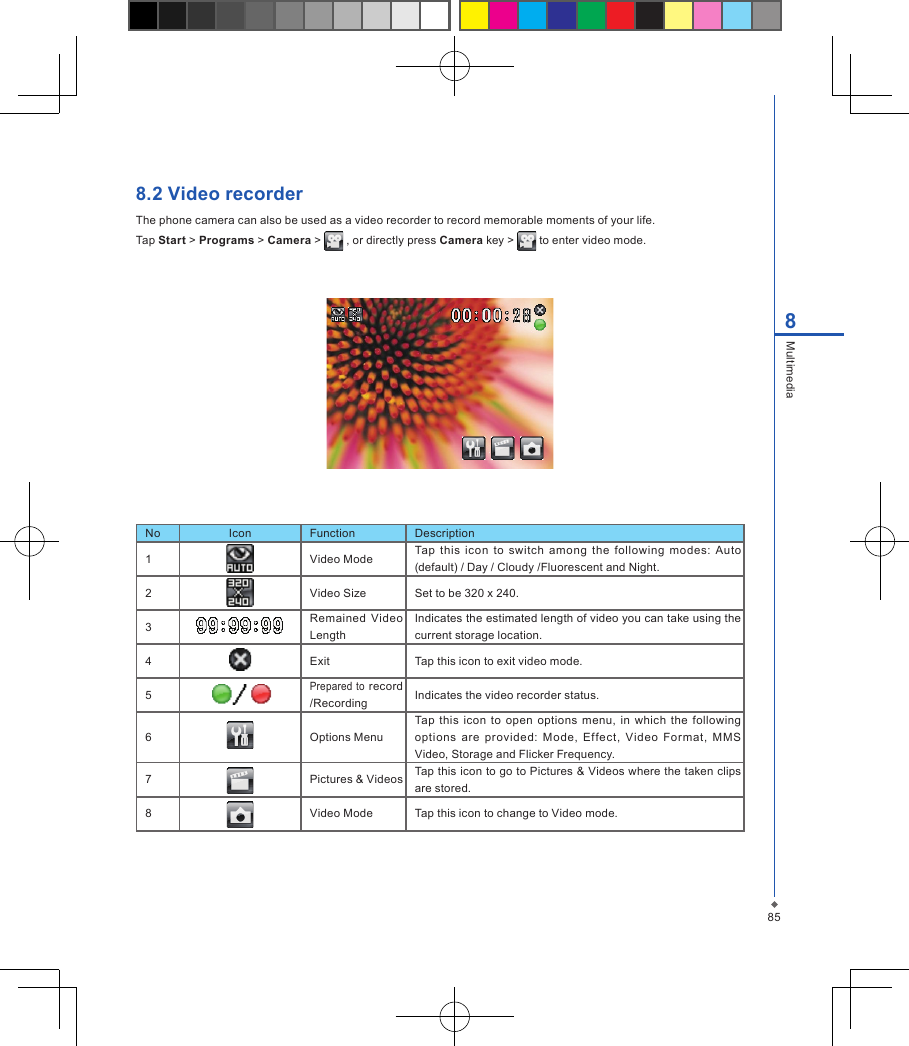
858Multimedia8.2 Video recorderThe phone camera can also be used as a video recorder to record memorable moments of your life.Tap Start > Programs > Camera >   , or directly press Camera key >   to enter video mode.No Icon Function Description1 Video Mode Tap  this  icon  to  switch  among  the  following  modes:  Auto (default) / Day / Cloudy /Fluorescent and Night.2 Video Size Set to be 320 x 240.3Remained  Video LengthIndicates the estimated length of video you can take using the current storage location.4 Exit Tap this icon to exit video mode.5Prepared to record /Recording Indicates the video recorder status.6 Options MenuTap  this  icon  to  open  options  menu, in  which  the  following options  are  provided:  Mode,  Effect,  Video  Format,  MMS Video, Storage and Flicker Frequency.7 Pictures & Videos Tap this icon to go to Pictures & Videos where the taken clips are stored.8 Video Mode Tap this icon to change to Video mode.
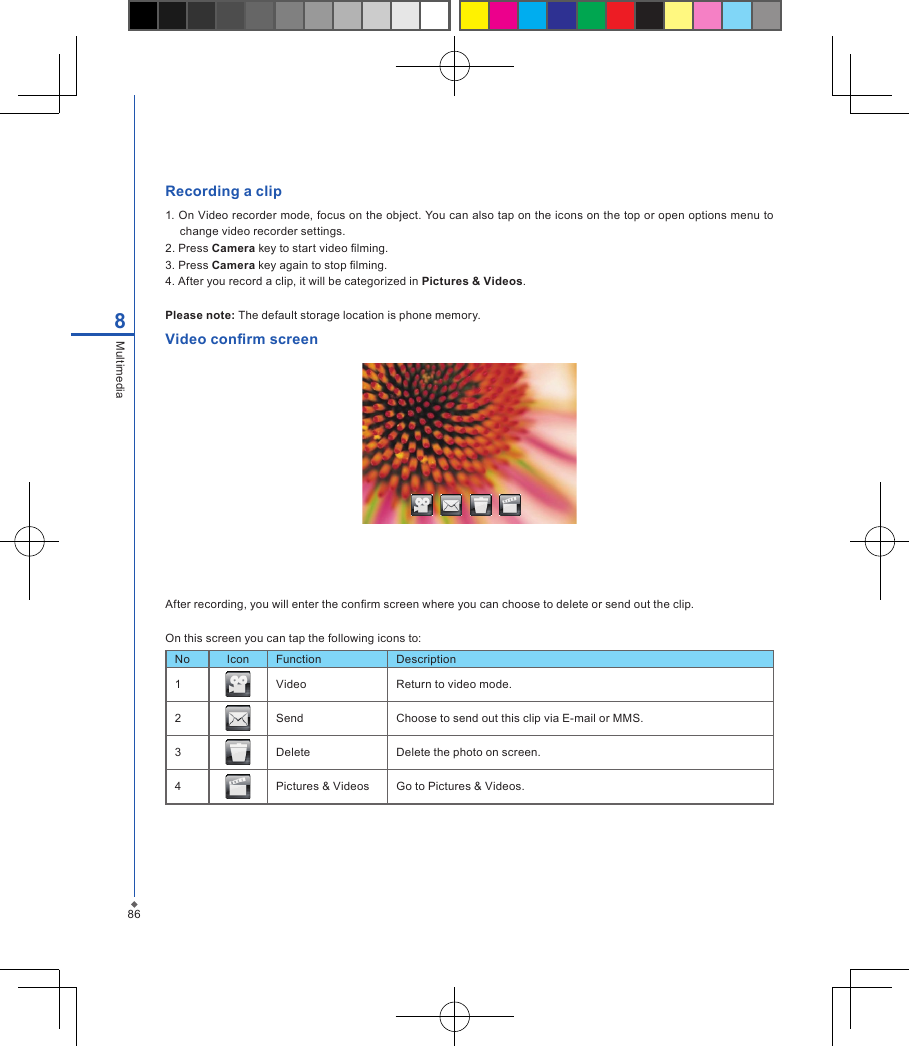
86Recording a clip1. On Video recorder mode, focus on the object. You can also tap on the icons on the top or open options menu to change video recorder settings.2. Press Camera key to start video lming.3. Press Camera key again to stop lming.4. After you record a clip, it will be categorized in Pictures & Videos.Please note: The default storage location is phone memory.Video conrm screenAfter recording, you will enter the conrm screen where you can choose to delete or send out the clip.On this screen you can tap the following icons to:No Icon Function Description1 Video Return to video mode.2 Send Choose to send out this clip via E-mail or MMS.3 Delete Delete the photo on screen.4 Pictures & Videos Go to Pictures & Videos.8Multimedia
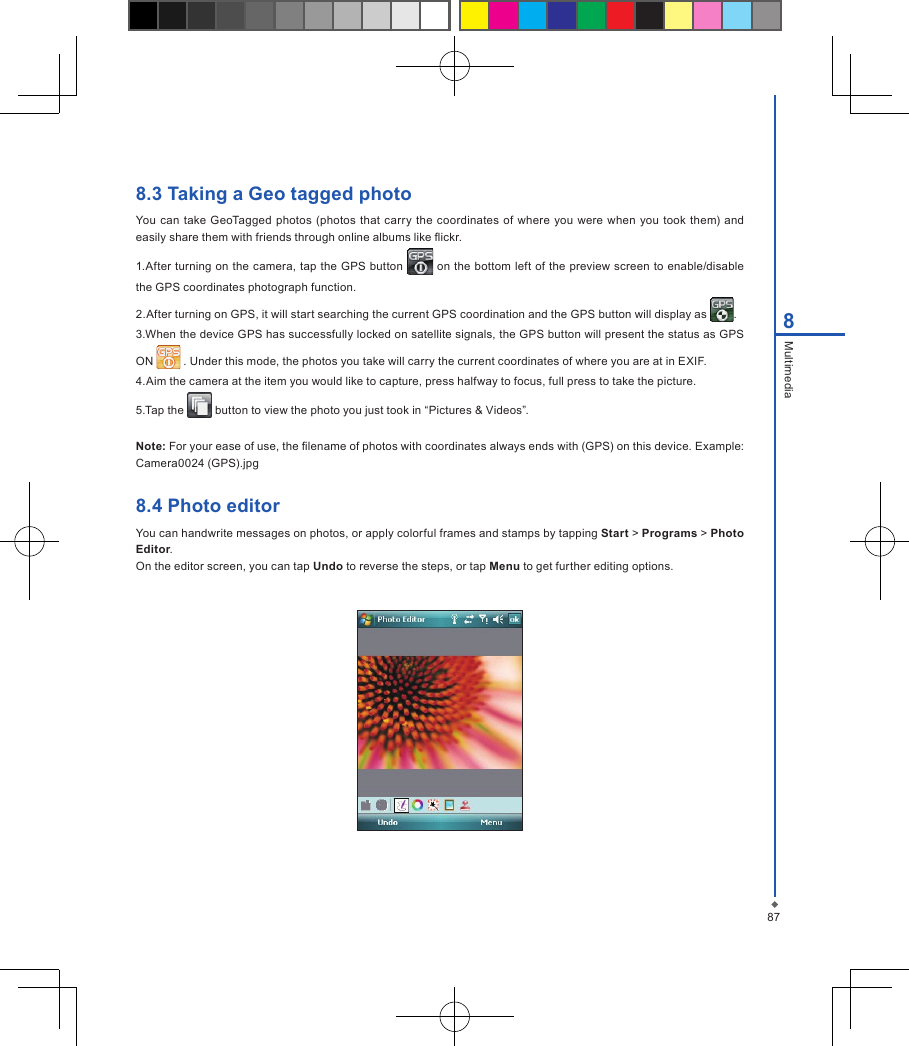
878Multimedia8.3 Taking a Geo tagged photoYou  can take GeoTagged photos (photos  that  carry  the coordinates  of  where  you were when you  took them) and easily share them with friends through online albums like ickr.1.After turning on the camera, tap the GPS button   on the bottom left of the preview  screen to  enable/disable the GPS coordinates photograph function.2.After turning on GPS, it will start searching the current GPS coordination and the GPS button will display as  .3.When the device GPS has successfully locked on satellite signals, the GPS button will present the status as GPS ON   . Under this mode, the photos you take will carry the current coordinates of where you are at in EXIF.4.Aim the camera at the item you would like to capture, press halfway to focus, full press to take the picture.5.Tap the   button to view the photo you just took in “Pictures & Videos”.Note: For your ease of use, the lename of photos with coordinates always ends with (GPS) on this device. Example: Camera0024 (GPS).jpg8.4 Photo editorYou can handwrite messages on photos, or apply colorful frames and stamps by tapping Start > Programs > Photo Editor.On the editor screen, you can tap Undo to reverse the steps, or tap Menu to get further editing options.
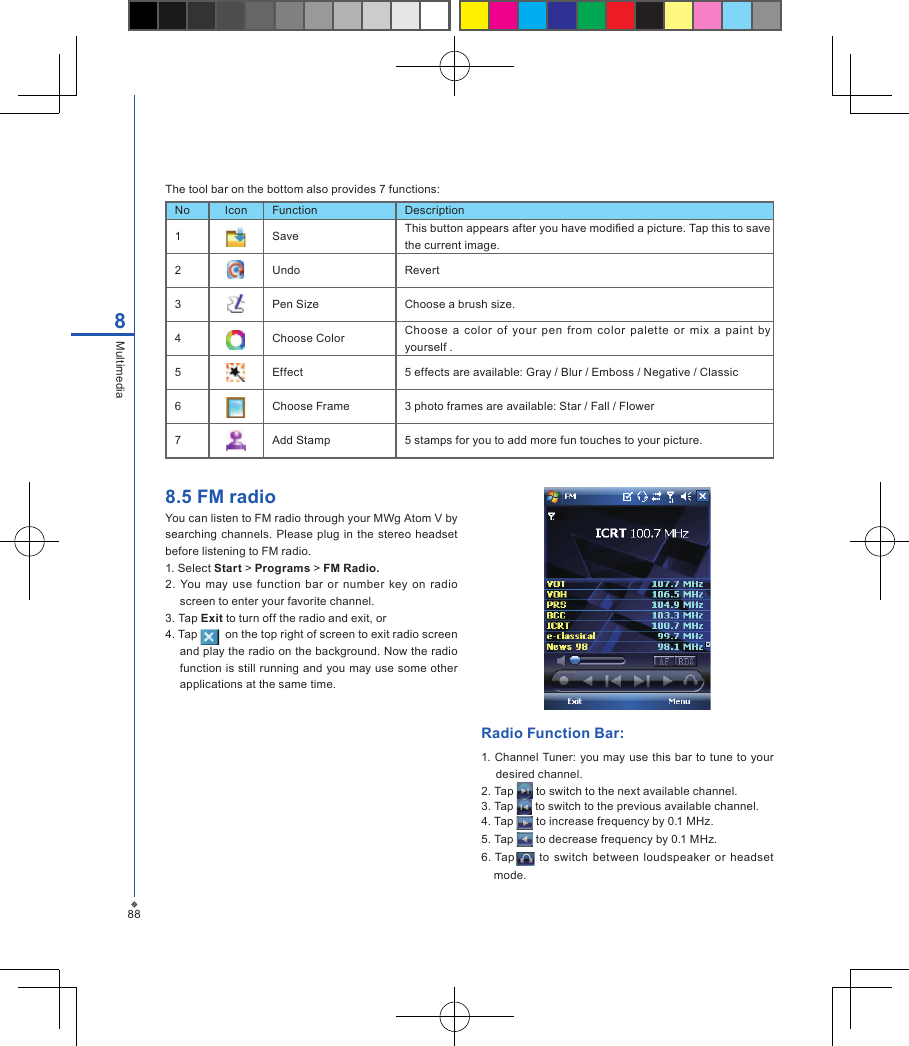
888Multimedia8.5 FM radio You can listen to FM radio through your MWg Atom V by searching  channels. Please plug in the  stereo  headset before listening to FM radio.1. Select Start > Programs > FM Radio.2.  You  may  use function  bar  or  number  key  on  radio screen to enter your favorite channel.3. Tap Exit to turn off the radio and exit, or4. Tap    on the top right of screen to exit radio screen and play the radio on the background. Now the radio function is still running and you may use some other applications at the same time.Radio Function Bar: 1. Channel Tuner: you may use this bar to tune to your desired channel.2. Tap   to switch to the next available channel.3. Tap   to switch to the previous available channel.4. Tap   to increase frequency by 0.1 MHz.5. Tap   to decrease frequency by 0.1 MHz.6. Tap   to switch between loudspeaker  or  headset mode.The tool bar on the bottom also provides 7 functions:No Icon Function Description1 Save This button appears after you have modied a picture. Tap this to save the current image.2 Undo Revert3 Pen Size Choose a brush size.4 Choose Color Choose  a  color  of  your  pen  from  color  palette  or  mix  a  paint  by yourself .5 Effect 5 effects are available: Gray / Blur / Emboss / Negative / Classic6 Choose Frame 3 photo frames are available: Star / Fall / Flower7 Add Stamp 5 stamps for you to add more fun touches to your picture.
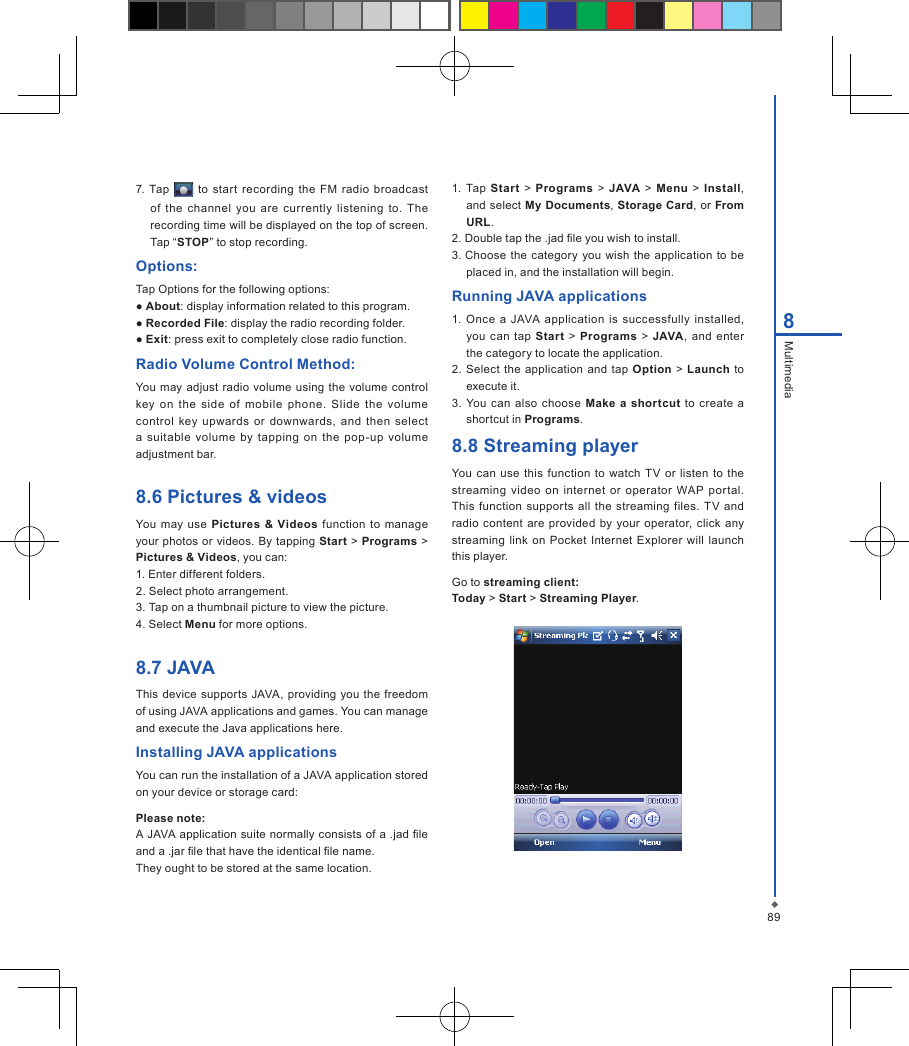
898Multimedia7.  Tap   to  start  recording  the  FM  radio  broadcast of  the  channel  you  are  currently  listening  to.  The recording time will be displayed on the top of screen. Tap “STOP” to stop recording.Options:Tap Options for the following options:● About: display information related to this program.● Recorded File: display the radio recording folder.● Exit: press exit to completely close radio function.Radio Volume Control Method:You may  adjust radio volume  using the  volume  control key  on  the  side  of  mobile  phone.  Slide  the  volume control  key  upwards  or  downwards,  and then  select a  suitable  volume  by  tapping  on  the  pop-up  volume adjustment bar.8.6 Pictures & videosYou  may  use Pictures & Videos  function to  manage your  photos or  videos. By tapping Start >  Programs > Pictures & Videos, you can:1. Enter different folders.2. Select photo arrangement.3. Tap on a thumbnail picture to view the picture.4. Select Menu for more options.8.7 JAVAThis device supports JAVA, providing you the freedom of using JAVA applications and games. You can manage and execute the Java applications here.Installing JAVA applicationsYou can run the installation of a JAVA application stored on your device or storage card:Please note:A JAVA application suite normally consists of a .jad le and a .jar le that have the identical le name.They ought to be stored at the same location.1.  Tap  Start >  Programs  >  JAVA  >  Menu  >  Install, and select My Documents,  Storage Card, or From URL.2. Double tap the .jad le you wish to install.3. Choose  the  category  you wish  the application to be placed in, and the installation will begin.Running JAVA applications1.  Once  a JAVA application  is  successfully  installed, you  can  tap Start  >  Programs >  JAVA,  and  enter the category to locate the application.2.  Select  the  application  and  tap  Option > Launch to execute it.3. You  can  also  choose  Make  a  shortcut  to create  a shortcut in Programs.8.8 Streaming playerYou can  use  this  function to  watch TV  or listen to  the streaming  video  on internet  or  operator  WAP  portal. This function supports  all  the streaming files.  TV and radio  content are provided by  your operator,  click any streaming link on  Pocket Internet  Explorer  will launch this player.Go to streaming client:Today > Start > Streaming Player.
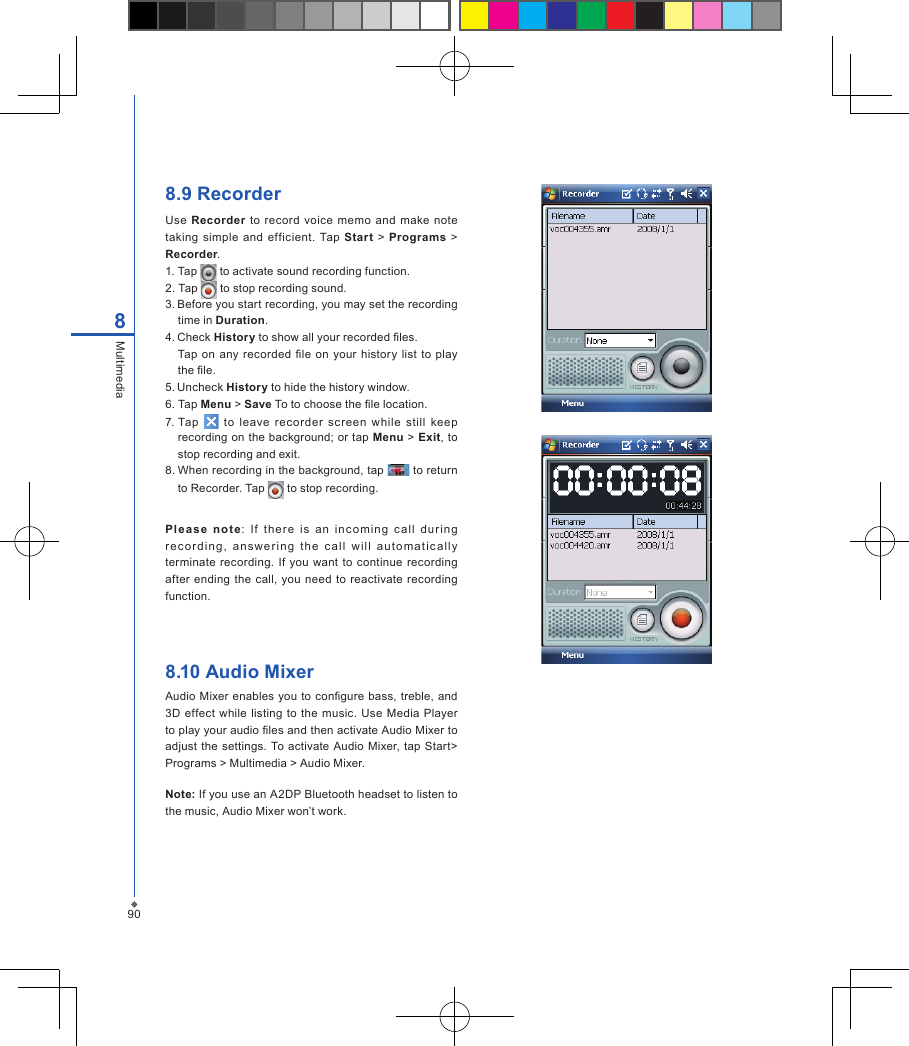
908Multimedia8.9 RecorderUse Recorder  to  record  voice  memo and  make note taking  simple  and  efficient.  Tap Star t  >  Programs  > Recorder.1. Tap   to activate sound recording function.2. Tap   to stop recording sound.3. Before you start recording, you may set the recording time in Duration.4. Check History to show all your recorded les.Tap on  any  recorded  le  on  your history list  to  play the le.5. Uncheck History to hide the history window.6.  Tap Menu > Save To to choose the le location.7. Tap    to  leave  rec order  screen  while  still  keep recording on the background; or tap Menu > Exit, to stop recording and exit.8. When recording in the background, tap   to return to Recorder. Tap   to stop recording.Pl ease  n o te:  I f  t her e  i s  an  inc o ming  c all  d uri ng rec o r din g ,  an s we r i ng  t h e  call  will  aut o mat i c all y terminate  recording.  If  you  want to  continue recording after  ending the call, you need  to reactivate  recording function. 8.10 Audio MixerAudio Mixer enables you to congure  bass,  treble, and 3D effect while  listing  to  the music.  Use  Media Player to play your audio les and then activate Audio Mixer to adjust the  settings.  To activate Audio Mixer, tap  Start> Programs > Multimedia > Audio Mixer.Note: If you use an A2DP Bluetooth headset to listen to the music, Audio Mixer won’t work.

Navigation menu