GIGA BYTE Communications 9QDENIM000 PDA Phone User Manual 20070711UMforPV indd

GIGA-BYTE Communications Inc. PDA Phone 20070711UMforPV indd

users manual 2

Chapter 8 Multimedia8.1 Camera8.2 Video recorder8.3 Photo editor8.4 FM radio8.5 Pictures & videos8.6 JAVA8.7 Streaming player8.8 Recorder
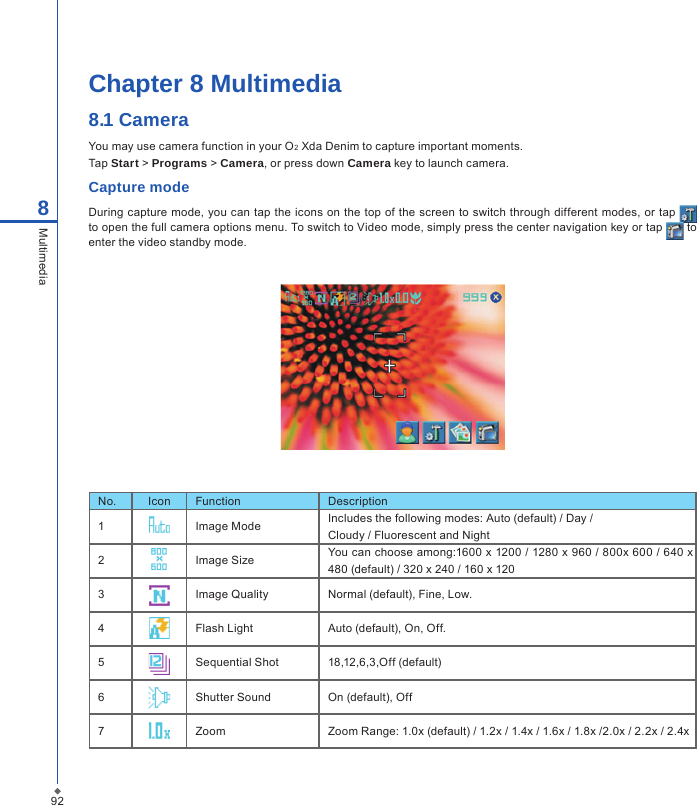
92Chapter 8 Multimedia8.1 CameraYou may use camera function in your O2 Xda Denim to capture important moments.Tap Start > Programs > Camera, or press down Camera key to launch camera.Capture modeDuring capture mode, you can tap the icons on the  top  of the screen to switch  through different modes, or  tap   to open the full camera options menu. To switch to Video mode, simply press the center navigation key or tap   to enter the video standby mode. No. Icon Function Description1Image Mode Includes the following modes: Auto (default) / Day /Cloudy / Fluorescent and Night2Image Size You can choose among:1600 x 1200 / 1280 x 960 / 800x 600 / 640 x 480 (default) / 320 x 240 / 160 x 1203Image Quality Normal (default), Fine, Low.4Flash Light Auto (default), On, Off.5Sequential Shot 18,12,6,3,Off (default)6Shutter Sound On (default), Off7Zoom Zoom Range: 1.0x (default) / 1.2x / 1.4x / 1.6x / 1.8x /2.0x / 2.2x / 2.4x8Multimedia
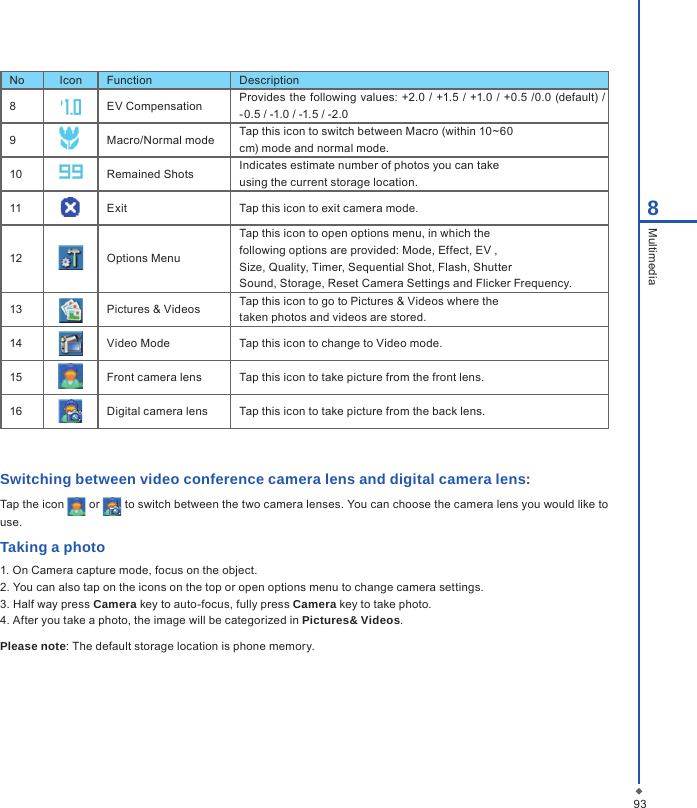
938MultimediaNo Icon Function Description8EV Compensation Provides the following values: +2.0 / +1.5 / +1.0 / +0.5  /0.0 (default) / -0.5 / -1.0 / -1.5 / -2.09Macro/Normal mode Tap this icon to switch between Macro (within 10~60cm) mode and normal mode.10 Remained Shots Indicates estimate number of photos you can takeusing the current storage location.11 Exit Tap this icon to exit camera mode.12 Options MenuTap this icon to open options menu, in which thefollowing options are provided: Mode, Effect, EV ,Size, Quality, Timer, Sequential Shot, Flash, ShutterSound, Storage, Reset Camera Settings and Flicker Frequency.13 Pictures & Videos Tap this icon to go to Pictures & Videos where thetaken photos and videos are stored.14 Video Mode Tap this icon to change to Video mode.15 Front camera lens Tap this icon to take picture from the front lens.16 Digital camera lens Tap this icon to take picture from the back lens.Switching between video conference camera lens and digital camera lens:Tap the icon   or   to switch between the two camera lenses. You can choose the camera lens you would like to use.Taking a photo1. On Camera capture mode, focus on the object.2. You can also tap on the icons on the top or open options menu to change camera settings.3. Half way press Camera key to auto-focus, fully press Camera key to take photo.4. After you take a photo, the image will be categorized in Pictures& Videos.Please note: The default storage location is phone memory.
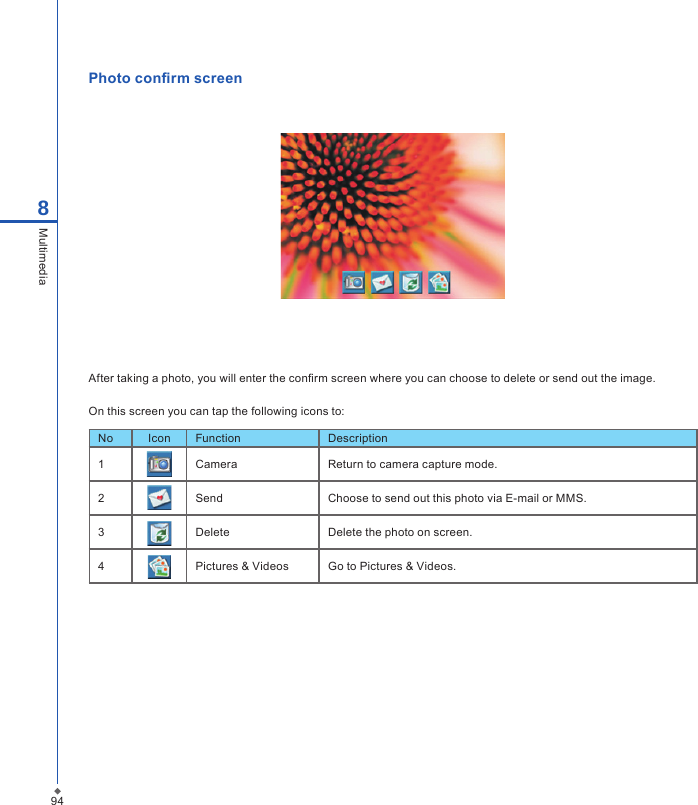
94Photo con rm screenAfter taking a photo, you will enter the con rm screen where you can choose to delete or send out the image.On this screen you can tap the following icons to:No Icon Function Description1Camera Return to camera capture mode.2Send Choose to send out this photo via E-mail or MMS.3Delete Delete the photo on screen.4Pictures & Videos Go to Pictures & Videos.8Multimedia
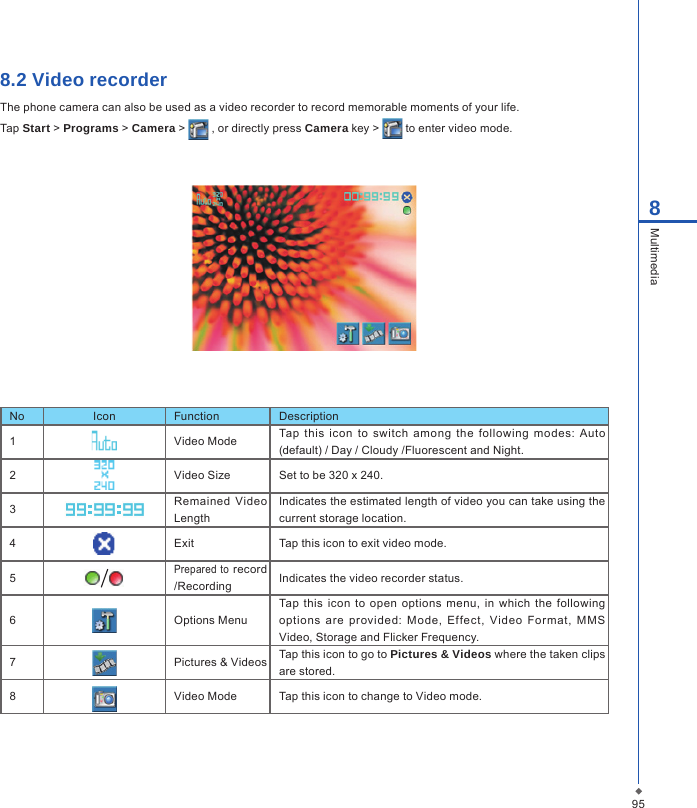
958Multimedia8.2 Video recorderThe phone camera can also be used as a video recorder to record memorable moments of your life.Tap Start > Programs > Camera >   , or directly press Camera key >   to enter video mode.No Icon Function Description1Video Mode Tap  this  icon  to  switch  among  the  following  modes:  Auto (default) / Day / Cloudy /Fluorescent and Night.2Video Size Set to be 320 x 240.3Remained  Video LengthIndicates the estimated length of video you can take using the current storage location.4Exit Tap this icon to exit video mode.5Prepared  to record /Recording Indicates the video recorder status.6Options MenuTap  this  icon to  open  options menu,  in  which the following options  are  provided:  Mode,  Effect,  Video  Format,  M MS Video, Storage and Flicker Frequency.7Pictures & Videos Tap this icon to go to Pictures & Videos where the taken clips are stored.8Video Mode Tap this icon to change to Video mode.
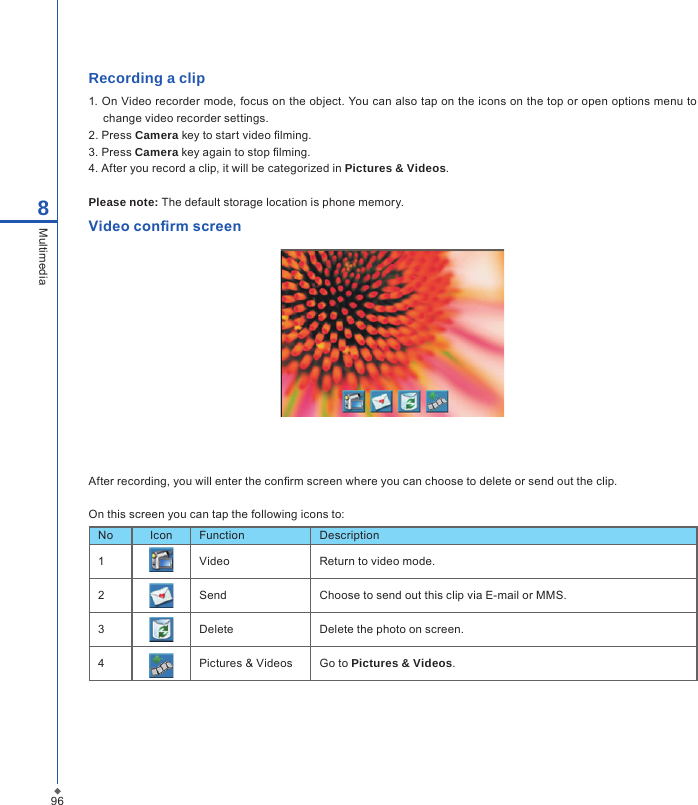
96Recording a clip1. On Video recorder mode, focus on the object. You can also tap on the icons on the top or open options menu to change video recorder settings.2. Press Camera key to start video  lming.3. Press Camera key again to stop  lming.4. After you record a clip, it will be categorized in Pictures & Videos.Please note: The default storage location is phone memory.Video con rm screenAfter recording, you will enter the con rm screen where you can choose to delete or send out the clip.On this screen you can tap the following icons to:No Icon Function Description1Video Return to video mode.2Send Choose to send out this clip via E-mail or MMS.3Delete Delete the photo on screen.4Pictures & Videos Go to Pictures & Videos.8Multimedia
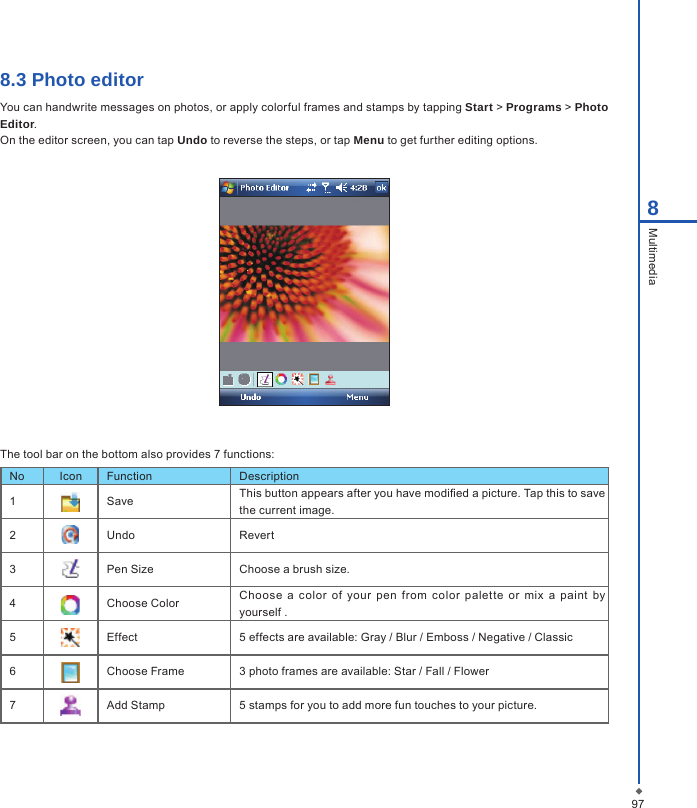
978Multimedia8.3 Photo editorYou can handwrite messages on photos, or apply colorful frames and stamps by tapping Start > Programs > Photo Editor.On the editor screen, you can tap Undo to reverse the steps, or tap Menu to get further editing options.The tool bar on the bottom also provides 7 functions:No Icon Function Description1Save This button appears after you have modied a picture. Tap this to save the current image.2Undo Revert3Pen Size Choose a brush size.4Choose Color Choose  a  color  of  your  pen  from  color  palette  or  mix  a  paint  by yourself .5Effect 5 effects are available: Gray / Blur / Emboss / Negative / Classic6Choose Frame 3 photo frames are available: Star / Fall / Flower7Add Stamp 5 stamps for you to add more fun touches to your picture.
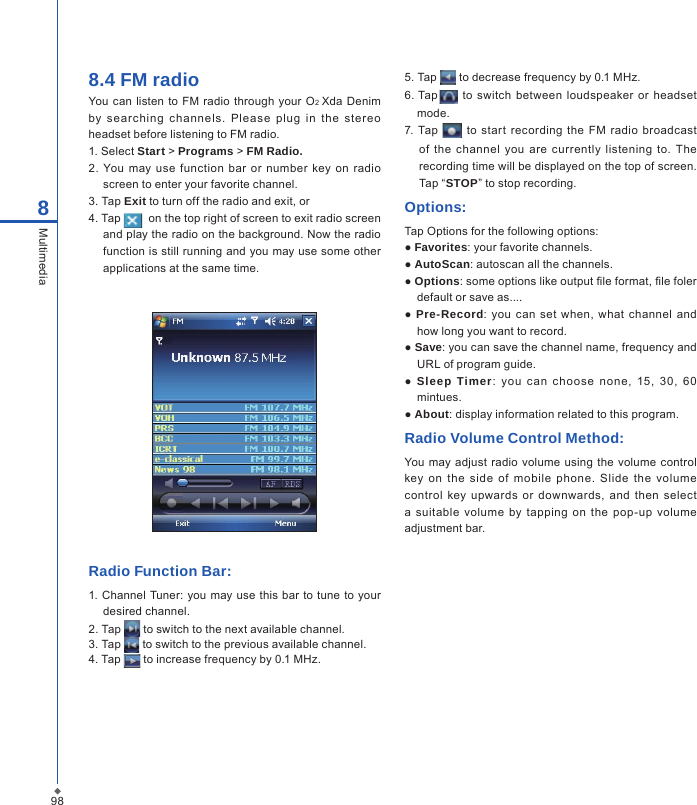
988Multimedia8.4 FM radio You can  listen  to  FM  radio  through  your O2 Xda  Denim by  searchin g  c hannels.  Please  plug  in  the  stereo headset before listening to FM radio.1. Select Start > Programs > FM Radio.2.  You may  use function  bar or number  key  on  radio screen to enter your favorite channel.3. Tap Exit to turn off the radio and exit, or4. Tap    on the top right of screen to exit radio screen and play the radio on the background. Now the radio function is still running and you may use some other applications at the same time.Radio Function Bar: 1. Channel  Tuner:  you  may use  this bar to  tune to your desired channel.2. Tap   to switch to the next available channel.3. Tap   to switch to the previous available channel.4. Tap   to increase frequency by 0.1 MHz.5. Tap   to decrease frequency by 0.1 MHz.6. Tap   to switch between  loudspeaker  or  headset mode.7. Tap   to start  recording  the  FM  radio  broadcast of  the  channel  you  are currently  listening  to.  The recording time will be displayed on the top of screen. Tap “STOP” to stop recording.Options:Tap Options for the following options:● Favorites: your favorite channels.● AutoScan: autoscan all the channels.● Options: some options like output le format, le foler default or save as.... ●  Pre-Record: you  can  set  when,  what  channel  and how long you want to record.● Save: you can save the channel name, frequency and URL of program guide.●  Sleep Timer:  you  can  choose  none,  15,  3 0,  6 0 mintues.● About: display information related to this program.Radio Volume Control Method:You may adjust  radio volume using  the volume control key  on  the  side  of  mobile  phone.  Slide  the  volume control key  upwards or  downwards,  and  then  select a  suitable  volume  by tapping  on  the  pop-up volume adjustment bar.
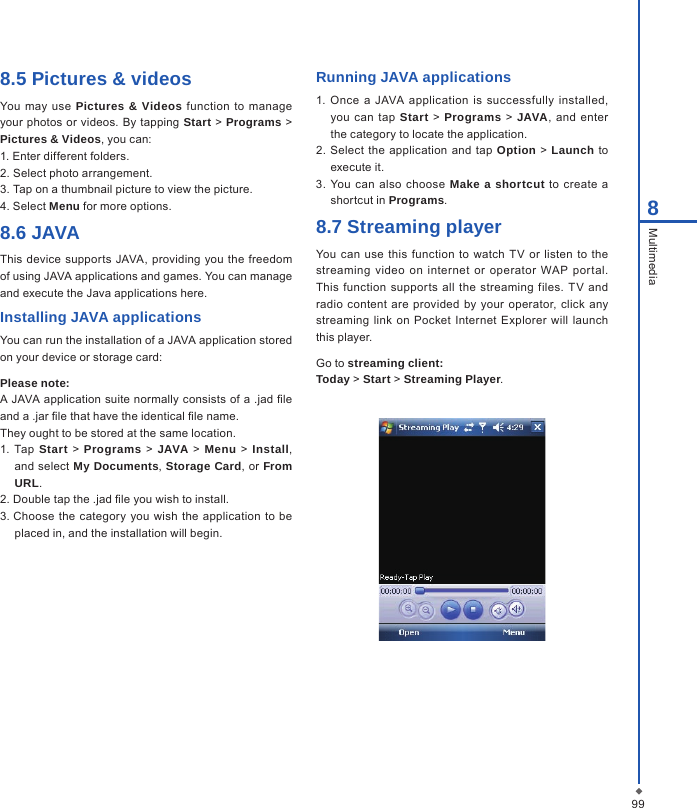
998Multimedia8.5 Pictures & videosYou  may  use  Pictures & Videos  function to  manage your  photos or videos.  By tapping  Start >  Programs > Pictures & Videos, you can:1. Enter different folders.2. Select photo arrangement.3. Tap on a thumbnail picture to view the picture.4. Select Menu for more options.8.6 JAVAThis device supports JAVA, providing you the freedom of using JAVA applications and games. You can manage and execute the Java applications here.Installing JAVA applicationsYou can run the installation of a JAVA application stored on your device or storage card:Please note:A JAVA application suite normally consists of a .jad le and a .jar le that have the identical le name.They ought to be stored at the same location.1.  Tap Start  >  Programs  > JAVA  >  Menu >  Install, and select My Documents, Storage Card, or From URL.2. Double tap the .jad le you wish to install.3. Choose the  category you  wish  the application to be placed in, and the installation will begin.Running JAVA applications1.  Once  a  JAVA  application  is  successfully installed, you  can tap  Start > Programs  >  JAVA, and enter the category to locate the application.2.  Select the  application and  tap  Option  >  Launch to execute it.3. You  can also choose Make a shortcut to  create a shortcut in Programs.8.7 Streaming playerYou can use this function  to watch  TV or  listen  to the streaming  video on internet  or  operator WAP  portal. This function  supports all  the  streaming files.  TV and radio content are provided by  your  operator, click  any streaming  link on  Pocket  Internet Explorer  will launch this player.Go to streaming client:Today > Start > Streaming Player.
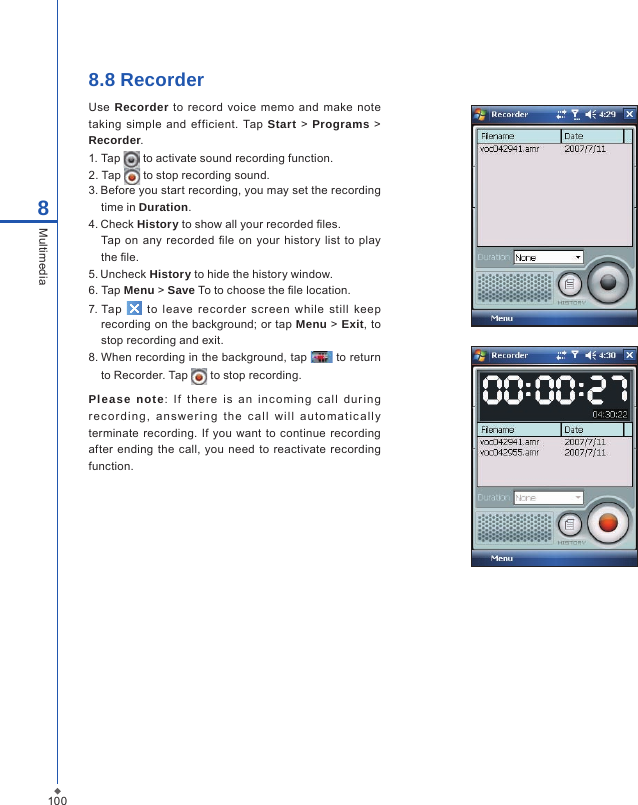
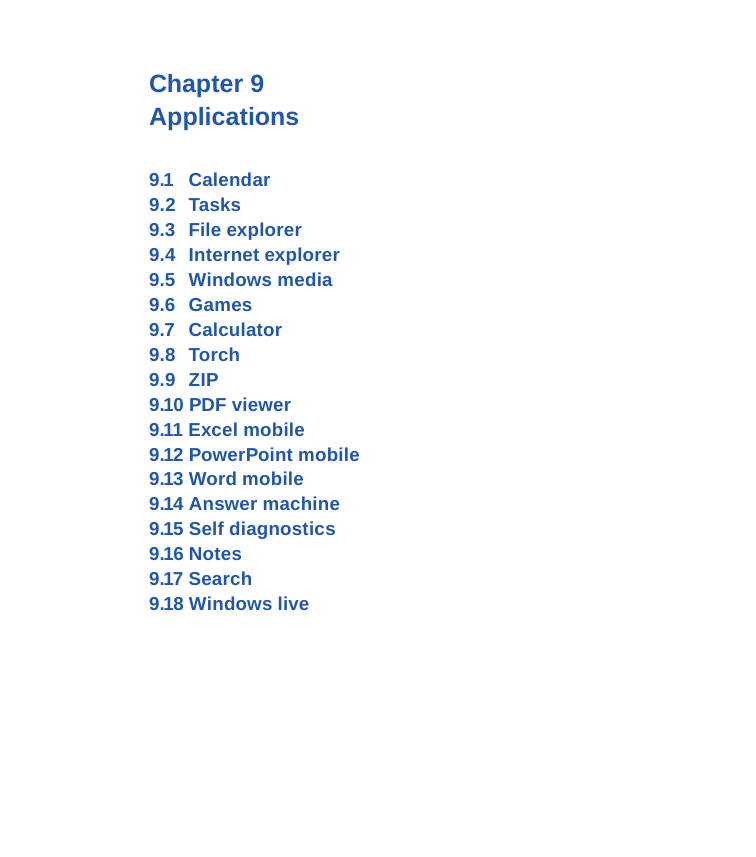
1008Multimedia8.8 RecorderUse  Recorder to record voice  memo and  make  note taking  simple  and efficient.  Tap Start > Programs  > Recorder.1. Tap   to activate sound recording function.2. Tap   to stop recording sound.3. Before you start recording, you may set the recording time in Duration.4. Check History to show all your recorded les.Tap on  any recorded  le  on your  history list to  play the le.5. Uncheck History to hide the history window.6.  Tap Menu > Save To to choose the le location.7. Tap    to  leave  recorder  screen  while  still  keep recording on the background; or tap Menu > Exit, to stop recording and exit.8. When recording in the background, tap   to return to Recorder. Tap   to stop recording.Please  note:  If  t he re  is  a n  in c om ing  c a ll  d ur i ng re c o r di n g,  a ns w er in g  t h e  c a l l  w i ll  aut o mat i c all y terminate  recording. If you want to continue recording after ending  the call, you  need to reactivate  recording function.
Chapter 9 Applications9.1  Calendar9.2  Tasks9.3  File explorer9.4  Internet explorer9.5  Windows media9.6  Games9.7  Calculator9.8  Torch9.9  ZIP9.10 PDF viewer9.11 Excel mobile9.12 PowerPoint mobile9.13 Word mobile 9.14 Answer machine9.15 Self diagnostics9.16 Notes9.17 Search9.18 Windows live
102Chapter 9 Applications9.1 CalendarAppointments and meetingsYou may use  Calendar to arrange appointments, meetings, and other  events. You may view your appointments in different display modes.  You may select  preferred display mode by  tapping  on the bottom left of  screen  to  switch between day, week, month, and year.1. Tap Start > Calendar, Select a date to go to the desired date.2. Select an appointment on the list to view or edit appointment details.3.  Tap  on Day (or  Week,  Month,  Year and Agenda)  on the bottom  left of  the  screen  to switch between  display modes.4. Tap on the keypad icon to activate or hide screen keypad.5. Tap Menu on the bottom right of the screen to open menu.6. Tap Options in Menu, you may change the display setup of Calendar by preference. Creating an appointment1. Tap Start > Calendar. Select the date and time of appointment.2. Highlight the desired date and time, and then tap Menu > New Appointment.3. Tap OK to save the entry and return to calendar.4. Tap Subject to edit the eld or select predened text.5. Tap Location to edit the eld.6. Tap Start to select the start time.7. Tap Ends to change the end time.8. You can add your personal notes in Notes tab.9. Tap OK to save the appointment and return to Calendar screen.If  you select  Remind Me in Reminder  eld, then your O2  Xda Denim will  remind you  according to  the settings in Start > Settings > Personal tab > Sounds & Notifications.Viewing and updating calendarSelect  an  appointment on  Calendar  to  view  appointment summary.  If you  want  to  change the  details  of  an appointment, tap Edit.Sending a meeting noticeYou may  use Calendar  to  set meeting  notice  by  combining  with  the information on  Outlook  or Pocket Outlook. When you synchronize messages or  connect your  O2  Xda  Denim  with  e-mail server,  meeting reminders will be generated automatically. Tap Calendar > Menu > Tools > Appointments tab, and select desired meeting sending method in Send meeting requests via eld.9Applications
1039ApplicationsGenerating a meeting notice1. Tap Start > Calendar > Menu > New Appointment.2. Tap  Attendees field,  and  then  tap  Add Required Attendee  and/or  Add Optional Attendee. You will  enter Contacts.3. Select attendees from the e-mail addresses of your contacts.4. The new meeting notice will be generated automatically and saved in Outbox folder.9.2 TasksYou may use Tasks to help you track unnished tasks.1. To add a new task, tap Tap here to add a new task.2. ” ! ” Represent rst priority.3. Select a single item to enter the details screen of this time.4. Select a single item and hold to activate the pop-up menu.5. You may change the arrangement of the tasks list. On Tasks screen, tap Menu > Sort By.6. You may choose to display a specic task category on your tasks list. Tap Menu > Filter.Adding a new task1. On Tasks screen, tap Tap here to add a new task to add the new text’s subject. The newly created task will show on Tasks list.2. Tap on the new task to enter the detail information screen of task.3. Tap Edit to enter the editing screen.4. Select Starts and Due eld to set the rst and the last day of the task.4. You may select Occurs to select whether this task has periodicity.5. You may select Reminder to set a time to remind you or select None (unnecessary to alert).6. To appoint a task as certain category, tap on Categories eld to select a category from the options list.7. To add notes, tap Note tab and input desired content here.8. Tap OK to save the task and return to tasks screen.Checking and updating tasksYou may select a task from tasks list to view task summary. To change the details of this task, select Edit.
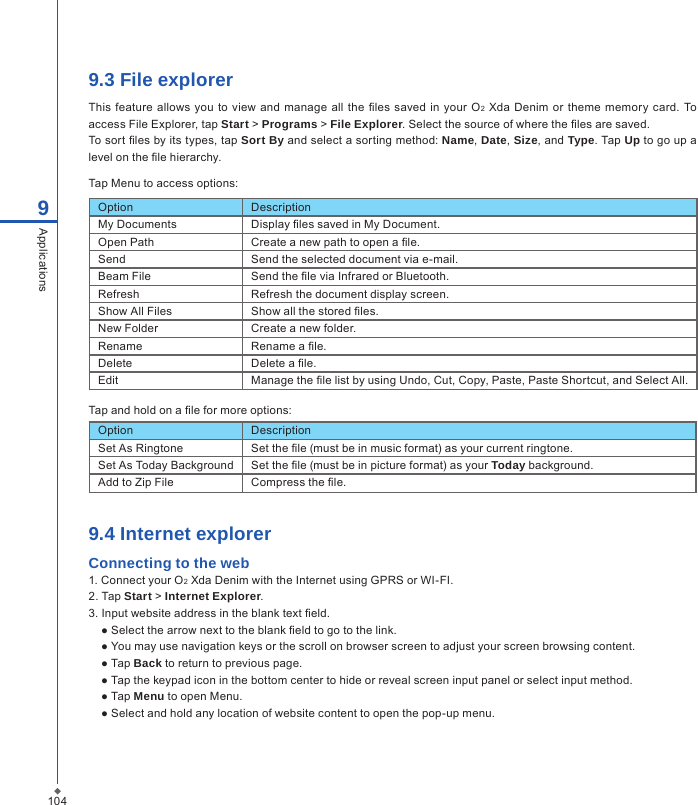
1049.3 File explorerThis  feature  allows you to view  and manage all  the les saved in your O2  Xda Denim or theme  memory card.  To access File Explorer, tap Start > Programs > File Explorer. Select the source of where the les are saved.To sort les by its types, tap Sort By and select a sorting method: Name, Date, Size, and Type. Tap Up to go up a level on the le hierarchy.Tap Menu to access options:9ApplicationsOption DescriptionMy Documents Display les saved in My Document.Open Path Create a new path to open a le.Send Send the selected document via e-mail.Beam File Send the le via Infrared or Bluetooth.Refresh Refresh the document display screen.Show All Files Show all the stored les.New Folder Create a new folder.Rename Rename a le.Delete Delete a le.Edit Manage the le list by using Undo, Cut, Copy, Paste, Paste Shortcut, and Select All.Tap and hold on a le for more options:Option DescriptionSet As Ringtone Set the le (must be in music format) as your current ringtone.Set As Today Background Set the le (must be in picture format) as your Today background.Add to Zip File Compress the le.9.4 Internet explorerConnecting to the web1. Connect your O2 Xda Denim with the Internet using GPRS or WI-FI.2. Tap Start > Internet Explorer.3. Input website address in the blank text eld.● Select the arrow next to the blank eld to go to the link.● You may use navigation keys or the scroll on browser screen to adjust your screen browsing content.● Tap Back to return to previous page.● Tap the keypad icon in the bottom center to hide or reveal screen input panel or select input method.● Tap Menu to open Menu.● Select and hold any location of website content to open the pop-up menu.
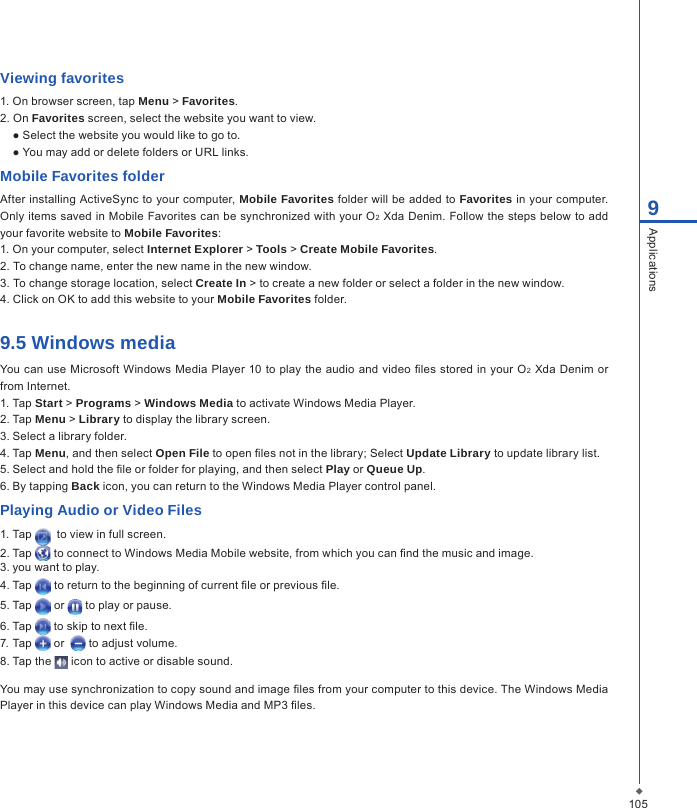
1059ApplicationsViewing favorites1. On browser screen, tap Menu > Favorites.2. On Favorites screen, select the website you want to view.● Select the website you would like to go to.● You may add or delete folders or URL links.Mobile Favorites folderAfter installing ActiveSync to your computer, Mobile Favorites folder will be added to Favorites in your computer. Only items saved in Mobile Favorites can be synchronized with your O2 Xda Denim. Follow the steps below to add your favorite website to Mobile Favorites:1. On your computer, select Internet Explorer > Tools > Create Mobile Favorites.2. To change name, enter the new name in the new window.3. To change storage location, select Create In > to create a new folder or select a folder in the new window.4. Click on OK to add this website to your Mobile Favorites folder.9.5 Windows mediaYou can use Microsoft  Windows Media Player 10 to play the audio and video les stored  in your  O2 Xda  Denim or from Internet.1. Tap Start > Programs > Windows Media to activate Windows Media Player.2. Tap Menu > Library to display the library screen.3. Select a library folder.4. Tap Menu, and then select Open File to open les not in the library; Select Update Library to update library list.5. Select and hold the le or folder for playing, and then select Play or Queue Up.6. By tapping Back icon, you can return to the Windows Media Player control panel.Playing Audio or Video Files1. Tap    to view in full screen.2. Tap   to connect to Windows Media Mobile website, from which you can nd the music and image.3. you want to play.4. Tap   to return to the beginning of current le or previous le.5. Tap   or   to play or pause.6. Tap   to skip to next le.7. Tap   or    to adjust volume.8. Tap the   icon to active or disable sound.You may use synchronization to copy sound and image les from your computer to this device. The Windows Media Player in this device can play Windows Media and MP3 les.
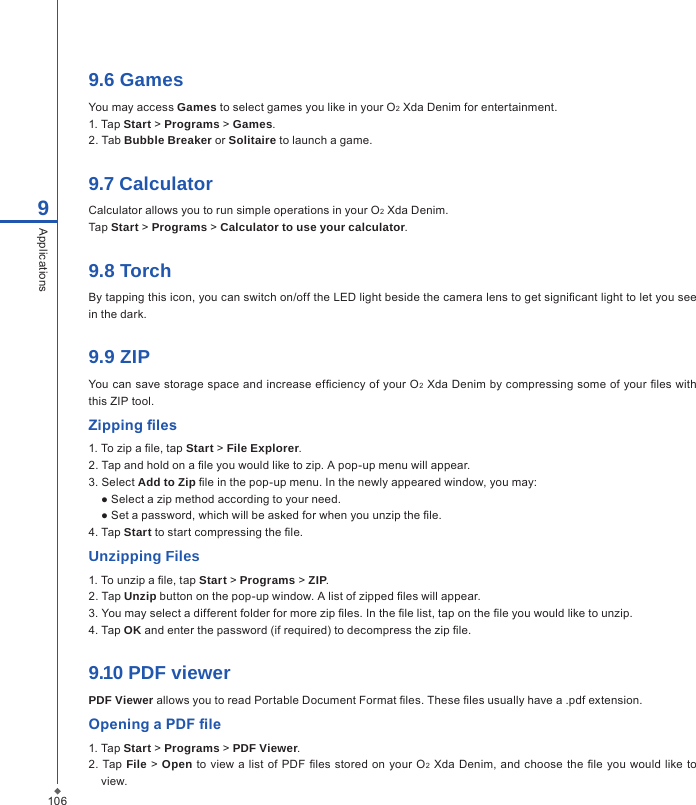
1069Applications9.6 GamesYou may access Games to select games you like in your O2 Xda Denim for entertainment.1. Tap Start > Programs > Games.2. Tab Bubble Breaker or Solitaire to launch a game.9.7 CalculatorCalculator allows you to run simple operations in your O2 Xda Denim. Tap Start > Programs > Calculator to use your calculator.9.8 TorchBy tapping this icon, you can switch on/off the LED light beside the camera lens to get signicant light to let you see in the dark. 9.9 ZIPYou can save storage space and increase efciency of your O2 Xda Denim by compressing some of your les with this ZIP tool.Zipping les1. To zip a le, tap Start > File Explorer.2. Tap and hold on a le you would like to zip. A pop-up menu will appear.3. Select Add to Zip le in the pop-up menu. In the newly appeared window, you may:● Select a zip method according to your need.● Set a password, which will be asked for when you unzip the le.4. Tap Start to start compressing the le.Unzipping Files1. To unzip a le, tap Start > Programs > ZIP.2. Tap Unzip button on the pop-up window. A list of zipped les will appear.3. You may select a different folder for more zip les. In the le list, tap on the le you would like to unzip.4. Tap OK and enter the password (if required) to decompress the zip le.9.10 PDF viewerPDF Viewer allows you to read Portable Document Format les. These les usually have a .pdf extension.Opening a PDF le1. Tap Start > Programs > PDF Viewer.2.  Tap File >  Open to  view a  list of PDF les  stored on your O2 Xda Denim,  and choose the le you would  like  to view.
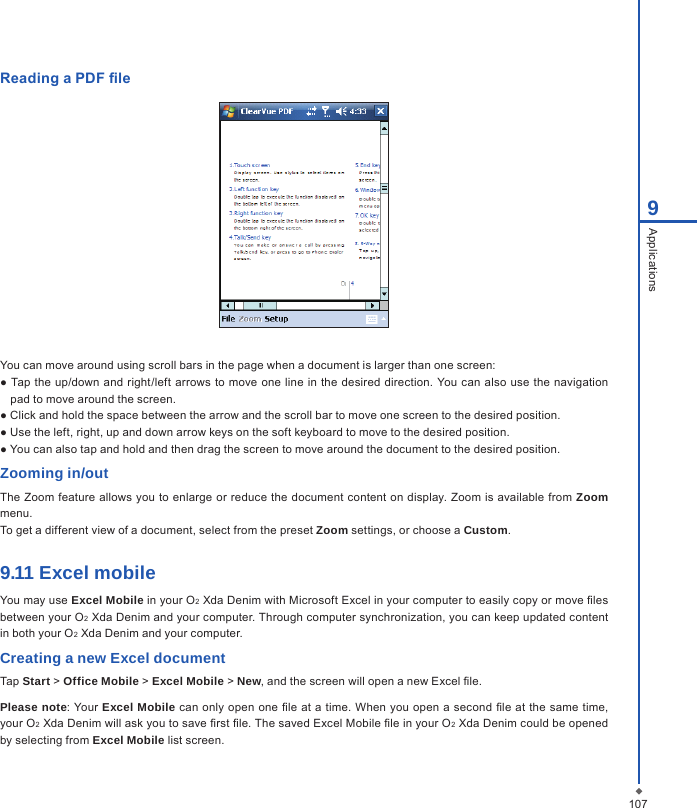
1079ApplicationsReading a PDF  leYou can move around using scroll bars in the page when a document is larger than one screen:● Tap the up/down  and right/left arrows to move one line in the desired direction. You can also use  the navigation pad to move around the screen.● Click and hold the space between the arrow and the scroll bar to move one screen to the desired position.● Use the left, right, up and down arrow keys on the soft keyboard to move to the desired position.● You can also tap and hold and then drag the screen to move around the document to the desired position.Zooming in/outThe  Zoom feature allows you to enlarge or reduce  the document content on  display. Zoom is available from Zoom menu.To get a different view of a document, select from the preset Zoom settings, or choose a Custom.9.11 Excel mobileYou may use Excel Mobile in your O2 Xda Denim with Microsoft Excel in your computer to easily copy or move  les between your O2 Xda Denim and your computer. Through computer synchronization, you can keep updated content in both your O2 Xda Denim and your computer.Creating a new Excel documentTap Start > Office Mobile > Excel Mobile > New, and the screen will open a new Excel  le.Please note: Your Excel Mobile  can only open one  le at a time. When you open a second  le at the same time, your O2 Xda Denim will ask you to save  rst  le. The saved Excel Mobile  le in your O2 Xda Denim could be opened by selecting from Excel Mobile list screen.
1089ApplicationsDeleting / copying or sending a documentTo delete, copy or send a le, tap and hold the desired le name to open pop-up menu. Your Excel Mobile provides basic worksheet tools, for example, formula, function, sorting and ltering. To show toolbar, tap View > Toolbar.Synchronizing with Excel les on you PCExcel Mobile workbooks can be synchronized with Excel  workbooks on your PC. To synchronize les, select  the Files type for synchronization in ActiveSync Options settings on your PC. When you select Files, a \My Documents folder  is  created on your PC’s desktop. Place  all the les you want to synchronize with your  O2 Xda  Denim  in  this folder. Password-protected  les cannot be  synchronized. All  Excel  Mobile les that are stored  in  \My Documents and its subfolders  are synchronized with the PC. ActiveSync converts  documents  during  synchronization. When you  delete a  le on your  PC  or your O2  Xda Denim, the  le will be  deleted  in  the other location  the next  time  you synchronize. For more information on synchronization or le conversion, see ActiveSync Help on the PC.Workbook conversionExcel  les (.xls) and  templates  (.xlt), created in  Excel version 5.0/95  or  later on the PC, will be converted to  Excel Mobile workbook (.pxl) or template (.pxt) les. The conversion takes place during the following actions:● During le synchronization.● When you copy an Excel le to your device from the PC.● When you open an e-mail message with an Excel le as an attachment.Excel Mobile workbooks are converted to Excel workbooks when they are synchronized or copied back to the PC.Tips:When working with Excel Mobile, the following tips will help simplify your tasks:1. Tap View > Full Screen to view in full screen. To exit full screen view, tap View > Full Screen to return to general view.2. You can freeze panes: select a cell, then tap View > Freeze Panes. You may freeze the top and most left window cell on worksheet. Once you freeze the panes, you can see the frozen window cell no matter where the screen is scrolled.3. You can split the worksheet to view different areas of this worksheet on the same screen. Tap View > Split, and then drag the split line to the desired location. To remove the split, select View > Remove Split.4. Display or hide full horizontal and vertical lines. To hide a row or a column, select any cell on the row or column you wish to hide, then tap Menu > Format > Row or Column > Hide. To unhide a column or row, Menu > Format > Row or Column > and select Unhide.Please note: When you are synchronizing or copying les from your O2 Xda Denim to PC, Excel Mobile les will be transformed into Excel les. While most  of  the settings will be  kept during this  transformation, some of the format and properties may be lost.
1099Applications9.12 PowerPoint mobile You may use PowerPoint Mobile in your O2 Xda Denim with Microsoft PowerPoint in your computer to easily copy or  move document between your  O2 Xda Denim and your  computer. Through computer  synchronization, you may keep the les in both your O2 Xda Denim and your computer updated. You may use PowerPoint Mobile to browse or play PowerPoint le.Opening a PowerPoint leTap Start > Office Mobile > PowerPoint Mobile, the screen will show your PowerPoint les list, from which select the le you want to open.1. Select the folder type displayed in the list.2. Select Name (or Date, Size, Type) to change the arrangement of list.3. Select the document to open.4. Select and hold a document to activate pop-up menu.5. Tap Open to open a le.6. Select the keypad icon to hide or reveal screen input panel and select input method.7. Tap Menu for options.Overriding the playback options in a PowerPoint presentation1. Tap Start > Office Mobile > PowerPoint Mobile.2. Open the presentation le you want to view, tap ▲ > Show Options.3. Tap playback tab, select the Override playback options for all les, and do any of the following:● To turn off builds and other animations, select Show without animation.● To prevent slide transitions from playing, select Show without slide transition.● To use the timings recorded with each slide in a presentation, select Use timings, if present.● To automatically advance to the rst slide after the last slide in a presentation, select Loop continuously.4. Tap OK.Zooming in / outZoom in to see a portion of a slide in more detail and zoom out to see the entire slide again.1. In a PowerPoint Mobile presentation, tap▲ arrow > Zoom In.2. Do one of the following:● To zoom in another level, tap   .● To zoom out, tap   .● To return to the slide show, tap   .
9.13 Word mobileYou may use Word Mobile  in your O2 Xda Denim with Microsoft Word in your computer to easily copy and move document between  the  phone  and your computer.  Through computer synchronization, you  may  keep  updated contents in  both your  O2 Xda  Denim  and your computer. You  may use Word Mobile  to generate  documents like letters, meeting minutes and reports.Generating a new word documentTap Start > Office Mobile > Word Mobile > New, a new blank document will appear on screen. You may also select default settings from Menu > Options.Please note: Your Word Mobile can only open one document at a time. When you open a second document at the same time, your O2 Xda Denim will ask you to save the rst document rst. When creating a new document or editing an old document, you may choose to save in the following format:Word le, RTF le and text-only le.The  saved Word Mobile le in your O2 Xda Denim could be opened by selecting from Word Mobile list screen. To delete, copy, or send a le, select and hold desired le names to open pop-up menu. After opening a Word Mobile le, you may tap View to set Toolbar, Wrap to Window, and Zoom.1. Select a folder category shown on list display eld.2. Tap Name (or Date, Size, Type) to change the arrangement of list.3. Tap on a le to open it.4. Tap and hold a le to open pop-up menu.5. Tap New to create a new document.6. Tap the keypad icon to show or hide screen input panel and select input method.7. Tap Menu to open menu for more options.Synchronizing with Word les on you PCWord Mobile documents can be synchronized with Word documents on your PC. To synchronize les, select  the Files type for synchronization in ActiveSync Options settings on your PC. When you select Files, a \My Documents folder  is  created on your PC’s desktop. Place  all the les you want to synchronize with your  O2 Xda  Denim  in  this folder. Please note  that password protected les  cannot be synchronized. All Word Mobile  les  that are stored in \My Documents and  its subfolders are synchronized  with the  PC. ActiveSync  will convert  the documents during synchronization. When you delete a le on your PC or your O2 Xda Denim, the le will be deleted in the other location the next time you synchronize. For more information on synchronization, or le conversion, see ActiveSync Help on the PC.Document ConversionThe Word documents (.doc)  and templates (.dot),  created in Word 6.0 or later  on the  PC,  are converted  to Word Mobile documents (.psw) and templates (.psw). The conversion takes place during the following actions:● During le synchronization.● When you copy a Word le from the PC to your O2 Xda Denim.● When you open an e-mail message with an attached Word le on your O2 Xda Denim.1109Applications
Please note: When you are synchronizing or copying les from your O2 Xda Denim to PC, Word Mobile les will be transformed into Word les. While most of the text and paragraphing will be kept during this transformation, some of the format and properties may be lost.9.14 Answer machineThis function is different from voice mail, you may use answer machine in your O2 Xda Denim to directly save caller’s message to it, which allows you to listen to message more easily and also save call expenses.Tap Start > Programs > Answer Machine.1. Check Enable Answer Machine to activate answer machine function.2. Tap Save In to select a storage location for messages.3. Select Recording Time to set the time length for a caller message.4. Select Activate Time to set how many seconds that your answer machine will wait before answering an incoming call.5. Select Greeting Setup to set up answer machine greeting.6. Tap OK to save setup and return to System tab screen.You will nd callers’ messages in My Greeting folder.Greeting SetupTap Greeting Setup to set default answer  machine greeting or record your  own greeting. Tap on the le name to listen to the current greeting. To record a new greeting.1. Tap User Define under Greeting Setup column.2. User can type in the le name preferred or use the default one.3. Tap the record button to record your own greeting.4. Tap the play button to listen to greeting recorded.5. Tap OK to validate the settings and exit.Please note:1. Your  answer  machine will stop recording  when caller ends the  call. After  activating answer machine,  you  may press Stop to stop recording without interrupting the conversation.2. When Caller 1 is leaving a message, the incoming call from Caller 2 will become call waiting. You may select to answer or reject call waiting. If you select to answer call waiting, the message of Caller 1 will stop; if you select to reject call waiting, the call waiting from Caller 2 will continue to ring until Caller 2 enters voice mail.3. If you have checked Auto Answer in Phone, Answer Machine will automatically be deactivated.1119Applications
1129Applications9.15 Self diagnosticsThis function can help you check if specic functions in your O2 Xda Denim are normal.Opening Self Diagnostics:Tap Today > Start > Programs > Self Diagnostics.When you get into the Self Diagnostics, you’ll see:i.    LEDii.   vibratoriii.  Backlightiv.  SD cardv.   USB/AC chargingvi.  Keypadvii    Screenviii.  TouchPanelix.    Speakx.     Earphonexi.    Microphonexii.   Camera Previewxiii.  Camera Flashxiv.  FM   xv.   WiFi     xvi.  Bluetooth   xvii. Radio Module                 You can choose which function you want to test. The screen will  display information on  whether the  function you tested is performing normally.9.16 NotesYou  may use text notes or voice notes to  record information. You  may also record  voice  in  Notes. If  a  note  le contains voice notes in addition to text, a small icon representing voice notes will appear in the content area of the note. If notes recording is done under the notes le list, then the recording content will be saved as a single le. You can also share your notes with others through e-mail and PC synchronization.
1139ApplicationsCreating a new noteTap Menu > View Recording Toolbar to show or hide recording tool bar. To add a new note:1. On Notes screen, tap New.2. You may generate notes by writing, drawing, text entry and recording.  ● Tap the keypad icon to hide or display screen input panel.  ● Tap ▲ next to the keypad icon to select input method.  Applications  ● Tap Menu for Options.  ● Tap OK to save the note and return to Notes screen.3. To insert the date in a note, deselect and make sure that no drawings are selected. Next, tap and hold anywhere on the note and tap Insert Date.Sending a note by e-mailIn  Notes,  Word  Mobile,  Excel Mobile, PowerPoint Mobile,  and  Pictures & Videos,  you can  send  files  and information to other devices via e-mail.1. First you must set up Messaging to send and receive messages.2. From the program, select the item you want to send.3. Tap Menu > Send. A new message is created with the item attached.4. Enter the recipient name and subject and tap Send. The message will be sent the next time you synchronize your O2 Xda Denim.Beaming a noteTo beam a note, on the note list, tap and hold the note. On the pop-up menu, tap Beam File.9.17 SearchThis feature allows you to search a le easily.Finding a le1. Tap Start > Programs > Search.2. Enter the le name on Search for eld and select a le type in Type eld.3. Tap Search to start searching and the result will be displayed in Results eld.9.18 Windows liveGo to Windows Live:Today > Start > Programs > Windows LiveWindows Live provides a rich set of Windows Live services including e-mail, IM, search and more.1. Windows Live Messenger: Send IMs or join group chats to stay connected. • Set status (online, ofine and mobile) and see the presence of friends and colleagues. • Send messages via voice as well as text. • Use emoticons to express exactly how you feel.
1149Applications2. Windows Live Mail: Powerful, free e-mail with security features.• Get up-to-date access to Hotmail or Windows Live Mail. • View graphics, Web links, and contact photos in e-mails.• Respond to e-mails with voice recordings. • With push e-mail your inbox is always up-to-date.3. Live Search: Quickly search the Web for information, directions, maps and images.• Find local listings for business and entertainment. • Access one-click calling to phone numbers.• Get maps and driving directions.• Get answers via SMS with Instant Answers.
Chapter 10Managing Your O2 Xda Denim10.1  O2 AutoInstall10.2 O2 Connect 10.3  O2 AutoCong10.4  O2 SMS plus10.5  Memory management10.6  Running programs management10.7  Adding or removing programs
116Chapter 10 Managing Your O2 Xda Denim10.1 O2 AutoInstall O2 AutoInstall  provides  you with a  list  of  ready-to-install applications  for your  O2  Xda Denim. These optional applications can help you do more with your device. When you need them, you can choose to install them anytime by tapping Start > Programs > O2 AutoInstall > checking Option next to the application and tap Next to start.10.2 O2 ConnectO2 Connect gives you a direct access to the latest software upgrades, downloads, repair center locations, helpdesk numbers, products and promotions.Accessing O2 ConnectYou  can  access  O2 Connect via  ActiveSync, GPRS  or  Wireless L AN.  Once  connected, you  can  synchronize information  to  your  O2  Xda  Denim  and read it  offline. If  you find  an item  in O2 Connect that  you would  like  to download, you can do so and install it instantly, or choose to install later.OptionsSome  content  items require a  user name and  password. You can save  this username  and password  on your O2 Xda Denim so you don’t have to enter them again; simply tap Menu > Options and then enter your user name and password when  prompted.  You can  program  your  O2 Xda Denim to receive O2 Connect updates  at  1, 2,  4,  8  and 12-hour intervals through an ActiveSync connection, or  choose between 6 and 12-hour intervals  through an  active Internet connection. Please register on http://SeeO2.com to have your own login and password.Enabling/disabling O2 ConnectTo disable O2 Connect, tap Menu > Options and then select stop O2 Connect Service. To enable O2 Connect, tap Menu > Options and then select Start O2 Connect service. By default, if your O2 Xda Denim is connected to the Internet via ActiveSync, O2 Connect will make a connection to the O2 Server every 4 hours to refresh contents. You will always have access to the latest information.10.3 O2 AutocongWhen  you rst switch on your O2 Xda Denim, you  can  use it to  setup  your  GPRS for using  MMS and  surng the Internet. This  application  provides a  user-friendly  way to  set up operator specic  settings,  including  GPRS, WAP, and MMS. The auto-conguration process can be performed as soon as the SIM card is accessible.10Managing Your O2 Xda Denim
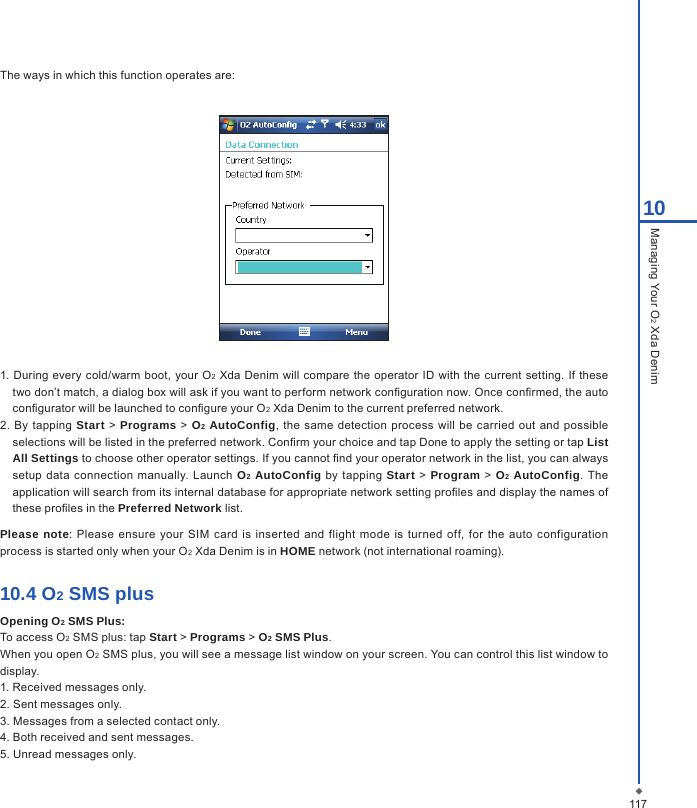
11710Managing Your O2 Xda DenimThe ways in which this function operates are:1. During every  cold/warm  boot, your O2 Xda Denim will  compare the operator ID  with the current setting.  If these two don’t match, a dialog box will ask if you want to perform network conguration now. Once conrmed, the auto congurator will be launched to congure your O2 Xda Denim to the current preferred network.2.  By tapping  Start > Programs > O2 AutoConfig,  the same  detection process will  be carried out  and  possible selections will be listed in the preferred network. Conrm your choice and tap Done to apply the setting or tap List All Settings to choose other operator settings. If you cannot nd your operator network in the list, you can always setup data  connection  manually. Launch O2 AutoConfig  by tapping Start > Program > O2 AutoConfig. The application will search from its internal database for appropriate network setting proles and display the names of these proles in the Preferred Network list.Please note: Please ensure your  SIM card  is inserted and flight mode is turned off, for the  auto configuration process is started only when your O2 Xda Denim is in HOME network (not international roaming).10.4 O2 SMS plusOpening O2 SMS Plus:To access O2 SMS plus: tap Start > Programs > O2 SMS Plus.When you open O2 SMS plus, you will see a message list window on your screen. You can control this list window to display.1. Received messages only.2. Sent messages only.3. Messages from a selected contact only.4. Both received and sent messages.5. Unread messages only.
Chatting with contactsTo chat with someone on your contact list1. Select Menu > Chat > Other.2. In the TO eld, enter the destination phone number or select a name from the contact list by tapping To or Edit > Select Contact.3. Compose your message, to enter a preset text tap Insert My Text and select the message.  to enter emoticons, Edit > Insert Emoticons.4. Send. Scheduling messagesTo schedule SMS to be sent at a chosen date and time1. Menu > Set schedule.2. To create a schedule, Menu > Add.3. The messages window display.4. In the To eld, select a name from the contact list by tapping To or Menu > Select contact.5. In the Date and Time elds, select the date and time to send.6. Compose  your  message.  To  enter  a  preset  text  message, tap  My Text  and  select the message.  To  enter emoticons, tap Menu > Insert Emoticons.7. Ok and done. Sending group messagesTo send SMS to a group of people1. Menu > Group SMS.2. Tapping To or Menu > Edit Recipients to select group. A group window is displayed. 3. To select individual contact names, tap Menu > Insert Contact.4. Tap Done to exit. 5. Compose you  message.  To enter a preset  text message, tap Insert My Text and  select the message. To enter Emoticons, tap Edit > Insert Emoticon.6. Tap Send.10.5 Memory managementWhen the memory is insufcient, this device cannot automatically allocate memory, you may follow the steps below to free up more memory:Moving some les to micro SD card1. Tap Start > Programs > File Explorer.2. Tap and hold selected items.3. Tap Cut on the pop-up menu.4. Switch to Storage Card category.5. Tap and hold and then tap Paste.11810Managing Your O2 Xda Denim
Deleting the unwanted les1. Tap Start > Programs > File Explorer.2. Tap and hold selected items.3. Select Delete.Saving attachments to micro SD card1. Tap Start > Messaging > Menu > Tools > Options > Storage tab.2. If you have inserted a memory card, check Store attachments on storage card.3. E-mail attachments will automatically be saved to memory card.Clearing histories and deleting les from Internet Explorer1. Tap Start > Internet Explorer > Menu > Tools > Options > Memory tab.2. Tap Clear History and Delete Files to delete browsed web page related record.10.6 Running programs management1. Tap Start > Settings > System tab > Memory > Main tab:Display current memory status of this device.2. Tap Start > Settings > System tab > Memory > Storage Card tab:Display the memory status of storage card in this device.3. Tap Start > Settings > System tab > Memory > Running Programs tab:Display  all current  running programs  in this device. Select any program  from Running  Programs  List, you  may select to Activate or Stop.Activate: run the highlighted programs.Stop: stop running highlighted programs.Stop All: stop running all programs on Running Programs List.10.7 Adding or removing programsAll programs pre-installed in the  device  will  be  saved in ROM  (Read  Only Memory) and are not removable.  Data saved in ROM will not be lost  by  accident. All  programs that  you  installed will  be saved  in  RAM (Random  Access Memory). As long as there is sufcient space in this device, you may install suitable programs by preference.Adding programs through ActiveSync1. Before  installing the program, please make sure that  your O2 Xda Denim  processor is suitable  for the software. Tap Start > Settings > System tab > About > Version tab to check for information of this device.2. Download the desired software to your computer (Please select software that is designed for Pocket PC and this device).3. Read installation instructions, readme le, or accompanied programs provided to you.4. Connect your computer with this device.5. Install executive le to your computer.11910Managing Your O2 Xda Denim
12010Managing Your O2 Xda DenimIf  this  file contains  installation  program,  the  installation wizard  will automatically  activate. Please  follow the instructions on  screen. Once the installation  on  your computer is  completed,  the program  will  automatically  be installed  to  this  device. If  this  le  does not contain  any installation  program, an  error message  will show  on the screen and tell you this program is invalid, which is not suitable for your computer. You must move this program to this device manually. If you cannot nd any installation  instructions for this program, please use “Browse” function of ActiveSync to copy program le to Program Files folder in this device. After completing installation, tap Start > Programs, and then select the program icon to launch that program.Adding programs through InternetYou may download software suitable for this device from Internet.1. Before  installing the program, please make sure that  your O2 Xda Denim  processor is suitable  for the software. Tap Start > Settings > System tab > About > Version tab to check information in this device.2.  Directly  download  programs to  this  device  by  using Internet Explorer in  this  device.  (Please select programs designed for Pocket PC and this device).3. Read installation instructions, readme le, or accompanied programs provided to you.4. Run installation executive le in your computer.Adding programs to Start menuTap Start > Settings > Personal tab > Menu.1. Check the programs to be displayed on Start menu.2. Tap OK to save settings and return to Personal tab screen.Removing programsTap Start > Settings > System tab > Remove Programs.Select the  programs you would like to delete  from Programs in storage memory list, and then select Remove to delete highlighted  programs.  If  the installed  programs  list does  not  contain the  program you intend to remove, you may use File Explorer in this device to nd the program and delete it by selecting and holding the program’s name and then select Delete from the pop-up menu.
Chapter 11Important Safety Information11.1 Safety information11.2 Phone care11.3 Driving safety11.4 Electronic devices11.5 Other safety guidelines11.6 Cautions 11.7 About this guide
122Chapter 11 Important Safety Information11.1 Safety informationRead this informationYour  O2 Xda  Denim Pocket PC  Phone  has  been designed,  manufactured  and  tested  not  to exceed the  limits for exposure to electromagnetic  elds recommended by the  Council of the  European Union.  These  limits are part  of comprehensive guidelines developed by independent scientic organizations.European standards provide for the amount of radio frequency electromagnetic energy absorbed by the body when using a phone to be measured by  reference to  the Specic Absorption  Rate (SAR). The SAR limit for the  general public is currently 2 watts per kilogram averaged over 10 grams of body tissue.The maximum SAR values for O2 Xda Denim are:  0.414 W/Kg  @10g (CE) head  1.3 W/Kg @10g (CE) body  0.54 W/Kg @1g (FCC)  head  1.38 W/Kg @1g (FCC)    body11.2 Phone careYou should never  attempt to open the  phone casing. There are no user-serviceable parts inside  and  you might damage sensitive electronic circuits and components. Unauthorized disassembly will void the warranty.You should never leave your phone in the window of your car or otherwise expose it to strong sunlight or excessive heat for a prolonged period. This may damage it.You should  never handle your phone with wet  hands  or expose it to moisture  or liquids  of any  kind.  Continuous changes from a  cold a  warm environment  may lead to condensation  inside  the phone,  resulting in corrosion  and possible damage.If  you pack your  phone in your  suitcase  during travel, beware  damage.  Cramming a suitcase may  crack  the LCD display. Remember to switch off your wireless connections during air travel.As with all  other  radio devices, touching the  built-in antenna area during telephone  conversation  may impair the quality and lead to shorter standby time due to increased power consumption.The batteryYour phone is equipped with a high-performance Li-lon battery. Optional battery types may be available; check with your local retailer. Observe the maintenance guidelines and your battery should give you a long service life.1. At the beginning of the battery’s life, fully charge and discharge (let it go at) three times.2. Do not overcharge  the Li-lon battery, as  this  can result in  a reduction in  battery performance and lifespan. The recommended maximum charge time is 2.5 hrs.11Important Safety Information
12311Important Safety Information3.   Avoid repeated short charging. It is preferable to let the battery o at and then recharge it completely.4.   Avoid  charging  in strong  heat  of extreme cold.  Ambient room  temperature is  preferable.  The battery  has its optimum performance in an ambient temperature of + 5 oC to + 50 oC.5.   Don’t store a battery near a re or heat source.6.   Use only the battery approved by the manufacturer.7.   Never replace the battery with a non-approved battery.8.   Never soak the battery in water or any other uid.9.   Never try to open the battery as it contains substances that might be harmful if swallowed or allowed to come into contact with unprotected skin.10. Never short-circuit the battery, as it may overheat and cause a re. Keep it away from jewellery and other metal objects.11. Never dispose of the battery in a re. It could explode and release harmful substance into the environment.12. Never dispose of the battery with your regular household waste. Take it to a hazardous material collection point.13. Do not touch the battery terminals.The charger1.  Use only the charger supplied with your phone. 2.  Never pull the charger cord to release it from the mains- pull the charger itself.Memory card1.   Do not remove or insert a memory card or turn off the handset while data on the card is being edited.2.   Do not touch the metal terminals with your hands or metal objects.3.   Don not bend the memory card or subject it to violent impacts. Keep it away from water and high temperatures. 4.   Keep all memory cards out of the reach of small children.5.   Do not short circuit the contact points or expose it to liquids or moisture. When not in use, keep in the antistatic container it came in.6.   Do not use force when inserting or Handling the card, and do not expose it to excessive hear or strong magnetic elds.Cleaning and storing1.   Your phone should always be handled with care and protected from dirt, dust and dampness. To avoid scratches, never place your phone face down.2.   If cleaning  is  necessary, switch  the phone off and  wipe  carefully with  a soft,  slightly damp (not  wet) cloth. Use a cotton  swab to  clean the  camera lens. Allow the  phone to dry completely  before  switching  it on.  Never  use solvents for cleaning.3.  If you are not going to use your phone for some time, fully charge the battery and store the phone in a dry place away from direct sunlight. Your phone should be switched off during storage. Recharge every 6 to 12 months.4.   Never expose your phone to hear or strong sunlight.5.   Never expose your phone to moisture or liquids of any kind.6.   Do not paint your phone or otherwise block the keypad, microphone or earpiece function, i.e. with stickers.
12411Important Safety Information11.3 Driving safetyNever use th handheld phones while driving. Ti’s an offence while driving to hold a phone or cradle it in your neck, at any  point during the setup,  making  or  taking  of  a  phone call,  text  message  or any  other  data  related mobile communication. Use of fully installed car kits are still permitted, as are the use of alternate handsfree accessories.In the interest of safety, we would recommend use of a cradle while using any form of handsfree accessory.While driving, we recommend that you use voicemail wherever possible, and that you listen to your messages when you are not in the car. If you must make a handsfree call when driving, keep it brief.An airbag inates with great force. Do not place objects, including both installed or portable wireless equipment, in the area over the airbag or in the airbag deployment area. If in-vehicle wireless equipment is improperly installed and the air bag inates, serious injury could result.11.4 Electronic devices  Most modern electronic equipment  is shielded from  RF  energy. However, certain electronic equipment  may not  be shielded against the RF signals from your Pocket PC phone.PacemakersThe Health Industry Manufacturers’ Association recommends that a minimum separation of six inches be maintained between a phone and a pacemaker to avoid potential interference with the pacemaker. These recommendations are consistent with the independent research by and recommendations of Wireless Technology Research.If you have a pacemaker:1.Always keep your phone more than six inches from your pacemaker when turned on.2.Do not carry your phone in a breast pocket.3.Use the ear opposite the pacemaker to minimize the potential for interference.4.If you have any reason to suspect that interference is taking place, turn your phone off immediately.Hearing aids  Some digital  phones may interfere  with  some hearing  aids. In  the  event of  such  interference,  call o2  Customer Service to discuss alternatives.Other medical devicesIf you use any other personal medical device, consult the manufacturer of your device to determine if it is adequately shielded from external RF  energy. Our  physician  may be  able  to assist you in  obtaining this information. Turn you phone off in healthcare facilities when any regulations  posted  in these  areas instruct  you to  do so.   Hospitals or healthcare facilities may be using equipment that could be sensitive to external RF energy.VehiclesRF  signals  may affect  improperly installed  of  inadequately shielded electronic  systems in motor  vehicles. Check with the manufacturer or its representative regarding your vehicle. You should also consult the manufacturer of any equipment added to your vehicle.
12511Important Safety InformationPosted facilitiesTurn you phone off when posted notices so require.Magnetic mediaMagnetic elds generated by PC Phone phones may damage data on magnetic storage media, such as credit cards, computer discs or tapes. Do not place your phone next to such media. 11.5  Other safety guidelines AircraftRegulations prohibit using your phone while in  the air. Switch off your phone before boarding an  aircraft or turn off the wireless connections.Blasting areasTo avoid interfering with blasting operations, turn you phone off when in a blasting area or in areas posted: turn off two-way radio. Obey all sighs and instructions.Potentially explosive environmentsTurn you phone off when in any area with a potentially explosive environment and obey all signs and instructionsSparks in such areas could cause an explosion or re resulting in bodily injury or even death. Areas with a potentially explosive environment are often, but not always, clearly marked.  They include fuelling  areas such as  gas  stations, below decks on boats, fuel or chemical transfer or storage facilities, vehicles using liqueed petroleum gas (such as propane or butane), area where the air contains chemicals  or  articles,  such  as  grain,  dust,  or  metal  powders,  and any other area where you would normally be advised to turn off you vehicle’s engine.ChokingKeep your phone away from children as the SIM card and other small parts present a choking hazard.11.6 CautionsYour Pocket  PC  Phone is a  high quality  piece  of  equipment. Before  operation, read all  instructions and cautionary markings on (1) AC Adaptor (2) Battery and (3) Product Using Battery.1.Do not use this equipment in an extreme environment where high temperature or high humidity exists.2.Do not abuse the equipment. Avoid striking,  shaking or  giving it a shock. When  not  using the  unit, lay it down to avoid possible damage due to instability.3.Do not expose this equipment to rain or spilled beverages.4.Do not use unauthorized accessories.5.Do not disassemble the phone  or its accessories. If service or repair is required,  return  the unit to an  authorized service center. If the unit is disassembled, a risk of electric shock or re may result.6.Do not short-circuit the batter terminals with metal items.
12611Important Safety InformationFCC Regulations:● This device complies with part 15 of the FCC Rules. Operation is subject to the following two conditions: (1) This device  may  not cause harmful  interference, and (2) this device must  accept any interference received, including interference that may cause undesired operation.● This device has been tested and  found to comply with the limits for a Class  B digital device, pursuant to Part 15 of  the FCC  Rules. These limits are  designed  to provide reasonable  protection  against  harmful interference in a residential installation.  This equipment generates, uses  and  can  radiated radio frequency  energy and, if not installed and used in accordance with the instructions, may cause harmful interference to radio communications. However, there is no guarantee that  interference  will not occur in  a particular installation If this  equipment does cause harmful interference to radio or television reception, which can be determined by turning the equipment off and on, the user is encouraged to try to correct the interference by one or more of the following measures:-Reorient or relocate the receiving antenna.-Increase the separation between the equipment and receiver.-Connect the equipment into an outlet on a circuit different from that to which the receiver is connected.-Consult the dealer or an experienced radio/TV technician for help.Changes or  modications  not expressly approved by the  party  responsible  for  compliance could  void  the  user‘s authority to operate the equipment.RF Exposure Information (SAR)This  device  meets  the  government’s requirements  for  exposure  to  radio  waves.   This  device is  designed  and manufactured not  to exceed the  emission limits  for  exposure to radio frequency (RF)  energy set  by the Federal Communications Commission of the U.S. Government.  The  exposure  standard for wireless devices employs a  unit of  measurement  known as the Specific  Absorption Rate, or SAR.  The SAR limit set  by the FCC is  1.6W/kg.   *Tests for  SAR are conducted using  standard operating positions accepted by the FCC with the device transmitting at its highest certied power level in all tested frequency bands.  Although the SAR is determined at the highest certied power level, the actual SAR level of the device while operating can be  well  below  the  maximum  value.    This is because the device is  designed  to operate  at multiple power levels so as to use only the poser required to reach the network.  In general, the closer you are to a wireless base station antenna, the lower the power output.The highest SAR value for the device as reported to the FCC are as below. 0.54 W/kg @ 1g (FCC) head 1.38 W/kg @ 1g (FCC) body While there may be differences between the SAR levels of various devices and at various positions, they all meet the government requirement.
12711Important Safety InformationThe  FCC has  granted an Equipment  Authorization  for this  device  with all  repor ted  SAR  levels  evaluated as in compliance with the FCC RF exposure guidelines.  SAR information on this device is on le with the FCC and can be found under the Display Grant section of http://www.fcc.gov/oet/fccid after searching on FCC ID: UJU9QDENIM000.For body worn  operation, this  device  has been tested  and  meets  the FCC RF  exposure guidelines for  use with an accessory that contains no metal and the positions the handset  a minimum of 1.5 cm from the body.  Use of other enhancements  may  not ensure  compliance with  FCC  RF  exposure guidelines.    If  you  do  no t  use  a body-worn accessory and are not holding the device at the ear, position the handset a minimum of 1.5 cm from your body when the device is switched on.11.7 About this guideThis document is provided as a user guide to the O2 Xda Denim Pocket PC Phone and to this system only. O2 Xda Denim is a trademark of the O2 group of companies.The latest version of the user guide can be found on our website: http://Seeo2.com.Year of Manufacturing:2007
Chapter 12 Specications
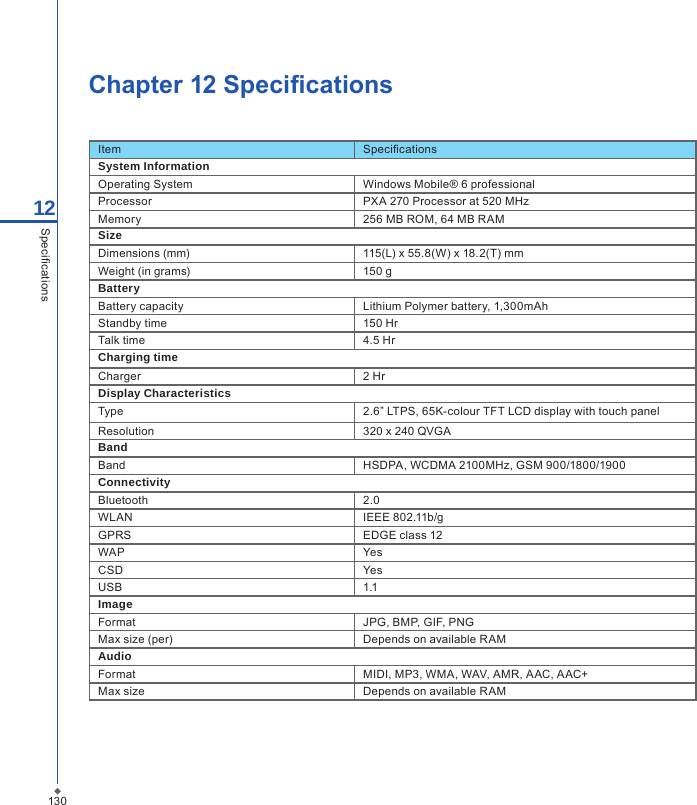
130Chapter 12 Specications 12SpecicationsItem SpecicationsSystem InformationOperating System Windows Mobile® 6 professionalProcessor PXA 270 Processor at 520 MHzMemory 256 MB ROM, 64 MB RAMSizeDimensions (mm) 115(L) x 55.8(W) x 18.2(T) mmWeight (in grams) 150 gBatteryBattery capacity Lithium Polymer battery, 1,300mAhStandby time 150 HrTalk time 4.5 HrCharging timeCharger 2 HrDisplay CharacteristicsType 2.6” LTPS, 65K-colour TFT LCD display with touch panelResolution 320 x 240 QVGABandBand HSDPA, WCDMA 2100MHz, GSM 900/1800/1900ConnectivityBluetooth 2.0WLAN IEEE 802.11b/gGPRS EDGE class 12WAP YesCSD YesUSB 1.1ImageFormat JPG, BMP, GIF, PNGMax size (per) Depends on available RAMAudioFormat MIDI, MP3, WMA, WAV, AMR, AAC, AAC+Max size Depends on available RAM
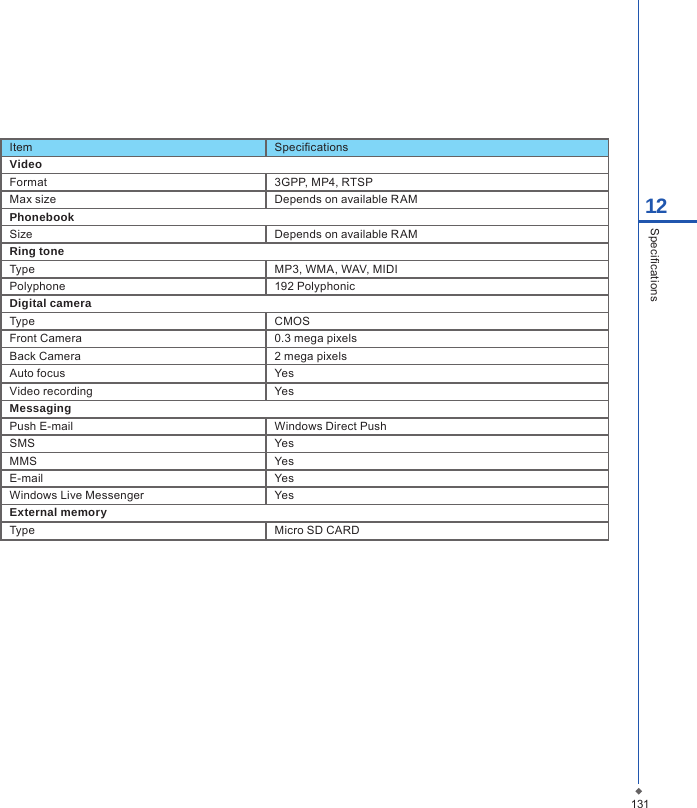
13112SpecicationsItem SpecicationsVideoFormat 3GPP, MP4, RTSPMax size Depends on available RAMPhonebookSize Depends on available RAMRing toneType MP3, WMA, WAV, MIDIPolyphone 192 PolyphonicDigital cameraType CMOSFront Camera 0.3 mega pixelsBack Camera 2 mega pixelsAuto focus YesVideo recording YesMessagingPush E-mail Windows Direct PushSMS YesMMS YesE-mail YesWindows Live Messenger YesExternal memoryType Micro SD CARD
Chapter 13FAQs
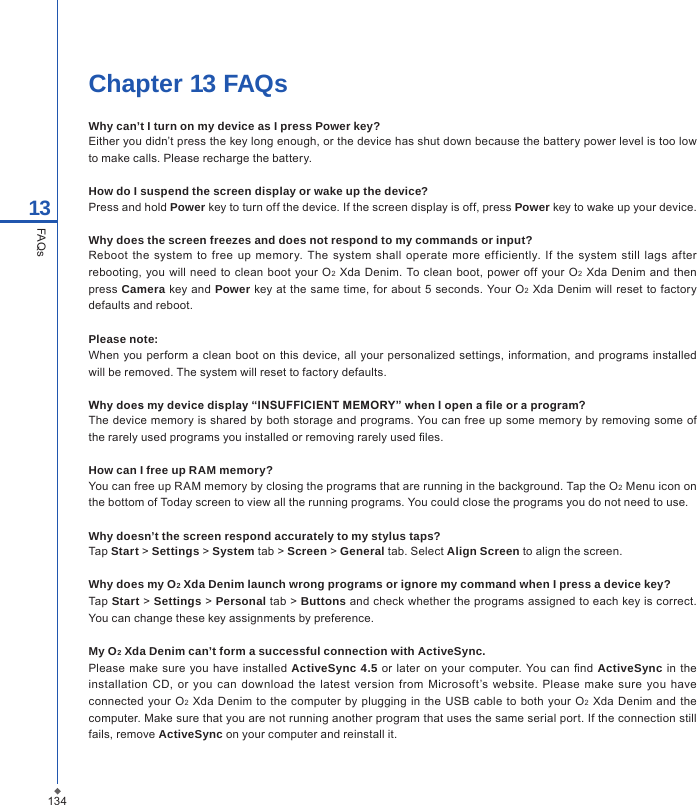
134Chapter 13 FAQsWhy can’t I turn on my device as I press Power key?Either you didn’t press the key long enough, or the device has shut down because the battery power level is too low to make calls. Please recharge the battery.How do I suspend the screen display or wake up the device?Press and hold Power key to turn off the device. If the screen display is off, press Power key to wake up your device.Why does the screen freezes and does not respond to my commands or input?Reboot  the  system  to  free up  memory.  The  system  shall  operate  more efficiently.  If  the system still  lags after rebooting, you will need to  clean boot  your O2  Xda Denim. To clean boot, power  off  your O2  Xda  Denim  and then press Camera key and Power key at the same  time, for about 5 seconds. Your O2  Xda Denim will reset to  factory defaults and reboot.Please note:When you perform a clean boot on  this device, all your  personalized settings, information, and programs installed will be removed. The system will reset to factory defaults.Why does my device display “INSUFFICIENT MEMORY” when I open a le or a program?The device memory is shared by both storage and programs. You can free up some memory by removing some of the rarely used programs you installed or removing rarely used les.How can I free up RAM memory? You can free up RAM memory by closing the programs that are running in the background. Tap the O2 Menu icon on the bottom of Today screen to view all the running programs. You could close the programs you do not need to use.Why doesn’t the screen respond accurately to my stylus taps?Tap Start > Settings > System tab > Screen > General tab. Select Align Screen to align the screen.Why does my O2 Xda Denim launch wrong programs or ignore my command when I press a device key?Tap Start > Settings > Personal tab > Buttons and check whether the programs assigned to each key is correct. You can change these key assignments by preference.My O2 Xda Denim can’t form a successful connection with ActiveSync.Please make  sure  you have  installed  ActiveSync 4.5  or later on your  computer. You can nd  ActiveSync  in  the installation  CD, or you  can  download  the  latest  version from  Microsoft’s website.  Please  make sure  you have connected your O2 Xda Denim to the computer  by  plugging in  the USB  cable to both  your O2  Xda Denim and the computer. Make sure that you are not running another program that uses the same serial port. If the connection still fails, remove ActiveSync on your computer and reinstall it.13FAQs
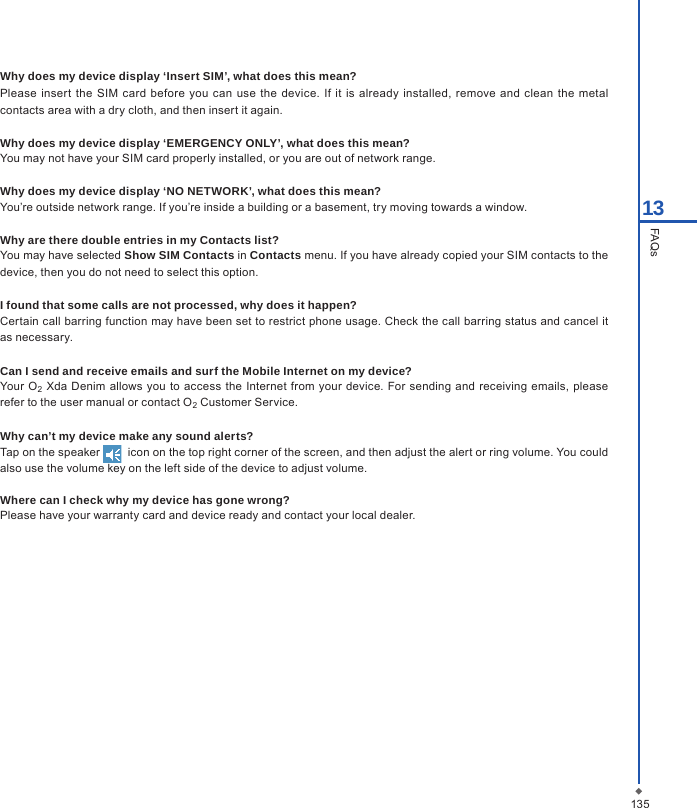
13513FAQsWhy does my device display ‘Insert SIM’, what does this mean?Please  insert  the  SIM card  before  you  can use  the  device.  If it is  already  installed, remove and  clean  the  metal contacts area with a dry cloth, and then insert it again.Why does my device display ‘EMERGENCY ONLY’, what does this mean?You may not have your SIM card properly installed, or you are out of network range.Why does my device display ‘NO NETWORK’, what does this mean?You’re outside network range. If you’re inside a building or a basement, try moving towards a window.Why are there double entries in my Contacts list?You may have selected Show SIM Contacts in Contacts menu. If you have already copied your SIM contacts to the device, then you do not need to select this option.I found that some calls are not processed, why does it happen?Certain call barring function may have been set to restrict phone usage. Check the call barring status and cancel it as necessary.Can I send and receive emails and surf the Mobile Internet on my device?Your O2  Xda  Denim  allows you to access  the Internet  from  your device. For sending and receiving  emails, please refer to the user manual or contact O2 Customer Service.Why can’t my device make any sound alerts?Tap on the speaker    icon on the top right corner of the screen, and then adjust the alert or ring volume. You could also use the volume key on the left side of the device to adjust volume.     Where can I check why my device has gone wrong?Please have your warranty card and device ready and contact your local dealer.
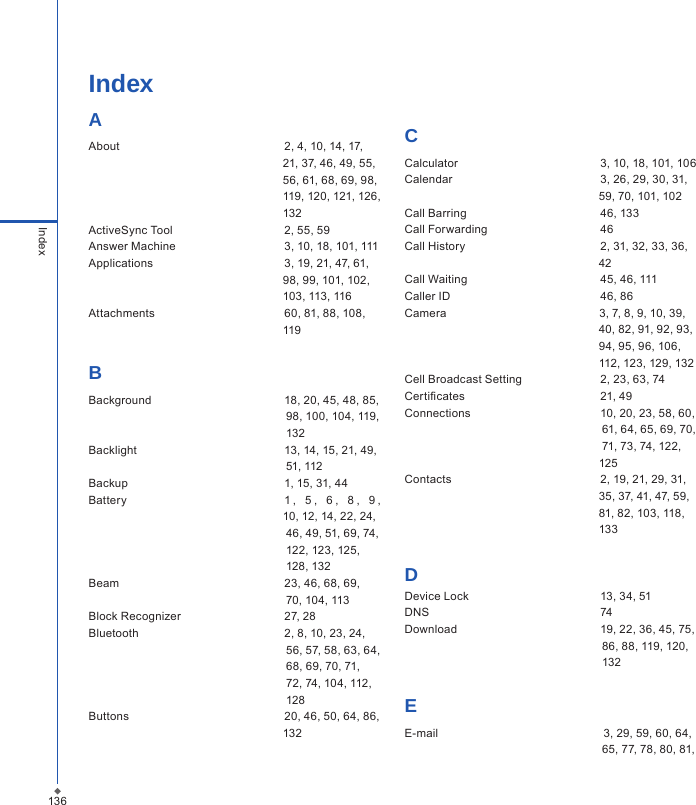
136IndexIndexAAbout  2, 4, 10, 14, 17,                                                              21, 37, 46, 49, 55,                                                              56, 61, 68, 69, 98,                                                              119, 120, 121, 126,                                                             132                 ActiveSync Tool                                   2, 55, 59                  Answer Machine  3, 10, 18, 101, 111Applications  3, 19, 21, 47, 61,                                                              98, 99, 101, 102,                                                              103, 113, 116 Attachments  60, 81, 88, 108,                                                              119BBackground  18, 20, 45, 48, 85,                                                               98, 100, 104, 119,                                                               132Backlight  13, 14, 15, 21, 49,                                                                 51, 112Backup  1, 15, 31, 44  Battery  1 ,   5 ,   6 ,   8 ,   9 ,                                                                        10, 12, 14, 22, 24,                                                                46, 49, 51, 69, 74,                                                              122, 123, 125,                                                               128, 132   Beam  23, 46, 68, 69,                                                               70, 104, 113Block Recognizer  27, 28Bluetooth  2, 8, 10, 23, 24,                                                               56, 57, 58, 63, 64,                                                               68, 69, 70, 71,                                                                72, 74, 104, 112,                                                                128  Buttons  20, 46, 50, 64, 86,                                                              132CCalculator  3, 10, 18, 101, 106Calendar  3, 26, 29, 30, 31,                                                              59, 70, 101, 102Call Barring  46, 133Call Forwarding  46Call History  2, 31, 32, 33, 36,                                                               42Call Waiting  45, 46, 111Caller ID  46, 86Camera                                                3, 7, 8, 9, 10, 39,                                                                       40, 82, 91, 92, 93,                                                              94, 95, 96, 106,                                                               112, 123, 129, 132Cell Broadcast Setting  2, 23, 63, 74Certicates  21, 49Connections  10, 20, 23, 58, 60,                                                                61, 64, 65, 69, 70,                                                                71, 73, 74, 122,                                                              125Contacts  2, 19, 21, 29, 31,                                                               35, 37, 41, 47, 59,                                                                81, 82, 103, 118,                                                              133DDevice Lock  13, 34, 51DNS  74Download   19, 22, 36, 45, 75,                                                               86, 88, 119, 120,                                                                132EE-mail   3, 29, 59, 60, 64,                                                              65, 77, 78, 80, 81,
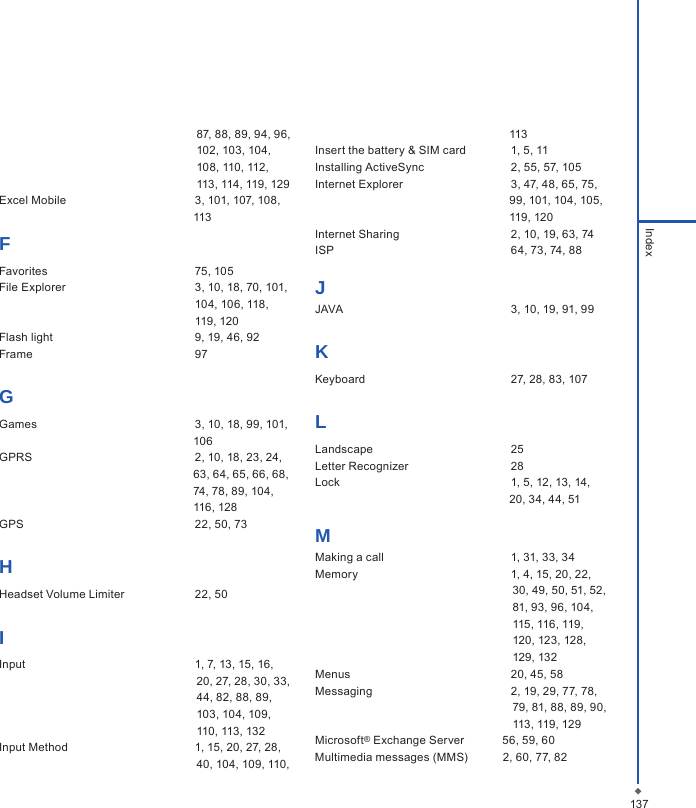
137Index                                                              87, 88, 89, 94, 96,                                                               102, 103, 104,                                                               108, 110, 112,                                                               113, 114, 119, 129     Excel Mobile  3, 101, 107, 108,                                                              113FFavorites  75, 105File Explorer  3, 10, 18, 70, 101,    104, 106, 118,   119, 120Flash light  9, 19, 46, 92Frame  97GGames  3, 10, 18, 99, 101,                                                              106GPRS  2, 10, 18, 23, 24,                                                              63, 64, 65, 66, 68,                                                               74, 78, 89, 104,                                                              116, 128GPS  22, 50, 73HHeadset Volume Limiter  22, 50IInput  1, 7, 13, 15, 16,                                                               20, 27, 28, 30, 33,                                                              44, 82, 88, 89,                                                               103, 104, 109,                                                               110, 113, 132Input Method  1, 15, 20, 27, 28,                                                              40, 104, 109, 110,                                                              113Insert the battery & SIM card  1, 5, 11Installing ActiveSync  2, 55, 57, 105Internet Explorer  3, 47, 48, 65, 75,                                                              99, 101, 104, 105,                                                              119, 120Internet Sharing  2, 10, 19, 63, 74ISP  64, 73, 74, 88JJAVA  3, 10, 19, 91, 99KKeyboard  27, 28, 83, 107LLandscape  25Letter Recognizer  28Lock  1, 5, 12, 13, 14,                                                              20, 34, 44, 51                                                                MMaking a call  1, 31, 33, 34Memory  1, 4, 15, 20, 22,                                                               30, 49, 50, 51, 52,                                                              81, 93, 96, 104,                                                               115, 116, 119,                                                               120, 123, 128,                                                               129, 132Menus  20, 45, 58Messaging  2, 19, 29, 77, 78,                                                               79, 81, 88, 89, 90,                                                                113, 119, 129Microsoft® Exchange Server            56, 59, 60Multimedia messages (MMS)           2, 60, 77, 82
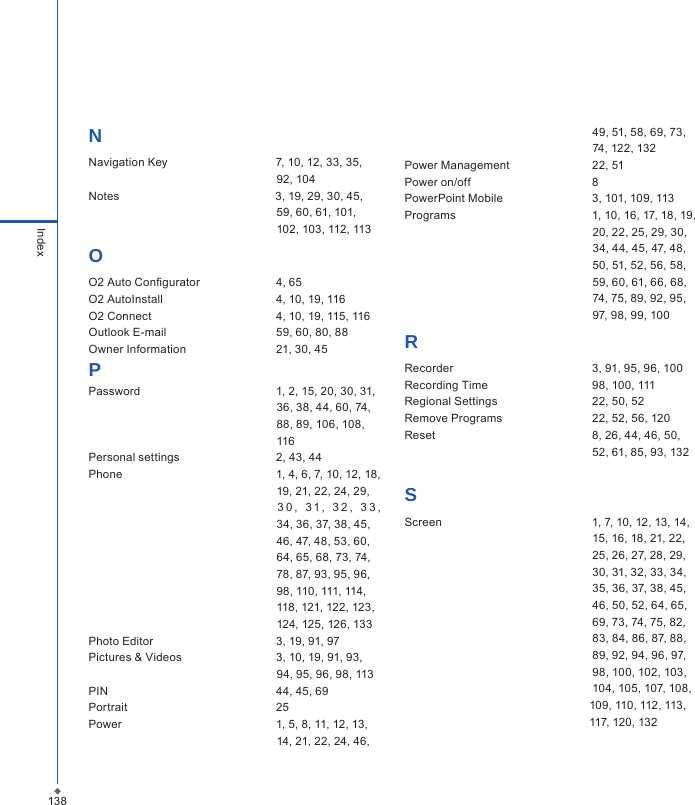
138IndexNNavigation Key                                  7, 10, 12, 33, 35,                                                            92, 104Notes                                                 3, 19, 29, 30, 45,                                                            59, 60, 61, 101,                                                            102, 103, 112, 113OO2 Auto Congurator  4, 65O2 AutoInstall  4, 10, 19, 116O2 Connect  4, 10, 19, 115, 116Outlook E-mail  59, 60, 80, 88Owner Information  21, 30, 45PPassword  1, 2, 15, 20, 30, 31,                                                            36, 38, 44, 60, 74,                                                            88, 89, 106, 108,                                                            116Personal settings  2, 43, 44Phone  1, 4, 6, 7, 10, 12, 18,                                                            19, 21, 22, 24, 29,                                                                3 0 ,   3 1 ,   3 2 ,   3 3 ,                                                                                                34, 36, 37, 38, 45,                                                            46, 47, 48, 53, 60,                                                            64, 65, 68, 73, 74,                                                            78, 87, 93, 95, 96,                                                            98, 110, 111, 114,                                                           118, 121, 122, 123,                                                           124, 125, 126, 133Photo Editor  3, 19, 91, 97Pictures & Videos  3, 10, 19, 91, 93,                                                            94, 95, 96, 98, 113PIN  44, 45, 69Portrait  25Power  1, 5, 8, 11, 12, 13,                                                           14, 21, 22, 24, 46,                                                             49, 51, 58, 69, 73,                                                            74, 122, 132   Power Management  22, 51Power on/off  8PowerPoint Mobile  3, 101, 109, 113Programs  1, 10, 16, 17, 18, 19,                                                           20, 22, 25, 29, 30,                                                            34, 44, 45, 47, 48,                                                            50, 51, 52, 56, 58,                                                            59, 60, 61, 66, 68,                                                            74, 75, 89, 92, 95,                                                            97, 98, 99, 100RRecorder  3, 91, 95, 96, 100Recording Time  98, 100, 111Regional Settings  22, 50, 52Remove Programs  22, 52, 56, 120Reset  8, 26, 44, 46, 50,                                                             52, 61, 85, 93, 132SScreen  1, 7, 10, 12, 13, 14,                                                            15, 16, 18, 21, 22,                                                            25, 26, 27, 28, 29,                                                            30, 31, 32, 33, 34,                                                            35, 36, 37, 38, 45,                                                            46, 50, 52, 64, 65,                                                            69, 73, 74, 75, 82,                                                            83, 84, 86, 87, 88,                                                            89, 92, 94, 96, 97,                                                            98, 100, 102, 103,                                                            104, 105, 107, 108,                                                          109, 110, 112, 113,                                                           117, 120, 132
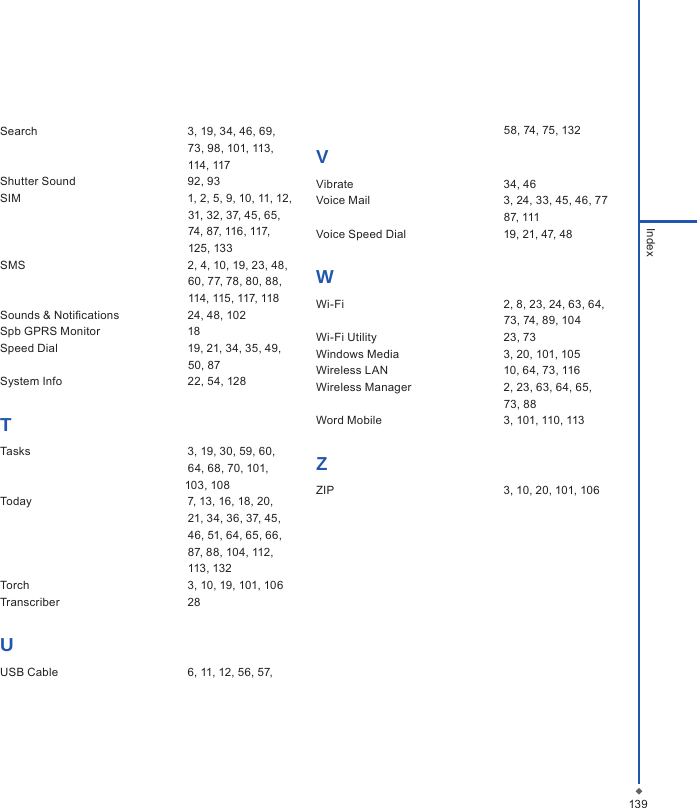
Search  3, 19, 34, 46, 69,                                                            73, 98, 101, 113,                                                           114, 117Shutter Sound  92, 93SIM  1, 2, 5, 9, 10, 11, 12,                                                            31, 32, 37, 45, 65,                                                            74, 87, 116, 117,                                                            125, 133SMS  2, 4, 10, 19, 23, 48,                                                            60, 77, 78, 80, 88,                                                            114, 115, 117, 118Sounds & Notications  24, 48, 102Spb GPRS Monitor  18Speed Dial  19, 21, 34, 35, 49,                                                            50, 87System Info  22, 54, 128TTasks  3, 19, 30, 59, 60,                                                            64, 68, 70, 101,                                                           103, 108Today  7, 13, 16, 18, 20,                                                            21, 34, 36, 37, 45,                                                            46, 51, 64, 65, 66,                                                            87, 88, 104, 112,                                                            113, 132Torch  3, 10, 19, 101, 106Transcriber  28UUSB Cable  6, 11, 12, 56, 57,                                                            58, 74, 75, 132VVibrate  34, 46Voice Mail  3, 24, 33, 45, 46, 77                                                            87, 111Voice Speed Dial  19, 21, 47, 48WWi-Fi  2, 8, 23, 24, 63, 64,                                                            73, 74, 89, 104Wi-Fi Utility  23, 73Windows Media  3, 20, 101, 105Wireless LAN  10, 64, 73, 116Wireless Manager  2, 23, 63, 64, 65,                                                            73, 88Word Mobile  3, 101, 110, 113ZZIP  3, 10, 20, 101, 106                                                            139Index

Navigation menu