GIGA BYTE Communications 9QDENIM000 PDA PHONE WITH WIFI, BLUETOOTH, AND GSM/EDGE User Manual 20070711UMforPV indd
GIGA-BYTE Communications Inc. PDA PHONE WITH WIFI, BLUETOOTH, AND GSM/EDGE 20070711UMforPV indd
Contents
USERS MANUAL PART 1

CONTENT
CHAPTER 1 BEFORE USING YOUR O2 Xda Denim 6
1.1 WHAT’S IN THE BOX 6
1.2 FAMILIARIZING YOURSELF WITH YOUR O2 Xda Denim 7
1.3 FEATURES 10
1.4 INSERT THE BATTERY & SIM CARD 11
1.5 SIM 12
1.6 BATTERY 12
1.7 HOW TO USE THE CAPSENSE KEYS 12
1.8 LOCK/UNLOCK 13
1.9 POWER 14
CHAPTER 2 GETTING STARTED 16
2.1 DISPLAY INFORMATION 16
2.2 SCREEN ORIENTATION 25
2.3 SETTING TIME & DATE 26
2.4 USING THE STYLUS 26
2.5 SCREEN ALIGNMENT 26
2.6 INPUT METHOD 27
2.7 DRAWING ON THE SCREEN 28
2.8 RECORDING A MESSAGE 29
2.9 EDITING MY INFO 30
2.10 PASSWORD SETUP 30
2.11 MEMORY EXPANSION 30
2.12 DATA BACKUP 30
CHAPTER 3 PHONE FUNCTIONS 32
3.1 PHONE DIALER SCREEN AND KEY INTRODUCTION 32
3.2 MAKING A CALL 33
3.3 RECEIVING / IGNORING A CALL 33
3.4 INTERNATIONAL CALLS 33
3.5 EMERGENCY CALLS 34
1

2
3.6 VOLUME ADJUSTMENT 34
3.7 CONTACTS 34
3.8 CREATING A NEW CONTACT 35
3.9 CALL HISTORY 36
3.10 SETTING RING TONE AND PASSWORD 36
3.11 SIM MANAGER 37
3.12 VIDEO TELEPHONY 38
CHAPTER 4 SETTINGS 44
4.1 PERSONAL SETTINGS 44
4.2 SYSTEM SETTINGS 49
CHAPTER 5 SYNCHRONIZATION 56
5.1 ABOUT SYNCHRONIZATION 56
5.2 INSTALLING ACTIVESYNC 57
5.3 CHOOSING YOUR SYNCHRONIZATION TYPE 58
5.4 USING ACTIVESYNC TOOLS 59
5.5 ACTIVESYNC ERRORS 61
CHAPTER 6 GETTING CONNECTED 64
6.1 WIRELESS MANAGER 64
6.2 GPRS 65
6.3 BLUETOOTH 68
6.4 WI-FI 73
6.5 USB CARD READER 74
6.6 INTERNET SHARING 74
6.7 CELL BROADCAST SETTING 74
6.8 CONNECTING TO THE INTERNET 75
CHAPTER 7 MESSAGING 79
7.1 SHORT MESSAGE (SMS) 79
7.2 MULTIMEDIA MESSAGES (MMS) 82

3
7.3 VOICE MAIL 87
7.4 E-MAIL 87
7.5 PUSH E-MAIL 89
7.6 WINDOWS LIVE MESSENGER 89
CHAPTER 8 MULTIMEDIA 92
8.1 CAMERA 92
8.2 VIDEO RECORDER 95
8.3 PHOTO EDITOR 97
8.4 FM RADIO 98
8.5 PICTURES & VIDEOS 98
8.6 JAVA 99
8.7 STREAMING PLAYER 99
8.8 RECORDER 100
CHAPTER 9 APPLICATIONS 102
9.1 CALENDAR 102
9.2 TASKS 103
9.3 FILE EXPLORER 104
9.4 INTERNET EXPLORER 104
9.5 WINDOWS MEDIA 105
9.6 GAMES 106
9.7 CALCULATOR 106
9.8 TORCH 106
9.9 ZIP 106
9.10 PDF VIEWER 106
9.11 EXCEL MOBILE 107
9.12 POWERPOINT MOBILE 109
9.13 WORD MOBILE 110
9.14 ANSWER MACHINE 111
9.15 SELF DIAGNOSTICS 112
9.16 NOTES 112
9.17 SEARCH 113
9.18 WINDOWS LIVE 113

CHAPTER 10 MANAGING YOUR O2 Xda Denim 116
10.1 O2 AUTOINSTALL 116
10.2 O2 CONNECT 116
10.3 O2 AUTO CONFIG 116
10.4 O2 SMS PLUS 117
10.5 MEMORY MANAGEMENT 118
10.6 RUNNING PROGRAMS MANAGEMENT 119
10.7 ADDING OR REMOVING PROGRAMS 119
CHAPTER 11 IMPORTANT SAFETY INFORMATION 122
11.1 SAFETY INFORMATION 122
11.2 PHONE CARE 122
11.3 DRIVING SAFETY 124
11.4 ELECTRONIC DEVICES 124
11.5 OTHER SAFETY GUIDELINES 125
11.6 CAUTIONS 125
11.7 ABOUT THIS GUIDE 126
CHAPTER 12 SPECIFICATIONS 130
CHAPTER 13 FAQS 134
Index 136
4
Chapter 1
Before Using Your O2 Xda Denim
1.1 What’s in the box
1.2 Familiarizing yourself with your O2 Xda Denim
1.3 Features
1.4 Insert the battery & SIM card
1.5 SIM
1.6 Battery
1.7 How to use the capsense keys
1.8 Lock/Unlock
1.9 Power
6
Chapter 1. Before Using Your O2 Xda Denim
1.1 What’s in the box
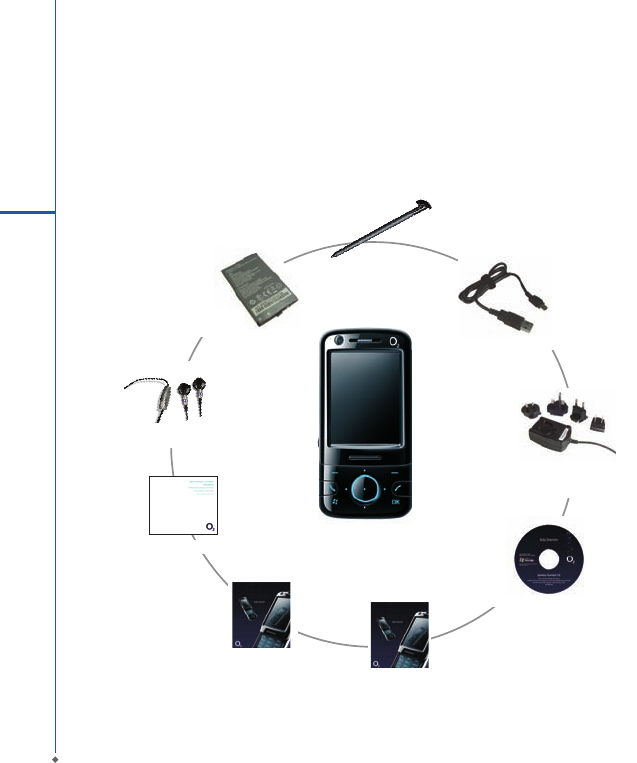
Thank you for selecting O2 Xda Denim. Please check if your package comes with the following items.
If any of them is missing, please contact your retailer.
1
Before Using Your O2 Xda Denim
O2 Xda D enim - yo ur
Windows Mobile-based
Pocket PC Phone
Quick Start Guide
Getting Started Disc
User Manual
Stylus
USB Cable
Standard
Battery
High Quality Stereo
Wired Headset
Universal AC Adapter with
four plugs for different
countries
Warranty Card
7
1
1.2 Familiarizing yourself with your O2 Xda Denim
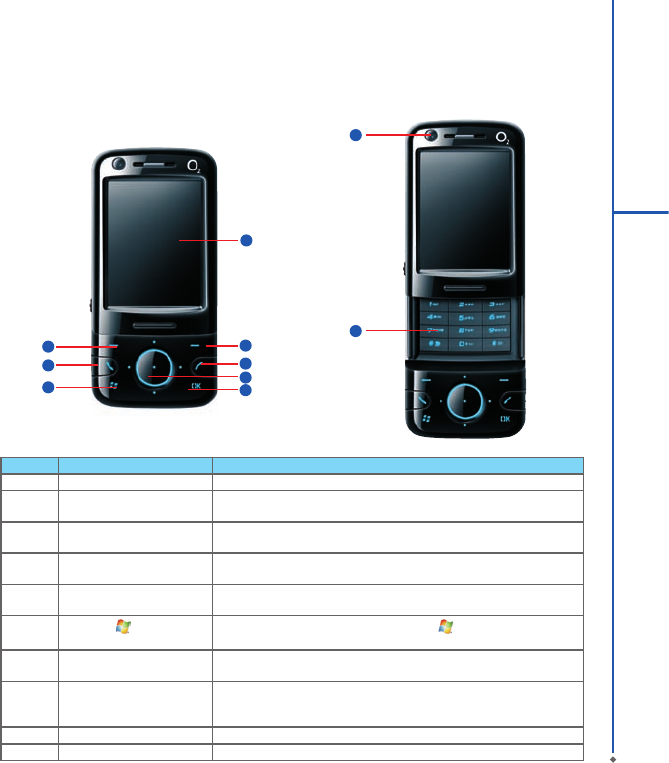
This section introduces you to the hardware of the device and its function keys.
No Item Function
1 Touch screen Display screen. Use stylus to select items on the screen.
2 Left soft key This is capsense key. Tap to execute the function displayed on the
bottom left of the screen.
3 Right soft key This is capsense key. Tap to execute the function displayed on the
bottom right of the screen.
4 Talk/Send key You can make or answer a call by pressing Talk/Send key, or go to
Phone Dialer screen.
5 End key Press this key to end a call or to return to Today screen
from any screen.
6Windows key This is a capsense key. Tap the Windows key to open Start menu
options.
7 OK key Tap this capsense key to execute or terminate a selected function or
application.
8 5- Way navigation key The 5-way navigation key is a capsense key. Tap up, down, left and
right directions to navigate. Tap the center key to execute the selected
function or application.
9 Front camera lens Use when making Video calls.
10 Numeric keypad You can use the numeric keypad to dial phone numbers or input text.
Before Using Your O2 Xda Denim
1
3
7
2
45
6
8
10
9
No Item Function
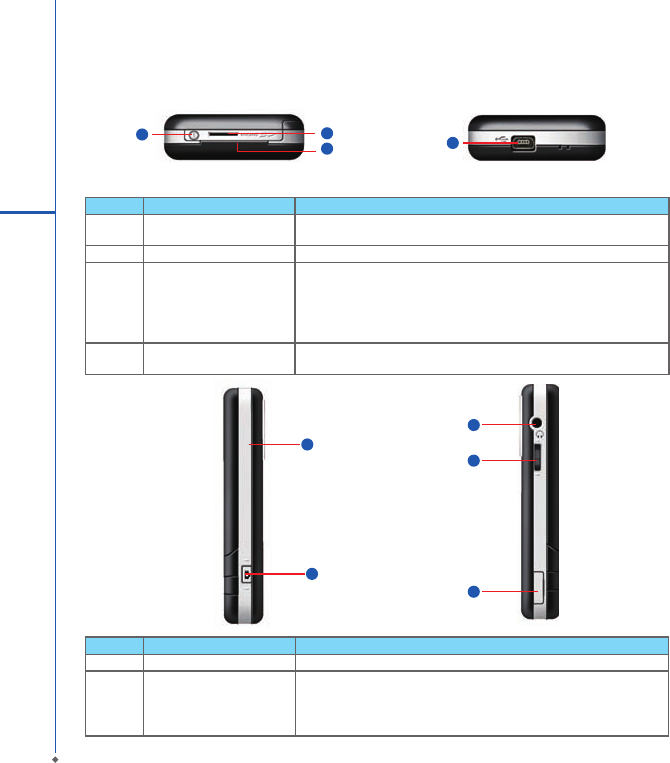
15 Soft reset button Press the button with stylus to soft reset your device.
16 Camera key Press and hold Camera key to launch camera function.
In Camera mode, press half way to focus and full press to capture
pictures.
8
1
Before Using Your O2 Xda Denim
No Item Function
11 Power on/off Press and hold Power key for a few seconds to power on/off your
device.
12 Micro SD card slot You can insert your Micro SD card here.
13 LED Indicator The LED indicator indicates the status of your device by showing diffrent
colors.
Blue: Bluetooth is activated.
Orange: Wi-Fi is activated.
Green: Mobile network is detected.
14 Mini USB slot Use USB connector to synchronize data with your desktop PC, transmit
data or charge the battery.
15
16
17
18
19
14
12
11
13
17 Headset plug Plug in headset, and then you can listen to the FM radio, music via the
headset or use the device's hands-free kit.
18 Volume key Slide this key upwards or downwards to adjust volume.
Press and hold this key to directly record voice note.
19 SIM card slot Open the hatch and insert your SIM card.
9
1
Before Using Your O2 Xda Denim
No Item Function
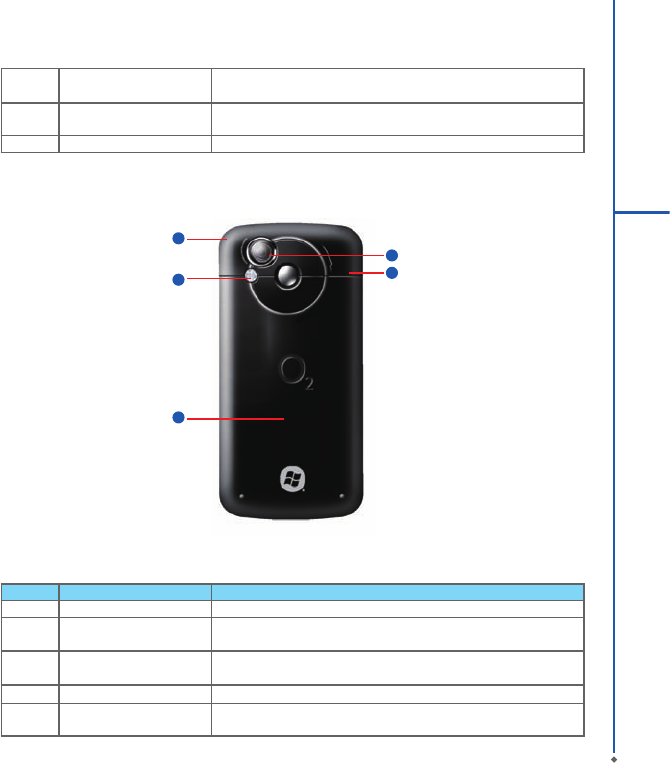
20 Stylus holder & stylus Use the stylus to touch the screen panel.
21 Rear camera lens The CMOS camera on the back of the device supports 2-mega-pixel
photo and high quality video.
22 Speaker Besides using stereo headset, you may play music/voice through the
built-in speaker.
23 Flash light Flash light for camera.
24 Battery cover Push and slide out the cover to replace battery and unlock SIM card
hatch.
21
23
24
20
22

1.3 Features
Your O2 Xda Denim not only having mobile phone features, it also integrates Personal Digital Assistant (PDA)
capability. The following section provides more information about the device features:
● Touch screen: 2.6” TFT LCD display with 65,536 colors effective.
● Cap sensitive keys: 5-way navigation key, Windows key.
● Numeric keypad.
● Speaker.
● Slider.
● Mini-USB slot for connection and battery charging.
● Camera: 2.0 mega pixels.
● Connections: 3G, GPRS,Bluetooth, and Wireless LAN.
● Microsoft Windows Mobile 6: Windows Live, Windows Live Messenger, Pocket Outlook, Pocket Explorer, and
Ofce tools (Word, Excel, and PowerPoint). Also features Encryption, Internet Sharing, Windows Update, Pictures
& Videos, Calculator, Games, ActiveSync, and File Explorer.
● O2 programs: O2 Connect, O2 AutoInstall, O2 themes, O2 Menu, O2 SMS plus, O2 AutoCong.
● Other programs: SIM Manager, Self Diagnostics, FM Radio, Zip, Answer Machine, Java, Torch, Streaming Player,
GPRS Monitor, PDF Viewer, etc.
10
1
Before Using Your O2 Xda Denim
11
1
Before Using Your O2 Xda Denim
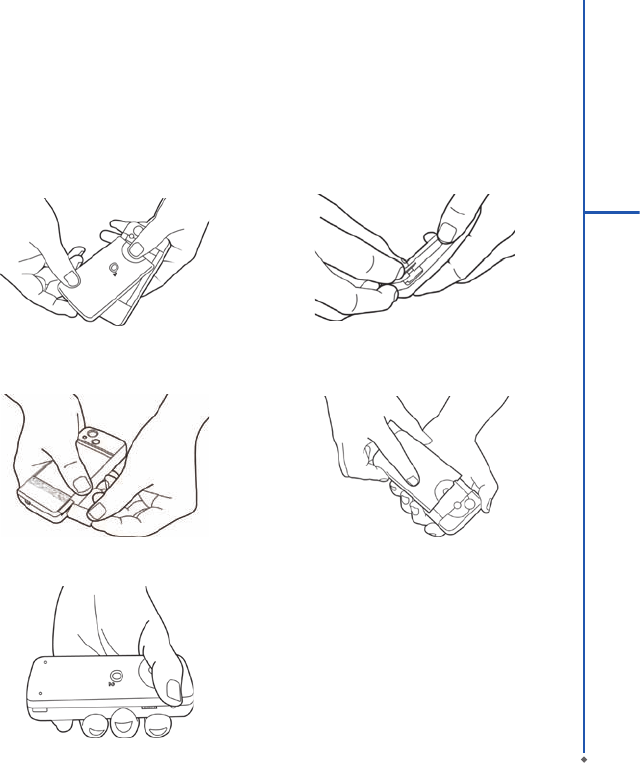
1.4 Insert the battery & SIM card
Before inserting/removing a SIM card, please make sure that your O2 Xda Denim is powered off and is not connected
to any power supply by the USB cable or charger.
1. Look at the back of your O2 Xda Denim. Push and
slide out the battery cover.
2. Find the SIM card slot on the side of the device. Open
the hatch.
3. Insert the SIM card with the metallic part facing down
and the clipped corner in the same direction and
orientation shown on the cover's instruction.
4. Insert the battery back to the battery slot.
5. Slide the battery cover back and push until you hear
“click”.

1.5 SIM
Before using your O2 Xda Denim, you must contact a network operator to get a personal SIM (Subscriber Identity
Module). The SIM card contains your O2 Xda Denim number, the services included in your subscription, and your
personal data such as your phonebook and messages. The phone functions are unusable (except for emergency
calls) until a valid SIM card is inserted.
Please note: If the device or the SIM card is lost or stolen, you should contact your network operator immediately in
order to prevent unauthorized use.
1.6 Battery
Your O2 Xda Denim comes with a removable and rechargeable Lithium Polymer battery. The standby time and talk
time will depend on your actual usage network coverage and whether the device is in standby mode. The battery life
may also vary depending on how frequently the user switches between functions.
Please note: Using any battery pack or AC adapter (charger) not specied/endorsed by O2 on this phone may be
dangerous and may invalidate any warranty and approval given to the device. Unplug the charger from the power
supply when it is not in use.
Charging the battery
Please make sure that the battery is installed and fully charged when using your O2 Xda Denim for the rst time. You
may charge the battery in the following ways:
1. Universal AC Adapter: Plug your AC adapter into a suitable main power socket and plug the connector to the
charging slot of your O2 Xda Denim. The phone will start charging automatically.
2. USB cable: Connect your O2 Xda Denim to your PC’s USB port with the USB cable supplied in your package.
1.7 How to use the capsense keys
- When the slider is closed, the capsense keys and the screen are automatically locked to prevent unintentional
actions of the capsense keys while using the phone or during calls. When the capsense keys are locked, they will
not work even if they are pressed.
- Opening the slider will automatically unlock both the capsense keys and the screen.
- The navigation keys can sense circular movements. Move clockwise to scroll down; or move anti-clockwise to scroll
up.
- While the slider is closed, you may press Unlock on the screen to unlock the capsense keys and the screen.
12
1
Before Using Your O2 Xda Denim
13
1
Before Using Your O2 Xda Denim
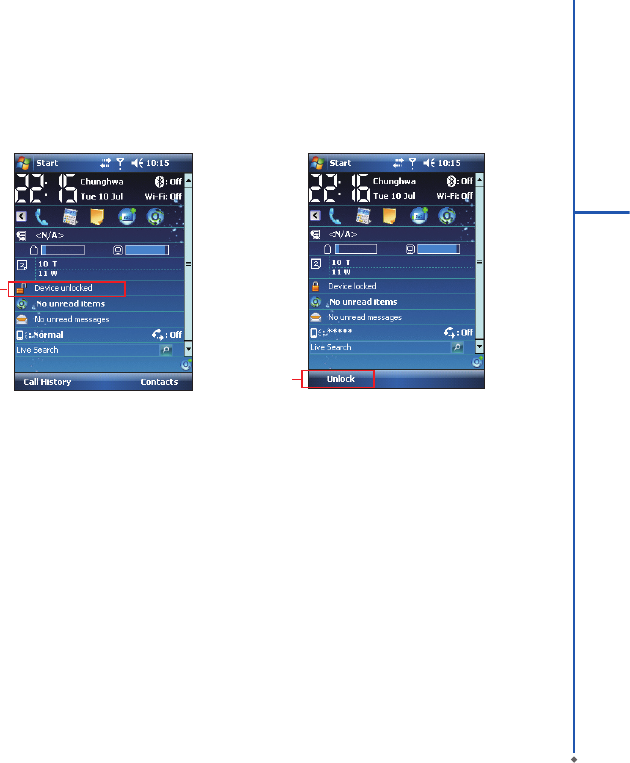
1. Lock the device: On Today screen, tap Device
unlocked to lock your O2 Xda Denim. The device
will not respond to touches on screen nor react to
any input on the keypad when it is locked.
You may also enable the device lock automatically after
the screen backlight is turned off.
2. Unlock the device:
Tap Unlock on the bottom left of the screen.
Then tap Unlock button on the newly appeared screen
and the device is unlocked.
1
1.8 Lock/Unlock
2
14
1
Before Using Your O2 Xda Denim
1.9 Power
To power on your O2 Xda Denim
While the device is powered off, press Power key on
the top of the device to power it on.
To power off your O2 Xda Denim
While the power is on, press and hold Power key on
the top of the device for about 3 seconds to turn it off.
To reduce the power consumption of your device, you
may change the backlight duration and brightness level.
Also, you can save more power by setting the device
to turn off automatically if it is not in use for a specic
period of time.
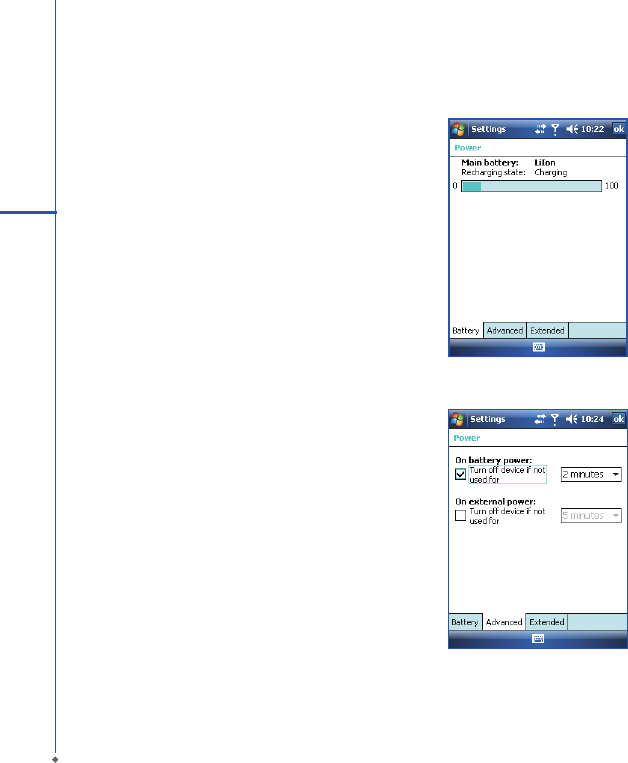
To check battery power level
Tap Start > Settings > System tab > Power > Battery
tab. The bar indicates the remaining battery power
level.
To turn off the device automatically
Ta p Start > Settings > System tab > Power >
Advanced tab and select the duration before your O2
Xda Denim turns off by itself. This feature controls the
screen standby time.
Chapter 2
Getting Started
2.1 Display information
2.2 Screen orientation
2.3 Setting time & date
2.4 Using the stylus
2.5 Screen alignment
2.6 Input method
2.7 Drawing on the screen
2.8 Recording a message
2.9 Editing my info
2.10 Password setup
2.11 Memory expansion
2.12 Data backup
Chapter 2 Getting Started
2.1 Display information
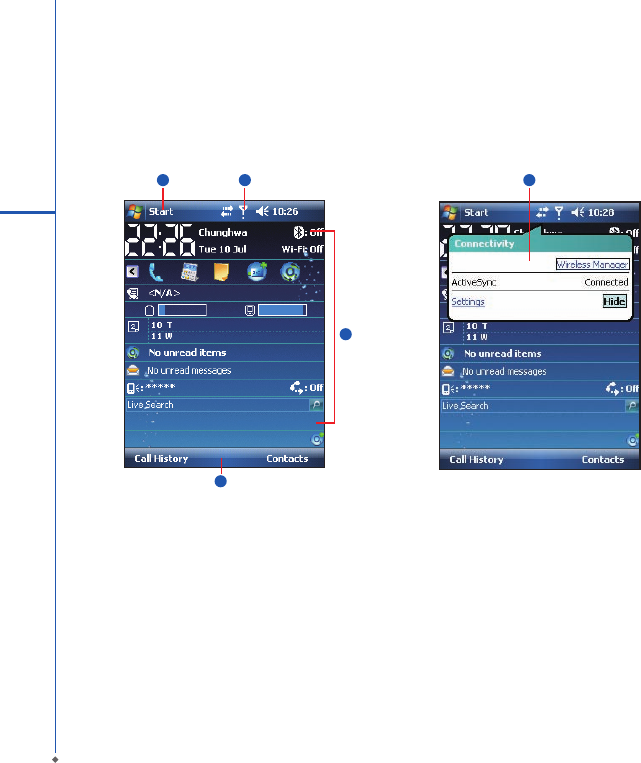
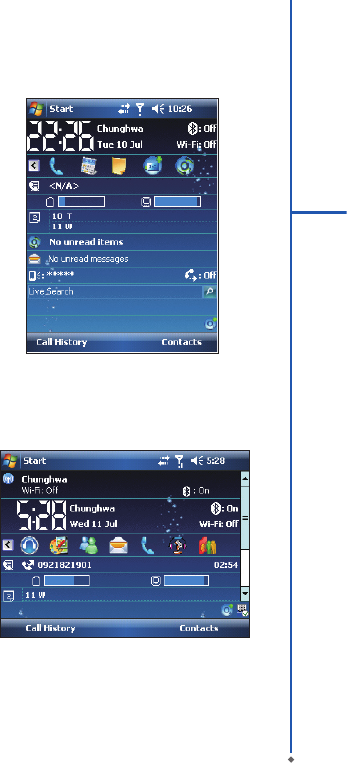
The main screen displays the following information:
16
2
Getting started
12
3
4
5
1. Start menu
Tap here to open Windows Start menu on the top left of the screen. To return to Today screen at any time, tap
Start > Today.
2. Status & Icon area
Displays notication icons and system status. You can tap the icon to look into the detail or settings of the function.
3. Today screen
On Today screen, this area contains shortcuts to certain programs and important information of today. To change
Today screen settings, tap Start > Settings > Personal tab > Today.
4. Command area
Depending on different mode, this area contains different features such as menu options, input panel and
commands to create or edit a le.
5. Pop up menu
This allows you to quickly access an item. Tap on the icon and tap again to perform an action. To cancel it, tap
other areas of the screen.
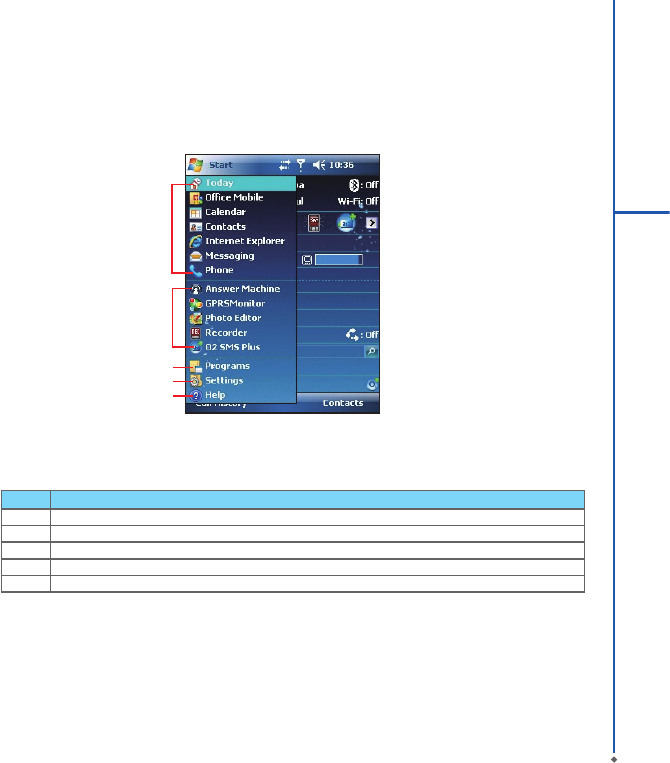
Start menu
Tap Start to bring up a list of menu:
1
2
3
4
5
No Description
1Quick access to certain xed Microsoft programs.
2 The most recent 5 programs you have used.
3 Tap on Programs to enter the Programs menu.
4 Tap on Settings to enter the Settings menu.
5 Tap on Help to see detail information about different features.
17
2
Getting started
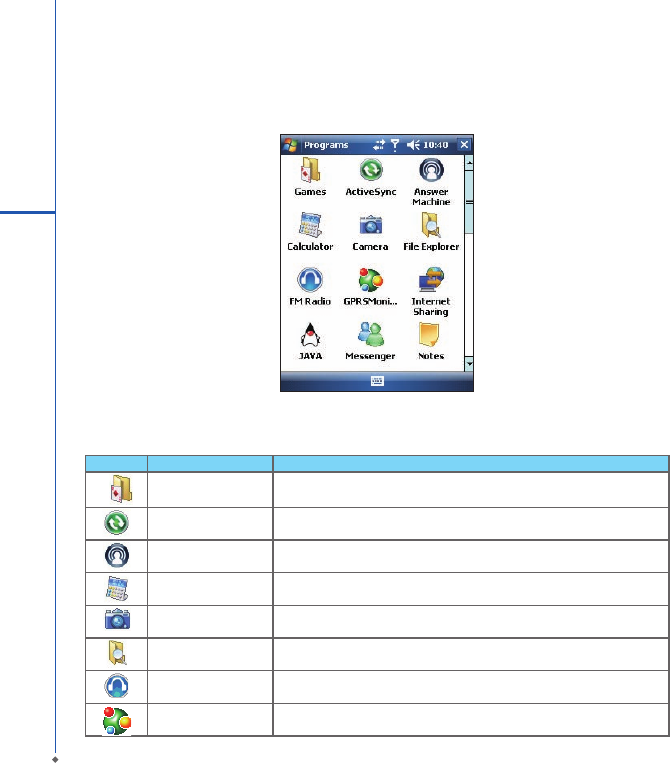
Programs
You will see many application icons under your Programs menu. From Programs menu, you may tap the application
icon that you desired to use to execute the application.
Icon Program Description
Games Provide games such as Bubble Breaker and Solitaire.
ActiveSync Transmit data between your computer and your O2 Xda Denim.
Answer Machine Activate/deactivate in-phone Answer Machine function.
Calculator Perform basic calculations.
Camera Take photos and record video clips.
File Explorer View all the les on your O2 Xda Denim.
FM Radio Allow you to listen to FM radio.
GPRS Monitor Monitor your data trafc and cost.
From Today screen > Start > Programs
Your O2 Xda Denim contains the following programs:
18
2
Getting started
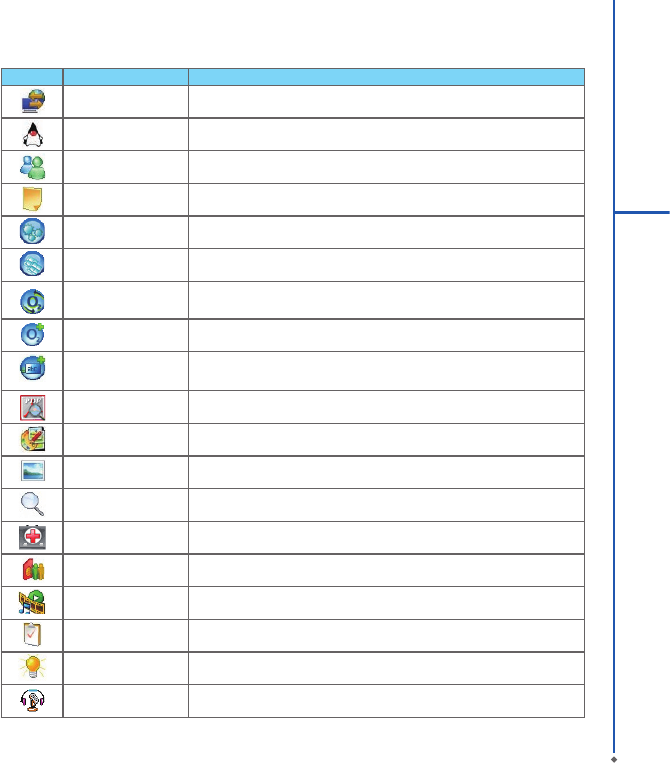
Icon Program Description
Internet Sharing Connect your PC/Notebook to Internet via your O2 Xda Denim as a modem.
JAVA Manage your Java applications.
Messenger Access for messenger services.
Notes Write notes, memo, or drawings.
O2 AutoCong Congure your network operator settings.
O2 AutoInstall Lead you to the installation of extra O2 provided applications.
O2 Connect Connect to O2 website and download the latest software updates.
O2 Menu Manoeuvre easily between applications that are running in
the background.
O2 SMS Plus Besides SMS messaging services, it also provides chat and vCard sending
features.
PDF Viewer Support viewing of PDF les.
Photo Editor Edit your photos on your O2 Xda Denim.
Pictures & Videos View your images and videos.
Search Search for all data, programs, and les.
Self Diagnostics Run diagnostics to test your device.
SIM Manager Use this function to copy the contacts from SIM card to the device.
Streaming Player This application supports streaming video les.
Tasks Keep track of your tasks.
Torch Use the ash light on the phone as a torch.
Voice Speed Dial Record your voice tags and initiates voice commanding environment for
dialing or launch applications.
19
2
Getting started
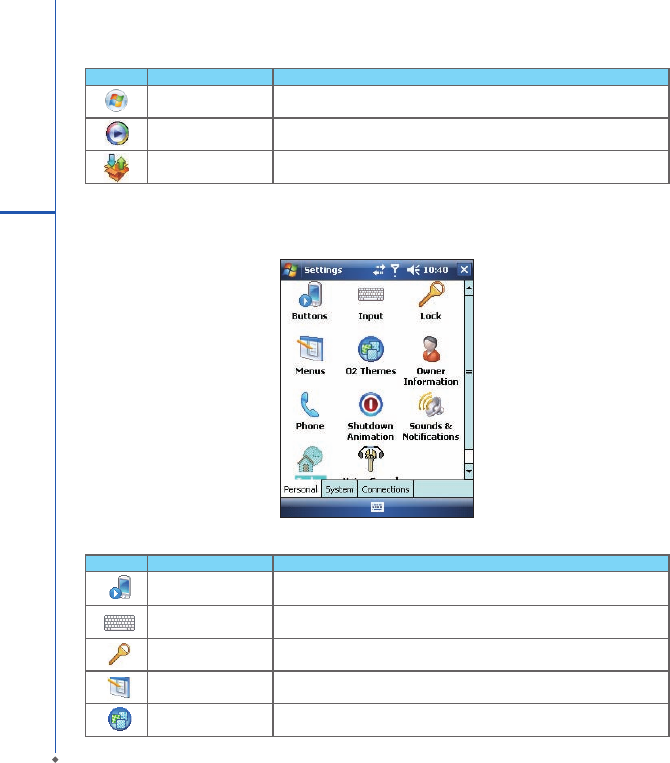
Settings
Your O2 Xda Denim contains Personal, System, and Connections setting items.
Tap Start > Settings > Personal tab:
20
2
Getting started
Icon Program Description
Windows Live Windows Live unifies your information. Login to explore more services
provide by Window Live.
Windows Media Play audio and video les.
Zip Compress your les in the device to save memory space.
Icon Seetings Description
Buttons You may assign programs to a hardware button.
Input Set your preferred input method.
Lock You may set a personal password to lock your O2 Xda Denim.
Menus Select the programs to be displayed in Start menu.
O2 Themes Sets layout, items, color and background of Today display.
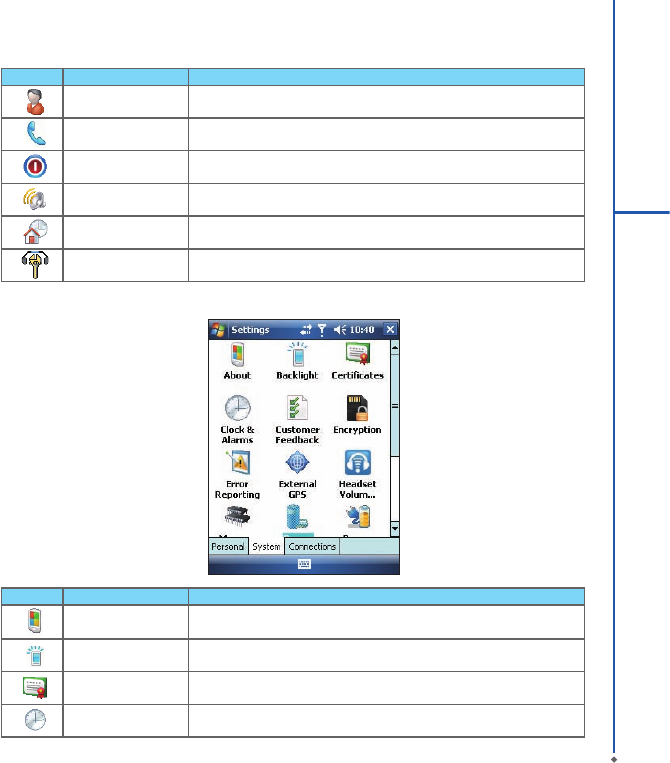
Icon Seetings Description
Owner Information Set your personal information.
Phone Settings for phone functions.
Shutdown Animation Settings for shutdown screen.
Sounds &Notications Settings for alarm and notication sound type.
Today Settings for screen appearance and items displayed on the Today screen.
Voice Speed Dial Record your voice tags for contacts or applications.
21
2
Getting started
Tap Start > Settings > System tab:
Icon Settings Description
About Contain information about your O2 Xda Denim.
Backlight Configure the backlight settings and adjusts the brightness level to save
power.
Certicates Information about the certicate issuer and the expiration date.
Clock & Alarms Settings for time and alarms.
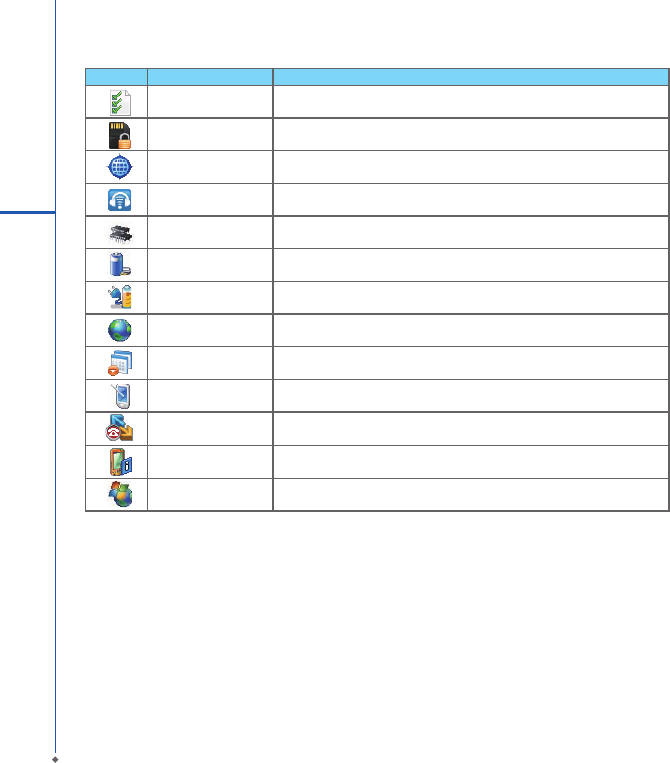
22
2
Getting started
Icon Settings Description
Customer Feedback Customer Experience Improvement Program from Microsoft®.
Encryption Encrypt les.
External GPS Settings for using GPS function.
Headset Volume Limiter
Modify your headset volume to suit your need.
Memory Display memory status and programs that are currently running.
Power Battery status and settings.
Power Management Adjust different proles for CPU power management.
Regional Settings Settings for region, number, currency, time, and date format.
Remove Programs Remove programs from your O2 Xda Denim.
Screen Settings for screen orientation, screen alignment, and text size.
Slide setting Enable you to answer calls by sliding the phone.
System Info Display the system information.
Windows Update Download updates for Windows Mobile setup.
23
2
Getting started
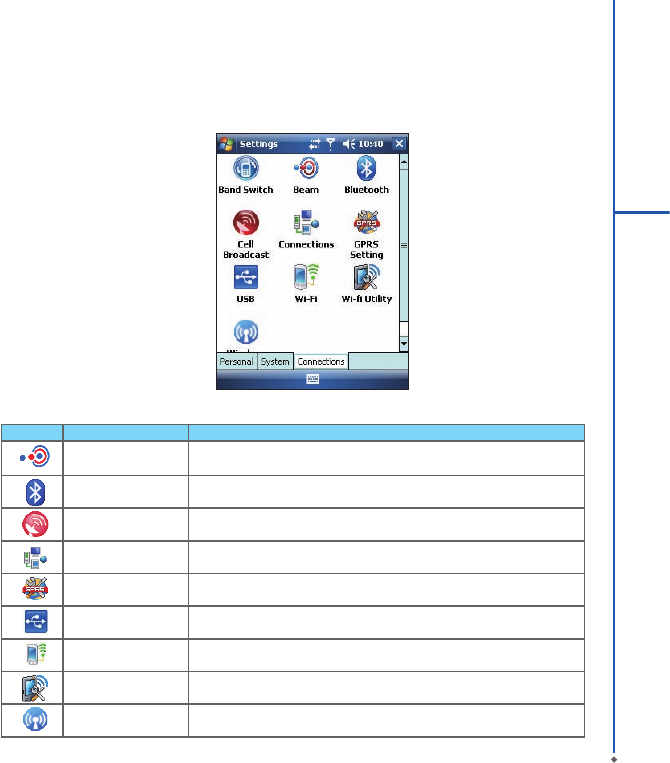
Icon Settings Description
Beam You can choose to receive all incoming beams.
Bluetooth Settings for Bluetooth connection.
Cell Broadcast Setting Receive broadcast channel information and news from your
service provider.
Connections Settings and management for modem connections.
GPRS Setting Basic settings for GPRS connection.
USB Use your O2 Xda Denim as a micro SD card reader.
Wi-Fi Manage and congure your Wi-Fi settings.
Wi-Fi Utility Details of your Wi-Fi connection.
Wireless Manager Turn on/off Radio, 3G / GPRS data, Wi-Fi and Bluetooth.
Tap Start > Settings > Connections tab
24
2
Getting started
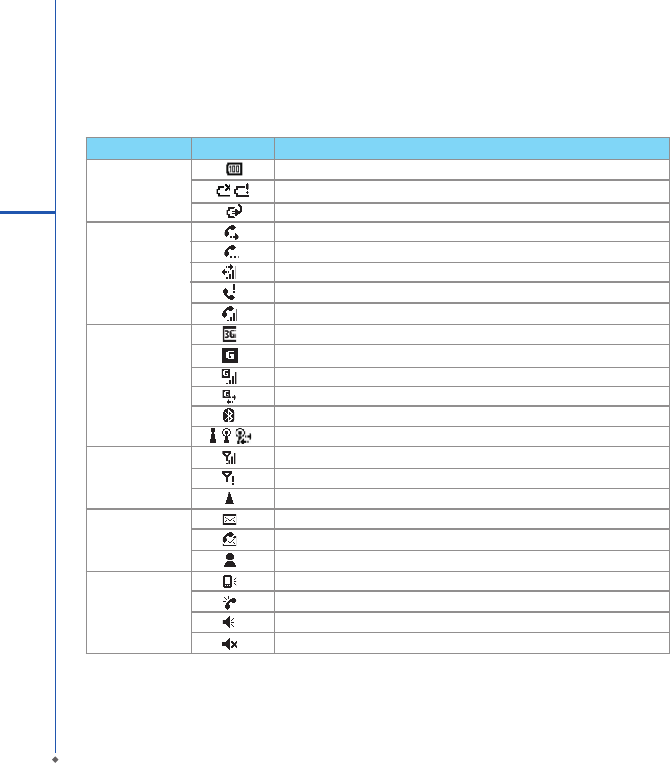
Status & Icon area
This area shows icons of basic system status or alerts. You can tap on the icons to get the denitions or go to the
settings.
Please note: To choose reminder types and sounds for your O2 Xda Denim, tap Start > Settings > Personal tab >
Sounds & Notifications.
Status Type Icon Description
Battery Main battery power is full. The level of battery power is shown in percentage.
Low battery. Please recharge.
Battery is charging.
Calls Call forward.
Call on hold.
Data call.
You have missed calls.
Voice call in active.
Connection 3G network is connected.
GPRS is in range.
GPRS is connected.
Building connection to GPRS.
Bluetooth is activated.
Wi-Fi is activated; a Wi-Fi network is in range; Wi-Fi network is connected.
Signal Strong signal.
No signal.
Roaming.
Message You have one or more new message(s).
You have one or more new voice mail(s).
You have one or more instant message(s).
Volume System volume.
Phone volume.
Ringer is on.
Ringer is off.
25
2
Getting started
2.2 Screen orientation
You can choose your screen display in Por trait or
Landscape mode. The Portrait mode allows you to get a
better view or a better operation of certain programs on
your O2 Xda Denim, while Landscape may be optimal
for viewing longer text les. You can also change the
default screen display by following the steps below:
1. Tap Start > Settings > System tab > Screen>
General tab.
2 . O n General t ab s c r e e n , s e lec t y o u r d e sire d
orientation, Portrait, Landscape (right-handed), or
Landscape (left-handed).
3. Tap OK, and the screen will be changed accordingly.
Portrait
Landscape

26
2
Getting started
2.3 Setting time & date
When using your O2 Xda Denim for the rst time, you
are required to set your time zone, time, and date. You
can also tap on the clock icon on Today screen to setup
time and date.
1. Tap Start > Settings > System tab > Clock& Alarms
> Time tab.
2. Select Home or Visiting.
3. Select your time zone.
4. Select AM / PM.
5. Use the up and down arrow aside hour, minute and
second to adjust the highlighted time unit.
6. Tap t he down a r row asid e t he dat e to o pe n a
calendar, and select a desired month, date, and year.
7. Tap OK, a pop-up window will appear on your screen
to conrm to Save Changes to the clock settings.
8. Tap Yes to save the changes and exit.
Please note: Change the time on Home zone may
change your Calendar schedule.
2.4 Using the stylus
Use the stylus to touch or write on your screen. Using
stylus can avoid damaging your screen. There are 2
ways to use your stylus:
● Tap: softly tap on a desired item by your stylus, and
lift the pen from the screen.
● Press: touch and hold your stylus on a desired item
for a few seconds until a blue dotted circle appears.
This indicates that a pop-up menu is going to be
activated.
2.5 Screen alignment
When using your O2 Xda Denim for the rst time, screen
alignment is required. If you nd that the device does
not accurately respond to your stylus taps, or you
have performed a system reset, you need to align your
screen again.
1. Tap Start > Settings > System tab > Screen >
General tab.
2. Tap Align Screen on your screen.
3. On the align screen, use your stylus to touch the
crosses on the screen accurately.
4. Tap OK to exit.
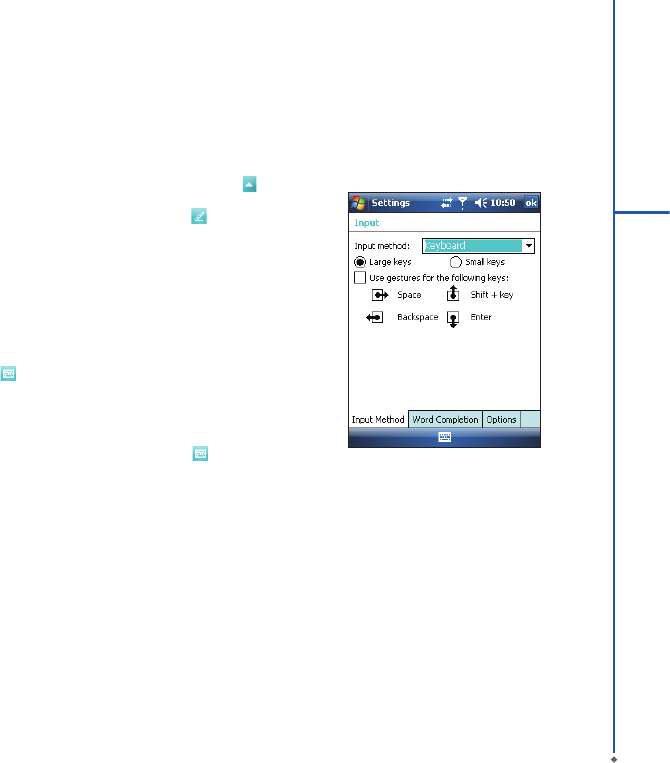
2.6 Input method
Block Recognizer
With Block Recognizer, you c an in put c harac ter
strokes (using the stylus) that are similar to those used
on other devices.
1. On your screen keyboard, tap the arrow icon next
to the keyboard icon for more input methods. On the
pop-up list, tap Block Recognizer .
2. Write letters and numbers in a corresponding eld,
the system will display the letters/numbers identied
from your handwriting.
3. Do not write letters/numbers continually to prevent
recognition error.
4. Do not write letters outside of the input elds.
Keyboard
You can input data by using screen keyboard. Tap
icon on your screen to open the screen keyboard.
Follow the steps below to input your data:
1. On your screen keyboard, tap Shift or CAP key to
input a captial letter or to input multiple symbols.
2. Tap the key on your screen keyboard to delete.
3. To close the screen keyboard, tap icon again on
your screen to hide the screen keyboard.
Please note: To change the displayed keyboard size
on the screen, tap the arrow beside keyboard icon
and tap Options. Under Input screen, you may select
either Large keys or Small keys by tapping on its radio
button.
27
2
Getting started
28
2
Getting started
Letter Recognizer
1. On your screen keyboard, tap the arrow icon next
to keyboard icon for more input methods. On the pop-
up list, tap Letter Recognizer .
2. Write letters and numbers in a corresponding eld on
your Letter Recognizer screen. Your O2 Xda Denim
will display the letters/numbers that you had just input
in Letter Recognizer elds.
3. Tap the key to delete an input.
Transcriber
Transcriber allows you to write on the full screen using
the stylus just as you would write on paper. Unlike
Letter Recognizer and Block Recognizer, you can
write a sentence or more than one sentence. Pause and
let Transcriber change the written characters to typed
characters.
1. On your screen keyboard, tap the arrow icon next
to keyboard icon for more input methods. On the
pop-up list, tap Transcriber .
2. Position the cursor where you want text to appear.
3. Use the stylus to write anywhere on the screen. The
handwriting will be converted to text after you lift the
stylus from the screen.
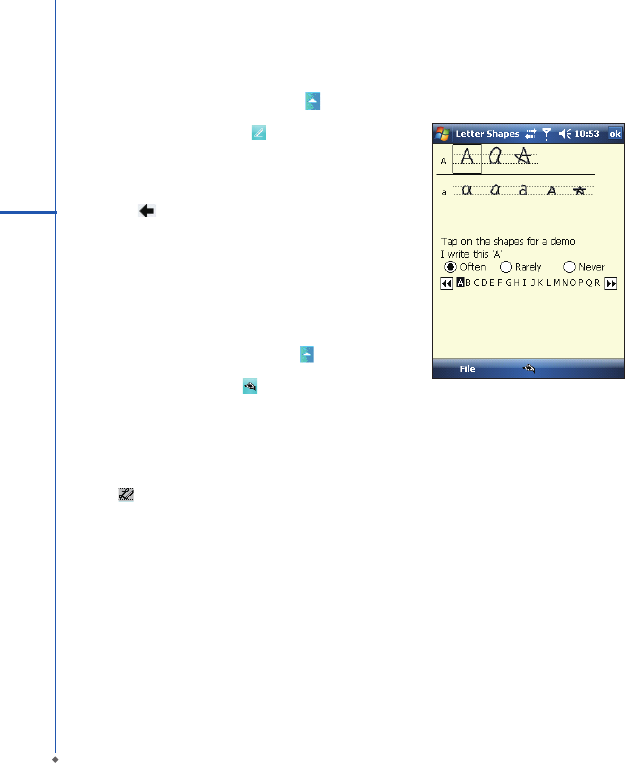
Learning how to write in Transcriber
1. Tap on the tool bar.
2. A Letter Shapes screen will appear, select the
character you wish to explore, tap the picture of this
character on top of the screen, and it will demonstrate
the writing sequence of the letter. Select how often
you write the character using that method.
3. When you nish the practices, you can save these as
a prole by tapping File > Save.
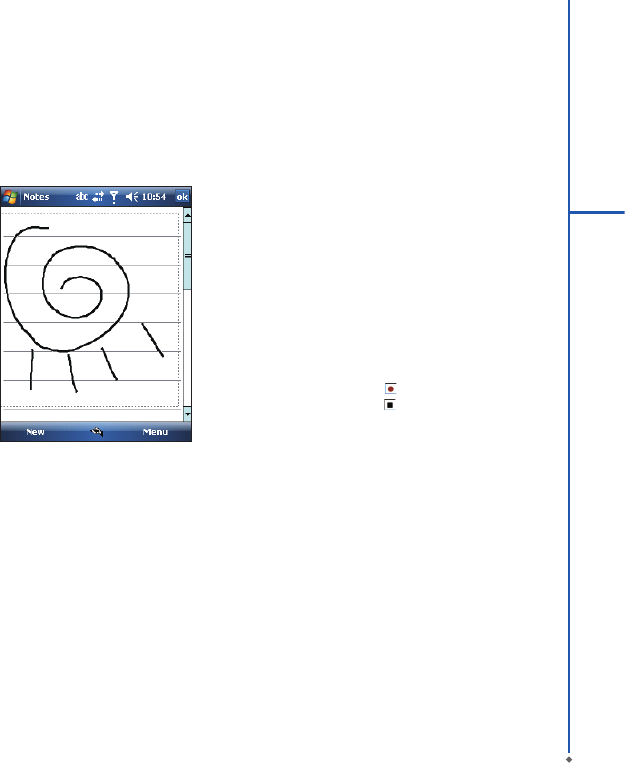
2.7 Drawing on the screen
You can draw on the screen in the same way that you
write on the screen. The difference between writing and
drawing on the screen is how you select items and how
they can be edited. For example, selected drawings can
be resized, while writing cannot.
29
2
Getting started
Creating a drawing:
Cross three ruled lines on your rst stroke. A drawing
box appears. Subsequent strokes in or touching the
drawing box become part of the drawing. Drawings that
do not cross three ruled lines will be treated as writing.
Selecting a drawing
To edit drawing, select it rst.
1. Tap and hold the stylus on the drawing until the
sele c tion h a n d l e a p p ear s. To s e l e c t m u l t iple
drawings, deselect the pen button and drag to select
drawings you want.
2. You c an cut, copy, and paste selected drawings
by tapping and holding the selected drawing and
tapping an editing command on the pop-up menu, or
by tapping the command on Edit menu. To resize a
drawing, make sure Pen button is not selected, and
drag a selection handle. To change the zoom level so
it is easier to work or view your drawing, tap Tools
and select a zoom level.
2.8 Recording a message
In an y p rogr am w her e y ou c a n w r ite or dra w o n
the screen, you can also quickly c apture thoughts,
remin d e r s , a n d p h one numb e r s b y r e c o r d i n g a
message. In Calendar, Tasks, and Contacts, you can
include a recording in Notes tab.
In Notes, you can either create a standalone recording,
or include a recording in a written note. If you want to
include the recording in a note, open the note rst. In
the Messaging program, you can also add a recording
to an E-mail message.
Creating a recording
1. To add a recording to a note, open the note before
recording. Tap Start > Programs > Notes.
2. If there is no Record/Playback toolbar, tap Menu >
View Recording Toolbar.
3. Hold your device’s microphone near your mouth or
another sound source.
4. To start recording, tap .
5. To stop recording, tap . The new recording appears
in the note list.
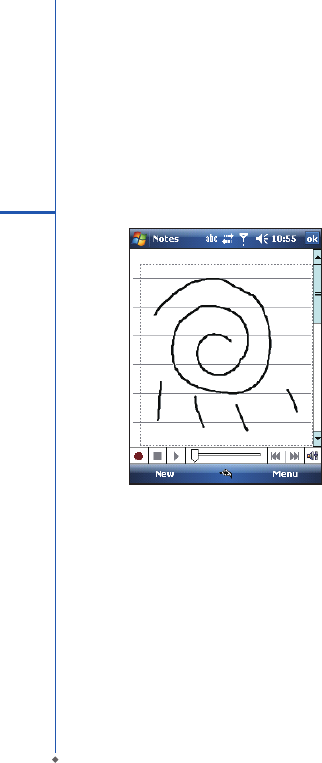
6. To play a recording, tap in the open note or tap the
recording in the note list. You can also access the
Record/Playback tool bar by pressing down Volume
key fo r a while. To qui ckly cr ea te a r ec ording,
hold down Volume key. When you hear the beep,
recording has begun. Release the button when you
are nished. The new recording is stored in the open
note, or as a standalone recording, if no note is
opened.
2.9 Editing my info
You can input your personal information to your O2 Xda
Denim in Owner Information.
1. Tap Start > Settings > Personal tab > Owner
Information > Identification tab.
2. Tap Name eld and input your name.
3. Tap a desired input eld and input your information.
4. Tap Notes tab to input other information you would
like to display on your O2 Xda Denim.
5. If you want your information to be displayed on the
starting screen, tap Options tab.
2.10 Password setup
You can set your own password to prevent unauthorized
use of your O2 Xda Denim.
1. Tap Start > Settings > Personal tab > Lock>
Password tab.
2. On Password tab screen, check Prompt if device
unused for.
3. Select an appropriate time.
4. Select a password type in Password type eld.
5. Input your password in Password eld and reconrm
the password in Confirm eld.
6. Tap OK, a pop-up window will appear to conrm, “ Do
you want to save password settings changes?”.
7. Tap Yes to nish settings and save the changes; No
to cancel.
8. You may also input password hint message under
Hint tab screen.
9. Tap OK to save your inputs.
Please note: If you forget your password, you need to
perform system default, which will lose all your data and
settings.
2.11 Memory expansion
To expand the memor y of your O2 Xda Denim, you
can insert a Micro SD card into the card slot located
at the top of the phone. Make sure the card is inserted
correctly.
2.12 Data backup
Your O2 Xda Denim supports 64MB R AM capacity;
however, you may need to back up data and any new
programs that you install in the RAM to guard against
data loss. To back up your Contact, Calendar, etc.,
please set up the synchronization partnership with your
PC and connect the phone with PC. ActiveSync will
start automatically.
30
1
Getting started
Chapter 3
Phone Functions
3.1 Phone Dialer screen and key introduction
3.2 Making a call
3.3 Receiving / Ignoring a call
3.4 International calls
3.5 Emergency calls
3.6 Volume adjustment
3.7 Contacts
3.8 Creating a new contact
3.9 Call history
3.10 Setting ring tone and password
3.11 SIM manager
3.12 Video telephony
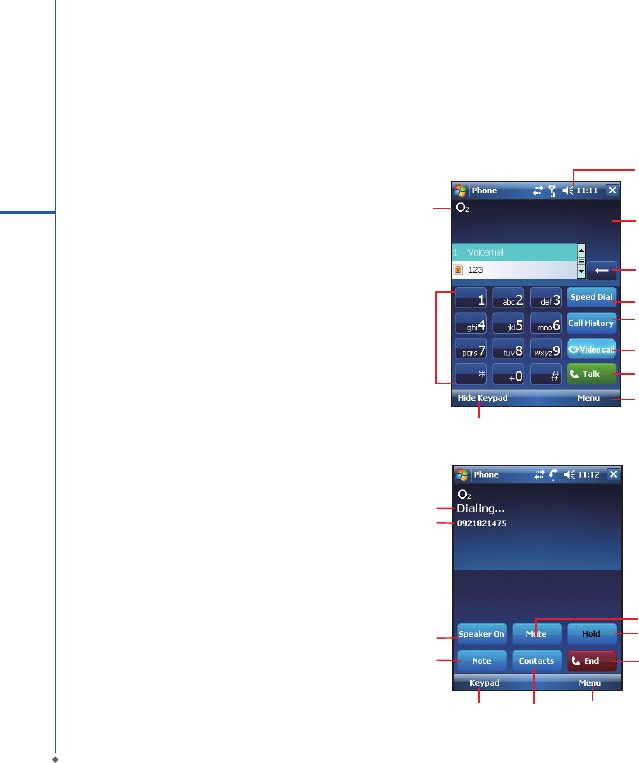
Press Talk/Send key to enter phone functions. Please
insert a SIM card before using these functions.
Phone Dialer screen
From Phone Dialer screen, you can access Contacts,
Speed Dial, Call History, and more options under
Menu. This screen has the following features:
1. The name of the network provider
2. The number you entered
3. Touch screen keypad
4. Hide Keypad
5. Signal strength
6. Clear numbers
7. Speed Dial
8. Call History
9. Make/End a video call
10. Make/End a voice call
11. Menu to access more options
When a call is connected, the screen displays the
following:
1. The calling status
2. The name and number of the contact you are calling
3. Speaker On/Off
4. Create a note for the call
5. Return to the dialer phone screen
6. Contact list
7. Mute the call
8. Hold the call
9. End the call
10. Menu to access more options
Please note: When there is a call c omes in, press
volume up / down will immediately silent off the alert.
1
2
3
4
5610
7
8
9
Chapter 3 Phone Functions
3.1 Phone Dialer screen and key Introduction
32
3
Phone Functions
4
6
7
8
1
2
3
5
9
11
10

33
3
Phone Functions
3.2 Making a call
With your O2 Xda Denim, you can make a call by entering the phone number, or selecting a number from Contacts,
Speed Dial, and Call History.
1. After entering Phone Dialer screen you can dial a number using the numeric keypad or the keypad on the screen.
2. To delete an error input, use key on the screen.
3. Tap to make a call.
4. Tap to end the call.
Speed dial
You can set ten phone numbers in your speed dial list.
1. After entering Phone Dialer screen tap Speed Dial button on the screen to enter your Speed Dial List.
2. On Speed Dial List screen, you can select a contact on the list to see the contact’s detailed information.
3. On Speed Dial List screen, tap Menu on the bottom right corner of the screen. You can perform New, Edit, or
Delete contacts of the Speed Dial List.
4. To make a call, tap the corresponding number on the keypad to call the contact on Speed Dial List.
5. You can also use the navigation key to select a contact you want to call on Speed Dial List screen, and then
press Talk/Send key to call.
6. Press End key to end the call.
3.3 Receiving / Ignoring a call
When you receive a phone call, a notication message will appear. To answer the incoming call, tap Answer or
press Talk/Send key. To ignore or reject a call, tap Ignore to mute the phone and reject the call. This may divert the
call to your voice mail, depending on your network operator.
3.4 International calls
When you make an international call from any country, you need to insert a special international access code. If you
enter “+” symbol as a prex before the number you are calling, then you do not need to enter the access code for the
country you are calling from.
To make an international call
1. Tap and hold 0 key until + sign appear. + replaces the international prex of the country that you are calling from.
2. Enter the full phone number you want to dial. It should include the country code, area code (without the leading
zero), and phone number.
3. Tap Talk or press Talk/Send key.
34
3.5 Emergency calls
Enter the international emergency number 112, and then tap Talk or press Talk/Send key. Additional emergency
numbers may be included on your SIM card. Contact your network operator for more information.
If your O2 Xda Denim has entered Device Lock mode, you have to unlock the device first before making an
emergency call.
1. Tap the Unlock on Left Function Key.
2. Tap “Unlock” displayed on the bottom left of the screen.
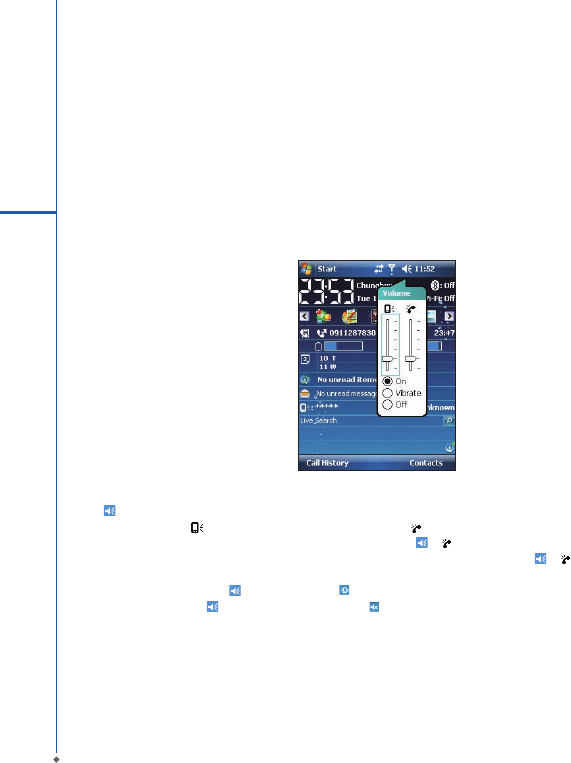
3.6 Volume adjustment
Tap icon on the screen and the volume adjustment window will appear. Adjust the volume of alert tone for all
programs tapping on ,and adjust the ring volume by tapping on .
1. Press Volume Adjustment key on the left side manually or tap > to adjust incoming call volume.
2. If you press the Volume Adjustment key on the left side of your O2 Xda Denim or tap > icons during a call,
you may adjust the in-call volume of the phone. You can only adjust it during a call.
3. When you select Vibrate, icon will change to icon.
4. When you select Off, icon on screen will change to icon.
3
Phone Functions
35
3
Phone Functions
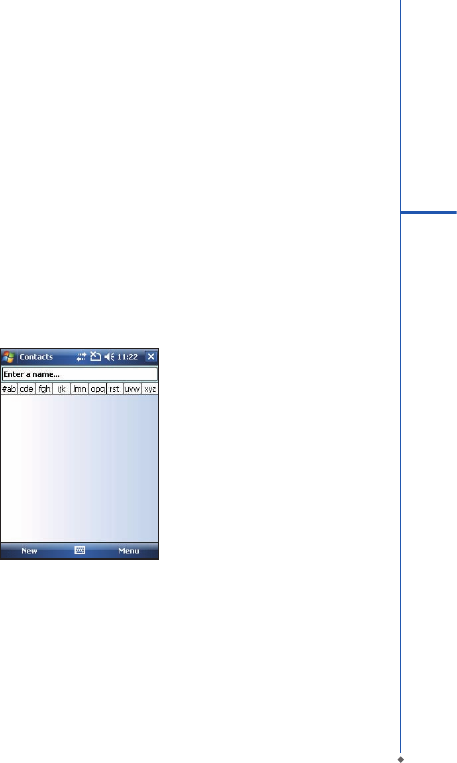
3.7 Making a call from contacts
On Today screen, you can tap Contacts on the bottom right of the screen to enter Contacts. Or under Phone
Dialer screen, tap Contacts on the bottom left of the screen to enter Contacts.
1. Enter the contact or phone number you intend to search into the search eld, the phone will search for the contacts
that match this condition.
2. Tap and hold 5 Way Navigation key upwards or downwards to browse contacts by initial letters in Contacts. (This
function is available for contacts synchronized from Outlook only).
3. Tap on any contact to view that contact’s information.
4. Under Contacts screen, tap Call on the bottom left of the screen or tap Left Soft key to make a call to that
person.
5. Under Contacts screen, tap Menu on the bottom right of the screen for more options.
If you would like to make a call using a telephone, go to Contacts and highlight the person you would like to call. Tap
Menu > Sounds DTMF; then aim your O2 Xda Denim to the telephone receiver. Your telephone will dial out to the
desired contact upon reception of the DTMF sounds from your device.
3.8 Creating a new contact
On Contacts screen, tap New on the bottom left of the screen. A blank record will appear.
1. You may set photos in Picture eld for this contact, by which the contact’s photo will display as an incoming call
photo ID.
2. You may also tap Ring tone eld to set different incoming call ring tones for your contacts.
3. Tap OK on the top right of the screen to save the new contact and exit.
3.9 Call history
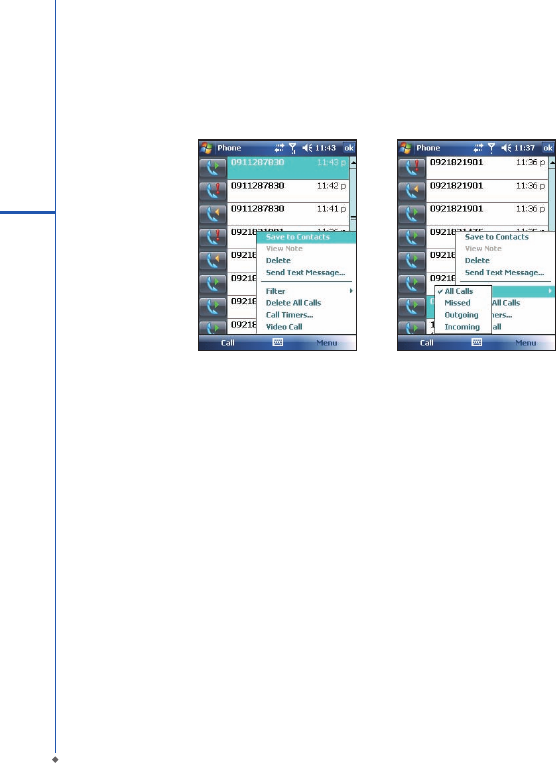
Call History contains all outgoing calls, incoming calls, and missed calls. You may choose to display all or only
display highlighted items.
1. On Today screen, tap Call History on the bottom left of the screen.
2. Tap Menu on the bottom right of the screen.
3. Select a desired function to perform. You may change call history display method by selecting Filter; or select
Call Timers to check incoming call numbers, call time, and manage incoming call history.
4. On Call History screen, select the icon on the upper left side of the main screen to redial this number at once.
5. On Call History screen, tap and hold on a phone number to open a drop-down menu for more options.
3.10 Setting ring tone and password
On Phone Dialer screen, tap Menu on the bottom right of the screen. Tap Options > Phone tab.
1. You may select a preferred ring type.
2. If you want to download ring tones, please use ActiveSync program in the computer and copy the ring tone le to
Application Data/ Sounds folder in your O2 Xda Denim. The ring tone les will be added as the options.
3. You can set keypad tone for dialing.
4. You can set personal password to prevent unauthorized use from others.
36
3
Phone Functions
3.11 SIM manager
SIM card copy
Use this function to copy the contacts in SIM card to the device.
1. From Today > Contacts > Menu > SIM Manager.
2. Choose the SIM card contacts on the top.
3. All contacts in SIM card will show on the screen.
4. Choose contacts you want to copy then select Copy to phone contacts and your contacts in SIM card will be
copied to Contacts in this device.
5. If you choose Recovery, the contacts will be recovery to your SIM card.
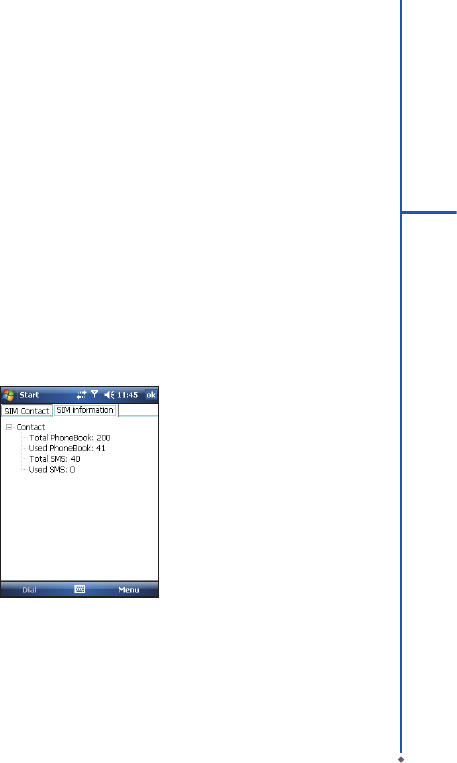
SIM card information
This function will show the information about your SIM card.
1. From Today > Contacts > Menu > SIM Manager.
2. Choose SIM card information on the top.
3. Show the content of SIM card.
37
3
Phone Functions
3.12 Video telephony
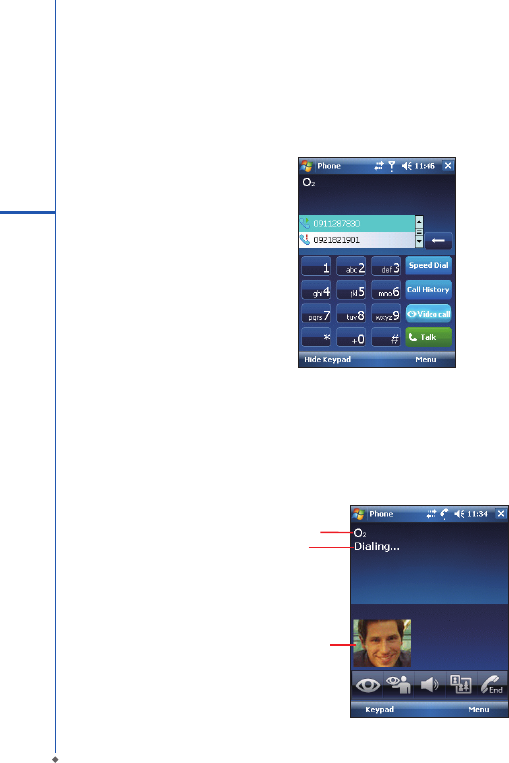
The 3G Video Telephony Application/Phone Canvas allows you to make a video call in addition to making an audio
call. To make a video call, perform the steps described in the section below.
To make a video call
1. On Phone Dialer Screen, type the required phone number.
2. Tap the Video Call button to make a video call.
As the call progresses, the 3G Video Telephony Application automatically proceeds to Dialing screen. Status
information appears below the phone number.
Preview window
Operator
Call status
38
3
Phone Functions
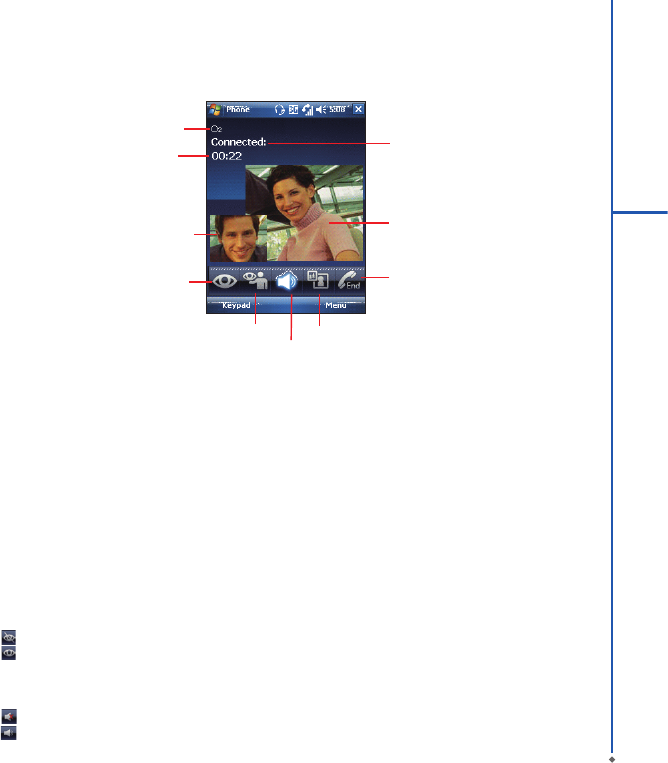
When the video call is connected successfully, the 3G Video Telephony Application appears as:
Preview window
Operator
Block video
Mute audio
Switch cameras Switch windows
Drop calls
Call status
Remote window
Preview Window
The top left window plays the video from the local camera.
Remote Window
The window at the center plays the video from the remote side.
Operator
This window displays Operator information.
Call Status
This window displays the current call status.
Elapsed Time
This window displays the elapsed time of the current call.
Block Video
Tap this button to block/unblock local video transmit to the others. The button indicates the state:
: Block video data for the remote.
: Unblock video data for the remote.
Mute Audio
Tap this button to mute/un-mute local audio data transmit to the others. The button indicates the state:
: Mute audio data for the remote.
: Un-mute audio data for the remote.
39
3
Phone Functions
Elapsed Time
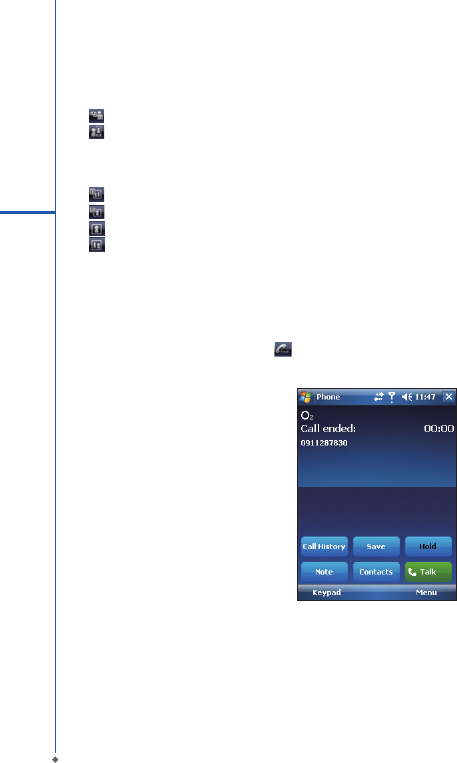
Switch Cameras
Tap this button to switch between the front and rear camera. The button reects the current status:
: Front camera.
: Rear camera.
Switch Windows
Tap this button to switch the position of the Preview window and the Remote window:
: The Preview window is located at the top left.
: The Remote window is located at the top left.
: Only the Preview window.
: Only the Remote window.
Call Failed
If the placed call failed, the 3G Video Telephony Application displays a dialog that prompts you to indicate whether a
voice call should be dialed or whether the video call should be retried with the same phone number.
Ending a call
You can end an active call by tapping . The call state changes to Call Ended.
40
3
Phone Functions
Incoming Video Call
When the 3G Video Telephony Application receives a video call request, an information box appears. To accept the
call, tap Answer. To reject the call, tap Ignore. If you answer the call, the process that follows is similar to that for
outgoing video calls described in the section To make a Video Call.
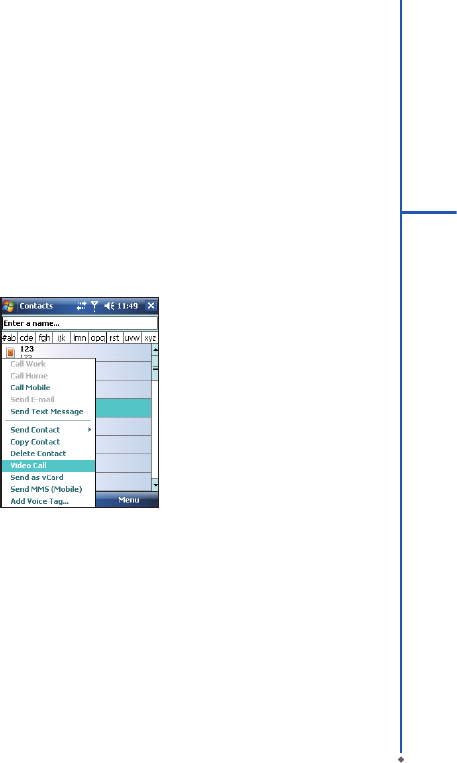
Outlook Contacts
The 3G Video Telephony Application allows you to make a call to your Outlook contacts.
To make a call to an Outlook contact
1. Open Outlook Contacts page.
2. Do one of the following to display a menu:
Tap the Menu or tap and hold the required contact record.
3. Choose VT Call to create an outgoing video call to the selected contact.
41
3
Phone Functions
Call History
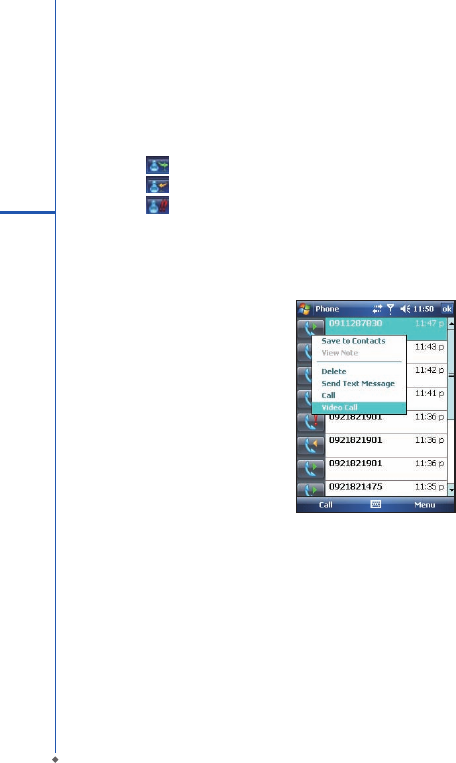
The Call History feature of the 3G Video Telephony Application is used to remember previous calls. This feature
allows you to easily redial the number of a call you made earlier. In the Call History page, you can distinguish audio
calls from video calls by their icons.
: Outgoing video call.
: Incoming video call.
: Missed video call.
To redial a number from Call History
1. In the Call History page, tap and hold a record.
2. To make a video call, choose Video Call from the menu.
42
3
Phone Functions
Chapter 4
Settings
4.1 Personal settings
4.2 System settings
44
4
Settings
Chapter 4 Settings
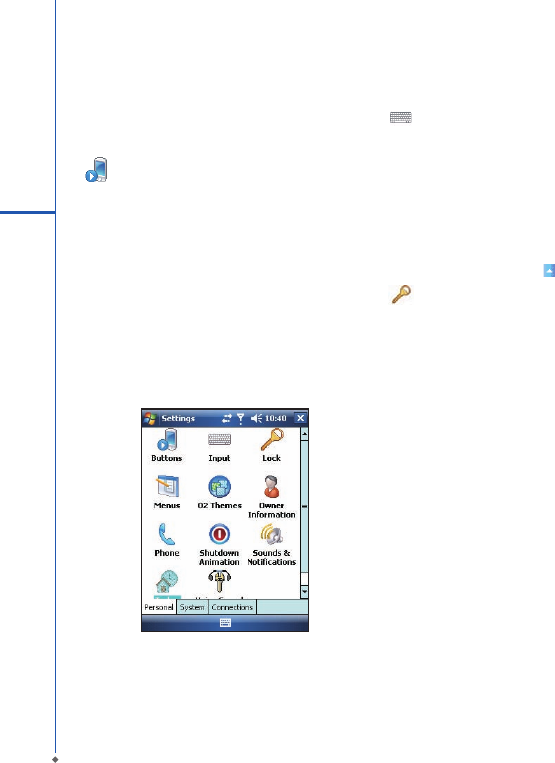
4.1 Personal settings
You may set your personalized settings by preference.
Buttons
You may assign programs to a hardware button.
You may set certain keys as the activation keys for your
most commonly used programs.
1. Tap Start > Settings > Personal tab > Buttons >
Program Buttons tab.
● Under Select a button, tap the button you want
to assign to a program, and then select a program
from Assign a program.
2. On Up/Down Control tab, Delay before first repeat
changes the time elapsed before scrolling begins.
Repeat rate changes the time it takes to scroll from
one item to the next.
Input
Set your preferred input method.
1. Tap Start > Settings > Personal tab > Input.
2. On Input Method tab, select a desired input method.
On Word Completion t a b, se l ect the de s ir e d
settings for word completion. On Options tab, select
the desired options for writing and recording. These
options apply to any program on your O2 Xda Denim
where you can record or write. You can also change
input options by tapping the arrow and Options.
Lock
You may set a personal password to lock your O2 Xda
Denim.
A strong password must have at least 7 characters that
are a combination of uppercase and lower case letters,
numerals, and punctuation.
1. Tap Start > Settings > Personal tab > Lock.
2. To enable this function, select how long your O2 Xda
Denim must be turned off before the password is
required for using your O2 Xda Denim by tapping
Prompt if device unused for.
3. Select the type of password you would like to use:
Strong alphanumeric or Simple PIN.
4. Enter the password and,
● If your O2 Xda Denim is configured to connect to
a network, use a strong password to help protect
network security.
● If you forget your password, you must hard reset
before you can access your O2 Xda Denim. A hard
reset will erase all les and data you have created
and any programs you have installed.
● If you have used ActiveSync to create a backup
le, all of your program data can be restored.
45
4
Settings
Menus
Select the programs to be displayed in Start menu.
Only 7 programs are allowed in Start menu. To add the
programs you use most often to Start menu:
1. Tap Start > Settings > Personal tab > Menus.
2. Select the programs you want, and then tap OK.
Owner information
Sets layout, items, color and background of Today
display.
1. Tap Start > Settings > Personal tab > Owner
Information.
2 . O n Id entif ication t a b , e n t e r yo u r pe r s o n a l
information.
3. On Notes tab, enter any additional text you want to
display when your O2 Xda Denim is turned on, such
as: “Welcome!”.
4. On Options tab, select which message will display
when your O2 Xda Denim is turned on.
Phone
Settings for phone functions.
You can easily view and change settings, such as
the ring type and ring tone to be used for incoming
calls, and the keypad tone to be used when entering
phone numbers. You can also protect your device from
unauthorized use. There are two ways to change phone
settings:
● Tap Start > Settings > Personal tab > Phone.
● To change the phone settings from Phone screen, tap
Menu > Options.
Pho n e t a b
Under Phone tab, you can set up the following items:
Ring type
You ca n c ha ng e t he way t hat yo u are n ot ifie d of
incoming calls. For example, you can choose to be
notied by a ring, a vibration, or a combination of both.
Tap the Ring type list, and select the desired option.
Ring tone
Tap Ring tone list, and then select the sound you want
to use.
1. To s e t .wav o r . m id f il e s a s r i n g t o n e s , u s e
ActiveSync on your PC to copy the le to \Windows\
Rings folder on your O2 Xda Denim. Select the
sound from Ring tone list.
2. To download ring tones, you can make a connection
to the Internet and then download ring tones that are
compatible with the .wav or .mid formats.
Keypad
You can change the tone you hear when entering a
phone number on the keypad. If set to Long tones, the
tone is heard continuously for as long as the number on
the keypad is pressed. If set to Short tones, the tone is
heard only for one or two seconds.
1. Tap Keypad list; then select the option you want.
2. To prevent tones from being heard when entering a
phone number, select Off.
Security
You may check Require PIN when phone is used
to enhance your phone security. Tap Change PIN to
change your SIM PIN number.
S er vic e s t a b
Set t i n g s i n c l u d e Call Barring, Caller ID, Call
Forwarding, Call Waiting, Voice Mail and Text
Messages.
1. Tap Start > Settings > Personal tab > Phone >
Services tab.
2.
Check the items you want to select and tap Get
Settings....
3. Tap OK to save settings and return to Personal tab
screen.
46
4
Settings
Please note: All services in Services are provided by operators. Please contact your operator for enquiries
regarding these services.
N et w or k ta b
Tap Start > Settings > Personal tab > Phone > Network tab.
● Under Current network, tap Find Network to automatically search for the network in use.
● Under Network Selection, select Automatic or Manual to select network automatically or manually.
● Under Preferred networks, tap Set Networks to set your preferred order of networks.
Sounds & Notications
Settings for alarm sound and notications.
Turning off sounds and the notication helps conserve battery power. To change the ring type and volume:
1. Tap Start > Settings > Personal tab > Sounds & Notifications.
2. On Sounds tab, you can select the desired actions.
3. On Notifications tab, you can customize how you are notied about different events. Select the event name and
then select the type of reminder. You can select a special sound, a message, a ash light, or vibrate.
Today
Settings for screen appearance and items displayed on the Today screen.
To change the theme of your Today screen:
1. Tap Start > Settings > Personal tab > Today.
2. On Appearance tab, select the desired theme. To use your own background, select Use this picture as the
background and then tap Browse to locate the desired le.
3. Choose a folder, tap the le you want, and tap OK.
Please note: The recommended picture size for the background is 240x320 pixels in jpeg le format. To beam a
favorite theme to a friend, select the desired theme, and tap Beam on Appearance tab.
Customizing the displayed information:
1. Tap Start > Settings > Personal tab > Today > Items tab.
2. Select the information you want to be displayed on Today screen.
3. To customize the information further, select an information type, and then tap Options (not available for all
information types).
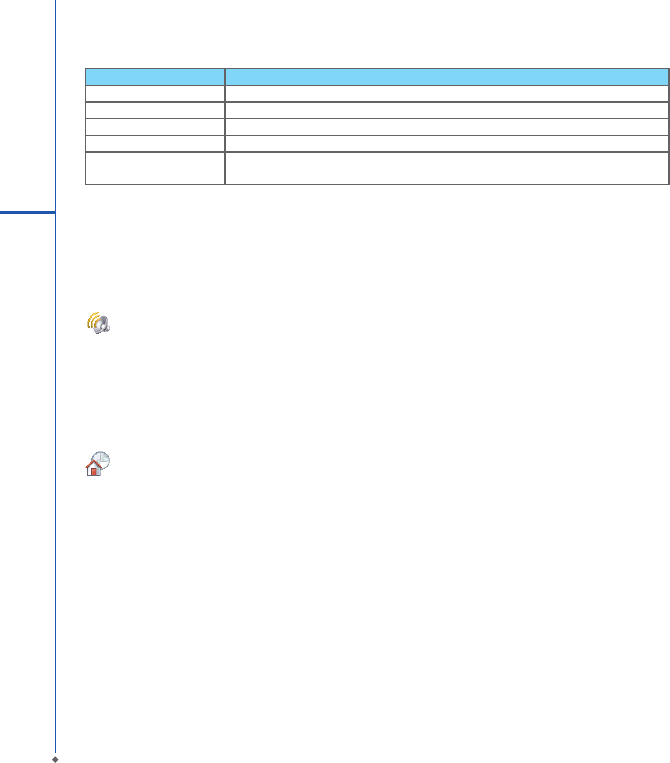
Option Description
Call Barring Block incoming and/or outgoing calls.
Caller ID Display your name and/or phone number for outgoing calls.
Call Forwarding Forward all or selected incoming calls to a different phone number.
Call Waiting Notify you an incoming call while you are on the phone.
Voice Mail and Text
Messages
Set up voice mail and SMS service center.
47
4
Settings
Voice Speed Dial
Record your voice tags for contacts or applications.
You can record voice tags to dial a phone number or launch programs by speaking to the device.
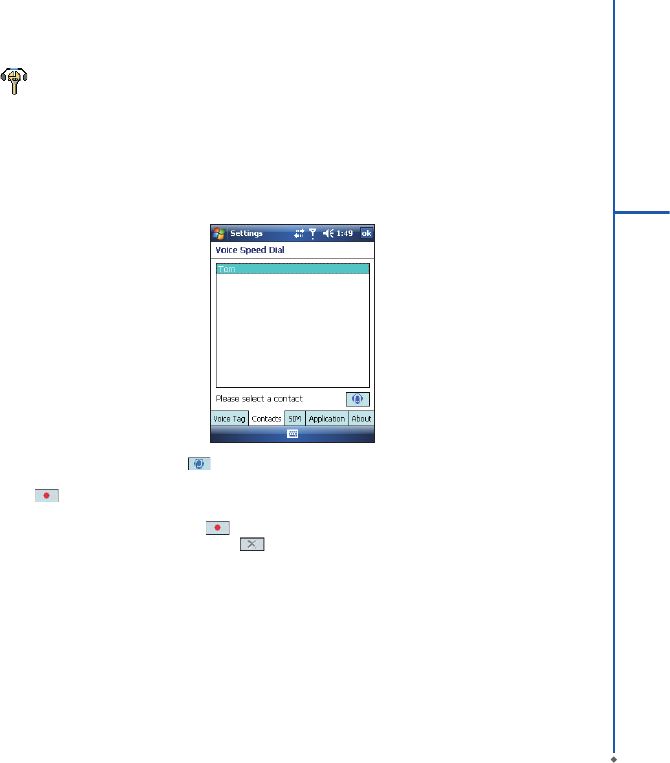
There are three ways to create a voice tag. To create a voice tag for a phone number.
1. Tap Start > Contacts and select the contact person. Tap and hold on it to open pop-up menu and then select Add
Voice Tag.
● Alternatively, select the contact person and tap Menu > Add Voice Tag.
2. You can also tap Start > Settings > Personal tab > Voice Speed Dial and go to Contacts tab.
3. Select one contact and then press to create a voice tag.
4. If the contact person has multiple phone numbers, select one to create a voice tag.
5. Tap After the beep sound, it will start to record your voice. The system will now build the recorded voice tag.
6. When prompted, if the voice tag was successfully built, a voice tag icon will be displayed on the right of the item.
7. You can rebuild a voice tag by tapping again.
8. To delete a voice tag, select the item and tap ; the system will then remove this item’s voice tag.
Please note:
To improve the voice tag’s accuracy, please record in a quiet place.
To create a voice tag for a program:
1. Tap Start > Settings > Personal tab > Voice Speed Dial > Application tab.
2. This setting page will display all installed applications on the device's Start menu and Programs folder.
Please note:
If the entry has a voice tag icon on the right side, this means that you have built a voice tag for this item.
3. Example: To create a voice tag for “Internet Explorer”.
4. Launch Voice Speed Dial, tap Application tab.
5. Tap Internet Explorer.
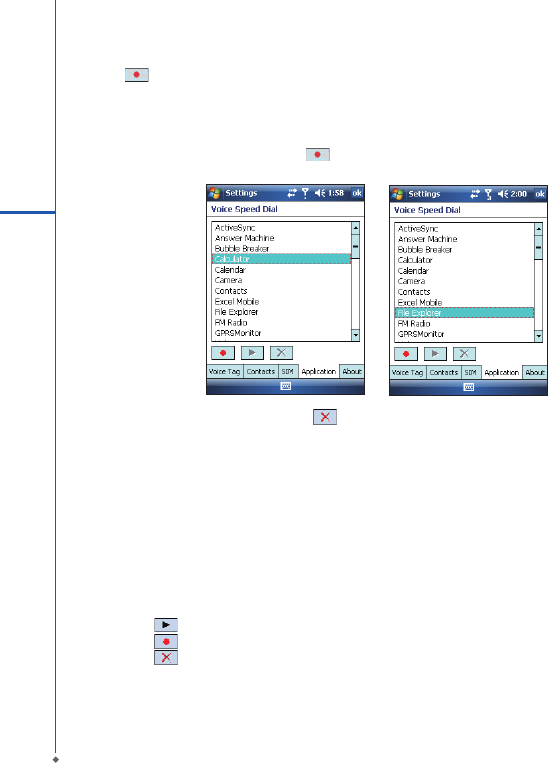
48
6. Tap .
7. After the beep, say “IE”.
8. The system will now build the recorded voice tag.
9. After the voice tag is successfully built, a voice tag icon will be displayed on the right of the item.
10. You can launch Voice Speed Dial; after the beep sound, say “IE” directly to launch “Internet Explorer”.
11. You can rebuild the voice tag by tapping again.
To delete a voice tag, select the item and tap ; the system will remove this item’s voice tag.
To make a call or launch programs using a voice tag:
1. Tap Start > Programs > Voice Speed Dial or long press down the Volume key on the left side of your O2 Xda
Denim.
2. After the beep, say the word that you have assigned to the phone number or programs you want to call. The
device will play back the recorded voice tag and dial out or launch programs automatically.
3. If the system fails to recognize the voice, try again; speak more clearly and reduce surrounding noise, if possible.
To view and play voice tags:
1. Tap Start > Settings > Personal tab > Voice Speed Dial > Voice Tag.
2. The system will list all voice tags here.
3. Select the item.
4. You can tap these buttons as follows:
: The system will play the created voice tag.
: You can re-record the voice tag.
: The system will remove this item’s voice tag.
4
Settings
49
4
Settings
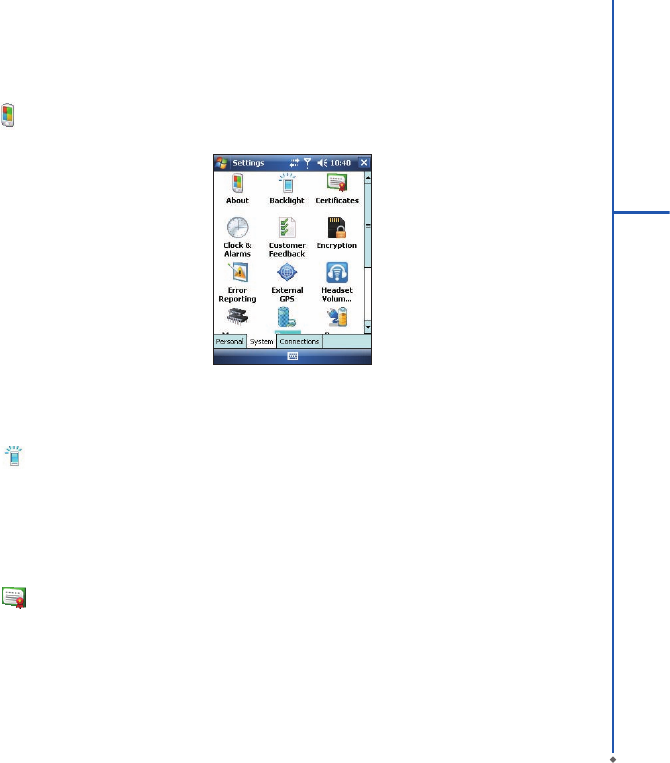
4.2 System settings
About
This function contains information about your O2 Xda Denim.
Version tab displays important device information, including the amount of memory installed. On the Device ID tab,
you may need to change your device name if you are unable to connect to a network because another device with
the same name is already connected.
Backlight
Congure the backlight settings and adjusts the brightness level to save power.
Using the backlight on battery power substantially reduces battery life. Tap Start > Settings > System tab >
Backlight.
● Tap Battery power tab to turn ON/OFF the backlight when using battery power.
● Tap External power tab to turn ON/OFF the backlight when using external power.
● Tap Extended tab to adjust the brightness level.
Certicates
Information about the certicate issuer and the expiration date.
Tap Certificates to view the name of the certicate issuer and the expiration date.

50
4
Settings
Clock & Alarms
Settings for time and alarms.
Tap Start > Settings > System tab > Clock & Alarms.
● If you visit a particular time zone often, select it as your Visiting time zone on Time tab so that you can quickly see
the correct date and time.
● You can use your O2 Xda Denim as a travel alarm clock by setting a wake-up alarm on Alarms tab. Tap the alarm
icon to select the type of alarm you want.
● To change the way the date or time is displayed on your O2 Xda Denim, go to Regional Settings by tapping Start
> Settings > System tab > Regional Settings.
Customer Feedback
Customer Experience Improvement Program from Microsoft®.
It is Customer Experience Improvement Program designed by Microsoft®. The purpose is to identing trends and
usage patterns to improve the software. You can check Send Feedback to participate or Don't Send Feedback to
reject.
Encryption
Encrypt les.
You can encrypt les stored on the micro SD card by simply checking Encrypt files placed on storage card. Once
encrypted, such les are only readable by this device.
External GPS
Settings for using GPS function.
● Under Programs tab, you can choose the port that your device will use to obtain GPS data.
● Under Hardware tab, you can specify the hardware port to which your GPS device is connected. Settings include
GPS hardware port and Baud rate.
● Under Access tab, you can activate Manage GPS automatically. You are strongly advised to activate this feature;
doing so will enable your O2 Xda Denim to manage access to your GPS device, and allows multiple programs to
obtain GPS data simultaneously.
51
4
Settings
Headset Volume Limiter
Modify your headset volume to suit your need.
You may use this application to adjust the headset volume. On Headset Volume Limiter screen, drag the bar to the
right to turn the headset volume up; drag the bar to the left to turn the volume down. Tap Default button to reset the
volume to system default (105db).
Memory
Display memory status and programs that are currently running.
You may need to stop a program if it becomes unstable or the program memory is low. Tap Start > Settings >
System tab > Memory.
● Main tab displays the amount of memory the system has allocated to le and data storage versus program storage.
This tab also displays the amount of memory in use versus the available memory.
● Storage Card tab displays how much memory is available on the storage card that is inserted into your O2 Xda
Denim.
● Running Programs tab displays the list of currently active programs. You can stop a program by selecting it in the
list and then tapping Stop, or just tap Stop All to stop all the running programs.
Power
Battery status and settings.
Tap Start > Settings > System tab > Power.
● Battery tab displays the amount of battery power remaining. Battery power depends on the battery type and how
your O2 Xda Denim is being used.
● Under Advanced tab, you can select options for turning off your O2 Xda Denim to conserve battery power.
● Under Extended tab, you can check lock O2 Xda Denim when entering stand-by mode.
When your O2 Xda Denim enters stand-by mode, it will automatically enable device lock.
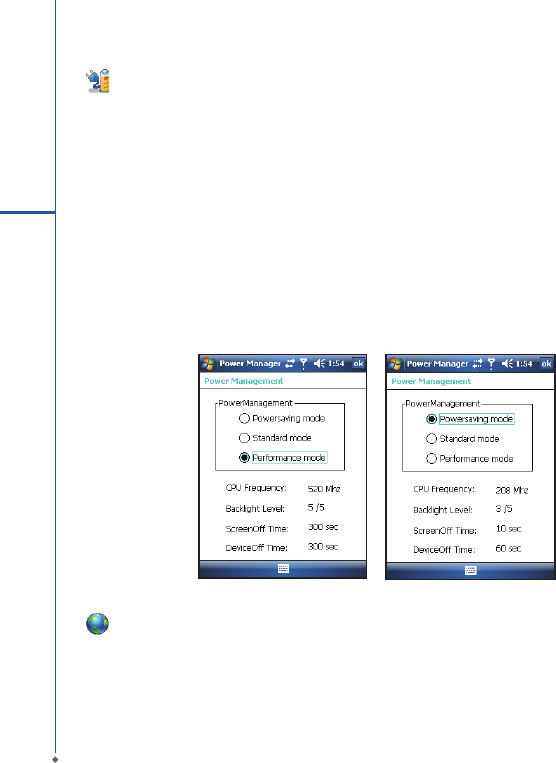
Power Management
Adjust different proles for CPU power management.
You can choose which kind of mode you want to use.
There are three kinds of modes: Power saving mode
Standard mode
Performance mode
Go to Power Management:
Tap Today > Settings > System > Power Management.
When you enter power management, you will nd three modes:
1. Power saving mode
2. Standard mode
3. Performance mode
Each mode has different set of preset settings, which are shown on the screen when you select a mode. You can
choose the most suitable mode for yourself.
Regional settings
Settings for region, number, currency, time, and date format.
This feature allows you to customize the unit and format for the region you are in. To access this feature, tap Start >
Settings > System tab > Regional Settings.
52
4
Settings
Remove programs
Remove programs from your O2 Xda Denim.
Remove Programs allows you to uninstall programs that are saved in your device’s storage memory. It also shows
the total available storage memory. Select a program that you would like to remove from the program box and tap
Remove.
Screen
Settings for screen orientation, screen alignment, and text size.
● Under General tab, you can adjust the screen’s orientation and align the screen.
● Under Clear Type tab, you can select Enable Clear Type to smooth the edges of screen fonts for many programs.
● Under Text Size tab, you can adjust the text size to see more content or increase the readability in many programs.
Slide Setting
Enable you to answer calls by sliding the phone.
To answer or end phone calls by slider up and down, check Use slider to answer phone call.
System Info
Display the system information.
This feature displays the system information Including hardware information and software (ROM) version.
53
4
Settings
Chapter 5
Synchronization
5.1 About synchronization
5.2 Installing ActiveSync
5.3 Choosing your synchronization type
5.4 Using ActiveSync tools
5.5 ActiveSync errors
56
Chapter 5 Synchronization
5.1 About synchronization
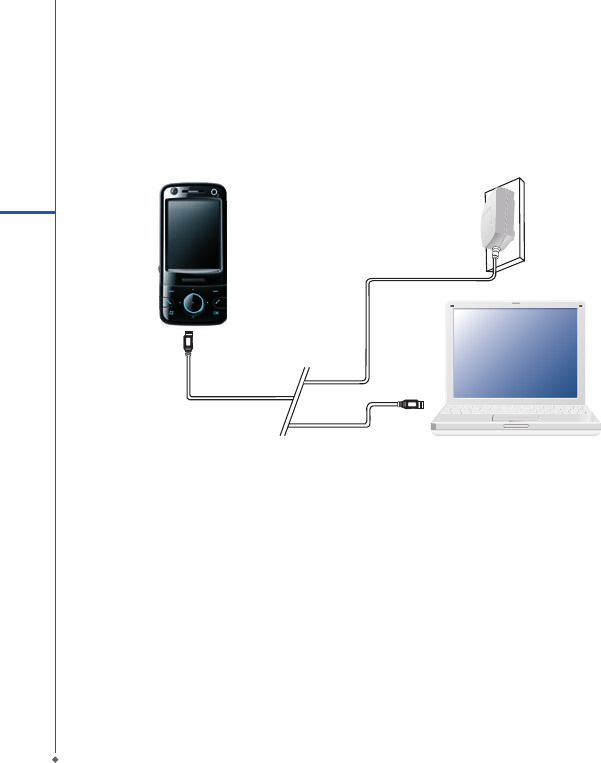
You can synchronize information between your PC or Microsoft® Exchange Server and your O2 Xda Denim with
ActiveSync on both your O2 Xda Denim and PC. Before synchronizing information, please install ActiveSync 4.5
on the PC. Then you can:
● Synchronize information to get the latest information in all locations.
● Add or remove programs on your device.
● Transfer les between your device and a PC.
● Change synchronization settings and the synchronization schedule.
Once you install ActiveSync on your PC, you will be prompted to connect your device and create a synchronization
relationship with the device by using a USB cable or Bluetooth connection. While you are setting up this relationship
you can choose the information you want to synchronize with either your PC or with Microsoft® Exchange Server.
5
ActiveSync Synchronization Tool
57
5
ActiveSync Synchronization Tool
5.2 Installing ActiveSync
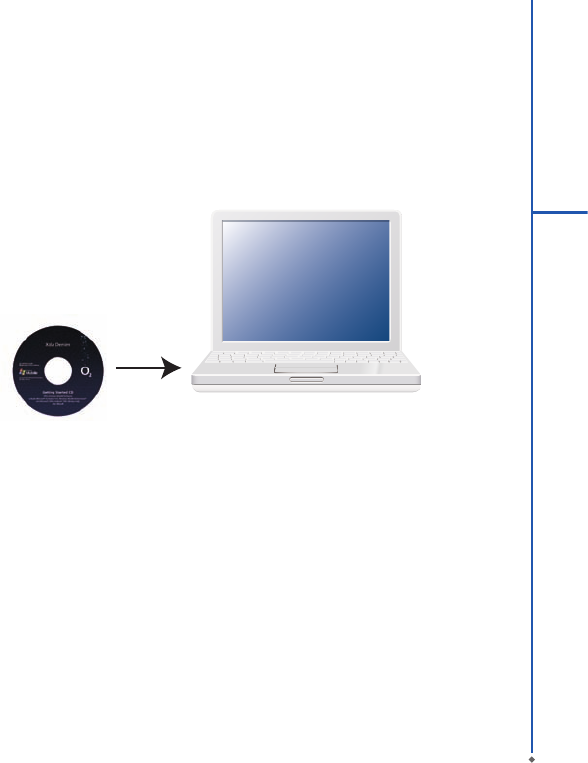
Please do not connect your device to the PC before installing ActiveSync 4.5 on the PC from the Getting Started
Disc included in your package. You may only connect the device to the PC by USB cable or Bluetooth after
ActiveSync is installed.
Please note: Your O2 Xda Denim has built-in ActiveSync already. To install ActiveSync 4.5 in your PC, please
follow the instructions given when you run the Getting Started Disc. After nish installing ActiveSync in your PC,
you will be asked to build a partnership with your device using one of the following connection methods:
● USB cable
● Bluetooth

58
5.3 Choosing your synchronization type
USB cable
You can connect your device with other devices via a mini-USB connector. You can manually change the connection
settings as follows. The new settings will be used when you connect your device to the PC next time.
1. Tap Start > Programs > ActiveSync.
2. Tap Menu tab > Connections.
3. Choose USB in the drop-down menus and check Synchronize all PCs using this connection.
Bluetooth connection
You can also synchronize your information by using Bluetooth wireless connectivity technology, which allows your
device to connect to a Bluetooth-compatible device within 10 meters. For best connection results, it is recommended
that you connect the device to the PC using USB to establish a synchronization relationship before connecting via
Bluetooth.
To synchronize via Bluetooth connection:
1. Execute ActiveSync Help on the PC and follow the instructions for conguring Bluetooth on your PC to support
ActiveSync.
2. Tap Start > Programs > ActiveSync.
3. Tap Menu > Connect via Bluetooth. Make sure that the device and the PC are within 10 meters or shorter.
4. Tap Sync.
5. After nishing the synchronization, tap Menu > Disconnect Bluetooth.
6. Turn off Bluetooth to preserve battery power if not used.
Please note: Before you connect to this PC via Bluetooth, please make sure that you have set up a
Bluetooth partnership with the PC: Tap Start > Settings > Connections > Bluetooth.
For more details, please refer to Chapter 6 Getting Connected.
5
ActiveSync Synchronization Tool
59
5
ActiveSync Synchronization Tool
5.4 Using ActiveSync tools
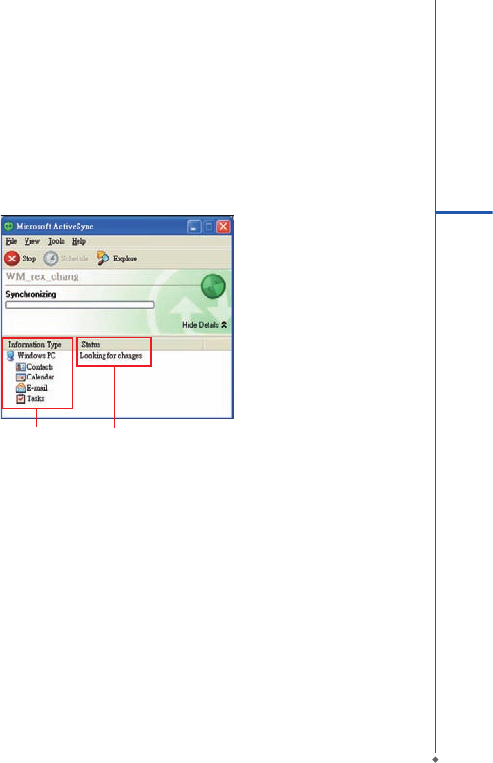
Once you’ve established the connection partnership between your device and pc, you can start synchronization. The
information you can synchronize includes Contacts, Calendar, Outlook E-mail, Tasks, and Notes.
To select a specic data source:
1. Tap Start > Programs > ActiveSync.
2. Tap Menu > Options.
3. Launch ActiveSync on your PC, and turn the synchronization for specic information types on or off as necessary.
Information for
synchronization
Status of
synchronization
Contacts
Contacts stored on your device can be synchronized with Outlook contacts stored on your PC or with Microsoft®
Outlook® 2002 or later.
New items entered in one location are copied to the other during synchronization. Handwritten notes and drawings
are saved as pictures when synchronizing with your PC, but are removed when synchronizing with a server. For
more information on synchronization, see ActiveSync Help on the PC.
Calendar
You can synchronize calendar items on your device with calendar items on your PC or Microsoft®Exchange Server.
You can only synchronize information directly with a Microsoft® Exchange Server if you are running Microsoft®
Outlook 2002 or later. Calendar synchronization is automatically selected in ActiveSync.
Calendar items entered on one computer are copied to the other during synchronization. Handwritten notes and
drawings are saved as metales (pictures).

60
5
ActiveSync Synchronization Tool
Outlook E-mail
After you have selected Inbox for synchronization in ActiveSync, Microsoft® Outlook E-mail messages are
synchronized as part of the general synchronization process. During synchronization:
• Messages are updated from the Inbox folder on your PC or the Microsoft® Exchange server to the Inbox folder
a of the Outlook E-mail account on your device. You can only synchronize information directly with an Microsoft®
Exchange Server if you are running Microsoft® Outlook® 2002 or later. By default, you’ll receive messages from the
last three days only, the rst 100 lines of each new message, and le attachments of less than 100KB in size.
• Messages in the Outbox folder on your device are transferred to Exchange or Outlook and then sent from those
programs.
• Messages on the two computers are linked. When you delete a message on your device, the message will also be
deleted from your PC the next time you synchronize.
• Messages in subfolders in other E-mail folders in Outlook are synchronized only if they have been selected
for synchronization in ActiveSync. For information on initiating Outlook E-mail synchronization or changing
synchronization settings, see ActiveSync Help on the PC or Connections Help.
Please note: Text messages (SMS) and Multimedia messages (MMS) are not received through synchronization.
Instead, they are sent to your device via your network service provider.
Tasks
Tasks stored on your device can be synchronized with Outlook on your PC. Task synchronization is automatically
selected in ActiveSync. New items entered on one computer are copied to your device during synchronization.
Handwritten notes and drawings are saved as metales (pictures). For more information on synchronization, see
ActiveSync Help on the PC.
Notes
Notes can be synchronized between your PC and phone either through notes synchronization or le synchronization.
Notes synchronization synchronizes the notes on your device with Outlook Notes on your PC. File synchronization
synchronizes all notes on your device with My Documents folder on your PC.
To synchronize your notes through notes synchronization, rst select Notes information type for synchronization in
ActiveSync. The next time you synchronize, all notes in My Documents and its subfolder on your device will appear
in Outlook Notes on your PC. Notes that contain only text will appear as regular notes in Outlook on your PC,
while notes containing written text or drawings will appear in the device format. In addition, all notes in Notes group
in Outlook on the PC will appear in Notes on the device.
To synchronize your notes as files, in ActiveSync, select Files information type for synchronization and clear
Notes information type. When you select Files, My Documents folder is created on your PC’s desktop. All .pwi
les placed in My Documents folder on your device and all .doc les placed in \ My Documents folder on your PC
will be synchronized. Password-protected les cannot be synchronized. ActiveSync converts documents during
synchronization. For more information on synchronization or le conversion, see ActiveSync Help on the PC.

61
5
ActiveSync Synchronization Tool
Please note: When you delete or change an item on either your PC or device, the item is changed or deleted in the
other location the next time you synchronize. If you synchronize your notes using le synchronization and then later
decide to use notes synchronization, all of your notes will be synchronized with Outlook on your PC and will no
longer be stored in My Documents folder.
5.5 ActiveSync errors
Whenever ActiveSync cannot successfully synchronize your information, it displays an error on your device and
your PC.
Viewing error information
Press Action button when the error text is displayed. ActiveSync will then display more information about the error
that has occurred. Some types of errors can interfere with automatic synchronization. If you suspect that a scheduled
automatic synchronization has not occurred, you should attempt to manually synchronize your information.
Successfully completing manual synchronization will reset automatic synchronization. For more information, see
Synchronizing Information section of ActiveSync Help on your PC.
Please note: Most firewall applications are intended to block network traffic and secure the PC from incoming
network connections. Since ActiveSync uses TCP ports for data transfer with devices, to avoid this potential
experience, you will need to manually allow this trafc to be un-blocked by Firewall applications for the Device using
ActiveSync. You will need to add ActiveSync application processes into Firewall Programs Exception List.
Chapter 6
Getting Connected
6.1 Wireless manager
6.2 GPRS
6.3 Bluetooth
6.4 Wi-Fi
6.5 USB card reader
6.6 Internet sharing
6.7 Cell broadcast setting
6.8 Connecting to the Internet
64
Chapter 6 Getting Connected
Your O2 Xda Denim has powerful networking functions that enable you to connect to the Internet or to other devices.
You may use a number of different methods, for example, 3G, GPRS network or Wi-Fi to connect to the Internet. You
can set up connections to the Internet and to a corporate network at work to browse the Internet, send and receive
E-mail, use instant messages, and synchronize with ActiveSync. Via Bluetooth or USB functionalities, you can also
transfer les between your O2 Xda Denim and other devices. There are two types of connection settings: My ISP
and My Work Network. My ISP settings are used to connect to the Internet, and My Work Network settings can
be used to connect to any private network, such as a corporate network. Fill in the settings and you are ready to
connect to the Internet.
6
Getting Connected
6.1 Wireless manager
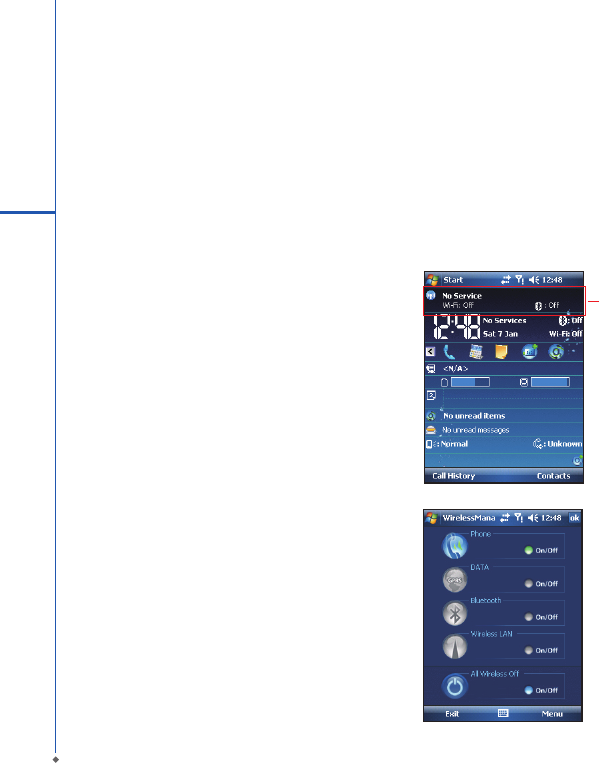
Wireless M anag er i s an integrated int er face t ha t
combi nes GPRS, Bluetooth, Wireless LAN, and
Phone in one function page. To manage these wireless
connections, tap Start > Settings > Connections tab
> Wireless Manager. You may also access Wireless
Manager from Today screen.
Tap All to t ur n on /of f all wire less c on nect ions. I f
you only want to turn off Bluetooth, for example, tap
Bluetooth and the button will become colorless. Tap
Menu to set up these wireless connections.
Flight Mode
While ying, you can turn off the wireless connections
while still using the O2 Xda Denim for other purposes.
1. Tap Start > Settings.
2. Tap the Connections > Wireless Manager.
3. Tap All Wireless Off, when all buttons are colorless,
wireless functions are off. Your O2 Xda Denim is now
safe to use on a ight.
Wireless
Manager

65
6
Getting Connected
6.2 GPRS
Before using GPRS to connect to the Internet, please contact your network operator to conrm that the service is
enabled and supported on your SIM card. Using GPRS is convenient for you while traveling or working at home. You
can use this device to browse web pages, read or send E-mail, text or MMS messages, and sign in Windows Live
Messenger through wireless network.
GPRS connection settings
1. Select Start > Settings > Connections tab > Connections > Advanced tab.
2. Tap Select Networks to open Network Management screen.
3. Select a desired network name from the list, or tap New to add available network to the list. Tap Edit to modify
existing network setup content.
4. Tap OK to save and exit.
Please note: The simplest way to get your O2 Xda Denim connected to the network is to activate O2 Auto
Configurator.
Activating GPRS connection
1. Tap Start > Internet Explorer.
2. Input an URL address you desire to browse in address eld and tap the arrow icon to go to the URL.
3. After completing connection, icon will become icon.
4. Or you may select Start > Settings > Connections tab > Connections > Tasks tab > Manage Existing
Connection > tap and hold on a connection to open pop-up Menu > Connect. After completing connection, you
may go Internet surng or send and receive E-mail.
Please note: If this device is under ight mode, please turn off ight mode beforehand. Tap icon on Today screen,
then tap Wireless Manager on the pop-up window. Tap on “Phone” to turn the phone function on. The icon will
appear on Today screen when GPRS is activated.
66
6
Getting Connected
GPRS SETTING
Go to GPRS setting:
Today > Start > Programs > GPRS setting.
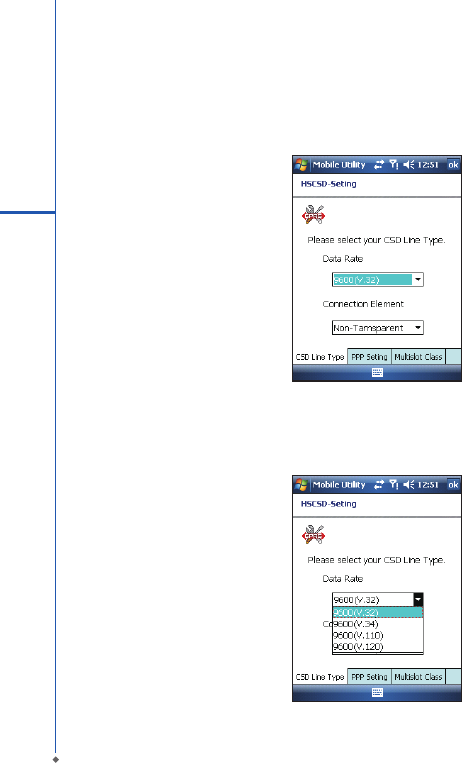
You’ll see three tabs on the bottom: CSD Line Type, PPP Setting, Multislot Class.
C S D Lin e Ty p e t a b
When you get in CSD line type, there are two bars can be chose Data Rate and Connection Element CSD Line
Type > Data Rate > 9600 (v.32), 9600(v.34), 9600(v.110), 9600(v.120) CSD Line Type > Connection Element >
Non_Tarnsparent, Tarnsparent.
67
6
Getting Connected
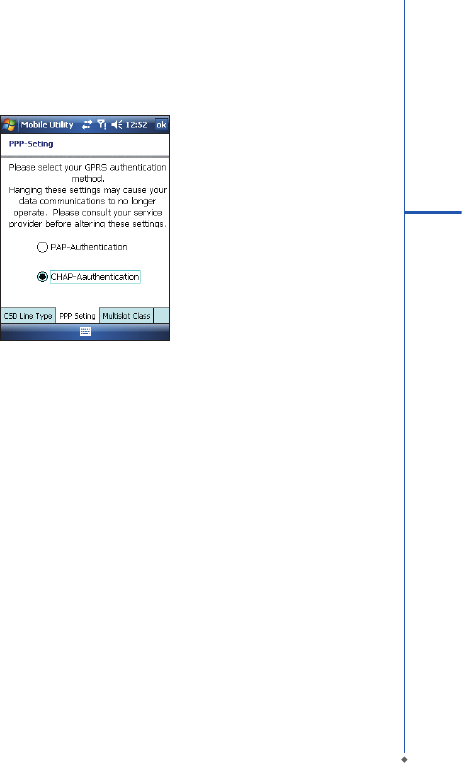
P P P s et tin g t a b
PPP Setting tab > PAP-Authentication, CHAP-Authentication.
M ulti slo t Cl ass t a b
Multislot Class tab > Class 8, Class 10, Class 12
Please note: It is recommended that after running O2 Autocongurator, please keep the congured setting and do
not change it.
68
6
Getting Connected
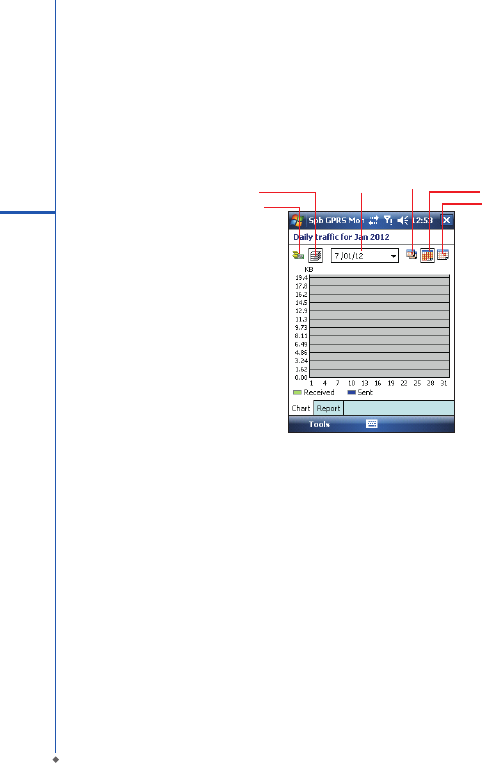
GPRS Monitor
This program allows you to monitor GPRS trafc and cost in hourly, daily, monthly or yearly view.
To monitor GPRS trafc:
1. Tap Start > Programs > GPRS Monitor > Chart tab.
2. Select an icon to view its details:
Monthly trafc
Date Daily trafc
Hourly trafc
By data size
By costs
To view the GPRS report:
Tap Start > Programs > GPRS Monitor > Report tab.
6.3 Bluetooth
Bluetooth is a shor t-range wireless communications technology. With Bluetooth, you don’t need to line up the
devices to beam information. The two devices only need to be within a range of about 10 meters. You may use
Bluetooth in the following ways:
1. Exchange information, such as les, appointments, tasks, and contact cards, between devices that have Bluetooth
capabilities. For example, if you and a co-worker each have a device with Bluetooth, you can beam items between
your devices; these items could include les, contact cards, appointments, tasks, etc.
2. Create a dial-up modem connection between your device and a Bluetooth phone. You can then use the Bluetooth
phone as a modem.

69
6
Getting Connected
Bluetooth settings
To access the Bluetooth settings screen, tap Start > Settings > Connections tab > Bluetooth. To turn on
Bluetooth, check Turn on Bluetooth option; uncheck the option to turn off. If Bluetooth is turned off, you cannot
use Bluetooth to either send or receive information. In order to conserve the battery power or where radio use is
prohibited, you might want to turn Bluetooth off.
By default, Bluetooth is turned off. If you turn it on, and then turn off your device, the Bluetooth radio also turns off.
When you turn on your device again, the Bluetooth radio automatically turns on the radio. If you wish to turn on the
radio, turn off Bluetooth rst, and then turn on the radio. To make your device visible to other Bluetooth devices,
check Make this device visible to other devices option.
If Bluetooth radio is turned on, then all of the other Bluetooth devices within range (about 10 meters) can detect
your device and attempt to beam information to it, establish a bond, or use a Bluetooth service. In this mode, other
devices can detect your device whether or not a bond has been created; however, in order to receive a beam from
another device, you must accept it on your device. Other Bluetooth devices can now detect your device and attempt
to beam information to it, establish a bond, or use a Bluetooth service. Note that, to receive beamed information,
you must accept it on your device by selecting Make this device visible to other devices; this also turns on your
Bluetooth radio. If you no longer want your device to be visible, uncheck Turn on Bluetooth option or uncheck Make
this device visible to other devices option to leave the radio on, but not allow detection by other devices.
Bonds
To exchange information in a secure manner, you may use a bond to create a relationship between your O2 Xda
Denim and another Bluetooth device. To create a bond, you need to enter the same pass code on the two devices
that you want to bond. You need only create a bond once between two devices. Once a bond is created, the devices
recognize the bond and are able to exchange information without your needing to enter PIN again.
To create a bond:
You can create a bond between your device and another device that has Bluetooth. Once you do this,
Bluetooth doesn’t need to be in visible mode in order for you to beam information between the two devices; you only
need to have the Bluetooth radio turned on.
1. Tap Start > Settings > Connections tab
2. Tap Bluetooth > Devices tab > New Partnership. Your device searches for other Bluetooth devices and displays
them in the list.
3. Tap the name of the other device in the list, and then Next.
4. Enter a pass code of between 1 and 16 characters and tap Next.
5. Enter the same pass code on the other device.
6. In Display Name, edit the name of the other device if you want.
7. Tap Finish.
Please note: Make sure that the two devices are within 10 meters of one another and that Bluetooth is in visible
mode on both devices.

70
6
Getting Connected
To accept a bond:
1. Please make sure that Bluetooth is activated and visible to other devices.
2. When prompted to bond with the other device, tap Yes.
3. Enter a pass code of between 1 and 16 characters , and tap Next. You must enter the same pass code that was
entered on the device requesting the bond.
4. In Display Name, edit the name of the device requesting the bond if you want.
5. Tap Finish.
The bond is created. You can now exchange information with the other device.
To rename a bond:
1. Tap Start > Settings > Connections tab.
2. Tap Bluetooth > Devices tab.
3. Tap the bond to rename.
4. In Display Name, enter a new name for the bond and then tap Save.
To delete a bond:
1. Tap Start > Settings > Connections tab.
2. Tap Bluetooth > Devices tab.
3. Tap and hold the bond and then tap Delete.
Beaming information with Bluetooth
1. Tap and hold an item to beam, such as an appointment in Calendar, a task in Tasks, a contact card in Contacts,
or a le in File Explorer.
2. Tap Beam type of item.
3. Tap the device to which you want to send the beam. The item is beamed to the device you selected. If the device
that you want to beam does not appear in the list, make sure that it is turned on, in visible mode, and within 10
meters of your device. Also, make sure that your Bluetooth is turned on.
Receiving a Bluetooth beam:
1. Make sure that your device is congured to receive incoming beams and that Bluetooth is in visible mode.
2. Make sure that your device is within 10 meters of the device beaming the information.
3. When prompted to receive an incoming beam, tap Yes. The information is now stored on your device.
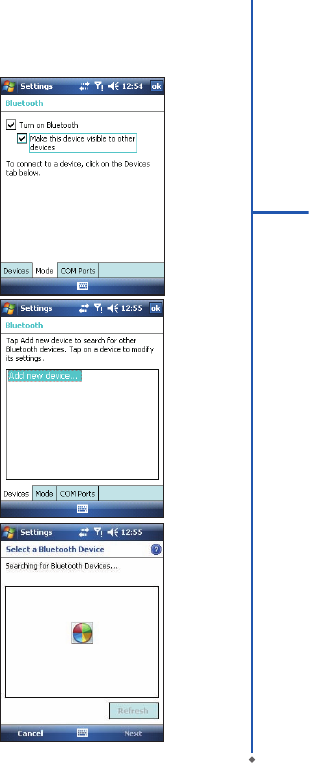
71
6
Getting Connected
Bluetooth headset
To set up your device with a Bluetooth headset, you may
refer to the user guide that comes with your Bluetooth
headset and the following instructions:
1. Tap Start > Settings > Connections tab > Bluetooth
> Mode tab and check Turn on Bluetooth and
Make this device visible to other devices.
2 . Ta p Start > Sett ings > Connect ions t a b >
Bluetooth > Devices tab and tap Add new device
to scan for other Bluetooth devices.
3. Your device starts scanning for Bluetooth devices.
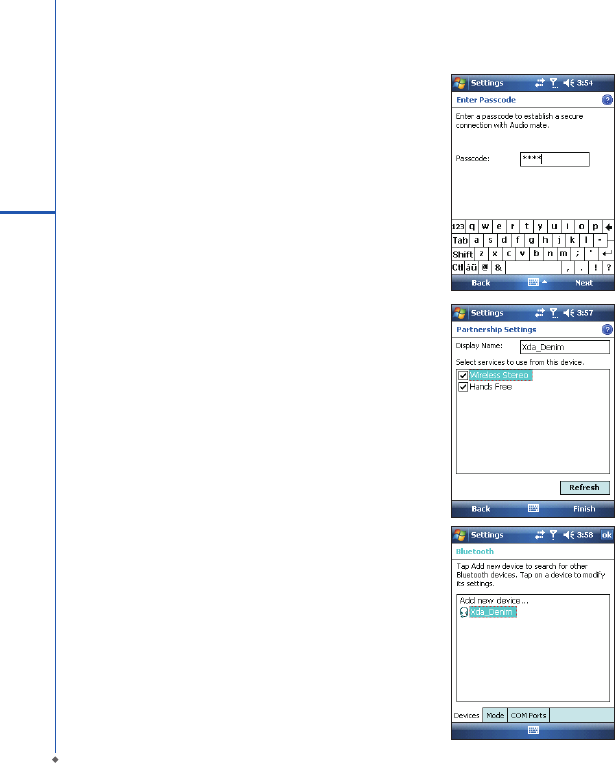
72
6
Getting Connected
4. Enter the pass code for the located Bluetooth device.
For information, please refer to documents that come
with your Bluetooth headset.
5. De ne the display name and the type of service your
Bluetooth device offers.
6. When you finish setup, you will see the Bluetooth
device displayed in the menu.
7. Also, there will be a Bluetooth headset icon indicating
the active connection status.

73
6
Getting Connected
COM ports
For example, when you purchase a Bluetooth GPS-supported navigation software; you can register this device as
an effective serial port by following the instructions on the manual of that product and the steps below:
Tap Start > Settings > Connections tab > Bluetooth > COM Ports tab. To register a new serial port:
1. Tap New Incoming Port to enter setup screen.
2. Select a port to be set.
3. Select Finish.
6.4 Wi-Fi
Wi-Fi is a type of wireless local area network that communicates between two devices by high frequency radio
waves. Your O2 Xda Denim supports Wireless LAN, which is IEEE 802.11b/g compliant. It allows your device to
connect to the Internet with detected wireless network.
To activate Wi-Fi
1. Tap Start > Settings > Connections tab > Wireless Manager.
2. Tap Wi-Fi to activate wireless network.
3. Tap Done to exit.
To check your Wi-Fi status
Tap Start > Settings > Connections tab > WiFi Utility > Wi-Fi Status tab and you may see the details of your
phone’s wireless LAN connection, including Status, ESSID, BSSID, BSS Mode, Channel, Data Rate, IP Address,
and Signal Strength.
To congure Wi-Fi settings
Tap Start > Settings > Connections tab > WiFi Utility > Setting tab and scroll to set the desired value /mode for
the following setting items: Adhoc Channel, Preamble, Data Rate, Power Save, Power strength, and Auto Power off.
Tab Set button to conrm your setting.
To update IP info
Tap Start > Settings > Connections tab > WiFi Utility > IP Info tab > Renew or Ping button to update IP
information or locate the IP address of the other device.
To search IP address
Tap Start > Settings > Connections tab > Wi-Fi Utility > Site Survey tab > Re-scan button to search the ESSID,
Channel, RSSI, and BSSID of the Wireless LAN.
To change IP address
1. Tap Start > Settings > Connections tab > Wi-Fi > Network Adapters tab.
2. In My network card connects to drop-down list, tap either The Internet or Work. If you are connecting to your
ISP at home, tap The Internet. If you are connecting to a private network such as a corporate network at work,
tap Work.

74
6
Getting Connected
3. Tap the appropriate adapter in Tap an adapter to modify settings box. The IP address will now appear in IP
Address box on IP Address tab.
4. To change TCP/IP settings if your ISP or private network does not use dynamically assigned IP addresses, tap
Use specific IP address and enter the requested information. Contact your ISP or network administrator to get
the IP address, Subnet mask, and/or Default gateway (if needed).
5. To change DNS and WINS settings if your ISP or private net work does not use dynamically assigned IP
addresses, tap Name Servers tab and enter the requested information. Servers that require an assigned IP
address may also require a way to map computer names to IP address. DNS and WINS are the resolution options
supported on your O2 Xda Denim.
Please note: After activating Wi-Fi, a new window, New Network Detected, will appear if any is detected. Select
Connect and enter your password to the local network. Tap Connect to connect this device with local network.
You may use Wi-Fi for up to 2 hours. The actual use time will depend on the power status of your battery. When this
feature is not in use, please disable it to save power.
6.5 USB card reader
You may use the device as a mass storage device or a micro SD card reader.
1. Tap Start > Settings > Connections tab > USB.
2. On USB Connection Mode screen, tap SD-Card Reader, and then tap Change.
3. Connect the phone to the computer with USB cable.
4. Your PC will automatically detect the new hardware. Now you can view or transfer les to and from your micro SD
card.
6.6 Internet sharing
By using utility, you can set your O2 Xda Denim as a wireless modem. Internet Sharing allows your PC/Notebook
be connected to a wireless network.
1. Tap Start > Programs > Internet Sharing.
2. Select a USB or Bluetooth PAN as PC Connection type.
3. Connect your device via USB cable or Bluetooth to a PC/Notebook, and then tap Connect.
Please note: Before you tap Connect, please make sure that your have installed a GPRS SIM card, and that you
have connected this phone to your PC/Notebook by USB cable or Bluetooth and disabled ActiveSync.
6.7 Cell broadcast setting
You can receive broadcast channel information and news from your service provider (please check you’re your
service provider for this service). Tap Start > Settings > Connections tab > Cell Broadcast Setting.
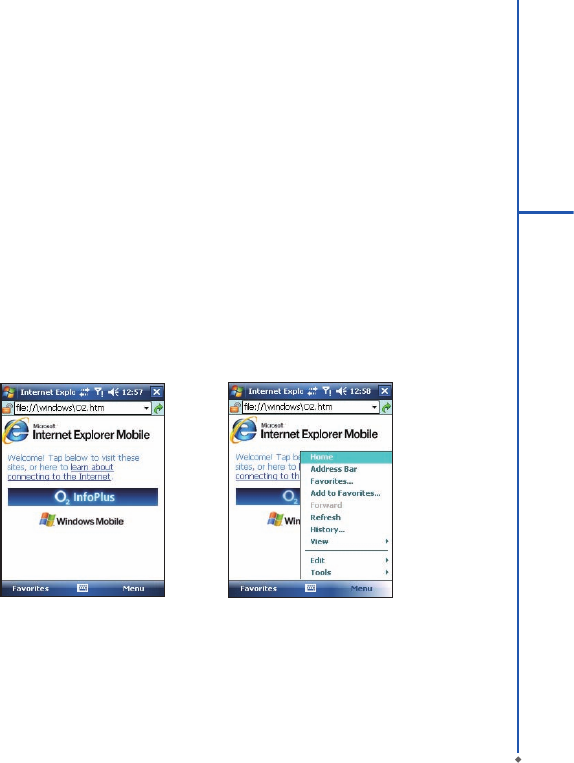
75
6
Getting Connected
6.8 Connecting to the Internet
Once connected, you can use Internet Explorer to surf the Internet. While surng, you can also download les
and programs to be installed on your device from the Internet or intranet. During synchronization with your PC,
download your favorite links and mobile favorites that are stored in Favorites folder in Internet Explorer on the PC.
To synchronize and download your favorite links from your PC, in your PC’s ActiveSync, select Favorites on Tools
menu > Options > Sync options.
Browsing the Internet
Open Internet Explorer screen by tapping Start > Internet Explorer.
1. In the address bar that appears at the top of the screen, enter the Web address you want to connect to. Tap▼to
choose from previously entered addresses.
2. Tap Back to go back to the previous page.
3. Tap Menu > Refresh to refresh the web page on the screen.
4. Tap Menu > Home to go back to the Home page
5. Tap Favorites, and the favorite address you want to view. To add a favorite link while using your device, go to the
page you want to add, tap and hold on the page, and tap Add to Favorites on the pop-up menu.

76
6
Getting Connected
Chapter 7
Messaging
7.1 Short message (SMS)
7.2 Multimedia messages (MMS)
7.3 Voice mail
7.4 E-mail
7.5 Push e-mail
7.6 Windows Live Messenger

78
Chapter 7 Messaging
You can receive e-mails and text messages in Messaging. Text messages are sent and received through your
network operator by using a phone number as the message address. Before receiving and sending your e-mails or
messages, please make sure that your O2 Xda Denim has connected to a network.
Your O2 Xda Denim supports the following messaging services:
SMS (Short Messaging Service)
SMS allows you to send short messages. For receiving and sending text messages (SMS), you only need to ensure
that the phone function is activated by observing the satellite icon on the top of outline bar. It is not necessary to
activate GPRS connection or establish new e-mail account and connection.
MMS ( Multimedia Messaging Service)
MMS allows you to send multimedia messages. You can include text, pictures, photos, sound files or recorded
voice in an MMS message. To send an MMS message, your must register and congure the MMS service with your
network provider.
Voice Mail
You can forward a call to your voice mail box when you are unable to receive a call. The voice mail centre will send
you a notication.
E-mail
You can either use your O2 Xda Denim to directly send/receive e-mails from e-mail server or by synchronously
updating the Microsoft Outlook / Microsoft Exchange Server E-mail in your O2 Xda Denim and PC.
Push E-mail
The Direct Push technology enables you to have access to your new incoming e-mails in real time.
Windows Live Messenger
Your O2 Xda Denim is equipped with Windows Live Messenger. To send instant messages, you need to connect to
the Internet.
7
Messaging
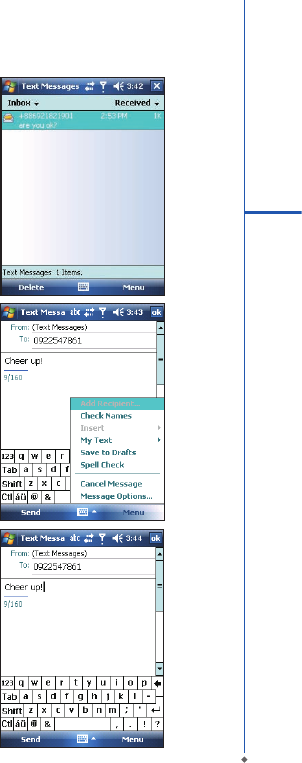
79
7
Messaging
7.1 Short message (SMS)
Writing a text message
1. Tap Start > Messaging > Text Messages > Inbox
folder.
2. Tap Menu > New.
3. Tab To to enter the number of your recipient, and tap
the blank content area to edit the message.
4. To access more editing options, tap Menu. The
options inside enables you to:
● Add Recipient.
● Use predened sentences in My Text.
● Start Spell Check of your text.
● Check Names of your recipients.
● Choose to accept deliver y notication by checking
Requ est message deli ver y not if ication i n
Message Options.
5. To save the message to the draft box, tap Menu >
Save to Draft.
4. To send the message, tap Send.
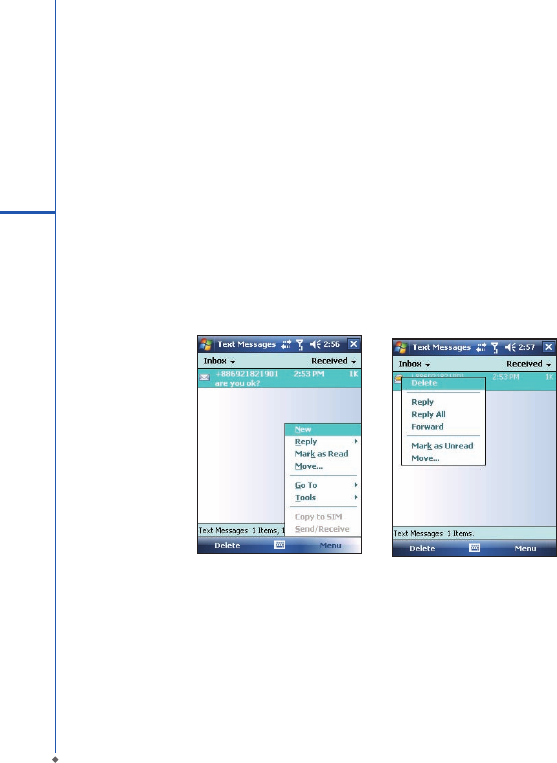
80
7
Messaging
Reading SMS messages
1. Tap Start > Messaging > Text Messages.
2. Tap Inbox to view the sub-folders such as Inbox, Outbox, Drafts, Sent Items, or Deleted Items.
3. Tap Menu to access more options which enable you to:
● Delete the selected message.
● Reply to the sender or Reply All to the included recipients.
● Forward the selected message.
● Move the message to other folders.
● Mark the message as Read or Unread.
● Go To other accounts such as Outlook E-mail or MMS.
● Tools to Manage Folders, Empty Deleted Items, Clear “Text Messages”, create a New Account, and more
Options.
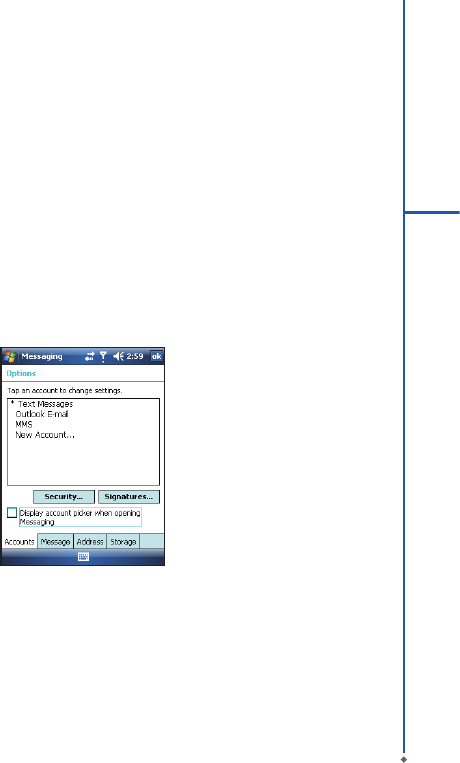
81
7
Messaging
SMS settings
Text Message settings allows you to customize your Accounts, Message, Address and Storage.
1. Tap Start > Messaging and select Text Messages and then Inbox.
2. Tap Menu > Tools > Options.
In Options you can tap the following tabs to modify the settings:
• Accounts tab: Tap an account to change settings. For example, tap *Text Messages to change Request delivery
notifications and Use Unicode when necessary. Tap New Account to set up a new account. Or tap Signatures
to use signatures to designate accounts.
• Message tab: Set up the following messaging features- When replying to e-mail, include body, Keep copies of sent
items in Sent folder, and the After deleting or moving a message feature.
• Address tab: Select whether to get e-mails from all the contacts with e-mail addresses; alternatively, you can
verify names by dening their e-mail addresses.
• Storage tab: Check the memory space of your device, storage card and attachments, Store attachments on
storage card and specify how you want to empty your deleted items.
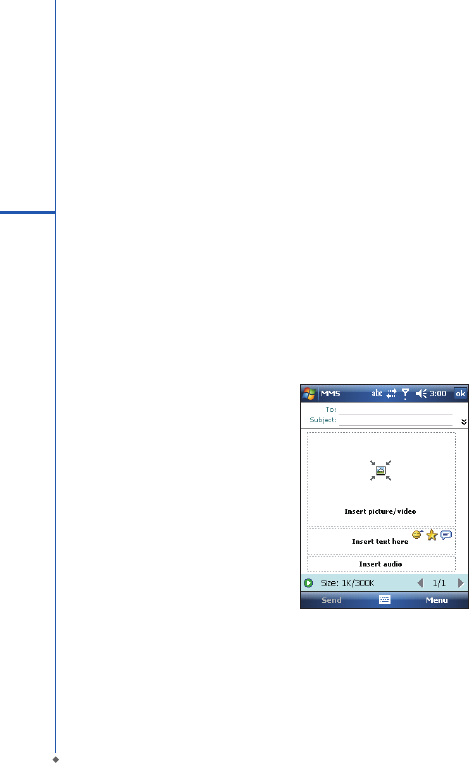
82
7.2 Multimedia messages (MMS)
Your O2 Xda Denim allows you to create and share your own MMS messages (with photos, videos, text, and audio)
with your contacts. During editing the MMS content, you can use Xda Denim’s built-in camera to snap photos, and
they will be directly inserted in the content.
Creating an MMS message
Messages are created by combining various slides. Each slide can consist of a photo or video, audio, and text.
Select New from the menu of any message box screen to compose a new message. Here's a quick run-down of the
Create screen:
1. Tap the__ _ _areas to manually input your address and message subject. Tap To: to select a contact from your
address book. Tap the double down arrow to view the Cc and Bcc elds.
2. Tap here to insert a photo or video.
3. Tap here to input a text message.
4. Tap here to include an audio clip.
5. Tap here to play the message.
6. The message size and the slide number are shown here.
7. The menu lets you do a variety of things (explained later).
8. When you're ready to send your message, tap here.
7
Messaging
If you would like to choose a pre-made message template instead of adding components yourself, choose "New
From Template" from the Template option of Menu.
Please note: You may not automatically be taken to a blank message. If you are instead taken to a page that
displays pre-made templates, choose the template you want. If you would prefer to create a blank message next
time, check the "Always choose custom" box.
1
2
3
4
57
6
8
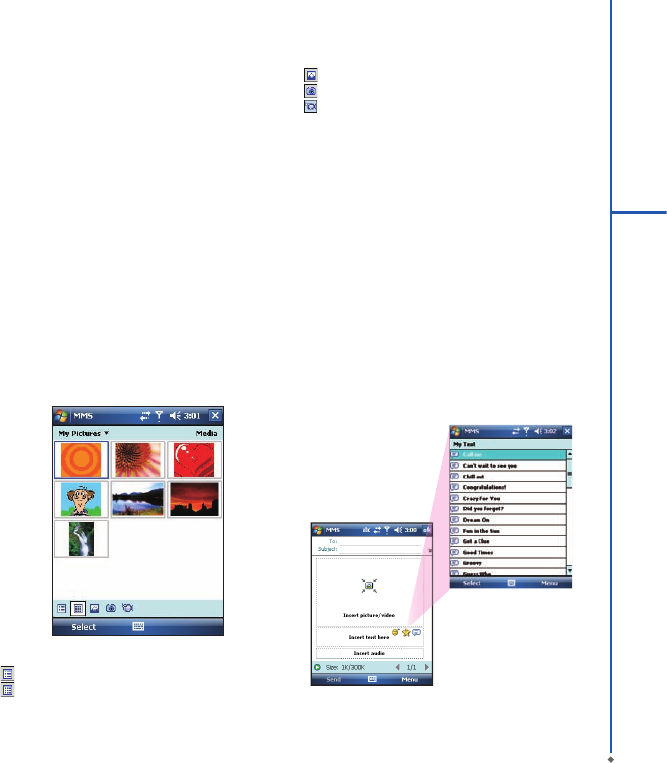
83
7
Messaging
Adding a photo or video
You can add either a still image or a video clip to each
individual slide. After you've tapped the area to add a
photo or video, you'll be allowed to select exactly what
you want to include.
1. This pull-down lets you select a speci c location that
contains photos/videos.
2. Tap the speci c photo or video clip that you want to
add.
Tap and hold on a file to see the "Add to Message",
"Large View", "File Info" and "Delete" options. "Add to
Message" adds the selected photo/video to the slide.
"Large View" displays individual photos or videos. "File
Info" displays the le name, resolution, date, and size of
a photo. When you are viewing video le information,
the duration of the video is also listed. "Delete" deletes
the le.
Tap Select to add the selected photo/video to the slide.
Or tap Cancel to return to the previous screen.
1
2
The following options are available:
- Displays photos/videos as a le list.
- Displays thumbnails (as shown here).
- Displays individual photos.
- Lets you take a new picture.*
- Lets you capture a new video.*
*May not be available in all versions.
Adding text
You can add text to any slide. You can either enter in
new text with the keyboard, or use "My Text." You can
also insert an emotion icon or a favorite website link into
your message. My Text is previously saved words or
phrases.
Tap the My Text icon to see a list of pre-saved text
me ssa ges . Tap t he one y ou wa nt , a nd then t ap
"Select" to add it into the message.
Tap "Menu" in the My Text screen to view additional
options:
New: Lets you enter in a new canned text message.
Edit: Lets you modify an existing canned text message.
Delete: Removes the selected canned text from the list.
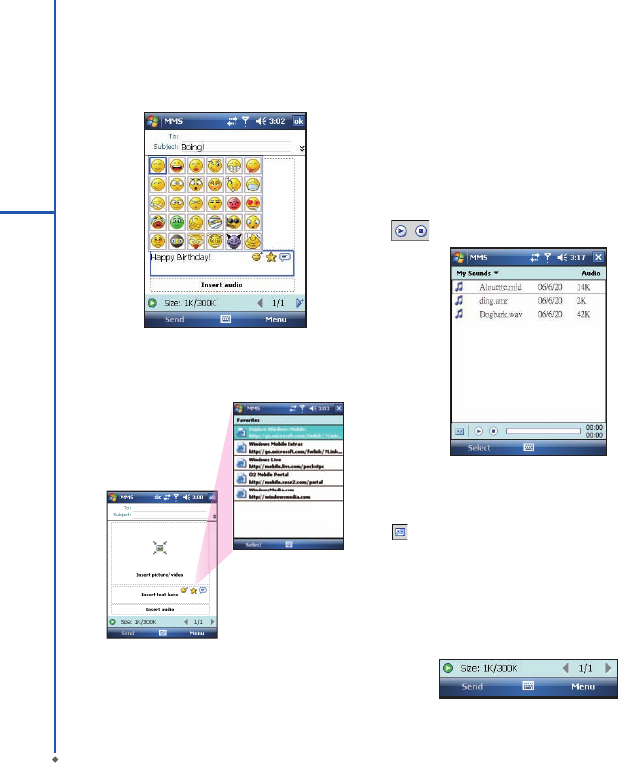
84
7
Messaging
Tap the smiling face icon to see a table of Emoticon
icons. Tap the one you want to add it into the message.
Tap the star icon to see a list of favorite links. Tap the
one you want, and then tap "Select" to add it into the
message
Adding audio
Single audio clips can be added to each slide. You can
either include an existing sound file, or record a new
one.
1. From the pull-down, select a location that contains
audio les.
2. Tap the le you'd like to use.
You can view le information similar to the way you can
with photos and videos. Tap and hold on a file, then
choose "Play Audio," "File info" or "Delete." The file
name, duration, date, and size are shown when you
select "File info." You can also choose to delete the le.
You can use the playback controls to preview the audio:
(Play/Pause and Stop controls are available.)
1
2
Highlight a file then tap "Select." Or tap "Cancel" to
return to the previous screen.
- Tap this button to activate controls that allow you
to record new audio:
Record - Tap this button to begin recording.
Stop - Tap this button to stop recording.
Menu commands
The following commands are available along the bottom
of the Create screen:
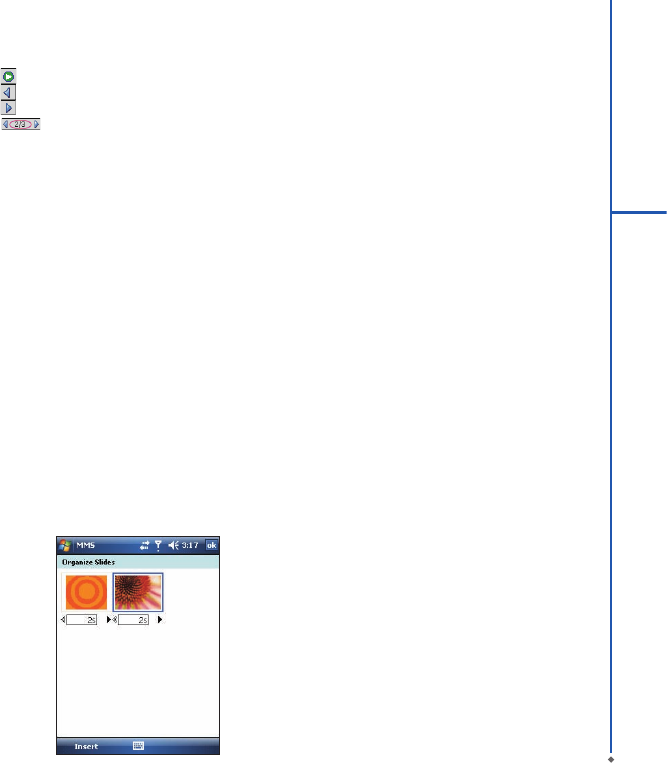
85
7
Messaging
- Tap here to preview your message.
- Takes you to the previous slide.
- Takes you to the next slide.
- The rst number indicates the current slide
you are viewing. The second indicates the total number
of slides. Tap here to see a pop-up list of slides; tap the
number you wish to see.
Menu options
Add Recipients - Choose and add recipients from your
address book. (The option is only available when you
are in the "To" eld).
Insert Media - Insert a picture/video, audio track, or
My Text into the current slide. This works the same as
doing it on the slide directly.
Remove Media - De lete t he p ic tu re /vi de o, au di o
track, or text from the current slide. (The option is not
available if you have not inserted media).
Slides - Insert a slide or delete the current slide. You
can also press “Organize" to arrange the slide order and
display the duration of each slide.
• Tap and drag a slide to move it to a different spot.
• Tap the directional arrows beneath each slide to
increase or decrease the display time.
• Tap and hold for more options (move slide forward/
backward, auto t duration (adjusts duration to match
audio length), delete.
Insert - Insert a slide into the message.
Template - Choose "New from Template…" to create
a message with preset content. Choose "Save as
Template" to save your current message as a new
template.
Capture - Take a picture, or record video or audio.
(Some or all these options may not be available).
Attachments - Attach a vCard, vCalendar, or other
le (from the menu, select the type of le you wish to
attach). You can delete any attachment as well.
Send via SMS - Sends the text content to the recipient
via SMS.
Cancel Message - Cancels the creation of the message.
Options - Set the following options of the message.
Background - Choose a background color for the slide.
Text Layout - Choose a layout for the text in the slide.
Text Size - Choose small, normal or large text.Text
Color - Choose a color for the text.
Text Background - Choose a background color for the
text.
Send - Sends the message.
Send Options - Here you can view and edit your send
preferences:
• From the "Delivery" pull-down, select when you’d like
to deliver the message.
• From the "Expiration" pull-down, select how long you’
d like the message to be stored on the server. The
ser ver will stop attempting to deliver the message
after the set time expires.
• Set the message priority from the “Priority” pull-down.
• Deliver y report / Read report: By checking these
boxes, you will be notified when your message is
delivered and read, respectively.
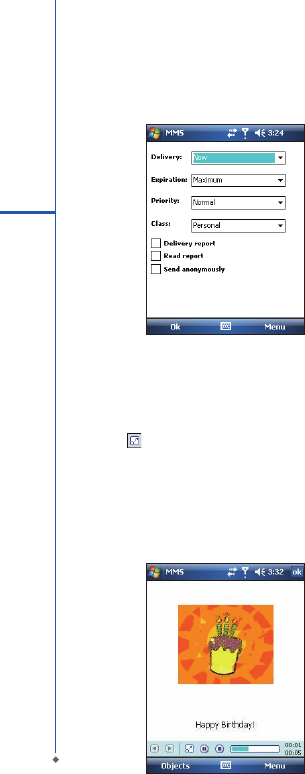
86
7
Messaging
Tap "Menu” to choose "Save as default" or "Restore
factor y default." Cho ose "Cancel" to return to the
previous screen.
Viewing MMS messages
When viewing messages that you receive or send, or
when previewing a message you're working on, you
have a variety of options.
Use the Play/Pause/Stop buttons to view the message.
Use the button to display the message in full screen
mode. Use the Left/Right Arrow buttons to skip among
the various slides (if applicable.) You don't need to see
the message straight through; you can skip among the
various slides.
Ta p " Menu" t o v iew d e t a iled in f o r m a tion o f t h e
message.
Tapping "Objects" displays a list of all the message
components. Tap any component to open/view it.
"Info" displays the le name, resolution/duration, date,
and size of an object.
"Menu" contains follow options:
• Save - Stores the current selected object.
• Save into "My Text" - Saves the text into the "My
Text" list.
• Assign to Contact - Lets you associate the selected
image le as a caller ID or audio le as ringer ID. (May
not be available in all versions).
MMS conguration
To view and edit your M MS configuration, choose
"Tools" in the menu that appear s at the bot tom of
the screen while viewing any message box, choose
"Options", and then choose "MMS" in Accounts.
Note: Not all options are available in all versions.
Retrieve messages immediately - Typically, you
receive a notification whenever a new message is
available. Checking this box downloads new messages
automatically. You can also choose to download only
while on your home network.
OK to download when roaming - Downloads messages
after your conrmation when you are roaming.
Save sent messages - Check this option to save a
copy of messages that you send.
Reject all messages - Check this option to refuse all
incoming MMS messages.
Deny anonymous messages / adver tisement
message - Check this option to refuse all the incoming
anonymous or advertisement MMS messages.
Allow delivery report / Allow read report - These
commands allow delivery and read reports to be sent
after you receive and read messages, respectively.
Show sending prompt - Check this option to display a
prompt when you send a message.
Show receiving prompt - Check this option to display
a prompt when you receive a message.
Show sent successfully prompt - Check this option
to display a prompt when the message has been sent
successfully.
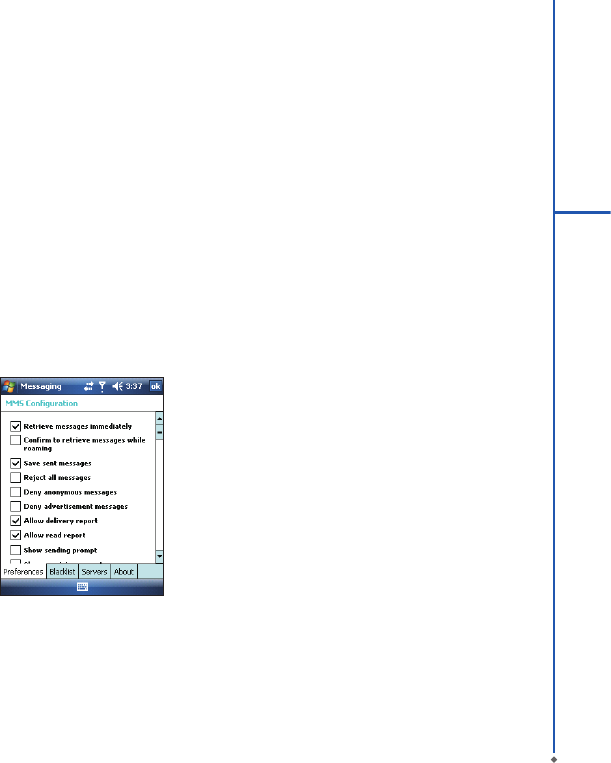
87
7
Messaging
Show new message prompt - Check this option to
display a prompt when you receive a new message.
Show download successfully prompt - Check this
option to display a prompt when the message download
is nished.
Show message details - Check this option to display
message information after playing a message.
Disconnect network connection after MMS - Check
this option to disconnect the network connection after
sending a message.
Attempts before giving up - T his value sets the
number of times the program will attempt to send your
message before stopping.
Creation mode - C ho ose the m ode to use wh en
creating a message.
Photo resolution - Cho ose the resolution for the
images that you send. You may want to decrease the
original resolution to shorten the send/receive time.
7.3 Voice mail
This function enables you to divert received calls to
a voice mail center where callers can leave voic e
messages under the following circumstances:
● You are currently on the phone.
● Your phone is switched off or is not able to receive
signals.
● You did not answer the call.
This voice mail service is SIM card and network dependent.
If the voice mail service is not included in your mobile
network operator’s package, you will have to subscribe
to the ser vice separately and configure the settings
manually. Once you have successfully subscribed this
service, you will be notied of a voice mail message by
an icon on Today screen.
Calling the voice mail center
Initiate Phone screen > Speed Dial and call Speed Dial 1.
You will enter the voice mail center.
7.4 E-mail
Synchronously processing E-mail
With synchronization, messages are synchronized
bet ween your O2 Xda Denim and the PC by using
Ac t iveSy nc and Mic r os of t E xch ang e o r O u tlo o k.
If you want to synchronously process E- mail, you
must activate the Inbox synchronization function
in ActiveSync beforehand. For more information on
Inbox synchronization, please refer to Chapter 5
Synchronization.
Please be aware of the following Inbox Synchronization
process rules:
• Please select a desired cooperation relationship on
New Cooperation Relationship screen in computer to
synchronously transmit information. If you select not
to perform synchronization, you may manually copy or
move E-mail messages between your O2 Xda Denim
and the computer.

88
7
Messaging
• Only the mails in Inbox of your computer will be
synchronized.
• O nly the mails in Exchange o r Outlook c an be
synchronized.
• The mail from Outbox folder in your O2 Xda Denim
will be sent to your computer first, and then it will
be delivered through Microsoft Exchange Server or
Microsoft Outlook.
• If a specific letter is deleted in your O2 Xda Denim,
then it will also be deleted in your computer when you
reconnect your device with computer.
• SMS in your device will not be synchronized.
Establishing E-mail services
If you have E-mail accounts from ISP or company
network, you may use Messaging to receive or send
e-mails. Please refer to the following instructions to set
up a new E-mail account in Messaging.
1. Please acquire the following information from ISP or
company network administrator:
• E-mail address, user name and password.
• POP3 or IMAP4 server name of Intranet E-mail.
• SMTP server name for outgoing E-mail.
2. Establish E-mail services:
Tap Start > Messaging > Menu > Tools > New
Account, and then follow the instructions on the
screen to set up a new E-mail account.
3. See Section 6.1 Wireless Manager to connect your
O2 Xda Denim to a network and start receiving and
sending e-mails and messages.
4. Connect with E-mail Server:
• Tap Messaging > Menu > Send and Receive.
• Tap Messaging > Menu > Tools > Options >
Accounts tab to change E-mail account settings.
When you finish, your new E-mail account will be
displayed under this menu. You can start connecting
to your E-mail server at this point. You can set up
several E-mail acc ounts, including your Outlook
E-mail account.
Connecting to the server
You may directly rec eive new e- mails from E-mail
server without connecting to a computer. You may
select to use it online or ofine; if it is online, you may
directly read and reply mail when your O2 Xda Denim is
connected to E-mail server. You can reply a mail directly
by simply tapping Send.
You may select to disc onnect to the inter net after
downloading only the subjects of new messages or
partial messages and decide whether to download
the full me ssage la ter. When you r ec onne ct n ex t
time, Inbox will download in accordance to appointed
methods, and send out unsent e-mails in Outbox.
You may choose to read just the e-mails within the last
few days, mail subjects only, or complete mail. You can
also choose to receive only the attachments less than
specific file size. To make these settings, tap Start >
Messaging > Menu > Tools > Options, and change
E-mail account setup by requirement.
Composing and sending an e-mail
Tap Start > Messaging > New to write a new e-mail.
After writing a new e-mail, select Send on the bottom
left of the screen to send this new e-mail.
When composing a new e-mail, you can:
1. Tap Bcc, Cc, To fields to input recipients’ E-mail
addresses.
2. Tap Subject field to input a subject for your new
e-mail.
3. You may enter mail content in the empty area on the
bottom half of the screen.
4. Tap Send to start sending your e-mail.
5. Select the icon on the bottom center of the screen to
activate or disable screen keypad.
6. Tap Menu to open menu.
89
7
Messaging
Reading and replying an e-mail
Tap Start > Messaging > Menu, and then select Send
and Receive from Menu to start sending and receiving
new e-mails. Select Inbox on the top left of the screen
to view Inbox. Tap on any unread e-mail to view its
content.
When reading e-mails, you can:
1. Tap on a contact in Bcc, Cc, or To eld to save this
contact as a new contact.
2. Tap Reply to compose a reply e-mail.
3. Tap Menu to open menu.
On the e -mail cont ent s cr een, se le ct and hold to
activate pop-up Menu.
7.5 Push e-mail
With Push E-mail, you can access e-mails in real time.
This Direct Push Technology can be enabled by the
Exchange Server 2003 administrator, bringing the latest
information to you. To use Push E-mail, please turn on
Wi-Fi or GPRS to connect to the Exchange Server.
Enabling Direct Push on your O2 Xda Denim
1. On your O2 Xda Denim, tap Start > Programs >
ActiveSync > Menu > Add Server Source.
2. Input the address of your server in Server Address.
3. Input your net wor k User name, Password, and
Domain, and then tap NEXT.
4.
In ActiveSync on your O2 Xda Denim, tap Menu >
Schedule.
5. Set Peak times to As items arrive and Off-peak
times to As items arrive. Tap OK.
Now you have established a cooperative relationship for
your O2 Xda Denim and the Exchange Server. The next
time when you tap Start > Programs > ActiveSync
> Sync, you may synchronize with Exchange Server
using Wi-Fi or GPRS.
Once you are connected to the network, you may look
up your Global Address List over the air from your
O2 Xda Denim by tapping Contacts. You may send
an e-mail to a contact on your Global Address List
following the same steps as sending E-mail to a contact
saved on your O2 Xda Denim.
Please note: To be able to use direct push, you need to
have an exchange server. Microsoft Exchange Server
2003 also supports useful functions such as remote
device wipe. To nd out more on the benet and usage
of Microsoft Exchange ser ver, please consult your
company administrator or visit Microsoft’s website:
http://www.microsoft.com
7.6 Windows Live Messenger
Windows Live Messenger provides functions including
Messenger, Hotmail, and Sync. To use these functions,
you will need to turn on GPRS or Wi-Fi.
Signing in Windows Live Messenger
1. Select Start > Programs > Messenger.
2. Tap on the arrows to choose your sign in status and
then tap “Sign in”.
3. Enter your Windows Live Messenger or Hotmail email
address and password.
4. Select “Sign In”.
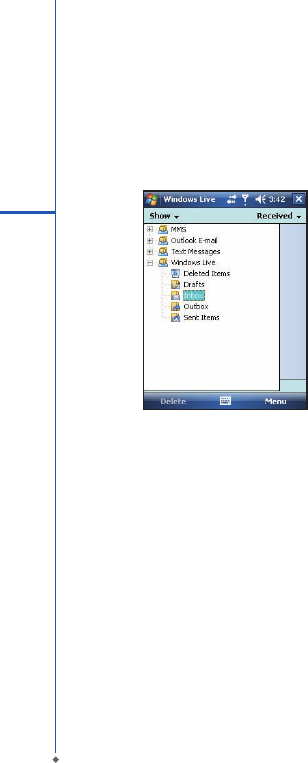
90
7
Messaging
Hotmail
1. After signing in Messenger, wait for the sync to nish
and then select Start > Messaging.
2. Select Windows Live Inbox from the drop down menu
on the top left corner. You will nd incoming emails to
your Hotmail account in the Windows Live Inbox.
Composing Hotmail
1. After signing in Messenger, wait for the sync to nish
and then select Start > Messaging.
2. Select Windows Live Inbox from the drop down menu
on the top left corner.
3. Tap Menu > New.