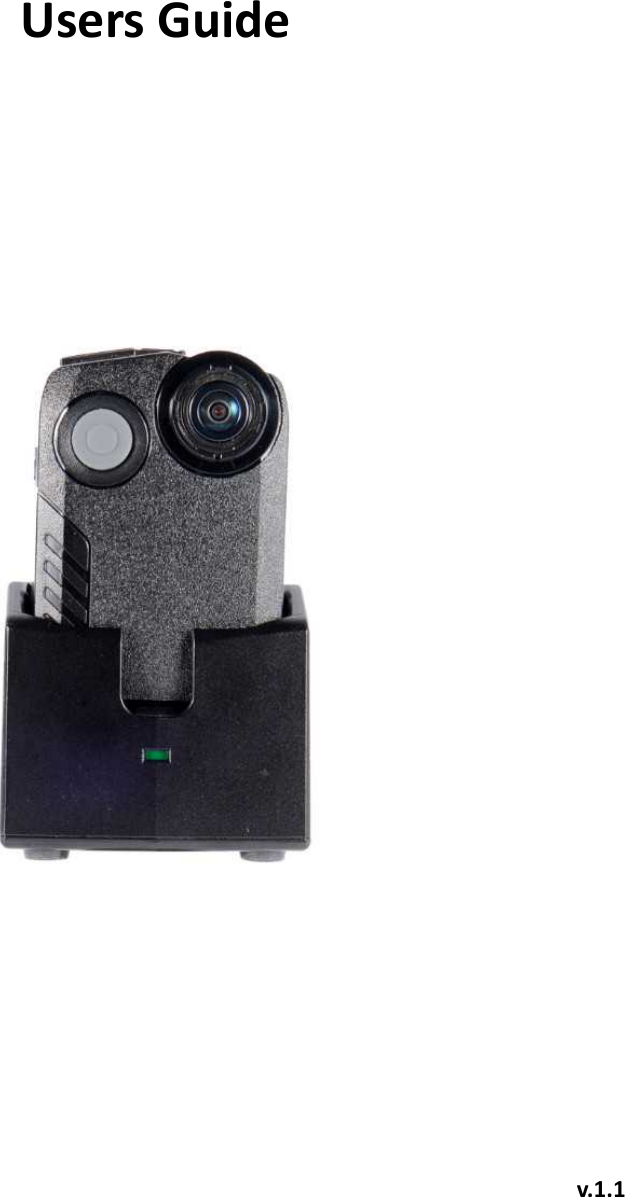
GPI KOREA RECKONX RECKON-X User Manual

GPI KOREA, Inc RECKON-X

User manual

  Users Guide           v.1.1
 TABLE OF CONTENTS 1. Safety Information - WARNING - Warranty 2. Getting Started - Contents - BWC Viewer and Storage System Requirements 3. Introduction - Camera and Cradle Features and Specifications - Camera and Cradle Functions - Viewer and Storage Features and Functions 4. Camera Operating Procedures -      LED Operation - Basic Operation - Status Check 5. Installation Steps for Reckon-X Programs - Storage program - Viewer program 6. Program Operating Procedures -      Starting the Programs -      Storage Screen Configuration   -      Viewer Screen Configuration -      Setting the User Account -      Storage Setup -      Setting Storage Location -      Adding the Device -      Device Setting -      Playback -      Download 7. FCC/IC Compliance Statement
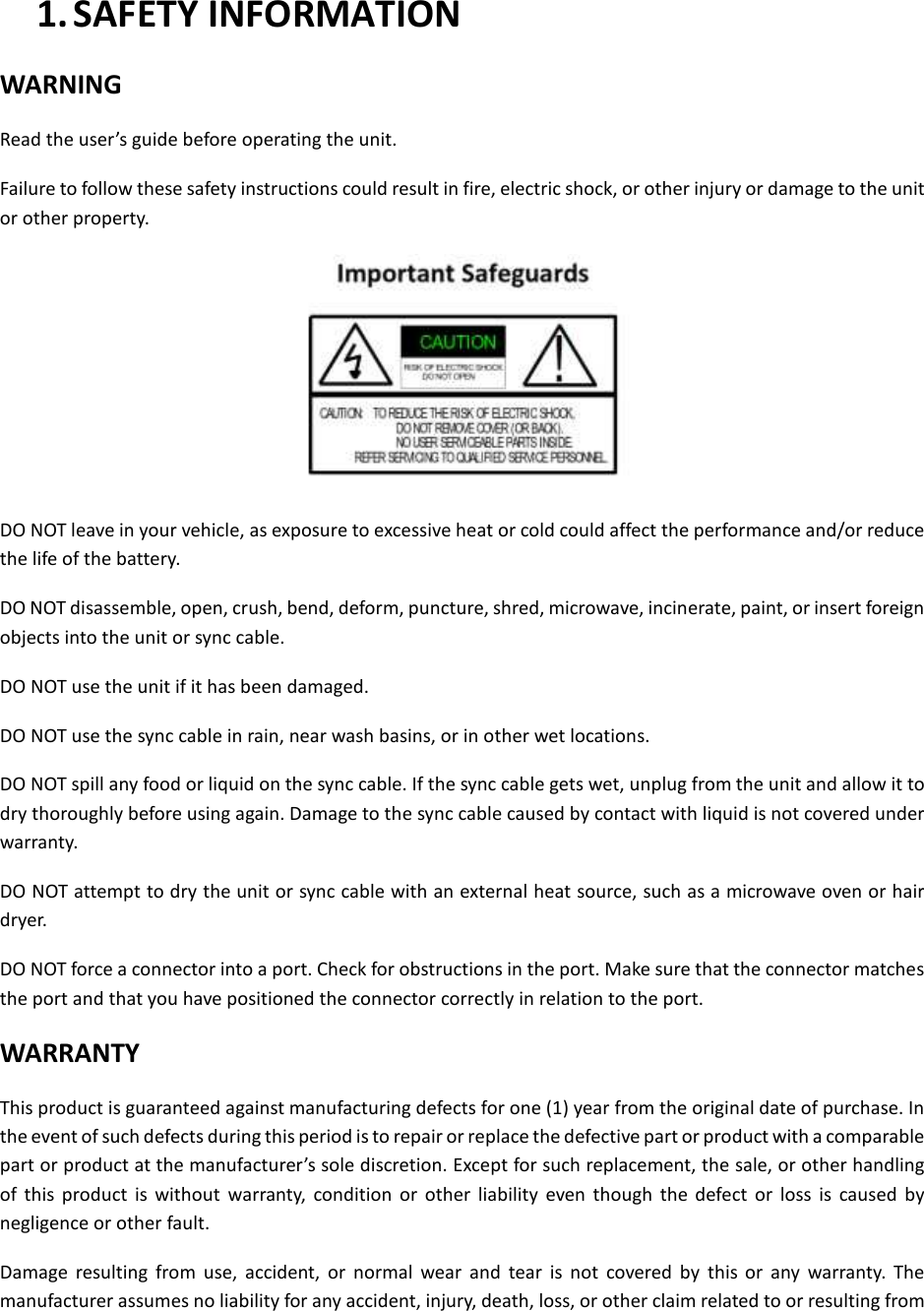
 1. SAFETY INFORMATION WARNING Read the user’s guide before operating the unit. Failure to follow these safety instructions could result in fire, electric shock, or other injury or damage to the unit or other property.  DO NOT leave in your vehicle, as exposure to excessive heat or cold could affect the performance and/or reduce the life of the battery. DO NOT disassemble, open, crush, bend, deform, puncture, shred, microwave, incinerate, paint, or insert foreign objects into the unit or sync cable. DO NOT use the unit if it has been damaged. DO NOT use the sync cable in rain, near wash basins, or in other wet locations. DO NOT spill any food or liquid on the sync cable. If the sync cable gets wet, unplug from the unit and allow it to dry thoroughly before using again. Damage to the sync cable caused by contact with liquid is not covered under warranty. DO NOT attempt to dry the unit or sync cable with an external heat source, such as a microwave oven or hair dryer.   DO NOT force a connector into a port. Check for obstructions in the port. Make sure that the connector matches the port and that you have positioned the connector correctly in relation to the port. WARRANTY This product is guaranteed against manufacturing defects for one (1) year from the original date of purchase. In the event of such defects during this period is to repair or replace the defective part or product with a comparable part or product at the manufacturer’s sole discretion. Except for such replacement, the sale, or other handling of  this  product  is  without  warranty,  condition  or  other  liability  even  though  the  defect  or  loss  is  caused  by negligence or other fault. Damage  resulting  from  use,  accident,  or  normal  wear  and  tear  is  not  covered  by  this  or  any  warranty.  The manufacturer assumes no liability for any accident, injury, death, loss, or other claim related to or resulting from
the use of this product. In no event shall the manufacturer be liable for incidental or consequential damages relating to or resulting from the use of this product or any of its parts.
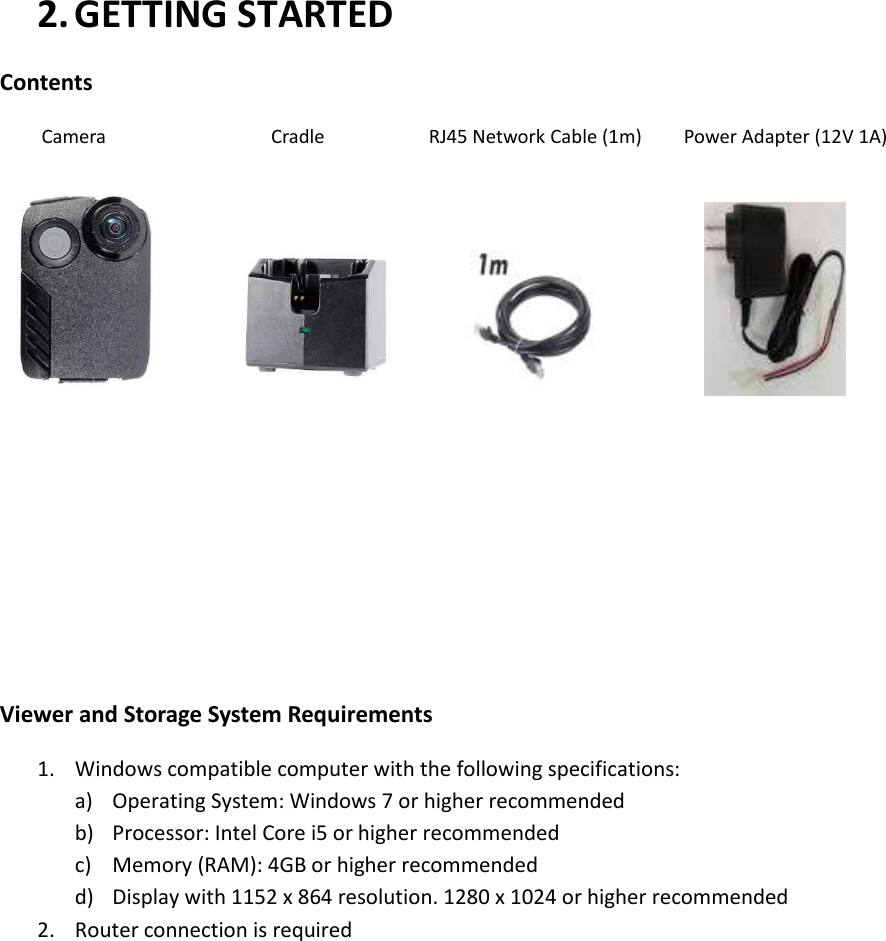
2. GETTING STARTED Contents   Camera                      Cradle                    RJ45 Network Cable (1m)        Power Adapter (12V 1A)                            Viewer and Storage System Requirements 1. Windows compatible computer with the following specifications: a) Operating System: Windows 7 or higher recommended b) Processor: Intel Core i5 or higher recommended c) Memory (RAM): 4GB or higher recommended d) Display with 1152 x 864 resolution. 1280 x 1024 or higher recommended 2. Router connection is required
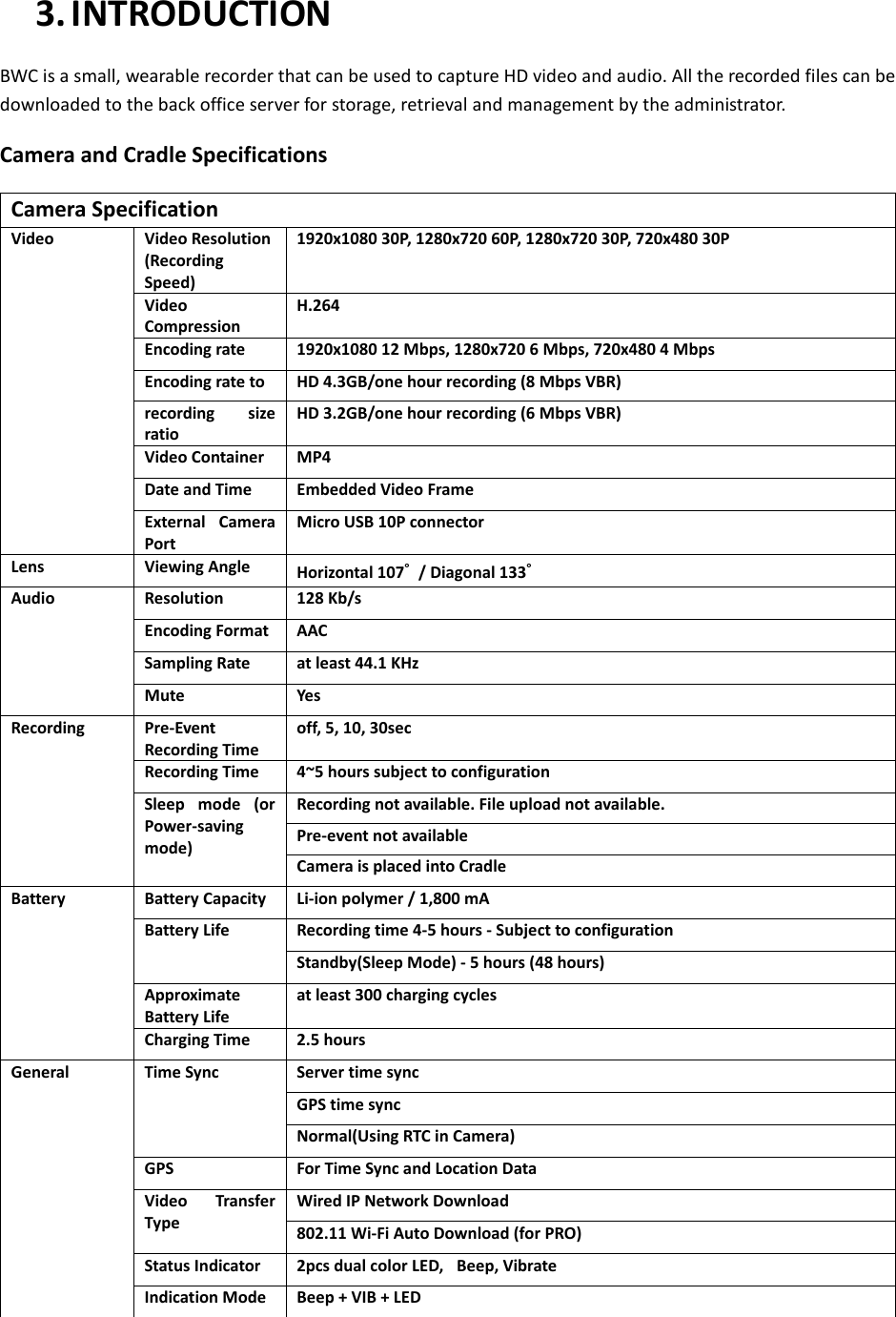
3. INTRODUCTION BWC is a small, wearable recorder that can be used to capture HD video and audio. All the recorded files can be downloaded to the back office server for storage, retrieval and management by the administrator.   Camera and Cradle Specifications Camera Specification Video   Video Resolution (Recording Speed) 1920x1080 30P, 1280x720 60P, 1280x720 30P, 720x480 30P Video Compression H.264 Encoding rate 1920x1080 12 Mbps, 1280x720 6 Mbps, 720x480 4 Mbps Encoding rate to HD 4.3GB/one hour recording (8 Mbps VBR)   recording  size ratio HD 3.2GB/one hour recording (6 Mbps VBR) Video Container MP4 Date and Time Embedded Video Frame External  Camera Port Micro USB 10P connector Lens Viewing Angle Horizontal 107˚  / Diagonal 133˚    Audio Resolution 128 Kb/s Encoding Format AAC Sampling Rate at least 44.1 KHz Mute   Yes Recording Pre-Event Recording Time off, 5, 10, 30sec Recording Time 4~5 hours subject to configuration Sleep  mode  (or Power-saving mode) Recording not available. File upload not available. Pre-event not available Camera is placed into Cradle Battery Battery Capacity Li-ion polymer / 1,800 mA Battery Life Recording time 4-5 hours - Subject to configuration Standby(Sleep Mode) - 5 hours (48 hours) Approximate Battery Life at least 300 charging cycles Charging Time 2.5 hours General Time Sync Server time sync GPS time sync   Normal(Using RTC in Camera) GPS For Time Sync and Location Data Video  Transfer Type Wired IP Network Download 802.11 Wi-Fi Auto Download (for PRO) Status Indicator 2pcs dual color LED,   Beep, Vibrate Indication Mode Beep + VIB + LED
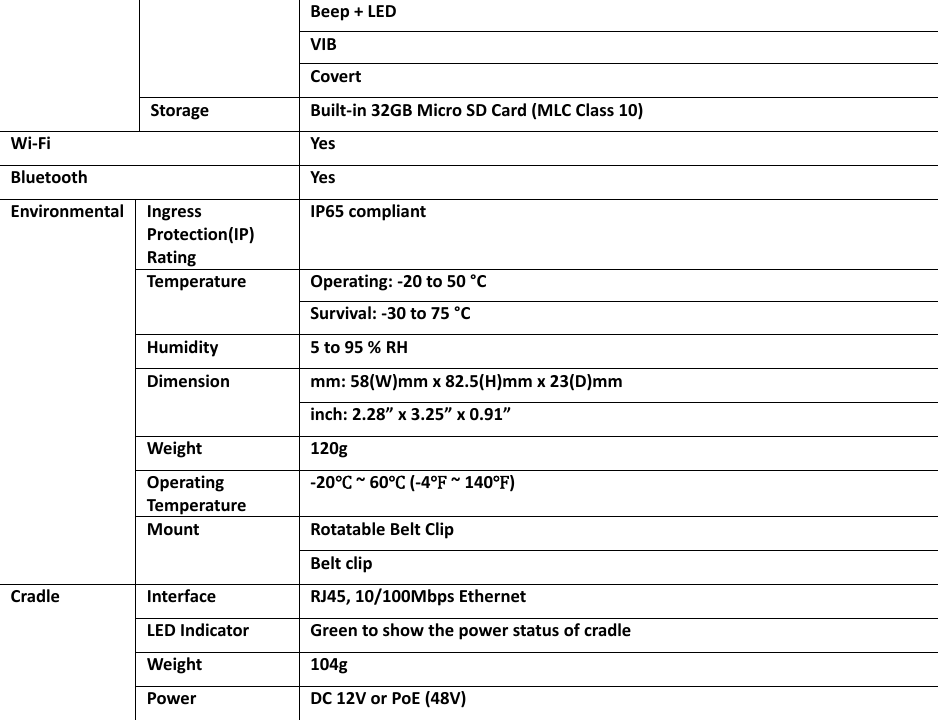
Beep + LED VIB Covert Storage Built-in 32GB Micro SD Card (MLC Class 10) Wi-Fi Yes Bluetooth Yes Environmental Ingress Protection(IP) Rating IP65 compliant Temperature Operating: -20 to 50 °C Survival: -30 to 75 °C Humidity 5 to 95 % RH Dimension mm: 58(W)mm x 82.5(H)mm x 23(D)mm inch: 2.28” x 3.25” x 0.91” Weight 120g Operating Temperature -20℃ ~ 60℃ (-4℉ ~ 140℉) Mount Rotatable Belt Clip Belt clip Cradle Interface RJ45, 10/100Mbps Ethernet   LED Indicator Green to show the power status of cradle Weight 104g Power DC 12V or PoE (48V)
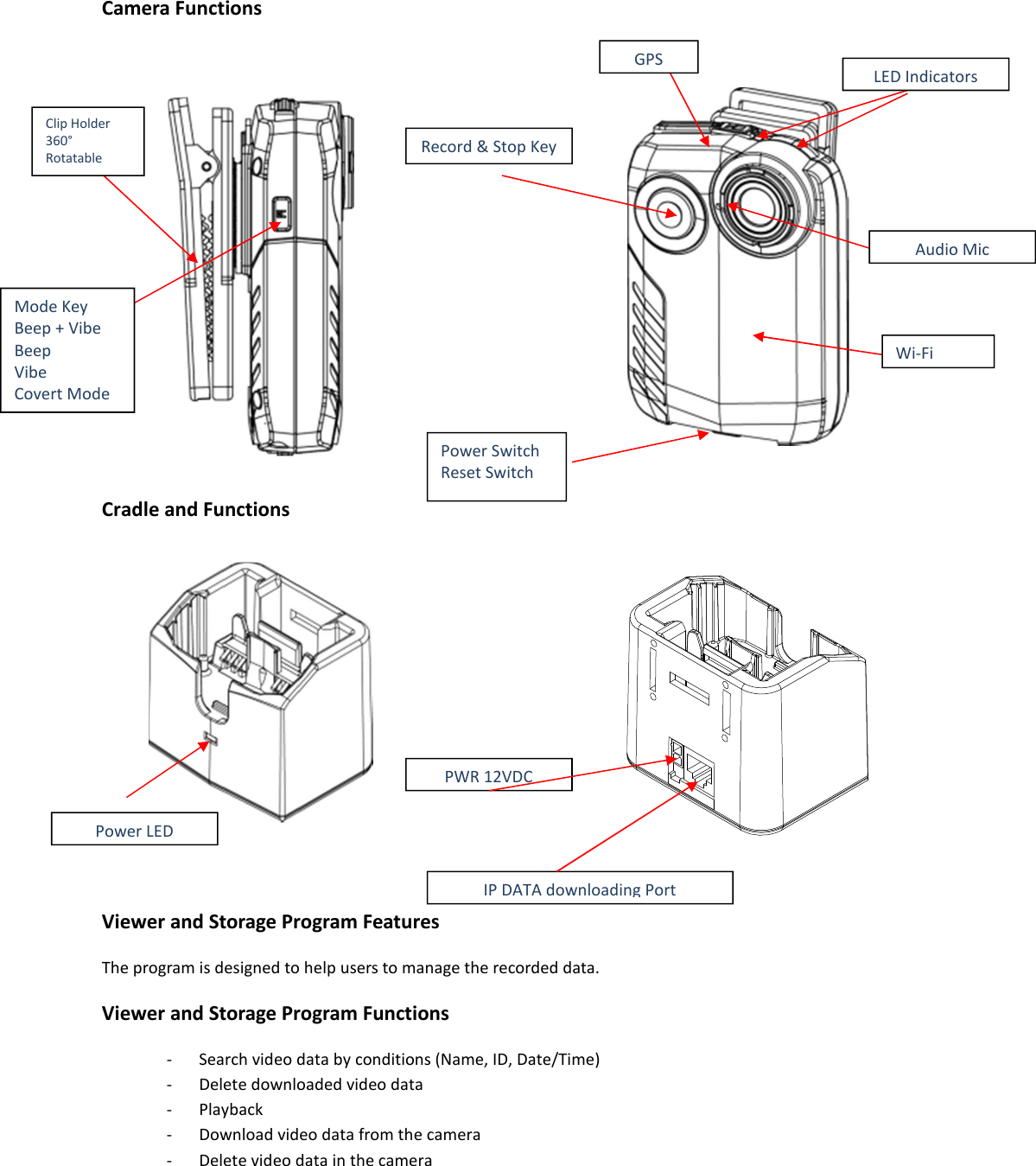
 Camera Functions           Cradle and Functions         Viewer and Storage Program Features The program is designed to help users to manage the recorded data. Viewer and Storage Program Functions - Search video data by conditions (Name, ID, Date/Time) - Delete downloaded video data - Playback - Download video data from the camera - Delete video data in the camera   Clip Holder 360° Rotatable Mode Key Beep + Vibe Beep   Vibe Covert Mode Wi-Fi Record & Stop Key GPS Audio Mic LED Indicators Power Switch Reset Switch  Power LED PWR 12VDC IP DATA downloading Port
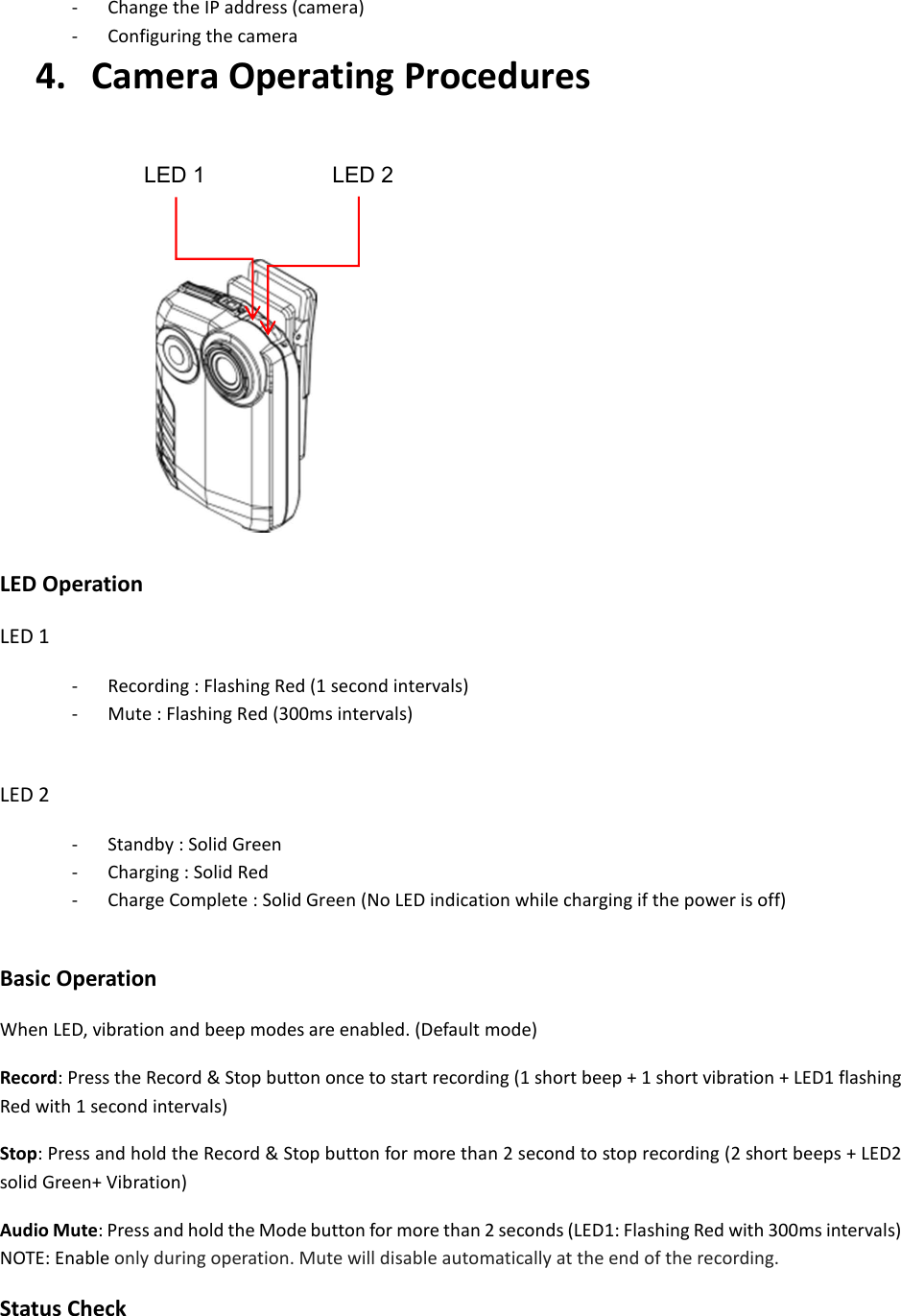
- Change the IP address (camera) - Configuring the camera 4.   Camera Operating Procedures        LED Operation LED 1   - Recording : Flashing Red (1 second intervals) - Mute : Flashing Red (300ms intervals)  LED 2 - Standby : Solid Green - Charging : Solid Red - Charge Complete : Solid Green (No LED indication while charging if the power is off)  Basic Operation When LED, vibration and beep modes are enabled. (Default mode) Record: Press the Record & Stop button once to start recording (1 short beep + 1 short vibration + LED1 flashing Red with 1 second intervals) Stop: Press and hold the Record & Stop button for more than 2 second to stop recording (2 short beeps + LED2 solid Green+ Vibration)     Audio Mute: Press and hold the Mode button for more than 2 seconds (LED1: Flashing Red with 300ms intervals)   NOTE: Enable only during operation. Mute will disable automatically at the end of the recording. Status Check LED 1 LED 2
SD Card Error: 3 beeps (300ms) every 3 seconds repeated 3 times, LED1continuously flashes alternating Red and Green. SD Card Full: Occurs when 2GB of disk space remains. 3 beeps (300ms) every 3 seconds repeated 3 times, LED1 continuously flashes Amber.   When the SD card is full, the recording will stop andLED1 will turn solid Amber. Low Battery: When the battery is less than 3.55V. 3 beeps every 300ms repeated 3 times, LED2 continuously flashes Red every 3 seconds repeated 5 times. Full Battery: When charging is complete, LED2 turns solid Green. Data Transmission: LED1 turns solid blue. No beeps. (did not apply yet) Disk Format: LED1 turns solid Red. GPS On: Blink LED1/second (50ms)     Command Transfer Setting: LED1 flashes once to 500ms speed (Green) Setting Connection or Device Access: LED1 flashes Green every 500ms. 1 beep will occur if the unit is charging on the cradle and connected to the network. If power is not supplied to the cradle, the green LED indicator on front of the cradle is off and turns solid Green when the power is established.  **Factory Default: Simultaneously press and hold the Record and Mode button for 2~3 seconds.
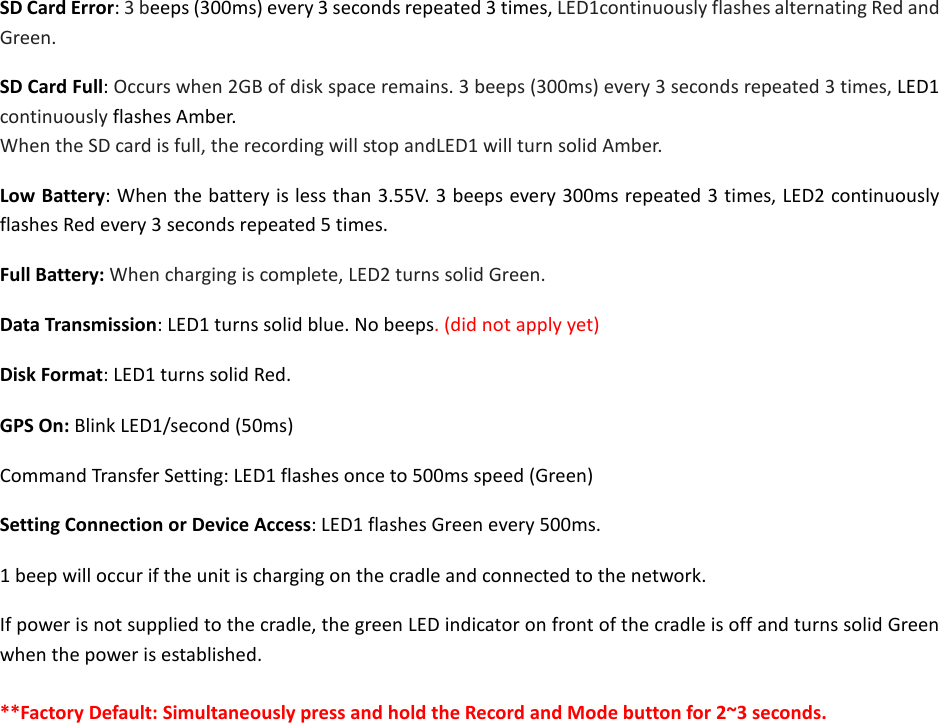
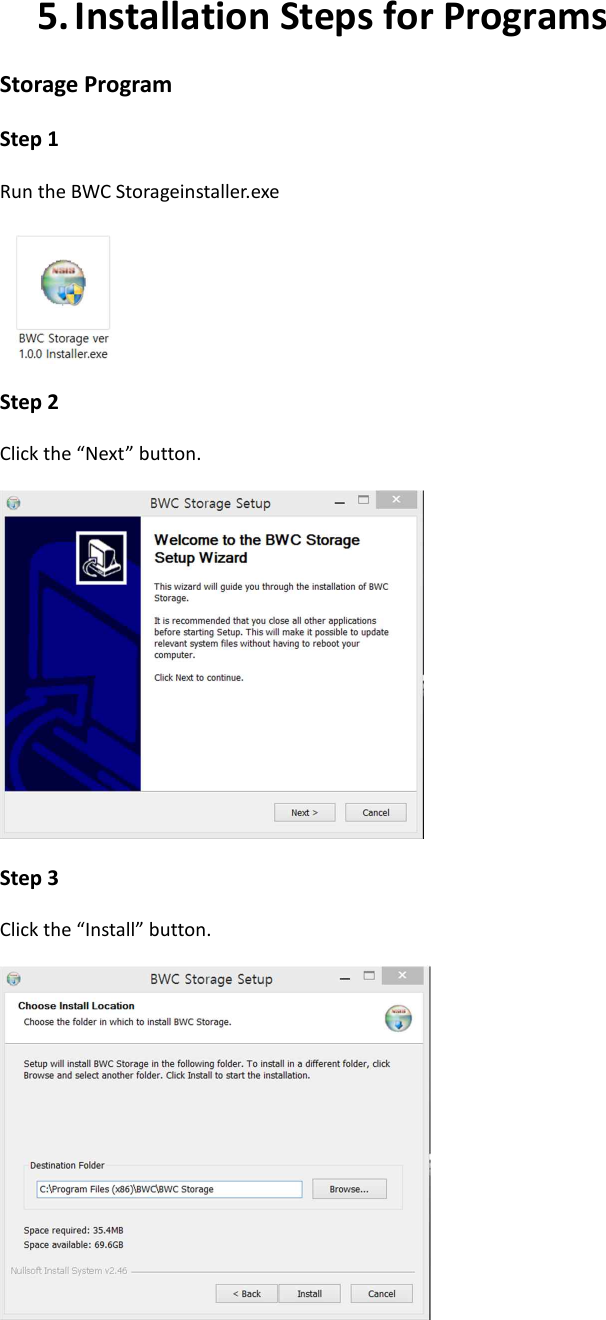
5. Installation Steps for Programs Storage Program Step 1 Run the BWC Storageinstaller.exe    Step 2 Click the “Next” button.  Step 3 Click the “Install” button.
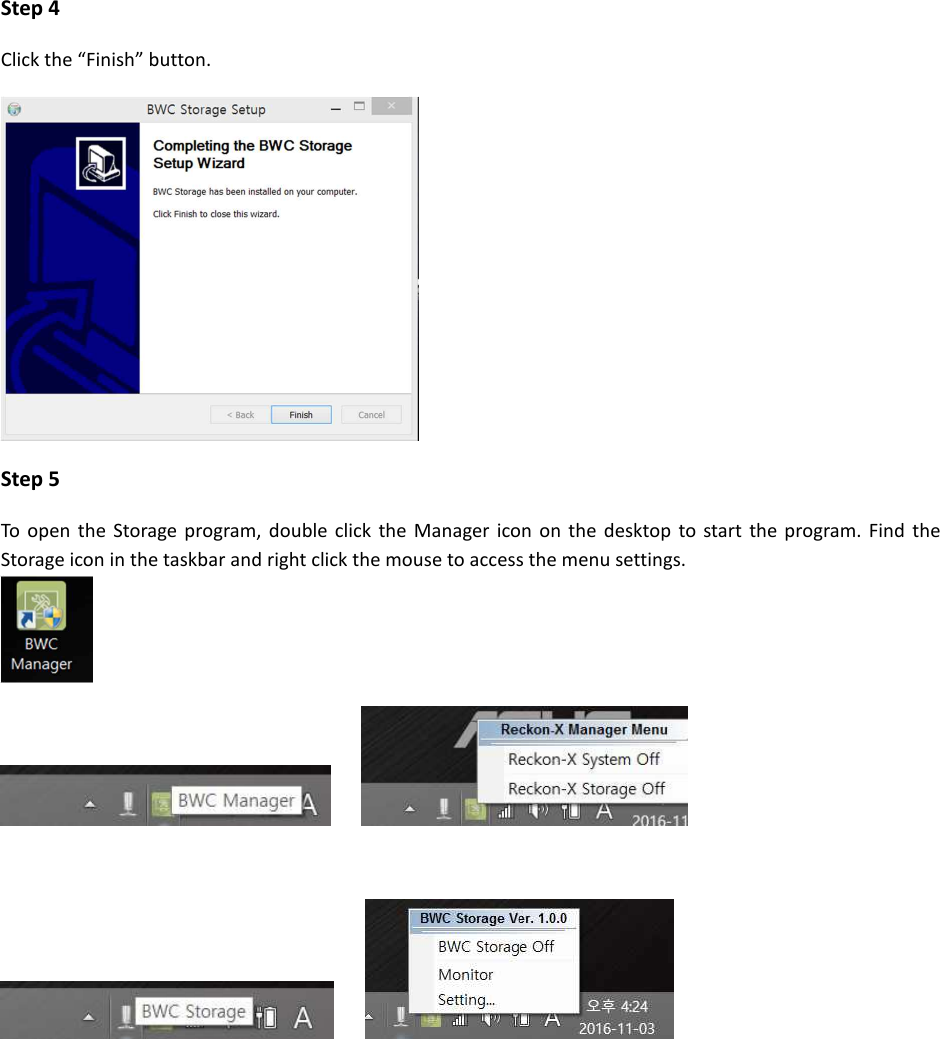
Step 4 Click the “Finish” button.  Step 5 To  open  the  Storage  program,  double  click  the  Manager icon  on  the  desktop to  start  the program.  Find  the Storage icon in the taskbar and right click the mouse to access the menu settings.
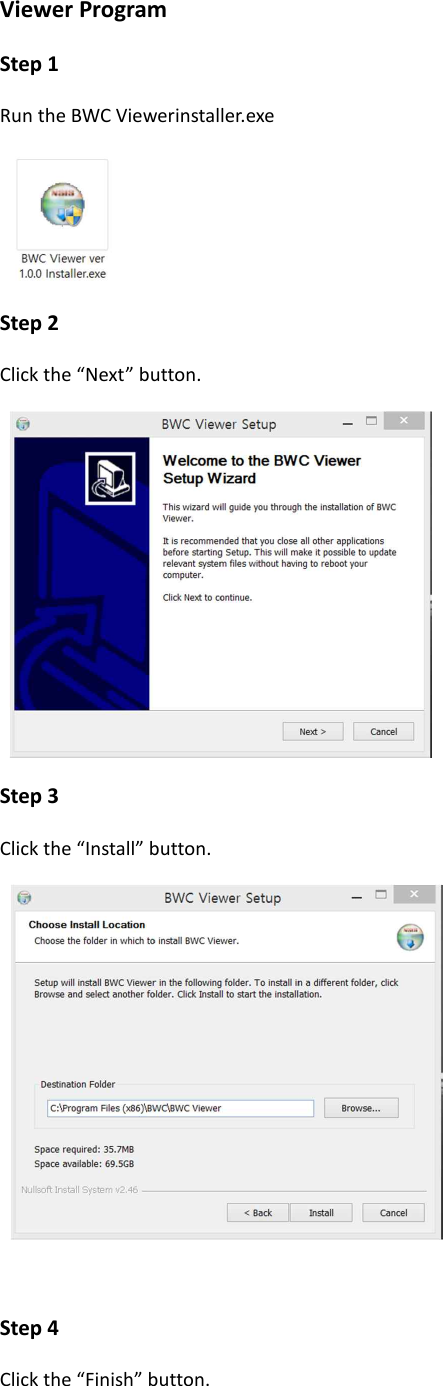
Viewer Program Step 1 Run the BWC Viewerinstaller.exe    Step 2 Click the “Next” button.   Step 3 Click the “Install” button.    Step 4 Click the “Finish” button.
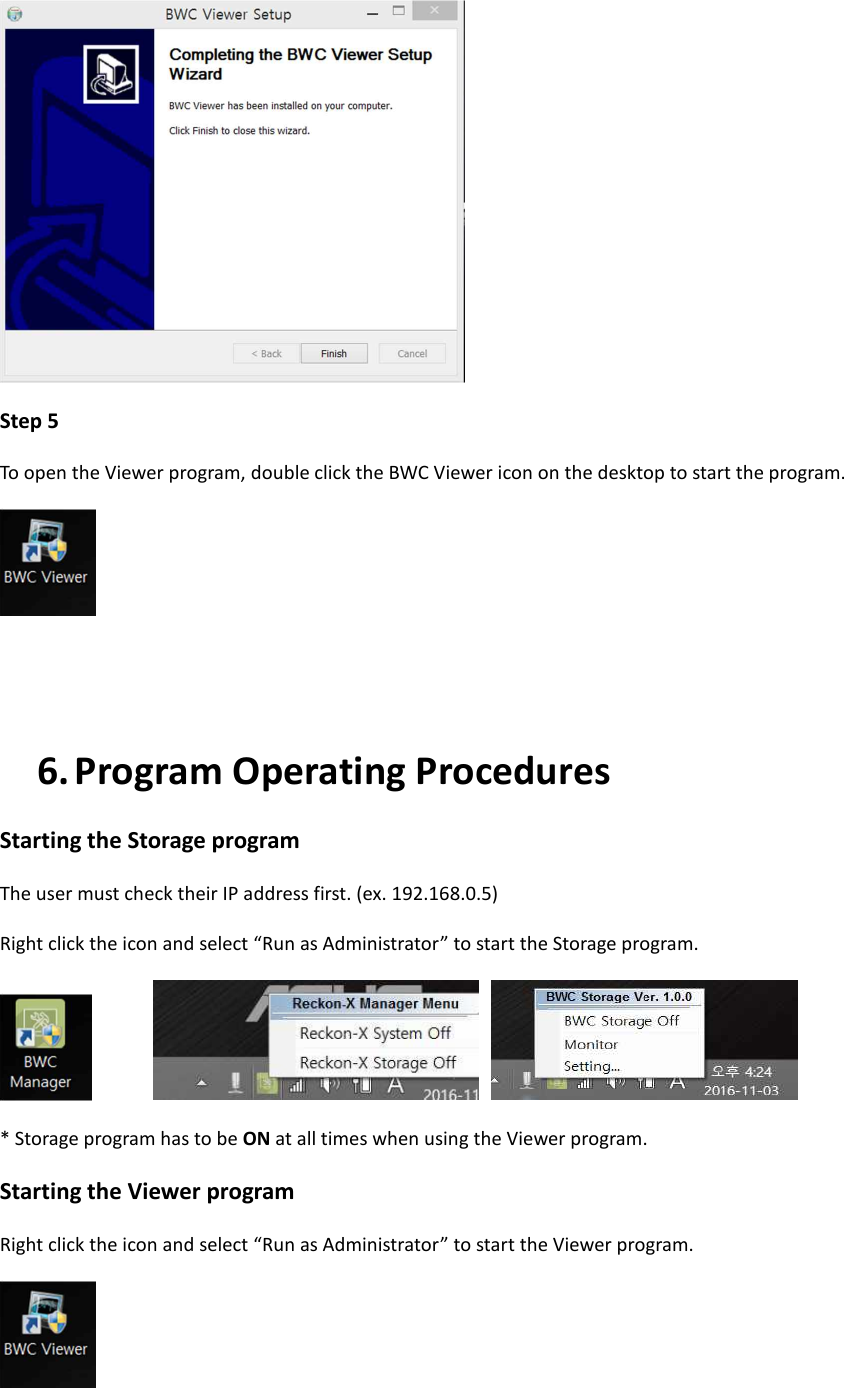
 Step 5 To open the Viewer program, double click the BWC Viewer icon on the desktop to start the program.    6. Program Operating Procedures Starting the Storage program The user must check their IP address first. (ex. 192.168.0.5) Right click the icon and select “Run as Administrator” to start the Storage program.          * Storage program has to be ON at all times when using the Viewer program. Starting the Viewer program Right click the icon and select “Run as Administrator” to start the Viewer program.
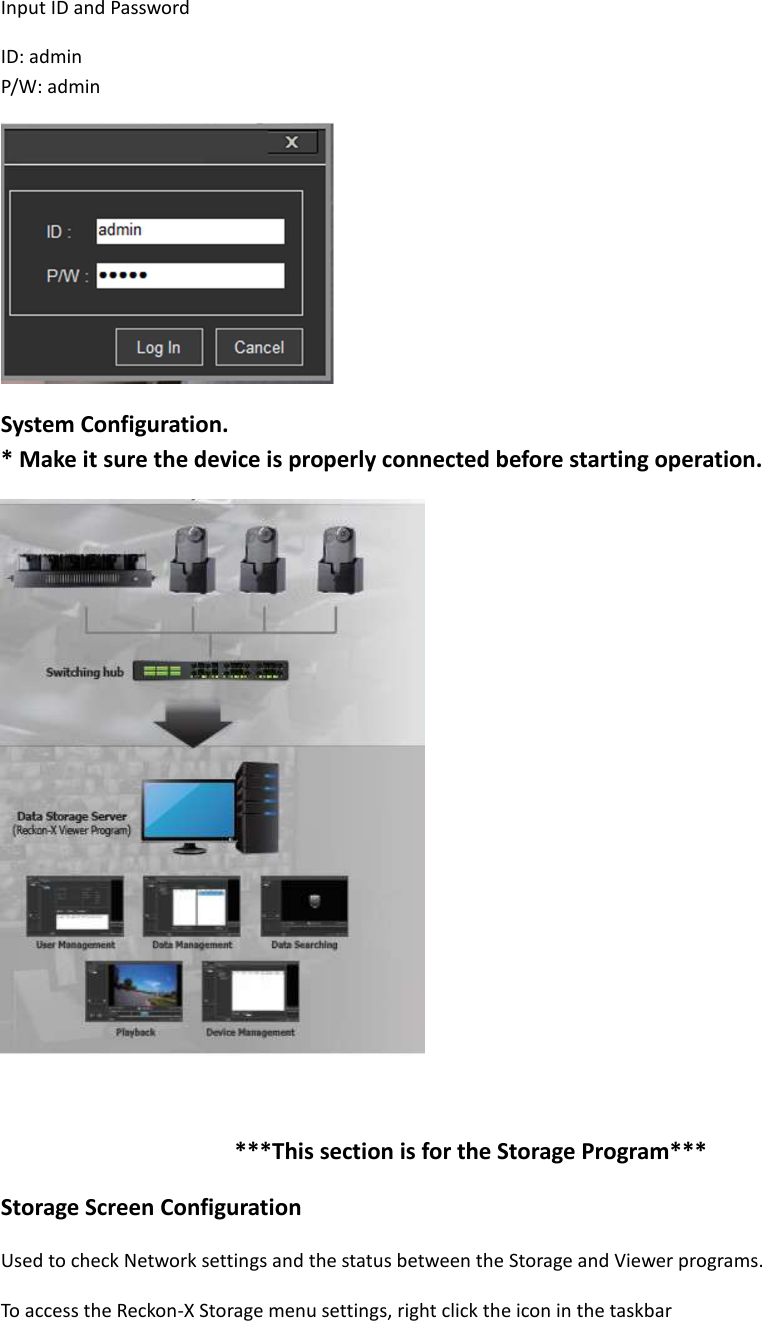
Input ID and Password ID: admin   P/W: admin  System Configuration. * Make it sure the device is properly connected before starting operation.     ***This section is for the Storage Program*** Storage Screen Configuration Used to check Network settings and the status between the Storage and Viewer programs.   To access the Reckon-X Storage menu settings, right click the icon in the taskbar
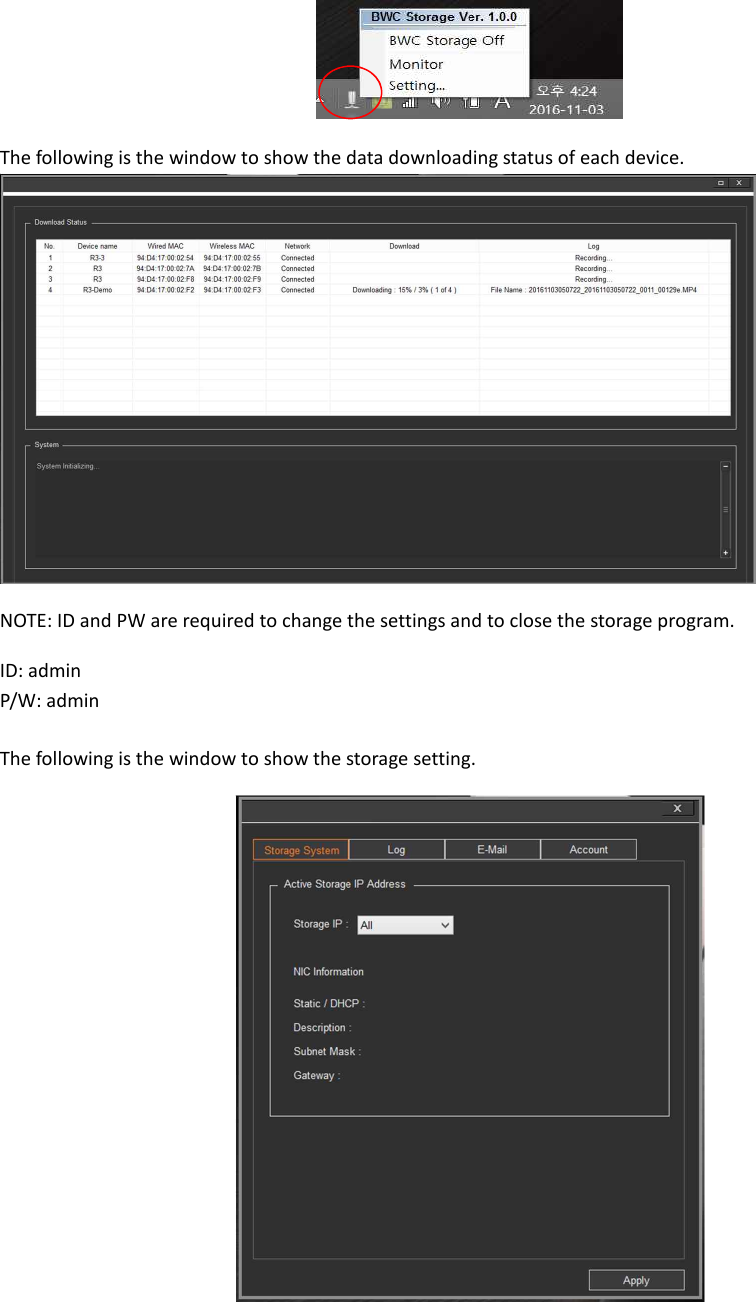
 The following is the window to show the data downloading status of each device.  NOTE: ID and PW are required to change the settings and to close the storage program. ID: admin   P/W: admin  The following is the window to show the storage setting.
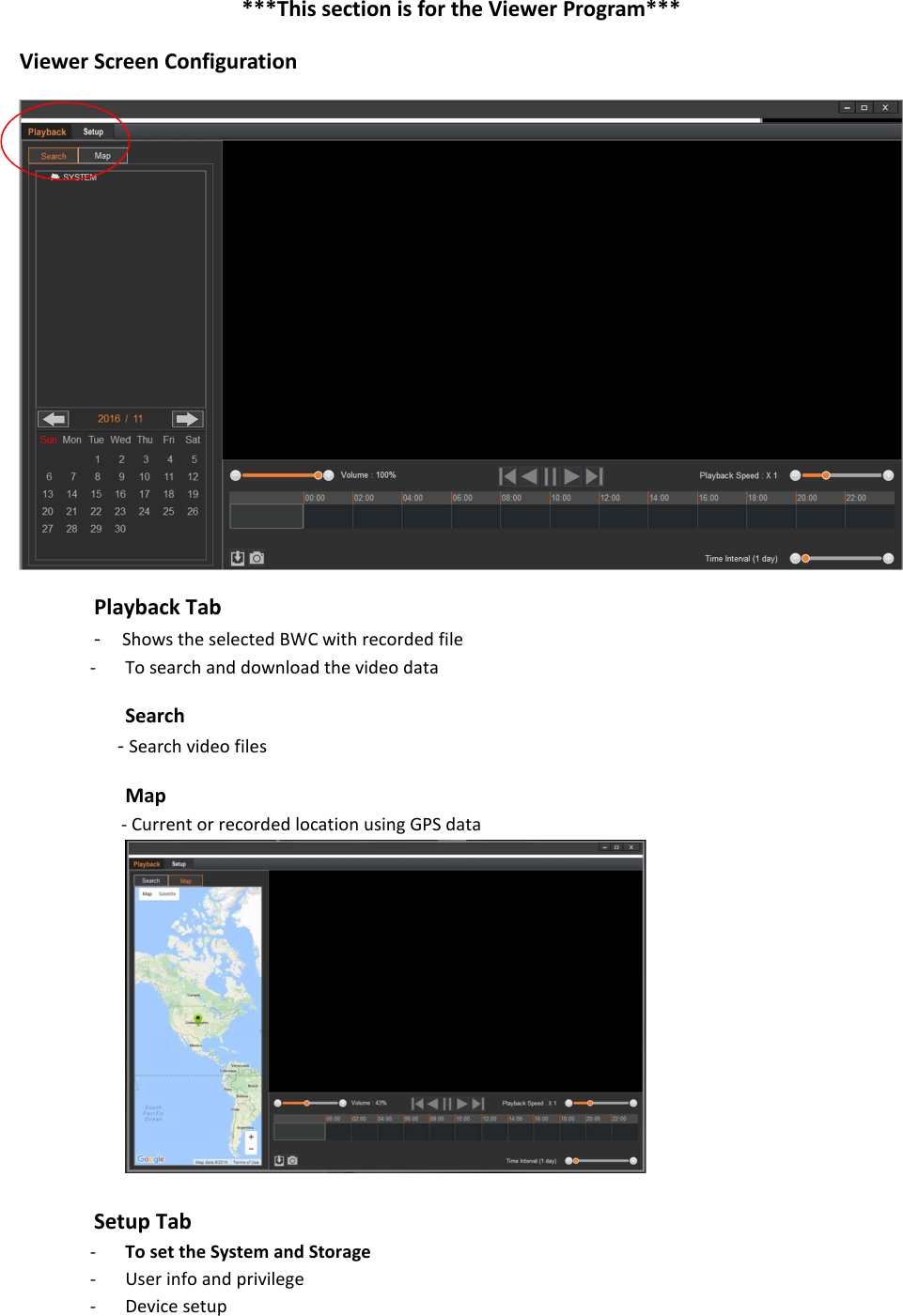
***This section is for the Viewer Program*** Viewer Screen Configuration  Playback Tab -  Shows the selected BWC with recorded file - To search and download the video data Search - Search video files Map - Current or recorded location using GPS data   Setup Tab - To set the System and Storage - User info and privilege   - Device setup
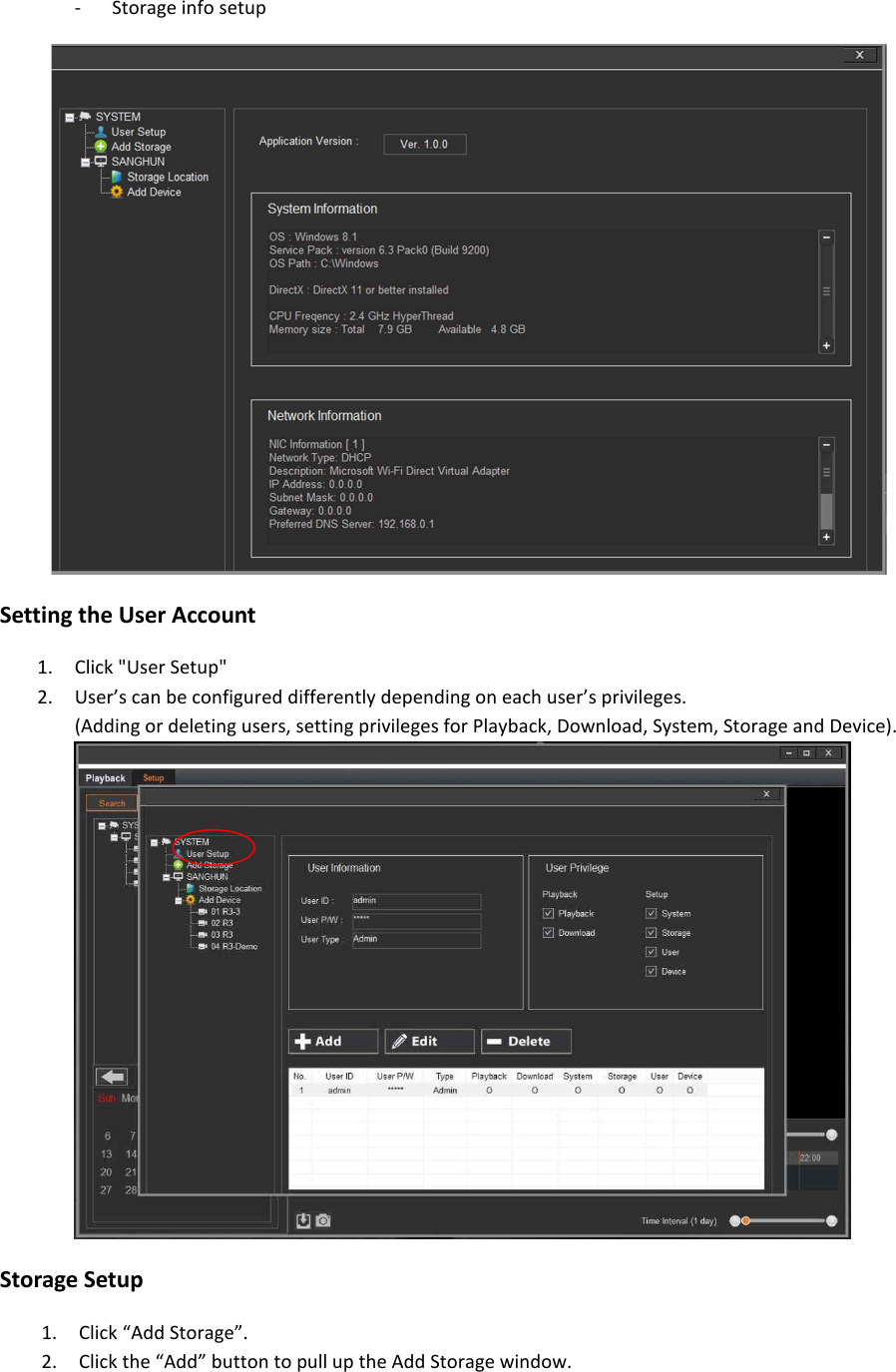
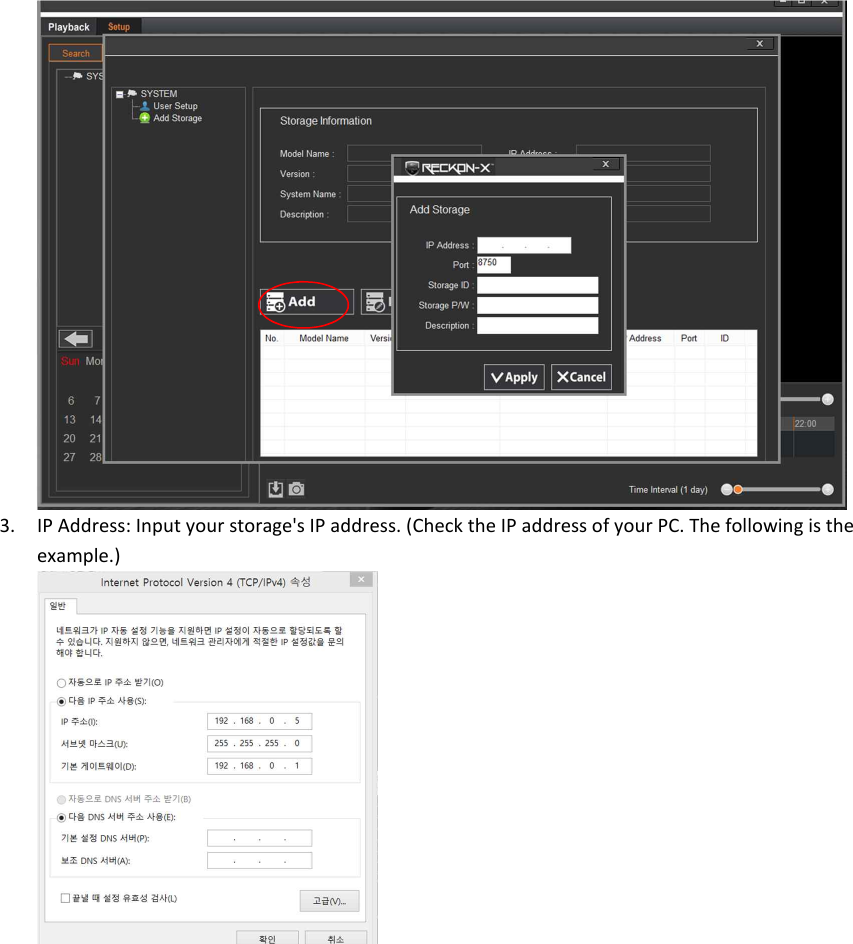
- Storage info setup  Setting the User Account 1. Click "User Setup"   2. User’s can be configured differently depending on each user’s privileges. (Adding or deleting users, setting privileges for Playback, Download, System, Storage and Device).  Storage Setup 1. Click “Add Storage”. 2. Click the “Add” button to pull up the Add Storage window.
 3. IP Address: Input your storage's IP address. (Check the IP address of your PC. The following is the example.)
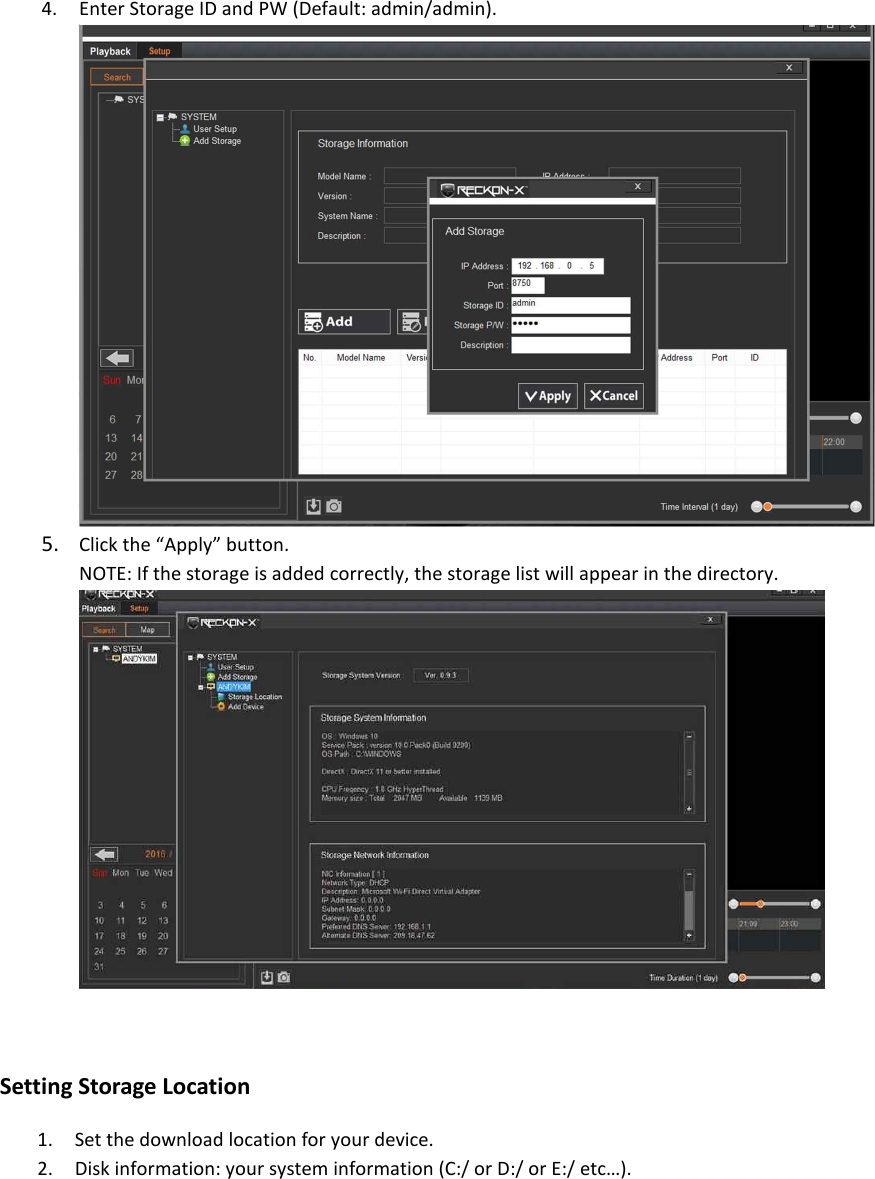
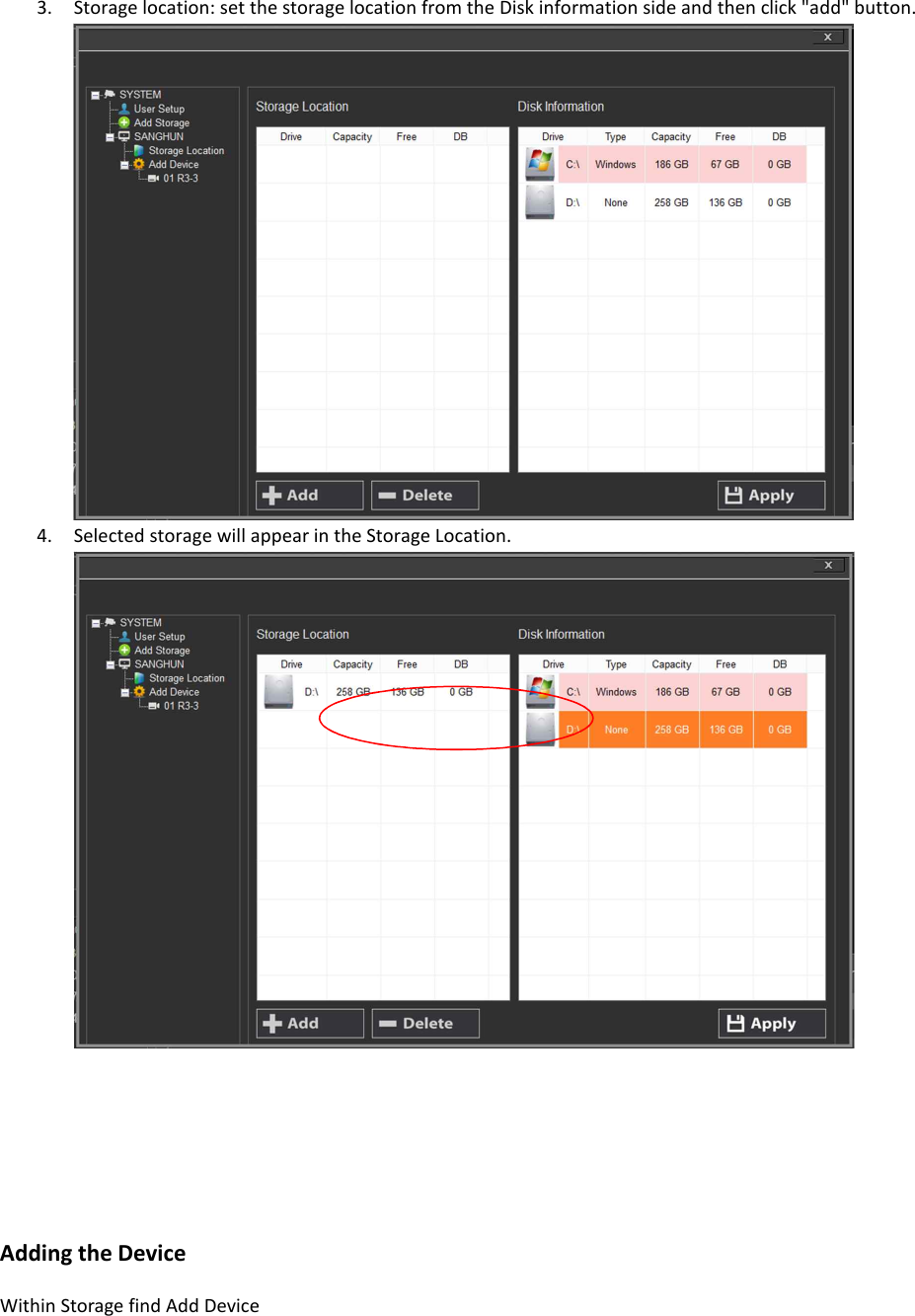
4. Enter Storage ID and PW (Default: admin/admin).  5. Click the “Apply” button.   NOTE: If the storage is added correctly, the storage list will appear in the directory.  Setting Storage Location 1. Set the download location for your device. 2. Disk information: your system information (C:/ or D:/ or E:/ etc…).
3. Storage location: set the storage location from the Disk information side and then click "add" button. 4. Selected storage will appear in the Storage Location.     Adding the Device Within Storage find Add Device
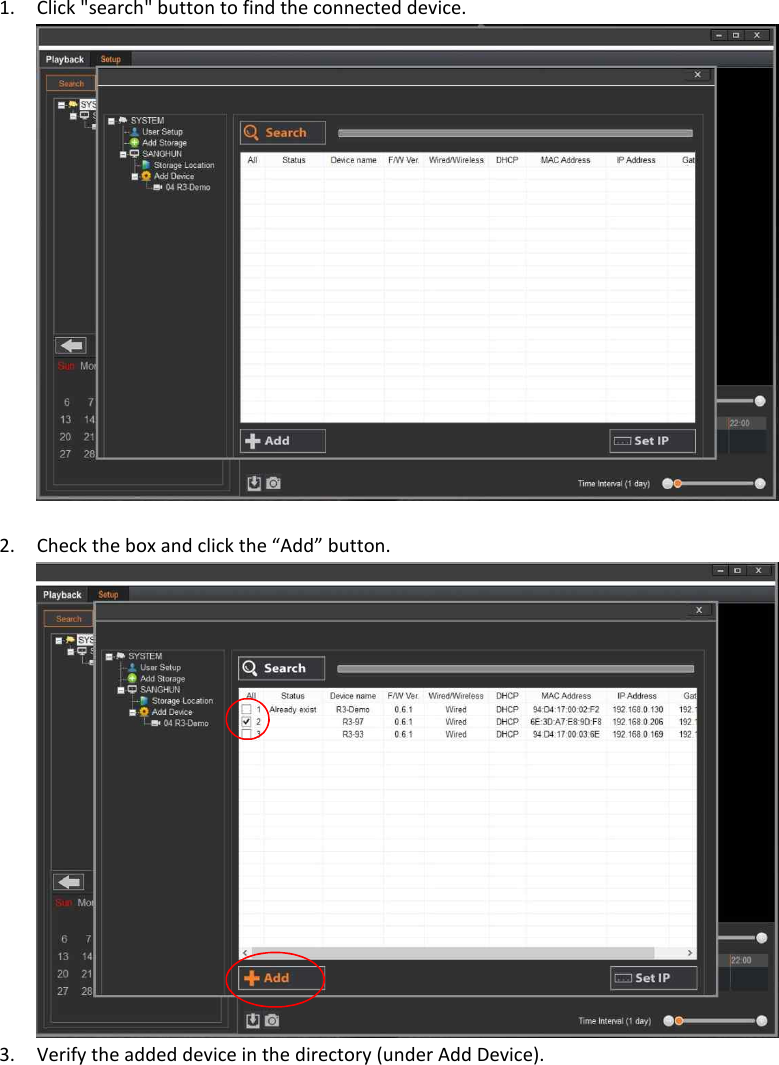
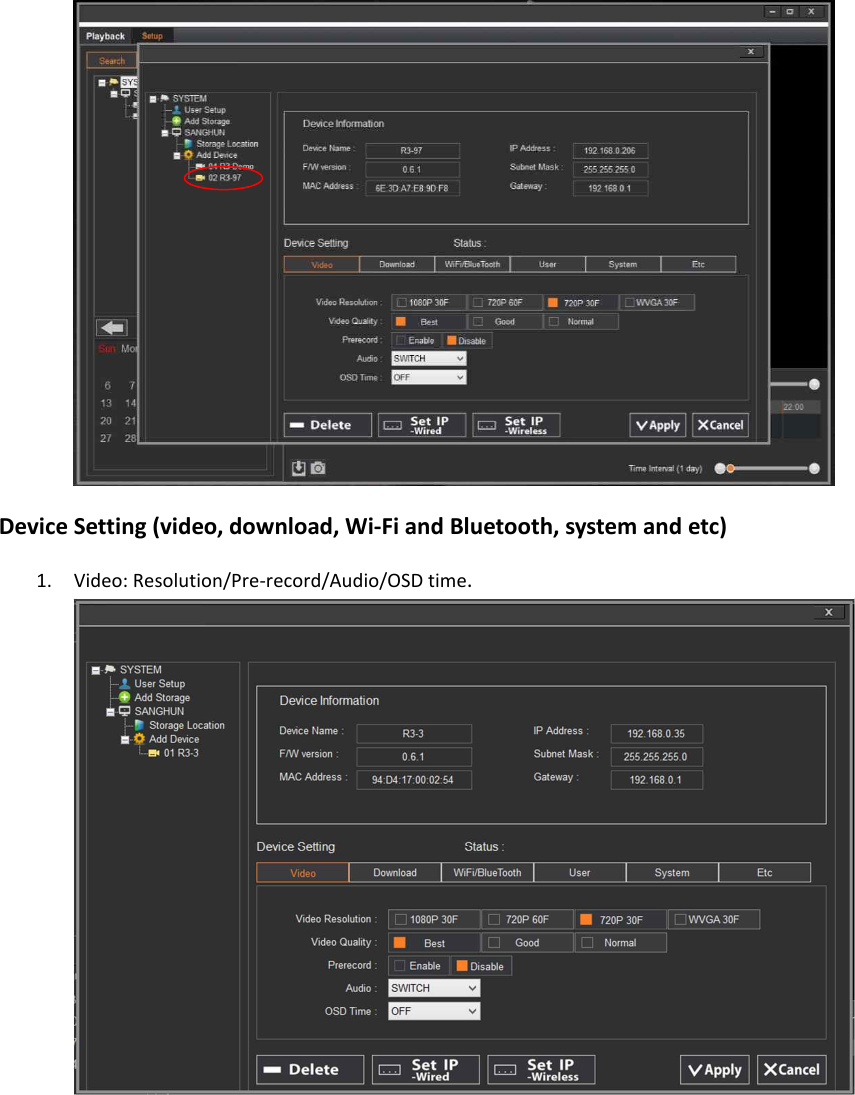
1. Click "search" button to find the connected device.   2. Check the box and click the “Add” button.  3. Verify the added device in the directory (under Add Device).
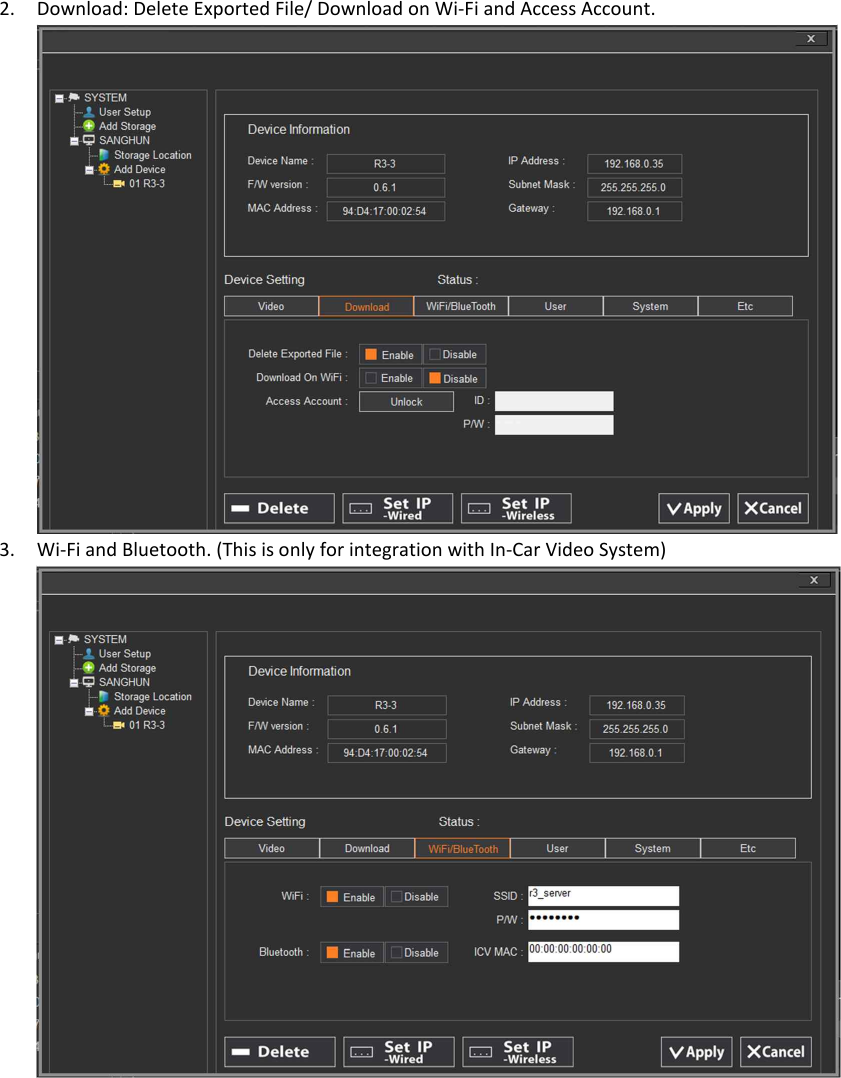
 Device Setting (video, download, Wi-Fi and Bluetooth, system and etc) 1. Video: Resolution/Pre-record/Audio/OSD time.
2. Download: Delete Exported File/ Download on Wi-Fi and Access Account. 3. Wi-Fi and Bluetooth. (This is only for integration with In-Car Video System)
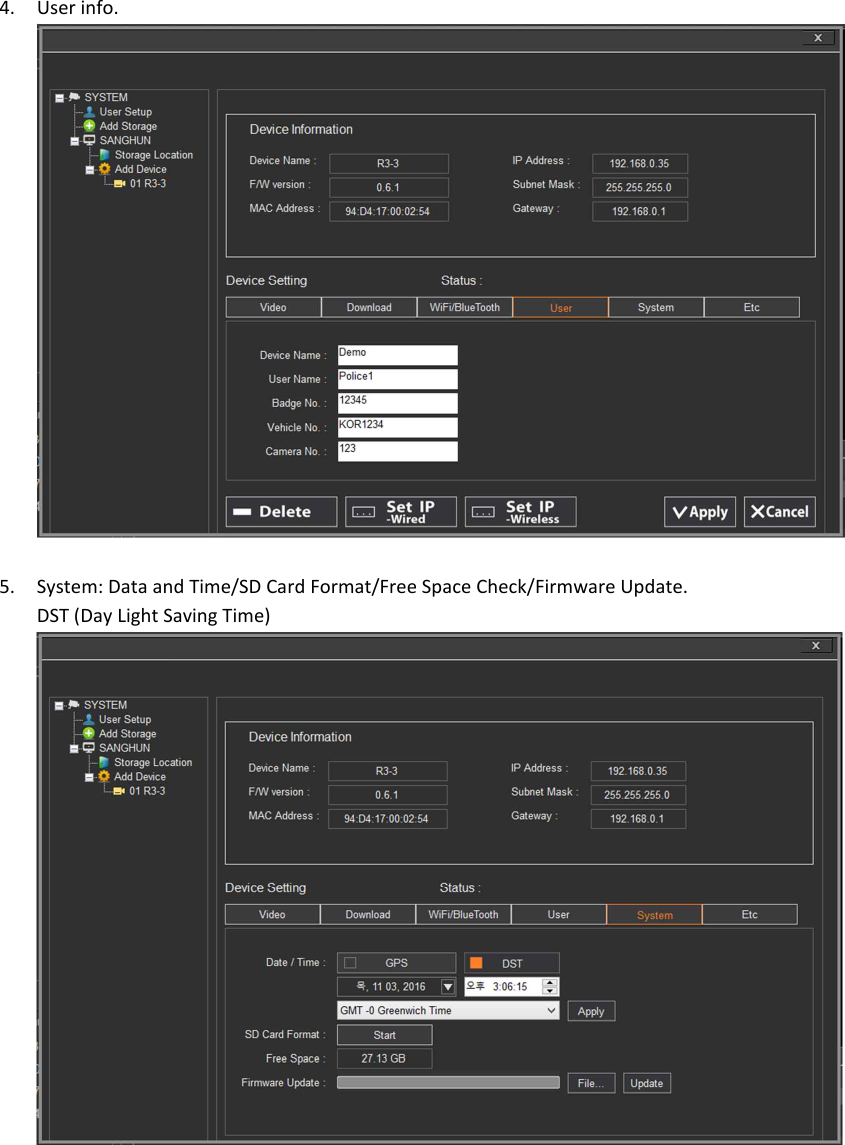
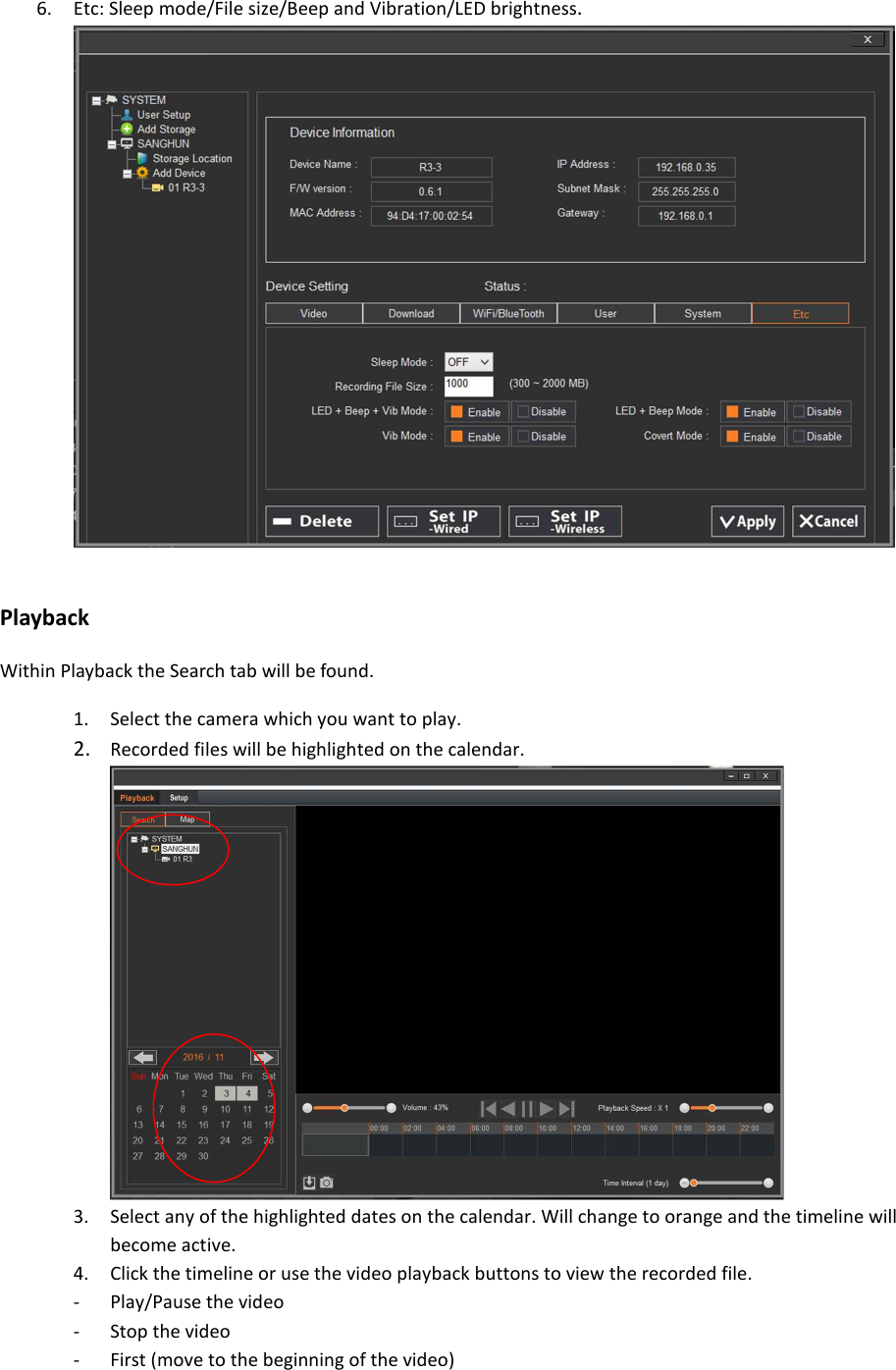
4. User info.   5. System: Data and Time/SD Card Format/Free Space Check/Firmware Update. DST (Day Light Saving Time)
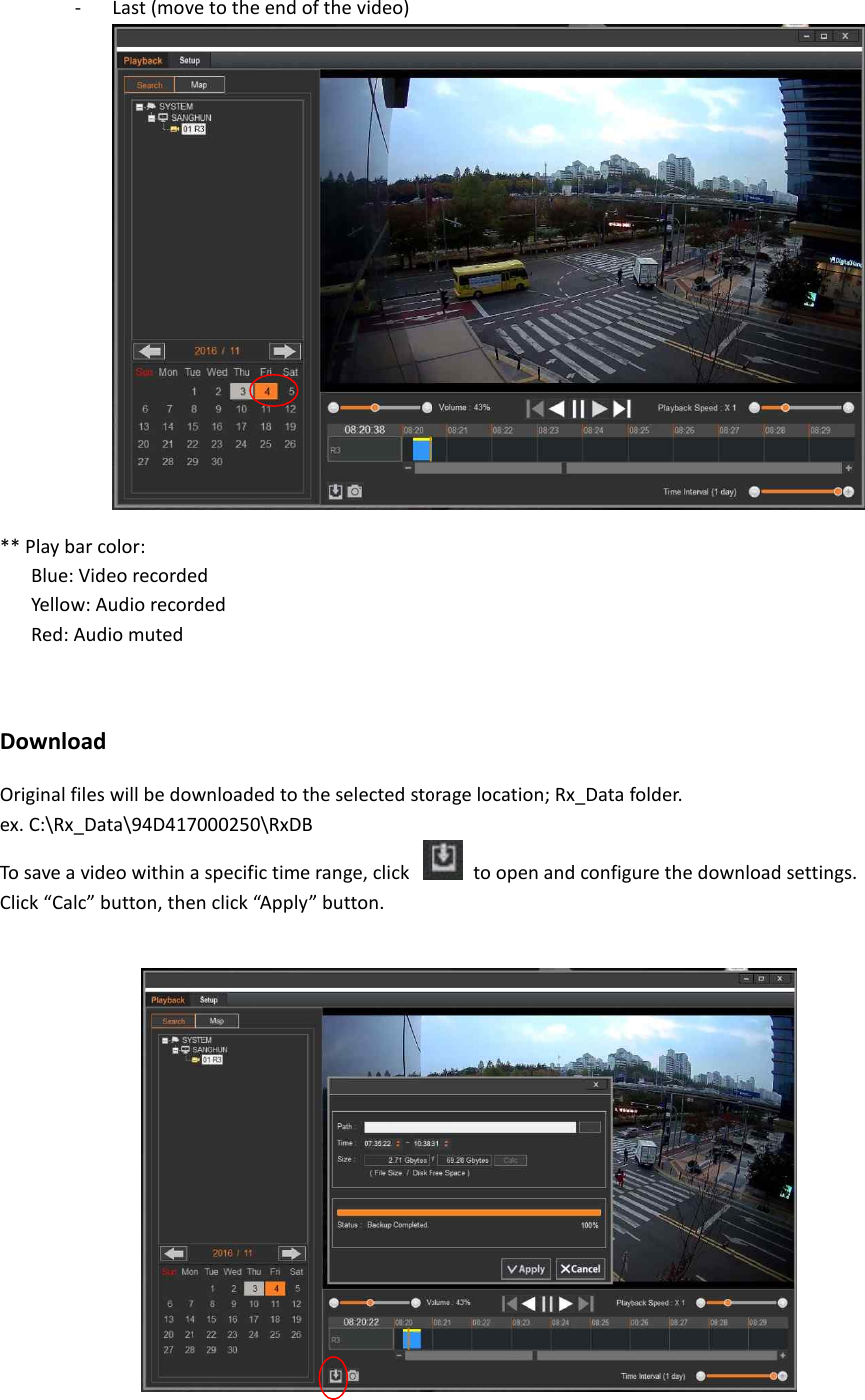
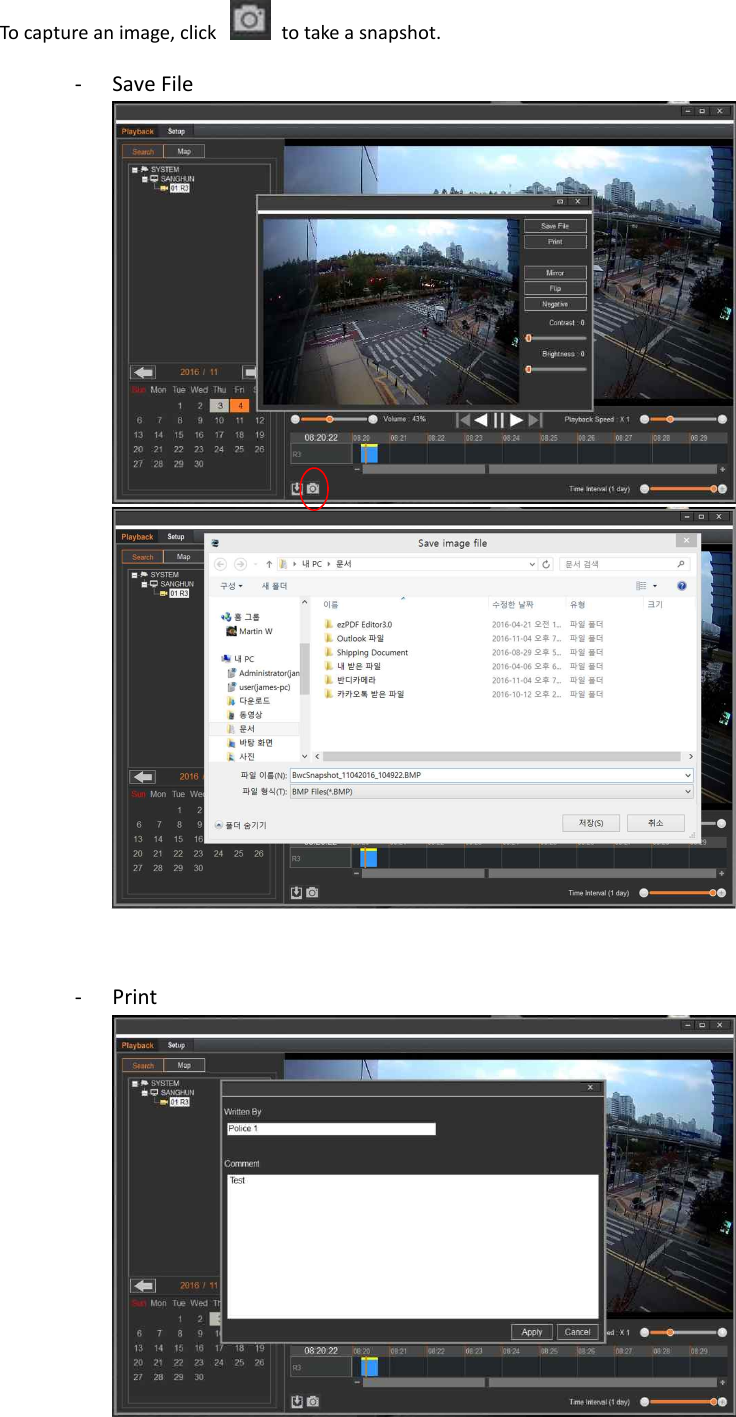
6. Etc: Sleep mode/File size/Beep and Vibration/LED brightness.    Playback Within Playback the Search tab will be found. 1. Select the camera which you want to play. 2. Recorded files will be highlighted on the calendar.  3. Select any of the highlighted dates on the calendar. Will change to orange and the timeline will become active. 4. Click the timeline or use the video playback buttons to view the recorded file. - Play/Pause the video - Stop the video - First (move to the beginning of the video)
- Last (move to the end of the video) ** Play bar color: Blue: Video recorded Yellow: Audio recorded Red: Audio muted  Download Original files will be downloaded to the selected storage location; Rx_Data folder.   ex. C:\Rx_Data\94D417000250\RxDB To save a video within a specific time range, click    to open and configure the download settings. Click “Calc” button, then click “Apply” button.
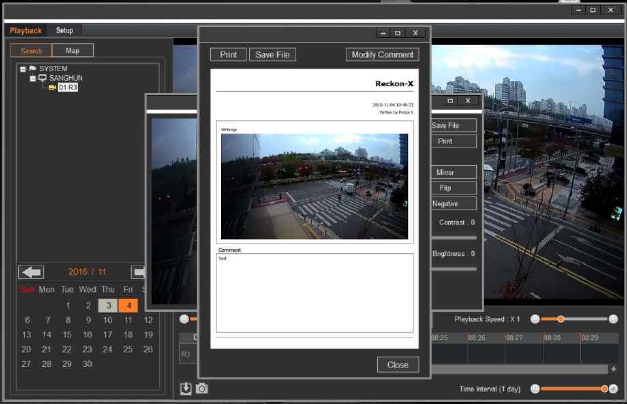
To capture an image, click    to take a snapshot. - Save File    - Print
7. FCC/IC compliance statement FCC Compliance Statement This  device  complies  with  part  15  of  the  FCC  rules.  Operation  is  subject  to  the  following  two conditions: (1) This device may not cause harmful interference, and (2) this device must accept any interference received, including interference that may cause undesired operation.   FCC Interference Statement   This equipment has been tested and found to comply with the limits for a Class B digital device, pursuant to part 15 of the FCC Rules. These limits are designed to provide reasonable protection against harmful interference in a residential installation. This equipment generates, uses and can radiate radio frequency energy and, if not installed and used in accordance with the instructions, may  cause  harmful  interference  to  radio  communications.  However,  there  is  no  guarantee  that interference  will  not  occur  in  a  particular  installation.  If  this  equipment  does  cause  harmful interference to radio or television reception, which can be determined by turning the equipment off and on, the user is encouraged to correct the interference by one of the following measures: • Reorient or relocate the receiving antenna. • Increase the separation between the equipment and receiver.   • Connect the equipment into an outlet on a circuit different from which the receiver is connected. • Consult the dealer or an experienced radio/TV technician for help.   FCC Caution   Any changes or modifications not expressly approved by the party responsible for compliance could void the  user's  authority to operate this  equipment.  This  transmitter  must  not  be  co-located  or operating in conjunction with any other antenna or transmitter. FCC Radiation Exposure Statement   To  comply  with  FCC  RF  exposure  compliance  requirements,  please  use  the  supplied  belt  clips provided by the manufacturer. This device must not be co-located or operation in conjunction with any other antenna or transmitter except complying with FCC multi-transmitter requirements.
This equipment has been tested and found to comply with the limits for a Class B digital device, pursuant to part 15 of the FCC Rules. These limits are designed to provide reasonable protection against harmful interference in a residential installation. Industry Canada Statement   This  device  complies  with  RSS-247  of  the  Industry  Canada  Rules.  Operation  is  subject  to  the following two conditions: (1) This device may not cause harmful interference, and (2) this device must accept any interference received, including interference that may cause undesired operation. Ce dispositif est conforme à la norme CNR-247 d’Industrie Canada applicable aux appareils radio exempts de licence. Son fonctionnement est sujet aux deux conditions suivantes: (1) le dispositif ne doit pas produire de brouillage préjudiciable, et (2) ce dispositif doit accepter tout brouillage reçu, y compris un brouillage susceptible de provoquer un fonctionnement indésirable.   Industry Canada Radiation Exposure Statement   To comply with IC RF exposure compliance requirements, please use the supplied belt clips provided by the manufacturer. This device must not be co-located or operation in conjunction with any other antenna or transmitter except complying with IC multi-transmitter requirements. Déclaration d’exposition aux radiations   Afin de se conformer avec ces exigences de conformite d'exposition, s'il vous plait utiliser les clips de ceinture fournie fournies par le fabricant. Ce dispositif ne doit pas etre situe a proximite ou a l'exploitation en conjunction avec une autre antenne ou emetteur, sauf conforme aux exigences IC multi-emetteur.

Navigation menu