Gateway Nv55 Users Manual NV52/NV54/NV56/NV58 Service Guide
NV55 to the manual 9a61c64b-9cb5-4148-bbf4-1f9f043322c3
gateway nv59
2015-02-05
: Gateway Gateway-Nv55-Users-Manual-403264 gateway-nv55-users-manual-403264 gateway pdf
Open the PDF directly: View PDF  .
.
Page Count: 164 [warning: Documents this large are best viewed by clicking the View PDF Link!]
- System specifications
- System utilities
- Replacing notebook components
- Preventing static electricity discharge
- Preparing the work space
- Required tools
- Preparing the notebook
- Removing the battery
- Removing the bay cover
- Adding or replacing memory modules
- Replacing the wireless card
- Replacing the hard drive
- Replacing the optical drive
- Replacing the keyboard cover
- Replacing the multimedia board
- Replacing the keyboard
- Replacing the LCD panel assembly
- Replacing the palm rest
- Replacing the speakers
- Replacing the touchpad board
- Replacing the modem board
- Replacing the USB board
- Replacing the Bluetooth module
- Replacing the system board
- Replacing the cooling assembly
- Replacing the processor
- Replacing the LCD front panel
- Replacing the webcam
- Replacing the LCD
- Replacing the LCD panel hinge brackets
- Replacing the power button board
- Replacing the Kensington lock cap
- Replacing the microphone
- Replacing the antennas
- Replacing the LCD assembly lid
- Troubleshooting
- Connector locations
- FRU (Field-Replaceable Unit) list
- Test compatible components
- Online support information

®
NV55
SERVICEGUIDE

Revision History
Please refer to the table below for the updates made on the NV55 service guide.
Service guide files and updates are available on the ACER/CSD web. For more information, refer to http://csd.acer.com.tw
Copyright
© 2009 Gateway, Inc. All rights reserved. Gateway, Gateway Country, the Gateway stylized logo, and the black-and-white spot design are
trademarks or registered trademarks of Gateway, Inc. in the United States and other countries. All other brands and product names are
trademarks or registered trademarks of their respective companies.
PRINTED IN TAIWAN
Date Chapter Updates
Contents
i
Chapter 1: System specifications . . . . . . . . . . . . . . . . . . . . . . . . . . . . . . . . . .1
Preface . . . . . . . . . . . . . . . . . . . . . . . . . . . . . . . . . . . . . . . . . . . . . . . . . . . . 2
Conventions . . . . . . . . . . . . . . . . . . . . . . . . . . . . . . . . . . . . . . . . . . 2
General information . . . . . . . . . . . . . . . . . . . . . . . . . . . . . . . . . . . 2
Features . . . . . . . . . . . . . . . . . . . . . . . . . . . . . . . . . . . . . . . . . . . . . . . . . . . 3
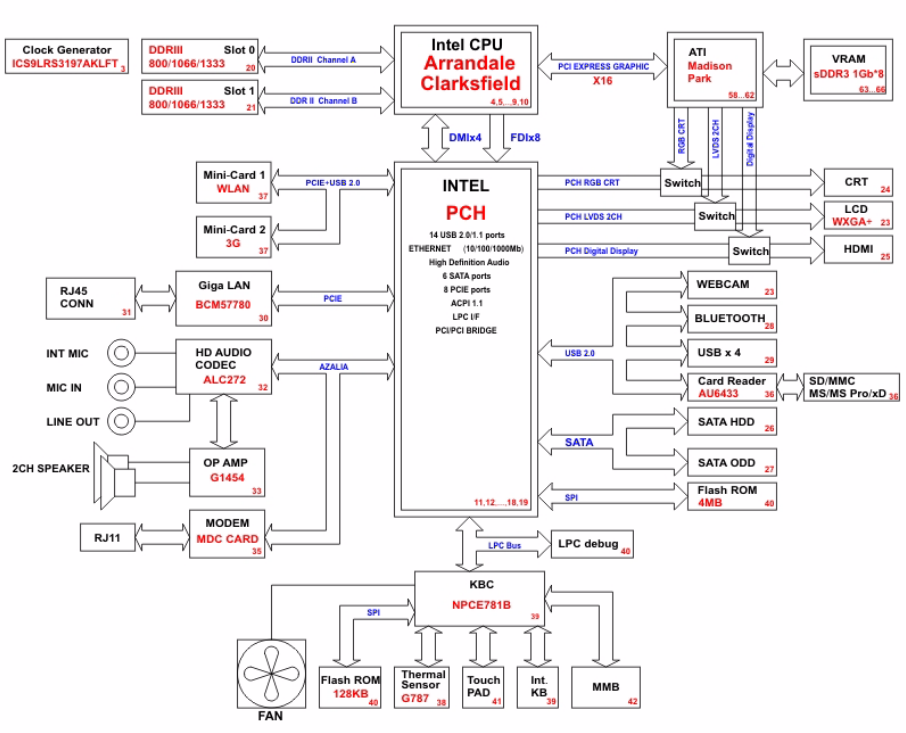
System block diagram . . . . . . . . . . . . . . . . . . . . . . . . . . . . . . . . . . . . . . . . 6
Hardware specifications and configurations . . . . . . . . . . . . . . . . . . . . . . . 7
CPU . . . . . . . . . . . . . . . . . . . . . . . . . . . . . . . . . . . . . . . . . . . . . . . . 7
Controllers . . . . . . . . . . . . . . . . . . . . . . . . . . . . . . . . . . . . . . . . . . . 7
BIOS . . . . . . . . . . . . . . . . . . . . . . . . . . . . . . . . . . . . . . . . . . . . . . . 7
Memory . . . . . . . . . . . . . . . . . . . . . . . . . . . . . . . . . . . . . . . . . . . . . 8
Hard Disk Drive . . . . . . . . . . . . . . . . . . . . . . . . . . . . . . . . . . . . . . 9
Optical drive . . . . . . . . . . . . . . . . . . . . . . . . . . . . . . . . . . . . . . . . . 9
LCD . . . . . . . . . . . . . . . . . . . . . . . . . . . . . . . . . . . . . . . . . . . . . . . 10
Keyboard . . . . . . . . . . . . . . . . . . . . . . . . . . . . . . . . . . . . . . . . . . . 11
Pointing device . . . . . . . . . . . . . . . . . . . . . . . . . . . . . . . . . . . . . . 11
Memory card reader . . . . . . . . . . . . . . . . . . . . . . . . . . . . . . . . . . 11
Audio . . . . . . . . . . . . . . . . . . . . . . . . . . . . . . . . . . . . . . . . . . . . . . 12
Wired LAN . . . . . . . . . . . . . . . . . . . . . . . . . . . . . . . . . . . . . . . . . 12
Bluetooth . . . . . . . . . . . . . . . . . . . . . . . . . . . . . . . . . . . . . . . . . . . 12
Wireless LAN . . . . . . . . . . . . . . . . . . . . . . . . . . . . . . . . . . . . . . . 13
USB . . . . . . . . . . . . . . . . . . . . . . . . . . . . . . . . . . . . . . . . . . . . . . . 13
Buttons/Indicators/Ports . . . . . . . . . . . . . . . . . . . . . . . . . . . . . . . 13
Camera . . . . . . . . . . . . . . . . . . . . . . . . . . . . . . . . . . . . . . . . . . . . . 14
Fans . . . . . . . . . . . . . . . . . . . . . . . . . . . . . . . . . . . . . . . . . . . . . . . 14
Battery . . . . . . . . . . . . . . . . . . . . . . . . . . . . . . . . . . . . . . . . . . . . . 14
Power supply . . . . . . . . . . . . . . . . . . . . . . . . . . . . . . . . . . . . . . . . 15
Power savings . . . . . . . . . . . . . . . . . . . . . . . . . . . . . . . . . . . . . . . 15
Notebook product tour . . . . . . . . . . . . . . . . . . . . . . . . . . . . . . . . . . . . . . 16
Front View . . . . . . . . . . . . . . . . . . . . . . . . . . . . . . . . . . . . . . . . . 16
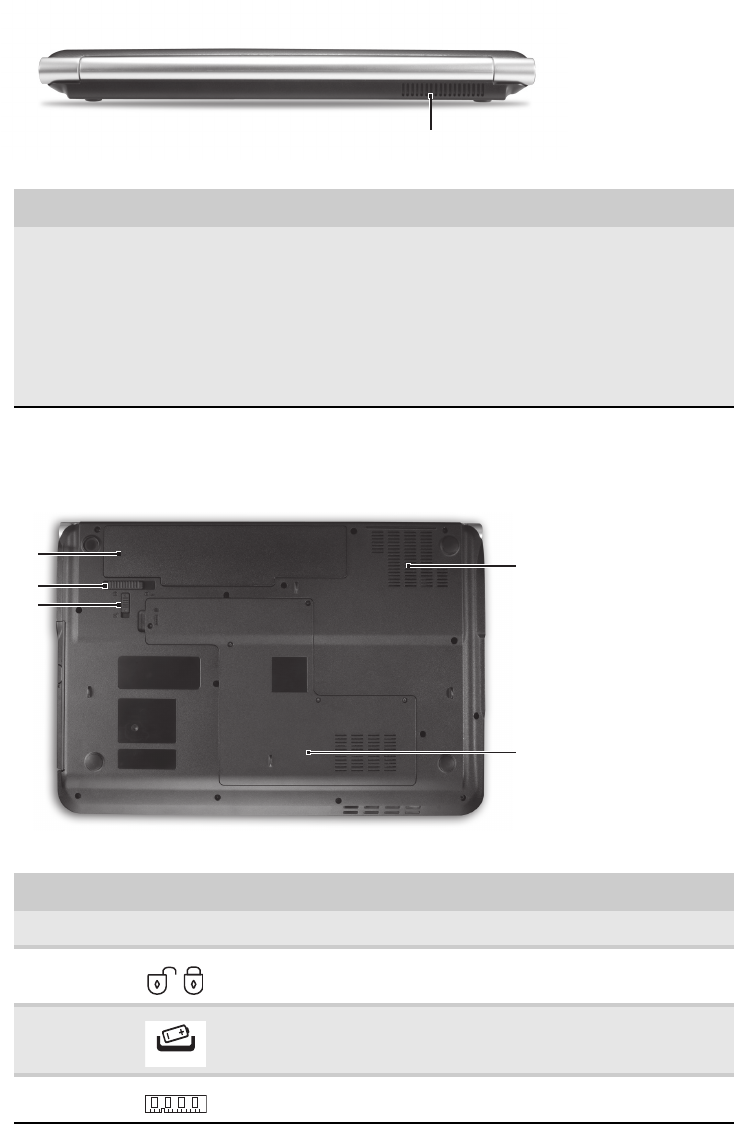
Left View . . . . . . . . . . . . . . . . . . . . . . . . . . . . . . . . . . . . . . . . . . 16
Right View . . . . . . . . . . . . . . . . . . . . . . . . . . . . . . . . . . . . . . . . . 17
Rear View . . . . . . . . . . . . . . . . . . . . . . . . . . . . . . . . . . . . . . . . . . 18
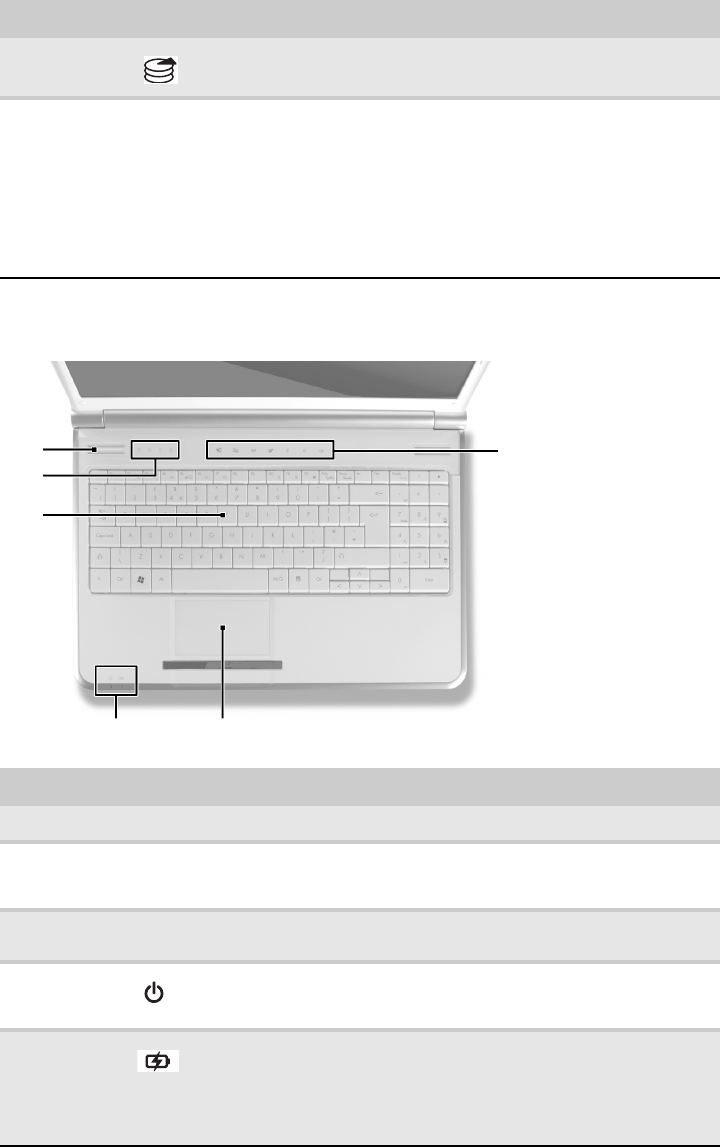
Bottom View . . . . . . . . . . . . . . . . . . . . . . . . . . . . . . . . . . . . . . . . 18
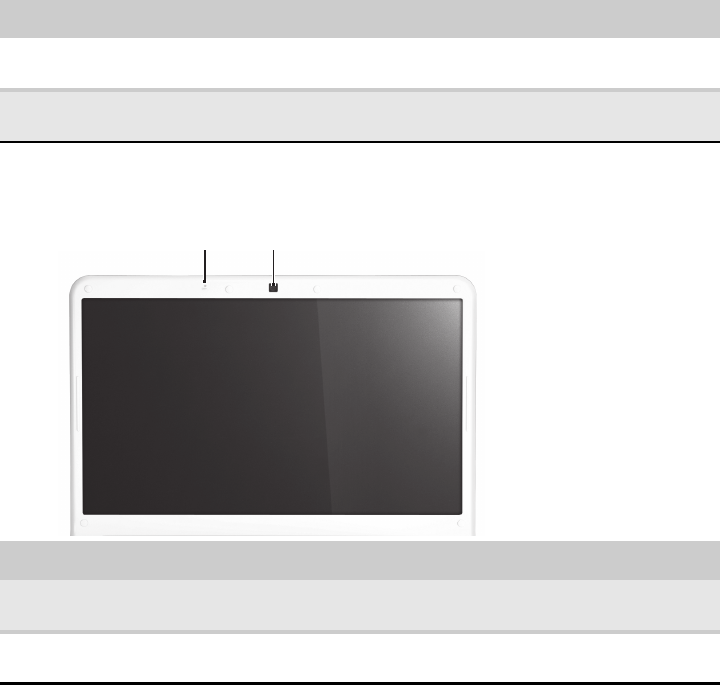
Keyboard area . . . . . . . . . . . . . . . . . . . . . . . . . . . . . . . . . . . . . . . 19
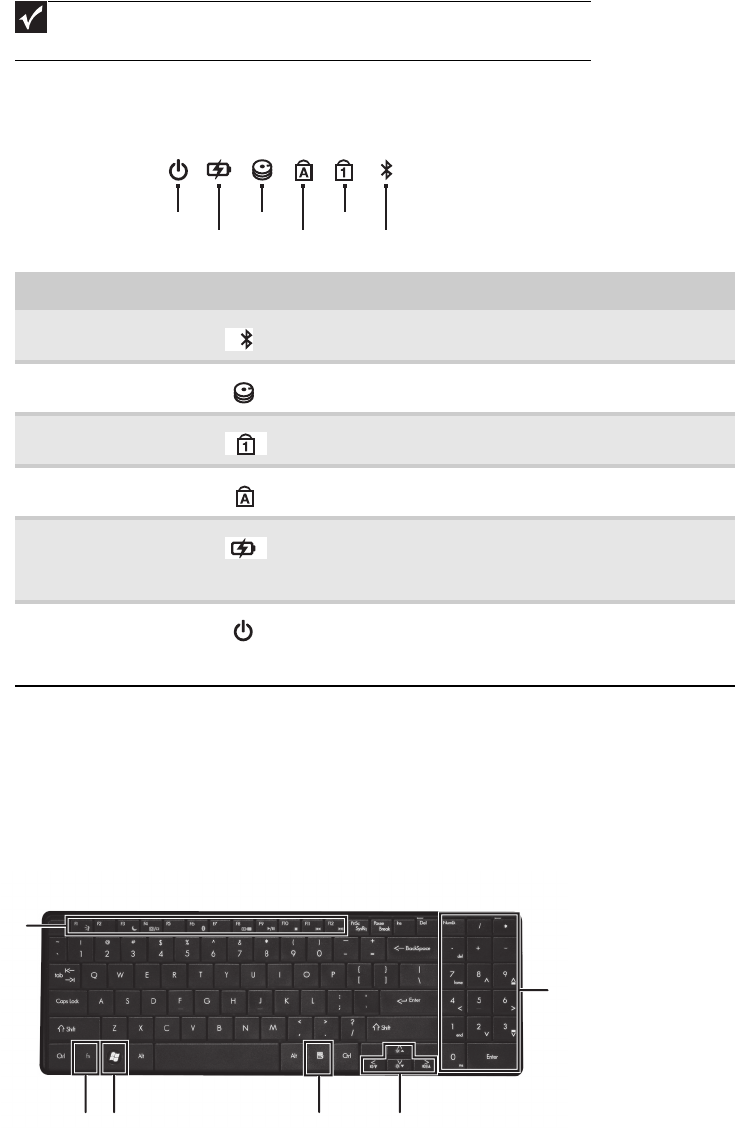
LCD panel . . . . . . . . . . . . . . . . . . . . . . . . . . . . . . . . . . . . . . . . . . 20
Using the status indicators . . . . . . . . . . . . . . . . . . . . . . . . . . . . . 21
Using the keyboard . . . . . . . . . . . . . . . . . . . . . . . . . . . . . . . . . . . 21
Using the capacitive touch keys . . . . . . . . . . . . . . . . . . . . . . . . . 24
Using the EZ Pad touchpad . . . . . . . . . . . . . . . . . . . . . . . . . . . . 25
Using the webcam . . . . . . . . . . . . . . . . . . . . . . . . . . . . . . . . . . . . 26
Chapter 2: System utilities . . . . . . . . . . . . . . . . . . . . . . . . . . . . . . . . . . . . . .27
BIOS setup utility . . . . . . . . . . . . . . . . . . . . . . . . . . . . . . . . . . . . . . . . . . 28
Contents
ii
Navigating the BIOS setup utility . . . . . . . . . . . . . . . . . . . . . . . 29
BIOS setup utility menus . . . . . . . . . . . . . . . . . . . . . . . . . . . . . . 29
BIOS recovery . . . . . . . . . . . . . . . . . . . . . . . . . . . . . . . . . . . . . . . . . . . . . 38
Creating the Crisis Recovery disk . . . . . . . . . . . . . . . . . . . . . . . 38
Performing a BIOS recovery . . . . . . . . . . . . . . . . . . . . . . . . . . . 38
Running the Flash utility: . . . . . . . . . . . . . . . . . . . . . . . . . . . . . . 39
Clearing a BIOS password . . . . . . . . . . . . . . . . . . . . . . . . . . . . . . . . . . . 40
Unlocking the hard drive . . . . . . . . . . . . . . . . . . . . . . . . . . . . . . . . . . . . 41
Chapter 3: Replacing notebook components . . . . . . . . . . . . . . . . . . . . . . . . 43
Preventing static electricity discharge . . . . . . . . . . . . . . . . . . . . . . . . . . 44
Tape . . . . . . . . . . . . . . . . . . . . . . . . . . . . . . . . . . . . . . . . . . . . . . . 44
Preparing the work space . . . . . . . . . . . . . . . . . . . . . . . . . . . . . . . . . . . . 45
Required tools . . . . . . . . . . . . . . . . . . . . . . . . . . . . . . . . . . . . . . . . . . . . . 46
Preparing the notebook . . . . . . . . . . . . . . . . . . . . . . . . . . . . . . . . . . . . . . 47
Removing the battery . . . . . . . . . . . . . . . . . . . . . . . . . . . . . . . . . . . . . . . 48
Removing the bay cover . . . . . . . . . . . . . . . . . . . . . . . . . . . . . . . . . . . . . 49
Adding or replacing memory modules . . . . . . . . . . . . . . . . . . . . . . . . . . 50
Replacing the wireless card . . . . . . . . . . . . . . . . . . . . . . . . . . . . . . . . . . 52
Replacing the hard drive . . . . . . . . . . . . . . . . . . . . . . . . . . . . . . . . . . . . . 54
Replacing the optical drive . . . . . . . . . . . . . . . . . . . . . . . . . . . . . . . . . . . 56
Replacing the keyboard cover . . . . . . . . . . . . . . . . . . . . . . . . . . . . . . . . . 58
Replacing the multimedia board . . . . . . . . . . . . . . . . . . . . . . . . . . . . . . . 60
Replacing the keyboard . . . . . . . . . . . . . . . . . . . . . . . . . . . . . . . . . . . . . . 62
Replacing the LCD panel assembly . . . . . . . . . . . . . . . . . . . . . . . . . . . . 64
Replacing the palm rest . . . . . . . . . . . . . . . . . . . . . . . . . . . . . . . . . . . . . . 68
Replacing the speakers . . . . . . . . . . . . . . . . . . . . . . . . . . . . . . . . . . . . . . 72
Replacing the touchpad board . . . . . . . . . . . . . . . . . . . . . . . . . . . . . . . . . 74
Replacing the modem board . . . . . . . . . . . . . . . . . . . . . . . . . . . . . . . . . . 77
Replacing the USB board . . . . . . . . . . . . . . . . . . . . . . . . . . . . . . . . . . . . 80
Replacing the Bluetooth module . . . . . . . . . . . . . . . . . . . . . . . . . . . . . . . 83
Replacing the system board . . . . . . . . . . . . . . . . . . . . . . . . . . . . . . . . . . 86
Replacing the cooling assembly . . . . . . . . . . . . . . . . . . . . . . . . . . . . . . . 89
Replacing the processor . . . . . . . . . . . . . . . . . . . . . . . . . . . . . . . . . . . . . 92
Replacing the LCD front panel . . . . . . . . . . . . . . . . . . . . . . . . . . . . . . . . 95
Replacing the webcam . . . . . . . . . . . . . . . . . . . . . . . . . . . . . . . . . . . . . . 98
Replacing the LCD . . . . . . . . . . . . . . . . . . . . . . . . . . . . . . . . . . . . . . . . 100
Replacing the LCD panel hinge brackets . . . . . . . . . . . . . . . . . . . . . . . 103
Replacing the power button board . . . . . . . . . . . . . . . . . . . . . . . . . . . . 105
Replacing the Kensington lock cap . . . . . . . . . . . . . . . . . . . . . . . . . . . 107
Replacing the microphone . . . . . . . . . . . . . . . . . . . . . . . . . . . . . . . . . . . 109
Replacing the antennas . . . . . . . . . . . . . . . . . . . . . . . . . . . . . . . . . . . . . 111
Replacing the LCD assembly lid . . . . . . . . . . . . . . . . . . . . . . . . . . . . . 113
iii
www.gateway.com
Chapter 4: Troubleshooting . . . . . . . . . . . . . . . . . . . . . . . . . . . . . . . . . . . .115
Diagnosing problems . . . . . . . . . . . . . . . . . . . . . . . . . . . . . . . . . . . . . . 116
System test procedures . . . . . . . . . . . . . . . . . . . . . . . . . . . . . . . . . . . . . 117
Testing the optical drive . . . . . . . . . . . . . . . . . . . . . . . . . . . . . . 117
Testing the keyboard or auxiliary input device . . . . . . . . . . . . 117
Testing the memory . . . . . . . . . . . . . . . . . . . . . . . . . . . . . . . . . 118
Testing the power system . . . . . . . . . . . . . . . . . . . . . . . . . . . . . 118
Testing the touchpad . . . . . . . . . . . . . . . . . . . . . . . . . . . . . . . . . 119
Power-On Self-Test (POST) error message . . . . . . . . . . . . . . . . . . . . . 120
Index of error messages . . . . . . . . . . . . . . . . . . . . . . . . . . . . . . . . . . . . 121
Error codes . . . . . . . . . . . . . . . . . . . . . . . . . . . . . . . . . . . . . . . . 121
Error messages . . . . . . . . . . . . . . . . . . . . . . . . . . . . . . . . . . . . . 121
No-beep error messages . . . . . . . . . . . . . . . . . . . . . . . . . . . . . . 123
Phoenix BIOS beep codes . . . . . . . . . . . . . . . . . . . . . . . . . . . . . . . . . . 124
Symptom-to-FRU error messages . . . . . . . . . . . . . . . . . . . . . . . . . . . . 129
LCD . . . . . . . . . . . . . . . . . . . . . . . . . . . . . . . . . . . . . . . . . . . . . . 129
Power . . . . . . . . . . . . . . . . . . . . . . . . . . . . . . . . . . . . . . . . . . . . . 129
Memory . . . . . . . . . . . . . . . . . . . . . . . . . . . . . . . . . . . . . . . . . . . 130
Sound . . . . . . . . . . . . . . . . . . . . . . . . . . . . . . . . . . . . . . . . . . . . . 130
Power management . . . . . . . . . . . . . . . . . . . . . . . . . . . . . . . . . . 130
Devices . . . . . . . . . . . . . . . . . . . . . . . . . . . . . . . . . . . . . . . . . . . 131
Keyboard and touchpad . . . . . . . . . . . . . . . . . . . . . . . . . . . . . . 131
Intermittent problems . . . . . . . . . . . . . . . . . . . . . . . . . . . . . . . . . . . . . . 132
Undetermined problems . . . . . . . . . . . . . . . . . . . . . . . . . . . . . . . . . . . . 133
Chapter 5: Connector locations . . . . . . . . . . . . . . . . . . . . . . . . . . . . . . . . .135
System board layout . . . . . . . . . . . . . . . . . . . . . . . . . . . . . . . . . . . . . . . 136
Top view . . . . . . . . . . . . . . . . . . . . . . . . . . . . . . . . . . . . . . . . . . 136
Bottom view – Discrete model . . . . . . . . . . . . . . . . . . . . . . . . 137
Bottom view – UMA model . . . . . . . . . . . . . . . . . . . . . . . . . . 138
Chapter 6: FRU (Field-Replaceable Unit) list . . . . . . . . . . . . . . . . . . . . . .139
Introduction . . . . . . . . . . . . . . . . . . . . . . . . . . . . . . . . . . . . . . . . . . . . . . 140
Exploded diagram . . . . . . . . . . . . . . . . . . . . . . . . . . . . . . . . . . . . . . . . . 140
FRU list . . . . . . . . . . . . . . . . . . . . . . . . . . . . . . . . . . . . . . . . . . . . . . . . 142
Appendix A: Test compatible components . . . . . . . . . . . . . . . . . . . . . . . 147
Introduction . . . . . . . . . . . . . . . . . . . . . . . . . . . . . . . . . . . . . . . . . . . . . . 148
Microsoft® Windows 7® Compatibility Test . . . . . . . . . . . . . . . . . . . 148
Appendix B: Online support information. . . . . . . . . . . . . . . . . . . . . . . . . 151
Contents
iv

CHAPTER 1: System specifications
2
Preface
Conventions
The following conventions are used in this manual:
General information
Before using this information and the product it supports, read the following general
information.
This service guide provides you with all technical information relating to the basic
configuration decided for Acer’s global product offering. To better fit local market
requirements and enhance product competitiveness, your regional office may have
decided to extend the functionality of a machine (such as add-on cards, modems,
or extra memory capabilities). These localized features are not covered in this
generic service guide. In such cases, contact your regional offices or the
responsible personnel/channel to provide you with further technical details.
When ordering FRU parts: Check the most up-to-date information available on
your regional web or channel. If, for whatever reason, a part number change is
made, it may not be noted in this printed service guide.
Acer-authorized Service Providers: Your Acer office may have a different part
number code to those given in the FRU list of this printed service guide. You must
use the list provided by your regional Acer office to order FRU parts for repair
and service of customer machines.
Warning
Indicates a potential for personal injury.
Caution
Indicates a potential loss of data or damage to equipment.
Important
Indicates information that is important to know for the proper completion of
a procedure, choice of an option, or completing a task.
www.gateway.com
3
Features
Platform
•Processor
•Intel Core i3 Processors: 330M (2.13 GHz), M620 (2.5 GHz), 350M
(2.26 GHz)
•Intel Core i5 Processors: 430M (2.26 GHz), 520M (2.4 GHz), 540M
(2.53 GHz)
•Intel Core i7 Processors: 620M (2.66 GHz)
•Core logic: Mobile Intel HM55 Express Chipset
•Wireless: Intel WiFi Link 5300/5100, Atheros b/g/n
System memory
•DDR3 SO-DIMM
•Data rate supported: 800/1066/1333 MT/s
•Maximum memory: 4 GB (using two SO-DIMM modules)
Display and graphics
•15.6" WXGA TFT LCD display panel
•VGA controller:
•Discrete model: ATI Madison Pro / Park XT with DDR3-800 1 GB VRAM
•UMA model: Integrated in the Mobile Intel HM55 Express Chipset
•Dual independent display support
•16.7 million colors
•MPEG-2/DVD hardware-assisted capability (acceleration)
•MPEG-2/DVD decoding (for selected models)
•WMV9 (VC-1) support (acceleration)
•WMV9 (VC-1) and H.264 (AVC) decoding (for selected models)
•HDMI™ (High-Definition Multimedia Interface) with HDCP (High-bandwidth
Digital Content Protection) support
Storage subsystem
•Industry standard 2.5” 160–640 GB hard disk drive
•Optical drive options:
•Blu-ray Disc™/DVD-Super Multi double-layer drive
•DVD-Super Multi double-layer drive
•5-in-1 card reader, supporting Secure Digital™ (SD), MultiMediaCard
(MMC), Memory Stick® (MS), Memory Stick PRO™ (MS PRO), xD-Picture
Card™ (xD)
CHAPTER 1: System specifications
4
Input devices
•99-, 100-, or 103-key keyboard, 2.5 mm (minimum) key travel
•Twelve function keys, four cursor keys, two Windows® keys
•Touchpad pointing device
•Capacitive touch keys
Audio
•Two built-in stereo speakers
•Built-in microphone on webcam
•Realtek ALC272 codec
•Supports Dolby Advanced Audio technology
•MS-Sound compatible
Communication
•Integrated webcam
•WLAN: Intel® WiFi Link 5300/5100 a/b/g/n, Atheros b/g/n
•WPAN: Bluetooth® 2.0+EDR (Enhanced Data Rate)
•LAN: 10/100/1000 Ethernet
I/O ports
•USB (four)
•External display (VGA) port
•Ethernet (RJ45)
•Modem (RJ11)
•Headphone/SPDIF Audio Out
•Microphone in
•DC in jack for AC adapter
•5-in-1 card reader (SD™, MMC, MS, MS PRO, xD)
•HDMI™ port with HDCP support
Security
•Kensington lock slot
•BIOS-based user, supervisor, and HDD passwords
www.gateway.com
5
Physical specifications
•Dimensions: 372 × 259 × 26 / 37 mm (14.65 × 10.2 × 1.02 / 1.46 in)
•Weight: 3.1 kg (6.83 lb)
Environmental specifications
•Temperature
•Operating: 32 °F to 90 °F (0 °C to 35 °C)
•Non-operating: -4 °F to 140 °F (-20 °C to 60 °C)
•Humidity (non-condensing)
•Operating: 10% to 90%
•Non-operating: 5% to 95%
www.gateway.com
7
Hardware specifications and
configurations
CPU
Controllers
BIOS
Item Specification
CPU type nIntel Core i3 Processors: 330M (2.13 GHz), M620 (2.5 GHz), 350M (2.26 GHz)
nIntel Core i5 Processors: 430M (2.26 GHz), 520M (2.4 GHz), 540M (2.53 GHz)
nIntel Core i7 Processors: 620M (2.66 GHz)
Core logic Mobile Intel HM55 Express Chipset
Socket type LGA 1156 (Socket H)
Item Controller
Core logic Mobile Intel HM55 Express Chipset
VGA nDiscrete model: ATI Madison Pro / Park XT with DDR3-800 1 GB VRAM
nUMA model: Integrated in the Mobile Intel HM55 Express Chipset
LAN Broadcom BCM57780
USB 2.0 Mobile Intel HM55 Express Chipset
Bluetooth Broadcom BCM2046
Wireless 802.11 nIntel WiFi Link 5100
nIntel WiFi Link 5300
nAtheros AR5B91/HB93 b/g/n
nAtheros XB63 b/g
Memory card reader Alcor AU6433
Audio codec Realtek ALC272
Item Specification
BIOS vendor Phoenix
BIOS version v1.06
CHAPTER 1: System specifications
8
Memory
Supported protocols nACPI 1.0b/2.0/3.0 compliance
nPCI 2.2
nSystem/HDD password
nSecurity Control
nINT 13H Extenstions
nPnP BIOS 1.0a SMBIOS 2.4
nBIOS Boot Specification
nSimple Boot Flag 1.0
nBoot block
nPCI Bus Power Management Interface Specification
nUSB Specification 1.1/2.0
nIEEE 1394 1.0
nUSB/1394 CD-ROM Boot Up support
nPC Card Standard 1995 (PCMCIA 3.0 Compliant Device)
nIrDA 1.0
nIntel AC97 CNR Specification
nWfM 2.0
nPXE 2.1
nBoot Integrity Service Application Program Interface (BIS) 1.0
nPC99a and Mobile PC2001 Compliant
BIOS password control Manually set
Item Specification
Memory controller Built-in
Memory size 0 MB (no on-board memory)
SO-DIMM socket number 2 sockets
Supports maximum
memory size
4GB
Supports SO-DIMM type DDR3
Supports data rate 800/1066/1333 MT/s
Supports SO-DIMM
package
204-pin SO-DIMM
Memory module
combinations
You can install memory modules in any combination as long as they match the above
specifications.
Item Specification
www.gateway.com
9
Hard Disk Drive
Optical drive
Item
Models Seagate
ST9160314AS
Tos hiba
MK1655GSX
HGST
HTS545016B9A
300
WD
WD1600BEVT-
22ZCTO
Seagate
ST9250315AS
Tosh i ba
MK2555GSX
HGST
HTS545025B9A
300
WD
WD2500BEVT-22Z
CT0
Seagate
ST9320325AS
Toshiba
MK3263GSX
HGST
HTS545032B9A
300
WD
WD3200BEVT-22Z
CT0
Seagate
ST9500325AS
To s hib a
MK5055GSX
HGST
HTS545050B9A
300
WD
WD5000BEVT-22Z
AT0
WD
WD6400BEVT-22A
0RT0
Capacity (MB) 160000 250000 320000 500000 640000
Bytes per sector 512 512 512 512
Data heads 3/4 444
Drive Format
Disks 2 2 2 2
Spindle speed
(RPM)
5400 RPM 5400 RPM 5400 RPM 5400 RPM 5400 RPM
Performance Specifications
Buffer size 8 MB 8 MB 8 MB 8 MB 8 MB
Interface SATA SATA SATA SATA SATA
Max. media
transfer rate
(disk-buffer,
Mbytes/s)
540 540 850 3.0 GB/s (Max.)
Buffer to Host
3.0 GB/s
DC Power Requirements
Voltage
tolerance
5V (DC) +/- 5% 5V (DC) +/- 5% 5V (DC) +/- 5% 5V (DC) +/- 5% 5V (DC) +/- 5%
Item Specification
Vendor & model
name
HLDS Super-Multi Drive GT30N
PLDS Super-Multi Drive DS-8A4SH
Sony Super-Multi Drive AD-7585H
Toshiba Super-Multi Drive TS-L633C
HLDS BD Combo 1CT21N
PLDS BD Combo DS-4E1S
Pioneer BD Combo BDC-TD01RS
Sony BD Combo 4X BC-5500H
Performance Specification
Transfer rate
(KB/sec)
Sustained:
nwith CD: Max 3.6Mbytes/sec
nwith DVD: Max 10.08Mbytes/sec
Sustained:
nwith CD: Max 3.6Mbytes/sec
nwith DVD: Max 10.8Mbytes/sec
nwith BD: Max 11Mbytes/sec
Buffer Memory 2MB nfor CD/DVD: 2MB
nfor BD: 4.5MB
Interface SATA
CHAPTER 1: System specifications
10
LCD
Applicable disc
format
CD: CD-DA, CD-ROM, CD-ROM XA, Photo CD (multi-session), Video CD, Cd-Extra (CD+), CD-text
DVD: DVD-VIDEO, DVD-ROM, DVD-R (3.9GB, 4.7GB) DVD-R DL, DVD-RW, DVD-RAM, DVD+R,
DVD+R DL, DVD+RW
CD:
CD-DA (Red Book) - Standard Audio CD & CD-TEXT
CD-ROM (Yellow Book Mode1 & 2) - Standard Data
CD-ROM XA (Mode2 Form1 & 2) - Photo CD, Multi-Session
CD-I (Green Book, Mode2 Form1 & 2, Ready, Bridge)
CD-Extra/ CD-Plus (Blue Book) - Audio & Text/Video
Video-CD (White Book) - MPEG1 Video
CD-R (Orange Book Part)
CD-RW & HSRW (Orange Book Part Volume1 & Volume 2
Super Audio CD (SACD) Hybrid type
US & US+ RW
DVD:
DVD-ROM (Book 1.02), DVD-Dual
DVD-Video (Book 1.1)
DVD-R (Book 1.0, 3.9G)
DVD-R (Book 2.0, 4.7G) - General & Authoring
DVD+R (Version 1.0)
DVD+RW
DVD-RW (Non CPRM & CPRM)
DVD°”R Dual
Blu-Ray:
BD-R, BD-R DL, BD-RE, BD-RE DL
Loading
mechanism
Load: Manual
Release: (a) Electrical (Release Button), (b) ATAPI command, (c) Emergency
Power Requirement
Input Voltage 5 V +/- 5% (Operating) 5 V +/- 5% (Operating)
Item Specification
Vendor nAUO
nCMO
nInnolux
nLG
nSamsung
Screen diagonal (mm) 15.6 inches
Resolution support (pixels) n800×600
n1024×768
n1280×720
n1280*768
n1360×768
n1366×768
Pixel pitch 0.204 x 0.204
Pixel arrangement R.G.B. Vertical Stripe
Display mode Normally white
Typical white luminance
(brightness)
200 or 220 nits
Luminance uniformity 1.25 max.
Contrast ratio 400:1, 500:1 or 650:1
Item Specification

www.gateway.com
11
Keyboard
Pointing device
Memory card reader
Response tme (msec) 8
Nominal input voltage VDD +3.3V
Viewing angle (degree)
Horizontal: Right/Left
Vertical: Upper/Lower
45/45
15/35
Temperature range( C)
Operating
Storage (shipping)
0 to +50
-40 to +60
Item Specification
Keyboard controller Winbond WPC773
Total number of keypads 99/100/103-key
Windows logo key Yes
Internal & external
keyboard work
simultaneously
Plug USB keyboard to the USB port directly
Item Specification
Type nSynaptics TM00540-001 Touchpad
nALPS KGDFF0031A Touchpad
Buttons Left/Right
Item Specification
Controller Alcor AU6433
Cards supported Support 5-in-1 card reader (MMC, MS, MS-pro, SD, and xD)
Compliancy nComplies to SDIO Host Interface Specification Rev 1.0
nSupports MMC, MMCplus, SD Memory, and SDIO cards
nSDIO Version 1.10 compliant with High-Speed Mode
nSD Host Interface Specification v1.0
nSD Host Interface Specification v2.0
nSD HC (High Capacity SD memory card)
nSupports SD memory card, with CPRM security
nComplies to MultiMediaCard™ Version 4.0
nSupports Memory Stick™ and MS PRO media cards
nSupports xD-Picture™ card and SmartMedia™ cards
Item Specification
°
CHAPTER 1: System specifications
12
Audio
Wired LAN
Bluetooth
Item Specification
Audio codec Realtek ALC272
Audio onboard or optional Built-in
Mono or stereo Stereo
Resolution 24-bit DAC and ADC
Compatibility HD Audio
Sampling rate 192 kHz maximum sample rate
Internal microphone With webcam
Internal speaker/quantity 2 speakers
Item Specification
LAN chipset Broadcom BCM57780
Supports LAN protocol 10/100/1000 Mbps
LAN connector type RJ45
LAN connector location Left side
Features nIntegrated 10/10/1000 BASE-T transceiver
nPCI v2.2 compliant
nWake on LAN support meeting ACPI requirements
Item Specification
Chipset Broadcom BCM2046
Data throughput 2.1 Mbit/s
Protocol Bluetooth 2.1
Interface USB (board level)
Connector type Wireless via Bluetooth protocols
www.gateway.com
13
Wireless LAN
USB
Buttons/Indicators/Ports
Item Specification
Chipset nIntel WiFi Link 5100
nIntel WiFi Link 5300
nAtheros AR5B91/HB93 b/g/n
nAtheros XB63 b/g
nWNC WiMAX
Data throughput 11~54 Mbps, up to 270 Mbps for Draft-N
Protocol nIEEE 802.11a
nIEEE 802.11b
nIEEE 802.11g
nIEEE 802.11 Draft-N
nIEEE 802.16e
Interface PCI bus (mini PCI socket for wireless module)
Item Specification
Chipset Mobile Intel HM55 Express Chipset
USB compliancy level 2.0
OHCI USB 1.1 and USB 2.0 host controller
Number of USB ports 4
Location nTwo on the left side
nTwo on the right side
Item Specification
Buttons nPower button
nCapacitive touch keys
Indicators nBluetooth
nHard drive
nNum lock
nCaps lock
nBattery charge
nPower
Ports nUSB (four)
nExternal display (VGA) port
nEthernet (RJ45)
nModem (RJ11)
nHeadphone/SPDIF Audio Out
nMicrophone in
nDC in jack for AC adapter
n5-in-1 card reader (SD™, MMC, MS, MS PRO, xD)
nHDMI™ port with HDCP support
CHAPTER 1: System specifications
14
Camera
Fans
Throttling 50%: % is controlled by operating system. Temperature point is 95 °C. OS shut down at 100 °C; H/W
shut down at 105 °C
Battery
Item Specification
Model Chicony 0.3M DV Calla / Camellia
Interface USB 2.0
Resolution 0.3 M pixels (640x480)
Signal to noise ratio 42 dB
Sensor CMOS 1/4
Power 5 V
Built-in microphone Yes
LED No
CPU temperature (° C) Fan speed (rpm) Acoustic level (dBA)
45-50 0-3000 29
55-66 0-3300 33
68-74 3300-3800 38
78-83 3800-4100 40
86-91 4100-4800 40
Item Specification
Vendor nPanasonic
nSanyo
nSony
nSimplo
type Li-ion
Pack capacity 4400mAH–5800mAH
Number of battery cell 6
Package configuration 3 cells in series, 2 series in parallel
Normal voltage 11.1V
Charge voltage 12.6V (max)
www.gateway.com
15
Power supply
Power savings
Item Specification
Vendor nDelta
nLiteon
nHipro
Input rating 90V AC to 264V AC, 47Hz to 63Hz
Maximum input AC current 1.7A (max)
Output rating 19V DC, 3.42A, 65W
ACPI mode Power Management
Mech. Off (G3) All devices in the notebook are turned off completely.
Soft Off (G2/S5) OS initiated shutdown. All devices in the notebook are turned off completely.
Working (G0/S0) Individual devices such as the CPU and hard disc may be power managed in this state.
Suspend to RAM (S3) nCPU set power down
nVGA suspend
nPCMCIA suspend
nAudio power down
nHard drive power down
nOptical drive power down
nSuper I/O low power mode
Save to Disk (S4) Also called Hibernation mode. System saves all system states and data onto the disc prior
to powering off the whole system.
CHAPTER 1: System specifications
16
Notebook product tour
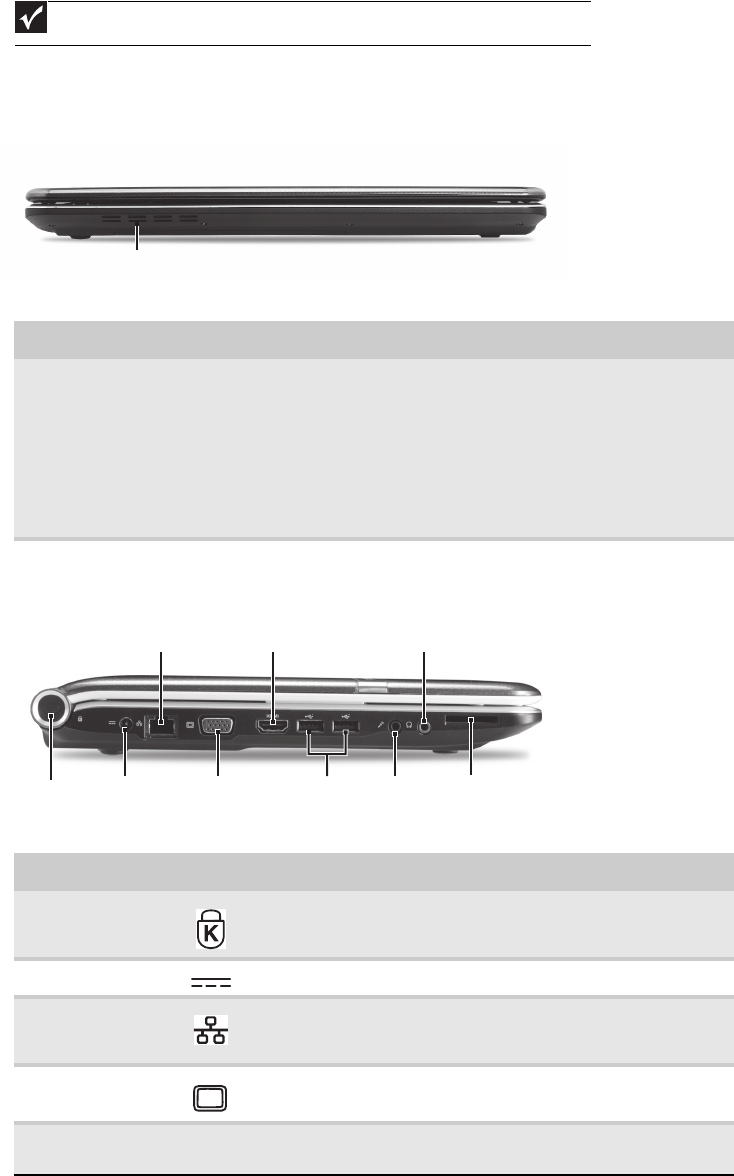
Front View
Left View
Important
Case color may vary from that shown in the pictures.
Component Icon Description
Ventilation fan Helps cool internal components.
Warning: Do not work with the notebook resting on your lap. If
the air vents are blocked, the notebook may become hot enough
to harm your skin.
Caution: Do not block or insert objects into these slots. If these
slots are blocked, your notebook may overheat resulting in
unexpected shutdown or permanent damage to the notebook.
Caution: Provide adequate space around your notebook so air
vents are not obstructed. Do not use the notebook on a bed, sofa,
rug, or other similar surface.
Component Icon Description
Kensington™
lock slot
Secure your notebook to an object by connecting a Kensington
cable lock to this slot.
Power connector Plug the AC adapter cable into this connector.
Ethernet jack Plug an Ethernet network cable into this jack. Plug the other end
of the cable into a cable modem, DSL modem, or an Ethernet
network jack.
Monitor port Plug an analog VGA monitor or projector into this port.
HDMI out jack HDMI Plug an HDMI device, such as a high definition television, into this
optional jack.
Ventilation fan
Ethernet
jack
USB
port
Kensington
lock slot Power
connector Monitor
port
HDMI out
jack
Microphone
jack
Headphone
jack
Memory card
reader
www.gateway.com
17
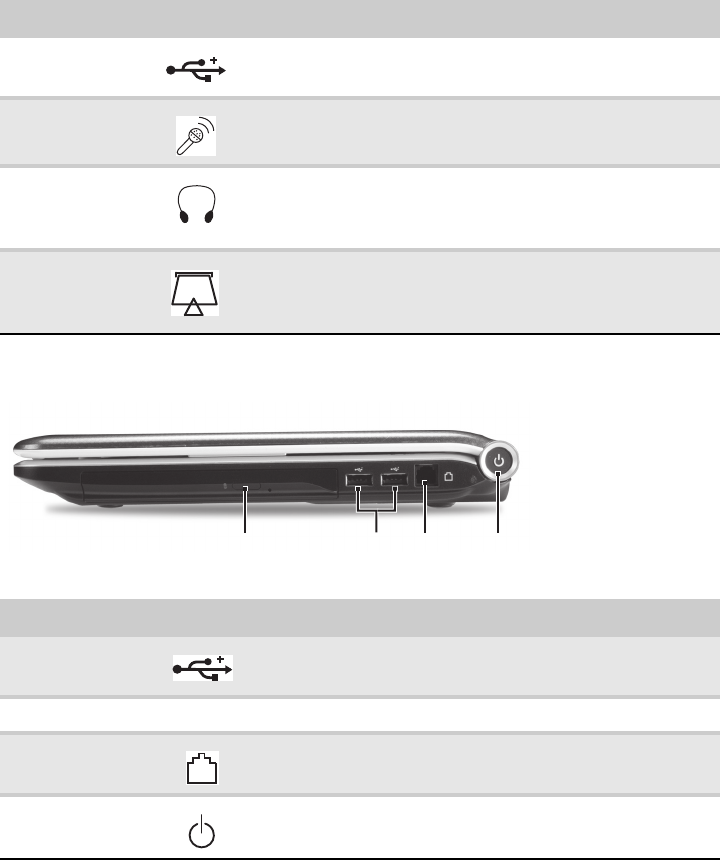
Right View
USB port Plug USB devices (such as a diskette drive, flash drive, printer,
scanner, camera, keyboard, or mouse) into these ports.
Microphone jack Plug a microphone into this jack.
Headphone jack Plug amplified speakers or headphones into this jack. The built-in
speakers are turned off when speakers or headphones are
plugged into this jack.
Headphone with SPDIF support
Memory card
reader
Insert a memory card from a digital camera, MP3 player, PDA,
or cellular telephone into the memory card reader. The memory
card reader supports Memory Stick®, Memory Stick Pro®,
MultiMediaCard™, Secure Digital™, and xD-Picture Card™cards.
Component Icon Description
USB port Plug a USB device (such as a diskette drive, flash drive, printer,
scanner, camera, keyboard, or mouse) into this port.
DVD drive Insert CDs or DVDs into this drive.
Modem jack Plug a dial-up modem cable into this optional jack.
Power button Press to turn the power on or off. You can also configure the
power button for Sleep/Resume mode.
Component Icon Description
DVD drive USB port Modem
jack Power
button
CHAPTER 1: System specifications
18
Rear View
Bottom View
Component Icon Description
Ventilation fan Helps cool internal components.
Warning: Do not work with the notebook resting on your lap. If
the air vents are blocked, the notebook may become hot enough
to harm your skin.
Caution: Do not block or insert objects into these slots. If these
slots are blocked, your notebook may overheat resulting in
unexpected shutdown or permanent damage to the notebook.
Caution: Provide adequate space around your notebook so air
vents are not obstructed. Do not use the notebook on a bed, sofa,
rug, or other similar surface.
Component Icon Description
Battery Provides power when the notebook is not plugged into AC power.
Battery lock Slide to unlock the battery.
Battery latch Slide to release the battery.
Memory bay Memory modules are located in this bay.
Ventilation fan
Ventilation
slots and
cooling fan
Battery
Battery
lock
Battery latch
Memory/
Hard drive
bay
www.gateway.com
19
Keyboard area
Hard drive
bay
The hard drive is located in this bay.
Ventilation
slots and
cooling fan
Helps cool internal components.
Warning: Do not work with the notebook resting on your lap. If the air
vents are blocked, the notebook may become hot enough to harm your
skin.
Caution: Do not block or insert objects into these slots. If these slots
are blocked, your notebook may overheat resulting in unexpected
shutdown or permanent damage to the notebook.
Caution: Provide adequate space around your notebook so air vents
are not obstructed. Do not use the notebook on a bed, sofa, rug, or
other similar surface.
Component Icon Description
Speakers Left and right speakers deliver stereo audio output.
Status
indicators
Inform you when a drive is in use or when a button has been pressed
that affects how the keyboard is used. For more information, see “Using
the status indicators” on page 21.
Keyboard Provides all the features of a full-sized, computer keyboard. For more
information, see “Using the keyboard” on page 21.
Power
indicator
nLED on - Notebook is on.
nLED blinking - Notebook is in Sleep or Hybrid Sleep mode.
nLED off - Notebook is off.
Battery charge
indicator
nLED orange - Battery is fully charged.
nLED blinking orange - Battery is charging.
nLED blinking red - Battery charge is very low.
nLED solid red - Battery is malfunctioning.
Important: This LED only lights up when your notebook is connected to
AC power or the battery charge is very low.
Component Icon Description
Keyboard
Capacitive
touch keys
Status
indicators
Speakers
Touchpad
Power/Battery
indicators
CHAPTER 1: System specifications
20
LCD panel
Touchpad Provides all the functionality of a mouse. For more information, see
“Using the EZ Pad touchpad” on page 25.
Capacitive
touch keys
Press to access capacitive touch key function. For more information, see
“Using the capacitive touch keys” on page 24.
Component Icon Description
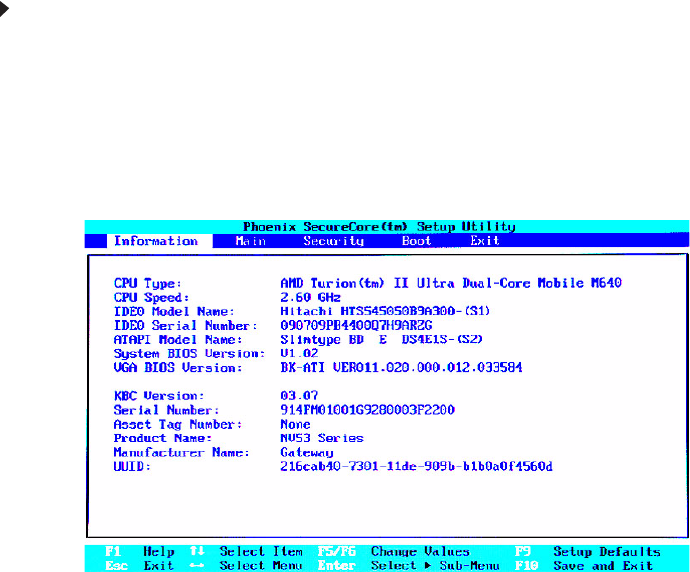
Webcam Use to let others see who they are communicating with when making
VoIP calls. For more information, see “Using the webcam” on page 26.
Microphone Use to talk through when making Voice over Internet Protocol (VoIP)
calls.
Component Icon Description
Webcam
Microphone
www.gateway.com
21
Using the status indicators
Status indicators inform you when a drive is being used or when a button has been
pressed that affects how the keyboard is used. The status indicators are located
below the screen.
Using the keyboard
Your notebook features a full-size keyboard that functions the same as a desktop
computer keyboard. Many of the keys have been assigned alternate functions,
including shortcut keys for Windows and function keys for specific system
operations.
Important
If none of the indicators are on, you may need to press FN+F1 to toggle the
status indicators on.
Indicator Icon Description
Bluetooth nLED on - Bluetooth communication is turned on.
nLED off - Bluetooth communication is turned off.
Hard drive nLED blinking - The drive is being accessed.
nLED off - The drive is not being accessed.
Num lock nLED on - Num lock is turned on.
nLED off - Num lock is turned off.
Caps lock nLED on - Caps lock is turned on.
nLED off - Caps lock is turned off.
Battery charge
indicator
nLED blue - Battery is fully charged.
nLED red - Battery is charging.
Important: This LED only lights up when your notebook is
connected to AC power.
Power indicator nLED on - Notebook is on.
nLED blinking - Notebook is in Sleep or Hybrid Sleep
mode.
nLED off - Notebook is off.
Bluetooth
HDD
Caps lock
Num lock
Battery
Power
Function
keys/
System
keys
FN
key Windows key Application key Arrow keys
Numeric
keypad/
Navigation
keys
CHAPTER 1: System specifications
22
Key types
The keyboard has several different types of keys. Some keys perform specific
actions when pressed alone and other actions when pressed in combination with
another key.
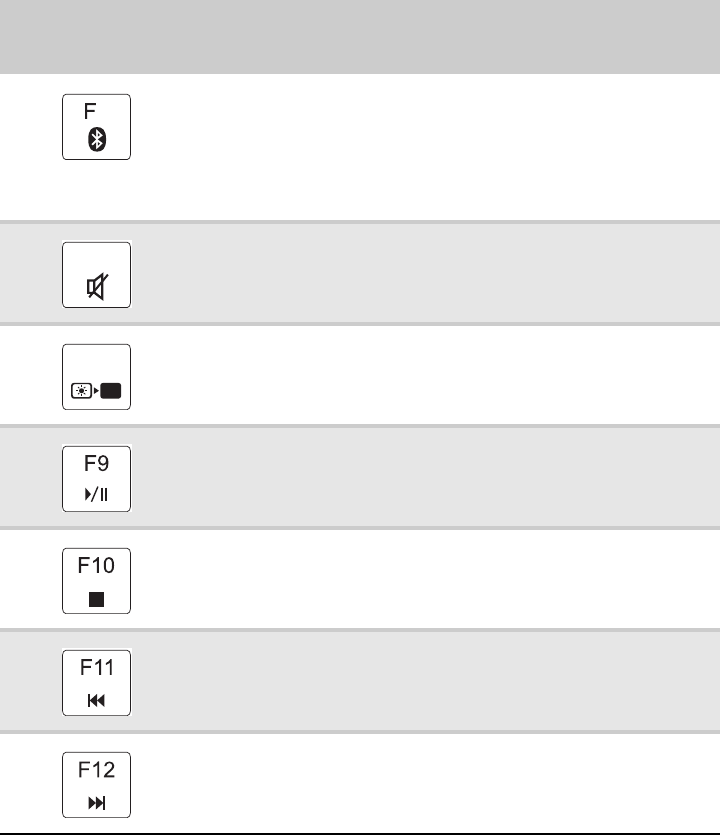
System key combinations
When you press the FN key and a system key at the same time, your notebook
performs the action identified by the text or icon on the key.
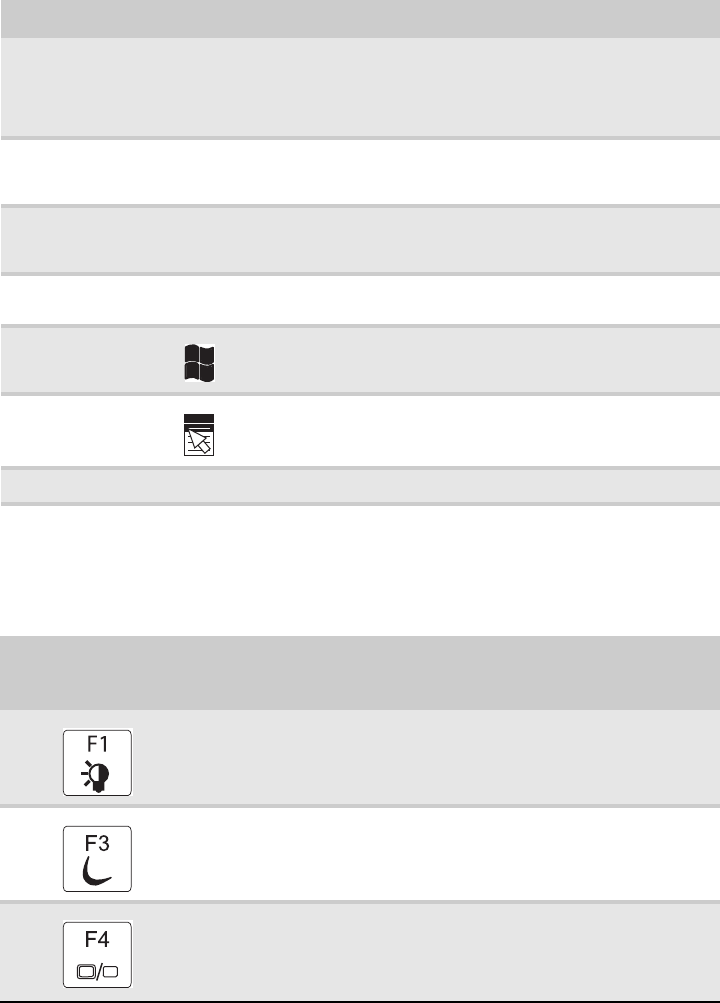
Key type Icon Description
Function keys Press these keys labeled F1 to F12 to perform actions in programs.
For example, pressing F1 may open help.
Each program uses different function keys for different purposes.
See the program documentation to find out more about the
function key actions.
System keys Press these colored keys in combination with the FNkey to
perform specific actions. For more information, see “System key
combinations” on page 22.
Navigation keys Press these keys to move the cursor to the beginning of a line,
to the end of a line, up the page, down the page, to the beginning
of a document, or to the end of a document.
FN key Press the FNkey in combination with a colored system key to
perform a specific action.
Windows key Press this key to open the Windows Start menu. This key can also
be used in combination with other keys to open utilities like
F(Search utility), R(Run utility), and E(Computer window).
Application key Press this key for quick access to shortcut menus and help
assistants in Windows.
Arrow keys Press these keys to move the cursor up, down, right, or left.
Press and hold FN,
then press this
system key...
To...
Turn the capacitive touch key LEDs on or off. For more information, see
“Using the status indicators” on page 21.
Enter Sleep mode or Hybrid Sleep mode. Press the power button to
leave Sleep mode.
Toggle the notebook display in the following order:
nThe LCD
nAn external monitor or projector (a monitor or projector must be
plugged into the monitor port or HDMI port on your notebook)
nBoth displays at the same time
www.gateway.com
23
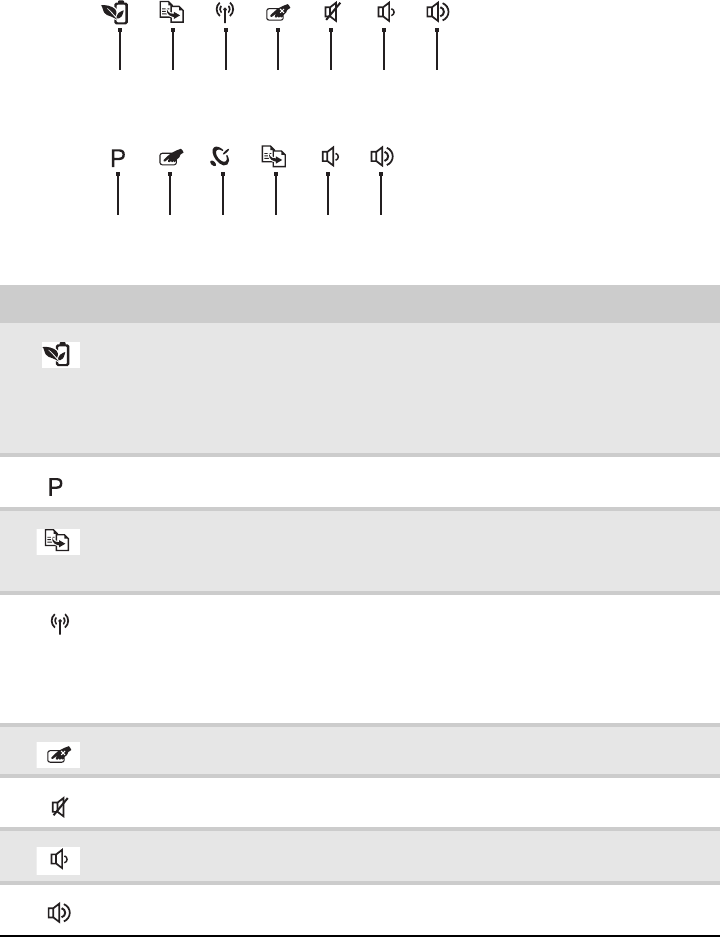
Turn the optional Bluetooth radio on or off.
Warning: Radio frequency wireless communication can interfere with
equipment on commercial aircraft. Current aviation regulations require
wireless devices to be turned off while traveling in an airplane. Bluetooth
communication devices are examples of devices that provide wireless
communication.
Important: The wireless network switch must be in the ON position for
this button to work. For more information, see “Left View” on page 16.
Mute the sound. Press the key combination again to restore the sound.
Turns the display screen backlight off to save power. Press any key to
return.
Play/ Pause—Plays or pauses the CD or DVD.
Stop—Stops playing the CD or DVD.
Previous—Skips back one CD track or DVD chapter.
Next—Skips ahead one CD track or DVD chapter.
Press and hold FN,
then press this
system key...
To. . .
6
F7
F8
CHAPTER 1: System specifications
24
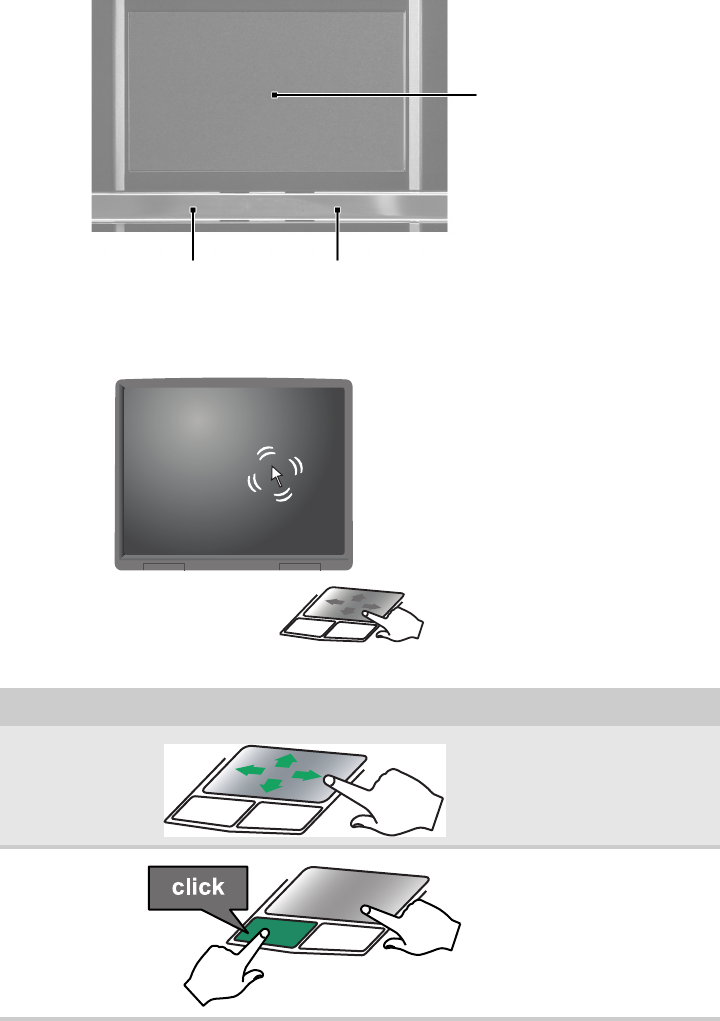
Using the capacitive touch keys
Button Description
PowerSave key—enable Gateway PowerSave solution. The Gateway PowerSave
solution uses the power-saving features of your computer’s graphics sub-system
to reduce overall power consumption. When you press the Gateway PowerSave
key, the Windows graphics scheme will be changed to Windows Vista Basic, screen
brightness reduced and the graphics chip will be switched to a lower speed.
Press the Gateway PowerSave key again to return to your previous settings. (only
for certain models)
Programmable key—the programmable key will run the Launch Manager, you can
assign an application as your needed. (only for certain models)
MyBackup key—launch Gateway MyBackup solution. The Gateway MyBackup
solution is a simple three-step process that allows you to create backup copies of
your entire system or selected files and folders according to a schedule or as you
need to.
Wireless switch—turn the optional IEEE 802.11 wireless network radio on or off.
For more information, see “Wireless Ethernet Networking” in your online User
Guide.
Warning: Radio frequency wireless communication can interfere with equipment
on commercial aircraft. Current aviation regulations require wireless devices to be
turned off while traveling in an airplane. IEEE 802.11 communication devices are
examples of devices that provide wireless communication.
Touchpad toggle—turn the internal touchpad on and off.
Mute—mutes the sound. Press again to restore the sound.
Decrease volume—press to decrease volume.
Increase volume—press to increase volume.
PowerSave Touchpad
toggle
Wireless
switch Decrease
volume Increase
volume
Mute
(only for certain models)
MyBackup
Programmable
key Touchpad
toggle
Wireless
switch Decrease
volume Increase
volume
Mute
(only for certain models)
MyBackup
www.gateway.com
25
Using the EZ Pad touchpad
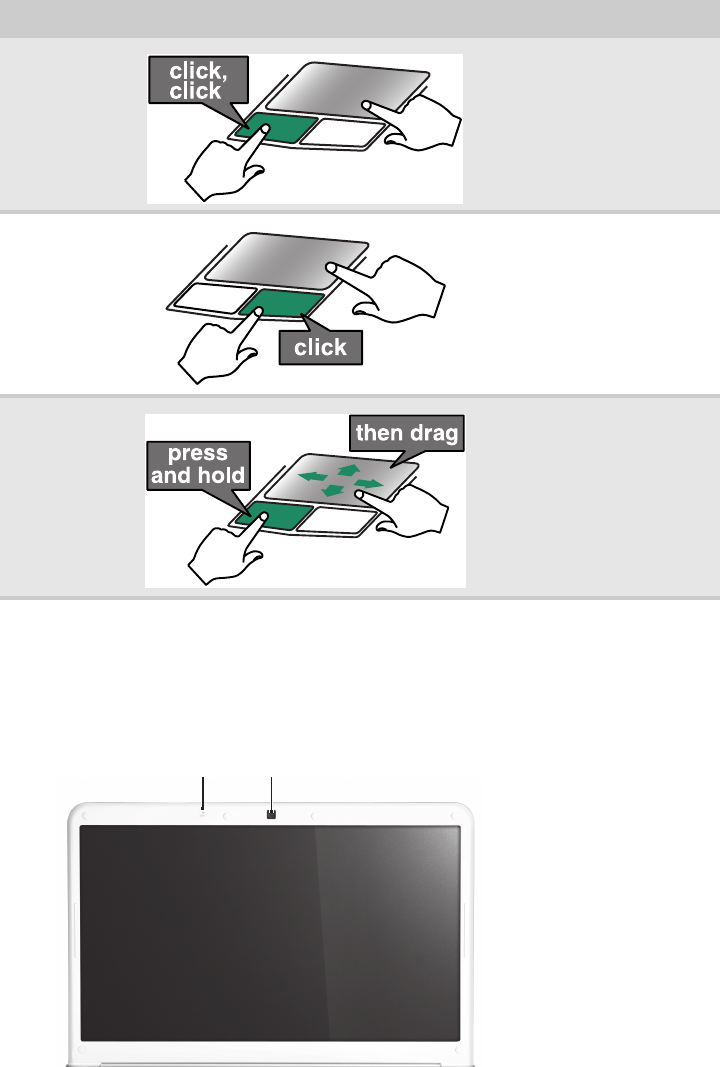
The EZ Pad™ consists of a touchpad, two buttons, and a scroll zone.
When you move your finger on the touchpad, the pointer (arrow) on the screen
moves in the same direction. You can use the scroll zone to scroll through
documents. Use of the scroll zone may vary from program to program.
You can use the EZ Pad left and right buttons below the touchpad to select objects.
To... Do this...
Move the pointer
on the screen.
Move your finger around on the
touchpad. If you run out of space
and need to move the pointer
farther, lift your finger, move it to
the middle of the touchpad, then
continue moving your finger.
Select an object
on the screen.
Position the pointer over the
object. Quickly press and
release the left button once. This
action is called clicking.
Left button Right button
Touchpad
CHAPTER 1: System specifications
26
Using the webcam
You can use the optional webcam with many of the available Internet chat
programs to add video and audio to your chat session. In addition, by using the
software included with the webcam, you can take pictures or create video clips.
Start a program
or open a file or
folder.
Position the pointer over the
object. Press the left button
twice in rapid succession. This
action is called double-clicking.
Access a
shortcut menu
or find more
information
about an object
on the screen.
Position the pointer over the
object. Quickly press and
release the right button once.
This action is called
right-clicking.
Move an object
on the screen.
Position the pointer over the
object. Press the left button and
hold it down, then use the
touchpad to move (drag) the
object to the appropriate part of
the screen. Release the button
to drop the object where you
want it.
To . . . Do this...
Webcam
Microphone

CHAPTER 2: System utilities
28
BIOS setup utility
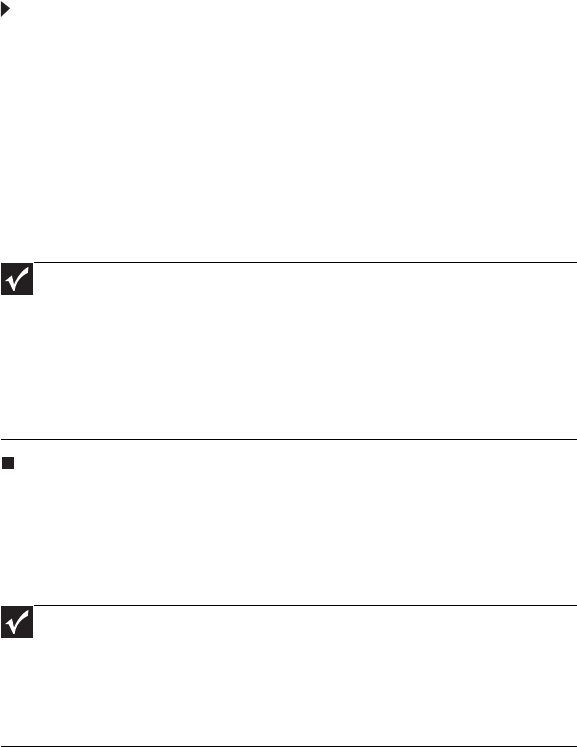
The BIOS setup utility is a hardware configuration program built into the notebook’s
BIOS (Basic Input/Output System). The notebook was shipped already properly
configured and optimized. However, if the user encounters configuration problems,
you may need to run Setup.
To run the BIOS Setup Utility:
1Turn on the notebook.
If the computer is already turned on, save your data and close all open
applications, then restart the computer.
2Press F2 when the Press <F2> to enter Setup prompt appears on the bottom
of the screen.
Use the left and right arrow keys to move between selections on the menu
bar.
www.gateway.com
29
Navigating the BIOS setup utility
Use the keys listed in the legend bar on the bottom of the Setup screen to work
your way through the various menu and submenu screens.
To use the BIOS setup utility:
•To choose a menu, use the left ← and right → arrow keys.
•To choose an item, use the up ↑ and down ↓ arrow keys.
•To change the value of a parameter, press F5 or F6.
•A plus sign (+) indicates the item has sub-items. Press ENTER to expand this
item.
•To load default settings, press F9.
•To save changes made and close the utility, press F10.
1Press ESC while you are in any of the menu screen to display the Exit menu.
BIOS setup utility menus
The Setup utility has five menus for configuring the various system functions.
These include: Information, Main, Security, Boot, and Exit.
Important
• You can change the value of a parameter if it is enclosed in
square brackets.
• Navigation keys for a particular menu are shown on the bottom
of the screen. Help for parameters are found in the Item Specific
Help part of the screen. Read this information carefully when
making changes to parameter values.
• The screenshots used in this section are for illustration only. The
values displayed may not be the same as those in your computer.
Important
• The screenshots used in this section are for illustration only. The
values displayed may not be the same as those in your computer.
Actual screen information varies by model, installed features, and
location.
• In the descriptive table following each of the screenshot, settings
in boldface are the default settings.
CHAPTER 2: System utilities
30
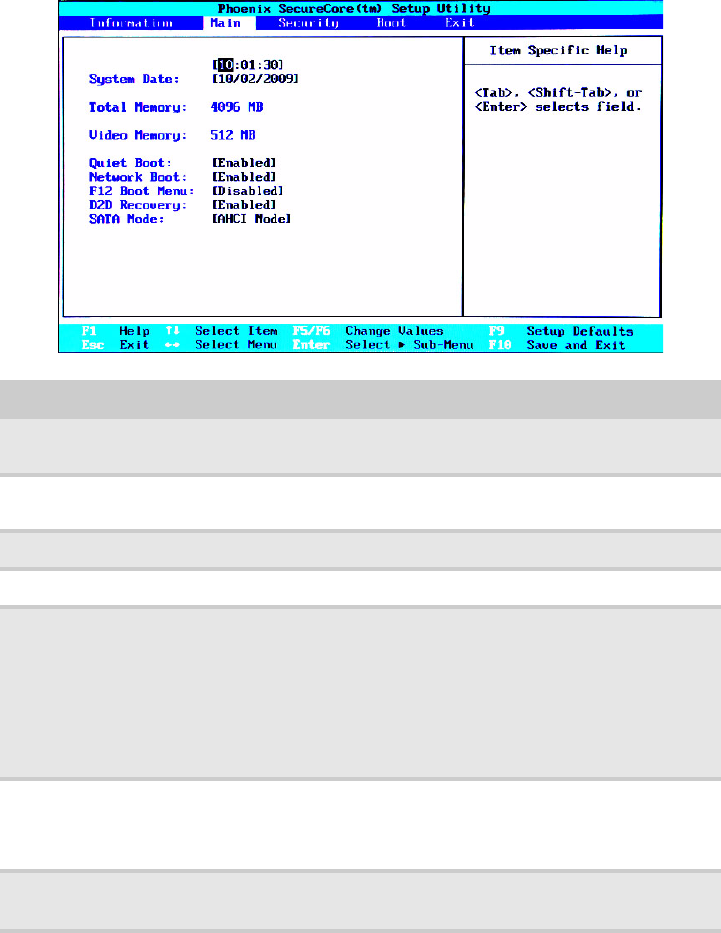
Information
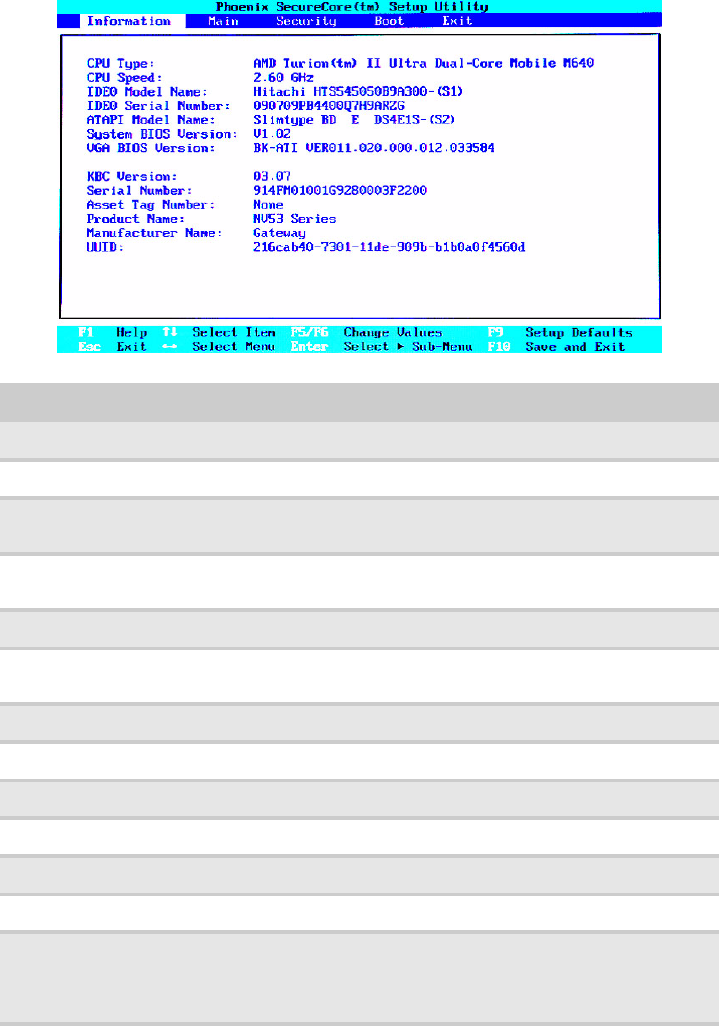
The Information menu displays a summary of your computer hardware information.
These information are necessary for troubleshooting and may be required when
asking for technical support.
Parameter Description
CPU Type Displays the processor model and speed.
CPU Speed Displays the processor speed.
IDE0 Model Name Displays the model name of the hard drive installed on the
primary IDE master.
IDE0 Serial Number Displays the serial number of the hard drive installed on the
primary IDE master.
ATAPI Model Name Displays the model name of the installed optical drive.
System BIOS
Version
Displays system BIOS version.
VGA BIOS Version Displays the VGA firmware version.
KBC Version Displays the keyboard controller version.
Serial Number Displays the system serial number.
Asset Tag Number Displays the system asset tag number
Product Name Displays the official model name of the computer.
Manufacturer Name Displays the name of the computer manufacturer.
UUID Number Displays the computer’s UUID (universally unique identifier).
UUID is an identifier standard used in software construction,
standardized by the Open Software Foundation (OSF) as part
of the Distributed Computing Environment (DCE).
www.gateway.com
31
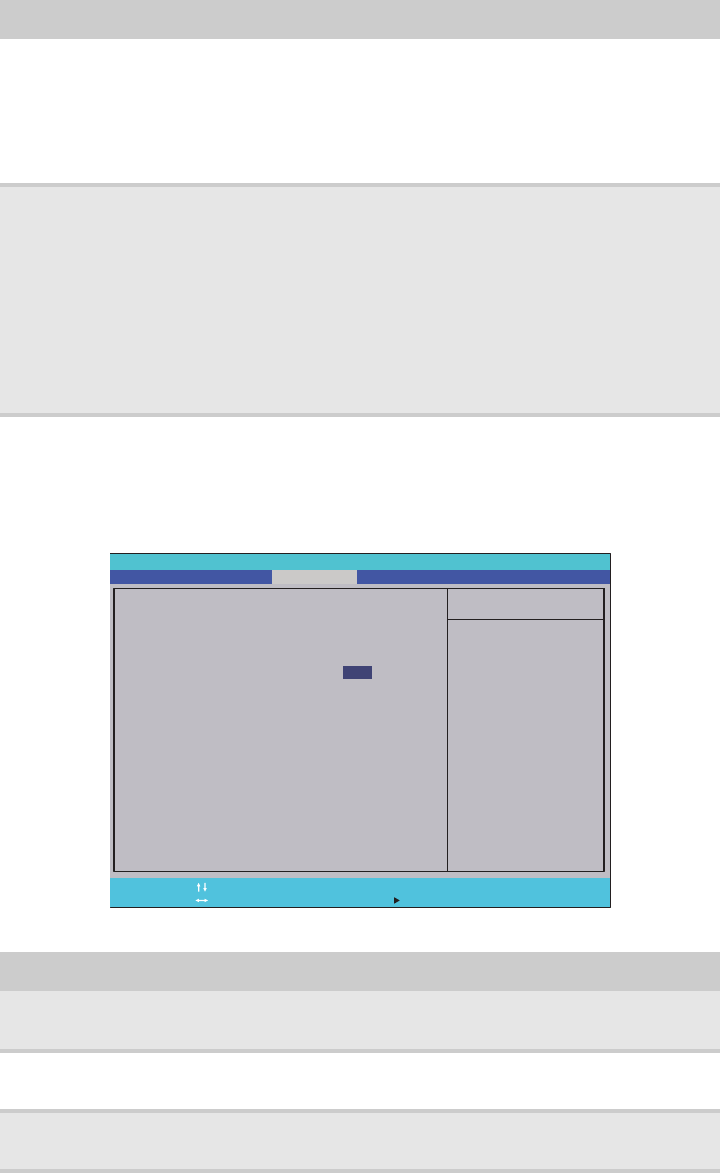
Main
Use the Main menu to set the system time and date, and other basic options.
Parameter Description Format/Options
System Time Displays the system time. The time is
expressed in a 24-hour format.
HH:MM:SS
(hour:minute:second)
System Date Displays the system date. MM/DD/YYYY
(month/day/year)
Total Memory Displays the size of system memory detected during boot-up.
Video Memory Displays the size of video memory detected during boot-up.
Quiet Boot Enables or disables the Quiet Boot
function.
When enabled, BIOS setup is in graphical
mode and displays only the computer
brand logo during POST and while booting.
When disabled, BIOS setup is in
conventional text mode and displays the
system Summary Screen.
Disabled
Enabled
Network Boot When enabled, a remote host with
appropriate boot image can boot this
computer. (only works with an Ethernet
device.)
Disabled
Enabled
F12 Boot Menu Enables or disables the Boot menu during
POST.
Disabled
Enabled
CHAPTER 2: System utilities
32
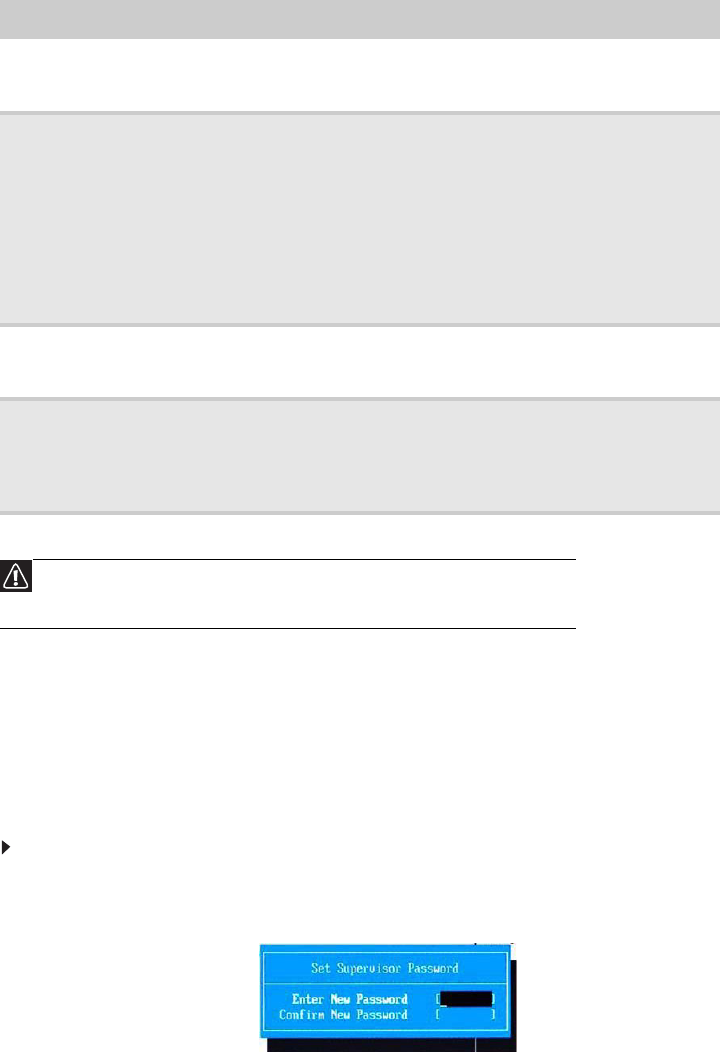
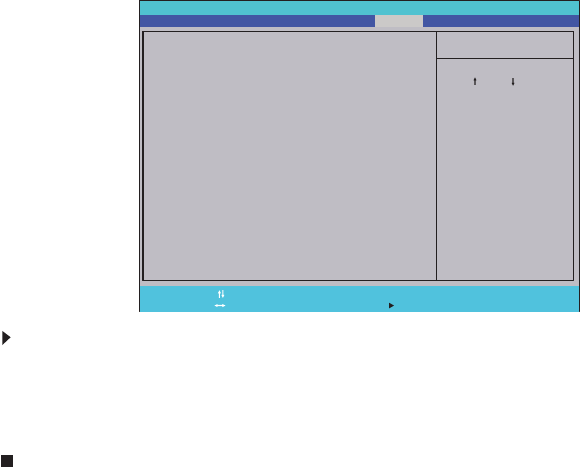
Security
Use the Security menu option to set system passwords to protect your computer
from unauthorized use.
.
D2D Recovery Enables or disables the D2D Recovery
function. This function allows the user to
create a hidden partition on the hard drive
to store the operation system. User can
then use this partition to restore the system
to factory defaults by pressing the Alt+F10
keys during system boot-up.
Disabled
Enabled
SATA Mode Select the SATA controller operating mode.
When set to AHCI (Advanced Host
Controller Interface), the SATA controller
enables its AHCI and RAID features when
the computer boots up.
When set to IDE, the SATA controller
disables its AHCI and RAID functions when
the computer boots up.
Note: If you do not intend to use the AHCI
or RAID features set this parameter to IDE
to speed up the boot-up time.
AHCI
IDE
Parameter Description Option
Supervisor
Password Is
Displays the supervisor password status. Clear
Set
User Password Is Displays the user password status. Clear
Set
HDD Password Is Displays the hard drive password status. Clear
Set
Parameter Description Format/Options
Phoenix SecureCore(tm) Setup Utility
Main
F1
Esc
Help
Exit
Select Item
Select Menu
Change Values
Select Sub-Menu
-/+
Enter
F9
F10
Setup Defaults
S a v e a n d E x i t
Information Security Boot Exit
Item Specific Help
Supervisor Password
c o n t r o l s a c c e s s o f t h e
whole setup utility.
I t c a n b e u s e d t o b o o t
u p w h e n P a s s w o r d o n
boot is enabled.
Supervisor Password s:
User Password s:
:
S e t U s e r P a s s w o r d
Set Password
P a s s w o r d o n B o o t :
i
i
H D D P a s s w o r d i s
HDD
Set Supervisor Password
Clear
Clear
Clear
[Enter]
[Enter]
[Disabled]
[]Enter
www.gateway.com
33
Setting a password
Note the following reminders before you define a system password:
•The maximum length of password contains 8 alphanumeric characters.
•System passwords are case-insensitive.
•When typing the password, only shaded blocks representing each typed
character are visible.
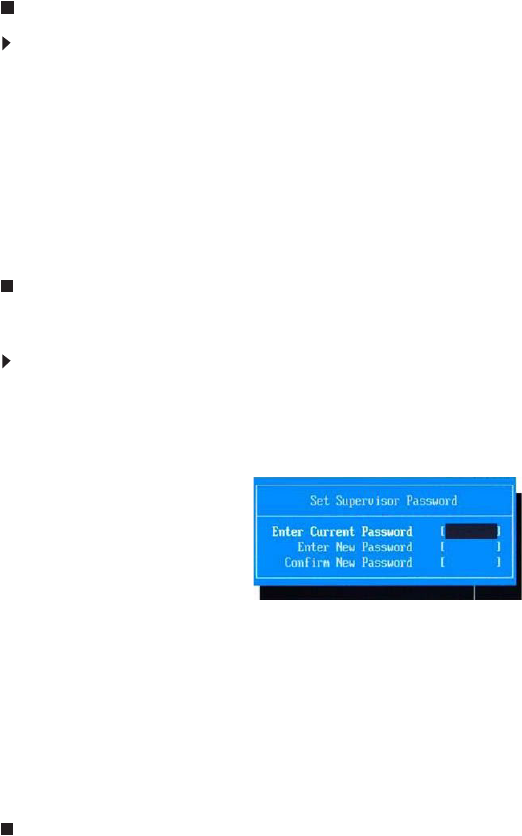
To set a supervisor password:
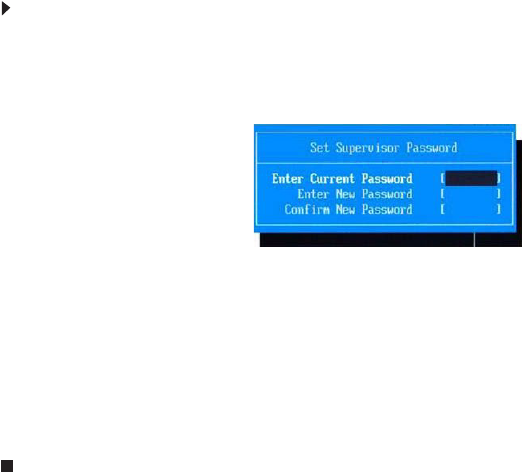
1Press ↑ or ↓ to highlight Set Supervisor Password, then press Enter.
The Set Supervisor Password box opens.
2Type a password, then press Enter.
Set Supervisor
Password
Press Enter to set a supervisor password. When set, this password
will allow the user to access and change all settings in the Setup
Utility.
Set User Password Press Enter to set a user password. When set, this password will
restrict a user’s access to the Setup menus. Only the following
menus will be accessible:
• System Time and System Date
• All Exit menu options excluding Load Setup Defaults
Note: A supervisor password must first be set before creating a
user password.
If Password on Boot is enabled, the user must enter the user
password each time the notebook is turned on or wakes from
Sleep.
Set HDD
Password
Press Enter to set password for accessing the hard disk drive
(HDD) password. It will be required during boot-up or when waking
from hibernation mode.
Password on Boot Referred to as the power-on password. When
enabled, the user or supervisor password will be
required to boot up the system.
Note: A supervisor password must first be set
before creating a user password.
Disabled
Enabled
Caution
When you are prompted to enter a password, you have three tries
before the system halts. Don’t forget your password.
Parameter Description Option
CHAPTER 2: System utilities
34
3Retype the password to verify the first entry, then press Enter.
You will be prompted to save the new password.
4Press Enter.
5Press F10 to save the password and close the Setup Utility or you can
proceed to setting a user password.
To set a user password:
1Press ↑ or ↓ to highlight Set User Password, then press Enter.
The Set User Password box opens.
2Type a password, then press Enter.
3Retype the password to verify the first entry, then press Enter.
You will be prompted to save the new password.
4Press Enter.
5Press F10 to save the password and close the Setup Utility.
Changing a password
To change a password:
1Press ↑ or ↓ to highlight the Set Supervisor Password or Set User Password
field, then press Enter.
The Set Supervisor Password or Set User Password box opens.
2Type the current password, then press Enter.
3Type a new password, then press Enter.
4Retype the new password to verify the first entry, then press Enter.
You will be prompted to save the new password.
5Press Enter.
6Press F10 to save the password and close the Setup Utility or you can
proceed to setting a user password.
www.gateway.com
35
Removing a password
To remove a password:
1Press ↑ or ↓ to highlight the Set Supervisor Password or Set User Password
field, then press Enter.
The Set Supervisor Password or Set User Password box opens.
2Type the current password, then press Enter.
3Press Enter twice without entering anything in the new and confirm password
fields.
You will be prompted to confirm the password removal.
4Press Enter.
5Press F10 to save the password and close the Setup Utility or you can
proceed to setting a user password.
Resetting a password
If you have forgotten the user password, the computer will continue to function
normally but you will have limited access to the Setup utility.
If you have enabled the Password on Boot field and you forget the supervisor
password, you will not be able to boot up the computer. The same thing applies
if you forget the HDD password.
To clear a lost BIOS password (user or supervisor password) you need to short
the clear password hardware gap located on the system board. Go to page 40
for instructions.
To regain access to your computer if you lose the HDD password, you need to
generate a master password and unlock your hard drive. Go to page 41 for
instructions.
CHAPTER 2: System utilities
36
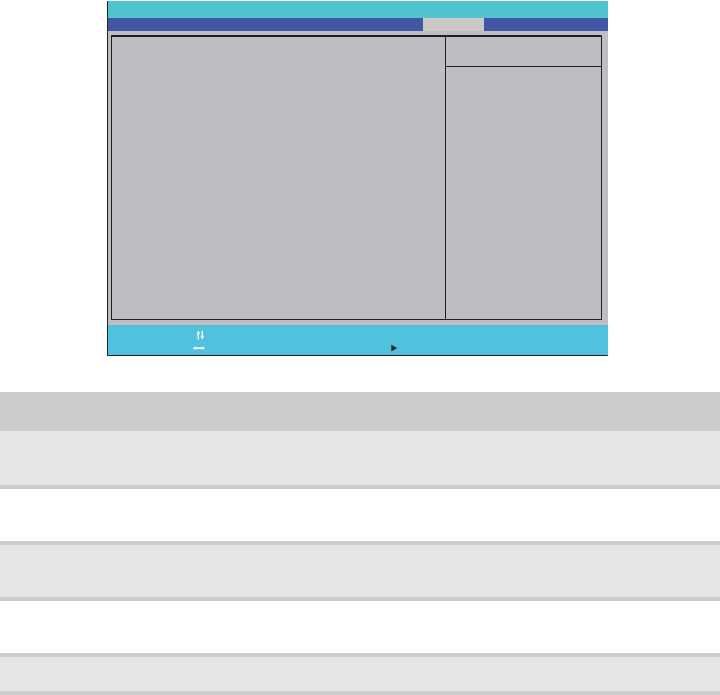
Boot
Use the Boot menu to set the preferred drive sequence in which the Setup utility
attempts to boot the operating system.
To set boot drive sequence:
1Press ↑ or ↓ to highlight a bootable device.
2Press F5 or F6 to move the selected device up or down the boot sequence.
3Press F10 to save the changes you made and close the Setup utility.
Phoenix SecureCore(tm) Setup Utility
Main
Item Specific Help
U s e < > o r < > t o
select a device, then
p r e s s < F 6 > t o m o v e i t
u p t h e l i s t , o r < F 5 >
t o m o v e i t d o w n t h e
list. Press <Esc> to
escape the menu.
Boot priority order:
F1
Esc
Help
Exit
Select Item
Select Menu
Change Values
Select Sub-Menu
-/+
Enter
F9
F10
Setup Defaults
S a v e a n d E x i t
Information Security Boot Exit
2: CD/DVD: XXXXXXXXXXX-XXXXX-(X
3:
4:
5:
6:
Network Boot: XXXXXXXXXXXXXXXX
USB HDD:
USB FDD:
U S B K e y :
7 : U S B C D / D V D R O M :
1: IDE0: XXXXXXXXXXX-(XX)
www.gateway.com
37
Exit
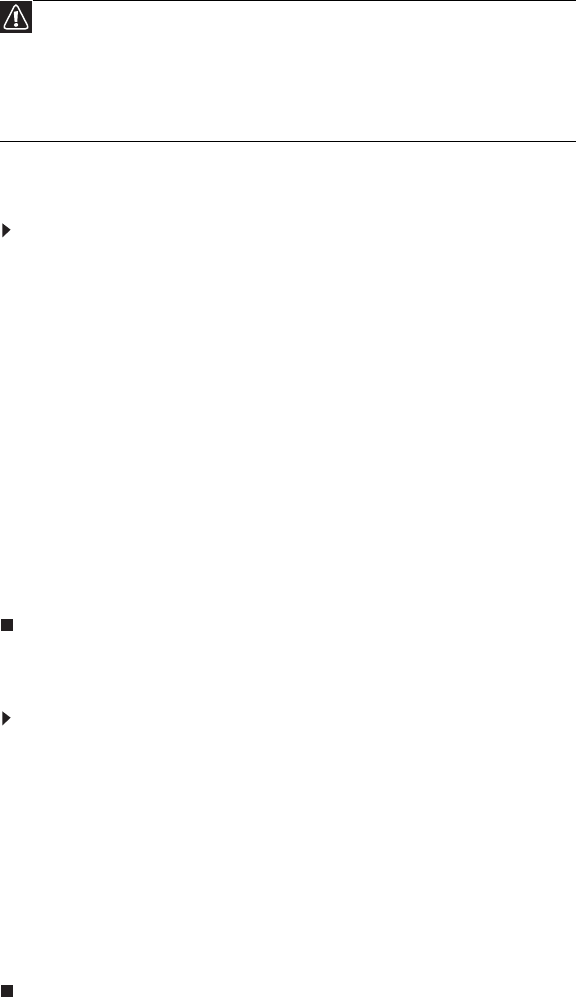
The Exit menu screen lists options for quitting from the Setup Utility.
Option Description
Exit Saving Changes Saves changes made and closes the Setup utility. Keyboard
shortcut: F10
Exit Discarding
Changes
Discards changes made and closes the Setup utility.
Load Setup Default Loads the factory-default settings for all Setup parameters.
Keyboard shortcut: F9
Discard Changes Discards all changes made to the Setup utility and loads
previous configuration settings.
Save Changes Saves all changes made to the Setup utility.
Phoenix SecureCore(tm) Setup Utility
Main
Item Specific Help
E x i t S y s t e m S e t u p a n d
save your changes to
CMOS.
F1
Esc
Help
Exit
Select Item
Select Menu
Change Values
Select Sub-Menu
-/+
Enter
F9
F10
Setup Defaults
S a v e a n d E x i t
Information Security Boot Exit
Exit Discarding Changes
Load Setup Defaults
Discard Changes
Save Changes
Exit Saving Changes
CHAPTER 2: System utilities
38
BIOS recovery
An interruption during a BIOS flash procedure (e.g. a power outage) can corrupt
the BIOS code, which will cause the system to go into an unbootable state. You
need to access and execute the boot block program to reboot the computer and
recover the regular BIOS code.
Creating the Crisis Recovery disk
To create the Crisis Recovery disk:
1Prepare a removable USB storage device with a capacity size greater than
10 MB.
Note that all data on the USB storage device will be cleared during the
creation of the crisis disk.
2Set up a computer running the Windows XP or Windows Vista OS and plug
in the USB storage device into an available USB port.
3Decompress the Crisis Package Source.
4Select WINCRIS.exe and then select Run as administrator.
5Keep the default settings and then click Start button.
6When the pop-up warning dialog box appears, click OK to create the crisis
disk.
7Click No if you do not want to create another crisis disk.
8Eject and reconnect the USB removable storage device, and make sure it
contains the BIOS.wph, MINIDOS.sys, and PHLASH16.exe files.
Performing a BIOS recovery
To perform a BIOS recovery:
1Shut down the BIOS failed-computer.
2Connect the USB storage device containing the Crisis Recovery disk files
to the failed computer.
3Press and hold the Fn+Esc keys (this is the BIOS recovery hotkey), then
press the power button.
The BIOS recovery process begins. When the process is complete the
computer will automatically reboot.
4Disconnect the USB storage device from the computer.
5Perform a BIOS flash procedure to update the BIOS firmware.
Caution
Observe the following when performing a BIOS recovery:
• Make sure the battery pack is installed to the system and that
the computer is connected to a UPS unit during the BIOS
recovery and BIOS flash procedures.
• The BIOS crisis recovery disk should be prepared in a computer
running the Windows XP or Windows Vista OS.

www.gateway.com
39
Running the Flash utility:
To run the Flash utility:
1Rename the BIOS file as “XXXXXXX.FD”.
2Copy the “XXXXXXX.FD” file to a bootable USB device containing the Crisis
Recovery disk files.
3Turn off the computer.
4Insert the USB device containing the renamed BIOS file and the Crisis
Recovery disk files to any USB port.
5Press and hold the Fn+Esc keys (this is the BIOS recovery hotkey), then
press the power button.
6Release the Fn+Esc keys after POST.
CHAPTER 2: System utilities
40
Clearing a BIOS password
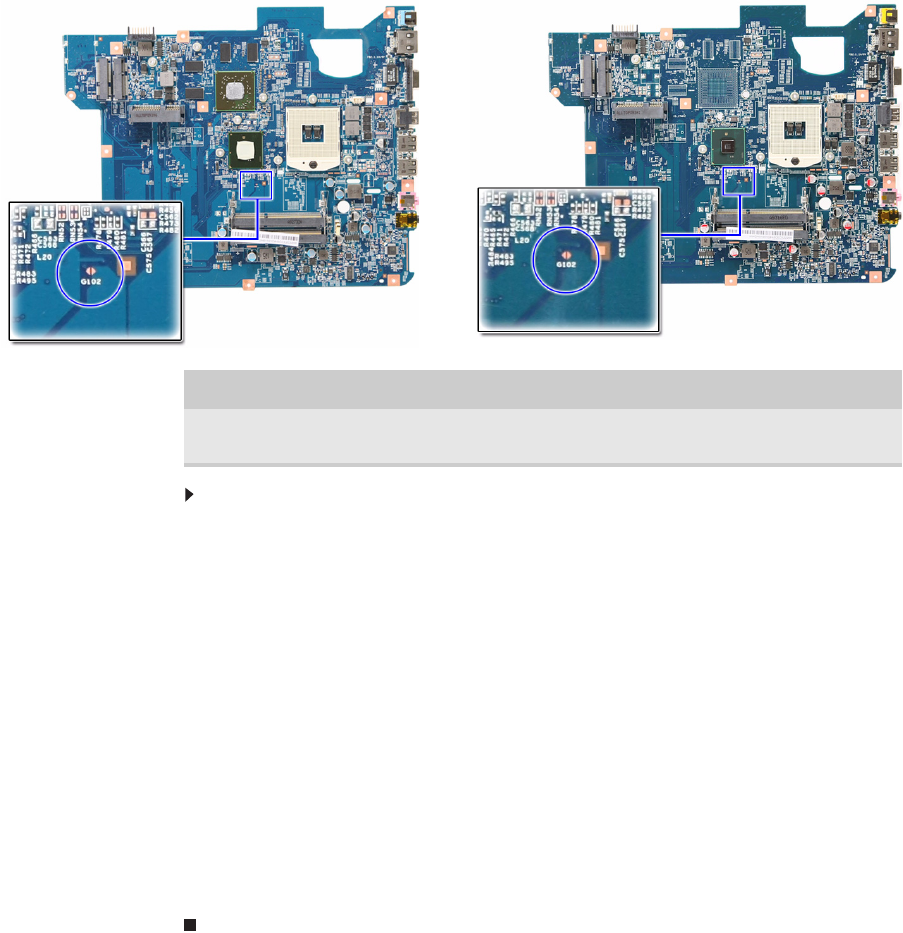
To clear a lost BIOS password (user or supervisor password) you need to short
the clear password hardware gap (G102) located on the system board.
To clear a BIOS password:
1Turn off the notebook and unplug all the peripherals connected to it.
2Complete the steps in “Removing the battery” on page 48.
3Complete the steps in “Removing the bay cover” on page 49.
4Remove the memory module(s) and locate the G102 gap.
5Use an electrical conductivity tool to short the two contacts on the hardware
gap together.
6While resting the tool on the two contacts, plug one end of the AC adapter
into the DC power jack and plug one end to an electrical outlet.
7Press the power button to turn on the system.
8After the POST, remove the tool from the hardware gap.
9Reinstall the memory module(s), battery pack, and the bay cover.
10 Turn on the notebook and press F2 during bootup to access the Setup utility.
11 Press F9 to load the system defaults.
12 Press F10 to save the changes you made and close the setup Utility.
Gap Default setting Function
G102 Open (normal) Short to clear the user and supervisor
passwords.
Discrete model UMA model

www.gateway.com
41
Unlocking the hard drive
To regain access to your computer if you lose the HDD password, you need to
generate a master password and unlock the hard drive.
To unlock a hard drive:
1Open the computer in a DOS environment.
2Type the following command:
A\> unlock6 XXXXX 00
3Press Enter to display the command options.
4Select option 2 (upper case ASCII code), then press Enter.
5Write down the generated master password.
6Reboot the computer.
7In the HDD password prompt, type the master password generated in step 5,
then press Enter.
CHAPTER 2: System utilities
42

CHAPTER3
43
Replacing notebook components
•Preventing static electricity
discharge
•Preparing the work space
•Required tools
•Preparing the notebook
•Adding or replacing memory
modules
•Replacing the wireless card
•Replacing the hard drive
•Replacing the optical drive
•Replacing the keyboard cover
•Replacing the multimedia
board
•Replacing the keyboard
•Replacing the LCD panel
assembly
•Replacing the palm rest
•Replacing the speakers
•Replacing the touchpad board
•Replacing the modem board
•Replacing the USB board
•Replacing the Bluetooth
module
•Replacing the system board
•Replacing the cooling
assembly
•Replacing the processor
•Replacing the LCD front panel
•Replacing the webcam
•Replacing the LCD
•Replacing the LCD panel
hinge brackets
•Replacing the power button
board
•Replacing the Kensington lock
cap
•Replacing the microphone
•Replacing the antennas
•Replacing the LCD assembly
lid
CHAPTER 3: Replacing notebook components
44
Preventing static electricity discharge
The components inside your notebook are extremely sensitive to static electricity,
also known as electrostatic discharge (ESD).
Before performing maintenance on the notebook, follow these guidelines:
•Avoid static-causing surfaces such as carpeted floors, plastic, and packing
foam.
•Remove components from their antistatic bags only when you are ready to
use them. Do not lay components on the outside of antistatic bags because
only the inside of the bags provide electrostatic protection.
•Always hold components by their edges. Avoid touching the edge
connectors. Never slide components over any surface.
•Wear a grounding wrist strap (available at most electronics stores) and attach
it to a bare metal part of your workbench or other grounded connection.
•Touch a bare metal surface on your workbench or other grounded object.
Tape
Some of the procedures in this guide involve removing tape that secures cables
or components. Two types of tape are used in this notebook:
•Mylar, non-conductive tape is typically transparent, with a red or brown tint.
•Conductive tape is typically grey or silver in color.
If the existing tape cannot be reused, replace it with the same type. Make sure
the replacement tape is of the non-ESD generating kind. Do not use cellophane
tape.
Warning
To avoid exposure to dangerous electrical voltages and moving
parts, turn off your notebook, remove the battery, and unplug the
power cord and network cable before opening the case.
Warning
To prevent risk of electric shock, do not insert any object into the
vent holes of the notebook.
Important
Before performing maintenance on the notebook, you should read
and understand the information in this section.
www.gateway.com
45
Preparing the work space
Before performing maintenance on the notebook, make sure that your work space
and the notebook are correctly prepared.
•Wear a grounding (ESD) wrist strap, and use a grounded or dissipative work
mat.
•Use a sturdy table. Make sure that the table top is wide enough to hold each
component as you remove it.
•Ensure that clear lighting condition is available to make part identification
easier.
•Keep your work surface free from clutter and debris that may damage
components.
•Use a magnetized screwdriver for removing screws.
•When removing components that are attached to the notebook by a cable,
unplug the cable before removing the screws, when possible, to avoid
damaging the cable.
•As you remove components and screws, lay them toward the rear of your
work surface (behind the notebook) or far enough to the side that your arms
will not accidentally brush them onto the floor.
•To help keep track of screws, try the following:
–Place each component’s screws in their own section of a parts sorter.
–Place each component’s screws next to the component on your work
surface.
–Print the first page of each task, then place the page toward the rear of
your work surface. As you remove screws, place the screws in their
respective section on the page.
–After loosening screws that are deeply recessed in a hole (for example,
on the bottom of the base assembly), you can leave the screws in the
holes if you place small pieces of masking tape over the hole openings.
When reassembling the component, just remove the tape and tighten
the screws.
–When you place flat-headed screws on the work surface, stand them
on their heads to prevent the screws from rolling off the table.
CHAPTER 3: Replacing notebook components
46
Required tools
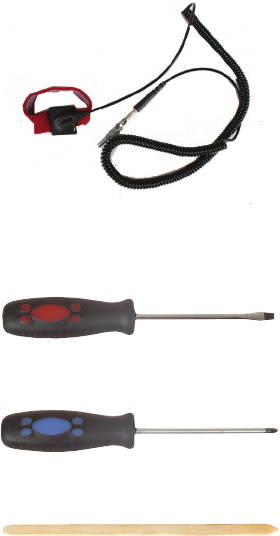
To disassemble the notebook, you need the following tools:
•Wrist grounding strap (for ESD prevention)
•Conductive mat (for ESD prevention)
v
•Flat screwdriver
v
•Phillips screwdriver
v
•Non-marring plastic scribe
v
www.gateway.com
47
Preparing the notebook
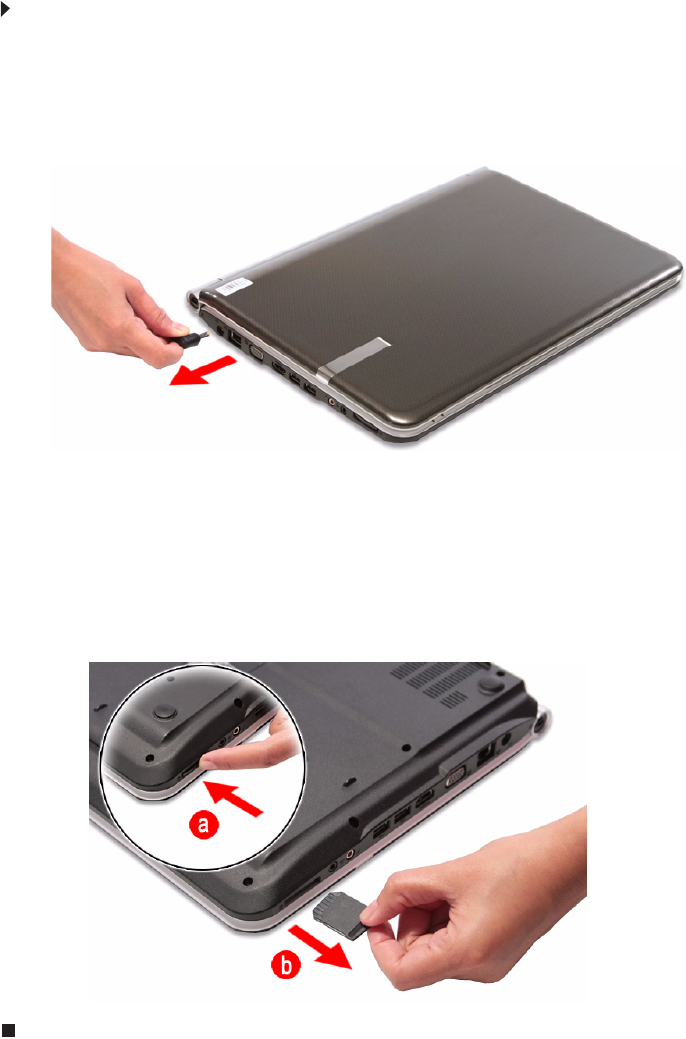
To prepare the notebook for maintenance:
1Make sure that the optical disc drive is empty.
2Turn off the notebook.
3Close the LCD panel.
4Disconnect the AC adapter.
5Disconnect the network cable and all peripheral devices connected to the
notebook.
6Make sure there is no memory card on the card reader slot. To remove a
memory card:
aPush against the card, as if you were pushing it further into the slot,
letting the card spring out
bPull the memory card out of its slot.
CHAPTER 3: Replacing notebook components
48
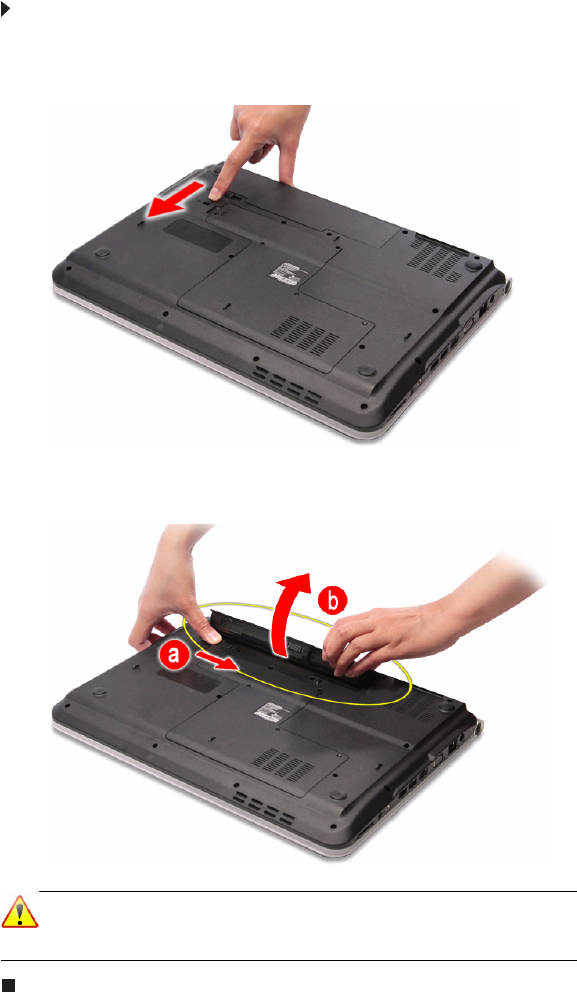
Removing the battery
To remove the battery:
1Turn the notebook over so the base is facing up.
2Slide the battery lock to the unlocked position.
3Slide the battery release latch (a), then remove the battery out of the
notebook (b).
Note
The battery is highlighted with a yellow circle in the above image.
Follow local regulations for battery disposal.
www.gateway.com
49
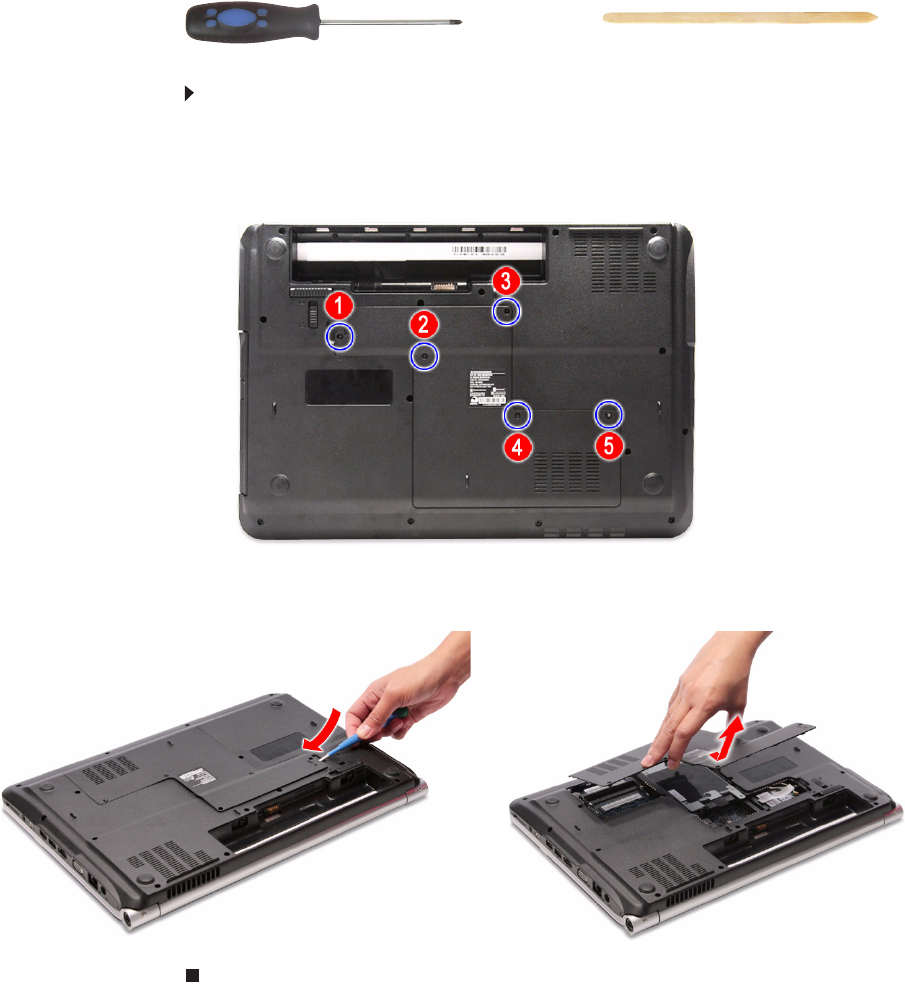
Removing the bay cover
To remove or replace components located on the lower bay, you need to remove
the bay cover first.
Tools you need to complete this task:
To remove the bay cover:
1Complete the steps in “Preparing the notebook” on page 47.
2Turn the notebook over so the base is facing up.
3Loosen the bay cover screws (these screws cannot be removed).
4Insert a non-marring plastic scribe on the cover’s notch to release the cover
from the computer, and then remove the cover.
Phillips #0 screwdriver Non-marring plastic scribe
CHAPTER 3: Replacing notebook components
50
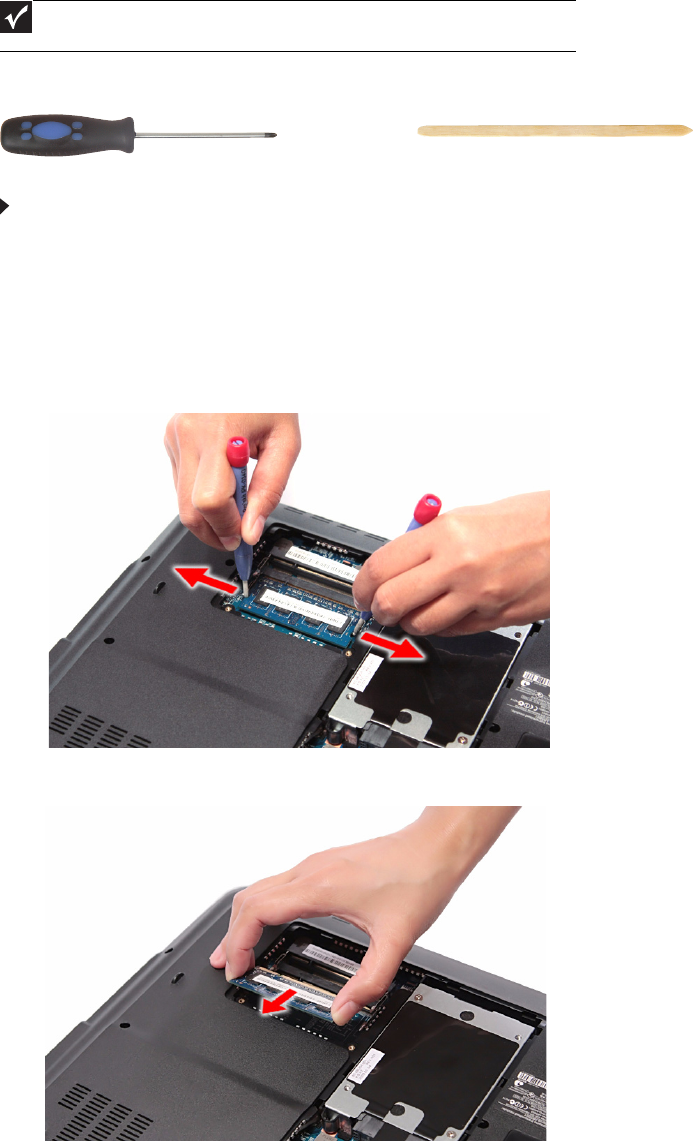
Adding or replacing memory modules
Tools you need to complete this task:
To add or replace memory modules:
1Complete the steps in “Preparing the notebook” on page 47.
2Complete the steps in “Removing the bay cover” on page 49.
3If you are replacing a memory module, go to step 4.
If you installing an additional memory module, go to step 6.
4Use a non-marring plastic scribe to push out the latches on both sides of
the memory slot until the module tilts upward.
5Remove the memory module from its slot.
Important
Use only memory modules designed for this Gateway notebook.
Phillips #0 screwdriver Non-marring plastic scribe

www.gateway.com
51
6Insert the new memory module at a 30° angle into an empty memory slot,
and then press it down until it clicks into place.
The module is keyed so it can only be inserted in one direction. If the module
does not fit, make sure that the notch in the module lines up with the tab in
the memory slot.
7Reinstall the bay cover.
CHAPTER 3: Replacing notebook components
52
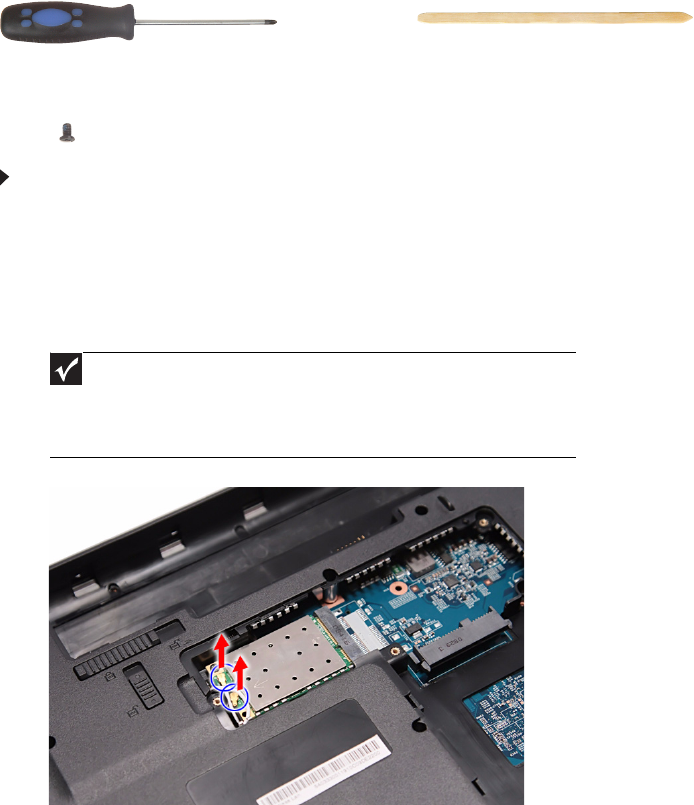
Replacing the wireless card
Tools you need to complete this task:
Screws removed during this task:
•1 black M2×5 (wireless card)
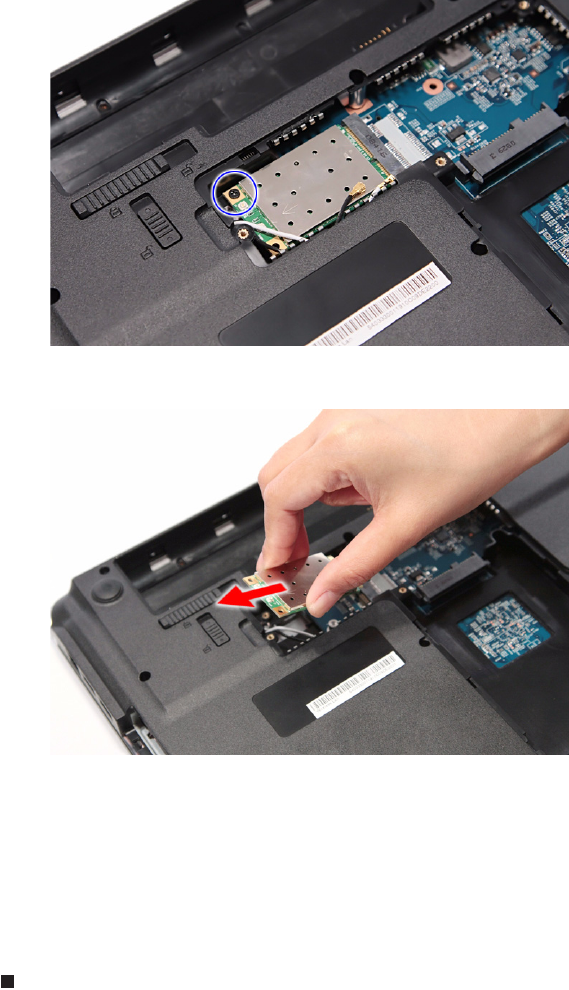
To replace the wireless card:
1Complete the steps in “Preparing the notebook” on page 47.
2Complete the steps in “Removing the bay cover” on page 49.
3Detach the bar code sticker covering the antenna cables.
4Unplug the antenna cables. Note which color cable corresponds to each of
the connectors.
5Move the antenna cables away from the wireless card screw.
Important
The number of antenna cables varies depending on the type
of wireless card installed on the notebook. IEEE 802.11n
cards typically have three antenna cables. Other types of
wireless cards usually have only two antenna cables.
Phillips #0 screwdriver Non-marring plastic scribe
www.gateway.com
53
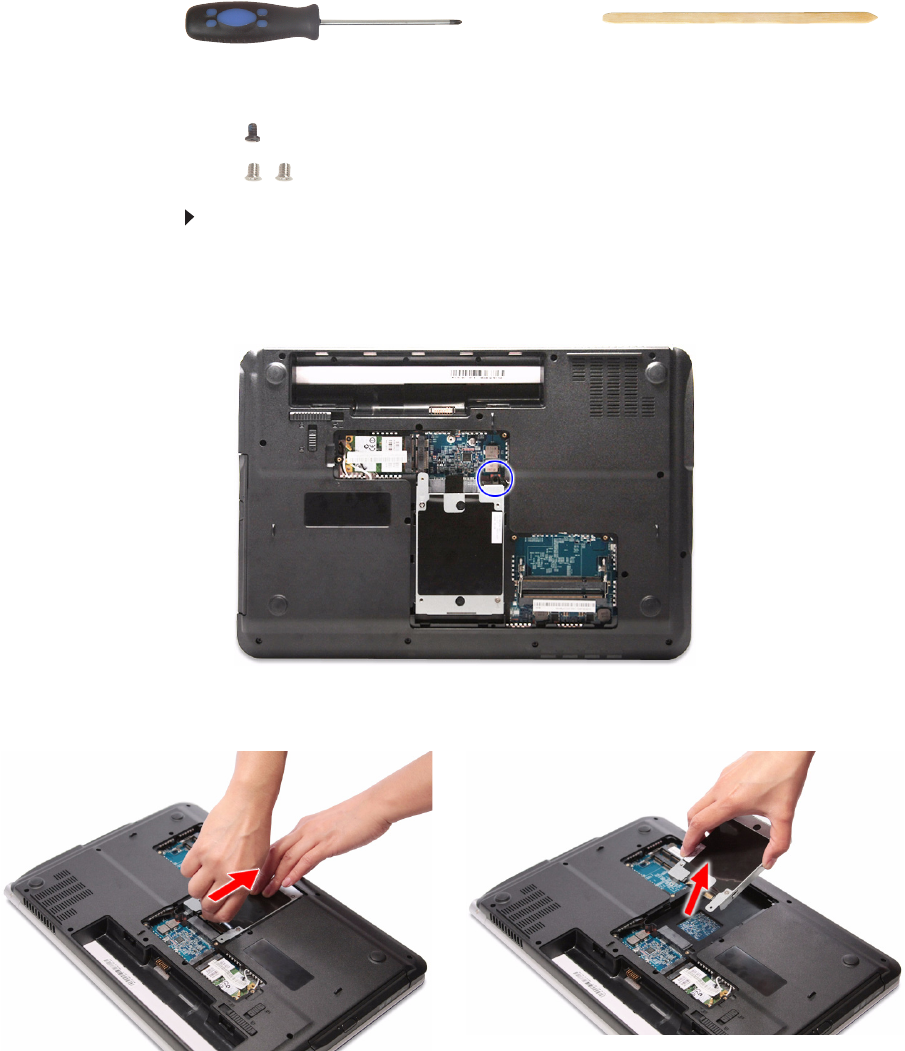
6Remove the screw securing the wireless card.
7Pull the card out of the slot.
8Insert the new wireless card at a 30° angle into the empty Mini Card slot.
The card is keyed so it can only be inserted in one direction. If the card does
not fit, make sure that the notch in the card lines up with the tab in the card
slot.
9Secure the new wireless card with the screw removed in step 6.
10 Reconnect the antenna cables to the connectors.
11 Reinstall the bay cover.
CHAPTER 3: Replacing notebook components
54
Replacing the hard drive
Tools you need to complete this task:
Screws removed during this task:
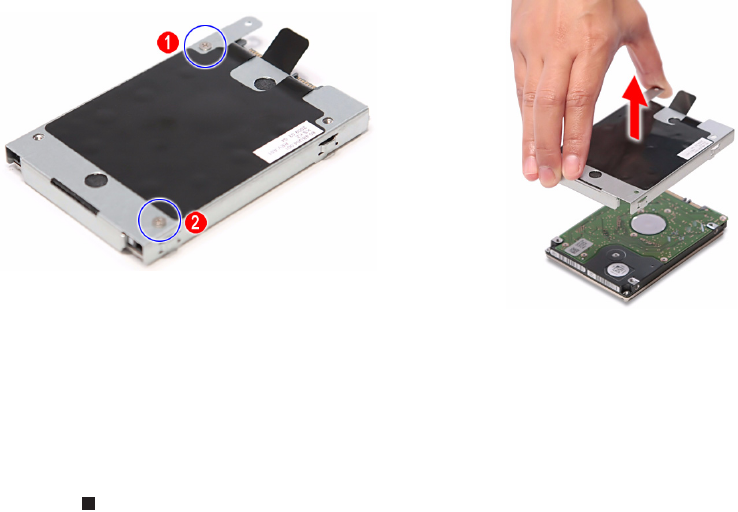
•1 black M2×5 (hard drive)
• 2 chrome M3×3 (hard drive bracket)
To replace the hard drive:
1Complete the steps in “Preparing the notebook” on page 47.
2Complete the steps in “Removing the bay cover” on page 49.
3Remove the hard drive screw.
4Grasp the black mylar tab and use it to disengage the hard drive from its connector,
and then remove the drive from its compartment.
Phillips #0 screwdriver Non-marring plastic scribe
www.gateway.com
55
5If your new hard drive already includes the hard drive bracket, go to step 8.
If you need to use the bracket from the old hard drive, go to step 6.
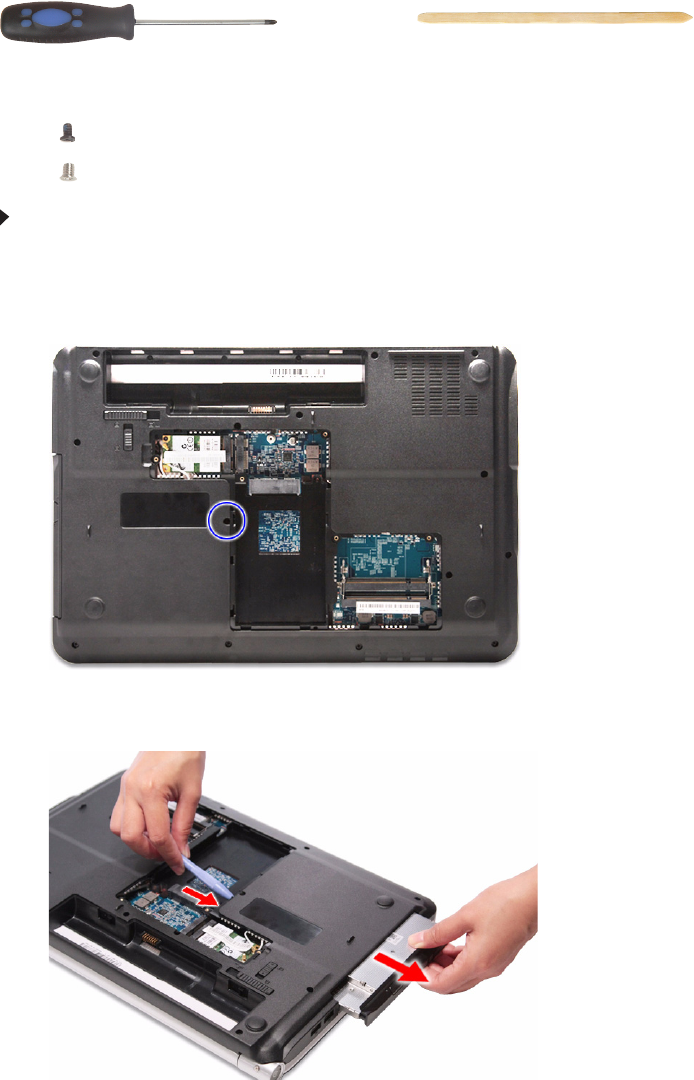
6Remove the screws that secure the hard drive bracket, and then detach the
bracket from the drive.
7Place the bracket on the new drive and secure it with the two screws removed
in step 6.
8Slide the new hard drive into the hard drive compartment and make sure
it’s properly engaged to the SATA1 connector.
9Secure the new drive to the system board with the screw removed in step 6.
10 Reinstall the bay cover.
CHAPTER 3: Replacing notebook components
56
Replacing the optical drive
Tools you need to complete this task:
Screws removed during this task:
•1 black M2.5×6 (optical drive)
• 1 chrome M2×3 (optical drive bracket)
To replace the optical drive:
1Complete the steps in “Preparing the notebook” on page 47.
2Complete the steps in “Removing the bay cover” on page 49.
3Remove the optical drive screw.
4Use the non-marring plastic scribe to carefully push the optical drive out of
the drive bay, and then slide the drive out.
Phillips #0 screwdriver Non-marring plastic scribe
www.gateway.com
57
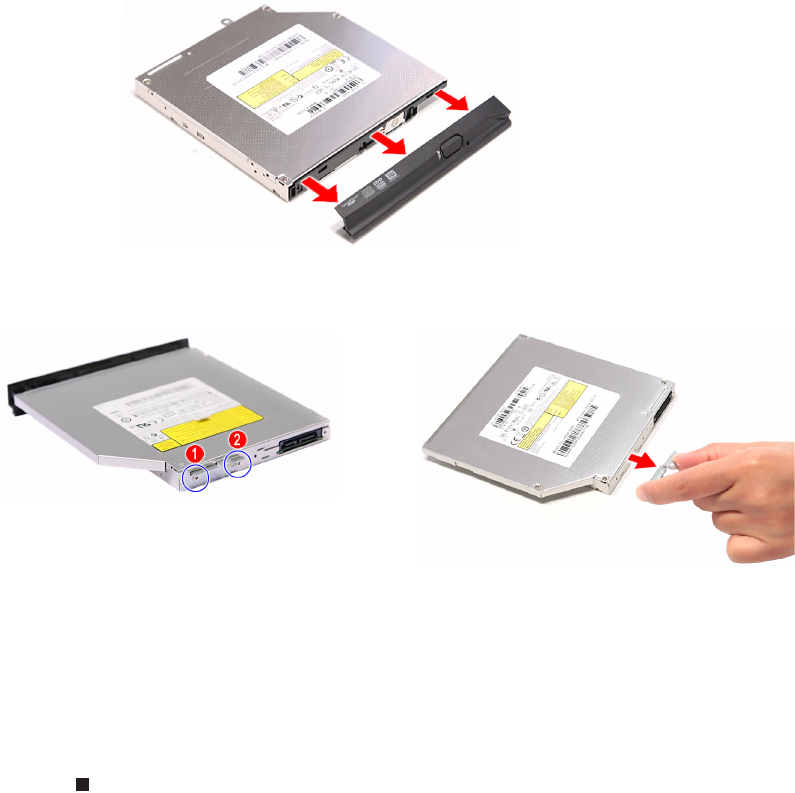
5If your new optical drive already has it’s own bracket and bezel, go to step 10.
If you need to use the bracket and bezel from the old optical drive, perform
steps 6–9 as necessary.
6Detach the bezel from the old optical drive.
7Remove the screws that secure the optical drive bracket, and then detach
the bracket from the drive.
8Attach the bezel to the new optical drive.
9Attach the bracket to the new optical drive and secure it with the screw
removed in step 7.
10 Slide the new optical drive into the drive bay and make sure it’s properly
engaged to the ODD1 connector.
11 Secure the new drive to the system board with the screw removed in step 3.
12 Reinstall the bay cover.
CHAPTER 3: Replacing notebook components
58
Replacing the keyboard cover
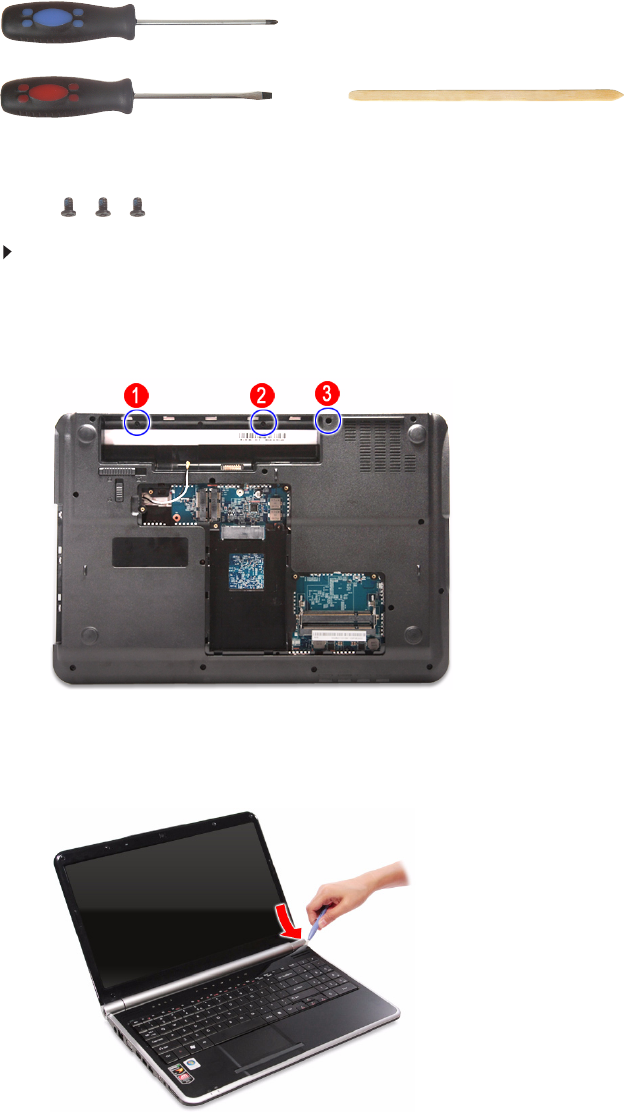
Tools you need to complete this task:
Screws removed during this task:
•3 black M2.5×6 (keyboard cover)
To replace the keyboard cover:
1Complete the steps in “Preparing the notebook” on page 47.
2Complete the steps in “Removing the battery” on page 48.
3Remove the screws securing the keyboard cover.
4Turn the notebook over and open the LCD panel to its fully extended position.
5Insert a small flat-blade screwdriver or non-marring scribe between the LCD
hinge side and the keyboard cover, and carefully pry the cover up.
Phillips #0 screwdriver
Flat screwdriver or Non-marring plastic scribe
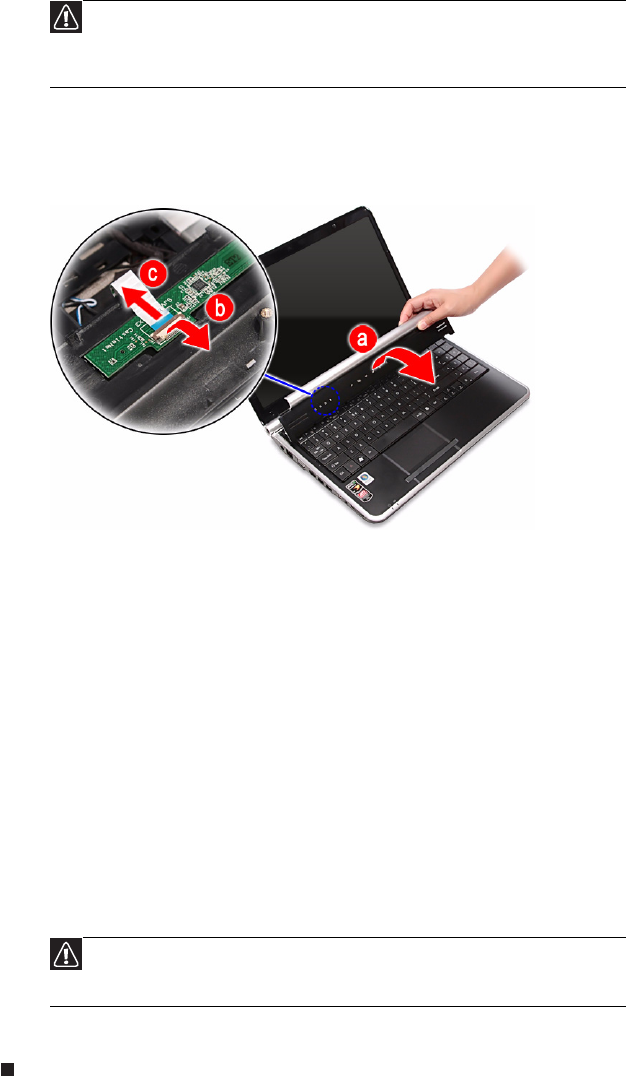
www.gateway.com
59
6Detach the keyboard cover from the palm rest assembly and turn it over the
keyboard to access its underside (a).
Open the multimedia board cable connector (b) and disconnect the cable (c).
7If you will be using the multimedia board from the old keyboard cover, remove
it by performing steps 3 and 4 of the “Replacing the multimedia board”
procedure on page 60.
8Secure the multimedia board, with the connector facing up, on the new
keyboard cover.
9Insert the multimedia cable to its connector on the multimedia board, then
close the clip to lock the cable in place.
10 Insert the tabs on the front side of the keyboard cover into the slots located
on the top corners of the palm rest assembly, then press down on the back
part.
11 Press down on the cover until it clicks in place.
The keyboard cover is correctly mounted when you can run you finger along
the sides of the cover and find no gaps.
12 Close the LCD panel and turn the notebook over so the base is facing up.
13 Secure the keyboard cover with the screws removed in step 3.
14 Reinstall the battery.
Caution
The keyboard cover is connected to the notebook through the
multimedia board cable. Disconnect this cable first before pulling the
cover away from the palm rest assembly.
Caution
If the cover is not correctly installed, your notebook could be
damaged when you try to close the LCD panel.
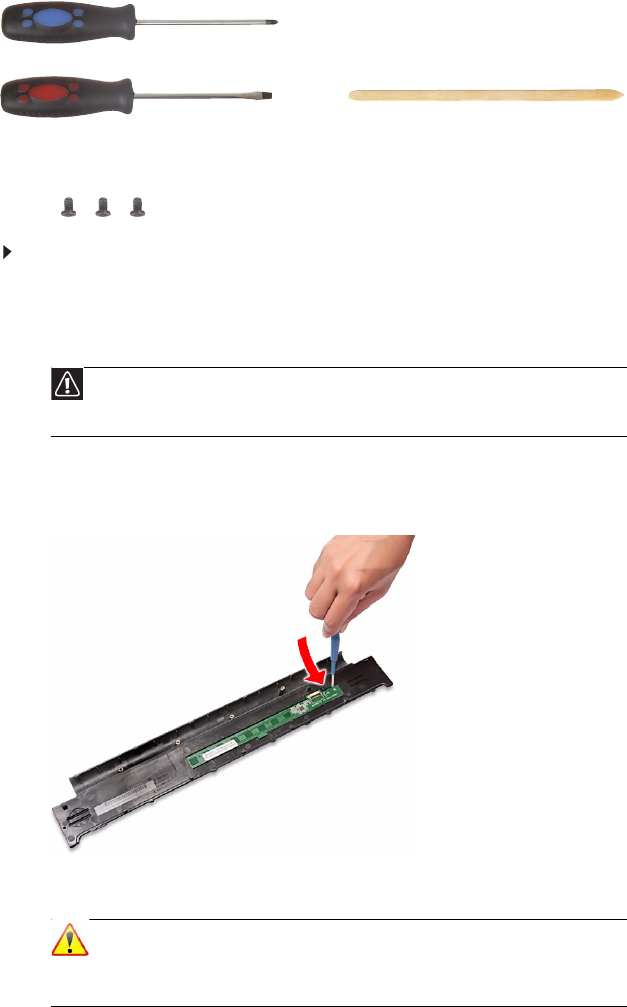
CHAPTER 3: Replacing notebook components
60
Replacing the multimedia board
Tools you need to complete this task:
Screws removed during this task:
•3 black M2.5×6 (keyboard cover)
To replace the multimedia board:
1Complete the steps in “Preparing the notebook” on page 47.
2Remove the keyboard cover by performing steps 2–6 of the “Replacing the
keyboard cover” procedure on page 58.
3Insert a small flat-blade screwdriver or non-marring scribe between the
multimedia board and the keyboard cover’s underside, and carefully pry the
board loose.
4Remove the multimedia board from the keyboard cover.
Caution
The multimedia board is glued to the keyboard cover. Remove this
board only if it is defective.
Note
A circuit board that is >10 cm2 has been highlighted with a yellow
rectangle as shown in the above image. Follow the local regulations
for disposing this type of circuit board.
Phillips #0 screwdriver
Flat screwdriver or Non-marring plastic scribe
www.gateway.com
61
5Secure the new multimedia board, with the connector facing up, on the
keyboard cover.
6Insert the multimedia cable to its connector on the multimedia board, then
close the clip to lock the cable in place.
7Insert the tabs on the front side of the keyboard cover into the slots located
on the top corners of the palm rest assembly, then press down on the back
part.
8Press down on the cover until it clicks in place.
The keyboard cover is correctly mounted when you can run you finger along
the sides of the cover and find no gaps.
9Close the LCD panel and turn the notebook over so the base is facing up.
10 Secure the keyboard cover with the screws removed in step 3 of the
“Replacing the keyboard cover” procedure on page 58.
11 Reinstall the battery.
Caution
If the cover is not correctly installed, your notebook could be
damaged when you try to close the LCD panel.
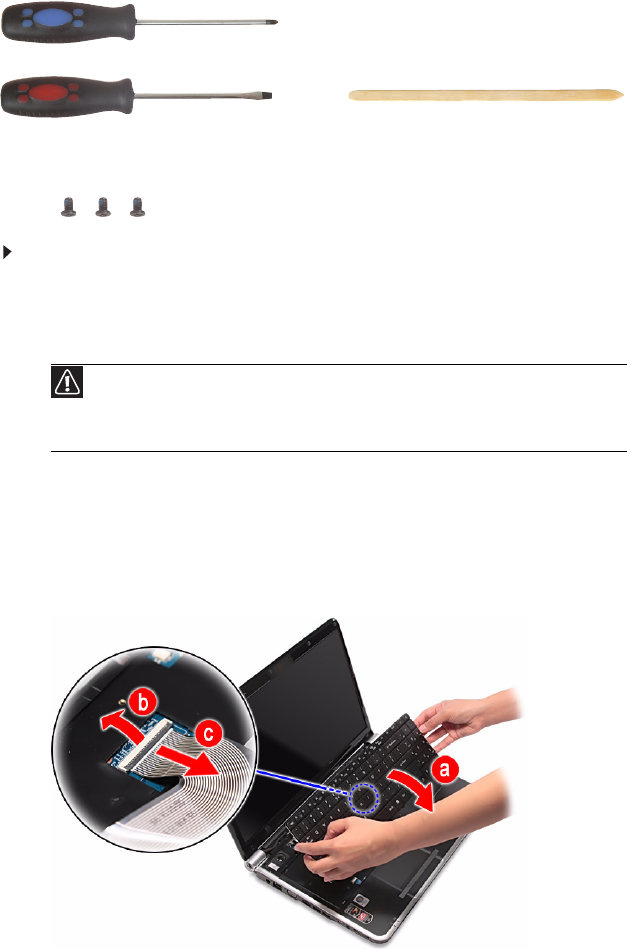
CHAPTER 3: Replacing notebook components
62
Replacing the keyboard
Tools you need to complete this task:
Screws removed during this task:
•3 black M2.5×6 (keyboard cover)
To replace the keyboard:
1Complete the steps in “Preparing the notebook” on page 47.
2Remove the keyboard cover by performing steps 2–6 of the “Replacing the
keyboard cover” procedure on page 58.
3Lift the back edge of the keyboard slightly, then carefully slide it toward the
LCD panel to release the keyboard retaining tabs from the palm rest.
4Flip the keyboard over onto the touchpad area to access to the keyboard
cable (a).
Open the keyboard cable connector (b) and disconnect the cable (c).
Caution
The keyboard is connected to the notebook through the keyboard
cable. Disconnect this cable first before pulling the keyboard away
from the palm rest.
Phillips #0 screwdriver
Flat screwdriver or Non-marring plastic scribe

www.gateway.com
63
5Insert the retaining tabs of the new keyboard into the slots located on the
top side of the touchpad area.
6Reach underneath the keyboard and insert the keyboard cable to its system
board connector, then close the clip to lock the cable in place.
7Gently press the keyboard down until it is flat all the way across.
8Reinstall the keyboard cover by performing steps 9–13 of the “Replacing the
keyboard cover” procedure on page 58.
9Reinstall the battery.
Important
The keyboard cable is correctly oriented if it is not twisted.
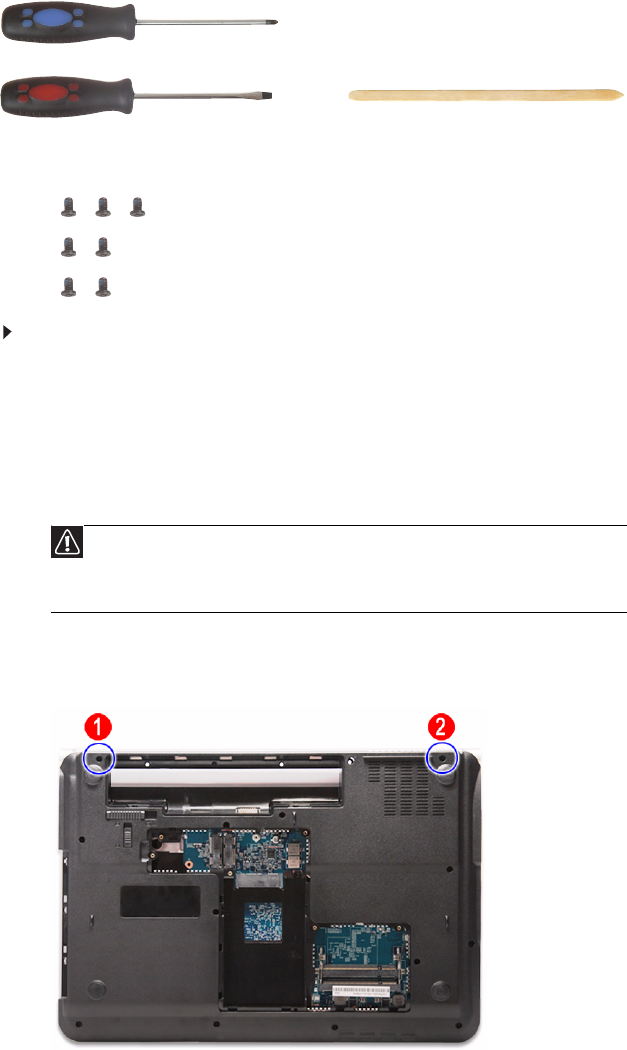
CHAPTER 3: Replacing notebook components
64
Replacing the LCD panel assembly
Tools you need to complete this task:
Screws removed during this task:
•3 black M2.5×6 (keyboard cover)
• 2 black M2.5×6 (LCD panel hinges - bottom)
• 2 black M2.5×6+Nylok (LCD panel hinges - top)
To replace the LCD panel assembly:
1Complete the steps in “Preparing the notebook” on page 47.
2If the notebook has a wireless card installed, complete the steps in
“Removing the bay cover” on page 49, and then unplug the antenna cables.
If there’s no wireless card installed, proceed to step 5.
3Remove the keyboard by performing steps 2–4 of the “Replacing the
keyboard” procedure on page 62.
4Turn the notebook over so the base is facing up.
5Remove the base screws that secure the LCD panel hinges.
Caution
The keyboard is connected to the notebook through a keyboard
cable. Disconnect this cable first before pulling the keyboard away
from the palm rest assembly.
Phillips #0 screwdriver
Flat screwdriver or Non-marring plastic scribe
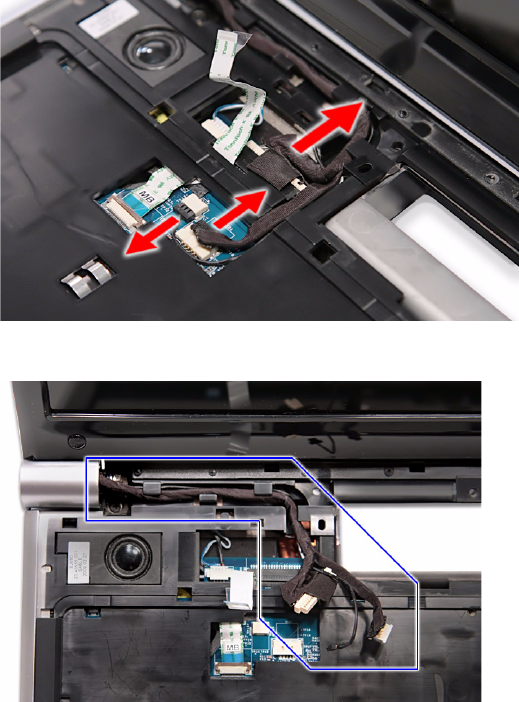
www.gateway.com
65
6Turn the notebook over again so the palm rest is facing up.
7Disconnect the LCD, webcam, and microphone cables from their system board
connectors.
8Release the LCD, webcam, and microphone cables from their latches.
9If the notebook has a wireless card installed, note the antenna cable routing
for later reference and then perform step 10 to release the antenna cables
from the palm rest.
If there’s no wireless card installed, proceed to step 11 to disconnect the
power button board cable.
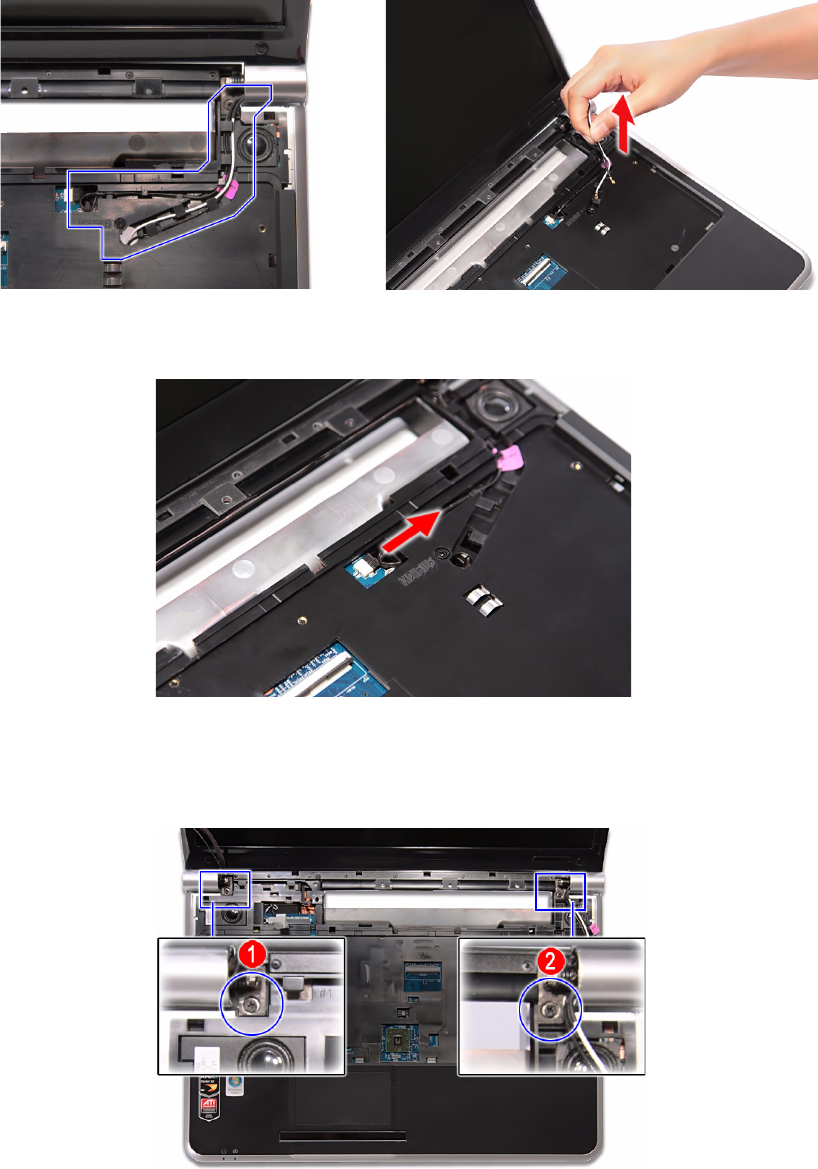
CHAPTER 3: Replacing notebook components
66
10 Release the antenna cables from their palm rest latches, and then pull them
out from underneath the computer.
11 Disconnect the power button board cable from its system board connector, and then
release it from its palm rest latches.
12 Carefully open the LCD panel to its fully extended position.
13 Move the LCD, webcam, and microphone cables away from the top hinge screws.
14 Remove the top hinge screws securing the LCD assembly.
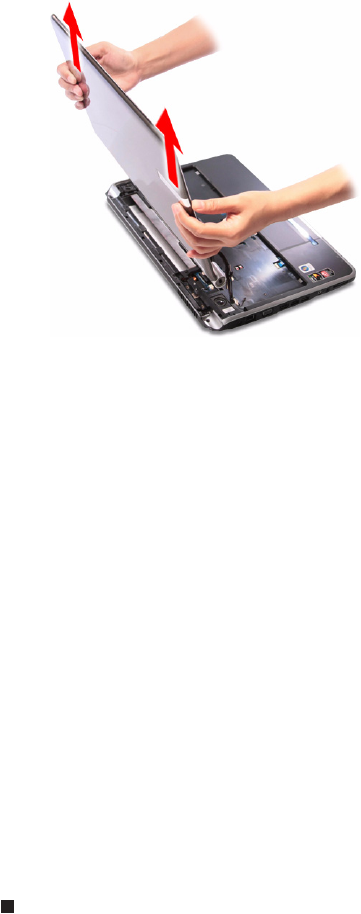
www.gateway.com
67
15 Lift the LCD panel assembly up and away from the notebook.
16 Position the new LCD panel assembly on the notebook, and then secure it
with the hinge screws removed in step 14.
17 If the notebook has a wireless card installed, proceed to step 18 to arrange
the antenna cables.
If there’s no wireless card installed, proceed to step 19 to reconnect the
power button board cable.
18 Refer to the antenna cable routing note made on step 9 and secure the
antenna cables to the palm rest before pulling the ends downward to the
wireless card compartment.
19 Arrange the power button cable on the palm rest and reconnect it to its
system board connector.
20 Arrange the LCD, webcam, and microphone cables on the palm rest and
reconnect them to their system board connectors.
21 Close the LCD panel and turn the notebook over so the base is facing up.
22 If the notebook has a wireless card installed, reconnect the antenna cables
and then reinstall the bay cover.
23 Return the base hinge screws removed in step 5.
24 Turn the notebook over so the palm rest is facing up.
25 Reinstall the keyboard and the keyboard cover by performing steps 5–8 of
the “Replacing the keyboard” procedure on page 62.
26 Reinstall the battery.
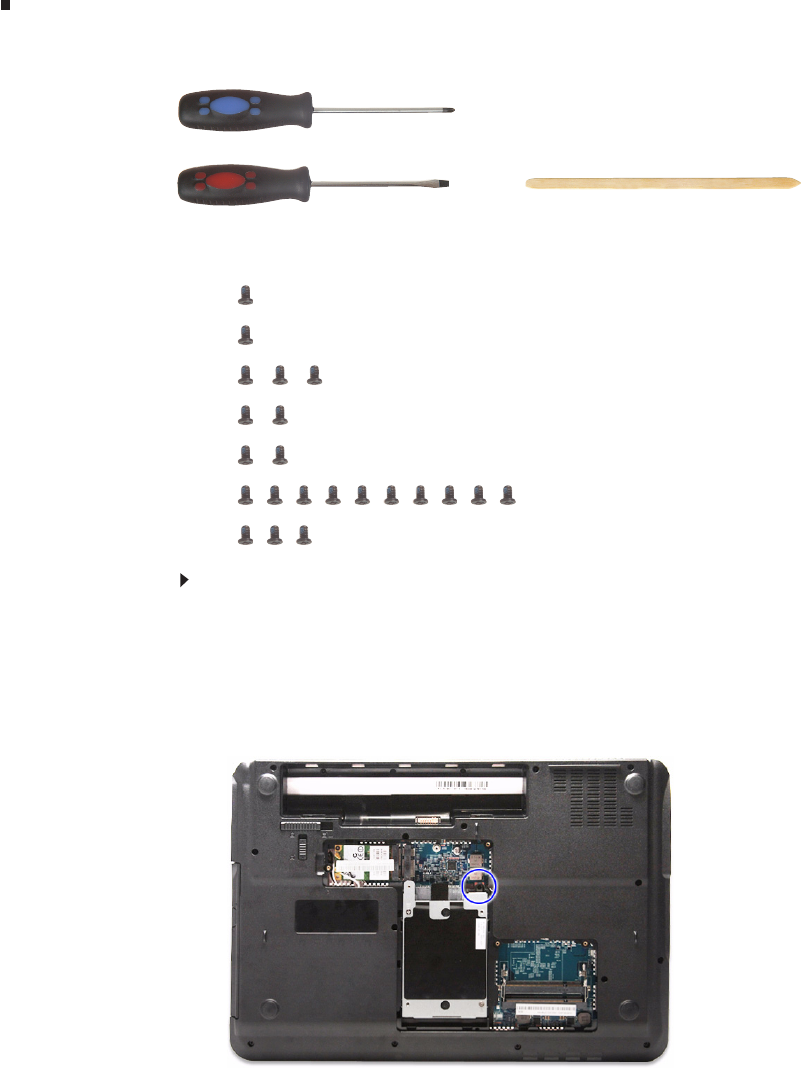
CHAPTER 3: Replacing notebook components
68
Replacing the palm rest
Tools you need to complete this task:
Screws removed during this task:
•1 black M2×5 (hard drive)
•1 black M2.5×6 (optical drive)
•3 black M2.5×6 (keyboard cover)
• 2 black M2.5×6 (LCD panel hinges - bottom)
• 2 black M2.5×6+Nylok (LCD panel hinges - top)
• 10 M2.5×6 black (palm rest - base side)
• 3 M2.5×6 black (palm rest - top side)
To replace the palm rest:
1Complete the steps in “Preparing the notebook” on page 47.
2Complete the steps in “Removing the bay cover” on page 49.
3If the notebook has a wireless card installed, unplug the antenna cables.
4Remove the hard drive screw, and then remove the hard drive from its
compartment.
Phillips #0 screwdriver
Flat screwdriver or Non-marring plastic scribe
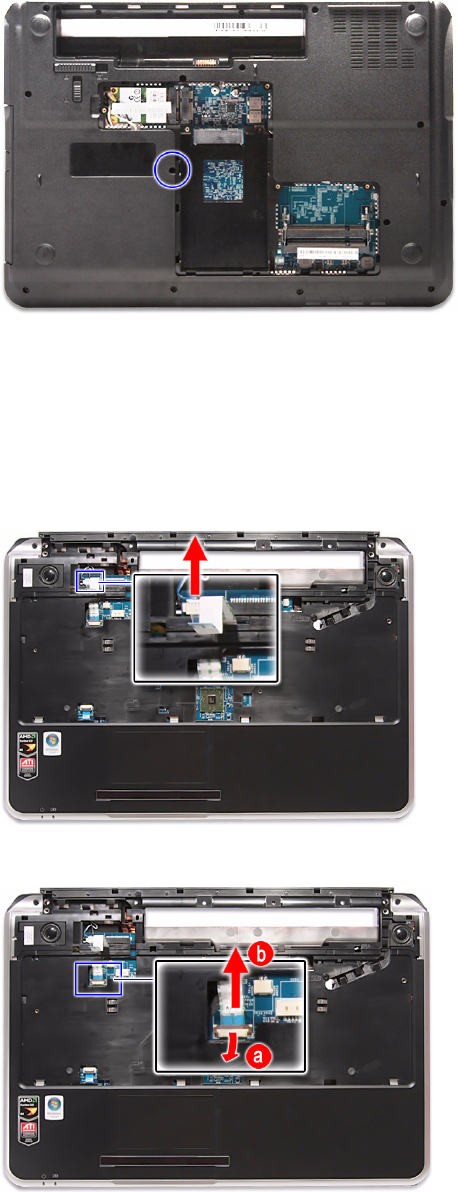
www.gateway.com
69
5Remove the optical drive screw.
6Remove the keyboard cover by performing steps 2–6 of the “Replacing the
keyboard cover” procedure on page 58.
7Remove the keyboard by performing steps 3 and 4 of the “Replacing the
keyboard” procedure on page 62.
8Remove the LCD panel assembly by performing steps 5–15 of the
“Replacing the LCD panel assembly” procedure on page 64.
9Disconnect the speaker cable from the system board.
10 Open the multimedia cable connector (a) and disconnect the cable (b).
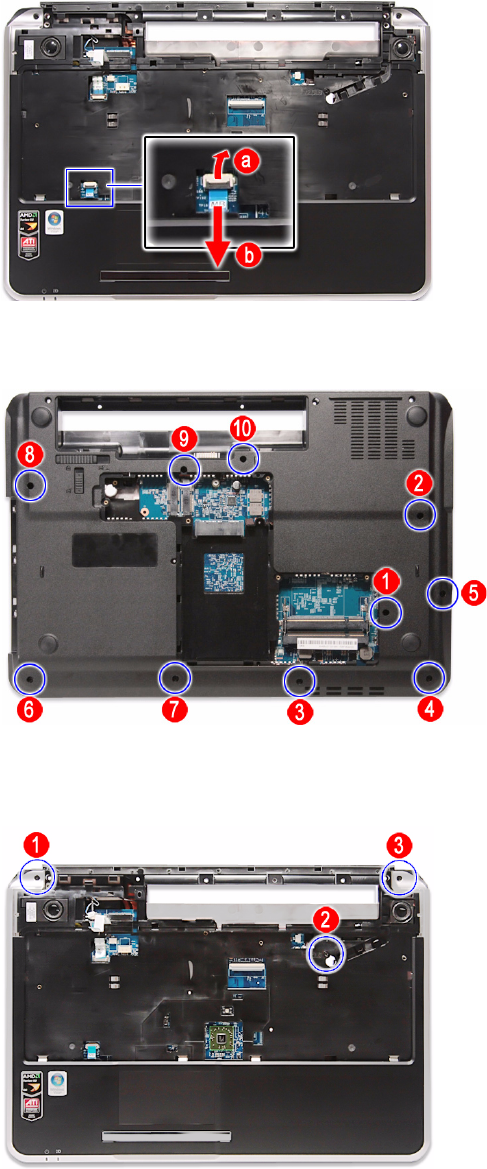
CHAPTER 3: Replacing notebook components
70
11 Open the touchpad cable connector (a) and disconnect the cable from the
system board (b).
12 Turn the notebook over so the base is facing up.
13 Remove the screws securing the palm rest on the base side.
14 Turn the notebook over again so the palm rest is facing up.
15 Remove the screws securing the palm rest on the top side.
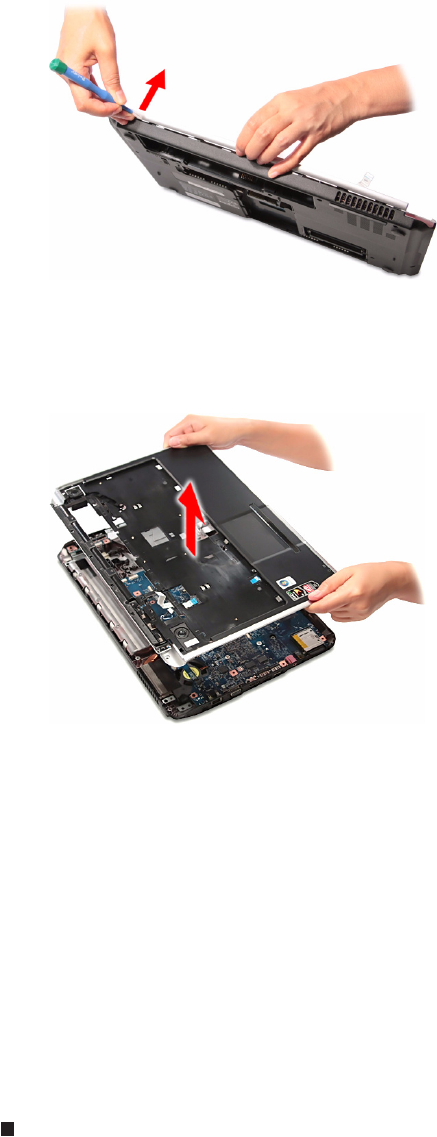
www.gateway.com
71
16 Locate the small gaps on the top side of the palm rest and insert a small
flat-blade screwdriver or non-marring scribe into each gap to separate the
palm rest from the base enclosure.
17 Once the top side is separated, pry loose the left and right sides of the palm
rest, and finally the bottom side until all the palm rest retaining tabs have
been released.
18 Lift the palm rest assembly from the base enclosure.
19 Place the new palm rest assembly on top of the base enclosure and press
it down on all sides until it snaps into place.
20 Reconnect the speaker, multimedia, and touchpad cables to their respective
system board connectors.
21 Secure the palm rest assembly with the screws removed in steps 13 and 15.
22 Reinstall the LCD panel assembly by performing steps 16–23 of the
“Replacing the LCD panel assembly” procedure on page 64.
23 Reinstall the keyboard and the keyboard cover by performing steps 5–8 of
the “Replacing the keyboard” procedure on page 62.
24 Return the optical screw drive in its place.
25 Reinstall the hard drive by performing steps 8 and 9 of the “Replacing the
hard drive” procedure on page 54.
26 If you have disconnected any wireless antennas, reconnect them now.
27 Reinstall the bay cover.
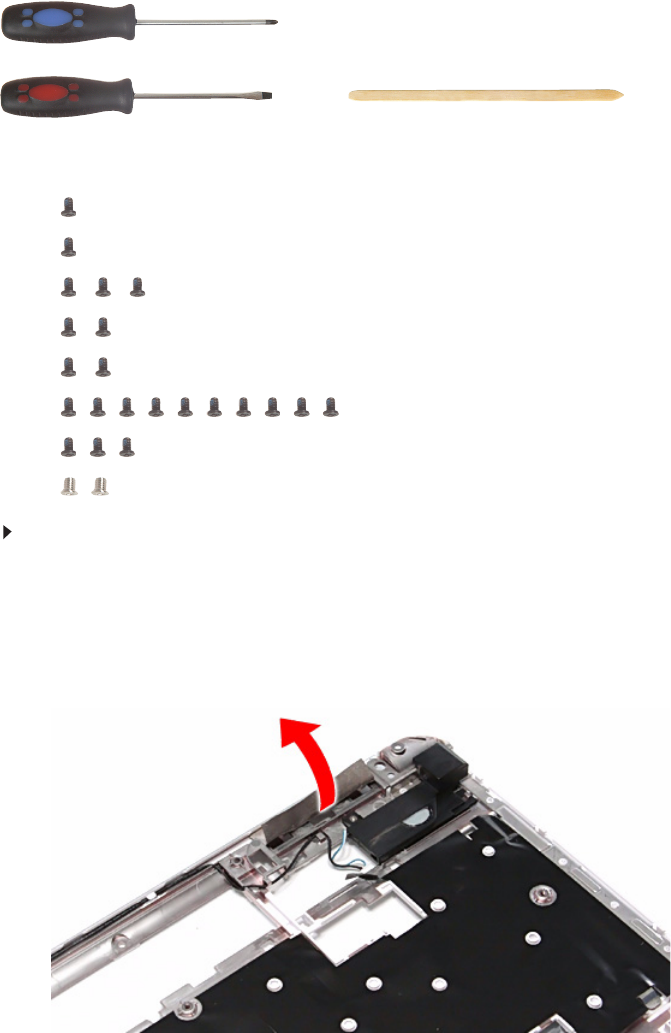
CHAPTER 3: Replacing notebook components
72
Replacing the speakers
Tools you need to complete this task:
Screws removed during this task:
•1 black M2×5 (hard drive)
•1 black M2.5×6 (optical drive)
•3 black M2.5×6 (keyboard cover)
• 2 black M2.5×6 (LCD panel hinges - bottom)
• 2 black M2.5×6+Nylok (LCD panel hinges - top)
• 10 M2.5×6 black (palm rest - base side)
• 3 M2.5×6 black (palm rest - top side)
• 2 chrome M2×3 (speakers)
To replace the speakers:
1Complete the steps in “Preparing the notebook” on page 47.
2Remove the palm rest by performing steps 2–18 of the “Replacing the palm
rest” procedure on page 68.
3Turn the palm rest over so that its underside is facing up.
4Peel off the tape covering the left speaker screw.
Phillips #0 screwdriver
Flat screwdriver or Non-marring plastic scribe
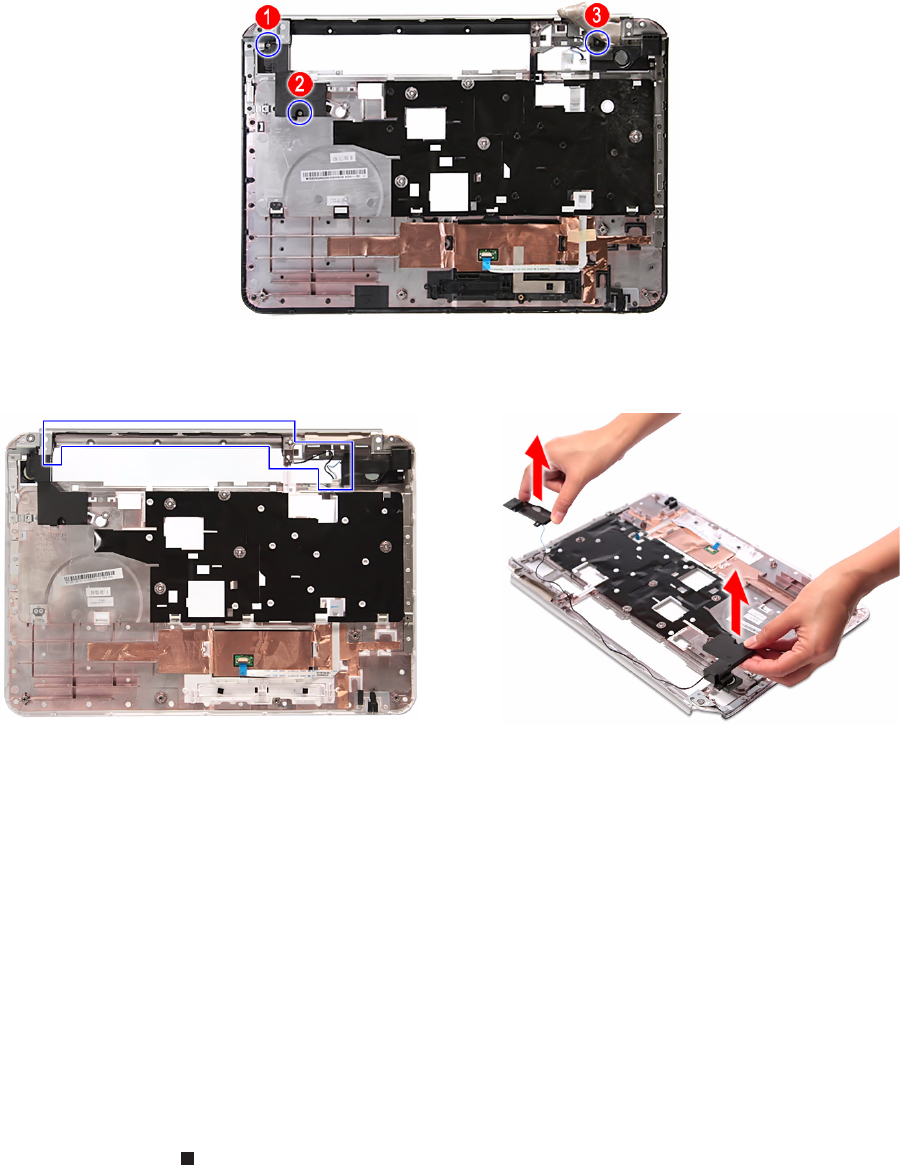
www.gateway.com
73
5Remove the speaker screws.
6Release the speaker cable from the palm rest, and then remove the
speakers.
7Position the new speakers on the palm rest.
8Secure the speakers with the screws removed in step 5 and cover it with
the tape that was detached in step 4.
9Secure the speaker cable on the palm rest latches
10 Reinstall the palm rest by performing steps 19–21 of the “Replacing the palm
rest” procedure on page 68.
11 Reinstall the LCD panel assembly by performing steps 16–23 of the
“Replacing the LCD panel assembly” procedure on page 64.
12 Reinstall the keyboard and the keyboard cover by performing steps 5–8 of
the “Replacing the keyboard” procedure on page 62.
13 Return the optical screw drive in its place.
14 Reinstall the hard drive by performing steps 8 and 9 of the “Replacing the
hard drive” procedure on page 54.
15 If you have disconnected any wireless antennas, reconnect them now.
16 Reinstall the bay cover.
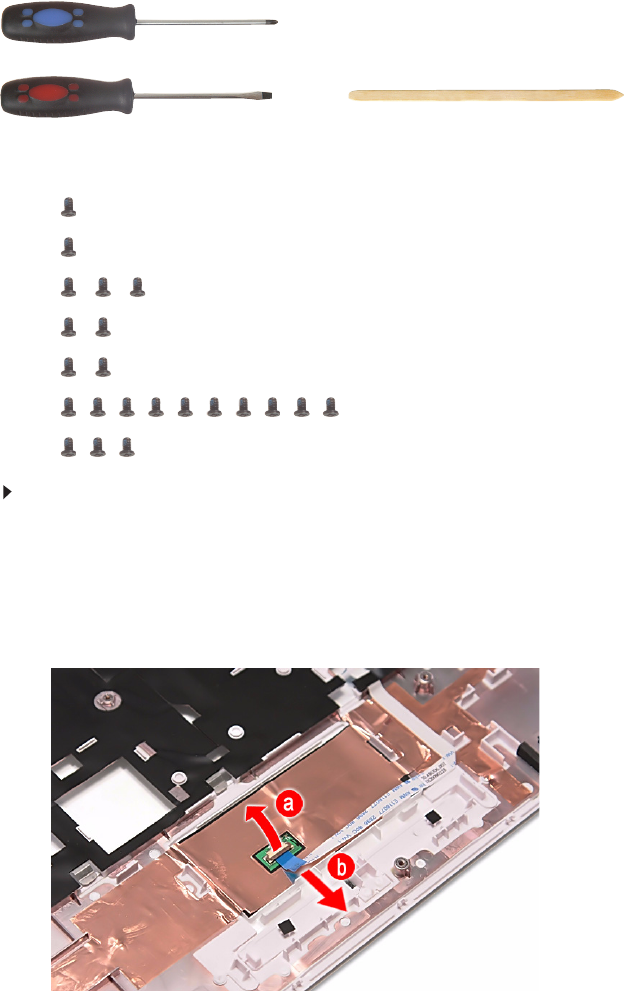
CHAPTER 3: Replacing notebook components
74
Replacing the touchpad board
Tools you need to complete this task:
Screws removed during this task:
•1 black M2×5 (hard drive)
•1 black M2.5×6 (optical drive)
•3 black M2.5×6 (keyboard cover)
• 2 black M2.5×6 (LCD panel hinge - bottom)
• 2 black M2.5×6+Nylok (LCD panel hinge - top)
• 10 M2.5×6 black (palm rest - base side)
• 3 M2.5×6 black (palm rest - top side)
To replace the touchpad board:
1Complete the steps in “Preparing the notebook” on page 47.
2Remove the palm rest by performing steps 2–18 of the “Replacing the palm
rest” procedure on page 68.
3Turn the palm rest over so that its underside is facing up.
4Open the touchpad board cable connector (a) and disconnect the cable (b).
Phillips #0 screwdriver
Flat screwdriver or Non-marring plastic scribe
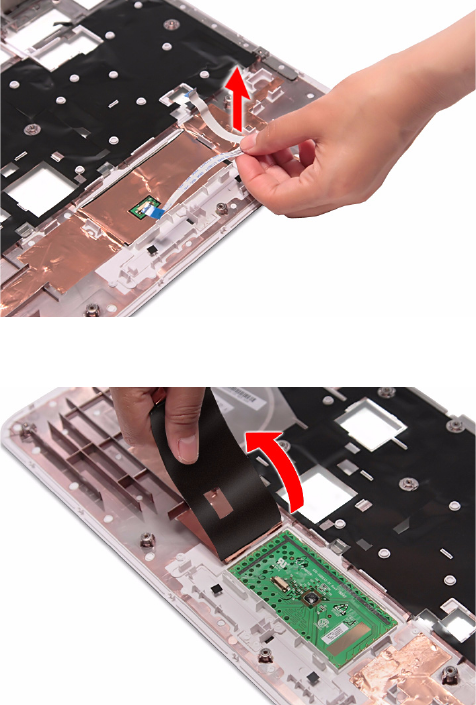
www.gateway.com
75
5Remove the touchpad cable from the palm rest.
6Peel off the tape protecting the touchpad board.
7Note the orientation of the touchpad board for later reference in installing
the new touchpad board.
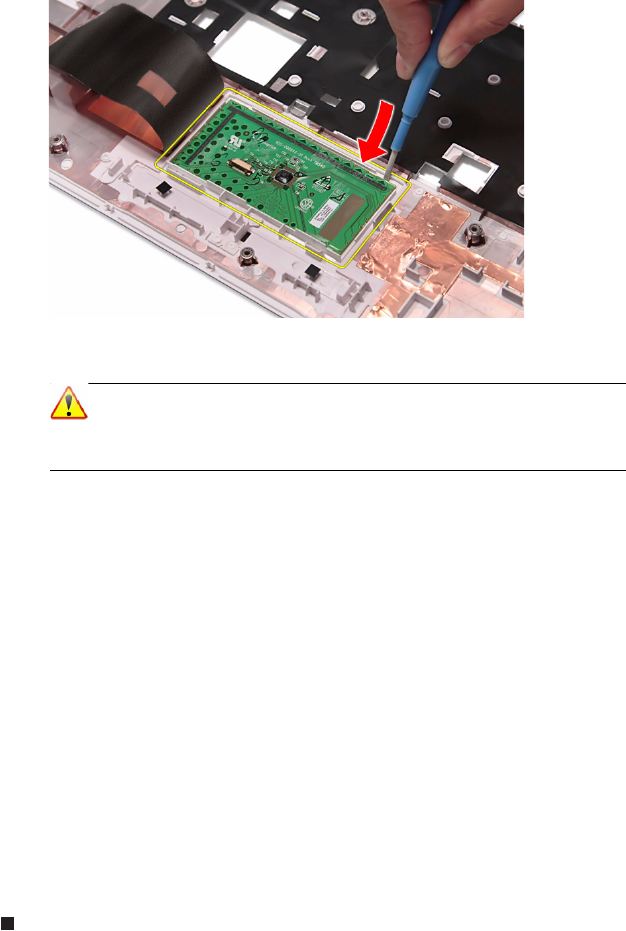
CHAPTER 3: Replacing notebook components
76
8Insert a small flat-blade screwdriver or non-marring scribe between the
touchpad board and the palm rest’s underside, and carefully pry the board
loose.
9Remove the touchpad board from the palm rest.
10 Observing the same orientation as the old touchpad board, secure the new
board on the palm rest.
11 Cover the new touchpad board with the tape removed in step 6.
12 Insert the touchpad cable to the touchpad board cable connector, and then
close the clip to lock the cable in place.
13 Reinstall the palm rest by performing steps 19–21 of the “Replacing the palm
rest” procedure on page 68.
14 Reinstall the LCD panel assembly by performing steps 16–23 of the
“Replacing the LCD panel assembly” procedure on page 64.
15 Reinstall the keyboard and the keyboard cover by performing steps 5–8 of
the “Replacing the keyboard” procedure on page 62.
16 Return the optical screw drive in its place.
17 Reinstall the hard drive by performing steps 8 and 9 of the “Replacing the
hard drive” procedure on page 54.
18 If you have disconnected any wireless antennas, reconnect them now.
19 Reinstall the bay cover.
Note
A circuit board that is >10 cm2 has been highlighted with a yellow
rectangle as shown in the above image. Follow the local regulations
for disposing this type of circuit board.
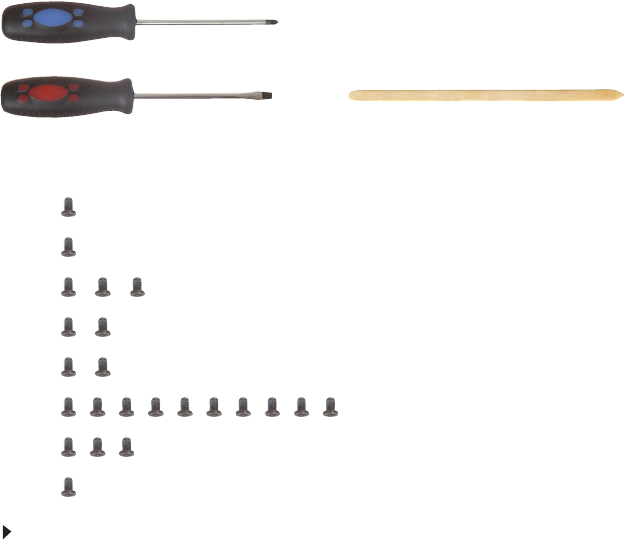
www.gateway.com
77
Replacing the modem board
Tools you need to complete this task:
Screws removed during this task:
•1 black M2×5 (hard drive)
•1 black M2.5×6 (optical drive)
•3 black M2.5×6 (keyboard cover)
• 2 black M2.5×6 (LCD panel hinge - bottom)
• 2 black M2.5×6+Nylok (LCD panel hinge - top)
• 10 M2.5×6 black (palm rest - base side)
• 3 M2.5×6 black (palm rest - top side)
•1 black M2×4 (modem board)
To replace the system board:
1Complete the steps in “Preparing the notebook” on page 47.
2Complete the steps in “Removing the battery” on page 48.
3Remove the memory from the old system board and install it on the new
system board by following the instructions in the “Adding or replacing
memory modules” section on page 50.
4If the notebook has a wireless card installed, remove the card from the old
system board and install it on the new system board by following the
instructions in the “Replacing the wireless card” section on page 52.
5Remove the hard drive by performing steps 3 and 4 of the “Replacing the
hard drive” procedure on page 54.
6Remove the optical drive by performing steps 3 and 4 of the “Replacing the
optical drive” procedure on page 56.
7Remove the palm rest by following steps 6–18 of the “Replacing the palm
rest” procedure on page 68.
Phillips #0 screwdriver
Flat screwdriver or Non-marring plastic scribe
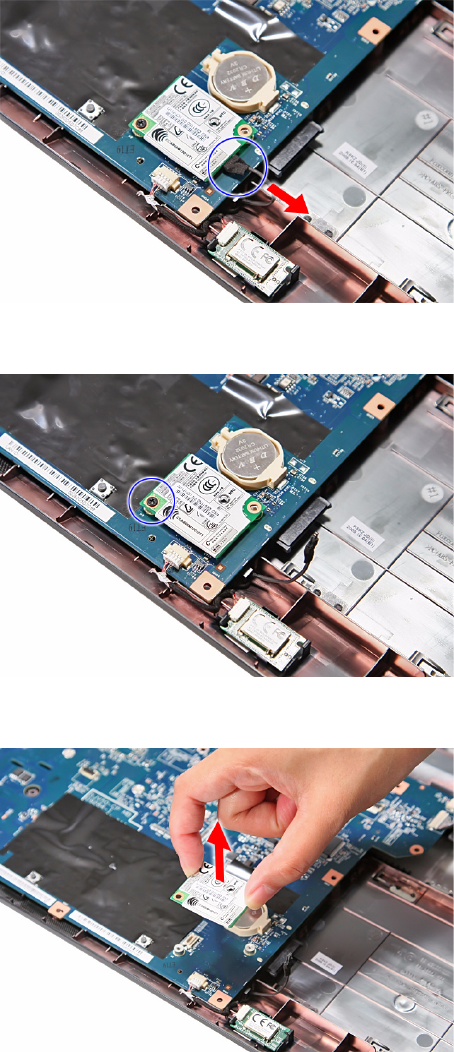
CHAPTER 3: Replacing notebook components
78
8Disconnect the modem cable from the modem board.
9Remove the modem board screw.
10 Remove the old modem board from the system board.

www.gateway.com
79
11 Connect the modem cable to the new modem board, and then attach to board
to its system board connector.
12 Secure the new modem board with the screw removed in step 9.
13 Reinstall the palm rest by performing steps 19–21 of the “Replacing the palm
rest” procedure on page 68.
14 Reinstall the LCD panel assembly by following the steps 16–23 of the
“Replacing the LCD panel assembly” procedure on page 64.
15 Reinstall the keyboard and the keyboard cover by performing steps 5–8 of
the “Replacing the keyboard” procedure on page 62.
16 Close the LCD panel and turn the notebook over so the base is facing up.
17 Reinstall the optical drive by performing steps 10 and 11 of the “Replacing
the optical drive” procedure on page 56.
18 Reinstall the hard drive by performing steps 8 and 9 of the “Replacing the
hard drive” procedure on page 54.
19 If you have disconnected any wireless antennas, reconnect them now.
20 Reinstall the bay cover.
21 Reinstall the battery.
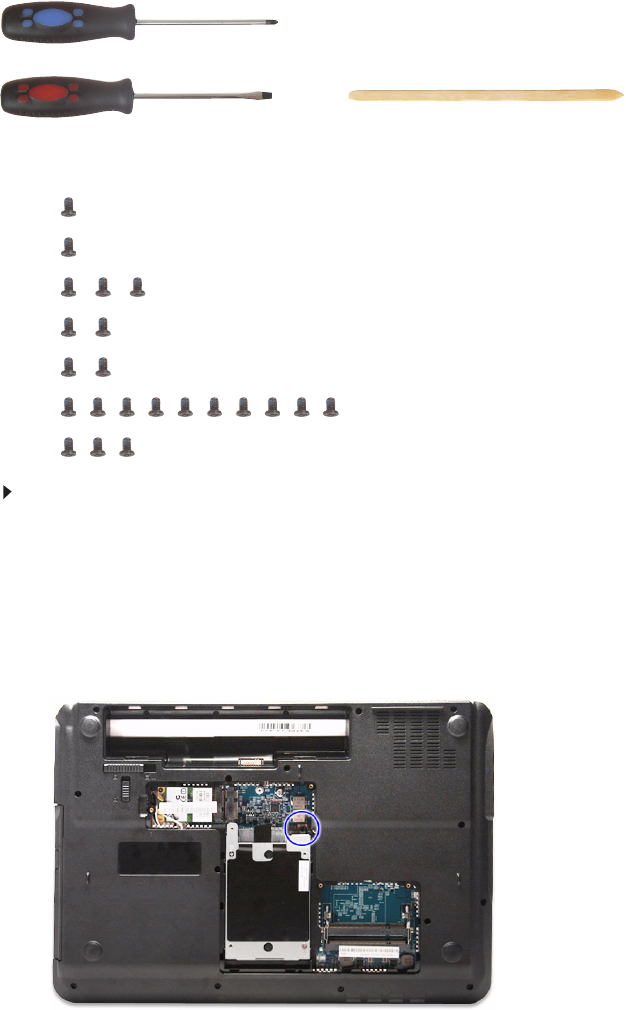
CHAPTER 3: Replacing notebook components
80
Replacing the USB board
Tools you need to complete this task:
Screws removed during this task:
•1 black M2×5 (hard drive)
•1 black M2.5×6 (optical drive)
•3 black M2.5×6 (keyboard cover)
• 2 black M2.5×6 (LCD panel hinge - bottom)
• 2 black M2.5×6+Nylok (LCD panel hinge - top)
• 10 M2.5×6 black (palm rest - base side)
• 3 M2.5×6 black (palm rest - top side)
To replace the USB board:
1Complete the steps in “Preparing the notebook” on page 47.
2Complete the steps in “Removing the battery” on page 48.
3Complete the steps in “Removing the bay cover” on page 49.
4If the notebook has a wireless card installed, unplug the antenna cables.
5Remove the hard drive screw, and then remove the hard drive from its
compartment.
Phillips #0 screwdriver
Flat screwdriver or Non-marring plastic scribe
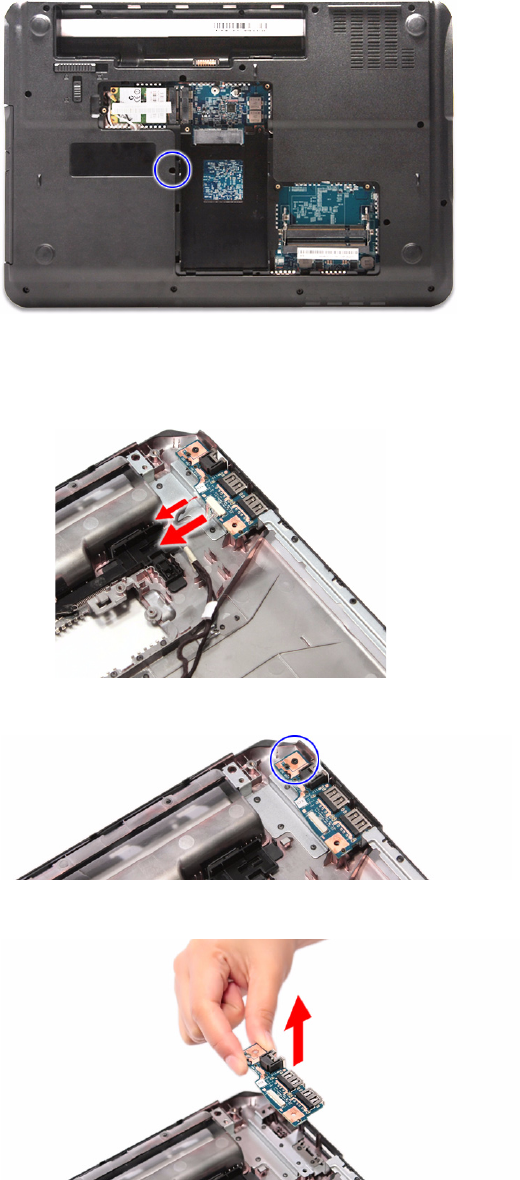

CHAPTER 3: Replacing notebook components
82
11 Place the new USB board in the base enclosure and secure it with the screw
removed in step 9.
12 Connect the USB board and modem board cables to the new USB board.
13 Reinstall the palm rest by performing steps 19–21 of the “Replacing the palm
rest” procedure on page 68.
14 Reinstall the LCD panel assembly by performing steps 16–23 of the
“Replacing the LCD panel assembly” procedure on page 64.
15 Reinstall the keyboard and the keyboard cover by performing steps 5–8 of
the “Replacing the keyboard” procedure on page 62.
16 Close the LCD panel and turn the notebook over so the base is facing up.
17 Return the optical screw drive in its place.
18 Reinstall the hard drive by performing steps 8 and 9 of the “Replacing the
hard drive” procedure on page 54.
19 If you have disconnected any wireless antennas, reconnect them now.
20 Reinstall the bay cover.
21 Reinstall the battery.
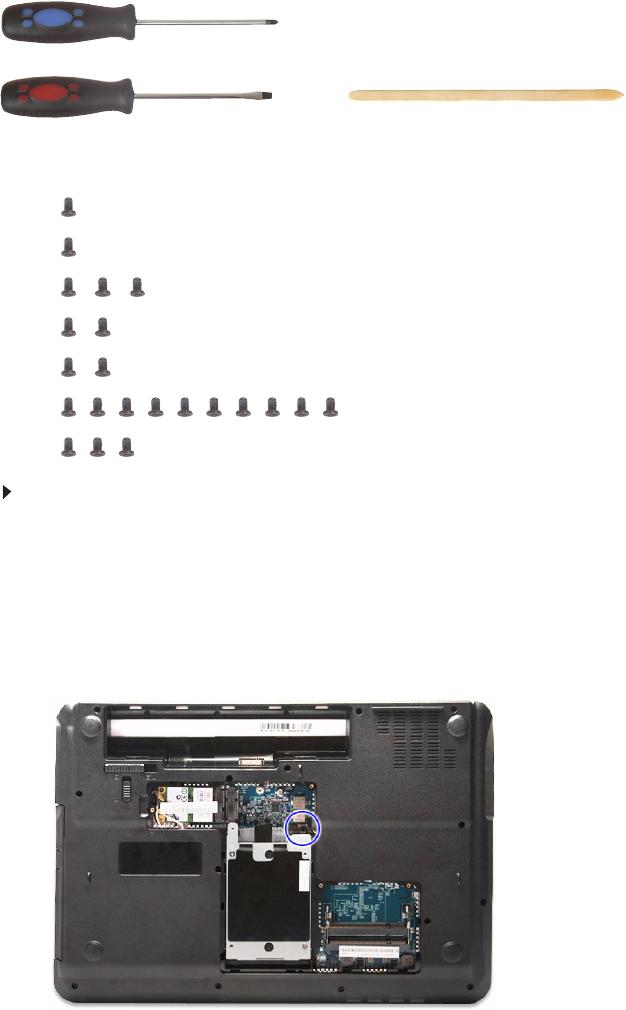
www.gateway.com
83
Replacing the Bluetooth module
Tools you need to complete this task:
Screws removed during this task:
•1 black M2×5 (hard drive)
•1 black M2.5×6 (optical drive)
•3 black M2.5×6 (keyboard cover)
• 2 black M2.5×6 (LCD panel hinge - bottom)
• 2 black M2.5×6+Nylok (LCD panel hinge - top)
• 10 M2.5×6 black (palm rest - base side)
• 3 M2.5×6 black (palm rest - top side)
To replace the Bluetooth module:
1Complete the steps in “Preparing the notebook” on page 47.
2Complete the steps in “Removing the battery” on page 48.
3Complete the steps in “Removing the bay cover” on page 49.
4If the notebook has a wireless card installed, unplug the antenna cables.
5Remove the hard drive screw, and then remove the hard drive from its
compartment.
Phillips #0 screwdriver
Flat screwdriver or Non-marring plastic scribe
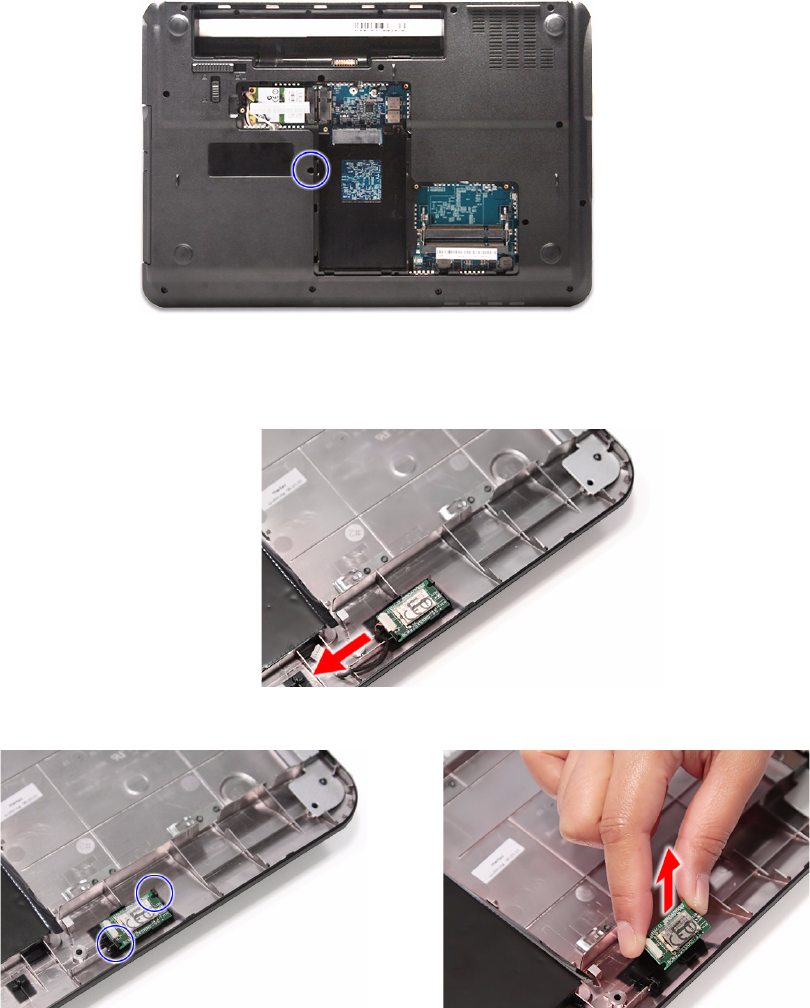

www.gateway.com
85
10 Secure the new Bluetooth module on the base enclosure and connect the
Bluetooth cable to it.
11 Reinstall the palm rest by performing steps 19–21 of the “Replacing the palm
rest” procedure on page 68.
12 Reinstall the LCD panel assembly by performing steps 16–23 of the
“Replacing the LCD panel assembly” procedure on page 64.
13 Reinstall the keyboard and the keyboard cover by performing steps 5–8 of
the “Replacing the keyboard” procedure on page 62.
14 Close the LCD panel and turn the notebook over so the base is facing up.
15 Return the optical screw drive in its place.
16 Reinstall the hard drive by performing steps 8 and 9 of the “Replacing the
hard drive” procedure on page 54.
17 If you have disconnected any wireless antennas, reconnect them now.
18 Reinstall the bay cover.
19 Reinstall the battery.
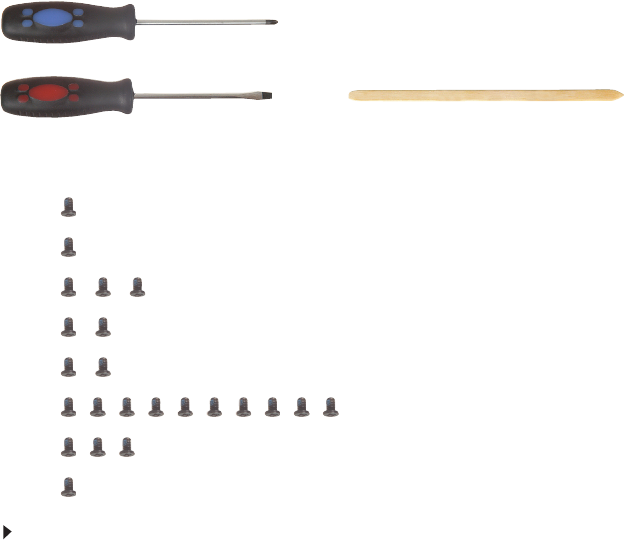
CHAPTER 3: Replacing notebook components
86
Replacing the system board
Tools you need to complete this task:
Screws removed during this task:
•1 black M2×5 (hard drive)
•1 black M2.5×6 (optical drive)
•3 black M2.5×6 (keyboard cover)
• 2 black M2.5×6 (LCD panel hinge - bottom)
• 2 black M2.5×6+Nylok (LCD panel hinge - top)
• 10 M2.5×6 black (palm rest - base side)
• 3 M2.5×6 black (palm rest - top side)
•1 black M2×4 (system board)
To replace the system board:
1Complete the steps in “Preparing the notebook” on page 47.
2Complete the steps in “Removing the battery” on page 48.
3Remove the memory from the old system board and install it on the new
system board by following the instructions in the “Adding or replacing
memory modules” section on page 50.
4If the notebook has a wireless card installed, remove the card from the old
system board and install it on the new system board by following the
instructions in the “Replacing the wireless card” section on page 52.
5Remove the hard drive by performing steps 3 and 4 of the “Replacing the
hard drive” procedure on page 54.
6Remove the optical drive by performing steps 3 and 4 of the “Replacing the
optical drive” procedure on page 56.
7Remove the palm rest by following steps 6–18 of the “Replacing the palm
rest” procedure on page 68.
8Remove the modem board by following steps 8–10 of the “Replacing the
modem board” procedure on page 77, then disconnect the Bluetooth module
cable from its system board connector.
Phillips #0 screwdriver
Flat screwdriver or Non-marring plastic scribe
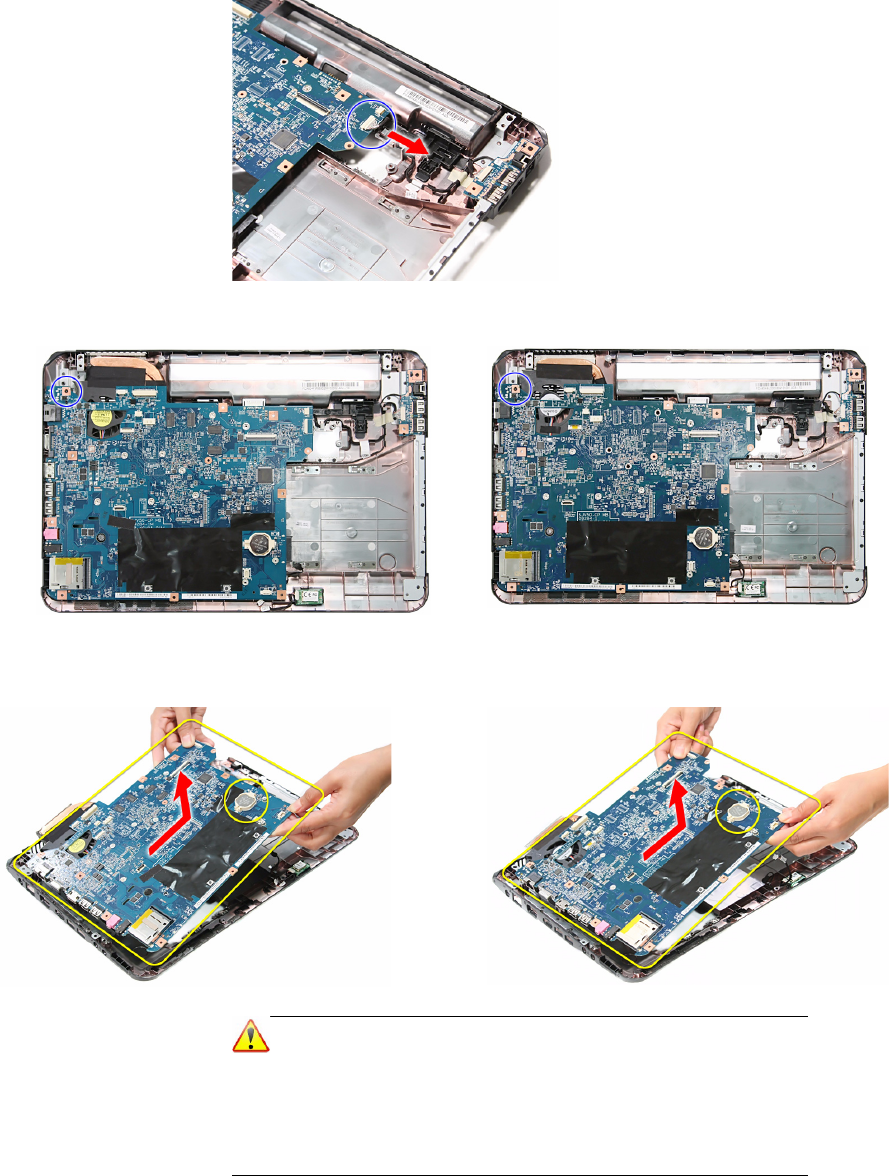
www.gateway.com
87
9Disconnect the USB board cable from its system board connector.
10 Remove the system board screw.
11 Carefully remove the system board from the base enclosure.
Note
A circuit board that is >10 cm2 has been highlighted with a yellow
rectangle as shown in the previous image. Follow the local
regulations for disposing this type of circuit board.
The RTC battery has been highlighted with a yellow circle in the
previous image. Detach the RTC battery and follow the local
regulations for disposing it.
Discrete model UMA model
Discrete model
UMA model

CHAPTER 3: Replacing notebook components
88
12 Turn the system board over and remove the cooling assembly by performing
steps 4–7 of the “Replacing the cooling assembly” procedure on page 89.
13 If your new system board does not include a processor, remove the
processor from the old system board and install it on the new system board
by performing steps 4–7 in the “Replacing the processor” section on page 92.
14 Reinstall the cooling assembly by performing steps 9–12 of the “Replacing
the cooling assembly” procedure on page 89.
15 Place the new system board in the base enclosure and secure it with the
screw removed in step 9.
16 Reconnect the USB board and Bluetooth module cables to their system
board connectors.
17 Reinstall the modem module by performing steps 11–12 of the “Replacing
the modem board” procedure on page 77.
18 Reinstall the palm rest by performing steps 19–21 of the “Replacing the palm
rest” procedure on page 68.
19 Reinstall the LCD panel assembly by following the steps 16–23 of the
“Replacing the LCD panel assembly” procedure on page 64.
20 Reinstall the keyboard and the keyboard cover by performing steps 5–8 of
the “Replacing the keyboard” procedure on page 62.
21 Close the LCD panel and turn the notebook over so the base is facing up.
22 Reinstall the optical drive by performing steps 10 and 11 of the “Replacing
the optical drive” procedure on page 56.
23 Reinstall the hard drive by performing steps 8 and 9 of the “Replacing the
hard drive” procedure on page 54.
24 If you have disconnected any wireless antennas, reconnect them now.
25 Reinstall the bay cover.
26 Reinstall the battery.
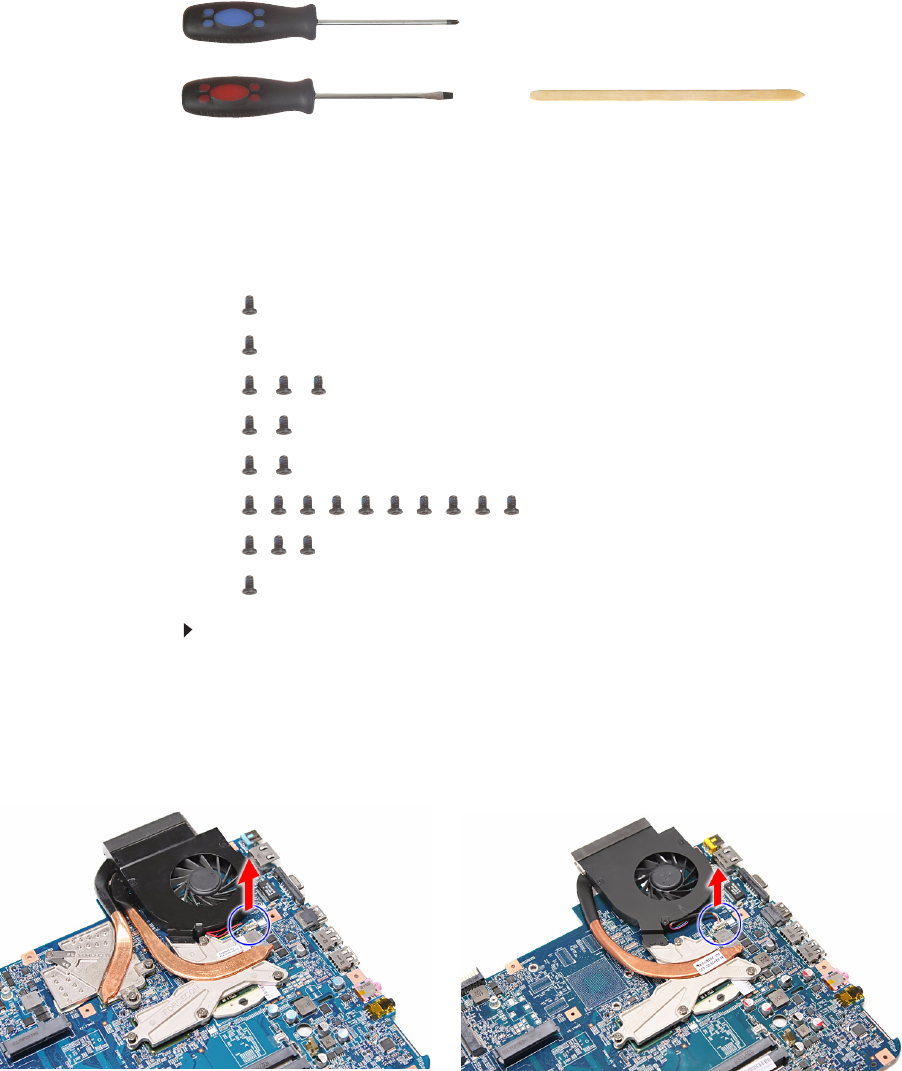
www.gateway.com
89
Replacing the cooling assembly
Tools you need to complete this task:
Additional materials you need to complete this task:
•Soft cloth and isopropyl alcohol; or alcohol pad
•Thermal grease
Screws removed during this task:
•1 black M2×5 (hard drive)
•1 black M2.5×6 (optical drive)
•3 black M2.5×6 (keyboard cover)
• 2 black M2.5×6 (LCD panel hinge - bottom)
• 2 black M2.5×6+Nylok (LCD panel hinge - top)
• 10 M2.5×6 black (palm rest - base side)
• 3 M2.5×6 black (palm rest - top side)
•1 black M2×4 (system board)
To replace the cooling assembly:
1Complete the steps in “Preparing the notebook” on page 47.
2Remove the system board by performing steps 2–11 of the “Replacing the
system board” procedure on page 86.
3Turn the system board over to access the cooling fan cable.
4Disconnect the cooling fan cable from its system board connector.
Phillips #0 screwdriver
Flat screwdriver or Non-marring plastic scribe
Discrete model UMA model
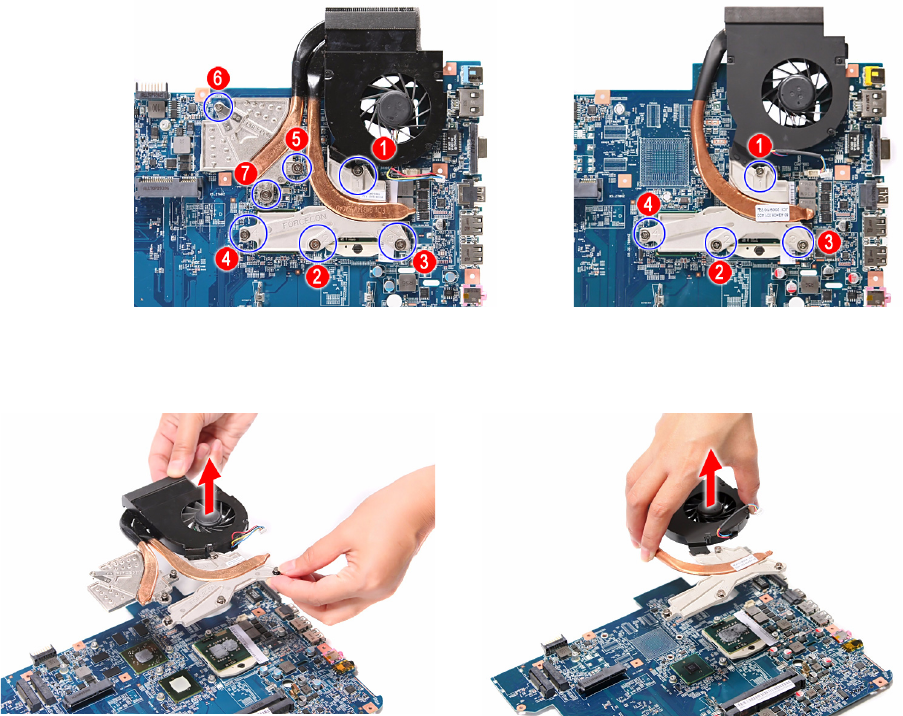
CHAPTER 3: Replacing notebook components
90
5Loosen the spring-loaded captive screws securing the cooling assembly.
Follow the screw sequence indicated on the below images.
6Remove the cooling assembly from the system board.
7Lay the cooling assembly down in an upright position to avoid tainting your
work space with thermal grease.
Discrete model UMA model
Discrete model UMA model
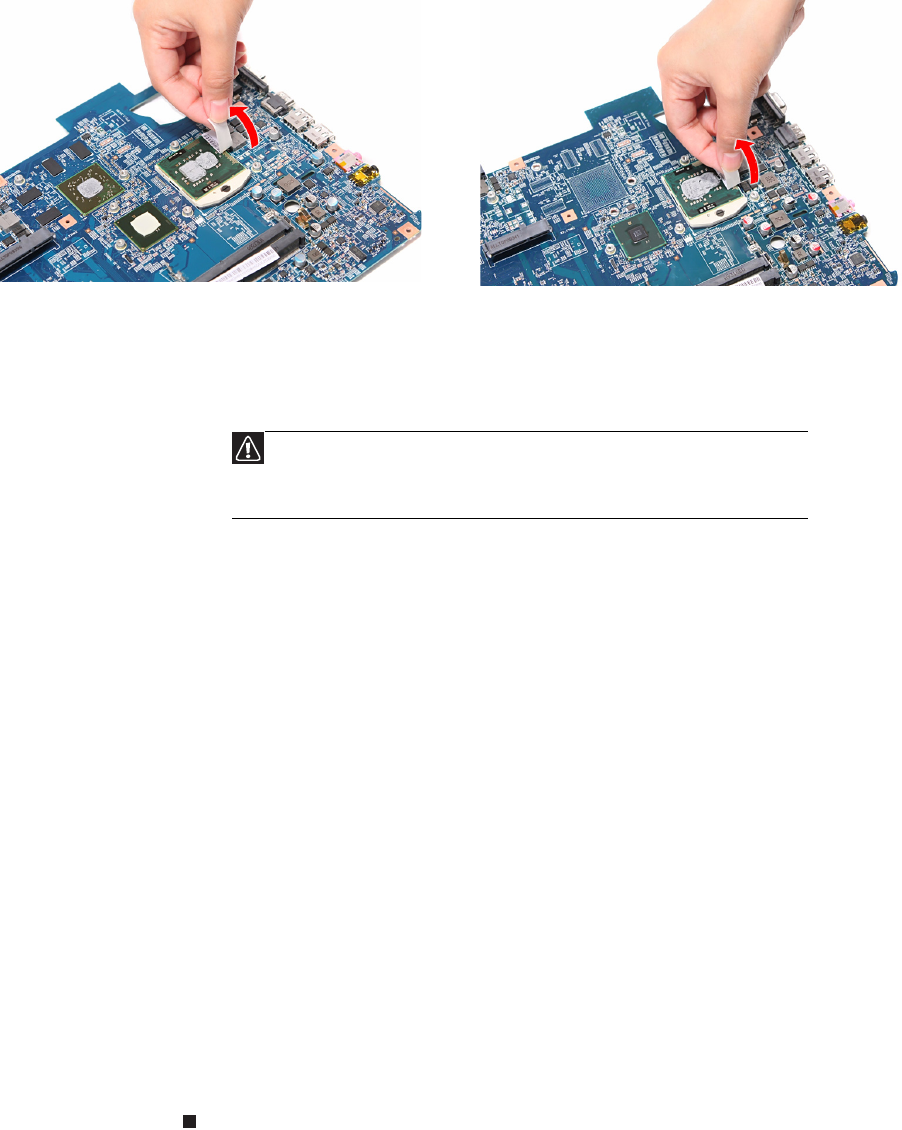
www.gateway.com
91
8Remove the barcode sticker on top of the processor.
9Moisten a soft cloth with isopropyl alcohol and clean the processor die to
remove any thermal grease residue. Wipe the die surface several times to
make sure that no particles or dust contaminants are evident. Allow the
alcohol to evaporate before continuing.
10 Apply just enough thermal grease to evenly coat the surface of the processor
die.
11 Place the new cooling assembly on the system board and tighten its captive
screws to secure it in place. Follow the sequence of the number beside each
screw when securing the cooling assembly.
12 Reconnect the cooling fan cable to its system board connector.
13 Reinstall the system board by performing steps 15 and 16 of the “Replacing
the system board” procedure on page 86.
14 Reinstall the palm rest by performing steps 19–21 of the “Replacing the palm
rest” procedure on page 68.
15 Reinstall the LCD panel assembly by performing steps 16–23 of the
“Replacing the LCD panel assembly” procedure on page 64.
16 Reinstall the keyboard and the keyboard cover by performing steps 5–8 of
the “Replacing the keyboard” procedure on page 62.
17 Close the LCD panel and turn the notebook over so the base is facing up.
18 Reinstall the optical drive by performing steps 10 and 11 of the “Replacing
the optical drive” procedure on page 56.
19 Reinstall the hard drive by performing steps 8 and 9 of the “Replacing the
hard drive” procedure on page 54.
20 If you have disconnected any wireless antennas, reconnect them now.
21 Reinstall the bay cover.
22 Reinstall the battery.
Caution
Do not touch the contact surface of the new cooling assembly nor
the processor dire as this may leave dead skin cells or oils from
your finger that can result in poor thermal grease performance.
Discrete model UMA model
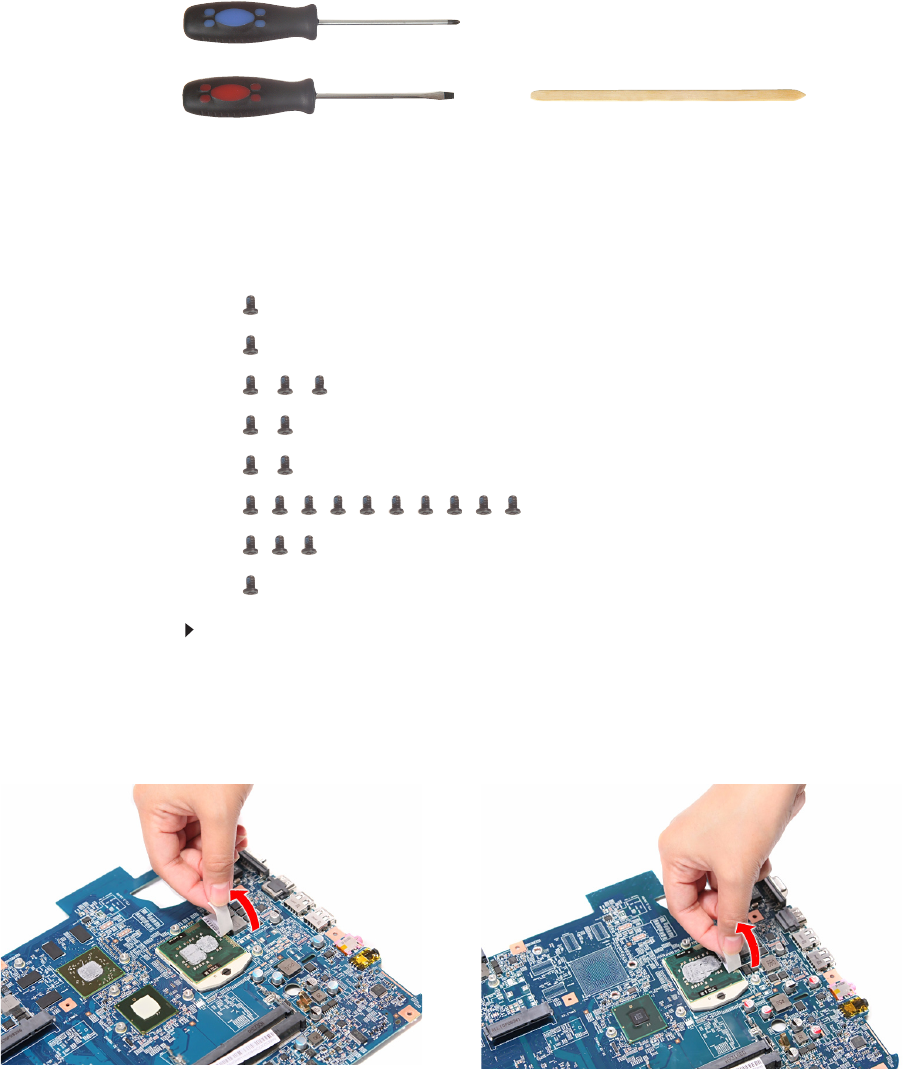
CHAPTER 3: Replacing notebook components
92
Replacing the processor
Tools you need to complete this task:
Additional materials you need to complete this task:
•Soft cloth and isopropyl alcohol; or alcohol pad
•Thermal grease
Screws removed during this task:
•1 black M2×5 (hard drive)
•1 black M2.5×6 (optical drive)
•3 black M2.5×6 (keyboard cover)
• 2 black M2.5×6 (LCD panel hinge - bottom)
• 2 black M2.5×6+Nylok (LCD panel hinge - top)
• 10 M2.5×6 black (palm rest - base side)
• 3 M2.5×6 black (palm rest - top side)
•1 black M2×4 (system board)
To replace the processor:
1Complete the steps in “Preparing the notebook” on page 47.
2Remove the cooling assembly by performing steps 2–7 of the “Replacing
the cooling assembly” procedure on page 89.
3Remove the barcode sticker on top of the processor.
Phillips #0 screwdriver
Flat screwdriver Non-marring plastic scribe
Discrete model UMA model
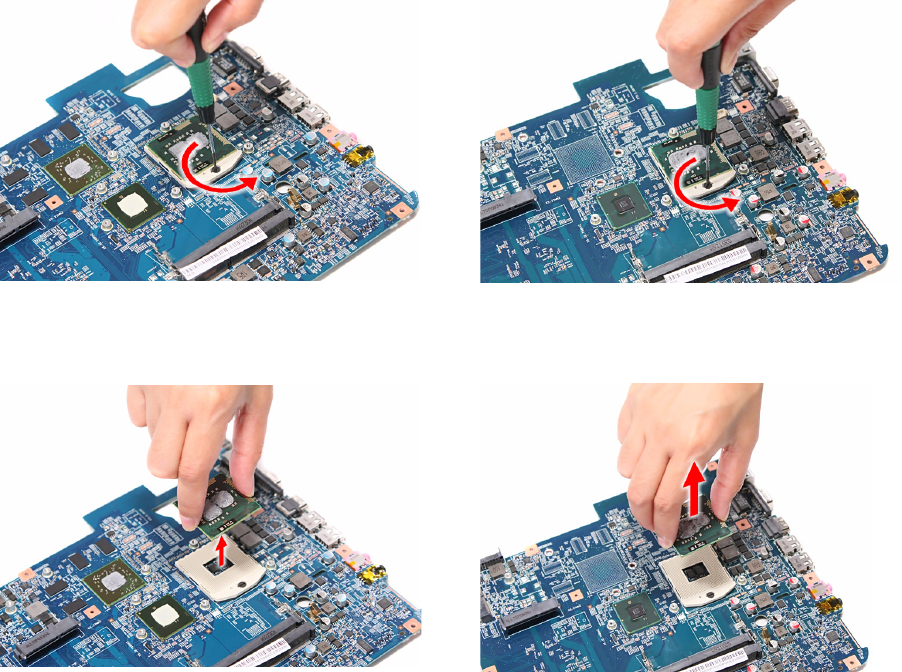
www.gateway.com
93
4Use a flat-blade screwdriver to turn the processor lock screw
counter-clockwise.
5Remove the old processor from the system board.
6Align pin 1 of the new processor (indicated by the gold arrow on the corner
of the processor) with the beveled corner of the processor socket.
The processor will easily fit into the socket if you oriented it properly.
7Use a flat-blade screwdriver to turn the lock screw 180° clockwise to secure
the processor in place.
8Apply just enough thermal grease to evenly coat the surface of the processor
die.
9Reinstall the cooling assembly by performing steps 9–12 of the “Replacing
the cooling assembly” procedure on page 89.
10 Reinstall the system board by performing steps 15 and 16 of the “Replacing
the system board” procedure on page 86.
11 Reinstall the palm rest by performing steps 19–21 of the “Replacing the palm
rest” procedure on page 68.
12 Reinstall the LCD panel assembly by performing steps 16–23 of the
“Replacing the LCD panel assembly” procedure on page 64.
13 Reinstall the keyboard and the keyboard cover by performing steps 5–8 of
the “Replacing the keyboard” procedure on page 62.
14 Close the LCD panel and turn the notebook over so the base is facing up.
Discrete model UMA model
Discrete model UMA model

CHAPTER 3: Replacing notebook components
94
15 Reinstall the optical drive by performing steps 10 and 11 of the “Replacing
the optical drive” procedure on page 56.
16 Reinstall the hard drive by performing steps 8 and 9 of the “Replacing the
hard drive” procedure on page 54.
17 If you have disconnected any wireless antennas, reconnect them now.
18 Reinstall the bay cover.
19 Reinstall the battery.
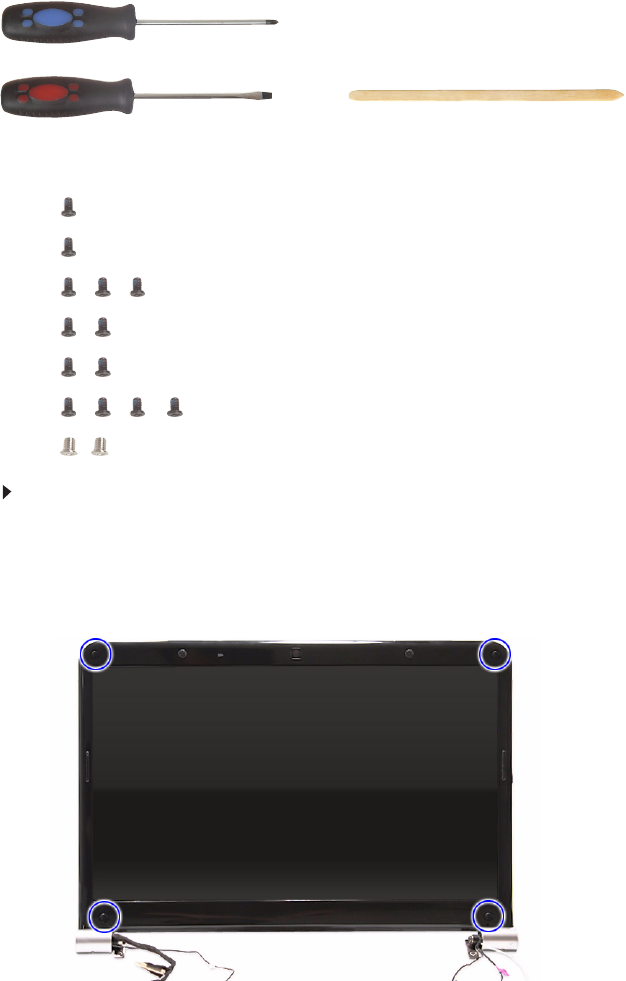
www.gateway.com
95
Replacing the LCD front panel
Tools you need to complete this task:
Screws removed during this task:
•1 black M2×5 (hard drive)
•1 black M2.5×6 (optical drive)
•3 black M2.5×6 (keyboard cover)
• 2 black M2.5×6 (LCD panel hinges - bottom)
• 2 black M2.5×6+Nylok (LCD panel hinges - top)
•4 black M2.5×6+Nylok (LCD front panel)
• 2 chrome M2×4 (LCD hinge covers)
To replace the LCD front panel:
1Complete the steps in “Preparing the notebook” on page 47.
2Remove the LCD panel assembly by performing steps 2–15 of the
“Replacing the LCD panel assembly” procedure on page 64.
3Remove the rubber inserts from the corners of the LCD front panel.
Phillips #0 screwdriver
Flat screwdriver or Non-marring plastic scribe
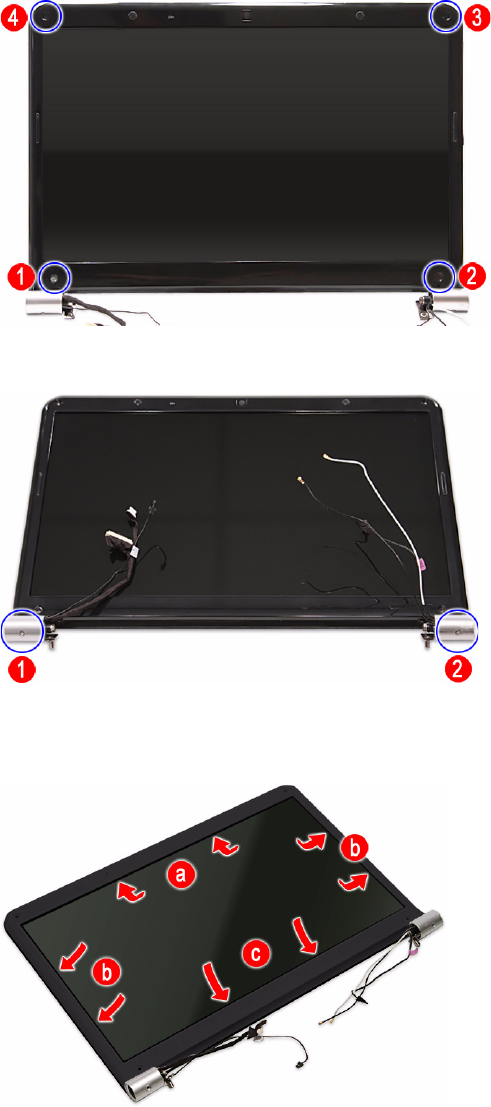
CHAPTER 3: Replacing notebook components
96
4Remove the LCD front panel screws.
5Remove the LCD hinge cover screws.
6Carefully pry loose the front panel from the LCD assembly lid. Start on the
top side (a), continue to the left and right sides (b), and finally the bottom
side (c).
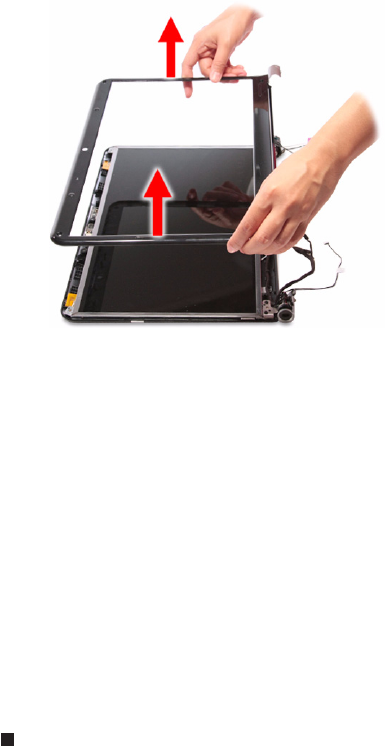
www.gateway.com
97
7Remove the front panel.
8Place the new front panel on top of the LCD assembly lid.
Make sure that the LCD, webcam, microphone, antenna, and power button
cables are properly routed on the hinge sides.
9Press the front panel on all sides until it snaps into place.
Make sure that there is no gap the between the front panel and the LCD
assembly lid.
10 Secure the front panel with screws removed in steps 4 and 5.
11 Return the LCD front panel rubber inserts to their places.
12 Reinstall the LCD panel assembly by performing steps 16–23 of the
“Replacing the LCD panel assembly” procedure on page 64.
13 Turn the notebook over so the palm rest is facing up.
14 Reinstall the keyboard and the keyboard cover by performing steps 5–8 of
the “Replacing the keyboard” procedure on page 62.
15 Reinstall the battery.
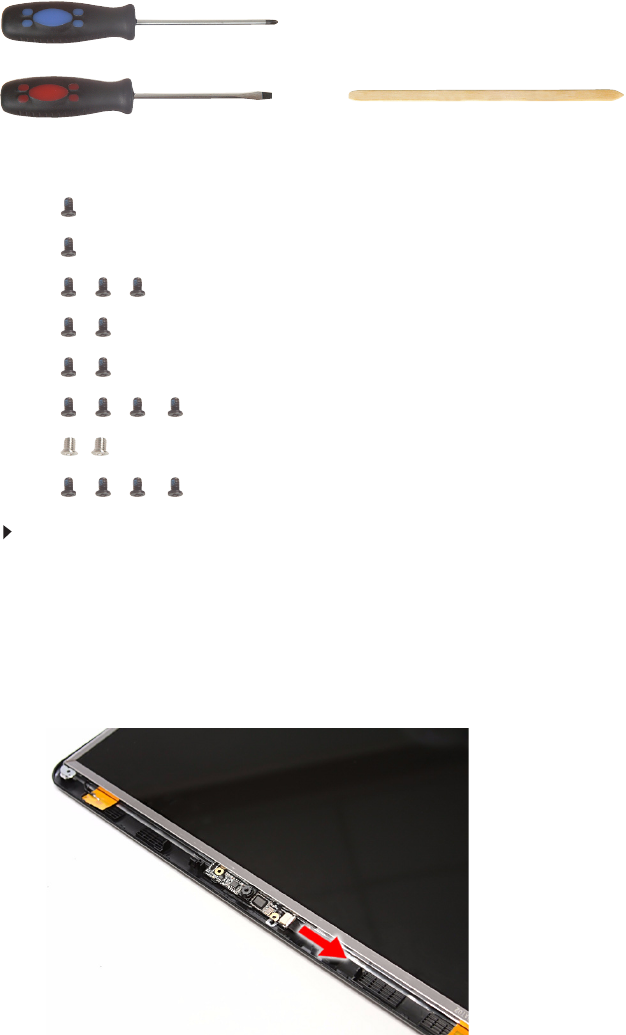
CHAPTER 3: Replacing notebook components
98
Replacing the webcam
Tools you need to complete this task:
Screws removed during this task:
•1 black M2×5 (hard drive)
•1 black M2.5×6 (optical drive)
•3 black M2.5×6 (keyboard cover)
• 2 black M2.5×6 (LCD panel hinges - bottom)
• 2 black M2.5×6+Nylok (LCD panel hinges - top)
•4 black M2.5×6+Nylok (LCD front panel)
• 2 chrome M2×4 (LCD hinge covers)
•4 black M2.5×6+Nylok (LCD front panel)
To replace the webcam:
1Complete the steps in “Preparing the notebook” on page 47.
2Remove the LCD panel assembly by performing steps 2–15 of the
“Replacing the LCD panel assembly” procedure on page 64.
3Remove the LCD front panel by performing steps 3–7 of the “Replacing the
LCD front panel” procedure on page 95.
4Disconnect the webcam board cable.
Phillips #0 screwdriver
Flat screwdriver or Non-marring plastic scribe

www.gateway.com
99
5Place the new webcam on the top side of the LCD assembly lid.
6Reinstall the LCD front panel by performing steps 8–11 of the “Replacing
the LCD front panel” procedure on page 95.
Make sure the webcam lens is aligned with camera peephole on the LCD
front panel before you secure the panel in place.
7Reinstall the LCD panel assembly by performing steps 16–23 of the
“Replacing the LCD panel assembly” procedure on page 64.
8Turn the notebook over so the palm rest is facing up.
9Reinstall the keyboard and the keyboard cover by performing steps 5–8 of
the “Replacing the keyboard” procedure on page 62.
10 Reinstall the battery.
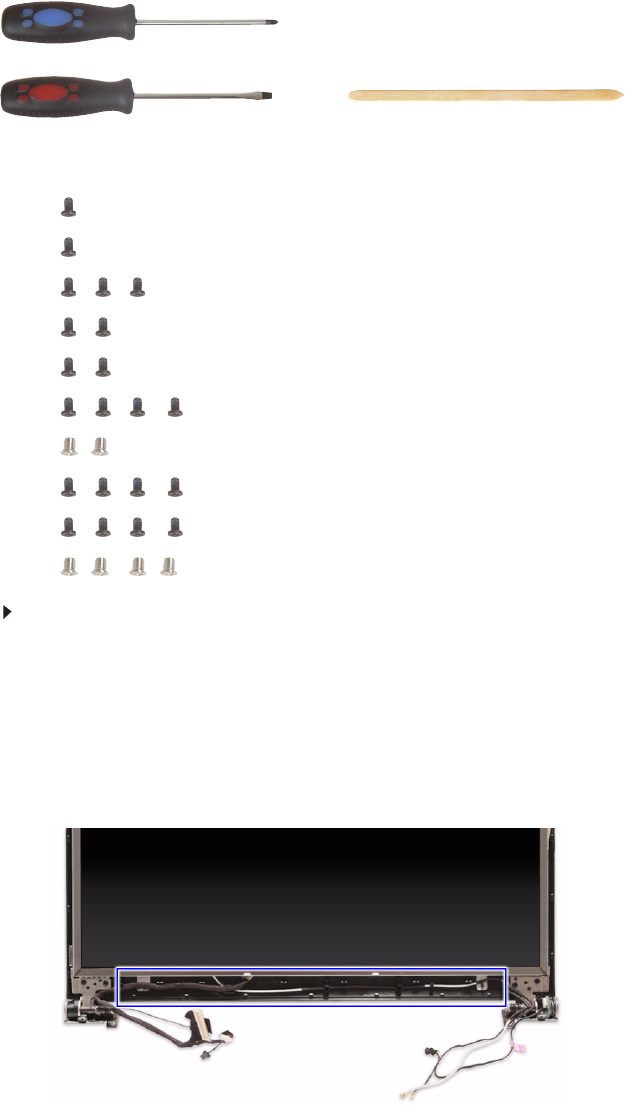
CHAPTER 3: Replacing notebook components
100
Replacing the LCD
Tools you need to complete this task:
Screws removed during this task:
•1 black M2×5 (hard drive)
•1 black M2.5×6 (optical drive)
•3 black M2.5×6 (keyboard cover)
• 2 black M2.5×6 (LCD panel hinges - bottom)
• 2 black M2.5×6+Nylok (LCD panel hinges - top)
•4 black M2.5×6+Nylok (LCD front panel)
• 2 chrome M2×4 (LCD hinge covers)
•4 black M2.5×6+Nylok (LCD front panel)
•4 black M2.5×5 (LCD panel hinges)
• 4 chrome M2×3 (LCD panel brackets)
To replace the LCD:
1Complete the steps in “Preparing the notebook” on page 47.
2Remove the LCD panel assembly by performing steps 2–15 of the
“Replacing the LCD panel assembly” procedure on page 64.
3Remove the LCD front panel by performing steps 3–7 of the “Replacing the
LCD front panel” procedure on page 95.
4Release the LCD, webcam, microphone, antenna, and power button from
their LCD assembly lid latches.
Phillips #0 screwdriver
Flat screwdriver or Non-marring plastic scribe
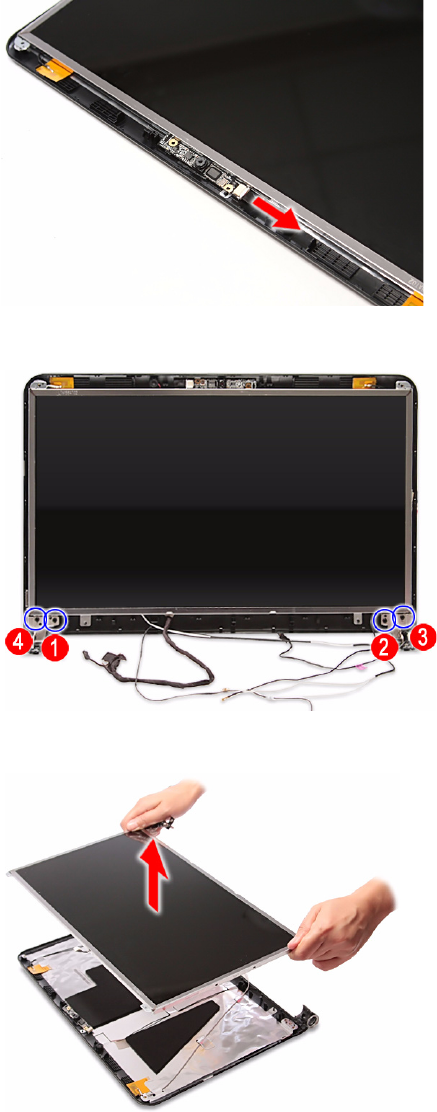
www.gateway.com
101
5Disconnect the webcam cable from the webcam board.
6Remove the LCD hinge screws.
7Remove the LCD from the LCD assembly lid.
8Lay the LCD on its front to access the LCD-webcam cable.
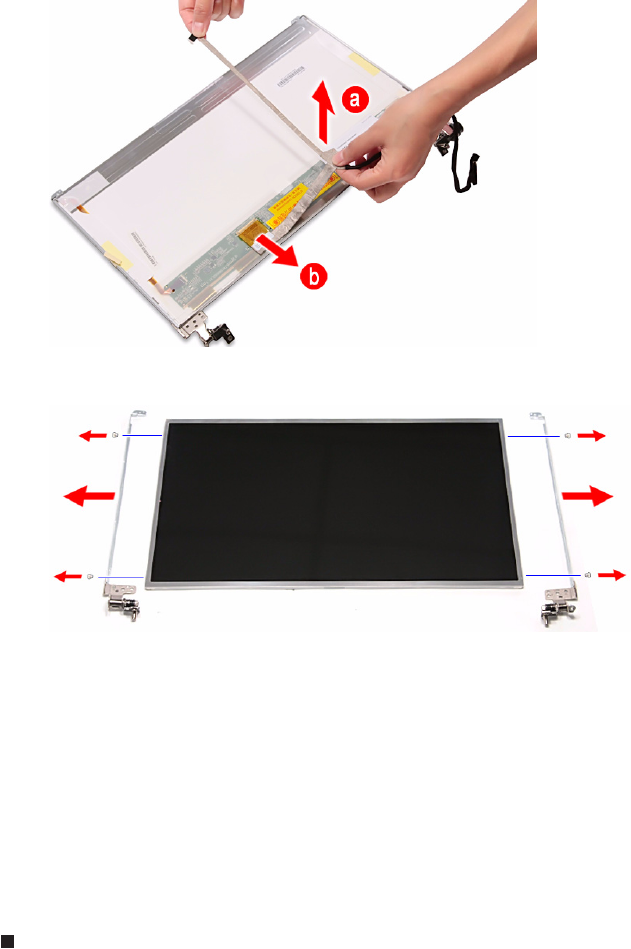
CHAPTER 3: Replacing notebook components
102
9Detach the LCD-webcam from the LCD’s underside (a) and disconnect it
from the LCD PCB (b).
10 Remove the screws securing the LCD panel brackets.
11 Attach the LCD panel brackets and the LCD cable to the new LCD.
12 Place the new LCD on the LCD assembly lid and secure it with the screws
removed in step .
13 Reinstall the LCD front panel by performing steps 8–11 of the “Replacing
the LCD front panel” procedure on page 95.
14 Reinstall the LCD panel assembly by performing steps 16–23 of the
“Replacing the LCD panel assembly” procedure on page 64.
15 Turn the notebook over so the palm rest is facing up.
16 Reinstall the keyboard and the keyboard cover by performing steps 5–8 of
the “Replacing the keyboard” procedure on page 62.
17 Reinstall the battery.
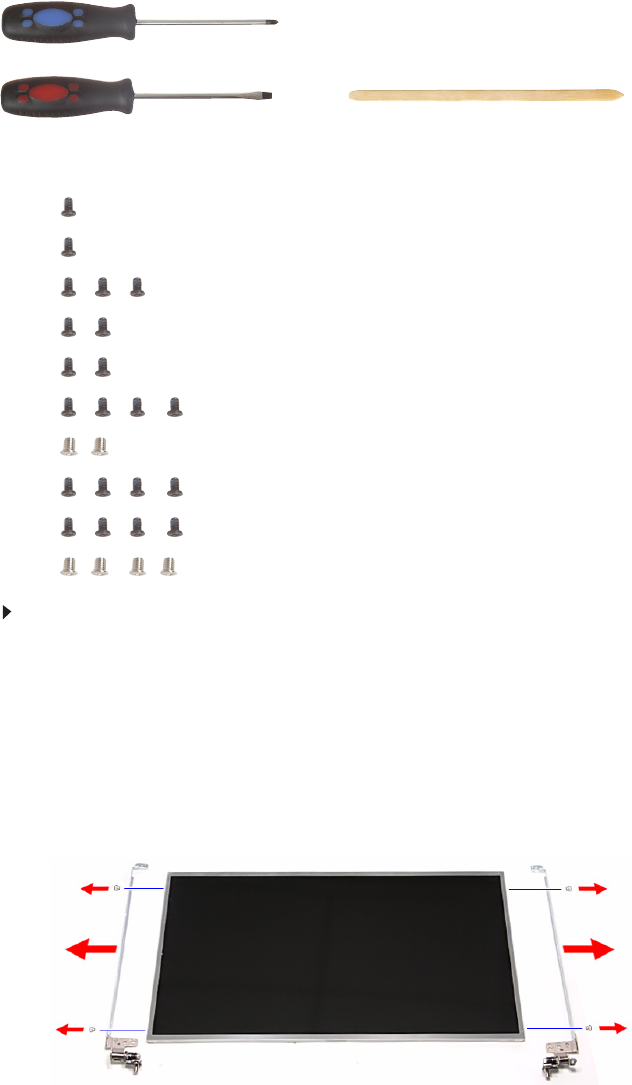
www.gateway.com
103
Replacing the LCD panel hinge brackets
Tools you need to complete this task:
Screws removed during this task:
•1 black M2×5 (hard drive)
•1 black M2.5×6 (optical drive)
•3 black M2.5×6 (keyboard cover)
• 2 black M2.5×6 (LCD panel hinges - bottom)
• 2 black M2.5×6+Nylok (LCD panel hinges - top)
•4 black M2.5×6+Nylok (LCD front panel)
• 2 chrome M2×4 (LCD hinge covers)
•4 black M2.5×6+Nylok (LCD front panel)
•4 black M2.5×5 (LCD panel hinges)
• 4 chrome M2×3 (LCD panel brackets)
To replace the LCD:
1Complete the steps in “Preparing the notebook” on page 47.
2Remove the LCD panel assembly by performing steps 2–15 of the
“Replacing the LCD panel assembly” procedure on page 64.
3Remove the LCD front panel by performing steps 3–7 of the “Replacing the
LCD front panel” procedure on page 95.
4Remove the LCD by performing steps 4–7 of the “Replacing the LCD”
procedure on page 100.
5Remove the screws securing the LCD panel brackets.
Phillips #0 screwdriver
Flat screwdriver or Non-marring plastic scribe

CHAPTER 3: Replacing notebook components
104
6Attach the new LCD panel brackets to the LCD.
7Place the LCD on the LCD assembly lid and secure it with the screws
removed in step .
8Reinstall the LCD front panel by performing steps 8–11 of the “Replacing
the LCD front panel” procedure on page 95.
9Reinstall the LCD panel assembly by performing steps 16–23 of the
“Replacing the LCD panel assembly” procedure on page 64.
10 Turn the notebook over so the palm rest is facing up.
11 Reinstall the keyboard and the keyboard cover by performing steps 5–8 of
the “Replacing the keyboard” procedure on page 62.
12 Reinstall the battery.
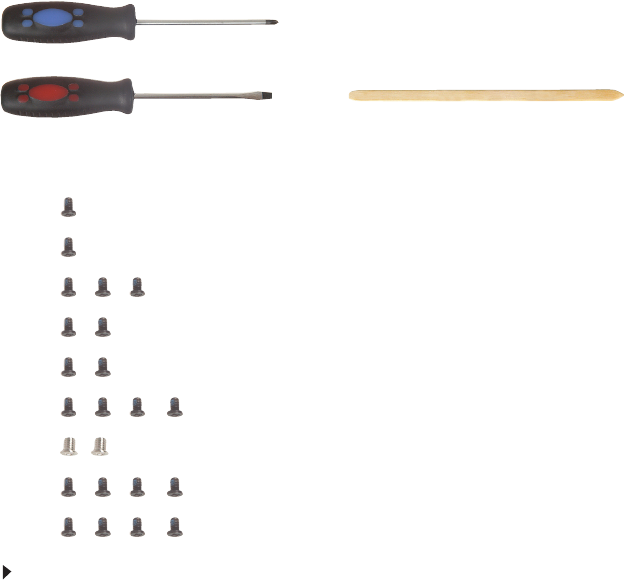
www.gateway.com
105
Replacing the power button board
Tools you need to complete this task:
Screws removed during this task:
•1 black M2×5 (hard drive)
•1 black M2.5×6 (optical drive)
•3 black M2.5×6 (keyboard cover)
• 2 black M2.5×6 (LCD panel hinges - bottom)
• 2 black M2.5×6+Nylok (LCD panel hinges - top)
•4 black M2.5×6+Nylok (LCD front panel)
• 2 chrome M2×4 (LCD hinge covers)
•4 black M2.5×6+Nylok (LCD front panel)
•4 black M2.5×5 (LCD panel hinges)
To replace the power button board:
1Complete the steps in “Preparing the notebook” on page 47.
2Remove the LCD panel assembly by performing steps 2–15 of the
“Replacing the LCD panel assembly” procedure on page 64.
3Remove the LCD front panel by performing steps 3–7 of the “Replacing the
LCD front panel” procedure on page 95.
4Remove the LCD by performing steps 4–7 of the “Replacing the LCD”
procedure on page 100.
Phillips #0 screwdriver
Flat screwdriver or Non-marring plastic scribe
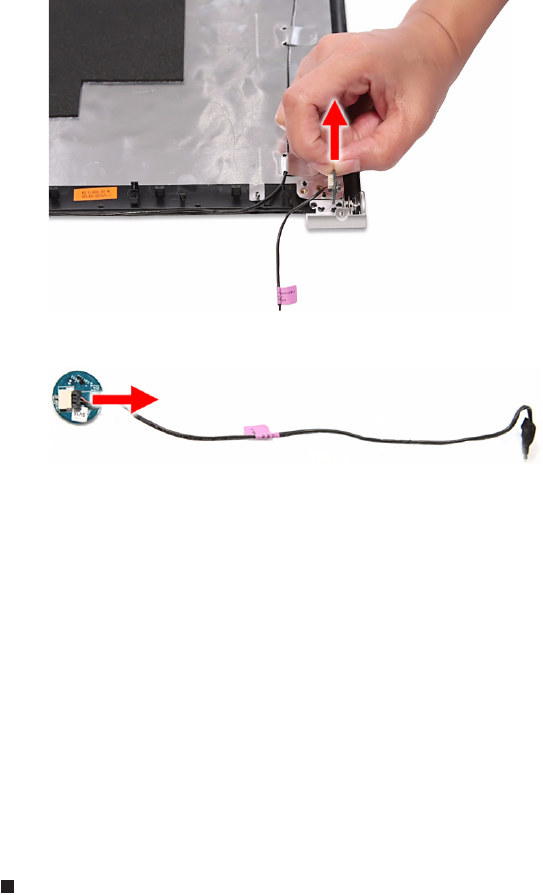
CHAPTER 3: Replacing notebook components
106
5Note the orientation of the power button board for later reference and then
remove the board from the LCD assembly lid.
6Disconnect the power button cable from the board.
7Connect the power button cable to the new power button board.
8Position the new power button board on the LCD assembly lid making sure
it is in the same orientation noted on step 5.
The board should fit snugly against the spring to ensure proper contact when
pressing the power button.
9Place the LCD back on the LCD assembly lid.
10 Return the hinge screws to their places.
11 Reinstall the LCD front panel by performing steps 8–11 of the “Replacing
the LCD front panel” procedure on page 95.
12 Reinstall the LCD panel assembly by performing steps 16–23 of the
“Replacing the LCD panel assembly” procedure on page 64.
13 Turn the notebook over so the palm rest is facing up.
14 Reinstall the keyboard and the keyboard cover by performing steps 5–8 of
the “Replacing the keyboard” procedure on page 62.
15 Reinstall the battery.
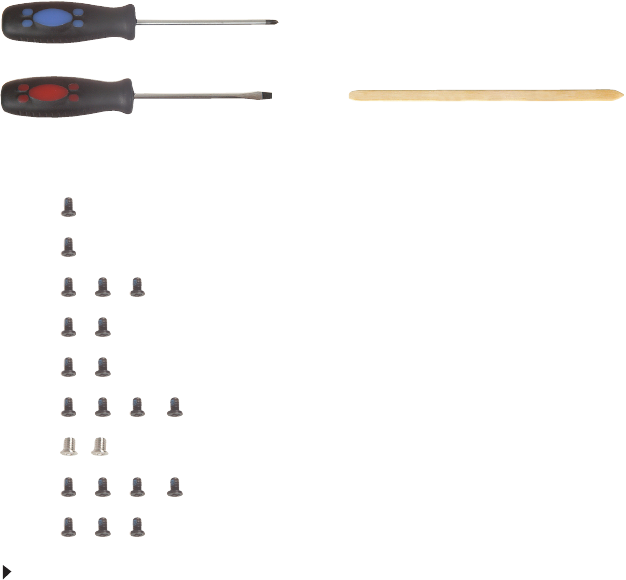
www.gateway.com
107
Replacing the Kensington lock cap
Tools you need to complete this task:
Screws removed during this task:
•1 black M2×5 (hard drive)
•1 black M2.5×6 (optical drive)
•3 black M2.5×6 (keyboard cover)
• 2 black M2.5×6 (LCD panel hinges - bottom)
• 2 black M2.5×6+Nylok (LCD panel hinges - top)
•4 black M2.5×6+Nylok (LCD front panel)
• 2 chrome M2×4 (LCD hinge covers)
•4 black M2.5×6+Nylok (LCD front panel)
•3 black (Kensington lock cap)
To replace the Kensington lock cap:
1Complete the steps in “Preparing the notebook” on page 47.
2Remove the LCD panel assembly by performing steps 2–15 of the
“Replacing the LCD panel assembly” procedure on page 64.
3Remove the LCD front panel by performing steps 3–7 of the “Replacing the
LCD front panel” procedure on page 95.
4Move the LCD, webcam, microphone, and antenna cables away from the
Kensington lock cap screws.
Phillips #0 screwdriver
Flat screwdriver or Non-marring plastic scribe
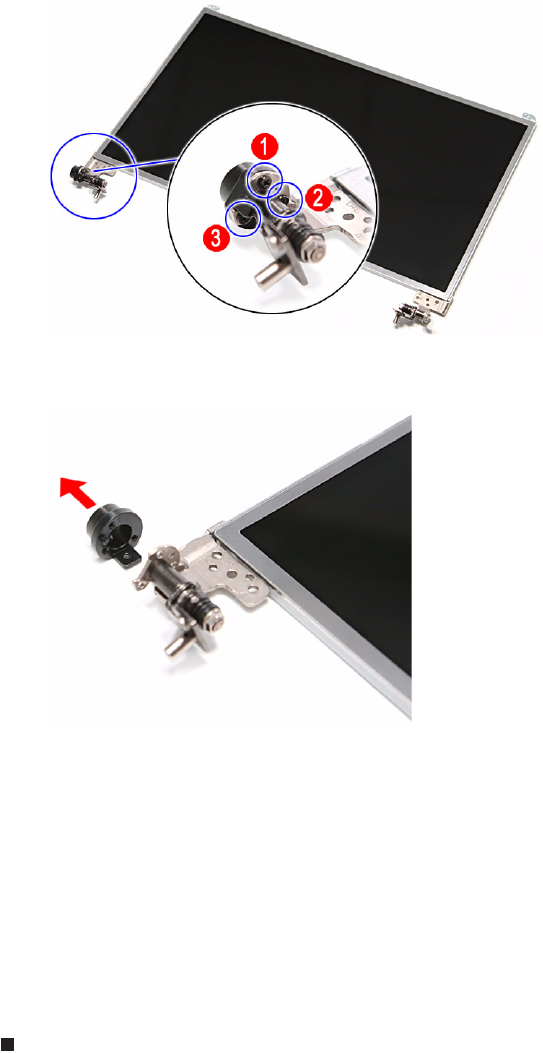
CHAPTER 3: Replacing notebook components
108
5Note the orientation of the Kensington lock cap for later reference and then
remove the screws securing it.
6Detach the Kensington lock cap from the left hinge.
7Position the new Kensington lock cap on the left hinge making sure it is in
the same orientation noted on step 5.
8Secure the cap with the screws removed in step 5.
9Reinstall the LCD front panel by performing steps 8–11 of the “Replacing
the LCD front panel” procedure on page 95.
10 Reinstall the LCD panel assembly by performing steps 16–23 of the
“Replacing the LCD panel assembly” procedure on page 64.
11 Turn the notebook over so the palm rest is facing up.
12 Reinstall the keyboard and the keyboard cover by performing steps 5–8 of
the “Replacing the keyboard” procedure on page 62.
13 Reinstall the battery.
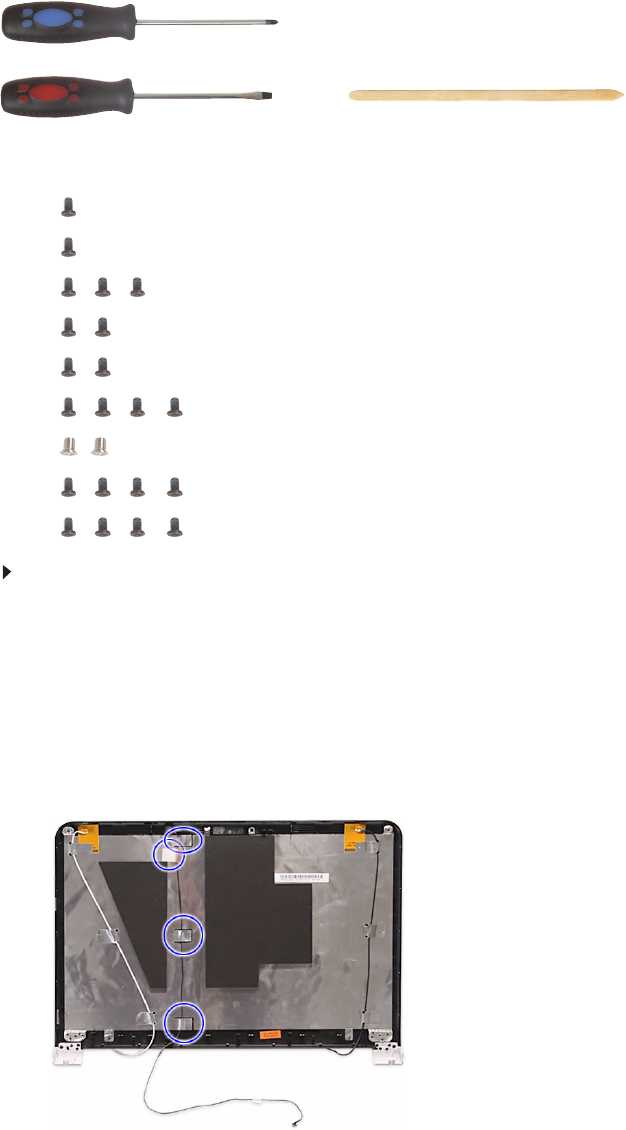
www.gateway.com
109
Replacing the microphone
Tools you need to complete this task:
Screws removed during this task:
•1 black M2×5 (hard drive)
•1 black M2.5×6 (optical drive)
•3 black M2.5×6 (keyboard cover)
• 2 black M2.5×6 (LCD panel hinges - bottom)
• 2 black M2.5×6+Nylok (LCD panel hinges - top)
•4 black M2.5×6+Nylok (LCD front panel)
• 2 chrome M2×4 (LCD hinge covers)
•4 black M2.5×6+Nylok (LCD front panel)
•4 black M2.5×5 (LCD panel hinges)
To replace the microphone:
1Complete the steps in “Preparing the notebook” on page 47.
2Remove the LCD panel assembly by performing steps 2–15 of the
“Replacing the LCD panel assembly” procedure on page 64.
3Remove the LCD front panel by performing steps 3–7 of the “Replacing the
LCD front panel” procedure on page 95.
4Remove the LCD by performing steps 4–7 of the “Replacing the LCD”
procedure on page 100.
5Release the microphone cable from the adhesive tabs securing it.
Phillips #0 screwdriver
Flat screwdriver or Non-marring plastic scribe
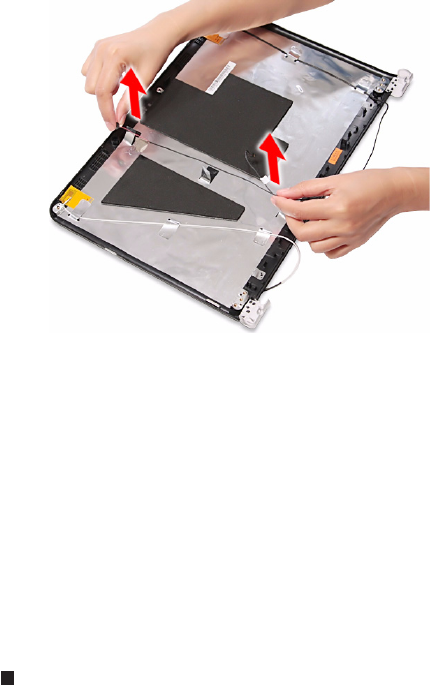
CHAPTER 3: Replacing notebook components
110
6Remove the microphone from the LCD assembly lid.
7Place the new microphone on the LCD assembly lid and secure its cable
on the adhesive tabs.
8Place the LCD back on the LCD assembly lid.
9Return the hinge screws to their places.
10 Reinstall the LCD front panel by performing steps 8–11 of the “Replacing
the LCD front panel” procedure on page 95.
11 Reinstall the LCD panel assembly by performing steps 16–23 of the
“Replacing the LCD panel assembly” procedure on page 64.
12 Turn the notebook over so the palm rest is facing up.
13 Reinstall the keyboard and the keyboard cover by performing steps 5–8 of
the “Replacing the keyboard” procedure on page 62.
14 Reinstall the battery.
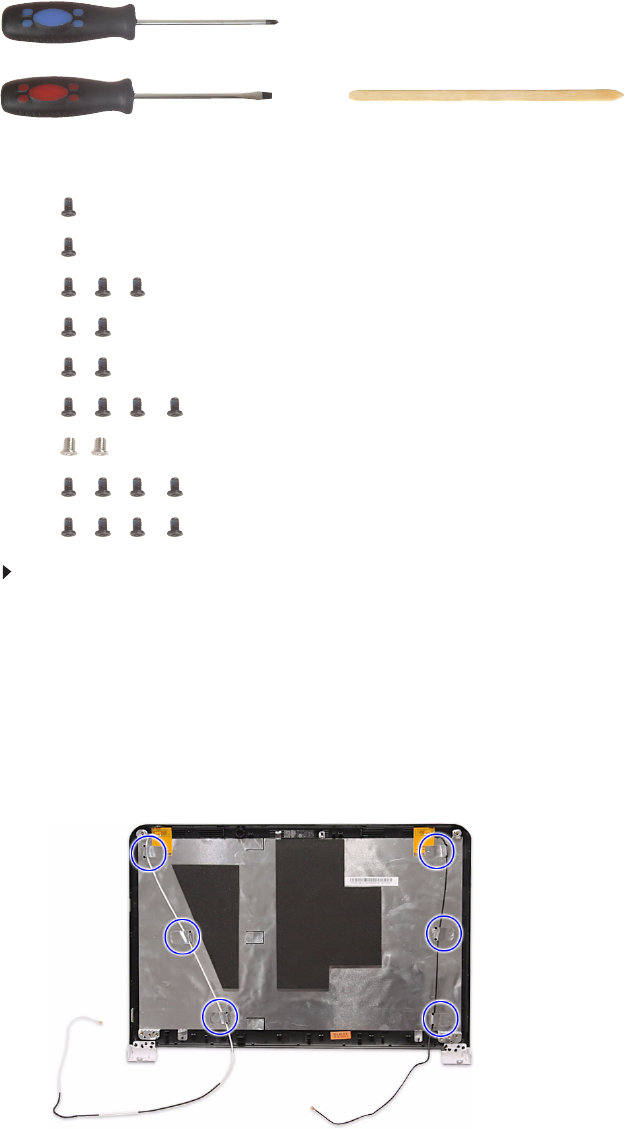
www.gateway.com
111
Replacing the antennas
Tools you need to complete this task:
Screws removed during this task:
•1 black M2×5 (hard drive)
•1 black M2.5×6 (optical drive)
•3 black M2.5×6 (keyboard cover)
• 2 black M2.5×6 (LCD panel hinges - bottom)
• 2 black M2.5×6+Nylok (LCD panel hinges - top)
•4 black M2.5×6+Nylok (LCD front panel)
• 2 chrome M2×4 (LCD hinge covers)
•4 black M2.5×6+Nylok (LCD front panel)
•4 black M2.5×5 (LCD panel hinges)
To replace the antennas:
1Complete the steps in “Preparing the notebook” on page 47.
2Remove the LCD panel assembly by performing steps 2–15 of the
“Replacing the LCD panel assembly” procedure on page 64.
3Remove the LCD front panel by performing steps 3–7 of the “Replacing the
LCD front panel” procedure on page 95.
4Remove the LCD by performing steps 4–7 of the “Replacing the LCD”
procedure on page 100.
5Release the antenna cables from the adhesive tabs securing them.
Phillips #0 screwdriver
Flat screwdriver or Non-marring plastic scribe
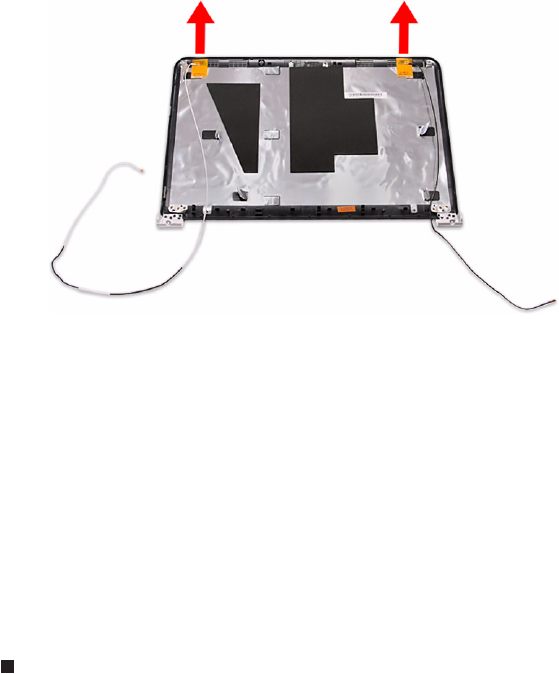
CHAPTER 3: Replacing notebook components
112
6Carefully pry the antenna boards loose from the LCD assembly lid to remove
the antennas.
7Secure the new antenna on the LCD assembly lid and route their cables
underneath the adhesive tabs.
8Place the LCD back on the LCD assembly lid.
9Return the hinge screws to their places.
10 Reinstall the LCD front panel by performing steps 8–11 of the “Replacing
the LCD front panel” procedure on page 95.
11 Reinstall the LCD panel assembly by performing steps 16–23 of the
“Replacing the LCD panel assembly” procedure on page 64.
12 Turn the notebook over so the palm rest is facing up.
13 Reinstall the keyboard and the keyboard cover by performing steps 5–8 of
the “Replacing the keyboard” procedure on page 62.
14 Reinstall the battery.
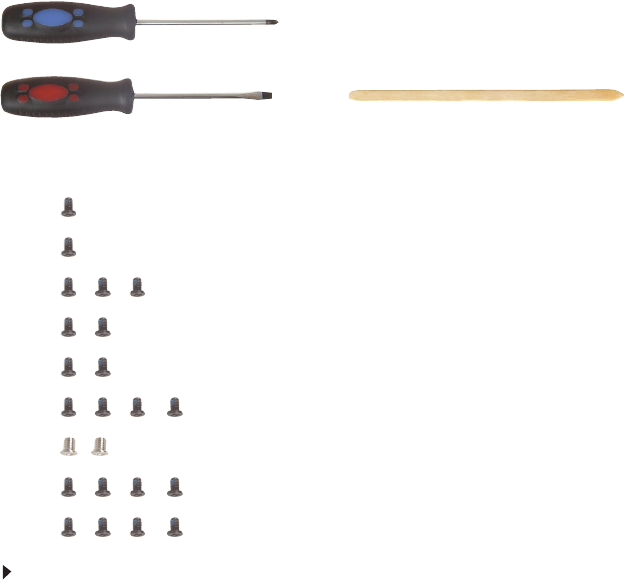
www.gateway.com
113
Replacing the LCD assembly lid
Tools you need to complete this task:
Screws removed during this task:
•1 black M2×5 (hard drive)
•1 black M2.5×6 (optical drive)
•3 black M2.5×6 (keyboard cover)
• 2 black M2.5×6 (LCD panel hinges - bottom)
• 2 black M2.5×6+Nylok (LCD panel hinges - top)
•4 black M2.5×6+Nylok (LCD front panel)
• 2 chrome M2×4 (LCD hinge covers)
•4 black M2.5×6+Nylok (LCD front panel)
•4 black M2.5×5 (LCD panel hinges)
To replace the antennas:
1Complete the steps in “Preparing the notebook” on page 47.
2Remove the LCD panel assembly by performing steps 2–15 of the
“Replacing the LCD panel assembly” procedure on page 64.
3Remove the LCD front panel by performing steps 3–7 of the “Replacing the
LCD front panel” procedure on page 95.
4Remove the LCD by performing steps 4–7 of the “Replacing the LCD”
procedure on page 100.
5If you are going to use the same Kensington lock cap, power button
assembly, webcam, microphone and wireless antennas, remove these items
from the old LCD assembly lid and attach them to the new one. Refer to
the related replacement procedure on previous pages for instructions.
6Place the LCD on the new LCD assembly lid.
7Return the hinge screws to their places.
Phillips #0 screwdriver
Flat screwdriver or Non-marring plastic scribe

CHAPTER 3: Replacing notebook components
114
8Reinstall the LCD front panel by performing steps 8–11 of the “Replacing
the LCD front panel” procedure on page 95.
9Reinstall the LCD panel assembly by performing steps 16–23 of the
“Replacing the LCD panel assembly” procedure on page 64.
10 Turn the notebook over so the palm rest is facing up.
11 Reinstall the keyboard and the keyboard cover by performing steps 5–8 of
the “Replacing the keyboard” procedure on page 62.
12 Reinstall the battery.

CHAPTER 4: Troubleshooting
116
Diagnosing problems
Use the following procedure as a guide for diagnosing notebook problems.
1Obtain the failing symptoms in as much detail as possible.
2Verify the symptoms by attempting to re-create the failure by running the
diagnostic test or by repeating the same operation.
3Use the following table with the verified symptom to determine which page
to go to.
Important
The diagnostic tests are intended to test only Acer products. Non-Acer
products, prototype cards, or modified options can give false errors and invalid
system responses.
Symptoms (Verified) Go To
Power failure. (The power indicator does
not go on or stay on.)
“Testing the power system” on page 118
POST does not complete. No beep or
error codes are indicated.
n“Power-On Self-Test (POST) error
message” on page 120
n“Undetermined problems” on page 133
POST detects an error and displayed
messages on screen.
“Index of error messages” on page 121
Other symptoms (LCD display problems
or others).
“Power-On Self-Test (POST) error message”
on page 120
Symptoms cannot be re-created
(intermittent problems).
nUse the customer-reported symptoms and
go to “Power-On Self-Test (POST) error
message” on page 120
n“Intermittent problems” on page 132
n“Undetermined problems” on page 133
www.gateway.com
117
System test procedures
Testing the optical drive
Use the following procedure to isolate a problem in an optical drive controller,
driver, or drive.
To test the optical drive:
1Boot from the diagnostics diskette and start the diagnostics program.
2Run the CD-ROM Test and see if the test completes successfully.
3Follow the instructions in the message window.
If an error occurs, reconnect the connector on the system board.
If the error still remains:
4Reconnect the external optical drive to a USB jack.
5Replace the external optical drive.
6Replace the system board.
Testing the keyboard or auxiliary input device
If the internal keyboard does not work or an unexpected character appears, make
sure that the flexible cable extending from the keyboard is correctly seated in the
connector on the system board. If the keyboard cable is connected correctly, run
the Keyboard Test.
If the tests detect a keyboard problem, do the following one at a time.
To correct the problem:
1Reconnect the keyboard cable to the system board.
2Replace the keyboard.
3Replace the system board.
The following auxiliary input devices are supported by this notebook:
•Numeric keypad
•External keyboard
If any of these devices do not work, reconnect the cable connector and repeat
the failing operation.
Important
Make sure that the CD-ROM does not have any label attached to it. The
label can cause damage to the drive or can cause the drive to fail.
Important
Disconnect any external keyboards before testing the built-in keyboard.
Important
Do not replace a non-defective FRU.
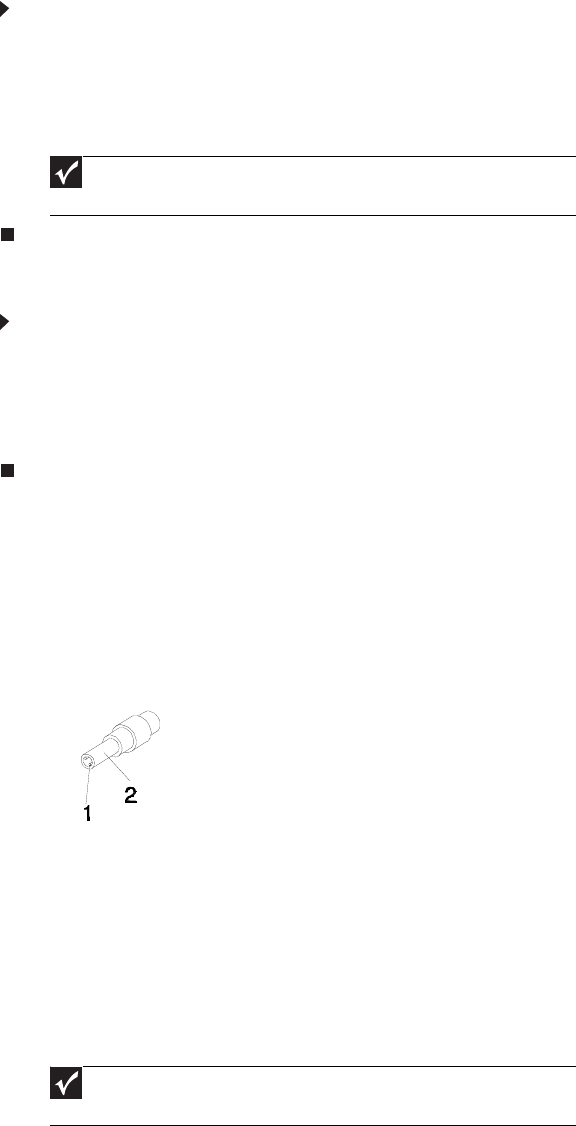
CHAPTER 4: Troubleshooting
118
Testing the memory
Memory errors can stop your programs, show error messages on the screen, or
hang the system.
To test the memory:
1Boot from the diagnostics diskette and start the diagnostics program.
2Run the Memory Test and see if the test completes successfully.
3Press F2 in the test items.
4Follow the instructions in the message window.
Testing the power system
To test for a power problem:
•Turn on the notebook using each of the following power sources:
•Remove the battery pack, connect the power adapter, then make sure
that the notebook turns on using AC power.
•Disconnect the power adapter, install a charged battery pack, then make
sure that power is supplied by the battery pack.
If you suspect a power problem, complete the appropriate power supply check:
•“Check the power adapter” on page 118
•“Check the battery pack” on page 119
Check the power adapter
Unplug the power adapter cable from the notebook and measure the output
voltage at the power adapter cable plug. See the following figure.
•If the voltage is not correct, replace the power adapter.
•If the voltage is within the range, do the following:
•Replace the system board.
•If the problem is not corrected, see “Undetermined problems” on page
133.
•If the power-on indicator does not light up, check the power adapter’s
power cord for correct continuity and installation.
•If the operational charge does not work, see “Check the battery pack”
on page 119.
Important
Make sure that each memory card is fully installed into the connector.
A loose connection can cause an error.
Pin 1: +19 to +20.5V
Pin 2: 0V, Ground
Important
An audible noise from the power adapter does not always indicate
a defect.
www.gateway.com
119
Check the battery pack
To check the battery pack using software:
1Open Power Management in the Windows Control Panel.
2In Power Meter, make sure that the parameters shown for Current Power
Source and Total Battery Power Remaining are correct.
3Repeat the steps 1 and 2, for both battery and adapter. This helps you identify
first the problem is on recharging or discharging.
To check the battery pack using hardware:
1Turn off the notebook.
2Remove the battery pack and measure the voltage between battery terminals
1 (+) and 6 (ground).
3If the voltage is still less than 7.5 Vdc after recharging, replace the battery.
If the battery status indicator does not light up, remove the battery pack and let
it return to room temperature. Re-install the battery pack.
If the charge indicator still does not light up, replace the battery pack. If the charge
indicator still does not light up, replace the DC/DC charger board.
Testing the touchpad
If the touchpad doesn’t work, do the following actions one at a time to correct the
problem.
To test the touchpad:
1Reconnect the touchpad cables.
2Replace the touchpad.
3Replace the system board.
After you use the touchpad, the pointer may drift on the screen for a short time.
This self-acting pointer movement can occur when a slight, steady pressure is
applied to the touchpad pointer. This symptom is not a hardware problem. No
service actions are necessary if the pointer movement stops in a short period of
time.
Important
To check the battery charge operation, use a discharged battery pack or a
battery pack that has less than 50% of the total power remaining when installed
in the notebook.
Important
Do not replace a non-defective FRU.
CHAPTER 4: Troubleshooting
120
Power-On Self-Test (POST) error
message
The POST error message index lists the error message and their possible causes.
The most likely cause is listed first.
This index can also help you determine the next possible FRU to be replaced when
servicing a notebook.
If the symptom is not listed, see “Undetermined problems” on page 133.
The following lists the error messages that the BIOS displays on the screen and
the error symptoms classified by function.
Important
Perform the FRU replacement or actions in the sequence shown in the
FRU/Action column. If the FRU replacement does not solve the problem, put the
original part back in the notebook. Do not replace a non-defective FRU.
Important
Most of the error messages occur during POST. Some of them display
information about a hardware device, such as the amount of memory installed.
Others may indicate a problem with a device, such as the way it has been
configured.
Important
If the system fails after you make changes in the BIOS Setup Utility menus,
reset the notebook, enter Setup, and install Setup defaults or correct the error.
www.gateway.com
121
Index of error messages
Error codes
Error messages
Error Codes Error Messages
006 Equipment Configuration Error
Causes:
1. CPU BIOS Update Code Mismatch
2. IDE Primary Channel Master Drive Error
(The causes are shown before “Equipment Configuration Error”)
010 Memory Error at xxxx:xxxx:xxxxh (R:xxxxh, W:xxxxh)
070 Real Time Clock Error
071 CMOS Battery Bad
072 CMOS Checksum Error
110 System is disabled. An incorrect password was entered.
<No error code> Battery is critically low. In this situation BIOS issues four short beeps, then shuts the system
down. No message is displayed.
<No error code> Temperature is critically high. In this situation BIOS shuts the system down. No message is
displayed.
Error Messages FRU/Action Sequence
Failure Fixed Disk nReconnect the hard disk drive connector.
nRun “Load Setup Defaults” using the BIOS Setup Utility, then reboot
the notebook.
nTest or replace the hard disk drive.
nTest or replace the system board.
Stuck Key See “Testing the keyboard or auxiliary input device” on page 117.
Keyboard error See “Testing the keyboard or auxiliary input device” on page 117.
Keyboard Controller Failed See “Testing the keyboard or auxiliary input device” on page 117.
Keyboard locked - Unlock key switch Unlock the external keyboard.
Monitor type does not match CMOS - Run Setup Run “Load Setup Defaults” using the BIOS Setup Utility, then reboot the
notebook.
Shadow RAM Failed at offset: nnnn nTest or replace the BIOS ROM.
nTest or replace the system board.
System RAM Failed at offset: nnnn nTest or replace the SO-DIMM.
nTest or replace the system board.
Extended RAM Failed at offset: nnnn nTest or replace the SO-DIMM.
nTest or replace the system board.
System battery is dead - Replace and run Setup Test or replace the CMOS battery, run the BIOS Setup Utility to
reconfigure system time, then reboot the system.
System CMOS checksum bad - Default
configuration used
Test or replace the CMOS battery, run the BIOS Setup Utility to
reconfigure system time, then reboot the system.
CHAPTER 4: Troubleshooting
122
System timer error nTest or replace the CMOS battery, run the BIOS Setup Utility to
reconfigure system time, then reboot the system.
nTest or replace the system board.
Real time clock error nTest or replace the CMOS battery, run the BIOS Setup Utility to
reconfigure system time, then reboot the system.
nTest or replace the system board.
Previous boot incomplete - Default configuration
used
nRun “Load Setup Defaults” using the BIOS Setup Utility, then reboot
the notebook.
nTest or replace the CMOS battery, run the BIOS Setup Utility to
reconfigure system time, then reboot the system.
nTest or replace the system board.
Memory size found by POST differed from
CMOS
nRun “Load Setup Defaults” using the BIOS Setup Utility, then reboot
the notebook.
nTest or replace the SO-DIMM.
nTest or replace the system board.
Diskette drive A error nMake sure that the drive is defined with the proper diskette type in the
BIOS Setup Utility.
Incorrect Drive A type - run SETUP Make sure that the drive is defined with the proper diskette type in the
BIOS Setup Utility
System cache error - Cache disabled Test or replace the system board.
CPU ID: Test or replace the system board.
DMA Test Failed nTest or replace the SO-DIMM.
nTest or replace the system board.
Software NMI Failed nTest or replace the SO-DIMM.
nTest or replace the system board.
Fail-Safe Timer NMI Failed nTest or replace the SO-DIMM.
nTest or replace the system board.
Device Address Conflict nRun “Load Setup Defaults” using the BIOS Setup Utility, then reboot
the notebook.
nTest or replace the CMOS battery, run the BIOS Setup Utility to
reconfigure system time, then reboot the system.
nTest or replace the system board.
Allocation Error for device nRun “Load Setup Defaults” using the BIOS Setup Utility, then reboot
the notebook.
nTest or replace the CMOS battery, run the BIOS Setup Utility to
reconfigure system time, then reboot the system.
nTest or replace the system board.
Failing Bits: nnnn nTest or replace the SO-DIMM.
nTest or replace the BIOS ROM.
nTest or replace the system board.
Fixed Disk n None
Invalid System Configuration Data nTest or replace the BIOS ROM.
nTest or replace the system board.
Error Messages FRU/Action Sequence

www.gateway.com
123
No-beep error messages
I/O device IRQ conflict nRun “Load Setup Defaults” using the BIOS Setup Utility, then reboot
the notebook.
nTest or replace the CMOS battery, run the BIOS Setup Utility to
reconfigure system time, then reboot the system.
nTest or replace the system board.
Operating system not found nRun the BIOS Setup Utility and see if fixed disk and drive A: are
properly identified.
nTest or replace the diskette drive
nTest or replace the hard disk drive
nTest or replace the system board
No-beep Error Messages FRU/Action in Sequence
No beep, power-on indicator turns off and LCD
is blank.
nTest the power source (battery pack and power adapter). See “Testing
the power system” on page 118.
nMake sure that every connector is connected tightly and correctly.
nReconnect the SO-DIMM.
nTest or replace the LED board.
nTest or replace the system board.
No beep, power-on indicator turns on and LCD
is blank.
nTest the power source (battery pack and power adapter). See “Testing
the power system” on page 118.
nReconnect the LCD connector
nCheck the hard disk drive.
nCheck the LCD inverter ID.
nCheck the LCD cable.
nTest or replace the LCD inverter.
nTest or replace the LCD.
nTest or replace the system board.
No beep, power-on indicator turns on and LCD
is blank. But you can see POST on an external
CRT.
nReconnect the LCD connectors.
nCheck the LCD inverter ID.
nCheck the LCD cable.
nTest or replace the LCD inverter.
nTest or replace the LCD.
nTest or replace the system board.
No beep, power-on indicator turns on and a
blinking cursor shown on LCD during POST.
nMake sure that every connector is connected tightly and correctly.
nTest or replace the system board.
No beep during POST but system runs correctly. nTest or replace the speaker.
nTest or replace the system board.
Error Messages FRU/Action Sequence
CHAPTER 4: Troubleshooting
124
Phoenix BIOS beep codes
Code Beeps POST Routine Description
02h Verify Real Mode
03h Disable Non-Maskable Interrupt (NMI)
04h Get CPU type
06h Initialize system hardware
08h Initialize chipset with initial POST values
09h Set IN POST flag
0Ah Initialize CPU registers
0Bh Enable CPU cache
0Ch Initialize caches to initial POST values
0Eh Initialize I/O component
0Fh Initialize the local bus IDE
10h Initialize Power Management
11h Load alternate registers with initial POST values
12h Restore CPU control word during warm boot
13h Initialize PCI Bus Mastering devices
14h Initialize keyboard controller
16h 1-2-2-3 BIOS ROM checksum
17h Initialize cache before memory autosize
18h 8254 timer initialization
1Ah 8237 DMA controller initialization
1Ch Reset Programmable Interrupt Controller
20h 1-3-1-1 Test DRAM refresh
22h 1-3-1-3 Test 8742 Keyboard Controller
24h Set ES segment register to 4 GB
26h Enable A20 line
28h Autosize DRAM
29h Initialize POST Memory Manager
2Ah Clear 215 KB base RAM
2Ch 1-3-4-1 RAM failure on address line xxxx
2Eh 1-3-4-3 RAM failure on data bits xxxx of low byte of memory bus
2Fh Enable cache before system BIOS shadow
www.gateway.com
125
30h 1-4-1-1 RAM failure on data bits xxxx of high byte of memory bus
32h Test CPU bus-clock frequency
33h Initialize Phoenix Dispatch Manager
36h Warm start shut down
38h Shadow system BIOS ROM
3Ah Autosize cache
3Ch Advanced configuration of chipset registers
3Dh Load alternate registers with CMOS values
42h Initialize interrupt vectors
45h POST device initialization
46h 2-1-2-3 Check ROM copyright notice
48h Check video configuration against CMOS
49h Initialize PCI bus and devices
4Ah Initialize all video adapters in system
4Bh QuietBoot start (optional)
4Ch Shadow video BIOS ROM
4Eh Display BIOS copyright notice
50h Display CPU type and speed
51h Initialize EISA board
52h Test keyboard
54h Set key click if enabled
58h 2-2-3-1 Test for unexpected interrupts
59h Initialize POST display service
5Ah Display prompt “Press F2 to enter SETUP”
5Bh Disable CPU cache
5Ch Test RAM between 512 and 640 KB
60h Test extended memory
62h Test extended memory address lines
64h Jump to User Patch1
66h Configure advanced cache registers
67h Initialize Multi Processor APIC
68h Enable external and CPU caches
69h Setup System Management Mode (SMM) area
Code Beeps POST Routine Description
CHAPTER 4: Troubleshooting
126
6Ah Display external L2 cache size
6Bh Load custom defaults (optional)
6Ch Display shadow-area message
6Eh Display possible high address for UMB recovery
70h Display error messages
72h Check for configuration errors
76h Check for keyboard errors
7Ch Set up hardware interrupt vectors
7Eh Initialize coprocessor if present
80h Disable onboard Super I/O ports and IRQs
81h Late POST device initialization
82h Detect and install external RS232 ports
83h Configure non-MCD IDE controllers
84h Detect and install external parallel ports
85h Initialize PC-compatible PnP ISA devices
86h Re-initialize onboard I/O ports
87h Configure Motherboard Configurable Devices (optional)
88h Initialize BIOS Area
89h Enable Non-Maskable Interrupts (NMIs)
8Ah Initialize Extended BIOS Data Area
8Bh Test and initialize PS/2 mouse
8Ch Initialize floppy controller
8Fh Determine number of ATA drives (optional)
90h Initialize hard-disk controllers
91h Initialize local-bus hard-disk controllers
92h Jump to UserPatch2
93h Build MPTABLE for multi-processor boards
95h Install CD ROM for boot
96h Clear huge ES segment register
97h Fixup Multi Processor table
98h 1-2 Search for option ROMs. One long, two short beeps on checksum failure.
99h Check for SMART drive (optional)
9Ah Shadow option ROMs
Code Beeps POST Routine Description
www.gateway.com
127
9Ch Set up Power Management
9Dh Initialize security engine (optional)
9Eh Enable hardware interrupts
9Fh Determine number of ATA and SCSI drives
A0h Set time of day
A2h Check key lock
A4h Initialize Typematic rate
A8h Erase F2 prompt
AAh Scan for F2 key stroke
ACh Enter SETUP
AEh Clear Boot flag
B0h Check for errors
B2h POST done- prepare to boot operating system
B4h 1One short beep before boot
B5h Terminate QuietBoot (optional)
B6h Check password (optional)
B9h Prepare Boot
BAh Initialize DMI parameters
BBh Initialize PnP Option ROMs
BCh Clear parity checkers
BDh Display MultiBoot menu
BEh Clear screen (optional)
BFh Check virus and backup reminders
C0h Try to boot with INT 19
C1h Initialize POST Error Manager (PEM)
C2h Initialize error logging
C3h Initialize error display function
C4h Initialize system error handler
C5h PnPnd dual CMOS (optional)
C6h Initialize notebook docking (optional)
C7h Initialize notebook docking late
C8h Force check (optional)
C9h Extended checksum (optional)
Code Beeps POST Routine Description
CHAPTER 4: Troubleshooting
128
D2h Unknown interrupt
E0h Initialize the chipset
E1h Initialize the bridge
E2h Initialize the CPU
E3h Initialize the system timer
E4h Initialize system I/O
E5h Check force recovery boot
E6h Checksum BIOS ROM
E7h Go to BIOS
E8h Set Huge Segment
E9h Initialize Multi Processor
EAh Initialize OEM special code
EBh Initialize PIC and DMA
ECh Initialize Memory type
EDh Initialize Memory size
EEh Shadow Boot Block
EFh System memory test
F0h Initialize interrupt vectors
F1h Initialize Run Time Clock
F2h Initialize video
F3h Initialize System Management Mode
F4h 1 Output one beep before boot
F5h Boot to Mini DOS
F6h Clear Huge Segment
F7h Boot to Full DOS
Code Beeps POST Routine Description
www.gateway.com
129
Symptom-to-FRU error messages
LCD
Power
Symptom / Error Action in Sequence
nThe LCD backlight doesn't work.
nThe LCD is too dark.
nThe LCD brightness cannot be adjusted.
nThe LCD contrast cannot be adjusted.
nRun “Load Setup Defaults” using the BIOS Setup Utility, then reboot
the notebook.
nReconnect the LCD connectors.
nTest or replace the keyboard (if contrast and brightness function key
doesn't work).
nCheck the LCD inverter ID.
nTest or replace the LCD cable.
nTest or replace the LCD inverter.
nTest or replace the LCD.
nTest or replace the system board.
nThe LCD screen is unreadable.
nMissing pels in characters.
nThe screen appears abnormal.
nThe wrong color is displayed.
nReconnect the LCD connector.
nCheck the LCD inverter ID.
nTest or replace the LCD cable.
nTest or replace the LCD inverter.
nTest or replace the LCD.
nTest or replace the system board.
The LCD is displaying extra horizontal or vertical
lines.
nCheck the LCD inverter ID.
nTest or replace the LCD cable.
nTest or replace the LCD inverter.
nTest or replace the LCD.
nTest or replace the system board.
Symptom / Error Action in Sequence
The notebook shuts down during operation. nTest the power source (battery pack and power adapter). See “Testing
the power system” on page 118.
nTest or replace the battery pack.
nTest or replace the power adapter.
nTest or replace the system board.
The notebook doesn’t turn on. nTest the power source (battery pack and power adapter). See “Testing
the power system” on page 118.
nTest or replace the battery pack.
nTest or replace the power adapter.
nTest or replace the system board.
The notebook doesn’t turn off. nTest the power source (battery pack and power adapter). See “Testing
the power system” on page 118.
nPress and hold the power button for more than four seconds.
nTest or replace the system board.
The battery can’t be charged. nTest the battery pack. See “Check the battery pack” on page 119.
nTest or replace the battery pack.
nTest or replace the system board.
CHAPTER 4: Troubleshooting
130
Memory
Sound
Power management
Symptom / Error Action in Sequence
Memory count (size) appears different from
actual size.
nRun “Load Setup Defaults” using the BIOS Setup Utility, then reboot
the notebook.
nTest or replace the SO-DIMM.
nTest or replace the system board.
Symptom / Error Action in Sequence
No sound comes from the notebook when
running Windows multimedia programs.
nReinstall the audio driver.
nTest or replace the speakers.
nTest or replace the system board.
The internal speakers make noise or emit no
sound.
nTest or replace the speakers.
nTest or replace the system board.
Symptom / Error Action in Sequence
The notebook will not hibernate. nTest or replace the keyboard (if control is from the keyboard).
nTest or replace the hard disk drive.
nTest or replace the system board.
The system doesn't hibernate and emits four
short beeps every minute.
nPress Fn+o and see if the notebook enters hibernation mode.
nTest or replace the touchpad.
nTest or replace the keyboard.
nCheck the hard disk connection to the system board.
nTest or replace the hard disk drive.
nTest or replace the system board.
The notebook doesn’t enter standby mode after
closing the LCD.
nMake sure that the magnet is in the magnet holder. For more
information, see “Replacing the LCD” on page 100.
nTest or replace the system board.
The system doesn't resume from hibernation
mode.
nCheck the hard disk connection to the system board.
nTest or replace the hard disk drive.
nTest or replace the system board.
The system doesn't resume from standby mode
after opening the LCD.
nMake sure that the magnet is in the magnet holder. For more
information, see “Replacing the LCD” on page 100.
nTest or replace the system board.
The battery fuel gauge in Windows doesn’t go
higher than 90%.
nRemove the battery pack and let it cool for two hours.
nRefresh the battery (use only battery power until the notebook turns
off, then charge the battery).
nTest or replace the battery pack.
nTest or replace the system board.
The system hangs intermittently. nReconnect the hard disk drive and optical drive.
nCheck the hard disk connection to the system board.
nTest or replace the system board.
www.gateway.com
131
Devices
Keyboard and touchpad
Symptom / Error Action in Sequence
System configuration does not match the
installed devices.
nRun “Load Setup Defaults” using the BIOS Setup Utility, then reboot
the notebook.
nReconnect the hard disk drive and optical drive.
The external display does not work correctly. nPress Fn+F4 repeatedly to switch between LCD, external display, and
both displays.
nTest or replace the system board.
USB does not work correctly. nTest or replace the USB board.
nTest or replace the system board.
Printer problems. nRun the printer self-test.
nReinstall the printer driver.
nTest or replace the printer cable.
nTest or replace the printer.
nTest or replace the system board.
Symptom / Error Action in Sequence
The keyboard (one or more keys) does not work. nReconnect the keyboard cable.
nTest or replace the keyboard.
nTest or replace the system board.
The touchpad does not work. nReconnect the touchpad cable.
nTest or replace the touchpad board.
nTest or replace the system board.
Important
If you cannot find a symptom or an error in this list and the problem remains,
see “Undetermined problems” on page 133.

CHAPTER 4: Troubleshooting
132
Intermittent problems
Intermittent system hang problems can be caused by a variety of reasons that
have nothing to do with a hardware defect. These reasons include: cosmic
radiation, electrostatic discharge, or software errors. FRU replacement should be
considered only when a recurring problem exists.
To analyze an intermittent problem:
1Run the advanced diagnostic test for the system board in loop mode at least
ten times.
•If any error is detected, replace the FRU.
•If no error is detected, do not replace any FRU.
2Rerun the test to verify that there are no more errors.
www.gateway.com
133
Undetermined problems
If the diagnostic test may not identify which adapter or device failed, which installed
devices are incorrect, whether a short circuit is suspected, or whether the system
is inoperative. Use these procedures to isolate the failing FRU (do not isolate a
non-defective FRU).
To isolate a failing FRU:
1Turn off the notebook.
2Visually check FRU parts for damage. If you identify any damage, replace
the FRU.
3Remove or disconnect all of the following devices:
•Non-Acer devices
•Printer, mouse, and other external devices
•Battery pack
•Hard disk drive(s)
•SO-DIMM
•Optical drive
4Turn on the notebook.
5Determine if the problem has changed.
•If the problem does not recur, reconnect the removed devices one at a
time until you find the failing FRU.
•If the problem does recur, replace the following FRUs one at a time:
•System board
•LCD assembly
Important
Verify that all attached devices are supported by the notebook.
Important
Verify that the power supply being used at the time of the failure is operating
correctly. (See “Testing the power system” on page 118.)
Important
Do not replace a non-defective FRU.

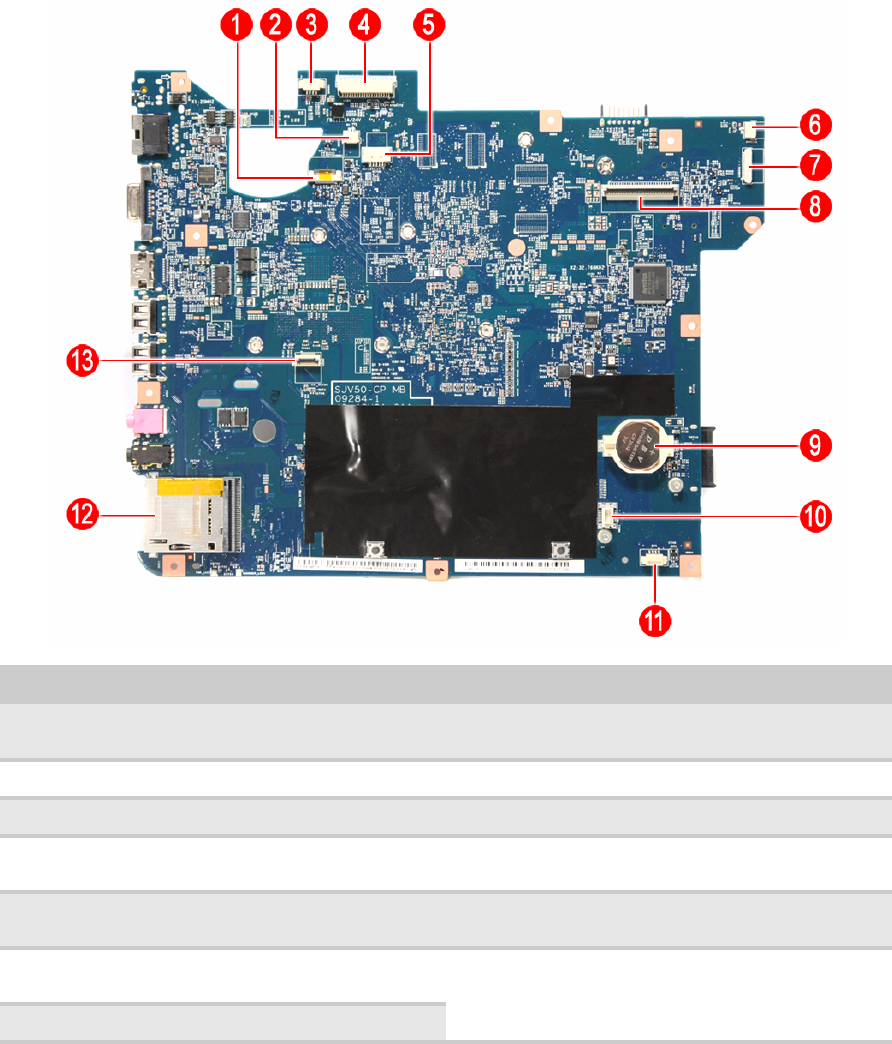
CHAPTER 5: Connector locations
136
System board layout
Top view
Item Code Component Item Code Component
1MMB1 Multimedia board cable
connector
8KB1 Keyboard cable connector
2 MIC1 Microphone cable connector 9 RTC1 RTC battery
3SPKR1 Speaker cable connector 10 MDC1 Modem card cable connector
4 LCD1 LCD cable connector 11 BT1 Bluetooth module cable
connector
5CCD1 Webcam board cable
connector
12 CARD1 Memory card reader
6 PWRCN1 Power button board cable
connector
13 TPCN1 Touchpad / fingerprint reader
board cable connector
7USBCN1 USB board cable connector
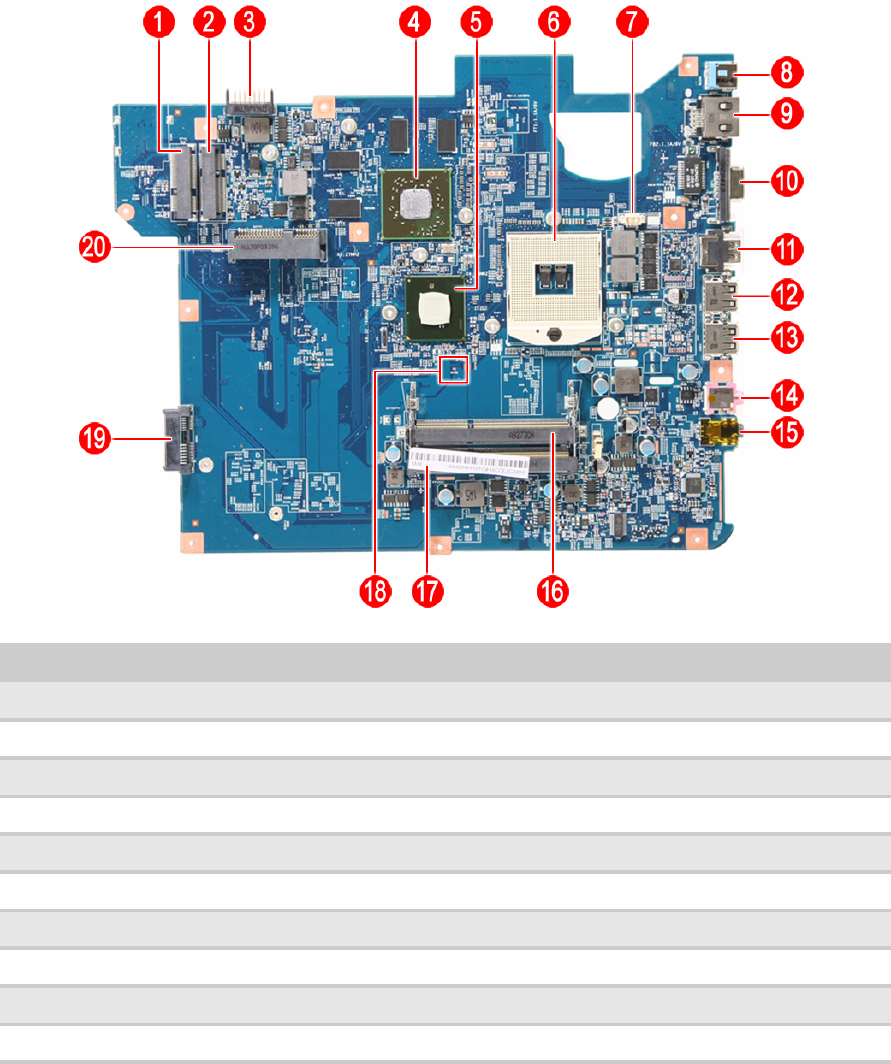
www.gateway.com
137
Bottom view – Discrete model
Item Code Component Item Code Component
1MINI2 3G module slot 11 HDMI1 HDMI out port
2 MINI1 WLAN module slot 12 USB1 USB port
3BAT1 Battery connector 13 USB2 USB port
4 VGA1 AMD graphics controller 14 MICIN1 Microphone jack
515 LOUT1 Headphone jack
6 CPU1 Processor socket 16 DM1 Memory slot 1
7FAN1 Cooling fan cable connector 17 DM2 Memory slot 2
8 DCIN1 DC power jack 18 G102 Clear password hardware gap
9RJ45 Ethernet jack 19 ODD1 SATA optical drive connector
10 CRT1 Monitor port 20 SATA1 SATA hard drive connector
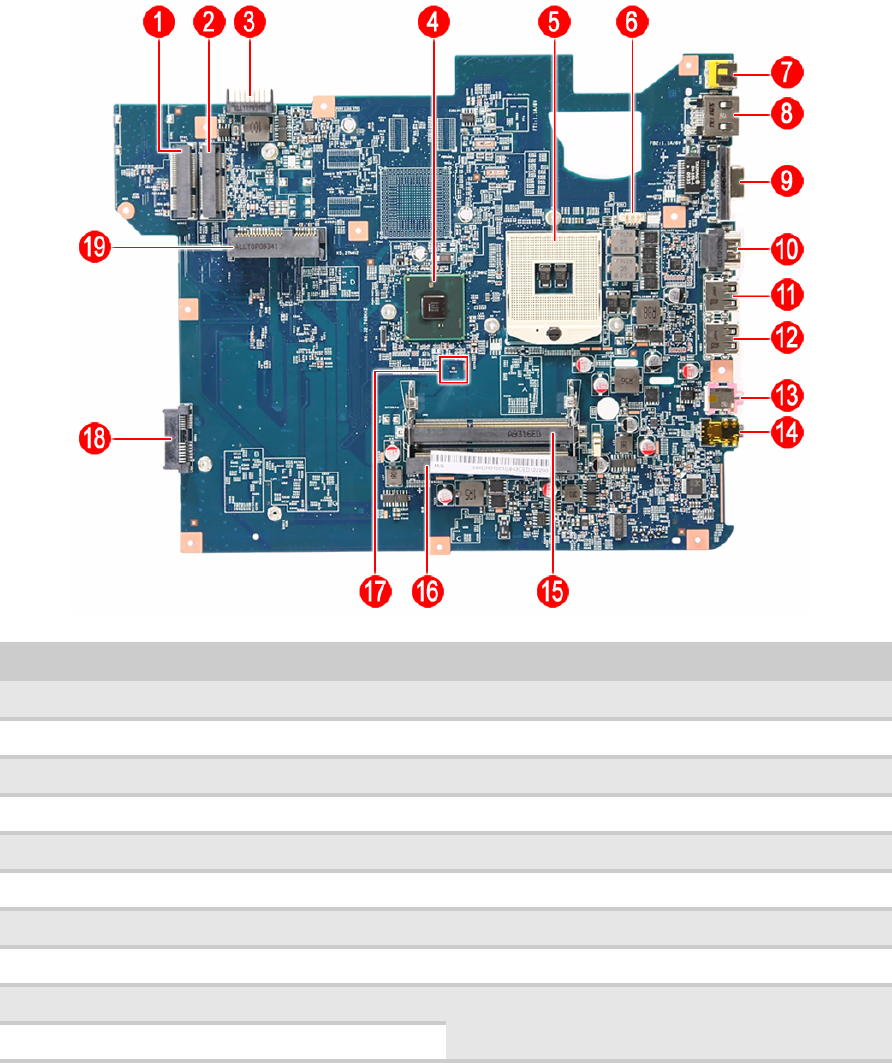
CHAPTER 5: Connector locations
138
Bottom view – UMA model
Item Code Component Item Code Component
1MINI2 3G module slot 11 USB1 USB port
2 MINI1 WLAN module slot 12 USB2 USB port
3BAT1 Battery connector 13 MICIN1 Microphone jack
4 PCH1 Intel PCH 14 LOUT1 Headphone jack
5CPU1 Processor socket 15 DM1 Memory slot 1
6 FAN1 Cooling fan cable connector 16 DM2 Memory slot 2
7DCIN1 DC power jack 17 G102 Clear password hardware gap
8 RJ45 Ethernet jack 18 ODD1 SATA optical drive connector
9CRT1 Monitor port 19 SATA1 SATA hard drive connector
10 HDMI1 HDMI out port

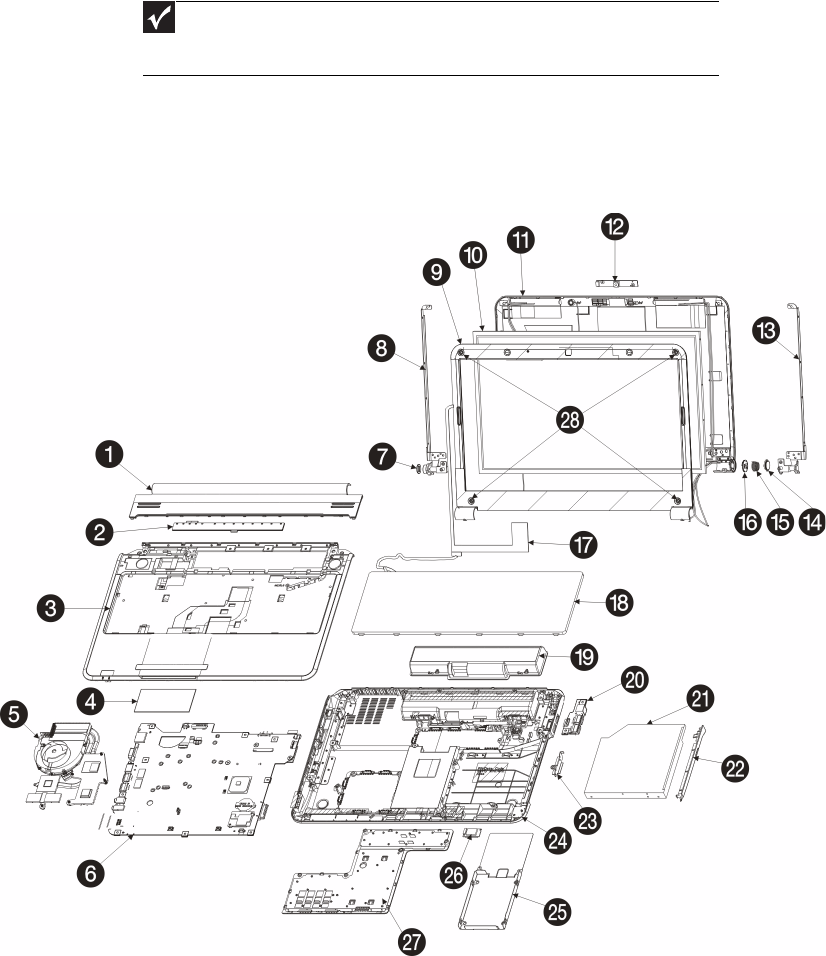
CHAPTER 6: FRU (Field-Replaceable Unit) list
140
Introduction
This chapter gives you the FRU (field-replaceable-unit) listing in global
configurations of this model. Refer to this chapter whenever ordering for parts to
repair or for RMA (Return Merchandise Authorization).
Please note that WHEN ORDERING FRU PARTS, you should check the most
up-to-date information available on your regional web or channel. For whatever
reasons a part number change is made, it will not be noted on the printed Service
Guide. For ACER AUTHORIZED SERVICE PROVIDERS, your Acer office may
have a DIFFERENT part number code from those given in the FRU list of this
printed Service Guide. You MUST use the local FRU list provided by your regional
Acer office to order FRU parts for repair and service of customer machines.
Exploded diagram
Important
To scrap or to return the defective parts, you should follow the local
government ordinance or regulations on how to dispose it properly, or follow the
rules set by your regional Acer office on how to return it.
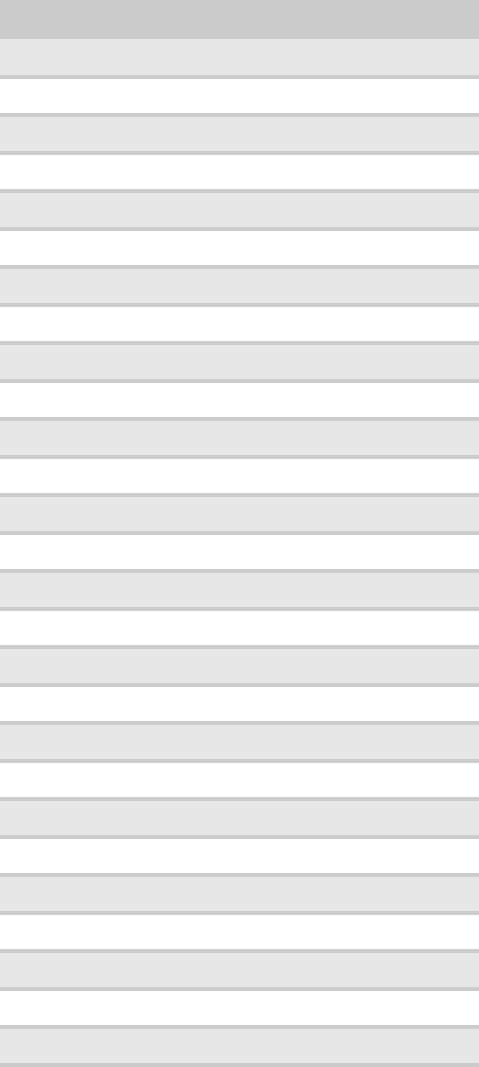
www.gateway.com
141
Item Component
1Keyboard cover
2 Multimedia board
3Palm rest
4 Touchpad board
5Cooling assembly
6 System board
7Kensington lock cap
8 Left LCD panel hinge bracket
9Front panel
10 LCD panel
11 LCD assembly lid
12 Webcam board (optional)
13 Right LCD panel hinge bracket
14 Power button board cap
15 Power button board spring
16 Power button board
17 LCD cable / LCD-webcam coaxial cable
18 Keyboard
19 Battery
20 USB board / USB-modem port board (optional)
21 Optical drive
22 Optical drive bezel
23 Optical drive bracket
24 Base enclosure
25 Hard drive
26 Bluetooth module
27 Bay cover

CHAPTER 6: FRU (Field-Replaceable Unit) list
142
FRU list
Category Description Part No.
Adapter Adapter DELTA 65W 19V 1.7x5.5x11 Yellow ADP-65JH DB A, LV5 LED LF AP.06501.026
Adapter LITE-ON 65W 19V 1.7x5.5x11 Yellow PA-1650-22AC LV5 LED LF AP.06503.024
Adapter HIPRO 65W 19V 1.7x5.5x11 Yellow (HP-A0653R3B 1LF), LV5 Timeline
LF
AP.0650A.013
Adapter DELTA 90W 19V 1.7x5.5x11 Blue ADP-90CD DB A, LV5 LED LF AP.09001.027
Adapter LITE-ON 90W 19V 1.7x5.5x11 Blue PA-1900-34AR, LV5 LED LF AP.09003.021
Adapter HIPRO 90W 19V 1.7x5.5x11 Blue HP-A0904A3 B1LF, LV5 LED LF AP.0900A.005
Battery Battery SANYO AS-2009A Li-Ion 3S2P SANYO 6 cell 4400mAh Main
COMMON 2.2Ah(A)
BT.00603.076
Battery SONY AS-2009A Li-Ion 3S2P SONY 6 cell 4400mAh Main COMMON
2.2Ah(G6F)
BT.00604.030
Battery PANASONIC AS-2009A Li-Ion 3S2P PANASONIC 6 cell 4400mAh Main
COMMON 2.2Ah(CG )
BT.00605.036
Battery SAMSUNG AS-2009A Li-Ion 3S2P SAMSUNG 6 cell 4400mAh Main
COMMON 2.2Ah(F)
BT.00606.002
Battery SIMPLO AS-2009A Li-Ion 3S2P PANASONIC 6 cell 4400mAh Main
COMMON Panasonic 2.2Ah ( CG )
BT.00607.066
Battery SIMPLO AS-2009A Li-Ion 3S2P LGC 6 cell 4400mAh Main COMMON
LGC 2.2Ah(S3 )
BT.00607.067
Battery Battery SIMPLO AS-2009A Li-Ion 3S2P SAMSUNG 6 cell 4400mAh Main
COMMON SDI 2.2Ah(F)
BT.00607.068
Battery SANYO AS-2009A Li-Ion 3S2P SANYO 6 cell 5600mAh Main
COMMON 2.8Ah
BT.00603.077
Battery SIMPLO AS-2009A Li-Ion 3S2P SAMSUNG 6 cell 5600mAh Main
COMMON SDI 2.8Ah
BT.00607.069
Battery PANASONIC AS-2009A Li-Ion 3S2P PANASONIC 6 cell 5800mAh Main
COMMON 2.9Ah ( NNP )
BT.00605.037
Hard disk drive HDD SEAGATE 2.5" 5400rpm 160GB ST9160314AS Wyatt SATA LF
F/W:0001SDM1
KH.16001.042
HDD TOSHIBA 2.5" 5400rpm 160GB MK1655GSX Libra SATA LF F/W: FG011J KH.16004.006
HDD HGST 2.5" 5400rpm 160GB HTS545016B9A300 Panther B SATA LF
F/W:C60F
KH.16007.024
HDD WD 2.5" 5400rpm 160GB WD1600BEVT-22ZCTO ML160 SATA LF
F/W:11.01A11
KH.16008.022
HDD SEAGATE 2.5" 5400rpm 250GB ST9250315AS Wyatt SATA LF
F/W:0001SDM1
KH.25001.016
HDD TOSHIBA 2.5" 5400rpm 250GB MK2555GSX Libra SATA LF F/W:FG001J KH.25004.003
HDD HGST 2.5" 5400rpm 250GB HTS545025B9A300 Panther B SATA LF
F/W:C60F
KH.25007.015

www.gateway.com
143
Hard disk drive
(continuation)
HDD WD 2.5" 5400rpm 250GB WD2500BEVT-22ZCT0 ML160 SATA LF
F/W:11.01A11
KH.25008.021
HDD SEAGATE 2.5" 5400rpm 320GB ST9320325AS Wyatt SATA LF
F/W:0001SDM1
KH.32001.017
HDD TOSHIBA 2.5" 5400rpm 320GB MK3263GSX SATA 8MB 68P LF
F/W:FG020J
KH.32004.003
HDD HGST 2.5" 5400rpm 320GB HTS545032B9A300 Panther B SATA LF F/W:
C60F
KH.32007.007
HDD WD 2.5" 5400rpm 320GB WD3200BEVT-22ZCT0 ML160 SATA LF
F/W:11.01A11
KH.32008.013
HDD SEAGATE 2.5" 5400rpm 500GB ST9500325AS Wyatt SATA LF
F/W:0001SDM1
KH.50001.011
HDD TOSHIBA 2.5" 5400rpm 500GB MK5055GSX Libra SATA LF F/W:FG001J KH.50004.001
HDD HGST 2.5" 5400rpm 500GB HTS545050B9A300 Panther B SATA LF
F/W:C60F
KH.50007.009
HDD WD 2.5" 5400rpm 500GB WD5000BEVT-22ZAT0 ML250 SATA LF
F/W:01.01A01
KH.50008.013
HDD WD 2.5" 5400rpm 640GB WD6400BEVT-22A0RT0, ML320 SATA 8MB LF
F/W:01.01A01
KH.64008.004
Optical disc drive ODD HLDS BD COMBO 12.7mm Tray DL 4X CT21N LF W/O bezel 1.00 SATA
(HF + Windows 7)
KO.0040D.004
ODD PLDS BD COMBO 12.7mm Tray DL 4X DS-4E1S LF W/O bezel SATA
(Windows 7)
KO.0040F.003
ODD PIONEER BD COMBO 12.7mm Tray DL 4X BDC-TD01RS LF W/O bezel
SATA (Windows 7)
KO.00405.003
ODD SONY BD COMBO 12.7mm Tray DL 4X BC-5500H LF W/O bezel SATA
(HF + Windows 7)
KO.0040E.003
ODD HLDS Super-Multi DRIVE 12.7mm Tray DL 8X GT30N LF W/O bezel SATA
(HF + Windows 7)
KU.0080D.048
ODD PLDS Super-Multi DRIVE 12.7mm Tray DL 8X DS-8A4SH LF W/O bezel
SATA (HF + Windows 7)
KU.0080F.006
ODD SONY Super-Multi DRIVE 12.7mm Tray DL 8X AD-7585H LF W/O bezel
SATA (HF + Windows 7)
KU.0080E.027
ODD TOSHIBA Super-Multi DRIVE 12.7mm Tray DL 8X TS-L633C LF W/O
bezel SATA (HF + Windows 7)
KU.00801.035
LCD LED LCD AUO 15.6"W WXGA Glare B156XW02 V2 LF 200nit 8ms 500:1
(power saving)
LK.15605.010
LED LCD CMO 15.6"W WXGA Glare N156B6-L06 LF 220nit 8ms 500:1 LK.1560D.007
LED LCD CMO 15.6"W WXGA Glare N156B6-L0B LF 220nit 8ms 650:1 LK.1560D.010
LED LCD INNOLUX 15.6"W WXGA Glare BT156GW01 V2 LF 220nit 8ms 600:1 LK.1560N.001
LED LCD LPL 15.6"W WXGA Glare LP156WH2-TLE1 LF 220nit 8ms 400:1 LK.15608.002
LED LCD SAMSUNG 15.6"W WXGA Glare LTN156AT02-A02 LF 220nit 8ms
500:1
LK.15606.005
LED LCD SAMSUNG 15.6"W WXGA Glare LTN156AT02-A04 LF 220nit 8ms
500:1
LK.15606.009

CHAPTER 6: FRU (Field-Replaceable Unit) list
144
Processor CPU Intel Core i3 330M PGA 2.13G 35W Arrandale, TJ90, VT, 3M L3 KC.33001.DMP
CPU Intel Core i3 350M PGA 2.26G 35W Arrandale, TJ90, VT, 3M L3 KC.35001.DMP
CPU Intel Core i5 430M PGA 2.26G ARD, up to SC 2.53G, 3M L3 KC.43001.DMP
CPU Intel Core i5 520M 2.4G 3M KC.52001.DMP
CPU Intel Core i5 540M 2.53G 3M KC.54001.DMP
CPU Intel Core i7 620M PGA 2.66G 4M KC.62001.DMP
Memory Memory ELPIDA SO-DIMM DDRIII 1066 1GB EBJ10UE8BDS0-AE-F LF 128*8
0.065um
KN.1GB09.012
Memory HYNIX SO-DIMM DDRIII 1066 1GB HMT112S6BFR6C-G7 N0 LF
64*16 0.055um
KN.1GB0G.025
Memory MICRON SO-DIMM DDRIII 1066 1GB MT8JSF12864HZ-1G1F1 LF
128*8 0.065um
KN.1GB04.015
Memory SAMSUNG SO-DIMM DDRIII 1066 1GB M471B2873EH1-CF8 LF
64*16 0.055um
KN.1GB0B.028
Memory ELPIDA SO-DIMM DDRIII 1066 2GB EBJ21UE8BDS0-AE-F LF 128*8
0.065um
KN.2GB09.006
Memory HYNIX SO-DIMM DDRIII 1066 2GB HMT125S6BFR8C-G7 N0 LF
128*8 0.055um
KN.2GB0G.014
Memory MICRON SO-DIMM DDRIII 1066 2GB MT16JSF25664HZ-1G1F1 LF
128*8 0.065um
KN.2GB04.015
Memory SAMSUNG SO-DIMM DDRIII 1066 2GB M471B5673EH1-CF8 LF
128*8 0.055um
KN.2GB0B.012
Memory NONE SO-DIMM DDRIII 1066 4GB dummy P/N LF KN.4GB00.001
Memory ELPIDA SO-DIMM DDRIII 1333 4GB EBJ41UF8BAS0-DJ-F LF 256*8
0.055um
KN.4GB09.001
VGA chip AMD MADISON_PRO 40nm 29mm*29mm M2 package KI.23200.169
AMD PARK_XT 40nm 29mm*29mm M2 package KI.23200.162
UMA (Intel) KI.23200.038
NVIDIA N11MGE1 40nm 29mm*29mm GB1-128 package KI.23200.160
VRAM VRAM SAMSUNG Graphic DDRIII 800 1Gb K4W1G1646E-HC12 LF VR.1GB0B.006
VRAM HYNIX Graphic DDRIII 800 1Gb H5TQ1G63BFR-12C LF VR.1GB0G.004
1G-DDR3 64*16*8 KI.23300.018
512M-DDR3 64*16*4 KI.23300.019
VRAM ATI Graphic DDRIII 800 1Gb 23EY2387MA12-SZ LF+HF VR.1GB0T.002
Core logic NB Chipset Intel CS BD82HM55 KI.G5501.002
LAN chipset Broadcom BCM57780 NI.22400.047
Audio codec Realtek Audio Codec ALC272X LZ.21000.045
WLAN module Foxconn Wireless LAN Atheros HB93 2x2 BGN (HM) NI.23600.062
Liteon Wireless LAN Atheris HB93 2x2 BGN (HM) WN6602AH NI.23600.063
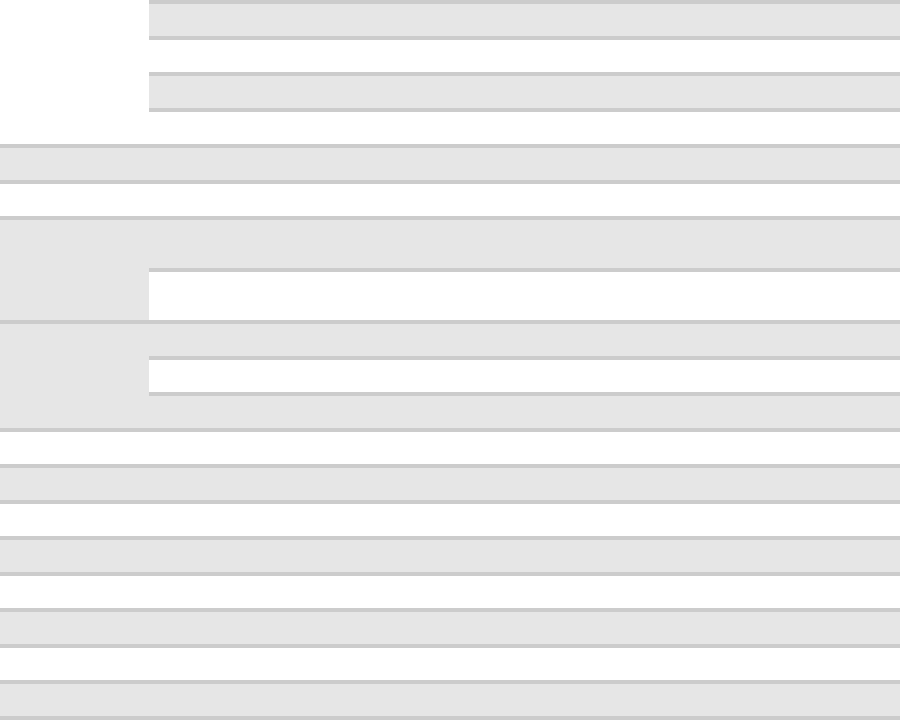
www.gateway.com
145
WLAN module
(continuation)
Liteon Wireless LAN Realtek 8192SE BGN WN6603LH(2x2 BGN) NI.23600.065
Foxconn Wirelss LAN Atheros HB95 1x1 BG (HM) NI.23600.047
Liteon Wireless LAN Atheros HB95 BG (HM) WN6601AH NI.23600.052
Lan Intel WLAN 112BN.HMWG MM#903341 KI.CPH01.001
Lan Intel WLAN 622AN.HMWG KI.PPH01.002
Bluetooth module Foxconn Bluetooth BRM 2046 BT2.1 (T60H928.33) f/w:861 BH.21100.004
Modem Lite-On Conexant -Unizion 1.5_3.3v AUS RD02-D330 FX.22500.021
Keyboard Keyboard GATEWAY GP-7T Black SJM80 Internal 17 Standard Black NONE
Tex t ur e
KB.I170G.002
Keyboard GATEWAY GP-7T white SJV 50/70 Internal 17 Standard White NONE
texture
KB.I170G.003
Camera Chicony 0.3M DV Calla_2G AM.21400.046
Chicony 0.3M DV Calla_2GA ( CNF8046 ) AM.21400.060
Suyin 0.3M DV Camellia_2G AM.21400.045
Card reader 5 in 1-Build in MS, MS Pro, SD, SC, XD CR.21500.013
WiFi antenna PIFA LZ.23500.006
A cover Black IMR LZ.21000.044
A cover Blue IMR LZ.21000.041
A cover Brown IMR LZ.21000.042
A cover Red IMR LZ.21000.056
B cover Normal w/Camera LZ.21000.011
Software Antivirus application NIS SR.23900.002

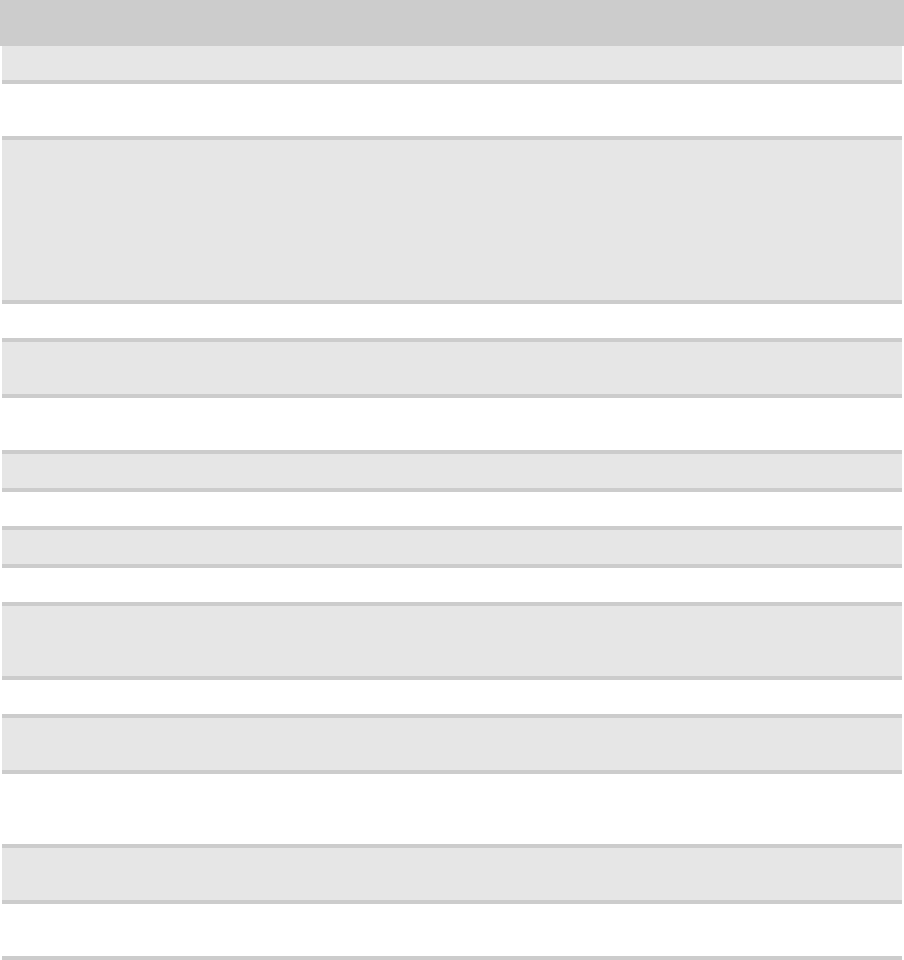
APPENDIX A: Test compatible components
148
Introduction
This notebook’s compatibility is tested and verified by Acer’s internal testing
department. Refer to the following lists for components, adapter cards, and
peripherals which have passed these tests.
Microsoft® Windows 7® Compatibility Test
Item Device name
I/O Peripheral Compatibility Test
TV Westinghouse W37G (HDMI)
PanasonicTC-37MPK (VGA/HDMI )
LCD monitor Acer AL1916W 19" LCD Monitor
Acer P244W 24" LCD Monitor
Dell SP2208WFP 22" LCD Monitor
Dell UltraSharp 3008WFP 30" LCD Monitor
Dell 2407FPW 24" LCD Monito
Dell 1905FP 19" LCD Monitor
Dell UltraSharp E2408WFP
HP LP2065 20" LCD Monitor
Projector Dell 3300MP Projector
USB keyboard/mouse Logitech First Wheel Mouse
Dell IR Keyboard & Mouse set
Headset Hawk Stereo Headset 933
Dolby headphone (5.1 channel)
Speaker Dell USB Speaker
Camera Canon Digital IXUS 860
USB hard drive Transcend 2.5" Portable 80 GB Hard Disk
USB optical drive Plextor DVD+R/RW
USB flash drive SanDisk USB 2GB Cruzer Micro Skin USB 2.0 Flash Drive
A-Data PD16 Vista 16 GB
Transcend JetFlash USB 2.0 Flash Drive V10 16 GB Memory Key
USB card reader PQI 6-in-1 Flash Card Reader/Writer
USB 3G card Huawei Mobile Connect E220 USB Modem 3G (E220: HSDPA/UMTS/
EDGE/GPRS/GSM)
USB hub Huawei Mobile Connect E220 USB Modem 3G
PowerSync USB2.0 4-Port Mini Hub (HU151W)
Techworks 4-Port USB2.0 Mini Hub (OW4PTUSBHB)
Access point Buffalo Air Station Wireless NFINITI (WZR-G144N)
Buffalo Air Station NFINITI (WZR2-G300N]
Wireless printer HP Photosmart C309(CC35A)
HPPhotosmart C4580
www.gateway.com
149
Wireless USB hub/adapter IOGEAR Wireless USB Hub & Adapter Kit (GUWH104KIT)
Bluetooth access point X-Bridge Bluetooth Access Point (BT300)
Bluetooth device AmbiCom Bluetooth Wireless CompactFlash Card with PC Card Adapter
Sony Ericsson Stereo Bluetooth Headset HBH-DS970
Memory Card Test
MMC RS-MMC 128 MB Memory Card
Transcend MMC Plus 4 GB Card
SD card RiDATA 4 GB SD Pro Memory Card
Transcend SDHC Class 6 Memroy Card 4 GB
SanDisk microSDHC 4 GB Card with Adapter
Kingston SDHC SD4 32 GB Card
MS Sony Memory stick Pro 512 MB
Lexar High Speed 1 GB Memory Stick Pro Duo
Sony MS Pro Dou 2 GB High Speed
SanDisk Memory Stick Micro (M2) 8 GB Card
xD card Olympus xD Picture Card M+ 2 GB Speed Card
Fuju Film xD Picture Card Type M 2 GB
Software Compatibility Test
Utilities and applications PowerDVD
Power2Go
Google Toolbar
Google Setup
Gateway MyBackup
Gateway Fingerprint
Norton Internet Security 2009 Gateway Edition
Power Management
PowerSave
Recovery Management
Oberon Game Zone
NetZero Gateway Edition
EarthLink Gateway Edition
Games World of WarCraft - Wrath of the Lich King
Lineage II
Dragon Ball Online
S.T.A.L.K.E.R.: Call of Pripyat
BattleForge
HALF-LIFE 2 - EPISODE ONE
Warcraft III: The Frozen Throne
Facebook-Bowling Buddies
Ragnarok
Canaan
Item Device name

APPENDIX
B
151
Online support information
APPENDIX B: Online support information
152
This section describes online technical support services available to help you repair your
Gateway notebook.
If you are a distributor, dealer, ASP, or TPM, please refer your technical queries to your
local Acer branch office. Acer branch offices and Regional Business Units may access
our website. However some information sources will require a user id and password. These
can be obtained directly from Acer CSD Taiwan.
Acer's website offers you convenient and valuable support resources whenever you need
them. In the Technical Information section you can download information on all of Acer's
Notebook, Desktop and Server models including:
•Service guides for all models
•User's manuals
•Training materials
•BIOS updates
•Software utilities
•Spare parts lists
•TABs (Technical Announcement Bulletin)
For these purposes, we have included an Acrobat File to facilitate the problem-free
downloading of our technical material. Also contained on this website are:
•Detailed information on Acer's International Traveller’s Warranty (ITW)
•Returned material authorization procedures
•An overview of all the support services we offer, accompanied by a list of telephone,
fax and email contacts for all your technical queries.
We are always looking for ways to optimize and improve our services, so if you have any
suggestions or comments, please do not hesitate to communicate these to us.
153
Index
A
AC adapter
connector 16
antennas
replace 111
application key 22
arrow keys 22
audio
back button 23
controller 12
headphone jack 17
Increase volume 24
microphone jack 17
muting 24
next button 23
pause button 23
play button 23
resolution 12
stop button 23
B
battery
charge indicator 19, 21
latch 18
locating 18
release latch 18
remove 48
bay cover
remove 49
bays
hard drive 19
memory 18
BIOS
password control 8
supported protocols 8
vendor 7
version 7
BIOS crisis disk 38
BIOS flash 39
BIOS recovery
BIOS flash 39
crisis disk 38
precautions 38
procedure 38
BIOS utility
access 28
Boot menu 36
Exit menu 37
Information menu 30
Main menu 31
navigate 29
Security menu 32
Bluetooth
chipset 12
module, replace 83
system key 23
turning off 23
turning on 23
boot sequence 36
buttons
specification 13
C
cable lock 16
cable modem 16
capacitive touch keys 20, 24
Caps Lock indicator 21
card reader
remove card 47
cards
memory card slot 17
CD
controlling playback 23,
24
chipset
Bluetooth 12
USB 13
wired Ethernet 12
wireless Ethernet 13
clicking 25
component replacement
antennas 111
battery 48
bay cover 49
Bluetooth module 83
cooling assembly 80, 89
ESD prevention 44
hard drive 54
Kensington lock cap 107
keyboard 62
keyboard cover 58
LCD 100
LCD assembly lid 113
LCD front panel 95
LCD panel assembly 64
LCD panel hinge brackets
103
memory 50
microphone 109
modem 77
multimedia board 60
optical drive 56
palm rest 68
power button board 105
preparatory steps 47
processor 92
safety reminders 44
speakers 72
system board 86
tape 44
tools 46
touchpad / fingerprint reader
board 74
USB board 80
webcam 98
wireless card 52
work space 45
conductive tape 44
connections
audio 17
broadband Internet 16
cable modem 16
dial-up modem 17
digital camera 17
DSL modem 16
Ethernet 16
external audio 17
external diskette drive 17
external speakers 17
flash drive 17
HDMI (TV) out 16
headphone 17
keyboard 17
microphone 17
modem (dial-up) 17
monitor (VGA) 16
mouse 17
network 16
power 16
printer 17
scanner 17
speaker 17
specification 13
USB 17
VGA 16
controller
audio 12
keyboard 11
memory card reader 11
cooling assembly
replace 80, 89
D
D2D Recovery 32
dial-up modem 17
digital camera
memory card reader 17
USB port 17
directional keys 22
display 6
switching 22
Index
154
double-clicking 26
dragging 26
drives
DVD/CD-RW 17
DVD±RW 17
hard drive 19
multi-format DVD±RW
17
DSL modem 16
DVD
controlling playback 23
DVD drive
locating 17
E
electrostatic discharge 44
error symptom-to-spare part
index 120
ESD, see electrostatic
discharge 44
Ethernet
jack 16
external CD-ROM drive check
117
external monitor 16, 22
EZ Pad touchpad
See touchpad
F
fan 16, 18
features 3
files
opening 26
Fn key 22
folders
opening 26
function keys 22
H
hard drive
bay 19
HDD password 33
indicator 21
replace 54
hard drive bracket
remove 55
HDD password
description 33
HDMI (TV) out jack 16
HDMI port 22
headphone jack 17
Hybrid Sleep
mode 22
system key 22
I
indicators
See status indicators
intermittent problems 132
Internet chat program 26
J
jacks
See connections
K
Kensington cable lock
lock slot 16
Kensington lock
cap, replace 107
keyboard
buttons 21
controller 11
features 21
keys 21
locating 19
replace 62
USB port 17
keyboard cover
replace 58
keyboard or auxiliary input
device check 117
keys
application 22
arrow 22
directional 22
Fn 22
function 22
Hybrid Sleep 22
LCD/CRT 22
navigation 22
Sleep 22
system 22
toggle display 22
Windows 22
wireless Ethernet 24
L
latch
battery 18
LCD
replace 100
LCD assembly lid
replace 113
LCD front panel
replace 95
LCD panel
switching display 22
LCD panel assembly
replace 64
LCD panel hinge brackets
replace 103
LCD/CRT system key 22
lock
Kensington cable 16
M
media reader
See memory card reader
memory
bay 18
install 50
remove 50
memory card
remove 47
memory card reader
controller 11
locating 17
supported cards 11
memory check 118
microphone
jack 17
replace 109
modem
cable 16
DSL 16
jack (dial-up) 17
replace 77
monitor
port 16
using 22
mouse
USB port 17
moving
pointer 25
screen objects 26
multimedia board
replace 60
Mute 23
mute button 24
muting sound 24
MyBackup key 24
mylar tape 44
155
www.gateway.com
N
navigation keys 22
network jack 16
O
opening
files 26
folders 26
programs 26
shortcut menu 26
optical drive
replace 56
optical drive bezel
remove 57
optical drive bracket
remove 57
P
palm rest
replace 68
Panel
Bottom 18
left 16
password
change 34
clear hardware gap 40
guidelines 33
HDD, description 33
Password on Boot 33
remove 35
set 33
supervisor, description 33
Password on Boot 33
physical specifications 5
pointer
identifying 25
moving 25
power
button 17, 22
connector 16
Hybrid Sleep mode 22
indicator 19, 21
Sleep mode 22
status indicator 19, 21
power button board
replace 105
power system check 118
battery pack 119
power adapter 118
PowerSave key 24
printer
USB port 17
processor
replace 92
Programmable key 24
programs
opening 26
projector
port 16
using 22
R
right-clicking 26
S
scanner
USB port 17
Screen blank 23
screen objects
getting information 26
moving 26
selecting 25
scroll zone 25
security features
BIOS passwords 33
Kensington cable lock 16
shortcut menus
accessing 26
shortcuts
opening menu 26
Sleep
mode 22
system key 22
sound
muting 24
Speakers 19
speakers
jack 17
replace 72
specification
buttons 13
ports 13
status indicators 13
starting
programs 26
status indicator
wireless Ethernet 21
status indicators
battery charge 19, 21
Caps Lock 21
drive activity 21
hard drive 21
location 19
Num Lock 21
power 19, 21
specification 13
supervisor password
change 34
clear 40
description 33
remove 35
set 33
Suspend 22
system
block diagram 6
check procedures 117
system board
bottom view 137, 138
replace 86
top view 136
system keys
locating 22
T
television
HDMI out jack 16
touchpad
buttons 25
check 119
clicking 25
double-clicking 26
dragging screen objects 26
locating 20
moving pointer 25
moving screen objects 26
opening files, folders, and
programs 26
opening shortcut menu 26
right-clicking 26
scroll zone 25
selecting screen objects 25
touchpad / fingerprint reader
board
replace 74
Touchpad toggle 24
turning off
Bluetooth 23
wireless network 23
turning on
Bluetooth 23
wireless Ethernet 24
wireless network 24
TV out (HDMI) jack 16
U
undetermined problems 133
USB
Index
156
chipset 13
USB board
replace 80
USB port 17
user password
change 34
clear 40
remove 35
set 34
utilities
BIOS setup utility 28
V
ventilation 16, 18
VGA port 16
video
HDMI out jack 16
monitor port 16
projector port 16
VGA port 16
view
left 16
rear 18
right 17
volume
muting 24
W
webcam 20, 26
replace 98
Windows
key 22
wired Ethernet
chipset 12
wireless card
replace 52
wireless Ethernet
button 24
chipset 13
status indicator 21
wireless switch 25

MAN NV5x SVC GDE R1 04/09
