Genex Telecom MK1995 GMRS Transceiver User Manual MK1995UserMan
Genex Telecom Co., Ltd. GMRS Transceiver MK1995UserMan
users manual
ROGERS LABS, INC. Genex Electronics
4405 W. 259th Terrace MODEL: FRS 300
Louisburg, KS 66053 Test #: 010419
Phone/Fax: (913) 837-3214 Test to: FCC Parts 2 and 95 Page 1 of 2
FRS300Manual.doc 05/18/2001
MK1995 Owners Operator Manual
MK 1995Basic Operation
_____ ___
1. General Specification
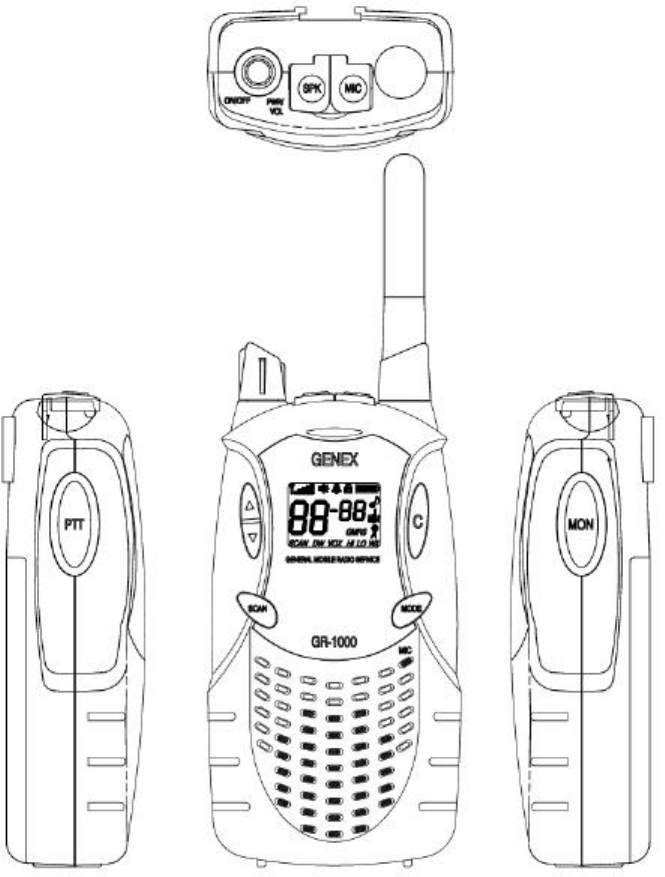
- Power On/Off Volume
- PTT Key : Side [ Tact SW ]
- Monitor Key : Side [ Tact SW ]
- UP Key : Top
- Down Key : Top
- SCAN Key : Top
- CALL Key : Top
- Function Key : Top
- EXT Mic/Charge Jack[ 2.5φ ]
- EXT Speaker Jack[ 3.5φ ]
2. Function Flow Chart
→ CTCSS → PWR Hi/Low → DW → VOX → BEEP → Roger Beep → Ringer Tone→ Vibration
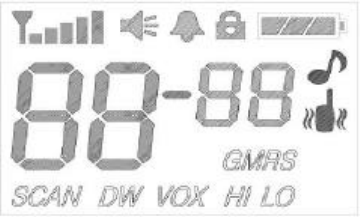
3. LCD Display
ROGERS LABS, INC. Genex Electronics
4405 W. 259th Terrace MODEL: FRS 300
Louisburg, KS 66053 Test #: 010419
Phone/Fax: (913) 837-3214 Test to: FCC Parts 2 and 95 Page 2 of 2
FRS300Manual.doc 05/18/2001
4. Front, Side, Top Overview
5. Operating Instruction
1) On/Off & Volume control Switch
- Radio ON : Rotate the switch clockwise until you here a 'click'. All indicators will appear
momentarily on the LCD and you will hear short beep sound.
- Radio Off : Rotate the switch counter clockwise until all indicators disappear on the LCD.
- Volume setting : Rotate On/Off Volume switch to mid position or adjust level that is most
comfortable for you.
2) Setting the Channel
MK 1995 has 15 main channels.
_ To select the channel
- Turn the radio on
- Press up[ ↑ ] or down[ ↓ ] button to choose the channel.
ROGERS LABS, INC. Genex Electronics
4405 W. 259th Terrace MODEL: FRS 300
Louisburg, KS 66053 Test #: 010419
Phone/Fax: (913) 837-3214 Test to: FCC Parts 2 and 95 Page 3 of 2
FRS300Manual.doc 05/18/2001
3) Setting the Tone Code(CTCSS)
MK 1995 has 38 CTCSS Codes
_ To set the Tone Codes(CTCSS)
- Press Function[F] button once more,[XX oF up to 38] will appear and tone code digit will blink
on the LCD. " oF " means no CTCSS code.
- Press up[ ↑ ] or down[ ↓ ] button to choose the desired sub-channel to use.
- Press the PTT button or Function[F] button to confirm.
4) Setting the Transmit Power HI/LO
- HI : 1.8W TX power
- LO : 500mW TX power
_ To set the TX output power
- Press the Function [F] button until the [ Po LO or HI ] appears.
- Press the up [ ↑ ] button or down [ ↓ ] button to set the TX power
- Press the PTT button or Function [F] button to confirm.
- HI or LO will appear on the LCD.
- If the battery is in low condition, the TX Power will be switched to LO automatically. Even though the
TX power is set to HI.
5) Setting the DW(dual watch) and CTCSS in DW mode.
_ To active the DW mode
- Press the Function [F] button until the [ oF or 1 up to 15] and DW icon blink on the LCD.
- Press the up[ ↑ ] button or down [ ↓ ] button to choose the channel.
- " oF " means no DW mode.
- Press the PTT button or Function [F] button to confirm.
- DW icon will appear on the LCD.
_ To stop the dual watch (DW)
- Press the "S" Scan button, the unit will stop the dual watch and will return to normal operation and DW
icon will disappear from the LCD.
- DW icon will disappear from the LCD.
6) VOX (Voice Operated Transmission)
This option enables you to have hands-free conversation. You do not have to operate the PTT button each
time when you want to transmit.
You can also choose the VOX sensitivity to suit your environment of operation.
(Ex ; noisy road, motor bike, factory etc.)
_ To set the VOX mode.
- Press the Function [F] button until the [ Uo oF or x ] appears. x is a vox level
- VOX icon will be appeared on the LCD.
_ To set the VOX level
- Press the up[ ↑ ] button or down [ ↓ ] button to set the VOX level from 1 to 5.
"oF" is disable the VOX function.
" 3 " is most sensitive.
" 1 " is least sensitive.
- Press the PTT button or Function [F] button to confirm.
7) Beep tone
_ To activate or disable the beep tone
- Press the Function [F] button until [bP on or oF] and the BELL[ ] icon blink on the LCD.
- Press the up[ ↑ ] button or down [ ↓ ] button.
- Press the PTT button or Function [F] button to confirm.
8) Roger tone
This feature will give the tone signal to other parties when transmitting finished (when PTT button is
released.)
ROGERS LABS, INC. Genex Electronics
4405 W. 259th Terrace MODEL: FRS 300
Louisburg, KS 66053 Test #: 010419
Phone/Fax: (913) 837-3214 Test to: FCC Parts 2 and 95 Page 4 of 2
FRS300Manual.doc 05/18/2001
_ To activate or disable the Roger tone
- Press the Function [F] button until [rb on or oF] and the Roger [ ] icon blink on the LCD.
- Press the up[ ↑ ] button or down [ ↓ ] button.
- Press the PTT button or Function [F] button to confirm.
9) Setting the Ringer
- This feature provides 3 user selectable call ringer signal and vibration.
To set your favorite call ringer signal.
- Press the Function [F] button until the [ CA 1 or up to 3 ] appears on the LCD.
- Press the up[ ↑ ] button or down [ ↓ ] button to select the call melody type.
- Press the PTT button to confirm.
- To activate the call , click the "PTT" button twice quickly.
10) Setting the Vibration Modes
° To set for Vibration
- Press the Function [F] button until the [ Ub on or oF ] and Vibrator[ ] icon blink on the LCD
- Press the up [ ↑ ] button or down [ ↓ ] button.
- Press the PTT button or Function [F] button to confirm.
11) Transmitting
- Press and hold the PTT button (The "TX" LED will light with red color)
- Speak slowly and clearly
- To stop the transmission, release the PTT button
- If there are no more receiving signal for 5 seconds, the unit will go into power save mode and then the
"TX" LED will blink with green color.
12) Receiving
The coding feature reduces the possibility of interference and provides enhanced communication.
You can only listen to a call that has correct matching code.
Important ;
Before transmitting or receiving to the other parties ;
- Correct channel is selected ( 1 to 15 ) and
Correct code is set ( 00 to 38 )
13) Channel Scanning
This feature allows you to monitor all activated channels while scanning.
% To activate the Scan
- Press the Scan[S] button
- Radio will begin scanning.
- When in scan mode, the display will show each scanning channel.
- After an activated channel is scanned and received signal and then if there is no more signal, the scan
will resume automatically.
% To disable the Scan
- Press the Scan[S] button, the unit will stop the scanning.
- SCAN icon indicator will disappear from the LCD
- The unit will return to home channel.
14) Call
- Press the Call[C] button.(The "TX" LED will light with red color.)
15) Monitoring the channel
It is used for listening the week signal or to hear all activities on the channel by manually overriding
channel sub tone code setting.
% To activate the Monitor feature
- Press and hold the Monitor[M] button for over two seconds.
- When you hear the sound, release the Monitor[M] button.
(The monitor[ ] icon will appear on the LCD.)
ROGERS LABS, INC. Genex Electronics
4405 W. 259th Terrace MODEL: FRS 300
Louisburg, KS 66053 Test #: 010419
Phone/Fax: (913) 837-3214 Test to: FCC Parts 2 and 95 Page 5 of 2
FRS300Manual.doc 05/18/2001
To disable the Monitor feature
- Press and hold the Monitor[M] button for over two seconds.
(The monitor[ ] icon will disappear on the LCD.)
16) Backlight
Backlight is used to improve the display visibility in dark condition.
% To activate the Backlight
- Press and hold the Monitor[M] button in a moment.
% To disable the Backlight
Press and hold the Monitor[M] button in a moment once again.
17) Keypad Lock
The lock function is to avoid the accidental changes to channel with other radio settings. All
buttons will be locked except the Power, PTT and monitor button.
) To lock the keypad
- Press and hold down the Scan[SC] button for over 2 seconds.
- Keypad will lock.( LOCK[ ] icon will appear on the LCD)
) To unlock the keypad
- Press and hold down the Scan[SC] button for over 2 seconds.
- Keypad will unlock. ( LOCK[ ] icon will disappear on the LCD)
18) Battery status indicator
The Battery[ ] icon will blink when the radio is in low battery power.
Charge the rechargeable battery or replace the batteries.
- Full battery - Battery[ ] icon is not displayed.
- Low battery - Battery[ ] icon is displayed.
- Low battery warning – Battery[ ] icon will blinking.
19) External charger socket
MIC socket can be used for the charging purpose.
It should use the recommended rechargeable battery and wall charger.
20) External Speaker - Mic
Use the approved accessories only to have the optimum performance.
Ear/Mic unit
FCC Information
THIS DEVICE COMPLIES WITH PART 15 OF THE FCC RULES.
OPERATION IS SUBJECT TO THE FOLLOWING TWO CONDITIONS :
(1) THIS DEVICE MAU NOT CAUSE HARMFUL INTERFERENCE, AND
(2) THIS DEVICE MUST ACCEPT ANY INTERFERENCE RECEIVED,
INCLUDING INTERFERENCE THAT MAY CAUSE UNDERSIRED OPERATION.
Safety Information For GMRS UNIT
Your wireless handheld portable transceiver contains a low power transmitter. When the PTT button is
pushed it sends out radio frequency (RF) signals. This device is authorized to operate at a duty factor not
to exceed 50%. In August 1996, the Federal Communications Commission (FCC) adopted RF exposure
guidelines with safety levels for hand-held wireless devices.
Important: To maintain compliance with the FCC’s RF exposure guidelines, hold the transmitter at
least 1 inch (2.5 centimeters) from your face and speak in a normal voice, with the antenna pointed up and
away. If you wear the handset on your body while using the headset accessory, DO NOT TRANSMIT.
The MK 1995supplied belt clip is for storage purposes ONLY. Use only the supplied antenna.
Unauthorized antennas, modifications, or attachments could damage the transmitter and may violate FCC
regulations.
Normal Position: Hold the transmitter approximately 1” from your face and speak in a normal voice,
with the antenna pointed up and away.