Guangzhou EHang Intelligent Technology GVR-200B VR GOGGLES User Manual

Guangzhou EHang Intelligent Technology Co., Ltd. VR GOGGLES

User Manual

Model:GVR‐200B(Bluetooth+2.4GHzdatatransmission+5.8GHzvideotransmission,the5.8Gisreceiveonly)GVR‐200W(WIFI+2.4GHzdatatransmission+5.8GHzvideotransmission,the5.8Gisreceiveonly)
1EnglishBefore using EHang VR goggles, please read the operating manual carefully and familiarize yourself with the operations, warnings and applications. Please avoid improperly installing antennas, using non-propri-etary charger or gimbal. EHang shall not bear any liability or responsibility of the damage of the VR goggles, the gimbal, the camera, the copter or any other related accessories or the accidents arised from improper use.Disclaimer
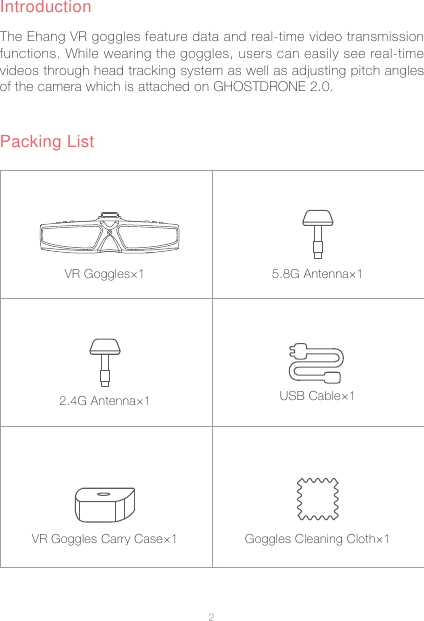
2The Ehang VR goggles feature data and real-time video transmission functions. While wearing the goggles, users can easily see real-time videos through head tracking system as well as adjusting pitch angles of the camera which is attached on GHOSTDRONE 2.0.Packing ListIntroductionUSB Cable×15.8G Antenna×1Goggles Cleaning Cloth×1VR Goggles×12.4G Antenna×1VR Goggles Carry Case×1
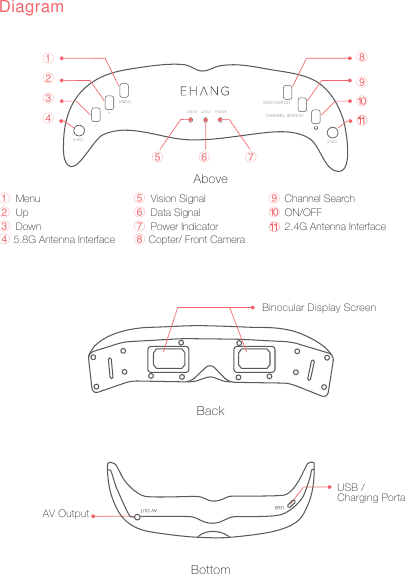
3DiagramBackBinocular Display ScreenBottomUSB / Charging PortalAV OutputAbove5.8GVIEW SWITCHMENU+_VISION DATA POWER CHANNEL SEARCH2.4GŗŘřŠşŞŝŜśŚMenu  Vision Signal   Channel SearchşśŗUp Data Signal  ON/OFFŠŜŘDown Power Indicator 2.4G Antenna Interfaceŝř5.8G Antenna Interface Copter/ Front Camera ŞŚUSB AV OUT
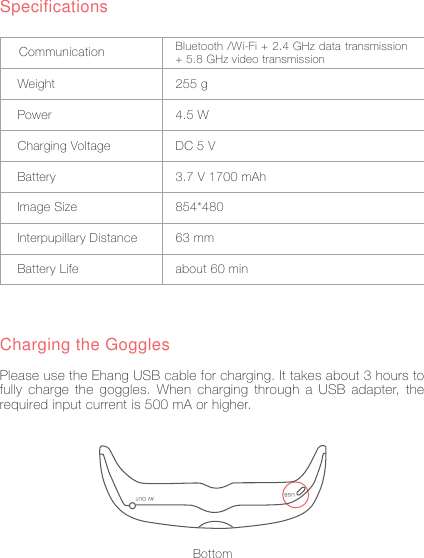
4SpecificationsWeightPowerCharging VoltageBatteryImage SizeInterpupillary DistanceBattery Life255 g4.5 WDC 5 V3.7 V 1700 mAh854*48063 mmabout 60 minCommunication Bluetooth /Wi-Fi + 2.4 GHz data transmission + 5.8 GHz video transmissionCharging the GogglesPlease use the Ehang USB cable for charging. It takes about 3 hours to fully charge the goggles. When charging through a USB adapter, the required input current is 500 mA or higher.USB AV OUTBottom
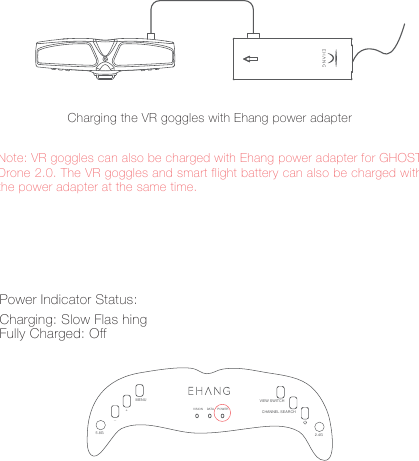
5Charging the VR goggles with Ehang power adapterNote: VR goggles can also be charged with Ehang power adapter for GHOST Drone 2.0. The VR goggles and smart flight battery can also be charged with the power adapter at the same time.5.8GVIEW SWITCHMENU+_VISION DATA POWER CHANNEL SEARCH2.4GPower Indicator Status:Charging: Slow Flas hing Fully Charged: Off
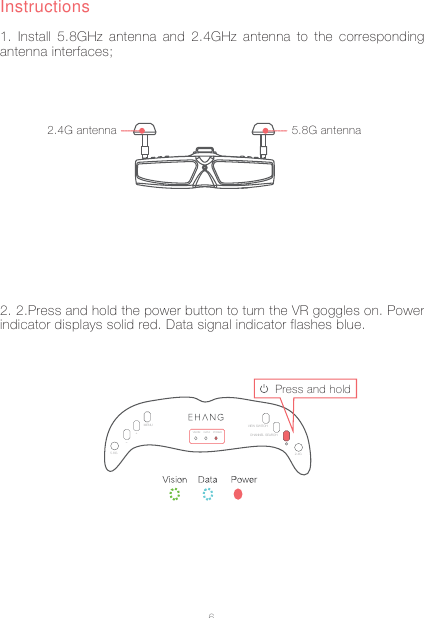
6Instructions5.8G antenna2.4G antenna1. Install 5.8GHz antenna and 2.4GHz antenna to the corresponding antenna interfaces;Press and hold5.8GVIEW SWITCHMENU+_VISION DATA POWER CHANNEL SEARCH2.4G2. 2.Press and hold the power button to turn the VR goggles on. Power indicator displays solid red. Data signal indicator flashes blue.
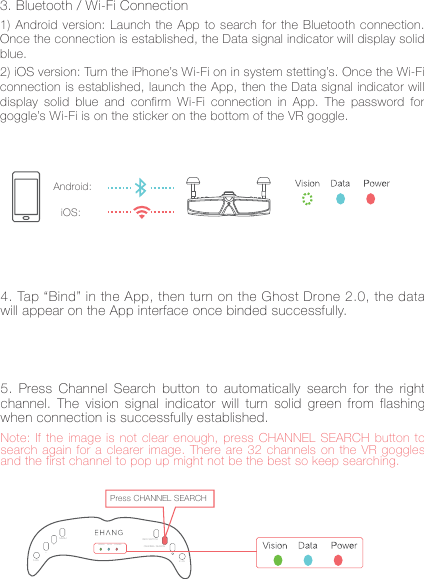
7iOS:Android:4. Tap “Bind” in the App, then turn on the Ghost Drone 2.0, the data will appear on the App interface once binded successfully.Note: If the image is not clear enough, press CHANNEL SEARCH button to search again for a clearer image. There are 32 channels on the VR goggles and the first channel to pop up might not be the best so keep searching.5. Press Channel Search button to automatically search for the right channel. The vision signal indicator will turn solid green from flashing when connection is successfully established.5.8GVIEW SWITCHMENU+_VISION DATA POWER CHANNEL SEARCH2.4GPress CHANNEL SEARCH3. Bluetooth / Wi-Fi Connection1) Android version: Launch the App to search for the Bluetooth connection. Once the connection is established, the Data signal indicator will display solid blue.2) iOS version: Turn the iPhone’s Wi-Fi on in system stetting’s. Once the Wi-Fi connection is established, launch the App, then the Data signal indicator will display solid blue and confirm Wi-Fi connection in App. The password for goggle’s Wi-Fi is on the sticker on the bottom of the VR goggle.
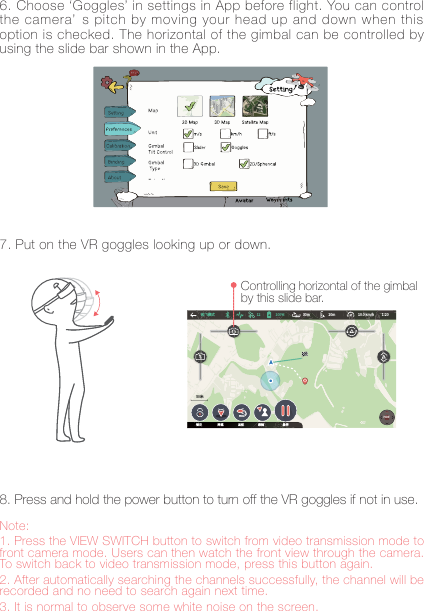
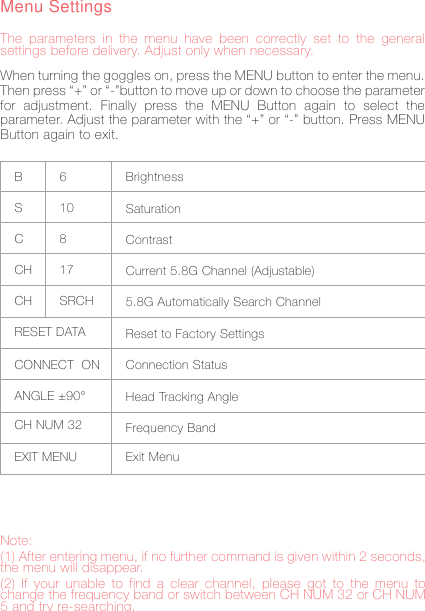
8Note: 1. Press the VIEW SWITCH button to switch from video transmission mode to front camera mode. Users can then watch the front view through the camera. To switch back to video transmission mode, press this button again. 2. After automatically searching the channels successfully, the channel will be recorded and no need to search again next time. 3. It is normal to observe some white noise on the screen.6. Choose ‘Goggles’ in settings in App before flight. You can control the camera’ s pitch by moving your head up and down when this option is checked. The horizontal of the gimbal can be controlled by using the slide bar shown in the App.8. Press and hold the power button to turn off the VR goggles if not in use.7. Put on the VR goggles looking up or down.Controlling horizontal of the gimbal by this slide bar.碛饰굷垷䒭 N N LNI )*%&ꝉ㹁 ꣭衅 鵥菔 騈ꥥ 䝧⨢
9Menu SettingsThe parameters in the menu have been correctly set to the general settings before delivery. Adjust only when necessary.When turning the goggles on, press the MENU button to enter the menu. Then press “+” or “-”button to move up or down to choose the parameter for adjustment. Finally press the MENU Button again to select the parameter. Adjust the parameter with the “+” or “-” button. Press MENU Button again to exit.BSCCHCHRESET DATACONNECT  ON ANGLE ±90°6 10817SRCHBrightnessSaturationContrast Current 5.8G Channel (Adjustable)5.8G Automatically Search ChannelReset to Factory SettingsConnection StatusHead Tracking AngleFrequency BandCH NUM 32EXIT MENU Exit MenuNote: (1) After entering menu, if no further command is given within 2 seconds, the menu will disappear. (2) If your unable to find a clear channel, please got to the menu to change the frequency band or switch between CH NUM 32 or CH NUM 5 and try re-searching.
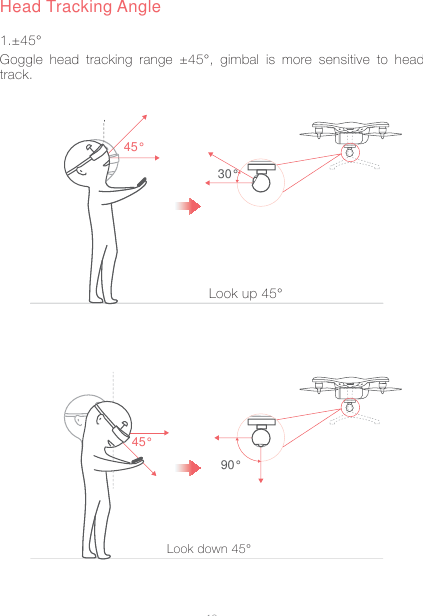
1045°Goggle head tracking range ±45°, gimbal is more sensitive to head track.Head Tracking AngleLook up 45°Look down 45°30°45°90°1.±45°
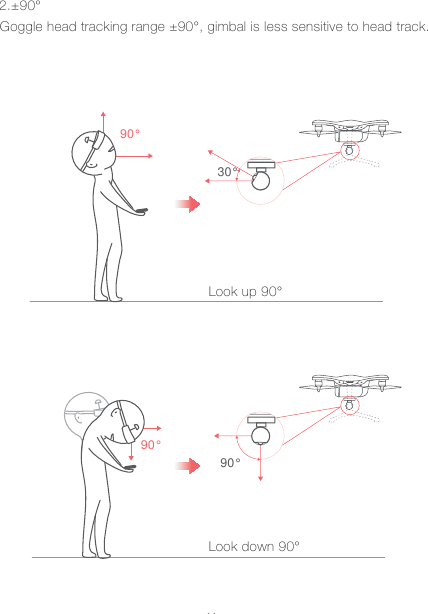
1190°Goggle head tracking range ±90°, gimbal is less sensitive to head track.Look up 90°Look down 90°30°90°2.±90°90°
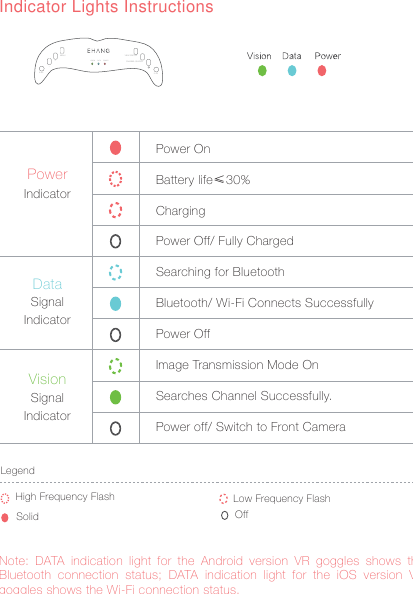
12PowerDataVisionPower OnBattery life≤30%ChargingPower Off/ Fully ChargedSearching for BluetoothBluetooth/ Wi-Fi Connects SuccessfullyPower OffImage Transmission Mode OnSearches Channel Successfully.Power off/ Switch to Front CameraIndicatorSignalIndicatorSignalIndicatorNote: DATA indication light for the Android version VR goggles shows the Bluetooth connection status; DATA indication light for the iOS version VR goggles shows the Wi-Fi connection status.LegendLow Frequency FlashSolid OffHigh Frequency FlashIndicator Lights Instructions5.8GVIEW SWITCHMENU+_VISION DATA POWER CHANNEL SEARCH2.4G
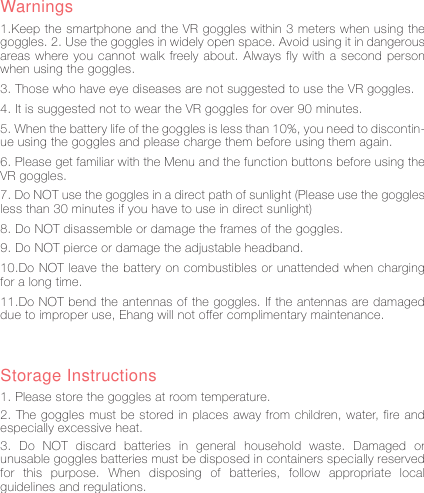
13Warnings1.Keep the smartphone and the VR goggles within 3 meters when using the goggles. 2. Use the goggles in widely open space. Avoid using it in dangerous areas where you cannot walk freely about. Always fly with a second person when using the goggles. 3. Those who have eye diseases are not suggested to use the VR goggles. 4. It is suggested not to wear the VR goggles for over 90 minutes. 5. When the battery life of the goggles is less than 10%, you need to discontin-ue using the goggles and please charge them before using them again. 6. Please get familiar with the Menu and the function buttons before using the VR goggles.7. Do NOT use the goggles in a direct path of sunlight (Please use the goggles less than 30 minutes if you have to use in direct sunlight) 8. Do NOT disassemble or damage the frames of the goggles. 9. Do NOT pierce or damage the adjustable headband. 10.Do NOT leave the battery on combustibles or unattended when charging for a long time. 11.Do NOT bend the antennas of the goggles. If the antennas are damaged due to improper use, Ehang will not offer complimentary maintenance.Storage Instructions1. Please store the goggles at room temperature. 2. The goggles must be stored in places away from children, water, fire and especially excessive heat. 3. Do NOT discard batteries in general household waste. Damaged or unusable goggles batteries must be disposed in containers specially reserved for this purpose. When disposing of batteries, follow appropriate local guidelines and regulations.
14WarrantyStrict quality control will be conducted before delivery of your VR goggles. Please read the manual and get familiar with the operation before use. A 6-month warranty is guaranteed for problems not caused by user’s improper use. Removal of the products manufacturing label will be regarded as waiver of warranty. We will not offer complimentary maintenance if the label is removed or damaged, but limited warranty is still provided by Ehang.Contact UsBusiness Hour: Monday – Friday 10:00 A.M – 6:00 P.M (PST)Customer Service Phone: +1 650-533-8554 / 888-800-7056Customer Service Email: support@ehang.comEHang, Inc. reserves all right to interpret this warranty.
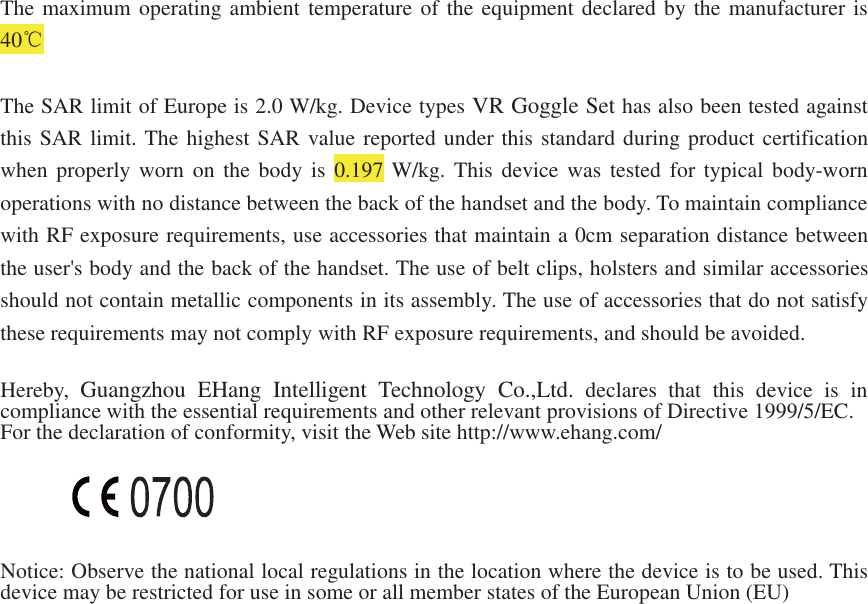
The maximum operating ambient temperature of the equipment declared by the manufacturer is40The SAR limit of Europe is 2.0 W/kg. Device types VR Goggle Set has also been tested againstthis SAR limit. The highest SAR value reported under this standard during product certificationwhen properly worn on the body is 0.197 W/kg. This device was tested for typical body-wornoperations with no distance between the back of the handset and the body. To maintain compliancewith RF exposure requirements, use accessories that maintain a 0cm separation distance betweenthe user's body and the back of the handset. The use of belt clips, holsters and similar accessoriesshould not contain metallic components in its assembly. The use of accessories that do not satisfythese requirements may not comply with RF exposure requirements, and should be avoided.Hereby,Guangzhou EHangIntelligent TechnologyCo.,Ltd. declares that this device is incompliance with the essential requirements and other relevantprovisions of Directive 1999/5/EC.For the declaration of conformity, visit the Web site http://www.ehang.com/Notice: Observe the national local regulations in the location where the device is to be used. Thisdevice maybe restricted for use in some or all member states of the European Union(EU)
This device complies with part 15 of the FCC rules. Operation is subject to the following twoconditions: (1) this device may not cause harmful interference, and (2) this device must acceptany interference received, including interference that may cause undesired operation.NOTE: The manufacturer is not responsible for any radio or TV interference caused byunauthorized modifications to this equipment. Such modifications could void the user’s authorityto operate the equipment.NOTE: This equipment has been tested and found to comply with the limits for a Class B digitaldevice, pursuant to part 15 of the FCC Rules. These limits are designed to provide reasonableprotection against harmful interference in a residential installation. This equipment generatesuses and can radiate radio frequency energy and, if not installed and used in accordance with theinstructions, may cause harmful interference to radio communications. However, there is noguarantee that interference will not occur in a particular installation. If this equipment doescause harmful interference to radio or television reception, which can be determined by turningthe equipment off and on, the user is encouraged to try to correct the interference by one ormore of the following measures:- Reorient or relocate the receiving antenna.- Increase the separation between the equipment and receiver.-Connect the equipment into an outlet on a circuit different from that to which the receiver isconnected.-Consult the dealer or an experienced radio/TV technician for help- This device and its antenna(s) must not be co-located or operating in conjunction with anyother antenna or transmitter.The SAR limit of USA (FCC) is 1.6 W/kg averaged over one gram of tissue. Device types VRGOGGLES (FCC ID: 2ADPF-GVR-200B) has also been tested against this SAR limit. The highestSAR value reported under this standard during product certification when properly worn onhead is 0.049W/kg.

Navigation menu