Guangzhou Rigal Electronics RD-601 DLP Smart Projector User Manual 1

Guangzhou Rigal Electronics Co., Ltd. DLP Smart Projector 1

15_RD-601 UserMan

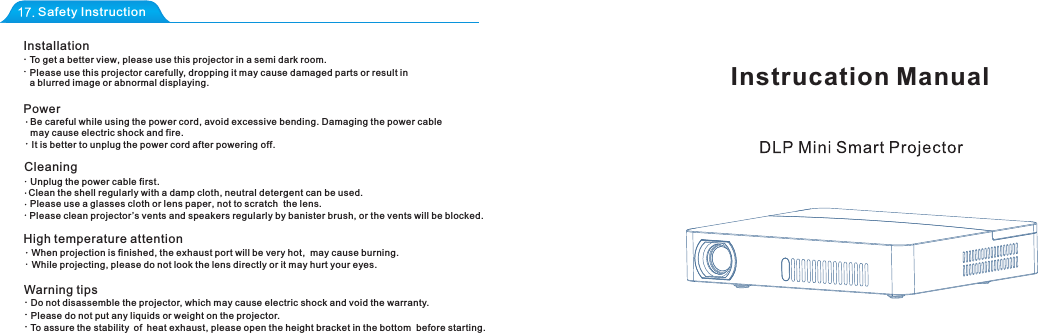
Instrucation ManualSafety InstructionInstallationTo get a better view, please use this projector in a semi dark room.Please use this projector carefully, dropping it may cause damaged parts or result in a blurred image or abnormal displaying.PowerBe careful while using the power cord, avoid excessive bending. Damaging the power cable may cause electric shock and fire.  It is better to unplug the power cord after poweringoff. CleaningUnplug the power cable first.Clean the shell regularly with a damp cloth, neutral detergent can be used.Please use a glasses cloth or lens paper, not to scratch  the lens.Please clean projector ’s vents and speakers regularly by banister brush, or the vents will be blocked. High temperature attentionWhen projection is finished, the exhaust port will be very hot,  may cause burning.While projecting, please do not look the lens directly or it may hurt your eyes.Warning tipsDo not disassemble the projector, which may cause electric shock and void the warranty.Please do not put any liquids or weight on the projector.To assure the stability of heat exhaust, please open the height bracket in the bottom  before starting.
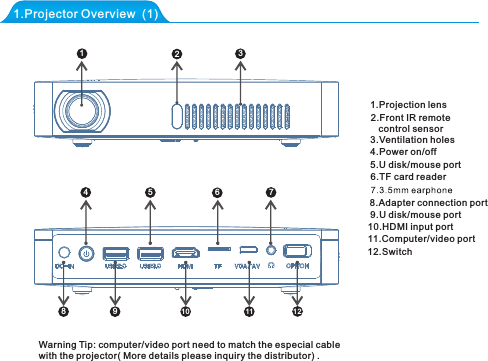
1111.Projector Overview  (1)Warning Tip: computer/video port need to match the especial cablewith the projector( More details please inquiry the distributor) .123445678910 11 121.Projection lens2.Front IR remote    control sensor3.Ventilation holes8.Adapter connection port4.Power on/off5.U disk/mouse port6.TF card reader9.U disk/mouse port10.HDMI input port11.Computer/video port12.Switch
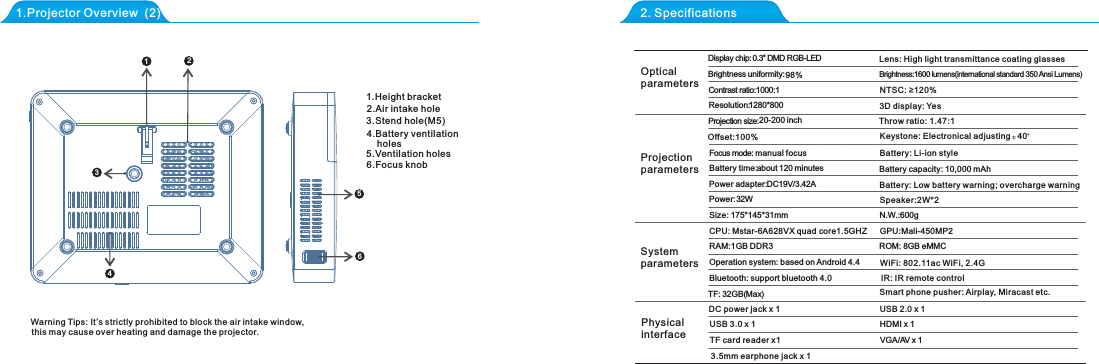
     Warning Tips: It’s strictly prohibited to block the air intake window,         this may cause over heating and damage the projector.1.Projector Overview  (2) 2. SpecificationsOptical parametersProjection parametersSystemparametersPhysicalinterfaceDisplay chip:0.3'' DMD RGB-LEDBrightness uniformity:98%Contrast ratio:1000:1Resolution:1280*800Projection size:20-200 inchFocus mode: manual focus Battery time:about 120 minutes Power adapter:DC19V/3.42APower:32WSize: 175*145*31mmCPU: Mstar-6A628VX quadcore1.5GHZ RAM:1GB DDR3Operation system: based on Android 4.4Bluetooth: support bluetooth 4.0TF: 32GB(Max) DC power jack x 1USB 3.0 x 1TF card reader x13.5mm earphone jack x 1Brightness:1600 lumens(international standard 350 Ansi Lumens)Battery capacity: 10,000 mAhSpeaker:2W*2N.W.:600gGPU:Mali-450MP2ROM: 8GB eMMCUSB 2.0 x 1HDMI x 1VGA/AV x 111234561.Height bracket2.Air intake hole    3.Stend hole(M5)4.Battery ventilation     holes5.Ventilation holes6.Focus knobIR: IR remote controlSmart phone pusher: Airplay, Miracast etc.Battery: Low batter y warning; overcharge warning Throw ratio: 1.47:1Lens: High light transmittance coating glasses Keystone: Electro nical adjusting   40Offset:100%WiFi: 802.11ac WiFi, 2.4GNTSC: ≥120%3D display: YesBattery: Li-ion sty le
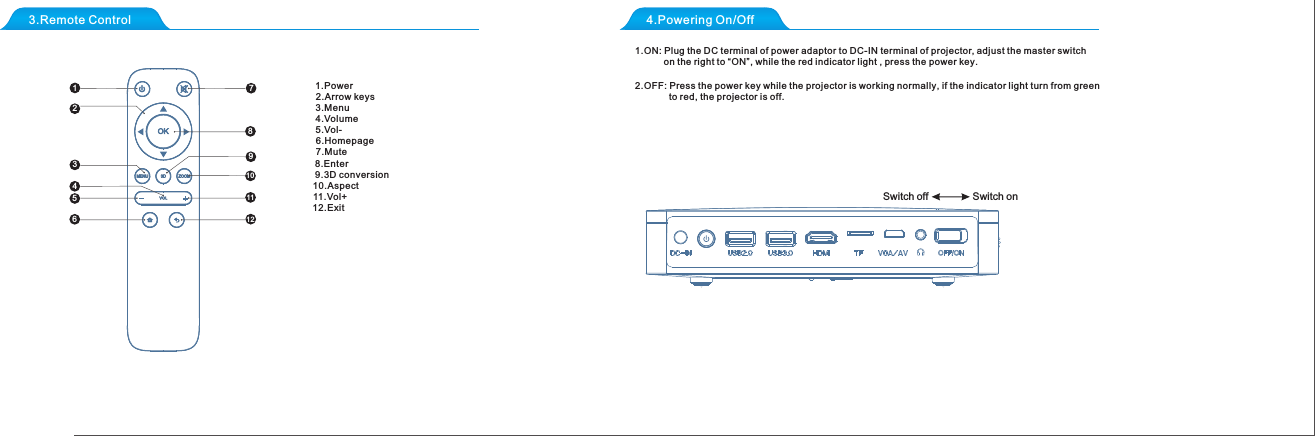
3.Remote Control 4.Powering On/Off 1.ON: Plug the DC terminal of power adaptor to DC-IN terminal of projector, adjust the master switch            on the right to “ON”, while the red indicator light , press the power key.            2.OFF: Press the power key while the projector is working normally, if the indicator light turn from green              to red, the projector is off.             Switch onSwitch off1234567891011121.Power2.Arrow keys    3.Menu8.Enter4.Volume5.Vol-6.Homepage7.Mute9.3D conversion 10.Aspect11.Vol+12.Exit
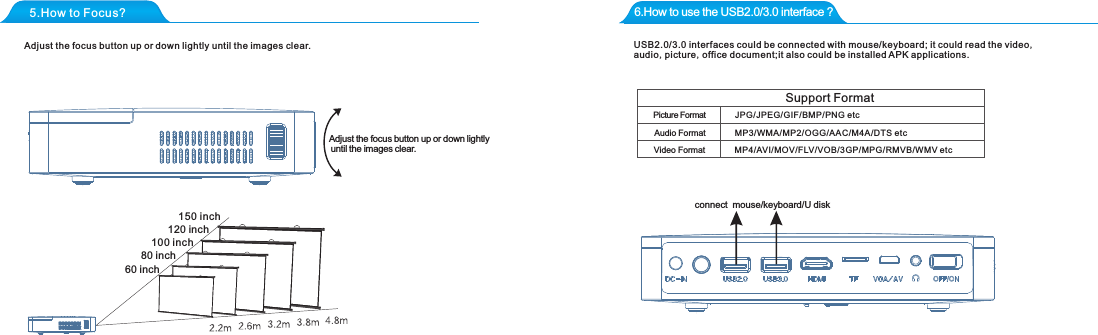
5.How to Focus? 6.How to use the USB2.0/3.0 interface ?Adjust the focus button up or down lightly until the images clear.Adjust the focus button up or down lightly until the images clear.150 inch120 inch100 inch80 inch60 inchUSB2.0/3.0 interfaces could be connected with mouse/keyboard; it could read the video,audio,picture,office document;it also could be installed APK applications.Support FormatPicture FormatAudio FormatVideo FormatMP3/WMA/MP2/OGG/AAC/M4A/DTS etcJPG/JPEG/GIF/BMP/PNG etcMP4/AVI/MOV/FLV/VOB/3GP/MPG/RMVB/WMV etcconnect  mouse/keyboard/U disk
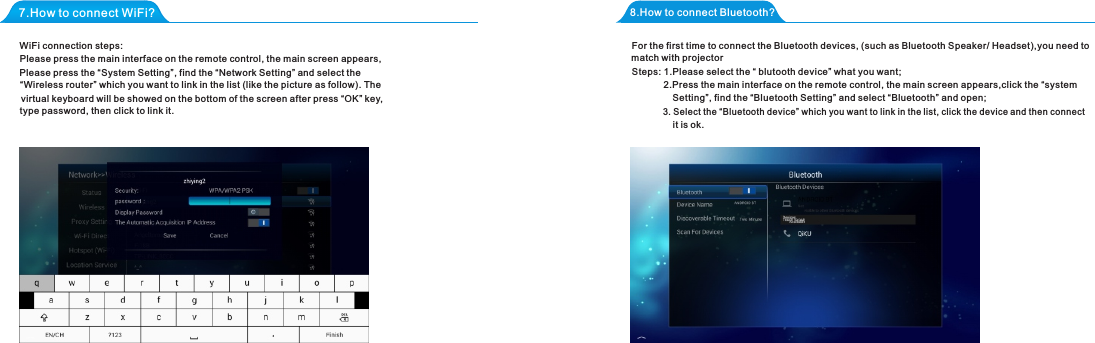
7.How to connect WiFi?WiFi connection steps:8.How to connect Bluetooth?3. Select the “Bluetooth device” which you want to link in the list, click the device and then connect  match with projectorSetting”, find the “Bluetooth Setting” and select “Bluetooth” and open;it is ok.Please press the “System Setting”, find the “Network Setting” and select the   virtual keyboard will be showed on the bottom of the screen after press “OK” key, Please press the main interface on the remote control, the main screen appears,“Wireless router” which you want to link in the list (like the picture as follow). Thetype password, then click to link it. For the first time to connect the Bluetooth devices, (such as Bluetooth Speaker/ Headset),you need to2.Press the main interface on the remote control, the main screen appears,click the “systemSteps: 1.Please select the “ blutooth device” what you want;
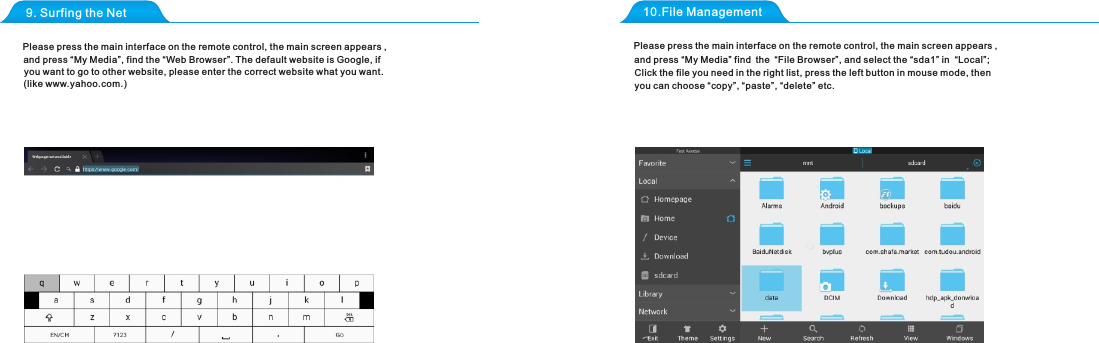
9. Surfing the Net 10.File ManagementPlease press the main interface on the remote control, the main screen appears , and press “My Media”, find the “Web Browser”. The default website is Google, ifyou want to go to other website, please enter the correct website what you want.(like www.yahoo.com.)Click the file you need in the right list, press the left button in mouse mode, then Please press the main interface on the remote control, the main screen appears , and press “My Media” find the “File Browser”, and select the “sda1” in  “Local”;you can choose “copy”, “paste”, “delete” etc.
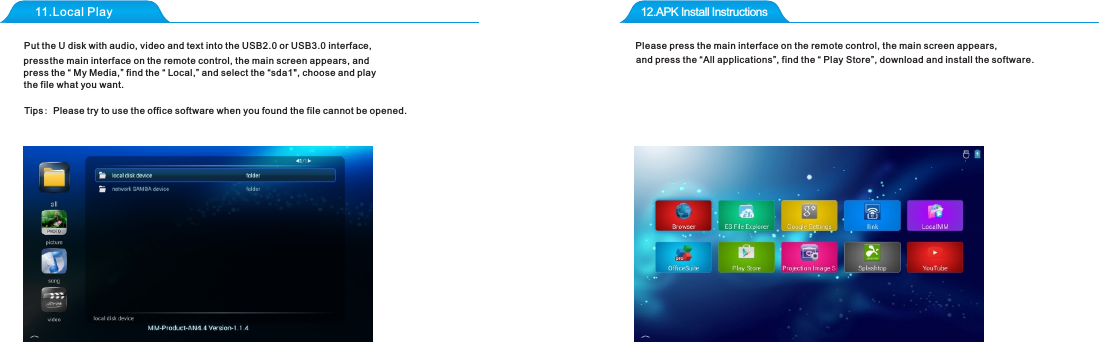
11.Local Play 12.APK Install Instructions Put the U disk with audio, video and text into the USB2.0 or USB3.0 interface, pre ss the main interface on the remote control, the main screen appears, and press the “ My Media,” find the “ Local,” and select the “sda1", choose and play the file what you want.Tips: Please try to use the office software when you found the file cannot be opened.Please press the main interface on the remote control, the main screen appears,and press the “All applications”, find the “ Play Store”, download and install the software.
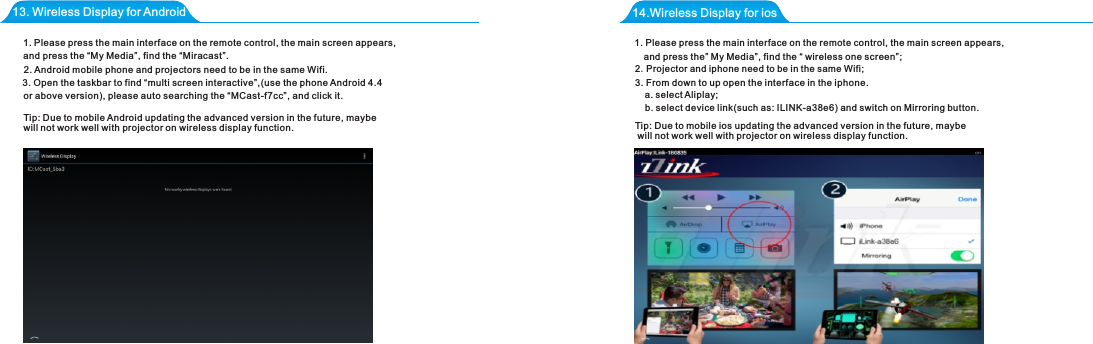
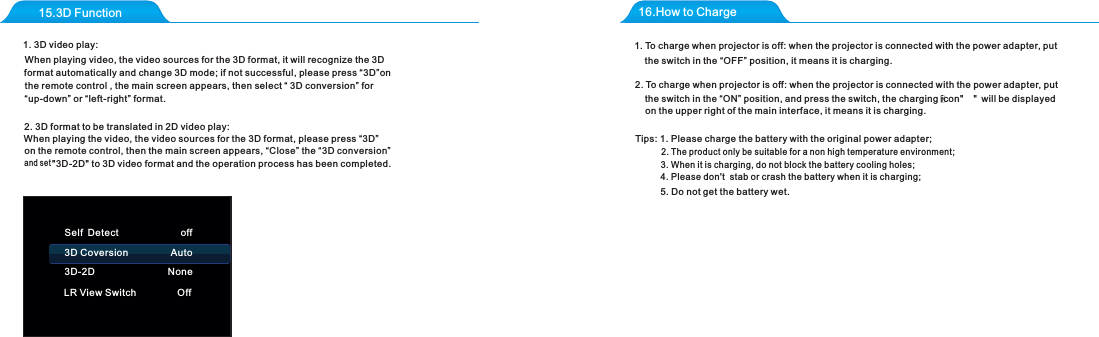
13. Wireless Display for Android 14.Wireless Display for ios1. Please press the main interface on the remote control, the main screen appears, and press the “My Media”, find the “Miracast”.2. Android mobile phone and projectors need to be in the same Wifi.3. Open the taskbar to find “multi screen interactive”,(use the phone Android 4.4  or above version), please auto searching the “MCast-f7cc”, and click it.1. Please press the main interface on the remote control, the main screen appears, and press the” My Media”, find the “ wireless one screen”;2.Projector and iphone need to be in the same Wifi;3. From down to up open the interface in the iphone.a. select Aliplay;b. select device link(such as: ILINK-a38e6) and switch on Mirroring button.Tip: Due to mobile Android updating the advanced version in the future, maybe will not work well with projector on wireless display function.  Tip: Due to mobile ios updating the advanced version in the future, maybe will not work well with projector on wireless display function.
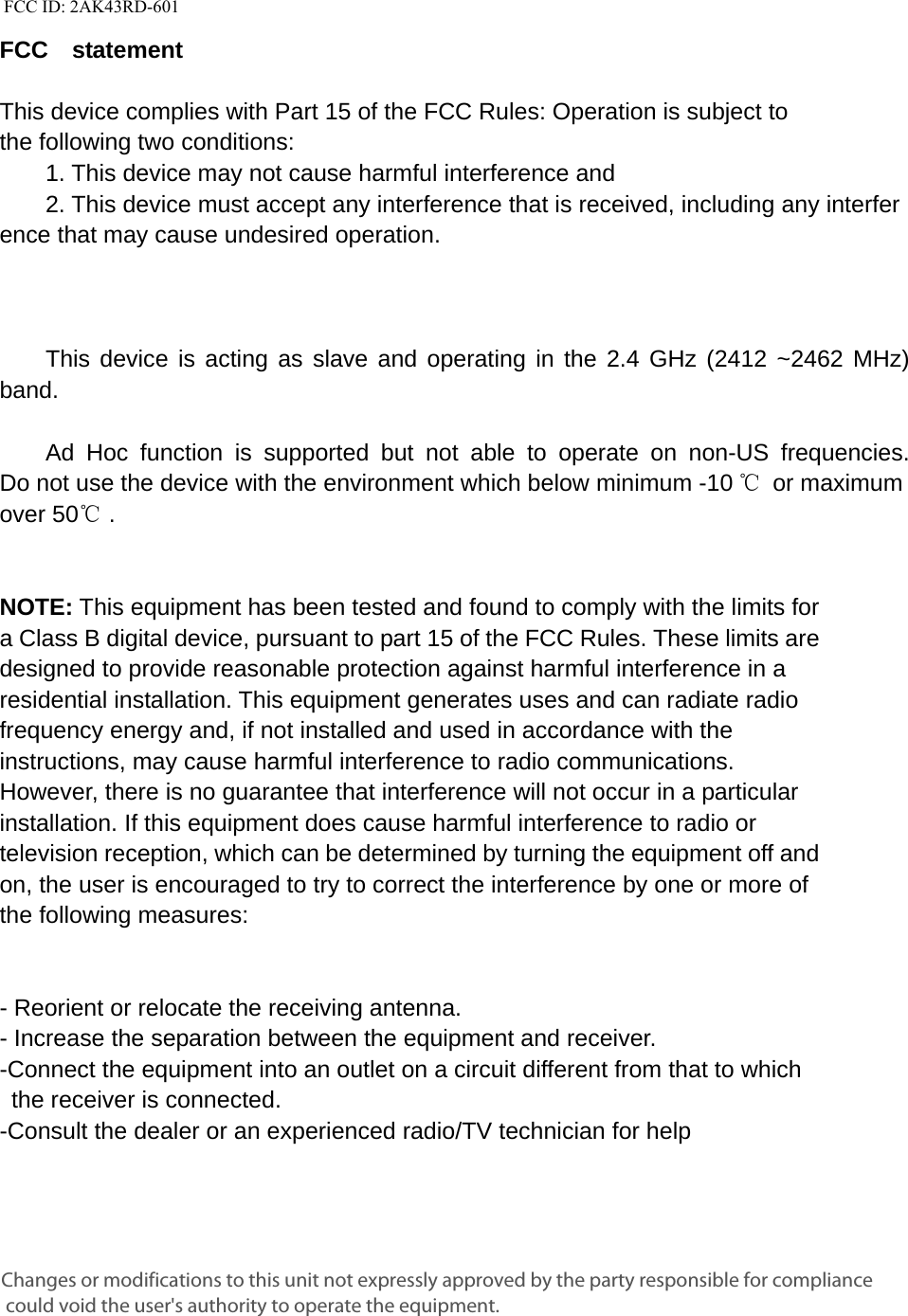
15.3D Function 16.How to Charge1. 3D video play:2. 3D format to be translated in 2D video play:and set "3D-2D" to 3D video format and the operation process has been completed.Tips: 1. Please сharge the battery with the original power adapter;2. The product only be suitable for a non high temperature environment;3. When it is charging, do not block the battery cooling holes;4. Please don't  stab or crash the battery when it is charging; 5. Do not get the battery wet.Self Detect                       off3D Coversion                Auto3D-2D NoneLR View Switch OffWhen playing the video, the video sources for the 3D format, please press “3D”on the remote control, then the main screen appears, “Close” the “3D conversion” When playing video, the video sources for the 3D format, it will recognize the 3D format automatically and change 3D mode; if not successful, please press “3D”on the remote control , the main screen appears, then select “ 3D conversion” for “up-down” or “left-right” format.1. To charge when projector is off: when the projector is connected with the power adapter, put the switch in the “OFF” position, it means it is charging.2. To charge when projector is off: when the projector is connected with the power adapter, put the switch in the “ON” position, and press the switch, the charging icon"    " will be displayed on the upper right of the main interface, it means it is charging.
  FCC ID: 2AK43RD-601   FCC  statement   This device complies with Part 15 of the FCC Rules: Operation is subject to  the following two conditions:   1. This device may not cause harmful interference and   2. This device must accept any interference that is received, including any interference that may cause undesired operation.            This device is acting as slave and operating in the 2.4 GHz (2412 ~2462 MHz) band.     Ad Hoc function is supported but not able to operate on non-US frequencies. Do not use the device with the environment which below minimum -10 ℃ or maximum over 50℃ .     NOTE: This equipment has been tested and found to comply with the limits for a Class B digital device, pursuant to part 15 of the FCC Rules. These limits are designed to provide reasonable protection against harmful interference in a residential installation. This equipment generates uses and can radiate radio frequency energy and, if not installed and used in accordance with the instructions, may cause harmful interference to radio communications. However, there is no guarantee that interference will not occur in a particular installation. If this equipment does cause harmful interference to radio or television reception, which can be determined by turning the equipment off and on, the user is encouraged to try to correct the interference by one or more of the following measures:      - Reorient or relocate the receiving antenna. - Increase the separation between the equipment and receiver.   -Connect the equipment into an outlet on a circuit different from that to which the receiver is connected.   -Consult the dealer or an experienced radio/TV technician for help Changes or modifications to this unit not expressly approved by the party responsible for compliance could void the user's authority to operate the equipment.

Navigation menu