HONGJIA YUAN COMMUNICATION TECHNOLOGY W002 GSM/GPRS MOBILE PHONE-USB PORTION User Manual W002

SHENZHEN HONGJIA YUAN COMMUNICATION TECHNOLOGY CO.,LTD GSM/GPRS MOBILE PHONE-USB PORTION W002

Users Manual

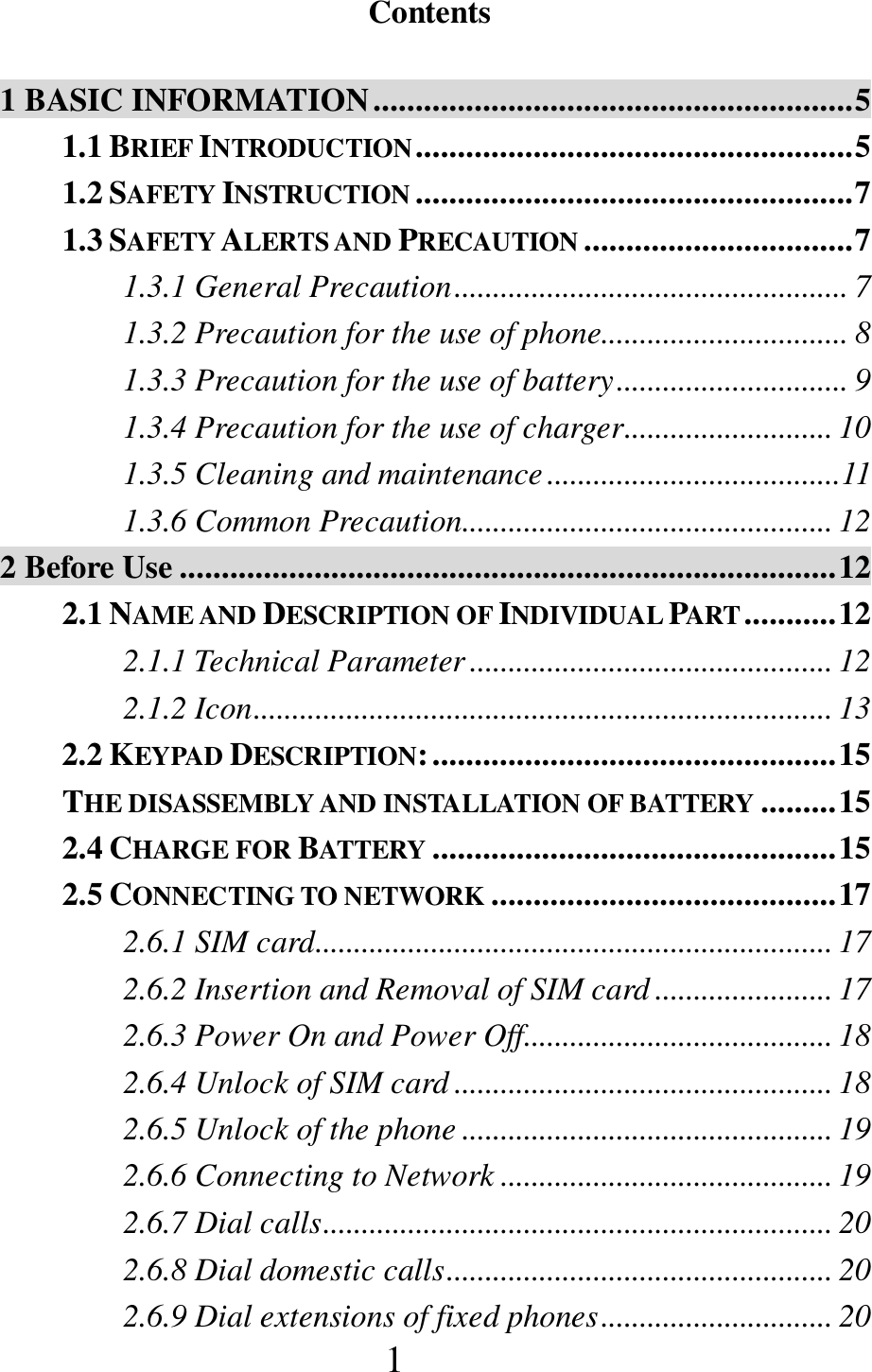
1  Contents  1 BASIC INFORMATION ......................................................... 5 1.1 BRIEF INTRODUCTION .................................................... 5 1.2 SAFETY INSTRUCTION .................................................... 7 1.3 SAFETY ALERTS AND PRECAUTION ................................ 7 1.3.1 General Precaution ................................................... 7 1.3.2 Precaution for the use of phone................................ 8 1.3.3 Precaution for the use of battery .............................. 9 1.3.4 Precaution for the use of charger ........................... 10 1.3.5 Cleaning and maintenance ...................................... 11 1.3.6 Common Precaution ................................................ 12 2 Before Use .............................................................................. 12 2.1 NAME AND DESCRIPTION OF INDIVIDUAL PART ........... 12 2.1.1 Technical Parameter ............................................... 12 2.1.2 Icon ........................................................................... 13 2.2 KEYPAD DESCRIPTION: ................................................ 15 THE DISASSEMBLY AND INSTALLATION OF BATTERY ......... 15 2.4 CHARGE FOR BATTERY ................................................ 15 2.5 CONNECTING TO NETWORK ......................................... 17 2.6.1 SIM card ................................................................... 17 2.6.2 Insertion and Removal of SIM card ....................... 17 2.6.3 Power On and Power Off........................................ 18 2.6.4 Unlock of SIM card ................................................. 18 2.6.5 Unlock of the phone ................................................ 19 2.6.6 Connecting to Network ........................................... 19 2.6.7 Dial calls .................................................................. 20 2.6.8 Dial domestic calls .................................................. 20 2.6.9 Dial extensions of fixed phones .............................. 20
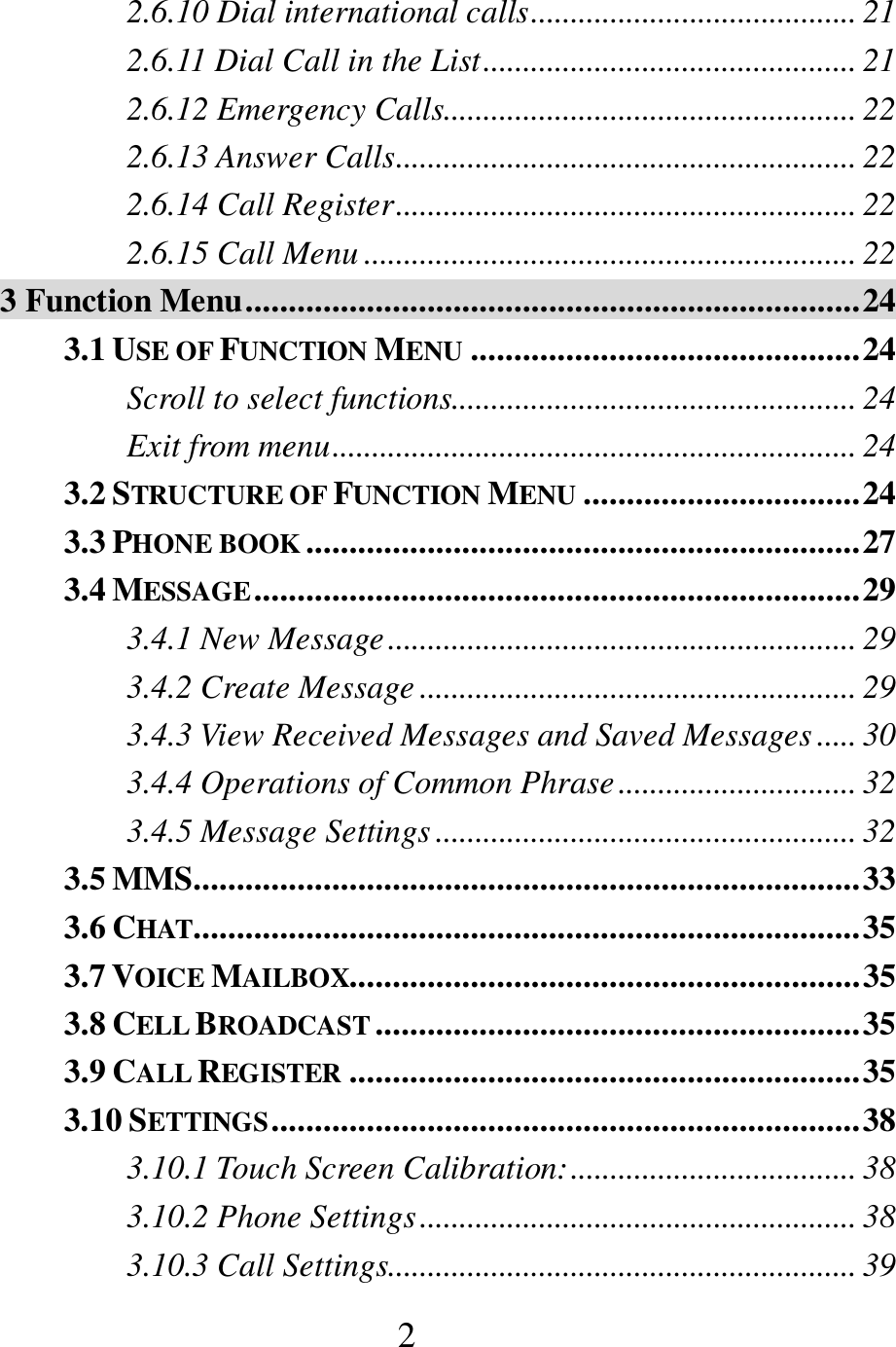
 2 2.6.10 Dial international calls ......................................... 21 2.6.11 Dial Call in the List ............................................... 21 2.6.12 Emergency Calls.................................................... 22 2.6.13 Answer Calls .......................................................... 22 2.6.14 Call Register .......................................................... 22 2.6.15 Call Menu .............................................................. 22 3 Function Menu ....................................................................... 24 3.1 USE OF FUNCTION MENU ............................................. 24 Scroll to select functions................................................... 24 Exit from menu .................................................................. 24 3.2 STRUCTURE OF FUNCTION MENU ................................ 24 3.3 PHONE BOOK ................................................................ 27 3.4 MESSAGE ...................................................................... 29 3.4.1 New Message ........................................................... 29 3.4.2 Create Message ....................................................... 29 3.4.3 View Received Messages and Saved Messages ..... 30 3.4.4 Operations of Common Phrase .............................. 32 3.4.5 Message Settings ..................................................... 32 3.5 MMS............................................................................. 33 3.6 CHAT ............................................................................. 35 3.7 VOICE MAILBOX........................................................... 35 3.8 CELL BROADCAST ........................................................ 35 3.9 CALL REGISTER ........................................................... 35 3.10 SETTINGS .................................................................... 38 3.10.1 Touch Screen Calibration: .................................... 38 3.10.2 Phone Settings ....................................................... 38 3.10.3 Call Settings........................................................... 39
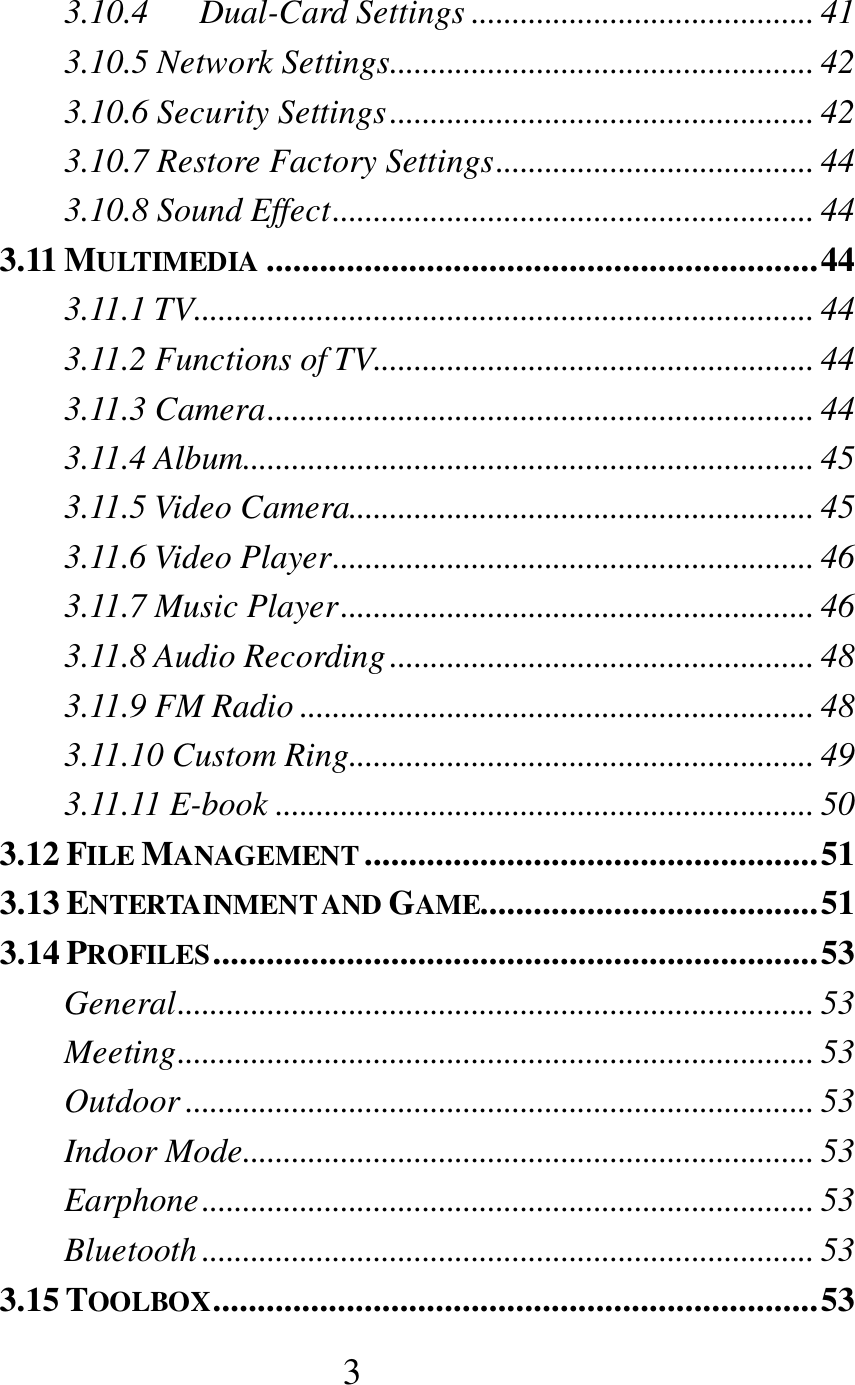
 3 3.10.4      Dual-Card Settings .......................................... 41 3.10.5 Network Settings .................................................... 42 3.10.6 Security Settings .................................................... 42 3.10.7 Restore Factory Settings ....................................... 44 3.10.8 Sound Effect ........................................................... 44 3.11 MULTIMEDIA .............................................................. 44 3.11.1 TV............................................................................ 44 3.11.2 Functions of TV...................................................... 44 3.11.3 Camera ................................................................... 44 3.11.4 Album...................................................................... 45 3.11.5 Video Camera......................................................... 45 3.11.6 Video Player ........................................................... 46 3.11.7 Music Player .......................................................... 46 3.11.8 Audio Recording .................................................... 48 3.11.9 FM Radio ............................................................... 48 3.11.10 Custom Ring......................................................... 49 3.11.11 E-book .................................................................. 50 3.12 FILE MANAGEMENT ................................................... 51 3.13 ENTERTAINMENT AND GAME...................................... 51 3.14 PROFILES .................................................................... 53 General .............................................................................. 53 Meeting .............................................................................. 53 Outdoor ............................................................................. 53 Indoor Mode...................................................................... 53 Earphone ........................................................................... 53 Bluetooth ........................................................................... 53 3.15 TOOLBOX .................................................................... 53
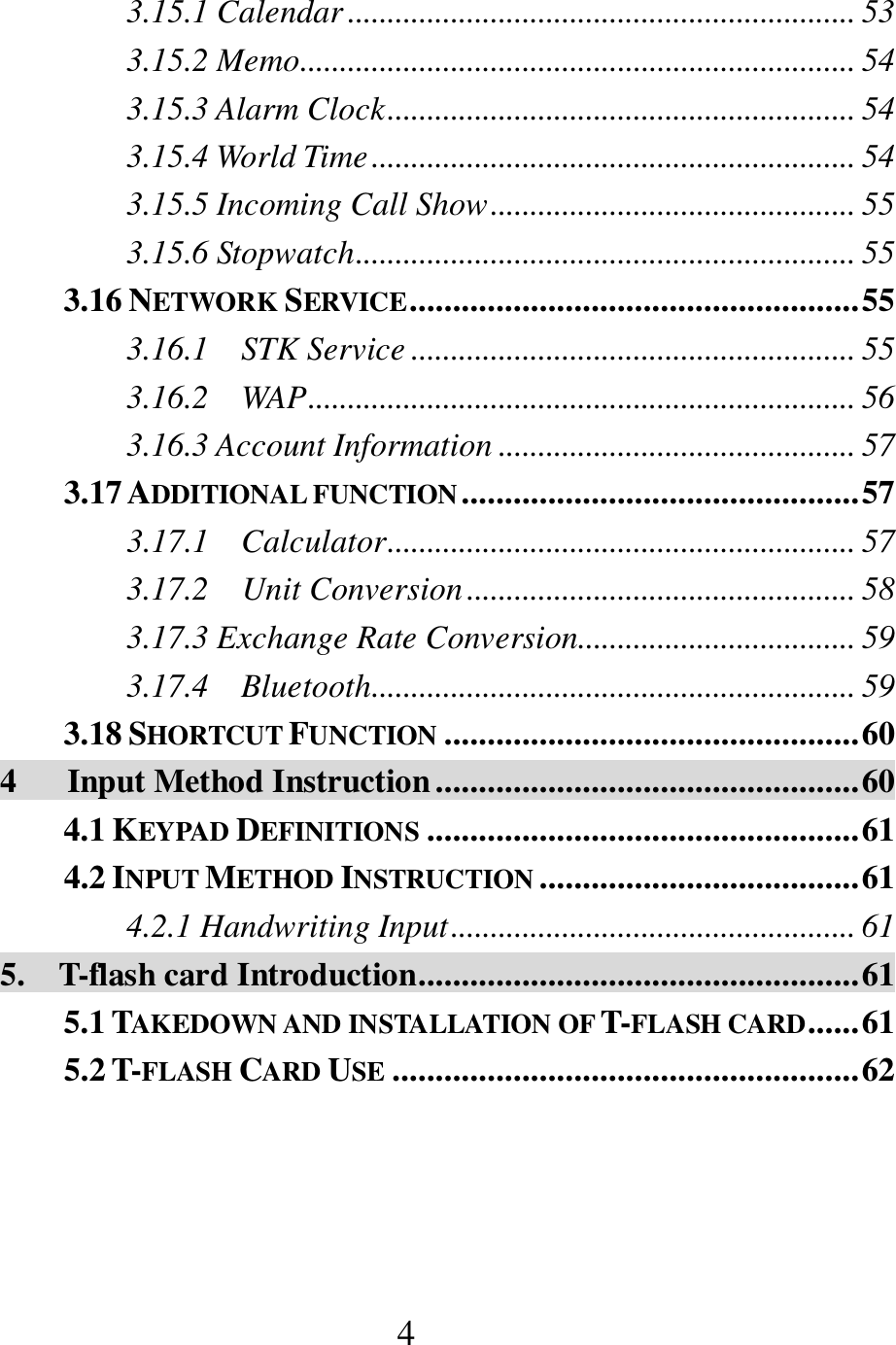
 4 3.15.1 Calendar ................................................................ 53 3.15.2 Memo...................................................................... 54 3.15.3 Alarm Clock ........................................................... 54 3.15.4 World Time ............................................................. 54 3.15.5 Incoming Call Show .............................................. 55 3.15.6 Stopwatch ............................................................... 55 3.16 NETWORK SERVICE .................................................... 55 3.16.1    STK Service ........................................................ 55 3.16.2    WAP ..................................................................... 56 3.16.3 Account Information ............................................. 57 3.17 ADDITIONAL FUNCTION .............................................. 57 3.17.1    Calculator ........................................................... 57 3.17.2    Unit Conversion ................................................. 58 3.17.3 Exchange Rate Conversion ................................... 59 3.17.4    Bluetooth ............................................................. 59 3.18 SHORTCUT FUNCTION ................................................ 60 4      Input Method Instruction ................................................. 60 4.1 KEYPAD DEFINITIONS .................................................. 61 4.2 INPUT METHOD INSTRUCTION ..................................... 61 4.2.1 Handwriting Input ................................................... 61 5.    T-flash card Introduction ................................................... 61 5.1 TAKEDOWN AND INSTALLATION OF T-FLASH CARD ...... 61 5.2 T-FLASH CARD USE ...................................................... 62
 5   1      Basic Information   1.1 Brief Introduction   Thank  you  for  selecting  our  GSM/GPRS  digital  mobile  phone. You  can  fully understand  the usage  of  this  phone  and  enjoy the sound  functions  and  simple  operation  way  after  reading  this manual.   This  color  screen  mobile  phone  is  designed  for  GSM/GPRS network  environment.  Besides  basic  call  functions,  it  also provides you with numerous functions, including dual-card mode, Chinese  &  English  input  method,  handwriting  input,  name  card holder phone book, personalized incoming call rings and images, 64  chord  music  ringtone,  SMS  and  MMS,  chatting,  shooting, video  camera  function,  MP3,  video  player,  audio  recording,  A8 music box, FM radio, alarm clock, calculator, auto power On/Off, calendar, stock manager, memo, world time, incoming call show, T-Flash,  GPRS  network,  STK,  keypad  lock,  etc.  Additionally,  it offers  personalized  human-phone  interface  and  satisfy  your different requirement with sound function design.   This color screen mobile phone conforms to GMS/GPRS technical code  and  has  passed  attestation  from  authorities  at  home  and abroad.   Some  services  and  functions  described  in  this  User  Manual depend on the network and subscribed services. So, not all menus in  the  phone  are  available,  and  shortcut  numbers  of  menus  and functions may be different due to different phones.   Our  company  reserves  the  right  to  make  changes  to  the  manual without any further notification.    Radio Frequency (RF) Energy  The exposure standard for wireless mobile phones employs a unit of measurement known as the Specific Absorption Rate, or SAR. The SAR limit setby the FCC is 1.6W/kg.The highest
 6 SAR value for the model phone as reported to the FCC when tested for use at the ear is 0.289 W/kg(1g) and when worn on the body, as described in this user guide, is 1.50W/kg (1g).  Caution: Changes or modifications not expressly approved by the manufacturer could void the user’s authority to operate the equipment.  This  device  complies  with  part  15  of  the  FCC  Rules. Operation is subject to the following two conditions: (1) This device may not cause harmful interference, and (2) this device must accept any interference received, including interference that may cause undesired operation.  NOTE: This equipment has been tested and found to comply with the limits for a Class B digital device, pursuant to part 15 of  the  FCC  Rules.  These  limits  are  designed  to  provide reasonable  protection  against  harmful  interference  in  a residential  installation.  This  equipment  generates,  uses  and can  radiate  radio  frequency  energy  and,  if  not  installed  and used in accordance  with the  instructions, may cause harmful interference  to  radio  communications.  However,  there  is  no guarantee  that  interference  will  not  occur  in  a  particular installation. If this equipment does cause harmful interference to radio or television reception, which can be determined by turning the equipment off and on, the user is encouraged to try to  correct  the  interference  by  one  or  more  of  the  following measures: —Reorient or relocate the receiving antenna. —Increase the separation between the equipment and receiver. —Connect the equipment into an outlet on a circuit different from that to which the receiver is connected. —Consult the dealer or an experienced radio/  TV technician for help.
 7 1.2 Safety Instruction    Please  contact  Telecom  Sector  or  distribution  agency  to disable your phone and SIM card once your phone is lost or stolen, this way, it can avoid economic loss resulted from that others use your phone.    You’re required to tell IMEI code of the phone (It’s a label at the back of the phone. You can see it by disassembling battery) when  you  contact  Telecom  Sector  or  distribution  agency. Please  write  down  the  code  and  keep  it  in  safe  for  future requirement.    In  order  to  protect  your  phone  against  nuisance  use,  please take some precautions, for example:   - Set  PIN  code  of  the  phone  and  SIM  card,  and change the code quickly before others know it.   - Do not put the phone in visible places when you get  out  of  the  car.  You’d  better  carry  it  with yourself or put it in travel bag.   - Set call barring.   1.3 Safety Alerts and Precaution   In  order  to  ensure  to  use  the  phone  safely  and  correctly,  please read the precautions below carefully before your use.   1.3.1 General Precaution    Your  phone  is  only  allowed  to  use  battery  and  charger approved by our company, or else it can cause battery leakage, overheat, explosion and fire.    Do  not  knock,  vibrate  or  throw  the  phone  heavily  to  avoid malfunction and fire.    Do not put the battery, phone and charger to microwave oven or  high-pressure  equipment,  or  else,  it  can  cause  such accidents as circuit damage and fire.    Do not use the phone in where combustible and explosive gas
 8 exists, or else it can cause phone malfunction and fire.    Do  not  put  the  phone  to  places  with  high  temperature,  high humidity or heavy dust, or else, it can cause malfunction.    Please  keep  the  phone  out  of  the  reach  of  children  to  avoid personal injury as children may consider it as toy.    Do  not put the  phone  on uneven  or  unsteady platform,  or  it may drop and cause failure or damage.   1.3.2 Precaution for the use of phone    Please  switch  off  the  phone  in  hospitals,  on  the  plane  or  in places  where  mobile  phone  is  forbidden,  to  avoid  any interference to the  normal  operation of  electronic equipment or  medical instruments.  Please  follow relative  regulations  in this  place  when  you  use  the  phone.  Please check  the  Alarm clock  Settings  and  confirm  if  the  phone  will  switch  on automatically  when  you  are  on  the  plane  as  the  plane  has automatic power on function.    Do  not  use  the  phone  in  places  with  weak  signal  or  near electronic  equipment  with  high  precision.  The  interface  of radio  wave  may cause  the  fault  operation  of  equipment  and other problems. Please be caution when using the phone near the following equipment: hearing aids, heart pacemaker, other medical  electronic  equipment,  fire  detector,  automatic  gate and other automatic control devices. As to the influence on the heart  pacemaker  and  other  medical  electronic  equipment, please consult equipment manufacturer or local sales agent.    Do  not  knock  the  liquid  crystal  display  in  force  or  strike something  with  the  display  heavily,  or  else  it  can  cause  the damage of liquid crystal panel and liquid leakage. There may be in danger of losing the sight once it contacts with eyes. If in case contact with eyes, flush with plenty of clean water (do not rub the eyes) immediately and go to hospital.
 9  Do not disassemble or tamper the phone, or else it can cause damage, electric leakage and circuit malfunction.    Under too few conditions, the phone may have a bad effect on the electronic equipment in some model cars. Then, do not use the phone to avoid the void of warranty.    Do not press the key with sharp things, like needle, pen head, or it may cause damage or fault operation.    Do not use the phone once the antenna is damaged as it may cause personal injury.    Keep the phone far away from magnetic objects, the radiation wave emitted by the phone may clear the information saved in floppy disks, stored-value cards, and credit cards.    Keep some metal pieces, like pin, far away from the handset, the  loudspeaker  can emit  magnetism and absorb small  metal pieces  when  working,  so  it  may  cause  personal  injury  or damage the phone.    Keep  the  phone  away  from  exposure  to  moisture,  water  or other liquid can go to the phone and cause it overheat, electric leakage and malfunction.     1.3.3 Precaution for the use of battery    Do not throw the battery into fire, or it may cause the battery to catch fire and explosion.    Do not press the battery in force when installing it, or it may cause battery leakage, overheat, explosion and fire.    Do not cause short circuit to the battery with metal material, like  wire,  needle,  etc,  and  do  not put the battery  with  metal pieces, like necklace, together, as it may cause battery leakage, overheat, explosion and fire.    Do not weld the ends of battery, or else, it may cause leakage, overheat, explosion and fire.    There may be in danger of losing the sight once the liquid of
 10 battery contacts with eyes. If in case contact with eyes, flush with plenty of clean water (do not rub the eyes) immediately and go to hospital.    Do not disassemble or tamper the battery, or else it may cause leakage, overheat, explosion and fire.    Do  no  use  or  put  the  battery  near  or  in  places  with  high temperature, like fire  or heater, or else, it may cause battery leakage, overheat, explosion and fire.    Once  there’re  abnormal  phenomena,  like  temperature increasing, color change, distortion during the usage, charging or save of the battery, please stop using and replace with new battery.    It may burn the skin once the liquid from battery touches skin or  clothes,  please  flush  with  plenty  of  clean  water immediately and go to hospital at once if necessary.    Please  take  the  battery  away  from  the  fire  to  avoid fire  and explosion once the battery leaks or emits strange smell.    Do not place the battery exposure to moisture, or else it may cause overheat, fume and corrosion.    Do  not  use  or  place  the  battery  direct  under  sunlight,  or  in high temperature places, like near the car, or else, it may cause leakage and overheat, reduce the performance and shorten the lifetime.    Do not charge the battery for over 24 hours continuously.   1.3.4 Precaution for the use of charger    Please use 220AC. It may cause leakage, fire and damage to the phone and charger once other voltage is adopted.    Do not cause short circuit to the charger, or else it may cause electric shock, fume and damage to the charger.    Do not use the charger if the power wire is broken, or it may cause fire and electric shock.
 11  Please remove accumulated dust on the power plug.      Do not put water container next to the charger, as the spilled water can cause overheat, leakage and malfunction of charger.        Please  disconnect  the  charger  with  the  power  to  avoid overheat,  fire,  electric  shock  and  malfunction  in  case  the charger contacts with water or other liquid.    Do not disassemble or tamper the charger, or else it may cause personal injury, electric shock, fire and the damage of charger.    Do  not  use  the  charger  in  places  with  high  humidity,  like bathroom, or else it may cause electric shock, fire and damage of charger.    Do  not  touch charger,  power  cord  and  power  plug  with  wet hand, or it can cause electric shock.    Do not put heavy objects on power cord or change the power cord, or it may cause electric shock and fire.    Please  unplug  the  power  socket  before  cleaning  and maintenance.    Please hold the charger to unplug the socket, it may damage power wire and cause electric shock and fire once pulling the power cord.   1.3.5 Cleaning and maintenance    As phone, battery and charger don’t have waterproof function, so do not use  them  in places  with  high  humidity, as well as avoid them being wetted by rain.    Please  clean  the  phone,  battery  and  charger  with  soft  dry cloth.    Never use alcohol, thinner or solutions, like benzene, to wipe the phone.      Dirty  socket  can  cause  poor  contact  and  power  down,  and even  recharging  isn’t  available.  So,  please  clean  it periodically.
 12 1.3.6 Common Precaution   Mobile Phone:  Please use the phone under the environment with temperature of 5℃~40℃  and humidity of 35%~85%.    Please  use  the  phone  far  away  from  regular  telephones,  TV sets,  radio  sets  and  office  automation  equipment,  to  avoid affecting  the  normal  use  of  these  equipment  and  mobile phone.     Battery:    Place  the  battery in  cool and  ventilated  place  without  direct sunlight.    The battery has a limited lifetime. The use time of battery will be shortened progressively due to frequent charging. Once the battery is out of use after several charging, it means that the lifetime  of  the  battery  is over,  and  you shall  replace  it  with approved model new battery.    Do  not  dispose  old  battery  as  household waste.  Throw  it  to specified  old  battery  disposal  place  and  follow  stipulated instructions for disposal. Charger:  Do not charge under following conditions: places with direct sunlight,  places  with  ambient  temperature  less  than  5℃  or over 40℃, wet or dusty place or place with strong vibration (it may  cause  malfunction);  near  electrical  appliance  (it  may affect the effect of image and sound) like TV set, radio, etc.    2 Before Use 2.1 Name and Description of Individual Part 2.1.1 Technical Parameter Phone Model
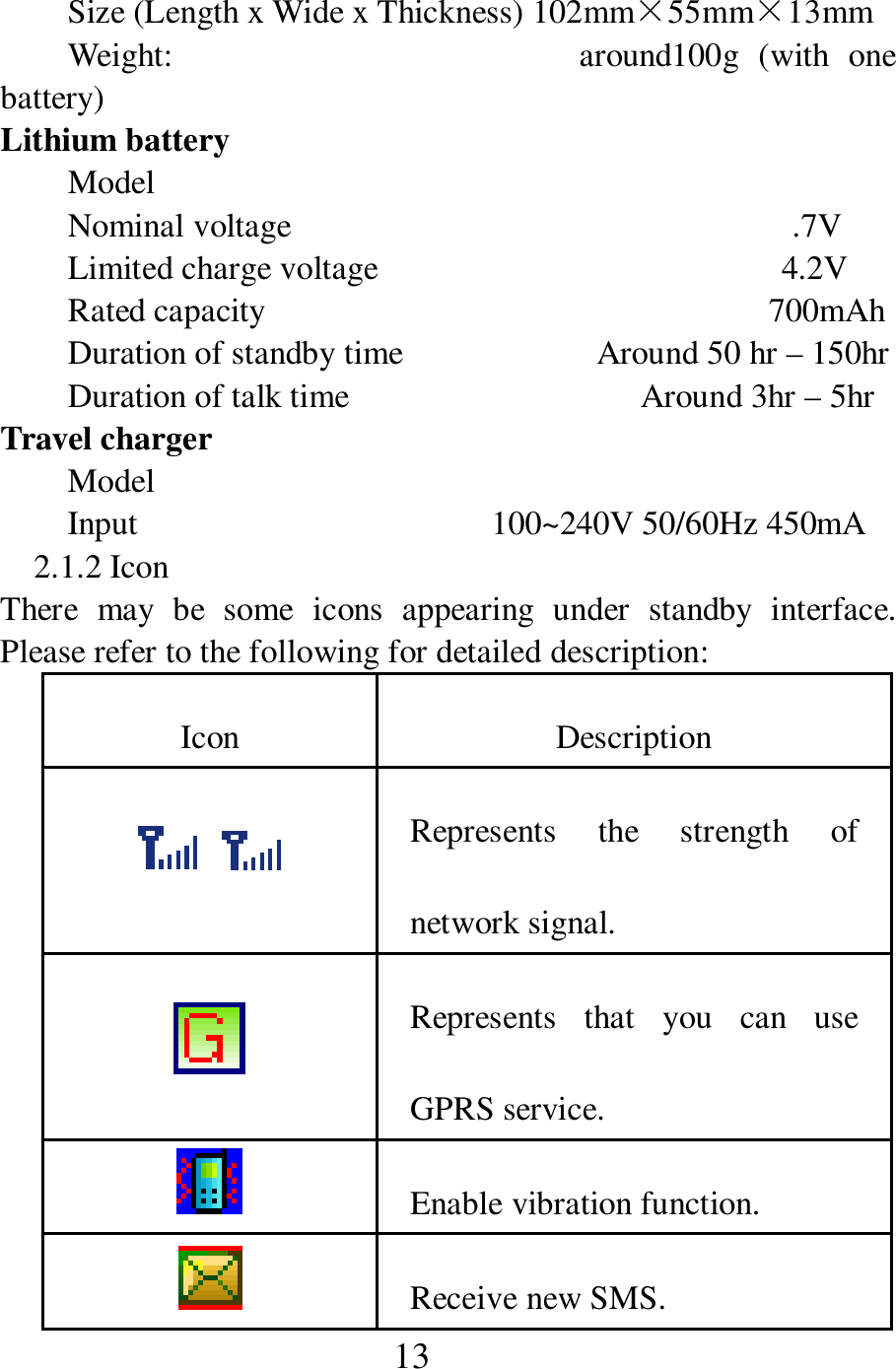
 13 Size (Length x Wide x Thickness) 102mm×55mm×13mm Weight:                                          around100g  (with  one battery) Lithium battery Model           Nominal voltage                            .7V Limited charge voltage                                       4.2V Rated capacity            700mAh Duration of standby time                    Around 50 hr – 150hr   Duration of talk time                  Around 3hr – 5hr Travel charger Model                             Input                                          100~240V 50/60Hz 450mA 2.1.2 Icon There  may  be  some  icons  appearing  under  standby  interface. Please refer to the following for detailed description:   Icon  Description  Represents  the  strength  of network signal.    Represents  that  you  can  use GPRS service.     Enable vibration function.     Receive new SMS.
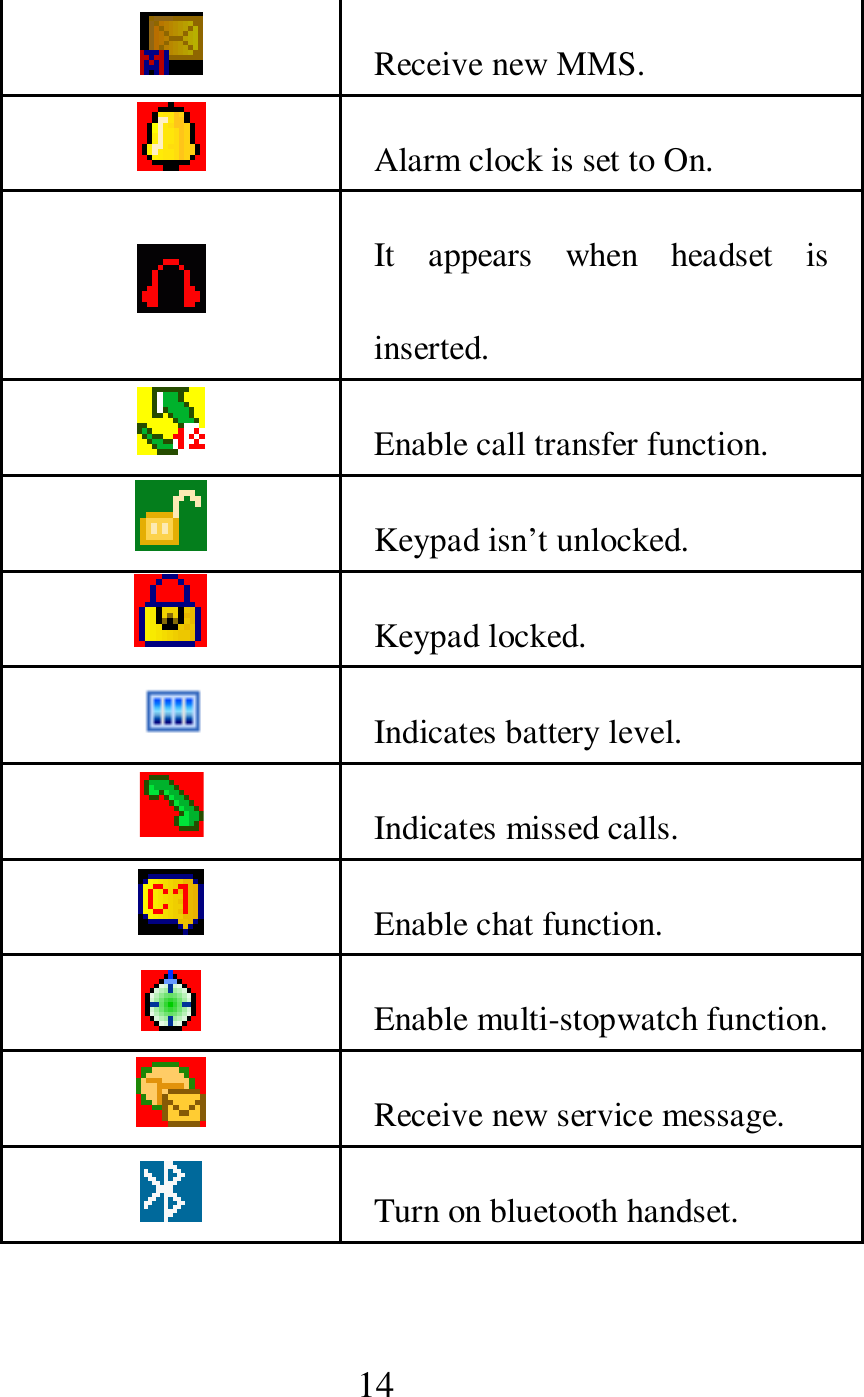
 14   Receive new MMS.     Alarm clock is set to On.    It  appears  when  headset  is inserted.     Enable call transfer function.     Keypad isn’t unlocked.     Keypad locked.     Indicates battery level.      Indicates missed calls.     Enable chat function.     Enable multi-stopwatch function.    Receive new service message.     Turn on bluetooth handset.
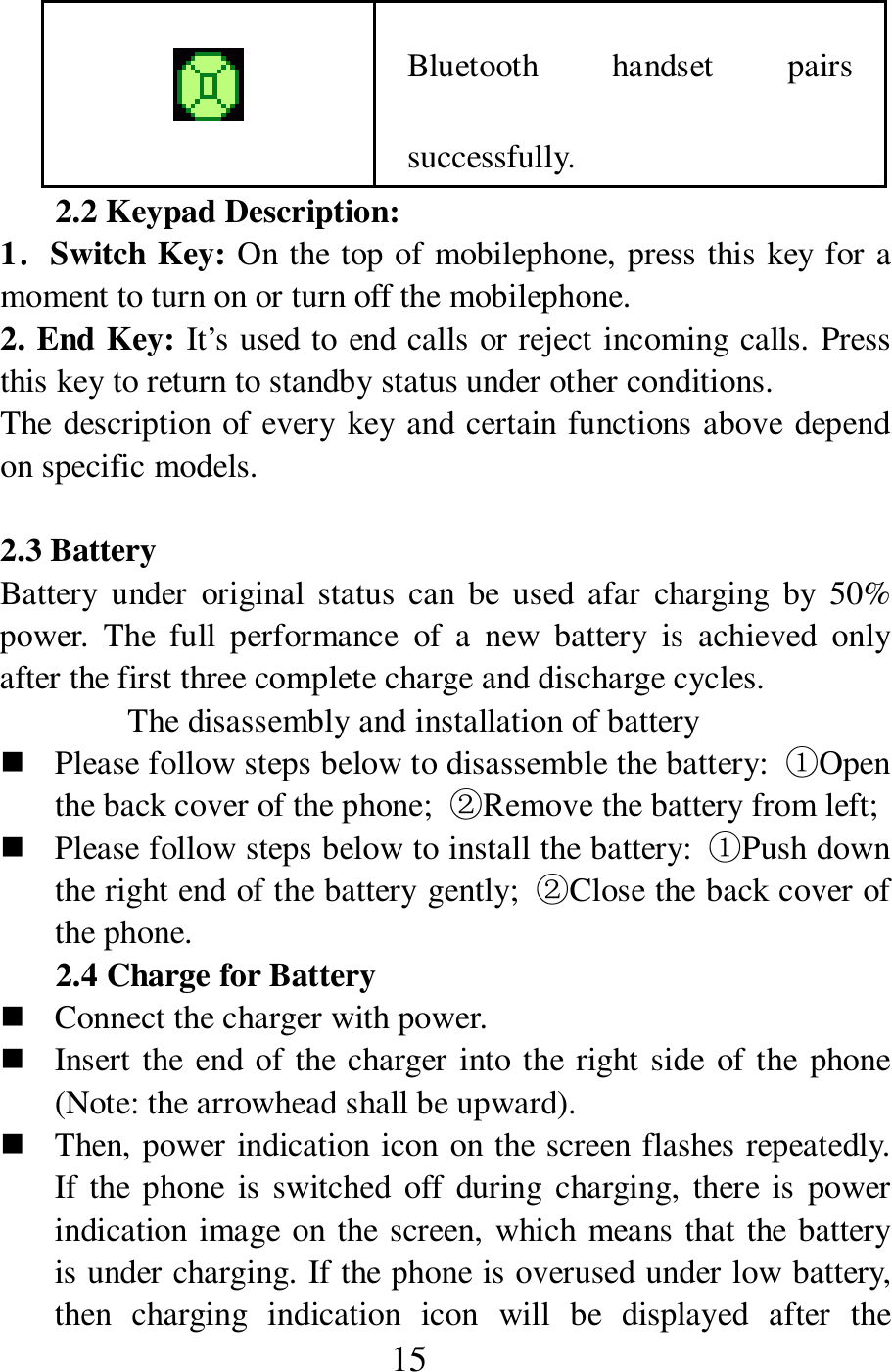
 15  Bluetooth  handset  pairs successfully. 2.2 Keypad Description: 1....Switch Key: On the top of mobilephone, press this key for a moment to turn on or turn off the mobilephone.     2. End Key: It’s used to end calls or reject incoming calls. Press this key to return to standby status under other conditions.   The description of every key and certain functions above depend on specific models.    2.3 Battery   Battery  under  original  status  can  be  used  afar  charging  by 50% power.  The  full  performance  of  a  new  battery  is  achieved  only after the first three complete charge and discharge cycles.   The disassembly and installation of battery    Please follow steps below to disassemble the battery:  ①Open the back cover of the phone;  ②Remove the battery from left;    Please follow steps below to install the battery:  ①Push down the right end of the battery gently;  ②Close the back cover of the phone.   2.4 Charge for Battery    Connect the charger with power.    Insert the end of the charger into the right side  of the phone (Note: the arrowhead shall be upward).    Then, power indication icon on the screen flashes repeatedly. If the phone  is switched  off  during  charging, there  is  power indication image on the screen, which means that the battery is under charging. If the phone is overused under low battery, then  charging  indication  icon  will  be  displayed  after  the
 16 charging has been done for some time.    If the power indication icon in the upper right corner is fully displayed without flashing, it means the charging is complete. If the phone is switched off during charging, there is image to indicate  that  the  charging  is  over.  This  process  needs  3  –4 hours. It’s normal that the battery, phone and charger will be heated slightly during charging.      Disconnect the  mobile phone and charger with AC electrical plug once the battery is fully charged.   Note:    Always  keep  the  battery  in  ventilated  place  with  the temperature  from  +5℃  to  +40℃  during  charging,  and make sure to use the charger provided by manufacturer. It may cause  danger  once  unapproved  charger  is  used  and  it  may invalidate any approval or warranty.    If  the  phone  switches  off  automatically  or  there’s  “Low Battery” displayed on the phone, please charge to the battery as  quick  as  possible.  The  phone  will  reduce  charging  time automatically  if  the  battery  power  isn’t  used  up  before charging.    The duration of standby time and duration of talk time offered by manufacturer are based on ideal working  environment. In actual  use,  however,  the  working  time  of  battery  changes based on network condition, working environment and using way.   g    Make  sure  that  the  battery  is  installed  properly  before charging  and  it’s  forbidden  to  remove  the  battery  during charging.   g    Please  disconnect  the  charger  and  phone  with  power  once charging is over.   g    If you  don’t  disconnect  the  charger  with  power  and  phone,
 17 the phone begins charging again when the power loss reaches certain  extent  after  overcharging  lasts  for  quite  a  long time (about 5 – 8 hours). We suggest you don’t do this, as it will influence the performance and lifetime of the battery     2.5 Connecting to network   2.6.1 SIM card   Make sure  that you’ve inserted  available  SIM  card  to the phone before  your  use.  SIM  card  is  the  key  to  enter  digital  GSM network.   All information related with establishing network connection and calling  record  initiate  are  saved  in  metal  area  in  SIM  card. Meanwhile,  there’re  other  information  saved  in  the  SIM  card, including name and phone number saved in phone book and SMS. The  SIM card can be  removed  from  your phone and  inserted to any  GSM  phone  (the  new  phone  will  read  SIM  card automatically).   Never touch metal area the SIM card to avoid information loss or damaging the card. Keep SIM card far away from electricity and magnet. You can’t enter GSM network once the SIM is broken.   Warning: Do switch off the phone before removing SIM card. It’s forbidden to insert or remove SIM card if the phone is connected to external power, or else, the SIM card will be damaged.   2.6.2 Insertion and Removal of SIM card SIM  card  is  placed  in  a  card  generally,  so  please  take  it  out carefully before installing in the phone.    Switch  off  the  phone  and  remove  the  battery  and  other external power.    This phone uses dual-card mode, the place of card A and card B is decided by options in menu (please refer to “Settings” for “Dual-card  Settings”).  Please  follow  the  photo  to  insert  the SIM card to SIM card holder.
 18  Once you need to remove the SIM card, please switch off the phone first, disassemble the battery and remove the SIM card from SIM card holder.   2.6.3 Power On and Power Off Long press End Key to switch on the phone, and long press End Key to switch off the phone.   If  you  switch  on  the  phone  and  there’s  no  SIM  card,  the  phone will prompt you to insert SIM card. The phone  will check if the SIM card is available after SIM card is inserted.   Then,  prompts  below  will  appear  on  the  screen  on  by one:   Enter PIN1——It appears if you’ve set the password of SIM card.   Enter  phone  password  ——It  appears  if  you’ve  set password to lock the phone.   Search  for  network——The  phone  will  search  for  network  till  it finds  proper network.   2.6.4 Unlock of SIM card SIM card uses PIN1 (personal identity number) code for protection against  unauthorized use. You  are  required to  key  in PIN1 code to unlock the SIM card every time the phone is switched on once your phone  enables  this  function,  then  you  can  make  calls  or  answer incoming calls. Users can also choose to remove SIM card protection (please  refer  to  Section  3.10.6  Security  Settings);  in  this  case,  the SIM card can’t be protected against unauthorized use.        Press End Key to switch on the phone.    Key  in  PIN1  code,  press  Right  Soft  Key  to  clear  incorrect input and press OK to enter. For example, if PIN1 code is set as 1234, then you shall key in:   1 2 3 4
 19 If  incorrect  code  is  keyed  in for  three  times  in  succession,  SIM card will be locked. The phone will require you to key in PUK1 code  for  unlocking.  Please  do  not  key  in at  random  if  you  don’ know PUK1 code.  You shall send SIM card to network operator for assistance. Please refer to Section 3.10.6 Security Settings.   Note: Your network supplier will set a standard PIN1 code (4 to 8 digits)  for  your  SIM  card.  You  shall  change  the  code  to  your personal  password  as  soon  as  possible.  Please  refer  to  Section 3.10.6 Security Settings for details.   2.6.5 Unlock of the phone You  can  set  password  protection  for  your  phone  against unauthorized use. You are required to key in PIN1 code (if you’ve set password protection) to unlock the phone every time the phone is switched on once your pone enables this function, then you can make  calls  or  answer  incoming  calls.  Users  can  also  choose  to remove  password  protection  (please  refer  to  Section  3.10.6 Security  Settings);  in  this  case,  the  phone  can’t  be  protected against unauthorized use.    Key  in  phone  password,  press  Right  Soft  Key  to  clear incorrect  input  and  press  OK  to  enter.  For  example,  if  the phone password is set as 1122, then you shall key in:   1 1 2 2   Please  contact  your  retailer  or  local  authorized  maintenance service center to unlock the phone password once you forget it.   2.6.6 Connecting to Network    The  phone  will  search  for  available  network  automatically (Searching  for  network  is  displayed  on the  screen)  once  the SIM card is unlocked successfully. Name of network supplier will  appear  on  the  screen  once  the  phone  searches  for available network.   Note: If EMERGENCY is displayed on the screen, it means that
 20 your  phone  is  out  of  the  normal  network  coverage,  but  you  can also make emergency calls according to the signal strength.   2.6.7 Dial calls You’re allowed to make calls or answer incoming calls once name of network supplier appears on the screen. The signal bar in upper left corner represents the strength of network signal. Moving in a small range can improve your calling quality as the calling can be interfered by barriers greatly.   2.6.8 Dial domestic calls   Press number keys to input phone number and press Dial Key to make calls. Please press Right Soft Key to delete characters once the phone number needs to be changed. Dialing animation will be displayed on the screen when dialing. The call status information will be displayed after the recipient answers the phone. There’s an alert tone when the phone gets through (it needs network support) if this function is enabled.   Please press End Key to end the call once it’s over.   Zip code      Phone number      Dial key   2.6.9 Dial extensions of fixed phones Some  extensions  of  fixed phones  can’t  be  got  through,  and  you shall only dial the telephone exchange, and then dial the extension. The  phone  can  finish  all  dialing  and  dial  the  extension automatically  when  you  insert  pause  character  “P”  between telephone exchange and extension number. The way of inputting “P” is to long press * key, then symbol “P” appears on screen.   Zipcode      Telephone  exchange      P    Extension      Dial key Example of the use of pause character:   For  example,  if  there’s  a  voice  mailbox  system,  which  is  used through dialing way in 8880000 number, the number of mailbox is 6666  and  the  password  is  8888,  then  you  can  follow  the  way
 21 below to dial:   8880000 P 6666 P 8888 The  first  part  of  this  number  is  used  to dial  voice  mailbox system.   It  will  send  6666  to  select  mailbox  once  the  phone  is answered.   The second pause character will delay for 5 seconds before password  8888  is  sent  out  (the  former  “P”  represents  to  get through, the latter “P” represents to delay for 5 seconds).   2.6.10 Dial international calls Long  press  *key  under  standby  status  till  prefix  symbol  “+” appears  on  the  screen  when  dialing  international calls.  It allows you  to  dial  a  number  in  any  country  once  you  don’t  know  the international prefix symbol (e.g.: it’s 00 for China). Key in the country code and complete phone number after prefix symbol appears. The  country codes follow  general practices, the country code of Germany is 49, Britain is 44, Swiss is 46, etc.   “0” before the area code shall be removed before dialing, just as dialing international calls.     For  example,  you  shall  dial  like  this  if  you  need  to  dial service hotline from other countries:   +86 21 114 +    Country code    Complete phone number    Dial key   2.6.11 Dial Call in the List Every phone number you dialed and received are saved in a list in the  phone, recent dialed and received  phone  numbers are  placed on the top of the  list (Please refer to  Section 3.9  Call Register). Every phone number is classified based on Dialed Calls, Received Calls  and  Missed  Calls.  The  phone  also  provides  you  with  All Phone  Items  for  you  to  view  all  calling  record.  Old  phone numbers will be deleted automatically once the phone number list
 22 is full Please follow steps below to view the list:      Press Dial Key to view dialed calls records;    All phone numbers in the list can be dialed through Dial Key.   Press Enter to view details after phone number list appears. You can press Save to store this number to the phone book after entering.   2.6.12 Emergency Calls You  can  call  emergency  services  if  you  are  within  the  network coverage (you can check it by viewing the network signal strength bar  in  the  upper  left  corner).  If  the  network  supplier  doesn’t provide  roaming  service,  then  “EMERGENCY”  appears  on  the screen, which means you  can only call  these calls. You  can dial emergency  calls  within  the  network  coverage  even  if  there’s  no SIM card.   2.6.13 Answer Calls You can press any key to answer the phone once Anykey Answer is set to on, or you shall press Dial Key or Left Soft Key to enter answer, and then press Left Soft Key again to speak on the phone. You can also press the key on the headset to answer calls once the headset is inserted. Hence, you can set Auto Answer to On once it’s  inconvenient  for  you  to  press  keys,  and  the  phone  answers automatically  after  vibration  &  ring  or  vibration  lasts  for  5 seconds once the headset is inserted.   2.6.14 Call Register The phone saves the record of your last call and call duration since the phone is used (Please refer to Section 3.9 Call Register).   2.6.15 Call Menu   Press Handsfree to enter handsfree function under call status. You can press Options to enter call options. The operation way of call options is the same as the operation way of function menus.   You can see Call Menu only during calling; besides, functions
 23 like  call  waiting,  call  transfer  and  multiparty conversation,  need network support. So, please contact your network supplier.     You can perform following operations under call option menu:   (Note:  As  to  multiparty  conference,  Card  B  doesn’t  support this function.)  Pause Keep current call or restore saved call.    End   End current call.    New Call   Make a call to a new participant.    Phone book   Enter phone book to view.  SMS Write message and send out the message.    Audio Recording Record call voice.    Quiet / Restore Do not send (or send) local voice.    Dual Tone Multi Frequency Press  Left  Soft  Key  to  open  or  close  dual  tone  multi frequency.    Handsfree Enable loudspeaker to amplify call voice.   (Note: For the operations above, card B doesn’t support Pause / New Call / Audio Recording functions.)  You can perform following operations if there’s incoming call in card B at the same time:  Answer Card A and Reject Card B End card B and only answer card A.    Answer Card B and Reject Card A
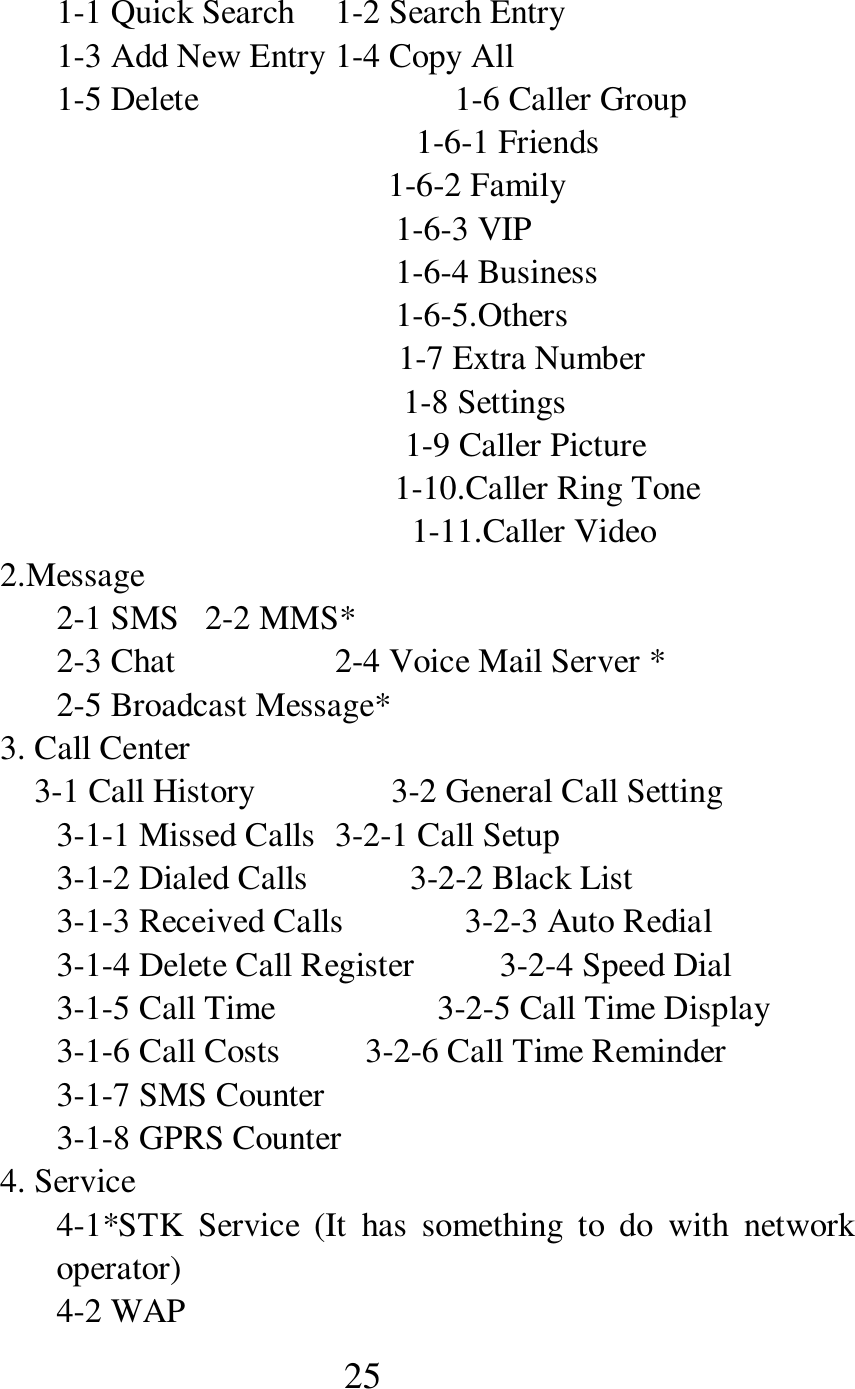
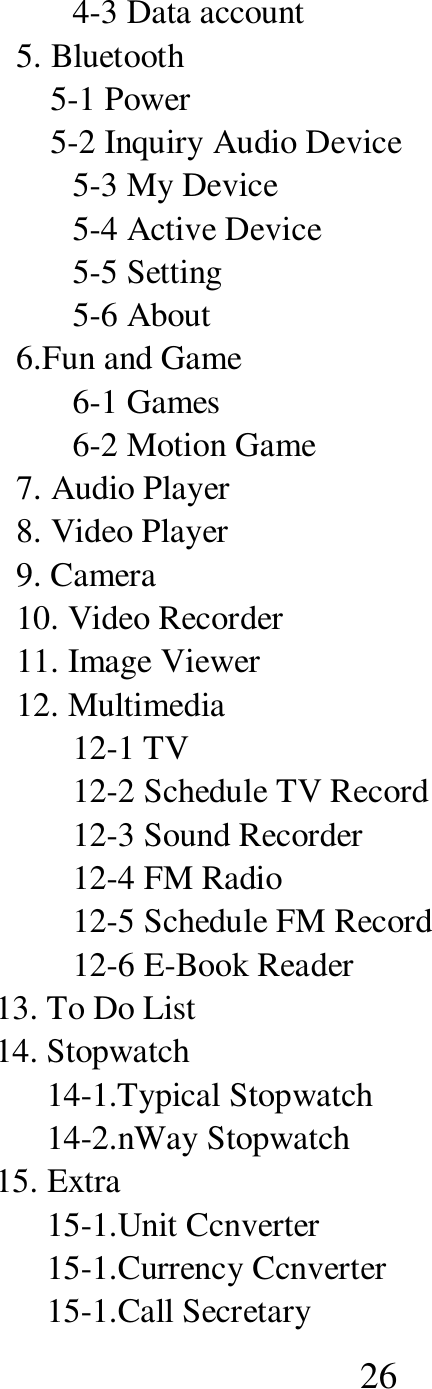
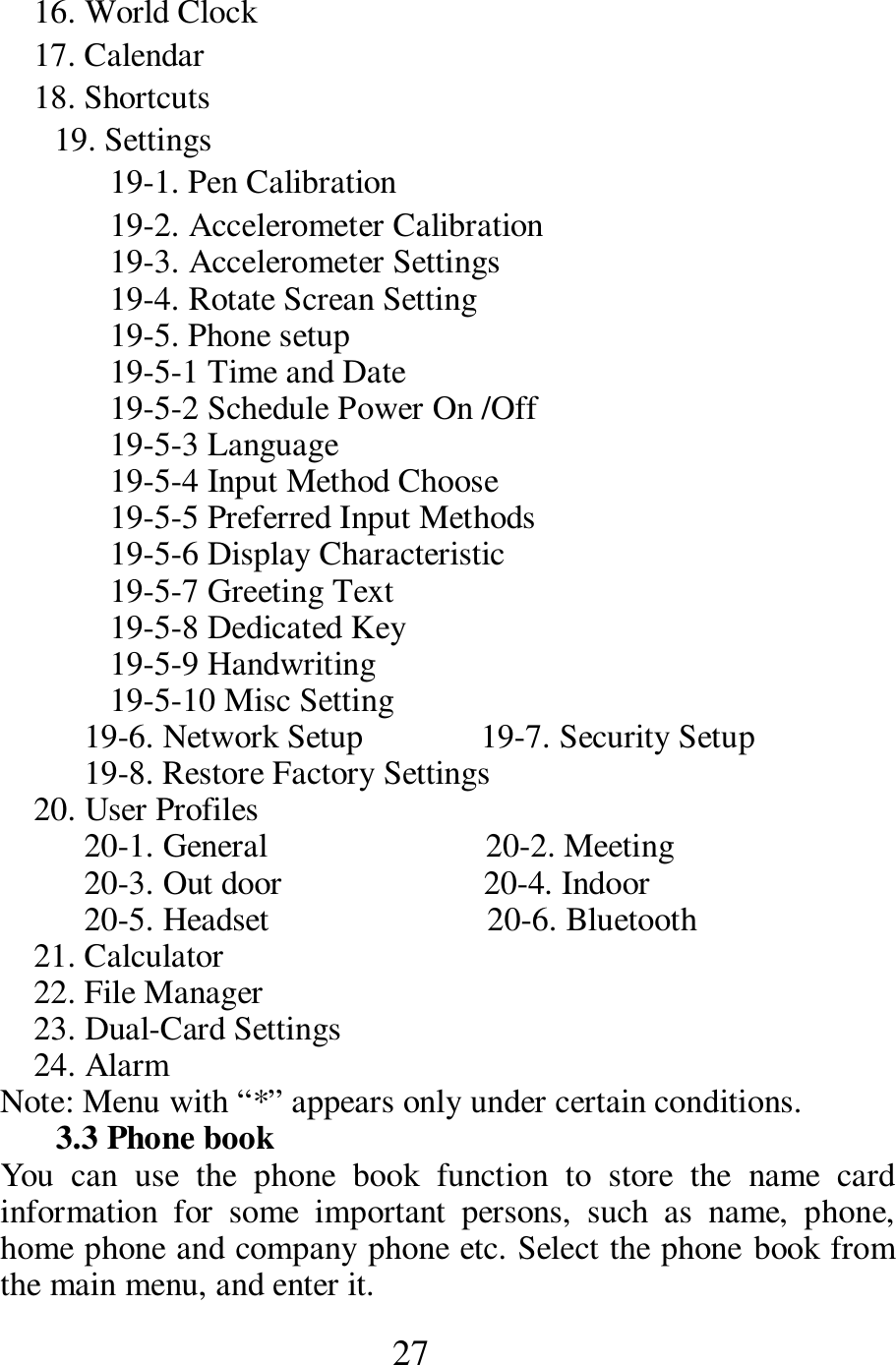
 24         End card A and only answer card B.    Answer All Answer current calls in two cards at the same time.    You can perform following operations if there’s incoming call in card B at the same time:  End Single Line End current call you choose.    End Call End current two calls.    Dual Tone Multi Frequency         Press  Left  Soft  Key  to  turn  on  or  turn  off  dual  tone  multi frequency.   3 Function Menu (※  Some part  functions below  depends on the  function support status of specific phones) 3.1 Use of Function Menu Scroll to select functions  Select  to  enter  main  function  menu  under standby status;  Press  keys  or  click  touch  screen  to  follow prompts to enter or exit from menu under main menu or submenu.   Exit from menu Generally, you can exit from some menu items by pressing Right Soft  Key.  (If  this  phone  supports  touch  function,  you  can  use touch pen to click small icon in the lower right corner to exit from some menu items.) Press End Key to return o standby interface.   3.2 Structure of Function Menu The  default  structure  of  function  menu  is  as  follows  after  SIM card is inserted and the phone is power on:   1. Phone Book
 25 1-1 Quick Search  1-2 Search Entry 1-3 Add New Entry 1-4 Copy All 1-5 Delete                  1-6 Caller Group                                         1-6-1 Friends 1-6-2 Family 1-6-3 VIP 1-6-4 Business 1-6-5.Others   1-7 Extra Number                 1-8 Settings 1-9 Caller Picture 1-10.Caller Ring Tone 1-11.Caller Video 2.Message 2-1 SMS   2-2 MMS* 2-3 Chat    2-4 Voice Mail Server * 2-5 Broadcast Message* 3. Call Center     3-1 Call History                3-2 General Call Setting 3-1-1 Missed Calls  3-2-1 Call Setup 3-1-2 Dialed Calls            3-2-2 Black List 3-1-3 Received Calls  3-2-3 Auto Redial 3-1-4 Delete Call Register          3-2-4 Speed Dial 3-1-5 Call Time              3-2-5 Call Time Display 3-1-6 Call Costs          3-2-6 Call Time Reminder 3-1-7 SMS Counter      3-1-8 GPRS Counter 4. Service 4-1*STK  Service  (It  has  something  to  do  with  network operator) 4-2 WAP
 26 4-3 Data account 5. Bluetooth     5-1 Power     5-2 Inquiry Audio Device 5-3 My Device 5-4 Active Device 5-5 Setting 5-6 About 6.Fun and Game 6-1 Games 6-2 Motion Game 7. Audio Player 8. Video Player 9. Camera 10. Video Recorder 11. Image Viewer 12. Multimedia 12-1 TV 12-2 Schedule TV Record 12-3 Sound Recorder 12-4 FM Radio 12-5 Schedule FM Record 12-6 E-Book Reader     13. To Do List     14. Stopwatch           14-1.Typical Stopwatch           14-2.nWay Stopwatch     15. Extra           15-1.Unit Ccnverter           15-1.Currency Ccnverter           15-1.Call Secretary
 27     16. World Clock     17. Calendar     18. Shortcuts 19. Settings 19-1. Pen Calibration 19-2. Accelerometer Calibration     19-3. Accelerometer Settings 19-4. Rotate Screan Setting 19-5. Phone setup 19-5-1 Time and Date     19-5-2 Schedule Power On /Off   19-5-3 Language       19-5-4 Input Method Choose   19-5-5 Preferred Input Methods   19-5-6 Display Characteristic   19-5-7 Greeting Text   19-5-8 Dedicated Key     19-5-9 Handwriting                        19-5-10 Misc Setting                 19-6. Network Setup              19-7. Security Setup           19-8. Restore Factory Settings     20. User Profiles           20-1. General                          20-2. Meeting           20-3. Out door                        20-4. Indoor           20-5. Headset                          20-6. Bluetooth     21. Calculator 22. File Manager 23. Dual-Card Settings 24. Alarm       Note: Menu with “*” appears only under certain conditions.   3.3 Phone book   You  can  use  the  phone  book  function  to  store  the  name  card information  for  some  important  persons,  such  as  name,  phone, home phone and company phone etc. Select the phone book from the main menu, and enter it.
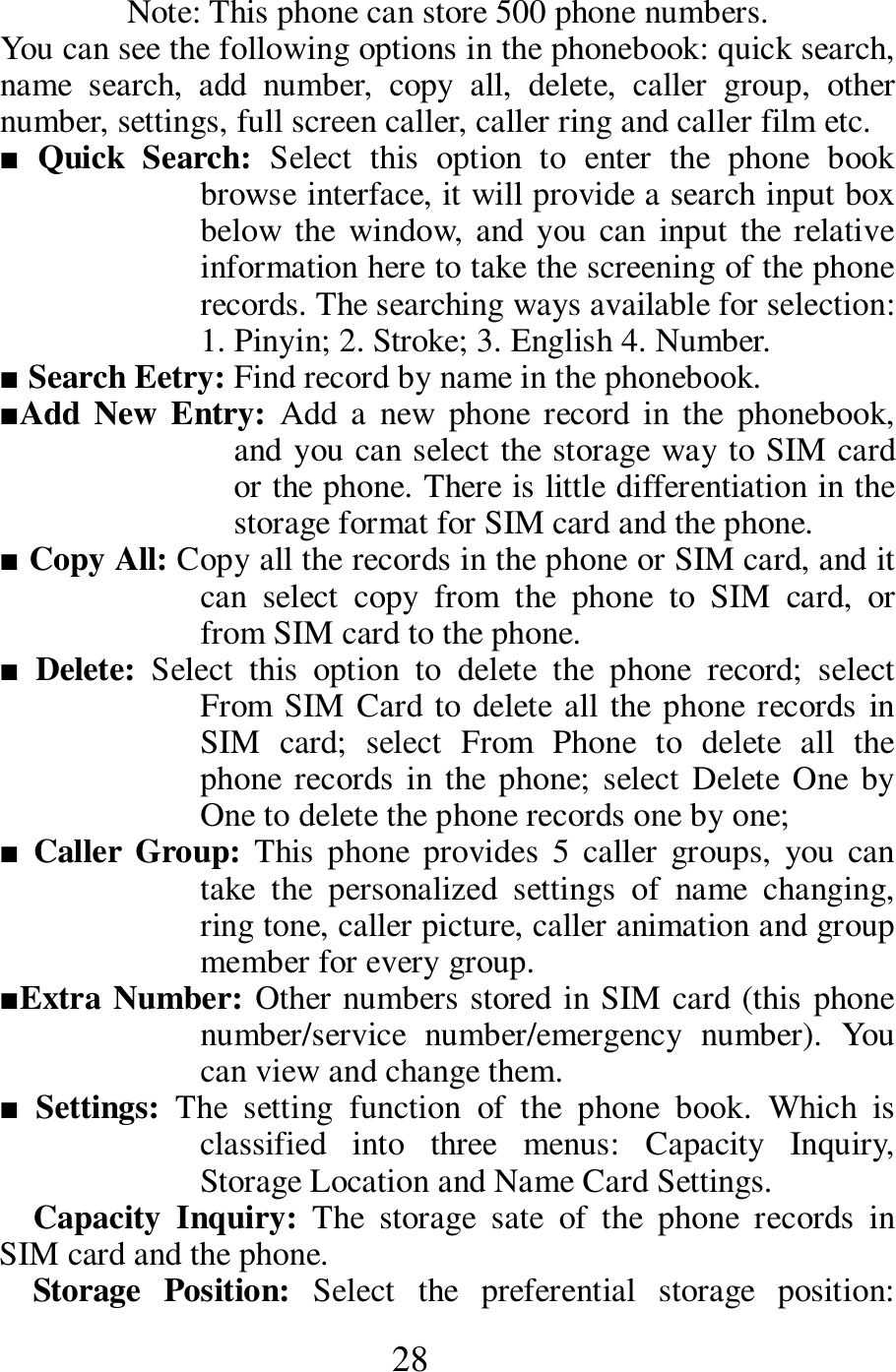
 28 Note: This phone can store 500 phone numbers.   You can see the following options in the phonebook: quick search, name  search,  add  number,  copy  all,  delete,  caller  group,  other number, settings, full screen caller, caller ring and caller film etc.     ■  Quick  Search:  Select  this  option  to  enter  the  phone  book browse interface, it will provide a search input box below the  window,  and you  can  input  the  relative information here to take the screening of the phone records. The searching ways available for selection: 1. Pinyin; 2. Stroke; 3. English 4. Number.    ■ Search Eetry: Find record by name in the phonebook.     ■Add New Entry:  Add  a  new  phone  record in  the  phonebook, and you can select the storage way to SIM card or the phone. There is little differentiation in the storage format for SIM card and the phone.   ■ Copy All: Copy all the records in the phone or SIM card, and it can  select  copy  from  the  phone  to  SIM  card,  or from SIM card to the phone.     ■ Delete:  Select  this  option  to  delete  the  phone  record;  select From SIM Card to delete all the phone records in SIM  card;  select  From  Phone  to  delete  all  the phone records in the  phone;  select Delete  One  by One to delete the phone records one by one;      ■ Caller  Group:  This  phone  provides  5  caller  groups,  you  can take  the  personalized  settings  of  name  changing, ring tone, caller picture, caller animation and group member for every group.        ■Extra Number: Other numbers stored in SIM card (this phone number/service  number/emergency  number).  You can view and change them.   ■ Settings:  The  setting  function  of  the  phone  book.  Which  is classified  into  three  menus:  Capacity  Inquiry, Storage Location and Name Card Settings.          Capacity  Inquiry:  The  storage  sate  of  the  phone  records  in SIM card and the phone.    Storage  Position:  Select  the  preferential  storage  position:
 29 phone, card A and card B.    Name  Card  Settings:  Set  the  contents  including  the  phone book (10 settings of the home phone, company name and E-mail etc.).    ■ Full Screen Caller: Set the image that will display when having incoming call.  ■Caller Ring: Select the ring prompt when having incoming call.         ■ Caller  Film:  Select  the  film  that  will  display  when  having incoming call.    3.4 Message   Select “Message” menu to enter the sub-menu.     If your network supports SMS, you have applied for this service to the  network  supplier,  then  you  can  receive  and  send  Chinese, English SMS and MMS by the Short Messaging Service Center.   3.4.1 New Message   When you receive a SMS, the phone will sound the vibration (if it has  been  turned  on)  or  the  prompt  tone  (if  the  prompt  tone function  has  been  turned  on),  and  the  screen  will  display  the animation. If you don’t want to read it immediately, it will display the  prompt that have  new  message  in the standby  interface,  and will store this message into SIM card automatically.     The  number  of  SMS  (including  the  received  and  locally  stored SMS) that can be saved in SIM card depends  on the capacity of SIM card.   To read the new message, you can take the following operations: enter the inbox sub-menu, and press OK to read the new SMS.   3.4.2 Create Message   SMS network service allows you to send the text message to the other phones that can receive message.   Please  confirm  that  you  have  set  the  Short  Messaging  Service Center  Number  before  creating  message  (please  see  “Message Settings”).      Enter  Create  Message  sub-menu  to  input  SMS  (please  see chapter 4.2 “Instructions on Input Method”).   - Finish: Selecting this option indicates that this message has  been  inputted  completely,  and  it  can  enter  the
 30 operation of the next step.     - Common Phrase: Insert the preset common phrases in this SMS.     - Insert  Object:  Insert  the  picture,  ring  and  animation etc. in this SMS.      - Word Format: Define the word format of this SMS.      - Insert Phone Number: Insert the phone number of the selected entry in the phone book.    - Insert Name of  Phone Book: Insert  the  name  of the selected entry in the phone book.   - Input Method: Change the input method when editing SMS.    Select Finish after writing, you can use the touch pen to select Card A Send, Card B Send, Save and Send, Store, Send to Many or Send by Group by scrolling to send this message to other phone number.     Card  A  Send:  To  send  this  message,  select  this  option  to enter the inbox edit box, you can touch the number small icon on the  lower  of  the  interface  to  input  number,  or  press  Search  to provide the phone book, select the number of the receiver from the phone book, and press OK to send.       Card B Send: The same as card A send, and it will send the edited SMS as the card number of card B here.        Save and Send: Store this SMS into the outbox at the same time of sending.         Store: Don’t send this SMS and store it into the outbox.       Send  to  Many:  Send  this  SMS  to  the  multiple  phone numbers.    Send by Group: Send a group, and send this SMS to all the members of this group.    Note:  The  Short  Messaging  Service  Center  doesn’t support  the  long  and  short  message  with  over  70  Chinese characters (or 160 English characters) in some cities and areas.     3.4.3 View Received Messages and Saved Messages      Enter the inbox sub-menu to view the received SMS; enter the outbox  to  view  the  SMS  that  have  been  stored  in  the  SIM
 31 card.    It  will  display  the  message  receiving  date  and  time  and  the number or name of the receiver when viewing the message list of the inbox (when the number exists in the phone book).    It can select the previous message or the next message when viewing the message list.      It  can  press  OK  to  read  the  details  of  the  message  when appearing  the  message  list  of  the  inbox.  It  can  take  the following operations by option at this time:   - Reply:  Send  SMS  to  the  sender  of  the  current SMS.     - Delete: Delete the current SMS. - Edit: Extract the  content  of  the  SMS,  and  enter the edit box.       - Forward: Forward this SMS.    - Copy to Phone (Copy to SIM Card): Copy the current  SMS  on  SIM  card  (or  the  phone)  to  the phone (or SIM card) to store.   - Move to Phone (Move to SIM Card): Move the current  SMS  on  SIM  card  (or  the  phone)  to  the phone (or SIM card) to store.      - Chat: Enter the chat room to chat by SMS.     - Delete All: Delete all the SMS in the inbox.    - Copy All: There are two available copy ways of From SIM Card and From Phone.     - Move All: There are two available copy ways of From SIM Card and From Phone.    - Use  Number:  Extract  the  phone  number  of  the sender of the SMS, and you can dial it or save it into the phone book.   - Store Items: Extract the object in the SMS to take storage (only effective for EMS).    It  can  press  OK  to  read  the  details  of  the  message  when appearing  the  message  list  of  the  outbox.  It  can  take  the following operations by option at this time:   - Send:  Send  this  SMS.  You  can  select  Card  A
 32 Send,  Card  B Send, Send to Many and Send by Group to send this SMS to many persons.   - Edit:  Extract the  content  of  the  current  SMS  to take edit.     - Delete: Delete this SMS.   - Copy to Phone (Copy to SIM Card): Copy the current  SMS  on  SIM  card  (or  the  phone)  to  the phone (or SIM card) to store.   - Move to Phone (Move to SIM Card): Move the current  SMS  on  SIM  card  (or  the  phone)  to  the phone (or SIM card) to store.   - Delete All: Delete all the SMS in the outbox.    - Copy All: There are two available copy ways of From SIM Card and From Phone.   - Move All: There are two available copy ways of From SIM Card and From Phone.   - Use  Number:  Extract  the  phone  number  of  the receiver of the SMS, and you can dial it or save it into the phone book.    3.4.4 Operations of Common Phrase     It can write some common sentences in the  common phrases, to avoid inputting repeatedly  when sending SMS. You can select to edit or delete after finishing writing.     3.4.5 Message Settings   You need to take the necessary settings before using the function of SMS.    Enter the Message Settings sub-menu:   - Mode Setting: Select an appropriate mode for the SMS of the phone. Enter to the  individual  mode to  take  the  settings  for  the  corresponding  name, Short  Messaging  Service  Center  Number, effective term and sending format.    - Status  Setting:  Set  whether  to  turn  on  the message report or reply path.    - Capacity  Inquiry:  View  the  space  occupying state of the mailbox in SIM card or the phone.
 33 - Storage Location: Select the phone or SIM card.    - Message  Transmission  Setting:  The  selections for  the  SMS  transmission  ways: GPRS  Priority, GSM Priority and Only Use GSM.    Set  Short  Messaging  Service  Center  Number:  Please contact  your  network  supplier  to  get  the  number  of  Short Messaging  Service  Center.  For  example,  the  one  Short Messaging  Service  Center  Number  of  China  Mobile  in Shanghai  is  +8613800210500.  The  detailed  operations  are: select  any  mode  setting  in  the  Message  Settings  sub-menu, input  your  Short  Messaging  Service  Center  Number  in  the second item, and press OK to save the settings.            Status Report: If you have set the message report to On, the Short  Messaging  Service  Center  will  send  the  status  report back  when  the  receiver  has  received  your  SMS  or  has  not received  it  due  to  some  reason.  You  can  know  whether  the receiver has received your SMS conveniently.   Note: The realization of this function needs to be supported by the operator.     3.5 MMS   Note: This function is not supported by card B.     ■    Create Message: Create a MMS message. You need to fill in receiver, copy, BCC, subject and content.   ■    Inbox:  View  the  received  multimedia  messages.  (The detailed operations are the same as the ones for the inbox of SMS)   - View: View the current MMS.     - Message Details: View the details of the current MMS.    - Extract  Number:  Extract  the  number  of  the  sender (store or dial it).       - MMS Reply: Send a MMS to the sender of the MMS.    - SMS Reply: Reply the sender in SMS.    - Forward: Forward the current MMS to others.    - Delete: Delete the current MMS.    - Delete All: Delete all the contents in the inbox.    g    Outbox: Store the MMS that have not been sent successfully.
 34 (The  detailed  operations  are  the  same  as  the  ones  for  the outbox of SMS)   - View: View the current MMS.   - Message Details: View the details of the current MMS.   - Forward: Forward the current MMS to others.   - Send: Continue to send the current MMS.     - Disconnect: Disconnect the MMS that is being sent.      - Delete: Delete the current MMS.   - Delete All: Delete all the contents in the outbox.   g    Draft Box: It can save the edited but not sent MMS here.    - View: View the content of the current MMS.     - Message Details: View the details of the current MMS.   - Edit: Edit the current MMS.     - Send: Send the current MMS.    - Delete: Delete the current MMS.  - Delete All: Delete all the contents in the draft box.    g    Sent  items:  Save  the  messages  that  have  been  sent successfully.   - View: View the sent MMS.    - Message Details: View the details of the current MMS.   - Forward: Forward the current MMS to others.   - Delete: Delete the current MMS.   - Delete All: Delete all the contents in the sent items.   g    Settings:  Set  the  relative  parameters  of  MMS  sending  and receiving.     - Sending Setting: Some relative parameter settings on MMS  sending.  For  example,  Within  Use  Term,  Send Report,  Read  Report,  Priority,  Interval  and  Sending Time etc.        - Receiving  Setting:  Some  relative  parameter  settings during  MMS  receiving.  For  example,  Main  Network, Roaming Network, Send Read Report and Allowed to Send Report etc.    - Filter Setting: Filter some MMS.     - Network Setting: Select the appropriate server.    - Storage  Space:  View  the  capacity  information  of  the
 35 MMS.    - Storage Setting: The MMS can be stored in the phone or SIM card.    3.6 Chat   Note: This function is not supported by card B.     ■    Chatting Room Setting: Select a chatting room, and set the nickname  and  the  concerned  phone  number  who  will  chat  with you.   ■    Start Chatting: Input the message, and start to chat with the preset phone number.   3.7 Voice Mailbox   Note: This function is not supported by card B.     Your received voice  messages will be stored in the network, and you  must  dial  the  voice  mailbox  number  in  order  to  listen  the message.   ■  Edit:  You  can  add/edit  the  voice  mailbox  number,  so that it will be more convenient when using the function of the voice mailbox.   Connect to Voice: Call the set voice mailbox number, and listen the message.    3.8 Cell Broadcast   Note: This function is not supported by card B.     ■ Receiving Way: Select to turn on the receiving mode, and turn off rejecting receiving the messages of the cell broadcast.    ■    Read  Message:  Enter  this  menu  to  read  your  tailored  cell broadcast message.         ■    Language: Set the language in receiving cell broadcast.     ■   Channel Setting: Set the channel of the cell broadcast.    Note: The services for the cell broadcast and the voice mailbox are provided by the operator, please contact your operator.   3.9 Call Register   ■    Missed Calls, press OK to view the list on the missed calls.       ■    Dialed Calls, press OK to view the list on the dialed calls.  ■    Received  Calls,  press  OK  to  view  the  list  on  the  received calls.    In the  interfaces of the  lists on the missed calls, dialed calls and
 36 received calls, you can press OK to view the details of this record, including date, dialing time, number and dialing number.   In the details interface, you can take the following operations for the currently selected phone record by option:   Delete Delete this record.   Save  Save  this  number  into  SIM  card  or  the phone.   Dial      Dial this phone number.       Card  B  Dial    Dial  this  number  by  using card B.    Send Message    Send message to this number.    Send Message by Card B      Use the number of card B to send message to this number.     IP Dial by Card A                  Use the IP number of card A to dial this number.     IP Dial by Card B                  Use the IP number of card B to dial this number.   Edit  Edit this phone  number and save  it into the phone book.     Send MMS: Send MMS to this number.     Note: Press OK to realize the functions of IP dial by card A and card B directly in the  lists  on  the  received  calls,  dialed calls and missed calls.       ■  Delete Call Register       There  are  4  sub-menus  in  Delete  Call  Register:  Missed  Calls, Dialed Calls, Received Calls and Delete All.     The user can select to clear a certain call list, and select Delete All to delete all the record lists in the call register.   ■  Call Duration   There  are  4  sub-menus  in  Call  Duration:  Last  Call  Duration, Dialed  Calls’  Duration  and  Received  Calls’  Duration  and  Clear Timers.
 37 Last Call Duration          View the duration value of the last call.    Dialed  Calls’  Duration    View  the  total  duration  value  of  the dialed calls.       Received Calls’ Duration    View the total duration value  of the received calls.        Clear  Timers                          Clear  the  data  in  the  timing statistics, and start to time again.       ■  Call Costs   It can store the accumulated cost of the calls by Call Costs.       Last Call Cost       Enter the Last Call Cost sub-menu, and view the last call cost.        Cost Summary     Enter the Cost Summary sub-menu, and view the accumulated call costs.      Clear Cost           Input  PIN2  code  to  clear  the  cost  calculator,  and  start  to  cost again.       Charge Restriction     Enter the Charge Restriction sub-menu to view, change or cancel this  function.  It  needs  to  input  PIN2  code  for  changing  and canceling functions.    Price and Cost Rate     Enter the Price and Cost Rate sub-menu to view, change or cancel this  function.  It  needs  to  input  PIN2  code  for  changing  and canceling functions.   Note:  You  need  to  input  PIN2  code  for  some  operations, please contact your network supplier to get this password.   ■   Message Counter   Sent: Record the number of the sent messages.     Received: Record the number of the received messages.     You can select to reset  by the  left soft  key to  clear  the two items respectively.       ■  GPRS Counter     Note: This function is not supported by card B.     Last  Transmit:  Record  the  byte  number  of  the  last transmission.     。
 38 Last Receive: Record the byte number of the last receiving.       Transmit All: Record the total transmitted byte number.    Receive All: Record the total received byte number.    Clear Counter: Start to count again.        3.10 Settings   3.10.1 Touch Screen Calibration:   It will be more accurate when using the touch pen by calibrating the touch screen.   3.10.2 Phone Settings   g Time and Date: Set time and date.   - Set  City:  Select  a  city  for  the  time  setting  of  this phone.   - Time/Date Settings: Set the current time and date.    - Format  Settings:  Set  the  display  format  of  the  time and date, 12-hour or 24-hour.       g Auto  Power  On/Off:  Set  the  time,  and  the  phone  will switch on or off automatically when reaching to the set time.   g Language: Set the language in displaying the phone menus.     g Preset Input Method: Select a default input method.    g Standby Menu Display:     - Wallpaper:  Select  the  wallpaper  of  the  standby interface.     - Screen  Protection:  Select  a  screen  protection  picture for the standby interface of the main screen, and set the waiting time.   - On  Animation:  It  can  select  the  picture  of  On animation.    - Off  Animation:  It  can  select  the  picture  of  Off animation.     - Display  Date  and  Time:  Select  to  turn  on  or  off Display the current time in the standby interface.   - Display My Phone Number:   Note: This function is not supported by card B.     - Select  to  turn on  or  off  Display  my  phone  number  in the standby interface.
 39 - Clock Type: It can select the clock type displaying in the standby interface.  g  Welcome  Note:  Display  the  welcome  note  during  the  On animation. Select Off to not display it.      g Speed Dial:   Note: This function is not supported by card B.       Set  the  speed  dial.  In  the  standby  interface,  long  press  the corresponding number keys to call the set phone number.   g Specify Function Key: Specify the functions of the upper, lower, left and right arrow keys in the standby interface.   g Auto-Update of Time: Select to turn on or off Auto-Update of Time of the phone.   g Flight  Mode:  Include  Normal  Mode,  Flight  Mode and Ask when Switching on.           About  Flight  Mode:  Flight  mode  is  used  to  close  the  phone communication function, that it cannot receive, dial call and send message,  has  no  signal  connection  with  the  base  station,  and doesn’t attempt to contact the base station.     The phone will turn off all the relative functions on the signal in the mode, but it can still continue to use the other functions when switching on the phone, for example, view the phone book, enjoy the articles and films on the phone etc.       Note: Because now the civil aviation authority has not issued the regulations on “Flight Mode”, the passenger shall still switch off the  phone  before  going  on  broad  according  to  the  related regulations on the airplane; in the normal states (such night), it can  switch  to  this  mode,  and  save  power  –  because  the  signal consumes most power of the phone, and it can save power greatly for switching off signal in the flight mode.                    g Handwriting Settings: Set the handwriting speed and the color of the handwriting pen.     g Other  Settings:  Take  settings  for  LCD  brightness  and delay time.     g Power Saving Mode: Turn on or off it.    3.10.3 Call Settings   g Phone Number
 40 Note: This function is not supported by card B.     - System Preset: Whether the  number sending uses  the system default value.    - Hide Number: The other party will not see the number when  you  calling.  (Needed  to  be  supported  by  the operator)        - Send  Number:  The  other  party  can  see  the  number when you calling.    g Call Waiting:   Note: This function is not supported by card B.     Turn on or off the call waiting function. Select View to view the current call waiting status.   g Call Transfer:   Note: This function is not by card B.   - Unconditional  Transfer:  After  turning  on Unconditional Transfer, and the incoming calls in any state will be transferred to your set number.   - Transfer if unreachable: After turning on Transfer if not  unreachable,  and  the  phone  will  transfer  the incoming call to your set number when the other party cannot contact you.       - Transfer on no answer: After turning on Transfer on no  answer,  and  the  phone  will  transfer  the  incoming call to your set number when no answer.       - Transfer on busy: After turning on Transfer on busy, and the phone will transfer the incoming all to your set number when busy.   - Transfer  all data  calls: When  the  incoming  call  is  a data call, and the phone will transfer it automatically. - Cancel Transfer: Cancel all the call transfer.    g Call Barring:     Note: This function is not supported by card B.     Take restriction for dialing calls.       - Outgoing  Calls  Barring:  Restrict  the outgoing calls.  - Incoming  Calls  Barring:  Restrict  the
 41 incoming calls.       - Cancel  Barring:  Cancel  the  set  barring (required to input the password).    - Change Password: Change the password.    g Line Switch:     Note: Card B is only available for line 1.     Select line 1 or line 2.     g Call Duration Prompt:     Note: This function is not supported by card B.     The phone will sound the prompt tone when reaching to the  time  after  setting  the frequency.     g Call  Duration  Display:  Display  the  call  duration, select “Off’ will not display the call duration.    g Auto Redial   Note: This function is not supported by card B.     The  phone  will  redial  automatically  for  every unsuccessful calling after turning on Auto Redial.     g Turn off Group: Turn off the group function.    g IP Dial: Set and turn on this item, and it can realize the IP dial function by the number records in the phone book.       g Blacklist:  The  numbers  listed  in  the  blacklist  will  be shielded.   Note:  Some  functions  need  to  be  supported  by  the  network operator.     3.10.4      Dual-Card Settings     g Auto Turning on Card B: Select to turn on or off the functions of card B.       (For example “On”, when the phone is on, which will turn on card B if you have inserted it in the location of card B).     g Turn on/off Card B: Select to turn on or off the functions of card B.    (For example “Off”, when the phone is on, which will not display card B even if you have inserted it in the location of card A, and the realized functions are the same as the ones of one card (card A)).
 42 Note: If you only use one SIM card, please insert the holder of card A preferentially, to ensure you can enjoy the individual functions of this phone completely; if you set the SIM card into the holder of card B (in the state of not inserting the card in the holder of card A), the phone will be unable to identify SIM card, so that you shall consider using the holder of card A first. If you need to exchange the main card and card B, please exchange the locations of the dual cards when the phone is off and there is no external power supply.         3.10.5 Network Settings   Note: This function is not supported by card B.     g Network Selection:   - Re-search:  Register  the  network  again  after pressing OK.    - Select Network: Select the network to register in the network list.     - Searching Way:   Auto: Search the network that SIM card belongs to automatically.     Manual:  Search  all  the  available  networks  to register manually.      g Preferential  Network:  Pre-store  several  favorite networks.        g GPRS  Connection:  Connecting  ways  of  GPRS: Connection As Require and Permanent Connection    3.10.6 Security Settings   g SIM Lock:   Note: This function is not supported by card B.       You can set the security options of the phone under this menu, to avoid the phone or SIM card from being used illegally.   - PIN Code   PIN code  can prevent  your SIM card from being used illegally.     - If  PIN  code  is  off  currently,  select  On  to turn  on  the PIN code protection, and the phone  will ask  you PIN code  when switching  on  next  time; if PIN code  is on
 43 currently, select Off to turn off the PIN code protection, select  Change  PIN  Code  to  set  the  new  PIN  code, please  input  the  old  PIN  code,  new  PIN  code  and repeatedly input the new PIN code in turn according to the prompt.   Note:  If  the  PIN  code  has  been  consecutively  inputted  for  three times,  SIM  card  will  be  locked.  At  this  point,  you  must  unlock SIM card using PUK code. The PIN code and PUK code may be supplied with SIM card to you. If not, please contact the network operator. The default PIN code is 1234. Please change it to your own password as soon as possible. g Phone Lock   The phone lock can prevent your mobile phone used by the other without your permission.     Select Phone Lock to turn on the phone password protection, and the  phone  will  ask  you  the  phone  password  when  switching  on next time; press it again to turn off the phone password protection.       Note:  The  default  phone  lock  password  is  1122,  and  you  shall change it to your own password as soon as possible. g Keypad Lock: Set the waiting time of the keypad lock. The keypad will be locked automatically if the phone has not been used within the specified time in the standby status after being set.      g Fixed Dialing:   Note: This function is not supported by card B.     If  your  SIM  card  supports  the  fixed supporting,  it  can limit  the phone to only dial the selected phone numbers. When this function is on, it can only dial the phone numbers in the fixed dialing list or the ones starting with some numbers in the list.   Enter the “Fixed Dialing” sub-menu:     - Mode:  Turn  on  or  off  the  fixed  dialing function (required to input the PIN code).     - Fixed Dialing List: Input the phone numbers for fixed dialing,    Note: Turning the Fixed Dialing function on or off requires you to input  PIN2  code.  Please  contact  the  network  operator  to  obtain
 44 PIN2 code. After the Fixed Dialing is on, the numbers in the Fixed Dialing  will  be  displayed  after  entering  the  name  card  holder phonebook.   g Prohibit Dialing:   Note: This function is not supported by card B.   Opposite with the fixed dialing, and you can set Prohibit Dialing for some phone numbers here.   g Change Password: Change the password. Including the changes on PIN, PIN2 and the phone password.   Note:  Some  functions  need  to  be  supported  by  your  network operator.     3.10.7 Restore Factory Settings   The default password of restore factory settings is 1122.     3.10.8 Sound Effect     Adjust the effect of the sound play. The audio equalizers available for  selection:  Normal,  Bass,  Dance,  Classical,  High, Banquet, Pop and Rock.                     3.11 Multimedia   The functions including in this item are: A8 Music Box, Camera, Album,  Video  Camera,  Animation  Player,  Music  Player, Recording, Custom Ring and E-book.     3.11.1 TV     3.11.2 Functions of TV 3.11.3 Camera   Your phone  has been  equipped with  the  function of camera, and you can press the small shooting icon in the central on the lower of the screen to shoot. Press the individual small icons in the view finding interface of shooting to set the following, such as shooting size,  photo  quality,  shooting  mode,  continuous  shooting  setting, delay shoot and special effect setting  etc.  You can also enter the settings of the relative items by option.             Enter the following by option:     - To Album: Enter the album.     - Camera  Settings:  Settings  for  some  relative parameters on shooting     - Scence  Switch:  Switch  between  scene  1  and
 45 scene 2.    - Photo Settings: Settings of photo size and photo quality.    - White  Balance:  It  can  set  the  color  of  the illumination for the photo.     - Profile Mode: It can set the shooting mode.    - Special  Effect  Settings:  Set  the  style  of  view finding.    - Frame: Select a picture box for the photo.   - Storage Path: Select  to store  the  photo into  the phone or the memory card.    - Restore  Default  Settings:  Set  it  to  Restore  to Default Settings.      Note:  In  the  view  finding  interface  of  shooting,  press  the corresponding number keys to take the settings for the appropriate image effect, and can also touch the certain position on the touch screen to take settings.       3.11.4 Album   Enter the album to take the settings for the photo, such as browse, send, delete and rename etc.     3.11.5 Video Camera   Your  phone  provides  the  function  of  the  video  recording,  select the Video Camera menu to enter it, and press Rocker key to enter the recording.   Note:  For  the  models  supporting  the  touch  screen  function, pressing the red round button on the lower of the screen to realize recording. Press keys to adjust the brightness of the recording, and press keys to adjust the focus of the recording.           Enter the following by option:     -      To Player: Select this menu to enter the video player, and it can play the just recorded video.    -    Video  Camera  Settings:  Select  this  menu  to enter the settings of some relative parameters of the video camera.   - Film  Settings:  The  settings  of  the  relative parameters of film size, format and recording time
 46 etc.    - Scene Switch: Switch scene 1 or scene 2.    - Special Effect Settings: You can select a special effect for this recording. - Storage  Path:  Select  to  store  into  the  phone  or the memory card.   - Restore Default Settings: Restore all the settings to the default values.    Note: In the recording interface, press the corresponding number keys to take the settings for the appropriate image effect.   3.11.6 Video Player     Enter the video play.   Enter the following by option.       Noun Explanation:   Play: Play the currently selected file.     Transmit:  Transmit  the  currently  selected  file  (can  be transmitted to the phone book, E-book).     Rename: Change the name of the currently selected file.     Delete: Delete the currently selected file.     Delete All Files: Delete all the current archives.      Sorting: Sort the archives (by name, type, time, size or no).       Storage  Path:  View  the  storage  location  of  the  file  (can  be stored into the phone or the memory card).    Note:  The  default file  name  of the  video player is  Video  (the phone or the memory card).     3.11.7 Music Player   Select Music Player to enter the mp3 play interface. The functions of the individual keys are as following:   Upper Key: Play/pause the current music.     Lower Key: Stop playing.     Left Key: Select the previous song.     Right Key: Select the next song.     The words displaying on the lower side of the music player screen: List and Back. It can also select “Option” under the list to enter the  functions  of  Play,  View  Details,  Add  into  Ring  Library  and Settings etc.
 47 Noun Explanation:   Play: Play the currently selected song.   Details: View the details of the song.     Add into Ring  Library: Set  the  current  song  into the ring  store.  Update Play  List:  Update  the  music  in  the ring library.       Note:  It  can  realize  the  following  functions  for  the  models supporting the touch screen function:     - Instructions  on  Touch  Keys:  “+”  and “-”symbols indicate the volume up and volume down.      -     ►  and    Pressing  the  two  symbols indicates that turn on/off the music player and pause.   -     ■          Pressing this symbol indicates that replay the music.     -  and Press the two symbols to switch to the  previous  song  and  the  next  song respectively.       - Settings:  Take  the  settings  for  the multimedia play.     - 1.    List:  The  phone  space  or  the  memory card space.     2.    Auto Generating List: Select to turn on or off.         3.   Replay: Turn on this option to replay song.     4.    Random:  Turn  on  this  option,  and  the songs will play at random.         5.    Background  Play:  Turn  on  this  option, and the music will not stop with the menu exit.   6.  Equalizer:  Turn  on  this  option,  and  it  can switch among the music effects.    7. Energy Display Style: Turn on this option, and it can display the energy style in mp3 play.    8.Lyric  Display:  It  will  display  lyric  when playing mp3 after turning on this option, and it will not display the
 48 lyric if turning off it.      Note: The default file name of the music player is My music (the phone or the memory card).     3.11.8 Audio Recording   Select  this  option  to  take  audio  recording.  Select  the  following options to enter:     - Audio Recording: Record a new voice.    - Play: Play the currently selected audio recording.     - Annex: Annex a new audio recording on the base of the original not audio recording.         - Rename: Change  the  name  of  the current  audio recording file.     - Delete: Delete the current audio recording file.     - Delete All: Delete all the audio recording files.    - Settings: Set the audio recording format.     - Send:  Send  the  current  audio  recording  to  the profile mode or MMS or bluetooth.     3.11.9 FM Radio   It can use the FM radio only after inserting the handset.       Enter  the  FM  Radio  play  interface,  and  it  will  display  the following words on the lower side of the FM radio screen: Option and Back. Select “Option” to enter the functions of Channel List, Manual Input, Auto Search and Set and Settings.        Noun Explanation:   Channel  List:  Channel  list  of  the  FM  radio,  press “Option” key to Edit and Play the current channel. (It can save up to 30 channels at most).   Manual  Input:  You  can  input  any  favorite  channel  of the FM radio.     Auto  Search  and  Set:  Select  this  option  to  search channel automatically and generate the list.   - Instructions on Icon Function:     - Instructions  on  the  five  icons  from the  left to right:       - Search::::Search channel  (press  Upper  Negation key to switch start or stop searching)
 49 - The second icon: Enter the Setting Menu List.     - and  Press  the  two  icons  to  automatically search  to  the  previous  channel  and  the  next channel  (it  can  also  use  the  left  and  right navigation keys to switch among channels).         - The  fifth  small  icon: Press  this  icon  to  play  or pause the FM radio (Note: pressing the navigation keys can also realize this function).   - “+”  and  “-”  Symbols:  It  can  volume  up  and down by using them.    Settings: Take settings for the FM radio.     -          1.    Background  Play:  Select  to  turn it on  or  off,  and  the  music  will not  stop  with the menu exit after turning on this option.   2.    Appearance:  Select  the appearance background when playing FM radio.  3.    Phone  Loudspeaker:  The  FM radio  can  play  outwards  by  the loudspeaker  after  turning  on  this option.   Note:  Press  the  appropriate  number  keys  in  the  FM  radio interface to enter the corresponding channel.     3.11.10 Custom Ring   Select Add to enter the ring edit interface, press the number keys to  edit  ring,  and  it  can  also  click  Insert  on  the  soft  keypad  to insert  the  music  notation,  click  Edit  to  edit  the  ring,  and  click Play to listen the edited ring.         Click Option in the custom ring edit interface to enter the settings of Play, Play Speed, Select Instrument and Storage.     Noun Explanation:   - Play: Play the currently edited bass.       - Play Speed: Select the speed when playing (Fast, General and Slow).    - Select  Instrument:  Select  an  instrument  to  edit ring.
 50 Press  “Option”  to  enter  the  following  after  saving  the custom ring:    - Play: Play the currently selected ring.     - Edit: Edit the current ring.     - Add: Add a customed ring again.     - Rename:  Change  the  name  of  the  current  ring file.     - Delete: Delete the currently customed ring.     - Delete All Files: Delete all the customed rings.    - Send:  Send  the  ring  to  Profile  Mode,  MMS, SMS and Bluetooth.   3.11.11 E-book   The storage location of E-book file is the memory card, and you need to download by USB data line. You can store E-book into the folder name “eBook”, and it needs to create a file folder named as “eBook” if there is no folder in the memory card.                       Enter the E-book cabinet list to select “Option”: - On: It can read the content of E-book.    - Update: Update the E-book list.     - Settings:  It  can  take  the  settings  for  the  page display  of  E-book  (including:  font,  font  style, volume page, speed, full speed, encoding way and storage settings etc.).     - Details:  View  the  details  of  the  current E-book.    。 - Delete: Delete the current E-book.     - Delete All: Delete all the contents in the E-book cabinet list.     - Sorting: Sort the E-book list (by name, type, time and size, or not sort).     - Restore Default Settings: Restore the previous settings to the default values.    - Help: Prompt the help information!     Note:  Enter  the  E-book  list,  and  press  the  corresponding number keys to set (it can also use the touch pen to click the soft keypad to set).
 51 3.12 File Management   Store  the  files  stored  by  user  (the  phone  or  the  memory  card). Enter the options of the folder:     - On: Display the content of this folder.     - Create Material Folder: Create the new material folder in the folder.       - Formatting: Format this folder.    3.13 Entertainment and Game     Entertainment Bible: This item provides the relative value-added services.  For  the  detailed  information  of  this  function,  please contact the network operator.       Mobile  Phone  QQ:  The  operations  are  the  same  as  those  for Tencent QQ.     Game  Player  Simulator:  This  phone  supports  the  simulating game, and this function can be operated by the handle.         Instructions on Game Menu:     -    Game List:   Display all the files with the extension name is *.nes stored onto T-flash card.       -    More Games:   It can download *.nes applications and other games by wap web page etc.     -    Game Settings:               Display  Settings:  Display  the  angle  of  the  screen  when playing game (0°, 90°and 270°)       Sound Settings: It can simulate the game volume by this setting.    Key Settings: The users can custom the keys in operating the simulating games by this setting.  Network  Settings:  Whether  to  download.  CMWAP gateway  proxy  or  use CMNET  dialing under  the  more game menus, the fees for the two ways are not identical. The supports in the different areas are not same. It needs to consult the local Mobile operator.                     About Game: Here provides the operating instructions on the simulating game.
 52 Notes on Using this Game:         1. Game Placement Path:     The  game  running  requires  the  external storage card (such as T-flash card etc.). If there is no T-flash card, it cannot enter the simulating game.       It  shall  place  the  game  file  *.nes  under Game of T-flash card, otherwise, it will prompt that not find game.       2. Supporting Type of Game:     It supports the files with the extension name  is  *.nes,  that  FC  simulator,  or called as NES simulator.         The  size  of  the  game  file  shall  not exceed  500K  due  to  the  small memory,  and  it  cannot  load  the running.  Some  games  with  less  than 300K  may  not  be  loaded  due  to  the game compatibility.           3. Game Source:   The  user  can  download  his  own favorite  NES  games  from  Internet, and copy them under game  directory of the phone to play.  Game:  This  phone  provides  two  games:  Bejeweled  and Linklink.          Game Settings:   - Game Sound Effect: Turn it on or off.    - Game Vibration: Turn it on or off.    Subject: Three background colors available for selection: Amber Orange, Sapphire and Techno-gray. When moving the selection bar  to  the  appropriate  menu,  and  you  can  preview  it.  Enter  the following options:             - On: Apply the selected background color.
 53 - Update  Frequency:  It  will  use  the  several background  colors  in  turn  within  the corresponding time after being set frequency.  -    Set  Sequence:  Set  the  sequence  when  changing the background color in turn.      3.14 Profiles     The  user  can  select  the  different  profiles,  meanwhile,  and  can custom them. This phone provides 6 profiles: General, Meeting, Outdoor, Indoor, Earphone and Bluetooth.        General   Here  you  can  select  to  turn  on  or  off  your  personal settings.     g On      Select Activate to enter the general environment.     g Personalize    Select Personalize to custom the  general mode. The operating contents include: ring tone settings, volume, ringing way, ring type, prompt tone and answering mode.       Meeting   The operations are the same as those for General.   Outdoor   The operations are the same as those for General.   Indoor Mode   The operations are the same as those for General.     Earphone       The phone will turn on this mode automatically when inserting the earphone. The operations for Personalize are the same as those for General.         Bluetooth     Open  the  bluetooth  earphone  and  activate  the  bluetooth  of  the phone at the same time, and it will turn on this mode automatically. The operations for Personalize are the same as those for General.       3.15 Toolbox   This  phone  provides  Calendar,  Memo,  Alarm  Clock,  World Time, Incoming Call Show and Stopwatch,            3.15.1 Calendar   Enter  the  Schedule  Management  sub-menu,  and  press  OK  to
 54 display date.     Touch the left and right arrow keys on the upper side of the touch screen to select date and month. Pressing the arrow keys directly can also realize this function.       Enter the following sub-menus by option:   ■  Schedule:  Create  a  schedule.  Add  an  alarm remind for it. You can select any one from the five  options  of  Once,  Everyday,  Custom, Every week and Every month.      - Once:  Indicate  that  this  schedule  will  be reminded once.     - Everyday:  Indicate  that  this  schedule  will  be reminded at the set moment every day.     - Custom: Set the ringing time of the alarm clock within one week.       - Every  week:  Indicate  that  this  schedule  will  be reminded at the set moment every week.       - Every month: Indicate that this schedule will be reminded at the set moment every month.     ■  Skip  to  the  Specified  Date:  Skip  from  the current  date  of  the  schedule  to  the  specified date.    ■  Lunar  Calendar:  Turn  on  or  off  the  lunar calendar display.     3.15.2 Memo   This phone can store up to 50 memo messages. Select the memo in the sub-menu, and you can take the following operations for the memo: Browse, Add, Edit, Delete Record, Delete All and Send Schedule.       3.15.3 Alarm Clock   This  phone  can set  5  alarm  clocks.  Select  one  alarm  clock,  and you can edit and set it.     3.15.4 World Time   Touch  the  screen  to  select  the  corresponding  times  of  the individual countries in the world, and press Option to turn on  or off Start Daylight Saving Time in other cities.
 55 3.15.5 Incoming Call Show   Input the number to be inquired, and the phone will display where the number belongs to; it will also display the belonging place of the number in the incoming call interface.     3.15.6 Stopwatch     Realize the functions of the stopwatch:     - General Stopwatch:   General stopwatch is classified into Split Timing and Lap  Timing,  press  the  left  soft  key  to  start/stop timing,  and  press  the  right  soft  key  to  take  split timing.          Split Timing: It will not clear the time after recording  the  next  record  for  the  split recording, which is applicable for recording the  test  performance  with  not  over  20 persons  (for  example,  1000m  test  for  one class).    Lap  Timing:  It  will  clear  the  time  after recording the next record for the lap timing, which  is  applicable  for  recording  the performance per lap for one person (such as professional athlete) who  is running by lap with  long  distance,  and cannot  be over  20 laps at most.          View  Record:  View  the  saved  records  in splitting timing and lap timing.     - Multi-stopwatch: The multi-stopwatch has 4 directions, which is controlled by pressing the up,  down,  left  and  right  arrow  keys respectively.    Note: Method for clearing stopwatch: First pause the running stopwatch, long press the left key, and it can clear it to zero;   3.16 Network Service 3.16.1    STK Service   Note: Card B doesn’t support this function. This function including brand  value-added service  of  Monternet,
 56 M-zone  and  global  surf  is  supplied  by  network  supplier.  This function can’t be used  if the  SIM  card  and the network supplier don’t  support  this  service.  Please  contact  your  network  supplier for more information. port of network operator. Please contact your network supplier for more information.  3.16.2    WAP Note: Card B doesn’t support this function. Your  phone  supports  the  service  on  the  base  of  WAP.  You  can access the service your network operator supports. You can get the information of news, weather forecast, scheduled flight and so on through this service function list. Note:  GPRS  service  needs  network  support,  it  can only be used after being activated and when it is at the cover area of GPRS network.   - Home:  log  in  home.  The  Home  is  WAP  station you  set  in  the  enabled  connection  settings.  The station preset by the manufacturer will be used if you haven’t set. - Bookmark: display each existing bookmark. You can directly link to its corresponding website after selecting one. - Link:  selecting  this  option  you  can  input  any WAP or other websites. - Website history: the websites you have accessed before this record. - Settings: set loading internet view. Network settings: select setting groups of service.  Color  settings:  set  the  color  of character  and background  color when  viewing websites. Senior  settings:  there  are  three
 57 detailed  options  of Cache  settings, Cookie settings and display settings. - Service  inbox:  used  to  store  the  messages that service supplier sends.   3.16.3 Account Information         Note: Card B doesn’t support this function. - GSM data:::: Select one account to enter: 1. Name: the  name  of this account.  You can select edit to change it.   2. Number: the number of this account. 3. User  account:  the  account  of  dial dial-up server not WAP gateway. 4. Password:  the  password  of  dial-up server not WAP gateway. 5. Line:  select  line  type  by  analog  or figure. 6. Speed:  select  proper  transmission speed. 7. Network domain: IP address. - GPRS data: Select one account to enter: 1. Name: the name of the account. You can select edit to change it. 2. GPRS connection point: input APN. 3. User  account:  the  account  of  dial dial-up server not WAP gateway. 4. Password:  the  password  of  dial-up server not WAP gateway. 5. Authorization mode: select the cipher mode of the authorization. 3.17 Additional function 3.17.1    Calculator Your  phone  supplies  you  a  calculator  with  four  basic
 58 functions with which you can do simple calculation. Select  one  the  options  of  calculator  and  press  OK  to enter.  - Input the figures to be calculated in the interface at the touchable screen. - Or input figures by 0-9 numeric keys. - Press  the  right  soft  key  to  clear  latest  input  or result one by one and press the right soft key to exit the calculator and press the left soft key to confirm the calculation result.   Note:  please understand us  for the rounding  error for a limited precision of the calculator.  3.17.2    Unit Conversion   Your  phone  offers  you  unit  conversion  function  with which you can converse the units including weight units and length units conveniently   - Weight:  there  are  two  kinds of  weight  unit  conversions including  kilogram  < -> pound  and  kilogram  < -> ounce. Input the figures to be conversed  in  the corresponding  edit  box  and press left soft key to confirm, then  the  value  you  want will be  displayed  in  another  edit box. - Length:  there  are  four  kinds of  length  unit  conversion including  kilometer<->mile, meter  < ->yard,  meter  <->feet  and  centimeter  <->inch.  Input  the  figures  to be  conversed  in  the corresponding  edit  box  and
 59 press left soft key to confirm, then  the  value  you  want will be  displayed  in  another  edit box. 3.17.3 Exchange Rate Conversion To carry put exchange rate conversion, you should input exchange rate first and then input native or foreign monetary value and press left soft key to confirm, then the value you want will be displayed in another edit box. 3.17.4    Bluetooth - Activate blue tooth: You can activate or close blue tooth function through this switch.               -  Search  handsfree  device:  the  phone  can  automatically  search handsfree  devices  with this function. (Generally, the  default password  of  bluetooth  is  0000,  please  see  instruction  of bluetooth headset) -  My  Device:  Bluetooth  device  can  be  searched  out automatically through new device, and its name can be displayed on the screen of the phone, then you can do suited settings as the prompt. -  Online  settings:  menu  settings  after  bluetooth  is successfully connected.   - Settings: This  phone  can  be  searched:  other  bluetooth  devices  can search  out  this  phone  after  this  function  is  on which  it  can’t  be  searched  by  other  bluetooth devices when this function is off. Name of this device: the name of this phone can be defined. Authorization requirements: it will prompt to input bluetooth password  when  this  phone  is  searched  if  this option is on, while it prompt nothing when this phone is searched if this option is off. (1)  Hold  in  the  phone:  the  communication  can  only  be carried out by phone not bluetooth if this option is selected.
 60 (2) Transfer to handsfree device: the communication can only be carried out by the bluetooth not the phone if this option is selected. File transmission settings: (1) Share contents: select the path to share the files. (2) Contents authority: set the transmission authority. - My  bluetooth:  the  information  about  bluetooth  will  be displayed after bluetooth is activated. 3.18 Shortcut Function You can set the shortcut function you like in this function. This phone offers shortcut functions. Select Shortcut to enter the settings  of  shortcut  function  after  opening  main  menu.  The settings method is as follows: select one piece of shortcut function in the main  interface of shortcut function, and press the  left soft key to enter edit (create, edit, delete, delete all and so on), then press the left soft key to confirm, then the settings of this piece of shortcut function is finished. Use shortcut function: Select settings, phone settings and specified function key in turn, set the function  of  one  arrow  key  (up  key) as shortcut function, and select OK. At standby state, press the up key (the arrow key that have been set with shortcut function) to enter Shortcut. Select corresponding shortcut function to enter it directly. 4      Input Method Instruction This phone supports Chinese simplified input method. The input methods  supplied  to  you  include  English  input  method  (capital case  and  lower  case  letter),  number  input  method,  Pinyin  input method,  smart  Pinyin,  stroke  input  and  punctuation  mark (common punctuation marks) input method. The functions permit to input characters in the phone are: - inputting and editing SMS; - inputting  and  editing  names  in phone book. - looking  for  the  name  of  telephone number.
 61 - self  defining  welcome  notes  and name of phone owner. - recording names in tool box. 4.1 Keypad Definitions Common keypad definitions are as follows. Please refer to  section  4.2  input  method  instruction  for  detailed  keypad definitions at input method status.   Left soft key usually indicates confirmation while right soft key usually denotes deleting one character. #  key:  you  can  switch  among  different  input  method through this key. * key: symbol input can be called out by this key. Numeric  keys  (1-9)  represent  the  pinyin  letter  on  them  at Pinyin input  state, while  they  represent the letters on them at English input method. 4.2 Input Method Instruction 4.2.1 Handwriting Input Please use the attached touch pen to write characters at the place the phone prompts you to input at character input function. Click the  middle  at  the  bottom  of  the  screen  by  touch  pen  to  switch input  methods.  ABC  represents  capital  input  method,  abc represents lower case input method, 123 represents number input method  and  Pinyin  represents  pinyin  input  method.  Error characters can be cleared by right soft key or the touch pen. This phone supports continuous stroke input. 5.    T-flash card Introduction This phone supports the storage  function of T-Flash card and its expanded  storage  function  space.  The  detailed  operations  are  as follows: 5.1 Takedown and installation of T-flash card T-flash card  in this phone  is under the battery.  Insert it as the mark on it. Please open the card buckle first before pulling out the cared then take T-flash card out. Note:  this  phone  supports  plug  &  play  function.  While  it  is recommended  to  restart  the  phone  after  inserting  or  taking  out T-flash card at power on state to play the information normally.
 62 It  is  recommended  not  to  take  out  or  insert  T-flash  in  general condition. 5.2 T-flash Card Use As one of the memorizers in the phone, T-flash card is set as the default memorizer. You can use it without doing any settings. T-flash card is used as the memorizer of the phone: You should set the  default  memorizers  of  music  player,  video  player,  video recorder, camera and recorder as memory card for the first time to insert T-flash card, then you can use the memory and the content of  T-flash  card.  (the  corresponding  settings  methods  have  been mentioned in the aforesaid functions.) T-flash  card  is  used  as  U  disk:  the  data  in  the  computer  can  be directly  copied after  USB data line  is connected. Please refer  to the use of U disk for detailed used methods. 6 Common Faults and Troubleshooting Please  remove  the  faults  the  phone  happens  as  the  following table Common fault Reason    Troubleshooting   Poor reception  Using phone in poor reception  area  such as  the  vicinity  of high-rise  buildings or  basement  where the radio wave can’t reach.    To  avoid  it  as possible as you can.
 63 Using  phone  in  the time  of  dense communication such as  work  began  time and  closing  time when  the  line  is  in congestion  and results  in  failure  of communication. To  avoid  it  as possible as you can. It  may  be  resulted by the distance  with network  emission base station. To  require  your network  service suppler  to  supply service area map Echo  or noise    It is resulted by poor network  trunk  line, which is a territorial problem. Redial  after  ending up, the trunk line may change a better line. The  communication line  in  some  area  is poor. Short standby time  The standby  time  is related with network system settings. The  phone  is  at  poor reception  area, please power  off  it  for  a while. It  is  necessary  to change battery. Change new battery. The  phone  will continue  to  emit  to search  base  station if  it  can’t  receive signal,  and  then large  number  of electricity will  be Please  move  to  the area  with  strong signal  or  power  off the phone for a while.
 64 consumed,  which short  the  standby time. The  phone can’t  be powered on The electricity in the battery is run out.  View the electricity or charge it. SIM  card  is wrong    The  SIM  card  is damaged. Please  contact  your network supplier. The SIM card is not installed  in  normal state. Please  make  sure  the SIM  card  has  been installed normally. There is dirty on the metal surface  of the SIM card. Clean  the  metal contact  point  of  the SIM  card  with  clean cloth. It  can’t connect  the network. The  SIM  card  is invalid. Please  contact  your network supplier. Your  phone  is beyond  GSM service area. Please  inquiry  your network  supplier  for service area. The signal is poor.  Please  retry  in  the area  with  strong signal. Calls  can’t be  dialed out. Call  barring function is enabled. Disable call barring. Fixed  dialing function is enabled. Disable  fixed  dialing function. PIN error  PIN code is wrongly input for three times continuously. Please  contact  your network supplier. It  can’t  be charged. The  battery  or charger is damaged. Change  new  battery or charger.
 65 It  is  charged  in  the environment  with temperature  lower than  -10 ℃  or higher than 55℃. Change  charge environment. It  is  not  contacted well.  Check  whether  the plug  is  connected correctly. New  name can’t  be added  in  the phone book. The  phone  book  is full.  Delete  some  records in the phone book. Some function can’t be set Your  network supplier  doesn’t support this function or you haven’t apply it. Please  contact  your network supplier.

Navigation menu