HP Presario 1800XL Series Maintenance And Service Guide C02008082
1800xl
User Manual: HP Presario 1800XL Series Maintenance and Service Guide
Open the PDF directly: View PDF  .
.
Page Count: 125 [warning: Documents this large are best viewed by clicking the View PDF Link!]
- Before You Begin
- Product Description
- Specifications
- Connector Pin Assignments
- Battery and Power Management
- Troubleshooting
- Troubleshooting
- Preliminary Steps
- Clearing the Power-On Password
- Power-On Self Test (POST)
- Compaq Diagnostics
- Checkup (TEST)
- View System Information (INSPECT)
- Diagnostic Error Codes
- Troubleshooting without Diagnostics
- Before Replacing Parts
- Solving Minor Problems
- Audio Solutions
- Battery Pack/Gauge Solutions
- CD and DVD Drive Solutions
- Diskette Drive Solutions
- Solving Display Problems
- Hard Drive Solutions
- Hardware Installation Solutions
- Keyboard/Numeric Keypad Solutions
- Solving Memory Problems
- PC Card Solutions
- Power Solutions
- Printer Solutions
- TouchPad/Pointing Device Solutions
- Contacting Compaq Support
- Troubleshooting
- Removal and Replacement
- Removal and Replacement
- Electrostatic Discharge
- Tool and Software Requirements
- Screws
- Connectors and Plastic Parts
- Cables
- Preparing the Notebook for Disassembly
- Disconnecting the QuikDock
- Removing the Battery
- Removing the Palmrest Cover with TouchPad
- Removing the Keyboard
- Removing the Internet Zone Cover
- Removing the Internet Button Board
- Removing the Heatspreader
- Removing the Modem
- Removing the Hard Drive
- Removing the DisqPlay Module
- Removing the Processor
- Removing the CD/DVD Drive
- Removing the Display Panel Assembly
- Removing the Upper CPU Cover
- Removing the Fan Assembly
- Removing the Real Time Clock Battery
- Removing the Diskette Drive
- Removing the Battery Charger Board
- Removing the System Board
- Removing the Memory Module
- Removal and Replacement
- Illustrated Parts Catalog

PRESARIO NOTEBOOK MAINTENANCE AND SERVICE GUIDE 1800 SERIES BEFORE YOU BEGIN 1
Presario 1800 Series
Models: XL180, XL181, XL182, XL183, XL185,
and XL190, XL191, XL192
Before You Begin
Notice
The information in this guide is subject to change without notice.
COMPAQ COMPUTER CORPORATION SHALL NOT BE LIABLE FOR TECHNICAL OR EDITORIAL
ERRORS OR OMISSIONS CONTAINED HEREIN, NOR FOR INCIDENTAL OR CONSEQUENTIAL
DAMAGES RESULTING FROM THE FURNISHING, PERFORMANCE, OR USE OF THIS
MATERIAL.
This guide contains information protected by copyright. No part of this guide may be
photocopied or reproduced in any form without prior written consent from Compaq
Computer Corporation.
© 2000 Compaq Computer Corporation. All rights reserved. Printed in the U.S.A.
Compaq, Presario 1800 Series Registered U. S. Patent and Trademark Office.
Microsoft, MS-DOS, and Windows are registered trademarks of Microsoft Corporation.
Windows 98 and Windows 2000 are trademarks of Microsoft Corporation.
The software described in this guide is furnished under a license agreement or
nondisclosure agreement. The software may be used or copied only in accordance with the
terms of the agreement.
Product names mentioned herein may be trademarks and/or registered trademarks of their
respective companies.
Maintenance and Service Guide
Compaq Presario 1800 Series Notebook Computer
First Edition (July 2000) Compaq Computer Corporation

2 BEFORE YOU BEGIN PRESARIO NOTEBOOK MAINTENANCE AND SERVICE GUIDE 1800 SERIES
Presario 1800 Series
Models: XL180, XL181, XL182, XL183, XL185,
and XL190, XL191, XL192
Preface
This Maintenance and Service Guide is a troubleshooting guide that is used as a reference
guide when servicing the Compaq Presario 1800 Series Notebook Computers.
Compaq Computer Corporation reserves the right to make changes to the Compaq Presario
1800 Series Notebooks without notice.
Symbols
The following words and symbols mark special messages throughout this guide.
Å
ÅÅ
ÅWARNING: Text set off in this manner indicates that a failure to follow directions
in the warning could result in bodily harm or loss of life.
Ä
ÄÄ
ÄCAUTION: Text set off in this manner indicates that a failure to follow directions
could result in damage to equipment or loss of data.
Important: Text set off in this manner preseats clarifying information or specific
instructions.
Note: Text set off in this manner presents commentary, sidelights, or interesting
points of information.
Technician Notes
Å
ÅÅ
ÅWARNING: Only authorized technicians trained by Compaq should repair this
equipment. All troubleshooting and repair procedures are detailed to allow only
subassembly/module level repair. Because of the complexity of the individual
boards and subassemblies, the user should not attempt to make repaires at the
component level or to make modifications to any printed circuit board. Improper
repairs can create a safety hazard. Any indications of component replacement or
printed circuit board modifications may void any warranty.
PRESARIO NOTEBOOK MAINTENANCE AND SERVICE GUIDE 1800 SERIES BEFORE YOU BEGIN 3
Presario 1800 Series
Models: XL180, XL181, XL182, XL183, XL185,
and XL190, XL191, XL192
Serial Number
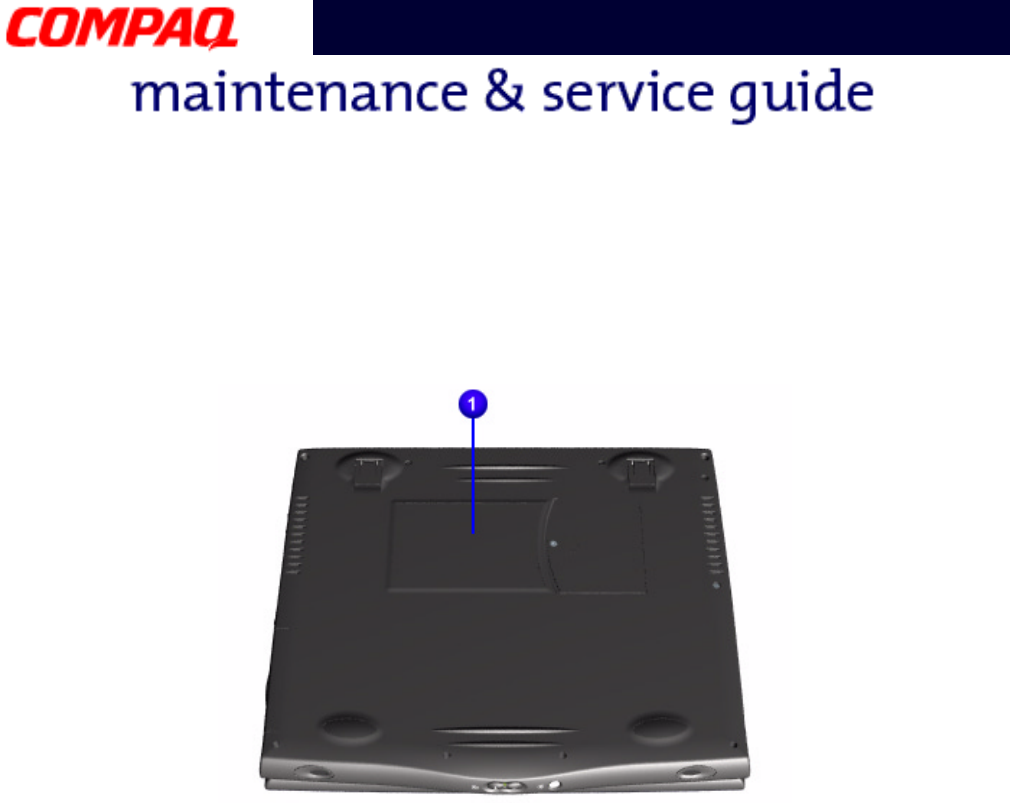
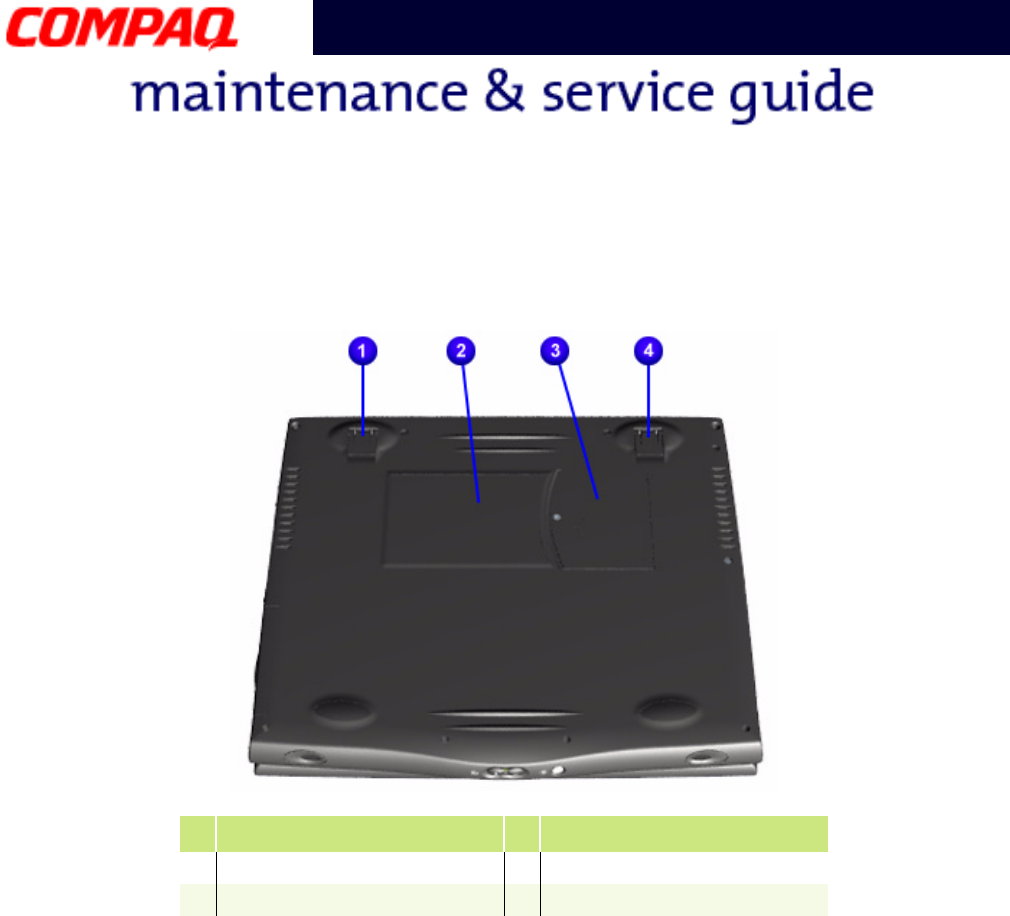
The unit’s serial number 1 is required when requesting information or ordering spare
parts. The serial number is located on the underside of the Notebook as shown below.
Locating Additional Information
The following documentation is available to support this product:
•Compaq Presario 1800XL Series Notebook Computer documentation set
•Introducing Windows 98 Guide
•Introducing Windows 2000 Guide
•Service Training Guides
•Compaq Service Advisories and Bulletins
•Compaq QuickFind
•Compaq Service Quick Reference Guide

PRESARIO NOTEBOOK MAINTENANCE AND SERVICE GUIDE 1800 SERIES PRODUCT DESCRIPTION 1
Presario 1800 Series
Models: XL180, XL181, XL182, XL183, XL185,
and XL190, XL191, XL192
Product Description
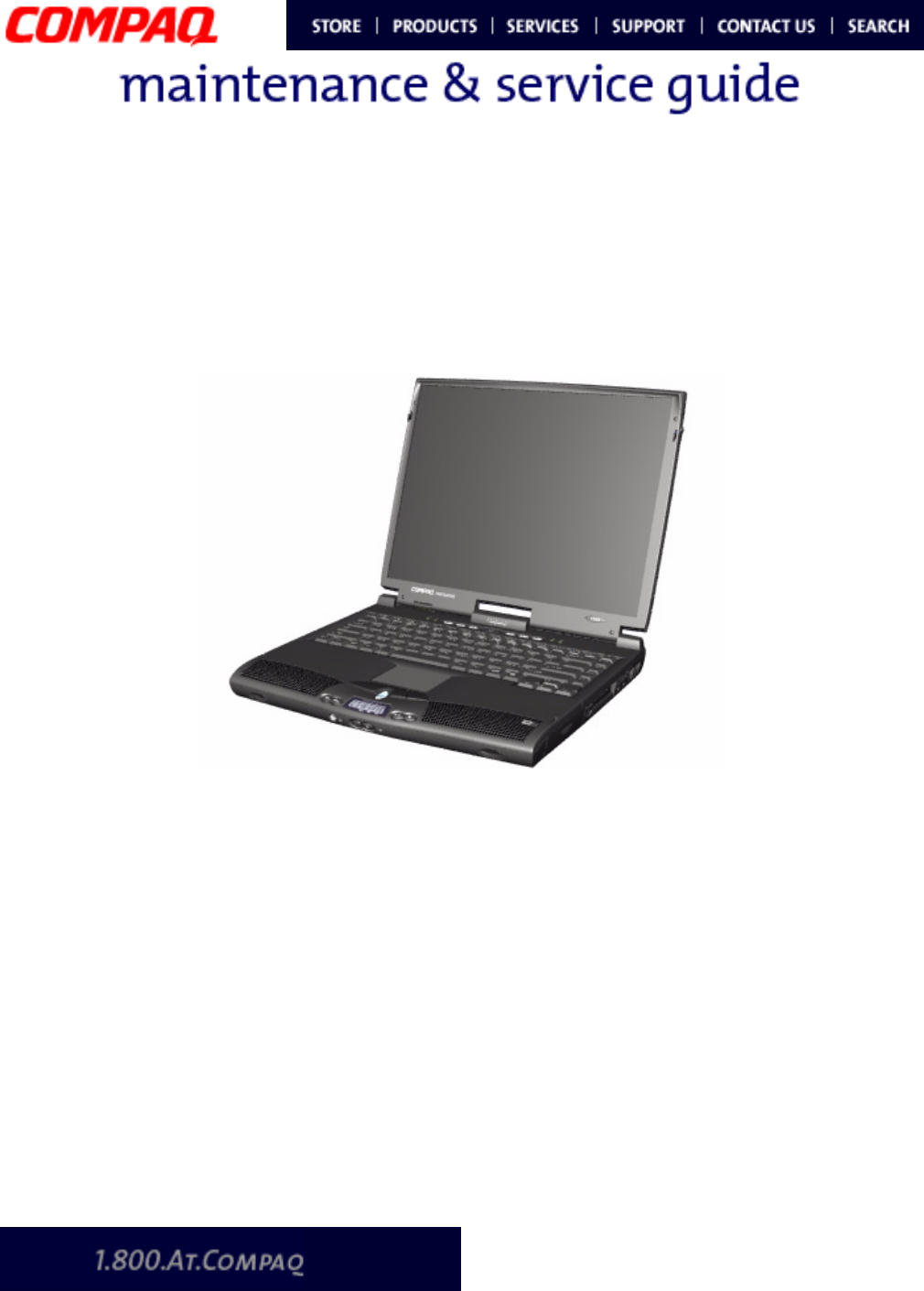
This chapter describes the features of each of the Presario 1800XL models. It also provides
illustrations of the exterior components unique to these units.
2 PRODUCT DESCRIPTION PRESARIO NOTEBOOK MAINTENANCE AND SERVICE GUIDE 1800 SERIES
Presario 1800 Series
Models: XL180, XL181, XL182, XL183, XL185,
and XL190, XL191, XL192
Models and Features
All models have a 3.5” Diskette Drive which use 1.44Mb Diskettes.
Compaq Presario 1800 Series Portable Notebook Computer Models
Feature XL180 XL181 XL182 XL183
Display 15.0" TFT 15.0" TFT 15.0" TFT 15.0" TFT
Processor PIII 600MHz,
256 Cache
PIII 500 MHz,
256 Cache
PIII 600 MHz,
256 Cache
PIII 600 MHz,
256 Cache
Hard Drive 6.0 GB 12.0 GB 12.0 GB 12.0 GB
CD or DVD
Drive
6X DVD Drive 6X DVD Drive 6X DVD Drive 6X DVD Drive
Modem 56.0 Kbps Data/
Fax with PCI
56.0 Kbps Data/
Fax with PCI
56.0 Kbps Data/
Fax Int’l with PCI
56.0 Kbps Data/
Fax Int’l with PCI
Networking
10/100TX
Integrated
Ethernet
10/100TX
Integrated
Ethernet
10/100TX
Integrated
Ethernet
10/100TX
Integrated
Ethernet
Battery 3.2 Li-Ion 3.2 Li-Ion 3.2 Li-Ion 3.2 Li-Ion
System
Memory
64 MB PC100 64 MB PC100 64 MB PC100 128 MB PC100
Compaq Presario 1800 Series Portable Notebook Computer Models
Feature XL185 XL190 XL191 XL192
Display 15.0" TFT 15.0" TFT 15.0" TFT 15.0" TFT
Processor PIII 600 MHz,
256 Cache
PIII 700 MHz,
256 Cache
PIII 650 MHz
256 Cache
PIII 700 MHz
256 Cache
Hard Drive 12.0 GB 6.0 GB 12.0 GB 12.0 GB
CD or DVD
Drive
6X DVD Drive DVD Drive 6X DVD Drive 6X DVD Drive
Modem 56.0 Kbps Data/
Fax Int’l with PCI
56.0 Kbps Data/
Fax with PCI
56.0 Kbps Data/
Fax Int’l with PCI
56.0 Kbps Data/
Fax Int’l with PCI
Networking
10/100TX
Integrated
Ethernet
10/100TX
Integrated
Ethernet
10/100TX
Integrated
Ethernet
10/100TX
Integrated
Ethernet
Battery 3.2 Li-Ion 3.2 Li-Ion 3.2 Li-Ion 3.2 Li-Ion
System
Memory
64 MB PC100 128 MB PC100 128 MB PC100 128 MB PC100
PRESARIO NOTEBOOK MAINTENANCE AND SERVICE GUIDE 1800 SERIES PRODUCT DESCRIPTION 3
Presario 1800 Series
Models: XL180, XL181, XL182, XL183, XL185,
and XL190, XL191, XL192
Front of Unit
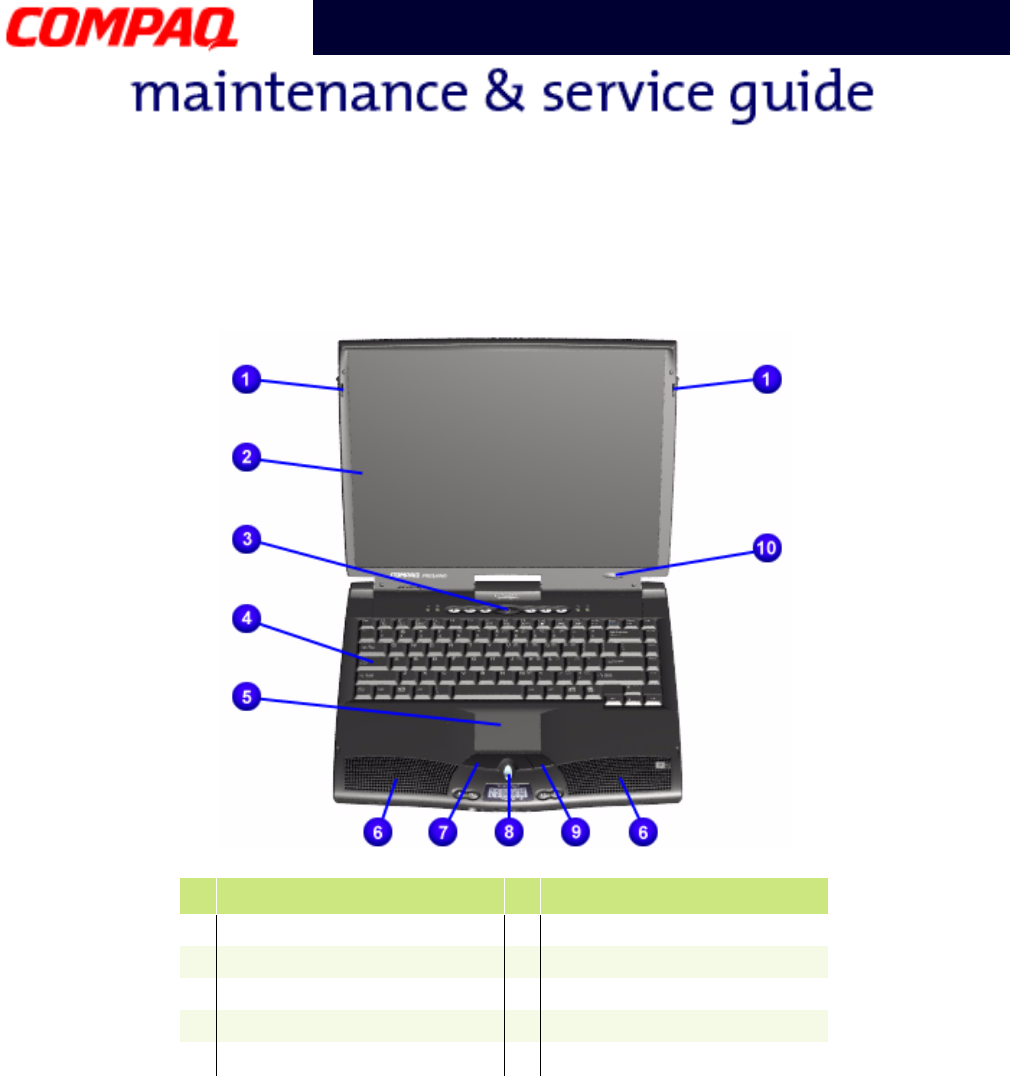
#Description #Description
1Display Release Latches 6Integrated Speakers
2Display 7Left TouchPad Button
3Power (On/Off) Button 8Scroll Up/Down Button
4Keyboard 9Right TouchPad Button
5TouchPad -Model Number
4 PRODUCT DESCRIPTION PRESARIO NOTEBOOK MAINTENANCE AND SERVICE GUIDE 1800 SERIES
Presario 1800 Series
Models: XL180, XL181, XL182, XL183, XL185,
and XL190, XL191, XL192
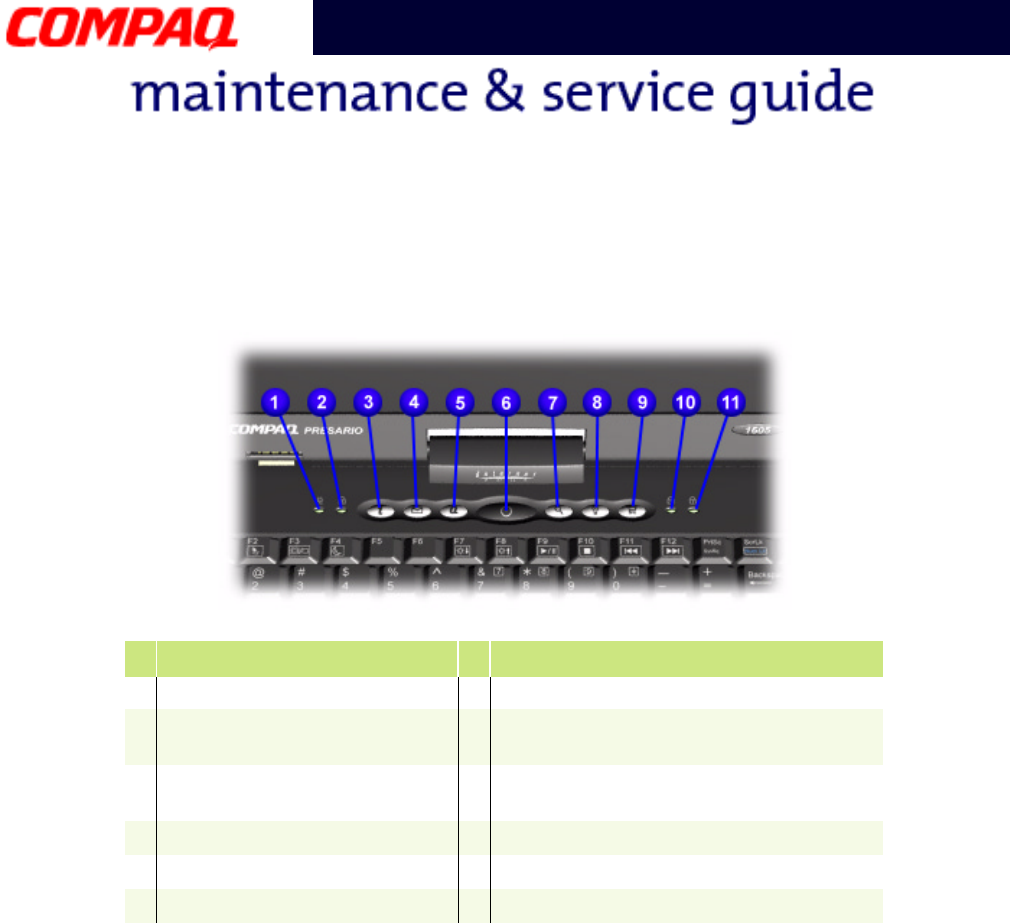
Internet Zone Buttons and Lights
#Description #Description
1AC Adapter Light 7Instant Search
2Caps Lock Light 8Online Marketplace (US/Puerto Rico)
Instant Answer (outside US)
3Instant Internet Access 9Retail Central (US/Puerto Rico)
Instant E-Commerce (outside US)
4Instant E-mail Access -Num Lock Light
5My Presario Instant Access qScroll Lock Light
6Power Button
PRESARIO NOTEBOOK MAINTENANCE AND SERVICE GUIDE 1800 SERIES PRODUCT DESCRIPTION 5
Presario 1800 Series
Models: XL180, XL181, XL182, XL183, XL185,
and XL190, XL191, XL192
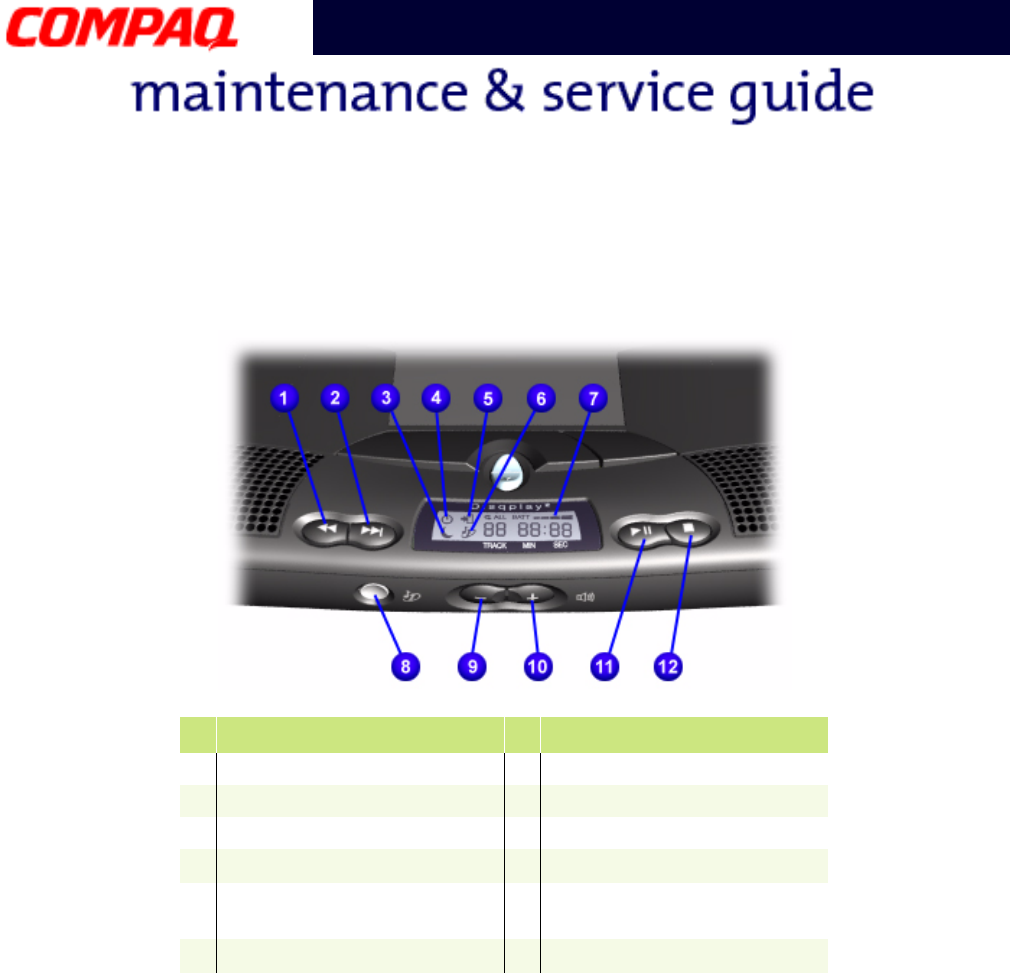
Front Bezel Components
#Description #Description
1Previous Track Button 7Battery Gauge
2Next Track Button 8DisqPlay On/Off Button
3Sleep Status Icon 9Volume Down Button
4Power Status Icon -Volume Up Button
5Battery Charging Status
Icon
qPlay/Pause Button
6DisqPlay Status Icon wStop Button
6 PRODUCT DESCRIPTION PRESARIO NOTEBOOK MAINTENANCE AND SERVICE GUIDE 1800 SERIES
Presario 1800 Series
Models: XL180, XL181, XL182, XL183, XL185,
and XL190, XL191, XL192
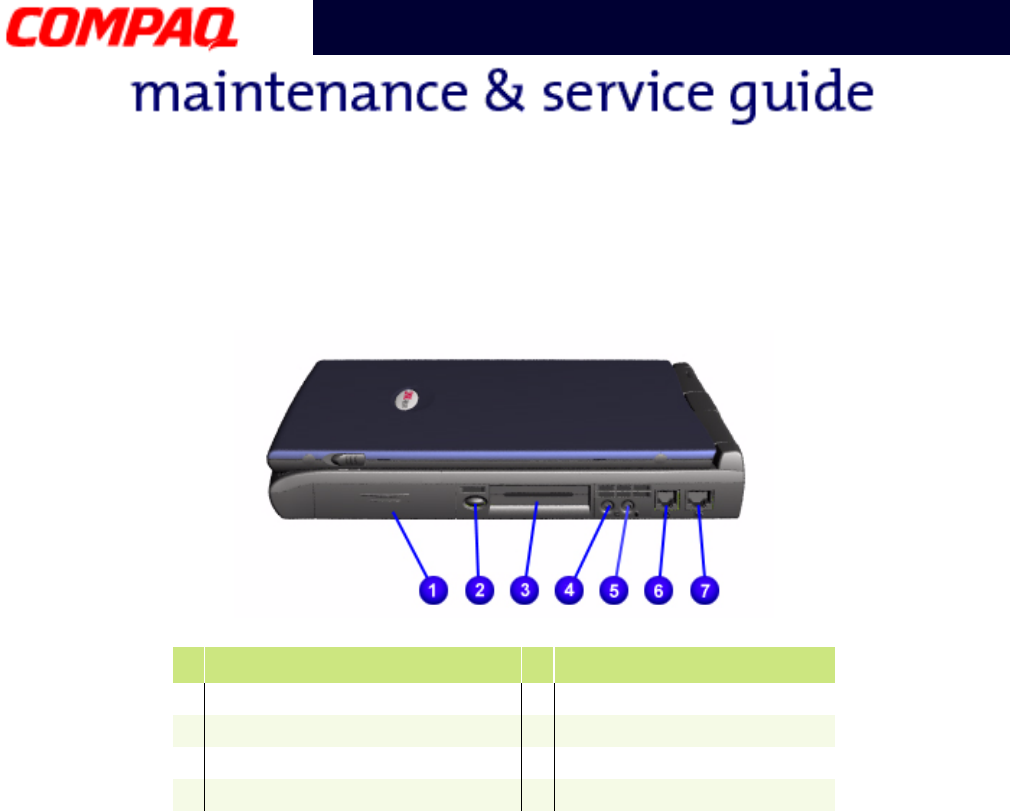
Right-Side Components
#Description #Description
1Battery Compartment 5Microphone Jack
2PC Card Eject Button 6Modem Port
3PC Card Slot 7Ethernet Port
4Headphone Jack
PRESARIO NOTEBOOK MAINTENANCE AND SERVICE GUIDE 1800 SERIES PRODUCT DESCRIPTION 7
Presario 1800 Series
Models: XL180, XL181, XL182, XL183, XL185,
and XL190, XL191, XL192
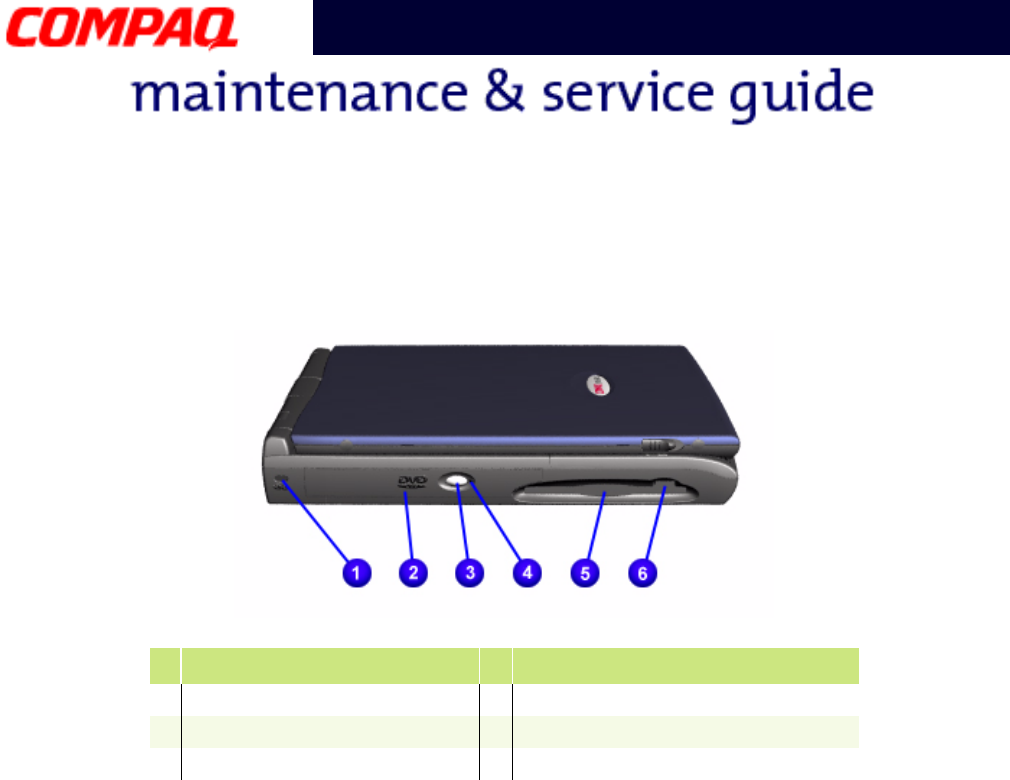
Left-Side Components
#Description #Description
1Security Slot 4CD or DVD Manual Eject Hole
2CD or DVD Drive 5Diskette Drive
3CD/DVD Drive Eject Button 6Diskette Drive Eject Button
PRESARIO NOTEBOOK MAINTENANCE AND SERVICE GUIDE 1800 SERIES PRODUCT DESCRIPTION 9
Presario 1800 Series
Models: XL180, XL181, XL182, XL183, XL185,
and XL190, XL191, XL192
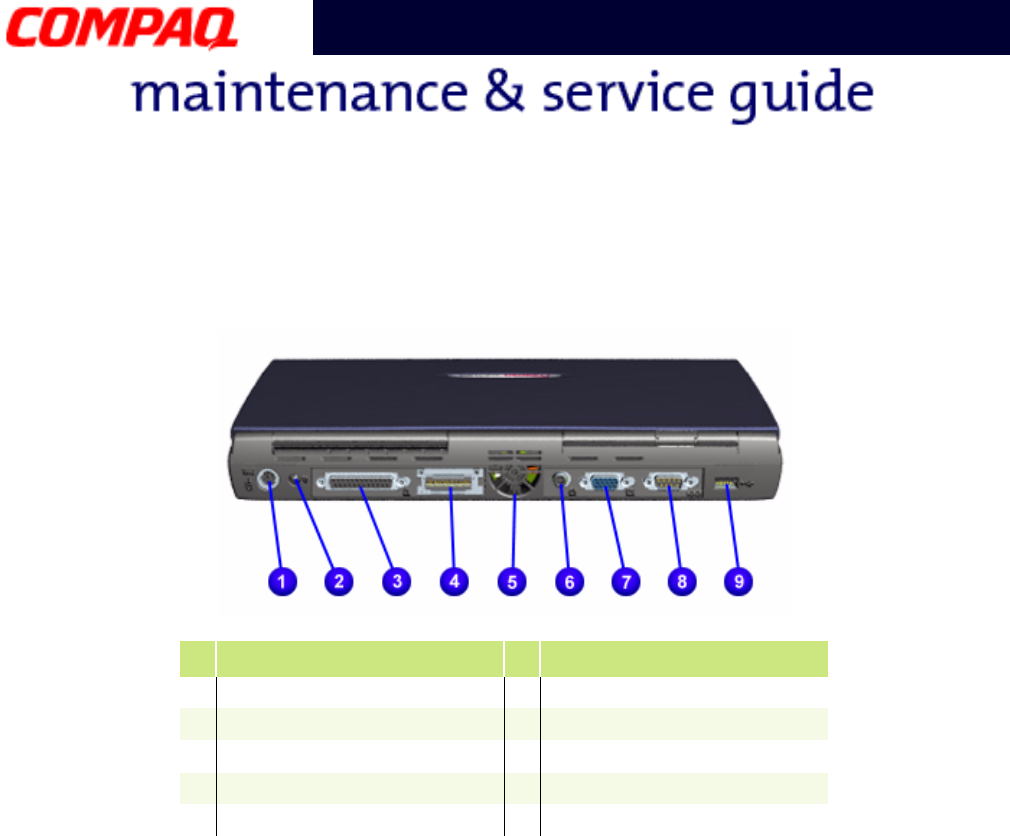
Rear Connectors
#Description #Description
1Keyboard/Mouse Port 6TV Out Connector
2AC Adapter Connector 7External Monitor Port
3Parallel Port 8Serial Ports
4QuikDock Connector 9Universal Serial Bus Port
5Fan Vent
10 PRODUCT DESCRIPTION PRESARIO NOTEBOOK MAINTENANCE AND SERVICE GUIDE 1800 SERIES
Presario 1800 Series
Models: XL180, XL181, XL182, XL183, XL185,
and XL190, XL191, XL192
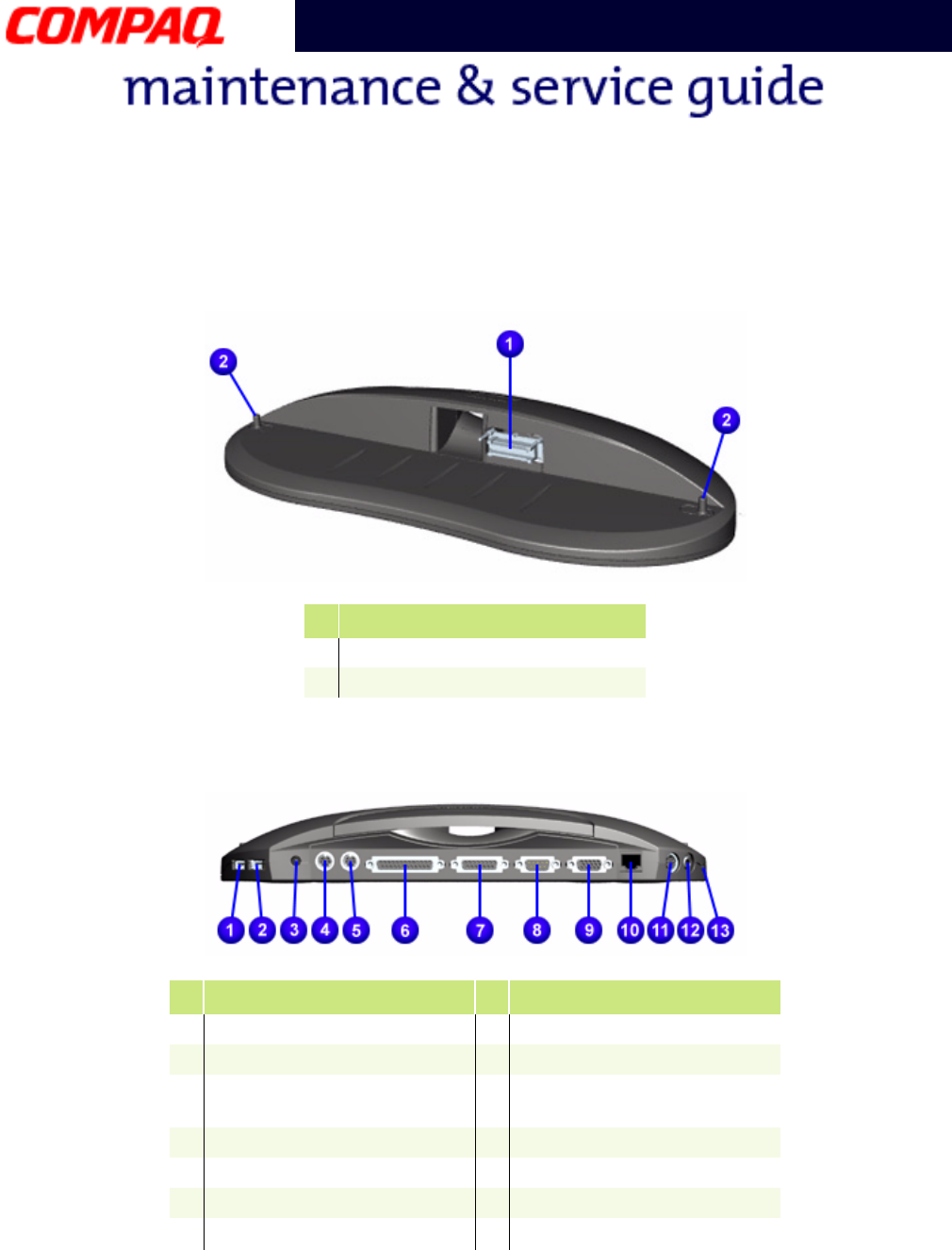
QuikDock Components
QuikDock Connectors
#Description
1QuikDock Interface Connector
2QuikDock Guide Posts
#Description #Description
1Universal Serial Bus Port 8Serial Port
2Universal Serial Bus Port 9External Monitor Port
3Power (AC Adapter)
Connector
-10/100TX Ethernet
4Keyboard/Mouse Port qS Video
5Keyboard/Mouse Port w(Composite) TV Out
6Parallel Port eAudio Out
7Game Port
PRESARIO NOTEBOOK MAINTENANCE AND SERVICE GUIDE 1800 SERIES SPECIFICATIONS 1
Presario 1800 Series
Models: XL180, XL181, XL182, XL183, XL185,
and XL190, XL191, XL192
Specifications
Physical and Environmental
*Applicable safety standards specify thermal limits for plastic surfaces.
Presario 1800XL Notebooks operate well within this temperature range.
Specification U.S. Metric
Height
Depth
Width
1.63 in
12.99 in
11.02 in
4.14 cm
33.00 cm
28.00 cm
Weight
with 14.1" TFT Display
with 15.0" Display
7.8 lbs 3.54 kg
Battery Pack Power
Requirements
Nominal Operating
Maximum Average
Peak Operating
Li-ion 3.2 AHr
W @ 14.8 V
W @ 14.8 V
W @ 14.8 V
AC Power Requirements
Operating Voltage
Operating Current
Operating Frequency
Maximum Transient
100-240 V
0.8/0.4 A RMS
47-63 Hz (meets IEC801-4 & 5)
1kV for 50 ns
Temperature*
Operating
Non-Operating
50° to 95°F
-4° to 140°F
10° to 35°C
-20° to 60°C
Relative Humidity
(noncondensing)
Operating
Non-Operating (tw = 38.7°C max)
10 to 90%
5 to 95%
35 to 90%
60 to 95%
Altitude
Operating
Non-Operating
0 to 10,000 ft
0 to 30,000 ft
0 to 3.05 km
0 to 9.14 km
Shock
Operating
Non Operating
10 G, 11 ms, half sine
240 G, 2 ms, half sine
Vibration
Operating
Non Operating
0.5 G
1.5 G
2 SPECIFICATIONS PRESARIO NOTEBOOK MAINTENANCE AND SERVICE GUIDE 1800 SERIES
Presario 1800 Series
Models: XL180, XL181, XL182, XL183, XL185,
and XL190, XL191, XL192
System Interrupts
System DMA
Hardware
IRQ System Function Hardware
IRQ System Function
IRQ0 System Timer IRQ10 Available
IRQ1 Standard 101/102-Key or
Microsoft Natural Keyboard
IRQ11 Intel (R) Pro/100S Mobile LAN
on Motherboard
IRQ2 Programmable Interrupt
Controller
IRQ11 Texas Instruments PCI-1410
CardBus Controller
IRQ3 Lucent 56K V.90 PCI DF Modem IRQ11 ACPI IRQ Holder for PCI IRQ
Steering
IRQ3 ACPI IRQ Holder for PCI IRQ
Steering
IRQ11 Intel 82371AB/EB PCI to USB
Universal Host Controller
IRQ4 Communications Port (COM1) IRQ11 ACPI IRQ Holder for PCI IRQ
Steering
IRQ5 ESS SOLO-1 PCI AudioDrive IRQ12 Synaptics PS/2 TouchPad
IRQ5 ACPI IRQ Holder for PCI IRQ
Steering
IRQ13 Numeric Data Processor
IRQ5 RAGE Mobility AGP (English) IRQ14 Intel 82371AB/EB PCI Bus
Master IDE Controller
IRQ6 Standard Floppy Disk Controller IRQ14 Primary IDE Controller (Dual
FIFO)
IRQ7 Printer Port (LPT1) IRQ15 Intel 82371AB/EB PCI Bus
Master IDE Controller
IRQ8 System CMOS/Real Time Clock IRQ15 Secondary IDE Controller (Dual
FIFO)
IRQ9 SCI IRQ used by ACPI Bus
Hardware
DMA System Function
DMA1 ESS SOLO-1 DOS Emulation
DMA2 Standard Floppy Disk Controller
DMA3 ECP Printer Port (LPT1)
DMA4 Direct memory access Controller
PRESARIO NOTEBOOK MAINTENANCE AND SERVICE GUIDE 1800 SERIES SPECIFICATIONS 3
Presario 1800 Series
Models: XL180, XL181, XL182, XL183, XL185,
and XL190, XL191, XL192
System I/O Address
I/O Address System Function (Shipping Configuration)
0000h - 000Fh Direct Memory Access Controller
0020h - 0021h Programmable Interrupt Controller
0040h - 0043h System Timer
0060h - 0060h Standard 101/102-Key or Microsoft Natural Keyboard
0061h - 0061h System Speaker
0062h - 0062h ACPI Embedded Controller
0064h - 0064h Standard 101/102-Key or Microsoft Natural Keyboard
0066h - 0066h ACPI Embedded Controller
0070h - 0071h System CMOS/Real Time Clock
0081h - 008Fh Direct Memory Controller
00A0h - 00A1h Programmable Interrupt Controller
00C0h - 00DFh Direct Memory Access Controller
00F0h - 00FEh Numeric Data Processor
0170h - 0177h Intel 82371AB/EB PCI Bus Master IDE Controller
0170h - 0177h Secondary IDE Controller (dual fifo)
01F0h - 01F7h Intel 82371AB/EB PCI Bus Master IDE Controller
01F0h - 01F7h Primary IDE Controller (dual fifo)
0200h - 0203h Gameport Joystick
0220h - 022Fh ESS SOLO-1 DOS Emulation
0330h - 0331h ESS SOLO-1 DOS Emulation
0376h - 0376h Secondary IDE Controller (Dual FIFO)
0376h - 0376h Intel 82371AB/EB PCI Bus Master IDE Controller
0378h - 037Fh Printer Port (LPT1)
0388h - 038Bh ESS SOLO-1 DOS Emulation
03B0h - 03BBh RAGE Mobility AGP (English)
03C0h - 03DFh RAGE Mobility AGP (English)
03F0h - 03F5h Standard Floppy Disk Controller
03F6h - 03F6h Intel 82371AB/EB PCI Bus Master IDE Controller
03F6h - 03F6h Primary IDE Controller (Dual FIFO)
03F7h - 03F7h Standard Floppy Disk Controller
4 SPECIFICATIONS PRESARIO NOTEBOOK MAINTENANCE AND SERVICE GUIDE 1800 SERIES
Presario 1800 Series
Models: XL180, XL181, XL182, XL183, XL185,
and XL190, XL191, XL192
System Memory Catalog
03F8h - 03FFh Communications Port (COM1)
04D0h -04D1h Motherboard Resources
0CF8h - 0CFFh PCI Bus
1000h - 10FFh Lucent 56K V.90 PCI DF Modem
1400h - 143Fh ESS SOLO-1 PCI AudioDrive
1440h - 147Fh Intel (R) PRO/100 S Mobile LAN on Motherboard
1480h - 149Fh Intel 82371AB/EB PCI to USB Universal Host Controller
14A0h - 14A7h Primary IDE Controller (Dual FIFO)
14A0h - 14AFh Intel 82371AB/EB PCI Bus Master IDE Controller
14A8h - 14AFh Secondary IDE Controller (Dual FIFO)
14B0h - 14BFh ESS SOLO-1 PCI AudioDrive
14C0h - 14CFh ESS SOLO-1 PCI AudioDrive
14D0h -14D7h Lucent 56K V.90 PCI DF Modem
14D8h -14DBh ESS SOLO-1 PCI AudioDrive
14DCh -14DFh ESS SOLO-1 PCI AudioDrive
2180h - 218Fh Motherboard Resources
8000h - 803Fh Motherboard Resources
9000h - 9FFFh Intel 82443BX Pentium II Processor to AGP Controller
9000h - 90FFh RAGE Mobility AGP (English)
Memory Address System Function
00000000h - 0009FFFFh Not Available For Use By Devices
000A0000h - 000AFFFFh RAGE Mobility AGP (English)
000B0000h - 000BFFFFh RAGE Mobility AGP (English)
000C0000h - 000CBFFFh RAGE Mobility AGP (English)
000E0000h-000E7FFFh Not Available For Use By Devices
000E9000h-03FFFFFFh Not Available For Use By Devices
04000000h - 04000FFFh Texas Instruments PCI-1410 CardBus Controller
F4000000h - F40000FFh Intel (R) PRO/100 S Mobile LAN on Motherboard
F4100000h-F4100FFFh Intel (R) PRO/100 S Mobile LAN on Motherboard
I/O Address System Function (Shipping Configuration)
PRESARIO NOTEBOOK MAINTENANCE AND SERVICE GUIDE 1800 SERIES SPECIFICATIONS 5
Presario 1800 Series
Models: XL180, XL181, XL182, XL183, XL185,
and XL190, XL191, XL192
Display Information
F4101000h-F41010FFh Lucent 56K V.90 PCI DF Modem
F4200000h-F4200FFFh RAGE Mobility AGP (English)
F4200000h-F5FFFFFFh Intel 82443BX Pentium II Processor to AGP Controller
F4220000h-F423FFFFh RAGE Mobility AGP (English)
F5000000h-F5FFFFFFh RAGE Mobility AGP (English)
F8000000h - FBFFFFFFh Intel 82443BX Pentium II Processor to PCI Bridge
FFF80000h - FFFFFFFFh Motherboard Resources
Display 15.0” (Diagonal) TFT
with LVDS
14.1” (Diagonal) TFT
with LVDS
Specification U.S. Metric U.S. Metric
Unit Height
Unit Width
9.48 in
12.43 in
24.05 cm
31.55 cm
8.92 in
11.76 in
22.65 cm
29.85 cm
Display Height
Display Width
8.99 in
11.98 in
22.81 cm
30.41 cm
8.44 in
11.26 in
21.43 cm
28.57 cm
Weight 24.36 oz 690 g 19.94 oz 565 g
Contrast Ratio 150:1 mini 150:1 mini
Brightness 120 cd/mm3120 cd/mm3
Response Time 50 ms 50 ms
Refresh Rate 60 Hz 60 Hz
Memory Address System Function
6 SPECIFICATIONS PRESARIO NOTEBOOK MAINTENANCE AND SERVICE GUIDE 1800 SERIES
Presario 1800 Series
Models: XL180, XL181, XL182, XL183, XL185,
and XL190, XL191, XL192
Memory Expansion
Diskette Drive
Memory Expansion
System
Memory
Expansion
Board Memory
Total
Memory
64 MB none 64 MB
64 MB 32 MB 96 MB
64 MB 64 MB 128 MB
64 MB 128 MB 192 MB
64 MB 256 MB 320 MB
Diskette Drive
Capacity per Diskette (High/Low) 1.44Mb/720 Kb
Diskette Size 3.5 in
Number of LED Indicators 0
Number of Drives Supported 1
Drive Rotation (rpm) 300
Transfer Rate (Kbps) 500
Bytes per Sector 512
Sectors per Track (High/Low) 18/9
Tracks per Side (High/Low) 80
Access Times
Track-to-Track (ms)
Average (ms)
Setting Time (ms)
Latency Average (ms)
3
94
15
100
Cylinders (High/Low) 80
Number of Read/Write Heads 2
PRESARIO NOTEBOOK MAINTENANCE AND SERVICE GUIDE 1800 SERIES SPECIFICATIONS 7
Presario 1800 Series
Models: XL180, XL181, XL182, XL183, XL185,
and XL190, XL191, XL192
Hard Drive
CD or DVD Drive
Hard Drives
Specification 6.0 GB 12.0 GB 18.0 GB
Drive Type Ultra DMA 66.7 Ultra DMA 66.7 Ultra DMA 66.7
Cylinders
Heads
Sectors per Track
Bytes per Sector
15200
2
63
512
15200
4
63
512
15200
6
63
512
Seek Times (typical)
Read/Write (incl. settling)
Single track
Full stroke
13 ms
3 ms
24 ms
13 ms
3 ms
24 ms
13 ms
3 ms
24 ms
Transfer Rate at Interface
Ultra DMA mode (max)
PIO mode
66.7 Mb/s
16.6 Mb/s
66.7 Mb/s
16.6 Mb/s
66.7 Mb/s
16.6 Mb/s
CD or DVD Drive
Specification 6x DVD 8x DVD CD-RW 24x CD
Width
Height
Depth
128 mm
12.7 mm
129 mm
128 mm
12.7 mm
129 mm
128 mm
12.7 mm
129 mm
128 mm
12.7 mm
129 mm
Weight 280 g 270 g 300 g <270 g
Rotational Speed Approx. 3450 rpm 2300 rpm 4200 rpm (CD) 4225 rpm
Sustained Data Transfer Rate
(typical)
8100 Kb/s 5400Kb/s Reading:
3000 Kb/s (20x CD)
2100 Kb/s (14x CD-RW)
Writing:600 Kb/s (4x)
3600 Kb/s
Random Access Time (Avg.) 140 ms 140 ms 150 ms (Typ.) 120 ms
Spin Up Time <15 s 3.8 s <10 s 2.7 s
Data Buffer Capacity 512 Kb 128 Kb 2Mb 128 Kb
8 SPECIFICATIONS PRESARIO NOTEBOOK MAINTENANCE AND SERVICE GUIDE 1800 SERIES
Presario 1800 Series
Models: XL180, XL181, XL182, XL183, XL185,
and XL190, XL191, XL192
Battery Pack
*The battery discharge/use limit changes depending
on the power management settings, system
components such as installed PC Cards, and the
applications in use.
Battery Pack
Type Lithium Ion (Li-Ion)
Height
Length
Width
0.8 in (20.3 mm)
5.7 in (145 mm)
3.1 in (78.7 mm)
Weight 0.90 lb (408.2 g)
Discharge/Use Limit*2 hr 30 min*
Energy
Circuit Voltage
Capacity
Power
14.4 V
3000 mAH
43.2 WH
Temperature Requirements
Operating
Non-Operating
Charging
32°F (0-50° C)
-20°C - 60° C
5°C - 45° C
PRESARIO NOTEBOOK MAINTENANCE AND SERVICE GUIDE 1800 SERIES CONNECTOR PIN ASSIGNMENTS 1
Presario 1800 Series
Models: XL180, XL181, XL182, XL183, XL185,
and XL190, XL191, XL192
Connector Pin Assignments
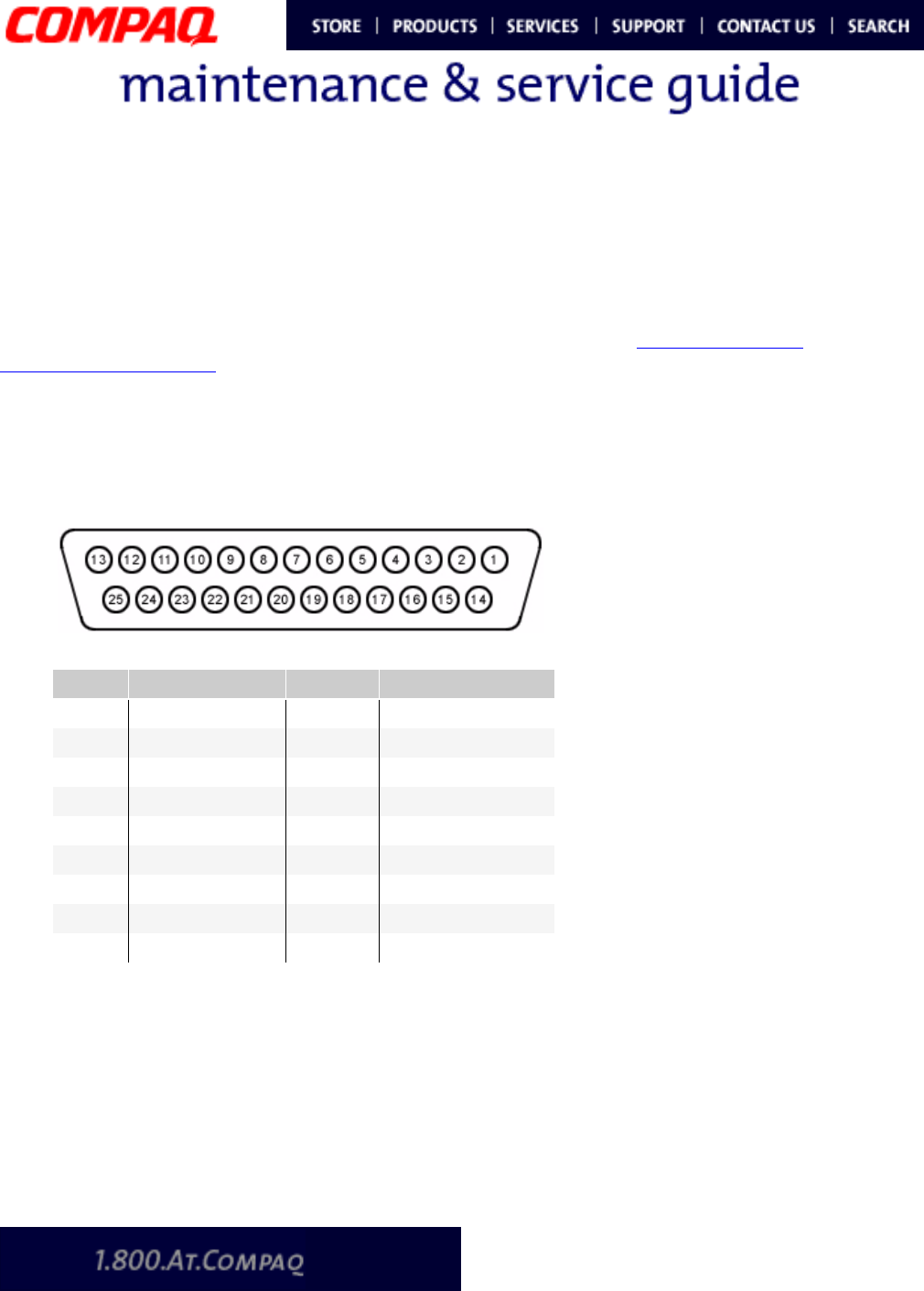
This chapter provides the pin assignments for Presario 1800 Series Notebook connectors.
For more information on connectors or external ports, refer to Rear Connectors and
QuikDock Connectors.
Note: The signals in all tables of this chapter are considered active high unless otherwise
indicated by an asterisk (*).
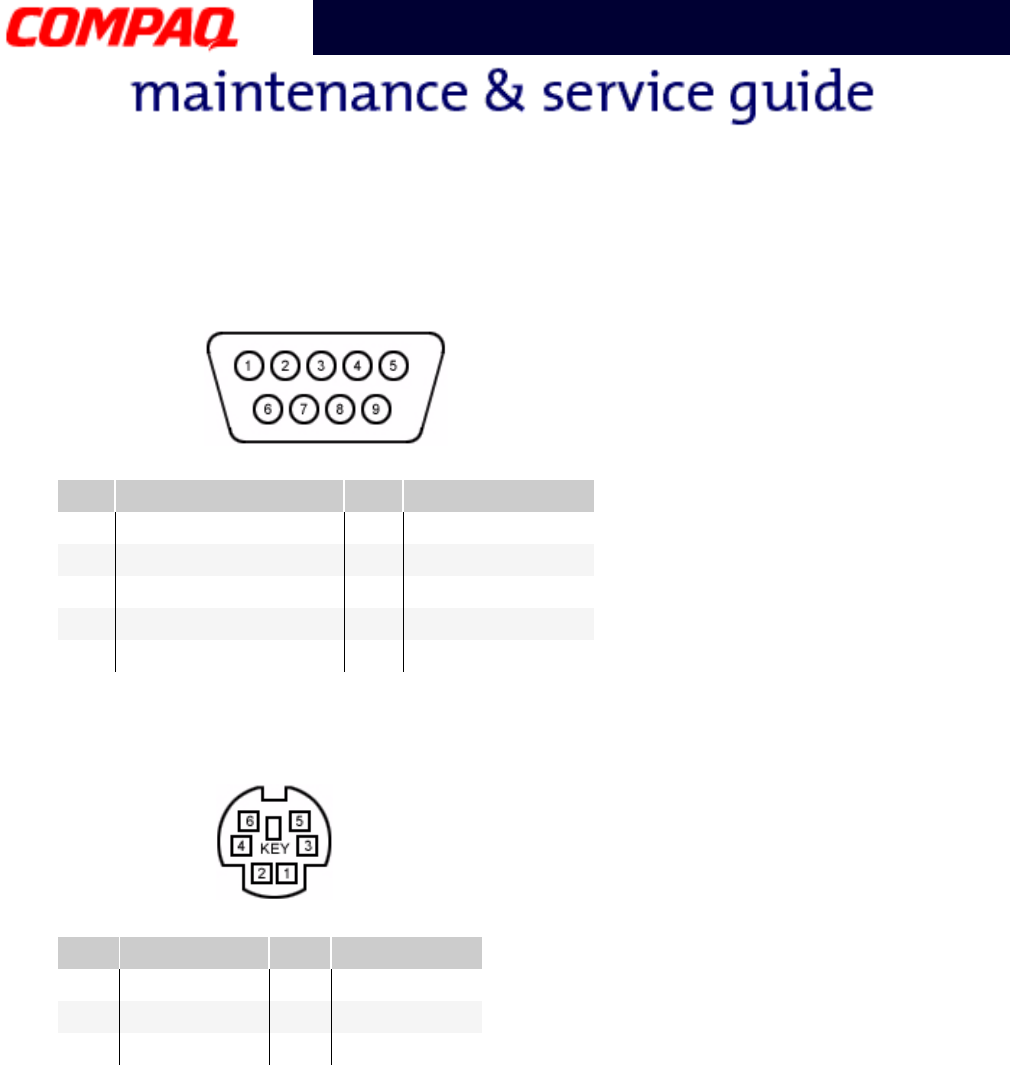
Parallel Connector
*Signal is active low.
Pin Signal Pin Signal
1Strobe*10 Acknowledge*
2Data Bit 0 11 Busy
3 Data Bit 1 12 Paper Out
4Data Bit 2 13 Select
5 Data Bit 3 14 Auto Linefeed*
6Data Bit 4 15 Error*
7 Data Bit 5 16 Initialize Printer*
8Data Bit 6 17 Select In*
9 Data Bit 7 18-25 Signal Ground
2 CONNECTOR PIN ASSIGNMENTS PRESARIO NOTEBOOK MAINTENANCE AND SERVICE GUIDE 1800 SERIES
Presario 1800 Series
Models: XL180, XL181, XL182, XL183, XL185,
and XL190, XL191, XL192
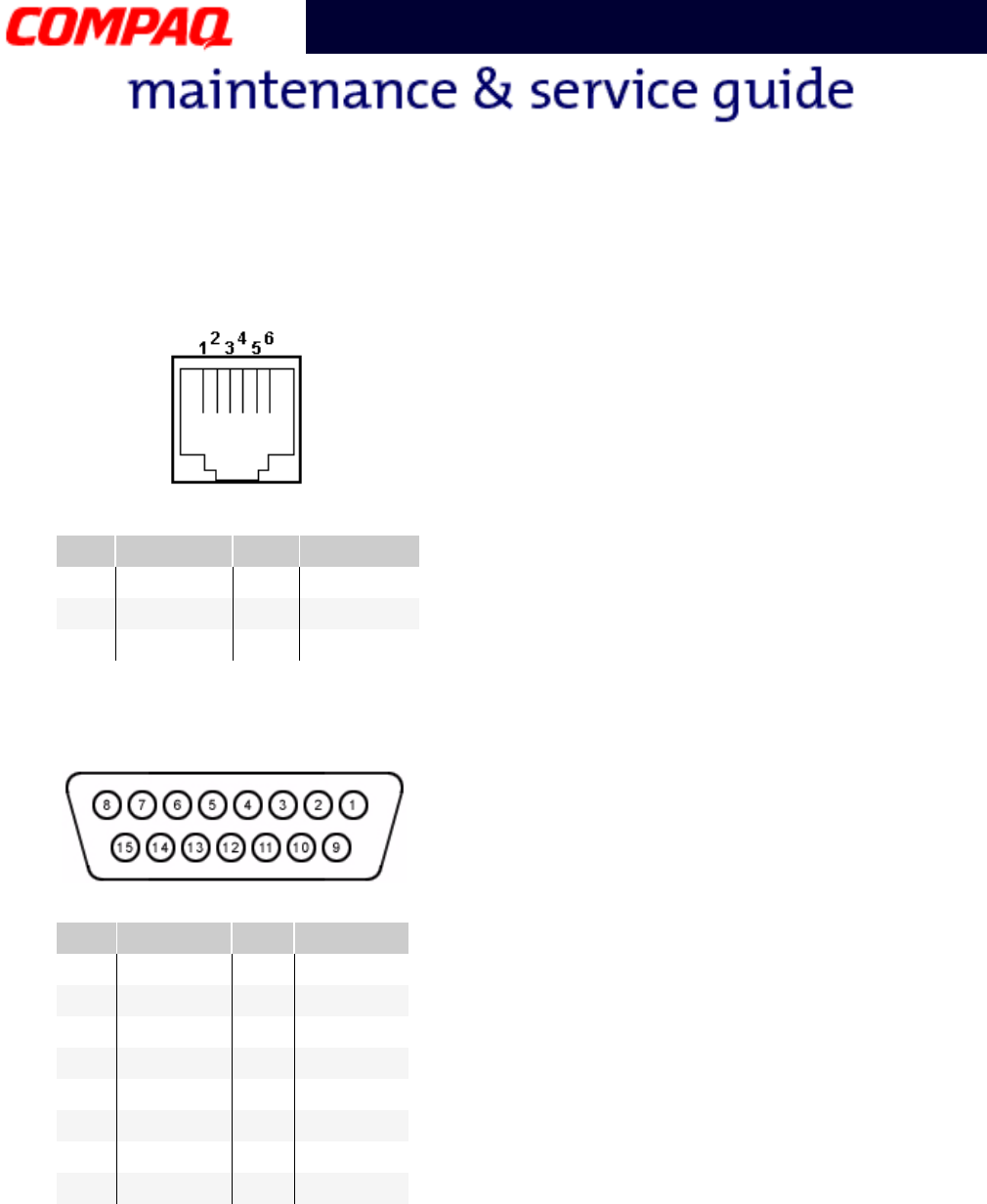
Serial Connector
Keyboard/Mouse Connector
Pin Signal Pin Signal
1 Carrier Detect 6 Data Set Ready
2Receive Data 7Ready to Send
3 Transmit Data 8 Clear to Send
4Data Terminal Ready 9Ring Indicator
5 Signal Ground
Pin Signal Pin Signal
1 Data 1 4 +5 V
2Data 2 5Clock 1
3Ground 6Clock 2
PRESARIO NOTEBOOK MAINTENANCE AND SERVICE GUIDE 1800 SERIES CONNECTOR PIN ASSIGNMENTS 3
Presario 1800 Series
Models: XL180, XL181, XL182, XL183, XL185,
and XL190, XL191, XL192
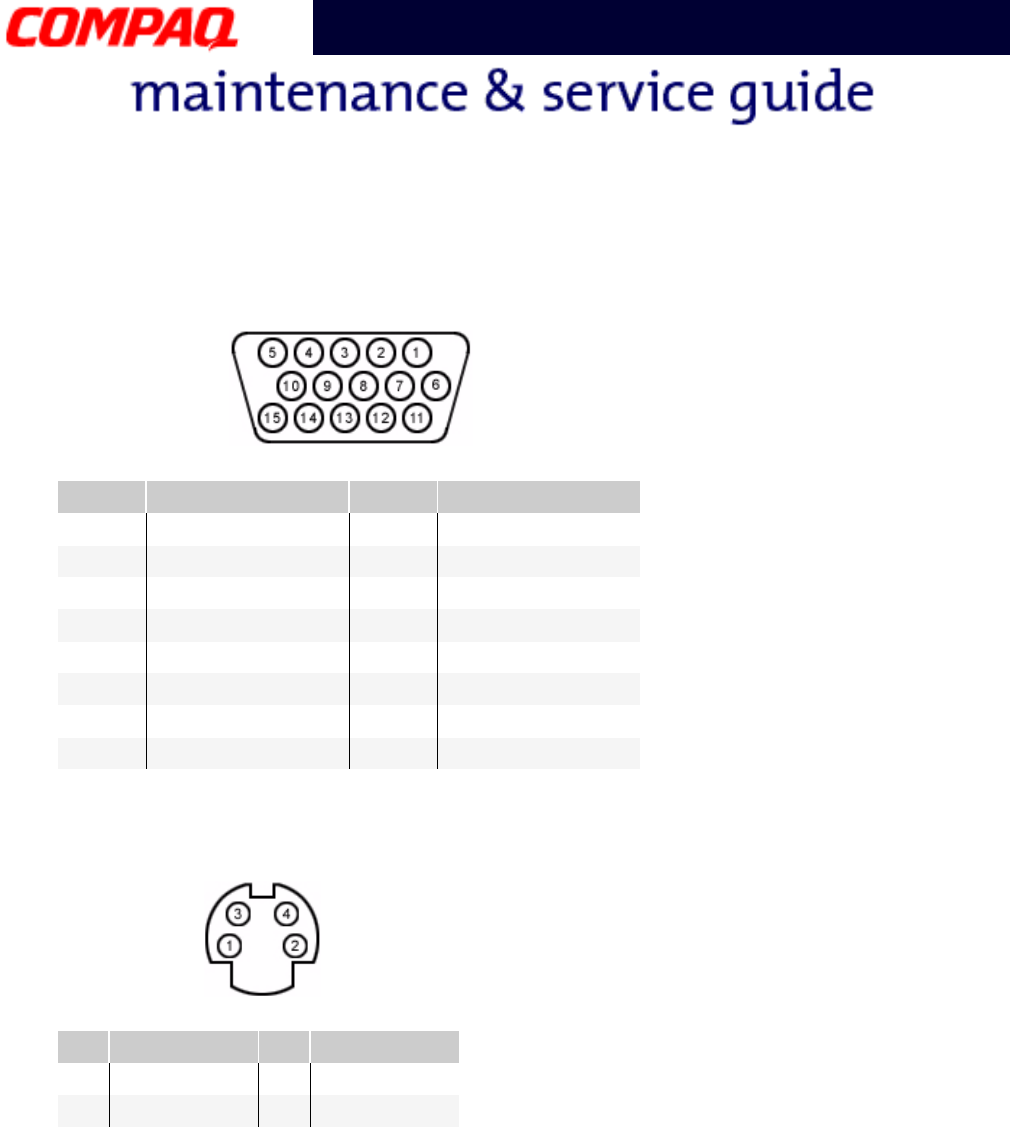
Modem Connector
Game Port Connector
Pin Signal Pin Signal
1 Unused 4 Unused
2Tip 5Unused
3Ring 6 Unused
Pin Signal Pin Signal
1 +5V 9 +5V
2SWA 10 SWC
3 RBTA 11 RBTC
4GND 12 RMSO
5GND 13RBTD
6RBTB 14 SWD
7SWB 15RMSI
8+5V
4 CONNECTOR PIN ASSIGNMENTS PRESARIO NOTEBOOK MAINTENANCE AND SERVICE GUIDE 1800 SERIES
Presario 1800 Series
Models: XL180, XL181, XL182, XL183, XL185,
and XL190, XL191, XL192
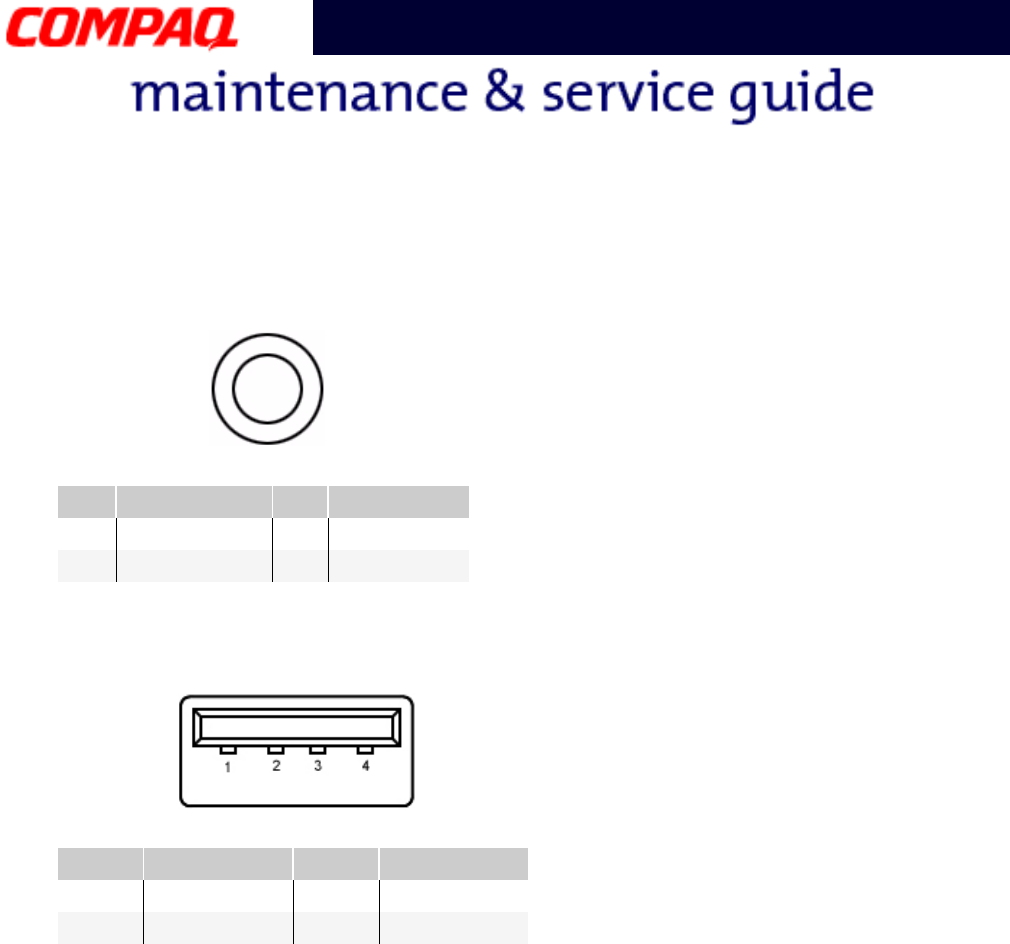
External VGA Monitor Port
S-Video Connector
Pin Signal Pin Signal
1Red Analog 9+5V
2Green Analog 10 Ground
3 Blue Analog 11 Monitor Detect
4Not connected 12 DDC2B Data
5 Ground 13 Horizontal Sync
6Ground Analog 14 Vertical Sync
7 Ground Analog 15 DDC2B Clock
8Ground Analog
Pin Signal Pin Signal
1Ground 3SYR
2Ground 4SCG
PRESARIO NOTEBOOK MAINTENANCE AND SERVICE GUIDE 1800 SERIES CONNECTOR PIN ASSIGNMENTS 5
Presario 1800 Series
Models: XL180, XL181, XL182, XL183, XL185,
and XL190, XL191, XL192
TV Out Connector
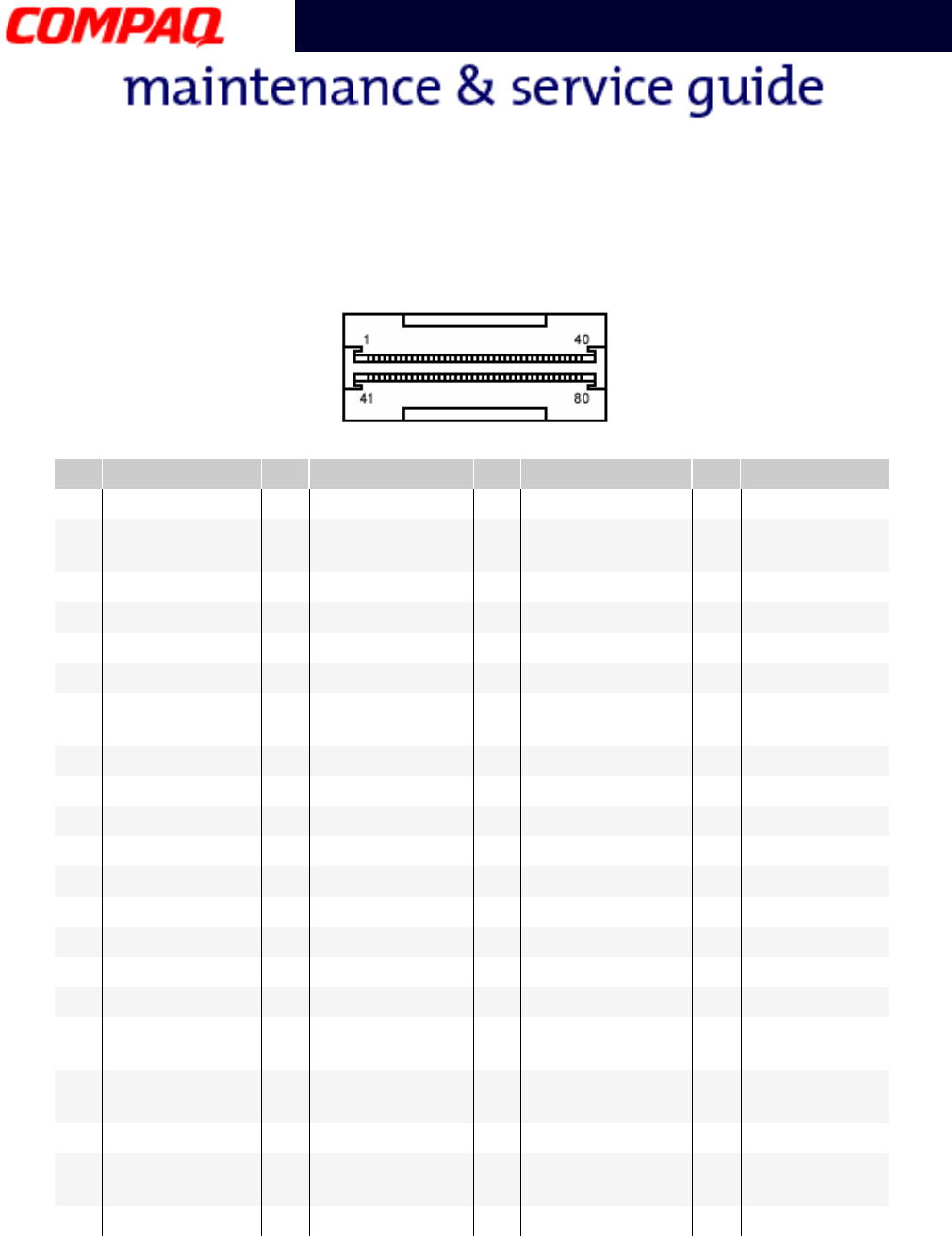
Univeral Serial Bus (USB)
Pin Signal Pin Signal
1 Ground 3 Ground
2Composite
Pin Signal Pin Signal
1 +5V 3 Data +
2Data - 4Ground
6 CONNECTOR PIN ASSIGNMENTS PRESARIO NOTEBOOK MAINTENANCE AND SERVICE GUIDE 1800 SERIES
Presario 1800 Series
Models: XL180, XL181, XL182, XL183, XL185,
and XL190, XL191, XL192
QuikDock Connector
Pin Signal Pin Signal Pin Signal Pin Signal
1 Adapter Power 22 Serial Port DCD 43 Keyboard Clock 64 MIDI Output
2Adapter Power 23 Serial Port DSR 44 Keyboard Data 65 Headphone
Sense
3 Adapter Power 24 Serial Port TXD 45 Mouse Clock 66 USB Power
4Adapter Power 25 Serial Port RTS 46 Mouse Data 67 USB Power
5 Adapter Power 26 Monitor DDC 47 Lp Select 68 USB Power
6Adapter Power 27 Monitor DDC 48 Lp Paper End 69 USB Power
7 Not Connected 28 Monitor
Indicator
49 Lp Initialize 70 USB A-
8Printer Data 0 29 V. S Y N C 50 Lp Busy 71 USB A+
9 Printer Data 1 30 Ground 51 Lp Error 72 USB B-
10 Printer Data 2 31 H.SYNC 52 Lp Acknowledge 73 USB B+
11 Printer Data 3 32 Ground 53 Lp AutoFeed 74 5V
12 Printer Data 4 33 Blue 54 Lp Strobe 75 5V
13 Printer Data 5 34 Ground 55 Joystick Data A 76 Line Out Left
14 Printer Data 6 35 Green 56 Joystick Data B 77 S-Video SYR
15 Printer Data 7 36 Ground 57 Joystick Data C 78 Ground
16 Lp Indicator 37 Red 58 Joystick Data D 79 S-Video SCG
17 QuikDock
Indicator
38 Ground 59 Switch A 80 Ground
18 Serial Port
RXD
39 Composite TV
Out
60 Switch B 81 Ground
19 Serial Port RI 40 Line Out Right 61 Switch C 82 Ground
20 Serial Port
DTR
41 Line Out
Present
62 Switch D
21 Serial Port CTS 42 Power Cycle 63 MIDI Input

PRESARIO NOTEBOOK MAINTENANCE AND SERVICE GUIDE 1800 SERIES BATTERY AND POWER MANAGEMENT 1
Presario 1800 Series
Models: XL180, XL181, XL182, XL183, XL185,
and XL190, XL191, XL192
Battery and Power Management
This chapter describes power management and proper battery operating practices for
Presario 1800XL Notebooks. These practices include conservation of AC power and
extending the operating life of the battery. The following sections also outline proper
methods to startup and shutdown the Notebook in various situations.
Power Modes
Presario 1800XL Notebooks have three levels of low power: Hibernation, Standby, and Off.
Hibernation
Hibernation mode helps conserve battery life and protect data. The Notebook automatically
enters Hibernation mode when the battery has little power left or when the Notebook
(operating on battery power) is in Standby mode for more than one hour. As the Notebook
enters Hibernation, it automatically stores the contents of the Notebook memory to the
hard drive before shutdown. When the Notebook wakes from Hibernation, it returns to its
former state.
Note: When the Notebook enters or wakes from Hibernation mode, a Progress window is
displayed.
To activate Hibernation mode, press the Power button once.
To resume from Hibernation mode, press the Power button once.
Standby
Standby mode is a low-power mode, also referred to as Sleep mode. The Notebook
maintains system information and open files while in Standby mode. Selecting Standby
mode instead of turning off the Notebook when finished has two advantages: 1. It allows
the Notebook to wake up faster than turning it off; 2. It saves more power than the
Active-On mode.
Ä
ÄÄ
ÄCAUTION: Unsaved information is lost if the Notebook is turned off prior to
system wake-up, or if a power loss occurs while using the AC adapter.
To activate Standby/Sleep mode, press Fn+F4 or click Start, select the Shut Down
option, and then Standby.
To resume from Standby/Sleep mode, press any key.
2 BATTERY AND POWER MANAGEMENT PRESARIO NOTEBOOK MAINTENANCE AND SERVICE GUIDE 1800 SERIES
Presario 1800 Series
Models: XL180, XL181, XL182, XL183, XL185,
and XL190, XL191, XL192
Full Off
Off mode consumes no power. However, the battery charges while the Notebook is in Off
mode if the battery is installed and the Notebook remains plugged into external AC power.
Note: Unsaved information is lost if the Notebook is shutdown without saving the data.
To activate Off mode, click the Start button on the Windows taskbar, click Shut Down,
and then select shutdown from the options.
To resume from Off mode, press the Power button once.
Å
ÅÅ
ÅWARNING: The Notebook must be shutdown (Off mode) when installing or
replacing components. Follow the instructions for putting the Notebook into Off
mode, unplug it from the outlet, and remove the battery pack (see Removing the
Battery) before servicing any parts.
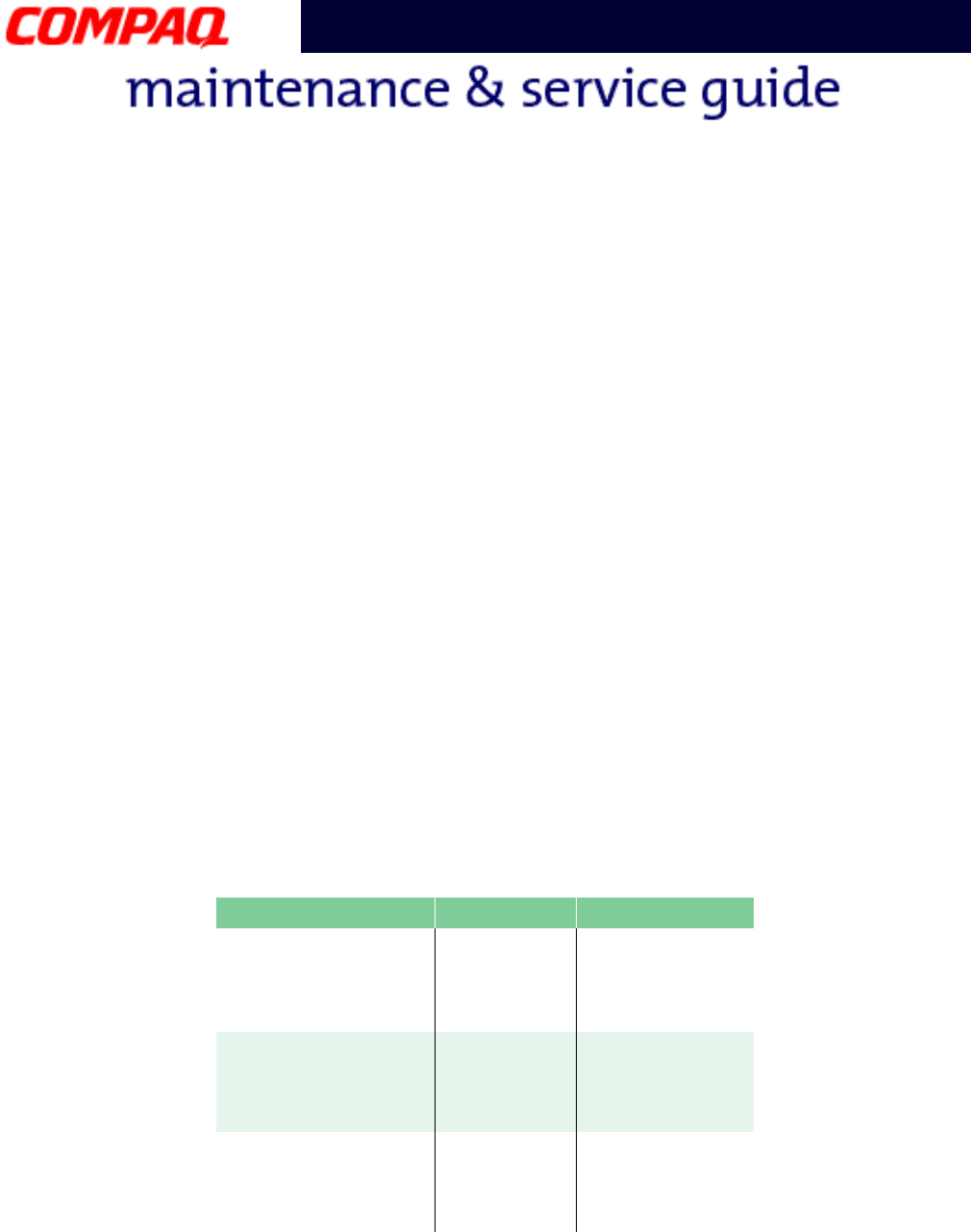
Summary of Power Modes
The following table outlines entering and exiting the various power modes and the external
indicators for each mode.
*The Notebook will not automatically enter Standby or Hibernation mode if using AC power.
**Important: The Manual Shutdown procedure is not recommended unless the Standard
Shutdown is unsuccessful.
Standby Mode Hibernation Mode Off Mode
Automatic
Activation
15 minutes if using
battery power* (preset
default)
When battery is low or
after 1 hour of
Standby*.
Standard Shutdown:
click Start on the
Windows taskbar, click
Shutdown, and then
shutdown.
Manual
Activation
Press Fn+F4 key
combination or click
Start on the Windows
taskbar, Shutdown,
and then Standby.
Press Power button
once.
Manual Shutdown**:
Press and hold down
the Power button for 4
seconds.
Resume/Exit Press any key. Press Power button
once.
Press Power button
once.
Indicators Power light flashes and
Moon icon appears on
status display.
Power light is off,
screen is blank, and
Power icon does not
appear on status
display.
Power light is off,
screen is blank, and
Power icon does not
appear on status
display.
PRESARIO NOTEBOOK MAINTENANCE AND SERVICE GUIDE 1800 SERIES BATTERY AND POWER MANAGEMENT 3
Presario 1800 Series
Models: XL180, XL181, XL182, XL183, XL185,
and XL190, XL191, XL192
Power Settings
Power management can be initiated based on the amount of time passed since the last
system activity. System activity includes keyboard strokes, mouse movement, CD/DVD
playback, or modem use.
Power Schemes
Differing patterns of Notebook use determine the level of power management needed.
Power management settings can be selected using several predefined Power Schemes. To
access these options, select Power Management from the Control Panel, and then click
the Power Schemes tab. The default Power Schemes are Home/Office Desk, Portable/
Laptop, and Always On. Power Schemes can also be customized by changing the following
options:
•System Standby: length of inactivity before the Notebook goes into Standby mode.
•Turn Off Monitor: length of inactivity before the screen times out and goes blank.
•Turn Off Hard Disks: length of inactivity before the hard drive goes into low-power
mode.
Important: The setting for the Hard Disk must be less than or equal to the setting for
the System. If the Notebook is on a network, Compaq recommends that System Standby
be set to Never.
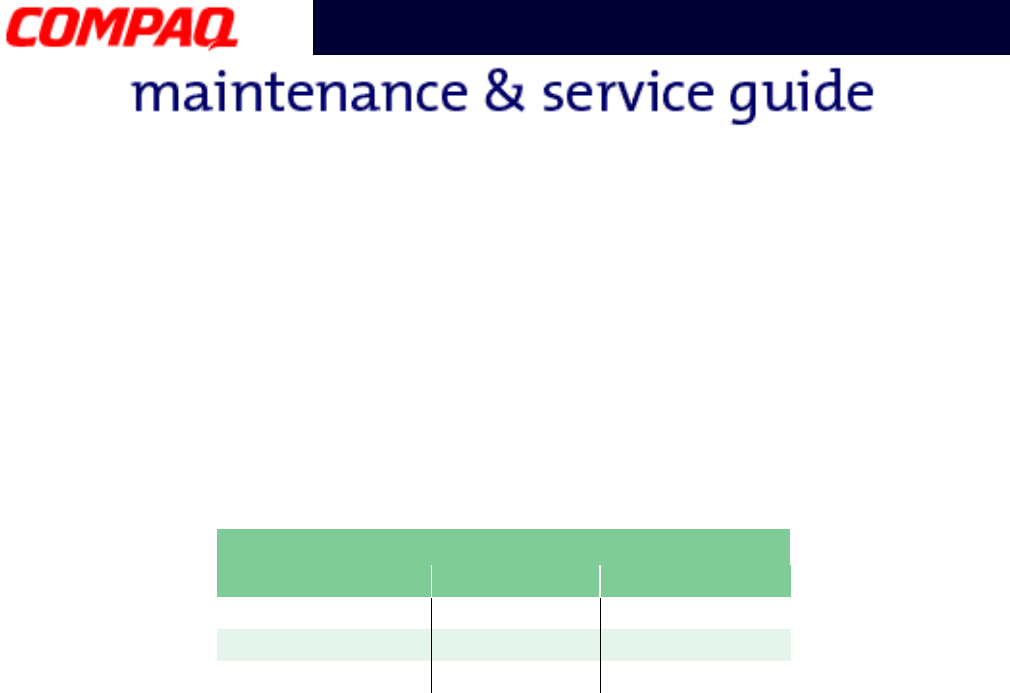
The following table shows the default settings for each Power Scheme.
Power Scheme AC Power Battery Power
Always On
System Standby
Tur n OFF Monitor
Turn OFF Hard Disks
Never
15 minutes
1 hour
5 minutes
2 minutes
3 minutes
Portable/Laptop
System Standby
Turn OFF Monitor
Turn OFF Hard Disks
Never
3 hours
15 minutes
15 minutes
Never
10 minutes
Home/Office Desk
System Standby
Turn OFF Monitor
Turn OFF Hard Disks
20 minutes
15 minutes
30 minutes
1 minute
2 minutes
10 minutes
4 BATTERY AND POWER MANAGEMENT PRESARIO NOTEBOOK MAINTENANCE AND SERVICE GUIDE 1800 SERIES
Presario 1800 Series
Models: XL180, XL181, XL182, XL183, XL185,
and XL190, XL191, XL192
Alarms
The Notebook can be set to alarm when the battery power level is reduced or when it
reaches a critically low level. The Notebook can also be set to enter a low-power mode
when the battery reaches a specific power level.
Ä
ÄÄ
ÄCAUTION: The settings on the Alarms tab are preset for the Notebook to run at
its best. Changing any of these settings could cause the Notebook to function
improperly. It is recommended that these settings be left at their default values.
SpeedStep Technology
SpeedStep Technology features several options for processor response to low-power
conditions. These include the following settings:
•Maximum Performance: always at high speed
•Battery Optimized: always at low speed
•Reversed: opposite recommended
•Recommended: performance on AC, Battery Optimized on Battery
•Disabled: no run time support, high speed
SpeedStep options can be accessed in three ways:
•Access F10 Setup during startup and select the Advanced screen.
•Click Start>Settings>Control Panel>Power Options>Intel(R) SpeedStep(TM)
technology tab.
•Double-click the Flag icon on the Windows taskbar to open the Intel(R)
SpeedStep(TM) technology dialog box.
Default Alarm Settings
Setting Low Battery Critical Battery
Alarm power level 10% 0%
Notification Text M e s s a g e No Action
Power Mode No Action Hibernation

PRESARIO NOTEBOOK MAINTENANCE AND SERVICE GUIDE 1800 SERIES BATTERY AND POWER MANAGEMENT 5
Presario 1800 Series
Models: XL180, XL181, XL182, XL183, XL185,
and XL190, XL191, XL192
Rebooting After a Lockup
To reboot the Notebook when the keyboard is frozen or the screen is locked, press and hold
down the Power button for at least four seconds; this causes a Manual Shutdown. Then,
restart the Notebook with a single press of the Power button.
If the Notebook still does not recover, press the Power button and hold for four seconds to
shut it down, and then remove the battery and unplug the AC power for at least 30
seconds. Reinsert the battery or reconnect AC power and press the Power button once to
reboot.
Recovering From a Loss of Electrical Power
Loss of electrical power causes the Notebook to turn off automatically. This may cause loss
of data because the Microsoft Windows operating system is not able to close all files and
programs properly.
Loss of power may be caused by one of the following:
•Electrical power service is interrupted.
•The power cord is accidentally disconnected.
If power surges or sags, the display and status lights may flicker, and the Notebook may
automatically restart. If an improper shutdown occurs, ScanDisk, a Microsoft Windows
utility program, runs automatically once power is restored. ScanDisk determines if the
improper shutdown caused any errors on the hard disk. These errors may occur if the
Microsoft Windows operating system is not able to close all files properly before the
shutdown. If no errors are found, the restart process continues. If ScanDisk does detect
errors, follow the instructions on the screen to continue the restart process. Work that was
not saved before the loss of power or shutdown may be lost.
If a power failure occurs, or the power cord disconnects while the Notebook is turned on,
turn it off until normal service is restored. The next time the Notebook is turned on,
ScanDisk may run to check the hard disk for errors caused by improper shutdown.

6 BATTERY AND POWER MANAGEMENT PRESARIO NOTEBOOK MAINTENANCE AND SERVICE GUIDE 1800 SERIES
Presario 1800 Series
Models: XL180, XL181, XL182, XL183, XL185,
and XL190, XL191, XL192
Increasing Battery-Operating Life
Battery pack operating life is affected by several variables. To avoid unnecessary
replacement, consider the following when determining how long a charged battery pack
should last:
•Power conservation settings
•Hardware configuration
•Software applications
•Installed options
•Display brightness
•Hard drive usage
•Changes in operating temperature
•Type and number of installed PC Cards
Note: The power consumption requirements for PC Cards vary widely. Some cards drain
the battery pack very rapidly.
Battery pack operating time can be increased by as much as 50 percent by controlling the
energy required by the Notebook and the energy stored in the battery pack.
Minimizing the Energy Required
To minimize the energy required by the Notebook, follow these steps:
•Set the power conservation levels in the Power Management utility to Maximum.
•Customize the time-out value to work more efficiently with the applications. The
amount of battery life depends on the values selected.
Maximizing the Energy Stored
To maximize the energy stored in the battery pack, follow these guidelines:
•Condition the battery pack at least every 30 days to improve overall battery
performance.
•Keep a battery pack in the Notebook when using it with AC power to supply the
battery pack with a constant trickle charge.
•Store the battery pack in a cool, dry place when not in use.

PRESARIO NOTEBOOK MAINTENANCE AND SERVICE GUIDE 1800 SERIES BATTERY AND POWER MANAGEMENT 7
Presario 1800 Series
Models: XL180, XL181, XL182, XL183, XL185,
and XL190, XL191, XL192
Conditioning a Battery Pack
Ä
ÄÄ
ÄCAUTION: To avoid a loss of data, ensure that all information is saved before
completely discharging the battery pack.
To condition a battery pack, complete the following steps:
1. Plug in the AC adapter and allow the battery to charge until the fast charge arrow on
the status display disappears. The battery gauge may read 100% for a period of time
before the arrow disappears.
Note: Do not unplug the AC adapter until the arrow disappears.
2. Unplug the AC adapter and allow the battery to drain until the Notebook enters
Hibernation mode. The Notebook can be used normally during this process.
Note: If the AC adapter is connected while the battery is draining, the process must be
repeated beginning with step 1.
The battery is now re-conditioned. Plug in the AC adapter and begin using the Notebook.
The table below shows typical battery charging times for each model.
Disposing of a Used Battery Pack
In the interest of safeguarding our environment. Compaq Computer Corporation
recommends that nickel metal hydride (NiMH) and lithium ion (Li-Ion) battery packs be
recycled. Battery packs should be handled in accordance with country, state, province, or
local regulations.
Ä
ÄÄ
ÄCAUTION: Never attempt to open or service a battery pack. Opening a battery
pack not only damages the pack and makes it unusable, but also exposes
potentially harmful battery components.
PRESARIO NOTEBOOK MAINTENANCE AND SERVICE GUIDE 1800 SERIES TROUBLESHOOTING 1
Presario 1800 Series
Models: XL180, XL181, XL182, XL183, XL184, XL185,
and XL190, XL191, XL192
Troubleshooting
This section covers troubleshooting and resolving common problems associated with
Compaq Presario 1800 Series Notebook Computers. The basic steps in troubleshooting
include:
1. Preparing the Notebook for troubleshooting as outlined in Preliminary Steps on the
following page
2. Performing the Power-On Self Test (POST) and observing any error messages
displayed
Note: If the Notebook is unable to complete POST or an error message is displayed, skip
to step 3 below to try to resolve the problem.
3. Attempting the recommended solutions described later in this chapter
When following the recommended solutions provided in POST and Diagnostic Error Codes,
perform the steps in the order listed above. Rerun POST after each recommended action
until the problem is solved even if no error message occurs. Once the problem is solved, do
not perform the remaining recommended solutions.
Note: If the problem is intermittent, check the Notebook several times to verify that the
problem is resolved.
2 TROUBLESHOOTING PRESARIO NOTEBOOK MAINTENANCE AND SERVICE GUIDE 1800 SERIES
Presario 1800 Series
Models: XL180, XL181, XL182, XL183, XL184, XL185,
and XL190, XL191, XL192
Preliminary Steps
Before running POST, complete the following steps:
1. If a power-on password is established, type the password and press the Enter key. If
you do not know the password, clear the password (See Clearing the Power-On
Password).
2. Run Compaq Diagnostics.
3. Turn off the Notebook and its external devices.
4. Disconnect any external devices that you do not want to test.
Note: Do not disconnect the printer if you want to test it or use it to log error messages.
Important: If the problem only occurs when an external device is connected to the
computer, the problem may be related to the external device or its cable. Verify this by
running POST both with and without the external device connected.
5. Install loopback plugs in the serial and parallel connectors if you would like to test
these ports.
6. Ensure that the hard drive is installed in the Notebook.
7. Ensure that the battery pack is installed and the Notebook is connected to an external
power source.
When these preliminary steps are completed, run POST
.
PRESARIO NOTEBOOK MAINTENANCE AND SERVICE GUIDE 1800 SERIES TROUBLESHOOTING 3
Presario 1800 Series
Models: XL180, XL181, XL182, XL183, XL184, XL185,
and XL190, XL191, XL192
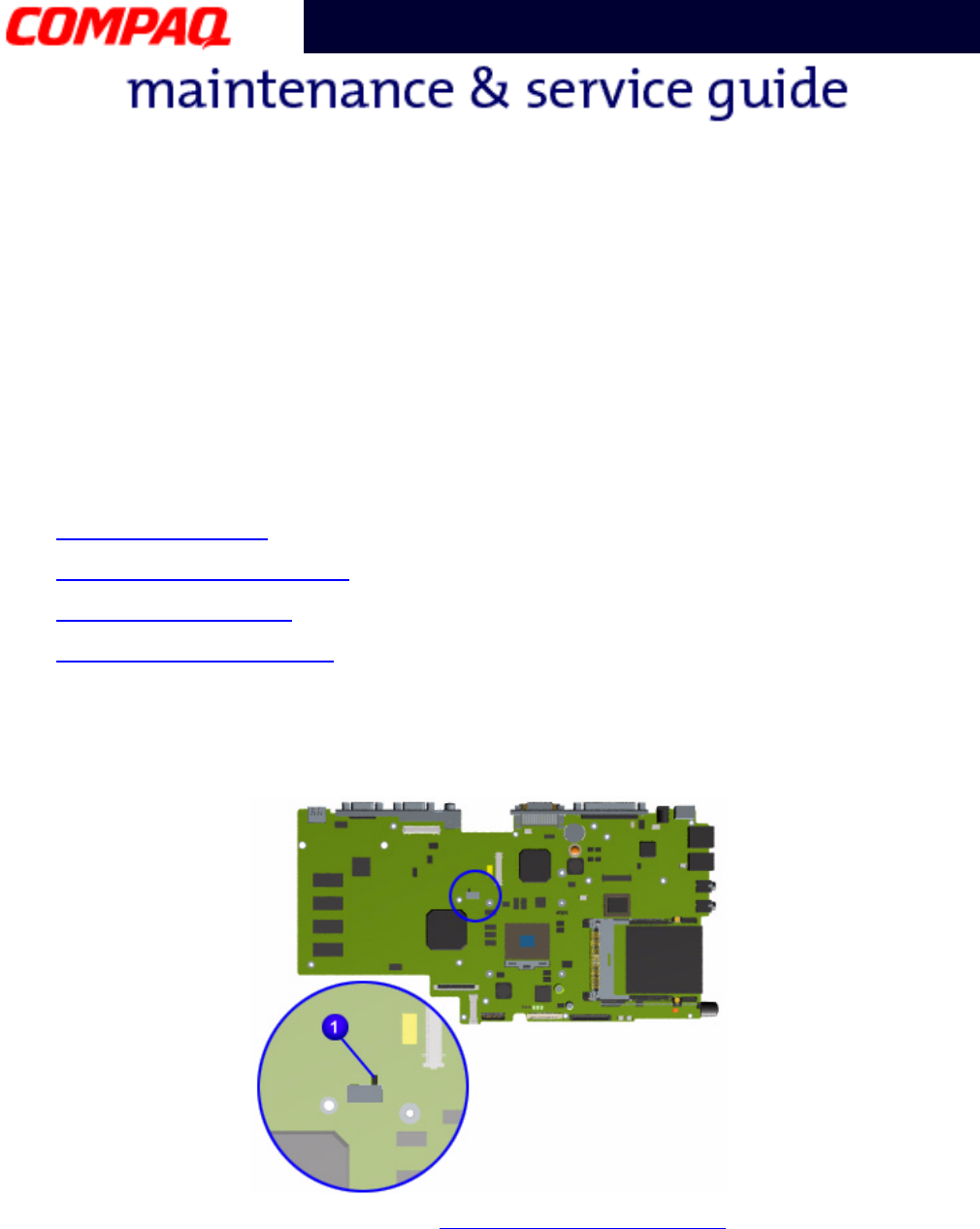
Clearing the Power-On Password
Ä
ÄÄ
ÄCAUTION: Clearing the power-on password also removes all setup attributes that
are programmed in the CMOS.
If you do not know the power-on password, clear it by performing the following steps:
1. Turn off the computer.
2. Disconnect the power cord.
3. Remove the battery.
4. Remove the Palmrest cover
.
5. Remove the keyboard.
6. Remove the Heatspreader
.
7. Locate the CMOS switch to the right of the CD/DVD drive on the system board.
8. Slide the switch to the right 1 holding it in this position for at least 15 seconds to
ensure that the password is cleared.
9. Reassemble the Notebook (refer to Removal and Replacement chapter of this MSG).
10. Turn on the Notebook to verify that the power-on-password has been cleared. If it has
not been cleared, repeat this procedure.
4 TROUBLESHOOTING PRESARIO NOTEBOOK MAINTENANCE AND SERVICE GUIDE 1800 SERIES
Presario 1800 Series
Models: XL180, XL181, XL182, XL183, XL184, XL185,
and XL190, XL191, XL192
Power-On Self Test (POST)
To run POST, complete these steps:
Turn off the Notebook, then turn it on again. As soon as the Compaq logo appears press the
ESC key to display the POST messages as they occur. Remember any POST error codes
that are displayed.
If the Notebook does not beep, POST has successfully completed its test and detected no
errors. The Notebook with automatically restart.
Note: If a bootable diskette is installed in the diskette drive the system will boot from
the diskette instead of the hard drive.
However, if POST detects errors, an error message will be displayed and/or an audible beep
will sound.
Note: If the Notebook is not functioning well enough to complete POST, or the display is
not functioning enough to show POST error messages, refer to the solution tables later in
this chapter.
POST Error Messages
A list of POST error codes and their descriptions are shown in the tables below.
102-System Board Failure
Probable Cause Recommended Action
DMA, timers, etc. Replace the system board.
162-System Options Not Set
Probable Cause Recommended Action
Incorrect configuration Run Setup.
CMOS reflects an invalid
configuration setting.
Run Setup.
RAM failure 1. Replace the memory
modules.
2. Replace the system board.
Memory test data error 1. Replace the memory
modules.
2. Replace the system board.
XX000YZZ RAM failure Replace the system board.
How do you start
Setup? By pressing
F10 during startup?
PRESARIO NOTEBOOK MAINTENANCE AND SERVICE GUIDE 1800 SERIES TROUBLESHOOTING 5
Presario 1800 Series
Models: XL180, XL181, XL182, XL183, XL184, XL185,
and XL190, XL191, XL192
XX000YZZ 201-Memory Error
Probable Cause Recommended Action
Memory failure 1. Replace the memory
modules.
2. Replace the system board.
301-Keyboard Error
Probable Cause Recommended Action
Keyboard failure 1. Ensure the keys are not
depressed during POST.
2. Reconnect the keyboard
with the Notebook off.
3. Replace the keyboard.
304-Keyboard or System Unit Error
Probable Cause Recommended Action
Keyboard or system board
error
1. Replace the keyboard.
2. Replace the TouchPad.
3. Replace the system board.
601-Diskette Controller Error
Probable Cause Recommended Action
Mismatch in drive type or
failure in the diskette
controller
1. Run Checkup (TEST).
2. Check or replace cables.
3. Replace the system board.
605-Diskette Drive Error
Probable Cause Recommended Action
Mismatch in drive type Run Setup.
1780-Primary Hard Drive 0 Failure
Probable Cause Recommended Action
Disk 0 failed to respond 1. Run Checkup (TEST).
2. Replace the hard drive.
Hard drive format error 1. Run Checkup (TEST).
2. Replace the hard drive.
1782-Hard Drive Controller
Probable Cause Recommended Action
Hard drive controller failure 1. Run Setup.
2. Replace the hard drive.
6 TROUBLESHOOTING PRESARIO NOTEBOOK MAINTENANCE AND SERVICE GUIDE 1800 SERIES
Presario 1800 Series
Models: XL180, XL181, XL182, XL183, XL184, XL185,
and XL190, XL191, XL192
Compaq Diagnostics
Compaq Diagnostics utilities come pre-installed on 1800XL Series Notebooks. Run the
Diagnostic utilities to view or test system information and external devices. If Compaq
Diagnostics is run from a diskette, ensure that the diagnostic program is version 10.11 or
later.
The Diagnostics menu includes the following utilities:
•Checkup (TEST)
•View System Information (INSPECT)
•??
•??
Customers are encouraged to run the Diagnostics utilities to try to solve a problem before
calling for support. Checkup (TEST) should be run with the options for saving the device list
to a file and printing or saving the error log. The View System Information (INSPECT) utility
should also be run with the option for printing or saving the information. Customers should
have these files or the printed information available when calling for support.
How do you start the Compaq
Diagnostics that are pre-
installed?
How do you start the Compaq
Diagnostics from the disk?
Do customers have Diagnostic
Diskettes?

PRESARIO NOTEBOOK MAINTENANCE AND SERVICE GUIDE 1800 SERIES TROUBLESHOOTING 7
Presario 1800 Series
Models: XL180, XL181, XL182, XL183, XL184, XL185,
and XL190, XL191, XL192
Checkup (TEST)
Checkup is included on the Compaq Diagnostics Diskette. Checkup determines if the
various Notebook components and devices are recognized by the system and are
functioning properly. You can display, print, or save the information generated by Checkup.
Follow these steps to run Checkup:
1. Plug the Notebook into an external power source. (A low battery condition could
interrupt the program.)
2. Turn on the external devices that you want to test. Connect the printer if you want to
print a log of error messages.
3. Insert the Compaq Diagnostics Diskette in the diskette drive.
4. Turn on or restart the Notebook. The Notebook boots from the diskette, and after a
few seconds, the diagnostics Welcome screen is displayed.
5. Press Enter to continue. The Diagnostics menu is displayed.
6. Select Computer Checkup from the Diagnostics menu. The Test Option menu is
displayed.
7. Select View the Device List from the Test Option menu. A list of installed Compaq
devices is displayed.
8. If the list of installed devices is correct, select OK. The Test Option menu is displayed.
Note: If the list is incorrect, ensure that any new devices are installed properly and run
Checkup again.
9. Select one of the following from the Test Option menu:
•Quick Check Diagnostics. Runs a quick, general test on each device with a
minimal number of prompts. If errors occur, they display when the testing is
complete. You cannot print or save the error messages.
•Automatic Diagnostics. Runs unattended, maximum testing of each device with
minimal prompts. You can choose how many times to run the tests, to stop on
errors, or to print or save a log of errors.
•Prompted Diagnostics. Allows maximum control over testing the devices. You
can choose attended or unattended testing, decide to stop on errors, or choose to
print or save a log of errors.
Does the CPQ
Diagnostics disk
come with each
new Notebook?
Does Checkup also
come pre-installed
as mentioned on the
previous page?
8 TROUBLESHOOTING PRESARIO NOTEBOOK MAINTENANCE AND SERVICE GUIDE 1800 SERIES
Presario 1800 Series
Models: XL180, XL181, XL182, XL183, XL184, XL185,
and XL190, XL191, XL192
10. Follow the on-screen instructions as the devices are tested. When testing is complete,
the Test Option menu is displayed.
11. Exit the Test Option and Diagnostics menus.
View System Information (INSPECT)
The INSPECT utility provides information about the Notebook and installed or connected
devices. You can display, print, or save the information.
Follow these steps to run INSPECT from the Compaq Diagnostics Diskette:
1. Turn on any external devices that you want to test. Connect the printer if you want to
print the information.
2. Insert the Compaq Diagnostics Diskette in the diskette drive.
3. Turn on or restart the Notebook. The Notebook boots from the diskette, and after a
few seconds, the diagnostics Welcome screen is displayed.
4. Press Enter to continue. The Diagnostics menu is displayed.
5. Select View System Information (INSPECT) from the Diagnostics menu.
6. Select the item you want to view from the following list:
7. Follow the on-screen instructions to cycle through the screens, return to the list and
choose another item, or print the information.
System Memory
ROM Audio
Keyboard Operating system
System ports System files
System storage Windows files
Graphics
Does INSPECT also
come pre-installed
as mentioned on the
1st page?
PRESARIO NOTEBOOK MAINTENANCE AND SERVICE GUIDE 1800 SERIES TROUBLESHOOTING 9
Presario 1800 Series
Models: XL180, XL181, XL182, XL183, XL184, XL185,
and XL190, XL191, XL192
Diagnostic Error Codes
Diagnostic error codes are displayed if the system recognizes a problem while running the
Compaq Diagnostics program. These error codes help identify subassemblies that may be
damaged or defective.
The following tables list error codes, a description of the error condition, and the action
required to resolve the error condition.
Important: Retest the system after completing each step. If the problem is resolved, do not
attempt the remaining steps.
Note: Some of the solutions provided in this chapter involve replacing Notebook components.
Refer to the specific Removal and Replacement procedures for each component.
Select error codes by number or type:
•101 through 114: Processor Test (pg 10)•1701 through 1736: Hard Drive Test (pg 13)
•200 through 215: Memory Test (pg 10)•2402 through 2418: Video Test (pg 15)
•200 through 215: Memory Test (pg 10)•2419 through 2456: Video Test (pg 16)
•300 through 304: Keyboard Test (pg 11)•2458 through 2480: Video Test (pg 16)
•401 through 403: Parallel Printer Test (pg 11)•3206: Audio Test (pg 17)
•501 through 516: Video Test (pg 14)•3301 through 6623: DVD or CD Test (pg 17)
•600 through 699: Diskette Drive Test (pg 12)•8601 through 8602: TouchPad Pointing
Device Test (pg 17)
•1101: Serial Test (pg 12)
10 TROUBLESHOOTING PRESARIO NOTEBOOK MAINTENANCE AND SERVICE GUIDE 1800 SERIES
Presario 1800 Series
Models: XL180, XL181, XL182, XL183, XL184, XL185,
and XL190, XL191, XL192
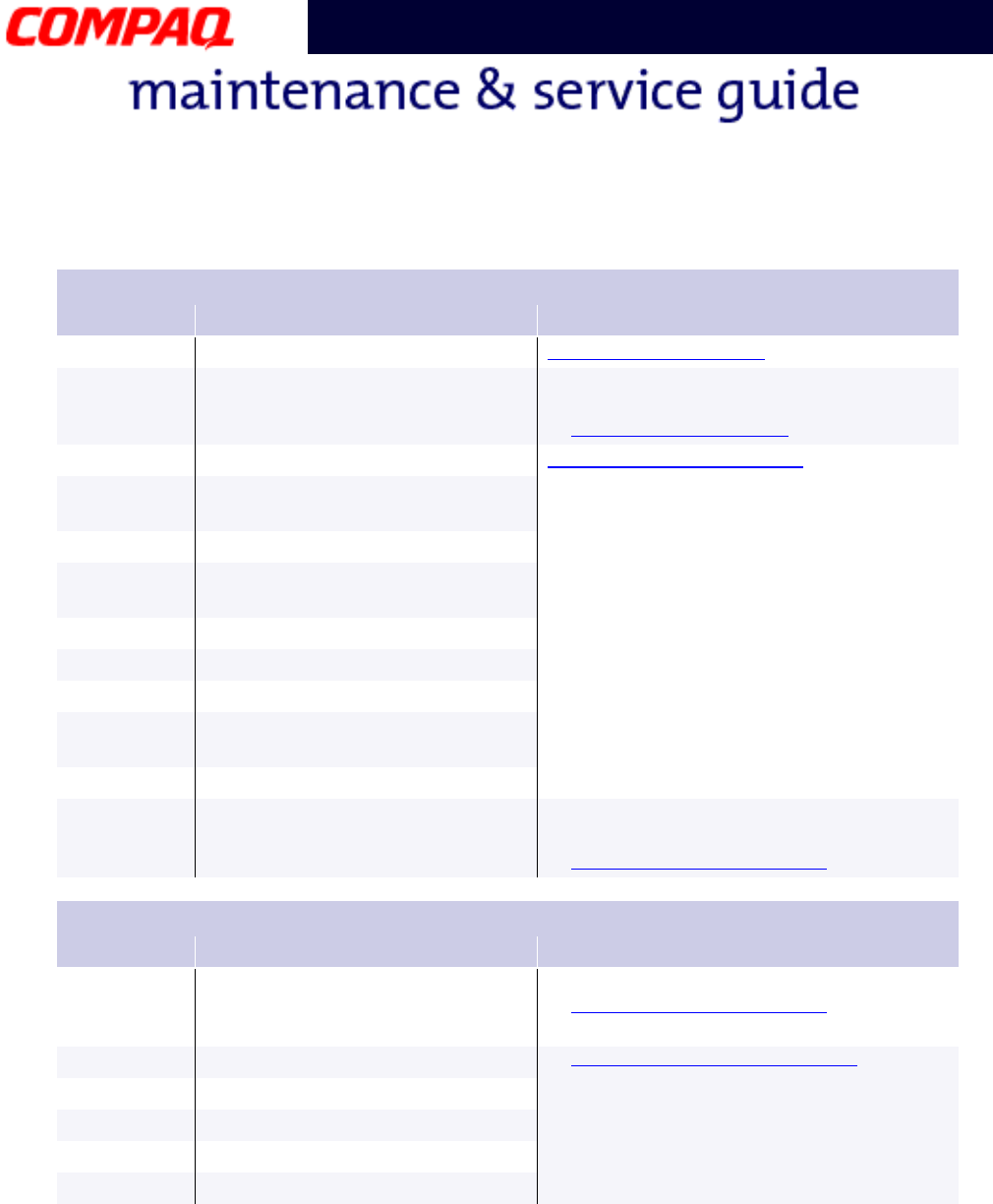
Processor Test Error Codes
Error Code Description Recommended Action
101-xx CPU test failed Replace the processor and retest.
102-xx Coprocessor or Weitek Error 1. Run the Configuration and Diagnostics
utilities.
2. Replace the processor and retest.
103-xx DMA page registers test failed Replace the system board and retest.
104-xx Interrupt controller master test
failed
105-xx Port 61 error
106-xx Keyboard controller self-test
failed
107-xx CMOS RAM test failed
108-xx CMOS interrupt test failed
109-xx CMOS clock test failed
110-xx Programmable timer load data
test failed
113-xx Protected mode test failed
114-01 Speaker test failed 1. Check system configuration.
2. Verify cable connections to speaker.
3. Replace the system board and retest.
Memory Test Error Codes
Error Code Description Recommended Action
200-xx
202-xx
Memory machine ID test failed
Memory system ROM checksum
failed
1. Flash the system ROM and retest.
2. Replace the system board and retest.
203-xx Write/Read test failed 1. Remove the memory module and
retest.
2. Install a new memory module and
retest.
204-xx Address test failed
211-xx Random pattern test failed
214-xx Noise test failed
215-xx Random address test failed
PRESARIO NOTEBOOK MAINTENANCE AND SERVICE GUIDE 1800 SERIES TROUBLESHOOTING 11
Presario 1800 Series
Models: XL180, XL181, XL182, XL183, XL184, XL185,
and XL190, XL191, XL192
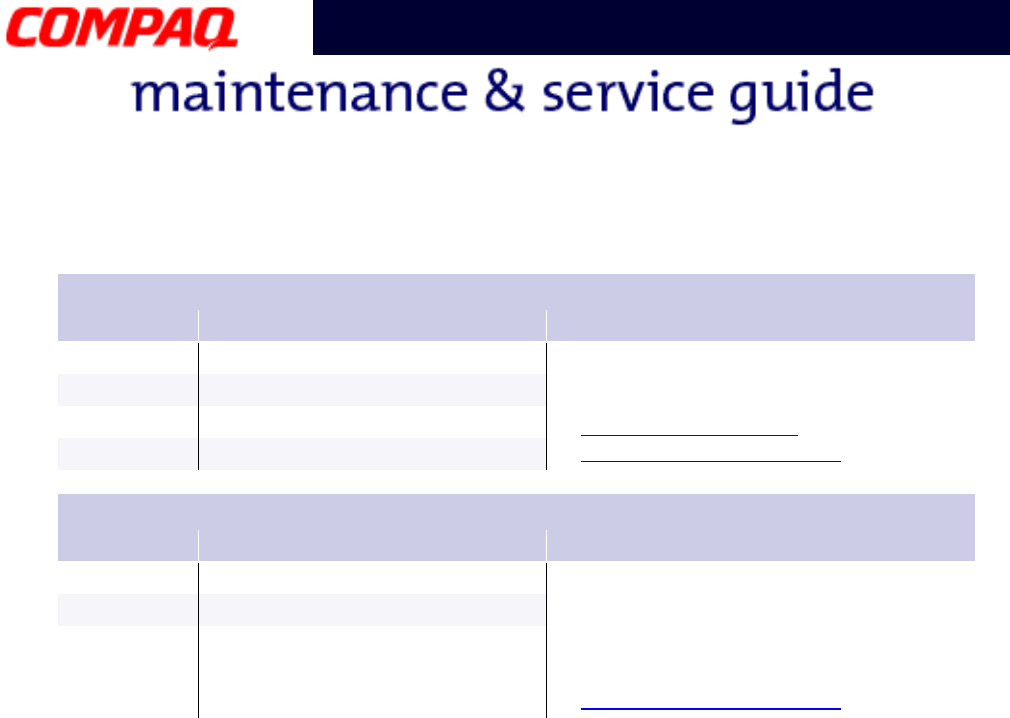
Keyboard Test Error Codes
Error Code Description Recommended Action
300-xx Failed ID Test 1. Check the keyboard connection. If
disconnected, turn off the Notebook
and reconnect the keyboard.
2. Replace the keyboard and retest.
3. Replace the system board and retest.
301-xx Failed Self Test/Interface Test
302-xx Failed Individual Key Test
304-xx Failed Keyboard Repeat Test
Parallel Printer Test Error Codes
Error Code Description Recommended Action
401-xx Printer failed or not connected 1. Connect the printer.
2. Check power to the printer.
3. Install loop-back connector on printer
port and retest.
4. Check port and IRQ configuration.
5. Replace the system board and retest.
402-xx Failed Port Test
403-xx Printer pattern test failed
12 TROUBLESHOOTING PRESARIO NOTEBOOK MAINTENANCE AND SERVICE GUIDE 1800 SERIES
Presario 1800 Series
Models: XL180, XL181, XL182, XL183, XL184, XL185,
and XL190, XL191, XL192
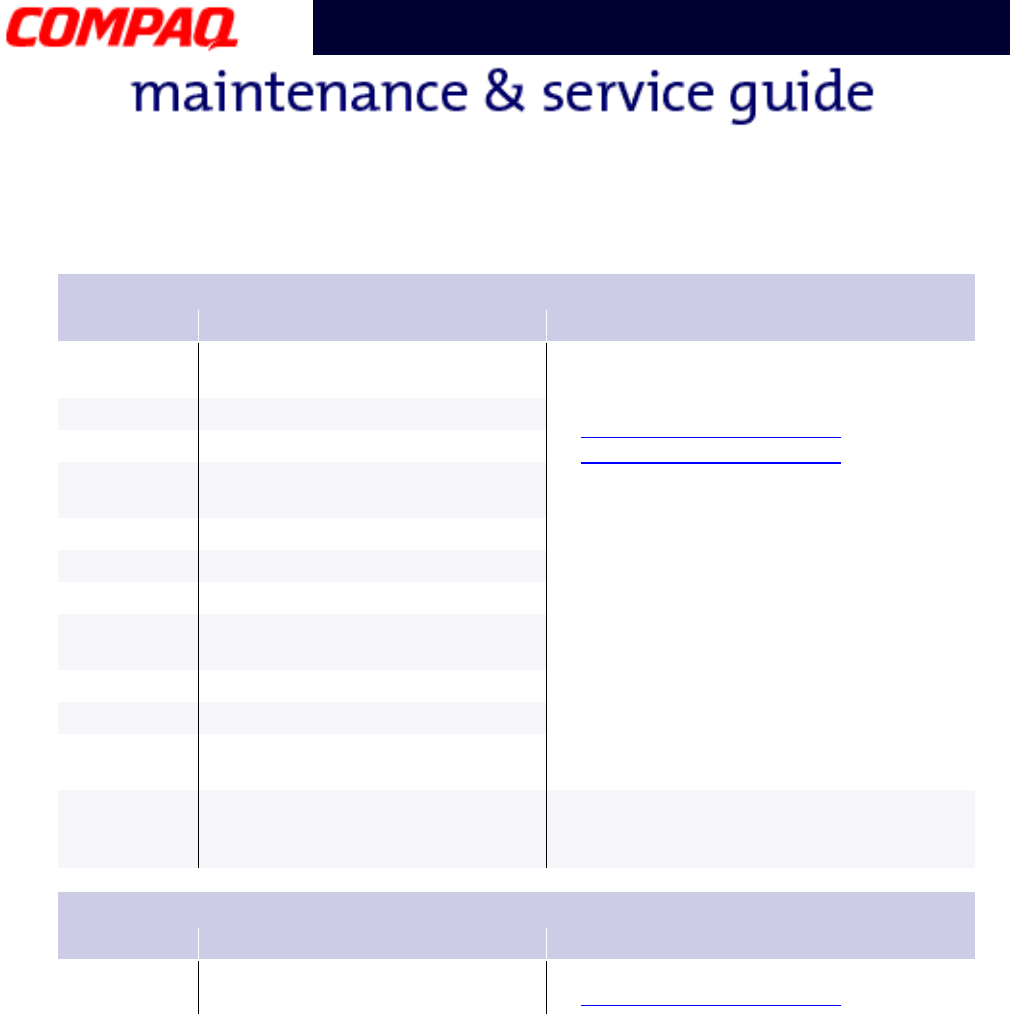
Diskette Drive Test Error Codes
Error Code Description Recommended Action
600-xx Diskette ID drive types test
failed
1. Replace the diskette media and retest.
2. Check and/or replace the diskette
drive cables and retest.
3. Replace the diskette drive and retest.
4. Replace the system board and retest.
601-xx Diskette format failed
602-xx Diskette read test failed
603-xx Diskette write, read, compare
test failed
604-xx Diskette random read test failed
605-xx Diskette ID media failed
606-xx Diskette speed test failed
609-xx Diskette reset controller test
failed
610-xx Diskette change line test
697-xx Diskette type error
698-xx Diskette drive speed not within
limits
699-xx Diskette drive/media ID error 1. Replace media.
2. Run the Configuration and Diagnostics
utilities.
Serial Test Error Codes
Error Code Description Recommended Action
1101-xx Serial port test failed 1. Check port configuration.
2. Replace the system board and retest.
PRESARIO NOTEBOOK MAINTENANCE AND SERVICE GUIDE 1800 SERIES TROUBLESHOOTING 13
Presario 1800 Series
Models: XL180, XL181, XL182, XL183, XL184, XL185,
and XL190, XL191, XL192
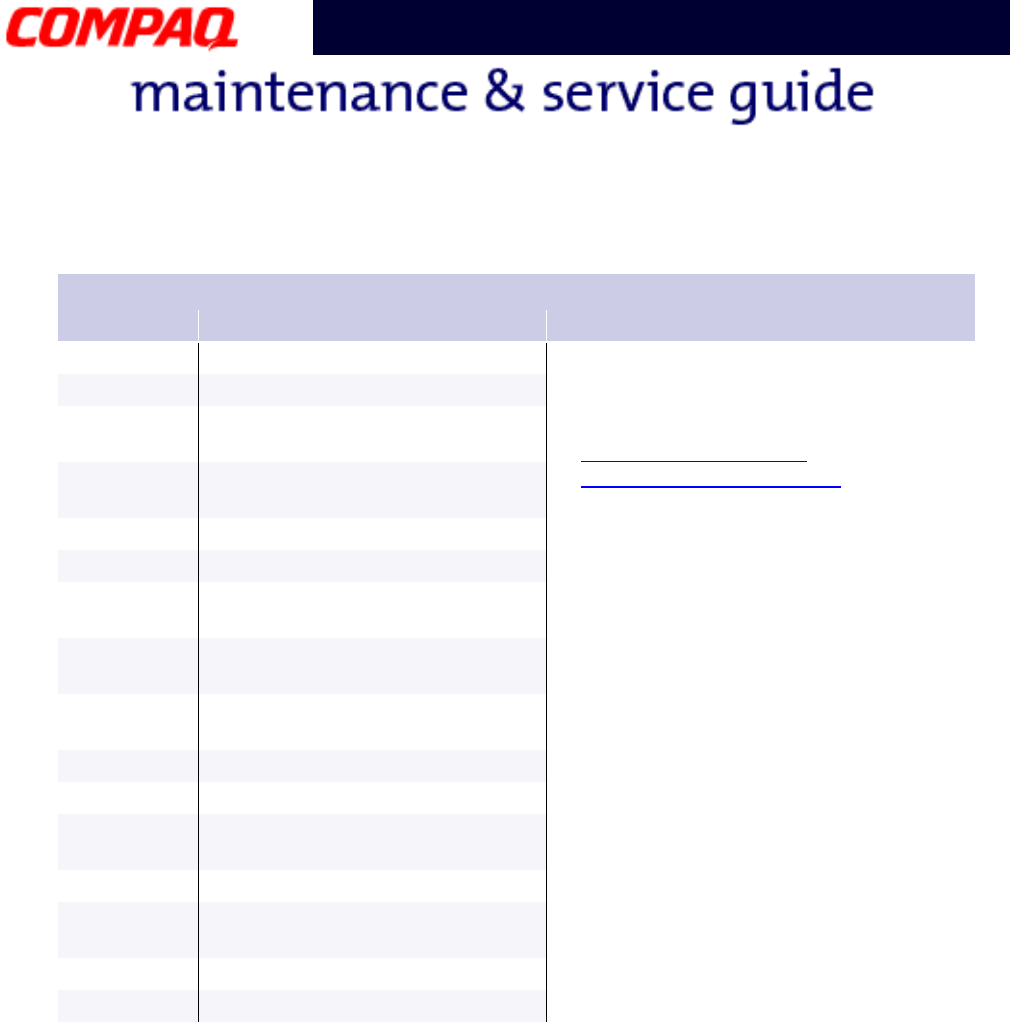
*ECC = Error Correction Code
Hard Drive Test Error Codes
Error Code Description Recommended Action
1701-xx Hard drive format test failed 1. Run the Configuration and Diagnostics
utilities and verify drive type.
2. Verify that all secondary drives have
secondary drive capability.
3. Replace the hard drive and retest.
4. Replace the system board and retest.
1702-xx Hard drive read test failed
1703-xx Hard drive write/read/compare
test failed
1704-xx Hard drive random seek test
failed
1705-xx Hard drive controller test failed
1706-xx Hard drive ready test failed
1707-xx Hard drive recalibration test
failed
1708-xx Hard drive format bad track test
failed
1709-xx Hard drive reset controller test
failed
1710-xx Hard drive park head test failed
1715-xx Hard drive head select test failed
1716-xx Hard drive conditional format
test failed
1717-xx Hard drive ECC* test failed
1719-xx Hard drive power mode test
failed
1724-xx Network preparation test failed
1736-xx Drive monitoring test failed
14 TROUBLESHOOTING PRESARIO NOTEBOOK MAINTENANCE AND SERVICE GUIDE 1800 SERIES
Presario 1800 Series
Models: XL180, XL181, XL182, XL183, XL184, XL185,
and XL190, XL191, XL192
Video Test Error Codes
Error Code Description Recommended Action
501-xx Video controller test failed 1. Disconnect external monitor and test
with the Notebook display.
2. Replace the display assembly and
retest.
3. Replace the system board and retest.
502-xx Video memory test failed
503-xx Video attribute test failed
504-xx Video character set test failed
505-xx Video 80 x 25 mode 9 x 14
character cell test failed
506-xx Video 80 x 25 mode 8 x 8
character cell test failed
507-xx Video 40 x 25 mode test failed
508-xx Video 320 x 200 mode color set
0 test failed
509-xx Video 320 x 200 mode color set
1 test failed
510-xx Video 640 x 200 mode test
failed
511-xx Video screen memory page test
failed
512-xx Video gray scale test failed
514-xx Video white screen test failed
516-xx Video noise pattern test failed
PRESARIO NOTEBOOK MAINTENANCE AND SERVICE GUIDE 1800 SERIES TROUBLESHOOTING 15
Presario 1800 Series
Models: XL180, XL181, XL182, XL183, XL184, XL185,
and XL190, XL191, XL192
Video Test Error Codes (Continued)
Error Code Description Recommended Action
2402-xx Video memory test failed 1. Run the Configuration and Diagnostics
utilities.
2. Replace the display assembly and
retest.
3. Replace the system board and retest.
2403-xx Video attribute test failed
2404-xx Video character set test failed
2405-xx Video 80 x 25 mode 9 x 14
character cell test failed
2406-xx Video 80 x 25 mode 8 x 8
character cell test failed
2408-xx Video 320 x 200 mode color set
0 test failed
2409-xx Video 320 x 200 mode color set
1 test failed
2410-xx Video 640 x 200 mode test
failed
2411-xx Video screen memory page test
failed
2412-xx Video gray scale test failed
2414-xx Video white screen test failed
2416-xx Video noise pattern test failed
2418-xx ECG/VGC memory test failed
16 TROUBLESHOOTING PRESARIO NOTEBOOK MAINTENANCE AND SERVICE GUIDE 1800 SERIES
Presario 1800 Series
Models: XL180, XL181, XL182, XL183, XL184, XL185,
and XL190, XL191, XL192
Video Test Error Codes (Continued)
Error Code Description Recommended Action
2419-xx ECG/VGC ROM checksum test
failed
1. Run the Configuration and Diagnostics
utilities.
2. Disconnect external monitor and test
with the Notebook display.
3. Replace the display assembly and
retest.
4. Replace the system board and retest.
2421-xx ECG/VGC 640 x 200 graphics
mode test failed
2422-xx ECG/VGC 640 x 350 16 color set
test failed
2423-xx ECG/VGC 640 x 350 64 color set
test failed
2424-xx ECG/VGC monochrome text
mode test failed
2425-xx ECG/VGC monochrome graphics
mode test failed
2431-xx 640 x 480 graphics test failure
2432-xx 320 x 200 graphics (256 color
mode) test failure
2448-xx Advanced VGA Controller test
failed
2451-xx 132-column Advanced VGA test
failed
2456-xx Advanced VGA 256 Color test
failed
Video Test Error Codes (Continued)
Error Code Description Recommended Action
2458-xx Advanced VGA BitBLT test failed Replace the system board and retest.
2468-xx Advanced VGA DAC test failed
2477-xx Advanced VGA data path test
failed
2478-xx Advanced VGA BitBLT test failed
2480-xx Advanced VGA LineDraw test
failed
PRESARIO NOTEBOOK MAINTENANCE AND SERVICE GUIDE 1800 SERIES TROUBLESHOOTING 17
Presario 1800 Series
Models: XL180, XL181, XL182, XL183, XL184, XL185,
and XL190, XL191, XL192
Audio Test Error Codes
Error Code Description Recommended Action
3206-xx Audio System Internal Error Replace the system board and retest.
TouchPad Interface Test Error Codes
Error Code Description Recommended Action
8601-xx Mouse test failed 1. Replace the TouchPad and retest.
2. Replace the system board and retest.
8602-xx Interface test failed
DVD or CD Drive Test Error Codes
Error Code Description Recommended Action
3301-xx DVD or CD drive read test failed 1. Replace the DVD or CD media and
retest.
2. Verify that the speakers are
connected.
3. Verify that drivers are loaded and
properly installed.
4. Replace the CD/DVD drive and retest.
5. Replace the system board and retest.
3305-xx DVD or CD drive seek test failed
6600-xx ID test failed
6605-xx Read test failed
6608-xx Controller test failed
6623-xx Random read test failed

18 TROUBLESHOOTING PRESARIO NOTEBOOK MAINTENANCE AND SERVICE GUIDE 1800 SERIES
Presario 1800 Series
Models: XL180, XL181, XL182, XL183, XL184, XL185,
and XL190, XL191, XL192
Troubleshooting without Diagnostics
This section provides information about how to identify and correct some common
hardware, memory, and software problems. It also explains several types of common
messages that may be displayed on the screen. The following pages contain
troubleshooting information for:
Carefully match the symptoms against the problem described in the tables to avoid a
misdiagnosis.
Å
ÅÅ
ÅWARNING: To avoid a potential shock hazard during troubleshooting procedures,
disconnect all power sources before removing the keyboard cover or the display
bezel.
Before Replacing Parts
•Verify that all cables are properly connected to parts that are to be tested.
•Run Setup after connecting external devices.
•Verify that all required device drivers are installed.
•Verify that all required changes have been made to the CONFIG.SYS file.
•Verify that all required changes have been made to the AUTOEXEC.BAT file.
•Verify that all printer drivers have been installed for each application.
Audio Memory
Battery PC Card
CD or DVD Drive Power
Diskette Drive Printer
Display TouchPad
Hard Drive Keyboard/Numeric Keypad
Hardware Installation
PRESARIO NOTEBOOK MAINTENANCE AND SERVICE GUIDE 1800 SERIES TROUBLESHOOTING 19
Presario 1800 Series
Models: XL180, XL181, XL182, XL183, XL184, XL185,
and XL190, XL191, XL192
Solving Minor Problems
Some problems and possible solutions are outlined in the following tables. If the problem
appears related to a software application, check the documentation provided with the
software.
Audio Solutions
Some common audio problems and solutions are listed in the following table.
Battery Pack/Gauge Solutions
Some common causes and solutions for battery pack problems are listed in the following
table. Power Solutions later in this chapter may also be applicable.
Audio
Problem Probable Cause Solution
Notebook does not
beep after the Power-
On Self-Test (POST).
This is typical; it indicates
successful completion of the
Power-On Self-Test (POST).
No action is required.
Battery Pack/Gauge
Problem Probable Cause Solution(s)
Notebook won’t turn
on when battery pack
is inserted and power
cord is unplugged.
Battery pack is discharged. •Connect the Notebook to an
external power source and
charge the battery pack.
OR
•Replace the battery pack with a
fully charged battery pack.
Check the battery connectors on
the system board to verify they
are evenly spaced and that they
are not bent or broken.
20 TROUBLESHOOTING PRESARIO NOTEBOOK MAINTENANCE AND SERVICE GUIDE 1800 SERIES
Presario 1800 Series
Models: XL180, XL181, XL182, XL183, XL184, XL185,
and XL190, XL191, XL192
Notebook is beeping
and battery icon is
blinking.
Battery charge is low. Immediately save any open
file(s). Then complete one of the
following:
•Connect the Notebook to an
external power source to
charge the battery pack.
•Turn off the Notebook or initiate
Hibernation until you can find
another power source or charge
the battery pack.
Battery icon on the
front of the unit blinks
to indicate low battery
condition, but
Notebook does not
beep.
Volume is turned down too
low.
Adjust the volume.
Battery icon doesn’t
light and battery pack
won’t fast charge.
Battery pack is already
charged.
No action is necessary.
Battery pack was exposed to
temperature extremes.
Allow time for the battery pack to
return to room temperature.
Battery pack is at end of its
life.
Replace the battery pack.
You have to set the
date and time every
time you turn on the
Notebook.
RTC battery is dead. Replace the RTC battery.
Battery charge does
not last as long as
expected.
Battery is being exposed to
high temperatures or
extremely cold temperatures.
Keep the battery pack within the
recommended temperature range
for operation or storage.
•Operating Range: 50°F to
104°F (10°C to 40°C)
•Storage Range: -4°F to 86°F
(-20°C to 30°C)
Recharge the battery pack.
Battery has partially self-
discharged.
Recharge the battery. Discharge
the battery completely and then
recharge it.
Battery Pack/Gauge
Problem Probable Cause Solution(s)
PRESARIO NOTEBOOK MAINTENANCE AND SERVICE GUIDE 1800 SERIES TROUBLESHOOTING 21
Presario 1800 Series
Models: XL180, XL181, XL182, XL183, XL184, XL185,
and XL190, XL191, XL192
Power management is
disabled.
Set a power management level in
Setup.
An external device or PC Card
is draining the battery.
Turn off or disconnect external
devices when not in use.
Battery pack is warm
to the touch after
charging.
Normal warming has occurred
due to charging.
No action is required.
Battery pack operating
time is far less than
the documented
average operating
time.
Power management is turned
off or disabled.
Enable power management in
Setup and in Windows Power
Properties.
An external device or PC Card
is draining the battery.
Turn off or disconnect external
devices when not in use.
Battery pack has partially
self-discharged.
Condition the battery pack by fully
charging, fully discharging, then
fully recharging it.
To maintain the charge, leave
battery packs in the Notebook
when it is connected to external
power.
If the Notebook is disconnected
from external power for more
than two weeks, remove battery
packs from the Notebook to
reduce the discharge rate.
Battery pack is being exposed
to high temperatures or
extremely cold temperatures.
Keep the battery pack within the
recommended temperature range
for operation or storage.
•Operating Range: 50°F to
104°F (10°C to 40°C)
•Storage Range: -4°F to 86°F
(-20°C to 30°C)
Recharge the battery pack.
Battery Pack/Gauge
Problem Probable Cause Solution(s)
22 TROUBLESHOOTING PRESARIO NOTEBOOK MAINTENANCE AND SERVICE GUIDE 1800 SERIES
Presario 1800 Series
Models: XL180, XL181, XL182, XL183, XL184, XL185,
and XL190, XL191, XL192
CD and DVD Drive Solutions
Some common causes and solutions for CD and DVD drive problems are listed in the
following table.
Diskette Drive Solutions
Some common causes and solutions for diskette drive problems are listed in the following
table.
CD or DVD Drive
Problem Probable Cause Solution(s)
CD or DVD drive
cannot read a Compact
Disc or Digital Versatile
Disc.
Disc is upside down or is
improperly inserted in the CD
or DVD drive.
Open the loading tray, lay the
compact disc in it (label side up),
then close the tray.
CD is CD Plus or Pregap/Track
0 type.
Cannot read these type CDs in
24x. Remove the CD.
Diskette Drive
Problem Probable Cause Solution(s)
Diskette drive cannot
write to a diskette.
Diskette is write-protected. Disable the diskette’s write-
protect feature or use a diskette
that is not write-protected.
Computer is writing to the
wrong drive.
Check the drive letter in the path
statement.
Not enough space is left on
the diskette.
Use another diskette.
Drive error has occured. Run Checkup from the Compaq
Diagnostics diskette.
Diskette is not formatted. Format the diskette. At the
system prompt, enter: FORMAT A:
Diskette drive cannot
read a diskette.
The wrong type diskette is
being used.
Use the type of diskette required
by the drive.
Diskette has a bad sector. Copy files to hard drive or another
diskette. Reformat bad floppy.
Drive error has occurred. Run Checkup from the Compaq
Diagnostics diskette.
PRESARIO NOTEBOOK MAINTENANCE AND SERVICE GUIDE 1800 SERIES TROUBLESHOOTING 23
Presario 1800 Series
Models: XL180, XL181, XL182, XL183, XL184, XL185,
and XL190, XL191, XL192
Solving Display Problems
This section lists some common causes and solutions for the Notebook display and external
monitor problems.
You can perform a monitor self-test on an external VGA color or monochrome monitor by
completing the following steps:
1. Turn off the monitor.
2. Turn off the Notebook.
3. Disconnect the monitor signal cable from the Notebook.
4. Turn on the monitor and allow it to warm up for one minute.
The display should be white. A narrow black border may also appear on the left and right
sides of the display. Either of these displays indicates that the monitor is working properly.
Diskette drive cannot
read a diskette.
Diskette is not formatted. Format the diskette. At the
system prompt, enter
FORMAT A:
Cannot boot from
diskette.
Bootable diskette is not in
drive A.
Put the bootable diskette in drive
A.
Diskette Boot has incorrect
setting in Setup.
Run Setup and set diskette as first
to boot.
Display
Problem Probable Cause Solution(s)
Screen is dim. Brightness control (if
applicable) is not set properly.
Adjust the brightness of the
display by using Fn+F7 or
Fn+F8.
The Notebook display is in
direct light.
Tilt display or move Notebook.
Screen is blank. Screen save was initiated by
Power Properties due to lack
of user activity.
Press any key or touch the
TouchPad.
Diskette Drive
Problem Probable Cause Solution(s)
24 TROUBLESHOOTING PRESARIO NOTEBOOK MAINTENANCE AND SERVICE GUIDE 1800 SERIES
Presario 1800 Series
Models: XL180, XL181, XL182, XL183, XL184, XL185,
and XL190, XL191, XL192
**This problem indicates that the backlight or its power circuitry has failed. If the backlight is
not functioning, the POST result cannot be observed. Connect the unit to an external
monitor before powering up the unit. If an external monitor is not available verify that POST
is complete by opening and closing the display, listening for the single or double beep, and
watching for the icons to turn on at the front of the notebook.
Screen is blank. Display has overheated. If the Notebook is in direct
sunlight, move it and allow it to
cool off.
Display is blank and
the Standby icon is
flashing.
System is in Standby mode. Press any key or touch the
TouchPad.
Notebook display is
blank and the screen
on an external monitor
displays information.
Display function was switched
to the external monitor.
Use Fn+F3 to switch between
LCD or CRT.
Notebook display
flashes or has garbled
characters when
Notebook is connected
to external monitor.
The external monitor is set for
1024x768 or higher resolution
and view is toggled back to
the Notebook display, which
supports up to 800x600.
Restart the Notebook.
The light tubes on the
edge of the display
panel do no light up at
all and the Power-On
Self-Test (POST)
completes when the
unit is powered up.**
Improper backlight or display
cable connections
1. Check the display cable
connections and retest.
2. Replace the display assembly.
Defective inverter board. Replace the display assembly.
Defective display cable. Replace the display assembly.
Defective display panel. Replace the display assembly.
Defective system board. Replace the system board.
The light tubes on the
edge of the display
panel do not light up
at all and Power-On
Self-Test (POST) does
not complete when the
unit is powered up.**
Defective system board. Replace the system board.
Display
Problem Probable Cause Solution(s)
PRESARIO NOTEBOOK MAINTENANCE AND SERVICE GUIDE 1800 SERIES TROUBLESHOOTING 25
Presario 1800 Series
Models: XL180, XL181, XL182, XL183, XL184, XL185,
and XL190, XL191, XL192
Note: When you perform a "self-test" on an external VGA color or monochrome monitor, the
screen should be white. A narrow black border may also appear on the left and right sides of
the display. Either of these displays indicates that the monitor is working properly.
Display (Continued)
Problem Probable Cause Solution(s)
Backlight (brightness)
cannot be adjusted
with Fn+F7 or Fn+F8.
Improper display cable
connections.
1. Reseat the display cable to the
system board.
2. Replace the display assembly.
Defective inverter board. Replace the display assembly.
Defective display cable. Replace the display assembly.
Defective system board. Replace the system board.
This display panel has
a continuous pattern
across it (e.g.,
“jailbars” pattern), has
a single color on it, or
has garbled graphics
across the entire
panel. This failure is
for patterns across the
entire panel (not just
on one section).
Improper display cable
connections
Reseat the display cable to the
following until the problem is
solved:
1. System board
2. Display assembly
Defective display cable. Replace the display assembly.
Defective inverter board. Replace the display assembly.
Defective system board. Replace the system board.
A single line, small
group of lines, or block
appears on the display
panel. This failure
occurs in only a
section of the display
panel.
Defective display panel. Replace the display assembly.
26 TROUBLESHOOTING PRESARIO NOTEBOOK MAINTENANCE AND SERVICE GUIDE 1800 SERIES
Presario 1800 Series
Models: XL180, XL181, XL182, XL183, XL184, XL185,
and XL190, XL191, XL192
Hard Drive Solutions
Some common causes and solutions for hard drive problems are listed in the following
table.
Ä
ÄÄ
ÄCAUTION: To prevent loss of information, always maintain an up-to-date backup
of your hard drive in case of errors or failures.
Hardware Installation Solutions
Some common causes and solutions for hardware installation problems are listed in the
following table.
Hard Drive
Problem Probable Cause Solution(s)
Reading hard drive
takes an unusually
long time after
restarting the
Notebook.
System entered Hibernation
due to low battery condition
and is now exiting from it.
Give the system time to restore
the previously saved data to its
exact state before Hibernation.
Hard drive error
occurs.
Hard drive has bad sectors or
has failed.
Run Checkup (TEST).
Hard drive does not
work.
Hard drive is not seated
properly.
Turn off and unplug the Notebook,
remove the battery pack, and
remove and then reinstall the
hard drive.
Hardware Installation
Problem Probable Cause Solution(s)
A new device is not
recognized as part of
the system.
Cable(s) of new external
device are loose or power
cables are unplugged.
Ensure that all cables are
proplerly and securely connected.
Power switch of new external
device is not turned on.
Turn off the Notebook, turn on the
external device, then turn on the
Notebook to integrate the device
with the system.
Device is not seated properly. Turn off the Notebook and reinsert
the device.
PRESARIO NOTEBOOK MAINTENANCE AND SERVICE GUIDE 1800 SERIES TROUBLESHOOTING 27
Presario 1800 Series
Models: XL180, XL181, XL182, XL183, XL184, XL185,
and XL190, XL191, XL192
Keyboard/Numeric Keypad Solutions
Some common causes and solutions for keyboard/numeric keypad problems are listed in
the following table.
Solving Memory Problems
Some common causes and solutions for memory problems are listed in the following table.
Keyboard/Numeric Keypad
Problem Probable Cause Solution(s)
Embedded numberic
keypad on Notebook
keyboard is disabled.
Num Lock function is not
enabled.
Press the Shift+NumLk keys to
enable the Num Lock function and
embedded numberic keypad. The
Num Lock icon appears on the
status display.
Embedded numeric
keypad is disabled and
Num Lock function is
on.
External numeric keypad is
connected to the Notebook.
Disconnect the external numeric
keypad from the Notebook.
Memory
Problem Probable Cause Solution(s)
Memory count during
Power-On Self-Test
(POST) is incorrect.
Optional memory expansion
card is installed incorrectly, is
incompatible with the
Notebook, or is defective.
Ensure that the optional memory
expansion card is installed
correctly, and then restart the
Notebook.
“Out of Memory”
message is displayed
on the screen or
insufficient memory
error occurs during
operation.
System ran out of memory for
the application.
Check the application
documentation for memory
requirements.
If necessary, Install additional
memory.
Too many TSR (terminate-
and-stay-resident)
applications are running.
Remove from memory any TSR
applications that you do not need.
28 TROUBLESHOOTING PRESARIO NOTEBOOK MAINTENANCE AND SERVICE GUIDE 1800 SERIES
Presario 1800 Series
Models: XL180, XL181, XL182, XL183, XL184, XL185,
and XL190, XL191, XL192
PC Card Solutions
The following table lists some common causes and solutions for PC Card problems.
PC Card
Problem Probable Cause Solution(s)
When turned on, the
Notebook does not
beep when a PC Card
is inserted.
Card is not inserted properly. Ensure that the card is inserted in
the correct orientation.
PC Card beeps are disabled. Double-click the PC Card icon in
Control Panel, click the Global
Settings tab, and enable PC Card
sound effects.
Speaker is turned off or
volume is turned down.
Press Volume buttons to turn the
speaker on and then increase the
volume.
PC Card drivers are not
installed.
Double-click the Add New
Hardware icon in the Control
Panel for installation instructions.
If PC Card or drivers are not
compatible with Windows, install
drivers and use the PC Card in
MS-DOS mode.
Card or card driver is not
supported.
Contact a Compaq authorized
Service Provider for a list of PC
Cards tested sucessfully in
Compaq platforms.
PC Card modem, fax,
or network card does
not work.
Card is not fully inserted into
the slot or is not inserted
properly.
Ensure that the card is inserted in
the slot in the correct orientation.
Telephone cord is not plugged
in all the way.
Check and secure telephone
connection.
Necessary drivers are not
installed (enabled).
Install drivers.
PC Card modem or fax
card does not work.
You are trying to access the
card using the wrong COM
port.
See Specifications to verify the
correct COM port.
The card conflicts with a serial
device.
See Specifications to verify
address.
PRESARIO NOTEBOOK MAINTENANCE AND SERVICE GUIDE 1800 SERIES TROUBLESHOOTING 29
Presario 1800 Series
Models: XL180, XL181, XL182, XL183, XL184, XL185,
and XL190, XL191, XL192
The card is not supported. Use supported cards only.
Modem netword PC
Card does not work.
Network driver is not installed
or is not set up properly.
Install driver.
Telephone cord is not properly
connected.
Verify telephone connection.
Memory or storage PC
Card does not work.
SRAM and flash memory
cards require the memory
card driver (loaded and
enabled).
Flash memory cards require
the Microsoft FlashFile
System.
Hard drives on flash mass
storage cards require the PC
Card ATA driver.
Install driver(s).
You are trying to access the
hard drive card using the
wrong drive letter.
Double-click My Computer to
verify the drive letter assigned to
the card.
The card is not supported. Contact a Compaq authorized
Service Provider for a list of PC
Cards tested successfully in
Compaq platforms.
PC Card
Problem Probable Cause Solution(s)
30 TROUBLESHOOTING PRESARIO NOTEBOOK MAINTENANCE AND SERVICE GUIDE 1800 SERIES
Presario 1800 Series
Models: XL180, XL181, XL182, XL183, XL184, XL185,
and XL190, XL191, XL192
Power Solutions
See also Battery Pack/Gauge Solutions in this chapter.
Power
Problem Probable Cause Solution(s)
Notebook will not turn
on and the battery
pack is not inserted.
Notebook is not connected to
a power source.
Insert battery or connect an
external power source.
Power cords to the external
power source are unplugged.
Ensure that power cords
connecting the computer and the
external power source are
plugged in properly.
Power adapter is defective. Replace AC Adapter and restart.
Notebook turned off
while it was left
unattended and the
Power icon is off.
System initiated Hibernation
after a preset timeout.
Turn on the Notebook.
System initiated Hibernation
due to a critical low-battery
condition.
Replace the battery pack with a
fully charged battery pack or
connect the Notebook to an
external power source. Then turn
on the Notebook.
System board is defective. Replace the system board.
PRESARIO NOTEBOOK MAINTENANCE AND SERVICE GUIDE 1800 SERIES TROUBLESHOOTING 31
Presario 1800 Series
Models: XL180, XL181, XL182, XL183, XL184, XL185,
and XL190, XL191, XL192
Printer Solutions
If you experience problems printing, run a printer self-test. Refer to the documentation
provided with the printer for instructions. If the self-test fails, the problem is associated
with the printer, not the Notebook. To diagnose other printing problems, refer to the
printing section of the application documentation.
Printer
Problem Probable Cause Solution(s)
Printer will not turn on. The signal cable may not be
connected properly, or the
printer is unplugged.
Ensure that the signal cable is
properly connected and that the
power cord is connected to the
electrical outlet.
Printer will not print. Printer is not turned on or is
offline.
Turn the printer on and set it to
online.
Paper tray is empty. Fill the paper tray with paper and
set the printer to online.
The device drivers for the
application is not installed.
Refer to the printer
documentation to install the
correct printer driver.
Printer that is set up for a
network is not connected to
the network.
Connect the printer to the
network.
Printer cable is too long,
unshielded, or defective.
Replace the cable.
Printer prints garbled
information.
Correct printer drivers are not
installed.
Refer to the printer
documentation to install the
correct printer driver.
Cable is not connected
properly.
Ensure that the printer signal
cable is properly connected to the
Notebook.
Cable is defective. Replace the printer cable and
retest.
32 TROUBLESHOOTING PRESARIO NOTEBOOK MAINTENANCE AND SERVICE GUIDE 1800 SERIES
Presario 1800 Series
Models: XL180, XL181, XL182, XL183, XL184, XL185,
and XL190, XL191, XL192
TouchPad/Pointing Device Solutions
The following table lists some common causes and solutions for TouchPad/pointing device
problems.
TouchPad/Pointing Device
Problem Probable Cause Solution(s)
TouchPad or mouse
does not work.
Incorrect or no device driver
is installed.
Install the device driver and add
to the AUTOEXEC.BAT file or
CONFIG.SYS file.
The device driver is not
installed in Windows.
Install the TouchPad/mouse driver
in Windows.
External mouse does
not work.
Mouse is not securely
connected or is connected to
an incorrect external
connector.
Ensure that the mouse is securely
connected to the appropriate
external connector.
TouchPad or mouse
does not work even
though the device is
enabled in Windows.
Mouse is not enabled. Enter mouse at the system
prompt to activate the mouse
device driver.
Add a line in the AUTOEXEC.BAT
file to automatically activate the
mouse driver each time the
computer is turned on or
restarted.
Cable is not properly seated
on TouchPad board.
Reseat cable.
Defective TouchPad board. Replace the TouchPad board.
Defective system board. Replace system board.
Device driver is not correclty
installed in Windows.
Install the appropriate device
driver in Windows.
Cursor skips or moves
abnormally when using
the TouchPad.
The TouchPad needs to be
cleaned.
Clean the TouchPad with a cloth
dampened with alcohol or an
ammonia-based glass cleaner.
Wipe up liquid with a dry cloth.

PRESARIO NOTEBOOK MAINTENANCE AND SERVICE GUIDE 1800 SERIES TROUBLESHOOTING 33
Presario 1800 Series
Models: XL180, XL181, XL182, XL183, XL184, XL185,
and XL190, XL191, XL192
Contacting Compaq Support
Customers should provide the following information when contacting Compaq Reseller
Support:
•Product name
•Product serial number
•Purchase date
•Conditions under which the problem occurred
•Any error messages that have occurred
•Hardware configuration
•Type of printer connected
•Hardware/software installed
•Printed result of Checkup (TEST)
•Printed copies of config.sys and autoexec.bat files, if possible.
Shipping Preparation
Before shipping the Notebook, complete the following:
1. Back up the critical hard drive files. Ensure that backup tapes/diskette are not
exposed to electrical or magnetic fields while stored or in transit.
2. Turn off the Notebook and external devices.
3. Disconnect the external devices from their power sources, and then from the
Notebook.
Important: Ensure that there is no diskette in the diskette drive and that there are no
PC Cards in the PC slots.
4. Close the display and all exterior doors of the Notebook.
5. Pack the Notebook with sufficient packing material to protect it. Use the original
packing box or similar packaging.
PRESARIO NOTEBOOK MAINTENANCE AND SERVICE GUIDE 1800 SERIES REMOVAL AND REPLACEMENT 1
Presario 1800 Series
Models: XL180, XL181, XL182, XL183, XL185,
and XL190, XL191, XL192
Removal and Replacement
This chapter details removing and replacing each component of the Presario 1800XL units.
Electrostatic Discharge
When removing or replacing parts, be careful to discharge static electricity before touching
the Notebook’s internal components. A sudden discharge of static electricity from a finger
or other conductor can destroy static-sensitive devices and microcircuitry. Often the spark
is neither felt nor heard, but damage occurs. An electronic device exposed to an
electrostatic discharge may not seem affected and it may work perfectly throughout a
normal cycle. However, the discharge degrades internal layers, which reduces the operating
life of the device. Networks built into many integrated circuits provide some protection, but
in many cases, the discharge contains enough power to alter device parameters or melt
silicon junctions.
The table below shows the amount of static electricity generated during common activities
associated with servicing computers.
Ä
ÄÄ
ÄCAUTION: As little as 700 Volts can degrade Notebook components. Be sure to
ground yourself before touching the Notebook or its subassemblies.
Generated Electrostatic Voltage
Activity Relative Humidity
10% 40% 50%
Walking across carpet 35,000 V 15,000 V 7,500 V
Walking across vinyl floor 12,000 V 5,000 V 3,000 V
Motions of bench worker 6,000 V 800 V 400 V
Removing DIPS from plastic tubes 2,000 V 700 V 400 V
Removing DIPS from vinyl trays 11,500 V 4,000 V 2,000 V
Removing DIPS from styrofoam 14,500 V 5,000 V 3,500 V
Removing bubble pack from PCBs 26,000 V 20,000 V 7,000 V
Packing PCBs in foam-lined box 21,000 V 11,000 V 5,000 V

2 REMOVAL AND REPLACEMENT PRESARIO NOTEBOOK MAINTENANCE AND SERVICE GUIDE 1800 SERIES
Presario 1800 Series
Models: XL180, XL181, XL182, XL183, XL185,
and XL190, XL191, XL192
Tool and Software Requirements
The following items are required to service the Notebook:
•Torx T-8 screwdriver
•5mm nut drivers (for screwlocks and standoffs)
•Small standard screwdriver
•Small Phillips screwdriver
•Diagnostics software
Screws
The screws used in the Notebook are not interchangeable. If an incorrect screw is used
during the reassembly process, it can damage the unit. Compaq strongly recommends that
all screws removed during disassembly be kept with the part that was removed, then
returned to their proper locations.
Connectors and Plastic Parts
Plastic parts can be damaged by the use of excessive force during disassembly and
reassembly. When handling plastic parts, use care. Apply pressure only at the points
designated in the instructions.
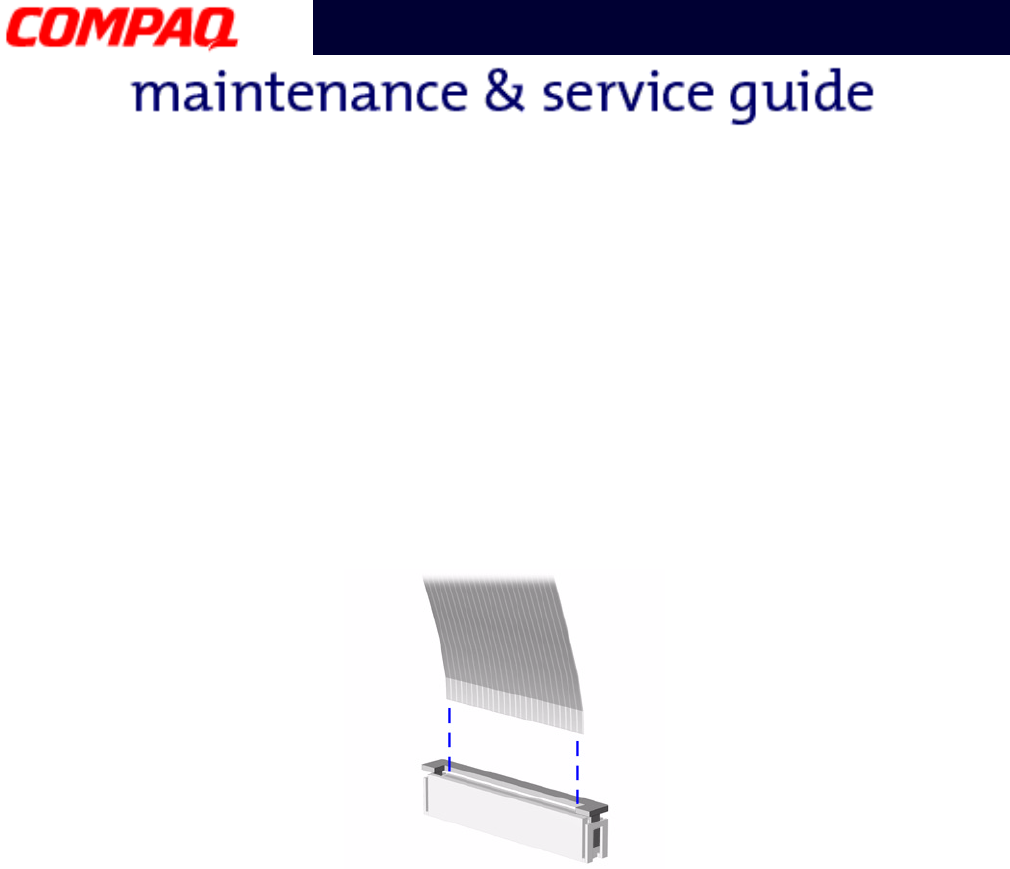
PRESARIO NOTEBOOK MAINTENANCE AND SERVICE GUIDE 1800 SERIES REMOVAL AND REPLACEMENT 3
Presario 1800 Series
Models: XL180, XL181, XL182, XL183, XL185,
and XL190, XL191, XL192
ZIF Connector
The 1800XL Series Notebooks use zero insertion force (ZIF) connectors on the system
board.
Ä
ÄÄ
ÄCAUTION: A ZIF connector and its attached cable can be easily damaged. Handle
only the connector slide when removing or replacing a cable. Never pull or twist on
the cable while it is connected.
To remove a cable from a ZIF connector, lift both corners of the ZIF connector and slide the
cable out simultaneously with constant light force.
Ä
ÄÄ
ÄCAUTION: When servicing this Notebook, ensure that cables are placed in their
proper location during the reassembly process. Improper cable placement can
damage the Notebook.

4 REMOVAL AND REPLACEMENT PRESARIO NOTEBOOK MAINTENANCE AND SERVICE GUIDE 1800 SERIES
Presario 1800 Series
Models: XL180, XL181, XL182, XL183, XL185,
and XL190, XL191, XL192
Cables
Most cables used throughout the unit are ribbon cables.
Cables must be handled with extreme care to avoid damage. Use the following precautions
when handling cables to avoid damage to the cable and Notebook:
•Always handle cables by their connectors.
•In all cases, avoid bending, twisting, pulling, or tearing cables.
•Apply only the minimum force required to seat or unseat cables from their
connectors.
•Ensure that cables are routed in such a manner that they cannot be caught or
snagged by parts being removed or replaced.
•Handle flex cables with extreme care; they can tear easily.
Ä
ÄÄ
ÄCAUTION: When servicing these Notebooks, ensure that cables are placed in their
proper location during the reassembly process. Improper cable placement can
cause severe damage to the unit.
The following illustrations show the proper placement for each cable:
•Hard Drive Ribbon Cable •Speaker Assembly Cable
•CD/DVD Ribbon Cable •Keyboard Ribbon Cable
•Diskette Drive Ribbon Cable
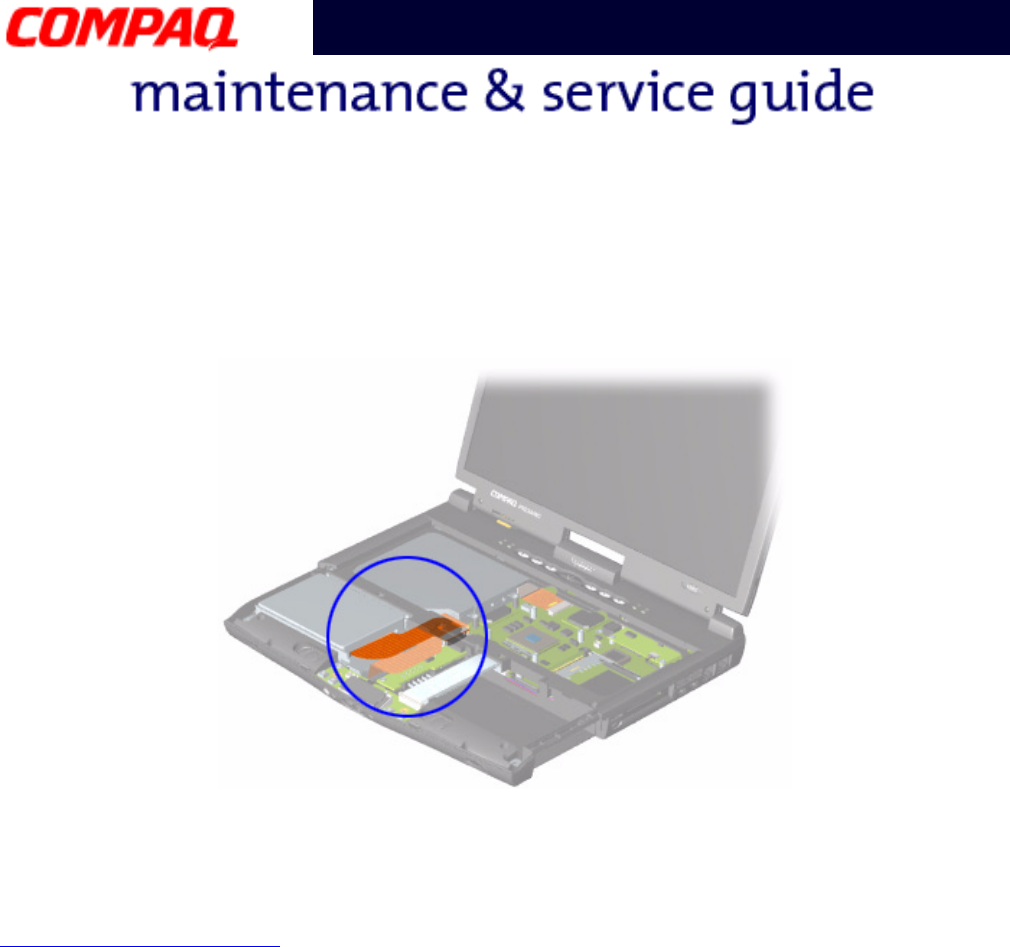
PRESARIO NOTEBOOK MAINTENANCE AND SERVICE GUIDE 1800 SERIES REMOVAL AND REPLACEMENT 5
Presario 1800 Series
Models: XL180, XL181, XL182, XL183, XL185,
and XL190, XL191, XL192
Hard Drive Ribbon Cable
The position for the hard drive ribbon cable is shown below.
Ä
ÄÄ
ÄCAUTION: When servicing the Notebook, ensure that cables are placed in their
proper location during the reassembly process. Improper cable placement can
damage the Notebook.
Removing the Hard Drive
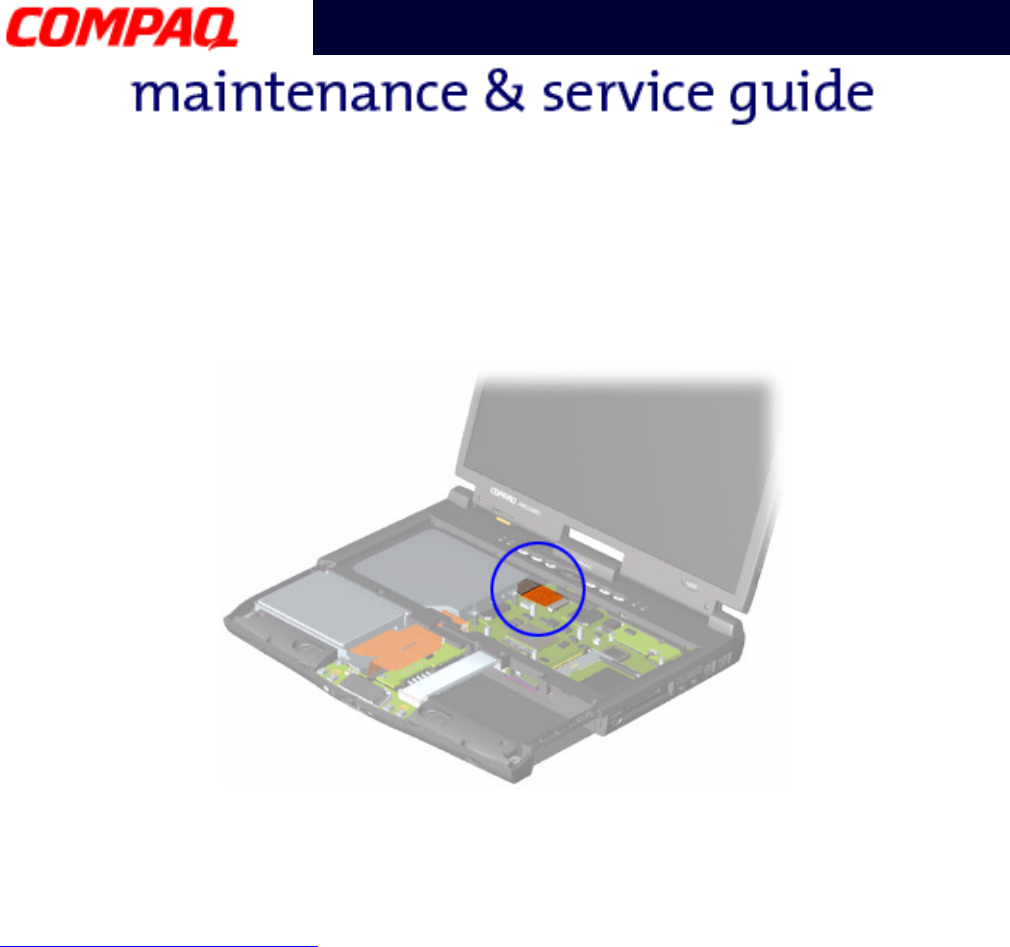
6 REMOVAL AND REPLACEMENT PRESARIO NOTEBOOK MAINTENANCE AND SERVICE GUIDE 1800 SERIES
Presario 1800 Series
Models: XL180, XL181, XL182, XL183, XL185,
and XL190, XL191, XL192
CD/DVD Ribbon Cable
The ribbon cable position for the CD or DVD drive is shown below.
Ä
ÄÄ
ÄCAUTION: When servicing the Notebook, ensure that cables are placed in their
proper location during the reassembly process. Improper cable placement can
damage the Notebook.
Removing the CD/DVD Drive
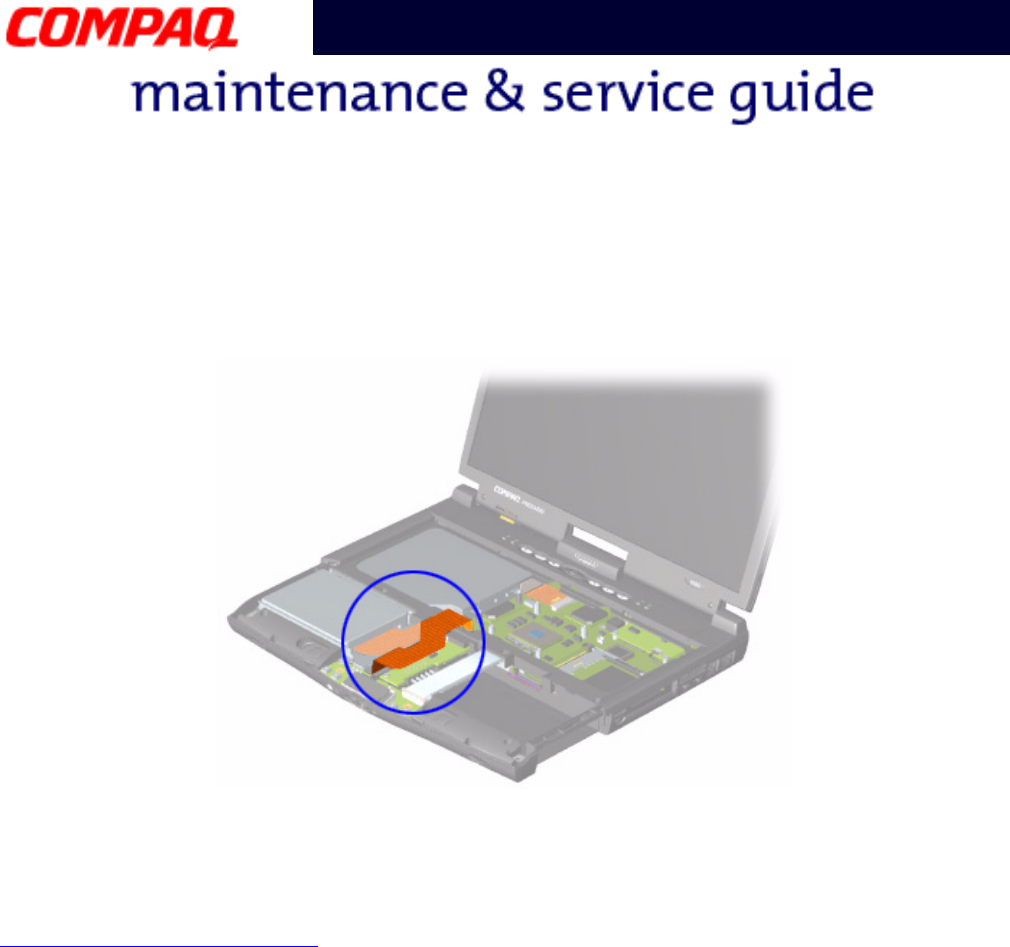
PRESARIO NOTEBOOK MAINTENANCE AND SERVICE GUIDE 1800 SERIES REMOVAL AND REPLACEMENT 7
Presario 1800 Series
Models: XL180, XL181, XL182, XL183, XL185,
and XL190, XL191, XL192
Diskette Drive Ribbon Cable
The ribbon cable position for the diskette drive is shown below.
Ä
ÄÄ
ÄCAUTION: When servicing the Notebook, ensure that cables are placed in their
proper location during the reassembly process. Improper cable placement can
damage the Notebook.
Removing the Diskette Drive
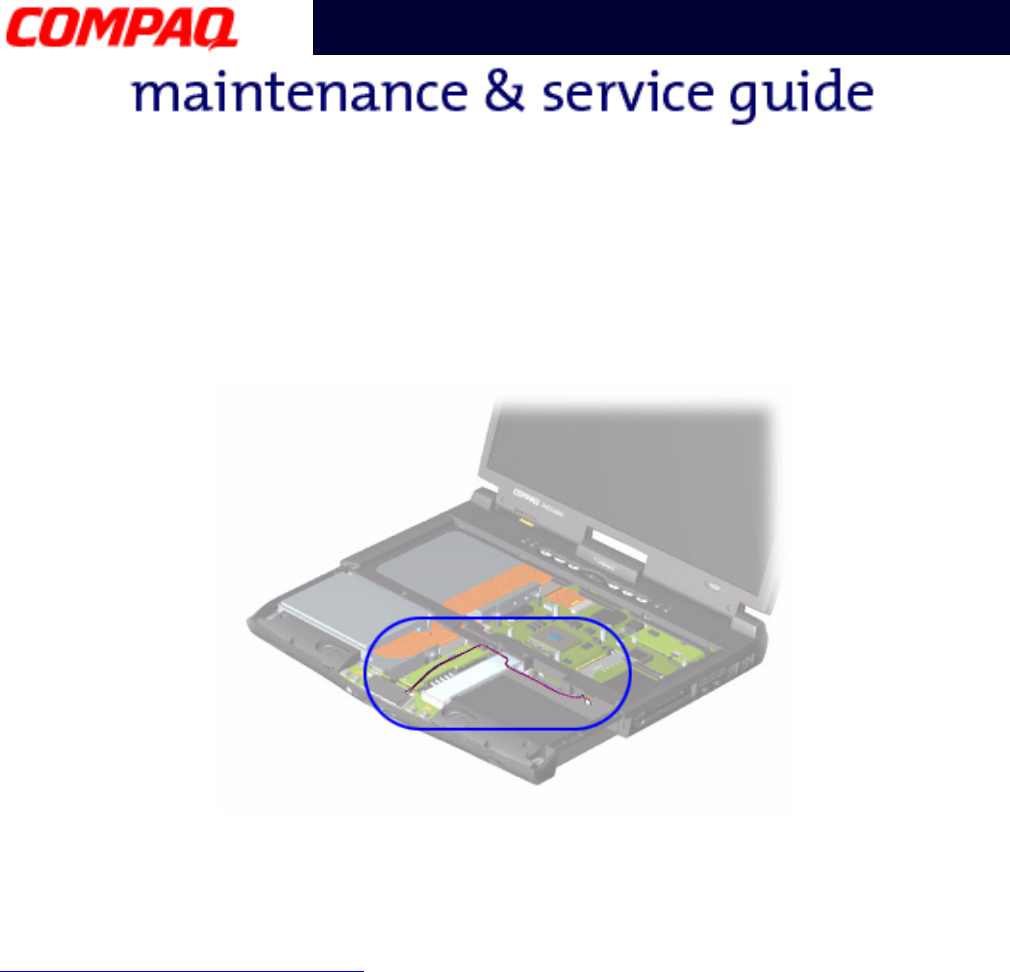
8 REMOVAL AND REPLACEMENT PRESARIO NOTEBOOK MAINTENANCE AND SERVICE GUIDE 1800 SERIES
Presario 1800 Series
Models: XL180, XL181, XL182, XL183, XL185,
and XL190, XL191, XL192
Speaker Assembly Cable
The cable position for the speaker assembly is shown below. The cable is routed under the
battery charger (voltage converter) board and under the edge of the system board.
Ä
ÄÄ
ÄCAUTION: When servicing this Notebook, ensure that cables are placed in their
proper location during the reassembly process. Improper cable placement can
damage the Notebook.
Removing the Speaker Assembly
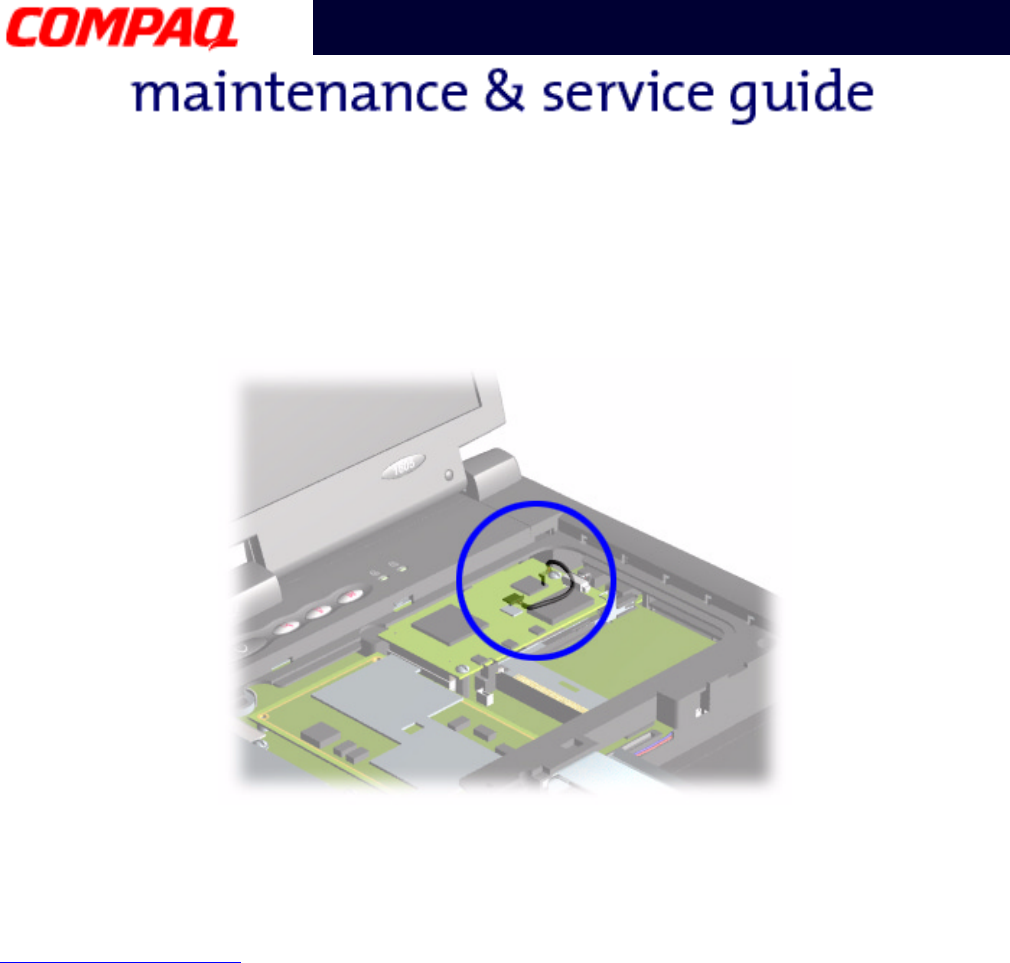
PRESARIO NOTEBOOK MAINTENANCE AND SERVICE GUIDE 1800 SERIES REMOVAL AND REPLACEMENT 9
Presario 1800 Series
Models: XL180, XL181, XL182, XL183, XL185,
and XL190, XL191, XL192
Modem Cable
The cable position for the modem is shown below.
Ä
ÄÄ
ÄCAUTION: When servicing the Notebook, ensure that cables are placed in their
proper location during the reassembly process. Improper cable placement can
damage the Notebook.
Removing the Modem
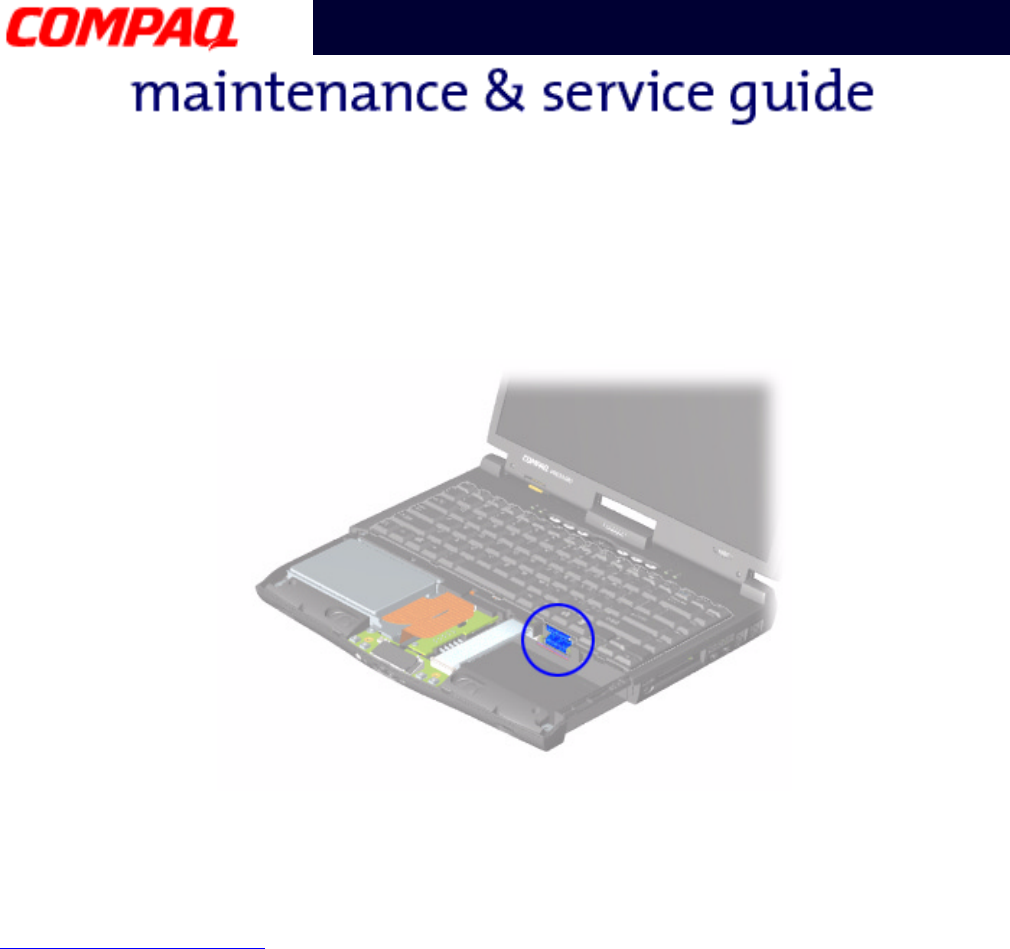
10 REMOVAL AND REPLACEMENT PRESARIO NOTEBOOK MAINTENANCE AND SERVICE GUIDE 1800 SERIES
Presario 1800 Series
Models: XL180, XL181, XL182, XL183, XL185,
and XL190, XL191, XL192
Keyboard Ribbon Cable
The ribbon cable position for the keyboard is shown below.
Ä
ÄÄ
ÄCAUTION: When servicing this Notebook, ensure that cables are placed in their
proper location during the reassembly process. Improper cable placement can
damage the Notebook.
Removing the Keyboard

PRESARIO NOTEBOOK MAINTENANCE AND SERVICE GUIDE 1800 SERIES REMOVAL AND REPLACEMENT 11
Presario 1800 Series
Models: XL180, XL181, XL182, XL183, XL185,
and XL190, XL191, XL192
Preparing the Notebook for Disassembly
Before beginning the removal or replacement of any Notebook components, complete the
following steps:
1. Disconnect the AC power source and any external devices.
2. Remove the QuikDock (pg 12).
3. Remove any PC Cards.
4. Remove the battery pack (pg 13).
Important: The battery pack should be removed before performing any internal
maintenance on the Notebook.
Å
ÅÅ
ÅWARNING: Metal objects can damage the battery pack as well as the battery
contacts in the battery compartment. To prevent damage, do not allow metal
objects to touch the battery contacts. Place only the battery pack for the Compaq
Presario 1800XL Series Portable Notebooks into the battery compartment. Do not
force the battery pack into the bay if insertion is difficult.
Ä
ÄÄ
ÄCAUTION: Do not crush, puncture, or incinerate the battery pack. Do not open a
battery pack; this action damages the pack, makes it unusable, and exposes
potentially harmful battery components. No field-serviceable parts are located
inside the battery pack.
Note: Compaq Presario 1800XL Series Portable Notebooks have several screws of
various sizes that are not interchangeable. Care must be taken during reassembly
to ensure that the correct screws are used in their correct location. During removal
keep respective screws with their associated subassembly.
Important: As each component is removed from the Notebook, place it and its
assosiated screws away from the work area to prevent damage.
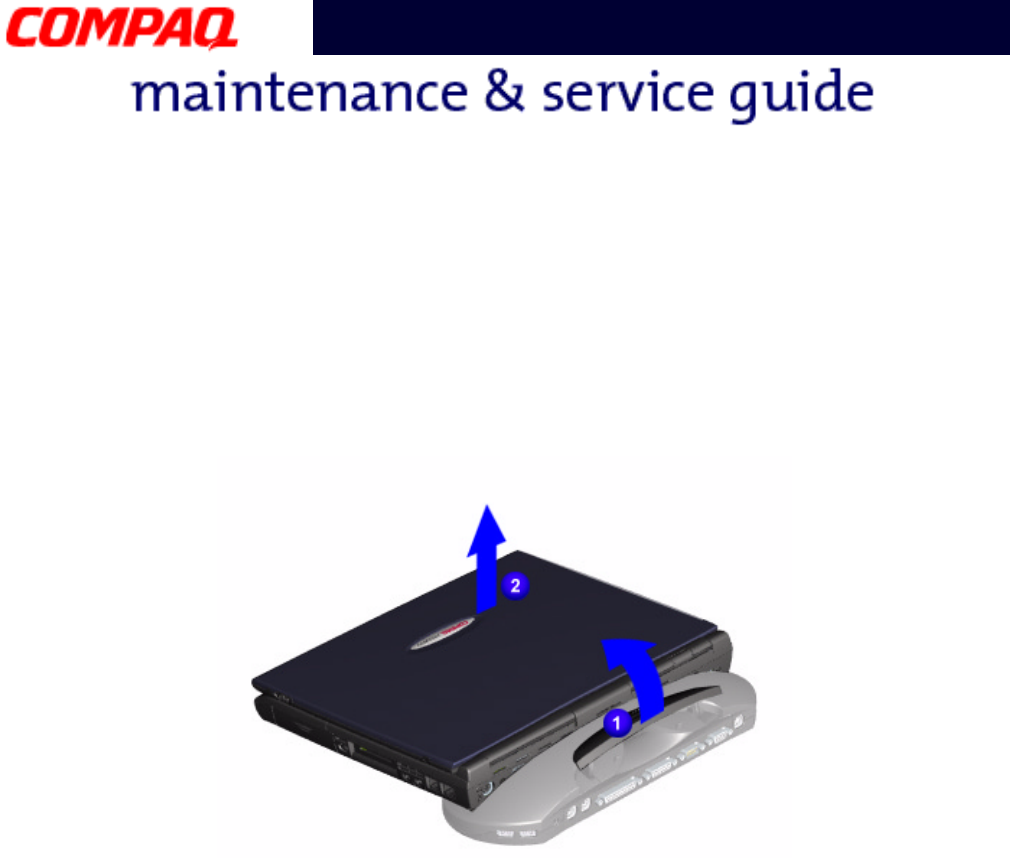
12 REMOVAL AND REPLACEMENT PRESARIO NOTEBOOK MAINTENANCE AND SERVICE GUIDE 1800 SERIES
Presario 1800 Series
Models: XL180, XL181, XL182, XL183, XL185,
and XL190, XL191, XL192
Disconnecting the QuikDock
To disconnect the Notebook from the QuikDock, perform the following steps:
1. Lift up the handle 1 on top of the QuikDock.
2. Lift the Notebook 2 straight up.
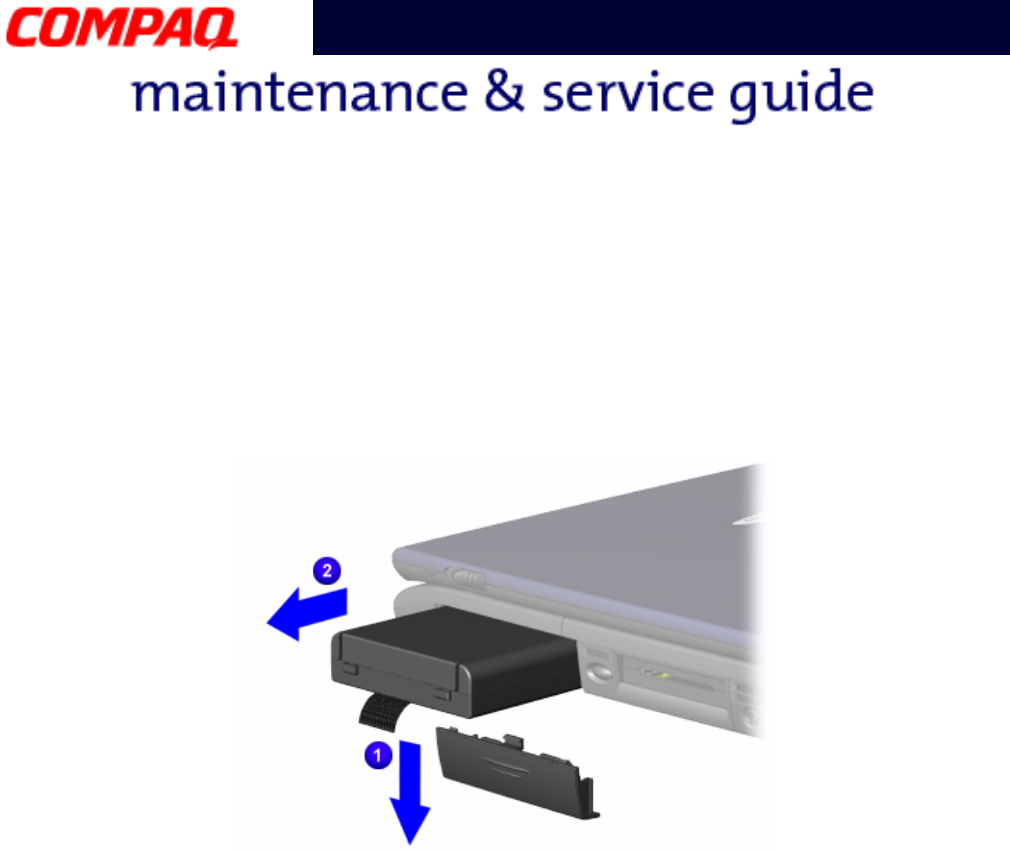
PRESARIO NOTEBOOK MAINTENANCE AND SERVICE GUIDE 1800 SERIES REMOVAL AND REPLACEMENT 13
Presario 1800 Series
Models: XL180, XL181, XL182, XL183, XL185,
and XL190, XL191, XL192
Removing the Battery
To remove the battery pack, complete the following steps:
1. Slide the battery compartment door down 1 and remove it from the chassis.
2. Pull the battery 2 from the chassis by the tab located on the end of the battery pack.
To replace the battery, reverse these procedures.
Important: The battery pack should be removed before performing any internal
maintenance on the Notebook.
Å
ÅÅ
ÅWARNING: Metal objects can damage the battery pack as well as the battery
contacts in the battery compartment. To prevent damage, do not allow metal
objects to touch the battery contacts. Place only the battery pack for Compaq
Presario 1800XL Series Portable Notebooks into the battery compartment. Do not
force the battery pack into the bay if insertion does not occur easily.
Ä
ÄÄ
ÄCAUTION: Do not crush, puncture, or incinerate the battery pack. Do not open a
battery pack; this action damages the pack, makes it unusable, and exposes
potentially harmful battery components. No field-serviceable parts are located
inside the battery pack.
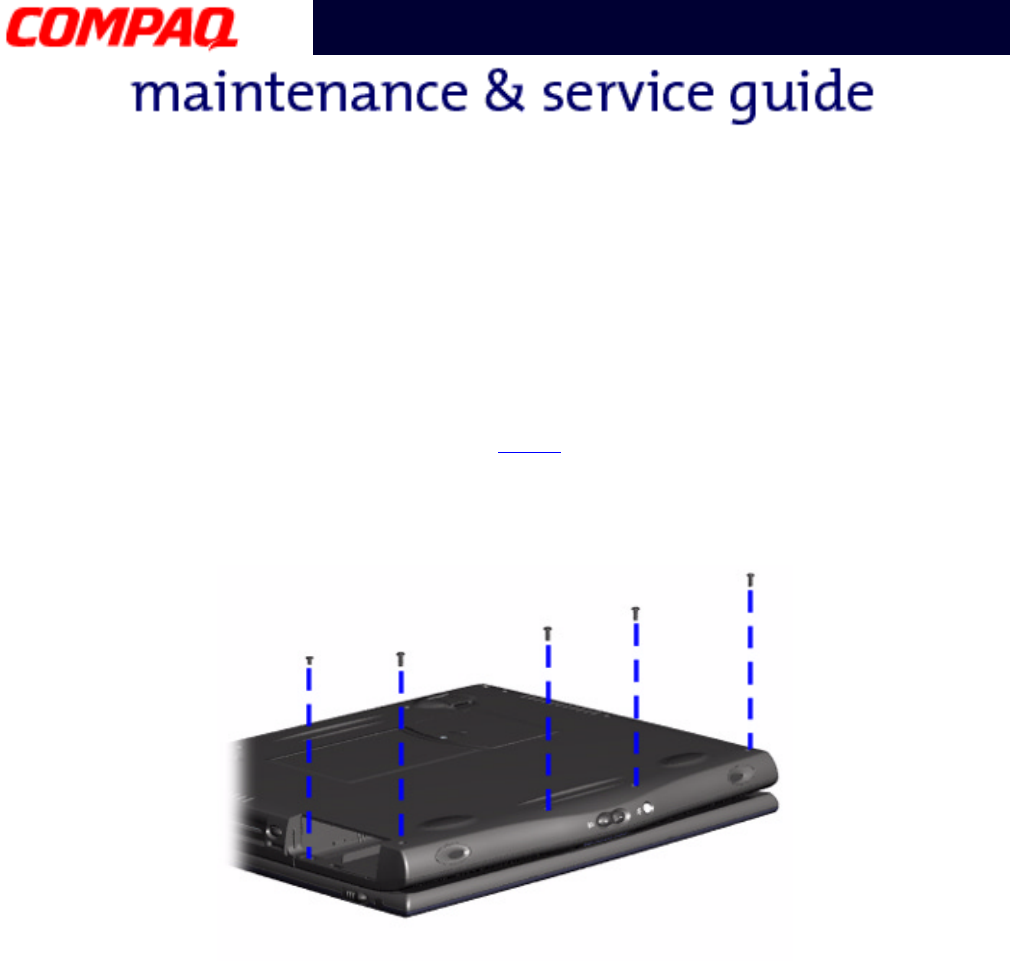
14 REMOVAL AND REPLACEMENT PRESARIO NOTEBOOK MAINTENANCE AND SERVICE GUIDE 1800 SERIES
Presario 1800 Series
Models: XL180, XL181, XL182, XL183, XL185,
and XL190, XL191, XL192
Removing the Palmrest Cover with TouchPad
Note: It is not necessary to remove the display panel assembly to access the interior
components of the Notebook.
To remove the Palmrest cover with TouchPad, complete the following steps:
1. Prepare the Notebook for disassembly (pg 11).
2. Close the display and turn the Notebook upside down.
3. Remove five screws from the underside of the Notebook.
Continued on the next page.
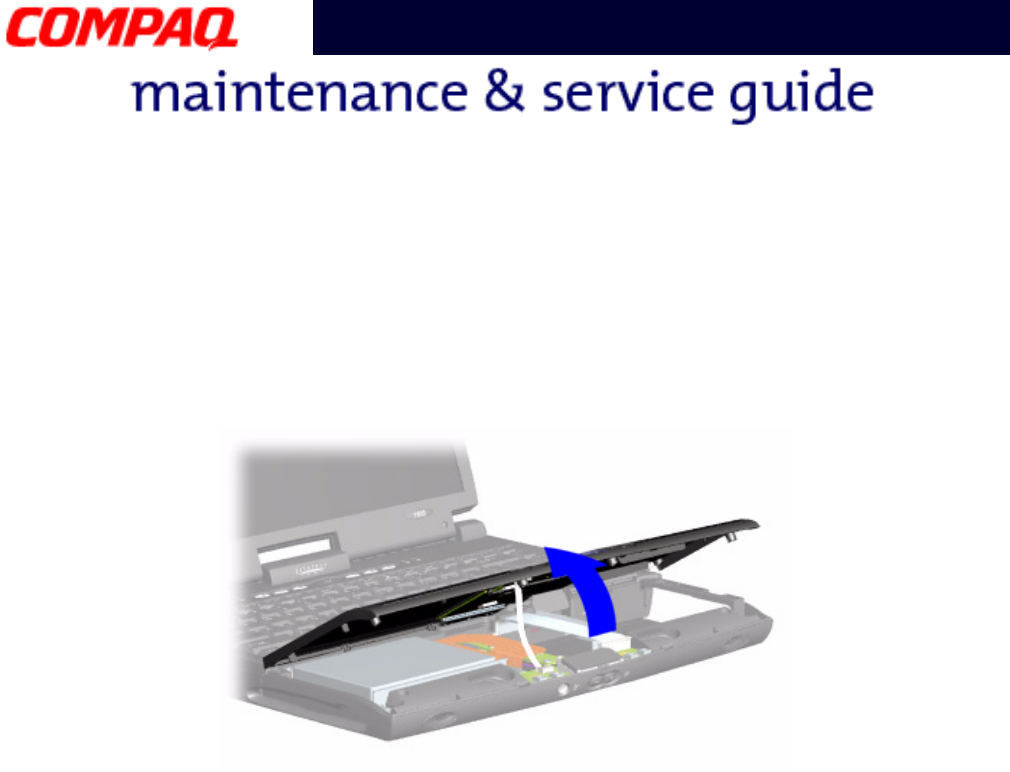
PRESARIO NOTEBOOK MAINTENANCE AND SERVICE GUIDE 1800 SERIES REMOVAL AND REPLACEMENT 15
Presario 1800 Series
Models: XL180, XL181, XL182, XL183, XL185,
and XL190, XL191, XL192
4. Turn the Notebook over (right side up).
5. Pull the display release latches and open the display.
6. Lift up the front end of the Palmrest cover and remove it from the groove in the
chassis.
Continued on the next page.
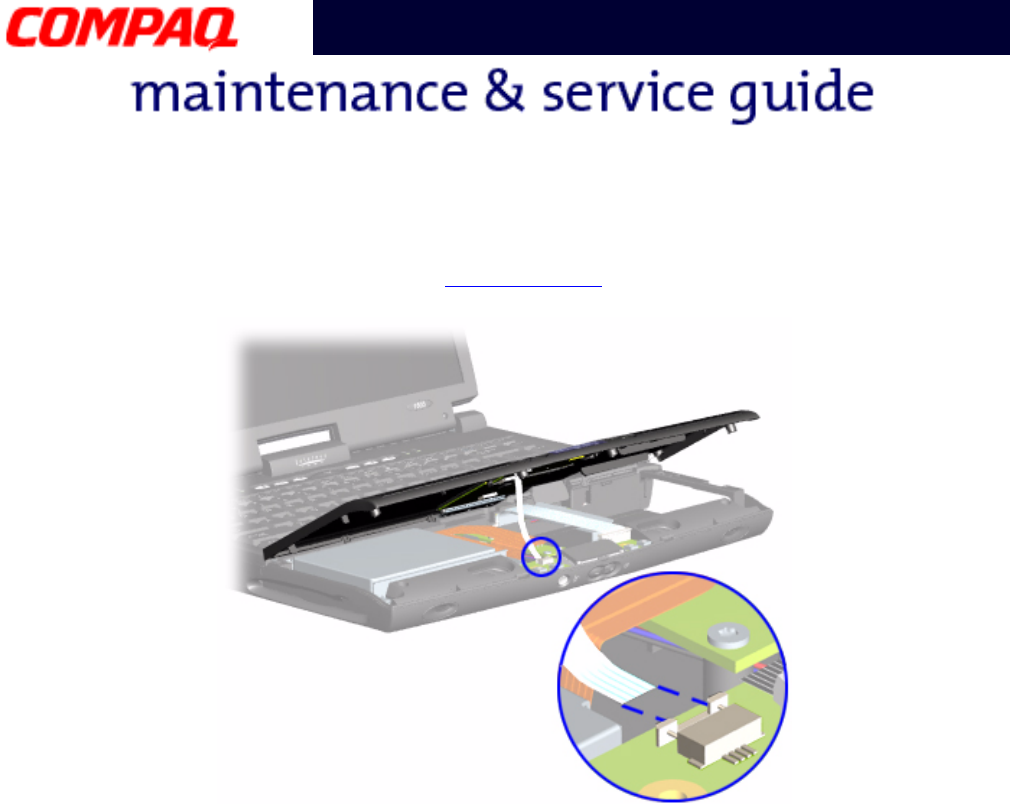
16 REMOVAL AND REPLACEMENT PRESARIO NOTEBOOK MAINTENANCE AND SERVICE GUIDE 1800 SERIES
Presario 1800 Series
Models: XL180, XL181, XL182, XL183, XL185,
and XL190, XL191, XL192
7. Disconnect the flex cable from the ZIF Connector on the DisqPlay module.
To replace the Palmrest cover, reverse these procedures.
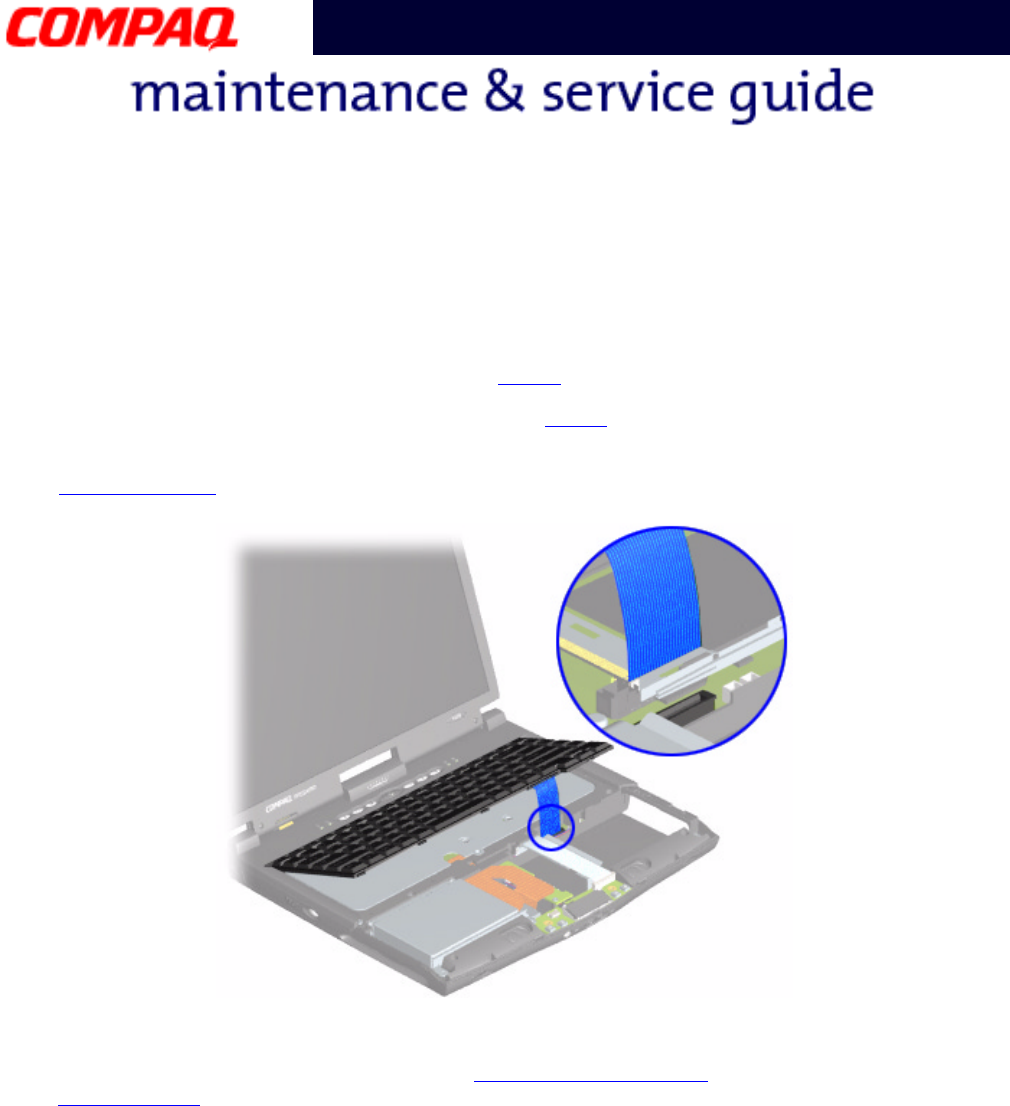
PRESARIO NOTEBOOK MAINTENANCE AND SERVICE GUIDE 1800 SERIES REMOVAL AND REPLACEMENT 17
Presario 1800 Series
Models: XL180, XL181, XL182, XL183, XL185,
and XL190, XL191, XL192
Removing the Keyboard
To remove the keyboard, complete the following steps:
1. Prepare the Notebook for disassembly (pg 11).
2. Remove the Palmrest cover with TouchPad (pg 14).
3. Gently lift 1 up the front of the keyboard and disconnect 2 the flex cable from the
ZIF Connector on the system board and remove the keyboard.
To replace the keyboard, reverse these procedures.
Note: When replacing the keyboard, the Keyboard Ribbon Cable should fold behind the
ZIF Connector rather than underneath the keyboard.
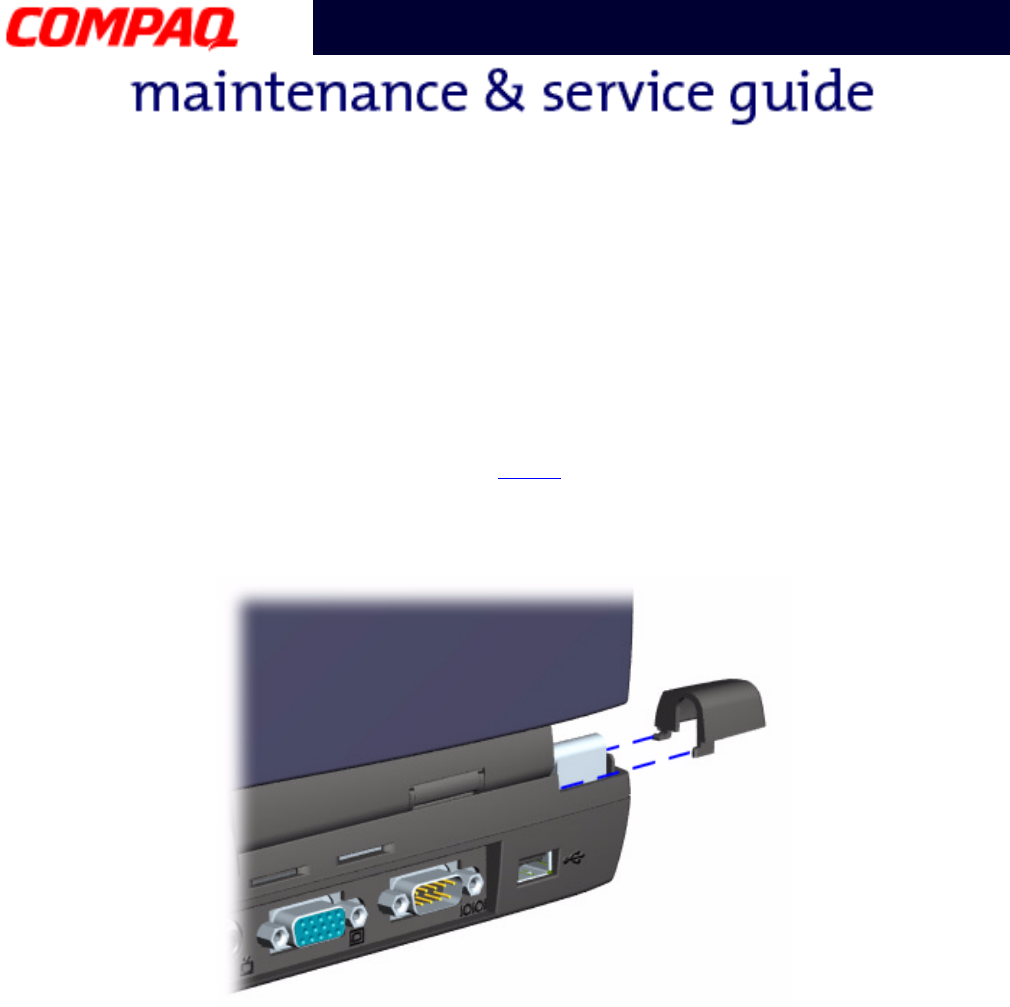
18 REMOVAL AND REPLACEMENT PRESARIO NOTEBOOK MAINTENANCE AND SERVICE GUIDE 1800 SERIES
Presario 1800 Series
Models: XL180, XL181, XL182, XL183, XL185,
and XL190, XL191, XL192
Removing the Internet Zone Cover
(Status Panel Assembly)
Note: Illustrations may show parts removed that are not part of this procedure. It is
necessary to remove only the parts listed in the written procedure.
To remove the Internet Zone cover, complete the following steps:
1. Prepare the Notebook for disassembly (pg 11).
2. Open the display and squeeze the sides of the display hinge covers while sliding them
off the hinges.
Continued on the next page.
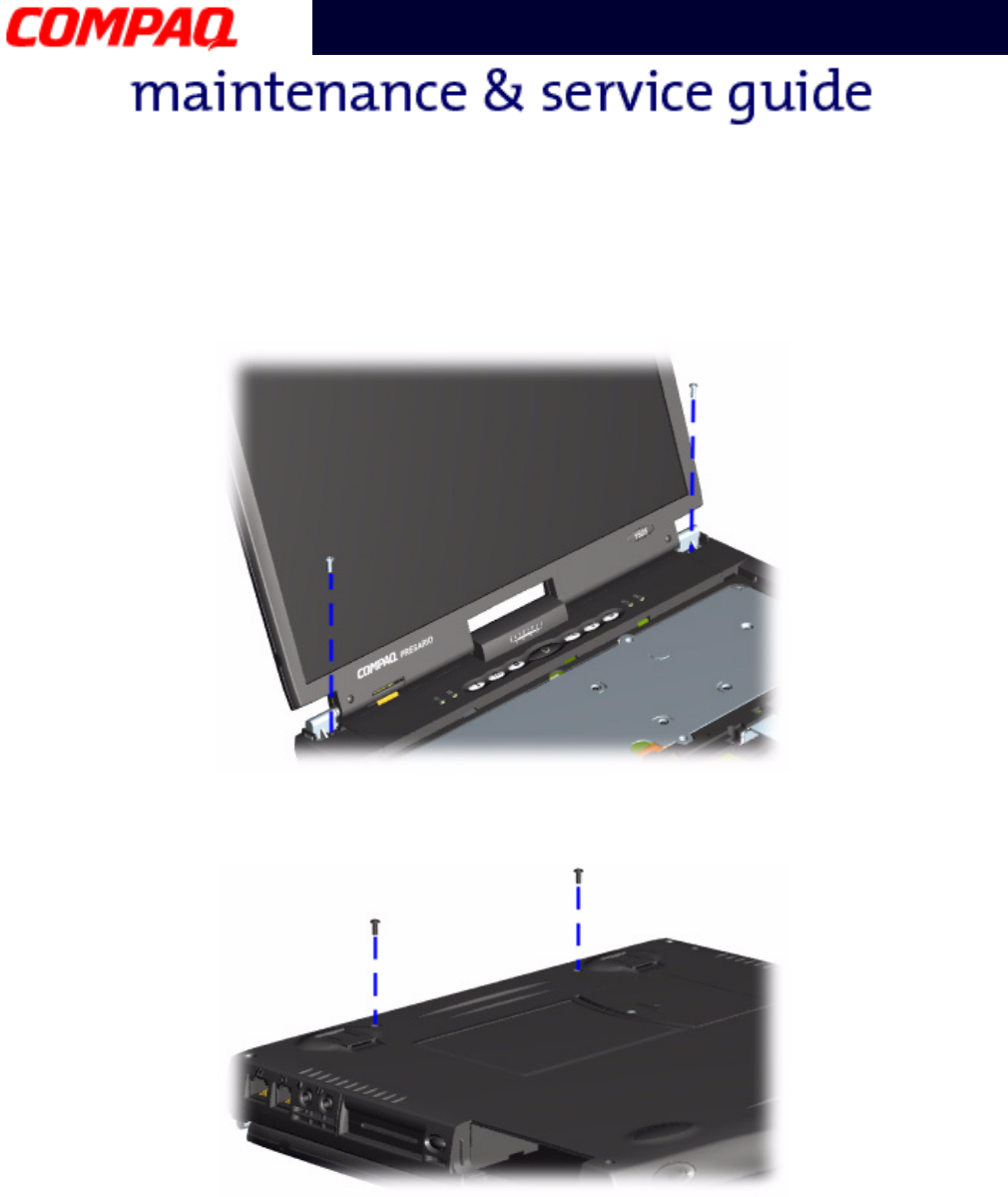
PRESARIO NOTEBOOK MAINTENANCE AND SERVICE GUIDE 1800 SERIES REMOVAL AND REPLACEMENT 19
Presario 1800 Series
Models: XL180, XL181, XL182, XL183, XL185,
and XL190, XL191, XL192
3. Remove two innermost screws from the display hinges that secure the Internet Zone
cover to the chassis.
4. Turn the unit upside down and remove the two screws located near the back of the
Notebook that secure the Internet Zone cover to the chassis.
Continued on the next page.
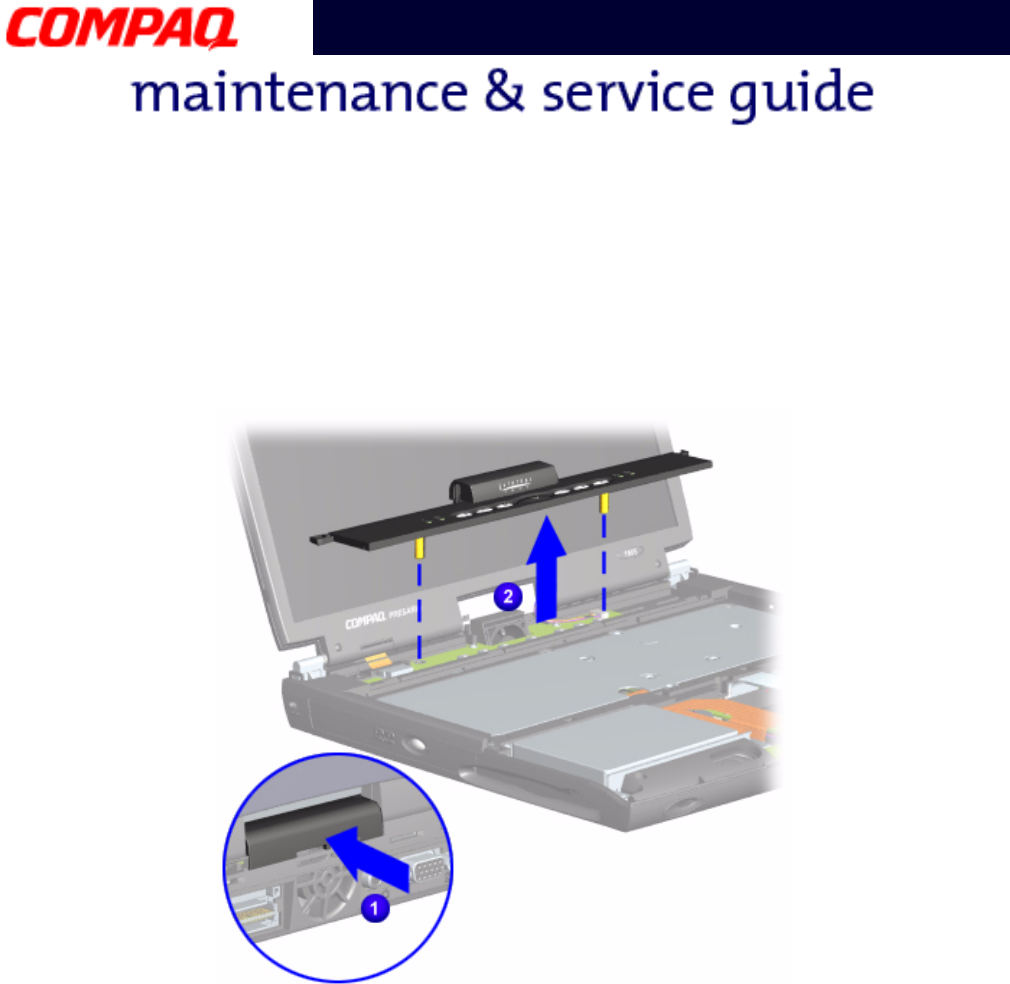
20 REMOVAL AND REPLACEMENT PRESARIO NOTEBOOK MAINTENANCE AND SERVICE GUIDE 1800 SERIES
Presario 1800 Series
Models: XL180, XL181, XL182, XL183, XL185,
and XL190, XL191, XL192
5. Turn the unit over (right side up) and open the display.
6. Lift up one corner of the Internet Zone cover, 1 push forward from the back (center
piece) to release the snaps on the Internet Zone cover, and 2 remove from the
chassis.
To replace the status panel assembly, reverse these procedures.
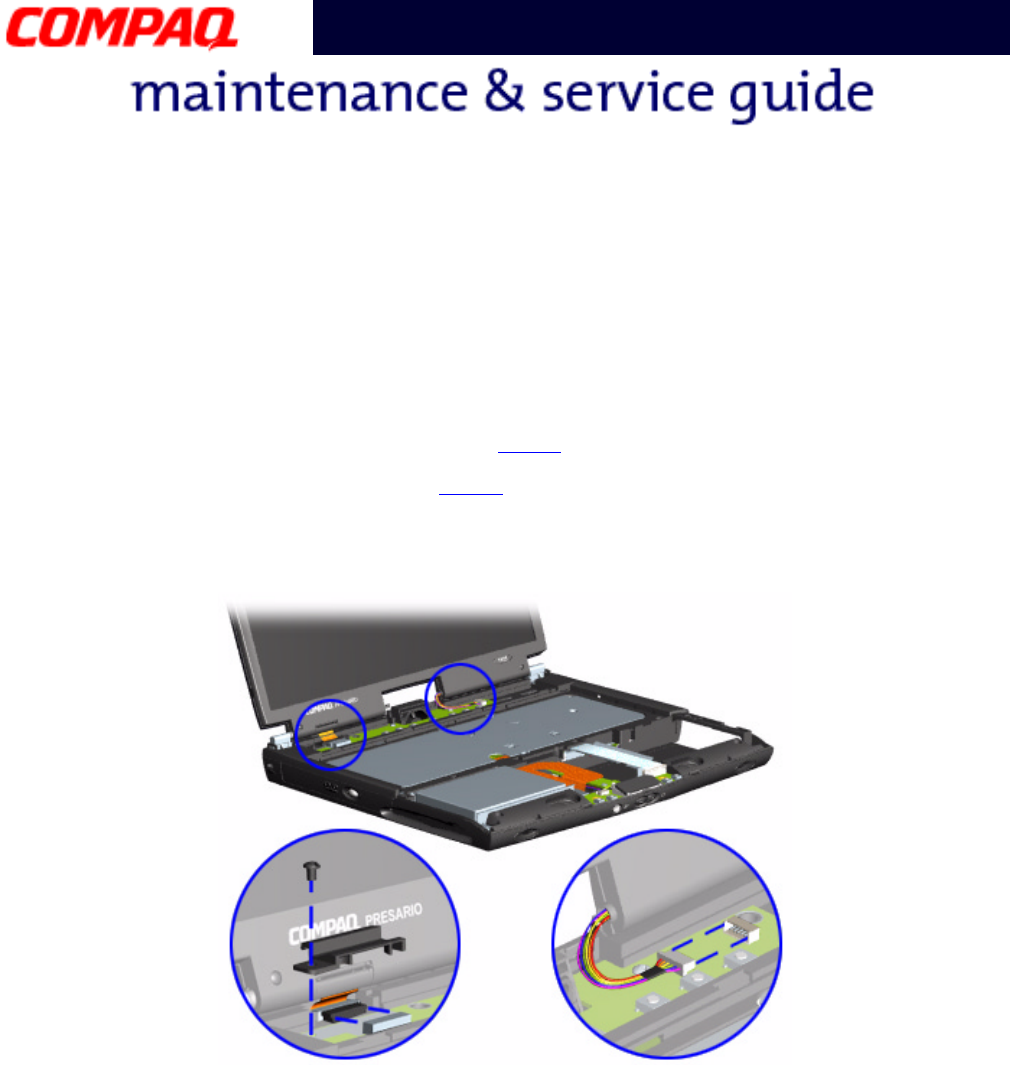
PRESARIO NOTEBOOK MAINTENANCE AND SERVICE GUIDE 1800 SERIES REMOVAL AND REPLACEMENT 21
Presario 1800 Series
Models: XL180, XL181, XL182, XL183, XL185,
and XL190, XL191, XL192
Removing the Internet Button Board
Note: Illustrations may show parts removed that are not part of this procedure. It is
necessary to remove only the parts listed in the written procedure.
To remove the Internet button board, complete the following steps:
1. Prepare the Notebook for disassembly (pg 11).
2. Remove the Internet Zone Cover (pg 18).
3. Remove the screw securing the display flex cable bracket and disconnect both the
display flex cable and backlight cable from the system board.
Continued on the next page.
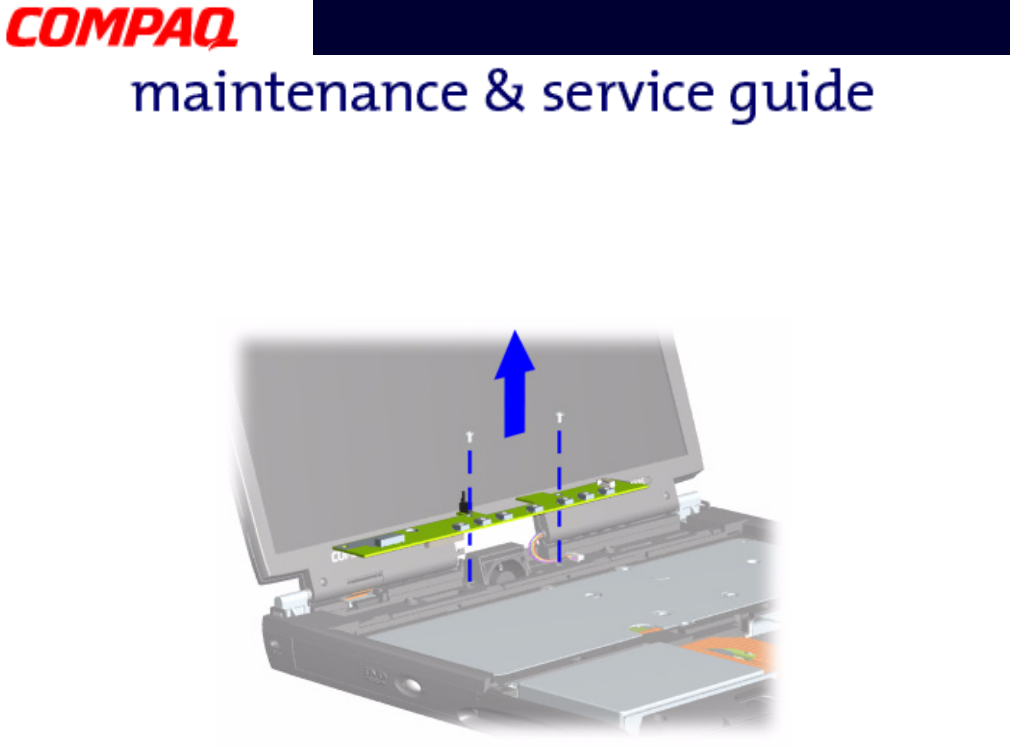
22 REMOVAL AND REPLACEMENT PRESARIO NOTEBOOK MAINTENANCE AND SERVICE GUIDE 1800 SERIES
Presario 1800 Series
Models: XL180, XL181, XL182, XL183, XL185,
and XL190, XL191, XL192
4. Remove two screws securing the Internet button board and remove from the chassis.
To replace the Internet button board, reverse these procedures.
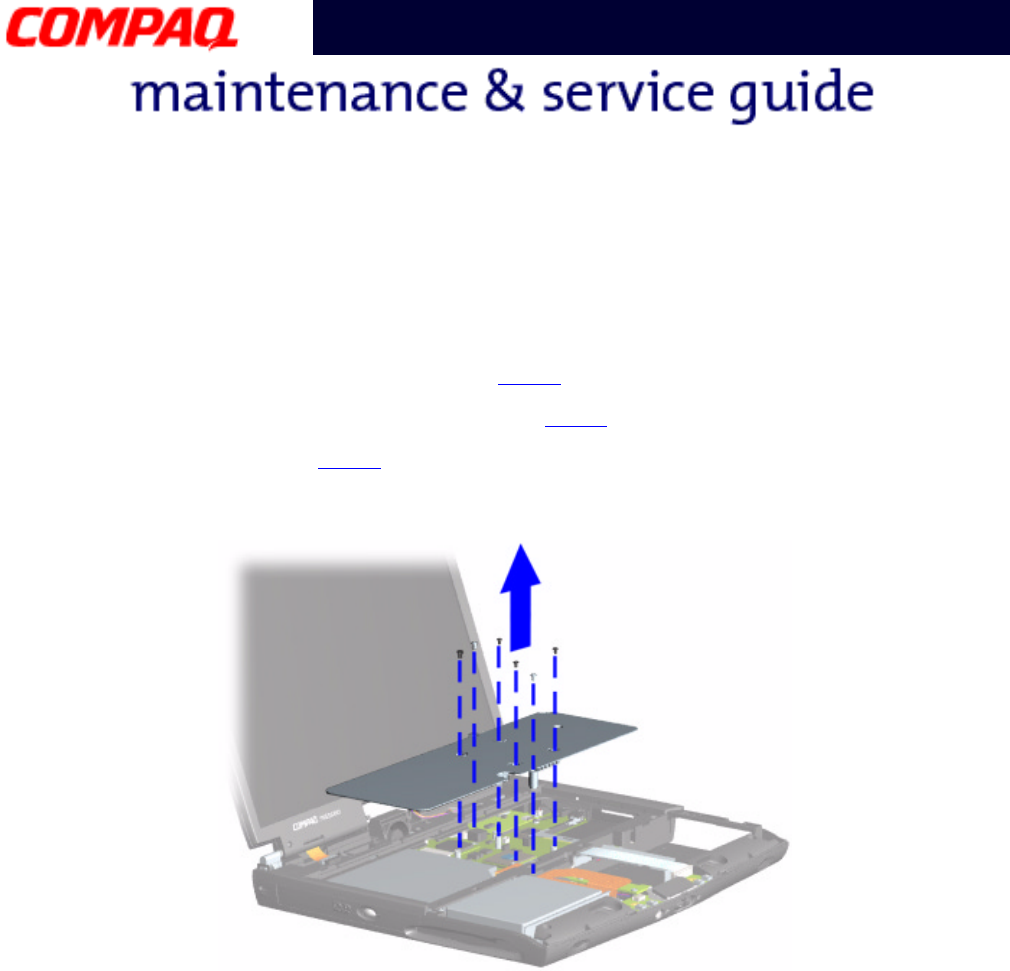
PRESARIO NOTEBOOK MAINTENANCE AND SERVICE GUIDE 1800 SERIES REMOVAL AND REPLACEMENT 23
Presario 1800 Series
Models: XL180, XL181, XL182, XL183, XL185,
and XL190, XL191, XL192
Removing the Heatspreader
To remove the Heatspreader, complete the following steps:
1. Prepare the Notebook for disassembly (pg 11).
2. Remove the Palmrest cover with TouchPad (pg 14).
3. Remove the keyboard (pg 17).
4. Remove six screws from the Heatspreader and lift out of the chassis.
To replace the Heatspreader, reverse these procedures.
Note: If the thermal pads on the Heatspreader are missing or damaged, a new
Heatspreader should be installed.
Important: Before installing a new Heatspreader, remove the plastic covering from
the thermal pads.
Å
ÅÅ
ÅWARNING: To prevent damage, do not use excessive force when replacing the
screws.
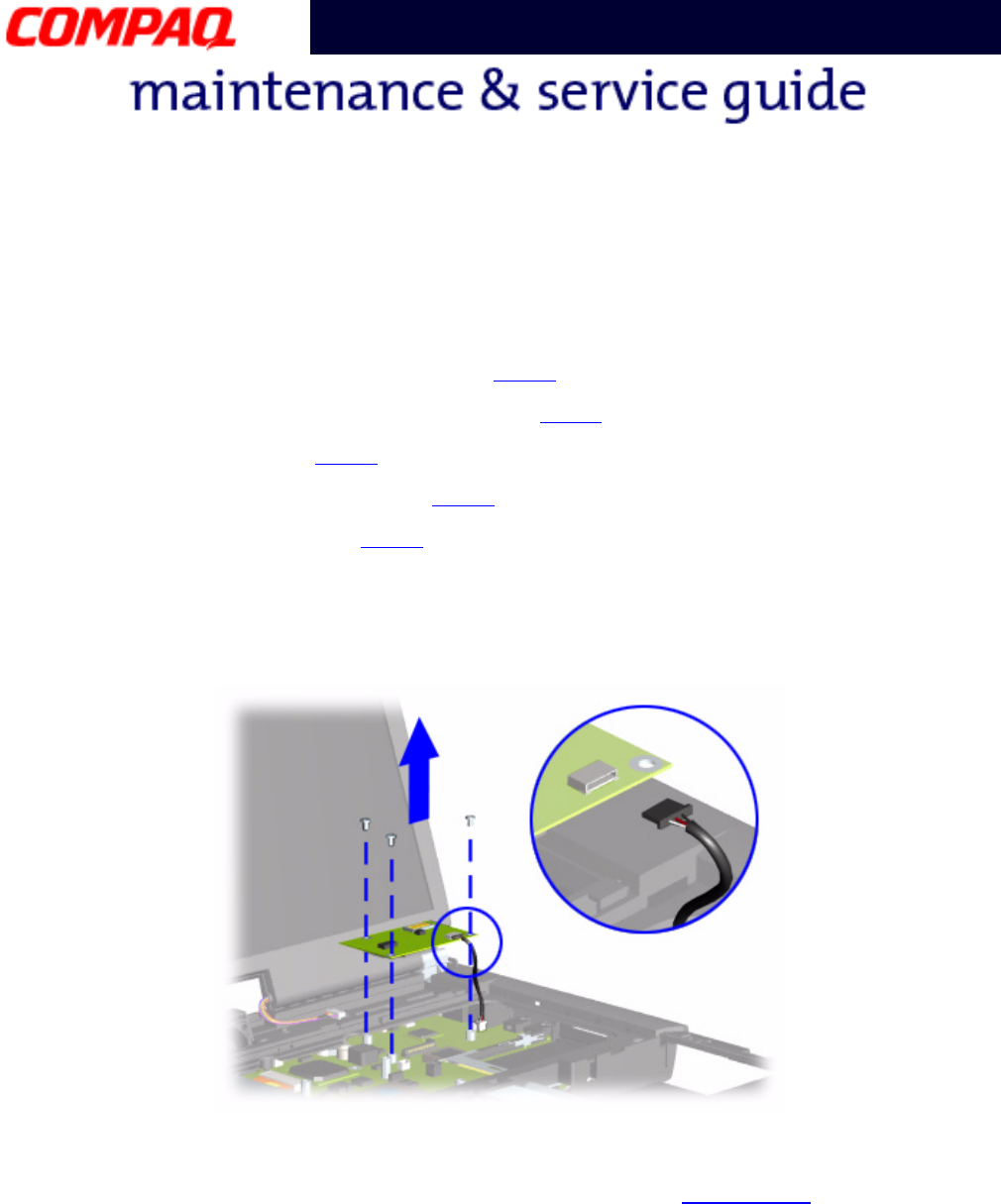
24 REMOVAL AND REPLACEMENT PRESARIO NOTEBOOK MAINTENANCE AND SERVICE GUIDE 1800 SERIES
Presario 1800 Series
Models: XL180, XL181, XL182, XL183, XL185,
and XL190, XL191, XL192
Removing the Modem
To remove the modem, complete the following steps:
1. Prepare the Notebook for disassembly (pg 11).
2. Remove the Palmrest cover with TouchPad (pg 14).
3. Remove the keyboard (pg 17).
4. Remove the Internet Zone cover (pg 18).
5. Remove the Heatspreader (pg 23).
6. Remove three screws from the modem board and lift the modem off the connector on
the system board.
7. Disconnect the cable from the modem board.
To replace the modem board, reverse these procedures.
Ä
ÄÄ
ÄCAUTION: When replacing the modem, ensure that the Modem Cable is placed in
its proper location during the reassembly process. Improper cable placement can
damage the Notebook.
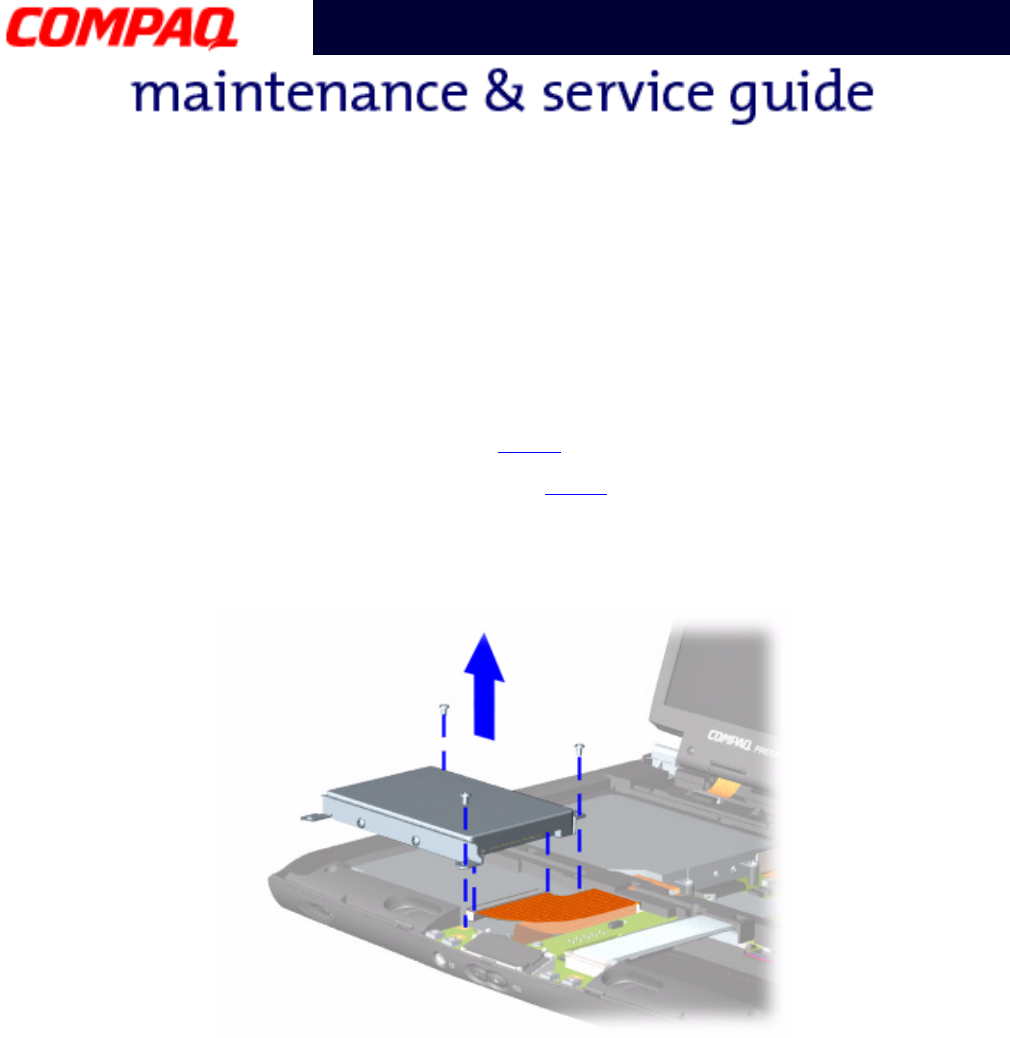
PRESARIO NOTEBOOK MAINTENANCE AND SERVICE GUIDE 1800 SERIES REMOVAL AND REPLACEMENT 25
Presario 1800 Series
Models: XL180, XL181, XL182, XL183, XL185,
and XL190, XL191, XL192
Removing the Hard Drive
Note: Illustrations may show parts removed that are not part of this procedure. It is
necessary to remove only the parts listed in the written procedure.
To remove the hard drive, complete the following steps:
1. Prepare the Notebook for disassembly (pg 11).
2. Remove the Palmrest cover with TouchPad (pg 14).
3. Remove three screws from the hard drive mounting bracket.
4. Disconnect the hard drive data cable and lift out the hard drive.
Continued on the next page.
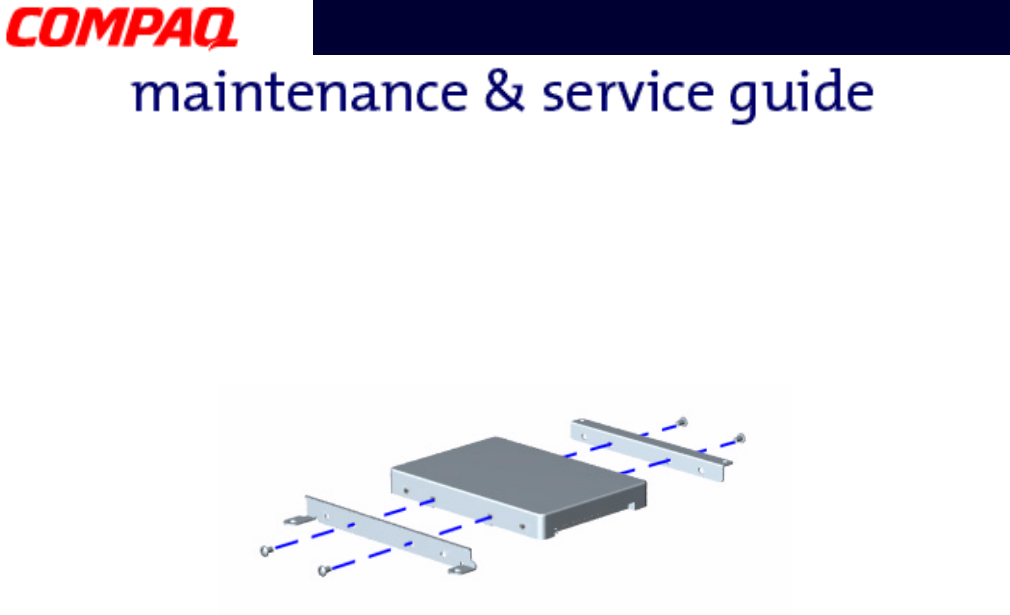
26 REMOVAL AND REPLACEMENT PRESARIO NOTEBOOK MAINTENANCE AND SERVICE GUIDE 1800 SERIES
Presario 1800 Series
Models: XL180, XL181, XL182, XL183, XL185,
and XL190, XL191, XL192
Removing the Hard Drive Mounting Brackets
To remove the hard drive mounting brackets, remove two screws from each of side of the
hard drive.
To replace the hard drive and mounting brackets, reverse these procedures.
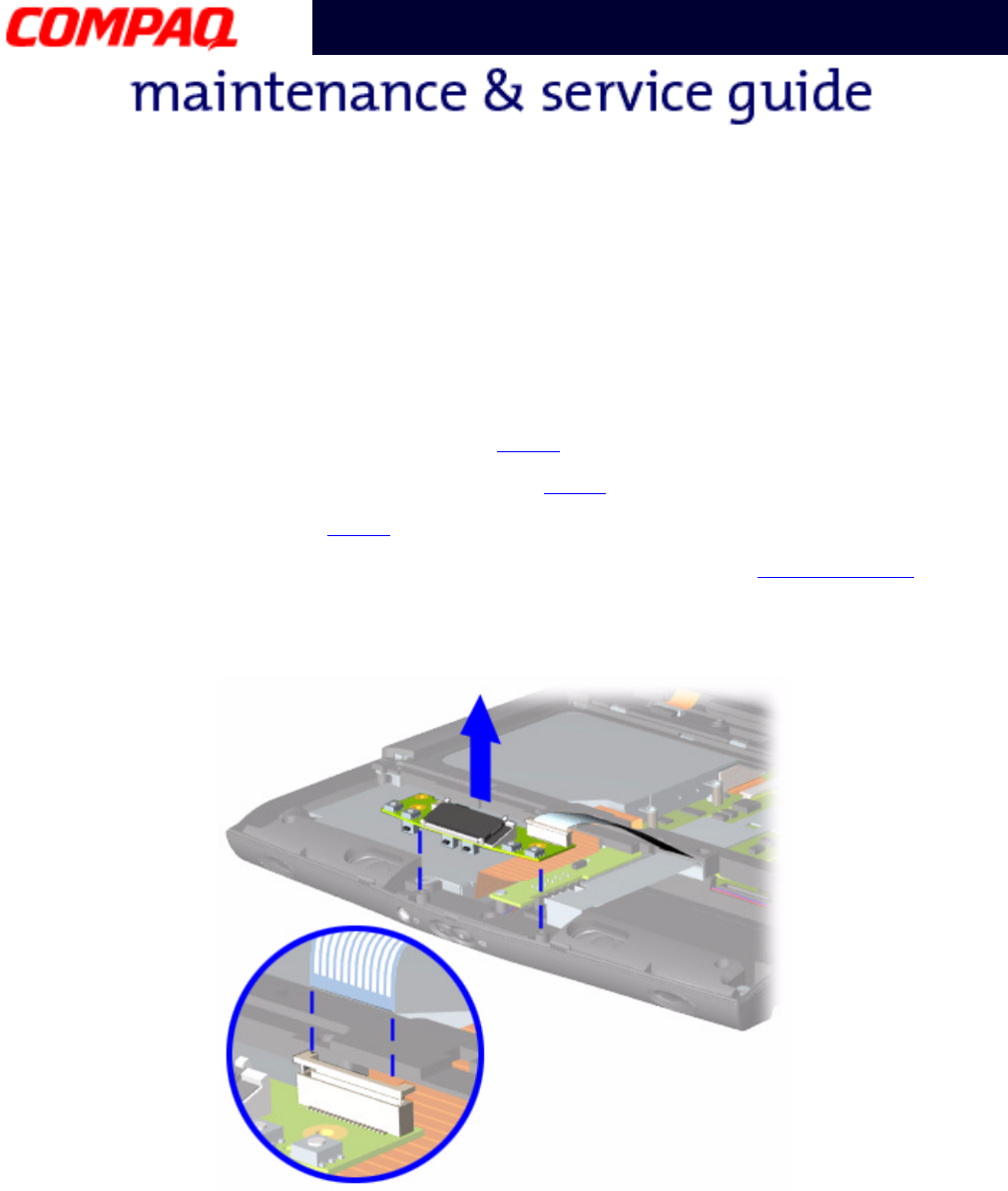
PRESARIO NOTEBOOK MAINTENANCE AND SERVICE GUIDE 1800 SERIES REMOVAL AND REPLACEMENT 27
Presario 1800 Series
Models: XL180, XL181, XL182, XL183, XL185,
and XL190, XL191, XL192
Removing the DisqPlay Module
Note: Illustrations may show parts removed that are not part of this procedure. It is
necessary to remove only the parts listed in the written procedure.
To remove the DisqPlay module, complete the following steps:
1. Prepare the Notebook for disassembly (pg 11).
2. Remove the Palmrest cover with TouchPad (pg 14).
3. Remove the hard drive (pg 25).
4. Lift up the DisqPlay module and disconnect the flex cable from ZIF Connector on the
module.
5. Remove the DisqPlay module from the chassis.
To replace the DisqPlay module, reverse these procedures.
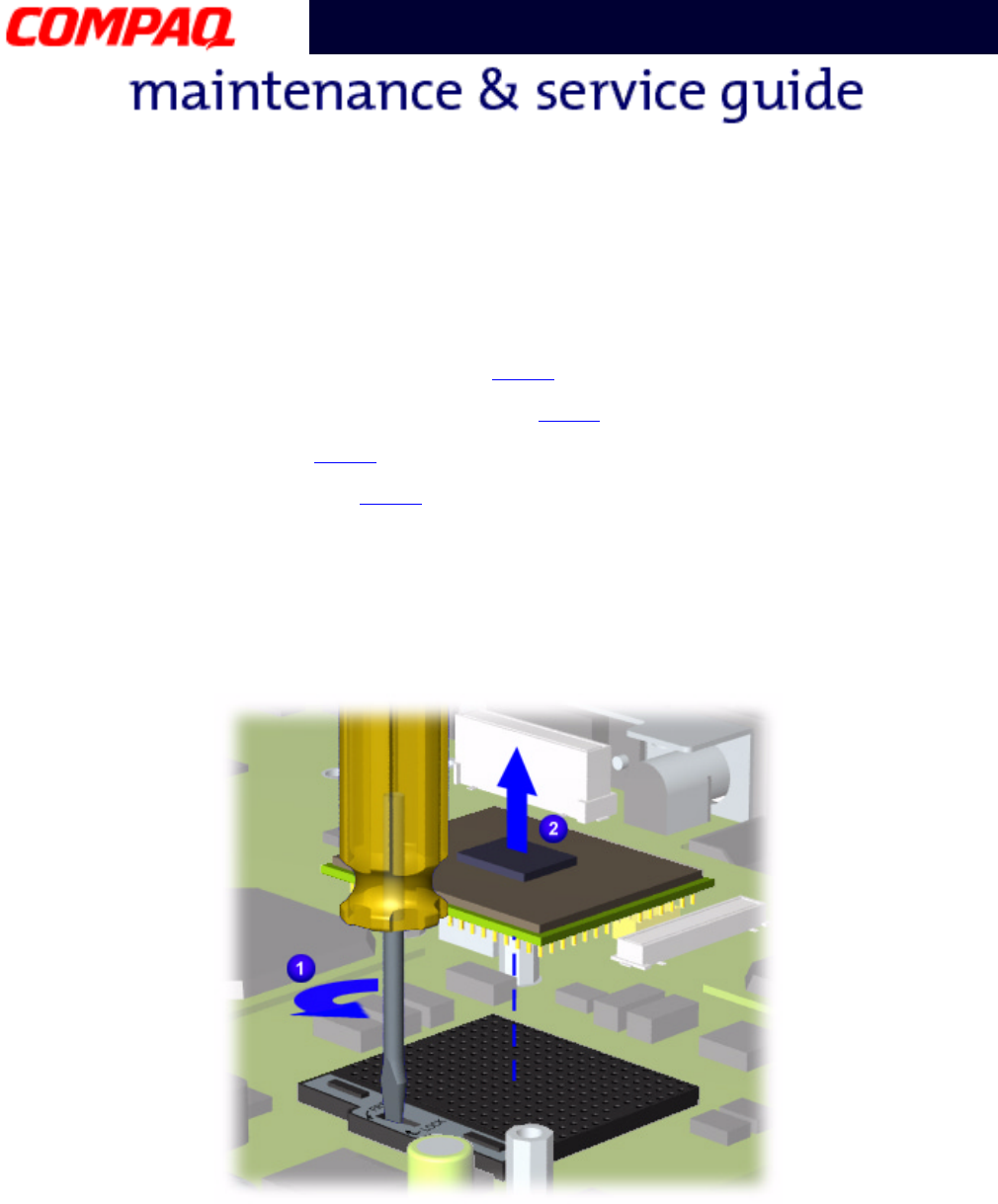
28 REMOVAL AND REPLACEMENT PRESARIO NOTEBOOK MAINTENANCE AND SERVICE GUIDE 1800 SERIES
Presario 1800 Series
Models: XL180, XL181, XL182, XL183, XL185,
and XL190, XL191, XL192
Removing the Processor
To remove the processor, complete the following steps:
1. Prepare the Notebook for disassembly (pg 11).
2. Remove the Palmrest cover with TouchPad (pg 14).
3. Remove the keyboard (pg 17).
4. Remove the Heatspreader (pg 23).
5. If the processor matches the one shown below, proceed with step a below. If the
processor does not match the one shown, skip step a and proceed with step b on the
next page.
a. Place tip of standard screwdriver in center slot, twist screwdriver toward “Free”
until is snaps, and lift processor from the chassis.
Continued on the next page.
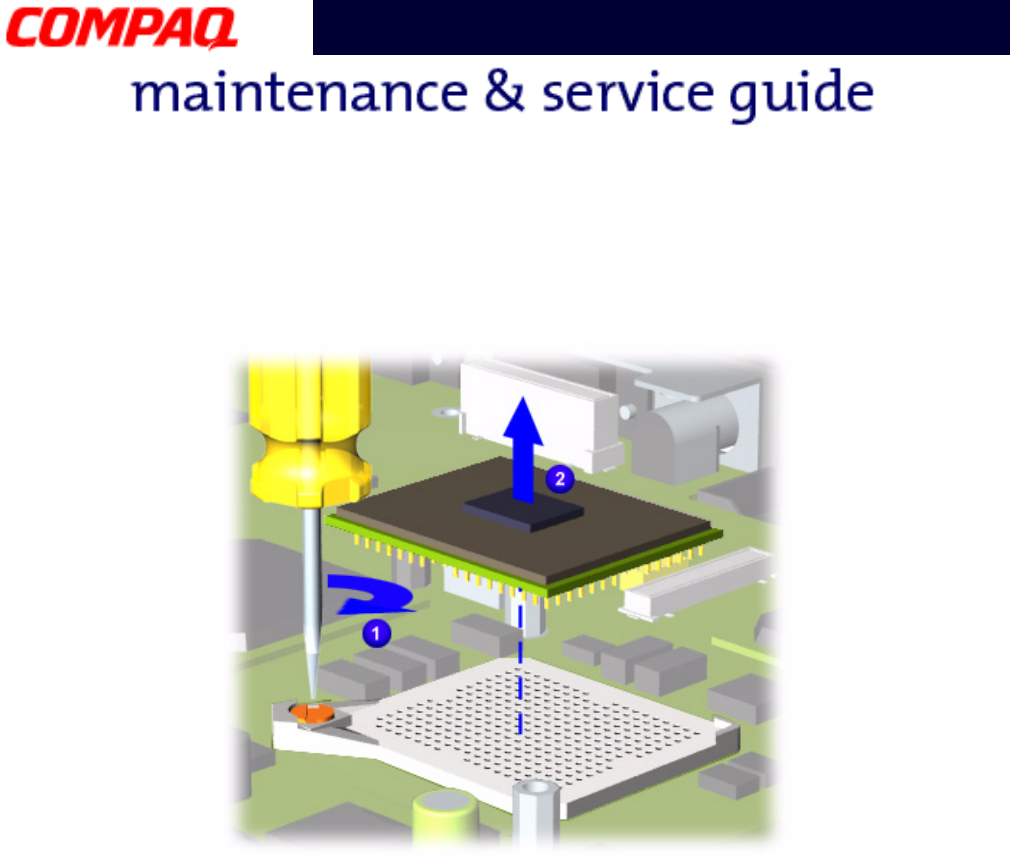
PRESARIO NOTEBOOK MAINTENANCE AND SERVICE GUIDE 1800 SERIES REMOVAL AND REPLACEMENT 29
Presario 1800 Series
Models: XL180, XL181, XL182, XL183, XL185,
and XL190, XL191, XL192
b. With standard screwdriver, turn screw counter-clockwise toward “0” and lift
processor from the chassis.
To replace the processor, perform the following:
1. Fully align the processor connector with the system board connector.
2. Press down carefully on the processor directly over the connectors to seat the
processor.
3. Reassemble the remaining subassemblies by reversing their removal procedures.
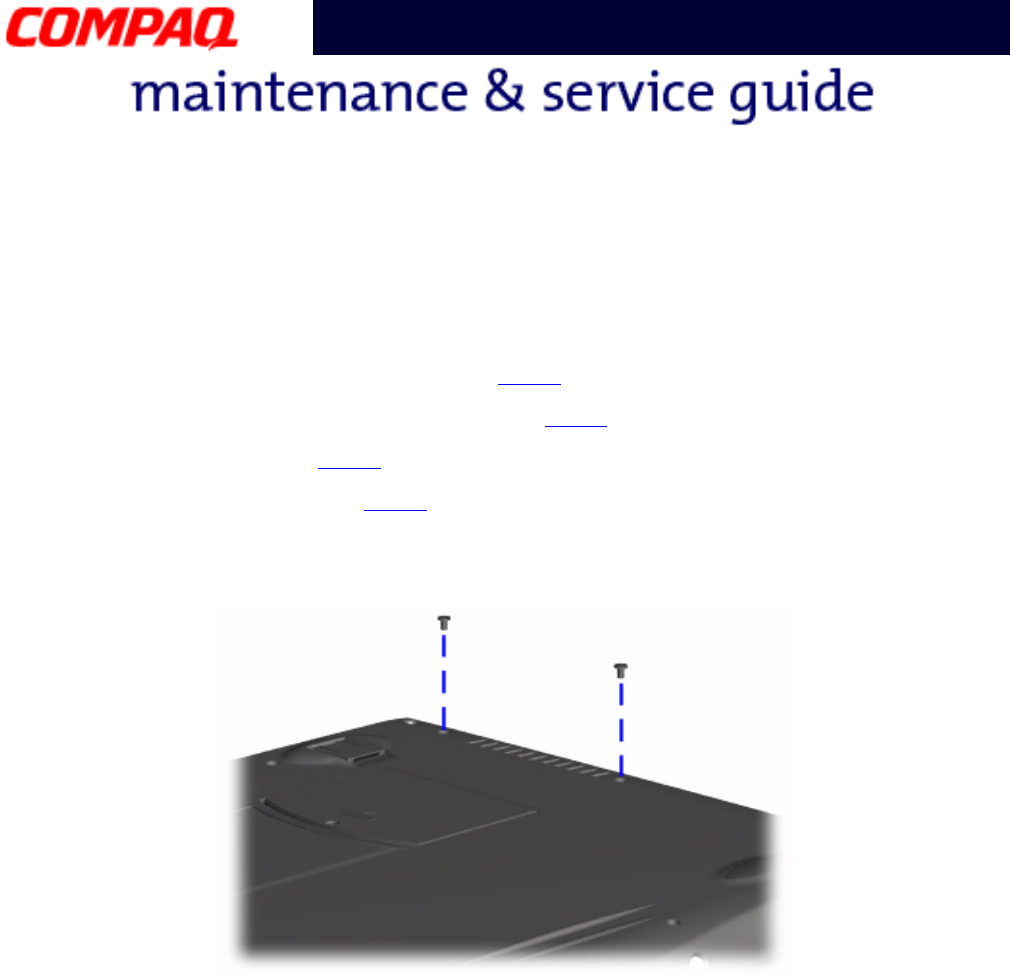
30 REMOVAL AND REPLACEMENT PRESARIO NOTEBOOK MAINTENANCE AND SERVICE GUIDE 1800 SERIES
Presario 1800 Series
Models: XL180, XL181, XL182, XL183, XL185,
and XL190, XL191, XL192
Removing the CD/DVD Drive
To remove the CD/DVD Drive, complete the following steps:
1. Prepare the Notebook for disassembly (pg 11).
2. Remove the Palmrest cover with TouchPad (pg 14).
3. Remove the keyboard (pg 17).
4. Remove the Heatspreader (pg 23).
5. Turn the Notebook over (upside down) and remove the two screws that secure the
CD/DVD drive to the chassis.
Continued on the next page.
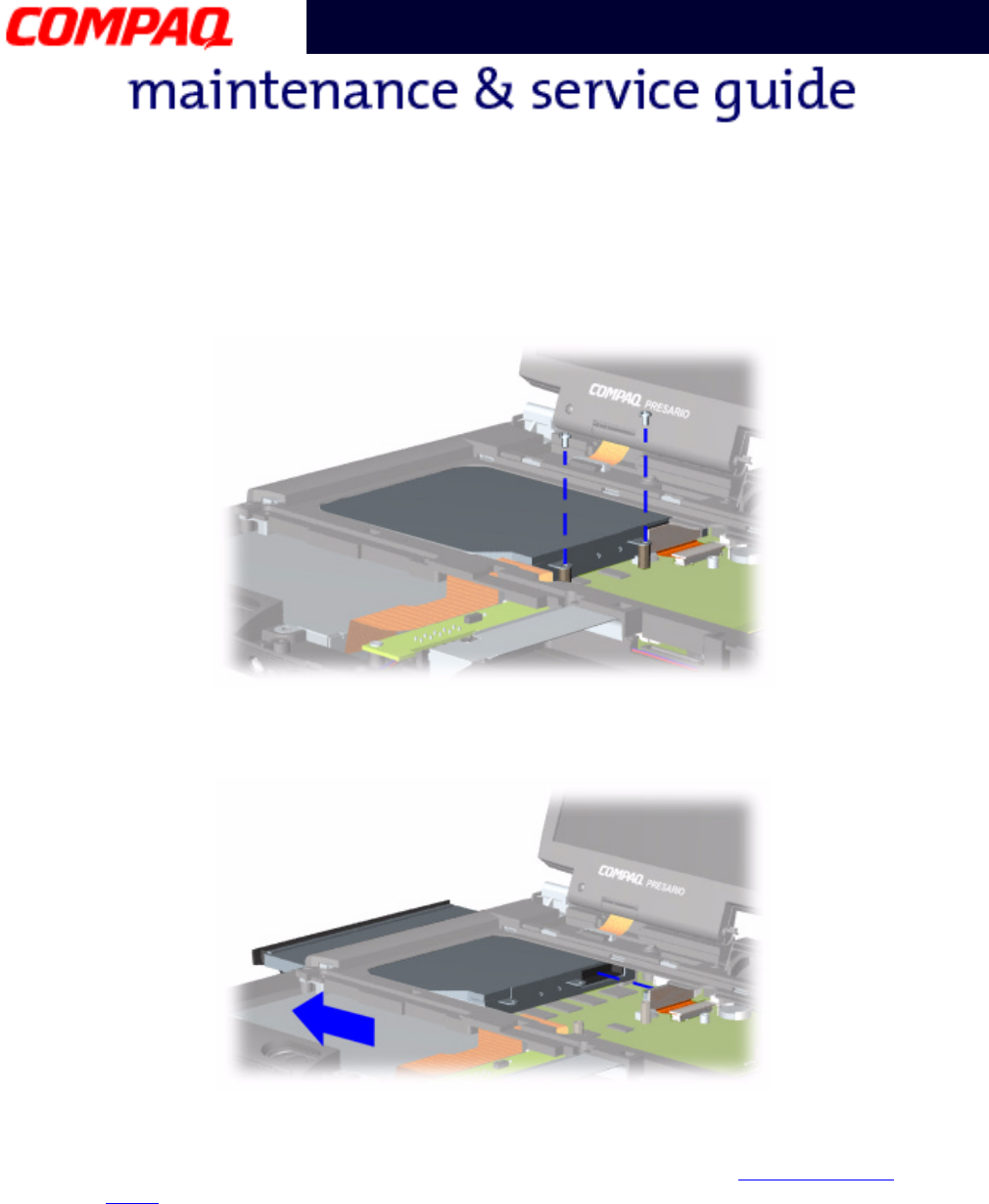
PRESARIO NOTEBOOK MAINTENANCE AND SERVICE GUIDE 1800 SERIES REMOVAL AND REPLACEMENT 31
Presario 1800 Series
Models: XL180, XL181, XL182, XL183, XL185,
and XL190, XL191, XL192
6. Turn the unit over (right side up) and remove the two screws located at the back of
the CD/DVD drive.
7. Disconnect the CD/DVD drive cable and push forward from the back of the drive to
slide the drive out of the chassis.
To replace the CD/DVD drive, reverse these procedures.
Ä
ÄÄ
ÄCAUTION: When replacing the CD/DVD drive, ensure that the CD/DVD Ribbon
Cable is placed in its proper location during the reassembly process. Improper
cable placement can damage the Notebook.
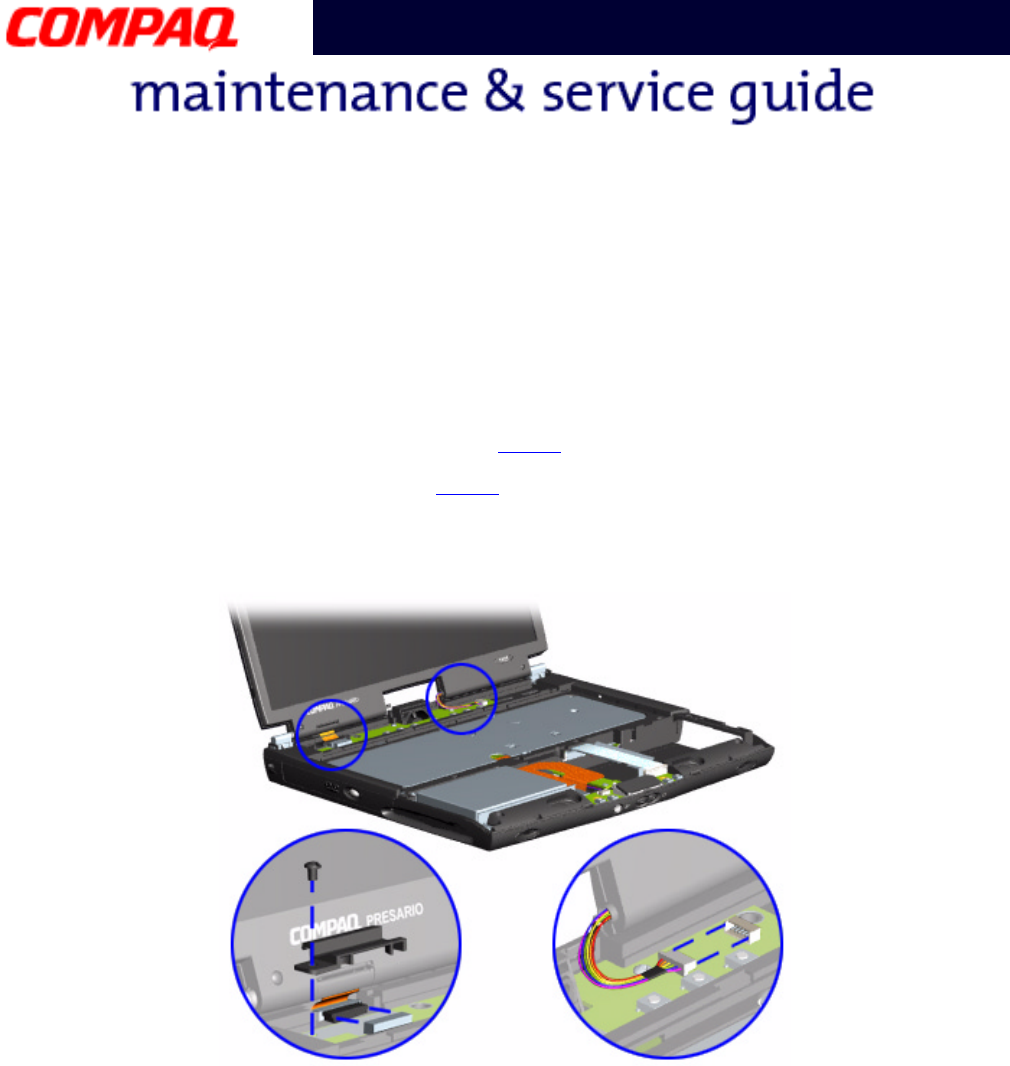
32 REMOVAL AND REPLACEMENT PRESARIO NOTEBOOK MAINTENANCE AND SERVICE GUIDE 1800 SERIES
Presario 1800 Series
Models: XL180, XL181, XL182, XL183, XL185,
and XL190, XL191, XL192
Removing the Display Panel Assembly
Note: Illustrations may show parts removed that are not part of this procedure. It is
necessary to remove only the parts listed in the written procedure.
To remove the display panel assembly, complete the following steps:
1. Prepare the Notebook for disassembly (pg 11).
2. Remove the Internet Zone cover (pg 18).
3. Remove the screw securing the display flex cable bracket and disconnect the display
flex cable and backlight cable from the Internet button board.
Continued on the next page.
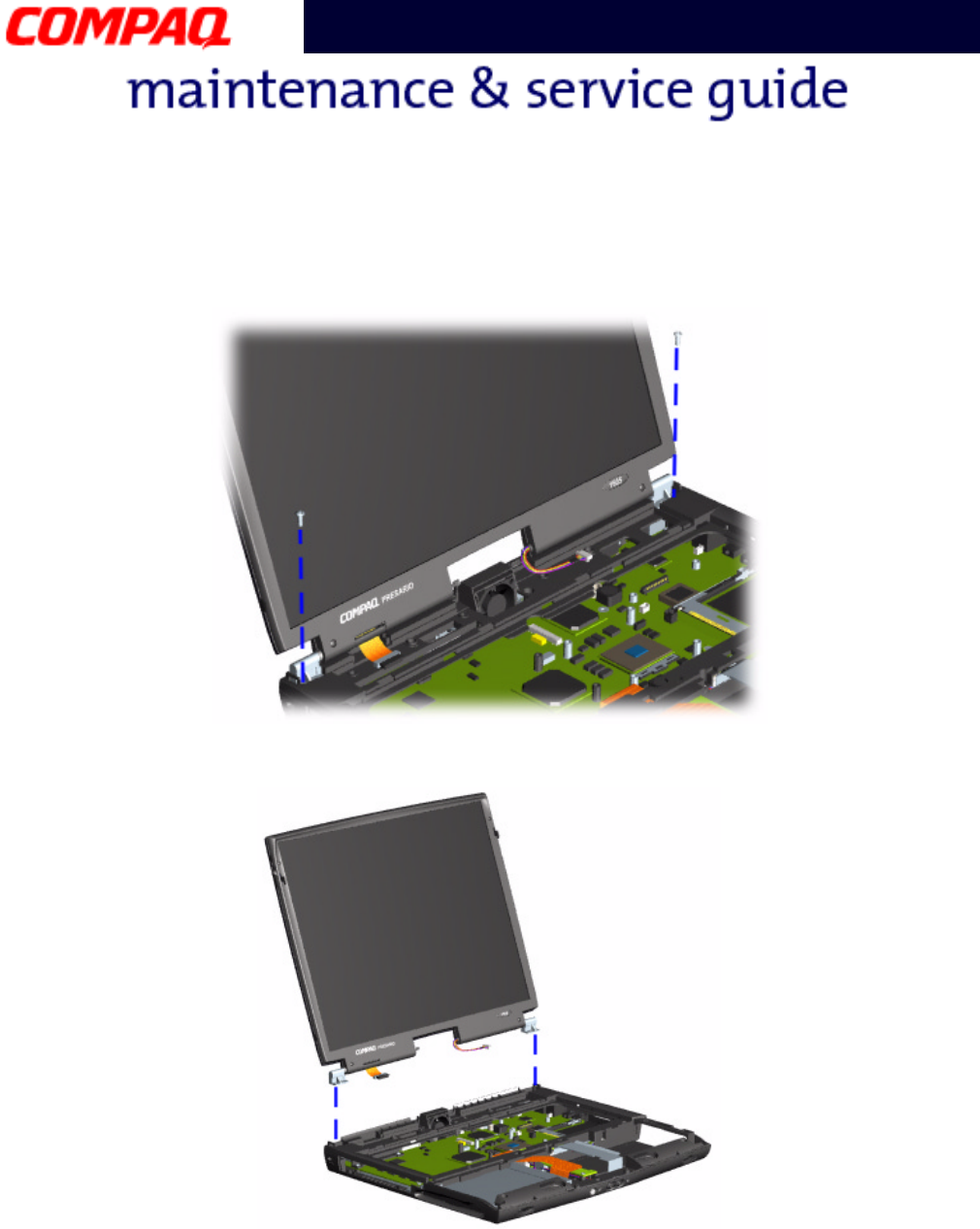
PRESARIO NOTEBOOK MAINTENANCE AND SERVICE GUIDE 1800 SERIES REMOVAL AND REPLACEMENT 33
Presario 1800 Series
Models: XL180, XL181, XL182, XL183, XL185,
and XL190, XL191, XL192
4. Remove the two outermost screws securing the display panel to the chassis.
5. Remove the display assembly from the chassis.
To replace the display panel, reverse these procedures.
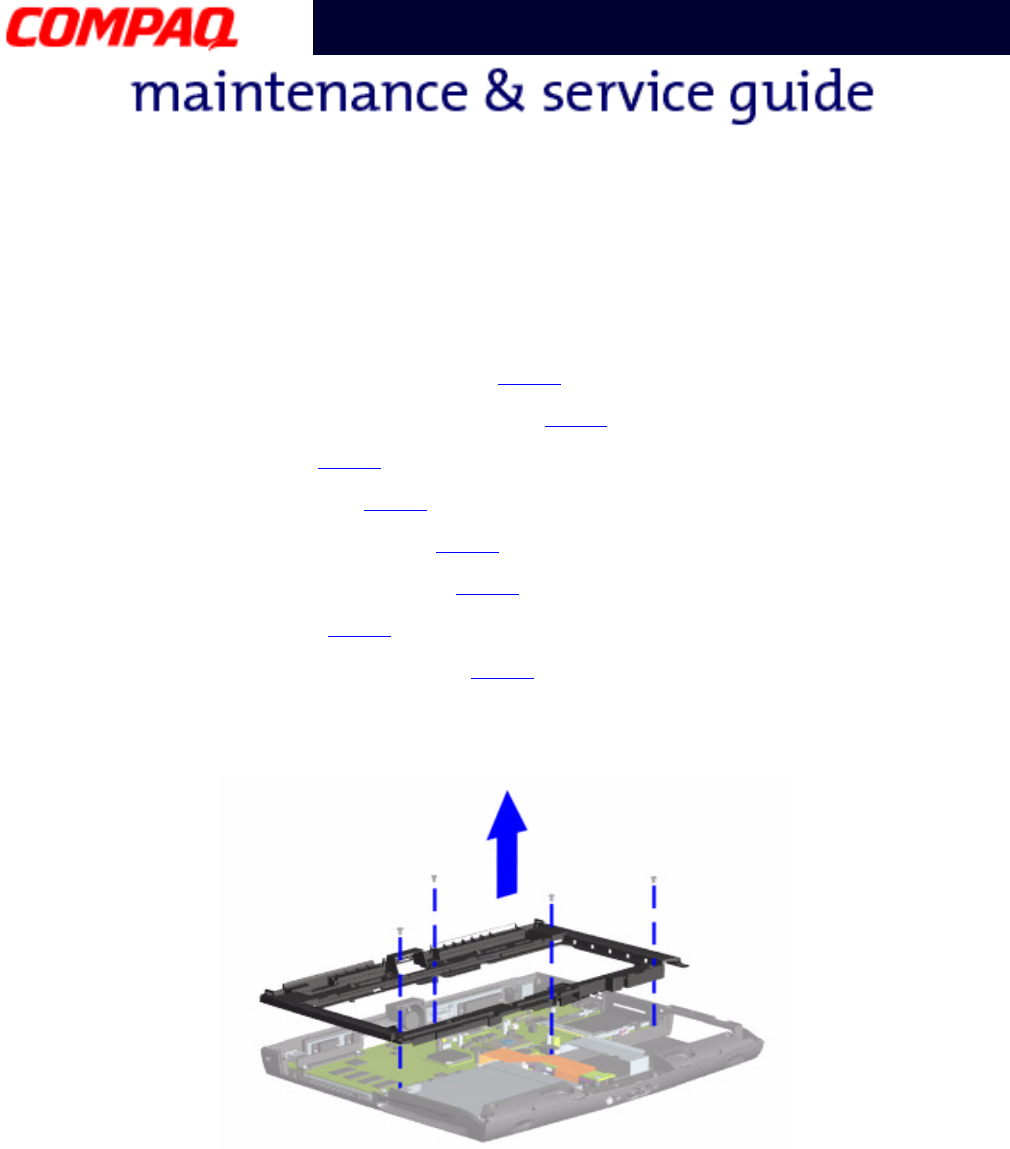
34 REMOVAL AND REPLACEMENT PRESARIO NOTEBOOK MAINTENANCE AND SERVICE GUIDE 1800 SERIES
Presario 1800 Series
Models: XL180, XL181, XL182, XL183, XL185,
and XL190, XL191, XL192
Removing the Upper CPU Cover
To remove the upper CPU cover, complete the following:
1. Prepare the Notebook for disassembly (pg 11).
2. Remove the Palmrest cover with TouchPad (pg 14).
3. Remove the keyboard (pg 17).
4. Remove the Heatspreader (pg 23).
5. Remove the Internet Zone cover (pg 18).
6. Remove the Internet button board (pg 21).
7. Remove the hard drive (pg 25).
8. Remove the display panel assembly (pg 32).
9. Remove four screws located on the top of the upper CPU cover and lift the cover off
the chassis.
To replace the upper CPU cover, reverse these procedures.
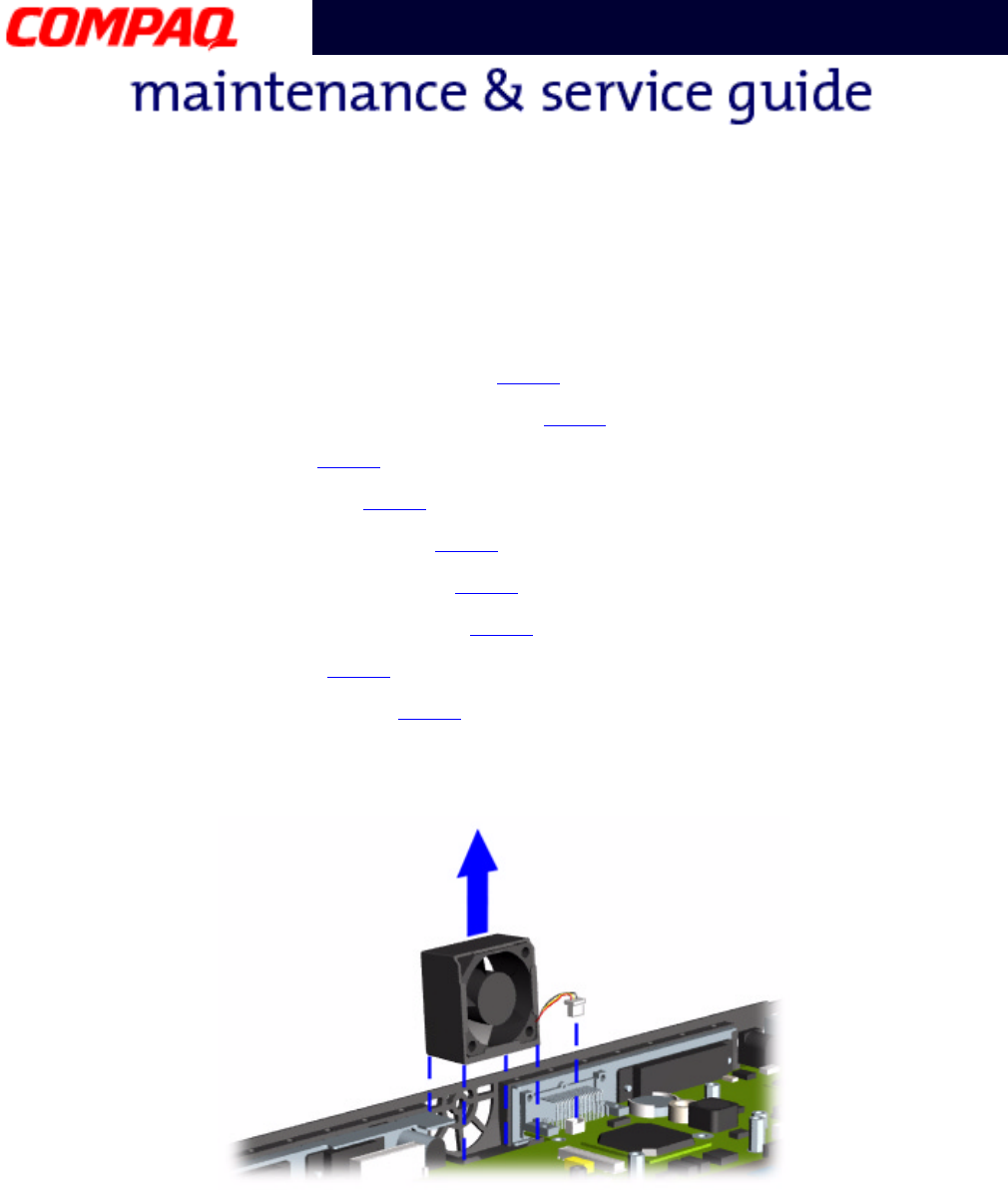
PRESARIO NOTEBOOK MAINTENANCE AND SERVICE GUIDE 1800 SERIES REMOVAL AND REPLACEMENT 35
Presario 1800 Series
Models: XL180, XL181, XL182, XL183, XL185,
and XL190, XL191, XL192
Removing the Fan Assembly
To remove the fan assembly, complete the following:
1. Prepare the Notebook for disassembly (pg 11).
2. Remove the Palmrest cover with TouchPad (pg 14).
3. Remove the keyboard (pg 17).
4. Remove the Heatspreader (pg 23).
5. Remove the Internet Zone cover (pg 18).
6. Remove the Internet button board (pg 21).
7. Remove the display panel assembly (pg 32).
8. Remove the hard drive (pg 25).
9. Remove the upper CPU cover (pg 34).
10. Disconnect the fan cable from the connector on the system board and lift the fan
assembly from the chassis slot.
Continued on the next page.
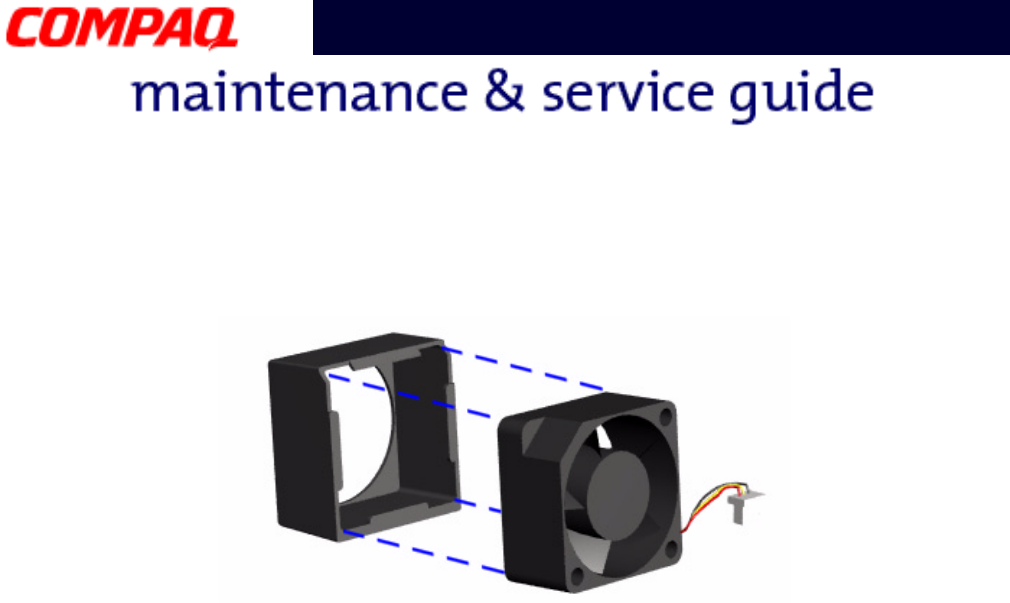
36 REMOVAL AND REPLACEMENT PRESARIO NOTEBOOK MAINTENANCE AND SERVICE GUIDE 1800 SERIES
Presario 1800 Series
Models: XL180, XL181, XL182, XL183, XL185,
and XL190, XL191, XL192
To remove the fan gasket, pull the gasket from the fan.
To replace the fan assembly and gasket, reverse these procedures.
Important: When replacing the fan assembly ensure that the arrow (located on the side
of the fan near the connector) is pointing inward.
PRESARIO NOTEBOOK MAINTENANCE AND SERVICE GUIDE 1800 SERIES REMOVAL AND REPLACEMENT 37
Presario 1800 Series
Models: XL180, XL181, XL182, XL183, XL185,
and XL190, XL191, XL192
Removing the Real Time Clock Battery
Ä
ÄÄ
ÄCAUTION: Removing the RTC battery clears the power-on password and removes
all setup attributes that are programmed in the CMOS.
To remove the RTC battery, complete the following steps:
1. Prepare the Notebook for disassembly (pg 11).
2. Remove the Palmrest cover with TouchPad (pg 14).
3. Remove the keyboard (pg 17).
4. Remove the Heatspreader (pg 23).
5. Remove the Internet Zone cover (pg 18).
6. Remove the Internet button board (pg 21).
7. Remove the hard drive (pg 25).
8. Remove the upper CPU cover (pg 34).
Continued on the next page.
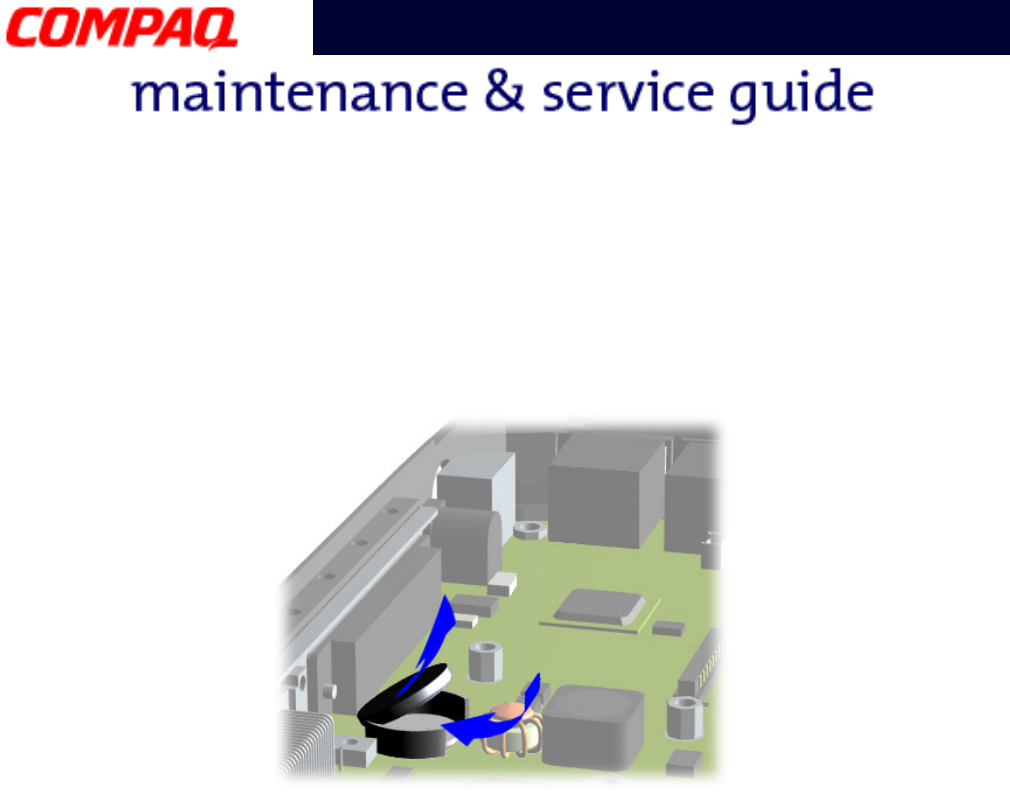
38 REMOVAL AND REPLACEMENT PRESARIO NOTEBOOK MAINTENANCE AND SERVICE GUIDE 1800 SERIES
Presario 1800 Series
Models: XL180, XL181, XL182, XL183, XL185,
and XL190, XL191, XL192
9. Locate the RTC battery on the system board behind the CD/DVD drive near the back
of the unit.
10. Using your fingers or a small non-metallic object, gently pry the RTC battery upward
and remove it from the battery socket.
To replace the RTC battery, press the battery firmly into the socket and reassemble the
remaining components by reversing their removal procedures.
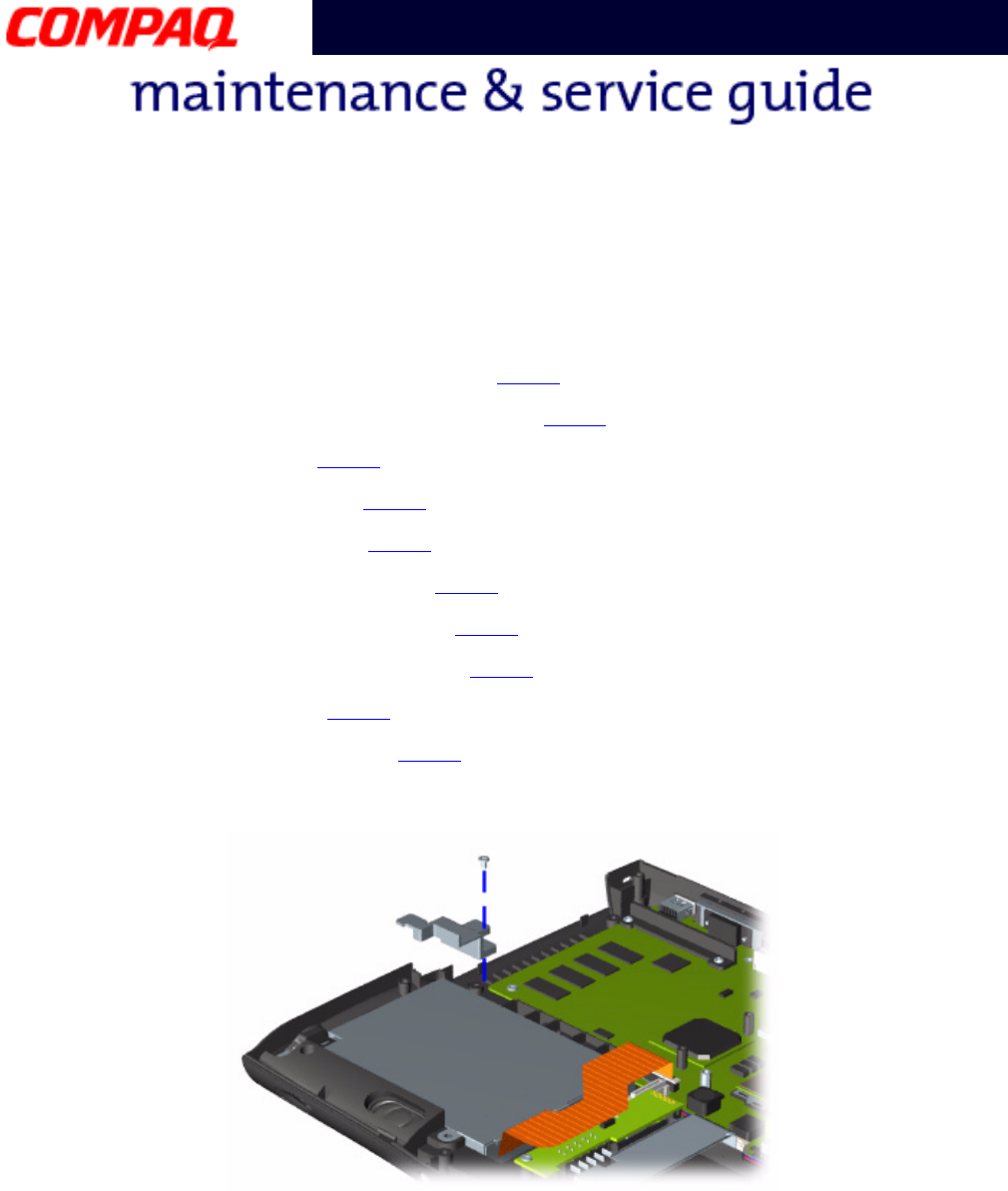
PRESARIO NOTEBOOK MAINTENANCE AND SERVICE GUIDE 1800 SERIES REMOVAL AND REPLACEMENT 39
Presario 1800 Series
Models: XL180, XL181, XL182, XL183, XL185,
and XL190, XL191, XL192
Removing the Diskette Drive
To remove the diskette drive, complete the following steps:
1. Prepare the Notebook for disassembly (pg 11).
2. Remove the Palmrest cover with TouchPad (pg 14).
3. Remove the keyboard (pg 17).
4. Remove the Heatspreader (pg 23).
5. Remove the CD/DVD drive (pg 30).
6. Remove the Internet Zone cover (pg 18).
7. Remove the Internet button board (pg 21).
8. Remove the display panel assembly (pg 32).
9. Remove the hard drive (pg 25).
10. Remove the upper CPU cover (pg 34).
11. Remove the screw from the diskette drive retaining bracket.
Continued on the next page.
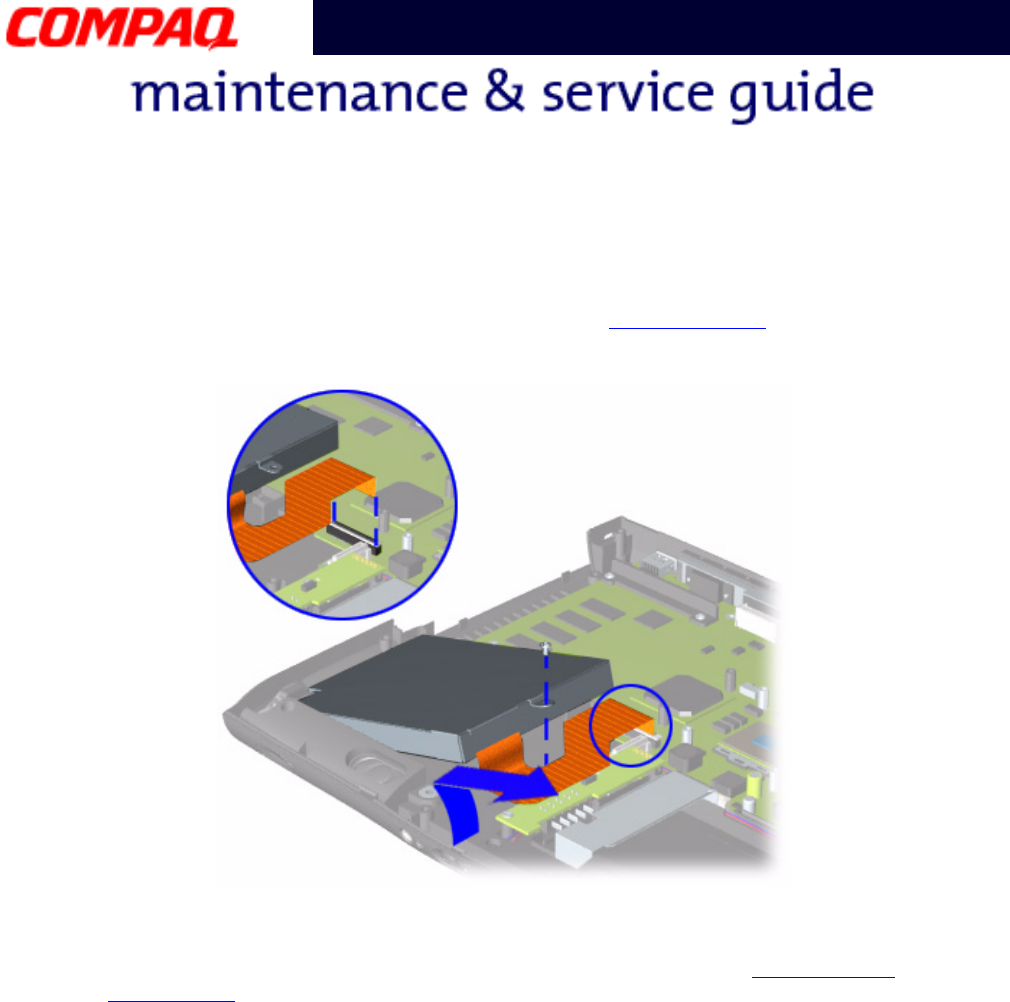
40 REMOVAL AND REPLACEMENT PRESARIO NOTEBOOK MAINTENANCE AND SERVICE GUIDE 1800 SERIES
Presario 1800 Series
Models: XL180, XL181, XL182, XL183, XL185,
and XL190, XL191, XL192
12. Remove the screw that connects the diskette drive bracket to the chassis.
13. Disconnect the diskette drive data cable from the ZIF Connector on the system board
and lift the diskette drive from the chassis.
To replace the diskette drive, reverse these procedures.
Ä
ÄÄ
ÄCAUTION: When replacing the diskette drive, ensure that the Diskette Drive
Ribbon Cable is placed in its proper location during the reassembly process.
Improper cable placement can damage the Notebook.
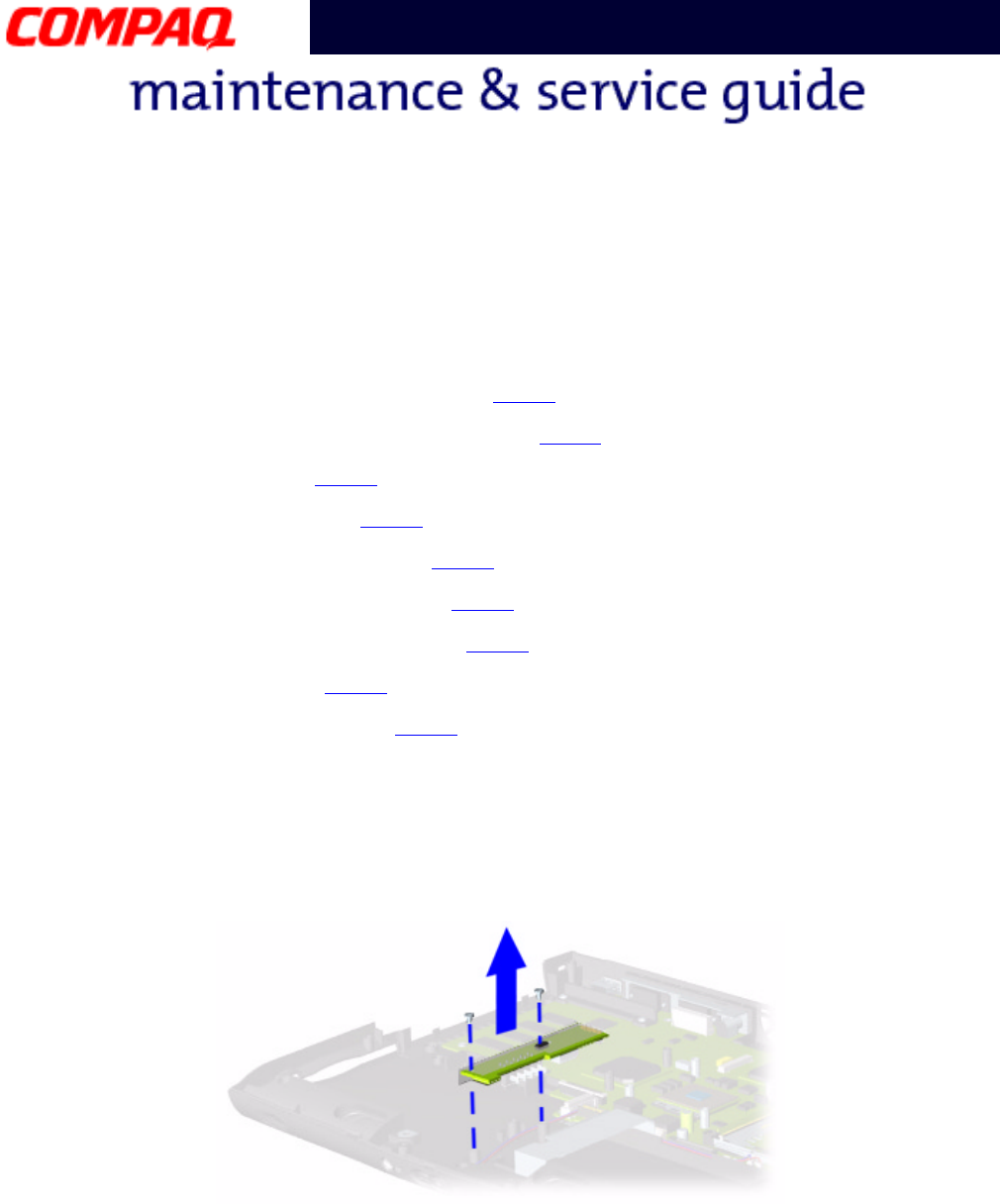
PRESARIO NOTEBOOK MAINTENANCE AND SERVICE GUIDE 1800 SERIES REMOVAL AND REPLACEMENT 41
Presario 1800 Series
Models: XL180, XL181, XL182, XL183, XL185,
and XL190, XL191, XL192
Removing the Battery Charger Board
(Voltage Converter Board)
To remove the battery charger board, complete the following:
1. Prepare the Notebook for disassembly (pg 11).
2. Remove the Palmrest cover with TouchPad (pg 14).
3. Remove the keyboard (pg 17).
4. Remove the Heatspreader (pg 23).
5. Remove the Internet Zone cover (pg 18).
6. Remove the Internet button board (pg 21).
7. Remove the display panel assembly (pg 32).
8. Remove the hard drive (pg 25).
9. Remove the upper CPU cover (pg 34).
10. Remove two screws from the battery charger board and unplug the board from the
connector on the system board.
11. Lift the battery charger board out of the chassis.
Note: Retain plastic insulator for reassembly with replacement battery charger board.
To replace the battery charger board, reverse these procedures.
Important: When replacing the battery charger board, ensure that the pins are aligned
with the connector on the system board.
42 REMOVAL AND REPLACEMENT PRESARIO NOTEBOOK MAINTENANCE AND SERVICE GUIDE 1800 SERIES
Presario 1800 Series
Models: XL180, XL181, XL182, XL183, XL185,
and XL190, XL191, XL192
Removing the Speaker Assembly
To remove the speaker assembly, complete the following:
1. Prepare the Notebook for disassembly (pg 11).
2. Remove the Palmrest cover with TouchPad (pg 14).
3. Remove the keyboard (pg 17).
4. Remove the Heatspreader (pg 23).
5. Remove the Internet Zone cover (pg 18).
6. Remove the Internet button board (pg 21).
7. Remove the display panel assembly (pg 32).
8. Remove the hard drive (pg 25).
9. Remove the upper CPU cover (pg 34).
10. Remove the battery charger board (pg 41).
Continued on the next page.
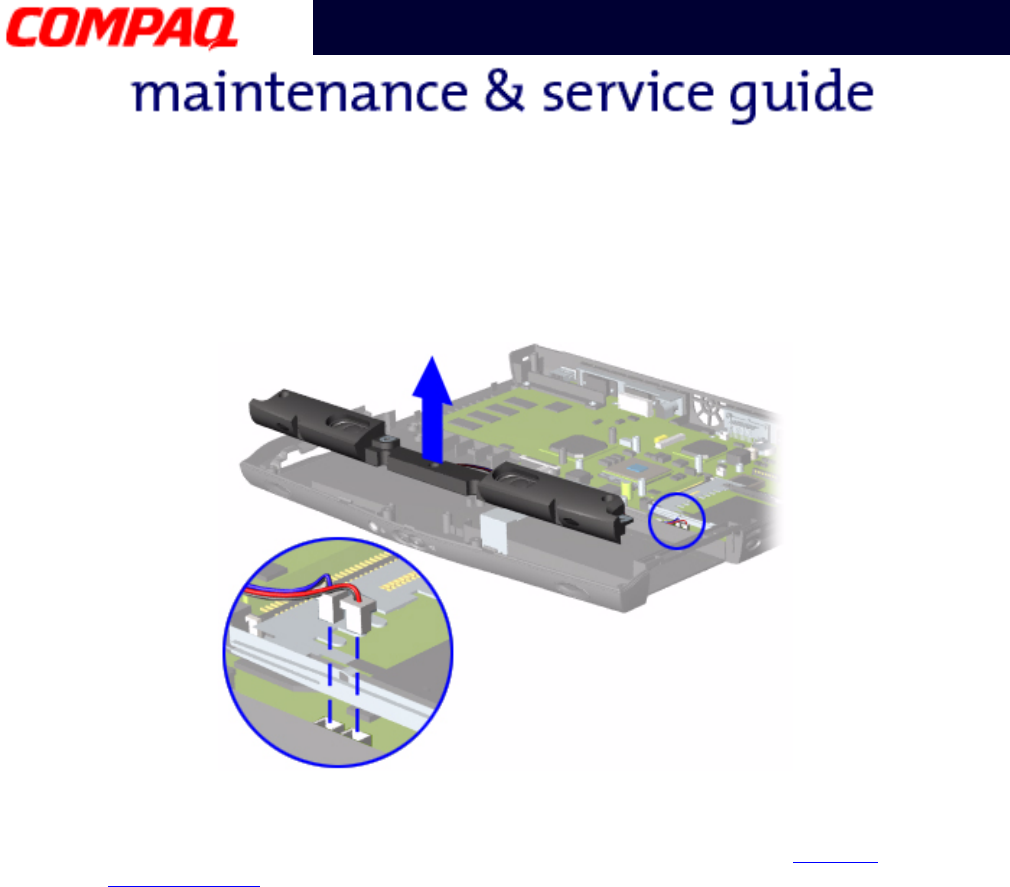
PRESARIO NOTEBOOK MAINTENANCE AND SERVICE GUIDE 1800 SERIES REMOVAL AND REPLACEMENT 43
Presario 1800 Series
Models: XL180, XL181, XL182, XL183, XL185,
and XL190, XL191, XL192
11. Disconnect the speaker cables from the system board and lift the speaker assembly
from the chassis.
To replace the speaker assembly, reverse these procedures.
Ä
ÄÄ
ÄCAUTION: When replacing the speaker assembly, ensure that the Speaker
Assembly Cable is placed in its proper location. Improper cable placement can
damage the Notebook.
44 REMOVAL AND REPLACEMENT PRESARIO NOTEBOOK MAINTENANCE AND SERVICE GUIDE 1800 SERIES
Presario 1800 Series
Models: XL180, XL181, XL182, XL183, XL185,
and XL190, XL191, XL192
Removing the System Board
To remove the system board, complete the following steps:
1. Prepare the Notebook for disassembly (pg 11).
2. Remove the Palmrest cover with TouchPad (pg 14).
3. Remove the keyboard (pg 17).
4. Remove the Heatspreader (pg 23).
5. Remove the Internet Zone cover (pg 18).
6. Remove the Internet button board (pg 21).
7. Remove the display panel assembly (pg 32).
8. Remove the hard drive (pg 25).
9. Remove the upper CPU cover (pg 34).
10. Remove the DisqPlay Module cable from the system board.
11. Remove the modem (pg 24).
12. Remove the CD/DVD drive (pg 30).
13. Remove the fan assembly (pg 35).
14. Remove the diskette drive cable from the system board.
15. Remove the battery charger board (pg 41).
16. Disconnect the speaker assembly cables from the system board (pg 43).
Continued on the next page.
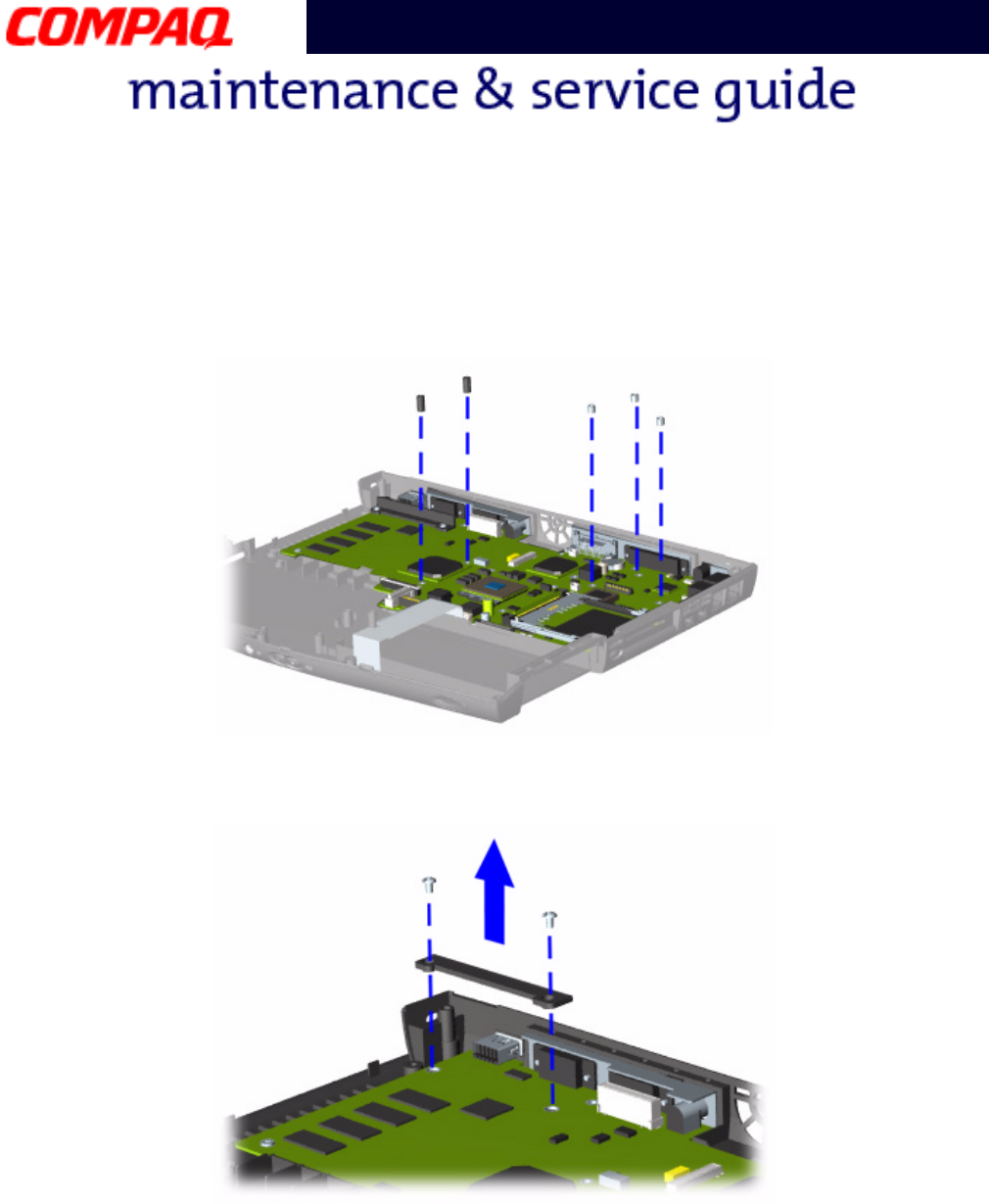
PRESARIO NOTEBOOK MAINTENANCE AND SERVICE GUIDE 1800 SERIES REMOVAL AND REPLACEMENT 45
Presario 1800 Series
Models: XL180, XL181, XL182, XL183, XL185,
and XL190, XL191, XL192
17. Remove the five standoffs from the system board.
Note: The four remaining standoffs located on the system board may be left in place.
18. Remove the two screws from the CD/DVD drive mounting rail and lift the mounting
rail from the system board.
Continued on the next page.
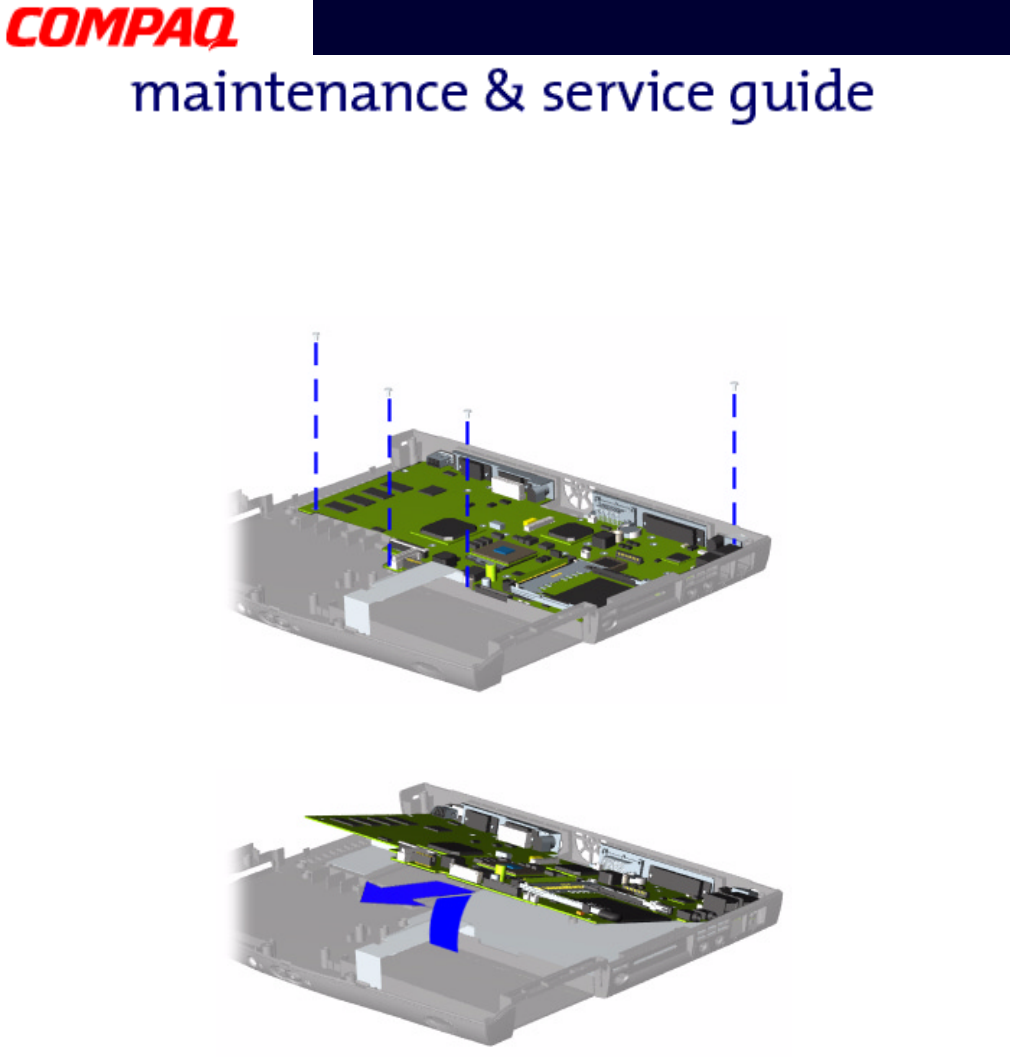
46 REMOVAL AND REPLACEMENT PRESARIO NOTEBOOK MAINTENANCE AND SERVICE GUIDE 1800 SERIES
Presario 1800 Series
Models: XL180, XL181, XL182, XL183, XL185,
and XL190, XL191, XL192
19. Remove four screws from the system board.
20. Lift up the front and pull forward to remove the system board from the chassis.
To replace the system board, reverse these procedures.
Important: Before replacing the system board, remove all remaining cables.
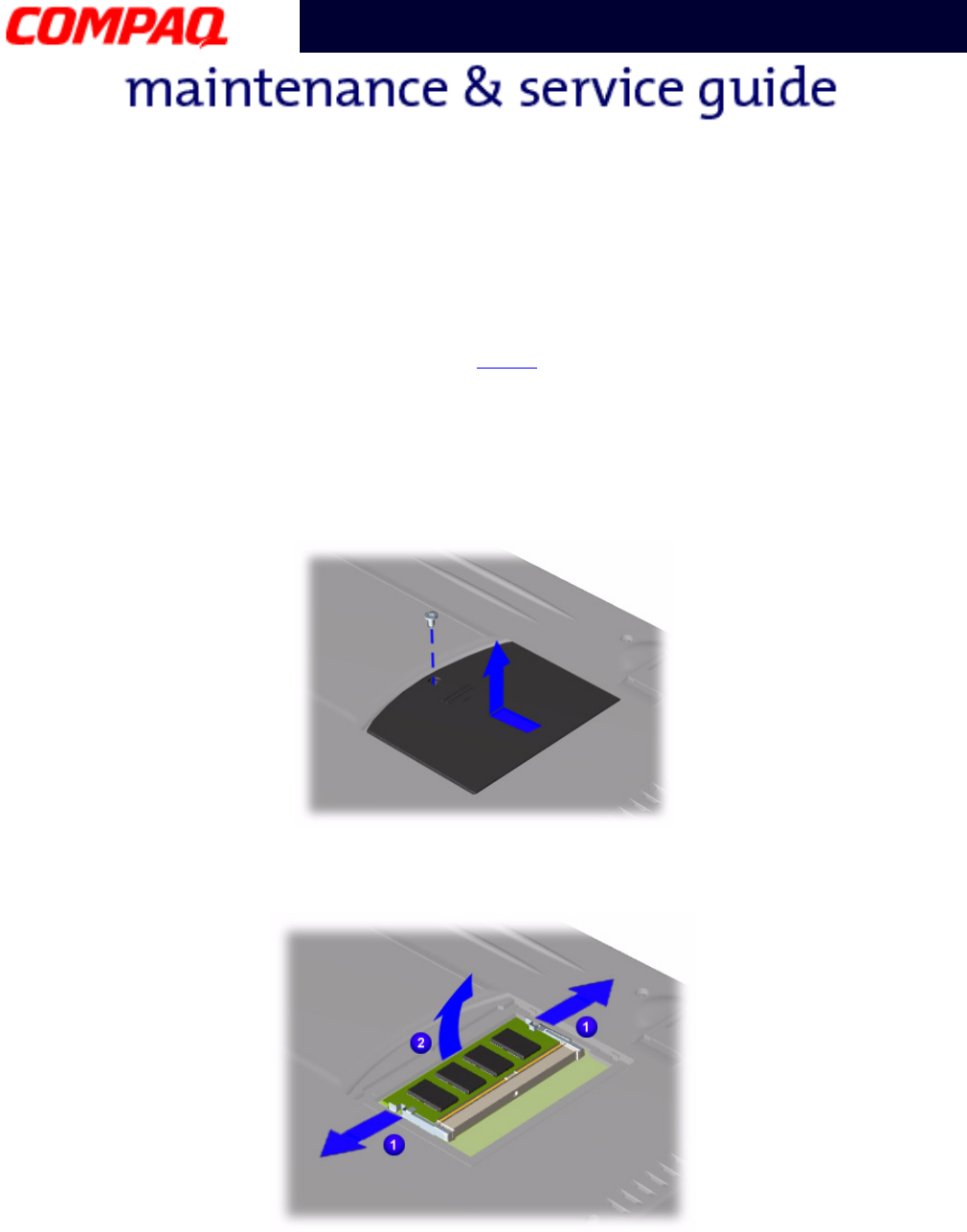
PRESARIO NOTEBOOK MAINTENANCE AND SERVICE GUIDE 1800 SERIES REMOVAL AND REPLACEMENT 47
Presario 1800 Series
Models: XL180, XL181, XL182, XL183, XL185,
and XL190, XL191, XL192
Removing the Memory Module
To remove the memory module, complete the following steps:
1. Prepare the Notebook for disassembly (pg 11).
2. Close the display and turn the Notebook over (upside down).
3. Remove the screw from the memory module door.
4. With the front of the Notebook facing you, slide the memory module door to the left
and lift.
5. 1 Pull the side levers to release the module and 2 unplug the memory module from
the system board.
To replace the memory module, reverse these procedures.
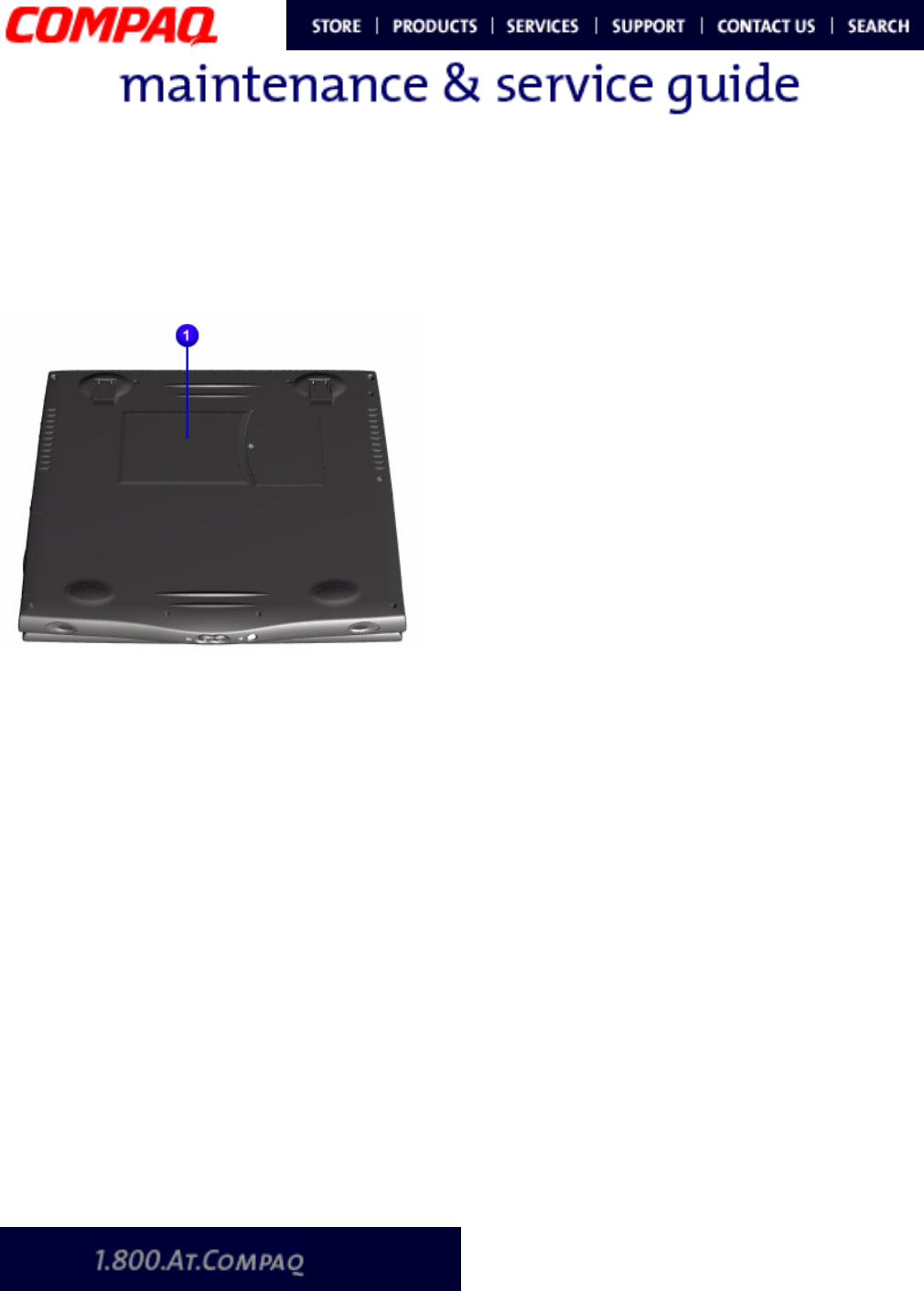
PRESARIO NOTEBOOK MAINTENANCE AND SERVICE GUIDE 1800 SERIES ILLUSTRATED PARTS CATALOG 1
Presario 1800 Series
Models: XL180, XL181, XL182, XL183, XL185,
and XL190, XL191, XL192
Illustrated Parts Catalog
This chapter provides illustrations of the spare
parts for Presario 1800XL Series Notebooks.
The Notebook serial number is required when
customers request information or order spare
parts. The serial number 1 is located on the
underside of the unit.
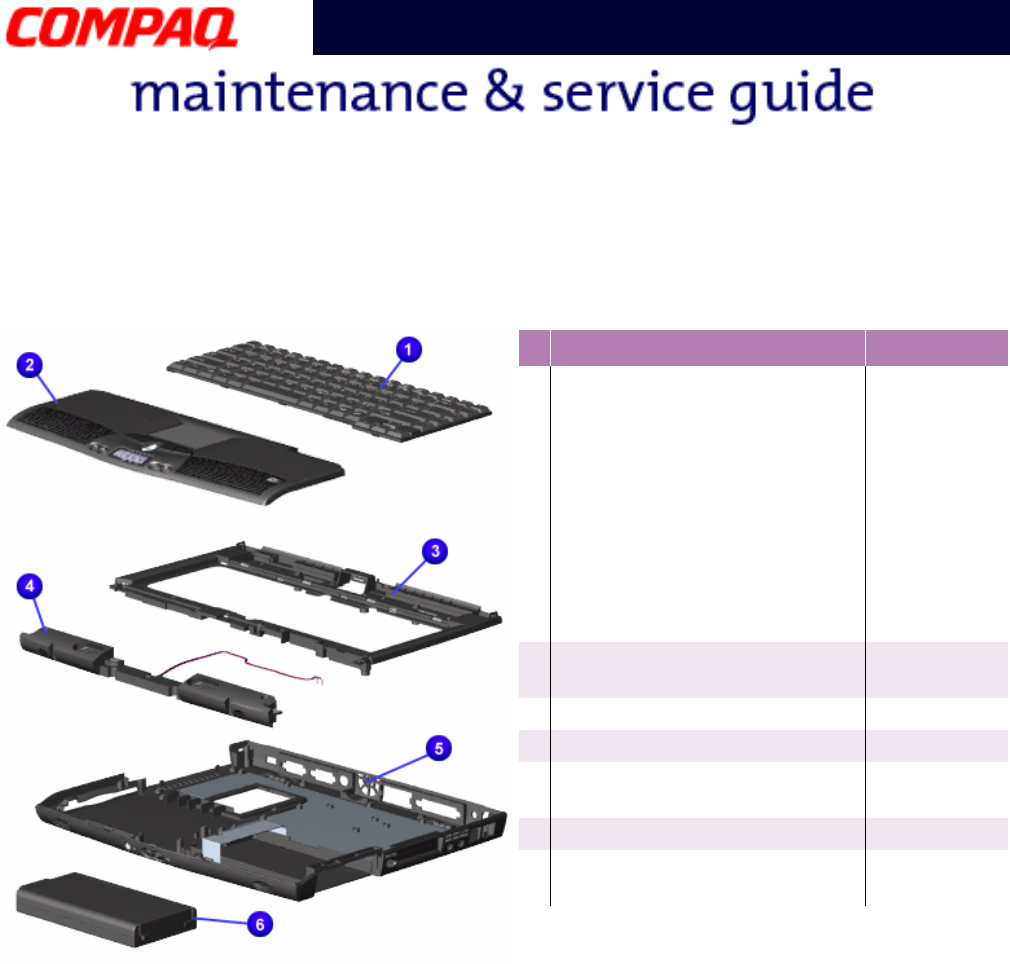
2 ILLUSTRATED PARTS CATALOG PRESARIO NOTEBOOK MAINTENANCE AND SERVICE GUIDE 1800 SERIES
Presario 1800 Series
Models: XL180, XL181, XL182, XL183, XL185,
and XL190, XL191, XL192
System Units
#Description Part No.
1Keyboards 171819-xxx
US -001
NL -331
FR -051
IT -061
GR -041
UK -031
138180-xxx
UK -031
GR -041
FR -051
2Palmrest Cover w/ Touchpad
and Button Board
138181-001
3CPU Cover w/ Power Switch 138183-001
4Speaker Assembly w/Cables 138185-001
5Enclosure Base (I)
Enclosure Base (II)
138182-001
171816-001
6Battery Pack Li-Ion Enhanced 138184-001
7Button Board Cover
(not shown)
143926-001
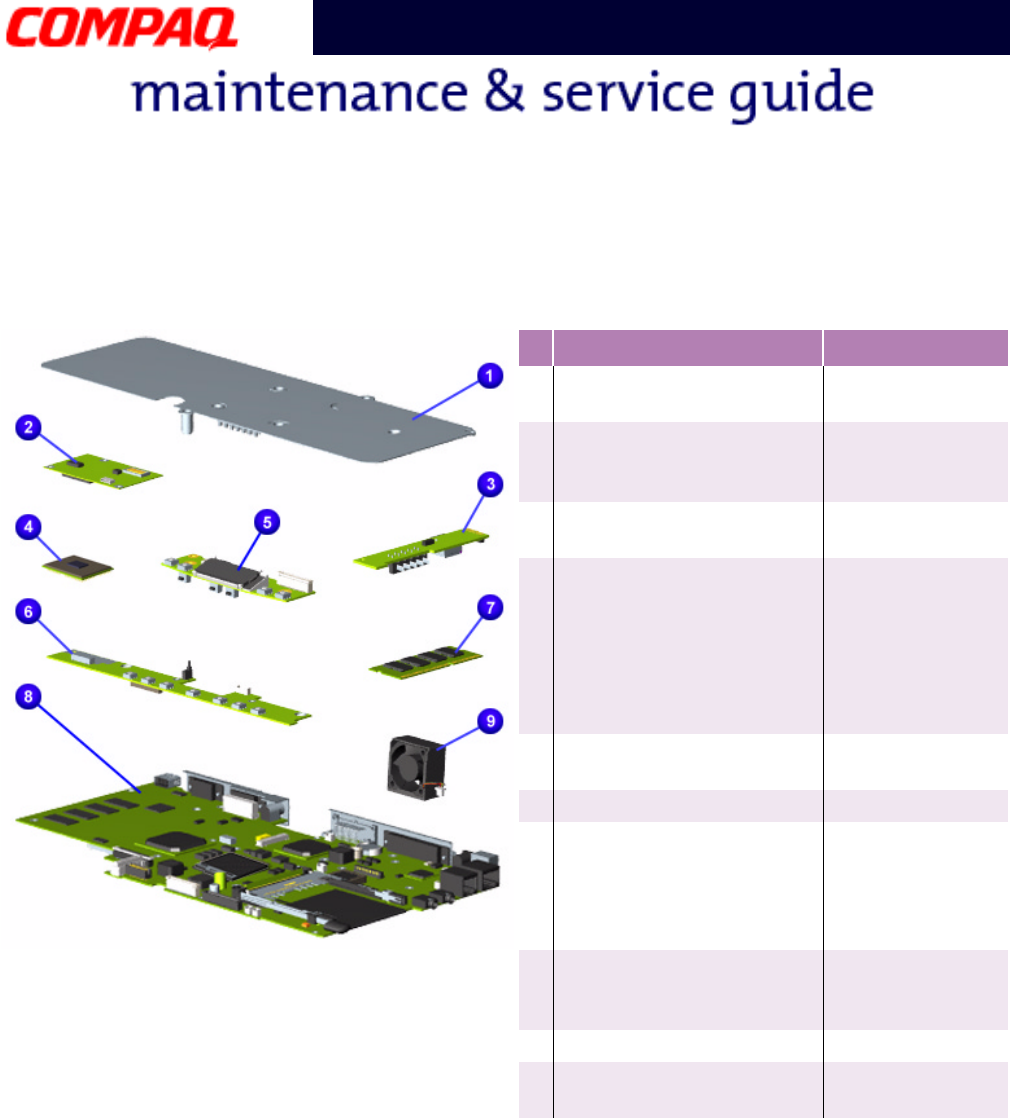
PRESARIO NOTEBOOK MAINTENANCE AND SERVICE GUIDE 1800 SERIES ILLUSTRATED PARTS CATALOG 3
Presario 1800 Series
Models: XL180, XL181, XL182, XL183, XL185,
and XL190, XL191, XL192
System Boards
#Description Part No.
1Heatspreader
Heatspreader
159698-001 (I)
171817-001 (II)
2Modem 56K Data/Fax
w/o SRAM -US
-Int’l
400445-001
143848-001
3Voltage Converter Board
(battery charger)
138177-001 (I)
171815-001 (II)
4Processors
PIII 500MHz 256K Cache
MMC-2
uPGA2
PII 600MHz 256K Cache
uPGA2
C500MHz 128K Cache
161492-001
173755-001
175319-001
179454-001
5LCD Indicator Module
(not shown)
138187-001 (I)
177457-001 (II)
6Internet Button Board 138186-001
7Memory S.O. Dimm
32 Mb PC100
64 Mb PC100
128 Mb PC100
256 Mb PC100
122699-001
122700-001
123930-001
175325-001
8System I/O Boards w/
64 Mb SDRAM
171813-001
158804-001
(Mobility-P)
9Fan Assembly 138162-001
-PCI Ethernet 10/100T
LAN Card (not shown)
138164-001
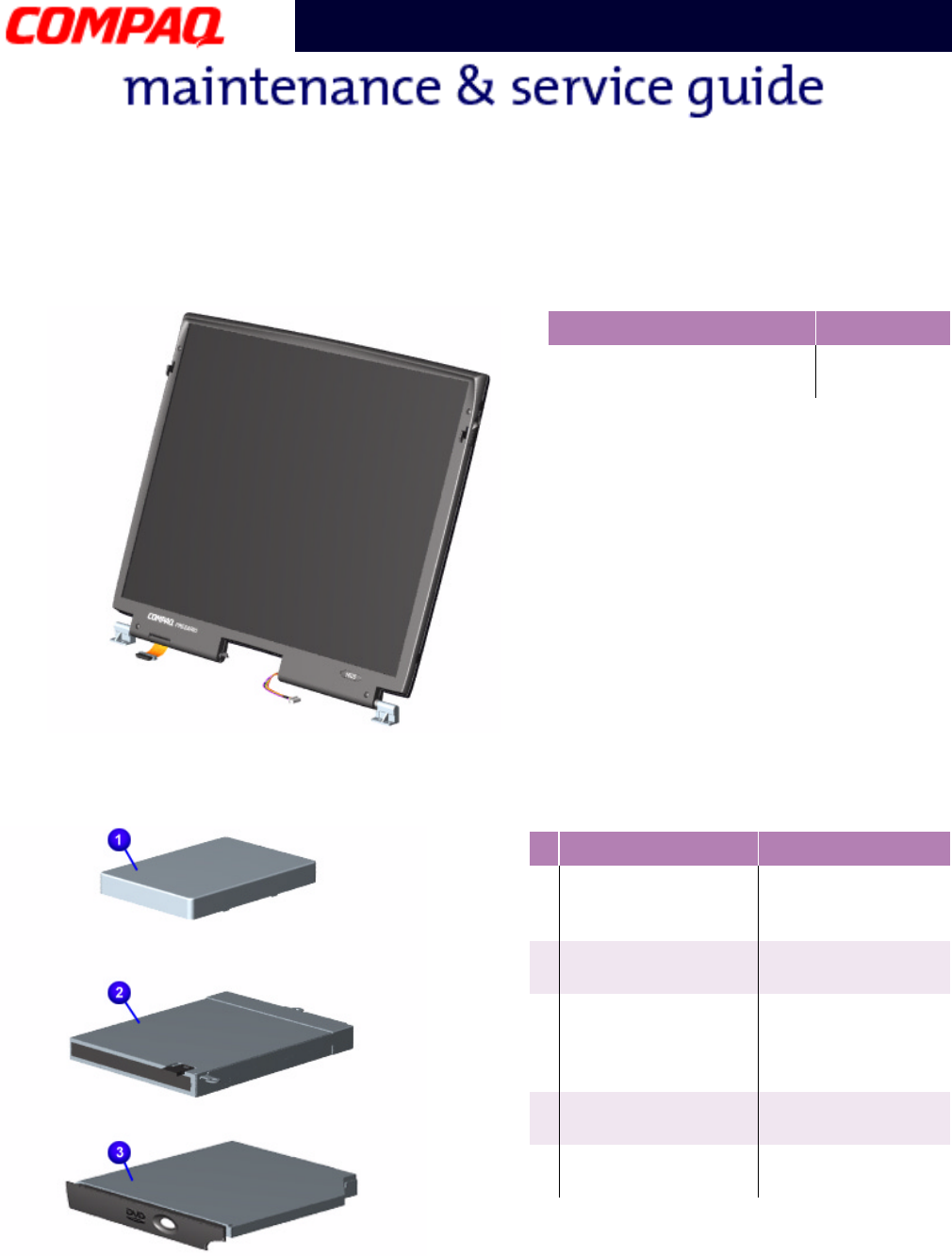
4 ILLUSTRATED PARTS CATALOG PRESARIO NOTEBOOK MAINTENANCE AND SERVICE GUIDE 1800 SERIES
Presario 1800 Series
Models: XL180, XL181, XL182, XL183, XL185,
and XL190, XL191, XL192
Display Panel Assembly
Mass Storage Devices
Description Part No.
15.0” TFT/LVDS Display
Panel
171814-001
203698-001
#Description Part No.
1Hard Drives
6.0GB
12.0GB
170087-001
170086-001
21.44-MB Diskette
Drive
138188-001
3DVD Drives
6X
6X
8X
158165-001
192408-001
175326-001
424X CD ROM Drive
(not shown)
143922-001
5CD-R/W Drive
(not shown)
171377-001
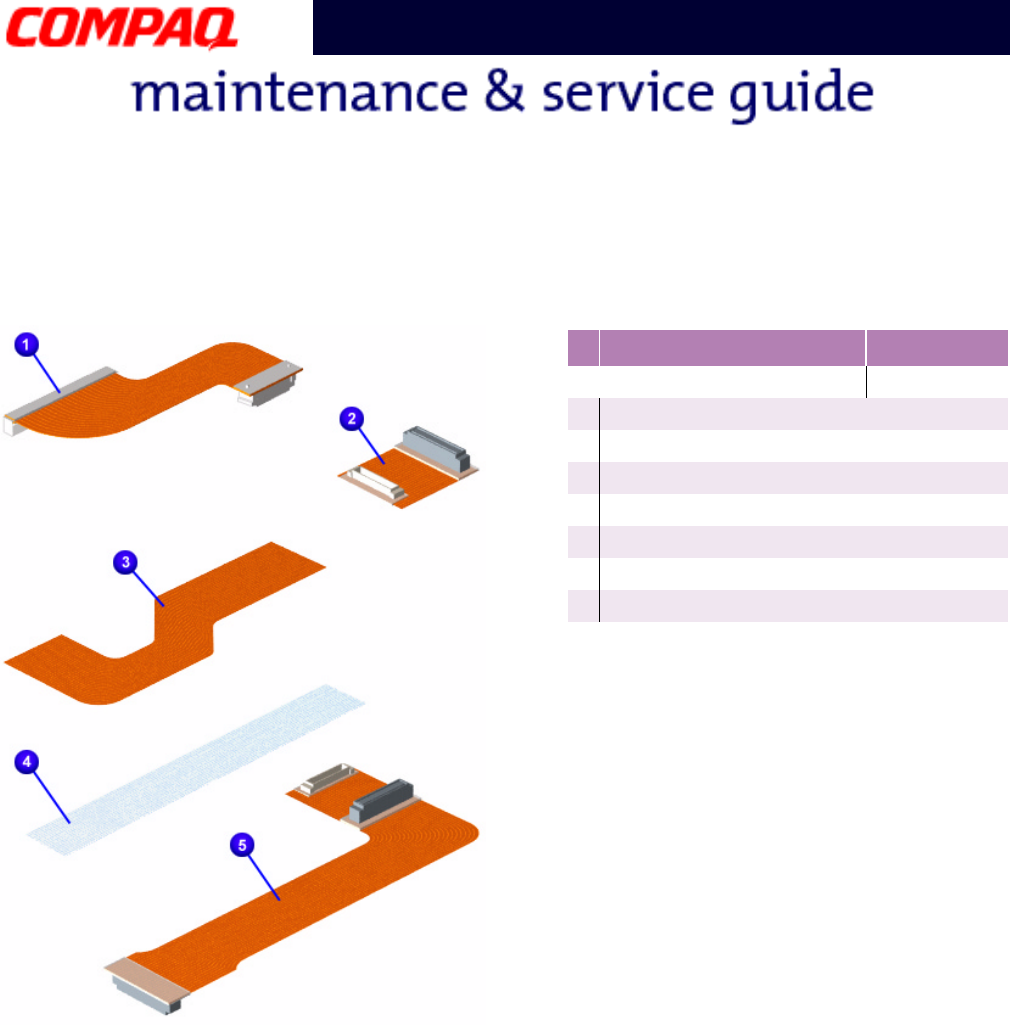
PRESARIO NOTEBOOK MAINTENANCE AND SERVICE GUIDE 1800 SERIES ILLUSTRATED PARTS CATALOG 5
Presario 1800 Series
Models: XL180, XL181, XL182, XL183, XL185,
and XL190, XL191, XL192
Miscellaneous Cables
#Description Part No.
Miscellaneous Cable Kit*138189-001
1Hard Drive Cable
2CD/DVD Drive Cable
3Diskette Drive Cable
4Status Panel Cable
5DisqPlay LCD Cable
6Modem Cable (not shown)
7TouchPad Cable (not shown)
*Kit includes one each of the above items
unless quantity specified.
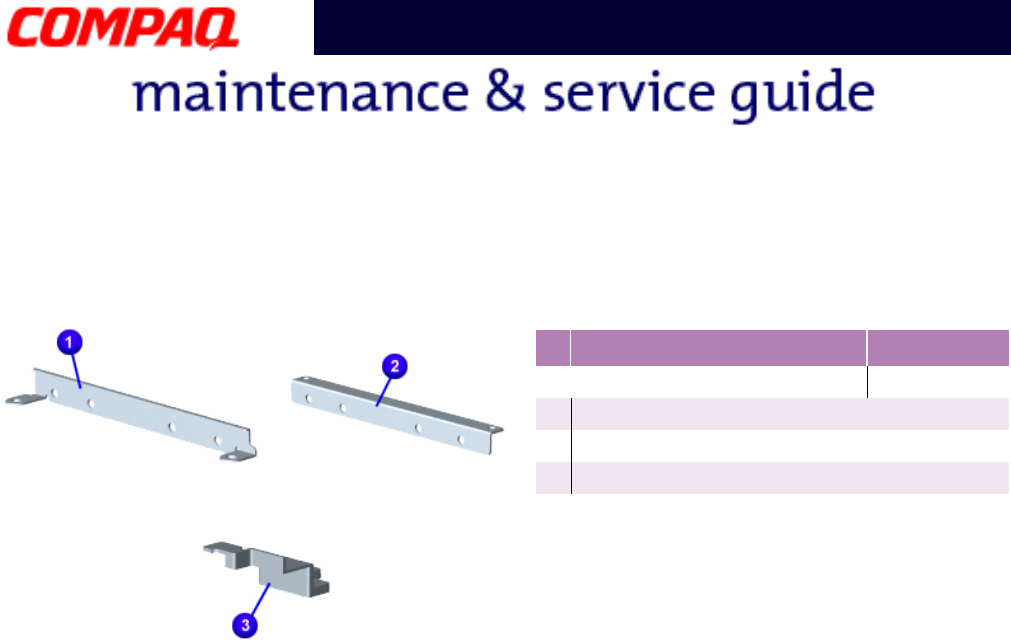
6 ILLUSTRATED PARTS CATALOG PRESARIO NOTEBOOK MAINTENANCE AND SERVICE GUIDE 1800 SERIES
Presario 1800 Series
Models: XL180, XL181, XL182, XL183, XL185,
and XL190, XL191, XL192
Miscellaneous Hardware Kit
#Description Part No.
Miscellaneous Hardware Kit 138160-001
1Hard Drive Mounting Bracket (right)
2Hard Drive Mounting Bracket (left)
3Reinforcement Bracket
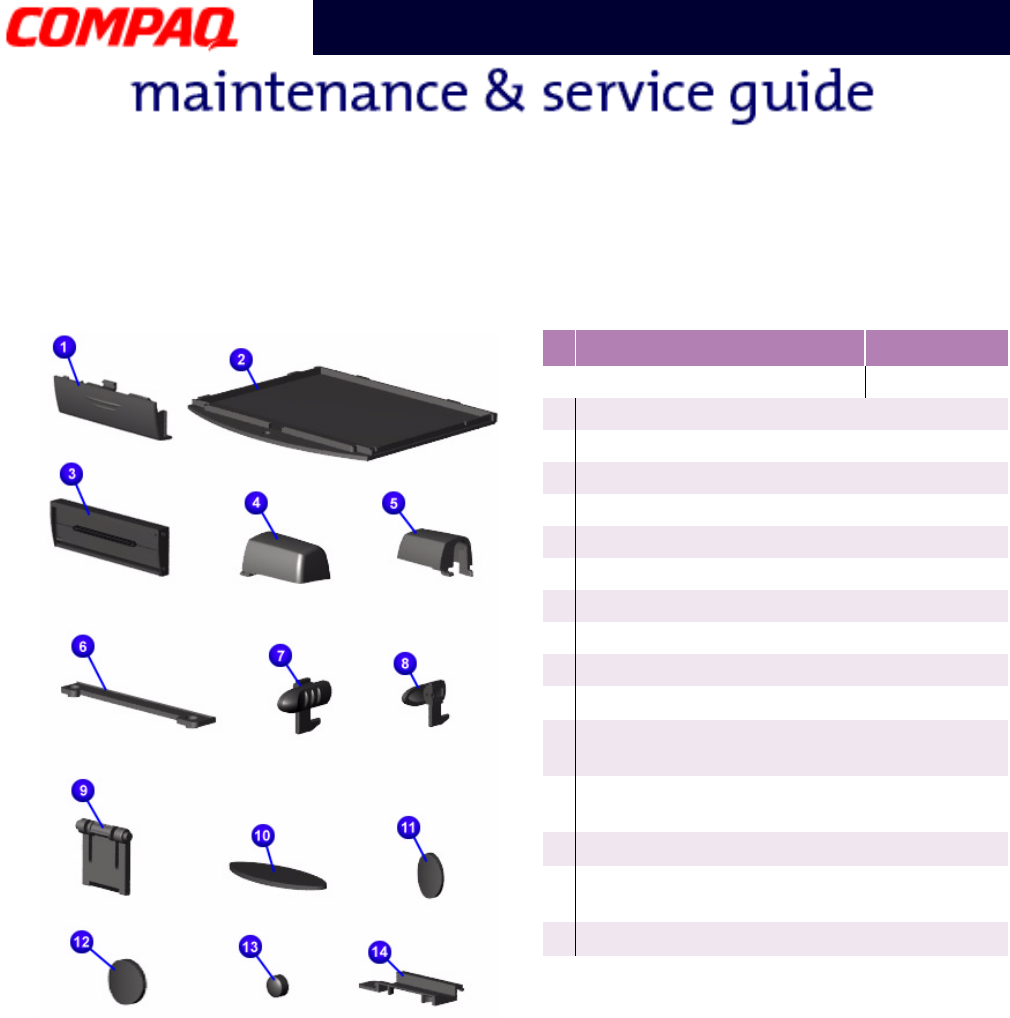
PRESARIO NOTEBOOK MAINTENANCE AND SERVICE GUIDE 1800 SERIES ILLUSTRATED PARTS CATALOG 7
Presario 1800 Series
Models: XL180, XL181, XL182, XL183, XL185,
and XL190, XL191, XL192
Miscellaneous Plastics
#Description Part No.
Miscellaneous Plastics Kit*138190-001
1Battery Pack Door
2Memory Module Cover
3PCMCIA Door
4Display Hinge Cover (Right)
5Display Hinge Cover (Left)
6CD Drive Guide
7Latch (Right) (qty. 10)
8Latch (Left) (qty. 10)
9Stand-foot (qty. 10)
-Rubber Foot (qty. 10)
qRubber Plug (side mount for 14.1"
display) (qty. 10)
wRubber Plug side mount for 15.0"
display) (qty. 10)
eLCD Rubber Plug (qty. 10)
rThin LCD Rubber Plug (14.1" Display)
(qty. 10)
tLCD FPC Cover (not shown)
*Kit includes one each of the above items
unless quantity specified.
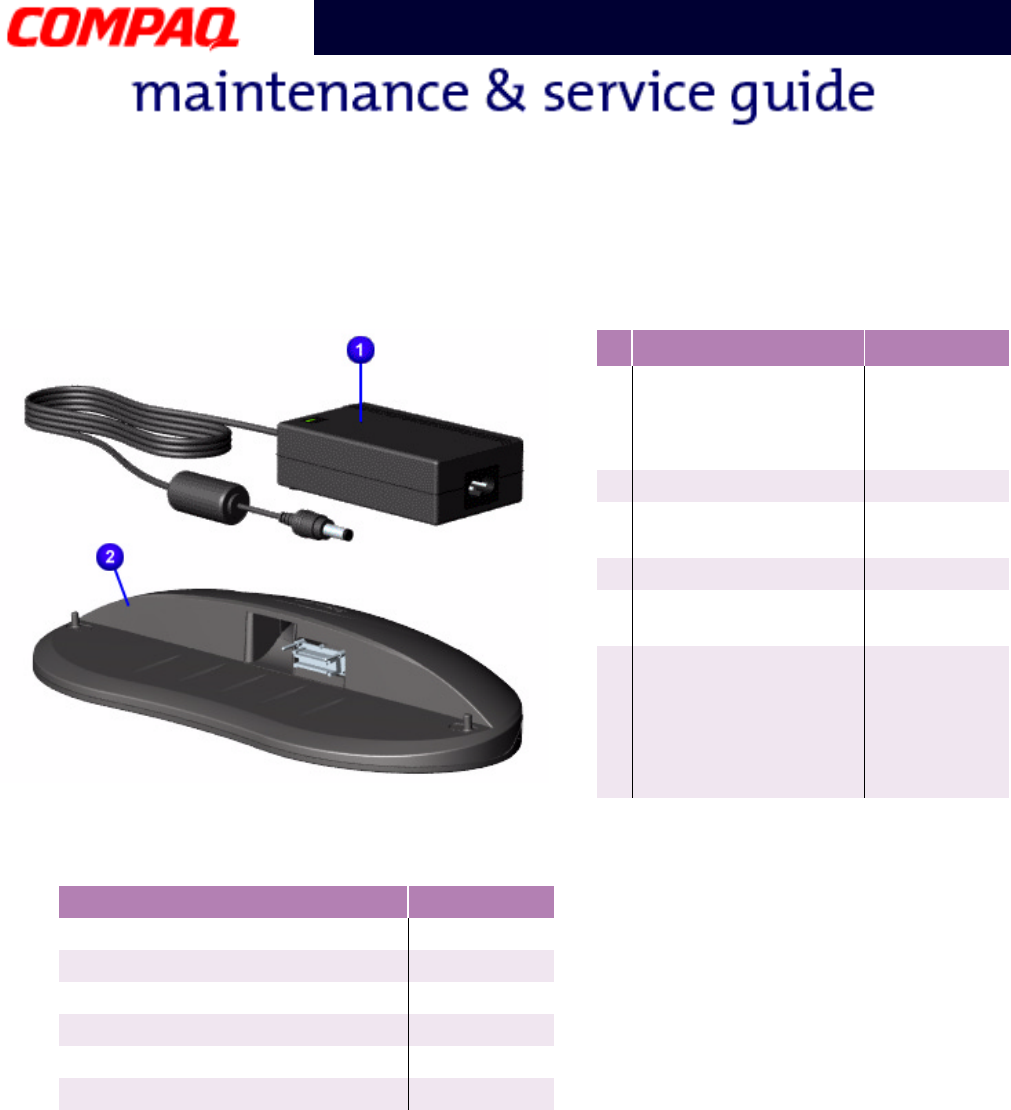
8 ILLUSTRATED PARTS CATALOG PRESARIO NOTEBOOK MAINTENANCE AND SERVICE GUIDE 1800 SERIES
Presario 1800 Series
Models: XL180, XL181, XL182, XL183, XL185,
and XL190, XL191, XL192
Miscellaneous Parts
Documentation and Software
#Description Part No.
1AC Adapter
APD
60W Slim 3-Wire
60W Slim 2-Wire
298239-001
164854-001
180675-001
180676-001
2QuikDock 138167-001
3Misc. Screw Kit
(not shown)
138161-001
4Logo Kit (not shown) 169610-001
5Return Kit
(not shown)
138166-001
6AC Power Cords
(not shown)
N.America
Int’l (3-Wire)
UK (3-Wire)
IT (3-Wire)
293831-001
170513-002
170513-031
170513-061
Item Part No.
Win98 2nd Edition Manual Kit 146642-001
Win2000 Professional Manual Kit 164286-001
Emergency Recovery CD Kit 157296-002
QuickRestore Kit 169300-001
Win98 Reference Guide 117894-003
Features Guide 120223-001
PRESARIO NOTEBOOK MAINTENANCE AND SERVICE GUIDE 1800 SERIES ILLUSTRATED PARTS CATALOG 9
Presario 1800 Series
Models: XL180, XL181, XL182, XL183, XL185,
and XL190, XL191, XL192
Configure To Order (CTO) Parts
Description Part No.
Display
14.1" TFT
15.0" TFT LVDS
15.0" TFT LVDS MD(Special)
175324-001
171814-001
203698-001
Processors
Pentium III 450 w/128 Cache (uPGA2)
Pentium III 450 w/256 Cache (uPGA2)
Pentium III 500 w/256 Cache (uPGA2)
Pentium III 600 w/256 Cache (uPGA2)
Pentium III 650 w/256 Cache (uPGA2)
Pentium III 700 w/256 Cache (uPGA2)
Celeron 500 w/128K Cache (uPGA2)
175321-001
175320-001
173755-001
175319-001
175322-001
175323-001
179454-001
System Memory S.O.DIMM
32 MB, PC100
64 MB, PC100
128 MB
256 MB
122699-001
122700-001
123930-001
175325-001
System Board I/O w/64 MB SDRAM
System Board I/O w/64 MB SDRAM
Mobility-P
64 MB Module Installed in Slot 1
64 MB On System Board
32 MB Module Installed in Slot 1
64 MB On System Board
128 MB Module Installed in Slot 1
64 MB On System Board
256 MB Module Installed in Slot 1
171813-001
158804-001
TBD
TBD
TBD
TBD
CD-Rom/DVD Drives
8X
24X
CD-R/W Drive
24X CD-ROM Drive
6X-DVD Drive
8X-DVD Drive
175326-001
TBD
171377-001
TBD
TBD
TBD
10 ILLUSTRATED PARTS CATALOG PRESARIO NOTEBOOK MAINTENANCE AND SERVICE GUIDE 1800 SERIES
Presario 1800 Series
Models: XL180, XL181, XL182, XL183, XL185,
and XL190, XL191, XL192
Hard Drive
06.0-GB
12.0-GB
18.0-GB
30.0-GB
TBD
TBD
161544-001
TBD
Base Unit Floppy, 64M, 56K, ATI8M-US TBD
Battery Li-ON 3.6 AHr 177458-001
Software
Windows 98
Windows 2000
Word 2000
TBD
TBD
TBD
Software Bundle
FHC Package
SBE Package
PRO Package
TBD
TBD
TBD
Description Part No.
