HUIZHOU FORYOU GENERAL ELECTRONICS DVA6 Car Multimedia Receiver User Manual 9480AN6Q01448A EN manual FCC indd
HUIZHOU FORYOU GENERAL ELECTRONICS CO.,LTD. Car Multimedia Receiver 9480AN6Q01448A EN manual FCC indd
Users Manual
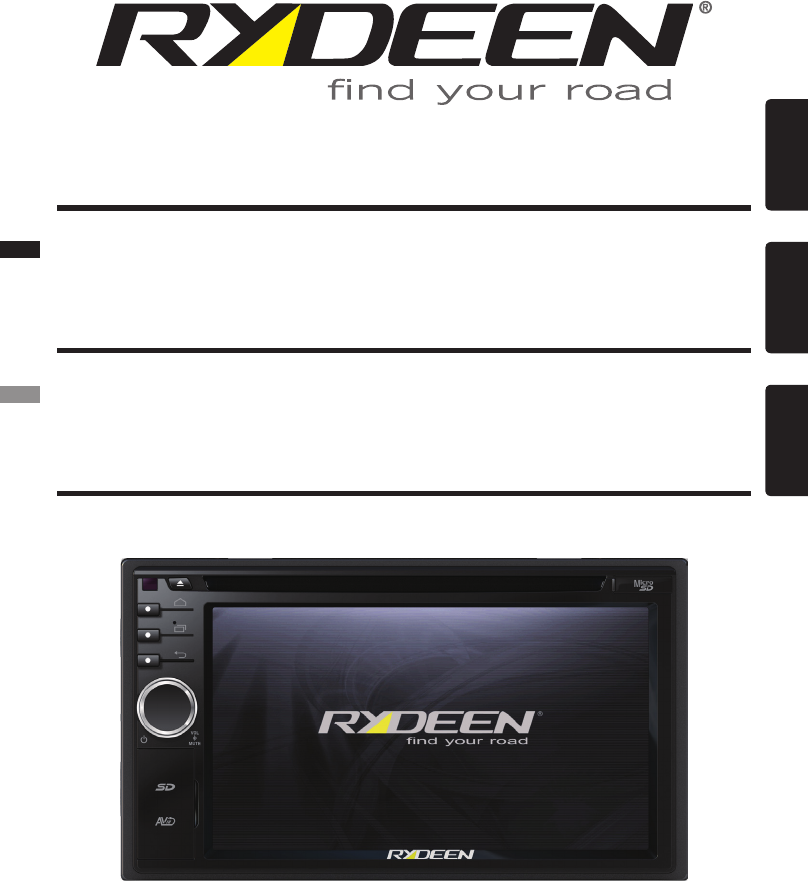
Android Powered - 2 Din Multimedia Receiver with Built-in Bluetooth
Android Powered - 2 Din Multimedia Receiver with Built-in Bluetooth
Moteur Android– Multimédia 2 Din Récepteur avec Bluetooth Intégré
Owner’s Manual DVA6
Manual de Instrucciones DVA6
Guide de l’Utilisateur DVA6
EnglishEspañolFrançais

English
2
Welcome Statement & Warnings
Thank you for purchasing the RYDEEN DVA6, that it will make your driving experience easier &
hassle-free.
The DVA6 provides an easy-to-use touch screen user interface and innovative functionality in a
stylish design that replaces the factory radio.
Please read this Owner’s Manual carefully. If you have any further questions about your DVA6
operation, feel free to call RYDEEN, Toll Free at 1-877-777-8811 (within USA only) for product
support, or visit our website: www.rydeenmobile.com.
PRECAUTIONS & WARNINGS
IMPORTANT INFORMATION
PLEASE READ CAREFULLY BEFORE USING THIS PRODUCT
We recommend that you read and follow all information and instructions in this Owner’s Manual for the
best performance and satisfaction of your DVA6.
• YourDVA6navigationsoftwareIS NOT a substitute for personal judgment. The route suggestions
shouldneversupersedeanylocaltrafcregulation,personaljudgmentorknowledgeofsafedriving
practices. Before making any maneuvers (for example, a U-turn or a left turn) suggested by the DVA6
system, please be sure that such a maneuver can be completed legally and safely. Do not follow route
suggestions that could put you or your vehicle in a potentially unsafe or illegal circumstance.
• YoushouldnotdependonDVA6tolocateemergencyservices(suchaspolice,restations,hospitals
and clinics). The database may not include all emergency service providers. It is the best to call your
local police department and ask for directions in these situations.
• Settheunitvolumeatalevelthatwillallowyoutohearoutsidetrafcandemergencyvehicles.
• AvoidplacingcellphonesorwirelesstransceiverdevicesneartheGPSantennaastheirsignalsmay
weakenorinterferewiththeGPSsatellitesignalbeingreceivedbyyourDVA6,causingittoperform
poorly.
• TheDVA6shouldnotbeprogrammedwhiledriving.Thedrivercanonlyprogramtheunitwhile
thevehicleisparkedinasafelocation.
• MovingpicturesdisplayontheDVA6screenshouldnotbewatchedortouchedwhilethe
vehicleisinmotion.
• Parking brakesafety systemshould beinstalled correctlyaccording tothe instructionon the
owner’smanual.Otherwise,RYDEENanditsretailersarenotresponsibleforanyaccident
causedbyimproperinstallationormisuseoftheDVA6unit.
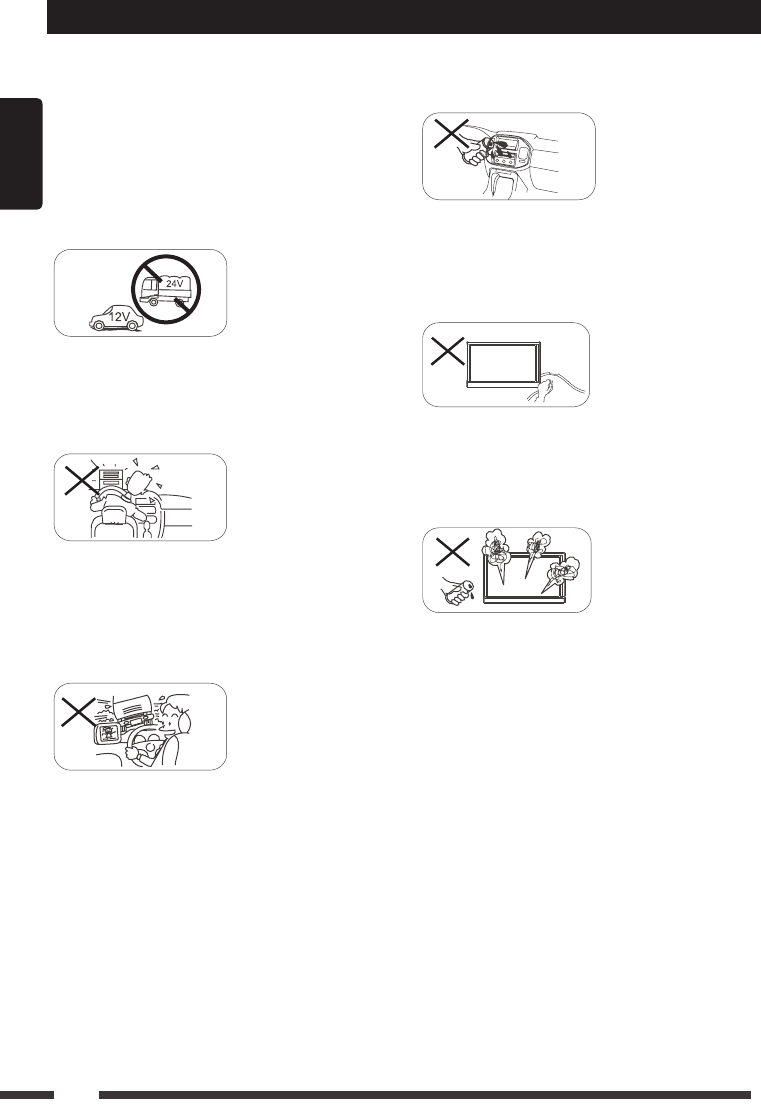
• SEVEREINJURYRISK-DONOTmountyourDVA6onthesurfaceof,orinthedeploymenteldof
your vehicle’s driver and passenger airbag units.
• Positiontheunitinalocationthat doesnotobstructthedriver’sviewoftheroad,instrumentsor
vehicle controls.
• Positiontheunitsothescreencanbeviewedwithjustaquickglance.Glanceattheunitscreenor
manipulate the in-route touch screen controls ONLY WHEN VEHICLE IS COMPLETELY STOPPED
AND IT IS SAFE to do so.
• BesuretheDVA6unitissecurelyattachedtothevehicle’sdashstructurewiththesuppliedbracket
and screws.
• DONOTattempttomodifyordisassembletheDVA6unit,personalinjuryordamagecouldresult.Ifa
problemoccurs,stopusingthesystemimmediatelyandcontactRYDEEN.Changesormodications
to the DVA6 will void the warranty and its compliance with FCC rules thus making it illegal to use.
• Ifyounoticeanyofthefollowing:(unidentiedliquidontheunit;smokerisingoutoftheunit;unusual
odor emanating from the unit) – STOP USING THE UNIT IMMEDIATELY. Contact the nearest
RYDEEN retailer or call RYDEEN Customer Service for assistance Toll Free @ 1-877-777-8811 (within
USA only).
• DONOTmountyourDVA6onanynon-automotiveformoftransportation(motorcycles,bikes,ATV’s,
watercraft).

English
3
WARNINGS
• AvoiddroppingyourDVA6unitorsubjectingittoexcessiveshockandvibrationsasthismay
cause it to malfunction.
• DONOTuseanysharpobjecttooperateyourunit’stouch-screendisplay.Excessiveforce
could damage the LCD display.
• KeeptheDVA6unitoutofreachofsmallchildren.Removable parts(microSDmemorycard)
can be a choking hazard.
• TheDVA6unitISNOTWATERPROOF.Avoidexposingittorainorotherformsofexcessive
moisture. Water damage is not covered under the warranty.
WARNINGS
• THEFOLLOWINGINSTRUCTIONSAREINTENDEDFORAUTHORIZED
RYDEEN MOBILE INSTALLERS ONLY
• PROFESSIONALINSTALLATIONBYAUTHORIZEDRYDEENRETAILER
REQUIRED TO BE COVERED UNDER WARRANTY
Technical Support Contact Info
If you have other questions about the RYDEEN DVA6, please contact your retailer or Technical
Support:
• Telephone:1-877-777-8811(withinUSAonly)
• techdept@rydeenmobile.com
• WebAddress:www.rydeenmobile.com
English
4
Precautions
To ensure safe driving, please adjust the
volume to a safe & comfortable level in case
of emergency situations.
Neverexposethisunit,amplierorspeakers
to moisture or water to prevent electronic
sparksorres.
Please don’t change the fuse on the power
cord without professional guidance, using
an improper fuse may cause damage to this
unitorevencausere.
Please power off this unit at once and send it
back to the after-sales service center or the
dealer /distributor you purchased from if one
of the following symptoms is found:
(a).Noaudiooutput;
(b).Noimageoutput;
(c).Waterorotherobstacleenterstheunit;
(d).Smoking;
(e). Peculiar smell.
Only connect the unit to a 12-volt power
supply with proper negative grounding.
MUTE
OK
MUTE
OK
Never install this unit where the operation
and condition for driving safely is
compromised.
MUTE
OK
MUTE
OK
Never use the video display while the car
is in motion. The use of video playback
whiledrivingisaviolationoftrafclawsand
increasestheriskoftrafcaccidents.
MUTE
OK
MUTE
OK
MUTE
OK
MUTE
OK
Thank you for purchasing this product.
Please read through the Owner’s Manual to
learn how to properly operate the DVA6 unit.
Afteryouhavenishedreadingthemanual,
please keep it in a safe place for future
reference.
To provide a clear demonstration and an
alternative for easy understanding of the
operation of this unit, graphic illustration
was used. However, this illustration is not
necessary printed as the actual image found
on the unit.
English
5
Warning
Operate the unit correctly according to the
instruction manual to prevent unnecessary
problems.
CAUTIONS ON HANDLING
This product is a CLASS 1 LASER PRODUCT.
Use of controls or adjustments or performance
of procedures other than those specified
herein may result in hazardous radiation
exposure. Do not open covers and do not
repair yourself. Refer servicing to qualified
personnel.
Twolaserproducts
Wave length: CD: 780nm DVD: 650nm
Laser power: No hazardous radiation is
emitted with safety protection.
To reduce the risk of fire electric shock, and
annoying interference, use only the included
components.
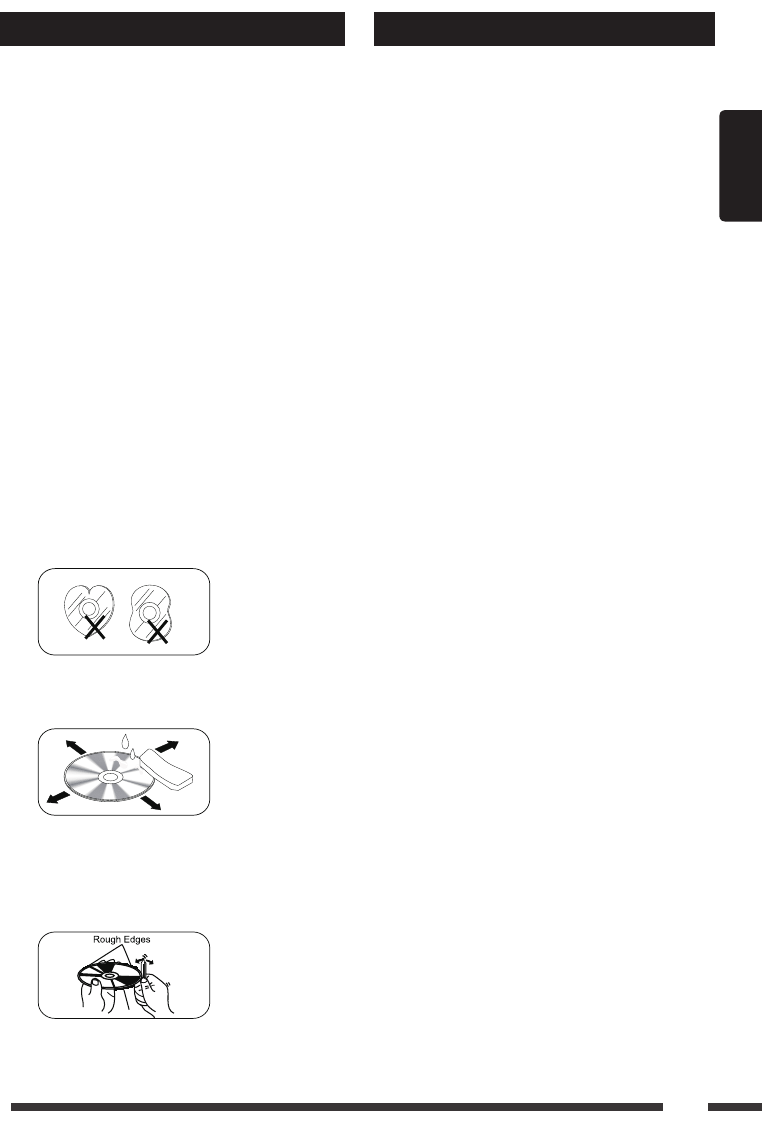
Caution of disc using
1. DONOTuseirregularshapeddisc.
2. DiscCleaning. Use a dry, soft cloth to
wipe the disc from center to edge, only neutral
detergent can be used.
3. Whenplayinganewdisc. New disc may
have some rough spots around the inner and
outer edges. If such a disc is used, remove
these rough spots with a pencil or ball-point
pen, etc.
Precautions Contents
WelcomeStatement&Warnings............2
TechnicalSupportContactInfo..............3
Precautions...............................................4
ControlPanel...........................................6
RemoteControl.........................................7
BasicOperations......................................9
Turn On/Off the Power............................9
Mute ........................................................9
Adjust the Volume...................................9
Playing Source Selection ........................ 9
When Vehicle is Put in Reverse .............9
When Parking Brake Applied .................. 9
Wallpaper................................................9
Mainmenu...............................................10
Main Menu ............................................10
Applications Menu ................................10
DiscOperation........................................10
RadioOperations....................................13
SD/USBOperations................................14
BluetoothOperations.............................17
Internet....................................................19
3GAPNSettings...................................19
Wi-Fi Settings .......................................20
Create Wi-Fi Hotspot ............................20
Visit Website .........................................21
E-mail....................................................21
OtherMode..............................................21
Navigation Operations ..........................21
AUX Operations .................................... 21
Steering Wheel Control.........................21
i-Mode (Siri) Function ...........................22
GoogleCalendarConguration ............22
DeleteGmailAccount ...........................23
Systemsettings......................................24
Soundsetting..........................................25
DeviceConnections...............................26
Wiring Diagram .....................................28
Troubleshooting.....................................29
Specications.........................................30
OneYearLimitedWarranty...................31
FCCComplianceStatement..................32
Disclaimer...............................................32
English
6
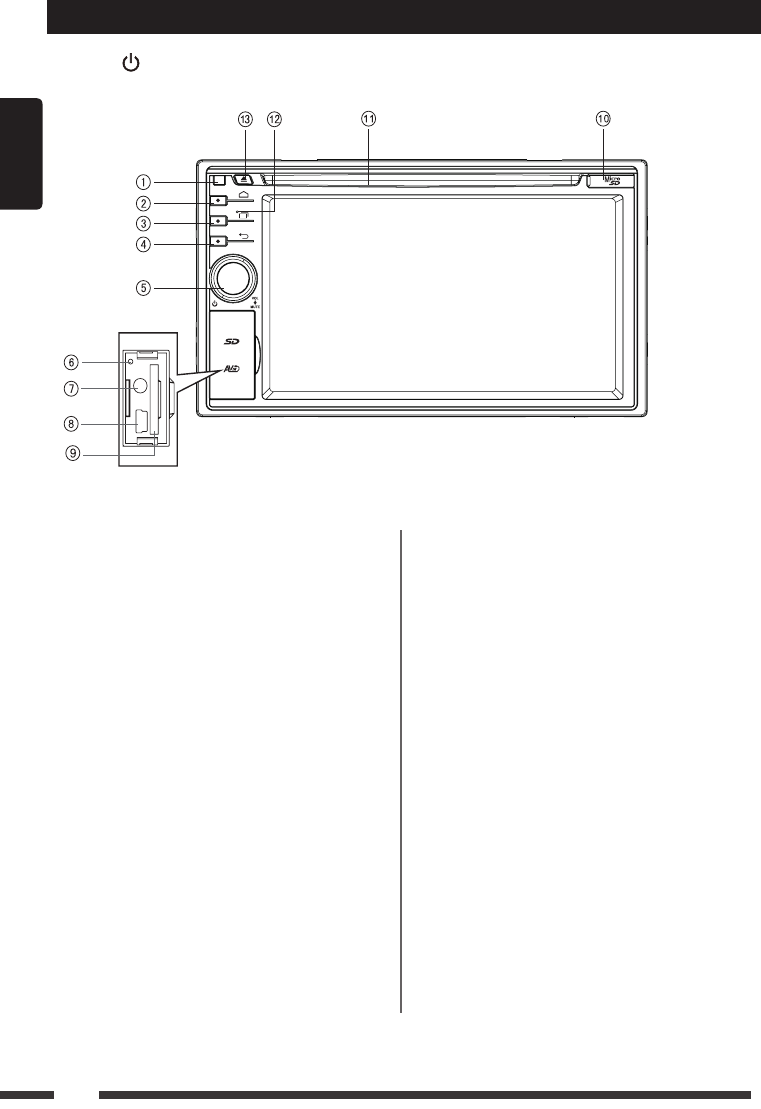
Control Panel
Press[ ]knob(5)toturnontheunit.
1. RemoteSensor
2. HOMEButton
Show main menu
3. MENUButton
Show MENU options
4. BACKButton
Back to previous MENU.
5. VOLKnob
> Power “ON” / “Standby Mode” (Press)
> Adjust Volume (rotate)
> Mute the Volume (press when on)
> Power “OFF” (long press)
6. Reset
Load factory settings
7. AUXinJack
8. MiniUSBConnector
9. SDCardSlot
10. MicroSDCardSlot
11. DiscSlot
Insert the disc with label side facing up.
12. Microphone (BuiltinandExternalMicrophone)
We recommend to use External
Microphone for better Quality. Internal
Mic. is just for urgent use, in case of
External Mic. broken.
13. Eject
Eject disc (when disc inserted)
* DefaultPath:
1. Path of SD Card(È): /sdcard/sd_media
2. Path of USB(Ç): /sdcard/external_usb
3. Path of Micro SD Card(É): /sdcard/
external_sd
To install a new map, please install the
apklerst,thenstarttheapplicationand
set the path.
English
7
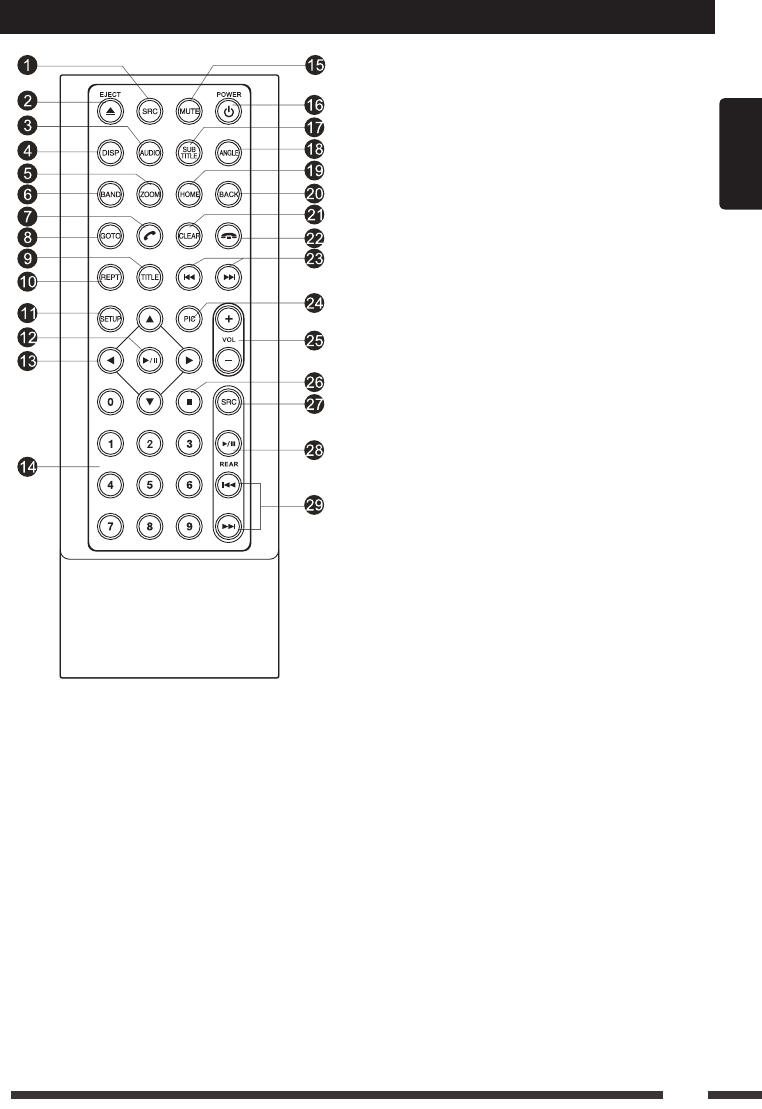
Remote Control
1. Change playing source in sequence
2. Eject the disc
3. Select audio language
Show music catalog
4. Display playback information
5. Zoom
6. Select radio band
7. Call out - Outgoing call
8. Go-tosearch
9. DVD title
10. Repeat playback
11. Setup menu
12. Play / Pause
13. Move the cursor up/down/left/right.
Up/down: Manual tuning
14. Numeric keys
15. Mute the volume
16. Unit power
17. Select DVD subtitle language
18. Select DVD angle
19. Show / exit home menu
20. Return to previous display
21. Clear information
22. Hang up
23. Previous/Next
Auto tuning (long press)
Fast backward/forward (long press)
24. Display settings
25. Adjust volume
26. Stop playback
Rear zone (not used)
27. Change next rear source
28. Play/Pause
29. Previous/Next track
Fast backward/forward (long press)
English
8
Remote Control
Notesofremotecontrolusing
1) Aim the remote control at the remote sensor on the unit.
2) Remove the battery from the remote control or insert a battery insulator if the battery has not
been used for a month or longer.
3) DO NOT store the remote control under direct sunlight or in high temperature environment, or it
may not function properly.
4) The battery can work for 6 months under normal conditions. If the remote control doesn’t work,
change the battery.
5) Use“button shaped” lithium battery “CR2025”(3V) only.
6)DONOTrecharge,disassemble,heatorexposethebatterytore.
7) Insert the battery in proper direction according to the ( + ) and ( - ).
8) Store the battery out of children reach it can be hazardous if swallowed to avoid the risk of
accident.
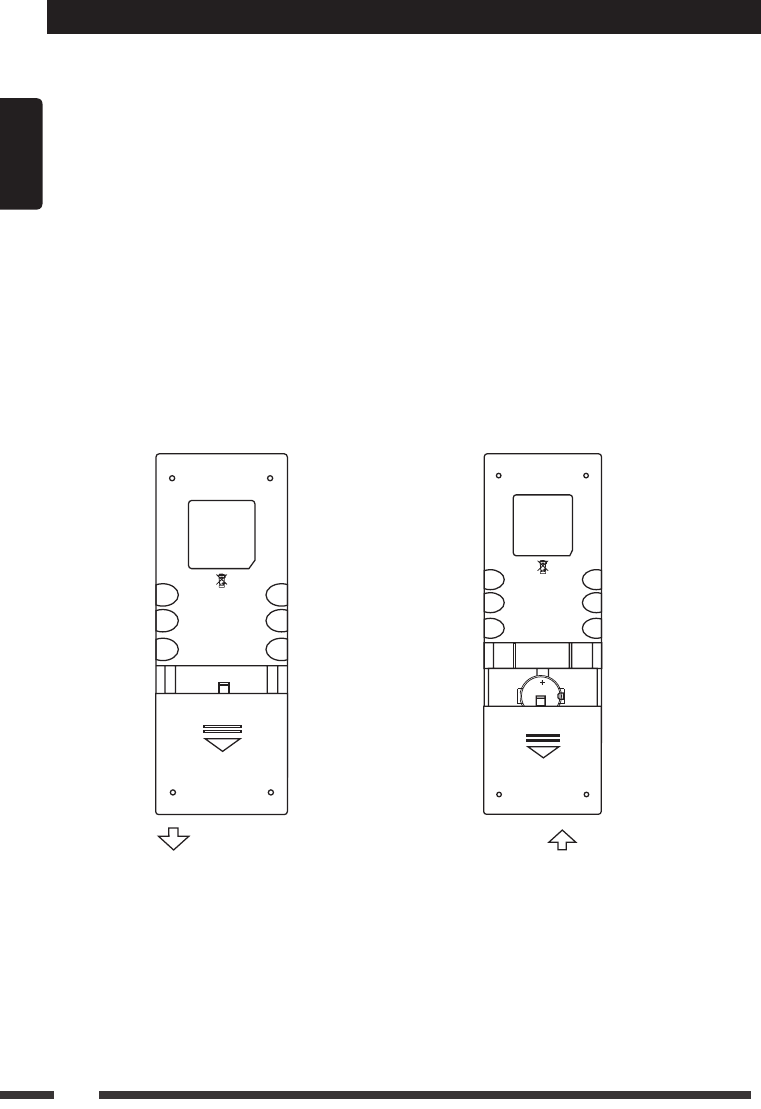
UninstallBattery
Slide out the battery compartment tray
at the bottom on the back of the remote
control.
InstallBattery
Use button-shaped lithium battery
CR2025 (3V)” only. Insert the battery
to the battery tray with proper direction
according to the (+) and (-) poles.
PULL OUTPUSH IN
English
9
Basic Operations
TurnOn/OffthePower
1. Press the [ VOL ] knob to turn on the unit.
The unit will go back to the last source
used prior to the radio being powered off.
2. When on, press the [ VOL ] knob to
“Standby Mode” the unit.
3. When on, long press the [ VOL ] knob to
turn off the unit.
Mute
Press the [ VOL ] knob to mute the sound.
Note:
• Pressing the[VOL] knobagainor
adjustingvolumewillunmute.
AdjusttheVolume
Rotate the [ VOL ] knob to increase or
decrease the volume level.
The adjustable range of volume is 0 to 50.
PlayingSourceSelection
1. Press the [ ] button on the panel to
show main source menu.
2. Touch desired icon on the bottom of the
screen to enter corresponding working
mode, such as Disc, Navi, Radio, etc.
Drag left/right to scroll.
WhenVehicleisPutin
Reverse
If the rear view video camera is connected,
the unit automatically switches to CAMERA
source during reverse driving. The unit returns
to the previous source after the vehicle has
been taken out of reverse.
WhenParkingBrakeApplied
1.If'PRKSW'cableisconnectedtohand
brake switch, the video display of the TFT
monitor will be controlled by driving status,
system setup and input video sources.
2. When the car is moving forward, and a
video source is being played, the screen
will display a warning disclaimer and a
blank screen. The warning screen will
prevent the driver from watching images.
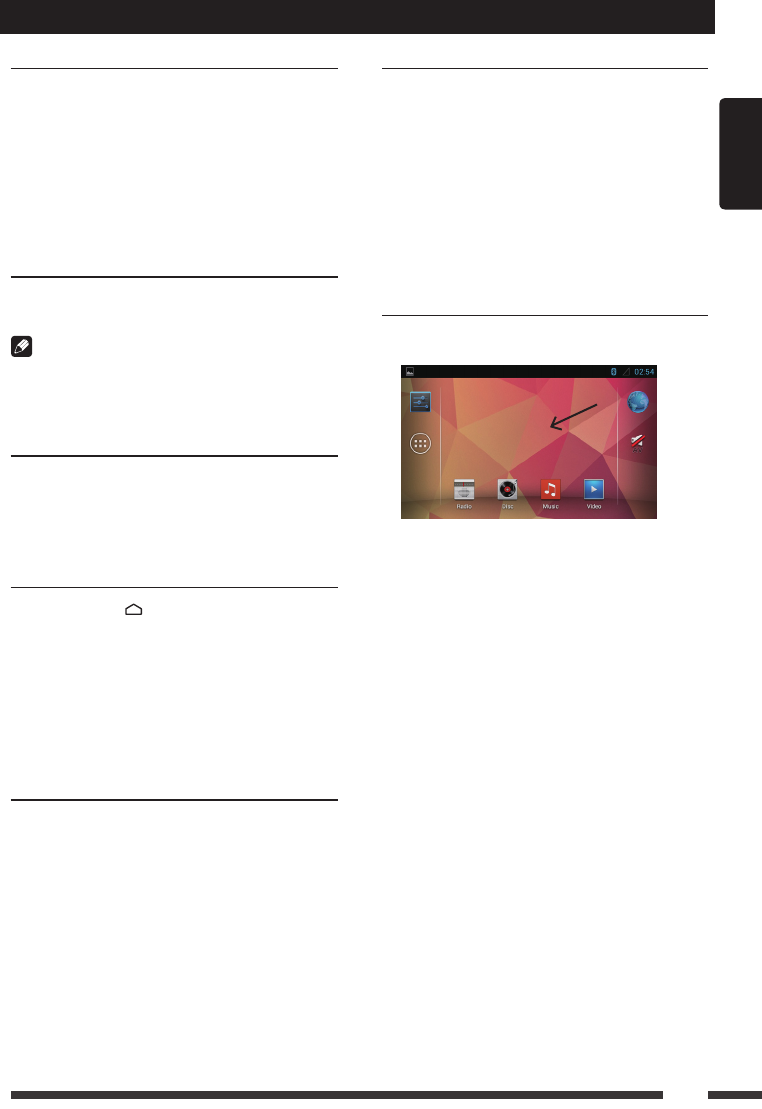
Wallpaper
1. Long press the blank area of the main
menu.
2. Select a source from:
[Gallery]:tovisitthegalleryofmobile
storage.
[Live wallpapers]: to show the wallpapers
with animation stored in the unit. Drag up/
down to scroll.
[Wallpapers]: to show the wallpapers
stored in the unit. Drag left/right to scroll.
3. Select desired picture to view, touch [Set
wallpaper]or[OK]toconrmselection.
English
10
Main menu
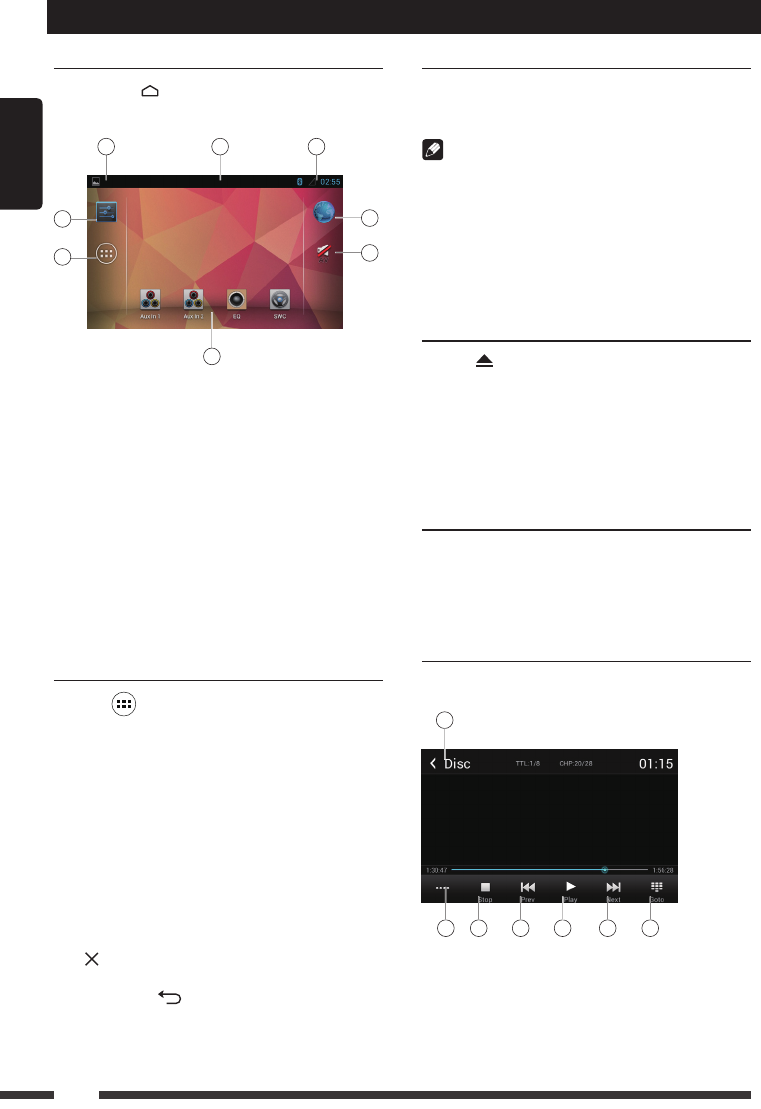
MainMenu
Press the[ ] button on the panel to enter
main source menu.
1
46
7
5
8
2 3
1. Indicator of mobile storages.
2. Hold and drag down to show the
notications.
3. Wireless signal and time indicator.
4. Enter settings menu
5. Show applications list.
6. Access web browser.
7. AV Off
8. Car AV system source bar:
Touch and hold the center of the bar and
drag left/right to show more icons.
Touch desired icon to enter corresponding
mode.
ApplicationsMenu
Touch [ ] to enter applications menu.
1. IN-CAR
Show the Car AV applications.
2. APPS
Show the Android applications installed.
3. WIDGETS
Show the widget applications.
In the list menu, drag left/right to scroll.
Touch and hold an icon for more than 2
seconds to add shortcut to the desktop. To
delete the shortcut, hold it and drag to the
[ ] on the bottom, and release after it
turns red.
Touch the [ ] button on the panel to exit.
Disc Operation
InsertaDisc
Insert a disc into the slot, and the unit will
change to disc mode automatically.
Notes:
• Pleaseconfirmwhetherthereisadiscin
the unit before you insert another one.
• Theunitwillexitcurrentplayingsourceand
enter DVD mode when one disc is inserted.
• Thefollowingdiscformatsaresupported:
CD-R, CD-RW, DVD-R, DVD+R, DVD-RW,
DVD + RW .
EjecttheDisc
Press [ ] on the panel to eject the disc.
Notes:
• Afterejectingthedisc,theunitrevertsto
another source automatically.
• Ifthediscisnotremovedfromtheunit
within 10 seconds, the disc will be reloaded
to prevent accidental damage.
DiscPlayback
When a disc is inserted, the display will
show “Loading...”. For MP3/WMA or a disc
with mixed files, reading time may exceed 1
minute.
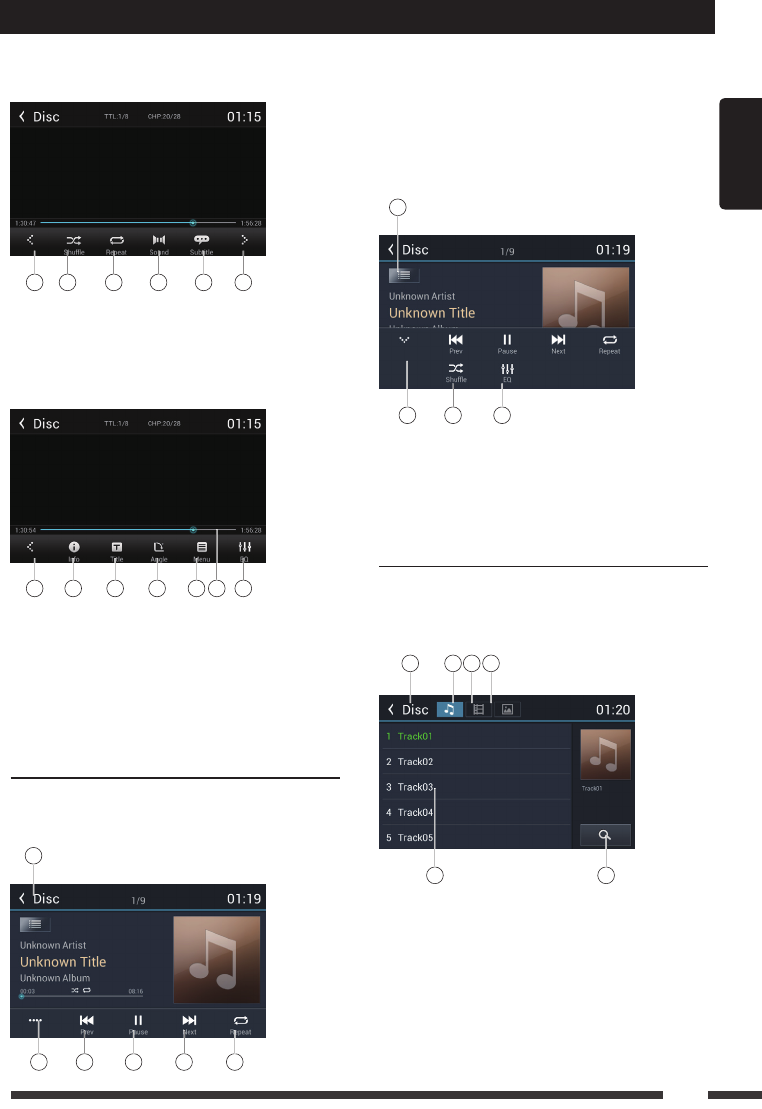
DVDPlaybackMenu
During playback, touch the screen (except top
left corner) to show control buttons.
1
2 3 4 5 6 7
1. Return to home menu
2. Show more control buttons
3. Stop playback
4. Previous chapter
Fast backward (long press)
5. Play/Pause
English
11
Disc Operation
6. Next chapter
Fast forward (long press)
7. To enter search menu
8 9 10 11 12 13
8. Previous page of control buttons
9. Random play
10. Repeat play
11. Select audio channel
12. Select subtitle language
13. Next page of control buttons
8 14 15 16 17 1918
14. Show DVD informations
15. Show DVD title
16. Select viewing angle
17. Show DVD menu
18. Progress bar
19. Enter EQ menu
CDPlayback
Insert a CD in the disc slot, and the unit will
read the disc. For some discs, you will need to
choose Music/Video/Photo for playback.
1
2 3 4 5 6
1. Return to home menu
2. Show more control buttons
3. Previous track
Fast backward (long press)
4. Play/Pause
5. Next track
Fast forward (long press)
6. Repeat play
7
8 9 10
7. Showlelist
8. Hide the second line of control buttons
9. Shufeplay
10. Enter EQ menu
MixedDiscPlayback
When inserting a mixed disc, the unit will read
the disc and show the files list. For some
discs, you need to choose Music/Video/Photo
to play back.
1 2 3 4
65
1. Return to home menu
2. Show music list
3. Show video list
4. Show photo list
5. File/Folder list
Drag the list up/down to scroll.
Touchalenametovisitit.
6. Enter search menu
English
12
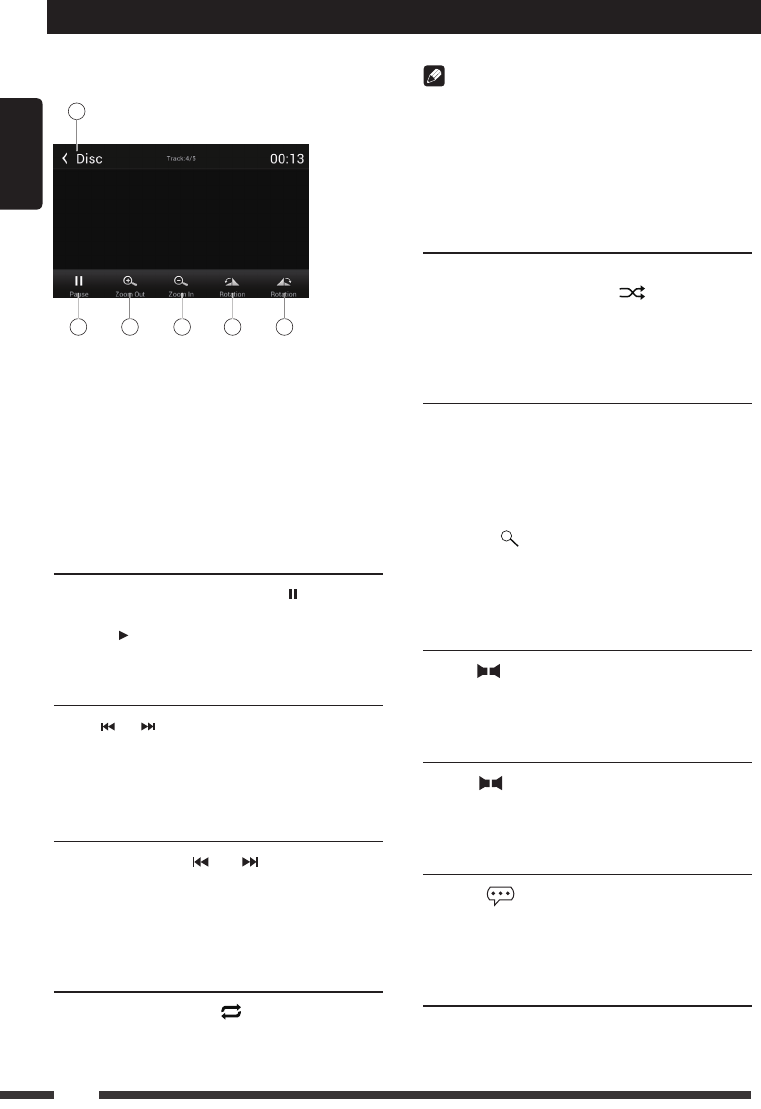
When viewing a picture, touch the screen
(except top left corner) to show control
buttons.
1
2 3 4 5 6
1. Return to home menu
2. Play/Pause
3. Zoomout
4. Zoomin
5. Rotate counterclockwise
6. Rotate clockwise
* Video/Audio playback reference DVD/CD
playback.
StopPlaybackTemporarily
1. During playback, press to pause
playback. The sound will be muted.
2. Press to continue playback.
SelectDesiredTrack/Chapter
Press or to skip to the previous or next
track/chapter.
FastForward/Backward
DuringPlayback
Press and hold or button to fast
backward or forward during playback.
During the fast forward or backward operation,
the volume will be muted.
Repeat
During playback, press button on screen to
select repeat playback.
• Defaultsettingisoff.
Disc Operation
Note:
If you do not select Repeat on, when the
entire disc or TITLE playback has finished,
the system will stop. If no other control, after 5
minutes the unit will turn into standby mode.
RandomTrackPlayback(for
CD/VCD/MP3/WMAOnly)
You can play all the tracks in random order.
1. During playback, press [ ] button on the
screen to select random playback.
2. Press again to select normal playback.
Search
For DVD/VCD:
1. Touch[Go-to]onthecontrolbar.
2. Input the chapter number.
3. Touch[OK]toconrm.
For Mixed disc:
1. Touch [ ] icon.
2. Inputthelename.
3. Touch[Done]toconrm.
DVDAudioSelect
Press [ ] button to select audio language to
listen if the DVD has multiple audio languages.
VCDAudioSelect
Press [ ] button to select audio channel to
listen (L, R, Stereo).
DVDSubtitleSelect
Press [ ] button to select the subtitle
language to show if the DVD has multiple
language subtitles.
DVDTitleSelect
Touch [ T ] button to display title or chapter
list, touch desired title to play.
English
13
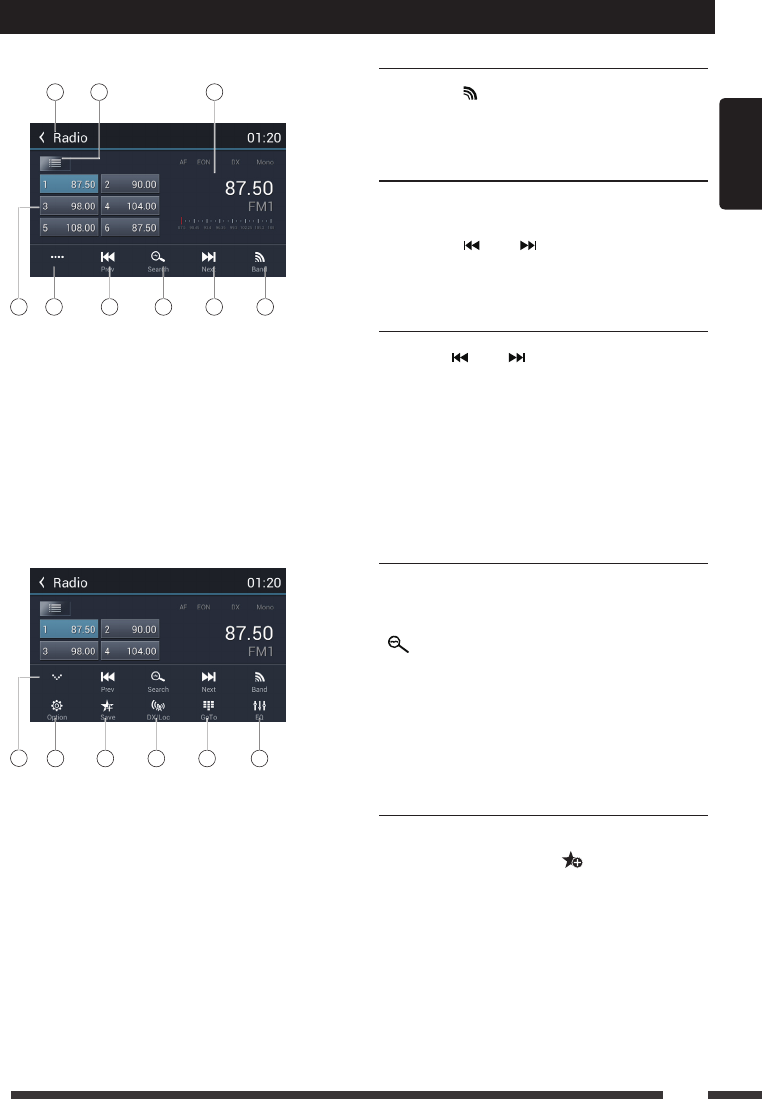
Radio Operations
Select [Radio] on the main menu to enter
radio mode.
1 2 3
54 6 7 8 9
1. Return to home menu
2. Preset stations list
3. Current frequency
4. Preset stations of current band
Touch 1~6 to listen to preset station.
5. Show more control buttons
6. Tune backward
Auto tune backward. (long press)
7. Search and store preset stations
automatically
8. Tune forward
Auto tune forward. (long press)
9. Band switch
10 11 12 13 14 15
10. Hide the second line of control buttons
11. Show RDS options
12. Save stations manually
13. To receive local / distant radio stations
14. Gotostationbyinputtingfrequency
15. Enter EQ menu
SelectOneRadioBand
Touch the [ ] button to select one radio
band among FM1, FM2, FM3, AM1 and AM2.
ManualTuning
During manual tuning, the frequency will be
changed in steps.
Touch the [ ] or [ ] button on the
operation bar to tune in a lower/higher station.
AutoTuning
Hold the [ ] or [ ] button on the operation
bar for more than 2 seconds to seek a lower/
higher station.
To stop searching, repeat the operation above
or press other buttons having radio functions.
Note:
Whenastationisreceived,searchingstops
andthestationisplayed.
AutoStore
Onlystationswithsufcientsignalstrengthwill
be detected and stored in the memory.
To start automatic station search, touch the
[ ] button on the operation bar.
To stop auto store, press other buttons having
radio functions.
Note:
Afterautostore,thepreviousstoredstations
willbeoverwritten.
ManualStore
1. When one expected radio station has
been detected, touch [ ] button on the
operation bar to show the preset station
store list.
2. Touch to select an item on the list to store
the current station in the memory.
3. Touch top left of the screen to exit.
English
14
Radio Operations
RecalltheStoredStations
Method 1:
Touch the 1~6 on the left of screen to listen to
the preset station of current band.
Method 2:
1. Touch [ ] button on the screen to show
the preset stations list.
2. Select a band
3. Touch a station on the list to listen to.
4. Touch top left of the screen to exit.
LocalSeeking
When LOCAL seeking is on, only radio
stations with strong radio signal will be be
received.
To open LOCAL function, touch [ ] button
on the operation bar, then touch the [ ]
button to select “Loc” or “DX”.
Note
Thenumberofradiostationsthatcanbe
receivedwilldecreaseaftertheLocseeking
modeison.
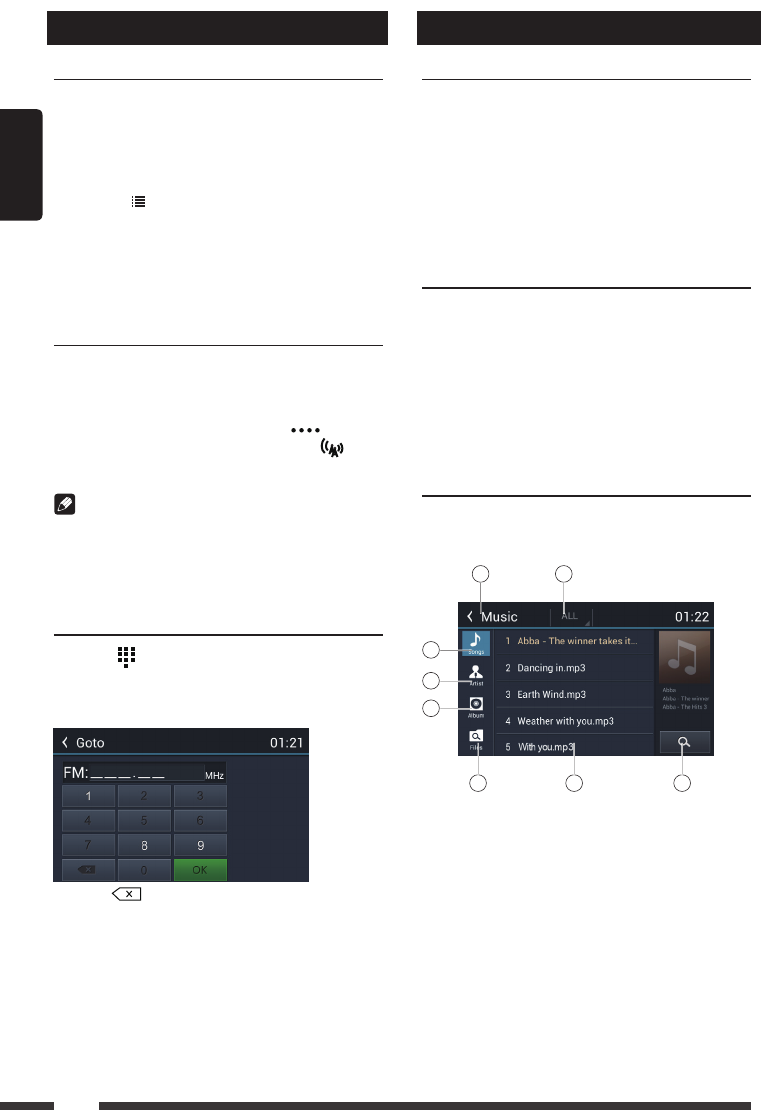
KeySearch
Touch [ ] button on the operation bar to
show key search menu.
Touch the keypad to input the frequency,
touch[OK]togotothestationdirectly.
Touch [ ] to clear all the digits.
SD/USB Operations
UsinganSDCard
1. Open the card slot cap, insert an SD card
into the corresponding slot, the unit will load
thelesautomatically.
2. Toremovethecard,youshouldrstselect
another source, in order to avoid damaging
the card, press the card slightly, and take
off the card after it pops out.
UsingUSBDevice
1. Connect your USB device to the USB
cable.
When connecting a USB device, the unit
willreadthelesautomatically.
2. To remove the USB device, you should
rstselectanothersource,inordertoavoid
damaging the USB device.
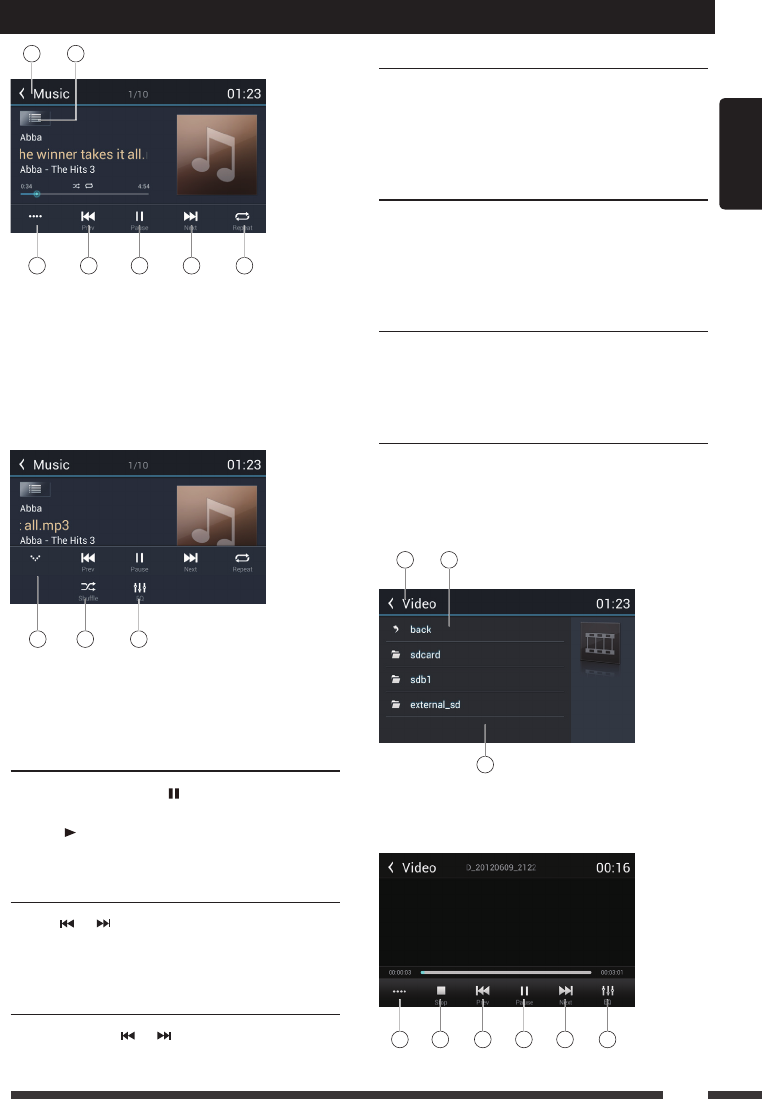
MusicPlayback
Select [Music] on the applications menu, the
unit will display all the music on the mobile
storages.
1 2
6
3
4
5
7 8
1. Return to home menu
2. Selectlesource
3. Listthelesbysongname
Touch a song to start play.
4. Listthelesbyartist
5. Listthelesbyalbum
6. Show the folders
7. List window
Drag up/down to scroll.
Touch an item to select.
8. Enter search menu.
English
15
SD/USB Operations
9 10
11 12 13 14 15
9. Return to home menu
10. Show list menu
11. Show more control buttons
12. Previous track
Fast backward (long press)
13. Play/Pause
14. Next track
Fast forward (long press)
15. Repeat play
16 17 18
16. Hide the second line of control buttons.
17. Shufeplay
18. Enter EQ menu.
Play/Pause
When playing, press [ ] button to pause, and
the sound will be mute.
Press [ ] button to play.
Previous/NextTrack
Press or button to go to previous or next
track.
FastForwardingorReversing
Press and hold or button to fast backward
/ forward.
SelectMusicbyArtist
1. Touch [Artists] on the left of the screen.
2. Touch an artist shown on the list.
3. Select a song to play.
SelectMusicbyAlbum
1. Touch [Albums] on the left of the screen.
2. Touch an album shown on the list.
3. Select a song to play.
SelectMusicbySongName
1. Touch [Songs] on the left of the screen.
2. Select a song to play.
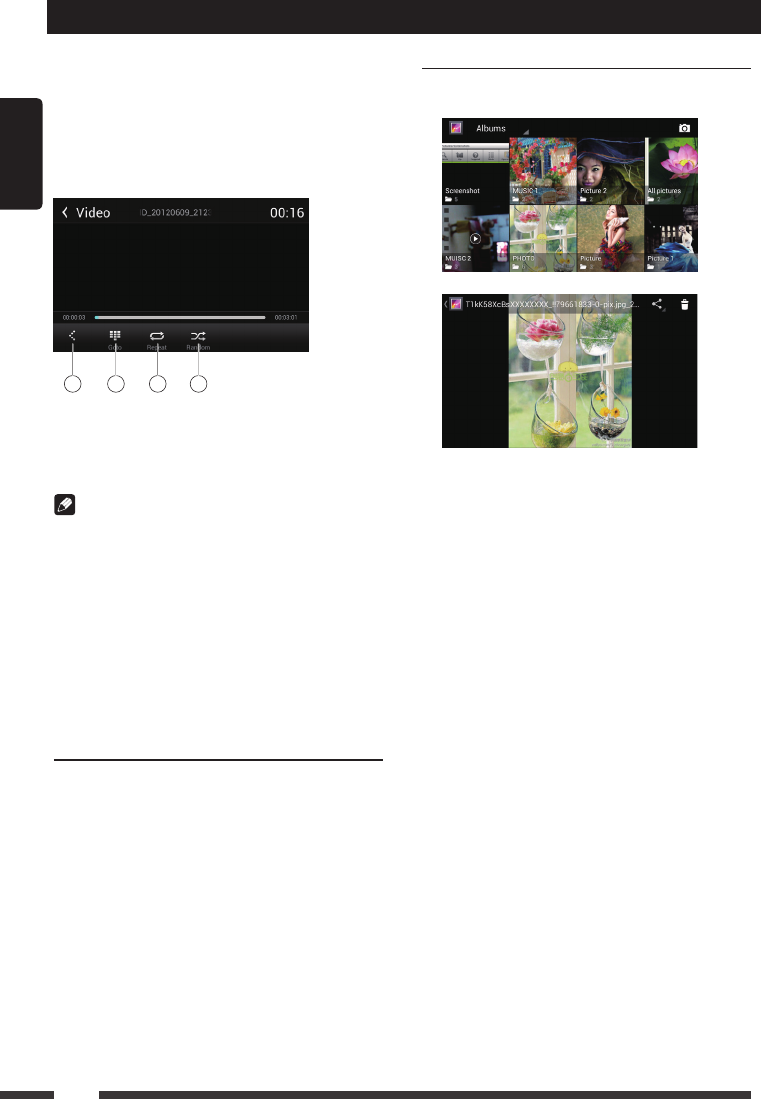
VideoPlayback
Select [Video] on the applications menu,
the unit will display all the video files on the
storages.
During playback, touch the screen(except top
left corner) to show control buttons.
1 2
3
1. Return to home menu
2. Back
3. Folder/File list
Drag up/down to scroll, touch to access.
4 5 6 7 8 9
English
16
SD/USB Operations
4. Show more control buttons
5. Stop playback
6. Previous chapter
Fast backward (long press)
7. Play/Pause
8. Next chapter
Fast forward (long press)
9. Enter EQ menu
10 11 12 13
10. Show previous page of control buttons
11. Enter search menu
12. Repeat play
13. Random play
Notes
• DisconnectUSBstoragedevicesfromthe
unitwhennotinuse.
• UseanoptionalcabletoconnecttheUSB
audioplayer/USBmemoryasanydevice
connecteddirectlytothe unitwillprotrude
outfromtheunitandmaybedangerous.
• Donotuseunauthorizedproducts.
UsinganAndroidmobile
phoneasaUSBstorage
device
If you want to use your Android mobile phone
as a USB storage device.
1. Connect your Android mobile phone to the
unit with a USB cable.
2. Set USB connection type of your mobile
phone to “Mount SD card”.
* If you select “Charge only”, it won’t be
recognized by the unit.
3. In the setting menu of the unit, select
“Storage”, then “Mount USB disk”.
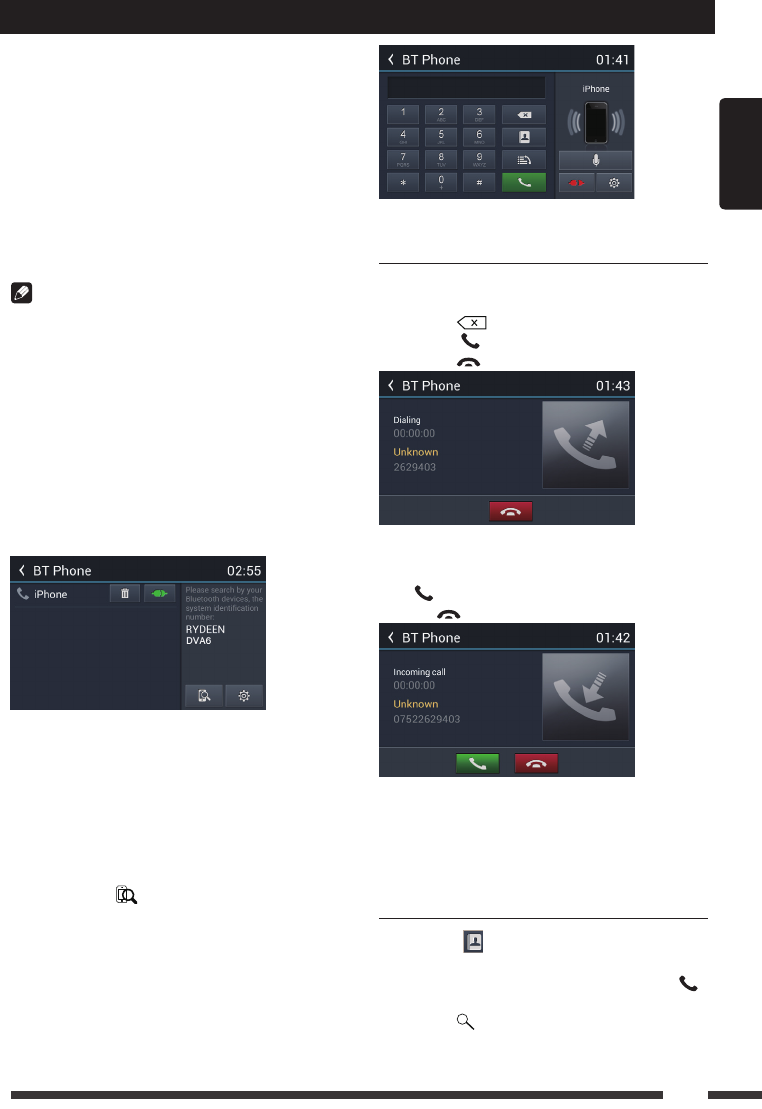
GalleryOperations
1. Select[Gallery]ontheAPPSmenu.
2. Select one gallery to show the picture list.
3. Touch to view it.
Drag left/right to scroll.
Touch the top right corner to delete the
photo.
Touch top left corner to back.
English
17
The Bluetooth allows you to utilize your car’s
built-in audio system for handsfree wireless
mobile phone or music communication. Some
Bluetooth mobile phones have the audio
features, and some portable audio players
support Bluetooth feature. This system can
play audio data stored in a Bluetooth audio
device. The car stereo with Bluetooth will be
able to retrieve phonebook contacts, received
calls, dialed calls, missed calls, incoming calls,
outgoing call and listen to music.
Notes:
• Thissystemwillnotoperateormayoperate
improperlywith someBluetoothaudio
players.
• Theunitcannotguaranteethecompatibility
ofallmobilephonestogetherwiththeunit.
• Audioplaybackwillbesettothesame
volumelevelassetduringtelephonecall.
Thiscancauseproblems,ifextremevolume
levelissetduringthetelephonecall.
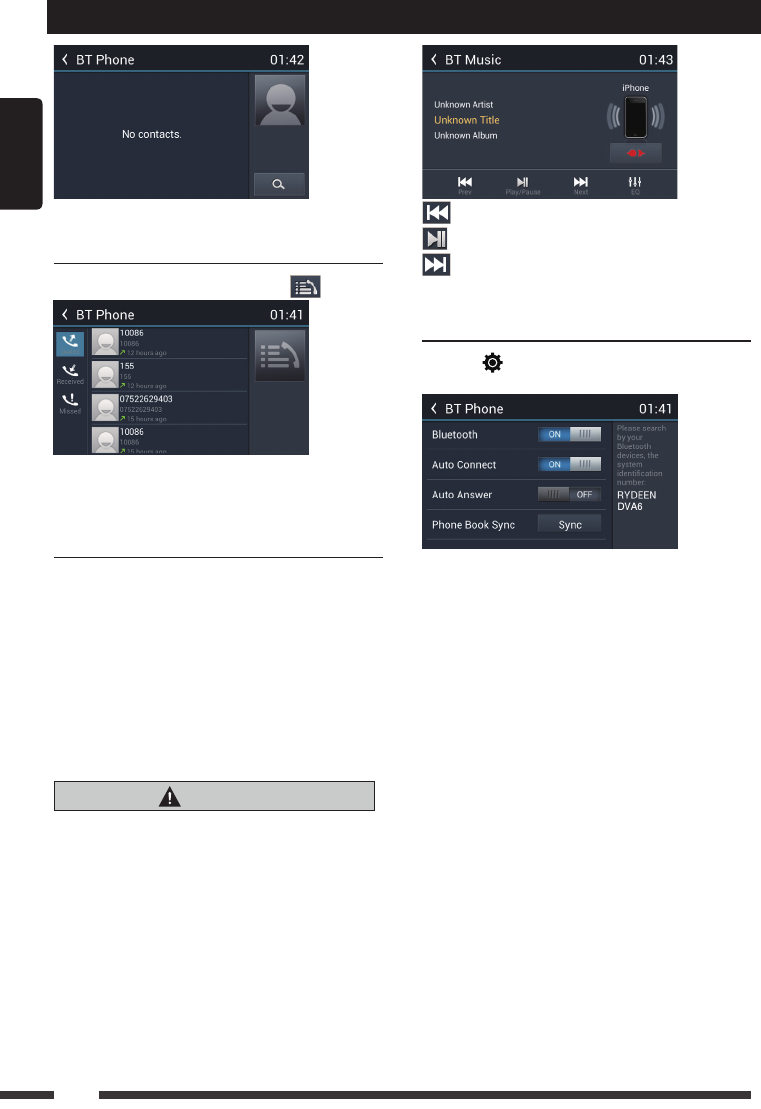
Touch [BT Phone] on the main menu to enter
Bluetooth Phone mode.
1. If the Bluetooth function of the unit is off,
the unit will ask you to turn it on.
(Default setting is on)
2. Turn on Bluetooth function of your mobile
phone.
3. Search for new Bluetooth devices on your
phone. Select the model name from the
pairing list on the mobile phone, and enter
password (Default password: 0000)
Or touch [ ] button on the screen to
search mobile Bluetooth devices.
After connect successfully, the unit show
following menu.
Bluetooth Operations
MakingaCall
• DialNumber
1. Input numbers by digit-keys on the screen.
Touch [ ] to clear the digits.
2. Touch [ ] button to dial out.
3. Touch [ ] button to terminate call.
• Answeringacall
You can answer an incoming call by pressing
the [ ] button.
Touch [ ] button to reject an incoming call.
• Disconnect
To disconnect a paired device, touch
[Disconnect] button.
CallfromPhonebook
1. Touch [ ] button to show your phone
book.
2. Select a number to select and touch [ ]
button to dial out.
3. Touch [ ] to search a contact name.
English
18
Bluetooth Operations
CallHistory
Access Call History by touching [ ] button.
Then select a number from Dialled/Missed/
Received calls.
BluetoothAudioStreaming
Whatisaudiostreaming?
Audio streaming is a technique for transferring
audio data such that it can be processed
as a steady and continuous stream. Users
can stream music from their external audio
player to their car stereo wirelessly and listen
to the tracks through the car’s speakers.
Please consult your nearest dealer for more
information on the product of wireless audio
streaming transmitter offered.
CAUTION
Pleaseavoidoperatingyourconnected
mobilephonewhileaudiostreamingas
thismaycausenoiseorthesoundtocutin
andoutonplayback.
Audiostreamingmayormay notresume
aftertelephoneinterruptasthisis
dependentonyourmobilephone.
Touch [BT Music] button to play music on your
mobile phone.
: Previous track
: Play/Pause
: Next track
BluetoothSettings
Touch [ ] button to show Bluetooth setting
menu.
English
19
3GAPNSettings
Note:
Contact the manufacturer for latest compatible
3Gdevices.
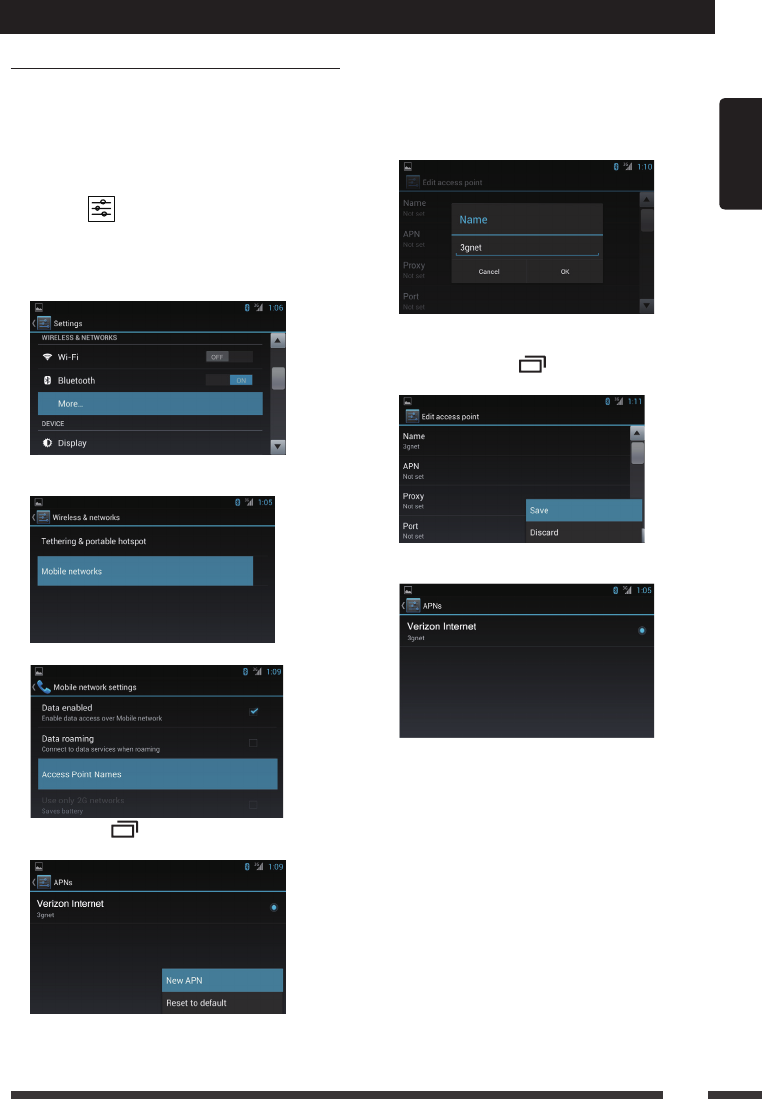
User set the APN to access the internet.
1. Insertthe3Gdongle.
2. Select [ ] on the main menu to enter
the setting interface.
3. Click the [Wireless & networks] to enter
the Wireless & network settings and click
[more...].
4. Click [Mobile network] to enter the Mobile
network settings.
5. Click the [Access Point Names].
6. Press the [ ] button on the front panel,
then click the [New APN].
Internet
7. Must setup following options: Name, APN,
MCC, MNC.
Touch the dialogue box to show keypad,
and input your desired name.
APN according to the operator to
determine.
Theunitwilldetectyour3Gmoduleto
determine the MCC and MNC.
8. Then press the [ ] button and click the
“Save” button.
9. SelecttheAPN,3Giconappearsonthe
top right corner of the taskbar.
English
20
Internet
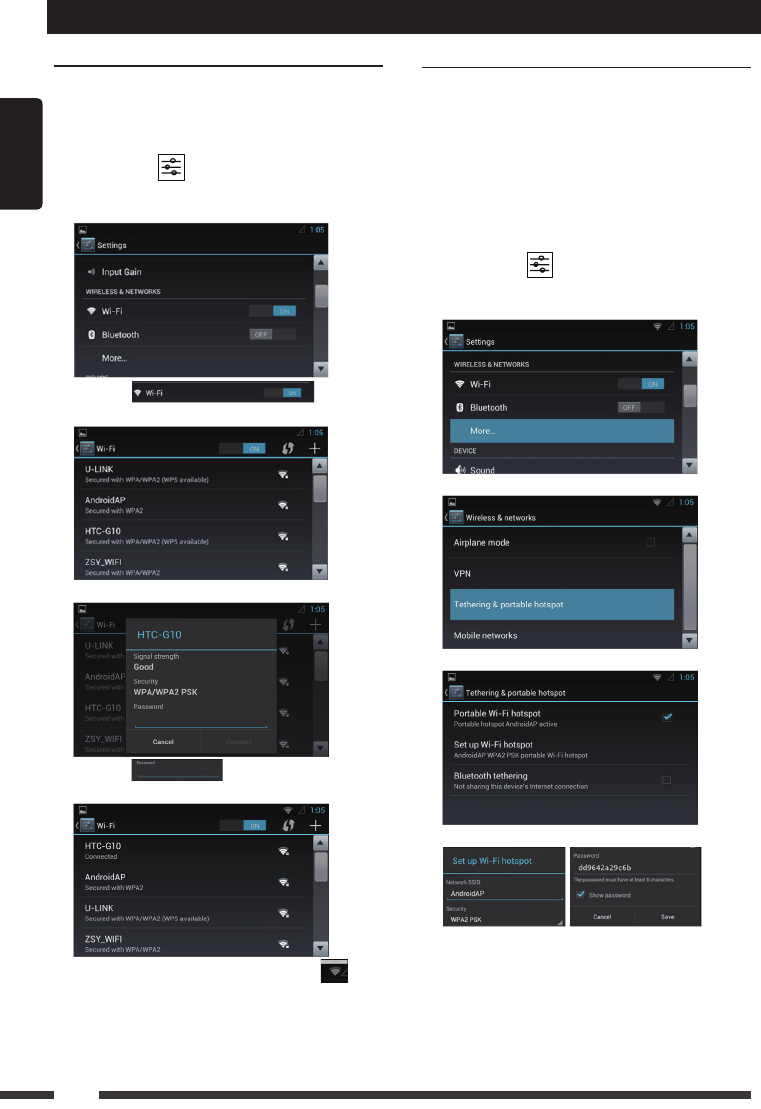
Wi-FiSettings
This unit generally supports the following:
realtek 8188cu, 8188eu.
1. Connect the WiFi dongle to the unit.
Touch the [ ] icon on the main menu
to enter setting menu, and turn on Wi-Fi (if
necessary).
2. Touch [ ] to enter
WiFi setting menu.
3. Touch an available WiFi hotspot.
4. Touch [ ] and input the
password,touch[Connect]toconrm.
5. After successfully connected, the [ ]
icon appears on the top right corner of the
screen. Now you can access internet.
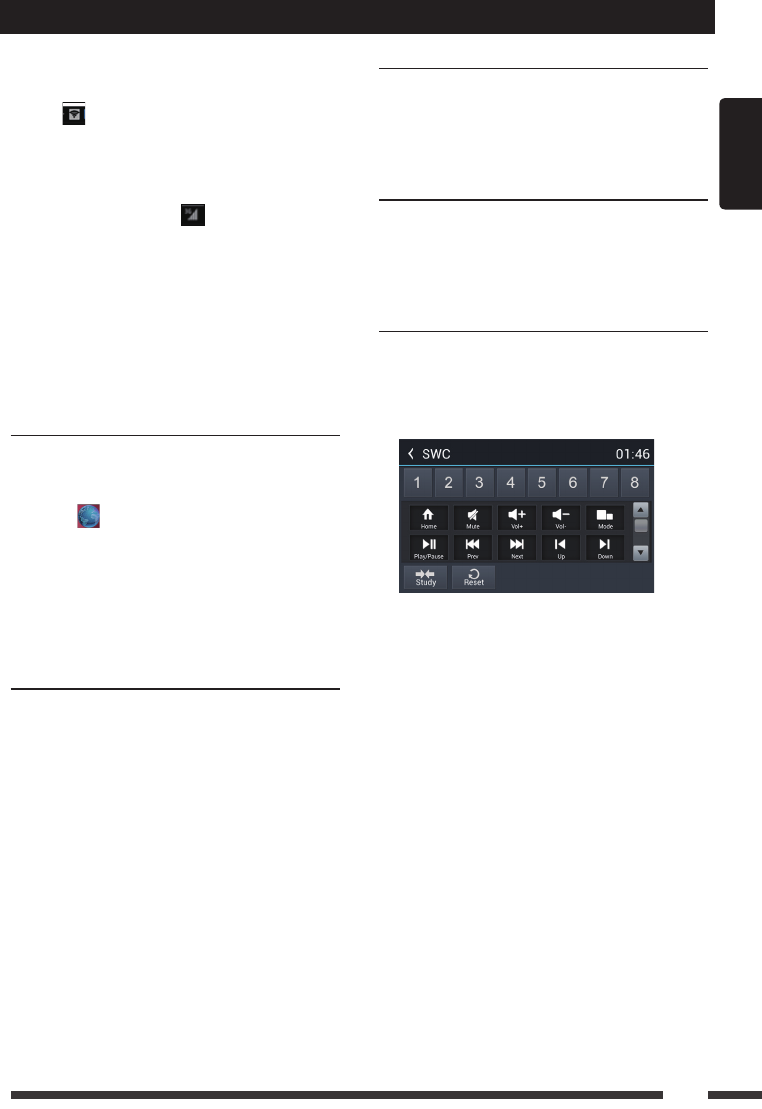
CreateWi-FiHotspot
User can use the unit to create a personal
Wi-Fi hotspot. All your other Wi-Fi enabled
devices will then be able to connect to this
hotspot and share the primary internet
connection.
1. ConnecttheWiand3GdongletotheUSB
slots on the rear of the unit.
Refer to “Device Connections”.
2. Touch the [ ] icon on the main
menu, and drag down to “WIRELESS &
NETWORKS”.
3. Select “More...”.
4. Touch “Tethering & portable hotspot”.
5. Touch “Portable Wi-Fi hotspot”.
After setting done, you can touch “Set up Wi-
Fi hotspot” to modify the settings.
English
21
Internet
VisitWebsite
To access the internet, you must setup
“wireless & network” in system settings menu.
Select [ ] on the main menu to view a
website.
Touch the dialog box on the upper side of
the screen to show keypad. Input the website
address,andtouch[Go]tovisitit.Dragthe
web page to scroll.
E-mail
Select [Email] or other mail software on the
applications menu.
First you must setup an account, or sign into
an existing account. Enter your Email address
and password. Then you can send/receive
E-mails through the unit.
NavigationOperations
To navigate by the unit, simply select the
desired navigation application on the main
menu. Then navigate by the touch screen.
AUXOperations
Select [Aux In 1] on the main menu to visit
front auxiliary device, and select [AUX IN 2] to
enter rear auxiliary device.
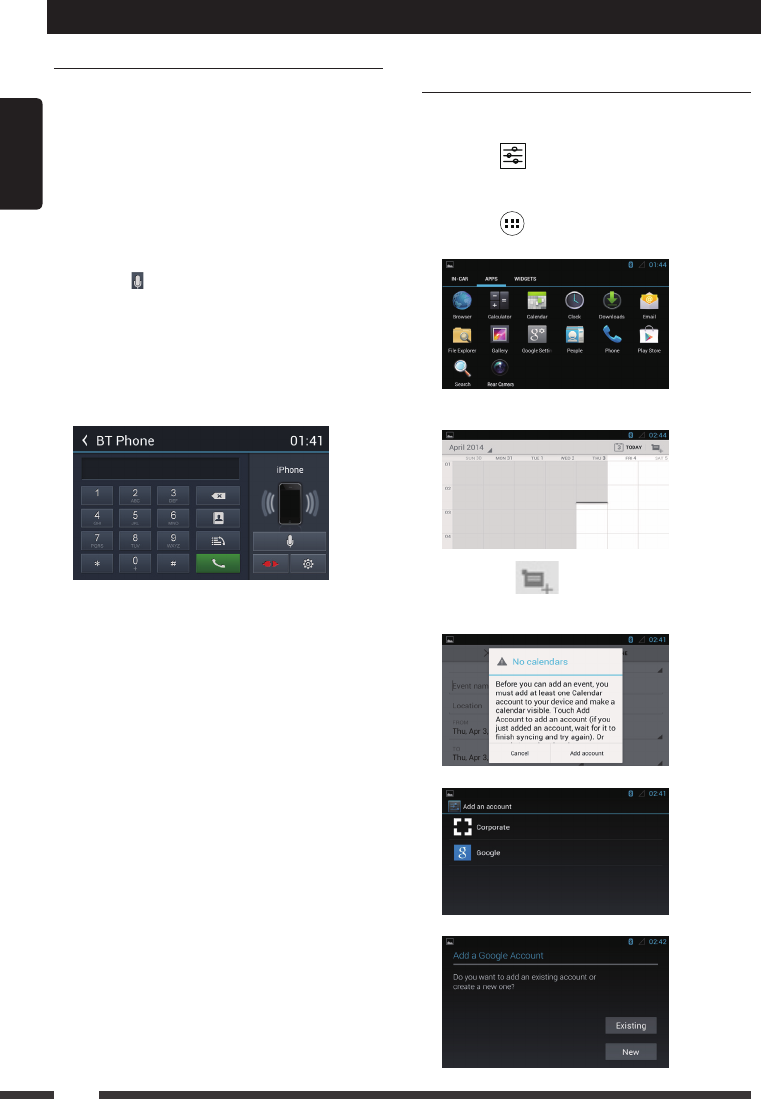
SteeringWheelControl
Select [SWC] on the main menu to enter SWC
setting menu.
1. Touch number button to select a SWC
button.
2. Select a function.
3. Press each individual steering wheel control
button for each corresponding function.
4. Touch [Study] to program.
5. Oncethenalsteeringwheelcontrolbutton
is programmed, the functions are saved
and the programming will end.
6. Touch [ Reset ] to reset the programming.
Other Mode
If your device can’t connect to the Wi-Fi
hotspot:
1. Check the Wi-Fi network.
The icon will appear on the top left of
the screen after setting successfully. If not,
check your Wi-Fi dongle connection and
the Hotspot settings.
2. Checkthe3Gnetwork.
If the signal indicator on the top taskbar
turns grey, the network is unavailable,
checkyour3Gdongleconnectionand3G
settings.
3. Be sure to input the correct password.
4. There may be too many devices connected
to the hotspot.
English
22
i-Mode(Siri)Function
1. Turn on the bluetooth function of both the
unit and smartphone.
Make sure the smartphone has internet
access (iPhone 4S, iPhone 5, iPhone 5S,
iPad,SamsungGalaxy,etc.).
2. Turn on the ‘Siri’ application of iPhone/iPad
or ‘Talk Assistant’ application of Android
phones.
3. Pair your phone to the unit through the
Bluetooth module.
4. Touch [ ] to select i-Mode on.
5. When speaking through the external
microphone of the unit, voice signals will be
transferred to the phone.
The phone will process the data and search
the relative information on local memory or
the internet, then transfer the result back to
the unit.
Other Mode
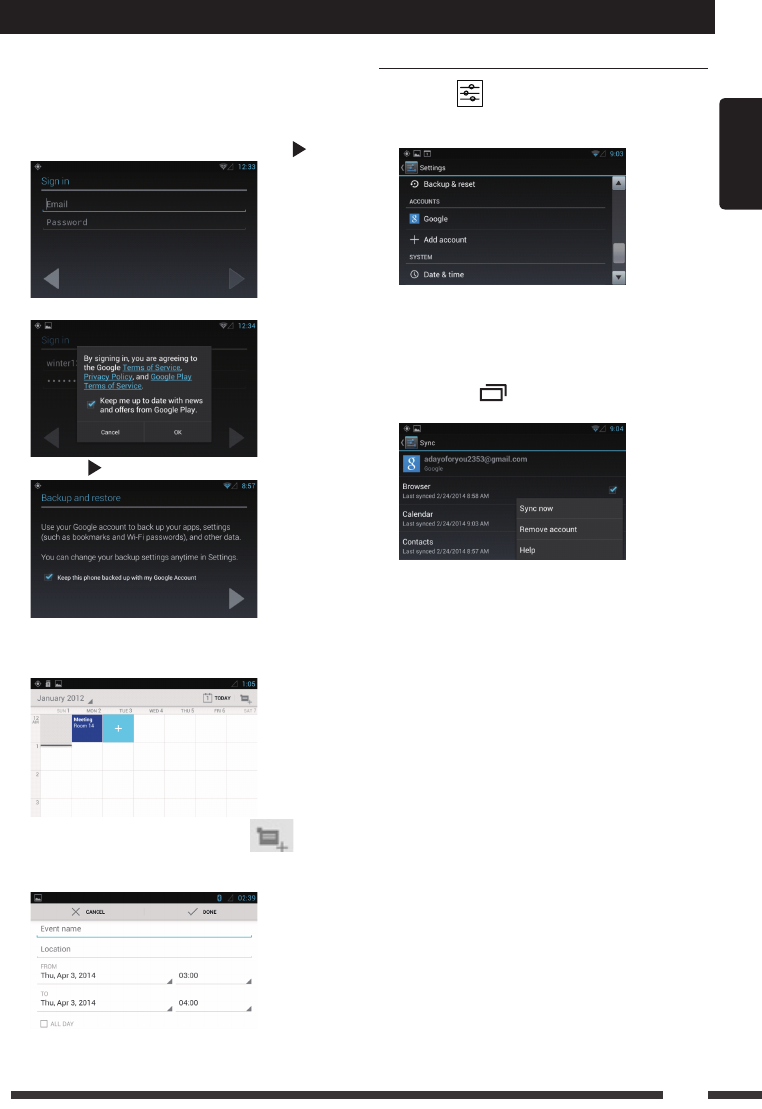
GoogleCalendar
Conguration
1. Ensure the network is available, refer to the
<Internet>.
2. Touch [ ] icon on the main menu, select
[Date & time] in the settings menu, then set
the correct local time.
3. Touch [ ] icon on the main menu to
enter applications menu and select “APPS”.
Select the Calendar icon to show the
following menu.
Touch the icon on the top right corner,
the unit will pop up the following menu when
youusetheCalendarforthersttime.
Touch "Add account".
Select“Google”.
English
23
If you want to establish a new account,
please touch [New].
If you want to use an existing account,
please touch [Existing].
After select “Existing”, input your mail
account and password. Then touch [ ].
Touch[OK]buttontoconrm
Touch [ ]tonishsetting.
4. Select Calendar in APPS menu to show the
calendar and the arrangements. You can
select a date to view the details.
To add a new event, touch the icon
on the top right corner, or touch [ + ] icon on
the blank area.
DeleteGmailAccount
1. Touch [ ] icon on the main menu to
enter settings menu, slide down the screen
tond"Google".
2. Touch[Google],ifyouloggedonagoogle
account before, the address appears.
Select the mail address to show the details.
Press the [ ] button on the front panel
to pop up the sub-menu.
Select "Remove account" to delete this
account.
Other Mode
English
24
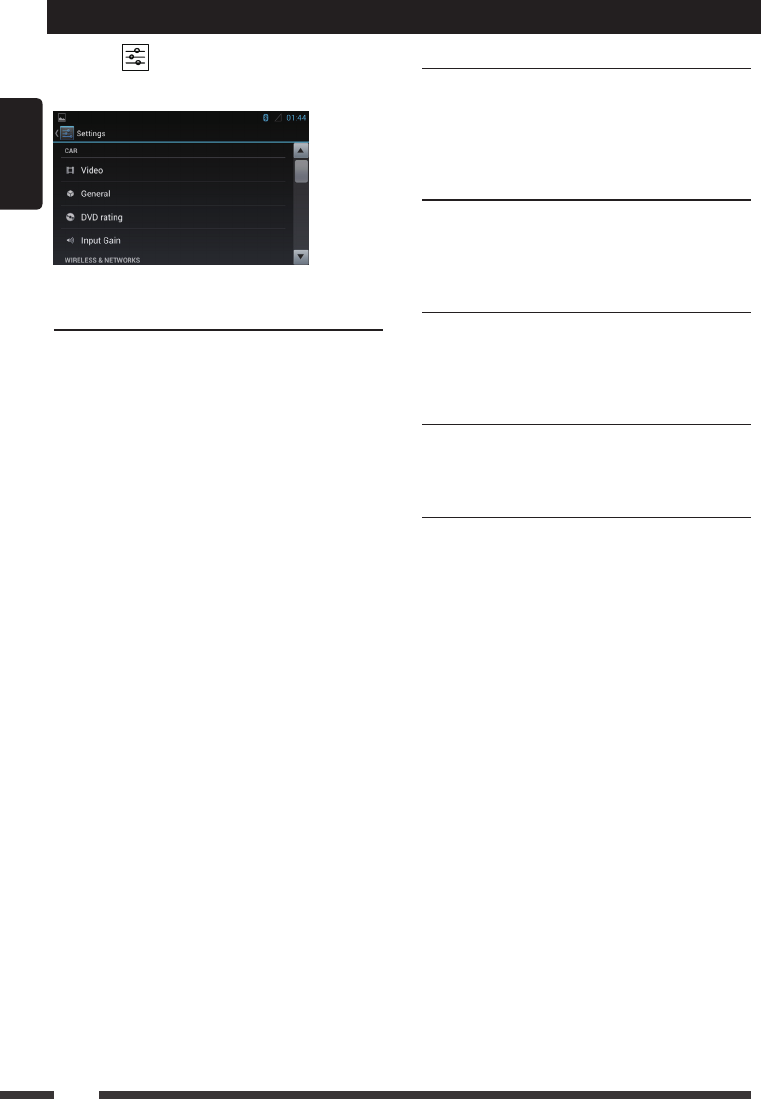
Select [ ] on the main menu to enter
settings mode.
Drag up/down to scroll the options.
CAR
Video
Video input option: Choose video input
mode
Rear camera option: Choose rear camera
display mode.
General
Lighting: Choose button backlight.
Radio region: Choose radio region.
Radio range: Choose radio Frequency:
local or distance.
Blackout: Choose screen blackout off, 10s
or 20s.
Beep:Turn on or off button beep sound.
Calibration: To calibrate the screen.
DVDrating
DVD audio: Choose DVD audio language.
DVD subtitle: Choose DVD subtitle
language.
Disc menu: Choose DVD menu language.
Set password: To set password for rating.
Input4-digitpassword,touch[√]toconrm,
touch [DEL] to delete a number inputted.
Touch [X] to exit.
Rating level:To setup the rating level.
Kidsafe,G,PG,PG-13,PG-R,R,NC-17,
Adult.
InputGain
Choose input volume gain of each source.
System settings
WIRELESS&NETWORKS
To setup the wireless configuration, such as
Wi-Fi,VPN,3Gnetwork.
* For3GAPNsettings,referto“Internet”.
DEVICE
To setup the Sound, Display, and Storage,
Applications management.
PERSONAL
To Setup Location services, Security and
Language & keyboard, etc.
ACCOUNTS
Accounts management.
SYSTEM
To setup Date, time and Accessibility, etc.
English
25
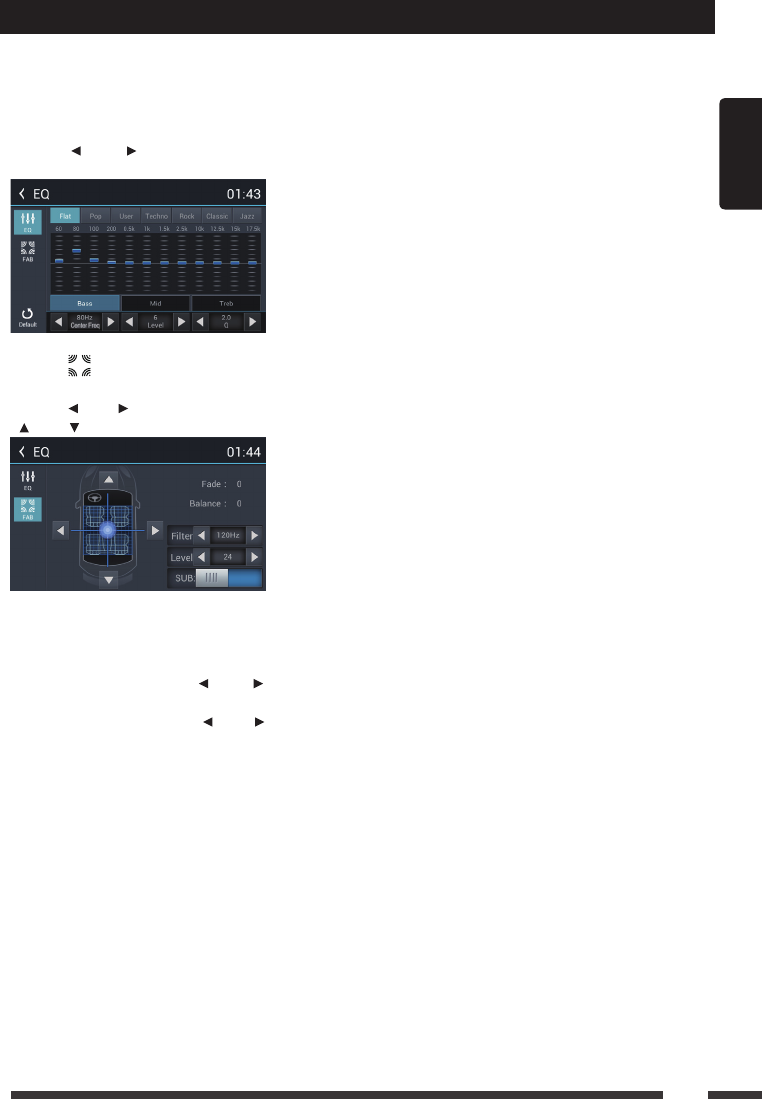
Select [EQ] on the menu to enter sound
setting mode.
Touch to select a preset EQ on upper side
of the screen from Flat, Pop, User, Techno,
Rock,ClassicandJazz.
Touch [ ] or [ ] to adjust the level, Center
Frequency and Q for Bass/Mid/Treb.
Touch [ ] to enter Fader/Balance/
Subwoofer setting menu.
Touch [ ] or [ ] to setup Balance, touch
[ ] or [ ] to setup Fader.
SubWoofer
Sub woofer: Turn on/off the sub woofer
playback.
Subwooferlter:Touch [ ] or [ ] to select
subwoofer Filter.
Sub woofer Level: Touch [ ] or [ ] to adjust
subwoofer Level.
Sound setting

English
26
Device Connections
Notes of connection
• This unit is designed to be used in a vehicle with a 12-volt battery and negative grounding.
Before installing this unit to a recreational vehicle, a bus, or a truck, make sure the battery
voltage is appropriate for this unit to be used, otherwise, have a professionally installed
transformer to convert the output voltage to 12V.
• Toavoidshortcircuitintheelectricalsystem, ensurethatthenegativebatterycableis
disconnected before installation.
• To prevent short circuit in the wiring and damaging to this unit, secure all wirings with cable
clamp or adhesive tape. Route the wirings in a secured, out of heating place without touching
any moving parts such as gear shift, handbrake, and seat rails to prevent the wiring insulation
being melted / worn off.
• Never pass the yellow power cord through the installation hole into the engine compartment and
connect to the car battery. Otherwise, a high possibility of serious short circuit to the electrical
system may occur.
• If you need to replace the fuse, please replace with a 15A fuse. Using no fuse or a fuse with an
improperratingmaycausedamagetotheunitorapotentialre.Ifaproperfuseisinstalledand
problems continue to occur, please contact your local retailer or installer.
• DO NOT connect other equipments with the car battery to avoid battery overheating.
• Please make sure all the wiring connections & the cables of the speakers are well-insulated.
Otherwise, this unit may be damaged by short circuit.
• If there is no ACC available, please connect ACC lead to the power supply with a switch.
• Ifanexternalpoweramplierisconnected,pleasedon'tconnectP.CONTleadtothepower
leadoftheexternalpoweramplier,otherwise,electricsparkorotherdamagemayresult.
• Nevergroundthespeakeroutputtopreventthedamagetothebuilt-inpoweramplier.
English
27
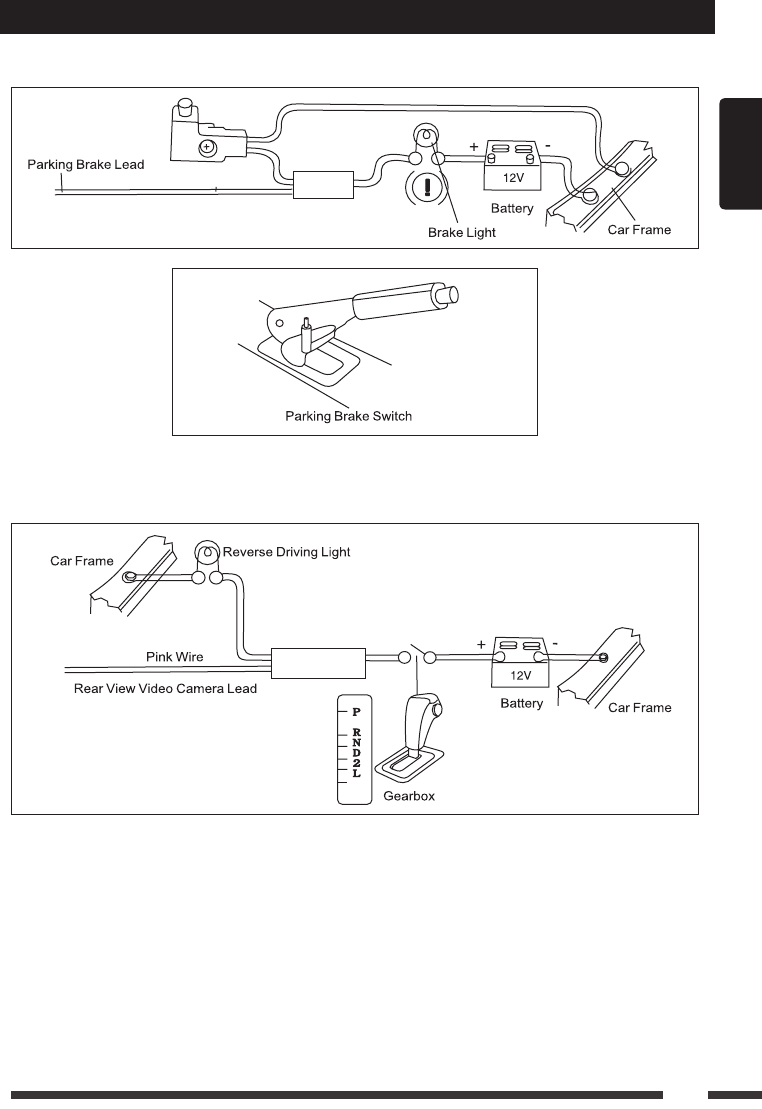
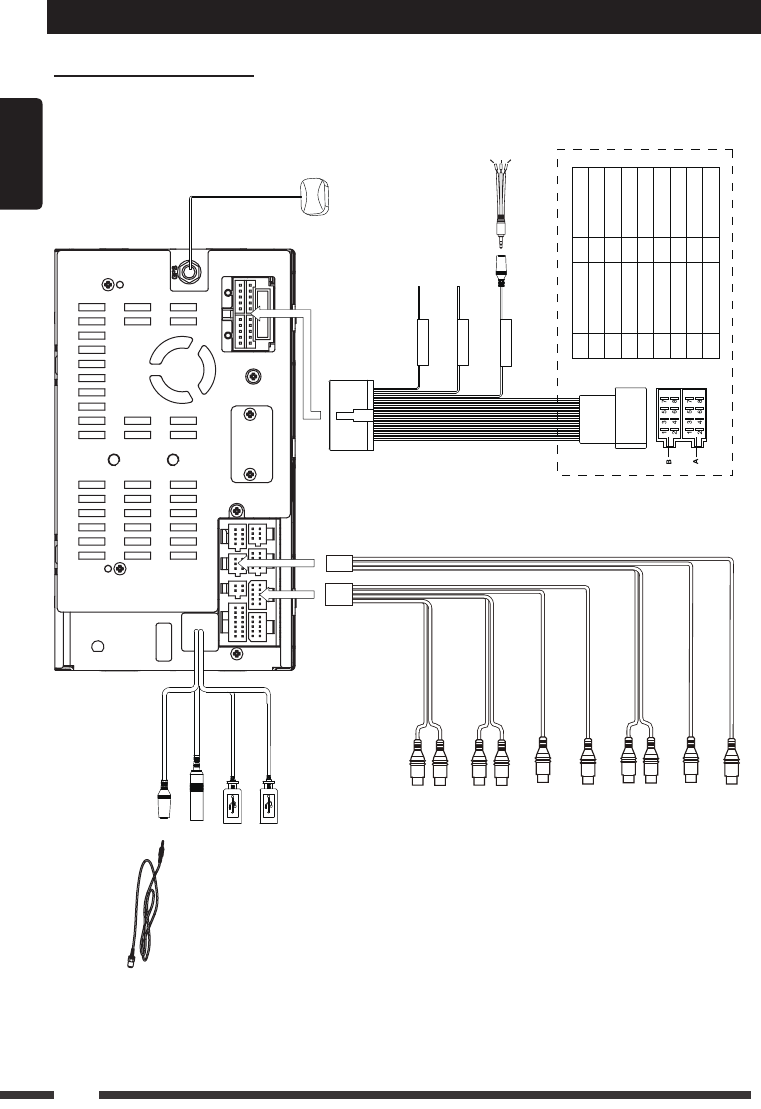
Parking Brake Cable Connections
Back Up Camera Connections
Device Connections
Green/White Wire
English
28
Device Connections
WiringDiagram
PIN PART A
1 NC
2 NC
3 NC
4Battery +12V
5 P.ANT
6 Illumination
7ACC
8 GND
PIN PART B
1 Rear R+
2 Rear R-
3 Front R+
4 Front R-
5 Front L+
6 Front L-
7 Rear L+
8 Rear L-
AUX IN
Red
Red(R)
Blue
Yellow
Yellow
Yellow
White(L)
Red(R)
White(L)
Red(R)
White(L)
Green
White
FRONT OUT
GPS ANTENNA
Black
MICROPHONE
RADIO ANT
Black
Black
Black
3G/WIFI
3G/WIFI
Black
REAR OUT
Grey
VIDEO OUT
Black
VIDEO IN
Black
CAMERA VIDEO
Black
SUBWOOFER
Black
Orange
Pink
Black
PARKING
REVERSE
SWC
Microphone
Key A
Key B
GND
English
29
Troubleshooting
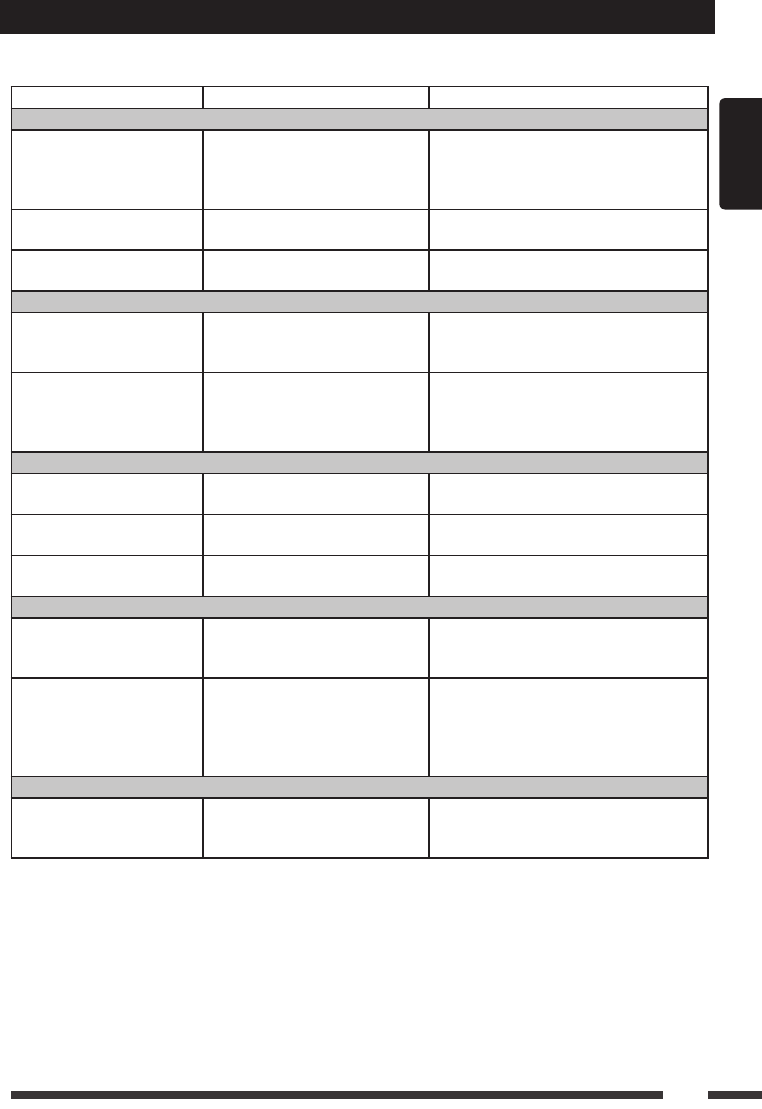
The following checklist can help you solve the problems which you may encounter when using the
unit. Before consulting it, check the connections and follow the instructions in the user manual.
Problem Possiblecause Solution
General
The unit will not switch on.
Car ignition is not on.
Cable is not properly
connected.
Fuse is burnt.
Turn your car key in the ignition.
Check cable connection.
Replace fuse with a new fuse of the
same capacity.
No sound Volume is set at minimum or
the mute function is on.
Check the volume or switch the mute
function off.
The unit or screen does
not function normally. The unit system is unstable. Press the RESET button.
DVDmode
The appliance will not play
discs.
The disc is inserted incorrectly.
The disc is dirty or damaged.
Disc must be inserted with the label
side facing up. Clean the disc and
check for damage. Try another disc.
Sound skips due to
vibration.
Mountingangleisover30˚.
Mounting is unstable.
Adjust mounting angle to less than
30˚.
Mount the unit securely with the
supplied parts.
TUNERmode
Unable to receive stations. The antenna is not connected
properly. Connect the antenna properly.
Poor quality reception of
radio station.
The antenna is not fully
extended or it is broken.
Fully extend the antenna and if
broken, replace it with a new one.
Preset stations are lost. The battery cable is not
properly connected.
Connect the permanent live on the unit
to the permanent live on the vehicle.
USB/SDmode
Unable to insert USB
device or SD card.
The memory card or USB
device has been inserted the
wrong way round.
Insert SD card / USB the other way
around.
The USB device or SD
card cannot be read. NTFS format is not supported.
CheckthattheUSBdisklesystem
is in FAT or FAT32 format. Due to
different formats, some models of USB
storage devices or MP3 players may
not be read.
Remotecontrol
The remote control is not
working or does not work
properly
The battery is low or empty. Change the batteries.

English
30
Specications
General
Reference Supply Voltage .................................................................... 12V(DC)
Operating Voltage Range ........................................................ 10.5 - 15.8V(DC)
Max Operating Current .................................................................................15A
GroundingSystem .................................................... Car Battery Negative Pole
Dimensions(WXHXD) ......................................................... 178X101.5X159mm
Weight(main unit) ...................................................................................... 1.9kg
FM
Signal Noise Ratio ................................................................................ ≥55dB
Usable Sensitivity(S/N=30dB) ..........................................................≤15dBμV
Frequency Response(-3dB) ..........................................................20Hz~7KHz
Station Seeking Level .................................................................... 20~28dBμV
Distortion .............................................................................................. ≤1.0%
StereoSeparation(1KHz) ..................................................................... ≥25dB
Antenna Impedance ...................................................................................75Ω
AM
Usable Sensitivity(S/N=20dB) ..........................................................≤30dBμV
Frequency Response(-3dB) ..........................................................50Hz~2KHz
LCD
Screen size ............................................................................. 6.2 inches(16:9)
Display resolution ........................................................................800X480dots
Contrast radio ............................................................................................. 400
Brightness.......................................................................................... 400cd/m2
DVDPlayer
Signal / Noise Ratio .............................................................................. ≥70dB
Dynamic Range .................................................................................... ≥70dB
Distortion(line out) ................................................................................ ≤0.8%
Frequency Response(±3dB) .......................................................20Hz~20KHz
Maximum Output Power ........................................................................4×45W
Load Impedance ........................................................................................... 4Ω
AUXIN
Distortion .............................................................................................. ≤0.8%
Frequency Response(±3dB) .......................................................20Hz~20KHz
Audio Input Level ...................................................................................500mV
Audio
Audio Output Impedance ......................................................................... 10KΩ
Audio Output Level ....................................................................... 2Vrms(Max)
Video
Normal Video Input Level(CVBS) .......................................................1.0±0.2V
Video Input Impedance...............................................................................75Ω
Video Output Impedance ............................................................................ 75Ω
Video Output Level .............................................................................1.0±0.2V
Environment
Operating Temperature .............................................................-10°C ~ +60°C
Storing Temperature..................................................................-20°C ~ +70°C
Operating Humidity ..................................................................... 45%~80%RH
Storing Humidity ......................................................................... 30%~90%RH
Notice:
When the unit is operated in extreme conditions, such as operated with maximum power output
for a long time, or the temperature is over 70°C, it will enter heat protection mode, the volume will
automatically be lowered. This is normal.

English
31
One Year Limited Warranty
Rydeen North America Inc. (a manufacturer of “Rydeen” products) warrants this product (DVA6)
only to the original purchaser as described following:
WarrantyPeriod
Rydeen warrants this product for a period of one (1) year from the original purchase date with
proof of purchase.
WarrantyCoverage
Thiswarrantycoversalldefectsinmaterialandworkmanshipexceptasspeciedbelow.
1. Installation by anyone other than an authorized Rydeen Mobile Retailer voids the warranty.
2. Any products distributed outside of the USA by Rydeen North America Inc. (Rydeen) or which is
not purchased in the USA or Canada unless the product is purchased through the USA Military
Exchange Service.
3. Any product(s) which are purchased from an unauthorized retailer (in store or online).
4. Any products in which the serial number label or the model number label are removed, torn,
modiedorreplicated.
5. Any damage defects or malfunctions resulting from any of following:
a) When defect occurs during shipment of product (freight carrier’s responsibility).
b) Installation or removal of product.
c) Accidents, act of nature, misuse, abuse, neglect, unauthorized product modification or
failure to follow product owner’s manual instructions.
d) Any repair or attempt to repair without RYDEEN authorization.
e) Any other cause which is not related to product defect.
f) Any cosmetic damages due to normal wear and tear.
g) Any consumable items (such as fuse or batteries).
If any problems develop with your Rydeen products during or after the Limited Warranty Period, or
if you have any questions regarding the operation or installation of the product, you should contact
your Rydeen retailer. If the problem or your question is not handled to your satisfaction, please
contact Rydeen Customer Service Department at 1-877-777-8811 (within the USA only) Monday -
Fridaybetween9:00AMto4:00PMPacicStandardTimeorvisitwww.rydeenmobile.com.
If warranty service is required for your Rydeen product:
1. Please call Rydeen Customer Service Department and obtain a Return Authorization Number
(“RA”) Number.
2. Please pay for any shipping charge to Rydeen Customer Service Department. Rydeen will
pay the return shipping charge, if the repair or service was performed during the warranty
period. Rydeen will ship freight collect (recipient is responsible for shipping charge) if Rydeen
determine;theservicewasperformedoutsideofwarrantyperiodorexclusionsdescribedabove
warranty coverage. Rydeen will not accept warranty service requests from outside of the U.S.A.
even if product was purchased in the USA.
3. Please include a copy of your original purchase receipt including Rydeen product model
number, purchase date, retailer name/address and a RA Number whenever your product is sent
for warranty service.
4. Rydeen will pay for all labor and material expenses for covered product during warranty period.
5. Shipping address for Rydeen Customer Service Department is following:
Rydeen North America Inc. (a manufacturer of Rydeen products), 2701 Plaza Del Amo, Unit 705,
Torrance, California 90503, USA

English
32
FCC Statement
This device complies with Part 15 of the FCC Rules. Operation is subject to the following two
conditions:
(1) This device may not cause harmful interference, and
(2) This device must accept any interference received, including interference that may cause
undesired operation.
Changesormodicationsnotexpresslyapprovedbythepartyresponsibleforcompliancecould
void the user’s authority to operate the equipment.
NOTE: This equipment has been tested and found to comply with the limits for a Class B digital
device, pursuant to Part 15 of the FCC Rules. These limits are designed to provide reasonable
protection against harmful interference in a residential installation.
This equipment generates uses and can radiate radio frequency energy and, if not installed and
used in accordance with the instructions, may cause harmful interference to radio communications.
However, there is no guarantee that interference will not occur in a particular installation. If
this equipment does cause harmful interference to radio or television reception, which can be
determined by turning the equipment off and on, the user is encouraged to try to correct the
interference by one or more of the following measures:
Reorient or relocate the receiving antenna.
Increase the separation between the equipment and receiver.
Connect the equipment into an outlet on a circuit different from that to which the receiver is
connected.
Consult the dealer or an experienced radio/TV technician for help.
FCCRadiationExposureStatement
This equipment complies with FCC radiation exposure limits set forth for an uncontrolled
environment. This equipment should be installed and operated with minimum distance 20cm
between the radiator & your body.
Disclaimer
The information in this user manual is for general guidance. Images in the manual may not
represent the exact images that are displayed in the operating system software. Some features
described in the manual may not be available or the features described may be limited, depending
on the updated software or any other reasons.

Rydeen North America Inc.
dba Rydeen Mobile Electronics
2701 Plaza Del Amo, Unit 705, Torrance, California 90503 USA
Phone: 1-877-777-8811 Fax: 1-310-943-3778
Copyright © 2013 Rydeen North America Inc. All Rights Reserved.
RYDEEN ® is a registered trademark of Rydeen North America Inc.
These materials are protected by copyright law and international treaties. Any unauthorized use, reproduction or distribution
ofthesematerials,oranyportionherein,willresultinseverecivilandcriminalpenaltiesandnes.Violatorswillbe
prosecuted to the fullest extent of the law.
rydeenmobile.com
P/N: 127075006163