HUIZHOU FORYOU GENERAL ELECTRONICS FGEDV7310 Car DVD Player User Manual
HUIZHOU FORYOU GENERAL ELECTRONICS CO.,LTD. Car DVD Player
User manual
Caution content for VM9512
Caution content: changes or modifications not expressly approved by
the party reponsible for compliance could void the user's authority to
operate the equipment.
240
®
DIV
Watts Peak
Watts en Crête
Vatios el Máximo
60W x 4
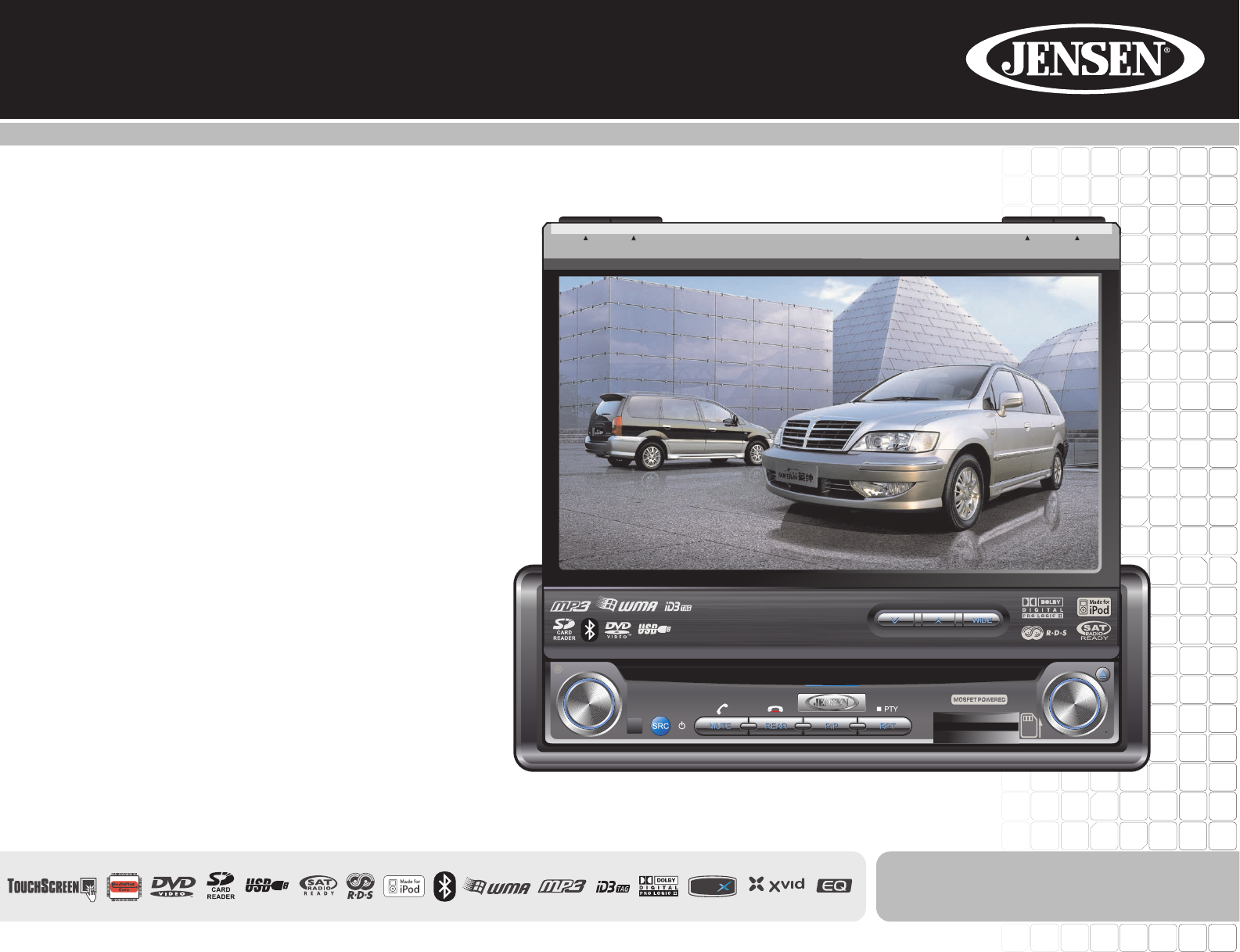
VM9512
Installation and Operation Manual
video
Enter
VM9512
Press Audio
ANGLE / TILT PICTURE
Multimedia Receiver
AS DISP
BAND CLOSE
i
CONTENTS
Thank you for choosing a Jensen product. We hope you will find the instructions in this owner’s
manual clear and easy to follow. If you take a few minutes to look through it, you’ll learn how to
use all the features of your new Jensen VM9512 Mobile Multimedia Receiver for maximum
enjoyment.
Preparation............................................................................................................................ 1
Installation............................................................................................................................. 5
Anti-Theft Feature ................................................................................................................. 6
Controls and Indicators ......................................................................................................... 7
Remote Control ..................................................................................................................... 9
Using the TFT Monitor ........................................................................................................ 12
Operating Instructions ......................................................................................................... 14
Multi-ZONE Operation......................................................................................................... 15
Setup Menu......................................................................................................................... 16
Tuner Operation.................................................................................................................. 18
Satellite Radio Operation .................................................................................................... 20
DVD/VCD Video Operation ................................................................................................. 22
DVD/CD Audio Operation ................................................................................................... 25
MP3/WMA/iPod Operation.................................................................................................. 26
Troubleshooting .................................................................................................................. 29
Specifications...................................................................................................................... 32
ii

1
VM9512
PREPARATION
Congratulations on your purchase of the Jensen VM9512
Mobile Multimedia Receiver.
It’s a good idea to read all of the instructions before beginning
the installation. We recommend having your Jensen VM9512
installed by a reputable installation shop.
Features
DVD
• Aspect Ratio - Cinema, Normal and OFF (Standby)
• Fast Forward, Fast Reverse - 2X, 4X and 8X
• Slow Forward, Slow Reverse - 2X, 4X and 8X
• Play, Pause, Stop, Next Chapter and Previous Chapter
• ESP - 2MB Buffer
CD / MP3 / WMA
• ID3 Tag Compatible
• Directory Search (MP3 / WMA Only)
• Direct Track Access via Remote control
• Burn Up To 1500 MP3 and WMA Files onto a DVD+R /
RW
• Audible Forward / Reverse Track Search
• Random, Repeat and Intro
• Play, Pause, Stop, Next Track and Previous Track
• ESP - 2MB Buffer
AM-FM
• USA/Europe/Latin America/Asia Frequency Spacing
• 30 Station Presets (18 FM, 12 AM)
• Auto Stereo/Mono
• Local/Distance
• Auto Store/Preview Scan
• RDS (Radio Data System)
Sat Radio Ready
• Compatible with XM and Sirius Tuners (Sold Separately)
• Requires XMDJEN100 or JXMC Cables (Sold
Separately)
• Satellite Channel Name, Artist, Song and Categories
Displayed on TFT Screen
iPod
•jLinkDirect - High Speed Direct Connect Interface to
Access iPod Playlists, Artists, Albums, Songs, **Photos
and **Video (** Requires Photo or Video iPod)
• Power Management Charges iPod while Connected
• Requires jLinkCable iPod Interface Cable (included)
MediaLink4
• Under Dash Interface Allows Portable Media Devices to
be Connected
• MediaLink4 Includes the Following Connectivity:
• USB - Supports Hard Drives and Flash Memory
Drives
• LinkDirect 8-pin DIN for iPod
• 3.5mm Audio Only Input
• RCA Audio /Video Input
Chassis
• 1.0 DIN (Import/ISO-DIN Mountable)
• Motorized/Swivel Flip-Out/Flip-Up LCD Screen
• 7" TFT Active Matrix LCD with Anti-Glare Coating
• Screen Tilt/Angle Adjustment
• Heat Management System - Forced-Air Cooling to Keep
the Chip Sets Operating at Nominal Temperatures
General
• Bluetooth - Bluetooth hands-free profile for safety /
convenience and A2DP profile for streaming music from
a PDA / PMP
• Navigation Ready (Nav101 Only)
• 38-Key Infrared Remote Control with 5-way Joystick
• Two Composite Video Outputs for Additional Screens
• Compatible with MZ7TFT Rear Seat Monitors with
Touch Screen Interface
• Two Audio /Video Auxiliary Inputs
• 200-Ohm Preamp Line Output - All Audio Channels
• 4VRMS Line Output - All Channels
• Rotary Encoder Audio Control
• Seven-Band EQ with Eight Preset EQ Curves
• Spectrum Analyzer
• Front, Rear, Center and Subwoofer Line Output
• Subwoofer Crossover and Phase Control
• Dolby Digital / Pro-Logic ll
• Programmable Volume Control
• Rear Camera Input (Normal and Mirror Image View)
• Auto TFT Dimmer
• 5-Way Joystick
2
VM9512
Optional Equipment
•NAV101
The VM9512 is "navigation ready." Before accessing
any navigation features, you must purchase and install
the NAV101 module. All installation and operating
instructions will be included with the NAV101 navigation
module.
Once the NAV101 is connected and operating properly,
the NAV source mode will become active. While the
NAV101 is not installed, the NAV option appears gray,
indicating the function is not available.
•Rear Camera
The VM9512 is "camera ready." Before accessing any
camera features, you must purchase and install a rear
video camera. Once the rear camera is connected and
operating properly, the CAMERA source mode will
become active. While the camera is not installed, the
CAMERA option appears gray, indicating the function is
not available.
•Satellite Radio Tuner
See “Satellite Radio Operation” on page 22.
•iPod
See “MP3/WMA Operation” on page 29.
•Bluetooth Phone
See “Bluetooth Operation” on page 32.
Tools and Supplies
You will need these tools and supplies to install your
VM9512:
• Torx type, flat-head and Philips screwdrivers
• Wire cutters and strippers
• Tools to remove existing radio (screwdriver, socket
wrench set or other tools)
• Electrical tape
• Crimping tool
• Volt meter/test light
• Crimp connections
• 18 gauge wire for power connections
• 16 – 18 gauge speaker wire
Disconnecting the Battery
To prevent a short circuit, be sure to turn off the ignition and
remove the negative (-) battery cable prior to installation.
NOTE: If the VM9512 is to be installed in a car equipped
with an on-board drive or navigation computer, do not
disconnect the battery cable. If the cable is
disconnected, the computer memory may be lost. Under
these conditions, use extra caution during installation to
avoid causing a short circuit.
WARNING! Only connect the unit to a12-volt power
supply with proper grounding.
WARNING! Never install this unit where operation and
viewing could interfere with safe driving conditions.
WARNING! To reduce the risk of a traffic accident (except
when using for rear view video camera) never use the
video display function while driving the vehicle. This is a
violation of federal law.
WARNING! Never disassemble or adjust the unit.
WARNING! To prevent injury from shock or fire, never
expose this unit to moisture or water.
WARNING! Never use irregular discs.
WARNING! To prevent damage to the mechanism inside
this unit, avoid impact to the TFT monitor.
WARNING! Using an improper fuse may cause damage
to the unit and result in a fire.
WARNING! The monitor employs an automatic motorized
mechanism. To prevent damage to the core mechanism,
please do not push, pull or swivel the monitor manually,
other than in the manner explained in “Monitor Left/Right
Angle Adjustment” on page 12.
3
VM9512
Antenna Jack
Harness Cord
ACC
Auto antenna control (connect to antenna
control lead & power supply of antenna
amplifier)
External power amplifier control
GND
BATT
ACC
ANT.CONT
P.CONT
REAR L
FRONT L
FRONT R
REAR R
PINK
BLACK
BLUE
BLUE/WHITE
WHITE/BLACK -
GREEN/BLACK -
YELLOW
YELLOW
RED
WHITE +
GREEN +
PURPLE +
PURPLE/BLACK -
GREY/BLACK -
GREY +
FRONT L+
FRONT L-
FRONT R+
FRONT R-
REAR R+
REAR R-
REAR L+
REAR L-
Car
Antenna
FUSE (15A)
Battery
Ignition Switch
Rear Video 2
BATTERY
External Power Amplifier
BATTERY +
Ground
WHITE
YELLOW
RED
Mute (leave open if not connected)
MUTE
BROWN
Car Phone
SUB.W
REAR L
REAR R
BLUE
RED
WHITE
FRONT L
FRONT R
RED
WHITE
WHITE
RED
Rear Video 1
YELLOW
WHITE
YELLOW
RED
Rear View
Video Camera
External AV System
YELLOW
BLACK MZ-TFT Touch Screen
(Sold Separately)
MediaLink
Bus
SAT Radio
AUXIN1
SAT L
SAT R
VIDEO OUT 1
VIDEO OUT 2
MZ-TFT
CAMERA
AUXIN2
PRK SW
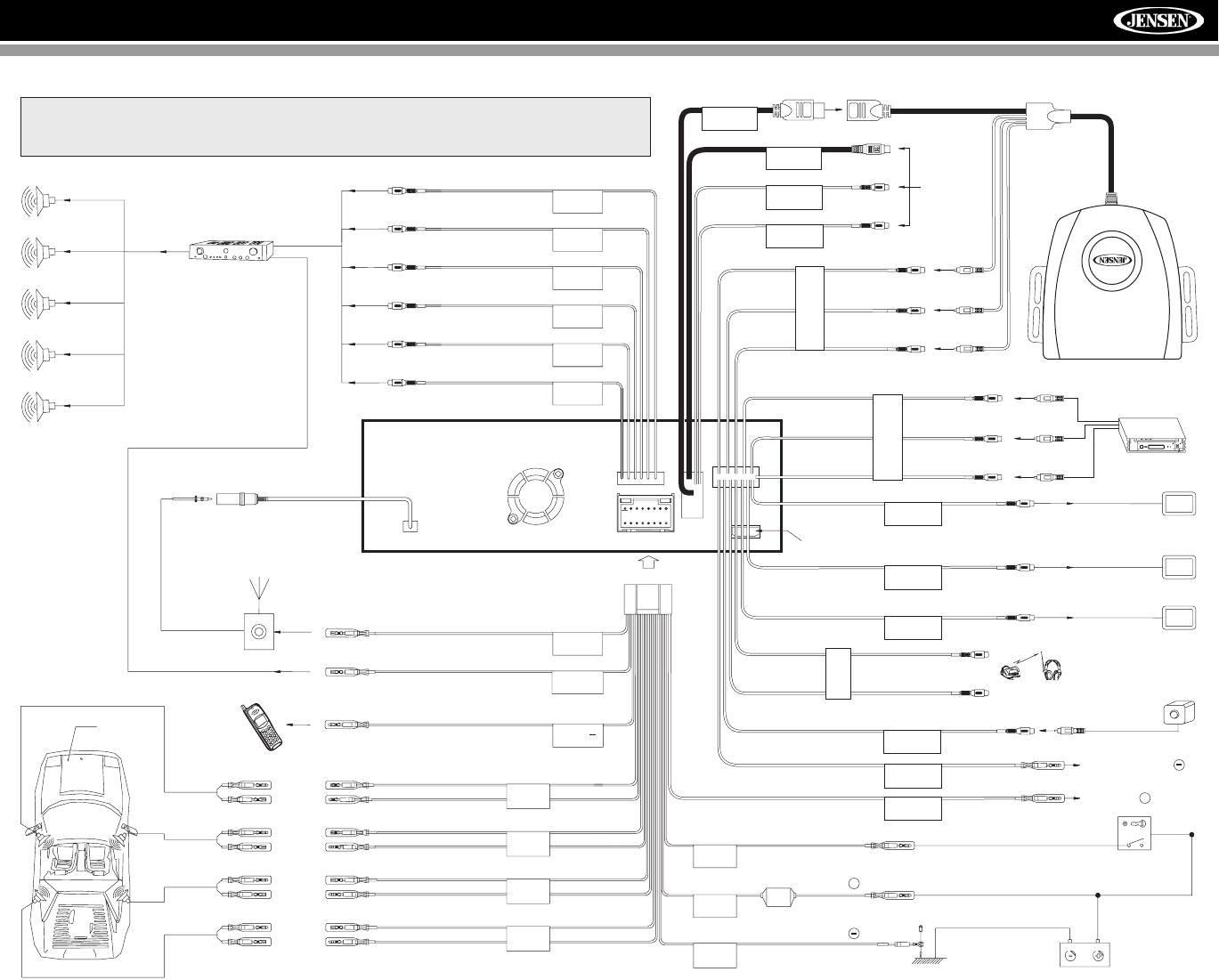
See the MediaLink and Satellite Connections diagram for more information
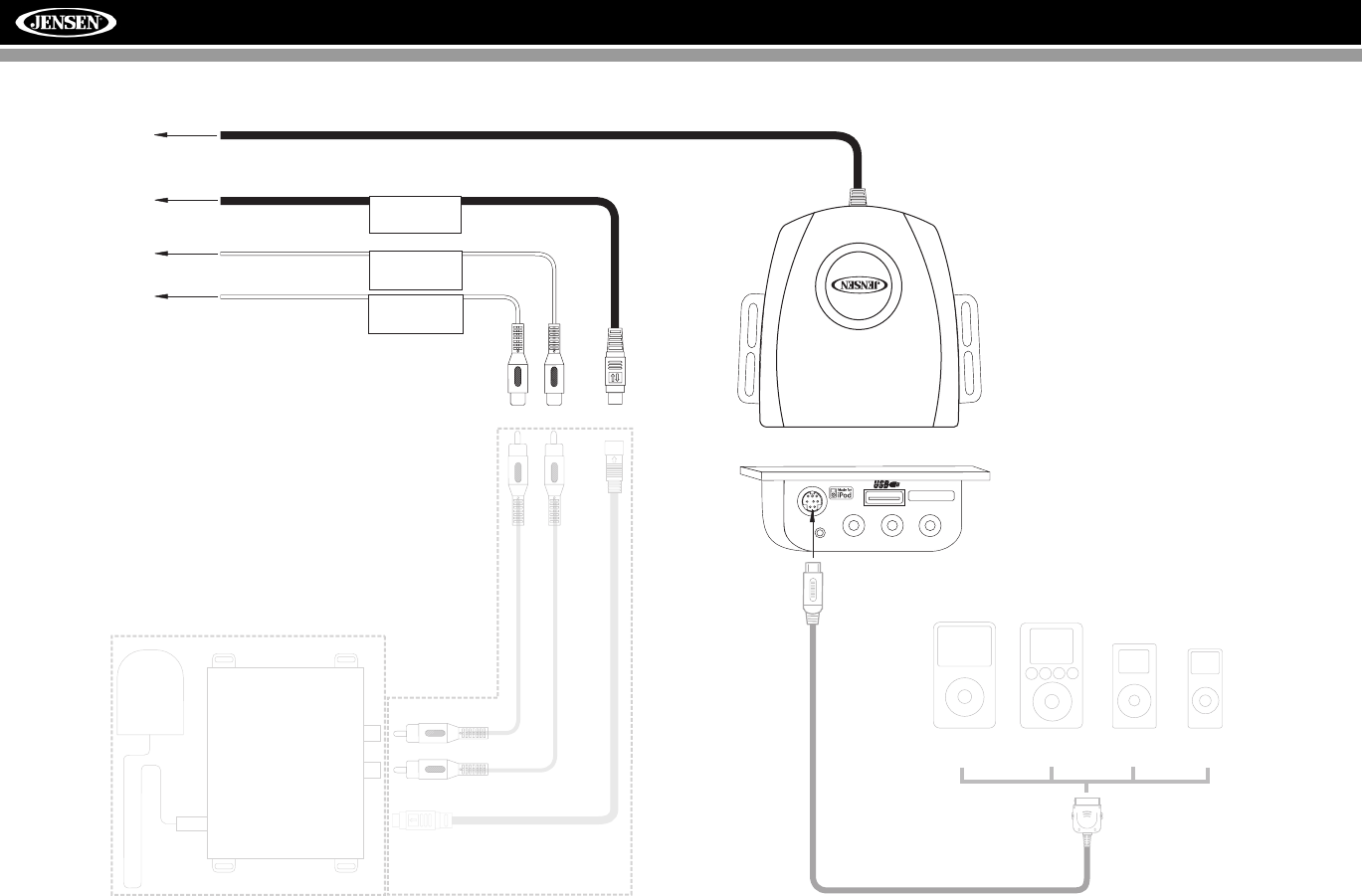
about connecting a satellite receiver and an iPod (through the MediaLink).
*
*MediaLink
* Satellite
Receiver
Connections
PARKING BRAKE
REVERSE +
REVERSE +
GREEN/WHITE
WHITE
RED
NAV101 Input
HEADPHONE
MULTIZONE
WIRELESS HEADPHONE
(OPTIONAL)
WHITE
YELLOW
RED
WHITE
YELLOW
RED
YELLOW
CENTER
GRAY
WIRING DIAGRAM
4
VM9512
*
**
jLink iPod Cable
(Included)
iPod Nano
iPod Mini
iPod
iPod Video
SAT Radio
SAT L
SAT R
To Head Unit
VIDEO LEFT RIGHT
3.5mm - Audio
MediaLink
MEDIALINK AND SATELLITE CONNECTIONS
*SAT Cable Kit: JXMC or XMDJEN100 (sold separately)
**XM or Sirius satellite tuner (sold separately)
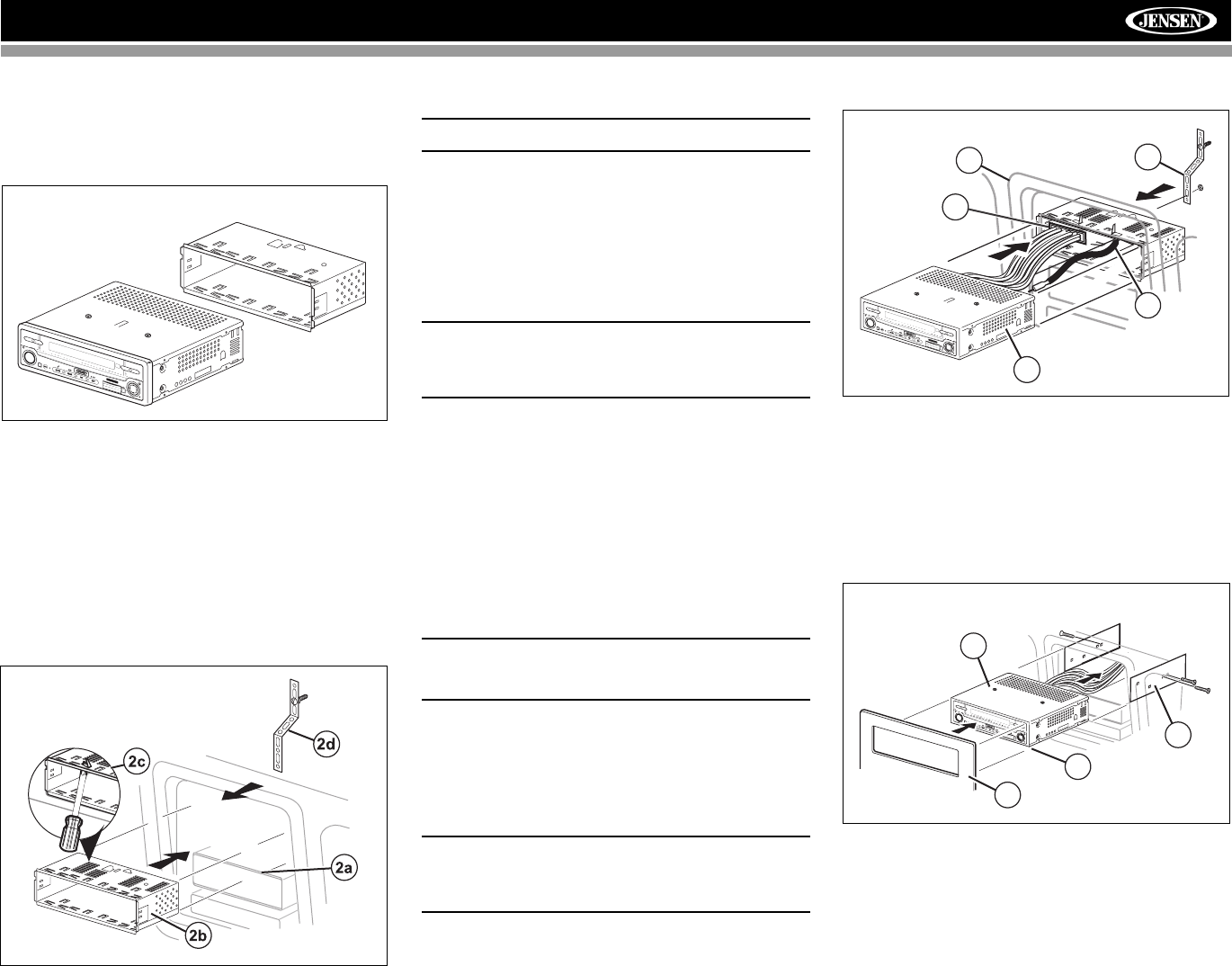
5
VM9512
INSTALLATION
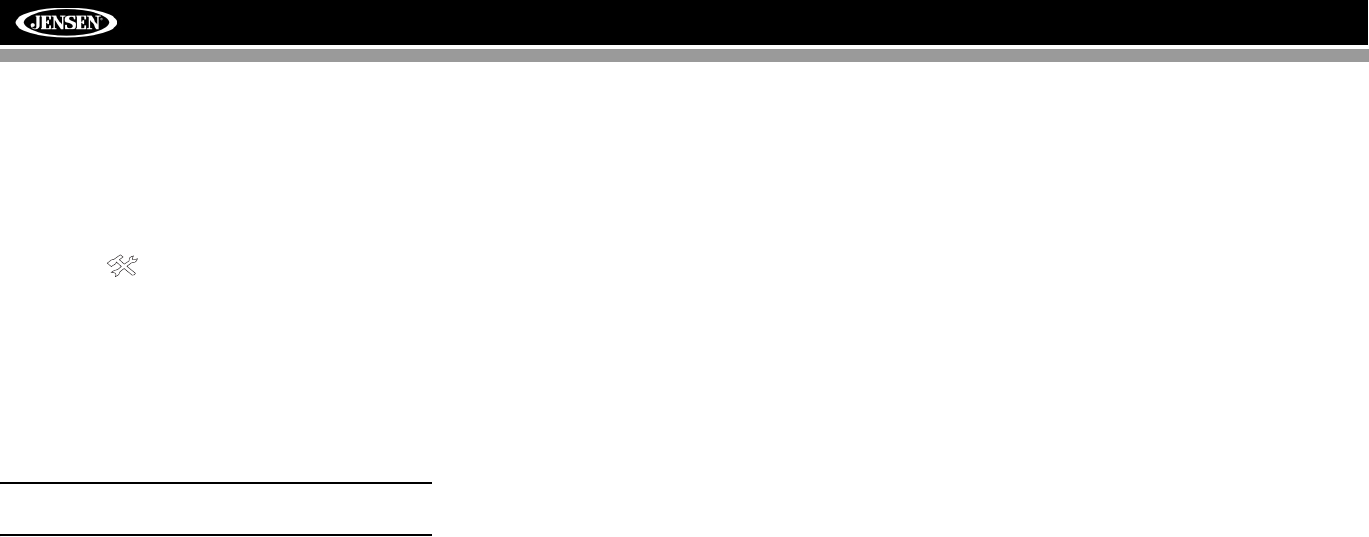
Pre-installation
1. Press the metal levers on both sides to remove the half-
sleeve from the radio.
2. Install the half-sleeve.
a. Install adapter if necessary (optional).
b. Install half-sleeve into adapter or dashboard (use
only the supplied screws). Do not force the sleeve
into the opening or cause it to bend or bow.
c. Locate the series of bend-tabs along the top,
bottom and sides of the mounting sleeve. With the
sleeve fully inserted into the dashboard opening,
bend as many of the tabs outward as necessary so
that the sleeve is firmly secured to the dashboard.
d. Install support strap to make the unit more stable.
CAUTION! Be careful not to damage the car wiring.
3. Place the radio in front of the dashboard opening so the
wiring can be brought through the mounting sleeve.
Wiring
Complete wiring as illustrated in the wiring diagram on page
3. Once the wiring is complete, reconnect the battery
negative terminal. If there is no ACC available, connect the
ACC lead to the power supply with a switch.
NOTE: When replacing a fuse, be sure to use correct
type and amperage to avoid damaging the radio. The
VM9512 uses one 10 amp mini-ATM fuse, located in the
black filter box in-line with the main wire harness.
Final Installation
After completing the wiring connections, turn the unit on to
confirm operation (ignition switch must be on). If unit does not
operate, recheck all wiring until problem is corrected. Once
proper operation is achieved, turn off the ignition switch and
proceed with final mounting of the chassis.
1. Connect wiring adapter to existing wiring harness.
2. Connect antenna lead.
3. Carefully slide the radio into the half-sleeve, making
sure it is right-side-up, until it is fully seated and the
spring clips lock it into place.
NOTE: For proper operation of the CD/DVD player, the
chassis must be mounted within 20° of horizontal. Make
sure the unit is mounted within this limitation.
4. Attach one end of the perforated support strap
(supplied) to the screw stud on the rear of the chassis
using the hex nut provided. Fasten the other end of the
perforated strap to a secure part of the dashboard either
above or below the radio using the screw and hex nut
provided. Bend the strap to position it as necessary.
CAUTION! The rear of the radio must be supported with
the strap to prevent damage to the dashboard from the
weight of the radio or improper operation due to
vibration.
5. Replace any items you removed from the dashboard.
Final ISO-DIN Installation
1. Remove trim ring.
2. Mount factory brackets on new radio using existing
screws from old radio.
3. Slide radio chassis into dash opening and secure.
4. Reinstall dash panel.
sAudio Enter
Pres
BAND AS
DISP
OPEN
VM9512
PREPARE RADIO
INSTALL HALF SLEEVE
2
1
3
4
5
sAudio Enter
Pres
BAND AS
DISP
OPEN
VM9512
FINAL INSTALLATION
sAudioEnter
Pres
BAND AS
DISP
OPEN
VM9512
3
4
2
1
FINAL ISO-DIN INSTALLATION
6
VM9512
ANTI-THEFT FEATURE
The VM9512 is equipped with an anti-theft feature requiring
the user to enter a password upon initial power on.
The default user password is 012345 (6 digits).
To change the anti-theft and RATINGS protection password,
perform the following steps:
1. Press the SETUP button (31) on the remote control or
touch the button on the screen to enter the
“SETUP” menu.
2. Touch RATING to view the “RATING” sub-menu. The
small "lock" icon will be “unlocked”.
3. Enter a new 6-digit password and press ENTER.
The "lock" icon will lock and the new anti-theft password
will be set, as well as the password for RATING
protection (see “Rating Sub-menu Features” on
page 18).
NOTE: If you forget your password, contact Customer
Service at 1-800-323-4815 for assistance.
7
VM9512
CONTROLS AND INDICATORS
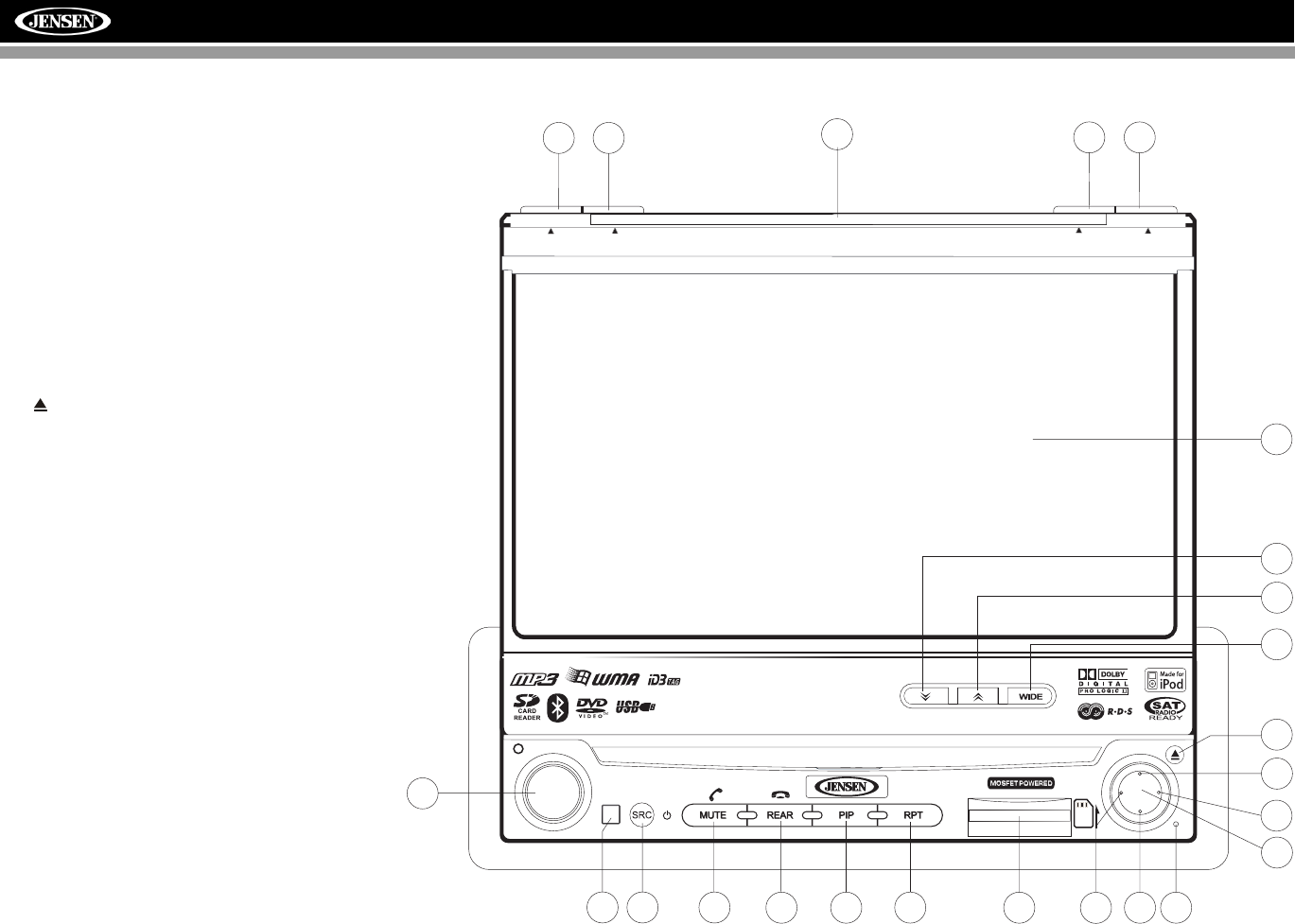
Button Operation
1. OPEN/CLOSE
Press to activate the automatic mechanical system and
move the TFT monitor into viewing position. Press again to
close the TFT.
2. DISP
With the TFT monitor open, press to cycle through
information available on the TFT screen.
With the TFT monitor closed, press and hold to view the
clock.
In DVD Mode, press to view the top and bottom information
bars. Press again to turn “Display Off”.
3. AS
Press to automatically store the first six strong stations in
preset memory. Applies to current band only.
4. BAND
Press the BAND button to change the AM, FM or SAT
band.
5. AUDIO
Rotate to adjust the volume. Press to enter and/or confirm
audio settings.
6. SRC
Press to select playing mode.
7. LCD Display
8. MUTE
Press to silence the receiver. Press again to resume previous
volume level.
BT Mode: Answer Bluetooth call.
NOTE: The VM9512 features Softmute, which will allow
the volume to increase or decrease gradually when the
MUTE function is activated or deactivated.
9. IR Remote Control Receiver
10. (left joystick)
DVD/Disc Mode: Press once to play back the previous
chapter/track.
TUNER Mode: Press once to auto-search for the previous
available radio station.
MENU Mode: Press once to move the cursor to the left.
11. (down joystick)
DVD/Disc Mode: Press once for slow forward/slow reverse.
TUNER Mode: Press to go down one frequency step.
MENU Mode: Press once to move the cursor down.
12. Reset
Press to reset system settings to factory default (except the
password and parental lock setting).
15
14
13
20
16
8
619
9
s Audio Enter
5
Pres
12
10 11
BAND AS
DISP
OPEN
71
2
43
VM9512
18 21
8
VM9512
7
BAND CLOSEAS DISP
Multimedia Receiver
17
1
2
43
23
22
24
15
14
13
20
16
8
619
9
s Audio Enter
5
Pres
12
10 11
VM9512
18 21
ANGLE / TILT PICTURE
CONTROLS AND INDICATORS
13.Pause/Play/Enter
Press to pause or resume playback or to confirm current
selection.
14. (right joystick)
DVD/Disc Mode: Press once to enter the next chapter or
track.
TUNER Mode: Press once to auto-search the next available
radio station.
MENU Mode: Press once to move the cursor to the right.
15. (up joystick)
DVD/Disc Mode: Press once for fast forward/fast reverse.
TUNER Mode: Press to go up one frequency step.
MENU Mode: Press once to move the cursor up.
16. ( )
Press once for disc insertion/ejection.
Press and hold to reset core mechanism position.
17. TFT Display
18. REAR
Select rear zone source. Allows front passengers to listen to
the radio while rear passengers listen to a CD, MP3, WMA or
watch DVDs.
BT Mode: Disconnect Bluetooth call.
19. RPT
Press to control repeat playback function.
20. PIP
Activate Picture In Picture feature.
21. SD Card Slot
Insert SD card for playback of audio files.
22. WIDE
Press to adjust the display aspect of the picture to one of
two settings: CINEMA, NORMAL or Standby (screen off).
NOTE: Only CINEMA and Standby are available for non-
video sources.
Press and hold to adjust Brightness and Contrast.
23/24. ANGLE/TILT
Press to activate the tilt function. Press once to adjust the
downward tilt angle of the screen one step at a time or press
and hold to adjust the angle in a continuous motion up or
down.
9
VM9512
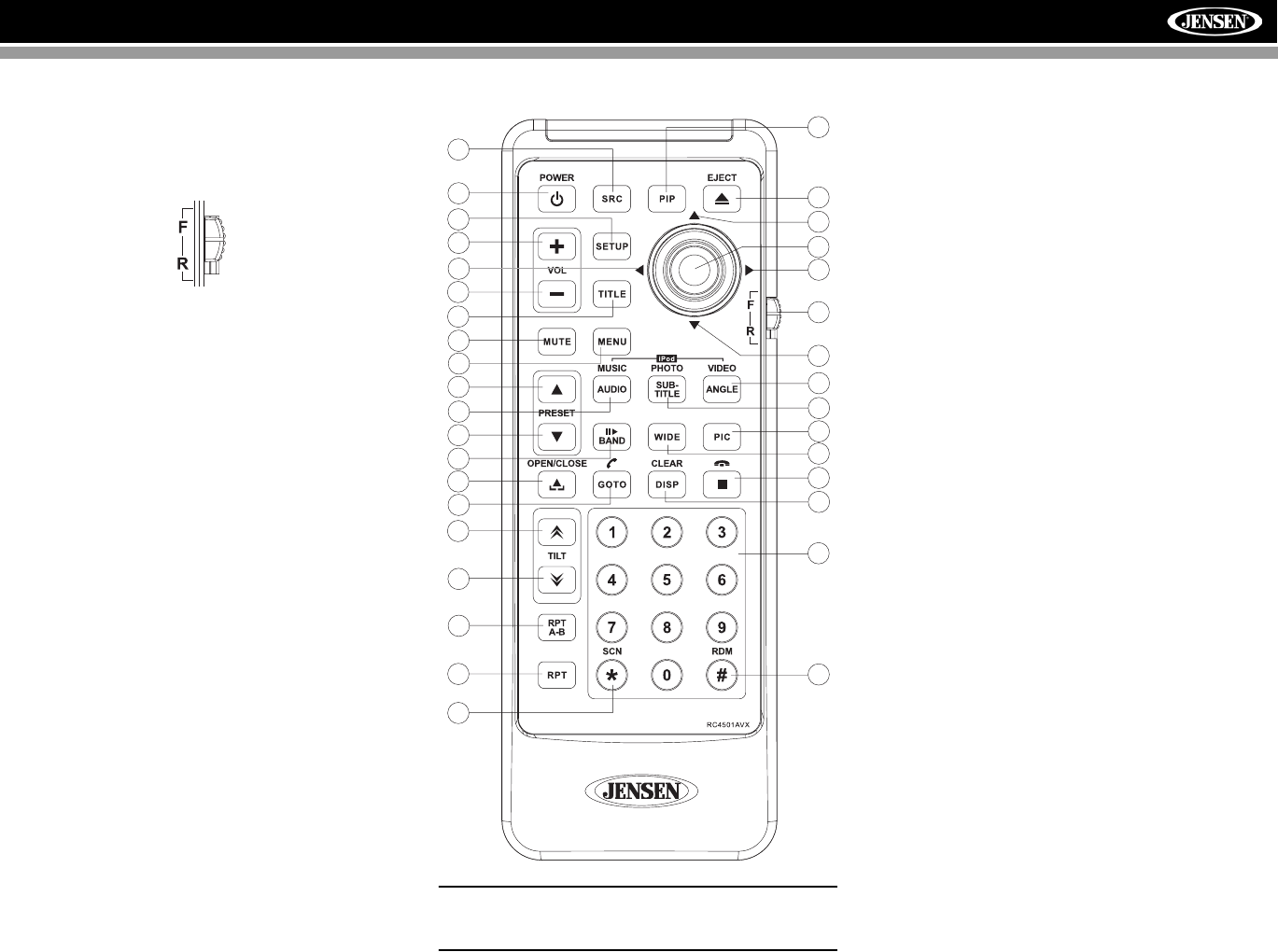
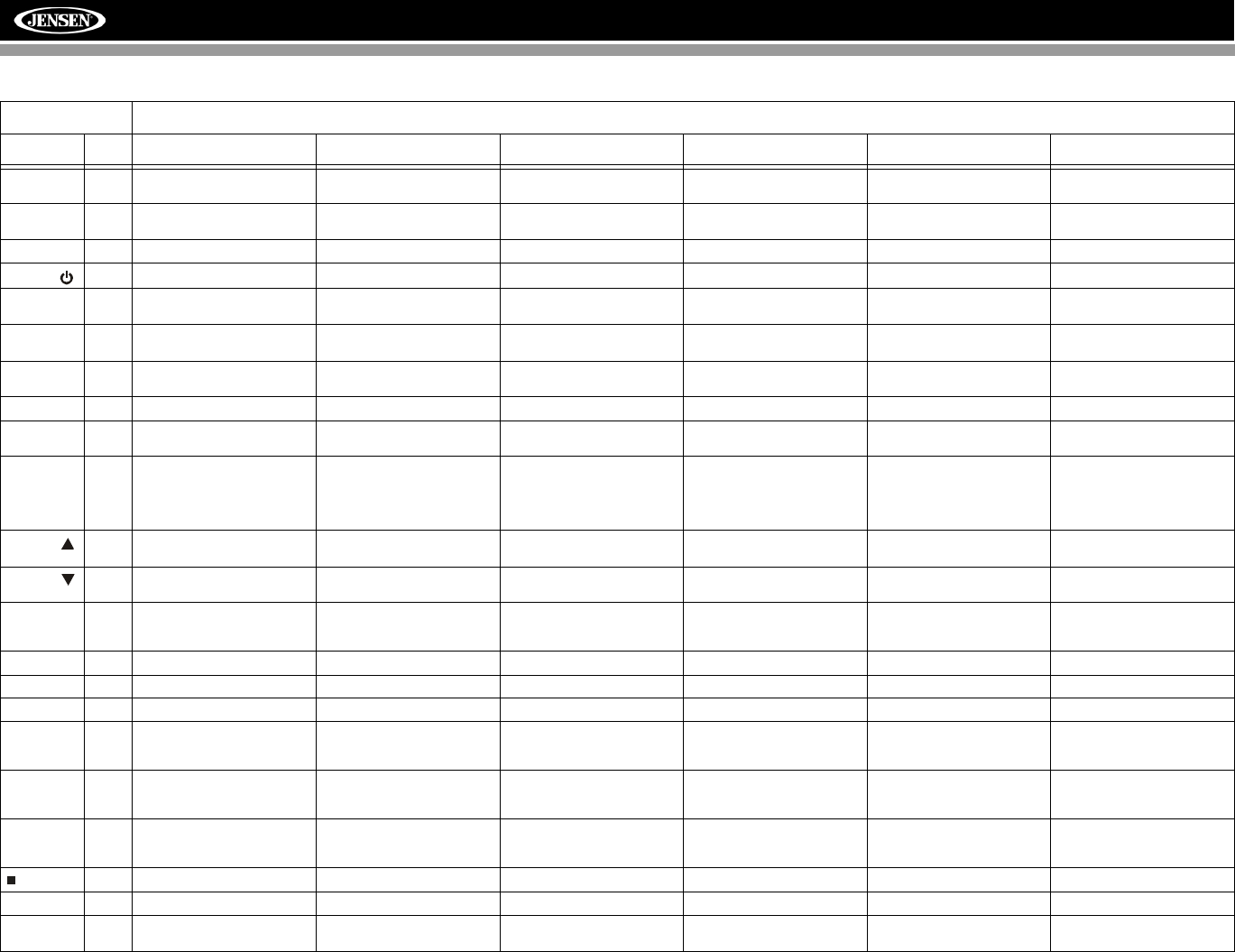
REMOTE CONTROL
The VM9512 Remote controls both the front and rear zones.
To switch from front to rear zone, move the F/R switch (32)
located on the right side of the controller.
29
3
4
59
6
7
26
27
15
16
34
33
19
32
23
24
31
30
8
35
1
2
10
13
28
25
11
12
14
20
18
17
22
21
NOTE: Your remote control may differ slightly from the
one pictured here. The above diagram is for illustrative
purposes only.
10
VM9512
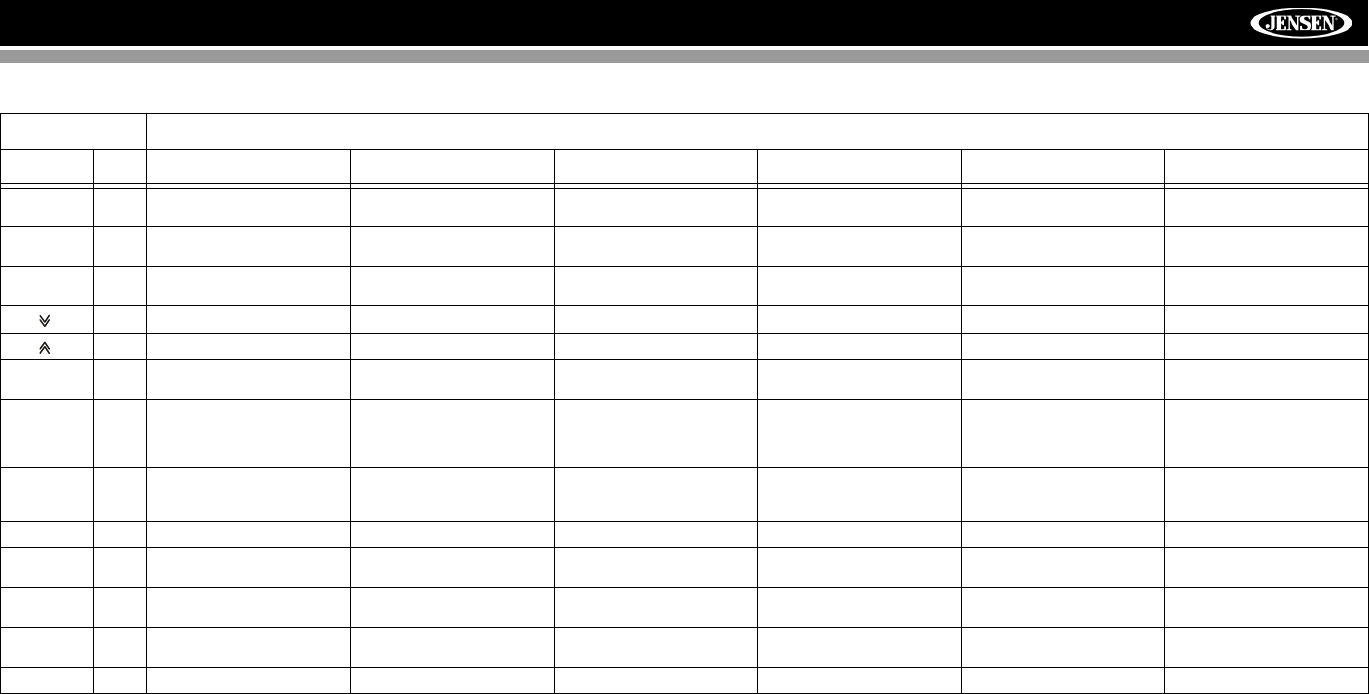
Table 1: Remote Control Functions
Button Function
Name Ref# DVD VCD TUNER CD/MP3 SATELLITE iPod
MENU 1 Enters the main menu of the
disc Turns on/off PBC when play-
ing VCD Displays diagnostics screen Displays iPod menu
TITLE 2 Enters the title menu of the
disc Plays first ten seconds of each
chapter/title Category list in CG mode
MUTE 3 Toggles on/off audio output Toggles on/off audio output Toggles on/off audio output Toggles on/off audio output Toggles on/off audio output Toggles on/off audio output
POWER/ 4 Turns the power on/off Turns the power on/off Turns the power on/off Turns the power on/off Turns the power on/off Turns the power on/off
AUDIO 5 Changes the audio language
for disc playback Selects iPod Music mode
RPT A-B 6 Setup to repeat playback from
time frame A to time frame B Setup to repeat playback from
time frame A to time frame B
RPT 7 Repeats playback of current
chapter Repeats playback of current
chapter Repeats playback of current
track Repeats playback of current
track
SRC 8 Selects playing source Selects playing source Selects playing source Selects playing source Selects playing source Selects playing source
SUBTITLE 9 Language selection for subti-
tle Selects iPod Photo mode
DISP/
CLEAR 10 Displays playing information/
Delete entry or move back-
wards to correct error in Direct
Access mode
Displays playing information/
Delete entry or move back-
wards to correct error in Direct
Access mode
Displays audio mode
Delete entry or move back-
wards to correct error in Direct
Access mode
Displays audio mode
Delete entry or move back-
wards to correct error in Direct
Access mode
Displays audio mode
Delete entry or move back-
wards to correct error in Direct
Access mode
Displays audio mode
Delete entry or move back-
wards to correct error in Direct
Access mode
PRESET 11 Zooms in when playing DVD,
DivX or Photo Zooms in Navigates the preset station
list Navigates list window Navigates the preset station
list Navigates list window
PRESET 12 Zooms out when playing DVD,
DivX or Photo Zooms out Navigates the preset station
list Navigates list window Navigates the preset station
list Navigates list window
ANGLE 13 Plays back disc in different
angle (if available) for a scene Plays back Picture CD with
different angle (if available) of
picture displayed
Switches MEM keypad off Switches MEM keypad off Selects iPod Video mode
Joystick /\ 14 Fast forwards the disc content Fast forwards the disc content Fast forwards the disc content Accesses iPod Menu
VOL - 15 Decreases volume Decreases volume Decreases volume Decreases volume Decreases volume Decreases volume
VOL + 16 Increases volume Increases volume Increases volume Increases volume Increases volume Increases volume
Joystick < 17 Selects the previous chapter
for playback Selects the previous chapter
for playback Searches an available radio
station by decreasing tuning
frequency
Selects the previous track for
playback Searches an available radio
station by decreasing tuning
frequency
Selects prior track
Joystick
(press) 18 ENTER, Pauses playback/
starts playback ENTER, Pauses playback/
starts playback Auto memory scan ENTER, Pauses playback/
starts playback ENTER, Toggles the on-
screen menu between CAT/
CH mode
ENTER
Joystick > 19 Selects the next chapter for
playback Selects the next chapter for
playback Searches an available radio
station by increasing tuning
frequency
Selects the next track for play-
back Searches an available radio
station by increasing tuning
frequency
Selects the next track for play-
back
20 Stops playback Stops playback Stops playback
GOTO 21 Enters Direct Access mode Enters Direct Access mode Enters Direct Access mode Enters Direct Access mode Enters Direct Access mode Enters Direct Access mode
Joystick \/ 22 Fast reverses the disc content Fast reverses the disc content Fast reverses the disc content Pauses playback/starts play-
back
11
VM9512
||>/BAND 23 Slow Forward/Slow Reverse
X2, X4, X8 Play/pause Selects AM/FM Band. Play/pause Selects SAT1, SAT2 or SAT3
band.
PIC 24 Displays Brightness/Contrast
Controls Displays Brightness/Contrast
Controls Displays Brightness/Contrast
Controls Displays Brightness/Contrast
Controls Displays Brightness/Contrast
Controls Displays Brightness/Contrast
Controls
OPEN/
CLOSE 25 Opens/closes the TFT monitor Opens/closes the TFT monitor Opens/closes the TFT monitor Opens/closes the TFT monitor Opens/closes the TFT monitor Opens/Closes the TFT moni-
tor
TILT 26 Decreases monitor tilt angle Decreases monitor tilt angle Decreases monitor tilt angle Decreases monitor tilt angle Decreases monitor tilt angle Decreases monitor tilt angle
TILT 27 Increases monitor tilt angle Increases monitor tilt angle Increases monitor tilt angle Increases monitor tilt angle Increases monitor tilt angle Increases monitor tilt angle
WIDE 28 Selects display mode: CIN-
EMA, NORMAL or Standby Selects display mode: CIN-
EMA, NORMAL or Standby Selects display mode: CIN-
EMA or Standby Selects display mode: CIN-
EMA or Standby Selects display mode: CIN-
EMA or Standby Selects display mode: CIN-
EMA or Standby
1, 2, 3, 4, 5,
6, 7, 8, 9, 0
(Numeric
Keypad)
29 Directly accesses chapter 1-6 selects preset for current
band Directly accesses track 1-6 selects preset for current
band
PIP 30 Picture In Picture view of
Front source, Rear Zone or
NAV
Picture In Picture view of
Front source, Rear Zone or
NAV
Picture In Picture view of
Front source, Rear Zone or
NAV
Picture In Picture view of
Front source, Rear Zone or
NAV
Picture In Picture view of
Front source, Rear Zone or
NAV
Picture In Picture view of
Front source, Rear Zone or
NAV
SETUP 31 Displays Setup menu Displays Setup menu Displays Setup menu Displays Setup menu Displays Setup menu Displays Setup menu
F/R 32 F controls front zone
R controls rear zone F controls front zone
R controls rear zone F controls front zone
R controls rear zone F controls front zone
R controls rear zone F controls front zone
R controls rear zone F controls front zone
R controls rear zone
RDM 33 Plays all chapters in random
order Plays all tracks in random
order Plays all tracks in random
order
SCN 34 Preview scan Plays the first ten seconds of
each track Preview scan
EJECT 35 Ejects disc Ejects disc Ejects disc Ejects disc Ejects disc Ejects disc
Table 1: Remote Control Functions
Button Function
Name Ref# DVD VCD TUNER CD/MP3 SATELLITE iPod
12
VM9512
USING THE TFT MONITOR
Open/Close TFT Monitor
Open TFT Monitor
Press the OPEN button (1) on the front panel or press the
( ) button (25) on the remote control to activate the
mechanism that moves the display panel into the viewing
position.
Close TFT Monitor
Press the OPEN button (1) on the front panel or press the
( ) button (25) on the remote control to load the display
panel back into the compartment.
TFT Monitor Auto Open
If “TFT Auto Open” is “on” when the unit is turned on, the
monitor automatically moves to the viewing position.
If “TFT Auto Open” is ”off” when the unit is turned on, press
the OPEN button (1) or ( ) button (25) on the remote
control to move the monitor into the viewing position.
If “TFT Auto Open” is set to ”Manual”, the TFT will not close
when the key is turned off.
Monitor Tilt Angle Adjustment
A known characteristic of LCD panels is the quality of the
display in relationship to the viewing angle. The monitor
angle can be adjusted for optimum viewing using one of the
following methods.
Step by Step Angle Adjustment
Press the ( ) or ( ) button on the control panel (23, 24) or
remote control (26, 27) to adjust the tilt angle of the screen
one step at a time.
Continuous Angle Adjustment
Press and hold the ( ) or ( ) button on the control panel
or remote control to adjust the tilt angle in a continuous
motion.
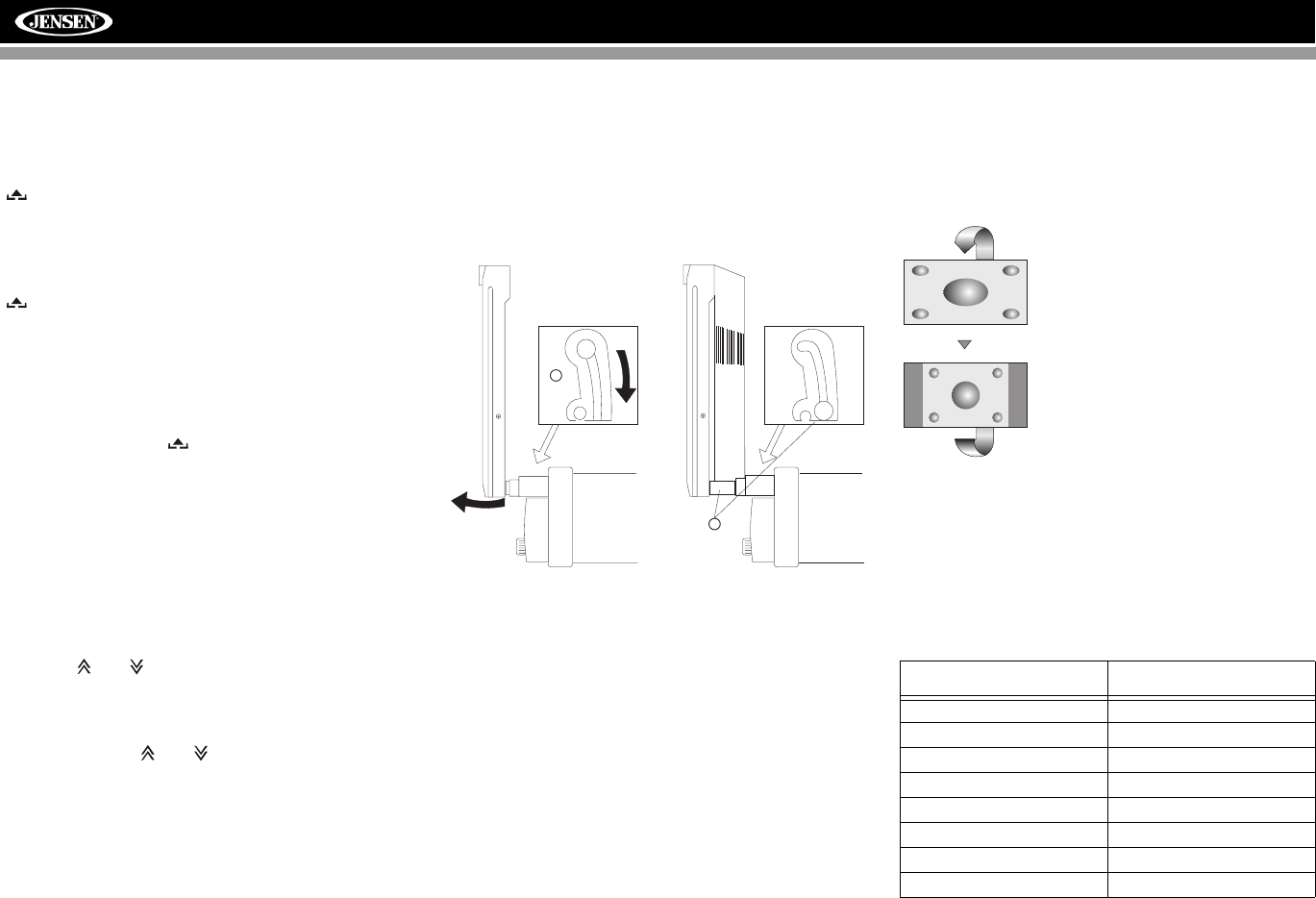
Monitor Left/Right Angle Adjustment
To manually adjust the left/right angle of the TFT screen,
follow these steps:
1. Make sure the TFT screen in “Out”. Press the OPEN
button (1), if necessary.
2. Locate the extender mechanism behind the screen.
3. Firmly grasp both sides of the screen near the bottom.
4. Gently pull on either the left or right side until the
extender mechanism becomes fully extended.
Reverse Driving Use
If the rear-view video camera is connected, the unit is on, and
the monitor is stationed inside the main compartment of the
unit, the monitor automatically moves into the viewing
position and switches to CAMERA mode upon reverse
driving. When the reverse driving stops, the monitor returns
to the main storage compartment.
If the monitor is in display mode, the monitor automatically
switches to CAMERA mode upon reverse driving. When the
reverse driving stops, the monitor returns to its original input
mode.
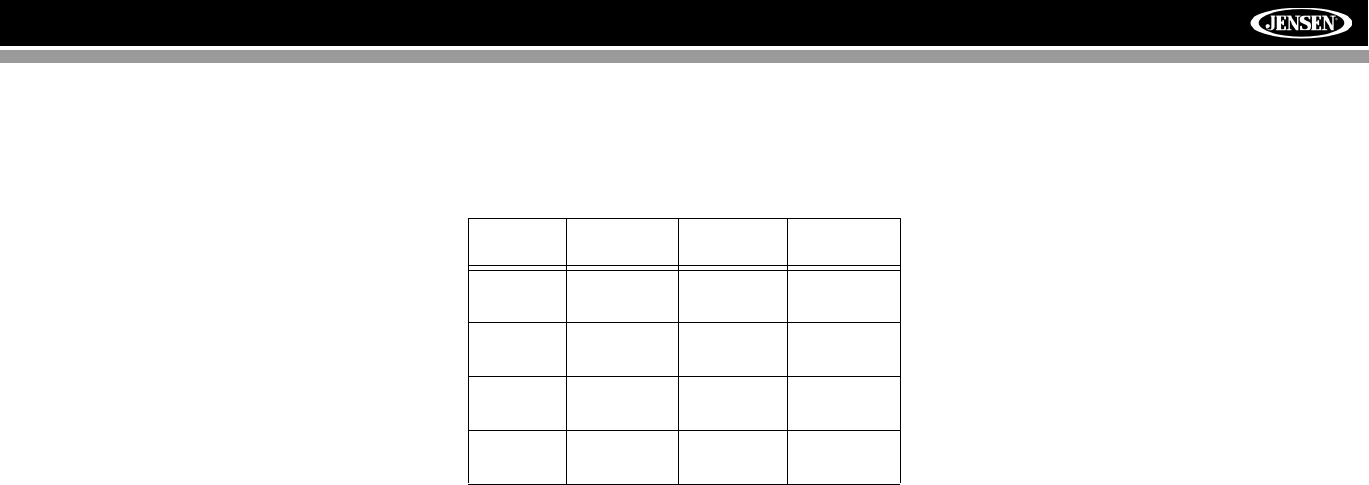
Aspect Ratio
Press the WIDE button (28) on the remote control or WIDE
button (22) on the monitor to adjust the aspect ratio as
follows (only active with video source):
Image Setting
Table 2 shows the video output mode for each playing
source.
*CVBS – Composite Video Baseband Signal
2
4
Extender Mechanism
- Closed Extender Mechanism
- Fully Extended
Table 2: Video Output Modes
Playing Source Video Output Modes
RADIO RGB Mode
SAT RGB Mode
DISC RGB Mode
BT RGB Mode
AUX 1 CVBS Mode
AUX 2 CVBS Mode
NAV RGB Mode
CAMERA CVBS Mode
CINEMA
The entire screen is extended
horizontally to the aspect ratio of 16 to
9. The extension ratio is the same at
any point.
NORMAL
The conventional display image has a
4 to 3 ratio of horizontal to vertical,
leaving a blank area on the right and
left sides of the display.
STANDBY
Screen becomes black. Touch screen
to resume.
13
VM9512
Parameter Adjustment Procedure
1. Enter Picture Quality Setting Mode:
Press the PIC button (24) on the remote control or press
and hold the WIDE/PICTURE button (22) on the moni-
tor.
2. Select Item to Set:
Use the up/down joystick buttons to select “BRIGHT” or
“CONTRAST”.
3. Set Parameters:
Use the left/right joystick buttons to modify the settings.
4. Exit Picture Quality Setting Mode:
Press the PIC button on the remote control or the WIDE/
PICTURE button on the monitor
Parking Brake
Parking Brake Inhibit
When the pink "Parking" wire is connected to the vehicle
brake switch, the front TFT monitor will display video
only when the parking brake sequence is engaged.
Before starting the parking brake sequence, the radio
must be on with the video media disc inserted and
playing.
Parking Brake Sequence
There are two situations that can start the Parking Brake
Sequence (this is the preferred method). The timing
window is between 3 ~ 5 seconds.
• Parking brake is engaged (on) when the vehicle is
started or the accessory/ignition is turned on. To
activate video, the following sequence of events
must be completed:
a. Release parking brake for 3 ~ 5 seconds.
b. Reapply parking brake.
c. Video should be displayed on the TFT monitor
within 1 ~ 2 seconds.
• Parking break is disengaged (off) when the vehicle
is started or the accessory/ignition is turned on. To
activate video, the following sequence of events
must be completed:
a. Set parking brake for 3 ~ 5 seconds.
b. Release parking brake for 3 ~ 5 seconds.
c. Reapply parking brake.
d. Video should be displayed on the TFT monitor
within 1 ~ 2 seconds.
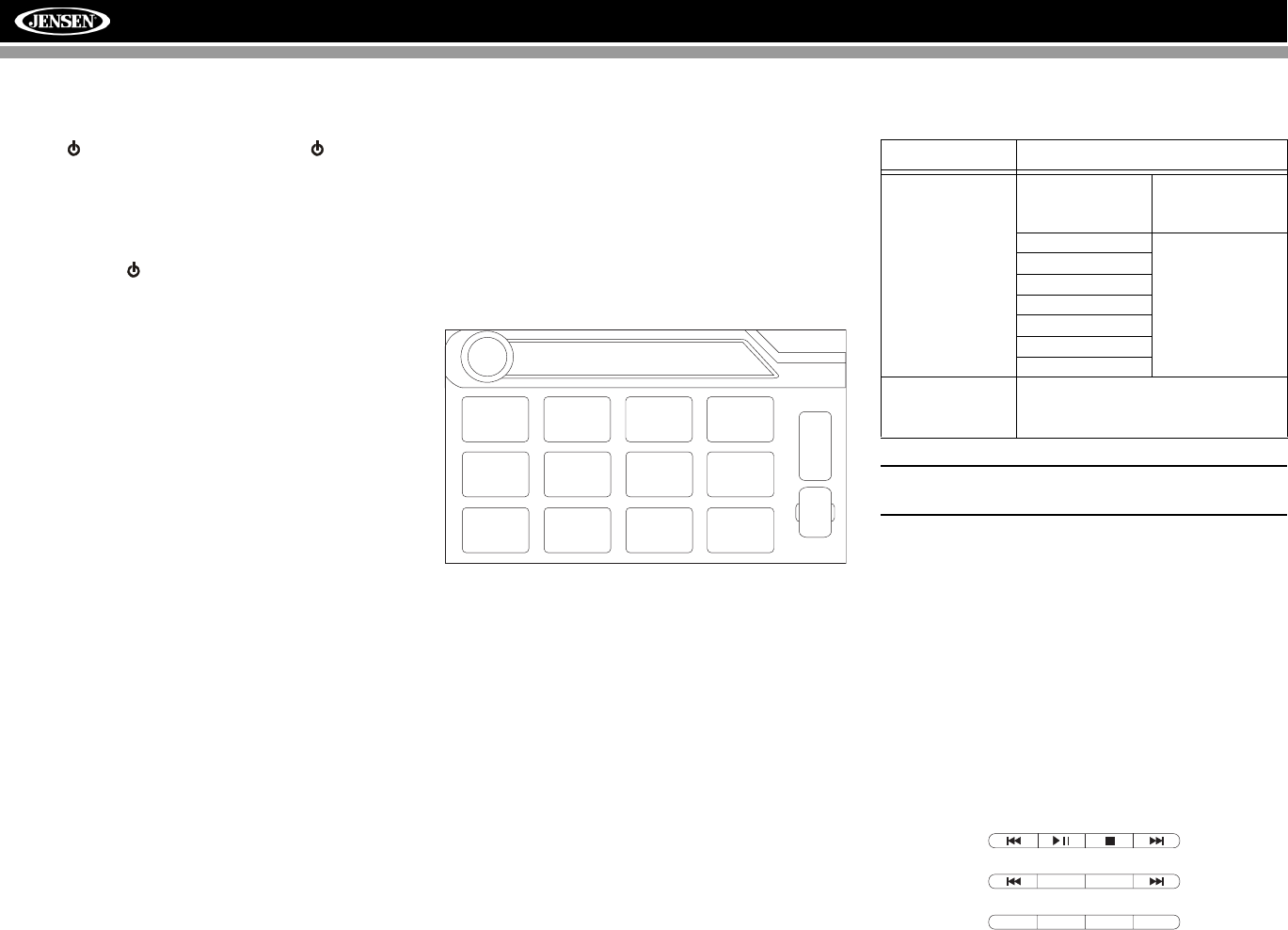
Monitor Movement Mechanism
If an obstruction occurs in the monitor path, the following
protective measurements can be executed to prevent
damage to the mechanism or monitor:
After the protective procedure is executed, normal operation
is resumed by pressing the OPEN button (1) or disconnecting
and reconnecting the power.
Table 3: Monitor Protective Measures
Obstruction Self
Protection OPEN Button
Pressed Power
Reconnected
Monitor load-
ing out hori-
zontally
Unit stops at
obstruction
point
Monitor fully
extended hori-
zontally
Monitor is auto-
matically
loaded into unit
Monitor load-
ing in hori-
zontally
Unit stops at
obstruction
point
Monitor fully
extended hori-
zontally
Monitor is auto-
matically
loaded into unit
Monitor load-
ing out verti-
cally
Unit stops at
obstruction
point
Monitor swiv-
els back to the
unit
Monitor swiv-
els back to the
unit
Monitor load-
ing in verti-
cally
Unit stops at
obstruction
point
Monitor swiv-
els back to the
unit
Monitor swiv-
els back to the
unit
14
VM9512
OPERATING INSTRUCTIONS
Power On / Off
Press the /SRC button (6) on the unit (or the /POWER
button (4) on the remote control) to turn the unit on. The
buttons on the front of the unit light up and the current mode
status appears in the LCD (7). You can also turn on the unit
by pressing the OPEN button (1) and opening the TFT
screen.
Press and hold the button to power off the unit.The monitor
is drawn back into the main compartment.
Audible Beep Confirmation
An audible beep tone confirms each function selection. The
Beep tone can be disabled through the Setup menu.
Volume Adjustment
To increase or decrease the volume level, turn the rotary
encoder (5) on the front panel or press the VOL+/ VOL-
buttons (15, 16) on the remote control. When the volume
level reaches “0” or “40”, a beep sounds, indicating that the
adjustment limit has been reached. The volume ranges from
“0” to “40”. The LCD or TFT screen displays the volume level
for 3 seconds.
Programmable Turn-On Volume
This feature allows the user to select a turn-on volume setting
regardless of the volume setting prior to turning the unit off.
To program a specific turn-on volume level, turn the AUDIO
control (2) to adjust the volume to the desired turn-on volume.
Push and hold the AUDIO button while the yellow speaker
icon and level indication is displayed on the screen. The unit
will beep two times to confirm your turn-on volume setting.
Mute
Press the MUTE button on the front panel (8) or remote
control (3) to mute the volume from the unit. Press the MUTE
button again to restore the volume. “MUTE” is displayed on
the LCD. Adjusting the volume or using any of the audio
setup features cancels the mute function.
Line Mute
If the “MUTE” wire is connected, audio output mutes when a
telephone call is received by the car phone.
Playing Source Selection
Press the SRC button on the front panel (6) or remote control
(8) to change between available playing sources in the
following order: RADIO, SAT, DISC, NAV, BT, iPod, SD, USB,
AUX1, AUX2 and CAMERA. The playing mode is displayed
on the TFT and LCD screens.
Auxiliary Devices
External peripheral devices can be connected to this unit via
RCA output or MediaLink4. Select “AUX1” or “AUX2” mode to
access and control connected auxiliary devices.
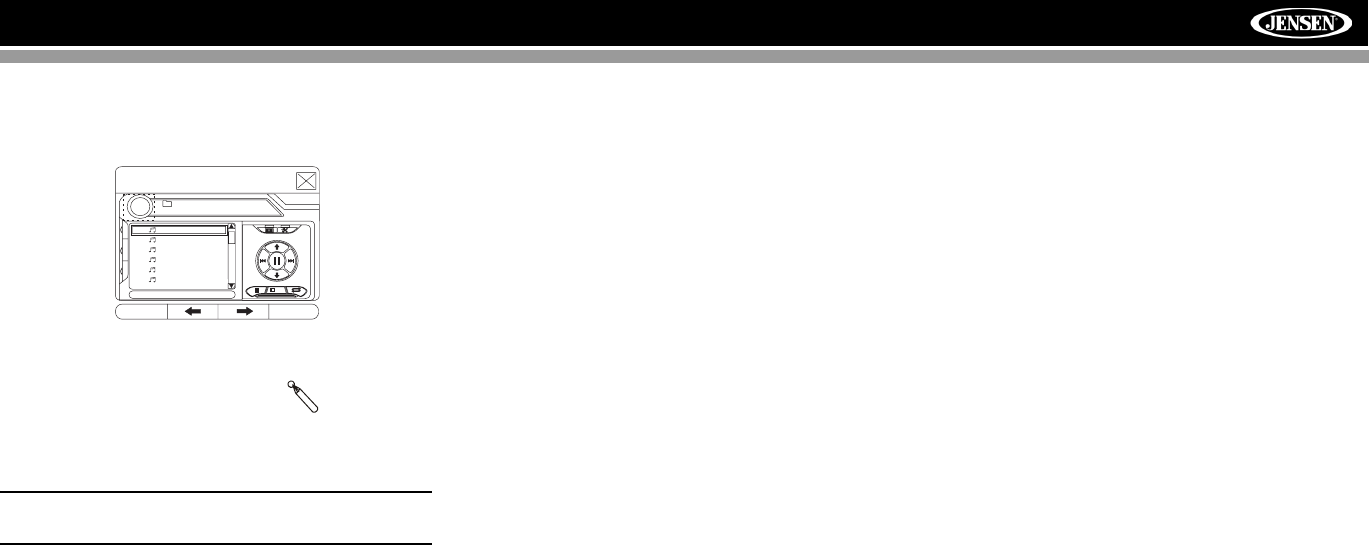
Source Menu
To access the SOURCE MENU, touch the TFT screen in the
top left corner of the screen.
This menu allows you to select a source for the front or rear
zone. Touch FRONT or REAR to choose the zone for which
you would like to specify the source. (See “Multi-ZONE
Operation” on page 16.)
Audio Control Menu
The Audio Control menu features a 7-band graphic equalizer,
which allows you to easily adjust your audio system to meet
the acoustical characteristics of your vehicle, which vary
depending on the type of vehicle and its measurements.
Proper setting of the Fader and Balance boosts the effects of
the cabin equalizer.
Press the AUDIO button (5) on the front panel to display the
audio menu. To adjust an audio feature:
1. Use the left/right joystick buttons to highlight the audio
feature to be adjusted.
2. Press the joystick ENTER button on the control panel
(13) or remote control (18) to select the highlighted
option.
3. Use the joystick to adjust the selected feature to the
desired setting.
NOTE: The EQ mode will automatically change to
“USER” when individual EQ bands are adjusted.
Proper setting of the Fader and Balance complement the
effects of the cabin equalizer.
The Audio menu will automatically exit after a few seconds of
inactivity. To exit quickly, touch the top left corner of the
screen or press and hold the AUDIO button (5).
Alternate Display Options
A menu located on the left side of the screen provides
immediate access to the Equalizer, Rear Zone screen view
and PIP (Picture in Picture) features.
•EQ: Touch to view Spectrum Analyzer > Equalizer.
•REAR: Touch to view the Rear Zone screen. Control
options appear below the PIP image, depending on the
source.
DISC
SOURCE MENU
DISC
RADIO
SD
iPod
SAT
USB
AUX 1 AUX 2
F
R
O
N
T
R
E
A
R
NAV
CAMERA
OFF
BT
Table 4: Audio Adjustments
Function Adjustment Options
EQ User In user mode, you
can manually adjust
each of the seven fre-
quency bands.
Acoustic Use the on-screen
arrows to select a
predefined equaliza-
tion curve.
Urban
Rave
Latin
Dance
Hip Hop
Rock
FAD-BAL Use this screen to adjust the output level for
each speaker in your surround system from 0
to -24dB. You can also adjust the master vol-
ume from this screen.
CAT– CH– CH+ CAT+
BAND AS
DISC
AM/FM RADIO
SATELLITE
15
VM9512
•PIP: Touch to view the Rear Zone, current Front Zone,
or NAV screen. Use the left/right arrows below the PIP
image to change the PIP source.
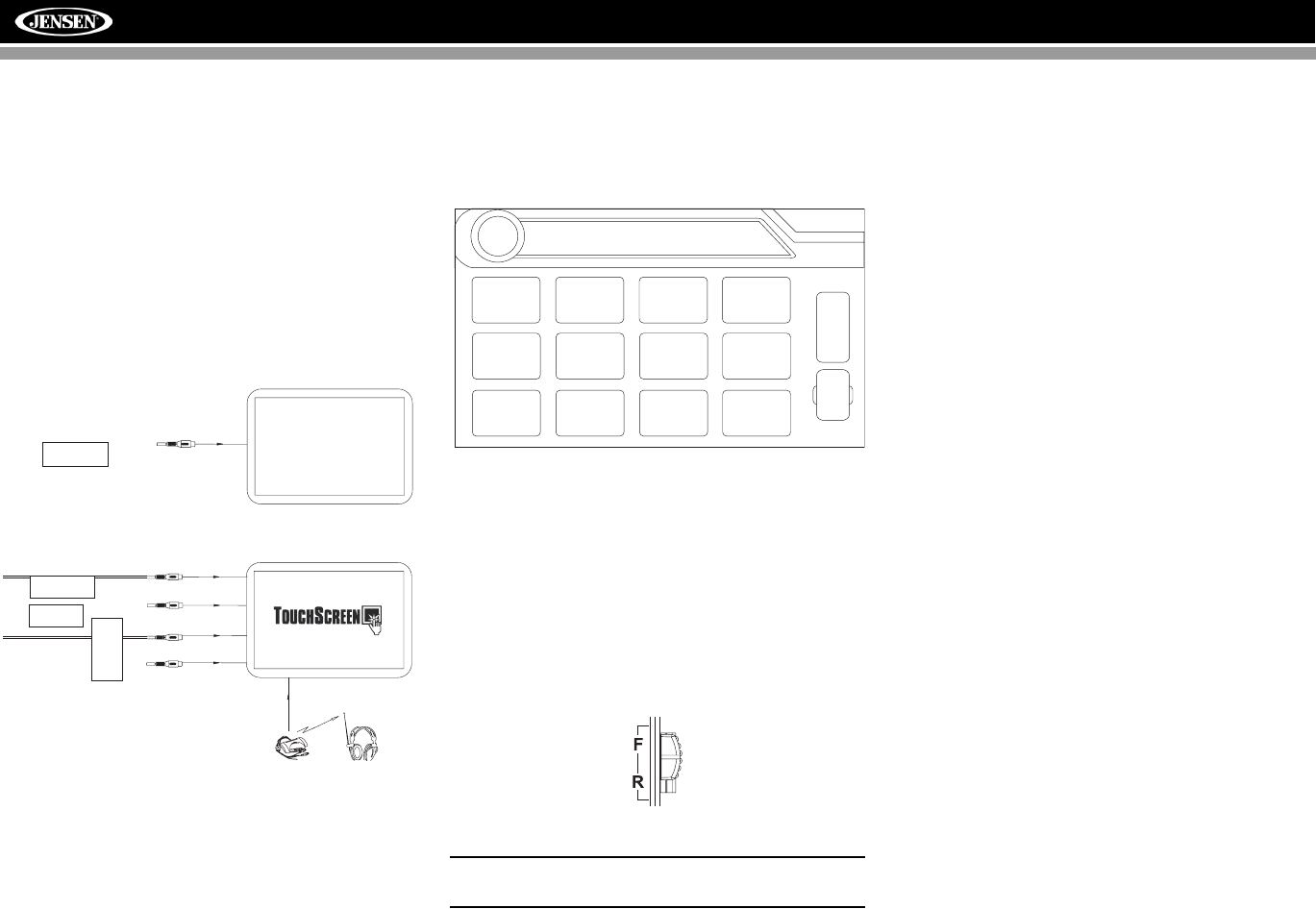
System Reset
To correct a system halt or other
illegal operation, use the tip of a pen
to press the reset button (12) located
on the front bottom-right corner of the unit. After a system
reset, the unit restores all factory default settings.
NOTE: If the unit is reset while a DVD is playing, the DVD
resumes play once the reset is complete.
PIP: DISC
DISC
MP3 4/84 00:00:23
01:02 AM
1 Cherry Poppin Da
2 Chris Isaak - Baby
3 Crazy Town - Butt
4 Phish - Birds Of A
5 Phish - Bouncin' R
6 Phish - Freebird (L
(Root)
1/2
E
Q
R
E
A
R
P
I
P
[RESET] Butto
n
16
VM9512
MULTI-ZONE OPERATION
Independent sources can be played simultaneously on the
VM9512. For example, a video game console can be seen on
the front screen while DVD video is available to rear
passengers.
Connecting the Rear Zone Touch
Screen
You can connect up to two additional monitors (sold
separately) for rear passengers, one of which can be a Touch
Screen. You can also connect a wireless headphone system
to one of your rear monitors, as illustrated below.
Changing the Rear Zone Source
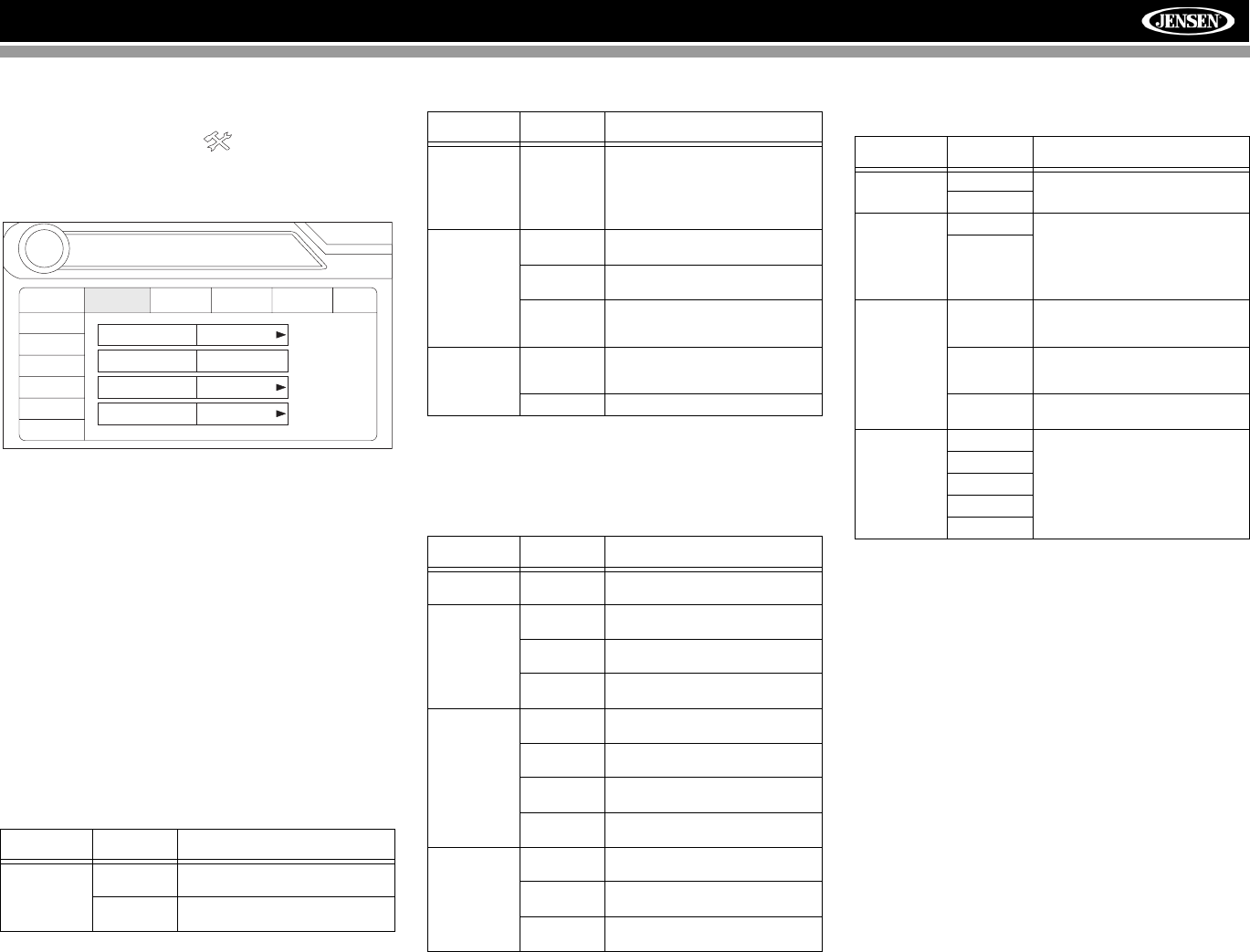
To access the SOURCE MENU, touch the TFT screen in the
top left corner of the screen.
This menu allows you to select a source for the front or rear
zone. Touch FRONT or REAR to choose the zone for which
you would like to specify the source.
Controlling the Rear Zone Screen(s)
If you have a rear touch screen installed, you can touch the
screen to control most rear zone functions.
You can also use the remote control. The VM9512 remote
controls both the front and rear zones. To switch from front to
rear zone, move the F/R switch (32) located on the right side
of the remote controller.
NOTE: You cannot change or control the front zone
source from the rear zone video screen.
Touch the REAR button on the left side of the screen to view
a “Picture in Picture” image of the rear screen.
Turning the Rear Screen Off
Touch the OFF button (on the SOURCE MENU) to suspend
operation of the rear screen. Any operation assigned
exclusively to the rear source will be suspended until
reactivated using either the front or rear zone touch screen or
the remote control.
YELLOW
BLACK
MZ7TFT Touch Screen
(Sold Separately)
WHITE
RED
Wireless Headphone
(OPTIONAL)
VIDEO OUT 2
MZ-TFT
HEADPHONE
MULTIZONE
YELLOW
VIDEO OUT 1
Rear Video Screen
(Sold Separately)
DISC
SOURCE MENU
DISC
RADIO
SD
iPod
SAT
USB
AUX 1 AUX 2
F
R
O
N
T
R
E
A
R
NAV
CAMERA
OFF
BT
17
VM9512
SETUP MENU
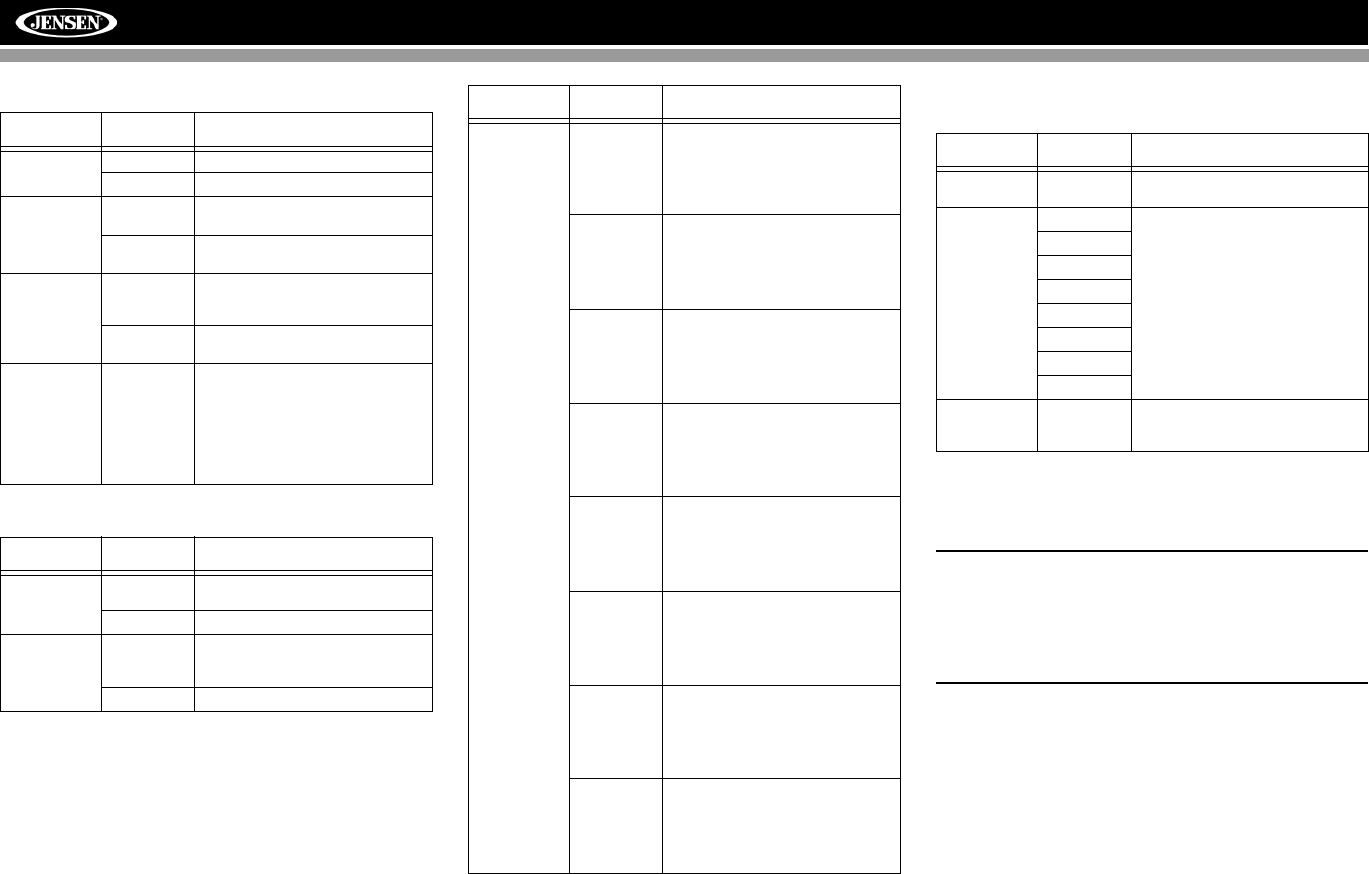
To access system settings, press the SETUP button (31) on
the remote control or touch the button on the screen to
enter the “SETUP” menu. The “GENERAL” sub-menu
appears highlighted in blue.
Accessing Menu Items
Touch the sub-menu name or use the joystick to select a sub-
menu (Language, Audio, RDS, etc.).
The features available for adjustment under the highlighted
sub-menu option will appear in the center of the screen.
Adjusting a Feature
1. Use the touchscreen or press the /\ or V buttons on the
joystick to select the feature to be adjusted.
2. Enter the option field for the feature you want to adjust
by using the touchscreen or pressing the ENTER
(joystick) button. A submenu appears in a second row
with the selected option highlighted in blue.
3. Select a new value by using the touchscreen or pressing
the /\ or V buttons on the joystick.
4. Use the touchscreen or press the ENTER (joystick)
button to confirm setup.
General Sub-menu Features
Language Sub-menu Features
If a DVD supports more than 1 Subtitle or Audio language, all
the languages are available for selection during playback. If
the selected language is not supported by the DVD, then the
default language is used.
Audio Sub-menu Features
Speaker Sub-menu Features
• Choose 4 CH, 4.1 CH or 5.1 CH depending on the
speaker configuration in your vehicle.
• Use the Test Tone feature to verify speaker settings.
Make changes using the EQ/FAD-BAL menu, accessed
by pressing and holding the AUDIO button (volume
control).
• Subwoofer Phase Adjustment: Touch the sub.w icon to
access the subwoofer polarity controls and reverse the
subwoofer signal polarity from 0° to 180°. Reversing
polarity can improve bass response related to speaker
configuration.
• Delay Setting: Delay is available when the media is
Dolby Digital encoded or digital bitstream.
•RL and RR only are available in 4.0 and 4.1 mode
• Touch the RL, RR and Cent speaker icons to
access the delay setting
• L and R Rear channels: 0 - 15 msec
• Center channel: 0 - 5 msec
Setting Options Function
Clock Mode 12 Hour Clock displays 12 hour time using
AM and PM.
24 Hour Clock displays 24 hour time up to
23:59.
RADIO
RADIO
SETUP
RDS
Rating
Hardware
P.VOL
TS Cal
General Language Audio Back
Clock Mode 12 Hour
Clock Adjust 04 : 31 AM
Video Input AUTO
Beep On
Speaker
DivX
Bluetooth
02:40
AM
Clock Adjust (HH:MM) The clock appears in the top right
corner of the screen and on the
LCD screen during certain opera-
tions. NOTE: The AM/PM indication
will change as you continue to
adjust the hour past 12.
Video Input
(Input cir-
cuitry autode-
tects the
video signal
from the Aux
In source).
NTSC The color signals are output in the
standard NTSC format.
PAL The color signals are output in the
standard PAL format.
Auto The color signal output is switched
automatically based on the current
video input signal - NTSC or PAL.
Beep On When turned on, an audible beep
tone confirms each function selec-
tion.
Off No beep sounds.
Setting Options Function
OSD English On Screen Display appears in
English.
DVD Audio English DVD Audio is heard in English
when the option is available.
Spanish DVD Audio is heard in Spanish
when the option is available.
French DVD Audio is heard in French when
the option is available.
DVD Subtitle English DVD subtitles automatically appear
in English when available.
Spanish DVD subtitles automatically appear
in Spanish when available.
French DVD subtitles automatically appear
in French when available.
Off DVD subtitles do not appear auto-
matically.
Disc Menu English DVD menu (if applicable) is dis-
played in English.
Spanish DVD menu (if applicable) is dis-
played in Spanish.
French DVD menu (if applicable) is dis-
played in French.
Setting Options Function
Setting Options Function
DRC Off Employ the Dynamic Range Control
for better playback for low volumes.
On
Audio Mode Surround Choose Stereo to send the same
signal to the front and rear left/right
speakers. If you have a center
speaker, you can choose the Sur-
round option when supported by
your media.
Stereo
Dolby Pro II Music Optimized for music reproduction
when playing music encoded in
Dolby.
Movie Optimized for video reproduction
when playing movies encoded in
Dolby.
Matrix Use with Dolby Matrix encoded
media.
Sub. W Filter 50Hz Selecting a crossover frequency
sets a cut-off frequency of the sub-
woofer's LPF (low-pass filter).
80Hz
100Hz
120Hz
150Hz
18
VM9512
Bluetooth Sub-menu Features
RDS Sub-menu Features
Rating Sub-menu Features
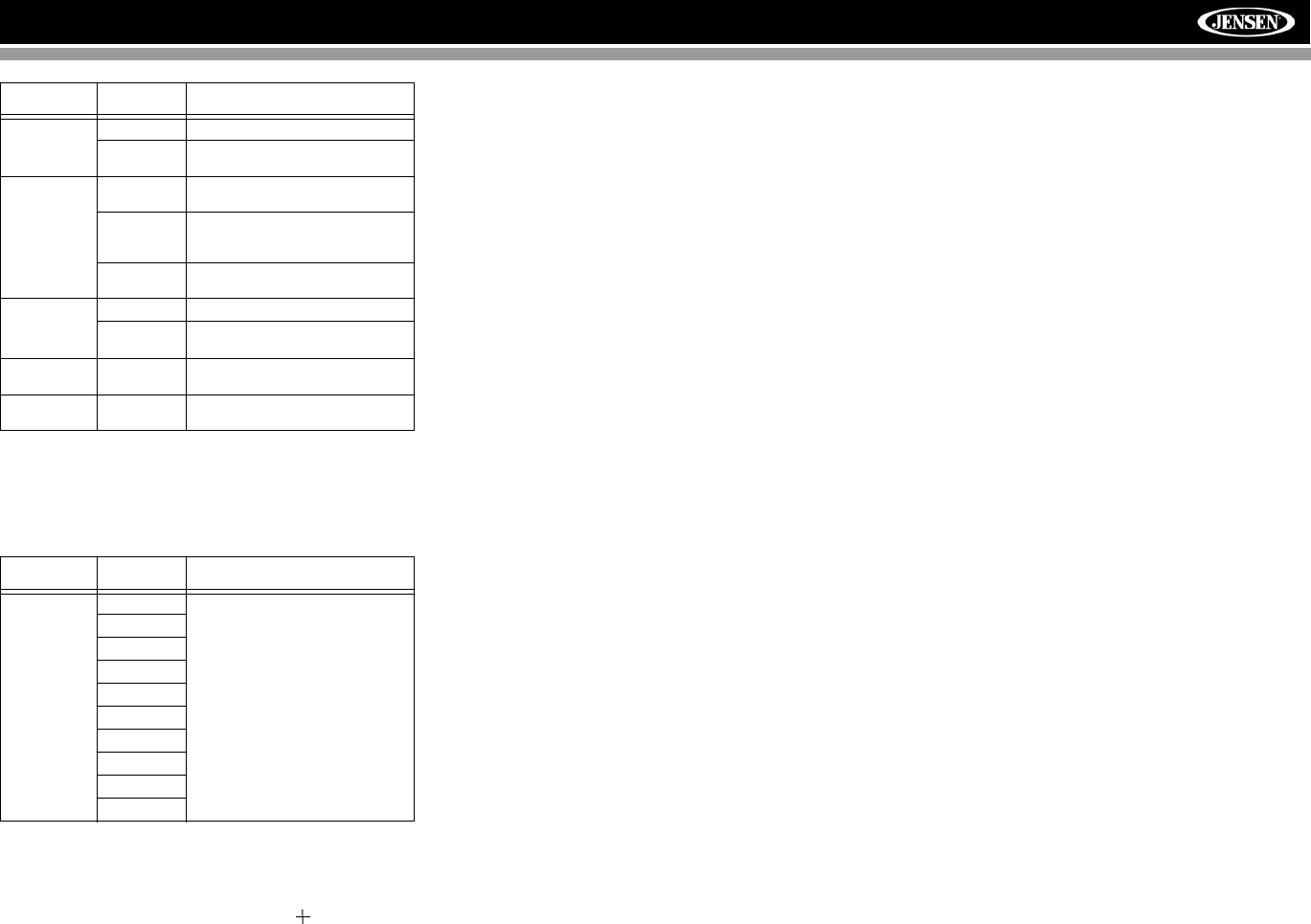
The DVD system has a built-in parental lock feature to
prevent unauthorized persons from viewing restricted disc
content. By default, the rating system is set at the highest
setting (with no restrictions). The parental lock is released
only by entering the correct password. Once the password is
entered, rating is available for setup.
To reset the password, access the “RATING” menu and enter
the current password. Once the correct password is entered,
you can access the “Password” field and enter a new one.
NOTE: Record the password and keep it in a safe place
for future reference. The rating for each disc is marked
on the disc, disc packing, or documentation. If the rating
is not available on the disc, the parental lock feature is
unavailable. Some discs restrict only portions of the disc
and the appropriate content will play. For details, please
refer to the disc description.
DivX Sub-Menu Features
Select the DivX sub-menu to view your DivX registration
code. You must use this code to register your player, allowing
you to purchase video using the DivX Video On Demand
format.
Hardware Sub-menu Features
If the rear-view video camera is connected, the unit is on, and
the TFT monitor is retracted inside the unit, the TFT monitor
automatically moves into the viewing position and Camera
mode is selected upon shifting into REVERSE gear. When
shifting into DRIVE gear, the TFT monitor is retracted back
inside unit after ten seconds.
Setting Options Function
Bluetooth On Enable Bluetooth function.
Off Disable Bluetooth function.
Auto Answer On The unit automatically answers all
incoming calls.
Off Manually answer calls by touching
the “call” button.
Connect Manual Connect the last active mobile
phone by touching the CONNECT
icon when disconnected.
Auto Automatically connect when your
paired phone is in range.
Pairing Code The default code is “1234”. Touch
the keypad icon to open the keypad
and enter the pairing code or pass
key required for Bluetooth connec-
tion to your mobile phone. Not all
phones/devices require a pairing
code. The default code is “0000” for
many models.
Setting Options Function
RDS On Unit will display Radio Data System
information when available.
Off
CT On Automatically synchronize the
radio’s time based on RDS radio
signals.
Off
Tuner Region USA AM Frequency Spacing - 10kHz
AM Frequency Band -
530kHz~1720kHz
FM Frequency Spacing - 200kHz
FM Frequency Band -
87.5MHz~107.9MHz
America 1 AM Frequency Spacing - 10kHz
AM Frequency Band -
530kHz~1720kHz
FM Frequency Spacing - 100kHz
FM Frequency Band -
87.5MHz~108.0MHz
Arabia AM Frequency Spacing - 9kHz
AM Frequency Band -
531kHz~1620kHz
FM Frequency Spacing - 100kHz
FM Frequency Band -
87.5MHz~108.0MHz
China AM Frequency Spacing - 9kHz
AM Frequency Band -
522kHz~1620kHz
FM Frequency Spacing - 100kHz
FM Frequency Band -
87.5MHz~108.0MHz
America 2 AM Frequency Spacing - 5kHz
AM Frequency Band -
520kHz~1600kHz
FM Frequency Spacing - 100kHz
FM Frequency Band -
87.5MHz~108.0MHz
Europe AM Frequency Spacing - 9kHz
AM Frequency Band -
522kHz~1620kHz
FM Frequency Spacing - 50kHz
FM Frequency Band -
87.5MHz~108.0MHz
Korea AM Frequency Spacing - 9kHz
AM Frequency Band -
531kHz~1602kHz
FM Frequency Spacing - 200kHz
FM Frequency Band -
88.1MHz~107.9MHz
OIRT (Inter-
national
Radio and
Television
Organiza-
tion)
AM Frequency Spacing - 9kHz
AM Frequency Band -
531kHz~1602kHz
FM Frequency Spacing - 200kHz
FM Frequency Band -
88.1MHz~107.9MHz
Setting Options Function
Setting Options Function
Password _ _ _ _ _ _ Enter the default six-digit password
(012345).
Rating 1. Kid Safe Select the appropriate rating level
for the intended audience.
You may override higher ratings by
using your password.
2. G
3. PG
4. PG-13
5. PG-R
6. R
7. NC-17
8. Adult
Load Factory Reset Select “Reset” to restore the factory
default settings for the Rating sys-
tem only.
19
VM9512
If the monitor is in display mode, the monitor automatically
switches to CAMERA mode upon reverse driving. When the
reverse driving stops, the monitor return to its original input
mode.
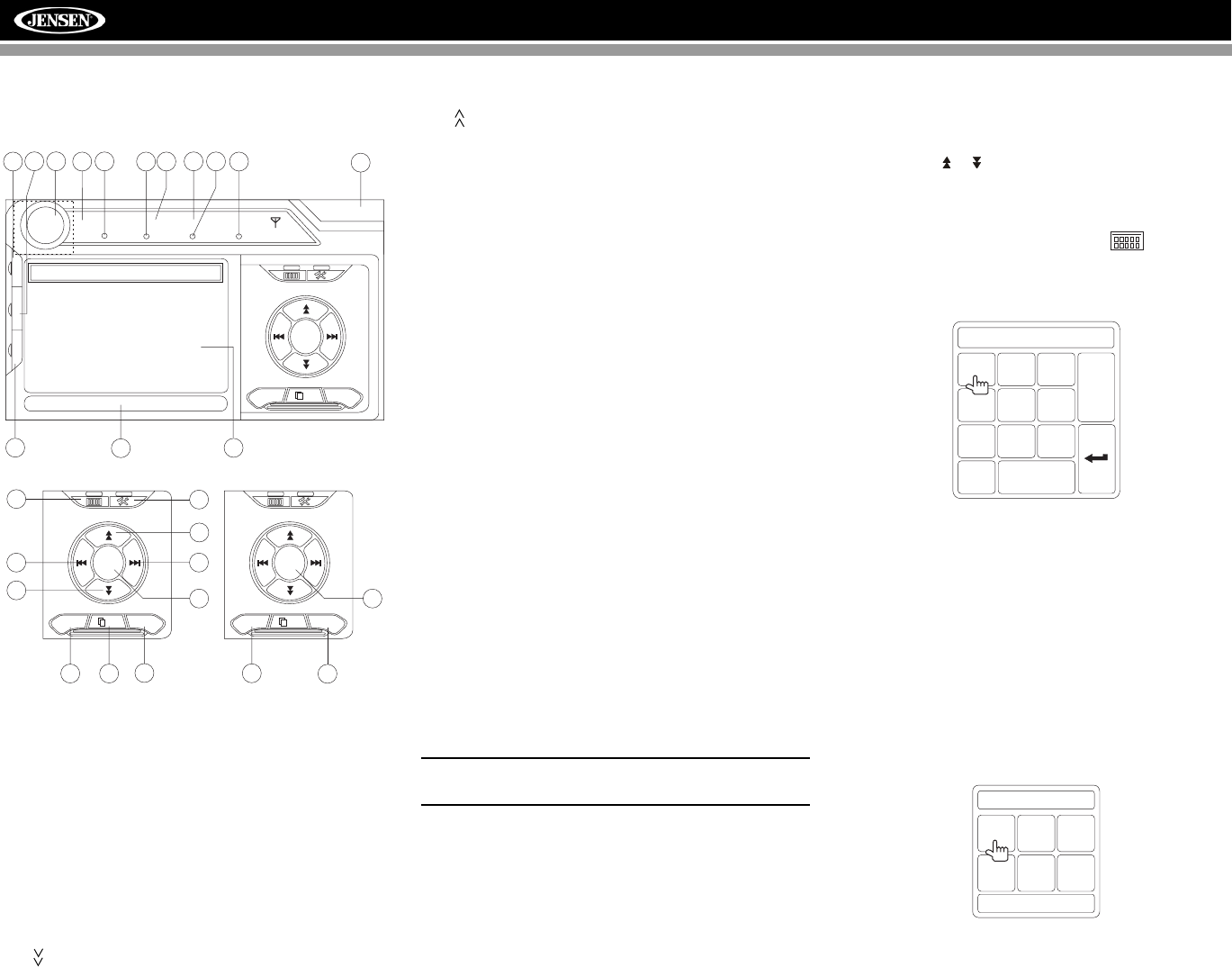
P.VOL Sub-menu Features
TS Cal (Screen Calibration)
To access the “Screen Calibration” function from the SETUP
menu, select the “TS CAL” option.
After entering calibration mode, a crosshair appears in a
corner quadrant of the screen. To begin calibration, press and
hold the crosshair for one second until it moves to the next
quadrant. Continue for each quadrant until the calibration is
completed.
To exit without performing calibration, touch the BACK
button.
Exiting the System Setup Menu
To exit setup mode and resume normal playback, press the
SETUP button (31) on the remote control or touch the BACK
button on the screen.
Setting Options Function
Camera In Normal
Mirror Reverse the camera image as if
looking through a rear-view mirror.
TFT Auto
Open Auto The TFT panel automatically opens
when the unit is turned on.
Manual When the ignition is turned OFF, the
TFT panel DOES NOT retract if it
was previously out
Off You must press the OPEN button
(1) to open the TFT panel.
TFT Set Back Off TFT screen remains fully extended.
On TFT screen moves back slightly
after opening.
Auto Dimmer Off TFT screen brightness remains
constant unless manually adjusted.
On TFT screen will automatically dim
when less light is available.
Setting Options Function
Source DISC Choose a source for which you
would like to increase the relative
volume (LEVEL).
Use the +/- buttons to increase rela-
tive volume for specified source up
to 6 decibels.
RADIO
SD
SAT
AUX 1
USB
BT
AUX 2
iPod
NAV
20
VM9512
TUNER OPERATION
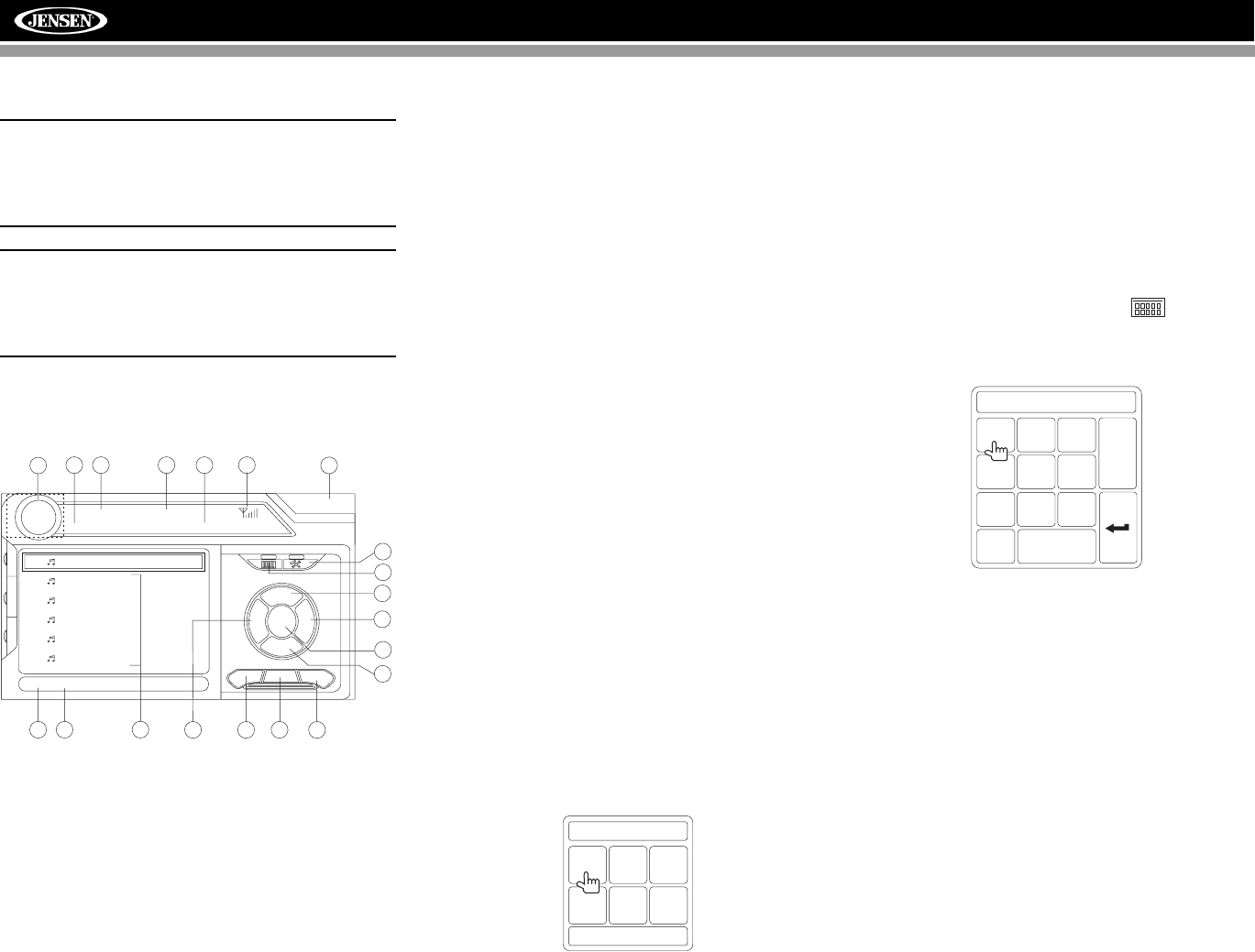
Tuner TFT Display
1. Current radio band indicator
2. Radio frequency indicator
3. Clock
4. Stereo broadcasting indicator
5. Strong Local signal broadcasting indicator
6. Preset radio stations: Touch to recall preset stations
7. RDS Information: PS (Program Service), PTY (Program
Type), RT (Radio Text)
8. EQ: Touch to view Spectrum Analyzer > Equalizer
9. Touch to access the direct entry screen
10. Current preset station indicator
11. |<<: Touch to seek backward
12. >>|: Touch to seek forward
13. : Touch to tune backward one step
14. : Touch to tune forward one step
15. BAND: Touch to change between AM/FM bands
16. AS: Touch to automatically store stations
17. Touch to view the SOURCE MENU and select a new
playback source
18. MEM: View screen used to enter current channel into
preset memory
19. 1/2 or 2/2: Touch this page button to view a second page
of on-screen buttons
20. Touch to view the SETUP menu
21. PS (Preview Scan): Touch to scan all stations available,
stopping for 5 seconds at each and continuing until a
station is selected
22. LOC: Touch to tune to strong local stations
23. PTY: When PTY is pressed, the Program Type
categories are listed, allowing listeners to find similar
programming by genre. When a PTY category is
selected from the touch screen menu, the radio will start
scanning for the selected category.
24. Indicates the PTY function is activated
25. Indicates the RDS function is activated
26. REAR: Touch to view the Rear source screen
27. PIP: Touch to view Rear, Front or NAV source
Switch to Radio Tuner source
• Touch the top left corner of the screen (the RADIO
circle) to view the SOURCE MENU. Touch “RADIO”.
• Press the SRC button (6) on the front panel or remote
control (8) to switch to the AM/FM or RADIO source.
Select FM/AM Band
Touch the BAND button (15) on the screen, or press the
BAND button on the unit (4) or remote control (20) to change
between the following bands: FM1, FM2, FM3, AM1, and
AM2.
NOTE: The BAND button on the unit only works when the
TFT is closed.
Seek Tuning
To seek the next higher station:
• Touch the >>| button on screen.
• Move the joystick to the right.
To seek the next lower station:
• Touch the |<<| button on screen.
• Move the joystick to the left.
Manual Tuning
To increase or decrease the tuning frequency one step:
• Touch the or buttons on screen.
• Move the joystick left/right.
Direct Tuning
To enter a radio station directly, touch the button or
press the GOTO button (21) on the remote control to display
the direct entry menu.
Enter the desired radio station using the on-screen number
pad. Press Enter to tune to the selected station. To exit the
screen without changing the station, touch Exit. To clear your
entry and start over, touch Clear.
Using Preset Stations
Six numbered preset buttons store and recall stations for
each band. All six stored stations (P1-P6) for the current
band appear on the screen.
Storing a Station
1. Select a band (if needed), then select a station.
2. Touch the on-screen MEM button (18) to open the
preset screen.
3. Touch the preset number in which you would like to
store the current station (or press EXIT to cancel and
4
110 2
5
7
83
6
17
RADIO
FM-1 P1 87.5 MHz
01:02 PM
E
Q
AS
BAND 1/2 MEM
P1 87.5 MHz
P2 90.1 MHz
P3 98.1 MHz
P4 106.1 MHz
P5 107.9 MHz
P6 102.9 MHz
PS:
ST LOC PTY RDS
24 25
R
E
A
R
P
I
P
27
26
9
11 12
13
14
15
16
AS
BAND 1/2 MEM
19 18
20
21
23
PTY
PS 2/2 LOC
22
FM:___._MHz
123
456
789
0
Clear
Exit
Mem: _
Exit
P1 P2 P3
P4 P5 P6
21
VM9512
close the menu). The preset number and station
appears highlighted.
Recalling a Station
1. Select a band (if needed).
2. Touch an on-screen preset button (6) to select the
corresponding stored station.
Auto Store (AS)
To select six strong stations and store them in the current
band:
1. Select a band (if needed).
2. Press the AS button (3) on the control panel or touch AS
on the screen for 2 seconds to activate the Auto Store
function.
The new stations replace stations already stored in that band.
Preview Scan (PS)
To scan the AM or FM band for a preview of available stations
in your particular area, touch the PS button (21). Touch again
to stop preview scan.
Local Radio Station Seeking (LOC)
When the Local function is on, only radio stations with a
strong local radio signal are played. To activate the Local
function in AM/FM tuner mode, touch the 1/2 button to access
the second screen of menu options, and then touch the on-
screen LOC button. Touch the LOC button again to turn Local
off. When the Local function is active, the LOC indicator at
the top of the screen is illuminated.
P1 87.5 MHz
P2 90.1 MHz
P3 98.1 MHz
P4 106.1 MHz
P5 107.9 MHz
P6 102.9 MHz
22
VM9512
SATELLITE RADIO OPERATION
Listeners can subscribe to XM® Radio on the Web by
visiting www.xmradio.com, or by calling (800) 967-2346.
Customers should have their Radio ID ready (see
“Displaying the Identification (ID) Code”). Customers can
receive a limited number of free-to-air channels without
activation.
Listeners can subscribe to Sirius® Radio on the Web by
visiting www.sirius.com, or by calling (888) 539-SIRIUS.
Customers should have their Sirius ID ready (Sirius ID is
located on the Satellite Radio Tuner, sold separately).
Customers can listen to music samples by tuning to
channel 184.
Accessing Satellite Radio Mode
Press the SRC button (8) on the front panel or remote control
(8) to switch to the SAT source.
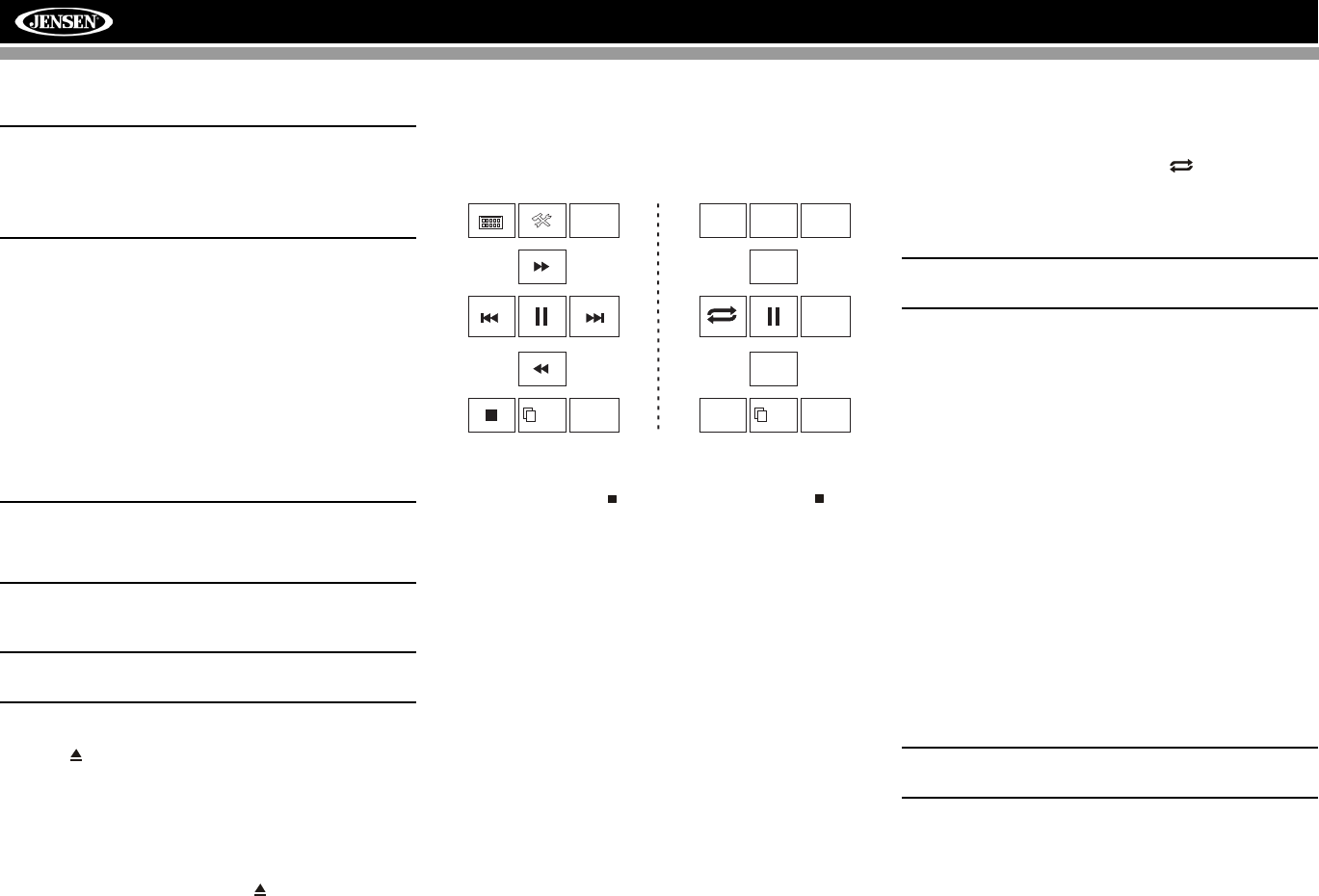
1. SAT channel name
2. SAT channel number
3. SAT band
4. Time
5. Song title
6. Artist name
7. Song category
8. Signal strength indicator
9. Current preset channels/on-screen preset buttons
10. CH -: Select the previous channel
11. CH +: Select the next channel
12. CAT +: Select next channel in current category only
13. CAT -: Select previous channel in current category only
14. Touch to enter channel directly using keypad on screen
15. CG: Access Channel/Category Guide mode
16. BAND: Change between SAT1, SAT2 and SAT3 bands
17. Touch to view the SETUP menu
18. Touch this area to view the SOURCE MENU and select
a new playback source
19. MEM: View screen used to enter current channel into
preset memory
20. DIAG: This feature is reserved for use by service
professionals for troubleshooting.
Displaying the Identification (ID)
Code
Before you listen to satellite radio, you must subscribe to the
service using your radio’s identification number. To display
the radio ID, press the left/right buttons (16, 17) on the
joystick or the CH - or CH + buttons on the touch screen
repeatedly to tune to channel “000”. The screen displays the
radio ID where the channel name is usually displayed.
Selecting a Station
Use the left/right joystick buttons or the CH - or CH + buttons
on the touch screen to change to another station.
Preset Mode
To enter preset mode, touch the BAND button on the screen,
or press the BAND button on the unit (14) or remote control
(20) to change between the following bands: SAT1, SAT2, or
SAT3 (indicated in the top left corner of the TFT screen).
Six numbered preset buttons store and recall stations for
each band. All six stored stations (P1-P6) for the current
band appear on the TFT screen.
Storing a Station
1. Select a band (if needed), then select a station.
2. Touch the on-screen MEM button (18) to open the
preset screen.
3. Touch the preset number in which you would like to
store the current station (or press EXIT to cancel and
close the menu). The preset number and station
appears highlighted.
Recalling a Station
1. Select a band (if needed).
2. Touch an on-screen preset button to select the
corresponding stored station.
Direct Tuning
To enter a radio station directly, touch the button or
press the GOTO button (21) on the remote control to display
the direct entry menu.
Enter the desired radio station using the on-screen number
pad. Touch the Enter button to tune to the selected station.
To exit the screen without changing the station, touch Exit. To
clear your entry and start over, touch Clear.
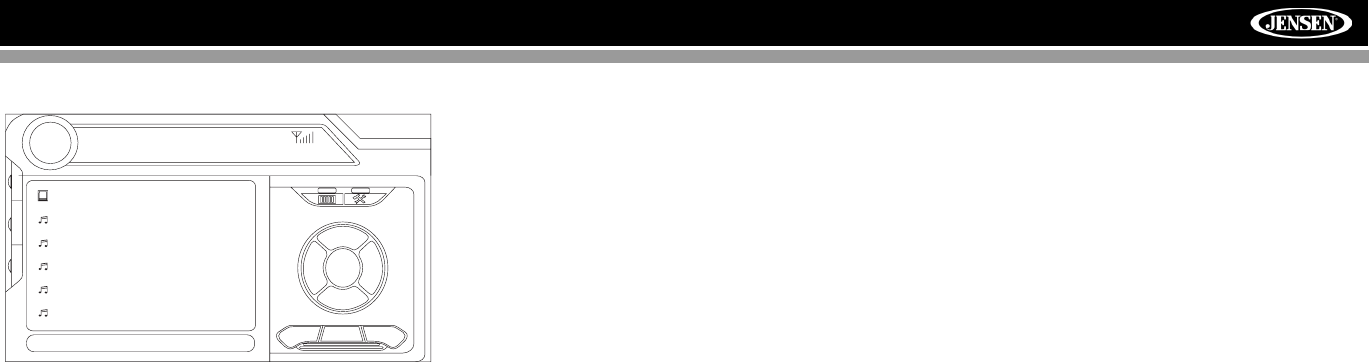
Channel/Category Guide Mode
There are two search modes to help navigate through
channels and or categories. To access the Channel/Category
Guide mode, press the ENTER button (18) on the remote
control or the CG button on the touch screen.
Channel Guide is the default search mode. To access
Category Guide, press the TITLE button (2) on the remote
control or touch CAT on the touch screen. To return to
Channel Guide, touch CH on the screen or press the
SUBTITLE button (9) on the remote control.
Channel Guide Mode
When Channel Guide mode is selected, the first six satellite
channels are displayed in the boxes in the bottom left of the
TFT screen and the on-screen menu changes to facilitate
search mode.
SAT
SAT1 CH001
01:02
CG
BAND MEM DIAG
P1 XM Preview
P2 XM Preview
P3 XM Preview
P4 XM Preview
P5 XM Preview
P6 XM Preview
Title: Fridays XM144!
XM Preview Preview
CAT
+
CAT
-
CHCH +
-
10
11
12
13
14
15
18 4
3 21
516
17
6
78
919 20
E
Q
R
E
A
R
P
I
P
Mem:
Exit
P1 P2 P3
P4 P5 P6
CHNO:___/255
123
456
789
0
Clear
Exit
23
VM9512
• While in Search Mode, to switch between Channel and
Category search modes, press the CH or CAT buttons
on the touch screen.
• Use the scroll bar and arrows on the touch screen to
view the next/previous page of stations. Each page
contains six channels to select from.
• Press the on-screen SCN button to preview each of the
6 channels displayed for 10 seconds.
• Press the CG button to return to the Preset Mode
screen.
• To select a channel while in Channel Guide mode, touch
the channel name on the screen. The channel will begin
playing and the unit will return to the Preset Mode.
Category Guide Mode
When Category Mode is selected, folder icons appear on the
screen next to category choices.
• While in Search Mode, to switch between Channel and
Category search modes, press the CH or CAT buttons
on the touch screen.
• Use the scroll bar and arrows on the touch screen to
view the next/previous page of categories. Each page
contains six categories to select from.
• To select a category, touch the corresponding category
name or folder icon. The channels in that category will
be displayed on the screen.
• Use the scroll bar and arrows on the touch screen to
view the next/previous six stations in the selected
category.
• Touch the on-screen SCN button to preview each
channel in the selected category for 10 seconds.
• Touch the channel name to play that channel.
• Touch the on-screen CG button to return to the Preset
Mode screen.
SAT
SAT1 CH001
01:02
CG
SCN MEM DIAG
########
001 XM Preview
004 The 40s
005 The 50s
006 The 60s
007 The 70s
Title: www.xmradio.com
XM Preview Preview
CH
CAT
E
Q
R
E
A
R
P
I
P
24
VM9512
DVD/VCD VIDEO OPERATION
NOTE: When properly installed, DVD video cannot be
displayed on the main TFT screen unless the parking
brake is applied. If you attempt to play a DVD while the
vehicle is moving, the TFT screen displays “PARKING”
with a blue background. Rear video screens, if
applicable, will operate normally.
Opening/Closing the TFT Video Screen
Opening the TFT Screen
To open the TFT video screen, press the OPEN button (1).
The unit beeps and then opens.
Closing the TFT Screen
Press the OPEN button (1) again to close the TFT screen. If
the screen is in the “IN” position, it moves out before closing.
Insert/Eject Disc
Upon inserting a DVD disc, DVD mode is entered and disc
play begins.
NOTE: If Parental Lock (Rating) is activated and the disc
inserted is not authorized, the 6-digit code must be
entered and/or the disc must be authorized (see “General
Sub-menu Features” on page 17).
You cannot insert a disc if there is already a disc in the unit or
if the power is off.
NOTE: DVD-R and DVD-RW will not play unless the
recording session is finalized and the DVD is closed.
Ejecting a Disc
Press the button (21) on the unit or remote control (35) to
eject the disc. The unit automatically reverts to Tuner mode.
You may eject a disc with the unit powered off. The unit will
remain off after the disc is ejected.
Reset the Loading Mechanism
If the disc loads abnormally or an abnormal core mechanism
operation occurs, press and hold the button (21) on the
unit or remote control (35) to reset the loading mechanism.
Normal operation resumes.
Accessing DVD Mode
To switch to DVD mode when a disc is already inserted,
press the SRC button (15) on the front panel or remote
control (8) until “DISC” appears at the bottom of the screen.
Controlling Playback
To access the on-screen controls, touch the screen. Touch
the 1/2 button to view a second page of controls
Stopping Playback
Touch the stop button ( ) on the screen or press the /
BAND button (20) on the remote control to stop DVD play.
Pausing Playback
Touch the pause button (||) on the screen (or press the >/||
button on the remote control) to suspend disc playback.
Press the > button on the screen to resume disc playback.
Fast Forward Playback
Press the /\ button on the joystick or the >> button on the
screen to fast forward. Keep pressing and releasing the
button to increase the rate from “2X” to “4X”, “6X”, and “8X”.
Press the joystick enter button (18) on the remote control or
touch the play button (>) to resume normal playback.
Fast Reverse Playback
Press the \/ joystick button or touch the << button on the
screen to play the current title in fast reverse. Keep pressing
and releasing the button to increase the rate from “2X” to
“4X”, “6X”, and “8X”.
Press the joystick ENTER button (18) on the remote control
or touch the play button (>) to resume normal playback.
Slow Forward/Slow Reverse Playback
Press the ||>/BAND button on the remote control to slow
forward/slow reverse. Keep pressing and releasing the button
to increase the slow forward rate from “2X” to “4X” and “8X”
and then begin slow reverse.
Repeat Playback
Press the RPT button (19) on the control panel, the RPT
button (7) on the remote control, or the button on screen
to alter repeat mode according to the following:
• DVD: Repeat Chapter, Repeat Title, Repeat Off
• VCD (PBC Off): Repeat Single, Repeat Off
NOTE: For VCD play, the repeat function is not available
if PBC is on.
Sectional Repeat Function (A-B)
Use the A-B function to define a specific area of a disc to
repeat.
• Press the RPT A-B button (6) on the remote control (or
the A-B button on screen) to set the start point (A) of the
repeated section.
• Press the RPT A-B button again once you reach the
desired end point (B) of the repeated section. The
selected portion of the DVD will now repeat
continuously.
• Press the RPT A-B button again to cancel the A-B
section setting and stop repeat play.
Random Playback
With a DVD, VCD, or CD playing, press the RDM button on
the control panel (21) or remote control (33) to activate
random playback and play all chapters/tracks in random
order. “On” appears on the screen.
Press the > button on the joystick to play the next random
track.
Press the RDM button again to turn random play off.
NOTE: When a VCD is playing with PBC turned “On”,
activating random playback automatically turns PBC off.
Picture in Picture (PIP)
Press the PIP button (30) on the remote control to view a
Picture in Picture image of the Front source, Rear Zone or
NAV screen. Use the left/right arrows at the bottom of the
image to change the PIP source.
Accessing the DVD Menu
Press the MENU button (1) on the remote control to recall the
main DVD menu. Use the joystick to select a title from the
menu or touch the title on screen.
1/2
BACK
MENU 2/2
PIP
DISP
EQ
AUDIO
A-B
TITLE
SUBTITLE
REAR
25
VM9512
Press the TITLE button (2) on the remote control or on
screen to select a different title for playback.
Press the ENTER (joystick) button to confirm your selection
and begin playback. You can also select a title using the
touch screen.
Moving Through Chapters
Press the > button on the joystick or the >>| button on screen
to advance to the next chapter on the DVD.
Press the < button on the joystick or the |<< button on screen
to move to the previous chapter.
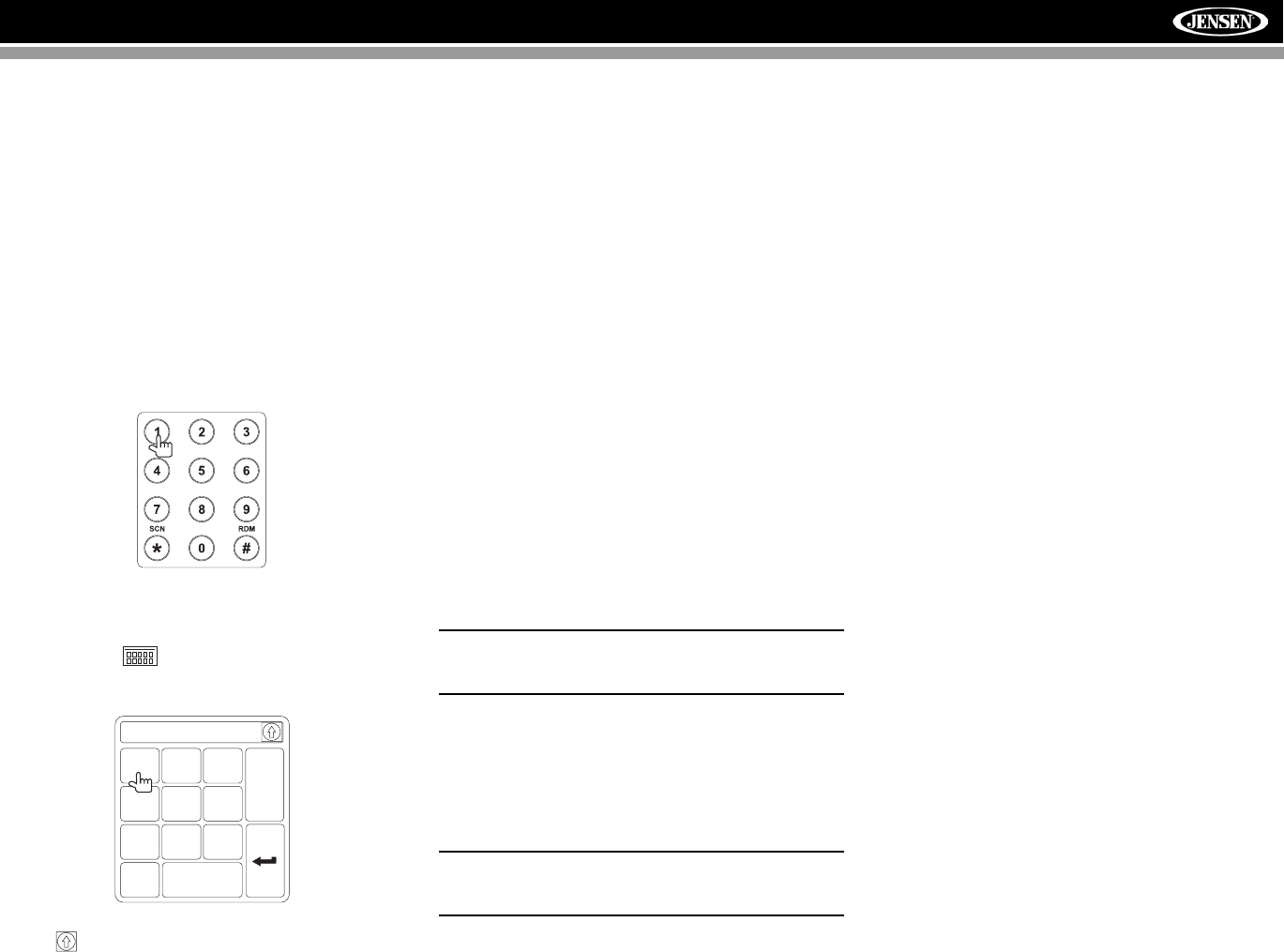
Direct Chapter / Track Selection
Remote Control Direct Entry
During DVD, VCD and CD playback, you can use the
numeric keypad on the remote control (29) to access a track
directly.
Touch Screen Direct Entry
To select a title, chapter/track, or specific playback time
directly, touch the button on screen control to display
the direct entry menu.
Use the button to select Title, Chapter, or Time entry.
• Title: _/#
• Chapter: _ _/##
• Time: _ _:_ _:_ _
Enter the desired title, chapter/track, or time using the on-
screen number pad and then press the Enter button. To exit
the screen without making a selection, touch Exit. To clear
your entry and start over, touch Clear.
Viewing an Alternate Picture Angle
(DVD Only)
Some DVDs contain scenes that have been shot
simultaneously from different angles. For discs recorded with
multiple angles, press the ANGLE button (13) on the remote
control to toggle available angles of the on-screen image.
Zooming
Press the PRESET /\ and \/ buttons (11, 12) on the remote
control to enlarge and pan through the video image using the
following options: “ZOOM 1.5”, “ZOOM 2”, “ZOOM 3”, and
“OFF”.
Multi-Language Discs (DVD Only)
Changing Audio Language
If you are watching a disc recorded in multiple languages,
press the AUDIO button (5) on the remote control to choose
a language.
Changing Subtitle Language
If you are watching a disc recorded in multiple languages with
subtitles, press the SUBTITLE button (9) on the remote
control to choose the language in which you would like the
subtitles to appear.
NOTE: During VCD playback, press the AUDIO button (5)
on the remote control to choose between Left Channel,
Right Channel, and Stereo.
PBC (Play Back Control - VCD Only)
For VCDs with play back functionality, play back control
(PBC) provides additional controls for VCD playback.
Press the MENU button (1) on the remote control to toggle
the PBC function “On”/”Off”. Once PBC is on, playback starts
from track 1 of the play list.
NOTE: When PBC is activated, fast forward, slow
playback, and previous/next track are available. Repeat
and direct track selection are not available.
When PBC is activated, selecting random, scan, or search
playback automatically deactivates PBC.
Playback Information
During DVD and VCD playback, press the DISP button on the
control panel (2) or remote control (10) to display playback
information on the screen, including the media playing and
current playback time.
DVD Playback Information
The following information is displayed at the top of the screen
during DVD playback:
• Title: 05/08 – “05/08" indicates the fifth of 8 titles on the
DVD is currently playing.
• Chapter: 012/016 – “002/016" indicates that the second
of 16 titles on the DVD is currently playing.
• 00:41:28 – “00:41:28” indicates the playback time of the
current title.
The following information is displayed at the bottom of the
screen:
• Front: Source
• Rear: Source
•CLOCK
VCD Playback Information
The following information is displayed at the top of the screen
during VCD playback:
• VCD 2.0 – Format of current disc.
• Title: 06/18 – “06/18” indicates the sixth of 18 tracks on
the VCD is currently playing.
• 00:02:18 – “00:02:18” indicates the playback time of the
current track.
Chapter: _ _
123
456
789
0Clear
Exit
26
VM9512
General Disc Information
Table 5: Disc Properties
Symb
ol 12cm Disc Properties Max Play
Time
Single side single layer (DVD-5)
Single side double layer (DVD-9)
Double side single layer (DVD-10)
Double side double layer (DVD-18)
(MPEG 2
Method)
133 minutes
242 minutes
266 minutes
484 minutes
Single side single layer (VCD) (MPEG 1
Method)
74 minutes
Single side single layer 74 minutes
Table 6: Disc Symbols
Symbol Meaning
Number of voice languages recorded. The num-
ber inside the icon indicates the number of lan-
guages on the disc (maximum of 8).
Number of subtitle languages available on the
disc (maximum of 32).
Number of angles provided (maximum of 9).
Aspect ratios available. “LB” stands for Letter Box
and “PS” stands for Pan/Scan. In the example on
the left, the 16:9 video can be converted to Letter
Box video.
Indicates the region code where the disc can be
played.
• Region 1: USA, Canada, East Pacific Ocean
Islands
• Region 2: Japan, Western Europe, Northern
Europe, Egypt, South Africa, Middle East
• Region 3: Taiwan, Hong Kong, South Korea,
Thailand, Indonesia, South-East Asia
• Region 4: Australia, New Zealand, Middle and
South America, South Pacific Ocean Islands/
Oceania
• Region 5: Russia, Mongolia, India, Middle
Asia, Eastern Europe, North Korea, North
Africa, North-West Asia
• Region 6: Mainland China
• ALL: All regions
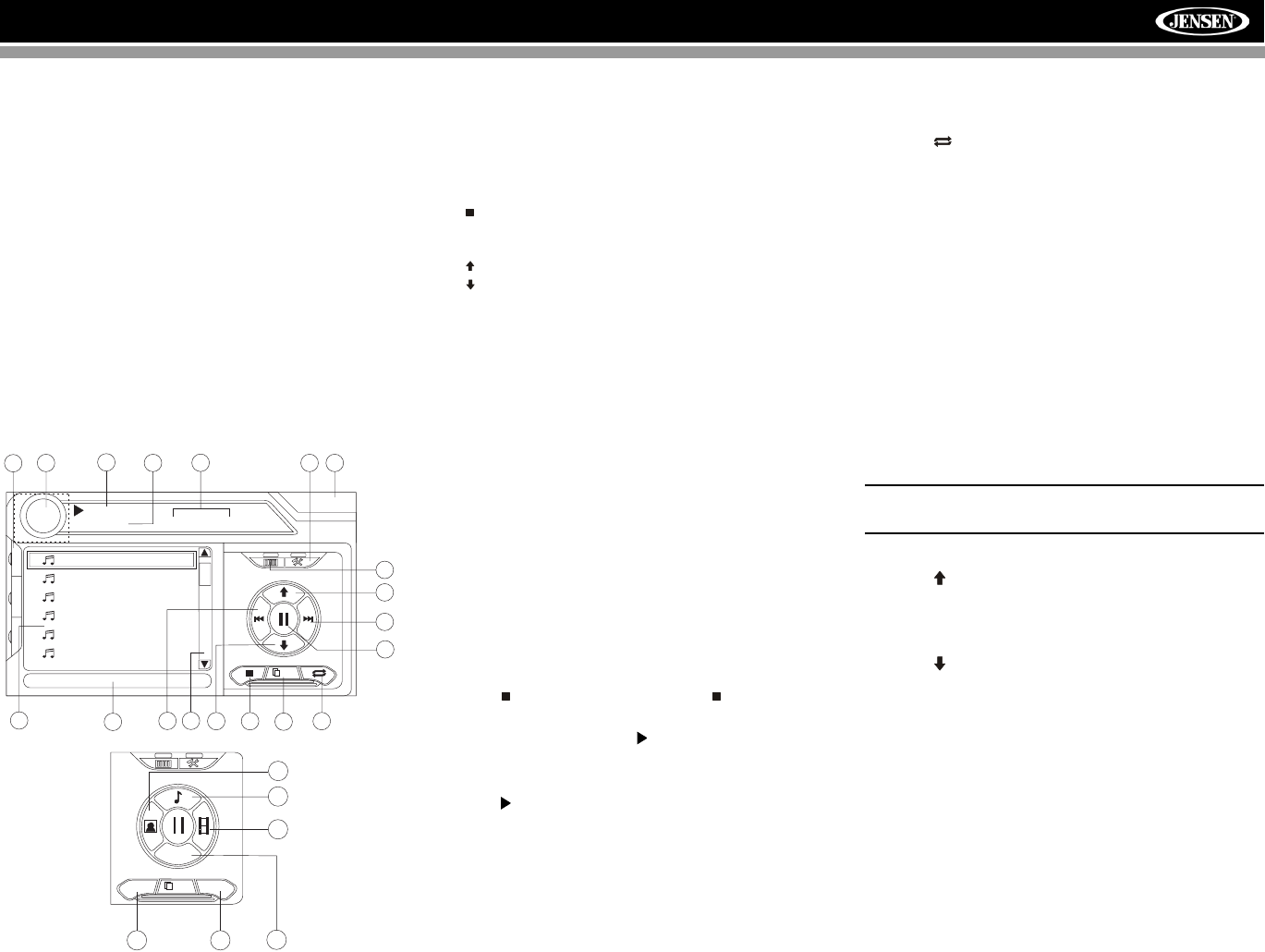
27
VM9512
DVD/CD AUDIO OPERATION
Instructions for TFT control and Insert/Eject are the same for
DVD and CD operation. Please see the DVD/Disc Video
Operation section for information about these topics.
The VM9512 will play music or other audio files from the
following disc media:
• CD-DA
• CD-R/RW
•DVD
•DVD+R/RW
•DVD-R/RW
Upon inserting a disc with the TFT screen open, the disc and
track title (if available), along with the track number and
playing time appear on the screen.
CD Player User Interface
The on-screen indicators and touch key areas for CD
playback are outlined below.
1. Current track and total number of tracks on disc
2. Elapsed playing time/length of track
3. Current track title
4. Available track titles
5. ID3 information
6. ||: Touch to pause/play disc playback
7. : Touch to stop disc playback
8. >>|: Touch to move to next track
9. |<<: Touch to move to previous track
10. />>: Touch to navigate playlist/touch to fast forward
11. /<<: Touch to navigate playlist/touch to fast rewind or
reverse
12. Touch to activate/deactivate Repeat play mode
13. 1/2 or 2/2: Touch this page button to view a second page
of on-screen buttons
14. Touch to access the direct entry screen
15. Touch to view the SETUP menu
16. Touch to view Spectrum Analyzer > Equalizer
17. Touch to view the SOURCE MENU and select a new
playback source
18. Touch the scroll bar and arrows to view the previous/
next page of songs
19. Touch to access the Music menu
20. Touch to access the Video menu
21. Touch to access the Photo menu
22. Browse all files
23. DIR -: Touch to view the previous folder
24. DIR +: Touch to view the next folder
25. Current time
Controlling Playback
Stopping Playback
Touch the button on screen or press the button (20) on
the remote control to stop disc playback.
To resume playback, touch the button on screen or press
the joystick button.
Pausing Playback
Touch the button on screen or press the joystick button to
suspend or resume disc playback.
Moving Through Tracks
Press the >>| button (19) on the remote control or on screen
or use the > button on the joystick to advance to the next
track on the disc.
Press the |<< button (17) on the remote control or on screen
or use the < button on the joystick to move to the previous
track.
Repeat Playback
Touch the button on screen, press the RPT button on the
remote control (7) control panel (19) to alter repeat mode
according to the following:
• DVD: Repeat Chapter, Repeat Title, Repeat Off
• CD-DA: Repeat One, Repeat All, Repeat Off
• CD-R/RW: Repeat One, Repeat All, Repeat Off
• DVD-R/RW: Repeat One, Repeat All, Repeat Off
Track Scan Select (CD-DA discs only)
During disc play, press the SCN button on the remote control
(34) or control panel (20) to play the first 10 seconds of each
track. When a desired track is reached, press the SCN button
again to cancel the function and play the selected track.
Random Play Select
While disc play is stopped, press the RDM button on the
remote control (33) to play the tracks on the disc in a random,
shuffled order. Touch the RDM button again to cancel
Random Play mode.
NOTE: CD-R and CD-RW will not play unless the
recording session is finalized.
Fast Forward
Touch the button on screen or press the /\ button on the
joystick to fast forward. Keep pressing and releasing the
button to increase the rate from “2X” to “4X”, “6X”, and “8X”.
Fast Reverse
Touch the button on screen or press the /\ button on the
joystick to fast reverse. Keep pressing and releasing the
button to increase the rate from “2X” to “4X”, “6X”, and “8X”.
15
1
7
2
12
5
16
13
3
17
DISC
CD 1/10 01:23 04:31
01:02
1 Track 01
2 Track 02
3 Track 03
4 Track 04
5 Track 05
6 Track 06
14
4911
10
8
6
E
Q
R
E
A
R
P
I
P
1/2
18
TRACK 01
25
2/2
24
23
DIR - DIR +
ALL
21
22
19
20
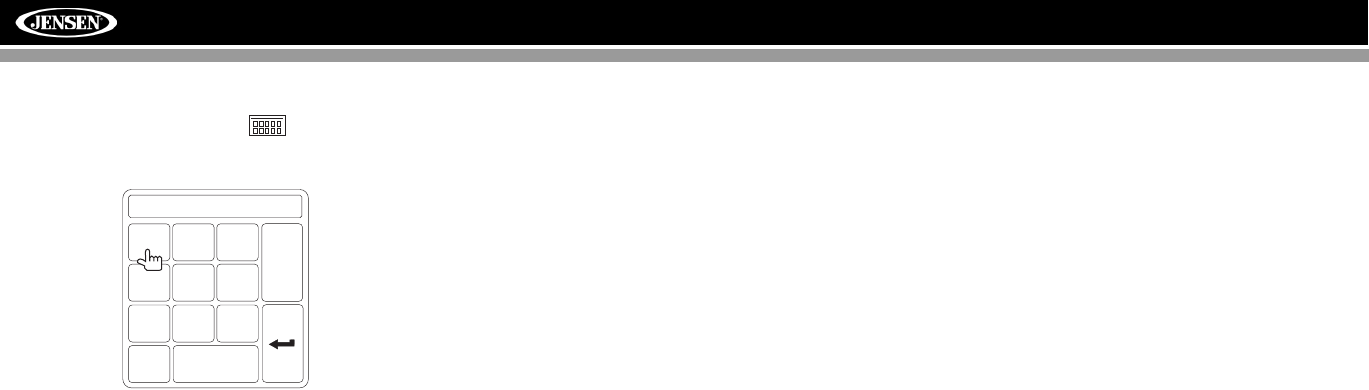
28
VM9512
Direct Track Entry
To select a track directly, touch the button on screen to
display the direct entry menu.
Enter the desired track number using the on-screen number
pad, and then press the Enter button. To exit the screen
without making a selection, touch Exit. To clear your entry
and start over, touch Clear.
TRACK:__/##
123
456
789
0
Clear
Exit
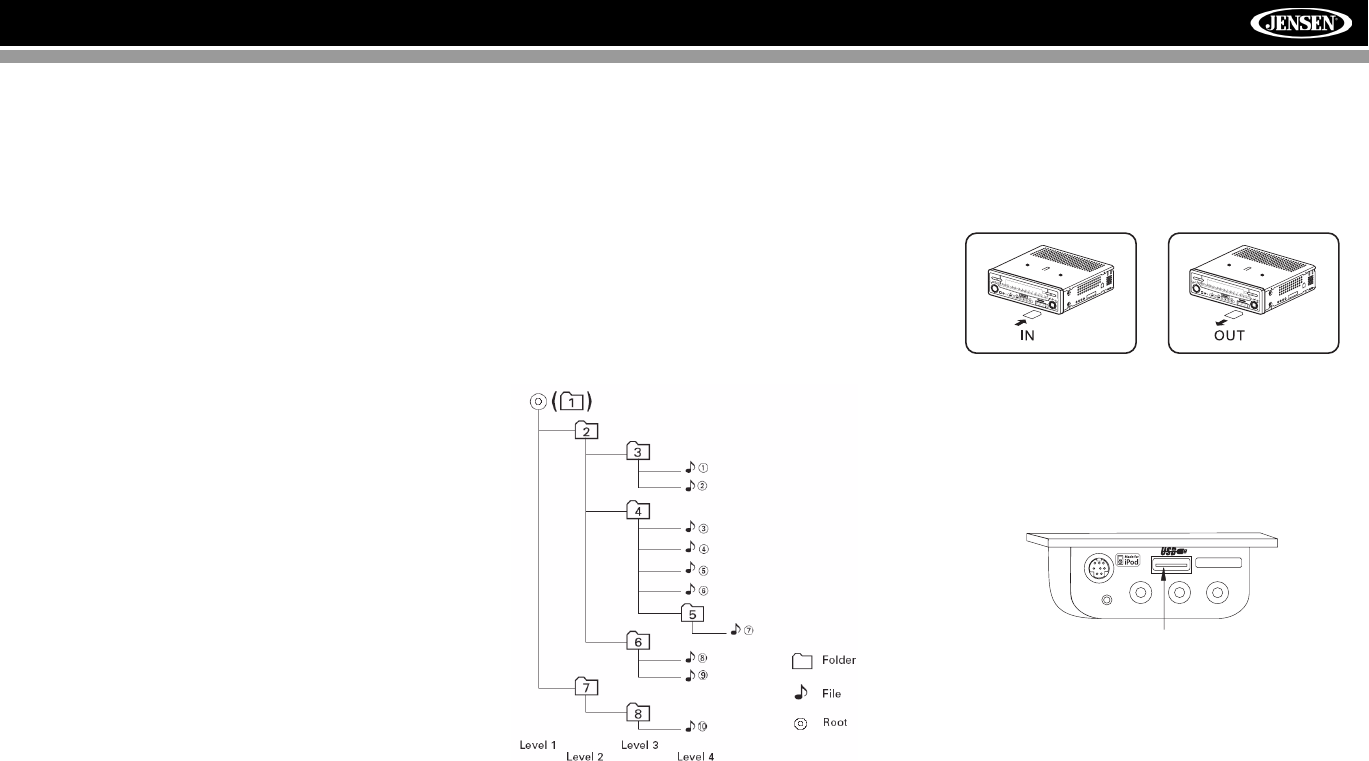
29
VM9512
MP3/WMA OPERATION
Instructions for TFT control and Insert/Eject are the same for
DVD and MP3 operation. Please see the DVD/Disc Video
Operation section for information about these topics.
MP3/WMA Media and File
Requirements
This player allows you to play back MP3 and WMA files
recorded onto CD-R/RWs, DVD+R/RWs, and DVD-R/RWs.
For CD-RW discs, please make sure it is formatted using the
full method and not the quick method to prevent illegal disc
operation.
Up to 1500 songs/files can be burned onto a disc for a MEGA
DVD music mix. Do not exceed this number of songs/files or
disc readability problems may occur.
MP3 Format Compatibility
The file naming formats listed below are compatible with this
unit:
• ISO 9660 – file name: 12 characters, file extension: 3
characters
• ISO 9660 – file name: 31 characters, file extension: 3
characters
• Joliet – 64 characters
If the file or folder name does not conform to ISO 9660 file
system standards, it may not be displayed or played back
correctly. Use the following settings when compressing audio
data for your MP3 disc:
• Transfer Bit Rate: 128kbps
• Sampling Frequency: 48kHz
When recording MP3 up to the maximum disc capacity,
disable additional writing. For recording on an empty
disc up to maximum disc capacity, use the "Disc at
once" setting.
MP3 Playing Order
When selected for play, files and folders (Folder Search, File
Search or Folder Select) are accessed in the order they were
written by the CD writer. As a result, the order in which they
are expected to be played may not match the order in which
they are actually played. You may be able to set the order in
which MP3/WMA files are to be played by writing them onto a
medium such as a CD-R with their file names beginning with
play sequence numbers such as "01" to "99".
For example, a medium with the following folder/file hierarchy
is subject to Folder Search, File Search or Folder Select, as
shown below.
The VM9512 player will only recognize three folder levels and
does not display folders containing only other folders. In the
example above, the unit will display folders 3, 4, 6, and 8, but
not 2 and 7 since they do not contain any tracks directly.
Folder 5 is not recognized at all since it is at the fourth level.
Loading an SD Card
Insert the SD card into the SD slot (21) on the front of the
radio. The unit will read the audio media files on the card
automatically.
To remove the card, first press the SRC button (6) to switch to
another mode and stop SD playback. Pull the SD card out to
remove it.
Loading a USB Device
1. Locate the USB jack located on the MediaLink4.
2. Insert the USB device into the USB jack. The unit will
read the audio media files on the USB device
automatically.
To remove the USB device, press the SRC button (6) to
switch to another mode and then remove the USB device
from the USB jack.
sAudioEnter
Pres
BAND AS
DISP
OPEN
VM9512
sAudioEnter
Pres
BAND AS
DISP
OPEN
VM9512
VIDEO LEFT RIGHT
3.5mm - Audio
MediaLink
USB JACK
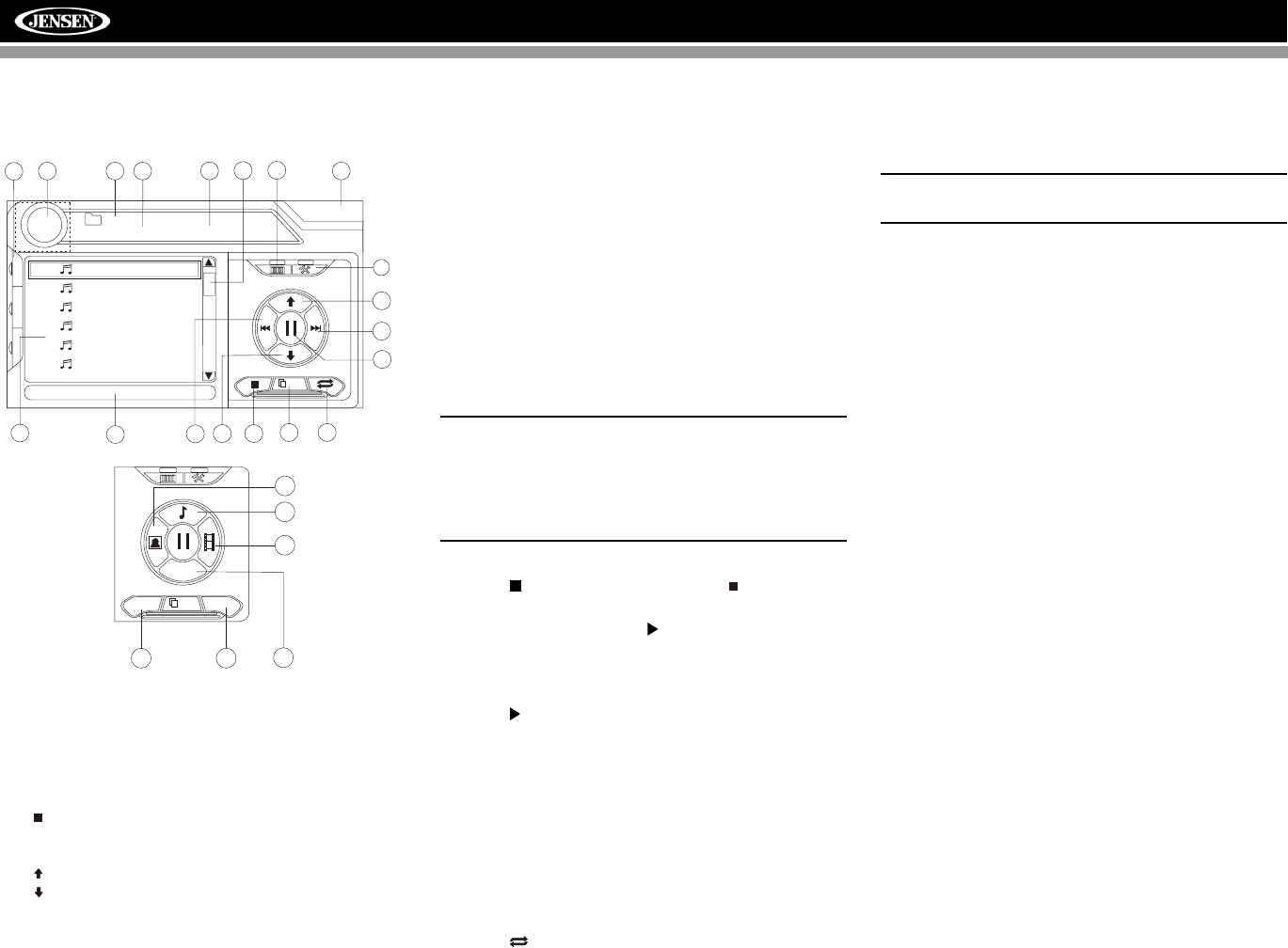
30
VM9512
MP3 User Interface
The on-screen indicators and touch key areas for MP3
playback are outlined below.
1. Current track and total number of tracks on root of disc
2. Elapsed playing time, track length
3. Current time
4. Track titles
5. ID3 information
6. || : Touch to play/pause disc playback
7. : Touch to stop disc playback
8. >>|: Touch to move to next track
9. |<<: Touch to move to previous track
10. />>: Touch to navigate playlist/touch to fast forward
11. /<<: Touch to navigate playlist/touch to fast rewind or
reverse
12. DIR -: Touch to view the previous folder
13. DIR +: Touch to view the next folder
14. Touch to access the direct entry screen
15. Touch to view the SETUP menu
16. Touch to view Spectrum Analyzer > Equalizer
17. Touch to view the SOURCE MENU and select a new
playback source
18. Folder name
19. 1/2 or 2/2: Touch this page button to view a second page
of on-screen buttons
20. Touch the scroll bar and arrows to view the previous/
next page of songs
21. Touch to activate/deactivate Repeat play mode
22. Touch to access the Music menu
23. Touch to access the Video menu
24. Touch to access the Photo menu
25. Browse all files
Controlling MP3/WMA Disc Playback
Playing MP3/WMA Files
After inserting a MP3/WMA disc, files will play in the
sequence of the “Root’ directory.
NOTE: When burning MP3 / WMA files onto a DVD disc,
use the 2X or 4X burning option, if available. This slower
burning speed will help eliminate buffer errors and
increase disc reading reliability. Also, use folders when
burning large numbers of songs / files to a disc for easy
music navigation. Select the "Disc at Once" option and
close your disc.
Stopping Playback
Touch the button on screen or press the /BAND button
(20) on the remote control to stop disc playback.
To resume playback, touch the button on screen, press the
joystick button (13) on the front panel, or press the >/|| button
(18) on the remote control.
Pausing Playback
Touch the button on screen, press the joystick button (13)
on the front panel, or press the >/|| button (18) on the remote
control to suspend or resume disc playback.
Moving Through Tracks
Press the >>| button (19) on the remote control or on screen
or use the > button on the joystick (14) to advance to the next
track on the disc.
Press the |<< button (17) on the remote control or on screen
or use the < button on the joystick (10) to move to the
previous track.
Repeat Playback
Touch the button on screen, press the RPT button (19) on
the control panel or press the RPT button (7) on the remote
control to alter repeat mode according to the following:
Repeat Single, Folder Repeat, Repeat Off.
Random Play Select
Press the RDM button (33) on the remote control to play the
files on the disc in a random, shuffled order. Press RDM
again to cancel Random Play mode.
NOTE: CD-R and CD-RW will not play unless the
recording session is finalized.
12
5
16 3
17
DISC
MP3 4/84 00:00:23
01:02 AM
1 Cherry Poppin Da
2 Chris Isaak - Baby
3 Crazy Town - Butt
4 Phish - Birds Of A
5 Phish - Bouncin' R
6 Phish - Freebird (L
4
(Root)
18
1/2
15
7
14
911
10
8
6
19 20
20
E
Q
R
E
A
R
P
I
P
2/2
13
12
DIR - DIR +
ALL
24
25
22
23
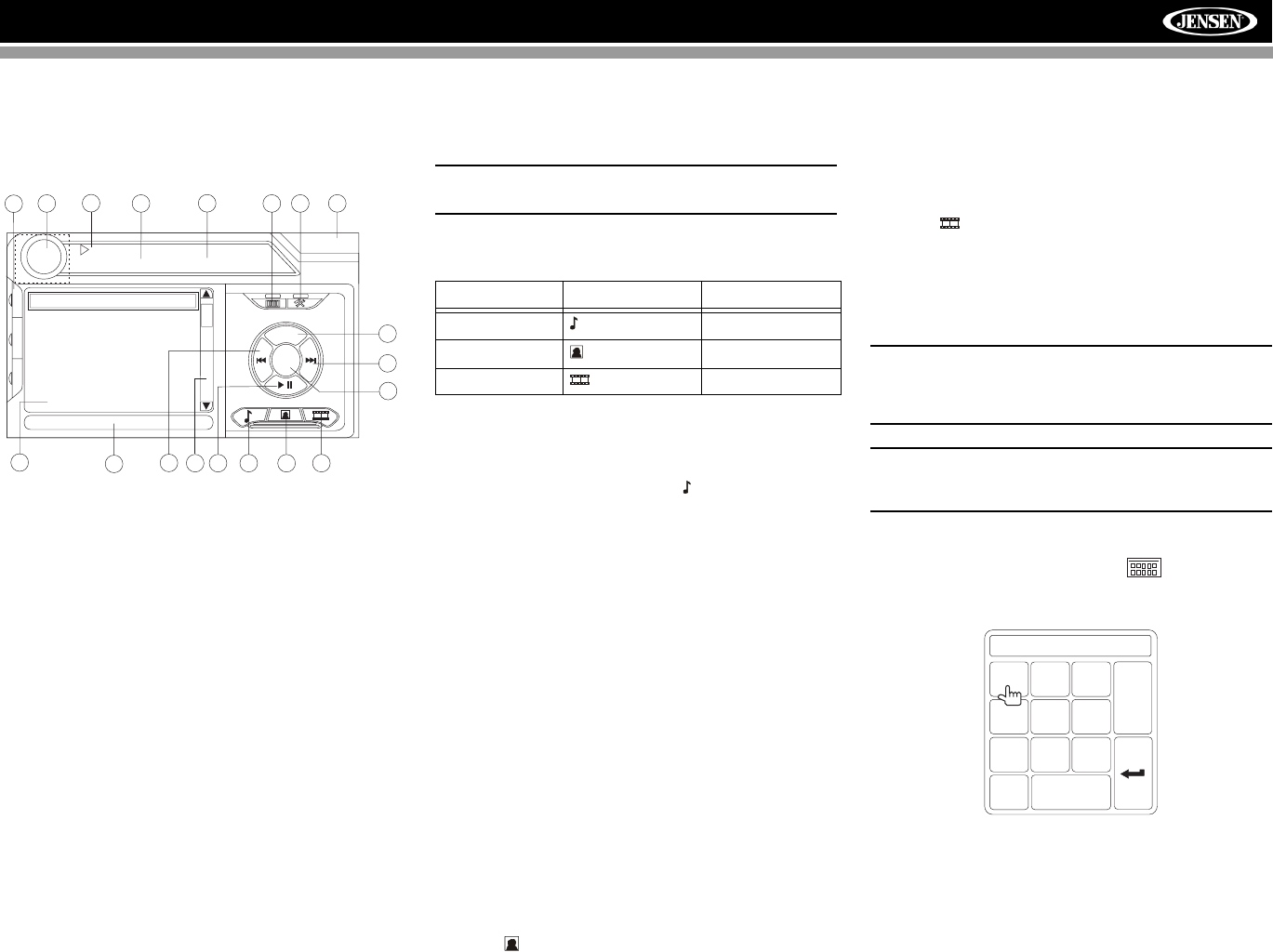
31
VM9512
iPod OPERATION
iPod User Interface
The on-screen indicators and touch key areas for iPod
playback are outlined below.
1. Elapsed playing time
2. Current track and total number of files
3. Current time
4. Media titles/menu information
5. ID3 information
6. Enter
7. Touch to access photos
8. >>|: Touch to move to next track
9. |<<: Touch to move to previous track
10. Touch to access the iPod menu
11. >|| : Touch to play/pause disc playback
12. Touch to access music files
13. Touch to access video files
14. Touch to access the SETUP screen
15. Touch to view Spectrum Analyzer > Equalizer
16. Touch to view the SOURCE MENU and select a new
playback source
17. Song title
18. Touch to view the direct entry menu
19. Touch the scroll bar and arrows to view the previous/
next page of songs
Controlling Your iPod
The unit will automatically switch to iPod mode when an iPod
is plugged into the MediaLink4. To return to the iPod menu
from any other source menu, press the SRC button (6) on the
front panel or remote control (8) until the iPod menu appears
on the screen.
NOTE: Be sure your iPod has the latest Apple firmware
installed to avoid connectivity issues.
The following touch screen icons and remote control buttons
are used to access the iPod menus:
Use the touchscreen, the joystick, or the directional keys on
the remote control to navigate the iPod menus.
iPod Music Playback
To access iPod music files, touch the button on screen or
press the AUDIO button (5) on the remote control.
• Touch the > || button on screen to play/pause.
• Touch >>| on screen, press the >>| button (19) on the
remote control, or press the > button on the joystick (17)
to move to the next item on the menu.
• Touch |<< on screen, press the |<< button (17) on the
remote control, or press the < button on the joystick (16)
to move to the previous item on the menu.
• Use the touch screen or press the >/|| button (18) on the
remote control or the joystick ENTER button (20) on the
control panel to select the highlighted menu option.
• Press the >> button (14) on the remote control or the /\
button (18) on the joystick, or touch the MENU button on
screen to return to the previous menu.
Fast Forward/Fast Reverse
Press and hold the |<< or >>| buttons on screen or on the
remote control (17, 19) for 1 second and continue to hold for
fast forward or fast reverse. Release to resume normal
playback.
Photo Playback
While iPod photos can be viewed on the VM9512 screen, you
must use the iPod to control photo playback options.
Touch the icon on screen or press the SUB-TITLE button
(9) on the remote control to access the iPod PHOTO mode.
The VM9512 will release control back to the iPod so you can
select video media to be displayed on the TFT monitor. To
exit PHOTO mode, touch the screen.
Video Playback
While iPod video can be viewed on the VM9512 screen, you
must use the iPod to control video playback options.
Touch the button on screen or press the ANGLE button
(13) on the remote control to access iPod VIDEO mode. The
VM9512 will release control back to the iPod so you can
select video media to be displayed on the TFT monitor. To
exit VIDEO mode, touch the screen, press the >> button (14)
on the remote control, or press the MENU button on the iPod.
NOTE: To transmit the video from your iPod to the
VM9512 screen, you must set the following options
through the iPod video settings menu: TV Out = On, TV
Signal = NTSC, and Widescreen = On.
NOTE: After disconnecting your iPod, the VM9512 will
always return to the last mode accessed when the iPod
is plugged back into the unit.
Direct Track/File Entry
To select a track/file directly, touch the button on
screen control to display the direct entry menu.
Enter the desired track/file using the on-screen number pad.
Press the Enter button to tune to the selected station. To exit
the screen without changing the station, touch Exit. To clear
your entry and start over, touch Clear.
You can also use the numeric keypad (29) on the remote
control to access files directly.
14
1
7
2
13
5
15
12
3
16
iPod
1:08 2/124
01:02 AM
0001 A Rush Of Blood to
0002 40
0003 4th of July
0004 A Little Less Conver
0005 A Message
0006 A Sort of Homecomi
4911
10
8
6
17
A Rush of Blood to the Head
MENU
Artist: Coldplay
Enter
18
E
Q
R
E
A
R
P
I
P
19
Menu Touch Screen Remote Control
Music AUDIO
Photos SUB-TITLE
Videos ANGLE
TRACK:__/##
123
456
789
0
Clear
Exit
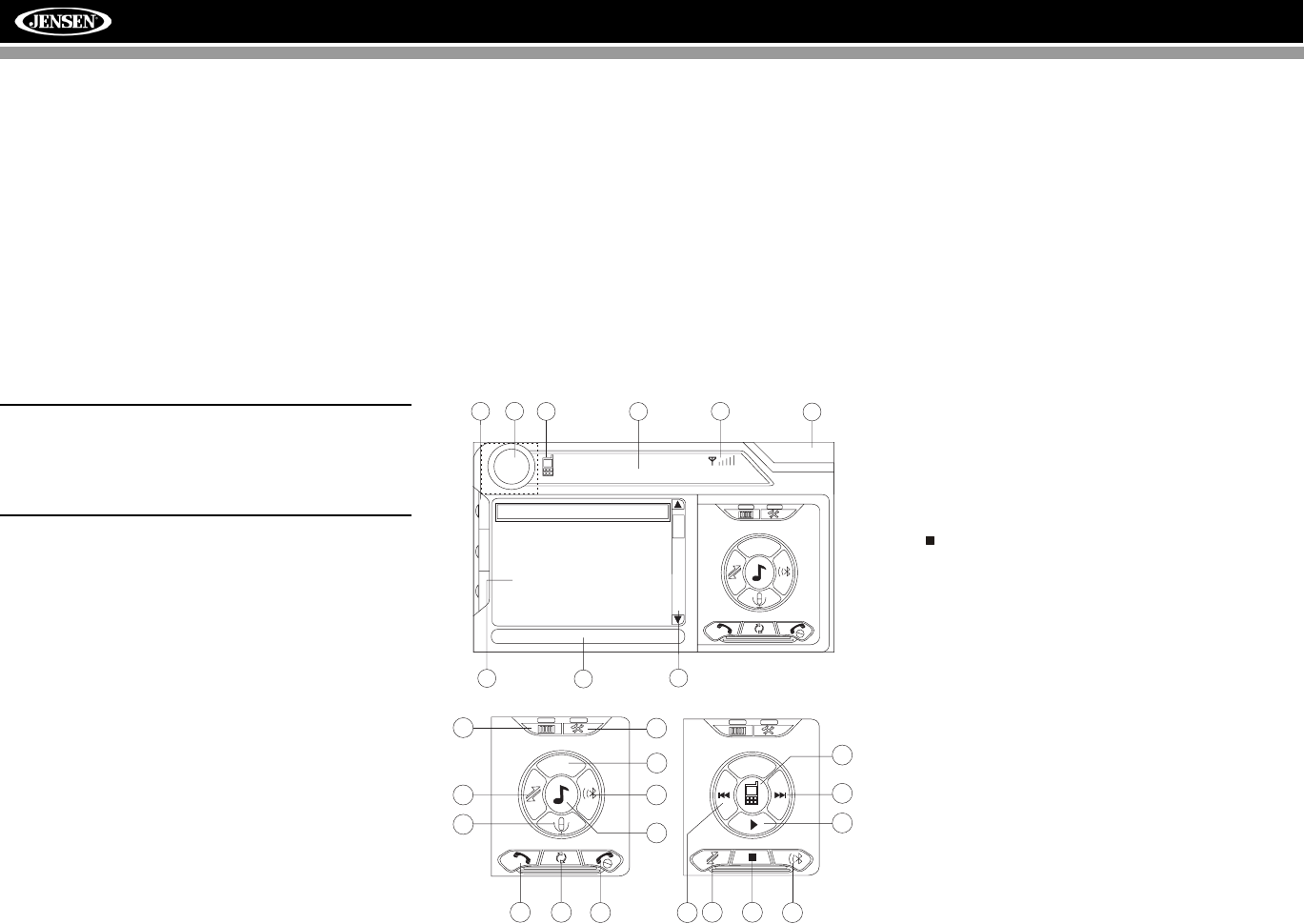
32
VM9512
BLUETOOTH OPERATION
About Bluetooth
Bluetooth is a short-range wireless radio connectivity
technology that is developed as a cable replacement for
mobile phones, handheld PCs and other devices. Bluetooth
operates in 2.4 GHz frequency range and transmits voice and
data at speeds up to 1 megabit per second. Bluetooth was
launched by a special interest group (SIG) comprised of
Ericsson Inc., Intel Corp., Nokia Corp., Toshiba and IBM in
1998, and it is currently developed by nearly 2,000
companies worldwide. The Bluetooth word mark and logos
are owned by the Bluetooth SIG, Inc. and any use of such
marks by Audiovox Corporation is under license. Other
trademarks and trade names are those of their respective
owners.
NOTE: The line-of-sight distance between this unit and
your cellular phone must be 8 meters or less for sending
and receiving voice and data via Bluetooth wireless
technology. However, the transmission distance may
become shorter than the estimated distance, depending
on the environment in use.
Before attempting to use the Bluetooth functions on the
VM9512, please make sure your mobile phone supports
Bluetooth functions (Headset or Handsfree profiles or both).
Adhere to the following guidelines for successful operation.
• Before using Bluetooth functions, you must pair your
mobile phone to the VM9512 head unit (see “Pairing the
Bluetooth System with Your Mobile Phone and Head
Unit”). To ensure the best reception for pairing and
reconnection, please make sure the phone battery is
fully charged before you begin.
• Try to perform pairing within a few minutes of the phone
being turned on.
• Once the unit has been paired with the phone, the unit’s
model number, “VM9512”, will be displayed on the
mobile phone.
• To achieve the best performance, always keep the
mobile phone within 3 meters of the head unit.
• Always keep a clear path between the mobile phone
and the head unit. Never place a metal object or any
other obstacle between the mobile phone and the head
unit.
• Some mobile phones (like Sony Ericsson) may have a
"Power Saving Mode" option. PLEASE DO NOT use the
power saving mode with the VM9512.
• Before accepting or making a call, make sure your
mobile phone's “Bluetooth function” is turned on.
• To ensure the best conversation quality/performance,
stay within one meter of the head unit when talking.
• To “disconnect” the mobile phone from the head unit,
turn the Bluetooth connectivity off on the mobile phone.
•Phone Book direct searching through the head unit
is only available if the mobile phone supports Phone
Book Download. If the feature is not supported, the
head unit will display “Phone book not provided by this
phone” when an attempt is made to download a phone
book.
Bluetooth User Interface
The on-screen indicators and touch key areas for Bluetooth
operation are outlined below.
1. Current connection status/device connected
2. Current time
3. Bluetooth menu
4. Current operation status
5. Toggle Music/Phone menu
6. Transfer active call back to handset
7. Pair your Bluetooth phone (first time use)
8. Connect/disconnect Bluetooth device (phone, PDA,
personal music player, etc.) with hand-free function
9. Exit call listing display
10. Mute/unmute microphone (located on left side of radio)
during active call
11. Answer incoming call/make call
12. Reject incoming call/end call/quit pairing process/quit
reading phone book or call listing
13. Touch to view the SETUP menu
14. Touch to view Spectrum Analyzer > Equalizer
15. Touch to view the SOURCE MENU and select a new
playback source
16. Indicates connection/current operation (--> indicates
incoming call, <-- indicates dialing alert)
17. Touch to access the direct entry screen
18. : Touch to stop playback
19. Touch the scroll bar and arrows to view the previous/
next page of songs
20. Toggle Music/Phone menu/mode
21. Play/Pause selected file
22. |<<: Touch to move to the previous file
23. >>|: Touch to move to the next file
24. Signal strength indicator
Hands Free Profile (HFP)
To use a phone wirelessly with this unit, it is necessary to first
establish a connection using Bluetooth wireless technology.
Connection is normally established using HFP (Hands Free
Profile), which gives you full control of functions available on
the telephone source. However, depending on your phone,
the connection may be made using HSP (Head Set Profile),
making some functions unavailable. This is a limitation of
your phone, not the VM9512.
Since there are a number of Bluetooth mobile phone
implementations available on the market, operations with
your Bluetooth mobile phone using this unit vary greatly.
Please refer to the instruction manual that came with your
Bluetooth mobile phone along with this manual while
operating your phone with this unit.
1
4
14 2
15
BT
Disconnected
01:02 AM
1 Missed Calls
2 Received Calls
3 Dialed Calls
4 Phone Book
3
17
MENU
Menu List
E
Q
R
E
A
R
P
I
P
19
24
MENU
18
97
10
9
11
5
612
13
8
23
8
MENU
20
21
22 18
PHONE INTERFACE MUSIC INTERFACE
33
VM9512
Pairing the Bluetooth System with
Your Mobile Phone and Head Unit
1. Press the button (8) to initiate the pairing process.
Keep the mobile phone within 2 meters of the head unit
when pairing. (To terminate the pairing process, press
the button again.)
2. Select the Bluetooth setup option on the mobile phone
to be paired (please refer to the phone’s instruction
manual to learn how to enter Bluetooth setup, turn
Bluetooth on/off, and perform pairing).
NOTE: Some phones require a “pass key” or pairing
code to connect. If your phone requires a pass key or
pairing code, you will need to enter this number in the
Pairing Code field under the Bluetooth SETUP menu. The
default pairing code for many phones is “0000”. The
default code for the VM9512 is “1234”. See “Bluetooth
Sub-menu Features” on page 18 for instructions on
entering the pairing code.
3. Select “VM9512” from the pairing list on the mobile
phone.
• If pairing is successful, the TFT will display the
paired mobile phone model number or name (as
specified in your phone’s Bluetooth Setup menu).
• If pairing fails, “Phone Pairing Fail” is displayed at
the bottom of the screen.
Reconnecting
Once the Bluetooth device has been paired, you can touch
the connect button to reconnect.
NOTE: You can only connect to a phone using the
buttons on the on-screen Phone interface.
Each time the button is pressed, the head unit will
automatically reconnect with the mobile phone once (only if
the mobile phone was previously paired with the head unit).
Managing Incoming Calls
When connected to a Bluetooth phone, the unit will mute
audio output, pause CD play, and change to the Bluetooth
screen when a call is received. An incoming phone number
will appear at the top of the screen. If the screen is closed,
the number will scroll across the LCD. If the incoming call has
no caller ID, the TFT or LCD will display “Restricted Number”.
Answering an Incoming Call
To answer the call, touch the button.
For best reception, speak loudly and clearly. The microphone
is located on the left side of the unit.
To end the conversation, press the button. The screen will
display the call duration for 3 seconds, and then return to the
previous mode.
Rejecting an Incoming Call
Touch the button to reject an incoming call. The call will
revert to your phone and can be answered directly or left for
voice mail.
Volume Control
To increase or decrease the volume level, turn the rotary
encoder (5) on the front panel or press the VOL+/ VOL-
buttons (15, 16) on the remote control.
Microphone Mute
To mute the microphone, touch the button. Touch again to
resume microphone functionality.
Making an Outgoing Call
NOTE: Press the button from the main Bluetooth
screen to automatically dial the last call received.
1. Touch the button to open the direct dial screen.
2. Use the 0-9, *, and # buttons to input the phone number.
• Touch the CLEAR button to clear the last digit.
• Touch the button to clear the entire number and
start over.
3. After entering the phone number, press the button to
dial the call. The direct dial screen will close once your
call is connected.
To end the conversation, press the button.
Call Transfer
While talking, to transfer audio from the head unit back to the
mobile phone, touch the button (7). The TFT will display
“Transfer”. You can only transfer a call after it has been
answered.
Menu List
The menu list appears on the left side of the screen and can
be accessed from other modes by touching the MENU button
on the right side of the screen.
NOTE: Not all phones allow access to missed, received
or dialed calls and some will not allow uploading of your
phone’s address book.
Missed Calls
The Missed Calls list retrieves the list of Missed numbers
from your phone. The last missed number is the first number
on the list. Touch the Missed Calls menu option to view the
list. To make a call from the Missed Calls list, touch the
number and then touch the button. The TFT will display
“Cannot get missed record” when the feature is not available.
Dialed Calls
The Dialed Calls list retrieves the list of dialed numbers from
your phone. The last dialed number is the first number on the
list. Touch the Dialed Calls menu option to view the list. To
make a call from the Dialed Calls list, touch the number and
then touch the button. The TFT will display “Cannot get
dialed record” when the feature is not available.
Received Calls
Use the Received Calls list to view the last 10 received
numbers stored on your phone. To access the Received list,
touch the Received Calls menu option. The last received
number is the first number on the list. To make a call from the
Received Calls list, touch the number and then touch the
button. The TFT will display “Cannot get received record”
when the feature is not available.
MICROPHONE
Exit
Clear
123
456
789
0#
*
34
VM9512
Phone Book
1. Touch the Phone Book menu option to display the
phone book stored on your mobile phone, if compatible.
The screen will display “Ready...” while the phone book
is downloading.
2. Once the download is completed, you can use the arrow
buttons and scroll bar on the right side of the window to
navigate the list. Since the unit downloads one page of
entries at a time, there may be a slight delay while the
next page of numbers is downloaded.
3. Touch to highlight the number you want to dial and then
touch the button.
NOTE: Some mobile phones do not support Phone Book
upload through Bluetooth. This is a limitation of the
phone, not the VM9512.
Bluetooth Setup
Auto Answer
You can choose to have the VM9512 automatically answer
incoming calls to your paired Bluetooth phone. To turn “Auto
answer” on:
1. Touch the button to view the SETUP menu.
2. Select the “Bluetooth” sub-menu.
3. Touch the area to the right of “Auto answer” to select
“On”.
Auto Connect
The auto Connect option will allow the VM9512 to
automatically connect to your previously paired Bluetooth
when it is in range. When the Connect option is set to
“Manual”, you must press the button to re-establish a
connection with your phone. To turn auto “Connect” on:
1. Touch the button to view the SETUP menu.
2. Select the “Bluetooth” sub-menu.
3. Touch the area to the right of “Connect” to select “Auto”.
Advanced Audio Distribution Profile
(A2DP)
The VM9512 allows you to play back audio files from your
phone, PDA or personal music player using a Bluetooth
connection.
Before using an audio player, it may be necessary to enter a
PIN code into the unit. Enter the PIN code referring to
“Bluetooth Sub-menu Features” on page 18.
NOTE: Please quit A2DP mode before attempting to
make a phone call, as unexpected results may occur
depending on your mobile phone model.
The VM9512 can control a Bluetooth audio player via
Advanced Audio Distribution Profile (A2DP) or Audio/Video
Remote Control Profile (AVRCP). Bluetooth audio players (or
Bluetooth adapters) compatible with these profiles can be
connected to this unit. Functionality varies depending on the
profile used:
• A2DP: Stream audio from your Bluetooth compatible
audio player and listen to the music through your
VM9512. Play/pause, song selection, etc. are not
possible.
• AVRCP: Play back, pause, select songs, etc. while
streaming audio from your Bluetooth compatible audio
player to the VM9512.
NOTE: Song information (e.g. elapsed playing time, song
title, song index, etc.) cannot be displayed on this unit.
Since there are a number of Bluetooth audio players
available on the market, operations with your Bluetooth audio
player using this unit vary greatly.
Please refer to the instruction manual that came with your
Bluetooth audio player as well as this manual while operating
your player with the VM9512.
Refer to the MUSIC INTERFACE instructions under
“Bluetooth User Interface” on page 32 for information about
on-screen indicators and touch screen functions that may be
available during audio playback.
35
VM9512
TROUBLESHOOTING
Table 7: Troubleshooting
Problem Cause Corrective Action
GENERAL
Unit will not power on Radio Fuse blown Install new fuse with correct rating
Car battery fuse blown Install new fuse with correct rating
Illegal operation Press the RESET button located in the bottom right corner of the front panel
Remote control does not function Battery depleted Replace battery with new one
Battery installed incorrectly Remove battery and install correctly
No/low audio output Improper audio output connection Check wiring and correct
Volume set too low Increase volume level
Improper “MUTE” connection Review wiring diagram and check “MUTE” connection
Speakers damaged Replace speakers
Heavily biased volume balance Adjust the channel balance to the center position
Speaker wiring is in contact with metal part of car Insulate all speaker wiring connections
Poor sound quality or distortion Pirated disc is in use Use original copy
Speaker power rating not compatible with unit Connect proper speakers
Speaker is shorted Check speaker contact
Tel-Mute malfunction “MUTE” wire is grounded Check that the “MUTE” connection is not grounded and that it’s properly insulated
Unit resets itself when engine is off Incorrect connection between ACC and positive battery
wire Check wiring and correct
TFT MONITOR
Monitor does not open automatically TFT Auto Open is turned off Turn TFT Auto Open on
No image Incorrect connection to parking brake wire Check wiring and correct
PRK SW is activated and parking brake is not engaged Stop vehicle in safe place and apply parking brake
Flashing image or interference appears on screen DVD is not compatible with current TV system settings Change setup to accommodate disc
Improper video signal connections Check wiring and correct
Prolonged image or improper height/width ratio dis-
play Improper aspect ratio setup Use correct aspect ratio setting
Monitor stops at incorrect position Moving path is blocked Press OPEN key to restart monitor movement
TUNER
Weak station searching Auto antenna is not fully extended Connect the auto antenna control cable properly
Auto antenna not properly connected Connect the auto antenna control cable properly
LOCAL function is activated Turn LOCAL function off
Cannot insert disc Disc already inside unit Eject current disc and insert new one
36
VM9512
Error Messages
Disc does not play back Disc is warped or scratched Use disc in good condition
Disc is dirty or wet Clean disc with soft cloth
Laser pickup is dirty Clean laser pickup with cleaning disc
Incompatible disc is used Use compatible disc
Disc rating exceeds Parental Lock rating limit Change Parental Lock settings to lower restriction
Disc region code is not compatible with unit Use disc with proper region code
Disc is inserted upside down Insert disc with label side up
Image blurred, distorted, or dark Disc is illegally copied Use original disc
PBC cannot be used during VCD playback PCB is not available on the disc
No repeat or searching while playing VCD PCB is on Turn PCB off
MP3
Interruption occurred during playback Disc is dirty or scratched Clean disc or replace
File is damaged/bad recording Recreate disc with good files
Incorrect playback message displayed Message is longer than LCD can display
SAT RADIO
No Sound Incorrect cable connections Check RCA cables
Satellite source not available Incorrect cable connections Check Satellite Data cable
IPOD
iPod source not available Incorrect cable connections Check jLink and MediaLink cables
Cannot see video and photo media on TFT screen Wrong iPod Video Settings Change iPod video settings to TV Out = On
Table 7: Troubleshooting
Problem Cause Corrective Action
Table 8: Error Messages
Message Displayed Cause Corrective Action
Loading Disc is being read
No Disc Disc is dirty Clean disc with soft cloth
Disc is upside down Insert disc with label side up
Disc not present in loading compartment Insert disc
Bad Disc Disc is dirty Clean disc with soft cloth
Disc is upside down Insert disc with label side up
Unknown disc Disc format is not compatible with this unit
Region Error DVD is not compatible with region code of unit
Error Illegal mechanism operation Press EJECT key for 5 seconds to reset loading mechanism

37
VM9512
Care and Maintenance
1. Use only a clean silicone cloth and neutral detergent to
clean the front panel or monitor. A rough cloth and non-
neutral detergent (such as alcohol) may result in
scratching or discoloration.
2. Do not get water or cleaning fluids on the unit.
3. If the temperature inside the player gets too hot, a
protective circuit automatically stops play of the disc. If
this occurs, allow the unit to cool before operating the
player again.
4. Never insert anything other than a 5” (12 cm) disc into
the player as the mechanism can be damaged by
foreign objects.
5. Do not attempt to use a 3” (8 cm) CD-Single disc in this
unit, either with or without an adaptor, as damage to the
player and/or disc may occur. Such damage is not
covered by the Warranty on this product.
6. The CD player may not operate properly in extreme hot
or cold. If such conditions occur, allow the interior of the
vehicle to reach a normal temperature before using
player.
7. When the vehicle warms up during cold weather or
under damp conditions, condensation may appear on
the LCD panel. Should this occur, the screen will not
operate properly until the moisture has evaporated.
8. We suggest you use a cleaning disc in this unit more
frequently than in the unit in your home due to the
environmental conditions of the vehicle.
38
VM9512
SPECIFICATIONS
DVD/CD Player
Compatible Disc Media: DVD + R / RW (Single and Dual
Layer) and CD-R / RW
Compatible Media Formats: CD-DA, MP3, WMA, VCD,
SVCD, AVI, MPEG1 / 2, XviD, DivX and Kodak picture CD
(JPEG).
Signal to Noise Ratio: >95dBA
Dynamic Range: >95dB
Frequency Response: 20Hz to 20 kHz, -3dB
Channel Separation: > 60dB @ 1 kHz
D/A Converter: High performance 24-bit / 192 kHz sample
rate, Multi-Bit Sigma-Delta Modulator
Video
Format: NTSC, PAL (auto-detection)
Output: 1Vp-p (75-ohm)
Input: 1Vp-p (75-ohm)
FM Tuner
Mono Sensitivity (-30dB): 9dBf
Quieting Sensitivity (-50dB): 15dBf
Alternate Channel Selectivity: 70dB
Signal to Noise Ratio @ 1 kHz: 58dB
Image Rejection: 80dB
Stereo Separation @ 1 kHz: >30dB
Frequency Response: 30Hz - 15 kHz, -3dB
AM Tuner
Sensitivity (-20dB): 15uV
Signal to Noise Ratio @ 1 kHz: 50dB
Image Rejection: 60dB
Frequency Response: 50Hz - 2 kHz, -3dB
Monitor
Screen Size: 7.0" (Measured diagonally), 16:9 Widescreen
• 6.06" (154.1mm) W X 3.42" (87mm) H
Screen Type: TFT Liquid Crystal Display (LCD) active matrix
Response Time: 30mSec rise time, 50mSec fall time
Resolution:
• 336,960 sub pixels, 1440 (W) X 234 (H)
Viewing angle:
• 65 degrees left or right
• 40 degrees up
• 65 degrees down
General
Auxiliary Input Impedance: 10k-ohm
Power Supply: 11 to 16VDC, negative ground
Power Antenna (Blue): 500mA max, current limited protection
Amplifier Remote (Blue/White): 500mA max, current limited
protection
Operating Temperature: -20C ~ 65C
Fuse: 15-amp, mini ATM type
DIN chassis dimensions: 7" X 7" X 2" (178mm x 178mm x
50mm)
CEA Power Ratings
Power Output: 18 Watts RMS x 4 channels into 4-Ohms @ <
1% THD+N
Signal to Noise Ratio: 70dBA below reference (Reference: 1
Watt, 4-Ohms)
Frequency Response: 20 Hz - 20 kHz, -3dB. (Aux Input used
as reference input)
Reference Supply Voltage: 14.4VDC
*Specifications subject to change without notice.

Limited Warranty DO NOT RETURN THIS PRODUCT TO THE STORE
CD or Multimedia Radios/Headunits
Audiovox Electronics Corporation (“the Company”) is committed to
quality and customer service, and are pleased to offer you this
Warranty. Please read it thoroughly and contact the Company at 1-800-
323-4815 with any questions.
Who is covered?
The Company extends this warranty to the original retail purchaser of products
purchased through an authorized Audiovox retailer in the U.S.A., Puerto Rico or
Canada. This warranty is not transferable or assignable. Proof of purchase is
required in the form of an original sales receipt.
What is covered?
The Company warrants that should this product or any part thereof, under normal
use, be proven defective in material or workmanship within 12 months from the
date of original purchase, such defect(s) will be repaired or replaced with a new or
reconditioned product (at the Company's option) without charge for parts and
repair labor.
What is not covered?
This Warranty does not cover the following:
• Damage incurred during shipping or transporting the product to the
Company or a service center
• Elimination of car static or motor noise
• Defects in cosmetic, decorative or non-operative structural parts
• Correction of antenna problems
• Costs incurred for installation, removal or reinstallation of the product
• Consequential damage to compact discs, USB devices, digital media
cards, accessories or vehicle electrical systems
• Damage caused by improper installation, mishandling, misuse, neglect,
accident, blown fuse, battery leakage, theft or improper storage
• Products whose factory serial number/bar code label(s) or markings
have been removed or defaced
• Damage resulting from moisture, humidity, excessive temperature,
extreme environmental conditions or external natural causes
Please review the “Care and Maintenance” section of your Installation
and Operation Manual for additional information regarding the proper
use of your product.
Limitations
THE EXTENT OF THE COMPANY'S LIABILITY UNDER THIS WARRANTY
IS LIMITED TO THE REPAIR OR REPLACEMENT PROVIDED ABOVE AND,
IN NO EVENT, SHALL THE COMPANY'S LIABILITY EXCEED THE
PURCHASE PRICE PAID BY PURCHASER FOR THE PRODUCT.
This Warranty is in lieu of all other express warranties or liabilities. ANY IMPLIED
WARRANTIES, INCLUDING ANY IMPLIED WARRANTY OF
MERCHANTABILITY, SHALL BE LIMITED TO THE DURATION OF THIS
WRITTEN WARRANTY. ANY ACTION FOR BREACH OF ANY WARRANTY
HEREUNDER INCLUDING ANY IMPLIED WARRANTY OF
MERCHANTABILITY MUST BE BROUGHT WITHIN A PERIOD OF 24
MONTHS FROM DATE OF ORIGINAL PURCHASE. IN NO CASE SHALL THE
COMPANY BE LIABLE FOR ANY CONSEQUENTIAL OR INCIDENTAL
DAMAGES FOR BREACH OF THIS OR ANY OTHER WARRANTY, EXPRESS
OR IMPLIED, WHATSOEVER. No person or representative is authorized to
assume for the Company any liability other than expressed herein in connection
with the sale of this product.
Some states do not allow limitations on how long an implied warranty lasts or the
exclusion or limitation of incidental or consequential damage so the above
limitations or exclusions may not apply to you. This Warranty gives you specific
legal rights and you may also have other rights which vary from state to state.
Obtaining Warranty Service
• To obtain repair or replacement within the terms of this Warranty,
call 1-800-323-4815 for the location of a warranty station serving
your area.
• You must prepay the initial shipping charges to the Company.
The Company will pay the return shipping charges for all
warranteed products returned to an address within the U.S.A.,
Puerto Rico or Canada.
• Please package the product securely to avoid shipping damage.
We recommend using a carrier that provides tracking service to
prevent lost packages. Lost or damaged packages are not
covered by this warranty.
• Provide a detailed description of the problem(s) for which you
require service.

Audiovox Electronics Corporation
Hauppauge, NY 11788
Technical Assistance: 1-800-323-4815
www.jensen.com
© 2007 Audiovox
Ver. 070607
Printed in China