HandyWave HPS Wireless Serial Transceiver User Manual HPS Manual

HandyWave Co., Ltd. Wireless Serial Transceiver HPS Manual

users manual

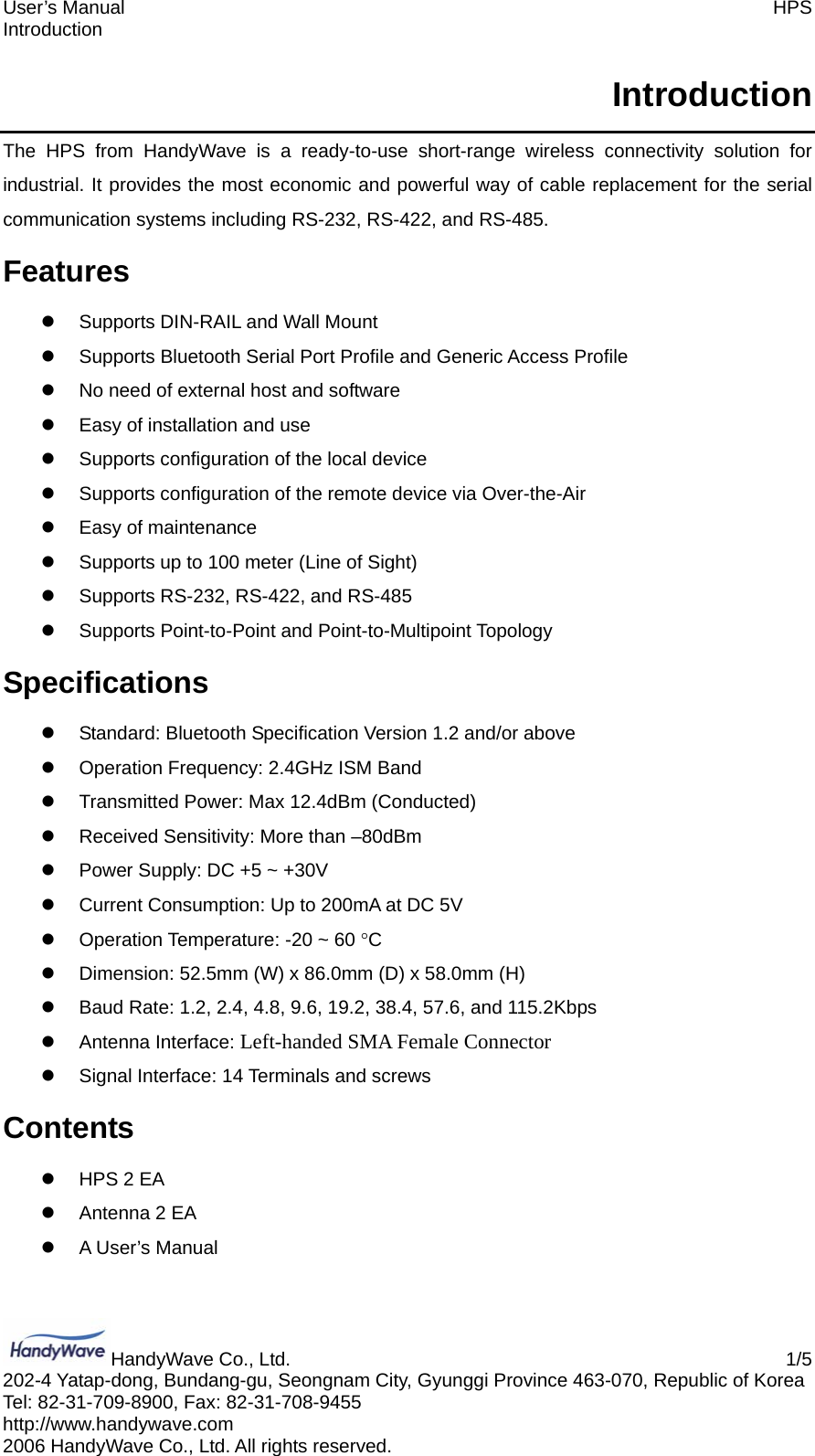
User’s Manual    HPS Introduction HandyWave Co., Ltd.    1/5 202-4 Yatap-dong, Bundang-gu, Seongnam City, Gyunggi Province 463-070, Republic of Korea Tel: 82-31-709-8900, Fax: 82-31-708-9455 http://www.handywave.com 2006 HandyWave Co., Ltd. All rights reserved. Introduction The HPS from HandyWave is a ready-to-use short-range wireless connectivity solution for industrial. It provides the most economic and powerful way of cable replacement for the serial communication systems including RS-232, RS-422, and RS-485. Features z  Supports DIN-RAIL and Wall Mount z  Supports Bluetooth Serial Port Profile and Generic Access Profile z  No need of external host and software z  Easy of installation and use z  Supports configuration of the local device z  Supports configuration of the remote device via Over-the-Air z  Easy of maintenance z  Supports up to 100 meter (Line of Sight) z Supports RS-232, RS-422, and RS-485 z  Supports Point-to-Point and Point-to-Multipoint Topology Specifications z  Standard: Bluetooth Specification Version 1.2 and/or above z  Operation Frequency: 2.4GHz ISM Band z  Transmitted Power: Max 12.4dBm (Conducted) z  Received Sensitivity: More than –80dBm z  Power Supply: DC +5 ~ +30V z  Current Consumption: Up to 200mA at DC 5V z  Operation Temperature: -20 ~ 60 °C z  Dimension: 52.5mm (W) x 86.0mm (D) x 58.0mm (H) z  Baud Rate: 1.2, 2.4, 4.8, 9.6, 19.2, 38.4, 57.6, and 115.2Kbps z Antenna Interface: Left-handed SMA Female Connector z  Signal Interface: 14 Terminals and screws Contents z  HPS 2 EA z  Antenna 2 EA z  A User’s Manual
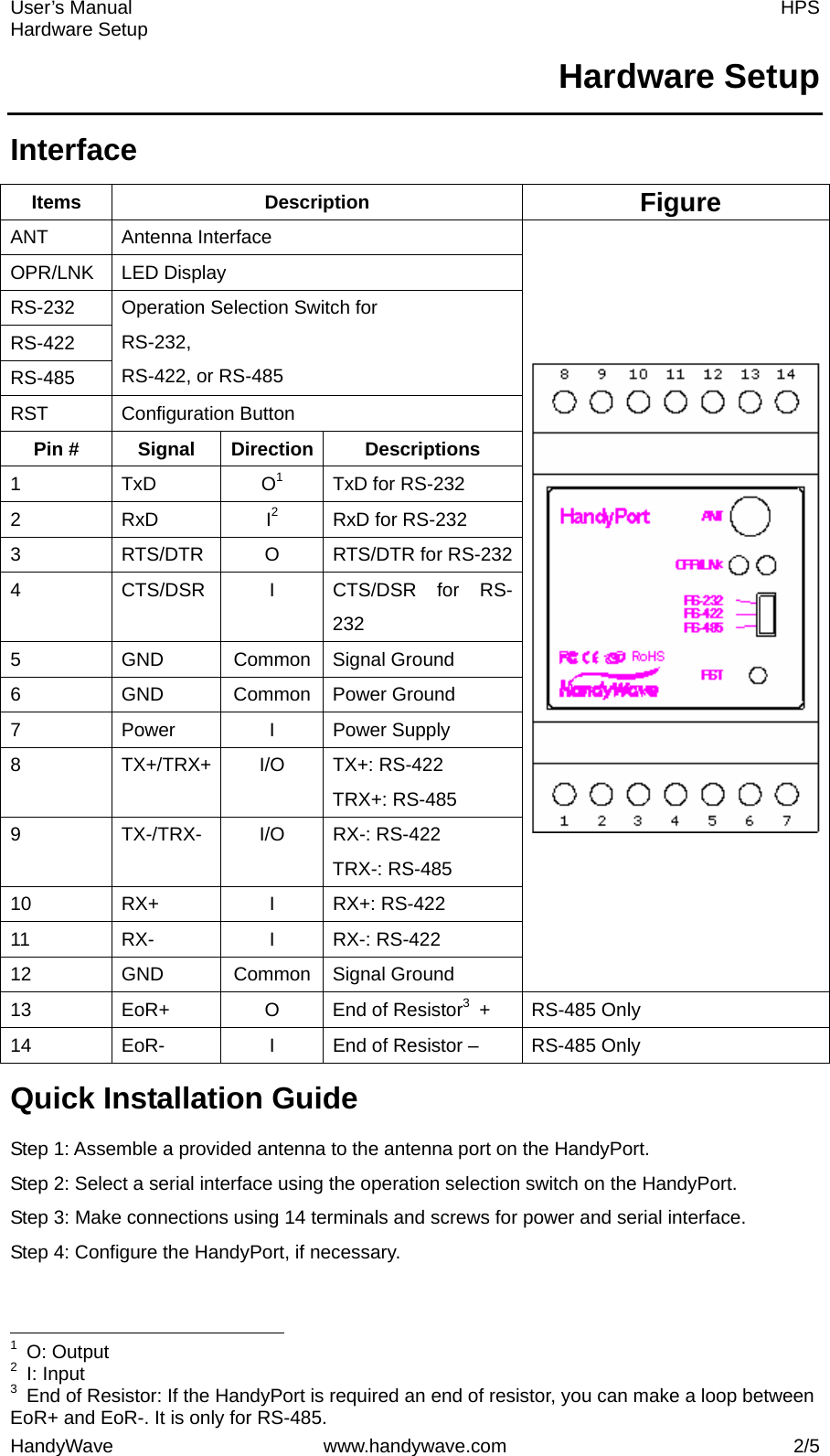
User’s Manual    HPS Hardware Setup HandyWave www.handywave.com  2/5    Hardware Setup Interface Items Description  Figure ANT Antenna Interface OPR/LNK LED Display RS-232 RS-422 RS-485 Operation Selection Switch for   RS-232,  RS-422, or RS-485 RST Configuration Button Pin #  Signal  Direction  Descriptions 1 TxD  O1  TxD for RS-232 2 RxD  I2 RxD for RS-232 3 RTS/DTR O RTS/DTR for RS-2324  CTS/DSR  I  CTS/DSR for RS-232 5 GND Common Signal Ground 6 GND Common Power Ground 7 Power I Power Supply 8 TX+/TRX+ I/O TX+: RS-422 TRX+: RS-485 9 TX-/TRX- I/O RX-: RS-422 TRX-: RS-485 10 RX+  I RX+: RS-422 11 RX-  I RX-: RS-422 12 GND Common Signal Ground     13  EoR+  O  End of Resistor3 +  RS-485 Only 14  EoR-  I  End of Resistor –  RS-485 Only Quick Installation Guide Step 1: Assemble a provided antenna to the antenna port on the HandyPort. Step 2: Select a serial interface using the operation selection switch on the HandyPort. Step 3: Make connections using 14 terminals and screws for power and serial interface. Step 4: Configure the HandyPort, if necessary.                                                       1 O: Output 2 I: Input 3  End of Resistor: If the HandyPort is required an end of resistor, you can make a loop between EoR+ and EoR-. It is only for RS-485.
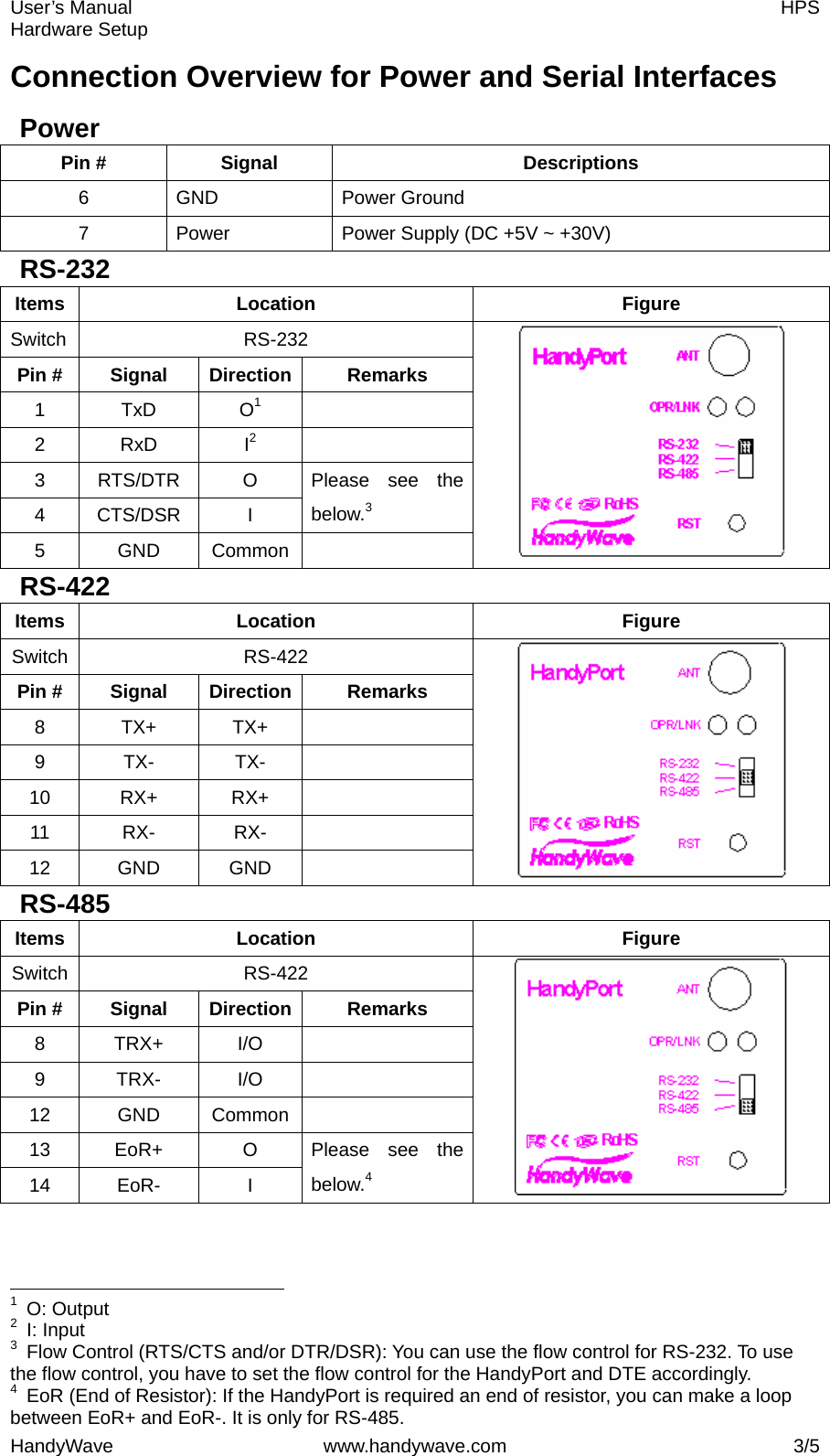
User’s Manual    HPS Hardware Setup HandyWave www.handywave.com  3/5 Connection Overview for Power and Serial Interfaces Power Pin #  Signal  Descriptions 6 GND  Power Ground 7  Power  Power Supply (DC +5V ~ +30V) RS-232 Items Location  Figure Switch RS-232 Pin #  Signal  Direction  Remarks 1 TxD  O1  2 RxD  I2  3 RTS/DTR  O 4 CTS/DSR  I Please see the below.3 5 GND Common    RS-422 Items Location  Figure Switch RS-422 Pin #  Signal  Direction  Remarks 8 TX+ TX+  9 TX- TX-  10 RX+  RX+  11 RX-  RX-  12 GND GND    RS-485 Items Location  Figure Switch RS-422 Pin #  Signal  Direction  Remarks 8 TRX+  I/O  9 TRX-  I/O  12 GND Common  13 EoR+  O 14 EoR-  I Please see the below.4                                                         1 O: Output 2 I: Input 3  Flow Control (RTS/CTS and/or DTR/DSR): You can use the flow control for RS-232. To use the flow control, you have to set the flow control for the HandyPort and DTE accordingly. 4  EoR (End of Resistor): If the HandyPort is required an end of resistor, you can make a loop between EoR+ and EoR-. It is only for RS-485.
User’s Manual    HPS Configuration HandyWave www.handywave.com  4/5 Configuration You can change the configuration of HandyPort using HyperTerminal or similar terminal emulator. HyperTerminal Settings z  COM Port Settings: 9600 8-N-1, Flow Control: None (Factory Settings of HandyPort) z Emulation: VT100 Switch Location To configure the HandyPort, the switch location shall be in RS-232. Start Configurations Step 1: Make a RS-232 connection between the PC and HandyPort. And supply power for HandyPort. Step 2: Open a Hyper Terminal at the PC and set it up. Step 3: Push the RST button on HandyPort. If you enter the configuration mode successfully, LNK LED will be flashing every second. Step 4: Hit the <Enter> key, 5 second later.   Step 5: Change the configuration of HandyPort with commands, if necessary. Usage Printing If you are in the configuration mode, type “?<Enter>” for listing commands. If you want to know the usage of specific command, type “?[command]<Enter>”. All commands and parameters are case sensitive. Therefore, you have to use the capital letter for commands and parameters. End Configurations After finishing the configuration, you have to execute a command “X” to apply changes and exit the configuration mode. Frequently Used Commands Command Syntax  Description A  ABD_ADDR<CR>  Change the remote device address B  BBR[D]<CR>  Change the baud rate M  MMode<CR> Change the connection mode P  PPA[D]<CR> Change the parity bit S  SST[D]<CR> Change the stop bits V  V Display the device information
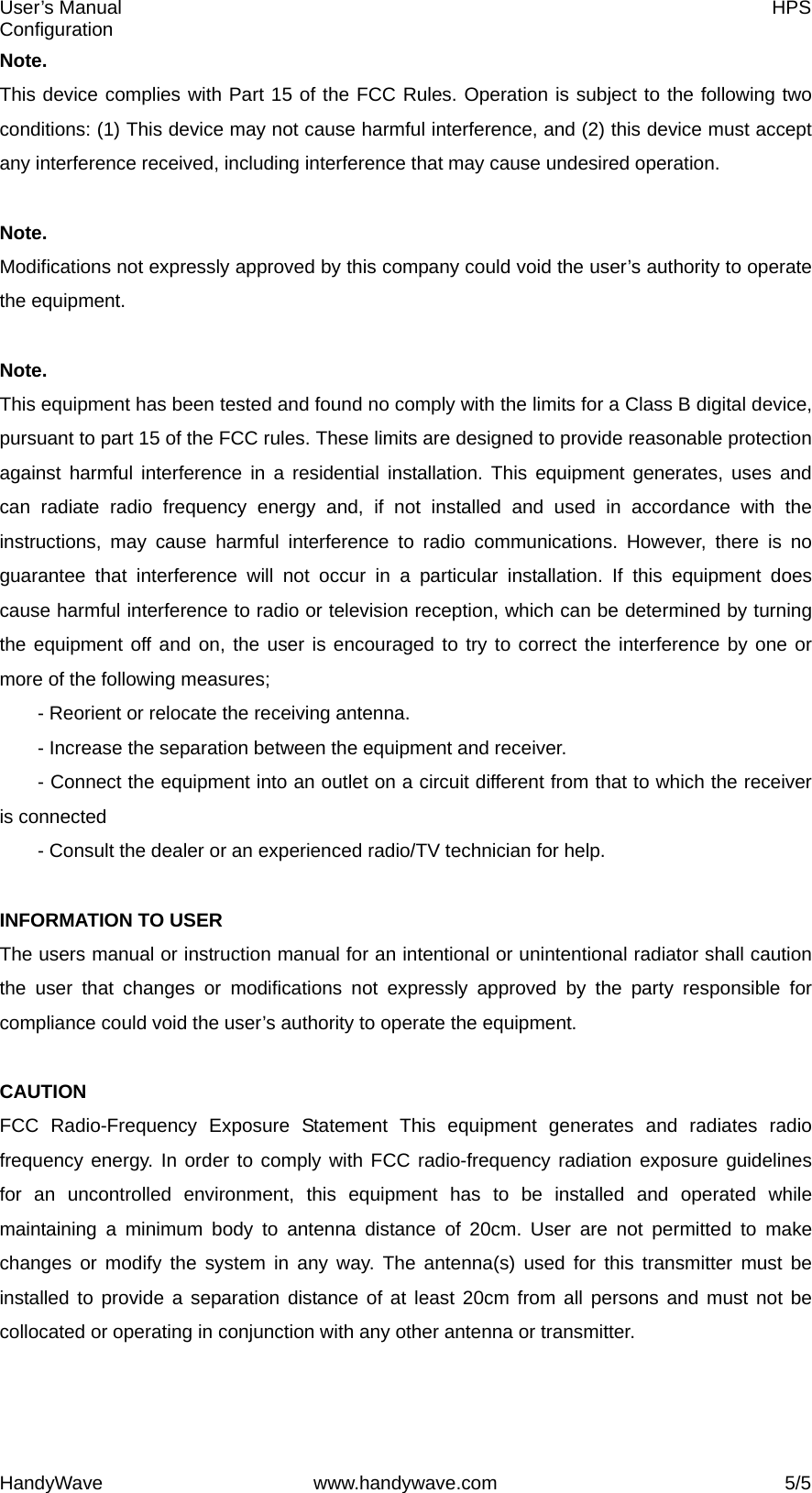
User’s Manual    HPS Configuration HandyWave www.handywave.com  5/5 Note.  This device complies with Part 15 of the FCC Rules. Operation is subject to the following two conditions: (1) This device may not cause harmful interference, and (2) this device must accept any interference received, including interference that may cause undesired operation.  Note.  Modifications not expressly approved by this company could void the user’s authority to operate the equipment.  Note.  This equipment has been tested and found no comply with the limits for a Class B digital device, pursuant to part 15 of the FCC rules. These limits are designed to provide reasonable protection against harmful interference in a residential installation. This equipment generates, uses and can radiate radio frequency energy and, if not installed and used in accordance with the instructions, may cause harmful interference to radio communications. However, there is no guarantee that interference will not occur in a particular installation. If this equipment does cause harmful interference to radio or television reception, which can be determined by turning the equipment off and on, the user is encouraged to try to correct the interference by one or more of the following measures;   - Reorient or relocate the receiving antenna.   - Increase the separation between the equipment and receiver.   - Connect the equipment into an outlet on a circuit different from that to which the receiver is connected   - Consult the dealer or an experienced radio/TV technician for help.  INFORMATION TO USER   The users manual or instruction manual for an intentional or unintentional radiator shall caution the user that changes or modifications not expressly approved by the party responsible for compliance could void the user’s authority to operate the equipment.  CAUTION  FCC Radio-Frequency Exposure Statement This equipment generates and radiates radio frequency energy. In order to comply with FCC radio-frequency radiation exposure guidelines for an uncontrolled environment, this equipment has to be installed and operated while maintaining a minimum body to antenna distance of 20cm. User are not permitted to make changes or modify the system in any way. The antenna(s) used for this transmitter must be installed to provide a separation distance of at least 20cm from all persons and must not be collocated or operating in conjunction with any other antenna or transmitter.

Navigation menu