Hannstar display HSG1279 Tablet PC User Manual
Hannstar display corp. Tablet PC
User manual

HSG1279
User Manual
Latest version:
1.0
2013-01-11

HSG1279User Manual
Ver 1.0 Page 1
Contents
Contents
........................................................................................................................ 1
Revision history
.......................................................................................................... 3
Declaration
.................................................................................................................... 3
Precautions
................................................................................................................... 3
Overview
........................................................................................................................ 4
Basic Functions ................................................................................................................................. 4
Appearance ....................................................................................................................................... 5
Accessories ........................................................................................................................................ 6
Key ...................................................................................................................................................... 6
MID Applications .............................................................................................................................. 7
State Icons ......................................................................................................................................... 7
a) Preparation ............................................................................................................... 9
System Configurations .................................................................................................................... 9
ON/OFF/Standby .............................................................................................................................. 9
Power Reset ...................................................................................................................................... 9
Connecting PC and Data Transmission ......................................................................................... 9
Charge .............................................................................................................................................. 12
Use Micro SD card .......................................................................................................................... 12
b)
Basic Function ....................................................................................................... 12
Main screen ..................................................................................................................................... 12
Main menu ...................................................................................................................................... 13
c) Setting
.................................................................................................................. 15
Wifi .................................................................................................................................................... 16
Traffic Usage Information ............................................................................................................. 18
More .................................................................................................................................................. 19
Sound ............................................................................................................................................... 20

HSG1279User Manual
Ver 1.0 Page 2
Display .............................................................................................................................................. 21
Storage ............................................................................................................................................. 22
Battery .............................................................................................................................................. 23
Applications ..................................................................................................................................... 23
Location services ............................................................................................................................ 24
Security ............................................................................................................................................ 25
Language and input ....................................................................................................................... 26
Backup and reset ........................................................................................................................... 27
Add accounts ................................................................................................................................... 27
Date and time ................................................................................................................................. 28
Accessibility ..................................................................................................................................... 29
Developer options ........................................................................................................................... 30
About tablet ..................................................................................................................................... 31
d) Music
...................................................................................................................... 31
e) Video&Picture
.................................................................................................... 33
f) Online
.................................................................................................................... 40
g) Camera
................................................................................................................. 44
h) Email
..................................................................................................................... 45
i) Play store
............................................................................................................. 46
j) Calendar
............................................................................................................... 48
k)
Clock ....................................................................................................................... 49
HSG1279User Manual
Ver 1.0 Page 3
Revision history
Declaration
1. The information in this manual may not, except under written license by The Company,
be copied, transmitted, distributed, or stored.
2. Although efforts have been made for correctness and completeness during the
preparation of the manual, there is no guarantee that this manual is free from any
error or omission. The Company assumes no reliability regarding the errors or
omissions that might exist in the manual.
3. For sustainable development, The Company reserves the right to modify and improve
any product described in this manual without prior notice.
4. Under no circumstance shall the Company assume any liability, direct or indirect,
related to data or income loss, or any special, accidental, incidental or indirect losses.൞ᵠ
Precautions
For the correct use and good performance of the player, the user must fully understand
the manual as well as strictly follow the instructions provided.
z Please avoid high temperature (over 35 ) or low ćtemperature (below -5 ).ć
z Never knock the main machine violently.
z Never contact with chemicals such as benzene, thinner etc.
z Do not close to strong magnetic field, electric field etc.
z Keep away from direct sunlight or heating appliances.
z Never privately dissemble, repair or modify the player.
z Using the player and the earpiece during bicycling, car and motorcycle driving is likely
to cause danger.
z Never use higher volume, which may damage your hearing ability.
z Divide scraped packing, batteries, old electronic products and dispose them properly.
Date Version Description
2013-01-11 1.0 New version released

HSG1279User Manual
Ver 1.0 Page 4
Overview
Basic Functions
1. Music play: support MP3, WAV, WMA, OGG, APE, AMR, AC3, DTS, MIDI
and AACδincluding AAC-LCȽAACηV1/V2εformat
2. Video play: full format video supports RM,RMVB,AVI,MKV, WMV,VOB, ASF,
M2TS, QT, MOV, FLV, MP4, 3GP, MPG, MPEG, VOB, DAT.
3. Online Video: support Tudou, Youku, QiYi,Tencent and etc.
4. Picture browse: support JPEG, BMP, GIF, PNG formats.
5. Internet chat tool: support QQȽMSN, SKYPE, Wechat and etc.
6. Browser: Google browser, support Chrome label style, Google search etc.
7. Game: support JAVA gameθG-sensor game, large 3D game.
8. TV OUTφSupport HDMI synchronous display.
9. InputφSupport Android Pinyin input and other mainstream hand input,
software.
10. Setting function: support display and setting of each function’s property.
11. File system: support FAT/FAT32/ NTFS and exFAT.
12. Support more than 4GB file access, and multistage catalogues.
13. USB driverφsupport host/OTG/slave
14. Support peripheral with USB port of mouseȽkeyboardȽEthernet and etc.
HSG1279User Manual
Ver 1.0 Page 5
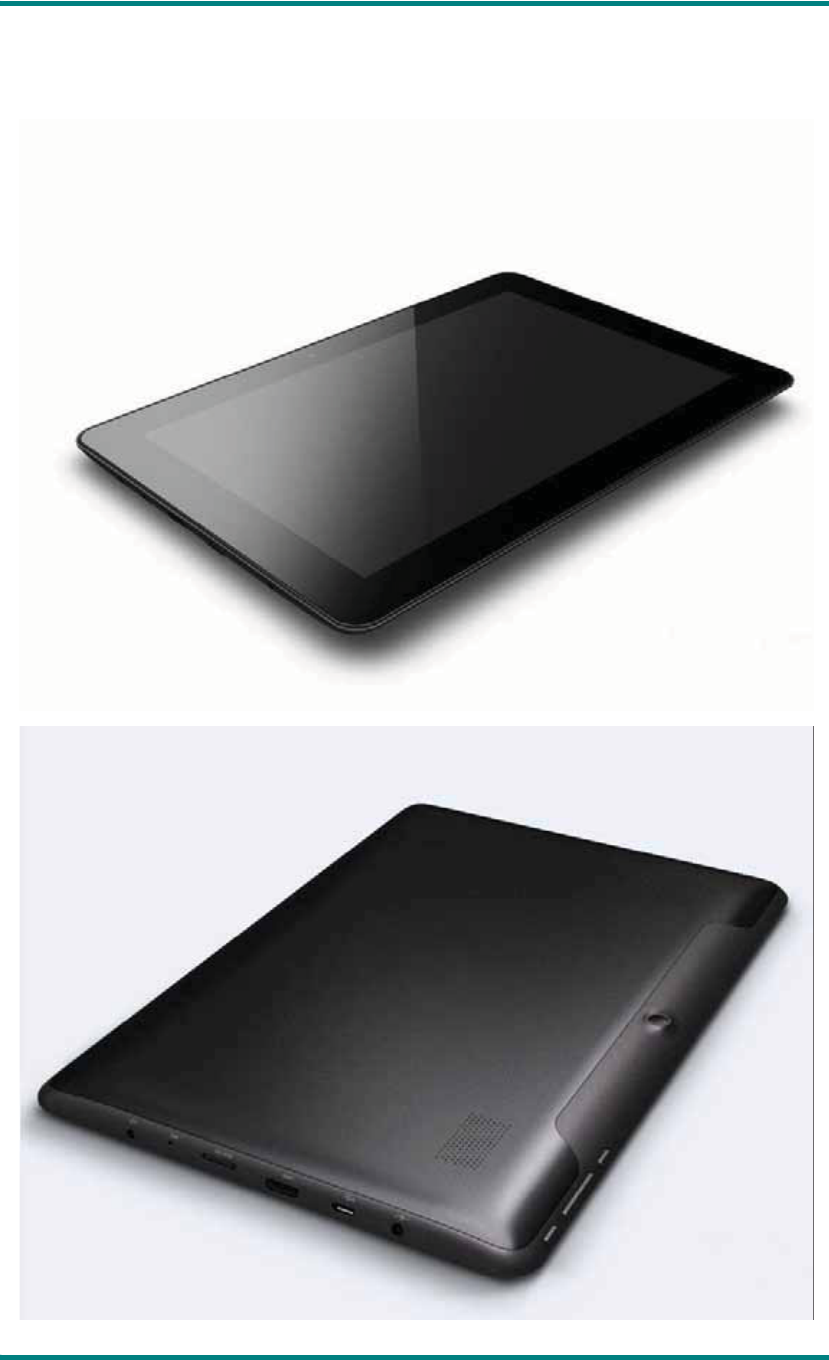
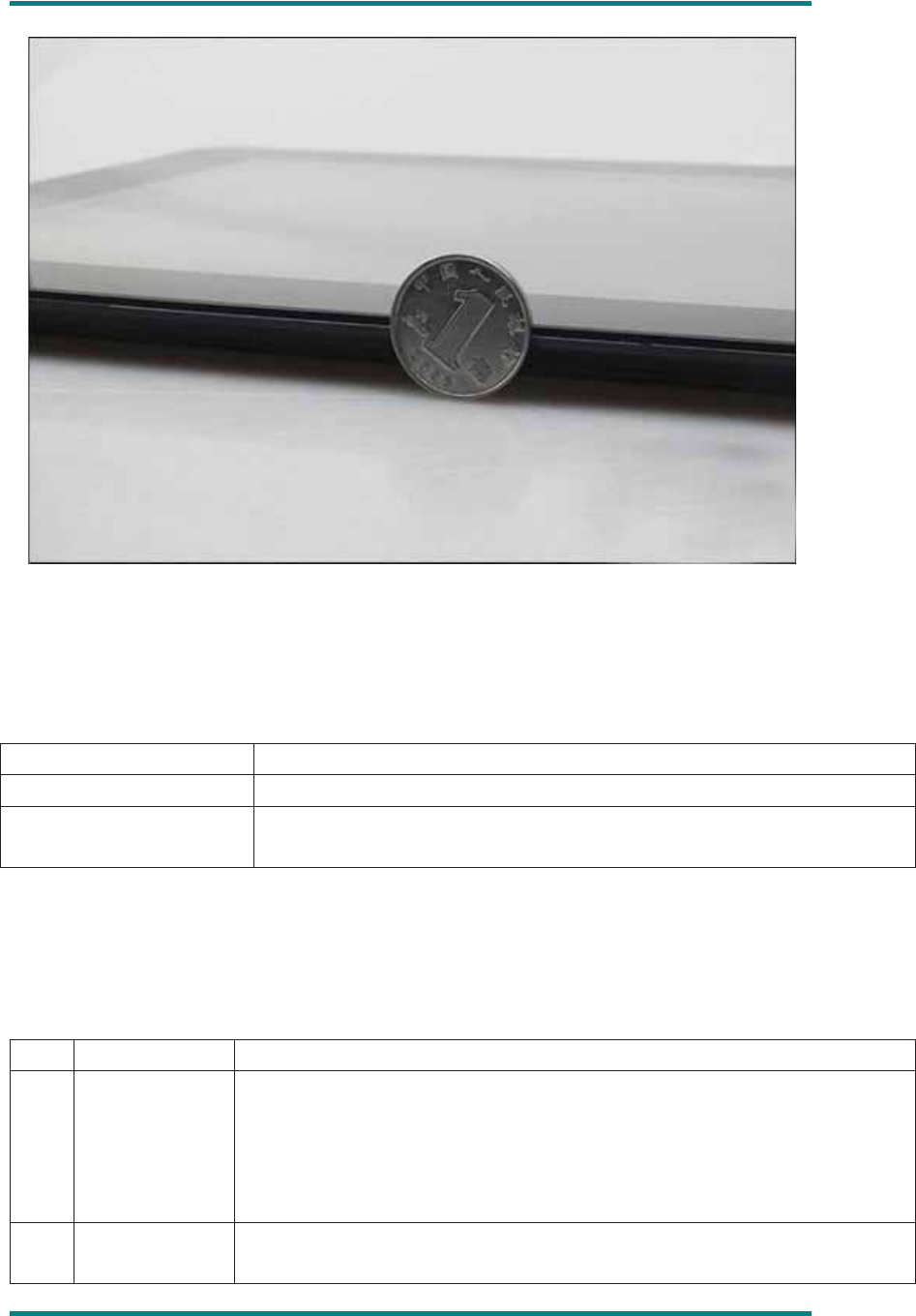
Appearance
HSG1279User Manual
Ver 1.0 Page 6
Accessories
GS702A attaches the following accessories:
Accessories Functions
Adaptor Charging for MID
MID connects to USB
cable
Using in connecting MID and PC to transmit data
Key
1. Key
No. Name Function Definition
1 Power
δ1εlong press to turn on/turn off the player (entering power off interface
prompt)
δ2εlong press it over 8s to reset player
δ3εshort press to turn on/turn off the screen, entering lock screen
standby mode.
2 Vol+/ Vol- Increase/decrease volume short-cut key, short press to
increase/decrease one frame volume; long press to increase/decrease
HSG1279User Manual
Ver 1.0 Page 7
volume continuously.
3 Home Back to main interface
2. Touch operation
No. Name Function Definition
1 Short press It indicates the press time shorter than 1.2s, it mainly used in selecting
menu, confirm and etc.
2 Long press It indicates the press time longer than 1.2s.
3Slide/Drag
operation
It belongs to identify the touch trace direction. Mainly used in picture/page
turning/drag and etc.
4Handwriting
identification It mainly used in inputting characters/symbol.
5 Virtual key It belongs to virtual keyboard.
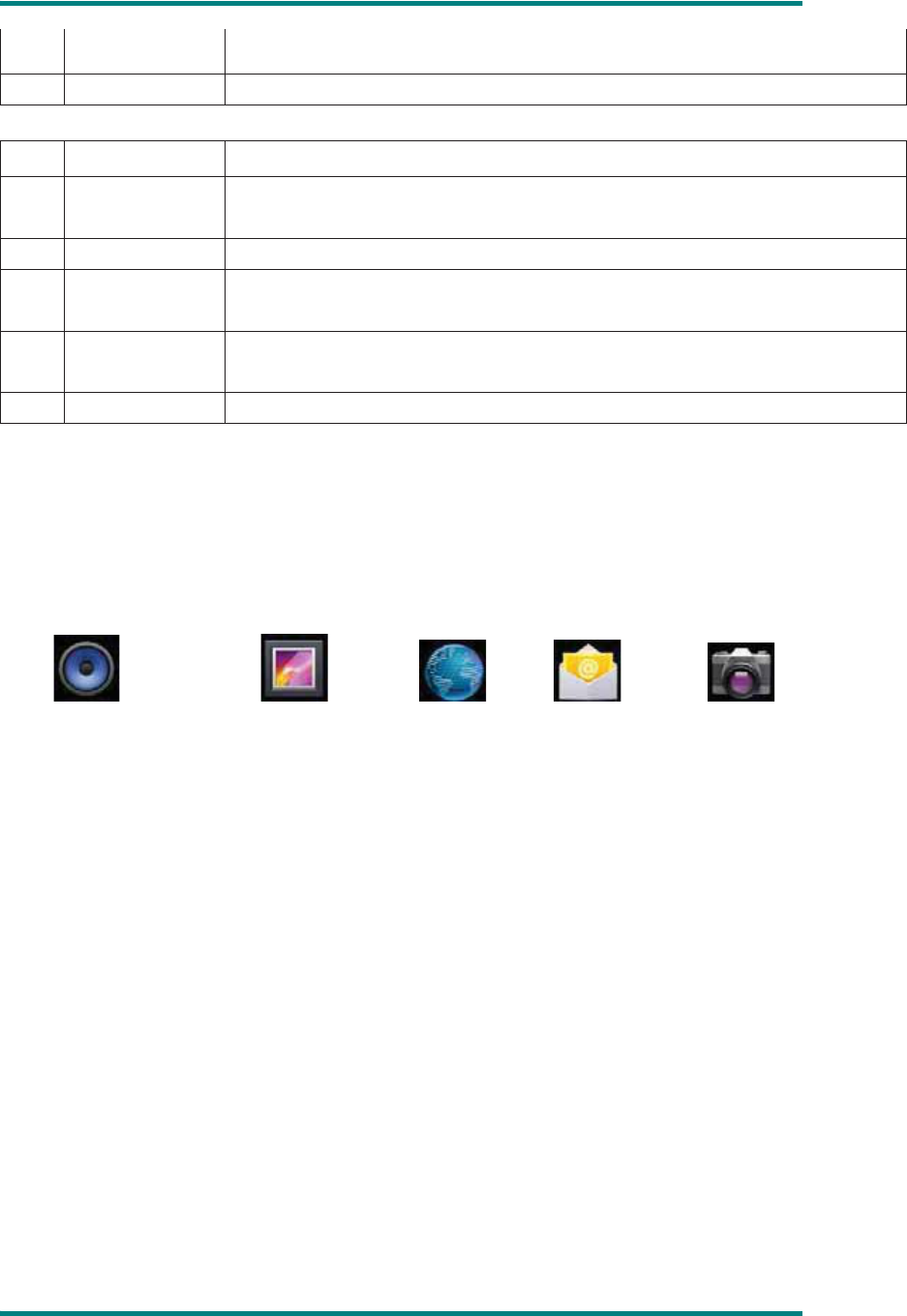
MID Applications
Some applications can custom-make according to users’ need. The following list is the
common basic applicationsφ
Music Ƚpicture library Ƚbrowser Ƚemail Ƚcamera
State Icons
Status bar menu are as follows:
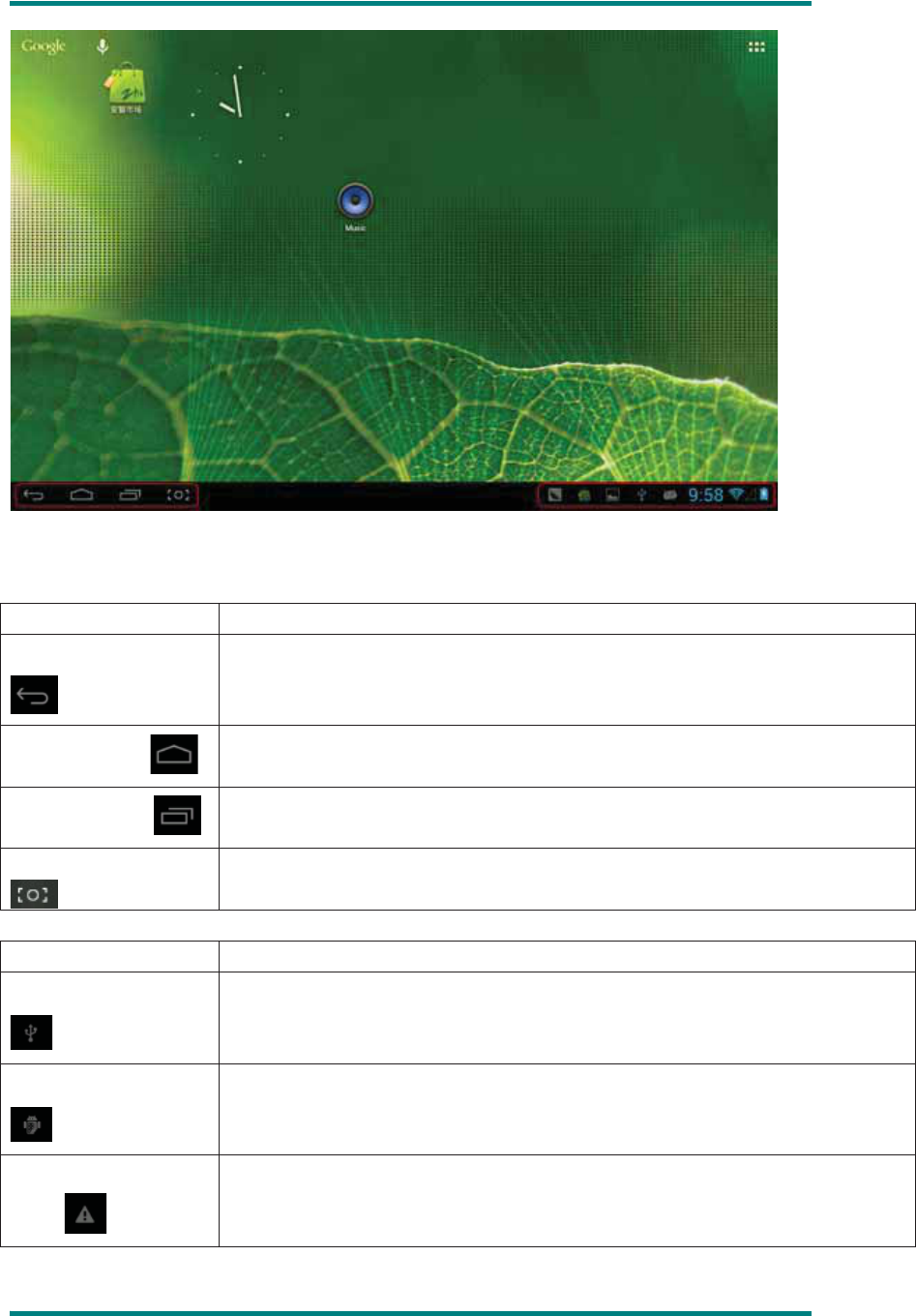
HSG1279User Manual
Ver 1.0 Page 8
On the bottom of screen status bar, there are four operation icons on the left
side:
Icons Implications
Back up soft key Turn back to previous interface, its function is similar to BACK key
Home soft key
Back to main interface, its function is the same as HOME key.
Shortcut key
List the common applications and its thumbnail, then click to enter directly.
Screenshot key Full screenshot
The icons on the right side display the current state information of MID:
Icons Implications
USB connecting state Display the USB connecting status
USB debugging state Display whether it connected the USB debugger.
SD card connecting
state
It prompts when SD card was pulled out.
HSG1279User Manual
Ver 1.0 Page 9
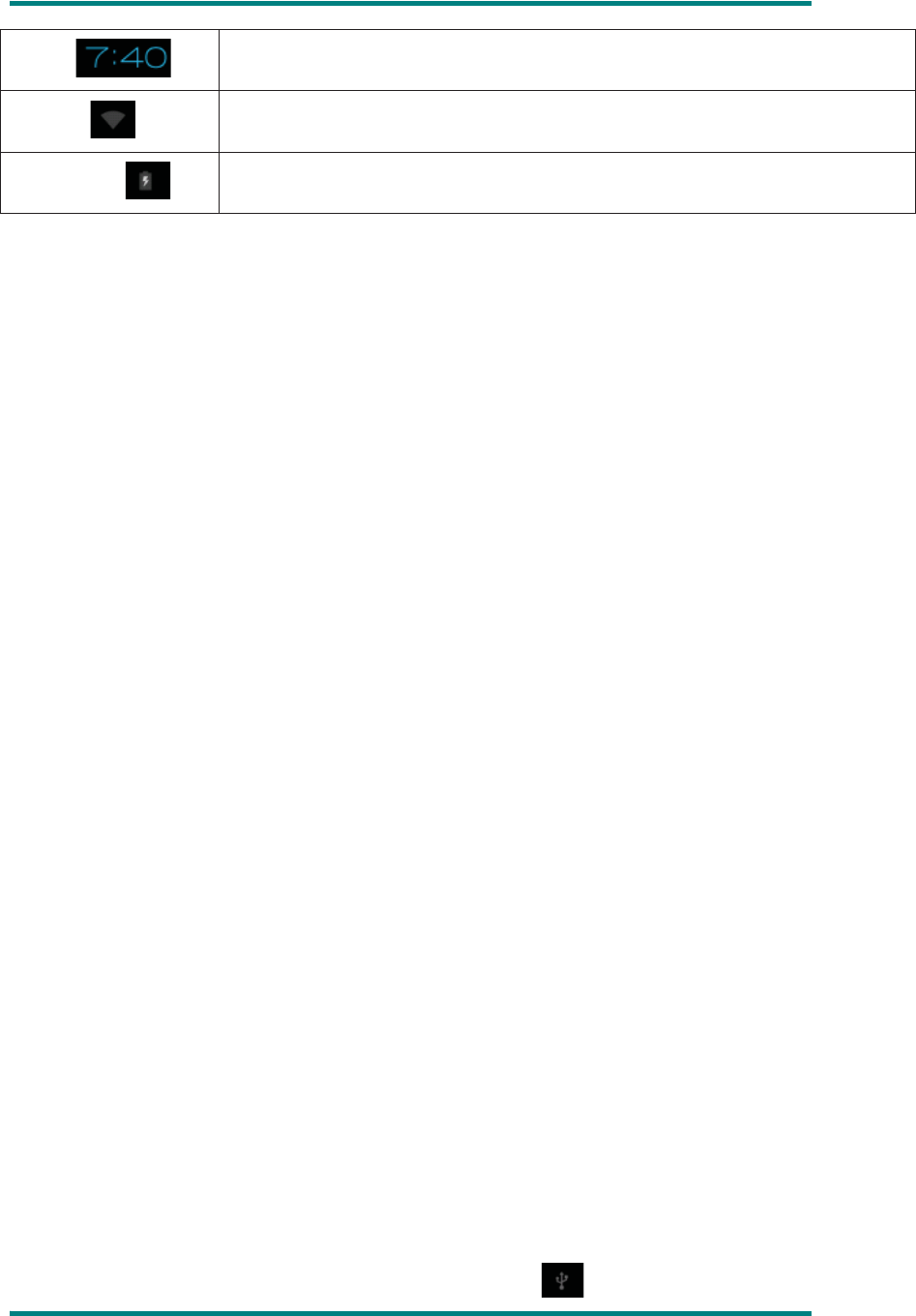
Time
Display current time
wifi
MID has join up the internet via Wi-Fi. the more the signal, the stronger the
signal is.
Battery
Showing the volume of battery or charging state.
a) Preparation
System Configurations
Operation system: Windows 7/Vista/XP/2K/ME/98(needs to install driver)/ubuntu 9.0 and
above/Mac OS 10
CPU: It is at least Pentium-133MHz
RAM: at least 32MB
Hard disk free space: at lease 100MB
Video card: 640*480 above mode, at least it is enhance color (16 bit)
ON/OFF/Standby
ON: Pressing Power key, the player displays startup picture and then enters to main
interface
OFF: Long pressing Power button 5s on main interface, system will prompt whether to
power off, then click “YES”, the MID will power off normally.
power saving standby: on power on state, press Power key to enter lock power saving
standby state, then press Power key again to lighten the screen, unlock the screen
according to the indication.
Power Reset
Press RESET over 8s to restart the player in case the player is crashed during playback.
Connecting PC and Data Transmission
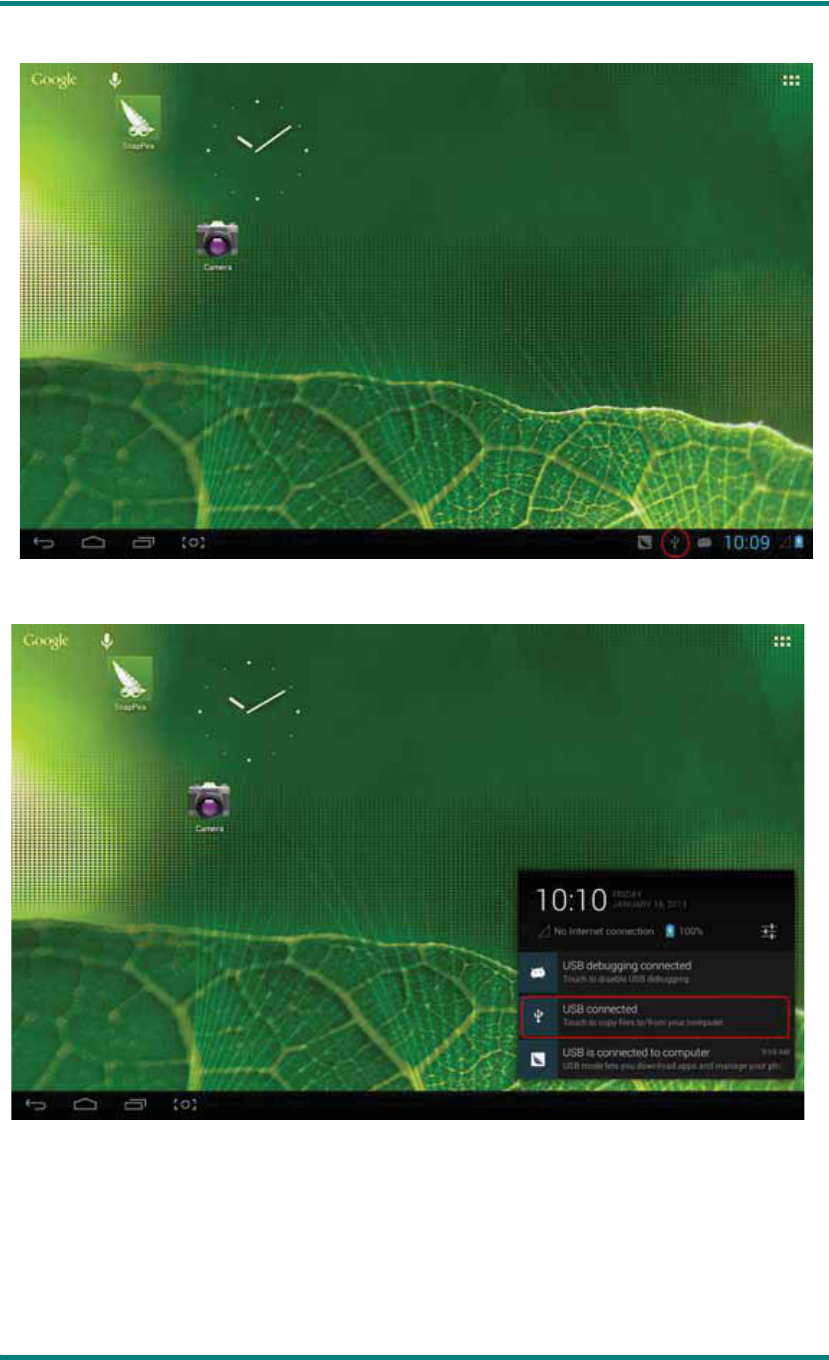
Connecting PC and MID by using USB cable, USB icon will be appeared on the
HSG1279User Manual
Ver 1.0 Page 10
lower right side of status barˈit refers to USB has been connected. As follows:
When the operation menu appeared, click “USB connected”:
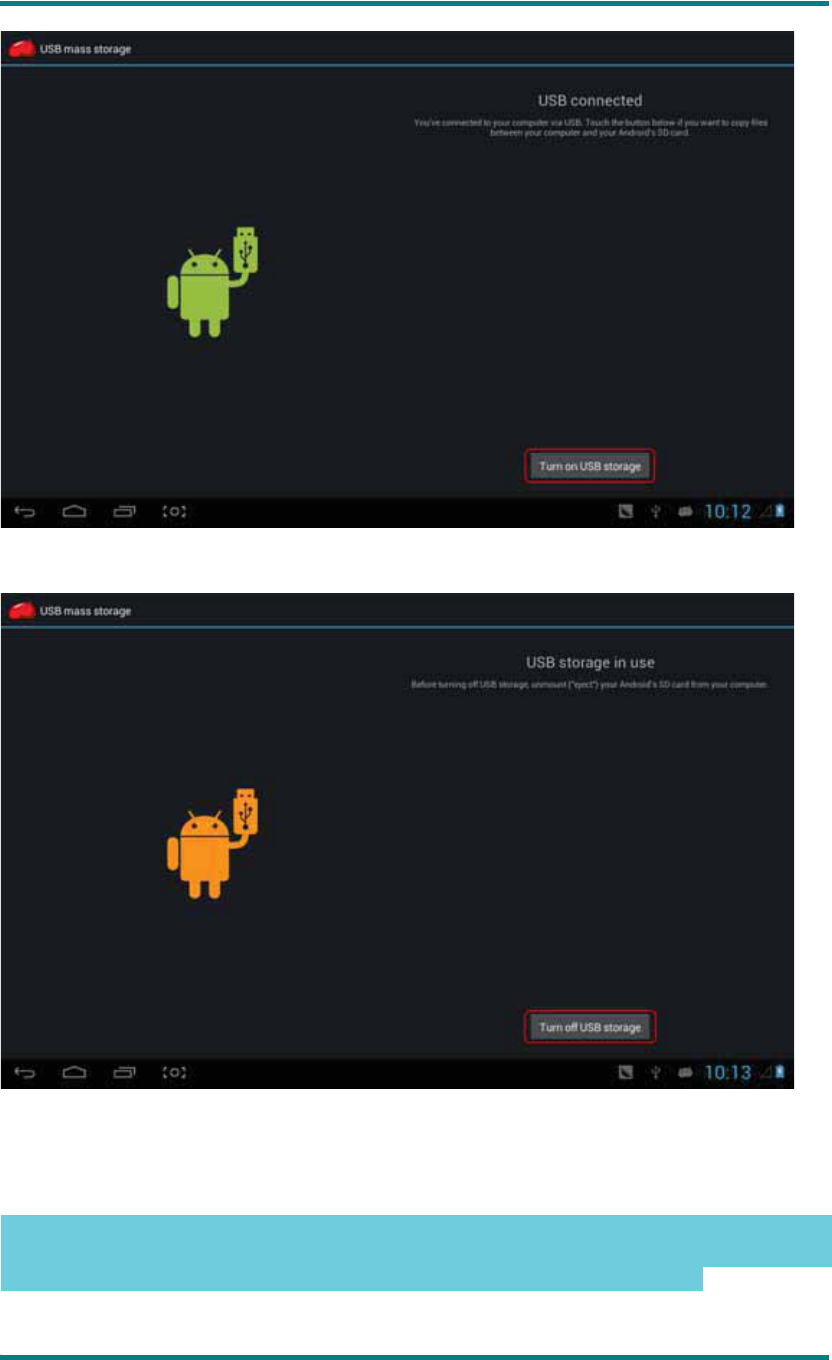
click “Turn on USB storage” on prompted windowφ
HSG1279User Manual
Ver 1.0 Page 11
Then enter the data transmission state:
At this time, you can find out MID storage card and SD card (if the card has been plugged
in) in my computer list.
After data transmission, click “Turn off USB storage”, and then it will quit the data
transmission state.
ɋ
Note
Ɍφ
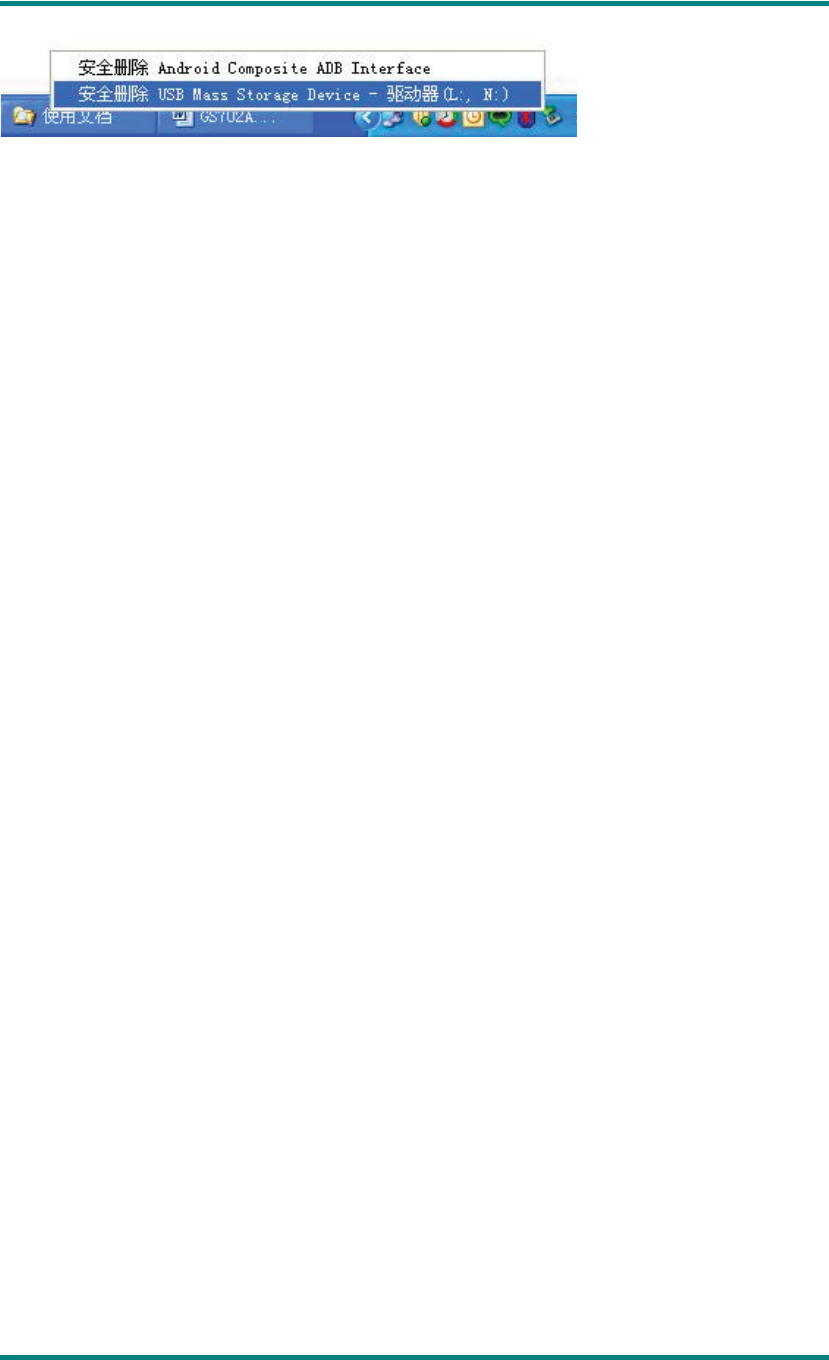
before quit the state of data transmission, if the system of U disk or card is
NTFS, please safety remove them in PC, then click “close USB storage device”,
otherwise the file may be missing, shown as the following screenshot:
HSG1279User Manual
Ver 1.0 Page 12
Charge
The player uses high volume LiIon. You can connect MID and attached adaptor in
charging.
When the battery is low electricity, MID will appear prompted window, at this time, charge
it timely.
Please charging half an hours at the first use.
Use Micro SD card
After connecting the player and PC, you will find two removable disks, the front one is the
built-in-memory disk, the other one is Micro SD card disk. If there is no card plugged in,
the second disk cannot be opened. The player supports up to 32GB Micro SD card
expansion.
Plug-in: face the front side (the side with prints) Micro SD card upwards (the direction in
which the machine’s display screen faces) and connect it with the machine by plugging it
with slight force into the card slot of the machine. Now the machine can play the files in
the card.
Plug-out: push Micro SD card inwards slightly, it will spring back for certain length, and
then take it out.
b) Basic Function
Main screen
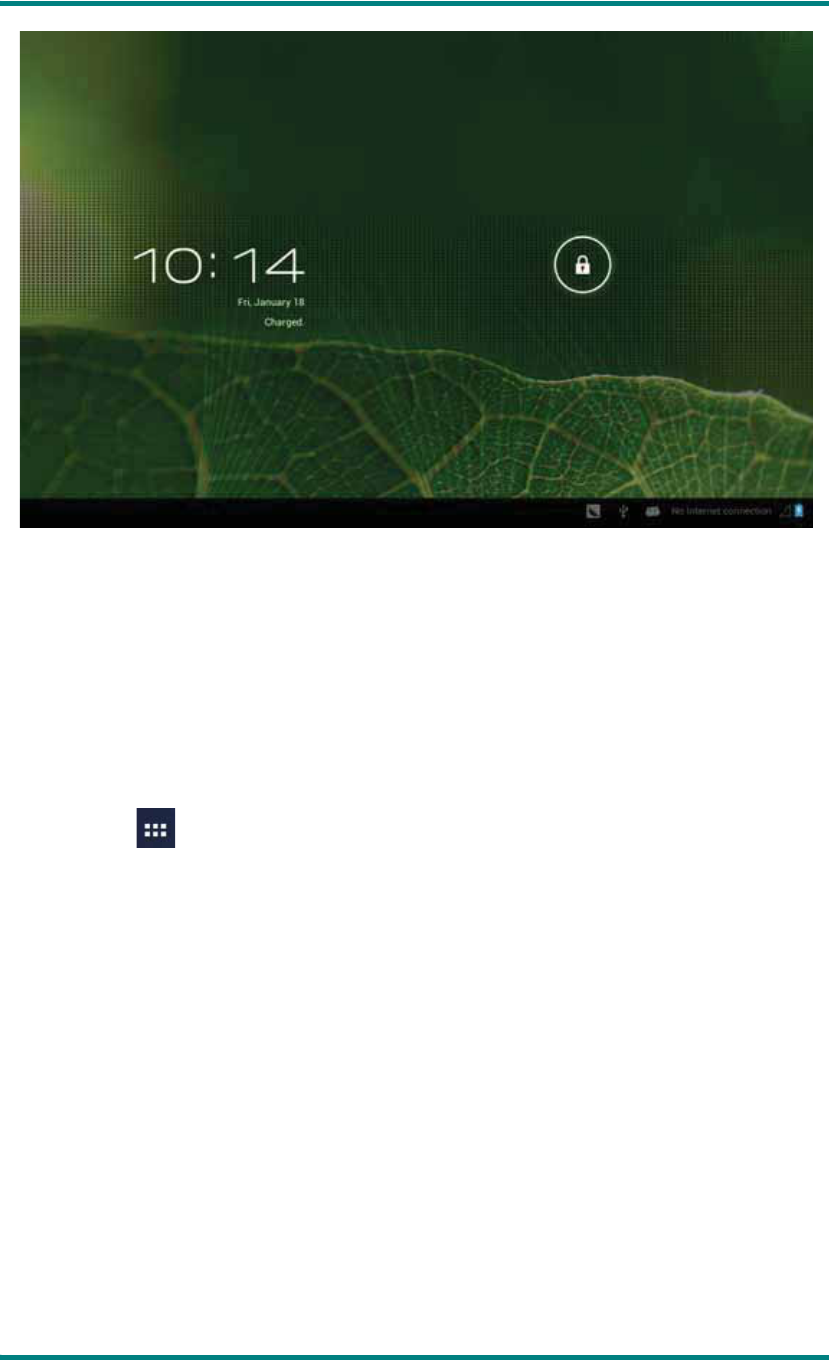
The default is lock; drag the lock icon to unlock according to indication.
HSG1279User Manual
Ver 1.0 Page 13
Switch to other main screen: slide the screen leftward/rightward fast, it supports five main
screens altogether.
Switch to the first main screen: click the HOME icon on the status bar or HOME
key on the player.
Main menu
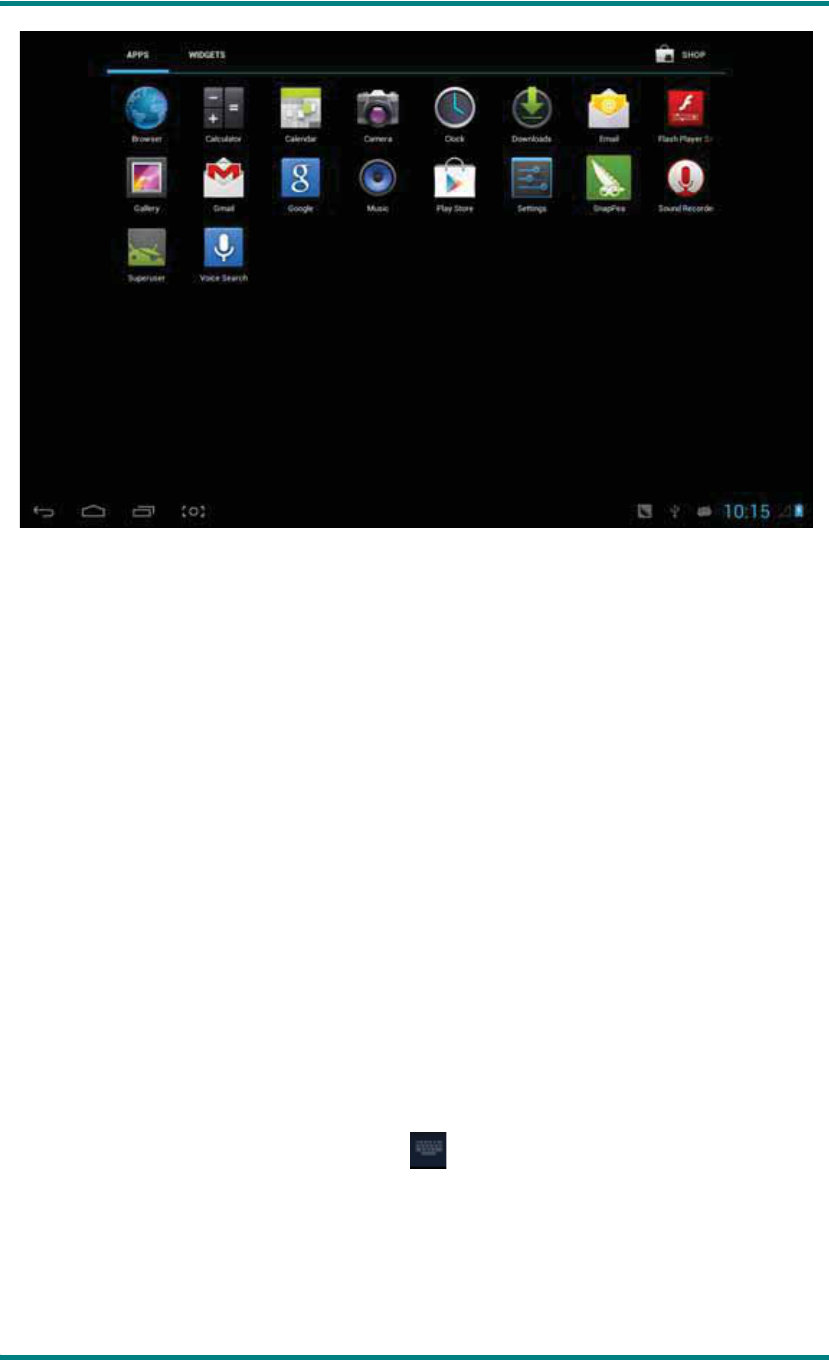
Click the icon on the upper right side of main screen, and the main menu popped up.
All the applications listed on the main menu, you can drag the screen leftward or rightward
to check.
HSG1279User Manual
Ver 1.0 Page 14
Open or switch the applications
Select a program, click its icon to open the application. Click the HOME icon or
HOME key on pad to return to the main screen.
User defined screen
˄
main screen manage
˅
Long press a certain application icon, it can realize the main screen function of adding
shortcut to it.
Zoom in or zoom out
When you view the picturesȽwebpageȽemails or maps, zoom in or zoom out the
frame by the gesture is supported.
Watch the MID horizontal or vertical
MID supports to watch the screen horizontal or vertical when you turn it. And the
contents will be changed, while turning, to adapt the display screen.
Input TXT
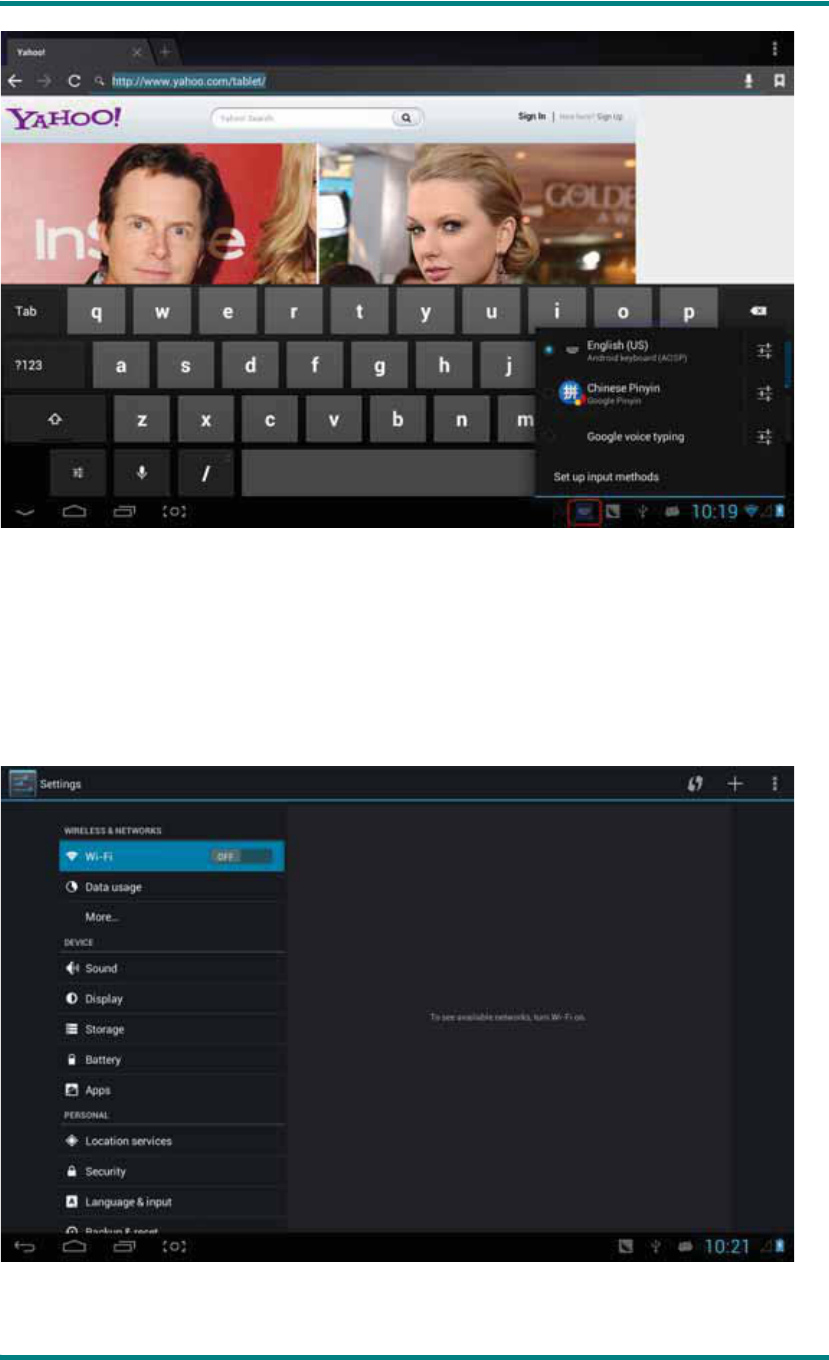
When you need to input, the keyboard will be appeared. And in this time, on the lower
right side of screen, soft keyboard icon will appeared. When you click it, the
selecting menu of input will appear. As following figure:
HSG1279User Manual
Ver 1.0 Page 15
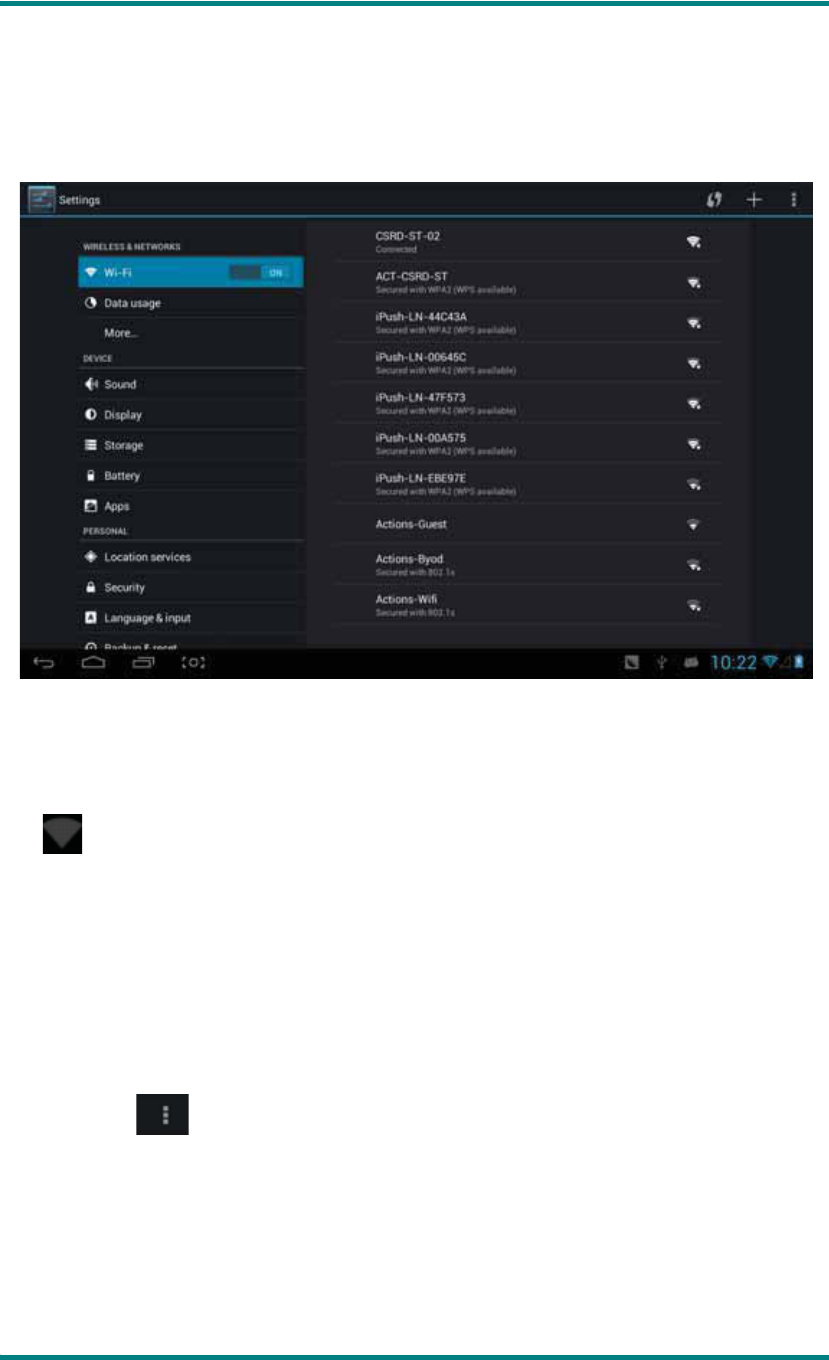
c) Setting
Set applications, date and time, configuration network connection and etc.
HSG1279User Manual
Ver 1.0 Page 16
Wifi
It determines whether you connect internet by Wi-Fi.
Wifi Introduction:
δ1εJoin Wi-Fi network: Click “open”, MID detects the network within communication
range for a while, then choosing a network, if it needs, inputting password.
δ2εAfter MID connects to some Wi-Fi network, the right side of screen status bar signal
will display intensity, the more the cell is, the stronger the signal is.
δ3εOnce joining a Wi-Fi network manually, when the network is within communication
range, MID will join this network automatically.
δ4εIf there are multiple networks used before are within communication range, then MID
will join the last used network.
δ5εclick “OFF” to turn off the Wi-Fi.
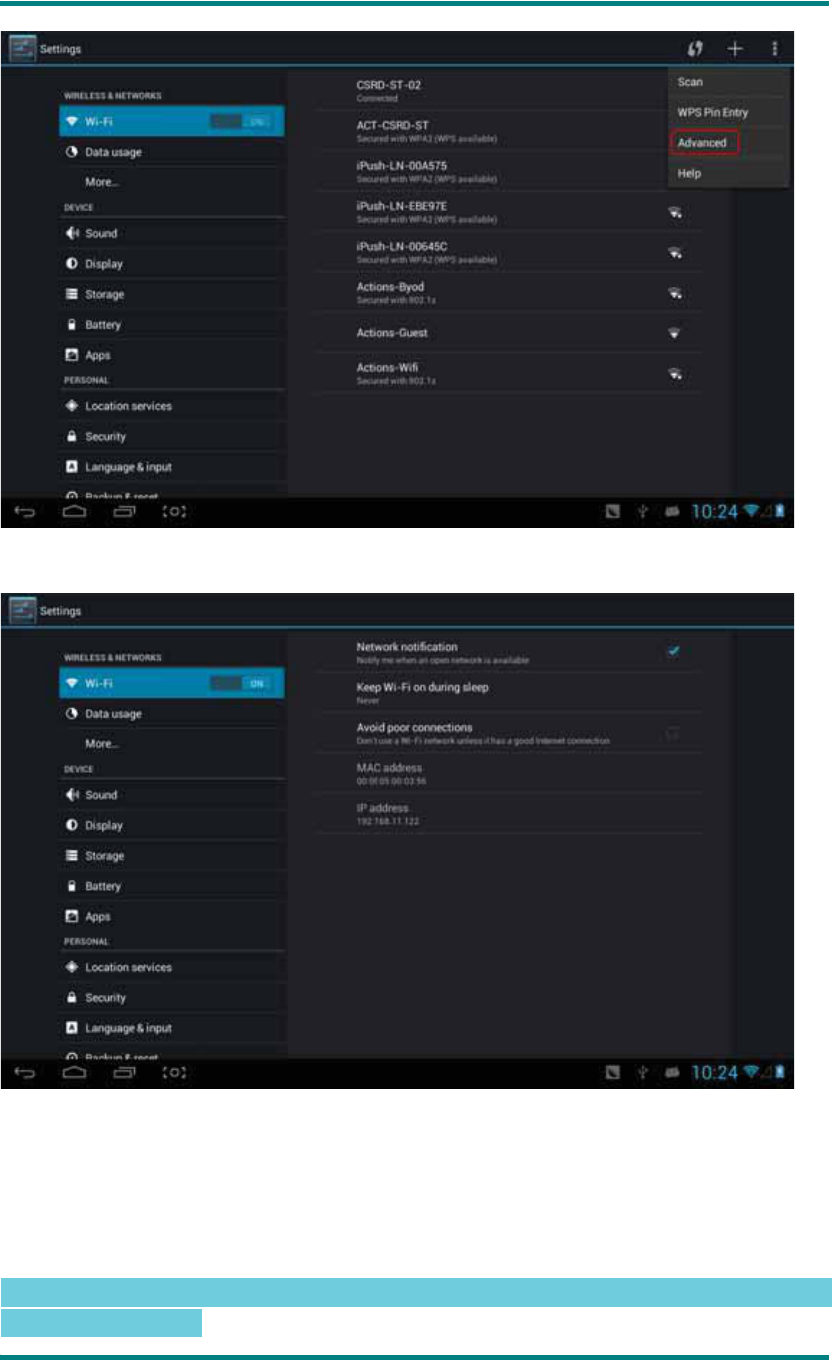
Wifi advanced setting:
Click the icon upper right side, choose “Advanced” on the popped up menu:
HSG1279User Manual
Ver 1.0 Page 17
Enter the following interface:
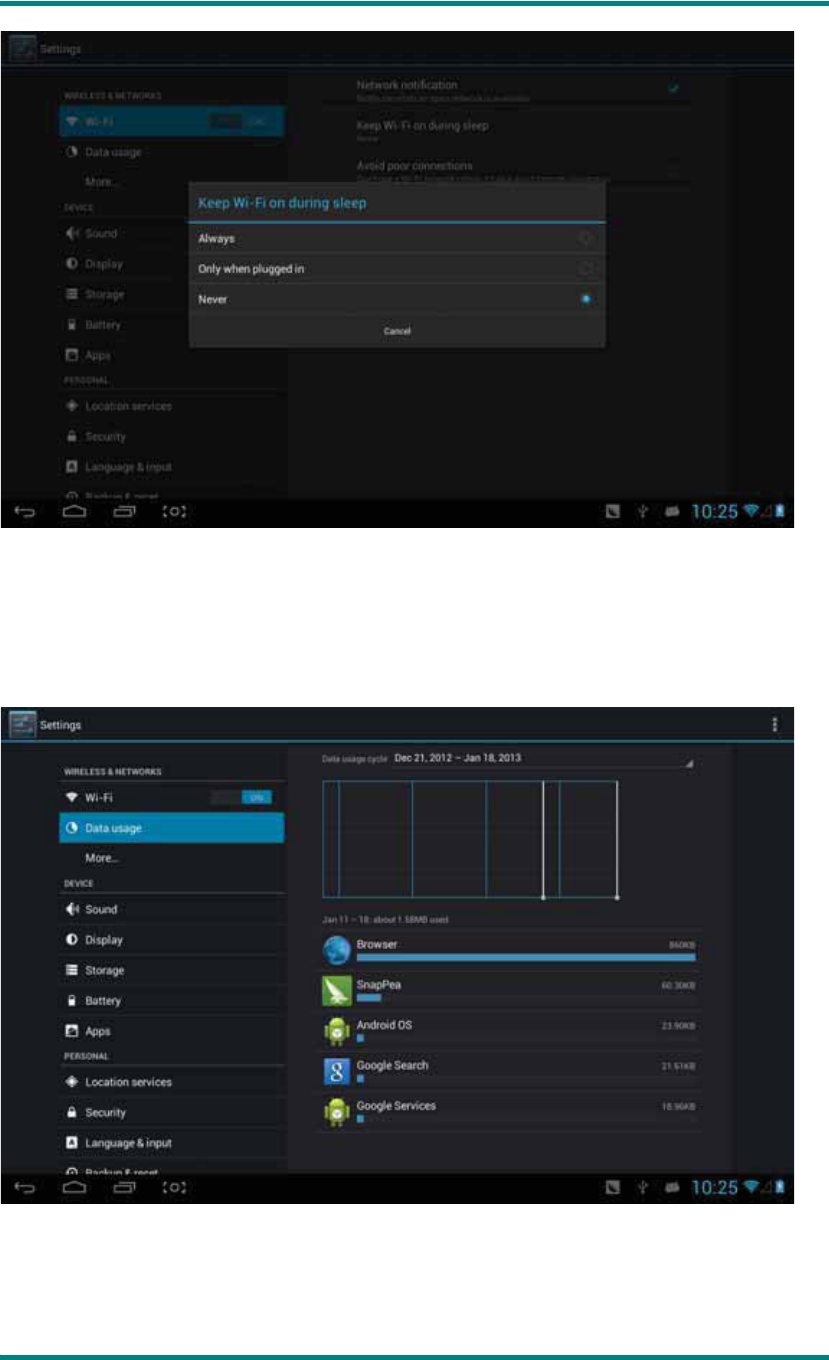
Keep the wifi connected during sleep:
1εalways: It means the wifi is still on during sleep.
2εonly when plugged in: It means only for charging state during sleep, the wifi will keep on,
otherwise it will shutdown automatically.
3εnever: It means during sleep, wifi will open all the time, it won’t shutdown automatically.
ɋ
Note
Ɍφ
If you need the wifi keep working during sleep, please select “Never”,
shown as following:
HSG1279User Manual
Ver 1.0 Page 18
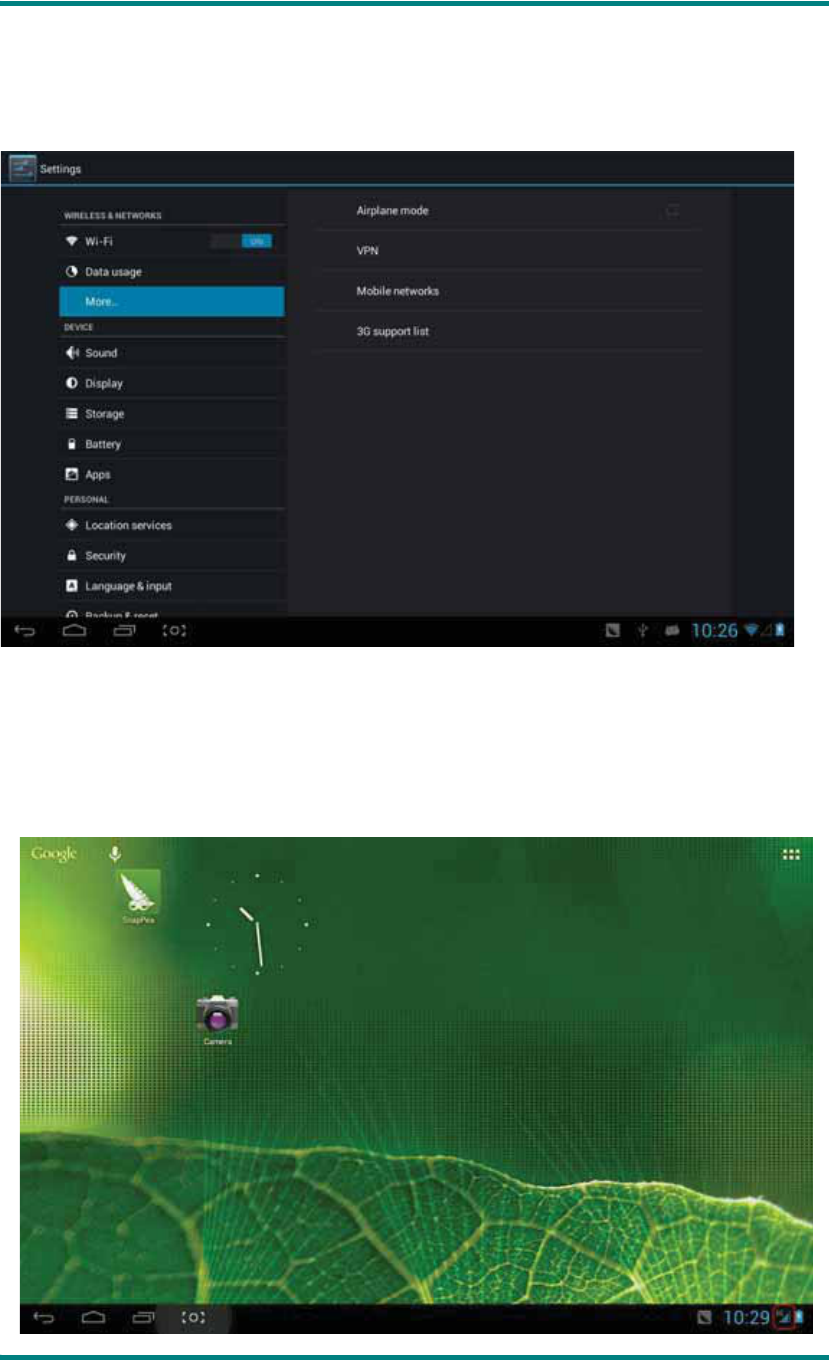
Traffic Usage Information
Display network traffic information.
HSG1279User Manual
Ver 1.0 Page 19
More
Set “Airplane Mode”Ƚ“VPN”Ƚ “Mobile network” and etc.
If you need to surf the Internet by 3G, first you need to shutoff WIFI and Ethernetδif it
openedε, then plug the 3G dongle with SIM card to MID’s USB port. The MID will link
network automatically, after linked, the 3G logo(as follow screenshot) will appear on
system menu, all linked process may last 1min.
HSG1279User Manual
Ver 1.0 Page 20
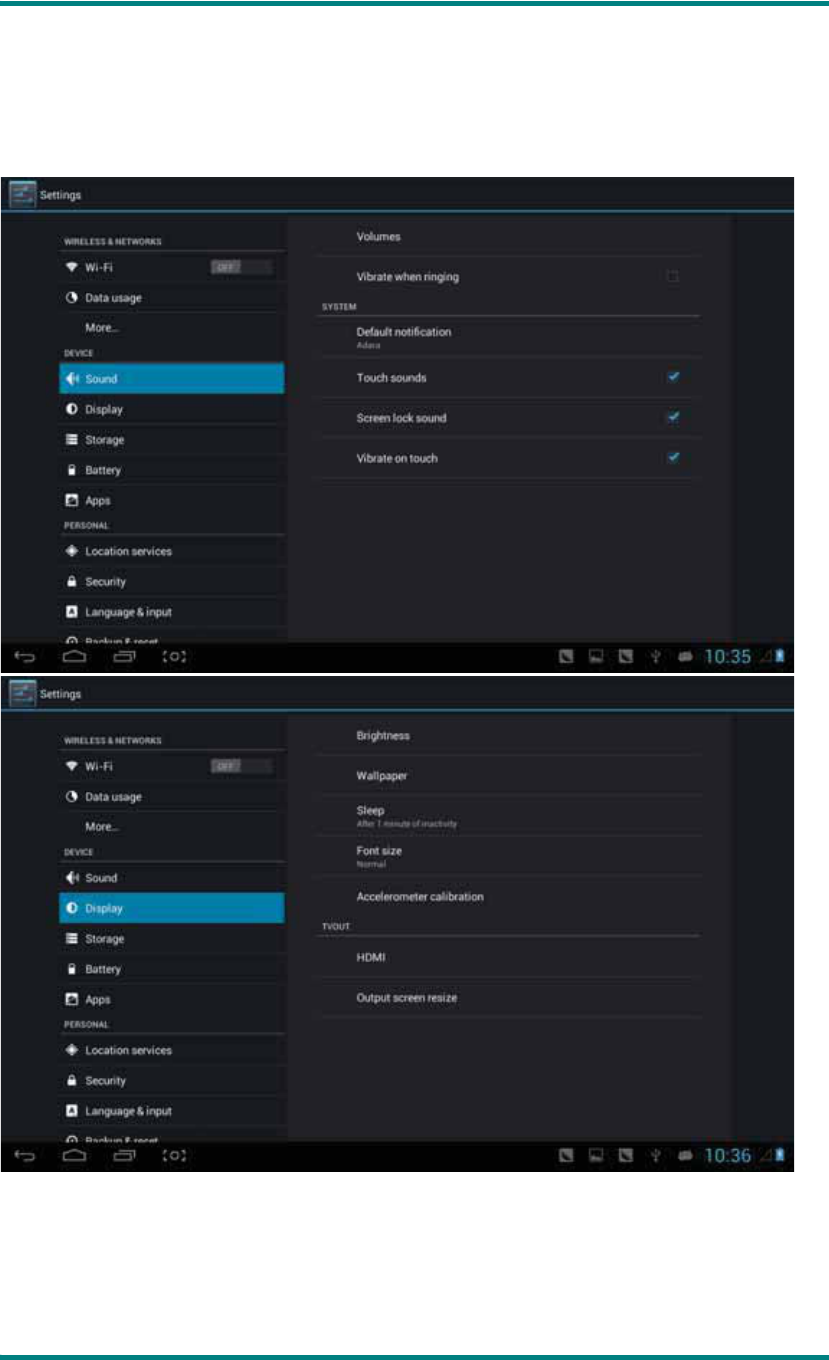
Sound
Volume: set the volume of musicȽvideoȽgame and other medias. And also the volume
of setting notificationsȽalarm clock.
Ringtone and notification: choose the ringtone and notification warning tone(prompt
tone of sending system notificationȽoperation dial Ƚplugging in or out the SD card).
ɋNoteɌφnotification sound Ƚoperation selectionȽSD card notification and etc are used
HSG1279User Manual
Ver 1.0 Page 21
in mobile phone system, but in MID device, they are default.
Touch sounds: Whether sending out prompt tone when you touch it.
Screen lock sound: Whether sending out prompt tone when you lock the screen.
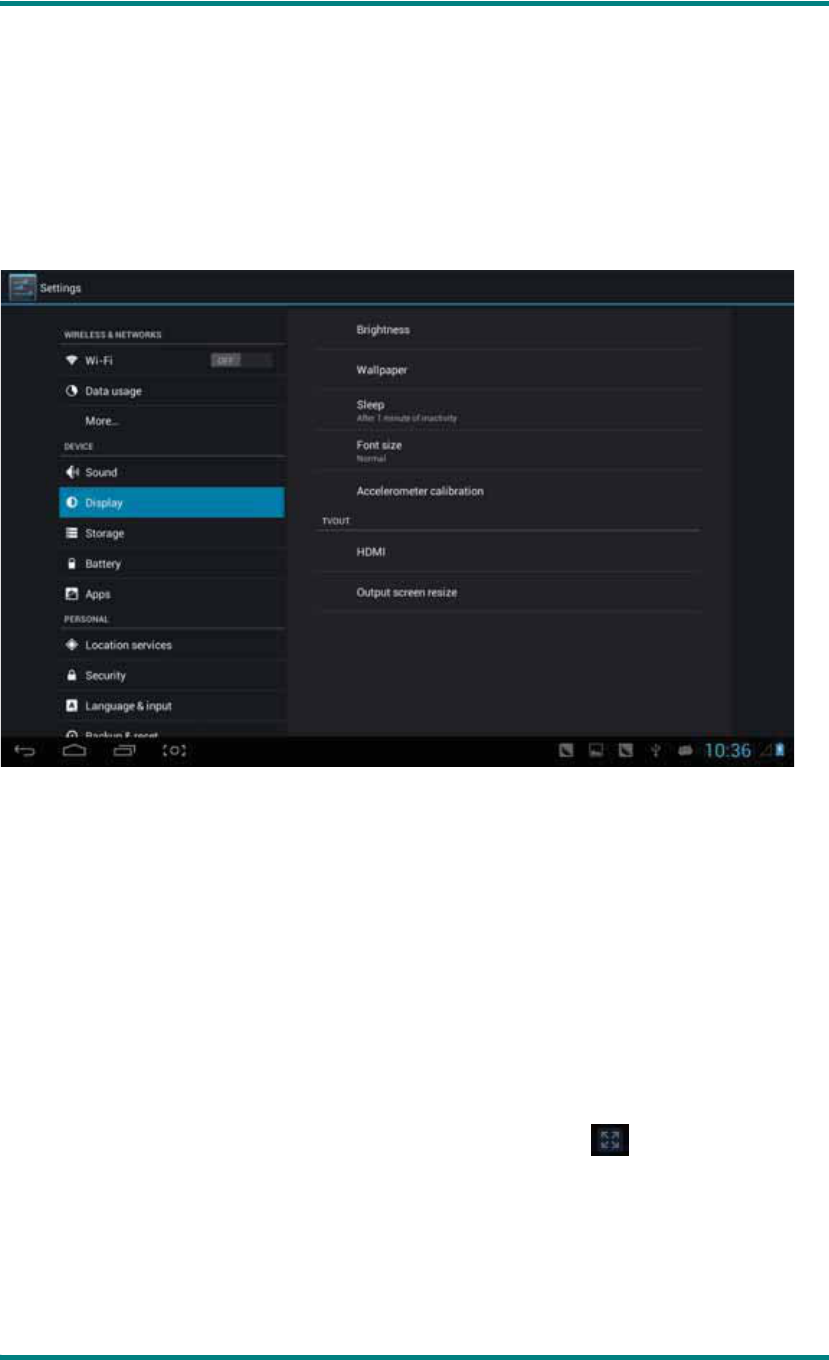
Display
Brightness: set the brightness of screen.
Wallpaper: we can choose wallpaper from the live wallpaperȽpicture library and normal
wallpaper.
Sleep: Setting that if there is no operation in a span
(15s/30s/1min/2min/5min/10min/30min), MID will sleep automatically, and the display
backlight will be auto off to save battery.
Font size: setting displayed font size(small/normal/big/oversize ).
Accelerometer calibration: if you find the accelerometer has some deviation, you can
calibrate it from here.
ɋ
Note
Ɍφ
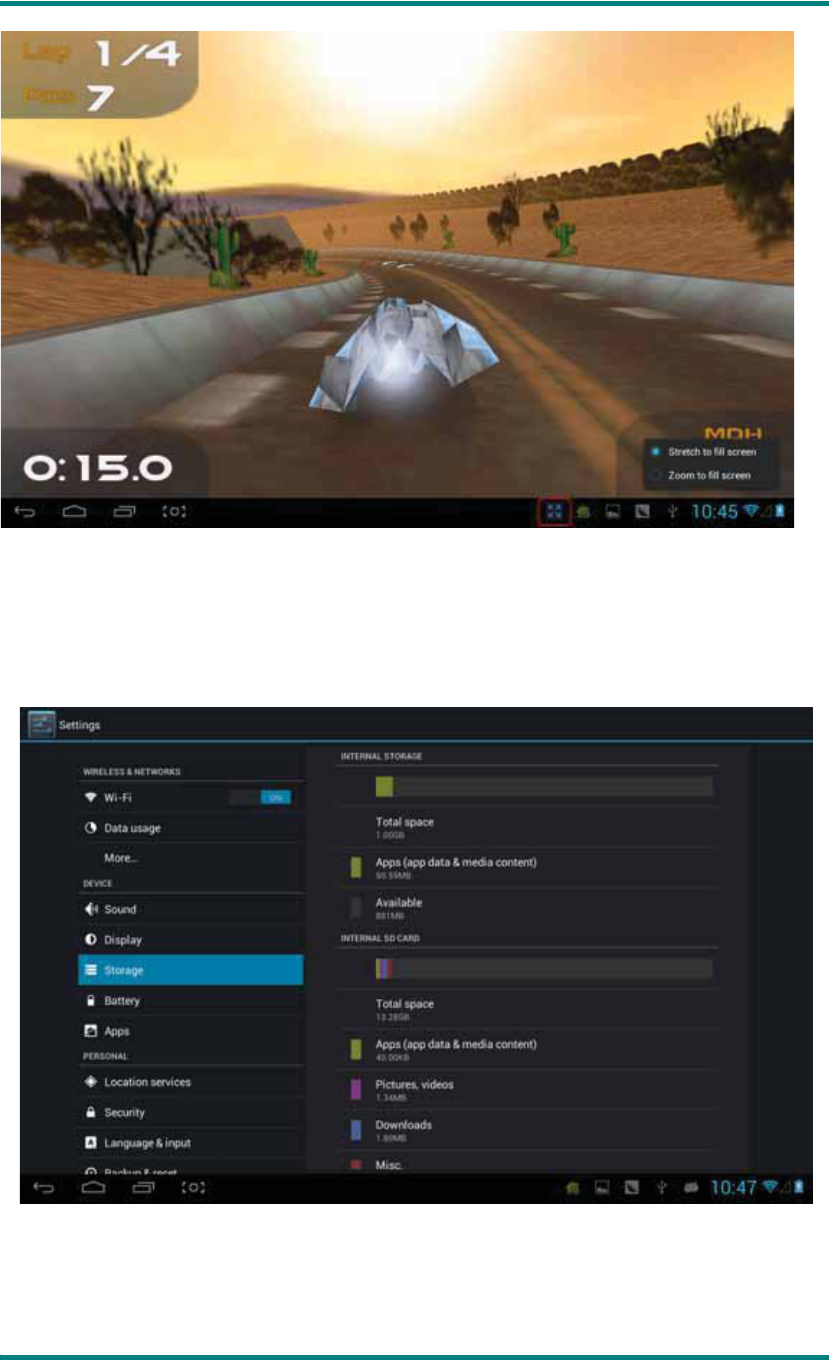
Some games which are related to accelerometer, if you find out the
accelerometer become invalid, you can check whether there is icon on the left lower
side of screen. If there is, then click it, popped up two options “stretch to fill in the screen”
and “zoom to fill in the screen”. Then you can choose the mode adapt to game.
HSG1279User Manual
Ver 1.0 Page 22
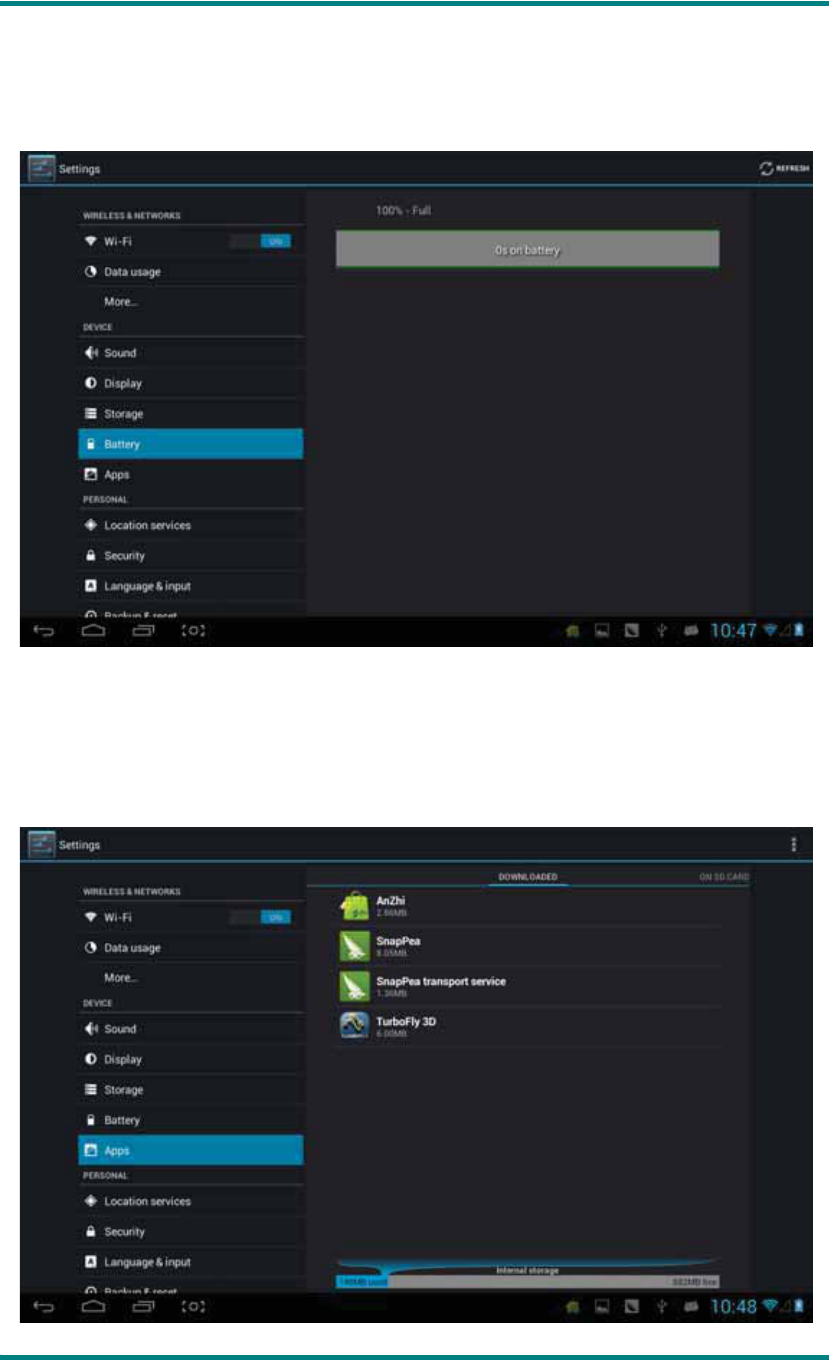
Storage
Send out related information of MID storage space.
HSG1279User Manual
Ver 1.0 Page 23
Battery
Showing the information about spare capacity of battery
Applications
You can check and take operation in intrasystem applications.
HSG1279User Manual
Ver 1.0 Page 24
Downloaded
φ
List the information of downloaded applications
On SD card
φ
List the storage apps information of SD card .
Running
φ
List the running apps information. Clicking some running program, you can
check its progress and service further.
All
φ
List all application information of android. Click a certain program, then you can
check information of its version numberȽstorage spaceȽcache sizeȽaccess right and etc.
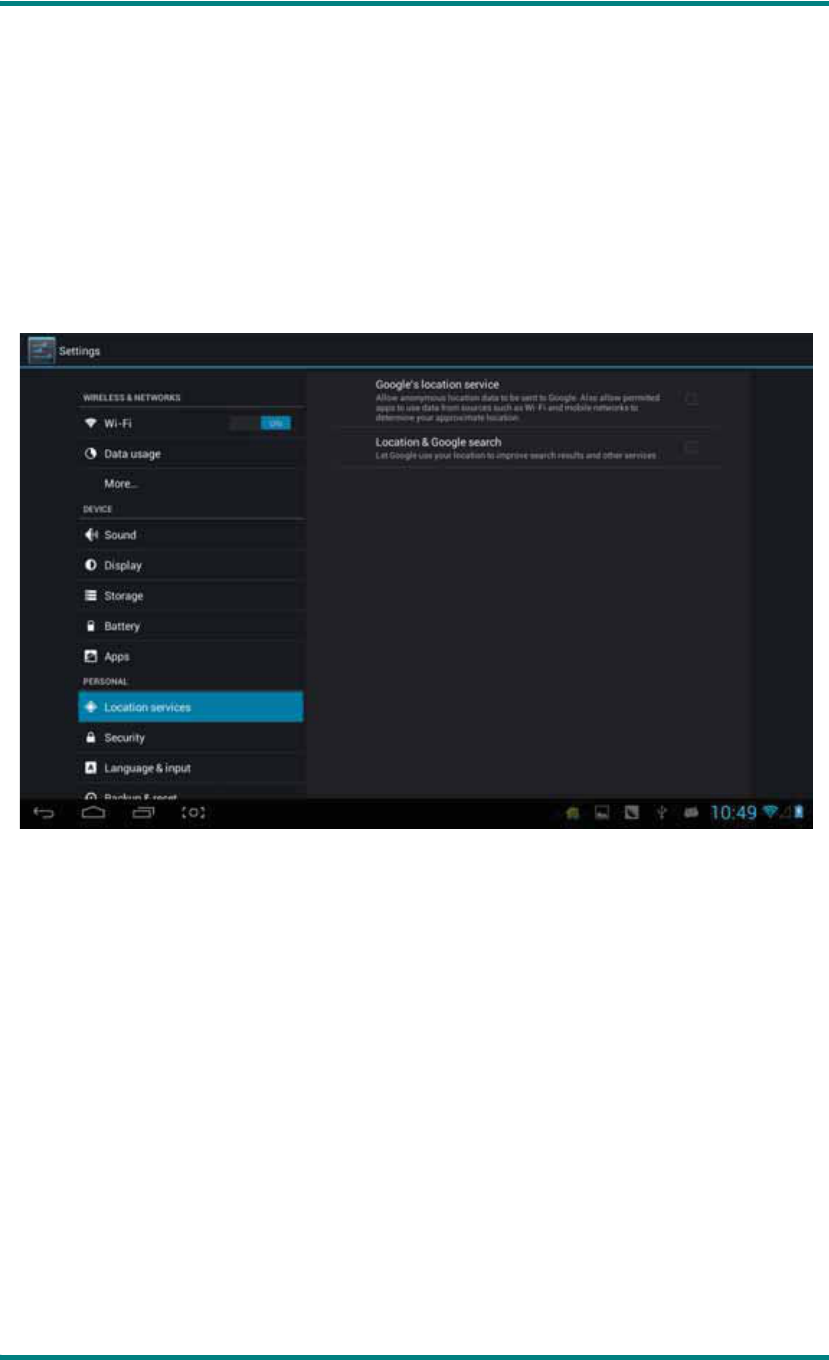
Location services
Google’s location service: Let apps use data from sources such as Wi-Fi and
mobile networks to determine your approximate location.
Location and Google search
φ
Let Google use your location to improve search
results and other services.
HSG1279User Manual
Ver 1.0 Page 25
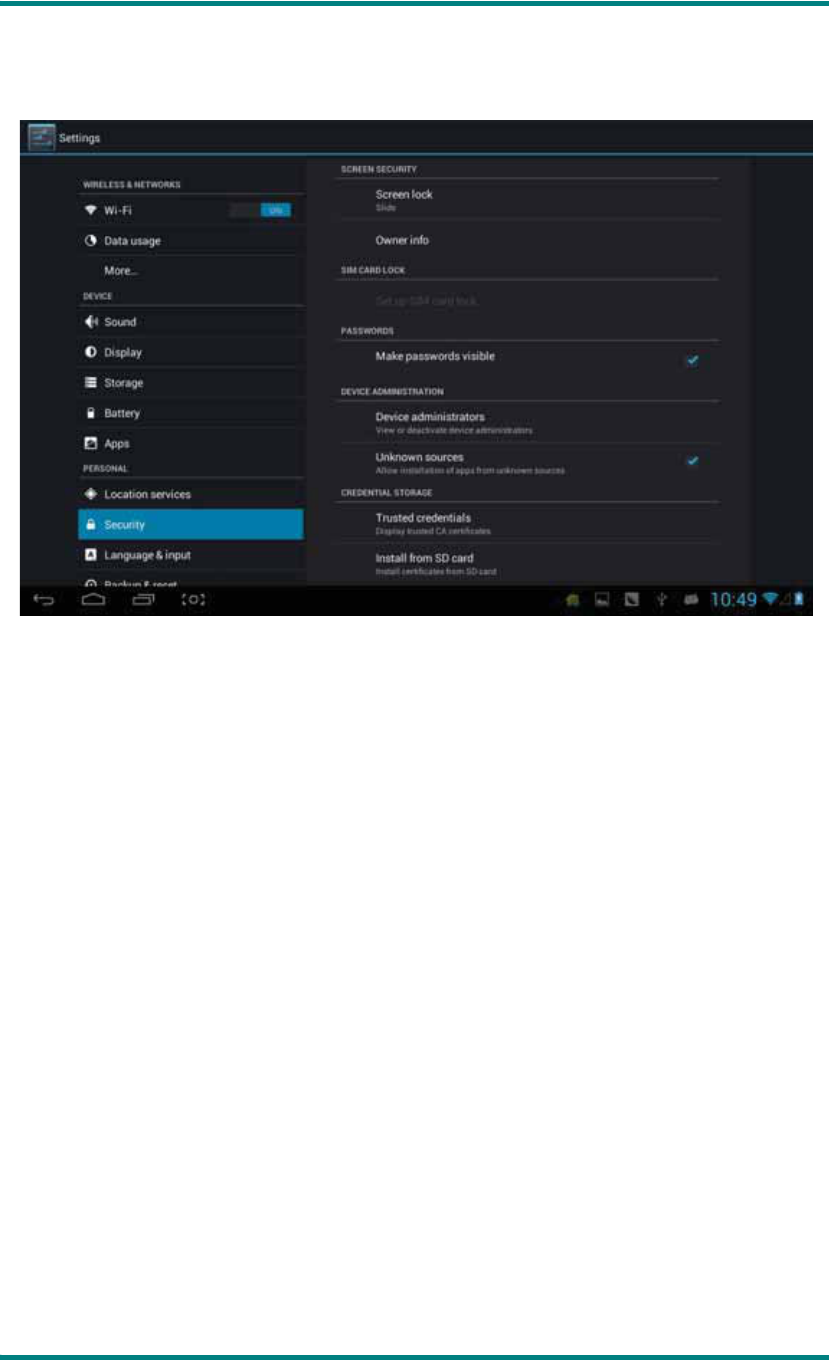
Security
Screen security
φ
δ1εscreen lock
φ
Choose the unlock mode when screen lock.
δ2εowner information: Set the owner information which displayed when the screen
lock.
δ3εpasswords: Whether display the characters when inputting password.
Device administration
φ
δ1εDevice administrator: View or deactivate device administrators.
δ2εUnknown sources: Whether this option setting permits installing the applications
which don’t purchase from Android market.
Credential storage:
δ1εTrusted credentials: Display confidential CA certification.
δ2εInstall from SD card: Install certification from SD card.
δ3εClear evidence: Delete all certifications.
HSG1279User Manual
Ver 1.0 Page 26
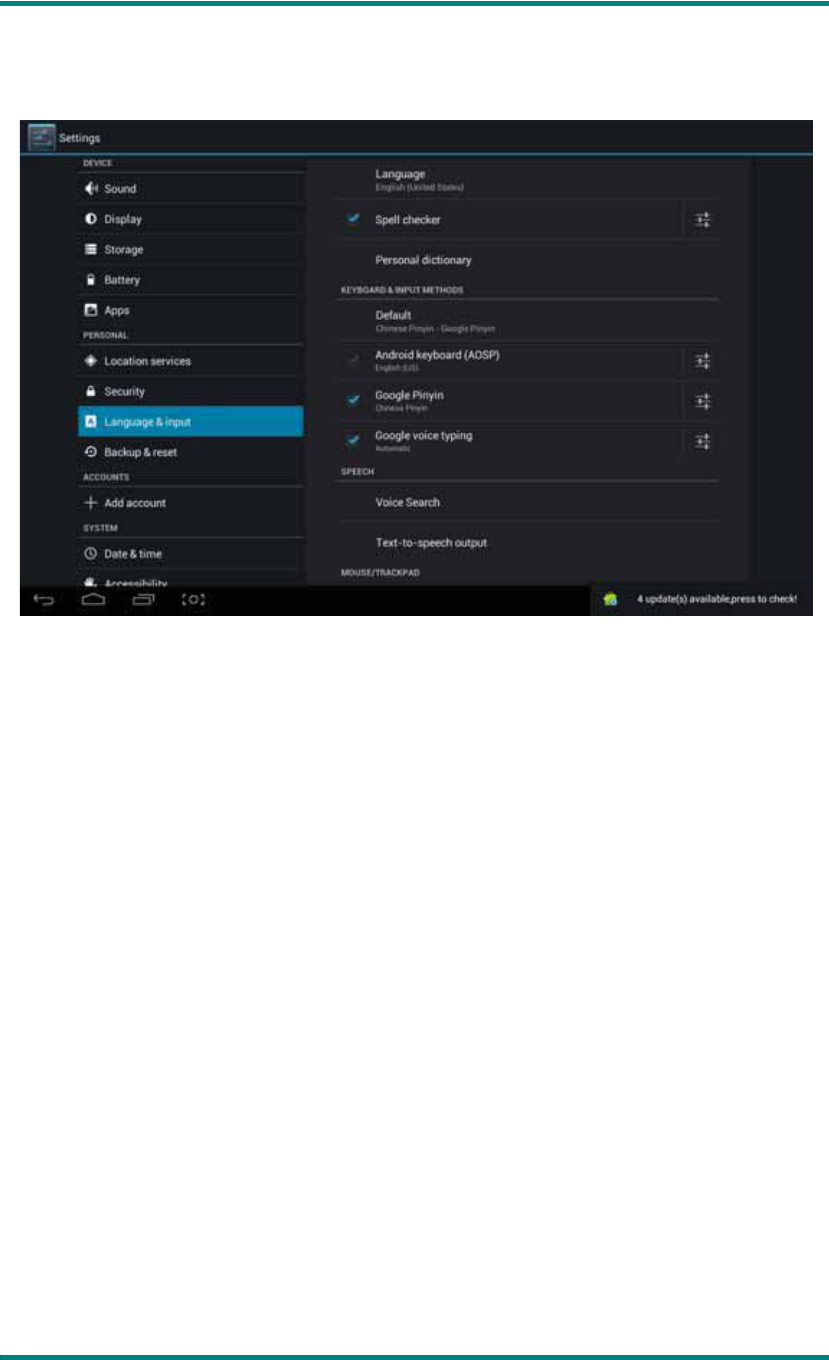
Language and input
Language
φ
Choose the language which screen displayed.
Spelling checker
φ
Input characters whether open correction.
Personal dictionary
φ
Click the “ADD” button on the upper right side of screen; you
can add vocabularies to create your own dictionary.
Keyboard and input: this option list the input installed in MID, you can do some
related settings to each input.
HSG1279User Manual
Ver 1.0 Page 27
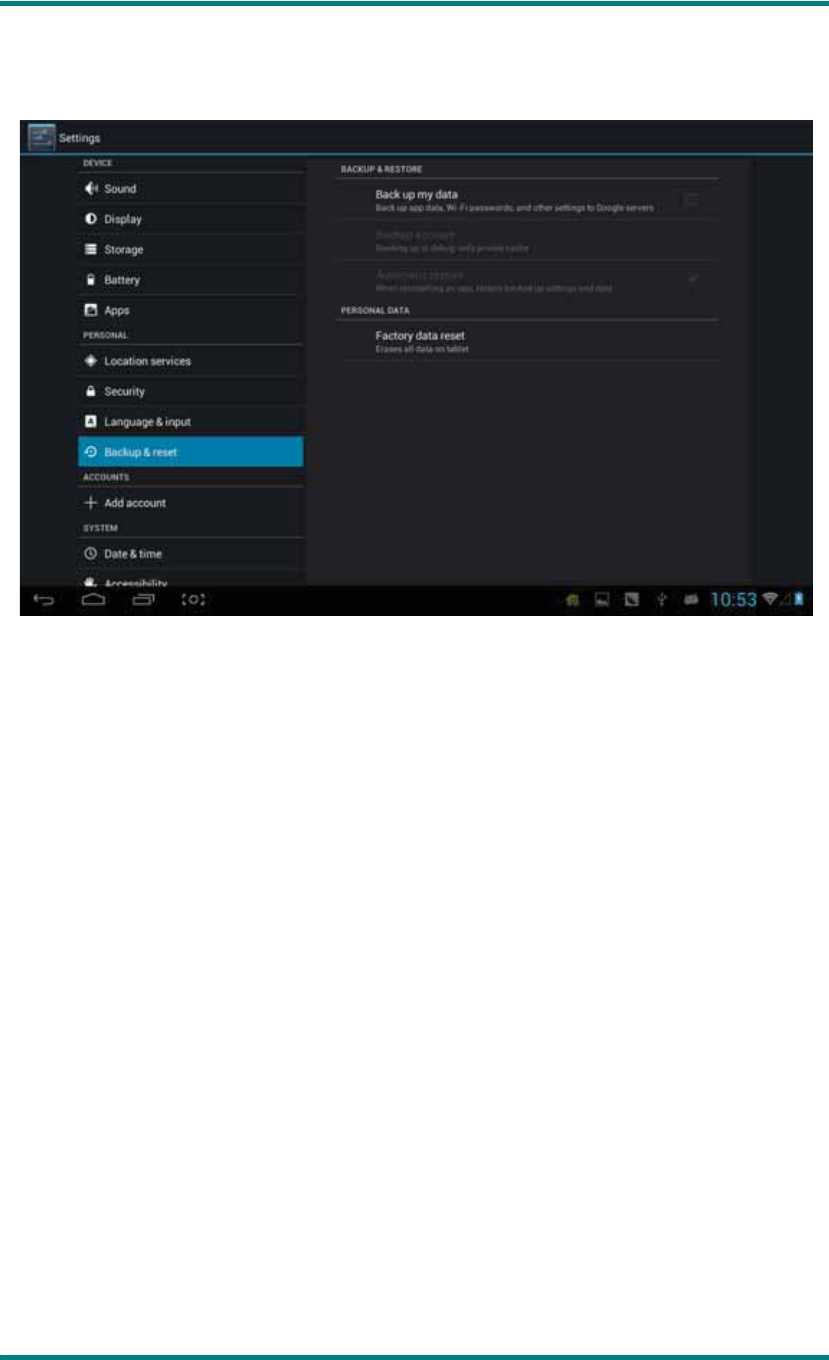
Backup and reset
Backup and reset:
δ1εBackup my data: Back up app data, Wi-Fi passwords, and other settings to
Google servers.
δ2εBackup account
φ
Back up to debug-only private cache.
δ3εAutomatic restore
φ
When reinstalling an app, restore backed up settings and data.
Personal data:
Factory data reset: Erase all data partition; clear all user data in tablet.
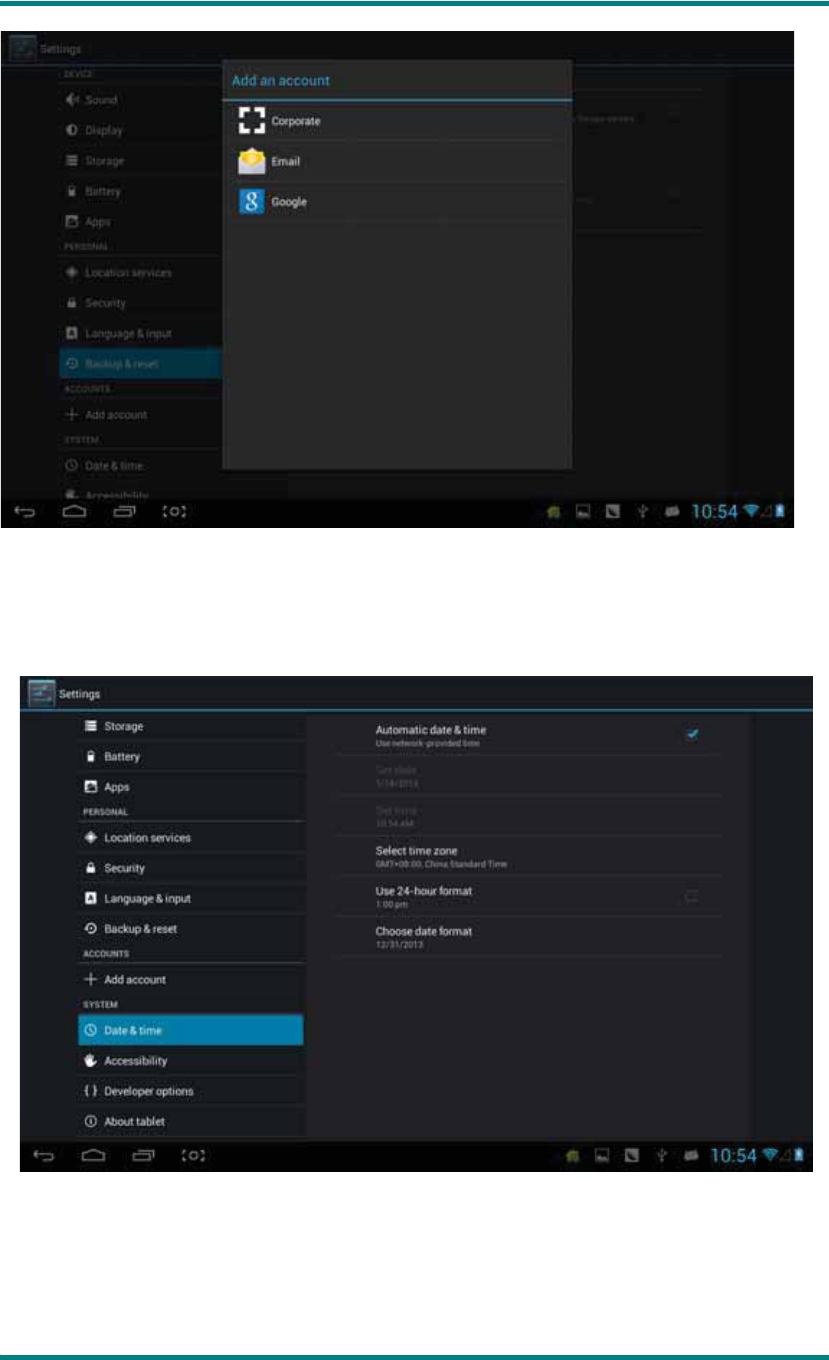
Add accounts
Manage accounts and synchronize information. Clicking “ADD an ACCOUNT” on the
upper right side of screen, you can add Google accountȽcompany accountȽor email
account.
HSG1279User Manual
Ver 1.0 Page 28
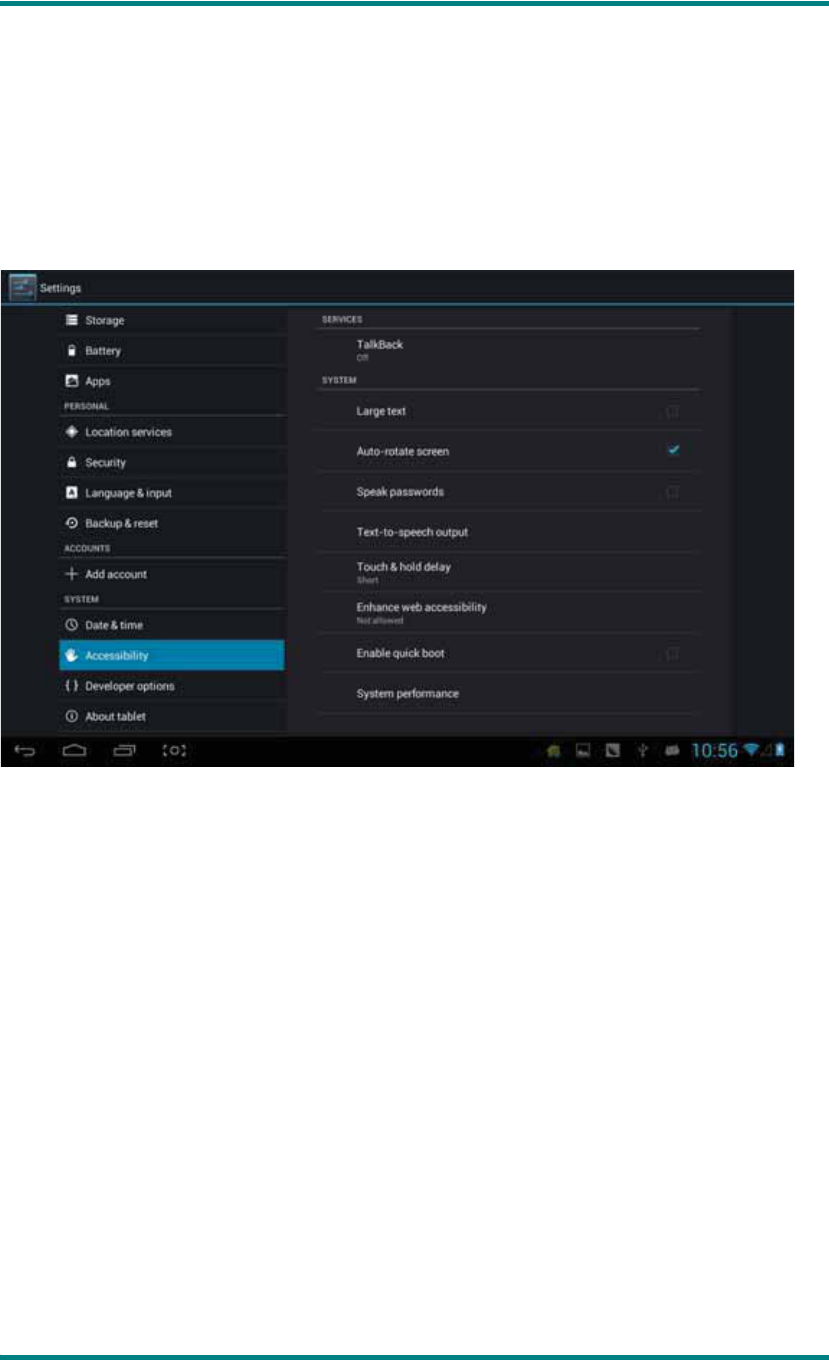
Date and time
Automatic date and time: the time keeps pace with network.
Automatically ensure time zone: it keeps pace with network.
Set date.
Set time.
Select time zone.
HSG1279User Manual
Ver 1.0 Page 29
Use 24-hour format.
Select date format
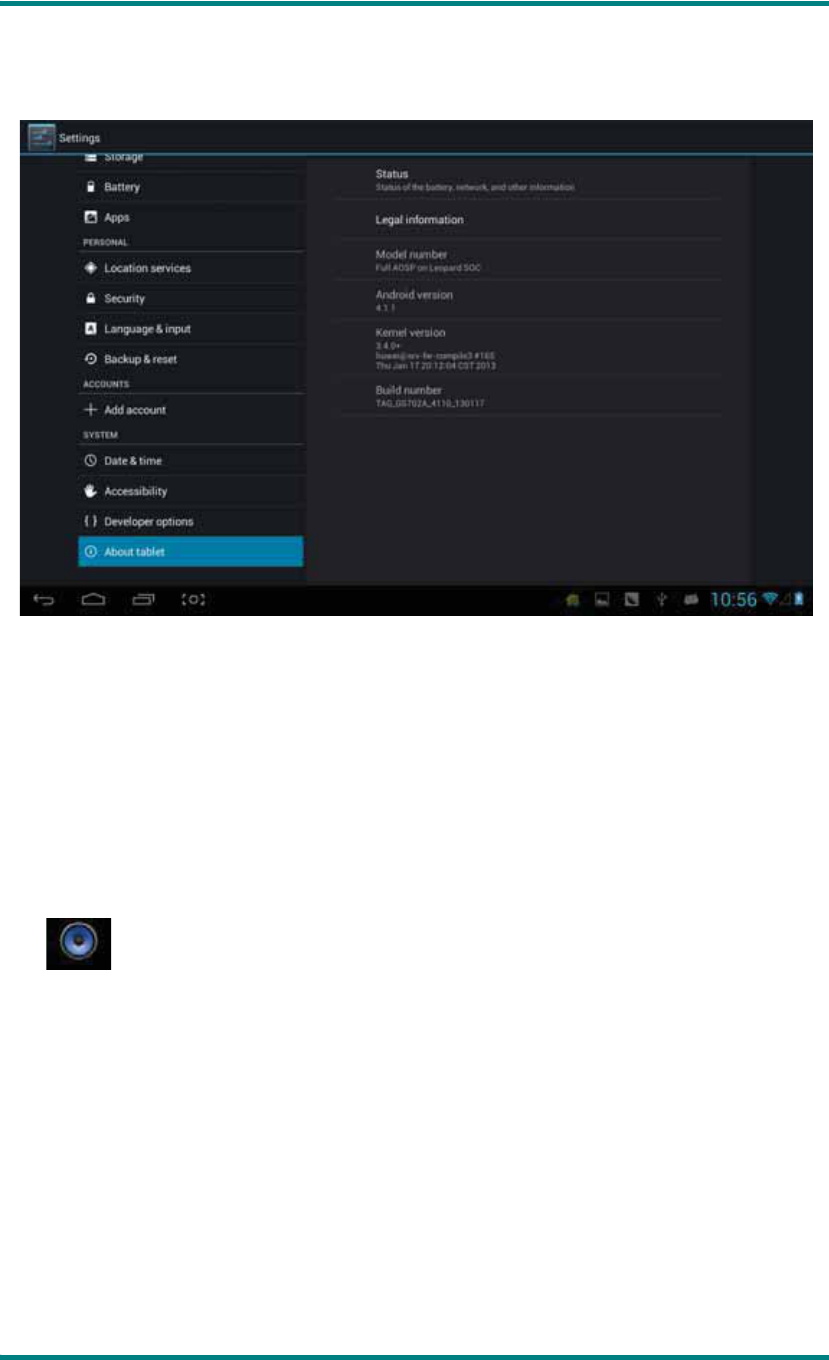
Accessibility
Large fontφSelect whether need to enlarge font
Autorotation screen: when rotate the MID, whether the image rotate at the same time to
adapt watching.
Quick boot: ticking this will speed up booting.
Running mode: there are three options, including “performance balanced”Ƚ“power saving
prior” and “performance prior”.
1εperformance balanced: MID will adjust power consumption and performance to make
both of that balance. Suggest you to use this option.
2εpower saving prior: The power consumption of MID is relatively small, so it saves power,
but it will lead some scene, which power consumption is large, can not use normally. Not
suggest users to use.
3εperformance prior: If you choose this option, the performance of MID will be the best,
but because of the large power consumption, the power will be consume easily.

HSG1279User Manual
Ver 1.0 Page 30
ɋNoteɌφWhen you running some applications or games, in order to display effectively θ
rotating may be forbidden.
Developer options
This option only used by developers, such as auto-open debug mode after USB is
connecting.
HSG1279User Manual
Ver 1.0 Page 31
About tablet
On this option, you can check status of MIDȽlegal information ȽMID model numberȽ
Android version, kernel version and build number.
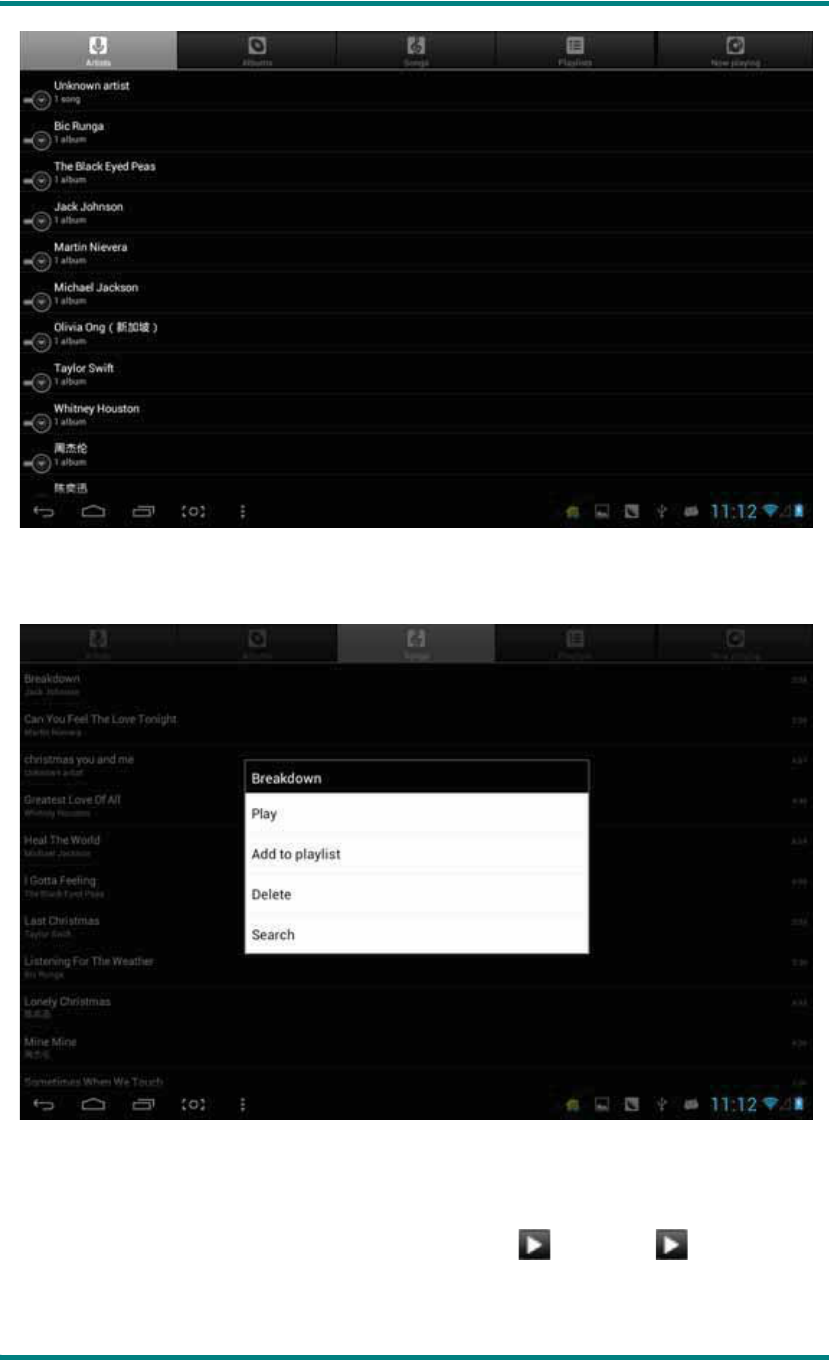
d) Music
Click to enter the following music library, all the music file listed separately on the
basis of “Artists”, “Albums”, “Songs”, “play list” and “now playing”, click any sort to enter
the list.
HSG1279User Manual
Ver 1.0 Page 32
Long press any song or folder name, you can add them to play list, delete them and
search them, show as follows:
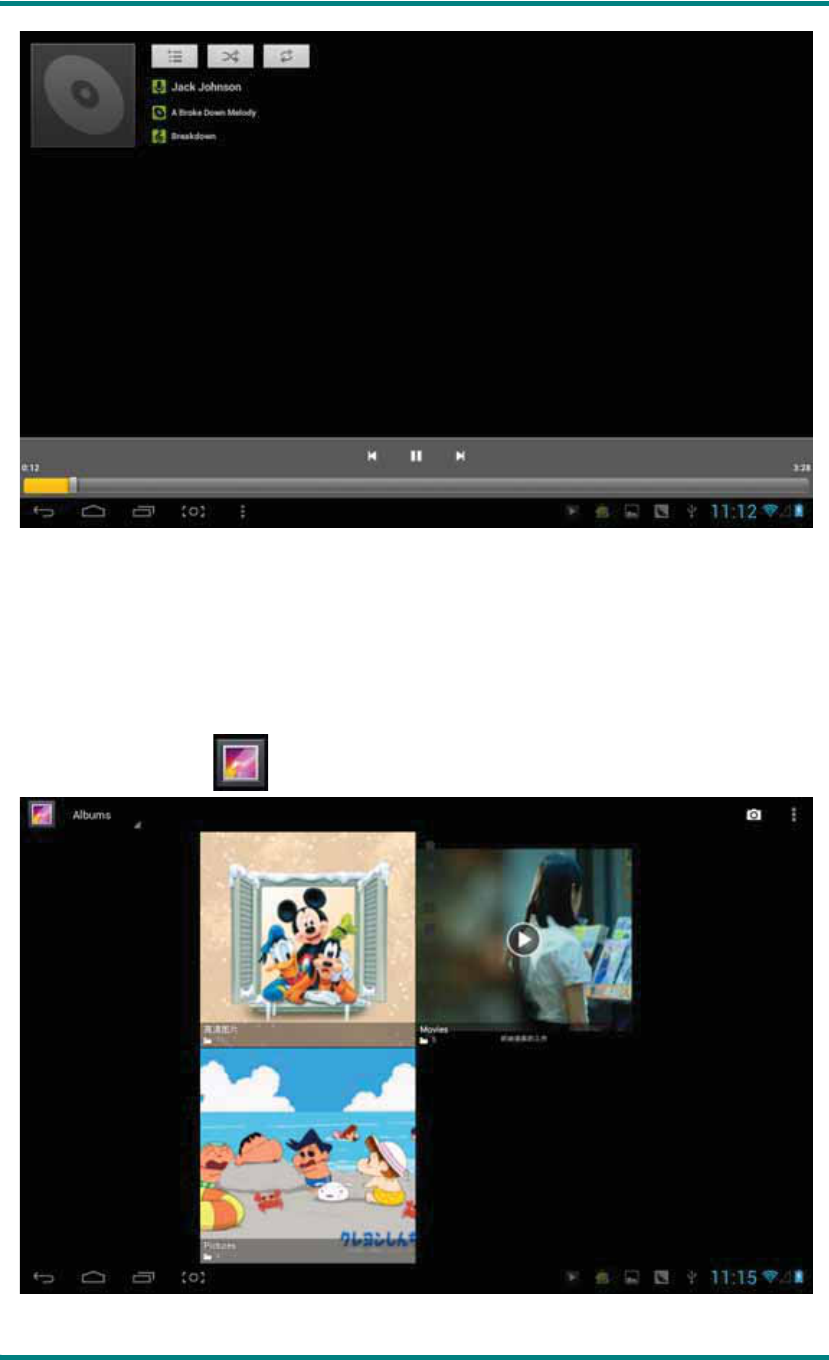
You can play the music when you use the other applications. Such as: while browse
pictures/read txt/surf the internet, while listen to music. When it is playing music
background, upper left side of status bar displays , pressing and dragging
downward, the screen displays as follows, click the music and back to music playing
interface.
HSG1279User Manual
Ver 1.0 Page 33
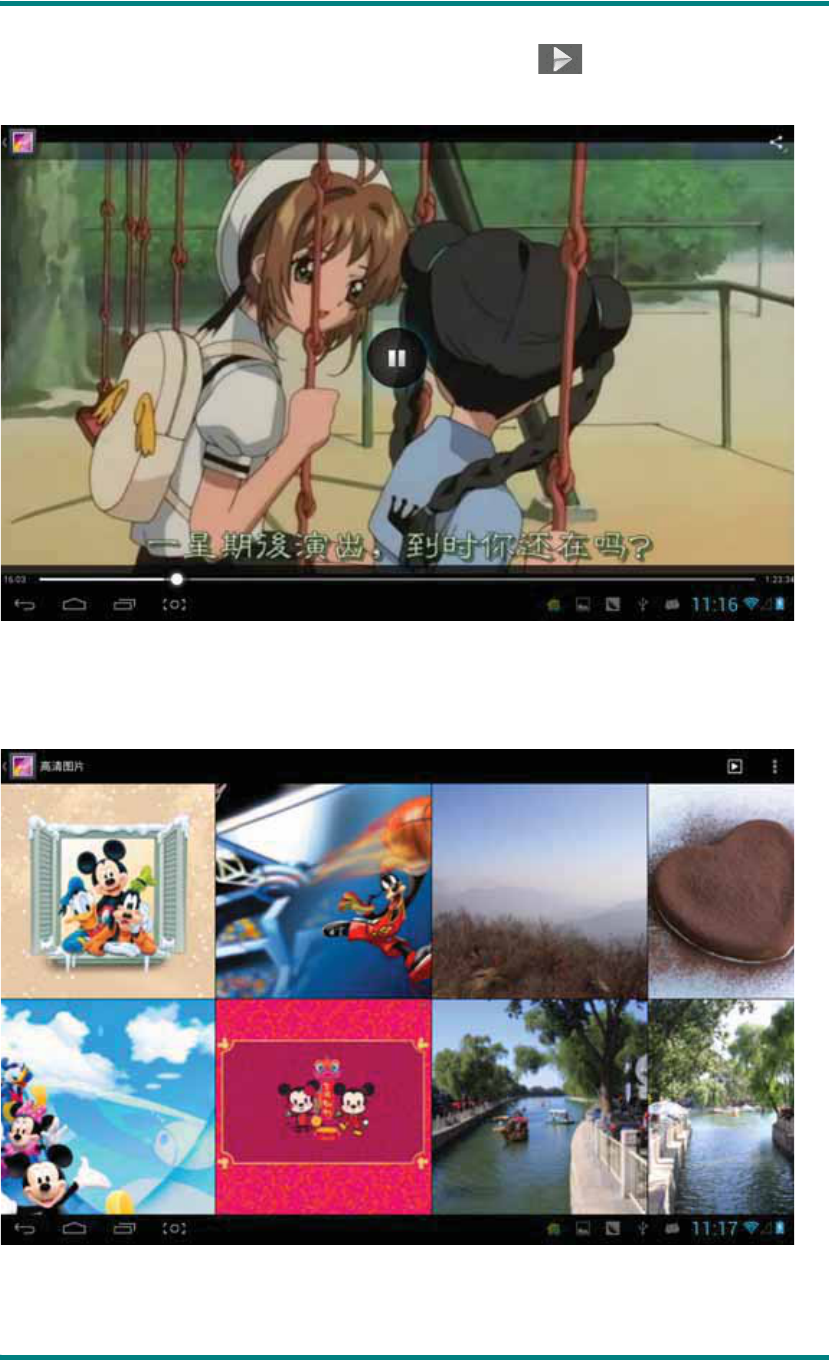
e) Video&Picture
Click the picture library , entering:
Video play
HSG1279User Manual
Ver 1.0 Page 34
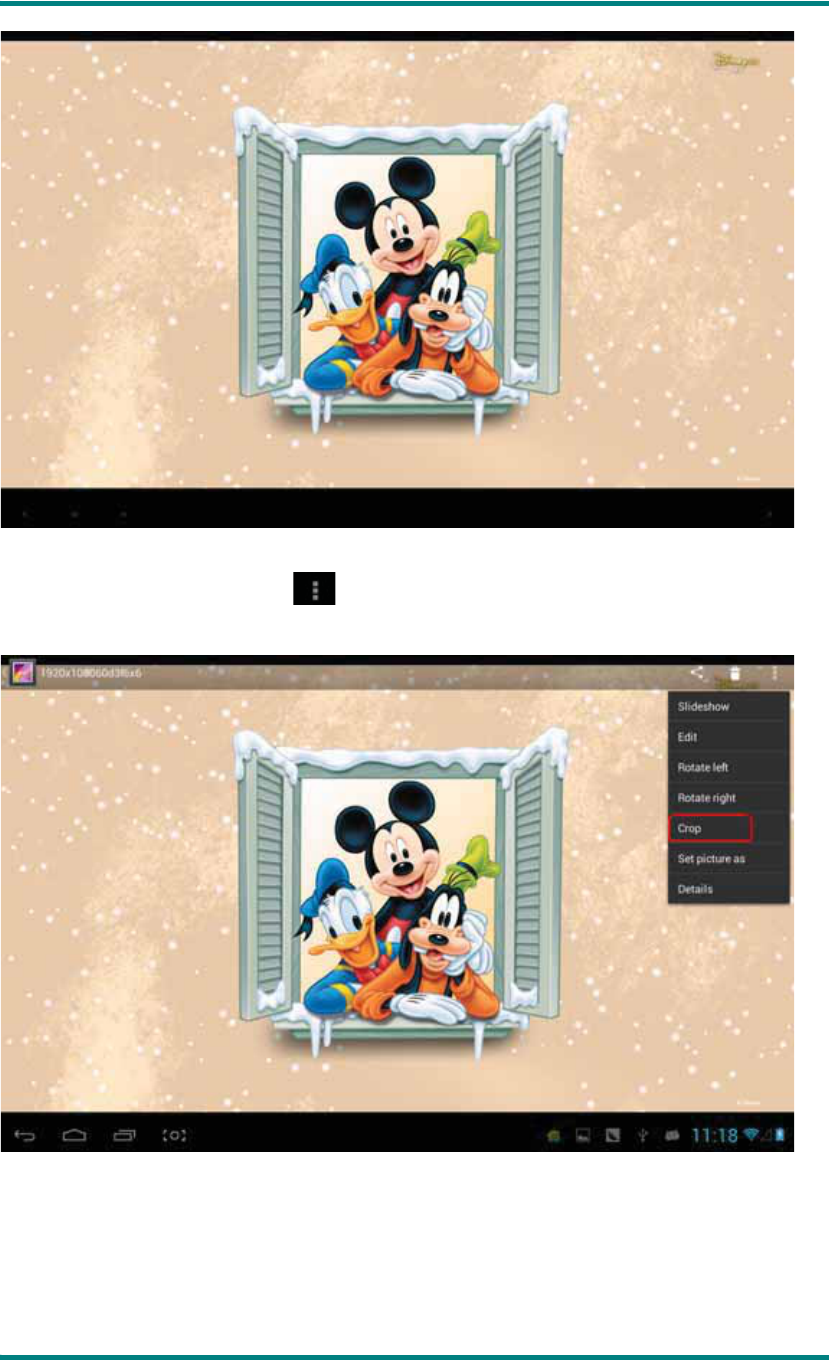
Click video folder, and wait a minute. After analyzing, click to start play, displaying as
follows:
Picture play
Choose picture folder, shown as the following screenshot:
HSG1279User Manual
Ver 1.0 Page 35
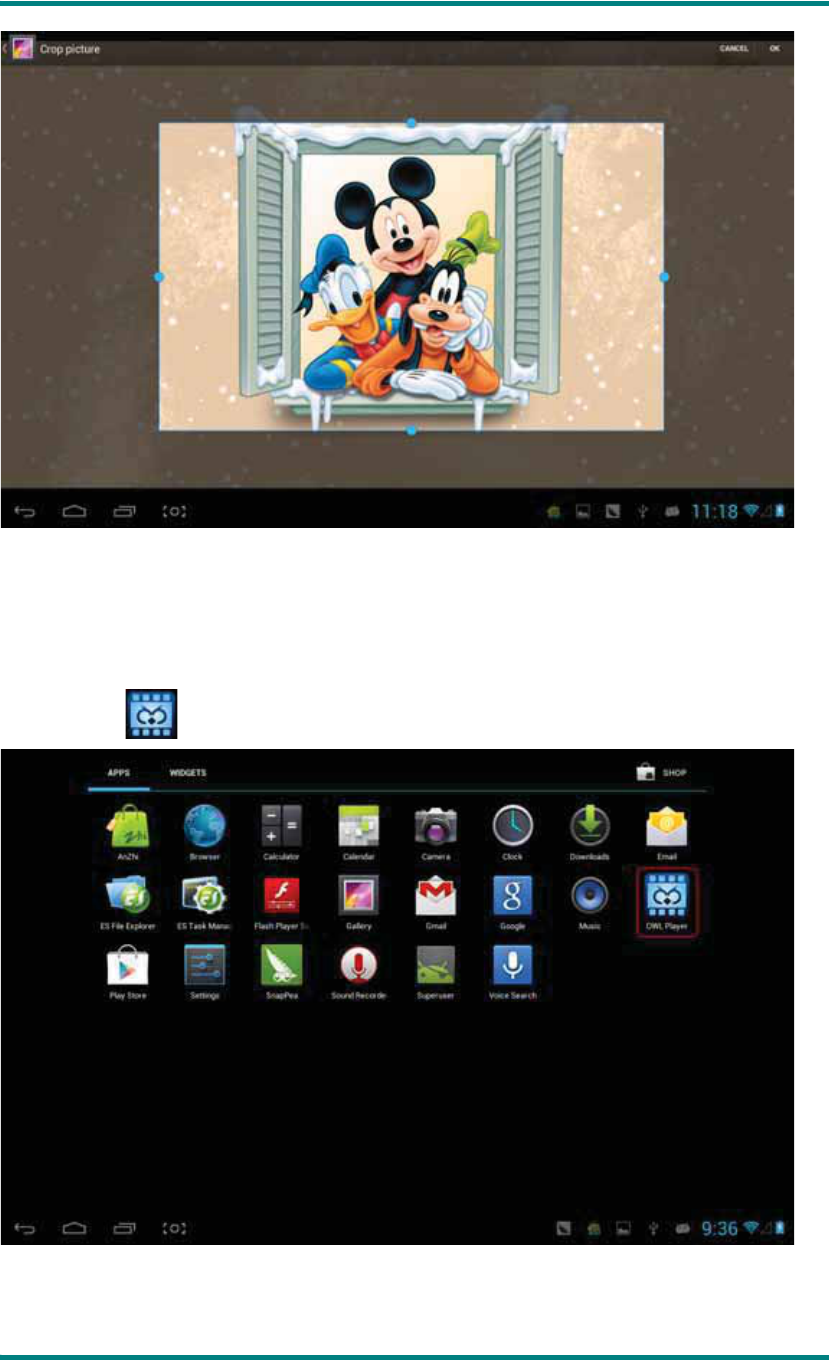
Click the upper right side icon θyou can choose operation of playing slideshowȽ
editingȽrotating leftȽrotating rightȽcropping and etc.
Choose “crop”, you can cut the picture. After selecting the crop region, click the “OK”
button on the upper right side:
HSG1279User Manual
Ver 1.0 Page 36
Owl player
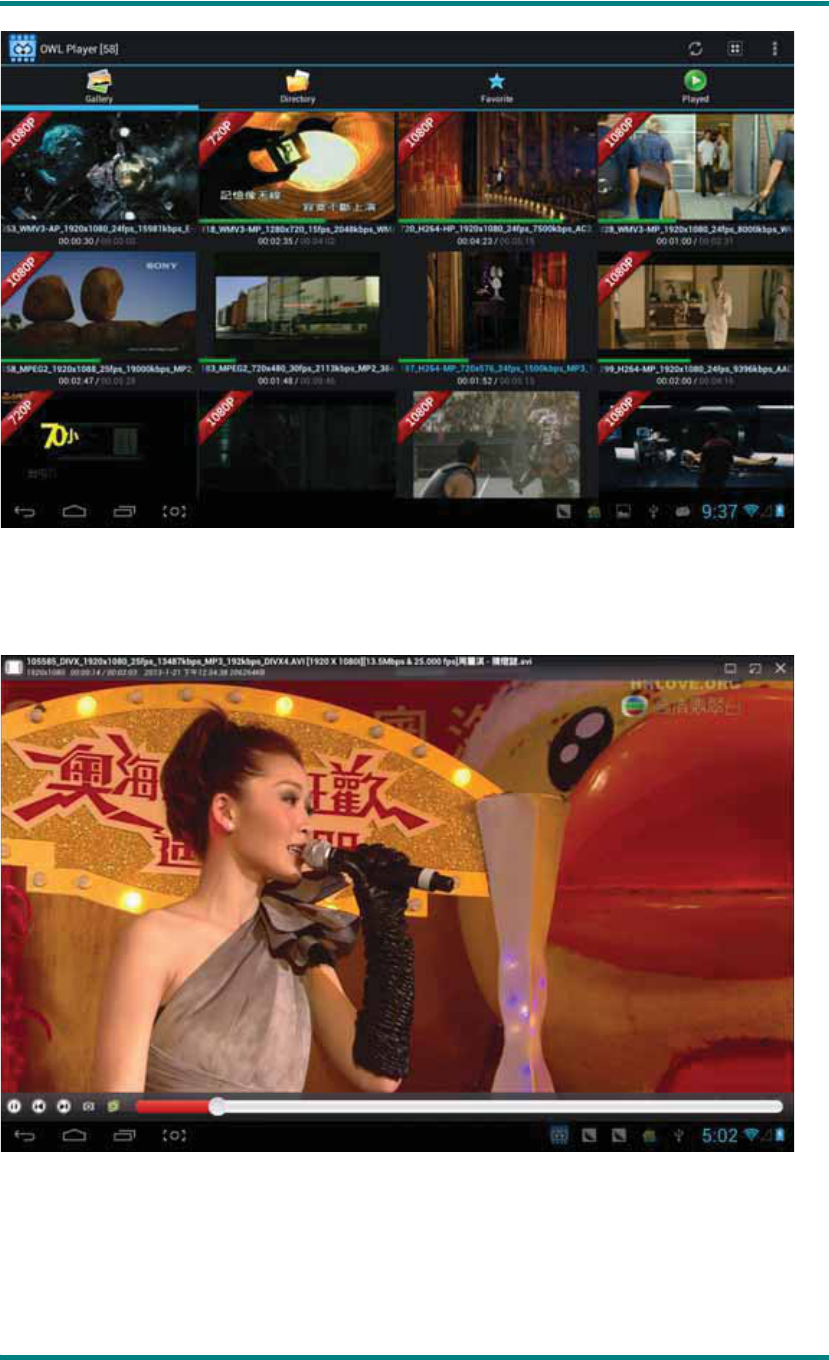
Owl player is a featured video player, and it supplies a brand new window play
mode—playback simultaneous of multi-window.
Click the icon , enter the owl player:
HSG1279User Manual
Ver 1.0 Page 37
There are four modes in list: GalleryȽDirectoryȽ Favorite and Played. Users can play
different file by entering different mode. Playback interface as follows:
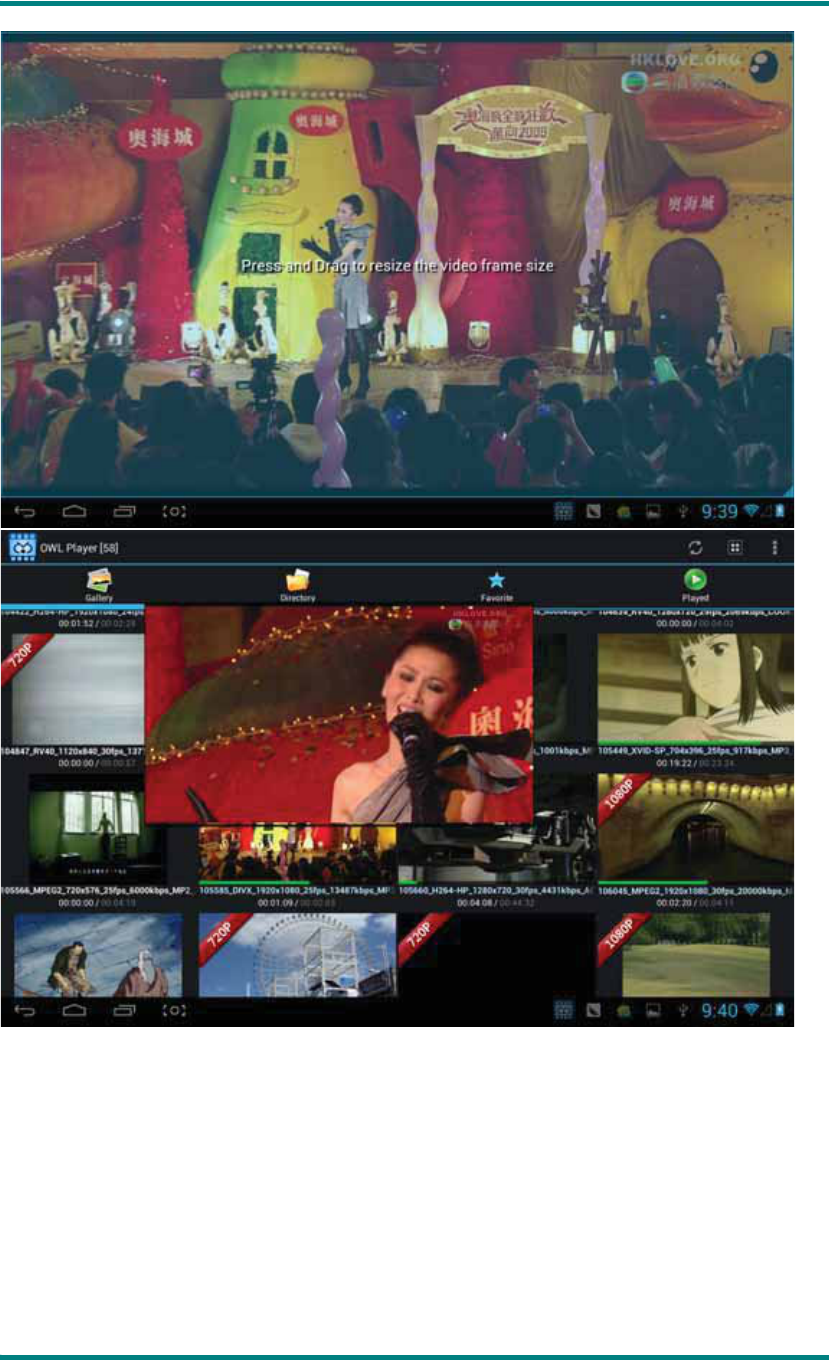
Users can modify the window’s size automatically. In the case of no progress bar on
interface, long press the lower right side of the playing window, you can modify window’s
size on your own willing:
HSG1279User Manual
Ver 1.0 Page 38
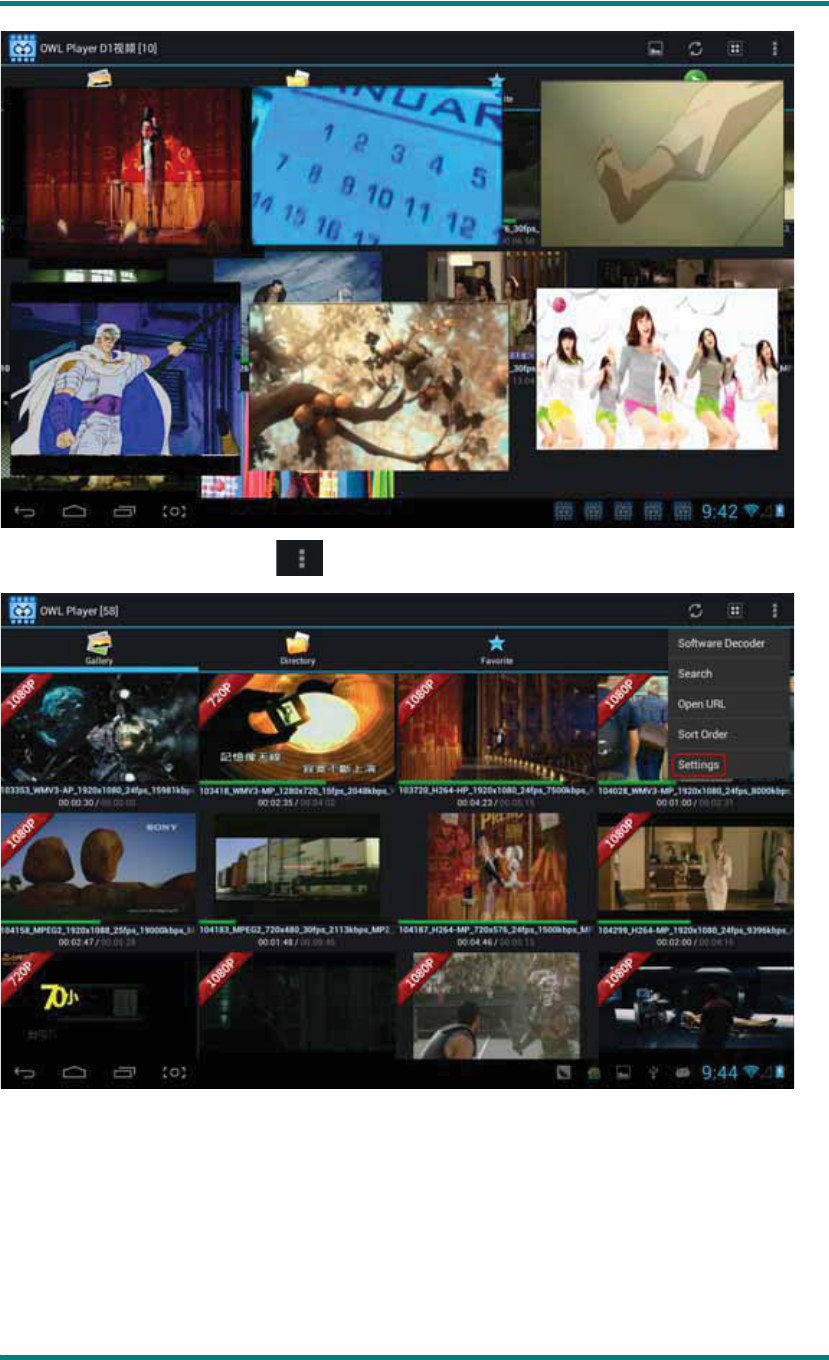
You can open several windows to play at the same time:
HSG1279User Manual
Ver 1.0 Page 39
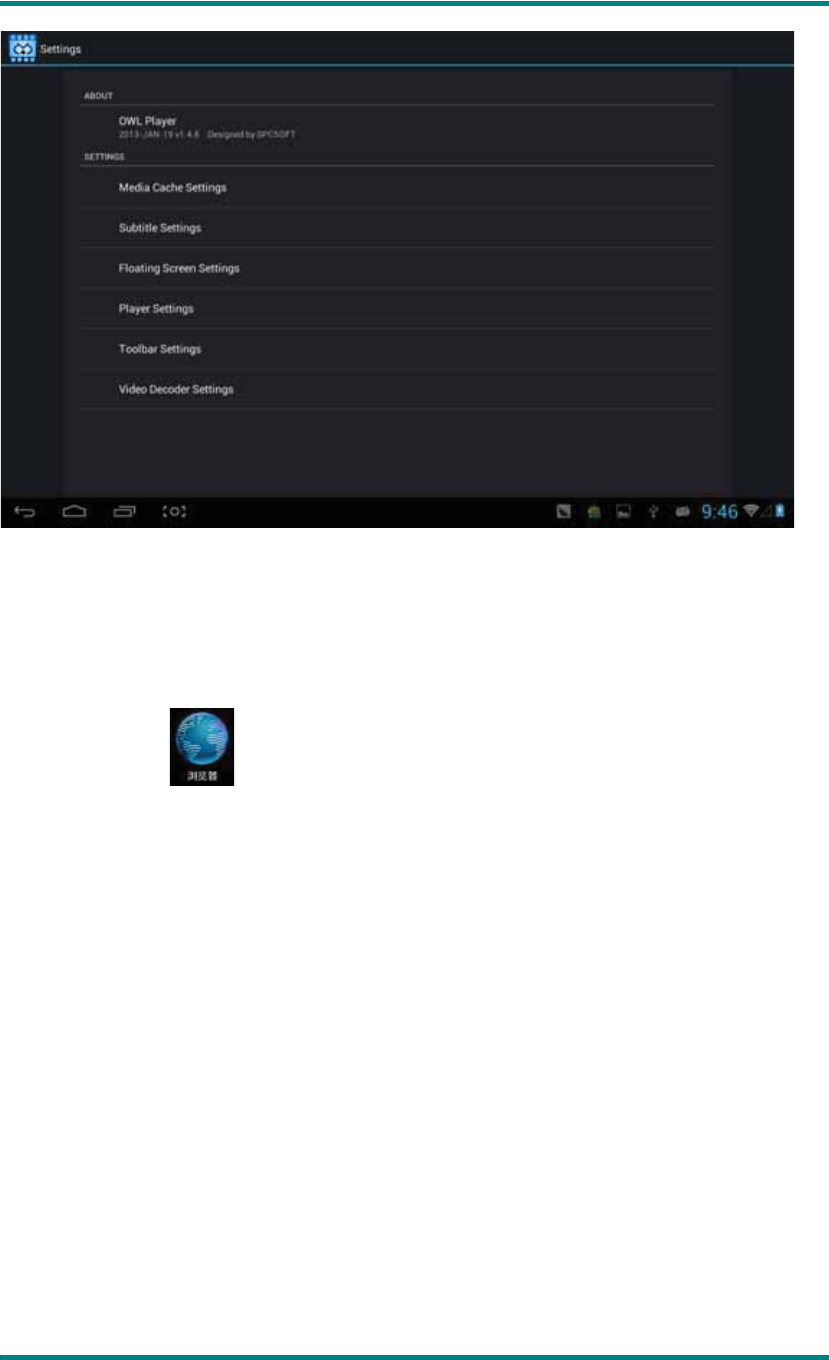
Click the upper right side icon :
Selecting “setting” on popped up menu, you can enter setting interface to set all options:
HSG1279User Manual
Ver 1.0 Page 40
f) Online
Open the browser , enter webpage. Before surfing the Internet, ensuring your MID
has been linked the WifiȽ3G or Ethernet.
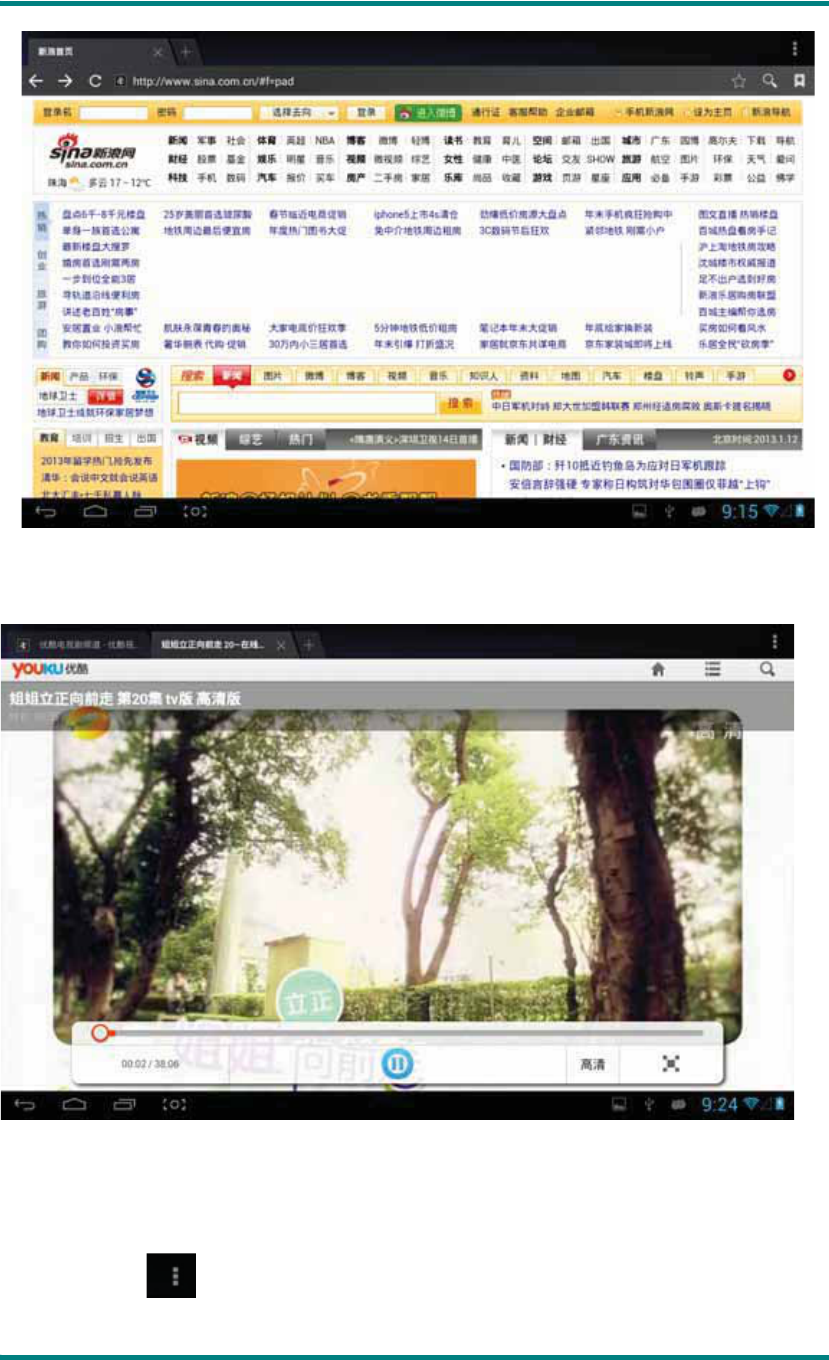
Webpage browser interface, such as visit sina:
HSG1279User Manual
Ver 1.0 Page 41
Online play interface, such as play video in Youku:
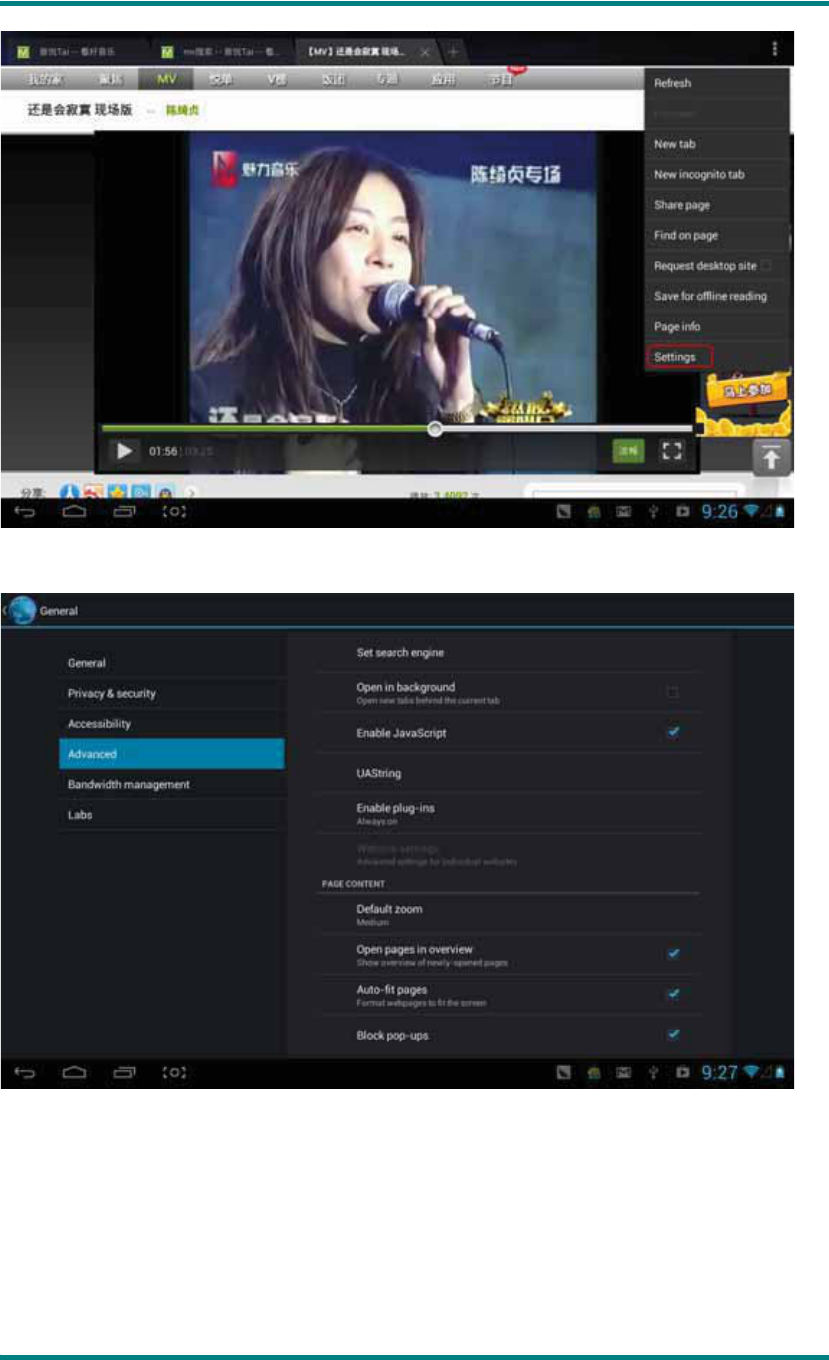
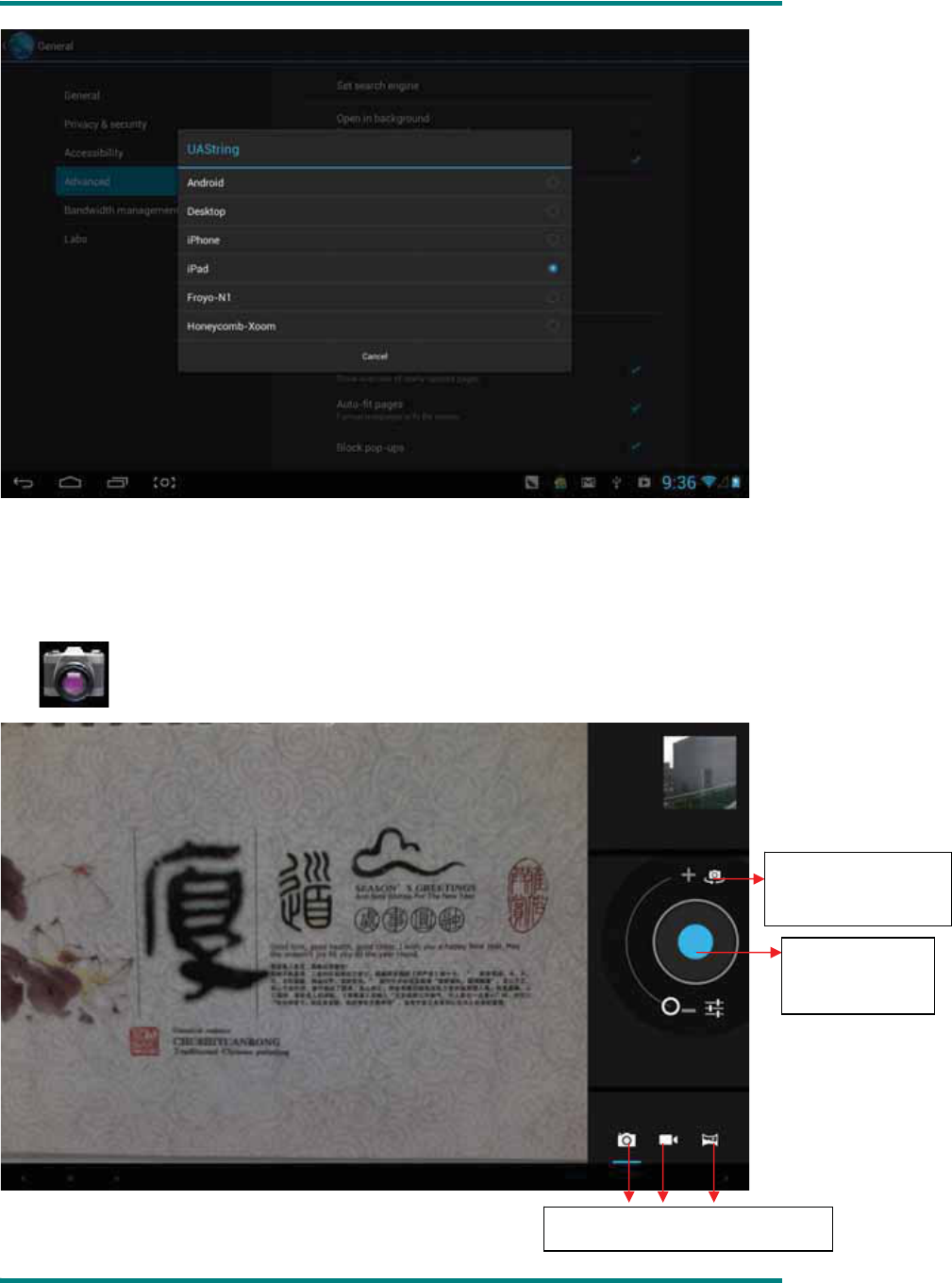
Webpage browser is divided into two parts, including desktop and ipad, if you want to visit
the webpage of PC (most contents of web give priority to flash), then you need to modify
the UAstring settings, methods as following:
Click the button on the upper right side of web, choosing “setting” on the last option
of popped up menu:
HSG1279User Manual
Ver 1.0 Page 42
Selecting “Advanced”:
Choosing Desktop in “UAString”:

HSG1279User Manual
Ver 1.0 Page 43
Then come back to web playing interface and refresh:
If you need to visit webpage of MID(most contents give priority to HTML5), then you need
to change “UAstring” to ipadφ
HSG1279User Manual
Ver 1.0 Page 44
g) Camera
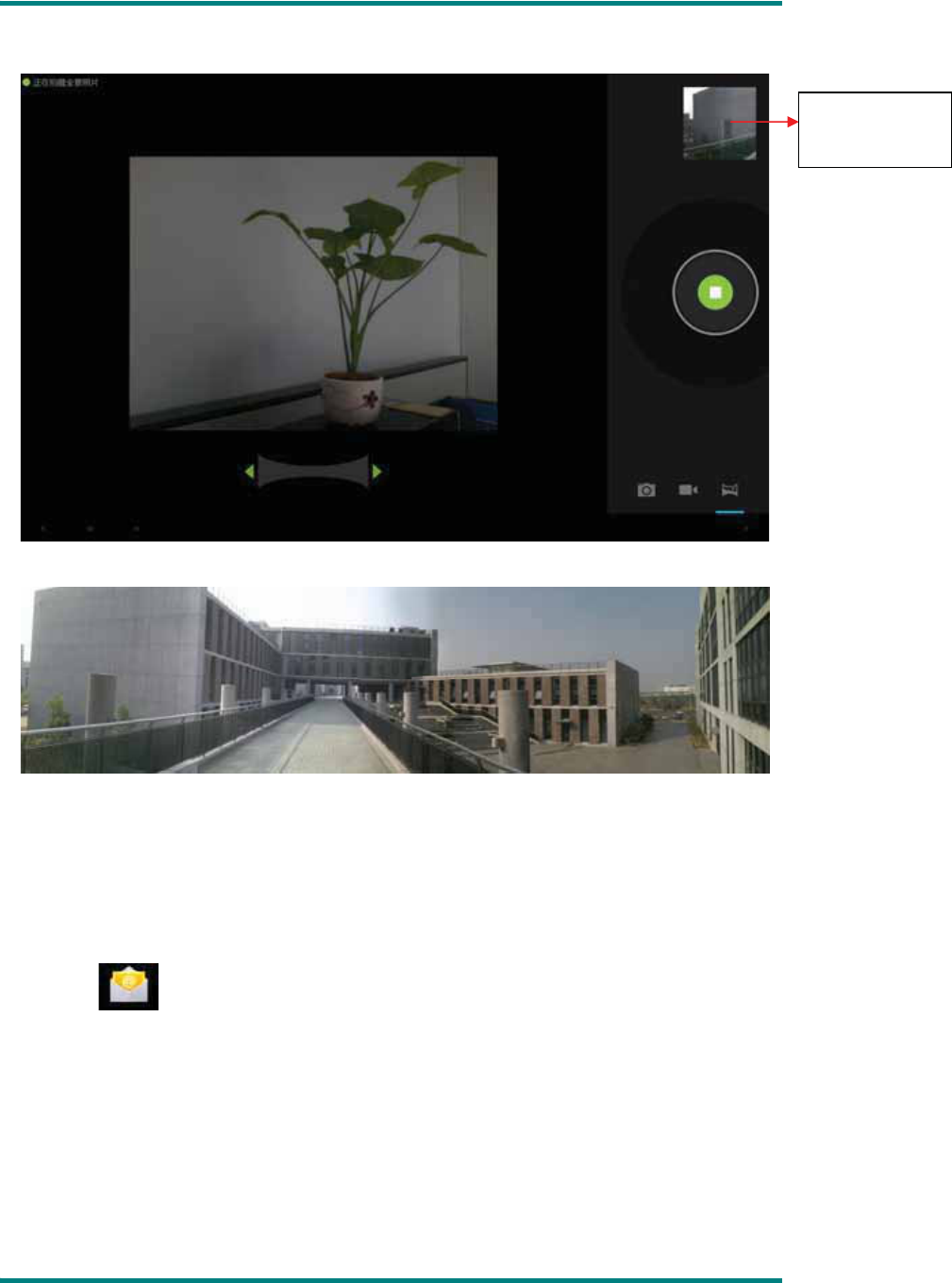
click θyou can enter the DC application:
6ZLWFKLQJIURQWDQG
EDFNOHQV
&OLFN WR VWDUW
WDNLQJSKRWRV
3LFWXUHǃ9LGHRWDSHǃ3DQVKRW
HSG1279User Manual
Ver 1.0 Page 45
select pan-shot, click photograph key, move the lens leftward or rightward slowly to take
photos:
Pan-shot’s effect picture:
h) Email
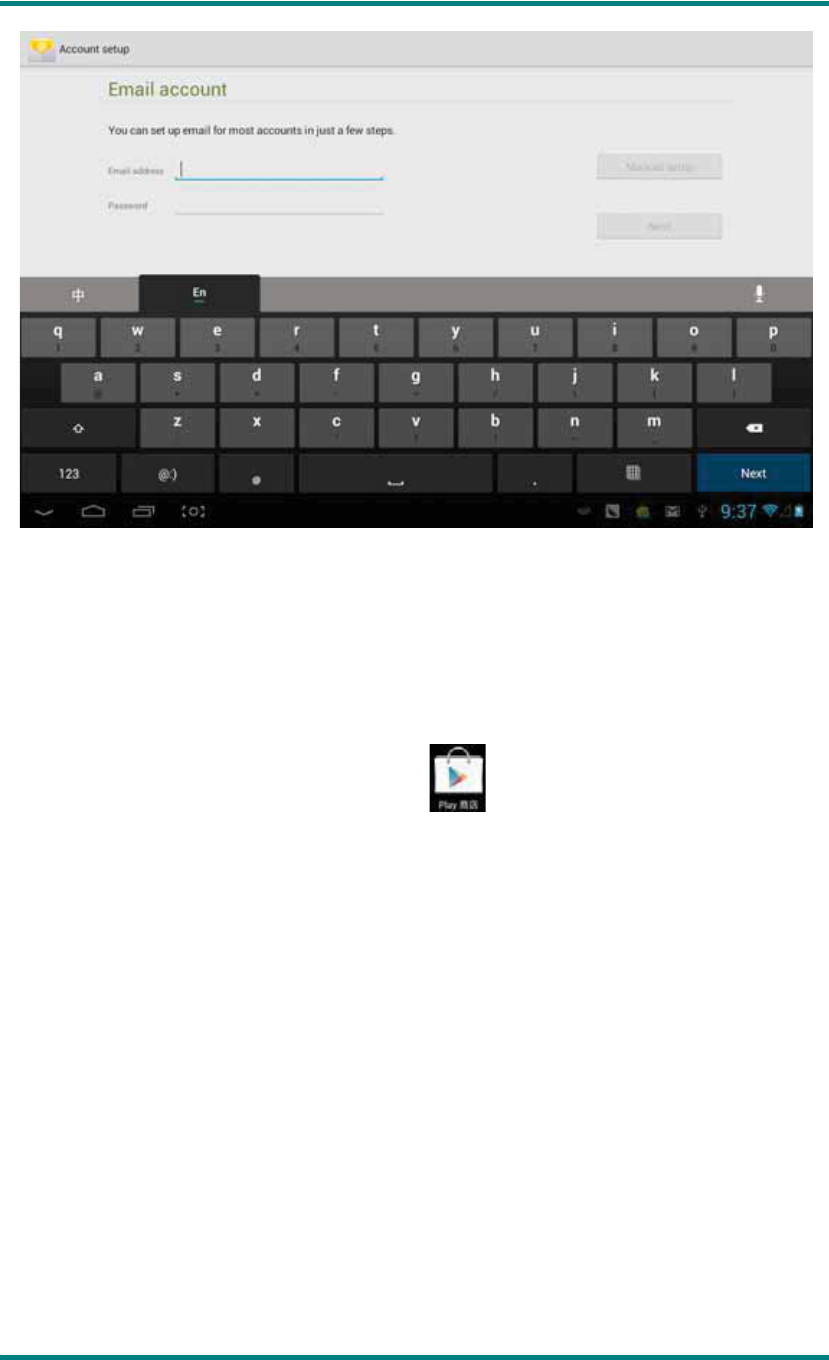
You can send or receive emails in MID.
Click Email , and login your account and password, then you can send emails.
&OLFN WR YLHZ
WKHSLFWXUHV
HSG1279User Manual
Ver 1.0 Page 46
i) Play store
You can download applications from play store and then install them on your MID.
When the WIFI is linked, click play store icon , you can enter the main interface of
play store:

HSG1279User Manual
Ver 1.0 Page 47
There are five sections on Play Store for users to download, they are CategoriesȽ
FeaturedȽTop FreeȽTop Grossing and Trend.
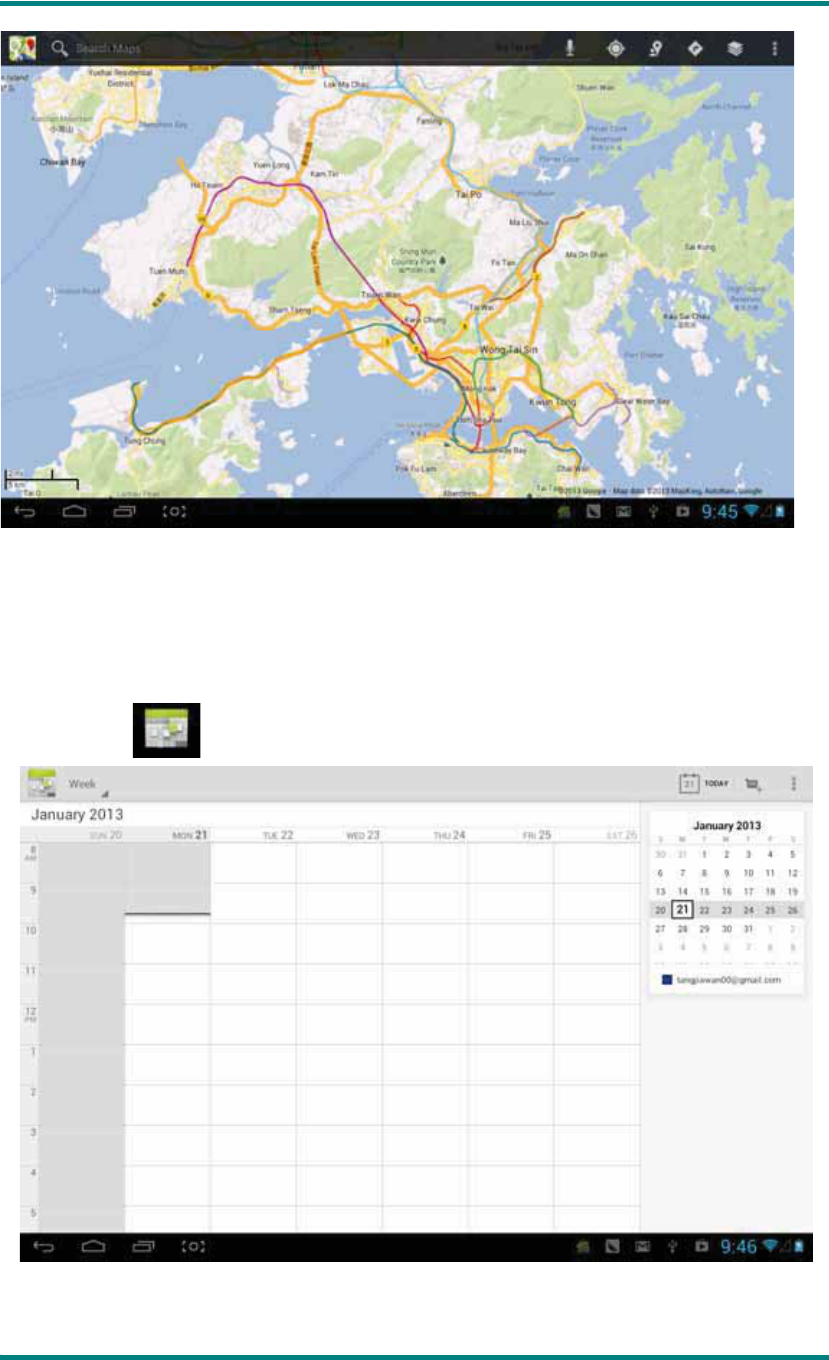
If you choose “Map” in “Top Free” to download:
Open to use after installing:
HSG1279User Manual
Ver 1.0 Page 48
j) Calendar
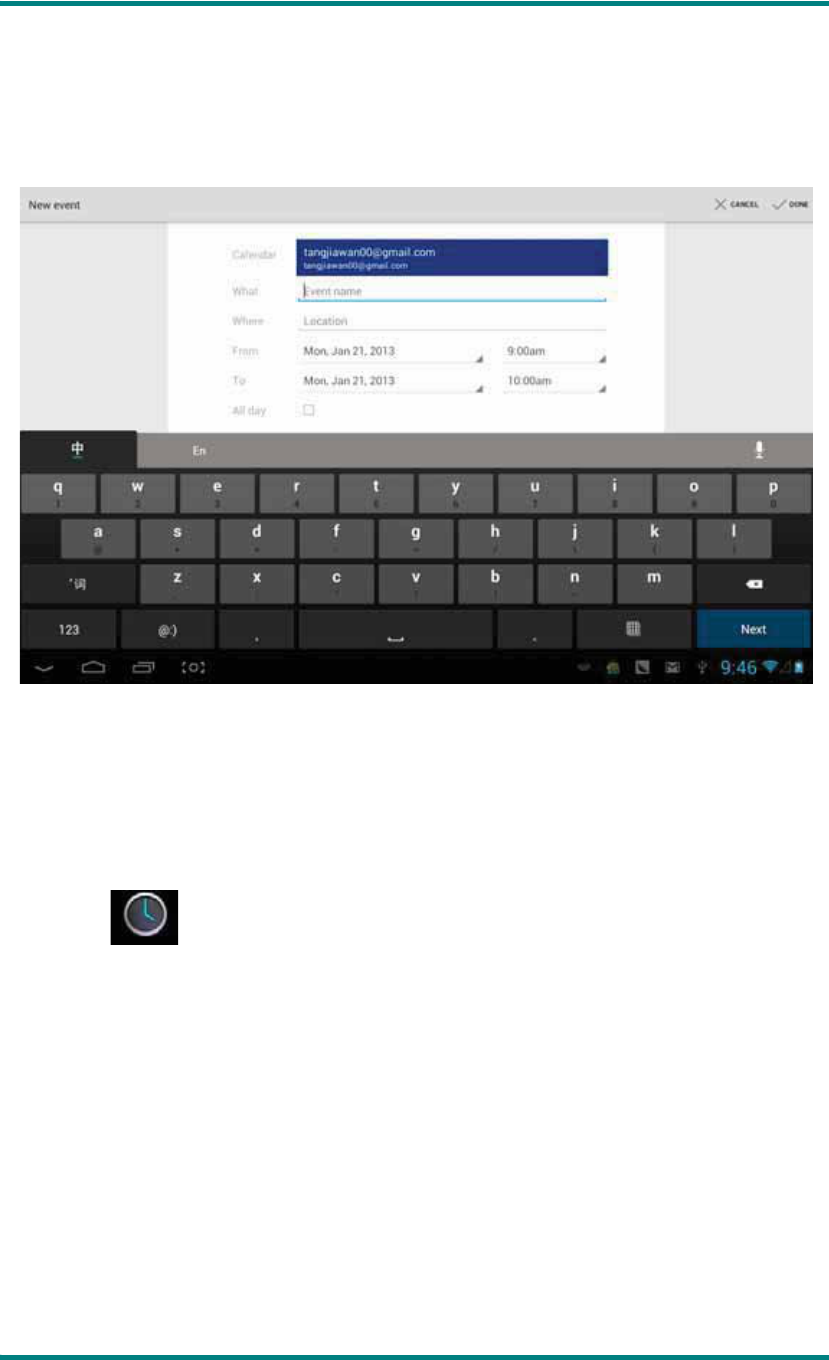
Click calendar θenter Calendarφ
You can set calendar remind tone and other related settings via <setting-more setting>
HSG1279User Manual
Ver 1.0 Page 49
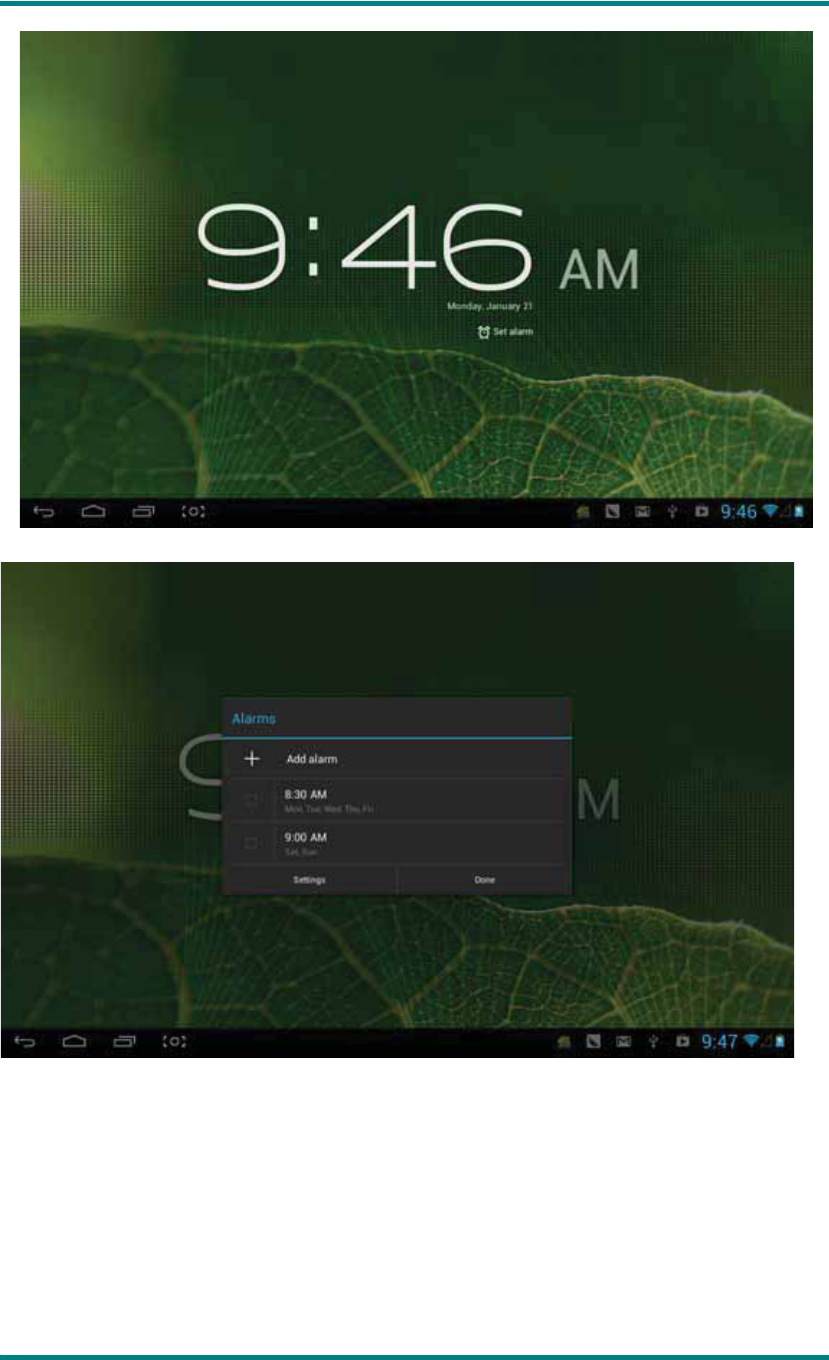
Add agenda: start to set agenda by <set-new agenda>, the option you can set including:
event nameȽtimeȽlocationȽdescriptionȽrepeat time and remind. At this time, screen
display as follows:
k) Clock
Click clock θclock interface will appear:
HSG1279User Manual
Ver 1.0 Page 50
Click to set clock:

HSG1279User Manual
Ver 1.0 Page 51
FCC warning statement˖
This device complies with Part 15 of the FCC rules. Operation is subject to the following
two conditions: 1) this device may not cause harmful interference, and 2) this device must
accept any interference received, including interference that may cause undesired operation.
This equipment has been tested and found to comply with the limits for a Class B digital device,
pursuant to Part 15 of the FCC rules. These limits are designed to provide reasonable
protection against harmful interference in a residential installation. This equipment generates,
uses and can radiate radio frequency energy and if not installed and used in accordance with
the instructions, may cause harmful interference to radio communications. However, there is
no guarantee that interference will not occur in a particular installation. If this equipment does
cause harmful interference to radio or television reception, which can be determined by turning
the equipment off and on, the user is encouraged to try correct the interference by one or more
of the following measures:
- Reorient the receiving antenna.
- Increase the separation between the equipment and receiver.
- Connect the equipment into and outlet on a circuit different from that to which the
receiver is connected.
- Consult the dealer or an experienced radio/TV technician for help.
Any special accessories needed for compliance must be specified in the instruction manual.
You are cautioned that changes or modifications not expressly approved by the party
responsible for compliance could void your authority to operate the equipment.
The radiated output power of this device is below the FCC radio frequency exposure
limits. Nevertheless, the device should be used in such a manner that the
potential for human contact is minimized during normal operation.
The exposure standard for wireless devices employs a unit of measurement known as
the Specific Absorption Rate, or SAR. The SAR limit set by the FCC is 1.6 W/Kg.
Tests for SAR are conducted using standard operating positions accepted by the FCC
with the device transmitting at its highest certified power level in all tested
frequency bands. Although the SAR is determined at the highest certified power
level, the actual SAR level of the device while operating can be well below the
maximum value. This is because the device is designed to operate at multiple power
levels so as to use only the power required to reach the network. In general, the
closer you are to a wireless base station antenna, the lower the power output. To
avoid the possibility of exceeding the FCC radio frequency exposure limits, human
proximity to the antenna should be minimized.